 Red Hat Summit
Chapter 4. Protect a web application by using OpenID Connect (OIDC) authorization code flow
Discover how to secure application HTTP endpoints by using the Quarkus OpenID Connect (OIDC) authorization code flow mechanism with the Quarkus OIDC extension, providing robust authentication and authorization.
For more information, see OIDC code flow mechanism for protecting web applications.
To learn about how well-known social providers such as Apple, Facebook, GitHub, Google, Mastodon, Microsoft, Spotify, Twitch, and X (formerly Twitter) can be used with Quarkus OIDC, see Configuring well-known OpenID Connect providers. See also, Authentication mechanisms in Quarkus.
If you want to protect your service applications by using OIDC Bearer token authentication, see OIDC Bearer token authentication.
4.1. Prerequisites
To complete this guide, you need:
- Roughly 15 minutes
- An IDE
-
JDK 17+ installed with
JAVA_HOMEconfigured appropriately - Apache Maven 3.8.6 or later
- A working container runtime (Docker or Podman)
- Optionally the Quarkus CLI if you want to use it
- Optionally Mandrel or GraalVM installed and configured appropriately if you want to build a native executable (or Docker if you use a native container build)
4.2. Architecture
In this example, we build a simple web application with a single page:
-
/index.html
This page is protected, and only authenticated users can access it.
4.3. Solution
Follow the instructions in the next sections and create the application step by step. Alternatively, you can go right to the completed example.
Clone the Git repository by running the git clone https://github.com/quarkusio/quarkus-quickstarts.git -b 3.20 command. Alternatively, download an archive.
The solution is located in the security-openid-connect-web-authentication-quickstart directory.
4.4. Create the Maven project
First, we need a new project. Create a new project by running the following command:
Using the Quarkus CLI:
quarkus create app org.acme:security-openid-connect-web-authentication-quickstart \
    --extension='rest,oidc' \
    --no-code
cd security-openid-connect-web-authentication-quickstart
To create a Gradle project, add the
--gradleor--gradle-kotlin-dsloption.For more information about how to install and use the Quarkus CLI, see the Quarkus CLI guide.
Using Maven:
mvn com.redhat.quarkus.platform:quarkus-maven-plugin:3.20.1:create \
    -DprojectGroupId=org.acme \
    -DprojectArtifactId=security-openid-connect-web-authentication-quickstart \
    -Dextensions='rest,oidc' \
    -DnoCode
cd security-openid-connect-web-authentication-quickstart
To create a Gradle project, add the
-DbuildTool=gradleor-DbuildTool=gradle-kotlin-dsloption.
For Windows users:
-
If using cmd, (don’t use backward slash
\and put everything on the same line) -
If using Powershell, wrap
-Dparameters in double quotes e.g."-DprojectArtifactId=security-openid-connect-web-authentication-quickstart"
If you already have your Quarkus project configured, you can add the oidc extension to your project by running the following command in your project base directory:
Using the Quarkus CLI:
quarkus extension add oidcUsing Maven:
./mvnw quarkus:add-extension -Dextensions='oidc'Using Gradle:
./gradlew addExtension --extensions='oidc'
This adds the following dependency to your build file:
Using Maven:
<dependency>
   <groupId>io.quarkus</groupId>
   <artifactId>quarkus-oidc</artifactId>
</dependency>
Using Gradle:
implementation("io.quarkus:quarkus-oidc")
4.5. Write the application
Let’s write a simple Jakarta REST resource that has all the tokens returned in the authorization code grant response injected:
package org.acme.security.openid.connect.web.authentication;

import jakarta.inject.Inject;
import jakarta.ws.rs.GET;
import jakarta.ws.rs.Path;
import jakarta.ws.rs.Produces;

import org.eclipse.microprofile.jwt.Claims;
import org.eclipse.microprofile.jwt.JsonWebToken;

import io.quarkus.oidc.IdToken;
import io.quarkus.oidc.RefreshToken;

@Path("/tokens")
public class TokenResource {

   /**
    * Injection point for the ID token issued by the OpenID Connect provider
    */
   @Inject
   @IdToken
   JsonWebToken idToken;

   /**
    * Injection point for the access token issued by the OpenID Connect provider
    */
   @Inject
   JsonWebToken accessToken;

   /**
    * Injection point for the refresh token issued by the OpenID Connect provider
    */
   @Inject
   RefreshToken refreshToken;

   /**
    * Returns the tokens available to the application.
    * This endpoint exists only for demonstration purposes.
    * Do not expose these tokens in a real application.
    *
    * @return an HTML page containing the tokens available to the application.
    */
   @GET
   @Produces("text/html")
   public String getTokens() {
       StringBuilder response = new StringBuilder().append("<html>")
               .append("<body>")
               .append("<ul>");


       Object userName = this.idToken.getClaim(Claims.preferred_username);

       if (userName != null) {
           response.append("<li>username: ").append(userName.toString()).append("</li>");
       }

       Object scopes = this.accessToken.getClaim("scope");

       if (scopes != null) {
           response.append("<li>scopes: ").append(scopes.toString()).append("</li>");
       }

       response.append("<li>refresh_token: ").append(refreshToken.getToken() != null).append("</li>");

       return response.append("</ul>").append("</body>").append("</html>").toString();
   }
}
This endpoint has ID, access, and refresh tokens injected. It returns a preferred_username claim from the ID token, a scope claim from the access token, and a refresh token availability status.
You only need to inject the tokens if the endpoint needs to use the ID token to interact with the currently authenticated user or use the access token to access a downstream service on behalf of this user.
For more information, see the Access ID and Access Tokens section of the reference guide.
4.6. Configure the application
The OIDC extension allows you to define the configuration by using the application.properties file in the src/main/resources directory.
%prod.quarkus.oidc.auth-server-url=http://localhost:8180/realms/quarkus
quarkus.oidc.client-id=frontend
quarkus.oidc.credentials.secret=secret
quarkus.oidc.application-type=web-app
quarkus.http.auth.permission.authenticated.paths=/*
quarkus.http.auth.permission.authenticated.policy=authenticated
This is the simplest configuration you can have when enabling authentication to your application.
The quarkus.oidc.client-id property references the client_id issued by the OIDC provider, and the quarkus.oidc.credentials.secret property sets the client secret.
The quarkus.oidc.application-type property is set to web-app to tell Quarkus that you want to enable the OIDC authorization code flow so that your users are redirected to the OIDC provider to authenticate.
Finally, the quarkus.http.auth.permission.authenticated permission is set to tell Quarkus about the paths you want to protect. In this case, all paths are protected by a policy that ensures only authenticated users can access them. For more information, see Security Authorization Guide.
When you do not configure a client secret with quarkus.oidc.credentials.secret, it is recommended to configure quarkus.oidc.token-state-manager.encryption-secret.
The quarkus.oidc.token-state-manager.encryption-secret enables the default token state manager to encrypt the user tokens in a browser cookie. If this key is not defined, and the quarkus.oidc.credentials.secret fallback is not configured, Quarkus uses a random key. A random key causes existing logins to be invalidated either on application restart or in environment with multiple instances of your application. Alternatively, encryption can also be disabled by setting quarkus.oidc.token-state-manager.encryption-required to false. However, you should disable secret encryption in development environments only.
The encryption secret is recommended to be 32 chars long. For example, quarkus.oidc.token-state-manager.encryption-secret=AyM1SysPpbyDfgZld3umj1qzKObwVMk
4.7. Start and configure the Keycloak server
To start a Keycloak server, use Docker and run the following command:
docker run --name keycloak -e KC_BOOTSTRAP_ADMIN_USERNAME=admin -e KC_BOOTSTRAP_ADMIN_PASSWORD=admin -p 8180:8080 quay.io/keycloak/keycloak:{keycloak.version} start-dev
where keycloak.version is set to 26.1.3 or later.
You can access your Keycloak Server at localhost:8180.
To access the Keycloak Administration Console, log in as the admin user. The username and password are both admin.
To create a new realm, import the realm configuration file. For more information, see the Keycloak documentation about how to create and configure a new realm.
4.8. Run the application in dev and JVM modes
To run the application in dev mode, use:
Using the Quarkus CLI:
quarkus devUsing Maven:
./mvnw quarkus:devUsing Gradle:
./gradlew --console=plain quarkusDev
After exploring the application in dev mode, you can run it as a standard Java application.
First, compile it:
Using the Quarkus CLI:
quarkus buildUsing Maven:
./mvnw installUsing Gradle:
./gradlew build
Then, run it:
java -jar target/quarkus-app/quarkus-run.jar4.9. Run the application in Native mode
This same demo can be compiled into native code. No modifications are required.
This implies that you no longer need to install a JVM on your production environment, as the runtime technology is included in the produced binary and optimized to run with minimal resources.
Compilation takes longer, so this step is turned off by default. You can build again by enabling the native build:
Using the Quarkus CLI:
quarkus build --nativeUsing Maven:
./mvnw install -DnativeUsing Gradle:
./gradlew build -Dquarkus.native.enabled=true
After a while, you can run this binary directly:
./target/security-openid-connect-web-authentication-quickstart-runner4.10. Test the application
To test the application, open your browser and access the following URL:
If everything works as expected, you are redirected to the Keycloak server to authenticate.
To authenticate to the application, enter the following credentials at the Keycloak login page:
- Username: alice
- Password: alice
After clicking the Login button, you are redirected back to the application, and a session cookie will be created.
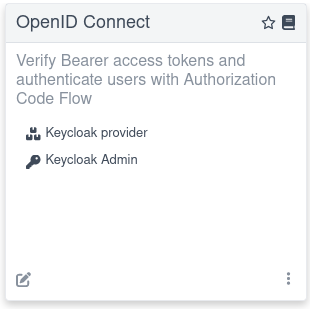
The session for this demo is valid for a short period of time and, on every page refresh, you will be asked to re-authenticate. For information about how to increase the session timeouts, see the Keycloak session timeout documentation. For example, you can access the Keycloak Admin console directly from the dev UI by clicking the Keycloak Admin link if you use Dev Services for Keycloak in dev mode:
For more information about writing the integration tests that depend on Dev Services for Keycloak, see the Dev Services for Keycloak section.
4.11. Summary
You have learned how to set up and use the OIDC authorization code flow mechanism to protect and test application HTTP endpoints. After you have completed this tutorial, explore OIDC Bearer token authentication and other authentication mechanisms.
4.12. References
- Quarkus Security overview
- OIDC code flow mechanism for protecting web applications
- Configuring well-known OpenID Connect providers
- OpenID Connect and OAuth2 Client and Filters reference guide
- Dev Services for Keycloak
- Sign and encrypt JWT tokens with SmallRye JWT Build
- Choosing between OpenID Connect, SmallRye JWT, and OAuth2 authentication mechanisms
- Keycloak Documentation
- Protect Quarkus web application by using Auth0 OpenID Connect provider
- OpenID Connect
- JSON Web Token

'%20d='M201.5%20305.5c-13.8%200-24.9-11.1-24.9-24.6%200-13.8%2011.1-24.9%2024.9-24.9%2013.6%200%2024.6%2011.1%2024.6%2024.9%200%2013.6-11.1%2024.6-24.6%2024.6zM504%20256c0%20137-111%20248-248%20248S8%20393%208%20256%20119%208%20256%208s248%20111%20248%20248zm-132.3-41.2c-9.4%200-17.7%203.9-23.8%2010-22.4-15.5-52.6-25.5-86.1-26.6l17.4-78.3%2055.4%2012.5c0%2013.6%2011.1%2024.6%2024.6%2024.6%2013.8%200%2024.9-11.3%2024.9-24.9s-11.1-24.9-24.9-24.9c-9.7%200-18%205.8-22.1%2013.8l-61.2-13.6c-3-.8-6.1%201.4-6.9%204.4l-19.1%2086.4c-33.2%201.4-63.1%2011.3-85.5%2026.8-6.1-6.4-14.7-10.2-24.1-10.2-34.9%200-46.3%2046.9-14.4%2062.8-1.1%205-1.7%2010.2-1.7%2015.5%200%2052.6%2059.2%2095.2%20132%2095.2%2073.1%200%20132.3-42.6%20132.3-95.2%200-5.3-.6-10.8-1.9-15.8%2031.3-16%2019.8-62.5-14.9-62.5zM302.8%20331c-18.2%2018.2-76.1%2017.9-93.6%200-2.2-2.2-6.1-2.2-8.3%200-2.5%202.5-2.5%206.4%200%208.6%2022.8%2022.8%2087.3%2022.8%20110.2%200%202.5-2.2%202.5-6.1%200-8.6-2.2-2.2-6.1-2.2-8.3%200zm7.7-75c-13.6%200-24.6%2011.1-24.6%2024.9%200%2013.6%2011.1%2024.6%2024.6%2024.6%2013.8%200%2024.9-11.1%2024.9-24.6%200-13.8-11-24.9-24.9-24.9z'/%3e%3c/svg%3e)