 Red Hat Summit
Dieser Inhalt ist in der von Ihnen ausgewählten Sprache nicht verfügbar.
Getting Started Guide
Quick-start guide to using and developing with Red Hat Container Development Kit
Abstract
Chapter 1. Introducing Red Hat Container Development Kit
Red Hat Container Development Kit is a platform for developing containerized applications — it is a set of tools that enables developers to quickly and easily set up an environment for developing and testing containerized applications on the Red Hat Enterprise Linux platform.
- Container Development Kit provides a personal Container Development Environment you can install on your own laptop, desktop, or server system. The Container Development Environment is provided in the form of a Red Hat Enterprise Linux virtual machine. The Container Development Environment itself can also be installed in a virtual machine.
- Container Development Kit includes the same container-development and run-time tools used to create and deploy containers for large data centers.
- Container Development Kit offers an easy installation method that results in virtual machines created from pre-configured Vagrant boxes and Vagrantfiles running on your local system.
- Container Development Kit is available for Microsoft Windows, Mac OS X, and Linux operating systems, thus allowing developers to use their favorite platform while producing applications ready to be deployed in the Red Hat Enterprise Linux ecosystem.
Container Development Kit is a part of the Red Hat Developers program, which provides tools, resources, and support for developers who wish to utilize Red Hat solutions and products to create applications, both locally and in the cloud. For additional information and to register to become a part of the program, visit developers.redhat.com.
1.1. Understanding Container Development Kit Documentation
- The Red Hat Container Development Kit 2.3 Release Notes and Known Issues contains information about the current release of the product as well as a list of known problems that users may encounter when using it.
- The Red Hat Container Development Kit 2.3 Installation Guide guide contains instructions for installing the Container Development Environment provided by Red Hat Container Development Kit on your chosen system.
- The Container Development Kit Getting Started Guide contains instructions on how to start using the Container Development Environment to develop Red Hat Enterprise Linux-based containers using tools and services such as OpenShift Container Platform, Docker, Eclipse, and various command-line tools.
- Report issues with Red Hat Container Development Kit or request new features using the CDK project at https://issues.jboss.org/projects/CDK.
1.2. About Containers
Containers are a form of operating-system-level virtualization, which is based on sharing the underlying host system’s kernel while providing multiple user-space instances (software containers). Containers are easier to build and initialize than hardware-level virtual machines, which makes them useful for situations where virtual environments need to be deployed rapidly or in large numbers. Applications running inside virtual software containers remain isolated from the host system.
1.3. About Container Development Kit
Container Development Kit enables the development of containers on Red Hat Enterprise Linux, regardless of what operating system you use on your development workstation. The core of the development environment is a virtualized instance of Red Hat Enterprise Linux managed by Vagrant, an open-source tool for using light-weight, portable, and consistent development environments. Vagrant is utilized to bring up a pre-built Red Hat Enterprise Linux virtual machine with the Container Development Kit software components installed. Virtual machines that are packaged for use with Vagrant are called boxes.
Once you have the Container Development Kit software components installed, you can explore Linux container development using Docker, an open-source project that automates the deployment of applications inside of software containers. Docker is built upon a number of key Linux technologies that provide the capabilities to keep containers isolated and secure while controlling resource usage. For actual deployment and orchestration of containerized applications, Container Development Kit offers OpenShift with Kubernetes, a platform as a service (PaaS) product, which can be used to maintain underlying services and scale running applications as needed.
After the installation of Container Development Kit, the technology stack that is available to you for container development is:
| Layer Description | Technology |
|---|---|
| Your Containers | Your application running in containers |
| Container management | Docker service |
| Development VM | Red Hat Enterprise Linux Server 7 |
| VM management | Vagrant |
| Virtualization provider | Virtualbox, HyperV, or libvirt/KVM |
| Host machine OS | Microsoft Windows, macOS, or Red Hat Enterprise Linux 7 |
1.4. About Vagrant
Vagrant has become a de facto standard for packaging and distributing development environments that run using most of the popular virtualization platforms on Windows, Mac OS X, and Linux as well as in the cloud with plugins for OpenStack, Amazon Web Services (AWS), and other environments.
Vagrant uses a single configuration file, the Vagrantfile, to describe a development environment. Using a Vagrantfile and a virtual-machine image packaged as a Vagrant box, a single command, vagrant up, brings up a consistent development environment that includes networking and support for folders that are shared with the host OS for moving code, data, or configuration.
Container Development Kit includes a Vagrant box with a Red Hat Enterprise Linux system that is preconfigured to provide an environment for easy container development. The supplied Vagrant box can be deployed using VirtualBox, KVM (with libvirt), or HyperV as a virtualization platform. Container Development Kit also includes two Vagrantfiles that demonstrate Vagrant provisioning, which includes setting up private networking that exposes services from the virtual machine to the host system and other configuration tasks.
The vagrant ssh command is used to log into Vagrant boxes. The configuration details for networking and SSH keys are handled automatically by Vagrant.
1.4.1. Understanding Vagrant Configuration
Vagrant’s power for creating and distributing portable and reproducible environments derives from using a single file (Vagrantfile) to describe the target environment. A Vagrantfile defines required resources, such as virtual-machine images, networking, and provisioning steps. A separate directory containing a Vagrantfile is used for each target environment.
1.4.1.1. Managing Vagrantfiles
Vagrant commands that take action on a specific environment need to either specify the ID of the environment (if it has already been initialized) or be executed in the directory that contains the environment’s Vagrantfile. That directory forms a 'root' directory for the environment. Within this 'root' directory, Vagrant stores state information for the given environment in the .vagrant subdirectory.
Container Development Kit includes a number of sample Vagrantfiles in separate directories with a README file in each one. Start by changing into the directories, viewing the README and Vagrantfile files, and then starting the environment with the vagrant up command.
The tilde character (~) used in a file-system path denotes a user’s home directory on Unix-based operating systems, such as Mac OS X or Linux. Therefore, ~/.vagrant.d on Linux or macOS corresponds to %USERPROFILE%\.vagrant.d on Windows systems.
In addition to the per-environment configuration and state directories, Vagrant uses the ~/.vagrant.d directory to store data that applies to all Vagrant environments run by a given user. When a Vagrant box is added, or plugins are installed, they are added to ~/.vagrant.d. That is, when you run the vagrant box add command, the box’s Vagrantfile is installed in the per-user Vagrant directory, ~/.vagrant.d/boxes/. Since this is stored in the user’s home directory, each user is completely independent and not able to see Vagrant boxes or plugins installed by another user.
Vagrant does not use a concept of system-wide configuration, so even if you run Vagrant as root (Administrator), it only makes changes in the root’s home directory, and these changes are not visible to regular users.
Each Vagrant box that you download or build has its own Vagrantfile, which provides basic configuration for that box. When a Vagrant box is added, the included Vagrantfile is copied into the per-user ~/.vagrant.d directory. The settings in the box’s Vagrantfile can be overridden with the per-environment Vagrantfile.
Finally, there is per-user Vagrantfile in ~/.vagrant.d for configuration that should be available to all of the user’s Vagrant environments. This file is not created by default.
1.4.2. Vagrant Synchronized Folders
When a box is brought up, Vagrant automatically creates a Vagrant synchronized directory using the vagrant-sshfs plugin. This synchronized directory maps your home directory on the host into the Container Development Kit virtual machine.
For example, /home/joe/ on the host is synchronized to /home/joe/. On Microsoft Windows, the home folder, C:\Users\joe is mapped to /c/home/joe within the virtual machine.
This provides a convenient and automated method to move code, data, and configuration from the host machine to your Vagrant boxes.
A number of other methods are available for sharing folders or making copies, such as rsync, NFS, or VirtualBox shared folders. The type of synchronization used for each shared folder can be set in the definition for the shared folder in the Vagrantfile (the config.vm.synced_folder option). Shared folder definitions may also be in the Vagrantfile that comes with a Vagrant box. This is important to remember if you are trying to completely disable shared folders or change the method used for sharing data.
Chapter 2. Installing Red Hat Container Development Kit
Installation steps for setting up Container Development Kit on your development workstation (Microsoft Windows, macOS, Red Hat Enterprise Linux) are described in detail in the Red Hat Container Development Kit 2.3 Installation Guide. This section only provides a concise outline of the installation procedure for reference purposes.
Regardless of the host operating system you use, the installation of Container Development Kit always involves the following steps:
- Installing or enabling a virtualization provider (VirtualBox on Microsoft Windows and macOS, libvirt and KVM on Red Hat Enterprise Linux).
- Installing Vagrant.
- Downloading Container Development Kit Vagrant box for your virtualization provider.
- Downloading and unpacking Red Hat Container Tools.
-
Installing additional auxiliary tools, such as
rsync(in case of Microsoft Windows). - Initializing the obtained Vagrant box.
Chapter 3. Interacting with Running Vagrant Boxes
To use a Vagrant box that is up and running, first change to the directory from which you started that box. For example, on Microsoft Windows, run:
cd %USERPROFILE%\cdk\components\rhel\rhel-ose
C:\> cd %USERPROFILE%\cdk\components\rhel\rhel-oseOn Linux or macOS, run:
cd ~/cdk/components/rhel/rhel-ose
$ cd ~/cdk/components/rhel/rhel-ose
From that location, you can run different vagrant commands to use or manage the box in different ways.
List the subcommands available to use with your vagrant command:
vagrant list-commands
$ vagrant list-commandsLog into your Container Development Kit Vagrant box using SSH. This automatically logs you into the Red Hat Enterprise Linux virtual machine as the vagrant user:
vagrant ssh
$ vagrant ssh
To exit the SSH session without affecting the Vagrant box, type exit in the virtual machine.
To stop the Vagrant box from the system, execute:
vagrant halt
$ vagrant halt
To delete the created VM and free virtualization resources, use the vagrant destroy command. Your Vagrantfile and the box image in the .vagrant.d directory in your home directory will remain, allowing you to recreate a fresh version of the environment with a subsequent vagrant up command.
vagrant destroy
$ vagrant destroy
Do not delete the .vagrant subdirectory where Vagrant keeps its per-machine state without first using the vagrant destroy command to free virtualization (libvirt or Virtualbox) resources.
If you no longer have the .vagrant subdirectory on a system using libvirt, you will need to use libvirt tools, such as virt-manager (GUI) or virsh (CLI), to manually delete the resources that were created by Vagrant before you can again start a Vagrant box with the same name. On a system using Virtualbox for virtualization, use the Virtualbox GUI to delete the resources you created with Vagrant.
After vagrant destroy, you will be able to bring the Vagrant box up again in its original, clean state.
To view the status of all Vagrant boxes on your system and verify that your box was properly stopped, use:
vagrant global-status
$ vagrant global-statusChapter 4. Using Vagrant Container Development Kit Plugins
Container Development Kit comes with several plugins that provide added features you can use with your Vagrant boxes. This chapter contains descriptions of those plugins and ways to use them.
4.1. Using the vagrant-service-manager Plugin
On the host machine, you can use the vagrant-service-manager plugin to obtain information about the Docker, OpenShift, and Kubernetes services running in the virtual machine. It displays environment variables that need to be set on the host system (your development workstation) to enable host-based tools (such as the Eclipse IDE, the docker command, or OpenShift’s oc command) to interact with the Docker daemon from the virtual machine.
The vagrant-service-manager plugin automatically recognizes the host operationg system and outputs information based on the platform.
4.1.1. Setting the Host Environment on Linux and macOS
Run the following command from the directory in which the Vagrant box was initialized (in this example, the rhel-ose Vagrantfile was used to provision the Container Development Kit Vagrant box):
Run the following command to set the required environment variables, so that the docker client on the host system can be used to interact with the Docker service running inside the Container Development Kit virtual machine:
eval "$(vagrant service-manager env docker)"
~]$ eval "$(vagrant service-manager env docker)"4.1.2. Setting Up the Host Environment on Microsoft Windows
Run the following command from the directory in which the Vagrant box was initialized (in this example, the rhel-ose Vagrantfile was used to provision the Container Development Kit Vagrant box).
To set the required environment variables, so that the docker.exe client on the host system can be used to interact with the Docker service running inside the Container Development Kit virtual machine, you need to run the following commands (note that you need to use the Cygwin Bash environment for the commands to work properly):
export VAGRANT_DETECTED_OS=cygwin

eval "$(VAGRANT_NO_COLOR=1 vagrant service-manager env docker | tr -d '\r')"
~]$ export VAGRANT_DETECTED_OS=cygwin

~]$ eval "$(VAGRANT_NO_COLOR=1 vagrant service-manager env docker | tr -d '\r')"4.2. Using the vagrant-registration Plugin
With the vagrant-registration plugin, you can manage Red Hat subscriptions for your Red Hat Enterprise Linux virtual machines through Vagrant.
4.2.1. Understanding Red Hat Enterprise Linux Subscription for Container Development Kit
Registering your Red Hat Enterprise Linux system is highly recommended. Until you register, you cannot use the official Red Hat repositories to:
- Upgrade the software in your Red Hat Enterprise Linux virtual machine.
- Add more software packages to your Red Hat Enterprise Linux virtual machine.
- Add software packages to the Red Hat Enterprise Linux containers you build or run on that virtual machine.
Red Hat Enterprise Linux base container images are configured to have Docker use the credentials of the host system. So when you try to install packages inside of a container, the yum command uses the host credentials to gain access to those packages from Red Hat. Without a valid Red Hat subscription, you will not have a fully functioning setup for building Red Hat Enterprise Linux containers.
The process of registering your Container Development Kit virtual machine with Red Hat is automated using the vagrant-registration plugin. By default, when a Vagrant box is started, you are prompted to enter your username and password for the Red Hat Customer Portal. When the registration plugin is properly configured, the Vagrant box is automatically attached to an available subscription.
When a Red Hat Enterprise Linux VM is registered in Container Development Kit, an identity and time-limited entitlement is created for that VM. Once it is registered, the VM does not need to be re-registered until the Container Development Kit entitlement expires. Once the time limit is up, that container loses access to the Red Hat software repositories (CDN).
You can register your Container Development Kit system with a valid Red Hat Enterprise Linux Developer Subscription. Joining the Red Hat Developers program also provides a path to getting registration credentials. Once you register a Container Development Kit VM, you get a new entitlement that lasts for 90 days that does not come out of your pool. If you re-register the same VM, you will get a new 90 day entitlement. You can do this over and over.
4.2.2. Releasing a Subscription
There are a few things you should know about releasing a subscription:
-
When you stop the Vagrant box, using either
vagrant haltorvagrant destroy, the plugin automatically releases the Red Hat subscription. - If you stop the box by some other means, such as a reboot of the host system, you may need to manually remove the subscription in order to use it on another box. Use subscription management at Red Hat Customer Portal Subscriptions to find and delete the virtual system that is no longer being used.
-
If you do not want to unregister a system when it is halted, you can set
config.registration.unregister_on_halt = falsein the selected Vagrantfile. In that case, the subscription will still be intact the next time you runvagrant upon that Vagrantfile.
4.2.3. Automating the Registration Process (Saving Your Credentials)
It is recommended that you store your Red Hat credentials, so that you do not have to answer the prompts every time you bring up a Vagrant box. This is mandatory for complex Vagrantfiles that bring up multiple virtual machines from a single Vagrantfile.
To store your credentials, the following lines should be added to the per-user Vagrantfile. The path to that file is different for the different platforms:
-
Microsoft Windows:
%USERPROFILE%\.vagrant.d\Vagrantfile -
Red Hat Enterprise Linux and macOS:
~/.vagrant.d/Vagrantfile
The configuration will be available to all boxes started under that user ID. The per-user Vagrantfile is not created automatically.
Vagrant.configure('2') do |config|
 config.registration.username = '<your Red Hat username>'
 config.registration.password = '<your Red Hat password>'
end
Vagrant.configure('2') do |config|
 config.registration.username = '<your Red Hat username>'
 config.registration.password = '<your Red Hat password>'
end
To avoid storing your Red Hat credential details in the file system, you can use the following configuration to retrieve them from environment variables. Remember to store your username in the $SUB_USERNAME environment variable (SUB_USERNAME for Microsoft Windows) and your password in the $SUB_PASSWORD environment variable (SUB_PASSWORD for Microsoft Windows) before starting Vagrant.
Vagrant.configure('2') do |config|
  config.registration.username = ENV['SUB_USERNAME']
  config.registration.password = ENV['SUB_PASSWORD']
end
Vagrant.configure('2') do |config|
  config.registration.username = ENV['SUB_USERNAME']
  config.registration.password = ENV['SUB_PASSWORD']
end
These settings may also be used in a specific Vagrantfile that will override the settings in the per-user ~/.vagrant.d/Vagrantfile. In an existing Vagrantfile, there will already be a block that begins with Vagrant.configure('2') do |config|, so just add the two config.registration lines (see above) in the existing block.
For more information, see the vagrant-registration-README.md file in the ~/cdk/plugins directory of the Red Hat Container Tools ZIP file.
4.2.4. Additional Resources
-
For more information on configuring the
vagrant-registrationplugin, see the vagrant-registration GitHub page. - For information about subscription management, see the documentation for Red Hat Subscription Management.
Chapter 5. Using Container Development Kit with Docker Tooling in Eclipse
You can access the Docker service runnning on the CDK Red Hat Enterprise Linux VM from an Eclipse IDE running on your local system.
Install Eclipse on the system where you are running Container Development Kit and start Eclipse. For example, to install and start Eclipse on Red Hat Enterprise Linux, do the following:
yum install devtoolset-4-eclipse devtoolset-4-eclipse-linuxtools \
  devtoolset-4-eclipse-linuxtools-docker.noarch
# yum install devtoolset-4-eclipse devtoolset-4-eclipse-linuxtools \
  devtoolset-4-eclipse-linuxtools-docker.noarch
Copy to Clipboard Copied! Toggle word wrap Toggle overflow Enable the Eclipse software collection from Red Hat Developer Toolset:
cd ~/cdk/components/rhel/rhel-ose/
eval "$(vagrant service-manager env docker)"
scl enable devtoolset-4 'eclipse' &
$ cd ~/cdk/components/rhel/rhel-ose/
$ eval "$(vagrant service-manager env docker)"
$ scl enable devtoolset-4 'eclipse' &
Copy to Clipboard Copied! Toggle word wrap Toggle overflow -
Select a workspace. Choose a directory to store our Eclipse work on your local desktop (such as
/home/joe/workspace). The Eclipse Platform screen appears. - Open the Docker perspective. Select Window → Perspective → Open Perspective → Other → Docker Tooling → OK. Then select the Workbench icon. The Docker Tooling - Eclipse Platform screen should appear as shown in Figure 5-2
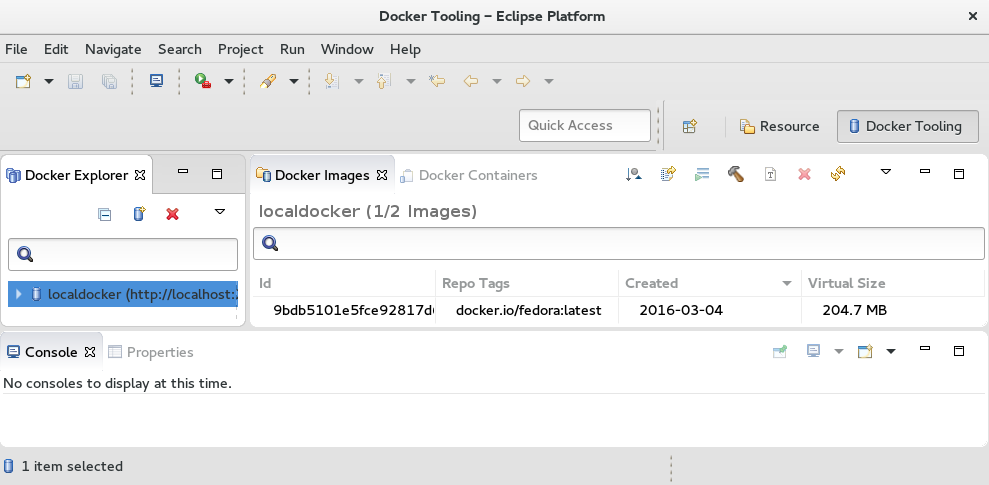
You can now begin using the Eclipse Docker Tooling screen to work with Docker-formatted container images from inside the Container Development Kit virtual machine.
Chapter 6. Using the Docker Service
When you initialize the Container Development Kit virtual machine (using the vagrant up command), various services are automatically pre-configured and running — depending on the Vagrantfile you used to provision the Container Development Kit box. The Docker service is running in all cases, and you can use it immediately after the virtual machine is launched. While it is possible to use and interact with the Docker service using GUI tools (for example, the integrated Docker support provided by the Eclipse IDE), this section introduces a number of basic docker commands to get you started using the Docker service from the command line.
Command-line usage of the Docker service provided by the Container Development Kit box is possible both from within the virtual machine and from the host machine — see section Using the vagrant-service-manager Plugin for instructions on how to set up your host machine to interact with the Docker service running inside the Container Development Kit virtual machine.
See the Get Started with Docker Formatted Container Images chapter of the Red Hat Enterprise Linux Atomic Host 7 Getting Started with Containers guide for a more thorough introduction into the Docker service.
6.1. Preparing Host System for Using Docker from the Command Line
To use the docker command on your host system to interact with the Docker service running inside the Container Development Kit virtual machine, you need to install the docker executable.
If you intend to use Docker (and the docker command) only from within the Container Development Kit virtual machine, no preparation is required — the docker command is installed in the Container Development Kit box by default.
6.1.1. Installing the docker Executable
Use the install-cli command of the vagrant-service-manager plugin to install the docker binary on your host system.
For example:
To use the install-cli command when behind a proxy, the Container Development Environment needs to be configured to operate behind a proxy using the vagrant-service-manager plugin. See section Using vagrant-service-manager to Set Proxy Environment Variables in the Red Hat Container Development Kit 2.3 Installation Guide.
6.1.1.1. Installing a Custom Version of the docker Binary
By default, the install-cli command installs the docker binary from the upstream Docker project in version 1.10.3. To install a different version, use the --cli-version option.
For example:
6.1.1.2. Installing the docker Binary to a Custom Location
By default, the install-cli command installs the docker binary from the upstream Docker project to the following directory: /home/joe/.vagrant.d/data/service-manager/bin/docker/1.10.3/. To install the executable to a different location, use the --path option. Note that you need to specify an existing directory and the name of the binary.
For example:
6.2. Learning about the Docker Environment
The docker command offers several sub-commands that let you acquire information about the Docker service, the environment it runs in, and available resources. You can also query the service for images and containers it manages and for images that are available to you from the pre-configured registries. By default, the Docker service in Container Development Kit can download and use images from both the Docker Hub (docker.io) and the Red Hat Atomic Registry (registry.access.redhat.com).
Use the following commands to obtain information about the Docker service and the working environment.
6.2.1. Verifying the Version of the Docker Service
Run the docker version command to see the version of both the Docker Client and Docker Server:
6.2.2. Displaying Information about the System and Resources
Run the docker info command to see information about the host system (which, in this case, is the virtualized Red Hat Enterprise Linux instance managed by Vagrant), utilization of virtualization resources, basic networking information, and the numbers of managed containerrs and images:
6.3. Learning about Containers and Images
Use the following commands to obtain information about images and containers on your system.
6.3.1. Listing Managed Images
Run the docker images command to display a list of images available in the local registry.
6.3.2. Listing Managed Containers
Run the docker ps command to display a list of running containers. Add the --all or -a parameter to list all available containers (not just the running ones). As you can see from the example output below, there are several running containers in Container Development Kit immediately after launch. These containers provide some of the services offered by Container Development Kit and as such should not be stopped or removed. The example below shows containers with the OpenShift service
Use the --format parameter to specify what information you want displayed about the individual containers (see the docker-ps(1) manual page for a list of available placeholders). For example:
6.3.3. Displaying Information about Container Resource Usage
Run the docker stats <container> command to display a live output showing resource-usage statistics for a specific running container. For example:
docker stats openshift
CONTAINER  CPU %  MEM USAGE / LIMIT    MEM %  NET I/O    BLOCK I/O
openshift  0.00%  110.4 MB / 2.986 GB  3.70%  0 B / 0 B  77.24 MB / 3.708 MB
~]$ docker stats openshift
CONTAINER  CPU %  MEM USAGE / LIMIT    MEM %  NET I/O    BLOCK I/O
openshift 0.00% 110.4 MB / 2.986 GB 3.70% 0 B / 0 B 77.24 MB / 3.708 MB6.3.4. Displaying Detailed Information about Container or Image Configuration
Run the docker inspect <container> command to show low-level information about a container or an image in JSON format. Use the --type parameter to specify whether you want to display information about a container (the default) or an image in case you have containers and images of the same name.
Use the --format parameter to specify what part of the output you want displayed (see the docker-inspect(1) manual page for examples of the output). For example, define the following format to list network ports exposed by the container:
docker inspect --format='{{.Config.ExposedPorts}}' openshift
map[8443/tcp:{} 53/tcp:{}]
~]$ docker inspect --format='{{.Config.ExposedPorts}}' openshift
map[8443/tcp:{} 53/tcp:{}]6.4. Getting New Docker-Formatted Container Images
Existing images for creating containers can be either downloaded (pulled) from one of the two pre-configured repositories (the Docker Hub (docker.io) and the Red Hat Atomic Registry (registry.access.redhat.com)) or imported from a local file.
6.4.1. Searching Registries for Images
Run the docker search <search-term> command to search the pre-configured registries for images. For example, to search for images containing the string rhscl in the name or namespace, use the following command:
6.4.2. Downloading Images from a Registry
Run the docker pull <image> command to download (pull) the specified image to your system for local use. Note that while it is possible to provide just the name of the image, it is better practice to also specify the registry you want to pull from and the namespace in which the particular image is published. The naming convention follows this order: [registry/][namespace/]name.
For example, to pull the image with the toolchain components of the Red Hat Developer Toolset from the Red Hat Atomic Registry, use the following command:
6.4.3. Loading an Image from a File
Run the docker load < file.tar command to load an image from a local file file.tar. By default, the docker pull command loads image data from the standard input. To load an image from a file, use the --input or -i parameter. For example to load the Red Hat Developer Toolset toolchain image that was previously saved to a tar file using the docker save command, use the following command:
docker load -i devtoolset.tar
~]$ docker load -i devtoolset.tar6.5. Using Containers
Use the following commands to launch, stop, or remove containers or to run applications from within containers.
6.5.1. Launching a New Container and Running a Command
Run the docker run <image> <command> command to launch a new container from an image and run the specified command. Use the --name parameter to specify a name for the container to prevent the Docker service from assigning a random name to the container. For example, to run the uname -a command (and display its output) in a container created from the Red Hat Developer Toolset toolchain image, use the following command:
6.5.2. Stopping a Container
Run the docker stop <container> command to stop one or more containers. This action tries to gracefully shut down the applications running in the container by sending them the SIGTERM signal (followed by the SIGKILL signal if SIGTERM does not work). For example, to stop the container created in the previous example, use the following command:
docker stop devtoolset
devtoolset

docker ps | grep devtoolset
~]$ docker stop devtoolset
devtoolset

~]$ docker ps | grep devtoolset6.5.3. Starting an Existing Container
Use the docker start -i <container> command to run the container stopped in the previous example (the --interactive or -i parameter ensures that the container’s standard output is attached to your current shell — in other words, it ensures that the output of the command executed in the container is displayed):
docker start -i devtoolset
Linux 22b819dec3f1 3.10.0-327.el7.x86_64 #1 SMP Thu Oct 29 17:29:29 EDT 2015 x86_64 x86_64 x86_64 GNU/Linux
~]$ docker start -i devtoolset
Linux 22b819dec3f1 3.10.0-327.el7.x86_64 #1 SMP Thu Oct 29 17:29:29 EDT 2015 x86_64 x86_64 x86_64 GNU/Linux6.5.4. Launching a New Container and Switching to the Container’s Shell
Run the docker run -ti <image> bash command to launch a new container from an image and switch to an interactive shell within the container. The --interactive or -i parameter along with the --tty or -t parameter are used to allocate a pseudo-TTY within which the Bash shell is run. For example:
6.5.5. Removing a Container
Run the docker rm <container> command to remove one or more containers, thus freeing the host’s resources. For example, to remove the container created in the previous example, use the following command:
docker rm devtoolset
devtoolset

docker ps -a | grep devtoolset
~]$ docker rm devtoolset
devtoolset

~]$ docker ps -a | grep devtoolset6.6. Additional Resources
-
See the
COMMANDSsection of thedocker(1)manual page for a complete list of availabledockercommands and detailed descriptions of their function. - See the Getting Started with Containers guide for detailed information about the use and management of containers on the Red Hat Enterprise Linux and Red Hat Atomic platforms.
Chapter 7. Using OpenShift Container Platform
When you initialize the Container Development Kit Vagrant box using the rhel-ose Vagrantfile, which is provided as a part of Red Hat Container Tools (located in cdk/components/rhel/rhel-ose/Vagrantfile in the ZIP file), the launched virtual machine automatically provisions an instance of OpenShift Container Platform. (See the Red Hat Container Development Kit 2.3 Installation Guide for additional information on how to launch Container Development Kit with a specific Vagrantfile.)
OpenShift Container Platform is a Platform as a Service (PaaS) offering by Red Hat that extends the functionality of the Docker service and the Kubernetes container orchestration tool to provide a powerful and easy-to-use platform for building, deploying, and orchestrating multi-container applications and services.
7.1. Using OpenShift from the Web User Interface
Point your Web browser to the URL shown for the OpenShift console. The default is: https://10.1.2.2:8443/console.

-
Log in as either a basic user with the
openshift-devusername anddevelpassword or cluster admin user with theadminusername andadminpassword.
7.1.1. Additional Resources
- For a walk-through of the OpenShift Web Console, see Developers: Web Console Walkthrough.
- For help creating your first OpenShift application, see Creating New Applications Using the Web Console.
7.2. Using OpenShift from the Command Line
Command-line usage of the OpenShift service provided by the Container Development Kit box is possible both from within the virtual machine and from the host machine. This section provides examples of basic usage of the oc command. Note that you can also administer a subset of OpenShift features using its web user interface, which is accesible at https://10.1.2.2:8443/console.
See also the OpenShift Container Platform Developer Guide for detailed instructions on how to set up and configure a workstation to develop and deploy applications in an OpenShift cloud environment with a command-line interface (CLI) and the web console.
7.2.1. Preparing Host System for Using OpenShift from the Command Line
To use the oc command on your host system to interact with the OpenShift service running inside the Container Development Kit virtual machine, you need to install the oc executable.
If you intend to use OpenShift (and the oc command) only from within the Container Development Kit virtual machine, no preparation is required — the oc command is installed in the Container Development Kit box by default.
7.2.1.1. Installing the oc Executable
Use the install-cli command of the vagrant-service-manager plugin to install the oc binary on your host system.
For example:
To use the install-cli command when behind a proxy, the Container Development Environment needs to be configured to operate behind a proxy using the vagrant-service-manager plugin. See section Using vagrant-service-manager to Set Proxy Environment Variables in the Red Hat Container Development Kit 2.3 Installation Guide.
7.2.1.1.1. Installing a Custom Version of the oc Binary
By default, the install-cli command installs the oc binary from the upstream OpenShift Origin project in version 1.2.1. To install a different version, use the --cli-version option.
7.2.1.1.2. Installing the oc Binary to a Custom Location
By default, the install-cli command installs the oc binary from the upstream OpenShift Origin project to the following directory: /home/joe/.vagrant.d/data/service-manager/bin/openshift/1.2.1/. To install the executable to a different location, use the --path option. Note that you need to specify an existing directory and the name of the binary.
For example:
7.2.2. Verifying the OpenShift Installation
Upon initializing the Container Development Kit Vagrant box using the rhel-ose Vagrantfile, the following information is output about the OpenShift service that has been provisioned for you:
The automatically provisioned instance of OpenShift Container Platform in Container Development Kit is provided in the form of a container. You can check that the OpenShift container is installed and running by examining the output of the docker ps command:
docker ps
CONTAINER ID  IMAGE      COMMAND                 CREATED      STATUS      PORTS  NAMES
...
ddb2d13604ef  openshift  "/usr/bin/openshift s"  2 hours ago  Up 2 hours         openshift
~]$ docker ps
CONTAINER ID  IMAGE      COMMAND                 CREATED      STATUS      PORTS  NAMES
...
ddb2d13604ef  openshift  "/usr/bin/openshift s"  2 hours ago  Up 2 hours         openshift
You can also run a health check to determine whether OpenShift is running properly by querying its network interface using the curl command:
curl -k https://10.1.2.2:8443/healthz
ok
~]$ curl -k https://10.1.2.2:8443/healthz
ok7.2.3. Displaying Information about the OpenShift Service
The command-line interface of OpenShift is accessed using the oc command. This command has a number of subcommands that help to interact with various features of the OpenShift service. This section describes how to use the oc command to gather basic information about the current OpenShift instance.
7.2.3.1. Checking the Version of OpenShift and Kubernetes
Use the oc version command to display the version of OpenShift Container Platform and the Kubernetes service currently in use:
oc version
oc v3.1.0.4-16-g112fcc4
kubernetes v1.1.0-origin-1107-g4c8e6f4
~]$ oc version
oc v3.1.0.4-16-g112fcc4
kubernetes v1.1.0-origin-1107-g4c8e6f47.2.4. Logging in and out of the OpenShift Server
Use the oc login command to log into specific user profiles. Upon start up, the Container Development Kit box logs you in automatically to the openshift-dev account.
7.2.4.1. Logging in to the OpenShift Server
Use the oc login command to log into the OpenShift server. If you want to log in from your host system, you need to specify a host address (10.1.2.2:8443). The command asks for the username and password interactively, but you can also supply this information on the command line using the -u (--username) and -p (--password) options respectively. For example, to log into the default OpenShift instance in Container Development Kit from your host system, use the following command:
Use the --insecure-skip-tls-verify=true option with the oc login command to prevent the warning about insecure connection.
Use the oc whoami command to check the user account to which you are currently logged:
oc whoami
openshift-dev
~]$ oc whoami
openshift-dev7.2.4.2. Viewing Current OpenShift CLI Configuration
To display the configuration values for the command-line environment, use the oc config view. For example, to show the part of the configuration pertaining to the default user name (openshift-dev), issue the following command:
oc config view | grep -A2 "name: openshift-dev"
- name: openshift-dev/10-1-2-2:8443
  user:
    token: THdHS4sw1qgzs95CnCf5ic6D8eOrZss1aT5jyGOmd2w
~]$ oc config view | grep -A2 "name: openshift-dev"
- name: openshift-dev/10-1-2-2:8443
  user:
token: THdHS4sw1qgzs95CnCf5ic6D8eOrZss1aT5jyGOmd2w7.2.4.3. Logging out of the OpenShift Server
To log out, use the oc logout command:
oc logout
Logged "openshift-dev" out on "https://10.1.2.2:8443"
~]$ oc logout
Logged "openshift-dev" out on "https://10.1.2.2:8443"7.2.5. Working with OpenShift Projects
In OpenShift, projects are used to organize and manage applications by groups of users. Individual projects keep their content separated from each other, and individual users need to be granted access to projects. Upon start up, the Container Development Kit box automatically creates the sample-project project.
7.2.5.1. Creating a New OpenShift Project
Use the oc new-project command to create a new project on the OpenShift server you are currently logged in to. The following example uses the optional --display-name option to set a user-friendly name for the project:
7.2.5.2. Switching to a Different OpenShift Project
Use the oc project <project-name> command to switch to another project on the OpenShift server you are currently logged in to. The following switches to the default sample-project project:
oc project sample-project
Now using project "sample-project" on server "https://10.1.2.2:8443".
~]$ oc project sample-project
Now using project "sample-project" on server "https://10.1.2.2:8443".7.2.5.3. Listing Available Projects
To list projects available on the server and their status, use the oc get projects command. Note that the oc get command can be used to display information about a number of other resources besides projects (pods, builds, services, etc.). In the following example, only the project created in the preceeding example is shown:
oc get project
NAME      DISPLAY NAME   STATUS
testing   Test Project   Active
~]$ oc get project
NAME      DISPLAY NAME   STATUS
testing Test Project Active7.2.5.4. Displaying Status Information about the Currently Used Project
Run the oc status command to display information about the currently used project and about activities (services, builds, deployments, etc.) within that project. When executed in a new (empty) project, the output looks like the following:
oc status
In project Test Project (testing) on server https://10.1.2.2:8443

You have no services, deployment configs, or build configs.
Run 'oc new-app' to create an application.
~]$ oc status
In project Test Project (testing) on server https://10.1.2.2:8443

You have no services, deployment configs, or build configs.
Run 'oc new-app' to create an application.
Alternatively, you can also use the oc project command to display project information:
oc project
Using project "testing" from context named "testing/10-1-2-2:8443/openshift-dev" on server "https://10.1.2.2:8443".
~]$ oc project
Using project "testing" from context named "testing/10-1-2-2:8443/openshift-dev" on server "https://10.1.2.2:8443".7.2.5.5. Deleting a Project
To remove a project from the server, use the oc delete project command and specify the name of the project you want deleted. To remove all projects, include the --all option. Note that the oc delete command can be used to delete other resources (pods, services, etc.) as well. For example, to delete the project created in this section, run the following command:
oc delete project testing
project "testing" deleted
~]$ oc delete project testing
project "testing" deleted7.2.6. Working with OpenShift Templates
A template in OpenShift is a text file (in the JSON or YAML format) that defines a set of objects. The object definitions, such as services or build configurations, can be parametrized. Templates can be processed to create the objects they describe and thus populate your current project.
To get you quickly started with application development, OpenShift offers a number of basic templates, which are included in the global openshift project. In order to use these templates as the foundation block of a new application, they need to be downloaded from the openshift project and subsequently uploaded to your current project. You can also create a new application (using the oc new-app command) directly from a template.
7.2.6.1. Listing Available Templates
To display the templates available in a project, issue the oc get templates command and use the -n option to specify the project from which you wish to list the templates. For example, to list the templates available in the global openshift project, run:
There are also templates bundled with the Container Development Environment. Find them in the /opt/adb/openshift/templates/common directory:
Please note that not all OpenShift templates that are listed in OpenShift and xPaaS documentation are available as a part of the Container Development Environment — only a subset of the templates has been tested with the Container Development Environment. Also, in the Container Development Environment, the templates are located in the /opt/adb/openshift/templates/common directory, not in /usr/share/openshift/examples/. For example, the xpaas-streams template mentioned in OpenShift Source-to-Image (S2I) Workflow is not in the Container Development Environment.
To use the templates that are not included by default, download them from their upstream GitHub repositories:
- JBoss Fuse Integration Services templates: jboss-fuse/application-templates
- JBoss Middleware templates: jboss-openshift/application-templates
See Can’t find Fuse Integration Services (FIS) or A-MQ xPaaS image templates for further information.
7.2.6.2. Downloading an InstantApp Template
To obtain a template definition file, which can be used for uploading to your project, use the oc get templates command and specify the project in which the template is located (using the -n or --namespace option), choose the format in which you wish to store the template (typically JSON or YAML — use the -o or --output option), and supply the name of the requested template. Note that by default, the oc get command outputs the requested data to the standard output. To store the template in a file, redirect the output of the command to a file.
For example, to download the nodejs-mongodb-example template from the global openshift project and save it in the JSON format on your local syastem, use the following command:
oc get templates -o json -n openshift nodejs-mongodb-example \ > nodejs-mongodb-example.json

ls
nodejs-mongodb-example.json
~]$ oc get templates -o json -n openshift nodejs-mongodb-example \ > nodejs-mongodb-example.json

~]$ ls
nodejs-mongodb-example.json7.2.6.3. Modifying the Namespace (Project Name)
When you download an InstantApp template from the default openshift project, the namespace (project name) in the template is set to openshift. To be able to upload the template to your project, you need to modify the template accordingly. If you do not do that, the upload fails with the following error message:
oc create -f nodejs-mongodb-example.json -n testing
the namespace from the provided object "openshift" does not match the namespace "testing". You must pass '--namespace=openshift' to perform this operation.
~]$ oc create -f nodejs-mongodb-example.json -n testing
the namespace from the provided object "openshift" does not match the namespace "testing". You must pass '--namespace=openshift' to perform this operation.
To modify the namespace, edit the file using a text editor, such as vi, and in the metadata section, replace the value of the namespace parameter with the name of your project. For example, to use the name testing, the beginning of the nodejs-mongodb-example.json template file would look like this:
7.2.6.4. Uploading a Template to the Current Project
For a template to be available for use in your project, it must be first uploaded to it. Use the oc create command to do this and specify the template file using the -f or --filename option. For example, to upload the nodejs-mongodb-example InstantApp template obtained from the openshift project, run the following command:
oc create -f nodejs-mongodb-example.json
template "nodejs-mongodb-example" created
~]$ oc create -f nodejs-mongodb-example.json
template "nodejs-mongodb-example" created
To verify that the template has been successfully uploaded, use the oc get templates command. Optionally, you can specify the namespace from which you wish to list by using the -n or --namespace option. By default, templates from the currently used project are listed:
oc get templates
NAME                     DESCRIPTION                                              PARAMETERS     OBJECTS
nodejs-mongodb-example   An example Node.js application with a MongoDB database   11 (3 blank)   7
~]$ oc get templates
NAME                     DESCRIPTION                                              PARAMETERS     OBJECTS
nodejs-mongodb-example An example Node.js application with a MongoDB database 11 (3 blank) 77.2.6.5. Listing Template Parameters
To list the parameters that a template specifies along with short descriptions and predefined values, use the oc process command with the --parameters option. For example, to list the parameters used by the nodejs-mongodb-example template, use the following command:
7.2.6.6. Creating Objects from a Template
To process a template and use it to create the objects it defines in your project, use a combination of the oc process and oc create commands. The template processed by the oc process command can be piped to the oc create command.
Note that in most cases, the template parameters need to be modified, so that the resulting application can be useful in a real-world scenario. To modify the template parameters when creating the objects, use the -v or --value option.
For example, to create objects using the nodejs-mongodb-example template and to set a different source repository for the application (the original repository would need to be forked to the repository specified on the command line), use the following combination of commands:
In the above example, substitute username for the name of the GitHub account into which the original repository was forked.
7.2.7. Additional Resources
-
See the output of the
oc helpcommand for an overview of allocsubcommands available. More detailed help for individual subcommands can be accessed by runningoc help [subcommand]. - See the OpenShift Container Platform CLI Reference for detailed descriptions of the command-line user interface used to interact with OpenShift Container Platform.
- See the OpenShift Container Platform Developer Guide for detailed instructions and examples to help developers configure a workstation to develop and deploy applications in an OpenShift Container Platform cloud environment with a command-line interface.
Chapter 8. Deploying an Application on OpenShift
This section describes how to use OpenShift to create containerized applications and deploy them on an OpenShift cluster. The examples in this section use only basic features of the OpenShift service and are for demonstration purposes only. See the CDK Developer Guide (to be published) for more in-depth descriptions.
8.1. Deploying an InstantApp Template as a New Application
In this example, an InstantApp template available from the default openshift project is used to create and deploy a web application. The definition of the template sets all necessary configuration options. A good way to experiment with OpenShift deployments is to clone the example’s repository and modify different parts of the defined template.
8.1.1. Creating a New OpenShift Application from a Template
To use a template to directly create a new application, run the oc new-app command with the --template option specifying the template you want to use as the basis for your application. For example, to use the nodejs-example InstantApp template, run the following command:
8.1.2. Monitoring Deployment Progress
To monitor the progress of the deployment, use the oc status command, optionally with the -v (--verbose) parameter to display information about potential warnings:
8.1.3. Displaying Information about a Deployed Service
The application is automatically deployed when the build completes. Use the oc describe command to display information about different parts of the application (or use the oc get all command to display all information at once).
To see summary information about the service, use:
To display information about the route established for the application, use:
The above command shows that the deployed application can be accessed at nodejs-example-sample-project.rhel-cdk.10.1.2.2.xip.io (the URL is made available through the external xip.io DNS service).
You can point a web browser from your host system at this address to see the page generated by the application. To check whether the application is running properly from the command line, either use a text-mode browser like lynx or download the page using curl:
curl nodejs-example-sample-project.rhel-cdk.10.1.2.2.xip.io 2> /dev/null | grep '<h1>'
            <h1>Welcome to your Node.js application on OpenShift</h1>
~]$ curl nodejs-example-sample-project.rhel-cdk.10.1.2.2.xip.io 2> /dev/null | grep '<h1>'
<h1>Welcome to your Node.js application on OpenShift</h1>8.1.4. Learning about Service Images and Containers
To check the Docker images and containers that form the application, use the docker images and docker ps commands:
8.2. Deploying a 'Hello World' Application Using Node.js
In this example, a very simple Node.js web application is created. The application is defined using a minimalistic build strategy that is automatically downloaded from a Git repository (in this case, GitHub is used). The built application is deployed on top of a Node.js container pulled from the Red Hat Atomic Registry.
8.2.1. Preparing the Application Source Code
Create a new repository on GitHub. For the purposes of this example, we will assume that the created repository has the following URL: http://github.com/example/nodejs-hello-world.git. Then upload a basic Node.js application to the root directory of the repository. Name the file helloworld.js.
The application creates an HTTP server listening on port 8080 and prints Hello World when accessed. Download the helloword.js file.
8.2.2. Preparing the Definition of an OpenShift Application
Upload the following minimal definition of a Node.js OpenShift application to the GitHub repository. Name the file package.json. Based on the name of the file, OpenShift automatically selects the appropriate builder (nodejs, in this case).
Download the package.json file.
8.2.3. Creating a New OpenShift Application
To create a new application in OpenShift, use the oc new-app command. OpenShift automatically performs the following steps:
- downloads required dependencies, including specified Docker-formatted container images,
- pulls latest source code and application definition from the specified location (a Git repository, in this case),
- builds the application source code,
- builds a container with the resulting application,
- deploys the application container.
In this example, the required Node.js container image from the Red Hat Atomic Registry is specified along with the URL of the Git repository:
8.2.4. Monitoring Build Progress
Use the oc describe build command to display information about the build currently in progress:
To see the build logs, use the oc logs command and specify the build you are interested in:
8.2.5. Displaying Information about the Deployed Service
Use the oc describe command and specify the service you are interested in to show summary information about the created service:
Similarly, you can specify the deployment to show information about it, including the containers that have been created and deployed for the application:
8.2.6. Testing the Running Application
To verify that the deployed HTTP server works correctly and serves the message specified in the application source code, you can use, for example, the curl tool:
curl 172.17.0.4:8080
Hello World
~]$ curl 172.17.0.4:8080
Hello World
The IP address is shown, for example, in the description of the deployed service or pod. Use the oc get pods to list all pods:
oc get pods
NAME                         READY   STATUS      RESTARTS   AGE
nodejs-hello-world-1-1b5xi   1/1     Running     0          2m
nodejs-hello-world-1-build   0/1     Completed   0          2m
~]$ oc get pods
NAME                         READY   STATUS      RESTARTS   AGE
nodejs-hello-world-1-1b5xi   1/1     Running     0          2m
nodejs-hello-world-1-build 0/1 Completed 0 2mUse the name of the pod to display its description and grep for its IP address:
oc describe pod/nodejs-hello-world-1-1b5xi | grep IP
IP:                             172.17.0.4
~]$ oc describe pod/nodejs-hello-world-1-1b5xi | grep IP
IP: 172.17.0.48.3. Additional Resources
- See the definition of InstantApp OpenShift templates at https://github.com/openshift for inspiration.
- See the OpenShift Container Platform Developer Guide for detailed instructions on how to prepare, build, and deploy containerized applications on OpenShift.
- See the video tutorials and demonstration for developers at the OpenShift YouTube channel.
Chapter 9. Using the Kubernetes Service
When you run vagrant up from the rhel-k8s-singlenode-setup directory, the Vagrantfile starts a Red Hat Enterprise Linux virtual machine from the Vagrant box you installed. The characteristics of that box are as follows:
- Starts the Docker service.
- Starts all the services needed to run an all-in-one Kubernetes master and node in the Red Hat Enterprise Linux VM.
The resulting virtual machine is ready to start using the kubectl command to build Kubernetes pods, services, replication controllers, and other features.
Change to the rhel-docker-eclipse directory and start the Red Hat Enterprise Linux VM (for Microsoft Windows, use
%USERPROFILE%\cdk\components\rhel\rhel\rhel-k8s-singlenode-setup):cd ~/cdk/components/rhel/misc/rhel-k8s-singlenode-setup/ vagrant up
$ cd ~/cdk/components/rhel/misc/rhel-k8s-singlenode-setup/
$ vagrant up
Copy to Clipboard Copied! Toggle word wrap Toggle overflow Use
vagrant sshto access the Red Hat Enterprise Linux VM and check the status of kubernetes:vagrant ssh [vagrant@localhost ~]$ kubectl cluster-info Kubernetes master is running at http://localhost:8080
$ vagrant ssh

[vagrant@localhost ~]$ kubectl cluster-info
Kubernetes master is running at http://localhost:8080
Copy to Clipboard Copied! Toggle word wrap Toggle overflow - Begin using your Red Hat Enterprise Linux Kubernetes-enabled VM.
9.1. Additional Resources
- For information on developing containerized applications to run in Kubernetes, see the Launching container pods with Kubernetes section of the Get Started Orchestrating Containers with Kubernetes guide.

'%20d='M201.5%20305.5c-13.8%200-24.9-11.1-24.9-24.6%200-13.8%2011.1-24.9%2024.9-24.9%2013.6%200%2024.6%2011.1%2024.6%2024.9%200%2013.6-11.1%2024.6-24.6%2024.6zM504%20256c0%20137-111%20248-248%20248S8%20393%208%20256%20119%208%20256%208s248%20111%20248%20248zm-132.3-41.2c-9.4%200-17.7%203.9-23.8%2010-22.4-15.5-52.6-25.5-86.1-26.6l17.4-78.3%2055.4%2012.5c0%2013.6%2011.1%2024.6%2024.6%2024.6%2013.8%200%2024.9-11.3%2024.9-24.9s-11.1-24.9-24.9-24.9c-9.7%200-18%205.8-22.1%2013.8l-61.2-13.6c-3-.8-6.1%201.4-6.9%204.4l-19.1%2086.4c-33.2%201.4-63.1%2011.3-85.5%2026.8-6.1-6.4-14.7-10.2-24.1-10.2-34.9%200-46.3%2046.9-14.4%2062.8-1.1%205-1.7%2010.2-1.7%2015.5%200%2052.6%2059.2%2095.2%20132%2095.2%2073.1%200%20132.3-42.6%20132.3-95.2%200-5.3-.6-10.8-1.9-15.8%2031.3-16%2019.8-62.5-14.9-62.5zM302.8%20331c-18.2%2018.2-76.1%2017.9-93.6%200-2.2-2.2-6.1-2.2-8.3%200-2.5%202.5-2.5%206.4%200%208.6%2022.8%2022.8%2087.3%2022.8%20110.2%200%202.5-2.2%202.5-6.1%200-8.6-2.2-2.2-6.1-2.2-8.3%200zm7.7-75c-13.6%200-24.6%2011.1-24.6%2024.9%200%2013.6%2011.1%2024.6%2024.6%2024.6%2013.8%200%2024.9-11.1%2024.9-24.6%200-13.8-11-24.9-24.9-24.9z'/%3e%3c/svg%3e)