 Red Hat Summit
Dieser Inhalt ist in der von Ihnen ausgewählten Sprache nicht verfügbar.
Getting Started Guide
An introductory guide for Red Hat JBoss Data Grid 6.
Edition 1
Abstract
Preface
Chapter 1. Introducing JBoss Data Grid 6
1.1. About JBoss Data Grid
- Schemaless key-value store – Red Hat JBoss Data Grid is a NoSQL database that provides the flexibility to store different objects without a fixed data model.
- Grid-based data storage – Red Hat JBoss Data Grid is designed to easily replicate data across multiple nodes.
- Elastic scaling – Adding and removing nodes is achieved simply and is non-disruptive.
- Multiple access protocols – It is easy to access to the data grid using REST, Memcached, Hot Rod, or simple map-like API.
1.2. JBoss Data Grid Usage Modes
- Remote Client-Server mode
- Remote Client-Server mode provides a managed, distributed and clusterable data grid server. Applications can remotely access the data grid server using Hot Rod, Memcached or REST client APIs.
- Library mode
- Library mode provides all the binaries required to build and deploy a custom runtime environment. The library usage mode allows local access to a single node in a distributed cluster. This usage mode gives the application access to data grid functionality within a virtual machine in the container being used. Supported containers include Tomcat 7 and JBoss Enterprise Application Platform 6.
1.3. JBoss Data Grid Benefits
Benefits of JBoss Data Grid
- Massive Heap and High Availability
- In JBoss Data Grid, applications no longer need to delegate the majority of their data lookup processes to a large single server database for performance benefits. JBoss Data Grid completely removes the bottleneck that exists in the vast majority of current enterprise applications.
Example 1.1. Massive Heap and High Availability Example
In a sample grid with one hundred blade servers, each node has 2 GB storage space dedicated for a replicated cache. In this case, all the data in the grid is copies of the 2 GB data. In contrast, using a distributed grid (assuming the requirement of one copy per data item) the resulting memory backed virtual heap contains 100 GB data. This data can now be effectively accessed from anywhere in the grid. In case of a server failure, the grid promptly creates new copies of the lost data and places them on operational servers in the grid. - Scalability
- Due to the even distribution of data in JBoss Data Grid, the only upper limit for the size of the grid is the group communication on the network. The network's group communication is minimal and restricted only to the discovery of new nodes. Nodes are permitted by all data access patterns to communicate directly via peer-to-peer connections, facilitating further improved scalability. JBoss Data Grid clusters can be scaled up or down in real time without requiring an infrastructure restart. The result of the real time application of changes in scaling policies results in an exceptionally flexible environment.
- Data Distribution
- JBoss Data Grid uses consistent hash algorithms to determine the locations for keys in clusters. Benefits associated with consistent hashing include:Data distribution ensures that sufficient copies exist within the cluster to provide durability and fault tolerance, while not an abundance of copies, which would reduce the environment's scalability.
- cost effectiveness.
- speed.
- deterministic location of keys with no requirements for further metadata or network traffic.
- Persistence
- JBoss Data Grid exposes a
CacheStoreinterface and several high-performance implementations, including the JDBC Cache stores and file system based cache stores. Cache stores can be used to seed the cache and to ensure that the relevant data remains safe from corruption. The cache store also overflows data to the disk when required if a process runs out of memory. - Language bindings
- JBoss Data Grid supports both the popular Memcached protocol, with existing clients for a large number of popular programming languages, as well as an optimized JBoss Data Grid specific protocol called Hot Rod. As a result, instead of being restricted to Java, JBoss Data Grid can be used for any major website or application.
- Management
- In a grid environment of several hundred or more servers, management is an important feature. JBoss Operations Network, the enterprise network management software, is the best tool to manage multiple JBoss Data Grid instances. JBoss Operations Network's features allow easy and effective monitoring of the Cache Manager and cache instances.
1.4. JBoss Data Grid Version Information
1.5. JBoss Data Grid Cache Architecture
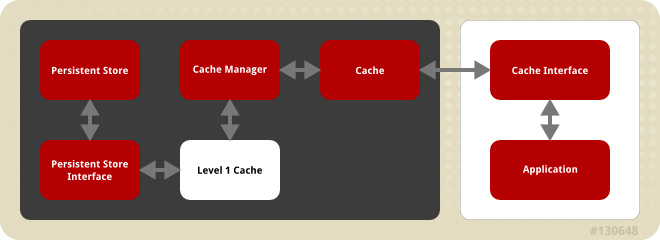
Figure 1.1. JBoss Data Grid Cache Architecture
- Elements that a user cannot directly interact with (depicted within a dark box), which includes the Cache, Cache Manager, Level 1 Cache, Persistent Store Interfaces and the Persistent Store.
- Elements that a user can interact directly with (depicted within a white box), which includes Cache Interfaces and the Application.
JBoss Data Grid's cache architecture includes the following elements:
- The Persistent Store permanently houses cache instances and entries.
- JBoss Data Grid offers two Persistent Store Interfaces to access the persistent store. Persistent store interfaces can be either:
- A cache loader is a read only interface that provides a connection to a persistent data store. A cache loader can locate and retrieve data from cache instances and from the persistent store.
- A cache store extends the cache loader functionality to include write capabilities by exposing methods that allow the cache loader to load and store states.
- The Level 1 Cache (or L1 Cache) stores remote cache entries after they are initially accessed, preventing unnecessary remote fetch operations for each subsequent use of the same entries.
- The Cache Manager is the primary mechanism used to retrieve a Cache instance in JBoss Data Grid, and can be used as a starting point for using the Cache.
- The Cache houses cache instances retrieved by a Cache Manager.
- Cache Interfaces use protocols such as Memcached and Hot Rod, or REST to interface with the cache. For details about the remote interfaces, refer to the Developer Guide.
- Memcached is a distributed memory object caching system used to store key-values in-memory. The Memcached caching system defines a text based, client-server caching protocol called the Memcached protocol.
- Hot Rod is a binary TCP client-server protocol used in JBoss Data Grid. It was created to overcome deficiencies in other client/server protocols, such as Memcached. Hot Rod enables clients to do smart routing of requests in partitioned or distributed JBoss Data Grid server clusters.
- The REST protocol eliminates the need for tightly coupled client libraries and bindings. The REST API introduces an overhead, and requires a REST client or custom code to understand and create REST calls.
- An application allows the user to interact with the cache via a cache interface. Browsers are a common example of such end-user applications.
1.6. JBoss Data Grid APIs
- Cache
- Batching
- Grouping
- CacheStore
- Externalizable
- The Asynchronous API (can only be used in conjunction with the Hot Rod Client in Remote Client-Server Mode)
- The REST Interface
- The Memcached Interface
- The Hot Rod Interface
- The RemoteCache API
Chapter 2. Prerequisites for JBoss Data Grid
2.1. JBoss Data Grid Prerequisites
2.2. Java Virtual Machines (JVM)
2.2.1. Java Virtual Machine
2.2.2. Install OpenJDK on Red Hat Enterprise Linux
Procedure 2.1. Install OpenJDK on Red Hat Enterprise Linux
Subscribe to the Base Channel
Obtain the OpenJDK from the RHN base channel. Your installation of Red Hat Enterprise Linux is subscribed to this channel by default.Install the Package
Use the yum utility to install OpenJDK:sudo yum install java-1.6.0-openjdk-devel
$ sudo yum install java-1.6.0-openjdk-develCopy to Clipboard Copied! Toggle word wrap Toggle overflow Verify that OpenJDK is the System Default
Ensure that the correct JDK is set as the system default as follows:- Log in as root and run the alternatives command:
/usr/sbin/alternatives --config java
$ /usr/sbin/alternatives --config javaCopy to Clipboard Copied! Toggle word wrap Toggle overflow - Select
/usr/lib/jvm/jre-1.6.0-openjdk.x86_64/bin/java. - Use the following command to set
javac:/usr/sbin/alternatives --config javac
$ /usr/sbin/alternatives --config javacCopy to Clipboard Copied! Toggle word wrap Toggle overflow - Select
/usr/lib/jvm/java-1.6.0-openjdk/bin/java.
Chapter 3. Download and Install JBoss Data Grid
3.1. Download JBoss Data Grid
Procedure 3.1. Download JBoss Data Grid
Access the Customer Service Portal
Log into the Customer Service Portal at https://access.redhat.com.Locate the Product
Mouse over and navigate to .Select the Product
Select .Download JBoss Data Grid
Select the appropriate JBoss Data Grid download and click the link.Select for JBoss Data Grid with the Remote Client-Server usage mode or for JBoss Data Grid with the Library usage mode.
3.2. About the Red Hat Customer Portal
3.3. Checksum Validation
3.4. Verify the Downloaded File
Procedure 3.2. Verify the Downloaded File
- To verify that a file downloaded from the Red Hat Customer Portal is error-free, whilst still on the portal site, go to that package's Software Details page. Here you will find
MD5andSHA256"checksum" values that you will use to check the integrity of the file. - Open a terminal window and run either either the
md5sumorsha256sumcommand, supplying the filename of the downloadedZIPas an argument. The program will output the checksum value for the file. - Compare the checksum value returned by the command to the corresponding value displayed on the Software Details page for the file.
Note
Microsoft Windows does not come equipped with a checksum tool. Users of that operating system will have to download a third-party product instead.
If the two checksum values are identical then the file has not been altered or corrupted and is, therefore, safe to use.
3.5. Install JBoss Data Grid
Locate the appropriate version, platform and file type and download JBoss Data Grid from the Customer Service Portal.
Procedure 3.3. Install JBoss Data Grid
- Copy the downloaded JBoss Data Grid package to the preferred location on your machine.
- Run the following command to unzip the downloaded JBoss Data Grid package:
unzip JDG_PACKAGE
$ unzip JDG_PACKAGECopy to Clipboard Copied! Toggle word wrap Toggle overflow Replace JDG_PACKAGE with the name of the JBoss Data Grid usage mode package downloaded from the Red Hat Customer Portal. - The resulting unzipped directory will now be referred to as $JDG_HOME.
3.6. Red Hat Documentation Site
Chapter 4. Install and Use the Maven Repository
4.1. About Maven
4.2. Download Maven
4.3. About the JBoss Data Grid Maven Repository
4.4. Install the Maven Repository
4.4.1. Maven Repository Installation Options
- On your local file system.
- On Apache Web Server.
- With a Maven repository manager.
4.4.2. Local File System Repository Installation
Procedure 4.1. Local File System Repository Installation
- Download the
jboss-datagrid-maven-repository-6.0.0.zipfile from the Red Hat Customer Portal. - Unzip the file to a directory on your local file system such as
$JDG_HOME/projects/maven-repositories/
4.4.3. Apache Web Server Installation
Procedure 4.2. Apache Web Server Installation
- Download the following file from the Red Hat Customer Portal:
jboss-datagrid-maven-repository-6.0.0.zip
jboss-datagrid-maven-repository-6.0.0.zipCopy to Clipboard Copied! Toggle word wrap Toggle overflow - Unzip the file to a directory on your local file system such as
$JDG_HOME/projects/maven-repositories/ - Configure Apache to allow read access and directory browsing in the configured directory.
4.4.4. Maven Repository Manager Installation
4.5. Configure the Maven Repository
4.5.1. Configure the Maven Repository
settings.xml file. The default version of this file is available in the conf directory of your Maven installation.
.m2 sub-directory of the user's home directory. Refer to the Maven documentation for further information about configuring Maven.
4.5.2. Set the Maven Repository Links
| Installation Type | Link |
|---|---|
| File system installation | file://$JDG_HOME/projects/maven-repositories/jboss-datagrid-maven-repository-6.0.0 |
| Apache Web Server installation | http://intranet.acme.com/jboss-datagrid-maven-repository-6.0.0 |
| Nexus Repository Manager | https://intranet.acme.com/nexus/content/repositories/jboss-datagrid-maven-repository-6.0.0 |
4.5.3. Maven Repository Configuration Example
example-settings.xml is available in the root directory of the Maven repository folder after it is unzipped. The following is an excerpt that contains the relevant parts of the settings.xml file:
Chapter 5. Create a New JBoss Data Grid Project
5.1. Add Dependencies to Your Project
pom.xml file, located in the Maven repository folder:
Note
version value with the appropriate version of the libraries included in JBoss Data Grid.
5.2. Add a Profile to Your Project
pom.xml file as follows:
client/java/ directory, included in the JBoss Data Grid package to the build classpath.
5.3. Running JBoss Data Grid
$JDG_HOME/bin/standalone.sh
$JDG_HOME/bin/standalone.sh
standalone.xml file (located at $JDG_HOME/standalone/configuration).
-c, followed by the configuration file name. As an example:
$JDG_HOME/bin/standalone.sh -c standalone-ha.xml
$JDG_HOME/bin/standalone.sh -c standalone-ha.xml
Chapter 6. Run JBoss Data Grid as an Embedded Cache
6.1. Quickstart File Locations
Important
6.2. Create a Main Method in the Quickstart Class
Procedure 6.1. Create a Main Method in the Quickstart Class
Create the Quickstart.java File
Create a file calledQuickstart.javaat your project's location.Add the Quickstart Class
Add the following class and method:Copy to Clipboard Copied! Toggle word wrap Toggle overflow Copy Dependencies and Compile Java Classes
Use the following command to copy all project dependencies to a directory and compile the java classes from our project:mvn clean compile dependency:copy-dependencies -DstripVersion
$ mvn clean compile dependency:copy-dependencies -DstripVersionCopy to Clipboard Copied! Toggle word wrap Toggle overflow Run the Main Method
Use the following command to run the main method:java -cp target/classes/:target/dependency/* com.mycompany.app.Quickstart
$ java -cp target/classes/:target/dependency/* com.mycompany.app.QuickstartCopy to Clipboard Copied! Toggle word wrap Toggle overflow
6.3. Create a New RemoteCacheManager
RemoteCacheManager:
Properties props = new Properties();
props.put("infinispan.client.hotrod.server_list", "127.0.0.1:11222");
RemoteCacheManager manager = new RemoteCacheManager(props);
RemoteCache defaultCache = manager.getCache();
Properties props = new Properties();
props.put("infinispan.client.hotrod.server_list", "127.0.0.1:11222");
RemoteCacheManager manager = new RemoteCacheManager(props);
RemoteCache defaultCache = manager.getCache();
Note
Hot Rod with JBoss Data Grid, refer to the Developer Guide's Hot Rod Chapter.
6.4. Use the Default Cache
6.4.1. Add and Remove Data from the Cache
Procedure 6.2. Add and Remove Data from the Cache
- Add an entry, replacing key and value with the desired key and value:
cache.put("key", "value");cache.put("key", "value");Copy to Clipboard Copied! Toggle word wrap Toggle overflow - Confirm that the entry is present in the cache:
assertEquals(1, cache.size());
assertTrue(cache.containsKey("key"));
assertEquals(1, cache.size()); assertTrue(cache.containsKey("key"));Copy to Clipboard Copied! Toggle word wrap Toggle overflow - Remove the entry from the cache:
Object v = cache.remove("key");Object v = cache.remove("key");Copy to Clipboard Copied! Toggle word wrap Toggle overflow - Confirm that the entry is no longer present in the cache:
assertEquals("value", v);assertEquals("value", v);Copy to Clipboard Copied! Toggle word wrap Toggle overflow
6.4.2. Adding and Replacing a Key Value
DefaultCacheQuickstart.java file does:
Procedure 6.3. Adding and Replacing a Key Value
- Add an entry with
keyas the key value.cache.put("key", "value");cache.put("key", "value");Copy to Clipboard Copied! Toggle word wrap Toggle overflow - Check if the key value is missing. If the value is not found, replace the absent value with
key. If the value is found, no change occurs.cache.putIfAbsent("key", "newValue");cache.putIfAbsent("key", "newValue");Copy to Clipboard Copied! Toggle word wrap Toggle overflow
6.4.3. Adjust Data Life
DefaultCacheQuickstart.java file does:
Procedure 6.4. Adjust the Data Life
- Alter the key's
lifespanvalue:cache.put("key", "value", 5, SECONDS);cache.put("key", "value", 5, SECONDS);Copy to Clipboard Copied! Toggle word wrap Toggle overflow - Check if the cache contains the key:
assertTrue(cache.containsKey("key"));assertTrue(cache.containsKey("key"));Copy to Clipboard Copied! Toggle word wrap Toggle overflow - After the allocated
lifespantime has expired, the key is no longer in the cache:Thread.sleep(10000); assertFalse(cache.containsKey("key"));Thread.sleep(10000); assertFalse(cache.containsKey("key"));Copy to Clipboard Copied! Toggle word wrap Toggle overflow
6.4.4. Default Data Mortality
6.5. Use a Named Cache
6.5.1. Using a Named Cache
6.5.2. Register the Named Cache Programmatically
CustomCacheQuickstart.java file included in the Quickstart package can be referred to as an example of this. The infinispan-quickstart can be found in infinispan-quickstart/embedded-cache/src/main/java/org/infinispan/quickstart/embeddedcache/.
6.5.3. Load the Configuration File
Register the named cache declaratively.
XmlConfiguredCacheQuickstart.java file in the infinispan-quickstarts demonstrates how the custom configuration of the named cache is loaded. This file is located in infinispan-quickstart/embedded-cache/src/main/java/org/infinispan/quickstart/embeddedcache in the Quickstarts package.
6.5.4. Register the Named Cache Using XML
infinispan.xml file.
infinispan.xml file is located in infinispan-quickstart/embedded-cache/src/main/resources in the infinispan-quickstarts package.
Chapter 7. Run JBoss Data Grid as an Embedded Data Grid
7.1. Quickstart File Locations
Important
7.2. Run JBoss Data Grid as an Embedded Data Grid
7.3. Sharing JGroup Channels
EmbeddedCacheManager cm = $LOCATION
Cache<Object, Object> cache1 = cm.getCache("replSyncCache");
Cache<Object, Object> cache2 = cm.getCache("replAsyncCache");
Cache<Object, Object> cache3 = cm.getCache("invalidationSyncCache");
EmbeddedCacheManager cm = $LOCATION
Cache<Object, Object> cache1 = cm.getCache("replSyncCache");
Cache<Object, Object> cache2 = cm.getCache("replAsyncCache");
Cache<Object, Object> cache3 = cm.getCache("invalidationSyncCache");
7.4. Run JBoss Data Grid in a Cluster
7.4.1. Compile the Project
mvn clean compile dependency:copy-dependencies -DstripVersion
$ mvn clean compile dependency:copy-dependencies -DstripVersion
7.4.2. Run the Clustered Cache with Replication Mode
Procedure 7.1. Run the Clustered Cache with Replication Mode
- Use the following command to launch the first node:
java -cp target/classes/:target/dependency/* org.infinispan.quickstart.clusteredcache.replication.Node0
$ java -cp target/classes/:target/dependency/* org.infinispan.quickstart.clusteredcache.replication.Node0Copy to Clipboard Copied! Toggle word wrap Toggle overflow - Use the following command to launch the second node:
java -cp target/classes/:target/dependency/* org.infinispan.quickstart.clusteredcache.replication.Node1
$ java -cp target/classes/:target/dependency/* org.infinispan.quickstart.clusteredcache.replication.Node1Copy to Clipboard Copied! Toggle word wrap Toggle overflow
JGroups and JBoss Data Grid initialized on both nodes. After approximately fifteen seconds, the cache entry log message appears on the console of the first node.
7.4.3. Run the Clustered Cache with Distribution Mode
Procedure 7.2. Run the Clustered Cache with Distribution Mode
- Use the following command to launch the first node:
java -cp target/classes/:target/dependency/* org.infinispan.quickstart.clusteredcache.distribution.Node0
$ java -cp target/classes/:target/dependency/* org.infinispan.quickstart.clusteredcache.distribution.Node0Copy to Clipboard Copied! Toggle word wrap Toggle overflow - Use the following command to launch the second node:
java -cp target/classes/:target/dependency/* org.infinispan.quickstart.clusteredcache.distribution.Node1
$ java -cp target/classes/:target/dependency/* org.infinispan.quickstart.clusteredcache.distribution.Node1Copy to Clipboard Copied! Toggle word wrap Toggle overflow - Use the following command to launch the third node:
java -cp target/classes/:target/dependency/* org.infinispan.quickstart.clusteredcache.distribution.Node2
$ java -cp target/classes/:target/dependency/* org.infinispan.quickstart.clusteredcache.distribution.Node2Copy to Clipboard Copied! Toggle word wrap Toggle overflow
JGroups and JBoss Data Grid initialized on the three nodes. After approximately fifteen seconds, the ten entries added by the third node can be seen as they are distributed to the first and second nodes.
7.4.4. Configure the Cluster
7.4.4.1. Configuring the Cluster
Procedure 7.3. Configure the Cluster
- Add the default configuration for a new cluster
- Customize the default cluster configuration according to the requirements of your network. This can be done declaratively (using XML) or programmatically.
- Configure the replicated or distributed data grid.
7.4.4.2. Add the Default Cluster Configuration
  new ConfigurationBuilder()
   .clustering().cacheMode(CacheMode.REPL_SYNC)
   .build()
  new ConfigurationBuilder()
   .clustering().cacheMode(CacheMode.REPL_SYNC)
   .build()
Note
GlobalConfiguration.clusteredDefault() to quickly create a preconfigured and cluster-aware GlobalConfiguration for clusters. This configuration can also be customized.
7.4.4.3. Customize the Default Cluster Configuration
Use the following GlobalConfiguration code to specify the name of the file to use for JGroups configuration:
new GlobalConfigurationBuilder().transport().addProperty("configurationFile", "jgroups.xml")
   .build()
new GlobalConfigurationBuilder().transport().addProperty("configurationFile", "jgroups.xml")
   .build()
jgroups.xml with the desired file name.
jgroups.xml file is located at $Infinispan-Quickstart/clustered-cache/src/main/resources/.
Note
-Djgroups.bind_addr="127.0.0.1". This is particularly useful to test a cluster where all nodes are on a single machine.
Use the following XML snippet in the infinispan.xml file to configure the JGroups properties to use JBoss Data Grid's XML configuration:
7.4.4.4. Configure the Replicated Data Grid
Use the following code snippet to programmatically configure the cache for replication mode (either synchronous or asynchronous):
Edit the cfg.xml file to include the following XML code to declaratively configure the cache for replication mode (either synchronous or asynchronous):
private static EmbeddedCacheManager createCacheManagerFromXml() throws IOException {
   return new DefaultCacheManager("infinispan-replication.xml");
}
private static EmbeddedCacheManager createCacheManagerFromXml() throws IOException {
   return new DefaultCacheManager("infinispan-replication.xml");
}
7.4.4.5. Configure the Distributed Data Grid
Use the following code snippet to programmatically configure the cache for distributed mode (either synchronous or asynchronous):
Edit the cfg.xml file to include the following XML code to declaratively configure the cache for distributed mode (either synchronous or asynchronous):
Chapter 8. Run a JBoss Data Grid as a Node without Endpoints
8.1. About Endpoints
8.2. Benefits of a Node Without Endpoints
8.3. Sample Configuration for a Node without Endpoints
Procedure 8.1. Find the JBoss Data Grid Sample Configuration for a Node Without Endpoints
Extract the JBoss Data Grid ZIP
1. Extract the ZIP file for JBoss Data Grid Remote Client-Server mode. This is namedjboss-datagrid-server-${version}-GA. Add the relevant version to the file name.Navigate to the Appropriate Folder
In the extracted folder, navigate to the$JDG_HOME/docs/examples/configfolder.Find the Configuration Sample File
View thestandalone-storage-only.xmlfile, which contains the configuration for a node with no endpoints.
8.4. Configure a Node with No Endpoints
- Remove the
datagridsubsystem. - Remove the
modclustersubsystem. - Remove the
datasourcedefinition. - Remove
socket-bindingsformod_cluster,Hot Rodandmemcached.
Chapter 9. JBoss Data Grid CarMart Quickstarts
9.1. About the CarMart Quickstart
The CarMart quickstart offers the following features:
- List all cars.
- Add new cars.
- Remove cars.
- View statistics for caches, such as hits, stores and retrievals.
The CarMart quickstart can be used in the following JBoss Data Grid usage modes:
- Remote Client-Server Mode, where the application includes the Hot Rod client to communicate with a remote JBoss Data Grid server.
- Library Mode, where all libraries are bundled with the application in the form of
jarfiles.
JBoss Data Grid's CarMart quickstart is available at the following location: jboss-datagrid-quickstarts-1.0.0/carmart/
9.2. About the CarMart Transactional Quickstart
The Transactional CarMart Quickstart offers the following features:
- List all cars.
- Add new cars.
- Add new cars with rollback.
- Remove cars.
- View statistics for caches, such as hits, stores and retrievals.
The Transactional CarMart Quickstart can only be used in JBoss Data Grid's Library mode. A standalone transaction manager from JBoss Transactions is used when the Transactional CarMart Quickstart is run in Tomcat.
JBoss Data Grid's Transactional CarMart Quickstart can be found at the following location: jboss-datagrid-quickstarts-1.0.0/carmart-transactional
9.3. Differences Between the CarMart and Transactional Quickstarts
- CarMart is available for both Remote Client-Server Mode and Library Mode. Transactional CarMart is only available in Library Mode because transactions are not available in Remote Client-Server Mode.
- The Transactional Quickstart also displays how a transaction rollback occurs. Use the button to view the rollback. The CarMart example has a simple button instead.
9.4. The CarMart Quickstart Using JBoss Application Server
9.4.1. Build the CarMart Quickstart to the JBoss Application Server
Obtain the supported JBoss Data Grid Library Mode distribution files.
Procedure 9.1. Build CarMart to JBoss Application Server
Install the Maven Repository
For initial testing in a small team, extract the JBoss Data Grid Maven repository to a directory on the local system:unzip jboss-datagrid-maven-repository-6.0.0.zip
$ unzip jboss-datagrid-maven-repository-6.0.0.zipCopy to Clipboard Copied! Toggle word wrap Toggle overflow For further information about the installation methods available to install the JBoss Data Grid Maven repository, refer to Chapter 4, Install and Use the Maven Repository.Start JBoss Application Server
Use the following to start the JBoss Application Server:$JBOSS_HOME/bin/standalone.sh
$JBOSS_HOME/bin/standalone.shCopy to Clipboard Copied! Toggle word wrap Toggle overflow Build your Application
Use the following command to build your application using Maven:mvn clean package -Plibrary-jbossas -Ddatagrid.maven.repo=file:///path/to/unpacked/jdg/maven/repository
$ mvn clean package -Plibrary-jbossas -Ddatagrid.maven.repo=file:///path/to/unpacked/jdg/maven/repositoryCopy to Clipboard Copied! Toggle word wrap Toggle overflow
9.4.2. Deploy the CarMart Quickstart to the JBoss Application Server
The CarMart quickstart must be built to be deployed.
Procedure 9.2. Deploy the CarMart Quickstart to the JBoss Application Server
Deploy your Application
Use JBoss Application Server's Maven plugin to deploy the application as follows:mvn jboss-as:deploy -Plibrary-jbossas
$ mvn jboss-as:deploy -Plibrary-jbossasCopy to Clipboard Copied! Toggle word wrap Toggle overflow View your Application
To view the application, use your browser to navigate to the following link:http://localhost:8080/carmart-quickstart
http://localhost:8080/carmart-quickstartCopy to Clipboard Copied! Toggle word wrap Toggle overflow
9.4.3. Undeploy the CarMart Quickstart from JBoss Application Server
Procedure 9.3. Undeploy an Application from JBoss Application Server
- To undeploy an application, use the following command:
mvn jboss-as:undeploy -Plibrary-jbossas
$ mvn jboss-as:undeploy -Plibrary-jbossasCopy to Clipboard Copied! Toggle word wrap Toggle overflow
9.5. The CarMart Quickstart Using Tomcat
9.5.1. Build the CarMart Quickstart to Tomcat
Obtain the supported JBoss Data Grid Library Mode distribution files.
Procedure 9.4. Build the CarMart Quickstart to Tomcat
Install the Maven Repository
For initial testing in a small team, extract the JBoss Data Grid Maven repository to a directory on the local system:unzip jboss-datagrid-maven-repository-6.0.0.zip
$ unzip jboss-datagrid-maven-repository-6.0.0.zipCopy to Clipboard Copied! Toggle word wrap Toggle overflow For further information about the installation methods available to install the JBoss Data Grid Maven repository, refer to Chapter 4, Install and Use the Maven Repository.Add Manager Script Information
This build assumes that the default configuration for Tomcat 7 will be used, including a default host name (localhost) and port (8080). To allow Maven's Tomcat plug-in to access the manager, add the following information to thetomcat-users.xmlfile (located atconf/tomcat-users.xml):<role rolename="manager-script"/> <user username="admin" password="" roles="manager-script"/>
<role rolename="manager-script"/> <user username="admin" password="" roles="manager-script"/>Copy to Clipboard Copied! Toggle word wrap Toggle overflow Start Tomcat
Use the following script to start Tomcat:$CATALINA_HOME/bin/catalina.sh start
$CATALINA_HOME/bin/catalina.sh startCopy to Clipboard Copied! Toggle word wrap Toggle overflow Build your Application
Use the following command to build your application using Maven:mvn clean package -Plibrary-jbossas -Ddatagrid.maven.repo=file:///path/to/unpacked/jdg/maven/repository
$ mvn clean package -Plibrary-jbossas -Ddatagrid.maven.repo=file:///path/to/unpacked/jdg/maven/repositoryCopy to Clipboard Copied! Toggle word wrap Toggle overflow
9.5.2. Deploy the CarMart Quickstart to Tomcat
The CarMart quickstart must be built to be deployed.
Procedure 9.5. Deploy the CarMart Quickstart to Tomcat
Edit Server Credentials
Add theserverelement in your Mavensettings.xmlfile (located in your Maven installation'sconfdirectory) with the required credentials:Copy to Clipboard Copied! Toggle word wrap Toggle overflow Deploy your Application
Use Tomcat's Maven plugin to deploy the application as follows:mvn tomcat:deploy -Plibrary-tomcat
$ mvn tomcat:deploy -Plibrary-tomcatCopy to Clipboard Copied! Toggle word wrap Toggle overflow View your Application
To view the application, use your browser to navigate to the following link:http://localhost:8080/carmart-quickstart
http://localhost:8080/carmart-quickstartCopy to Clipboard Copied! Toggle word wrap Toggle overflow
9.5.3. Undeploy the CarMart Quickstart from Tomcat
Procedure 9.6. Undeploy an Application from Tomcat
- To undeploy an application, use the following command:
mvn tomcat:undeploy -Plibrary-tomcat
$ mvn tomcat:undeploy -Plibrary-tomcatCopy to Clipboard Copied! Toggle word wrap Toggle overflow
9.6. The CarMart Quickstart in Remote Client-Server Mode
9.6.1. Build the CarMart Quickstart in Remote Client-Server Mode
Obtain the supported JBoss Data Grid Library Mode distribution files.
Procedure 9.7. Build the CarMart Quickstart in Remote Client-Server Mode
Configure the Standalone File
Add the following configuration to thestandalone.xmlfile located in the$JDG_HOME/standalone/configuration/directory.- Add the following configuration after the closing tags for the <
system-properties> element:<paths> <path name="temp" path="/tmp"/> </paths>
<paths> <path name="temp" path="/tmp"/> </paths>Copy to Clipboard Copied! Toggle word wrap Toggle overflow - Add the following configuration within the infinispan subsystem tags:
Copy to Clipboard Copied! Toggle word wrap Toggle overflow
Start the JBoss Data Grid Server
Run the following script to start the JBoss Data Grid Server:$JDG_HOME/bin/standalone.sh
$JDG_HOME/bin/standalone.shCopy to Clipboard Copied! Toggle word wrap Toggle overflow Note
Using the provided configurations, the server runs on thetest1address.Configure test1 for UNIX Users
Configure thetest1address on a UNIX system by adding the following line to/etc/hosts:192.168.11.101 test1
192.168.11.101 test1Copy to Clipboard Copied! Toggle word wrap Toggle overflow Run the IfConfig Command
Run the following command on the command line:sudo ifconfig eth0:1 192.168.11.101 netmask 255.255.255.0
$ sudo ifconfig eth0:1 192.168.11.101 netmask 255.255.255.0Copy to Clipboard Copied! Toggle word wrap Toggle overflow
Start the JBoss Application Server
Run the following script to start the JBoss Application Server instance where your application will deploy:$JDG_HOME/bin/standalone.sh
$JDG_HOME/bin/standalone.shCopy to Clipboard Copied! Toggle word wrap Toggle overflow Specify the JBoss Data Grid Server Address
Edit thejdg.propertiesfile (located in the$JDG_HOME/src/main/resources/META-INF/directory) to specify the address of the JBoss Data Grid server as follows:datagrid.address=test1
datagrid.address=test1Copy to Clipboard Copied! Toggle word wrap Toggle overflow Note
If the JBoss Data Grid server is running on alocalhostaddress with defined port-offset, modify thejdg.propertiesfile to include the port information. For example:datagrid.address=localhost datagrid.hotrod.port=11322
datagrid.address=localhost datagrid.hotrod.port=11322Copy to Clipboard Copied! Toggle word wrap Toggle overflow Build your Application
Use the following command to build your application in the relevant directory:mvn clean package -Premote
$ mvn clean package -PremoteCopy to Clipboard Copied! Toggle word wrap Toggle overflow
9.6.2. Deploy the CarMart Quickstart in Remote Client-Server Mode
The CarMart quickstart must be built to be deployed.
Procedure 9.8. Deploy the CarMart Quickstart in Remote Client-Server Mode
Deploy your Application
Deploy your application using Maven with the following command:mvn jboss-as:deploy -Premote
$ mvn jboss-as:deploy -PremoteCopy to Clipboard Copied! Toggle word wrap Toggle overflow View your Application
Visit the following link to view the application:http://localhost:8080/carmart-quickstart
http://localhost:8080/carmart-quickstartCopy to Clipboard Copied! Toggle word wrap Toggle overflow
9.6.3. Undeploy the CarMart Quickstart in Remote Client-Server Mode
Procedure 9.9. Undeploy an Application in Remote Client-Server Mode
- To undeploy an application, use the following command:
mvn jboss-as:undeploy -Premote
$ mvn jboss-as:undeploy -PremoteCopy to Clipboard Copied! Toggle word wrap Toggle overflow
Chapter 10. Football Quickstart Endpoint Examples
10.1. About Football Quickstart Endpoint Examples
The following features are available with the example Football Manager application:
- Add a team.
- Add players.
- Remove all entities (teams and players).
- Listing all teams and players.
JBoss Data Grid's Football quickstart can be found at the following locations:
jboss-datagrid-quickstarts-1.0.0/carmart/rest-endpointjboss-datagrid-quickstarts-1.0.0/carmart/hotrod-endpointjboss-datagrid-quickstarts-1.0.0/carmart/memcached-endpoint
10.2. Build the Football Application
Note
Procedure 10.1. Build the Football Application
Add Configurations
Edit thestandalone.xmlfile (located at$JDG_HOME/standalone/configuration/) to add definitions for the datasource and infinispan subsystems.- Add the following subsystem definition for the datasource:
Copy to Clipboard Copied! Toggle word wrap Toggle overflow - Add the following subsystem definition for infinispan:
Copy to Clipboard Copied! Toggle word wrap Toggle overflow
Note
The Hot Rod and REST endpoints use the cache namedteamsand memcached endpoint usesmemcachedCacheas a default.Edit the Submodule Configuration File
Each submodule (specificallyhotrod-endpoint,rest-endpointandmemcached-endpoint) contains a configuration file (located at$JDG_HOME/src/main/resources/jdg.properties). Edit the configuration to specify the values required for your JBoss Data Grid installation. The Hot Rod endpoint requires further configuration, as follows:Install the Maven Repository
For initial testing in a small team, the repository can be extracted to a directory on the local file system as follows:unzip jboss-datagrid-maven-repository-6.0.0.zip
unzip jboss-datagrid-maven-repository-6.0.0.zipCopy to Clipboard Copied! Toggle word wrap Toggle overflow This creates a Maven repository in a directory calledjboss-datagrid-maven-repository-6.0.0.For further information about the installation methods available to install the JBoss Data Grid Maven repository, refer to Chapter 4, Install and Use the Maven Repository.
Build the Application
Use the following command to build the example application in its directory:mvn package
mvn packageCopy to Clipboard Copied! Toggle word wrap Toggle overflow This step results in the use of Maven's shade plugin, which bundles all dependencies into a single jar file for ease of use.Start JBoss Data Grid
Run the following script to run JBoss Data Grid:$JDG_HOME/bin/standalone.sh
$JDG_HOME/bin/standalone.shCopy to Clipboard Copied! Toggle word wrap Toggle overflow Run the Application
Run the example application in its directory.- For the Hot Rod endpoint, run the following command:
java -jar target/hotrod-endpoint-quickstart.jar
java -jar target/hotrod-endpoint-quickstart.jarCopy to Clipboard Copied! Toggle word wrap Toggle overflow - For the memcached endpoint, run the following command:
java -jar target/memcached-endpoint-quickstart.jar
java -jar target/memcached-endpoint-quickstart.jarCopy to Clipboard Copied! Toggle word wrap Toggle overflow - For the REST endpoint, run the following command:
java -jar target/rest-endpoint-quickstart.jar
java -jar target/rest-endpoint-quickstart.jarCopy to Clipboard Copied! Toggle word wrap Toggle overflow
Chapter 11. Remove JBoss Data Grid
11.1. Remove JBoss Data Grid from Your Linux System
Warning
Procedure 11.1. Remove JBoss Data Grid from Your Linux System
Shut Down Server
Ensure that the JBoss Data Grid server is shut down.Navigate to the JBoss Data Grid Home Directory
Use the command line to change into the level above the$JDG_HOMEfolder.Delete the JBoss Data Grid Home Directory
Enter the following command in the terminal to remove JBoss Data Grid, replacing$JDG_HOMEwith the name name of your JBoss Data Grid home directory:rm -Rf $JDG_HOME
$ rm -Rf $JDG_HOMECopy to Clipboard Copied! Toggle word wrap Toggle overflow
11.2. Remove JBoss Data Grid from Your Windows System
Warning
Procedure 11.2. Remove JBoss Data Grid from Your Windows System
Shut Down Server
Ensure that the JBoss Data Grid server is shut down.Navigate to the JBoss Data Grid Home Directory
Use the Windows Explorer to navigate to the directory in which the$JDG_HOMEfolder is located.Delete the JBoss Data Grid Home Directory
Select the$JDG_HOMEfolder and delete it.
Appendix A. References
A.1. About Key-Value Pairs
- A key is unique to a particular data entry and is composed from data attributes of the particular entry it relates to.
- A value is the data assigned to and identified by the key.
Appendix B. Revision History
| Revision History | ||||
|---|---|---|---|---|
| Revision 0.33-4.400 | 2013-10-31 | |||
| ||||
| Revision 0.33-4 | Tue Aug 06 2013 | |||
| ||||
| Revision 0.33-3 | Tue Aug 06 2013 | |||
| ||||

'%20d='M201.5%20305.5c-13.8%200-24.9-11.1-24.9-24.6%200-13.8%2011.1-24.9%2024.9-24.9%2013.6%200%2024.6%2011.1%2024.6%2024.9%200%2013.6-11.1%2024.6-24.6%2024.6zM504%20256c0%20137-111%20248-248%20248S8%20393%208%20256%20119%208%20256%208s248%20111%20248%20248zm-132.3-41.2c-9.4%200-17.7%203.9-23.8%2010-22.4-15.5-52.6-25.5-86.1-26.6l17.4-78.3%2055.4%2012.5c0%2013.6%2011.1%2024.6%2024.6%2024.6%2013.8%200%2024.9-11.3%2024.9-24.9s-11.1-24.9-24.9-24.9c-9.7%200-18%205.8-22.1%2013.8l-61.2-13.6c-3-.8-6.1%201.4-6.9%204.4l-19.1%2086.4c-33.2%201.4-63.1%2011.3-85.5%2026.8-6.1-6.4-14.7-10.2-24.1-10.2-34.9%200-46.3%2046.9-14.4%2062.8-1.1%205-1.7%2010.2-1.7%2015.5%200%2052.6%2059.2%2095.2%20132%2095.2%2073.1%200%20132.3-42.6%20132.3-95.2%200-5.3-.6-10.8-1.9-15.8%2031.3-16%2019.8-62.5-14.9-62.5zM302.8%20331c-18.2%2018.2-76.1%2017.9-93.6%200-2.2-2.2-6.1-2.2-8.3%200-2.5%202.5-2.5%206.4%200%208.6%2022.8%2022.8%2087.3%2022.8%20110.2%200%202.5-2.2%202.5-6.1%200-8.6-2.2-2.2-6.1-2.2-8.3%200zm7.7-75c-13.6%200-24.6%2011.1-24.6%2024.9%200%2013.6%2011.1%2024.6%2024.6%2024.6%2013.8%200%2024.9-11.1%2024.9-24.6%200-13.8-11-24.9-24.9-24.9z'/%3e%3c/svg%3e)