 Red Hat Summit
Dieser Inhalt ist in der von Ihnen ausgewählten Sprache nicht verfügbar.
4.2.4.2. Configure the Maven Settings for Use with Command Line
The artifacts and dependencies needed to build and deploy applications to JBoss EAP 6 are hosted on a public repository. If you plan to use Red Hat JBoss Developer Studio to build and deploy applications, you can skip this topic. Instead, follow the instructions here: Section 4.2.3.1, “Configure Maven for Use with Red Hat JBoss Developer Studio”. However, if you plan to use Maven command line, you must direct Maven to use the JBoss EAP 6 Maven Repository across your projects using the Maven settings.
There are 2 ways to configure the settings for use with Maven command line.
This topic describes both methods. If you have downloaded the quickstarts, the first procedure is the simplest way to configure the settings.
- You can copy the preconfigured
settings.xmlfile that ships with the quickstarts. - You can manually edit the Maven
settings.xmlfile.
Prerequisites
You must install Maven before you configure the settings. For more information, see: Section 4.2.4.1, “Download and Install Maven”
Procedure 4.4. Configure Maven Using the Settings Shipped with the Quickstart Examples
The Red Hat JBoss Enterprise Application Platform Quickstarts ship with a
settings.xml file that is configured to use the online JBoss EAP Maven repository. If you have downloaded the quickstarts, this is the easiest way to configure the settings.
- This procedure overwrites the existing Maven settings file, so you must back up the existing Maven
settings.xmlfile.- Locate the Maven install directory for your operating system. It is usually installed in
USER_HOME/.m2/directory.- For Linux or Mac, this is:
~/.m2/ - For Windows, this is:
\Documents and Settings\USER_NAME\.m2\or\Users\USER_NAME\.m2\
- If you have an existing
USER_HOME/.m2/settings.xmlfile, rename it or make a backup copy so you can restore it later.
- If have not yet downloaded the quickstarts, follow the instructions here: Section 3.4.1, “Download the Quickstarts”.
- Copy the
QUICKSTART_HOME/settings.xmlfile to theUSER_HOME/.m2/directory. - If you modify the
settings.xmlfile while Red Hat JBoss Developer Studio is running, follow the procedure at the end of this topic entitled Refresh the Red Hat JBoss Developer Studio User Settings.
Procedure 4.5. Manually Edit and Configure the Maven Settings To Use the Online JBoss EAP Maven Repository
You can manually add the JBoss EAP profiles to an existing Maven settings file.
- Locate the Maven install directory for your operating system. It is usually installed in
USER_HOME/.m2/directory.- For Linux or Mac, this is
~/.m2/ - For Windows, this is
\Documents and Settings\USER_NAME\.m2\or\Users\USER_NAME\.m2\
- If you do not find a
settings.xmlfile, copy thesettings.xmlfile from theUSER_HOME/.m2/conf/directory into theUSER_HOME/.m2/directory. - Copy the following XML into the
<profiles>element of the file.<!-- Configure the JBoss GA Maven repository --> <profile> <id>jboss-ga-repository</id> <repositories> <repository> <id>jboss-ga-repository</id> <url>http://maven.repository.redhat.com/techpreview/all</url> <releases> <enabled>true</enabled> </releases> <snapshots> <enabled>false</enabled> </snapshots> </repository> </repositories> <pluginRepositories> <pluginRepository> <id>jboss-ga-plugin-repository</id> <url>http://maven.repository.redhat.com/techpreview/all</url> <releases> <enabled>true</enabled> </releases> <snapshots> <enabled>false</enabled> </snapshots> </pluginRepository> </pluginRepositories> </profile> <!-- Configure the JBoss Early Access Maven repository --> <profile> <id>jboss-earlyaccess-repository</id> <repositories> <repository> <id>jboss-earlyaccess-repository</id> <url>http://maven.repository.redhat.com/earlyaccess/all/</url> <releases> <enabled>true</enabled> </releases> <snapshots> <enabled>false</enabled> </snapshots> </repository> </repositories> <pluginRepositories> <pluginRepository> <id>jboss-earlyaccess-plugin-repository</id> <url>http://maven.repository.redhat.com/earlyaccess/all/</url> <releases> <enabled>true</enabled> </releases> <snapshots> <enabled>false</enabled> </snapshots> </pluginRepository> </pluginRepositories> </profile>Copy the following XML into the<activeProfiles>element of thesettings.xmlfile.<activeProfile>jboss-ga-repository</activeProfile> <activeProfile>jboss-earlyaccess-repository</activeProfile> - If you modify the
settings.xmlfile while Red Hat JBoss Developer Studio is running, follow the procedure at the end of this topic entitled Refresh the Red Hat JBoss Developer Studio User Settings.
Procedure 4.6. Refresh the Red Hat JBoss Developer Studio User Settings
If you modify the
settings.xml file while Red Hat JBoss Developer Studio is running, you must refresh the user settings.
- From the menu, choose
. - In the Preferences Window, expand Maven and choose User Settings.
- Click the button to refresh the Maven user settings in Red Hat JBoss Developer Studio.
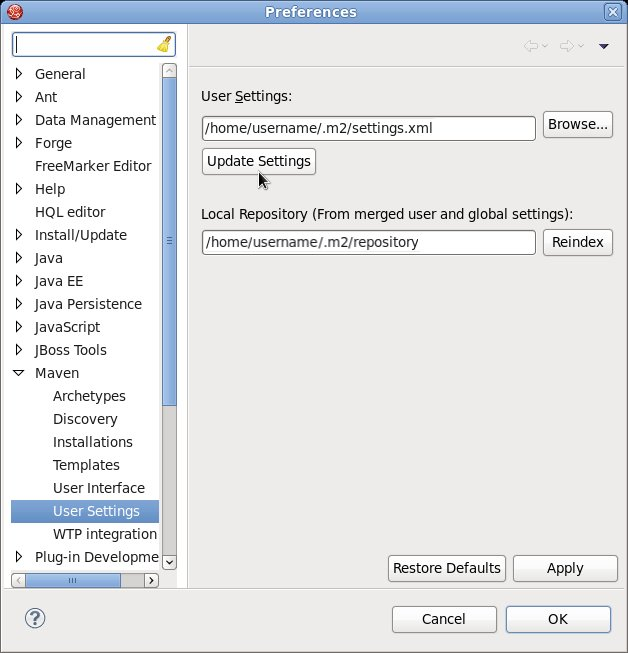
Figure 4.11. Update Maven User Settings
Important
If your Maven repository contains outdated artifacts, you may encounter one of the following Maven error messages when you build or deploy your project:
To resolve the issue, delete the cached version of your local repository to force a download of the latest Maven artifacts. The cached repository is located in your
- Missing artifact ARTIFACT_NAME
- [ERROR] Failed to execute goal on project PROJECT_NAME; Could not resolve dependencies for PROJECT_NAME
~/.m2/repository/ subdirectory on Linux, or the %SystemDrive%\Users\USERNAME\.m2\repository\ subdirectory on Windows.

'%20d='M201.5%20305.5c-13.8%200-24.9-11.1-24.9-24.6%200-13.8%2011.1-24.9%2024.9-24.9%2013.6%200%2024.6%2011.1%2024.6%2024.9%200%2013.6-11.1%2024.6-24.6%2024.6zM504%20256c0%20137-111%20248-248%20248S8%20393%208%20256%20119%208%20256%208s248%20111%20248%20248zm-132.3-41.2c-9.4%200-17.7%203.9-23.8%2010-22.4-15.5-52.6-25.5-86.1-26.6l17.4-78.3%2055.4%2012.5c0%2013.6%2011.1%2024.6%2024.6%2024.6%2013.8%200%2024.9-11.3%2024.9-24.9s-11.1-24.9-24.9-24.9c-9.7%200-18%205.8-22.1%2013.8l-61.2-13.6c-3-.8-6.1%201.4-6.9%204.4l-19.1%2086.4c-33.2%201.4-63.1%2011.3-85.5%2026.8-6.1-6.4-14.7-10.2-24.1-10.2-34.9%200-46.3%2046.9-14.4%2062.8-1.1%205-1.7%2010.2-1.7%2015.5%200%2052.6%2059.2%2095.2%20132%2095.2%2073.1%200%20132.3-42.6%20132.3-95.2%200-5.3-.6-10.8-1.9-15.8%2031.3-16%2019.8-62.5-14.9-62.5zM302.8%20331c-18.2%2018.2-76.1%2017.9-93.6%200-2.2-2.2-6.1-2.2-8.3%200-2.5%202.5-2.5%206.4%200%208.6%2022.8%2022.8%2087.3%2022.8%20110.2%200%202.5-2.2%202.5-6.1%200-8.6-2.2-2.2-6.1-2.2-8.3%200zm7.7-75c-13.6%200-24.6%2011.1-24.6%2024.9%200%2013.6%2011.1%2024.6%2024.6%2024.6%2013.8%200%2024.9-11.1%2024.9-24.6%200-13.8-11-24.9-24.9-24.9z'/%3e%3c/svg%3e)