 Red Hat Summit
Providing APIs in the Developer Portal
A properly configured Developer Portal provides plenty of functionalities for API management.
Abstract
Preface
An OpenAPI document that defines your application programming interface (API) is the foundation for your Developer Portal.
Providing feedback on Red Hat documentation
We appreciate your feedback on our documentation.
To propose improvements, open a Jira issue and describe your suggested changes. Provide as much detail as possible to enable us to address your request quickly.
Prerequisite
- You have a Red Hat Customer Portal account. This account enables you to log in to the Red Hat Jira Software instance. If you do not have an account, you will be prompted to create one.
Procedure
- Click the following link: Create issue.
- In the Summary text box, enter a brief description of the issue.
In the Description text box, provide the following information:
- The URL of the page where you found the issue.
-
A detailed description of the issue.
You can leave the information in any other fields at their default values.
- Click Create to submit the Jira issue to the documentation team.
Thank you for taking the time to provide feedback.
Part I. OpenAPI Specification
Chapter 1. An introduction to OpenAPI Specification
In Red Hat 3scale API Management, the OpenAPI Specification (OAS) helps you to optimally manage OpenAPI documents. The OpenAPI Specification (OAS) provides you with the tools to update an existing service or create a new one.
The following are special considerations about OAS in 3scale:
- You can also import an OpenAPI specification (OpenAPI document) with the 3scale toolbox. See Importing OpenAPI definitions.
- Regarding OAS 3.0, 3scale 2.8 introduces changes. For more details, refer to Section 2.1, “OpenAPI Specification 3.0 usage with 3scale API Management”.
Prerequisites
- An OpenAPI document that defines your API.
-
A 3scale 2.14 instance tenant’s credentials (
tokenorprovider_key).
With OAS, the following features are available in 3scale:
When you import an OpenAPI document, you create or update ActiveDocs. See How to write an OpenAPI document for use as a 3scale specification.
-
Ability to pass the 3scale service
system_nameas an optional parameter that defaults to info.title field from OAS. Methods are created for each operation defined in the OpenAPI specification.
-
Method names are taken from the
operation.operationIdfield.
-
Method names are taken from the
All existing mapping rules get deleted before importing a new API definition.
- Methods will be not deleted if they exist before running the command.
- Mapping rules get created for each operation defined in the OpenAPI specification.
One of the following channels provides the OpenAPI definition resource:
- Filename in the available path.
- URL format - toolbox will try to download from given address.
- Read from stdin standard input stream.
1.1. Command line options for importing OpenAPI documents in 3scale API Management
The 3scale command line interface (CLI) provides several options for importing OpenAPI documents that define APIs that you want to manage in 3scale. The following is the help information for the openapi option:
NAME
    openapi - Import API definition in OpenAPI specification

USAGE
    3scale import openapi [opts] -d <dst> <spec>

DESCRIPTION
    Using an API definition format like OpenAPI, import to your 3scale API

OPTIONS
       -d --destination=<value>                   3scale target instance.
                                                  Format: "http[s]://<authentication>@3scale_domain"

 -t --target_system_name=<value>            Target system name

OPTIONS FOR IMPORT
    -c --config-file=<value>                      3scale toolbox
                                                  configuration file
                                                  (default:
                                                  $HOME/.3scalerc.yaml)
    -h --help                                     show help for this command
    -k --insecure                                 Proceed and operate even
                                                  for server connections
                                                  otherwise considered
                                                  insecure
    -v --version                                  Prints the version of this
                                                  command
1.2. Different sources to import API specifications
There are different sources available to you as a 3scale administrator for importing API specifications. These are outlined in the following table, which shows the usage options for detecting OpenAPI definitions from the filename path, the URL, and stdin.
| Description | Formats | Command line usage |
|---|---|---|
| Detecting OpenAPI definition from the filename path. The format is automatically detected from filename extension. | json and yaml |
|
| Detecting OpenAPI definition from a URL. The format is automatically detected from URL’s path extension. | json and yaml |
|
|
Detecting OpenAPI definition from stdin. The command line parameter for the OpenAPI resource is | json and yaml |
|
Chapter 2. How to configure OpenAPI Specification
For the OpenAPI Specification to work with 3scale, it needs to configured correctly for the version you intend to use.
Prerequisites
- An OpenAPI document that defines your API.
-
A 3scale 2.14 instance tenant’s credentials (
tokenorprovider_key).
2.1. OpenAPI Specification 3.0 usage with 3scale API Management
3scale provides the following support for using OAS 3.0:
-
swagger-uihas been updated in the Developer Portal to support OAS 3.0 -
swagger-uiis now included as a webpack asset (node_modules). Formerly, it was added from Content Delivery Networks (CDNs). -
In the Admin Portal, any new OAS 3.0 document is identified automatically and processed accordingly, by using the features provided by
swagger-ui. Note that this functionality requires configuration in the Developer Portal.
You can add OAS 3.0 specifications to ActiveDocs and display them in the Developer Portal, considering the following points:
- You must upgrade the templates manually.
- The ActiveDoc does not have additional features such as credential injection when attempting requests, and autocompletion using real data like service name.
2.1.1. Configure the Developer Portal with OAS 3.0
This snippet includes the new version of swagger-ui, and renders the first ActiveDoc available. Note that it will also render OAS 2.0 but without any of the usual ActiveDocs features.
Support for OAS 3.0 specifications requires the following content in the default documentation page:
{% content_for javascripts %}
{{ 'active_docs.js' | javascript_include_tag }}
{% endcontent_for %}

{% assign spec = provider.api_specs.first %}

<h1>Documentation</h1>

<div class="swagger-section">
<div id="message-bar" class="swagger-ui-wrap"></div>
<div id="swagger-ui-container" class="swagger-ui-wrap"></div>
</div>

<script type="text/javascript">
(function () {
  var url = "{{spec.url}}";
  var serviceEndpoint = "{{spec.api_product_production_public_base_url}}"
  SwaggerUI({ url: url, dom_id: "#swagger-ui-container" }, serviceEndpoint);
}());
</script>
Update the Developer Portal with OAS 3.0.
If you have configured OAS 3.0 in 3scale 2.8 and want to continue using OAS 3.0, you need to update the template.
This is the template to configure:
{% content_for javascripts %}
{{ 'active_docs.js' | javascript_include_tag }}
{% endcontent_for %}
<h1>Documentation</h1>
<div class="swagger-section">
<div id="message-bar" class="swagger-ui-wrap"> </div>
<div id="swagger-ui-container" class="swagger-ui-wrap"></div>
</div>
<script type="text/javascript">
(function () {
var url = "{{provider.api_specs.first.url}}";
SwaggerUI({ url: url, dom_id: "#swagger-ui-container" });
}());
</script>To update the template, replace the default Documentation page with the snippet included in Configure the Developer Portal with OAS 3.0.
2.2. OpenAPI Specification 2.0 usage with 3scale API Management
You can add OAS 2.0 specifications to ActiveDocs and display them in the Developer Portal, considering the following points:
- You must upgrade the templates manually.
- The ActiveDoc does not have additional features such as credential injection when attempting requests, and auto-completion using real data like service name.
Support for OAS 2.0 specifications requires the following content in the default documentation page:
<h1>Documentation</h1>
{% cdn_asset /swagger-ui/2.2.10/swagger-ui.js %}
{% cdn_asset /swagger-ui/2.2.10/swagger-ui.css %}

{% include 'shared/swagger_ui' %}

<script type="text/javascript">
  $(function () {
    window.swaggerUi.options['url'] = "{{provider.api_specs.first.url}}";
    window.swaggerUi.load();
  });
</script>
2.3. Upgrading the Swagger user interface 2.1.3 to 2.2.10
If you are using a version of 3scale that contains Swagger UI 2.1.3, you can upgrade to Swagger UI version 2.2.10.
Previous implementations of Swagger UI 2.1.3 in the 3scale Developer Portal rely on the presence of a single {% active_docs version: "2.0" %} liquid tag in the Documentation page. With the introduction of support for Swagger 2.2.10 in 3scale, the implementation method changes to multiple cdn_asset and include liquid tags.
For versions of Swagger UI 2.1.3 and earlier, 3scale continues to use the legacy active_docs liquid tag method to call the UI.
Prerequisites
- A 3scale instance with administrator access.
- A 3scale instance that contains Swagger UI 2.1.3.
Procedure
- Log in to your 3scale Admin Portal.
-
Navigate to the
Developer Portal→Documentationpage, or the page in which you want to update your Swagger UI implementation. In the
Drafttab of the code pane, replace the{% active_docs version: "2.0" %}liquid tag with thecdn_assetliquid tag and the new partialshared/swagger_ui:{% cdn_asset /swagger-ui/2.2.10/swagger-ui.js %} {% cdn_asset /swagger-ui/2.2.10/swagger-ui.css %} {% include 'shared/swagger_ui' %}Optional: By default, Swagger UI loads the ActiveDocs specification published in APIs > ActiveDocs. Load a different specification by adding the following
window.swaggerUi.optionsline before thewindow.swaggerUi.load();line, where<SPEC_SYSTEM_NAME>is the system name of the specification you want to load:window.swaggerUi.options['url'] = "{{provider.api_specs.<SPEC_SYSTEM_NAME>.url}}";
Part II. API documentation in the Developer Portal
Chapter 3. Adding ActiveDocs to 3scale
3scale offers a framework to create interactive documentation for your API.
With OpenAPI Specification (OAS), you have functional documentation for your API, which will help your developers explore, test, and integrate with your API.
3.1. Setting up ActiveDocs in 3scale
You can add ActiveDocs to your API in the 3scale user interface to obtain a framework for creating interactive documentation for your API.
Prerequisites
- An OpenAPI document that defines your API.
-
A 3scale 2.14 instance tenant’s credentials (
tokenorprovider_key).
Procedure
Navigate to [your_API_name] → ActiveDocs in your Admin Portal. 3scale displays the list of your service specifications for your API. This is initially empty.
You can add as many service specifications as you want. Typically, each service specification corresponds to one of your APIs. For example, 3scale has specifications for each 3scale API, such as Service Management, Account Management, Analytics, and Billing.
Click Create a new spec.
When you add a new service specification, provide the following:
- Name
System name
This is required to reference the service specification from the Developer Portal.
Choose whether you want the specification to be published or not. If you do not publish, the new specification will not be available in the Developer Portal.
NoteIf you create, but do not publish your new specification, it will remain available to you for publication at a later time of your choosing.
- Add a description that is meant for only your consumption.
Add the API JSON specification.
Generate the specification of your API according to the specification proposed by OpenAPI Specification (OAS). In this tutorial we assume that you already have a valid OAS-compliant specification of your API.
Working with your first ActiveDoc
After you add your first ActiveDoc, you can see it listed in [your_API_name] → ActiveDocs. You can edit it as necessary, delete it, or switch it from public to private. You can detach it from your API or attach it to any other API. You can see all your ActiveDocs, whether or not they are attached to an API in Audience → Developer Portal → ActiveDocs.
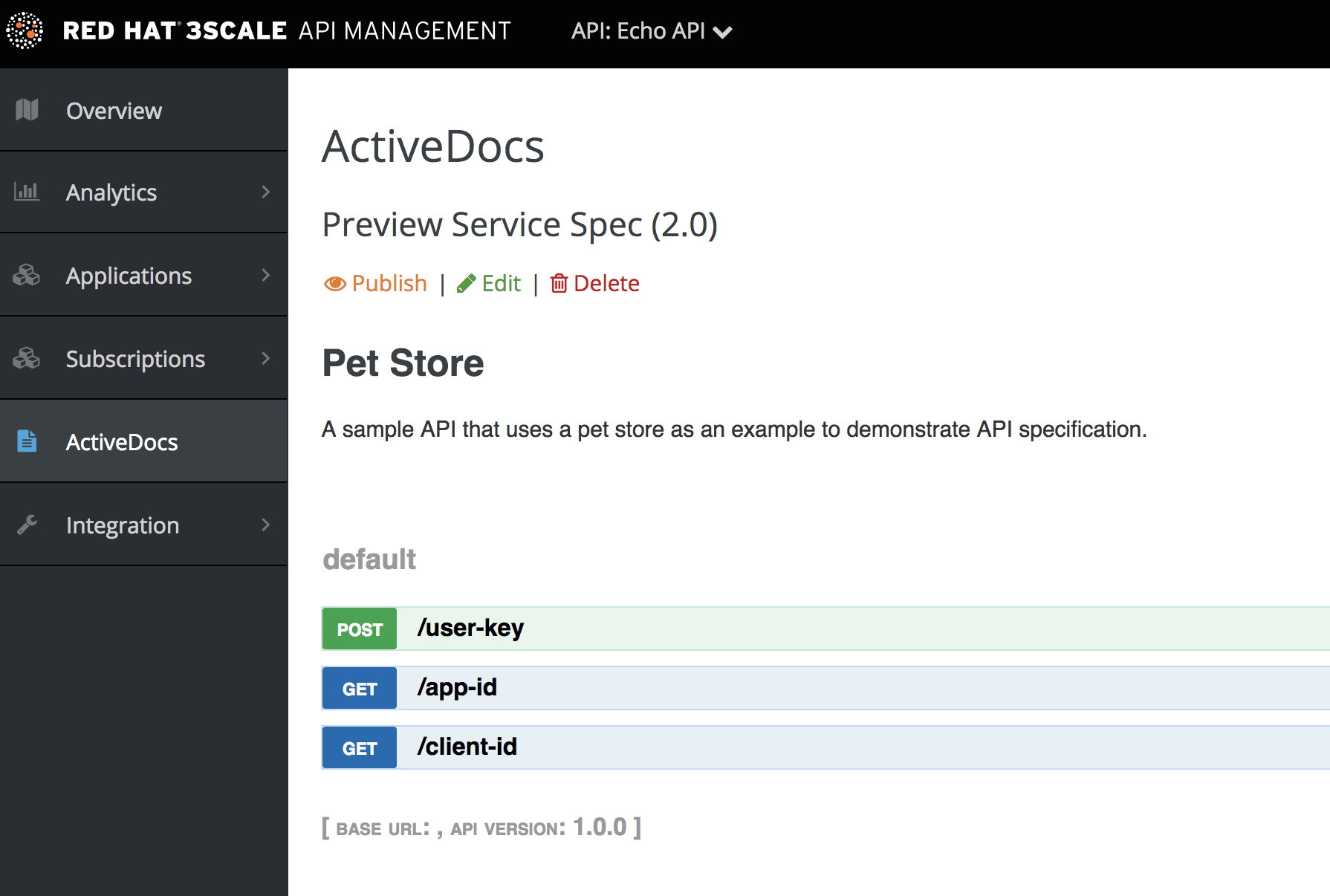
You can preview what your ActiveDocs looks like by clicking the name you gave the service specification, for example, Pet Store. You can do this even if the specification is not published yet.
This is what an ActiveDoc looks like:
Chapter 4. How to write an OpenAPI document for use as a 3scale API Management OpenAPI spec
If you only want to read the code, all the examples are on OAS Petstore example source code.
3scale ActiveDocs are based on the specification of RESTful web services called Swagger (from Wordnik). This example is based on the Extended OpenAPI Specification Petstore example and draws all the specification data from the OpenAPI Specification 2.0 specification document.
Prerequisites
- An OpenAPI Specification (OAS) compliant specification for your REST API is required to power ActiveDocs on your Developer Portal.
OAS is not only a specification. It also provides a full feature framework:
- Servers for the specification of the resources in multiple languages (NodeJS, Scala, and others).
- A set of HTML/CSS/Javascripts assets that take the specification file and generate the attractive UI.
- A OAS codegen project, which allows generation of client libraries automatically from a Swagger-compliant server. Support to create client-side libraries in a number of modern languages.
4.1. Setting up 3scale API Management ActiveDocs and OAS
ActiveDocs is an instance of OAS. With ActiveDocs, you do not have to run your own OAS server or deal with the user interface components of the interactive documentation. The interactive documentation is served and rendered from your 3scale Developer Portal.
3scale 2.8 introduced OAS 3.0 with limited support in ActiveDocs. This means that some features working with ActiveDocs, such as autocompletion, are not yet fully integrated, and consequently 3scale defaults to OAS 2.0 when creating new accounts. For more details about OAS 3.0 and ActiveDocs, refer to Section 2.1, “OpenAPI Specification 3.0 usage with 3scale API Management”.
Prerequisites
- Ensure that the template used in the Developer Portal implements the same OAS version specified in the Admin Portal.
Procedure
- Build a specification of your API compliant with OAS.
- Add the specification to your Admin Portal.
Results
Interactive documentation for your API is now available. API consumers can send requests to your API through your Developer Portal.
If you already have an OAS-compliant specification of your API, you can add it in your Developer Portal. See the tutorial on the ActiveDocs configuration.
3scale extends OAS in several ways to accommodate certain features that are needed for Developer Portal interactive API documentation:
- Auto-fill of API keys.
4.2. OpenAPI document example: Petstore API
To read the specification from the original source, see the OpenAPI Specification.
On the OAS site, there are multiple examples of OpenAPI documents that define APIs. If you like to learn by example, you can follow the example of the Petstore API by the OAS API Team.
The Petstore API is an extremely simple API. It is meant as a learning tool, not for production.
Petstore API methods
The Petstore API is composed of 4 methods:
GET /api/petsreturns all pets from the system
POST /api/petscreates a new pet in the store
GET /api/pets/{id}returns a pet based on a single ID
DELETE /api/pets/{id}deletes a single pet based on the ID
The Petstore API is integrated with 3scale, and for this reason you must add an additional parameter for authentication. For example, with the user key authentication method, an API consumer must put the user key parameter in the header of each request. For information about other authentication methods, see Authentication patterns.
User key parameters
user_key: {user_key}
The user_key will be sent by the API consumers in their requests to your API. The API consumers will obtain those keys the 3scale administrator’s Developer Portal. On receiving the key, the 3scale administrator must perform the authorization check against 3scale, using the Service Management API.
More on the OpenAPI Specification
For your API consumers, the documentation of your API represented in cURL calls would look like this:
curl -X GET "http://example.com/api/pets?tags=TAGS&limit=LIMIT" -H "user_key: {user_key}"
curl -X POST "http://example.com/api/pets" -H "user_key: {user_key}" -d "{ "name": "NAME", "tag": "TAG", "id": ID }"
curl -X GET "http://example.com/api/pets/{id}" -H "user_key: {user_key}"
curl -X DELETE "http://example.com/api/pets/{id}" -H "user_key: {user_key}"
4.3. Additional OAS specification information
If you want your documentation to look like the OAS Petstore Documentation, you must create a Swagger-compliant specification like the associated Petstore swagger.json file. You can use this specification out-of-the-box to test your ActiveDocs. But remember that this is not your API.
OAS relies on a resource declaration that maps to a hash encoded in JSON. Use the Petstore swagger.json file as an example and learn about each object.
OAS object
This is the root document object for the API specification. It lists all the highest level fields.
info object
The info object provides the metadata about the API. This content is presented in the ActiveDocs page.
paths object
The paths object holds the relative paths to the individual endpoints. The path is appended to the basePath to construct the full URL. The paths might be empty because of access control list (ACL) constraints.
Parameters that are not objects use primitive data types. In Swagger, primitive data types are based on the types supported by the JSON-Schema Draft 4. There is an additional primitive data type file but 3scale uses it only if the API endpoint has CORS enabled. With CORS enabled, the upload does not go through the api-docs gateway, where it would be rejected.
Currently OAS supports the following dataTypes:
- integer with possible formats: int32 and int64. Both formats are signed.
- number with possible formats: float and double.
- plain string.
- string with possible formats: byte, date, date-time, password and binary.
- boolean.
4.4. OAS design and editing tools
The following tools are useful for designing and editing the OpenAPI specification that defines your API:
The open source Apicurio Studio enables you to design and edit your OpenAPI-based APIs in a web-based application. Apicurio Studio provides a design view, so you do not need detailed knowledge of the OpenAPI specification. The source view enables expert users to edit directly in YAML or JSON. For more details, see Getting Started with Apicurio Studio.
Red Hat also provides a lightweight version of Apicurio Studio named API Designer, which is included with Fuse Online on OpenShift. For more details, see Developing and Deploying API Provider Integrations.
- The JSON Editor Online is useful if you are very familiar with the JSON notation. It gives a pretty format to compact JSON and provides a JSON object browser.
- The Swagger Editor enables you to create and edit your OAS API specification written in YAML in your browser and preview it in real time. You can also generate a valid JSON specification, which you can upload later in your 3scale Admin Portal. You can use the live demo version with limited functionality, or deploy your own OAS Editor.
4.5. ActiveDocs auto-fill of API credentials
Auto-fill of API credentials is a useful extension to OAS in 3scale ActiveDocs. You can define the x-data-threescale-name field with the following values depending on your API authentication mode:
-
user_keys: Returns the user keys for applications of the services that use API key authentication only. -
app_ids: Returns the IDs for applications of the services that use App ID/App Key. OAuth and OpenID Connect are also supported for backwards compatibility. -
app_keys: Returns the keys for applications of services that use App ID/App Key. OAuth and OpenID Connect are also supported for backwards compatibility.
The x-data-threescale-name field is an OAS extension that is ignored outside the domain of ActiveDocs.
API key authentication example
The following example shows using "x-data-threescale-name": "user_keys" for API key authentication only:
"parameters": [
  {
    "name": "user_key",
    "in": "query",
    "description": "Your API access key",
    "required": true,
    "schema": {
      "type": "string"
    },
    "x-data-threescale-name": "user_keys"
  }
]
For the parameters declared with x-data-threescale-name, when you log in to the Developer Portal you will see a drop-down list with the 5 latest keys, user key, App Id or App key, according to the value configured in the specification. So you can auto-fill the input without having to copy and paste the value:

Chapter 5. ActiveDocs and OAuth
ActiveDocs allows your users to test and call your OAuth-enabled API from one place.
Prerequisites
- You need to have a Red Hat Single Sign-On instance set up, and OpenID Connect integration configured. See OpenID Connect integration documentation for information on how to set it up.
- Additionally, you need to be familiar with how to set up ActiveDocs – see Adding ActiveDocs to 3scale and Creating an OpenAPI specification.
5.1. Example of client credentials and resource owner flows in a 3scale API Management specification
This first example is for an API using the OAuth 2.0 client credentials flow in a 3scale specification. This API accepts any path and returns information about the request (path, request parameters, headers, and more). The Echo API is accessible only by using a valid access token. Users of the API are able to call it only after they have exchanged their credentials (client_id and client_secret) for an access token.
For users to be able to call the API from ActiveDocs, they must request an access token. Since this is just a call to an OAuth authorization server, you can create an ActiveDocs specification for the OAuth token endpoint. This allows calls to this endpoint from within ActiveDocs. In this case, for a client credentials flow, the Swagger JSON specification looks like this:
{
  "swagger": "2.0",
  "info": {
    "version": "v1",
    "title": "OAuth for Echo API",
    "description": "OAuth2.0 Client Credentails Flow for authentication of our Echo API.",
    "contact": {
      "name": "API Support",
      "url": "http://www.swagger.io/support",
      "email": "support@swagger.io"
    }
  },
  "host": "red-hat-sso-instance.example.com",
  "basePath": "/auth/realms/realm-example/protocol/openid-connect",
  "schemes": [
    "http"
  ],
  "paths": {
    "/token": {
      "post": {
        "description": "This operation returns the access token for the API. You must call this before calling any other endpoints.",
        "operationId": "oauth",
        "parameters": [
          {
            "name": "client_id",
            "description": "Your client id",
            "type": "string",
            "in": "query",
            "required": true
          },
          {
            "name": "client_secret",
            "description": "Your client secret",
            "type": "string",
            "in": "query",
            "required": true
          },
          {
            "name": "grant_type",
            "description": "OAuth2 Grant Type",
            "type": "string",
            "default": "client_credentials",
            "required": true,
            "in": "query",
            "enum": [
                "client_credentials",
                "authorization_code",
                "refresh_token",
                "password"
            ]
          }
        ]
      }
    }
  }
}
For a resource owner OAuth flow, add parameters for a username and password and other parameters that you require in order to issue an access token. For this client credentials flow example, you are sending the client_id and client_secret, which can be populated from the 3scale values for signed-in users, as well as the grant_type.
Then in the ActiveDocs specification for the Echo API, add the access_token parameter instead of the client_id and the client_secret.
{
  "swagger": "2.0",
  "info": {
    "version": "v1",
    "title": "Echo API",
    "description": "A simple API that accepts any path and returns information about the request",
    "contact": {
      "name": "API Support",
      "url": "http://www.swagger.io/support",
      "email": "support@swagger.io"
    }
  },
  "host": "echo-api.3scale.net",
  "basePath": "/v1/words",
  "schemes": [
    "http"
  ],
  "produces": [
    "application/json"
  ],
  "paths": {
    "/{word}.json": {
      "get": {
        "description": "This operation returns information about the request (path, request parameters, headers, etc.),
        "operationId": "wordsGet",
        "summary": "Returns the path of a given word",
        "parameters": [
          {
            "name": "word",
            "description": "The word related to the path",
            "type": "string",
            "in": "path",
            "required": true
          },
          {
            "name": "access_token",
            "description": "Your access token",
            "type": "string",
            "in": "query",
            "required": true
          }
        ]
      }
    }
  }
}
You can then include your ActiveDocs in the Developer Portal as usual. In this case, since you want to specify the order in which they display to have the OAuth endpoint first, it looks like this:
{% active_docs version: "2.0" services: "oauth" %}


<script type="text/javascript">
  $(function () {
    window.swaggerUi.load(); // <-- loads first swagger-ui

    // do second swagger-ui

    var url = "/swagger/spec/echo-api.json";
    window.anotherSwaggerUi = new SwaggerUi({
      url: url,
      dom_id: "another-swagger-ui-container",
      supportedSubmitMethods: ['get', 'post', 'put', 'delete', 'patch'],
      onComplete: function(swaggerApi, swaggerUi) {
        $('#another-swagger-ui-container pre code').each(function(i, e) {hljs.highlightBlock(e)});
      },
      onFailure: function(data) {
        log("Unable to Load Echo-API-SwaggerUI");
      },
      docExpansion: "list",
      transport: function(httpClient, obj) {
        log("[swagger-ui]>>> custom transport.");
        return ApiDocsProxy.execute(httpClient, obj);
      }
    });

    window.anotherSwaggerUi.load();

  });
</script>
5.2. Publishing ActiveDocs in the Developer Portal
By the end of this tutorial, you will have published your ActiveDocs in your Developer Portal and your API documentation will be automated.
Prerequisites
- An OpenAPI Specification (OAS) compliant specification for your REST API is required to power ActiveDocs on your Developer Portal.
Procedure
Add the following snippet to the content of any page of your Developer Portal. You must do this through the 3scale Admin Portal.
NoteSERVICE_NAMEshould be the system name of the service specification, which ispet_storein the example.Developer Portal configuration using OAS 3.0
{% content_for javascripts %}
 {{ 'active_docs.js' | javascript_include_tag }}
{% endcontent_for %}

{% assign spec = provider.api_specs.first %}

<h1>Documentation</h1>

<div class="swagger-section">
 <div id="message-bar" class="swagger-ui-wrap"></div>
 <div id="swagger-ui-container" class="swagger-ui-wrap"></div>
</div>

<script type="text/javascript">
 (function () {
   var url = "{{spec.url}}";
   var serviceEndpoint = "{{spec.api_product_production_public_base_url}}"
   SwaggerUI({ url: url, dom_id: "#swagger-ui-container" }, serviceEndpoint);
 }());
</script>
Developer Portal configuration using OAS 2.0
<h1>Documentation</h1>
<p>Use our live documentation to learn about Echo API</p>
{% active_docs version: "2.0" services: "SERVICE_NAME" %}
{% cdn_asset /swagger-ui/2.2.10/swagger-ui.js %} {% cdn_asset /swagger-ui/2.2.10/swagger-ui.css %} {% include 'shared/swagger_ui' %}
<script type="text/javascript">
  $(function () {
    {% comment %}
      // you have access to swaggerUi.options object to customize its behavior
      // such as setting a different docExpansion mode
      window.swaggerUi.options['docExpansion'] = 'none';
      // or even getting the swagger specification loaded from a different url
      window.swaggerUi.options['url'] = "http://petstore.swagger.io/v2/swagger.json";
    {% endcomment %}
    window.swaggerUi.load();
  });
</script>
These are some additional considerations when publishing ActiveDocs in the Developer Portal:
- You can specify only one service on one page. If you want to display multiple specifications, the best way is to do it on different pages.
- This snippet requires jQuery, which is included by default in the main layout of your Developer Portal. If you remove the jQuery dependency from the main layout, you must add this dependency on the page containing ActiveDocs.
- Make sure you have Liquid tags enabled on the Admin Portal.
-
The version used in the Liquid tag for OAS 2.0
{{ '{% active_docs version: "2.0" ' }}%}should correspond to that of the Swagger spec.
If you want to fetch your specification from an external source, change the JavaScript code as follows:
$(function () {
 window.swaggerUi.options['url'] = "SWAGGER_JSON_URL";
 window.swaggerUi.load();
});
Note that the line containing the source of the specification, window.swaggerUi.options['url'] = "SWAGGER_JSON_URL";, is outside the comments block.
Verification steps
After you have created an OpenAPI specification and you have added it to 3scale, it is time to publish the specification and link it on your Developer Portal to be used by your API developers.

'%20d='M201.5%20305.5c-13.8%200-24.9-11.1-24.9-24.6%200-13.8%2011.1-24.9%2024.9-24.9%2013.6%200%2024.6%2011.1%2024.6%2024.9%200%2013.6-11.1%2024.6-24.6%2024.6zM504%20256c0%20137-111%20248-248%20248S8%20393%208%20256%20119%208%20256%208s248%20111%20248%20248zm-132.3-41.2c-9.4%200-17.7%203.9-23.8%2010-22.4-15.5-52.6-25.5-86.1-26.6l17.4-78.3%2055.4%2012.5c0%2013.6%2011.1%2024.6%2024.6%2024.6%2013.8%200%2024.9-11.3%2024.9-24.9s-11.1-24.9-24.9-24.9c-9.7%200-18%205.8-22.1%2013.8l-61.2-13.6c-3-.8-6.1%201.4-6.9%204.4l-19.1%2086.4c-33.2%201.4-63.1%2011.3-85.5%2026.8-6.1-6.4-14.7-10.2-24.1-10.2-34.9%200-46.3%2046.9-14.4%2062.8-1.1%205-1.7%2010.2-1.7%2015.5%200%2052.6%2059.2%2095.2%20132%2095.2%2073.1%200%20132.3-42.6%20132.3-95.2%200-5.3-.6-10.8-1.9-15.8%2031.3-16%2019.8-62.5-14.9-62.5zM302.8%20331c-18.2%2018.2-76.1%2017.9-93.6%200-2.2-2.2-6.1-2.2-8.3%200-2.5%202.5-2.5%206.4%200%208.6%2022.8%2022.8%2087.3%2022.8%20110.2%200%202.5-2.2%202.5-6.1%200-8.6-2.2-2.2-6.1-2.2-8.3%200zm7.7-75c-13.6%200-24.6%2011.1-24.6%2024.9%200%2013.6%2011.1%2024.6%2024.6%2024.6%2013.8%200%2024.9-11.1%2024.9-24.6%200-13.8-11-24.9-24.9-24.9z'/%3e%3c/svg%3e)