 Red Hat Summit
Getting started with Quarkus
Abstract
Preface
As an application developer, you can use Red Hat build of Quarkus to create microservices-based applications written in Java that run in OpenShift and serverless environments. Applications compiled to native executables have small memory footprints and fast startup times.
This guide shows you how to use Apache Maven to create, test, package, and run a simple Quarkus project that exposes a hello HTTP endpoint. To demonstrate dependency injection, this endpoint uses a greeting bean.

Prerequisites
Have OpenJDK (JDK) 11 installed and the
JAVA_HOMEenvironment variable specifies the location of the Java SDK.- Log in to the Red Hat Customer Portal to download Red Hat build of Open JDK from the Software Downloads page.
- Have Apache Maven 3.6.2 or later installed. Maven is available from the Apache Maven Project website.
For a completed example of the getting started exercise, download the Quarkus quickstart archive or clone the Quarkus Quickstarts Git repository. The Getting Started example is in the getting-started directory.
Providing feedback on Red Hat documentation
We appreciate your feedback on our technical content and encourage you to tell us what you think. If you’d like to add comments, provide insights, correct a typo, or even ask a question, you can do so directly in the documentation.
You must have a Red Hat account and be logged in to the customer portal.
To submit documentation feedback from the customer portal, do the following:
- Select the Multi-page HTML format.
- Click the Feedback button at the top-right of the document.
- Highlight the section of text where you want to provide feedback.
- Click the Add Feedback dialog next to your highlighted text.
- Enter your feedback in the text box on the right of the page and then click Submit.
We automatically create a tracking issue each time you submit feedback. Open the link that is displayed after you click Submit and start watching the issue or add more comments.
Thank you for the valuable feedback.
Making open source more inclusive
Red Hat is committed to replacing problematic language in our code, documentation, and web properties. We are beginning with these four terms: master, slave, blacklist, and whitelist. Because of the enormity of this endeavor, these changes will be implemented gradually over several upcoming releases. For more details, see our CTO Chris Wright’s message.
Chapter 1. Red Hat build of Quarkus
Red Hat build of Quarkus is a Kubernetes-native Java stack that is optimized for use with containers and Red Hat OpenShift Container Platform. Quarkus is designed to work with popular Java standards, frameworks, and libraries such as Eclipse MicroProfile, Apache Kafka, RESTEasy (JAX-RS), Hibernate ORM (JPA), Spring, Infinispan, and Apache Camel.
The Quarkus dependency injection solution is based on CDI (contexts and dependency injection) and includes an extension framework to expand functionality and to configure, boot, and integrate a framework into your application.
Quarkus provides a container-first approach to building Java applications. This approach makes it much easier to build microservices-based applications written in Java as well as enabling those applications to invoke functions running on serverless computing frameworks. For this reason, Quarkus applications have small memory footprints and fast startup times.
Chapter 2. Apache Maven and Quarkus
Apache Maven is a distributed build automation tool used in Java application development to create, manage, and build software projects. Maven uses standard configuration files called Project Object Model (POM) files to define projects and manage the build process. POM files describe the module and component dependencies, build order, and targets for the resulting project packaging and output using an XML file. This ensures that the project is built in a correct and uniform manner.
Maven repositories
A Maven repository stores Java libraries, plug-ins, and other build artifacts. The default public repository is the Maven 2 Central Repository, but repositories can be private and internal within a company to share common artifacts among development teams. Repositories are also available from third-parties.
You can use the online Maven repository with your Quarkus projects or you can download the Red Hat build of Quarkus Maven repository.
Maven plug-ins
Maven plug-ins are defined parts of a POM file that achieve one or more goals. Quarkus applications use the following Maven plug-ins:
-
Quarkus Maven plug-in (
quarkus-maven-plugin): Enables Maven to create Quarkus projects, supports the generation of uber-JAR files, and provides a development mode. -
Maven Surefire plug-in (
maven-surefire-plugin): Used during the test phase of the build life cycle to execute unit tests on your application. The plug-in generates text and XML files that contain the test reports.
2.1. Configuring the Maven settings.xml file for the online repository
You can use the online Quarkus repository with your Quarkus Maven project by configuring your user settings.xml file. This is the recommended approach. Maven settings used with a repository manager or repository on a shared server provide better control and manageability of projects.
When you configure the repository by modifying the Maven settings.xml file, the changes apply to all of your Maven projects.
Procedure
Open the Maven
~/.m2/settings.xmlfile in a text editor or integrated development environment (IDE).NoteIf there is not a
settings.xmlfile in the~/.m2/directory, copy thesettings.xmlfile from the$MAVEN_HOME/.m2/conf/directory into the~/.m2/directory.Add the following lines to the
<profiles>element of thesettings.xmlfile:Copy to Clipboard Copied! Toggle word wrap Toggle overflow Add the following lines to the
<activeProfiles>element of thesettings.xmlfile and save the file.<activeProfile>red-hat-enterprise-maven-repository</activeProfile>
<activeProfile>red-hat-enterprise-maven-repository</activeProfile>Copy to Clipboard Copied! Toggle word wrap Toggle overflow
2.2. Downloading and configuring the Quarkus Maven repository
If you do not want to use the online Maven repository, you can download and configure the Quarkus Maven repository to create a Quarkus application with Maven. The Quarkus Maven repository contains many of the requirements that Java developers typically use to build their applications. This procedure describes how to edit the settings.xml file to configure the Quarkus Maven repository.
When you configure the repository by modifying the Maven settings.xml file, the changes apply to all of your Maven projects.
Procedure
- Download the Quarkus Maven repository ZIP file from the Software Downloads page of the Red Hat Customer Portal (login required).
- Expand the downloaded archive.
-
Change directory to the
~/.m2/directory and open the Mavensettings.xmlfile in a text editor or integrated development environment (IDE). Add the path of the Quarkus Maven repository that you downloaded to the
<profiles>element of thesettings.xmlfile. The format of the path of the Quarkus Maven repository must befile://$PATH, for examplefile:///home/userX/rh-quarkus-1.11.7.GA-maven-repository/maven-repository.Copy to Clipboard Copied! Toggle word wrap Toggle overflow Add the following lines to the
<activeProfiles>element of thesettings.xmlfile and save the file.<activeProfile>red-hat-enterprise-maven-repository</activeProfile>
<activeProfile>red-hat-enterprise-maven-repository</activeProfile>Copy to Clipboard Copied! Toggle word wrap Toggle overflow
If your Maven repository contains outdated artifacts, you might encounter one of the following Maven error messages when you build or deploy your project, where <artifact_name> is the name of a missing artifact and <project_name> is the name of the project you are trying to build:
-
Missing artifact <project_name> -
[ERROR] Failed to execute goal on project <artifact_name>; Could not resolve dependencies for <project_name>
To resolve the issue, delete the cached version of your local repository located in the ~/.m2/repository directory to force a download of the latest Maven artifacts.
Chapter 3. Creating the Getting Started project
The getting-started project lets you get up and running with a simple Quarkus application using Apache Maven and the Quarkus Maven plug-in.
Procedure
In a command terminal, enter the following command to verify that Maven is using JDK 11 and that the Maven version is 3.6.2 or higher:
mvn --version
mvn --versionCopy to Clipboard Copied! Toggle word wrap Toggle overflow - If the preceding command does not return JDK 11, add the path to JDK 11 to the PATH environment variable and enter the preceding command again.
To generate the project, enter one of the following commands:
NoteApple macOS and Microsoft Windows are not supported production environments.
If you are using Linux or Apple macOS, enter the following command:
Copy to Clipboard Copied! Toggle word wrap Toggle overflow If you are using the Microsoft Windows command line, enter the following command:
mvn io.quarkus:quarkus-maven-plugin:1.11.7.Final-redhat-00009:create -DprojectGroupId=org.acme -DprojectArtifactId=getting-started -DplatformGroupId=com.redhat.quarkus -DplatformVersion=1.11.7.Final-redhat-00009 -DclassName="org.acme.quickstart.GreetingResource" -Dpath="/hello"
mvn io.quarkus:quarkus-maven-plugin:1.11.7.Final-redhat-00009:create -DprojectGroupId=org.acme -DprojectArtifactId=getting-started -DplatformGroupId=com.redhat.quarkus -DplatformVersion=1.11.7.Final-redhat-00009 -DclassName="org.acme.quickstart.GreetingResource" -Dpath="/hello"Copy to Clipboard Copied! Toggle word wrap Toggle overflow If you are using the Microsoft Windows Powershell, enter the following command:
mvn io.quarkus:quarkus-maven-plugin:1.11.7.Final-redhat-00009:create "-DprojectGroupId=org.acme" "-DprojectArtifactId=getting-started" "-DplatformVersion=1.11.7.Final-redhat-00009" "-DplatformGroupId=com.redhat.quarkus" "-DclassName=org.acme.quickstart.GreetingResource" "-Dpath=/hello"
mvn io.quarkus:quarkus-maven-plugin:1.11.7.Final-redhat-00009:create "-DprojectGroupId=org.acme" "-DprojectArtifactId=getting-started" "-DplatformVersion=1.11.7.Final-redhat-00009" "-DplatformGroupId=com.redhat.quarkus" "-DclassName=org.acme.quickstart.GreetingResource" "-Dpath=/hello"Copy to Clipboard Copied! Toggle word wrap Toggle overflow These commands create the following elements in the
./getting-starteddirectory:- The Maven project directory structure
-
An
org.acme.quickstart.GreetingResourceresource exposed on/hello - Associated unit tests for testing your application in native mode and JVM mode
-
A landing page that is accessible on
http://localhost:8080after you start the application -
Example
Dockerfile.jvm,Dockerfile.native, andDockerfile.fast-jarfiles in thesrc/main/dockerdirectory - The application configuration file
After the directory structure is created, open the
pom.xmlfile in a text editor and examine the contents of the file:Copy to Clipboard Copied! Toggle word wrap Toggle overflow The Quarkus BOM is included in the
<dependencyManagement>section of thepom.xmlfile. Therefore, you do not need to list the versions of individual Quarkus dependencies in thepom.xmlfile. In addition, you can see thequarkus-maven-pluginplug-in that is responsible for packaging the application and providing the development mode.Review the
quarkus-resteasydependency in thepom.xmlfile. This dependency enables you to develop REST applications:<dependency> <groupId>io.quarkus</groupId> <artifactId>quarkus-resteasy</artifactId> </dependency><dependency> <groupId>io.quarkus</groupId> <artifactId>quarkus-resteasy</artifactId> </dependency>Copy to Clipboard Copied! Toggle word wrap Toggle overflow Review the
src/main/java/org/acme/quickstart/GreetingResource.javafile:Copy to Clipboard Copied! Toggle word wrap Toggle overflow This file contains a simple REST endpoint that returns
helloas a response to a request that you send to the/helloendpoint.NoteWith Quarkus, the
Applicationclass for JAX-RS is supported but not required. In addition, only one instance of theGreetingResourceclass is created and not one per request. You can configure this by using different*Scopedannotations, for exampleApplicationScoped,RequestScoped, and so forth.
You can create a Quarkus Maven project using the code.quarkus.redhat.com project generator. See Creating a Quarkus Maven project using code.quarkus.redhat.com for details.
Chapter 4. Compiling and starting the Quarkus Getting Started project
After you have created the Quarkus Getting Started project, you can compile the Hello application and verify that the hello endpoint returns hello.
This example uses the Quarkus built-in development mode. In development mode, you can update the application sources and configurations while your application is running. Your changes will appear in the running application.
Prerequisites
- You have created the Quarkus Getting Started project.
Procedure
To compile the Quarkus Hello application in development mode, enter the following command from the project directory:
./mvnw compile quarkus:dev
./mvnw compile quarkus:devCopy to Clipboard Copied! Toggle word wrap Toggle overflow The following example shows the output of this command:
Copy to Clipboard Copied! Toggle word wrap Toggle overflow Enter the following command in a new terminal window to send a request to the endpoint provided by the application:
curl -w "\n" http://localhost:8080/hello
hello
curl -w "\n" http://localhost:8080/hello
hello
Copy to Clipboard Copied! Toggle word wrap Toggle overflow NoteThis example uses the
"\n"attribute to automatically add a new line before the output of the command. This prevents your terminal from printing a '%' character or putting both the result and the next command prompt on the same line.- Press CTRL+C to stop the application.
Chapter 5. Using Quarkus dependency injection
Dependency injection enables a service to be used in a way that is completely independent of any client consumption. It separates the creation of client dependencies from the client’s behavior, which enables program designs to be loosely coupled.
Dependency injection in Red Hat build of Quarkus is based on Quarkus ArC which is a CDI-based build-time oriented dependency injection solution tailored for Quarkus architecture. Because ArC is a transitive dependency of quarkus-resteasy, and quarkus-resteasy is a dependency of your project, ArC will already be downloaded.
Prerequisites
- You have created the Quarkus Getting Started project.
Procedure
To modify the application and add a companion bean, create the
src/main/java/org/acme/quickstart/GreetingService.javafile with the following content:Copy to Clipboard Copied! Toggle word wrap Toggle overflow Edit the
src/main/java/org/acme/quickstart/GreetingResource.javato inject theGreetingServiceand create a new endpoint using it:Copy to Clipboard Copied! Toggle word wrap Toggle overflow If you stopped the application, enter the following command to restart it:
./mvnw compile quarkus:dev
./mvnw compile quarkus:devCopy to Clipboard Copied! Toggle word wrap Toggle overflow To verify that the endpoint returns
hello quarkus, enter the following command in a new terminal window:curl -w "\n" http://localhost:8080/hello/greeting/quarkus hello quarkus
curl -w "\n" http://localhost:8080/hello/greeting/quarkus hello quarkusCopy to Clipboard Copied! Toggle word wrap Toggle overflow
Chapter 6. Testing your Quarkus application with JUnit
After you compile your Quarkus Getting Started project, test your application with the JUnit 5 framework to ensure that it runs as expected. There are two test dependencies in the Quarkus project generated pom.xml file:
The quarkus-junit5 dependency is required for testing because it provides the @QuarkusTest annotation that controls the JUnit 5 testing framework. The rest-assured dependency is not required but because it provides a convenient way to test HTTP endpoints, it is integrated as well. It automatically sets the correct URL so no configuration is required.
These tests use the REST-assured framework, but you can use a different library if you prefer.
Prerequisites
- You have compiled the Quarkus Getting Started project.
Procedure
Open the generated
pom.xmlfile and review the contents:Copy to Clipboard Copied! Toggle word wrap Toggle overflow Note, that:
-
the
java.util.logging.managersystem property is set to ensure that you application uses the correct log manager for the test. -
the
maven.homeproperty points to the location of thesettings.xmlfile in which you can store custom Maven configuration that you want to apply to your project.
-
the
Edit the
src/test/java/org/acme/quickstart/GreetingResourceTest.javafile to match the following content:Copy to Clipboard Copied! Toggle word wrap Toggle overflow NoteBy using the
QuarkusTestrunner, you instruct JUnit to start the application before starting the tests.To run these tests from Maven, enter the following command:
./mvnw test
./mvnw testCopy to Clipboard Copied! Toggle word wrap Toggle overflow NoteYou can also run the test from your IDE. If you do this, make sure to stop the application first.
By default, tests run on port
8081so they do not conflict with the running application. In Quarkus, theRestAssureddependency is configured to use this port. If you want to use a different client, use the@TestHTTPResourceannotation to directly inject the URL of the tested application into a field on theTestclass. This field can be of the typeString,URLorURI. You can also provide the test path in this annotation. For example, to test a servlet mapped to/myservlet, add the following lines to your test:@TestHTTPResource("/myservlet") URL testUrl;@TestHTTPResource("/myservlet") URL testUrl;Copy to Clipboard Copied! Toggle word wrap Toggle overflow -
If necessary, specify the test port in the
quarkus.http.test-portconfiguration property.
Quarkus also creates a system property called test.url that is set to the base test URL for situations where you cannot use injection.
Chapter 7. Packaging and running the Quarkus Getting Started application
After you compile your Quarkus Getting Started project, you can package it in a JAR file and run it from the command line.
Prerequisites
- You have compiled the Quarkus Getting Started project.
Procedure
To package your Quarkus Getting Started project, enter the following command in the
rootdirectory:./mvnw package
./mvnw packageCopy to Clipboard Copied! Toggle word wrap Toggle overflow This command produces the following JAR files in the
/targetdirectory:-
getting-started-1.0-0-SNAPSHOT.jar: Contains the classes and resources of the projects. This is the regular artifact produced by the Maven build. getting-started-1.0-0-SNAPSHOT-runner.jar: Is an executable JAR file. Be aware that this file is not an uber-JAR file because the dependencies are copied into thetarget/libdirectory.WarningWhen your application is running in development mode, you must press CTRL+C to stop your application. You will encounter a port conflict when you try to package your application when development mode is enabled.
-
Enter the following command to start your application:
java -jar target/getting-started-1.0-0-SNAPSHOT-runner.jar
java -jar target/getting-started-1.0-0-SNAPSHOT-runner.jarCopy to Clipboard Copied! Toggle word wrap Toggle overflow NoteThe
Class-Pathentry of theMANIFEST.MFfile from therunnerJAR file explicitly lists the JAR files from thelibdirectory. If you want to deploy your application from another location, you must copy therunnerJAR file as well as thelibdirectory.
Chapter 8. Creating a Quarkus Maven project using code.quarkus.redhat.com
As an application developer, you can use code.quarkus.redhat.com to generate a Quarkus Maven project and automatically add and configure the extensions that you want to use in your application. In addition, code.quarkus.redhat.com automatically manages the configuration parameters required to compile your project into a native executable.
This section walks you through the process of generating a Quarkus Maven project including:
- Specifying basic details about your application.
- Choosing the extensions that you want to include in your project.
- Generating a downloadable archive with your project files.
- Using the custom commands for compiling and starting your application.
Prerequisites
- Have a web browser.
Procedure
- Navigate to https://code.quarkus.redhat.com using a web browser.
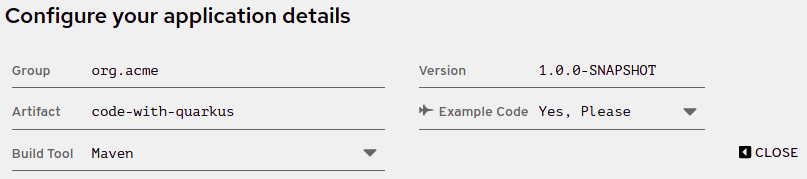
Specify basic details about your project:
-
Enter a group name for your project. The format of the name follows the Java package naming convention, for example,
org.acme. -
Enter a name that you want to use for Maven artifacts generated from your project, for example
code-with-quarkus. Select the build tool that you want to use to compile and start your application. The build tool that you choose determines:
- the directory structure of your generated project.
- the format of configuration files used in your generated project.
the custom build script and command for compiling and starting your application that code.quarkus.redhat.com displays for you after you generate your project.
NoteRed Hat provides support for using code.quarkus.redhat.com to create Quarkus Maven projects only. Generating Gradle projects is not supported by Red Hat.

-
Enter a group name for your project. The format of the name follows the Java package naming convention, for example,
Specify additional details about your application project:
- Select Configure more options to display the fields that contain additional application details.
-
Enter a version that is used in artifacts generated from your project. The default value of this field is
1.0.0-SNAPSHOT. Using semantic versioning is recommended, but you can use a different type of versioning, if you prefer. Select whether you want code.quarkus.redhat.com to add example code to your project. When you add extensions that are marked with the
 icon to your project from the list of extensions, you can enable this option to automatically create example class files and resource files for those extensions when you generate your project. When you do not add any extensions that provide example code, this option does not affect your generated project.
 Note
Notecode.quarkus.redhat.com automatically uses the latest release of Red Hat build of Quarkus. You can manually change the BOM version in the
pom.xmlfile after you generate your project.
Select the extensions that you want to use in your application from the list of extensions. The selected extensions are included as dependencies of your Quarkus application with their versions being managed by the Quarkus platform to ensure their compatibility.
You can enable the option to automatically generate example code for extensions that are marked with the
icon.
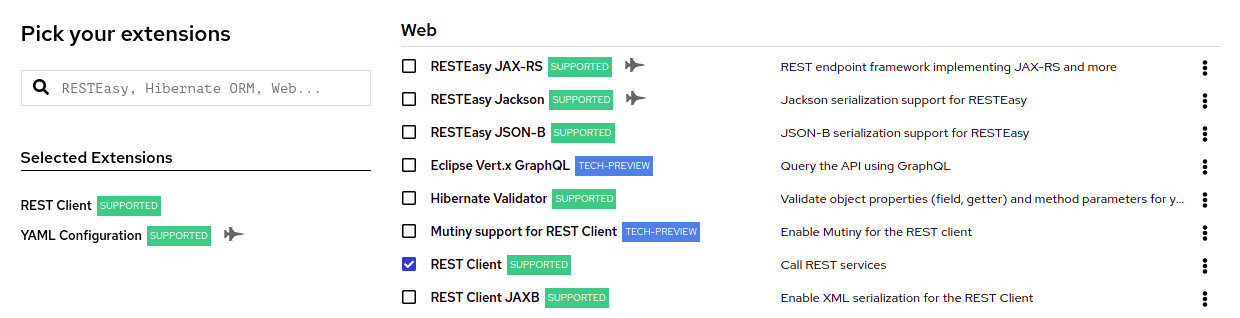
Note, that Red Hat provides different levels of support for individual extensions on the list, which are indicated by labels next to the name of each extension:
- SUPPORTED extensions are fully supported by Red Hat for use in enterprise application in production environments.
- TECH-PREVIEW extensions are subject to limited support by Red Hat in production environments under the Technology Preview Features Support Scope.
- DEV-SUPPORT extensions are not supported by Red Hat for use in production environments, but the core functionalities that they provide are supported by Red Hat developers for use in developing new applications.
- Unlabeled extensions are not supported by Red Hat for use in production environments.
DEPRECATED extension are planned to be replaced by a newer technology or implementation that provides the same functionality.
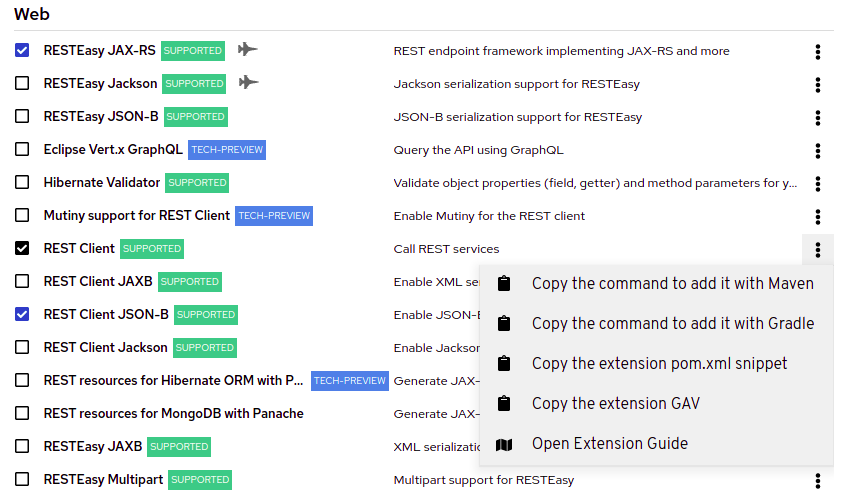
You can expand the overflow menu (⋮) next to each of the extensions to access additional options that you can use to:
- add the extension to an existing project using the Quarkus maven plugin on the command line.
-
copy an XML snippet to add the the extension to the
pom.xmlfile of a project. -
obtain the
groupId,artifactIdandversionof each extension. open the extension guide.
- Select Generate your application to confirm your choices and display the overlay screen with the download link for the archive that contains your generated project. The overlay screen also shows the custom command that you can use to compile and start your application.
- Select Download the ZIP to save the archive with the generated project files to your machine.
- Extract the contents of the archive.
Navigate to the directory that contains your extracted project files:
cd <directory_name>
cd <directory_name>Copy to Clipboard Copied! Toggle word wrap Toggle overflow Compile and start your application in development mode:
./mvnw compile quarkus:dev
./mvnw compile quarkus:devCopy to Clipboard Copied! Toggle word wrap Toggle overflow

'%20d='M201.5%20305.5c-13.8%200-24.9-11.1-24.9-24.6%200-13.8%2011.1-24.9%2024.9-24.9%2013.6%200%2024.6%2011.1%2024.6%2024.9%200%2013.6-11.1%2024.6-24.6%2024.6zM504%20256c0%20137-111%20248-248%20248S8%20393%208%20256%20119%208%20256%208s248%20111%20248%20248zm-132.3-41.2c-9.4%200-17.7%203.9-23.8%2010-22.4-15.5-52.6-25.5-86.1-26.6l17.4-78.3%2055.4%2012.5c0%2013.6%2011.1%2024.6%2024.6%2024.6%2013.8%200%2024.9-11.3%2024.9-24.9s-11.1-24.9-24.9-24.9c-9.7%200-18%205.8-22.1%2013.8l-61.2-13.6c-3-.8-6.1%201.4-6.9%204.4l-19.1%2086.4c-33.2%201.4-63.1%2011.3-85.5%2026.8-6.1-6.4-14.7-10.2-24.1-10.2-34.9%200-46.3%2046.9-14.4%2062.8-1.1%205-1.7%2010.2-1.7%2015.5%200%2052.6%2059.2%2095.2%20132%2095.2%2073.1%200%20132.3-42.6%20132.3-95.2%200-5.3-.6-10.8-1.9-15.8%2031.3-16%2019.8-62.5-14.9-62.5zM302.8%20331c-18.2%2018.2-76.1%2017.9-93.6%200-2.2-2.2-6.1-2.2-8.3%200-2.5%202.5-2.5%206.4%200%208.6%2022.8%2022.8%2087.3%2022.8%20110.2%200%202.5-2.2%202.5-6.1%200-8.6-2.2-2.2-6.1-2.2-8.3%200zm7.7-75c-13.6%200-24.6%2011.1-24.6%2024.9%200%2013.6%2011.1%2024.6%2024.6%2024.6%2013.8%200%2024.9-11.1%2024.9-24.6%200-13.8-11-24.9-24.9-24.9z'/%3e%3c/svg%3e)