 Red Hat Summit
Block Device Guide
Manging, creating, configuring, and using Red Hat Ceph Storage block devices
Abstract
Chapter 1. Overview
A block is a sequence of bytes, for example, a 512-byte block of data. Block-based storage interfaces are the most common way to store data with rotating media such as:
- hard disks,
- CDs,
- floppy disks,
- and even traditional 9-track tape.
The ubiquity of block device interfaces makes a virtual block device an ideal candidate to interact with a mass data storage system like Red Hat Ceph Storage.
Ceph Block Devices, also known as Reliable Autonomic Distributed Object Store (RADOS) Block Devices (RBDs), are thin-provisioned, resizable and store data striped over multiple Object Storage Devices (OSD) in a Ceph Storage Cluster. Ceph Block Devices leverage RADOS capabilities such as:
- creating snapshots,
- replication,
- and consistency.
Ceph Block Devices interact with OSDs by using the librbd library.
Ceph Block Devices deliver high performance with infinite scalability to Kernel Virtual Machines (KVMs) such as Quick Emulator (QEMU), and cloud-based computing systems like OpenStack and CloudStack that rely on the libvirt and QEMU utilities to integrate with Ceph Block Devices. You can use the same cluster to operate the Ceph Object Gateway and Ceph Block Devices simultaneously.
To use Ceph Block Devices, you must have access to a running Ceph Storage Cluster. For details on installing the Red Hat Ceph Storage, see the Installation Guide for Red Hat Enterprise Linux or Installation Guide for Ubuntu.
Chapter 2. Block Device Commands
The rbd command enables you to create, list, introspect, and remove block device images. You can also use it to clone images, create snapshots, rollback an image to a snapshot, view a snapshot, and so on.
2.1. Prerequisites
There are two prerequisites that you must meet before you can use the Ceph Block Devices and the rbd command:
- You must have access to a running Ceph Storage Cluster. For details, see the Installation Guide for Red Hat Enterprise Linux or Installation Guide for Ubuntu.
- You must install the Ceph Block Device client. For details, see the Installation Guide for Red Hat Enterprise Linux or Installation Guide for Ubuntu.
The Client Installation chapter also provides information on mounting and using Ceph Block Devices on client nodes. Execute these steps on client nodes only after creating an image for the Block Device in the Ceph Storage Cluster. See Section 2.2, “Creating Block Device Images” for details.
2.2. Creating Block Device Images
Before adding a block device to a node, create an image for it in the Ceph storage cluster. To create a block device image, execute the following command:
rbd create <image-name> --size <megabytes> --pool <pool-name>
rbd create <image-name> --size <megabytes> --pool <pool-name>
For example, to create a 1GB image named data that stores information in a pool named stack, run:
rbd create data --size 1024 --pool stack
$ rbd create data --size 1024 --pool stackYou must create a pool first before you can specify it as a source. See the Pools chapter in the Storage Strategies for Red Hat Ceph Storage 2 guide for details.
2.3. Listing Block Device Images
To list block devices in the rbd pool, execute the following (rbd is the default pool name):
rbd ls
rbd ls
To list block devices in a particular pool, execute the following, but replace {poolname} with the name of the pool:
rbd ls {poolname}
rbd ls {poolname}For example:
rbd ls swimmingpool
rbd ls swimmingpool2.4. Retrieving Image Information
To retrieve information from a particular image, execute the following, but replace {image-name} with the name for the image:
rbd --image {image-name} info
rbd --image {image-name} infoFor example:
rbd --image foo info
rbd --image foo info
To retrieve information from an image within a pool, execute the following, but replace {image-name} with the name of the image and replace {pool-name} with the name of the pool:
rbd --image {image-name} -p {pool-name} info
rbd --image {image-name} -p {pool-name} infoFor example:
rbd --image bar -p swimmingpool info
rbd --image bar -p swimmingpool info2.5. Resizing Block Device Images
Ceph block device images are thin provisioned. They do not actually use any physical storage until you begin saving data to them. However, they do have a maximum capacity that you set with the --size option.
To increase or decrease the maximum size of a Ceph block device image:
rbd resize --image <image-name> --size <size>
rbd resize --image <image-name> --size <size>2.6. Removing Block Device Images
To remove a block device, execute the following, but replace {image-name} with the name of the image you want to remove:
rbd rm {image-name}
rbd rm {image-name}For example:
rbd rm foo
rbd rm foo
To remove a block device from a pool, execute the following, but replace {image-name} with the name of the image to remove and replace {pool-name} with the name of the pool:
rbd rm {image-name} -p {pool-name}
rbd rm {image-name} -p {pool-name}For example:
rbd rm bar -p swimmingpool
rbd rm bar -p swimmingpool2.7. Enabling and Disabling Image Features
You can enable or disable image features, such as fast-diff, exclusive-lock, object-map, or journaling, on already existing images.
To enable a feature:
rbd feature enable <pool-name>/<image-name> <feature-name>
rbd feature enable <pool-name>/<image-name> <feature-name>To disable a feature:
rbd feature disable <pool-name>/<image-name> <feature-name>
rbd feature disable <pool-name>/<image-name> <feature-name>Examples
To enable the
exclusive-lockfeature on theimage1image in thedatapool:rbd feature enable data/image1 exclusive-lock
$ rbd feature enable data/image1 exclusive-lockCopy to Clipboard Copied! Toggle word wrap Toggle overflow To disable the
fast-difffeature on theimage2image in thedatapool:rbd feature disable data/image2 fast-diff
$ rbd feature disable data/image2 fast-diffCopy to Clipboard Copied! Toggle word wrap Toggle overflow
After enabling the fast-diff and object-map features, rebuild the object map:
rbd object-map rebuild <pool-name>/<image-name>
rbd object-map rebuild <pool-name>/<image-name>
The deep flatten feature can be only disabled on already existing images but not enabled. To use deep flatten, enable it when creating images.
2.8. Working with Image Metadata
Ceph supports adding custom image metadata as key-value pairs. The pairs do not have any strict format.
Also, by using metadata, you can set the RBD configuration parameters for particular images. See Overriding the Default Configuration for Particular Images for details.
Use the rbd image-meta commands to work with metadata.
Setting Image Metadata
To set a new metadata key-value pair:
rbd image-meta set <pool-name>/<image-name> <key> <value>
rbd image-meta set <pool-name>/<image-name> <key> <value>Example
To set the
last_updatekey to the2016-06-06value on thedatasetimage in thedatapool:rbd image-meta set data/dataset last_update 2016-06-06
$ rbd image-meta set data/dataset last_update 2016-06-06Copy to Clipboard Copied! Toggle word wrap Toggle overflow
Removing Image Metadata
To remove a metadata key-value pair:
rbd image-meta remove <pool-name>/<image-name> <key>
rbd image-meta remove <pool-name>/<image-name> <key>Example
To remove the
last_updatekey-value pair from thedatasetimage in thedatapool:rbd image-meta remove data/dataset last_update
$ rbd image-meta remove data/dataset last_updateCopy to Clipboard Copied! Toggle word wrap Toggle overflow
Getting a Value for a Key
To view a value of a key:
rbd image-meta get <pool-name>/<image-name> <key>
rbd image-meta get <pool-name>/<image-name> <key>Example
To view the value of the
last_updatekey:rbd image-meta get data/dataset last_update
$ rbd image-meta get data/dataset last_updateCopy to Clipboard Copied! Toggle word wrap Toggle overflow
Listing Image Metadata
To show all metadata on an image:
rbd image-meta list <pool-name>/<image-name>
rbd image-meta list <pool-name>/<image-name>Example
To list metadata set on the
datasetimage in thedatapool:rbd data/dataset image-meta list
$ rbd data/dataset image-meta listCopy to Clipboard Copied! Toggle word wrap Toggle overflow
Overriding the Default Configuration for Particular Images
To override the RBD image configuration settings set in the Ceph configuration file for a particular image, set the configuration parameters with the conf_ prefix as image metadata:
rbd image-meta set <pool-name>/<image-name> conf_<parameter> <value>
rbd image-meta set <pool-name>/<image-name> conf_<parameter> <value>Example
To disable the RBD cache for the
datasetimage in thedatapool:rbd image-meta set data/dataset conf_rbd_cache false
$ rbd image-meta set data/dataset conf_rbd_cache falseCopy to Clipboard Copied! Toggle word wrap Toggle overflow
See Block Device Configuration Reference for a list of possible configuration options.
2.9. Displaying Help
Use the rbd help command to display help for a particular rbd command and its subcommand:
rbd help <command> <subcommand>
rbd help <command> <subcommand>Example
To display help for the snap list command:
rbd help snap list
$ rbd help snap list
The -h option still displays help for all available commands.
Chapter 3. Snapshots
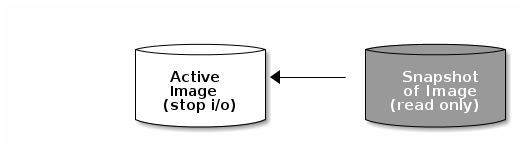
A snapshot is a read-only copy of the state of an image at a particular point in time. One of the advanced features of Ceph block devices is that you can create snapshots of the images to retain a history of an image’s state. Ceph also supports snapshot layering, which allows you to clone images (for example a VM image) quickly and easily. Ceph supports block device snapshots using the rbd command and many higher level interfaces, including QEMU, libvirt,OpenStack and CloudStack.
To use RBD snapshots, you must have a running Ceph cluster.
If a snapshot is taken while I/O is still in progress in a image, the snapshot might not get the exact or latest data of the image and the snapshot may have to be cloned to a new image to be mountable. So, we recommend to stop I/O before taking a snapshot of an image. If the image contains a filesystem, the filesystem must be in a consistent state before taking a snapshot. To stop I/O you can use fsfreeze command. See fsfreeze(8) man page for more details. For virtual machines, qemu-guest-agent can be used to automatically freeze filesystems when creating a snapshot.
3.1. Cephx Notes
When cephx is enabled (it is by default), you must specify a user name or ID and a path to the keyring containing the corresponding key for the user. You may also add the CEPH_ARGS environment variable to avoid re-entry of the following parameters:
rbd --id {user-ID} --keyring=/path/to/secret [commands]
rbd --name {username} --keyring=/path/to/secret [commands]
rbd --id {user-ID} --keyring=/path/to/secret [commands]
rbd --name {username} --keyring=/path/to/secret [commands]For example:
rbd --id admin --keyring=/etc/ceph/ceph.keyring [commands]
rbd --name client.admin --keyring=/etc/ceph/ceph.keyring [commands]
rbd --id admin --keyring=/etc/ceph/ceph.keyring [commands]
rbd --name client.admin --keyring=/etc/ceph/ceph.keyring [commands]
Add the user and secret to the CEPH_ARGS environment variable so that you don’t need to enter them each time.
3.2. Snapshot Basics
The following procedures demonstrate how to create, list, and remove snapshots using the rbd command on the command line.
3.2.1. Creating Snapshots
To create a snapshot with rbd, specify the snap create option, the pool name and the image name:
rbd --pool {pool-name} snap create --snap {snap-name} {image-name}
rbd snap create {pool-name}/{image-name}@{snap-name}
rbd --pool {pool-name} snap create --snap {snap-name} {image-name}
rbd snap create {pool-name}/{image-name}@{snap-name}For example:
rbd --pool rbd snap create --snap snapname foo
rbd snap create rbd/foo@snapname
rbd --pool rbd snap create --snap snapname foo
rbd snap create rbd/foo@snapname3.2.2. Listing Snapshots
To list snapshots of an image, specify the pool name and the image name:
rbd --pool {pool-name} snap ls {image-name}
rbd snap ls {pool-name}/{image-name}
rbd --pool {pool-name} snap ls {image-name}
rbd snap ls {pool-name}/{image-name}For example:
rbd --pool rbd snap ls foo
rbd snap ls rbd/foo
rbd --pool rbd snap ls foo
rbd snap ls rbd/foo3.2.3. Rollbacking Snapshots
To rollback to a snapshot with rbd, specify the snap rollback option, the pool name, the image name and the snap name:
rbd --pool {pool-name} snap rollback --snap {snap-name} {image-name}
rbd snap rollback {pool-name}/{image-name}@{snap-name}
rbd --pool {pool-name} snap rollback --snap {snap-name} {image-name}
rbd snap rollback {pool-name}/{image-name}@{snap-name}For example:
rbd --pool rbd snap rollback --snap snapname foo
rbd snap rollback rbd/foo@snapname
rbd --pool rbd snap rollback --snap snapname foo
rbd snap rollback rbd/foo@snapnameRolling back an image to a snapshot means overwriting the current version of the image with data from a snapshot. The time it takes to execute a rollback increases with the size of the image. It is faster to clone from a snapshot than to rollback an image to a snapshot, and it is the preferred method of returning to a pre-existing state.
3.2.4. Deleting Snapshots
To delete a snapshot with rbd, specify the snap rm option, the pool name, the image name and the snapshot name:
rbd --pool <pool-name> snap rm --snap <snap-name> <image-name>
rbd snap rm <pool-name-/<image-name>@<snap-name>
rbd --pool <pool-name> snap rm --snap <snap-name> <image-name>
rbd snap rm <pool-name-/<image-name>@<snap-name>For example:
rbd --pool rbd snap rm --snap snapname foo
rbd snap rm rbd/foo@snapname
$ rbd --pool rbd snap rm --snap snapname foo
$ rbd snap rm rbd/foo@snapnameIf an image has any clones, the cloned images retain reference to the parent image snapshot. To delete the parent image snapshot, you must flatten the child images first. See Flattening a Cloned Image for details.
Ceph OSD daemons delete data asynchronously, so deleting a snapshot does not free up the disk space immediately.
3.2.5. Purging Snapshots
To delete all snapshots for an image with rbd, specify the snap purge option and the image name:
rbd --pool {pool-name} snap purge {image-name}
rbd snap purge {pool-name}/{image-name}
rbd --pool {pool-name} snap purge {image-name}
rbd snap purge {pool-name}/{image-name}For example:
rbd --pool rbd snap purge foo
rbd snap purge rbd/foo
rbd --pool rbd snap purge foo
rbd snap purge rbd/foo3.2.6. Renaming Snapshots
To rename a snapshot:
rbd snap rename <pool-name>/<image-name>@<original-snapshot-name> <pool-name>/<image-name>@<new-snapshot-name>
rbd snap rename <pool-name>/<image-name>@<original-snapshot-name> <pool-name>/<image-name>@<new-snapshot-name>Example
To rename the snap1 snapshot of the dataset image on the data pool to snap2:
rbd snap rename data/dataset@snap1 data/dataset@snap2
$ rbd snap rename data/dataset@snap1 data/dataset@snap2
Execute the rbd help snap rename command to display additional details on renaming snapshots.
3.3. Layering
Ceph supports the ability to create many copy-on-write (COW) or copy-on-read (COR) clones of a block device snapshot. Snapshot layering enables Ceph block device clients to create images very quickly. For example, you might create a block device image with a Linux VM written to it; then, snapshot the image, protect the snapshot, and create as many clones as you like. A snapshot is read-only, so cloning a snapshot simplifies semantics—making it possible to create clones rapidly.
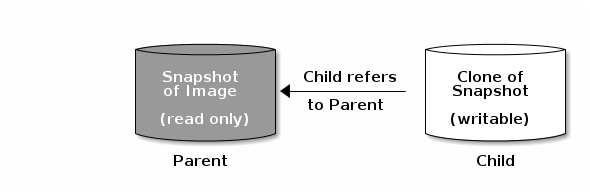
The terms parent and child mean a Ceph block device snapshot (parent), and the corresponding image cloned from the snapshot (child). These terms are important for the command line usage below.
Each cloned image (child) stores a reference to its parent image, which enables the cloned image to open the parent snapshot and read it. This reference is removed when the clone is flattened that is, when information from the snapshot is completely copied to the clone. For more information on flattening see Section 3.3.6, “Flattening Cloned Images”.
A clone of a snapshot behaves exactly like any other Ceph block device image. You can read to, write from, clone, and resize cloned images. There are no special restrictions with cloned images. However, the clone of a snapshot refers to the snapshot, so you MUST protect the snapshot before you clone it.
A clone of a snapshot can be a copy-on-write (COW) or copy-on-read (COR) clone. Copy-on-write (COW) is always enabled for clones while copy-on-read (COR) has to be enabled explicitly. Copy-on-write (COW) copies data from the parent to the clone when it writes to an unallocated object within the clone. Copy-on-read (COR) copies data from the parent to the clone when it reads from an unallocated object within the clone. Reading data from a clone will only read data from the parent if the object does not yet exist in the clone. Rados block device breaks up large images into multiple objects (defaults to 4 MB) and all copy-on-write (COW) and copy-on-read (COR) operations occur on a full object (that is writing 1 byte to a clone will result in a 4 MB object being read from the parent and written to the clone if the destination object does not already exist in the clone from a previous COW/COR operation).
Whether or not copy-on-read (COR) is enabled, any reads that cannot be satisfied by reading an underlying object from the clone will be rerouted to the parent. Since there is practically no limit to the number of parents (meaning that you can clone a clone), this reroute continues until an object is found or you hit the base parent image. If copy-on-read (COR) is enabled, any reads that fail to be satisfied directly from the clone result in a full object read from the parent and writing that data to the clone so that future reads of the same extent can be satisfied from the clone itself without the need of reading from the parent.
This is essentially an on-demand, object-by-object flatten operation. This is specially useful when the clone is in a high-latency connection away from it’s parent (parent in a different pool in another geographical location). Copy-on-read (COR) reduces the amortized latency of reads. The first few reads will have high latency because it will result in extra data being read from the parent (for example, you read 1 byte from the clone but now 4 MB has to be read from the parent and written to the clone), but all future reads will be served from the clone itself.
To create copy-on-read (COR) clones from snapshot you have to explicitly enable this feature by adding rbd_clone_copy_on_read = true under [global] or [client] section in your ceph.conf file.
Ceph only supports cloning for format 2 images (created with rbd create --image-format 2), and is not yet supported by the kernel rbd module. So you MUST use QEMU/KVM or librbd directly to access clones in the current release.
3.3.1. Getting Started with Layering
Ceph block device layering is a simple process. You must have an image. You must create a snapshot of the image. You must protect the snapshot. Once you have performed these steps, you can begin cloning the snapshot.
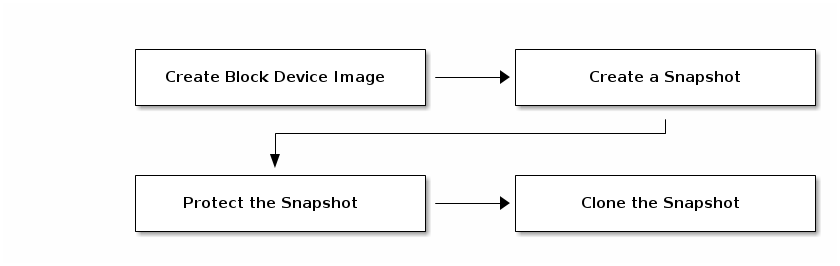
The cloned image has a reference to the parent snapshot, and includes the pool ID, image ID and snapshot ID. The inclusion of the pool ID means that you may clone snapshots from one pool to images in another pool.
-
Image Template: A common use case for block device layering is to create a master image and a snapshot that serves as a template for clones. For example, a user may create an image for a RHEL7 distribution and create a snapshot for it. Periodically, the user may update the image and create a new snapshot (for example
yum update,yum upgrade, followed byrbd snap create). As the image matures, the user can clone any one of the snapshots. - Extended Template: A more advanced use case includes extending a template image that provides more information than a base image. For example, a user may clone an image (for example, a VM template) and install other software (for example, a database, a content management system, an analytics system, and so on) and then snapshot the extended image, which itself may be updated just like the base image.
- Template Pool: One way to use block device layering is to create a pool that contains master images that act as templates, and snapshots of those templates. You may then extend read-only privileges to users so that they may clone the snapshots without the ability to write or execute within the pool.
- Image Migration/Recovery: One way to use block device layering is to migrate or recover data from one pool into another pool.
3.3.2. Protecting Snapshots
Clones access the parent snapshots. All clones would break if a user inadvertently deleted the parent snapshot. To prevent data loss, you MUST protect the snapshot before you can clone it. To do so, run the following commands:
rbd --pool {pool-name} snap protect --image {image-name} --snap {snapshot-name}
rbd snap protect {pool-name}/{image-name}@{snapshot-name}
rbd --pool {pool-name} snap protect --image {image-name} --snap {snapshot-name}
rbd snap protect {pool-name}/{image-name}@{snapshot-name}For example:
rbd --pool rbd snap protect --image my-image --snap my-snapshot
rbd snap protect rbd/my-image@my-snapshot
rbd --pool rbd snap protect --image my-image --snap my-snapshot
rbd snap protect rbd/my-image@my-snapshotYou cannot delete a protected snapshot.
3.3.3. Cloning Snapshots
To clone a snapshot, you need to specify the parent pool, image and snapshot; and the child pool and image name. You must protect the snapshot before you can clone it. To do so, run the following commands:
rbd --pool {pool-name} --image {parent-image} --snap {snap-name} --dest-pool {pool-name} --dest {child-image}
rbd clone {pool-name}/{parent-image}@{snap-name} {pool-name}/{child-image-name}
rbd --pool {pool-name} --image {parent-image} --snap {snap-name} --dest-pool {pool-name} --dest {child-image}
rbd clone {pool-name}/{parent-image}@{snap-name} {pool-name}/{child-image-name}For example:
rbd clone rbd/my-image@my-snapshot rbd/new-image
rbd clone rbd/my-image@my-snapshot rbd/new-imageYou may clone a snapshot from one pool to an image in another pool. For example, you may maintain read-only images and snapshots as templates in one pool, and writable clones in another pool.
3.3.4. Unprotecting Snapshots
Before you can delete a snapshot, you must unprotect it first. Additionally, you may NOT delete snapshots that have references from clones. You must flatten each clone of a snapshot, before you can delete the snapshot. To do so, run the following commands:
rbd --pool {pool-name} snap unprotect --image {image-name} --snap {snapshot-name}
rbd snap unprotect {pool-name}/{image-name}@{snapshot-name}
rbd --pool {pool-name} snap unprotect --image {image-name} --snap {snapshot-name}
rbd snap unprotect {pool-name}/{image-name}@{snapshot-name}For example:
rbd --pool rbd snap unprotect --image my-image --snap my-snapshot
rbd snap unprotect rbd/my-image@my-snapshot
rbd --pool rbd snap unprotect --image my-image --snap my-snapshot
rbd snap unprotect rbd/my-image@my-snapshot3.3.5. Listing Children of a Snapshot
To list the children of a snapshot, execute the following:
rbd --pool {pool-name} children --image {image-name} --snap {snap-name}
rbd children {pool-name}/{image-name}@{snapshot-name}
rbd --pool {pool-name} children --image {image-name} --snap {snap-name}
rbd children {pool-name}/{image-name}@{snapshot-name}For example:
rbd --pool rbd children --image my-image --snap my-snapshot
rbd children rbd/my-image@my-snapshot
rbd --pool rbd children --image my-image --snap my-snapshot
rbd children rbd/my-image@my-snapshot3.3.6. Flattening Cloned Images
Cloned images retain a reference to the parent snapshot. When you remove the reference from the child clone to the parent snapshot, you effectively "flatten" the image by copying the information from the snapshot to the clone. The time it takes to flatten a clone increases with the size of the snapshot.
To delete a parent image snapshot associated with child images, you must flatten the child images first:
rbd --pool <pool-name> flatten --image <image-name>
rbd flatten <pool-name>/<image-name>
rbd --pool <pool-name> flatten --image <image-name>
rbd flatten <pool-name>/<image-name>For example:
rbd --pool rbd flatten --image my-image
rbd flatten rbd/my-image
$ rbd --pool rbd flatten --image my-image
$ rbd flatten rbd/my-imageBecause a flattened image contains all the information from the snapshot, a flattened image will use more storage space than a layered clone.
If the deep flatten feature is enabled on an image, the image clone is dissociated from its parent by default.
Chapter 4. Block Device Mirroring
RADOS Block Device (RBD) mirroring is a process of asynchronous replication of Ceph block device images between two or more Ceph clusters. Mirroring ensures point-in-time consistent replicas of all changes to an image, including reads and writes, block device resizing, snapshots, clones and flattening. Mirroring can run in either an active-passive or active-active configuration; that is, using mandatory exclusive locks and the RBD journaling feature, RBD records all modifications to an image in the order in which they occur. This ensures that a crash-consistent mirror of the remote image is available locally. Therefore, before an image can be mirrored to a peer cluster, you must enable journaling. See Section 4.1, “Enabling Journaling” for details.
Since, it is the images stored in the local and remote pools associated to the block device that get mirrored, the CRUSH hierarchy for the local and remote pools should have the same storage capacity and performance characteristics. Additionally, the network connection between the local and remote sites should have sufficient bandwidth to ensure mirroring happens without too much latency.
The CRUSH hierarchies supporting local and remote pools that mirror block device images SHOULD have the same capacity and performance characteristics, and SHOULD have adequate bandwidth to ensure mirroring without excess latency. For example, if you have X MiB/s average write throughput to images in the primary cluster, the network must support N * X throughput in the network connection to the secondary site plus a safety factor of Y% to mirror N images.
Mirroring serves primarily for recovery from a disaster. See Section 4.6, “Recovering from a Disaster” for details.
The rbd-mirror Daemon
The rbd-mirror daemon is responsible for synchronizing images from one Ceph cluster to another.
Depending on the type of replication, rbd-mirror runs either on a single cluster or on all clusters that participate in mirroring:
One-way Replication
-
When data is mirrored from a primary cluster to a secondary cluster that serves as a backup,
rbd-mirrorruns ONLY on the backup cluster. RBD mirroring may have multiple secondary sites in an active-passive configuration.
-
When data is mirrored from a primary cluster to a secondary cluster that serves as a backup,
Two-way Replication
-
When the data is mirrored from mirrored from a primary cluster to a secondary cluster and the secondary cluster can mirror back to the primary and each other, both clusters must have
rbd-mirrorrunning. Currently, two-way replication, also known as an active-active configuration, is supported only between two sites.
-
When the data is mirrored from mirrored from a primary cluster to a secondary cluster and the secondary cluster can mirror back to the primary and each other, both clusters must have
The rbd-mirror package provides rbd-mirror.
In two-way replication, each instance of rbd-mirror must be able to connect to the other Ceph cluster simultaneously. Additionally, the network must have sufficient bandwidth between the two data center sites to handle mirroring.
Only run a single rbd-mirror daemon per a Ceph cluster.
Mirroring Modes
Mirroring is configured on a per-pool basis within peer clusters. Ceph supports two modes, depending on what images in a pool are mirrored:
- Pool Mode
- All images in a pool with the journaling feature enabled are mirrored. See Configuring Pool Mirroring for details.
- Image Mode
- Only a specific subset of images within a pool is mirrored and you must enable mirroring for each image separately. See Configuring Image Mirroring for details.
Image States
In an active-passive configuration, the mirrored images are:
- primary (can be modified)
- non-primary (cannot be modified).
Images are automatically promoted to primary when mirroring is first enabled on an image. The promotion can happen:
- implicitly by enabling mirroring in pool mode (see Section 4.2, “Pool Configuration”)
- explicitly by enabling mirroring of a specific image (see Section 4.3, “Image Configuration”)
It is possible to demote primary images and promote non-primary images. See Section 4.3, “Image Configuration” for details.
4.1. Enabling Journaling
You can enable the RBD journaling feature:
- when an image is created
- dynamically on already existing images
Journaling depends on the exclusive-lock feature which must be enabled too. See the following steps.
To enable journaling when creating an image, use the --image-feature option:
rbd create <image-name> --size <megabytes> --pool <pool-name> --image-feature <feature>
rbd create <image-name> --size <megabytes> --pool <pool-name> --image-feature <feature>For example:
rbd create image-1 --size 1024 --pool pool-1 --image-feature exclusive-lock,journaling
$ rbd create image-1 --size 1024 --pool pool-1 --image-feature exclusive-lock,journaling
To enable journaling on already existing images, use the rbd feature enable command:
rbd feature enable <pool-name>/<image-name> <feature-name>
rbd feature enable <pool-name>/<image-name> <feature-name>For example:
rbd feature enable pool-1/image-1 exclusive-lock
rbd feature enable pool-1/image-1 journaling
$ rbd feature enable pool-1/image-1 exclusive-lock
$ rbd feature enable pool-1/image-1 journalingTo enable journaling on all new images by default, add the following setting to the Ceph configuration file:
rbd default features = 125
rbd default features = 1254.2. Pool Configuration
This chapter shows how to do the following tasks:
Execute the following commands on both peer clusters.
Enabling Mirroring on a Pool
To enable mirroring on a pool:
rbd mirror pool enable <pool-name> <mode>
rbd mirror pool enable <pool-name> <mode>Examples
To enable mirroring of the whole pool named data:
rbd mirror pool enable data pool
$ rbd mirror pool enable data pool
To enable image mode mirroring on the pool named stack:
rbd mirror pool enable stack image
$ rbd mirror pool enable stack imageSee Mirroring Modes for details.
Disabling Mirroring on a Pool
To disable mirroring on a pool:
rbd mirror pool disable <pool-name>
rbd mirror pool disable <pool-name>Example
To disable mirroring of a pool named data:
rbd mirror pool disable data
$ rbd mirror pool disable dataBefore disabling mirroring, remove the peer clusters. See Section 4.2, “Pool Configuration” for details.
When you disable mirroring on a pool, you also disable it on any images within the pool for which mirroring was enabled separately in image mode. See Image Configuration for details.
Adding a Cluster Peer
In order for the rbd-mirror daemon to discover its peer cluster, you must register the peer to the pool:
rbd mirror pool peer add <pool-name> <client-name>@<cluster-name>
rbd mirror pool peer add <pool-name> <client-name>@<cluster-name>Example
To add the remote cluster as a peer to the local cluster or the other way around:
rbd --cluster local mirror pool peer add data client.remote@remote
rbd --cluster remote mirror pool peer add data client.local@local
$ rbd --cluster local mirror pool peer add data client.remote@remote
$ rbd --cluster remote mirror pool peer add data client.local@localViewing Information about Peers
To view information about the peers:
rbd mirror pool info <pool-name>
rbd mirror pool info <pool-name>Example
rbd mirror pool info data
Enabled: true
Peers:
  UUID                                 NAME        CLIENT
    786b42ea-97eb-4b16-95f4-867f02b67289 ceph-remote client.admin
$ rbd mirror pool info data
Enabled: true
Peers:
  UUID                                 NAME        CLIENT
786b42ea-97eb-4b16-95f4-867f02b67289 ceph-remote client.adminRemoving a Cluster Peer
To remove a mirroring peer cluster:
rbd mirror pool peer remove <pool-name> <peer-uuid>
rbd mirror pool peer remove <pool-name> <peer-uuid>
Specify the pool name and the peer Universally Unique Identifier (UUID). To view the peer UUID, use the rbd mirror pool info command.
Example
rbd mirror pool peer remove data 55672766-c02b-4729-8567-f13a66893445
$ rbd mirror pool peer remove data 55672766-c02b-4729-8567-f13a66893445Getting Mirroring Status for a Pool
To get the mirroring pool summary:
rbd mirror pool status <pool-name>
rbd mirror pool status <pool-name>Example
To get the status of the data pool:
rbd mirror pool status data
health: OK
images: 1 total
$ rbd mirror pool status data
health: OK
images: 1 total
To output status details for every mirroring image in a pool, use the --verbose option.
4.3. Image Configuration
This chapter shows how to do the following tasks:
Execute the following commands on a single cluster only.
Enabling Image Mirroring
To enable mirroring of a specific image:
- Enable mirroring of the whole pool in image mode on both peer clusters. See Section 4.2, “Pool Configuration” for details.
Then explicitly enable mirroring for a specific image within the pool:
rbd mirror image enable <pool-name>/<image-name>
rbd mirror image enable <pool-name>/<image-name>Copy to Clipboard Copied! Toggle word wrap Toggle overflow
Example
To enable mirroring for the image2 image in the data pool:
rbd mirror image enable data/image2
$ rbd mirror image enable data/image2Disabling Image Mirroring
To disable mirroring for a specific image:
rbd mirror image disable <pool-name>/<image-name>
rbd mirror image disable <pool-name>/<image-name>Example
To disable mirroring of the image2 image in the data pool:
rbd mirror image disable data/image2
$ rbd mirror image disable data/image2Image Promotion and Demotion
To demote an image to non-primary:
rbd mirror image demote <pool-name>/<image-name>
rbd mirror image demote <pool-name>/<image-name>Example
To demote the image2 image in the data pool:
rbd mirror image demote data/image2
$ rbd mirror image demote data/image2To promote an image to primary:
rbd mirror image promote <pool-name>/<image-name>
rbd mirror image promote <pool-name>/<image-name>Example
To promote the image2 image in the data pool:
rbd mirror image promote data/image2
$ rbd mirror image promote data/image2See Section 4.6, “Recovering from a Disaster” for details.
Use the --force option to force promote a non-primary image:
rbd mirror image promote --force data/image2
$ rbd mirror image promote --force data/image2Use forced promotion when the demotion cannot be propagated to the peer Ceph cluster, for example because of cluster failure or communication outage. See Failover After a Non-Orderly Shutdown for details.
Do not force promote non-primary images that are still syncing, because the images will not be valid after the promotion.
Image Resynchronization
To request a resynchronization to the primary image:
rbd mirror image resync <pool-name>/<image-name>
rbd mirror image resync <pool-name>/<image-name>Example
To request resynchronization of the image2 image in the data pool:
rbd mirror image resync data/image2
$ rbd mirror image resync data/image2
In case of an inconsistent state between the two peer clusters, the rbd-mirror daemon does not attempt to mirror the image that causing it. For details on fixing this issue, see Section 4.6, “Recovering from a Disaster”.
Getting Mirroring Status for a Single Image
To get status of a mirrored image:
rbd mirror image status <pool-name>/<image-name>
rbd mirror image status <pool-name>/<image-name>Example
To get the status of the image2 image in the data pool:
4.4. Configuring One-Way Mirroring
One-way mirroring implies that a primary image in one cluster gets replicated in a secondary cluster. In the secondary or remote cluster, the replicated image is non-primary; that is, block device clients cannot write to the image.
One-way mirroring is appropriate for maintaining a crash-consistent copy of an image. One-way mirroring may not be appropriate for all situations, such as using the secondary image for automatic failover and failback with OpenStack, since the cluster cannot failback when using one-way mirrroring. In those scenarios, use two-way mirroring. See Section 4.5, “Configuring Two-Way Mirroring” for details.
The following procedures assume:
-
Two Ceph clusters for replicating block device images one way; that is, replicating images from a primary image in a cluster named
localto a second cluster namedremoteas used in this procedure. The clusters have corresponding configuration files located in the/etc/ceph/directory -local.confandremote.conf. For information on installing the Ceph Storage Cluster see the Installation Guide for Red Hat Enterprise Linux or Installation Guide for Ubuntu. If you have two Ceph clusters with the same name, usually the defaultcephname, see Configuring Mirroring Between Clusters With The Same Name for additional required steps. -
One block device client is connected to the local cluster -
client.local. For information on installing Ceph clients, see the Installation Guide for Red Hat Enterprise Linux or the Installation Guide for Ubuntu. -
The
datapool is created on both clusters. See the Pools chapter in the Storage Strategies for Red Hat Ceph Storage 2 guide for details. -
The
datapool on thelocalcluster contains images you want to mirror (in the procedures below namedimage1andimage2) and journaling is enabled on the images. See Enabling Journaling for details.
There are two ways to configure block device mirroring:
- Pool Mirroring: To mirror all images within a pool, use the Configure Pool Mirroring procedure.
- Image Mirroring: To mirror select images within a pool, use the Configuring Image Mirroring procedure.
Configuring Pool Mirroring
-
Ensure that all images within the
datapool have exclusive lock and journaling enabled. See Section 4.1, “Enabling Journaling” for details. On the monitor node of the
remotecluster, install therbd-mirrorpackage. The package is provided by the Red Hat Ceph 2 Tools repository.yum install rbd-mirror
# yum install rbd-mirrorCopy to Clipboard Copied! Toggle word wrap Toggle overflow NoteThe rbd-mirror daemon can run on any host in the cluster. It does not have to be a monitor or OSD host. However, only one rbd-mirror daemon per secondary or remote cluster.
On both clusters, specify the cluster name by adding the
CLUSTERoption to the/etc/sysconfig/cephfile:CLUSTER=local
CLUSTER=localCopy to Clipboard Copied! Toggle word wrap Toggle overflow CLUSTER=remote
CLUSTER=remoteCopy to Clipboard Copied! Toggle word wrap Toggle overflow On both clusters, create users with permissions to access the
datapool and output their keyrings to a<cluster-name>.client.<user-name>.keyringfile.On the monitor host in the
localcluster, create theclient.localuser and output the keyring to thelocal.client.local.keyringfile:ceph auth get-or-create client.local mon 'allow r' osd 'allow class-read object_prefix rbd_children, allow pool data rwx' -o /etc/ceph/local.client.local.keyring --cluster local
# ceph auth get-or-create client.local mon 'allow r' osd 'allow class-read object_prefix rbd_children, allow pool data rwx' -o /etc/ceph/local.client.local.keyring --cluster localCopy to Clipboard Copied! Toggle word wrap Toggle overflow On the monitor host in the
remotecluster, create theclient.remoteuser and output the keyring to theremote.client.remote.keyringfile:ceph auth get-or-create client.remote mon 'allow r' osd 'allow class-read object_prefix rbd_children, allow pool data rwx' -o /etc/ceph/remote.client.remote.keyring --cluster remote
# ceph auth get-or-create client.remote mon 'allow r' osd 'allow class-read object_prefix rbd_children, allow pool data rwx' -o /etc/ceph/remote.client.remote.keyring --cluster remoteCopy to Clipboard Copied! Toggle word wrap Toggle overflow
Copy the Ceph configuration file and the newly created keyring from the monitor host in the
localcluster to theremotecluster and to the client hosts in theremotecluster:scp /etc/ceph/local.conf <user>@<remote_mon-host-name>:/etc/ceph/ scp /etc/ceph/local.client.local.keyring <user>@<remote_mon-host-name>:/etc/ceph/ scp /etc/ceph/local.conf <user>@<remote_client-host-name>:/etc/ceph/ scp /etc/ceph/local.client.local.keyring <user>@<remote_client-host-name>:/etc/ceph/
# scp /etc/ceph/local.conf <user>@<remote_mon-host-name>:/etc/ceph/
# scp /etc/ceph/local.client.local.keyring <user>@<remote_mon-host-name>:/etc/ceph/

# scp /etc/ceph/local.conf <user>@<remote_client-host-name>:/etc/ceph/
# scp /etc/ceph/local.client.local.keyring <user>@<remote_client-host-name>:/etc/ceph/
Copy to Clipboard Copied! Toggle word wrap Toggle overflow On the monitor host of the
remotecluster, enable and start therbd-mirrordaemon:systemctl enable ceph-rbd-mirror.target systemctl enable ceph-rbd-mirror@<client-id> systemctl start ceph-rbd-mirror@<client-id>
systemctl enable ceph-rbd-mirror.target systemctl enable ceph-rbd-mirror@<client-id> systemctl start ceph-rbd-mirror@<client-id>Copy to Clipboard Copied! Toggle word wrap Toggle overflow Where
<client-id>is the Ceph Storage cluster user that therbd-mirrordaemon will use. The user must have the appropriatecephxaccess to the cluster. For detailed information, see the User Management chapter in the Administration Guide for Red Hat Ceph Storage 2.For example:
systemctl enable ceph-rbd-mirror.target systemctl enable ceph-rbd-mirror@remote systemctl start ceph-rbd-mirror@remote
# systemctl enable ceph-rbd-mirror.target # systemctl enable ceph-rbd-mirror@remote # systemctl start ceph-rbd-mirror@remoteCopy to Clipboard Copied! Toggle word wrap Toggle overflow Enable pool mirroring of the
datapool residing on thelocaland theremotecluster:rbd mirror pool enable data pool --cluster local rbd mirror pool enable data pool --cluster remote
$ rbd mirror pool enable data pool --cluster local $ rbd mirror pool enable data pool --cluster remoteCopy to Clipboard Copied! Toggle word wrap Toggle overflow And ensure that mirroring has been successfully enabled:
rbd mirror pool info data --cluster local rbd mirror pool info data --cluster remote
$ rbd mirror pool info data --cluster local $ rbd mirror pool info data --cluster remoteCopy to Clipboard Copied! Toggle word wrap Toggle overflow Add the
localcluster as a peer of theremotecluster:rbd mirror pool peer add data client.local@local --cluster remote
$ rbd mirror pool peer add data client.local@local --cluster remoteCopy to Clipboard Copied! Toggle word wrap Toggle overflow And ensure that the peer was successfully added:
rbd mirror pool info data --cluster remote Mode: pool Peers: UUID NAME CLIENT 87ea0826-8ffe-48fb-b2e8-9ca81b012771 local client.local
$ rbd mirror pool info data --cluster remote Mode: pool Peers: UUID NAME CLIENT 87ea0826-8ffe-48fb-b2e8-9ca81b012771 local client.localCopy to Clipboard Copied! Toggle word wrap Toggle overflow
Configuring Image Mirroring
-
Ensure that select images to mirrored within the
datapool have exclusive lock and journaling enabled. See Section 4.1, “Enabling Journaling” for details. - Follow the steps 2 - 5 in the Configuring Pool Mirroring procedure.
Enable image mirroring of the
datapool on the local cluster:rbd --cluster local mirror pool enable data image
$ rbd --cluster local mirror pool enable data imageCopy to Clipboard Copied! Toggle word wrap Toggle overflow And ensure that mirroring has been successfully enabled:
rbd mirror pool info --cluster local
$ rbd mirror pool info --cluster localCopy to Clipboard Copied! Toggle word wrap Toggle overflow Add the
localcluster as a peer ofremote:rbd --cluster remote mirror pool peer add data client.local@local
$ rbd --cluster remote mirror pool peer add data client.local@localCopy to Clipboard Copied! Toggle word wrap Toggle overflow And ensure that the peer was successfully added:
rbd --cluster remote mirror pool info Mode: pool Peers: UUID NAME CLIENT 87ea0826-8ffe-48fb-b2e8-9ca81b012771 local client.local
$ rbd --cluster remote mirror pool info Mode: pool Peers: UUID NAME CLIENT 87ea0826-8ffe-48fb-b2e8-9ca81b012771 local client.localCopy to Clipboard Copied! Toggle word wrap Toggle overflow On the
localcluster, explicitly enable image mirroring of theimage1andimage2images:rbd --cluster local mirror image enable data/image1 Mirroring enabled rbd --cluster local mirror image enable data/image2 Mirroring enabled
$ rbd --cluster local mirror image enable data/image1 Mirroring enabled $ rbd --cluster local mirror image enable data/image2 Mirroring enabledCopy to Clipboard Copied! Toggle word wrap Toggle overflow And ensure that mirroring has been successfully enabled:
Copy to Clipboard Copied! Toggle word wrap Toggle overflow Copy to Clipboard Copied! Toggle word wrap Toggle overflow
4.5. Configuring Two-Way Mirroring
The following procedures assume that:
-
You have two Ceph clusters, named
localandremote. The clusters have corresponding configuration files located in the/etc/ceph/directory -local.confandremote.conf. For information on installing the Ceph Storage Cluster see the Installation Guide for Red Hat Enterprise Linux or Installation Guide for Ubuntu. If you have two Ceph clusters with the same name, usually the defaultcephname, see Configuring Mirroring Between Clusters With The Same Name for additional required steps. -
One block device client is connected to each of the clusters -
client.localandclient.remote. For information on installing Ceph clients, see the Installation Guide for Red Hat Enterprise Linux or the Installation Guide for Ubuntu. -
The
datapool is created on both clusters. See the Pools chapter in the Storage Strategies for Red Hat Ceph Storage 2 guide for details. -
The
datapool on thelocalcluster contains images you want to mirror (in the procedures below namedimage1andimage2) and journaling is enabled on the images. See Enabling Journaling for details.
Configuring Pool Mirroring
On both clients, install the
rbd-mirrorpackage. The package is provided by the Red Hat Ceph 2 Tools repository.yum install rbd-mirror
# yum install rbd-mirrorCopy to Clipboard Copied! Toggle word wrap Toggle overflow On both client hosts, specify the cluster name by adding the
CLUSTERoption to the/etc/sysconfig/cephfile:CLUSTER=local
CLUSTER=localCopy to Clipboard Copied! Toggle word wrap Toggle overflow CLUSTER=remote
CLUSTER=remoteCopy to Clipboard Copied! Toggle word wrap Toggle overflow On both clusters, create users with permissions to access the
datapool and output their keyrings to a<cluster-name>.client.<user-name>.keyringfile.On the monitor host in the
localcluster, create theclient.localuser and output the keyring to thelocal.client.local.keyringfile:ceph auth get-or-create client.local mon 'allow r' osd 'allow class-read object_prefix rbd_children, allow pool data rwx' -o /etc/ceph/local.client.local.keyring --cluster local
# ceph auth get-or-create client.local mon 'allow r' osd 'allow class-read object_prefix rbd_children, allow pool data rwx' -o /etc/ceph/local.client.local.keyring --cluster localCopy to Clipboard Copied! Toggle word wrap Toggle overflow On the monitor host in the
remotecluster, create theclient.remoteuser and output the keyring to theremote.client.remote.keyringfile:ceph auth get-or-create client.remote mon 'allow r' osd 'allow class-read object_prefix rbd_children, allow pool data rwx' -o /etc/ceph/remote.client.remote.keyring --cluster remote
# ceph auth get-or-create client.remote mon 'allow r' osd 'allow class-read object_prefix rbd_children, allow pool data rwx' -o /etc/ceph/remote.client.remote.keyring --cluster remoteCopy to Clipboard Copied! Toggle word wrap Toggle overflow
Copy the Ceph configuration files and the newly created keyrings between the peer clusters.
Copy
local.confandlocal.client.local.keyringfrom the monitor host in thelocalcluster to the monitor host in theremotecluster and to the client hosts in theremotecluster:scp /etc/ceph/local.conf <user>@<remote_mon-host-name>:/etc/ceph/ scp /etc/ceph/local.client.local.keyring <user>@<remote_mon-host-name>:/etc/ceph/ scp /etc/ceph/local.conf <user>@<remote_client-host-name>:/etc/ceph/ scp /etc/ceph/local.client.local.keyring <user>@<remote_client-host-name>:/etc/ceph/
# scp /etc/ceph/local.conf <user>@<remote_mon-host-name>:/etc/ceph/ # scp /etc/ceph/local.client.local.keyring <user>@<remote_mon-host-name>:/etc/ceph/ # scp /etc/ceph/local.conf <user>@<remote_client-host-name>:/etc/ceph/ # scp /etc/ceph/local.client.local.keyring <user>@<remote_client-host-name>:/etc/ceph/Copy to Clipboard Copied! Toggle word wrap Toggle overflow Copy
remote.confandremote.client.remote.keyringfrom the monitor host in theremotecluster to the monitor host in thelocalcluster and to the client hosts in thelocalcluster:scp /etc/ceph/remote.conf <user>@<local_mon-host-name>:/etc/ceph/ scp /etc/ceph/remote.client.remote.keyring <user>@<local-mon-host-name>:/etc/ceph/ scp /etc/ceph/remote.conf <user>@<local_client-host-name>:/etc/ceph/ scp /etc/ceph/remote.client.remote.keyring <user>@<local_client-host-name>:/etc/ceph/
# scp /etc/ceph/remote.conf <user>@<local_mon-host-name>:/etc/ceph/ # scp /etc/ceph/remote.client.remote.keyring <user>@<local-mon-host-name>:/etc/ceph/ # scp /etc/ceph/remote.conf <user>@<local_client-host-name>:/etc/ceph/ # scp /etc/ceph/remote.client.remote.keyring <user>@<local_client-host-name>:/etc/ceph/Copy to Clipboard Copied! Toggle word wrap Toggle overflow
If the Monitor and Mirroring daemons are not colocated on the same node, then copy
local.client.local.keyringandlocal.conffrom the monitor host in the local cluster to the mirroring host in the local and remote cluster:Copy to Clipboard Copied! Toggle word wrap Toggle overflow And copy
remote.client.remote.keyringandremote.conffrom the monitor host in the remote cluster to the mirroring host in the remote and local cluster:Copy to Clipboard Copied! Toggle word wrap Toggle overflow On both client hosts, enable and start the
rbd-mirrordaemon:systemctl enable ceph-rbd-mirror.target systemctl enable ceph-rbd-mirror@<client-id> systemctl start ceph-rbd-mirror@<client-id>
systemctl enable ceph-rbd-mirror.target
systemctl enable ceph-rbd-mirror@<client-id>
systemctl start ceph-rbd-mirror@<client-id>
Copy to Clipboard Copied! Toggle word wrap Toggle overflow Where
<client-id>is a unique client ID for use by therbd-mirrordaemon. The client must have the appropriatecephxaccess to the cluster. For detailed information, see the User Management chapter in the Administration Guide for Red Hat Ceph Storage 2.For example:
systemctl enable ceph-rbd-mirror.target systemctl enable ceph-rbd-mirror@local systemctl start ceph-rbd-mirror@local
# systemctl enable ceph-rbd-mirror.target # systemctl enable ceph-rbd-mirror@local # systemctl start ceph-rbd-mirror@localCopy to Clipboard Copied! Toggle word wrap Toggle overflow Enable pool mirroring of the
datapool on both clusters:rbd mirror pool enable data pool --cluster local rbd mirror pool enable data pool --cluster remote
$ rbd mirror pool enable data pool --cluster local
$ rbd mirror pool enable data pool --cluster remote
Copy to Clipboard Copied! Toggle word wrap Toggle overflow And ensure that mirroring has been successfully enabled:
rbd mirror pool status data health: OK images: 1 total
$ rbd mirror pool status data health: OK images: 1 totalCopy to Clipboard Copied! Toggle word wrap Toggle overflow Add the clusters as peers:
rbd mirror pool peer add data client.remote@remote --cluster local rbd mirror pool peer add data client.local@local --cluster remote
$ rbd mirror pool peer add data client.remote@remote --cluster local $ rbd mirror pool peer add data client.local@local --cluster remoteCopy to Clipboard Copied! Toggle word wrap Toggle overflow And ensure that the peers were successfully added:
Copy to Clipboard Copied! Toggle word wrap Toggle overflow
Configuring Image Mirroring
- Follow the steps 1 - 5 in the Configuring Pool Mirroring procedure.
Enable image mirroring of the
datapool on both clusters:rbd --cluster local mirror pool enable data image rbd --cluster remote mirror pool enable data image
$ rbd --cluster local mirror pool enable data image $ rbd --cluster remote mirror pool enable data imageCopy to Clipboard Copied! Toggle word wrap Toggle overflow And ensure that mirroring has been successfully enabled:
rbd mirror pool status data health: OK images: 2 total
$ rbd mirror pool status data health: OK images: 2 totalCopy to Clipboard Copied! Toggle word wrap Toggle overflow Add the clusters as peers:
rbd --cluster local mirror pool peer add data client.remote@remote rbd --cluster remote mirror pool peer add data client.local@local
$ rbd --cluster local mirror pool peer add data client.remote@remote $ rbd --cluster remote mirror pool peer add data client.local@localCopy to Clipboard Copied! Toggle word wrap Toggle overflow And ensure that the peers were successfully added:
Copy to Clipboard Copied! Toggle word wrap Toggle overflow On the
localcluster, explicitly enable image mirroring of theimage1andimage2images:rbd --cluster local mirror image enable data/image1 Mirroring enabled rbd --cluster local mirror image enable data/image2 Mirroring enabled
$ rbd --cluster local mirror image enable data/image1
Mirroring enabled
$ rbd --cluster local mirror image enable data/image2
Mirroring enabled
Copy to Clipboard Copied! Toggle word wrap Toggle overflow And ensure that mirroring has been successfully enabled:
Copy to Clipboard Copied! Toggle word wrap Toggle overflow Copy to Clipboard Copied! Toggle word wrap Toggle overflow
Configuring Mirroring Between Clusters With The Same Name
Sometimes administrators create clusters using the same cluster name, usually the default ceph name. For example, Ceph 2.2 and earlier releases support OSD encryption, but the dm-crypt function expects a cluster named ceph. When both clusters have the same name, currently you must perform 3 additional steps to configure rbd-mirror:
-
Change the name of the cluster in the
`/etc/sysconfig/cephfile on therbd-mirrornode on cluster A. For example,CLUSTER=master. On Ubuntu change the cluster name in the/etc/default/cephfile. Create a symlink to the
ceph.conffile. For example:ln -s ceph.conf master.conf #only on the mirror node on cluster A.
# ln -s ceph.conf master.conf #only on the mirror node on cluster A.Copy to Clipboard Copied! Toggle word wrap Toggle overflow Use the symlink files in each
rbd-mirrorsetup. For example executing either of the following:ceph -s ceph -s --cluster master
# ceph -s
# ceph -s --cluster master
Copy to Clipboard Copied! Toggle word wrap Toggle overflow now refer to the same cluster.
4.6. Recovering from a Disaster
The following procedures show how to fail over to the mirrored data on the secondary cluster (named remote) after the primary one (named local) terminated, and how to Failback. The shutdown can be:
- orderly (Failover After an Orderly Shutdown)
- non-orderly (Failover After a Non-Orderly Shutdown).
If the shutdown is non-orderly, the Failback procedure requires resynchronizing the image.
The procedures assume that you have successfully configured either:
- pool mode mirroring (see Configuring Pool Mirroring),
- or image mode mirroring (see Configuring Image Mirroring).
Failover After an Orderly Shutdown
- Stop all clients that use the primary image. This step depends on what clients use the image. For example, detach volumes from any OpenStack instances that use the image. See the Block Storage and Volumes chapter in the Storage Guide for Red Hat OpenStack Platform 10.
Demote the primary image located on the
localcluster. The following command demotes the image namedimage1in the pool namedstack:rbd mirror image demote stack/image1 --cluster=local
$ rbd mirror image demote stack/image1 --cluster=localCopy to Clipboard Copied! Toggle word wrap Toggle overflow See Section 4.3, “Image Configuration” for details.
Promote the non-primary image located on the
remotecluster:rbd mirror image promote stack/image1 --cluster=remote
$ rbd mirror image promote stack/image1 --cluster=remoteCopy to Clipboard Copied! Toggle word wrap Toggle overflow See Section 4.3, “Image Configuration” for details.
- Resume the access to the peer image. This step depends on what clients use the image.
Failover After a Non-Orderly Shutdown
- Verify that the primary cluster is down.
- Stop all clients that use the primary image. This step depends on what clients use the image. For example, detach volumes from any OpenStack instances that use the image. See the Block Storage and Volumes chapter in the Storage Guide for Red Hat OpenStack Platform 10.
Promote the non-primary image located on the
remotecluster. Use the--forceoption, because the demotion cannot be propagated to thelocalcluster:rbd mirror image promote --force stack/image1 --cluster remote
$ rbd mirror image promote --force stack/image1 --cluster remoteCopy to Clipboard Copied! Toggle word wrap Toggle overflow See Section 4.3, “Image Configuration” for details
- Resume the access to the peer image. This step depends on what clients use the image.
Failback
When the formerly primary cluster recovers, failback to it.
If there was a non-orderly shutdown, demote the old primary image on the
localcluster. The following command demotes the image namedimage1in the pool namedstackon thelocalcluster:rbd mirror image demote stack/image1 --cluster local
$ rbd mirror image demote stack/image1 --cluster localCopy to Clipboard Copied! Toggle word wrap Toggle overflow Resynchronize the image ONLY if there was a non-orderly shutdown. The following command resynchronizes the image named
image1in the pool namedstack:rbd mirror image resync stack/image1 --cluster local
$ rbd mirror image resync stack/image1 --cluster localCopy to Clipboard Copied! Toggle word wrap Toggle overflow See Section 4.3, “Image Configuration” for details.
Before proceeding further, ensure that resynchronization is complete and in the
up+replayingstate. The following command checks the status of the image namedimage1in the pool namedstack:rbd mirror image status stack/image1 --cluster local
$ rbd mirror image status stack/image1 --cluster localCopy to Clipboard Copied! Toggle word wrap Toggle overflow Demote the secondary image located on the
remotecluster. The following command demotes the image namedimage1in the pool namedstack:rbd mirror image demote stack/image1 --cluster=remote
$ rbd mirror image demote stack/image1 --cluster=remoteCopy to Clipboard Copied! Toggle word wrap Toggle overflow See Section 4.3, “Image Configuration” for details.
Promote the formerly primary image located on the
localcluster:rbd mirror image promote stack/image1 --cluster=local
$ rbd mirror image promote stack/image1 --cluster=localCopy to Clipboard Copied! Toggle word wrap Toggle overflow See Section 4.3, “Image Configuration” for details.
4.7. Updating Instances with Mirroring
When updating a cluster using Ceph Block Device mirroring with an asynchronous update, follow the installation instruction for the update. Then, restart the Ceph Block Device instances.
There is no required order for restarting the instances. Red Hat recommends restarting the instance pointing to the pool with primary images followed by the instance pointing to the mirrored pool.
Chapter 5. Librbd (Python)
The rbd python module provides file-like access to RBD images.
Creating and writing to an image
Connect to RADOS and open an IO context:
cluster = rados.Rados(conffile='my_ceph.conf')
cluster.connect()
ioctx = cluster.open_ioctx('mypool')
cluster = rados.Rados(conffile='my_ceph.conf') cluster.connect() ioctx = cluster.open_ioctx('mypool')Copy to Clipboard Copied! Toggle word wrap Toggle overflow Instantiate an
:class:rbd.RBDobject, which you use to create the image:rbd_inst = rbd.RBD() size = 4 * 1024**3 # 4 GiB rbd_inst.create(ioctx, 'myimage', size)
rbd_inst = rbd.RBD() size = 4 * 1024**3 # 4 GiB rbd_inst.create(ioctx, 'myimage', size)Copy to Clipboard Copied! Toggle word wrap Toggle overflow To perform I/O on the image, instantiate an
:class:rbd.Imageobject:image = rbd.Image(ioctx, 'myimage') data = 'foo' * 200 image.write(data, 0)
image = rbd.Image(ioctx, 'myimage') data = 'foo' * 200 image.write(data, 0)Copy to Clipboard Copied! Toggle word wrap Toggle overflow This writes 'foo' to the first 600 bytes of the image. Note that data cannot be
:type:unicode-librbddoes not know how to deal with characters wider than a:c:type:char.Close the image, the IO context and the connection to RADOS:
image.close()
ioctx.close()
cluster.shutdown()
image.close()
ioctx.close()
cluster.shutdown()
Copy to Clipboard Copied! Toggle word wrap Toggle overflow To be safe, each of these calls must to be in a separate
:finallyblock:Copy to Clipboard Copied! Toggle word wrap Toggle overflow This can be cumbersome, so the Rados, Ioctx, and Image classes can be used as context managers that close or shut down automatically. Using them as context managers, the above example becomes:
Copy to Clipboard Copied! Toggle word wrap Toggle overflow
Chapter 6. Kernel Module Operations
To use kernel module operations, you must have a running Ceph cluster.
6.1. Getting a List of Images
To mount a block device image, first return a list of the images.
To do so, execute the following:
rbd list
rbd list6.2. Mapping Block Devices
Use rbd to map an image name to a kernel module. You must specify the image name, the pool name and the user name. rbd will load RBD kernel module on your behalf if it is not already loaded.
To do so, execute the following:
sudo rbd map {image-name} --pool {pool-name} --id {user-name}
sudo rbd map {image-name} --pool {pool-name} --id {user-name}For example:
sudo rbd map --pool rbd myimage --id admin
sudo rbd map --pool rbd myimage --id admin
If you use cephx authentication, you must also specify a secret. It may come from a keyring or a file containing the secret.
To do so, execute the following:
sudo rbd map --pool rbd myimage --id admin --keyring /path/to/keyring
sudo rbd map --pool rbd myimage --id admin --keyfile /path/to/file
sudo rbd map --pool rbd myimage --id admin --keyring /path/to/keyring
sudo rbd map --pool rbd myimage --id admin --keyfile /path/to/file6.3. Showing Mapped Block Devices
To show block device images mapped to kernel modules with the rbd command, specify the showmapped option.
To do so, execute the following:
rbd showmapped
rbd showmapped6.4. Unmapping a Block Device
To unmap a block device image with the rbd command, specify the unmap option and the device name (by convention the same as the block device image name).
To do so, execute the following:
sudo rbd unmap /dev/rbd/{poolname}/{imagename}
sudo rbd unmap /dev/rbd/{poolname}/{imagename}For example:
sudo rbd unmap /dev/rbd/rbd/foo
sudo rbd unmap /dev/rbd/rbd/fooChapter 7. Block Device Configuration Reference
7.1. General Settings
- rbd_op_threads
- Description
- The number of block device operation threads.
- Type
- Integer
- Default
-
1
Do not change the default value of rbd_op_threads because setting it to a number higher than 1 might cause data corruption.
- rbd_op_thread_timeout
- Description
- The timeout (in seconds) for block device operation threads.
- Type
- Integer
- Default
-
60
- rbd_non_blocking_aio
- Description
-
If
true, Ceph will process block device asynchronous I/O operations from a worker thread to prevent blocking. - Type
- Boolean
- Default
-
true
- rbd_concurrent_management_ops
- Description
- The maximum number of concurrent management operations in flight (for example, deleting or resizing an image).
- Type
- Integer
- Default
-
10
- rbd_request_timed_out_seconds
- Description
- The number of seconds before a maintenance request times out.
- Type
- Integer
- Default
-
30
- rbd_clone_copy_on_read
- Description
-
When set to
true, copy-on-read cloning is enabled. - Type
- Boolean
- Default
-
false
- rbd_enable_alloc_hint
- Description
-
If
true, allocation hinting is enabled, and the block device will issue a hint to the OSD back end to indicate the expected size object. - Type
- Boolean
- Default
-
true
- rbd_skip_partial_discard
- Description
-
If
true, the block device will skip zeroing a range when trying to discard a range inside an object. - Type
- Boolean
- Default
-
false
- rbd_tracing
- Description
-
Set this option to
trueto enable the Linux Trace Toolkit Next Generation User Space Tracer (LTTng-UST) tracepoints. See Tracing RADOS Block Device (RBD) Workloads with the RBD Replay Feature for details. - Type
- Boolean
- Default
-
false
- rbd_validate_pool
- Description
-
Set this option to
trueto validate empty pools for RBD compatibility. - Type
- Boolean
- Default
-
true
- rbd_validate_names
- Description
-
Set this option to
trueto validate image specifications. - Type
- Boolean
- Default
-
true
7.2. Default Settings
It is possible to override the default settings for creating an image. Ceph will create images with format 2 and no striping.
- rbd_default_format
- Description
-
The default format (
2) if no other format is specified. Format1is the original format for a new image, which is compatible with all versions oflibrbdand the kernel module, but does not support newer features like cloning. Format2is supported bylibrbdand the kernel module since version 3.11 (except for striping). Format2adds support for cloning and is more easily extensible to allow more features in the future. - Type
- Integer
- Default
-
2
- rbd_default_order
- Description
- The default order if no other order is specified.
- Type
- Integer
- Default
-
22
- rbd_default_stripe_count
- Description
- The default stripe count if no other stripe count is specified. Changing the default value requires striping v2 feature.
- Type
- 64-bit Unsigned Integer
- Default
-
0
- rbd_default_stripe_unit
- Description
-
The default stripe unit if no other stripe unit is specified. Changing the unit from
0(that is, the object size) requires the striping v2 feature. - Type
- 64-bit Unsigned Integer
- Default
-
0
- rbd_default_features
- Description
The default features enabled when creating an block device image. This setting only applies to format 2 images. The settings are:
1: Layering support. Layering enables you to use cloning.
2: Striping v2 support. Striping spreads data across multiple objects. Striping helps with parallelism for sequential read/write workloads.
4: Exclusive locking support. When enabled, it requires a client to get a lock on an object before making a write.
8: Object map support. Block devices are thin provisioned—meaning, they only store data that actually exists. Object map support helps track which objects actually exist (have data stored on a drive). Enabling object map support speeds up I/O operations for cloning, or importing and exporting a sparsely populated image.
16: Fast-diff support. Fast-diff support depends on object map support and exclusive lock support. It adds another property to the object map, which makes it much faster to generate diffs between snapshots of an image, and the actual data usage of a snapshot much faster.
32: Deep-flatten support. Deep-flatten makes
rbd flattenwork on all the snapshots of an image, in addition to the image itself. Without it, snapshots of an image will still rely on the parent, so the parent will not be delete-able until the snapshots are deleted. Deep-flatten makes a parent independent of its clones, even if they have snapshots.64: Journaling support. Journaling records all modifications to an image in the order they occur. This ensures that a crash-consistent mirror of the remote image is available locally
The enabled features are the sum of the numeric settings.
- Type
- Integer
- Default
61- layering, exclusive-lock, object-map, fast-diff, and deep-flatten are enabledImportantThe current default setting is not compatible with the RBD kernel driver nor older RBD clients.
- rbd_default_map_options
- Description
-
Most of the options are useful mainly for debugging and benchmarking. See
man rbdunderMap Optionsfor details. - Type
- String
- Default
-
""
7.3. Cache Settings
The user space implementation of the Ceph block device (that is, librbd) cannot take advantage of the Linux page cache, so it includes its own in-memory caching, called RBD caching. RBD caching behaves just like well-behaved hard disk caching. When the OS sends a barrier or a flush request, all dirty data is written to the OSDs. This means that using write-back caching is just as safe as using a well-behaved physical hard disk with a VM that properly sends flushes (that is, Linux kernel >= 2.6.32). The cache uses a Least Recently Used (LRU) algorithm, and in write-back mode it can coalesce contiguous requests for better throughput.
Ceph supports write-back caching for RBD. To enable it, add rbd cache = true to the [client] section of your ceph.conf file. By default librbd does not perform any caching. Writes and reads go directly to the storage cluster, and writes return only when the data is on disk on all replicas. With caching enabled, writes return immediately, unless there are more than rbd cache max dirty unflushed bytes. In this case, the write triggers writeback and blocks until enough bytes are flushed.
Ceph supports write-through caching for RBD. You can set the size of the cache, and you can set targets and limits to switch from write-back caching to write through caching. To enable write-through mode, set rbd cache max dirty to 0. This means writes return only when the data is on disk on all replicas, but reads may come from the cache. The cache is in memory on the client, and each RBD image has its own. Since the cache is local to the client, there is no coherency if there are others accessing the image. Running GFS or OCFS on top of RBD will not work with caching enabled.
The ceph.conf file settings for RBD should be set in the [client] section of your configuration file. The settings include:
- rbd cache
- Description
- Enable caching for RADOS Block Device (RBD).
- Type
- Boolean
- Required
- No
- Default
-
true
- rbd cache size
- Description
- The RBD cache size in bytes.
- Type
- 64-bit Integer
- Required
- No
- Default
-
32 MiB
- rbd cache max dirty
- Description
-
The
dirtylimit in bytes at which the cache triggers write-back. If0, uses write-through caching. - Type
- 64-bit Integer
- Required
- No
- Constraint
-
Must be less than
rbd cache size. - Default
-
24 MiB
- rbd cache target dirty
- Description
-
The
dirty targetbefore the cache begins writing data to the data storage. Does not block writes to the cache. - Type
- 64-bit Integer
- Required
- No
- Constraint
-
Must be less than
rbd cache max dirty. - Default
-
16 MiB
- rbd cache max dirty age
- Description
- The number of seconds dirty data is in the cache before writeback starts.
- Type
- Float
- Required
- No
- Default
-
1.0
- rbd_cache_max_dirty_object
- Description
-
The dirty limit for objects - set to
0for auto calculate fromrbd_cache_size. - Type
- Integer
- Default
-
0
- rbd_cache_block_writes_upfront
- Description
-
If
true, it will block writes to the cache before theaio_writecall completes. Iffalse, it will block before theaio_completionis called. - Type
- Boolean
- Default
-
false
- rbd cache writethrough until flush
- Description
- Start out in write-through mode, and switch to write-back after the first flush request is received. Enabling this is a conservative but safe setting in case VMs running on rbd are too old to send flushes, like the virtio driver in Linux before 2.6.32.
- Type
- Boolean
- Required
- No
- Default
-
true
7.4. Parent/Child Reads Settings
- rbd_balance_snap_reads
- Description
- Ceph typically reads objects from the primary OSD. Since reads are immutable, you may enable this feature to balance snap reads between the primary OSD and the replicas.
- Type
- Boolean
- Default
-
false
- rbd_localize_snap_reads
- Description
-
Whereas
rbd_balance_snap_readswill randomize the replica for reading a snapshot, if you enablerbd_localize_snap_reads, the block device will look to the CRUSH map to find the closest (local) OSD for reading the snapshot. - Type
- Boolean
- Default
-
false
- rbd_balance_parent_reads
- Description
- Ceph typically reads objects from the primary OSD. Since reads are immutable, you may enable this feature to balance parent reads between the primary OSD and the replicas.
- Type
- Boolean
- Default
-
false
- rbd_localize_parent_reads
- Description
-
Whereas
rbd_balance_parent_readswill randomize the replica for reading a parent, if you enablerbd_localize_parent_reads, the block device will look to the CRUSH map to find the closest (local) OSD for reading the parent. - Type
- Boolean
- Default
-
true
7.5. Read-ahead Settings
RBD supports read-ahead/prefetching to optimize small, sequential reads. This should normally be handled by the guest OS in the case of a VM, but boot loaders may not issue efficient reads. Read-ahead is automatically disabled if caching is disabled.
- rbd readahead trigger requests
- Description
- Number of sequential read requests necessary to trigger read-ahead.
- Type
- Integer
- Required
- No
- Default
-
10
- rbd readahead max bytes
- Description
- Maximum size of a read-ahead request. If zero, read-ahead is disabled.
- Type
- 64-bit Integer
- Required
- No
- Default
-
512 KiB
- rbd readahead disable after bytes
- Description
- After this many bytes have been read from an RBD image, read-ahead is disabled for that image until it is closed. This allows the guest OS to take over read-ahead once it is booted. If zero, read-ahead stays enabled.
- Type
- 64-bit Integer
- Required
- No
- Default
-
50 MiB
7.6. Blacklist Settings
- rbd_blacklist_on_break_lock
- Description
- Whether to blacklist clients whose lock was broken.
- Type
- Boolean
- Default
-
true
- rbd_blacklist_expire_seconds
- Description
- The number of seconds to blacklist - set to 0 for OSD default.
- Type
- Integer
- Default
-
0
7.7. Journal Settings
- rbd_journal_order
- Description
-
The number of bits to shift to compute the journal object maximum size. The value is between
12and64. - Type
- 32-bit Unsigned Integer
- Default
-
24
- rbd_journal_splay_width
- Description
- The number of active journal objects.
- Type
- 32-bit Unsigned Integer
- Default
-
4
- rbd_journal_commit_age
- Description
- The commit time interval in seconds.
- Type
- Double Precision Floating Point Number
- Default
-
5
- rbd_journal_object_flush_interval
- Description
- The maximum number of pending commits per a journal object.
- Type
- Integer
- Default
-
0
- rbd_journal_object_flush_bytes
- Description
- The maximum number of pending bytes per a journal object.
- Type
- Integer
- Default
-
0
- rbd_journal_object_flush_age
- Description
- The maximum time interval in seconds for pending commits.
- Type
- Double Precision Floating Point Number
- Default
-
0
- rbd_journal_pool
- Description
- Specifies a pool for journal objects.
- Type
- String
- Default
-
""

'%20d='M201.5%20305.5c-13.8%200-24.9-11.1-24.9-24.6%200-13.8%2011.1-24.9%2024.9-24.9%2013.6%200%2024.6%2011.1%2024.6%2024.9%200%2013.6-11.1%2024.6-24.6%2024.6zM504%20256c0%20137-111%20248-248%20248S8%20393%208%20256%20119%208%20256%208s248%20111%20248%20248zm-132.3-41.2c-9.4%200-17.7%203.9-23.8%2010-22.4-15.5-52.6-25.5-86.1-26.6l17.4-78.3%2055.4%2012.5c0%2013.6%2011.1%2024.6%2024.6%2024.6%2013.8%200%2024.9-11.3%2024.9-24.9s-11.1-24.9-24.9-24.9c-9.7%200-18%205.8-22.1%2013.8l-61.2-13.6c-3-.8-6.1%201.4-6.9%204.4l-19.1%2086.4c-33.2%201.4-63.1%2011.3-85.5%2026.8-6.1-6.4-14.7-10.2-24.1-10.2-34.9%200-46.3%2046.9-14.4%2062.8-1.1%205-1.7%2010.2-1.7%2015.5%200%2052.6%2059.2%2095.2%20132%2095.2%2073.1%200%20132.3-42.6%20132.3-95.2%200-5.3-.6-10.8-1.9-15.8%2031.3-16%2019.8-62.5-14.9-62.5zM302.8%20331c-18.2%2018.2-76.1%2017.9-93.6%200-2.2-2.2-6.1-2.2-8.3%200-2.5%202.5-2.5%206.4%200%208.6%2022.8%2022.8%2087.3%2022.8%20110.2%200%202.5-2.2%202.5-6.1%200-8.6-2.2-2.2-6.1-2.2-8.3%200zm7.7-75c-13.6%200-24.6%2011.1-24.6%2024.9%200%2013.6%2011.1%2024.6%2024.6%2024.6%2013.8%200%2024.9-11.1%2024.9-24.6%200-13.8-11-24.9-24.9-24.9z'/%3e%3c/svg%3e)