 Red Hat Summit
Block Device Guide
Managing, creating, configuring, and using Red Hat Ceph Storage Block Devices
Abstract
Chapter 1. Overview
A block is a sequence of bytes, for example, a 512-byte block of data. Block-based storage interfaces are the most common way to store data with rotating media such as:
- hard disks,
- CDs,
- floppy disks,
- and even traditional 9-track tape.
The ubiquity of block device interfaces makes a virtual block device an ideal candidate to interact with a mass data storage system like Red Hat Ceph Storage.
Ceph Block Devices, also known as Reliable Autonomic Distributed Object Store (RADOS) Block Devices (RBDs), are thin-provisioned, resizable and store data striped over multiple Object Storage Devices (OSD) in a Ceph Storage Cluster. Ceph Block Devices leverage RADOS capabilities such as:
- creating snapshots,
- replication,
- and consistency.
Ceph Block Devices interact with OSDs by using the librbd library.
Ceph Block Devices deliver high performance with infinite scalability to Kernel Virtual Machines (KVMs) such as Quick Emulator (QEMU), and cloud-based computing systems like OpenStack and CloudStack that rely on the libvirt and QEMU utilities to integrate with Ceph Block Devices. You can use the same cluster to operate the Ceph Object Gateway and Ceph Block Devices simultaneously.
To use Ceph Block Devices, you must have access to a running Ceph Storage Cluster. For details on installing the Red Hat Ceph Storage, see the Installation Guide for Red Hat Enterprise Linux or Installation Guide for Ubuntu.
Chapter 2. Block Device Commands
The rbd command enables you to create, list, introspect, and remove block device images. You can also use it to clone images, create snapshots, rollback an image to a snapshot, view a snapshot, and so on.
2.1. Prerequisites
There are two prerequisites that you must meet before you can use the Ceph Block Devices and the rbd command:
- You must have access to a running Ceph Storage Cluster. For details, see the Red Hat Ceph Storage 3 Installation Guide for Red Hat Enterprise Linux or Installation Guide for Ubuntu.
- You must install the Ceph Block Device client. For details, see the Red Hat Ceph Storage 3 Installation Guide for Red Hat Enterprise Linux or Installation Guide for Ubuntu.
The Manually Installing Ceph Block Device chapter also provides information on mounting and using Ceph Block Devices on client nodes. Execute these steps on client nodes only after creating an image for the Block Device in the Ceph Storage Cluster. See Section 2.4, “Creating Block Device Images” for details.
2.2. Displaying Help
Use the rbd help command to display help for a particular rbd command and its subcommand:
[root@rbd-client ~]# rbd help <command> <subcommand>Example
To display help for the snap list command:
[root@rbd-client ~]# rbd help snap list
The -h option still displays help for all available commands.
2.3. Creating Block Device Pools
Before using the block device client, ensure a pool for rbd exists and is enabled and initialized. To create an rbd pool, execute the following:
[root@rbd-client ~]# ceph osd pool create {pool-name} {pg-num} {pgp-num}
[root@rbd-client ~]# ceph osd pool application enable {pool-name} rbd
[root@rbd-client ~]# rbd pool init -p {pool-name}You MUST create a pool first before you can specify it as a source. See the Pools chapter in the Storage Strategies guide for Red Hat Ceph Storage 3 for additional details.
2.4. Creating Block Device Images
Before adding a block device to a node, create an image for it in the Ceph storage cluster. To create a block device image, execute the following command:
[root@rbd-client ~]# rbd create <image-name> --size <megabytes> --pool <pool-name>
For example, to create a 1GB image named data that stores information in a pool named stack, run:
[root@rbd-client ~]# rbd create data --size 1024 --pool stack- NOTE
-
Ensure a pool for
rbdexists before creating an image. See Creating Block Device Pools for additional details.
2.5. Listing Block Device Images
To list block devices in the rbd pool, execute the following (rbd is the default pool name):
[root@rbd-client ~]# rbd ls
To list block devices in a particular pool, execute the following, but replace {poolname} with the name of the pool:
[root@rbd-client ~]# rbd ls {poolname}For example:
[root@rbd-client ~]# rbd ls swimmingpool2.6. Retrieving Image Information
To retrieve information from a particular image, execute the following, but replace {image-name} with the name for the image:
[root@rbd-client ~]# rbd --image {image-name} infoFor example:
[root@rbd-client ~]# rbd --image foo info
To retrieve information from an image within a pool, execute the following, but replace {image-name} with the name of the image and replace {pool-name} with the name of the pool:
[root@rbd-client ~]# rbd --image {image-name} -p {pool-name} infoFor example:
[root@rbd-client ~]# rbd --image bar -p swimmingpool info2.7. Resizing Block Device Images
Ceph block device images are thin provisioned. They do not actually use any physical storage until you begin saving data to them. However, they do have a maximum capacity that you set with the --size option.
To increase or decrease the maximum size of a Ceph block device image:
[root@rbd-client ~]# rbd resize --image <image-name> --size <size>2.8. Removing Block Device Images
To remove a block device, execute the following, but replace {image-name} with the name of the image you want to remove:
[root@rbd-client ~]# rbd rm {image-name}For example:
[root@rbd-client ~]# rbd rm foo
To remove a block device from a pool, execute the following, but replace {image-name} with the name of the image to remove and replace {pool-name} with the name of the pool:
[root@rbd-client ~]# rbd rm {image-name} -p {pool-name}For example:
[root@rbd-client ~]# rbd rm bar -p swimmingpool2.9. Moving Block Device Images to the Trash
RADOS Block Device (RBD) images can be moved to the trash using the rbd trash command. This command provides more options than the rbd rm command.
Once an image is moved to the trash, it can be removed from the trash at a later time. This helps to avoid accidental deletion.
To move an image to the trash execute the following:
[root@rbd-client ~]# rbd trash move {image-spec}
Once an image is in the trash, it is assigned a unique image ID. You will need this image ID to specify the image later if you need to use any of the trash options. Execute the rbd trash list for a list of IDs of the images in the trash. This command also returns the image’s pre-deletion name.
In addition, there is an optional --image-id argument that can be used with rbd info and rbd snap commands. Use --image-id with the rbd info command to see the properties of an image in the trash, and with rbd snap to remove an image’s snapshots from the trash.
Remove an Image from the Trash
To remove an image from the trash execute the following:
[root@rbd-client ~]# rbd trash remove [{pool-name}/] {image-id}Once an image is removed from the trash, it cannot be restored.
Delay Trash Removal
Use the --delay option to set an amount of time before an image can be removed from the trash. Execute the following, except replace {time} with the number of seconds to wait before the image can be removed (defaults to 0):
[root@rbd-client ~]# rbd trash move [--delay {time}] {image-spec}
Once the --delay option is enabled, an image cannot be removed from the trash within the specified timeframe unless forced.
Restore an Image from the Trash
As long as an image has not been removed from the trash, it can be restored using the rbd trash restore command.
Execute the rbd trash restore command to restore the image:
[root@rbd-client ~]# rbd trash restore [{pool-name}/] {image-id}2.10. Enabling and Disabling Image Features
You can enable or disable image features, such as fast-diff, exclusive-lock, object-map, or journaling, on already existing images.
To enable a feature:
[root@rbd-client ~]# rbd feature enable <pool-name>/<image-name> <feature-name>To disable a feature:
[root@rbd-client ~]# rbd feature disable <pool-name>/<image-name> <feature-name>Examples
To enable the
exclusive-lockfeature on theimage1image in thedatapool:[root@rbd-client ~]# rbd feature enable data/image1 exclusive-lockTo disable the
fast-difffeature on theimage2image in thedatapool:[root@rbd-client ~]# rbd feature disable data/image2 fast-diff
After enabling the fast-diff and object-map features, rebuild the object map:
[root@rbd-client ~]# rbd object-map rebuild <pool-name>/<image-name>
The deep flatten feature can be only disabled on already existing images but not enabled. To use deep flatten, enable it when creating images.
2.11. Working with Image Metadata
Ceph supports adding custom image metadata as key-value pairs. The pairs do not have any strict format.
Also, by using metadata, you can set the RBD configuration parameters for particular images. See Overriding the Default Configuration for Particular Images for details.
Use the rbd image-meta commands to work with metadata.
Setting Image Metadata
To set a new metadata key-value pair:
[root@rbd-client ~]# rbd image-meta set <pool-name>/<image-name> <key> <value>Example
To set the
last_updatekey to the2016-06-06value on thedatasetimage in thedatapool:[root@rbd-client ~]# rbd image-meta set data/dataset last_update 2016-06-06
Removing Image Metadata
To remove a metadata key-value pair:
[root@rbd-client ~]# rbd image-meta remove <pool-name>/<image-name> <key>Example
To remove the
last_updatekey-value pair from thedatasetimage in thedatapool:[root@rbd-client ~]# rbd image-meta remove data/dataset last_update
Getting a Value for a Key
To view a value of a key:
[root@rbd-client ~]# rbd image-meta get <pool-name>/<image-name> <key>Example
To view the value of the
last_updatekey:[root@rbd-client ~]# rbd image-meta get data/dataset last_update
Listing Image Metadata
To show all metadata on an image:
[root@rbd-client ~]# rbd image-meta list <pool-name>/<image-name>Example
To list metadata set on the
datasetimage in thedatapool:[root@rbd-client ~]# rbd data/dataset image-meta list
Overriding the Default Configuration for Particular Images
To override the RBD image configuration settings set in the Ceph configuration file for a particular image, set the configuration parameters with the conf_ prefix as image metadata:
[root@rbd-client ~]# rbd image-meta set <pool-name>/<image-name> conf_<parameter> <value>Example
To disable the RBD cache for the
datasetimage in thedatapool:[root@rbd-client ~]# rbd image-meta set data/dataset conf_rbd_cache false
See Block Device Configuration Reference for a list of possible configuration options.
Chapter 3. Snapshots
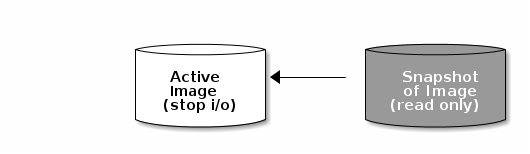
A snapshot is a read-only copy of the state of an image at a particular point in time. One of the advanced features of Ceph block devices is that you can create snapshots of the images to retain a history of an image’s state. Ceph also supports snapshot layering, which allows you to clone images (for example a VM image) quickly and easily. Ceph supports block device snapshots using the rbd command and many higher level interfaces, including QEMU, libvirt,OpenStack and CloudStack.
To use RBD snapshots, you must have a running Ceph cluster.
If a snapshot is taken while I/O is still in progress in a image, the snapshot might not get the exact or latest data of the image and the snapshot may have to be cloned to a new image to be mountable. So, we recommend to stop I/O before taking a snapshot of an image. If the image contains a filesystem, the filesystem must be in a consistent state before taking a snapshot. To stop I/O you can use fsfreeze command. See fsfreeze(8) man page for more details. For virtual machines, qemu-guest-agent can be used to automatically freeze filesystems when creating a snapshot.
3.1. Cephx Notes
When cephx is enabled (it is by default), you must specify a user name or ID and a path to the keyring containing the corresponding key for the user. You may also add the CEPH_ARGS environment variable to avoid re-entry of the following parameters:
[root@rbd-client ~]# rbd --id {user-ID} --keyring=/path/to/secret [commands]
[root@rbd-client ~]# rbd --name {username} --keyring=/path/to/secret [commands]
For example:
[root@rbd-client ~]# rbd --id admin --keyring=/etc/ceph/ceph.keyring [commands]
[root@rbd-client ~]# rbd --name client.admin --keyring=/etc/ceph/ceph.keyring [commands]
Add the user and secret to the CEPH_ARGS environment variable so that you don’t need to enter them each time.
3.2. Snapshot Basics
The following procedures demonstrate how to create, list, and remove snapshots using the rbd command on the command line.
3.2.1. Creating Snapshots
To create a snapshot with rbd, specify the snap create option, the pool name and the image name:
[root@rbd-client ~]# rbd --pool {pool-name} snap create --snap {snap-name} {image-name}
[root@rbd-client ~]# rbd snap create {pool-name}/{image-name}@{snap-name}
For example:
[root@rbd-client ~]# rbd --pool rbd snap create --snap snapname foo
[root@rbd-client ~]# rbd snap create rbd/foo@snapname
3.2.2. Listing Snapshots
To list snapshots of an image, specify the pool name and the image name:
[root@rbd-client ~]# rbd --pool {pool-name} snap ls {image-name}
[root@rbd-client ~]# rbd snap ls {pool-name}/{image-name}
For example:
[root@rbd-client ~]# rbd --pool rbd snap ls foo
[root@rbd-client ~]# rbd snap ls rbd/foo
3.2.3. Rollbacking Snapshots
To rollback to a snapshot with rbd, specify the snap rollback option, the pool name, the image name and the snap name:
rbd --pool {pool-name} snap rollback --snap {snap-name} {image-name}
rbd snap rollback {pool-name}/{image-name}@{snap-name}
For example:
rbd --pool rbd snap rollback --snap snapname foo
rbd snap rollback rbd/foo@snapnameRolling back an image to a snapshot means overwriting the current version of the image with data from a snapshot. The time it takes to execute a rollback increases with the size of the image. It is faster to clone from a snapshot than to rollback an image to a snapshot, and it is the preferred method of returning to a pre-existing state.
3.2.4. Deleting Snapshots
To delete a snapshot with rbd, specify the snap rm option, the pool name, the image name and the snapshot name:
[root@rbd-client ~]# rbd --pool <pool-name> snap rm --snap <snap-name> <image-name>
[root@rbd-client ~]# rbd snap rm <pool-name-/<image-name>@<snap-name>
For example:
[root@rbd-client ~]# rbd --pool rbd snap rm --snap snapname foo
[root@rbd-client ~]# rbd snap rm rbd/foo@snapnameIf an image has any clones, the cloned images retain reference to the parent image snapshot. To delete the parent image snapshot, you must flatten the child images first. See Flattening a Cloned Image for details.
Ceph OSD daemons delete data asynchronously, so deleting a snapshot does not free up the disk space immediately.
3.2.5. Purging Snapshots
To delete all snapshots for an image with rbd, specify the snap purge option and the image name:
[root@rbd-client ~]# rbd --pool {pool-name} snap purge {image-name}
[root@rbd-client ~]# rbd snap purge {pool-name}/{image-name}
For example:
[root@rbd-client ~]# rbd --pool rbd snap purge foo
[root@rbd-client ~]# rbd snap purge rbd/foo
3.2.6. Renaming Snapshots
To rename a snapshot:
[root@rbd-client ~]# rbd snap rename <pool-name>/<image-name>@<original-snapshot-name> <pool-name>/<image-name>@<new-snapshot-name>Example
To rename the snap1 snapshot of the dataset image on the data pool to snap2:
[root@rbd-client ~]# rbd snap rename data/dataset@snap1 data/dataset@snap2
Execute the rbd help snap rename command to display additional details on renaming snapshots.
3.3. Layering
Ceph supports the ability to create many copy-on-write (COW) or copy-on-read (COR) clones of a block device snapshot. Snapshot layering enables Ceph block device clients to create images very quickly. For example, you might create a block device image with a Linux VM written to it; then, snapshot the image, protect the snapshot, and create as many clones as you like. A snapshot is read-only, so cloning a snapshot simplifies semantics—making it possible to create clones rapidly.
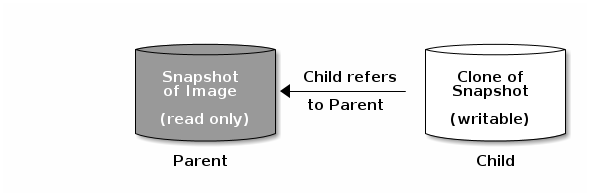
The terms parent and child mean a Ceph block device snapshot (parent), and the corresponding image cloned from the snapshot (child). These terms are important for the command line usage below.
Each cloned image (child) stores a reference to its parent image, which enables the cloned image to open the parent snapshot and read it. This reference is removed when the clone is flattened that is, when information from the snapshot is completely copied to the clone. For more information on flattening see Section 3.3.6, “Flattening Cloned Images”.
A clone of a snapshot behaves exactly like any other Ceph block device image. You can read to, write from, clone, and resize cloned images. There are no special restrictions with cloned images. However, the clone of a snapshot refers to the snapshot, so you MUST protect the snapshot before you clone it.
A clone of a snapshot can be a copy-on-write (COW) or copy-on-read (COR) clone. Copy-on-write (COW) is always enabled for clones while copy-on-read (COR) has to be enabled explicitly. Copy-on-write (COW) copies data from the parent to the clone when it writes to an unallocated object within the clone. Copy-on-read (COR) copies data from the parent to the clone when it reads from an unallocated object within the clone. Reading data from a clone will only read data from the parent if the object does not yet exist in the clone. Rados block device breaks up large images into multiple objects (defaults to 4 MB) and all copy-on-write (COW) and copy-on-read (COR) operations occur on a full object (that is writing 1 byte to a clone will result in a 4 MB object being read from the parent and written to the clone if the destination object does not already exist in the clone from a previous COW/COR operation).
Whether or not copy-on-read (COR) is enabled, any reads that cannot be satisfied by reading an underlying object from the clone will be rerouted to the parent. Since there is practically no limit to the number of parents (meaning that you can clone a clone), this reroute continues until an object is found or you hit the base parent image. If copy-on-read (COR) is enabled, any reads that fail to be satisfied directly from the clone result in a full object read from the parent and writing that data to the clone so that future reads of the same extent can be satisfied from the clone itself without the need of reading from the parent.
This is essentially an on-demand, object-by-object flatten operation. This is specially useful when the clone is in a high-latency connection away from it’s parent (parent in a different pool in another geographical location). Copy-on-read (COR) reduces the amortized latency of reads. The first few reads will have high latency because it will result in extra data being read from the parent (for example, you read 1 byte from the clone but now 4 MB has to be read from the parent and written to the clone), but all future reads will be served from the clone itself.
To create copy-on-read (COR) clones from snapshot you have to explicitly enable this feature by adding rbd_clone_copy_on_read = true under [global] or [client] section in your ceph.conf file.
3.3.1. Getting Started with Layering
Ceph block device layering is a simple process. You must have an image. You must create a snapshot of the image. You must protect the snapshot. Once you have performed these steps, you can begin cloning the snapshot.
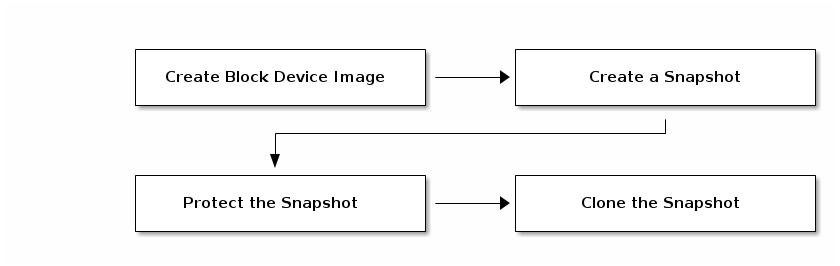
The cloned image has a reference to the parent snapshot, and includes the pool ID, image ID and snapshot ID. The inclusion of the pool ID means that you may clone snapshots from one pool to images in another pool.
-
Image Template: A common use case for block device layering is to create a master image and a snapshot that serves as a template for clones. For example, a user may create an image for a RHEL7 distribution and create a snapshot for it. Periodically, the user may update the image and create a new snapshot (for example
yum update,yum upgrade, followed byrbd snap create). As the image matures, the user can clone any one of the snapshots. - Extended Template: A more advanced use case includes extending a template image that provides more information than a base image. For example, a user may clone an image (for example, a VM template) and install other software (for example, a database, a content management system, an analytics system, and so on) and then snapshot the extended image, which itself may be updated just like the base image.
- Template Pool: One way to use block device layering is to create a pool that contains master images that act as templates, and snapshots of those templates. You may then extend read-only privileges to users so that they may clone the snapshots without the ability to write or execute within the pool.
- Image Migration/Recovery: One way to use block device layering is to migrate or recover data from one pool into another pool.
3.3.2. Protecting Snapshots
Clones access the parent snapshots. All clones would break if a user inadvertently deleted the parent snapshot. To prevent data loss, you MUST protect the snapshot before you can clone it. To do so, run the following commands:
[root@rbd-client ~]# rbd --pool {pool-name} snap protect --image {image-name} --snap {snapshot-name}
[root@rbd-client ~]# rbd snap protect {pool-name}/{image-name}@{snapshot-name}
For example:
[root@rbd-client ~]# rbd --pool rbd snap protect --image my-image --snap my-snapshot
[root@rbd-client ~]# rbd snap protect rbd/my-image@my-snapshotYou cannot delete a protected snapshot.
3.3.3. Cloning Snapshots
To clone a snapshot, you need to specify the parent pool, image and snapshot; and the child pool and image name. You must protect the snapshot before you can clone it. To do so, run the following commands:
[root@rbd-client ~]# rbd --pool {pool-name} --image {parent-image} --snap {snap-name} --dest-pool {pool-name} --dest {child-image}

[root@rbd-client ~]# rbd clone {pool-name}/{parent-image}@{snap-name}  {pool-name}/{child-image-name}
For example:
[root@rbd-client ~]# rbd clone rbd/my-image@my-snapshot rbd/new-imageYou may clone a snapshot from one pool to an image in another pool. For example, you may maintain read-only images and snapshots as templates in one pool, and writable clones in another pool.
3.3.4. Unprotecting Snapshots
Before you can delete a snapshot, you must unprotect it first. Additionally, you may NOT delete snapshots that have references from clones. You must flatten each clone of a snapshot, before you can delete the snapshot. To do so, run the following commands:
[root@rbd-client ~]#rbd --pool {pool-name} snap unprotect --image {image-name} --snap {snapshot-name}

[root@rbd-client ~]# rbd snap unprotect {pool-name}/{image-name}@{snapshot-name}
For example:
[root@rbd-client ~]# rbd --pool rbd snap unprotect --image my-image --snap my-snapshot

[root@rbd-client ~]# rbd snap unprotect rbd/my-image@my-snapshot
3.3.5. Listing Children of a Snapshot
To list the children of a snapshot, execute the following:
rbd --pool {pool-name} children --image {image-name} --snap {snap-name}
rbd children {pool-name}/{image-name}@{snapshot-name}
For example:
rbd --pool rbd children --image my-image --snap my-snapshot
rbd children rbd/my-image@my-snapshot
3.3.6. Flattening Cloned Images
Cloned images retain a reference to the parent snapshot. When you remove the reference from the child clone to the parent snapshot, you effectively "flatten" the image by copying the information from the snapshot to the clone.The time it takes to flatten a clone increases with the size of the snapshot.
To delete a parent image snapshot associated with child images, you must flatten the child images first:
[root@rbd-client ~]# rbd --pool <pool-name> flatten --image <image-name>
[root@rbd-client ~]# rbd flatten <pool-name>/<image-name>
For example:
[root@rbd-client ~]# rbd --pool rbd flatten --image my-image
[root@rbd-client ~]# rbd flatten rbd/my-image
Because a flattened image contains all the information from the snapshot, a flattened image will use more storage space than a layered clone.
If the deep flatten feature is enabled on an image, the image clone is dissociated from its parent by default.
Chapter 4. Block Device Mirroring
RADOS Block Device (RBD) mirroring is a process of asynchronous replication of Ceph block device images between two or more Ceph clusters. Mirroring ensures point-in-time consistent replicas of all changes to an image, including reads and writes, block device resizing, snapshots, clones and flattening.
Mirroring uses mandatory exclusive locks and the RBD journaling feature to record all modifications to an image in the order in which they occur. This ensures that a crash-consistent mirror of an image is available. Before an image can be mirrored to a peer cluster, you must enable journaling. See Section 4.1, “Enabling Journaling” for details.
Since it is the images stored in the primary and secondary pools associated to the block device that get mirrored, the CRUSH hierarchy for the primary and secondary pools should have the same storage capacity and performance characteristics. Additionally, the network connection between the primary and secondary sites should have sufficient bandwidth to ensure mirroring happens without too much latency.
The CRUSH hierarchies supporting primary and secondary pools that mirror block device images must have the same capacity and performance characteristics, and must have adequate bandwidth to ensure mirroring without excess latency. For example, if you have X MiB/s average write throughput to images in the primary cluster, the network must support N * X throughput in the network connection to the secondary site plus a safety factor of Y% to mirror N images.
Mirroring serves primarily for recovery from a disaster. Depending on which type of mirroring you use, see either Recovering from a disaster with one-way mirroring or Recovering from a disaster with two-way mirroring, for details.
The rbd-mirror Daemon
The rbd-mirror daemon is responsible for synchronizing images from one Ceph cluster to another.
Depending on the type of replication, rbd-mirror runs either on a single cluster or on all clusters that participate in mirroring:
One-way Replication
-
When data is mirrored from a primary cluster to a secondary cluster that serves as a backup,
rbd-mirrorruns ONLY on the secondary cluster. RBD mirroring may have multiple secondary sites.
-
When data is mirrored from a primary cluster to a secondary cluster that serves as a backup,
Two-way Replication
-
Two-way replication adds an
rbd-mirrordaemon on the primary cluster so images can be demoted on it and promoted on the secondary cluster. Changes can then be made to the images on the secondary cluster and they will be replicated in the reverse direction, from secondary to primary. Both clusters must haverbd-mirrorrunning to allow promoting and demoting images on either cluster. Currently, two-way replication is only supported between two sites.
-
Two-way replication adds an
The rbd-mirror package provides rbd-mirror.
In two-way replication, each instance of rbd-mirror must be able to connect to the other Ceph cluster simultaneously. Additionally, the network must have sufficient bandwidth between the two data center sites to handle mirroring.
Only run a single rbd-mirror daemon per a Ceph cluster.
Mirroring Modes
Mirroring is configured on a per-pool basis within peer clusters. Ceph supports two modes, depending on what images in a pool are mirrored:
- Pool Mode
- All images in a pool with the journaling feature enabled are mirrored. See Configuring Pool Mirroring for details.
- Image Mode
- Only a specific subset of images within a pool is mirrored and you must enable mirroring for each image separately. See Configuring Image Mirroring for details.
Image States
Whether or not an image can be modified depends on its state:
- Images in the primary state can be modified
- Images in the non-primary state cannot be modified
Images are automatically promoted to primary when mirroring is first enabled on an image. The promotion can happen:
- implicitly by enabling mirroring in pool mode (see Section 4.2, “Pool Configuration”)
- explicitly by enabling mirroring of a specific image (see Section 4.3, “Image Configuration”)
It is possible to demote primary images and promote non-primary images. See Section 4.3, “Image Configuration” for details.
4.1. Enabling Journaling
You can enable the RBD journaling feature:
- when an image is created
- dynamically on already existing images
Journaling depends on the exclusive-lock feature which must be enabled too. See the following steps.
To enable journaling when creating an image, use the --image-feature option:
rbd create <image-name> --size <megabytes> --pool <pool-name> --image-feature <feature>For example:
# rbd create image1 --size 1024 --pool data --image-feature exclusive-lock,journaling
To enable journaling on previously created images, use the rbd feature enable command:
rbd feature enable <pool-name>/<image-name> <feature-name>For example:
# rbd feature enable data/image1 exclusive-lock
# rbd feature enable data/image1 journaling
To enable journaling on all new images by default, add the following setting to the Ceph configuration file:
rbd default features = 1254.2. Pool Configuration
This chapter shows how to do the following tasks:
Execute the following commands on both peer clusters.
Enabling Mirroring on a Pool
To enable mirroring on a pool:
rbd mirror pool enable <pool-name> <mode>Examples
To enable mirroring of the whole pool named data:
# rbd mirror pool enable data pool
To enable image mode mirroring on the pool named data:
# rbd mirror pool enable data imageSee Mirroring Modes for details.
Disabling Mirroring on a Pool
To disable mirroring on a pool:
rbd mirror pool disable <pool-name>Example
To disable mirroring of a pool named data:
# rbd mirror pool disable dataBefore disabling mirroring, remove the peer clusters. See Section 4.2, “Pool Configuration” for details.
When you disable mirroring on a pool, you also disable it on any images within the pool for which mirroring was enabled separately in image mode. See Image Configuration for details.
Adding a Cluster Peer
In order for the rbd-mirror daemon to discover its peer cluster, you must register the peer to the pool:
rbd --cluster <cluster-name> mirror pool peer add <pool-name> <peer-client-name>@<peer-cluster-name> -n <client-name>Example
To add the site-a cluster as a peer to the site-b cluster run the following command from the client node in the site-b cluster:
# rbd --cluster site-b mirror pool peer add data client.site-a@site-a -n client.site-bViewing Information about Peers
To view information about the peers:
rbd mirror pool info <pool-name>Example
# rbd mirror pool info data
Mode: pool
Peers:
  UUID                                 NAME   CLIENT
  7e90b4ce-e36d-4f07-8cbc-42050896825d site-a client.site-a
Removing a Cluster Peer
To remove a mirroring peer cluster:
rbd mirror pool peer remove <pool-name> <peer-uuid>
Specify the pool name and the peer Universally Unique Identifier (UUID). To view the peer UUID, use the rbd mirror pool info command.
Example
# rbd mirror pool peer remove data 7e90b4ce-e36d-4f07-8cbc-42050896825dGetting Mirroring Status for a Pool
To get the mirroring pool summary:
rbd mirror pool status <pool-name>Example
To get the status of the data pool:
# rbd mirror pool status data
health: OK
images: 1 total
To output status details for every mirroring image in a pool, use the --verbose option.
4.3. Image Configuration
This chapter shows how to do the following tasks:
Execute the following commands on a single cluster only.
Enabling Image Mirroring
To enable mirroring of a specific image:
- Enable mirroring of the whole pool in image mode on both peer clusters. See Section 4.2, “Pool Configuration” for details.
Then explicitly enable mirroring for a specific image within the pool:
rbd mirror image enable <pool-name>/<image-name>
Example
To enable mirroring for the image2 image in the data pool:
# rbd mirror image enable data/image2Disabling Image Mirroring
To disable mirroring for a specific image:
rbd mirror image disable <pool-name>/<image-name>Example
To disable mirroring of the image2 image in the data pool:
# rbd mirror image disable data/image2Image Promotion and Demotion
To demote an image to non-primary:
rbd mirror image demote <pool-name>/<image-name>Example
To demote the image2 image in the data pool:
# rbd mirror image demote data/image2To promote an image to primary:
rbd mirror image promote <pool-name>/<image-name>Example
To promote the image2 image in the data pool:
# rbd mirror image promote data/image2Depending on which type of mirroring you use, see either Recovering from a disaster with one-way mirroring or Recovering from a disaster with two-way mirroring, for details.
Use the --force option to force promote a non-primary image:
# rbd mirror image promote --force data/image2Use forced promotion when the demotion cannot be propagated to the peer Ceph cluster, for example because of cluster failure or communication outage. See Failover After a Non-Orderly Shutdown for details.
Do not force promote non-primary images that are still syncing, because the images will not be valid after the promotion.
Image Resynchronization
To request a resynchronization to the primary image:
rbd mirror image resync <pool-name>/<image-name>Example
To request resynchronization of the image2 image in the data pool:
# rbd mirror image resync data/image2
In case of an inconsistent state between the two peer clusters, the rbd-mirror daemon does not attempt to mirror the image that is causing the inconsistency. For details on fixing this issue, see the section on recovering from a disaster. Depending on which type of mirroring you use, see either Recovering from a disaster with one-way mirroring or Recovering from a disaster with two-way mirroring, for details.
Getting Mirroring Status for a Single Image
To get the status of a mirrored image:
rbd mirror image status <pool-name>/<image-name>Example
To get the status of the image2 image in the data pool:
# rbd mirror image status data/image2
image2:
  global_id:   703c4082-100d-44be-a54a-52e6052435a5
  state:       up+replaying
  description: replaying, master_position=[object_number=0, tag_tid=3, entry_tid=0], mirror_position=[object_number=0, tag_tid=3, entry_tid=0], entries_behind_master=0
  last_update: 2019-04-23 13:39:15
4.4. Configuring One-Way Mirroring
One-way mirroring implies that a primary image in one cluster gets replicated in a secondary cluster. In the secondary cluster, the replicated image is non-primary; that is, block device clients cannot write to the image.
One-way mirroring supports multiple secondary sites. To configure one-way mirroring on multiple secondary sites, repeat the following procedures on each secondary cluster.
One-way mirroring is appropriate for maintaining a crash-consistent copy of an image. One-way mirroring may not be appropriate for all situations, such as using the secondary image for automatic failover and failback with OpenStack, since the cluster cannot failback when using one-way mirroring. In those scenarios, use two-way mirroring. See Section 4.5, “Configuring Two-Way Mirroring” for details.
The following procedures assume:
-
You have two clusters and you want to replicate images from a primary cluster to a secondary cluster. For the purposes of this procedure, we will distinguish the two clusters by referring to the cluster with the primary images as the
site-acluster and the cluster you want to replicate the images to as thesite-bcluster. For information on installing a Ceph Storage Cluster see the Installation Guide for Red Hat Enterprise Linux or the Installation Guide for Ubuntu. -
The
site-bcluster has a client node attached to it where therbd-mirrordaemon will run. This daemon will connect to thesite-acluster to sync images to thesite-bcluster. For information on installing Ceph clients, see the Installation Guide for Red Hat Enterprise Linux or the Installation Guide for Ubuntu -
A pool with the same name is created on both clusters. In the examples below the pool is named
data. See the Pools chapter in the Storage Strategies Guide or Red Hat Ceph Storage 3 for details. -
The pool contains images you want to mirror and journaling is enabled on them. In the examples below, the images are named
image1andimage2. See Enabling Journaling for details.
There are two ways to configure block device mirroring:
- Pool Mirroring: To mirror all images within a pool, use the Configuring Pool Mirroring procedure.
- Image Mirroring: To mirror select images within a pool, use the Configuring Image Mirroring procedure.
Configuring Pool Mirroring
-
Ensure that all images within the
datapool have exclusive lock and journaling enabled. See Section 4.1, “Enabling Journaling” for details. On the client node of the
site-bcluster, install therbd-mirrorpackage. The package is provided by the Red Hat Ceph Storage 3 Tools repository.Red Hat Enterprise Linux
# yum install rbd-mirrorUbuntu
$ sudo apt-get install rbd-mirrorOn the client node of the
site-bcluster, specify the cluster name by adding theCLUSTERoption to the appropriate file. On Red Hat Enterprise Linux, update the/etc/sysconfig/cephfile, and on Ubuntu, update the/etc/default/cephfile accordingly:CLUSTER=site-bOn both clusters, create users with permissions to access the
datapool and output their keyrings to a<cluster-name>.client.<user-name>.keyringfile.On the monitor host in the
site-acluster, create theclient.site-auser and output the keyring to thesite-a.client.site-a.keyringfile:# ceph auth get-or-create client.site-a mon 'profile rbd' osd 'profile rbd pool=data' -o /etc/ceph/site-a.client.site-a.keyringOn the monitor host in the
site-bcluster, create theclient.site-buser and output the keyring to thesite-b.client.site-b.keyringfile:# ceph auth get-or-create client.site-b mon 'profile rbd' osd 'profile rbd pool=data' -o /etc/ceph/site-b.client.site-b.keyring
Copy the Ceph configuration file and the newly created RBD keyring file from the
site-amonitor node to thesite-bmonitor and client nodes:# scp /etc/ceph/ceph.conf <user>@<site-b_mon-host-name>:/etc/ceph/site-a.conf # scp /etc/ceph/site-a.client.site-a.keyring <user>@<site-b_mon-host-name>:/etc/ceph/ # scp /etc/ceph/ceph.conf <user>@<site-b_client-host-name>:/etc/ceph/site-a.conf # scp /etc/ceph/site-a.client.site-a.keyring <user>@<site-b_client-host-name>:/etc/ceph/NoteThe
scpcommands that transfer the Ceph configuration file from thesite-amonitor node to thesite-bmonitor and client nodes rename the file tosite-a.conf. The keyring file name stays the same.Create a symbolic link named
site-b.confpointing toceph.confon thesite-bcluster client node:# cd /etc/ceph # ln -s ceph.conf site-b.confEnable and start the
rbd-mirrordaemon on thesite-bclient node:systemctl enable ceph-rbd-mirror.target systemctl enable ceph-rbd-mirror@<client-id> systemctl start ceph-rbd-mirror@<client-id>Change
<client-id>to the Ceph Storage cluster user that therbd-mirrordaemon will use. The user must have the appropriatecephxaccess to the cluster. For detailed information, see the User Management chapter in the Administration Guide for Red Hat Ceph Storage 3.Based on the preceeding examples using
site-b, run the following commands:# systemctl enable ceph-rbd-mirror.target # systemctl enable ceph-rbd-mirror@site-b # systemctl start ceph-rbd-mirror@site-bEnable pool mirroring of the
datapool residing on thesite-acluster by running the following command on a monitor node in thesite-acluster:# rbd mirror pool enable data poolAnd ensure that mirroring has been successfully enabled:
# rbd mirror pool info data
Mode: pool
Peers: none
Add the
site-acluster as a peer of thesite-bcluster by running the following command from the client node in thesite-bcluster:# rbd --cluster site-b mirror pool peer add data client.site-a@site-a -n client.site-bAnd ensure that the peer was successfully added:
# rbd mirror pool info data
Mode: pool
Peers:
  UUID                                 NAME   CLIENT
  7e90b4ce-e36d-4f07-8cbc-42050896825d site-a client.site-a
After some time, check the status of the
image1andimage2images. If they are in stateup+replaying, mirroring is functioning properly. Run the following commands from a monitor node in thesite-bcluster:# rbd mirror image status data/image1 image1: global_id: 7d486c3f-d5a1-4bee-ae53-6c4f1e0c8eac state: up+replaying description: replaying, master_position=[object_number=3, tag_tid=1, entry_tid=3], mirror_position=[object_number=3, tag_tid=1, entry_tid=3], entries_behind_master=0 last_update: 2019-04-22 13:19:27# rbd mirror image status data/image2 image2: global_id: 703c4082-100d-44be-a54a-52e6052435a5 state: up+replaying description: replaying, master_position=[object_number=3, tag_tid=1, entry_tid=3], mirror_position=[], entries_behind_master=3 last_update: 2019-04-22 13:19:19
Configuring Image Mirroring
-
Ensure the selected images to be mirrored within the
datapool have exclusive lock and journaling enabled. See Section 4.1, “Enabling Journaling” for details. - Follow steps 2 - 7 in the Configuring Pool Mirroring procedure.
From a monitor node on the
site-acluster, enable image mirroring of thedatapool:# rbd mirror pool enable data imageAnd ensure that mirroring has been successfully enabled:
# rbd mirror pool info data
Mode: image
Peers: none
From the client node on the
site-bcluster, add thesite-acluster as a peer:# rbd --cluster site-b mirror pool peer add data client.site-a@site-a -n client.site-bAnd ensure that the peer was successfully added:
# rbd mirror pool info data
Mode: image
Peers:
  UUID                                 NAME   CLIENT
  9c1da891-b9f4-4644-adee-6268fe398bf1 site-a client.site-a
From a monitor node on the
site-acluster, explicitly enable image mirroring of theimage1andimage2images:# rbd mirror image enable data/image1 Mirroring enabled # rbd mirror image enable data/image2 Mirroring enabledAfter some time, check the status of the
image1andimage2images. If they are in stateup+replaying, mirroring is functioning properly. Run the following commands from a monitor node in thesite-bcluster:# rbd mirror image status data/image1 image1: global_id: 08027096-d267-47f8-b52e-59de1353a034 state: up+replaying description: replaying, master_position=[object_number=3, tag_tid=1, entry_tid=3], mirror_position=[object_number=3, tag_tid=1, entry_tid=3], entries_behind_master=0 last_update: 2019-04-12 17:24:04# rbd mirror image status data/image2 image2: global_id: 596f41bc-874b-4cd4-aefe-4929578cc834 state: up+replaying description: replaying, master_position=[object_number=3, tag_tid=1, entry_tid=3], mirror_position=[object_number=3, tag_tid=1, entry_tid=3], entries_behind_master=0 last_update: 2019-04-12 17:23:51
4.5. Configuring Two-Way Mirroring
Two-way mirroring allows you to replicate images in either direction between two clusters. It does not allow you to write changes to the same image from either cluster and have the changes propogate back and forth. An image is promoted or demoted from a cluster to change where it is writable from, and where it syncs to.
The following procedures assume that:
-
You have two clusters and you want to be able to replicate images between them in either direction. In the examples below, the clusters are referred to as the
site-aandsite-bclusters. For information on installing a Ceph Storage Cluster see the Installation Guide for Red Hat Enterprise Linux or the Installation Guide for Ubuntu. -
Both clusters have a client node attached to them where the
rbd-mirrordaemon will run. The daemon on thesite-bcluster will connect to thesite-acluster to sync images tosite-b, and the daemon on thesite-acluster will connect to thesite-bcluster to sync images tosite-a. For information on installing Ceph clients, see the Installation Guide for Red Hat Enterprise Linux or Installation Guide for Ubuntu. -
A pool with the same name is created on both clusters. In the examples below the pool is named
data. See the Pools chapter in the Storage Strategies Guide or Red Hat Ceph Storage 3 for details. -
The pool contains images you want to mirror and journaling is enabled on them. In the examples below the images are named
image1andimage2. See Enabling Journaling for details.
There are two ways to configure block device mirroring:
- Pool Mirroring: To mirror all images within a pool, follow Configuring Pool Mirroring immediately below.
- Image Mirroring: To mirror select images within a pool, follow Configuring Image Mirroring below.
Configuring Pool Mirroring
-
Ensure that all images within the
datapool have exclusive lock and journaling enabled. See Section 4.1, “Enabling Journaling” for details. - Set up one way mirroring by following steps 2 - 7 in the equivalent Configuring Pool Mirroring section of Configuring One-Way Mirroring
On the client node of the
site-acluster, install therbd-mirrorpackage. The package is provided by the Red Hat Ceph Storage 3 Tools repository.Red Hat Enterprise Linux
# yum install rbd-mirrorUbuntu
$ sudo apt-get install rbd-mirrorOn the client node of the
site-acluster specify the cluster name by adding theCLUSTERoption to the appropriate file. On Red Hat Enterprise Linux, update the/etc/sysconfig/cephfile, and on Ubuntu, update the/etc/default/cephfile accordingly:CLUSTER=site-aCopy the
site-bCeph configuration file and RBD keyring file from thesite-bmonitor to thesite-amonitor and client nodes:# scp /etc/ceph/ceph.conf <user>@<site-a_mon-host-name>:/etc/ceph/site-b.conf # scp /etc/ceph/site-b.client.site-b.keyring root@<site-a_mon-host-name>:/etc/ceph/ # scp /etc/ceph/ceph.conf user@<site-a_client-host-name>:/etc/ceph/site-b.conf # scp /etc/ceph/site-b.client.site-b.keyring user@<site-a_client-host-name>:/etc/ceph/NoteThe
scpcommands that transfer the Ceph configuration file from thesite-bmonitor node to thesite-amonitor and client nodes rename the file tosite-b.conf. The keyring file name stays the same.Copy the
site-aRBD keyring file from thesite-amonitor node to thesite-aclient node:# scp /etc/ceph/site-a.client.site-a.keyring <user>@<site-a_client-host-name>:/etc/ceph/Create a symbolic link named
site-a.confpointing toceph.confon thesite-acluster client node:# cd /etc/ceph # ln -s ceph.conf site-a.confEnable and start the
rbd-mirrordaemon on thesite-aclient node:systemctl enable ceph-rbd-mirror.target systemctl enable ceph-rbd-mirror@<client-id> systemctl start ceph-rbd-mirror@<client-id>Where
<client-id>is the Ceph Storage cluster user that therbd-mirrordaemon will use. The user must have the appropriatecephxaccess to the cluster. For detailed information, see the User Management chapter in the Administration Guide for Red Hat Ceph Storage 3.Based on the preceeding examples using
site-a, run the following commands:# systemctl enable ceph-rbd-mirror.target # systemctl enable ceph-rbd-mirror@site-a # systemctl start ceph-rbd-mirror@site-aEnable pool mirroring of the
datapool residing on thesite-bcluster by running the following command on a monitor node in thesite-bcluster:# rbd mirror pool enable data poolAnd ensure that mirroring has been successfully enabled:
# rbd mirror pool info data
Mode: pool
Peers: none
Add the
site-bcluster as a peer of thesite-acluster by running the following command from the client node in thesite-acluster:# rbd --cluster site-a mirror pool peer add data client.site-b@site-b -n client.site-aAnd ensure that the peer was successfully added:
# rbd mirror pool info data
Mode: pool
Peers:
  UUID                                 NAME   CLIENT
  dc97bd3f-869f-48a5-9f21-ff31aafba733 site-b client.site-b
Check the mirroring status from the client node on the
site-acluster.# rbd mirror image status data/image1 image1: global_id: 08027096-d267-47f8-b52e-59de1353a034 state: up+stopped description: local image is primary last_update: 2019-04-16 15:45:31# rbd mirror image status data/image2 image1: global_id: 596f41bc-874b-4cd4-aefe-4929578cc834 state: up+stopped description: local image is primary last_update: 2019-04-16 15:55:33The images should be in state
up+stopped. Here,upmeans therbd-mirrordaemon is running andstoppedmeans the image is not a target for replication from another cluster. This is because the images are primary on this cluster.NotePreviously, when setting up one-way mirroring the images were configured to replicate to
site-b. That was achieved by installingrbd-mirroron thesite-bclient node so it could "pull" updates fromsite-atosite-b. At this point thesite-acluster is ready to be mirrored to but the images are not in a state that requires it. Mirroring in the other direction will start if the images onsite-aare demoted and the images on onsite-bare promoted. For information on how to promote and demote images, see Image Configuration.
Configuring Image Mirroring
Set up one way mirroring if it is not already set up.
- Follow steps 2 - 7 in the Configuring Pool Mirroring section of Configuring One-Way Mirroring
- Follow steps 3 - 5 in the Configuring Image Mirroring section of Configuring One-Way Mirroring
- Follow steps 3 - 7 in the Configuring Pool Mirroring section of Configuring Two-Way Mirroring. This section is immediately above.
Add the
site-bcluster as a peer of thesite-acluster by running the following command from the client node in thesite-acluster:# rbd --cluster site-a mirror pool peer add data client.site-b@site-b -n client.site-aAnd ensure that the peer was successfully added:
# rbd mirror pool info data
Mode: pool
Peers:
  UUID                                 NAME   CLIENT
  dc97bd3f-869f-48a5-9f21-ff31aafba733 site-b client.site-b
Check the mirroring status from the client node on the
site-acluster.# rbd mirror image status data/image1 image1: global_id: 08027096-d267-47f8-b52e-59de1353a034 state: up+stopped description: local image is primary last_update: 2019-04-16 15:45:31# rbd mirror image status data/image2 image1: global_id: 596f41bc-874b-4cd4-aefe-4929578cc834 state: up+stopped description: local image is primary last_update: 2019-04-16 15:55:33The images should be in state
up+stopped. Here,upmeans therbd-mirrordaemon is running andstoppedmeans the image is not a target for replication from another cluster. This is because the images are primary on this cluster.NotePreviously, when setting up one-way mirroring the images were configured to replicate to
site-b. That was achieved by installingrbd-mirroron thesite-bclient node so it could "pull" updates fromsite-atosite-b. At this point thesite-acluster is ready to be mirrored to but the images are not in a state that requires it. Mirroring in the other direction will start if the images onsite-aare demoted and the images on onsite-bare promoted. For information on how to promote and demote images, see Image Configuration.
4.6. Delayed Replication
Whether you are using one- or two-way replication, you can delay replication between RADOS Block Device (RBD) mirroring images. You may want to implement delayed replication if you want a window of cushion time in case an unwanted change to the primary image needs to be reverted before being replicated to the secondary image.
To implement delayed replication, the rbd-mirror daemon within the destination cluster should set the rbd mirroring replay delay = <minimum delay in seconds> configuration setting. This setting can either be applied globally within the ceph.conf file utilized by the rbd-mirror daemons, or on an individual image basis.
To utilize delayed replication for a specific image, on the primary image, run the following rbd CLI command:
rbd image-meta set <image-spec> conf_rbd_mirroring_replay_delay <minimum delay in seconds>For example, to set a 10 minute minimum replication delay on image vm-1 in the pool vms:
rbd image-meta set vms/vm-1 conf_rbd_mirroring_replay_delay 6004.7. Recovering from a disaster with one-way mirroring
To recover from a disaster when using one-way mirroring use the following procedures. They show how to fail over to the secondary cluster after the primary cluster terminates, and how to failback. The shutdown can be orderly or non-orderly.
In the below examples, the primary cluster is known as the site-a cluster, and the secondary cluster is known as the site-b cluster. Additionally, the clusters both have a data pool with two images, image1 and image2.
One-way mirroring supports multiple secondary sites. If you are using additional secondary clusters, choose one of the secondary clusters to fail over to. Synchronize from the same cluster during failback.
Prerequisites
- At least two running clusters.
- Pool mirroring or image mirroring configured with one way mirroring.
Failover After an Orderly Shutdown
- Stop all clients that use the primary image. This step depends on which clients use the image. For example, detach volumes from any OpenStack instances that use the image. See the Block Storage and Volumes chapter in the Storage Guide for Red Hat OpenStack Platform 13.
Demote the primary images located on the
site-acluster by running the following commands on a monitor node in thesite-acluster:# rbd mirror image demote data/image1 # rbd mirror image demote data/image2Promote the non-primary images located on the
site-bcluster by running the following commands on a monitor node in thesite-bcluster:# rbd mirror image promote data/image1 # rbd mirror image promote data/image2After some time, check the status of the images from a monitor node in the
site-bcluster. They should show a state ofup+stoppedand the description should sayprimary:# rbd mirror image status data/image1 image1: global_id: 08027096-d267-47f8-b52e-59de1353a034 state: up+stopped description: local image is primary last_update: 2019-04-17 13:18:36 # rbd mirror image status data/image2 image2: global_id: 596f41bc-874b-4cd4-aefe-4929578cc834 state: up+stopped description: local image is primary last_update: 2019-04-17 13:18:36
Failover After a Non-Orderly Shutdown
- Verify that the primary cluster is down.
- Stop all clients that use the primary image. This step depends on which clients use the image. For example, detach volumes from any OpenStack instances that use the image. See the Block Storage and Volumes chapter in the Storage Guide for Red Hat OpenStack Platform 10.
Promote the non-primary images from a monitor node in the
site-bcluster. Use the--forceoption, because the demotion cannot be propagated to thesite-acluster:# rbd mirror image promote --force data/image1 # rbd mirror image promote --force data/image2Check the status of the images from a monitor node in the
site-bcluster. They should show a state ofup+stopping_replayand the description should sayforce promoted:# rbd mirror image status data/image1 image1: global_id: 08027096-d267-47f8-b52e-59de1353a034 state: up+stopping_replay description: force promoted last_update: 2019-04-17 13:25:06 # rbd mirror image status data/image2 image2: global_id: 596f41bc-874b-4cd4-aefe-4929578cc834 state: up+stopping_replay description: force promoted last_update: 2019-04-17 13:25:06
Prepare for failback
When the formerly primary cluster recovers, failback to it.
If two clusters were originally configured only for one-way mirroring, in order to failback, the primary cluster must be configured for mirroring as well in order to replicate the images in the opposite direction.
On the client node of the
site-acluster, install therbd-mirrorpackage. The package is provided by the Red Hat Ceph Storage 3 Tools repository.Red Hat Enterprise Linux
# yum install rbd-mirrorUbuntu
$ sudo apt-get install rbd-mirrorOn the client node of the
site-acluster, specify the cluster name by adding theCLUSTERoption to the appropriate file. On Red Hat Enterprise Linux, update the/etc/sysconfig/cephfile, and on Ubuntu, update the/etc/default/cephfile accordingly:CLUSTER=site-bCopy the
site-bCeph configuration file and RBD keyring file from thesite-bmonitor to thesite-amonitor and client nodes:# scp /etc/ceph/ceph.conf <user>@<site-a_mon-host-name>:/etc/ceph/site-b.conf # scp /etc/ceph/site-b.client.site-b.keyring root@<site-a_mon-host-name>:/etc/ceph/ # scp /etc/ceph/ceph.conf user@<site-a_client-host-name>:/etc/ceph/site-b.conf # scp /etc/ceph/site-b.client.site-b.keyring user@<site-a_client-host-name>:/etc/ceph/NoteThe
scpcommands that transfer the Ceph configuration file from thesite-bmonitor node to thesite-amonitor and client nodes rename the file tosite-a.conf. The keyring file name stays the same.Copy the
site-aRBD keyring file from thesite-amonitor node to thesite-aclient node:# scp /etc/ceph/site-a.client.site-a.keyring <user>@<site-a_client-host-name>:/etc/ceph/Enable and start the
rbd-mirrordaemon on thesite-aclient node:systemctl enable ceph-rbd-mirror.target systemctl enable ceph-rbd-mirror@<client-id> systemctl start ceph-rbd-mirror@<client-id>Change
<client-id>to the Ceph Storage cluster user that therbd-mirrordaemon will use. The user must have the appropriatecephxaccess to the cluster. For detailed information, see the User Management chapter in the Administration Guide for Red Hat Ceph Storage 3.Based on the preceeding examples using
site-a, the commands would be:# systemctl enable ceph-rbd-mirror.target # systemctl enable ceph-rbd-mirror@site-a # systemctl start ceph-rbd-mirror@site-aFrom the client node on the
site-acluster, add thesite-bcluster as a peer:# rbd --cluster site-a mirror pool peer add data client.site-b@site-b -n client.site-aIf you are using multiple secondary clusters, only the secondary cluster chosen to fail over to, and failback from, must be added.
From a monitor node in the
site-acluster, verify thesite-bcluster was successfully added as a peer:# rbd mirror pool info -p data Mode: image Peers: UUID NAME CLIENT d2ae0594-a43b-4c67-a167-a36c646e8643 site-b client.site-b
Failback
When the formerly primary cluster recovers, failback to it.
From a monitor node on the
site-acluster determine if the images are still primary:# rbd info data/image1 # rbd info data/image2In the output from the commands, look for
mirroring primary: trueormirroring primary: false, to determine the state.Demote any images that are listed as primary by running a command like the following from a monitor node in the
site-acluster:# rbd mirror image demote data/image1Resynchronize the images ONLY if there was a non-orderly shutdown. Run the following commands on a monitor node in the
site-acluster to resynchronize the images fromsite-btosite-a:# rbd mirror image resync data/image1 Flagged image for resync from primary # rbd mirror image resync data/image2 Flagged image for resync from primaryAfter some time, ensure resynchronization of the images is complete by verifying they are in the
up+replayingstate. Check their state by running the following commands on a monitor node in thesite-acluster:# rbd mirror image status data/image1 # rbd mirror image status data/image2
Demote the images on the
site-bcluster by running the following commands on a monitor node in thesite-bcluster:# rbd mirror image demote data/image1 # rbd mirror image demote data/image2NoteIf there are multiple secondary clusters, this only needs to be done from the secondary cluster where it was promoted.
Promote the formerly primary images located on the
site-acluster by running the following commands on a monitor node in thesite-acluster:# rbd mirror image promote data/image1 # rbd mirror image promote data/image2Check the status of the images from a monitor node in the
site-acluster. They should show a status ofup+stoppedand the description should saylocal image is primary:# rbd mirror image status data/image1 image1: global_id: 08027096-d267-47f8-b52e-59de1353a034 state: up+stopped description: local image is primary last_update: 2019-04-22 11:14:51 # rbd mirror image status data/image2 image2: global_id: 596f41bc-874b-4cd4-aefe-4929578cc834 state: up+stopped description: local image is primary last_update: 2019-04-22 11:14:51
Remove two-way mirroring
In the Prepare for failback section above, functions for two-way mirroring were configured to enable synchronization from the site-b cluster to the site-a cluster. After failback is complete these functions can be disabled.
Remove the
site-bcluster as a peer from thesite-acluster:$ rbd mirror pool peer remove data client.remote@remote --cluster local # rbd --cluster site-a mirror pool peer remove data client.site-b@site-b -n client.site-aStop and disable the
rbd-mirrordaemon on thesite-aclient:systemctl stop ceph-rbd-mirror@<client-id> systemctl disable ceph-rbd-mirror@<client-id> systemctl disable ceph-rbd-mirror.targetFor example:
# systemctl stop ceph-rbd-mirror@site-a
# systemctl disable ceph-rbd-mirror@site-a
# systemctl disable ceph-rbd-mirror.target
Additional Resources
- For details on demoting, promoting, and resyncing images, see Image configuration in the Block device guide.
4.8. Recovering from a disaster with two-way mirroring
To recover from a disaster when using two-way mirroring use the following procedures. They show how to fail over to the mirrored data on the secondary cluster after the primary cluster terminates, and how to failback. The shutdown can be orderly or non-orderly.
In the below examples, the primary cluster is known as the site-a cluster, and the secondary cluster is known as the site-b cluster. Additionally, the clusters both have a data pool with two images, image1 and image2.
Prerequisites
- At least two running clusters.
- Pool mirroring or image mirroring configured with one way mirroring.
Failover After an Orderly Shutdown
- Stop all clients that use the primary image. This step depends on which clients use the image. For example, detach volumes from any OpenStack instances that use the image. See the Block Storage and Volumes chapter in the Storage Guide for Red Hat OpenStack Platform 10.
Demote the primary images located on the
site-acluster by running the following commands on a monitor node in thesite-acluster:# rbd mirror image demote data/image1 # rbd mirror image demote data/image2Promote the non-primary images located on the
site-bcluster by running the following commands on a monitor node in thesite-bcluster:# rbd mirror image promote data/image1 # rbd mirror image promote data/image2After some time, check the status of the images from a monitor node in the
site-bcluster. They should show a state ofup+stoppedand be listed as primary:# rbd mirror image status data/image1 image1: global_id: 08027096-d267-47f8-b52e-59de1353a034 state: up+stopped description: local image is primary last_update: 2019-04-17 16:04:37 # rbd mirror image status data/image2 image2: global_id: 596f41bc-874b-4cd4-aefe-4929578cc834 state: up+stopped description: local image is primary last_update: 2019-04-17 16:04:37- Resume the access to the images. This step depends on which clients use the image.
Failover After a Non-Orderly Shutdown
- Verify that the primary cluster is down.
- Stop all clients that use the primary image. This step depends on which clients use the image. For example, detach volumes from any OpenStack instances that use the image. See the Block Storage and Volumes chapter in the Storage Guide for Red Hat OpenStack Platform 10.
Promote the non-primary images from a monitor node in the
site-bcluster. Use the--forceoption, because the demotion cannot be propagated to thesite-acluster:# rbd mirror image promote --force data/image1 # rbd mirror image promote --force data/image2Check the status of the images from a monitor node in the
site-bcluster. They should show a state ofup+stopping_replayand the description should sayforce promoted:# rbd mirror image status data/image1 image1: global_id: 08027096-d267-47f8-b52e-59de1353a034 state: up+stopping_replay description: force promoted last_update: 2019-04-17 13:25:06 # rbd mirror image status data/image2 image2: global_id: 596f41bc-874b-4cd4-aefe-4929578cc834 state: up+stopping_replay description: force promoted last_update: 2019-04-17 13:25:06
Failback
When the formerly primary cluster recovers, failback to it.
Check the status of the images from a monitor node in the
site-bcluster again. They should show a state ofup-stoppedand the description should saylocal image is primary:# rbd mirror image status data/image1 image1: global_id: 08027096-d267-47f8-b52e-59de1353a034 state: up+stopped description: local image is primary last_update: 2019-04-22 17:37:48 # rbd mirror image status data/image2 image2: global_id: 08027096-d267-47f8-b52e-59de1353a034 state: up+stopped description: local image is primary last_update: 2019-04-22 17:38:18From a monitor node on the
site-acluster determine if the images are still primary:# rbd info data/image1 # rbd info data/image2In the output from the commands, look for
mirroring primary: trueormirroring primary: false, to determine the state.Demote any images that are listed as primary by running a command like the following from a monitor node in the
site-acluster:# rbd mirror image demote data/image1Resynchronize the images ONLY if there was a non-orderly shutdown. Run the following commands on a monitor node in the
site-acluster to resynchronize the images fromsite-btosite-a:# rbd mirror image resync data/image1 Flagged image for resync from primary # rbd mirror image resync data/image2 Flagged image for resync from primaryAfter some time, ensure resynchronization of the images is complete by verifying they are in the
up+replayingstate. Check their state by running the following commands on a monitor node in thesite-acluster:# rbd mirror image status data/image1 # rbd mirror image status data/image2Demote the images on the
site-bcluster by running the following commands on a monitor node in thesite-bcluster:# rbd mirror image demote data/image1 # rbd mirror image demote data/image2NoteIf there are multiple secondary clusters, this only needs to be done from the secondary cluster where it was promoted.
Promote the formerly primary images located on the
site-acluster by running the following commands on a monitor node in thesite-acluster:# rbd mirror image promote data/image1 # rbd mirror image promote data/image2Check the status of the images from a monitor node in the
site-acluster. They should show a status ofup+stoppedand the description should saylocal image is primary:# rbd mirror image status data/image1 image1: global_id: 08027096-d267-47f8-b52e-59de1353a034 state: up+stopped description: local image is primary last_update: 2019-04-22 11:14:51 # rbd mirror image status data/image2 image2: global_id: 596f41bc-874b-4cd4-aefe-4929578cc834 state: up+stopped description: local image is primary last_update: 2019-04-22 11:14:51
Additional Resources
- For details on demoting, promoting, and resyncing images, see Image configuration in the Block device guide.
4.9. Updating Instances with Mirroring
When updating a cluster using Ceph Block Device mirroring with an asynchronous update, follow the installation instruction for the update. Then, restart the Ceph Block Device instances.
There is no required order for restarting the instances. Red Hat recommends restarting the instance pointing to the pool with primary images followed by the instance pointing to the mirrored pool.
Chapter 5. Librbd (Python)
The rbd python module provides file-like access to RBD images. In order to use this built-in tool, the rbd and rados modules must be imported.
Creating and writing to an image
Connect to RADOS and open an IO context:
cluster = rados.Rados(conffile='my_ceph.conf')
cluster.connect()
ioctx = cluster.open_ioctx('mypool')
Instantiate an
:class:rbd.RBDobject, which you use to create the image:rbd_inst = rbd.RBD() size = 4 * 1024**3 # 4 GiB rbd_inst.create(ioctx, 'myimage', size)To perform I/O on the image, instantiate an
:class:rbd.Imageobject:image = rbd.Image(ioctx, 'myimage') data = 'foo' * 200 image.write(data, 0)This writes 'foo' to the first 600 bytes of the image. Note that data cannot be
:type:unicode-librbddoes not know how to deal with characters wider than a:c:type:char.Close the image, the IO context and the connection to RADOS:
image.close()
ioctx.close()
cluster.shutdown()
To be safe, each of these calls must to be in a separate
:finallyblock:import rados import rbd cluster = rados.Rados(conffile='my_ceph_conf') try: ioctx = cluster.open_ioctx('my_pool') try: rbd_inst = rbd.RBD() size = 4 * 1024**3 # 4 GiB rbd_inst.create(ioctx, 'myimage', size) image = rbd.Image(ioctx, 'myimage') try: data = 'foo' * 200 image.write(data, 0) finally: image.close() finally: ioctx.close() finally: cluster.shutdown()This can be cumbersome, so the Rados, Ioctx, and Image classes can be used as context managers that close or shut down automatically. Using them as context managers, the above example becomes:
with rados.Rados(conffile='my_ceph.conf') as cluster:
    with cluster.open_ioctx('mypool') as ioctx:
        rbd_inst = rbd.RBD()
        size = 4 * 1024**3  # 4 GiB
        rbd_inst.create(ioctx, 'myimage', size)
        with rbd.Image(ioctx, 'myimage') as image:
            data = 'foo' * 200
            image.write(data, 0)
Chapter 6. Kernel Module Operations
To use kernel module operations, you must have a running Ceph cluster.
Clients on Linux distributions aside from Red Hat Enterprise Linux (RHEL) are permitted but not supported. If there are issues found in the cluster (e.g. the MDS) when using these clients, Red Hat will address them, but if the cause is found to be on the client side, the issue will have to be addressed by the kernel vendor.
6.1. Getting a List of Images
To mount a block device image, first return a list of the images.
To do so, execute the following:
[root@rbd-client ~]# rbd list6.2. Mapping Block Devices
Use rbd to map an image name to a kernel module. You must specify the image name, the pool name and the user name. rbd will load the RBD kernel module if it is not already loaded.
To do so, execute the following:
[root@rbd-client ~]# rbd map {image-name} --pool {pool-name} --id {user-name}For example:
[root@rbd-client ~]# rbd map --pool rbd myimage --id admin
If you use cephx authentication, you must also specify a secret. It may come from a keyring or a file containing the secret.
To do so, execute the following:
[root@rbd-client ~]# rbd map --pool rbd myimage --id admin --keyring /path/to/keyring
[root@rbd-client ~]# rbd map --pool rbd myimage --id admin --keyfile /path/to/file
6.3. Showing Mapped Block Devices
To show block device images mapped to kernel modules with the rbd command, specify the showmapped option.
To do so, execute the following:
[root@rbd-client ~]# rbd showmapped6.4. Unmapping a Block Device
To unmap a block device image with the rbd command, specify the unmap option and the device name (by convention the same as the block device image name).
To do so, execute the following:
[root@rbd-client ~]# rbd unmap /dev/rbd/{poolname}/{imagename}For example:
[root@rbd-client ~]# rbd unmap /dev/rbd/rbd/fooChapter 7. Block Device Configuration Reference
7.1. General Settings
- rbd_op_threads
- Description
- The number of block device operation threads.
- Type
- Integer
- Default
-
1
Do not change the default value of rbd_op_threads because setting it to a number higher than 1 might cause data corruption.
- rbd_op_thread_timeout
- Description
- The timeout (in seconds) for block device operation threads.
- Type
- Integer
- Default
-
60
- rbd_non_blocking_aio
- Description
-
If
true, Ceph will process block device asynchronous I/O operations from a worker thread to prevent blocking. - Type
- Boolean
- Default
-
true
- rbd_concurrent_management_ops
- Description
- The maximum number of concurrent management operations in flight (for example, deleting or resizing an image).
- Type
- Integer
- Default
-
10
- rbd_request_timed_out_seconds
- Description
- The number of seconds before a maintenance request times out.
- Type
- Integer
- Default
-
30
- rbd_clone_copy_on_read
- Description
-
When set to
true, copy-on-read cloning is enabled. - Type
- Boolean
- Default
-
false
- rbd_enable_alloc_hint
- Description
-
If
true, allocation hinting is enabled, and the block device will issue a hint to the OSD back end to indicate the expected size object. - Type
- Boolean
- Default
-
true
- rbd_skip_partial_discard
- Description
-
If
true, the block device will skip zeroing a range when trying to discard a range inside an object. - Type
- Boolean
- Default
-
false
- rbd_tracing
- Description
-
Set this option to
trueto enable the Linux Trace Toolkit Next Generation User Space Tracer (LTTng-UST) tracepoints. See Tracing RADOS Block Device (RBD) Workloads with the RBD Replay Feature for details. - Type
- Boolean
- Default
-
false
- rbd_validate_pool
- Description
-
Set this option to
trueto validate empty pools for RBD compatibility. - Type
- Boolean
- Default
-
true
- rbd_validate_names
- Description
-
Set this option to
trueto validate image specifications. - Type
- Boolean
- Default
-
true
7.2. Default Settings
It is possible to override the default settings for creating an image. Ceph will create images with format 2 and no striping.
- rbd_default_format
- Description
-
The default format (
2) if no other format is specified. Format1is the original format for a new image, which is compatible with all versions oflibrbdand the kernel module, but does not support newer features like cloning. Format2is supported bylibrbdand the kernel module since version 3.11 (except for striping). Format2adds support for cloning and is more easily extensible to allow more features in the future. - Type
- Integer
- Default
-
2
- rbd_default_order
- Description
- The default order if no other order is specified.
- Type
- Integer
- Default
-
22
- rbd_default_stripe_count
- Description
- The default stripe count if no other stripe count is specified. Changing the default value requires striping v2 feature.
- Type
- 64-bit Unsigned Integer
- Default
-
0
- rbd_default_stripe_unit
- Description
-
The default stripe unit if no other stripe unit is specified. Changing the unit from
0(that is, the object size) requires the striping v2 feature. - Type
- 64-bit Unsigned Integer
- Default
-
0
- rbd_default_features
- Description
The default features enabled when creating an block device image. This setting only applies to format 2 images. The settings are:
1: Layering support. Layering enables you to use cloning.
2: Striping v2 support. Striping spreads data across multiple objects. Striping helps with parallelism for sequential read/write workloads.
4: Exclusive locking support. When enabled, it requires a client to get a lock on an object before making a write.
8: Object map support. Block devices are thin provisioned—meaning, they only store data that actually exists. Object map support helps track which objects actually exist (have data stored on a drive). Enabling object map support speeds up I/O operations for cloning, or importing and exporting a sparsely populated image.
16: Fast-diff support. Fast-diff support depends on object map support and exclusive lock support. It adds another property to the object map, which makes it much faster to generate diffs between snapshots of an image, and the actual data usage of a snapshot much faster.
32: Deep-flatten support. Deep-flatten makes
rbd flattenwork on all the snapshots of an image, in addition to the image itself. Without it, snapshots of an image will still rely on the parent, so the parent will not be delete-able until the snapshots are deleted. Deep-flatten makes a parent independent of its clones, even if they have snapshots.64: Journaling support. Journaling records all modifications to an image in the order they occur. This ensures that a crash-consistent mirror of the remote image is available locally
The enabled features are the sum of the numeric settings.
- Type
- Integer
- Default
61- layering, exclusive-lock, object-map, fast-diff, and deep-flatten are enabledImportantThe current default setting is not compatible with the RBD kernel driver nor older RBD clients.
- rbd_default_map_options
- Description
-
Most of the options are useful mainly for debugging and benchmarking. See
man rbdunderMap Optionsfor details. - Type
- String
- Default
-
""
7.3. Cache Settings
The user space implementation of the Ceph block device (that is, librbd) cannot take advantage of the Linux page cache, so it includes its own in-memory caching, called RBD caching. RBD caching behaves just like well-behaved hard disk caching. When the OS sends a barrier or a flush request, all dirty data is written to the OSDs. This means that using write-back caching is just as safe as using a well-behaved physical hard disk with a VM that properly sends flushes (that is, Linux kernel >= 2.6.32). The cache uses a Least Recently Used (LRU) algorithm, and in write-back mode it can coalesce contiguous requests for better throughput.
Ceph supports write-back caching for RBD. To enable it, add rbd cache = true to the [client] section of your ceph.conf file. By default librbd does not perform any caching. Writes and reads go directly to the storage cluster, and writes return only when the data is on disk on all replicas. With caching enabled, writes return immediately, unless there are more than rbd cache max dirty unflushed bytes. In this case, the write triggers writeback and blocks until enough bytes are flushed.
Ceph supports write-through caching for RBD. You can set the size of the cache, and you can set targets and limits to switch from write-back caching to write through caching. To enable write-through mode, set rbd cache max dirty to 0. This means writes return only when the data is on disk on all replicas, but reads may come from the cache. The cache is in memory on the client, and each RBD image has its own. Since the cache is local to the client, there is no coherency if there are others accessing the image. Running GFS or OCFS on top of RBD will not work with caching enabled.
The ceph.conf file settings for RBD should be set in the [client] section of your configuration file. The settings include:
- rbd cache
- Description
- Enable caching for RADOS Block Device (RBD).
- Type
- Boolean
- Required
- No
- Default
-
true
- rbd cache size
- Description
- The RBD cache size in bytes.
- Type
- 64-bit Integer
- Required
- No
- Default
-
32 MiB
- rbd cache max dirty
- Description
-
The
dirtylimit in bytes at which the cache triggers write-back. If0, uses write-through caching. - Type
- 64-bit Integer
- Required
- No
- Constraint
-
Must be less than
rbd cache size. - Default
-
24 MiB
- rbd cache target dirty
- Description
-
The
dirty targetbefore the cache begins writing data to the data storage. Does not block writes to the cache. - Type
- 64-bit Integer
- Required
- No
- Constraint
-
Must be less than
rbd cache max dirty. - Default
-
16 MiB
- rbd cache max dirty age
- Description
- The number of seconds dirty data is in the cache before writeback starts.
- Type
- Float
- Required
- No
- Default
-
1.0
- rbd_cache_max_dirty_object
- Description
-
The dirty limit for objects - set to
0for auto calculate fromrbd_cache_size. - Type
- Integer
- Default
-
0
- rbd_cache_block_writes_upfront
- Description
-
If
true, it will block writes to the cache before theaio_writecall completes. Iffalse, it will block before theaio_completionis called. - Type
- Boolean
- Default
-
false
- rbd cache writethrough until flush
- Description
- Start out in write-through mode, and switch to write-back after the first flush request is received. Enabling this is a conservative but safe setting in case VMs running on rbd are too old to send flushes, like the virtio driver in Linux before 2.6.32.
- Type
- Boolean
- Required
- No
- Default
-
true
7.4. Parent/Child Reads Settings
- rbd_balance_snap_reads
- Description
- Ceph typically reads objects from the primary OSD. Since reads are immutable, you may enable this feature to balance snap reads between the primary OSD and the replicas.
- Type
- Boolean
- Default
-
false
- rbd_localize_snap_reads
- Description
-
Whereas
rbd_balance_snap_readswill randomize the replica for reading a snapshot, if you enablerbd_localize_snap_reads, the block device will look to the CRUSH map to find the closest (local) OSD for reading the snapshot. - Type
- Boolean
- Default
-
false
- rbd_balance_parent_reads
- Description
- Ceph typically reads objects from the primary OSD. Since reads are immutable, you may enable this feature to balance parent reads between the primary OSD and the replicas.
- Type
- Boolean
- Default
-
false
- rbd_localize_parent_reads
- Description
-
Whereas
rbd_balance_parent_readswill randomize the replica for reading a parent, if you enablerbd_localize_parent_reads, the block device will look to the CRUSH map to find the closest (local) OSD for reading the parent. - Type
- Boolean
- Default
-
true
7.5. Read-ahead Settings
RBD supports read-ahead/prefetching to optimize small, sequential reads. This should normally be handled by the guest OS in the case of a VM, but boot loaders may not issue efficient reads. Read-ahead is automatically disabled if caching is disabled.
- rbd readahead trigger requests
- Description
- Number of sequential read requests necessary to trigger read-ahead.
- Type
- Integer
- Required
- No
- Default
-
10
- rbd readahead max bytes
- Description
- Maximum size of a read-ahead request. If zero, read-ahead is disabled.
- Type
- 64-bit Integer
- Required
- No
- Default
-
512 KiB
- rbd readahead disable after bytes
- Description
- After this many bytes have been read from an RBD image, read-ahead is disabled for that image until it is closed. This allows the guest OS to take over read-ahead once it is booted. If zero, read-ahead stays enabled.
- Type
- 64-bit Integer
- Required
- No
- Default
-
50 MiB
7.6. Blacklist Settings
- rbd_blacklist_on_break_lock
- Description
- Whether to blacklist clients whose lock was broken.
- Type
- Boolean
- Default
-
true
- rbd_blacklist_expire_seconds
- Description
- The number of seconds to blacklist - set to 0 for OSD default.
- Type
- Integer
- Default
-
0
7.7. Journal Settings
- rbd_journal_order
- Description
-
The number of bits to shift to compute the journal object maximum size. The value is between
12and64. - Type
- 32-bit Unsigned Integer
- Default
-
24
- rbd_journal_splay_width
- Description
- The number of active journal objects.
- Type
- 32-bit Unsigned Integer
- Default
-
4
- rbd_journal_commit_age
- Description
- The commit time interval in seconds.
- Type
- Double Precision Floating Point Number
- Default
-
5
- rbd_journal_object_flush_interval
- Description
- The maximum number of pending commits per a journal object.
- Type
- Integer
- Default
-
0
- rbd_journal_object_flush_bytes
- Description
- The maximum number of pending bytes per a journal object.
- Type
- Integer
- Default
-
0
- rbd_journal_object_flush_age
- Description
- The maximum time interval in seconds for pending commits.
- Type
- Double Precision Floating Point Number
- Default
-
0
- rbd_journal_pool
- Description
- Specifies a pool for journal objects.
- Type
- String
- Default
-
""
Chapter 8. Using an iSCSI Gateway
The iSCSI gateway is integrating Red Hat Ceph Storage with the iSCSI standard to provide a Highly Available (HA) iSCSI target that exports RADOS Block Device (RBD) images as SCSI disks. The iSCSI protocol allows clients (initiators) to send SCSI commands to SCSI storage devices (targets) over a TCP/IP network. This allows for heterogeneous clients, such as Microsoft Windows, to access the Red Hat Ceph Storage cluster.
Each iSCSI gateway runs the Linux IO target kernel subsystem (LIO) to provide iSCSI protocol support. LIO utilizes a user-space passthrough (TCMU) to interact with Ceph’s librbd library to expose RBD images to iSCSI clients. With Ceph’s iSCSI gateway you can effectively run a fully integrated block-storage infrastructure with all features and benefits of a conventional Storage Area Network (SAN).
Figure 8.1. Ceph iSCSI Gateway HA Design

8.1. Requirements for the iSCSI target
The Red Hat Ceph Storage Highly Available (HA) iSCSI gateway solution has requirements for the number of gateway nodes, memory capacity, and timer settings to detect down OSDs.
Required Number of Nodes
Install a minimum of two iSCSI gateway nodes. To increase resiliency and I/O handling, install up to four iSCSI gateway nodes.
Memory Requirements
The memory footprint of the RBD images can grow to a large size. Each RBD image mapped on the iSCSI gateway nodes uses roughly 90 MB of memory. Ensure the iSCSI gateway nodes have enough memory to support each mapped RBD image.
Detecting Down OSDs
There are no specific iSCSI gateway options for the Ceph Monitors or OSDs, but it is important to lower the default timers for detecting down OSDs to reduce the possibility of initiator timeouts. Follow the instructions in Lowering timer settings for detecting down OSDs to reduce the possibility of initiator timeouts.
Additional Resources
- See the Red Hat Ceph Storage Hardware Selection Guide for more information.
- See Lowering timer settings for detecting down OSDs in the Block Device Guide for more information.
8.2. Lowering timer settings for detecting down OSDs
Sometimes it is necessary to lower the timer settings for detecting down OSDs. For example, when using Red Hat Ceph Storage as an iSCSI gateway, you can reduce the possibility of initiator timeouts by lowering the timer settings for detecting down OSDs.
Prerequisites
- A running Red Hat Ceph Storage cluster.
Procedure
Configure Ansible to use the new timer settings.
Add a
ceph_conf_overridessection in thegroup_vars/all.ymlfile that looks like this, or edit any existingceph_conf_overridessection so it includes all the lines starting withosd:ceph_conf_overrides: osd: osd_client_watch_timeout: 15 osd_heartbeat_grace: 20 osd_heartbeat_interval: 5When the
site.ymlAnsible playbook is run against OSD nodes, the above settings will be added to theirceph.confconfiguration files.Use Ansible to update the
ceph.conffile and restart the OSD daemons on all the OSD nodes. On the Ansible admin node, run the following command:[user@admin ceph-ansible]$ ansible-playbook --limit osds site.yml
Verify the timer settings are the same as set in
ceph_conf_overrides:On one or more OSDs use the
ceph daemoncommand to view the settings:# ceph daemon osd.OSD_ID config get osd_client_watch_timeout # ceph daemon osd.OSD_ID config get osd_heartbeat_grace # ceph daemon osd.OSD_ID config get osd_heartbeat_intervalExample:
[root@osd1 ~]# ceph daemon osd.0 config get osd_client_watch_timeout
{
    "osd_client_watch_timeout": "15"
}
[root@osd1 ~]#  ceph daemon osd.0 config get osd_heartbeat_grace
{
    "osd_heartbeat_grace": "20"
}
[root@osd1 ~]# ceph daemon osd.0 config get osd_heartbeat_interval
{
    "osd_heartbeat_interval": "5"
}
Optional: If you cannot restart the OSD daemons immediately, do online updates from a Ceph Monitor node, or on all OSD nodes directly. Once you are able to restart the OSD daemons, use Ansible as described above to add the new timer settings into
ceph.confso the settings persist across reboots.To do an online update of OSD timer settings from a Monitor node:
# ceph tell osd.OSD_ID injectargs '--osd_client_watch_timeout 15'
# ceph tell osd.OSD_ID injectargs '--osd_heartbeat_grace 20'
# ceph tell osd.OSD_ID injectargs '--osd_heartbeat_interval 5'
Example:
[root@mon ~]# ceph tell osd.0 injectargs '--osd_client_watch_timeout 15'
[root@mon ~]# ceph tell osd.0 injectargs '--osd_heartbeat_grace 20'
[root@mon ~]# ceph tell osd.0 injectargs '--osd_heartbeat_interval 5'
To do an online update of OSD timer settings from an OSD node:
# ceph daemon osd.OSD_ID config set osd_client_watch_timeout 15
# ceph daemon osd.OSD_ID config set osd_heartbeat_grace 20
# ceph daemon osd.OSD_ID config set osd_heartbeat_interval 5
Example:
[root@osd1 ~]# ceph daemon osd.0 config set osd_client_watch_timeout 15
[root@osd1 ~]# ceph daemon osd.0 config set osd_heartbeat_grace 20
[root@osd1 ~]# ceph daemon osd.0 config set osd_heartbeat_interval 5
Additional Resources
- For more information about using Red Hat Ceph Storage as an iSCSI gateway, see Introduction to the Ceph iSCSI gateway in the Block Device Guide.
8.3. Configuring the iSCSI Target
Traditionally, block-level access to a Ceph storage cluster has been limited to QEMU and librbd, which is a key enabler for adoption within OpenStack environments. Block-level access to the Ceph storage cluster can now take advantage of the iSCSI standard to provide data storage.
Prerequisites:
- Red Hat Enterprise Linux 7.5 or later.
- A running Red Hat Ceph Storage cluster, version 3.1 or later.
- iSCSI gateways nodes, which can either be colocated with OSD nodes or on dedicated nodes.
- Valid Red Hat Enterprise Linux 7 and Red Hat Ceph Storage 3.3 entitlements/subscriptions on the iSCSI gateways nodes.
- Separate network subnets for iSCSI front-end traffic and Ceph back-end traffic.
Deploying the Ceph iSCSI gateway can be done using Ansible or the command-line interface.
8.3.1. Configuring the iSCSI Target using Ansible
Requirements:
- Red Hat Enterprise Linux 7.5 or later.
- A running Red Hat Ceph Storage 3 or later.
Installing:
On the iSCSI gateway nodes, enable the Red Hat Ceph Storage 3 Tools repository. For details, see the Enabling the Red Hat Ceph Storage Repositories section in the Installation Guide for Red Hat Enterprise Linux.
Install the
ceph-iscsi-configpackage:# yum install ceph-iscsi-config
On the Ansible administration node, do the following steps, as the
rootuser:- Enable the Red Hat Ceph Storage 3 Tools repository. For details, see the Enabling the Red Hat Ceph Storage Repositories section in the Installation Guide for Red Hat Enterprise Linux.
Install the
ceph-ansiblepackage:# yum install ceph-ansibleAdd an entry in
/etc/ansible/hostsfile for the gateway group:[iscsigws] ceph-igw-1 ceph-igw-2NoteIf colocating the iSCSI gateway with an OSD node, add the OSD node to the
[iscsigws]section.
Configuring:
The ceph-ansible package places a file in the /usr/share/ceph-ansible/group_vars/ directory called iscsigws.yml.sample.
Create a copy of the
iscsigws.yml.samplefile and name itiscsigws.yml.ImportantThe new file name (
iscsigws.yml) and the new section heading ([iscsigws]) are only applicable to Red Hat Ceph Storage 3.1 or higher. Upgrading from previous versions of Red Hat Ceph Storage to 3.1 will still use the old file name (iscsi-gws.yml) and the old section heading ([iscsi-gws]).-
Open the
iscsigws.ymlfile for editing. Uncomment the
gateway_ip_listoption and update the values accordingly, using IPv4 or IPv6 addresses.For example, adding two gateways with the IPv4 addresses of 10.172.19.21 and 10.172.19.22, configure
gateway_ip_listlike this:gateway_ip_list: 10.172.19.21,10.172.19.22ImportantProviding IP addresses for the
gateway_ip_listoption is required. You cannot use a mix of IPv4 and IPv6 addresses.Uncomment the
rbd_devicesvariable and update the values accordingly, for example:rbd_devices: - { pool: 'rbd', image: 'ansible1', size: '30G', host: 'ceph-1', state: 'present' } - { pool: 'rbd', image: 'ansible2', size: '15G', host: 'ceph-1', state: 'present' } - { pool: 'rbd', image: 'ansible3', size: '30G', host: 'ceph-1', state: 'present' } - { pool: 'rbd', image: 'ansible4', size: '50G', host: 'ceph-1', state: 'present' }Uncomment the
client_connectionsvariable and update the values accordingly, for example:Example with enabling CHAP authentication
client_connections:
  - { client: 'iqn.1994-05.com.redhat:rh7-iscsi-client', image_list: 'rbd.ansible1,rbd.ansible2', chap: 'rh7-iscsi-client/redhat', status: 'present' }
  - { client: 'iqn.1991-05.com.microsoft:w2k12r2', image_list: 'rbd.ansible4', chap: 'w2k12r2/microsoft_w2k12', status: 'absent' }
Example with disabling CHAP authentication
client_connections: - { client: 'iqn.1991-05.com.microsoft:w2k12r2', image_list: 'rbd.ansible4', chap: '', status: 'present' } - { client: 'iqn.1991-05.com.microsoft:w2k16r2', image_list: 'rbd.ansible2', chap: '', status: 'present' }ImportantDisabling CHAP is only supported on Red Hat Ceph Storage 3.1 or higher. Red Hat does not support mixing clients, some with CHAP enabled and some CHAP disabled. All clients marked as
presentmust have CHAP enabled or must have CHAP disabled.Review the following Ansible variables and descriptions, and update accordingly, if needed.
Expand Table 8.1. iSCSI Gateway General Variables Variable Meaning/Purpose seed_monitorEach gateway needs access to the ceph cluster for rados and rbd calls. This means the iSCSI gateway must have an appropriate
/etc/ceph/directory defined. Theseed_monitorhost is used to populate the iSCSI gateway’s/etc/ceph/directory.cluster_nameDefine a custom storage cluster name.
gateway_keyringDefine a custom keyring name.
deploy_settingsIf set to
true, then deploy the settings when the playbook is ran.perform_system_checksThis is a boolean value that checks for multipath and lvm configuration settings on each gateway. It must be set to true for at least the first run to ensure multipathd and lvm are configured properly.
gateway_iqnThis is the iSCSI IQN that all the gateways will expose to clients. This means each client will see the gateway group as a single subsystem.
gateway_ip_listThe comma separated ip list defines the IPv4 or IPv6 addresses that will be used on the front end network for iSCSI traffic. This IP will be bound to the active target portal group on each node, and is the access point for iSCSI traffic. Each IP should correspond to an IP available on the hosts defined in the
iscsigws.ymlhost group in/etc/ansible/hosts.rbd_devicesThis section defines the RBD images that will be controlled and managed within the iSCSI gateway configuration. Parameters like
poolandimageare self explanatory. Here are the other parameters:
size= This defines the size of the RBD. You may increase the size later, by simply changing this value, but shrinking the size of an RBD is not supported and is ignored.
host= This is the iSCSI gateway host name that will be responsible for the rbd allocation/resize. Every definedrbd_deviceentry must have a host assigned.
state= This is typical Ansible syntax for whether the resource should be defined or removed. A request with a state of absent will first be checked to ensure the rbd is not mapped to any client. If the RBD is unallocated, it will be removed from the iSCSI gateway and deleted from the configuration.client_connectionsThis section defines the iSCSI client connection details together with the LUN (RBD image) masking. Currently only CHAP is supported as an authentication mechanism. Each connection defines an
image_listwhich is a comma separated list of the formpool.rbd_image[,pool.rbd_image,…]. RBD images can be added and removed from this list, to change the client masking. Note, that there are no checks done to limit RBD sharing across client connections.Expand Table 8.2. iSCSI Gateway RBD-TARGET-API Variables Variable Meaning/Purpose api_user
The user name for the API. The default is
admin.api_password
The password for using the API. The default is
admin.api_port
The TCP port number for using the API. The default is
5000.api_secure
Value can be
trueorfalse. The default isfalse.loop_delay
Controls the sleeping interval in seconds for polling the iSCSI management object. The default value is
1.trusted_ip_list
A list of IPv4 or IPv6 addresses who have access to the API. By default, only the iSCSI gateway nodes have access.
ImportantFor
rbd_devices, there can not be any periods (.) in the pool name or in the image name.WarningGateway configuration changes are only supported from one gateway at a time. Attempting to run changes concurrently through multiple gateways may lead to configuration instability and inconsistency.
WarningAnsible will install the
ceph-iscsi-clipackage, create, and then update the/etc/ceph/iscsi-gateway.cfgfile based on settings in thegroup_vars/iscsigws.ymlfile when theansible-playbookcommand is ran. If you have previously installed theceph-iscsi-clipackage using the command line installation procedures, then the existing settings from theiscsi-gateway.cfgfile must be copied to thegroup_vars/iscsigws.ymlfile.See the Appendix A, Sample
iscsigws.ymlFile to view the fulliscsigws.yml.samplefile.
Deploying:
On the Ansible administration node, do the following steps, as the root user.
Execute the Ansible playbook:
# cd /usr/share/ceph-ansible # ansible-playbook site.ymlNoteThe Ansible playbook will handle RPM dependencies, RBD creation and Linux iSCSI target configuration.
WarningOn stand-alone iSCSI gateway nodes, verify that the correct Red Hat Ceph Storage 3.3 software repositories are enabled. If they are unavailable, then the wrong packages will be installed.
Verify the configuration by running the following command:
# gwcli lsImportantDo not use the
targetcliutility to change the configuration, this will result in the following issues: ALUA misconfiguration and path failover problems. There is the potential to corrupt data, to have mismatched configuration across iSCSI gateways, and to have mismatched WWN information, which will lead to client pathing problems.
Service Management:
The ceph-iscsi-config package installs the configuration management logic and a Systemd service called rbd-target-gw. When the Systemd service is enabled, the rbd-target-gw will start at boot time and will restore the Linux iSCSI target state. Deploying the iSCSI gateways with the Ansible playbook disables the target service.
# systemctl start rbd-target-gw
Below are the outcomes of interacting with the rbd-target-gw Systemd service.
# systemctl <start|stop|restart|reload> rbd-target-gwreload-
A reload request will force
rbd-target-gwto reread the configuration and apply it to the current running environment. This is normally not required, since changes are deployed in parallel from Ansible to all iSCSI gateway nodes. stop- A stop request will close the gateway’s portal interfaces, dropping connections to clients and wipe the current Linux iSCSI target configuration from the kernel. This returns the iSCSI gateway to a clean state. When clients are disconnected, active I/O is rescheduled to the other iSCSI gateways by the client side multipathing layer.
Administration:
Within the /usr/share/ceph-ansible/group_vars/iscsigws.yml file there are a number of operational workflows that the Ansible playbook supports.
Red Hat does not support managing RBD images exported by the Ceph iSCSI gateway tools, such as gwcli and ceph-ansible. Also, using the rbd command to rename or remove RBD images exported by the Ceph iSCSI gateway, can result in an unstable storage cluster.
Before removing RBD images from the iSCSI gateway configuration, follow the standard procedures for removing a storage device from the operating system.
For clients and systems using Red Hat Enterprise Linux 7, see the Red Hat Enterprise Linux 7 Storage Administration Guide for more details on removing devices.
| I want to… | Update the iscsigws.yml file by… |
|---|---|
| Add more RBD images |
Adding another entry to the |
| Resize an existing RBD image |
Updating the size parameter within the |
| Add a client |
Adding an entry to the |
| Add another RBD to a client |
Adding the relevant RBD |
| Remove an RBD from a client |
Removing the RBD |
| Remove an RBD from the system |
Changing the RBD entry state variable to |
| Change the clients CHAP credentials |
Updating the relevant CHAP details in |
| Remove a client |
Updating the relevant |
Once a change has been made, rerun the Ansible playbook to apply the change across the iSCSI gateway nodes.
# ansible-playbook site.ymlRemoving the Configuration:
Disconnect all iSCSI initiators before purging the iSCSI gateway configuration. Follow the procedures below for the appropriate operating system:
Red Hat Enterprise Linux initiators:
Syntax
iscsiadm -m node -T $TARGET_NAME --logoutReplace
$TARGET_NAMEwith the configured iSCSI target name.Example
# iscsiadm -m node -T iqn.2003-01.com.redhat.iscsi-gw:ceph-igw --logout
Logging out of session [sid: 1, target: iqn.2003-01.com.redhat.iscsi-gw:iscsi-igw, portal: 10.172.19.21,3260]
Logging out of session [sid: 2, target: iqn.2003-01.com.redhat.iscsi-gw:iscsi-igw, portal: 10.172.19.22,3260]
Logout of [sid: 1, target: iqn.2003-01.com.redhat.iscsi-gw:iscsi-igw, portal: 10.172.19.21,3260] successful.
Logout of [sid: 2, target: iqn.2003-01.com.redhat.iscsi-gw:iscsi-igw, portal: 10.172.19.22,3260] successful.
Windows initiators:
See the Microsoft documentation for more details.
VMware ESXi initiators:
See the VMware documentation for more details.
On the Ansible administration node, as the Ansbile user, change to the
/usr/share/ceph-ansible/directory:[user@admin ~]$ cd /usr/share/ceph-ansible/Run the Ansible playbook to remove the iSCSI gateway configuration:
[user@admin ceph-ansible]$ ansible-playbook purge-cluster.yml --limit iscsigwsOn a Ceph Monitor or Client node, as the
rootuser, remove the iSCSI gateway configuration object (gateway.conf):[root@mon ~]# rados rm -p pool gateway.confOptional.
If the exported Ceph RADOS Block Device (RBD) is no longer needed, then remove the RBD image. Run the following command on a Ceph Monitor or Client node, as the
rootuser:Syntax
rbd rm $IMAGE_NAMEReplace
$IMAGE_NAMEwith the name of the RBD image.Example
[root@mon ~]# rbd rm rbd01
8.3.2. Configuring the iSCSI Target using the Command Line Interface
The Ceph iSCSI gateway is the iSCSI target node and also a Ceph client node. The Ceph iSCSI gateway can be a standalone node or be colocated on a Ceph Object Store Disk (OSD) node. Completing the following steps will install, and configure the Ceph iSCSI gateway for basic operation.
Requirements:
- Red Hat Enterprise Linux 7.5 or later
- A running Red Hat Ceph Storage 3.3 cluster or later
The following packages must be installed:
-
targetcli-2.1.fb47-0.1.20170815.git5bf3517.el7cpor newer package -
python-rtslib-2.1.fb64-0.1.20170815.gitec364f3.el7cpor newer package -
tcmu-runner-1.4.0-0.2.el7cpor newer package openssl-1.0.2k-8.el7or newer packageImportantIf previous versions of these packages exist, then they must be removed first before installing the newer versions. These newer versions must be installed from a Red Hat Ceph Storage repository.
-
Do the following steps on all Ceph Monitor nodes in the storage cluster, before using the gwcli utility:
Restart the
ceph-monservice, as therootuser:# systemctl restart ceph-mon@$MONITOR_HOST_NAMEFor example:
# systemctl restart ceph-mon@monitor1
Do the following steps on the Ceph iSCSI gateway node, as the root user, before proceeding to the Installing section:
-
If the Ceph iSCSI gateway is not colocated on an OSD node, then copy the Ceph configuration files, located in
/etc/ceph/, from a running Ceph node in the storage cluster to the iSCSI Gateway node. The Ceph configuration files must exist on the iSCSI gateway node under/etc/ceph/. - Install and configure the Ceph command-line interface.For details, see the Installing the Ceph Command Line Interface chapter in the Red Hat Ceph Storage 3 Installation Guide for Red Hat Enterprise Linux.
Enable the Ceph tools repository:
# subscription-manager repos --enable=rhel-7-server-rhceph-3-tools-rpms- If needed, open TCP ports 3260 and 5000 on the firewall.
Create a new or use an existing RADOS Block Device (RBD).
- See Section 2.1, “Prerequisites” for more details.
If you already installed the Ceph iSCSI gateway using Ansible, then do not use this procedure.
Ansible will install the ceph-iscsi-cli package, create, and then update the /etc/ceph/iscsi-gateway.cfg file based on settings in the group_vars/iscsigws.yml file when the ansible-playbook command is ran. See Requirements: for more information.
Installing:
Do the following steps on all iSCSI gateway nodes, as the root user, unless otherwise noted.
Install the
ceph-iscsi-clipackage:# yum install ceph-iscsi-cliInstall the
tcmu-runnerpackage:# yum install tcmu-runnerIf needed, install the
opensslpackage:# yum install opensslOn the primary iSCSI gateway node, create a directory to hold the SSL keys:
# mkdir ~/ssl-keys
# cd ~/ssl-keys
On the primary iSCSI gateway node, create the certificate and key files:
# openssl req -newkey rsa:2048 -nodes -keyout iscsi-gateway.key -x509 -days 365 -out iscsi-gateway.crtNoteYou will be prompted to enter the environmental information.
On the primary iSCSI gateway node, create a PEM file:
# cat iscsi-gateway.crt iscsi-gateway.key > iscsi-gateway.pemOn the primary iSCSI gateway node, create a public key:
# openssl x509 -inform pem -in iscsi-gateway.pem -pubkey -noout > iscsi-gateway-pub.key-
From the primary iSCSI gateway node, copy the
iscsi-gateway.crt,iscsi-gateway.pem,iscsi-gateway-pub.key, andiscsi-gateway.keyfiles to the/etc/ceph/directory on the other iSCSI gateway nodes.
Create a file named
iscsi-gateway.cfgin the/etc/ceph/directory:# touch /etc/ceph/iscsi-gateway.cfgEdit the
iscsi-gateway.cfgfile and add the following lines:Syntax
[config]
cluster_name = <ceph_cluster_name>
gateway_keyring = <ceph_client_keyring>
api_secure = true
trusted_ip_list = <ip_addr>,<ip_addr>
Example
[config]
cluster_name = ceph
gateway_keyring = ceph.client.admin.keyring
api_secure = true
trusted_ip_list = 192.168.0.10,192.168.0.11
See Tables 8.1 and 8.2 in the Requirements: for more details on these options.
ImportantThe
iscsi-gateway.cfgfile must be identical on all iSCSI gateway nodes.-
Copy the
iscsi-gateway.cfgfile to all iSCSI gateway nodes.
Enable and start the API service:
# systemctl enable rbd-target-api
# systemctl start rbd-target-api
Configuring:
Start the iSCSI gateway command-line interface:
# gwcliCreating the iSCSI gateways using either IPv4 or IPv6 addresses:
Syntax
>/iscsi-target create iqn.2003-01.com.redhat.iscsi-gw:<target_name>
> goto gateways
> create <iscsi_gw_name> <IP_addr_of_gw>
> create <iscsi_gw_name> <IP_addr_of_gw>
Example
>/iscsi-target create iqn.2003-01.com.redhat.iscsi-gw:ceph-igw > goto gateways > create ceph-gw-1 10.172.19.21 > create ceph-gw-2 10.172.19.22ImportantYou cannot use a mix of IPv4 and IPv6 addresses.
Adding a RADOS Block Device (RBD):
Syntax
> cd /disks
>/disks/ create <pool_name> image=<image_name> size=<image_size>m|g|t max_data_area_mb=<buffer_size>
Example
> cd /disks >/disks/ create rbd image=disk_1 size=50g max_data_area_mb=32ImportantThere can not be any periods (.) in the pool name or in the image name.
WarningThe
max_data_area_mboption controls the amount of memory in megabytes that each image can use to pass SCSI command data between the iSCSI target and the Ceph cluster. If this value is too small, then it can result in excessive queue full retries which will affect performance. If the value is too large, then it can result in one disk using too much of the system’s memory, which can cause allocation failures for other subsystems. The default value is 8.This value can be changed using the
gwcli reconfiguresubcommand. The image must not be in use by an iSCSI initiator for this command to take effect. Do not adjust other options using thegwcli reconfiguresubcommand unless specified in this document or Red Hat Support has instructed you to do so.Syntax
>/disks/ reconfigure max_data_area_mb <new_buffer_size>Example
>/disks/ reconfigure max_data_area_mb 64Creating a client:
Syntax
> goto hosts
> create iqn.1994-05.com.redhat:<client_name>
> auth chap=<user_name>/<password>
Example
> goto hosts > create iqn.1994-05.com.redhat:rh7-client > auth chap=iscsiuser1/temp12345678ImportantDisabling CHAP is only supported on Red Hat Ceph Storage 3.1 or higher. Red Hat does not support mixing clients, some with CHAP enabled and some CHAP disabled. All clients must have either CHAP enabled or have CHAP disabled. The default behavior is to only authenticate an initiator by its initiator name.
If initiators are failing to log into the target, then the CHAP authentication might be a misconfigured for some initiators.
Example
o- hosts ................................ [Hosts: 2: Auth: MISCONFIG]Do the following command at the
hostslevel to reset all the CHAP authentication:/> goto hosts /iscsi-target...csi-igw/hosts> auth nochap ok ok /iscsi-target...csi-igw/hosts> ls o- hosts ................................ [Hosts: 2: Auth: None] o- iqn.2005-03.com.ceph:esx ........... [Auth: None, Disks: 4(310G)] o- iqn.1994-05.com.redhat:rh7-client .. [Auth: None, Disks: 0(0.00Y)]Adding disks to a client:
Syntax
>/iscsi-target..eph-igw/hosts> cd iqn.1994-05.com.redhat:<client_name>
> disk add <pool_name>.<image_name>
Example
>/iscsi-target..eph-igw/hosts> cd iqn.1994-05.com.redhat:rh7-client
> disk add rbd.disk_1
To confirm that the API is using SSL correctly, look in the
/var/log/rbd-target-api.logfile forhttps, for example:Aug 01 17:27:42 test-node.example.com python[1879]: * Running on https://0.0.0.0:5000/- The next step is to configure an iSCSI initiator. See Section 8.4, “Configuring the iSCSI Initiator” for more information on configuring an iSCSI initiator.
Verifying
To verify if the iSCSI gateways are working:
Example
/> goto gateways /iscsi-target...-igw/gateways> ls o- gateways ............................ [Up: 2/2, Portals: 2] o- ceph-gw-1 ........................ [ 10.172.19.21 (UP)] o- ceph-gw-2 ........................ [ 10.172.19.22 (UP)]NoteIf the status is
UNKNOWN, then check for network issues and any misconfigurations. If using a firewall, then check if the appropriate TCP port is open. Check if the iSCSI gateway is listed in thetrusted_ip_listoption. Verify that therbd-target-apiservice is running on the iSCSI gateway node.To verify if the initiator is connecting to the iSCSI target, you will see the initiator
LOGGED-IN:Example
/> goto hosts
/iscsi-target...csi-igw/hosts> ls
o- hosts .............................. [Hosts: 1: Auth: None]
  o- iqn.1994-05.com.redhat:rh7-client  [LOGGED-IN, Auth: None, Disks: 0(0.00Y)]
To verify if LUNs are balanced across iSCSI gateways:
/> goto hosts
/iscsi-target...csi-igw/hosts> ls
o- hosts ................................. [Hosts: 2: Auth: None]
  o- iqn.2005-03.com.ceph:esx ............ [Auth: None, Disks: 4(310G)]
  | o- lun 0 ............................. [rbd.disk_1(100G), Owner: ceph-gw-1]
  | o- lun 1 ............................. [rbd.disk_2(10G), Owner: ceph-gw-2]
When creating a disk, the disk will be assigned an iSCSI gateway as its
Ownerbased on the initiator’s multipath layer. The initiator’s multipath layer will reported as being in ALUA Active-Optimized (AO) state. The other paths will be reported as being in the ALUA Active-non-Optimized (ANO) state.If the AO path fails one of the other iSCSI gateways will be used. The ordering for the failover gateway depends on the initiator’s multipath layer, where normally, the order is based on which path was discovered first.
Currently, the balancing of LUNs is not dynamic. The owning iSCSI gateway is selected at disk creation time and is not changeable.
8.3.3. Optimizing the performance of the iSCSI Target
There are many settings that control how the iSCSI Target transfers data over the network. These settings can be used to optimize the performance of the iSCSI gateway.
Only change these settings if instructed to by Red Hat Support or as specified in this document.
The gwcli reconfigure subcommand
The gwcli reconfigure subcommand controls the settings that are used to optimize the performance of the iSCSI gateway.
Settings that affect the performance of the iSCSI target
- max_data_area_mb
- cmdsn_depth
- immediate_data
- initial_r2t
- max_outstanding_r2t
- first_burst_length
- max_burst_length
- max_recv_data_segment_length
- max_xmit_data_segment_length
Additional Resources
-
Information about
max_data_area_mb, including an example showing how to adjust it usinggwcli reconfigure, is in the section Configuring the iSCSI Target using the Command Line Interface for the Block Device Guide, and Configuring the Ceph iSCSI gateway in a container for the Container Guide.
8.3.4. Adding more iSCSI gateways
As a storage administrator, you can expand the initial two iSCSI gateways to four iSCSI gateways by using either Ansible or the gwcli command-line tool. Adding more iSCSI gateways provides you more flexibility when using load-balancing and failover options, along with providing more redundancy.
8.3.4.1. Prerequisites
- A running Red Hat Ceph Storage 3 cluster.
- Installation of the iSCSI gateway software.
- Spare nodes or existing OSD nodes.
8.3.4.2. Using Ansible to add more iSCSI gateways
You can using the Ansible automation utility to add more iSCSI gateways. This procedure expands the default installation of two iSCSI gateways to four iSCSI gateways. You can configure the iSCSI gateway on a standalone node or it can be collocated with existing OSD nodes.
Prerequisites
- A running Red Hat Ceph Storage 3 cluster.
- Installation of the iSCSI gateway software.
-
Having
rootuser access on the Ansible administration node. -
Having
rootuser access on the new nodes.
Procedure
On the new iSCSI gateway nodes, enable the Red Hat Ceph Storage 3 Tools repository.
[root@iscsigw ~]# subscription-manager repos --enable=rhel-7-server-rhceph-3-tools-els-rpmsSee the Enabling the Red Hat Ceph Storage Repositories section in the Installation Guide for Red Hat Enterprise Linux for more details.
Install the
ceph-iscsi-configpackage:[root@iscsigw ~]# yum install ceph-iscsi-configAppend to the list in
/etc/ansible/hostsfile for the gateway group:Example
[iscsigws] ... ceph-igw-3 ceph-igw-4NoteIf colocating the iSCSI gateway with an OSD node, add the OSD node to the
[iscsigws]section.Open the
/usr/share/ceph-ansible/group_vars/iscsigws.ymlfile for editing and append the additional two iSCSI gateways with the IPv4 addresses to thegateway_ip_listoption:Example
gateway_ip_list: 10.172.19.21,10.172.19.22,10.172.19.23,10.172.19.24ImportantProviding IP addresses for the
gateway_ip_listoption is required. You cannot use a mix of IPv4 and IPv6 addresses.On the Ansible administration node, as the
rootuser, execute the Ansible playbook:# cd /usr/share/ceph-ansible # ansible-playbook site.yml- From the iSCSI initiators, re-login to use the newly added iSCSI gateways.
Additional Resources
- See Configure the iSCSI Initiator for more details on using an iSCSI Initiator.
8.3.4.3. Using gwcli to add more iSCSI gateways
You can use the gwcli command-line tool to add more iSCSI gateways. This procedure expands the default of two iSCSI gateways to four iSCSI gateways.
Prerequisites
- A running Red Hat Ceph Storage 3 cluster.
- Installation of the iSCSI gateway software.
-
Having
rootuser access to the new nodes or OSD nodes.
Procedure
-
If the Ceph iSCSI gateway is not collocated on an OSD node, then copy the Ceph configuration files, located in the
/etc/ceph/directory, from a running Ceph node in the storage cluster to the new iSCSI Gateway node. The Ceph configuration files must exist on the iSCSI gateway node under the/etc/ceph/directory. - Install and configure the Ceph command-line interface. For details, see the Installing the Ceph Command Line Interface chapter in the Red Hat Ceph Storage 3 Installation Guide for Red Hat Enterprise Linux.
On the new iSCSI gateway nodes, enable the Red Hat Ceph Storage 3 Tools repository.
[root@iscsigw ~]# subscription-manager repos --enable=rhel-7-server-rhceph-3-tools-els-rpmsSee the Enabling the Red Hat Ceph Storage Repositories section in the Installation Guide for Red Hat Enterprise Linux for more details.
Install the
ceph-iscsi-cli, andtcmu-runnerpackages:[root@iscsigw ~]# yum install ceph-iscsi-cli tcmu-runnerIf needed, install the
opensslpackage:[root@iscsigw ~]# yum install openssl
On one of the existing iSCSI gateway nodes, edit the
/etc/ceph/iscsi-gateway.cfgfile and append thetrusted_ip_listoption with the new IP addresses for the new iSCSI gateway nodes.Example
[config]
...
trusted_ip_list = 10.172.19.21,10.172.19.22,10.172.19.23,10.172.19.24
See the Configuring the iSCSI Target using Ansible tables for more details on these options.
Copy the updated
/etc/ceph/iscsi-gateway.cfgfile to all the iSCSI gateway nodes.ImportantThe
iscsi-gateway.cfgfile must be identical on all iSCSI gateway nodes.-
Optionally, if using SSL, also copy the
~/ssl-keys/iscsi-gateway.crt,~/ssl-keys/iscsi-gateway.pem,~/ssl-keys/iscsi-gateway-pub.key, and~/ssl-keys/iscsi-gateway.keyfiles from one of the existing iSCSI gateway nodes to the/etc/ceph/directory on the new iSCSI gateway nodes. Enable and start the API service on the new iSCSI gateway nodes:
[root@iscsigw ~]# systemctl enable rbd-target-api
[root@iscsigw ~]# systemctl start rbd-target-api
Start the iSCSI gateway command-line interface:
[root@iscsigw ~]# gwcliCreating the iSCSI gateways using either IPv4 or IPv6 addresses:
Syntax
>/iscsi-target create iqn.2003-01.com.redhat.iscsi-gw:_TARGET_NAME_
> goto gateways
> create ISCSI_GW_NAME IP_ADDR_OF_GW
> create ISCSI_GW_NAME IP_ADDR_OF_GW
Example
>/iscsi-target create iqn.2003-01.com.redhat.iscsi-gw:ceph-igw > goto gateways > create ceph-gw-3 10.172.19.23 > create ceph-gw-4 10.172.19.24ImportantYou cannot use a mix of IPv4 and IPv6 addresses.
- From the iSCSI initiators, re-login to use the newly added iSCSI gateways.
Additional Resources
- See Configure the iSCSI Initiator for more details on using an iSCSI Initiator.
8.4. Configuring the iSCSI Initiator
Red Hat Ceph Storage supports iSCSI initiators on three operating systems for connecting to the Ceph iSCSI gateway:
8.4.1. The iSCSI Initiator for Red Hat Enterprise Linux
Prerequisite:
-
Package
iscsi-initiator-utils-6.2.0.873-35or newer must be installed -
Package
device-mapper-multipath-0.4.9-99or newer must be installed
Installing the Software:
Install the iSCSI initiator and multipath tools:
# yum install iscsi-initiator-utils
# yum install device-mapper-multipath
Setting the Initiator Name
Edit the
/etc/iscsi/initiatorname.iscsifile.NoteThe initiator name must match the initiator name used in the Ansible
client_connectionsoption or what was used during the initial setup usinggwcli.
Configuring Multipath IO:
Create the default
/etc/multipath.conffile and enable themultipathdservice:# mpathconf --enable --with_multipathd yAdd the following to
/etc/multipath.conffile:devices { device { vendor "LIO-ORG" hardware_handler "1 alua" path_grouping_policy "failover" path_selector "queue-length 0" failback 60 path_checker tur prio alua prio_args exclusive_pref_bit fast_io_fail_tmo 25 no_path_retry queue } }Restart the
multipathdservice:# systemctl reload multipathd
CHAP Setup and iSCSI Discovery/Login:
Provide a CHAP username and password by updating the
/etc/iscsi/iscsid.conffile accordingly.Example
node.session.auth.authmethod = CHAP node.session.auth.username = user node.session.auth.password = passwordNoteIf you update these options, then you must rerun the
iscsiadm discoverycommand.Discover the target portals:
# iscsiadm -m discovery -t st -p 192.168.56.101
192.168.56.101:3260,1 iqn.2003-01.org.linux-iscsi.rheln1
192.168.56.102:3260,2 iqn.2003-01.org.linux-iscsi.rheln1
Login to target:
# iscsiadm -m node -T iqn.2003-01.org.linux-iscsi.rheln1 -l
Viewing the Multipath IO Configuration:
The multipath daemon (multipathd), will set up devices automatically based on the multipath.conf settings. Running the multipath command show devices setup in a failover configuration with a priority group for each path, for example:
# multipath -ll
mpathbt (360014059ca317516a69465c883a29603) dm-1 LIO-ORG ,IBLOCK
size=1.0G features='0' hwhandler='1 alua' wp=rw
|-+- policy='queue-length 0' prio=50 status=active
| `- 28:0:0:1 sde  8:64  active ready running
`-+- policy='queue-length 0' prio=10 status=enabled
  `- 29:0:0:1 sdc  8:32  active ready running
The multipath -ll output prio value indicates the ALUA state, where prio=50 indicates it is the path to the owning iSCSI gateway in the ALUA Active-Optimized state and prio=10 indicates it is an Active-non-Optmized path. The status field indicates which path is being used, where active indicates the currently used path, and enabled indicates the failover path, if the active fails. To match the device name, for example, sde in the multipath -ll output, to the iSCSI gateway run the following command:
# iscsiadm -m session -P 3
The Persistent Portal value is the IP address assigned to the iSCSI gateway listed in gwcli or the IP address of one of the iSCSI gateways listed in the gateway_ip_list, if Ansible was used.
8.4.2. The iSCSI Initiator for Red Hat Virtualization
Prerequisite:
- Red Hat Virtualization 4.1
- Configured MPIO devices on all Red Hat Virtualization nodes
-
Package
iscsi-initiator-utils-6.2.0.873-35or newer must be installed -
Package
device-mapper-multipath-0.4.9-99or newer must be installed
Configuring Multipath IO:
Update the
/etc/multipath/conf.d/DEVICE_NAME.conffile as follows:devices { device { vendor "LIO-ORG" hardware_handler "1 alua" path_grouping_policy "failover" path_selector "queue-length 0" failback 60 path_checker tur prio alua prio_args exclusive_pref_bit fast_io_fail_tmo 25 no_path_retry queue } }Restart the
multipathdservice:# systemctl reload multipathd
Adding iSCSI Storage
- Click the Storage resource tab to list the existing storage domains.
- Click the New Domain button to open the New Domain window.
- Enter the Name of the new storage domain.
- Use the Data Center drop-down menu to select an data center.
- Use the drop-down menus to select the Domain Function and the Storage Type. The storage domain types that are not compatible with the chosen domain function are not available.
- Select an active host in the Use Host field. If this is not the first data domain in a data center, you must select the data center’s SPM host.
The New Domain window automatically displays known targets with unused LUNs when iSCSI is selected as the storage type. If the target that you are adding storage from is not listed then you can use target discovery to find it, otherwise proceed to the next step.
Click Discover Targets to enable target discovery options. When targets have been discovered and logged in to, the New Domain window automatically displays targets with LUNs unused by the environment.
NoteLUNs external to the environment are also displayed.
You can use the Discover Targets options to add LUNs on many targets, or multiple paths to the same LUNs.
- Enter the fully qualified domain name or IP address of the iSCSI host in the Address field.
-
Enter the port to connect to the host on when browsing for targets in the Port field. The default is
3260. - If the Challenge Handshake Authentication Protocol (CHAP) is being used to secure the storage, select the User Authentication check box. Enter the CHAP user name and CHAP password.
- Click the Discover button.
Select the target to use from the discovery results and click the Login button. Alternatively, click the Login All to log in to all of the discovered targets.
ImportantIf more than one path access is required, ensure to discover and log in to the target through all the required paths. Modifying a storage domain to add additional paths is currently not supported.
- Click the + button next to the desired target. This will expand the entry and display all unused LUNs attached to the target.
- Select the check box for each LUN that you are using to create the storage domain.
Optionally, you can configure the advanced parameters.
- Click Advanced Parameters.
- Enter a percentage value into the Warning Low Space Indicator field. If the free space available on the storage domain is below this percentage, warning messages are displayed to the user and logged.
- Enter a GB value into the Critical Space Action Blocker field. If the free space available on the storage domain is below this value, error messages are displayed to the user and logged, and any new action that consumes space, even temporarily, will be blocked.
- Select the Wipe After Delete check box to enable the wipe after delete option. This option can be edited after the domain is created, but doing so will not change the wipe after delete property of disks that already exist.
- Select the Discard After Delete check box to enable the discard after delete option. This option can be edited after the domain is created. This option is only available to block storage domains.
- Click OK to create the storage domain and close the window.
8.4.3. The iSCSI Initiator for Microsoft Windows
Prerequisite:
- Microsoft Windows Server 2016
iSCSI Initiator, Discovery and Setup:
- Install the iSCSI initiator driver and MPIO tools.
- Launch the MPIO program, click on the Discover Multi-Paths tab, check the Add support for iSCSI devices box, and click Add. This change will require a reboot.
On the iSCSI Initiator Properties window, on the Discovery tab
 , add a target portal. Enter the IP address or DNS name
 and Port
 of the Ceph iSCSI gateway:
On the Targets tab
, select the target and click on Connect
:

On the Connect To Target window, select the Enable multi-path option
, and click the Advanced button
:
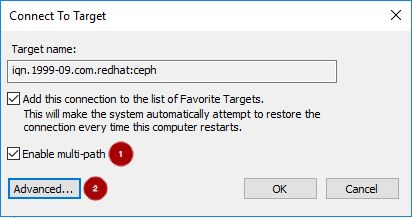
Under the Connect using section, select a Target portal IP
. Select the Enable CHAP login on
and enter the Name and Target secret values
from the Ceph iSCSI Ansible client credentials section, and click OK  :
:
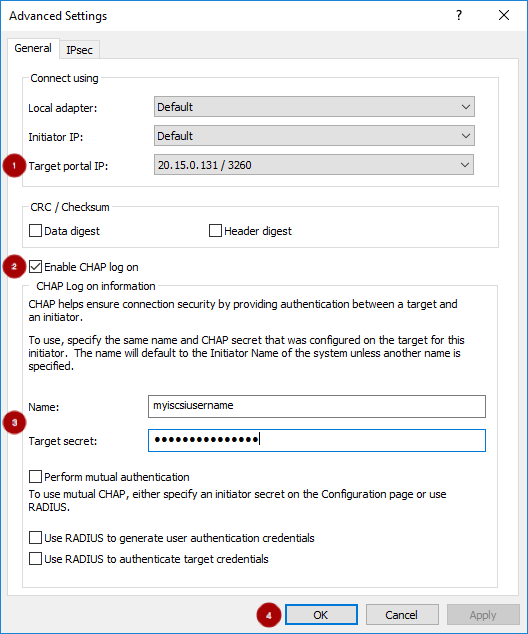 Important
Windows Server 2016 does not accept a CHAP secret less than 12 bytes.
- Repeat steps 5 and 6 for each target portal defined when setting up the iSCSI gateway.
If the initiator name is different than the initiator name used during the initial setup, then rename the initiator name. From iSCSI Initiator Properties window, on the Configuration tab
, click the Change button
to rename the initiator name.

Multipath IO Setup:
Configuring the MPIO load balancing policy, setting the timeout and retry options are using PowerShell with the mpclaim command. The iSCSI Initiator tool configures the remaining options.
Red Hat recommends increasing the PDORemovePeriod option to 120 seconds from PowerShell. This value might need to be adjusted based on the application. When all paths are down, and 120 seconds expires, the operating system will start failing IO requests.
Set-MPIOSetting -NewPDORemovePeriod 120- Set the failover policy
mpclaim.exe -l -m 1- Verify the failover policy
mpclaim -s -m
MSDSM-wide Load Balance Policy: Fail Over Only
Using the iSCSI Initiator tool, from the Targets tab
click on the Devices… button
:

From the Devices window, select a disk
and click the MPIO… button
:

On the Device Details window the paths to each target portal is displayed. If using the
ceph-ansiblesetup method, the iSCSI gateway will use ALUA to tell the iSCSI initiator which path and iSCSI gateway should be used as the primary path. The Load Balancing Policy Fail Over Only must be selected
- From PowerShell, to view the multipath configuration
mpclaim -s -d $MPIO_DISK_ID
+ Replace $MPIO_DISK_ID with the appropriate disk identifier.
There will be one Active/Optimized path which is the path to the iSCSI gateway node that owns the LUN, and there will be an Active/Unoptimized path for each other iSCSI gateway node.
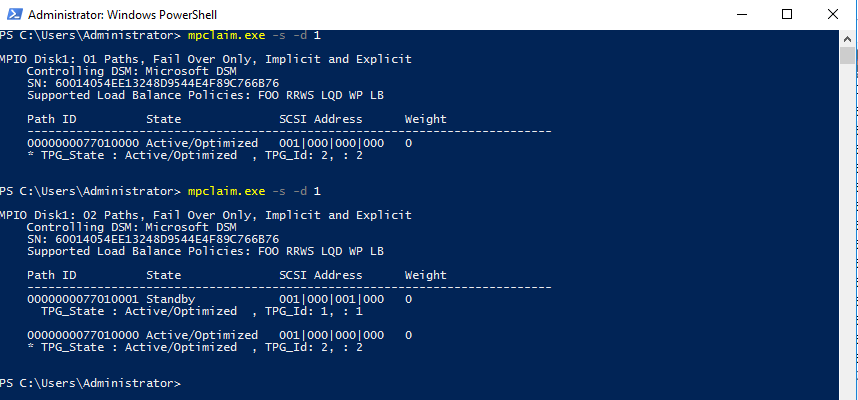
Tuning:
Consider using the following registry settings:
Windows Disk Timeout
Key
HKEY_LOCAL_MACHINE\System\CurrentControlSet\Services\DiskValue
TimeOutValue = 65Microsoft iSCSI Initiator Driver
Key
HKEY_LOCAL_MACHINE\\SYSTEM\CurrentControlSet\Control\Class\{4D36E97B-E325-11CE-BFC1-08002BE10318}\<Instance_Number>\ParametersValues
LinkDownTime = 25
SRBTimeoutDelta = 15
8.4.4. The iSCSI Initiator for VMware ESX vSphere Web Client
Prerequisite:
- VMware ESX 6.5 or later using Virtual Machine compatibility 6.5 with VMFS 6
- Access to the vSphere Web Client
-
Root access to VMware ESX host to execute the
esxclicommand
iSCSI Discovery and Multipath Device Setup:
Disable
HardwareAcceleratedMove(XCOPY):# esxcli system settings advanced set --int-value 0 --option /DataMover/HardwareAcceleratedMoveEnable the iSCSI software. From Navigator pane, click on Storage
. Select the Adapters tab
. Click on Confgure iSCSI
:
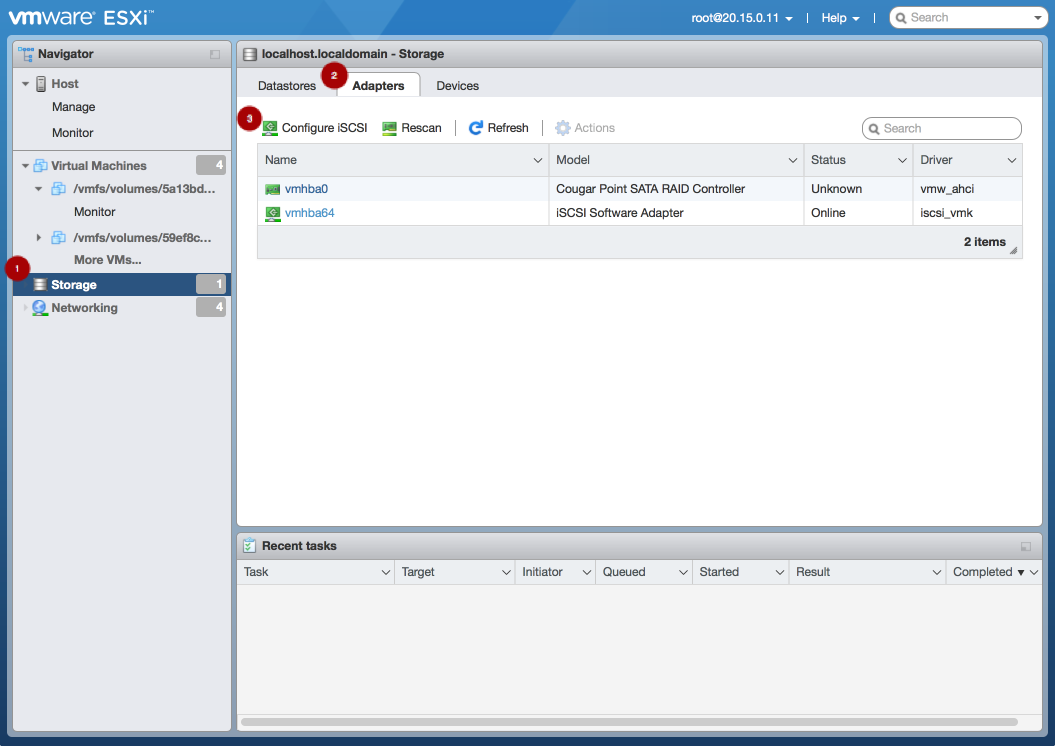
Verify the initiator name in the Name & alias section
.
 Note
NoteIf the initiator name is different than the initiator name used when creating the client during the initial setup using
gwclior if the initiator name used in the Ansibleclient_connections:clientvariable is different, then follow this procedure to change the initiator name. From the VMware ESX host, run theseesxclicommands.Get the adapter name for the iSCSI software:
> esxcli iscsi adapter list
> Adapter  Driver     State   UID            Description
> -------  ---------  ------  -------------  ----------------------
> vmhba64  iscsi_vmk  online  iscsi.vmhba64  iSCSI Software Adapter
Set the initiator name:
Syntax
> esxcli iscsi adapter set -A <adaptor_name> -n <initiator_name>Example
> esxcli iscsi adapter set -A vmhba64 -n iqn.1994-05.com.redhat:rh7-client
Configure CHAP. Expand the CHAP authentication section
. Select “Do not use CHAP unless required by target”
. Enter the CHAP Name and Secret
credentials that were used in the initial setup, whether using the gwcli authcommand or the Ansibleclient_connections:credentialsvariable. Verify the Mutual CHAP authentication section
has “Do not use CHAP” selected.
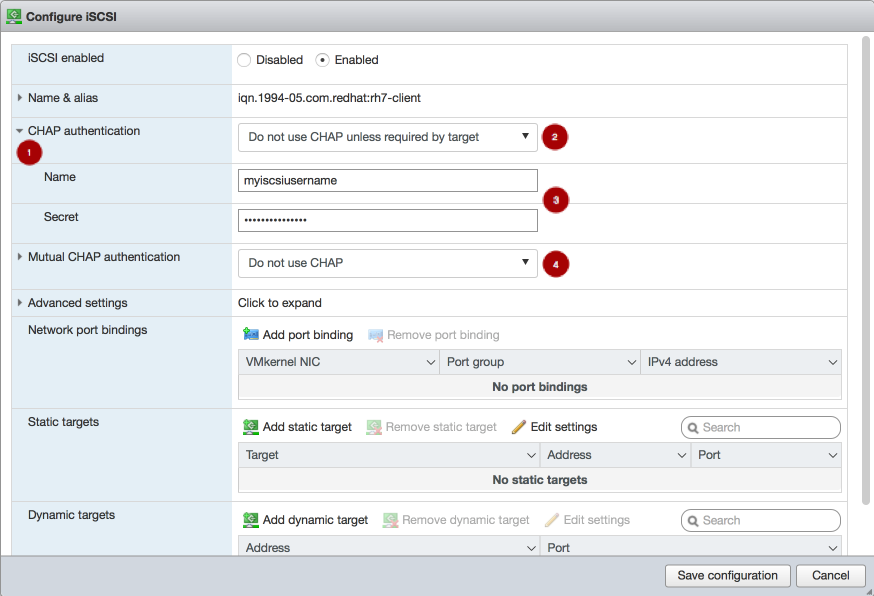 Warning
There is a bug in the vSphere Web Client where the CHAP settings are not used initially. On the Ceph iSCSI gateway node, in kernel logs, you will see the following errors as an indication of this bug:
> kernel: CHAP user or password not set for Initiator ACL
> kernel: Security negotiation failed.
> kernel: iSCSI Login negotiation failed.
To workaround this bug, configure the CHAP settings using the
esxclicommand. Theauthnameargument is the Name in the vSphere Web Client:> esxcli iscsi adapter auth chap set --direction=uni --authname=myiscsiusername --secret=myiscsipassword --level=discouraged -A vmhba64Configure the iSCSI settings. Expand Advanced settings
. Set the RecoveryTimeout value to 25
.

Set the discovery address. In the Dynamic targets section
, click Add dynamic target
. Under Address
add an IP addresses for one of the Ceph iSCSI gateways. Only one IP address needs to be added. Finally, click the Save configuration button
. From the main interface, on the Devices tab, you will see the RBD image.
 Note
NoteConfiguring the LUN will be done automatically, using the ALUA SATP and MRU PSP. Other SATPs and PSPs must not be used. This can be verified with the
esxclicommand:esxcli storage nmp path list -d eui.$DEVICE_IDReplace
$DEVICE_IDwith the appropriate device identifier.Verify that multipathing has been setup correctly.
List the devices:
Example
# esxcli storage nmp device list | grep iSCSI
   Device Display Name: LIO-ORG iSCSI Disk (naa.6001405f8d087846e7b4f0e9e3acd44b)
   Device Display Name: LIO-ORG iSCSI Disk (naa.6001405057360ba9b4c434daa3c6770c)
Get the multipath information for the Ceph iSCSI disk from the previous step:
Example
# esxcli storage nmp path list -d naa.6001405f8d087846e7b4f0e9e3acd44b

iqn.2005-03.com.ceph:esx1-00023d000001,iqn.2003-01.com.redhat.iscsi-gw:iscsi-igw,t,1-naa.6001405f8d087846e7b4f0e9e3acd44b
   Runtime Name: vmhba64:C0:T0:L0
   Device: naa.6001405f8d087846e7b4f0e9e3acd44b
   Device Display Name: LIO-ORG iSCSI Disk (naa.6001405f8d087846e7b4f0e9e3acd44b)
   Group State: active
   Array Priority: 0
   Storage Array Type Path Config: {TPG_id=1,TPG_state=AO,RTP_id=1,RTP_health=UP}
   Path Selection Policy Path Config: {current path; rank: 0}

iqn.2005-03.com.ceph:esx1-00023d000002,iqn.2003-01.com.redhat.iscsi-gw:iscsi-igw,t,2-naa.6001405f8d087846e7b4f0e9e3acd44b
   Runtime Name: vmhba64:C1:T0:L0
   Device: naa.6001405f8d087846e7b4f0e9e3acd44b
   Device Display Name: LIO-ORG iSCSI Disk (naa.6001405f8d087846e7b4f0e9e3acd44b)
   Group State: active unoptimized
   Array Priority: 0
   Storage Array Type Path Config: {TPG_id=2,TPG_state=ANO,RTP_id=2,RTP_health=UP}
   Path Selection Policy Path Config: {non-current path; rank: 0}
From the example output, each path has an iSCSI/SCSI name with the following parts:
Initiator name =
iqn.2005-03.com.ceph:esx1ISID =00023d000002Target name =iqn.2003-01.com.redhat.iscsi-gw:iscsi-igwTarget port group =2Device id =naa.6001405f8d087846e7b4f0e9e3acd44bThe
Group Statevalue ofactiveindicates this is the Active-Optimized path to the iSCSI gateway. Thegwclicommand lists theactiveas the iSCSI gateway owner. The rest of the paths will have theGroup Statevalue ofunoptimizedand will be the failover path, if theactivepath goes into adeadstate.
To match all paths to their respective iSCSI gateways, run the following command:
# esxcli iscsi session connection listExample output
vmhba64,iqn.2003-01.com.redhat.iscsi-gw:iscsi-igw,00023d000001,0
   Adapter: vmhba64
   Target: iqn.2003-01.com.redhat.iscsi-gw:iscsi-igw
   ISID: 00023d000001
   CID: 0
   DataDigest: NONE
   HeaderDigest: NONE
   IFMarker: false
   IFMarkerInterval: 0
   MaxRecvDataSegmentLength: 131072
   MaxTransmitDataSegmentLength: 262144
   OFMarker: false
   OFMarkerInterval: 0
   ConnectionAddress: 10.172.19.21
   RemoteAddress: 10.172.19.21
   LocalAddress: 10.172.19.11
   SessionCreateTime: 08/16/18 04:20:06
   ConnectionCreateTime: 08/16/18 04:20:06
   ConnectionStartTime: 08/16/18 04:30:45
   State: logged_in

vmhba64,iqn.2003-01.com.redhat.iscsi-gw:iscsi-igw,00023d000002,0
   Adapter: vmhba64
   Target: iqn.2003-01.com.redhat.iscsi-gw:iscsi-igw
   ISID: 00023d000002
   CID: 0
   DataDigest: NONE
   HeaderDigest: NONE
   IFMarker: false
   IFMarkerInterval: 0
   MaxRecvDataSegmentLength: 131072
   MaxTransmitDataSegmentLength: 262144
   OFMarker: false
   OFMarkerInterval: 0
   ConnectionAddress: 10.172.19.22
   RemoteAddress: 10.172.19.22
   LocalAddress: 10.172.19.12
   SessionCreateTime: 08/16/18 04:20:06
   ConnectionCreateTime: 08/16/18 04:20:06
   ConnectionStartTime: 08/16/18 04:30:41
   State: logged_in
Match the path name with the
ISIDvalue, and theRemoteAddressvalue is the IP address of the owning iSCSI gateway.
8.5. Upgrading the Ceph iSCSI gateway using Ansible
Upgrading the Red Hat Ceph Storage iSCSI gateways can be done by using an Ansible playbook designed for rolling upgrades.
Prerequisites
- A running Ceph iSCSI gateway.
- A running Red Hat Ceph Storage cluster.
Procedure
-
Verify the correct iSCSI gateway nodes are listed in the Ansible inventory file (
/etc/ansible/hosts). Run the rolling upgrade playbook:
[admin@ansible ~]$ ansible-playbook rolling_update.ymlRun the site playbook to finish the upgrade:
[admin@ansible ~]$ ansible-playbook site.yml --limit iscsigws
8.6. Upgrading the Ceph iSCSI gateway using the command-line interface
Upgrading the Red Hat Ceph Storage iSCSI gateways can be done in a rolling fashion, by upgrading one iSCSI gateway node at a time.
Do not upgrade the iSCSI gateway while upgrading and restarting Ceph OSDs. Wait until the OSD upgrades are finished and the storage cluster is in an active+clean state.
Prerequisites
- A running Ceph iSCSI gateway.
- A running Red Hat Ceph Storage cluster.
-
Having
rootaccess to the iSCSI gateway node.
Procedure
Update the iSCSI gateway packages:
[root@igw ~]# yum update ceph-iscsi-config ceph-iscsi-cliStop the iSCSI gateway daemons:
[root@igw ~]# systemctl stop rbd-target-api
[root@igw ~]# systemctl stop rbd-target-gw
Verify that the iSCSI gateway daemons stopped cleanly:
[root@igw ~]# systemctl status rbd-target-gw-
If the
rbd-target-gwservice successfully stops, then skip to step 4. If the
rbd-target-gwservice fails to stop, then do the following steps:If the
targetclipackage is not install, then install thetargetclipackage:[root@igw ~]# yum install targetcliCheck for existing target objects:
[root@igw ~]# targetlci lsExample output
o- / ............................................................. [...]
o- backstores .................................................... [...]
| o- user:rbd ..................................... [Storage Objects: 0]
o- iscsi .................................................. [Targets: 0]
If the
backstoresandStorage Objectsare empty, then the iSCSI target has been shutdown cleanly and you can skip to step 4.If you have still have target objects, then run the following command to force remove all target objects:
[root@igw ~]# targetlci clearconfig confirm=TrueWarningIf multiple services are using the iSCSI target, then run
targetcliin interactive mode to delete those specific objects.
-
If the
Update the
tcmu-runnerpackage:[root@igw ~]# yum update tcmu-runnerStop the
tcmu-runnerservice:[root@igw ~]# systemctl stop tcmu-runnerRestart the all the iSCSI gateway service in this order:
[root@igw ~]# systemctl start tcmu-runner
[root@igw ~]# systemctl start rbd-target-gw
[root@igw ~]# systemctl start rbd-target-api
8.7. Monitoring the iSCSI gateways
Red Hat provides an additional tool for Ceph iSCSI gateway environments to monitor performance of exported RADOS Block Device (RBD) images.
The gwtop tool is a top-like tool that displays aggregated performance metrics of RBD images that are exported to clients over iSCSI. The metrics are sourced from a Performance Metrics Domain Agent (PMDA). Information from the Linux-IO target (LIO) PMDA is used to list each exported RBD image with the connected client and its associated I/O metrics.
Requirements:
- A running Ceph iSCSI gateway
Installing:
Do the following steps on the iSCSI gateway nodes, as the root user.
Enable the Ceph tools repository:
# subscription-manager repos --enable=rhel-7-server-rhceph-3-tools-rpmsInstall the
ceph-iscsi-toolspackage:# yum install ceph-iscsi-toolsInstall the performance co-pilot package:
# yum install pcpNoteFor more details on performance co-pilot, see the Red Hat Enterprise Linux Performance Tuning Guide.
Install the LIO PMDA package:
# yum install pcp-pmda-lioEnable and start the performance co-pilot service:
# systemctl enable pmcd
# systemctl start pmcd
Register the
pcp-pmda-lioagent:cd /var/lib/pcp/pmdas/lio ./Install
By default, gwtop assumes the iSCSI gateway configuration object is stored in a RADOS object called gateway.conf in the rbd pool. This configuration defines the iSCSI gateways to contact for gathering the performance statistics. This can be overridden by using either the -g or -c flags. See gwtop --help for more details.
The LIO configuration determines which type of performance statistics to extract from performance co-pilot. When gwtop starts it looks at the LIO configuration, and if it find user-space disks, then gwtop selects the LIO collector automatically.
Example gwtop Outputs:
For user backed storage (TCMU) devices:
gwtop  2/2 Gateways   CPU% MIN:  4 MAX:  5    Network Total In:    2M  Out:    3M   10:20:00
Capacity:   8G    Disks:   8   IOPS:  503   Clients:  1   Ceph: HEALTH_OK          OSDs:   3
Pool.Image       Src    Size     iops     rMB/s     wMB/s   Client
iscsi.t1703             500M        0      0.00      0.00
iscsi.testme1           500M        0      0.00      0.00
iscsi.testme2           500M        0      0.00      0.00
iscsi.testme3           500M        0      0.00      0.00
iscsi.testme5           500M        0      0.00      0.00
rbd.myhost_1      T       4G      504      1.95      0.00   rh460p(CON)
rbd.test_2                1G        0      0.00      0.00
rbd.testme              500M        0      0.00      0.00
In the Client column, (CON) means the iSCSI initiator (client) is currently logged into the iSCSI gateway. If -multi- is displayed, then multiple clients are mapped to the single RBD image.
SCSI persistent reservations are not supported. Mapping multiple iSCSI initiators to an RBD image is supported, if using a cluster aware file system or clustering software that does not rely on SCSI persistent reservations. For example, VMware vSphere environments using ATS is supported, but using Microsoft’s clustering server (MSCS) is not supported.
Appendix A. Sample iscsigws.yml File
# Variables here are applicable to all host groups NOT roles

# This sample file generated by generate_group_vars_sample.sh

# Dummy variable to avoid error because ansible does not recognize the
# file as a good configuration file when no variable in it.
dummy:

# You can override vars by using host or group vars

###########
# GENERAL #
###########
# Specify the iqn for ALL gateways. This iqn is shared across the gateways, so an iscsi
# client sees the gateway group as a single storage subsystem.
#gateway_iqn: "iqn.2003-01.com.redhat.iscsi-gw:ceph-igw"

# gateway_ip_list provides a list of the IP Addrresses - one per gateway - that will be used
# as an iscsi target portal ip. The list must be comma separated - and the order determines
# the sequence of TPG's within the iscsi target across each gateway. Once set, additional
# gateways can be added, but the order must *not* be changed.
#gateway_ip_list: 0.0.0.0

# rbd_devices defines the images that should be created and exported from the iscsi gateways.
# If the rbd does not exist, it will be created for you. In addition you may increase the
# size of rbd's by changing the size parameter and rerunning the playbook. A size value lower
# than the current size of the rbd is ignored.
#
# the 'host' parameter defines which of the gateway nodes should handle the physical
# allocation/expansion or removal of the rbd
# to remove an image, simply use a state of 'absent'. This will first check the rbd is not allocated
# to any client, and the remove it from LIO and then delete the rbd image
#
# NB. this variable definition can be commented out to bypass LUN management
#
# Example:
#
#rbd_devices:
#  - { pool: 'rbd', image: 'ansible1', size: '30G', host: 'ceph-1', state: 'present' }
#  - { pool: 'rbd', image: 'ansible2', size: '15G', host: 'ceph-1', state: 'present' }
#  - { pool: 'rbd', image: 'ansible3', size: '30G', host: 'ceph-1', state: 'present' }
#  - { pool: 'rbd', image: 'ansible4', size: '50G', host: 'ceph-1', state: 'present' }
#rbd_devices: {}

# client_connections defines the client ACL's to restrict client access to specific LUNs
# The settings are as follows;
# - image_list is a comma separated list of rbd images of the form <pool name>.<rbd_image_name>
# - chap supplies the user and password the client will use for authentication of the
#   form <user>/<password>
# - status shows the intended state of this client definition - 'present' or 'absent'
#
# NB. this definition can be commented out to skip client (nodeACL) management
#
# Example:
#
#client_connections:
#  - { client: 'iqn.1994-05.com.redhat:rh7-iscsi-client', image_list: 'rbd.ansible1,rbd.ansible2', chap: 'rh7-iscsi-client/redhat', status: 'present' }
#  - { client: 'iqn.1991-05.com.microsoft:w2k12r2', image_list: 'rbd.ansible4', chap: 'w2k12r2/microsoft_w2k12', status: 'absent' }

#client_connections: {}


# Whether or not to generate secure certificate to iSCSI gateway nodes
#generate_crt: False


##################
# RBD-TARGET-API #
##################
# Optional settings related to the CLI/API service
#api_user: admin
#api_password: admin
#api_port: 5000
#api_secure: false
#loop_delay: 1
#trusted_ip_list: 192.168.122.1


##########
# DOCKER #
##########

# Resource limitation
# For the whole list of limits you can apply see: docs.docker.com/engine/admin/resource_constraints
# Default values are based from: https://access.redhat.com/documentation/en-us/red_hat_ceph_storage/2/html/red_hat_ceph_storage_hardware_guide/minimum_recommendations
# These options can be passed using the 'ceph_mds_docker_extra_env' variable.

# TCMU_RUNNER resource limitation
#ceph_tcmu_runner_docker_memory_limit: 1g
#ceph_tcmu_runner_docker_cpu_limit: 1

# RBD_TARGET_GW resource limitation
#ceph_rbd_target_gw_docker_memory_limit: 1g
#ceph_rbd_target_gw_docker_cpu_limit: 1

# RBD_TARGET_API resource limitation
#ceph_rbd_target_api_docker_memory_limit: 1g
#ceph_rbd_target_api_docker_cpu_limit: 1
'%20d='M201.5%20305.5c-13.8%200-24.9-11.1-24.9-24.6%200-13.8%2011.1-24.9%2024.9-24.9%2013.6%200%2024.6%2011.1%2024.6%2024.9%200%2013.6-11.1%2024.6-24.6%2024.6zM504%20256c0%20137-111%20248-248%20248S8%20393%208%20256%20119%208%20256%208s248%20111%20248%20248zm-132.3-41.2c-9.4%200-17.7%203.9-23.8%2010-22.4-15.5-52.6-25.5-86.1-26.6l17.4-78.3%2055.4%2012.5c0%2013.6%2011.1%2024.6%2024.6%2024.6%2013.8%200%2024.9-11.3%2024.9-24.9s-11.1-24.9-24.9-24.9c-9.7%200-18%205.8-22.1%2013.8l-61.2-13.6c-3-.8-6.1%201.4-6.9%204.4l-19.1%2086.4c-33.2%201.4-63.1%2011.3-85.5%2026.8-6.1-6.4-14.7-10.2-24.1-10.2-34.9%200-46.3%2046.9-14.4%2062.8-1.1%205-1.7%2010.2-1.7%2015.5%200%2052.6%2059.2%2095.2%20132%2095.2%2073.1%200%20132.3-42.6%20132.3-95.2%200-5.3-.6-10.8-1.9-15.8%2031.3-16%2019.8-62.5-14.9-62.5zM302.8%20331c-18.2%2018.2-76.1%2017.9-93.6%200-2.2-2.2-6.1-2.2-8.3%200-2.5%202.5-2.5%206.4%200%208.6%2022.8%2022.8%2087.3%2022.8%20110.2%200%202.5-2.2%202.5-6.1%200-8.6-2.2-2.2-6.1-2.2-8.3%200zm7.7-75c-13.6%200-24.6%2011.1-24.6%2024.9%200%2013.6%2011.1%2024.6%2024.6%2024.6%2013.8%200%2024.9-11.1%2024.9-24.6%200-13.8-11-24.9-24.9-24.9z'/%3e%3c/svg%3e)