 Red Hat Summit
Administration Guide
Updated for Red Hat Certificate System 9.7
Abstract
Chapter 1. Overview of Red Hat Certificate System Subsystems
1.1. Uses for Certificates
1.2. A Review of Certificate System Subsystems
Enterprise Security Client
1.3. A Look at Managing Certificates (Non-TMS)
1.4. A Look at the Token Management System (TMS)
Part I. Red Hat Certificate System User Interfaces
Chapter 2. User Interfaces
2.1. User Interfaces Overview
- The PKI command-line interface and other command-line utilities
- The PKI Console graphical interface
- The Certificate System web interface.
~/.dogtag/nssdb/ directory. Section 2.5.1.1, “pki CLI Initialization” provides detailed steps for initializing the NSS database with the administrator's certificate and key. Some examples of using the PKI command-line utility are described in Section 2.5.1.2, “Using "pki" CLI”. Additional examples are shown through the rest of the guide.
PKCS10Client”.
pkiconsole Initialization” describes how to initialize it. Section 2.3.2, “Using pkiconsole for CA, OCSP, KRA, and TKS Subsystems” gives an overview of using the console interface. Later sections, such as Section 3.2.2, “Managing Certificate Enrollment Profiles Using the Java-based Administration Console” go into greater detail for specific operations.
Note
2.2. Client NSS Database Initialization
- Prepare an NSS database for the client. This can be a new database or an existing one.
- Import the CA certificate chain and trust them.
- Have a certificate and corresponding key. They can be generated in the NSS database or imported from somewhere else, such as from a PKCS #12 file.
2.3. Graphical Interface
pkiconsole is a graphical interface that is designed for users with the Administrator role privilege to manage the subsystem itself. This includes adding users, configuring logs, managing profiles and plug-ins, and the internal database, among many other functions. This utility communicates with the Certificate System server via TLS using client-authentication and can be used to manage the server remotely.
2.3.1. pkiconsole Initialization
pkiconsole interface for the first time, specify a new password and use the following command:
pki -c password -d ~/.redhat-idm-console client-init
$ pki -c password -d ~/.redhat-idm-console client-init~/.redhat-idm-console/ directory.
.p12 file:
openssl pkcs12 -in file -clcerts -nodes -nokeys -out file.crt
$ openssl pkcs12 -in file -clcerts -nodes -nokeys -out file.crtPKICertImport -d ~/.redhat-idm-console -n "nickname" -t ",," -a -i file.crt -u C
$ PKICertImport -d ~/.redhat-idm-console -n "nickname" -t ",," -a -i file.crt -u CImportant
pki -c password -d ~/.redhat-idm-console pkcs12-import --pkcs12-file file --pkcs12-password pkcs12-password
$ pki -c password -d ~/.redhat-idm-console pkcs12-import --pkcs12-file file --pkcs12-password pkcs12-passwordcertutil -V -u C -n "nickname" -d ~/.redhat-idm-console
$ certutil -V -u C -n "nickname" -d ~/.redhat-idm-console2.3.2. Using pkiconsole for CA, OCSP, KRA, and TKS Subsystems
pkiconsole utility. It can access any subsystem because the command requires the host name, the subsystem's administrative TLS port, and the specific subsystem type.
pkiconsole https://server.example.com:admin_port/subsystem_type
pkiconsole https://server.example.com:admin_port/subsystem_typehttps://192.0.2.1:8443/ca https://[2001:DB8::1111]:8443/ca
https://192.0.2.1:8443/ca
https://[2001:DB8::1111]:8443/ca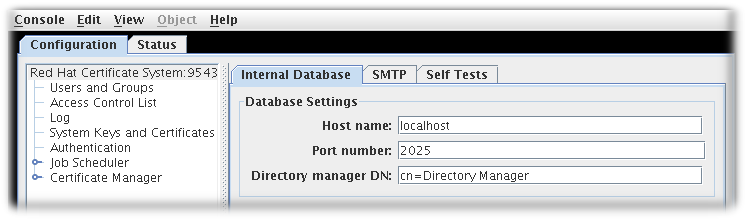
Figure 2.1. Certificate System Console
- Users and groups
- Access control lists
- Log configuration
- Subsystem certificates (meaning the certificates issued to the subsystem for use, for example, in the security domain or audit signing)
2.4. Web Interface
2.4.1. Browser Initialization
Importing a CA Certificate
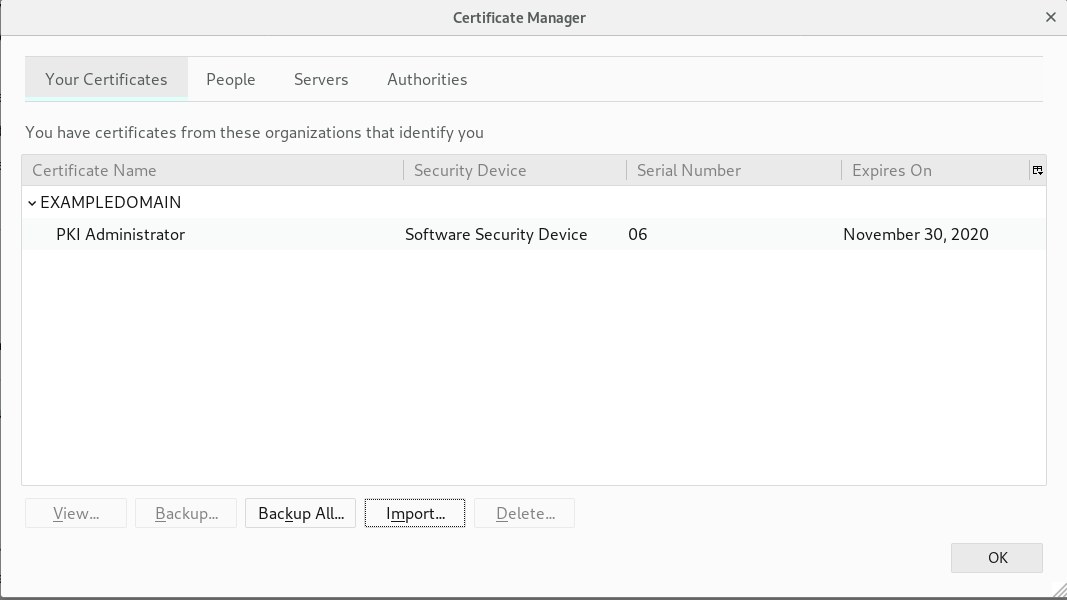
- Click → → → .

- Select the Authorities tab and click the button.

- Select the
ca.crtfile and click .
Importing a Client Certificate
- Click → → → .
- Select the Your Certificates tab.

- Click on and select the client p12 file, such as
ca_admin_cert.p12. - Enter the password for the client certificate on the prompt.

- Click .
- Verify that an entry is added under Your Certificates.
Accessing the Web Console
https://host_name:port in your browser.
2.4.2. The Administrative Interfaces
Note
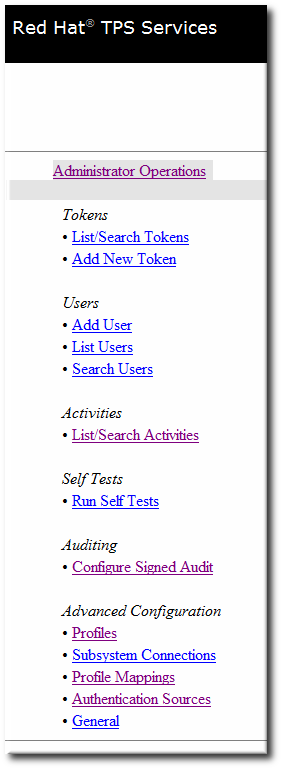
Figure 2.2. TPS Admin Page
2.4.3. Agent Interfaces
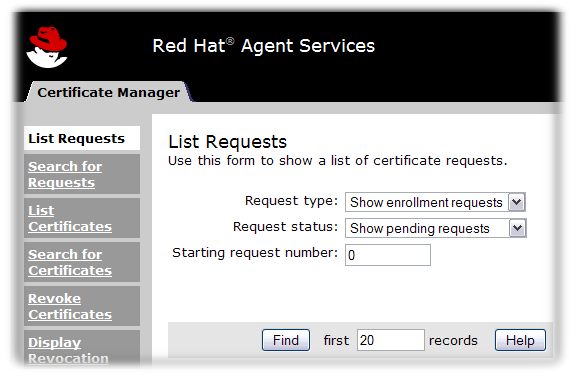
Figure 2.3. Certificate Manager's Agent Services Page
- The Certificate Manager agent services include approving certificate requests (which issues the certificates), revoking certificates, and publishing certificates and CRLs. All certificates issued by the CA can be managed through its agent services page.
- The TPS agent services, like the CA agent services, manages all of the tokens which have been formatted and have had certificates issued to them through the TPS. Tokens can be enrolled, suspended, and deleted by agents. Two other roles (operator and admin) can view tokens in web services pages, but cannot perform any actions on the tokens.
- KRA agent services pages process key recovery requests, which set whether to allow a certificate to be issued reusing an existing key pair if the certificate is lost.
- The OCSP agent services page allows agents to configure CAs which publish CRLs to the OCSP, to load CRLs to the OCSP manually, and to view the state of client OCSP requests.
2.4.4. End User Pages
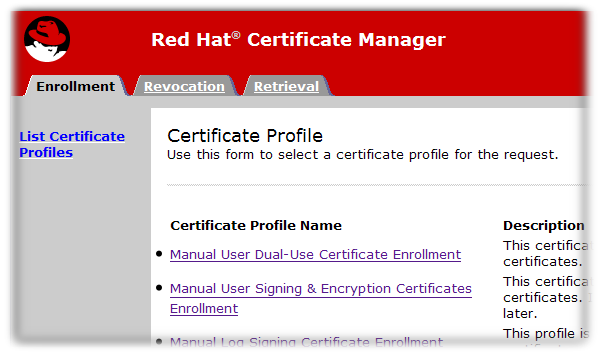
Figure 2.4. Certificate Manager's End-Entities Page
2.5. Command Line Interfaces
2.5.1. "pki" CLI
pki command-line interface (CLI) provides access to various services on the server using the REST interface (see the REST Interface section in the Red Hat Certificate System Planning, Installation, and Deployment Guide. The CLI can be invoked as follows:
pki [CLI options] <command> [command parameters]
$ pki [CLI options] <command> [command parameters]2.5.1.1. pki CLI Initialization
pki -c <password> client-init
$ pki -c <password> client-init~/.dogtag/nssdb directory. The password must be specified in all CLI operations that uses the client NSS database. Alternatively, if the password is stored in a file, you can specify the file using the -C option. For example:
pki -C password_file client-init
$ pki -C password_file client-init.p12 file:
openssl pkcs12 -in file -clcerts -nodes -nokeys -out file.crt
$ openssl pkcs12 -in file -clcerts -nodes -nokeys -out file.crtPKICertImport -d ~/.dogtag/nssdb -n "nickname" -t ",," -a -i file.crt -u C
$ PKICertImport -d ~/.dogtag/nssdb -n "nickname" -t ",," -a -i file.crt -u CImportant
pki -c <password> pkcs12-import --pkcs12-file <file> --pkcs12-password <password>
$ pki -c <password> pkcs12-import --pkcs12-file <file> --pkcs12-password <password>certutil -V -u C -n "nickname" -d ~/.dogtag/nssdb
certutil -V -u C -n "nickname" -d ~/.dogtag/nssdb2.5.1.2. Using "pki" CLI
pki command without any additional commands or parameters:
pki
$ pkipki with the command name and no additional options. For example:
pki ca
$ pki capki ca-cert
$ pki ca-cert--help option:
pki --help
$ pki --helppki ca-cert-find --help
$ pki ca-cert-find --helphelp command:
pki help
$ pki helppki help ca-cert-find
$ pki help ca-cert-findpki ca-cert-find
$ pki ca-cert-findpki -U <server URL> -n <nickname> -c <password> <command> [command parameters]
$ pki -U <server URL> -n <nickname> -c <password> <command> [command parameters]pki -n jsmith -c password ca-user-find ...
$ pki -n jsmith -c password ca-user-find ...http://local_host_name:8080. To communicate with a server at a different location, specify the URL with the -U option, for example:
pki -U https://server.example.com:8443 -n jsmith -c password ca-user-find
$ pki -U https://server.example.com:8443 -n jsmith -c password ca-user-find2.5.2. AtoB
AtoB input.ascii output.bin
$ AtoB input.ascii output.bin2.5.3. AuditVerify
AuditVerify -d ~jsmith/auditVerifyDir -n Log Signing Certificate -a ~jsmith/auditVerifyDir/logListFile -P "" -v
$ AuditVerify -d ~jsmith/auditVerifyDir -n Log Signing Certificate -a ~jsmith/auditVerifyDir/logListFile -P "" -vLog Signing Certificate (-n) in the ~jsmith/auditVerifyDir NSS database (-d). The list of logs to verify (-a) are in the ~jsmith/auditVerifyDir/logListFile file, comma-separated and ordered chronologically. The prefix (-P) to prepend to the certificate and key database file names is empty. The output is verbose (-v).
2.5.4. BtoA
BtoA input.bin output.ascii
$ BtoA input.bin output.ascii2.5.5. CMCRequest
CMCRequest example.cfg
$ CMCRequest example.cfgNote
CMCRequest utility are specified as part of the configuration filed passed to the utility. See the CMCRequest(1) man page for configuration file options and further information. Also see 4.3. Requesting and Receiving Certificates Using CMC and Section 7.2.1, “Revoking a Certificate Using CMCRequest”.
2.5.6. CMCRevoke
2.5.8. CRMFPopClient
CRMFPopClient utility is Certificate Request Message Format (CRMF) client using NSS databases and supplying Proof of Possession.
CRMFPopClient -d . -p password -n "cn=subject_name" -q POP_SUCCESS -b kra.transport -w "AES/CBC/PKCS5Padding" -t false -v -o /user_or_entity_database_directory/example.csr
$ CRMFPopClient -d . -p password -n "cn=subject_name" -q POP_SUCCESS -b kra.transport -w "AES/CBC/PKCS5Padding" -t false -v -o /user_or_entity_database_directory/example.csrcn=subject_name subject DN (-n), NSS database in the current directory (-d), certificate to use for transport kra.transport (-b), the AES/CBC/PKCS5Padding key wrap algorithm verbose output is specified (-v) and the resulting CSR is written to the /user_or_entity_database_directory/example.csr file (-o).
CRMFPopClient --help command and also Section 7.2.1, “Revoking a Certificate Using CMCRequest”.
2.5.9. HttpClient
HttpClient utility is an NSS-aware HTTP client for submitting CMC requests.
HttpClient request.cfg
$ HttpClient request.cfgNote
HttpClient utility are stored in the request.cfg file. For further information, see the output of the HttpClient --help command.
2.5.10. OCSPClient
OCSPClient -h server.example.com -p 8080 -d /etc/pki/pki-tomcat/alias -c "caSigningCert cert-pki-ca" --serial 2
$ OCSPClient -h server.example.com -p 8080 -d /etc/pki/pki-tomcat/alias -c "caSigningCert cert-pki-ca" --serial 2server.example.com OCSP server (-h) on port 8080 (-p) to check whether the certificate signed by caSigningcet cert-pki-ca (-c) with serial number 2 (--serial) is valid. The NSS database in the /etc/pki/pki-tomcat/alias directory is used.
OCSPClient --help command.
2.5.11. PKCS10Client
PKCS10Client utility creates a CSR in PKCS10 format for RSA and EC keys, optionally on an HSM.
PKCS10Client -d /etc/dirsrv/slapd-instance_name/ -p password -a rsa -l 2048 -o ~/ds.csr -n "CN=$HOSTNAME"
$ PKCS10Client -d /etc/dirsrv/slapd-instance_name/ -p password -a rsa -l 2048 -o ~/ds.csr -n "CN=$HOSTNAME"-a) key with 2048 bits (-l) in the /etc/dirsrv/slapd-instance_name/ directory (-d with database password password (-p). The output CSR is stored in the ~/ds.cfg file (-o) and the certificate DN is CN=$HOSTNAME (-n).
2.5.12. PrettyPrintCert
PrettyPrintCert ascii_data.cert
$ PrettyPrintCert ascii_data.certascii_data.cert file and displays its contents in human readable format. The output includes information like signature algorithm, exponent, modulus, and certificate extensions.
2.5.13. PrettyPrintCrl
PrettyPrintCrl ascii_data.crl
$ PrettyPrintCrl ascii_data.crlascii_data.crl and displays its contents in human readable format. The output includes information, such as revocation signature algorithm, the issuer of the revocation, and a list of revoked certificates and their reason.
2.5.14. TokenInfo
TokenInfo ./nssdb/
$ TokenInfo ./nssdb/TokenInfo command
2.5.15. tkstool
tkstool utility is interacting with the token Key Service (TKS) subsystem.
tkstool -M -n new_master -d /var/lib/pki/pki-tomcat/alias -h token_name
$ tkstool -M -n new_master -d /var/lib/pki/pki-tomcat/alias -h token_name-M) named new_master (-n) in the /var/lib/pki/pki-tomcat/alias NSS database on the HSM token_name
tkstool -H command.
2.6. Enterprise Security Client
- Supports JavaCard 2.1 or higher cards and Global Platform 2.01-compliant smart cards like Safenet's 330J smart card.
- Supports Gemalto TOP IM FIPS CY2 tokens, both the smart card and GemPCKey USB form factor key.
- Supports SafeNet Smart Card 650 (SC650).
- Enrolls security tokens so they are recognized by TPS.
- Maintains the security token, such as re-enrolling a token with TPS.
- Provides information about the current status of the token or tokens being managed.
- Supports server-side key generation so that keys can be archived and recovered on a separate token if a token is lost.
- Allows the user to enroll security tokens so they are recognized by the TPS.
- Allows the user to maintain the security token. For example, Enterprise Security Client makes it possible to re-enroll a token with the TPS.
- Provides support for several different kinds of tokens through default and custom token profiles. By default, the TPS can automatically enroll user keys, device keys, and security officer keys; additional profiles can be added so that tokens for different uses (recognized by attributes such as the token CUID) can automatically be enrolled according to the appropriate profile.
- Provides information about the current status of the tokens being managed.
Part II. Setting up Certificate Services
Chapter 3. Making Rules for Issuing Certificates (Certificate Profiles)
3.1. About Certificate Profiles
- Authentication. In every certification profile can be specified an authentication method.
- Authorization. In every certification profile can be specified an authorization method.
- Profile inputs. Profile inputs are parameters and values that are submitted to the CA when a certificate is requested. Profile inputs include public keys for the certificate request and the certificate subject name requested by the end entity for the certificate.
- Profile outputs. Profile outputs are parameters and values that specify the format in which to provide the certificate to the end entity. Profile outputs are CMC responses which contain a PKCS#7 certificate chain, when the request was successful.
- Certificate content. Each certificate defines content information, such as the name of the entity to which it is assigned (the subject name), its signing algorithm, and its validity period. What is included in a certificate is defined in the X.509 standard. With version 3 of the X509 standard, certificates can also contain extensions. For more information about certificate extensions, see Section B.3, “Standard X.509 v3 Certificate Extension Reference”.All of the information about a certificate profile is defined in the
setentry of the profile policy in the profile's configuration file. When multiple certificates are expected to be requested at the same time, multiple set entries can be defined in the profile policy to satisfy needs of each certificate. Each policy set consists of a number of policy rules and each policy rule describes a field in the certificate content. A policy rule can include the following parts:- Profile defaults. These are predefined parameters and allowed values for information contained within the certificate. Profile defaults include the validity period of the certificate, and what certificate extensions appear for each type of certificate issued.
- Profile constraints. Constraints set rules or policies for issuing certificates. Amongst other, profile constraints include rules to require the certificate subject name to have at least one CN component, to set the validity of a certificate to a maximum of 360 days, to define the allowed grace period for renewal, or to require that the
subjectaltnameextension is always set totrue.
3.1.1. The Enrollment Profile
caUserCert profile in Example 3.1, “Example caCMCUserCert Profile”.
Example 3.1. Example caCMCUserCert Profile
desc=This certificate profile is for enrolling user certificates by using the CMC certificate request with CMC Signature authentication. visible=true enable=true enableBy=admin name=Signed CMC-Authenticated User Certificate Enrollment
desc=This certificate profile is for enrolling user certificates by using the CMC certificate request with CMC Signature authentication.
visible=true
enable=true
enableBy=admin
name=Signed CMC-Authenticated User Certificate EnrollmentNote
auth.instance_id= entry in this profile means that with this profile, authentication is not needed to submit the enrollment request. However, manual approval by an authorized CA agent will be required to get an issuance.
input.list=i1 input.i1.class_id=cmcCertReqInputImp
input.list=i1
input.i1.class_id=cmcCertReqInputImpcaCMCUserCert profile, this defines the certificate request type, which is CMC.
certOutputImpl, which results in CMC response to be returned to the requestor in case of success.
output.list=o1 output.o1.class_id=certOutputImpl
output.list=o1
output.o1.class_id=certOutputImplpolicyset.list parameter identifies the block name of the policies that apply to one certificate; the policyset.userCertSet.list lists the individual policies to apply.
3.1.2. Certificate Extensions: Defaults and Constraints
policyset.caCertSet.5.default.name=Basic Constraints Extension Default policyset.caCertSet.5.default.params.basicConstraintsCritical=true policyset.caCertSet.5.default.params.basicConstraintsIsCA=true policyset.caCertSet.5.default.params.basicConstraintsPathLen=-1
policyset.caCertSet.5.default.name=Basic Constraints Extension Default
policyset.caCertSet.5.default.params.basicConstraintsCritical=true
policyset.caCertSet.5.default.params.basicConstraintsIsCA=true
policyset.caCertSet.5.default.params.basicConstraintsPathLen=-1Note
3.1.3. Inputs and Outputs
3.2. Setting up Certificate Profiles
- Using the PKI command-line interface
- Using the Java-based administration console
3.2.1. Managing Certificate Enrollment Profiles Using the PKI Command-line Interface
pki utility. For further details, see the pki-ca-profile(1) man page.
Note
3.2.1.1. Enabling and Disabling a Certificate Profile
Note
caCMCECserverCert certificate profile:
pki -c password -n caagent ca-profile-disable caCMCECserverCert
# pki -c password -n caagent ca-profile-disable caCMCECserverCertcaCMCECserverCert certificate profile:
pki -c password -n caagent ca-profile-enable caCMCECserverCert
# pki -c password -n caagent ca-profile-enable caCMCECserverCert3.2.1.2. Creating a Certificate Profile in Raw Format
pki -c password -n caadmin ca-profile-add profile_name.cfg --raw
# pki -c password -n caadmin ca-profile-add profile_name.cfg --rawNote
profileId=profile_name
profileId=profile_name3.2.1.3. Editing a Certificate Profile in Raw Format
caCMCECserverCert profile:
pki -c password -n caadmin ca-profile-edit caCMCECserverCert
# pki -c password -n caadmin ca-profile-edit caCMCECserverCertVI editor. When you close the editor, the profile configuration is updated on the server.
Important
Example 3.2. Editing a Certificate Profile in RAW Format
caCMCserverCert profile to accept multiple user-supplied extensions:
- Disable the profile as a CA agent:
pki -c password -n caagemt ca-profile-disable caCMCserverCert
# pki -c password -n caagemt ca-profile-disable caCMCserverCertCopy to Clipboard Copied! Toggle word wrap Toggle overflow - Edit the profile as a CA administrator:
- Download and open the profile in the
VIeditor:pki -c password -n caadmin ca-profile-edit caCMCserverCert
# pki -c password -n caadmin ca-profile-edit caCMCserverCertCopy to Clipboard Copied! Toggle word wrap Toggle overflow - Update the configuration to accept the extensions. For details, see Example B.3, “Multiple User Supplied Extensions in CSR”.
- Enable the profile as a CA agent:
pki -c password -n caagent ca-profile-enable caCMCserverCert
# pki -c password -n caagent ca-profile-enable caCMCserverCertCopy to Clipboard Copied! Toggle word wrap Toggle overflow
3.2.1.4. Deleting a Certificate Profile
pki -c password -n caadmin ca-profile-del profile_name
# pki -c password -n caadmin ca-profile-del profile_nameImportant
3.2.2. Managing Certificate Enrollment Profiles Using the Java-based Administration Console
3.2.2.1. Creating Certificate Profiles through the CA Console
- Log in to the Certificate System CA subsystem console.
pkiconsole https://server.example.com:8443/ca
pkiconsole https://server.example.com:8443/caCopy to Clipboard Copied! Toggle word wrap Toggle overflow - In the Configuration tab, select Certificate Manager, and then select Certificate Profiles.The Certificate Profile Instances Management tab, which lists configured certificate profiles, opens.
- To create a new certificate profile, click .In the Select Certificate Profile Plugin Implementation window, select the type of certificate for which the profile is being created.
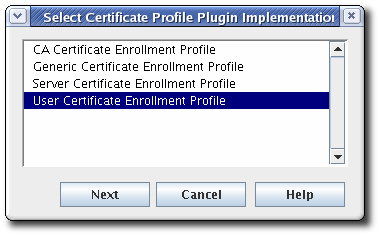
- Fill in the profile information in the Certificate Profile Instance Editor.

- Certificate Profile Instance ID. This is the ID used by the system to identify the profile.
- Certificate Profile Name. This is the user-friendly name for the profile.
- Certificate Profile Description.
- End User Certificate Profile. This sets whether the request must be made through the input form for the profile. This is usually set to
true. Setting this tofalseallows a signed request to be processed through the Certificate Manager's certificate profile framework, rather than through the input page for the certificate profile. - Certificate Profile Authentication. This sets the authentication method. An automated authentication is set by providing the instance ID for the authentication instance. If this field is blank, the authentication method is agent-approved enrollment; the request is submitted to the request queue of the agent services interface.Unless it is for a TMS subsystem, administrators must select one of the following authentication plug-ins:
CMCAuth: Use this plug-in when a CA agent must approve and submit the enrollment request.CMCUserSignedAuth: Use this plug-in to enable non-agent users to enroll own certificates.
- Click . The plug-in editor closes, and the new profile is listed in the profiles tab.
- Configure the policies, inputs, and outputs for the new profile. Select the new profile from the list, and click .
- Set up policies in the Policies tab of the Certificate Profile Rule Editor window. The Policies tab lists policies that are already set by default for the profile type.
- To add a policy, click .

- Choose the default from the Default field, choose the constraints associated with that policy in the Constraints field, and click .
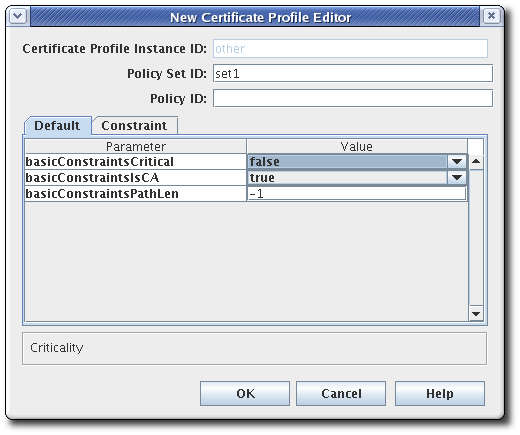
- Fill in the policy set ID. When issuing dual key pairs, separate policy sets define the policies associated with each certificate. Then fill in the certificate profile policy ID, a name or identifier for the certificate profile policy.
- Configure any parameters in the Defaults and Constraints tabs.
 Defaults defines attributes that populate the certificate request, which in turn determines the content of the certificate. These can be extensions, validity periods, or other fields contained in the certificates. Constraints defines valid values for the defaults.See Section B.1, “Defaults Reference” and Section B.2, “Constraints Reference” for complete details for each default or constraint.
To modify an existing policy, select a policy, and click . Then edit the default and constraints for that policy.To delete a policy, select the policy, and click . - Set inputs in the Inputs tab of the Certificate Profile Rule Editor window. There can be more than one input type for a profile.
Note
Unless you configure the profile for a TMS subsystem, select onlycmcCertReqInputand delete other profiles by selecting them and clicking the button.- To add an input, click .

- Choose the input from the list, and click . See Section A.1, “Input Reference” for complete details of the default inputs.
- The New Certificate Profile Editor window opens. Set the input ID, and click .
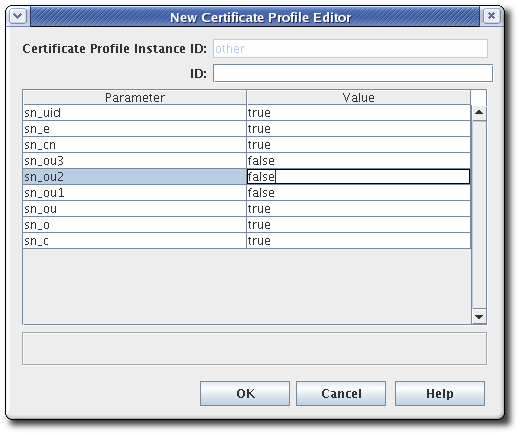
Inputs can be added and deleted. It is possible to select edit for an input, but since inputs have no parameters or other settings, there is nothing to configure.To delete an input, select the input, and click . - Set up outputs in the Outputs tab of the Certificate Profile Rule Editor window.Outputs must be set for any certificate profile that uses an automated authentication method; no output needs to be set for any certificate profile that uses agent-approved authentication. The Certificate Output type is set by default for all profiles and is added automatically to custom profiles.Unless you configure the profile for a TMS subsystem, select only
certOutput. Outputs can be added and deleted. It is possible to select edit for an output, but since outputs have no parameters or other settings, there is nothing to configure.
- To add an output, click .
- Choose the output from the list, and click .
- Give a name or identifier for the output, and click .This output will be listed in the output tab. You can edit it to provide values to the parameters in this output.
To delete an output, select the output from list, and click . - Restart the CA to apply the new profile.
systemctl restart pki-tomcatd-nuxwdog@instance_name.service
systemctl restart pki-tomcatd-nuxwdog@instance_name.serviceCopy to Clipboard Copied! Toggle word wrap Toggle overflow - After creating the profile as an administrator, a CA agent has to approve the profile in the agent services pages to enable the profile.
- Open the CA's services page.
https://server.example.com:8443/ca/services
https://server.example.com:8443/ca/servicesCopy to Clipboard Copied! Toggle word wrap Toggle overflow - Click the Manage Certificate Profiles link. This page lists all of the certificate profiles that have been set up by an administrator, both active and inactive.
- Click the name of the certificate profile to approve.
- At the bottom of the page, click the button.

Note
3.2.2.2. Editing Certificate Profiles in the Console
- Log into the agent services pages and disable the profile.Once a certificate profile is enabled by an agent, that certificate profile is marked enabled in the Certificate Profile Instance Management tab, and the certificate profile cannot be edited in any way through the console.
- Log in to the Certificate System CA subsystem console.
pkiconsole https://server.example.com:8443/ca
pkiconsole https://server.example.com:8443/caCopy to Clipboard Copied! Toggle word wrap Toggle overflow - In the Configuration tab, select Certificate Manager, and then select Certificate Profiles.
- Select the certificate profile, and click .
- The Certificate Profile Rule Editor window appears. Many any changes to the defaults, constraints, inputs, or outputs.
Note
The profile instance ID cannot be modified.If necessary, enlarge the window by pulling out one of the corners of the window. - Restart the CA to apply the changes.
- In the agent services page, re-enable the profile.
Note
3.2.3. Listing Certificate Enrollment Profiles
pki utility. For example:
3.2.4. Displaying Details of a Certificate Enrollment Profile
caECFullCMCUserSignedCert:
caECFullCMCUserSignedCert, in raw format:
3.3. Defining Key Defaults in Profiles
policyset list, then, the Key Default (p11) must be listed before the Subject Key Identifier Default (p3).
policyset.set1.list=p1,p2,p11,p3,p4,p5,p6,p7,p8,p9,p10
policyset.set1.list=p1,p2,p11,p3,p4,p5,p6,p7,p8,p9,p103.4. Configuring Profiles to Enable Renewal
renewGracePeriodConstraint entry. For example:
3.4.1. Renewing Using the Same Key
allowSameKeyRenewal parameter set to true in the uniqueKeyConstraint entry. For example:
policyset.cmcUserCertSet.9.constraint.class_id=uniqueKeyConstraintImpl policyset.cmcUserCertSet.9.constraint.name=Unique Key Constraint policyset.cmcUserCertSet.9.constraint.params.allowSameKeyRenewal=true policyset.cmcUserCertSet.9.default.class_id=noDefaultImpl policyset.cmcUserCertSet.9.default.name=No Default
policyset.cmcUserCertSet.9.constraint.class_id=uniqueKeyConstraintImpl
policyset.cmcUserCertSet.9.constraint.name=Unique Key Constraint
policyset.cmcUserCertSet.9.constraint.params.allowSameKeyRenewal=true
policyset.cmcUserCertSet.9.default.class_id=noDefaultImpl
policyset.cmcUserCertSet.9.default.name=No Default3.4.2. Renewal Using a New Key
subjectDN from the user signing certificate used to sign the request for the new certificate.
3.5. Setting the Signing Algorithms for Certificates
3.5.1. Setting the CA's Default Signing Algorithm
- Open the CA console.
pkiconsole https://server.example.com:8443/ca
pkiconsole https://server.example.com:8443/caCopy to Clipboard Copied! Toggle word wrap Toggle overflow - In the Configuration tab, expand the Certificate Manager tree.
- In the General Settings tab, set the algorithm to use in the Algorithm drop-down menu.

3.5.2. Setting the Signing Algorithm Default in a Profile
.cfg file, the algorithm is set with two parameters:
Note
- Open the CA console.
pkiconsole https://server.example.com:8443/ca
pkiconsole https://server.example.com:8443/caCopy to Clipboard Copied! Toggle word wrap Toggle overflow - In the Configuration tab, expand the Certificate Manager tree.
- Click the Certificate Profiles item.
- Click the Policies tab.
- Select the Signing Alg policy, and click the button.
- To set the default signing algorithm, set the value in the Defaults tab. If this is set to -, then the profile uses the CA's default.

- To set a list of allowed signing algorithms which can be accepted in a certificate request, open the Constraints tab, and set the list of algorithms in the Value field for
signingAlgsAllowed.The possible values for the constraint are listed in Section B.2.10, “Signing Algorithm Constraint”.
3.6. Managing CA-Related Profiles
- Managing the CA signing certificate
- Defining issuance rules
3.6.1. Setting Restrictions on CA Certificates
- CA certificates must have the Basic Constraints extension.
- CA certificates must have the keyCertSign bit set in the Key Usage extension.
Note
/var/lib/pki/instance_name/ca/conf/caCert.profile. This profile cannot be edited in pkiconsole (since it is only available before the instance is configured). It is possible to edit the policies for this profile in the template file before the CA is configured using a text editor.
- If the profile is currently enabled, it must be disabled before it can be edited. Open the agent services page, select Manage Certificate Profiles from the left navigation menu, select the profile, and click Disable profile.
- Open the CA Console.
pkiconsole https://server.example.com:8443/ca
pkiconsole https://server.example.com:8443/caCopy to Clipboard Copied! Toggle word wrap Toggle overflow - In the left navigation tree of the Configuration tab, select Certificate Manager, then Certificate Profiles.
- Select caCACert, or the appropriate CA signing certificate profile, from the right window, and click .
- In the Policies tab of the Certificate Profile Rule Editor, select and edit the Key Usage or Extended Key Usage Extension Default if it exists or add it to the profile.
- Select the Key Usage or Extended Key Usage Extension Constraint, as appropriate, for the default.
- Set the default values for the CA certificates. For more information, see Section B.1.13, “Key Usage Extension Default” and Section B.1.8, “Extended Key Usage Extension Default”.
- Set the constraint values for the CA certificates. There are no constraints to be set for a Key Usage extension; for an Extended Key Usage extension, set the appropriate OID constraints for the CA. For more information, see Section B.1.8, “Extended Key Usage Extension Default”.
- When the changes have been made to the profile, log into the agent services page again, and re-enable the certificate profile.
3.6.2. Changing the Restrictions for CAs on Issuing Certificates
- Whether certificates can be issued with validity periods longer than the CA signing certificate. The default is to disallow this.
- The signing algorithm used to sign certificates.
- The serial number range the CA is able to use to issue certificates.
- Open the Certificate System Console.
pkiconsole https://server.example.com:8443/ca
pkiconsole https://server.example.com:8443/caCopy to Clipboard Copied! Toggle word wrap Toggle overflow - Select the Certificate Manager item in the left navigation tree of the Configuration tab.
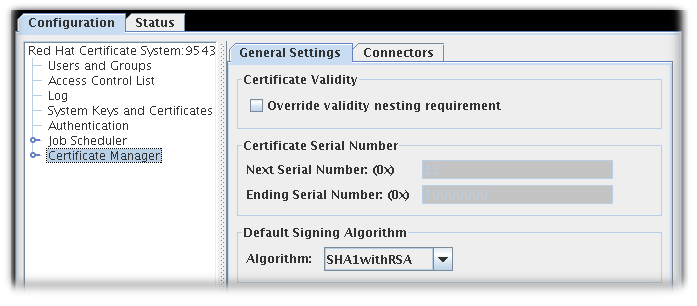
Figure 3.1. The General Settings Tab in non-subordinate CAs by default
- By default, in non-cloned CAs, the General Settings tab of the Certificate Manager menu item contains these options:
- Override validity nesting requirement. This checkbox sets whether the Certificate Manager can issue certificates with validity periods longer than the CA signing certificate validity period.If this checkbox is not selected and the CA receives a request with validity period longer than the CA signing certificate's validity period, it automatically truncates the validity period to end on the day the CA signing certificate expires.
- Certificate Serial Number. These fields display the serial number range for certificates issued by the Certificate Manager. The server assigns the serial number in the Next serial number field to the next certificate it issues and the number in the Ending serial number to the last certificate it issues.The serial number range allows multiple CAs to be deployed and balances the number of certificates each CA issues. The combination of an issuer name and a serial number uniquely identifies a certificate.
Note
The serial number ranges with cloned CAs are fluid. All cloned CAs share a common configuration entry which defines the next available range. When one CA starts running low on available numbers, it checks this configuration entry and claims the next range. The entry is automatically updated, so that the next CA gets a new range.The ranges are defined inbegin*Numberandend*Numberattributes, with separate ranges defined for requests and certificate serial numbers. For example:Copy to Clipboard Copied! Toggle word wrap Toggle overflow Serial number management can be enabled for CAs which are not cloned. However, by default, serial number management is disabled unless a system is cloned, when it is automatically enabled.The serial number range cannot be updated manually through the console. The serial number ranges are read-only fields. - Default Signing Algorithm. Specifies the signing algorithm the Certificate Manager uses to sign certificates. The options are
SHA256withRSA, andSHA512withRSA, if the CA's signing key type is RSA.The signing algorithm specified in the certificate profile configuration overrides the algorithm set here.
- By default, in cloned CAs, the General Settings tab of the Certificate Manager menu item contains these options:
- Enable serial number management
- Enable random certificate serial numbers
Select both check boxes.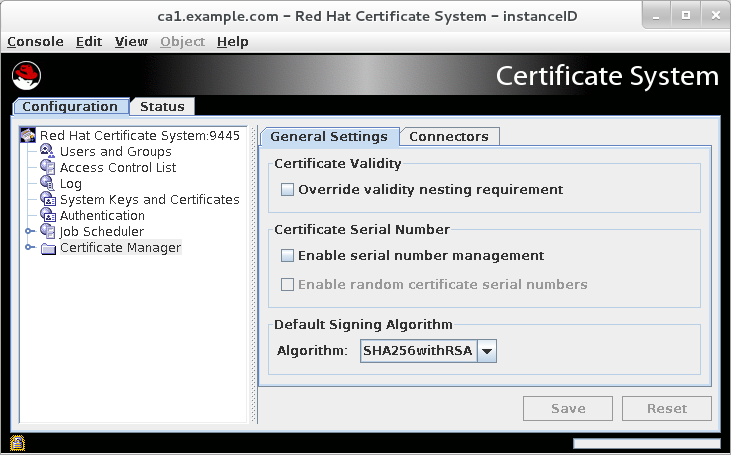
Figure 3.2. The General Settings Tab in cloned CAs by default
- Click .
3.6.3. Using Random Certificate Serial Numbers
Identity Management (IdM).
- making part of the certificate serial number unpredictable to the attacker
- adding a randomly chosen component to the identity
- making the validity dates unpredictable to the attacker by skewing each one forwards or backwards
- works with cloning
- allows resolving conflicts
- is compatible with the current serial number management method
- is compatible with the current workflows for administrators, agents, and end entities
- fixes the existing bugs in sequential serial number management
Note
3.6.3.1. Enabling Random Certificate Serial Numbers
- Tick the Enable serial number management option in the General Settings tab.
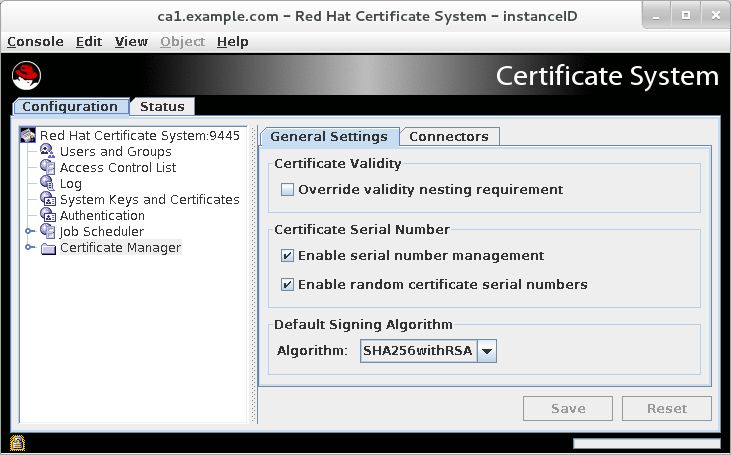
Figure 3.3. The General Settings Tab when Random Serial Number Assignment is enabled
- Tick the Enable random certificate serial numbers option.
3.6.4. Allowing a CA Certificate to Be Renewed Past the CA's Validity Period
bypassCAnotafter) which allows a CA certificate to be issued with a validity period that extends past the issuing CA's expiration (notAfter) date.

Figure 3.4. CA Validity Default Configuration
- Open the
caCACert.cfgfile.vim /var/lib/pki/instance_name/ca/conf/caCACert.cfg
vim /var/lib/pki/instance_name/ca/conf/caCACert.cfgCopy to Clipboard Copied! Toggle word wrap Toggle overflow - The CA Validity Default should be present by default. Set the value to
trueto allow a CA certificate to be renewed past the issuing CA's validity period.policyset.caCertSet.2.default.name=CA Certificate Validity Default policyset.caCertSet.2.default.params.range=2922 policyset.caCertSet.2.default.params.startTime=0 policyset.caCertSet.2.default.params.bypassCAnotafter=true
policyset.caCertSet.2.default.name=CA Certificate Validity Default policyset.caCertSet.2.default.params.range=2922 policyset.caCertSet.2.default.params.startTime=0 policyset.caCertSet.2.default.params.bypassCAnotafter=trueCopy to Clipboard Copied! Toggle word wrap Toggle overflow - Restart the CA to apply the changes.
false, the constraint is enforced, even if bypassCAnotafter=true is set in the profile. If the agent selects true when the bypassCAnotafter value is not enabled, then the renewal request is rejected by the CA.
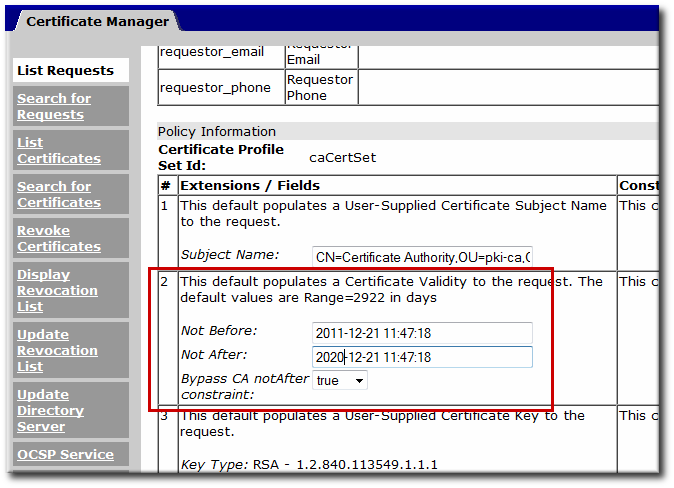
Figure 3.5. Bypass CA Constraints Option in the Agent Services Page
Note
ca.enablePastCATime, can be used to allow certificates to be renewed past the CA's validity period. However, this applies to every certificate issued by that CA. Because of the potential security issues, this setting is not recommended for production environments.
3.7. Managing Subject Names and Subject Alternative Names
Important
3.7.1. Using the Requester CN or UID in the Subject Name
cn or uid value from a certificate request can be used to build the subject name of the issued certificate. This section demonstrates a profile that requires the naming attribute (CN or UID) being specified in the Subject Name Constraint to be present in the certificate request. If the naming attribute is missing, the request is rejected.
- The CN or UID format is set in the
patternconfiguration in the Subject Name Constraint. - The format of the subject DN, including the CN or UID token and the specific suffix for the certificate, is set in the Subject Name Default.
cn=John Smith, then the certificate will be issued with a subject DN of cn=John Smith,DC=example, DC=com. If the request comes in but it has a UID of uid=jsmith and no CN, then the request is rejected.
pattern parameter is covered in Section B.2.11, “Subject Name Constraint” and Section B.1.27, “Subject Name Default”.
3.7.2. Inserting LDAP Directory Attribute Values and Other Information into the Subject Alt Name
Type_, Pattern_, and Enable_ values numerically, such as Type_1.
- Inserting LDAP attribute values requires enabling the user directory authentication plug-in,
SharedSecret.- Open the CA Console.
pkiconsole https://server.example.com:8443/ca
pkiconsole https://server.example.com:8443/caCopy to Clipboard Copied! Toggle word wrap Toggle overflow - Select Authentication in the left navigation tree.
- In the Authentication Instance tab, click , and add an instance of the
SharedSecretauthentication plug-in. - Enter the following information:
Copy to Clipboard Copied! Toggle word wrap Toggle overflow - Save the new plug-in instance.
For information on setting a CMC shared token, see Section 9.4.2, “Setting a CMC Shared Secret”. - The
ldapStringAttributesparameter instructs the authentication plug-in to read the value of themailattribute from the user's LDAP entry and put that value in the certificate request. When the value is in the request, the certificate profile policy can be set to insert that value for an extension value.The format for thednpatternparameter is covered in Section B.2.11, “Subject Name Constraint” and Section B.1.27, “Subject Name Default”. - To enable the CA to insert the LDAP attribute value in the certificate extension, edit the profile's configuration file, and insert a policy set parameter for an extension. For example, to insert the
mailattribute value in the Subject Alternative Name extension in thecaFullCMCSharedTokenCertprofile, change the following code:policyset.setID.8.default.params.subjAltExtPattern_0=$request.auth_token.mail[0]$
policyset.setID.8.default.params.subjAltExtPattern_0=$request.auth_token.mail[0]$Copy to Clipboard Copied! Toggle word wrap Toggle overflow For more details about editing a profile, see Section 3.2.1.3, “Editing a Certificate Profile in Raw Format”. - Restart the CA.
systemctl restart pki-tomcatd-nuxwdog@instance_name.service
systemctl restart pki-tomcatd-nuxwdog@instance_name.serviceCopy to Clipboard Copied! Toggle word wrap Toggle overflow
caFullCMCSharedTokenCert profile enrollment form will have the Subject Alternative Name extension added with the value of the requester's mail LDAP attribute. For example:
Identifier: Subject Alternative Name - 2.5.29.17
Critical: no
Value:
RFC822Name: jsmith@example.com
Identifier: Subject Alternative Name - 2.5.29.17
Critical: no
Value:
RFC822Name: jsmith@example.comPattern_ parameters in the policy set. The common tokens are listed in Table 3.1, “Variables Used to Populate Certificates”, and the default profiles contain examples for how these tokens are used.
| Policy Set Token | Description |
|---|---|
| $request.auth_token.cn[0]$ | The LDAP common name (cn) attribute of the user who requested the certificate. |
| $request.auth_token.mail[0]$ | The value of the LDAP email (mail) attribute of the user who requested the certificate. |
| $request.auth_token.tokencertsubject$ | The certificate subject name. |
| $request.auth_token.uid$ | The LDAP user ID (uid) attribute of the user who requested the certificate. |
| $request.auth_token.userdn$ | The user DN of the user who requested the certificate. |
| $request.auth_token.userid$ | The value of the user ID attribute for the user who requested the certificate. |
| $request.uid$ | The value of the user ID attribute for the user who requested the certificate. |
| $request.requestor_email$ | The email address of the person who submitted the request. |
| $request.requestor_name$ | The person who submitted the request. |
| $request.upn$ | The Microsoft UPN. This has the format (UTF8String)1.3.6.1.4.1.311.20.2.3,$request.upn$. |
| $server.source$ | Instructs the server to generate a version 4 UUID (random number) component in the subject name. This always has the format (IA5String)1.2.3.4,$server.source$. |
| $request.auth_token.user$ | Used when the request was submitted by TPS. The TPS subsystem trusted manager who requested the certificate. |
| $request.subject$ | Used when the request was submitted by TPS. The subject name DN of the entity to which TPS has resolved and requested for. For example, cn=John.Smith.123456789,o=TMS Org |
3.7.3. Using the CN Attribute in the SAN Extension
dNSName Subject Alternative Name (SAN) value in the certificate request.
dNSName value based on the CN is appended to existing SANs.
- Disable the profile:
pki -c password -p 8080 \ -n "PKI Administrator for example.com" ca-profile-disable profile_name# pki -c password -p 8080 \ -n "PKI Administrator for example.com" ca-profile-disable profile_nameCopy to Clipboard Copied! Toggle word wrap Toggle overflow - Edit the profile:
pki -c password -p 8080 \ -n "PKI Administrator for example.com" ca-profile-edit profile_name# pki -c password -p 8080 \ -n "PKI Administrator for example.com" ca-profile-edit profile_nameCopy to Clipboard Copied! Toggle word wrap Toggle overflow - Add the following configuration with a unique set number for the profile. For example:
policyset.serverCertSet.12.constraint.class_id=noConstraintImpl policyset.serverCertSet.12.constraint.name=No Constraint policyset.serverCertSet.12.default.class_id=commonNameToSANDefaultImpl policyset.serverCertSet.12.default.name=Copy Common Name to Subject
policyset.serverCertSet.12.constraint.class_id=noConstraintImpl policyset.serverCertSet.12.constraint.name=No Constraint policyset.serverCertSet.12.default.class_id=commonNameToSANDefaultImpl policyset.serverCertSet.12.default.name=Copy Common Name to SubjectCopy to Clipboard Copied! Toggle word wrap Toggle overflow The previous example uses12as the set number. - Append the new policy set number to the
policyset.userCertSet.listparameter. For example:policyset.userCertSet.list=1,10,2,3,4,5,6,7,8,9,12
policyset.userCertSet.list=1,10,2,3,4,5,6,7,8,9,12Copy to Clipboard Copied! Toggle word wrap Toggle overflow - Save the profile.
- Enable the profile:
pki -c password -p 8080 \ -n "PKI Administrator for example.com" ca-profile-enable profile_name# pki -c password -p 8080 \ -n "PKI Administrator for example.com" ca-profile-enable profile_nameCopy to Clipboard Copied! Toggle word wrap Toggle overflow
Note
commonNameToSANDefaultImpl default.
3.7.4. Accepting SAN Extensions from a CSR
3.7.4.1. Configuring a Profile to Retrieve SANs from a CSR
Note
caCMCECserverCert:
3.7.4.2. Generating a CSR with SANs
certutil utility:
certutil -R -k ec -q nistp256 -d . -s "cn=Example Multiple SANs" --extSAN dns:www.example.com,dns:www.example.org -a -o /root/request.csr.p10
# certutil -R -k ec -q nistp256 -d . -s "cn=Example Multiple SANs" --extSAN dns:www.example.com,dns:www.example.org -a -o /root/request.csr.p10Chapter 4. Setting up Key Archival and Recovery
Note
Note
Note
4.1. Configuring Agent-Approved Key Recovery in the Console
Note
CS.cfg file. The Console uses the Key Recovery Authority Agents Group by default.
- Open the KRA's console. For example:
pkiconsole https://server.example.com:8443/kra
pkiconsole https://server.example.com:8443/kraCopy to Clipboard Copied! Toggle word wrap Toggle overflow - Click the Key Recovery Authority link in the left navigation tree.
- Enter the number of agents to use to approve key recover in the Required Number of Agents field.

Note
CS.cfg file, see Configuring Agent-Approved Key Recovery in the Command Line.
4.2. Testing the Key Archival and Recovery Setup
Note
- Enroll for dual certificates using the CA's Manual User Signing & Encryption Certificates Enrollment form.
- Submit the request. Log in to the agent services page, and approve the request.
- Log into the end-entities page, and check to see if the certificates have been issued. In the list of certificates, there should be two new certificates with consecutive serial numbers.
- Import the certificates into the web browser.
- Confirm that the key has been archived. In the KRA's agent services page, select Show completed requests. If the key has been archived successfully, there will be information about that key. If the key is not shown, check the logs, and correct the problem. If the key has been successfully archived, close the browser window.
- Verify the key. Send a signed and encrypted email. When the email is received, open it, and check the message to see if it is signed and encrypted. There should be a security icon at the top-right corner of the message window that indicates that the message is signed and encrypted.
- Delete the certificate. Check the encrypted email again; the mail client should not be able to decrypt the message.
- Test whether an archived key can be recovered successfully:
- Open the KRA's agent services page, and click the Recover Keys link. Search for the key by the key owner, serial number, or public key. If the key has been archived successfully, the key information will be shown.
- Click .
- In the form that appears, enter the base-64 encoded certificate that corresponds to the private key to recover; use the CA to get this information. If the archived key was searched for by providing the base-64 encoded certificate, then the certificate does not have to be supplied here.
- Make sure that the Async Recovery checkbox is selected to allow the browser session to be closed while recovery is ongoing.
Note
An async recovery is the default and recommended way to perform a key recovery. If you want to perform a synchronous key recovery, the browser window cannot be shut and the KRA cannot be stopped during the recovery process. - Depending on the agent scheme, a specified number of agents must authorize this key recovery. Have the agents search for the key to recover and then to approve the initiated recovery.
- Once all the agents have authorized the recovery, the next screen requests a password to encrypt the PKCS #12 file with the certificate.
- The next screen returns a link to download a PKCS #12 blob containing the recovered key pair. Follow the link, and save the blob to file.
Important
Opening the PKCS #12 file directly from the browser in thegcr-viewerutility can fail in certain situations. To work around the problem, download the file and manually open it ingcr-viewer.
- Restore the key to the browser's database. Import the
.p12file into the browser and mail client. - Open the test email. The message should be shown again.
Chapter 5. Requesting, Enrolling, and Managing Certificates
5.1. About Enrolling and Renewing Certificates
- A certificate request (CSR) is generated.
- The certificate request is submitted to the CA.
- The request is verified by authenticating the entity which requested it and by confirming that the request meets the certificate profile rules which were used to submit it.
- The request is approved.
- The requesting party retrieves the new certificate.
5.2. Creating Certificate Signing Requests
- Generating CSRs using command line utilities
- Generating CSRs inside a supporting browser
- Generating CSRs inside an application, such as the installer of a server
- Command-line utilities
- Server-Side Key Generation
5.2.1. Generating CSRs Using Command-Line Utilities
certutil: Supports creating PKCS #10 requests.PKCS10Client: Supports creating PKCS #10 requests.CRMFPopClient: Supports creating CRMF requests.pki client-cert-request: Supports both PKCS#10 and CRMF requests.
5.2.1.1. Creating a CSR Using certutil
certutil utility to create a CSR.
certutil, see:
- The certutil(1) man page
- The output of the
certutil --helpcommand
5.2.1.1.1. Using certutil to Create a CSR with EC Keys
certutil utility to create an Elliptic Curve (EC) key pair and CSR:
- Change to the certificate database directory of the user or entity for which the certificate is being requested, for example:
cd /user_or_entity_database_directory/
$ cd /user_or_entity_database_directory/Copy to Clipboard Copied! Toggle word wrap Toggle overflow - Create the binary CSR and store it in the
/user_or_entity_database_directory/request.csrfile:certutil -d . -R -k ec -q nistp256 -s "CN=subject_name" -o /user_or_entity_database_directory/request-bin.csr
$ certutil -d . -R -k ec -q nistp256 -s "CN=subject_name" -o /user_or_entity_database_directory/request-bin.csrCopy to Clipboard Copied! Toggle word wrap Toggle overflow Enter the required NSS database password when prompted.For further details about the parameters, see the certutil(1) man page. - Convert the created binary format CSR to PEM format:
BtoA /user_or_entity_database_directory/request-bin.csr /user_or_entity_database_directory/request.csr
$ BtoA /user_or_entity_database_directory/request-bin.csr /user_or_entity_database_directory/request.csrCopy to Clipboard Copied! Toggle word wrap Toggle overflow - Optionally, verify that the CSR file is correct:
cat /user_or_entity_database_directory/request.csr MIICbTCCAVUCAQAwKDEQMA4GA1UEChMHRXhhbXBsZTEUMBIGA1UEAxMLZXhhbXBs ...
$ cat /user_or_entity_database_directory/request.csr MIICbTCCAVUCAQAwKDEQMA4GA1UEChMHRXhhbXBsZTEUMBIGA1UEAxMLZXhhbXBs ...Copy to Clipboard Copied! Toggle word wrap Toggle overflow This is a PKCS#10 PEM certificate request.
5.2.1.1.2. Using certutil to Create a CSR With User-defined Extensions
certutil utility.
- Change to the certificate database directory of the user or entity for which the certificate is being requested, for example:
cd /user_or_entity_database_directory/
$ cd /user_or_entity_database_directory/Copy to Clipboard Copied! Toggle word wrap Toggle overflow - Create the CSR with user-defined Key Usage extension as well as user-defined Extended Key Usage extension and store it in the
/user_or_entity_database_directory/request.csrfile:certutil -d . -R -k rsa -g 1024 -s "CN=subject_name" --keyUsage keyEncipherment,dataEncipherment,critical --extKeyUsage timeStamp,msTrustListSign,critical -a -o /user_or_entity_database_directory/request.csr
$ certutil -d . -R -k rsa -g 1024 -s "CN=subject_name" --keyUsage keyEncipherment,dataEncipherment,critical --extKeyUsage timeStamp,msTrustListSign,critical -a -o /user_or_entity_database_directory/request.csrCopy to Clipboard Copied! Toggle word wrap Toggle overflow Enter the required NSS database password when prompted.For further details about the parameters, see the certutil(1) man page. - Optionally, verify that the CSR file is correct:
Copy to Clipboard Copied! Toggle word wrap Toggle overflow This is a PKCS#10 PEM certificate request.
5.2.1.2. Creating a CSR Using PKCS10Client
PKCS10Client utility to create a CSR.
PKCS10Client, see:
- The PKCS10Client(1) man page
- The output of the
PKCS10Client --helpcommand
5.2.1.2.1. Using PKCS10Client to Create a CSR
PKCS10Client utility to create an Elliptic Curve (EC) key pair and CSR:
- Change to the certificate database directory of the user or entity for which the certificate is being requested, for example:
cd /user_or_entity_database_directory/
$ cd /user_or_entity_database_directory/Copy to Clipboard Copied! Toggle word wrap Toggle overflow - Create the CSR and store it in the
/user_or_entity_database_directory/example.csrfile:PKCS10Client -d . -p NSS_password -a ec -c nistp256 -o /user_or_entity_database_directory/example.csr -n "CN=subject_name"
$ PKCS10Client -d . -p NSS_password -a ec -c nistp256 -o /user_or_entity_database_directory/example.csr -n "CN=subject_name"Copy to Clipboard Copied! Toggle word wrap Toggle overflow For further details about the parameters, see the PKCS10Client(1) man page. - Optionally, verify that the CSR is correct:
cat /user_or_entity_database_directory/example.csr -----BEGIN CERTIFICATE REQUEST----- MIICzzCCAbcCAQAwgYkx ... -----END CERTIFICATE REQUEST-----
$ cat /user_or_entity_database_directory/example.csr -----BEGIN CERTIFICATE REQUEST----- MIICzzCCAbcCAQAwgYkx ... -----END CERTIFICATE REQUEST-----Copy to Clipboard Copied! Toggle word wrap Toggle overflow
5.2.1.2.2. Using PKCS10Client to Create a CSR for SharedSecret-based CMC
PKCS10Client utility to create an RSA key pair and CSR for SharedSecret-based CMC. Use it only with the CMC Shared Secret authentication method which is, by default, handled by the caFullCMCSharedTokenCert and caECFullCMCSharedTokenCert profiles.
- Change to the certificate database directory of the user or entity for which the certificate is being requested, for example:
cd /user_or_entity_database_directory/
$ cd /user_or_entity_database_directory/Copy to Clipboard Copied! Toggle word wrap Toggle overflow - Create the CSR and store it in the
/user_or_entity_database_directory/example.csrfile:PKCS10Client -d . -p NSS_password -o /user_or_entity_database_directory/example.csr -y true -n "CN=subject_name"
$ PKCS10Client -d . -p NSS_password -o /user_or_entity_database_directory/example.csr -y true -n "CN=subject_name"Copy to Clipboard Copied! Toggle word wrap Toggle overflow For further details about the parameters, see the PKCS10Client(1) man page. - Optionally, verify that the CSR is correct:
cat /user_or_entity_database_directory/example.csr -----BEGIN CERTIFICATE REQUEST----- MIICzzCCAbcCAQAwgYkx ... -----END CERTIFICATE REQUEST-----
$ cat /user_or_entity_database_directory/example.csr -----BEGIN CERTIFICATE REQUEST----- MIICzzCCAbcCAQAwgYkx ... -----END CERTIFICATE REQUEST-----Copy to Clipboard Copied! Toggle word wrap Toggle overflow
5.2.1.3. Creating a CSR Using CRMFPopClient
CRMFPopClient utility to create a CSR.
CRMFPopClient, see the CRMFPopClient(1) man page.
5.2.1.3.1. Using CRMFPopClient to Create a CSR with Key Archival
CRMFPopClient utility to create an RSA key pair and a CSR with the key archival option:
- Change to the certificate database directory of the user or entity for which the certificate is being requested, for example:
cd /user_or_entity_database_directory/
$ cd /user_or_entity_database_directory/Copy to Clipboard Copied! Toggle word wrap Toggle overflow - Retrieve the KRA transport certificate:
Copy to Clipboard Copied! Toggle word wrap Toggle overflow - Export the KRA transport certificate:
pki ca-cert-show 0x7 --output kra.transport
$ pki ca-cert-show 0x7 --output kra.transportCopy to Clipboard Copied! Toggle word wrap Toggle overflow - Create the CSR and store it in the
/user_or_entity_database_directory/example.csrfile:CRMFPopClient -d . -p password -n "cn=subject_name" -q POP_SUCCESS -b kra.transport -w "AES/CBC/PKCS5Padding" -v -o /user_or_entity_database_directory/example.csr
$ CRMFPopClient -d . -p password -n "cn=subject_name" -q POP_SUCCESS -b kra.transport -w "AES/CBC/PKCS5Padding" -v -o /user_or_entity_database_directory/example.csrCopy to Clipboard Copied! Toggle word wrap Toggle overflow To create an Elliptic Curve (EC) key pair and CSR, pass the-a ec -t falseoptions to the command.For further details about the parameters, see the CRMFPopClient(1) man page. - Optionally, verify that the CSR is correct:
cat /user_or_entity_database_directory/example.csr -----BEGIN CERTIFICATE REQUEST----- MIICzzCCAbcCAQAwgYkx ... -----END CERTIFICATE REQUEST-----
$ cat /user_or_entity_database_directory/example.csr -----BEGIN CERTIFICATE REQUEST----- MIICzzCCAbcCAQAwgYkx ... -----END CERTIFICATE REQUEST-----Copy to Clipboard Copied! Toggle word wrap Toggle overflow
5.2.1.3.2. Using CRMFPopClient to Create a CSR for SharedSecret-based CMC
CRMFPopClient utility to create an RSA key pair and CSR for SharedSecret-based CMC. Use it only with the CMC Shared Secret authentication method which is, by default, handled by the caFullCMCSharedTokenCert and caECFullCMCSharedTokenCert profiles.
- Change to the certificate database directory of the user or entity for which the certificate is being requested, for example:
cd /user_or_entity_database_directory/
$ cd /user_or_entity_database_directory/Copy to Clipboard Copied! Toggle word wrap Toggle overflow - Retrieve the KRA transport certificate:
Copy to Clipboard Copied! Toggle word wrap Toggle overflow - Export the KRA transport certificate:
pki ca-cert-show 0x7 --output kra.transport
$ pki ca-cert-show 0x7 --output kra.transportCopy to Clipboard Copied! Toggle word wrap Toggle overflow - Create the CSR and store it in the
/user_or_entity_database_directory/example.csrfile:CRMFPopClient -d . -p password -n "cn=subject_name" -q POP_SUCCESS -b kra.transport -w "AES/CBC/PKCS5Padding" -y -v -o /user_or_entity_database_directory/example.csr
$ CRMFPopClient -d . -p password -n "cn=subject_name" -q POP_SUCCESS -b kra.transport -w "AES/CBC/PKCS5Padding" -y -v -o /user_or_entity_database_directory/example.csrCopy to Clipboard Copied! Toggle word wrap Toggle overflow To create an EC key pair and CSR, pass the-a ec -t falseoptions to the command.For further details about the parameters, see the output of theCRMFPopClient --helpcommand. - Optionally, verify that the CSR is correct:
cat /user_or_entity_database_directory/example.csr -----BEGIN CERTIFICATE REQUEST----- MIICzzCCAbcCAQAwgYkx ... -----END CERTIFICATE REQUEST-----
$ cat /user_or_entity_database_directory/example.csr -----BEGIN CERTIFICATE REQUEST----- MIICzzCCAbcCAQAwgYkx ... -----END CERTIFICATE REQUEST-----Copy to Clipboard Copied! Toggle word wrap Toggle overflow
5.2.1.4. Creating a CSR using client-cert-request in the PKI CLI
pkicommand-line tool can also be used with the client-cert-request command to generate a CSR. However, unlike the previously discussed tools, CSR generated with pki are submitted directly to the CA. Both PKCS#10 or CRMF requests can be generated.
pki -d user token db directory -P https -p 8443 -h host.test.com -c user token db passwd client-cert-request "uid=test2" --length 4096 --type pkcs10
pki -d user token db directory -P https -p 8443 -h host.test.com -c user token db passwd client-cert-request "uid=test2" --length 4096 --type pkcs10pki -d user token db directory -P https -p 8443 -h host.test.com -c user token db passwd client-cert-request "uid=test2" --length 4096 --type crmf
pki -d user token db directory -P https -p 8443 -h host.test.com -c user token db passwd client-cert-request "uid=test2" --length 4096 --type crmfca-cert-request-approve command.
pki -d agent token db directory -P https -p 8443 -h host.test.com -c agent token db passwd -n <CA agent cert nickname> ca-cert-request-approve request id
pki -d agent token db directory -P https -p 8443 -h host.test.com -c agent token db passwd -n <CA agent cert nickname> ca-cert-request-approve request idpki client-cert-request --help command.
5.2.2. Generating CSRs Using Server-Side Key Generation
CRMFPopClient (see CRMFPopClient --help) or pki (see pki client-cert-request --help) could be used as a workaround.
Note
5.2.2.1. Functionality Highlights
- Certificate request keys are generated on the KRA (Note: a KRA must be installed to work with the CA)
- The profile default plugin,
serverKeygenUserKeyDefaultImpl, provides selection to enable or disable key archival (i.e. the enableArchival parameter) - Support for both RSA and EC keys
- Support for both manual (agent) approval and automatic approval (e.g. directory password-based)
5.2.2.2. Enrolling a Certificate Using Server-Side Keygen
Manual User Dual-Use Certificate Enrollment Using server-side Key generation

Figure 5.1. Server-Side Keygen Enrollment that requires agent manual approval
Directory-authenticated User Dual-Use Certificate Enrollment Using server-side Key generation
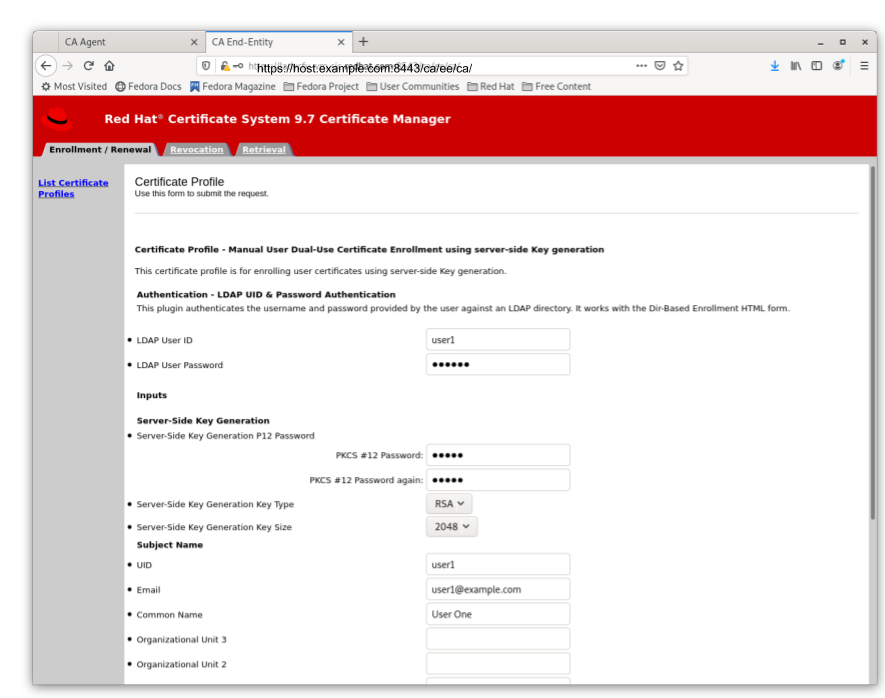
Figure 5.2. Server-Side Keygen Enrollment that will be automatically approved upon successful LDAP uid/pwd authentication
Important
- In case of manual approval, the PKCS#12 file will be returned to the CA agent that approves the request; the agent is then expected to forward the PKCS#12 file to the user.
- In case of automatic approval, the PKCS#12 file will be returned to the user who submitted the request

Figure 5.3. Enrollment manually approved by an agent
pkcs12util to import this file into their own user internal cert/key database for each application. E.g. the Firefox nss database of the user.
5.2.2.3. Key Recovery
5.2.2.4. Additional Information
5.2.2.4.1. KRA Request Records
Note
- One for the request type asymkeyGenRequestThis request type cannot be filtered using List Requests on the KRA agent page; you can select Show All Requests to see them listed.
- One for the request type recovery
5.2.2.4.2. Audit Records
- SERVER_SIDE_KEYGEN_ENROLL_KEYGEN_REQUEST
- SERVER_SIDE_KEYGEN_ENROLL_KEY_RETRIEVAL_REQUEST
- SERVER_SIDE_KEYGEN_ENROLL_KEYGEN_REQUEST_PROCESSED
- SERVER_SIDE_KEYGEN_ENROLL_KEY_RETRIEVAL_REQUEST_PROCESSED (not yet implemented)
5.3. Configuring Internet Explorer to Enroll Certificates
Warning
5.3.1. About Key Limits and Internet Explorer
| Algorithm | Provider | Supported Key Sizes |
|---|---|---|
| ECC | Microsoft Software Key Storage Provider |
|
| ECC | Microsoft Smart Card Key Storage Provider |
|
| RSA | Microsoft Base Cryptographic Provider |
|
| RSA | Microsoft Strong Cryptographic Provider |
|
| RSA | Enhanced Cryptographic Provider |
|
| RSA | Microsoft Software Key Storage Provider |
|
5.3.2. Configuring Internet Explorer
- Open Internet Explorer.
- Open → → → , and unselect TLS 1.2.
- Import the CA certificate chain.
- Open the unsecured end services page for the CA, for example:
http://server.example.com:8080/ca/ee/ca
http://server.example.com:8080/ca/ee/caCopy to Clipboard Copied! Toggle word wrap Toggle overflow - Click the Retrieval tab.
- Click Import CA Certificate Chain in the left menu, and then select Download the CA certificate chain in binary form.
- When prompted, save the CA certificate chain file.
- In the Internet Explorer menu, click , and select .
- Open the Content tab, and click the Certificates button.
- Click the Import button. In the import window, browse for and select the imported certificate chain.The import process prompts for which certificate store to use for the CA certificate chain. Select Automatically select the certificate store based on the type of certificate.
- Once the certificate chain is imported, open the Trusted Root Certificate Authorities tab to verify that the certificate chain was successfully imported.
- Configure Internet Explorer to prompt to allow unsafe ActiveX controls to be used for scripting. If this is not allowed and an end entity attempts to enroll a certificate in the standard (non-SSL) end-entites pages, Internet Explorer will block these pages.
- In the Internet Explorer menu, click and select .
- Open the Security tab and click Custom Level.
- In the ActiveX Controls and Plugins area, change the value of the Initialize and script ActiveX controls not marked as safe setting to
Prompt.
- After the certificate chain is imported, Internet Explorer can access the secure end services pages. Open the secure site, for example:
https://server.example.com:8443/ca/ee/ca
https://server.example.com:8443/ca/ee/caCopy to Clipboard Copied! Toggle word wrap Toggle overflow - There is probably a security exception when opening the end services pages. Add the CA services site to Internet Explorer's Trusted Sites list.
- In the Internet Explorer menu, click , and select .
- Open the Security tab and click Sites to add the CA site to the trusted list.
- Set the Security level for this zone slider for the CA services page to Medium-High; if this security setting is too restrictive in the future, then try resetting it to Medium.
- Open the → , and enable the Compatibility View setting by adding the specific site to the list.
- Close the browser.
5.4. Requesting and Receiving Certificates
5.4.1. Requesting and Receiving a Certificate through the End-Entities Page
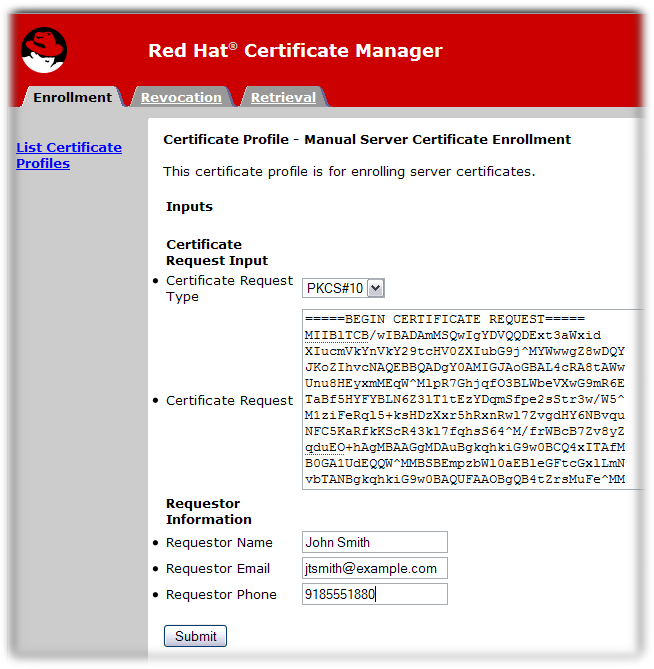
- Certificate Request Type. This is either PKCS#10 or CRMF. Certificate requests created through the subsystem administrative console are PKCS #10; those created through the
certutiltool and other utilities are usually PKCS #10. - Certificate Request. Paste the base-64 encoded blob, including the
-----BEGIN NEW CERTIFICATE REQUEST-----and-----END NEW CERTIFICATE REQUEST-----marker lines. - Requester Name. This is the common name of the person requesting the certificate.
- Requester Email. This is the email address of the requester. The agent or CA system will use this address to contact the requester when the certificate is issued. For example,
jdoe@someCompany.com. - Requester Phone. This is the contact phone number of the requester.
Note
- Open the Certificate Manager end-entities page, for example:
https://server.example.com:8443/ca/ee/ca
https://server.example.com:8443/ca/ee/caCopy to Clipboard Copied! Toggle word wrap Toggle overflow - Click the Retrieval tab.
- Fill in the request ID number that was created when the certificate request was submitted, and click .
- The next page shows the status of the certificate request. If the status is
complete, then there is a link to the certificate. Click the Issued certificate link.
- The new certificate information is shown in pretty-print format, in base-64 encoded format, and in PKCS #7 format.
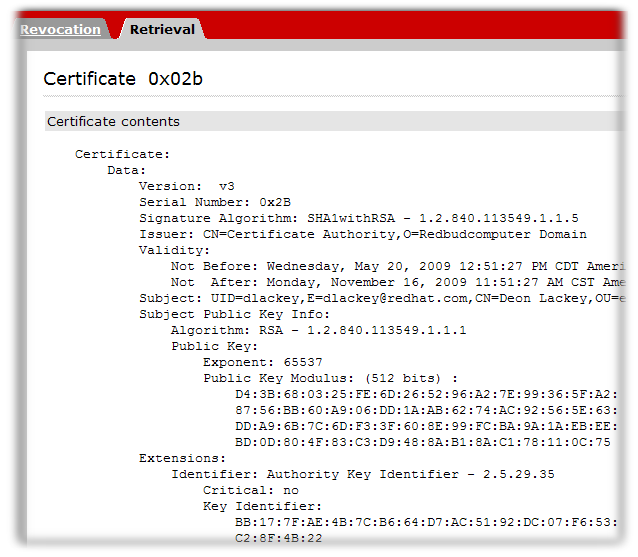 The following actions can be taken through this page:
- To install this certificate on a server or other application, scroll down to the Installing This Certificate in a Server section, which contains the base-64 encoded certificate.
- Copy the base-64 encoded certificate, including the
-----BEGIN CERTIFICATE-----and-----END CERTIFICATE-----marker lines, to a text file. Save the text file, and use it to store a copy of the certificate in the security module of the entity where the private key resides. See Section 14.3.2.1, “Creating Users”.
5.5. Renewing Certificates
- Same key Renewal takes the original key, profile, and request of the certificate and recreates a new certificate with a new validity period and expiration date using the identical key. This can be done by either of the following methods:
- resubmitting the original certificate request (CSR) through the original profile, or
- regenerating a CSR with the original keys by using supporting tools such as certutil
- Re-keying a certificate requires regeneration of a certificate request with the same information, so that a new key pair is generated. The CSR is then submitted through the original profile.
5.5.1. Same Keys Renewal
5.5.1.1. Reusing CSR
- Agent-approved method requires submitting the serial number of the certificate to be renewed; This method would require a CA agent’s approval.
- Directory-based renewal requires submitting the serial number of the certificate to be renewed, and the CA draws the information from its current certificate directory entry. The certificate is automatically approved if the ldap uid/pwd is authenticated successfully.
- Certificate-based renewal uses the certificate in the browser database to authenticate and have the same certificate re-issued.
5.5.1.1.1. Agent-Approved or Directory-Based Renewals
- Open the end-entities services page for the CA which issued the certificate (or its clone).
https://server.example.com:8443/ca/ee/ca
https://server.example.com:8443/ca/ee/caCopy to Clipboard Copied! Toggle word wrap Toggle overflow - Click the name of the renewal form to use.
- Enter the serial number of the certificate to renew. This can be in decimal or hexadecimal form.
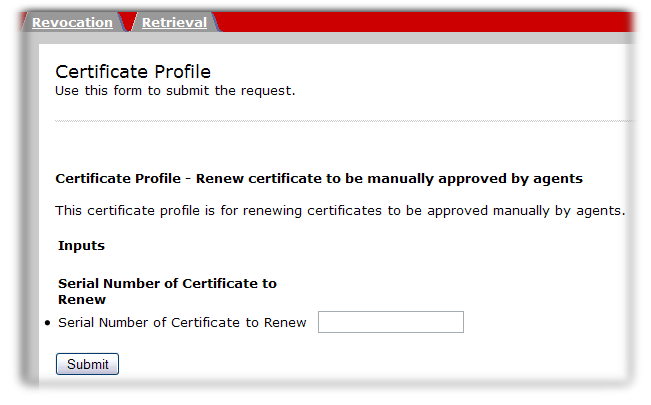
- Click the renew button.
- The request is submitted. For directory-based renewals, the renewed certificate is automatically returned. Otherwise, the renewal request will be approved by an agent.

5.5.1.1.2. Certificate-Based Renewal
Important
- Open the end-entities services page for the CA which issued the certificate (or its clone).
https://server.example.com:8443/ca/ee/ca
https://server.example.com:8443/ca/ee/caCopy to Clipboard Copied! Toggle word wrap Toggle overflow - Click the name of the renewal form to use.
- There is no input field, so click the button.
- When prompted, select the certificate to renew.

- The request is submitted and the renewed certificate is automatically returned.
5.5.1.2. Renewal by generating CSR with same keys
certutil tool allows one to regenerate a CSR with the same keys, provided that the key pair is in the NSS database. This can be achieved by doing the following:
- Find the corresponding key id in the NSS db:
Certutil -d <nssdb dir> -K
Certutil -d <nssdb dir> -KCopy to Clipboard Copied! Toggle word wrap Toggle overflow - Generate a CSR using a specific key:
Certutil -d <nssdb dir> -R -k <key id> -s <subject DN> -o <CSR output file>
Certutil -d <nssdb dir> -R -k <key id> -s <subject DN> -o <CSR output file>Copy to Clipboard Copied! Toggle word wrap Toggle overflow
- Generate a CSR using an existing nickname:
Certutil -d <nssdb dir> -R -k <nickname> -s <subject DN> -o <CSR output file>
Certutil -d <nssdb dir> -R -k <nickname> -s <subject DN> -o <CSR output file>Copy to Clipboard Copied! Toggle word wrap Toggle overflow
5.5.2. Renewal by Re-keying Certificates
5.6. Submitting Certificate requests Using CMC
- The Configuration for CMC section in the Red Hat Certificate System Planning, Installation, and Deployment Guide.
- The Enrolling with CMC section in the Red Hat Certificate System Planning, Installation, and Deployment Guide.
- CMCRequest(1) man page
- CMCResponse(1) man page
5.6.1. Using CMC Enrollment
Note
CMCRevoke command line tool. For more information about CMCRevoke, see Section 7.2, “Performing a CMC Revocation”.
HttpClient to post the request to the appropriate profile. The CMCRequest tool generates a signed certificate request which can then be submitted using the HttpClient tool or the browser end-entities forms to enroll and receive the certificate automatically and immediately.
CMCRequest tool has a simple command syntax, with all the configuration given in the .cfg input file:
CMCRequest /path/to/file.cfg
CMCRequest /path/to/file.cfgCMCEnroll tool, with the following syntax:
CMCEnroll -d /agent's/certificate/directory -h password -n cert_nickname -r certrequest.file -p certDB_passwd [-c "comment"]
CMCEnroll -d /agent's/certificate/directory -h password -n cert_nickname -r certrequest.file -p certDB_passwd [-c "comment"]CMCEnroll(1) man page.
Note
5.6.1.1. Testing CMCEnroll
- Create a certificate request using the
certutiltool. - Copy the PKCS #10 ASCII output to a text file.
- Run the CMCEnroll utility.For example, if the input file called
request34.txt, the agent certificate is stored in the browser databases, the certificate common name of the agent certificate isCertificateManagerAgentsCert, and the password for the certificate database issecret, the command is as follows:CMCEnroll -d ~jsmith/.mozilla/firefox/1234.jsmith -n "CertificateManagerAgentsCert" -r /export/requests/request34.txt -p secret
CMCEnroll -d ~jsmith/.mozilla/firefox/1234.jsmith -n "CertificateManagerAgentsCert" -r /export/requests/request34.txt -p secretCopy to Clipboard Copied! Toggle word wrap Toggle overflow The output of this command is stored in a file with the same filename with.outappended to the filename. - Submit the signed certificate through the end-entities page.
- Open the end-entities page.
https://server.example.com:8443/ca/ee/ca
https://server.example.com:8443/ca/ee/caCopy to Clipboard Copied! Toggle word wrap Toggle overflow - Select the CMC enrollment form from the list of certificate profiles.
- Paste the content of the output file into the Certificate Request text area of this form.
- Remove
-----BEGIN NEW CERTIFICATE REQUEST-----and----END NEW CERTIFICATE REQUEST-----from the pasted content. - Fill in the contact information, and submit the form.
- The certificate is immediately processed and returned.
- Use the agent page to search for the new certificate.
5.6.2. The CMC Enrollment Process
- Create a Certificate Signing Request (CSR) in one of the following formats:
- PKCS #10 format
- Certificate Request Message Format (CRMF) format
For details about creating CSRs in these formats, see Section 5.2, “Creating Certificate Signing Requests”. - Import the admin certificate into the client NSS database. For example:
- Execute the command below to extract the admin client certificate from the
.p12file:openssl pkcs12 -in /root/.dogtag/instance/ca_admin_cert.p12 -clcerts -nodes -nokeys -out /root/.dogtag/instance/ca_admin_cert.crt
$ openssl pkcs12 -in /root/.dogtag/instance/ca_admin_cert.p12 -clcerts -nodes -nokeys -out /root/.dogtag/instance/ca_admin_cert.crtCopy to Clipboard Copied! Toggle word wrap Toggle overflow - Validate and import the admin client certificate according to guidance in Managing Certificate/Key Crypto Token section in the Red Hat Certificate System Planning, Installation, and Deployment Guide:
PKICertImport -d . -n "CA Admin - Client Certificate" -t ",," -a -i /root/.dogtag/instance/ca_admin_cert.crt -u C
$ PKICertImport -d . -n "CA Admin - Client Certificate" -t ",," -a -i /root/.dogtag/instance/ca_admin_cert.crt -u CCopy to Clipboard Copied! Toggle word wrap Toggle overflow Important
Make sure all intermediate certificates and the root CA certificate have been imported before importing the CA Admin client certificate. - Import the private keys associated with the certificates.
pki -c password pkcs12-import --pkcs12-file /root/.dogtag/instance/ca_admin_cert.p12 --pkcs12-password-file /root/.dogtag/instance/ca/pkcs12_password.conf
$ pki -c password pkcs12-import --pkcs12-file /root/.dogtag/instance/ca_admin_cert.p12 --pkcs12-password-file /root/.dogtag/instance/ca/pkcs12_password.confCopy to Clipboard Copied! Toggle word wrap Toggle overflow
- Create a configuration file for a CMC request, such as
/home/user_name/cmc-request.cfg, with the following content:Copy to Clipboard Copied! Toggle word wrap Toggle overflow For further details, see the CMCRequest(1) man page. - Create the CMC request:
CMCRequest /home/user_name/cmc-request.cfg
$ CMCRequest /home/user_name/cmc-request.cfgCopy to Clipboard Copied! Toggle word wrap Toggle overflow If the command succeeds, theCMCRequestutility stored the CMC request in the file specified in theoutputparameter in the request configuration file. - Create a configuration file for
HttpClient, such as/home/user_name/cmc-submit.cfg, which you use in a later step to submit the CMC request to the CA. Add the following content to the created file:Copy to Clipboard Copied! Toggle word wrap Toggle overflow Important
The nickname of the certificate specified in thenicknameparameter must match the one previously used for the CMC request. - Depending on what type of certificate you request, add the following parameter to the configuration file created in the previous step:
servlet=/ca/ee/ca/profileSubmitCMCFull?profileId=profile_name
servlet=/ca/ee/ca/profileSubmitCMCFull?profileId=profile_nameCopy to Clipboard Copied! Toggle word wrap Toggle overflow For example, for a CA signing certificate:servlet=/ca/ee/ca/profileSubmitCMCFull?profileId=caCMCcaCert
servlet=/ca/ee/ca/profileSubmitCMCFull?profileId=caCMCcaCertCopy to Clipboard Copied! Toggle word wrap Toggle overflow Important
When an agent submits the CMC request in the next step, the profile specified in this parameter must use theCMCAuthauthentication plug-in. Whereas in user-initiated enrollments, the profile must use theCMCUserSignedAuthplug-in. For further details, see the Section 9.3, “CMC Authentication Plug-ins”. - Submit the CMC request to the CA:
HttpClient /home/user_name/cmc-submit.cfg
$ HttpClient /home/user_name/cmc-submit.cfgCopy to Clipboard Copied! Toggle word wrap Toggle overflow - To convert the CMC response to a PKCS #7 certificate chain, pass the CMC response file to the
-iparameter of theCMCResponseutility. For example:CMCResponse -i /home/user_name/cmc-response.bin -o /home/user_name/cert_chain.crt
$ CMCResponse -i /home/user_name/cmc-response.bin -o /home/user_name/cert_chain.crtCopy to Clipboard Copied! Toggle word wrap Toggle overflow
5.6.3. Practical CMC Enrollment Scenarios
5.6.3.1. Obtaining System and Server Certificates
- Enrollment Profiles
- The agent must either use one of the existing CMC profiles listed in Section 9.3, “CMC Authentication Plug-ins”, or, alternatively, create a custom profile that uses the
CMCAuthauthentication mechanism. - CMC Signing Certificate
- For system certificates, the CA agent must generate and sign the CMC request. For this, set the
nicknameparameter in theCMCRequestconfiguration file to the nickname of the CA agent.Note
The CA agent must have access to its own private key. HttpClientTLS Client Nickname- Use the same certificate for signing in the
CMCRequestutility's configuration file as for TLS client authentication in the configuration file forHttpClient. HttpClientservletParameter- The
servletin the configuration file passed to theHttpClientutility refers to the CMC servlet and the enrollment profile which handles the request.Depending on what type of certificate you request, add one of the following entries to the configuration file created in the previous step:- For a CA signing certificate:
servlet=/ca/ee/ca/profileSubmitCMCFull?profileId=caCMCcaCert
servlet=/ca/ee/ca/profileSubmitCMCFull?profileId=caCMCcaCertCopy to Clipboard Copied! Toggle word wrap Toggle overflow - For a KRA transport certificate:
servlet=/ca/ee/ca/profileSubmitCMCFull?profileId=caCMCkraTransportCert
servlet=/ca/ee/ca/profileSubmitCMCFull?profileId=caCMCkraTransportCertCopy to Clipboard Copied! Toggle word wrap Toggle overflow - For a OCSP signing certificate:
servlet=/ca/ee/ca/profileSubmitCMCFull?profileId=caCMCocspCert
servlet=/ca/ee/ca/profileSubmitCMCFull?profileId=caCMCocspCertCopy to Clipboard Copied! Toggle word wrap Toggle overflow - For a audit signing certificate:
servlet=/ca/ee/ca/profileSubmitCMCFull?profileId=caCMCauditSigningCert
servlet=/ca/ee/ca/profileSubmitCMCFull?profileId=caCMCauditSigningCertCopy to Clipboard Copied! Toggle word wrap Toggle overflow - For a subsystem certificate:
- For RSA certificates:
servlet=/ca/ee/ca/profileSubmitCMCFull?profileId=caCMCsubsystemCert
servlet=/ca/ee/ca/profileSubmitCMCFull?profileId=caCMCsubsystemCertCopy to Clipboard Copied! Toggle word wrap Toggle overflow - For ECC certificates:
servlet=/ca/ee/ca/profileSubmitCMCFull?profileId=caCMCECCsubsystemCert
servlet=/ca/ee/ca/profileSubmitCMCFull?profileId=caCMCECCsubsystemCertCopy to Clipboard Copied! Toggle word wrap Toggle overflow
- For a TLS server certificate:
- For RSA certificates:
servlet=/ca/ee/ca/profileSubmitCMCFull?profileId=caCMCserverCert
servlet=/ca/ee/ca/profileSubmitCMCFull?profileId=caCMCserverCertCopy to Clipboard Copied! Toggle word wrap Toggle overflow - For ECC certificates:
servlet=/ca/ee/ca/profileSubmitCMCFull?profileId=caCMCECCserverCert
servlet=/ca/ee/ca/profileSubmitCMCFull?profileId=caCMCECCserverCertCopy to Clipboard Copied! Toggle word wrap Toggle overflow
- For an admin certificate:
servlet=/ca/ee/ca/profileSubmitCMCFull?profileId=caFullCMCUserCert
servlet=/ca/ee/ca/profileSubmitCMCFull?profileId=caFullCMCUserCertCopy to Clipboard Copied! Toggle word wrap Toggle overflow
- When an agent pre-signs a CSR, the Proof of Identification is considered established because the agent examines the CSR for identification. No additional CMC-specific identification proof is required.
- PKCS #10 files already provide Proof of Possession information and no additional Proof of Possession (POP) is required.
- In agent pre-approved requests, the
PopLinkWittnessV2feature must be disabled because the identification is checked by the agent.
5.6.3.2. Obtaining the First Signing Certificate for a User
- An agent signs the CMC request. See Section 5.6.3.2.1, “Signing a CMC Request with an Agent Certificate”.
- Certificate enrollment is authenticated by using a Shared Secret. See Section 5.6.3.2.2, “Authenticating for Certificate Enrollment Using a Shared Secret”.
5.6.3.2.1. Signing a CMC Request with an Agent Certificate
5.6.3.3. Obtaining an Encryption-only Certificate for a User
Note
- Use the cryptographic token stored in a Network Security Services (NSS) database or on a smart card that contains the user's signing certificate and keys.
- Generate the CSR in PKCS #10 or the CRMF format.
Note
Use the CRMF format, if key archival is required. - Generate the CMC request.Since this is an encryption-only certificate, the private key is not able to sign. Therefore, Proof Of Possession (POP) is not included. For this reason, the enrollment requires two steps: If the initial request is successful, results in a CMC status with the
EncryptedPOPcontrol. The user then uses the response and generates a CMC request that contains theDecryptedPOPcontrol and submits it in the second step.- For the first step, in addition to the default parameters, the user must set the following parameters in the configuration file passed to the
CMCRequestutility:identification.enablewitness.sharedSecretidentityProofV2.enableidentityProofV2.hashAlgidentityProofV2.macAlgpopLinkWitnessV2.enableif required by the CApopLinkWitnessV2.keyGenAlgif required by the CApopLinkWitnessV2.macAlgif required by the CArequest.privKeyId
For details, see the CMCRequest(1) man page.The response contains:- A CMC encrypted POP control
- The
CMCStatusInfoV2control with thePOP requirederror - The request ID
- For the second step, in addition to the default parameters, the user must set the following parameters in the configuration file passed to the
CMCRequestutility:decryptedPop.enableencryptedPopResponseFiledecryptedPopRequestFilerequest.privKeyId
For details, see the CMCRequest(1) man page.
5.6.3.3.1. Example on Obtaining an Encryption-only certificate with Key Archival
Note
-q POP_SUCCESS option instead of -q POP_NONE to the CRMFPopClient utility for a single-trip issuance.
CRMFPoPClient with POP_SUCCESS, see Section 5.2.1.3.1, “Using CRMFPopClient to Create a CSR with Key Archival” and Section 5.2.1.3.2, “Using CRMFPopClient to Create a CSR for SharedSecret-based CMC”.
- Search for the KRA transport certificate. For example:
pki cert-find --name KRA_transport_certificate_subject_CN
$ pki cert-find --name KRA_transport_certificate_subject_CNCopy to Clipboard Copied! Toggle word wrap Toggle overflow - Use the serial number of the KRA transport certificate, which you retrieved in the previous step, to store the certificate in a file. For example, to store the certificate with the 12345 serial number in the
/home/user_name/kra.certfile:pki cert-show 12345 --output /home/user_name/kra.cert
$ pki cert-show 12345 --output /home/user_name/kra.certCopy to Clipboard Copied! Toggle word wrap Toggle overflow - Use the
CRMFPopClientutility to:- Create a CSR with key archival:
- Change to the certificate database directory of the user or entity for which the certificate is being requested, for example:
cd /home/user_name/
$ cd /home/user_name/Copy to Clipboard Copied! Toggle word wrap Toggle overflow - Use the
CRMFPopClientutility to create a CRMF request, where the RSA private key is wrapped by the KRA transport certificate. For example, to store the request in the/home/user_name/crmf.reqfile:CRMFPopClient -d . -p token_password -n subject_DN -q POP_NONE \ -b /home/user_name/kra.cert -w "AES/CBC/PKCS5Padding" \ -v -o /home/user_name/crmf.req
$ CRMFPopClient -d . -p token_password -n subject_DN -q POP_NONE \ -b /home/user_name/kra.cert -w "AES/CBC/PKCS5Padding" \ -v -o /home/user_name/crmf.reqCopy to Clipboard Copied! Toggle word wrap Toggle overflow Note the ID of the private key displayed by the command. The ID is required in a later step as value in therequest.privKeyIdparameter in the configuration file for the second trip.
- Create a configuration file for the
CRMRequestutility, such as/home/user_name/cmc.cfgwith the following content:Copy to Clipboard Copied! Toggle word wrap Toggle overflow - Create the CMC request:
CMCRequest /home/user_name/cmc.cfg
$ CMCRequest /home/user_name/cmc.cfgCopy to Clipboard Copied! Toggle word wrap Toggle overflow If the command succeeds, theCMCRequestutility stored the CMC request in the file specified in theoutputparameter in the request configuration file. - Create a configuration file for
HttpClient, such as/home/user_name/cmc-submit.cfg, which you use in a later step to submit the CMC request to the CA. Add the following content to the created file:Copy to Clipboard Copied! Toggle word wrap Toggle overflow - Submit the CMC request to the CA:
HttpClient /home/user_name/cmc-submit.cfg
$ HttpClient /home/user_name/cmc-submit.cfgCopy to Clipboard Copied! Toggle word wrap Toggle overflow If the command succeeds, theHTTPClientutility stored the CMC response in the file specified in theoutputparameter in the configuration file. - Verify the response by passing the response file to the
CMCResponseutility. For example:CMCResponse -d /home/user_name/.dogtag/nssdb/ -i /home/user_name/cmc-response_round_1.bin
$ CMCResponse -d /home/user_name/.dogtag/nssdb/ -i /home/user_name/cmc-response_round_1.binCopy to Clipboard Copied! Toggle word wrap Toggle overflow If the first trip was successful,CMCResponsedisplays output similar to the following:Copy to Clipboard Copied! Toggle word wrap Toggle overflow - For the second trip, create a configuration file for
DecryptedPOP, such as/home/user_name/cmc_DecryptedPOP.cfg, which you use in a later step. Add the following content to the created file:Copy to Clipboard Copied! Toggle word wrap Toggle overflow - Create the
DecryptPOPCMC request:CMCRequest /home/user_name/cmc.DecryptedPOP.cfg
$ CMCRequest /home/user_name/cmc.DecryptedPOP.cfgCopy to Clipboard Copied! Toggle word wrap Toggle overflow If the command succeeds, theCMCRequestutility stored the CMC request in the file specified in thedecryptedPopRequestFileparameter in the request configuration file. - Create a configuration file for
HttpClient, such as/home/user_name/decrypted_POP_cmc-submit.cfg, which you use in a later step to submit theDecryptedPOPCMC request to the CA. Add the following content to the created file:Copy to Clipboard Copied! Toggle word wrap Toggle overflow - Submit the
DecryptedPOPCMC request to the CA:HttpClient /home/user_name/decrypted_POP_cmc-submit.cfg
$ HttpClient /home/user_name/decrypted_POP_cmc-submit.cfgCopy to Clipboard Copied! Toggle word wrap Toggle overflow If the command succeeds, theHTTPClientutility stored the CMC response in the file specified in theoutputparameter in the configuration file. - To convert the CMC response to a PKCS #7 certificate chain, pass the CMC response file to the
-iparameter of theCMCResponseutility. For example:CMCResponse -i /home/user_name/cmc-response_round_2.bin -o /home/user_name/certs.p7
$ CMCResponse -i /home/user_name/cmc-response_round_2.bin -o /home/user_name/certs.p7Copy to Clipboard Copied! Toggle word wrap Toggle overflow Alternatively, to display the individual certificates in PEM format, pass the-vto the utility.If the second trip was successful,CMCResponsedisplays output similar to the following:Copy to Clipboard Copied! Toggle word wrap Toggle overflow
5.7. Performing Bulk Issuance
PKCS10Client command to generate the requests and the sslget command to send the requests to the CA.
- Since this process is scripted, multiple variables need to be set to identify the CA (host, port) and the items used for authentication (the agent certificate and certificate database and password). For example, set these variables for the session by exporting them in the terminal:
Copy to Clipboard Copied! Toggle word wrap Toggle overflow Note
The local system must have a valid security database with an agent's certificate in it. To set up the databases:- Export or download the agent user certificate and keys from the browser and save to a file, such as
agent.p12. - If necessary, create a new directory for the security databases.
mkdir ${d}mkdir ${d}Copy to Clipboard Copied! Toggle word wrap Toggle overflow - If necessary, create new security databases.
certutil -N -d ${d}certutil -N -d ${d}Copy to Clipboard Copied! Toggle word wrap Toggle overflow - Stop the Certificate System instance.
systemctl stop pki-tomcatd@instance_name.service
systemctl stop pki-tomcatd@instance_name.serviceCopy to Clipboard Copied! Toggle word wrap Toggle overflow - Use
pk12utilto import the certificates.pk12util -i /tmp/agent.p12 -d ${d} -W p12filepassword# pk12util -i /tmp/agent.p12 -d ${d} -W p12filepasswordCopy to Clipboard Copied! Toggle word wrap Toggle overflow If the procedure is successful, the command prints the following output:pk12util: PKCS12 IMPORT SUCCESSFUL
pk12util: PKCS12 IMPORT SUCCESSFULCopy to Clipboard Copied! Toggle word wrap Toggle overflow - Start the Certificate System instance.
systemctl start pki-tomcatd@instance_name.service
systemctl start pki-tomcatd@instance_name.serviceCopy to Clipboard Copied! Toggle word wrap Toggle overflow
- Two additional variables must be set. A variable that identify the CA profile to be used to process the requests, and a variable that is used to send a post statement to supply the information for the profile form.
export post="cert_request_type=pkcs10&xmlOutput=true&profileId=caAgentServerCert&cert_request=" export url="/ca/ee/ca/profileSubmitSSLClient"
export post="cert_request_type=pkcs10&xmlOutput=true&profileId=caAgentServerCert&cert_request=" export url="/ca/ee/ca/profileSubmitSSLClient"Copy to Clipboard Copied! Toggle word wrap Toggle overflow Note
This example submits the certificate requests to thecaAgentServerCertprofile (identified in theprofileIdelement of thepoststatement. Any certificate profile can be used, including custom profiles. - Test the variable configuration.
echo ${d} ${p} ${f} ${nick} ${cahost} ${caport} ${post} ${url}echo ${d} ${p} ${f} ${nick} ${cahost} ${caport} ${post} ${url}Copy to Clipboard Copied! Toggle word wrap Toggle overflow - Generate the certificate requests using (for this example)
PKCS10Client:time for i in {1..10}; do /usr/bin/PKCS10Client -d ${d} -p ${p} -o ${f}.${i} -s "cn=testms${i}.example.com"; cat ${f}.${i} >> ${f}; done perl -pi -e 's/\r\n//;s/\+/%2B/g;s/\//%2F/g' ${f} wc -l ${f}time for i in {1..10}; do /usr/bin/PKCS10Client -d ${d} -p ${p} -o ${f}.${i} -s "cn=testms${i}.example.com"; cat ${f}.${i} >> ${f}; done perl -pi -e 's/\r\n//;s/\+/%2B/g;s/\//%2F/g' ${f} wc -l ${f}Copy to Clipboard Copied! Toggle word wrap Toggle overflow - Check the status and the transaction logs for the CA.
/etc/init.d/pki-ca status tail -f /var/log/pki-ca/transactions&
/etc/init.d/pki-ca status tail -f /var/log/pki-ca/transactions&Copy to Clipboard Copied! Toggle word wrap Toggle overflow - Submit the bulk certificate request file created in step 4 to the CA profile interface using
sslget. For example:cat ${f} | while read thisreq; do /usr/bin/sslget -n "${nick}" -p ${p} -d ${d} -e ${post}${thisreq} -v -r ${url} ${cahost}:${caport}; donecat ${f} | while read thisreq; do /usr/bin/sslget -n "${nick}" -p ${p} -d ${d} -e ${post}${thisreq} -v -r ${url} ${cahost}:${caport}; doneCopy to Clipboard Copied! Toggle word wrap Toggle overflow
5.8. Enrolling a Certificate on a Cisco Router
5.8.1. Enabling SCEP Enrollments
- Stop the CA server, so that you can edit the configuration files.
systemctl stop pki-tomcatd@instance_name.service
systemctl stop pki-tomcatd@instance_name.serviceCopy to Clipboard Copied! Toggle word wrap Toggle overflow - Open the CA's
CS.cfgfile.vim /var/lib/pki/instance_name/ca/conf/CS.cfg
vim /var/lib/pki/instance_name/ca/conf/CS.cfgCopy to Clipboard Copied! Toggle word wrap Toggle overflow - Set the
ca.scep.enableto true. If the parameter is not present, then add a line with the parameter.ca.scep.enable=true
ca.scep.enable=trueCopy to Clipboard Copied! Toggle word wrap Toggle overflow - Restart the CA server.
systemctl start pki-tomcatd@instance_name.service
systemctl start pki-tomcatd@instance_name.serviceCopy to Clipboard Copied! Toggle word wrap Toggle overflow
5.8.2. Configuring Security Settings for SCEP
| Parameter | Description |
|---|---|
| ca.scep.encryptionAlgorithm | Sets the default or preferred encryption algorithm. |
| ca.scep.allowedEncryptionAlgorithms | Sets a comma-separated list of allowed encryption algorithms. |
| ca.scep.hashAlgorithm | Sets the default or preferred hash algorithm. |
| ca.scep.allowedHashAlgorithms | Sets a comma-separated list of allowed hash algorithms. |
| ca.scep.nickname | Gives the nickname of the certificate to use for SCEP communication. The default is to use the CA's key pair and certificate unless this parameter is set. |
| ca.scep.nonceSizeLimit | Sets the maximum nonce size, in bytes, allowed for SCEP requests. The default is 16 bytes. |
- Stop the CA server, so that you can edit the configuration files.
systemctl stop pki-tomcatd@instance_name.service
systemctl stop pki-tomcatd@instance_name.serviceCopy to Clipboard Copied! Toggle word wrap Toggle overflow - Open the CA's
CS.cfgfile.vim /var/lib/pki/instance_name/ca/conf/CS.cfg
vim /var/lib/pki/instance_name/ca/conf/CS.cfgCopy to Clipboard Copied! Toggle word wrap Toggle overflow - Set the desired security parameters, as listed in Table 5.2, “Configuration Parameters for SCEP Security”. If the parameter is not already present, then add it to the
CS.cfgfile.Copy to Clipboard Copied! Toggle word wrap Toggle overflow - Restart the CA server.
systemctl start pki-tomcatd@instance_name.service
systemctl start pki-tomcatd@instance_name.serviceCopy to Clipboard Copied! Toggle word wrap Toggle overflow
5.8.3. Configuring a Router for SCEP Enrollment
Note
- The router must be configured with an IP address, DNS server, and routing information.
- The router's date/time must be correct.
- The router's hostname and dnsname must be configured.
5.8.4. Generating the SCEP Certificate for a Router
- Pick a random PIN.
- Add the PIN and the router's ID to the
flatfile.txtfile so that the router can authenticate directly against the CA. For example:vim /var/lib/pki/instance_name/ca/conf/flatfile.txt UID:172.16.24.238 PWD:Uojs93wkfd0IS
vim /var/lib/pki/instance_name/ca/conf/flatfile.txt UID:172.16.24.238 PWD:Uojs93wkfd0ISCopy to Clipboard Copied! Toggle word wrap Toggle overflow Be sure to insert an empty line after thePWDline.The router's IP address can be an IPv4 address or an IPv6 address.Using flat file authentication is described in Section 9.2.4, “Configuring Flat File Authentication”. - Log into the router's console. For this example, the router's name is
scep:scep>
scep>Copy to Clipboard Copied! Toggle word wrap Toggle overflow - Enable privileged commands.
scep> enable
scep> enableCopy to Clipboard Copied! Toggle word wrap Toggle overflow - Enter configuration mode.
scep# conf t
scep# conf tCopy to Clipboard Copied! Toggle word wrap Toggle overflow - Import the CA certificate for every CA in the certificate chain, starting with the root. For example, the following command sequence imports two CA certificates in the chain into the router:
Copy to Clipboard Copied! Toggle word wrap Toggle overflow - Set up a CA identity, and enter the URL to access the SCEP enrollment profile. For example, for the CA:
scep(config)# crypto ca identity CA scep(ca-identity)# enrollment url http://server.example.com:8080/ca/cgi-bin scep(ca-identity)# crl optional
scep(config)# crypto ca identity CA scep(ca-identity)# enrollment url http://server.example.com:8080/ca/cgi-bin scep(ca-identity)# crl optionalCopy to Clipboard Copied! Toggle word wrap Toggle overflow - Get the CA's certificate.
scep(config)# crypto ca authenticate CA Certificate has the following attributes: Fingerprint: 145E3825 31998BA7 F001EA9A B4001F57 % Do you accept this certificate? [yes/no]: yes
scep(config)# crypto ca authenticate CA Certificate has the following attributes: Fingerprint: 145E3825 31998BA7 F001EA9A B4001F57 % Do you accept this certificate? [yes/no]: yesCopy to Clipboard Copied! Toggle word wrap Toggle overflow - Generate RSA key pair.
Copy to Clipboard Copied! Toggle word wrap Toggle overflow - Lastly, generate the certificate on the router.
Copy to Clipboard Copied! Toggle word wrap Toggle overflow - Close configuration mode.
scep(config)# exit
scep(config)# exitCopy to Clipboard Copied! Toggle word wrap Toggle overflow - To make sure that the router was properly enrolled, list all of the certificates stored on the router.
Copy to Clipboard Copied! Toggle word wrap Toggle overflow
5.8.5. Working with Subordinate CAs
optional:
scep(ca-root)# crl optional
scep(ca-root)# crl optional5.8.6. Re-enrolling a Router
- Remove (zeroize) the existing keys.
scep(config)# crypto key zeroize rsa % Keys to be removed are named scep.server.example.com. Do you really want to remove these keys? [yes/no]: yes
scep(config)# crypto key zeroize rsa % Keys to be removed are named scep.server.example.com. Do you really want to remove these keys? [yes/no]: yesCopy to Clipboard Copied! Toggle word wrap Toggle overflow - Remove the CA identity.
Copy to Clipboard Copied! Toggle word wrap Toggle overflow
5.8.7. Enabling Debugging
5.8.8. Issuing ECC Certificates with SCEP
- encryption/decryption cert - designate an RSA cert having encryption/decryption capability; (scepRSAcert in the following example)
- signature cert - get an RSA cert to use on the client side for signing purpose instead of self-signed; (signingCert cert in the following example)
sscep enroll -c ca.crt -e scepRSAcert.crt -k local.key -r local.csr -K sign.key -O sign.crt -E 3des -S sha256 -l cert.crt -u 'http://example.example.com:8080/ca/cgi-bin/pkiclient.exe'
sscep enroll -c ca.crt -e scepRSAcert.crt -k local.key -r local.csr -K sign.key -O sign.crt -E 3des -S sha256 -l cert.crt -u 'http://example.example.com:8080/ca/cgi-bin/pkiclient.exe'
Chapter 6. Using and Configuring the Token Management System: TPS and TKS
6.1. TPS Profiles
Note
CS.cfg.
op.<explicit op>.<profile id>.<implicit op>.<key type>.*
op.<explicit op>.<profile id>.<implicit op>.<key type>.*op.enroll.userKey.keyGen.encryption.*
op.enroll.userKey.keyGen.encryption.*6.2. TPS Operations
An explicit operation is an operation called by a user. Explicit operations include enroll (op.enroll.*), format (op.format.*), and pinReset (op.pinReset.*).
An implicit operation is an operation that takes place due to the policy or status of a token at a time when an explicit operation is being processed. Implicit operations include keyGen (op.enroll.userKey.keyGen.*), renewal (op.enroll.userKey.renewal.*), update.applet (op.enroll.userKey.update.applet.*), and key update (op.enroll.userKey.update.symmetricKeys.*).
recovery, serverKeygen, and revocation.
op.enroll.userKey.keyGen.encryption.serverKeygen.archive=true op.enroll.userKey.keyGen.encryption.serverKeygen.drm.conn=kra1 op.enroll.userKey.keyGen.encryption.serverKeygen.enable=true
op.enroll.userKey.keyGen.encryption.serverKeygen.archive=true
op.enroll.userKey.keyGen.encryption.serverKeygen.drm.conn=kra1
op.enroll.userKey.keyGen.encryption.serverKeygen.enable=true
1 during the state transition:
op.enroll.userKey.keyGen.encryption.recovery.keyCompromise.revokeCert=true op.enroll.userKey.keyGen.encryption.recovery.keyCompromise.revokeCert.reason=1
op.enroll.userKey.keyGen.encryption.recovery.keyCompromise.revokeCert=true
op.enroll.userKey.keyGen.encryption.recovery.keyCompromise.revokeCert.reason=1
| Reason | Code |
|---|---|
| unspecified | 0 |
| keyCompromise | 1 |
| CACompromise | 2 |
| affiliationChanged | 3 |
| superseded | 4 |
| cessationOfOperation | 5 |
| certificateHold | 6 |
| removeFromCRL | 8 |
| privilegeWithdrawn | 9 |
| AACompromise | 10 |
6.3. Token Policies
Note
;""). Each policy can be turned on or off with the keywords YES or NO. Each policy in the list below will be introduced with its default value - the action taken by TPS if the setting did not exist at all in the policy string.
- RE_ENROLL=YES
- This policy controls whether or not a token allows a reenroll operation. This allows an already enrolled token (with certificates) to be reenrolled and given new ones. If set to
NO, the server will return an error if a reenrollment is attempted.This policy does not require special configuration. The enrollment will proceed with the standard enrollment profile, which likely enrolled the token originally. - RENEW=NO;RENEW_KEEP_OLD_ENC_CERTS=YES
- Renewal allows a token to have their profile generated certificates to be renewed in place on the token. If
RENEWis set toYES, a simple enrollment from the Enterprise Security Client (ESC) will result in a renewal instead of a reenrollment as discussed above.TheRENEW_KEEP_OLD_ENC_CERTSsetting determines if a renewal operation will retain the previous version of the encryption certificate. Retaining the previous certificate allows users to access data encrypted with the old certificate. Setting this option toNOwill mean that anything encrypted with the old certificate will no longer be recoverable.Configuration:Copy to Clipboard Copied! Toggle word wrap Toggle overflow This type of renewal configuration mirrors the basicuserKeystandard enrollment profile with a few added settings that are renewal specific. This parity is needed because we went to renew exactly the number and type of certs that were enrolled originally on to the token before renewal is to be put into play. - FORCE_FORMAT=NO
- This policy causes every enrollment operation to prompt a format operation if enabled. This is a last-step option to allow tokens to be reset without a user having to return it to an administrator. If set to
YES, every enrollment operation initiated by the user will cause a format to happen, esentially resetting the token to the formatted state.No additional configuration is necessary. A simple format occurs given the same TPS profile used to perform a standard format operation. - PIN_RESET=NO
- This policy determines if an already enrolled token can perform an explicit “pin reset” change using the ESC. This value must be set to
YESor the attempted operation will be rejected with an error by the server.Configuration:op.enroll.userKey.pinReset.enable=true op.enroll.userKey.pinReset.pin.maxLen=10 op.enroll.userKey.pinReset.pin.maxRetries=127 op.enroll.userKey.pinReset.pin.minLen=4
op.enroll.userKey.pinReset.enable=true op.enroll.userKey.pinReset.pin.maxLen=10 op.enroll.userKey.pinReset.pin.maxRetries=127 op.enroll.userKey.pinReset.pin.minLen=4Copy to Clipboard Copied! Toggle word wrap Toggle overflow In the above example, the settings forminLenandmaxLenput constraints on the length of a chosen password, and themaxRetriessetting sets the token to only allow a given number of retries before locking up.
<POLICYNAME>=YES or <POLICYNAME>=NO in order to be recognized by TPS.
6.4. Token Operation and Policy Processing
Note
- Format
- The Format operation (user-initiated) takes a token in a completely blank state as supplied by the manufacturer, and loads a Coolkey applet on it.Configuration example:
Copy to Clipboard Copied! Toggle word wrap Toggle overflow - Enrollment
- The basic enrollment operation takes a formatted token and places certs and keys onto the token in an effort to personalize the token. The following configuration example will explain how this can be controlled.The example shows basic enrollment which does not deal with renewal and internal recovery. Settings not discussed here are either covered in the Format section, or not crucial.
Copy to Clipboard Copied! Toggle word wrap Toggle overflow - Pin Reset
- The configuration for pin reset is discussed in Section 6.3, “Token Policies”, because pin reset relies on a policy to determine if it is to be legally performed or not.
- Renewal
- The configuration for renewal is discussed in Section 6.3, “Token Policies”, since renewal relies on a policy to determine if it is legal to perform or not upon an already enrolled token.
- Recovery
- Recovery is implicitly set into motion when the user of the TPS user interface marks a previously active token into an unfavorable state such as “lost” or “destroyed”. Once this happens, the next enrollment of a new token by the same user will adhere to the following configuration to recover the certificates from the user’s old token, to this new token.The end result of this operation is that the user will have a new physical token that may contain the encryption certificates recovered from the old token, so that the user can continue to encrypt and decrypt data as needed. A new signing certificate is also usually placed on this token as shown in the sample config examples below.The following is a list of supported states into which a token can be placed manually in the TPS user interface, as seen in the configuration:
tokendb._069=#-DAMAGED (1): Corresponds todestroyedin the recovery configuration. Used when a token has been physically damaged.tokendb._070=#-PERM_LOST (2): Corresponds tokeyCompromisein the recovery configuration. Used when a token has been lost permanently.tokendb._071=#-SUSPENDED (3): Corresponds toonHoldin the recovery configuration. Used when a token has been temporarily misplaced, but the user expects to find it again.tokendb._072=#-TERMINATED (6): Corresponds toterminatedin the recovery configuration. Used to take a token out of service forever for internal reasons.
Example recovery configuration:Copy to Clipboard Copied! Toggle word wrap Toggle overflow Additional settings are used to specify what kind of supported static recovery should be used when performing a recovery operation to a new token (when the original token has been marked destroyed). The following schemes are supported:- Recover Last (
RecoverLast): Recover the latest encryption certificate to be placed on the token. - Generate New Key and Recover Last (
GenerateNewKeyAndRecoverLast): Same as Recover Last, but also generate a new encryption certificate and upload it to the token as well. The new token will then have two certificates. - Generate New Key (
GenerateNewKey): Generate a new encryption certificate and place it on the token. Do not recover any old certificates.
For example:op.enroll.userKey.keyGen.encryption.recovery.destroyed.scheme=RecoverLast
op.enroll.userKey.keyGen.encryption.recovery.destroyed.scheme=RecoverLastCopy to Clipboard Copied! Toggle word wrap Toggle overflow The following configuration example determines how to recover tokens marked as permanently lost:Copy to Clipboard Copied! Toggle word wrap Toggle overflow Finally, the following example determines what the system will do about the signing certificate that was on the old token. In most cases, theGenerateNewKeyrecovery scheme should be used in order to avoid potentially having multiple copies of a signing private key available (for example, one that is recovered on a new token, and one on an old token that was permanently lost but found by somebody else).Copy to Clipboard Copied! Toggle word wrap Toggle overflow - Applet Update
- The following example shows how to configure a Coolkey applet update operation. This operation can be performed during format, enrollment, and PIN reset operations:
op.format.userKey.update.applet.directory=/usr/share/pki/tps/applets op.format.userKey.update.applet.emptyToken.enable=true op.format.userKey.update.applet.encryption=true op.format.userKey.update.applet.requiredVersion=1.4.54de790f
op.format.userKey.update.applet.directory=/usr/share/pki/tps/applets op.format.userKey.update.applet.emptyToken.enable=true op.format.userKey.update.applet.encryption=true op.format.userKey.update.applet.requiredVersion=1.4.54de790fCopy to Clipboard Copied! Toggle word wrap Toggle overflow Some of these options have already been demonstrated in the Format section. They provide information needed to determine if applet upgrade should be allowed, where to find the applet files, and the applet version to upgrade the token to. The version in therequiredVersionmaps to a file name inside thedirectory. - Key Update
- This operation, which can take place during format, enrollment, and PIN reset operations, allows the user to have their Global Platform key set version upgraded from the default supplied by the manufacturer.
- TPS
- The following options will instruct the TPS to upgrade the keyset from 1 to 2 during the next format operation requested on behalf of a given token. After this is done, the TKS must derive the three new keys that will be written to the token, Afterwards, the token must be used with the same TPS and TKS installation, otherwise it will become locked.
op.format.userKey.update.symmetricKeys.enable=true op.format.userKey.update.symmetricKeys.requiredVersion=2
op.format.userKey.update.symmetricKeys.enable=true op.format.userKey.update.symmetricKeys.requiredVersion=2Copy to Clipboard Copied! Toggle word wrap Toggle overflow You can also specify a version lower than current to downgrade the keyset instead. - TKS
- As mentioned above, the TKS must be configured to generate the new keys to write to the token. First, the new master key identifier,
02, must be mapped to its PKCS #11 object nickname in the TKSCS.cfg, as shown in the following example:tks.mk_mappings.#02#01=internal:new_master tks.defKeySet.mk_mappings.#02#01=internal:new_master
tks.mk_mappings.#02#01=internal:new_master tks.defKeySet.mk_mappings.#02#01=internal:new_masterCopy to Clipboard Copied! Toggle word wrap Toggle overflow The above will map a key set number to an actual master key which exists in the TKS NSS database.Master keys are identified by IDs such as01. The TKS maps these IDs to PKCS #11 object nicknames specified in themasterKeyIdpart of the mapping. Therefore, the first number is updated as the master key version is updated, and the second number stays consistent.When attempting to upgrade from version 1 to version 2, the mapping determines how to find the master key nickname which will be used to derive the 3 parts of the new key set.The setting ofinternalin the above example references the name of the token where the master key resides. It could also be an external HSM module with a name such asnethsm. The strongnew_masteris an example of the master key nickname itself.
6.5. Internal Registration
Note
op.enroll.userKey.auth.enable=true op.enroll.userKey.auth.id=ldap1
op.enroll.userKey.auth.enable=true
op.enroll.userKey.auth.id=ldap1
op.enroll.userKey.keyGen.encryption.ca.conn=ca1 op.enroll.userKey.keyGen.encryption.serverKeygen.drm.conn=kra1
op.enroll.userKey.keyGen.encryption.ca.conn=ca1
op.enroll.userKey.keyGen.encryption.serverKeygen.drm.conn=kra1
op.enroll.userKey.tks.conn=tks1
op.enroll.userKey.tks.conn=tks1
Note
6.6. External Registration
Note
6.6.1. Enabling External Registration
6.6.2. Customizing User LDAP Record Attribute Names
auths.instance.ldap1.externalReg.certs.recoverAttributeName=certsToAdd auths.instance.ldap1.externalReg.cuidAttributeName=tokenCUID auths.instance.ldap1.externalReg.tokenTypeAttributeName=tokenType
auths.instance.ldap1.externalReg.certs.recoverAttributeName=certsToAdd
auths.instance.ldap1.externalReg.cuidAttributeName=tokenCUID
auths.instance.ldap1.externalReg.tokenTypeAttributeName=tokenType
6.6.3. Configuring certsToAdd attributes
certsToAdd attribute takes multiple values in the following form:
<cert serial # in decimal>,<CA connector ID>,<key ID>,<kra connector ID>
<cert serial # in decimal>,<CA connector ID>,<key ID>,<kra connector ID>59,ca1,0,kra1
59,ca1,0,kra1Important
certsToAdd attribute with only certificate and CA information, the TPS assumes that the certificate in question is already on the token, and that it should be preserved. This concept is called Key Retention.
tokenType: externalRegAddToToken certstoadd: 59,ca1,0,kra1 certstoadd: 134,ca1,0,kra1 Certstoadd: 24,ca1
tokenType: externalRegAddToToken
certstoadd: 59,ca1,0,kra1
certstoadd: 134,ca1,0,kra1
Certstoadd: 24,ca1
6.6.4. Token to User Matching Enforcement
tokencuid) is missing from the record, CUID matching is not enforced.
Tokencuid: a10192030405028001c0
Tokencuid: a10192030405028001c0
Note
certstoadd: 59,ca1,0,kra1
certstoadd: 59,ca1,0,kra16.6.5. Delegation Support
- Authentication certificate/keys: The CN contains the name and unique ID of the delegate. The Subject Alternative Name (SAN) extension contains the Principal Name (UPN) of the executive.
- Encryption certificate: An exact copy of the executive's encryption certificate.
- Signing certificate: The CN contains the delegate's name and unique ID. The SAN contains the RFC822Name of the executive.
externalReg.delegation.enable=true
externalReg.delegation.enable=true
Important
op.enroll.delegateISEtoken.keyGen.encryption.ca.profileId parameter in the /var/lib/pki/instance_name/tps/conf/CS.cfg file to caTokenUserDelegateAuthKeyEnrollment:
op.enroll.delegateISEtoken.keyGen.encryption.ca.profileId=caTokenUserDelegateAuthKeyEnrollment
op.enroll.delegateISEtoken.keyGen.encryption.ca.profileId=caTokenUserDelegateAuthKeyEnrollment6.6.6. SAN and DN Patterns
auths.instance.<authID>.ldapStringAttributes in the authentication instance configuration specifies which attributes will be retrieved during authentication. For example:
auths.instance.ldap1.ldapStringAttributes=mail,cn,uid,edipi,pcc,firstname,lastname,exec-edipi,exec-pcc,exec-mail,certsToAdd,tokenCUID,tokenType
auths.instance.ldap1.ldapStringAttributes=mail,cn,uid,edipi,pcc,firstname,lastname,exec-edipi,exec-pcc,exec-mail,certsToAdd,tokenCUID,tokenType$auth.<attribute name>$. For example:
op.enroll.delegateIEtoken.keyGen.authentication.SANpattern=$auth.exec-edipi$.$auth.exec-pcc$@EXAMPLE.com op.enroll.delegateIEtoken.keyGen.authentication.dnpattern=cn=$auth.firstname$.$auth.lastname$.$auth.edipi$,e=$auth.mail$,o=TMS Org
op.enroll.delegateIEtoken.keyGen.authentication.SANpattern=$auth.exec-edipi$.$auth.exec-pcc$@EXAMPLE.com
op.enroll.delegateIEtoken.keyGen.authentication.dnpattern=cn=$auth.firstname$.$auth.lastname$.$auth.edipi$,e=$auth.mail$,o=TMS Org
- On TPS, in profile delegateIEtoken
op.enroll.delegateIEtoken.keyGen.authentication.ca.profileId=caTokenUserDelegateAuthKeyEnrollment
op.enroll.delegateIEtoken.keyGen.authentication.ca.profileId=caTokenUserDelegateAuthKeyEnrollmentCopy to Clipboard Copied! Toggle word wrap Toggle overflow - On CA, in enrollment profile caTokenUserDelegateAuthKeyEnrollment
- The
subjectDNInputImplplug-in must be specified as one of the inputs in order to allow the DN to be specified by the TPS profile above:input.i2.class_id=subjectDNInputImpl input.i2.name=subjectDNInputImpl
input.i2.class_id=subjectDNInputImpl input.i2.name=subjectDNInputImplCopy to Clipboard Copied! Toggle word wrap Toggle overflow Similarly, to allow the SAN to be specified by the above TPS profile, thesubjectAltNameExtInputImplplug-in must be specified:input.i3.class_id=subjectAltNameExtInputImpl input.i3.name=subjectAltNameExtInputImpl
input.i3.class_id=subjectAltNameExtInputImpl input.i3.name=subjectAltNameExtInputImplCopy to Clipboard Copied! Toggle word wrap Toggle overflow ThesubjAltExtpatternmust be specified as well:policyset.set1.p6.default.params.subjAltExtPattern_0=(UTF8String)1.3.6.1.4.1.311.20.2.3,$request.req_san_pattern_0$
policyset.set1.p6.default.params.subjAltExtPattern_0=(UTF8String)1.3.6.1.4.1.311.20.2.3,$request.req_san_pattern_0$Copy to Clipboard Copied! Toggle word wrap Toggle overflow In the above example, the OID1.3.6.1.4.1.311.20.2.3is the OID for the User Principal Name (UPN), andrequest.req_san_pattern_0is the first SAN pattern specified in thedelegateIEtokenSAN pattern.
SANpattern, delimited by a comma (","). On the CA side, a corresponding amount of subjAltExtPattern needs to be defined in the following format:
policyset.<policy set id>.<policy id>.default.params.subjAltExtPattern_<ordered number>=
policyset.<policy set id>.<policy id>.default.params.subjAltExtPattern_<ordered number>=policyset.set1.p6.default.params.subjAltExtPattern_0= policyset.set1.p6.default.params.subjAltExtPattern_1= ...
policyset.set1.p6.default.params.subjAltExtPattern_0=
policyset.set1.p6.default.params.subjAltExtPattern_1=
...
Example 6.1. SANpattern and DNpattern configuration
delegateIEtoken contains:
SANpattern:op.enroll.delegateISEtoken.keyGen.authentication.SANpattern=$auth.exec-edipi$.$auth.exec-pcc$@EXAMPLE.com
op.enroll.delegateISEtoken.keyGen.authentication.SANpattern=$auth.exec-edipi$.$auth.exec-pcc$@EXAMPLE.comCopy to Clipboard Copied! Toggle word wrap Toggle overflow DNPattern:op.enroll.delegateISEtoken.keyGen.authentication.dnpattern=cn=$auth.firstname$.$auth.lastname$.$auth.edipi$,e=$auth.mail$,o=TMS Org
op.enroll.delegateISEtoken.keyGen.authentication.dnpattern=cn=$auth.firstname$.$auth.lastname$.$auth.edipi$,e=$auth.mail$,o=TMS OrgCopy to Clipboard Copied! Toggle word wrap Toggle overflow
caTokenUserDelegateAuthKeyEnrollment contains:
6.7. Mapping Resolver Configuration
FilterMappingResolver. This section will cover its configuration.
Note
6.7.1. Key Set Mapping Resolver
externalReg.mappingResolver=<keySet mapping resolver name>
externalReg.mappingResolver=<keySet mapping resolver name>externalReg.mappingResolver=keySetMappingResolver
externalReg.mappingResolver=keySetMappingResolver0, 1, and 2. They are ordered in ascending order using the mappingResolver.keySetMappingResolver.mapping.order=0,1,2 line in the example. This order means the input parameters will be run against the mapping filter 0 first; only if they do not match that filter, the next one in the mapping order will be tried. For example, if a token with the following characteristics is evaluated:
CUID=a0000000000000000011 appletMajorVersion=0 appletMinorVersion=0
CUID=a0000000000000000011
appletMajorVersion=0
appletMinorVersion=0
0 and be assigned its target, which is configured to defKeySet, because the applet version matches and the CUID falls within the CUID start and end range for that mapping.
CUID=b0000000000000000000 ATR=2222 appletMajorVersion=1 appletMinorVersion=1
CUID=b0000000000000000000
ATR=2222
appletMajorVersion=1
appletMinorVersion=1
0 because it is outside the specified CUID range. It also fails mapping 1 because while the applet versions match, the ATR does not. The above token will be assigned to mapping 2 and its target, jForte.
2 has no assignments for any of its filters. This causes the mapping to match all tokens, effectively making it a "default" value. Mappings like this must be specified last in the mapping order, because any other mappings after it will never be evaluated.
6.7.2. Token Type (TPS) Mapping Resolver
tokenType mapping resolvers defined in the Token Processing System: formatProfileMappingResolver, enrollProfileMappingResolver, and pinResetProfileMappingResolver. Compared to the External Registration case discussed in the previous section, in the Internal Registration case token types are actually calculated from the defined mapping resolver.
op.<op>.mappingResolver=<mapping resolver name>
op.<op>.mappingResolver=<mapping resolver name>op.enroll.mappingResolver=enrollProfileMappingResolver
op.enroll.mappingResolver=enrollProfileMappingResolverenrollProfileMappingResolver:
enrollProfileMappingResolver in the above example. The mappings are named 0, 1, and 2. The mappingResolver.enrollProfileMappingResolver.mapping.order=1,0,2 line defines the order in which the mappings will be processed. If a token matches a mapping, no further mappings in the order will be evaluated; if it does not match a mapping, the next one in the order will be tried.
CUID=a0000000000000000011 appletMajorVersion=1 appletMinorVersion=0 extension: tokenType=soKey
CUID=a0000000000000000011
appletMajorVersion=1
appletMinorVersion=0
extension: tokenType=soKey
1 because the applet version matches, the CUID fails within the specified start and end range, and the extension tokenType matches. Therefore, this token will be assigned the target for that mapping - soKey.
CUID=b0000000000000000010 appletMajorVersion=1 appletMinorVersion=1
CUID=b0000000000000000010
appletMajorVersion=1
appletMinorVersion=1
1 because the CUID is outside the specified range. Then it will also fail mapping 0, because the tokenType extension is missing. This token will then match mapping 2, because it has no specified filters in order to match all tokens which did not match any of the previous filters.
6.8. Authentication Configuration
UidPwdDirAuthentication) by default. Authentication instances are defined in the CS.cfg file using the following pattern:
auths.instance.<auths ID>.*
auths.instance.<auths ID>.*op.enroll.userKey.auth.id=ldap1
op.enroll.userKey.auth.id=ldap1UidPwdDirAuthentication authentication instance, since both are handled by the same plug-in. However, the TPS requires several extra parameters on top of the CA configuration.
auths.instance.ldap1.ui.id.UID.name.en=LDAP User ID and auths.instance.ldap1.ui.id.PASSWORD.name.en=LDAP Password parameters in the above example; this configuration tells clients to display the UID/password pair as "LDAP User ID" and "LDAP Password". Both parameters can be customized.
credMap.authCred entries configure how the internal authentication plug-in accepts information presented to it, and the credMap.msgCred entries configure how this information is passed to the TPS. These fields allow you to use customized plug-in implementations, and should be left at their default values unless you are using a custom authentication plug-in.
6.9. Connectors
op.enroll.userKey.keyGen.signing.ca.conn=ca1
op.enroll.userKey.keyGen.signing.ca.conn=ca1Note
6.10. Revocation Routing Configuration
tps.connCAList=ca1,ca2
tps.connCAList=ca1,ca2nssdb and set up trust:
#cd <TPS instance directory>/alias
#cd <TPS instance directory>/alias#certutil -d . -A -n <CA signing cert nickname> -t “CT,C,C” -i <CA signing cert b64 file name>
#certutil -d . -A -n <CA signing cert nickname> -t “CT,C,C” -i <CA signing cert b64 file name>tps.connector.ca1.caNickname=caSigningCert cert-pki-tomcat CA
tps.connector.ca1.caNickname=caSigningCert cert-pki-tomcat CANote
tps.connector.ca1.caSKI=i9wOnN0QZLkzkndAB1MKMcjbRP8=
tps.connector.ca1.caSKI=i9wOnN0QZLkzkndAB1MKMcjbRP8=6.11. Setting Up Server-side Key Generation
- TPS connector parameters for the KRA:
Copy to Clipboard Copied! Toggle word wrap Toggle overflow - TPS profile-specific parameters for server-side key generation:
op.enroll.userKey.keyGen.encryption.serverKeygen.archive=true op.enroll.userKey.keyGen.encryption.serverKeygen.drm.conn=kra1 op.enroll.userKey.keyGen.encryption.serverKeygen.enable=true
op.enroll.userKey.keyGen.encryption.serverKeygen.archive=true op.enroll.userKey.keyGen.encryption.serverKeygen.drm.conn=kra1 op.enroll.userKey.keyGen.encryption.serverKeygen.enable=trueCopy to Clipboard Copied! Toggle word wrap Toggle overflow Set theserverKeygen.enable=trueoption forserverKeygen.archiveto take effect.Important
The LunaSA HSM does not support a smaller key size than 2048 bits for RSA encryption.For example, to configure a key size of 2048 bits, set the following parameter in the/var/lib/pki/instance_name/tps/conf/CS.cfgfile:op.enroll.userKey.keyGen.encryption.keySize=2048
op.enroll.userKey.keyGen.encryption.keySize=2048Copy to Clipboard Copied! Toggle word wrap Toggle overflow - TKS configuration:
- The following configures the nickname of the transport certificate used for communication between the TKS and KRA (via TPS):
tks.drm_transport_cert_nickname=transportCert cert-pki-tomcat KRA
tks.drm_transport_cert_nickname=transportCert cert-pki-tomcat KRACopy to Clipboard Copied! Toggle word wrap Toggle overflow The referenced transport certificate must also exist in the TKS instance security module. For example:transportCert cert-pki-tomcat KRA u,u,u
transportCert cert-pki-tomcat KRA u,u,uCopy to Clipboard Copied! Toggle word wrap Toggle overflow - KRA configuration
- Depending on the PKCS#11 token, parameters
kra.keygen.temporaryPairs,kra.keygen.sensitivePairs, andkra.keygen.extractablePairscan be customized for key generation options. These parameters are all set tofalseby default.The following values for these parameters have been tested with some of the security modules supported by Red Hat Certificate System:- NSS (when in FIPS mode):
kra.keygen.extractablePairs=true
kra.keygen.extractablePairs=trueCopy to Clipboard Copied! Toggle word wrap Toggle overflow - nCipher nShield Connect 6000 (works by default without specifying):
- For specifying RSA keys:
kra.keygen.temporaryPairs=true
kra.keygen.temporaryPairs=trueCopy to Clipboard Copied! Toggle word wrap Toggle overflow (Do not specify any other parameters.)For generating ECC keys:kra.keygen.temporaryPairs=true kra.keygen.sensitivePairs=false kra.keygen.extractablePairs=true
kra.keygen.temporaryPairs=true kra.keygen.sensitivePairs=false kra.keygen.extractablePairs=trueCopy to Clipboard Copied! Toggle word wrap Toggle overflow - LunaSA CKE - Key Export Model (non-FIPS mode):
kra.keygen.temporaryPairs=true kra.keygen.sensitivePairs=true kra.keygen.extractablePairs=true
kra.keygen.temporaryPairs=true kra.keygen.sensitivePairs=true kra.keygen.extractablePairs=trueCopy to Clipboard Copied! Toggle word wrap Toggle overflow
Note
Note
6.12. Setting Up New Key Sets
- TKS configuration
- The default key set is configured in the TKS using the following options in the
/var/lib/pki/instance_name/tks/conf/CS.cfgfile:Copy to Clipboard Copied! Toggle word wrap Toggle overflow The above configuration defines settings specific to a certain type or class of tokens that can be used in the TMS. The most important part are the 3 developer or (out of the box) session keys, which are used to create a secure channel before symmetric key handover takes place. A different type of key may have different default values for these keys.The settings describing thenistSP800key diversification method control whether this method or the standard Visa method is used. Specifically, the value of thetks.defKeySet.nistSP800-108KdfOnKeyVersionoption determines that the NIST version will be used. ThenistSP800-108KdfUseCuidAsKddoption allows you to use the legacy key ID value of CUID during processing. The newer KDD value is most commonly used and therefore this option is disabled (false) by default. This allows you to configure a new key set to enable support for a new class of keys.Example 6.2. Enabling Support for the
jForteClassTo enable support for thejForteclass, set:Copy to Clipboard Copied! Toggle word wrap Toggle overflow Note the difference in the 3 static session keys compared to the previous example.Certificate System supports the Secure Channel Protocol 03 (SCP03) for Giesecke & Devrient (G&D) Smart Cafe 6 smart cards. To enable SCP03 support for these smart cards in a TKS, set in the/var/lib/pki/instance_name/tks/conf/CS.cfgfile:tks.defKeySet.prot3.divers=emv tks.defKeySet.prot3.diversVer1Keys=emv tks.defKeySet.prot3.devKeyType=DES3 tks.defKeySet.prot3.masterKeyType=DES3
tks.defKeySet.prot3.divers=emv tks.defKeySet.prot3.diversVer1Keys=emv tks.defKeySet.prot3.devKeyType=DES3 tks.defKeySet.prot3.masterKeyType=DES3Copy to Clipboard Copied! Toggle word wrap Toggle overflow - TPS configuration
- The TPS must be configured to recognize the new key set when a supported client attempts to perform an operation on a token. The default
defKeySetis used most often.The primary method to determine thekeySetin the TPS involves Section 6.7, “Mapping Resolver Configuration”. See the linked section for a discussion of the exact settings needed to establish this resolver mechanism.If the KeySet Mapping Resolver is not present, several fallback methods are available for the TPS to determine the correctkeySet:- You can add the
tps.connector.tks1.keySet=defKeySetto theCS.cfgconfiguration file of the TPS. - Certain clients can possibly be configured to explicitly pass the desired
keySetvalue. However, the Enterprise Security Client does not have this ability at this point. - When the TPS calculates the proper
keySetbased on the desired method, all requests to the TKS to help create secure channels pass thekeySetvalue as well. The TKS can then use its ownkeySetconfiguration (described above) to determine how to proceed.
6.13. Setting Up a New Master Key
Procedure 6.1. Creating a New Master Key
- Obtain internal the PIN required to access the TKS security databases:
cat /var/lib/pki/pki-tomcat/tks/conf/password.conf internal=649713464822 internaldb=secret12 replicationdb=-752230707
# cat /var/lib/pki/pki-tomcat/tks/conf/password.conf internal=649713464822 internaldb=secret12 replicationdb=-752230707Copy to Clipboard Copied! Toggle word wrap Toggle overflow - Open the
alias/directory of the TKS instance:cd /var/lib/pki/pki-tomcat/alias
# cd /var/lib/pki/pki-tomcat/aliasCopy to Clipboard Copied! Toggle word wrap Toggle overflow - Generate a new master key using the
tkstoolutility. For example:Copy to Clipboard Copied! Toggle word wrap Toggle overflow - Verify that the keys have been properly added to the database:
Copy to Clipboard Copied! Toggle word wrap Toggle overflow
6.13.1. Generating and Transporting Wrapped Master Keys (Key Ceremony)
tkstool utility can be used to generate transport keys, which are then used to send the master key to the facility where the tokens are generated. The process of transferring wrapped master keys is commonly called a Key Ceremony.
Note
Procedure 6.2. Generating and Transporting Wrapped Master Keys
- Obtain the internal PIN required to access the Token Key Service security databases:
Copy to Clipboard Copied! Toggle word wrap Toggle overflow - Open the TKS instance
alias/directory:cd /var/lib/pki/pki-tomcat/alias
# cd /var/lib/pki/pki-tomcat/aliasCopy to Clipboard Copied! Toggle word wrap Toggle overflow - Create a transport key named
transport:tkstool -T -d . -n transport
# tkstool -T -d . -n transportCopy to Clipboard Copied! Toggle word wrap Toggle overflow Note
Thetkstoolutility prints out the key shares and KCV values for each of the three session keys generated. Save them to a file as they are necessary to regenerate the transport key in new databases later in this procedure, and to regenerate the key if lost. - When prompted, fill in the database password. Then, follow on-screen instructions to generate a random seed.
Copy to Clipboard Copied! Toggle word wrap Toggle overflow - The next prompt will generate a series of session keys. Follow on-screen instructions until the final message:
Successfully generated, stored, and named the transport key!
Successfully generated, stored, and named the transport key!Copy to Clipboard Copied! Toggle word wrap Toggle overflow - Use the transport key to generate and wrap a master key and store it in a file named
file:Copy to Clipboard Copied! Toggle word wrap Toggle overflow - Copy the wrapped master key over to the appropriate locations or facility.
- If necessary, generate new security databases on the HSM or at the facility:
tkstool -N -d <directory>
# tkstool -N -d <directory>Copy to Clipboard Copied! Toggle word wrap Toggle overflow Alternatively, add the-Ioption to produce a key identical to the one generated originally in a the new database. Regenerating the transport key in this way requires that you input the session key share and KCV for each of the session keys generated earlier in this procedure.tkstool -I -d <directory> -n verify_transport
# tkstool -I -d <directory> -n verify_transportCopy to Clipboard Copied! Toggle word wrap Toggle overflow - Use the transport key to unwrap the master key stored in the file. Provide the security database PIN when prompted:
Copy to Clipboard Copied! Toggle word wrap Toggle overflow - Verify that the keys have been added to the database properly:
Copy to Clipboard Copied! Toggle word wrap Toggle overflow
6.15. Using Different Applets for Different SCP Versions
/var/lib/instance_name/tps/conf/CS.cfg file specifies which applet should be loaded for all Secure Channel Protocol (SCP) versions for each token operation:
op.operation.token_type.update.applet.requiredVersion=version
op.operation.token_type.update.applet.requiredVersion=versionop.operation.token_type.update.applet.requiredVersion.prot.protocol_version=version
op.operation.token_type.update.applet.requiredVersion.prot.protocol_version=versionformatenrollpinReset
Example 6.3. Setting Protocol Versions for Enrollment Operations
userKey token:
- Edit the
/var/lib/instance_name/tps/conf/CS.cfgfile:- Set the
op.enroll.userKey.update.applet.requiredVersionparameter to specify the applet used by default. For example:op.enroll.userKey.update.applet.requiredVersion=1.4.58768072
op.enroll.userKey.update.applet.requiredVersion=1.4.58768072Copy to Clipboard Copied! Toggle word wrap Toggle overflow - Set the
op.enroll.userKey.update.applet.requiredVersion.prot.3parameter to configure the applet Certificate System uses for the SCP03 protocol. For example:op.enroll.userKey.update.applet.requiredVersion.prot.3=1.5.558cdcff
op.enroll.userKey.update.applet.requiredVersion.prot.3=1.5.558cdcffCopy to Clipboard Copied! Toggle word wrap Toggle overflow
- Restart Certificate System:
systemctl restart pki-tomcatd@instance_name.service
systemctl restart pki-tomcatd@instance_name.serviceCopy to Clipboard Copied! Toggle word wrap Toggle overflow
Chapter 7. Revoking Certificates and Issuing CRLs
7.1. About Revoking Certificates
- Revoke the certificate if a revocation request is received by the CA and approved.
- Make the revoked certificate status available to parties or applications that need to verify its validity status.
Note
7.1.1. User-Initiated Revocation
7.1.2. Reasons for Revoking a Certificate
0. Unspecified; no particular reason is given.1. The private key associated with the certificate was compromised.2. The private key associated with the CA that issued the certificate was compromised.3. The owner of the certificate is no longer affiliated with the issuer of the certificate and either no longer has rights to the access gained with the certificate or no longer needs it.4. Another certificate replaces this one.5. The CA that issued the certificate has ceased to operate.6. The certificate is on hold pending further action. It is treated as revoked but may be taken off hold in the future so that the certificate is active and valid again.8. The certificate is going to be removed from the CRL because it was removed from hold. This only occurs in delta CRLs.9. The certificate is revoked because the privilege of the owner of the certificate has been withdrawn.
7.1.3. CRL Issuing Points
7.1.4. Delta CRLs
DeltaCRLIndicator extension.
7.1.5. Publishing CRLs
7.1.6. Certificate Revocation Pages
UserRevocation.html, the form that allows the SSL/TSL client authenticated revocation of client or personal certificates. The file is in the /var/lib/instance_name/webapps/subsystem_type/ee/subsystem_type directory.
7.2. Performing a CMC Revocation
subjectDN attribute. Then the user can send the signed request to the Certificate Manager.
CMCRequest. For details, see Section 7.2.1, “Revoking a Certificate UsingCMCRequest”.CMCRevoke. For details, see Section 7.2.2, “Revoking a Certificate UsingCMCRevoke”.
Important
CMCRequest utility to generate CMC revocation requests, because it provides more options than CMCRevoke.
7.2.1. Revoking a Certificate Using CMCRequest
CMCRequest:
- Create a configuration file for the CMC revocation request, such as
/home/user_name/cmc-request.cfg, with the following content:Copy to Clipboard Copied! Toggle word wrap Toggle overflow - Create the CMC request:
CMCRequest /home/user_name/cmc-request.cfg
# CMCRequest /home/user_name/cmc-request.cfgCopy to Clipboard Copied! Toggle word wrap Toggle overflow If the command succeeds, theCMCRequestutility stores the CMC request in the file specified in theoutputparameter in the request configuration file. - Create a configuration file, such as
/home/user_name/cmc-submit.cfg, which you use in a later step to submit the CMC revocation request to the CA. Add the following content to the created file:Copy to Clipboard Copied! Toggle word wrap Toggle overflow Important
If the CMC revocation request is signed, set thesecureandclientmodeparameters totrueand, additionally, fill thenicknameparameter. - Depending on who signed the request, the
servletparameter in the configuration file forHttpClientmust be set accordingly:- If an agent signed the request, set:
servlet=/ca/ee/ca/profileSubmitCMCFull
servlet=/ca/ee/ca/profileSubmitCMCFullCopy to Clipboard Copied! Toggle word wrap Toggle overflow - If a user signed the request, set:
servlet=/ca/ee/ca/profileSubmitSelfSignedCMCFull
servlet=/ca/ee/ca/profileSubmitSelfSignedCMCFullCopy to Clipboard Copied! Toggle word wrap Toggle overflow
- Submit the CMC request:
HttpClient /home/user_name/cmc-submit.cfg
# HttpClient /home/user_name/cmc-submit.cfgCopy to Clipboard Copied! Toggle word wrap Toggle overflow
CMCRequest, see the CMCRequest(1) man page.
7.2.2. Revoking a Certificate Using CMCRevoke
CMCRevoke, is used to sign a revocation request with an agent's certificate. This utility simply passes the required information — certificate serial number, issuer name, and revocation reason — to identify the certificate to revoke, and then the require information to identify the CA agent performing the revocation (certificate nickname and the database with the certificate).
CMCRevoke utility):
0— unspecified1— the key was compromised2— the CA key was compromised3— the employee's affiliation changed4— the certificate has been superseded5— cessation of operation6— the certificate is on hold
7.2.2.1. Testing CMCRevoke
- Create a CMC revocation request for an existing certificate.
CMCRevoke -d/path/to/agent-cert-db -nnickname -iissuerName -sserialName -mreason -ccomment
CMCRevoke -d/path/to/agent-cert-db -nnickname -iissuerName -sserialName -mreason -ccommentCopy to Clipboard Copied! Toggle word wrap Toggle overflow For example, if the directory containing the agent certificate is~jsmith/.mozilla/firefox/, the nickname of the certificate isAgentCert, and the serial number of the certificate is22, the command is as shown:CMCRevoke -d"~jsmith/.mozilla/firefox/" -n"ManagerAgentCert" -i"cn=agentAuthMgr" -s22 -m0 -c"test comment"
CMCRevoke -d"~jsmith/.mozilla/firefox/" -n"ManagerAgentCert" -i"cn=agentAuthMgr" -s22 -m0 -c"test comment"Copy to Clipboard Copied! Toggle word wrap Toggle overflow Note
Surround values that include spaces in quotation marks.Important
Do not have a space between the argument and its value. For example, giving a serial number of 26 is-s26, not-s 26. - Open the end-entities page.
https://server.example.com:8443/ca/ee/ca
https://server.example.com:8443/ca/ee/caCopy to Clipboard Copied! Toggle word wrap Toggle overflow - Select the Revocation tab.
- Select the CMC Revoke link on the menu.
- Paste the output from the
CMCRevokeinto the text area. - Remove
-----BEGIN NEW CERTIFICATE REQUEST-----and----END NEW CERTIFICATE REQUEST-----from the pasted content. - Click .
- The returned page should confirm that correct certificate has been revoked.
7.3. Issuing CRLs
- The Certificate Manager uses its CA signing certificate key to sign CRLs. To use a separate signing key pair for CRLs, set up a CRL signing key and change the Certificate Manager configuration to use this key to sign CRLs. See Section 7.3.4, “Setting a CA to Use a Different Certificate to Sign CRLs” for more information.
- Set up CRL issuing points. An issuing point is already set up and enabled for a master CRL.

Figure 7.1. Default CRL Issuing Point
Additional issuing points for the CRLs can be created. See Section 7.3.1, “Configuring Issuing Points” for details.There are five types of CRLs the issuing points can create, depending on the options set when configuring the issuing point to define what the CRL will list:- Master CRL contains the list of revoked certificates from the entire CA.
- ARL is an Authority Revocation List containing only revoked CA certificates.
- CRL with expired certificates includes revoked certificates that have expired in the CRL.
- CRL from certificate profiles determines the revoked certificates to include based on the profiles used to create the certificates originally.
- CRLs by reason code determines the revoked certificates to include based on the revocation reason code.
- Configure the CRLs for each issuing point. See Section 7.3.2, “Configuring CRLs for Each Issuing Point” for details.
- Set up the CRL extensions which are configured for the issuing point. See Section 7.3.3, “Setting CRL Extensions” for details.
- Set up the delta CRL for an issuing point by enabling extensions for that issuing point,
DeltaCRLIndicatororCRLNumber. - Set up the
CRLDistributionPointextension to include information about the issuing point. - Set up publishing CRLs to files, an LDAP directory, or an OCSP responder. See Chapter 8, Publishing Certificates and CRLs for details about setting up publishing.
7.3.1. Configuring Issuing Points
- Open the Certificate System Console.
pkiconsole https://server.example.com:8443/ca
pkiconsole https://server.example.com:8443/caCopy to Clipboard Copied! Toggle word wrap Toggle overflow - In the Configuration tab, expand Certificate Manager from the left navigation menu. Then select CRL Issuing Points.
- To edit an issuing point, select the issuing point, and click . The only parameters which can be edited are the name of the issuing point and whether the issuing point is enabled or disabled.To add an issuing point, click . The CRL Issuing Point Editor window opens.

Figure 7.2. CRL Issuing Point Editor
Note
If some fields do not appear large enough to read the content, expand the window by dragging one of the corners.Fill in the following fields:- Enable. Enables the issuing point if selected; deselect to disable.
- CRL Issuing Point name. Gives the name for the issuing point; spaces are not allowed.
- Description. Describes the issuing point.
- Click .
7.3.2. Configuring CRLs for Each Issuing Point
- Open the CA console.
pkiconsole https://server.example.com:8443/ca
pkiconsole https://server.example.com:8443/caCopy to Clipboard Copied! Toggle word wrap Toggle overflow - In the navigation tree, select Certificate Manager, and then select CRL Issuing Points.
- Select the issuing point name below the Issuing Points entry.
- Configure how and how often the CRLs are updated by supplying information in the Update tab for the issuing point. This tab has two sections, Update Schema and Update Frequency.
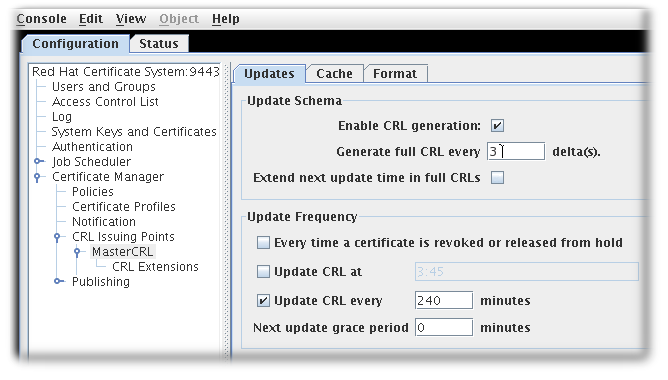
- The Update Schema section has the following options:
- Enable CRL generation. This checkbox sets whether CRLs are generated for that issuing point.
- Generate full CRL every # delta(s). This field sets how frequently CRLs are created in relation to the number of changes.
- Extend next update time in full CRLs. This provides an option to set the
nextUpdatefield in the generated CRLs. ThenextUpdateparameter shows the date when the next CRL is issued, regardless of whether it is a full or delta CRL. When using a combination of full and delta CRLs, enablingExtend next update time in full CRLswill make thenextUpdateparameter in a full CRL show when the next full CRL will be issued. Otherwise, thenextUpdateparameter in the full CRL will show when the next delta CRL will be issued, since the delta will be the next CRL to be issued.
- The Update Frequency section sets the different intervals when the CRLs are generated and issued to the directory.
- Every time a certificate is revoked or released from hold. This sets the Certificate Manager to generate the CRL every time it revokes a certificate. The Certificate Manager attempts to issue the CRL to the configured directory whenever it is generated. Generating a CRL can be time consuming if the CRL is large. Configuring the Certificate Manager to generate CRLs every time a certificate is revoked may engage the server for a considerable amount of time; during this time, the server will not be able to update the directory with any changes it receives.This setting is not recommended for a standard installation. This option should be selected to test revocation immediately, such as testing whether the server issues the CRL to a flat file.
- Update the CRL at. This field sets a daily time when the CRL should be updated. To specify multiple times, enter a comma-separate list of times, such as
01:50,04:55,06:55. To enter a schedule for multiple days, enter a comma-separated list to set the times within the same day, and then a semicolon separated list to identify times for different days. For example, this sets revocation on Day 1 of the cycle at 1:50am, 4:55am, and 6:55am and then Day 2 at 2am, 5am, and 5pm:01:50,04:55,06:55;02:00,05:00,17:00
01:50,04:55,06:55;02:00,05:00,17:00Copy to Clipboard Copied! Toggle word wrap Toggle overflow - Next update grace period. If the Certificate Manager updates the CRL at a specific frequency, the server can be configured to have a grace period to the next update time to allow time to create the CRL and issue it. For example, if the server is configured to update the CRL every 20 minutes with a grace period of 2 minutes, and if the CRL is updated at 16:00, the CRL is updated again at 16:18.
Important
Due to a known issue, when currently setting full and delta Certificate Revocation List schedules, theUpdate CRL every time a certificate is revoked or released from holdoption also requires you to fill out the twograce periodsettings. Thus, in order to select this option you need to first select theUpdate CRL everyoption and enter a number for theNext update grace period # minutesbox. - The Cache tab sets whether caching is enabled and the cache frequency.
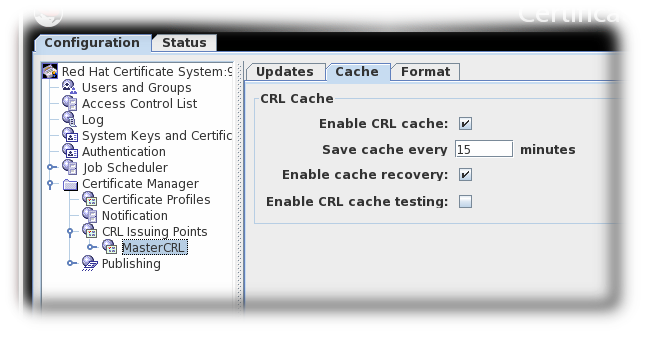
Figure 7.3. CRL Cache Tab
- Enable CRL cache. This checkbox enables the cache, which is used to create delta CRLs. If the cache is disabled, delta CRLs will not be created. For more information about the cache, see Section 7.1, “About Revoking Certificates”.
- Update cache every. This field sets how frequently the cache is written to the internal database. Set to
0to have the cache written to the database every time a certificate is revoked. - Enable cache recovery. This checkbox allows the cache to be restored.
- Enable CRL cache testing. This checkbox enables CRL performance testing for specific CRL issuing points. CRLs generated with this option should not be used in deployed CAs, as CRLs issued for testing purposed contain data generated solely for the purpose of performance testing.
- The Format tab sets the formatting and contents of the CRLs that are created. There are two sections, CRL Format and CRL Contents.

Figure 7.4. CRL Format Tab
- The CRL Format section has two options:
- Revocation list signing algorithm is a drop down list of allowed ciphers to encrypt the CRL.
- Allow extensions for CRL v2 is a checkbox which enabled CRL v2 extensions for the issuing point. If this is enabled, set the required CRL extensions described in Section 7.3.3, “Setting CRL Extensions”.
Note
Extensions must be turned on to create delta CRLs. - The CRL Contents section has three checkboxes which set what types of certificates to include in the CRL:
- Include expired certificates. This includes revoked certificates that have expired. If this is enabled, information about revoked certificates remains in the CRL after the certificate expires. If this is not enabled, information about revoked certificates is removed when the certificate expires.
- CA certificates only. This includes only CA certificates in the CRL. Selecting this option creates an Authority Revocation List (ARL), which lists only revoked CA certificates.
- Certificates issued according to profiles. This only includes certificates that were issued according to the listed profiles; to specify multiple profiles, enter a comma-separated list.
- Click .
- Extensions are allowed for this issuing point and can be configured. See Section 7.3.3, “Setting CRL Extensions” for details.
7.3.3. Setting CRL Extensions
Note
CRLReason, InvalidityDate, and CRLNumber. Other extensions are available but are disabled by default. These can be enabled and modified. For more information about the available CRL extensions, see Section B.4.2, “Standard X.509 v3 CRL Extensions Reference”.
- Open the CA console.
pkiconsole https://server.example.com:8443/ca
pkiconsole https://server.example.com:8443/caCopy to Clipboard Copied! Toggle word wrap Toggle overflow - In the navigation tree, select Certificate Manager, and then select CRL Issuing Points.
- Select the issuing point name below the Issuing Points entry, and select the CRL Extension entry below the issuing point.The right pane shows the CRL Extensions Management tab, which lists configured extensions.
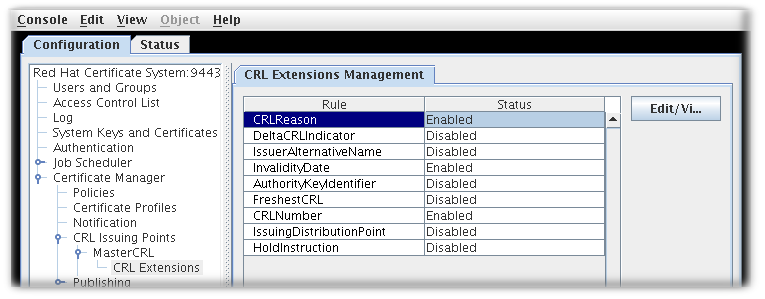
Figure 7.5. CRL Extensions
- To modify a rule, select it, and click .
- Most extensions have two options, enabling them and setting whether they are critical. Some require more information. Supply all required values. See Section B.4.2, “Standard X.509 v3 CRL Extensions Reference” for complete information about each extension and the parameters for those extensions.
- Click .
- Click to see the updated status of all the rules.
7.3.4. Setting a CA to Use a Different Certificate to Sign CRLs
CS.cfg file, see Setting a CA to Use a Different Certificate to Sign CRLs.
7.3.5. Generating CRLs from Cache
Note
enableCRLCache parameter in most environments. However, the Enable CRL cache testing parameter should not be enabled in a production environment.
7.3.5.1. Configuring CRL Generation from Cache in the Console
- Open the console.
pkiconsole https://server.example.com:8443/ca
pkiconsole https://server.example.com:8443/caCopy to Clipboard Copied! Toggle word wrap Toggle overflow - In the Configuration tab, expand the Certificate Manager folder and the CRL Issuing Points subfolder.
- Select the MasterCRL node.

- Select Enable CRL cache.
- Save the changes.
7.3.5.2. Configuring CRL Generation from Cache in CS.cfg
CS.cfg file, see Configuring CRL Generation from Cache in CS.cfg.
7.4. Setting Full and Delta CRL Schedules
Interval 1, 2, 3, 4, 5, 6, 7 ... Full CRL 1 4 7 ... Delta CRL 1, 2, 3, 4, 5, 6, 7 ...
Interval 1, 2, 3, 4, 5, 6, 7 ...
Full CRL 1 4 7 ...
Delta CRL 1, 2, 3, 4, 5, 6, 7 ...Note
7.4.1. Configuring CRL Update Intervals in the Console
- Open the console.
pkiconsole https://server.example.com:8443/ca
pkiconsole https://server.example.com:8443/caCopy to Clipboard Copied! Toggle word wrap Toggle overflow - In the Configuration tab, expand the Certificate Manager folder and the CRL Issuing Points subfolder.
- Select the MasterCRL node.
- Enter the required interval in the Generate full CRL every # delta(s) field.
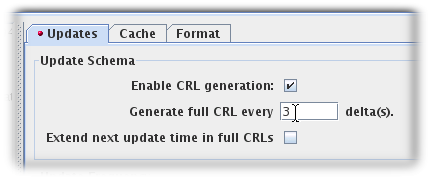
- Set the update frequency, either by specifying the occasion of a certificate revocation, a cyclical interval or set times for the updates to occur:
- Select the Update CRL every time a certificate is revoked or released from hold checkbox. The Update CRL every time a certificate is revoked or released from hold option also requires you to fill out the two Grace period settings. This is a known issue, and the bug is being tracked in Red Hat Bugzilla.
- Select the Update CRL every time a certificate is revoked or released from hold checkbox.
- Select the Update CRL at checkbox and enter specific times separated by commas, such as
01:50,04:55,06:55.
- Select Update CRL every checkbox and enter the required interval, such as
240.
- Save the changes.
Important
Note

7.4.2. Configuring Update Intervals for CRLs in CS.cfg
CS.cfg file, see Configuring Update Intervals for CRLs in CS.cfg.
7.4.3. Configuring CRL Generation Schedules over Multiple Days
ca.crl.MasterCRL.dailyUpdates=01:00,03:00,18:00;02:00,05:00,17:00
ca.crl.MasterCRL.dailyUpdates=01:00,03:00,18:00;02:00,05:00,17:00Note
ca.crl.MasterCRL.dailyUpdates=01:00,03:00,18:00,*23:00;02:00,05:00,21:00,*23:30
ca.crl.MasterCRL.dailyUpdates=01:00,03:00,18:00,*23:00;02:00,05:00,21:00,*23:30Note
CS.cfg file.
7.5. Enabling Revocation Checking
7.6. Using the Online Certificate Status Protocol (OCSP) Responder
7.6.1. Setting up the OCSP Responder
Note
- Configure the CRLs for every CA that will publish to an OCSP responder.
- Enable publishing, set up a publisher, and set publishing rules in every CA that the OCSP service will handle (Chapter 8, Publishing Certificates and CRLs). This is not necessary if the Certificate Managers publish to an LDAP directory and the Online Certificated Status Manager is set up to read from that directory.
- The certificate profiles must be configured to include the Authority Information Access extension, pointing to the location at which the Certificate Manager listens for OCSP service requests (Section 7.6.4, “Enabling the Certificate Manager's Internal OCSP Service”).
- Configure the OCSP Responder.
- Configure the Revocation Info store (Section 7.6.2.2, “Configure the Revocation Info Stores: Internal Database” and Section 7.6.2.3, “Configure the Revocation Info Stores: LDAP Directory”).
- Identify every publishing Certificate Manager to the OCSP responder (Section 7.6.2, “Identifying the CA to the OCSP Responder”).
- If necessary, configure the trust settings for the CA which signed the OCSP signing certificate (Section 16.7, “Changing the Trust Settings of a CA Certificate”).
- Restart both subsystems after configuring them.
- Verify that the CA is properly connected to the OCSP responder (Section 7.6.2.1, “Verify Certificate Manager and Online Certificate Status Manager Connection”).
7.6.2. Identifying the CA to the OCSP Responder
Note
- Get the Certificate Manager's base-64 CA signing certificate from the end-entities page of the CA.
- Open the Online Certificate Status Manager agent page. The URL has the format
https://hostname:SSLport/ocsp/agent/ocsp. - In the left frame, click .
- In the form, paste the encoded CA signing certificate inside the text area labeled Base 64 encoded certificate (including the header and footer).
- To verify that the certificate is added successfully, in the left frame, click List Certificate Authorities.
7.6.2.1. Verify Certificate Manager and Online Certificate Status Manager Connection
7.6.2.2. Configure the Revocation Info Stores: Internal Database
- Open the Online Certificate Status Manager Console.
pkiconsole https://server.example.com:8443/ocsp
pkiconsole https://server.example.com:8443/ocspCopy to Clipboard Copied! Toggle word wrap Toggle overflow - In the Configuration tab, select Online Certificate Status Manager, and then select Revocation Info Stores.
 The right pane shows the two repositories the Online Certificate Status Manager can use; by default, it uses the CRL in its internal database.
 - Select the
defStore, and click . - Edit the
defStorevalues.
- notFoundAsGood. Sets the OCSP service to return an OCSP response of GOOD if the certificate in question cannot be found in any of the CRLs. If this is not selected, the response is UNKNOWN, which, when encountered by a client, results in an error message.
- byName. The OCSP Responder only supports the basic response type, which includes the ID of the OCSP Responder making the response. The ResponderID field within the basic response type is determined by the value of the
ocsp.store.defStore.byNameparameter. IfbyNameparameter is true or is missing, the OCSP authority signing certificate subject name is used as the ResponderID field of the OCSP response. IfbyNameparameter is false, the OCSP authority signing certificate key hash will be the ResponderID field of the OCSP response. - includeNextUpdate. Includes the timestamp of the next CRL update time.
7.6.2.3. Configure the Revocation Info Stores: LDAP Directory
Important
ldapStore method is enabled, the OCSP user interface does not check the certificate status.
- Open the Online Certificate Status Manager Console.
pkiconsole https://server.example.com:8443/ocsp
pkiconsole https://server.example.com:8443/ocspCopy to Clipboard Copied! Toggle word wrap Toggle overflow - In the Configuration tab, select Online Certificate Status Manager, and then select Revocation Info Stores.
The right pane shows the two repositories the Online Certificate Status Manager can use; by default, it uses the CRL in its internal database.
- To use the CRLs in LDAP directories, click to enable the
ldapStoreoption. - Select
ldapStore, and click . - Set the
ldapStoreparameters.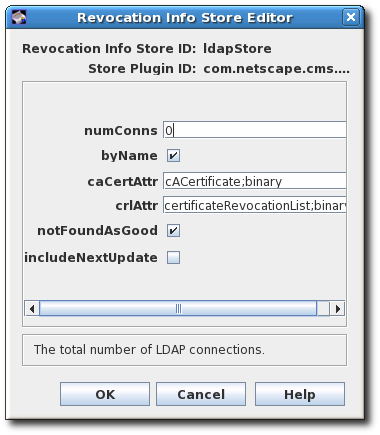
- numConns. The total number of LDAP directories the OCSP service should check. By default, this is set to 0. Setting this value shows the corresponding number of host, port, baseDN, and refreshInSec fields.
- host. The fully-qualified DNS hostname of the LDAP directory.
- port. The non-SSL/TLS port of the LDAP directory.
- baseDN. The DN to start searching for the CRL. For example,
O=example.com. - refreshInSec. How often the connection is refreshed. The default is 86400 seconds (daily).
- caCertAttr. Leave the default value,
cACertificate;binary, as it is. It is the attribute to which the Certificate Manager publishes its CA signing certificate. - crlAttr. Leave the default value,
certificateRevocationList;binary, as it is. It is the attribute to which the Certificate Manager publishes CRLs. - notFoundAsGood. Sets the OCSP service to return an OCSP response of GOOD if the certificate in question cannot be found in any of the CRLs. If this is not selected, the response is UNKNOWN, which, when encountered by a client, results in an error message.
- byName. The OCSP Responder only supports the basic response type, which includes the ID of the OCSP Responder making the response. The ResponderID field within the basic response type is determined by the value of the
ocsp.store.defStore.byNameparameter. IfbyNameparameter is true or is missing, the OCSP authority signing certificate subject name is used as the ResponderID field of the OCSP response. IfbyNameparameter is false, the OCSP authority signing certificate key hash will be the ResponderID field of the OCSP response. - includeNextUpdate. The Online Certificate Status Manager can include the timestamp of the next CRL update time.
7.6.2.4. Testing the OCSP Service Setup
- Turn on revocation checking in the browser or client.
- Request a certificate from the CA that has been enabled for OCSP services.
- Approve the request.
- Download the certificate to the browser or client.
- Make sure the CA is trusted by the browser or client.
- Check the status of Certificate Manager's internal OCSP service.Open the CA agent services page, and select the OCSP Services link.
- Test the independent Online Certificate Status Manager subsystem.Open the Online Certificate Status Manager agent services page, and click the List Certificate Authorities link.The page should show information about the Certificate Manager configured to publish CRLs to the Online Certificate Status Manager. The page also summarizes the Online Certificate Status Manager's activity since it was last started.
- Revoke the certificate.
- Verify the certificate in the browser or client. The server should return that the certificate has been revoked.
- Check the Certificate Manager's OCSP-service status again to verify that these things happened:
- The browser sent an OCSP query to the Certificate Manager.
- The Certificate Manager sent an OCSP response to the browser.
- The browser used that response to validate the certificate and returned its status, that the certificate could not be verified.
- Check the independent OCSP service subsystem again to verify that these things happened:
- The Certificate Manager published the CRL to the Online Certificate Status Manager.
- The browser sent an OCSP response to the Online Certificate Status Manager.
- The Online Certificate Status Manager sent an OCSP response to the browser.
- The browser used that response to validate the certificate and returned its status, that the certificate could not be verified.
7.6.3. Setting the Response for Bad Serial Numbers
notFoundAsGood parameter sets how the OCSP handles a certificate with an invalid serial number. This parameter is enabled by default, which means that if a certificate is present with a bad serial number but the certificate is otherwise valid, the OCSP returns a status of GOOD for the certificate.
notFoundAsGood setting. In that case, the OCSP returns a status of UNKNOWN with a certificate with a bad serial number. The client interprets that as an error and can respond accordingly.
- Open the Online Certificate Status Manager Console.
pkiconsole https://server.example.com:8443/ocsp
pkiconsole https://server.example.com:8443/ocspCopy to Clipboard Copied! Toggle word wrap Toggle overflow - In the Configuration tab, select Online Certificate Status Manager, and then select Revocation Info Stores.
- Select the
defStore, and click . - Edit the
notFoundAsGoodvalue. Selecting the checkbox means that the OCSP returns a value ofGOODeven if the serial number on the certificate is bad. Unselecting the checkbox means that the OCSP sends a value ofUNKNOWN, which the client can intrepret as an error.
- Restart the OCSP Manager.
systemctl restart pki-tomcatd@instance-name.service
]# systemctl restart pki-tomcatd@instance-name.serviceCopy to Clipboard Copied! Toggle word wrap Toggle overflow
7.6.4. Enabling the Certificate Manager's Internal OCSP Service
- Go to the CA's end-entities page. For example:
https://server.example.com:8443/ca/ee/ca
https://server.example.com:8443/ca/ee/caCopy to Clipboard Copied! Toggle word wrap Toggle overflow - Find the CA signing certificate.
- Look for the Authority Info Access extension in the certificate, and note the
Location URINamevalue, such ashttp.s://server.example.com:8443/ca/ocsp - Update the enrollment profiles to enable the Authority Information Access extension, and set the
Locationparameter to the Certificate Manager's URI. For information on editing the certificate profiles, see Section 3.2, “Setting up Certificate Profiles”. - Restart the CA instance.
systemctl restart pki-tomcatd@instance-name.service
]# systemctl restart pki-tomcatd@instance-name.serviceCopy to Clipboard Copied! Toggle word wrap Toggle overflow
Note
CS.cfg file and change the value of the ca.ocsp parameter to false.
ca.ocsp=false
ca.ocsp=false7.6.5. Submitting OCSP Requests Using the OCSPClient program
OCSPClient -h server.example.com -p 8080 -d /etc/pki/pki-tomcat/alias -c "caSigningCert cert-pki-ca" --serial 2 CertID.serialNumber=2 CertStatus=Good
]# OCSPClient -h server.example.com -p 8080 -d /etc/pki/pki-tomcat/alias -c "caSigningCert cert-pki-ca" --serial 2
CertID.serialNumber=2
CertStatus=GoodOCSPClient command can be used with the following command-line options:
| Option | Description |
|---|---|
| -d database | Security database location (default: current directory) |
| -h hostname | OCSP server hostname (default: example.com) |
| -p port | OCSP server port number (default: 8080) |
| -t path | OCSP service path (default: /ocsp/ee/ocsp) |
| -c nickname | CA certificate nickname (defaut: CA Signing Certificate) |
| -n times | Number of submissions (default: 1) |
| --serial serial_number | Serial number of certificate to be checked |
| --input input_file | Input file containing DER-encoded OCSP request |
| --output output_file | Output file to store DER-encoded OCSP response |
| -v, --verbose | Run in verbose mode |
| --help | Show help message |
7.6.6. Submitting OCSP Requests Using the GET Method
- Generate an OCSP request for the certificate the status of which is being queried. For example:
openssl ocsp -CAfile ca.pem -issuer issuer.pem -serial serial_number -reqout - | base64 MEIwQDA+MDwwOjAJBgUrDgMCGgUABBT4cyABkyiCIhU4JpmIBewdDnn8ZgQUbyBZ44kgy35o7xW5BMzM8FTvyTwCAQE=
]# openssl ocsp -CAfile ca.pem -issuer issuer.pem -serial serial_number -reqout - | base64 MEIwQDA+MDwwOjAJBgUrDgMCGgUABBT4cyABkyiCIhU4JpmIBewdDnn8ZgQUbyBZ44kgy35o7xW5BMzM8FTvyTwCAQE=Copy to Clipboard Copied! Toggle word wrap Toggle overflow - Paste the URL in the address bar of a web browser to return the status information. The browser must be able to handle OCSP requests.
https://server.example.com:8443/ocsp/ee/ocsp/MEIwQDA+MDwwOjAJBgUrDgMCGgUABBT4cyABkyiCIhU4JpmIBewdDnn8ZgQUbyBZ44kgy35o7xW5BMzM8FTvyTwCAQE=
https://server.example.com:8443/ocsp/ee/ocsp/MEIwQDA+MDwwOjAJBgUrDgMCGgUABBT4cyABkyiCIhU4JpmIBewdDnn8ZgQUbyBZ44kgy35o7xW5BMzM8FTvyTwCAQE=Copy to Clipboard Copied! Toggle word wrap Toggle overflow - The OCSP Manager responds with the certificate status which the browser can interpret. The possible statuses are GOOD, REVOKED, and UNKNOWN.
curl to send the request and openssl to parse the response. For example:
- Generate an OCSP request for the certificate the status of which is being queried. For example:
openssl ocsp -CAfile ca.pem -issuer issuer.pem -serial serial_number -reqout - | base64 MEIwQDA+MDwwOjAJBgUrDgMCGgUABBT4cyABkyiCIhU4JpmIBewdDnn8ZgQUbyBZ44kgy35o7xW5BMzM8FTvyTwCAQE=
]# openssl ocsp -CAfile ca.pem -issuer issuer.pem -serial serial_number -reqout - | base64 MEIwQDA+MDwwOjAJBgUrDgMCGgUABBT4cyABkyiCIhU4JpmIBewdDnn8ZgQUbyBZ44kgy35o7xW5BMzM8FTvyTwCAQE=Copy to Clipboard Copied! Toggle word wrap Toggle overflow - Connect to the OCSP Manager using
curlto send the OCSP request.curl https://server.example.com:8443/ocsp/ee/ocsp/MEIwQDA+MDwwOjAJBgUrDgMCGgUABBT4cyABkyiCIhU4JpmIBewdDnn8ZgQUbyBZ44kgy35o7xW5BMzM8FTvyTwCAQE= > ocspresp.der
curl https://server.example.com:8443/ocsp/ee/ocsp/MEIwQDA+MDwwOjAJBgUrDgMCGgUABBT4cyABkyiCIhU4JpmIBewdDnn8ZgQUbyBZ44kgy35o7xW5BMzM8FTvyTwCAQE= > ocspresp.derCopy to Clipboard Copied! Toggle word wrap Toggle overflow - Parse the response using
openssl:openssl ocsp -respin ocspresp.der -resp_text
openssl ocsp -respin ocspresp.der -resp_textCopy to Clipboard Copied! Toggle word wrap Toggle overflow
7.6.7. Setting up a Redirect for Certificates Issued in Certificate System 7.1 and Earlier
/ocsp/ee/ocsp/, is different in Certificate System 9 or Certificate System 8.1 than the location in Certificate System 7.1, which was simply /ocsp/. In order for certificates issued by a 7.1 or earlier CA with the Authority Information Access extension to be sent to the OCSP, create a redirect to forward the requests to the appropriate URL.
Note
- Stop the OCSP Responder.
systemctl stop pki-tomcatd@instance-name.service
]# systemctl stop pki-tomcatd@instance-name.serviceCopy to Clipboard Copied! Toggle word wrap Toggle overflow - Change to the OCSP's end user web applications directory. For example:
cd /var/lib/pki-ocsp/webapps/ocsp
]# cd /var/lib/pki-ocsp/webapps/ocspCopy to Clipboard Copied! Toggle word wrap Toggle overflow - Change to the
ROOT/WEB-INF/directory in theROOTfolder of the OCSP's web applications directory. For example:cd /var/lib/pki-ocsp/webapps/ocsp/ROOT/WEB-INF/
]# cd /var/lib/pki-ocsp/webapps/ocsp/ROOT/WEB-INF/Copy to Clipboard Copied! Toggle word wrap Toggle overflow - Create and open the
lib/directory in theROOTfolder of the OCSP's web applications directory.mkdir lib cd lib/
]# mkdir lib ]# cd lib/Copy to Clipboard Copied! Toggle word wrap Toggle overflow - Create a symlink that links back to the
/usr/share/java/pki/cms.jarJAR file. For example:ln -s /usr/share/java/pki/cms.jar cms.jar
]# ln -s /usr/share/java/pki/cms.jar cms.jarCopy to Clipboard Copied! Toggle word wrap Toggle overflow - Move up to the main web application directory. For example:
cd /var/lib/pki-ocsp/webapps/ocsp/
]# cd /var/lib/pki-ocsp/webapps/ocsp/Copy to Clipboard Copied! Toggle word wrap Toggle overflow - Rename the current instance (
ocsp) directory. For example:mv /var/lib/pki-ocsp/webapps/ocsp/ocsp /var/lib/pki-ocsp/webapps/ocsp/ocsp2
]# mv /var/lib/pki-ocsp/webapps/ocsp/ocsp /var/lib/pki-ocsp/webapps/ocsp/ocsp2Copy to Clipboard Copied! Toggle word wrap Toggle overflow - Change to the
WEB-INF/directory in the originalocsp/directory. For example:cd /var/lib/pki-ocsp/webapps/ocsp/ocsp/WEB-INF
]# cd /var/lib/pki-ocsp/webapps/ocsp/ocsp/WEB-INFCopy to Clipboard Copied! Toggle word wrap Toggle overflow - In original
ocsp/WEB-INF/directory, edit theweb.xmlfile and add lines mapping between theeeocspAddCRLandcsadmin-wizardservlets.<servlet-mapping> <servlet-name> ocspOCSP </servlet-name> <url-pattern> /ee/ocsp/* </url-pattern> </servlet-mapping><servlet-mapping> <servlet-name> ocspOCSP </servlet-name> <url-pattern> /ee/ocsp/* </url-pattern> </servlet-mapping>Copy to Clipboard Copied! Toggle word wrap Toggle overflow - Create and install the
web.xmlfile in theROOTdirectory. For example:Copy to Clipboard Copied! Toggle word wrap Toggle overflow - Edit the
/var/lib/pki-ocsp/conf/context.xmlfile, changing the following line:<Context> to <Context crossContext="true" >
<Context> to <Context crossContext="true" >Copy to Clipboard Copied! Toggle word wrap Toggle overflow - Edit the
/var/lib/pki-ocsp/webapps/ocsp/ocsp2/services.templatefile and change the following line:result.recordSet[i].uri); to result.recordSet[i].uri + "/");
result.recordSet[i].uri); to result.recordSet[i].uri + "/");Copy to Clipboard Copied! Toggle word wrap Toggle overflow - Start the OCSP instance.
systemctl restart pki-tomcatd@instance-name.service
]# systemctl restart pki-tomcatd@instance-name.serviceCopy to Clipboard Copied! Toggle word wrap Toggle overflow
Part III. Additional Configuration to Manage CA Services
Chapter 8. Publishing Certificates and CRLs
- Configure publishing to a file, LDAP directory, or OCSP responder.There can be a single publisher or multiple publishers, depending on how many locations will be used. The locations can be split by certificates and CRLs or narrower definitions, such as certificate type. Rules determine which type to publish and to what location by being associated with the publisher.
- Set rules to determine what certificates are published to the locations. Any rule which a certificate or CRL matches is activated, so the same certificate can be published to a file and to an LDAP directory by matching a file-based rule and matching a directory-based rule.Rules can be set for each object type: CA certificates, CRLs, user certificates, and cross-pair certificates. Disable all rules that will not be used.
- Configure CRLs. CRLs must be configured before they can be published. See Chapter 7, Revoking Certificates and Issuing CRLs.
- Enable publishing after setting up publishers, mappers, and rules. Once publishing is enabled, the server starts publishing immediately. If the publishers, mappers, and rules are not completely configured, publishing may not work correctly or at all.
8.1. About Publishing
Note
CRL is set as the type.
/etc/CS/certificates, the certificate is published as a file to that location. If another rule matches all certificates issued to users, and the rule has a publisher that publishes to the LDAP attribute userCertificate;binary attribute, the certificate is published to the directory specified when LDAP publishing was enabled in this attribute in the user's entry.
8.1.1. Publishers
8.1.2. Mappers
8.1.3. Rules
8.1.4. Publishing to Files
- For each certificate the server issues, it creates a file that contains the certificate in either DER-encoded or base-64 encoded format. Each file is named either
cert-serial_number.derorcert-serial_number.b64. The serial_number is the serial number of the certificate contained in the file. For example, the filename for a DER-encoded certificate with the serial number1234iscert-1234.der. - Every time the server generates a CRL, it creates a file that contains the new CRL in either DER-encoded or base-64 encoded format. Each file is named either issuing_point_name-this_update
.deror issuing_point_name-this_update.b64, depending on the format. The issuing_point_name identifies the CRL issuing point which published the CRL, and this_update specifies the value derived from the time-dependent update value for the CRL contained in the file. For example, the filename for a DER-encoded CRL with the valueThis Update: Friday January 28 15:36:00 PST 2020, isMasterCRL-20200128-153600.der.
8.1.5. OCSP Publishing
8.1.6. LDAP Publishing
- For each certificate the server issues, it creates a blob that contains the certificate in its DER-encoded format in the specified attribute of the user's entry. The certificate is published as a DER encoded binary blob.
- Every time the server generates a CRL, it creates a blob that contains the new CRL in its DER-encoded format in the specified attribute of the entry for the CA.
8.2. Configuring Publishing to a File
- Log into the Certificate Manager Console.
pkiconsole https://server.example.com:8443/ca
pkiconsole https://server.example.com:8443/caCopy to Clipboard Copied! Toggle word wrap Toggle overflow - In the Configuration tab, select Certificate Manager from the navigation tree on the left. Select Publishing, and then Publishers.The Publishers Management tab, which lists configured publisher instances, opens on the right.

- Click to open the Select Publisher Plug-in Implementation window, which lists registered publisher modules.

- Select the
FileBasedPublishermodule, then open the editor window.This is the module that enables the Certificate Manager to publish certificates and CRLs to files.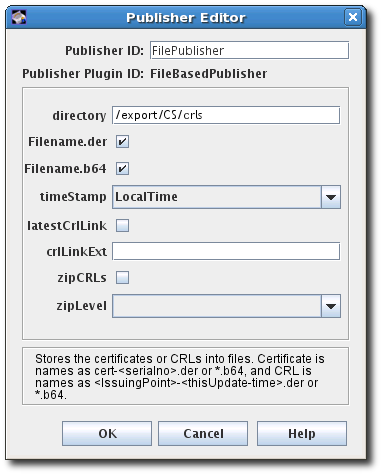
- Configure the information for publishing the certificate:
- The publisher ID, an alphanumeric string with no spaces like
PublishCertsToFile - The path to the directory in which the Certificate Manager should publish the files. The path can be an absolute path or can be relative to the Certificate System instance directory. For example,
/export/CS/certificates. - The file type to publish, by selecting the checkboxes for DER-encoded files, base-64 encoded files, or both.
- For CRLs, the format of the timestamp. Published certificates include serial numbers in their file names, while CRLs use timestamps.
- For CRLs, whether to generate a link in the file to go to the latest CRL. If enabled, the link assumes that the name of the CRL issuing point to use with the extension will be supplied in the crlLinkExt field.
- For CRLs, whether to compress (zip) CRLs and the compression level to use.
8.3. Configuring Publishing to an OCSP
8.3.1. Enabling Publishing to an OCSP with Client Authentication
- Log into the Certificate Manager Console.
pkiconsole https://server.example.com:8443/ca
pkiconsole https://server.example.com:8443/caCopy to Clipboard Copied! Toggle word wrap Toggle overflow - In the Configuration tab, select Certificate Manager from the navigation tree on the left. Select Publishing, and then Publishers.
- Click to open the Select Publisher Plug-in Implementation window, which lists registered publisher modules.

- Select the
OCSPPublishermodule, then open the editor window. This is the publisher module that enables the Certificate Manager to publish CRLs to the Online Certificate Status Manager.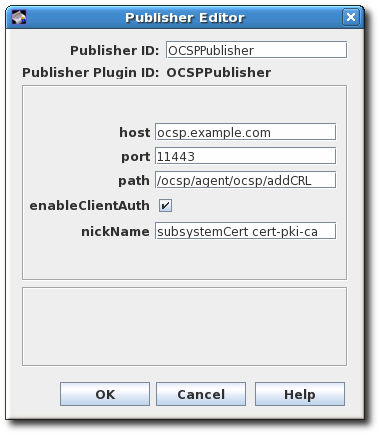
- The publisher ID must be an alphanumeric string with no spaces, like
PublishCertsToOCSP. - The host can be the fully-qualified domain name, such as
ocspResponder.example.com, or an IPv4 or IPv6 address. - The default path is the directory to send the CRL to, like
/ocsp/agent/ocsp/addCRL. - If client authentication is used (enableClientAuth is checked), then the nickname field gives the nickname of the certificate to use for authentication. This certificate must already exist in the OCSP security database; this will usually be the CA subsystem certificate.
- Create a user entry for the CA on the OCSP Manager. The user is used to authenticate to the OCSP when sending a new CRL. There are two things required:
- Name the OCSP user entry after the CA server, like
CA-hostname-EEport. - Use whatever certificate was specified in the publisher configuration as the user certificate in the OCSP user account. This is usually the CA's subsystem certificate.
Setting up subsystem users is covered in Section 14.3.2.1, “Creating Users”.
8.4. Configuring Publishing to an LDAP Directory
- Configure the Directory Server to which certificates will be published. Certain attributes have to be added to entries and bind identities and authentication methods have to be configured.
- Configure a publisher for each type of object published: CA certificates, cross-pair certificates, CRLs, and user certificates. The publisher declares in which attribute to store the object. The attributes set by default are the X.500 standard attributes for storing each object type. This attribute can be changed in the publisher, but generally, it is not necessary to change the LDAP publishers.
- Set up mappers to enable an entry's DN to be derived from the certificate's subject name. This generally does not need set for CA certificates, CRLs, and user certificates. There can be more than one mapper set for a type of certificate. This can be useful, for example, to publish certificates for two sets of users from different divisions of a company who are located in different parts of the directory tree. A mapper is created for each of the groups to specify a different branch of the tree.For details about setting up mappers, see Section 8.4.3, “Creating Mappers”.
- Create rules to connect publishers to mappers, as described in Section 8.5, “Creating Rules”.
- Enable publishing, as described in Section 8.6, “Enabling Publishing”.
8.4.1. Configuring the LDAP Directory
- Set up the entry for the CA. For the Certificate Manager to publish its CA certificate and CRL, the directory must include an entry for the CA.
Note
When LDAP publishing is configured, the Certificate Manager automatically creates or converts an entry for the CA in the directory. This option is set in both the CA and CRL mapper instances and enabled by default. If the directory restricts the Certificate Manager from creating entries in the directory, turn off this option in those mapper instances, and add an entry for the CA manually in the directory.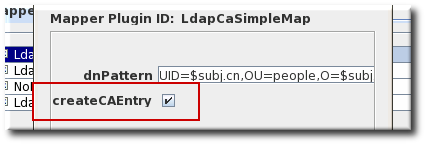 When adding the CA's entry to the directory, select the entry type based on the DN of the CA:
- If the CA's DN begins with the
cncomponent, create a newpersonentry for the CA. Selecting a different type of entry may not allow thecncomponent to be specified. - If the CA's DN begins with the
oucomponent, create a neworganizationalunitentry for the CA.
The entry does not have to be in thepkiCAorcertificationAuthorityobject class. The Certificate Manager will convert this entry to thepkiCAorcertificationAuthorityobject class automatically by publishing its CA's signing certificate.Note
ThepkiCAobject class is defined in RFC 4523, while thecertificationAuthorityobject class is defined in the (obsolete) RFC 2256. Either object class is acceptable, depending on the schema definitions used by the Directory Server. In some situations, both object classes can be used for the same CA entry.For more information on creating directory entries, see the Red Hat Directory Server documentation. - Add the correct schema elements to the CA and user directory entries.For a Certificate Manager to publish certificates and CRLs to a directory, it must be configured with specific attributes and object classes.
Expand Object Type Schema Reason End-entity certificate userCertificate;binary (attribute) This is the attribute to which the Certificate Manager publishes the certificate.This is a multi-valued attribute, and each value is a DER-encoded binary X.509 certificate. The LDAP object class namedinetOrgPersonallows this attribute. ThestrongAuthenticationUserobject class allows this attribute and can be combined with any other object class to allow certificates to be published to directory entries with other object classes. The Certificate Manager does not automatically add this object class to the schema table of the corresponding Directory Server.If the directory object that it finds does not allow theuserCertificate;binaryattribute, adding or removing the certificate fails.CA certificate caCertificate;binary (attribute) This is the attribute to which the Certificate Manager publishes the certificate.The Certificate Manager publishes its own CA certificate to its own LDAP directory entry when the server starts. The entry corresponds to the Certificate Manager's issuer name.This is a required attribute of thepkiCAorcertificationAuthorityobject class. The Certificate Manager adds this object class to the directory entry for the CA if it can find the CA's directory entry.CRL certificateRevocationList;binary (attribute) This is the attribute to which the Certificate Manager publishes the CRL.The Certificate Manager publishes the CRL to its own LDAP directory entry. The entry corresponds to the Certificate Manager's issuer name.This is an attribute of thepkiCAorcertificationAuthorityobject class. The value of the attribute is the DER-encoded binary X.509 CRL. The CA's entry must already contain thepkiCAorcertificationAuthorityobject class for the CRL to be published to the entry.Delta CRL deltaRevocationList;binary (attribute) This is the attribute to which the Certificate Manager publishes the delta CRL. The Certificate Manager publishes the delta CRL to its own LDAP directory entry, separate from the full CRL. The delta CRL entry corresponds to the Certificate Manager's issuer name.This attribute belongs to thedeltaCRLorcertificationAuthority-V2object class. The value of the attribute is the DER-encoded binary X.509 delta CRL. - Set up a bind DN for the Certificate Manager to use to access the Directory Server.The Certificate Manager user must have read-write permissions to the directory to publish certificates and CRLs to the directory so that the Certificate Manager can modify the user entries with certificate-related information and the CA entry with CA's certificate and CRL related information.The bind DN entry can be either of the following:
- An existing DN that has write access, such as the Directory Manager.
- A new user which is granted write access. The entry can be identified by the Certificate Manager's DN, such as
cn=testCA, ou=Research Dept, o=Example Corporation, st=California, c=US.Note
Carefully consider what privileges are given to this user. This user can be restricted in what it can write to the directory by creating ACLs for the account. For instructions on giving write access to the Certificate Manager's entry, see the Directory Server documentation.
- Set the directory authentication method for how the Certificate Manager authenticates to Directory Server. There are three options: basic authentication (simple username and password); SSL without client authentication (simple username and password); and SSL with client authentication (certificate-based).See the Red Hat Directory Server documentation for instructions on setting up these methods of communication with the server.
8.4.2. Configuring LDAP Publishers
| Publisher | Description |
|---|---|
| LdapCaCertPublisher | Publishes CA certificates to the LDAP directory. |
| LdapCrlPublisher | Publishes CRLs to the LDAP directory. |
| LdapDeltaCrlPublisher | Publishes delta CRLs to the LDAP directory. |
| LdapUserCertPublisher | Publishes all types of end-entity certificates to the LDAP directory. |
| LdapCrossCertPairPublisher | Publishes cross-signed certificates to the LDAP directory. |
8.4.3. Creating Mappers
| Mapper | Description |
|---|---|
| LdapUserCertMap | Locates the correct attribute of user entries in the directory in order to publish user certificates. |
| LdapCrlMap | Locates the correct attribute of the CA's entry in the directory in order to publish the CRL. |
| LdapCaCertMap | Locates the correct attribute of the CA's entry in the directory in order to publish the CA certificate. |
- Log into the Certificate Manager Console.
pkiconsole https://server.example.com:8443/ca
pkiconsole https://server.example.com:8443/caCopy to Clipboard Copied! Toggle word wrap Toggle overflow - In the Configuration tab, select Certificate Manager from the navigation tree on the left. Select Publishing, and then Mappers.The Mappers Management tab, which lists configured mappers, opens on the right.

- To create a new mapper instance, click . The Select Mapper Plugin Implementation window opens, which lists registered mapper modules. Select a module, and edit it. For complete information about these modules, see Section C.2, “Mapper Plug-in Modules ”.

- Edit the mapper instance, and click .
 See Section C.2, “Mapper Plug-in Modules ” for detailed information about each mapper.
8.4.4. Completing Configuration: Rules and Enabling
8.5. Creating Rules
- Log into the Certificate Manager Console.
pkiconsole https://server.example.com:8443/ca
pkiconsole https://server.example.com:8443/caCopy to Clipboard Copied! Toggle word wrap Toggle overflow - In the Configuration tab, select Certificate Manager from the navigation tree on the left. Select Publishing, and then Rules.The Rules Management tab, which lists configured rules, opens on the right.

- To edit an existing rule, select that rule from the list, and click . This opens the Rule Editor window.

- To create a rule, click . This opens the Select Rule Plug-in Implementation window.
 Select the
Rulemodule. This is the only default module. If any custom modules have been been registered, they are also available. - Edit the rule.
- type. This is the type of certificate for which the rule applies. For a CA signing certificate, the value is
cacert. For a cross-signed certificate, the value isxcert. For all other types of certificates, the value iscerts. For CRLs, specifycrl. - predicate. This sets the predicate value for the type of certificate or CRL issuing point to which this rule applies. The predicate values for CRL issuing points, delta CRLs, and certificates are listed in Table 8.3, “Predicate Expressions”.
- enable.
- mapper. Mappers are not necessary when publishing to a file; they are only needed for LDAP publishing. If this rule is associated with a publisher that publishes to an LDAP directory, select an appropriate mapper here. Leave blank for all other forms of publishing.
- publisher. Sets the publisher to associate with the rule.
| Predicate Type | Predicate |
|---|---|
| CRL Issuing Point | issuingPointId==Issuing_Point_Instance_ID && isDeltaCRL==[true|false]
To publish only the master CRL, set
isDeltaCRL==false. To publish only the delta CRL, set isDeltaCRL==true. To publish both, set a rule for the master CRL and another rule for the delta CRL.
|
| Certificate Profile | profileId==profile_name
To publish certificates based on the profile used to issue them, set
profileId== to a profile name, such as caServerCert.
|
8.6. Enabling Publishing
Note
- Log into the Certificate Manager Console.
pkiconsole https://server.example.com:8443/ca
pkiconsole https://server.example.com:8443/caCopy to Clipboard Copied! Toggle word wrap Toggle overflow - In the Configuration tab, select Certificate Manager from the navigation tree on the left. Select Publishing.The right pane shows the details for publishing to an LDAP-compliant directory.
- To enable publishing to a file only, select Enable Publishing.
- To enable LDAP publishing, select both Enable Publishing and Enable Default LDAP Connection.
 In the Destination section, set the information for the Directory Server instance.
- Host name. If the Directory Server is configured for SSL client authenticated communication, the name must match the
cncomponent in the subject DN of the Directory Server's SSL server certificate.The hostname can be the fully-qualified domain name or an IPv4 or IPv6 address. - Port number.
- Directory Manager DN. This is the distinguished name (DN) of the directory entry that has Directory Manager privileges. The Certificate Manager uses this DN to access the directory tree and to publish to the directory. The access control set up for this DN determines whether the Certificate Manager can perform publishing. It is possible to create another DN that has limited read-write permissions for only those attributes that the publishing system actually needs to write.
- Password. This is the password which the CA uses to bind to the LDAP directory to which the certificate or CRL is published. The Certificate Manager saves this password in its
password.conffile. For example:CA LDAP Publishing:password
CA LDAP Publishing:passwordCopy to Clipboard Copied! Toggle word wrap Toggle overflow Note
The parameter name which identifies the publishing password (CA LDAP Publishing) is set in the Certificate Manager'sCS.cfgfile in theca.publish.ldappublish.ldap.ldapauth.bindPWPromptparameter, and it can be edited. - Client certificate. This sets the certificate the Certificate Manager uses for SSL client authentication to the publishing directory. By default, the Certificate Manager uses its SSL server certificate.
- LDAP version. Select LDAP version 3.
- Authentication. The way the Certificate Manager authenticates to the Directory Server. The choices are
Basic authenticationandSSL client authentication.If the Directory Server is configured for basic authentication or for SSL communication without client authentication, selectBasic authenticationand specify values for the Directory manager DN and password.If the Directory Server is configured for SSL communication with client authentication, selectSSL client authenticationand theUse SSL communicationoption, and identify the certificate that the Certificate Manager must use for SSL client authentication to the directory.
8.7. Enabling a Publishing Queue
Note
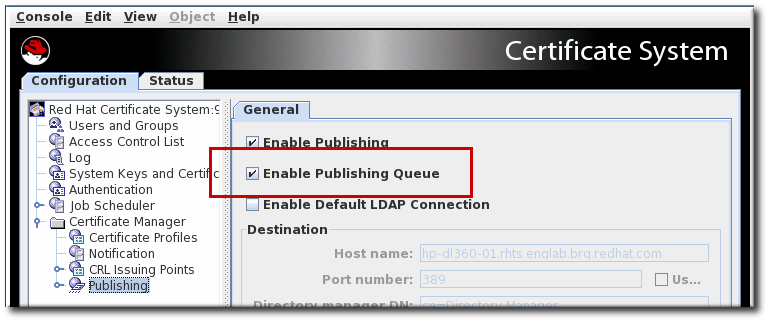
Figure 8.1. Enabling the Publishing Queue
Note
CS.cfg file allows administrators to set other options for publishing, like the number of threads to use for publishing operations and the queue page size.
CS.cfg file, see Enabling the Publishing Queue.
8.8. Setting up Resumable CRL Downloads
8.8.1. Retrieving CRLs Using wget
wget. The wget command can be used to retrieve any published CRL. For example, to retrieve a full CRL which is newer than the previous full CRL:
wget --no-check-certificate -d https://server.example.com:8443/ca/ee/ca/crl/MasterCRL.bin
[root@server ~]# wget --no-check-certificate -d https://server.example.com:8443/ca/ee/ca/crl/MasterCRL.binwget are summarized in Table 8.4, “wget Options to Use for Retrieving CRLs”.
| Argument | Description |
|---|---|
| no argument | Retrieves the full CRL. |
| -N | Retrieves the CRL that is newer than the local copy (delta CRL). |
| -c | Retrieves a partially-downloaded file. |
| --no-check-certificate | Skips SSL for the connection, so it is not necessary to configure SSL between the host and client. |
| -d | Prints debug information. |
8.9. Publishing Cross-Pair Certificates
crossCertificatePair entry to an LDAP directory or to a file; this is enabled by default. If this has been disabled, it can be re-enabled through the Certificate Manager Console by doing the following:
- Open the CA console.
pkiconsole https://server.example.com:8443/ca
pkiconsole https://server.example.com:8443/caCopy to Clipboard Copied! Toggle word wrap Toggle overflow - In the Configuration tab, select the Certificate Manager link in the left pane, then the Publishing link.
- Click the Rules link under Publishing. This opens the Rules Management pane on the right.
- If the rule exists and has been disabled, select the enable checkbox. If the rule has been deleted, then click and create a new rule.
- Select xcerts from the type drop-down menu.
- Make sure the enable checkbox is selected.
- Select LdapCaCertMap from the mapper drop-down menu.
- Select LdapCrossCertPairPublisher from the publisher drop-down menu.
LdapCaCertMap, by default designates that the crossCertificatePair be stored to the LdapCaSimpleMap LDAP entry. The publisher, LDAPCrossPairPublisher, by default sets the attribute to store the cross-pair certificate in the CA entry to crossCertificatePair;binary.
8.10. Testing Publishing to Files
- Open the CA's end-entities page, and request a certificate.
- Approve the request through the agent services page, if required.
- Retrieve the certificate from the end-entities page, and download the certificate into the browser.
- Check whether the server generated the DER-encoded file containing the certificate.Open the directory to which the binary blob of the certificate is supposed to be published. The certificate file should be named
cert-serial_number.der. - Convert the DER-encoded certificate to its base 64-encoded format using the Binary to ASCII tool. For more information on this tool, refer to the
BtoA(1)man page.BtoA input_file output_file
BtoA input_file output_fileCopy to Clipboard Copied! Toggle word wrap Toggle overflow input_file sets the path to the file that contains the DER-encoded certificate, and output_file sets the path to the file to write the base-64 encoded certificate. - Open the ASCII file; the base-64 encoded certificate is similar to the one shown:
Copy to Clipboard Copied! Toggle word wrap Toggle overflow - Convert the base 64-encoded certificate to a readable form using the Pretty Print Certificate tool. For more information on this tool, refer to the
PrettyPrintCert(1)man page.PrettyPrintCert input_file [output_file]
PrettyPrintCert input_file [output_file]Copy to Clipboard Copied! Toggle word wrap Toggle overflow input_file sets the path to the ASCII file that contains the base-64 encoded certificate, and output_file, optionally, sets the path to the file to write the certificate. If an output file is not set, the certificate information is written to the standard output. - Compare the output with the certificate issued; check the serial number in the certificate with the one used in the filename.If everything matches, the Certificate Manager is configured correctly to publish certificates to file.
- Revoke the certificate.
- Check whether the server generated the DER-encoded file containing the CRL.Open the directory to which the server is to publish the CRL as a binary blob. The CRL file should have a name in the form
crl-this_update.der. this_update specifies the value derived from the time-dependentThis Updatevariable of the CRL. - Convert the DER-encoded CRL to its base 64-encoded format using the Binary to ASCII tool.
BtoA input_file output_file
BtoA input_file output_fileCopy to Clipboard Copied! Toggle word wrap Toggle overflow - Convert the base 64-encoded CRL to readable form using the Pretty Print CRL tool.
PrettyPrintCrl input_file [output_file]
PrettyPrintCrl input_file [output_file]Copy to Clipboard Copied! Toggle word wrap Toggle overflow - Compare the output.
8.11. Viewing Certificates and CRLs Published to File
dumpasn1 tool or the PrettyPrintCert or PrettyPrintCrl tool.
- Convert the base-64 file to binary. For example:
AtoB /tmp/example.b64 /tmp/example.bin
AtoB /tmp/example.b64 /tmp/example.binCopy to Clipboard Copied! Toggle word wrap Toggle overflow - Use the
PrettyPrintCertorPrettyPrintCrltool to convert the binary file to pretty-print format. For example:PrettyPrintCert example.bin example.cert
PrettyPrintCert example.bin example.certCopy to Clipboard Copied! Toggle word wrap Toggle overflow
dumpasn1, PrettyPrintCert, or PrettyPrintCrl tool with the DER-encoded file. For example:
PrettyPrintCrl example.der example.crl
PrettyPrintCrl example.der example.crl8.12. Updating Certificates and CRLs in a Directory
- Search the internal database for certificates that are out of sync and publish or unpublish.
- Publish certificates that were issued while the Directory Server was down. Similarly, unpublish certificates that were revoked or that expired while Directory Server was down.
- Publish or unpublish a range of certificates based on serial numbers, from serial number xx to serial number yy.
8.12.1. Manually Updating Certificates in the Directory
- Update the directory with certificates.
- Remove expired certificates from the directory.Removing expired certificates from the publishing directory can be automated by scheduling an automated job. For details, see Chapter 12, Setting Automated Jobs.
- Remove revoked certificates from the directory.
- Open the Certificate Manager agent services page.
- Select the Update Directory Server link.
- Select the appropriate options, and click .The Certificate Manager starts updating the directory with the certificate information in its internal database. If the changes are substantial, updating the directory can take considerable time. During this period, any changes made through the Certificate Manager, including any certificates issued or any certificates revoked, may not be included in the update. If any certificates are issued or revoked while the directory is updated, update the directory again to reflect those changes.
- Modify the default publishing rule for user certificates by changing the value of the
predicateparameter toprofileId!=caCACert. - Use the
LdapCaCertPublisherpublisher plug-in module to add another rule, with the predicate parameter set toprofileId=caCACert, for publishing subordinate CA certificates.
8.12.2. Manually Updating the CRL in the Directory
- Open the Certificate Manager agent services page.
- Select Update Revocation List.
- Click .
8.13. Registering Custom Mapper and Publisher Plug-in Modules
- Create the custom job class. For this example, the custom publisher plug-in is called
MyPublisher.java. - Compile the new class.
javac -d . -classpath $CLASSPATH MyPublisher.java
javac -d . -classpath $CLASSPATH MyPublisher.javaCopy to Clipboard Copied! Toggle word wrap Toggle overflow - Create a directory in the CA's
WEB-INFweb directory to hold the custom classes, so that the CA can access them.mkdir /var/lib/pki/instance_name/ca/webapps/ca/WEB-INF/classes
mkdir /var/lib/pki/instance_name/ca/webapps/ca/WEB-INF/classesCopy to Clipboard Copied! Toggle word wrap Toggle overflow - Copy the new plug-in files into the new
classesdirectory, and set the owner to the Certificate System system user (pkiuser).cp -pr com /var/lib/pki/instance_name/ca/webapps/ca/WEB-INF/classes chown -R pkiuser:pkiuser /var/lib/pki/instance_name/ca/webapps/ca/WEB-INF/classes
cp -pr com /var/lib/pki/instance_name/ca/webapps/ca/WEB-INF/classes chown -R pkiuser:pkiuser /var/lib/pki/instance_name/ca/webapps/ca/WEB-INF/classesCopy to Clipboard Copied! Toggle word wrap Toggle overflow - Register the plug-in.
- Log into the Certificate Manager Console.
pkiconsole https://server.example.com:8443/ca
pkiconsole https://server.example.com:8443/caCopy to Clipboard Copied! Toggle word wrap Toggle overflow - In the Configuration tab, select Certificate Manager from the navigation tree on the left. Select Publishing.
- To register a mapper module, select Mappers, and then select the Mapper Plugin Registration tab.To register a publisher module, select Publishers, and then select the Publisher Plug-in Registration tab.
- To register a plug-in, click .
- Set the plug-in name and plug-in class name. The class name is, the path to the implementing Java class. If this class is part of a package, include the package name. For example, to register a class named
customMapperin a package namedcom.customplugins, the name iscom.customplugins.customMapper.
Chapter 9. Authentication for Enrolling Certificates
- In agent-approved enrollment, end-entity requests are sent to an agent for approval. The agent approves the certificate request.
- In automatic enrollment, end-entity requests are authenticated using a plug-in, and then the certificate request is processed; an agent is not involved in the enrollment process.
- In CMC enrollment, a third party application can create a request that is signed by an agent and then automatically processed.
Note
9.1. Configuring Agent-Approved Enrollment
.cfg file. For example:
auth.instance_id=
auth.instance_id=9.2. Automated Enrollment
- Directory-based enrollment. End entities are authenticated against an LDAP directory using their user ID and password or their DN and password. See Section 9.2.1, “Setting up Directory-Based Authentication”.
- PIN-based enrollment. End entities are authenticated against an LDAP directory using their user ID, password, and a PIN set in their directory entry. See Section 9.2.2, “Setting up PIN-Based Enrollment”.
- Certificate-based authentication. Entities of some kind — both end users and other entities, like servers or tokens — are authenticated to the CA using a certificate issued by the CA which proves their identity. This is most commonly used for renewal, where the original certificate is presented to authenticate the renewal process. See Section 9.2.3, “Using Certificate-Based Authentication”.
- AgentCertAuth. This method automatically approves a certificate request if the entity submitting the request is authenticated as a subsystem agent. A user authenticates as an agent by presenting an agent certificate. If the presented certificate is recognized by the subsystem as an agent certificate, then the CA automatically processes the certificate request.This form of automatic authentication can be associated with the certificate profile for enrolling for server certificates.This plug-in is enabled by default and has no parameters.
- Flat file-based enrollment. Used exclusively for router (SCEP) enrollments, a text file is used which contains a list of IP addresses, hostnames, or other identifier and a password, which is usually a random PIN. A router authenticates to the CA using its ID and PIN, and then the CA compares the presented credentials to the list of identities in the text file. See Section 9.2.4, “Configuring Flat File Authentication”.
9.2.1. Setting up Directory-Based Authentication
UidPwdDirAuth and the UdnPwdDirAuth plug-in modules implement directory-based authentication. End users enroll for a certificate by providing their user IDs or DN and password to authenticate to an LDAP directory.
- Create an instance of either the
UidPwdDirAuthorUdnPwdDirAuthauthentication plug-in module and configure the instance.- Open the CA Console.
pkiconsole https://server.example.com:8443/ca
pkiconsole https://server.example.com:8443/caCopy to Clipboard Copied! Toggle word wrap Toggle overflow - In the Configuration tab, select Authentication in the navigation tree.The right pane shows the Authentication Instance tab, which lists the currently configured authentication instances.
Note
TheUidPwdDirAuthplug-in is enabled by default. - Click .The Select Authentication Plug-in Implementation window appears.
- Select
UidPwdDirAuthfor user ID and password authentication, or selectUdnPwdDirAuthfor DN and password authentication. - Fill in the following fields in the Authentication Instance Editor window:
- Authentication Instance ID. Accept the default instance name, or enter a new name.
- dnpattern. Specifies a string representing a subject name pattern to formulate from the directory attributes and entry DN.
- ldapStringAttributes. Specifies the list of LDAP string attributes that should be considered authentic for the end entity. If specified, the values corresponding to these attributes are copied from the authentication directory into the authentication token and used by the certificate profile to generate the subject name. Entering values for this parameter is optional.
- ldapByteAttributes. Specifies the list of LDAP byte (binary) attributes that should be considered authentic for the end entity. If specified, the values corresponding to these attributes will be copied from the authentication directory into the authentication token for use by other modules, such as adding additional information to users' certificates.Entering values for this parameter is optional.
- ldap.ldapconn.host. Specifies the fully-qualified DNS hostname of the authentication directory.
- ldap.ldapconn.port. Specifies the TCP/IP port on which the authentication directory listens to requests; if the ldap.ldapconn.secureConn. checkbox is selected, this should be the SSL port number.
- ldap.ldapconn.secureConn. Specifies the type, SSL or non-SSL, of the port on which the authentication directory listens to requests from the Certificate System. Select if this is an SSL port.
- ldap.ldapconn.version. Specifies the LDAP protocol version, either
2or3. The default is3, since all Directory Servers later than version 3.x are LDAPv3. - ldap.basedn. Specifies the base DN for searching the authentication directory. The server uses the value of the
uidfield from the HTTP input (what a user enters in the enrollment form) and the base DN to construct an LDAP search filter. - ldap.minConns. Specifies the minimum number of connections permitted to the authentication directory. The permissible values are
1to3. - ldap.maxConns. Specifies the maximum number of connections permitted to the authentication directory. The permissible values are
3to10.
- Click . The authentication instance is set up and enabled.
- Set the certificate profiles to use to enroll users by setting policies for specific certificates. Customize the enrollment forms by configuring the inputs in the certificate profiles, and include inputs for the information needed by the plug-in to authenticate the user. If the default inputs do not contain all of the information that needs to be collected, submit a request created with a third-party tool.For information on configuring the profiles, see Section 3.7.2, “Inserting LDAP Directory Attribute Values and Other Information into the Subject Alt Name”.
Setting up Bound LDAP Connection
- Set up directory-based authentication according to the following example in
CS.cfg:Copy to Clipboard Copied! Toggle word wrap Toggle overflow wherebindPWPromptis the tag or prompt that is used in thepassword.conffile; It is also the name used under theoptionpasswordlistandauthPrefixoptions. - Add the tag or prompt from
CS.cfgwith its password inpassword.conf:externalLDAP=your_password
externalLDAP=your_passwordCopy to Clipboard Copied! Toggle word wrap Toggle overflow
Setting up External Authorization
CS.cfg:
groupsEnableis a boolean option that enables retrieval of groups. The default value isfalse.groupsBasednis the base DN of groups. It needs to be specified when it differs from the defaultbasedn.groupsis the DN component for groups. The default value isou=groups.groupObjectClassis one of the following group object classes:groupofuniquenames,groupofnames. The default value isgroupofuniquenames.groupUseridNameis the name of the user ID attribute in the group object member attribute. The default value iscn.useridNameis the name of the user ID DN component. The default value isuid.searchGroupUserByUserdnis a boolean option that determines whether to search the group object member attribute for theuserdnor${groupUserIdName}=${uid}attributes. The default value istrue.
/instance_path/ca/profiles/ca/profile_id.cfg file to configure the profile to use the UserDirEnrollment auth instance defined in CS.cfg, and if appropriate, provide an ACL for authorization based on groups. For example:
auth.instance_id=UserDirEnrollment auths.acl=group="cn=devlab-access,ou=engineering,dc=example,dc=com"
auth.instance_id=UserDirEnrollment
auths.acl=group="cn=devlab-access,ou=engineering,dc=example,dc=com"9.2.2. Setting up PIN-Based Enrollment
setpin, that adds the necessary schema for PINs to the Directory Server and generates the PINs for each user.
- Adds the necessary schema for PINs to the LDAP directory.
- Adds a PIN manager user who has read-write permissions to the PINs that are set up.
- Sets up ACIs to allow for PIN removal once the PIN has been used, giving read-write permissions for PINs to the PIN manager, and preventing users from creating or changing PINs.
- Creates PINs in each user entry.
Note
- Use the PIN tool to add schema needed for PINs, add PINs to the user entries, and then distribute the PINs to users.
- Open the
/usr/share/pki/native-tools/directory. - Open the
setpin.conffile in a text editor. - Follow the instructions outlined in the file and make the appropriate changes.Usually, the parameters which need updated are the Directory Server's host name, Directory Manager's bind password, and PIN manager's password.
- Run the
setpincommand with itsoptfileoption pointing to thesetpin.conffile.setpin optfile=/usr/share/pki/native-tools/setpin.conf
setpin optfile=/usr/share/pki/native-tools/setpin.confCopy to Clipboard Copied! Toggle word wrap Toggle overflow The tool modifies the schema with a new attribute (by default,pin) and a new object class (by default,pinPerson), creates apinmanageruser, and sets the ACI to allow only thepinmanageruser to modify thepinattribute. - To generate PINs for specific user entries or to provide user-defined PINs, create an input file with the DNs of those entries listed. For ezample:
dn:uid=bjensen,ou=people,dc=example,dc=com dn:uid=jsmith,ou=people,dc=example,dc=com dn:jtyler,ou=people,dc=example,dc=com ...
dn:uid=bjensen,ou=people,dc=example,dc=com dn:uid=jsmith,ou=people,dc=example,dc=com dn:jtyler,ou=people,dc=example,dc=com ...Copy to Clipboard Copied! Toggle word wrap Toggle overflow For information on constructing an input file, see the PIN generator chapter in the Certificate System Command-Line Tools Guide. - Disable setup mode for the
setpincommand. Either comment out thesetupline or change the value to no.vim /usr/share/pki/native-tools/setpin.conf setup=no
vim /usr/share/pki/native-tools/setpin.conf setup=noCopy to Clipboard Copied! Toggle word wrap Toggle overflow Setup mode creates the required uers and object classes, but the tool will not generate PINs while in setup mode. - Run the
setpincommand to create PINs in the directory.Note
Test-run the tool first without thewriteoption to generate a list of PINs without actually changing the directory.For example:setpin host=yourhost port=9446 length=11 input=infile output=outfile write "binddn=cn=pinmanager,o=example.com" bindpw="password" basedn=o=example.com "filter=(uid=u*)" hash=sha256
setpin host=yourhost port=9446 length=11 input=infile output=outfile write "binddn=cn=pinmanager,o=example.com" bindpw="password" basedn=o=example.com "filter=(uid=u*)" hash=sha256Copy to Clipboard Copied! Toggle word wrap Toggle overflow Warning
Do not set thehashargument tonone. Running thesetpincommand withhash=noneresults in the pin being stored in the user LDAP entry as plain text. - Use the output file for delivering PINs to users after completing setting up the required authentication method.
- Set the policies for specific certificates in the certificate profiles to enroll users. See Chapter 3, Making Rules for Issuing Certificates (Certificate Profiles) for information about certificate profile policies.
- Create and configure an instance of the
UidPwdPinDirAuthauthentication plug-in.- Open the CA Console.
pkiconsole https://server.example.com:8443/ca
pkiconsole https://server.example.com:8443/caCopy to Clipboard Copied! Toggle word wrap Toggle overflow - In the Configuration tab, select Authentication in the navigation tree.
- Click .The Select Authentication Plug-in Implementation window appears.
- Select the
UidPwdPinDirAuthplug-in module. - Fill in the following fields in the Authentication Instance Editor window:
- Authentication Instance ID. Accept the default instance name or enter a new name.
- removePin. Sets whether to remove PINs from the authentication directory after end users successfully authenticate. Removing PINs from the directory restricts users from enrolling more than once, and thus prevents them from getting more than one certificate.
- pinAttr. Specifies the authentication directory attribute for PINs. The
PIN Generatorutility sets the attribute to the value of theobjectclassparameter in thesetpin.conffile; the default value for this parameter ispin. - dnpattern. Specifies a string representing a subject name pattern to formulate from the directory attributes and entry DN.
- ldapStringAttributes. Specifies the list of LDAP string attributes that should be considered authentic for the end entity. Entering values for this parameter is optional.
- ldapByteAttributes. Specifies the list of LDAP byte (binary) attributes that should be considered authentic for the end entity. If specified, the values corresponding to these attributes will be copied from the authentication directory into the authentication token for use by other modules, such as adding additional information to users' certificates.Entering values for this parameter is optional.
- ldap.ldapconn.host. Specifies the fully-qualified DNS host name of the authentication directory.
- ldap.ldapconn.port. Specifies the TCP/IP port on which the authentication directory listens to requests from the Certificate System.
- ldap.ldapconn.secureConn. Specifies the type, SSL or non-SSL, of the port on which the authentication directory listens to requests. Select if this is an SSL port.
- ldap.ldapconn.version. Specifies the LDAP protocol version, either
2or3. By default, this is3, since all Directory Server versions later than 3.x are LDAPv3. - ldap.ldapAuthentication.bindDN. Specifies the user entry as whom to bind when removing PINs from the authentication directory. Specify this parameter only if the removePin checkbox is selected. It is recommended that a separate user entry that has permission to modify only the PIN attribute in the directory be created and used. For example, do not use the Directory Manager's entry because it has privileges to modify the entire directory content.
- password. Gives the password associated with the DN specified by the
ldap.ldapauthbindDNparameter. When saving changes, the server stores the password in the single sign-on password cache and uses it for subsequent start ups. This parameter needs set only if the removePin checkbox is selected. - ldap.ldapAuthentication.clientCertNickname. Specifies the nickname of the certificate to use for SSL client authentication to the authentication directory to remove PINs. Make sure that the certificate is valid and has been signed by a CA that is trusted in the authentication directory's certificate database and that the authentication directory's
certmap.conffile has been configured to map the certificate correctly to a DN in the directory. This is needed for PIN removal only. - ldap.ldapAuthentication.authtype. Specifies the authentication type, basic authentication or SSL client authentication, required in order to remove PINs from the authentication directory.
- BasicAuth specifies basic authentication. With this option, enter the correct values for ldap.ldapAuthentication.bindDN and password parameters; the server uses the DN from the ldap.ldapAuthentication.bindDN attribute to bind to the directory.
- SslClientAuth specifies SSL client authentication. With this option, set the value of the ldap.ldapconn.secureConn parameter to
trueand the value of the ldap.ldapAuthentication.clientCertNickname parameter to the nickname of the certificate to use for SSL client authentication.
- ldap.basedn. Specifies the base DN for searching the authentication directory; the server uses the value of the
uidfield from the HTTP input (what a user enters in the enrollment form) and the base DN to construct an LDAP search filter. - ldap.minConns. Specifies the minimum number of connections permitted to the authentication directory. The permissible values are
1to3. - ldap.maxConns. Specifies the maximum number of connections permitted to the authentication directory. The permissible values are
3to10.
- Click .
- Customize the enrollment forms by configuring the inputs in the certificate profiles. Include the information that will be needed by the plug-in to authenticate the user. If the default inputs do not contain all of the information that needs to be collected, submit a request created with a third-party tool.
9.2.3. Using Certificate-Based Authentication
SSLclientCertAuth, is enabled by default, and this authentication method can be referenced in any custom certificate profile.
9.2.4. Configuring Flat File Authentication
flatFileAuth authentication module to process a text file which contains the router's authentication credentials.
9.2.4.1. Configuring the flatFileAuth Module
- Open the CA Console.
pkiconsole https://server.example.com:8443/ca
pkiconsole https://server.example.com:8443/caCopy to Clipboard Copied! Toggle word wrap Toggle overflow - In the Configuration tab, select Authentication in the navigation tree.
- Select the flatFileAuth authentication module.

- Click .
- To change the file location and name, reset the fileName field.To change the authentication name parameter, reset the keyAttributes value to another value submitted in the SCEP enrollment form, like CN. It is also possible to use multiple name parameters by separating them by commas, like
UID,CN. To change the password parameter name, reset theauthAttributesfield.
- Save the edits.
9.2.4.2. Editing flatfile.txt
flatfile.txt file is used to authenticate every SCEP enrollment. This file must be manually updated every time a new PIN is issued to a router.
/var/lib/pki/pki-ca/ca/conf/ and specifies two parameters per authentication entry, the UID of the site (usually its IP address, either IPv4 or IPv6) and the PIN issued by the router.
UID:192.168.123.123 PIN:HU89dj
UID:192.168.123.123
PIN:HU89dj9.3. CMC Authentication Plug-ins
CMCAuth- Use this plug-in when a CA agent signs CMC requests.To use the
CMCAuthplug-in, set the following in the enrollment profile:auth.instance_id=CMCAuth
auth.instance_id=CMCAuthCopy to Clipboard Copied! Toggle word wrap Toggle overflow By default, the following enrollment profiles use theCMCAuthplug-in:- For system certificates:
caCMCauditSigningCertcaCMCcaCertcaCMCECserverCertcaCMCECsubsystemCertcaCMCECUserCertcaCMCkraStorageCertcaCMCkraTransportCertcaCMCocspCertcaCMCserverCertcaCMCsubsystemCert
- For user certificates:
caCMCUserCertcaECFullCMCUserCertcaFullCMCUserCert
CMCUserSignedAuth- Use this plug-in when users submit signed or SharedSecret-based CMC requests.To use the
CMCUserSignedAuthplug-in, set the following in the enrollment profile:auth.instance_id=CMCUserSignedAuth
auth.instance_id=CMCUserSignedAuthCopy to Clipboard Copied! Toggle word wrap Toggle overflow A user-signed CMC request must be signed by the user's certificate which contains the samesubjectDNattribute as the requested certificate. You can only use a user-signed CMC request if the user already obtained a signing certificate which can be used to prove the user's identity for other certificates.A SharedSecret-based CMC request means that the request was signed by the private key of the request itself. In this case, the CMC request must use the Shared Secret mechanism for authentication. A SharedSecret-based CMC request is typically used to obtain the user's first signing certificate, which is later used to obtain other certificates. For further details, see Section 9.4, “CMC SharedSecret Authentication”.By default, the following enrollment profiles use theCMCUserSignedAuthplug-in:caFullCMCUserSignedCertcaECFullCMCUserSignedCertcaFullCMCSharedTokenCertcaECFullCMCSharedTokenCert
9.5. Testing Enrollment
- Open the end-entities page.
https://server.example.com:8443/ca/ee/ca
https://server.example.com:8443/ca/ee/caCopy to Clipboard Copied! Toggle word wrap Toggle overflow - In the Enrollment tab, open the customized enrollment form.
- Fill in the values, and submit the request.
- Enter the password to the key database when prompted.
- When the correct password is entered, the client generates the key pair.Do not interrupt the key-generation process. Upon completion of the key generation, the request is submitted to the server to issue the certificate. The server subjects the request to the certificate profile and issues the certificate only if the request meets all the requirements.When the certificate is issued, install the certificate in the browser.
- Verify that the certificate is installed in the browser's certificate database.
- If PIN-based directory authentication was configured with PIN removal, re-enroll for another certificate using the same PIN. The request should be rejected.
9.6. Registering Custom Authentication Plug-ins
Note
- Create the custom authentication class. For this example, the custom authentication plug-in is called
UidPwdDirAuthenticationTestms.java. - Compile the new class.
javac -d . -classpath $CLASSPATH UidPwdDirAuthenticationTestms.java
javac -d . -classpath $CLASSPATH UidPwdDirAuthenticationTestms.javaCopy to Clipboard Copied! Toggle word wrap Toggle overflow - Create a directory in the CA's
WEB-INFweb directory to hold the custom classes, so that the CA can access them for the enrollment forms.mkdir /usr/share/pki/ca/webapps/ca/WEB-INF/classes
mkdir /usr/share/pki/ca/webapps/ca/WEB-INF/classesCopy to Clipboard Copied! Toggle word wrap Toggle overflow - Copy the new plug-in files into the new
classesdirectory, and set the owner to the Certificate System system user (pkiuser).cp -pr com /usr/share/pki/ca/webapps/ca/WEB-INF/classes chown -R pkiuser:pkiuser /usr/share/pki/ca/webapps/ca/WEB-INF/classes
cp -pr com /usr/share/pki/ca/webapps/ca/WEB-INF/classes chown -R pkiuser:pkiuser /usr/share/pki/ca/webapps/ca/WEB-INF/classesCopy to Clipboard Copied! Toggle word wrap Toggle overflow - Log into the console.
pkiconsole https://server.example.com:8443/ca
pkiconsole https://server.example.com:8443/caCopy to Clipboard Copied! Toggle word wrap Toggle overflow - Register the plug-in.
- In the Configuration tab, click Authentication in the navigation tree.
- In the right pane, click the Authentication Plug-in Registration tab.The tab lists modules that are already registered.
- To register a plug-in, click .The Register Authentication Plug-in Implementation window appears.
- Specify which module to register by filling in the two fields:
- Plugin name. The name for the module.
- Class name. The full name of the class for this module. This is the path to the implementing Java™ class. If this class is part of a package, include the package name. For example, to register a class named
customAuthin a package namedcom.customplugins, the class name iscom.customplugins.customAuth.
- After registering the module, add the module as an active authentication instance.
- In the Configuration tab, click Authentication in the navigation tree.
- In the right pane, click the Authentication Instance tab.
- Click .
- Select the custom module,
UidPwdDirAuthenticationTestms.java, from the list to add the module. Fill in the appropriate configuration for the module.
- Create a new end-entity enrollment form to use the new authentication module.
Copy to Clipboard Copied! Toggle word wrap Toggle overflow - Add the new profile to the CA's
CS.cfgfile.Note
Back up theCS.cfgfile before editing it.Copy to Clipboard Copied! Toggle word wrap Toggle overflow - Restart the CA.
systemctl restart pki-tomcatd@instance_name.service
systemctl restart pki-tomcatd@instance_name.serviceCopy to Clipboard Copied! Toggle word wrap Toggle overflow
9.7. Manually Reviewing the Certificate Status Using the Command Line
pki command-line interface, see Section 2.5.1.1, “pki CLI Initialization”.
- Display the list of pending certificate requests:
pki agent_authentication_parameters ca-cert-request-find --status pending
$ pki agent_authentication_parameters ca-cert-request-find --status pendingCopy to Clipboard Copied! Toggle word wrap Toggle overflow This command lists all pending certificate requests. - Download a particular certificate request:
pki agent_authentication_parameters ca-cert-request-review id --file request.xml
$ pki agent_authentication_parameters ca-cert-request-review id --file request.xmlCopy to Clipboard Copied! Toggle word wrap Toggle overflow - Open the
request.xmlfile in an editor or a separate terminal, and review the contents of the request to ensure it is legitimate. Then answer the prompt: if the request is valid, answer "approveand press Enter. If the request is invalid, answerrejectand press Enter. Organizations can subscribe semantic differences torejectandcancel; both result in no certificate being issued.
9.8. Manually Reviewing the Certificate Status Using the Web Interface
- Open the following URL in a web browser:
https://server_host_name:8443/ca/agent/ca
https://server_host_name:8443/ca/agent/caCopy to Clipboard Copied! Toggle word wrap Toggle overflow - Authenticate as an agent. For information about authenticating as a user and configuring your browser, see Section 2.4.1, “Browser Initialization”.
- On the sidebar on the left, click the List requests link.
- Filter the requests by selecting
Show all requestsfor Request type andShow pending requestsfor Request status. - Click in the lower right corner.

- The results page lists all pending requests waiting for review. Click on the request number to review a request.
- Review the request information and ensure that it is a legitimate request. If necessary, modify the policy information to correct any mistakes or make any desired changes to the certificate, such as changing the not valid after field. Optionally, leave an additional note.
 The drop down menu includes several review status updates. Select Approve request to approve the request or Reject request to deny it, and click . Organizations can subscribe semantic differences to Reject request and Cancel Request; both result in no certificate being issued.
Chapter 10. Authorization for Enrolling Certificates (Access Evaluators)
10.1. Authorization Mechanism
type, op, value), evaluates an expression such as group='Certificate Manager Agents' and returns a boolean depending on the result of evaluation.
10.2. Default Evaluators
CS.cfg file:
accessEvaluator.impl.group.class=com.netscape.cms.evaluators.GroupAccessEvaluator accessEvaluator.impl.ipaddress.class=com.netscape.cms.evaluators.IPAddressAccessEvaluator accessEvaluator.impl.user.class=com.netscape.cms.evaluators.UserAccessEvaluator accessEvaluator.impl.user_origreq.class=com.netscape.cms.evaluators.UserOrigReqAccessEvaluator
accessEvaluator.impl.group.class=com.netscape.cms.evaluators.GroupAccessEvaluator
accessEvaluator.impl.ipaddress.class=com.netscape.cms.evaluators.IPAddressAccessEvaluator
accessEvaluator.impl.user.class=com.netscape.cms.evaluators.UserAccessEvaluator
accessEvaluator.impl.user_origreq.class=com.netscape.cms.evaluators.UserOrigReqAccessEvaluatorgroup access evaluator evaluates the group membership properties of a user. For example, in the following enrollment profile entry, only the CA agents are allowed to go through enrollment with that profile:
authz.acl=group="Certificate Manager Agents"
authz.acl=group="Certificate Manager Agents"ipaddress access evaluator evaluates the IP address of the requesting subject. For example, in the following enrollment profile entry, only the host bearing the specified IP address can go through enrollment with that profile:
authz.acl=ipaddress="a.b.c.d.e.f"
authz.acl=ipaddress="a.b.c.d.e.f"user access evaluator evaluates the user ID for exact match. For example, in the following enrollment profile entry, only the user matching the listed user is allowed to go through enrollment with that profile:
authz.acl=user="bob"
authz.acl=user="bob"user_origreq access evaluator evaluates the authenticated user against a previous matching request for equality. This special evaluator is designed specifically for renewal purpose to make sure the user requesting the renewal is the same user that owns the original request. For example, in the following renewal enrollment profile entry, the UID of the authenticated user must match the UID of the user requesting the renewal:
authz.acl=user_origreq="auth_token.uid"
authz.acl=user_origreq="auth_token.uid"Chapter 11. Using Automated Notifications
Note
Note
11.1. About Automated Notifications for the CA
11.1.1. Types of Automated Notifications
- Certificate Issued.A notification message is automatically sent to users who have been issued certificates. A rejection message is sent to a user if the user's certificate request is rejected.
- Certificate Revocation.A notification message is automatically sent to users when the user certificate is revoked.
- Request in Queue.A notification message is automatically sent to one or more agents when a request enters the agent request queue, using the email addresses set for the agent. This notification type sends an email every time a message enters the queue. For more information about the request in queue job, see Section 12.1.2.2, “requestInQueueNotifier (RequestInQueueJob)”.There is also a job that sends a notification to agents about the status of the queue, which includes a summary of the queue status at certain intervals.
11.1.2. Determining End-Entity Email Addresses
11.2. Setting up Automated Notifications for the CA
11.2.1. Setting up Automated Notifications in the Console
- Open the Certificate Manager Console.
pkiconsole https://server.example.com:8443/ca
pkiconsole https://server.example.com:8443/caCopy to Clipboard Copied! Toggle word wrap Toggle overflow - Open the Configuration tab.
- Open the Certificate Manager heading in the navigation tree on the left. Then select Notification.The Notification tabs appear in the right side of the window.

- Notifications can be sent for three kinds of events: newly-issued certificates, revoked certificates, and new certificate requests. To send a notification for any event, select the tab, check the Enable checkbox, and specify information in the following fields:
- Sender's E-mail Address. Type the sender's full email address of the user who is notified of any delivery problems.
- Recipient's E-mail Address. These are the email addresses of the agents who will check the queue. To list more than one recipient, separate the email addresses with commas. For new requests in queue only.
- Subject. Type the subject title for the notification.
- Content template path. Type the path, including the filename, to the directory that contains the template to use to construct the message content.
- Click .
Note
Make sure the mail server is set up correctly. See Section 11.4, “Configuring a Mail Server for Certificate System Notifications”. - Customize the notification message templates. See Section 11.3, “Customizing Notification Messages” for more information.
- Test the configuration. See Section 11.2.3, “Testing Configuration”.
11.2.2. Configuring Specific Notifications by Editing the CS.cfg File
- Stop the CA subsystem.
systemctl stop pki-tomcatd@instance_name.service
systemctl stop pki-tomcatd@instance_name.serviceCopy to Clipboard Copied! Toggle word wrap Toggle overflow - Open the
CS.cfgfile for that instance. This file is in the instance'sconf/directory. - Edit all of the configuration parameters for the notification type being enabled.For certificate issuing notifications, there are four parameters:
ca.notification.certIssued.emailSubject ca.notification.certIssued.emailTemplate ca.notification.certIssued.enabled ca.notification.certIssued.senderEmail
ca.notification.certIssued.emailSubject ca.notification.certIssued.emailTemplate ca.notification.certIssued.enabled ca.notification.certIssued.senderEmailCopy to Clipboard Copied! Toggle word wrap Toggle overflow For certificate revocation notifications, there are four parameters:ca.notification.certRevoked.emailSubject ca.notification.certRevoked.emailTemplate ca.notification.certRevoked.enabled ca.notification.certRevoked.senderEmail
ca.notification.certRevoked.emailSubject ca.notification.certRevoked.emailTemplate ca.notification.certRevoked.enabled ca.notification.certRevoked.senderEmailCopy to Clipboard Copied! Toggle word wrap Toggle overflow For certificate request notifications, there are five parameters:Copy to Clipboard Copied! Toggle word wrap Toggle overflow The parameters for the notification messages are explained in Section 11.2, “Setting up Automated Notifications for the CA”. - Save the file.
- Restart the CA instance.
systemctl start pki-tomcatd@instance_name.service
systemctl start pki-tomcatd@instance_name.serviceCopy to Clipboard Copied! Toggle word wrap Toggle overflow - If a job has been created to send automated messages, check that the mail server is correctly configured. See Section 11.4, “Configuring a Mail Server for Certificate System Notifications”.
- The messages that are sent automatically can be customized; see Section 11.3, “Customizing Notification Messages” for more information.
11.2.3. Testing Configuration
- Change the email address in the notification configuration for the request in queue notification to an accessible agent or administrator email address.
- Open the end-entities page, and request a certificate using the agent-approved enrollment form.When the request gets queued for agent approval, a request-in-queue email notification should be sent. Check the message to see if it contains the configured information.
- Log into the agent interface, and approve the request.When the server issues a certificate, the user receive a certificate-issued email notification to the address listed in the request. Check the message to see if it has the correct information.
- Log into the agent interface, and revoke the certificate.The user email account should contain an email message reading that the certificate has been revoked. Check the message to see if it has the correct information.
11.3. Customizing Notification Messages
11.3.1. Customizing CA Notification Messages
$), in the message that are replaced by the current value when the message is constructed. See Table 11.3, “Notification Variables” for a list of available tokens.
/var/lib/pki/instance_name/ca/emails directory.
| Filename | Description |
|---|---|
| certIssued_CA | Template for plain text notification emails to end entities when certificates are issued. |
| certIssued_CA.html | Template for HTML-based notification emails to end entities when certificates are issued. |
| certRequestRejected.html | Template for HTML-based notification emails to end entities when certificate requests are rejected. |
| certRequestRevoked_CA | Template for plain text notification emails to end entities when a certificate is revoked. |
| certRequestRevoked_CA.html | Template for HTML-based notification emails to end entities when a certificate is revoked. |
| reqInQueue_CA | Template for plain text notification emails to agents when a request enters the queue. |
| reqInQueue_CA.html | Template for HTML-based notification emails to agents when a request enters the queue. |
| Filename | Description |
|---|---|
| rnJob1.txt | Template for formulating the message content sent to end entities to inform them that their certificates are about to expire and that the certificates should be renewed or replaced before they expire. |
| rnJob1Summary.txt |
Template for constructing the summary report to be sent to agents and administrators. Uses the
rnJob1Item.txt template to format items in the message.
|
| rnJob1Item.txt | Template for formatting the items included in the summary report. |
| riq1Item.html | Template for formatting the items included in the summary table, which is constructed using the riq1Summary.html template. |
| riq1Summary.html |
Template for formulating the report or table that summarizes how many requests are pending in the agent queue of a Certificate Manager.
|
| publishCerts |
Template for the report or table that summarizes the certificates to be published to the directory. Uses the
publishCertsItem.html template to format the items in the table.
|
| publishCertsItem.html |
Template for formatting the items included in the summary table.
|
| ExpiredUnpublishJob |
Template for the report or table that summarizes removal of expired certificates from the directory. Uses the
ExpiredUnpublishJobItem template to format the items in the table.
|
| ExpiredUnpublishJobItem |
Template for formatting the items included in the summary table.
|
| Token | Description |
|---|---|
| $CertType |
Specifies the type of certificate; these can be any of the following:
|
| $ExecutionTime | Gives the time the job was run. |
| $HexSerialNumber | Gives the serial number of the certificate that was issued in hexadecimal format. |
| $HttpHost | Gives the fully qualified host name of the Certificate Manager to which end entities should connect to retrieve their certificates. |
| $HttpPort | Gives the Certificate Manager's end-entities (non-TLS) port number. |
| $InstanceID |
Gives the ID of the subsystem that sent the notification.
|
| $IssuerDN | Gives the DN of the CA that issued the certificate. |
| $NotAfter | Gives the end date of the validity period. |
| $NotBefore | Gives the beginning date of the validity period. |
| $RecipientEmail | Gives the email address of the recipient. |
| $RequestId | Gives the request ID. |
| $RequestorEmail | Gives the email address of the requester. |
| $RequestType | Gives the type of request that was made. |
| $RevocationDate | Gives the date the certificate was revoked. |
| $SenderEmail | Gives the email address of the sender; this is the same as the one specified in the Sender's E-mail Address field in the notification configuration. |
| $SerialNumber | Gives the serial number of the certificate that has been issued; the serial number is displayed as a hexadecimal value in the resulting message. |
| $Status | Gives the request status. |
| $SubjectDN | Gives the DN of the certificate subject. |
| $SummaryItemList | Lists the items in the summary notification. Each item corresponds to a certificate the job detects for renewal or removal from the publishing directory. |
| $SummaryTotalFailure | Gives the total number of items in the summary report that failed. |
| $SummaryTotalNum | Gives the total number of certificate requests that are pending in the queue or the total number of certificates to be renewed or removed from the directory in the summary report. |
| $SummaryTotalSuccess | Shows how many of the total number of items in the summary report succeeded. |
11.4. Configuring a Mail Server for Certificate System Notifications
CS.cfg configuration file:
smtp.host=localhost smtp.port=25
smtp.host=localhost
smtp.port=25
- Open the CA subsystem administrative console. For example:
pkiconsole https://server.example.com:8443/ca
pkiconsole https://server.example.com:8443/caCopy to Clipboard Copied! Toggle word wrap Toggle overflow - In the Configuration tab, highlight the instance name at the top, and select the SMTP tab.
- Supply the server name and port number of the mail server.The server name is the fully qualified DNS hostname of the machine on which the mail server is installed, such as
mail.example.com. By default, the hostname of the mail server islocalhostinstead of the actual hostname.The default port number on which the SMTP mail server listens is25. - Click .
11.5. Creating Custom Notifications for the CA
Chapter 12. Setting Automated Jobs
cron jobs. This chapter explains how to configure Certificate System to use specific job plug-in modules for accomplishing jobs.
Note
12.1. About Automated Jobs
cron daemon; it takes registered cron jobs and executes them at a pre-configured date and time. If configured, the scheduler checks at specified intervals for jobs waiting to be executed; if the specified execution time has arrived, the scheduler initiates the job automatically.
12.1.1. Setting up Automated Jobs
- Enabling and configuring the Job Scheduler; see Section 12.2, “Setting up the Job Scheduler” for more information.
- Enabling and configuring the job modules and setting preferences for those job modules; see Section 12.3, “Setting up Specific Jobs” for more information.
- Customizing the email notification messages sent with these jobs by changing the templates associated with the types of notification. The message contents are composed of both plain text messages and HTML messages; the appearance is modified by changing the HTML templates. See Section 11.3.1, “Customizing CA Notification Messages” for more information.
12.1.2. Types of Automated Jobs
RenewalNotificationJob, RequestInQueueJob, PublishCertsJob, and UnpublishExpiredJob. One instance of each job type is created when Certificate System is deployed.
12.1.2.1. certRenewalNotifier (RenewalNotificationJob)
certRenewalNotifier job checks for certificates that are about to expire in the internal database. When it finds one, it automatically emails the certificate's owner and continues sending email reminders for a configured period of time or until the certificate is replaced. The job collects a summary of all renewal notifications and mails the summary to the configured agents or administrators.
12.1.2.2. requestInQueueNotifier (RequestInQueueJob)
requestInQueueNotifier job checks the status of the request queue at pre-configured time intervals. If any deferred enrollment requests are waiting in the queue, the job constructs an email message summarizing its findings and sends it to the specified agents.
12.1.2.3. publishCerts (PublishCertsJob)
publishCerts job checks for any new certificates that have been added to the publishing directory that have not yet been published. When these new certificates are added, they are automatically published to an LDAP directory or file by the publishCerts job.
Note
publishCerts job will not re-publish the certificate. Therefore, the new certificate will not be listed in the job summary report, since the summary only lists certificates published by the publishCerts job.
12.1.2.4. unpublishExpiredCerts (UnpublishExpiredJob)
unpublishExpiredCerts job checks for certificates that have expired and are still marked as published in the internal database at the configured time interval. The job connects to the publishing directory and deletes those certificates; it then marks those certificates as unpublished in the internal database. The job collects a summary of expired certificates that it deleted and mails the summary to the agents or administrators specified by the configuration.
Note
12.2. Setting up the Job Scheduler
CS.cfg file.
- Open the Certificate Manager Console.
pkiconsole https://server.example.com:8443/ca
pkiconsole https://server.example.com:8443/caCopy to Clipboard Copied! Toggle word wrap Toggle overflow - In the Configuration tab navigation tree, click Job Scheduler.This opens the General Settings tab, which shows whether the Job Scheduler is currently enabled.

- Click the Enable Jobs Schedule checkbox to enable or disable the Job Scheduler.Disabling the Job Scheduler turns off all the jobs.
- Set the frequency which the scheduler checks for jobs in the Check Frequency field.The frequency is how often the Job Scheduler daemon thread wakes up and calls the configured jobs that meet the
cronspecification. By default, it is set to one minute.Note
The window for entering this information may be too small to see the input. Drag the corners of the Certificate Manager Console to enlarge the entire window. - Click .
12.3. Setting up Specific Jobs
12.3.1. Configuring Specific Jobs Using the Certificate Manager Console
- Open the Certificate Manager Console.
pkiconsole https://server.example.com:8443/ca
pkiconsole https://server.example.com:8443/caCopy to Clipboard Copied! Toggle word wrap Toggle overflow - Confirm that the Jobs Scheduler is enabled. See Section 12.2, “Setting up the Job Scheduler” for more information.
- In the Configuration tab, select Job Scheduler from the navigation tree. Then select Jobs to open the Job Instance tab.
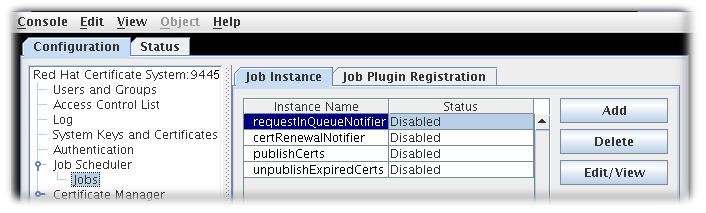 Select the job instance from the list, and click .The Job Instance Editor opens, showing the current job configuration.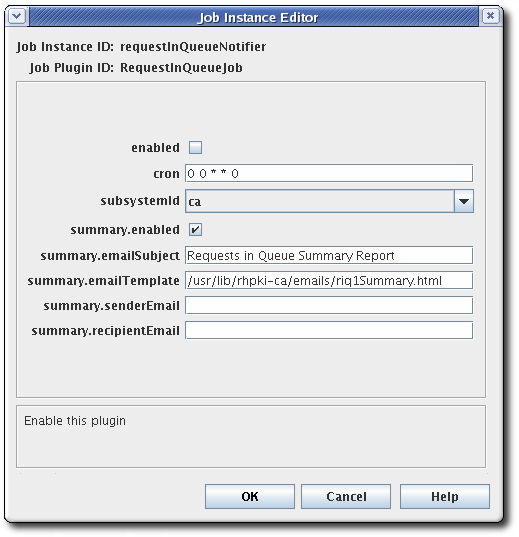
Figure 12.1. Job Configuration
- Select enabled to turn on the job.
- Set the configuration settings by specifying them in the fields for this dialog.
- For
certRenewalNotifier, see Section 12.3.3, “Configuration Parameters of certRenewalNotifier”. - For
requestInQueueNotifier, see Section 12.3.4, “Configuration Parameters of requestInQueueNotifier”. - For
publishCerts, see Section 12.3.5, “Configuration Parameters of publishCerts”. - For
unpublishExpiredCerts, see Section 12.3.6, “Configuration Parameters of unpublishExpiredCerts”. - For more information about setting the
crontime frequencies, see Section 12.3.7, “Frequency Settings for Automated Jobs”.
- Click .
- Click to view any changes in the main window.
- If the job is configured to send automatic messages, check that a mail server is set up correctly. See Section 11.4, “Configuring a Mail Server for Certificate System Notifications”.
- Customize the email message text and appearance.
12.3.2. Configuring Jobs by Editing the Configuration File
- Ensure that the Jobs Scheduler is enabled and configured; see Section 12.2, “Setting up the Job Scheduler”.
- Stop the CA subsystem instance.
systemctl stop pki-tomcatd@instance_name.service
systemctl stop pki-tomcatd@instance_name.serviceCopy to Clipboard Copied! Toggle word wrap Toggle overflow - Open the
CS.cfgfile for that server instance in a text editor. - Edit all of the configuration parameters for the job module being configured.
- To configure the
certRenewalNotifierjob, edit all parameters that begin withjobsScheduler.job.certRenewalNotifier; see Section 12.3.3, “Configuration Parameters of certRenewalNotifier”. - To configure the
requestInQueueNotifierjob, edit all parameters that begin withjobsScheduler.job.requestInQueueNotifier; see Section 12.3.4, “Configuration Parameters of requestInQueueNotifier”. - To configure the
publishCertsjob, edit all parameters that begin withjobsScheduler.job.publishCerts; see Section 12.3.5, “Configuration Parameters of publishCerts”. - To configure the
unpublishExpiredCertsjob, edit all parameters that begin withjobsScheduler.job.unpublishExpiredCerts; see Section 12.3.6, “Configuration Parameters of unpublishExpiredCerts”.
- Save the file.
- Restart the server instance.
systemctl start pki-tomcatd@instance_name.service
systemctl start pki-tomcatd@instance_name.serviceCopy to Clipboard Copied! Toggle word wrap Toggle overflow - If the job will send automated messages, check that the mail server is set up correctly. See Section 11.4, “Configuring a Mail Server for Certificate System Notifications”.
- Customize the automatic job messages.
12.3.3. Configuration Parameters of certRenewalNotifier
certRenewalNotifier job, either in the CS.cfg file or in the Certificate Manager Console.
| Parameter | Description |
|---|---|
enabled | Specifies whether the job is enabled or disabled. The value true enables the job; false disables it. |
cron |
Sets the schedule when this job should be run. This sets the time at which the Job Scheduler daemon thread checks the certificates for sending renewal notifications. These settings must follow the conventions in Section 12.3.7, “Frequency Settings for Automated Jobs”. For example:
0 3 * * 1-5
The job in the example is run Monday through Friday at 3:00 pm.
|
notifyTriggerOffset | Sets how long (in days) before the certificate expiration date the first notification will be sent. |
notifyEndOffset | Sets how long (in days) after the certificate expires that notifications will continue to be sent if the certificate is not replaced. |
senderEmail | Sets the sender of the notification messages, who will be notified of any delivery problems. |
emailSubject | Sets the text of the subject line of the notification message. |
emailTemplate | Sets the path, including the filename, to the directory that contains the template to use to create the message content. |
summary.enabled | Sets whether a summary report of renewal notifications should be compiled and sent. The value true enables sending the summary; false disables it. If enabled, set the remaining summary parameters; these are required by the server to send the summary report. |
summary.recipientEmail | Specifies the recipients of the summary message. These can be agents who need to know the status of user certificates or other users. Set more than one recipient by separating each email address with a comma. |
summary.senderEmail | Specifies the email address of the sender of the summary message. |
summary.emailSubject | Gives the subject line of the summary message. |
summary.itemTemplate | Gives the path, including the filename, to the directory that contains the template to use to create the content and format of each item to be collected for the summary report. |
summary.emailTemplate | Gives the path, including the filename, to the directory that contains the template to use to create the summary report email notification. |
12.3.4. Configuration Parameters of requestInQueueNotifier
requestInQueueNotifier job, either in the CS.cfg file or in the Certificate Manager Console.
| Parameter | Description |
|---|---|
enabled | Sets whether the job is enabled (true) or disabled (false). |
cron |
Sets the time schedule for when the job should run. This is the time at which the Job Scheduler daemon thread checks the queue for pending requests. This setting must follow the conventions in Section 12.3.7, “Frequency Settings for Automated Jobs”. For example:
0 0 * * 0 |
subsystemid | Specifies the subsystem which is running the job. The only possible value is ca, for the Certificate Manager. |
summary.enabled | Specifies whether a summary of the job accomplished should be compiled and sent. The value true enables the summary reports; false disables them. If enabled, set the remaining summary parameters; these are required by the server to send the summary report. |
summary.emailSubject | Sets the subject line of the summary message. |
summary.emailTemplate | Specifies the path, including the filename, to the directory containing the template to use to create the summary report. |
summary.senderEmail | Specifies the sender of the notification message, who will be notified of any delivery problems. |
summary.recipientEmail | Specifies the recipients of the summary message. These can be agents who need to process pending requests or other users. More than one recipient can be listed by separating each email address with a comma. |
12.3.5. Configuration Parameters of publishCerts
publishCerts job, either in the CS.cfg file or in the Certificate Manager Console.
| Parameter | Description |
|---|---|
enabled | Sets whether the job is enabled. The value true is enabled; false is disabled. |
cron |
Sets the time schedule for when the job runs. This is the time the Job Scheduler daemon thread checks the certificates to removing expired certificates from the publishing directory. This setting must follow the conventions in Section 12.3.7, “Frequency Settings for Automated Jobs”. For example:
0 0 * * 6 |
summary.enabled | Specifies whether a summary of the certificates published by the job should be compiled and sent. The value true enables the summaries; false disables them. If enabled, set the remaining summary parameters; these are required by the server to send the summary report. |
summary.emailSubject | Gives the subject line of the summary message. |
summary.emailTemplate | Specifies the path, including the filename, to the directory containing the template to use to create the summary report. |
summary.itemTemplate | Specifies the path, including the filename, to the directory containing the template to use to create the content and format of each item collected for the summary report. |
summary.senderEmail | Specifies the sender of the summary message, who will be notified of any delivery problems. |
summary.recipientEmail | Specifies the recipients of the summary message. These can be agents who need to know the status of user certificates or other users. More than one recipient can be set by separating each email address with a comma. |
12.3.6. Configuration Parameters of unpublishExpiredCerts
unpublishedExpiresCerts job, either in the CS.cfg file or in the Certificate Manager Console.
| Parameter | Description |
|---|---|
enabled | Sets whether the job is enabled. The value true is enabled; false is disabled. |
cron |
Sets the time schedule for when the job runs. This is the time the Job Scheduler daemon thread checks the certificates to removing expired certificates from the publishing directory. This setting must follow the conventions in Section 12.3.7, “Frequency Settings for Automated Jobs”. For example:
0 0 * * 6 |
summary.enabled | Specifies whether a summary of the certificates published by the job should be compiled and sent. The value true enables the summaries; false disables them. If enabled, set the remaining summary parameters; these are required by the server to send the summary report. |
summary.emailSubject | Gives the subject line of the summary message. |
summary.emailTemplate | Specifies the path, including the filename, to the directory containing the template to use to create the summary report. |
summary.itemTemplate | Specifies the path, including the filename, to the directory containing the template to use to create the content and format of each item collected for the summary report. |
summary.senderEmail | Specifies the sender of the summary message, who will be notified of any delivery problems. |
summary.recipientEmail | Specifies the recipients of the summary message. These can be agents who need to know the status of user certificates or other users. More than one recipient can be set by separating each email address with a comma. |
12.3.7. Frequency Settings for Automated Jobs
crontab entry format to specify dates and times for checking the job queue and executing jobs. As shown in Table 12.5, “Time Values for Scheduling Jobs” and Figure 12.1, “Job Configuration”, the time entry format consists of five fields. (The sixth field specified for the Unix crontab is not used by the Job Scheduler.) Values are separated by spaces or tabs.
-) to indicate an inclusive range. To specify all legal values, a field can contain an asterisk rather than an integer. Day fields can contain a comma-separated list of values. The syntax of this expression is
Minute Hour Day_of_month Month_of_year Day_of_week
Minute Hour Day_of_month Month_of_year Day_of_week| Field | Value |
|---|---|
| Minute | 0-59 |
| Hour | 0-23 |
| Day of month | 1-31 |
| Month of year | 1-12 |
| Day of week | 0-6 (where 0=Sunday) |
15 * * * *
15 * * * *0 12 12 4 *
0 12 12 4 *0 0 1,15 * 1
0 0 1,15 * 1
15 3 * * 1-5
15 3 * * 1-5
12.4. Registering a Job Module
- Create the custom job class. For this example, the custom job plug-in is called
MyJob.java. - Compile the new class.
javac -d . -classpath $CLASSPATH MyJob.java
javac -d . -classpath $CLASSPATH MyJob.javaCopy to Clipboard Copied! Toggle word wrap Toggle overflow - Create a directory in the CA's
WEB-INFweb directory to hold the custom classes, so that the CA can access them.mkdir /var/lib/pki/instance_name/ca/webapps/ca/WEB-INF/classes
mkdir /var/lib/pki/instance_name/ca/webapps/ca/WEB-INF/classesCopy to Clipboard Copied! Toggle word wrap Toggle overflow - Copy the new plug-in files into the new
classesdirectory, and set the owner to the Certificate System system user (pkiuser).cp -pr com /var/lib/pki/instance_name/ca/webapps/ca/WEB-INF/classes chown -R pkiuser:pkiuser /var/lib/pki/instance_name/ca/webapps/ca/WEB-INF/classes
cp -pr com /var/lib/pki/instance_name/ca/webapps/ca/WEB-INF/classes chown -R pkiuser:pkiuser /var/lib/pki/instance_name/ca/webapps/ca/WEB-INF/classesCopy to Clipboard Copied! Toggle word wrap Toggle overflow - Register the plug-in.
- Log into the Certificate Manager Console.
pkiconsole https://server.example.com:8443/ca
pkiconsole https://server.example.com:8443/caCopy to Clipboard Copied! Toggle word wrap Toggle overflow - In the Configuration tab, select Job Scheduler in the left navigation tree. Select Jobs.The Job Instance tab opens, which lists any currently configured jobs. Select the Job Plugin Registration tab.
- Click to add the new module.
- In the Register Job Scheduler Plugin Implementation window, supply the following information:
- Plugin name. Type a name for the plug-in module.
- Class name. Type the full name of the class for this module; this is the path to the implementing Java™ class. If this class is part of a package, include the package name. For example, to register a class named
customJobthat is in a package namedcom.customplugins, typecom.customplugins.customJob.
- Click .
Note
Part IV. Managing the Subsystem Instances
Chapter 13. Basic Subsystem Management
13.1. PKI Instances
- Separate PKI instances
- run as a single Java-based Apache Tomcat instance,
- contain a single PKI subsystem (CA, KRA, OCSP, TKS, or TPS), and
- must utilize unique ports if co-located on the same physical machine or virtual machine (VM).
- Shared PKI instances
- run as a single Java-based Apache Tomcat instance,
- can contain a single PKI subsystem that is identical to a separate PKI instance,
- can contain any combination of up to one of each type of PKI subsystem:
- CA
- TKS
- CA, KRA
- CA, OCSP
- TKS, TPS
- CA, KRA, TKS, TPS
- CA, KRA, OCSP, TKS, TPS
- and so on.
- allow all of their subsystems contained within that instance to share the same ports, and
- must utilize unique ports if more than one is co-located on the same physical machine or VM.
13.2. PKI Instance Execution Management
13.2.1. Starting, Stopping, and Restarting a PKI Instance
systemd.
- Log in to the server machine as
root. - Run the
systemctlcommand, specifying the action and the instance name:systemctl start|stop|restart pki-tomcatd@instance_name.service
systemctl start|stop|restart pki-tomcatd@instance_name.serviceCopy to Clipboard Copied! Toggle word wrap Toggle overflow For example:systemctl restart pki-tomcatd@pki-tomcat.service
systemctl restart pki-tomcatd@pki-tomcat.serviceCopy to Clipboard Copied! Toggle word wrap Toggle overflow
13.2.2. Restarting a PKI Instance after a Machine Restart
- If the Directory Server instance used by the subsystem is installed on the local machine, restart the Administration Server and the Directory Server processes.
systemctl start dirsrv-admin.service systemctl start dirsrv@instance_name.service
systemctl start dirsrv-admin.service systemctl start dirsrv@instance_name.serviceCopy to Clipboard Copied! Toggle word wrap Toggle overflow - Start the Certificate System subsystem instances.
systemctl start pki-tomcatd@instance_name.service
systemctl start pki-tomcatd@instance_name.serviceCopy to Clipboard Copied! Toggle word wrap Toggle overflow
13.2.3. Checking the PKI Instance Status
systemctl command can be used to check the status of a process, showing whether it is running or stopped. For example:
13.2.4. Configuring a PKI Instance to Automatically Start Upon Reboot
systemctl command can be used to automatically start instances upon reboot. For example, the following commands automatically start the Red Hat Administration Server, Directory Server, and a CA upon reboot:
systemctl enable dirsrv-admin.service systemctl enable dirsrv.target systemctl enable pki-tomcatd@pki-tomcat.service
# systemctl enable dirsrv-admin.service
# systemctl enable dirsrv.target
# systemctl enable pki-tomcatd@pki-tomcat.serviceNote
pkispawn command automatically enables the instance to start upon reboot.
systemctl disable pki-tomcatd@pki-tomcat.service systemctl disable dirsrv.target systemctl disable dirsrv-admin.service
# systemctl disable pki-tomcatd@pki-tomcat.service
# systemctl disable dirsrv.target
# systemctl disable dirsrv-admin.service13.2.5. Setting sudo Permissions for Certificate System Services
pkiadmin system group. (Details are in the Red Hat Certificate System 9 Planning, Installation, and Deployment Guide.) All of the operating system users which will be Certificate System administrators are then added to this group. If this pkiadmin system group exists, then it can be granted sudo access to perform certain tasks.
- Edit the
/etc/sudoersfile; on Red Hat Enterprise Linux 7, this can be done using thevisudocommand:visudo
# visudoCopy to Clipboard Copied! Toggle word wrap Toggle overflow - Depending on what is installed on the machine, add a line for the Directory Server, the Administration Server, PKI management tools, and each PKI subsystem instance, granting
sudorights to thepkiadmingroup:Copy to Clipboard Copied! Toggle word wrap Toggle overflow
Important
13.3. Opening Subsystem Consoles and Services
13.3.1. Finding the Subsystem Web Services Pages
https://server.example.com:8443/ca/services
https://server.example.com:8443/ca/serviceshttps://server.example.com:8443/ca/ee/ca
https://server.example.com:8443/ca/ee/cahttps://1.2.3.4:8443/ca/services https://[00:00:00:00:123:456:789:00:]:8443/ca/services
https://1.2.3.4:8443/ca/services
https://[00:00:00:00:123:456:789:00:]:8443/ca/servicesNote
| Used for SSL | Used for Client Authentication[a] | Web Services | Web Service Location |
|---|---|---|---|
| Certificate Manager | |||
| No | End Entities | ca/ee/ca/ | |
| Yes | No | End Entities | ca/ee/ca |
| Yes | Yes | Agents | ca/agent/ca |
| Yes | No | Services | ca/services |
| Yes | No | Console | pkiconsole https://host:port/ca |
| Key Recovery Authority | |||
| Yes | Yes | Agents | kra/agent/kra |
| Yes | No | Services | kra/services |
| Yes | No | Console | pkiconsole https://host:port/kra |
| Online Certificate Status Manager | |||
| Yes | Yes | Agents | ocsp/agent/ocsp |
| Yes | No | Services | ocsp/services |
| Yes | No | Console | pkiconsole https://host:port/ocsp |
| Token Key Service | |||
| Yes | No | Services | tks/services |
| Yes | No | Console | pkiconsole https://host:port/tks |
| Token Processing System | |||
| Yes | Services | index.cgi | |
[a]
Services with a client authentication value of No can be reconfigured to require client authentication. Services which do not have either a Yes or No value cannot be configured to use client authentication.
| |||
13.3.2. Starting the Certificate System Administrative Console
pkiconsole command. This command has the format:
pkiconsole https://server.example.com:admin_port/subsystem_type
pkiconsole https://server.example.com:admin_port/subsystem_typeca, kra, ocsp, or tks. For example, this opens the KRA console:
pkiconsole https://server.example.com:8443/kra
pkiconsole https://server.example.com:8443/krapkiconsole https://1.2.3.4:8443/ca pkiconsole https://[00:00:00:00:123:456:789:00:]:8443/ca
pkiconsole https://1.2.3.4:8443/ca
pkiconsole https://[00:00:00:00:123:456:789:00:]:8443/ca13.3.3. Enabling SSL for the Java Administrative Console
Important
- Store the certificates for any administrator using this system. The certificate should be either from the CA itself or from whichever CA signed the certificate for the subsystem.
- Open the subsystem console.
- Select the Users and Groups option on the left.
- In the Users tab, select the administrative user, and click .
- Click .
- Paste in the base-64 encoded SSL client certificate, such as the administrator certificate stored in the web browser.
Make sure the client certificate is good for SSL client authentication; otherwise, the server will not accept the client certificate and will post an error message in the error log in the/var/log/instanceID/system:failure (14290): Error receiving connection SEC_ERROR_INADEQUATE_CERT_TYPE - Certificate type not approved for application.)
failure (14290): Error receiving connection SEC_ERROR_INADEQUATE_CERT_TYPE - Certificate type not approved for application.)Copy to Clipboard Copied! Toggle word wrap Toggle overflow - Stop the subsystem.
systemctl stop pki-tomcatd@instance_name.service
systemctl stop pki-tomcatd@instance_name.serviceCopy to Clipboard Copied! Toggle word wrap Toggle overflow - Open the instance configuration directory,
/var/lib/pki/instance_name/subsystem_type/conf. - Open the file
CS.cfg. - Change the value of the
authTypeparameter frompwdtosslclientauth:authType=sslclientauth
authType=sslclientauthCopy to Clipboard Copied! Toggle word wrap Toggle overflow - Save the file.
- Open the
server.xmlfile. - Change the
clientAuth="false"attribute toclientAuth="want"in the admin interface connector section:Copy to Clipboard Copied! Toggle word wrap Toggle overflow Thewantvalue means that client authentication is preferred, but not required. This allows client authentication through interfaces that can easily use it (like the Console) while still allowing clients which do not easily support client authentication (other subsystems within the security domain) to connect using regular connections. - Start the subsystem.
systemctl start pki-tomcatd@instance_name.service
systemctl start pki-tomcatd@instance_name.serviceCopy to Clipboard Copied! Toggle word wrap Toggle overflow
.redhat-idm-console directory.
.p12 file and then import it by using pk12util, or copy the browser's certificate and key databases into the .redhat-idm-console directory. (This procedure assumes that the certificates are exported from the browser into a .p12 file.)
- Export the administrator user certificate and keys from the browser into a file, such as
admin.p12. - Open the user's console directory.
/user-directory/.redhat-idm-console
/user-directory/.redhat-idm-consoleCopy to Clipboard Copied! Toggle word wrap Toggle overflow - If necessary, create new security databases.
certutil -N -d .
certutil -N -d .Copy to Clipboard Copied! Toggle word wrap Toggle overflow - Stop the Certificate System instance.
systemctl stop pki-tomcatd@instance_name.service
systemctl stop pki-tomcatd@instance_name.serviceCopy to Clipboard Copied! Toggle word wrap Toggle overflow - Use
pk12utilto import the certificates.pk12util -i /tmp/admin.p12 -d /user-directory/.redhat-idm-console -W [p12filepassword]
# pk12util -i /tmp/admin.p12 -d /user-directory/.redhat-idm-console -W [p12filepassword]Copy to Clipboard Copied! Toggle word wrap Toggle overflow If the procedure is successful, the command prints the following:pk12util: PKCS12 IMPORT SUCCESSFUL
pk12util: PKCS12 IMPORT SUCCESSFULCopy to Clipboard Copied! Toggle word wrap Toggle overflow - Export the 64-bit blob of the issuing CA certificate from the browser and save it to a file like
ca.crt. - Import the CA certificate from the base 64-blob associated with the admin user cert.
certutil -A -d . -n ca -t CT,C,C -i ./ca.crt
certutil -A -d . -n ca -t CT,C,C -i ./ca.crtCopy to Clipboard Copied! Toggle word wrap Toggle overflow - Start the Certificate System instance.
systemctl start pki-tomcatd@instance_name.service
systemctl start pki-tomcatd@instance_name.serviceCopy to Clipboard Copied! Toggle word wrap Toggle overflow - Start the Console; now, it prompts for a certificate.
13.4. Running Subsystems under a Java Security Manager
13.4.1. About the Security Manager Policy Files
- The
catalina.policyfile from the default Tomcat policy located in the/usr/share/tomcat/confdirectory; this is updated whenever the general Tomcat files are updated. - A
pki.policyfile, in the/var/lib/pki/instance_name/subsystem_type/confdirectory, that is supplied with the subsystem instance. - A
custom.policyfile, in the/var/lib/pki/instance_name/subsystem_type/confdirectory, that contains user-defined security policies.
catalina.policy file, also in the /var/lib/pki/instance_name/subsystem_type/conf directory, which is used for the instance.
pki.policy file contains permissions that grant unrestricted access to the Tomcat, LDAP, and symkey services used by the PKI subsystems. For example:
// These permissions apply to Tomcat java as utilized by PKI instances
grant codeBase "file:/usr/share/java/tomcat/-" {
permission java.security.AllPermission;
};
// These permissions apply to Tomcat java as utilized by PKI instances
grant codeBase "file:/usr/share/java/tomcat/-" {
permission java.security.AllPermission;
};custom.policy file is empty by default; administrators can write policies in that file which will be used in addition to the given PKI policies and Tomcat policies.
13.4.2. Starting a Subsystem Instance without the Java Security Manager
pki_security_manager=true under the [Tomcat] section in the /etc/pki/default.cfg file). However, it is possible to start or restart an instance and run it without starting the Java Security Manager, as shown below.
Procedure 13.1. Starting an Instance Without the Java Security Manager
- Stop the instance.
systemctl stop pki-tomcatd@instance_name.service
# systemctl stop pki-tomcatd@instance_name.serviceCopy to Clipboard Copied! Toggle word wrap Toggle overflow - Edit the
/etc/sysconfig/instance_namefile and turn off the security manager:SECURITY_MANAGER="false"
SECURITY_MANAGER="false"Copy to Clipboard Copied! Toggle word wrap Toggle overflow - Start the instance.
systemctl start pki-tomcatd@instance_name.service
# systemctl start pki-tomcatd@instance_name.serviceCopy to Clipboard Copied! Toggle word wrap Toggle overflow
13.5. Configuring the LDAP Database
- Storing and retrieving certificate requests
- Storing and retrieving certificate records
- Storing CRLs
- Storing ACLs
- Storing privileged user and role information
- Storing and retrieving end users' encryption private key records
/slapd-DS_name/db/ directory. These databases are named by the value determined by the value of the pki_ds_database variable under the specified subsystem section within the /etc/pki/default.cfg file (CS_instance_name-CA, CS_instance_name-KRA, CS_instance_name-OCSP, CS_instance_name-TKS, and CS_instance_name-TPS by default), which is the default format given during the instance configuration. For example, for a Certificate Manager named ca1, the database name would be ca1-CA. Similarly, the database name is determined by the value of the pki_ds_base_dn variable under the specified subsystem section within the /etc/pki/default.cfg file ((o=CS_instance_name-CA, o=CS_instance_name-KRA, o=CS_instance_name-OCSP, o=CS_instance_name-TKS, or o=CS_instance_name-TPS by default), and is also set during the configuration.
Warning
13.5.1. Changing the Internal Database Configuration
- Log into the subsystem administrative console.
pkiconsole https://server.example.com:admin_port/subsystem_type
pkiconsole https://server.example.com:admin_port/subsystem_typeCopy to Clipboard Copied! Toggle word wrap Toggle overflow - In the Configuration tab, select the Internal Database tab.
- Change the Directory Server instance by changing the hostname, port, and bind DN fields.The hostname is the fully qualified hostname of the machine on which the Directory Server is installed, such as
certificates.example.com. The Certificate System uses this name to access the directory.By default, the hostname of the Directory Server instance used as the internal database is shown aslocalhostinstead of the actual hostname. This is done to insulate the internal database from being visible outside the system since a server onlocalhostcan only be accessed from the local machine. Thus, the default configuration minimizes the risk of someone connecting to this Directory Server instance from outside the local machine.The hostname can be changed to something other thanlocalhostif the visibility of the internal database can be limited to a local subnet. For example, if the Certificate System and Directory Server are installed on separate machines for load balancing, specify the hostname of the machine in which the Directory Server is installed.The port number is the TCP/IP port used for non-SSL communications with the Directory Server.The DN should be the Directory Manager DN. The Certificate System subsystem uses this DN when it accesses the directory tree to communicate with the directory. - Click .The configuration is modified. If the changes require restarting the server, a prompt appears with that message. In that case, restart the server.
13.5.2. Using a Certificate Issued by Certificate System in Directory Server
- On the Directory Server host:
- Stop the Directory Server instance:
systemctl stop dirsrv@instance_name
# systemctl stop dirsrv@instance_nameCopy to Clipboard Copied! Toggle word wrap Toggle overflow - Generate a Certificate Signing Request (CSR).For example, to generate a CSR which uses 2048 bit RSA encryption, and to store it in the
~/ds.csrfile:Copy to Clipboard Copied! Toggle word wrap Toggle overflow - Start the Directory Server instance to enable the CA to process the request:
systemctl start dirsrv@instance_name
# systemctl start dirsrv@instance_nameCopy to Clipboard Copied! Toggle word wrap Toggle overflow - Submit the CSR to the Certificate System's CA. For example:
Copy to Clipboard Copied! Toggle word wrap Toggle overflow
- On the Certificate System host:
- Import the CA agent certificate into a Network Security Services (NSS) database to sign the CMC full request:
- Create a new directory. For example:
mkdir ~/certs_db/
# mkdir ~/certs_db/Copy to Clipboard Copied! Toggle word wrap Toggle overflow - Initialize the database in the newly created directory:
certutil -N -d ~/certs_db/
# certutil -N -d ~/certs_db/Copy to Clipboard Copied! Toggle word wrap Toggle overflow - Display the serial number of the CA signing certificate:
Copy to Clipboard Copied! Toggle word wrap Toggle overflow - Use the serial number from the previous step to download the CA signing certificate into the
~/certs_db/CA.pemfile:pki -p 8080 ca-cert-show 0x87bbe2d --output ~/certs_db/CA.pem
# pki -p 8080 ca-cert-show 0x87bbe2d --output ~/certs_db/CA.pemCopy to Clipboard Copied! Toggle word wrap Toggle overflow - Import the CA signing certificate into the NSS database:
pki -d ~/certs_db/ -c password client-cert-import "CA Certificate" --ca-cert ~/certs_db/CA.pem
# pki -d ~/certs_db/ -c password client-cert-import "CA Certificate" --ca-cert ~/certs_db/CA.pemCopy to Clipboard Copied! Toggle word wrap Toggle overflow - Import the agent certificate:
pk12util -d ~/certs_db/ -i ~/.dogtag/instance_name/ca_admin_cert.p12 Enter Password or Pin for "NSS FIPS 140-2 Certificate DB": password Enter password for PKCS12 file: password pk12util: PKCS12 IMPORT SUCCESSFUL
# pk12util -d ~/certs_db/ -i ~/.dogtag/instance_name/ca_admin_cert.p12 Enter Password or Pin for "NSS FIPS 140-2 Certificate DB": password Enter password for PKCS12 file: password pk12util: PKCS12 IMPORT SUCCESSFULCopy to Clipboard Copied! Toggle word wrap Toggle overflow
- Create the Certificate Management over CMS (CMC) request:
- Create a configuration file, such as
~/sslserver-cmc-request.cfg, with the following content:Copy to Clipboard Copied! Toggle word wrap Toggle overflow - Create the CMC request:
# CMCRequest ~/sslserver-cmc-request.cfg ... The CMC enrollment request in base-64 encoded format: ... The CMC enrollment request in binary format is stored in ~/sslserver-cmc-request.bin
# CMCRequest ~/sslserver-cmc-request.cfg ... The CMC enrollment request in base-64 encoded format: ... The CMC enrollment request in binary format is stored in ~/sslserver-cmc-request.binCopy to Clipboard Copied! Toggle word wrap Toggle overflow
- Submit the CMC request:
- Create a configuration file, such as
~/sslserver-cmc-submit.cfg, with the following content:Copy to Clipboard Copied! Toggle word wrap Toggle overflow - Submit the request:
# HttpClient sslserver-cmc-submit.cfg ... The response in binary format is stored in ~/sslserver-cmc-response.bin
# HttpClient sslserver-cmc-submit.cfg ... The response in binary format is stored in ~/sslserver-cmc-response.binCopy to Clipboard Copied! Toggle word wrap Toggle overflow - Optionally, verify the result:
Copy to Clipboard Copied! Toggle word wrap Toggle overflow
- Display the serial number of the Directory Server certificate:
Copy to Clipboard Copied! Toggle word wrap Toggle overflow - Use the serial number from the previous step to download the certificate:
pki -p 8080 ca-cert-show 0xc3eeb0c --output ~/ds.crt
# pki -p 8080 ca-cert-show 0xc3eeb0c --output ~/ds.crtCopy to Clipboard Copied! Toggle word wrap Toggle overflow - Copy the certificate for Directory Server and the CA certificate to the Directory Server host. For example:
scp ~/ds.crt ~/certs_db/CA.pem ds.example.com:~/
# scp ~/ds.crt ~/certs_db/CA.pem ds.example.com:~/Copy to Clipboard Copied! Toggle word wrap Toggle overflow - Stop Certificate System:
systemctl stop pki-tomcatd@instance_name.service
# systemctl stop pki-tomcatd@instance_name.serviceCopy to Clipboard Copied! Toggle word wrap Toggle overflow
- On the Directory Server host:
- Stop the Directory Server instance:
systemctl stop dirsrv@instance_name
# systemctl stop dirsrv@instance_nameCopy to Clipboard Copied! Toggle word wrap Toggle overflow - Replace the certificates. For details, see the corresponding sections in the Red Hat Directory Server Administration Guide:
- Remove the old certificate and CA certificate. See Removing a Certificate.
- Install the CA certificate issued by Certificate System. See Installing a CA Certificate.
- Install the certificate for Directory Server issued by Certificate System. See Installing a Certificate.
- Start the Directory Server instance:
systemctl start dirsrv@instance_name
# systemctl start dirsrv@instance_nameCopy to Clipboard Copied! Toggle word wrap Toggle overflow
- Start Certificate System:
systemctl stop pki-tomcatd@instance_name.service
# systemctl stop pki-tomcatd@instance_name.serviceCopy to Clipboard Copied! Toggle word wrap Toggle overflow - Optionally, configure certificate-based authentication. For details, see Section 13.5.3, “Enabling SSL/TLS Client Authentication with the Internal Database”.
13.5.3. Enabling SSL/TLS Client Authentication with the Internal Database
13.5.4. Restricting Access to the Internal Database
- Log into the Directory Server Console.
- Select the Certificate System internal database entry, and click .
- Select the Configuration tab.
- In the navigation tree, expand Plug-ins, and select Pass-Through Authentication.
- In the right pane, deselect the Enable plugin checkbox.
- Click .The server prompts to restart the server.
- Click the Tasks tab, and click .
- Close the Directory Server Console.
- When the server is restarted, open the Directory Server Console for the internal database instance.The Login to Directory dialog box appears; the Distinguished Name field displays the Directory Manager DN; enter the password.The Directory Server Console for the internal database opens only if the correct password is entered.
13.6. Viewing Security Domain Configuration
Note
ou=Security Domain,dc=example,dc=com
ou=Security Domain,dc=example,dc=compkiSecurityGroup) to identify the group type:
cn=KRAList,ou=Security Domain,dc=example,dc=com objectClass: top objectClass: pkiSecurityGroup cn: KRAList
cn=KRAList,ou=Security Domain,dc=example,dc=com
objectClass: top
objectClass: pkiSecurityGroup
cn: KRAListpkiSubsystemobject class to identify the entry type:
13.7. Managing the SELinux Policies for Subsystems
13.7.1. About SELinux
http_port_t SELinux domain.
pkispawn or removed with pkidestroy.
13.7.2. Viewing SELinux Policies for Subsystems
- Either run the
system-config-selinuxcommand or open the utility by accessing → → for the main system menu.
- To check the version of the Certificate System SELinux policy installed, click the Policy Module section in the left bar.

- To view the policies set on the individual files and processes, click the File Labeling section. To view the policies for the port assignments for the subsystems, click the Network Port section.

13.7.3. Relabeling nCipher netHSM Contexts
Example 13.1. netHSM SELinux Policy
default labeling for nCipher /opt/nfast/scripts/init.d/(.*) gen_context(system_u:object_r:initrc_exec_t,s0) /opt/nfast/sbin/init.d-ncipher gen_context(system_u:object_r:initrc_exec_t,s0) /opt/nfast(/.*)? gen_context(system_u:object_r:pki_common_t, s0) /dev/nfast(/.*)? gen_context(system_u:object_r:pki_common_dev_t,0)
# default labeling for nCipher
/opt/nfast/scripts/init.d/(.*) gen_context(system_u:object_r:initrc_exec_t,s0)
/opt/nfast/sbin/init.d-ncipher gen_context(system_u:object_r:initrc_exec_t,s0)
/opt/nfast(/.*)? gen_context(system_u:object_r:pki_common_t, s0)
/dev/nfast(/.*)? gen_context(system_u:object_r:pki_common_dev_t,0)pki_*_t domain to talk to files that are labeled pki_common_t and pki_common_dev_t.
/opt/nfast), run the restorecon to make sure all files are properly labeled:
restorecon -R /dev/nfast restorecon -R /opt/nfast
restorecon -R /dev/nfast
restorecon -R /opt/nfastsemanage.
13.8. Backing up and Restoring Certificate System
- Internal database. Subsystems use an LDAP database to store their data. The Directory Server provides its own backup scripts and procedures.
- Security databases. The security databases store the certificate and key material. If these are stored on an HSM, then consult the HSM vendor documentation for information on how to back up the data. If the information is stored in the default directories in the instance
aliasdirectory, then it is backed up with the instance directory. To back it up separately, use a utility such astarorzip. - Instance directory. The instance directory contains all configuration files, security databases, and other instance files. This can be backed up using a utility such as
tarorzip.
13.8.1. Backing up and Restoring the LDAP Internal Database
13.8.1.1. Backing up the LDAP Internal Database
- The
db2ldiftool creates a LDIF file you can restore using theldif2dbtool. - The
db2bakcommand creates a backup file you can restore using thebak2dbtool.
13.8.1.1.1. Backing up using db2ldif
db2ldif command backs up a single subsystem database as specified by the -n option.
Note
db2ldif command runs with the dirsrv user, it doesn't have permissions to write under the /root/ directory, so you need to provide a path where it can write.
- Back up each Directory Server database used by PKI subsystems. You can use the
pki-server ca-db-config-showcommand to check the database name for a given subsystem.For example:Copy to Clipboard Copied! Toggle word wrap Toggle overflow - In addition to backing up all individual subsytem databases, you can back up the main database by adding
userRootas-noption. For example:db2ldif -V -n userRoot -a /var/lib/dirsrv/slapd-pki1/ldif/userRoot.ldif
# db2ldif -V -n userRoot -a /var/lib/dirsrv/slapd-pki1/ldif/userRoot.ldifCopy to Clipboard Copied! Toggle word wrap Toggle overflow
ldif2db, see Section 13.8.1.2.1, “Restoring using ldif2db”.
13.8.1.1.2. Backing up using db2bak
db2bak command backs up all Certificate System subsystem databases for that Directory Server (and any other databases maintained by that Directory Server instance).
db2bak Back up directory: /var/lib/dirsrv/slapd-pki1/bak/pki1-2020_11_05_11_20_21
# db2bak
Back up directory: /var/lib/dirsrv/slapd-pki1/bak/pki1-2020_11_05_11_20_21
Note
db2bak command runs with the dirsrv user, the target directory must be writeable by dirsrv. Running the command without any argument creates the backup in the /var/lib/dirsrv/slapd-<instance_name>/bak folder where db2bak has the proper write permissions.
bak2db, see Section 13.8.1.2.2, “Restoring using bak2db”.
13.8.1.2. Restoring the LDAP Internal Database
ldif2db or bak2db with the corresponding file(s) to restore the database.
Note
13.8.1.2.1. Restoring using ldif2db
db2ldif, stop the Directory Server instance and import the files using the ldif2db command. You can specify a single database to restore from the backup. For example:
- Stop the Directory Server instance:
systemctl stop dirsrv@instance_name
# systemctl stop dirsrv@instance_nameCopy to Clipboard Copied! Toggle word wrap Toggle overflow - Import the file specified by the
-ioption for the subsystem specified by the-noption:Copy to Clipboard Copied! Toggle word wrap Toggle overflow - Start the Directory Server instance:
systemctl start dirsrv@instance_name
# systemctl start dirsrv@instance_nameCopy to Clipboard Copied! Toggle word wrap Toggle overflow
13.8.1.2.2. Restoring using bak2db
db2bak, stop the Directory Server and import the file using the bak2db command; you can specify a single database to restore from the backup. For example:
- Stop the Directory Server instance:
systemctl stop dirsrv@instance_name
# systemctl stop dirsrv@instance_nameCopy to Clipboard Copied! Toggle word wrap Toggle overflow - Import the file for the subsystem specified by the
-noption:Copy to Clipboard Copied! Toggle word wrap Toggle overflow You can also restore the complete database from the backup using the command without the-noption. For example:Copy to Clipboard Copied! Toggle word wrap Toggle overflow - Start the Directory Server instance:
systemctl start dirsrv@instance_name
# systemctl start dirsrv@instance_nameCopy to Clipboard Copied! Toggle word wrap Toggle overflow
13.8.2. Backing up and Restoring the Instance Directory
Note
- Stop the subsystem instance.
systemctl stop pki-tomcatd@instance_name.service
systemctl stop pki-tomcatd@instance_name.serviceCopy to Clipboard Copied! Toggle word wrap Toggle overflow - Save the directory to a compressed file:
cd /var/lib/pki/ tar -chvf /export/archives/pki/instance_name.tar instance_name/
# cd /var/lib/pki/ # tar -chvf /export/archives/pki/instance_name.tar instance_name/Copy to Clipboard Copied! Toggle word wrap Toggle overflow For example:Copy to Clipboard Copied! Toggle word wrap Toggle overflow - Restart the subsystem instance.
systemctl start instance_name
systemctl start instance_nameCopy to Clipboard Copied! Toggle word wrap Toggle overflow
alias database backups and the full instance directory backups, to replace the current directories if the data is corrupted or the hardware is damaged. To restore the data, uncompress the archive file using the unzip or tar tools, and copy the archive over the existing files.
- Uncompress the archive:
cd /export/archives/pki/ tar -xvf instance_name.tar
cd /export/archives/pki/ tar -xvf instance_name.tarCopy to Clipboard Copied! Toggle word wrap Toggle overflow For example:Copy to Clipboard Copied! Toggle word wrap Toggle overflow - Stop the subsystem instance if it is not already stopped.
systemctl stop pki-tomcatd@instance_name.service
systemctl stop pki-tomcatd@instance_name.serviceCopy to Clipboard Copied! Toggle word wrap Toggle overflow - Copy the archived files to restore the instance directory:
cp -r /export/archives/pki/instance_name /var/lib/pki/instance_name
cp -r /export/archives/pki/instance_name /var/lib/pki/instance_nameCopy to Clipboard Copied! Toggle word wrap Toggle overflow For example:cp -r /tmp/pki-tomcat/ca/ /var/lib/pki/pki-tomcat/ca/
# cp -r /tmp/pki-tomcat/ca/ /var/lib/pki/pki-tomcat/ca/Copy to Clipboard Copied! Toggle word wrap Toggle overflow - Restart the subsystem instance.
systemctl start pki-tomcatd@instance_name.service
systemctl start pki-tomcatd@instance_name.serviceCopy to Clipboard Copied! Toggle word wrap Toggle overflow
13.9. Running Self-Tests
13.9.1. Running Self-Tests
13.9.1.1. Running Self-Tests from the Console
- Log into the Console.
pkiconsole https://server.example.com:admin_port/subsystem_type
pkiconsole https://server.example.com:admin_port/subsystem_typeCopy to Clipboard Copied! Toggle word wrap Toggle overflow - Select the subsystem name at the top of the left pane.
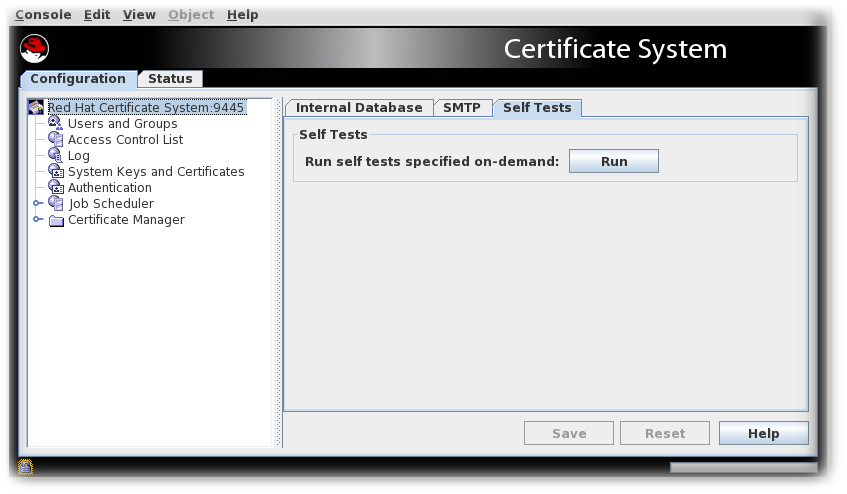
- Select the Self Tests tab.
- Click .The self-tests that are configured for the subsystem will run. If any critical self-tests fail, the server will stop.
- The On-Demand Self Tests Results window appears, showing the logged events for this run of the self-tests.
13.9.1.2. Running TPS Self-Tests
pki tps-selftest-findpki tps-selftest-runpki tps-selftest-show
13.9.2. Self-Test Logging
selftest.log, is added to the log directory that contains reports for both the start up self-tests and the on-demand self-tests. This log is configured by changing the setting for the log in the CS.cfg file. For more information, see Modifying Self-Test Configuration.
13.9.3. Configuring POSIX System ACLs
13.9.3.1. Setting POSIX System ACLs for the CA, KRA, OCSP, TKS, and TPS
- Stop the instance.
systemctl stop pki-tomcatd@instance_name.service
systemctl stop pki-tomcatd@instance_name.serviceCopy to Clipboard Copied! Toggle word wrap Toggle overflow - Set the group readability to the pkiadmin group for the instance's directories and files.
setfacl -R -L -m g:pkiadmin:r,d:g:pkiadmin:r /var/lib/pki/instance_name
# setfacl -R -L -m g:pkiadmin:r,d:g:pkiadmin:r /var/lib/pki/instance_nameCopy to Clipboard Copied! Toggle word wrap Toggle overflow - Apply execute (x) ACL permissions on all directories:
find -L /var/lib/pki/instance_name -type d -exec setfacl -L -n -m g:pkiadmin:rx,d:g:pkiadmin:rx {} \;# find -L /var/lib/pki/instance_name -type d -exec setfacl -L -n -m g:pkiadmin:rx,d:g:pkiadmin:rx {} \;Copy to Clipboard Copied! Toggle word wrap Toggle overflow - Remove group readability for the pkiadmin group from the instance's signedAudit/ directory and its associated files:
setfacl -R -L -x g:pkiadmin,d:g:pkiadmin /var/lib/pki/instance_name/logs/signedAudit
# setfacl -R -L -x g:pkiadmin,d:g:pkiadmin /var/lib/pki/instance_name/logs/signedAuditCopy to Clipboard Copied! Toggle word wrap Toggle overflow - Set group readability for the pkiaudit group for the instance's signedAudit/ directory and its associated files:
setfacl -R -L -m g:pkiaudit:r,d:g:pkiaudit:r /var/lib/pki/instance_name/logs/signedAudit
# setfacl -R -L -m g:pkiaudit:r,d:g:pkiaudit:r /var/lib/pki/instance_name/logs/signedAuditCopy to Clipboard Copied! Toggle word wrap Toggle overflow - Re-apply execute (x) ACL permissions on the signedAudit/ directory and all of its subdirectories:
find -L /var/lib/pki/instance_name/logs/signedAudit -type d -exec setfacl -L -n -m g:pkiaudit:rx,d:g:pkiaudit:rx {} \;# find -L /var/lib/pki/instance_name/logs/signedAudit -type d -exec setfacl -L -n -m g:pkiaudit:rx,d:g:pkiaudit:rx {} \;Copy to Clipboard Copied! Toggle word wrap Toggle overflow - Start the instance.
systemctl start pki-tomcatd@instance_name.service
systemctl start pki-tomcatd@instance_name.serviceCopy to Clipboard Copied! Toggle word wrap Toggle overflow - Confirm that the file access controls were properly applied by using the
getfaclcommand to show the current ACL settings:Copy to Clipboard Copied! Toggle word wrap Toggle overflow
Chapter 14. Managing Certificate System Users and Groups
14.1. About Authorization
- The users authenticate to the interface using either the Certificate System user ID and password or a certificate.
- The server authenticates the user either by matching the user ID and password with the one stored in the database or by checking the certificate against one stored in the database. With certificate-based authentication, the server also checks that the certificate is valid and finds the group membership of the user by associating the DN of the certificate with a user and checking the user entry. With password-based authentication, the server checks the password against the user ID and then finds the group membership of the user by associating that user ID with the user ID contained in the group.
- When the user tries to perform an operation, the authorization mechanism compares the user ID of the user, the group in which the user belongs, or the IP address of the user to the ACLs set for that user, group, or IP address. If an ACL exists that allows that operation, then the operation proceeds.
14.2. Default Groups
- Administrators. This group is given full access to all of the tasks available in the administrative interface.
- Agents. This group is given full access to all of the tasks available in the agent services interface.
- Auditors. This group is given access to view the signed audit logs. This group does not have any other privileges.
- Enterprise administrators. Each subsystem instance is automatically assigned a subsystem-specific role as an enterprise administrator when it is joined to a security domain during configuration. These roles automatically provide trusted relationships among subsystems in the security domain, so that each subsystem can efficiently carry out interactions with other subsystems.
14.2.1. Administrators
Administrators group for the group. Every member of that group has administrative privileges for that instance of Certificate System.
| Role | Description |
|---|---|
| Security Domain Administrators |
By default, the CA administrator of the CA hosting the domain is assigned as the security domain administrator.
|
| Enterprise CA Administrators |
|
| Enterprise KRA Administrators |
|
| Enterprise OCSP Administrators |
|
| Enterprise TKS Administrators |
|
| Enterprise TPS Administrators |
|
14.2.2. Auditors
Auditors group and storing the auditor's certificate in the user entry. The auditor's certificate is used to encrypt the private key of the key pair used to sign the audit log.
Auditors group is set when the subsystem is configured. No auditors are assigned to this group during configuration.
14.2.3. Agents
- The Certificate Manager Agents group.
- The Key Recovery Authority Agents group.
- The Online Certificate Status Manager Agents group.
- The Token Key Service Agents group.
- The Token Processing System Agents group.
14.2.4. Enterprise Groups
Note
- Enterprise CA Administrators
- Enterprise KRA Administrators
- Enterprise OCSP Administrators
- Enterprise TKS Administrators
- Enterprise TPS Administrators
14.3. Managing Users and Groups for a CA, OCSP, KRA, or TKS
14.3.1. Managing Groups
14.3.1.1. Creating a New Group
- Log into the administrative console.
pkiconsole https://server.example.com:8443/subsystem_type
pkiconsole https://server.example.com:8443/subsystem_typeCopy to Clipboard Copied! Toggle word wrap Toggle overflow - Select Users and Groups from the navigation menu on the left.
- Select the Groups tab.
- Click , and fill in the group information.
 It is only possible to add users who already exist in the internal database.
 - Edit the ACLs to grant the group privileges. See Section 14.5.4, “Editing ACLs” for more information. If no ACIs are added to the ACLs for the group, the group will have no access permissions to any part of Certificate System.
14.3.1.2. Changing Members in a Group
- Log into the administrative console.
- Select Users and Groups from the navigation tree on the left.
- Click the Groups tab.
- Select the group from the list of names, and click .
- Make the appropriate changes.
- To change the group description, type a new description in the Group description field.
- To remove a user from the group, select the user, and click .
- To add users, click . Select the users to add from the dialog box, and click .
14.3.2. Managing Users (Administrators, Agents, and Auditors)
14.3.2.1. Creating Users
Note
14.3.2.1.1. Creating Users Using the Command Line
- Add a user account. For example, to add the
exampleuser to the CA:Copy to Clipboard Copied! Toggle word wrap Toggle overflow This command uses thecaadminuser to add a new account. - Optionally, add a user to a group. For example, to add the
exampleuser to theCertificate Manager Agentsgroup:pki -d ~/.dogtag/pki-instance_name/ -p password -n "caadmin" \ user-add-membership example Certificate Manager Agents# pki -d ~/.dogtag/pki-instance_name/ -p password -n "caadmin" \ user-add-membership example Certificate Manager AgentsCopy to Clipboard Copied! Toggle word wrap Toggle overflow - Create a certificate request:
- If a Key Recovery Authority (KRA) exists in your Certificate System environment:
# CRMFPopClient -d ~/.dogtag/pki-instance_name/ -p password \ -n "user_name" -q POP_SUCCESS -b kra.transport -w "AES/CBC/PKCS5Padding" \ -v -o ~/user_name.req# CRMFPopClient -d ~/.dogtag/pki-instance_name/ -p password \ -n "user_name" -q POP_SUCCESS -b kra.transport -w "AES/CBC/PKCS5Padding" \ -v -o ~/user_name.reqCopy to Clipboard Copied! Toggle word wrap Toggle overflow This command stores the Certificate Signing Request (CSR) in theCRMFformat in the~/user_name.reqfile. - If no Key Recovery Authority (KRA) exists in your Certificate System environment:
- Create a NSS database directory:
export pkiinstance=ca1 echo ${pkiinstance} export agentdir=~/.dogtag/${pkiinstance}/agent1.dir echo ${agentdir} pki -d ${agentdir}/ -C ${somepwdfile} client-init# export pkiinstance=ca1 # echo ${pkiinstance} # export agentdir=~/.dogtag/${pkiinstance}/agent1.dir # echo ${agentdir} # pki -d ${agentdir}/ -C ${somepwdfile} client-initCopy to Clipboard Copied! Toggle word wrap Toggle overflow - Store the CSR in a PKCS-#10 formatted file specified by the
-ooption,-dfor the path to an initialized NSS database directory,-Poption for a password file,-pfor a password, and-nfor a subject DN:# PKCS10Client -d ${agentdir}/ -P ${somepwdfile} -n "cn=agent1,uid=agent1" -o ${agentdir}/agent1.csr PKCS10Client: Certificate request written into /.dogtag/ca1/agent1.dir/agent1.csr PKCS10Client: PKCS#10 request key id written into /.dogtag/ca1/agent1.dir/agent1.csr.keyId# PKCS10Client -d ${agentdir}/ -P ${somepwdfile} -n "cn=agent1,uid=agent1" -o ${agentdir}/agent1.csr PKCS10Client: Certificate request written into /.dogtag/ca1/agent1.dir/agent1.csr PKCS10Client: PKCS#10 request key id written into /.dogtag/ca1/agent1.dir/agent1.csr.keyIdCopy to Clipboard Copied! Toggle word wrap Toggle overflow
- Create an enrollment request:
- Create the
~/cmc.role_crmf.cfgfile with the following content:Copy to Clipboard Copied! Toggle word wrap Toggle overflow Set the parameters based on your environment and the CSR format used in the previous step. - Pass the previously created configuration file to the
CMCRequestutility to create the CMC request:CMCRequest ~/cmc.role_crmf.cfg
# CMCRequest ~/cmc.role_crmf.cfgCopy to Clipboard Copied! Toggle word wrap Toggle overflow
- Submit a Certificate Management over CMS (CMC) request:
- Create the
~/HttpClient_role_crmf.cfgfile with the following content:Copy to Clipboard Copied! Toggle word wrap Toggle overflow Set the parameters based on your environment. - Submit the request to the CA:
Copy to Clipboard Copied! Toggle word wrap Toggle overflow - Verify the result:
Copy to Clipboard Copied! Toggle word wrap Toggle overflow
- Optionally, to import the certificate as the user to its own
~/.dogtag/pki-instance_name/database:certutil -d ~/.dogtag/pki-instance_name/ -A -t "u,u,u" -n "user_name certificate" -i ~/cmc.role_crmf.resp
# certutil -d ~/.dogtag/pki-instance_name/ -A -t "u,u,u" -n "user_name certificate" -i ~/cmc.role_crmf.respCopy to Clipboard Copied! Toggle word wrap Toggle overflow - Add the certificate to the user record:
- List certificates issued for the user to discover the certificate's serial number. For example, to list certificates that contain the
exampleuser name in the certificate's subject:Copy to Clipboard Copied! Toggle word wrap Toggle overflow The serial number of the certificate is required in the next step. - Add the certificate using its serial number from the certificate repository to the user account in the Certificate System database. For example, for a CA user:
pki -c password -n caadmin ca-user-cert-add example --serial 0x6
pki -c password -n caadmin ca-user-cert-add example --serial 0x6Copy to Clipboard Copied! Toggle word wrap Toggle overflow
14.3.2.1.2. Creating Users Using the Console
- Log into the administrative console.
pkiconsole https://server.example.com:8443/subsystem_type
pkiconsole https://server.example.com:8443/subsystem_typeCopy to Clipboard Copied! Toggle word wrap Toggle overflow - In the Configuration tab, select Users and Groups. Click .
- Fill in the information in the Edit User Information dialog.
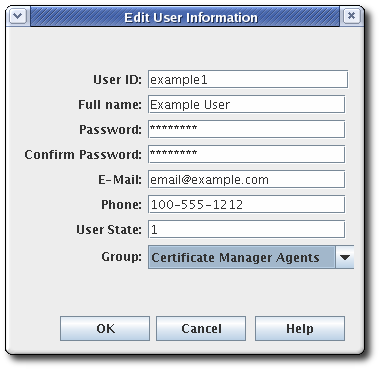 Most of the information is standard user information, such as the user's name, email address, and password. This window also contains a field called User State, which can contain any string, which is used to add additional information about the user; most basically, this field can show whether this is an active user.
 - Select the group to which the user will belong. The user's group membership determines what privileges the user has. Assign agents, administrators, and auditors to the appropriate subsystem group.
- Store the user's certificate.
- Request a user certificate through the CA end-entities service page.
- If auto-enrollment is not configured for the user profile, then approve the certificate request.
- Retrieve the certificate using the URL provided in the notification email, and copy the base-64 encoded certificate to a local file or to the clipboard.
- Select the new user entry, and click .
- Click , and paste in the base-64 encoded certificate.
14.3.2.2. Changing a Certificate System User's Certificate
- Log into the administrative console.
- Select Users and Groups.
- Select the user to edit from the list of user IDs, and click .
- Click to add the new certificate.
- In the Import Certificate window, paste the new certificate in the text area. Include the
-----BEGIN CERTIFICATE-----and-----END CERTIFICATE-----marker lines.
14.3.2.3. Renewing Administrator, Agent, and Auditor User Certificates
- Renew the admin user certificates in the CA's end users forms, as described in Section 5.5.1.1.2, “Certificate-Based Renewal”. This must be the same CA as first issued the certificate (or a clone of it).Agent certificates can be renewed by using the certificate-based renewal form in the end entities page. Self-renew user SSL client certificate. This form recognizes and updates the certificate stored in the browser's certificate store directly.
Note
It is also possible to renew the certificate usingcertutil, as described in Section 16.3.3, “Renewing Certificates Using certutil”. Rather than using the certificate stored in a browser to initiate renewal,certutiluses an input file with the original key. - Add the renewed user certificate to the user entry in the internal LDAP database.
- Open the console for the subsystem.
pkiconsole https://server.example.com:admin_port/subsystem_type
pkiconsole https://server.example.com:admin_port/subsystem_typeCopy to Clipboard Copied! Toggle word wrap Toggle overflow - Configuration | Users and Groups | Users | admin | Certificates | Import
- In the Configuration tab, select Users and Groups.
- In the Users tab, double-click the user entry with the renewed certificate, and click .
- Click , and paste in the base-64 encoded certificate.
This can also be done by usingldapmodifyto add the renewed certification directly to the user entry in the internal LDAP database, by replacing theuserCertificateattribute in the user entry, such asuid=admin,ou=people,dc=subsystem-base-DN.
14.3.2.4. Renewing an Expired Administrator, Agent, and Auditor User Certificate
pki command-line tool requiring authentication. In such a scenario, you can use the pki-server cert-fix command to renew an expired certificate.
- You have a valid CA certificate.
- You have root privileges.
Procedure 14.1. Renewing an Expired Administrator, Agent, and Auditor User Certificate
- Disable self test.
- Either run the following command:
pki-server selftest-disable -i PKI_instance
# pki-server selftest-disable -i PKI_instanceCopy to Clipboard Copied! Toggle word wrap Toggle overflow - Or remove the following line from CA's
CS.cfgfile and restart the CA subsystem:selftests.container.order.startup=CAPresence:critical, SystemCertsVerification:critical
selftests.container.order.startup=CAPresence:critical, SystemCertsVerification:criticalCopy to Clipboard Copied! Toggle word wrap Toggle overflow
- Check the expired certificates in the client's NSS database and find the certificate’s serial number (certificate ID).
- List the user certificates:
certutil -L -d /root/nssdb/
# certutil -L -d /root/nssdb/Copy to Clipboard Copied! Toggle word wrap Toggle overflow - Get the expired certificate serial number, which you want to renew:
certutil -L -d /root/nssdb/ -n Expired_cert | grep Serial Serial Number: 16 (0x10)# certutil -L -d /root/nssdb/ -n Expired_cert | grep Serial Serial Number: 16 (0x10)Copy to Clipboard Copied! Toggle word wrap Toggle overflow
- Renew the certificate. The local LDAP server requires the LDAP Directory Manager’s password.
pki-server cert-fix --ldap-url ldap://host389 --agent-uid caadmin -i PKI_instance -p PKI_https_port --extra-cert 16
# pki-server cert-fix --ldap-url ldap://host389 --agent-uid caadmin -i PKI_instance -p PKI_https_port --extra-cert 16Copy to Clipboard Copied! Toggle word wrap Toggle overflow - Re-eanable self test.
- Either run the following command:
pki-server selftest-enable -i PKI_instance
# pki-server selftest-enable -i PKI_instanceCopy to Clipboard Copied! Toggle word wrap Toggle overflow - Or add the following line to CA's
CS.cfgfile and restart the CA subsystem:selftests.container.order.startup=CAPresence:critical, SystemCertsVerification:critical
selftests.container.order.startup=CAPresence:critical, SystemCertsVerification:criticalCopy to Clipboard Copied! Toggle word wrap Toggle overflow
pki ca-cert-find
# pki ca-cert-findpki ca-cert-show 16 --pretty
# pki ca-cert-show 16 --pretty14.3.2.5. Deleting a Certificate System User
- Log into the administrative console.
- Select Users and Groups from the navigation menu on the left.
- Select the user from the list of user IDs, and click .
- Confirm the delete when prompted.
14.4. Creating and Managing Users for a TPS
- Agents, who perform actual token management operations, such setting the token status and changing token policies
- Administrators, who manage users for the TPS subsystem and have limited control over tokens
- Operators, who have no management control but are able to view and list tokens, certificates, and activities performed through the TPS
ou=TUS Agents, ou=TUS Administrators, and ou=TUS Operators — to see to which roles the user belongs, using Apache's mod_tokendb module.
https://server.example.com:8443/tps/ui/.
14.4.1. Listing and Searching for Users
14.4.1.1. From the Web UI
- Click the Accounts tab.
- Click the Users menu item. The list of users appears on the page.
- To search for certain users, write the keyword in the search field and press
Enter. To list all users again, remove the keyword and pressEnter.
14.4.1.2. From the Command Line
pki -d client_db_dir -c client_db_password -n admin_cert_nickname tps-user-find
pki -d client_db_dir -c client_db_password -n admin_cert_nickname tps-user-find
pki -d client_db_dir -c client_db_password -n admin_cert_nickname tps-user-show username
pki -d client_db_dir -c client_db_password -n admin_cert_nickname tps-user-show username14.4.2. Adding Users
14.4.2.1. From the Web UI
- Click the Accounts tab.
- Click the Users menu item.
- Click the Add button on the Users page.
- Fill in the user ID, full name, and TPS profile.
- Click the Save button.
14.4.2.1.1. From the Command Line
pki -d client_db_dir -c client_db_password -n admin_cert_nickname tps-user-add username --fullName full_name
pki -d client_db_dir -c client_db_password -n admin_cert_nickname tps-user-add username --fullName full_name14.4.3. Setting Profiles for Users
Note
All profiles. Setting specific profiles for users is a simple way to control access for operators and agents to specific users or token types.
CS.cfg, to map the CA's token profile to the token type. Configuring token mapping is covered in Section 6.7, “Mapping Resolver Configuration”.
- Click the Accounts tab.
- Click the Users menu item.
- Click the user name of the user you want to modify.
- Click the Edit link.
- In the TPS Profile field, enter the profile names separated by commas, or enter
All Profiles. - Click the Save button.
14.4.4. Managing User Roles
14.4.4.1. From the Web UI
- Click the Accounts tab.
- Click the Groups menu item.
- Click the name of the group that you want to change, for example TPS Agents.
- To add a user to this group:
- Click the Add button.
- Enter the user ID.
- Click the Add button.
- To remove a user from this group:
- Select the check box next to the user.
- Click the Remove button.
- Click the OK button.
14.4.4.2. From the Command Line
pki -d client_db_dir -c client_db_password -n admin_cert_nickname tps-group-find
pki -d client_db_dir -c client_db_password -n admin_cert_nickname tps-group-find
pki -d client_db_dir -c client_db_password -n admin_cert_nickname tps-group-member-find group_name
pki -d client_db_dir -c client_db_password -n admin_cert_nickname tps-group-member-find group_namepki -d client_db_dir -c client_db_password -n admin_cert_nickname tps-group-member-add group_name user_name
pki -d client_db_dir -c client_db_password -n admin_cert_nickname tps-group-member-add group_name user_namepki -d client_db_dir -c client_db_password -n admin_cert_nickname tps-group-member-del group_name user_name
pki -d client_db_dir -c client_db_password -n admin_cert_nickname tps-group-member-del group_name user_name14.4.5. Managing User Certificates
- To list user certificates, run:
pki -d client_db_dir -c client_db_password -n admin_cert_nickname tps-user-cert-find user_name
pki -d client_db_dir -c client_db_password -n admin_cert_nickname tps-user-cert-find user_nameCopy to Clipboard Copied! Toggle word wrap Toggle overflow
- To add a certificate to a user:
- Obtain a user certificate for the new user. Requesting and submitting certificates is explained in Chapter 5, Requesting, Enrolling, and Managing Certificates.
Important
A TPS administrator must have a signing certificate. The recommended profile to use is Manual User Signing and Encryption Certificates Enrollment. - Run the following command:
pki -d client_db_dir -c client_db_password -n admin_cert_nickname tps-user-cert-add user_name --serial cert_serial_number
pki -d client_db_dir -c client_db_password -n admin_cert_nickname tps-user-cert-add user_name --serial cert_serial_numberCopy to Clipboard Copied! Toggle word wrap Toggle overflow
- To remove a certificate from a user, run:
pki -d client_db_dir -c client_db_password -n admin_cert_nickname tps-user-cert-del user_name cert_id
pki -d client_db_dir -c client_db_password -n admin_cert_nickname tps-user-cert-del user_name cert_idCopy to Clipboard Copied! Toggle word wrap Toggle overflow
14.4.6. Renewing TPS Agent and Administrator Certificates
- Renew the user certificates through the CA's end users forms, as described in Section 5.5.1.1.2, “Certificate-Based Renewal”. This must be the same CA as first issued the certificate (or a clone of it).Agent certificates can be renewed by using the certificate-based renewal form in the end entities page, Self-renew user SSL client certificate. This form recognizes and updates the certificate stored in the browser's certificate store directly.
Note
It is also possible to renew the certificate usingcertutil, as described in Section 16.3.3, “Renewing Certificates Using certutil”. Rather than using the certificate stored in a browser to initiate renewal,certutiluses an input file with the original key. - Add the new certificate to the user and remove the old certificate as described in Section 14.4.5, “Managing User Certificates”.
14.4.7. Deleting Users
Warning
- Click the Accounts tab.
- Click the Users menu item.
- Select the check box next to the users to be deleted.
- Click the Remove button.
- Click the OK button.
pki -d client_db_dir -c client_db_password -n admin_cert_nickname tps-user-del user_name
pki -d client_db_dir -c client_db_password -n admin_cert_nickname tps-user-del user_name14.5. Configuring Access Control for Users
14.5.1. About Access Control
LogAdmins, can be added to the ACLs relevant to logs to allow read or modify access to this group. If this group is not added to any other ACLs, members of this group only have access to the logs.
allow|deny (operation) user|group|IP="name"
allow|deny (operation) user|group|IP="name"Note
allow (read) group="Administrators"
allow (read) group="Administrators"allow (read,modify) group="Administrators"
allow (read,modify) group="Administrators"||) with a space on either side. For example:
allow (read) group="Administrators" || group="Auditors"
allow (read) group="Administrators" || group="Auditors"Note
Administrators group. If an ACL has only the following ACL, JohnB is denied any access since he does not match any of the allow ACIs:
Allow (read,modify) group="Auditors" || user="BrianC"
Allow (read,modify) group="Auditors" || user="BrianC"
JohnB, a member of the Administrators group, has just been fired. It may be necessary to deny access specifically to JohnB if the user cannot be deleted immediately. Another situation is that a user, BrianC, is an administrator, but he should not have the ability to change some resource. Since the Administrators group must access this resource, BrianC can be specifically denied access by creating an ACI that denies this user access.
=) or does not equal (!=).
group="groupname". The syntax to exclude a group is group!="groupname", which allows any group except for the group named. For example:
group="Administrators" || group!="Auditors"
group="Administrators" || group!="Auditors"*). For example:
group="* Managers"
group="* Managers"user="userID". The syntax to exclude the user is user!="userID", which allows any user ID except for the user ID named. For example:
user="BobC" || user!="JaneK"
user="BobC" || user!="JaneK"anybody. For example:
user="anybody"
user="anybody"*). For example:
user="*johnson"
user="*johnson"ipaddress="ipaddress". The syntax to exclude an ID address from the ACL is ipaddress!="ipaddress". An IP address is specified using its numeric value; DNS values are not permitted. For example:
ipaddress="12.33.45.99" ipaddress!="23.99.09.88"
ipaddress="12.33.45.99"
ipaddress!="23.99.09.88"ipaddress="0:0:0:0:0:0:13.1.68.3"
ipaddress="0:0:0:0:0:0:13.1.68.3"*). For example:
ipaddress="12.33.45.*"
ipaddress="12.33.45.*"user="BobC" || group="Auditors" || group="Administrators"
user="BobC" || group="Auditors" || group="Administrators"14.5.2. Changing the Access Control Settings for the Subsystem
CS.cfg file, see Changing the Access Control Settings for the Subsystem.
14.5.3. Adding ACLs
- Log into the administrative console.
- Select Access Control List.

- Click to open the Access Control Editor.
- Fill the
Resource nameandAvailable rightsfields.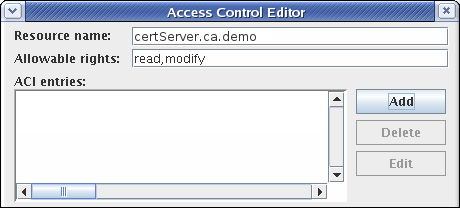
- To add an access control instruction (ACI), click , and supply the ACI information.

- Select the allow or deny radio button from the Access field to allow or deny the operation to the groups, users, or IP addresses specified. For more information about allowing or denying access, see Section 14.5.1, “About Access Control”.
- Set the rights. The available options are
readandmodify. To select both, hold the or button while selecting the entries. - Specify the user, group, or IP address that will be granted or denied access in the Syntax field. See Section 14.5.1, “About Access Control” for details on syntax.
- Click to return to the Access Control Editor window.
- Click to store the ACI.
14.5.4. Editing ACLs
- Log into the administrative console.
- Select Access Control List in the left navigation menu.
- Select the ACL to edit from the list, and click .The ACL opens in the Access Control Editor window.

- To add an ACI, click , and supply the ACI information.To edit an ACI, select the ACI from the list in the ACI entries text area of the ACL Editor window. Click .
- Select the allow or deny radio button from the Access field to allow or deny the operation to the groups, users, or IP addresses specified. For more information about allowing or denying access, see Section 14.5.1, “About Access Control”.
- Set the rights for the access control. The options are
readandmodify. To set both, use the or buttons. - Specify the user, group, or IP address that will be granted or denied access in the Syntax field. See Section 14.5.1, “About Access Control” for details on syntax.
Chapter 15. Configuring Subsystem Logs
pki_subsystem_log_path when the instance was created with pkispawn. Regular audit logs are located in the log directory with other types of logs, while signed audit logs are written to /var/log/pki/instance_name/subsystem_name/signedAudit. The default location for logs can be changed by modifying the configuration.
15.1. About Certificate System Logs
15.1.1. System Log
system, records information about requests to the server (all HTTP and HTTPS requests) and the responses from the server. Information recorded in this log includes the IP address (both IPv4 and IPv6) of the client machine that accessed the server; operations performed, such as search, add, and edit; and the result of the access, such as the number of entries returned:
id_number processor - [date:time] [number_of_operations] [result] servlet: message
id_number processor - [date:time] [number_of_operations] [result] servlet: messageExample 15.1. TKS System Log
10439.http-13443-Processor25 - [19/May/2020:14:16:51 CDT] [11] [3] UGSubsystem: Get User Error User not found
10439.http-13443-Processor25 - [19/May/2020:14:16:51 CDT] [11] [3] UGSubsystem: Get User Error User not found15.1.2. Transactions Log
transactions, records any kind of operation performed or submitted to the subsystem.
id_number.processor - [date:time] [number_of_operations] [result] servlet: message
id_number.processor - [date:time] [number_of_operations] [result] servlet: messageExample 15.2. Transactions Log
11438.http-8443-Processor25 - [27/May/2020:07:56:18 CDT] [1] [1] archival reqID 4 fromAgent agentID: CA-server.example.com-8443 authenticated by noAuthManager is completed DN requested: UID=recoverykey,E=recoverykey@email.com,CN=recover key serial number: 0x3
11438.http-8443-Processor25 - [27/May/2020:07:56:18 CDT] [1] [1] archival reqID 4 fromAgent agentID: CA-server.example.com-8443 authenticated by noAuthManager is completed DN requested: UID=recoverykey,E=recoverykey@email.com,CN=recover key serial number: 0x315.1.3. Debug Logs
[date:time] [processor]: servlet: message
[date:time] [processor]: servlet: message[10/Jun/2020:05:14:51][main]: Established LDAP connection using basic authentication to host localhost port 389 as cn=Directory Manager
[10/Jun/2020:05:14:51][main]: Established LDAP connection using basic authentication to host localhost port 389 as cn=Directory Managermain, and the message is the message from the server about the LDAP connection, and there is no servlet.
[06/Jun/2020:14:59:38][http-8443;-Processor24]: ProfileSubmitServlet: key=$request.requestowner$ value=KRA-server.example.com-8443
[06/Jun/2020:14:59:38][http-8443;-Processor24]: ProfileSubmitServlet: key=$request.requestowner$ value=KRA-server.example.com-8443Example 15.3. CA Certificate Request Log Messages
[07/Jul/2020:06:25:40][http-11180-Processor25]: OCSPServlet: OCSP Request: [07/Jul/2020:06:25:40][http-11180-Processor25]: OCSPServlet: MEUwQwIBADA+MDwwOjAJBgUrDgMCGgUABBSEWjCarLE6/BiSiENSsV9kHjqB3QQU
[07/Jul/2020:06:25:40][http-11180-Processor25]: OCSPServlet: OCSP Request:
[07/Jul/2020:06:25:40][http-11180-Processor25]: OCSPServlet:
MEUwQwIBADA+MDwwOjAJBgUrDgMCGgUABBSEWjCarLE6/BiSiENSsV9kHjqB3QQU15.1.3.1. Installation Logs
pkispawn, an installation file with the complete debug output from the installation, including any errors and, if the installation is successful, the URL and PIN to the configuration interface for the instance. The file is created in the /var/log/pki/ directory for the instance with a name in the form pki-subsystem_name-spawn.timestamp.log.
Example 15.4. CA Install Log
15.1.3.2. Tomcat Error and Access Logs
- admin.timestamp
- catalina.timestamp
- catalina.out
- host-manager.timestamp
- localhost.timestamp
- localhost_access_log.timestamp
- manager.timestamp
15.1.3.3. Self-Tests Log
CS.cfg file. For instruction on how to configure logs by editing the CS.cfg file, see the Enabling the Publishing Queue section in the Red Hat Certificate System Planning, Installation, and Deployment Guide.
15.2. Managing Logs
15.2.1. An Overview of Log Settings
15.2.1.1. Services That Are Logged
| Service | Description |
|---|---|
| ACLs | Logs events related to access control lists. |
| Administration | Logs events related to administration activities, such as HTTPS communication between the Console and the instance. |
| All | Logs events related to all the services. |
| Authentication | Logs events related to activity with the authentication module. |
| Certificate Authority | Logs events related to the Certificate Manager. |
| Database | Logs events related to activity with the internal database. |
| HTTP |
Logs events related to the HTTP activity of the server. Note that HTTP events are actually logged to the errors log belonging to the Apache server incorporated with the Certificate System to provide HTTP services.
|
| Key Recovery Authority | Logs events related to the KRA. |
| LDAP | Logs events related to activity with the LDAP directory, which is used for publishing certificates and CRLs. |
| OCSP | Logs events related to OCSP, such as OCSP status GET requests. |
| Others | Logs events related to other activities, such as command-line utilities and other processes. |
| Request Queue | Logs events related to the request queue activity. |
| User and Group | Logs events related to users and groups of the instance. |
15.2.1.2. Log Levels (Message Categories)
| Log level | Message category | Description |
|---|---|---|
| 0-1 | Tracing | These messages contain finer-grained debugging information. This level should not be used regularly because it may impact the performance. |
| 2-5 | Debugging | These messages contain debugging information. This level is not recommended for regular use because it generates too much information. |
| 6-10 | Informational | These messages provide general information about the state of the Certificate System, including status messages such as Certificate System initialization complete and Request for operation succeeded. |
| 11-15 | Warning | These messages are warnings only and do not indicate any failure in the normal operation of the server. |
| > 15 | Failure | These messages indicate errors and failures that prevent the server from operating normally, including failures to perform a certificate service operation (User authentication failed or Certificate revoked) and unexpected situations that can cause irrevocable errors (The server cannot send back the request it processed for a client through the same channel the request came from the client). Setting the level above 15 will minimize the logs, as only failures will be recorded. |
15.2.1.3. Buffered and Unbuffered Logging
- The buffer gets full. The buffer is full when the buffer size is equal to or greater than the value specified by the
bufferSizeconfiguration parameter. The default value for this parameter is 512 KB. - The flush interval for the buffer is reached. The flush interval is reached when the time interval since the last buffer flush is equal to or greater than the value specified by the
flushIntervalconfiguration parameter. The default value for this parameter is 5 seconds. - When current logs are read from Console. The server retrieves the latest log when it is queried for current logs.
15.2.1.4. Log File Rotation
- The size limit for the corresponding file is reached. The size of the corresponding log file is equal to or greater than the value specified by the
maxFileSizeconfiguration parameter. The default value for this parameter is 100 KB. - The age limit for the corresponding file is reached. The corresponding log file is equal to or older than the interval specified by the
rolloverIntervalconfiguration parameter. The default value for this parameter is 2592000 seconds (every thirty days).
Note
log directory to an archive medium.
Note
signtool, that signs log files before archiving them as a means of tamper detection. For details, see Section 15.2.4.5, “Signing Log Files”.
15.2.2. Configuring Logs in the Console
CS.cfg file. Specialized logs, such as signed audit logs and custom logs, can also be created through the Console or configuration file.
- In the navigation tree of the Configuration tab, select Log.
- The Log Event Listener Management tab lists the currently configured listeners.To create a new log instance, click , and select a module plug-in from the list in the Select Log Event Listener Plug-in Implementation window.
- Set or modify the fields in the Log Event Listener Editor window. The different parameters are listed in Table 15.3, “Log Event Listener Fields”.
| Field | Description |
|---|---|
| Log Event Listener ID | Gives the unique name that identifies the listener. The names can have any combination of letters (aA to zZ), digits (0 to 9), an underscore (_), and a hyphen (-), but it cannot contain other characters or spaces. |
| type | Gives the type of log file. system creates error and system logs; transaction records audit logs. |
| enabled | Sets whether the log is active. Only enabled logs actually record events. The value is either true or false. |
| level | Sets the log level in the text field. The level must be manually entered in the field; there is no selection menu. The choices are Debug, Information, Warning, Failure, Misconfiguration, Catastrophe, and Security. For more information, see Section 15.2.1.2, “Log Levels (Message Categories)”. |
| fileName | Gives the full path, including the file name, to the log file. The subsystem user should have read/write permission to the file. |
| bufferSize | Sets the buffer size in kilobytes (KB) for the log. Once the buffer reaches this size, the contents of the buffer are flushed out and copied to the log file. The default size is 512 KB. For more information on buffered logging, see Section 15.2.1.3, “Buffered and Unbuffered Logging”. |
| flushInterval | Sets the amount of time before the contents of the buffer are flushed out and added to the log file. The default interval is 5 seconds. |
| maxFileSize | Sets the size, in kilobytes (KB), a log file can become before it is rotated. Once it reaches this size, the file is copied to a rotated file, and the log file is started new. For more information on log file rotation, see Section 15.2.1.4, “Log File Rotation”. The default size is 2000 KB. |
| rolloverInterval | Sets the frequency for the server to rotate the active log file. The available options are hourly, daily, weekly, monthly, and yearly. The default is monthly. For more information, see Section 15.2.1.4, “Log File Rotation”. |
15.2.3. Configuring Logs in the CS.cfg File
CS.cfg file, see the Configuring Logs in the CS.cfg File section in the Red Hat Certificate System Planning, Installation, and Deployment Guide.
15.2.4. Managing Audit Logs
logSigning attribute is set to true, the audit log is signed with a log signing certificate belonging to the server. This certificate can be used by auditors to verify that the log has not been tampered with.
/var/log/pki/instance_name/subsystem_name/ directory with other types of logs, while signed audit logs are written to /var/log/pki/instance_name/subsystem_name/signedAudit/. The default location for logs can be changed by modifying the configuration.
15.2.4.1. A List of Audit Events
15.2.4.2. Enabling Signed Audit Logging after Installation
pki_audit_group deployment parameter with the pkispawn command. If, however, signed audit logs were not configured when an instance was created, they can be enabled afterwards by reassigning ownership of the audit log directory to the auditor system users group, such as pkiaudit.
- Stop the instance:
systemctl stop pki-tomcatd@instance_name.service
systemctl stop pki-tomcatd@instance_name.serviceCopy to Clipboard Copied! Toggle word wrap Toggle overflow - Set the group ownership of the signed audit log directory to the PKI auditors operating system group, such as
pkiaudit. This allows the users in the PKI auditors group to have the required read access to thesignedAuditdirectory to verify the signatures on the log files. No user (except for the Certificate System user account,pkiuser) should have write access to the log files in this directory.chgrp -R pkiaudit /var/log/pki/instance_name/subsystem_name/signedAudit
chgrp -R pkiaudit /var/log/pki/instance_name/subsystem_name/signedAuditCopy to Clipboard Copied! Toggle word wrap Toggle overflow - Restart the instance:
systemctl start pki-tomcatd@instance_name.service
systemctl start pki-tomcatd@instance_name.serviceCopy to Clipboard Copied! Toggle word wrap Toggle overflow
15.2.4.3. Configuring a Signed Audit Log in the Console
Note
logSigning parameter to enable and providing the nickname of the certificate used to sign the log. A special log signing certificate is created when the subsystems are first configured.
AuditVerify tool to verify that signed audit logs have not been tampered with.
- Open the Console.
Note
To create or configure the audit log by editing theCS.cfgfile, see the Configuring Logs in the CS.cfg File section in the Red Hat Certificate System Planning, Installation, and Deployment Guide. - In the navigation tree of the Configuration tab, select Log.
- In the Log Event Listener Management tab, select the SignedAudit entry.
- Click .
- There are three fields which must be reset in the Log Event Listener Editor window.
- Fill in the signedAuditCertNickname. This is the nickname of the certificate used to sign audit logs. An audit signing certificate is created when the subsystem is configured; it has a nickname like
auditSigningCert cert-instance_name subsystem_name.Note
To get the audit signing certificate nickname, list the certificates in the subsystem's certificate database usingcertutil. For example:Copy to Clipboard Copied! Toggle word wrap Toggle overflow - Set the logSigning field to
trueto enable signed logging. - Set any events which are logged to the audit log. Appendix E, Audit Events lists the loggable events. Log events are separated by commas with no spaces.
- Set any other settings for the log, such as the file name, the log level, the file size, or the rotation schedule.
Note
By default, regular audit logs are located in the/var/log/pki/instance_name/subsystem_name/directory with other types of logs, while signed audit logs are written to/var/log/pki/instance_name/subsystem_name/signedAudit/. The default location for logs can be changed by modifying the configuration. - Save the log configuration.
AuditVerify(1) man page for details about using this tool.
15.2.4.4. Handling Audit Logging Failures
- Servlets are disabled and will not process new requests.
- All pending and new requests are killed.
- The subsystem is shut down.
15.2.4.5. Signing Log Files
signtool). For details about this utility, see http://www.mozilla.org/projects/security/pki/nss/tools/.
signtool command to sign the log directories:
signtool -d secdb_dir -k cert_nickname -Z output input
signtool -d secdb_dir -k cert_nickname -Z output input- secdb_dir specifies the path to the directory that contains the certificate, key, and security module databases for the CA.
- cert_nickname specifies the nickname of the certificate to use for signing.
- output specifies the name of the JAR file (a signed zip file).
- input specifies the path to the directory that contains the log files.
15.2.4.6. Filtering Audit Events
| Type | Format | Example |
|---|---|---|
| Presence | (attribute=*) | (ReqID=*) |
| Equality | (attribute=value) | (Outcome=Failure) |
| Substring | (attribute=initial*any*...*any*final) | (SubjectID=*admin*) |
AND operation | (&(filter_1)(filter_2)...(filter_n)) | (&(SubjectID=admin)(Outcome=Failure)) |
OR operation | (|(filter_1)(filter_2)...(filter_n)) | (|(SubjectID=admin)(Outcome=Failure)) |
NOT operation | (!(filter)) | (!(SubjectID=admin)) |
Example 15.5. Filtering Audit Events
InfoName field set to rejectReadon or cancelReason:
- Edit the
/var/lib/pki/instance_name/subsystem_type/conf/CS.cfgfile and set the following parameters:log.instance.SignedAudit.filters.PROFILE_CERT_REQUEST=(Outcome=Failure) log.instance.SignedAudit.filters.CERT_REQUEST_PROCESSED=(|(InfoName=rejectReason)(InfoName=cancelReason))
log.instance.SignedAudit.filters.PROFILE_CERT_REQUEST=(Outcome=Failure) log.instance.SignedAudit.filters.CERT_REQUEST_PROCESSED=(|(InfoName=rejectReason)(InfoName=cancelReason))Copy to Clipboard Copied! Toggle word wrap Toggle overflow - Restart Certificate System:
systemctl restart pki-tomcatd@instance_name.service
# systemctl restart pki-tomcatd@instance_name.serviceCopy to Clipboard Copied! Toggle word wrap Toggle overflow
15.2.5. Managing Log Modules
classes directory; the implementation must be on the class path.
- Create the custom job class. For this example, the custom log plug-in is called
MyLog.java. - Compile the new class into the lib directory of the instance.
javac -d . /var/lib/pki/pki-tomcat/lib -classpath $CLASSPATH MyLog.java
javac -d . /var/lib/pki/pki-tomcat/lib -classpath $CLASSPATH MyLog.javaCopy to Clipboard Copied! Toggle word wrap Toggle overflow - Create a directory in the CA's
WEB-INFweb directory to hold the custom classes, so that the CA can access them.mkdir /var/lib/pki/pki-tomcat/webapps/ca/WEB-INF/classes
mkdir /var/lib/pki/pki-tomcat/webapps/ca/WEB-INF/classesCopy to Clipboard Copied! Toggle word wrap Toggle overflow - Set the owner to the Certificate System system user (
pkiuser).chown -R pkiuser:pkiuser /var/lib/pki/pki-tomcat/lib
chown -R pkiuser:pkiuser /var/lib/pki/pki-tomcat/libCopy to Clipboard Copied! Toggle word wrap Toggle overflow - Register the plug-in.
- Log into the Console.
- In the Configuration tab, select Logs from the navigation tree. Then select the Log Event Listener Plug-in Registration tab.
- Click .The Register Log Event Listener Plug-in Implementation window appears.
- Give the name for the plug-in module and the Java™ class name.The Java™ class name is the full path to the implementing Java™ class. If this class is part of a package, include the package name. For example, registering a class named
customLogin a package namedcom.customplugins, the class name would becom.customplugins.customLog. - Click .
15.3. Using Logs
15.3.1. Viewing Logs in the Console
- Log into the Console.
- Select the Status tab.
- Under Logs, select the log to view.
- Set the viewing preferences in the Display Options section.
- Entries — The maximum number of entries to be displayed. When this limit is reached, the Certificate System returns any entries that match the search request. Zero (0) means no messages are returned. If the field is blank, the server returns every matching entry, regardless of the number found.
- Source — Select the Certificate System component or service for which log messages are to be displayed. Choosing All means messages logged by all components that log to this file are displayed.
- Level — Select a message category that represents the log level for filtering messages.
- Filename — Select the log file to view. Choose Current to view the currently active system log file.
- Click .The table displays the system log entries. The entries are in reverse chronological order, with the most current entry placed at the top. Use the scroll arrows on the right edge of the panel to scroll through the log entries.Each entry has the following information shown:
- Source — The component or resource that logged the message.
- Level — The severity of the corresponding entry.
- Date — The date on which the entry was logged.
- Time — The time at which the entry was logged.
- Details — A brief description of the log.
- To view a full entry, double-click it, or select the entry, and click .
15.3.2. Using Signed Audit Logs
15.3.2.1. Listing Audit Logs
pki subsystem-audit-file-find command to list existing audit log files on the server.
server.example.com:
~/.dogtag/nssdb/ directory for authenticating to the CA. For further details about the parameters used in the command and alternative authentication methods, see the pki(1) man page.
15.3.2.2. Downloading Audit Logs
pki subsystem-audit-file-retrieve command to download a specific audit log from the server.
server.example.com:
- Optionally, list the available log files on the CA. See Section 15.3.2.1, “Listing Audit Logs”.
- Download the log file. For example, to download the
ca_auditfile:pki -U https://server.example.com:8443 -n auditor ca-audit-file-retrieve ca_audit
# pki -U https://server.example.com:8443 -n auditor ca-audit-file-retrieve ca_auditCopy to Clipboard Copied! Toggle word wrap Toggle overflow The command uses the client certificate with the auditor nickname stored in the~/.dogtag/nssdb/directory for authenticating to the CA. For further details about the parameters used in the command and alternative authentication methods, see the pki(1) man page.
grep utility:
grep "\[AuditEvent=ACCESS_SESSION_ESTABLISH\]" log_file
# grep "\[AuditEvent=ACCESS_SESSION_ESTABLISH\]" log_file15.3.2.3. Verifying Signed Audit Logs
- Initialize the NSS database and import the CA certificate. For details, see Section 2.5.1.1, “pki CLI Initialization” and the Importing a certificate into an NSS Database section in the Red Hat Certificate System 9 Planning, Installation, and Deployment Guide.
- If the audit signing certificate does not exist in the PKI client database, import it:
- Search the audit signing certificate for the subsystem logs you want to verify. For example:
Copy to Clipboard Copied! Toggle word wrap Toggle overflow - Import the audit signing certificate into the PKI client:
pki client-cert-import "CA Audit Signing Certificate" --serial 0x5 --trust ",,P" --------------------------------------------------- Imported certificate "CA Audit Signing Certificate" ---------------------------------------------------
# pki client-cert-import "CA Audit Signing Certificate" --serial 0x5 --trust ",,P" --------------------------------------------------- Imported certificate "CA Audit Signing Certificate" ---------------------------------------------------Copy to Clipboard Copied! Toggle word wrap Toggle overflow
- Download the audit logs. See Section 15.3.2.2, “Downloading Audit Logs”.
- Verify the audit logs.
- Create a text file that contains a list of the audit log files you want to verify in chronological order. For example:
cat > ~/audit.txt << EOF ca_audit.20170331225716 ca_audit.20170401001030 ca_audit EOF
# cat > ~/audit.txt << EOF ca_audit.20170331225716 ca_audit.20170401001030 ca_audit EOFCopy to Clipboard Copied! Toggle word wrap Toggle overflow - Use the
AuditVerifyutility to verify the signatures. For example:# AuditVerify -d ~/.dogtag/nssdb/ -n "CA Audit Signing Certificate" \ -a ~/audit.txt Verification process complete. Valid signatures: 10 Invalid signatures: 0
# AuditVerify -d ~/.dogtag/nssdb/ -n "CA Audit Signing Certificate" \ -a ~/audit.txt Verification process complete. Valid signatures: 10 Invalid signatures: 0Copy to Clipboard Copied! Toggle word wrap Toggle overflow For further details about usingAuditVerify, see the AuditVerify(1) man page.
15.3.3. Displaying Operating System-level Audit Logs
Note
auditd logging framework must be configured per Enabling OS-level Audit Logs.
ausearch utility as root or as a privileged user with the sudo utility.
15.3.3.1. Displaying Audit Log Deletion Events
rhcs_audit_deletion), use the -k parameter to find events matching that key:
ausearch -k rhcs_audit_deletion
# ausearch -k rhcs_audit_deletion15.3.3.2. Displaying Access to the NSS Database for Secret and Private Keys
rhcs_audit_nssdb), use the -k parameter to find events matching that key:
ausearch -k rhcs_audit_nssdb
# ausearch -k rhcs_audit_nssdb15.3.3.3. Displaying Time Change Events
rhcs_audit_time_change), use the -k parameter to find events matching that key:
ausearch -k rhcs_audit_time_change
# ausearch -k rhcs_audit_time_change15.3.3.4. Displaying Package Update Events
SOFTWARE_UPDATE), use the -m parameter to find events matching that type:
ausearch -m SOFTWARE_UPDATE
# ausearch -m SOFTWARE_UPDATE15.3.3.5. Displaying Changes to the PKI Configuration
rhcs_audit_config), use the -k parameter to find events matching that key:
ausearch -k rhcs_audit_config
# ausearch -k rhcs_audit_config15.3.4. Smart Card Error Codes
| Return Code | Description |
|---|---|
| General Error Codes | |
| 6400 | No specific diagnosis |
| 6700 | Wrong length in Lc |
| 6982 | Security status not satisfied |
| 6985 | Conditions of use not satisfied |
| 6a86 | Incorrect P1 P2 |
| 6d00 | Invalid instruction |
| 6e00 | Invalid class |
| Install Load Errors | |
| 6581 | Memory Failure |
| 6a80 | Incorrect parameters in data field |
| 6a84 | Not enough memory space |
| 6a88 | Referenced data not found |
| Delete Errors | |
| 6200 | Application has been logically deleted |
| 6581 | Memory failure |
| 6985 | Referenced data cannot be deleted |
| 6a88 | Referenced data not found |
| 6a82 | Application not found |
| 6a80 | Incorrect values in command data |
| Get Data Errors | |
| 6a88 | Referenced data not found |
| Get Status Errors | |
| 6310 | More data available |
| 6a88 | Referenced data not found |
| 6a80 | Incorrect values in command data |
| Load Errors | |
| 6581 | Memory failure |
| 6a84 | Not enough memory space |
| 6a86 | Incorrect P1/P2 |
| 6985 | Conditions of use not satisfied |
Chapter 16. Managing Subsystem Certificates
16.1. Required Subsystem Certificates
16.1.1. Certificate Manager Certificates
16.1.1.1. CA Signing Key Pair and Certificate
caSigningCert cert-instance_ID CA, where instance_ID identifies the Certificate Manager instance. The default validity period for the certificate is five years.
- If the Certificate Manager is a root CA, its CA signing certificate is self-signed, meaning the subject name and issuer name of the certificate are the same.
- If the Certificate Manager is a subordinate CA, its CA signing certificate is signed by another CA, usually the one that is a level above in the CA hierarchy (which may or may not be a root CA). The root CA's signing certificate must be imported into individual clients and servers before the Certificate Manager can be used to issue certificates to them.
Note
16.1.1.2. OCSP Signing Key Pair and Certificate
cn=OCSP cert-instance_ID CA, and it contains extensions, such as OCSPSigning and OCSPNoCheck, required for signing OCSP responses.
ocspSigningCert cert-instance_ID, where instance_ID CA identifies the Certificate Manager instance.
16.1.1.3. Subsystem Certificate
subsystemCert cert-instance_ID.
16.1.1.4. SSL Server Key Pair and Certificate
Server-Cert cert-instance_ID, where instance_ID identifies the Certificate Manager instance.
16.1.1.5. Audit Log Signing Key Pair and Certificate
Note
16.1.2. Online Certificate Status Manager Certificates
16.1.2.1. OCSP Signing Key Pair and Certificate
ocspSigningCert cert-instance_ID, where instance_ID OSCP is the Online Certificate Status Manager instance name.
16.1.2.2. SSL Server Key Pair and Certificate
Server-Cert cert-instance_ID, where instance_ID identifies the Online Certificate Status Manager instance name.
16.1.2.3. Subsystem Certificate
subsystemCert cert-instance_ID.
16.1.2.4. Audit Log Signing Key Pair and Certificate
Note
16.1.2.5. Recognizing Online Certificate Status Manager Certificates
- If the Online Certificate Status Manager's server certificate is signed by the CA that is publishing CRLs, then nothing needs to be done.
- If the Online Certificate Status Manager's server certificate is signed by the same root CA that signed the subordinate Certificate Manager's certificates, then the root CA must be marked as a trusted CA in the subordinate Certificate Manager's certificate database.
- If the Online Certificate Status Manager's SSL server certificate is signed by a different root CA, then the root CA certificate must be imported into the subordinate Certificate Manager's certificate database and marked as a trusted CA.
Note
16.1.3. Key Recovery Authority Certificates
16.1.3.1. Transport Key Pair and Certificate
16.1.3.2. Storage Key Pair
16.1.3.3. SSL Server Certificate
Server-Cert cert-instance_ID, where instance_id identifies the KRA instance is installed.
16.1.3.4. Subsystem Certificate
subsystemCert cert-instance_ID.
16.1.3.5. Audit Log Signing Key Pair and Certificate
Note
16.1.4. TKS Certificates
16.1.4.1. SSL Server Certificate
Server-Cert cert-instance_ID.
16.1.4.2. Subsystem Certificate
subsystemCert cert-instance_ID.
16.1.4.3. Audit Log Signing Key Pair and Certificate
Note
16.1.5. TPS Certificates
16.1.5.1. SSL Server Certificate
Server-Cert cert-instance_ID.
16.1.5.2. Subsystem Certificate
subsystemCert cert-instance_ID.
16.1.5.3. Audit Log Signing Key Pair and Certificate
16.1.6. About Subsystem Certificate Key Types
pkispawn utility.
Example 16.1. Key Type-related Configuration Parameters for a CA
pkispawn when creating a new CA.
Note
- The Understanding the
pkispawnUtility section in the Red Hat Certificate System Planning, Installation, and Deployment Guide. - The pki_default.cfg(5) man page for descriptions of the parameters and examples.
16.1.7. Using an HSM to Store Subsystem Certificates
key3.db and cert8.db, respectively, in the /var/lib/pki/instance_name/alias directory. However, Red Hat Certificate System also supports hardware security modules (HSM), external devices which can store keys and certificates in a centralized place on the network. Using an HSM can make some functions, like cloning, easier because the keys and certificates for the instance are readily accessible.
server.xml file. For example:
serverCert="nethsm:Server-Cert cert-instance_ID
serverCert="nethsm:Server-Cert cert-instance_IDNote
16.2. Requesting Certificates through the Console
16.2.1. Requesting Signing Certificates
Note
- Open the subsystem console. For example:
pkiconsole https://server.example.com:8443/ca
pkiconsole https://server.example.com:8443/caCopy to Clipboard Copied! Toggle word wrap Toggle overflow - In the Configuration tab, select System Keys and Certificates in the navigation tree.
- In the right panel, select the Local Certificates tab.
- Click .
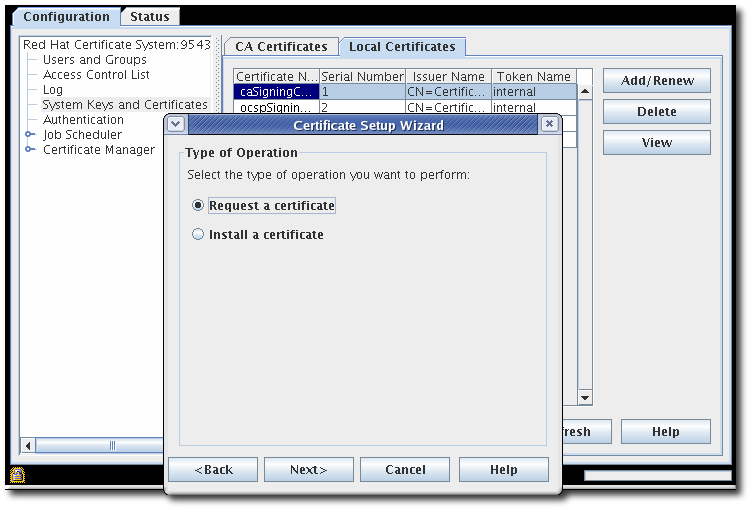
- Select the Request a certificate radio button.
- Choose the signing certificate type to request.
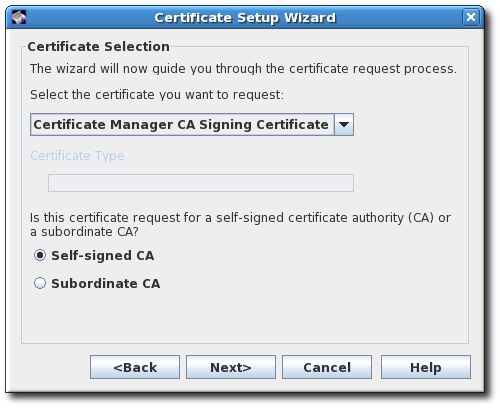
- Select which type of CA will sign the request, either a root CA or a subordinate CA.
- Set the key-pair information and set the location to generate the keys (the token), which can be either the internal security database directory or one of the listed external tokens.To create a new certificate, you must create a new key pair. Using an existing key pair will simply renew an existing certificate.

- Select the message digest algorithm.

- Give the subject name. Either enter values for individual DN attributes to build the subject DN or enter the full string.
 The certificate request forms support all UTF-8 characters for the common name, organizational unit, and requester name fields.This support does not include supporting internationalized domain names.
 - Specify the start and end dates of the validity period for the certificate and the time at which the validity period will start and end on those dates.
 The default validity period is five years.
 - Set the standard extensions for the certificate. The required extensions are chosen by default. To change the default choices, read the guidelines explained in Appendix B, Defaults, Constraints, and Extensions for Certificates and CRLs.

Note
Certificate extensions are required to set up a CA hierarchy. Subordinate CAs must have certificates that include the extension identifying them as either a subordinate SSL CA (which allows them to issue certificates for SSL) or a subordinate email CA (which allows them to issue certificates for secure email). Disabling certificate extensions means that CA hierarchies cannot be set up.- Basic Constraints. The associated fields are CA setting and a numeric setting for the certification path length.
- Extended Key Usage.
- Authority Key Identifier.
- Subject Key Identifier.
- Key Usage. The digital signature (bit 0), non-repudiation (bit 1), key certificate sign (bit 5), and CRL sign (bit 6) bits are set by default. The extension is marked critical as recommended by the PKIX standard and RFC 2459. See RFC 2459 for a description of the Key Usage extension.
- Base-64 SEQUENCE of extensions. This is for custom extensions. Paste the extension in MIME 64 DER-encoded format into the text field.
To add multiple extensions, use theExtJoinerprogram. For information on using the tools, see the Certificate System Command-Line Tools Guide. - The wizard generates the key pairs and displays the certificate signing request.
 The request is in base-64 encoded PKCS #10 format and is bounded by the marker lines
-----BEGIN NEW CERTIFICATE REQUEST-----and-----END NEW CERTIFICATE REQUEST-----. For example:Copy to Clipboard Copied! Toggle word wrap Toggle overflow The wizard also copies the certificate request to a text file it creates in the configuration directory, which is located in/var/lib/pki/instance_name/subsystem_type/conf/. The name of the text file depends on the type of certificate requested. The possible text files are listed in Table 16.1, “Files Created for Certificate Signing Requests”.Expand Table 16.1. Files Created for Certificate Signing Requests Filename Certificate Signing Request cacsr.txt CA signing certificate ocspcsr.txt Certificate Manager OCSP signing certificate ocspcsr.txt OCSP signing certificate Do not modify the certificate request before sending it to the CA. The request can either be submitted automatically through the wizard or copied to the clipboard and manually submitted to the CA through its end-entities page.Note
The wizard's auto-submission feature can submit requests to a remote Certificate Manager only. It cannot be used for submitting the request to a third-party CA. To submit it to a third-party CA, use the certificate request file. - Retrieve the certificate.
- Open the Certificate Manager end-entities page.
https://server.example.com:8443/ca/ee/ca
https://server.example.com:8443/ca/ee/caCopy to Clipboard Copied! Toggle word wrap Toggle overflow - Click the Retrieval tab.
- Fill in the request ID number that was created when the certificate request was submitted, and click .
- The next page shows the status of the certificate request. If the status is
complete, then there is a link to the certificate. Click the Issued certificate link.
- The new certificate information is shown in pretty-print format, in base-64 encoded format, and in PKCS #7 format.
- Copy the base-64 encoded certificate, including the
-----BEGIN CERTIFICATE-----and-----END CERTIFICATE-----marker lines, to a text file. Save the text file, and use it to store a copy of the certificate in a subsystem's internal database. See Section 14.3.2.1, “Creating Users”.
16.2.2. Requesting Other Certificates
Note
- Open the subsystem console. For example:
pkiconsole https://server.example.com:8443/ca
pkiconsole https://server.example.com:8443/caCopy to Clipboard Copied! Toggle word wrap Toggle overflow - In the Configuration tab, select System Keys and Certificates in the navigation tree.
- In the right panel, select the Local Certificates tab.
- Click .
- Select the Request a certificate radio button.
- Choose the certificate type to request. The types of certificates that can be requested varies depending on the subsystem.
Note
If selecting to create an "other" certificate, the Certificate Type field becomes active. Fill in the type of certificate to create, eithercaCrlSigningfor the CRL signing certificate,caSignedLogCertfor an audit log signing certificate, orclientfor an SSL client certificate.
- Select which type of CA will sign the request. The options are to use the local CA signing certificate or to create a request to submit to another CA.
- Set the key-pair information and set the location to generate the keys (the token), which can be either the internal security database directory or one of the listed external tokens.To create a new certificate, you must create a new key pair. Using an existing key pair will simply renew an existing certificate.
- Give the subject name. Either enter values for individual DN attributes to build the subject DN or enter the full string.
Note
For an SSL server certificate, the common name must be the fully-qualified host name of the Certificate System in the format machine_name.domain.domain.The CA certificate request forms support all UTF-8 characters for the common name, organizational unit, and requester name fields.This support does not include supporting internationalized domain names. - Specify the start and end dates of the validity period for the certificate and the time at which the validity period will start and end on those dates.
The default validity period is five years.
- Set the standard extensions for the certificate. The required extensions are chosen by default. To change the default choices, read the guidelines explained in Appendix B, Defaults, Constraints, and Extensions for Certificates and CRLs.
- Extended Key Usage.
- Authority Key Identifier.
- Subject Key Identifier.
- Key Usage. The digital signature (bit 0), non-repudiation (bit 1), key certificate sign (bit 5), and CRL sign (bit 6) bits are set by default. The extension is marked critical as recommended by the PKIX standard and RFC 2459. See RFC 2459 for a description of the Key Usage extension.
- Base-64 SEQUENCE of extensions. This is for custom extensions. Paste the extension in MIME 64 DER-encoded format into the text field.
To add multiple extensions, use theExtJoinerprogram. For information on using the tools, see the Certificate System Command-Line Tools Guide. - The wizard generates the key pairs and displays the certificate signing request.
The request is in base-64 encoded PKCS #10 format and is bounded by the marker lines
-----BEGIN NEW CERTIFICATE REQUEST-----and-----END NEW CERTIFICATE REQUEST-----. For example:Copy to Clipboard Copied! Toggle word wrap Toggle overflow The wizard also copies the certificate request to a text file it creates in the configuration directory, which is located in/var/lib/pki/instance_name/subsystem_type/conf/. The name of the text file depends on the type of certificate requested. The possible text files are listed in Table 16.2, “Files Created for Certificate Signing Requests”.Expand Table 16.2. Files Created for Certificate Signing Requests Filename Certificate Signing Request kracsr.txt KRA transport certificate sslcsr.txt SSL server certificate othercsr.txt Other certificates, such as Certificate Manager CRL signing certificate or SSL client certificate Do not modify the certificate request before sending it to the CA. The request can either be submitted automatically through the wizard or copied to the clipboard and manually submitted to the CA through its end-entities page.Note
The wizard's auto-submission feature can submit requests to a remote Certificate Manager only. It cannot be used for submitting the request to a third-party CA. To submit the request to a third-party CA, use one of the certificate request files. - Retrieve the certificate.
- Open the Certificate Manager end-entities page.
https://server.example.com:8443/ca/ee/ca
https://server.example.com:8443/ca/ee/caCopy to Clipboard Copied! Toggle word wrap Toggle overflow - Click the Retrieval tab.
- Fill in the request ID number that was created when the certificate request was submitted, and click .
- The next page shows the status of the certificate request. If the status is
complete, then there is a link to the certificate. Click the Issued certificate link.
- The new certificate information is shown in pretty-print format, in base-64 encoded format, and in PKCS #7 format.
- Copy the base-64 encoded certificate, including the
-----BEGIN CERTIFICATE-----and-----END CERTIFICATE-----marker lines, to a text file. Save the text file, and use it to store a copy of the certificate in a subsystem's internal database. See Section 14.3.2.1, “Creating Users”.
16.3. Renewing Subsystem Certificates
16.3.1. Re-keying Certificates in the End-Entities Forms
- Renew the certificates in the CA's end-entities forms, as described in Section 5.5, “Renewing Certificates”. This requires the serial number of the subsystem certificate being renewed.
- Import the certificate into the subsystem's database, as described in Section 16.6.1, “Installing Certificates in the Certificate System Database”. The certificate can be imported using
certutilor the console. For example:certutil -A -n "ServerCert cert-example" -t u,u,u -d /var/lib/pki/instance_name/alias -a -i /tmp/example.cert
certutil -A -n "ServerCert cert-example" -t u,u,u -d /var/lib/pki/instance_name/alias -a -i /tmp/example.certCopy to Clipboard Copied! Toggle word wrap Toggle overflow
16.3.2. Renewing Certificates in the Console
Figure 16.1. Renewing Subsystem Certificate
16.3.3. Renewing Certificates Using certutil
certutil can be used to generate a certificate request using an existing key pair in the certificate database. The new certificate request can then be submitted through the regular profile pages for the CA to issue a renewed certificate.
Note
- Get the password for the token database.
cat /var/lib/pki/instance_name/conf/password.conf internal=263163888660
cat /var/lib/pki/instance_name/conf/password.conf internal=263163888660Copy to Clipboard Copied! Toggle word wrap Toggle overflow - Open the certificate database directory of the instance whose certificate is being renewed.
cd /var/lib/pki/instance_name/alias
cd /var/lib/pki/instance_name/aliasCopy to Clipboard Copied! Toggle word wrap Toggle overflow - List the key and nickname for the certificate being renewed. In order to renew a certificate, the key pairs used to generate and the subject name given to the new certificate must be the same as the one in the old certificate.
# certutil -K -d . certutil: Checking token "NSS Certificate DB" in slot "NSS User Private Key and Certificate Services" Enter Password or Pin for "NSS Certificate DB": < 0> rsa 69481646e38a6154dc105960aa24ccf61309d37d caSigningCert cert-pki-tomcat CA
# certutil -K -d . certutil: Checking token "NSS Certificate DB" in slot "NSS User Private Key and Certificate Services" Enter Password or Pin for "NSS Certificate DB": < 0> rsa 69481646e38a6154dc105960aa24ccf61309d37d caSigningCert cert-pki-tomcat CACopy to Clipboard Copied! Toggle word wrap Toggle overflow - Copy the
aliasdirectory as a backup, then delete the original certificate from the certificate database. For example:certutil -D -n "ServerCert cert-example" -d .
certutil -D -n "ServerCert cert-example" -d .Copy to Clipboard Copied! Toggle word wrap Toggle overflow - Run the
certutilcommand with the options set to the values in the existing certificate.certutil -d . -R -n "NSS Certificate DB:cert-pki-tomcat CA" -s "cn=CA Authority,o=Example Domain" -a -o example.req2.txt
certutil -d . -R -n "NSS Certificate DB:cert-pki-tomcat CA" -s "cn=CA Authority,o=Example Domain" -a -o example.req2.txtCopy to Clipboard Copied! Toggle word wrap Toggle overflow The difference between generating a new certificate and key pair and renewing the certificate is the value of the-noption. To generate an entirely new request and key pair, then-ksets the key type and is used with-g, which sets the bit length. For a renewal request, the-noption uses the certificate nickname to access the existing key pair stored in the security database.For further details about the parameters, see the certutil(1) man page. - Submit the certificate request and then retrieve it and install it, as described in Section 5.4, “Requesting and Receiving Certificates”.
16.3.4. Renewing System Certificates
- If the system certificate is expired:
- Create a temporary certificate:
pki-server cert-create sslserver --temp
# pki-server cert-create sslserver --tempCopy to Clipboard Copied! Toggle word wrap Toggle overflow - Import the temporary certificate into Certificate System's Network Security Services (NSS) database:
pki-server cert-import sslserver
# pki-server cert-import sslserverCopy to Clipboard Copied! Toggle word wrap Toggle overflow - Start Certificate System:
systemctl start pki-tomcatd@instance_name.service
# systemctl start pki-tomcatd@instance_name.serviceCopy to Clipboard Copied! Toggle word wrap Toggle overflow
- Display the certificates and note the ID of the expired system certificate:
pki-server cert-find
# pki-server cert-findCopy to Clipboard Copied! Toggle word wrap Toggle overflow - Create the new permanent certificate:
pki-server cert-create certificate_ID
# pki-server cert-create certificate_IDCopy to Clipboard Copied! Toggle word wrap Toggle overflow - Stop Certificate System:
systemctl stop pki-tomcatd@instance_name.service
# systemctl stop pki-tomcatd@instance_name.serviceCopy to Clipboard Copied! Toggle word wrap Toggle overflow - Import the new certificate to replace the expired certificate:
pki-server cert-import certificate_ID
# pki-server cert-import certificate_IDCopy to Clipboard Copied! Toggle word wrap Toggle overflow - Start Certificate System:
systemctl start pki-tomcatd@instance_name.service
# systemctl start pki-tomcatd@instance_name.serviceCopy to Clipboard Copied! Toggle word wrap Toggle overflow
16.4. Changing the Names of Subsystem Certificates
CS.cfg configuration file.
Important
CS.cfg file.
| CA Signing Certificate |
|
| OCSP Signing Certificate |
|
| Subsystem Certificate |
|
| Server Certificate |
|
| Audit Signing Certificate |
|
| Transport Certificate |
|
| Storage Certificate |
|
| Server Certificate |
|
| Subsystem Certificate |
|
| Audit Log Signing Certificate |
|
| OCSP Signing Certificate |
|
| Server Certificate |
|
| Subsystem Certificate |
|
| Audit Log Signing Certificate |
|
| KRA Transport Certificate[a] |
|
| Server Certificate |
|
| Subsystem Certificate |
|
| Audit Log Signing Certificate |
|
[a]
This needs changed in the TKS configuration if the KRA transport certificate nickname changes, even if the TKS certificates all stay the same.
| |
| Server Certificate |
|
| Subsystem Certificate |
|
| Audit Log Signing Certificate |
|
16.5. Using Cross-Pair Certificates
16.5.1. Installing Cross-Pair Certificates
certutil tool or by selecting the Cross-Pair Certificates option from the Certificate Setup Wizard, as described in Section 16.6.1, “Installing Certificates in the Certificate System Database”.
crossCertificatePair entry is formed and stored in the database. The original individual cross-pair CA certificates are deleted once the crossCertificatePair entry is created.
16.5.2. Searching for Cross-Pair Certificates
crossCertificatePair entry in an LDAP database. The Certificate Manager's internal database can be searched for the crossCertificatePair entry with ldapsearch.
/usr/lib[64]/mozldap/ldapsearch -D "cn=directory manager" -w secret -p 389 -h server.example.com -b "o=server.example.com-pki-ca" -s sub "(crossCertificatePair=*)"
/usr/lib[64]/mozldap/ldapsearch -D "cn=directory manager" -w secret -p 389 -h server.example.com -b "o=server.example.com-pki-ca" -s sub "(crossCertificatePair=*)"16.6. Managing the Certificate Database
Note
certutil can be used to manage the certificate database by editing trust settings and adding and deleting certificates. For details about this tool, see http://www.mozilla.org/projects/security/pki/nss/tools/.
16.6.1. Installing Certificates in the Certificate System Database
certutil utility.
16.6.1.1. Installing Certificates through the Console
- Any of the certificates used by a Certificate System subsystem
- Any trusted CA certificates from external CAs or other Certificate System CAs
- Certificate chains
- Open the console.
pkiconsole https://server.example.com:secure_port/subsystem_type
pkiconsole https://server.example.com:secure_port/subsystem_typeCopy to Clipboard Copied! Toggle word wrap Toggle overflow - In the Configuration tab, select System Keys and Certificates from the left navigation tree.
- There are two tabs where certificates can be installed, depending on the subsystem type and the type of certificate.
- The CA Certificates tab is for installing CA certificates and certificate chains. For Certificate Managers, this tab is used for third-party CA certificates or other Certificate System CA certificates; all of the local CA certificates are installed in the Local Certificates tab. For all other subsystems, all CA certificates and chains are installed through this tab.
- The Local Certificates tab is where all server certificates, subsystem certificates, and local certificates such as OCSP signing or KRA transport are installed.
Select the appropriate tab. - To install a certificate in the Local Certificates tab, click . To install a certificate in the CA Certificates tab, click . Both will open the Certificate Setup Wizard.
- When the wizard opens, select the Install a certificate radio button, and click .
- Select the type of certificate to install. The options for the drop-down menu are the same options available for creating a certificate, depending on the type of subsystem, with the additional option to install a cross-pair certificate.
- Paste in the certificate body, including the
-----BEGIN CERTIFICATE-----and-----END CERTIFICATE-----, into the text area, or specify the absolute file location; this must be a local file.The certificate will look like the following:Copy to Clipboard Copied! Toggle word wrap Toggle overflow
- The wizard displays the certificate details. Review the fingerprint to make sure this is the correct certificate, or use the button to go back and submit a different one. Give a nickname for the certificate.The wizard installs the certificate.
- Any CA that signed the certificate must be trusted by the subsystem. Make sure that this CA's certificate exists in the subsystem's certificate database (internal or external) and that it is trusted.If the CA certificate is not listed, add the certificate to the certificate database as a trusted CA. If the CA's certificate is listed but untrusted, change the trust setting to trusted, as shown in Section 16.7, “Changing the Trust Settings of a CA Certificate”.When installing a certificate issued by a CA that is not stored in the Certificate System certificate database, add that CA's certificate chain to the database. To add the CA chain to the database, copy the CA chain to a text file, start the wizard again, and install the CA chain.
16.6.1.2. Installing Certificates Using certutil
certutil, do the following:
- Open the subsystem's security database directory.
cd /var/lib/pki/instance_name/alias
cd /var/lib/pki/instance_name/aliasCopy to Clipboard Copied! Toggle word wrap Toggle overflow - Run the
certutilcommand with the-Ato add the certificate and-ipointing to the file containing the certificate issued by the CA.certutil -A -n cert-name -t trustargs -d . -a -i certificate_file
certutil -A -n cert-name -t trustargs -d . -a -i certificate_fileCopy to Clipboard Copied! Toggle word wrap Toggle overflow Note
If the Certificate System instance's certificates and keys are stored on an HSM, then specify the token name using the-hoption.For example:certutil -A -n "ServerCert cert-instance_name" -t u,u,u -d . -a -i /tmp/example.cert
certutil -A -n "ServerCert cert-instance_name" -t u,u,u -d . -a -i /tmp/example.certCopy to Clipboard Copied! Toggle word wrap Toggle overflow
certutil command, see http://www.mozilla.org/projects/security/pki/nss/tools/certutil.html.
16.6.1.3. About CA Certificate Chains
16.6.2. Viewing Database Content
cert8.db, can be viewed through the subsystem administrative console. Alternatively, the certificates can be listed using the certutil utility. certutil must be used to view the TPS certificates because the TPS subsystem does not use an administrative console.
Note
cert8.db database are the subsystem certificates used for subsystem operations. User certificates are stored with the user entries in the LDAP internal database.
16.6.2.1. Viewing Database Content through the Console
- Open the subsystem console.
pkiconsole https://server.example.com:secure_port/subsystem_type
pkiconsole https://server.example.com:secure_port/subsystem_typeCopy to Clipboard Copied! Toggle word wrap Toggle overflow - In the Configuration tab, select System Keys and Certificates from the left navigation tree.
- There are two tabs, CA Certificates and Local Certificates, which list different kinds of certificates.
- CA Certificates lists CA certificates for which the corresponding private key material is not available, such as certificates issued by third-party CAs such as Entrust or Verisign or external Certificate System Certificate Managers.
- Local Certificates lists certificates kept by the Certificate System subsystem instance, such as the KRA transport certificate or OCSP signing certificate.

Figure 16.2. Certificate Database Tab
- The Certificate Database Management table lists the all of the certificates installed on the subsystem. The following information is supplied for each certificate:
- Certificate Name
- Serial Number
- Issuer Names, the common name (
cn) of the issuer of this certificate. - Token Name, the name of the cryptographic token holding the certificate; for certificate stored in the database, this is
internal.
16.6.2.2. Viewing Database Content Using certutil
certutil, open the instance's certificate database directory, and run the certutil with the -L option. For example:
certutil, run the certutil with the -K option. For example:
certutil command, see http://www.mozilla.org/projects/security/pki/nss/tools/certutil.html.
16.6.3. Deleting Certificates from the Database
Note
16.6.3.1. Deleting Certificates through the Console
- Open the subsystem console.
pkiconsole https://server.example.com:secure_port/subsystem_type
pkiconsole https://server.example.com:secure_port/subsystem_typeCopy to Clipboard Copied! Toggle word wrap Toggle overflow - In the Configuration tab, select System Keys and Certificates from the left navigation tree.
- Select the certificate to delete, and click .
- When prompted, confirm the delete.
16.6.3.2. Deleting Certificates Using certutil
certutil:
- Open the instance's certificate databases directory.
/var/lib/pki/instance_name/alias
/var/lib/pki/instance_name/aliasCopy to Clipboard Copied! Toggle word wrap Toggle overflow - List the certificates in the database by running the
certutilwith the-Loption. For example:Copy to Clipboard Copied! Toggle word wrap Toggle overflow - Delete the certificate by running the
certutilwith the-Doption.certutil -D -d . -n certificate_nickname
certutil -D -d . -n certificate_nicknameCopy to Clipboard Copied! Toggle word wrap Toggle overflow For example:certutil -D -d . -n "ServerCert cert-instance_name"
certutil -D -d . -n "ServerCert cert-instance_name"Copy to Clipboard Copied! Toggle word wrap Toggle overflow - List the certificates again to confirm that the certificate was removed.
certutil -L -d . Certificate Authority - Example Domain CT,c, subsystemCert cert-instance_name u,u,u
certutil -L -d . Certificate Authority - Example Domain CT,c, subsystemCert cert-instance_name u,u,uCopy to Clipboard Copied! Toggle word wrap Toggle overflow
certutil command, see http://www.mozilla.org/projects/security/pki/nss/tools/certutil.html.
16.7. Changing the Trust Settings of a CA Certificate
16.7.1. Changing Trust Settings through the Console
- Open the subsystem console.
pkiconsole https://server.example.com:secure_port/subsystem_type
pkiconsole https://server.example.com:secure_port/subsystem_typeCopy to Clipboard Copied! Toggle word wrap Toggle overflow - In the Configuration tab, System Keys and Certificates from the left navigation tree.
- Select the CA certificates tab.
- Select the CA certificate to modify, and click .
- A prompt opens which reads The Certificate chain is (un)trusted, are you sure you want to (un)trust it?Clicking yes changes the trust setting of the certificate chain; pressing no preserves the original trust relationship.
16.7.2. Changing Trust Settings Using certutil
certutil, do the following:
- Open the instance's certificate databases directory.
cd /var/lib/pki/instance_name/alias
cd /var/lib/pki/instance_name/aliasCopy to Clipboard Copied! Toggle word wrap Toggle overflow - List the certificates in the database by running the
certutilwith the-Loption. For example:Copy to Clipboard Copied! Toggle word wrap Toggle overflow - Change the trust settings for the certificate by running the
certutilwith the-Moption.certutil -M -n cert_nickname -t trust -d .
certutil -M -n cert_nickname -t trust -d .Copy to Clipboard Copied! Toggle word wrap Toggle overflow For example:certutil -M -n "Certificate Authority - Example Domain" -t TCu,TCu,TCu -d .
certutil -M -n "Certificate Authority - Example Domain" -t TCu,TCu,TCu -d .Copy to Clipboard Copied! Toggle word wrap Toggle overflow - List the certificates again to confirm that the certificate trust was changed.
Copy to Clipboard Copied! Toggle word wrap Toggle overflow
certutil command, see http://www.mozilla.org/projects/security/pki/nss/tools/certutil.html.
16.8. Managing Tokens Used by the Subsystems
16.8.1. Detecting Tokens
TokenInfo utility.
TokenInfo /var/lib/pki/instance_name/alias Database Path: /var/lib/pki/instance_name/alias Found external module 'NSS Internal PKCS #11 Module'
TokenInfo /var/lib/pki/instance_name/alias
Database Path: /var/lib/pki/instance_name/alias
Found external module 'NSS Internal PKCS #11 Module'
16.8.2. Viewing Tokens
modutil utility.
- Open the instance
aliasdirectory. For example:cd /var/lib/pki/instance_name/alias
cd /var/lib/pki/instance_name/aliasCopy to Clipboard Copied! Toggle word wrap Toggle overflow - Show the information about the installed PKCS #11 modules installed as well as information on the corresponding tokens using the
modutiltool.modutil -dbdir . -nocertdb -list
modutil -dbdir . -nocertdb -listCopy to Clipboard Copied! Toggle word wrap Toggle overflow
16.8.3. Changing a Token's Password
certutil command-line utility.
certutil, see http://www.mozilla.org/projects/security/pki/nss/tools/.
password.conf file. This file must be manually updated every time the token password is changed. For more information on managing passwords through the password.conf file, see Red Hat Certificate System Planning, Installation, and Deployment Guide.
Chapter 17. Setting Time and Date in Red Hat Enterprise Linux 7
timedatectl utility is distributed as part of the systemd system and service manager and allows you to review and change the configuration of the system clock.
Changing the Current Time
timedatectl set-time HH:MM:SS
timedatectl set-time HH:MM:SSChanging the Current Date
timedatectl set-time YYYY-MM-DD
timedatectl set-time YYYY-MM-DDChapter 18. Determining Certificate System Product Version
/usr/share/pki/CS_SERVER_VERSION file. To display the version:
cat /usr/share/pki/CS_SERVER_VERSION Red Hat Certificate System 9.4 (Batch Update 3)
# cat /usr/share/pki/CS_SERVER_VERSION
Red Hat Certificate System 9.4 (Batch Update 3)http://host_name:port_number/ca/admin/ca/getStatushttp://host_name:port_number/kra/admin/kra/getStatushttp://host_name:port_number/ocsp/admin/ocsp/getStatushttp://host_name:port_number/tks/admin/tks/getStatushttp://host_name:port_number/tps/admin/tps/getStatus
Note
Chapter 19. Updating Red Hat Certificate System
yum update command. This downloads, verifies, and installs updates for Certificate System as well as operating system packages. For further information on updating Certificate System and validating that the update was successful, see the Updating Certificate System Packages.
Chapter 20. Troubleshooting
- Q: The init script returned an OK status, but my CA instance does not respond. Why?
- Q: I can't open the pkiconsole and I'm seeing Java exceptions in stdout.
- Q: I tried to run pkiconsole, and I got Socket exceptions in stdout. Why?
- Q: I tried to enroll for a certificate, and I got the error "request is not submitted...Subject Name Not Found"?
- Q: Why are my enrolled certificates not being published?
- Q: How do I open the pkiconsole utility from a remote host?
- Q: What do I do when the LDAP server is not responding?
catalina.out, system, and debug log files for the instance to see what errors have occurred. This lists a couple of common errors.
catalina.out file:
libnss3.so in the path. Check this with this command:
ldd /usr/lib64/libjss4.so
ldd /usr/lib64/libjss4.solibnss3.so is not found, try unsetting the LD_LIBRARY_PATH variable and restart the CA.
unset LD_LIBRARY_PATH systemctl restart pki-tomcatd@instance_name.service
unset LD_LIBRARY_PATH
systemctl restart pki-tomcatd@instance_name.servicepkiconsole and I'm seeing Java exceptions in stdout.
alternatives --config java to see what JRE is selected. Red Hat Certificate System requires OpenJDK 1.8.
pkiconsole, and I got Socket exceptions in stdout. Why?
server.xml) or the wrong port was given to access the admin interface.
debug log. For example, this profile used a custom attribute (MYATTRIBUTE) that the directory didn't recognize:
debug log, which can indicate where the misconfiguration is. For example, this has a problem with the mappers:
CS.cfg file or in the Publishing tab of the CA console. In this example, the problem was in the mapping parameter, which must point to an existing LDAP suffix:
ca.publish.mapper.instance.LdapUserCertMap.dnPattern=UID=$subj.UID,dc=publish
ca.publish.mapper.instance.LdapUserCertMap.dnPattern=UID=$subj.UID,dc=publishpkiconsole utility from a remote host?
pkiconsole on the Certificate System server from a remote host. For that, administrators can use a Virtual Network Computing (VNC) connection:
- Setup a VNC server, for example, on the Red Hat Certificate System server.
Important
Thepkiconsoleutility cannot run on a server with Federal Information Processing Standard (FIPS) mode enabled. Use a different host with Red Hat Enterprise Linux to run the VNC server, if FIPS mode is enabled on your Certificate System server.For details about installing a VNC server, see the VNC Server section in the Red Hat System Administrator's Guide. - Use a VNC viewer to connect to the host running the VNC server. For details, see VNC Viewer.
- Open the
pkiconsoleutility in the VNC window. For example:pkiconsole https://server.example.com:8443/ca
# pkiconsole https://server.example.com:8443/caCopy to Clipboard Copied! Toggle word wrap Toggle overflow
Note
systemctl stop pki-tomcatd-nuxwdog@instance_name.service
# systemctl stop pki-tomcatd-nuxwdog@instance_name.servicesystemctl start pki-tomcatd-nuxwdog@instance_name.service
# systemctl start pki-tomcatd-nuxwdog@instance_name.serviceChapter 21. Subsystem Control And maintenance
21.1. Starting, Stopping, Restarting, and Obtaining Status
systemctl utility on Red Hat Enterprise Linux 7.
systemctl start unit_file@instance_name.service
# systemctl start unit_file@instance_name.servicesystemctl stop unit_file@instance_name.service
# systemctl stop unit_file@instance_name.servicesystemctl restart unit_file@instance_name.service
# systemctl restart unit_file@instance_name.servicesystemctl status unit_file@instance_name.service
# systemctl status unit_file@instance_name.servicepki-tomcat: With watchdog disabledpki-tomcat-nuxwdog: With watchdog enabled
21.2. Subsystem Health Check
- Audit failure caused by a full disk
- Signing failure caused by HSM connection issue
- LDAP server connection issues
- And so on
Part V. References
Appendix A. Certificate Profile Input and Output Reference
A.1. Input Reference
A.1.1. Certificate Request Input
- Certificate Request Type. This drop-down menu lets the user specify the certificate request type. The choices are PKCS #10 or CRMF. Certificate Management Messages over Cryptographic Message Syntax (CMC) enrollment is supported with both PKCS #10 and CRMF.
- Certificate Request. This is the text area in which to paste the request.
Example A.1.
caAdminCert.cfg:input.i1.class_id=certReqInputImpl
caAdminCert.cfg:input.i1.class_id=certReqInputImplA.1.2. CMC Certificate Request Input
Example A.2.
caCMCUserCert.cfg:input.i1.class_id=cmcCertReqInputImpl
caCMCUserCert.cfg:input.i1.class_id=cmcCertReqInputImplA.1.3. Dual Key Generation Input
- Key Generation Request Type. This field is a read-only field displaying
crmfas the request type. - Key Generation Request. This field sets the selection for the key size in the key generation request for both encryption and signing certificates.
Example A.3.
caDualCert.cfg:input.i1.class_id=dualKeyGenInputImpl
caDualCert.cfg:input.i1.class_id=dualKeyGenInputImplA.1.4. File-Signing Input
- Key Generation Request Type. This field is a read-only field displaying
crmfas the request type. - Key Generation Request. This input adds a drop-down menu to select the key size to use in the key generation request.
- URL Of File Being Signed. This gives the location of the file which is to be signed.
- Text Being Signed. This gives the filename.
Example A.4.
caAgentFileSigning.cfg:input.i2.class_id=fileSigningInputImpl
caAgentFileSigning.cfg:input.i2.class_id=fileSigningInputImplA.1.5. Image Input
A.1.6. Key Generation Input
- Key Generation Request Type. This field is a read-only field displaying
crmfas the request type. - Key Generation Request. This input adds a drop-down menu to select the key size to use in the key generation request.
Example A.5.
caDualCert.cfg:input.i1.class_id=keyGenInputImpl
caDualCert.cfg:input.i1.class_id=keyGenInputImplA.1.7. nsHKeyCertRequest (Token Key) Input
- Token Key CUID. This field gives the CUID (contextually unique user ID) for the token device.
- Token Key User Public Key. This field must contain the token user's public key.
Example A.6.
caTempTokenDeviceKeyEnrollment.cfg:input.i1.class_id=nsHKeyCertReqInputImpl
caTempTokenDeviceKeyEnrollment.cfg:input.i1.class_id=nsHKeyCertReqInputImplA.1.8. nsNKeyCertRequest (Token User Key) Input
- Token Key User UID. This field gives the UID for the LDAP entry of the user of the token device.
- Token Key User Public Key. This field must contain the token user's public key.
Example A.7.
caTempTokenUserEncryptionKeyEnrollment.cfg:input.i1.class_id=nsNKeyCertReqInputImpl
caTempTokenUserEncryptionKeyEnrollment.cfg:input.i1.class_id=nsNKeyCertReqInputImplA.1.9. Serial Number Renewal Input
Example A.8.
caTokenUserEncryptionKeyRenewal.cfg:input.i1.class_id=serialNumRenewInputImpl
caTokenUserEncryptionKeyRenewal.cfg:input.i1.class_id=serialNumRenewInputImplA.1.10. Subject DN Input
Example A.9.
caAdminCert.cfg:input.i3.class_id=subjectDNInputImpl
caAdminCert.cfg:input.i3.class_id=subjectDNInputImplA.1.11. Subject Name Input
- UID (the LDAP directory user ID)
- Email
- Common Name (the name of the user)
- Organizational Unit (the organizational unit (
ou) to which the user belongs) - Organization (the organization name)
- Country (the country where the user is located)
Example A.10.
caDualCert.cfg:input.i2.class_id=subjectNameInputImpl
caDualCert.cfg:input.i2.class_id=subjectNameInputImplA.1.12. Submitter Information Input
- Requester Name
- Requester Email
- Requester Phone
Example A.11.
caAdminCert.cfg:input.i2.class_id=submitterInfoInputImpl
caAdminCert.cfg:input.i2.class_id=submitterInfoInputImplA.1.13. Generic Input
ccm and GUID parameters are used in the patterned Subject Alternative Name Extension Default plug-in:
Example A.12.
A.1.14. Subject Alternative Name Extension Input
req_san_pattern_# into the input and therefore the SubjectAltNameExt extension. For example, URI containing:
...&req_san_pattern_0=host0.Example.com&req_san_pattern_1=host1.Example.com
...&req_san_pattern_0=host0.Example.com&req_san_pattern_1=host1.Example.comhost0.Example.com and host1.Example.com into the SubjectAltNameExt extension from the profile below.
Example A.13.
A.2. Output Reference
A.2.1. Certificate Output
Example A.14.
caAdminCert.cfg:output.o1.class_id=certOutputImpl
caAdminCert.cfg:output.o1.class_id=certOutputImplA.2.2. PKCS #7 Output
Example A.15.
caAgentFileSigning.cfg:output.o1.class_id=pkcs7OutputImpl
caAgentFileSigning.cfg:output.o1.class_id=pkcs7OutputImplA.2.3. nsNSKeyOutput
A.2.4. CMMF Output
Appendix B. Defaults, Constraints, and Extensions for Certificates and CRLs
Important
B.1. Defaults Reference
B.1.1. Authority Info Access Extension Default
- Extension Constraint; see Section B.2.4, “Extension Constraint”.
- No Constraints; see Section B.2.8, “No Constraint”.
| Parameter | Description |
|---|---|
| Critical | Select true to mark this extension critical; select false to mark the extension noncritical. |
| Method_n |
Specifies the access method for retrieving additional information about the CA that has issued the certificate in which the extension appears. This is one of the following values:
|
| LocationType_n | Specifies the general name type for the location that contains additional information about the CA that has issued the certificate. This is one of the following types:
|
| Location_n |
Specifies the address or location to get additional information about the CA that has issued the certificate.
|
| Enable_n | Specifies whether this location is enabled. Select true to mark this as set; select false to disable it. |
B.1.2. Authority Key Identifier Extension Default
- No Constraints; see Section B.2.8, “No Constraint”.
B.1.3. Authentication Token Subject Name Default
- No Constraints; see Section B.2.8, “No Constraint”.
B.1.4. Basic Constraints Extension Default
- Basic Constraints Extension Constraint; see Section B.2.1, “Basic Constraints Extension Constraint”.
- Extension Constraint; see Section B.2.4, “Extension Constraint”.
- No Constraints; see Section B.2.8, “No Constraint”.
| Parameter | Description |
|---|---|
| Critical | Select true to mark this extension critical; select false to mark the extension noncritical. |
| IsCA | Specifies whether the certificate subject is a CA. With true, the server checks the PathLen parameter and sets the specified path length in the certificate. With false, the server treats the certificate subject as a non-CA and ignores the value specified for the PathLen parameter. |
| PathLen |
Specifies the path length, the maximum number of CA certificates that may be chained below (subordinate to) the subordinate CA certificate being issued. The path length affects the number of CA certificates to be used during certificate validation. The chain starts with the end-entity certificate being validated and moves up.
The
maxPathLen parameter has no effect if the extension is set in end-entity certificates.
The permissible values are
0 or n. The value should be less than the path length specified in the Basic Constraints extension of the CA signing certificate. 0 specifies that no subordinate CA certificates are allowed below the subordinate CA certificate; only an end-entity certificate may follow in the path. n must be an integer greater than zero. It specifies the maximum number of subordinate CA certificates allowed below the subordinate CA certificate.
If the field is blank, the path length defaults to a value that is determined by the path length set in the Basic Constraints extension in the issuer's certificate. If the issuer's path length is unlimited, the path length in the subordinate CA certificate will also be unlimited. If the issuer's path length is an integer greater than zero, the path length in the subordinate CA certificate will be set to a value that is one less than the issuer's path length; for example, if the issuer's path length is 4, the path length in the subordinate CA certificate will be set to 3.
|
B.1.5. CA Validity Default
- Validity Constraint; see Section B.2.14, “Validity Constraint”.
- No Constraints; see Section B.2.8, “No Constraint”.
| Parameter | Description |
|---|---|
| bypassCAnotafterrange | Sets the default value for whether a requesting CA can request a certificate whose validity period extends past the issuing CA's validity period. |
| range | Specifies the absolute validity period for this certificate, in the number of days. |
| startTime | Sets when the validity period begins, based on the current time. |
B.1.6. Certificate Policies Extension Default
| Parameter | Description |
|---|---|
| Critical | Select true to mark this extension critical; select false to mark the extension noncritical. |
| numCertPolicies | Specifies the number of policies that can be defined. The default is 5. |
| enable | Select true to enable the policy; select false to disable the policy. |
| policyId | Specifies the OID identifier for the policy. |
| cpsURI.enable | The extension can include a URI to the issuer's Certificate Practice Statement. Select true to enable URI; select false to disable URI. |
| CPSURI.value | This value is a pointer to a Certification Practice Statement (CPS) published by the CA. The pointer is in the form of a URI. |
| usernotice.enable | The extension can include a URI to the issuer's Certificate Practice Statement or can embed issuer information, such as a user notice in text form. Select true to enable user notices; select false to disable the user notices. |
| usernotice.noticeReference.noticeNumbers | This optional user notice parameter is a sequence of numbers that points to messages stored elsewhere. |
| usernotice.noticeReference.organization | This optional user notice parameter specifies the name of the company. |
| usernotice.explicitText.value | This optional user notice parameter contains the message within the certificate. |
B.1.7. CRL Distribution Points Extension Default
- Extension Constraint; see Section B.2.4, “Extension Constraint”.
- No Constraints; see Section B.2.8, “No Constraint”.
| Parameter | Description |
|---|---|
| Critical | Select true to mark this extension critical; select false to mark the extension noncritical. |
| Type_n | Specifies the type of CRL distribution point. The permissible values are DirectoryName, URIName, or RelativeToIssuer. The type must correspond to the value in the Name field. |
| Name_n |
Specifies the name of the CRL distribution point, the name can be in any of the following formats:
|
| Reasons_n |
Specifies revocation reasons covered by the CRL maintained at the distribution point. Provide a comma-separated list of the following constants:
|
| IssuerType_n |
Specifies the naming type of the issuer that has signed the CRL maintained at the distribution point. The issuer name can be in any of the following formats:
|
| IssuerName_n |
Specifies the name format of the CRL issuer that signed the CRL. The permissible values are as follows:
The value for this parameter must correspond to the value in the
issuerName field.
|
B.1.8. Extended Key Usage Extension Default
| Usage | OID |
|---|---|
| Server authentication | 1.3.6.1.5.5.7.3.1 |
| Client authentication | 1.3.6.1.5.5.7.3.2 |
| Code signing | 1.3.6.1.5.5.7.3.3 |
| 1.3.6.1.5.5.7.3.4 | |
| IPsec end system | 1.3.6.1.5.5.7.3.5 |
| IPsec tunnel | 1.3.6.1.5.5.7.3.6 |
| IPsec user | 1.3.6.1.5.5.7.3.7 |
| Timestamping | 1.3.6.1.5.5.7.3.8 |
- Extended Key Usage Constraint; see Section B.2.3, “Extended Key Usage Extension Constraint”.
- Extension Constraint; see Section B.2.4, “Extension Constraint”.
- No Constraints; see Section B.2.8, “No Constraint”.
| Parameter | Description |
|---|---|
| Critical | Select true to mark this extension critical; select false to mark the extension noncritical. |
| OIDs | Specifies the OID that identifies a key-usage purpose. The permissible values are a unique, valid OID specified in the dot-separated numeric component notation. For example, 2.16.840.1.113730.1.99. Depending on the key-usage purposes, the OIDs can be designated by PKIX (listed in Table B.6, “PKIX Usage Definitions for the Extended Key Usage Extension”) or custom OIDs. Custom OIDs must be in the registered subtree of IDs reserved for the company's use. Although it is possible to use custom OIDs for evaluating and testing the Certificate System, in a production environment, comply with the ISO rules for defining OIDs and for registering subtrees of IDs. |
B.1.9. Freshest CRL Extension Default
- Extension Constraint; see Section B.2.4, “Extension Constraint”.
- No Constraints; see Section B.2.8, “No Constraint”.
| Parameter | Description |
|---|---|
| Critical | Select true to mark this extension critical; select false to mark the extension noncritical. |
| PointEnable_n | Select true to enable this point; select false to disable this point. |
| PointType_n | Specifies the type of issuing point, either DirectoryName or URIName. |
| PointName_n |
|
| PointIssuerName_n |
Specifies the name of the issuer that has signed the CRL. The name can be in any of the following formats:
The name value must comply with the format specified in
PointType_.
|
| PointType_n | Specifies the general name type of the CRL issuer that signed the CRL. The permissible values are as follows:
PointIssuerName field. |
B.1.10. Generic Extension Default
| Parameter | Description |
|---|---|
| Critical | Select true to mark this extension critical; select false to mark the extension noncritical. |
| genericExtOID | Specifies the extensions OID identifier. |
| genericExtData | The binary data contained within the extension. |
B.1.11. Inhibit Any-Policy Extension Default
| Parameter | Description |
|---|---|
| Critical | This policy must be marked as critical. Select true to mark this extension critical; select false to mark the extension noncritical. |
| SkipCerts | This parameter indicate the number of additional certificates that may appear in the path before any-policy is no longer allowed. A value of 1 indicates that any-policy may be processed in certificates issued by the subject of this certificate, but not in additional certificates in the path. |
B.1.12. Issuer Alternative Name Extension Default
- Extension Constraint; see Section B.2.4, “Extension Constraint”.
- No Constraints; see Section B.2.8, “No Constraint”.
| Parameter | Description |
|---|---|
| Critical | Select true to mark this extension critical; select false to mark the extension noncritical. |
| issuerAltExtType | This sets the type of name extension to be used, which can be one of the following:
|
| issuerAltExtPattern |
Specifies the request attribute value to include in the extension. The attribute value must conform to any of the supported general name types. The permissible value is a request attribute included in the certificate request.
If the server finds the attribute in the request, it sets the attribute value in the extension and adds the extension to certificates. If multiple attributes are specified and none of the attributes are present in the request, the server does not add the Issuer Alternative Name extension to certificates. If no suitable attributes can be used from the request to form the issuerAlternativeName, then literal string can be used without any token expression. For example, Certificate Authority.
|
B.1.13. Key Usage Extension Default
- Key Usage Constraint; see Section B.2.6, “Key Usage Extension Constraint”.
- Extension Constraint; see Section B.2.4, “Extension Constraint”.
- No Constraints; see Section B.2.8, “No Constraint”.
| Parameter | Description |
|---|---|
| Critical | Select true to mark this extension critical; select false to mark the extension noncritical. |
| digitalSignature | Specifies whether to allow signing SSL client certificates and S/MIME signing certificates. Select true to set. |
| nonRepudiation | Specifies whether to use for S/MIME signing certificates. Select true to set.
Warning
Using this bit is controversial. Carefully consider the legal consequences of its use before setting it for any certificate.
|
| keyEncipherment | Specifies whether the public key in the subject is used to encipher private or secret keys. This is set for SSL server certificates and S/MIME encryption certificates. Select true to set. |
| dataEncipherment | Specifies whether to set the extension when the subject's public key is used to encipher user data as opposed to key material. Select true to set. |
| keyAgreement | Specifies whether to set the extension whenever the subject's public key is used for key agreement. Select true to set. |
| keyCertsign | Specifies whether the public key is used to verify the signature of other certificates. This setting is used for CA certificates. Select true to set the option. |
| cRLSign | Specifies whether to set the extension for CA signing certificates that sign CRLs. Select true to set. |
| encipherOnly | Specifies whether to set the extension if the public key is only for encrypting data while performing key agreement. If this bit is set, keyAgreement should also be set. Select true to set. |
| decipherOnly | Specifies whether to set the extension if the public key is only for decrypting data while performing key agreement. If this bit is set, keyAgreement should also be set. Select true to set. |
B.1.14. Name Constraints Extension Default
- Extension Constraint; see Section B.2.4, “Extension Constraint”.
- No Constraints; see Section B.2.8, “No Constraint”.
| Parameter | Description |
|---|---|
| Critical | Select true to mark this extension critical; select false to mark the extension noncritical. |
| PermittedSubtreesn.min |
Specifies the minimum number of permitted subtrees.
|
| PermittedSubtreesmax_n |
Specifies the maximum number of permitted subtrees.
|
| PermittedSubtreeNameChoice_n | Specifies the general name type for the permitted subtree to include in the extension. The permissible values are as follows:
|
| PermittedSubtreeNameValue_n |
Specifies the general name value for the permitted subtree to include in the extension.
|
| PermittedSubtreeEnable_n | Select true to enable this permitted subtree entry. |
| ExcludedSubtreesn.min |
Specifies the minimum number of excluded subtrees.
|
| ExcludedSubtreeMax_n |
Specifies the maximum number of excluded subtrees.
|
| ExcludedSubtreeNameChoice_n | Specifies the general name type for the excluded subtree to include in the extension. The permissible values are as follows:
|
| ExcludedSubtreeNameValue_n |
Specifies the general name value for the permitted subtree to include in the extension.
|
| ExcludedSubtreeEnable_n | Select true to enable this excluded subtree entry. |
B.1.15. Netscape Certificate Type Extension Default
Warning
B.1.16. Netscape Comment Extension Default
Warning
- Extension Constraint; see Section B.2.4, “Extension Constraint”.
- No Constraints; see Section B.2.8, “No Constraint”.
| Parameter | Description |
|---|---|
| Critical | Select true to mark this extension critical; select false to mark the extension noncritical. |
| CommentContent | Specifies the content of the comment to appear in the certificate. |
B.1.17. No Default Extension
B.1.18. OCSP No Check Extension Default
- Extension Constraint; see Section B.2.4, “Extension Constraint”.
- No Constraints; see Section B.2.8, “No Constraint”.
| Parameter | Description |
|---|---|
| Critical | Select true to mark this extension critical; select false to mark the extension noncritical. |
B.1.19. Policy Constraints Extension Default
ReqExplicitPolicy and InhibitPolicyMapping. PKIX standard requires that, if present in the certificate, the extension must never consist of a null sequence. At least one of the two specified fields must be present.
- Extension Constraint; see Section B.2.4, “Extension Constraint”.
- No Constraints; see Section B.2.8, “No Constraint”.
| Parameter | Description |
|---|---|
| Critical | Select true to mark this extension critical; select false to mark the extension noncritical. |
| reqExplicitPolicy |
Specifies the total number of certificates permitted in the path before an explicit policy is required. This is the number of CA certificates that can be chained below the subordinate CA certificate before an acceptable policy is required.
This number affects the number of CA certificates to be used during certificate validation. The chain starts with the end-entity certificate being validated and moving up the chain. The parameter has no effect if the extension is set in end-entity certificates.
|
| inhibitPolicyMapping |
Specifies the total number of certificates permitted in the path before policy mapping is no longer permitted.
|
B.1.20. Policy Mappers Extension Default
issuerDomainPolicy and subjectDomainPolicy. The pairing indicates that the issuing CA considers the issuerDomainPolicy equivalent to the subjectDomainPolicy of the subject CA. The issuing CA's users may accept an issuerDomainPolicy for certain applications. The policy mapping tells these users which policies associated with the subject CA are equivalent to the policy they accept.
- Extension Constraint; see Section B.2.4, “Extension Constraint”.
- No Constraints; see Section B.2.8, “No Constraint”.
| Parameter | Description |
|---|---|
| Critical | Select true to mark this extension critical; select false to mark the extension noncritical. |
| IssuerDomainPolicy_n | Specifies the OID assigned to the policy statement of the issuing CA to map with the policy statement of another CA. For example, 1.2.3.4.5. |
| SubjectDomainPolicy_n | Specifies the OID assigned to the policy statement of the subject CA that corresponds to the policy statement of the issuing CA. For example, 6.7.8.9.10. |
B.1.21. Private Key Usage Period Extension Default
| Parameter | Description |
|---|---|
| Critical | This extension should always be non-critical. |
| puStartTime | This parameters sets the start time. The default value is 0, which starts the validity period from the time the extension is activated. |
| puDurationDays | This parameters sets the duration of the usage period. The default value is 365, which sets the validity period to 365 days from the time the extension is activated. |
B.1.22. Signing Algorithm Default
- Signing Algorithm Constraint; see Section B.2.10, “Signing Algorithm Constraint”.
- No Constraints; see Section B.2.8, “No Constraint”.
| Parameter | Description |
|---|---|
| signingAlg | Specify the default signing algorithm to be used to create this certificate. An agent can override this value by specifying one of the values contained in the signingAlgsAllowed parameter. |
| signingAlgsAllowed | Specify the signing algorithms that can be used for signing this certificate. The algorithms can be any or all of the following:
|
B.1.23. Subject Alternative Name Extension Default
ldapStringAttributes and ldapByteAttributes fields defined in the automated enrollment modules.
$request.X$ token.
subjAltExtSource parameter.
Example B.1. Default Subject Alternative Name Extension Configuration
| Policy Set Token | Description |
|---|---|
| $request.auth_token.cn$ | The LDAP common name (cn) attribute of the user who requested the certificate. |
| $request.auth_token.mail$ | The value of the LDAP email (mail) attribute of the user who requested the certificate. |
| $request.auth_token.tokenCertSubject$ | The certificate subject name. |
| $request.auth_token.uid$ | The LDAP user ID (uid) attribute of the user who requested the certificate. |
| $request.auth_token.user$ | |
| $request.auth_token.userDN$ | The user DN of the user who requested the certificate. |
| $request.auth_token.userid$ | The value of the user ID attribute for the user who requested the certificate. |
| $request.uid$ | The value of the user ID attribute for the user who requested the certificate. |
| $request.profileRemoteAddr$ | The IP address of the user making the request. This can be an IPv4 or an IPv6 address, depending on the client. An IPv4 address must be in the format n.n.n.n or n.n.n.n,m.m.m.m. For example, 128.21.39.40 or 128.21.39.40,255.255.255.00. An IPv6 address uses a 128-bit namespace, with the IPv6 address separated by colons and the netmask separated by periods. For example, 0:0:0:0:0:0:13.1.68.3, FF01::43, 0:0:0:0:0:0:13.1.68.3,FFFF:FFFF:FFFF:FFFF:FFFF:FFFF:255.255.255.0, and FF01::43,FFFF:FFFF:FFFF:FFFF:FFFF:FFFF:FF00:0000. |
| $request.profileRemoteHost$ | The hostname or IP address of the user's machine. The hostname can be the fully-qualified domain name and the protocol, such as http://server.example.com. An IPv4 address must be in the format n.n.n.n or n.n.n.n,m.m.m.m. For example, 128.21.39.40 or 128.21.39.40,255.255.255.00. An IPv6 address uses a 128-bit namespace, with the IPv6 address separated by colons and the netmask separated by periods. For example, 0:0:0:0:0:0:13.1.68.3, FF01::43, 0:0:0:0:0:0:13.1.68.3,FFFF:FFFF:FFFF:FFFF:FFFF:FFFF:255.255.255.0, and FF01::43,FFFF:FFFF:FFFF:FFFF:FFFF:FFFF:FF00:0000. |
| $request.requestor_email$ | The email address of the person who submitted the request. |
| $request.requestowner$ | The person who submitted the request. |
| $request.subject$ | The subject name DN of the entity to which the certificate is issued. For example, uid=jsmith, e=jsmith@example.com. |
| $request.tokencuid$ | The card unique ID (CUID) of the smart card token used for requesting the enrollment. |
| $request.upn$ | The Microsoft UPN. This has the format (UTF8String)1.3.6.1.4.1.311.20.2.3,$request.upn$. |
| $server.source$ | Instructs the server to generate a version 4 UUID (random number) component in the subject name. This always has the format (IA5String)1.2.3.4,$server.source$. |
subjAltNameNumGNs parameter controls how many of the listed attributes are required to be added to the certificate. This parameter must be added to custom profiles and may need to be modified in default profiles to include as many attributes as required. In Example B.1, “Default Subject Alternative Name Extension Configuration”, the subjAltNameNumGNs is set to 5 to insert the RFC822Name, DNSName, URIName, OtherName, and RFC822Name names (generic names _0, _1, _2, _3, and _4).
- Extension Constraint; see Section B.2.4, “Extension Constraint”.
- No Constraints; see Section B.2.8, “No Constraint”.
| Parameter | Description |
|---|---|
| Critical | Select true to mark this extension critical; select false to mark the extension noncritical. |
| Pattern | Specifies the request attribute value to include in the extension. The attribute value must conform to any of the supported general name types. If the server finds the attribute in the request, it sets the attribute value in the extension and adds the extension to certificates. If multiple attributes are specified and none of the attributes are present in the request, the server does not add the Subject Alternative Name extension to certificates. The permissible value is a request attribute included in the certificate request. For example, $request.requestor_email$. |
| Type |
Specifies the general name type for the request attribute.
|
| Source | Specifies an identification source or protocol to use to generate an ID. The only supported source is UUID4, which generates a random number to create the UUID. |
| Number of Components (NumGNs) | Specifies the number of name components that must be included in the subject alternative name. |
B.1.24. Subject Directory Attributes Extension Default
- Extension Constraint; see Section B.2.4, “Extension Constraint”.
- No Constraints; see Section B.2.8, “No Constraint”.
| Parameter | Description |
|---|---|
| Critical | Select true to mark this extension critical; select false to mark the extension noncritical. |
| Name | The attribute name; this can be any LDAP directory attribute, such as cn or mail. |
| Pattern | Specifies the request attribute value to include in the extension. The attribute value must conform to the allowed values of the attribute. If the server finds the attribute, it sets the attribute value in the extension and adds the extension to certificates. If multiple attributes are specified and none of the attributes are present in the request, the server does not add the Subject Directory Attributes extension to certificates. For example, $request.requestor_email$. |
| Enable | Sets whether that attribute is able to be added to the certificate. Select true to enable the attribute. |
B.1.25. Subject Info Access Extension Default
| Parameter | Description |
|---|---|
| Critical | This extension is supposed to be non-critical. |
| subjInfoAccessNumADs | The number of information access sections included with the certificate. |
| subjInfoAccessADMethod_n | OID of the access method. |
| subjInfoAccessADMethod_n | Type of access method.
|
| subjInfoAccessADLocation_n |
Location based on the type subjInfoAccessADMethod_n
i.e., a URL for URI Name.
|
| subjInfoAccessADEnable_n | Select true to enable this extension; select false to disable this extension. |
B.1.26. Subject Key Identifier Extension Default
- Extension Constraint; see Section B.2.4, “Extension Constraint”.
- No Constraints; see Section B.2.8, “No Constraint”.
B.1.27. Subject Name Default
- Subject Name Constraint; see Section B.2.11, “Subject Name Constraint”.
- Unique Subject Name Constraint; see Section B.2.13, “Unique Subject Name Constraint”.
- No Constraints; see Section B.2.8, “No Constraint”.
| Parameter | Description |
|---|---|
| Name | Specify the subject name for this certificate. |
Name parameter with the "Subject Name" from the AuthToken as shown below.
policyset.userCertSet.1.default.class_id=subjectNameDefaultImpl policyset.userCertSet.1.default.name=Subject Name Default policyset.userCertSet.1.default.params.name=$request.auth_token.tokenCertSubject$
policyset.userCertSet.1.default.class_id=subjectNameDefaultImpl
policyset.userCertSet.1.default.name=Subject Name Default
policyset.userCertSet.1.default.params.name=$request.auth_token.tokenCertSubject$B.1.28. User Key Default
- Key Constraint; see Section B.2.5, “Key Constraint”.
- No Constraints; see Section B.2.8, “No Constraint”.
B.1.29. User Signing Algorithm Default
- Signing Algorithm Constraint; see Section B.2.10, “Signing Algorithm Constraint”.
- No Constraints; see Section B.2.8, “No Constraint”.
B.1.30. User Subject Name Default
- Subject Name Constraint; see Section B.2.11, “Subject Name Constraint”.
- Unique Subject Name Constraint; see Section B.2.13, “Unique Subject Name Constraint”.
- No Constraints; see Section B.2.8, “No Constraint”.
B.1.31. User Validity Default
- Validity Constraint; see Section B.2.14, “Validity Constraint”.
- No Constraints; see Section B.2.8, “No Constraint”.
B.1.32. User Supplied Extension Default
Warning
Note
userExtensionDefaultImpl default, as shown in the example. The given OID is for the Basic Constraints Extension Constraint.
policyset.set1.p6.default.class_id=userExtensionDefaultImpl policyset.set1.p6.default.name=User Supplied Extension Default policyset.set1.p6.default.params.userExtOID=2.5.29.19
policyset.set1.p6.default.class_id=userExtensionDefaultImpl
policyset.set1.p6.default.name=User Supplied Extension Default
policyset.set1.p6.default.params.userExtOID=2.5.29.19- If the OID of the extension is specified in both the certificate request and the default, then the extension is validated by the constraints and applied to the certificate.
- If an OID of an extension is given in the request but is not specified in the User Supplied Extension Default in the profile, then the user-specified extension is ignored, and the certificate is successfully enrolled without that extension.
- If this extension is set on a profile with a corresponding OID (Extension Constraint), then any certificate request processed through that profile must carry the specified extension or the request is rejected.
userExtOID parameter is for the Extended Key Usage Extension.
Example B.2. User Supplied Extension Default for the Extended Key Usage Extension
Example B.3. Multiple User Supplied Extensions in CSR
- For Extended Key Usage Extension:
Copy to Clipboard Copied! Toggle word wrap Toggle overflow - For Key Usage Extension:By using the following format, you can apply a policy which parameter of the extension:
- Must exist in the CSR:
value = "true" - Must not exist in the CSR:
value = "false" - Is optional:
value = "-"
For example:Copy to Clipboard Copied! Toggle word wrap Toggle overflow
Note
certutil to Create a CSR With User-defined Extensions”.
B.1.33. Validity Default
- Validity Constraint; see Section B.2.14, “Validity Constraint”.
- No Constraints; see Section B.2.8, “No Constraint”.
| Parameter | Description |
|---|---|
| range | Specifies the validity period for this certificate. |
| startTime | Sets when the validity period begins, based on the current time. |
B.2. Constraints Reference
B.2.1. Basic Constraints Extension Constraint
| Parameter | Description |
|---|---|
| basicConstraintsCritical | Specifies whether the extension can be marked critical or noncritical. Select true to mark this extension critical; select false to prevent this extension from being marked critical. Selecting a hyphen -, implies no criticality preference. |
| basicConstraintsIsCA | Specifies whether the certificate subject is a CA. Select true to require a value of true for this parameter (is a CA); select false to disallow a value of true for this parameter; select a hyphen, -, to indicate no constraints are placed for this parameter. |
| basicConstraintsMinPathLen |
Specifies the minimum allowable path length, the maximum number of CA certificates that may be chained below (subordinate to) the subordinate CA certificate being issued. The path length affects the number of CA certificates used during certificate validation. The chain starts with the end-entity certificate being validated and moves up.
This parameter has no effect if the extension is set in end-entity certificates.
The permissible values are
0 or n. The value must be less than the path length specified in the Basic Constraints extension of the CA signing certificate.
0 specifies that no subordinate CA certificates are allowed below the subordinate CA certificate being issued; only an end-entity certificate may follow in the path.
n must be an integer greater than zero. This is the minimun number of subordinate CA certificates allowed below the subordinate CA certificate being used.
|
| basicConstraintsMaxPathLen |
Specifies the maximum allowable path length, the maximum number of CA certificates that may be chained below (subordinate to) the subordinate CA certificate being issued. The path length affects the number of CA certificates used during certificate validation. The chain starts with the end-entity certificate being validated and moves up.
This parameter has no effect if the extension is set in end-entity certificates.
The permissible values are
0 or n. The value must be greater than the path length specified in the Basic Constraints extension of the CA signing certificate.
0 specifies that no subordinate CA certificates are allowed below the subordinate CA certificate being issued; only an end-entity certificate may follow in the path.
n must be an integer greater than zero. This is the maximum number of subordinate CA certificates allowed below the subordinate CA certificate being used.
If the field is blank, the path length defaults to a value determined by the path length set on the Basic Constraints extension in the issuer's certificate. If the issuer's path length is unlimited, the path length in the subordinate CA certificate is also unlimited. If the issuer's path length is an integer greater than zero, the path length in the subordinate CA certificate is set to a value one less than the issuer's path length; for example, if the issuer's path length is 4, the path length in the subordinate CA certificate is set to 3.
|
B.2.2. CA Validity Constraint
B.2.3. Extended Key Usage Extension Constraint
| Parameter | Description |
|---|---|
| exKeyUsageCritical | When set to true, the extension can be marked as critical. When set to false, the extension can be marked noncritical. |
| exKeyUsageOIDs | Specifies the allowable OIDs that identifies a key-usage purpose. Multiple OIDs can be added in a comma-separated list. |
B.2.4. Extension Constraint
| Parameter | Description |
|---|---|
| extCritical | Specifies whether the extension can be marked critical or noncritical. Select true to mark the extension critical; select false to mark it noncritical. Select - to enforce no preference. |
| extOID | The OID of an extension that must be present in the cert to pass the constraint. |
B.2.5. Key Constraint
KeyParameters parameter contains a comma-separated list of legal key sizes, and with EC Keys the KeyParameters parameter contains a comma-separated list of available ECC curves.
| Parameter | Description |
|---|---|
| keyType | Gives a key type; this is set to - by default and uses an RSA key system. The choices are rsa and ec. If the key type is specified and not identified by the system, the constraint will be rejected. |
| KeyParameters | Defines the specific key parameters. The parameters which are set for the key differe, depending on the value of the keyType parameter (meaning, depending on the key type).
|
B.2.6. Key Usage Extension Constraint
| Parameter | Description |
|---|---|
| keyUsageCritical | Select true to mark this extension critical; select false to mark it noncritical. Select - for no preference. |
| keyUsageDigitalSignature | Specifies whether to sign SSL client certificates and S/MIME signing certificates. Select true to mark this as set; select false to keep this from being set; select a hyphen, -, to indicate no constraints are placed for this parameter. |
| kleyUsageNonRepudiation | Specifies whether to set S/MIME signing certificates. Select true to mark this as set; select false to keep this from being set; select a hyphen, -, to indicate no constraints are placed for this parameter.
Warning
Using this bit is controversial. Carefully consider the legal consequences of its use before setting it for any certificate.
|
| keyEncipherment | Specifies whether to set the extension for SSL server certificates and S/MIME encryption certificates. Select true to mark this as set; select false to keep this from being set; select a hyphen, -, to indicate no constraints are placed for this parameter. |
| keyUsageDataEncipherment | Specifies whether to set the extension when the subject's public key is used to encrypt user data, instead of key material. Select true to mark this as set; select false to keep this from being set; select a hyphen, -, to indicate no constraints are placed for this parameter. |
| keyUsageKeyAgreement | Specifies whether to set the extension whenever the subject's public key is used for key agreement. Select true to mark this as set; select false to keep this from being set; select a hyphen, -, to indicate no constraints are placed for this parameter. |
| keyUsageCertsign | Specifies whether the extension applies for all CA signing certificates. Select true to mark this as set; select false to keep this from being set; select a hyphen, -, to indicate no constraints are placed for this parameter. |
| keyUsageCRLSign | Specifies whether to set the extension for CA signing certificates that are used to sign CRLs. Select true to mark this as set; select false to keep this from being set; select a hyphen, -, to indicate no constraints are placed for this parameter. |
| keyUsageEncipherOnly | Specifies whether to set the extension if the public key is to be used only for encrypting data. If this bit is set, keyUsageKeyAgreement should also be set. Select true to mark this as set; select false to keep this from being set; select a hyphen, -, to indicate no constraints are placed for this parameter. |
| keyUsageDecipherOnly | Specifies whether to set the extension if the public key is to be used only for deciphering data. If this bit is set, keyUsageKeyAgreement should also be set. Select true to mark this as set; select false to keep this from being set; select a hyphen, -, to indicate no constraints are placed for this parameter. |
B.2.7. Netscape Certificate Type Extension Constraint
Warning
B.2.8. No Constraint
B.2.9. Renewal Grace Period Constraint
| Parameter | Description |
|---|---|
| renewal.graceAfter | Sets the period, in days, after the certificate expires that it can be submitted for renewal. If the certificate has been expired longer that that time, then the renewal request is rejected. If no value is given, there is no limit. |
| renewal.graceBefore | Sets the period, in days, before the certificate expires that it can be submitted for renewal. If the certificate is not that close to its expiration date, then the renewal request is rejected. If no value is given, there is no limit. |
B.2.10. Signing Algorithm Constraint
| Parameter | Description |
|---|---|
| signingAlgsAllowed | Sets the signing algorithms that can be specified to sign the certificate. The algorithms can be any or all of the following:
|
B.2.11. Subject Name Constraint
| Parameter | Description |
|---|---|
| Pattern | Specifies a regular expression or other string to build the subject DN. |
The regular expression for the Subject Name Constraint is matched by the Java facility for matching regular expressions. The format for these regular expressions are listed in https://docs.oracle.com/javase/7/docs/api/java/util/regex/Pattern.html. This allows wildcards such as asterisks (*) to search for any number of the characters and periods (.) to search for any type character.
uid=.*, the certificate profile framework checks if the subject name in the certificate request matches the pattern. A subject name like uid=user, o=Example, c=US satisfies the pattern uid=.*. The subject name cn=user, o=example,c=US does not satisfy the pattern. uid=.* means the subject name must begin with the uid attribute; the period-asterisk (.*) wildcards allow any type and number of characters to follow uid.
.*ou=Engineering.*, which requires the ou=Engineering attribute with any kind of string before and after it. This matches cn=jdoe,ou=internal,ou=west coast,ou=engineering,o="Example Corp",st=NC as well as uid=bjensen,ou=engineering,dc=example,dc=com.
|) between the options. For example, to permit subject names that contain either ou=engineering,ou=people or ou=engineering,o="Example Corp", the pattern is .*ou=engineering,ou=people.* | .*ou=engineering,o="Example Corp".*.
Note
.), escape the character with a back slash (\). For example, to search for the string o="Example Inc.", set the pattern to o="Example Inc\.".
The pattern that is used to build the subject DN can also be based on the CN or UID of the person requesting the certificate. The Subject Name Constraint sets the patter of the CN (or UID) to recognize in the DN of the certificate request, and then the Subject Name Default builds on that CN to create the subject DN of the certificate, using a predefined directory tree.
B.2.12. Unique Key Constraint
| Parameter | Description |
|---|---|
| allowSameKeyRenewal |
A request is considered a renewal and is accepted if this parameter is set to
true, if a public key is not unique, and if the subject DN matches an existing certificate. However, if the public key is a duplicate and does not match an existing Subject DN, the request is rejected.
When the parameter is set to
false, a duplicate public key request will be rejected.
|
B.2.13. Unique Subject Name Constraint
| Parameter | Description |
|---|---|
| enableKeyUsageExtensionChecking | Optional setting which allows certificates to have the same subject name as long as their key usage settings are different. This is either true or false. The default is true, which allows duplicate subject names. |
B.2.14. Validity Constraint
notBefore parameter that provides a time which has already passed will not be accepted, and a notAfter parameter that provides a time earlier than the notBefore time will not be accepted.
| Parameter | Description |
|---|---|
| range | The range of the validity period. This is an integer which sets the number of days. The difference (in days) between the notBefore time and the notAfter time must be less than the range value, or this constraint will be rejected. |
| notBeforeCheck | Verifies that the range is not within the grace period. When the NotBeforeCheck Boolean parameter is set to true, the system will check the notBefore time is not greater than the current time plus the notBeforeGracePeriod value. If the notBeforeTime is not between the current time and the notBeforeGracePeriod value, this constraint will be rejected. |
| notBeforeGracePeriod | The grace period (in seconds) after the notBefore time. If the notBeforeTime is not between the current time and the notBeforeGracePeriod value, this constraint will be rejected. This constraint is only checked if the notBeforeCheck parameter has been set to true. |
| notAfterCheck | Verfies whether the given time is not after the expiration period. When the notAfterCheck Boolean parameter is set to true, the system will check the notAfter time is not greater than the current time. If the current time exceeds the notAfter time, this constraint will be rejected. |
B.3. Standard X.509 v3 Certificate Extension Reference
0x2 (which corresponds to version 3).
Example B.4. Sample Pretty-Print Certificate Extensions
Netscape Certificate Comment is 2.16.840.1.113730.1.13. The OID assigned to this extension is hierarchical and includes the former Netscape company arc, 2.16.840.1. The OID definition entry is http://www.alvestrand.no/objectid/2.16.840.1.113730.1.13.html.
B.3.1. authorityInfoAccess
accessMethod and an accessLocation field. accessMethod specifies by OID the type and format of information about the issuer named in accessLocation.
accessMethod (id-ad-caIssuers) to get a list of CAs that have issued certificates higher in the CA chain than the issuer of the certificate using the extension. The accessLocation field then typically contains a URL indicating the location and protocol (LDAP, HTTP, or FTP) used to retrieve the list.
id-ad-ocsp) for using OCSP to verify certificates. The accessLocation field then contains a URL indicating the location and protocol used to access an OCSP responder that can validate the certificate.
1.3.6.1.5.5.7.1.1
This extension must be noncritical.
B.3.2. authorityKeyIdentifier
- An explicit key identifier, set in the
keyIdentifierfield - An issuer, set in the
authorityCertIssuerfield, and serial number, set in theauthorityCertSerialNumberfield, identifying a certificate
keyIdentifier field exists, it is used to select the certificate with a matching subjectKeyIdentifier extension. If the authorityCertIssuer and authorityCertSerialNumber fields are present, then they are used to identify the correct certificate by issuer and serialNumber.
authorityCertIssuer and authorityCertSerialNumber fields be specified. These fields permit construction of a complete certificate chain by matching the SubjectName and CertificateSerialNumber fields in the issuer's certificate against the authortiyCertIssuer and authorityCertSerialNumber in the Authority Key Identifier extension of the subject certificate.
2.5.29.35
This extension is always noncritical and is always evaluated.
B.3.3. basicConstraints
cA component should be set to true for all CA certificates. PKIX recommends that this extension should not appear in end-entity certificates.
pathLenConstraint component is present, its value must be greater than the number of CA certificates that have been processed so far, starting with the end-entity certificate and moving up the chain. If pathLenConstraint is omitted, then all of the higher level CA certificates in the chain must not include this component when the extension is present.
2.5.29.19
PKIX Part 1 requires that this extension be marked critical. This extension is evaluated regardless of its criticality.
B.3.4. certificatePoliciesExt
2.5.29.32
This extension may be critical or noncritical.
B.3.5. CRLDistributionPoints
DistributionPointName with a type set to URI, the URI is assumed to be a pointer to the current CRL for the specified revocation reasons and will be issued by the named cRLIssuer. The expected values for the URI are those defined for the Subject Alternative Name extension. If the distributionPoint omits reasons, the CRL must include revocations for all reasons. If the distributionPoint omits cRLIssuer, the CRL must be issued by the CA that issued the certificate.
2.5.29.31
PKIX recommends that this extension be marked noncritical and that it be supported for all certificates.
B.3.6. extKeyUsage
OCSP Signing in an OCSP responder's certificate unless the CA signing key that signed the certificates validated by the responder is also the OCSP signing key. The OCSP responder's certificate must be issued directly by the CA that signs certificates the responder will validate.
2.5.29.37
If this extension is marked critical, the certificate must be used for one of the indicated purposes only. If it is not marked critical, it is treated as an advisory field that may be used to identify keys but does not restrict the use of the certificate to the indicated purposes.
| Use | OID |
|---|---|
| Server authentication | 1.3.6.1.5.5.7.3.1 |
| Client authentication | 1.3.6.1.5.5.7.3.2 |
| Code signing | 1.3.6.1.5.5.7.3.3 |
| 1.3.6.1.5.5.7.3.4 | |
| Timestamping | 1.3.6.1.5.5.7.3.8 |
| OCSP Signing |
1.3.6.1.5.5.7.3.9[a]
|
[a]
OCSP Signing is not defined in PKIX Part 1, but in RFC 2560, X.509 Internet Public Key Infrastructure Online Certificate Status Protocol - OCSP.
| |
| Use | OID |
|---|---|
| Certificate trust list signing | 1.3.6.1.4.1.311.10.3.1 |
| Microsoft Server Gated Crypto (SGC) | 1.3.6.1.4.1.311.10.3.3 |
| Microsoft Encrypted File System | 1.3.6.1.4.1.311.10.3.4 |
| Netscape SGC | 2.16.840.1.113730.4.1 |
B.3.7. issuerAltName Extension
2.5.29.18
PKIX Part 1 recommends that this extension be marked noncritical.
B.3.8. keyUsage
digitalSignature(0) for SSL client certificates, S/MIME signing certificates, and object-signing certificates.nonRepudiation(1) for some S/MIME signing certificates and object-signing certificates.Warning
Use of this bit is controversial. Carefully consider the legal consequences of its use before setting it for any certificate.keyEncipherment(2) for SSL server certificates and S/MIME encryption certificates.dataEncipherment(3) when the subject's public key is used to encrypt user data instead of key material.keyAgreement(4) when the subject's public key is used for key agreement.keyCertSign(5) for all CA signing certificates.cRLSign(6) for CA signing certificates that are used to sign CRLs.encipherOnly(7) if the public key is used only for enciphering data. If this bit is set,keyAgreementshould also be set.decipherOnly(8) if the public key is used only for deciphering data. If this bit is set,keyAgreementshould also be set.
keyUsage extension is present and marked critical, then it is used to enforce the usage of the certificate and key. The extension is used to limit the usage of a key; if the extension is not present or not critical, all types of usage are allowed.
keyUsage extension is present, critical or not, it is used to select from multiple certificates for a given operation. For example, it is used to distinguish separate signing and encryption certificates for users who have separate certificates and key pairs for operations.
2.5.29.15
This extension may be critical or noncritical. PKIX Part 1 recommends that it should be marked critical if it is used.
| Purpose of Certificate | Required Key Usage Bit |
|---|---|
| CA Signing |
|
| SSL Client | digitalSignature |
| SSL Server | keyEncipherment |
| S/MIME Signing | digitalSignature |
| S/MIME Encryption | keyEncipherment |
| Certificate Signing | keyCertSign |
| Object Signing | digitalSignature |
B.3.9. nameConstraints
2.5.29.30
PKIX Part 1 requires that this extension be marked critical.
B.3.10. OCSPNocheck
OCSPNocheck should be issued with short lifetimes and be renewed frequently.
1.3.6.1.5.5.7.48.4
This extension should be noncritical.
B.3.11. policyConstraints
2.5.29.36
This extension may be critical or noncritical.
B.3.12. policyMappings
2.5.29.33
This extension must be noncritical.
B.3.13. privateKeyUsagePeriod
Note
2.5.29.16
B.3.14. subjectAltName
EmailAddress attribute defined by PKCS #9. Software that supports S/MIME must be able to read an email address from either the Subject Alternative Name extension or from the subject name field.
2.5.29.17
If the certificate's subject field is empty, this extension must be marked critical.
B.3.15. subjectDirectoryAttributes
2.5.29.9
PKIX Part 1 requires that this extension be marked noncritical.
B.3.16. subjectKeyIdentifier
subjectPublicKey, as recommended by PKIX. The Subject Key Identifier extension is used in conjunction with the Authority Key Identifier extension for CA certificates. If the CA certificate has a Subject Key Identifier extension, the key identifier in the Authority Key Identifier extension of the certificate being verified should match the key identifier of the CA's Subject Key Identifier extension. It is not necessary for the verifier to recompute the key identifier in this case.
2.5.29.14
This extension is always noncritical.
B.4. CRL Extensions
B.4.1. About CRL Extensions
Note
B.4.1.1. Structure of CRL Extensions
- The object identifier (OID) for the extension. This identifier uniquely identifies the extension. It also determines the ASN.1 type of value in the value field and how the value is interpreted. When an extension appears in a CRL, the OID appears as the extension ID field (
extnID) and the corresponding ASN.1 encoded structure appears as the value of the octet string (extnValue); examples are shown in Example B.4, “Sample Pretty-Print Certificate Extensions”. - A flag or Boolean field called
critical.Thetrueorfalsevalue assigned to this field indicates whether the extension is critical or noncritical to the CRL.- If the extension is critical and the CRL is sent to an application that does not understand the extension based on the extension's ID, the application must reject the CRL.
- If the extension is not critical and the CRL is sent to an application that does not understand the extension based on the extension's ID, the application can ignore the extension and accept the CRL.
- An octet string containing the DER encoding of the value of the extension.
B.4.1.2. Sample CRL and CRL Entry Extensions
B.4.2. Standard X.509 v3 CRL Extensions Reference
B.4.2.1. Extensions for CRLs
B.4.2.1.1. authorityInfoAccess
1.3.6.1.5.5.7.1.1
PKIX requires that this extension must not be critical.
| Parameter | Description |
|---|---|
| enable | Specifies whether the rule is enabled or disabled. The default is to have this extension disabled. |
| critical | Sets whether the extension is marked as critical; the default is noncritical. |
| numberOfAccessDescriptions |
Indicates the number of access descriptions, from 0 to any positive integer; the default is 0.
When setting this parameter to an integer other than 0, set the number, and then click OK to close the window. Re-open the edit window for the rule, and the fields to set the points will be present.
|
| accessMethodn | The only accepted value for this parameter is caIssuers. The caIssuers method is used when the information available lists certificates that can be used to verify the signature on the CRL. No other method should be used when the AIA extension is included in a CRL. |
| accessLocationTypen | Specifies the type of access location for the n access description. The options are either DirectoryName or URI. |
| accessLocationn |
If
accessLocationType is set to DirectoryName, the value must be a string in the form of an X.500 name, similar to the subject name in a certificate. For example, CN=CACentral,OU=Research Dept,O=Example Corporation,C=US.
If
accessLocationType is set to URI, the name must be a URI; the URI must be an absolute pathname and must specify the host. For example, http://testCA.example.com/get/crls/here/.
|
B.4.2.1.2. authorityKeyIdentifier
2.5.29.35
| Parameter | Description |
|---|---|
| enable | Specifies whether the rule is enabled or disabled. The default is to have this extension disabled. |
| critical | Sets whether the extension is marked as critical; the default is noncritical. |
B.4.2.1.3. CRLNumber
2.5.29.20
This extension must not be critical.
| Parameter | Description |
|---|---|
| enable | Specifies whether the rule is enabled, which is the default. |
| critical | Sets whether the extension is marked as critical; the default is noncritical. |
B.4.2.1.4. deltaCRLIndicator
2.5.29.27
PKIX requires that this extension be critical if it exists.
| Parameter | Description |
|---|---|
| enable | Sets whether the rule is enabled. By default, it is disabled. |
| critical | Sets whether the extension is critical or noncritical. By default, this is critical. |
B.4.2.1.5. FreshestCRL
2.5.29.46
PKIX requires that this extension must be noncritical.
| Parameter | Description |
|---|---|
| enable | Sets whether the extension rule is enabled. By default, this is disabled. |
| critical | Marks the extension as critical or noncritical. The default is noncritical. |
| numPoints | Indicates the number of issuing points for the delta CRL, from 0 to any positive integer; the default is 0. When setting this to an integer other than 0, set the number, and then click to close the window. Re-open the edit window for the rule, and the fields to set these points will be present. |
| pointTypen | Specifies the type of issuing point for the n issuing point. For each number specified in numPoints, there is an equal number of pointType parameters. The options are either DirectoryName or URIName. |
| pointNamen |
If
pointType is set to directoryName, the value must be a string in the form of an X.500 name, similar to the subject name in a certificate. For example, CN=CACentral,OU=Research Dept,O=Example Corporation,C=US.
If
pointType is set to URIName, the name must be a URI; the URI must be an absolute pathname and must specify the host. For example, http://testCA.example.com/get/crls/here/.
|
B.4.2.1.6. issuerAltName
2.5.29.18
| Parameter | Description |
|---|---|
| enable | Sets whether the extension rule is enabled; by default, this is disabled. |
| critical | Sets whether the extension is critical; by default, this is noncritical. |
| numNames | Sets the total number of alternative names or identities permitted in the extension. Each name has a set of configuration parameters, nameType and name, which must have appropriate values or the rule returns an error. Change the total number of identities by changing the value specified in this field; there is no limit on the total number of identities that can be included in the extension. Each set of configuration parameters is distinguished by an integer derived from the value of this field. For example, if the numNames parameter is set to 2, the derived integers are 0 and 1. |
| nameTypen |
Specifies the general-name type; this can be any of the following:
|
| namen |
Specifies the general-name value; the allowed values depend on the name type specified in the
nameType field.
|
B.4.2.1.7. issuingDistributionPoint
2.5.29.28
PKIX requires that this extension be critical if it exists.
| Parameter | Description |
|---|---|
| enable | Sets whether the extension is enabled; the default is disabled. |
| critical | Marks the extension as critical, the default, or noncritical. |
| pointType |
Specifies the type of the issuing distribution point from the following:
|
| pointName |
Gives the name of the issuing distribution point. The name of the distribution point depends on the value specified for the
pointType parameter.
Note
The CRL may be stored in the directory entry corresponding to the CRL issuing point, which may be different than the directory entry of the CA.
|
| onlySomeReasons |
Specifies the reason codes associated with the distribution point.
Permissible values are a combination of reason codes (
unspecified, keyCompromise, cACompromise, affiliationChanged, superseded, cessationOfOperation, certificateHold, and removeFromCRL) separated by commas. Leave the field blank if the distribution point contains revoked certificates with all reason codes (default).
|
| onlyContainsCACerts | Specifies that the distribution point contains user certificates only if set. By default, this is not set, which means the distribution point contains all types of certificates. |
| indirectCRL | Specifies that the distribution point contains an indirect CRL; by default, this is not selected. |
B.4.2.2. CRL Entry Extensions
B.4.2.2.1. certificateIssuer
2.5.29.29
B.4.2.2.2. invalidityDate
2.5.29.24
| Parameter | Description |
|---|---|
| enable | Sets whether the extension rule is enabled or disabled. By default, this is enabled. |
| critical | Marks the extension as critical or noncritical; by default, this is noncritical. |
B.4.2.2.3. CRLReason
2.5.29.21
| Parameter | Description |
|---|---|
| enable | Sets whether the extension rule is enabled or disabled. By default, this is enabled. |
| critical | Marks the extension as critical or noncritical. By default, this is noncritical. |
B.4.3. Netscape-Defined Certificate Extensions Reference
B.4.3.1. netscape-cert-type
- bit 0: SSL Client certificate
- bit 1: SSL Server certificate
- bit 2: S/MIME certificate
- bit 3: Object Signing certificate
- bit 4: reserved
- bit 5: SSL CA certificate
- bit 6: S/MIME CA certificate
- bit 7: Object Signing CA certificate
2.16.840.1.113730.1.1
B.4.3.2. netscape-comment
2.16.840.1.113730.13
Appendix C. Publishing Module Reference
C.1. Publisher Plug-in Modules
C.1.1. FileBasedPublisher
FileBasedPublisher plug-in module configures a Certificate Manager to publish certificates and CRLs to file. This plug-in can publish base-64 encoded files, DER-encoded files, or both, depending on the checkboxes selected when the publisher is configured. The certificate and CRL content can be viewed by converting the files using the PrettyPrintCert and PrettyPrintCRL tools. For details on viewing the content in base-64 and DER-encoded certificates and CRLs, see Section 8.11, “Viewing Certificates and CRLs Published to File”.
FileBasedPublisher module.
| Parameter | Description |
|---|---|
Publisher ID | Specifies a name for the publisher, an alphanumeric string with no spaces. For example, PublishCertsToFile. |
directory | Specifies the complete path to the directory to which the Certificate Manager creates the files; the path can be an absolute path or can be relative to the Certificate System instance directory. For example, /export/CS/certificates. |
C.1.2. LdapCaCertPublisher
LdapCaCertPublisher plug-in module configures a Certificate Manager to publish or unpublish a CA certificate to the caCertificate;binary attribute of the CA's directory entry.
pkiCA or certificationAuthority, if it is not used already. Similarly, it also removes the pkiCA or certificationAuthority object class when unpublishing if the CA has no other certificates.
LdapCaCertPublisher module for publishing the CA certificate to the directory.
| Parameter | Description |
|---|---|
caCertAttr | Specifies the LDAP directory attribute to publish the CA certificate. This must be caCertificate;binary. |
caObjectClass | Specifies the object class for the CA's entry in the directory. This must be pkiCA or certificationAuthority. |
C.1.3. LdapUserCertPublisher
LdapUserCertPublisher plug-in module configures a Certificate Manager to publish or unpublish a user certificate to the userCertificate;binary attribute of the user's directory entry.
LdapUserCertPublisher module for publishing end-entity certificates to the directory.
| Parameter | Description |
|---|---|
certAttr | Specifies the directory attribute of the mapped entry to which the Certificate Manager should publish the certificate. This must be userCertificate;binary. |
C.1.4. LdapCrlPublisher
LdapCrlPublisher plug-in module configures a Certificate Manager to publish or unpublish the CRL to the certificateRevocationList;binary attribute of a directory entry.
LdapCrlPublisher module for publishing CRLs to the directory.
| Parameter | Description |
|---|---|
crlAttr | Specifies the directory attribute of the mapped entry to which the Certificate Manager should publish the CRL. This must be certificateRevocationList;binary. |
C.1.5. LdapDeltaCrlPublisher
LdapDeltaCrlPublisher plug-in module configures a Certificate Manager to publish or unpublish a delta CRL to the deltaRevocationList attribute of a directory entry.
LdapDeltaCrlPublisher module for publishing CRLs to the directory.
| Parameter | Description |
|---|---|
crlAttr | Specifies the directory attribute of the mapped entry to which the Certificate Manager should publish the delta CRL. This must be deltaRevocationList;binary. |
C.1.6. LdapCertificatePairPublisher
LdapCertificatePairPublisher plug-in module configures a Certificate Manager to publish or unpublish a cross-signed certificate to the crossCertPair;binary attribute of the CA's directory entry.
pkiCA or certificationAuthority, if it is not used already. Similarly, it also removes the pkiCA or certificationAuthority object class when unpublishing if the CA has no other certificates.
LdapCertificatePairPublisher module named LdapCrossCertPairPublisher for publishing the cross-signed certificates to the directory.
| Parameter | Description |
|---|---|
crossCertPairAttr | Specifies the LDAP directory attribute to publish the CA certificate. This must be crossCertificatePair;binary. |
caObjectClass | Specifies the object class for the CA's entry in the directory. This must be pkiCA or certificationAuthority. |
C.1.7. OCSPPublisher
OCSPPublisher plug-in module configures a Certificate Manager to publish its CRLs to an Online Certificate Status Manager.
OCSPPublisher module at installation.
| Parameter | Description |
|---|---|
host | Specifies the fully qualified hostname of the Online Certificate Status Manager. |
port | Specifies the port number on which the Online Certificate Status Manager is listening to the Certificate Manager. This is the Online Certificate Status Manager's SSL port number. |
path | Specifies the path for publishing the CRL. This must be the default path, /ocsp/agent/ocsp/addCRL. |
enableClientAuth | Sets whether to use client (certificate-based) authentication to access the OCSP service. |
nickname | Gives the nickname of the certificate in the OCSP service's database to use for client authentication. This is only used if the enableClientAuth option is set to true. |
C.2. Mapper Plug-in Modules
C.2.1. LdapCaSimpleMap
LdapCaSimpleMap plug-in module configures a Certificate Manager to create an entry for the CA in an LDAP directory automatically and then map the CA's certificate to the directory entry by formulating the entry's DN from components specified in the certificate request, certificate subject name, certificate extension, and attribute variable assertion (AVA) constants. For more information on AVAs, check the directory documentation.
dnPattern parameter of this mapper is changed, but the uid and o attributes are the same, the mapper fails to create the second CA entry. For example, if the directory already has a CA entry for uid=CA,ou=Marketing,o=example.com and a mapper is configured to create another CA entry with uid=CA,ou=Engineering,o=example.com, the operation fails.
o=example.com with the same UID, CA.
LdapCrlMapfor CRLs (see Section C.2.1.2, “LdapCrlMap”)LdapCaCertMapfor CA certificates (see Section C.2.1.1, “LdapCaCertMap”).
| Parameter | Description |
|---|---|
createCAEntry |
Creates a CA's entry, if selected (default).
If selected, the Certificate Manager first attempts to create an entry for the CA in the directory. If the Certificate Manager succeeds in creating the entry, it then attempts to publish the CA's certificate to the entry. If this is not selected, the entry must already be present in order to publish to it.
|
dnPattern |
Specifies the DN pattern the Certificate Manager should use to construct to search for the CA's entry in the publishing directory. The value of
dnPattern can be a list of AVAs separated by commas. An AVA can be a variable, such as cn=$subj.cn, that the Certificate Manager can derive from the certificate subject name or a constant, such as o=Example Corporation.
If the CA certificate does not have the
cn component in its subject name, adjust the CA certificate mapping DN pattern to reflect the DN of the entry in the directory where the CA certificate is to be published. For example, if the CA certificate subject DN is o=Example Corporation and the CA's entry in the directory is cn=Certificate Authority, o=Example Corporation, the pattern is cn=Certificate Authority, o=$subj.o.
In the above examples,
$req takes the attribute from the certificate request, $subj takes the attribute from the certificate subject name, and $ext takes the attribute from the certificate extension.
|
C.2.1.1. LdapCaCertMap
LdapCaCertMap mapper is an instance of the LdapCaSimpleMap module. The Certificate Manager automatically creates this mapper during installation.
uid=$subj.cn,ou=people,o=$subj.o
uid=$subj.cn,ou=people,o=$subj.o
C.2.1.2. LdapCrlMap
LdapCrlMap mapper is an instance of the LdapCaSimpleMap module. The Certificate Manager automatically creates this mapper during installation.
uid=$subj.cn,ou=people,o=$subj.o
uid=$subj.cn,ou=people,o=$subj.o
C.2.2. LdapDNExactMap
LdapDNExactMap plug-in module configures a Certificate Manager to map a certificate to an LDAP directory entry by searching for the LDAP entry DN that matches the certificate subject name. To use this mapper, each certificate subject name must exactly match a DN in a directory entry. For example, if the certificate subject name is uid=jdoe, o=Example Corporation, c=US, when searching the directory for the entry, the Certificate Manager only searches for an entry with the DN uid=jdoe, o=Example Corporation, c=US.
C.2.3. LdapSimpleMap
LdapSimpleMap plug-in module configures a Certificate Manager to map a certificate to an LDAP directory entry by deriving the entry's DN from components specified in the certificate request, certificate's subject name, certificate extension, and attribute variable assertion (AVA) constants. For more information on AVAs, see the directory documentation.
LdapUserCertMap. The default mapper maps various types of end-entity certificates to their corresponding directory entries.
dnPattern. The value of dnPattern can be a list of AVAs separated by commas. An AVA can be a variable, such as uid=$subj.UID, or a constant, such as o=Example Corporation.
- Example 1:
uid=CertMgr, o=Example Corporation - Example 2:
cn=$subj.cn,ou=$subj.ou,o=$subj.o,c=US - Example 3: uid=
$req.HTTP_PARAMS.uid, e=$ext.SubjectAlternativeName.RFC822Name,ou=$subj.ou
$req takes the attribute from the certificate request, $subj takes the attribute from the certificate subject name, and $ext takes the attribute from the certificate extension.
C.2.4. LdapSubjAttrMap
LdapSubjAttrMap plug-in module configures a Certificate Manager to map a certificate to an LDAP directory entry using a configurable LDAP attribute. To use this mapper, the directory entries must include the specified LDAP attribute.
certSubjectDN and the certificate subject name is uid=jdoe, o=Example Corporation, c=US, the Certificate Manager searches the directory for entries that have the attribute certSubjectDN=uid=jdoe, o=Example Corporation, c=US.
| Parameter | Description |
|---|---|
certSubjNameAttr | Specifies the name of the LDAP attribute that contains a certificate subject name as its value. The default is certSubjectName, but this can be configured to any LDAP attribute. |
searchBase | Specifies the base DN for starting the attribute search. The permissible value is a valid DN of an LDAP entry, such as o=example.com, c=US. |
C.2.5. LdapDNCompsMap
LdapDNCompsMap plug-in module implements the DN components mapper. This mapper maps a certificate to an LDAP directory entry by constructing the entry's DN from components, such as cn, ou, o, and c, specified in the certificate subject name, and then uses it as the search DN to locate the entry in the directory. The mapper locates the following entries:
- The CA's entry in the directory for publishing the CA certificate and the CRL.
- End-entity entries in the directory for publishing end-entity certificates.
DNComps and filterComps parameters accept valid DN components or attributes separated by commas. The parameters do not accept multiple entries of an attribute; for example, filterComps can be set to cn,ou but not to cn,ou2,ou1. To create a filter with multiple instances of the same attribute, such as if directory entries contain multiple ou s, modify the source code for the LdapDNCompsMap module.
uidrepresents the user ID of a user in the directory.cnrepresents the common name of a user in the directory.ourepresents an organizational unit in the directory.orepresents an organization in the directory.lrepresents a locality (city).strepresents a state.crepresents a country.
cn=Jane Doe, ou=Sales, o=Example Corporation, l=Mountain View, st=California, c=US
cn=Jane Doe, ou=Sales, o=Example Corporation, l=Mountain View, st=California, c=US
cn, ou, o, l, st, and c) to build a DN for searching the directory. When creating a mapper rule, these components can be specified for the server to use to build a DN; that is, components to match attributes in the directory. This is set through the dnComps parameter.
cn, ou, o, and c are set as values for the dnComps parameter. To locate Jane Doe's entry in the directory, the Certificate Manager constructs the following DN by reading the DN attribute values from the certificate, and uses the DN as the base for searching the directory:
cn=Jane Doe, ou=Sales, o=Example Corporation, c=US
cn=Jane Doe, ou=Sales, o=Example Corporation, c=US
- A subject name does not need to have all of the components specified in the
dnCompsparameter. The server ignores any components that are not part of the subject name, such aslandstin this example. - Unspecified components are not used to build the DN. In the example, if the
oucomponent is not included, the server uses this DN as the base for searching the directory:cn=Jane Doe, o=Example Corporation, c=US
cn=Jane Doe, o=Example Corporation, c=USCopy to Clipboard Copied! Toggle word wrap Toggle overflow
dnComps parameter, enter those DN components that the Certificate Manager can use to form the LDAP DN exactly. In certain situations, however, the subject name in a certificate may match more than one entry in the directory. Then, the Certificate Manager might not get a single, distinct matching entry from the DN. For example, the subject name cn=Jane Doe, ou=Sales, o=Example Corporation, c=US might match two users with the name Jane Doe in the directory. If that occurs, the Certificate Manager needs additional criteria to determine which entry corresponds to the subject of the certificate.
filterComps parameter; for details, see Table C.10, “LdapDNCompsMap Configuration Parameters”. For example, if cn, ou, o, and c are values for the dnComps parameter, enter l for the filterComps parameter only if the l attribute can be used to distinguish between entries with identical cn, ou, o, and c values.
uid attribute ‐ one entry's uid is janedoe1, and the other entry's uid is janedoe2 ‐ the subject names of certificates can be set to include the uid component.
Note
e, l, and st components are not included in the standard set of certificate request forms provided for end entities. These components can be added to the forms, or the issuing agents can be required to insert these components when editing the subject name in the certificate issuance forms.
C.2.5.1. Configuration Parameters of LdapDNCompsMap
dnComps values to form a DN and the filterComps values to form a search filter for the subtree.
- If the formed DN is null, the server uses the
baseDNvalue for the subtree. If both the formed DN and base DN are null, the server logs an error. - If the filter is null, the server uses the
baseDNvalue for the search. If both the filter and base DN are null, the server logs an error.
| Parameter | Description |
|---|---|
baseDN | Specifies the DN to start searching for an entry in the publishing directory. If the dnComps field is blank, the server uses the base DN value to start its search in the directory. |
dnComps |
Specifies where in the publishing directory the Certificate Manager should start searching for an LDAP entry that matches the CA's or the end entity's information.
For example, if
dnComps uses the o and c attributes of the DN, the server starts the search from the o=org, c=country entry in the directory, where org and country are replaced with values from the DN in the certificate.
If the
dnComps field is empty, the server checks the baseDN field and searches the directory tree specified by that DN for entries matching the filter specified by filterComps parameter values.
The permissible values are valid DN components or attributes separated by commas.
|
filterComps |
Specifies components the Certificate Manager should use to filter entries from the search result. The server uses the
filterComps values to form an LDAP search filter for the subtree. The server constructs the filter by gathering values for these attributes from the certificate subject name; it uses the filter to search for and match entries in the LDAP directory.
If the server finds more than one entry in the directory that matches the information gathered from the certificate, the search is successful, and the server optionally performs a verification. For example, if
filterComps is set to use the email and user ID attributes (filterComps=e,uid), the server searches the directory for an entry whose values for email and user ID match the information gathered from the certificate.
The permissible values are valid directory attributes in the certificate DN separated by commas. The attribute names for the filters need to be attribute names from the certificate, not from ones in the LDAP directory. For example, most certificates have an
e attribute for the user's email address; LDAP calls that attribute mail.
|
C.3. Rule Instances
C.3.1. LdapCaCertRule
LdapCaCertRule can be used to publish CA certificates to an LDAP directory.
| Parameter | Value | Description |
|---|---|---|
type | cacert | Specifies the type of certificate that will be published. |
predicate | Specifies a predicate for the publisher. | |
enable | yes | Enables the rule. |
mapper | LdapCaCertMap | Specifies the mapper used with the rule. See Section C.2.1.1, “LdapCaCertMap” for details on the mapper. |
publisher | LdapCaCertPublisher | Specifies the publisher used with the rule. See Section C.1.2, “LdapCaCertPublisher” for details on the publisher. |
C.3.2. LdapXCertRule
LdapXCertRule is used to publish cross-pair certificates to an LDAP directory.
| Parameter | Value | Description |
|---|---|---|
type | xcert | Specifies the type of certificate that will be published. |
predicate | Specifies a predicate for the publisher. | |
enable | yes | Enables the rule. |
mapper | LdapCaCertMap | Specifies the mapper used with the rule. See Section C.2.1.1, “LdapCaCertMap” for details on the mapper. |
publisher | LdapCrossCertPairPublisher | Specifies the publisher used with the rule. See Section C.1.6, “LdapCertificatePairPublisher” for details on this publisher. |
C.3.3. LdapUserCertRule
LdapUserCertRule is used to publish user certificates to an LDAP directory.
| Parameter | Value | Description |
|---|---|---|
type | certs | Specifies the type of certificate that will be published. |
predicate | Specifies a predicate for the publisher. | |
enable | yes | Enables the rule. |
mapper | LdapUserCertMap | Specifies the mapper used with the rule. See Section C.2.3, “LdapSimpleMap” for details on the mapper. |
publisher | LdapUserCertPublisher | Specifies the publisher used with the rule. See Section C.1.3, “LdapUserCertPublisher” for details on the publisher. |
C.3.4. LdapCRLRule
LdapCRLRule is used to publish CRLs to an LDAP directory.
| Parameter | Value | Description |
|---|---|---|
type | crl | Specifies the type of certificate that will be published. |
predicate | Specifies a predicate for the publisher. | |
enable | yes | Enables the rule. |
mapper | LdapCrlMap | Specifies the mapper used with the rule. See Section C.2.1.2, “LdapCrlMap” for details on the mapper. |
publisher | LdapCrlPublisher | Specifies the publisher used with the rule. See Section C.1.4, “LdapCrlPublisher” for details on the publisher. |
Appendix D. ACL Reference
D.1. About ACL Configuration Files
/var/lib/pki/instance_name/conf/subsystem/acl.ldif file.
Note
resourceACLS attributes which identify the area of the subsystem being protected and then a list of all of the specific access controls being set.
resourceACLS: class_name:all rights: allow|deny (rights) type=target description
resourceACLS: class_name:all rights: allow|deny (rights) type=target descriptionExample D.1. Default ACL to List Certificate Profiles
resourceACLS: certServer.ca.profiles:list:allow (list) group="Certificate Manager Agents":Certificate Manager agents may list profiles
resourceACLS: certServer.ca.profiles:list:allow (list) group="Certificate Manager Agents":Certificate Manager agents may list profilesacl.ldif file and its own defined ACLs.
allow|deny (rights) user|group
allow|deny (rights) user|groupuser= or group=, though there are other options, like ipaddress= which defines client-based access rather than entry-based access. If there is more than one condition, the conditions can be composed using the double pipe (||) operator, signifying logical disjunction ("or"), and the double ampersand (&&) operator, signifying logical conjunction ("and"). For example, group="group1" || "group2".
resourceACLS attribute value is defined in Table D.1, “Sections of the ACL Attribute Value”.
| Value | Description |
|---|---|
| class_name | The plug-in class to which the ACI is applied. |
| all operations | The list of every operation covered in the ACI definition. There can be multiple operations in a single ACI and multiple ACIs in a single resourceACLS attribute. |
| allow|deny | Whether the action is being allowed for the target user or group or denied to the target user or group. |
| (operations) | The operations being allowed or denied. |
| type=target | The target to identify who this applies to. This is commonly a user (such as user="name") or a group (group="group"). If there is more than one condition, the conditions can be composed using the double pipe (||) operator (logical "or") and the double ampersand (&&) operator (logical "and"). For example, group="group1" || "group2". |
| description | A description of what the ACL is doing. |
D.2. Common ACLs
Important
acl.ldif file. These are not shared ACLs in the sense that the configuration files or settings are held in common by all subsystem instances. As with all other instance configuration, these ACLs are maintained independently of other subsystem instances, in the instance-specific acl.ldif file.
D.2.1. certServer.acl.configuration
allow (read) group="Administrators" || group="Certificate Manager Agents" || group="Registration Manager Agents" || group="Key Recovery Authority Agents" || group="Online Certificate Status Manager Agents" || group="Auditors";allow (modify) group="Administrators"
allow (read) group="Administrators" || group="Certificate Manager Agents" || group="Registration Manager Agents" || group="Key Recovery Authority Agents" || group="Online Certificate Status Manager Agents" || group="Auditors";allow (modify) group="Administrators"| Operations | Description | Allow/Deny Access | Targeted Users/Groups | |||
|---|---|---|---|---|---|---|
| read | View ACL resources and list ACL resources, ACL listing evaluators, and ACL evaluator types. | Allow |
| |||
| modify | Add, delete, and update ACL evaluators. | Allow | Administrators |
D.2.2. certServer.admin.certificate
allow (import) user="anybody"
allow (import) user="anybody"Note
| Operations | Description | Allow/Deny Access | Targeted Users/Groups |
|---|---|---|---|
| import | Import a CA administrator certificate, and retrieve certificates by serial number. | Allow | Anyone |
D.2.3. certServer.auth.configuration
allow (read) group="Administrators" || group="Certificate Manager Agents" || group="Registration Manager Agents" || group="Key Recovery Authority Agents" || group="Online Certificate Status Manager Agents" || group="Auditors";allow (modify) group="Administrators
allow (read) group="Administrators" || group="Certificate Manager Agents" || group="Registration Manager Agents" || group="Key Recovery Authority Agents" || group="Online Certificate Status Manager Agents" || group="Auditors";allow (modify) group="Administrators| Operations | Description | Allow/Deny Access | Targeted Users/Groups | |||
|---|---|---|---|---|---|---|
| read | View authentication plug-ins, authentication type, configured authentication manager plug-ins, and authentication instances. List authentication manager plug-ins and authentication manager instances. | Allow |
| |||
| modify | Add or delete authentication plug-ins and authentication instances. Modify authentication instances. | Allow | Administrators |
D.2.4. certServer.clone.configuration
allow (modify,read) group="Enterprise CA Administrators" || group="Enterprise KRA Administrators" || group="Enterprise OCSP Administrators" || group="Enterprise TKS Administrators"
allow (modify,read) group="Enterprise CA Administrators" || group="Enterprise KRA Administrators" || group="Enterprise OCSP Administrators" || group="Enterprise TKS Administrators"| Operations | Description | Allow/Deny Access | Targeted Users/Groups |
|---|---|---|---|
| read | View original instance configuration. | Allow | Enterprise Administrators |
| modify | Modify original instance configuration. | Allow | Enterprise Administrators |
D.2.5. certServer.general.configuration
allow (read) group="Administrators" || group="Auditors" || group="Certificate Manager Agents" || group="Registration Manager Agents" || group="Key Recovery Authority Agents" || group="Online Certificate Status Manager Agents";allow (modify) group="Administrators"
allow (read) group="Administrators" || group="Auditors" || group="Certificate Manager Agents" || group="Registration Manager Agents" || group="Key Recovery Authority Agents" || group="Online Certificate Status Manager Agents";allow (modify) group="Administrators"| Operations | Description | Allow/Deny Access | Targeted Users/Groups | |||
|---|---|---|---|---|---|---|
| read | View the operating environment, LDAP configuration, SMTP configuration, server statistics, encryption, token names, subject name of certificates, certificate nicknames, all subsystems loaded by the server, CA certificates, and all certificates for management. | Allow |
| |||
| modify | Modify the settings for the LDAP database, SMTP, and encryption. Issue import certificates, install certificates, trust and untrust CA certificates, import cross-pair certificates, and delete certificates. Perform server restart and stop operations. Log in all tokens and check token status. Run self-tests on demand. Get certificate information. Process the certificate subject name. Validate the certificate subject name, certificate key length, and certificate extension. | Allow | Administrators |
D.2.6. certServer.log.configuration
allow (read) group="Administrators" || group="Auditors" || group="Certificate Manager Agents" || group="Registration Manager Agents" || group="Key Recovery Authority Agents" || group="Online Certificate Status Manager Agents";allow (modify) group="Administrators"
allow (read) group="Administrators" || group="Auditors" || group="Certificate Manager Agents" || group="Registration Manager Agents" || group="Key Recovery Authority Agents" || group="Online Certificate Status Manager Agents";allow (modify) group="Administrators"| Operations | Description | Allow/Deny Access | Targeted Users/Groups | |||
|---|---|---|---|---|---|---|
| read | View log plug-in information, log plug-in configuration, and log instance configuration. List log plug-ins and log instances (excluding NTEventLog). | Allow |
| |||
| modify | Add and delete log plug-ins and log instances. Modify log instances, including log rollover parameters and log level. | Allow | Administrators |
D.2.7. certServer.log.configuration.fileName
allow (read) group="Administrators" || group="Auditors" || group="Certificate Manager Agents" || group="Registration Manager Agents" || group="Key Recovery Authority Agents" || group="Online Certificate Status Manager Agents";deny (modify) user=anybody
allow (read) group="Administrators" || group="Auditors" || group="Certificate Manager Agents" || group="Registration Manager Agents" || group="Key Recovery Authority Agents" || group="Online Certificate Status Manager Agents";deny (modify) user=anybody| Operations | Description | Allow/Deny Access | Targeted Users/Groups | |||
|---|---|---|---|---|---|---|
| read | View the value of the fileName parameter for a log instance. | Allow |
| |||
| modify | Change the value of the fileName parameter for a log instance. | Deny | Anyone |
D.2.8. certServer.log.content.system
allow (read) group="Administrators" || group="Certificate Manager Agents" || group="Registration Manager Agents" || group="Key Recovery Authority Agents" || group="Online Certificate Status Manager Agents" || group="Auditors"
allow (read) group="Administrators" || group="Certificate Manager Agents" || group="Registration Manager Agents" || group="Key Recovery Authority Agents" || group="Online Certificate Status Manager Agents" || group="Auditors"| Operations | Description | Allow/Deny Access | Targeted Users/Groups | |||
|---|---|---|---|---|---|---|
| read | View log content. List all logs. | Allow |
|
D.2.9. certServer.log.content.transactions
allow (read) group="Administrators" || group="Certificate Manager Agents" || group="Registration Manager Agents" || group="Key Recovery Authority Agents" || group="Online Certificate Status Manager Agents" || group="Auditors"
allow (read) group="Administrators" || group="Certificate Manager Agents" || group="Registration Manager Agents" || group="Key Recovery Authority Agents" || group="Online Certificate Status Manager Agents" || group="Auditors"| Operations | Description | Allow/Deny Access | Targeted Users/Groups | |||
|---|---|---|---|---|---|---|
| read | View log content. List all logs. | Allow |
|
D.2.10. certServer.log.content.signedAudit
allow (read) group="Auditors"
allow (read) group="Auditors"| Operations | Description | Allow/Deny Access | Targeted Users/Groups | |
|---|---|---|---|---|
| read | View log content. List logs. | Allow |
|
D.2.11. certServer.registry.configuration
allow (read) group="Administrators" || group="Certificate Manager Agents" || group="Registration Manager Agents" || group="Key Recovery Authority Agents" || group="Online Certificate Status Manager Agents" || group="Auditors";allow (modify) group="Administrators"
allow (read) group="Administrators" || group="Certificate Manager Agents" || group="Registration Manager Agents" || group="Key Recovery Authority Agents" || group="Online Certificate Status Manager Agents" || group="Auditors";allow (modify) group="Administrators"| Operations | Description | Allow/Deny Access | Targeted Users/Groups | |||
|---|---|---|---|---|---|---|
| read | View the administration registry, supported policy constraints, profile plug-in configuration, and the list of profile plug-ins. | Allow |
| |||
| modify | Register individual profile implementation plug-ins. | Allow | Administrators |
D.3. Certificate Manager-Specific ACLs
D.3.1. certServer.admin.ocsp
allow (modify,read) group="Enterprise OCSP Administrators"
allow (modify,read) group="Enterprise OCSP Administrators"| Operations | Description | Allow/Deny Access | Targeted Users/Groups |
|---|---|---|---|
| modify | Modify the OCSP configuration, OCSP stores configuration, and default OCSP store. | Allow | Enterprise OCSP Administrators |
| read | Read the OCSP configuration. | Allow | Enterprise OCSP Administrators |
D.3.2. certServer.ca.certificate
allow (import,unrevoke,revoke,read) group="Certificate Manager Agents"
allow (import,unrevoke,revoke,read) group="Certificate Manager Agents"| Operations | Description | Allow/Deny Access | Targeted Users/Groups |
|---|---|---|---|
| import | Retrieve a certificate by serial number. | Allow | Certificate Manager Agents |
| unrevoke | Change the status of a certificate from revoked. | Allow | Certificate Manager Agents |
| revoke | Change the status of a certificate to revoked. | Allow | Certificate Manager Agents |
| read | Retrieve certificates based on the request ID, and display certificate details based on the request ID or serial number. | Allow | Certificate Manager Agents |
D.3.3. certServer.ca.certificates
allow (revoke,list) group="Certificate Manager Agents"|| group="Registration Manager Agents"
allow (revoke,list) group="Certificate Manager Agents"|| group="Registration Manager Agents"| Operations | Description | Allow/Deny Access | Targeted Users/Groups | ||
|---|---|---|---|---|---|
| revoke | Revoke a certificates, or approve certificate revocation requests. Revoke a certificate from the TPS. Prompt users for additional data about a revocation request. | Allow |
| ||
| list | List certificates based on a search. Retrieve details about a range of certificates based on a range of serial numbers. | Allow |
|
D.3.4. certServer.ca.configuration
allow (read) group="Administrators" || group="Certificate Manager Agents" || group="Registration Manager Agents" || group="Key Recovery Authority Agents" || group="Online Certificate Status Manager Agents" || group="Auditors";allow (modify) group="Administrators"
allow (read) group="Administrators" || group="Certificate Manager Agents" || group="Registration Manager Agents" || group="Key Recovery Authority Agents" || group="Online Certificate Status Manager Agents" || group="Auditors";allow (modify) group="Administrators"| Operations | Description | Allow/Deny Access | Targeted Users/Groups | |||
|---|---|---|---|---|---|---|
| read | View CRL plug-in information, general CA configuration, CA connector configuration, CRL issuing points configuration, CRL profile configuration, request notification configuration, revocation notification configuration, request in queue notification configuration, and CRL extensions configuration. List CRL extensions configuration and CRL issuing points configuration. | Allow |
| |||
| modify | Add and delete CRL issuing points. Modify general CA settings, CA connector configuration, CRL issuing points configuration, CRL configuration, request notification configuration, revocation notification configuration, request in queue notification configuration, and CRL extensions configuration. | Allow | Administrators |
D.3.5. certServer.ca.connector
allow (submit) group="Trusted Managers"
allow (submit) group="Trusted Managers"| Operations | Description | Allow/Deny Access | Targeted Users/Groups |
|---|---|---|---|
| submit | Submit requests from remote trusted managers. | Allow | Trusted Managers |
D.3.6. certServer.ca.connectorInfo
allow (read) group="Enterprise KRA Administrators";allow (modify) group="Enterprise KRA Administrators" || group="Subsystem Group"
allow (read) group="Enterprise KRA Administrators";allow (modify) group="Enterprise KRA Administrators" || group="Subsystem Group"| Operations | Description | Allow/Deny Access | Targeted Users/Groups | ||
|---|---|---|---|---|---|
| read | Read connector plug-in settings. | Allow | Enterprise KRA Administrators | ||
| modify | Modify connector plug-in settings. | Allow |
|
D.3.7. certServer.ca.crl
allow (read,update) group="Certificate Manager Agents"
allow (read,update) group="Certificate Manager Agents"| Operations | Description | Allow/Deny Access | Targeted Users/Groups |
|---|---|---|---|
| read | Display CRLs and get detailed information about CA CRL processing. | Allow | Certificate Manager Agents |
| update | Update CRLs. | Allow | Certificate Manager Agents |
D.3.8. certServer.ca.directory
allow (update) group="Certificate Manager Agents"
allow (update) group="Certificate Manager Agents"| Operations | Description | Allow/Deny Access | Targeted Users/Groups |
|---|---|---|---|
| update | Publish CA certificates, CRLs, and user certificates to the LDAP directory. | Allow | Certificate Manager Agents |
D.3.9. certServer.ca.group
allow (modify,read) group="Administrators"
allow (modify,read) group="Administrators"| Operations | Description | Allow/Deny Access | Targeted Users/Groups |
|---|---|---|---|
| modify | Create, edit, or delete user and group entries for the instance. Add or modify a user certificate within attributes | Allow | Administrators |
| read | View user and group entries for the instance. | Allow | Administrators |
D.3.10. certServer.ca.ocsp
allow (read) group="Certificate Manager Agents"
allow (read) group="Certificate Manager Agents"| Operations | Description | Allow/Deny Access | Targeted Users/Groups |
|---|---|---|---|
| read | Retrieve OCSP usage statistics. | Allow | Certificate Manager Agents |
D.3.11. certServer.ca.profile
allow (read,approve) group="Certificate Manager Agents"
allow (read,approve) group="Certificate Manager Agents"| Operations | Description | Allow/Deny Access | Targeted Users/Groups |
|---|---|---|---|
| read | View the details of the certificate profiles. | Allow | Certificate Manager Agents |
| approve | Approve and enable certificate profiles. | Allow | Certificate Manager Agents |
D.3.12. certServer.ca.profiles
allow (list) group="Certificate Manager Agents"
allow (list) group="Certificate Manager Agents"| Operations | Description | Allow/Deny Access | Targeted Users/Groups |
|---|---|---|---|
| list | List certificate profiles. | Allow | Certificate Manager Agents |
D.3.13. certServer.ca.registerUser
allow (modify,read) group="Enterprise CA Administrators" || group="Enterprise KRA Administrators" || group="Enterprise OCSP Administrators" || group="Enterprise TKS Administrators" || group="Enterprise TPS Administrators"
allow (modify,read) group="Enterprise CA Administrators" || group="Enterprise KRA Administrators" || group="Enterprise OCSP Administrators" || group="Enterprise TKS Administrators" || group="Enterprise TPS Administrators"| Operations | Description | Allow/Deny Access | Targeted Users/Groups |
|---|---|---|---|
| modify | Register a new agent. | Allow | Enterprise Administrators |
| read | Read existing agent information. | Allow | Enterprise Administrators |
D.3.14. certServer.ca.request.enrollment
allow (submit) user="anybody";allow (read,execute,assign,unassign) group="Certificate Manager Agents"
allow (submit) user="anybody";allow (read,execute,assign,unassign) group="Certificate Manager Agents"| Operations | Description | Allow/Deny Access | Targeted Users/Groups |
|---|---|---|---|
| read | View an enrollment request. | Allow | Certificate Manager Agents |
| execute | Modify the approval state of a request. | Allow | Certificate Manager Agents |
| submit | Sumbit a request. | Allow | Anybody |
| assign | Assign a request to a Certificate Manager agent. | Allow | Certificate Manager Agents |
| unassign | Change the assignment of a request. | Allow | Certificate Manager Agents |
D.3.15. certServer.ca.request.profile
allow (approve,read) group="Certificate Manager Agents"
allow (approve,read) group="Certificate Manager Agents"| Operations | Description | Allow/Deny Access | Targeted Users/Groups |
|---|---|---|---|
| approve | Modify the approval state of a certificate profile-based certificate request. | Allow | Certificate Manager Agents |
| read | View a certificate profile-based certificate request. | Allow | Certificate Manager Agents |
D.3.16. certServer.ca.requests
allow (list) group="Certificate Manager Agents"|| group="Registration Manager Agents"
allow (list) group="Certificate Manager Agents"|| group="Registration Manager Agents"| Operations | Description | Allow/Deny Access | Targeted Users/Groups | ||
|---|---|---|---|---|---|
| list | Retrieve details on a range of requests, and search for certificates using a complex filter. | Allow |
|
D.3.17. certServer.ca.systemstatus
allow (read) group="Certificate Manager Agents"
allow (read) group="Certificate Manager Agents"| Operations | Description | Allow/Deny Access | Targeted Users/Groups |
|---|---|---|---|
| read | View statistics. | Allow | Certificate Manager Agents |
D.3.18. certServer.ee.certchain
allow (download,read) user="anybody"
allow (download,read) user="anybody"| Operations | Description | Allow/Deny Access | Targeted Users/Groups |
|---|---|---|---|
| download | Download the CA's certificate chain. | Allow | Anyone |
| read | View the CA's certificate chain. | Allow | Anyone |
D.3.19. certServer.ee.certificate
allow (renew,revoke,read,import) user="anybody"
allow (renew,revoke,read,import) user="anybody"| Operations | Description | Allow/Deny Access | Targeted Users/Groups |
|---|---|---|---|
| renew | Submit a request to renew an existing certificate. | Allow | Anyone |
| revoke | Submit a revocation request for a user certificate. | Allow | Anyone |
| read | Retrieve and view certificates based on the certificate serial number or request ID. | Allow | Anyone |
| import | Import a certificate based on serial number. | Allow | Anyone |
D.3.20. certServer.ee.certificates
allow (revoke,list) user="anybody"
allow (revoke,list) user="anybody"| Operations | Description | Allow/Deny Access | Targeted Users/Groups |
|---|---|---|---|
| revoke | Submit a list of certificates to revoke. | Allow |
Subject of Certificate to be Revoked must match Certificate presented to authenticate to the CA.
|
| list | Search for certificates matching specified criteria. | Allow | Anyone |
D.3.21. certServer.ee.crl
allow (read,add) user="anybody"
allow (read,add) user="anybody"| Operations | Description | Allow/Deny Access | Targeted Users/Groups |
|---|---|---|---|
| read | Retrieve and view the certificate revocation list. | Allow | Anyone |
| add | Add CRLs to the OCSP server. | Allow | Anyone |
D.3.22. certServer.ee.profile
allow (submit,read) user="anybody"
allow (submit,read) user="anybody"| Operations | Description | Allow/Deny Access | Targeted Users/Groups |
|---|---|---|---|
| submit | Submit a certificate request through a certificate profile. | Allow | Anyone |
| read | Displaying details of a certificate profile. | Allow | Anyone |
D.3.23. certServer.ee.profiles
allow (list) user="anybody"
allow (list) user="anybody"| Operations | Description | Allow/Deny Access | Targeted Users/Groups |
|---|---|---|---|
| list | List certificate profiles. | Allow | Anyone |
D.3.24. certServer.ee.request.ocsp
allow (submit) ipaddress=".*"
allow (submit) ipaddress=".*"| Operations | Description | Allow/Deny Access | Targeted Users/Groups |
|---|---|---|---|
| submit | Submit OCSP requests. | Allow | All IP addresses |
D.3.25. certServer.ee.request.revocation
allow (submit) user="anybody"
allow (submit) user="anybody"| Operations | Description | Allow/Deny Access | Targeted Users/Groups |
|---|---|---|---|
| submit | Submit a request to revoke a certificate. | Allow | Anyone |
D.3.26. certServer.ee.requestStatus
allow (read) user="anybody"
allow (read) user="anybody"| Operations | Description | Allow/Deny Access | Targeted Users/Groups |
|---|---|---|---|
| read | Retrieve the status of a request and serial numbers of any certificates that have been issued against that request. | Allow | Anyone |
D.3.27. certServer.job.configuration
allow (read) group="Administrators" || group="Certificate Manager Agents" || group="Registration Manager Agents" || group="Key Recovery Authority Agents" || group="Online Certificate Status Manager Agents" || group="Auditors";allow (modify) group="Administrators"
allow (read) group="Administrators" || group="Certificate Manager Agents" || group="Registration Manager Agents" || group="Key Recovery Authority Agents" || group="Online Certificate Status Manager Agents" || group="Auditors";allow (modify) group="Administrators"| Operations | Description | Allow/Deny Access | Targeted Users/Groups | |||
|---|---|---|---|---|---|---|
| read | View basic job settings, job instance settings, and job plug-in settings. List job plug-ins and job instances. | Allow |
| |||
| modify | Add and delete job plug-ins and job instances. Modify job plug-ins and job instances. | Allow | Administrators |
D.3.28. certServer.profile.configuration
allow (read) group="Administrators" || group="Certificate Manager Agents" || group="Registration Manager Agents" || group="Key Recovery Authority Agents" || group="Online Certificate Status Manager Agents" || group="Auditors";allow (modify) group="Administrators"
allow (read) group="Administrators" || group="Certificate Manager Agents" || group="Registration Manager Agents" || group="Key Recovery Authority Agents" || group="Online Certificate Status Manager Agents" || group="Auditors";allow (modify) group="Administrators"| Operations | Description | Allow/Deny Access | Targeted Users/Groups | |||
|---|---|---|---|---|---|---|
| read | View certificate profile defaults and constraints, input, output, input configuration, output configuration, default configuration, policy constraints configuration, and certificate profile instance configuration. List certificate profile plug-ins and certificate profile instances. | Allow |
| |||
| modify | Add, modify, and delete certificate profile defaults and constraints, input, output, and certificate profile instances. Add and modify default policy constraints configuration. | Allow | Administrators |
D.3.29. certServer.publisher.configuration
allow (read) group="Administrators" || group="Auditors" || group="Certificate Manager Agents" || group="Registration Manager Agents" || group="Key Recovery Authority Agents" || group="Online Certificate Status Manager Agents";allow (modify) group="Administrators"
allow (read) group="Administrators" || group="Auditors" || group="Certificate Manager Agents" || group="Registration Manager Agents" || group="Key Recovery Authority Agents" || group="Online Certificate Status Manager Agents";allow (modify) group="Administrators"| Operations | Description | Allow/Deny Access | Targeted Users/Groups | |||
|---|---|---|---|---|---|---|
| read | View LDAP server destination information, publisher plug-in configuration, publisher instance configuration, mapper plug-in configuration, mapper instance configuration, rules plug-in configuration, and rules instance configuration. List publisher plug-ins and instances, rules plug-ins and instances, and mapper plug-ins and instances. | Allow |
| |||
| modify | Add and delete publisher plug-ins, publisher instances, mapper plug-ins, mapper instances, rules plug-ins, and rules instances. Modify publisher instances, mapper instances, rules instances, and LDAP server destination information. | Allow | Administrators |
D.3.30. certServer.securitydomain.domainxml
allow (read) user="anybody";allow (modify) group="Subsystem Group"
allow (read) user="anybody";allow (modify) group="Subsystem Group"| Operations | Description | Allow/Deny Access | Targeted Users/Groups | ||
|---|---|---|---|---|---|
| read | View the security domain configuration. | Allow | Anybody | ||
| modify | Modify the security domain configuration by changing instance information and adding and removing instances. | Allow |
|
D.4. Key Recovery Authority-Specific ACLs
D.4.1. certServer.job.configuration
allow (read) group="Administrators" || group="Key Recovery Authority Agents" || group="Auditors";allow (modify) group="Administrators"
allow (read) group="Administrators" || group="Key Recovery Authority Agents" || group="Auditors";allow (modify) group="Administrators"| Operations | Description | Allow/Deny Access | Targeted Users/Groups | |||
|---|---|---|---|---|---|---|
| read | View basic job settings, job instance settings, and job plug-in settings. List job plug-ins and job instances. | Allow |
| |||
| modify | Add and delete job plug-ins and job instances. Modify job plug-ins and job instances. | Allow | Administrators |
D.4.2. certServer.kra.certificate.transport
allow (read) user="anybody"
allow (read) user="anybody"| Operations | Description | Allow/Deny Access | Targeted Users/Groups |
|---|---|---|---|
| read | View the transport certificate for the KRA instance. | Allow | Anyone |
D.4.3. certServer.kra.configuration
allow (read) group="Administrators" || group="Auditors" || group="Key Recovery Authority Agents" || allow (modify) group="Administrators"
allow (read) group="Administrators" || group="Auditors" || group="Key Recovery Authority Agents" || allow (modify) group="Administrators"| Operations | Description | Allow/Deny Access | Targeted Users/Groups | |||
|---|---|---|---|---|---|---|
| read | Read the number of required recovery agent approvals. | Allow |
| |||
| modify | Change the number of required recovery agent approvals. | Allow | Administrators |
D.4.4. certServer.kra.connector
allow (submit) group="Trusted Managers"
allow (submit) group="Trusted Managers"| Operations | Description | Allow/Deny Access | Targeted Users/Groups |
|---|---|---|---|
| submit | Submit a new key archival request (for non-TMS only). | Allow | Trusted Managers |
D.4.5. certServer.kra.GenerateKeyPair
allow (execute) group="Key Recovery Authority Agents"
allow (execute) group="Key Recovery Authority Agents"| Operations | Description | Allow/Deny Access | Targeted Users/Groups |
|---|---|---|---|
| Execute | Execute server-side key generation (TMS only). | Allow | KRA Agents |
D.4.6. certServer.kra.getTransportCert
allow (download) group="Enterprise CA Administrators" || group="Enterprise KRA Administrators" || group="Enterprise OCSP Administrators" || group="Enterprise TKS Administrators" || group="Enterprise TPS Administrators"
allow (download) group="Enterprise CA Administrators" || group="Enterprise KRA Administrators" || group="Enterprise OCSP Administrators" || group="Enterprise TKS Administrators" || group="Enterprise TPS Administrators"| Operations | Description | Allow/Deny Access | Targeted Users/Groups |
|---|---|---|---|
| download | Retrieve KRA transport certificate. | Allow | Enterprise Administrators |
D.4.7. certServer.kra.group
allow (modify,read) group="Administrators"
allow (modify,read) group="Administrators"| Operations | Description | Allow/Deny Access | Targeted Users/Groups | |
|---|---|---|---|---|
| modify | Create, edit, or delete user and group entries for the instance. | Allow | Administrators | |
| read | View user and group entries for the instance. | Allow |
|
D.4.8. certServer.kra.key
allow (read,recover,download) group="Key Recovery Authority Agents"
allow (read,recover,download) group="Key Recovery Authority Agents"| Operations | Description | Allow/Deny Access | Targeted Users/Groups |
|---|---|---|---|
| read | Display public information about key archival record. | Allow | KRA Agents |
| recover | Retrieve key information from the database to perform a recovery operation. | Allow | KRA Agents |
| download | Download key information through the agent services pages. | Allow | KRA Agents |
D.4.9. certServer.kra.keys
allow (list) group="Key Recovery Authority Agents"
allow (list) group="Key Recovery Authority Agents"| Operations | Description | Allow/Deny Access | Targeted Users/Groups |
|---|---|---|---|
| list | Search for and list a range of archived keys. | Allow | KRA Agents |
D.4.10. certServer.kra.registerUser
allow (modify,read) group="Enterprise CA Administrators" || group="Enterprise KRA Administrators" || group="Enterprise OCSP Administrators" || group="Enterprise TKS Administrators" || group="Enterprise TPS Administrators"
allow (modify,read) group="Enterprise CA Administrators" || group="Enterprise KRA Administrators" || group="Enterprise OCSP Administrators" || group="Enterprise TKS Administrators" || group="Enterprise TPS Administrators"| Operations | Description | Allow/Deny Access | Targeted Users/Groups |
|---|---|---|---|
| modify | Register a new user. | Allow | Enterprise Administrators |
| read | Read existing user info. | Allow | Enterprise Administrators |
D.4.11. certServer.kra.request
allow (read) group="Key Recovery Authority Agents"
allow (read) group="Key Recovery Authority Agents"| Operations | Description | Allow/Deny Access | Targeted Users/Groups |
|---|---|---|---|
| read | View a key archival or recovery request. | Allow | KRA Agents |
D.4.12. certServer.kra.request.status
allow (read) group="Key Recovery Authority Agents"
allow (read) group="Key Recovery Authority Agents"| Operations | Description | Allow/Deny Access | Targeted Users/Groups |
|---|---|---|---|
| read | Retrieve the status of a key recovery request in the agents services pages. | Allow | KRA Agents |
D.4.13. certServer.kra.requests
allow (list) group="Key Recovery Authority Agents"
allow (list) group="Key Recovery Authority Agents"| Operations | Description | Allow/Deny Access | Targeted Users/Groups |
|---|---|---|---|
| list | Retrieve details on a range of key archival and recovery requests. | Allow | KRA Agents |
D.4.14. certServer.kra.systemstatus
allow (read) group="Key Recovery Authority Agents"
allow (read) group="Key Recovery Authority Agents"| Operations | Description | Allow/Deny Access | Targeted Users/Groups |
|---|---|---|---|
| read | View statistics. | Allow | KRA Agents |
D.4.15. certServer.kra.TokenKeyRecovery
allow (submit) group="Key Recovery Authority Agents"
allow (submit) group="Key Recovery Authority Agents"| Operations | Description | Allow/Deny Access | Targeted Users/Groups |
|---|---|---|---|
| submit | Submit or initiate key recovery requests for a token recovery. | Allow | KRA Agents |
D.5. Online Certificate Status Manager-Specific ACLs
D.5.1. certServer.ee.crl
allow (read) user="anybody"
allow (read) user="anybody"| Operations | Description | Allow/Deny Access | Targeted Users/Groups |
|---|---|---|---|
| read | Retrieve and view the certificate revocation list. | Allow | Anyone |
D.5.2. certServer.ee.request.ocsp
allow (submit) ipaddress=".*"
allow (submit) ipaddress=".*"| Operations | Description | Allow/Deny Access | Targeted Users/Groups |
|---|---|---|---|
| submit | Submit OCSP requests. | Allow | All IP addresses |
D.5.3. certServer.ocsp.ca
allow (add) group="Online Certificate Status Manager Agents"
allow (add) group="Online Certificate Status Manager Agents"| Operations | Description | Allow/Deny Access | Targeted Users/Groups |
|---|---|---|---|
| Add | Instruct the OCSP responder to respond to OCSP requests for a new CA. | Allow | OCSP Manager Agents |
D.5.4. certServer.ocsp.cas
allow (list) group="Online Certificate Status Manager Agents"
allow (list) group="Online Certificate Status Manager Agents"| Operations | Description | Allow/Deny Access | Targeted Users/Groups |
|---|---|---|---|
| list | Lists all of the Certificate Managers which publish CRLs to the OCSP responder. | Allow | Agents |
D.5.5. certServer.ocsp.certificate
allow (validate) group="Online Certificate Status Manager Agents"
allow (validate) group="Online Certificate Status Manager Agents"| Operations | Description | Allow/Deny Access | Targeted Users/Groups |
|---|---|---|---|
| validate | Verifies the status of a specified certificate. | Allow | OCSP Agents |
D.5.6. certServer.ocsp.configuration
allow (read) group="Administrators" || group="Online Certificate Status Manager Agents" || group="Auditors";allow (modify) group="Administrators"
allow (read) group="Administrators" || group="Online Certificate Status Manager Agents" || group="Auditors";allow (modify) group="Administrators"| Operations | Description | Allow/Deny Access | Targeted Users/Groups | |||
|---|---|---|---|---|---|---|
| read | View OCSP plug-in information, OCSP configuration, and OCSP stores configuration. List OCSP stores configuration. | Allow |
| |||
| modify | Modify the OCSP configuration, OCSP stores configuration, and default OCSP store. | Allow | Administrators |
D.5.7. certServer.ocsp.crl
allow (add) group="Online Certificate Status Manager Agents" || group="Trusted Managers"
allow (add) group="Online Certificate Status Manager Agents" || group="Trusted Managers"| Operations | Description | Allow/Deny Access | Targeted Users/Groups | ||
|---|---|---|---|---|---|
| add | Add new CRLs to those managed by the OCSP responder. | Allow |
|
D.5.8. certServer.ocsp.group
allow (modify,read) group="Administrators"
allow (modify,read) group="Administrators"| Operations | Description | Allow/Deny Access | Targeted Users/Groups |
|---|---|---|---|
| modify | Create, edit or delete user and group entries for the instance. | Allow | Administrators |
| read | View user and group entries for the instance. | Allow | Administrators |
D.5.9. certServer.ocsp.info
allow (read) group="Online Certificate Status Manager Agents"
allow (read) group="Online Certificate Status Manager Agents"| Operations | Description | Allow/Deny Access | Targeted Users/Groups |
|---|---|---|---|
| read | View OCSP responder information. | Allow | OCSP Agents |
D.6. Token Key Service-Specific ACLs
D.6.1. certServer.tks.encrypteddata
allow(execute) group="Token Key Service Manager Agents"
allow(execute) group="Token Key Service Manager Agents"
| Operations | Description | Allow/Deny Access | Targeted Users/Groups |
|---|---|---|---|
| Execute | Encrypted data stored in the TKS. | Allow | TKS Agents |
D.6.2. certServer.tks.group
allow (modify,read) group="Administrators"
allow (modify,read) group="Administrators"| Operations | Description | Allow/Deny Access | Targeted Users/Groups |
|---|---|---|---|
| modify | Create, edit, or delete user and group entries for the instance. | Allow | Administrators |
| read | View user and group entries for the instance. | Allow | Administrators |
D.6.3. certServer.tks.importTransportCert
allow (modify,read) group="Enterprise CA Administrators" || group="Enterprise KRA Administrators" || group="Enterprise OCSP Administrators" || group="Enterprise TKS Administrators" || group="Enterprise TPS Administrators"
allow (modify,read) group="Enterprise CA Administrators" || group="Enterprise KRA Administrators" || group="Enterprise OCSP Administrators" || group="Enterprise TKS Administrators" || group="Enterprise TPS Administrators"| Operations | Description | Allow/Deny Access | Targeted Users/Groups |
|---|---|---|---|
| modify | Update the transport certificate. | Allow | Enterprise Administrators |
| read | Import the transport certificate. | Allow | Enterprise Administrators |
D.6.4. certServer.tks.keysetdata
allow (execute) group="Token Key Service Manager Agents"
allow (execute) group="Token Key Service Manager Agents"| Operations | Description | Allow/Deny Access | Targeted Users/Groups |
|---|---|---|---|
| Execute | Create diversified key set data. | Allow | TKS Agents |
D.6.5. certServer.tks.registerUser
allow (modify,read) group="Enterprise CA Administrators" || group="Enterprise KRA Administrators" || group="Enterprise OCSP Administrators" || group="Enterprise TKS Administrators" || group="Enterprise TPS Administrators"
allow (modify,read) group="Enterprise CA Administrators" || group="Enterprise KRA Administrators" || group="Enterprise OCSP Administrators" || group="Enterprise TKS Administrators" || group="Enterprise TPS Administrators"| Operations | Description | Allow/Deny Access | Targeted Users/Groups |
|---|---|---|---|
| modify | Register a new agent. | Allow | Enterprise Administrators |
| read | Read existing agent information. | Allow | Enterprise Administrators |
D.6.6. certServer.tks.sessionkey
allow (execute) group="Token Key Service Manager Agents"
allow (execute) group="Token Key Service Manager Agents"| Operations | Description | Allow/Deny Access | Targeted Users/Groups |
|---|---|---|---|
| Execute | Create session keys generated by the TKS. | Allow | TKS Agents |
D.6.7. certServer.tks.randomdata
allow (execute) group="Token Key Service Manager Agents"
allow (execute) group="Token Key Service Manager Agents"| Operations | Description | Allow/Deny Access | Targeted Users/Groups |
|---|---|---|---|
| Execute | Generate random data. | Allow | TKS Agents |
Appendix E. Audit Events
- The Java identifier of the thread. For example:
0.localhost-startStop-1
0.localhost-startStop-1Copy to Clipboard Copied! Toggle word wrap Toggle overflow - The time stamp the event occurred at. For example:
[21/Jan/2019:17:53:00 IST]
[21/Jan/2019:17:53:00 IST]Copy to Clipboard Copied! Toggle word wrap Toggle overflow - The log source (14 is SIGNED_AUDIT):
[14]
[14]Copy to Clipboard Copied! Toggle word wrap Toggle overflow - The current log level (6 is Security-related events. See Log Levels (Message Categories). For example:
[6]
[6]Copy to Clipboard Copied! Toggle word wrap Toggle overflow - The information about the log event (which is log event specific; see Section E.1, “Audit Event Descriptions” for information about each field in a particular log event). For example:
[AuditEvent=AUDIT_LOG_STARTUP][SubjectID=$System$][Outcome=Success] audit function startup
[AuditEvent=AUDIT_LOG_STARTUP][SubjectID=$System$][Outcome=Success] audit function startupCopy to Clipboard Copied! Toggle word wrap Toggle overflow
E.1. Audit Event Descriptions
Glossary
A
- access control
- The process of controlling what particular users are allowed to do. For example, access control to servers is typically based on an identity, established by a password or a certificate, and on rules regarding what that entity can do. See also access control list (ACL).
- access control instructions (ACI)
- An access rule that specifies how subjects requesting access are to be identified or what rights are allowed or denied for a particular subject. See access control list (ACL).
- access control list (ACL)
- A collection of access control entries that define a hierarchy of access rules to be evaluated when a server receives a request for access to a particular resource. See access control instructions (ACI).
- administrator
- The person who installs and configures one or more Certificate System managers and sets up privileged users, or agents, for them. See also agent.
- Advanced Encryption Standard (AES)
- The Advanced Encryption Standard (AES), like its predecessor Data Encryption Standard (DES), is a FIPS-approved symmetric-key encryption standard. AES was adopted by the US government in 2002. It defines three block ciphers, AES-128, AES-192 and AES-256. The National Institute of Standards and Technology (NIST) defined the AES standard in U.S. FIPS PUB 197. For more information, see http://csrc.nist.gov/publications/fips/fips197/fips-197.pdf.
- agent
- A user who belongs to a group authorized to manage agent services for a Certificate System manager. See also Certificate Manager agent, Key Recovery Authority agent.
- agent services
- 1. Services that can be administered by a Certificate System agent through HTML pages served by the Certificate System subsystem for which the agent has been assigned the necessary privileges.2. The HTML pages for administering such services.
- agent-approved enrollment
- An enrollment that requires an agent to approve the request before the certificate is issued.
- APDU
- Application protocol data unit. A communication unit (analogous to a byte) that is used in communications between a smart card and a smart card reader.
- attribute value assertion (AVA)
- An assertion of the form attribute = value, where attribute is a tag, such as
o(organization) oruid(user ID), and value is a value such as "Red Hat, Inc." or a login name. AVAs are used to form the distinguished name (DN) that identifies the subject of a certificate, called the subject name of the certificate. - audit log
- A log that records various system events. This log can be signed, providing proof that it was not tampered with, and can only be read by an auditor user.
- auditor
- A privileged user who can view the signed audit logs.
- authentication
- Confident identification; assurance that a party to some computerized transaction is not an impostor. Authentication typically involves the use of a password, certificate, PIN, or other information to validate identity over a computer network. See also password-based authentication, certificate-based authentication, client authentication, server authentication.
- authentication module
- A set of rules (implemented as a Java™ class) for authenticating an end entity, agent, administrator, or any other entity that needs to interact with a Certificate System subsystem. In the case of typical end-user enrollment, after the user has supplied the information requested by the enrollment form, the enrollment servlet uses an authentication module associated with that form to validate the information and authenticate the user's identity. See servlet.
- authorization
- Permission to access a resource controlled by a server. Authorization typically takes place after the ACLs associated with a resource have been evaluated by a server. See access control list (ACL).
- automated enrollment
- A way of configuring a Certificate System subsystem that allows automatic authentication for end-entity enrollment, without human intervention. With this form of authentication, a certificate request that completes authentication module processing successfully is automatically approved for profile processing and certificate issuance.
B
- bind DN
- A user ID, in the form of a distinguished name (DN), used with a password to authenticate to Red Hat Directory Server.
C
- CA certificate
- A certificate that identifies a certificate authority. See also certificate authority (CA), subordinate CA, root CA.
- CA hierarchy
- A hierarchy of CAs in which a root CA delegates the authority to issue certificates to subordinate CAs. Subordinate CAs can also expand the hierarchy by delegating issuing status to other CAs. See also certificate authority (CA), subordinate CA, root CA.
- CA server key
- The SSL server key of the server providing a CA service.
- CA signing key
- The private key that corresponds to the public key in the CA certificate. A CA uses its signing key to sign certificates and CRLs.
- certificate
- Digital data, formatted according to the X.509 standard, that specifies the name of an individual, company, or other entity (the subject name of the certificate) and certifies that a public key, which is also included in the certificate, belongs to that entity. A certificate is issued and digitally signed by a certificate authority (CA). A certificate's validity can be verified by checking the CA's digital signature through public-key cryptography techniques. To be trusted within a public-key infrastructure (PKI), a certificate must be issued and signed by a CA that is trusted by other entities enrolled in the PKI.
- certificate authority (CA)
- A trusted entity that issues a certificate after verifying the identity of the person or entity the certificate is intended to identify. A CA also renews and revokes certificates and generates CRLs. The entity named in the issuer field of a certificate is always a CA. Certificate authorities can be independent third parties or a person or organization using certificate-issuing server software, such as Red Hat Certificate System.
- certificate chain
- A hierarchical series of certificates signed by successive certificate authorities. A CA certificate identifies a certificate authority (CA) and is used to sign certificates issued by that authority. A CA certificate can in turn be signed by the CA certificate of a parent CA, and so on up to a root CA. Certificate System allows any end entity to retrieve all the certificates in a certificate chain.
- certificate extensions
- An X.509 v3 certificate contains an extensions field that permits any number of additional fields to be added to the certificate. Certificate extensions provide a way of adding information such as alternative subject names and usage restrictions to certificates. A number of standard extensions have been defined by the PKIX working group.
- certificate fingerprint
- A one-way hash associated with a certificate. The number is not part of the certificate itself, but is produced by applying a hash function to the contents of the certificate. If the contents of the certificate changes, even by a single character, the same function produces a different number. Certificate fingerprints can therefore be used to verify that certificates have not been tampered with.
- Certificate Management Message Formats (CMMF)
- Message formats used to convey certificate requests and revocation requests from end entities to a Certificate Manager and to send a variety of information to end entities. A proposed standard from the Internet Engineering Task Force (IETF) PKIX working group. CMMF is subsumed by another proposed standard, Certificate Management Messages over Cryptographic Message Syntax (CMC). For detailed information, see https://tools.ietf.org/html/draft-ietf-pkix-cmmf-02.
- Certificate Management Messages over Cryptographic Message Syntax (CMC)
- Message format used to convey a request for a certificate to a Certificate Manager. A proposed standard from the Internet Engineering Task Force (IETF) PKIX working group. For detailed information, see https://tools.ietf.org/html/draft-ietf-pkix-cmc-02.
- Certificate Manager
- An independent Certificate System subsystem that acts as a certificate authority. A Certificate Manager instance issues, renews, and revokes certificates, which it can publish along with CRLs to an LDAP directory. It accepts requests from end entities. See certificate authority (CA).
- Certificate Manager agent
- A user who belongs to a group authorized to manage agent services for a Certificate Manager. These services include the ability to access and modify (approve and reject) certificate requests and issue certificates.
- certificate profile
- A set of configuration settings that defines a certain type of enrollment. The certificate profile sets policies for a particular type of enrollment along with an authentication method in a certificate profile.
- Certificate Request Message Format (CRMF)
- Format used for messages related to management of X.509 certificates. This format is a subset of CMMF. See also Certificate Management Message Formats (CMMF). For detailed information, see https://tools.ietf.org/html/rfc2511.
- certificate revocation list (CRL)
- As defined by the X.509 standard, a list of revoked certificates by serial number, generated and signed by a certificate authority (CA).
- Certificate System
- Certificate System console
- A console that can be opened for any single Certificate System instance. A Certificate System console allows the Certificate System administrator to control configuration settings for the corresponding Certificate System instance.
- Certificate System subsystem
- One of the five Certificate System managers: Certificate Manager, Online Certificate Status Manager, Key Recovery Authority, Token Key Service, or Token Processing System.
- certificate-based authentication
- Authentication based on certificates and public-key cryptography. See also password-based authentication.
- chain of trust
- See certificate chain.
- chained CA
- See linked CA.
- cipher
- client authentication
- The process of identifying a client to a server, such as with a name and password or with a certificate and some digitally signed data. See certificate-based authentication, password-based authentication, server authentication.
- client SSL certificate
- A certificate used to identify a client to a server using the SSL protocol. See Secure Sockets Layer (SSL).
- CMC
- CMC Enrollment
- Features that allow either signed enrollment or signed revocation requests to be sent to a Certificate Manager using an agent's signing certificate. These requests are then automatically processed by the Certificate Manager.
- CMMF
- CRL
- CRMF
- cross-certification
- The exchange of certificates by two CAs in different certification hierarchies, or chains. Cross-certification extends the chain of trust so that it encompasses both hierarchies. See also certificate authority (CA).
- cross-pair certificate
- A certificate issued by one CA to another CA which is then stored by both CAs to form a circle of trust. The two CAs issue certificates to each other, and then store both cross-pair certificates as a certificate pair.
- cryptographic algorithm
- A set of rules or directions used to perform cryptographic operations such as encryption and decryption.
- Cryptographic Message Syntax (CS)
- The syntax used to digitally sign, digest, authenticate, or encrypt arbitrary messages, such as CMMF.
- cryptographic module
- See PKCS #11 module.
- cryptographic service provider (CSP)
- A cryptographic module that performs cryptographic services, such as key generation, key storage, and encryption, on behalf of software that uses a standard interface such as that defined by PKCS #11 to request such services.
- CSP
D
- decryption
- Unscrambling data that has been encrypted. See encryption.
- delta CRL
- A CRL containing a list of those certificates that have been revoked since the last full CRL was issued.
- digital ID
- See certificate.
- digital signature
- To create a digital signature, the signing software first creates a one-way hash from the data to be signed, such as a newly issued certificate. The one-way hash is then encrypted with the private key of the signer. The resulting digital signature is unique for each piece of data signed. Even a single comma added to a message changes the digital signature for that message. Successful decryption of the digital signature with the signer's public key and comparison with another hash of the same data provides tamper detection. Verification of the certificate chain for the certificate containing the public key provides authentication of the signer. See also nonrepudiation, encryption.
- distinguished name (DN)
- A series of AVAs that identify the subject of a certificate. See attribute value assertion (AVA).
- distribution points
- Used for CRLs to define a set of certificates. Each distribution point is defined by a set of certificates that are issued. A CRL can be created for a particular distribution point.
- dual key pair
- Two public-private key pairs, four keys altogether, corresponding to two separate certificates. The private key of one pair is used for signing operations, and the public and private keys of the other pair are used for encryption and decryption operations. Each pair corresponds to a separate certificate. See also encryption key, public-key cryptography, signing key.
- Key Recovery Authority
- An optional, independent Certificate System subsystem that manages the long-term archival and recovery of RSA encryption keys for end entities. A Certificate Manager can be configured to archive end entities' encryption keys with a Key Recovery Authority before issuing new certificates. The Key Recovery Authority is useful only if end entities are encrypting data, such as sensitive email, that the organization may need to recover someday. It can be used only with end entities that support dual key pairs: two separate key pairs, one for encryption and one for digital signatures.
- Key Recovery Authority agent
- A user who belongs to a group authorized to manage agent services for a Key Recovery Authority, including managing the request queue and authorizing recovery operation using HTML-based administration pages.
- Key Recovery Authority recovery agent
- One of the m of n people who own portions of the storage key for the Key Recovery Authority.
- Key Recovery Authority storage key
- Special key used by the Key Recovery Authority to encrypt the end entity's encryption key after it has been decrypted with the Key Recovery Authority's private transport key. The storage key never leaves the Key Recovery Authority.
- Key Recovery Authority transport certificate
- Certifies the public key used by an end entity to encrypt the entity's encryption key for transport to the Key Recovery Authority. The Key Recovery Authority uses the private key corresponding to the certified public key to decrypt the end entity's key before encrypting it with the storage key.
E
- eavesdropping
- Surreptitious interception of information sent over a network by an entity for which the information is not intended.
- Elliptic Curve Cryptography (ECC)
- A cryptographic algorithm which uses elliptic curves to create additive logarithms for the mathematical problems which are the basis of the cryptographic keys. ECC ciphers are more efficient to use than RSA ciphers and, because of their intrinsic complexity, are stronger at smaller bits than RSA ciphers.
- encryption
- Scrambling information in a way that disguises its meaning. See decryption.
- encryption key
- A private key used for encryption only. An encryption key and its equivalent public key, plus a signing key and its equivalent public key, constitute a dual key pair.
- end entity
- In a public-key infrastructure (PKI), a person, router, server, or other entity that uses a certificate to identify itself.
- enrollment
- The process of requesting and receiving an X.509 certificate for use in a public-key infrastructure (PKI). Also known as registration.
- extensions field
F
- Federal Bridge Certificate Authority (FBCA)
- A configuration where two CAs form a circle of trust by issuing cross-pair certificates to each other and storing the two cross-pair certificates as a single certificate pair.
- fingerprint
- FIPS PUBS 140
- Federal Information Standards Publications (FIPS PUBS) 140 is a US government standard for implementations of cryptographic modules, hardware or software that encrypts and decrypts data or performs other cryptographic operations, such as creating or verifying digital signatures. Many products sold to the US government must comply with one or more of the FIPS standards.
- firewall
- A system or combination of systems that enforces a boundary between two or more networks.
I
- impersonation
- The act of posing as the intended recipient of information sent over a network. Impersonation can take two forms: spoofing and misrepresentation.
- input
- In the context of the certificate profile feature, it defines the enrollment form for a particular certificate profile. Each input is set, which then dynamically creates the enrollment form from all inputs configured for this enrollment.
- intermediate CA
- A CA whose certificate is located between the root CA and the issued certificate in a certificate chain.
- IP spoofing
- The forgery of client IP addresses.
J
- JAR file
- A digital envelope for a compressed collection of files organized according to the Java™ archive (JAR) format.
- Java™ archive (JAR) format
- A set of conventions for associating digital signatures, installer scripts, and other information with files in a directory.
- Java™ Cryptography Architecture (JCA)
- The API specification and reference developed by Sun Microsystems for cryptographic services. See http://java.sun.com/products/jdk/1.2/docs/guide/security/CryptoSpec.Introduction.
- Java™ Development Kit (JDK)
- Software development kit provided by Sun Microsystems for developing applications and applets using the Java™ programming language.
- Java™ Native Interface (JNI)
- A standard programming interface that provides binary compatibility across different implementations of the Java™ Virtual Machine (JVM) on a given platform, allowing existing code written in a language such as C or C++ for a single platform to bind to Java™. See http://java.sun.com/products/jdk/1.2/docs/guide/jni/index.html.
- Java™ Security Services (JSS)
- A Java™ interface for controlling security operations performed by Network Security Services (NSS).
K
- KEA
- key
- A large number used by a cryptographic algorithm to encrypt or decrypt data. A person's public key, for example, allows other people to encrypt messages intended for that person. The messages must then be decrypted by using the corresponding private key.
- key exchange
- A procedure followed by a client and server to determine the symmetric keys they will both use during an SSL session.
- Key Exchange Algorithm (KEA)
- An algorithm used for key exchange by the US Government.
L
- Lightweight Directory Access Protocol (LDAP)
- A directory service protocol designed to run over TCP/IP and across multiple platforms. LDAP is a simplified version of Directory Access Protocol (DAP), used to access X.500 directories. LDAP is under IETF change control and has evolved to meet Internet requirements.
- linked CA
- An internally deployed certificate authority (CA) whose certificate is signed by a public, third-party CA. The internal CA acts as the root CA for certificates it issues, and the third- party CA acts as the root CA for certificates issued by other CAs that are linked to the same third-party root CA. Also known as "chained CA" and by other terms used by different public CAs.
M
- manual authentication
- A way of configuring a Certificate System subsystem that requires human approval of each certificate request. With this form of authentication, a servlet forwards a certificate request to a request queue after successful authentication module processing. An agent with appropriate privileges must then approve each request individually before profile processing and certificate issuance can proceed.
- MD5
- A message digest algorithm that was developed by Ronald Rivest. See also one-way hash.
- message digest
- See one-way hash.
- misrepresentation
- The presentation of an entity as a person or organization that it is not. For example, a website might pretend to be a furniture store when it is really a site that takes credit-card payments but never sends any goods. Misrepresentation is one form of impersonation. See also spoofing.
N
- Network Security Services (NSS)
- A set of libraries designed to support cross-platform development of security-enabled communications applications. Applications built using the NSS libraries support the Secure Sockets Layer (SSL) protocol for authentication, tamper detection, and encryption, and the PKCS #11 protocol for cryptographic token interfaces. NSS is also available separately as a software development kit.
- non-TMS
- Non-token management system. Refers to a configuration of subsystems (the CA and, optionally, KRA and OCSP) which do not handle smart cards directly.
See Also token management system (TMS).
- nonrepudiation
- The inability by the sender of a message to deny having sent the message. A digital signature provides one form of nonrepudiation.
O
- object signing
- A method of file signing that allows software developers to sign Java code, JavaScript scripts, or any kind of file and allows users to identify the signers and control access by signed code to local system resources.
- object-signing certificate
- A certificate whose associated private key is used to sign objects; related to object signing.
- OCSP
- Online Certificate Status Protocol.
- one-way hash
- 1. A number of fixed-length generated from data of arbitrary length with the aid of a hashing algorithm. The number, also called a message digest, is unique to the hashed data. Any change in the data, even deleting or altering a single character, results in a different value.2. The content of the hashed data cannot be deduced from the hash.
- operation
- The specific operation, such as read or write, that is being allowed or denied in an access control instruction.
- output
- In the context of the certificate profile feature, it defines the resulting form from a successful certificate enrollment for a particular certificate profile. Each output is set, which then dynamically creates the form from all outputs configured for this enrollment.
P
- password-based authentication
- Confident identification by means of a name and password. See also authentication, certificate-based authentication.
- PKCS #10
- The public-key cryptography standard that governs certificate requests.
- PKCS #11
- The public-key cryptography standard that governs cryptographic tokens such as smart cards.
- PKCS #11 module
- A driver for a cryptographic device that provides cryptographic services, such as encryption and decryption, through the PKCS #11 interface. A PKCS #11 module, also called a cryptographic module or cryptographic service provider, can be implemented in either hardware or software. A PKCS #11 module always has one or more slots, which may be implemented as physical hardware slots in some form of physical reader, such as for smart cards, or as conceptual slots in software. Each slot for a PKCS #11 module can in turn contain a token, which is the hardware or software device that actually provides cryptographic services and optionally stores certificates and keys. Red Hat provides a built-in PKCS #11 module with Certificate System.
- PKCS #12
- The public-key cryptography standard that governs key portability.
- PKCS #7
- The public-key cryptography standard that governs signing and encryption.
- private key
- One of a pair of keys used in public-key cryptography. The private key is kept secret and is used to decrypt data encrypted with the corresponding public key.
- proof-of-archival (POA)
- Data signed with the private Key Recovery Authority transport key that contains information about an archived end-entity key, including key serial number, name of the Key Recovery Authority, subject name of the corresponding certificate, and date of archival. The signed proof-of-archival data are the response returned by the Key Recovery Authority to the Certificate Manager after a successful key archival operation. See also Key Recovery Authority transport certificate.
- public key
- One of a pair of keys used in public-key cryptography. The public key is distributed freely and published as part of a certificate. It is typically used to encrypt data sent to the public key's owner, who then decrypts the data with the corresponding private key.
- public-key cryptography
- A set of well-established techniques and standards that allow an entity to verify its identity electronically or to sign and encrypt electronic data. Two keys are involved, a public key and a private key. A public key is published as part of a certificate, which associates that key with a particular identity. The corresponding private key is kept secret. Data encrypted with the public key can be decrypted only with the private key.
- public-key infrastructure (PKI)
- The standards and services that facilitate the use of public-key cryptography and X.509 v3 certificates in a networked environment.
R
- RC2, RC4
- Cryptographic algorithms developed for RSA Data Security by Rivest. See also cryptographic algorithm.
- Red Hat Certificate System
- A highly configurable set of software components and tools for creating, deploying, and managing certificates. Certificate System is comprised of five major subsystems that can be installed in different Certificate System instances in different physical locations: Certificate Manager, Online Certificate Status Manager, Key Recovery Authority, Token Key Service, and Token Processing System.
- registration
- See enrollment.
- root CA
- The certificate authority (CA) with a self-signed certificate at the top of a certificate chain. See also CA certificate, subordinate CA.
- RSA algorithm
- Short for Rivest-Shamir-Adleman, a public-key algorithm for both encryption and authentication. It was developed by Ronald Rivest, Adi Shamir, and Leonard Adleman and introduced in 1978.
- RSA key exchange
- A key-exchange algorithm for SSL based on the RSA algorithm.
S
- sandbox
- A Java™ term for the carefully defined limits within which Java™ code must operate.
- secure channel
- A security association between the TPS and the smart card which allows encrypted communciation based on a shared master key generated by the TKS and the smart card APDUs.
- Secure Sockets Layer (SSL)
- A protocol that allows mutual authentication between a client and server and the establishment of an authenticated and encrypted connection. SSL runs above TCP/IP and below HTTP, LDAP, IMAP, NNTP, and other high-level network protocols.
- security domain
- A centralized repository or inventory of PKI subsystems. Its primary purpose is to facilitate the installation and configuration of new PKI services by automatically establishing trusted relationships between subsystems.
- self tests
- A feature that tests a Certificate System instance both when the instance starts up and on-demand.
- server authentication
- The process of identifying a server to a client. See also client authentication.
- server SSL certificate
- A certificate used to identify a server to a client using the Secure Sockets Layer (SSL) protocol.
- servlet
- Java™ code that handles a particular kind of interaction with end entities on behalf of a Certificate System subsystem. For example, certificate enrollment, revocation, and key recovery requests are each handled by separate servlets.
- SHA
- Secure Hash Algorithm, a hash function used by the US government.
- signature algorithm
- A cryptographic algorithm used to create digital signatures. Certificate System supports the MD5 and SHA signing algorithms. See also cryptographic algorithm, digital signature.
- signed audit log
- See audit log.
- signing certificate
- A certificate whose public key corresponds to a private key used to create digital signatures. For example, a Certificate Manager must have a signing certificate whose public key corresponds to the private key it uses to sign the certificates it issues.
- signing key
- A private key used for signing only. A signing key and its equivalent public key, plus an encryption key and its equivalent public key, constitute a dual key pair.
- single sign-on
- 1. In Certificate System, a password that simplifies the way to sign on to Red Hat Certificate System by storing the passwords for the internal database and tokens. Each time a user logs on, he is required to enter this single password.2. The ability for a user to log in once to a single computer and be authenticated automatically by a variety of servers within a network. Partial single sign-on solutions can take many forms, including mechanisms for automatically tracking passwords used with different servers. Certificates support single sign-on within a public-key infrastructure (PKI). A user can log in once to a local client's private-key database and, as long as the client software is running, rely on certificate-based authentication to access each server within an organization that the user is allowed to access.
- slot
- The portion of a PKCS #11 module, implemented in either hardware or software, that contains a token.
- smart card
- A small device that contains a microprocessor and stores cryptographic information, such as keys and certificates, and performs cryptographic operations. Smart cards implement some or all of the PKCS #11 interface.
- spoofing
- Pretending to be someone else. For example, a person can pretend to have the email address
jdoe@example.com, or a computer can identify itself as a site calledwww.redhat.comwhen it is not. Spoofing is one form of impersonation. See also misrepresentation. - SSL
- subject
- The entity identified by a certificate. In particular, the subject field of a certificate contains a subject name that uniquely describes the certified entity.
- subject name
- subordinate CA
- A certificate authority whose certificate is signed by another subordinate CA or by the root CA. See CA certificate, root CA.
- symmetric encryption
- An encryption method that uses the same cryptographic key to encrypt and decrypt a given message.
T
- tamper detection
- A mechanism ensuring that data received in electronic form entirely corresponds with the original version of the same data.
- token
- A hardware or software device that is associated with a slot in a PKCS #11 module. It provides cryptographic services and optionally stores certificates and keys.
- token key service (TKS)
- A subsystem in the token management system which derives specific, separate keys for every smart card based on the smart card APDUs and other shared information, like the token CUID.
- token management system (TMS)
- The interrelated subsystems — CA, TKS, TPS, and, optionally, the KRA — which are used to manage certificates on smart cards (tokens).
- token processing system (TPS)
- A subsystem which interacts directly the Enterprise Security Client and smart cards to manage the keys and certificates on those smart cards.
- tree hierarchy
- The hierarchical structure of an LDAP directory.
- trust
- Confident reliance on a person or other entity. In a public-key infrastructure (PKI), trust refers to the relationship between the user of a certificate and the certificate authority (CA) that issued the certificate. If a CA is trusted, then valid certificates issued by that CA can be trusted.
V
- virtual private network (VPN)
- A way of connecting geographically distant divisions of an enterprise. The VPN allows the divisions to communicate over an encrypted channel, allowing authenticated, confidential transactions that would normally be restricted to a private network.
Index
A
- active logs
- default file location, Configuring Subsystem Logs
- message categories, Services That Are Logged
- adding
- extensions
- to CRLs, Setting CRL Extensions
- administrators
- creating, Creating Users
- deleting, Deleting a Certificate System User
- modifying
- group membership, Changing Members in a Group
- sudo permissions for, Setting sudo Permissions for Certificate System Services
- tools provided
- Certificate System console, Using pkiconsole for CA, OCSP, KRA, and TKS Subsystems
- agent certificate
- agents
- creating, Creating Users
- deleting, Deleting a Certificate System User
- enrolling users in person, Certificate Revocation Pages
- modifying
- group membership, Changing Members in a Group
- role defined, Agents
- See also Agent Services interface, Agents
- archiving
- rotated log files, Log File Rotation
- Audit log
- defined, Transactions Log
- auditors
- creating, Creating Users
- authentication
- during certificate revocation, User-Initiated Revocation
- managing through the Console, Setting up PIN-Based Enrollment
- authentication modules
- agent initiated user enrollment, Certificate Revocation Pages
- deleting, Registering Custom Authentication Plug-ins
- registering new ones, Registering Custom Authentication Plug-ins
- authorityInfoAccess, authorityInfoAccess
- authorityKeyIdentifier, Setting Restrictions on CA Certificates , authorityKeyIdentifier, authorityKeyIdentifier
B
- backing up the Certificate System, Backing up and Restoring Certificate System
- backups, Backing up and Restoring Certificate System
- base-64 encoded file
- viewing content, Viewing Certificates and CRLs Published to File
- basicConstraints, basicConstraints
- bridge certificates, Using Cross-Pair Certificates
- buffered logging, Buffered and Unbuffered Logging
C
- CA
- configuring ECC signing algorithm, Setting the Signing Algorithms for Certificates
- enabling SCEP enrollments, Enabling SCEP Enrollments
- SCEP settings, Configuring Security Settings for SCEP
- CA certificate mapper, LdapCaSimpleMap
- CA certificate publisher, LdapCaCertPublisher, LdapCertificatePairPublisher
- CA signing certificate, CA Signing Key Pair and Certificate
- changing trust settings of, Changing the Trust Settings of a CA Certificate
- deleting, Deleting Certificates from the Database
- nickname, CA Signing Key Pair and Certificate
- requesting, Requesting Certificates through the Console
- viewing details of, Viewing Database Content through the Console
- certificate
- viewing content, Viewing Certificates and CRLs Published to File
- certificate chains
- installing in the certificate database, Installing Certificates through the Console
- why install, About CA Certificate Chains
- certificate database
- how to manage, Managing the Certificate Database
- what it contains, Managing the Certificate Database
- where it is maintained, Managing the Certificate Database
- Certificate Manager
- administrators
- creating, Creating Users
- agents
- creating, Creating Users
- configuring
- SMTP settings for notifications, Configuring a Mail Server for Certificate System Notifications
- key pairs and certificates
- CA signing certificate, CA Signing Key Pair and Certificate
- OCSP signing certificate, OCSP Signing Key Pair and Certificate
- SSL server certificate, SSL Server Key Pair and Certificate
- subsystem certificate, Subsystem Certificate
- TLS CA signing certificate, OCSP Signing Key Pair and Certificate
- manual updates to publishing directory, Updating Certificates and CRLs in a Directory
- serial number range, Changing the Restrictions for CAs on Issuing Certificates
- certificate profiles
- signing algorithms, Setting the Signing Algorithms for Certificates
- certificate renewal, Configuring Profiles to Enable Renewal
- certificate revocation
- authentication during, User-Initiated Revocation
- reasons for, Reasons for Revoking a Certificate
- who can revoke certificates, Reasons for Revoking a Certificate
- Certificate Setup Wizard
- using to install certificate chains, Installing Certificates through the Console
- using to install certificates, Installing Certificates through the Console
- Certificate System
- backing up, Backing up and Restoring Certificate System
- restoring, Backing up and Restoring the Instance Directory
- Certificate System console
- Configuration tab, Using pkiconsole for CA, OCSP, KRA, and TKS Subsystems
- managing logs, Viewing Logs in the Console
- Status tab, Using pkiconsole for CA, OCSP, KRA, and TKS Subsystems
- Certificate System Console
- configuring authentication, Setting up Directory-Based Authentication, Setting up PIN-Based Enrollment
- Certificate System data
- where it is stored, Configuring the LDAP Database
- certificateIssuer, certificateIssuer
- certificatePolicies, certificatePoliciesExt
- certificates
- extensions for, Setting Restrictions on CA Certificates , Defaults, Constraints, and Extensions for Certificates and CRLs
- how to revoke, Reasons for Revoking a Certificate
- installing, Installing Certificates in the Certificate System Database
- publishing to files, Publishing to Files
- publishing to LDAP directory
- required schema, Configuring the LDAP Directory
- revocation reasons, Reasons for Revoking a Certificate
- signing algorithms, Setting the Signing Algorithms for Certificates
- certutil
- requesting certificates, Creating Certificate Signing Requests
- changing
- group members, Changing Members in a Group
- trust settings in certificates, Changing the Trust Settings of a CA Certificate
- why would you change, Changing the Trust Settings of a CA Certificate
- command-line utilities
- for adding extensions to Certificate System certificates, Requesting Signing Certificates, Requesting Other Certificates
- Configuration tab, Using pkiconsole for CA, OCSP, KRA, and TKS Subsystems
- CRL
- viewing content, Viewing Certificates and CRLs Published to File
- CRL Distribution Point extension, CRL Issuing Points
- CRL extension modules
- CRLReason, Freshest CRL Extension Default
- CRL publisher, LdapCrlPublisher
- CRL signing certificate, About Revoking Certificates
- requesting, Requesting Certificates through the Console
- cRLDistributionPoints, CRLDistributionPoints
- CRLNumber, CRLNumber
- CRLReason, CRLReason
- CRLs
- defined, About Revoking Certificates
- entering multiple update times, Configuring CRLs for Each Issuing Point
- entering update period, Configuring CRLs for Each Issuing Point
- extension-specific modules, About CRL Extensions
- extensions for, Standard X.509 v3 CRL Extensions Reference
- issuing or distribution points, CRL Issuing Points
- publishing of, About Revoking Certificates
- publishing to files, Publishing to Files
- publishing to LDAP directory, Publishing CRLs, LDAP Publishing
- required schema, Configuring the LDAP Directory
- supported extensions, About Revoking Certificates
- when automated updates take place, About Revoking Certificates
- when generated, About Revoking Certificates
- who generates it, About Revoking Certificates
- cross-pair certificates, Using Cross-Pair Certificates
D
- deleting
- authentication modules, Registering Custom Authentication Plug-ins
- log modules, Managing Log Modules
- mapper modules, Registering Custom Mapper and Publisher Plug-in Modules
- privileged users, Deleting a Certificate System User
- publisher modules, Registering Custom Mapper and Publisher Plug-in Modules
- deltaCRLIndicator, deltaCRLIndicator
- DER-encoded file
- viewing content, Viewing Certificates and CRLs Published to File
- directory
- removing expired certificates from, unpublishExpiredCerts (UnpublishExpiredJob)
- DN components mapper, LdapDNCompsMap
- downloading certificates, Installing Certificates in the Certificate System Database
E
- ECC
- configuring, Setting the Signing Algorithms for Certificates
- requesting, Creating Certificate Signing Requests
- encrypted file system (EFS), Extended Key Usage Extension Default
- end-entity certificate publisher, LdapUserCertPublisher
- end-entity certificates
- enrollment
- agent initiated, Certificate Revocation Pages
- Enterprise Security Client, Enterprise Security Client
- Error log
- defined, Tomcat Error and Access Logs
- expired certificates
- removing from the directory, unpublishExpiredCerts (UnpublishExpiredJob)
- Extended Key Usage extension
- OIDs for encrypted file system, Extended Key Usage Extension Default
- extensions, Setting Restrictions on CA Certificates , Defaults, Constraints, and Extensions for Certificates and CRLs
- an example, Standard X.509 v3 Certificate Extension Reference
- authorityInfoAccess, authorityInfoAccess
- authorityKeyIdentifier, Setting Restrictions on CA Certificates , authorityKeyIdentifier, authorityKeyIdentifier
- basicConstraints, basicConstraints
- CA certificates and, Setting Restrictions on CA Certificates
- certificateIssuer, certificateIssuer
- certificatePolicies, certificatePoliciesExt
- cRLDistributionPoints, CRLDistributionPoints
- CRLNumber, CRLNumber
- CRLReason, CRLReason
- deltaCRLIndicator, deltaCRLIndicator
- extKeyUsage, extKeyUsage
- invalidityDate, invalidityDate
- issuerAltName, issuerAltName Extension, issuerAltName
- issuingDistributionPoint, issuingDistributionPoint
- keyUsage, keyUsage
- nameConstraints, nameConstraints
- netscape-cert-type, netscape-cert-type
- Netscape-defined, Netscape-Defined Certificate Extensions Reference
- policyConstraints, policyConstraints
- policyMappings, policyMappings
- privateKeyUsagePeriod, privateKeyUsagePeriod
- subjectAltName, subjectAltName
- subjectDirectoryAttributes, subjectDirectoryAttributes
- tool for joining, Requesting Signing Certificates, Requesting Other Certificates
- tools for generating, Requesting Signing Certificates, Requesting Other Certificates
- X.509 certificate, summarized, Standard X.509 v3 Certificate Extension Reference
- X.509 CRL, summarized, Standard X.509 v3 CRL Extensions Reference
- extKeyUsage, extKeyUsage
F
- Federal Bridge Certificate Authority, Using Cross-Pair Certificates
- file-based publisher, FileBasedPublisher
- flush interval for logs, Buffered and Unbuffered Logging
G
- groups
- changing members, Changing Members in a Group
H
- host name
- for mail server used for notifications, Configuring a Mail Server for Certificate System Notifications
- how to revoke certificates, Reasons for Revoking a Certificate
I
- installing certificates, Installing Certificates in the Certificate System Database
- internal database
- default hostname, Changing the Internal Database Configuration
- precaution for changing the hostname, Changing the Internal Database Configuration
- defined, Configuring the LDAP Database
- how to distinguish from other Directory Server instances, Restricting Access to the Internal Database
- name format, Restricting Access to the Internal Database
- schema, Configuring the LDAP Database
- what is it used for, Configuring the LDAP Database
- when installed, Configuring the LDAP Database
- invalidityDate, invalidityDate
- IPv6
- and SCEP certificates, Generating the SCEP Certificate for a Router
- issuerAltName, issuerAltName Extension, issuerAltName
- issuingDistributionPoint, issuingDistributionPoint
J
- job modules
- registering new ones, Registering a Job Module
- jobs
- built-in modules
- unpublishExpiredCerts, unpublishExpiredCerts (UnpublishExpiredJob)
- compared to plug-in implementation, About Automated Jobs
- configuring job notification messages, Customizing CA Notification Messages, Setting up Automated Jobs
- setting frequency, Setting up the Job Scheduler
- specifying schedule for, Frequency Settings for Automated Jobs
- turning on scheduler, Setting up the Job Scheduler
K
- Key Recovery Authority
- administrators
- creating, Creating Users
- agents
- creating, Creating Users
- key pairs and certificates
- list of, Key Recovery Authority Certificates
- storage key pair, Storage Key Pair
- subsystem certificate, Subsystem Certificate
- transport certificate, Transport Key Pair and Certificate
- keyUsage, keyUsage
- KRA transport certificate
- requesting, Requesting Certificates through the Console
L
- LDAP publishing
- defined, LDAP Publishing
- manual updates, Updating Certificates and CRLs in a Directory
- when to do, Manually Updating Certificates in the Directory
- who can do this, Updating Certificates and CRLs in a Directory
- location of
- active log files, Configuring Subsystem Logs
- log modules
- deleting, Managing Log Modules
- registering new ones, Managing Log Modules
- logging
- buffered vs. unbuffered, Buffered and Unbuffered Logging
- log files
- archiving rotated files, Log File Rotation
- default location, Configuring Subsystem Logs
- signing rotated files, Signing Log Files
- timing of rotation, Log File Rotation
- log levels, Log Levels (Message Categories)
- default selection, Log Levels (Message Categories)
- how they relate to message categories, Log Levels (Message Categories)
- significance of choosing the right level, Log Levels (Message Categories)
- managing from Certificate System console, Viewing Logs in the Console
- services that are logged, Services That Are Logged
- types of logs, Configuring Subsystem Logs
- Audit, Transactions Log
- Error, Tomcat Error and Access Logs
M
- mail server used for notifications, Configuring a Mail Server for Certificate System Notifications
- managing
- certificate database, Managing the Certificate Database
- mapper modules
- deleting, Registering Custom Mapper and Publisher Plug-in Modules
- registering new ones, Registering Custom Mapper and Publisher Plug-in Modules
- mappers
- created during installation, Creating Mappers, LdapCaSimpleMap, LdapSimpleMap
- mappers that use
- CA certificate, LdapCaSimpleMap
- DN components, LdapDNCompsMap
- modifying
- privileged user's group membership, Changing Members in a Group
N
- Name extension modules
- Issuer Alternative Name, Issuer Alternative Name Extension Default
- nameConstraints, nameConstraints
- naming convention
- for internal database instances, Restricting Access to the Internal Database
- netscape-cert-type, netscape-cert-type
- nickname
- for CA signing certificate, CA Signing Key Pair and Certificate
- for OCSP signing certificate, OCSP Signing Key Pair and Certificate
- for signing certificate, OCSP Signing Key Pair and Certificate
- for SSL server certificate, SSL Server Key Pair and Certificate, SSL Server Key Pair and Certificate
- for subsystem certificate, Subsystem Certificate, Subsystem Certificate, Subsystem Certificate
- for TLS signing certificate, OCSP Signing Key Pair and Certificate
- notifications
- configuring the mail server
- to agents about unpublishing certificates, unpublishExpiredCerts (UnpublishExpiredJob)
O
- OCSP publisher, OCSPPublisher
- OCSP signing certificate, OCSP Signing Key Pair and Certificate
- nickname, OCSP Signing Key Pair and Certificate
- requesting, Requesting Certificates through the Console
- Online Certificate Status Manager
- administrators
- creating, Creating Users
- agents
- creating, Creating Users
- key pairs and certificates
- signing certificate, OCSP Signing Key Pair and Certificate
- SSL server certificate, SSL Server Key Pair and Certificate
- subsystem certificate, Subsystem Certificate
P
- PIN Generator tool
- delivering PINs to users, Setting up PIN-Based Enrollment
- plug-in modules
- for CRL extensions
- CRLReason, Freshest CRL Extension Default
- for publishing
- FileBasedPublisher, FileBasedPublisher
- LdapCaCertPublisher, LdapCaCertPublisher, LdapCertificatePairPublisher
- LdapCaSimpleMap, LdapCaSimpleMap
- LdapCrlPublisher, LdapCrlPublisher
- LdapDNCompsMap, LdapDNCompsMap
- LdapUserCertPublisher, LdapUserCertPublisher
- OCSPPublisher, OCSPPublisher
- for scheduling jobs
- unpublishExpiredCerts, unpublishExpiredCerts (UnpublishExpiredJob)
- Issuer Alternative Name, Issuer Alternative Name Extension Default
- policyConstraints, policyConstraints
- policyMappings, policyMappings
- ports
- for the mail server used for notifications, Configuring a Mail Server for Certificate System Notifications
- privateKeyUsagePeriod, privateKeyUsagePeriod
- privileged users
- deleting, Deleting a Certificate System User
- modifying privileges
- group membership, Changing Members in a Group
- types
- agents, Agents
- profiles
- how profiles work , The Enrollment Profile
- publisher modules
- deleting, Registering Custom Mapper and Publisher Plug-in Modules
- registering new ones, Registering Custom Mapper and Publisher Plug-in Modules
- publishers
- created during installation, Configuring LDAP Publishers, LdapCaCertPublisher, LdapUserCertPublisher, LdapCertificatePairPublisher
- publishers that can publish to
- CA's entry in the directory, LdapCaCertPublisher, LdapCrlPublisher, LdapCertificatePairPublisher
- files, FileBasedPublisher
- OCSP responder, OCSPPublisher
- users' entries in the directory, LdapUserCertPublisher
- publishing
- of certificates
- to files, Publishing to Files
- of CRLs, About Revoking Certificates
- to files, Publishing to Files
- to LDAP directory, Publishing CRLs, LDAP Publishing
- queue, Enabling a Publishing Queue
- (see also publishing queue)
- viewing content, Viewing Certificates and CRLs Published to File
- publishing directory
- defined, LDAP Publishing
- publishing queue, Enabling a Publishing Queue
- enabling, Enabling a Publishing Queue
R
- reasons for revoking certificates, Reasons for Revoking a Certificate
- registering
- authentication modules, Registering Custom Authentication Plug-ins
- custom OIDs, Standard X.509 v3 Certificate Extension Reference
- job modules, Registering a Job Module
- log modules, Managing Log Modules
- mapper modules, Registering Custom Mapper and Publisher Plug-in Modules
- publisher modules, Registering Custom Mapper and Publisher Plug-in Modules
- requesting certificates
- agent certificate, Requesting and Receiving a Certificate through the End-Entities Page
- CA signing certificate, Requesting Certificates through the Console
- CRL signing certificate, Requesting Certificates through the Console
- ECC certificates, Creating Certificate Signing Requests
- KRA transport certificate, Requesting Certificates through the Console
- OCSP signing certificate, Requesting Certificates through the Console
- SSL client certificate, Requesting Certificates through the Console
- SSL server certificate, Requesting Certificates through the Console
- through the Console, Requesting Certificates through the Console
- through the end-entities page, Requesting and Receiving a Certificate through the End-Entities Page
- user certificate, Requesting and Receiving a Certificate through the End-Entities Page
- using certutil, Creating Certificate Signing Requests
- restarting
- subsystem instance, Starting, Stopping, and Restarting a PKI Instance
- sudo permissions for administrators, Setting sudo Permissions for Certificate System Services
- without the java security manager, Starting a Subsystem Instance without the Java Security Manager
- restore, Backing up and Restoring the Instance Directory
- restoring the Certificate System, Backing up and Restoring the Instance Directory
- revoking certificates
- reasons, Reasons for Revoking a Certificate
- who can revoke certificates, Reasons for Revoking a Certificate
- roles
- agent, Agents
- rotating log files
- archiving files, Log File Rotation
- how to set the time, Log File Rotation
- signing files, Signing Log Files
- RSA
- configuring, Setting the Signing Algorithms for Certificates
S
- SCEP
- enabling, Enabling SCEP Enrollments
- setting allowed algorithms, Configuring Security Settings for SCEP
- setting nonce sizes, Configuring Security Settings for SCEP
- using a separate authentication certificate, Configuring Security Settings for SCEP
- SCEP certificates
- setting CRL extensions, Setting CRL Extensions
- signing
- rotated log files, Signing Log Files
- signing algorithms, Setting the Signing Algorithms for Certificates
- ECC certificates, Setting the Signing Algorithms for Certificates
- RSA certificates, Setting the Signing Algorithms for Certificates
- signing certificate, OCSP Signing Key Pair and Certificate
- changing trust settings of, Changing the Trust Settings of a CA Certificate
- deleting, Deleting Certificates from the Database
- nickname, OCSP Signing Key Pair and Certificate
- viewing details of, Viewing Database Content through the Console
- SMTP settings, Configuring a Mail Server for Certificate System Notifications
- SSL client certificate
- requesting, Requesting Certificates through the Console
- SSL server certificate, SSL Server Key Pair and Certificate, SSL Server Key Pair and Certificate
- changing trust settings of, Changing the Trust Settings of a CA Certificate
- deleting, Deleting Certificates from the Database
- nickname, SSL Server Key Pair and Certificate, SSL Server Key Pair and Certificate
- requesting, Requesting Certificates through the Console
- viewing details of, Viewing Database Content through the Console
- starting
- subsystem instance, Starting, Stopping, and Restarting a PKI Instance
- sudo permissions for administrators, Setting sudo Permissions for Certificate System Services
- without the java security manager, Starting a Subsystem Instance without the Java Security Manager
- Status tab, Using pkiconsole for CA, OCSP, KRA, and TKS Subsystems
- stoping
- subsystem instance
- sudo permissions for administrators, Setting sudo Permissions for Certificate System Services
- stopping
- subsystem instance, Starting, Stopping, and Restarting a PKI Instance
- storage key pair, Storage Key Pair
- subjectAltName, subjectAltName
- subjectDirectoryAttributes, subjectDirectoryAttributes
- subjectKeyIdentifier
- subjectKeyIdentifier, subjectKeyIdentifier
- subsystem certificate, Subsystem Certificate, Subsystem Certificate, Subsystem Certificate
- subsystems for tokens
- Enterprise Security Client, A Review of Certificate System Subsystems
- sudo
- permissions for administrators, Setting sudo Permissions for Certificate System Services
T
- templates
- for notifications, Customizing CA Notification Messages
- timing log rotation, Log File Rotation
- TLS CA signing certificate, OCSP Signing Key Pair and Certificate
- nickname, OCSP Signing Key Pair and Certificate
- Token Key Service
- administrators
- creating, Creating Users
- agents
- creating, Creating Users
- Token Management System
- Enterprise Security Client, Enterprise Security Client
- tokens
- changing password of, Changing a Token's Password
- managing, Managing Tokens Used by the Subsystems
- viewing which tokens are installed, Viewing Tokens
- TPS
- setting profiles, Setting Profiles for Users
- users, Creating and Managing Users for a TPS
- transport certificate, Transport Key Pair and Certificate
- changing trust settings of, Changing the Trust Settings of a CA Certificate
- deleting, Deleting Certificates from the Database
- viewing details of, Viewing Database Content through the Console
- trusted managers
- deleting, Deleting a Certificate System User
- modifying
- group membership, Changing Members in a Group
U
- unbuffered logging, Buffered and Unbuffered Logging
- user certificate
- users
- creating, Creating Users
W
- why to revoke certificates, Reasons for Revoking a Certificate
Appendix F. Revision History
| Revision History | |||
|---|---|---|---|
| Revision 9.7-0 | Tue Sep 29 2020 | ||
| |||
| Revision 9.6-0 | Wed Sep 16 2020 | ||
| |||
| Revision 9.5-0 | Tue Aug 06 2019 | ||
| |||
| Revision 9.4-0 | Thu Oct 25 2018 | ||
| |||
| Revision 9.3-1 | Thu May 03 2018 | ||
| |||
| Revision 9.3-0 | Tue Apr 10 2018 | ||
| |||
| Revision 9.2-0 | Tue Aug 01 2017 | ||
| |||
| Revision 9.1-1 | Thu Mar 09 2017 | ||
| |||
| Revision 9.1-0 | Mon Aug 15 2016 | ||
| |||
| Revision 9.0-0 | Mon Aug 15 2016 | ||
| |||

'%20d='M201.5%20305.5c-13.8%200-24.9-11.1-24.9-24.6%200-13.8%2011.1-24.9%2024.9-24.9%2013.6%200%2024.6%2011.1%2024.6%2024.9%200%2013.6-11.1%2024.6-24.6%2024.6zM504%20256c0%20137-111%20248-248%20248S8%20393%208%20256%20119%208%20256%208s248%20111%20248%20248zm-132.3-41.2c-9.4%200-17.7%203.9-23.8%2010-22.4-15.5-52.6-25.5-86.1-26.6l17.4-78.3%2055.4%2012.5c0%2013.6%2011.1%2024.6%2024.6%2024.6%2013.8%200%2024.9-11.3%2024.9-24.9s-11.1-24.9-24.9-24.9c-9.7%200-18%205.8-22.1%2013.8l-61.2-13.6c-3-.8-6.1%201.4-6.9%204.4l-19.1%2086.4c-33.2%201.4-63.1%2011.3-85.5%2026.8-6.1-6.4-14.7-10.2-24.1-10.2-34.9%200-46.3%2046.9-14.4%2062.8-1.1%205-1.7%2010.2-1.7%2015.5%200%2052.6%2059.2%2095.2%20132%2095.2%2073.1%200%20132.3-42.6%20132.3-95.2%200-5.3-.6-10.8-1.9-15.8%2031.3-16%2019.8-62.5-14.9-62.5zM302.8%20331c-18.2%2018.2-76.1%2017.9-93.6%200-2.2-2.2-6.1-2.2-8.3%200-2.5%202.5-2.5%206.4%200%208.6%2022.8%2022.8%2087.3%2022.8%20110.2%200%202.5-2.2%202.5-6.1%200-8.6-2.2-2.2-6.1-2.2-8.3%200zm7.7-75c-13.6%200-24.6%2011.1-24.6%2024.9%200%2013.6%2011.1%2024.6%2024.6%2024.6%2013.8%200%2024.9-11.1%2024.9-24.6%200-13.8-11-24.9-24.9-24.9z'/%3e%3c/svg%3e)