 Red Hat Summit
Getting Started with CodeReady Studio Tools
Introduction to using Red Hat CodeReady Studio tools
Abstract
Chapter 1. Git basics in CodeReady Studio
Eclipse IDE includes Git Perspective that allows developers to manage their Git repositories from a graphical interface. The following section describes the basic workflow of a Git project in Git Perspective and how to accomplish the most common Git-related tasks.
The following section describes how to:
- Set up Git Perspective.
- Manage repositories in Git Perspective.
- Manage branches in Git Perspective.
- Manage commits in Git Perspective.
1.1. Setting up Git Perspective
The following section describes how to locate Git Perspective in the IDE.
Procedure
- Start Eclipse IDE.
Click → → → .
The Open Perspective window appears.
- Select Git.
Click the button.
The Git Repositories view appears.
1.2. Managing repositories in Git Perspective
The following section describes how to use Git Perspective to:
- Create a new Git repository.
- Add an existing local Git repository.
- Clone an existing Git repository.
- Add a remote for the repository.
1.2.1. Creating a new Git repository
The following section describes how to use Git Perspective to create a new Git repository.
Procedure
- Start CodeReady Studio.
- Start Git Perspective.
Click the icon.
Figure 1.1. Click the Create a New Git Repository button

The Create a Git Repository window appears.
A path to the default Repository directory is generated. If you are satisfied with the default path, continue with the repository creation. Alternatively, you can select the option to Create as bare repository.
NoteBare repositories are recommended for central repositories, not for development environments. Bare repositories do not contain a working or checked out copy of any source files. This prevents editing files and committing changes. Additionally, they store the Git revision history for your repository in the root folder instead of a
.gitsub-folder.Click the button.
A new Git repository is created on your local machine and is now listed in the Git Repositories view.
1.2.2. Adding an existing local Git repository
The following section describes how to use Git Perspective to add a local Git repository to the IDE.
Procedure
- Start CodeReady Studio.
- Start Git Perspective.
Click the icon.
Figure 1.2. Click the Add an existing local Git Repository icon

The Add Git Repositories window appears.
Click the button to locate your local Git repository.
Optionally, check the Look for nested repositories box to search for nested repositories.
-
Check the path to the appropriate
.gitfile in the Search results field. - Click the button
The local repository is now listed in the Git Repositories view.
1.2.3. Cloning an existing Git repository
The following section describes how to use Git Perspective to create a local clone of the repository that already exists online (GitHub).
Procedure
- Start CodeReady Studio.
- Start Git Perspective.
- Clone the source repository with HTTPS or SSH.
Click the icon.
Figure 1.3. Click the Clone a Git Repository icon

The Clone Git Repository window appears.
Add the address for the source repository you cloned during step one to the URI field.
The Host and Repository path fields are populated automatically.
- Click the button.
- Select the branches you want to clone.
- Click the button
Ensure the Directory path and Initial branch are set correctly.
Optionally, you can customize the Remote name and select the appropriate working sets by checking the Add project to working sets box.
- Click the button.
The new cloned repository is now listed in the Git Repositories view.
1.2.4. Adding a remote for the repository
After setting up your repository in Git Perspective for the first time, set up a remote for the repository. This is a one-time set up step for newly created or added repository.
The following section describes how to use Git Perspective to set up the remote for your repository.
Procedure
- Start CodeReady Studio.
- Start Git Perspective.
- Expand the target repository in the Git Repositories view.
Right-click → .
The New Remote window appears.
- Name your remote.
- Ensure the Configure push is selected.
Click the button.
The Configure Push window appears.
Click the button.
The Select a URI window appears.
Add the URI, username and password for the source repository.
The Host and Repository path fields are populated automatically.
- Click → .
Verification steps
- Expand the target → in the Git Repositories view. Your newly added remote is now listed in there.
1.3. Managing branches in Git Perspective
The following section describes how to use Git Perspective to:
- Create a new branch.
- Work in the new branch.
- Submit a pull request.
1.3.1. Creating a new branch
The following section describes how to use Git Perspective to create a new branch.
Procedure
- Start CodeReady Studio.
- Start Git Perspective.
- Expand the target → → → to view all the remote branches.
Right-click → .
The Create Branch window appears.
- Select the source of the new branch.
- Name the branch.
- Ensure the Configure upstream for push and pull and Checkout new branch boxes are checked.
- Select the appropriate option in the When pulling field.
- Click the button.
Verification
- Expand the target → → in the Git Repositories view. Your newly added branch is now listed there.
1.3.2. Working in the branch
The following section describes how to open a built-in terminal in Git Perspective.
Procedure
- Start CodeReady Studio.
- Start Git Perspective.
Press Shift+Ctrl+Alt+T.
The Launch Terminal window appears.
- Choose Local Terminal.
- Set Encoding to Default (ISO-8859-1).
Click the button.
The Terminal window now displays the command-line terminal.
Note that as default, the current working directory is the home directory of your current user.
1.3.3. Submitting a pull request
It is strongly recommended to update your local repository before merging your changes, especially when working in a shared repository.
The following section describes how to use Git Perspective to submit a pull request (PR).
Procedure
- Start CodeReady Studio.
- Start Git Perspective .
Right-click the target → .
The Pull Request window appears.
- Click the button.
Now the changes from the remote repository are merged into your local repository.
1.4. Committing and pushing the changes
The following section describes how to commit and push the changes in CodeReady Studio.
Procedure
- Start CodeReady Studio.
- Start Git Perspective.
Right-click on the target → .
The Git Staging view appears.
- Select the changes you want to stage.
Click the button to stage the changes you want to commit.
Figure 1.4. Stage files to commit
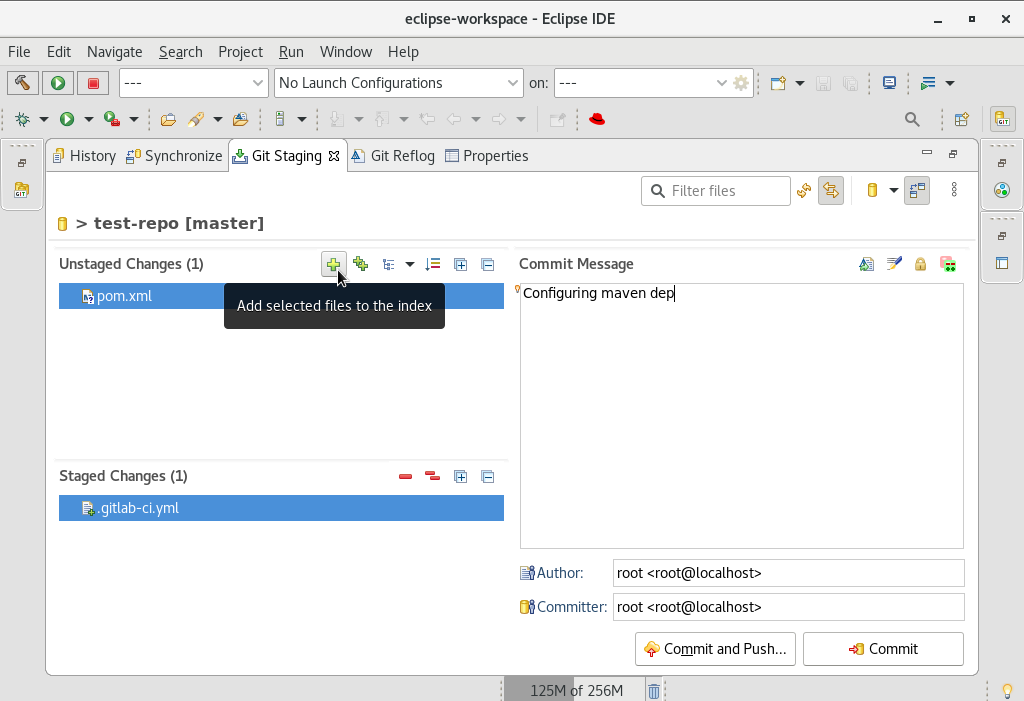
Add a commit message to the Commit Message field.
Author and Committer fields are populated automatically.
Click the button to commit your changes, or the button to commit your changes and push them to the remote repository.
Note that when selecting the Commit and Push option you are prompted to enter the repository address, and your access username and password for that repository.
Chapter 2. Maven basics in CodeReady Studio
In the context of application development, Maven provides a standardized build system for projects, and facilitates fetching dependencies from one or more repositories.
Root Maven projects can serve as aggregators for multiple Maven modules (sub-projects). For each module that is part of a maven project, a <module> entry is added to the project’s pom.xml file. A pom.xml contains <module> entries is often referred to as an aggregator pom.
When modules are included into a project it is possible to execute Maven goals across all of the modules by a single command issued from the parent project directory.
The following section describes how to:
- Create a new Maven project.
- Import existing Maven projects.
- Create a new Maven module.
- Add a Maven dependency to the Maven project.
- Add Maven support to a non-maven project.
Prerequisites
Set up Git Perspective.
For more information on how to set up Git Perspective, see Section 1.1, “Setting up Git Perspective”.
2.1. Creating a new Maven project
The following section describes how to create a new Maven project in CodeReady Studio. The instructions provided ensure that the packaging option is set to pom, which is a requirement for multi-module Maven projects. Alternately, to create a standalone Maven project instead, set the packaging option to an option other than pom.
Procedure
- Start CodeReady Studio.
- Open Git Perspective.
Click → → .
The New window appears.
- Enter Maven Projects in the Wizards field.
- Select Maven Projects.
Click the button.
The New Maven Project window appears.
Check the Create a simple project box.
NoteBy checking the Create a simple project box you are skipping the archetype selection and the project type is automatically set to Project Object Model (POM). To create a standalone project, clear the Create a simple project check box and follow the onscreen instructions.
- Click the button to select the workspace location.
- Click the button.
Enter the group ID and the artificial ID.
NoteThe values cannot include spaces or special characters. The only special characters allowed are periods (
.), underscores (_), and dashes (-). An example of a typical group ID or artificial ID isorg.company-name_project-name.Optionally, you can name your project and give it a description.
- Set Packaging to pom.
- Click the button.
Verification steps
Click → → .
The Show view window appears.
- Enter Project Explorer in the search field.
- Select Project Explorer.
Click the button.
The Project Explorer view appears.
Your newly created Maven is now listed in the System Explorer view.
2.2. Importing existing Maven projects
The following section describes how to import existing Maven projects into CodeReady Studio.
2.2.1. Importing the existing locally stored Maven project
The following section describes how to import the existing locally stored Maven project to CodeReady Studio.
Procedure
- Start CodeReady Studio.
- Open Git Perspective.
- Open Project Explorer.
Click → .
The Import window appears.
- Enter Existing Maven Projects in the Select an import wizards field.
- Select Existing Maven Projects.
- Click the button.
- Click the button to locate your Maven project.
- Click the button.
Your local Maven project is now listed in the System Explorer view.
2.2.2. Importing the existing remotely stored Maven project
The following section describes how to import the existing remotely stored Maven project to CodeReady Studio.
Procedure
- Clone the Clone the source repository with HTTPS or SSH.
- Start CodeReady Studio.
- Open Git Perspective.
Click the icon.
Figure 2.1. Importing the existing Maven project

The Check out as Maven project from SCM window appears.
- Add the address for the source repository you cloned during step one to the SCM URL field.
- Click the button.
- Click the button to select the workspace location.
- Click the button.
Your remote Maven project is now listed in the System Explorer view and the Git Perspective view.
2.3. Creating a new Maven module
The following section describes how to create a new Maven module.
Prerequisites
An existing Maven project.
For more information on how to create a Maven project, see Section 2.1, “Creating a new Maven project”.
Procedure
- Start CodeReady Studio.
- Open Git Perspective.
Click → → .
The New window appears.
- Enter Maven Module in the Wizards field.
- Select Maven Module.
Click the button.
The New Maven Module window appears.
Check the Create a simple project box.
NoteBy checking the Create a simple project box you are skipping the archetype selection and the project type is automatically set to Project Object Model (POM). To create a standalone module, clear the Create a simple project check box and follow the onscreen instructions.
- Name your module.
- Click the button to select the parent project.
- Click the button.
Set Packaging to pom.
Optionally, you can name your module and give it a description.
- Click the button.
Verification steps
Click → → .
The Show view window appears.
- Enter Project Explorer in the search field.
- Select Project Explorer.
Click the button.
The Project Explorer view appears.
Your newly created Maven module is now listed in the System Explorer view.
2.4. Adding a Maven dependency to the Maven project
The following section describes how to add a Maven dependency to the Maven project.
Prerequisites
An existing Maven project.
For more information on how to create a Maven project, see Section 2.1, “Creating a new Maven project”.
Procedure
- Start CodeReady Studio.
- Open Git Perspective.
- Open Project Explorer.
- Right-click the target → → .
Enter the group ID or the artificial ID in the Enter groupId, artificialId or sha1 prefix or pattern field.
The fields above are populated automatically.
- Click the button.
The dependency is now added to the pom.xml file of your target project.
2.5. Adding Maven support to an existing non-maven project
The following section describes how to add Maven support to an application created without Maven support.
- Start CodeReady Studio.
- Open Git Perspective.
- Open Project Explorer.
Right-click the target → → .
The Create a new POM window appears.
All fields are populated automatically. If you want to change the group ID or the Artificial ID, note that the values cannot include spaces or special characters. The only special characters allowed are periods (
.), underscores (_), and dashes (-).Click the button.
Your newly generated
pom.xmlfile appears in the System Explorer view.
2.6. Additional resources
- For more information on how to use Maven, see the JBoss Community Archive .
Chapter 3. JBoss EAP and JBoss WFK basics in CodeReady Studio
Eclipse IDE supports application development and deployment with Red Hat JBoss Enterprise Application Platform (JBoss EAP) and Red Hat JBoss Web Framework Kit (JBoss WFK). However, you need to configure Maven repositories first. This configuration is essential for using the enterprise versions of the example Maven projects provided in Red Hat Central. These projects are intended for deployment to JBoss EAP and require IDE access to JBoss EAP and JBoss WFK repositories.
The following section describes how to use CodeReady Studio to:
- Configure Maven repositories.
- Set up JBoss EAP.
- Verify that JBoss EAP and CodeReady Studio are working correctly.
3.1. Configuring Maven repositories
The following section describes how to configure Maven repositories.
Procedure
- Start CodeReady Studio.
Click → .
The Preferences window appears.
- Enter JBoss Tools in the search field.
Select JBoss Maven Integration.
The JBoss Maven Integration window appears.
Click the button.
The Maven Repositories window appears.
Click the button.
The Add Maven Repository window appears.
- Click the down-arrow in the Profile ID field.
Select the redhat-ga-repository.
Other fields are populated automatically.
- Click the button.
Click the button.
The Confirm File Update window appears.
- Click the .
- Click the button.
Additional resources
- For more information on Maven repositories, see Maven: Getting Started - Developers.
3.2. Setting up JBoss EAP
To set up JBoss EAP in Eclipse IDE, you must direct the IDE to the local or remote runtime servers. This establishes a communication channel between the IDE and the JBoss EAP server for efficient deployment and server management workflows.
The following section describes how to install JBoss EAP in CodeReady Studio.
Prerequisites
Configured Maven repositories.
For more information on how to configure Maven repositories, see Section 3.1, “Configuring Maven repositories”
Procedure
- Start CodeReady Studio.
- Start Git Perspective.
Click → .
The Preferences window appears.
- Enter JBoss Tools in the search field.
Select JBoss Runtime Detection.
The JBoss Runtime Detection window appears.
Click the button.
The Download Runtimes window appears.
Select one of the JBoss EAP versions.
NoteIf you select the JBoss EAP version 6.0.x or earlier, follow the on-screen instructions. If you select a later version, follow the instructions below.
- Click the button.
- Click the button.
- Enter your access.redhat.com username and password.
Click the button.
The Secure Storage Password window appears.
Enter the new master password.
Optionally, you can provide a password hint.
Click the button.
Review the license agreement, if satisfied, accept the license and click the button to continue with the installation.
- Click the button to select the Install folder.
- Click the button to select the Download folder.
Click the button.
The Download Red Hat JBoss EAP) window appears.
Note that downloading and installing the Runtime might take a while.
- Ensure the path to the JBoss EAP installation file is checked.
- Click the button.
Verification steps
Click the → → .
The Show View window appears.
- Type Servers in the search field.
- Select Servers.
Click the button.
The Servers view appears.
Your newly added JBoss EAP is now listed in the Servers view.
3.3. Verifying that JBoss EAP and CodeReady Studio are working correctly
The following section describes how to verify that JBoss EAP and CodeReady Studio are working correctly by building, deploying, and running the imported helloworld application in the JBoss EAP server.
Procedure
- Start CodeReady Studio.
- Open Git Perspective.
- Open Project Explorer.
Click the Red Hat Central icon.
Figure 3.1. Click the Red Hat Central icon

- Enter helloworld into the search field.
Click the
helloworld-rsquickstart.The New Project Example window appears.
Click the button.
Note that it might take some time for the helloworld application and its Maven dependencies to get imported. Once all the dependencies are imported, the New Project Example window appears.
- Click the button.
- In the Server view select the Red hat JBoss EAP.
Click the icon.
Figure 3.2. Click the Start the Server icon

In the Project Explorer view right-click the → → .
The Run on Server window appears.
Click the button.
The helloworld application opens in the internal CodeReady Studio web browser.
- Choose between the JSON or XML format.
The CodeReady Studio web browser prints the Hello World! message.
Chapter 4. Node.js basics in CodeReady Studio
Node.js is an event-based, asynchronous I/O framework and is used to develop applications that run JavaScript on the client and server side. This allows the application to reuse parts of the code and to avoid switching contexts. Node.js is commonly used to create applications such as static file servers, messaging middleware, HTML5 game servers, web application framework, and others.
CodeReady Studio supports Node.js application development using the npm package installer and offers a built-in debugging tool to identify and fix issues with applications.
The following section describes how to:
- Create a new JavaScript project.
-
Create a new
package.jsfile. - Create a new JavaScript file.
- Import an existing JavaScript project.
- Run a Node.js application.
Prerequisites
-
Installed
npm. Installed Node.js.
To install the prerequisites, on RHEL 7, use:
yum install npm nodejs
# yum install npm nodejsCopy to Clipboard Copied! Toggle word wrap Toggle overflow To install the prerequisites, on RHEL 8, use:
dnf install npm nodejs
# dnf install npm nodejsCopy to Clipboard Copied! Toggle word wrap Toggle overflow
4.1. Creating a new JavaScript project
The following section describes how to create a new JavaScript project in CodeReady Studio.
Procedure
- Start CodeReady Studio.
- Open Git Perspective.
Click → → .
The New window appears.
- Enter JavaScript in the search field.
- Select JavaScript Project.
Click the button.
The Create a JavaScript project window appears.
Name your project.
All other fields are populated automatically.
Click the button.
The Open Associated Perspective window appears.
- Click the button.
Your newly created JavaScript project is now listed in the Project Explorer view.
4.2. Creating a package.js file
The following section describes how to create a new package.json file in CodeReady Studio.
Procedure
- Start CodeReady Studio.
- Open Git Perspective.
Click → → .
The New window appears.
- Enter npm in the search field.
- Select npm Init.
Click the button.
The npm Initialization Wizard window appears.
-
Click the button to select the base directory for the
package.jsonfile. Click the button.
The Open Associated Perspective window appears.
- Click the button.
Your newly created package.js file is now displayed in the CodeReady Studio editor.
Additional resources
-
For more information on how to handle npm
package.jsonfiles, see https://docs.npmjs.com/files/package.json#dependencies.
4.3. Creating a new .js file
The following section describes how to create a new .js file CodeReady Studio.
Procedure
- Start CodeReady Studio.
- Open Git Perspective.
Click → → .
The Create New File window appears.
- Select a parent folder for the file.
Name the file.
For example
index.js.- Click the button.
Your newly created .js file is now displayed in the CodeReady Studio editor.
4.4. Importing an existing Node.js application
The following section describes how to import an existing Node.js application.
Procedure
- Start CodeReady Studio.
Click → .
The Import window appears.
- Expand the General folder.
- Select Existing Project into Workspace.
- Click the button.
- Click the button to locate your existing project.
- Select the path to your project in the Projects field.
- Click the button.
Verification steps
Click → → → .
The Open Perspective window appears.
- Select JavaScript.
Click the button.
The Project Explorer view appears.
Your newly imported Node.js application is now listed in the Project Explorer view.
4.5. Running a Node.js application
The following section describes how to run a Node.js application in CodeReady Studio.
Procedure
- Start CodeReady Studio.
- Open Git Perspective.
- Open Project Explorer.
- Right-click target → → .
The Console opens running your Node.js application.
4.6. Debugging a Node.js application
CodeReady Studio includes a debugger to help identify and resolve the issues.
The following section describes how to debug Node.js applications in CodeReady Studio.
Procedure
- Start CodeReady Studio.
- Open Project Explorer.
- Expand the target project.
Right-click the → → .
The Console appears, displaying the error log.
Chapter 5. Forge Tools basics in CodeReady Studio
CodeReady Studio offers Forge Tools for developing Java EE applications and to extend the IDE functionality in Eclipse.
The following section describes how to:
- Launch the Forge Console.
- Create a new Forge project.
-
Create a
persistence.xmlfile. - Add a new field to the entity.
- Generate a scaffold.
- Manage addons.
- Run Forge-based applications.
Forge Tools are no longer fully supported by Red Hat.
5.1. Launching the Forge Console
The following section describes how to launch the Forge Console view.
Procedure
- Start CodeReady Studio.
- Open Git Perspective.
Click → → .
The Show View window appears.
- Enter Forge Console in the search Field.
- Select Forge Console.
- Click the button.
The Forge Console view appears.
5.2. Creating a new Forge project
The following section describes how to create a new Forge project in CodeReady Studio.
Procedure
- Start CodeReady Studio.
- Open Git Perspective.
Press Ctrl+4.
The Current Selection window appears.
- Enter Project in the search field.
Select Project: New.
The Project: New window appears.
-
Name your project. Note that the project name cannot include spaces or special characters. The only special characters allowed are periods (
.), underscores (_), and dashes (-). - Click the button to select the project location.
- Click the down-arrow in the Stack field.
- Select Java EE 7.
- Click the button.
Verification steps
Click → → .
The Show View window appears.
- Select Project Explorer.
Click the button.
The Project Explorer view appears.
Your newly created Forge project is now listed in the Project Explorer view.
5.3. Creating a persistence.xml file
The following section describes how to create a persistence.xml file for your Forge project in CodeReady Studio using JPA.
Procedure
- Start CodeReady Studio.
- Open Git Perspective.
Press Ctrl+4.
The Current Selection window appears.
- Enter JPA in the search field.
Select JPA: New Entity.
The JPA: Setup window appears.
Not that the Forge Console automatically detects any prerequisites that must be set up and prompts you to create those at runtime.
Click the button.
The JPA: Connection Settings window appears.
Ensure that the automatically generated values are correct.
Click the button.
The JPA: New Entity window appears.
Name your entity.
Note that the entity name cannot include spaces or special characters. The only special character allowed is underscore (
_).- Click the button.
Your newly created Forge entity is now displayed in the CodeReady Studio editor.
Verification steps
Click → → .
The Show View window appears.
- Select Project Explorer.
Click the button.
The Project Explorer view appears.
- Expand your Forge project.
Your newly created .java Forge entity and the corresponding persistence.xml file are now listed in the Project Explorer.
5.4. Adding a new field to the entity
The following section describes how to add a new field to the entity for your Forge project in CodeReady Studio.
Procedure
- Start CodeReady Studio.
- Open Git Perspective.
Press Ctrl+4.
The Current Selection window appears.
- Enter Field in the search field.
Select JPA: New Field.
The JPA: New Field window appears.
- Click the down-arrow in the Target Entity field.
- Select the entity for your project.
- Name your new field.
- Click the button.
Your newly created field is now added to the .java file of your Forge project. The .java file is displayed in the CodeReady Studio editor.
5.5. Generating a scaffold
Scaffolding is an automatic code generation technique. A program generates a basic CRUD (create, read, update, delete) admin interface by using available information (usually a database).
The following section describes how to generate a scaffold for your Forge project in CodeReady Studio.
Procedure
- Start CodeReady Studio.
- Open Git Perspective.
Press Ctrl+4.
The Current Selection window appears.
- Enter Scaffold in the search field.
Select Scaffold: Generate.
The Scaffold: Generate window appears.
- Click the down-arrow in the Scaffold Type field.
- Select Angular JS.
Click the button.
The Setup Facets window appears.
- Ensure that the automatically generated values are correct.
Click the button.
The Select JPA entities window appears.
- Select the JPA entities for scaffolding.
- Click the button.
Your newly generated entries are now displayed in the CodeReady Studio editor.
5.6. Addon management
The following section describes how to:
- Create a new addon.
- Add a custom Forge command to the addon.
- Installing a custom Forge command.
- Executing a custom Forge command.
5.6.1. Creating addons
The following section describes how to create addons for your Forge project in CodeReady Studio.
Procedure
- Start CodeReady Studio.
- Open Git Perspective.
Press Ctrl+4.
The Current Selection window appears.
- Enter Project in the search field.
Select Project: New.
The Project: New window appears.
-
Name your addon. Note that the name of the addon cannot include spaces or special characters. The only special characters allowed are periods (
.), underscores (_), and dashes (-). - Click the button to select the project location.
- Click the down-arrow in the Project Type field.
- Select Forge Addon (JAR).
Click the button.
The Furnace Addon Setup window appears.
- Ensure that the automatically selected dependencies are correct.
Click the button.
Note that the process of setting up the dependencies might take some time to complete.
Your newly created addon is now displayed in the CodeReady Studio editor.
Verification steps
Click → → .
The Show View window appears.
- Select Project Explorer.
Click the button.
The Project Explorer view appears.
- Expand your Forge project.
Your newly created addon is now listed in the Project Explorer.
5.6.2. Adding a custom Forge commands to the addon
The following section describes how to create a simple Java class and turn it into a Forge command in CodeReady Studio.
Prerequisites
Existing addon.
For more details on how to create an addon, see Section 5.6.1, “Creating addons”.
Procedure
- Start CodeReady Studio.
- Open Git Perspective.
Press Ctrl+4.
The Current Selection window appears.
- Enter New Class in the search field.
Select Java: New Class.
The Create a new Java Class window appears.
-
Name your new class. Note that the class name cannot include spaces or special characters. The only special character allowed is underscore (
_). - Click the button.
Press Ctrl+4.
The Current Selection window appears.
- Enter UI in the search field.
Select Addon: New Annotated UI Command.
The Addon: New Annotated UI Command window appears.
- Enter the Command name.
- Click the button.
Your custom Forge command is now created.
5.6.3. Installing a custom Forge command
The following section describes how to install a custom Forge command into Eclipse IDE using CodeReady Studio.
Procedure
- Open the Project Explorer view.
Press Ctrl+4.
The Current Selection window appears.
- Enter Build in the search field.
Select Build and Install an Addon.
The Build and Install an Addon window appears.
- Ensure that the path to your addon is correct.
- Click the button.
Your custom command is now installed into Eclipse IDE.
5.6.4. Executing a custom Forge command
The following section describes how to execute a custom Forge command in CodeReady Studio.
Procedure
Press Ctrl+4.
The Current Selection window appears.
- Enter the name of your command in the search field.
- Select your command.
5.7. Running Forge-based application
The following section describes how to run a Forge-based application in CodeReady Studio.
Procedure
- Start CodeReady Studio.
- Open Git Perspective.
Click → → .
The Show View window appears.
- Select Project Explorer.
Click the button.
The Project Explorer view appears.
Right-click your Forge → → .
The Run On Server window appears.
Select the server to use.
For example Red Hat JBoss Enterprise Application Platform 7.0.
Click the button.
The Console view appears.
Your Forge-based application opens in the CodeReady Studio browser.
Chapter 6. Hibernate Tools basics in CodeReady Studio
Hibernate Tools is a collection of tools for projects related to Hibernate version 5 and earlier. The tools provide Eclipse plugins for reverse engineering, code generation, visualization and interaction with Hibernate.
The following section describes how to:
- Create a new JPA project.
- Generate entities.
- Create a Hibernate mapping file.
- Create a Hibernate configuration file.
- Create a Hibernate console configuration file.
- Edit Hibernate project configurations.
Prerequisites
- Download the h2 version of the Sakila database.
-
Navigate to the directory that contains the
runh2.shfile. Execute the
runh2.shfile:./runh2.sh
$ ./runh2.shCopy to Clipboard Copied! Toggle word wrap Toggle overflow
6.1. Creating a new JPA project
The following section describes how to create a new JPA project in CodeReady Studio.
Procedure
- Start CodeReady Studio.
- Open Git Perspective.
Press Ctrl+N.
The New window appears.
- Enter JPA in the search field.
- Select JPA Project
Click the button.
The New JPA Project window appears.
Name your project.
Note that the name of the project cannot include spaces or special characters. The only special characters allowed are periods (
.), underscores (_), and dashes (-).- Click the down-arrow in the Target runtime field.
- Select the runtime server.
- Ensure that the JPA version is set to 2.1.
Click the button.
The Java window appears.
- Select the source folder.
Click the button.
The JPA Facet window appears.
- Click the down-arrow in the Platform field.
- Select Hibernate (JPA 2.1).
Add user libraries or set the JPA Implementation Type to Disable Library Configuration.
For more information on how to set up user libraries, see Section 6.2, “Adding libraries”.
Click .
The New Connection Profile window appears.
- Enter Generic in the search field.
- Select Generic JDBC.
- Enter sakila in the Name field
Click the button.
The Specify a Driver and Connection Details window appears.
Click the icon.

Click the New Driver Definition icon.
The New Driver Definition window appears.
- Select the Generic JDBC Driver.
- Click the JAR List tab.
- Click the button.
-
Select the
.jarfile for the Sakila database. - Click the Properties tab.
-
Add
jdbc:h2:tcp://localhost/./sakilato the Connection URL field. - Click the Driver Class field.
Click the three dots icon at the end of the Driver Class field.
The Available Classes from Jar List window appears.
Select the Browse the Class option.
The org.h2.Driver appears.
- Click the button.
-
Enter
sato the User ID field. - Click the button.
- Click the button.
Click the button.
The Open Associated Perspective? window appears.
- Click the button.
Your newly created JPA project is now listed in the Project Explorer.
6.2. Adding libraries
The following section describes how to add libraries to your Hibernate project in CodeReady Studio.
Procedure
- Download Hibernate ORM from http://hibernate.org/orm/.
-
Extract the files from the
.zipfile. - Start CodeReady Studio.
- Open Git Perspective.
Click → .
The Preferences window appears.
- Enter Libraries in the search field.
- Select User Libraries under Java.
Click the button.
The New User Library window appears.
- Name your user library.
- Click the button.
- Select your new user library.
- Click the button.
-
Locate the directory you extracted the Hibernate ORM
.zipfile into. -
Navigate to the
/lib/required/directory. -
Select the
.jarfiles. - Click the button.
6.3. Generating entities
The following section describes how to generate entities for your hibernate project in CodeReady Studio.
Procedure
- Start CodeReady Studio.
- Open Git Perspective.
- Open Project Explorer.
Right-click the target → → .
The Generate Tables from Entities window appears.
- Ensure that the Use Console Configuration box is checked.
- Click the button.
6.4. Creating a Hibernate mapping file
Hibernate mapping files specify how your objects relate to the database tables.
The following section describes how to create a Hibernate mapping file in CodeReady Studio.
Procedure
- Start CodeReady Studio.
- Open Git Perspective.
Click Ctr+N.
The Show View window appears.
- Enter Hibernate in the search field.
- Select Hibernate XML Mapping file (hbm.xml).
Click the button.
The Create Hibernate XML Mapping file (hbm.xml) window appears.
- Click the button to add classes.
Click the button to add packages.
Alternatively, you can create an empty
hbm.xmlfile by not selecting any packages or classes.- Check the depth control box to define the dependency depth used when choosing classes.
- Click the button.
- Select the parent directory.
-
Name your
hbm.xmlfile . - Click the button.
Your newly created hbm.xml file is now displayed in CodeReady Studio.
6.5. Creating a Hibernate configuration file
For reverse engineering, prototype queries, or to Hibernate Core usage, a hibernate.properties or a hibernate.cfg.xml file is required. CodeReady Studio provides a wizard to generate the hibernate.cfg.xml.
The following section describes how to create a Hibernate mapping file in CodeReady Studio.
Procedure
- Start CodeReady Studio.
- Open Git Perspective.
Click Ctr+N.
The Show View window appears.
- Enter Hibernate in the search field.
- Select Hibernate Configuration file (cfg.xml).
Click the button.
The Create Hibernate Configuration file (cfg.xml) window appears.
- Select the parent directory.
Click the button.
The Hibernate Configuration file (cfg.xml) window appears.
-
Name your
cfg.xmlfile. - Click the down-arrow in the Database dialect field.
- Select the relevant database.
- Click the down-arrow in the Driver class field.
- Select the relevant driver.
- Click the down-arrow in the Connection URL field.
- Select the relevant URL.
- Click the button.
Your newly created cfg.xml file is now displayed in CodeReady Studio.
6.6. Creating a Hibernate console configuration file
A Console configuration file describes how the Hibernate plugin configures Hibernate. It also describes the configuration files and classpaths needed to load the POJOs, JDBC drivers, and so on. It is required to make use of query prototyping, reverse engineering and code generation. You can have multiple console configurations per project, however, one configuration is sufficient.
The following section describes how to create a Hibernate console configuration file in CodeReady Studio.
Procedure
- Start CodeReady Studio.
- Open Git Perspective.
Click Ctr+N.
The Show View window appears.
- Enter Hibernate in the search field.
- Select Hibernate Console Configuration.
Click the button.
The Create Hibernate Console Configuration window appears.
- Name your configuration file .
- Ensure that the Type is set to Core.
- Select the relevant Hibernate version.
- Click the button to locate the target project.
- Click the button to configure a new Database connection.
Click the button to setup the Property file.
The Setup property file window appears.
Click the button.
The Create Hibernate Properties file (.properties) window appears.
- Select the parent directory.
-
Name your
.propertiesfile. - Click the button.
- Click the button setup the Configuration file.
Select the path to the target
.cfg.xmlfile.For more information on how to create a new
.cfg.xmlfile, see Section 6.5, “Creating a Hibernate configuration file”.- Click the button.
- Click the button.
6.7. Editing Hibernate project configurations
The following section describes how to edit configurations for the Hibernate project in CodeReady Studio.
Procedure
- Start CodeReady Studio.
- Open Git Perspective.
Click Ctr+N.
The Show View window appears.
- Enter Hibernate in the search field.
- Select Hibernate Configuration.
Click the button.
The Hibernate Configurations view appears.
Right-click the target → .
The Edit Configuration window appears.
- Edit the scenery configurations.
- Click the button.
- Click the button.
Chapter 7. Mobile Web Tools basics in CodeReady Studio
Mobile Web Tools provide an HTML5 Project wizard that enables you to create web applications optimized for mobile devices. The HTML5 Project wizard is a useful starting point for creating all new HTML5 web applications in the IDE. The wizard generates a sample ready-to-deploy HTML5 mobile application with REST resources from a Maven archetype.
You can customize the application using the built-in editor, deploy and view the application with the built-in browser.
The IDE provides the Mobile Web palette that allows the user to make interactive web applications. This palette offers a wide range of features including drag-and-drop widgets for adding common web interface framework features such as HTML5, jQuery Mobile, and Ionic tags to html files. It also contains widgets like Panels, Pages, Lists, Buttons to make the applications more user friendly and efficient.
The following section describes how to:
- Create an HTML5 project.
- Add a new jQuery mobile file to a project.
- Add a new jQuery mobile page to a project.
Prerequisites
Configured server.
For information on configuring a local runtime server and deploying applications to it, see Section 8.1, “Configuring a local server”.
The IDE must be configured for any servers to which you want to deploy your application, including the location and type of the application server and any custom configuration or management settings. The following sections assume you completed the configuration in advance, but that step can also be completed at deployment.
7.1. Creating an HTML5 Project
The HTML5 Project wizard generates a sample project based on a Maven archetype and the project and application identifiers provided by you. The Maven archetype version is indicated in the Description field in the first page of the wizard and you can change the version, and therefore the project look and dependencies, by selecting either an enterprise or non-enterprise target runtime within the wizard.
The following section describes how to create an HTML5 project in CodeReady Studio.
Procedure
- Start CodeReady Studio.
- Open Git Perspective.
Press Ctr+N.
The New window appears.
- Enter HTML5 in the search field.
- Select HTML5 Project.
Click the button.
The New Project Example window appears.
- Click the down-arrow in the Target Runtime field.
- Select the server.
- Click the button.
- Name your project.
- Name your package.
Click the button.
Note that it might take some time for the project to generate.
The New Project Example window appears.
- Click the button.
Verification steps
Click the → → .
The Show View window appears.
- Select Project Explorer.
Click the button.
The Project Explorer view appears.
Your newly created project is now listed in the Project Explorer view.
7.2. Adding a new HTML5 jQuery mobile file
The HTML5 jQuery Mobile file template consists of JavaScript and CSS library references that are inserted in the file’s HTML header. The template also inserts a skeleton of the jQuery Mobile page and listview widgets in the file’s HTML body. The following procedure details the steps to insert the template into your project.
The following section describes how to add a new HTML5 jQuery Mobile file to an existing project.
Procedure
- Start CodeReady Studio.
- Open Project Explorer.
- Expand the target → → .
Right-click the → → .
The New HTML File window appears.
- Ensure the webapp directory is selected.
- Name your file.
- Click the button.
- Select HTML5 jQuery Mobile Page (1.4).
- Click the button.
The newly added HTML5 jQuery mobile file is now displayed in the CodeReady Studio editor.
7.3. Adding a new mobile page
The following section describes how to add a new jQuery Mobile Page to an existing web application.
Procedure
- Start CodeReady Studio.
- Open Project Explorer.
- Expand the target → → → .
-
Right-click the
.htmlfile. Click → .
The Pallet view opens.
- Click the Pallet view.
- Expand jQuery Mobile.
Click the icon.
The Insert Tag window appears.
- Name the Header.
- Name the Footer.
- Click the button.
Your newly added page is now displayed in the CodeReady Studio editor.
Note that the same workflow can be used to customize the pages of your web application with widget selection from the Pallet view.
Chapter 8. Application deployment in CodeReady Studio
In order to deploy applications to a server from within the IDE, you must configure the IDE with information about the server. For a local server this information includes the following:
- A server runtime environment with details about the server location, runtime JRE, and configuration files
- A server adapter with management settings for the server runtime environment, including access parameters, launch arguments, and publishing options
JBoss Server Tools enables you to efficiently configure a local server ready for use with the IDE using Runtime Detection. As demonstrated here, this feature is useful for quickly configuring a server for deploying and testing an application.
The following section describes how to:
- Configure a local server.
- Configure a remote server.
- Deploy your application.
8.1. Configuring a local server
Runtime Detection searches a given local system path to locate certain types of runtime servers. For any servers found, Runtime Detection automatically generates both a default server runtime environment and a default server adapter. These items can be used for immediate application deployment as is or they can be customized to meet your requirements.
The following section describes how to configure a local server in CodeReady Studio.
Procedure
- Start CodeReady Studio.
- Start Git Perspective.
Click → .
The Preferences window appears.
- Enter JBoss Tools in the search field.
Select JBoss Runtime Detection.
The JBoss Runtime Detection window appears.
- Click the button.
- Locate the directory containing the runtime server.
- Click the button.
- Click the button.
Verification steps
Click the → → .
The Show View window appears.
- Type Servers in the search field.
- Select Servers.
Click the button.
The Servers view appears.
Your newly added local server is now listed in the Servers view.
8.2. Configuring a remote server
The following section describes how to configure a remote server.
Procedure
- Start CodeReady Studio.
Press Ctrl+N.
The New window appears.
- Enter Server in the search field.
- Select Server.
Click the button.
The Define a New Server window appears.
- Select the server type.
- Click the button.
- Check the Remote box.
- Select one of the Controlled by options.
- Check the Server lifecycle externally managed box.
- Assign runtimes to the server.
Click the button.
The Remote System Integration window appears.
- Click the button in the Remote Server Home field.
- Specify the path to the directory that contains the remote server.
- Click the button.
Verification steps
Click the → → .
The Show View window appears.
- Type Servers in the search field.
- Select Servers.
Click the button.
The Servers view appears.
Your newly added remote server is now listed in the Servers view.
8.3. Deploying an application
After configuring the local server, you can deploy applications to the server from the IDE using the server adapter. The server adapter enables runtime communication between the server and IDE for easy deployment of applications and server management.
The following section describes how to deploy an application to the server in CodeReady Studio.
Procedure
- Start CodeReady Studio.
- Start Project Explorer.
Right-click the target → → .
The Run on Server window appears.
- Ensure that the Choose an existing server box is checked.
- Expand localhost to select the server on which to deploy
- Click the button.
- The Console view appears
Your application opens in the internal CodeReady Studio web browser.

'%20d='M201.5%20305.5c-13.8%200-24.9-11.1-24.9-24.6%200-13.8%2011.1-24.9%2024.9-24.9%2013.6%200%2024.6%2011.1%2024.6%2024.9%200%2013.6-11.1%2024.6-24.6%2024.6zM504%20256c0%20137-111%20248-248%20248S8%20393%208%20256%20119%208%20256%208s248%20111%20248%20248zm-132.3-41.2c-9.4%200-17.7%203.9-23.8%2010-22.4-15.5-52.6-25.5-86.1-26.6l17.4-78.3%2055.4%2012.5c0%2013.6%2011.1%2024.6%2024.6%2024.6%2013.8%200%2024.9-11.3%2024.9-24.9s-11.1-24.9-24.9-24.9c-9.7%200-18%205.8-22.1%2013.8l-61.2-13.6c-3-.8-6.1%201.4-6.9%204.4l-19.1%2086.4c-33.2%201.4-63.1%2011.3-85.5%2026.8-6.1-6.4-14.7-10.2-24.1-10.2-34.9%200-46.3%2046.9-14.4%2062.8-1.1%205-1.7%2010.2-1.7%2015.5%200%2052.6%2059.2%2095.2%20132%2095.2%2073.1%200%20132.3-42.6%20132.3-95.2%200-5.3-.6-10.8-1.9-15.8%2031.3-16%2019.8-62.5-14.9-62.5zM302.8%20331c-18.2%2018.2-76.1%2017.9-93.6%200-2.2-2.2-6.1-2.2-8.3%200-2.5%202.5-2.5%206.4%200%208.6%2022.8%2022.8%2087.3%2022.8%20110.2%200%202.5-2.2%202.5-6.1%200-8.6-2.2-2.2-6.1-2.2-8.3%200zm7.7-75c-13.6%200-24.6%2011.1-24.6%2024.9%200%2013.6%2011.1%2024.6%2024.6%2024.6%2013.8%200%2024.9-11.1%2024.9-24.6%200-13.8-11-24.9-24.9-24.9z'/%3e%3c/svg%3e)