BRMS User Guide


JBoss Enterprise BRMS Platform 5

For JBoss Developers, Rule Authors, and Business Analysts.

Edition 5.3.1

Red Hat Content Services

Abstract

This guide provides usage instructions for the JBoss Enterprise BRMS Platform.

Preface

Chapter 1. Introduction

JBoss Enterprise BRMS Platform is a business rules management system for the management, storage, creation, modification, and deployment of business rules and business processes. Web-based user interfaces and plug-ins for JBoss Developer Studio provide users with different roles the environment suited to their needs. JBoss Enterprise BRMS provides specialized environments for business analysts, rules experts, developers, and rule administrators.
JBoss Enterprise BRMS Platform is supported on a variety of operating systems, Java Virtual Machines (JVMs), and database configurations. A full list of certified and compatible configurations can be found at http://www.redhat.com/resourcelibrary/articles/jboss-enterprise-brms-supported-configurations.

1.2. User Interface

The JBoss Enterprise BRMS user interface includes a navigation menu on the left side of the screen and the main work area on the right. After logging on, the work area shows the find screen which is used to locate assets in the asset repository.
The navigation menu is divided into the following sections:
  • Browse: Which includes an Inbox to view changes to assets, and an asset browser to view assets by status and by category.
  • Knowledge Bases: Which provides access to the asset packages and assets. Assets can be created, viewed, and modified from this section.
  • QA: Which provides access to test scenarios and the package analysis tool.
  • Package Snapshots: Which provides access to the all the package snapshots and tools to rebuild and deploy new snapshots.
  • Administration: Which provides access to administration tools to manage categories, available statuses, archived items, event logs, user permissions, a tool to import and export the repository, and repository configuration.
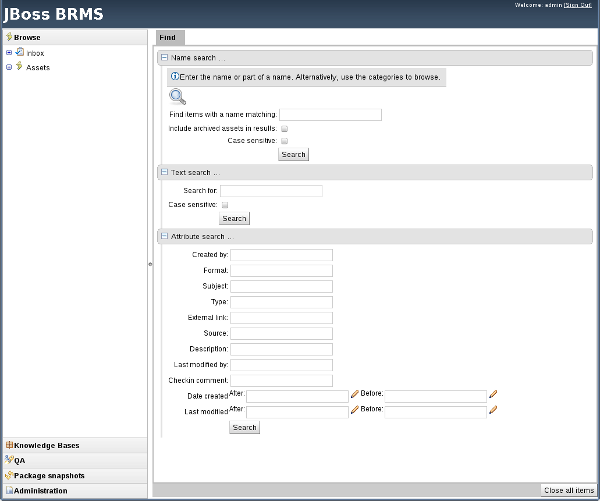
Figure 1.1. BRMS User Interface

Chapter 2. Managing Assets

2.1. Assets

Anything that can be stored as a version in the asset repository is an asset. This includes rules, packages, business processes, decision tables, fact models, and DSLs.
Rules

Rules provide the logic for the rule engine to execute against. A rule includes a name, attributes, a 'when' statement on the left hand side of the rule, and a 'then' statement on the right hand side of the rule.

Packages

Packages are deployable collections of assets. Rules and other assets must be collected into a package before they can be deployed. When a package is built, the assets contained in the package are validated and compiled into a deployable package.

Business Processes

Business Processes are flow charts that describe the steps necessary to achieve business goals (see the BRMS Business Process Management Guide for more details).

Decision Tables

Decision Tables are collections of rules stored in either a spreadsheet or in the JBoss Enterprise BRMS user interface as guided decision tables.

Fact Model

Fact models are a collection of facts about the business domain. The rules interact with the fact model in rules-based applications.

Domain Specific Languages

A domain specific languages, or DSL, is a rule language that is dedicated to the problem domain.

2.2. Packages

2.2.1. Packages

Packages are deployable collections of assets. Rules and other assets must be collected into a package before they can be deployed. When a package is built, the assets contained in the package are validated and compiled into a deployable package.
Before any rules can be created or imported into the asset repository, a package must exist for the rules to be added to.

2.2.2. Creating a New Package

Before any rules can be created, a package must exist for them to be added to.
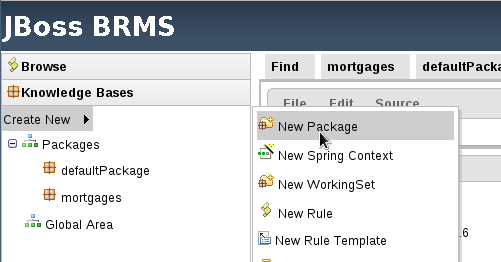
To create a new package from the navigation menu, select Knowledge BasesCreate NewNew Package.

Figure 2.1. Create a New Package

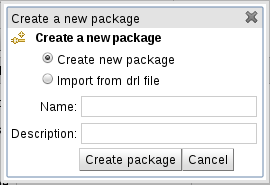
Enter a package name at the new package menu to create an empty package.

Figure 2.2. New Package Menu

Or select Import from drl file and select the DRL file from the local filesystem.
Importing the package from a DRL will create the package in JBoss Enterprise BRMS if it does not already exist. If the package does already exist, new rules will be merged into the package.
Note, a fact model will need to be uploaded. See the fact model chapter for further details.

2.3. Categories

Rules can be assigned to one or more categories before or after the rule is created. Categories are useful for organizing rules into meaningful groups, and as such, should have meaningful names that relate to some aspect of the business or the rule's life-cycle. For instance, having Draft and Review categories make it possible to tag a rule so that it is clear exactly where the rule is in its life-cycle.

2.4. Asset Status

2.4.1. Status Management

Every asset, including packages, can be assigned a status. Unlike categories, assets can only have one status. The use of statuses is optional and does not affect the execution of assets; however, statuses may be used to compile packages when using selectors.
Statuses may help to manage the lifecycle of assets by assigning assets a status that indicates its current state; for example, draft, review, and production demonstrate these types of state.
If the status for an entire package is changed, it changes the status for every asset in the package.

2.4.2. Setting the Available Statuses

Procedure 2.1. Setting the Available Statuses

  1. From the navigation panel, select AdministrationStatus.
  2. Click New status, enter the status name in the text box, and click OK.
The new status will show up in Current statuses field.

2.4.3. Changing Status

Procedure 2.2. Changing Status

  1. Open the asset in the asset editor.
  2. Select EditChange status. Choose the status from the drop down menu and click Change status.
The status of the asset will be changed immediately.

2.5. Versions and Storage

Versioning makes it possible to store different versions of the same asset in the database. Each time an asset is changed, it creates a new item in the version history. If it ever becomes necessary to rollback to a previous version of an asset, you can locate this by selecting the appropriate version of the asset in the version history.

2.6. Discussion

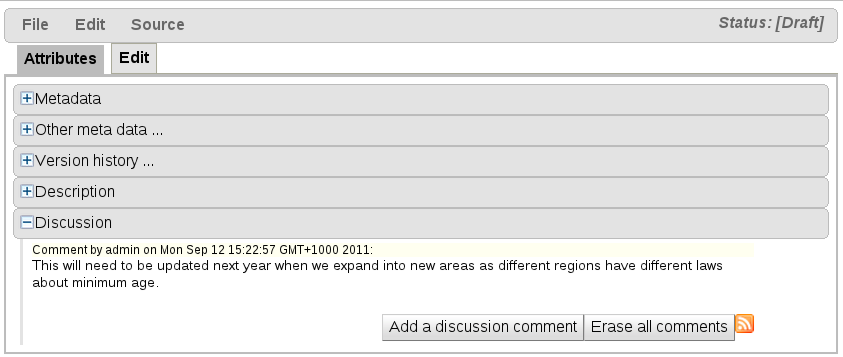
The asset editor includes a discussion area where comments can be left regarding any changes that have been made to assets. Each comment is recorded along with the identity of the user making the comment and the date and time of the comment. Administrators can clear all comments on an asset, but other users can only append comments.

Figure 2.3. Discussion

2.7. Inbox

The inbox is located in the Browse section of the navigation panel. The inbox provides quick access to assets that have recently been changed or opened. There are three types of inboxes:
  • Incoming Change
    The incoming changes inbox lists changes to any assets the logged in user has edited or commented on in the past.
  • Recently Opened
    The recently opened inbox lists the 100 most recently edited assets.
  • Recently Edited
    The recently edited inbox lists the 100 most recently edited assets the logged in user has edited.
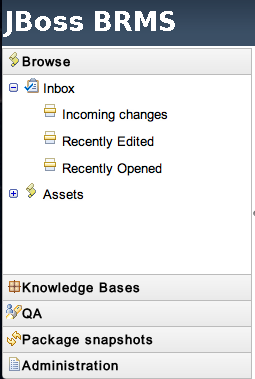
Figure 2.4. Inbox

2.8. Spring Context
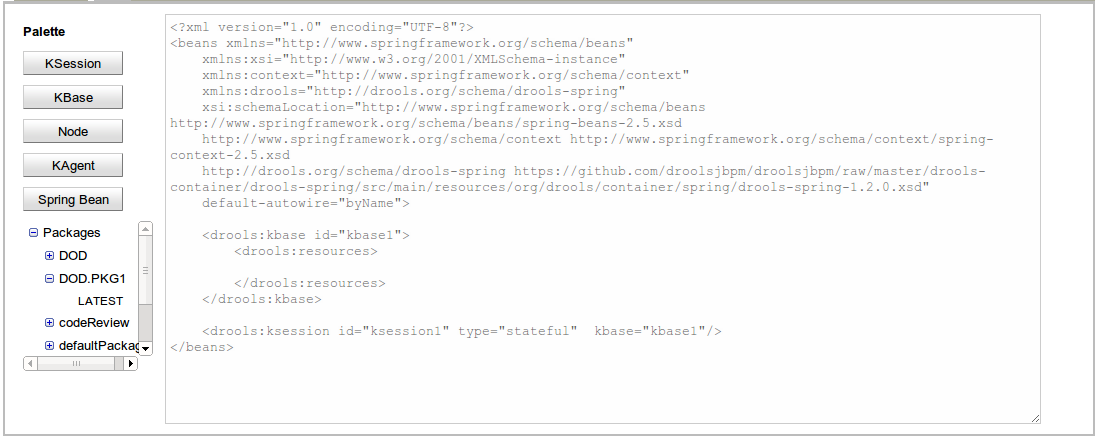
This textual editor allows you to define Drools (and potentially any) Spring context file. These files are later accessible through HTTP.

Figure 2.5. Spring Context Editor

The editor comes with a basic palette that you can use to paste predefined Spring Beans templates like kbases, ksessions and so on.
The palette also has a Package tree that can be used to add resources to the Spring Context file being edited.
The Beans are inserted in the caret position of the editor
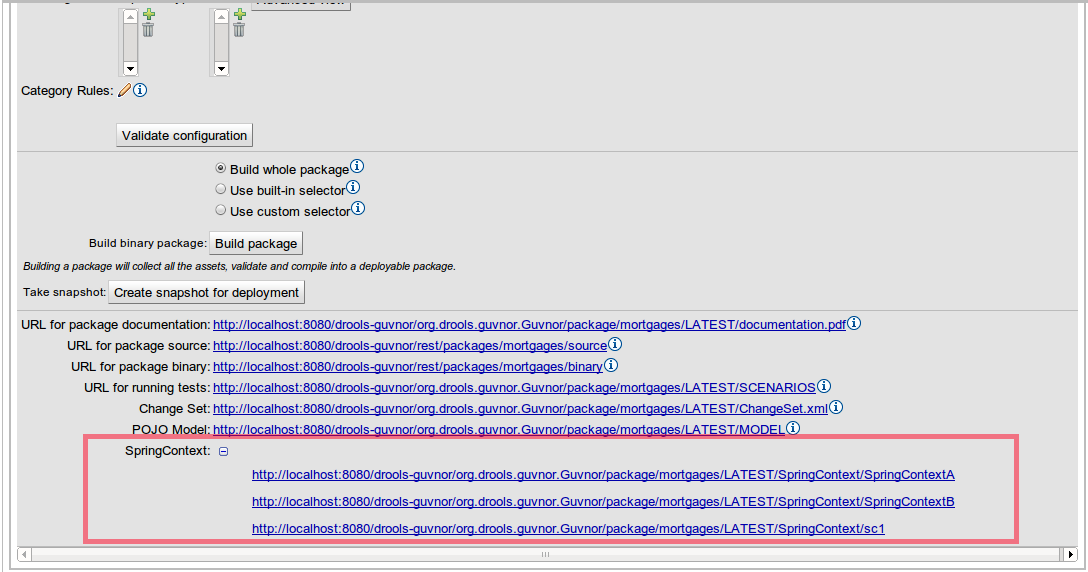
Each Spring Context has its own URL that applications can use to access it. These URLs are shown in the Package Edit Screen

Figure 2.6. Spring Context URLs

2.9. Working Sets

2.9.1. Working Sets

Working sets group facts together and define common constraints on the group. Working sets also make it possible to limit which rules are visible in the guided editor when authoring rules.

2.9.2. Create a New Working Set

Procedure 2.3. Create a New Working Set

  1. From the navigation panel, select Knowledge BasesCreate NewNew Working Set.
  2. Enter a name and description for the working set in the New Working Set menu. Select which package to create the working set in or specify that it should be added to the Global Area. Click OK.
  3. Add fact types to the working set by moving them from the Available Facts list on the left to the WorkingSet Facts list on the right.
To add constraints to a fact type in a working set, select WS Constraints from the Working Set window, and select Fact Type from the drop down menu and add the required constraint.

2.9.4. Verifying Field Constraints

Field constraints can be verified in two ways:
  • On Demand Validation.
  • Real-time Validation.
On demand validation is performed by selecting verify from the guided editor toolbar. A verification report is run with the verification results.
Real-time validation checks for field constraint violations in real-time and marks the lines where violations occur.
To enable real-time verification select Administration, then Rules Verification and select the Enable tick-box.

Note

This is an experimental feature and is disabled by default.

2.10. The Global Area

When assets are created in the JBoss Enterprise BRMS user interface, they can be created and stored in specific packages or the global area. Assets stored in the global area must be imported into the packages that make use of them before they can be used.
The global area has been provided as a storage location for assets not yet in use or as a central location for assets used in multiple packages.
Exercise caution when editing assets that are located in the global area. Assets that have been edited in the global area will need to be imported again into the packages that make use of them. Old versions of the previously imported assets will need to be removed.

Chapter 3. Writing Rules

3.1. The Asset Editor

3.1.1. The Asset Editor
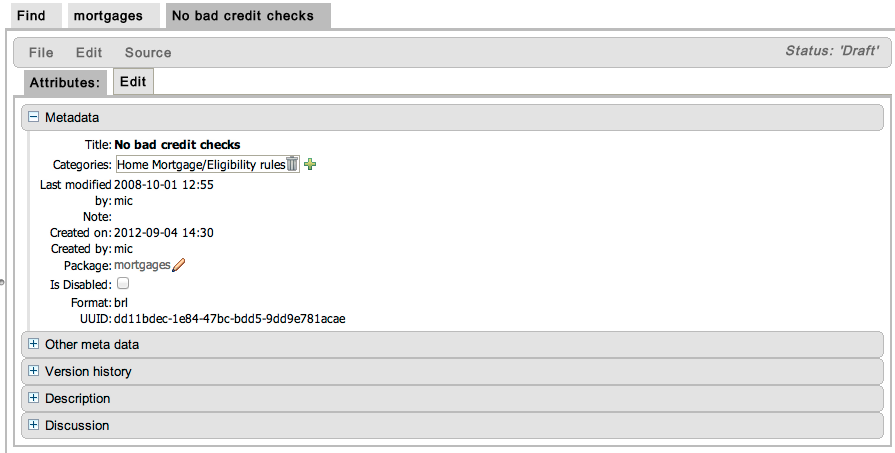
The asset editor provides access to information about assets and gives users the ability to edit assets.
The attributes tab contains metadata, version history, description, and a discussion area.

Figure 3.1. The Asset Editor View - Attributes

The edit tab is where assets can be edited. The available options in the edit tab will depend on the type of asset being edited.

Figure 3.2. The Asset Editor View - Edit

3.1.2. Business Rules with the Guided Editor

Business rules are edited in the guided editor. Rules edited in the guided editor use the Business Rules Language (BRL) format. The guided editor prompts users for input based on the object model of the rule being edited.
A package must exist for assets to be added to before rules can be created. Package access must be configured before users can use the BRL guided editor.

Example 3.1. The Guided Editor

3.1.3. The Anatomy of a Rule

A rule consists of multiple parts:
  • When
    The When part of the rule is the condition that must be met. For instance, a bank providing credit in the form of a loan may specify that customers must be over twenty-one years of age. This would be represented by using when to determine if the customer is over twenty-one years of age.
  • Then
    The Then part of the rule is the action to be performed when the conditional part of the rule has been met. For instance, when the customer is under twenty-one years of age, then decline the loan because the applicant is under age.
  • Optional
    Optional attributes such as salience can be defined on rules.
With the guided editor, it is possible to add more conditions to the When (or conditional) part of the rule and more actions to the Then (or action) part of the rule. For instance, if an applicant under the age of 21 had a guarantor for a loan application, the bank may decide to approve the loan application.

3.1.4. Salience

Each rule has a salience value which is an integer value that defaults to zero. The salience value represents the priority of the rule with higher salience values representing higher priority. Salience values can be positive or negative.

3.1.5. Adding Conditions or Actions to Rules

Procedure 3.1. Adding Conditions or Actions to Rules

  1. Click the plus icon in the When section of the guided editor to add a condition, or click the plus icon in the Then section of the guided editor to add an action.
  2. Select the condition or action from the menu and click Ok. If the package the rule belongs to has been configured to include DSL (Domain Specific Language) sentences, DSL sentences can be chosen from the menu.
  3. If the condition or action requires input, i.e., a date, true or false, am integer, or other input type, enter the required value.

3.1.6. Adding a Field to a Fact Type

With the guided editor, it is possible to add more conditions to the 'when' (or conditional) part of the rule and more actions to the 'then' (or action) part of the rule. For instance, if a loan applicant under the age of 21 had a guarantor for a loan application, the bank may decide to approve the loan application.
To add the guarantor to the condition, it is first necessary to add the guarantor field to the application fact type for the mortgage model.

Procedure 3.2. Adding a Field to a Fact Type

  1. Select the Model

    From the navigation panel, select Knowledge Bases. Expand the package that contains the model and select model.
    Open the model from the list by clicking open.
  2. Add the Field

    Expand the fact type by clicking the plus sign next to it and select Add Field.
  3. Enter the Field Details

    Add the details to the pop up dialogue. In this case, enter the name guarantor in the Field name field and select True or False from the Type drop down menu.
    Save the changes made to the model by selecting File and Save changes.
With the guarantor field now added to the applicant fact type, it is possible to modify the rule to include a guarantor.

3.1.7. Technical Rules (DRL)

Technical (DRL) rules are stored as text and can be managed in the JBoss Enterprise BRMS user interface. A DRL file can contain one or more rules. If the file contains only a single rule, then the package, imports and rule statements are not required. The condition and the action of the rule can be marked with "when" and "then" respectively.
JBoss Developer Studio provides tools for creating, editing, and debugging DRL files, and it should be used for these purposes. However, DRL rules can be managed within the JBoss Enterprise BRMS user interface.

Figure 3.3. Technical Rule (DRL)

3.2. Decision Tables

3.2.1. Spreadsheet Decision Tables

Rules can be stored in spreadsheet decision tables. Each row in the spreadsheet is a rule, and each column is either a condition, an action, or an option. The Jboss Rules Reference Guide provides details for using decision tables.

3.2.2. Uploading Spreadsheet Decision Tables

Procedure 3.3. Uploading a Spreadsheet Decision Table

  1. To upload an existing spreadsheet, select Knowledge BasesCreate NewNew Rule.
  2. Enter a name for the spreadsheet.
  3. Select Decision Table (Spreadsheet) from the Type (format) of rule: drop down menu. Add a description if required and click OK.
  4. From the edit screen, click Choose File, select the file from the local filesystem (XLS format is supported), and click upload.

3.3. Web Based Guided Decision Tables

3.3.1. Web Based Guided Decision Tables

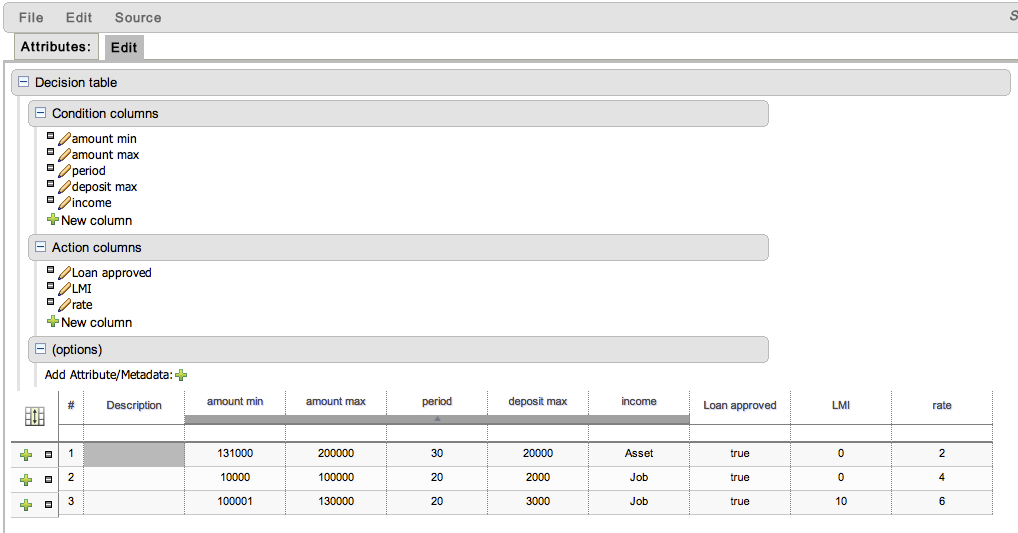
Decision tables can be edited in the asset editor. Rules derived from web based decision tables are compiled into the DRL format.

Figure 3.4. Guided Decision Table

Expand the Decision table section of the asset editor by clicking the plus sign next to Decision table.
Conditions, actions, and options are added to or removed from the decision table by expanding the relevant section of the asset edit, i.e., Condition columns, Action columns, and (options).

3.3.2. Column Configuration

Columns can have the following types of constraint:
  • Literal
    The value in the cell will be compared with the field using the operator.
  • Formula
    The expression in the cell will be evaluated and then compared with the field.
  • Predicate
    No field is needed, the expression will be evaluated to true or false.
You can set a default value, but normally if there is no value in the cell, that constraint will not apply.

Figure 3.5. Column Configuration

3.3.3. Attribute Columns

Zero or more attribute columns representing any of the DRL rule attributes can be added. An additional pseudo attribute is provided in the guided decision table editor to "negate" a rule. Use of this attribute allows complete rules to be negated. For example, the following simple rule can be negated as also shown.
when
  $c : Cheese( name == "Cheddar" )
then
  ...
end
Copy to Clipboard Toggle word wrap
when
  not Cheese( name == "Cheddar" )
then
  ...
end
Copy to Clipboard Toggle word wrap

3.3.4. Utility Columns

Two columns containing rule number and description are provided by default.

3.3.5. Metadata Columns

Zero or more meta-data columns can be defined, each represents the normal meta-data annotation on DRL rules.

3.3.6. Condition Columns

Conditions represent fact patterns defined in the right-hand side, or "when" portion, of a rule. To define a condition column, you must define a binding to a model class or select one that has previously been defined. You can choose to negate the pattern. Once this has been completed, you can define field constraints. If two or more columns are defined using the same fact pattern binding, the field constraints become composite field constraints on the same pattern. If you define multiple bindings for a single model class, each binding becomes a separate model class in the right-hand side of the rule.

3.3.7. Action Columns

Action columns can be defined to perform simple operations on bound facts within the rule engine's working memory, or they can be used to create new facts entirely. New facts can be inserted logically into the rule engine's working memory thus being subject to truth maintenance as usual. Please refer to the JBoss Rules Reference Guide for information about truth maintenance and logical insertions.

3.3.8. Rule Definition

Rules are created in the main body of the decision table using the columns that have already been defined.
Rows of rules can be added or deleted by clicking the plus or minus symbols respectively.

Figure 3.6. Rule Definition

3.3.9. Cell Merging

The icon in the top left of the decision table toggles cell merging on and off. When cells are merged, those in the same column with identical values are merged into a single cell. This simplifies changing the value of multiple cells that shared the same original value. When cells are merged, they also gain an icon in the top-left of the cell that allows rows spanning the merged cell to be grouped.

Figure 3.7. Cell Merging

3.3.10. Cell Grouping
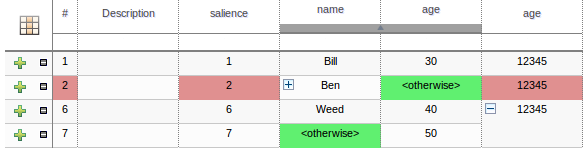
Cells that have been merged can be further collapsed into a single row. Clicking the [+\-] icon in the top left of a merged cell collapses the corresponding rows into a single entry. Cells in other columns spanning the collapsed rows that have identical values are shown unchanged. Cells in other columns spanning the collapsed rows that have different values are highlighted and the first value displayed.

Figure 3.8. Cell Grouping

When the value of a grouped cell is altered, all cells that have been collapsed also have their values updated.

3.3.11. Otherwise Operations

Condition columns defined with literal values that use either the equality == or inequality != operators can take advantage of a special decision table cell value of otherwise. This special value allows a rule to be defined that matches on all values not explicitly defined in all other rules defined in the table. This is best illustrated with an example:
when
  Cheese( name not in ("Cheddar", "Edam", "Brie") )
  ...
then
  ...
end
Copy to Clipboard Toggle word wrap
when
  Cheese( name in ("Cheddar", "Edam", "Brie") )
  ...
then
  ...
end
Copy to Clipboard Toggle word wrap

3.4. Rule Templates

3.4.1. Rule Templates

Rule templates define a rule structure with place-holders for values that will be interpolated from a table of data. Literal values, formula, and expressions can be used. Rule templates can be used as an alternative to decision tables.

Note

Rule templates are an experimental feature which is not supported by Red Hat.

3.4.2. Creating a Rule Template

Procedure 3.4. Creating a Rule Template

  1. From the navigation panel, select Knowledge BasesCreate NewNew Rule Template.
  2. Enter a name, select a category, specify which package the template should be added to, and add a description for the template.
  3. Use the guided editor to construct the rule.
    Template keys are placeholders within the field constraint and action sections. Literal values, formula and expressions can continue to be used as in the standard guided editor.

3.4.3. An Example Rule Template

In the following example, template keys have been used for the applicant's maximum age, minimum age, and credit rating. The template keys have been defined as $max_age, $min_age and $cr respectively.

Example 3.2. Example Template

3.4.4. Defining the Template Data

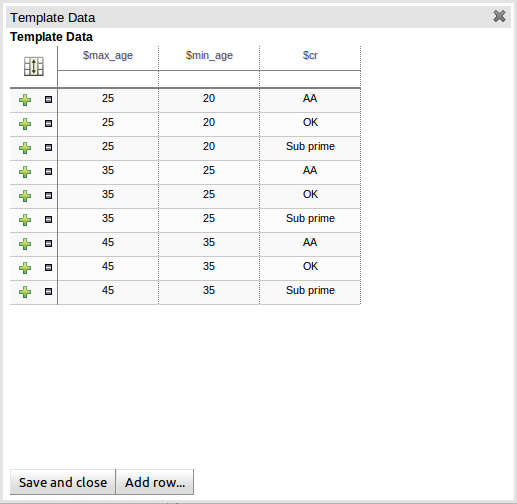
After the rule template definition has been created, the data that will be used where the template keys have been created must be entered. Data can be entered into a flexible grid within the guided editor screen. The grid editor is launched by pressing the Load Template Data button on the guided editor screen.
The rule template data grid is very flexible with different pop-up editors for the underlying fields' data-types. Columns can be resized and sorted; accordingly, cells can be merged and grouped to facilitate rapid data entry.
One row of data is used for the template keys for a single rule. Each row of data becomes an instance of the rule.
If any cells for a row are left blank, a rule for the applicable row is not generated.

Figure 3.9. Template Data Grid

3.4.5. Generated DRL

The DRL that is generated for a rule template and the associated data can be viewed by selecting SourceView Source

3.5. Functions

Functions are another type of asset; however, they are not rules and should only be used when necessary.

Procedure 3.5. Creating a New Function

  1. From the navigation panel, select Knowledge BasesCreate NewNew Function.
  2. Enter a name for the new function. Select the package to create the function in or choose to create it in the global area and click OK.
  3. Add the function code to the function editor and select FileSave and Close.

3.6. The Domain Specific Language Editor

Sentence constructed from domain specific languages (or DSL sentences) can be edited in the DSL editor. Please refer to the JBoss Rules Reference Guide for more information about domain specific languages. The DSL syntax is extended to provides hints to control how the DSL variables are rendered. The following hints are supported:
  • {<varName>:<regular expression>}
    This will render a text field in place of the DSL variable when the DSL sentence is used in the guided editor. The content of the text field will be validated against the regular expression.
  • {<varName>:ENUM:<factType.fieldName>}
    This will render an enumeration in place of the DSL variable when the DSL sentence is used in the guided editor. <factType.fieldName> binds the enumeration to the model fact and field enumeration definition. This could be either a Knowledge Base enumeration or a Java enumeration, i.e., defined in a model POJO JAR file.
  • {<varName>:DATE:<dateFormat>}
    This will render a date selector in place of the DSL variable when the DSL sentence is used in the guided editor.
  • {<varName>:BOOLEAN:<[checked | unchecked]>}
    This will render a dropdown selector in place of the DSL variable, providing boolean choices, when the DSL sentence is used in the guided editor.

Figure 3.10. DSL Editor

3.7. Data Enumerations

Data enumerations are an optional type of asset that can be configured to provide drop-down lists for the guided editor. They are stored and edited just like any other asset and only apply to the package they are created in.
The contents of an enumeration configuration are the mapping of a fact.field to a list of values. These values are used to populate the drop-down menu. The list can either be literal or use a utility class (which must be added to the classpath) to load the strings. The strings contain either a value to be shown in the drop-down menu or a mapping from the code value (which is what is used in the rule) and a display value, e.g., M=Mini.

Example 3.3. An Example Enumeration Configuration

'Board.type' : [ 'Short', 'Long', 'M=Mini', 'Boogie']
'Person.age' : [ '20', '25', '30', '35' ]
Copy to Clipboard Toggle word wrap

3.7.2. Advanced Enumeration Concepts

Drop-down lists are dependent on field values. With enumerations it is possible to define multiple options based on other field values.
A fact model for insurance policies could have a class called Insurance, consisting of the fields, policyType and coverage. The choices for policyType could be Home or Car. The type of insurance policy will determine the type of coverage that will be available. A home insurance policy could include property or liability. A car insurance policy could include collision or fullCoverage.
The field value policyType determines which options will be presented for coverage, and it is expressed as follows:
 'Insurance.policyType' : ['Home', 'Car']
 'Insurance.coverage[policyType=Home]' : ['property', 'liability']
 'Insurance.coverage[policyType=Car]' : ['collision', 'fullCoverage']
Copy to Clipboard Toggle word wrap

3.7.3. Obtaining Data Lists from External Sources

A list of Strings from an external source can be retrieved and used in an enumeration menu. This is achieved by adding code to the classpath that returns a java.util.List (of strings). Instead of specifying a list of values in the user interface, the code can return the list of strings. (As normal, you can use the "=" sign inside the strings if you want to use a different display value to the rule value.) For example, you could use the following:
'Person.age' : ['20','25', '30', '35']
Copy to Clipboard Toggle word wrap
To:
'Person.age' : (new com.yourco.DataHelper()).getListOfAges()
Copy to Clipboard Toggle word wrap
This assumes you have a class called DataHelper which has a method getListOfAges() which returns a list of strings. The data enumerations are loaded the first time the guided editor is used in a session. To check the enumeration has loaded, go to the package configuration screen. You can "save and validate" the package; this will check it and provide feedback about any errors.

Chapter 4. The Fact Model

4.1. Fact Models

A fact model is needed to drive the rules of a rule-based application. The fact model typically overlaps with the application's domain model, but, in general, it should be de-coupled from it, making the rules easier to manage over time.
There are two ways to define a Fact Model:
  • Upload a JAR file containing the Java classes used by both the application and the rules.
  • Declare a model within BRMS that can be exported as a KnowledgeBase and used within your Java code.

4.2. Creating a JAR Model

Procedure 4.1. Creating a Jar Model

  1. Open the New model archive (jar) menu

    From the navigation panel, select Knowledge BasesCreate NewUpload POJO Model JAR.
  2. Enter the Jar model's name, category, and a description. Select which package to create the model in or specify that it should be added to the Global Area. Click OK when all the details have been entered.
  3. Upload the JAR containing the model defined as Java classes and packages in a regular Java JAR file.

4.3. Declarative Model

4.3.1. Declarative Model

Using a declarative model has the following benefits:
  • It reinforces that the model belongs to the knowledge base, not the application.
  • The model can have a lifecycle that is separate from the applications.
  • Java types can be enriched with rule specific annotations.
  • JAR files must be kept synchronized between the rules and the applications that use them; however, a declarative model does not need to be kept synchronized.
Declarative models can be either of the following:
  • A standalone definition of the entire Fact model used within your rules.
  • Supplementary Fact definitions to support a Java POJO Model.

4.3.2. Creating a Declarative Model

Procedure 4.2. Creating a Declarative Model

  1. Open the New Declarative Model menu

    From the navigation panel, select Knowledge BasesCreate NewNew Declarative Model.
  2. Specify a name for the new model. Select which package to create the model in or specify that it should be added to the Global Area. Click OK when all the details have been entered.
  3. Click Add new fact type and enter the fact name in the name field of the popup menu.
  4. Create Fact Fields by selecting the Add field button and entering the information in the popup menu.
  5. Create Fact annotations by selecting the Add annotation button. The annotation Name and Value fields are mandatory, but the Key field is optional. If a Key value is not specified, a default value of value will be assigned.
  6. Select Type Extends to extend an existing Java class uploaded as part of JAR (POJO) model or other declared types in the same package.

4.3.3. Extending a Java Class

To extend a Java class, the following steps need to be completed:
  • Import the applicable Java JAR into BRMS.
  • If the Java package name in which the class belongs to is different to the package name in to which the JAR has been imported, ensure the BRMS package imports the class from which you want to extend. This is normally completed for you automatically when you upload a JAR model; however, if you have multiple classes with the same name in the JAR, you should check the appropriate one has been imported.
  • Within the Declarative Modeling screen define an empty type (i.e. with no fields) of the same name as that you want to extend.
  • Create a new declarative type as appropriate, extending the empty declaration created in the preceding step.

Note

Only properties on Java classes that have both a "getter" and "setter" following standard Java Bean conventions are available on the declared sub-type. This occurs because the declarative semantics imply all properties on declared types have both accessors and mutators.

4.3.4. Consuming a Declarative Model with Java

Declared types are generated at knowledge base compilation time, and as such the application will only have access to them at application run time. Therefore, these classes are not available for direct reference from the application.
Declarative types can be used like normal fact objects, but the way you create them is different (as they are not on your applications classpath). To create these objects, they are available from the KnowledgeBase instance.

Example 4.1. Handling Declared Fact Types Through the API

// get a reference to a knowledge base with a declared type:
KnowledgeBase kbase = ...

// get the declared FactType
FactType personType = kbase.getFactType( "org.drools.examples",
                                         "Person" );

// handle the type as necessary:
// create instances:
Object bob = personType.newInstance();

// set attributes values
personType.set( bob,
                "name",
                "Bob" );
personType.set( bob,
                "age",
                42 );

// insert fact into a session
StatefulKnowledgeSession ksession = ...
ksession.insert( bob );
ksession.fireAllRules();

// read attributes
String name = personType.get( bob, "name" );
int age = personType.get( bob, "age" );
Copy to Clipboard Toggle word wrap

Note

The namespace of the declared type is the package namespace where it was declared (i.e. org.drools.examples in the above example).

Chapter 5. Packaging

5.1. Packaging Assets

Packaging is the process of assembling the required assets into a single deployable unit called a package.
Some aspects of the configuration are also critical for authoring assets, such as the import of model classes and the definition of global variables. For example, you may add a model which has a class called com.something.Hello; you would then add import com.something.Hello in your package configuration and save the change.

5.2. Configuring Packages

Procedure 5.1. Configuring Packages

  1. From the navigation panel, select Knowledge Bases, and then select the package.
  2. Select the Edit tab to access the package configuration screen.
  3. To add globals and imports, click the plus symbol next to either and select the class type from the drop down menu.
    Alternatively, the advanced view can be accessed by clicking the Advanced View button. This presents a text-box which package-level DRL can be entered into.
  4. Choose a selector if one is being used for the package.
  5. Select Build Package to build the package. A message is displayed when the package has been successfully built.

5.3. Selectors

5.3.1. Selectors

Selectors are used to specify which assets should be included in the compiled package.
There are two types of selectors included with JBoss Enterprise BRMS by default.
Build Whole Package

This selector builds the whole package without excluding any assets.

Built in Selectors

This selector makes it possible to specify the status and the category of the assets to be included in the compiled package.

There are also custom selectors that allow users to specific their own criteria.

5.3.2. Custom Selectors

Custom selectors are defined in the jboss-brms.war/WEB-INF/classes/selectors.properties file. Please refer to this file for further instructions as it contains all the information necessary to define custom selectors.

Chapter 6. Integrating Rules

6.1. The Knowledge Agent

The Knowledge Agent is a component which is embedded in the knowledge API. No additional components are required to use the Knowledge Agent. If you are using the JBoss Enterprise BRMS Platform, the application only needs to include the drools-core dependencies in its classpath, i.e. the drools and mvel JARs.
Rules that have been compiled in packages are ready to use in the target application.
The Following example constructs an agent that will build a new KnowledgeBase from the files specified in the path String. It will pull those files every 60 seconds, which is the default, to see if they are updated. If new files are found, it will construct a new KnowledgeBase. If the change set specifies a resource that is a directory, its contents will be scanned for changes too.
KnowledgeAgent kagent = KnowledgeAgentFactory.newKnowledgeAgent( "MyAgent" );
kagent.applyChangeSet( ResourceFactory.newUrlResource( url ) );
KnowledgeBase kbase = kagent.getKnowledgeBase();
Copy to Clipboard Toggle word wrap
The KnowledgeAgent can accept a configuration that allows for some of the defaults to be changed. An example property is "drools.agent.scanDirectories;" by default, any specified directories are scanned for new additions.
KnowledgeBase kbase = KnowledgeBaseFactory.newKnowledgeBase();

KnowledgeAgentConfiguration kaconf = KnowledgeAgentFactory.newKnowledgeAgentConfiguration();
kaconf.setProperty( "drools.agent.scanDirectories", "false" ); // we don't scan directories, only files
       
KnowledgeAgent kagent = KnowledgeAgentFactory.newKnowledgeAgent( "test agent", kaconf );
// resource to the change-set xml for the resources to add
kagent.applyChangeSet( ResourceFactory.newUrlResource( url ) );
Copy to Clipboard Toggle word wrap
This is an example of the change-set.xml file.
<change-set xmlns='http://drools.org/drools-5.0/change-set'";
    xmlns:xs='http://www.w3.org/2001/XMLSchema-instance'
    xs:schemaLocation='http://drools.org/drools-5.0/change-set drools-change-set-5.0.xsd' >
    <add>
        <resource source='http://localhost:9000/TEST.pkg' type='PKG' />
    </add> 
</change-set>
Copy to Clipboard Toggle word wrap
Resource scanning is enabled by default. It is a service and must be started. This can be done via the ResourceFactory.
ResourceFactory.getResourceChangeNotifierService().start();
ResourceFactory.getResourceChangeScannerService().start();
Copy to Clipboard Toggle word wrap

6.2. Deploying Snapshots

Packages can be downloaded from the user interface or deployed via the package's URL.

Figure 6.1. Package Snapshots

The deployment URL is the URL that must be included in the change-set.xml file to specify which package is being deployed. Each snapshot of a package has its own URL which can be deployed or downloaded. The most recent version of a package can be specified by replacing the name of the snapshot with the word LATEST in the URL.

6.3. Using the URL to Obtain the Package DRL

The deployment URL can be used to obtain the generated DRL for the package by adding .drl to the end of the package URL. The DRL for an asset can also be obtained by adding the asset name plus .drl to the end of the package URL.

6.4. Rest API

6.4.1. Repository Rest API

The asset repository and any asset stored in the repository can be accessed via the Rest API. Assets can be accessed by package name or by category name.
The base http address to access the rest API is http://localhost:8080/jboss-brms/rest/, where localhost is replaced by the server name. If the default port has been changed, substitute the default 8080 port number for the new port number.

6.4.2. Accessing Rules by Package

Use the URLs listed below to access rules assets by package. The examples below assume a base URL of http://localhost:8080/jboss-brms/rest/.
The GET method produces MIME-Types:
  • application/atom+XML
  • application/json
  • application/xml
The GET method return all packages contained in the repository in the requested format (Atom feed, JSON, or XML).
The POST method produces MIME-Types:
  • application/atom+XML
  • application/json
  • application/xml
The POST method consumes MIME-Types:
  • application/octet-stream
  • application/atom+xml
  • application/json
  • application/xml
The POST method creates a new package from an input stream of DRL, an Atom feed, JSON, or XML, and returns the newly created package in the requested format (Atom feed, JSON, or XML).
The GET method produces MIME-Types:
  • application/atom+xml
  • application/json
  • application/xml
The GET method returns the metadata of the package {packageName} as an Atom entry when the MIME-Type is application/atom+xml and as a package element when the MIME-Type is application/json or application/xml.
The PUT method produces MIME-Types:
  • application/atom+xml
The PUT method updates the metadata of package {packageName} with the given Atom Entry.
The DELETE method deletes package {packageName}.
The GET method produces MIME-Types:
  • text/plain
The GET method returns the source code of the package {packageName} as a text file.
The GET method produces MIME-Types:
  • application/octet-stream
The GET method returns the compiled binary of the package {packageName} as a binary stream. If the package has not been compiled yet or its binary is not up to date, this will compile the package first.
The GET method produces MIME-Types:
  • application/atom+xml
The GET method returns the list of package {packageName} versions as an Atom Feed.
The GET method produces MIME-Types:
  • application/atom+xml
The GET method returns the metadata of package {packageName} and of version {version} as an Atom Entry.
The GET method produces MIME-Types:
  • text/plain
The GET method returns the source code of package {packageName} and of version {version} as a text file.
The GET method produces MIME-Types:
  • application/octet-stream
The GET method returns the binary (compiled code) of package {packageName} and of version {version} as an octet stream. If the package version has not been built, it returns HTTP code 500 with an error message.
The GET method produces MIME-Types:
  • application/atom+xml
  • application/json
  • application/xml
The GET method returns the list of rule assets contained in package {packageName} in the requested format (Atom feed, JSON, or XML).
The POST method produces MIME-Types:
  • application/atom+xml
  • application/octet-stream
The POST method creates an asset in package {packageName}.
When an Atom Entry is provided, the following information must be included in the input: asset name, asset description, asset initial category, and asset format.
When an octet-stream is provided, the value of slug header is used to indicate the name of the asset. If the slug header is missing, a HTTP 500 error is returned.
The GET method produces MIME-Types:
  • application/atom+xml
  • application/json
  • application/xml
The GET method returns the rule asset {assetName} contained in package {packageName} in the requested format (Atom feed, JSON, or XML).
The PUT method produces MIME-Types:
  • application/atom+xml
  • application/json
  • application/xml
The PUT method updates the metadata of the rule asset {assetName} contained in package {packageName} with the provided format (Atom Entry, JSON, or XML).
The DELETE method deletes the rule asset {assetName} contained in package {packageName}.
The GET method produces MIME-Types:
  • application/octet-stream
The GET method returns the binary content of rule asset {assetName} contained in package {packageName}. If this asset has no binary content, the source content is returned instead.
The PUT method produces MIME-Types:
  • application/octet-stream
The PUT method updates the binary content of the rule asset {assetName} contained in package {packageName}.
The GET method produces MIME-Types:
  • plain/text
The GET method returns the content of rule asset {assetName} contained in package {packageName}. If this is a binary asset, the binary data is returned as a byte array.
The PUT method produces MIME-Types:
  • plain/text
The PUT method updates the source code of the rule asset {assetName} contained in package {packageName}.
The GET method produces MIME-Types:
  • application/atom+xml
The GET method returns the list of rule asset {assetName} versions contained in package {packageName} as an Atom Feed.
The GET method produces MIME-Types:
  • application/atom+xml
The GET method returns the metadata of rule asset {assetName} of version {version} contained in package {packageName} as an Atom Entry.
/packages/{packageName}/assets/{assetName}/versions/{version}/source

http://localhost:8080/jboss-brms/rest/packages{packageName}/assets/{assetName}/versions/{version}/source

The GET method produces MIME-Types:
  • plain/text
The GET method returns the source code of rule asset {assetName} of version {version} contained in package {packageName} as a text file.
/packages/{packageName}/assets/{assetName}/versions/{version}/binary

http://localhost:8080/jboss-brms/rest/packages{packageName}/assets/{assetName}/versions/{version}/binary

The GET method produces MIME-Types:
  • application/octet-stream
The GET method returns the binary content of rule asset {assetName} of version {version} contained in package {packageName}. If this asset has no binary content, the source content is returned instead.

6.4.3. Accessing Rules by Category

Use the URLs listed below to access rules assets by category. The examples below assume a base URL of http://localhost:8080/jboss-brms/rest/
The GET method produces MIME-Types:
  • application/atom+xml
  • application/json
  • application/xml
The GET method returns an Atom feed or a list of objects that have the category {categoryName}.
The GET method produces MIME-Types:
  • application/json
  • application/xml
The GET method returns a list of asset objects representing rules assets that have the listed category {categoryPath} and retrieves page {page}, which is a numeric value starting at 1. A page contains 10 elements. If the list contains 20 elements then the list will have 2 pages. Page 1 must be called before page 2 and so on.

6.4.4. Source Code Examples

The following example uses apache CXF to show how to access the Rest API.

Example 6.1. Retrieving the source code for the web decision table

	WebClient client = WebClient.create("http://127.0.0.1:8080/");
	String content=client.path("jboss-brms/rest/packages/essaiRest/assets/tab2/source").accept("text/plain").get(String.class);
	GuidedDecisionTable52 dt = GuidedDTXMLPersistence.getInstance().unmarshal(content);
Copy to Clipboard Toggle word wrap
The first line of the example creates the a WebClient variable that points to the server.
The second line of the example retrieves the source code by accessing the /rest/packages/{packageName}/assets/{assetName}/source, where in our case packageName is "essaiRest" and assetName is "tab2".
The third line of the example transforms the string variable (the source code that contains the xml of the data structure of the web decision table) in the java structure (a java class) for web decision table GuidedDecisionTable52.

Example 6.2. Updating the source code of the web decision table

	String authorizationHeader = "Basic " + org.apache.cxf.common.util.Base64Utility.encode("guest:".getBytes());
	GuidedDecisionTable52 dt = new GuidedDecisionTable52();
	.. 
	Do some stuff here
	..
	String newContent = GuidedDTXMLPersistence.getInstance().marshal(dt);
	WebClient client2 = WebClient.create("http://127.0.0.1:8080/");
	client2.header("Authorization", authorizationHeader);
	Response response= client2.path("jboss-brms/rest/packages/essaiRest/assets/tab2/source").accept("application/xml").put(newContent);
Copy to Clipboard Toggle word wrap
The first line of the example creates a java String variable that contains the authorization element needed to update an asset in the asset repository.
The code that modifies the web decision table is not shown in this example.
The third line transforms the java structure into an XML structure that is put into a java String variable.
Next, the WebClient variable is created, but this time the authorization variable that contains the string from the first line (and contains the user name 'guest') is included in the header.
The final line adds the new content to the asset repository.

6.5. WebDAV

6.5.1. WebDAV

The repository can be accessed via WebDav. WebDAV is a HTTP-based file system application programming interface. Most modern operating systems provide integrated support for accessing WebDav shares. Please refer to your operating system vendor's documentation for configuration instructions. There are third-party WebDav clients available for most platforms.
Packages and snapshots can be accessed via WebDav.
The URL for accessing the asset repository using WebDav is below:
http://localhost:8080/jboss-brms/org.drools.guvnor.Guvnor/webdav/
Copy to Clipboard Toggle word wrap
Authentication is required as normal.

6.5.2. WebDAV and Special Characters

Jboss Enterprise BRMS supports UTF-8 characters as part of rule's names; however, when rules are copied via WebDav, the multibyte characters are decoded as ISO-8859-1.
Red Hat does not recommend using special characters in rule names; however, if special characters are used, the Web Connector must be changed to support Unicode.
To add Unicode support, complete the following steps. Please note, the following steps are only necessary in JBoss Enterprise BRMS versions 5.3 and lower, as the code has been added to version 5.3.1.

6.5.3. Adding Unicode Support

Procedure 6.1. Adding Unicode Support

  1. Stop the application server.
  2. Open the jboss-as/server/profile/deploy/jbossweb.sar/server.xml file.
  3. Add URIEncoding="UTF-8" to the web connector. For instance, for HTTP the code should be as follows:
    <Connector protocol="HTTP/1.1" port="8080" address="${jboss.bind.address}" connectionTimeout="20000" redirectPort="8443" URIEncoding="UTF-8" />
    Copy to Clipboard Toggle word wrap
  4. Start the application server.

Appendix A. Revision History

Revision History
Revision 5.3.1-7.4002013-10-31Rüdiger Landmann
Rebuild with publican 4.0.0
Revision 5.3.1-7Mon Dec 03 2012 L Carlon
Updated documentation for the JBoss Enterprise BRMS Platform 5.3.1 release.

Legal Notice

Copyright © 2012 Red Hat, Inc.
This document is licensed by Red Hat under the Creative Commons Attribution-ShareAlike 3.0 Unported License. If you distribute this document, or a modified version of it, you must provide attribution to Red Hat, Inc. and provide a link to the original. If the document is modified, all Red Hat trademarks must be removed.
Red Hat, as the licensor of this document, waives the right to enforce, and agrees not to assert, Section 4d of CC-BY-SA to the fullest extent permitted by applicable law.
Red Hat, Red Hat Enterprise Linux, the Shadowman logo, JBoss, OpenShift, Fedora, the Infinity logo, and RHCE are trademarks of Red Hat, Inc., registered in the United States and other countries.
Linux® is the registered trademark of Linus Torvalds in the United States and other countries.
Java® is a registered trademark of Oracle and/or its affiliates.
XFS® is a trademark of Silicon Graphics International Corp. or its subsidiaries in the United States and/or other countries.
MySQL® is a registered trademark of MySQL AB in the United States, the European Union and other countries.
Node.js® is an official trademark of Joyent. Red Hat Software Collections is not formally related to or endorsed by the official Joyent Node.js open source or commercial project.
The OpenStack® Word Mark and OpenStack logo are either registered trademarks/service marks or trademarks/service marks of the OpenStack Foundation, in the United States and other countries and are used with the OpenStack Foundation's permission. We are not affiliated with, endorsed or sponsored by the OpenStack Foundation, or the OpenStack community.
All other trademarks are the property of their respective owners.
Back to top
Red Hat logoGithubredditYoutubeTwitter

Learn

Try, buy, & sell

Communities

About Red Hat Documentation

We help Red Hat users innovate and achieve their goals with our products and services with content they can trust. Explore our recent updates.

Making open source more inclusive

Red Hat is committed to replacing problematic language in our code, documentation, and web properties. For more details, see the Red Hat Blog.

About Red Hat

We deliver hardened solutions that make it easier for enterprises to work across platforms and environments, from the core datacenter to the network edge.

Theme

© 2025 Red Hat