 Red Hat Summit
Using Eclipse
Installing Eclipse 4.7.3a and first steps with the application
Abstract
Chapter 1. Eclipse 4.7.3a
Red Hat Developer Tools, available for Red Hat Enterprise Linux 7, includes Eclipse 4.7.3a, which is based on the Eclipse Foundation’s Oxygen release train. Note that rh-eclipse47 requires the rh-maven35 collection.
Eclipse is a powerful development environment that provides tools for each phase of the development process. It integrates a variety of disparate tools into a unified environment to create a rich development experience, provides a fully configurable user interface, and features a pluggable architecture that allows for an extension in a variety of ways. For instance, the Valgrind plug-in allows programmers to perform memory profiling, that is otherwise performed on the command line through the Eclipse user interface.
Figure 1.1. Sample Eclipse Session
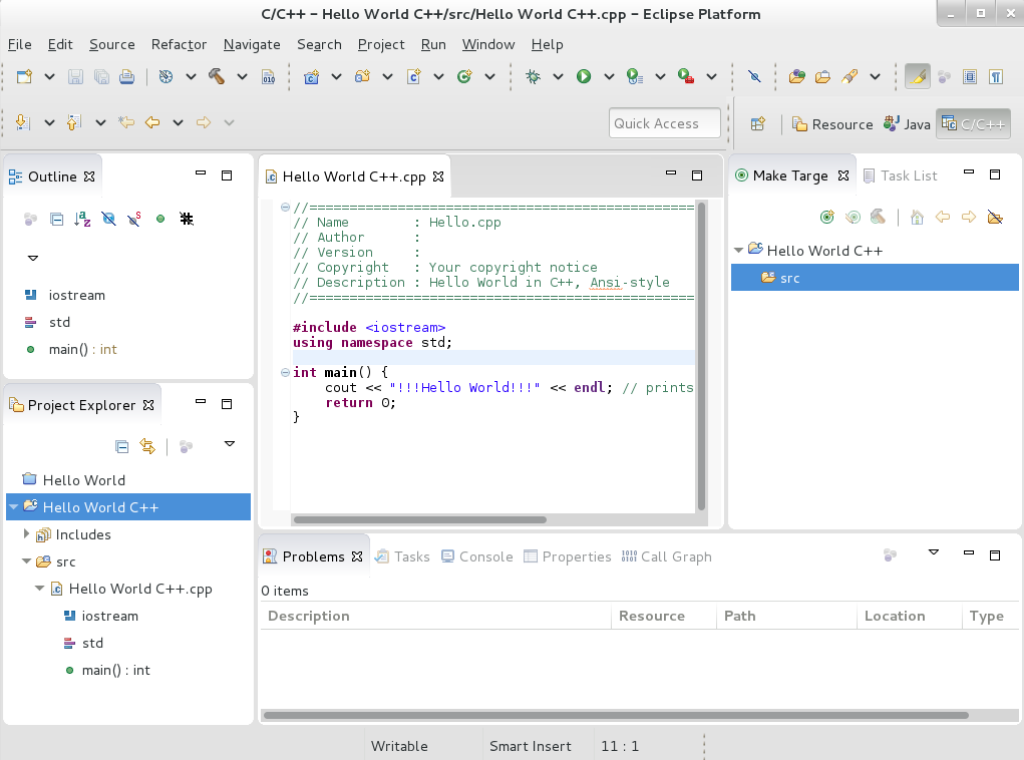
Eclipse provides a graphical development environment alternative to traditional interaction with command line tools and it is a welcome alternative for developers who do not want to use the command line interface. The traditional, mostly command line-based Linux tools suite such as gcc or gdb and Eclipse offer two distinct approaches to programming.
For an overview to develop applications for Red Hat JBoss Middleware or for support for OpenShift Tools, see Red Hat JBoss Developer Studio.
| Package | Description |
|---|---|
| rh-eclipse47-eclipse-cdt | The C/C++ Development Tooling (CDT) that provides features and plug-ins for development in these two languages. |
| rh-eclipse47-eclipse-changelog | The ChangeLog plug-in that allows you to create and maintain changelog files. |
| rh-eclipse47-eclipse-dtp | Eclipse Data Tools Platform Project |
| rh-eclipse47-eclipse-egit | EGit, a team provider for Eclipse that provides features and plug-ins for interaction with Git repositories. |
| rh-eclipse47-eclipse-emf | The Eclipse Modeling Framework (EMF) that allows you to build applications based on a structured data model. |
| rh-eclipse47-eclipse-epp-logging | The Eclipse error reporting tool. |
| rh-eclipse47-eclipse-gcov | The GCov plug-in that integrates the GCov test coverage program with Eclipse. |
| rh-eclipse47-eclipse-gef | The Graphical Editing Framework (GEF) that allows you to create a rich graphical editor from an existing application model. |
| rh-eclipse47-eclipse-gprof | The Gprof plug-in that integrates the Gprof performance analysis utility with Eclipse. |
| rh-eclipse47-eclipse-jdt | The Eclipse Java development tools (JDT) plug-in. |
| rh-eclipse47-eclipse-jgit | JGit, a Java implementation of the Git revision control system. |
| rh-eclipse47-eclipse-manpage | The Man Page plug-in that allows you to view manual pages in Eclipse. |
| rh-eclipse47-eclipse-mpc | The Eclipse Marketplace Client. |
| rh-eclipse47-eclipse-mylyn | Mylyn, a task management system for Eclipse. |
| rh-eclipse47-eclipse-oprofile | The OProfile plug-in that integrates OProfile with Eclipse. |
| rh-eclipse47-eclipse-pde | The Plugin Development Environment for developing Eclipse plugins. |
| rh-eclipse47-eclipse-perf | The Perf plug-in that integrates the perf tool with Eclipse. |
| rh-eclipse47-eclipse-ptp | A subset of the PTP project that provides support for synchronized projects. |
| rh-eclipse47-eclipse-pydev | A full featured Python IDE for Eclipse. |
| rh-eclipse47-eclipse-recommenders | Code Recommenders |
| rh-eclipse47-eclipse-remote | The Remote Services plug-in that provides an extensible remote-services framework. |
| rh-eclipse47-eclipse-rpm-editor | The Eclipse Spec File Editor that allows you to maintain RPM spec files. |
| rh-eclipse47-eclipse-rse | The Remote System Explorer (RSE) framework that allows you to work with remote systems from Eclipse. |
| rh-eclipse47-eclipse-systemtap | The SystemTap plug-in that integrates SystemTap with Eclipse. |
| rh-eclipse47-eclipse-subclipse | Subclipse, a team provider for Eclipse that provides features and plug-ins for interaction with Subversion repositories. |
| rh-eclipse47-eclipse-valgrind | The Valgrind plug-in that integrates Valgrind with Eclipse. |
| rh-eclipse47-eclipse-webtools | The Eclipse Webtools plug-ins. |
1.1. Enabling the Red Hat Developer Tools Repositories
To install Eclipse you must first enable the Red Hat Developer Tools repositories.
- Enable the rhel-7-server-devtools-rpms repository on Red Hat Enterprise Linux Server or enable the rhel-7-workstation-devtools-rpms repository on Red Hat Enterprise Linux Workstation
- Enable the rhel-server-rhscl-7-rpms repository on Red Hat Enterprise Linux Server or enable the rhel-workstation-rhscl-7-rpms repository on Red Hat Enterprise Linux Workstation
Red Hat Developer Tools is not supported on the Client or the ComputeNode variant.
To enable the Red Hat Developer Tools repositories:
Run the following commands as the root user:
subscription-manager repos --enable rhel-7-server-devtools-rpms
subscription-manager repos --enable rhel-server-rhscl-7-rpms
# subscription-manager repos --enable rhel-7-server-devtools-rpms
# subscription-manager repos --enable rhel-server-rhscl-7-rpms
Copy to Clipboard Copied! Toggle word wrap Toggle overflow NoteIn the above command, depending on the variant of Red Hat Enterprise Linux that you are using, Server or Workstation, the commands will be:
- For the Workstation variant: subscription-manager repos --enable rhel-7-workstation-devtools-rpms
- For the Server variant: subscription-manager repos --enable rhel-7-server-devtools-rpms
For developers, we recommend using Red Hat Enterprise Linux Server for access to the widest range of development tools.
For more information on registering and attaching subscriptions, see Using and Configuring Red Hat Subscription Management.
To add the Red Hat Developer Tools key to your system, run the following commands as the root user:
cd /etc/pki/rpm-gpg
wget -O RPM-GPG-KEY-redhat-devel https://www.redhat.com/security/data/a5787476.txt
rpm --import RPM-GPG-KEY-redhat-devel
# cd /etc/pki/rpm-gpg
# wget -O RPM-GPG-KEY-redhat-devel https://www.redhat.com/security/data/a5787476.txt
# rpm --import RPM-GPG-KEY-redhat-devel
Copy to Clipboard Copied! Toggle word wrap Toggle overflow
1.2. Installing Eclipse
The Eclipse development environment is provided as a collection of RPM packages.
To install Eclipse, run the following commands as the
rootuser:yum install rh-eclipse47
yum install rh-eclipse47Copy to Clipboard Copied! Toggle word wrap Toggle overflow For a list of available components, see Table 1.1, “Eclipse Components Included in rh-eclipse47”.
rh-eclipse47 fully supports C, C++, and Java development, but does not provide support for the Fortran programming language.
1.3. Using Eclipse
To start rh-eclipse47:
Click Applications > Programming > Red Hat Eclipse, or type the following at a shell prompt:
scl enable rh-eclipse47 eclipse
scl enable rh-eclipse47 eclipseCopy to Clipboard Copied! Toggle word wrap Toggle overflow -
During its startup, Eclipse prompts you to select a workspace that is a directory in which you want to store your projects. You can either use
~/workspace/, which is the default option, or click Browse to browse your file system and select a custom directory. Additionally, you can select the Use this as the default and do not ask again check box to prevent Eclipse from displaying this dialog box the next time you run this development environment. - Click OK to confirm the selection and proceed with the startup.
1.3.1. Using the Red Hat Developer Toolset Toolchain
To use rh-eclipse47 with support for the GNU Compiler Collection and binutils from Red Hat Developer Toolset:
- Ensure that devtoolset-Developer Toolset 7-toolchain is installed and run the application as described in Section 1.3, “Using Eclipse”. The rh-eclipse47 Collection uses the Red Hat Developer Toolset toolchain by default.
For detailed instructions on how to install the devtoolset-Developer Toolset 7-toolchain package on your system, see Installing Red Hat Developer Toolset.
If you are working on a project that you previously built with the Red Hat Enterprise Linux version of the GNU Compiler Collection, make sure that you discard all previous build results. To do so, open the project in Eclipse and select Project > Clean from the menu.
1.3.2. Using the Red Hat Enterprise Linux Toolchain
To use rh-eclipse47 with support for the toolchain distributed with Red Hat Enterprise Linux, change the configuration of the project to use absolute paths to the Red Hat Enterprise Linux system versions of gcc, g++, and as.
To configure Eclipse to explicitly use the Red Hat Enterprise Linux system versions of the tools for the current project:
- In the C/C++ perspective, click Project > Properties to open the project properties.
- In the menu on the left-hand side of the dialog box, click C/C++ Build > Settings.
- Click the Tool Settings tab.
If you are working on a C project:
Select GCC C Compiler or Cross GCC Compiler and change the value of the Command field to:
/usr/bin/gcc
/usr/bin/gccCopy to Clipboard Copied! Toggle word wrap Toggle overflow Select GCC C Linker or Cross GCC Linker and change the value of the Command field to:
/usr/bin/gcc
/usr/bin/gccCopy to Clipboard Copied! Toggle word wrap Toggle overflow Select GCC Assembler or Cross GCC Assembler and change the value of the Command field to:
/usr/bin/as
/usr/bin/asCopy to Clipboard Copied! Toggle word wrap Toggle overflow
If you are working on a C++ project:
Select GCC C Compiler* or *Cross G Compiler and change the value of the Command field to:
/usr/bin/g++
/usr/bin/g++Copy to Clipboard Copied! Toggle word wrap Toggle overflow Select GCC C Compiler or Cross GCC Compiler and change the value of the Command field to:
/usr/bin/gcc
/usr/bin/gccCopy to Clipboard Copied! Toggle word wrap Toggle overflow Select GCC C Linker* or *Cross G Linker and change the value of the Command field to:
/usr/bin/g++
/usr/bin/g++Copy to Clipboard Copied! Toggle word wrap Toggle overflow Select GCC Assembler or Cross GCC Assembler and change the value of the Command field to:
/usr/bin/as
/usr/bin/asCopy to Clipboard Copied! Toggle word wrap Toggle overflow
- Click OK to save the configuration changes.
1.4. Additional Resources
A detailed description of Eclipse and all its features is beyond the scope of this document. For more information, see the following resources.
Installed Documentation
- Eclipse includes a built-in Help system that provides extensive documentation for each integrated feature and tool. This greatly decreases the initial time investment required for new developers to become fluent in its use. The use of this Help section is detailed in the Red Hat Enterprise Linux Developer Guide linked below.
See Also
- Chapter 2, Changes Since Developer Tools 2018.1 provides a list of selected features and improvements over the Eclipse development environment included in the previous release of Developer Tools.
- The Red Hat Developer Toolset chapter in the User Guide provides an overview of Red Hat Developer Toolset and more information on how to install it on your system.
- The GNU Compiler Collection (GCC) chapter in the User Guide provides information on how to compile programs written in C, C++, and Fortran on the command line.
Chapter 2. Changes Since Developer Tools 2018.1
Red Hat Developer Tools is distributed with Eclipse 4.7.3a and other plugins from the Oxygen release train, which provide a number of bug fixes and feature enhancements over the Red Hat Developer Tools 2018.1 version. Following is a comprehensive list of new features and compatibility changes in this release. For details on how to use these new features, see the built-in Eclipse documentation.
Dependencies
This version of the rh-eclipse47 collection no longer depends on the rh-java-common and rh-maven33 collections. It now depends only on the new rh-maven35 collection.
Significant Package Updates
eclipse 4.7.2 → 4.7.3a: Eclipse Platform was updated from 4.7.2 to 4.7.3a. This mainly consisted of bug fixes and continued improvement of support for Java 9 and Java 10.
- Upstream notes: https://www.eclipse.org/eclipse/news/4.7.3a/
- eclipse-cdt 9.4.1 → 9.4.3: CDT was updated from 9.4.1 to 9.4.3 and includes bug fixes.
eclipse-egit/jgit 4.10 → 4.11: Git support in Eclipse was updated from 4.10 to 4.11 and has focused on performance and usability improvements.
- eclipse-linuxtools 6.2.0 → 6.2.1: Linxtools was updated to bug fix release 6.2.1.
- eclipse-m2e-core-1.8.2 → 1.8.3: Eclipse Maven integration to update to bug fix release 1.8.3 for initial support for Java 10.
- eclipse-webtools 3.9.2 → 3.9.4: The Webtools plugins were updated to bug fix release 3.9.4 for initial support for Java 10.
Chapter 3. Known Issues in Eclipse 4.7.3a
This section details the Known Issues in Eclipse 4.7.3a.
3.1. Debuginfo Conflicts
Cause: When a user attempts to install a debuginfo package for this collection, for example: rh-eclipse47-eclipse-cdt-debuginfo, the contents may conflict with the same packages from the earlier collections.
Consequence: The installation of the rh-eclipse47 debuginfo package may fail if the same debuginfo package from the rh-eclipse46 collection is installed.
Workaround: To use debuginfo for the rh-eclipse47 collection, debuginfo packages from the rh-eclipse46 collection should first be uninstalled using the command yum remove rh-eclipse46*debuginfo.
Result: The installation of the debuginfo packages from the rh-eclipse47 collection is successful.
3.2. Conflict between the RHSCL rh-maven33-scldevel and rh-maven35-scldevel packages
There is a conflict between the RHSCL rh-maven33-scldevel and rh-maven35-scldevel packages. This affects the rh-eclipse47-scldevel package (note that these are not installed by default):
-
rh-eclipse47-scldevelcannot be directly updated, meaning, running theyum updatecommand fails. -
rh-eclipse47-scldevelandrh-eclipse46-scldevelcannot be present together.
3.3. PyDev users may experience issues with the 'pip' integration
Since SCL Pythons are readonly installations, users will always have to add the --user option to install modules with pip. And modules that are pre-installed by the Python SCL cannot be uninstalled (attempts to do so will result in permission denied errors.)
3.4. Incompatibilities between Eclipse Subclipse and base RHEL Subversion
Working copies of Subversion repositories created with Eclipse Subclipse are incompatible with the base RHEL version of Subversion. Using the svn command on such working copies may result in the following error:
svn up
svn: E155021: This client is too old to work with the working copy
$ svn up
svn: E155021: This client is too old to work with the working copyWorkaround: Use the pure-java implementation of Subversion used by Eclipse Subclipse on the command line by creating a simple script in your PATH:
And now use the jsvn command anywhere you would normally use the svn command:
jsvn up
Updating '.':
At revision 16476.
$ jsvn up
Updating '.':
At revision 16476.
'%20d='M201.5%20305.5c-13.8%200-24.9-11.1-24.9-24.6%200-13.8%2011.1-24.9%2024.9-24.9%2013.6%200%2024.6%2011.1%2024.6%2024.9%200%2013.6-11.1%2024.6-24.6%2024.6zM504%20256c0%20137-111%20248-248%20248S8%20393%208%20256%20119%208%20256%208s248%20111%20248%20248zm-132.3-41.2c-9.4%200-17.7%203.9-23.8%2010-22.4-15.5-52.6-25.5-86.1-26.6l17.4-78.3%2055.4%2012.5c0%2013.6%2011.1%2024.6%2024.6%2024.6%2013.8%200%2024.9-11.3%2024.9-24.9s-11.1-24.9-24.9-24.9c-9.7%200-18%205.8-22.1%2013.8l-61.2-13.6c-3-.8-6.1%201.4-6.9%204.4l-19.1%2086.4c-33.2%201.4-63.1%2011.3-85.5%2026.8-6.1-6.4-14.7-10.2-24.1-10.2-34.9%200-46.3%2046.9-14.4%2062.8-1.1%205-1.7%2010.2-1.7%2015.5%200%2052.6%2059.2%2095.2%20132%2095.2%2073.1%200%20132.3-42.6%20132.3-95.2%200-5.3-.6-10.8-1.9-15.8%2031.3-16%2019.8-62.5-14.9-62.5zM302.8%20331c-18.2%2018.2-76.1%2017.9-93.6%200-2.2-2.2-6.1-2.2-8.3%200-2.5%202.5-2.5%206.4%200%208.6%2022.8%2022.8%2087.3%2022.8%20110.2%200%202.5-2.2%202.5-6.1%200-8.6-2.2-2.2-6.1-2.2-8.3%200zm7.7-75c-13.6%200-24.6%2011.1-24.6%2024.9%200%2013.6%2011.1%2024.6%2024.6%2024.6%2013.8%200%2024.9-11.1%2024.9-24.6%200-13.8-11-24.9-24.9-24.9z'/%3e%3c/svg%3e)