 Red Hat Summit
Customizing Anaconda
Changing the installer appearance and creating custom add-ons on Red Hat Enterprise Linux
Abstract
Chapter 1. Introduction to Anaconda customization
The Red Hat Enterprise Linux and Fedora installation program, Anaconda, brings many improvements in its most recent versions. One of these improvements is enhanced customizability. You can now write add-ons to extend the base installer functionality, and change the appearance of the graphical user interface.
This document will explain how to customize the following:
- Boot menu - pre-configured options, color scheme and background
- Appearance of the graphical interface - logo, backgrounds, product name
- Installer functionality - add-ons which can enhance the installer by adding new Kickstart commands and new screens in the graphical and textual user interfaces
Procedures described in this book are written for Red Hat Enterprise Linux 10 or a similar systems. On other systems, the tools and applications used (such as xorrisofs for creating custom ISO images) may be different, and procedures may need to be adjusted.
- Support Statement
- Red Hat supports only customizing the Red Hat Enterprise Linux installation media and images by using Red Hat Enterprise Linux Image Builder. Alternatively, you can use Kickstart to deploy consistent systems in your infrastructure.
Chapter 2. Performing the pre-customization tasks
Red Hat Enterprise Linux installation media can be customized by downloading the RHEL 10 boot images from the Red Hat Customer Portal, extracting their contents, and rebuilding the boot image with specific modifications to support tailored deployment needs.
2.1. Working with ISO images
In this section, you will learn how to:
- Extract Red Hat Enterprise Linux ISO.
- Create a new boot image containing your customizations.
2.2. Downloading RHEL boot images
Before you begin to customize the installer, download the Red Hat-provided boot images. You can obtain Red Hat Enterprise Linux 10 boot media from the Red Hat Customer Portal after loging in to your account.
- Your account must have sufficient entitlements to download Red Hat Enterprise Linux 10 images.
-
You must download either the
Binary DVDorBoot ISOimage. - You cannot customize the installer by using the other available downloads, such as the KVM Guest Image or Supplementary DVD.
For more information about the Binary DVD and Boot ISO downloads, see Product Downloads.
2.3. Extracting Red Hat Enterprise Linux boot images
You can extract the contents of a boot image.
Procedure
-
Ensure that the directory
/mnt/isoexists and nothing is currently mounted there. Mount the downloaded image.
mount -t iso9660 -o loop path/to/image.iso /mnt/iso
# mount -t iso9660 -o loop path/to/image.iso /mnt/isoCopy to Clipboard Copied! Toggle word wrap Toggle overflow Where path/to/image.iso is the path to the downloaded boot image.
Create a working directory where you want to place the contents of the ISO image.
mkdir /tmp/ISO
$ mkdir /tmp/ISOCopy to Clipboard Copied! Toggle word wrap Toggle overflow Copy all contents of the mounted image to your new working directory. Make sure to use the
-poption to preserve file and directory permissions and ownership.cp -pRf /mnt/iso /tmp/ISO
# cp -pRf /mnt/iso /tmp/ISOCopy to Clipboard Copied! Toggle word wrap Toggle overflow Unmount the image.
umount /mnt/iso
# umount /mnt/isoCopy to Clipboard Copied! Toggle word wrap Toggle overflow
Chapter 4. Branding and chroming the graphical user interface
The customization of Anaconda user interface may include the customization of graphical elements and the customization of product name.
The user interface customization involves the following high-level tasks:
- Complete the prerequisites.
- Create custom branding material (if you plan to customize the graphical elements).
- Customize the graphical elements (if you plan to customize them).
- Customize the product name (if you plan to customize it).
- Create a product.img file.
Create a custom Boot image.
NoteTo create the custom branding material, first refer to the default graphical element files type and dimensions. You can accordingly create the custom material. Details about default graphical elements are available in the sample files that are provided in the Customizing graphical elements section.
4.1. Prerequisites
- You have downloaded and extracted the ISO image.
You have created your own branding material.
For information about downloading and extracting boot images, see Extracting Red Hat Enterprise Linux boot images.
4.2. Customizing graphical elements
To customize the graphical elements, you can modify or replace the customisable elements with the custom branded material, and update the container files.
The customisable graphical elements of the installer are stored in the /usr/share/anaconda/pixmaps/ directory in the installer runtime file system. This directory contains the following customisable files:
Additionally, the /usr/share/anaconda/ directory contains a base CSS stylesheet named anaconda-gtk.css, which determines the file names and parameters of the main UI elements - the logo and the backgrounds for the sidebar and top bar. Product-specific stylesheet customizations are located in a separate file (/usr/share/anaconda/pixmaps/redhat.css) and override the defaults from the anaconda-gtk.css file. Use a product-specific file for CSS customizations as it only overrides the particular elements of the stylesheet as needed.
The product-specific redhat.css file has the following content that can be customized as per your requirement (for the full stylesheet specifications, see content of the anaconda-gtk.css file):
The most important part of the CSS file is the way in which it handles scaling based on resolution. The PNG image backgrounds do not scale, they are always displayed in their true dimensions. Instead, the backgrounds have a transparent background, and the stylesheet defines a matching background color on the @define-color line. Therefore, the background images "fade" into the background color, which means that the backgrounds work on all resolutions without a need for image scaling.
You could also change the background-repeat parameters to tile the background, or, if you are confident that every system you will be installing on will have the same display resolution, you can use background images which fill the entire bar.
Any of the files listed above can be customized. Once you do so, follow the instructions in Creating a product.img File to create your own product.img with custom graphics, and then Creating Custom Boot Images to create a new bootable ISO image with your changes included.
4.3. Customizing the product name
You can customize the product name by creating a custom .buildstamp file.
Procedure
Create a new
.buildstampfile with the following content:[Main] Product=My Distribution Version=10 BugURL=https://bugzilla.redhat.com/ IsFinal=True
[Main] Product=My Distribution Version=10 BugURL=https://bugzilla.redhat.com/ IsFinal=TrueCopy to Clipboard Copied! Toggle word wrap Toggle overflow Change My Distribution to the name which you want to display in the installer.
-
After you create the custom
.buildstampfile, follow Creating a product.img file section to create a newproduct.imgfile containing your customizations, and the Creating custom boot images section to create a new bootable ISO file with your changes included.
4.4. Configuring the default configuration files
You can write the Anaconda configuration files in the .ini file format. The Anaconda configuration file consists of sections, options and comments. Each section is defined by a section header, the comments starting with a # character and the key = value pairs to define the options. The resulting configuration file is processed with the configparser Python configuration file parser.
The default configuration file, located at /etc/anaconda/anaconda.conf, contains sections and options that are supported. The file provides a full default configuration of the installer. You can create custom configuration files in /etc/anaconda/conf.d/ directory.
The following configuration file describes the default configuration:
Content of files in the conf.d directory overrides defaults from anaconda.conf. The files are named in a <priority>-<config-description>.conf form, for example 100-my-distribution.conf. The file with the highest priority is applied last, overriding all configuration files applied earlier.
Here’s an example of a customization configuration file content:
Chapter 5. Developing installer add-ons
Details about Anaconda and its architecture explain its backend and the various plug points necessary for add-ons to function. This information supports the development of custom add-ons tailored to specific requirements.
5.1. Introduction to Anaconda and add-ons
Anaconda is the operating system installer used in Fedora, Red Hat Enterprise Linux, and their derivatives. It is a set of Python modules and scripts together with some additional files like Gtk widgets (written in C), systemd units, and dracut libraries. Together, they form a tool that allows users to set parameters of the resulting (target) system and then set up this system on a machine. The installation process has four major steps:
- Prepare installation destination (usually disk partitioning)
- Install package and data
- Install and configure boot loader
- Configure newly installed system
Using Anaconda enables you to install Fedora, Red Hat Enterprise Linux, and their derivatives, in the following three ways:
Using graphical user interface (GUI):
This is the most common installation method. The interface allows users to install the system interactively with little or no configuration required before starting the installation. This method covers all common use cases, including setting up complicated partitioning layouts.
The graphical interface supports remote access over RDP, which allows you to use the GUI even on systems with no graphics cards or attached monitor.
Using text user interface (TUI):
The TUI works similar to a monochrome line printer, which allows it to work on serial consoles that do not support cursor movement, colors and other advanced features. The text mode is limited and allows you to customize only the most common options, such as network settings, language options or installation (package) source; advanced features such as manual partitioning are not available in this interface.
Using Kickstart file:
A Kickstart file is a plain text file with shell-like syntax that can contain data to drive the installation process. A Kickstart file allows you to partially or completely automate the installation. A set of commands which configures all required areas is necessary to completely automate the installation. If one or more commands are missed, the installation requires interaction.
Apart from automation of the installer itself, Kickstart files can contain custom scripts that are run at specific moments during the installation process.
5.2. Anaconda Architecture
Anaconda is a set of Python modules and scripts. It also uses several external packages and libraries.
The major components of this toolset include the following packages:
-
pykickstart- parses and validates the Kickstart files. Also, provides data structure that stores values that drive the installation. -
dnf- the package manager that installs packages and resolves dependencies -
blivet- handles all activities related to storage management -
pyanaconda- contains the user interface and modules for Anaconda, such as keyboard and timezone selection, network configuration, and user creation. Also provides various utilities to perform system-oriented functions -
python-meh- contains an exception handler that gathers and stores additional system information in case of a crash and passes this information to thelibreportlibrary, which itself is a part of the ABRT Project -
dasbus- enables communication between theD-Buslibrary with modules of anaconda and with external components -
python-simpleline- text UI framework library to manage user interaction in the Anaconda text mode -
gtk- the Gnome toolkit library for creating and managing GUI
Apart from the division into packages previously mentioned, Anaconda is internally divided into the user interface and a set of modules that run as separate processes and communicate by using the D-Bus library. These modules are:
-
Boss- manages the internal module discovery, lifecycle, and coordination -
Localization- manages locales -
Network- handles network -
Payloads- handles data for installation in different formats, such asrpm,ostree,tarand other installation formats. Payloads manage the sources of data for installation; sources can vary in format such as CD-ROM, HDD, NFS, URLs, and other sources -
Security- manages security related aspects -
Services- handles services -
Storage- manages storage by usingblivet -
Subscription- handles thesubscription-managertool and Red Hat Lightspeed. -
Timezone- deals with time, date, zones, and time synchronization. -
Users- creates users and groups.
Each module declares which parts of Kickstart it handles, and has methods to apply the configuration from Kickstart to the installation environment and to the installed system.
The Python code portion of Anaconda (pyanaconda) starts as a "main" process that owns the user interface. Any Kickstart data you provide are parsed by using the pykickstart module and the Boss module is started, it discovers all other modules, and starts them. Main process then sends Kickstart data to the modules according to their declared capabilities. Modules process the data, apply the configuration to the installation environment, and the UI validates if all required choices have been made. If not, you must supply the data in an interactive installation mode. Once all required choices have been made, the installation can start - the modules write data to the installed system.
5.3. Anaconda user interface
The Anaconda user interface (UI) has a non-linear structure, also known as hub and spoke model.
The advantages of Anaconda hub and spoke model are:
- Flexibility to follow the installer screens.
- Flexibility to retain the default settings.
- Provides an overview of the configured values.
- Supports extensibility. You can add hubs without the need to reorder anything and can resolve some complex ordering dependencies.
- Supports installation in graphical and text mode.
The following diagram shows the installer layout and the possible interactions between hubs and spokes (screens):
Figure 5.1. Hub and spoke model
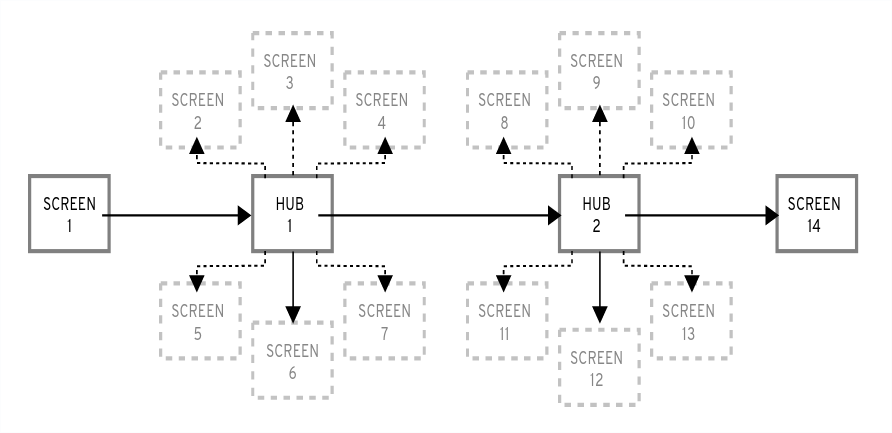
In the diagram, screens 2-13 are called normal spokes, and screens 1 and 14 are standalone spokes. Standalone spokes are the screens that can be used before or after the standalone spoke or hub. For example, the Welcome screen at the beginning of the installation which prompts you to choose your language for the rest of the installation.
-
The
Installation Summaryis the only hub in Anaconda. It shows a summary of configured options before the installation begins
Each spoke has the following predefined properties that reflect the hub.
-
ready- states whether or not you can visit a spoke. For example, when the installer is configuring a package source, the spoke is colored in gray, and you cannot access it until the configuration is complete. -
completed- marks whether or not the spoke is complete (all required values are set). -
mandatory- determines whether you must visit the spoke before continuing the installation; for example, you must visit theInstallation Destinationspoke, even if you want to use automatic disk partitioning -
status- provides a short summary of values configured within the spoke (displayed under the spoke name in the hub)
To make the user interface clearer, spokes are grouped together into categories. For example, the Localization category groups together spokes for keyboard layout selection, language support and time zone settings.
Each spoke contains UI controls that display and allow modification of values from one or more modules. This behavior also applies to spokes provided by add-ons. During a Kickstart installation, some spokes may remain hidden while still processing their data automatically without requiring them to be opened.
5.4. Communication across Anaconda threads
Some of the actions that you need to perform during the installation process may take a long time. For example, scanning disks for existing partitions or downloading package metadata. To prevent you from waiting and remaining responsive, Anaconda runs these actions in separate threads.
The Gtk toolkit does not support element changes from multiple threads. The main event loop of Gtk runs in the main thread of the Anaconda process. Therefore, all actions pertaining to the GUI must be performed in the main thread. To do so, use GLib.idle_add, which is not always easy or desired. Several helper functions and decorators that are defined in the pyanaconda.ui.gui.utils module may add to the difficulty.
The @gtk_action_wait and @gtk_action_nowait decorators change the decorated function or method in such a way that when this function or method is called, it is automatically queued into Gtk’s main loop that runs in the main thread. The return value is either returned to the caller or dropped, respectively.
In a spoke and hub communication, a spoke announces when it is ready and is not blocked. The hubQ message queue handles this function, and periodically checks the main event loop. When a spoke becomes accessible, it sends a message to the queue announcing the change and that it should no longer be blocked.
The same applies in a situation where a spoke needs to refresh its status or complete a flag. The Configuration and Progress hub has a different queue called progressQ which serves as a medium to transfer installation progress updates.
These mechanisms are also used for the text-based interface. In the text mode, there is no main loop, but the keyboard input takes most of the time.
5.5. Anaconda modules and D-Bus library
Anaconda’s modules run as independent processes. To communicate with these processes via their D-Bus API, use the dasbus library.
Calls to methods via D-Bus API are asynchronous, but with the dasbus library you can convert them to synchronous method calls in Python. You can also write either of the following programs:
- program with asynchronous calls and return handlers
- A program with synchronous calls that makes the caller wait until the call is complete.
For more information about threads and communication, see Communication across Anaconda threads.
Additionally, Anaconda uses Task objects running in modules. Tasks have a D-Bus API and methods that are automatically executed in additional threads. To successfully run the tasks, use the sync_run_task and async_run_task helper functions.
5.6. The Hello World addon example
Anaconda developers publish an example addon called "Hello World", available on GitHub. The descriptions in further sections are reproduced in this.
5.7. Anaconda add-on structure
An Anaconda add-on is a Python package that contains a directory with an __init__.py and other source directories (subpackages). Because Python allows you to import each package name only once, specify a unique name for the package top-level directory. You can use an arbitrary name, because add-ons are loaded regardless of their name - the only requirement is that they must be placed in a specific directory.
The suggested naming convention for add-ons is similar to Java packages or D-Bus service names.
To make the directory name a unique identifier for a Python package, prefix the add-on name with the reversed domain name of your organization, by using underscores (_) instead of dots. For example, com_example_hello_world.
Make sure to create an __init__.py file in each directory. Directories missing this file are considered as invalid Python packages.
When writing an add-on, ensure the following:
-
Support for each interface (graphical interface and text interface) is available in a separate subpackage and these subpackages are named
guifor the graphical interface andtuifor the text-based interface. -
The
guiandtuipackages contain aspokessubpackage. [1] - Modules contained in the packages have an arbitrary name.
-
The
gui/andtui/directories contain Python modules with any name. - There is a service that performs the actual work of the addon. This service can be written in Python or any other language.
- The service implements support for D-Bus and Kickstart.
- The addon contains files that enable automatic startup of the service.
Following is a sample directory structure for an add-on which supports every interface (Kickstart, GUI and TUI):
Each package must contain at least one module with an arbitrary name defining the classes that are inherited from one or more classes defined in the API.
For all add-ons, follow Python’s PEP 8 and PEP 257 guidelines for docstring conventions. There is no consensus on the format of the actual content of docstrings in Anaconda; the only requirement is that they are human-readable. If you plan to use auto-generated documentation for your add-on, docstrings should follow the guidelines for the toolkit you use to accomplish this.
You can include a category subpackage if an add-on needs to define a new category, but this is not recommended.
5.8. Anaconda services and configuration files
Anaconda services and configuration files are included in data/ directory. These files are required to start the add-ons service and to configure D-Bus.
Following are some examples of Anaconda Hello World add-on:
Example 5.1. Example of addon-name.conf:
This file must be placed in the /usr/share/anaconda/dbus/confs/ directory in the installation environment. The string org.fedoraproject.Anaconda.Addons.HelloWorld must correspond to the location of addon’s service on D-Bus.
Example 5.2. Example of addon-name.service:
This file must be placed in the /usr/share/anaconda/dbus/services/ directory in the installation environment. The string org.fedoraproject.Anaconda.Addons.HelloWorld must correspond to the location of addon’s service on D-Bus. The value on the line starting with Exec= must be a valid command that starts the service in the installation environment.
5.9. GUI Add-on basic features
Similarly to Kickstart support in add-ons, GUI support requires that every part of the add-on must contain at least one module with a definition of a class inherited from a particular class defined by the API. For the graphical add-on support, the only class you should add is the NormalSpoke class, defined in pyanaconda.ui.gui.spokes, as a class for the normal spoke type of screen. To learn more about it, see Anaconda user interface.
To implement a new class inherited from NormalSpoke, you must define the following class attributes that the API requires:
-
builderObjects- lists all top-level objects from the spoke’s.gladefile that should be exposed to the spoke with their children objects (recursively). In case everything should be exposed to the spoke, the list should be empty. -
mainWidgetName- contains the id of the main window widget (Add Link) as defined in the.gladefile. -
uiFile- contains the name of the.gladefile. -
category- contains the class of the category the spoke belongs to. -
icon- contains the identifier of the icon that will be used for the spoke on the hub. -
title- defines the title that will be used for the spoke on the hub.
5.10. Adding support for the Add-on graphical user interface (GUI)
You can add support to the graphical user interface (GUI) of your add-on. To do so, perform the following high-level steps:
- Define Attributes Required for the Normalspoke Class
-
Define the
__init__andinitializeMethods -
Define the
refresh,apply, andexecuteMethods -
Define the
statusand theready,completedandmandatoryProperties
Prerequisites
- Your add-on includes support for Kickstart. See Anaconda add-on structure.
-
Install the
anaconda-widgetsandanaconda-widgets-develpackages, which contain Gtk widgets specific forAnaconda, such asSpokeWindow.
Procedure
Create the following modules with all required definitions to add support for the Add-on graphical user interface (GUI), according to the following examples.
Copy to Clipboard Copied! Toggle word wrap Toggle overflow The
__all__attribute exports thespokeclass, followed by the first lines of its definition including definitions of attributes previously mentioned in GUI Add-on basic features. These attribute values are referencing widgets defined in thecom_example_hello_world/gui/spokes/hello.gladefile. Two other notable attributes are present:-
category, which has its value imported from theHelloWorldCategoryclass from thecom_example_hello_world.gui.categoriesmodule. TheHelloWorldCategorythat the path to add-ons is insys.pathso that values can be imported from thecom_example_hello_worldpackage. Thecategoryattribute is part of theN_ functionname, which marks the string for translation; but returns the non-translated version of the string, as the translation happens in a later stage. title, which contains one underscore in its definition. Thetitleattribute underscore marks the beginning of the title itself and makes the spoke reachable by using theAlt+Hkeyboard shortcut.What usually follows the header of the class definition and the class
attributesdefinitions is the constructor that initializes an instance of the class. In case of the Anaconda graphical interface objects, there are two methods initializing a new instance: the__init__method and theinitializemethod.The reason behind two such functions is that the GUI objects may be created in memory at one time and fully initialized at a different time, as the
spokeinitialization could be time consuming. Therefore, the__init__method should only call the parent’s__init__method and, for example, initialize non-GUI attributes. On the other hand, theinitializemethod that is called when the installer’s graphical user interface initializes should finish the full initialization of the spoke.In the
Hello World add-onexample, define these two methods as follows. Note the number and description of the arguments passed to the__init__method. For example:Copy to Clipboard Copied! Toggle word wrap Toggle overflow The data parameter passed to the
__init__method is the in-memory tree-like representation of the Kickstart file where all data is stored. In one of the ancestors'__init__methods it is stored in theself.dataattribute, which allows all other methods in the class to read and modify the structure.NoteThe
storage objectis no longer usable as of RHEL10. If your add-on needs to interact with storage configuration, use theStorage DBusmodule.Because the HelloWorldData class has already been defined in The Hello World addon example, there already is a subtree in self.data for this add-on. Its root, an instance of the class, is available as
self.data.addons.com_example_hello_world.Another action that an ancestor’s
__init__does is initializing an instance of the GtkBuilder with thespoke’s .gladefile and storing it asself.builder. Theinitializemethod uses this to get theGtkTextEntryused to show and modify the text from the Kickstart file’s %addon section.The
__init__andinitializemethods are both important when the spoke is created. However, the main role of the spoke is to be visited by a user who wants to change or review the spoke’s values shows and sets. To enable this, three other methods are available:-
refresh- called when the spoke is about to be visited; this method refreshes the state of the spoke, mainly its UI elements, to ensure that the displayed data matches internal data structures and, with that, to ensure that current values stored in the self.data structure are displayed. -
apply- called when the spoke is left and used to store values from UI elements back into theself.datastructure. execute- called when users leave the spoke and used to perform any runtime changes based on the new state of the spoke.These functions are implemented in the sample Hello World add-on in the following way:
Copy to Clipboard Copied! Toggle word wrap Toggle overflow You can use several additional methods to control the spoke’s state:
-
ready- determines whether the spoke is ready to be visited; if the value is "False", thespokeis not accessible, for example, thePackage Selectionspoke before a package source is configured. -
completed- determines if the spoke has been completed. mandatory- determines if the spoke is mandatory or not, for example, theInstallation Destinationspoke, which must always be visited, even if you want to use automatic partitioning.All of these attributes need to be dynamically determined based on the current state of the installation process. Below is a sample implementation of these methods in the Hello World add-on, which requires a certain value to be set in the text attribute of the
HelloWorldDataclass:Copy to Clipboard Copied! Toggle word wrap Toggle overflow After these properties are defined, the spoke can control its accessibility and completeness, but it cannot provide a summary of the values configured within - you must visit the spoke to see how it is configured, which may not be desired. For this reason, an additional property called
statusexists. This property contains a single line of text with a short summary of configured values, which can then be displayed in the hub under the spoke title.The status property is defined in the
Hello Worldexample add-on as follows:Copy to Clipboard Copied! Toggle word wrap Toggle overflow After defining all properties described in the examples, the add-on has full support for showing a graphical user interface (GUI) as well as Kickstart.
NoteThe example demonstrated here is very simple and does not contain any controls; knowledge of Python Gtk programming is required to develop a functional, interactive spoke in the GUI.
One notable restriction is that each spoke must have its own main window - an instance of the
SpokeWindowwidget. This widget, along with other widgets specific to Anaconda, is found in theanaconda-widgetspackage. You can find other files required for development of add-ons with GUI support, such asGladedefinitions, in theanaconda-widgets-develpackage.Once your graphical interface support module contains all necessary methods you can continue with the following section to add support for the text-based user interface.
5.11. Add-on GUI advanced features
The pyanaconda package contains several helper and utility functions, as well as constructs which may be used by hubs and spokes. Most of them are located in the pyanaconda.ui.gui.utils package.
The sample Hello World add-on demonstrates usage of the englightbox content manager which Anaconda also uses. This content manager can put a window into a lightbox to increase its visibility and focus it to prevent users interacting with the underlying window. To demonstrate this function, the sample add-on contains a button which opens a new dialog window; the dialog itself is a special HelloWorldDialog inheriting from the GUIObject class, which is defined in pyanaconda.ui.gui.init.
The dialog class defines the run method that runs and destroys an internal Gtk dialog accessible through the self.window attribute, which is populated by using a mainWidgetName class attribute with the same meaning. Therefore, the code defining the dialog is very simple, as demonstrated in the following example:
Example 5.3. Defining a englightbox Dialog
The Defining an englightbox Dialog example code creates an instance of the dialog and then uses the enlightbox context manager to run the dialog within a lightbox. The context manager has a reference to the window of the spoke and only needs the dialog’s window to instantiate the lightbox for the dialog.
5.12. TUI Add-on basic features
Anaconda also supports a text-based interface (TUI). This interface is more limited in its capabilities, but on some systems it might be the only choice for an interactive installation. For more information about differences between the text-based interface and graphical interface and about limitations of the TUI, see Introduction to Anaconda and add-ons.
To add support for the text interface into your add-on, create a new set of subpackages under the tui directory as described in Anaconda add-on structure.
The text mode support in the installer is based on the simpleline library, which only allows very simple user interaction. The text mode interface:
- Does not support cursor movement - instead, it acts like a line printer.
- Does not support any visual enhancements, such as using different colors or fonts, for example.
Internally, the simpleline toolkit has three main classes: App, UIScreen and Widget. Widgets are units containing information to be printed on the screen. They are placed on UIScreens that are switched by a single instance of the App class. On top of the basic elements, hubs, spokes and dialogs all contain various widgets in a way similar to the graphical interface.
The most important classes for an add-on are NormalTUISpoke and various other classes defined in the pyanaconda.ui.tui.spokes package. All those classes are based on the TUIObject class, which itself is an equivalent of the GUIObject class. Each TUI spoke is a Python class inheriting from the NormalTUISpoke class, overriding special arguments and methods defined by the API. Because the text interface is simpler than the GUI, there are only two such arguments:
-
title- determines the title of the spoke, similar to the title argument in the GUI. -
category- determines the category of the spoke as a string; the category name is not displayed anywhere, it is only used for grouping.
The TUI handles categories differently than the GUI. Assign a pre-existing category to your new spoke. Creating a new category would require patching Anaconda, and brings little benefit.
Each spoke is also expected to override several methods, namely init, initialize, refresh, apply, execute, input, prompt, and properties (ready, completed, mandatory, and status).
5.13. Defining a Simple TUI Spoke
The following example shows the implementation of a simple Text User Interface (TUI) spoke in the Hello World sample add-on:
Prerequisites
- You have created a new set of subpackages under the tui directory as described in Anaconda add-on structure.
Procedure
Create modules with all required definitions to add support for the add-on text user interface (TUI), according to the following examples:
Copy to Clipboard Copied! Toggle word wrap Toggle overflow For more details and latest code, see the Hello World Anaconda Addon - GitHub Repository.
NoteIt is not necessary to override the
initmethod if it only calls the ancestor’sinit, but the comments in the example describe the arguments passed to constructors of spoke classes in an understandable way.In the previous example:
-
The
setupmethod sets up a default value for the internal attribute of the spoke on every entry, which is then displayed by therefreshmethod, updated by theinputmethod and used by theapplymethod to update internal data structures. -
The
executemethod has the same purpose as the equivalent method in the GUI; in this case, the method has no effect. -
The
inputmethod is specific to the text interface; there are no equivalents in Kickstart or GUI. Theinputmethods are responsible for user interaction. -
The
inputmethod processes the entered string and takes action depending on its type and value. The above example asks for any value and then stores it as an internal attribute (key). In more complex add-ons, you typically need to perform some non-trivial actions, such as parse letters as actions, convert numbers into integers, show additional screens or toggle boolean values. The
returnvalue of the input class must be either theInputStateenum or theinputstring itself, in case this input should be processed by a different screen. In contrast to the graphical mode, theapplyandexecutemethods are not called automatically when leaving the spoke; they must be called explicitly from the input method. The same applies to closing (hiding) the spoke’s screen: it must be called explicitly from theclosemethod.To show another screen, for example if you need additional information that was entered in a different spoke, you can instantiate another
TUIObjectand useScreenHandler.push_screen_modal()to show it.Due to restrictions of the text-based interface, TUI spokes tend to have a very similar structure, that consists of a list of checkboxes or entries that should be checked or unchecked and populated by the user.
5.14. Using NormalTUISpoke to Define a Text Interface Spoke
The Defining a Simple TUI Spoke example showed a way to implement a TUI spoke where its methods handle printing and processing the available and provided data. However, there is a different way to accomplish this by using the NormalTUISpoke class from the pyanaconda.ui.tui.spokes package. By inheriting this class, you can implement a typical TUI spoke by only specifying fields and attributes that should be set in it. The following example demonstrates this:
Prerequisites
-
You have added a new set of subpackages under the
TUIdirectory, as described in Anaconda add-on structure.
Procedure
Create modules with all required definitions to add support for the Add-on text user interface (TUI), according to the following examples.
Copy to Clipboard Copied! Toggle word wrap Toggle overflow For more details and latest code, see the Hello World NormalTUISpoke - GitHub Repository.
5.15. Deploying and testing an Anaconda add-on
You can deploy and test your own Anaconda add-on into the installation environment. To do so, follow the steps:
Prerequisites
- You created an Add-on.
-
You have access to your
D-Busfiles. -
You have installed the
loraxpackage.
Procedure
-
Create a directory
DIRat the place of your preference. -
Add the
Add-onpython files intoDIR/usr/share/anaconda/addons/. -
Copy your
D-Busservice file intoDIR/usr/share/anaconda/dbus/services/. -
Copy your
D-Busservice configuration file to/usr/share/anaconda/dbus/confs/. Create the updates image.
Access the
DIRdirectory:cd DIR
cd DIRCopy to Clipboard Copied! Toggle word wrap Toggle overflow Locate the updates image.
find . | cpio -c -o | pigz -9cv > DIR/updates.img
find . | cpio -c -o | pigz -9cv > DIR/updates.imgCopy to Clipboard Copied! Toggle word wrap Toggle overflow Use the mkksiso utility to include the
updatesimage into the ISO boot image:sudo mkksiso -u updates.img boot.iso new_boot.iso
sudo mkksiso -u updates.img boot.iso new_boot.isoCopy to Clipboard Copied! Toggle word wrap Toggle overflow Boot the resulting new_boot.iso.
It automatically applies the embedded updates image with the addon, resulting in your addon being used during installation.
For specific instructions on unpacking an existing boot image, creating a
product.imgfile and repackaging the image, see Extracting Red Hat Enterprise Linux boot images.
Chapter 6. Completing post customization tasks
To complete the customizations made, perform the following tasks:
- Create a product.img image file (applies only for graphical customizations).
- Create a custom boot image.
This section provides information about how to create a product.img image file and to create a custom boot image.
6.1. Creating a product.img file
A product.img image file is an archive containing new installer files that replace the existing ones at runtime.
During a system boot, Anaconda loads the product.img file from the images/ directory on the boot media. It then uses the files that are present in this directory to replace identically named files in the installer’s file system. The files when replaced customizes the installer (for example, for replacing default images with custom ones).
The product.img image must contain a directory structure identical to the installer. For more information about the installer directory structure, see the table below.
| Type of custom content | File system location |
|---|---|
| Pixmaps (logo, sidebar, top bar, and so on.) |
|
| GUI stylesheet |
|
| Anaconda add-ons |
|
| Profile configuration files |
|
| Custom configuration files |
|
| Anaconda DBus service conf files |
|
| Anaconda DBus service files |
|
Procedure
Navigate to a working directory such as
/tmp, and create a subdirectory namedproduct/:cd /tmp
$ cd /tmpCopy to Clipboard Copied! Toggle word wrap Toggle overflow Create a subdirectory product/
mkdir product/
$ mkdir product/Copy to Clipboard Copied! Toggle word wrap Toggle overflow Create a directory structure identical to the location of the file you want to replace. For example, if you want to test an add-on that is present in the
/usr/share/anaconda/addonsdirectory on the installation system, create the same structure in your working directory:mkdir -p product/usr/share/anaconda/addons
$ mkdir -p product/usr/share/anaconda/addonsCopy to Clipboard Copied! Toggle word wrap Toggle overflow NoteTo view the installer’s runtime filesystem, boot the installation and switch to virtual console 1 (Ctrl+Alt+F1) and then switch to the second tmux window (Ctrl+b+2). A shell prompt that can be used to browse a file system opens.
Place your customized files (in this example, custom add-on for Anaconda) into the newly created directory:
cp -r ~/path/to/custom/addon/ product/usr/share/anaconda/addons/
$ cp -r ~/path/to/custom/addon/ product/usr/share/anaconda/addons/Copy to Clipboard Copied! Toggle word wrap Toggle overflow - Repeat steps 3 and 4 (create a directory structure and place the custom files into it) for every file you want to add to the installer.
Create a
.buildstampfile in the root of the directory. The.buildstampfile describes the system version, the product and several other parameters. The following is an example of a.buildstampfile from Red Hat Enterprise Linux 8.4:Copy to Clipboard Copied! Toggle word wrap Toggle overflow The
IsFinalparameter specifies whether the image is for a release (GA) version of the product (True), or a pre-release such as Alpha, Beta, or an internal milestone (False).Navigate to the
product/directory, and create theproduct.imgarchive:cd product
$ cd productCopy to Clipboard Copied! Toggle word wrap Toggle overflow find . | cpio -c -o | gzip -9cv > ../product.img
$ find . | cpio -c -o | gzip -9cv > ../product.imgCopy to Clipboard Copied! Toggle word wrap Toggle overflow This creates a
product.imgfile one level above theproduct/directory.Move the
product.imgfile to theimages/directory of the extracted ISO image.The
product.imgfile is now created and the customizations that you want to make are placed in the respective directories.NoteInstead of adding the
product.imgfile on the boot media, you can place this file into a different location and use theinst.updates=boot option at the boot menu to load it. In that case, the image file can have any name, and it can be placed in any location (USB flash drive, hard disk, HTTP, FTP or NFS server), as long as this location is reachable from the installation system.
6.2. Creating custom boot images
After you customize the boot images and the GUI layout, create a new image that includes the changes you made.
Procedure
-
Make sure that all of your changes are included in the working directory. For example, if you are testing an add-on, make sure to place the
product.imgin theimages/directory. -
Make sure your current working directory is the top-level directory of the extracted ISO image, for example,
/tmp/ISO/iso/. Install the following packages:
isomd5sum,xorriso,lorax:dnf install isomd5sum xorriso lorax
# dnf install isomd5sum xorriso loraxCopy to Clipboard Copied! Toggle word wrap Toggle overflow Make an EFI boot image by using
mkefiboot:mkefiboot --label=ANACONDA /tmp/ISO/iso/EFI/BOOT/ /tmp/ISO/iso/images/efiboot.img
# mkefiboot --label=ANACONDA /tmp/ISO/iso/EFI/BOOT/ /tmp/ISO/iso/images/efiboot.imgCopy to Clipboard Copied! Toggle word wrap Toggle overflow Create a new ISO image by using the
xorrisofs:xorrisofs -o ../NEWISO.iso -R -J -V RHEL-10-0-BaseOS-x86_64 --grub2-mbr /usr/lib/grub/i386-pc/boot_hybrid.img -partition_offset 16 -appended_part_as_gpt -append_partition 2 C12A7328-F81F-11D2-BA4B-00A0C93EC93B /tmp/ISO/iso/images/efiboot.img -iso_mbr_part_type EBD0A0A2-B9E5-4433-87C0-68B6B72699C7 -c boot.cat --boot-catalog-hide -b images/eltorito.img -no-emul-boot -boot-load-size 4 -boot-info-table --grub2-boot-info -eltorito-alt-boot -e --interval:appended_partition_2:all:: -no-emul-boot -graft-points .discinfo=/tmp/ISO/iso/.discinfo images/install.img=/tmp/ISO/iso/images/install.img images/pxeboot=/tmp/ISO/iso/images/pxeboot boot/grub2=/tmp/ISO/iso/boot/grub2 boot/grub2/i386-pc=/usr/lib/grub/i386-pc images/eltorito.img=/tmp/ISO/iso/images/eltorito.img EFI/BOOT=/tmp/ISO/iso/EFI/BOOT
# xorrisofs -o ../NEWISO.iso -R -J -V RHEL-10-0-BaseOS-x86_64 --grub2-mbr /usr/lib/grub/i386-pc/boot_hybrid.img -partition_offset 16 -appended_part_as_gpt -append_partition 2 C12A7328-F81F-11D2-BA4B-00A0C93EC93B /tmp/ISO/iso/images/efiboot.img -iso_mbr_part_type EBD0A0A2-B9E5-4433-87C0-68B6B72699C7 -c boot.cat --boot-catalog-hide -b images/eltorito.img -no-emul-boot -boot-load-size 4 -boot-info-table --grub2-boot-info -eltorito-alt-boot -e --interval:appended_partition_2:all:: -no-emul-boot -graft-points .discinfo=/tmp/ISO/iso/.discinfo images/install.img=/tmp/ISO/iso/images/install.img images/pxeboot=/tmp/ISO/iso/images/pxeboot boot/grub2=/tmp/ISO/iso/boot/grub2 boot/grub2/i386-pc=/usr/lib/grub/i386-pc images/eltorito.img=/tmp/ISO/iso/images/eltorito.img EFI/BOOT=/tmp/ISO/iso/EFI/BOOTCopy to Clipboard Copied! Toggle word wrap Toggle overflow In the above example:
Ensure the value for the
-Voption matches the image’s boot loader configuration, if you are using theLABEL=directive for options that require a location to load a file on the same disk. If your boot loader configuration (boot/grub2/grub.cfgfor BIOS andEFI/BOOT/grub.cfgfor UEFI) uses theinst.stage2=LABEL=disk_labelstanza to load the second stage of the installer from the same disk, then the disk labels must match.ImportantIn boot loader configuration files, replace all spaces in disk labels with
\x20. For example, if you create an ISO image with aRHEL 10.0label, boot loader configuration should useRHEL\x2010.0.-
Replace the value of the
-ooption (-o ../NEWISO.iso) with the file name of your new image. The value in the example creates theNEWISO.isofile in the directory above the current one. For more information about this command, see thexorrisofs(1)man page on your system.
Implant an MD5 checksum into the image. Note that without an MD5 checksu, the image verification check might fail (the
rd.live.checkoption in the boot loader configuration) and the installation can hang.implantisomd5 ../NEWISO.iso
# implantisomd5 ../NEWISO.isoCopy to Clipboard Copied! Toggle word wrap Toggle overflow In the above example, replace ../NEWISO.iso with the file name and the location of the ISO image that you have created in the previous step.
You can now write the new ISO image to physical media or a network server to boot it on physical hardware, or you can use it to start installing a virtual machine.

'%20d='M201.5%20305.5c-13.8%200-24.9-11.1-24.9-24.6%200-13.8%2011.1-24.9%2024.9-24.9%2013.6%200%2024.6%2011.1%2024.6%2024.9%200%2013.6-11.1%2024.6-24.6%2024.6zM504%20256c0%20137-111%20248-248%20248S8%20393%208%20256%20119%208%20256%208s248%20111%20248%20248zm-132.3-41.2c-9.4%200-17.7%203.9-23.8%2010-22.4-15.5-52.6-25.5-86.1-26.6l17.4-78.3%2055.4%2012.5c0%2013.6%2011.1%2024.6%2024.6%2024.6%2013.8%200%2024.9-11.3%2024.9-24.9s-11.1-24.9-24.9-24.9c-9.7%200-18%205.8-22.1%2013.8l-61.2-13.6c-3-.8-6.1%201.4-6.9%204.4l-19.1%2086.4c-33.2%201.4-63.1%2011.3-85.5%2026.8-6.1-6.4-14.7-10.2-24.1-10.2-34.9%200-46.3%2046.9-14.4%2062.8-1.1%205-1.7%2010.2-1.7%2015.5%200%2052.6%2059.2%2095.2%20132%2095.2%2073.1%200%20132.3-42.6%20132.3-95.2%200-5.3-.6-10.8-1.9-15.8%2031.3-16%2019.8-62.5-14.9-62.5zM302.8%20331c-18.2%2018.2-76.1%2017.9-93.6%200-2.2-2.2-6.1-2.2-8.3%200-2.5%202.5-2.5%206.4%200%208.6%2022.8%2022.8%2087.3%2022.8%20110.2%200%202.5-2.2%202.5-6.1%200-8.6-2.2-2.2-6.1-2.2-8.3%200zm7.7-75c-13.6%200-24.6%2011.1-24.6%2024.9%200%2013.6%2011.1%2024.6%2024.6%2024.6%2013.8%200%2024.9-11.1%2024.9-24.6%200-13.8-11-24.9-24.9-24.9z'/%3e%3c/svg%3e)