 Red Hat Summit
Image Builder Guide
Red Hat Enterprise Linux 7
Creating customized system images with Image Builder
Abstract
Image Builder is a tool for creating deployment-ready customized system images, for example installation disks, virtual machines, cloud vendor-specific images, and others. Image Builder enables you to create these images faster compared to manual procedures, because it abstracts away the specifics of each output type. Learn how to set up Image Builder and create images with it.
Chapter 1. Image Builder description
Copy linkLink copied to clipboard!
1.1. Introduction to Image Builder
Copy linkLink copied to clipboard!
You can use Image Builder to create customized system images of Red Hat Enterprise Linux, including system images prepared for deployment on cloud platforms. Image Builder automatically handles details of setup for each output type and is thus easier to use and faster to work with than manual methods of image creation. You can access Image Builder functionality through a command-line interface in the
composer-cli tool, or a graphical user interface in the RHEL 7 web console. See managing the web console for more information.
Image Builder runs as a system service
lorax-composer. You can interact with this service through two interfaces:
- CLI tool
composer-clifor running commands in the terminal. This method is recommended. - GUI plugin for the RHEL 7 web console.
1.2. Image Builder terminology
Copy linkLink copied to clipboard!
- Blueprints Blueprints define customized system images by listing packages and customizations that will be part of the system. Blueprints can be edited and they are versioned. When a system image is created from a blueprint, the image is associated with the blueprint in the Image Builder interface of the RHEL 7 web console.Blueprints are presented to the user as plain text in the Tom’s Obvious, Minimal Language (TOML) format.
- Compose Composes are individual builds of a system image, based on a particular version of a particular blueprint. Compose as a term refers to the system image, the logs from its creation, inputs, metadata, and the process itself.
- Customization Customizations are specifications for the system, which are not packages. This includes user accounts, groups, kernel, timezone, locale, firewall and ssh key.
1.3. Image Builder output formats
Copy linkLink copied to clipboard!
Image Builder can create images in multiple output formats shown in the following table.
| Description | CLI name | file extension |
|---|---|---|
QEMU QCOW2 Image | qcow2 | .qcow2 |
Ext4 File System Image | 80 | .qcow2 |
Raw Partitioned Disk Image | partitioned-disk | .img |
Live Bootable ISO | live-iso | .iso |
TAR Archive | tar | .tar |
Amazon Machine Image Disk | ami | .ami |
VMware Virtual Machine Disk | vmdk | .vmdk |
Openstack | openstack | .qcow2 |
1.4. Image Builder system requirements
Copy linkLink copied to clipboard!
The
lorax tool underlying Image Builder performs a number of potentially insecure and unsafe actions while creating the system images. For this reason, use a virtual machine to run Image Builder.
The environment where Image Builder runs must meet requirements listed in the following table.
| Parameter | Minimal Required Value |
|---|---|
System type | A dedicated virtual machine |
Processor | 2 cores |
Memory | 4 GiB |
Disk space | 20 GiB |
Access privileges | Administrator level (root) |
Network | Connectivity to Internet |
Note
Creating images on virtual machine directly installed on UEFI systems is not supported.
Chapter 2. Installing Image Builder
Copy linkLink copied to clipboard!
Before using Image Builder, you must install Image Builder in a virtual machine.
2.1. Installing Image Builder in a virtual machine
Copy linkLink copied to clipboard!
To install Image Builder on a dedicated virtual machine, follow these steps:
Prerequisites
- Connect to the virtual machine.
- The virtual machine for Image Builder must be installed, subscribed, and running.
Procedure
1. Install the Image Builder and other necessary packages on the virtual machine:
- lorax-composer
- composer-cli
- cockpit-composer
- bash-completion
# yum install lorax-composer composer-cli cockpit-composer bash-completion
2. Enable Image Builder to start after each reboot:
# systemctl enable lorax-composer.socket# systemctl enable cockpit.socket
The
lorax-composer and cockpit services start automatically on first access.
3. Configure the system firewall to allow access to the web console:
# firewall-cmd --add-service=cockpit && firewall-cmd --add-service=cockpit --permanent
4. Load the shell configuration script so that the auto-complete feature for the
composer-cli tool starts working immediately without reboot:
$ source /etc/bash_completion.d/composer-cliChapter 3. Creating system images with Image Builder command-line interface
Copy linkLink copied to clipboard!
Image Builder is a tool for creating custom system images. To control Image Builder and create your custom system images, use the command-line interface which is currently the preferred method to use Image Builder.
3.1. Image Builder command-line interface
Copy linkLink copied to clipboard!
Image Builder command-line interface is currently the preferred method to use Image Builder. It offers more functionality than the Chapter 4, Creating system images with Image Builder web console interface . To use this interface, run the
composer-cli tool with suitable options and sub-commands.
The workflow for the command-line interface can be summarized as follows:
1. Export (save) the blueprint definition to a plain text file
2. Edit this file in a text editor
3. Import (push) the blueprint text file back into Image Builder
4. Run a compose to build an image from the blueprint
5. Export the image file to download it
Apart from the basic sub-commands to achieve this procedure, the
composer-cli tool offers many sub-commands to examine the state of configured blueprints and composes.
To run the
composer-cli command as a non-root, the user must be in the weldr or root groups.
3.2. Creating an Image Builder blueprint with command-line interface
Copy linkLink copied to clipboard!
This procedure describes how to create a new Image Builder blueprint using the command-line interface.
Procedure
1. Create a plain text file with the following contents:
name = "BLUEPRINT-NAME"
description = "LONGER BLUEPRINT DESCRIPTION TEXT"
version = "0.0.1"
Replace
BLUEPRINT-NAME and LONGER BLUEPRINT DESCRIPTION with a name and description for your blueprint.
Replace
0.0.1 with a version number according to the Semantic Versioning scheme.
2. For every package that you want to be included in the blueprint, add the following lines to the file:
[[packages]]
name = "package-name"
version = "package-version"
Replace
package-name with name of the package, such as httpd, gdb-doc, or coreutils.
Replace
package-version with a version to use. This field supports dnf version specifications:
- For a specific version, use the exact version number such as
7.30 - For latest available version, use the asterisk
* - For a latest minor version, use format such as
7.*.
3. Blueprints can be customized in a number of ways. For example, Simultaneous Multi-Threading (SMT) can be disabled by performing the steps below. For additional customizations available, please see the Section 3.7, “ Supported Image Customizations ” section.
[customizations.kernel]
append = "nosmt=force"
4. Save the file as
BLUEPRINT-NAME.toml and close the text editor.
5. Push (import) the blueprint:
# composer-cli blueprints push BLUEPRINT-NAME.toml
Replace BLUEPRINT-NAME with the value you used in previous steps.
6. To verify that the blueprint has been pushed and exists, list the existing blueprints:
# composer-cli blueprints list
7. Check whether the components and versions listed in the blueprint and their dependencies are valid:
# composer-cli blueprints depsolve BLUEPRINT-NAME3.3. Editing an Image Builder blueprint with command-line interface
Copy linkLink copied to clipboard!
This procedure describes how to edit an existing Image Builder blueprint in the command-line interface.
Procedure
1. Save (export) the blueprint to a local text file:
# composer-cli blueprints save BLUEPRINT-NAME
2. Edit the
BLUEPRINT-NAME.toml file with a text editor of your choice and make your changes.
3. Before finishing the edits, make sure the file is a valid blueprint:
- Remove this line, if present:
packages = [] - Increase the version number. Remember that Image Builder blueprint versions must use the Semantic Versioning scheme. Note also that if you do not change the version, the patch component of version is increased automatically.
- Check if the contents are valid TOML specifications. See the TOML documentation for more information.
Note
TOML documentation is a community product and is not supported by Red Hat. You can report any issues with the tool at https://github.com/toml-lang/toml/issues
4. Save the file and close the editor.
5. Push (import) the blueprint back into Image Builder:
# composer-cli blueprints push BLUEPRINT-NAME.toml
Note that you must supply the file name including the
.toml extension, while in other commands you use only the name of the blueprint.
6. To verify that the contents uploaded to Image Builder match your edits, list the contents of blueprint:
# composer-cli blueprints show BLUEPRINT-NAME
7. Check whether the components and versions listed in the blueprint and their dependencies are valid:
# composer-cli blueprints depsolve BLUEPRINT-NAME3.4. Creating a system image with Image Builder in the command-line interface
Copy linkLink copied to clipboard!
This procedure describes how to edit an existing Image Builder blueprint in the command-line interface.
Prerequisites
- You have a blueprint prepared for the image.
Procedure
1. Start the compose:
# composer-cli compose start BLUEPRINT-NAME IMAGE-TYPE
Replace BLUEPRINT-NAME with name of the blueprint, and IMAGE-TYPE with the type of image. For possible values, see output of the
composer-cli compose types command.
The compose process starts in the background and the UUID of the compose is shown.
2. Wait until the compose is finished. Please, notice that this may take several minutes.
To check the status of the compose:
# composer-cli compose status
A finished compose shows a status value FINISHED. Identify the compose in the list by its UUID.
3. Once the compose is finished, download the resulting image file:
# composer-cli compose image UUID
Replace UUID with the UUID value shown in the previous steps.
Alternatively, you can access the image file directly under the path
/var/lib/lorax/composer/results/UUID/.
You can also download the logs using the
composer-cli compose logs UUID command, or the metadata using the composer-cli compose metadata UUID command.
3.5. Basic Image Builder command-line commands
Copy linkLink copied to clipboard!
The Image Builder command-line interface offers the following sub-commands.
Blueprint manipulation
- List all available blueprints
# composer-cli blueprints list- Show a blueprint contents in the TOML format
# composer-cli blueprints show BLUEPRINT-NAME- Save (export) blueprint contents in the TOML format into a file BLUEPRINT-NAME.toml
# composer-cli blueprints save BLUEPRINT-NAME- Remove a blueprint
# composer-cli blueprints delete BLUEPRINT-NAME- Push (import) a blueprint file in the TOML format into Image Builder
# composer-cli blueprints push BLUEPRINT-NAME
Composing images from blueprints
- Start a compose
# composer-cli compose start BLUEPRINT COMPOSE-TYPEReplace BLUEPRINT with name of the blueprint to build and COMPOSE-TYPE with the output image type.- List all composes
# composer-cli compose list- Cancel a running compose
# composer-cli compose cancel COMPOSE-UUID- Delete a finished compose
# composer-cli compose delete COMPOSE-UUID- Show detailed information about a compose
# composer-cli compose info COMPOSE-UUID- Download image file of a compose
# composer-cli compose image COMPOSE-UUID
Related information
- The
composer-cli(1)manual page provides a full list of the available sub-commands and options:$ man composer-cli - The
composer-clitool provides help on the sub-commands and options:# composer-cli compose list
3.6. Image Builder blueprint format
Copy linkLink copied to clipboard!
Image Builder blueprints are stored as plain text in the Tom’s Obvious, Minimal Language (TOML) format.
The elements of a typical blueprint file include:
- The blueprint metadata
name = "BLUEPRINT-NAME"
description = "LONGER BLUEPRINT DESCRIPTION"
version = "VERSION"
modules = []
groups = []
Replace BLUEPRINT-NAME and LONG FORM DESCRIPTION TEXT with a name and description for your blueprint.Replace VERSION with a version number according to the Semantic Versioning scheme.This part is present only once for the whole blueprint file.The entry modules describe the package names and matching version glob to be installed into the image and the entry group describe a group of packages to be installed into the image. If you do not add these items, the blueprint indentify them as an empyt lists.- Packages included in the image
[[packages]] name = "package-name" version = "package-version"Replacepackage-namewith name of the package, such as httpd, gdb-doc, or coreutils.Replacepackage-versionwith a version to use. This field supportsdnfversion specifications:- For a specific version, use the exact version number such as 7.30.
- For latest available version, use the asterisk *.
- For a latest minor version, use format such as 7.*.
Repeat this block for every package to be included.
3.7. Supported Image Customizations
Copy linkLink copied to clipboard!
A number of image customizations are supported in blueprints. In order to make use of these options, you need to initially configure them in the blueprint and then use the command push to import the modified blueprint to Image Builder.
Note
These customizations are not currently supported in the accompanying `cockpit-composer` GUI.
- Set the image host name
[customizations] hostname = "baseimage"- User specifications for the resulting system image
[[customizations.user]]
name = "USER-NAME"
description = "USER-DESCRIPTION"
password = "PASSWORD-HASH"
key = "PUBLIC-SSH-KEY"
home = /home"/USER-NAME/"
shell = "/usr/bin/bash"
groups = ["users", "wheel"]
uid = NUMBER
gid = NUMBER
Only the user name is required, you can leave out any other lines.
Replace PASSWORD-HASH with the actual password hash. To generate the hash, use a command such as:
$ python3 -c 'import crypt,getpass;pw=getpass.getpass();print(crypt.crypt(pw) if (pw==getpass.getpass("Confirm: ")) else exit())'Important
To generate the hash, you must have the
python3 package on your system. Use the following command to install the package:
# yum install python3
Replace PUBLIC-SSH-KEY with the actual public key.
Repeat this block for every user you want to include.
- Group specifications for the resulting system image
[[customizations.group]]
name = "GROUP-NAME"
gid = NUMBER
Repeat this block for every group you want to include.- Set an existing user's ssh key
[[customizations.sshkey]]
user = "root"
key = "PUBLIC-SSH-KEY"
Note
This option is only applicable for existing users. To create a user and set an ssh key, use the User specifications for the resulting system image customization.
- Append a kernel boot parameter option to the defaults
[[customizations.kernel]]
append = "KERNEL-OPTION"
- Set the image host name
[customizations] hostname = "BASE-IMAGE"- Add a group for the resulting system image
[[customizations.group]]
name = "USER-NAME"
gid = NUMBER
Only the name is required and GID is optional.- Set the timezone and the Network Time Protocol (NTP) servers for the resulting system image
[customizations.timezone]
timezone = "TIMEZONE"
ntpservers = NTP-SERVER
If you do not set a timezone, the system uses Universal Time, Coordinated (UTC) as default. Setting NTP servers is optional.- Set the locale settings for the resulting system image
[customizations.locale]
language = "[LANGUAGE]"
keyboard = "KEYBOARD"
Setting both language and keyboard options is mandatory. You can add multiple languages. The first language you add will be the primary language and the other languages will be secondary.- Set the firewall for the resulting system image
[customizations.firewall]
port = "[PORTS]"
You can use the numeric ports, or theirs names from the `/etc/services` file to enable or disable lists.- Set which services to enable during the boot time
[customizations.services]
enabled = "[SERVICES]"
disabled = "[SERVICES]"
You can control which services to enable during the boot time. Some image types already have services enabled or disabled so that the image works correctly and this setup cannot be overridden.
Chapter 4. Creating system images with Image Builder web console interface
Copy linkLink copied to clipboard!
Image Builder is a tool for creating custom system images. To use Image Builder and create your custom system images, you can use the web console interface. Note that the command-line interface is the currently preferred alternative, because it offers more features.
Note
The command-line interface is the currently preferred alternative, because it offers more features.
4.1. Accessing Image Builder GUI in the RHEL 7 web console
Copy linkLink copied to clipboard!
The cockpit-composer plug-in for the RHEL 7 web console enables users to manage Image Builder blueprints and composes with a graphical interface. Note that the preferred method for controlling Image Builder is at the moment using the command-line interface.
Prerequisites
- You must have root access to the system.
Procedure
1. Open
https://localhost:9090/ in a web browser on the system where Image Builder is installed.
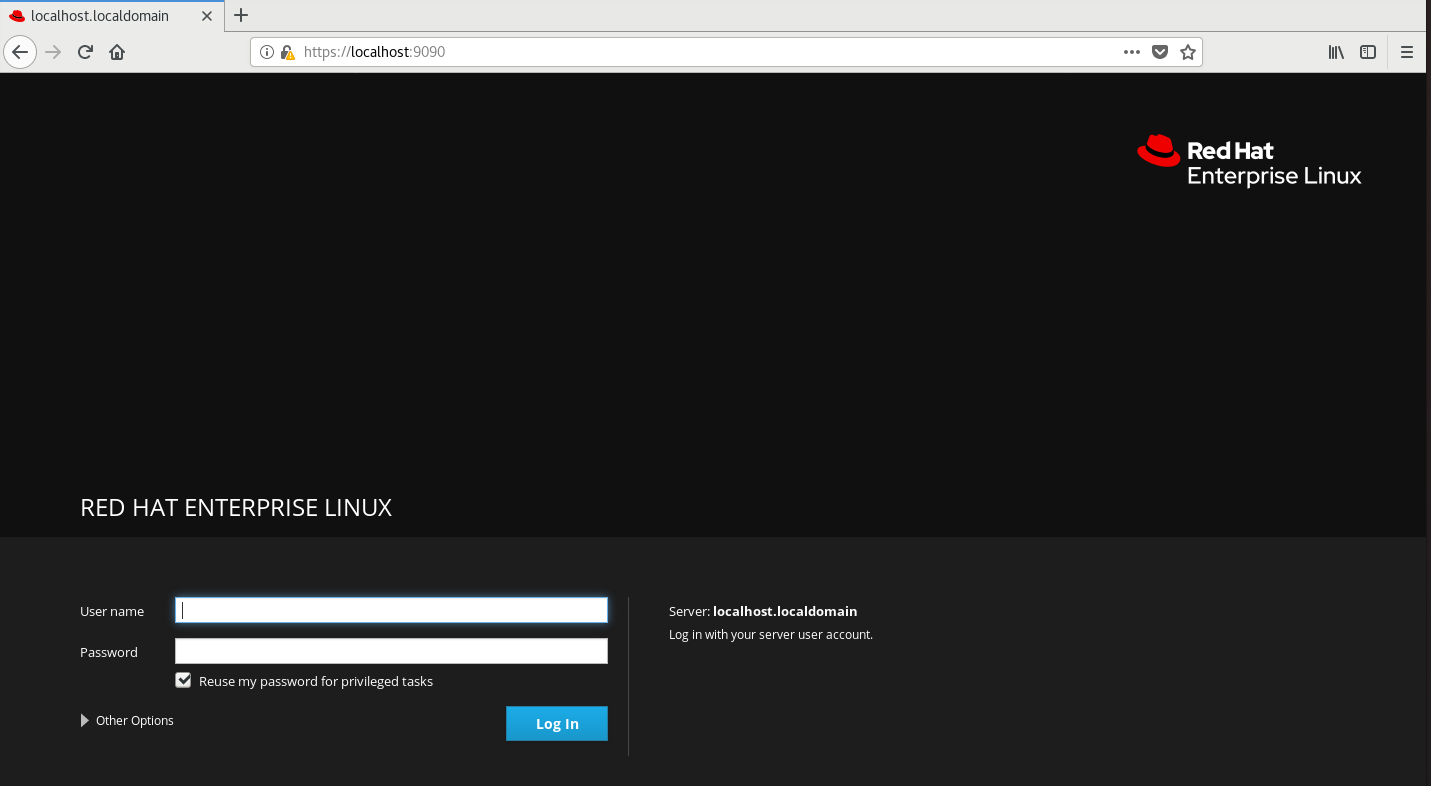
Figure 4.1. Log into the web console
For more information on how to remotely access Image Builder, see managing systems using the RHEL 7 web console.
2. Log into the web console with your root username and password.
3. To display the Image Builder controls, click the Image Builder icon, which is in the upper-left corner of the window.
The Image Builder view opens, listing existing blueprints.
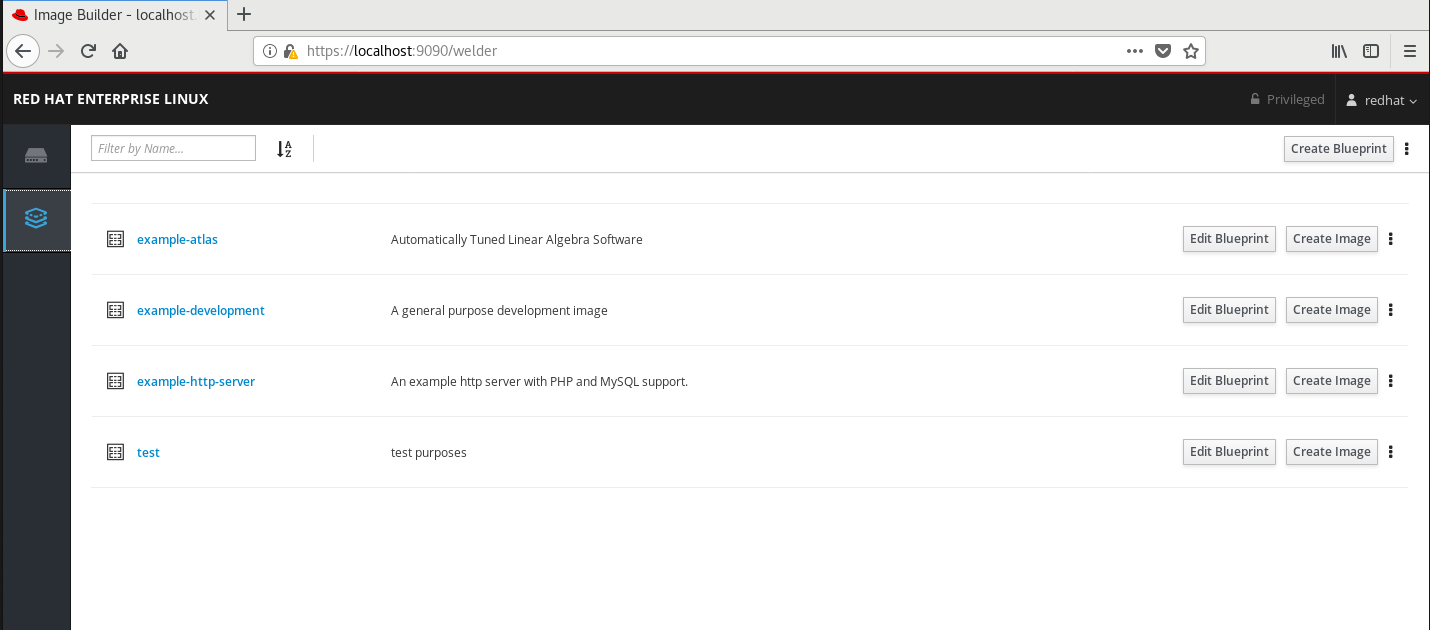
Figure 4.2. Image Builder on Web Console
Related information
- You will be able to create customized RHEL OS images using Image Builder scenario
4.2. Creating an Image Builder blueprint in the web console interface
Copy linkLink copied to clipboard!
To describe the customized system image, create a blueprint first.
Prerequisites
- You have opened the Image Builder interface of the RHEL 7 web console in a browser.
Procedure
1. Click Create Blueprint in the top right corner.
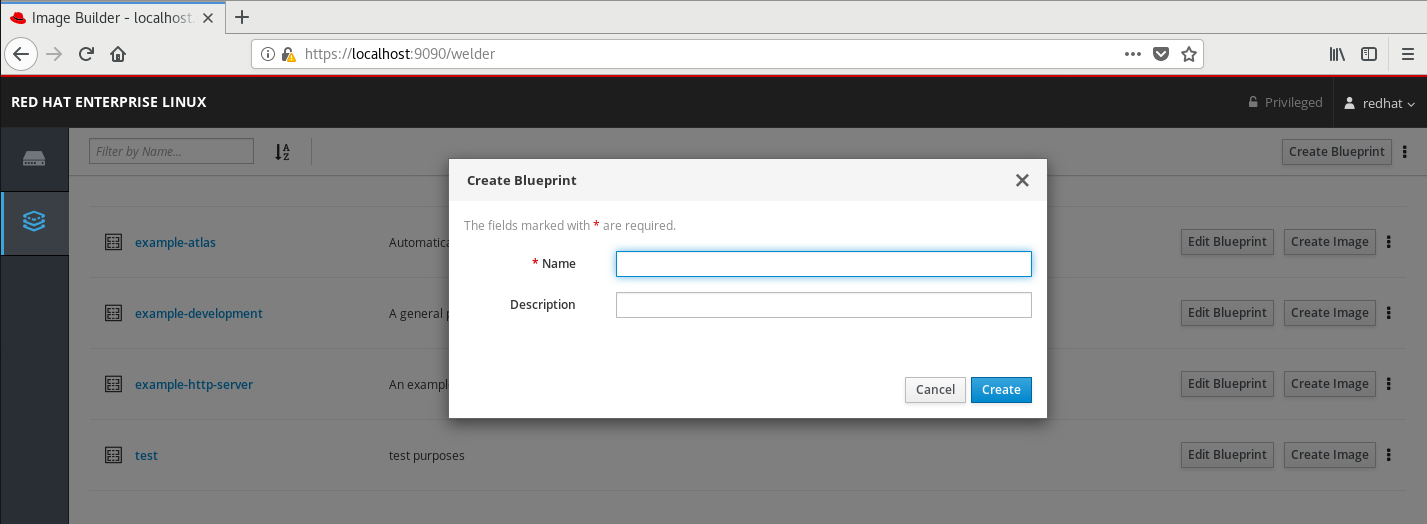
Figure 4.3. Creating a Blueprint
A pop-up appears with fields for the blueprint name and description.
2. Fill in the name of the blueprint, its description, then click Create.
The screen changes to blueprint editing mode.
3. Add components that you want to include in the system image:
- i. On the left, enter all or part of the component name in the Available Components field and press Enter.

Figure 4.4. Searching for Available Componentes
The search is added to the list of filters under the text entry field, and the list of components below is reduced to these that match the search.If the list of components is too long, add further search terms in the same way. - ii. The list of components is paged. To move to other result pages, use the arrows and entry field above the component list.
- iii. Click on name of the component you intend to use to display its details. The right pane fills with details of the components, such as its version and dependencies.
- iv. Select the version you want to use in the Component Options box, with the Version Release dropdown.
- v. Click Add in the top left.
- vi. If you added a component by mistake, remove it by clicking the … button at the far right of its entry in the right pane, and select Remove in the menu.
Note
If you do not intend to select version for some components, you can skip the component details screen and version selection by clicking the + buttons on the right side of the component list.
4. To save the blueprint, click Commit in the top right. A dialog with a summary of the changes pops up. Click Commit.
A small pop-up on the right informs you of the saving progress and then the result.
5. To exit the editing screen, click Back to Blueprints in the top left.
The Image Builder view opens, listing existing blueprints.
4.3. Editing an Image Builder blueprint in the web console interface
Copy linkLink copied to clipboard!
To change the specifications for a custom system image, edit the corresponding blueprint.
Prerequisites
- You have opened the Image Builder interface of the RHEL 7 web console in a browser.
- A blueprint exists.
Procedure
1. Locate the blueprint that you want to edit by entering its name or a part of it into the search box at top left, and press .
The search is added to the list of filters under the text entry field, and the list of blueprints below is reduced to these that match the search.
If the list of blueprints is too long, add further search terms in the same way.
2. On the right side of the blueprint, press the Edit Blueprint button that belongs to the blueprint.
The view changes to the blueprint editing screen.
3. Remove unwanted components by clicking the button at the far right of its entry in the right pane, and select
Remove in the menu.
4. Change version of existing components:
- i. On the Blueprint Components search field, enter component name or a part of it into the field under the heading
Blueprint Componentsand press .The search is added to the list of filters under the text entry field, and the list of components below is reduced to these that match the search.If the list of components is too long, add further search terms in the same way. - ii. Click the button at the far right of the component entry, and select
Viewin the menu.A component details screen opens in the right pane. - iii. Select the desired version in the
Version Releasedrop-down menu and click in top right.The change is saved and the right pane returns to listing the blueprint components.
5. Add new components:
- i. On the left, enter component name or a part of it into the field under the heading Available Components and press Enter.The search is added to the list of filters under the text entry field, and the list of components below is reduced to these that match the search.If the list of components is too long, add further search terms in the same way.
- ii. The list of components is paged. To move to other result pages, use the arrows and entry field above the component list.
- iii. Click on the name of the component you intend to use to display its details. The right pane fills with details of the components, such as its version and dependencies.
- iv. Select the version you want to use in the
Component Optionsbox, with theVersion Releasedrop-down menu. - v. Click in the top right.
- vi. If you added a component by mistake, remove it by clicking the button at the far right of its entry in the right pane, and select
Removein the menu.
Note
If you do not intend to select version for some components, you can skip the component details screen and version selection by clicking the + buttons on the right side of the component list.
1. Commit a new version of the blueprint with your changes:
- i. Click the Commit button in top right.A pop-up window with a summary of your changes appears.
- ii. Review your changes and confirm them by clicking Commit.A small pop-up on the right informs you of the saving progress and then result. A new version of the blueprint is created.
- iii. In the top left, click
Back to Blueprintsto exit the editing screen.The Image Builder view opens, listing existing blueprints.
4.4. Adding users and groups to an Image Builder blueprint in the web console interface
Copy linkLink copied to clipboard!
Adding customizations such as users and groups to blueprints in the web console interface is currently not possible. To work around this limitation, use the Terminal tab in web console to use the command-line interface (CLI) workflow.
Prerequisites
- A blueprint must exist.
- A CLI text editor such as
vim,nano, oremacsmust be installed. To install them:# yum install editor-name
Procedure
1. Find out the name of the blueprint: Open the Image Builder (Image builder) tab on the left in the RHEL 7 web console to see the name of the blueprint.
2. Navigate to the CLI in web console: Open the system administration tab on the left, then select the last item Terminal from the list on the left.
3. Enter the super-user (root) mode:
$ sudo bash
Provide your credentials when asked. Note that the terminal does not reuse your credentials you entered when logging into the web console.
A new shell with root privileges starts in your home directory.
4. Export the blueprint to a file:
# composer-cli blueprints save BLUEPRINT-NAME
5. Edit the file BLUEPRINT-NAME.toml with a CLI text editor of your choice and add the users and groups.
Important
RHEL 7 web console does not have any built-in feature to edit text files on the system, so the use of a CLI text editor is required for this step.
- i. For every user to be added, add this block to the file:
[[customization.user]]
name = "USER-NAME"
description = "USER-DESCRIPTION"
password = "PASSWORD-HASH"
key = "ssh-rsa (...) key-name"
home = "/home/USER-NAME/"
shell = "/usr/bin/bash"
groups = ["users", "wheel"]
uid = NUMBER
gid = NUMBER
Replace PASSWORD-HASH with the actual password hash. To generate the hash, use a command such as this:$ python3 -c 'import crypt,getpass;pw=getpass.getpass();print(crypt.crypt(pw) if (pw==getpass.getpass("Confirm: ")) else exit())'Replace ssh-rsa (…) key-name with the actual public key.Replace the other placeholders with suitable values.Leave out any of the lines as needed, only the user name is required. - ii. For every user group to be added, add this block to the file:
[[customizations.group]]
name = "GROUP-NAME"
gid = NUMBER
iii. Increase the version number.iv. Save the file and close the editor. - 6. Import the blueprint back into Image Builder:
# composer-cli blueprints push BLUEPRINT-NAME.tomlNote that you must supply the file name including the.tomlextension, while in other commands you use only the name of the blueprint. - 7. To verify that the contents uploaded to Image Builder match your edits, list the contents of blueprint:
# composer-cli blueprints show BLUEPRINT-NAMECheck if the version matches what you put in the file and if your customizations are present.Important
The Image Builder plug-in for RHEL 7 web console does not show any information that could be used to verify that the changes have been applied, unless you edited also the packages included in the blueprint. - 8. Exit the privileged shell:
# exit - 9. Open the Image Builder (Image builder) tab on the left and refresh the page, in all browsers and all tabs where it was opened.This prevents state cached in the loaded page from accidentally reverting your changes.
Additional information
4.5. Creating a system image with Image Builder in the web console interface
Copy linkLink copied to clipboard!
The following steps below describe creating a system image.
Prerequisites
- You have opened the Image Builder interface of the RHEL 7 web console in a browser.
- A blueprint exists.
Procedure
1. Locate the blueprint that you want to build an image by entering its name or a part of it into the search box at top left, and press Enter.
The search is added to the list of filters under the text entry field, and the list of blueprints below is reduced to these that match the search.
If the list of blueprints is too long, add further search terms in the same way.
2. On the right side of the blueprint, press the Create Image button that belongs to the blueprint.
A pop-up window appears.
3. Select the image type and architecture and press Create.
A small pop-up in the top right informs you that the image creation has been added to the queue.
4. Click the name of the blueprint.
A screen with details of the blueprint opens.
5. Click the Images tab to switch to it. The image that is being created is listed with the status In Progress.
Important
Image creation takes a longer time, measured in minutes. There is no indication of progress while the image is created.
To abort image creation, press its Stop button on the right.
6. Once the image is successfully created, the Stop button is replaced by a Download button. Click this button to download the image to your system.
Chapter 5. Deploying cloud images with Image Builder
Copy linkLink copied to clipboard!
Image Builder can create custom system images ready for use in clouds of various providers. To use your customized RHEL system image in a cloud, create the system image with Image Builder using the respective output type, configure your system for uploading the image, and upload the image to your cloud account.
5.1. Preparing AWS AMI images for upload
Copy linkLink copied to clipboard!
This section describes steps to configure a system for uploading AWS AMI images.
Prerequisites
- You must have an Access Key ID configured in the AWS IAM account manager.
- You must have a writable S3 bucket prepared.
Procedure
1. Install Python 3 and the
pip tool:
# yum install python3 python3-pip
2. Install the AWS command-line tools with pip:
# pip3 install awscli
3. Configure the AWS command-line client according to your AWS access details:
$ aws configure AWS Access Key ID [None]: AWS Secret Access Key [None]: Default region name [None]: Default output format [None]:
4. Configure the AWS command-line client to use your bucket:
$ BUCKET=bucketname$ aws s3 mb s3://$BUCKET
Replace bucketname with the actual bucket name.
5. Create a
vmimport S3 Role in IAM and grant it permissions to access S3, if you have not already done so:
$ printf '{ "Version": "2012-10-17", "Statement": [ { "Effect": "Allow", "Principal": { "Service": "vmie.amazonaws.com" }, "Action": "sts:AssumeRole", "Condition": { "StringEquals":{ "sts:Externalid": "vmimport" } } } ] }' > trust-policy.json $ printf '{ "Version":"2012-10-17", "Statement":[ { "Effect":"Allow", "Action":[ "s3:GetBucketLocation", "s3:GetObject", "s3:ListBucket" ], "Resource":[ "arn:aws:s3:::%s", "arn:aws:s3:::%s/*" ] }, { "Effect":"Allow", "Action":[ "ec2:ModifySnapshotAttribute", "ec2:CopySnapshot", "ec2:RegisterImage", "ec2:Describe*" ], "Resource":"*" } ] }' $BUCKET $BUCKET > role-policy.json $ aws iam create-role --role-name vmimport --assume-role-policy-document file://trust-policy.json $ aws iam put-role-policy --role-name vmimport --policy-name vmimport --policy-document file://role-policy.json5.2. Uploading an AMI image to AWS
Copy linkLink copied to clipboard!
This section describes how to upload an AMI image to AWS.
Prerequisites
- Your system must be set up for uploading AWS images.
- You must have an AWS image created by Image Builder. Use the
amioutput type in CLI or Amazon Machine Image Disk (.ami) in GUI when creating the image.
Procedure
1. Push the image to S3:
$ $ AMI=8db1b463-91ee-4fd9-8065-938924398428-disk.ami$ aws s3 cp $AMI s3://$BUCKET Completed 24.2 MiB/4.4 GiB (2.5 MiB/s) with 1 file(s) remaining ...
2. After the upload to S3 ends, import the image as a snapshot into EC2:
$ A printf '{ "Description": "my-image", "Format": "raw", "UserBucket": { "S3Bucket": "%s", "S3Key": "%s" } }' $BUCKET $AMI > containers.json$ aws ec2 import-snapshot disk-container file://containers.json
Replace my-image with the name of the image.
To track progress of the import, run:
$ aws ec2 describe-import-snapshot-tasks --filters Name=task-state,Values=active
3. Create an image from the uploaded snapshot by selecting the snapshot in the EC2 console, right clicking on it and selecting Create Image:
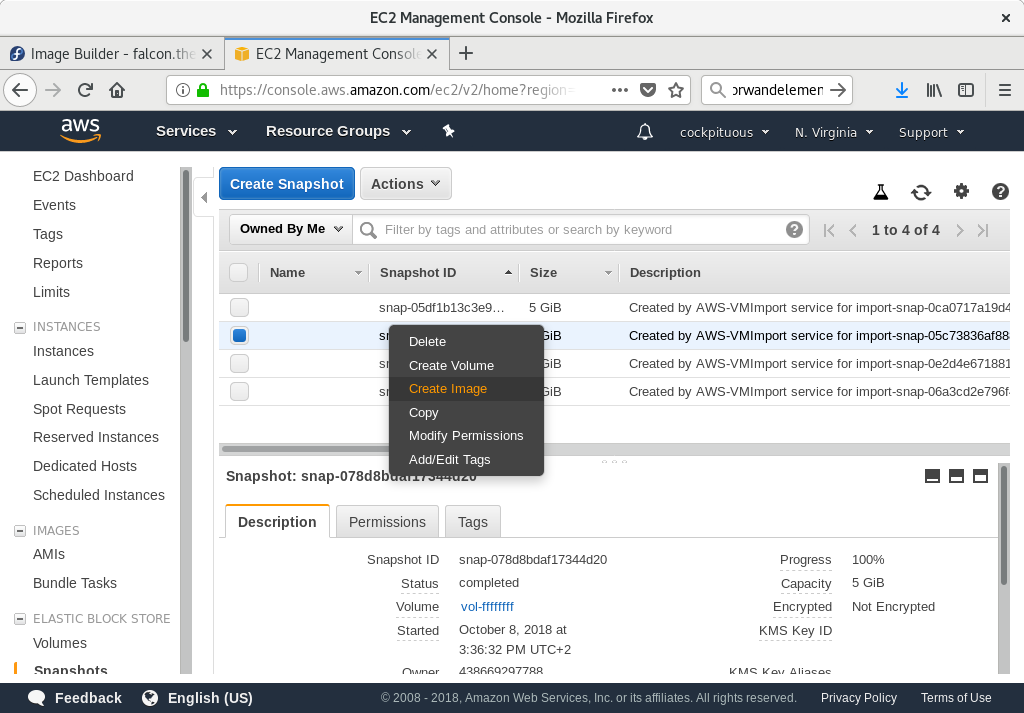
Figure 5.1. Create Image
4. Select the Virtualization type of Hardware-assisted virtualization in the image you create:
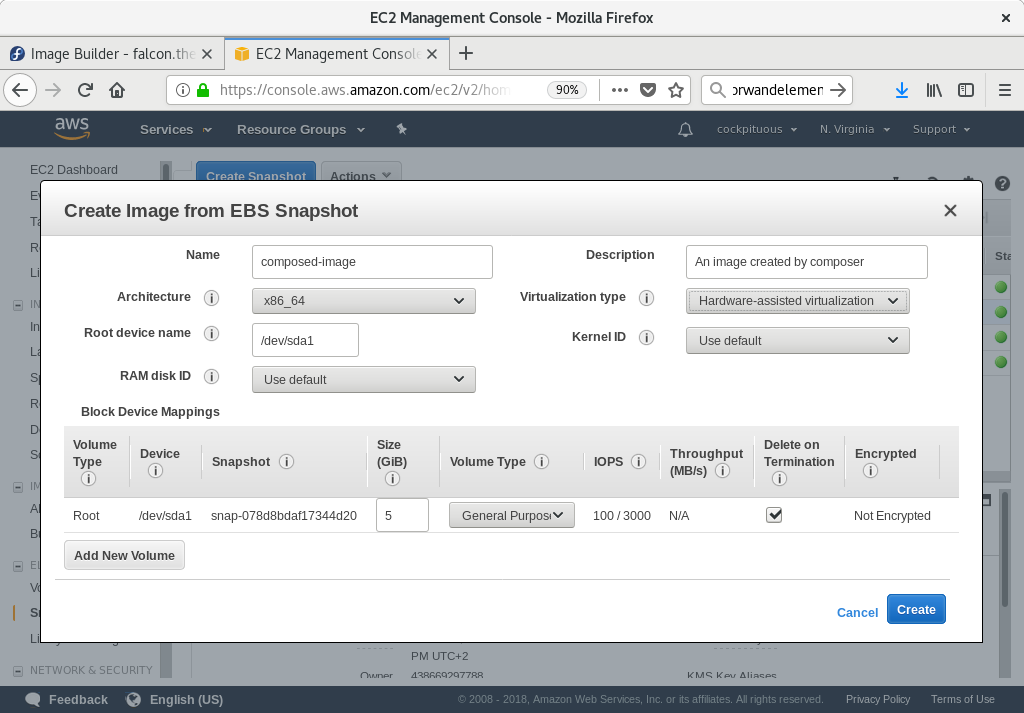
Figure 5.2. Virtualization type
5. Now you can run an instance using whatever mechanism you like (CLI or AWS Console) from the snapshot. Use your private key via SSH to access the resulting EC2 instance. Log in as ec2-user.
5.3. Uploading VMDK images to vSphere
Copy linkLink copied to clipboard!
Image Builder can generate images suitable for uploading to a VMware ESXi or vSphere system. This section describes steps to upload an VMDK image to VMware vSphere.
Note
Because VMWare deployments typically do not have cloud-init configured to inject user credentials to virtual machines, you have to perform that task yourself on the blueprint.
Prerequisites
- You must have an VMDK image created by Image Builder. Use the vmdk output type in CLI or VMware Virtual Machine Disk (.vmdk) in GUI when creating the image.
Procedure
1. Upload the image into vSphere via HTTP. Click on Upload Files in the vCenter:
2. When you create a VM, on the Device Configuration, delete the default New Hard Disk and use the drop-down to select an Existing Hard Disk disk image:
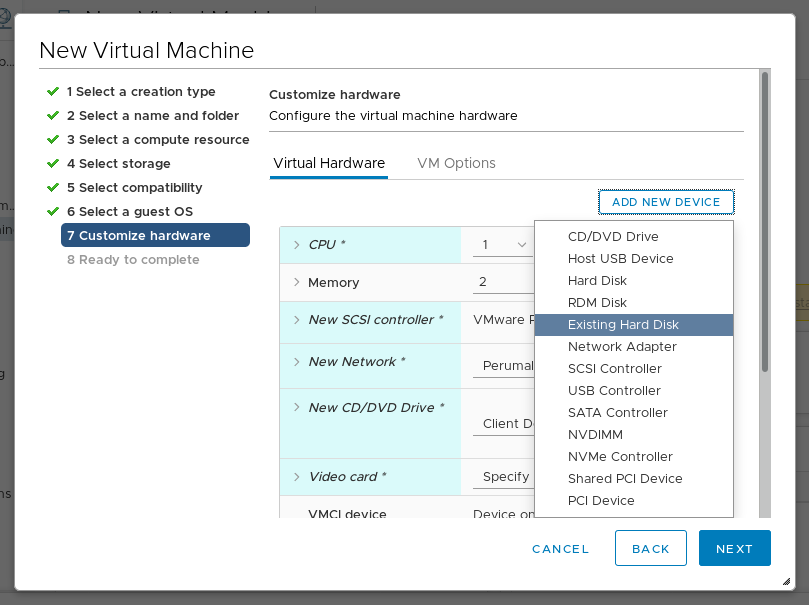
Figure 5.3. Virtualization type
3. Make sure you use an IDE device as the Virtual Device Node for the disk you create. The default
SCSI value results in an unbootable virtual machine.
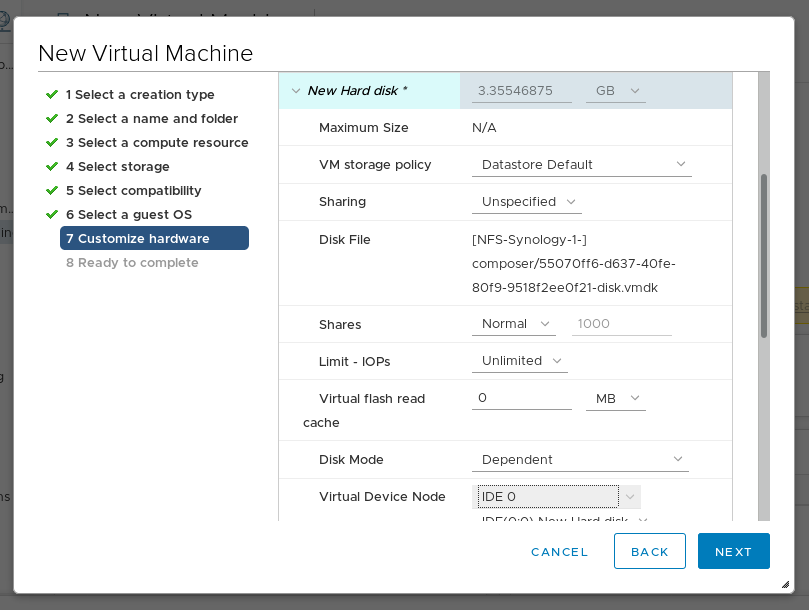
Figure 5.4. Virtualization type
5.4. Uploading QCOW2 image to OpenStack
Copy linkLink copied to clipboard!
Image Builder can generate images suitable for uploading to OpenStack cloud deployments, and starting instances there. This describes steps to upload an QCOW2 image to OpenStack.
Prerequisites
- You must have an OpenStack-specific image created by Image Builder. Use the openstack output type in CLI or OpenStack Image (.qcow2) in GUI when creating the image.
Warning
Image Builder also offers a generic QCOW2 image type output format as qcow2 or QEMU QCOW2 Image (.qcow2). Do not mistake it with the OpenStack image type which is also in the QCOW2 format, but contains further changes specific to OpenStack.
Procedure
1. Upload the image to OpenStack and start an instance from it. Use the Images interface to do this:
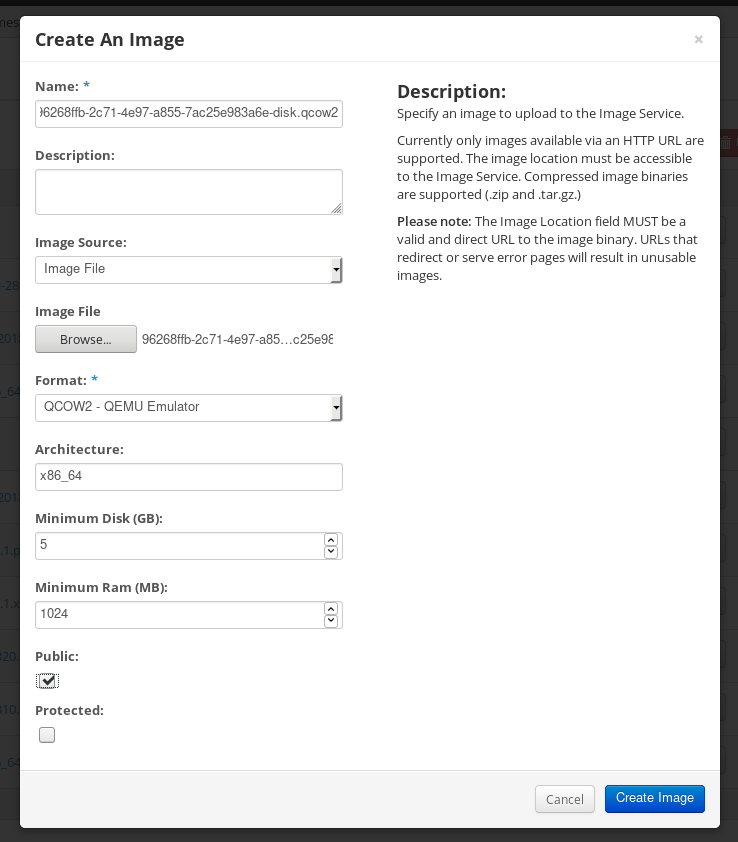
Figure 5.5. Virtualization type
2. Start an instance with that image:
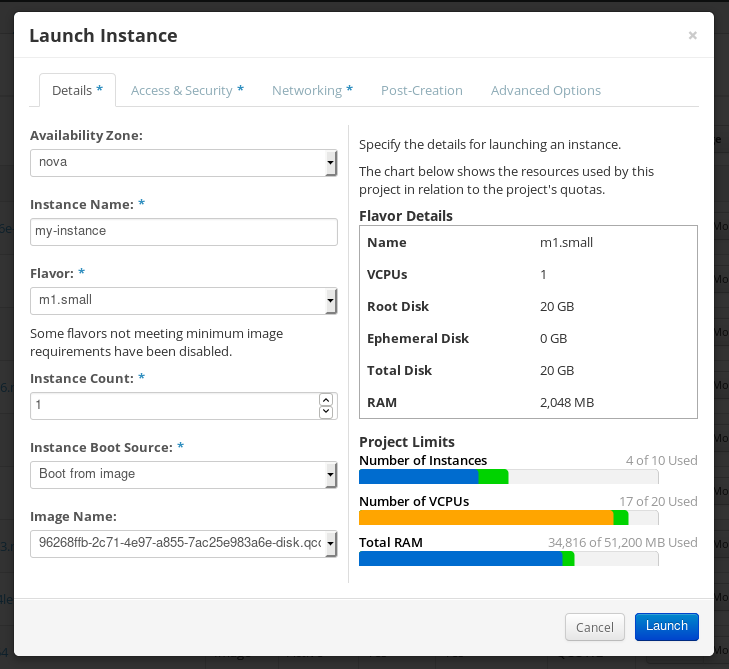
Figure 5.6. Virtualization type
3. You can run the instance using any mechanism (CLI or OpenStack web UI) from the snapshot. Use your private key via SSH to access the resulting instance. Log in as cloud-user.
Appendix A. Revision History
Copy linkLink copied to clipboard!
| Revision History | |||
|---|---|---|---|
| Revision 1.1.0- | Tue Aug 06 2019 | ||
| Revision 1.0.0- | Thu Jul 11 2019 | ||
| |||
| Revision 0.0-0 | Sun Jun 2 2019 | ||
| |||

'%20d='M201.5%20305.5c-13.8%200-24.9-11.1-24.9-24.6%200-13.8%2011.1-24.9%2024.9-24.9%2013.6%200%2024.6%2011.1%2024.6%2024.9%200%2013.6-11.1%2024.6-24.6%2024.6zM504%20256c0%20137-111%20248-248%20248S8%20393%208%20256%20119%208%20256%208s248%20111%20248%20248zm-132.3-41.2c-9.4%200-17.7%203.9-23.8%2010-22.4-15.5-52.6-25.5-86.1-26.6l17.4-78.3%2055.4%2012.5c0%2013.6%2011.1%2024.6%2024.6%2024.6%2013.8%200%2024.9-11.3%2024.9-24.9s-11.1-24.9-24.9-24.9c-9.7%200-18%205.8-22.1%2013.8l-61.2-13.6c-3-.8-6.1%201.4-6.9%204.4l-19.1%2086.4c-33.2%201.4-63.1%2011.3-85.5%2026.8-6.1-6.4-14.7-10.2-24.1-10.2-34.9%200-46.3%2046.9-14.4%2062.8-1.1%205-1.7%2010.2-1.7%2015.5%200%2052.6%2059.2%2095.2%20132%2095.2%2073.1%200%20132.3-42.6%20132.3-95.2%200-5.3-.6-10.8-1.9-15.8%2031.3-16%2019.8-62.5-14.9-62.5zM302.8%20331c-18.2%2018.2-76.1%2017.9-93.6%200-2.2-2.2-6.1-2.2-8.3%200-2.5%202.5-2.5%206.4%200%208.6%2022.8%2022.8%2087.3%2022.8%20110.2%200%202.5-2.2%202.5-6.1%200-8.6-2.2-2.2-6.1-2.2-8.3%200zm7.7-75c-13.6%200-24.6%2011.1-24.6%2024.9%200%2013.6%2011.1%2024.6%2024.6%2024.6%2013.8%200%2024.9-11.1%2024.9-24.6%200-13.8-11-24.9-24.9-24.9z'/%3e%3c/svg%3e)