 Red Hat Summit
Administration Guide
Configuring and Managing Red Hat Gluster Storage
Abstract
Part I. Overview
Chapter 1. Platform Introduction
1.1. About Red Hat Gluster Storage
1.2. About glusterFS
1.3. About On-premise Installation
1.4. About Public Cloud Installation
Chapter 2. Red Hat Gluster Storage Architecture and Concepts
2.1. Red Hat Gluster Storage Architecture
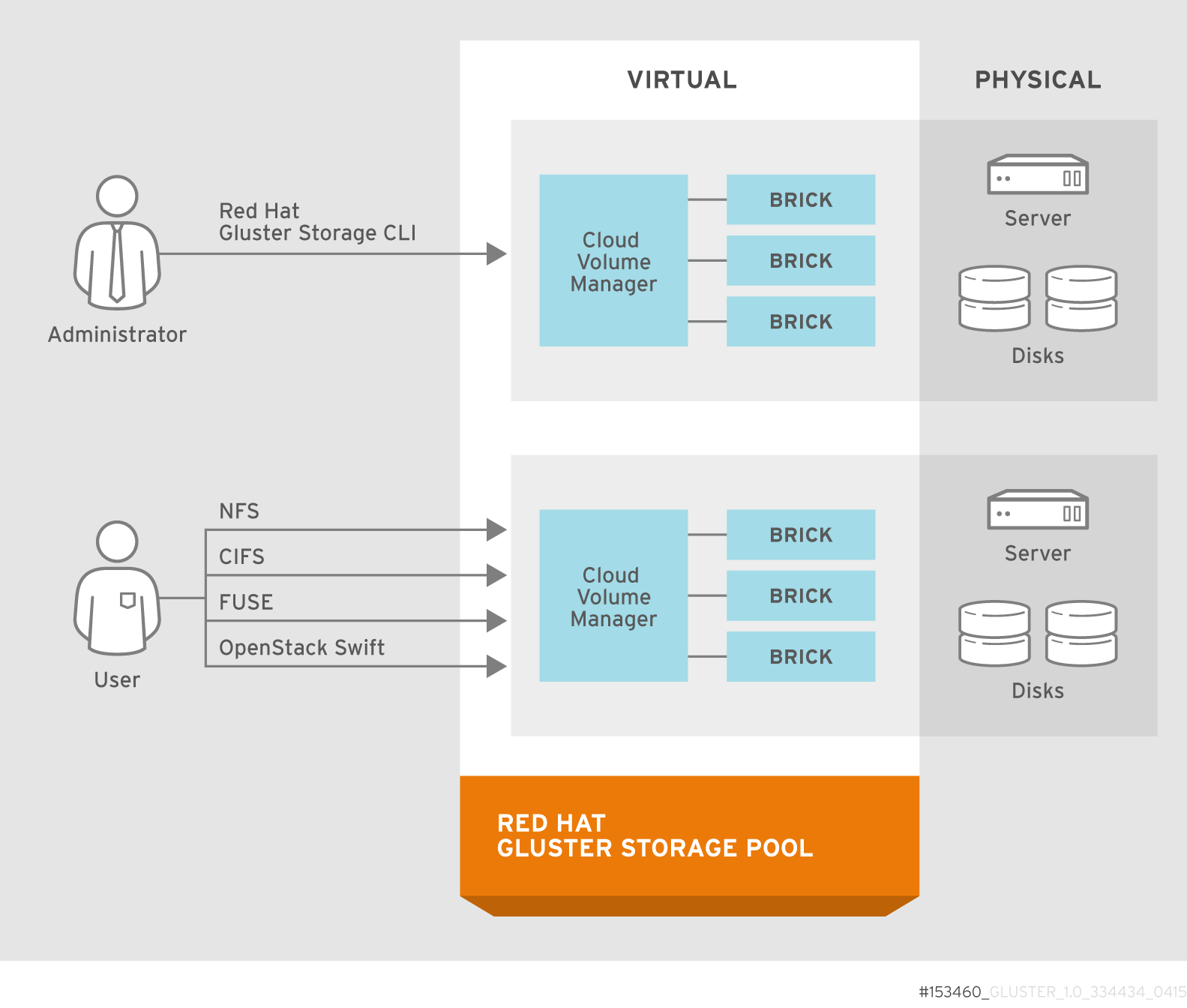
Figure 2.1. Red Hat Gluster Storage Architecture
2.2. Red Hat Gluster Storage for On-premise Architecture
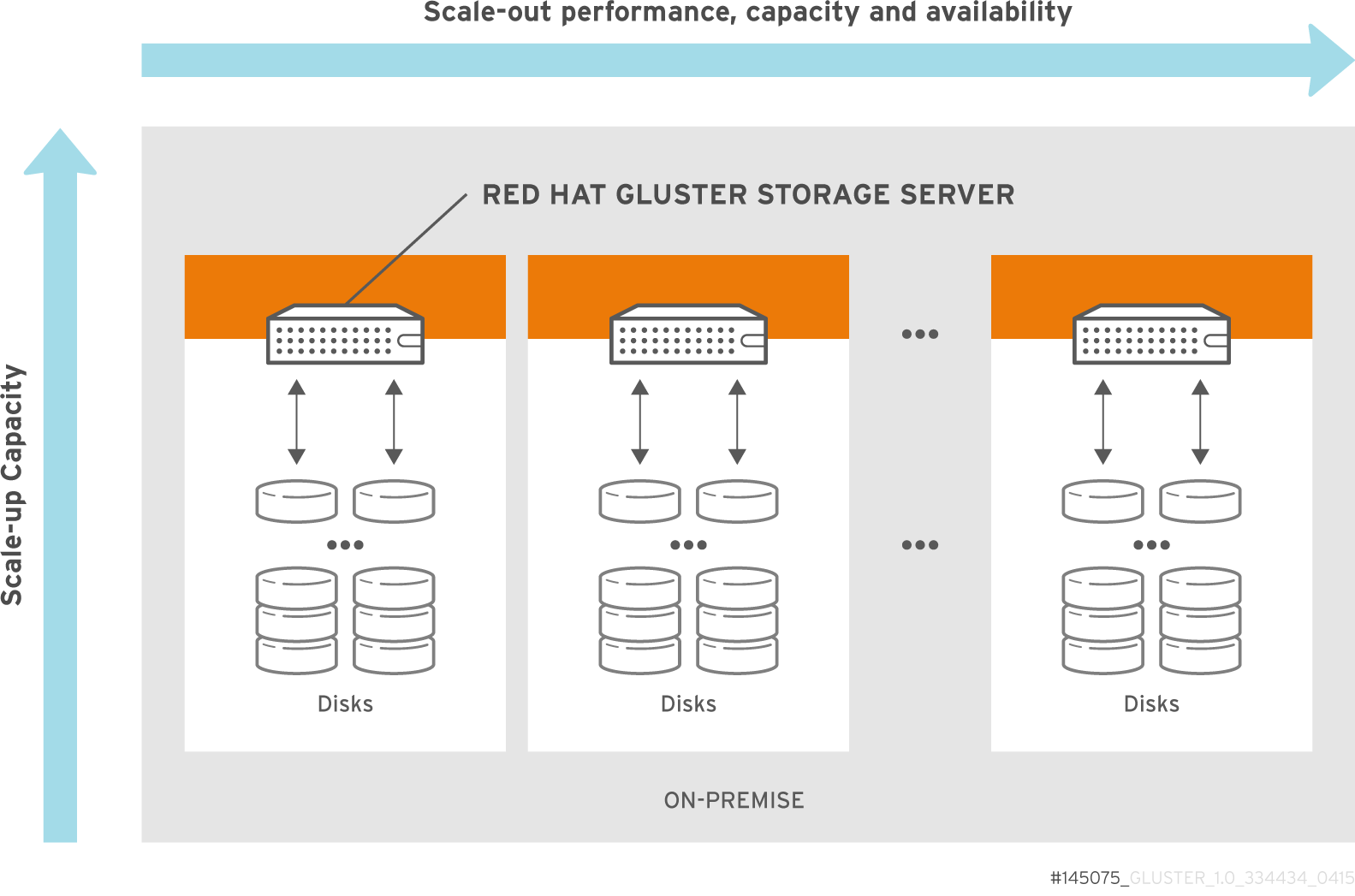
Figure 2.2. Red Hat Gluster Storage for On-premise Architecture
2.3. Red Hat Gluster Storage for Public Cloud Architecture

Figure 2.3. Red Hat Gluster Storage for Public Cloud Architecture
2.4. Storage Concepts
- Brick
- The glusterFS basic unit of storage, represented by an export directory on a server in the trusted storage pool. A brick is expressed by combining a server with an export directory in the following format:
SERVER:EXPORTFor example:myhostname:/exports/myexportdir/ - Volume
- A volume is a logical collection of bricks. Most of the Red Hat Gluster Storage management operations happen on the volume.
- Translator
- A translator connects to one or more subvolumes, does something with them, and offers a subvolume connection.
- Subvolume
- A brick after being processed by at least one translator.
- Volfile
- Volume (vol) files are configuration files that determine the behavior of your Red Hat Gluster Storage trusted storage pool. At a high level, GlusterFS has three entities, that is, Server, Client and Management daemon. Each of these entities have their own volume files. Volume files for servers and clients are generated by the management daemon upon creation of a volume.Server and Client Vol files are located in
/var/lib/glusterd/vols/VOLNAMEdirectory. The management daemon vol file is named asglusterd.voland is located in/etc/glusterfs/directory.Warning
You must not modify any vol file in/var/lib/glusterdmanually as Red Hat does not support vol files that are not generated by the management daemon. - glusterd
- glusterd is the glusterFS Management Service that must run on all servers in the trusted storage pool.
- Cluster
- A trusted pool of linked computers working together, resembling a single computing resource. In Red Hat Gluster Storage, a cluster is also referred to as a trusted storage pool.
- Client
- The machine that mounts a volume (this may also be a server).
- File System
- A method of storing and organizing computer files. A file system organizes files into a database for the storage, manipulation, and retrieval by the computer's operating system.Source: Wikipedia
- Distributed File System
- A file system that allows multiple clients to concurrently access data which is spread across servers/bricks in a trusted storage pool. Data sharing among multiple locations is fundamental to all distributed file systems.
- Virtual File System (VFS)
- VFS is a kernel software layer that handles all system calls related to the standard Linux file system. It provides a common interface to several kinds of file systems.
- POSIX
- Portable Operating System Interface (for Unix) (POSIX) is the name of a family of related standards specified by the IEEE to define the application programming interface (API), as well as shell and utilities interfaces, for software that is compatible with variants of the UNIX operating system. Red Hat Gluster Storage exports a fully POSIX compatible file system.
- Metadata
- Metadata is data providing information about other pieces of data.
- FUSE
- Filesystem in User space (FUSE) is a loadable kernel module for Unix-like operating systems that lets non-privileged users create their own file systems without editing kernel code. This is achieved by running file system code in user space while the FUSE module provides only a "bridge" to the kernel interfaces.Source: Wikipedia
- Geo-Replication
- Geo-replication provides a continuous, asynchronous, and incremental replication service from one site to another over Local Area Networks (LAN), Wide Area Networks (WAN), and the Internet.
- N-way Replication
- Local synchronous data replication that is typically deployed across campus or Amazon Web Services Availability Zones.
- Petabyte
- A petabyte is a unit of information equal to one quadrillion bytes, or 1000 terabytes. The unit symbol for the petabyte is PB. The prefix peta- (P) indicates a power of 1000:1 PB = 1,000,000,000,000,000 B = 1000^5 B = 10^15 B.The term "pebibyte" (PiB), using a binary prefix, is used for the corresponding power of 1024.Source: Wikipedia
- RAID
- Redundant Array of Independent Disks (RAID) is a technology that provides increased storage reliability through redundancy. It combines multiple low-cost, less-reliable disk drives components into a logical unit where all drives in the array are interdependent.
- RRDNS
- Round Robin Domain Name Service (RRDNS) is a method to distribute load across application servers. RRDNS is implemented by creating multiple records with the same name and different IP addresses in the zone file of a DNS server.
- Server
- The machine (virtual or bare metal) that hosts the file system in which data is stored.
- Block Storage
- Block special files, or block devices, correspond to devices through which the system moves data in the form of blocks. These device nodes often represent addressable devices such as hard disks, CD-ROM drives, or memory regions. Red Hat Gluster Storage supports the XFS file system with extended attributes.
- Scale-Up Storage
- Increases the capacity of the storage device in a single dimension. For example, adding additional disk capacity in a trusted storage pool.
- Scale-Out Storage
- Increases the capability of a storage device in single dimension. For example, adding more systems of the same size, or adding servers to a trusted storage pool that increases CPU, disk capacity, and throughput for the trusted storage pool.
- Trusted Storage Pool
- A storage pool is a trusted network of storage servers. When you start the first server, the storage pool consists of only that server.
- Namespace
- An abstract container or environment that is created to hold a logical grouping of unique identifiers or symbols. Each Red Hat Gluster Storage trusted storage pool exposes a single namespace as a POSIX mount point which contains every file in the trusted storage pool.
- User Space
- Applications running in user space do not directly interact with hardware, instead using the kernel to moderate access. User space applications are generally more portable than applications in kernel space. glusterFS is a user space application.
- Hashed subvolume
- A Distributed Hash Table Translator subvolume to which the file or directory name is hashed to.
- Cached subvolume
- A Distributed Hash Table Translator subvolume where the file content is actually present. For directories, the concept of cached-subvolume is not relevant. It is loosely used to mean subvolumes which are not hashed-subvolume.
- Linkto-file
- For a newly created file, the hashed and cached subvolumes are the same. When directory entry operations like rename (which can change the name and hence hashed subvolume of the file) are performed on the file, instead of moving the entire data in the file to a new hashed subvolume, a file is created with the same name on the newly hashed subvolume. The purpose of this file is only to act as a pointer to the node where the data is present. In the extended attributes of this file, the name of the cached subvolume is stored. This file on the newly hashed-subvolume is called a linkto-file. The linkto file is relevant only for non-directory entities.
- Directory Layout
- The directory layout specifies the hash-ranges of the subdirectories of a directory to which subvolumes they correspond to.Properties of directory layouts:
- The layouts are created at the time of directory creation and are persisted as extended attributes of the directory.
- A subvolume is not included in the layout if it remained offline at the time of directory creation and no directory entries ( such as files and directories) of that directory are created on that subvolume. The subvolume is not part of the layout until the fix-layout is complete as part of running the rebalance command. If a subvolume is down during access (after directory creation), access to any files that hash to that subvolume fails.
- Fix Layout
- A command that is executed during the rebalance process.The rebalance process itself comprises of two stages:
- Fixes the layouts of directories to accommodate any subvolumes that are added or removed. It also heals the directories, checks whether the layout is non-contiguous, and persists the layout in extended attributes, if needed. It also ensures that the directories have the same attributes across all the subvolumes.
- Migrates the data from the cached-subvolume to the hashed-subvolume.
Chapter 3. Key Features
3.1. Elasticity
3.2. No Metadata with the Elastic Hashing Algorithm
3.3. Scalability
3.4. High Availability and Flexibility
3.5. Flexibility
3.6. No Application Rewrites
3.7. Simple Management
Top and Profile. Top provides visibility into workload patterns, while Profile provides performance statistics over a user-defined time period for metrics including latency and amount of data read or written.
3.8. Modular, Stackable Design
Part II. Red Hat Gluster Storage Administration On-Premise
Chapter 4. Getting Started with Red Hat Gluster Storage Server
glusterd service.
glusterd enables dynamic configuration changes to Red Hat Gluster Storage volumes, without needing to restart servers or remount storage volumes on clients.
4.1. Port Information
iptables command to open a port:
# iptables -A INPUT -m state --state NEW -m tcp -p tcp --dport 5667 -j ACCEPT
# service iptables save# firewall-cmd --zone=zone_name --add-service=glusterfs
# firewall-cmd --zone=zone_name --add-service=glusterfs --permanent# firewall-cmd --zone=public --add-port=5667/tcp
# firewall-cmd --zone=public --add-port=5667/tcp --permanent| Port Number | Usage |
|---|---|
| 22 | For sshd used by geo-replication. |
| 111 | For rpc port mapper. |
| 139 | For netbios service. |
| 445 | For CIFS protocol. |
| 965 | For NFS's Lock Manager (NLM). |
| 2049 | For glusterFS's NFS exports (nfsd process). |
| 24007 | For glusterd (for management). |
| 24009 - 24108 | For client communication with Red Hat Gluster Storage 2.0. |
| 38465 | For NFS mount protocol. |
| 38466 | For NFS mount protocol. |
| 38468 | For NFS's Lock Manager (NLM). |
| 38469 | For NFS's ACL support. |
| 39543 | For oVirt (Red Hat Gluster Storage Console). |
| 49152 - 49251 | For client communication with Red Hat Gluster Storage 2.1 and for brick processes depending on the availability of the ports. The total number of ports required to be open depends on the total number of bricks exported on the machine. |
| 54321 | For VDSM (Red Hat Gluster Storage Console). |
| 55863 | For oVirt (Red Hat Gluster Storage Console). |
| Port Number | Usage |
|---|---|
| 443 | For HTTPS request. |
| 6010 | For Object Server. |
| 6011 | For Container Server. |
| 6012 | For Account Server. |
| 8080 | For Proxy Server. |
| Port Number | Usage |
|---|---|
| 80 | For HTTP protocol (required only if Nagios server is running on a Red Hat Gluster Storage node). |
| 443 | For HTTPS protocol (required only for Nagios server). |
| 5667 | For NSCA service (required only if Nagios server is running on a Red Hat Gluster Storage node). |
| 5666 | For NRPE service (required in all Red Hat Gluster Storage nodes). |
| Port Number | Usage |
|---|---|
| 111 | For RPC Bind. |
| 963 | For NFS's Lock Manager (NLM). |
4.2. Starting and Stopping the glusterd service
glusterd command line, logical storage volumes can be decoupled from physical hardware. Decoupling allows storage volumes to be grown, resized, and shrunk, without application or server downtime.
glusterd service is started automatically on all servers in the trusted storage pool. The service can also be manually started and stopped as required.
- Run the following command to start glusterd manually.
# service glusterd start - Run the following command to stop glusterd manually.
# service glusterd stop
Chapter 5. Trusted Storage Pools
Important
# firewall-cmd --get-active-zones# firewall-cmd --zone=zone_name --add-service=glusterfs
# firewall-cmd --zone=zone_name --add-service=glusterfs --permanentNote
gluster volume status VOLNAME command is executed from two of the nodes simultaneously.
5.1. Adding Servers to the Trusted Storage Pool
gluster peer probe [server] command is used to add servers to the trusted server pool.
Note
Adding Three Servers to a Trusted Storage Pool
Prerequisites
- The
glusterdservice must be running on all storage servers requiring addition to the trusted storage pool. See Section 4.2, “Starting and Stopping the glusterd service” for service start and stop commands. Server1, the trusted storage server, is started.- The host names of the target servers must be resolvable by DNS.
- Run
gluster peer probe [server]from Server 1 to add additional servers to the trusted storage pool.Note
- Self-probing
Server1will result in an error because it is part of the trusted storage pool by default. - All the servers in the Trusted Storage Pool must have RDMA devices if either
RDMAorRDMA,TCPvolumes are created in the storage pool. The peer probe must be performed using IP/hostname assigned to the RDMA device.
# gluster peer probe server2 Probe successful # gluster peer probe server3 Probe successful # gluster peer probe server4 Probe successful - Verify the peer status from all servers using the following command:
# gluster peer status Number of Peers: 3 Hostname: server2 Uuid: 5e987bda-16dd-43c2-835b-08b7d55e94e5 State: Peer in Cluster (Connected) Hostname: server3 Uuid: 1e0ca3aa-9ef7-4f66-8f15-cbc348f29ff7 State: Peer in Cluster (Connected) Hostname: server4 Uuid: 3e0caba-9df7-4f66-8e5d-cbc348f29ff7 State: Peer in Cluster (Connected)
Important
5.2. Removing Servers from the Trusted Storage Pool
gluster peer detach server to remove a server from the storage pool.
Removing One Server from the Trusted Storage Pool
Prerequisites
- The
glusterdservice must be running on the server targeted for removal from the storage pool. See Section 4.2, “Starting and Stopping the glusterd service” for service start and stop commands. - The host names of the target servers must be resolvable by DNS.
- Run
gluster peer detach [server]to remove the server from the trusted storage pool.# gluster peer detach server4 Detach successful - Verify the peer status from all servers using the following command:
# gluster peer status Number of Peers: 2 Hostname: server2 Uuid: 5e987bda-16dd-43c2-835b-08b7d55e94e5 State: Peer in Cluster (Connected) Hostname: server3 Uuid: 1e0ca3aa-9ef7-4f66-8f15-cbc348f29ff7
Chapter 6. Red Hat Gluster Storage Volumes
Warning
Note
yum groupinstall "Infiniband Support" to install Infiniband packages.
Volume Types
- Distributed
- Distributes files across bricks in the volume.Use this volume type where scaling and redundancy requirements are not important, or provided by other hardware or software layers.See Section 6.5, “Creating Distributed Volumes” for additional information about this volume type.
- Replicated
- Replicates files across bricks in the volume.Use this volume type in environments where high-availability and high-reliability are critical.See Section 6.6, “Creating Replicated Volumes” for additional information about this volume type.
- Distributed Replicated
- Distributes files across replicated bricks in the volume.Use this volume type in environments where high-reliability and scalability are critical. This volume type offers improved read performance in most environments.See Section 6.7, “Creating Distributed Replicated Volumes” for additional information about this volume type.
- Dispersed
- Disperses the file's data across the bricks in the volume.Use this volume type where you need a configurable level of reliability with a minimum space waste.See Section 6.8, “Creating Dispersed Volumes” for additional information about this volume type.
- Distributed Dispersed
- Distributes file's data across the dispersed subvolume.Use this volume type where you need a configurable level of reliability with a minimum space waste.See Section 6.9, “Creating Distributed Dispersed Volumes” for additional information about this volume type.
6.1. Setting up Gluster Storage Volumes using gdeploy
- Setting-up the backend on several machines can be done from one's laptop/desktop. This saves time and scales up well when the number of nodes in the trusted storage pool increase.
- Flexibility in choosing the drives to configure. (sd, vd, ...).
- Flexibility in naming the logical volumes (LV) and volume groups (VG).
6.1.1. Getting Started
- Generate the passphrase-less SSH keys for the nodes which are going to be part of the trusted storage pool by running the following command:
# ssh-keygen -f id_rsa -t rsa -N '' - Set up password-less SSH access between the gdeploy controller and servers by running the following command:
# ssh-copy-id -i root@serverNote
If you are using a Red Hat Gluster Storage node as the deployment node and not an external node, then the password-less SSH must be set up for the Red Hat Gluster Storage node from where the installation is performed using the following command:# ssh-copy-id -i root@localhost - Install
ansibleby running the following command:# yum install ansibleImportant
Ensure you install Ansible 1.9* for gdeploy. - You must also ensure the following:
- Devices should be raw and unused
- For multiple devices, use multiple volume groups, thinpool and thinvol in the
gdeployconfiguration file
- Using a node in a trusted storage pool
- Using a machine outside the trusted storage pool
The gdeploy package is bundled as part of the initial installation of Red Hat Gluster Storage.
You must ensure that the Red Hat Gluster Storage is subscribed to the required channels. For more information see, Subscribing to the Red Hat Gluster Storage Server Channels in the Red Hat Gluster Storage 3.1 Installation Guide.
# yum install gdeploygdeploy see, Installing Ansible to Support Gdeploy section in the Red Hat Gluster Storage 3.1 Installation Guide.
6.1.2. Setting up a Trusted Storage Pool
/usr/share/doc/ansible/gdeploy/examples/gluster.conf.sampleNote
[hosts]
10.0.0.1
10.0.0.2
10.0.0.3
10.0.0.4
[devices]
/dev/vdb
[volume]
action=create
volname=glustervol
transport=tcp,rdma
replica=yes
replica_count=2
force=yes
[clients]
action=mount
hosts=10.0.0.1
fstype=glusterfs
client_mount_points=/mnt/gluster/dev/vdb with the volume name as glustervol can be created.
# gdeploy -c conf.txtNote
/usr/share/doc/ansible/gdeploy/examples/gluster.conf.sample . To invoke the new configuration file, run gdeploy -c /path_to_file/config.txt command.
only setup the backend see, Section 6.1.3, “Setting up the Backend ”
only create a volume see, Section 6.1.4, “Creating a Volume”
only mount clients see, Section 6.1.5, “Mounting Clients”
6.1.3. Setting up the Backend
/usr/share/doc/ansible/gdeploy/examples/gluster.conf.sample[hosts]
10.0.0.1
10.0.0.2
[devices]
/dev/vdb
[disktype]
RAID10
[diskcount]
10
[stripesize]
128# gdeploy -c conf.txt6.1.4. Creating a Volume
/usr/share/doc/ansible/gdeploy/examples/gluster.conf.sample[hosts]
10.0.0.1
10.0.0.2
10.0.0.3
10.0.0.4
[volume]
action=create
volname=glustervol
transport=tcp,rdma
replica=yes
replica_count=2
force=yes# gdeploy -c conf.txt6.1.5. Mounting Clients
/usr/share/doc/ansible/gdeploy/examples/gluster.conf.sample[clients]
action=mount
hosts=10.70.46.159
fstype=glusterfs
client_mount_points=/mnt/gluster
volname=10.0.0.1:glustervolNote
fstype is NFS, then mention it as nfs-version. By default it is 3.
# gdeploy -c conf.txt6.1.6. Configuring a Volume
6.1.6.1. Adding and Removing a Brick
Modify the [volume] section in the configuration file to add a brick. For example:
[volume]
action=add-brick
volname=10.0.0.1:glustervol
bricks=10.0.0.1:/mnt/new_brick# gdeploy -c conf.txtModify the [volume] section in the configuration file to remove a brick. For example:
[volume]
action=remove-brick
volname=10.0.0.1:glustervol
bricks=10.0.0.2:/mnt/brick
state=commitstate are stop, start, and force.
# gdeploy -c conf.txt6.1.6.2. Rebalancing a Volume
[volume]
action=rebalance
volname=10.70.46.13:glustervol
state=startstate are stop, and fix-layout.
# gdeploy -c conf.txt6.1.6.3. Starting, Stopping, or Deleting a Volume
Modify the [volume] section in the configuration file to start a volume. For example:
[volume]
action=start
volname=10.0.0.1:glustervol# gdeploy -c conf.txtModify the [volume] section in the configuration file to start a volume. For example:
[volume]
action=stop
volname=10.0.0.1:glustervol# gdeploy -c conf.txtModify the [volume] section in the configuration file to start a volume. For example:
[volume]
action=delete
volname=10.70.46.13:glustervol# gdeploy -c conf.txt6.1.7. Configuration File
- [hosts]
- [devices]
- [disktype]
- [diskcount]
- [stripesize]
- [vgs]
- [pools]
- [lvs]
- [mountpoints]
- {host-specific-data-for-above}
- [clients]
- [volume]
- hosts
This is a mandatory section which contains the IP address or hostname of the machines in the trusted storage pool. Each hostname or IP address should be listed in a separate line.
For example:[hosts] 10.0.0.1 10.0.0.2 - devices
This is a generic section and is applicable to all the hosts listed in the [hosts] section. However, if sections of hosts such as the [hostname] or [IP-address] is present, then the data in the generic sections like [devices] is ignored. Host specific data take precedence. This is an optional section.
For example:[devices] /dev/sda /dev/sdbNote
When configuring the backend setup, the devices should be either listed in this section or in the host specific section. - disktype
This section specifies the disk configuration that is used while setting up the backend. gdeploy supports RAID 10, RAID 6, and JBOD configurations. This is an optional section and if the field is left empty, JBOD is taken as the default configuration.
For example:[disktype] raid6 - diskcount
This section specifies the number of data disks in the setup. This is a mandatory field if the [disktype] specified is either RAID 10 or RAID 6. If the [disktype] is JBOD the [diskcount] value is ignored. This is a host specific data.
For example:[diskcount] 10 - stripesize
This section specifies the stripe_unit size in KB.
Case 1: This field is not necessary if the [disktype] is JBOD, and any given value will be ignored.Case 2: This is a mandatory field if [disktype] is specified as RAID 6.For [disktype] RAID 10, the default value is taken as 256KB. If you specify any other value the following warning is displayed:"Warning: We recommend a stripe unit size of 256KB for RAID 10"Note
Do not add any suffixes like K, KB, M, etc. This is host specific data and can be added in the hosts section.For example:[stripesize] 128 - vgs
This section specifies the volume group names for the devices listed in [devices]. The number of volume groups in the [vgs] section should match the one in [devices]. If the volume group names are missing, the volume groups will be named as GLUSTER_vg{1, 2, 3, ...} as default.
For example:[vgs] CUSTOM_vg1 CUSTOM_vg2 - pools
This section specifies the pool names for the volume groups specified in the [vgs] section. The number of pools listed in the [pools] section should match the number of volume groups in the [vgs] section. If the pool names are missing, the pools will be named as GLUSTER_pool{1, 2, 3, ...}.
For example:[pools] CUSTOM_pool1 CUSTOM_pool2 - lvs
This section provides the logical volume names for the volume groups specified in [vgs]. The number of logical volumes listed in the [lvs] section should match the number of volume groups listed in [vgs]. If the logical volume names are missing, it is named as GLUSTER_lv{1, 2, 3, ...}.
For example:[lvs] CUSTOM_lv1 CUSTOM_lv2 - mountpoints
This section specifies the brick mount points for the logical volumes. The number of mount points should match the number of logical volumes specified in [lvs] If the mount points are missing, the mount points will be names as /gluster/brick{1, 2, 3…}.
For example:[mountpoints] /rhs/mnt1 /rhs/mnt2 - brick_dirs
This is the directory which will be used as a brick while creating the volume. A mount point cannot be used as a brick directory, hence brick_dir should be a directory inside the mount point.
This field can be left empty, in which case a directory will be created inside the mount point with a default name. If the backend is not setup, then this field will be ignored. In case mount points have to be used as brick directory, then use the force option in the volume section.Important
If you only want to create a volume and not setup the back-end, then provide the absolute path of brick directories for each host specified in the [hosts] section under this section along with the volume section.For example:[brick_dirs] /mnt/rhgs/brick1 /mnt/rhgs/brick2 - host-specific-data
For the hosts (IP/hostname) listed under [hosts] section, each host can have its own specific data. The following are the variables that are supported for hosts.
* devices - List of devices to use * vgs - Custom volume group names * pools - Custom pool names * lvs - Custom logical volume names * mountpoints - Mount points for the logical names * brick_dirs - This is the directory which will be used as a brick while creating the volumeFor example:[10.0.01] devices=/dev/vdb,/dev/vda vgs=CUSTOM_vg1,CUSTOM_vg2 pools=CUSTOM_pool1,CUSTOM_pool1 lvs=CUSTOM_lv1,CUSTOM_lv2 mountpoints=/rhs/mount1,/rhs/mount2 brick_dirs=brick1,brick2 - peer
This section specifies the configurations for the Trusted Storage Pool management (TSP). This section helps in making all the hosts specified in the [hosts] section to either probe each other to create the trusted storage pool or detach all of them from the trusted storage pool. The only option in this section is the option names 'manage' which can have it's values to be either probe or detach.
For example:[peer] manage=probe - clients
This section specifies the client hosts and client_mount_points to mount the gluster storage volume created. The 'action' option is to be specified for the framework to determine the action that has to be performed. The options are 'mount' and 'unmount'. The Client hosts field is mandatory. If the mount points are not specified, default will be taken as /mnt/gluster for all the hosts.
The option fstype specifies how the gluster volume is to be mounted. Default is glusterfs (FUSE mount). The volume can also be mounted as NFS. Each client can have different types of volume mount, which has to be specified with a comma separated. The following fields are included:* action * hosts * fstype * client_mount_pointsFor example:[clients] action=mount hosts=10.0.0.10 fstype=nfs nfs-version=3 client_mount_points=/mnt/rhs - volume
The section specifies the configuration options for the volume. The following fields are included in this section:
* action * volname * transport * replica * replica_count * disperse * disperse_count * redundancy_count * force- action
This option specifies what action must be performed in the volume. The choices can be [create, delete, add-brick, remove-brick].
create: This choice is used to create a volume.delete: If the delete choice is used, all the options other than 'volname' will be ignored.add-brick or remove-brick: If the add-brick or remove-brick is chosen, extra option bricks with a comma separated list of brick names(in the format <hostname>:<brick path> should be provided. In case of remove-brick, state option should also be provided specifying the state of the volume after brick removal. - volname
This option specifies the volume name. Default name is glustervol
Note
- In case of a volume operation, the 'hosts' section can be omitted, provided volname is in the format <hostname>:<volname>, where hostname is the hostname / IP of one of the nodes in the cluster
- Only single volume creation/deletion/configuration is supported.
- transport
This option specifies the transport type. Default is tcp. Options are tcp or rdma or tcp,rdma.
- replica
This option will specify if the volume should be of type replica. options are yes and no. Default is no. If 'replica' is provided as yes, the 'replica_count' should be provided.
- disperse
This option specifies if the volume should be of type disperse. Options are yes and no. Default is no.
- disperse_count
This field is optional even if 'disperse' is yes. If not specified, the number of bricks specified in the command line is taken as the disperse_count value.
- redundancy_count
If this value is not specified, and if 'disperse' is yes, it's default value is computed so that it generates an optimal configuration.
- force
This is an optional field and can be used during volume creation to forcefully create the volume.
For example:[volname] action=create volname=glustervol transport=tcp,rdma replica=yes replica_count=3 force=yes
6.2. Managing Volumes using Heketi
Important
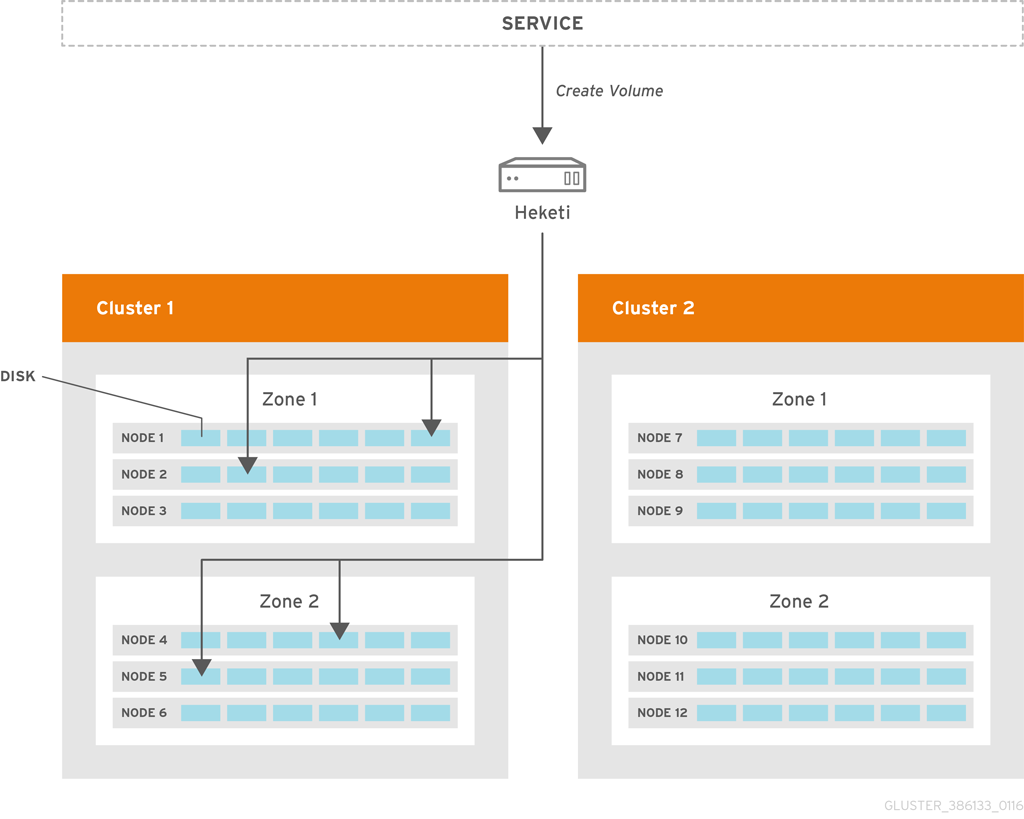
Figure 6.1. Heketi Architecture
6.2.1. Prerequisites
- SSH Access
- SSH user and public key must be setup on the node.
- SSH user must have password-less sudo.
- Must be able to run sudo commands from SSH. This requires disabling
requirettyin the/etc/sudoersfile
- Start the glusterd service after Red Hat Gluster Storage is installed.
- Disks registered with Heketi must be in the raw format.
6.2.2. Installing Heketi
# yum install heketi6.2.3. Starting the Heketi Server
- Generate the passphrase-less SSH keys for the nodes which are going to be part of the trusted storage pool by running the following command:
# ssh-keygen -f id_rsa -t rsa -N '' - Set up password-less SSH access between Heketi and the Red Hat Gluster Storage servers by running the following command:
# ssh-copy-id -i root@server - Setup the heketi.json configuration file. The file is located in /etc/heketi/heketi.json. The configuration file has the information required to run the Heketi server. The config file must be in JSON format with the following settings:
- port: string, Heketi REST service port number
- use_auth: bool, Enable JWT Authentication
- jwt: map, JWT Authentication settings
- admin: map, Settings for the Heketi administrator
- key: string,
- user: map, Settings for the Heketi volume requests access user
- key: string, t
- glusterfs: map, Red Hat Gluster Storage settings
- executor: string, Determines the type of command executor to use. Possible values are:
- mock: Does not send any commands out to servers. Can be used for development and tests
- ssh: Sends commands to real systems over ssh
- db: string, Location of Heketi database
- sshexec: map, SSH configuration
- keyfile: string, File with private ssh key
- user: string, SSH user
Following is an example of the JSON file:{ "_port_comment": "Heketi Server Port Number", "port": "8080", "_use_auth": "Enable JWT authorization. Please enable for deployment", "use_auth": false, "_jwt": "Private keys for access", "jwt": { "_admin": "Admin has access to all APIs", "admin": { "key": "My Secret" }, "_user": "User only has access to /volumes endpoint", "user": { "key": "My Secret" } }, .....Note
The location for the private SSH key that is created must be set in thekeyfilesetting of the configuration file, and the key should be readable by the heketi user.Advanced OptionsThe following configuration options should only be set on advanced configurations.
- brick_max_size_gb: int, Maximum brick size (Gb)
- brick_min_size_gb: int, Minimum brick size (Gb)
- max_bricks_per_volume: int, Maximum number of bricks per volume
6.2.3.1. Starting the Server
- Enable heketi by executing the following command:
# systemctl enable heketi - Start the Heketi server, by executing the following command:
# systemctl start heketi - To check the status of the Heketi server, execute the following command:
# systemctl status heketi - To check the logs, execute the following command:
# journalctl -u heketi
- To start Heketi, execute the following command:
# chkconfig --add heketi # service heketi start - Check the logs by executing the following command:
# less /var/log/heketi
Note
6.2.3.2. Verifying the Configuration
# curl http://<server:port>/hello# heketi-cli -server http://<server:port> -user <user> -secret <secret> cluster list6.2.4. Setting up the Topology
6.2.4.1. Prerequisites
6.2.4.2. Topology Setup
# export HEKETI_CLI_SERVER=http://<heketi_server:port>
# heketi-cli load -json=<topology_file>topology_file is a file in JSON format describing the clusters, nodes, and disks to add to Heketi. The format of the file is as follows:
- Each element on the array is a map which describes the cluster as follows
- nodes: array of nodes, Array of nodes in a clusterEach element on the array is a map which describes the node as follows
- node: map, Same map as Node Add except there is no need to supply the cluster id.
- devices: array of strings, Name of each disk to be added
- Topology file:
{ "clusters": [ { "nodes": [ { "node": { "hostnames": { "manage": [ "10.0.0.1" ], "storage": [ "10.0.0.1" ] }, "zone": 1 }, "devices": [ "/dev/sdb", "/dev/sdc", "/dev/sdd", "/dev/sde", "/dev/sdf", "/dev/sdg", "/dev/sdh", "/dev/sdi" ] }, { "node": { "hostnames": { "manage": [ "10.0.0.2" ], "storage": [ "10.0.0.2" ] }, "zone": 2 }, "devices": [ "/dev/sdb", "/dev/sdc", "/dev/sdd", "/dev/sde", "/dev/sdf", "/dev/sdg", "/dev/sdh", "/dev/sdi" ] }, ...... ...... - Load the Heketi JSON file:
# heketi-cli load -json=topology_libvirt.json Creating cluster ... ID: a0d9021ad085b30124afbcf8df95ec06 Creating node 192.168.10.100 ... ID: b455e763001d7903419c8ddd2f58aea0 Adding device /dev/vdb ... OK Adding device /dev/vdc ... OK ……. Creating node 192.168.10.101 ... ID: 4635bc1fe7b1394f9d14827c7372ef54 Adding device /dev/vdb ... OK Adding device /dev/vdc ... OK …………. - Execute the following command to check the details of a particular node:
# heketi-cli node info b455e763001d7903419c8ddd2f58aea0 Node Id: b455e763001d7903419c8ddd2f58aea0 Cluster Id: a0d9021ad085b30124afbcf8df95ec06 Zone: 1 Management Hostname: 192.168.10.100 Storage Hostname: 192.168.10.100 Devices: Id:0ddba53c70537938f3f06a65a4a7e88b Name:/dev/vdi Size (GiB):499 Used (GiB):0 Free (GiB):499 Id:4fae3aabbaf79d779795824ca6dc433a Name:/dev/vdg Size (GiB):499 Used (GiB):0 Free (GiB):499 ……………. - Execute the following command to check the details of the cluster:
# heketi-cli cluster info a0d9021ad085b30124afbcf8df95ec06 Cluster id: a0d9021ad085b30124afbcf8df95ec06 Nodes: 4635bc1fe7b1394f9d14827c7372ef54 802a3bfab2d0295772ea4bd39a97cd5e b455e763001d7903419c8ddd2f58aea0 ff9eeb735da341f8772d9415166b3f9d Volumes: - To check the details of the device, execute the following command:
# heketi-cli device info 0ddba53c70537938f3f06a65a4a7e88b Device Id: 0ddba53c70537938f3f06a65a4a7e88b Name: /dev/vdi Size (GiB): 499 Used (GiB): 0 Free (GiB): 499 Bricks:
6.2.5. Creating a Volume
- Execute the following command to check the various option for creating a volume:
# heketi-cli volume create [options] - For example: After setting up the topology file with two nodes on one failure domain, and two nodes in another failure domain, create a 100Gb volume using the following command:
# heketi-cli volume create -size=100 Name: vol_0729fe8ce9cee6eac9ccf01f84dc88cc Size: 100 Id: 0729fe8ce9cee6eac9ccf01f84dc88cc Cluster Id: a0d9021ad085b30124afbcf8df95ec06 Mount: 192.168.10.101:vol_0729fe8ce9cee6eac9ccf01f84dc88cc Mount Options: backupvolfile-servers=192.168.10.100,192.168.10.102 Durability Type: replicate Replica: 3 Snapshot: Disabled Bricks: Id: 8998961142c1b51ab82d14a4a7f4402d Path: /var/lib/heketi/mounts/vg_0ddba53c70537938f3f06a65a4a7e88b/brick_8998961142c1b51ab82d14a4a7f4402d/brick Size (GiB): 50 Node: b455e763001d7903419c8ddd2f58aea0 Device: 0ddba53c70537938f3f06a65a4a7e88b ……………. - If you want to increase the storage capacity of a particular volume by 1TB, then execute the following command:
# heketi-cli volume expand -volume=0729fe8ce9cee6eac9ccf01f84dc88cc -expand-size=1024 Name: vol_0729fe8ce9cee6eac9ccf01f84dc88cc Size: 1224 Id: 0729fe8ce9cee6eac9ccf01f84dc88cc Cluster Id: a0d9021ad085b30124afbcf8df95ec06 Mount: 192.168.10.101:vol_0729fe8ce9cee6eac9ccf01f84dc88cc Mount Options: backupvolfile-servers=192.168.10.100,192.168.10.102 Durability Type: replicate Replica: 3 Snapshot: Disabled Bricks: Id: 0b53e8c0d8e2b1a3fa5701e3c876d532 Path: /var/lib/heketi/mounts/vg_0ddba53c70537938f3f06a65a4a7e88b/brick_0b53e8c0d8e2b1a3fa5701e3c876d532/brick Size (GiB): 256 Node: b455e763001d7903419c8ddd2f58aea0 Device: 0ddba53c70537938f3f06a65a4a7e88b ......... ......... - To check the details of the device, execute the following command:
# heketi-cli device info 0ddba53c70537938f3f06a65a4a7e88b Device Id: 0ddba53c70537938f3f06a65a4a7e88b Name: /dev/vdi Size (GiB): 499 Used (GiB): 201 Free (GiB): 298 Bricks: Id:0f1766cc142f1828d13c01e6eed12c74 Size (GiB):50 Path: /var/lib/heketi/mounts/vg_0ddba53c70537938f3f06a65a4a7e88b/brick_0f1766cc142f1828d13c01e6eed12c74/brick Id:5d944c47779864b428faa3edcaac6902 Size (GiB):50 Path: /var/lib/heketi/mounts/vg_0ddba53c70537938f3f06a65a4a7e88b/brick_5d944c47779864b428faa3edcaac6902/brick Id:8998961142c1b51ab82d14a4a7f4402d Size (GiB):50 Path: /var/lib/heketi/mounts/vg_0ddba53c70537938f3f06a65a4a7e88b/brick_8998961142c1b51ab82d14a4a7f4402d/brick Id:a11e7246bb21b34a157e0e1fd598b3f9 Size (GiB):50 Path: /var/lib/heketi/mounts/vg_0ddba53c70537938f3f06a65a4a7e88b/brick_a11e7246bb21b34a157e0e1fd598b3f9/brick
6.2.6. Deleting a Volume
# heketi-cli volume delete <volname>$ heketi-cli volume delete 0729fe8ce9cee6eac9ccf01f84dc88cc
Volume 0729fe8ce9cee6eac9ccf01f84dc88cc deleted6.3. About Encrypted Disk
6.4. Formatting and Mounting Bricks
6.4.1. Creating Bricks Manually
Important
- Red Hat supports formatting a Logical Volume using the XFS file system on the bricks.
- Create a physical volume(PV) by using the
pvcreatecommand.For example:pvcreate --dataalignment 1280K /dev/sdbHere,/dev/sdbis a storage device.Use the correctdataalignmentoption based on your device. For more information, see Section 13.2, “Brick Configuration”Note
The device name and the alignment value will vary based on the device you are using. - Create a Volume Group (VG) from the PV using the
vgcreatecommand:For example:vgcreate --physicalextentsize 1280K rhs_vg /dev/sdb - Create a thin-pool using the following commands:
lvcreate --thinpool VOLGROUP/thin_pool -L pool_sz --chuncksize chunk_sz --poolmetadatasize metadev_sz --zero nFor example:lvcreate --thinpool rhs_vg/rhs_pool -L 2T --chunksize 1280K --poolmetadatasize 16G --zero nTo enhance the performance of Red Hat Gluster Storage, ensure you read Chapter 13, Configuring Red Hat Gluster Storage for Enhancing Performance chapter. - Create a thinly provisioned volume from the previously created pool using the
lvcreatecommand:For example:lvcreate -V 1G -T rhs_vg/rhs_pool -n rhs_lvIt is recommended that only one LV should be created in a thin pool.
Important
-l logdev=device option with mkfs.xfs command for formatting the Red Hat Gluster Storage bricks.
- Run
# mkfs.xfs -f -i size=512 -n size=8192 -d su=128K,sw=10 DEVICEto format the bricks to the supported XFS file system format. Here, DEVICE is the created thin LV. The inode size is set to 512 bytes to accommodate for the extended attributes used by Red Hat Gluster Storage. - Run
# mkdir /mountpointto create a directory to link the brick to. - Add an entry in
/etc/fstab:/dev/rhs_vg/rhs_lv/mountpoint xfs rw,inode64,noatime,nouuid 1 2 - Run
# mount /mountpointto mount the brick. - Run the
df -hcommand to verify the brick is successfully mounted:# df -h /dev/rhs_vg/rhs_lv 16G 1.2G 15G 7% /exp1 - If SElinux is enabled, then the SELinux labels that has to be set manually for the bricks created using the following commands:
# semanage fcontext -a -t glusterd_brick_t /rhgs/brick1 # restorecon -Rv /rhgs/brick1
/exp directory is the mounted file system and is used as the brick for volume creation. However, for some reason, if the mount point is unavailable, any write continues to happen in the /exp directory, but now this is under root file system.
/bricks. After the file system is available, create a directory called /bricks/bricksrv1 and use it for volume creation. Ensure that no more than one brick is created from a single mount. This approach has the following advantages:
- When the
/bricksfile system is unavailable, there is no longer/bricks/bricksrv1directory available in the system. Hence, there will be no data loss by writing to a different location. - This does not require any additional file system for nesting.
- Create the
bricksrv1subdirectory in the mounted file system.# mkdir /bricks/bricksrv1Repeat the above steps on all nodes. - Create the Red Hat Gluster Storage volume using the subdirectories as bricks.
# gluster volume create distdata01 ad-rhs-srv1:/bricks/bricksrv1 ad-rhs-srv2:/bricks/bricksrv2 - Start the Red Hat Gluster Storage volume.
# gluster volume start distdata01 - Verify the status of the volume.
# gluster volume status distdata01
Reusing a Brick from a Deleted Volume
- Brick with a File System Suitable for Reformatting (Optimal Method)
- Run
# mkfs.xfs -f -i size=512 deviceto reformat the brick to supported requirements, and make it available for immediate reuse in a new volume.Note
All data will be erased when the brick is reformatted. - File System on a Parent of a Brick Directory
- If the file system cannot be reformatted, remove the whole brick directory and create it again.
- Delete all previously existing data in the brick, including the
.glusterfssubdirectory. - Run
# setfattr -x trusted.glusterfs.volume-id brickand# setfattr -x trusted.gfid brickto remove the attributes from the root of the brick. - Run
# getfattr -d -m . brickto examine the attributes set on the volume. Take note of the attributes. - Run
# setfattr -x attribute brickto remove the attributes relating to the glusterFS file system.Thetrusted.glusterfs.dhtattribute for a distributed volume is one such example of attributes that need to be removed.
6.5. Creating Distributed Volumes
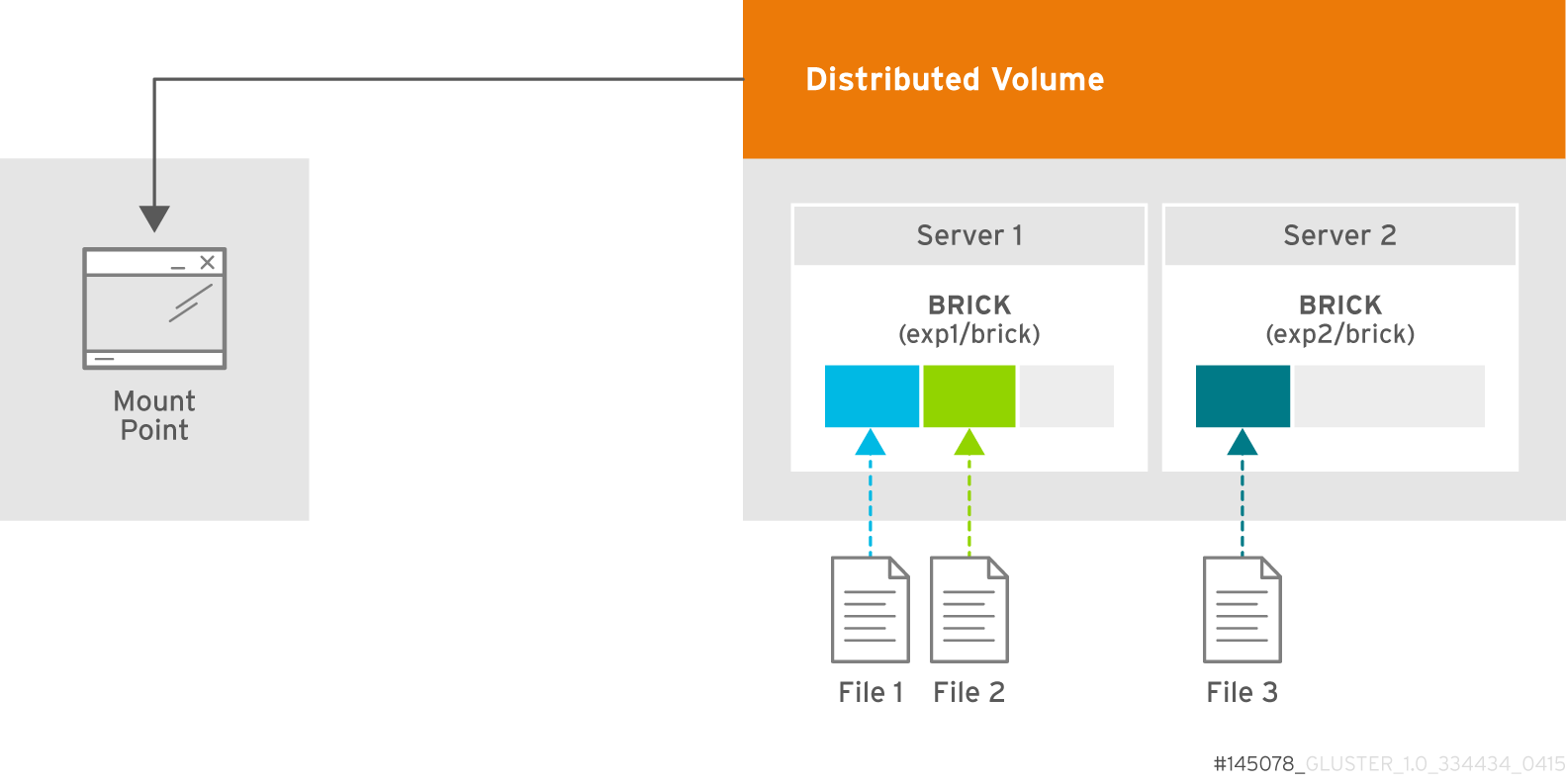
Figure 6.2. Illustration of a Distributed Volume
Warning
Create a Distributed Volume
gluster volume create command to create different types of volumes, and gluster volume info command to verify successful volume creation.
Pre-requisites
- A trusted storage pool has been created, as described in Section 5.1, “Adding Servers to the Trusted Storage Pool”.
- Understand how to start and stop volumes, as described in Section 6.10, “Starting Volumes”.
- Run the
gluster volume createcommand to create the distributed volume.The syntax isgluster volume create NEW-VOLNAME [transport tcp | rdma | tcp,rdma] NEW-BRICK...The default value for transport istcp. Other options can be passed such asauth.alloworauth.reject. See Section 10.1, “Configuring Volume Options” for a full list of parameters.Example 6.1. Distributed Volume with Two Storage Servers
# gluster volume create test-volume server1:/exp1/brick server2:/exp2/brick Creation of test-volume has been successful Please start the volume to access data.Example 6.2. Distributed Volume over InfiniBand with Four Servers
# gluster volume create test-volume transport rdma server1:/exp1/brick server2:/exp2/brick server3:/exp3/brick server4:/exp4/brick Creation of test-volume has been successful Please start the volume to access data. - Run
# gluster volume start VOLNAMEto start the volume.# gluster volume start test-volume Starting test-volume has been successful - Run
gluster volume infocommand to optionally display the volume information.The following output is the result of Example 6.1, “Distributed Volume with Two Storage Servers”.# gluster volume info Volume Name: test-volume Type: Distribute Status: Created Number of Bricks: 2 Transport-type: tcp Bricks: Brick1: server1:/exp1/brick Brick2: server2:/exp2/brick
6.6. Creating Replicated Volumes
Important
gluster volume create to create different types of volumes, and gluster volume info to verify successful volume creation.
- A trusted storage pool has been created, as described in Section 5.1, “Adding Servers to the Trusted Storage Pool”.
- Understand how to start and stop volumes, as described in Section 6.10, “Starting Volumes”.
6.6.1. Creating Two-way Replicated Volumes
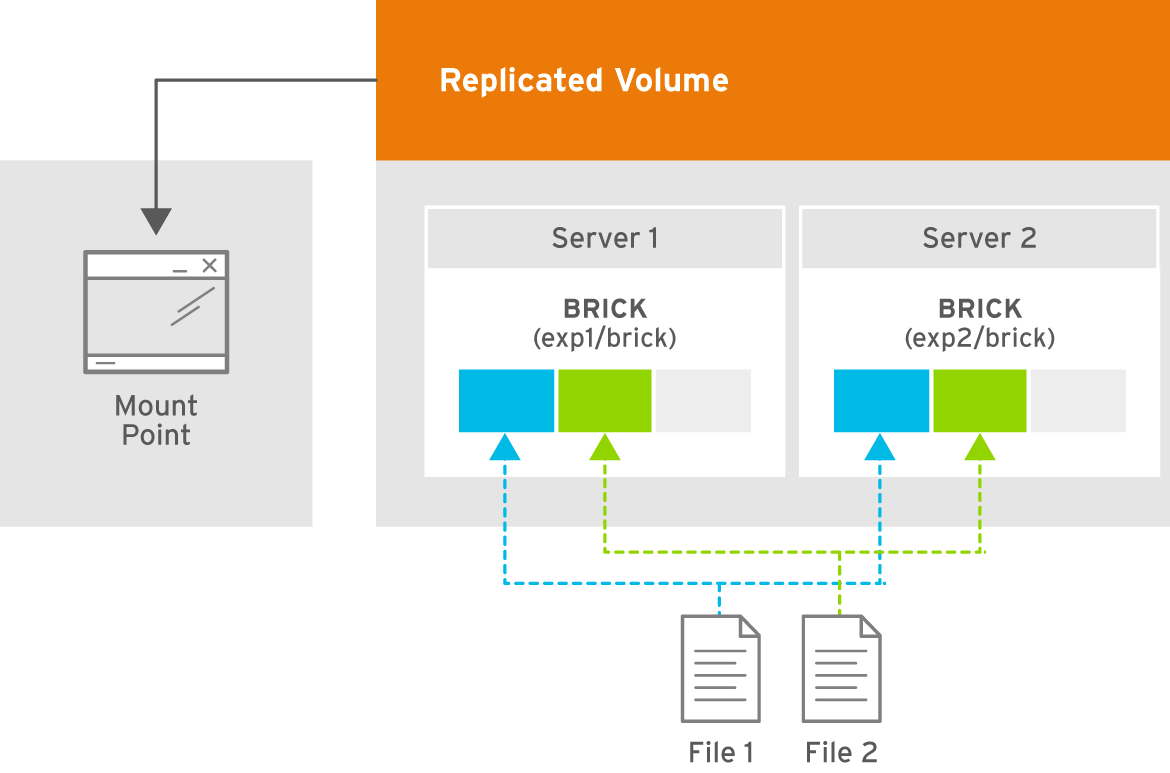
Figure 6.3. Illustration of a Two-way Replicated Volume
- Run the
gluster volume createcommand to create the replicated volume.The syntax is# gluster volume create NEW-VOLNAME [replica COUNT] [transport tcp | rdma | tcp,rdma] NEW-BRICK...The default value for transport istcp. Other options can be passed such asauth.alloworauth.reject. See Section 10.1, “Configuring Volume Options” for a full list of parameters.Example 6.3. Replicated Volume with Two Storage Servers
The order in which bricks are specified determines how they are replicated with each other. For example, every2bricks, where2is the replica count, forms a replica set. This is illustrated in Figure 6.2. Illustration of a Two-way Replicated Volume.# gluster volume create test-volume replica 2 transport tcp server1:/exp1/brick server2:/exp2/brick Creation of test-volume has been successful Please start the volume to access data. - Run
# gluster volume start VOLNAMEto start the volume.# gluster volume start test-volume Starting test-volume has been successful - Run
gluster volume infocommand to optionally display the volume information.
Important
6.6.2. Creating Three-way Replicated Volumes
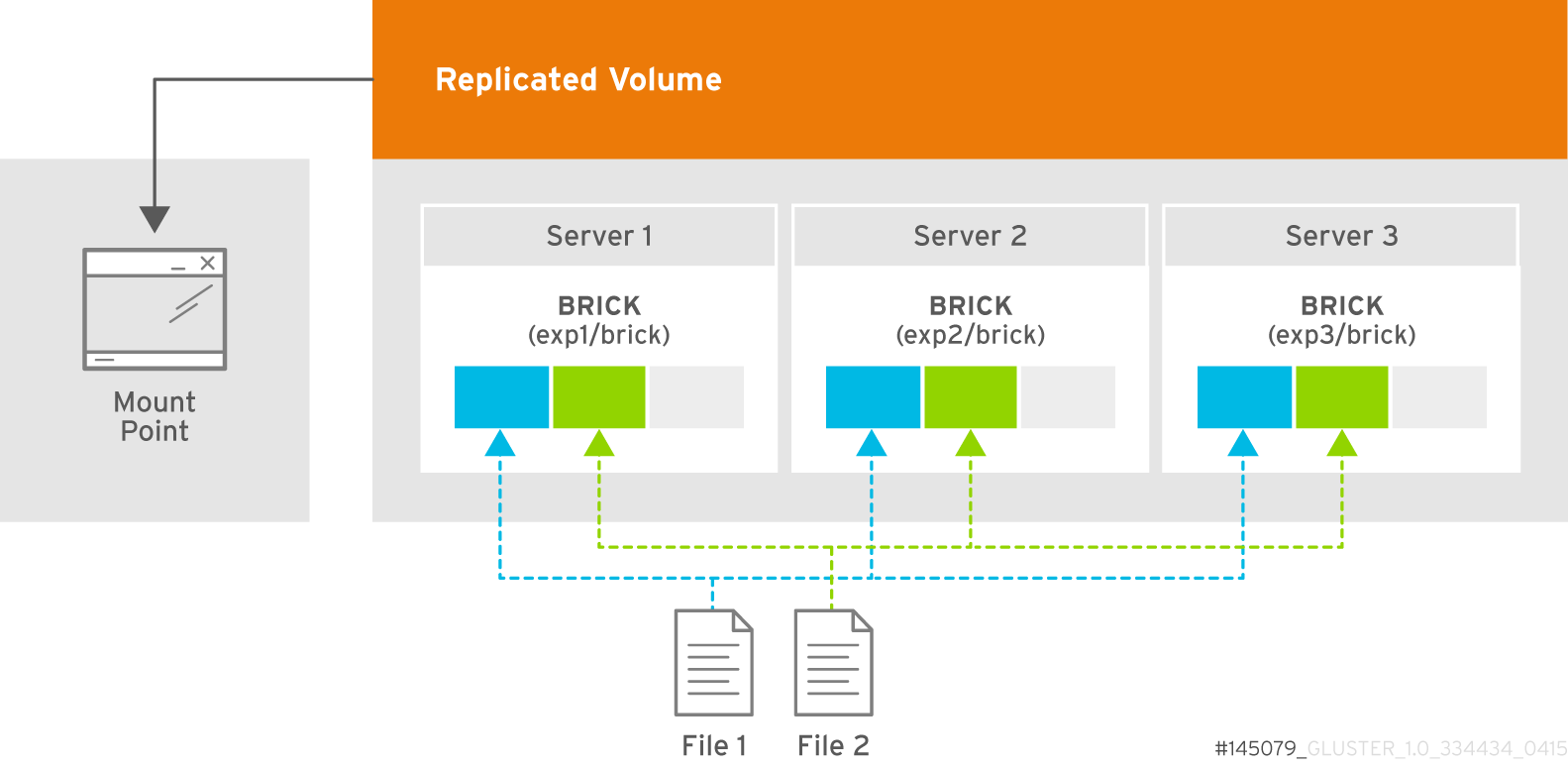
Figure 6.4. Illustration of a Three-way Replicated Volume
- Run the
gluster volume createcommand to create the replicated volume.The syntax is# gluster volume create NEW-VOLNAME [replica COUNT] [transport tcp | rdma | tcp,rdma] NEW-BRICK...The default value for transport istcp. Other options can be passed such asauth.alloworauth.reject. See Section 10.1, “Configuring Volume Options” for a full list of parameters.Example 6.4. Replicated Volume with Three Storage Servers
The order in which bricks are specified determines how bricks are replicated with each other. For example, everynbricks, wherenis the replica count forms a replica set. This is illustrated in Figure 6.3. Illustration of a Three-way Replicated Volume.# gluster volume create test-volume replica 3 transport tcp server1:/exp1/brick server2:/exp2/brick server3:/exp3/brick Creation of test-volume has been successful Please start the volume to access data. - Run
# gluster volume start VOLNAMEto start the volume.# gluster volume start test-volume Starting test-volume has been successful - Run
gluster volume infocommand to optionally display the volume information.
Important
6.7. Creating Distributed Replicated Volumes
Important
Note
- A trusted storage pool has been created, as described in Section 5.1, “Adding Servers to the Trusted Storage Pool”.
- Understand how to start and stop volumes, as described in Section 6.10, “Starting Volumes”.
6.7.1. Creating Two-way Distributed Replicated Volumes

Figure 6.5. Illustration of a Two-way Distributed Replicated Volume
- Run the
gluster volume createcommand to create the distributed replicated volume.The syntax is# gluster volume create NEW-VOLNAME [replica COUNT] [transport tcp | rdma | tcp,rdma] NEW-BRICK...The default value for transport istcp. Other options can be passed such asauth.alloworauth.reject. See Section 10.1, “Configuring Volume Options” for a full list of parameters.Example 6.5. Four Node Distributed Replicated Volume with a Two-way Replication
The order in which bricks are specified determines how they are replicated with each other. For example, the first two bricks specified replicate each other where 2 is the replica count.# gluster volume create test-volume replica 2 transport tcp server1:/exp1/brick server2:/exp2/brick server3:/exp3/brick server4:/exp4/brick Creation of test-volume has been successful Please start the volume to access data.Example 6.6. Six Node Distributed Replicated Volume with a Two-way Replication
# gluster volume create test-volume replica 2 transport tcp server1:/exp1/brick server2:/exp2/brick server3:/exp3/brick server4:/exp4/brick server5:/exp5/brick server6:/exp6/brick Creation of test-volume has been successful Please start the volume to access data. - Run
# gluster volume start VOLNAMEto start the volume.# gluster volume start test-volume Starting test-volume has been successful - Run
gluster volume infocommand to optionally display the volume information.
Important
6.7.2. Creating Three-way Distributed Replicated Volumes
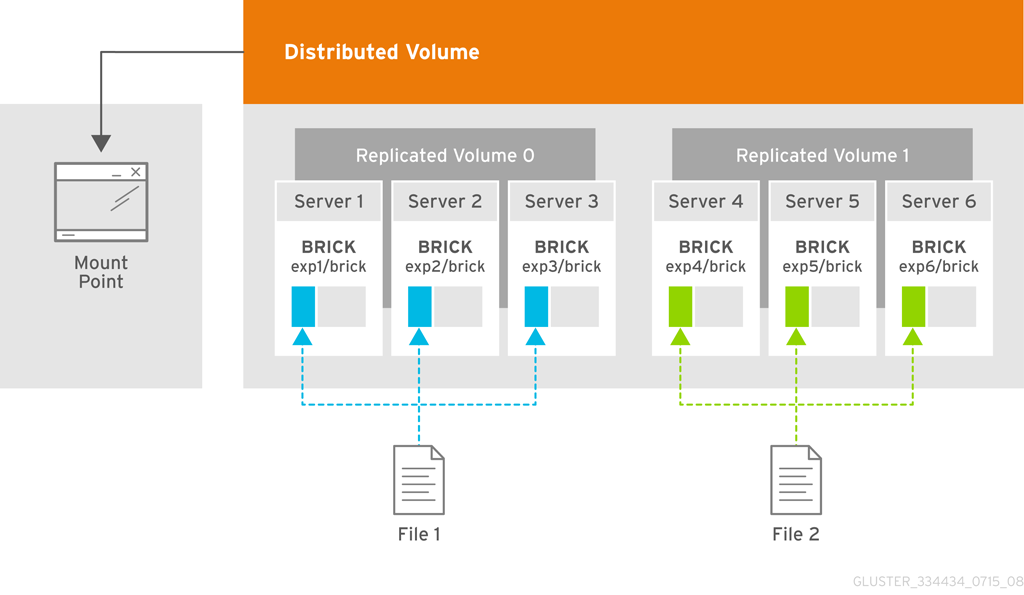
Figure 6.6. Illustration of a Three-way Distributed Replicated Volume
- Run the
gluster volume createcommand to create the distributed replicated volume.The syntax is# gluster volume create NEW-VOLNAME [replica COUNT] [transport tcp | rdma | tcp,rdma] NEW-BRICK...The default value for transport istcp. Other options can be passed such asauth.alloworauth.reject. See Section 10.1, “Configuring Volume Options” for a full list of parameters.Example 6.7. Six Node Distributed Replicated Volume with a Three-way Replication
The order in which bricks are specified determines how bricks are replicated with each other. For example, first 3 bricks, where 3 is the replica count forms a replicate set.# gluster volume create test-volume replica 3 transport tcp server1:/exp1/brick server2:/exp2/brick server3:/exp3/brick server4:/exp4/brick server5:/exp5/brick server6:/exp6/brick Creation of test-volume has been successful Please start the volume to access data. - Run
# gluster volume start VOLNAMEto start the volume.# gluster volume start test-volume Starting test-volume has been successful - Run
gluster volume infocommand to optionally display the volume information.
Important
6.8. Creating Dispersed Volumes
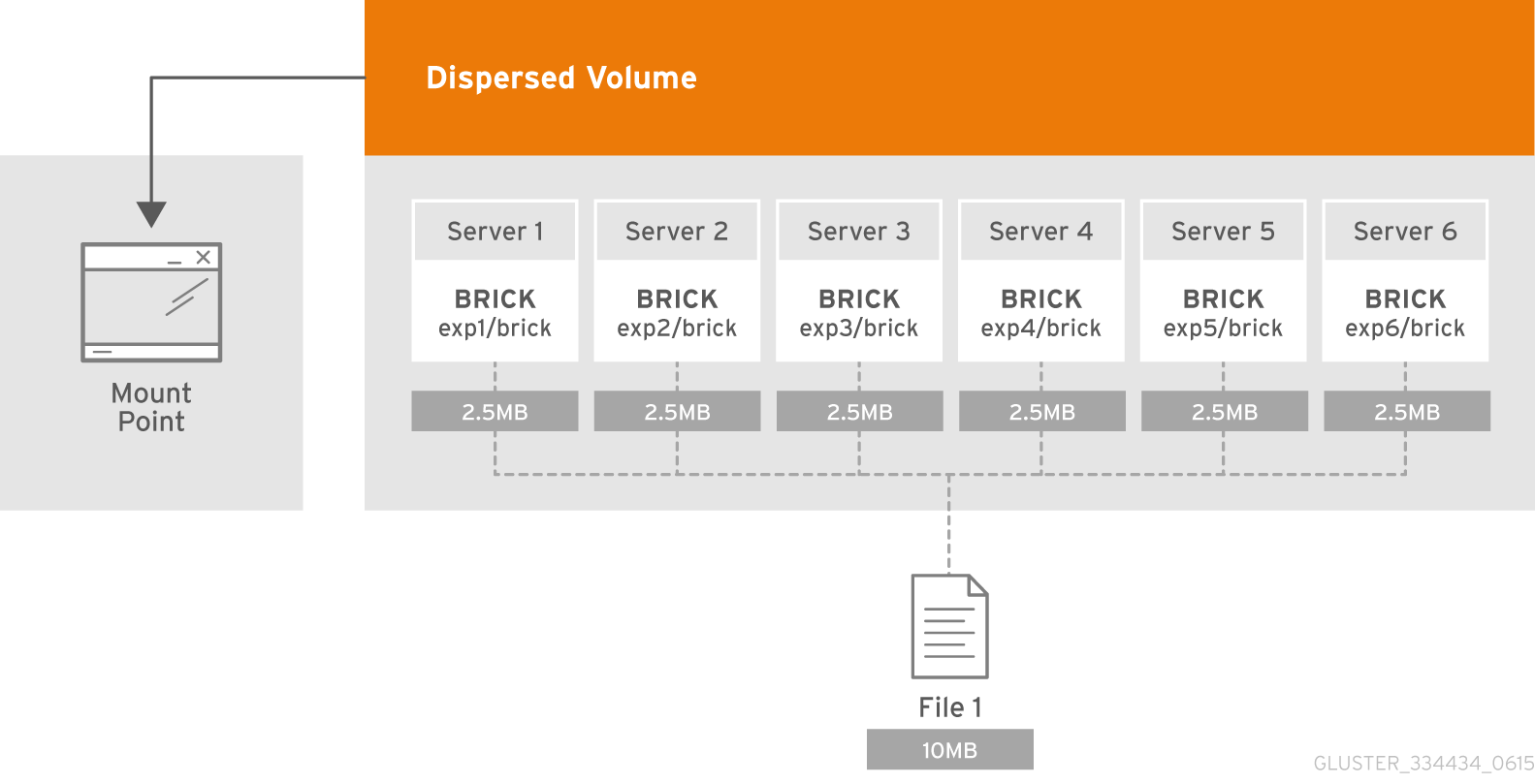
Figure 6.7. Illustration of a Dispersed Volume
n = k + m. Here n is the total number of bricks, we would require any k bricks out of n bricks for recovery. In other words, we can tolerate failure up to any m bricks. With this release, the following configurations are supported:
- 6 bricks with redundancy level 2 (4 +2)
- 11 bricks with redundancy level 3 (8 +3)
- 12 bricks with redundancy level 4 (8 + 4)
gluster volume create to create different types of volumes, and gluster volume info to verify successful volume creation.
- Create a trusted storage pool as described in Section 5.1, “Adding Servers to the Trusted Storage Pool”.
- Understand how to start and stop volumes, as described in Section 6.10, “Starting Volumes”.
Important
- Run the
gluster volume createcommand to create the dispersed volume.The syntax is# gluster volume create NEW-VOLNAME [disperse-data COUNT] [redundancy COUNT] [transport tcp | rdma | tcp,rdma] NEW-BRICK...The number of bricks required to create a disperse volume is the sum ofdisperse-data countandredundancy count.Thedisperse-datacountoption specifies the number of bricks that is part of the dispersed volume, excluding the count of the redundant bricks. For example, if the total number of bricks is 6 andredundancy-countis specified as 2, then the disperse-data count is 4 (6 - 2 = 4). If thedisperse-data countoption is not specified, and only theredundancy countoption is specified, then thedisperse-data countis computed automatically by deducting the redundancy count from the specified total number of bricks.Redundancy determines how many bricks can be lost without interrupting the operation of the volume. Ifredundancy countis not specified, based on the configuration it is computed automatically to the optimal value and a warning message is displayed.The default value for transport istcp. Other options can be passed such asauth.alloworauth.reject. See Section 6.3, “About Encrypted Disk” for a full list of parameters.Example 6.8. Dispersed Volume with Six Storage Servers
# gluster volume create test-volume disperse-data 4 redundancy 2 transport tcp server1:/exp1/brick server2:/exp2/brick server3:/exp3/brick server4:/exp4/brick server5:/exp5/brick server6:/exp6/brick Creation of test-volume has been successful Please start the volume to access data. - Run
# gluster volume start VOLNAMEto start the volume.# gluster volume start test-volume Starting test-volume has been successful - Run
gluster volume infocommand to optionally display the volume information.
6.9. Creating Distributed Dispersed Volumes
- Multiple disperse sets containing 6 bricks with redundancy level 2
- Multiple disperse sets containing 11 bricks with redundancy level 3
- Multiple disperse sets containing 12 bricks with redundancy level 4
gluster volume create to create different types of volumes, and gluster volume info to verify successful volume creation.
- A trusted storage pool has been created, as described in Section 5.1, “Adding Servers to the Trusted Storage Pool”.
- Understand how to start and stop volumes, as described in Section 6.10, “Starting Volumes”.
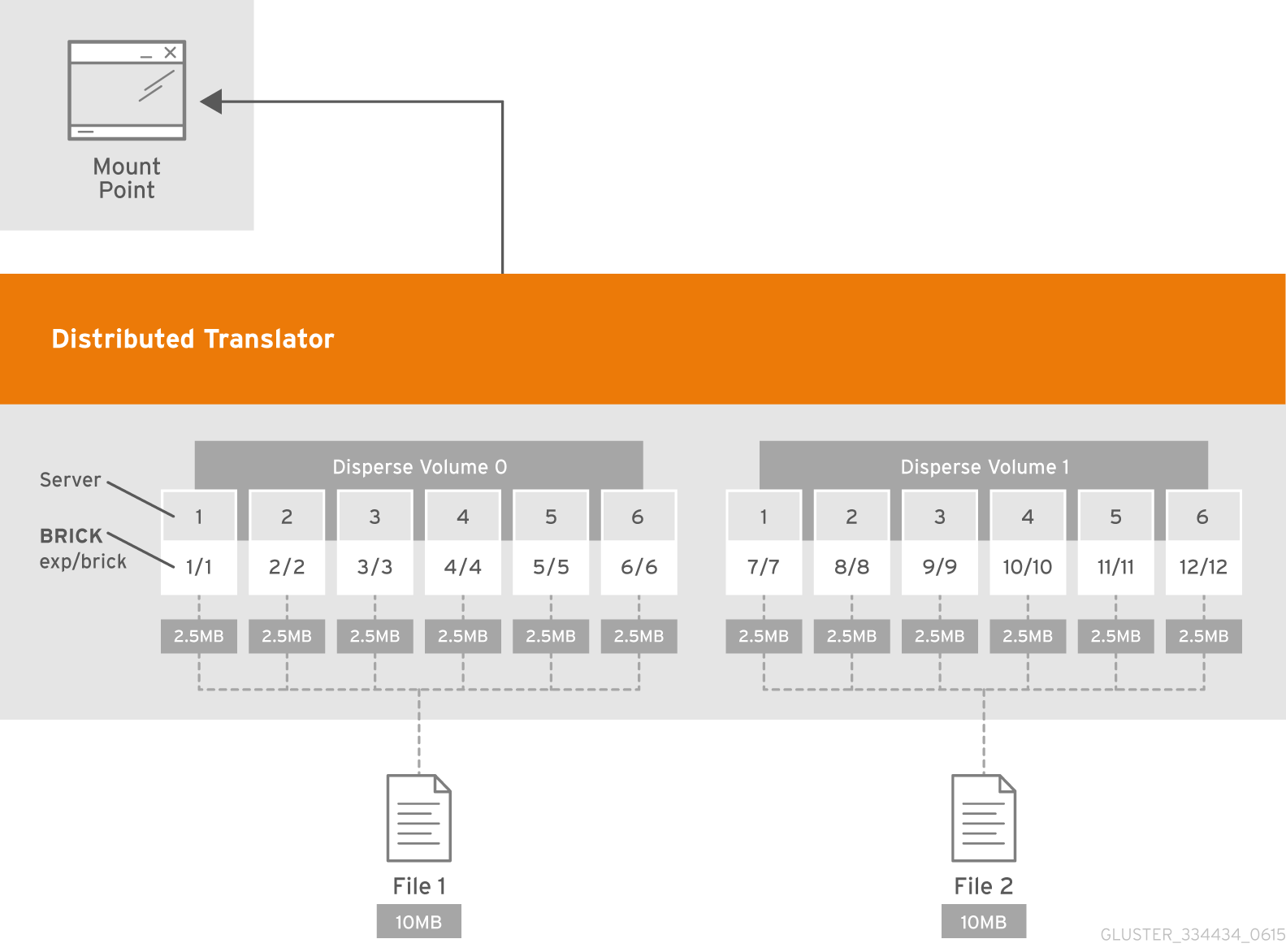
Figure 6.8. Illustration of a Distributed Dispersed Volume
Important
- Run the
gluster volume createcommand to create the dispersed volume.The syntax is# gluster volume create NEW-VOLNAME disperse-data COUNT [redundancy COUNT] [transport tcp | rdma | tcp,rdma] NEW-BRICK...The default value for transport istcp. Other options can be passed such asauth.alloworauth.reject. See Section 10.1, “Configuring Volume Options” for a full list of parameters.Example 6.9. Distributed Dispersed Volume with Six Storage Servers
# gluster volume create test-volume disperse-data 4 redundancy 2 transport tcp server1:/exp1/brick1 server2:/exp2/brick2 server3:/exp3/brick3 server4:/exp4/brick4 server5:/exp5/brick5 server6:/exp6/brick6 server1:/exp7/brick7 server2:/exp8/brick8 server3:/exp9/brick9 server4:/exp10/brick10 server5:/exp11/brick11 server6:/exp12/brick12 Creation of test-volume has been successful Please start the volume to access data.The above example is illustrated in the figureIllustration of a Distributed Dispersed Volume. In the illustration and example, you are creating 12 bricks from 6 servers. - Run
# gluster volume start VOLNAMEto start the volume.# gluster volume start test-volume Starting test-volume has been successful - Run
gluster volume infocommand to optionally display the volume information.
6.10. Starting Volumes
# gluster volume start VOLNAME
# gluster volume start test-volume
Starting test-volume has been successfulChapter 7. Accessing Data - Setting Up Clients
- Native Client (see Section 7.1, “Native Client”)
- Network File System (NFS) v3 (see Section 7.2, “NFS”)
- Server Message Block (SMB) (see Section 7.3, “SMB”)
Although a Red Hat Gluster Storage trusted pool can be configured to support multiple protocols simultaneously, a single volume cannot be freely accessed by different protocols due to differences in locking semantics. The table below defines which protocols can safely access the same volume concurrently.
| SMB | NFS | Native Client | Object | |
|---|---|---|---|---|
SMB | Yes | No | No | No |
NFS | No | Yes | Yes | Yes |
Native Client | No | Yes | Yes | Yes |
Object | No | Yes | Yes | Yes |
The following table provides the support matrix for the supported access protocols with TCP/RDMA.
| Access Protocols | TCP | RDMA |
|---|---|---|
| FUSE | Yes | Yes |
| SMB | Yes | No |
| NFS | Yes | Yes |
Important
7.1. Native Client
| Red Hat Enterprise Linux version | Red Hat Gluster Storage version | Native client version |
|---|---|---|
| 6.5 | 3.0 | 3.0, 2.1* |
| 6.6 | 3.0.2, 3.0.3, 3.0.4 | 3.0, 2.1* |
| 6.7 | 3.1, 3.1.1, 3.1.2 | 3.1, 3.0, 2.1* |
| 7.1 | 3.1, 3.1.1 | 3.1, 3.0, 2.1* |
| 7.2 | 3.1.2 | 3.1, 3.0, 2.1* |
Note
7.1.1. Installing Native Client
Important
Use the Command Line to Register and Subscribe a System to Red Hat Network
Prerequisites
- Know the user name and password of the Red Hat Network (RHN) account with Red Hat Gluster Storage entitlements.
- Run the
rhn_registercommand to register the system.# rhn_register - In the Operating System Release Version screen, select All available updates and follow the prompts to register the system to the standard base channel of the respective Red Hat Enterprise Linux Server version.
- Run the
rhn-channel --add --channelcommand to subscribe the system to the correct Red Hat Gluster Storage Native Client channel:- For Red Hat Enterprise Linux 7.x clients using Red Hat Satellite Server:
# rhn-channel --add --channel=rhel-x86_64-server-7-rh-gluster-3-clientNote
The following command can also be used, but Red Hat Gluster Storage may deprecate support for this channel in future releases.# rhn-channel --add --channel=rhel-x86_64-server-rh-common-7 - For Red Hat Enterprise Linux 6.x clients:
# rhn-channel --add --channel=rhel-x86_64-server-rhsclient-6 - For Red Hat Enterprise Linux 5.x clients:
# rhn-channel --add --channel=rhel-x86_64-server-rhsclient-5
- Verify that the system is subscribed to the required channels.
# yum repolist
Use the Command Line to Register and Subscribe a System to Red Hat Subscription Management
Prerequisites
- Know the user name and password of the Red Hat Subscription Manager account with Red Hat Gluster Storage entitlements.
- Run the
subscription-manager registercommand and enter your Red Hat Subscription Manager user name and password to register the system with Red Hat Subscription Manager.# subscription-manager register --auto-attach - Depending on your client, run one of the following commands to subscribe to the correct repositories.
- For Red Hat Enterprise Linux 7.x clients:
# subscription-manager repos --enable=rhel-7-server-rpms --enable=rh-gluster-3-client-for-rhel-7-server-rpmsNote
The following command can also be used, but Red Hat Gluster Storage may deprecate support for this repository in future releases.# subscription-manager repos --enable=rhel-7-server-rh-common-rpms - For Red Hat Enterprise Linux 6.1 and later clients:
# subscription-manager repos --enable=rhel-6-server-rpms --enable=rhel-6-server-rhs-client-1-rpms - For Red Hat Enterprise Linux 5.7 and later clients:
# subscription-manager repos --enable=rhel-5-server-rpms --enable=rhel-5-server-rhs-client-1-rpms
For more information, see Section 3.2 Registering from the Command Line in Using and Configuring Red Hat Subscription Management. - Verify that the system is subscribed to the required repositories.
# yum repolist
Use the Web Interface to Register and Subscribe a System
Prerequisites
- Know the user name and password of the Red Hat Network (RHN) account with Red Hat Gluster Storage entitlements.
- Log on to Red Hat Network (http://rhn.redhat.com).
- Move the mouse cursor over the
Subscriptionslink at the top of the screen, and then click theRegistered Systemslink. - Click the name of the system to which the Red Hat Gluster Storage Native Client channel must be appended.
- Click in the Subscribed Channels section of the screen.
- Expand the node for Additional Services Channels for
Red Hat Enterprise Linux 7 for x86_64orRed Hat Enterprise Linux 6 for x86_64or forRed Hat Enterprise Linux 5 for x86_64depending on the client platform. - Click the button to finalize the changes.When the page refreshes, select the Details tab to verify the system is subscribed to the appropriate channels.
Install Native Client Packages
Prerequisites
- Run the
yum installcommand to install the native client RPM packages.# yum install glusterfs glusterfs-fuse - For Red Hat Enterprise 5.x client systems, run the
modprobecommand to load FUSE modules before mounting Red Hat Gluster Storage volumes.# modprobe fuseFor more information on loading modules at boot time, see https://access.redhat.com/knowledge/solutions/47028 .
7.1.2. Upgrading Native Client
Unmount gluster volumes
Unmount any gluster volumes prior to upgrading the native client.# umount /mnt/glusterfsUpgrade the client
Run theyum updatecommand to upgrade the native client:# yum update glusterfs glusterfs-fuseRemount gluster volumes
Remount volumes as discussed in Section 7.1.3, “Mounting Red Hat Gluster Storage Volumes”.
7.1.3. Mounting Red Hat Gluster Storage Volumes
Note
- For Red Hat Gluster Storage 3.1 and Red Hat Gluster Storage 3.1.z, the recommended native client version should either be 3.1.z, or 3.0.z.
- Server names selected during volume creation should be resolvable in the client machine. Use appropriate
/etc/hostsentries, or a DNS server to resolve server names to IP addresses.
7.1.3.1. Mount Commands and Options
mount -t glusterfs command. All options must be separated with commas.
# mount -t glusterfs -o backup-volfile-servers=volfile_server2:volfile_server3:.... ..:volfile_serverN,transport-type tcp,log-level=WARNING,log-file=/var/log/gluster.log server1:/test-volume /mnt/glusterfs- backup-volfile-servers=<volfile_server2>:<volfile_server3>:...:<volfile_serverN>
- List of the backup volfile servers to mount the client. If this option is specified while mounting the fuse client, when the first volfile server fails, the servers specified in
backup-volfile-serversoption are used as volfile servers to mount the client until the mount is successful.Note
This option was earlier specified asbackupvolfile-serverwhich is no longer valid. - log-level
- Logs only specified level or higher severity messages in the log-file.
- log-file
- Logs the messages in the specified file.
- transport-type
- Specifies the transport type that FUSE client must use to communicate with bricks. If the volume was created with only one transport type, then that becomes the default when no value is specified. In case of
tcp,rdmavolume, tcp is the default. - ro
- Mounts the file system as read only.
- acl
- Enables POSIX Access Control List on mount.
- background-qlen=n
- Enables FUSE to handle n number of requests to be queued before subsequent requests are denied. Default value of n is 64.
- enable-ino32
- this option enables file system to present 32-bit inodes instead of 64- bit inodes.
7.1.3.2. Mounting Volumes Manually
Manually Mount a Red Hat Gluster Storage Volume
mount -t glusterfs HOSTNAME|IPADDRESS:/VOLNAME /MOUNTDIR command to manually mount a Red Hat Gluster Storage volume.
Note
- If a mount point has not yet been created for the volume, run the
mkdircommand to create a mount point.# mkdir /mnt/glusterfs - Run the
mount -t glusterfscommand, using the key in the task summary as a guide.# mount -t glusterfs server1:/test-volume /mnt/glusterfs
7.1.3.3. Mounting Volumes Automatically
- Open the
/etc/fstabfile in a text editor. - Append the following configuration to the
fstabfile.HOSTNAME|IPADDRESS:/VOLNAME /MOUNTDIR glusterfs defaults,_netdev 0 0Using the example server names, the entry contains the following replaced values.server1:/test-volume /mnt/glusterfs glusterfs defaults,_netdev 0 0If you want to specify the transport type then check the following example:server1:/test-volume /mnt/glusterfs glusterfs defaults,_netdev,transport=tcp 0 0
7.1.3.4. Testing Mounted Volumes
Testing Mounted Red Hat Gluster Storage Volumes
Prerequisites
- Run the
mountcommand to check whether the volume was successfully mounted.# mount server1:/test-volume on /mnt/glusterfs type fuse.glusterfs(rw,allow_other,default_permissions,max_read=131072If transport option is used while mounting a volume, mount status will have the transport type appended to the volume name. For example, for transport=tcp:# mount server1:/test-volume.tcp on /mnt/glusterfs type fuse.glusterfs(rw,allow_other,default_permissions,max_read=131072 - Run the
dfcommand to display the aggregated storage space from all the bricks in a volume.# df -h /mnt/glusterfs Filesystem Size Used Avail Use% Mounted on server1:/test-volume 28T 22T 5.4T 82% /mnt/glusterfs - Move to the mount directory using the
cdcommand, and list the contents.# cd /mnt/glusterfs # ls
7.2. NFS
getfacl and setfacl operations on NFS clients. The following options are provided to configure the Access Control Lists (ACL) in the glusterFS NFS server with the nfs.acl option. For example:
- To set nfs.acl
ON, run the following command:# gluster volume set VOLNAME nfs.acl on - To set nfs.acl
OFF, run the following command:# gluster volume set VOLNAME nfs.acl off
Note
ON by default.
Important
# firewall-cmd --get-active-zones# firewall-cmd --zone=zone_name --add-service=nfs --add-service=rpc-bind
# firewall-cmd --zone=zone_name --add-service=nfs --add-service=rpc-bind --permanent7.2.1. Using NFS to Mount Red Hat Gluster Storage Volumes
Note
nfsmount.conf file at /etc/nfsmount.conf by adding the following text in the file:
Defaultvers=3
vers=3 manually in all the mount commands.
# mount nfsserver:export -o vers=3 /MOUNTPOINT
tcp,rdma volume it could be changed using the volume set option nfs.transport-type.
7.2.1.1. Manually Mounting Volumes Using NFS
mount command to manually mount a Red Hat Gluster Storage volume using NFS.
- If a mount point has not yet been created for the volume, run the
mkdircommand to create a mount point.# mkdir /mnt/glusterfs - Run the correct
mountcommand for the system.- For Linux
# mount -t nfs -o vers=3 server1:/test-volume /mnt/glusterfs- For Solaris
# mount -o vers=3 nfs://server1:38467/test-volume /mnt/glusterfs
mount command to manually mount a Red Hat Gluster Storage volume using NFS over TCP.
Note
requested NFS version or transport protocol is not supported
nfs.mount-udp is supported for mounting a volume, by default it is disabled. The following are the limitations:
- If
nfs.mount-udpis enabled, the MOUNT protocol needed for NFSv3 can handle requests from NFS-clients that require MOUNT over UDP. This is useful for at least some versions of Solaris, IBM AIX and HP-UX. - Currently, MOUNT over UDP does not have support for mounting subdirectories on a volume. Mounting
server:/volume/subdirexports is only functional when MOUNT over TCP is used. - MOUNT over UDP does not currently have support for different authentication options that MOUNT over TCP honors. Enabling
nfs.mount-udpmay give more permissions to NFS clients than intended via various authentication options likenfs.rpc-auth-allow,nfs.rpc-auth-rejectandnfs.export-dir.
- If a mount point has not yet been created for the volume, run the
mkdircommand to create a mount point.# mkdir /mnt/glusterfs - Run the correct
mountcommand for the system, specifying the TCP protocol option for the system.- For Linux
# mount -t nfs -o vers=3,mountproto=tcp server1:/test-volume /mnt/glusterfs- For Solaris
# mount -o proto=tcp, nfs://server1:38467/test-volume /mnt/glusterfs
7.2.1.2. Automatically Mounting Volumes Using NFS
Note
/etc/auto.master and /etc/auto.misc files, and restart the autofs service. Whenever a user or process attempts to access the directory it will be mounted in the background on-demand.
- Open the
/etc/fstabfile in a text editor. - Append the following configuration to the
fstabfile.HOSTNAME|IPADDRESS:/VOLNAME /MOUNTDIR glusterfs mountdir nfs defaults,_netdev, 0 0Using the example server names, the entry contains the following replaced values.server1:/test-volume /mnt/glusterfs nfs defaults,_netdev, 0 0
- Open the
/etc/fstabfile in a text editor. - Append the following configuration to the
fstabfile.HOSTNAME|IPADDRESS:/VOLNAME /MOUNTDIR glusterfs nfs defaults,_netdev,mountproto=tcp 0 0Using the example server names, the entry contains the following replaced values.server1:/test-volume /mnt/glusterfs nfs defaults,_netdev,mountproto=tcp 0 0
7.2.1.3. Authentication Support for Subdirectory Mount
nfs.export-dir option to provide client authentication during sub-directory mount. The nfs.export-dir and nfs.export-dirs options provide granular control to restrict or allow specific clients to mount a sub-directory. These clients can be authenticated with either an IP, host name or a Classless Inter-Domain Routing (CIDR) range.
- nfs.export-dirs: By default, all NFS sub-volumes are exported as individual exports. This option allows you to manage this behavior. When this option is turned off, none of the sub-volumes are exported and hence the sub-directories cannot be mounted. This option is on by default.To set this option to off, run the following command:
# gluster volume set VOLNAME nfs.export-dirs offTo set this option to on, run the following command:# gluster volume set VOLNAME nfs.export-dirs on - nfs.export-dir: This option allows you to export specified subdirectories on the volume. You can export a particular subdirectory, for example:
# gluster volume set VOLNAME nfs.export-dir /d1,/d2/d3/d4,/d6where d1, d2, d3, d4, d6 are the sub-directories.You can also control the access to mount these subdirectories based on the IP address, host name or a CIDR. For example:# gluster volume set VOLNAME nfs.export-dir "/d1(<ip address>),/d2/d3/d4(<host name>|<ip address>),/d6(<CIDR>)"The directory /d1, /d2 and /d6 are directories inside the volume. Volume name must not be added to the path. For example if the volume vol1 has directories d1 and d2, then to export these directories use the following command:gluster volume set vol1 nfs.export-dir "/d1(192.0.2.2),d2(192.0.2.34)"
7.2.1.4. Testing Volumes Mounted Using NFS
Testing Mounted Red Hat Gluster Storage Volumes
Prerequisites
- Run the
mountcommand to check whether the volume was successfully mounted.# mount server1:/test-volume on /mnt/glusterfs type nfs (rw,addr=server1) - Run the
dfcommand to display the aggregated storage space from all the bricks in a volume.# df -h /mnt/glusterfs Filesystem Size Used Avail Use% Mounted on server1:/test-volume 28T 22T 5.4T 82% /mnt/glusterfs - Move to the mount directory using the
cdcommand, and list the contents.# cd /mnt/glusterfs # ls
7.2.2. Troubleshooting NFS
- Q: The mount command on the NFS client fails with RPC Error: Program not registered. This error is encountered due to one of the following reasons:
- Q: The rpcbind service is not running on the NFS client. This could be due to the following reasons:
- Q: The NFS server glusterfsd starts but the initialization fails with nfsrpc- service: portmap registration of program failed error message in the log.
- Q: The NFS server start-up fails with the message Port is already in use in the log file.
- Q: The mount command fails with NFS server failed error:
- Q: The showmount command fails with clnt_create: RPC: Unable to receive error. This error is encountered due to the following reasons:
- Q: The application fails with Invalid argument or Value too large for defined data type
- Q: After the machine that is running NFS server is restarted the client fails to reclaim the locks held earlier.
- Q: The rpc actor failed to complete successfully error is displayed in the nfs.log, even after the volume is mounted successfully.
- Q: The mount command fails with No such file or directory.
RPC Error: Program not registered. This error is encountered due to one of the following reasons:
- The NFS server is not running. You can check the status using the following command:
# gluster volume status - The volume is not started. You can check the status using the following command:
# gluster volume info - rpcbind is restarted. To check if rpcbind is running, execute the following command:
# ps ax| grep rpcbind
- If the NFS server is not running, then restart the NFS server using the following command:
# gluster volume start VOLNAME - If the volume is not started, then start the volume using the following command:
# gluster volume start VOLNAME - If both rpcbind and NFS server is running then restart the NFS server using the following commands:
# gluster volume stop VOLNAME# gluster volume start VOLNAME
rpcbind service is not running on the NFS client. This could be due to the following reasons:
- The portmap is not running.
- Another instance of kernel NFS server or glusterNFS server is running.
rpcbind service by running the following command:
# service rpcbind start[2010-05-26 23:33:47] E [rpcsvc.c:2598:rpcsvc_program_register_portmap] rpc-service: Could notregister with portmap
[2010-05-26 23:33:47] E [rpcsvc.c:2682:rpcsvc_program_register] rpc-service: portmap registration of program failed
[2010-05-26 23:33:47] E [rpcsvc.c:2695:rpcsvc_program_register] rpc-service: Program registration failed: MOUNT3, Num: 100005, Ver: 3, Port: 38465
[2010-05-26 23:33:47] E [nfs.c:125:nfs_init_versions] nfs: Program init failed
[2010-05-26 23:33:47] C [nfs.c:531:notify] nfs: Failed to initialize protocols
[2010-05-26 23:33:49] E [rpcsvc.c:2614:rpcsvc_program_unregister_portmap] rpc-service: Could not unregister with portmap
[2010-05-26 23:33:49] E [rpcsvc.c:2731:rpcsvc_program_unregister] rpc-service: portmap unregistration of program failed
[2010-05-26 23:33:49] E [rpcsvc.c:2744:rpcsvc_program_unregister] rpc-service: Program unregistration failed: MOUNT3, Num: 100005, Ver: 3, Port: 38465- Start the rpcbind service on the NFS server by running the following command:
# service rpcbind startAfter starting rpcbind service, glusterFS NFS server needs to be restarted. - Stop another NFS server running on the same machine.Such an error is also seen when there is another NFS server running on the same machine but it is not the glusterFS NFS server. On Linux systems, this could be the kernel NFS server. Resolution involves stopping the other NFS server or not running the glusterFS NFS server on the machine. Before stopping the kernel NFS server, ensure that no critical service depends on access to that NFS server's exports.On Linux, kernel NFS servers can be stopped by using either of the following commands depending on the distribution in use:
# service nfs-kernel-server stop # service nfs stop - Restart glusterFS NFS server.
[2010-05-26 23:40:49] E [rpc-socket.c:126:rpcsvc_socket_listen] rpc-socket: binding socket failed:Address already in use
[2010-05-26 23:40:49] E [rpc-socket.c:129:rpcsvc_socket_listen] rpc-socket: Port is already in use
[2010-05-26 23:40:49] E [rpcsvc.c:2636:rpcsvc_stage_program_register] rpc-service: could not create listening connection
[2010-05-26 23:40:49] E [rpcsvc.c:2675:rpcsvc_program_register] rpc-service: stage registration of program failed
[2010-05-26 23:40:49] E [rpcsvc.c:2695:rpcsvc_program_register] rpc-service: Program registration failed: MOUNT3, Num: 100005, Ver: 3, Port: 38465
[2010-05-26 23:40:49] E [nfs.c:125:nfs_init_versions] nfs: Program init failed
[2010-05-26 23:40:49] C [nfs.c:531:notify] nfs: Failed to initialize protocolsmount command fails with NFS server failed error:
mount: mount to NFS server '10.1.10.11' failed: timed out (retrying).- Disable name lookup requests from NFS server to a DNS server.The NFS server attempts to authenticate NFS clients by performing a reverse DNS lookup to match host names in the volume file with the client IP addresses. There can be a situation where the NFS server either is not able to connect to the DNS server or the DNS server is taking too long to respond to DNS request. These delays can result in delayed replies from the NFS server to the NFS client resulting in the timeout error.NFS server provides a work-around that disables DNS requests, instead relying only on the client IP addresses for authentication. The following option can be added for successful mounting in such situations:
option nfs.addr.namelookup offNote
Remember that disabling the NFS server forces authentication of clients to use only IP addresses. If the authentication rules in the volume file use host names, those authentication rules will fail and client mounting will fail. - NFS version used by the NFS client is other than version 3 by default.glusterFS NFS server supports version 3 of NFS protocol by default. In recent Linux kernels, the default NFS version has been changed from 3 to 4. It is possible that the client machine is unable to connect to the glusterFS NFS server because it is using version 4 messages which are not understood by glusterFS NFS server. The timeout can be resolved by forcing the NFS client to use version 3. The vers option to mount command is used for this purpose:
# mount nfsserver:export -o vers=3 /MOUNTPOINT
- The firewall might have blocked the port.
- rpcbind might not be running.
NFS.enable-ino32 <on | off>off by default, which permits NFS to return 64-bit inode numbers by default.
- built and run on 32-bit machines, which do not support large files by default,
- built to 32-bit standards on 64-bit systems.
-D_FILE_OFFSET_BITS=64chkconfig --list nfslock to check if NSM is configured during OS boot.
on,run chkconfig nfslock off to disable NSM clients during boot, which resolves the issue.
rpc actor failed to complete successfully error is displayed in the nfs.log, even after the volume is mounted successfully.
nfs.log file.
[2013-06-25 00:03:38.160547] W [rpcsvc.c:180:rpcsvc_program_actor] 0-rpc-service: RPC program version not available (req 100003 4)
[2013-06-25 00:03:38.160669] E [rpcsvc.c:448:rpcsvc_check_and_reply_error] 0-rpcsvc: rpc actor failed to complete successfullynoacl option in the mount command as follows:
mount -t nfs -o vers=3,noacl server1:/test-volume /mnt/glusterfsNo such file or directory.
7.2.3. NFS-Ganesha
Note
Important
- On Red Hat Enterprise Linux 7, enable the NFS-Ganesha firewall service for
mountdandHAin the active zones for runtime and permanent mode using the following commands:- Get a list of active zones using the following command:
# firewall-cmd --get-active-zones - Allow the firewall service in the active zones, run the following commands:
# firewall-cmd --zone=zone_name --add-service=mountd --add-service=high-availability # firewall-cmd --zone=zone_name --add-service=mountd --add-service=high-availability --permanent # firewall-cmd --zone=public --add-port=4501/tcp --add-port=4501/udp \ --add-port=32803/tcp --add-port=32803/udp --add-port=662/tcp --add-port=662/udp # firewall-cmd --zone=public --add-port=4501/tcp --add-port=4501/udp \ --add-port=32803/tcp --add-port=32803/udp --add-port=662/tcp --add-port=662/udp --permanent- On the NFS-client machine, execute the following commands:
# firewall-cmd --zone=public --add-port=662/tcp --add-port=662/udp \ --add-port=32803/tcp --add-port=32769/udp --add-port=892/tcp --add-port=892/udp # firewall-cmd --zone=public --add-port=662/tcp --add-port=662/udp \ --add-port=32803/tcp --add-port=32769/udp --add-port=892/tcp --add-port=892/udp --permanent
- Ensure to configure the ports mentioned above. For more information see Defining Service Ports. in Section 7.2.3.3.1 Pre-requisites to run nfs-ganesha,
| Features | glusterFS NFS (NFSv3) | NFS-Ganesha (NFSv3) | NFS-Ganesha (NFSv4) |
|---|---|---|---|
| Root-squash | Yes | Yes | Yes |
| Sub-directory exports | Yes | Yes | Yes |
| Locking | Yes | Yes | Yes |
| Client based export permissions | Yes | Yes | Yes |
| Netgroups | Tech Preview | Tech Preview | Tech Preview |
| Mount protocols | UDP, TCP | UDP, TCP | Only TCP |
| NFS transport protocols | TCP | UDP, TCP | TCP |
| AUTH_UNIX | Yes | Yes | Yes |
| AUTH_NONE | Yes | Yes | Yes |
| AUTH_KRB | No | Yes | Yes |
| ACLs | Yes | No | Yes |
| Delegations | N/A | N/A | No |
| High availability | Yes (but no lock-recovery) | Yes | Yes |
| High availability (fail-back) | Yes (but no lock-recovery) | Yes | Yes |
| Multi-head | Yes | Yes | Yes |
| Gluster RDMA volumes | Yes | Available but not supported | Available but not supported |
| DRC | Available but not supported | No | No |
| Dynamic exports | No | Yes | Yes |
| pseudofs | N/A | N/A | Yes |
| NFSv4.1 | N/A | N/A | Not Supported |
| NFSv4.1/pNFS | N/A | N/A | Tech Preview |
Note
- Red Hat does not recommend running NFS-Ganesha in mixed-mode and/or hybrid environments. This includes multi-protocol environments where NFS and CIFS shares are used simultaneously, or running NFS-Ganesha together with gluster-nfs, kernel-nfs or gluster-fuse clients
- Only one of NFS-Ganesha, gluster-NFS or kernel-NFS servers can be enabled on a given machine/host as all NFS implementations use the port 2049 and only one can be active at a given time. Hence you must disable kernel-NFS before NFS-Ganesha is started.
7.2.3.1. Supported Features of NFS-Ganesha
In a highly available active-active environment, if a NFS-Ganesha server that is connected to a NFS client running a particular application goes down, the application/NFS client is seamlessly connected to another NFS-Ganesha server without any administrative intervention.
The Parallel Network File System (pNFS) is part of the NFS v4.1 protocol that allows compute clients to access storage devices directly and in parallel.
Previous versions of NFS-Ganesha required a restart of the server whenever the administrator had to add or remove exports. NFS-Ganesha now supports addition and removal of exports dynamically. Dynamic exports is managed by the DBus interface. DBus is a system local IPC mechanism for system management and peer-to-peer application communication.
Note
With this version of NFS-Ganesha, multiple Red Hat Gluster Storage volumes or sub-directories can now be exported simultaneously.
This version of NFS-Ganesha now creates and maintains a NFSv4 pseudo-file system, which provides clients with seamless access to all exported objects on the server.
NFS-Ganesha NFSv4 protocol includes integrated support for Access Control List (ACL)s, which are similar to those used by Windows. These ACLs can be used to identify a trustee and specify the access rights allowed, or denied for that trustee.This feature is disabled by default.
Note
7.2.3.2. Highly Available Active-Active NFS-Ganesha
- Creating the ganesha-ha.conf file
The ganesha-ha.conf.example is created in the following location /etc/ganesha when Red Hat Gluster Storage is installed. Rename the file to ganesha-ha.conf and make the changes based on your environment.
Following is an example:Sample ganesha-ha.conf file: # Name of the HA cluster created. # must be unique within the subnet HA_NAME="ganesha-ha-360" # # The gluster server from which to mount the shared data volume. HA_VOL_SERVER="server1" # # You may use short names or long names; you may not use IP addresses. # Once you select one, stay with it as it will be mildly unpleasant to clean up if you switch later on. Ensure that all names - short and/or long - are in DNS or /etc/hosts on all machines in the cluster. # # The subset of nodes of the Gluster Trusted Pool that form the ganesha HA cluster. Hostname is specified. HA_CLUSTER_NODES="server1,server2,..." #HA_CLUSTER_NODES="server1.lab.redhat.com,server2.lab.redhat.com,..." # # Virtual IPs for each of the nodes specified above. VIP_server1="VIP_SERVER1" VIP_server2="VIP_SERVER2" #VIP_server1.lab.redhat.com="10.0.2.1" #VIP_server2.lab.redhat.com="10.0.2.2" - Configuring NFS-Ganesha using gluster CLI
The HA cluster can be set up or torn down using gluster CLI. In addition, it can export and unexport specific volumes. For more information, see section Configuring NFS-Ganesha using gluster CLI.
- Modifying the HA cluster using the ganesha-ha.sh script
After creating the cluster, any further modification can be done using the ganesha-ha.sh script. For more information, see Modifying the HA cluster using the ganesha-ha.sh script.
7.2.3.3. Configuring NFS-Ganesha using Gluster CLI
7.2.3.3.1. Prerequisites to run NFS-Ganesha
- A Red Hat Gluster Storage volume must be available for export and NFS-Ganesha rpms are installed.
- Disable the gluster-nfs, kernel-nfs, and smbd services.
- Edit the ganesha-ha.conf file based on your environment.
- Create multiple virtual IPs (VIPs) on the network for each of the servers configured in the ganesha-ha.conf file and assign them to any unused NIC.
- IPv6 must be enabled on the host interface which is used by the NFS-Ganesha daemon. To enable IPv6 support, perform the following steps:
- Comment or remove the line options ipv6 disable=1 in the /etc/modprobe.d/ipv6.conf file.
- Reboot the system.
- Ensure that all the nodes in the cluster are DNS resolvable. For example, you can populate the /etc/hosts with the details of all the nodes in the cluster.
- Make sure the SELinux is in Enforcing mode.
- On Red Hat Enterprise Linux 7, execute the following commands to disable and stop NetworkManager service and to enable the network service.
# systemctl disable NetworkManager # systemctl stop NetworkManager # systemctl enable network - Start network service on all machines using the following command:For Red Hat Enterprise Linux 6:
# service network startFor Red Hat Enterprise Linux 7:# systemctl start network - Create and mount a gluster shared volume by executing the following command:
# gluster volume set all cluster.enable-shared-storage enable volume set: successFor more information, see Section 10.8, “Setting up Shared Storage Volume” - For Red Hat Enterprise Linux 6, install pacemaker using the following command
# yum install pacemakerNote
- For Red Hat Enterprise Linux 6, the
corosyncpackage is a dependency package of thepacemakerpackage and will be installed by default. - For Red Hat Enterprise Linux 7,
pacemakerandcorosyncpackages are installed by default when theglusterfs-ganeshapackage is installed.
- Enable the pacemaker service using the following command:For Red Hat Enterprise Linux 6:
# chkconfig --add pacemaker # chkconfig pacemaker onFor Red Hat Enterprise Linux 7:# systemctl enable pacemaker.service - Start the pcsd service using the following command.For Red Hat Enterprise Linux 6:
# service pcsd startFor Red Hat Enterprise Linux 7:# systemctl start pcsdNote
- To start pcsd by default after the system is rebooted, execute the following command:For Red Hat Enterprise Linux 6:
# chkconfig --add pcsd # chkconfig pcsd onFor Red Hat Enterprise Linux 7:# systemctl enable pcsd
- Set a password for the user ‘hacluster’ on all the nodes using the following command. Use the same password for all the nodes:
# echo <password> | passwd --stdin hacluster - Perform cluster authentication between the nodes, where, username is ‘hacluster’, and password is the one you used in the previous step. Ensure to execute the following command on every node:
# pcs cluster auth <hostname1> <hostname2> ...Note
The hostname of all the nodes in the Ganesha-HA cluster must be included in the command when executing it on every node.For example, in a four node cluster; nfs1, nfs2, nfs3, and nfs4, execute the following command on every node:# pcs cluster auth nfs1 nfs2 nfs3 nfs4 Username: hacluster Password: nfs1: Authorized nfs2: Authorized nfs3: Authorized nfs4: Authorized - Passwordless ssh for the root user has to be enabled on all the HA nodes. Follow these steps,
- On one of the nodes (node1) in the cluster, run:
# ssh-keygen -f /var/lib/glusterd/nfs/secret.pem -t rsa -N '' - Deploy the generated public key from node1 to all the nodes (including node1) by executing the following command for every node:
# ssh-copy-id -i /var/lib/glusterd/nfs/secret.pem.pub root@<node-ip/hostname> - Copy the ssh keypair from node1 to all the nodes in the Ganesha-HA cluster by executing the following command for every node:
# scp -i /var/lib/glusterd/nfs/secret.pem /var/lib/glusterd/nfs/secret.* root@<node-ip/hostname>:/var/lib/glusterd/nfs/
- As part of cluster setup, port 4501 is used to bind to the Rquota service. If this port is already in use, assign a different port to this service by modifying following line in ‘/etc/ganesha/ganesha.conf’ file on all the nodes.
# Use a non-privileged port for RQuota Rquota_Port = 4501; - Defining Service Ports
To define the service ports, execute the following steps on every node in the nfs-ganesha cluster:
- Edit '/etc/ganesha/ganesha.conf' as mentioned below:
# sed -i '/NFS_Core_Param/a \ \ \ \ \ \ \ \ MNT_Port = 20048;' /etc/ganesha/ganesha.conf # sed -i '/NFS_Core_Param/a \ \ \ \ \ \ \ \ NLM_Port = 32803;' /etc/ganesha/ganesha.conf - Edit /etc/sysconfig/nfs file as mentioned below:
# sed -i '/STATD_PORT/s/^#//' /etc/sysconfig/nfs - Restart the statd service:For Red Hat Enterprise Linux 6:
# service nfslock restartFor Red Hat Enterprise Linux 7:# systemctl restart nfs-config # systemctl restart rpc-statd
Execute the following steps on the client machine:- Edit '/etc/sysconfig/nfs' using following commands:
# sed -i '/STATD_PORT/s/^#//' /etc/sysconfig/nfs # sed -i '/LOCKD_TCPPORT/s/^#//' /etc/sysconfig/nfs # sed -i '/LOCKD_UDPPORT/s/^#//' /etc/sysconfig/nfs # sed -i '/MOUNTD_PORT/s/^#//' /etc/sysconfig/nfs - Restart the services:For Red Hat Enterprise Linux 6:
# service nfslock restart # service nfs restartFor Red Hat Enterprise Linux 7:# systemctl restart nfs-config # systemctl restart rpc-statd # systemctl restart nfs-mountd # systemctl restart nfslock
7.2.3.3.2. Configuring the HA Cluster
# gluster nfs-ganesha enable# gluster nfs-ganesha enable
Enabling NFS-Ganesha requires Gluster-NFS to be disabled across the trusted pool. Do you still want to continue?
(y/n) y
This will take a few minutes to complete. Please wait ..
nfs-ganesha : successNote
rpcinfo -p shows the statd port different from 662, then, restart the statd service:
# service nfslock restart# systemctl restart rpc-statd# gluster nfs-ganesha disable# gluster nfs-ganesha disable
This will take a few minutes to complete. Please wait ..
nfs-ganesha : success
# /usr/libexec/ganesha/ganesha-ha.sh --status# /usr/libexec/ganesha/ganesha-ha.sh --status
Cluster name: G1437076740.12
Last updated: Tue Jul 21 03:00:23 2015
Last change: Fri Jul 17 06:38:29 2015
Stack: corosync
Current DC: server4 (3) - partition with quorum
Version: 1.1.12-a14efad
4 Nodes configured
16 Resources configured
Online: [ server1 server2 server3 server4 ]
Full list of resources:
Clone Set: nfs-mon-clone [nfs-mon]
Started: [ server1 server2 server3 server4 ]
Clone Set: nfs-grace-clone [nfs-grace]
Started: [ server1 server2 server3 server4 ]
server1-cluster_ip-1 (ocf::heartbeat:IPaddr): Started server1
server1-trigger_ip-1 (ocf::heartbeat:Dummy): Started server1
server2-cluster_ip-1 (ocf::heartbeat:IPaddr): Started server2
...output abbreviated...Note
ganesha.nfsd service after the node is rebooted, to fail back the VIPs.
7.2.3.3.3. Exporting and Unexporting Volumes through NFS-Ganesha
To export a Red Hat Gluster Storage volume, execute the following command:
# gluster volume set <volname> ganesha.enable on# gluster vol set testvol ganesha.enable on
volume set: successTo unexport a Red Hat Gluster Storage volume, execute the following command:
# gluster volume set <volname> ganesha.enable off# gluster vol set testvol ganesha.enable off
volume set: successTo verify the status of the volume set options, follow the guidelines mentioned below:
- Check if NFS-Ganesha is started by executing the following commands:On Red Hat Enterprise Linux-6,
# service nfs-ganesha statusFor example:# service nfs-ganesha status ganesha.nfsd (pid 4136) is running...On Red Hat Enterprise Linux-7# systemctl status nfs-ganeshaFor example:# systemctl status nfs-ganesha nfs-ganesha.service - NFS-Ganesha file server Loaded: loaded (/usr/lib/systemd/system/nfs-ganesha.service; disabled) Active: active (running) since Tue 2015-07-21 05:08:22 IST; 19h ago Docs: http://github.com/nfs-ganesha/nfs-ganesha/wiki Main PID: 15440 (ganesha.nfsd) CGroup: /system.slice/nfs-ganesha.service └─15440 /usr/bin/ganesha.nfsd -L /var/log/ganesha.log -f /etc/ganesha/ganesha.conf -N NIV_EVENT Jul 21 05:08:22 server1 systemd[1]: Started NFS-Ganesha file server.] - Check if the volume is exported.
# showmount -e localhostFor example:# showmount -e localhost Export list for localhost: /volname (everyone) - The logs of ganesha.nfsd daemon are written to /var/log/ganesha.log. Check the log file on noticing any unexpected behavior.
7.2.3.4. Modifying the HA cluster using the ganesha-ha.sh script
- Adding a node to the cluster
Before adding a node to the cluster, ensure all the prerequisites mentioned in section Pre-requisites to run NFS-Ganesha is met. To add a node to the cluster, execute the following command on any of the nodes in the existing NFS-Ganesha cluster:
# /usr/libexec/ganesha/ganesha-ha.sh --add <HA_CONF_DIR> <HOSTNAME> <NODE-VIP>where,HA_CONF_DIR: The directory path containing the ganesha-ha.conf file. By default it is/etc/ganesha.HOSTNAME: Hostname of the new node to be addedNODE-VIP: Virtual IP of the new node to be added.For example:# /usr/libexec/ganesha/ganesha-ha.sh --add /etc/ganesha server16 10.00.00.01 - Deleting a node in the cluster
To delete a node from the cluster, execute the following command on any of the nodes in the existing NFS-Ganesha cluster:
# /usr/libexec/ganesha/ganesha-ha.sh --delete <HA_CONF_DIR> <HOSTNAME>where,HA_CONF_DIR: The directory path containing the ganesha-ha.conf file. By default it is located at/etc/ganesha.HOSTNAME: Hostname of the new node to be addedFor example:# /usr/libexec/ganesha/ganesha-ha.sh --delete /etc/ganesha server16 - Modifying the default export configuration
To modify the default export configurations perform the following steps on any of the nodes in the existing ganesha cluster:
- Edit/add the required fields in the corresponding export file located at /etc/ganesha/exports/.
- Execute the following command:
# /usr/libexec/ganesha/ganesha-ha.sh --refresh-config <HA_CONF_DIR> <volname>where,HA_CONF_DIR: The directory path containing the ganesha-ha.conf file. By default it is located at/etc/ganesha.volname: The name of the volume whose export configuration has to be changed.For example:# /usr/libexec/ganesha/ganesha-ha.sh --refresh-config /etc/ganesha testvolNote
The export ID must not be changed.
7.2.3.5. Accessing NFS-Ganesha Exports
Note
To mount an export in NFSv3 mode, execute the following command:
# mount -t nfs -o vers=3 virtual_ip:/volname /mountpointmount -t nfs -o vers=3 10.70.0.0:/testvol /mntTo mount an export in NFSv4 mode, execute the following command:
# mount -t nfs -o vers=4 virtual_ip:/volname /mountpointmount -t nfs -o vers=4 10.70.0.0:/testvol /mnt7.2.3.6. NFS-Ganesha Service Downtime
- By default the maximum time taken to detect if the nfs-ganesha service is down is approximately (a) 10 - 15 seconds.
Note
This interval can be edited using the following command on all the nodes:# pcs resource op remove nfs-mon monitor # pcs resource op add nfs-mon monitor interval=<interval_period_value> timeout=<timeout_value> - The time taken to put entire cluster to grace and then move the virtual IP (VIP) is (b) 7 seconds.
- So the maximum total time taken to failover the VIP is (c=a+b) approximately 17 - 22 seconds. In other words, the time taken for NFS clients to detect server reboot or resume I/O is 17 - 22 seconds.
7.2.3.6.1. Modifying the Fail-over Time
| Protocols | FOPs |
| NFSV3 |
|
| NLM |
|
| NFSV4 |
|
Note
/etc/ganesha/ganesha.conf file.
NFSv4 {
Grace_Period=<grace_period_value_in_sec>;
}/etc/ganesha/ganesha.conf file, restart the NFS-Ganesha service using the following command on all the nodes :
# service nfs-ganesha restart
# systemctl restart nfs-ganesha7.2.3.7. Configuring Kerberized NFS-Ganesha
- Install the krb5-workstation and the ntpdate packages on all the machines:
# yum install krb5-workstation # yum install ntpdateNote
- The krb5-libs package will be updated as a dependent package.
- Configure the ntpdate based on the valid time server according to the environment:
# echo <valid_time_server> >> /etc/ntp/step-tickers # systemctl enable ntpdate # systemctl start ntpdate - Ensure that all systems can resolve each other by FQDN in DNS.
- Configure the
/etc/krb5.conffile and add relevant changes accordingly. For example:[logging] default = FILE:/var/log/krb5libs.log kdc = FILE:/var/log/krb5kdc.log admin_server = FILE:/var/log/kadmind.log [libdefaults] dns_lookup_realm = false ticket_lifetime = 24h renew_lifetime = 7d forwardable = true rdns = false default_realm = EXAMPLE.COM default_ccache_name = KEYRING:persistent:%{uid} [realms] EXAMPLE.COM = { kdc = kerberos.example.com admin_server = kerberos.example.com } [domain_realm] .example.com = EXAMPLE.COM example.com = EXAMPLE.COM - On the NFS-server and client, update the /etc/idmapd.conf file by making the required change. For example:
Domain = example.com
7.2.3.7.1. Setting up the NFS-Ganesha Server:
Note
- Install the following packages:
# yum install nfs-utils # yum install rpcbind - Install the relevant gluster and NFS-Ganesha rpms. For more information see, Red Hat Gluster Storage 3.1.2 Installation Guide.
- Create a Kerberos principle and add it to krb5.keytab on the NFS-Ganesha server
$ kadmin $ kadmin: addprinc -randkey nfs/<host_name>@EXAMPLE.COM $ kadmin: ktadd nfs/<host_name>@EXAMPLE.COMFor example:# kadmin Authenticating as principal root/admin@EXAMPLE.COM with password. Password for root/admin@EXAMPLE.COM: kadmin: addprinc -randkey nfs/<host_name>@EXAMPLE.COM WARNING: no policy specified for nfs/<host_name>@EXAMPLE.COM; defaulting to no policy Principal "nfs/<host_name>@EXAMPLE.COM" created. kadmin: ktadd nfs/<host_name>@EXAMPLE.COM Entry for principal nfs/<host_name>@EXAMPLE.COM with kvno2, encryption type aes256-cts-hmac-sha1-96 added to keytab FILE:/etc/krb5.keytab. Entry for principal nfs/<host_name>@EXAMPLE.COM with kvno 2, encryption type aes128-cts-hmac-sha1-96 added to keytab FILE:/etc/krb5.keytab. Entry for principal nfs/<host_name>@EXAMPLE.COM with kvno 2, encryption type des3-cbc-sha1 added to keytab FILE:/etc/krb5.keytab. Entry for principal nfs/<host_name>@EXAMPLE.COM with kvno 2, encryption type arcfour-hmac added to keytab FILE:/etc/krb5.keytab. Entry for principal nfs/<host_name>@EXAMPLE.COM with kvno 2, encryption type camellia256-cts-cmac added to keytab FILE:/etc/krb5.keytab. Entry for principal nfs/<host_name>@EXAMPLE.COM with kvno 2, encryption type camellia128-cts-cmac added to keytab FILE:/etc/krb5.keytab. Entry for principal nfs/<host_name>@EXAMPLE.COM with kvno 2, encryption type des-hmac-sha1 added to keytab FILE:/etc/krb5.keytab. Entry for principal nfs/<host_name>@EXAMPLE.COM with kvno 2, encryption type des-cbc-md5 added to keytab FILE:/etc/krb5.keytab. - Update
/etc/ganesha/ganesha.conffile as mentioned below:NFS_KRB5 { PrincipalName = nfs ; KeytabPath = /etc/krb5.keytab ; Active_krb5 = true ; DomainName = example.com; } - Based on the different kerberos security flavours (krb5, krb5i and krb5p) supported by nfs-ganesha, configure the 'SecType' parameter in the volume export file (/etc/ganesha/exports/export.vol.conf) with appropriate security flavour
- Create an unprivileged user and ensure that the users that are created are resolvable to the UIDs through the central user database. For example:
useradd guestNote
The username of this user has to be the same as the one on the NFS-client.
7.2.3.7.2. Setting up the NFS Client
Note
- Install the following packages:
# yum install nfs-utils # yum install rpcbind - Create a kerberos principle and add it to krb5.keytab on the client side. For example:
# kadmin # kadmin: addprinc -randkey host/<host_name>@EXAMPLE.COM # kadmin: ktadd host/<host_name>@EXAMPLE.COM# kadmin Authenticating as principal root/admin@EXAMPLE.COM with password. Password for root/admin@EXAMPLE.COM: kadmin: addprinc -randkey host/<host_name>@EXAMPLE.COM WARNING: no policy specified for host/<host_name>@EXAMPLE.COM; defaulting to no policy Principal "host/<host_name>@EXAMPLE.COM" created. kadmin: ktadd host/<host_name>@EXAMPLE.COM Entry for principal host/<host_name>@EXAMPLE.COM with kvno 2, encryption type aes256-cts-hmac-sha1-96 added to keytab FILE:/etc/krb5.keytab. Entry for principal host/<host_name>@EXAMPLE.COM with kvno 2, encryption type aes128-cts-hmac-sha1-96 added to keytab FILE:/etc/krb5.keytab. Entry for principal host/<host_name>@EXAMPLE.COM with kvno 2, encryption type des3-cbc-sha1 added to keytab FILE:/etc/krb5.keytab. Entry for principal host/<host_name>@EXAMPLE.COM with kvno 2, encryption type arcfour-hmac added to keytab FILE:/etc/krb5.keytab. Entry for principal host/<host_name>@EXAMPLE.COM with kvno 2, encryption type camellia256-cts-cmac added to keytab FILE:/etc/krb5.keytab. Entry for principal host/<host_name>@EXAMPLE.COM with kvno 2, encryption type camellia128-cts-cmac added to keytab FILE:/etc/krb5.keytab. Entry for principal host/<host_name>@EXAMPLE.COM with kvno 2, encryption type des-hmac-sha1 added to keytab FILE:/etc/krb5.keytab. Entry for principal host/<host_name>@EXAMPLE.COM with kvno 2, encryption type des-cbc-md5 added to keytab FILE:/etc/krb5.keytab. - Check the status of nfs-client.target service and start it, if not already started:
# systemctl status nfs-client.target # systemctl start nfs-client.target # systemctl enable nfs-client.target - Create an unprivileged user and ensure that the users that are created are resolvable to the UIDs through the central user database. For example:
# useradd guestNote
The username of this user has to be the same as the one on the NFS-server. - Mount the volume specifying kerberos security type:
# mount -t nfs -o sec=krb5 <host_name>:/testvolume /mntAs root, all access should be granted.For example:Creation of a directory on the mount point and all other operations as root should be successful.# mkdir <directory name> - Login as a guest user:
# su - guestWithout a kerberos ticket, all access to /mnt should be denied. For example:# su guest # ls ls: cannot open directory .: Permission denied - Get the kerberos ticket for the guest and access /mnt:
# kinit Password for guest@EXAMPLE.COM: # ls <directory created>Important
With this ticket, some access must be allowed to /mnt. If there are directories on the NFS-server where "guest" does not have access to, it should work correctly.
7.2.3.8. pNFS
Important
7.2.3.8.1. Prerequisites
- Disable kernel-NFS, glusterFS-NFS servers on the system using the following commands:
# service nfs stop # gluster volume set <volname> nfs.disable ON - Disable nfs-ganesha and tear down HA cluster via gluster CLI (only if nfs-ganesha HA cluster is already created) by executing the following command:
# gluster features.ganesha disable - Turn on feature.cache-invalidation for the volume, by executing the following command:
# gluster volume set <volname> features.cache-invalidation on
7.2.3.8.2. Configuring NFS-Ganesha for pNFS
- Configure the MDS by adding following block to the ganesha.conf file located at
/etc/ganesha:GLUSTER { PNFS_MDS = true; } - For optimal working of pNFS, NFS-Ganesha servers should run on every node in the trusted pool using the following command:On RHEL 6
# service nfs-ganesha startOn RHEL 7# systemctl start nfs-ganesha - Verify if the volume is exported via NFS-Ganesha on all the nodes by executing the following command:
# showmount -e localhost
7.2.3.8.2.1. Mounting Volume using pNFS
# mount -t nfs4 -o minorversion=1 <IP-or-hostname-of-MDS-server>:/<volname> /mount-point7.2.3.9. Manually Configuring NFS-Ganesha Exports
- Edit/add the required fields in the corresponding export file located at /etc/ganesha/exports/.
- Execute the following command
# /usr/libexec/ganesha/ganesha-ha.sh --refresh-config <HA_CONF_DIR> <volname>
- HA_CONF_DIR: The directory path containing the ganesha-ha.conf file. By default it is located at
/etc/ganesha. - volname: The name of the volume whose export configuration has to be changed.
# cat export.conf
EXPORT{
Export_Id = 1 ; # Export ID unique to each export
Path = "volume_path"; # Path of the volume to be exported. Eg: "/test_volume"
FSAL {
name = GLUSTER;
hostname = "10.xx.xx.xx"; # IP of one of the nodes in the trusted pool
volume = "volume_name"; # Volume name. Eg: "test_volume"
}
Access_type = RW; # Access permissions
Squash = No_root_squash; # To enable/disable root squashing
Disable_ACL = TRUE; # To enable/disable ACL
Pseudo = "pseudo_path"; # NFSv4 pseudo path for this export. Eg: "/test_volume_pseudo"
Protocols = "3”, “4" ; # NFS protocols supported
Transports = "UDP”, “TCP" ; # Transport protocols supported
SecType = "sys"; # Security flavors supported
}
export.conf file to see the expected behavior.
- Exporting Subdirectories
- Providing Permissions for Specific Clients
- Enabling and Disabling NFSv4 ACLs
- Providing Pseudo Path for NFSv4 Mount
- Providing pNFS support
To export subdirectories within a volume, edit the following parameters in the export.conf file.
Path = "path_to_subdirectory"; # Path of the volume to be exported. Eg: "/test_volume/test_subdir"
FSAL {
name = GLUSTER;
hostname = "10.xx.xx.xx"; # IP of one of the nodes in the trusted pool
volume = "volume_name"; # Volume name. Eg: "test_volume"
volpath = "path_to_subdirectory_with_respect_to_volume"; #Subdirectory path from the root of the volume. Eg: "/test_subdir"
}
The parameter values and permission values given in the EXPORT block applies to any client that mounts the exported volume. To provide specific permissions to specific clients , introduce a client block inside the EXPORT block.
EXPORT block.
client {
clients = 10.00.00.01; # IP of the client.
allow_root_access = true;
access_type = "RO"; # Read-only permissions
Protocols = "3"; # Allow only NFSv3 protocol.
anonymous_uid = 1440;
anonymous_gid = 72;
}client block.
To enable NFSv4 ACLs , edit the following parameter:
Disable_ACL = FALSE;To set NFSv4 pseudo path , edit the below parameter:
Pseudo = "pseudo_path"; # NFSv4 pseudo path for this export. Eg: "/test_volume_pseudo"7.2.3.10. Troubleshooting
Ensure you execute the following commands for all the issues/failures that is encountered:
- Make sure all the prerequisites are met.
- Execute the following commands to check the status of the services:
# service nfs-ganesha status # service pcsd status # service pacemaker status # pcs status - Review the followings logs to understand the cause of failure.
/var/log/ganesha.log /var/log/ganesha-gfapi.log /var/log/messages /var/log/pcsd.log
- Situation
NFS-Ganesha fails to start.
SolutionEnsure you execute all the mandatory checks to understand the root cause before proceeding with the following steps. Follow the listed steps to fix the issue:
- Ensure the kernel and gluster nfs services are inactive.
- Ensure that the port 4501 is free to connect to the RQUOTA service.
For more information see, section Manually Configuring NFS-Ganesha Exports. - Situation
NFS-Ganesha Cluster setup fails.
SolutionEnsure you execute all the mandatory checks to understand the root cause before proceeding with the following steps.
- Ensure the kernel and gluster nfs services are inactive.
- Ensure that
pcs cluster authcommand is executed on all the nodes with same password for the userhacluster - Ensure that shared volume storage is mounted on all the nodes.
- Ensure that the name of the HA Cluster does not exceed 15 characters.
- Ensure UDP multicast packets are pingable using
OMPING. - Ensure that Virtual IPs are not assigned to any NIC.
- For further trouble shooting guidelines related to clustering, refer to https://access.redhat.com/documentation/en-US/Red_Hat_Enterprise_Linux/7/
- Situation
NFS-Ganesha has started and fails to export a volume.
SolutionEnsure you execute all the mandatory checks to understand the root cause before proceeding with the following steps. Follow the listed steps to fix the issue:
- Ensure that volume is in
Startedstate using the following command:# gluster volume status <volname> - Execute the following commands to check the status of the services:
# service nfs-ganesha status # showmount -e localhost - Review the followings logs to understand the cause of failure.
/var/log/ganesha.log /var/log/ganesha-gfapi.log /var/log/messages - Ensure that dbus service is running using the following command
# service messagebus status
- Situation
Adding a new node to the HA cluster fails.
SolutionEnsure you execute all the mandatory checks to understand the root cause before proceeding with the following steps. Follow the listed steps to fix the issue:
- Ensure to run the following command from one of the nodes that is already part of the cluster:
# ganesha-ha.sh --add <HA_CONF_DIR> <NODE-HOSTNAME> <NODE-VIP> - Ensure that gluster_shared_storage volume is mounted on the node that needs to be added.
- Make sure that all the nodes of the cluster is DNS resolvable from the node that needs to be added.
- Execute the following command for each of the hosts in the HA cluster on the node that needs to be added:
# pcs cluster auth <hostname>
- Situation
Permission issues.
SolutionBy default, the
root squashoption is disabled when you start NFS-Ganesha using the CLI. In case, you encounter any permission issues, check the unix permissions of the exported entry.
7.3. SMB
Note
Warning
- The Samba version 3 is being deprecated from Red Hat Gluster Storage 3.0 Update 4 release. Further updates will not be provided for samba-3.x. You must upgrade the system to Samba-4.x, which is provided in a separate channel or repository, for all updates including the security updates. For more information regarding the installation and upgrade steps refer the Red Hat Gluster Storage 3.1 Installation Guide.
- CTDB version 2.5 is not supported from Red Hat Gluster Storage 3.1 Update 2. To use CTDB in Red Hat Gluster Storage 3.1.2 and later, you must upgrade the system to CTDB 4.x, which is provided in the Samba channel of Red Hat Gluster Storage. For more information regarding the installation and upgrade steps refer the Red Hat Gluster Storage 3.1 Installation Guide.
Important
# firewall-cmd --get-active-zones# firewall-cmd --zone=zone_name --add-service=samba
# firewall-cmd --zone=zone_name --add-service=samba --permanent7.3.1. Setting up CTDB for Samba
Important
# firewall-cmd --get-active-zones# firewall-cmd --zone=zone_name --add-port=4379/tcp
# firewall-cmd --zone=zone_name --add-port=4379/tcp --permanentNote
Follow these steps before configuring CTDB on a Red Hat Gluster Storage Server:
- If you already have an older version of CTDB (version <= ctdb1.x), then remove CTDB by executing the following command:
# yum remove ctdbAfter removing the older version, proceed with installing the latest CTDB.Note
Ensure that the system is subscribed to the samba channel to get the latest CTDB packages. - Install CTDB on all the nodes that are used as Samba servers to the latest version using the following command:
# yum install ctdb - In a CTDB based high availability environment of Samba , the locks will not be migrated on failover.
- You must ensure to open TCP port 4379 between the Red Hat Gluster Storage servers: This is the internode communication port of CTDB.
To configure CTDB on Red Hat Gluster Storage server, execute the following steps
- Create a replicate volume. This volume will host only a zero byte lock file, hence choose minimal sized bricks. To create a replicate volume run the following command:
# gluster volume create volname replica n ipaddress:/brick path.......N timeswhere,N: The number of nodes that are used as Samba servers. Each node must host one brick.For example:# gluster volume create ctdb replica 4 10.16.157.75:/rhs/brick1/ctdb/b1 10.16.157.78:/rhs/brick1/ctdb/b2 10.16.157.81:/rhs/brick1/ctdb/b3 10.16.157.84:/rhs/brick1/ctdb/b4 - In the following files, replace "all" in the statement META="all" to the newly created volume name
/var/lib/glusterd/hooks/1/start/post/S29CTDBsetup.sh /var/lib/glusterd/hooks/1/stop/pre/S29CTDB-teardown.shFor example:META="all" to META="ctdb" - In the /etc/samba/smb.conf file add the following line in the global section on all the nodes:
clustering=yes - Start the volume.The S29CTDBsetup.sh script runs on all Red Hat Gluster Storage servers, adds an entry in
/etc/fstab/for the mount, and mounts the volume at/gluster/lockon all the nodes with Samba server. It also enables automatic start of CTDB service on reboot.Note
When you stop the special CTDB volume, the S29CTDB-teardown.sh script runs on all Red Hat Gluster Storage servers and removes an entry in/etc/fstab/for the mount and unmounts the volume at/gluster/lock. - Verify if the file
/etc/sysconfig/ctdbexists on all the nodes that is used as Samba server. This file contains Red Hat Gluster Storage recommended CTDB configurations. - Create
/etc/ctdb/nodesfile on all the nodes that is used as Samba servers and add the IPs of these nodes to the file.10.16.157.0 10.16.157.3 10.16.157.6 10.16.157.9The IPs listed here are the private IPs of Samba servers. - On all the nodes that are used as Samba server which require IP failover, create /etc/ctdb/public_addresses file and add the virtual IPs that CTDB should create to this file. Add these IP address in the following format:
<Virtual IP>/<routing prefix><node interface>For example:192.168.1.20/24 eth0 192.168.1.21/24 eth0 - Start the CTDB service on all the nodes by executing the following command:
# service ctdb start
7.3.2. Sharing Volumes over SMB
- Run
gluster volume set VOLNAME stat-prefetch offto disable stat-prefetch for the volume. - Run
gluster volume set VOLNAME server.allow-insecure onto permit insecure ports.Note
This allows Samba to communicate with brick processes even with untrusted ports. - Edit the
/etc/glusterfs/glusterd.volin each Red Hat Gluster Storage node, and add the following setting:option rpc-auth-allow-insecure onNote
This allows Samba to communicate with glusterd even with untrusted ports. - Restart
glusterdservice on each Red Hat Gluster Storage node. - Run the following command to verify proper lock and I/O coherency.
# gluster volume set VOLNAME storage.batch-fsync-delay-usec 0 - To verify if the volume can be accessed from the SMB/CIFS share, run the following command:
# smbclient -L <hostname> -U%For example:# smbclient -L rhs-vm1 -U% Domain=[MYGROUP] OS=[Unix] Server=[Samba 4.1.17] Sharename Type Comment --------- ---- ------- IPC$ IPC IPC Service (Samba Server Version 4.1.17) gluster-vol1 Disk For samba share of volume vol1 Domain=[MYGROUP] OS=[Unix] Server=[Samba 4.1.17] Server Comment --------- ------- Workgroup Master --------- ------- - To verify if the SMB/CIFS share can be accessed by the user, run the following command:
# smbclient //<hostname>/gluster-<volname> -U <username>%<password>For example:# smbclient //10.0.0.1/gluster-vol1 -U root%redhat Domain=[MYGROUP] OS=[Unix] Server=[Samba 4.1.17] smb: \> mkdir test smb: \> cd test\ smb: \test\> pwd Current directory is \\10.0.0.1\gluster-vol1\test\ smb: \test\>
gluster volume start VOLNAME command, the volume is automatically exported through Samba on all Red Hat Gluster Storage servers running Samba.
- Open the
/etc/samba/smb.conffile in a text editor and add the following lines for a simple configuration:[gluster-VOLNAME] comment = For samba share of volume VOLNAME vfs objects = glusterfs glusterfs:volume = VOLNAME glusterfs:logfile = /var/log/samba/VOLNAME.log glusterfs:loglevel = 7 path = / read only = no guest ok = yesThe configuration options are described in the following table:Expand Table 7.6. Configuration Options Configuration Options Required? Default Value Description Path Yes n/a It represents the path that is relative to the root of the gluster volume that is being shared. Hence /represents the root of the gluster volume. Exporting a subdirectory of a volume is supported and /subdir in path exports only that subdirectory of the volume.glusterfs:volumeYes n/a The volume name that is shared. glusterfs:logfileNo NULL Path to the log file that will be used by the gluster modules that are loaded by the vfs plugin. Standard Samba variable substitutions as mentioned in smb.confare supported.glusterfs:loglevelNo 7 This option is equivalent to the client-log-leveloption of gluster. 7 is the default value and corresponds to the INFO level.glusterfs:volfile_serverNo localhost The gluster server to be contacted to fetch the volfile for the volume. - Run
service smb [re]startto start or restart thesmbservice. - Run
smbpasswdto set the SMB password.# smbpasswd -a usernameSpecify the SMB password. This password is used during the SMB mount.
7.3.3. Mounting Volumes using SMB
- Add the user on all the Samba servers based on your configuration:
# adduser username - Add the user to the list of Samba users on all Samba servers and assign password by executing the following command:
# smbpasswd -a username - Perform a FUSE mount of the gluster volume on any one of the Samba servers:
# mount -t glusterfs -o acl ip-address:/volname /mountpointFor example:# mount -t glusterfs -o acl rhs-a:/repvol /mnt - Provide required permissions to the user by executing appropriate
setfaclcommand. For example:# setfacl -m user:username:rwx mountpointFor example:# setfacl -m user:cifsuser:rwx /mnt
7.3.3.1. Manually Mounting Volumes Using SMB on Red Hat Enterprise Linux and Windows
- Mounting a Volume Manually using SMB on Red Hat Enterprise Linux
- Mounting a Volume Manually using SMB through Microsoft Windows Explorer
- Mounting a Volume Manually using SMB on Microsoft Windows Command-line.
Mounting a Volume Manually using SMB on Red Hat Enterprise Linux
- Install the
cifs-utilspackage on the client.# yum install cifs-utils - Run
mount -t cifsto mount the exported SMB share, using the syntax example as guidance.# mount -t cifs -o user=<username>,pass=<password> //<hostname>/gluster-<volname> /<mountpoint>For example:# mount -t cifs -o user=cifsuser,pass=redhat //rhs-a/gluster-repvol /cifs - Run
# smbstatus -Son the server to display the status of the volume:Service pid machine Connected at ------------------------------------------------------------------- gluster-VOLNAME 11967 __ffff_192.168.1.60 Mon Aug 6 02:23:25 2012
Mounting a Volume Manually using SMB through Microsoft Windows Explorer
- In Windows Explorer, click → . to open the Map Network Drive screen.
- Choose the drive letter using the drop-down list.
- In the Folder text box, specify the path of the server and the shared resource in the following format: \\SERVER_NAME\VOLNAME.
- Click to complete the process, and display the network drive in Windows Explorer.
- Navigate to the network drive to verify it has mounted correctly.
Mounting a Volume Manually using SMB on Microsoft Windows Command-line.
- Click → , and then type
cmd. - Enter
net use z: \\SERVER_NAME\VOLNAME, where z: is the drive letter to assign to the shared volume.For example,net use y: \\server1\test-volume - Navigate to the network drive to verify it has mounted correctly.
7.3.3.2. Automatically Mounting Volumes Using SMB on Red Hat Enterprise Linux and Windows
- Mounting a Volume Automatically using SMB on Red Hat Enterprise Linux
- Mounting a Volume Automatically on Server Start using SMB through Microsoft Windows Explorer
Mounting a Volume Automatically using SMB on Red Hat Enterprise Linux
- Open the
/etc/fstabfile in a text editor. - Append the following configuration to the
fstabfile.You must specify the filename and its path that contains the user name and/or password in thecredentialsoption in/etc/fstabfile. See themount.cifsman page for more information.\\HOSTNAME|IPADDRESS\SHARE_NAME MOUNTDIRUsing the example server names, the entry contains the following replaced values.\\server1\test-volume /mnt/glusterfs cifs credentials=/etc/samba/passwd,_netdev 0 0 - Run
# smbstatus -Son the client to display the status of the volume:Service pid machine Connected at ------------------------------------------------------------------- gluster-VOLNAME 11967 __ffff_192.168.1.60 Mon Aug 6 02:23:25 2012
Mounting a Volume Automatically on Server Start using SMB through Microsoft Windows Explorer
- In Windows Explorer, click → . to open the Map Network Drive screen.
- Choose the drive letter using the drop-down list.
- In the Folder text box, specify the path of the server and the shared resource in the following format: \\SERVER_NAME\VOLNAME.
- Click the Reconnect at logon check box.
- Click to complete the process, and display the network drive in Windows Explorer.
- If the Windows Security screen pops up, enter the username and password and click OK.
- Navigate to the network drive to verify it has mounted correctly.
7.3.4. Starting and Verifying your Configuration
Verify the Configuration
- Verify that CTDB is running using the following commands:
# ctdb status # ctdb ip # ctdb ping -n all - Mount a Red Hat Gluster Storage volume using any one of the VIPs.
- Run
# ctdb ipto locate the physical server serving the VIP. - Shut down the CTDB VIP server to verify successful configuration.When the Red Hat Gluster Storage server serving the VIP is shut down there will be a pause for a few seconds, then I/O will resume.
7.3.5. Disabling SMB Shares
- On all Red Hat Gluster Storage Servers, with elevated privileges, navigate to /var/lib/glusterd/hooks/1/start/post
- Rename the S30samba-start.sh to K30samba-start.sh.For more information about these scripts, see Section 16.2, “Prepackaged Scripts”.
- Run the following command to disable automatic SMB sharing per-volume:
# gluster volume set <VOLNAME> user.smb disable
7.4. POSIX Access Control Lists
John creates a file. He does not allow anyone in the group to access the file, except for another user, Antony (even if there are other users who belong to the group john).
7.4.1. Setting POSIX ACLs
- Per user
- Per group
- Through the effective rights mask
- For users not in the user group for the file
7.4.1.1. Setting Access ACLs
# setfacl –m entry_typefile_name command sets and modifies access ACLs
setfaclentry_type Options
r (read), w (write), and x (execute). Specify the ACL entry_type as described below, separating multiple entry types with commas.
- u:user_name:permissons
- Sets the access ACLs for a user. Specify the user name, or the UID.
- g:group_name:permissions
- Sets the access ACLs for a group. Specify the group name, or the GID.
- m:permission
- Sets the effective rights mask. The mask is the combination of all access permissions of the owning group, and all user and group entries.
- o:permissions
- Sets the access ACLs for users other than the ones in the group for the file.
setfacl command is used, the additional permissions are added to the existing POSIX ACLs or the existing rule is modified.
# setfacl -m u:antony:rw /mnt/gluster/data/testfile7.4.1.2. Setting Default ACLs
# setfacl -d --set entry_type directory command sets default ACLs for files and directories.
setfaclentry_type Options
r (read), w (write), and x (execute). Specify the ACL entry_type as described below, separating multiple entry types with commas.
- u:user_name:permissons
- Sets the access ACLs for a user. Specify the user name, or the UID.
- g:group_name:permissions
- Sets the access ACLs for a group. Specify the group name, or the GID.
- m:permission
- Sets the effective rights mask. The mask is the combination of all access permissions of the owning group, and all user and group entries.
- o:permissions
- Sets the access ACLs for users other than the ones in the group for the file.
# setfacl -d --set o::r /mnt/gluster/data to set the default ACLs for the /data directory to read-only for users not in the user group,
Note
- A subdirectory inherits the default ACLs of the parent directory both as its default ACLs and as an access ACLs.
- A file inherits the default ACLs as its access ACLs.
7.4.2. Retrieving POSIX ACLs
# getfacl command to view the existing POSIX ACLs for a file or directory.
-
# getfacl path/filename - View the existing access ACLs of the
sample.jpgfile using the following command.# getfacl /mnt/gluster/data/test/sample.jpg # owner: antony # group: antony user::rw- group::rw- other::r-- -
# getfacl directory name - View the default ACLs of the
/docdirectory using the following command.# getfacl /mnt/gluster/data/doc # owner: antony # group: antony user::rw- user:john:r-- group::r-- mask::r-- other::r-- default:user::rwx default:user:antony:rwx default:group::r-x default:mask::rwx default:other::r-x
7.4.3. Removing POSIX ACLs
# setfacl -x ACL entry_type file to remove all permissions for a user, groups, or others.
setfaclentry_type Options
r (read), w (write), and x (execute). Specify the ACL entry_type as described below, separating multiple entry types with commas.
- u:user_name
- Sets the access ACLs for a user. Specify the user name, or the UID.
- g:group_name
- Sets the access ACLs for a group. Specify the group name, or the GID.
- m:permission
- Sets the effective rights mask. The mask is the combination of all access permissions of the owning group, and all user and group entries.
- o:permissions
- Sets the access ACLs for users other than the ones in the group for the file.
antony:
# setfacl -x u:antony /mnt/gluster/data/test-file7.4.4. Samba and ACLs
--with-acl-support option, so no special flags are required when accessing or mounting a Samba share.
Chapter 8. Integrating Red Hat Gluster Storage with Windows Active Directory
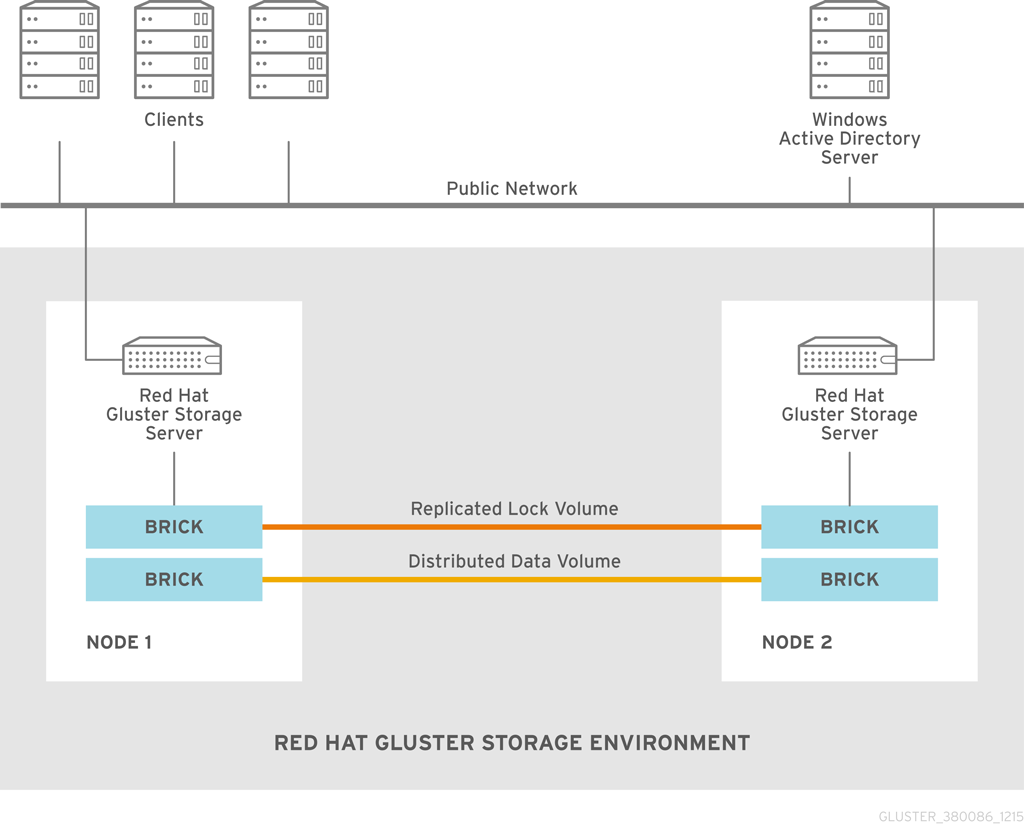
Figure 8.1. Active Directory Integration
| Information | Example Value |
| DNS domain name / realm | addom.example.com |
| NetBIOS domain name | ADDOM |
| Name of administrative account | administrator |
| RHGS nodes | rhs-srv1.addom.example.com, 192.168.56.10 rhs-srv2.addom.example.com, 192.168.56.11 rhs-srv3.addom.example.com, 192.168.56.12 |
| Netbios name of the cluster | RHS-SMB |
8.1. Prerequisites
- Name Resolution
The Red Hat Gluster Storage nodes must be able to resolve names from the AD domain via DNS. To verify the same you can use the following command:
host dc1.addom.example.comwhere,addom.example.comis the AD domain and dc1 is the name of a domain controller.For example, the/etc/resolv.conffile in a static network configuration could look like this:domain addom.example.com search addom.example.com nameserver 10.11.12.1 # dc1.addom.example.com nameserver 10.11.12.2 # dc2.addom.example.comThis example assumes that both the domain controllers are also the DNS servers of the domain. - Kerberos Packages
If you want to use the kerberos client utilities, like kinit and klist, then manually install the krb5-workstation using the following command:
# yum -y install krb5-workstation - Synchronize Time Service
It is essential that the time service on each Red Hat Gluster Storage node and the Windows Active Directory server are synchronized, else the Kerberos authentication may fail due to clock skew. In environments where time services are not reliable, the best practice is to configure the Red Hat Gluster Storage nodes to synchronize time from the Windows Server.
On each Red Hat Storage node, edit the file /etc/ntp.conf so the time is synchronized from a known, reliable time service:# Enable writing of statistics records. #statistics clockstats cryptostats loopstats peerstats server ntp1.addom.example.com server 10.11.12.3Activate the change on each Red Hat Gluster Storage node by stopping the ntp daemon, updating the time, then starting the ntp daemon. Verify the change on both servers using the following commands:# service ntpd stop # service ntpd start - Samba Packages
Ensure to install the following Samba packages along with its dependencies:
- CTDB
- samba
- samba-client
- samba-winbind
- samba-winbind-modules
8.2. Integration
- Configure Authentication
- Join Active Directory Domain
- Verify/Test Active Directory and Services
8.2.1. Configure Authentication
Note
- Ensure that CTDB is configured before the active directory join. For more information see, Section 7.3.1 Setting up CTDB for Samba in the Red Hat Gluster Storage Administration Guide.
- It is recommended to take backups of the configuration and of Samba’s databases (local and ctdb) before making any changes.
8.2.1.1. Basic Samba Configuration
/etc/samba/smb.conf has to contain the relevant parameters for AD. Along with that, a few other settings are required in order to activate mapping of user and group IDs.
[global]
netbios name = RHS-SMB
workgroup = ADDOM
realm = addom.example.com
security = ads
clustering = yes
idmap config * : range = 1000000-1999999
idmap config * : backend = tdb
# -----------------RHS Options -------------------------
#
# The following line includes RHS-specific configuration options. Be careful with this line.
include = /etc/samba/rhs-samba.conf
#=================Share Definitions =====================Warning
netbios name consists of only one name which has to be the same name on all cluster nodes. Windows clients will only access the cluster via that name (either in this short form or as an FQDN). The individual node hostname (rhs-srv1, rhs-srv2, …) must not be used for the netbios name parameter.
Note
- The idmap range is an example. This range should be chosen big enough to cover all objects that can possibly be mapped.
- If you want to be able to use the individual host names to also access specific nodes, you can add them to the
netbios aliasesparameter ofsmb.conf. - In an AD environment, it is usually not required to run
nmbd. However, if you have to runnmbd, then make sure to set thecluster addressessmb.confoption to the list of public IP addresses of the cluster.
8.2.1.2. Additional Configuration (Optional)
idmap_ad module which reads the unix IDs from the AD's special unix attributes. This has to be configured by the AD domain's administrator before it can be used by Samba and winbind.
idmap_ad, the AD domain admin has to prepare the AD domain for using the so called unix extensions and assign unix IDs to all users and groups that should be able to access the Samba server.
rid and autorid and the default tdb. The smb.conf manpage and the manpages for the various idmap modules contain all the details.
idmap_ad back-end for the ADDOM domain.
[global]
netbios name = RHS-SMB
workgroup = ADDOM
realm = addom.example.com
security = ads
clustering = yes
idmap config * : backend = tdb
idmap config * : range = 1000000-1999999
idmap config ADDOM : backend = ad
idmap config ADDOM : range = 3000000-3999999
idmap config addom : schema mode = rfc2307
winbind nss info = rfc2307
# -------------------RHS Options -------------------------------
#
# The following line includes RHS-specific configuration options. Be careful with this line.
include = /etc/samba/rhs-samba.conf
#===================Share Definitions =========================Note
- The range for the idmap_ad configuration is prescribed by the AD configuration. This has to be obtained by AD administrator.
- Ranges for different idmap configurations must not overlap.
- The schema mode and the winbind nss info setting should have the same value. If the domain is at level 2003R2 or newer, then rfc2307 is the correct value. For older domains, additional values sfu and sfu20 are available. See the manual pages of idmap_ad and smb.conf for further details.
| Parameter | Description |
| winbind enum users = no | Disable enumeration of users at the nsswitch level. |
| winbind enum groups = no | Disable enumeration of groups at the nsswitch level. |
| winbind separator = + | Change default separator from '\' to '+' |
| winbind nested groups = yes | Enable nesting of groups in Active Directory |
8.2.1.3. Verifying the Samba Configuration
# testparm -s
Load smb config files from /etc/samba/smb.conf
rlimit_max: increasing rlimit_max (1024) to minimum Windows limit (16384)
Loaded services file OK.
Server role: ROLE_DOMAIN_MEMBER
# Global parameters
[global]
workgroup = ADDOM
realm = addom.example.com
netbios name = RHS-SMB
security = ADS
clustering = Yes
winbind nss info = rfc2307
idmap config addom : schema mode = rfc2307
idmap config addom : range = 3000000-3999999
idmap config addom : backend = ad
idmap config * : range = 1000000-1999999
idmap config * : backend = tdb8.2.1.4. nsswitch Configuration
/etc/nsswitch.conf file. Make sure the file contains the winbind entries for the passwd and group databases. For example:
...
passwd: files winbind
group: files winbind
...visible on the individual cluster node once Samba is joined to AD and winbind is started.
8.2.2. Join Active Directory Domain
# onnode all service ctdb start
# onnode all service winbind stop
# onnode all service smb stopNote
- If your configuration has CTDB managing Winbind and Samba, they can be temporarily disabled with the following commands (to be executed prior to the above stop commands) so as to prevent CTDB going into an unhealthy state when they are shut down:
# onnode all ctdb disablescript 49.winbind # onnode all ctdb disablescript 50.samba - For some versions of RHGS, a bug in the selinux policy prevents 'ctdb disablescript SCRIPT' from succeeding. If this is the case, 'chmod -x /etc/ctdb/events.d/SCRIPT' can be executed as a workaround from a root shell.
- Shutting down winbind and smb is primarily to prevent access to SMB services during this AD integration. These services may be left running but access to them should be prevented through some other means.
net utility from a single node:
Warning
# net ads join -U Administrator
Enter Administrator's password:
Using short domain name -- ADDOM
Joined 'RHS-SMB' to dns domain addom.example.com'
Not doing automatic DNS update in a clustered setup.net utility can be used again:
# net ads dns register rhs-smb <PUBLIC IP 1> <PUBLIC IP 2> ...rhs-smb will resolve to the given public IP addresses. The DNS registrations use the cluster machine account for authentication in AD, which means this operation only can be done after the join has succeeded.
8.2.3. Verify/Test Active Directory and Services
# onnode all service nmb start# onnode all service winbind start
# onnode all service smb startNote
- If you previously disabled CTDB’s ability to manage Winbind and Samba they can be re-enabled with the following commands:
# onnode all ctdb enablescript 50.samba # onnode all ctdb enablescript 49.winbind - For some versions of RHGS, a bug in the selinux polict prevents 'ctdb enablescript SCRIPT' from succeeding. If this is the case, 'chmod +x /etc/ctdb/events.d/SCRIPT' can be executed as a workaround from a root shell.
- Ensure that the winbind starts after a reboot. This is achieved by adding ‘CTDB_MANAGES_WINBIND=yes’ to the /etc/sysconfig/ctdb file on all nodes.
- Verify the join by executing the following stepsVerify the join to check if the created machine account can be used to authenticate to the AD LDAP server using the following command:
# net ads testjoin Join is OK - Execute the following command to display the machine account’s LDAP object
# net ads status -P objectClass: top objectClass: person objectClass: organizationalPerson objectClass: user objectClass: computer cn: rhs-smb distinguishedName: CN=rhs-smb,CN=Computers,DC=addom,DC=example,DC=com instanceType: 4 whenCreated: 20150922013713.0Z whenChanged: 20151126111120.0Z displayName: RHS-SMB$ uSNCreated: 221763 uSNChanged: 324438 name: rhs-smb objectGUID: a178177e-4aa4-4abc-9079-d1577e137723 userAccountControl: 69632 badPwdCount: 0 codePage: 0 countryCode: 0 badPasswordTime: 130880426605312806 lastLogoff: 0 lastLogon: 130930100623392945 localPolicyFlags: 0 pwdLastSet: 130930098809021309 primaryGroupID: 515 objectSid: S-1-5-21-2562125317-1564930587-1029132327-1196 accountExpires: 9223372036854775807 logonCount: 1821 sAMAccountName: rhs-smb$ sAMAccountType: 805306369 dNSHostName: rhs-smb.addom.example.com servicePrincipalName: HOST/rhs-smb.addom.example.com servicePrincipalName: HOST/RHS-SMB objectCategory: CN=Computer,CN=Schema,CN=Configuration,DC=addom,DC=example,DC=com isCriticalSystemObject: FALSE dSCorePropagationData: 16010101000000.0Z lastLogonTimestamp: 130929563322279307 msDS-SupportedEncryptionTypes: 31 - Execute the following command to display general information about the AD server:
# net ads info LDAP server: 10.11.12.1 LDAP server name: dc1.addom.example.com Realm: ADDOM.EXAMPLE.COM Bind Path: dc=ADDOM,dc=EXAMPLE,dc=COM LDAP port: 389 Server time: Thu, 26 Nov 2015 11:15:04 UTC KDC server: 10.11.12.1 Server time offset: -26 - Verify if winbind is operating correctly by executing the following stepsExecute the following command to verify if winbindd can use the machine account for authentication to AD
# wbinfo -t checking the trust secret for domain ADDOM via RPC calls succeeded - Execute the following command to resolve the given name to a Windows SID
# wbinfo --name-to-sid 'ADDOM\Administrator' S-1-5-21-2562125317-1564930587-1029132327-500 SID_USER (1) - Execute the following command to verify authentication:
# wbinfo -a 'ADDOM\user' Enter ADDOM\user's password: plaintext password authentication succeeded Enter ADDOM\user's password: challenge/response password authentication succeededor,# wbinfo -a 'ADDOM\user%password' plaintext password authentication succeeded challenge/response password authentication succeeded - Execute the following command to verify if the id-mapping is working properly:
# wbinfo --sid-to-uid <SID-OF-ADMIN> 1000000 - Execute the following command to verify if the winbind Name Service Switch module works correctly:
# getent passwd 'ADDOM\Administrator' ADDOM\administrator:*:1000000:1000004::/home/ADDOM/administrator:/bin/false - Execute the following command to verify if samba can use winbind and the NSS module correctly:
# smbclient -L rhs-smb -U 'ADDOM\Administrator' Domain=[ADDOM] OS=[Windows 6.1] Server=[Samba 4.2.4] Sharename Type Comment --------- ---- ------- IPC$ IPC IPC Service (Samba 4.2.4) Domain=[ADDOM] OS=[Windows 6.1] Server=[Samba 4.2.4] Server Comment --------- ------- RHS-SMB Samba 4.2.4 Workgroup Master --------- ------- ADDOM RHS-SMB
Chapter 9. Configuring Network Encryption in Red Hat Gluster Storage
- I/O encryption - encryption of the I/O connections between the Red Hat Gluster Storage clients and servers
- Management encryption - encryption of the management (
glusterd) connections within a trusted storage pool.
/etc/ssl/glusterfs.pem- Certificate file containing the system's uniquely signed TLS certificate. This file is unique for each system and must not be shared with others./etc/ssl/glusterfs.key- This file contains the system's unique private key. This file must not be shared with others./etc/ssl/glusterfs.ca- This file contains the certificates of the Certificate Authorities (CA) who have signed the certificates. This file is not unique and should be the same on all servers in the trusted storage pool. All the clients also should have the same file, but not necessarily the same one as the servers. Red Hat Gluster Storage does not use the global CA certificates that come with the system. The CA file on the servers should contain the certificates of the signing CA for all the servers and all the clients.The CA file on the clients must contain the certificates of the signing CA for all the servers. In case self-signed certificates are being used, the CA file for the servers is a concatenation of the certificate files/etc/ssl/glusterfs.pemof every server and every client. The client CA file is a concatenation of the certificate files of every server./var/lib/glusterd/secure-access- This file enables encryption on the management (glusterd) connections betweenglusterdof all servers and the connection between clients.glusterdof all servers uses this file to fetch volfiles and notify the clients with the volfile changes. This file is empty and mandatory only if you configure management encryption. It must be present on all the servers and all the clients. This is required on the clients to indicate the mount command to use an encrypted connection to retrieve the volfiles.
9.1. Prerequisites
- Generate a private key for each system.
# openssl genrsa -out /etc/ssl/glusterfs.key 2048 - Use the generated private key to create a signed certificate by running the following command:
# openssl req -new -x509 -key /etc/ssl/glusterfs.key -subj "/CN=COMMONNAME" -out /etc/ssl/glusterfs.pemIf your organization has a common CA, the certificate can be signed by it. To do this a certificate signing request (CSR) must be generated by running the following command:# openssl req -new -sha256 -key /etc/ssl/glusterfs.key -subj '/CN=<COMMONNAME>' -out glusterfs.csrThe generatedglusterfs.csrfile should be given to the CA, and CA will provide a.pemfile containing the signed certificate. Place that signedglusterfs.pemfile in the/etc/ssl/directory. - For self signed CA certificates on servers, collect the
.pemcertificates of clients and servers, that is,/etc/ssl/glusterfs.pemfiles from every system. Concatenate the collected files into a single file. Place this file in/etc/ssl/glusterfs.caon all the servers in the trusted storage pool. If you are using common CA, collect the certificate file from the CA and place it in/etc/ssl/glusterfs.caon all servers. - For self-signed CA certificates on clients, collect the
.pemcertificates of servers, that is,/etc/ssl/glusterfs.pemfiles from every server. Concatenate the collected files into a single file. Place this file in/etc/ssl/glusterfs.caon all the clients. If you are using common CA, collect the certificate file from the CA and place it in/etc/ssl/glusterfs.caon all servers.
9.2. Configuring Network Encryption for a New Trusted Storage Pool
9.2.1. Enabling Management Encryption
Perform the following on all the servers
- Create the
/var/lib/glusterd/secure-accessfile.# touch /var/lib/glusterd/secure-access - Start
glusterdon all servers.# service glusterd start - Setup the trusted storage pool by running appropriate peer probe commands. For more information on setting up the trusted storage pool, see Chapter 5, Trusted Storage Pools
Perform the following on all the client machines
- Create the
/var/lib/glusterd/secure-accessfile.# touch /var/lib/glusterd/secure-access - Mount the volume on all the clients. For example, to manually mount a volume and access data using Native client, use the following command:
# mount -t glusterfs server1:/test-volume /mnt/glusterfs
9.2.2. Enabling I/O encryption for a Volume
- Create the volume, but do not start it.
- Set the list of common names of all the servers to access the volume. Be sure to include the common names of clients which will be allowed to access the volume..
# gluster volume set VOLNAME auth.ssl-allow 'server1,server2,server3,client1,client2,client3' - Enable the
client.sslandserver.ssloptions on the volume.# gluster volume set VOLNAME client.ssl on # gluster volume set VOLNAME server.ssl on - Start the volume.
# gluster volume start VOLNAME - Mount the volume on all the clients which has been authorized. For example, to manually mount a volume and access data using Native client, use the following command:
# mount -t glusterfs server1:/test-volume /mnt/glusterfs
9.3. Configuring Network Encryption for an existing Trusted Storage Pool
9.3.1. Enabling I/O encryption for a Volume
- Unmount the volume on all the clients.
# umount mount-point - Stop the volume.
# gluster volume stop VOLNAME - Set the list of common names for clients allowed to access the volume. Be sure to include the common names of all the servers.
# gluster volume set VOLNAME auth.ssl-allow 'server1,server2,server3,client1,client2,client3' - Enable
client.sslandserver.sslon the volume.# gluster volume set VOLNAME client.ssl on # gluster volume set VOLNAME server.ssl on - Start the volume.
# gluster volume start VOLNAME - Mount the volume from the new clients. For example, to manually mount a volume and access data using Native client, use the following command:
# mount -t glusterfs server1:/test-volume /mnt/glusterfs
9.3.2. Enabling Management Encryption
glusterd if they are running when the switch to management encryption is made.
- Unmount the volume on all the clients.
# umount mount-point - Stop all the volumes.
# gluster volume stop VOLNAME - Stop
glusterdon all servers.# service glusterd stop - Stop all gluster-related processes on all servers.
# pkill glusterfs - Create the
/var/lib/glusterd/secure-accessfile on all servers and clients.# touch /var/lib/glusterd/secure-access - Start
glusterdon all the servers.# service glusterd start - Start all the volumes
# gluster volume start VOLNAME - Mount the volume on all the clients. For example, to manually mount a volume and access data using Native client, use the following command:
# mount -t glusterfs server1:/test-volume /mnt/glusterfs
9.4. Expanding Volumes
9.4.1. Certificate Signed with a Common Certificate Authority
- Copy
/etc/ssl/glusterfs.cafile from one of the existing servers and save it on the/etc/ssl/directory on the new server. - If you are using management encryption, create
/var/lib/glusterd/secure-accessfile.# touch /var/lib/glusterd/secure-access - Start
glusterdon the new peer# service glusterd start - Add the common name of the new server to the
auth.ssl-allowlist for all volumes which have encryption enabled.# gluster volume set VOLNAME auth.ssl-allow servernewNote
Thegluster volume setcommand does not append to existing values of the options. To append the new name to the list, get the existing list usinggluster volume infocommand, append the new name to the list and set the option again usinggluster volume setcommand. - Run gluster peer probe [server] to add additional servers to the trusted storage pool. For more information on adding servers to the trusted storage pool, see Chapter 5, Trusted Storage Pools .
9.4.2. Self-signed Certificates
- Generate the private key and self-signed certificate on the new server using the steps listed at Section 9.1, “Prerequisites”.
- Copy the following files:
- On an existing server, copy the
/etc/ssl/glusterfs.cafile, append the content of new server's certificate to it, and distribute it to all servers, including the new server. - On an existing client, copy the
/etc/ssl/glusterfs.ca file, append the content of the new server's certificate to it, and distribute it to all clients.
- Stop all gluster-related processes on all servers.
# pkill glusterfs - Create the
/var/lib/glusterd/secure-accessfile on the server if management encryption is enable in the trusted storage pool. - Start
glusterdon the new peer# service glusterd start - Add the common name of the new server to the
auth.ssl-allowlist for all volumes which have encryption enabled. - Restart all the glusterfs processes on existing servers and clients by performing the following .
- Unmount the volume on all the clients.
# umount mount-point - Stop all volumes.
# gluster volume stop VOLNAME - Restart glusterd on all the servers.
# service glusterd start - Start the volumes
# gluster volume start VOLNAME - Mount the volume on all the clients. For example, to manually mount a volume and access data using Native client, use the following command:
# mount -t glusterfs server1:/test-volume /mnt/glusterfs
- Peer probe the new server to add it to the trusted storage pool. For more information on peer probe, see Chapter 5, Trusted Storage Pools
9.5. Authorizing a New Client
9.5.1. Certificate Signed with a Common Certificate Authority
/etc/ssl/glusterfs.ca file.
- Generate the
glusterfs.keyprivate key andglusterfs.csrcertificate signing request. Send theglusterfs.csrto get it verified by CA and get theglusterfs.pemfrom the CA. Generate the private key and signed certificate for the new server and place the files in the appropriate locations using the steps listed at Section 9.1, “Prerequisites” . - Copy
/etc/ssl/glusterfs.cafile from another client and place it in the/etc/ssl/directory on the new client.. - Create
/var/lib/glusterd/secure-accessfile if management encryption is enabled in the trusted storage pool.# touch /var/lib/glusterd/secure-access - Set the list of common names of all the servers to access the volume. Be sure to include the common names of clients which will be allowed to access the volume.
# gluster volume set VOLNAME auth.ssl-allow 'server1,server2,server3,client1,client2,client3'Note
Thegluster volume setcommand does not append to existing values of the options. To append the new name to the list, get the existing list usinggluster volume infocommand, append the new name to the list and set the option again usinggluster volume setcommand. - Mount the volume from the new client. For example, to manually mount a volume and access data using Native client, use the following command:
# mount -t glusterfs server1:/test-volume /mnt/glusterfs
9.5.2. Self-signed Certificates
Note
- Generate the
glusterfs.keyprivate key andglusterfs.pemcertificate for the client, and place them at the appropriate locations on the client using the steps listed at Section 9.1, “Prerequisites” . - Copy
/etc/ssl/glusterfs.cafile from one of the clients, and add it to the new client. - Create the
/var/lib/glusterd/secure-accessfile on all the client, if the management encryption is enabled.# touch /var/lib/glusterd/secure-access - Copy
/etc/ssl/glusterfs.cafile from one of the existing servers, append the content of new client's certificate to it, and distribute the new CA file on all servers. - Set the list of common names for clients allowed to access the volume. Be sure to include the common names of all the servers.
# gluster volume set VOLNAME auth.ssl-allow 'server1,server2,server3,client1,client2,client3'Note
Thegluster volume setcommand does not append to existing values of the options. To append the new name to the list, get the existing list usinggluster volume infocommand, append the new name to the list and set the option again usinggluster volume setcommand. - Restart the volume
# gluster volume stop VOLNAME # gluster volume start VOLNAME - If the management encryption is enabled, restart glusterd on all the servers.
- Mount the volume from the new client. For example, to manually mount a volume and access data using Native client, use the following command:
# mount -t glusterfs server1:/test-volume /mnt/glusterfs
Chapter 10. Managing Red Hat Gluster Storage Volumes
10.1. Configuring Volume Options
Note
# gluster volume info VOLNAME# gluster volume set VOLNAME OPTION PARAMETERtest-volume:
# gluster volume set test-volume performance.cache-size 256MB
Set volume successfulNote
| Option | Value Description | Allowed Values | Default Value |
|---|---|---|---|
| auth.allow | IP addresses or hostnames of the clients which are allowed to access the volume. | Valid hostnames or IP addresses, which includes wild card patterns including *. For example, 192.168.1.*. A list of comma separated addresses is acceptable, but a single hostname must not exceed 256 characters. | * (allow all) |
| auth.reject | IP addresses or hostnames of the clients which are denied access to the volume. | Valid hostnames or IP addresses, which includes wild card patterns including *. For example, 192.168.1.*. A list of comma separated addresses is acceptable, but a single hostname must not exceed 256 characters. | none (reject none) |
| Note
Using auth.allow and auth.reject options, you can control access of only glusterFS FUSE-based clients. Use nfs.rpc-auth-* options for NFS access control.
| |||
| changelog | Enables the changelog translator to record all the file operations. | on | off | off |
| client.event-threads | Specifies the number of network connections to be handled simultaneously by the client processes accessing a Red Hat Gluster Storage node. | 1 - 32 | 2 |
| server.event-threads | Specifies the number of network connections to be handled simultaneously by the server processes hosting a Red Hat Gluster Storage node. | 1 - 32 | 2 |
| cluster.consistent-metadata | If set to On, the readdirp function in Automatic File Replication feature will always fetch metadata from their respective read children as long as it holds the good copy (the copy that does not need healing) of the file/directory. However, this could cause a reduction in performance where readdirps are involved. | on | off | off |
| Note
After cluster.consistent-metadata option is set to On, you must ensure to unmount and mount the volume at the clients for this option to take effect.
| |||
| cluster.min-free-disk | Specifies the percentage of disk space that must be kept free. This may be useful for non-uniform bricks. | Percentage of required minimum free disk space. | 10% |
| cluster.op-version | Allows you to set the operating version of the cluster. The op-version number cannot be downgraded and is set for all the volumes. Also the op-version does not appear when you execute the gluster volume info command. | 3000z | 30703 | 30706 | Default value is 3000z after an upgrade from Red Hat Gluster Storage 3.0 or 30703 after upgrade from RHGS 3.1.1. Value is set to 30706 for a new cluster deployment. |
| cluster.self-heal-daemon | Specifies whether proactive self-healing on replicated volumes is activated. | on | off | on |
| cluster.server-quorum-type | If set to server, this option enables the specified volume to participate in the server-side quorum. For more information on configuring the server-side quorum, see Section 10.11.1.1, “Configuring Server-Side Quorum” | none | server | none |
| cluster.server-quorum-ratio | Sets the quorum percentage for the trusted storage pool. | 0 - 100 | >50% |
| cluster.quorum-type | If set to fixed, this option allows writes to a file only if the number of active bricks in that replica set (to which the file belongs) is greater than or equal to the count specified in the cluster.quorum-count option. If set to auto, this option allows writes to the file only if the percentage of active replicate bricks is more than 50% of the total number of bricks that constitute that replica. If there are only two bricks in the replica group, the first brick must be up and running to allow modifications. | fixed | auto | none |
| cluster.quorum-count | The minimum number of bricks that must be active in a replica-set to allow writes. This option is used in conjunction with cluster.quorum-type =fixed option to specify the number of bricks to be active to participate in quorum. The cluster.quorum-type = auto option will override this value. | 1 - replica-count | 0 |
| cluster.lookup-optimize | If this option, is set ON, enables the optimization of -ve lookups, by not doing a lookup on non-hashed sub-volumes for files, in case the hashed sub-volume does not return any result. This option disregards the lookup-unhashed setting, when enabled. | off | |
| cluster.read-freq-threshold | Specifies the number of reads, in a promotion/demotion cycle, that would mark a file HOT for promotion. Any file that has read hits less than this value will be considered as COLD and will be demoted. | 0-20 | 0 |
| cluster.write-freq-threshold | Specifies the number of writes, in a promotion/demotion cycle, that would mark a file HOT for promotion. Any file that has write hits less than this value will be considered as COLD and will be demoted. | 0-20 | 0 |
| cluster.tier-promote-frequency | Specifies how frequently the tier daemon must check for files to promote. | 1- 172800 seconds | 120 seconds |
| cluster.tier-demote-frequency | Specifies how frequently the tier daemon must check for files to demote. | 1 - 172800 seconds | 3600 seconds |
| cluster.tier-mode | If set to cache mode, promotes or demotes files based on whether the cache is full or not, as specified with watermarks. If set to test mode, periodically demotes or promotes files automatically based on access. | test | cache | cache |
| cluster.tier-max-mb | Specifies the maximum number of MB that may be migrated in any direction from each node in a given cycle. | 1 -100000 (100 GB) | 4000 MB |
| cluster.tier-max-files | Specifies the maximum number of files that may be migrated in any direction from each node in a given cycle. | 1-100000 files | 10000 |
| cluster.watermark-hi | Upper percentage watermark for promotion. If hot tier fills above this percentage, no promotion will happen and demotion will happen with high probability. | 1- 99 % | 90% |
| cluster.watermark-low | Lower percentage watermark. If hot tier is less full than this, promotion will happen and demotion will not happen. If greater than this, promotion/demotion will happen at a probability relative to how full the hot tier is. | 1- 99 % | 75% |
| config.transport | Specifies the type of transport(s) volume would support communicating over. | tcp OR rdma OR tcp,rdma | tcp |
| diagnostics.brick-log-level | Changes the log-level of the bricks. | INFO | DEBUG | WARNING | ERROR | CRITICAL | NONE | TRACE | info |
| diagnostics.client-log-level | Changes the log-level of the clients. | INFO | DEBUG | WARNING | ERROR | CRITICAL | NONE | TRACE | info |
| diagnostics.brick-sys-log-level | Depending on the value defined for this option, log messages at and above the defined level are generated in the syslog and the brick log files. | INFO | WARNING | ERROR | CRITICAL | CRITICAL |
| diagnostics.client-sys-log-level | Depending on the value defined for this option, log messages at and above the defined level are generated in the syslog and the client log files. | INFO | WARNING | ERROR | CRITICAL | CRITICAL |
| diagnostics.client-log-format | Allows you to configure the log format to log either with a message id or without one on the client. | no-msg-id | with-msg-id | with-msg-id |
| diagnostics.brick-log-format | Allows you to configure the log format to log either with a message id or without one on the brick. | no-msg-id | with-msg-id | with-msg-id |
| diagnostics.brick-log-flush-timeout | The length of time for which the log messages are buffered, before being flushed to the logging infrastructure (gluster or syslog files) on the bricks. | 30 - 300 seconds (30 and 300 included) | 120 seconds |
| diagnostics.brick-log-buf-size | The maximum number of unique log messages that can be suppressed until the timeout or buffer overflow, whichever occurs first on the bricks. | 0 and 20 (0 and 20 included) | 5 |
| diagnostics.client-log-flush-timeout | The length of time for which the log messages are buffered, before being flushed to the logging infrastructure (gluster or syslog files) on the clients. | 30 - 300 seconds (30 and 300 included) | 120 seconds |
| diagnostics.client-log-buf-size | The maximum number of unique log messages that can be suppressed until the timeout or buffer overflow, whichever occurs first on the clients. | 0 and 20 (0 and 20 included) | 5 |
| features.ctr-enabled | Enables Change Time Recorder (CTR) translator for a tiered volume. This option is used in conjunction with features.record-counters option to enable recording write and read heat counters. | on | off | on |
| features.ctr_link_consistency | Enables a crash consistent way of recording hardlink updates by Change Time Recorder translator. When recording in a crash consistent way the data operations will experience more latency. | on | off | off |
| features.quota-deem-statfs | When this option is set to on, it takes the quota limits into consideration while estimating the filesystem size. The limit will be treated as the total size instead of the actual size of filesystem. | on | off | on |
| features.record-counters | If set to enabled, cluster.write-freq-threshold and cluster.read-freq-threshold options defines the number of writes and reads to a given file that are needed before triggering migration. | on | off | on |
| features.read-only | Specifies whether to mount the entire volume as read-only for all the clients accessing it. | on | off | off |
| geo-replication.indexing | Enables the marker translator to track the changes in the volume. | on | off | off |
| performance.quick-read | To enable/disable quick-read translator in the volume. | on | off | on |
| network.ping-timeout | The time the client waits for a response from the server. If a timeout occurs, all resources held by the server on behalf of the client are cleaned up. When the connection is reestablished, all resources need to be reacquired before the client can resume operations on the server. Additionally, locks are acquired and the lock tables are updated. A reconnect is a very expensive operation and must be avoided. | 42 seconds | 42 seconds |
| nfs.acl | Disabling nfs.acl will remove support for the NFSACL sideband protocol. This is enabled by default. | enable | disable | enable |
| nfs.enable-ino32 | For nfs clients or applciatons that do not support 64-bit inode numbers, use this option to make NFS return 32-bit inode numbers instead. Disabled by default, so NFS returns 64-bit inode numbers. | enable | disable | disable |
| nfs.export-dir | By default, all NFS volumes are exported as individual exports. This option allows you to export specified subdirectories on the volume. | The path must be an absolute path. Along with the path allowed, list of IP address or hostname can be associated with each subdirectory. | None |
| nfs.export-dirs | By default, all NFS sub-volumes are exported as individual exports. This option allows any directory on a volume to be exported separately. | on | off | on |
| Note
The value set for nfs.export-dirs and nfs.export-volumes options are global and applies to all the volumes in the Red Hat Gluster Storage trusted storage pool.
| |||
| nfs.export-volumes | Enables or disables exporting entire volumes. If disabled and used in conjunction with nfs.export-dir, you can set subdirectories as the only exports. | on | off | on |
| nfs.mount-rmtab | Path to the cache file that contains a list of NFS-clients and the volumes they have mounted. Change the location of this file to a mounted (with glusterfs-fuse, on all storage servers) volume to gain a trusted pool wide view of all NFS-clients that use the volumes. The contents of this file provide the information that can get obtained with the showmount command. | Path to a directory | /var/lib/glusterd/nfs/rmtab |
| nfs.mount-udp | Enable UDP transport for the MOUNT sideband protocol. By default, UDP is not enabled, and MOUNT can only be used over TCP. Some NFS-clients (certain Solaris, HP-UX and others) do not support MOUNT over TCP and enabling nfs.mount-udp makes it possible to use NFS exports provided by Red Hat Gluster Storage. | disable | enable | disable |
| nfs.nlm | By default, the Network Lock Manager (NLMv4) is enabled. Use this option to disable NLM. Red Hat does not recommend disabling this option. | on | on|off |
| nfs.rpc-auth-allow IP_ADRESSES | A comma separated list of IP addresses allowed to connect to the server. By default, all clients are allowed. | Comma separated list of IP addresses | accept all |
| nfs.rpc-auth-reject IP_ADRESSES | A comma separated list of addresses not allowed to connect to the server. By default, all connections are allowed. | Comma separated list of IP addresses | reject none |
| nfs.ports-insecure | Allows client connections from unprivileged ports. By default only privileged ports are allowed. This is a global setting for allowing insecure ports for all exports using a single option. | on | off | off |
| nfs.addr-namelookup | Specifies whether to lookup names for incoming client connections. In some configurations, the name server can take too long to reply to DNS queries, resulting in timeouts of mount requests. This option can be used to disable name lookups during address authentication. Note that disabling name lookups will prevent you from using hostnames in nfs.rpc-auth-* options. | on | off | on |
| nfs.port | Associates glusterFS NFS with a non-default port. | 1025-65535 | 38465- 38467 |
| nfs.disable | Specifies whether to disable NFS exports of individual volumes. | on | off | off |
| nfs.server-aux-gids | When enabled, the NFS-server will resolve the groups of the user accessing the volume. NFSv3 is restricted by the RPC protocol (AUTH_UNIX/AUTH_SYS header) to 16 groups. By resolving the groups on the NFS-server, this limits can get by-passed. | on|off | off |
| nfs.transport-type | Specifies the transport used by GlusterFS NFS server to communicate with bricks. | tcp OR rdma | tcp |
| open-behind | It improves the application's ability to read data from a file by sending success notifications to the application whenever it receives a open call. | on | off | on |
| performance.io-thread-count | The number of threads in the IO threads translator. | 0 - 65 | 16 |
| performance.cache-max-file-size | Sets the maximum file size cached by the io-cache translator. Can be specified using the normal size descriptors of KB, MB, GB, TB, or PB (for example, 6GB). | Size in bytes, or specified using size descriptors. | 2 ^ 64-1 bytes |
| performance.cache-min-file-size | Sets the minimum file size cached by the io-cache translator. Can be specified using the normal size descriptors of KB, MB, GB, TB, or PB (for example, 6GB). | Size in bytes, or specified using size descriptors. | 0 |
| performance.cache-refresh-timeout | The number of seconds cached data for a file will be retained. After this timeout, data re-validation will be performed. | 0 - 61 seconds | 1 second |
| performance.cache-size | Size of the read cache. | Size in bytes, or specified using size descriptors. | 32 MB |
| performance.md-cache-timeout | The time period in seconds which controls when metadata cache has to be refreshed. If the age of cache is greater than this time-period, it is refreshed. Every time cache is refreshed, its age is reset to 0. | 0-60 seconds | 1 second |
| performance.use-anonymous-fd | This option requires open-behind to be on. For read operations, use anonymous FD when the original FD is open-behind and not yet opened in the backend. | Yes | No | Yes |
| performance.lazy-open | This option requires open-behind to be on. Perform an open in the backend only when a necessary FOP arrives (for example, write on the FD, unlink of the file). When this option is disabled, perform backend open immediately after an unwinding open. | Yes/No | Yes |
| rebal-throttle | Rebalance process is made multithreaded to handle multiple files migration for enhancing the performance. During multiple file migration, there can be a severe impact on storage system performance. The throttling mechanism is provided to manage it. | lazy, normal, aggressive | normal |
| server.allow-insecure | Allows client connections from unprivileged ports. By default, only privileged ports are allowed. This is a global setting for allowing insecure ports to be enabled for all exports using a single option. | on | off | off |
| Important
Turning server.allow-insecure to on allows ports to accept/reject messages from insecure ports. Enable this option only if your deployment requires it, for example if there are too many bricks in each volume, or if there are too many services which have already utilized all the privileged ports in the system. You can control access of only glusterFS FUSE-based clients. Use nfs.rpc-auth-* options for NFS access control.
| |||
| server.root-squash | Prevents root users from having root privileges, and instead assigns them the privileges of nfsnobody. This squashes the power of the root users, preventing unauthorized modification of files on the Red Hat Gluster Storage Servers. | on | off | off |
| server.anonuid | Value of the UID used for the anonymous user when root-squash is enabled. When root-squash is enabled, all the requests received from the root UID (that is 0) are changed to have the UID of the anonymous user. | 0 - 4294967295 | 65534 (this UID is also known as nfsnobody) |
| server.anongid | Value of the GID used for the anonymous user when root-squash is enabled. When root-squash is enabled, all the requests received from the root GID (that is 0) are changed to have the GID of the anonymous user. | 0 - 4294967295 | 65534 (this UID is also known as nfsnobody) |
| server.gid-timeout | The time period in seconds which controls when cached groups has to expire. This is the cache that contains the groups (GIDs) where a specified user (UID) belongs to. This option is used only when server.manage-gids is enabled. | 0-4294967295 seconds | 2 seconds |
| server.manage-gids | Resolve groups on the server-side. By enabling this option, the groups (GIDs) a user (UID) belongs to gets resolved on the server, instead of using the groups that were send in the RPC Call by the client. This option makes it possible to apply permission checks for users that belong to bigger group lists than the protocol supports (approximately 93). | on|off | off |
| server.statedump-path | Specifies the directory in which the statedump files must be stored. | /var/run/gluster (for a default installation) | Path to a directory |
| storage.health-check-interval | Sets the time interval in seconds for a filesystem health check. You can set it to 0 to disable. The POSIX translator on the bricks performs a periodic health check. If this check fails, the filesystem exported by the brick is not usable anymore and the brick process (glusterfsd) logs a warning and exits. | 0-4294967295 seconds | 30 seconds |
| storage.owner-uid | Sets the UID for the bricks of the volume. This option may be required when some of the applications need the brick to have a specific UID to function correctly. Example: For QEMU integration the UID/GID must be qemu:qemu, that is, 107:107 (107 is the UID and GID of qemu). | Any integer greater than or equal to -1. | The UID of the bricks are not changed. This is denoted by -1. |
| storage.owner-gid | Sets the GID for the bricks of the volume. This option may be required when some of the applications need the brick to have a specific GID to function correctly. Example: For QEMU integration the UID/GID must be qemu:qemu, that is, 107:107 (107 is the UID and GID of qemu). | Any integer greater than or equal to -1. | The GID of the bricks are not changed. This is denoted by -1. |
10.2. Configuring Transport Types for a Volume
- Unmount the volume on all the clients using the following command:
# umount mount-point - Stop the volumes using the following command:
# gluster volume stop volname - Change the transport type. For example, to enable both tcp and rdma execute the followimg command:
# gluster volume set volname config.transport tcp,rdma OR tcp OR rdma - Mount the volume on all the clients. For example, to mount using rdma transport, use the following command:
# mount -t glusterfs -o transport=rdma server1:/test-volume /mnt/glusterfs
10.3. Expanding Volumes
Note
Expanding a Volume
- From any server in the trusted storage pool, use the following command to probe the server on which you want to add a new brick :
# gluster peer probe HOSTNAMEFor example:# gluster peer probe server5 Probe successful # gluster peer probe server6 Probe successful - Add the bricks using the following command:
# gluster volume add-brick VOLNAME NEW_BRICKFor example:# gluster volume add-brick test-volume server5:/exp5 server6:/exp6 Add Brick successful - Check the volume information using the following command:
# gluster volume infoThe command output displays information similar to the following:Volume Name: test-volume Type: Distribute-Replicate Status: Started Number of Bricks: 6 Bricks: Brick1: server1:/exp1 Brick2: server2:/exp2 Brick3: server3:/exp3 Brick4: server4:/exp4 Brick5: server5:/exp5 Brick6: server6:/exp6 - Rebalance the volume to ensure that files will be distributed to the new brick. Use the rebalance command as described in Section 10.7, “Rebalancing Volumes”.The
add-brickcommand should be followed by arebalanceoperation to ensure better utilization of the added bricks.
10.3.1. Expanding a Tiered Volume
10.3.1.1. Expanding a Cold Tier Volume
- Detach the tier by performing the steps listed in Section 12.7, “Detaching a Tier from a Volume”
- From any server in the trusted storage pool, use the following command to probe the server on which you want to add a new brick :
# gluster peer probe HOSTNAMEFor example:# gluster peer probe server5 Probe successful # gluster peer probe server6 Probe successful - Add the bricks using the following command:
# gluster volume add-brick VOLNAME NEW_BRICKFor example:# gluster volume add-brick test-volume server5:/exp5 server6:/exp6 - Rebalance the volume to ensure that files will be distributed to the new brick. Use the rebalance command as described in Section 10.7, “Rebalancing Volumes”.The
add-brickcommand should be followed by arebalanceoperation to ensure better utilization of the added bricks. - Reattach the tier to the volume with both old and new (expanded) bricks:
# gluster volume tier VOLNAME attach [replica COUNT] NEW-BRICK...Important
When you reattach a tier, an internal process called fix-layout commences internally to prepare the hot tier for use. This process takes time and there will a delay in starting the tiering activities.If you are reusing the brick, be sure to clearly wipe the existing data before attaching it to the tiered volume.
10.3.1.2. Expanding a Hot Tier Volume
- Detach the tier by performing the steps listed in Section 12.7, “Detaching a Tier from a Volume”
- Reattach the tier to the volume with both old and new (expanded) bricks:
# gluster volume tier VOLNAME attach [replica COUNT] NEW-BRICK...For example,# gluster volume tier test-volume attach replica 2 server1:/exp5/tier5 server1:/exp6/tier6 server2:/exp7/tier7 server2:/exp8/tier8Important
When you reattach a tier, an internal process called fix-layout commences internally to prepare the hot tier for use. This process takes time and there will a delay in starting the tiering activities.If you are reusing the brick, be sure to clearly wipe the existing data before attaching it to the tiered volume.
10.4. Shrinking Volumes
Note
Shrinking a Volume
- Remove a brick using the following command:
# gluster volume remove-brick VOLNAME BRICK startFor example:# gluster volume remove-brick test-volume server2:/exp2 start Remove Brick start successfulNote
If theremove-brickcommand is run withforceor without any option, the data on the brick that you are removing will no longer be accessible at the glusterFS mount point. When using thestartoption, the data is migrated to other bricks, and on a successful commit the removed brick's information is deleted from the volume configuration. Data can still be accessed directly on the brick. - You can view the status of the remove brick operation using the following command:
# gluster volume remove-brick VOLNAME BRICK statusFor example:# gluster volume remove-brick test-volume server2:/exp2 status Node Rebalanced-files size scanned failures status --------- ----------- ----------- ----------- ----------- ------------ localhost 16 16777216 52 0 in progress 192.168.1.1 13 16723211 47 0 in progress - When the data migration shown in the previous
statuscommand is complete, run the following command to commit the brick removal:# gluster volume remove-brick VOLNAME BRICK commitFor example,# gluster volume remove-brick test-volume server2:/exp2 commit - After the brick removal, you can check the volume information using the following command:
# gluster volume infoThe command displays information similar to the following:# gluster volume info Volume Name: test-volume Type: Distribute Status: Started Number of Bricks: 3 Bricks: Brick1: server1:/exp1 Brick3: server3:/exp3 Brick4: server4:/exp4
10.4.1. Shrinking a Geo-replicated Volume
- Remove a brick using the following command:
# gluster volume remove-brick VOLNAME BRICK startFor example:# gluster volume remove-brick MASTER_VOL MASTER_HOST:/exp2 start Remove Brick start successfulNote
If theremove-brickcommand is run withforceor without any option, the data on the brick that you are removing will no longer be accessible at the glusterFS mount point. When using thestartoption, the data is migrated to other bricks, and on a successful commit the removed brick's information is deleted from the volume configuration. Data can still be accessed directly on the brick. - Use geo-replication
config checkpointto ensure that all the data in that brick is synced to the slave.- Set a checkpoint to help verify the status of the data synchronization.
# gluster volume geo-replication MASTER_VOL SLAVE_HOST::SLAVE_VOL config checkpoint now - Verify the checkpoint completion for the geo-replication session using the following command:
# gluster volume geo-replication MASTER_VOL SLAVE_HOST::SLAVE_VOL status detail
- You can view the status of the remove brick operation using the following command:
# gluster volume remove-brick VOLNAME BRICK statusFor example:# gluster volume remove-brick MASTER_VOL MASTER_HOST:/exp2 status - Stop the geo-replication session between the master and the slave:
# gluster volume geo-replication MASTER_VOL SLAVE_HOST::SLAVE_VOL stop - When the data migration shown in the previous
statuscommand is complete, run the following command to commit the brick removal:# gluster volume remove-brick VOLNAME BRICK commitFor example,# gluster volume remove-brick MASTER_VOL MASTER_HOST:/exp2 commit - After the brick removal, you can check the volume information using the following command:
# gluster volume info - Start the geo-replication session between the hosts:
# gluster volume geo-replication MASTER_VOL SLAVE_HOST::SLAVE_VOL start
10.4.2. Shrinking a Tiered Volume
10.4.2.1. Shrinking a Cold Tier Volume
- Detach the tier by performing the steps listed in Section 12.7, “Detaching a Tier from a Volume”
- Remove a brick using the following command:
# gluster volume remove-brick VOLNAME BRICK startFor example:# gluster volume remove-brick test-volume server2:/exp2 start Remove Brick start successfulNote
If theremove-brickcommand is run withforceor without any option, the data on the brick that you are removing will no longer be accessible at the glusterFS mount point. When using thestartoption, the data is migrated to other bricks, and on a successful commit the removed brick's information is deleted from the volume configuration. Data can still be accessed directly on the brick. - You can view the status of the remove brick operation using the following command:
# gluster volume remove-brick VOLNAME BRICK statusFor example:# gluster volume remove-brick test-volume server2:/exp2 status Node Rebalanced-files size scanned failures status --------- ----------- ----------- ----------- ----------- ------------ localhost 16 16777216 52 0 in progress 192.168.1.1 13 16723211 47 0 in progress - When the data migration shown in the previous
statuscommand is complete, run the following command to commit the brick removal:# gluster volume remove-brick VOLNAME BRICK commitFor example,# gluster volume remove-brick test-volume server2:/exp2 commit - Rerun the attach-tier command only with the required set of bricks:
# gluster volume tier VOLNAME attach [replica COUNT] BRICK...For example,# gluster volume tier test-volume attach replica 2 server1:/exp1/tier1 server1:/exp2/tier2 server2:/exp3/tier3 server2:/exp5/tier5Important
When you attach a tier, an internal process called fix-layout commences internally to prepare the hot tier for use. This process takes time and there will a delay in starting the tiering activities.
10.4.2.2. Shrinking a Hot Tier Volume
- Detach the tier by performing the steps listed in Section 12.7, “Detaching a Tier from a Volume”
- Rerun the attach-tier command only with the required set of bricks:
# gluster volume tier VOLNAME attach [replica COUNT] brick...Important
When you reattach a tier, an internal process called fix-layout commences internally to prepare the hot tier for use. This process takes time and there will a delay in starting the tiering activities.
10.4.3. Stopping a remove-brick Operation
Important
remove-brick operation is a technology preview feature. Technology Preview features are not fully supported under Red Hat subscription level agreements (SLAs), may not be functionally complete, and are not intended for production use. However, these features provide early access to upcoming product innovations, enabling customers to test functionality and provide feedback during the development process. As Red Hat considers making future iterations of Technology Preview features generally available, we will provide commercially reasonable efforts to resolve any reported issues that customers experience when using these features.
remove-brick operation that is in progress can be stopped by using the stop command.
Note
remove-brick operation will not be migrated back to the same brick when the operation is stopped.
# gluster volume remove-brick VOLNAME BRICK stopgluster volume remove-brick di rhs1:/brick1/di21 rhs1:/brick1/di21 stop
Node Rebalanced-files size scanned failures skipped status run-time in secs
---- ------- ---- ---- ------ ----- ----- ------
localhost 23 376Bytes 34 0 0 stopped 2.00
rhs1 0 0Bytes 88 0 0 stopped 2.00
rhs2 0 0Bytes 0 0 0 not started 0.00
'remove-brick' process may be in the middle of a file migration.
The process will be fully stopped once the migration of the file is complete.
Please check remove-brick process for completion before doing any further brick related tasks on the volume.10.5. Migrating Volumes
Note
replace-brick operation, review the known issues related to replace-brick operation in the Red Hat Gluster Storage 3.1 Release Notes.
10.5.1. Replacing a Subvolume on a Distribute or Distribute-replicate Volume
- Add the new bricks to the volume.
# gluster volume add-brick VOLNAME [replica <COUNT>] NEW-BRICKExample 10.1. Adding a Brick to a Distribute Volume
# gluster volume add-brick test-volume server5:/exp5 Add Brick successful - Verify the volume information using the command:
# gluster volume info Volume Name: test-volume Type: Distribute Status: Started Number of Bricks: 5 Bricks: Brick1: server1:/exp1 Brick2: server2:/exp2 Brick3: server3:/exp3 Brick4: server4:/exp4 Brick5: server5:/exp5Note
In case of a Distribute-replicate volume, you must specify the replica count in theadd-brickcommand and provide the same number of bricks as the replica count to theadd-brickcommand. - Remove the bricks to be replaced from the subvolume.
- Start the
remove-brickoperation using the command:# gluster volume remove-brick VOLNAME [replica <COUNT>] <BRICK> startExample 10.2. Start a remove-brick operation on a distribute volume
# gluster volume remove-brick test-volume server2:/exp2 start Remove Brick start successful - View the status of the
remove-brickoperation using the command:# gluster volume remove-brick VOLNAME [replica <COUNT>] BRICK statusExample 10.3. View the Status of remove-brick Operation
# gluster volume remove-brick test-volume server2:/exp2 status Node Rebalanced-files size scanned failures status ------------------------------------------------------------------ server2 16 16777216 52 0 in progressKeep monitoring theremove-brickoperation status by executing the above command. When the value of the status field is set tocompletein the output ofremove-brickstatus command, proceed further. - Commit the
remove-brickoperation using the command:# gluster volume remove-brick VOLNAME [replica <COUNT>] <BRICK> commitExample 10.4. Commit the remove-brick Operation on a Distribute Volume
# gluster volume remove-brick test-volume server2:/exp2 commit - Verify the volume information using the command:
# gluster volume info Volume Name: test-volume Type: Distribute Status: Started Number of Bricks: 4 Bricks: Brick1: server1:/exp1 Brick3: server3:/exp3 Brick4: server4:/exp4 Brick5: server5:/exp5 - Verify the content on the brick after committing the
remove-brickoperation on the volume. If there are any files leftover, copy it through FUSE or NFS mount.- Verify if there are any pending files on the bricks of the subvolume.Along with files, all the application-specific extended attributes must be copied. glusterFS also uses extended attributes to store its internal data. The extended attributes used by glusterFS are of the form
trusted.glusterfs.*,trusted.afr.*, andtrusted.gfid. Any extended attributes other than ones listed above must also be copied.To copy the application-specific extended attributes and to achieve a an effect similar to the one that is described above, use the following shell script:Syntax:# copy.sh <glusterfs-mount-point> <brick>Example 10.5. Code Snippet Usage
If the mount point is/mnt/glusterfsand brick path is/export/brick1, then the script must be run as:# copy.sh /mnt/glusterfs /export/brick#!/bin/bash MOUNT=$1 BRICK=$2 for file in `find $BRICK ! -type d`; do rpath=`echo $file | sed -e "s#$BRICK\(.*\)#\1#g"` rdir=`dirname $rpath` cp -fv $file $MOUNT/$rdir; for xattr in `getfattr -e hex -m. -d $file 2>/dev/null | sed -e '/^#/d' | grep -v -E "trusted.glusterfs.*" | grep -v -E "trusted.afr.*" | grep -v "trusted.gfid"`; do key=`echo $xattr | cut -d"=" -f 1` value=`echo $xattr | cut -d"=" -f 2` setfattr $MOUNT/$rpath -n $key -v $value done done - To identify a list of files that are in a split-brain state, execute the command:
# gluster volume heal test-volume info split-brain - If there are any files listed in the output of the above command, compare the files across the bricks in a replica set, delete the bad files from the brick and retain the correct copy of the file. Manual intervention by the System Administrator would be required to choose the correct copy of file.
10.5.2. Replacing an Old Brick with a New Brick on a Replicate or Distribute-replicate Volume
- Ensure that the new brick (
sys5:/home/gfs/r2_5) that replaces the old brick (sys0:/home/gfs/r2_0) is empty. Ensure that all the bricks are online. The brick that must be replaced can be in an offline state. - Execute the
replace-brickcommand with theforceoption:# gluster volume replace-brick r2 sys0:/home/gfs/r2_0 sys5:/home/gfs/r2_5 commit force volume replace-brick: success: replace-brick commit successful - Check if the new brick is online.
# gluster volume status Status of volume: r2 Gluster process Port Online Pid --------------------------------------------------------- Brick sys5:/home/gfs/r2_5 49156 Y 5731 Brick sys1:/home/gfs/r2_1 49153 Y 5354 Brick sys2:/home/gfs/r2_2 49154 Y 5365 Brick sys3:/home/gfs/r2_3 49155 Y 5376 - Ensure that after the self-heal completes, the extended attributes are set to zero on the other bricks in the replica.
# getfattr -d -m. -e hex /home/gfs/r2_1 getfattr: Removing leading '/' from absolute path names # file: home/gfs/r2_1 security.selinux=0x756e636f6e66696e65645f753a6f626a6563745f723a66696c655f743a733000 trusted.afr.r2-client-0=0x000000000000000000000000 trusted.afr.r2-client-1=0x000000000000000000000000 trusted.gfid=0x00000000000000000000000000000001 trusted.glusterfs.dht=0x0000000100000000000000007ffffffe trusted.glusterfs.volume-id=0xde822e25ebd049ea83bfaa3c4be2b440Note that in this example, the extended attributestrusted.afr.r2-client-0andtrusted.afr.r2-client-1are set to zero.
10.5.3. Replacing an Old Brick with a New Brick on a Distribute Volume
Important
- Replace a brick with a commit
forceoption:# gluster volume replace-brick VOLNAME <BRICK> <NEW-BRICK> commit forceExample 10.6. Replace a brick on a Distribute Volume
# gluster volume replace-brick r2 sys0:/home/gfs/r2_0 sys5:/home/gfs/r2_5 commit force volume replace-brick: success: replace-brick commit successful - Verify if the new brick is online.
# gluster volume status Status of volume: r2 Gluster process Port Online Pid --------------------------------------------------------- Brick sys5:/home/gfs/r2_5 49156 Y 5731 Brick sys1:/home/gfs/r2_1 49153 Y 5354 Brick sys2:/home/gfs/r2_2 49154 Y 5365 Brick sys3:/home/gfs/r2_3 49155 Y 5376
Note
replace-brick command options except the commit force option are deprecated.
10.6. Replacing Hosts
10.6.1. Replacing a Host Machine with a Different Hostname
Important
sys0.example.com and the replacement machine is sys5.example.com. The brick with an unrecoverable failure is sys0.example.com:/rhs/brick1/b1 and the replacement brick is sys5.example.com:/rhs/brick1/b1.
- Probe the new peer from one of the existing peers to bring it into the cluster.
# gluster peer probe sys5.example.com - Ensure that the new brick
(sys5.example.com:/rhs/brick1/b1)that is replacing the old brick(sys0.example.com:/rhs/brick1/b1)is empty. - Retrieve the brick paths in
sys0.example.comusing the following command:# gluster volume info <VOLNAME>Volume Name: vol Type: Replicate Volume ID: 0xde822e25ebd049ea83bfaa3c4be2b440 Status: Started Snap Volume: no Number of Bricks: 1 x 2 = 2 Transport-type: tcp Bricks: Brick1: sys0.example.com:/rhs/brick1/b1 Brick2: sys1.example.com:/rhs/brick1/b1 Options Reconfigured: performance.readdir-ahead: on snap-max-hard-limit: 256 snap-max-soft-limit: 90 auto-delete: disableBrick path insys0.example.comis/rhs/brick1/b1. This has to be replaced with the brick in the newly added host,sys5.example.com. - Create the required brick path in sys5.example.com.For example, if /rhs/brick is the XFS mount point in sys5.example.com, then create a brick directory in that path.
# mkdir /rhs/brick1/b1 - Execute the
replace-brickcommand with the force option:# gluster volume replace-brick vol sys0.example.com:/rhs/brick1/b1 sys5.example.com:/rhs/brick1/b1 commit force volume replace-brick: success: replace-brick commit successful - Verify that the new brick is online.
# gluster volume status Status of volume: vol Gluster process Port Online Pid Brick sys5.example.com:/rhs/brick1/b1 49156 Y 5731 Brick sys1.example.com:/rhs/brick1/b1 49153 Y 5354 - Initiate self-heal on the volume. The status of the heal process can be seen by executing the command:
# gluster volume heal VOLNAME - The status of the heal process can be seen by executing the command:
# gluster volume heal VOLNAME info - Detach the original machine from the trusted pool.
# gluster peer detach sys0.example.com - Ensure that after the self-heal completes, the extended attributes are set to zero on the other bricks in the replica.
# getfattr -d -m. -e hex /rhs/brick1/b1 getfattr: Removing leading '/' from absolute path names #file: rhs/brick1/b1 security.selinux=0x756e636f6e66696e65645f753a6f626a6563745f723a66696c655f743a733000 trusted.afr.vol-client-0=0x000000000000000000000000 trusted.afr.vol-client-1=0x000000000000000000000000 trusted.gfid=0x00000000000000000000000000000001 trusted.glusterfs.dht=0x0000000100000000000000007ffffffe trusted.glusterfs.volume-id=0xde822e25ebd049ea83bfaa3c4be2b440In this example, the extended attributestrusted.afr.vol-client-0andtrusted.afr.vol-client-1have zero values. This means that the data on the two bricks is identical. If these attributes are not zero after self-heal is completed, the data has not been synchronised correctly.
10.6.2. Replacing a Host Machine with the Same Hostname
/var/lib/glusterd/glusterd/info file.
Warning
- Stop the
glusterdservice on the sys0.example.com.# service glusterd stop - Retrieve the UUID of the failed host (sys0.example.com) from another of the Red Hat Gluster Storage Trusted Storage Pool by executing the following command:
# gluster peer status Number of Peers: 2 Hostname: sys1.example.com Uuid: 1d9677dc-6159-405e-9319-ad85ec030880 State: Peer in Cluster (Connected) Hostname: sys0.example.com Uuid: b5ab2ec3-5411-45fa-a30f-43bd04caf96b State: Peer Rejected (Connected)Note that the UUID of the failed host isb5ab2ec3-5411-45fa-a30f-43bd04caf96b - Edit the
glusterd.infofile in the new host and include the UUID of the host you retrieved in the previous step.# cat /var/lib/glusterd/glusterd.info UUID=b5ab2ec3-5411-45fa-a30f-43bd04caf96b operating-version=30703 - Select any host (say for example, sys1.example.com) in the Red Hat Gluster Storage Trusted Storage Pool and retrieve its UUID from the
glusterd.infofile.# grep -i uuid /var/lib/glusterd/glusterd.info UUID=8cc6377d-0153-4540-b965-a4015494461c - Gather the peer information files from the host (sys1.example.com) in the previous step. Execute the following command in that host (sys1.example.com) of the cluster.
# cp -a /var/lib/glusterd/peers /tmp/ - Remove the peer file corresponding to the failed host (sys0.example.com) from the
/tmp/peersdirectory.# rm /tmp/peers/b5ab2ec3-5411-45fa-a30f-43bd04caf96bNote that the UUID corresponds to the UUID of the failed host (sys0.example.com) retrieved in Step 2. - Archive all the files and copy those to the failed host(sys0.example.com).
# cd /tmp; tar -cvf peers.tar peers - Copy the above created file to the new peer.
# scp /tmp/peers.tar root@sys0.example.com:/tmp - Copy the extracted content to the
/var/lib/glusterd/peersdirectory. Execute the following command in the newly added host with the same name (sys0.example.com) and IP Address.# tar -xvf /tmp/peers.tar # cp peers/* /var/lib/glusterd/peers/ - Select any other host in the cluster other than the node (sys1.example.com) selected in step 4. Copy the peer file corresponding to the UUID of the host retrieved in Step 4 to the new host (sys0.example.com) by executing the following command:
# scp /var/lib/glusterd/peers/<UUID-retrieved-from-step4> root@Example1:/var/lib/glusterd/peers/ - Retrieve the brick directory information, by executing the following command in any host in the cluster.
# gluster volume info Volume Name: vol Type: Replicate Volume ID: 0x8f16258c88a0498fbd53368706af7496 Status: Started Snap Volume: no Number of Bricks: 1 x 2 = 2 Transport-type: tcp Bricks: Brick1: sys0.example.com:/rhs/brick1/b1 Brick2: sys1.example.com:/rhs/brick1/b1 Options Reconfigured: performance.readdir-ahead: on snap-max-hard-limit: 256 snap-max-soft-limit: 90 auto-delete: disableIn the above example, the brick path in sys0.example.com is,/rhs/brick1/b1. If the brick path does not exist in sys0.example.com, perform steps a, b, and c.- Create a brick path in the host, sys0.example.com.
mkdir /rhs/brick1/b1 - Retrieve the volume ID from the existing brick of another host by executing the following command on any host that contains the bricks for the volume.
# getfattr -d -m. -ehex <brick-path>Copy the volume-id.# getfattr -d -m. -ehex /rhs/brick1/b1 getfattr: Removing leading '/' from absolute path names # file: rhs/brick1/b1 trusted.afr.vol-client-0=0x000000000000000000000000 trusted.afr.vol-client-1=0x000000000000000000000000 trusted.gfid=0x00000000000000000000000000000001 trusted.glusterfs.dht=0x0000000100000000000000007ffffffe trusted.glusterfs.volume-id=0x8f16258c88a0498fbd53368706af7496In the above example, the volume id is 0x8f16258c88a0498fbd53368706af7496 - Set this volume ID on the brick created in the newly added host and execute the following command on the newly added host (sys0.example.com).
# setfattr -n trusted.glusterfs.volume-id -v <volume-id> <brick-path>For Example:# setfattr -n trusted.glusterfs.volume-id -v 0x8f16258c88a0498fbd53368706af7496 /rhs/brick2/drv2
Data recovery is possible only if the volume type is replicate or distribute-replicate. If the volume type is plain distribute, you can skip steps 12 and 13. - Create a FUSE mount point to mount the glusterFS volume.
# mount -t glusterfs <server-name>:/VOLNAME <mount> - Perform the following operations to change the Automatic File Replication extended attributes so that the heal process happens from the other brick (sys1.example.com:/rhs/brick1/b1) in the replica pair to the new brick (sys0.example.com:/rhs/brick1/b1). Note that /mnt/r2 is the FUSE mount path.
- Create a new directory on the mount point and ensure that a directory with such a name is not already present.
# mkdir /mnt/r2/<name-of-nonexistent-dir> - Delete the directory and set the extended attributes.
# rmdir /mnt/r2/<name-of-nonexistent-dir> # setfattr -n trusted.non-existent-key -v abc /mnt/r2 # setfattr -x trusted.non-existent-key /mnt/r2 - Ensure that the extended attributes on the other bricks in the replica (in this example,
trusted.afr.vol-client-0) is not set to zero.# getfattr -d -m. -e hex /rhs/brick1/b1 # file: rhs/brick1/b1 security.selinux=0x756e636f6e66696e65645f753a6f626a6563745f723a66696c655f743a733000 trusted.afr.vol-client-0=0x000000000000000300000002 trusted.afr.vol-client-1=0x000000000000000000000000 trusted.gfid=0x00000000000000000000000000000001 trusted.glusterfs.dht=0x0000000100000000000000007ffffffe trusted.glusterfs.volume-id=0x8f16258c88a0498fbd53368706af7496
- Start the
glusterdservice.# service glusterd start - Perform the self-heal operation on the restored volume.
# gluster volume heal VOLNAME - You can view the gluster volume self-heal status by executing the following command:
# gluster volume heal VOLNAME info
If there are only 2 hosts in the Red Hat Gluster Storage Trusted Storage Pool where the host sys0.example.com must be replaced, perform the following steps:
- Stop the
glusterdservice on sys0.example.com.# service glusterd stop - Retrieve the UUID of the failed host (sys0.example.com) from another peer in the Red Hat Gluster Storage Trusted Storage Pool by executing the following command:
# gluster peer status Number of Peers: 1 Hostname: sys0.example.com Uuid: b5ab2ec3-5411-45fa-a30f-43bd04caf96b State: Peer Rejected (Connected)Note that the UUID of the failed host isb5ab2ec3-5411-45fa-a30f-43bd04caf96b - Edit the
glusterd.infofile in the new host (sys0.example.com) and include the UUID of the host you retrieved in the previous step.# cat /var/lib/glusterd/glusterd.info UUID=b5ab2ec3-5411-45fa-a30f-43bd04caf96b operating-version=30703 - Create the peer file in the newly created host (sys0.example.com) in /var/lib/glusterd/peers/<uuid-of-other-peer> with the name of the UUID of the other host (sys1.example.com).UUID of the host can be obtained with the following:
# gluster system:: uuid getExample 10.7. Example to obtain the UUID of a host
For example, # gluster system:: uuid get UUID: 1d9677dc-6159-405e-9319-ad85ec030880In this case the UUID of other peer is1d9677dc-6159-405e-9319-ad85ec030880 - Create a file
/var/lib/glusterd/peers/1d9677dc-6159-405e-9319-ad85ec030880in sys0.example.com, with the following command:# touch /var/lib/glusterd/peers/1d9677dc-6159-405e-9319-ad85ec030880The file you create must contain the following information:UUID=<uuid-of-other-node> state=3 hostname=<hostname> - Continue to perform steps 11 to 16 as documented in the previous procedure.
10.7. Rebalancing Volumes
add-brick or remove-brick commands, the data on the volume needs to be rebalanced among the servers.
Note
rebalance operation using the start option. In a replicated volume, at least one of the bricks in the replica should be online.
# gluster volume rebalance VOLNAME start# gluster volume rebalance test-volume start
Starting rebalancing on volume test-volume has been successfulrebalance operation, without force option, will attempt to balance the space utilized across nodes, thereby skipping files to rebalance in case this would cause the target node of migration to have lesser available space than the source of migration. This leads to link files that are still left behind in the system and hence may cause performance issues in access when a large number of such link files are present.
volume rebalance: VOLNAME: failed: Volume VOLNAME has one or more connected clients of a version lower than Red Hat Gluster Storage-2.1 update 5. Starting rebalance in this state could lead to data loss.
Please disconnect those clients before attempting this command again.
Warning
Rebalance command can be executed with the force option even when the older clients are connected to the cluster. However, this could lead to a data loss situation.
rebalance operation with force, balances the data based on the layout, and hence optimizes or does away with the link files, but may lead to an imbalanced storage space used across bricks. This option is to be used only when there are a large number of link files in the system.
# gluster volume rebalance VOLNAME start force# gluster volume rebalance test-volume start force
Starting rebalancing on volume test-volume has been successful10.7.1. Rebalance Throttling
normal mode. Configure the throttling modes to adjust the rate at which the files must be migrated
# gluster volume set VOLNAME rebal-throttle lazy|normal|aggressive# gluster volume set test-volume rebal-throttle lazy10.7.2. Displaying Status of a Rebalance Operation
# gluster volume rebalance VOLNAME status# gluster volume rebalance test-volume status
Node Rebalanced-files size scanned failures status
--------- ----------- ----------- ----------- ----------- ------------
localhost 112 14567 150 0 in progress
10.16.156.72 140 2134 201 2 in progress# gluster volume rebalance test-volume status
Node Rebalanced-files size scanned failures status
--------- ----------- ----------- ----------- ----------- ------------
localhost 112 14567 150 0 in progress
10.16.156.72 140 2134 201 2 in progresscompleted the following when the rebalance is complete:
# gluster volume rebalance test-volume status
Node Rebalanced-files size scanned failures status
--------- ----------- ----------- ----------- ----------- ------------
localhost 112 15674 170 0 completed
10.16.156.72 140 3423 321 2 completed10.7.3. Stopping a Rebalance Operation
# gluster volume rebalance VOLNAME stop# gluster volume rebalance test-volume stop
Node Rebalanced-files size scanned failures status
--------- ----------- ----------- ----------- ----------- ------------
localhost 102 12134 130 0 stopped
10.16.156.72 110 2123 121 2 stopped
Stopped rebalance process on volume test-volume10.9. Stopping Volumes
# gluster volume stop VOLNAME# gluster volume stop test-volume
Stopping volume will make its data inaccessible. Do you want to continue? (y/n) y
Stopping volume test-volume has been successful10.10. Deleting Volumes
# gluster volume delete VOLNAME# gluster volume delete test-volume
Deleting volume will erase all information about the volume. Do you want to continue? (y/n) y
Deleting volume test-volume has been successful10.11. Managing Split-brain
- Data split-brain: Contents of the file under split-brain are different in different replica pairs and automatic healing is not possible.
- Metadata split-brain : The metadata of the files (example, user defined extended attribute) are different and automatic healing is not possible.
- Entry split-brain: This happens when a file have different gfids on each of the replica pair.
10.11.1. Preventing Split-brain
10.11.1.1. Configuring Server-Side Quorum
cluster.server-quorum-type volume option as server. For more information on this volume option, see Section 10.1, “Configuring Volume Options”.
glusterd service. Whenever the glusterd service on a machine observes that the quorum is not met, it brings down the bricks to prevent data split-brain. When the network connections are brought back up and the quorum is restored, the bricks in the volume are brought back up. When the quorum is not met for a volume, any commands that update the volume configuration or peer addition or detach are not allowed. It is to be noted that both, the glusterd service not running and the network connection between two machines being down are treated equally.
# gluster volume set all cluster.server-quorum-ratio PERCENTAGE# gluster volume set all cluster.server-quorum-ratio 51%# gluster volume set VOLNAME cluster.server-quorum-type serverImportant
10.11.1.2. Configuring Client-Side Quorum
m of n replica groups only m replica groups becomes read-only and the rest of the replica groups continue to allow data modifications.
Example 10.8. Client-Side Quorum
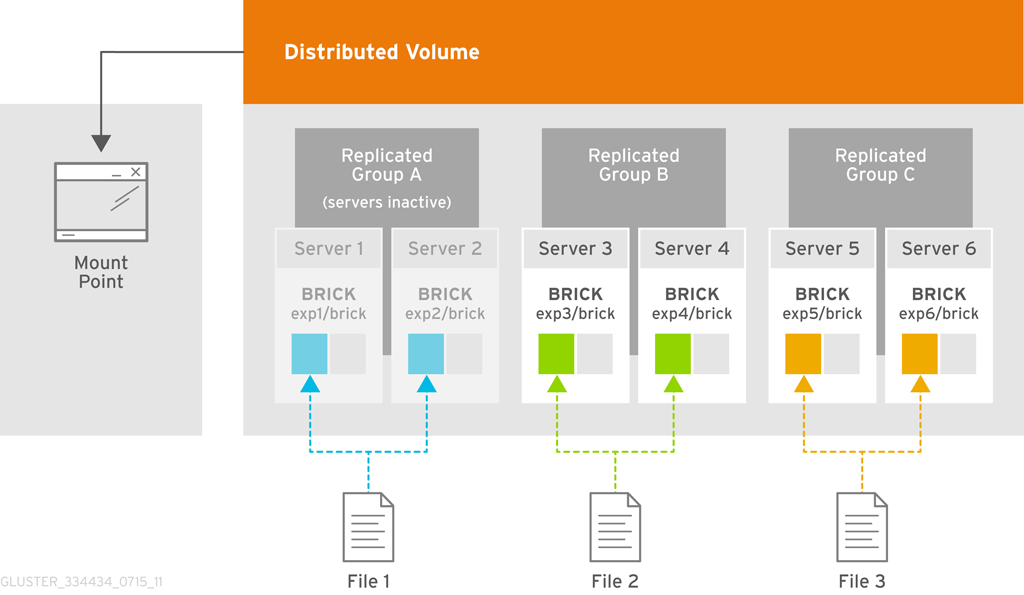
A, only replica group A becomes read-only. Replica groups B and C continue to allow data modifications.
Important
- If
cluster.quorum-typeisfixed, writes will continue till number of bricks up and running in replica pair is equal to the count specified incluster.quorum-countoption. This is irrespective of first or second or third brick. All the bricks are equivalent here. - If
cluster.quorum-typeisauto, then at least ceil (n/2) number of bricks need to be up to allow writes, wherenis the replica count. For example,In addition, forfor replica 2, ceil(2/2)= 1 brick for replica 3, ceil(3/2)= 2 bricks for replica 4, ceil(4/2)= 2 bricks for replica 5, ceil(5/2)= 3 bricks for replica 6, ceil(6/2)= 3 bricks and so onauto, if the number of bricks that are up is exactly ceil (n/2), andnis an even number, then the first brick of the replica must also be up to allow writes. For replica 6, if more than 3 bricks are up, then it can be any of the bricks. But if exactly 3 bricks are up, then the first brick has to be up and running. - In a three-way replication setup, it is recommended to set
cluster.quorum-typetoautoto avoid split brains. If the quorum is not met, the replica pair becomes read-only.
cluster.quorum-type and cluster.quorum-count options. For more information on these options, see Section 10.1, “Configuring Volume Options”.
Important
gluster volume set VOLNAME group virt command. If on a two replica set up, if the first brick in the replica pair is offline, virtual machines will be paused because quorum is not met and writes are disallowed.
# gluster volume reset VOLNAME quorum-typeThis example provides information on how to set server-side and client-side quorum on a Distribute Replicate volume to avoid split-brain scenario. The configuration of this example has 2 X 2 ( 4 bricks) Distribute Replicate setup.
# gluster volume info testvol
Volume Name: testvol
Type: Distributed-Replicate
Volume ID: 0df52d58-bded-4e5d-ac37-4c82f7c89cfh
Status: Created
Number of Bricks: 2 x 2 = 4
Transport-type: tcp
Bricks:
Brick1: server1:/bricks/brick1
Brick2: server2:/bricks/brick2
Brick3: server3:/bricks/brick3
Brick4: server4:/bricks/brick4
# gluster volume set VOLNAME cluster.server-quorum-type server# gluster volume set all cluster.server-quorum-ratio 51%quorum-typeoption to auto to allow writes to the file only if the percentage of active replicate bricks is more than 50% of the total number of bricks that constitute that replica.
# gluster volume set VOLNAME quorum-type autoImportant
n) in a replica set is an even number, it is mandatory that the n/2 count must consist of the primary brick and it must be up and running. If n is an odd number, the n/2 count can have any brick up and running, that is, the primary brick need not be up and running to allow writes.
10.11.2. Recovering from File Split-brain
- See Section 10.11.2.1, “ Recovering File Split-brain from the Mount Point” for information on how to recover from data and meta-data split-brain from the mount point.
- See Section 10.11.2.2, “Recovering File Split-brain from the gluster CLI” for information on how to recover from data and meta-data split-brain using CLI
gfid/entry split-brain, see Chapter 30, Manually Recovering File Split-brain .
10.11.2.1. Recovering File Split-brain from the Mount Point
Steps to recover from a split-brain from the mount point
- You can use a set of
getfattrandsetfattrcommands to detect the data and meta-data split-brain status of a file and resolve split-brain from the mount point.Important
This process for split-brain resolution from mount will not work on NFS mounts as it does not provide extended attributes support.In this example, thetest-volumevolume has bricksb0,b1,b2andb3.# gluster volume info test-volume Volume Name: test-volume Type: Distributed-Replicate Status: Started Number of Bricks: 2 x 2 = 4 Transport-type: tcp Bricks: Brick1: test-host:/test/b0 Brick2: test-host:/test/b1 Brick3: test-host:/test/b2 Brick4: test-host:/test/b3Directory structure of the bricks is as follows:# tree -R /test/b? /test/b0 ├── dir │ └── a └── file100 /test/b1 ├── dir │ └── a └── file100 /test/b2 ├── dir ├── file1 ├── file2 └── file99 /test/b3 ├── dir ├── file1 ├── file2 └── file99In the following output, some of the files in the volume are in split-brain.# gluster volume heal test-volume info split-brain Brick test-host:/test/b0/ /file100 /dir Number of entries in split-brain: 2 Brick test-host:/test/b1/ /file100 /dir Number of entries in split-brain: 2 Brick test-host:/test/b2/ /file99 <gfid:5399a8d1-aee9-4653-bb7f-606df02b3696> Number of entries in split-brain: 2 Brick test-host:/test/b3/ <gfid:05c4b283-af58-48ed-999e-4d706c7b97d5> <gfid:5399a8d1-aee9-4653-bb7f-606df02b3696> Number of entries in split-brain: 2To know data or meta-data split-brain status of a file:# getfattr -n replica.split-brain-status <path-to-file>The above command executed from mount provides information if a file is in data or meta-data split-brain. This command is not applicable to gfid/entry split-brain.For example,file100is in meta-data split-brain. Executing the above mentioned command forfile100gives :# getfattr -n replica.split-brain-status file100 # file: file100 replica.split-brain-status="data-split-brain:no metadata-split-brain:yes Choices:test-client-0,test-client-1"file1is in data split-brain.# getfattr -n replica.split-brain-status file1 # file: file1 replica.split-brain-status="data-split-brain:yes metadata-split-brain:no Choices:test-client-2,test-client-3"file99is in both data and meta-data split-brain.# getfattr -n replica.split-brain-status file99 # file: file99 replica.split-brain-status="data-split-brain:yes metadata-split-brain:yes Choices:test-client-2,test-client-3"diris ingfid/entrysplit-brain but as mentioned earlier, the above command is does not display if the file is ingfid/entrysplit-brain. Hence, the command displaysThe file is not under data or metadata split-brain. For information on resolving gfid/entry split-brain, see Chapter 30, Manually Recovering File Split-brain .# getfattr -n replica.split-brain-status dir # file: dir replica.split-brain-status="The file is not under data or metadata split-brain"file2is not in any kind of split-brain.# getfattr -n replica.split-brain-status file2 # file: file2 replica.split-brain-status="The file is not under data or metadata split-brain"
- Analyze the files in data and meta-data split-brain and resolve the issue
When you perform operations like
cat,getfattr, and more from the mount on files in split-brain, it throws an input/output error. For further analyzing such files, you can usesetfattrcommand.# setfattr -n replica.split-brain-choice -v "choiceX" <path-to-file>Using this command, a particular brick can be chosen to access the file in split-brain.For example,file1is in data-split-brain and when you try to read from the file, it throws input/output error.# cat file1 cat: file1: Input/output errorSplit-brain choices provided for file1 weretest-client-2andtest-client-3.Settingtest-client-2as split-brain choice for file1 serves reads fromb2for the file.# setfattr -n replica.split-brain-choice -v test-client-2 file1Now, you can perform operations on the file. For example, read operations on the file:# cat file1 xyzSimilarly, to inspect the file from other choice,replica.split-brain-choiceis to be set totest-client-3.Trying to inspect the file from a wrong choice errors out. You can undo the split-brain-choice that has been set, the above mentionedsetfattrcommand can be used withnoneas the value for extended attribute.For example,# setfattr -n replica.split-brain-choice -v none file1Now performingcatoperation on the file will again result in input/output error, as before.# cat file cat: file1: Input/output errorAfter you decide which brick to use as a source for resolving the split-brain, it must be set for the healing to be done.# setfattr -n replica.split-brain-heal-finalize -v <heal-choice> <path-to-file>Example# setfattr -n replica.split-brain-heal-finalize -v test-client-2 file1The above process can be used to resolve data and/or meta-data split-brain on all the files.Setting the split-brain-choice on the fileAfter setting the split-brain-choice on the file, the file can be analyzed only for five minutes. If the duration of analyzing the file needs to be increased, use the following command and set the required time intimeout-in-minuteargument.# setfattr -n replica.split-brain-choice-timeout -v <timeout-in-minutes> <mount_point/file>This is a global timeout and is applicable to all files as long as the mount exists. The timeout need not be set each time a file needs to be inspected but for a new mount it will have to be set again for the first time. This option becomes invalid if the operations like add-brick or remove-brick are performed.Note
Iffopen-keep-cacheFUSE mount option is disabled, then inode must be invalidated each time before selecting a newreplica.split-brain-choiceto inspect a file using the following command:# setfattr -n inode-invalidate -v 0 <path-to-file>
10.11.2.2. Recovering File Split-brain from the gluster CLI
- Use bigger-file as source
- Use one replica as source for a particular file
- Use one replica as source for all files
Note
entry/gfid split-brain resolution is not supported using CLI. For information on resolving gfid/entry split-brain, see Chapter 30, Manually Recovering File Split-brain .
This method is useful for per file healing and where you can decided that the file with bigger size is to be considered as source.
- Run the following command to obtain the list of files that are in split-brain:
# gluster volume heal VOLNAME info split-brainBrick <hostname:brickpath-b1> <gfid:aaca219f-0e25-4576-8689-3bfd93ca70c2> <gfid:39f301ae-4038-48c2-a889-7dac143e82dd> <gfid:c3c94de2-232d-4083-b534-5da17fc476ac> Number of entries in split-brain: 3 Brick <hostname:brickpath-b2> /dir/file1 /dir /file4 Number of entries in split-brain: 3From the command output, identify the files that are in split-brain.You can find the differences in the file size and md5 checksums by performing a stat and md5 checksums on the file from the bricks. The following is the stat and md5 checksum output of a file:On brick b1: # stat b1/dir/file1 File: ‘b1/dir/file1’ Size: 17 Blocks: 16 IO Block: 4096 regular file Device: fd03h/64771d Inode: 919362 Links: 2 Access: (0644/-rw-r--r--) Uid: ( 0/ root) Gid: ( 0/ root) Access: 2015-03-06 13:55:40.149897333 +0530 Modify: 2015-03-06 13:55:37.206880347 +0530 Change: 2015-03-06 13:55:37.206880347 +0530 Birth: - # md5sum b1/dir/file1 040751929ceabf77c3c0b3b662f341a8 b1/dir/file1 On brick b2: # stat b2/dir/file1 File: ‘b2/dir/file1’ Size: 13 Blocks: 16 IO Block: 4096 regular file Device: fd03h/64771d Inode: 919365 Links: 2 Access: (0644/-rw-r--r--) Uid: ( 0/ root) Gid: ( 0/ root) Access: 2015-03-06 13:54:22.974451898 +0530 Modify: 2015-03-06 13:52:22.910758923 +0530 Change: 2015-03-06 13:52:22.910758923 +0530 Birth: - # md5sum b2/dir/file1 cb11635a45d45668a403145059c2a0d5 b2/dir/file1You can notice the differences in the file size and md5 checksums. - Execute the following command along with the full file name as seen from the root of the volume (or) the gfid-string representation of the file, which is displayed in the heal info command's output.
# gluster volume heal <VOLNAME> split-brain bigger-file <FILE>For example,# gluster volume heal test-volume split-brain bigger-file /dir/file1 Healed /dir/file1.
On brick b1:
# stat b1/dir/file1
File: ‘b1/dir/file1’
Size: 17 Blocks: 16 IO Block: 4096 regular file
Device: fd03h/64771d Inode: 919362 Links: 2
Access: (0644/-rw-r--r--) Uid: ( 0/ root) Gid: ( 0/ root)
Access: 2015-03-06 14:17:27.752429505 +0530
Modify: 2015-03-06 13:55:37.206880347 +0530
Change: 2015-03-06 14:17:12.880343950 +0530
Birth: -
# md5sum b1/dir/file1
040751929ceabf77c3c0b3b662f341a8 b1/dir/file1
On brick b2:
# stat b2/dir/file1
File: ‘b2/dir/file1’
Size: 17 Blocks: 16 IO Block: 4096 regular file
Device: fd03h/64771d Inode: 919365 Links: 2
Access: (0644/-rw-r--r--) Uid: ( 0/ root) Gid: ( 0/ root)
Access: 2015-03-06 14:17:23.249403600 +0530
Modify: 2015-03-06 13:55:37.206880000 +0530
Change: 2015-03-06 14:17:12.881343955 +0530
Birth: -
# md5sum b2/dir/file1
040751929ceabf77c3c0b3b662f341a8 b2/dir/file1This method is useful if you know which file is to be considered as source.
- Run the following command to obtain the list of files that are in split-brain:
# gluster volume heal VOLNAME info split-brainBrick <hostname:brickpath-b1> <gfid:aaca219f-0e25-4576-8689-3bfd93ca70c2> <gfid:39f301ae-4038-48c2-a889-7dac143e82dd> <gfid:c3c94de2-232d-4083-b534-5da17fc476ac> Number of entries in split-brain: 3 Brick <hostname:brickpath-b2> /dir/file1 /dir /file4 Number of entries in split-brain: 3From the command output, identify the files that are in split-brain.You can find the differences in the file size and md5 checksums by performing a stat and md5 checksums on the file from the bricks. The following is the stat and md5 checksum output of a file:On brick b1: stat b1/file4 File: ‘b1/file4’ Size: 4 Blocks: 16 IO Block: 4096 regular file Device: fd03h/64771d Inode: 919356 Links: 2 Access: (0644/-rw-r--r--) Uid: ( 0/ root) Gid: ( 0/ root) Access: 2015-03-06 13:53:19.417085062 +0530 Modify: 2015-03-06 13:53:19.426085114 +0530 Change: 2015-03-06 13:53:19.426085114 +0530 Birth: - # md5sum b1/file4 b6273b589df2dfdbd8fe35b1011e3183 b1/file4 On brick b2: # stat b2/file4 File: ‘b2/file4’ Size: 4 Blocks: 16 IO Block: 4096 regular file Device: fd03h/64771d Inode: 919358 Links: 2 Access: (0644/-rw-r--r--) Uid: ( 0/ root) Gid: ( 0/ root) Access: 2015-03-06 13:52:35.761833096 +0530 Modify: 2015-03-06 13:52:35.769833142 +0530 Change: 2015-03-06 13:52:35.769833142 +0530 Birth: - # md5sum b2/file4 0bee89b07a248e27c83fc3d5951213c1 b2/file4You can notice the differences in the file size and md5 checksums. - Execute the following command
# gluster volume heal <VOLNAME> split-brain source-brick <HOSTNAME:BRICKNAME> <FILE>In this command, FILE present in <HOSTNAME:BRICKNAME> is taken as source for healing.For example,# gluster volume heal test-volume split-brain source-brick test-host:b1/file4 file4 test-host:/test/b2/file4 Healed /b1/file4After the healing is complete, the md5 checksum and file size on both bricks must be same. The following is a sample output of the stat and md5 checksums command after completion of healing the file.On brick b1: # stat b1/file4 File: ‘b1/file4’ Size: 4 Blocks: 16 IO Block: 4096 regular file Device: fd03h/64771d Inode: 919356 Links: 2 Access: (0644/-rw-r--r--) Uid: ( 0/ root) Gid: ( 0/ root) Access: 2015-03-06 14:23:38.944609863 +0530 Modify: 2015-03-06 13:53:19.426085114 +0530 Change: 2015-03-06 14:27:15.058927962 +0530 Birth: - # md5sum b1/file4 b6273b589df2dfdbd8fe35b1011e3183 b1/file4 On brick b2: # stat b2/file4 File: ‘b2/file4’ Size: 4 Blocks: 16 IO Block: 4096 regular file Device: fd03h/64771d Inode: 919358 Links: 2 Access: (0644/-rw-r--r--) Uid: ( 0/ root) Gid: ( 0/ root) Access: 2015-03-06 14:23:38.944609000 +0530 Modify: 2015-03-06 13:53:19.426085000 +0530 Change: 2015-03-06 14:27:15.059927968 +0530 Birth: - # md5sum b2/file4 b6273b589df2dfdbd8fe35b1011e3183 b2/file4
This method is useful if you know want to use a particular brick as a source for the split-brain files in that replica pair.
- Run the following command to obtain the list of files that are in split-brain:
# gluster volume heal VOLNAME info split-brainFrom the command output, identify the files that are in split-brain. - Execute the following command
# gluster volume heal <VOLNAME> split-brain source-brick <HOSTNAME:BRICKNAME>In this command, for all the files that are in split-brain in this replica, <HOSTNAME:BRICKNAME> is taken as source for healing.For example,# gluster volume heal test-volume split-brain source-brick test-host:b1
10.11.3. Triggering Self-Healing on Replicated Volumes
- To view the list of files that need healing:
# gluster volume heal VOLNAME infoFor example, to view the list of files on test-volume that need healing:# gluster volume heal test-volume info Brick server1:/gfs/test-volume_0 Number of entries: 0 Brick server2:/gfs/test-volume_1 /95.txt /32.txt /66.txt /35.txt /18.txt /26.txt - Possibly undergoing heal /47.txt /55.txt /85.txt - Possibly undergoing heal ... Number of entries: 101 - To trigger self-healing only on the files which require healing:
# gluster volume heal VOLNAMEFor example, to trigger self-healing on files which require healing on test-volume:# gluster volume heal test-volume Heal operation on volume test-volume has been successful - To trigger self-healing on all the files on a volume:
# gluster volume heal VOLNAME fullFor example, to trigger self-heal on all the files on test-volume:# gluster volume heal test-volume full Heal operation on volume test-volume has been successful - To view the list of files on a volume that are in a split-brain state:
# gluster volume heal VOLNAME info split-brainFor example, to view the list of files on test-volume that are in a split-brain state:# gluster volume heal test-volume info split-brain Brick server1:/gfs/test-volume_2 Number of entries: 12 at path on brick ---------------------------------- 2012-06-13 04:02:05 /dir/file.83 2012-06-13 04:02:05 /dir/file.28 2012-06-13 04:02:05 /dir/file.69 Brick server2:/gfs/test-volume_2 Number of entries: 12 at path on brick ---------------------------------- 2012-06-13 04:02:05 /dir/file.83 2012-06-13 04:02:05 /dir/file.28 2012-06-13 04:02:05 /dir/file.69 ...
10.12. Non Uniform File Allocation (NUFA)
Important
gluster volume set VOLNAMEcluster.nufa enableon.
Important
- Volumes with only with one brick per server.
- For use with a FUSE client. NUFA is not supported with NFS or SMB.
- A client that is mounting a NUFA-enabled volume must be present within the trusted storage pool.
Chapter 11. Managing Containerized Red Hat Gluster Storage
Note
11.1. Prerequisites
- Create the directories in the atomic host for persistent mount by executing the following command:
# mkdir -p /etc/glusterfs /var/lib/glusterd /var/log/glusterfs - Ensure the bricks that are required are mounted on the atomic hosts. For more information see, Brick Configuration.
- If Snapshot is required, then ensure that the
dm-snapshotkernel module is loaded in Atomic Host system. If it is not loaded, then load it by executing the following command:# modprobe dm_snapshot
11.2. Starting a Container
- Create a data container for RHGS container by executing the following command:
# docker run --name glusterdata -v /etc/glusterfs:/etc/glusterfs:z -v /var/lib/glusterd:/var/lib/glusterd:z -v /var/log/glusterfs:/var/log/glusterfs:z -v /sys/fs/cgroup:/sys/fs/cgroup:ro <image name> /usr/sbin/setup.shFor example:# docker run --name glusterdata -v /etc/glusterfs:/etc/glusterfs:z -v /var/lib/glusterd:/var/lib/glusterd:z -v /var/log/glusterfs:/var/log/glusterfs:z -v /sys/fs/cgroup:/sys/fs/cgroup:ro rhgs3/rhgs-server-rhel7 /usr/sbin/setup.sh Script Ran SuccessfullyNote
- The data container will be stopped once the script is run.
- SELinux labels are automatically reset to
svirt_sandbox_file_tso that the container can interact with the Atomic Host directory. - In the above command, the following ensures that the gluster configuration are persistent.
-v /etc/glusterfs:/etc/glusterfs:z -v /var/lib/glusterd:/var/lib/glusterd -v /var/log/glusterfs:/var/log/glusterfs
- Execute the following command to run the container:
# docker run -d --privileged=true --net=host --name <container-name> --volumes-from glusterdata -v /mnt/brick1:/mnt/container_brick1:z <image name>where,- --net=host option ensures that the container has full access to the network stack of the host.
- --volumes-from option is used to bind mount all the volumes from the data container.
/mnt/brick1is the mountpoint of the brick in the atomic host and:/mnt/container_brick1is the mountpoint of the brick in the container.- -d option starts the container in the detached mode.
For example:# docker run -d --privileged=true --net=host --name glusternode1 --volumes-from glusterdata -v /mnt/brick1:/mnt/container_brick1:z rhgs3/rhgs-server-rhel7 5ac864b5abc74a925aecc4fe9613c73e83b8c54a846c36107aa8e2960eeb97b4Where, 5ac864b5abc74a925aecc4fe9613c73e83b8c54a846c36107aa8e2960eeb97b4 is the container ID. - If you want to use snapshot then execute the following command:
# docker run -d --privileged=true --net=host --name <container-name> -v /dev:/dev --volumes-from glusterdata -v /mnt/brick1:/mnt/container_brick1:z <image name>where, /mnt/brick1 is the mountpoint of the brick in the atomic host and :/mnt/container_brick1 is the mountpoint of the brick in the container.For example:# docker run -d --privileged=true --net=host --name glusternode1 -v /dev:/dev --volumes-from glusterdata -v /mnt/brick1:/mnt/container_brick1:z rhgs3/rhgs-server-rhel7 5da2bc217c0852d2b1bfe4fb31e0181753410071584b4e38bd77d7502cd3e92b - To verify if the container is created, execute the following command:
# docker ps -aFor example:# docker ps -a CONTAINER ID IMAGE COMMAND CREATED STATUS PORTS NAMES 5da2bc217c08 891ea0584e94 "/usr/sbin/init" 10 seconds ago Up 9 seconds glusternode1 1042bf93cf87 891ea0584e94 "/usr/sbin/setup.sh" 35 seconds ago Exited (0) 33 seconds ago glusterdata
11.3. Creating a Trusted Storage Pool
- Access the container using the following command:
# docker exec -it <container-name> /bin/bashFor example:# docker exec -it glusternode1 /bin/bash - To verify if glusterd is running, execute the following command:
# systemctl status glusterd - To verify if the bricks are mounted successfully, execute the following command:
# mount |grep <brick_name> - Peer probe the container to form the Trusted Storage Pool:
# gluster peer probe <atomic host IP> - Execute the following command to verify the peer probe status:
# gluster peer status
11.4. Creating a Volume
- To create a volume execute the following command:
# gluster volume create <vol-name> IP:/brickpath - Start the volume by executing the following command:
# gluster volume start <volname>
11.5. Mounting a Volume
# mount -t glusterfs <atomic host IP>:/<vol-name> /mount/pointChapter 12. Managing Tiering
The hot tier is the tiering volume created using better performing subvolumes, an example of which could be SSDs. Frequently accessed data is placed in the highest performance and most expensive hot tier. Hot tier volume could be a distributed volume or distributed-replicated volume.
Warning
The cold tier is the existing Red Hat Gluster Storage volume created using slower storage such as Spinning disks. Inactive or infrequently accessed data is placed in the lowest-cost cold tier.
Tiering automatically migrates files between hot tier and cold tier to improve the storage performance and resource use.
12.1. Tiering Architecture

Figure 12.1. Tiering Architecture
12.2. Key Benefits of Tiering
- Automatic classification and movement of files based on the access patterns
- Faster response time and reduced latency
- Better I/O performance
- Improved data-storage efficiency
- Reduced deployment and operating costs
12.3. Tiering Limitations
- Tiering works only with
cache friendlyworkloads. Attaching a tier volume to a cache unfriendly workload will lead to slow performance. In acache friendlyworkload, most of the reads and writes are accessing a subset of the total amount of data. And, this subset fits on the hot tier. This subset should change only infrequently. - Tiering feature is supported only on Red Hat Enterprise Linux 7 based Red Hat Gluster Storage. Tiering feature is not supported on Red Hat Enterprise Linux 6 based Red Hat Gluster Storage.
- In this release, only Fuse and NFSv3 access is supported. Server Message Block (SMB) and NFSv4 access to tiered volume is not supported.
- Snapshot clones are not supported with the tiered volumes.
- When you run
tier detach commit force, ongoing I/O operation may fail with Transport endpoint is not connected error. - Files with hardlinks and softlinks are not migrated.
- Files on which POSIX locks has been taken are not migrated until all locks are released.
- Add brick, remove brick, and rebalance operations are not supported on the tiered volume. For information on expanding a tiered volume, see Section 10.3.1, “Expanding a Tiered Volume” and for information on shrinking a tiered volume, see Section 10.4.2, “Shrinking a Tiered Volume ”
12.4. Attaching a Tier to a Volume
attach command will declare an existing volume as cold-tier and creates a new hot-tier volume which is appended to it. Together, the combination is a single cache tiered volume.
- Attach the tier to the volume by executing the following command:
# gluster volume tier VOLNAME attach [replica COUNT] NEW-BRICK...For example,# gluster volume tier test-volume attach replica 2 server1:/exp1/tier1 server1:/exp2/tier2 server2:/exp3/tier3 server2:/exp4/tier4 - Run
gluster volume infocommand to optionally display the volume information.The command output displays information similar to the following:# gluster volume info test-volume Volume Name: test-volume Type: Tier Status: Started Number of Bricks: 8 Transport-type: tcp Hot Tier : Hot Tier Type : Distributed-Replicate Number of Bricks: 2 x 2 = 4 Brick1: server1:/exp1/tier1 Brick2: server1:/exp2/tier2 Brick3: server2:/exp3/tier3 Brick4: server2:/exp4/tier4 Cold Tier: Cold Tier Type : Distributed-Replicate Number of Bricks: 2 x 2 = 4 Brick5: server1:/exp1/brick1 Brick6: server1:/exp2/brick2 Brick7: server2:/exp3/brick3 Brick8: server2:/exp4/brick4 Options Reconfigured: cluster.watermark-low: 70 cluster.watermark-hi: 90 cluster.tier-demote-frequency: 45 cluster.tier-mode: cache features.ctr-enabled: on performance.readdir-ahead: on
gluster volume tier VOLNAME start force command.
12.4.1. Attaching a Tier to a Geo-replicated Volume
Important
performance.quick-read option is enabled and geo-replicated from a tiered master volume. If the master volume is a tiered volume, you must disable the performance.quick-read option in the Slave Volume using the following command:
# gluster volume set Slavevol performance.quick-read off- Stop geo-replication between the master and slave, using the following command:
# gluster volume geo-replication MASTER_VOL SLAVE_HOST::SLAVE_VOL stopFor example:# gluster volume geo-replication Volume1 example.com::slave-vol stop - Attach the tier to the volume using the following command:
# gluster volume tier VOLNAME attach [replica COUNT] NEW-BRICK...For example, to create a distributed-replicated tier volume with replica count two:# gluster volume tier test-volume attach replica 2 server1:/exp1/tier1 server1:/exp2/tier2 server2:/exp3/tier3 server2:/exp4/tier4 - Restart the geo-replication sessions, using the following command:
# gluster volume geo-replication MASTER_VOL SLAVE_HOST::SLAVE_VOL startFor example# gluster volume geo-replication Volume1 example.com::slave-vol start - Verify whether geo-replication session has started with tier's bricks, using the following command:
# gluster volume geo-replication MASTER_VOL SLAVE_HOST::SLAVE_VOL statusFor example,# gluster volume geo-replication Volume1 example.com::slave-vol status
12.5. Configuring a Tiering Volume
# gluster volume set VOLNAME key value
12.5.1. Configuring Watermarks
cache mode, the configured watermark values and the percentage of the hot tier that is full determine whether a file will be promoted or demoted. The cluster.watermark-low and cluster.watermark-hi volume options set the lower and upper watermark values respectively for a tier volume.
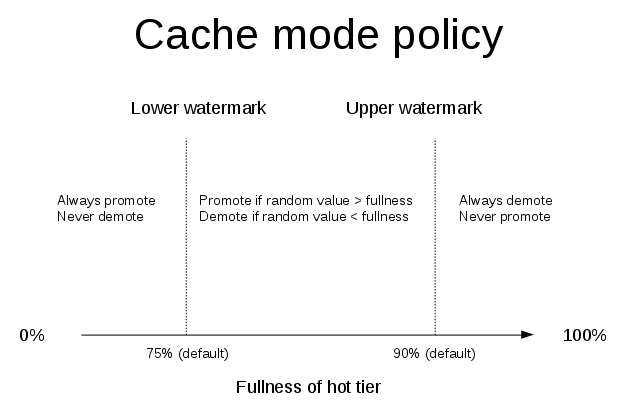
Figure 12.2. Tiering Watermarks
# gluster volume set VOLNAME cluster.watermark-hi value
# gluster volume set VOLNAME cluster.watermark-low value
12.5.2. Configuring Promote and Demote Frequency
# gluster volume set VOLNAME cluster.tier-demote-frequency value_in_seconds
# gluster volume set VOLNAME cluster.tier-promote-frequency value_in_seconds
12.5.3. Configuring Read and Write Frequency
HOT for promotion. Any file that has read or write hits less than this value will be considered as COLD and will be demoted. If the read/write access count is not set, then the default count is set to 0.
# gluster volume set VOLNAME cluster.write-freq-threshold value
Note
# gluster volume set VOLNAME cluster.read-freq-threshold value
Note
12.5.4. Configuring Target Data Size
# gluster volume set VOLNAME cluster.tier-max-mb value_in_mb
cluster.tier-max-mb count is not set, then the default data size is set to 4000 MB.
12.5.5. Configuring the File Count per Cycle
# gluster volume set VOLNAME cluster.tier-max-files count
cluster.tier-max-files count is not set, then the default count is set to 10000.
12.6. Displaying Tiering Status Information
# gluster volume tier VOLNAME status
# gluster volume tier test-volume status
Node Promoted files Demoted files Status
--------- --------- --------- ---------
localhost 1 5 in progress
server1 0 2 in progress
Tiering Migration Functionality: test-volume: success12.7. Detaching a Tier from a Volume
- Start the detach tier by executing the following command:
# gluster volume tier VOLNAME detach startFor example,# gluster volume tier test-volume detach start - Monitor the status of detach tier until the status displays the status as complete.
# gluster volume tier VOLNAME detach statusFor example,# gluster volume tier test-volume detach status Node Rebalanced-files size scanned failures skipped status run time in secs -------- ----------- ----------- ----------- ----------- ----------- ------------ -------------- localhost 0 0Bytes 0 0 0 completed 0.00 server1 0 0Bytes 0 0 0 completed 1.00 server1 0 0Bytes 0 0 0 completed 0.00 server2 0 0Bytes 0 0 0 completed server2 0 0Bytes 0 0 0 completedNote
It is possible that some files are not migrated to the cold tier on a detach operation for various reasons like POSIX locks being held on them. Check for files on the hot tier bricks and you can either manually move the files, or turn off applications (which would presumably unlock the files) and stop/start detach tier, to retry. - When the tier is detached successfully as shown in the previous status command, run the following command to commit the tier detach:
# gluster volume tier VOLNAME detach commitFor example,# gluster volume tier test-volume detach commit Removing tier can result in data loss. Do you want to Continue? (y/n) y volume detach-tier commit: success Check the detached bricks to ensure all files are migrated. If files with data are found on the brick path, copy them via a gluster mount point before re-purposing the removed brick.
gluster volume info command.
12.7.1. Detaching a Tier of a Geo-replicated Volume
- Start the detach tier by executing the following command:
# gluster volume tier VOLNAME detach startFor example,# gluster volume tier test-volume detach start - Monitor the status of detach tier until the status displays the status as complete.
# gluster volume tier VOLNAME detach statusFor example,# gluster volume tier test-volume detach status Node Rebalanced-files size scanned failures skipped status run time in secs -------- ----------- ----------- ----------- ----------- ----------- ------------ -------------- localhost 0 0Bytes 0 0 0 completed 0.00 server1 0 0Bytes 0 0 0 completed 1.00 server1 0 0Bytes 0 0 0 completed 0.00 server2 0 0Bytes 0 0 0 completed server2 0 0Bytes 0 0 0 completedNote
There could be some number of files that were not moved. Such files may have been locked by the user, and that prevented them from moving to the cold tier on the detach operation. You must check for such files. If you find any such files, you can either manually move the files, or turn off applications (which would presumably unlock the files) and stop/start detach tier, to retry. - Set a checkpoint on a geo-replication session to ensure that all the data in that cold-tier is synced to the slave. For more information on geo-replication checkpoints, see Section 14.4.4.1, “Geo-replication Checkpoints”.
# gluster volume geo-replication MASTER_VOL SLAVE_HOST::SLAVE_VOL config checkpoint nowFor example,# gluster volume geo-replication Volume1 example.com::slave-vol config checkpoint now - Use the following command to verify the checkpoint completion for the geo-replication session
# gluster volume geo-replication MASTER_VOL SLAVE_HOST::SLAVE_VOL status detail - Stop geo-replication between the master and slave, using the following command:
# gluster volume geo-replication MASTER_VOL SLAVE_HOST::SLAVE_VOL stopFor example:# gluster volume geo-replication Volume1 example.com::slave-vol stop - Commit the detach tier operation using the following command:
# gluster volume tier VOLNAME detach commitFor example,# gluster volume tier test-volume detach commit Removing tier can result in data loss. Do you want to Continue? (y/n) y volume detach-tier commit: success Check the detached bricks to ensure all files are migrated. If files with data are found on the brick path, copy them via a gluster mount point before re-purposing the removed brick.After the detach tier commit is completed, you can verify that the volume is no longer a tier volume by runninggluster volume infocommand. - Restart the geo-replication sessions, using the following command:
# gluster volume geo-replication MASTER_VOL SLAVE_HOST::SLAVE_VOL startFor example,# gluster volume geo-replication Volume1 example.com::slave-vol start
Chapter 13. Configuring Red Hat Gluster Storage for Enhancing Performance
/usr/lib/glusterfs/.unsupported/rhs-system-init.sh. You can refer the same for more information.
13.1. Disk Configuration
13.1.1. Hardware RAID
13.1.2. JBOD
- Each server in the JBOD configuration can have a maximum of 24 disks.
- Three-way replication must be used when using JBOD.
raw drives to the operating system using a pass-through mode.
13.2. Brick Configuration
Procedure 13.1. Brick Configuration
LVM layer
- Creating the Physical VolumeThe
pvcreatecommand is used to create the physical volume. The Logical Volume Manager can use a portion of the physical volume for storing its metadata while the rest is used as the data portion.Align the I/O at the Logical Volume Manager (LVM) layer using--dataalignmentoption while creating the physical volume.The command is used in the following format:pvcreate --dataalignment alignment_value diskFor JBOD, use an alignment value of256K.In case of hardware RAID, the alignment_value should be obtained by multiplying the RAID stripe unit size with the number of data disks. If 12 disks are used in a RAID 6 configuration, the number of data disks is 10; on the other hand, if 12 disks are used in a RAID 10 configuration, the number of data disks is 6.For example, the following command is appropriate for 12 disks in a RAID 6 configuration with a stripe unit size of 128 KiB:# pvcreate --dataalignment 1280k diskThe following command is appropriate for 12 disks in a RAID 10 configuration with a stripe unit size of 256 KiB:# pvcreate --dataalignment 1536k diskTo view the previously configured physical volume settings for--dataalignment, run the following command:# pvs -o +pe_start disk PV VG Fmt Attr PSize PFree 1st PE /dev/sdb lvm2 a-- 9.09t 9.09t 1.25m - Creating the Volume GroupThe volume group is created using the
vgcreatecommand.For hardware RAID, in order to ensure that logical volumes created in the volume group are aligned with the underlying RAID geometry, it is important to use the-- physicalextentsizeoption. Execute thevgcreatecommand in the following format:# vgcreate --physicalextentsize extent_size VOLGROUP physical_volumeThe extent_size should be obtained by multiplying the RAID stripe unit size with the number of data disks. If 12 disks are used in a RAID 6 configuration, the number of data disks is 10; on the other hand, if 12 disks are used in a RAID 10 configuration, the number of data disks is 6.For example, run the following command for RAID-6 storage with a stripe unit size of 128 KB, and 12 disks (10 data disks):# vgcreate --physicalextentsize 1280k VOLGROUP physical_volumeIn the case of JBOD, use thevgcreatecommand in the following format:# vgcreate VOLGROUP physical_volume - Creating the Thin PoolA thin pool provides a common pool of storage for thin logical volumes (LVs) and their snapshot volumes, if any.Execute the following command to create a thin-pool:
# lvcreate --thinpool VOLGROUP/thin_pool --size <pool_size> --chunksize <chunk_size> --poolmetadatasize <meta_size> --zero nRecommended parameter values for thin pool creation
- poolmetadatasize
- Internally, a thin pool contains a separate metadata device that is used to track the (dynamically) allocated regions of the thin LVs and snapshots. The
poolmetadatasizeoption in the above command refers to the size of the pool meta data device.The maximum possible size for a metadata LV is 16 GiB. Red Hat Gluster Storage recommends creating the metadata device of the maximum supported size. You can allocate less than the maximum if space is a concern, but in this case you should allocate a minimum of 0.5% of the pool size. - chunksize
- An important parameter to be specified while creating a thin pool is the chunk size,which is the unit of allocation. For good performance, the chunk size for the thin pool and the parameters of the underlying hardware RAID storage should be chosen so that they work well together.For RAID-6 storage, the striping parameters should be chosen so that the full stripe size (stripe_unit size * number of data disks) is between 1 MiB and 2 MiB, preferably in the low end of the range. The thin pool chunk size should be chosen to match the RAID 6 full stripe size. Matching the chunk size to the full stripe size aligns thin pool allocations with RAID 6 stripes, which can lead to better performance. Limiting the chunk size to below 2 MiB helps reduce performance problems due to excessive copy-on-write when snapshots are used.For example, for RAID 6 with 12 disks (10 data disks), stripe unit size should be chosen as 128 KiB. This leads to a full stripe size of 1280 KiB (1.25 MiB). The thin pool should then be created with the chunk size of 1280 KiB.For RAID 10 storage, the preferred stripe unit size is 256 KiB. This can also serve as the thin pool chunk size. Note that RAID 10 is recommended when the workload has a large proportion of small file writes or random writes. In this case, a small thin pool chunk size is more appropriate, as it reduces copy-on-write overhead with snapshots.For JBOD, use a thin pool chunk size of 256 KiB.
- block zeroing
- By default, the newly provisioned chunks in a thin pool are zeroed to prevent data leaking between different block devices. In the case of Red Hat Gluster Storage, where data is accessed via a file system, this option can be turned off for better performance with the
--zero noption. Note thatndoes not need to be replaced.The following example shows how to create the thin pool:lvcreate --thinpool VOLGROUP/thin_pool --size 800g --chunksize 1280k --poolmetadatasize 16G --zero n
- Creating a Thin Logical VolumeAfter the thin pool has been created as mentioned above, a thinly provisioned logical volume can be created in the thin pool to serve as storage for a brick of a Red Hat Gluster Storage volume.LVM allows multiple thinly-provisioned LVs to share a thin pool; this allows a common pool of physical storage to be used for multiple Red Hat Gluster Storage bricks and simplifies provisioning. However, such sharing of the thin pool metadata and data devices can impact performance in a number of ways.
Note
To avoid performance problems resulting from the sharing of the same thin pool, Red Hat Gluster Storage recommends that the LV for each Red Hat Gluster Storage brick have a dedicated thin pool of its own. As Red Hat Gluster Storage volume snapshots are created, snapshot LVs will get created and share the thin pool with the brick LVlvcreate --thin --name LV_name --virtualsize LV_size VOLGROUP/thin_pool
XFS Inode Size
As Red Hat Gluster Storage makes extensive use of extended attributes, an XFS inode size of 512 bytes works better with Red Hat Gluster Storage than the default XFS inode size of 256 bytes. So, inode size for XFS must be set to 512 bytes while formatting the Red Hat Gluster Storage bricks. To set the inode size, you have to use -i size option with themkfs.xfscommand as shown in the following Logical Block Size for the Directory section.XFS RAID Alignment
When creating an XFS file system, you can explicitly specify the striping parameters of the underlying storage in the following format:mkfs.xfs other_options -d su=stripe_unit_size,sw=stripe_width_in_number_of_disks deviceFor RAID 6, ensure that I/O is aligned at the file system layer by providing the striping parameters. For RAID 6 storage with 12 disks, if the recommendations above have been followed, the values must be as following:# mkfs.xfs other_options -d su=128k,sw=10 deviceFor RAID 10 and JBOD, the-d su=<>,sw=<>option can be omitted. By default, XFS will use the thin-p chunk size and other parameters to make layout decisions.Logical Block Size for the Directory
An XFS file system allows to select a logical block size for the file system directory that is greater than the logical block size of the file system. Increasing the logical block size for the directories from the default 4 K, decreases the directory I/O, which in turn improves the performance of directory operations. To set the block size, you need to use-n sizeoption with themkfs.xfscommand as shown in the following example output.Following is the example output of RAID 6 configuration along with inode and block size options:# mkfs.xfs -f -i size=512 -n size=8192 -d su=128k,sw=10 logical volume meta-data=/dev/mapper/gluster-brick1 isize=512 agcount=32, agsize=37748736 blks = sectsz=512 attr=2, projid32bit=0 data = bsize=4096 blocks=1207959552, imaxpct=5 = sunit=32 swidth=320 blks naming = version 2 bsize=8192 ascii-ci=0 log =internal log bsize=4096 blocks=521728, version=2 = sectsz=512 sunit=32 blks, lazy-count=1 realtime =none extsz=4096 blocks=0, rtextents=0Allocation Strategy
inode32 and inode64 are two most common allocation strategies for XFS. With inode32 allocation strategy, XFS places all the inodes in the first 1 TiB of disk. With larger disk, all the inodes would be stuck in first 1 TiB. inode32 allocation strategy is used by default.With inode64 mount option inodes would be replaced near to the data which would be minimize the disk seeks.To set the allocation strategy to inode64 when file system is being mounted, you need to use-o inode64option with themkfs.xfscommand as shown in the following Access Time section.Access Time
If the application does not require to update the access time on files, than file system must always be mounted withnoatimemount option. For example:# mount -t xfs -o inode64,noatime <logical volume> <mount point>This optimization improves performance of small-file reads by avoiding updates to the XFS inodes when files are read./etc/fstab entry for option E + F <logical volume> <mount point>xfs inode64,noatime 0 0Performance tuning option in Red Hat Gluster Storage
A tuned profile is designed to improve performance for a specific use case by tuning system parameters appropriately. Red Hat Gluster Storage includes tuned profiles tailored for its workloads. These profiles are available in both Red Hat Enterprise Linux 6 and Red Hat Enterprise Linux 7.Expand Table 13.1. Recommended Profiles for Different Workloads Workload Profile Name Large-file, sequential I/O workloads rhgs-sequential-ioSmall-file workloads rhgs-random-ioRandom I/O workloads rhgs-random-ioEarlier versions of Red Hat Gluster Storage on Red Hat Enterprise Linux 6 recommended tuned profilesrhs-high-throughputandrhs-virtualization. These profiles are still available on Red Hat Enterprise Linux 6. However, switching to the new profiles is recommended.To apply tunings contained in the tuned profile, run the following command after creating a Red Hat Gluster Storage volume.tuned-adm profile profile-nameFor example:tuned-adm profile rhgs-sequential-ioWriteback caching
For small-file and random write performance, we strongly recommend writeback cache, that is, non-volatile random-access memory (NVRAM) in your storage controller. For example, normal Dell and HP storage controllers have it. Ensure that NVRAM is enabled, that is, the battery is working. Refer your hardware documentation for details on enabling NVRAM.Do not enable writeback caching in the disk drives, this is a policy where the disk drive considers the write is complete before the write actually made it to the magnetic media (platter). As a result, the disk write cache might lose its data during a power failure or even loss of metadata leading to file system corruption.Allocation groups
Each XFS file system is partitioned into regions called allocation groups. Allocation groups are similar to the block groups in ext3, but allocation groups are much larger than block groups and are used for scalability and parallelism rather than disk locality. The default allocation for an allocation group is 1 TiB.Allocation group count must be large enough to sustain the concurrent allocation workload. In most of the cases allocation group count chosen bymkfs.xfscommand would give the optimal performance. Do not change the allocation group count chosen bymkfs.xfs, while formatting the file system.Percentage of space allocation to inodes
If the workload is very small files (average file size is less than 10 KB ), then it is recommended to setmaxpctvalue to10, while formatting the file system.
13.3. Network
13.4. Memory
13.4.1. Virtual Memory Parameters
- vm.dirty_ratio
- vm.dirty_background_ratio
- Large-file sequential I/O workloads benefit from higher values for these parameters.
- For small-file and random I/O workloads it is recommended to keep these parameter values low.
13.5. Small File Performance Enhancements
Metadata-intensive workload is the term used to identify such workloads. A few performance enhancements can be made to optimize the network and storage performance and minimize the effect of slow throughput and response time for small files in a Red Hat Gluster Storage trusted storage pool.
Note
rhgs-random-io tuned profile.
You can set the client.event-thread and server.event-thread values for the client and server components. Setting the value to 3, for example, would enable handling three network connections simultaneously.
# gluster volume set VOLNAME client.event-threads <value>Example 13.1. Tuning the event threads for a client accessing a volume
# gluster volume set test-vol client.event-threads 3# gluster volume set VOLNAME server.event-threads <value>Example 13.2. Tuning the event threads for a server accessing a volume
# gluster volume set test-vol server.event-threads 3# gluster volume info VOLNAMEIt is possible to see performance gains with the Red Hat Gluster Storage stack by tuning the number of threads processing events from network connections.The following are the recommended best practices to tune the event thread values.
- As each thread processes a connection at a time, having more threads than connections to either the brick processes (
glusterfsd) or the client processes (glusterfsorgfapi) is not recommended. Due to this reason, monitor the connection counts (using thenetstatcommand) on the clients and on the bricks to arrive at an appropriate number for the event thread count. - Configuring a higher event threads value than the available processing units could again cause context switches on these threads. As a result reducing the number deduced from the previous step to a number that is less that the available processing units is recommended.
- If a Red Hat Gluster Storage volume has a high number of brick processes running on a single node, then reducing the event threads number deduced in the previous step would help the competing processes to gain enough concurrency and avoid context switches across the threads.
- If a specific thread consumes more number of CPU cycles than needed, increasing the event thread count would enhance the performance of the Red Hat Gluster Storage Server.
- In addition to the deducing the appropriate event-thread count, increasing the
server.outstanding-rpc-limiton the storage nodes can also help to queue the requests for the brick processes and not let the requests idle on the network queue. - Another parameter that could improve the performance when tuning the event-threads value is to set the
performance.io-thread-count(and its related thread-counts) to higher values, as these threads perform the actual IO operations on the underlying file system.
13.5.1. Enabling Lookup Optimization
cluster.lookup-optimize configuration option enables DHT lookup optimization. To enable this option run the following command:
# gluster volume set VOLNAME cluster.lookup-optimize <on/off>\Note
13.6. Replication
Chapter 14. Managing Geo-replication
14.1. About Geo-replication
- Master – a Red Hat Gluster Storage volume.
- Slave – a Red Hat Gluster Storage volume. A slave volume can be either a local volume, such as
localhost::volname, or a volume on a remote host, such asremote-host::volname.
14.2. Replicated Volumes vs Geo-replication
| Replicated Volumes | Geo-replication |
|---|---|
| Mirrors data across bricks within one trusted storage pool. | Mirrors data across geographically distributed trusted storage pools. |
| Provides high-availability. | Provides back-ups of data for disaster recovery. |
| Synchronous replication: each and every file operation is applied to all the bricks. | Asynchronous replication: checks for changes in files periodically, and syncs them on detecting differences. |
14.3. Preparing to Deploy Geo-replication
14.3.1. Exploring Geo-replication Deployment Scenarios
- Geo-replication over LAN
- Geo-replication over WAN
- Geo-replication over the Internet
- Multi-site cascading geo-replication
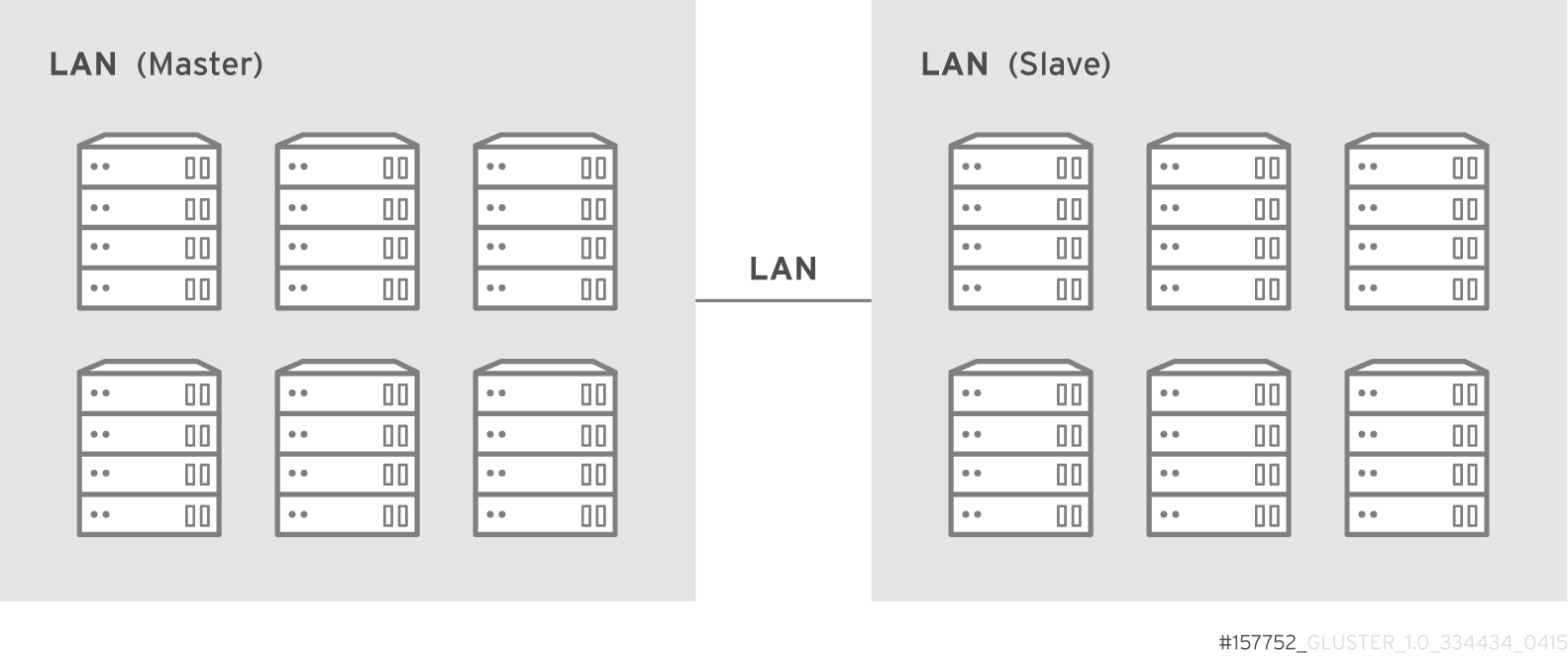
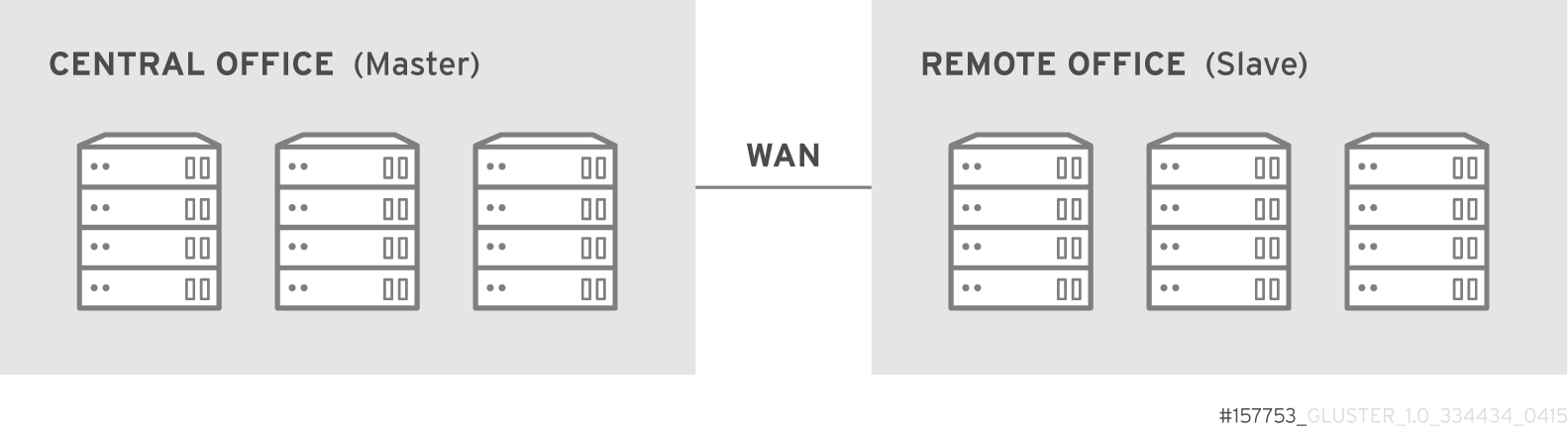

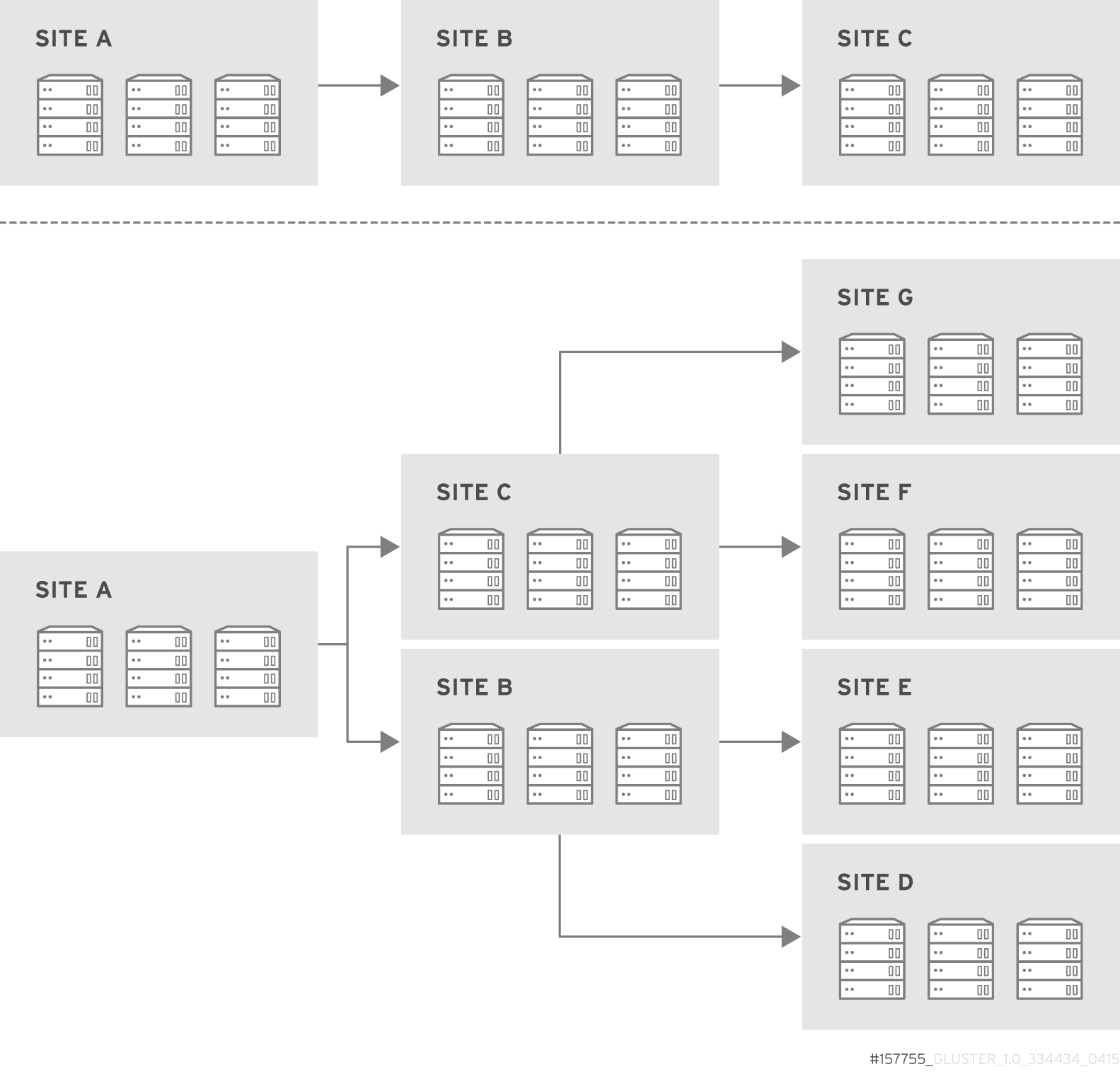
14.3.2. Geo-replication Deployment Overview
- Verify that your environment matches the minimum system requirements. See Section 14.3.3, “Prerequisites”.
- Determine the appropriate deployment scenario. See Section 14.3.1, “Exploring Geo-replication Deployment Scenarios”.
- Start geo-replication on the master and slave systems. See Section 14.4, “Starting Geo-replication”.
14.3.3. Prerequisites
- The master and slave volumes must be of same version of Red Hat Gluster Storage instances.
- Slave node must not be a peer of the any of the nodes of the Master trusted storage pool.
- Passwordless SSH access is required between one node of the master volume (the node from which the
geo-replication createcommand will be executed), and one node of the slave volume (the node whose IP/hostname will be mentioned in the slave name when running thegeo-replication createcommand).Create the public and private keys usingssh-keygen(without passphrase) on the master node:# ssh-keygenCopy the public key to the slave node using the following command:# ssh-copy-id -i identity_file root@slave_node_IPaddress/HostnameIf you are setting up a non-root geo-replicaton session, then copy the public key to the respectiveuserlocation.Note
- Passwordless SSH access is required from the master node to slave node, whereas passwordless SSH access is not required from the slave node to master node. - ssh-copy-idcommand does not work ifssh authorized_keysfile is configured in the custom location. You must copy the contents of.ssh/id_rsa.pubfile from the Master and paste it to authorized_keys file in the custom location on the Slave node.A passwordless SSH connection is also required forgsyncdbetween every node in the master to every node in the slave. Thegluster system:: execute gsec_createcommand createssecret-pemfiles on all the nodes in the master, and is used to implement the passwordless SSH connection. Thepush-pemoption in thegeo-replication createcommand pushes these keys to all the nodes in the slave.For more information on thegluster system::execute gsec_createandpush-pemcommands, see Section 14.3.4.1, “Setting Up your Environment for Geo-replication Session”.
14.3.4. Setting Up your Environment
- Section 14.3.4.1, “Setting Up your Environment for Geo-replication Session” - In this method, the slave mount is owned by the root user.
- Section 14.3.4.2, “Setting Up your Environment for a Secure Geo-replication Slave” - This method is more secure as the slave mount is owned by a normal user.
- All the servers' time must be uniform on bricks of a geo-replicated master volume. It is recommended to set up a NTP (Network Time Protocol) service to keep the bricks' time synchronized, and avoid out-of-time sync effects.For example: In a replicated volume where brick1 of the master has the time 12:20, and brick2 of the master has the time 12:10 with a 10 minute time lag, all the changes on brick2 between in this period may go unnoticed during synchronization of files with a Slave.For more information on configuring NTP, see https://access.redhat.com/documentation/en-US/Red_Hat_Enterprise_Linux/6/html/Deployment_Guide/ch-Configuring_NTP_Using_ntpd.html.
14.3.4.1. Setting Up your Environment for Geo-replication Session
Creating Geo-replication Sessions
- To create a common
pem pubfile, run the following command on the master node where the passwordless SSH connection is configured:# gluster system:: execute gsec_create - Create the geo-replication session using the following command. The
push-pemoption is needed to perform the necessarypem-filesetup on the slave nodes.# gluster volume geo-replication MASTER_VOL SLAVE_HOST::SLAVE_VOL create push-pem [force]For example:# gluster volume geo-replication Volume1 example.com::slave-vol create push-pemNote
There must be passwordless SSH access between the node from which this command is run, and the slave host specified in the above command. This command performs the slave verification, which includes checking for a valid slave URL, valid slave volume, and available space on the slave. If the verification fails, you can use theforceoption which will ignore the failed verification and create a geo-replication session. - Configure the meta-volume for geo-replication:
# gluster volume geo-replication MASTER_VOL SLAVE_HOST::SLAVE_VOL config use_meta_volume trueFor example:# gluster volume geo-replication Volume1 example.com::slave-vol config use_meta_volume trueFor more information on configuring meta-volume, see Section 14.3.5, “Configuring a Meta-Volume”. - Start the geo-replication by running the following command on the master node:For example,
# gluster volume geo-replication MASTER_VOL SLAVE_HOST::SLAVE_VOL start [force] - Verify the status of the created session by running the following command:
# gluster volume geo-replication MASTER_VOL SLAVE_HOST::SLAVE_VOL status
14.3.4.2. Setting Up your Environment for a Secure Geo-replication Slave
mountbroker, an internal service of glusterd which manages the mounts for unprivileged slave accounts. You must perform additional steps to configure glusterd with the appropriate mountbroker's access control directives. The following example demonstrates this process:
- Create a new group. For example,
geogroup. - Create a unprivileged account. For example,
geoaccount. Addgeoaccountas a member ofgeogroupgroup. - As a root, create a new directory with permissions 0711 and with correct SELinux context. Ensure that the location where this directory is created is writeable only by root but
geoaccountis able to access it.For example,# mkdir /var/mountbroker-root # chmod 0711 /var/mountbroker-root # semanage fcontext -a -e /home /var/mountbroker-root # restorecon -Rv /var/mountbroker-root - Run the following commands in any one of the Slave node:
# gluster system:: execute mountbroker opt mountbroker-root /var/mountbroker-root # gluster system:: execute mountbroker user geoaccount slavevol # gluster system:: execute mountbroker opt geo-replication-log-group geogroup # gluster system:: execute mountbroker opt rpc-auth-allow-insecure onSee Section 2.4, “Storage Concepts” for information onglusterd.volvolume file of a Red Hat Gluster Storage volume.If the above commands fails, check if theglusterd.volfile is available at/etc/glusterfs/directory. If not found, create aglusterd.volfile containing the default configuration and save it at/etc/glusterfs/directory. Now re-run the above commands listed above to get all the required geo-replication options.The following is the sampleglusterd.volfile along with default options:volume management type mgmt/glusterd option working-directory /var/lib/glusterd option transport-type socket,rdma option transport.socket.keepalive-time 10 option transport.socket.keepalive-interval 2 option transport.socket.read-fail-log off option rpc-auth-allow-insecure on option mountbroker-root /var/mountbroker-root option mountbroker-geo-replication.geoaccount slavevol option geo-replication-log-group geogroup end-volume- If you have multiple slave volumes on Slave, repeat Step 2 for each of them and run the following commands to update the vol file:
# gluster system:: execute mountbroker user geoaccount2 slavevol2 # gluster system:: execute mountbroker user geoaccount3 slavevol3You can usegluster system:: execute mountbroker infocommand to view the configured mountbroker options. - You can add multiple slave volumes within the same account (geoaccount) by providing comma-separated list (without spaces) as the argument of
mountbroker-geo-replication.geogroup. You can also have multiple options of the formmountbroker-geo-replication.*. It is recommended to use one service account per Master machine. For example, if there are multiple slave volumes on Slave for the master machines Master1, Master2, and Master3, then create a dedicated service user on Slave for them by repeating Step 2. for each (like geogroup1, geogroup2, and geogroup3), and then run the following commands to add the corresponding options to the volfile:# gluster system:: execute mountbroker user geoaccount1 slavevol11,slavevol12,slavevol13 # gluster system:: execute mountbroker user geoaccount2 slavevol21,slavevol22 # gluster system:: execute mountbroker user geoaccount3 slavevol31
- Restart
glusterdservice on all the Slave nodes.After you setup an auxiliary glusterFS mount for the unprivileged account on all the Slave nodes, perform the following steps to setup a non-root geo-replication session.: - Setup a passwordless SSH from one of the master node to the
useron one of the slave node.For example, to setup a passwordless SSH to the user geoaccount.# ssh-keygen # ssh-copy-id -i identity_file geoaccount@slave_node_IPaddress/Hostname - Create a common pem pub file by running the following command on the master node where the passwordless SSH connection is configured to the
useron the slave node:# gluster system:: execute gsec_create - Create a geo-replication relationship between master and slave to the
userby running the following command on the master node:For example,# gluster volume geo-replication MASTERVOL geoaccount@SLAVENODE::slavevol create push-pemIf you have multiple slave volumes and/or multiple accounts, create a geo-replication session with that particular user and volume.For example,# gluster volume geo-replication MASTERVOL geoaccount2@SLAVENODE::slavevol2 create push-pem - In the slavenode, which is used to create relationship, run
/usr/libexec/glusterfs/set_geo_rep_pem_keys.shas a root with user name, master volume name, and slave volume names as the arguments.For example,# /usr/libexec/glusterfs/set_geo_rep_pem_keys.sh geoaccount MASTERVOL SLAVEVOL_NAME - Configure the meta-volume for geo-replication:
# gluster volume geo-replication MASTER_VOL SLAVE_HOST::SLAVE_VOL config use_meta_volume trueFor example:# gluster volume geo-replication Volume1 example.com::slave-vol config use_meta_volume trueFor more information on configuring meta-volume, see Section 14.3.5, “Configuring a Meta-Volume”. - Start the geo-replication with slave user by running the following command on the master node:For example,
# gluster volume geo-replication MASTERVOL geoaccount@SLAVENODE::slavevol start - Verify the status of geo-replication session by running the following command on the master node:
# gluster volume geo-replication MASTERVOL geoaccount@SLAVENODE::slavevol status
When mountbroker geo-replicaton session is deleted, use the following command to remove volumes per mountbroker user. If the volume to be removed is the last one for the mountbroker user, the user is also removed.
- To delete a volumes per mountbroker user:
# gluster system:: execute mountbroker volumedel geoaccount2 slavevol2You can delete multiple volumes per mountbroker user by providing comma-separated list (without spaces) as the argument of this command.# gluster system:: execute mountbroker volumedel geoaccount2 slavevol2,slavevol3
Important
# gluster volume geo-replication MASTERVOL geoaccount@SLAVENODE::slavevol statusgeoaccount is the name of the unprivileged user account.
14.3.5. Configuring a Meta-Volume
gluster_shared_storage is created in the cluster, and is mounted at /var/run/gluster/shared_storage on all the nodes in the cluster. For more information on setting up shared storage volume, see Section 10.8, “Setting up Shared Storage Volume”.
- Configure the meta-volume for geo-replication:
# gluster volume geo-replication MASTER_VOL SLAVE_HOST::SLAVE_VOL config use_meta_volume trueFor example:# gluster volume geo-replication Volume1 example.com::slave-vol config use_meta_volume true
14.4. Starting Geo-replication
14.4.1. Starting a Geo-replication Session
Important
- To start the geo-replication session between the hosts:
# gluster volume geo-replication MASTER_VOL SLAVE_HOST::SLAVE_VOL startFor example:# gluster volume geo-replication Volume1 example.com::slave-vol start Starting geo-replication session between Volume1 & example.com::slave-vol has been successfulThis command will start distributed geo-replication on all the nodes that are part of the master volume. If a node that is part of the master volume is down, the command will still be successful. In a replica pair, the geo-replication session will be active on any of the replica nodes, but remain passive on the others.After executing the command, it may take a few minutes for the session to initialize and become stable.Note
If you attempt to create a geo-replication session and the slave already has data, the following error message will be displayed:slave-node::slave is not empty. Please delete existing files in slave-node::slave and retry, or use force to continue without deleting the existing files. geo-replication command failed
- To start the geo-replication session forcefully between the hosts:
# gluster volume geo-replication MASTER_VOL SLAVE_HOST::SLAVE_VOL start forceFor example:# gluster volume geo-replication Volume1 example.com::slave-vol start force Starting geo-replication session between Volume1 & example.com::slave-vol has been successfulThis command will force start geo-replication sessions on the nodes that are part of the master volume. If it is unable to successfully start the geo-replication session on any node which is online and part of the master volume, the command will still start the geo-replication sessions on as many nodes as it can. This command can also be used to re-start geo-replication sessions on the nodes where the session has died, or has not started.
14.4.2. Verifying a Successful Geo-replication Deployment
status command to verify the status of geo-replication in your environment:
# gluster volume geo-replication MASTER_VOL SLAVE_HOST::SLAVE_VOL status# gluster volume geo-replication Volume1 example.com::slave-vol status14.4.3. Displaying Geo-replication Status Information
status command can be used to display information about a specific geo-replication master session, master-slave session, or all geo-replication sessions. The status output provides both node and brick level information.
- To display information on all geo-replication sessions from a particular master volume, use the following command:
# gluster volume geo-replication MASTER_VOL status
- To display information of a particular master-slave session, use the following command:
# gluster volume geo-replication MASTER_VOL SLAVE_HOST::SLAVE_VOL status - To display the details of a master-slave session, use the following command:
# gluster volume geo-replication MASTER_VOL SLAVE_HOST::SLAVE_VOL status detailImportant
There will be a mismatch between the outputs of thedfcommand (including-hand-k) and inode of the master and slave volumes when the data is in full sync. This is due to the extra inode and size consumption by thechangelogjournaling data, which keeps track of the changes done on the file system on themastervolume. Instead of running thedfcommand to verify the status of synchronization, use# gluster volume geo-replication MASTER_VOL SLAVE_HOST::SLAVE_VOL status detailinstead.The geo-replication status command output provides the following information:- Master Node: Master node and Hostname as listed in the
gluster volume infocommand output - Master Vol: Master volume name
- Master Brick: The path of the brick
- Status: The status of the geo-replication worker can be one of the following:
- Initializing: This is the initial phase of the Geo-replication session; it remains in this state for a minute in order to make sure no abnormalities are present.
- Created: The geo-replication session is created, but not started.
- Active: The
gsyncdaemon in this node is active and syncing the data. - Passive: A replica pair of the active node. The data synchronization is handled by the active node. Hence, this node does not sync any data.
- Faulty: The geo-replication session has experienced a problem, and the issue needs to be investigated further. For more information, see Section 14.10, “Troubleshooting Geo-replication” section.
- Stopped: The geo-replication session has stopped, but has not been deleted.
- Crawl Status : Crawl status can be on of the following:
- Changelog Crawl: The
changelogtranslator has produced the changelog and that is being consumed bygsyncddaemon to sync data. - Hybrid Crawl: The
gsyncddaemon is crawling the glusterFS file system and generating pseudo changelog to sync data. - History Crawl: The
gsyncddaemon consumes the history changelogs produced by the changelog translator to sync data.
- Last Synced: The last synced time.
- Entry: The number of pending entry (CREATE, MKDIR, RENAME, UNLINK etc) operations per session.
- Data: The number of
Dataoperations pending per session. - Meta: The number of
Metaoperations pending per session. - Failures: The number of failures. If the failure count is more than zero, view the log files for errors in the Master bricks.
- Checkpoint Time: Displays the date and time of the checkpoint, if set. Otherwise, it displays as N/A.
- Checkpoint Completed: Displays the status of the checkpoint.
- Checkpoint Completion Time: Displays the cCompletion time if Checkpoint is completed. Otherwise, it displays as N/A.
14.4.4. Configuring a Geo-replication Session
# gluster volume geo-replication MASTER_VOL SLAVE_HOST::SLAVE_VOL config [options]# gluster volume geo-replication Volume1 example.com::slave-vol config! (exclamation mark). For example, to reset log-level to the default value:
# gluster volume geo-replication Volume1 example.com::slave-vol config '!log-level'The following table provides an overview of the configurable options for a geo-replication setting:
| Option | Description |
|---|---|
| gluster-log-file LOGFILE | The path to the geo-replication glusterfs log file. |
| gluster-log-level LOGFILELEVEL | The log level for glusterfs processes. |
| log-file LOGFILE | The path to the geo-replication log file. |
| log-level LOGFILELEVEL | The log level for geo-replication. |
| ssh-command COMMAND | The SSH command to connect to the remote machine (the default is SSH). |
| rsync-command COMMAND | The rsync command to use for synchronizing the files (the default is rsync). |
| use-tarssh [true | false] | The use-tarssh command allows tar over Secure Shell protocol. Use this option to handle workloads of files that have not undergone edits. |
| volume_id=UID | The command to delete the existing master UID for the intermediate/slave node. |
| timeout SECONDS | The timeout period in seconds. |
| sync-jobs N | The number of simultaneous files/directories that can be synchronized. |
| ignore-deletes | If this option is set to 1, a file deleted on the master will not trigger a delete operation on the slave. As a result, the slave will remain as a superset of the master and can be used to recover the master in the event of a crash and/or accidental delete. |
| checkpoint [LABEL|now] | Sets a checkpoint with the given option LABEL. If the option is set as now, then the current time will be used as the label. |
| sync-acls [true | false] | Syncs acls to the Slave cluster. By default, this option is enabled.
Note
Geo-replication can sync acls only with rsync as the sync engine and not with tarssh as the sync engine.
|
| sync-xattrs [true | false] | Syncs extended attributes to the Slave cluster. By default, this option is enabled.
Note
Geo-replication can sync extended attributes only with rsync as the sync engine and not with tarssh as the sync engine.
|
| log-rsync-performance [true | false] | If this option is set to enable, geo-replication starts recording the rsync performance in log files. By default, this option is disabled. |
| rsync-options | Additional options to rsync. For example, you can limit the rsync bandwidth usage "--bwlimit=<value>". |
| use-meta-volume [true | false] | Set this option to enable, to use meta volume in Geo-replicaiton. By default, this option is disabled.
Note
More more information on meta-volume, see Section 14.3.5, “Configuring a Meta-Volume”.
|
| meta-volume-mnt PATH | The path of the meta volume mount point. |
14.4.4.1. Geo-replication Checkpoints
14.4.4.1.1. About Geo-replication Checkpoints
14.4.4.1.2. Configuring and Viewing Geo-replication Checkpoint Information
- To set a checkpoint on a geo-replication session, use the following command:
# gluster volume geo-replication MASTER_VOL SLAVE_HOST::SLAVE_VOL config checkpoint [now|LABEL]For example, to set checkpoint betweenVolume1andexample.com:/data/remote_dir:# gluster volume geo-replication Volume1 example.com::slave-vol config checkpoint now geo-replication config updated successfullyThe label for a checkpoint can be set as the current time usingnow, or a particular label can be specified, as shown below:# gluster volume geo-replication Volume1 example.com::slave-vol config checkpoint NEW_ACCOUNTS_CREATED geo-replication config updated successfully. - To display the status of a checkpoint for a geo-replication session, use the following command:
# gluster volume geo-replication MASTER_VOL SLAVE_HOST::SLAVE_VOL status detail - To delete checkpoints for a geo-replication session, use the following command:
# gluster volume geo-replication MASTER_VOL SLAVE_HOST::SLAVE_VOL config '!checkpoint'For example, to delete the checkpoint set betweenVolume1andexample.com::slave-vol:# gluster volume geo-replication Volume1 example.com::slave-vol config '!checkpoint' geo-replication config updated successfully
14.4.5. Stopping a Geo-replication Session
- To stop a geo-replication session between the hosts:
# gluster volume geo-replication MASTER_VOL SLAVE_HOST::SLAVE_VOL stopFor example:# gluster volume geo-replication Volume1 example.com::slave-vol stop Stopping geo-replication session between Volume1 & example.com::slave-vol has been successfulNote
Thestopcommand will fail if:- any node that is a part of the volume is offline.
- if it is unable to stop the geo-replication session on any particular node.
- if the geo-replication session between the master and slave is not active.
- To stop a geo-replication session forcefully between the hosts:
# gluster volume geo-replication MASTER_VOL SLAVE_HOST::SLAVE_VOL stop forceFor example:# gluster volume geo-replication Volume1 example.com::slave-vol stop force Stopping geo-replication session between Volume1 & example.com::slave-vol has been successfulUsingforcewill stop the geo-replication session between the master and slave even if any node that is a part of the volume is offline. If it is unable to stop the geo-replication session on any particular node, the command will still stop the geo-replication sessions on as many nodes as it can. Usingforcewill also stop inactive geo-replication sessions.
14.4.6. Deleting a Geo-replication Session
Important
# gluster volume geo-replication MASTER_VOL SLAVE_HOST::SLAVE_VOL delete# gluster volume geo-replication Volume1 example.com::slave-vol delete
geo-replication command executed successfullyNote
delete command will fail if:
- any node that is a part of the volume is offline.
- if it is unable to delete the geo-replication session on any particular node.
- if the geo-replication session between the master and slave is still active.
Important
pem files which contain the SSH keys from the /var/lib/glusterd/geo-replication/ directory.
14.5. Starting Geo-replication on a Newly Added Brick or Node
14.5.1. Starting Geo-replication for a New Brick or New Node
- Run the following command on the master node where passwordless SSH connection is configured, in order to create a common
pem pubfile.# gluster system:: execute gsec_create - Create the geo-replication session using the following command. The
push-pemandforceoptions are required to perform the necessarypem-filesetup on the slave nodes.# gluster volume geo-replication MASTER_VOL SLAVE_HOST::SLAVE_VOL create push-pem forceFor example:# gluster volume geo-replication Volume1 example.com::slave-vol create push-pem forceNote
There must be passwordless SSH access between the node from which this command is run, and the slave host specified in the above command. This command performs the slave verification, which includes checking for a valid slave URL, valid slave volume, and available space on the slave. - After successfully setting up the shared storage volume, when a new node is added to the cluster, the shared storage is not mounted automatically on this node. Neither is the
/etc/fstabentry added for the shared storage on this node. To make use of shared storage on this node, execute the following commands:# mount -t glusterfs <local node's ip>:gluster_shared_storage /var/run/gluster/shared_storage # cp /etc/fstab /var/run/gluster/fstab.tmp # echo "<local node's ip>:/gluster_shared_storage /var/run/gluster/shared_storage/ glusterfs defaults 0 0" >> /etc/fstabFor more information on setting up shared storage volume, see Section 10.8, “Setting up Shared Storage Volume”. - Configure the meta-volume for geo-replication:
# gluster volume geo-replication MASTER_VOL SLAVE_HOST::SLAVE_VOL config use_meta_volume trueFor example:# gluster volume geo-replication Volume1 example.com::slave-vol config use_meta_volume trueFor more information on configuring meta-volume, see Section 14.3.5, “Configuring a Meta-Volume”. - If a node is added at slave, stop the geo-replication session using the following command:
# gluster volume geo-replication MASTER_VOL SLAVE_HOST::SLAVE_VOL stop - Start the geo-replication session between the slave and master forcefully, using the following command:
# gluster volume geo-replication MASTER_VOL SLAVE_HOST::SLAVE_VOL start force - Verify the status of the created session, using the following command:
# gluster volume geo-replication MASTER_VOL SLAVE_HOST::SLAVE_VOL status
14.5.2. Starting Geo-replication for a New Brick on an Existing Node
14.6. Disaster Recovery
14.6.1. Promoting a Slave to Master
# gluster volume set VOLNAME geo-replication.indexing on
# gluster volume set VOLNAME changelog on14.6.2. Failover and Failback
Performing a Failover and Failback
- Create a new geo-replication session with the original slave as the new master, and the original master as the new slave. For more information on setting and creating geo-replication session, see Section 14.3.4.1, “Setting Up your Environment for Geo-replication Session”.
- Start the special synchronization mode to speed up the recovery of data from slave.
# gluster volume geo-replication ORIGINAL_SLAVE_VOL ORIGINAL_MASTER_HOST::ORIGINAL_MASTER_VOL config special-sync-mode recover - Set a checkpoint to help verify the status of the data synchronization.
# gluster volume geo-replication ORIGINAL_SLAVE_VOL ORIGINAL_MASTER_HOST::ORIGINAL_MASTER_VOL config checkpoint now - Start the new geo-replication session using the following command:
# gluster volume geo-replication ORIGINAL_SLAVE_VOL ORIGINAL_MASTER_HOST::ORIGINAL_MASTER_VOL start - Verify the checkpoint completion for the geo-replication session using the following command:
# gluster volume geo-replication ORIGINAL_SLAVE_VOL ORIGINAL_MASTER_HOST::ORIGINAL_MASTER_VOL status detail - To resume the original master and original slave back to their previous roles, stop the I/O operations on the original slave, and using steps 3 and 5, ensure that all the data from the original slave is restored back to the original master. After the data from the original slave is restored back to the original master, stop the current geo-replication session (the failover session) between the original slave and original master, and resume the previous roles.
- Reset the options that were set for promoting the slave volume as the master volume by running the following commands:
# gluster volume reset ORIGINAL_SLAVE_VOL geo-replication.indexing force # gluster volume reset ORIGINAL_SLAVE_VOL changelogFor more information on promoting slave volume to be the master volume, see Section 14.6.1, “Promoting a Slave to Master”.
14.7. Creating a Snapshot of Geo-replicated Volume
# gluster snapshot create snap1 master
snapshot create: failed: geo-replication session is running for the volume master. Session needs to be stopped before taking a snapshot.
Snapshot command failed14.8. Example - Setting up Cascading Geo-replication
- Verify that your environment matches the minimum system requirements listed in Section 14.3.3, “Prerequisites”.
- Determine the appropriate deployment scenario. For more information on deployment scenarios, see Section 14.3.1, “Exploring Geo-replication Deployment Scenarios”.
- Configure the environment and create a geo-replication session between master-vol and interimmaster-vol.
- Create a common pem pub file, run the following command on the master node where the passwordless SSH connection is configured:
# gluster system:: execute gsec_create - Create the geo-replication session using the following command. The push-pem option is needed to perform the necessary pem-file setup on the interimmaster nodes.
# gluster volume geo-replication master-vol interimhost.com::interimmaster-vol create push-pem - Verify the status of the created session by running the following command:
# gluster volume geo-replication master-vol interimhost::interimmaster-vol status
- Start a Geo-replication session between the hosts:
# gluster volume geo-replication master-vol interimhost.com::interimmaster-vol startThis command will start distributed geo-replication on all the nodes that are part of the master volume. If a node that is part of the master volume is down, the command will still be successful. In a replica pair, the geo-replication session will be active on any of the replica nodes, but remain passive on the others. After executing the command, it may take a few minutes for the session to initialize and become stable. - Verifying the status of geo-replication session by running the following command:
# gluster volume geo-replication master-vol interimhost.com::interimmaster-vol status - Create a geo-replication session between interimmaster-vol and slave-vol.
- Create a common pem pub file by running the following command on the interimmaster master node where the passwordless SSH connection is configured:
# gluster system:: execute gsec_create - On interimmaster node, create the geo-replication session using the following command. The push-pem option is needed to perform the necessary pem-file setup on the slave nodes.
# gluster volume geo-replication interimmaster-vol slave_host.com::slave-vol create push-pem - Verify the status of the created session by running the following command:
# gluster volume geo-replication interrimmaster-vol slave_host::slave-vol status
- Start a geo-replication session between interrimaster-vol and slave-vol by running the following command:
# gluster volume geo-replication interrimmaster-vol slave_host.com::slave-vol start - Verify the status of geo-replication session by running the following:
# gluster volume geo-replication interrimmaster-vol slave_host.com::slave-vol status
14.9. Recommended Practices
If you have to change the time on the bricks manually, then the geo-replication session and indexing must be disabled when setting the time on all the bricks. All bricks in a geo-replication environment must be set to the same time, as this avoids the out-of-time sync issue described in Section 14.3.4.1, “Setting Up your Environment for Geo-replication Session”. Bricks not operating on the same time setting, or changing the time while the geo-replication is running, will corrupt the geo-replication index. The recommended way to set the time manually is using the following procedure.
Manually Setting the Time on Bricks in a Geo-replication Environment
- Stop geo-replication between the master and slave, using the following command:
# gluster volume geo-replication MASTER_VOL SLAVE_HOST::SLAVE_VOL stop - Stop geo-replication indexing, using the following command:
# gluster volume set MASTER_VOL geo-replication.indexing off - Set a uniform time on all the bricks.
- Restart the geo-replication sessions, using the following command:
# gluster volume geo-replication MASTER_VOL SLAVE_HOST::SLAVE_VOL start
When the following option is set, it has been observed that there is an increase in geo-replication performance. On the slave volume, run the following command:
# gluster volume set SLAVE_VOL batch-fsync-delay-usec 0For replicating large volumes to a slave in a remote location, it may be useful to do the initial replication to disks locally on a local area network (LAN), and then physically transport the disks to the remote location. This eliminates the need of doing the initial replication of the whole volume over a slower and more expensive wide area network (WAN) connection. The following procedure provides instructions for setting up a local geo-replication session, physically transporting the disks to the remote location, and then setting up geo-replication over a WAN.
Initially Replicating to a Remote Slave Locally using a LAN
- Create a geo-replication session locally within the LAN. For information on creating a geo-replication session, see Section 14.3.4.1, “Setting Up your Environment for Geo-replication Session”.
Important
You must remember the order in which the bricks/disks are specified when creating the slave volume. This information is required later for configuring the remote geo-replication session over the WAN. - Ensure that the initial data on the master is synced to the slave volume. You can verify the status of the synchronization by using the
statuscommand, as shown in Section 14.4.3, “Displaying Geo-replication Status Information”. - Stop and delete the geo-replication session.For information on stopping and deleting the the geo-replication session, see Section 14.4.5, “Stopping a Geo-replication Session” and Section 14.4.6, “Deleting a Geo-replication Session”.
Important
You must ensure that there are no stale files in/var/lib/glusterd/geo-replication/. - Stop and delete the slave volume.For information on stopping and deleting the volume, see Section 10.9, “Stopping Volumes” and Section 10.10, “Deleting Volumes”.
- Remove the disks from the slave nodes, and physically transport them to the remote location. Make sure to remember the order in which the disks were specified in the volume.
- At the remote location, attach the disks and mount them on the slave nodes. Make sure that the file system or logical volume manager is recognized, and that the data is accessible after mounting it.
- Configure a trusted storage pool for the slave using the
peer probecommand.For information on configuring a trusted storage pool, see Chapter 5, Trusted Storage Pools. - Delete the glusterFS-related attributes on the bricks. This should be done before creating the volume. You can remove the glusterFS-related attributes by running the following command:
# for i in `getfattr -d -m . ABSOLUTE_PATH_TO_BRICK 2>/dev/null | grep trusted | awk -F = '{print $1}'`; do setfattr -x $i ABSOLUTE_PATH_TO_BRICK; doneRun the following command to ensure that there are noxattrsstill set on the brick:# getfattr -d -m . ABSOLUTE_PATH_TO_BRICK - After creating the trusted storage pool, create the Red Hat Gluster Storage volume with the same configuration that it had when it was on the LAN. For information on creating volumes, see Chapter 6, Red Hat Gluster Storage Volumes.
Important
Make sure to specify the bricks in same order as they were previously when on the LAN. A mismatch in the specification of the brick order may lead to data loss or corruption. - Start and mount the volume, and check if the data is intact and accessible.For information on starting and mounting volumes, see Section 6.10, “Starting Volumes” and Chapter 7, Accessing Data - Setting Up Clients.
- Configure the environment and create a geo-replication session from the master to this remote slave.For information on configuring the environment and creating a geo-replication session, see Section 14.3.4.1, “Setting Up your Environment for Geo-replication Session”.
- Start the geo-replication session between the master and the remote slave.For information on starting the geo-replication session, see Section 14.4, “Starting Geo-replication”.
- Use the
statuscommand to verify the status of the session, and check if all the nodes in the session are stable.For information on thestatus, see Section 14.4.3, “Displaying Geo-replication Status Information”.
14.10. Troubleshooting Geo-replication
14.10.1. Tuning Geo-replication performance with Change Log
rollover-time option sets the rate at which the change log is consumed. The default rollover time is 60 seconds, but it can be configured to a faster rate. A recommended rollover-time for geo-replication is 10-15 seconds. To change the rollover-time option, use following the command:
# gluster volume set VOLNAME rollover-time 15fsync-interval option determines the frequency that updates to the change log are written to disk. The default interval is 0, which means that updates to the change log are written synchronously as they occur, and this may negatively impact performance in a geo-replication environment. Configuring fsync-interval to a non-zero value will write updates to disk asynchronously at the specified interval. To change the fsync-interval option, use following the command:
# gluster volume set VOLNAME fsync-interval 314.10.2. Triggering Explicit Sync on Entries
glusterfs.geo-rep.trigger-sync is provided to accomplish the same.
# setfattr -n glusterfs.geo-rep.trigger-sync -v "1" <file-path>14.10.3. Synchronization Is Not Complete
The geo-replication status is displayed as Stable, but the data has not been completely synchronized.
A full synchronization of the data can be performed by erasing the index and restarting geo-replication. After restarting geo-replication, it will begin a synchronization of the data using checksums. This may be a long and resource intensive process on large data sets. If the issue persists, contact Red Hat Support.
14.10.4. Issues with File Synchronization
The geo-replication status is displayed as Stable, but only directories and symlinks are synchronized. Error messages similar to the following are in the logs:
[2011-05-02 13:42:13.467644] E [master:288:regjob] GMaster: failed to sync ./some_file`
Geo-replication requires rsync v3.0.0 or higher on the host and the remote machines. Verify if you have installed the required version of rsync.
14.10.5. Geo-replication Status is Often Faulty
The geo-replication status is often displayed as Faulty, with a backtrace similar to the following:
012-09-28 14:06:18.378859] E [syncdutils:131:log_raise_exception] <top>: FAIL: Traceback (most recent call last): File "/usr/local/libexec/glusterfs/python/syncdaemon/syncdutils.py", line 152, in twraptf(*aa) File "/usr/local/libexec/glusterfs/python/syncdaemon/repce.py", line 118, in listen rid, exc, res = recv(self.inf) File "/usr/local/libexec/glusterfs/python/syncdaemon/repce.py", line 42, in recv return pickle.load(inf) EOFErrorThis usually indicates that RPC communication between the master gsyncd module and slave gsyncd module is broken. Make sure that the following pre-requisites are met:
- Passwordless SSH is set up properly between the host and remote machines.
- FUSE is installed on the machines. The geo-replication module mounts Red Hat Gluster Storage volumes using FUSE to sync data.
14.10.6. Intermediate Master is in a Faulty State
In a cascading environment, the intermediate master is in a faulty state, and messages similar to the following are in the log:
raise RuntimeError ("aborting on uuid change from %s to %s" % \ RuntimeError: aborting on uuid change from af07e07c-427f-4586-ab9f- 4bf7d299be81 to de6b5040-8f4e-4575-8831-c4f55bd41154
In a cascading configuration, an intermediate master is loyal to its original primary master. The above log message indicates that the geo-replication module has detected that the primary master has changed. If this change was deliberate, delete the volume-id configuration option in the session that was initiated from the intermediate master.
14.10.7. Remote gsyncd Not Found
The master is in a faulty state, and messages similar to the following are in the log:
[2012-04-04 03:41:40.324496] E [resource:169:errfail] Popen: ssh> bash: /usr/local/libexec/glusterfs/gsyncd: No such file or directoryThe steps to configure a SSH connection for geo-replication have been updated. Use the steps as described in Section 14.3.4.1, “Setting Up your Environment for Geo-replication Session”
Chapter 15. Managing Directory Quotas
15.1. Enabling Quotas
# gluster volume quota VOLNAME enable
# gluster volume quota test-volume enable
volume quota : successImportant
- Do not enable quota using the
volume-setcommand. This option is no longer supported. - Do not enable quota while
quota-remove-xattr.shis still running.
15.2. Setting Limits
Note
- Before setting quota limits on any directory, ensure that there is at least one brick available per replica set.To see the current status of bricks of a volume, run the following command:
# gluster volume status VOLNAME status - If the Red Hat Gluster Storage volume is mounted at
/mntglusterfsand you want to perform a certain function pertaining to Quota on/mntglusterfs/dir, then the path to be provided in any corresponding command should be/dir, where/diris the absolute path relative to the Red Hat Gluster Storage volume mount point.
# gluster volume quota VOLNAME limit-usage path hard_limit
- To set a hard limit of 100GB on
/dir:# gluster volume quota VOLNAME limit-usage /dir 100GB - To set a hard limit of 1TB for the volume:
# gluster volume quota VOLNAME limit-usage / 1TB
/var/log/glusterfs/bricks/<path-to-brick.log># gluster volume quota VOLNAME limit-usage path hard_limit soft_limit
- To set the soft limit to 76% of the hard limit on
/dir:# gluster volume quota VOLNAME limit-usage /dir 100GB 76% - To set the soft limit to 68% of the hard limit on the volume:
# gluster volume quota VOLNAME limit-usage / 1TB 68%
Note
15.3. Setting the Default Soft Limit
# gluster volume quota VOLNAME default-soft-limit soft_limit
# gluster volume quota test-volume default-soft-limit 90%
volume quota : success# gluster volume quota test-volume listNote
15.4. Displaying Quota Limit Information
# gluster volume quota VOLNAME list
# gluster volume quota test-volume list
Path Hard-limit Soft-limit Used Available
------------------------------------------------------
/ 50GB 75% 0Bytes 50.0GB
/dir 10GB 75% 0Bytes 10.0GB
/dir/dir2 20GB 90% 0Bytes 20.0GB# gluster volume quota VOLNAME list /<directory_name>
# gluster volume quota test-volume list /dir
Path Hard-limit Soft-limit Used Available
-------------------------------------------------
/dir 10.0GB 75% 0Bytes 10.0GB# gluster volume quota VOLNAME list /<directory_name1> /<directory_name2>
# gluster volume quota test-volume list /dir /dir/dir2
Path Hard-limit Soft-limit Used Available
------------------------------------------------------
/dir 10.0GB 75% 0Bytes 10.0GB
/dir/dir2 20.0GB 90% 0Bytes 20.0GB15.4.1. Displaying Quota Limit Information Using the df Utility
df utility, taking quota limits into consideration, run the following command:
# gluster volume set VOLNAME quota-deem-statfs onquota-deem-statfs is off:
# gluster volume set test-volume features.quota-deem-statfs off
volume set: success
# gluster volume quota test-volume list
Path Hard-limit Soft-limit Used Available
-----------------------------------------------------------
/ 300.0GB 90% 11.5GB 288.5GB
/John/Downloads 77.0GB 75% 11.5GB 65.5GB# df -hT /home
Filesystem Type Size Used Avail Use% Mounted on
server1:/test-volume fuse.glusterfs 400G 12G 389G 3% /homequota-deem-statfs is on:
# gluster volume set test-volume features.quota-deem-statfs on
volume set: success
# gluster vol quota test-volume list
Path Hard-limit Soft-limit Used Available
-----------------------------------------------------------
/ 300.0GB 90% 11.5GB 288.5GB
/John/Downloads 77.0GB 75% 11.5GB 65.5GB# df -hT /home
Filesystem Type Size Used Avail Use% Mounted on
server1:/test-volume fuse.glusterfs 300G 12G 289G 4% /homequota-deem-statfs option when set to on, allows the administrator to make the user view the total disk space available on the directory as the hard limit set on it.
15.5. Setting Timeout
- Soft timeout is the frequency at which the quota server-side translator checks the volume usage when the usage is below the soft limit. The soft timeout is in effect when the disk usage is less than the soft limit.To set the soft timeout, use the following command:
# gluster volume quota VOLNAME soft-timeout timeNote
The default soft timeout is 60 seconds.For example, to set the soft timeout on test-volume to 1 minute:# gluster volume quota test-volume soft-timeout 1min volume quota : success - Hard timeout is the frequency at which the quota server-side translator checks the volume usage when the usage is above the soft limit. The hard timeout is in effect when the disk usage is between the soft limit and the hard limit.To set the hard timeout, use the following command:
# gluster volume quota VOLNAME hard-timeout timeNote
The default hard timeout is 5 seconds.For example, to set the hard timeout for 30 seconds:# gluster volume quota test-volume hard-timeout 30s volume quota : successNote
As the margin of error for disk usage is proportional to the workload of the applications running on the volume, ensure that you set the hard-timeout and soft-timeout taking the workload into account.
15.6. Setting Alert Time
# gluster volume quota VOLNAME alert-time time
Note
# gluster volume quota test-volume alert-time 1d
volume quota : success15.7. Removing Disk Limits
# gluster volume quota VOLNAME remove /<directory-name>
# gluster volume quota test-volume remove /data
volume quota : success# gluster vol quota test-volume remove /
volume quota : successNote
15.8. Disabling Quotas
# gluster volume quota VOLNAME disable
# gluster volume quota test-volume disable
Disabling quota will delete all the quota configuration. Do you want to continue? (y/n) y
volume quota : successNote
- When you disable quotas, all previously configured limits are removed from the volume.
Chapter 16. Managing Snapshots
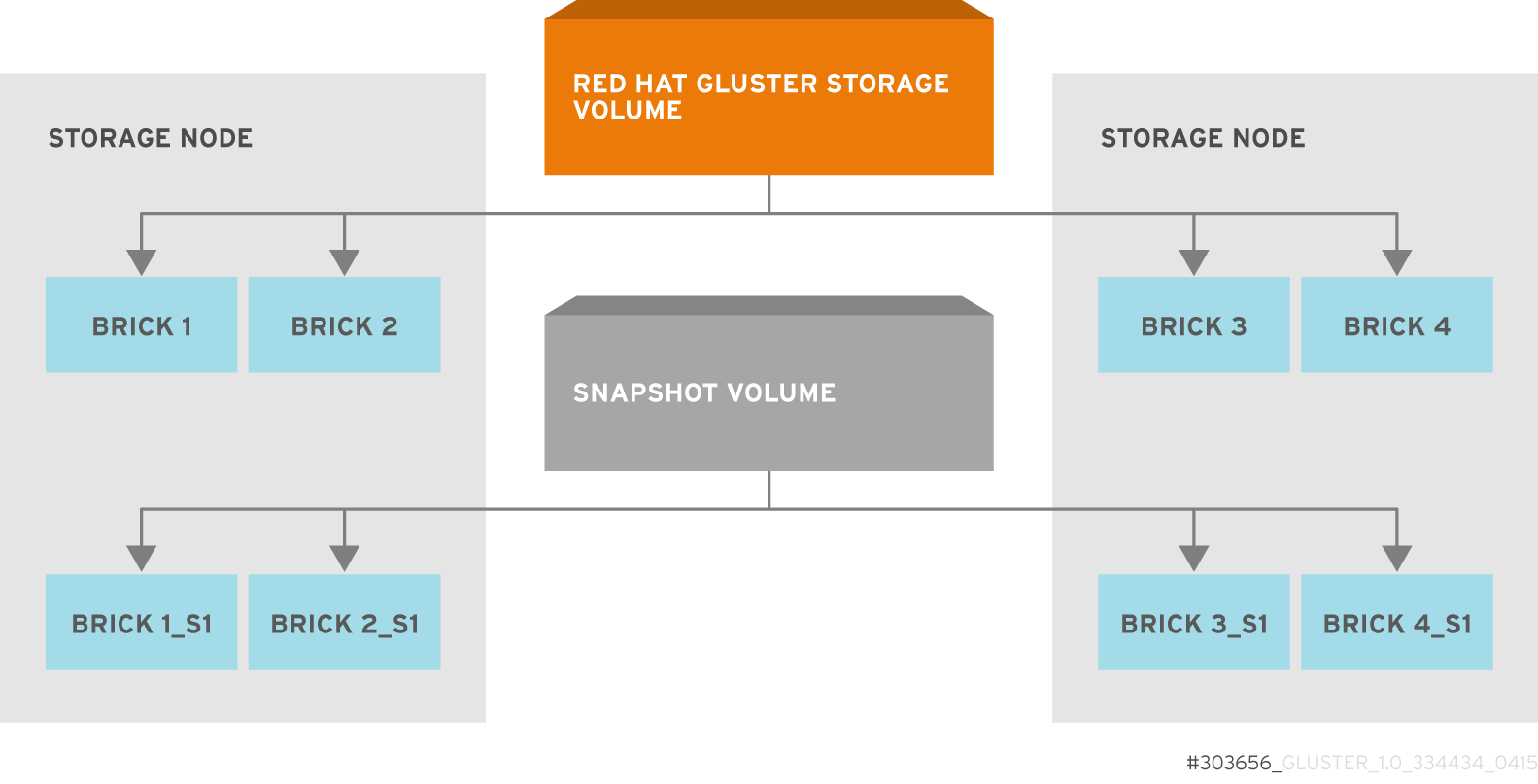
Figure 16.1. Snapshot Architecture
- Crash Consistency
A crash consistent snapshot is captured at a particular point-in-time. When a crash consistent snapshot is restored, the data is identical as it was at the time of taking a snapshot.
Note
Currently, application level consistency is not supported. - Online Snapshot
Snapshot is an online snapshot hence the file system and its associated data continue to be available for the clients even while the snapshot is being taken.
- Quorum Based
The quorum feature ensures that the volume is in a good condition while the bricks are down. If any brick that is down for a n way replication, where n <= 2 , quorum is not met. In a n-way replication where n >= 3, quorum is met when m bricks are up, where m >= (n/2 +1) where n is odd and m >= n/2 and the first brick is up where n is even. If quorum is not met snapshot creation fails.
Note
The quorum check feature in snapshot is in technology preview. Snapshot delete and restore feature checks node level quorum instead of brick level quorum. Snapshot delete and restore is successful only when m number of nodes of a n node cluster is up, where m >= (n/2+1). - Barrier
To guarantee crash consistency some of the fops are blocked during a snapshot operation.
These fops are blocked till the snapshot is complete. All other fops is passed through. There is a default time-out of 2 minutes, within that time if snapshot is not complete then these fops are unbarriered. If the barrier is unbarriered before the snapshot is complete then the snapshot operation fails. This is to ensure that the snapshot is in a consistent state.
Note
16.1. Prerequisites
- Snapshot is based on thinly provisioned LVM. Ensure the volume is based on LVM2. Red Hat Gluster Storage is supported on Red Hat Enterprise Linux 6.7, 7.1 and 7.2. Both these versions of Red Hat Enterprise Linux is based on LVM2 by default. For more information, see https://access.redhat.com/site/documentation/en-US/Red_Hat_Enterprise_Linux/6/html/Logical_Volume_Manager_Administration/thinprovisioned_volumes.html
- Each brick must be independent thinly provisioned logical volume(LV).
- The logical volume which contains the brick must not contain any data other than the brick.
- Only linear LVM is supported with Red Hat Gluster Storage. For more information, see https://access.redhat.com/site/documentation/en-US/Red_Hat_Enterprise_Linux/4/html-single/Cluster_Logical_Volume_Manager/#lv_overview
- Each snapshot creates as many bricks as in the original Red Hat Gluster Storage volume. Bricks, by default, use privileged ports to communicate. The total number of privileged ports in a system is restricted to 1024. Hence, for supporting 256 snapshots per volume, the following options must be set on Gluster volume. These changes will allow bricks and glusterd to communicate using non-privileged ports.
- Run the following command to permit insecure ports:
# gluster volume set VOLNAME server.allow-insecure on - Edit the
/etc/glusterfs/glusterd.volin each Red Hat Gluster Storage node, and add the following setting:option rpc-auth-allow-insecure on - Restart glusterd service on each Red Hat Server node using the following command:
# service glusterd restart
- For each volume brick, create a dedicated thin pool that contains the brick of the volume and its (thin) brick snapshots. With the current thin-p design, avoid placing the bricks of different Red Hat Gluster Storage volumes in the same thin pool, as this reduces the performance of snapshot operations, such as snapshot delete, on other unrelated volumes.
- The recommended thin pool chunk size is 256KB. There might be exceptions to this in cases where we have a detailed information of the customer's workload.
- The recommended pool metadata size is 0.1% of the thin pool size for a chunk size of 256KB or larger. In special cases, where we recommend a chunk size less than 256KB, use a pool metadata size of 0.5% of thin pool size.
- Create a physical volume(PV) by using the
pvcreatecommand.pvcreate /dev/sda1Use the correctdataalignmentoption based on your device. For more information, Section 13.2, “Brick Configuration” - Create a Volume Group (VG) from the PV using the following command:
vgcreate dummyvg /dev/sda1 - Create a thin-pool using the following command:
lvcreate -L 1T -T dummyvg/dummypool -c 256k --poolmetadatasize 16GA thin pool of size 1 TB is created, using a chunksize of 256 KB. Maximum pool metadata size of 16 G is used. - Create a thinly provisioned volume from the previously created pool using the following command:
lvcreate -V 1G -T dummyvg/dummypool -n dummylv - Create a file system (XFS) on this. Use the recommended options to create the XFS file system on the thin LV.For example,
mkfs.xfs -f -i size=512 -n size=8192 /dev/dummyvg/dummylv - Mount this logical volume and use the mount path as the brick.
mount/dev/dummyvg/dummylv /mnt/brick1
16.2. Creating Snapshots
- Red Hat Gluster Storage volume has to be present and the volume has to be in the
Startedstate. - All the bricks of the volume have to be on an independent thin logical volume(LV).
- Snapshot names must be unique in the cluster.
- All the bricks of the volume should be up and running, unless it is a n-way replication where n >= 3. In such case quorum must be met. For more information see Chapter 16, Managing Snapshots
- No other volume operation, like
rebalance,add-brick, etc, should be running on the volume. - Total number of snapshots in the volume should not be equal to Effective snap-max-hard-limit. For more information see Configuring Snapshot Behavior.
- If you have a geo-replication setup, then pause the geo-replication session if it is running, by executing the following command:
# gluster volume geo-replication MASTER_VOL SLAVE_HOST::SLAVE_VOL pauseFor example,# gluster volume geo-replication master-vol example.com::slave-vol pause Pausing geo-replication session between master-vol example.com::slave-vol has been successfulEnsure that you take the snapshot of the master volume and then take snapshot of the slave volume. - If you have a Hadoop enabled Red Hat Gluster Storage volume, you must ensure to stop all the Hadoop Services in Ambari.
# gluster snapshot create <snapname> <volname> [no-timestamp] [description <description>] [force]- snapname - Name of the snapshot that will be created.
- VOLNAME(S) - Name of the volume for which the snapshot will be created. We only support creating snapshot of single volume.
- description - This is an optional field that can be used to provide a description of the snap that will be saved along with the snap.
force- Snapshot creation will fail if any brick is down. In a n-way replicated Red Hat Gluster Storage volume where n >= 3 snapshot is allowed even if some of the bricks are down. In such case quorum is checked. Quorum is checked only when theforceoption is provided, else by-default the snapshot create will fail if any brick is down. Refer the Overview section for more details on quorum.- no-timestamp: By default a timestamp is appended to the snapshot name. If you do not want to append timestamp then pass no-timestamp as an argument.
# gluster snapshot create snap1 vol1 no-timestamp
snapshot create: success: Snap snap1 created successfully# gluster snapshot create snap1 vol1
snapshot create: success: Snap snap1_GMT-2015.07.20-10.02.33 created successfully/var/run/gluster/snaps/<snap-volume-name>/brick<bricknumber>.
0888649a92ea45db8c00a615dfc5ea35 and having two bricks will have the following two mount points:
/var/run/gluster/snaps/0888649a92ea45db8c00a615dfc5ea35/brick1
/var/run/gluster/snaps/0888649a92ea45db8c00a615dfc5ea35/brick2df or mount command.
Note
# gluster volume geo-replication MASTER_VOL SLAVE_HOST::SLAVE_VOL resume# gluster volume geo-replication master-vol example.com::slave-vol resume
Resuming geo-replication session between master-vol example.com::slave-vol has been successful./ganesha-ha.sh --refresh-config <HA_CONFDIR> <volname>16.3. Cloning a Snapshot
# gluster snapshot clone <clonename> <snapname>Note
- Unlike restoring a snapshot, the original snapshot is still retained, after it has been cloned.
- The snapshot should be in activated state and all the snapshot bricks should be in running state before taking clone. Also the server nodes should be in quorum.
- This is a space efficient clone therefore both the Clone (new volume) and the snapshot LVM share the same LVM backend. The space consumption of the LVM grow as the new volume (clone) diverge from the snapshot.
# gluster snapshot clone clone_vol snap1
snapshot clone: success: Clone clone_vol created successfully# gluster vol info <clonename># gluster vol info clone_vol
Volume Name: clone_vol
Type: Distribute
Volume ID: cdd59995-9811-4348-8e8d-988720db3ab9
Status: Created
Number of Bricks: 1
Transport-type: tcp
Bricks:
Brick1: 10.00.00.01:/var/run/gluster/snaps/clone_vol/brick1/brick3
Options Reconfigured:
performance.readdir-ahead: onCreated state, similar to a newly created volume. This volume should be explicitly started to use this volume.
16.4. Listing of Available Snapshots
# gluster snapshot list [VOLNAME]- VOLNAME - This is an optional field and if provided lists the snapshot names of all snapshots present in the volume.
# gluster snapshot list
snap3
# gluster snapshot list test_vol
No snapshots present16.5. Getting Information of all the Available Snapshots
# gluster snapshot info [(<snapname> | volume VOLNAME)]- snapname - This is an optional field. If the snapname is provided then the information about the specified snap is displayed.
- VOLNAME - This is an optional field. If the VOLNAME is provided the information about all the snaps in the specified volume is displayed.
# gluster snapshot info snap3
Snapshot : snap3
Snap UUID : b2a391ce-f511-478f-83b7-1f6ae80612c8
Created : 2014-06-13 09:40:57
Snap Volumes:
Snap Volume Name : e4a8f4b70a0b44e6a8bff5da7df48a4d
Origin Volume name : test_vol1
Snaps taken for test_vol1 : 1
Snaps available for test_vol1 : 255
Status : Started16.6. Getting the Status of Available Snapshots
# gluster snapshot status [(<snapname> | volume VOLNAME)]- snapname - This is an optional field. If the snapname is provided then the status about the specified snap is displayed.
- VOLNAME - This is an optional field. If the VOLNAME is provided the status about all the snaps in the specified volume is displayed.
# gluster snapshot status snap3
Snap Name : snap3
Snap UUID : b2a391ce-f511-478f-83b7-1f6ae80612c8
Brick Path :
10.70.42.248:/var/run/gluster/snaps/e4a8f4b70a0b44e6a8bff5da7df48a4d/brick1/brick1
Volume Group : snap_lvgrp1
Brick Running : Yes
Brick PID : 1640
Data Percentage : 1.54
LV Size : 616.00m
Brick Path :
10.70.43.139:/var/run/gluster/snaps/e4a8f4b70a0b44e6a8bff5da7df48a4d/brick2/brick3
Volume Group : snap_lvgrp1
Brick Running : Yes
Brick PID : 3900
Data Percentage : 1.80
LV Size : 616.00m
Brick Path :
10.70.43.34:/var/run/gluster/snaps/e4a8f4b70a0b44e6a8bff5da7df48a4d/brick3/brick4
Volume Group : snap_lvgrp1
Brick Running : Yes
Brick PID : 3507
Data Percentage : 1.80
LV Size : 616.00m16.7. Configuring Snapshot Behavior
- snap-max-hard-limit: If the snapshot count in a volume reaches this limit then no further snapshot creation is allowed. The range is from 1 to 256. Once this limit is reached you have to remove the snapshots to create further snapshots. This limit can be set for the system or per volume. If both system limit and volume limit is configured then the effective max limit would be the lowest of the two value.
- snap-max-soft-limit: This is a percentage value. The default value is 90%. This configuration works along with auto-delete feature. If auto-delete is enabled then it will delete the oldest snapshot when snapshot count in a volume crosses this limit. When auto-delete is disabled it will not delete any snapshot, but it will display a warning message to the user.
- auto-delete: This will enable or disable auto-delete feature. By default auto-delete is disabled. When enabled it will delete the oldest snapshot when snapshot count in a volume crosses the snap-max-soft-limit. When disabled it will not delete any snapshot, but it will display a warning message to the user
- Displaying the Configuration Values
To display the existing configuration values for a volume or the entire cluster, run the following command:
# gluster snapshot config [VOLNAME]where:- VOLNAME: This is an optional field. The name of the volume for which the configuration values are to be displayed.
If the volume name is not provided then the configuration values of all the volume is displayed. System configuration details are displayed irrespective of whether the volume name is specified or not.For Example:# gluster snapshot config Snapshot System Configuration: snap-max-hard-limit : 256 snap-max-soft-limit : 90% auto-delete : disable Snapshot Volume Configuration: Volume : test_vol snap-max-hard-limit : 256 Effective snap-max-hard-limit : 256 Effective snap-max-soft-limit : 230 (90%) Volume : test_vol1 snap-max-hard-limit : 256 Effective snap-max-hard-limit : 256 Effective snap-max-soft-limit : 230 (90%) - Changing the Configuration Values
To change the existing configuration values, run the following command:
# gluster snapshot config [VOLNAME] ([snap-max-hard-limit <count>] [snap-max-soft-limit <percent>]) | ([auto-delete <enable|disable>])where:- VOLNAME: This is an optional field. The name of the volume for which the configuration values are to be changed. If the volume name is not provided, then running the command will set or change the system limit.
- snap-max-hard-limit: Maximum hard limit for the system or the specified volume.
- snap-max-soft-limit: Soft limit mark for the system.
- auto-delete: This will enable or disable auto-delete feature. By default auto-delete is disabled.
For Example:# gluster snapshot config test_vol snap-max-hard-limit 100 Changing snapshot-max-hard-limit will lead to deletion of snapshots if they exceed the new limit. Do you want to continue? (y/n) y snapshot config: snap-max-hard-limit for test_vol set successfully
16.8. Activating and Deactivating a Snapshot
# gluster snapshot activate <snapname> [force]- snapname: Name of the snap to be activated.
force: If some of the bricks of the snapshot volume are down then use theforcecommand to start them.
# gluster snapshot activate snap1# gluster snapshot deactivate <snapname>- snapname: Name of the snap to be deactivated.
# gluster snapshot deactivate snap116.9. Deleting Snapshot
- Snapshot with the specified name should be present.
- Red Hat Gluster Storage nodes should be in quorum.
- No volume operation (e.g. add-brick, rebalance, etc) should be running on the original / parent volume of the snapshot.
# gluster snapshot delete <snapname>- snapname - The name of the snapshot to be deleted.
# gluster snapshot delete snap2
Deleting snap will erase all the information about the snap. Do you still want to continue? (y/n) y
snapshot delete: snap2: snap removed successfullyNote
16.9.1. Deleting Multiple Snapshots
# gluster snapshot delete all# gluster snapshot delete volume <volname>16.10. Restoring Snapshot
- The specified snapshot has to be present
- The original / parent volume of the snapshot has to be in a stopped state.
- Red Hat Gluster Storage nodes have to be in quorum.
- If you have a Hadoop enabled Red Hat Gluster Storage volume, you must ensure to stop all the Hadoop Services in Ambari.
- No volume operation (e.g. add-brick, rebalance, etc) should be running on the origin or parent volume of the snapshot.
# gluster snapshot restore <snapname>where,- snapname - The name of the snapshot to be restored.
For Example:# gluster snapshot restore snap1 Snapshot restore: snap1: Snap restored successfullyAfter snapshot is restored and the volume is started, trigger a self-heal by running the following command:# gluster volume heal VOLNAME fullIf you have a Hadoop enabled Red Hat Gluster Storage volume, you must start all the Hadoop Services in Ambari.Note
- The snapshot will be deleted once it is restored. To restore to the same point again take a snapshot explicitly after restoring the snapshot.
- After restore the brick path of the original volume will change. If you are using
fstabto mount the bricks of the origin volume then you have to fixfstabentries after restore. For more information see, https://access.redhat.com/site/documentation/en-US/Red_Hat_Enterprise_Linux/6/html/Installation_Guide/apcs04s07.html
- In the cluster, identify the nodes participating in the snapshot with the snapshot status command. For example:
# gluster snapshot status snapname Snap Name : snapname Snap UUID : bded7c02-8119-491b-a7e1-cc8177a5a1cd Brick Path : 10.70.43.46:/var/run/gluster/snaps/816e8403874f43a78296decd7c127205/brick2/brick2 Volume Group : snap_lvgrp Brick Running : Yes Brick PID : 8303 Data Percentage : 0.43 LV Size : 2.60g Brick Path : 10.70.42.33:/var/run/gluster/snaps/816e8403874f43a78296decd7c127205/brick3/brick3 Volume Group : snap_lvgrp Brick Running : Yes Brick PID : 4594 Data Percentage : 42.63 LV Size : 2.60g Brick Path : 10.70.42.34:/var/run/gluster/snaps/816e8403874f43a78296decd7c127205/brick4/brick4 Volume Group : snap_lvgrp Brick Running : Yes Brick PID : 23557 Data Percentage : 12.41 LV Size : 2.60g- In the nodes identified above, check if the
geo-replicationrepository is present in/var/lib/glusterd/snaps/snapname. If the repository is present in any of the nodes, ensure that the same is present in/var/lib/glusterd/snaps/snapnamethroughout the cluster. If thegeo-replicationrepository is missing in any of the nodes in the cluster, copy it to/var/lib/glusterd/snaps/snapnamein that node. - Restore snapshot of the volume using the following command:
# gluster snapshot restore snapname
If you have a geo-replication setup, then perform the following steps to restore snapshot:
- Stop the geo-replication session.
# gluster volume geo-replication MASTER_VOL SLAVE_HOST::SLAVE_VOL stop - Stop the slave volume and then the master volume.
# gluster volume stop VOLNAME - Restore snapshot of the slave volume and the master volume.
# gluster snapshot restore snapname - Start the slave volume first and then the master volume.
# gluster volume start VOLNAME - Start the geo-replication session.
# gluster volume geo-replication MASTER_VOL SLAVE_HOST::SLAVE_VOL start - Resume the geo-replication session.
# gluster volume geo-replication MASTER_VOL SLAVE_HOST::SLAVE_VOL resume
16.11. Accessing Snapshots
mount -t glusterfs <hostname>:/snaps/<snapname>/parent-VOLNAME /mount_point- parent-VOLNAME - Volume name for which we have created the snapshot.For example,
# mount -t glusterfs myhostname:/snaps/snap1/test_vol /mnt
Note
Warning
16.12. Scheduling of Snapshots
16.12.1. Prerequisites
- To initialize snapshot scheduler on all the nodes of the cluster, execute the following command:
snap_scheduler.py initThis command initializes the snap_scheduler and interfaces it with the crond running on the local node. This is the first step, before executing any scheduling related commands from a node.Note
This command has to be run on all the nodes participating in the scheduling. Other options can be run independently from any node, where initialization has been successfully completed. - A shared storage named
gluster_shared_storageis used across nodes to co-ordinate the scheduling operations. This shared storage is mounted at /var/run/gluster/shared_storage on all the nodes. For more information see, Section 10.8, “Setting up Shared Storage Volume” - All nodes in the cluster have their times synced using NTP or any other mechanism. This is a hard requirement for this feature to work.
16.12.2. Snapshot Scheduler Options
Note
To enable snap scheduler, execute the following command:
snap_scheduler.py enableNote
# snap_scheduler.py enable
snap_scheduler: Snapshot scheduling is enabledTo enable snap scheduler, execute the following command:
snap_scheduler.py disable
# snap_scheduler.py disable
snap_scheduler: Snapshot scheduling is disabledTo display the the current status(Enabled/Disabled) of the snap scheduler, execute the following command:
snap_scheduler.py status# snap_scheduler.py status
snap_scheduler: Snapshot scheduling status: DisabledTo add a snapshot schedule, execute the following command:
snap_scheduler.py add "Job Name" "Schedule" "Volume Name"Example of job definition:
.---------------- minute (0 - 59)
| .------------- hour (0 - 23)
| | .---------- day of month (1 - 31)
| | | .------- month (1 - 12) OR jan,feb,mar,apr ...
| | | | .---- day of week (0 - 6) (Sunday=0 or 7) OR sun,mon,tue,wed,thu,fri,sat
| | | | |
* * * * * user-name command to be executed
Note
# snap_scheduler.py add "Job1" "* * * * *" test_vol
snap_scheduler: Successfully added snapshot scheduleNote
Scheduled-Job1-test_vol_GMT-2015.06.19-09.47.01To edit an existing snapshot schedule, execute the following command:
snap_scheduler.py edit "Job Name" "Schedule" "Volume Name"
Example of job definition:
.---------------- minute (0 - 59)
| .------------- hour (0 - 23)
| | .---------- day of month (1 - 31)
| | | .------- month (1 - 12) OR jan,feb,mar,apr ...
| | | | .---- day of week (0 - 6) (Sunday=0 or 7) OR sun,mon,tue,wed,thu,fri,sat
| | | | |
* * * * * user-name command to be executed
# snap_scheduler.py edit "Job1" "*/5 * * * *" gluster_shared_storage
snap_scheduler: Successfully edited snapshot scheduleTo list the existing snapshot schedule, execute the following command:
snap_scheduler.py list
# snap_scheduler.py list
JOB_NAME SCHEDULE OPERATION VOLUME NAME
--------------------------------------------------------------------
Job0 * * * * * Snapshot Create test_vol
To delete an existing snapshot schedule, execute the following command:
snap_scheduler.py delete "Job Name"# snap_scheduler.py delete Job1
snap_scheduler: Successfully deleted snapshot schedule16.13. User Serviceable Snapshots
test.txt which was in the Home directory a couple of months earlier and was deleted accidentally. You can now easily go to the virtual .snaps directory that is inside the home directory and recover the test.txt file using the cp command.
Note
- User Serviceable Snapshot is not the recommended option for bulk data access from an earlier snapshot volume. For such scenarios it is recommended to mount the Snapshot volume and then access the data. For more information see, Chapter 16, Managing Snapshots
- Each activated snapshot volume when initialized by User Serviceable Snapshots, consumes some memory. Most of the memory is consumed by various house keeping structures of gfapi and xlators like DHT, AFR, etc. Therefore, the total memory consumption by snapshot depends on the number of bricks as well. Each brick consumes approximately 10MB of space, for example, in a 4x2 replica setup the total memory consumed by snapshot is around 50MB and for a 6x2 setup it is roughly 90MB.Therefore, as the number of active snapshots grow, the total memory footprint of the snapshot daemon (snapd) also grows. Therefore, in a low memory system, the snapshot daemon can get
OOMkilled if there are too many active snapshots
16.13.1. Enabling and Disabling User Serviceable Snapshot
# gluster volume set VOLNAME features.uss enable# gluster volume set test_vol features.uss enable
volume set: success# gluster volume set VOLNAME features.uss disable# gluster volume set test_vol features.uss disable
volume set: success16.13.2. Viewing and Retrieving Snapshots using NFS / FUSE
.snaps directory of every directory of the mounted volume.
Note
# mount -t nfs -o vers=3 server1:/test-vol /mnt/glusterfs# mount -t glusterfs server1:/test-vol /mnt/glusterfs.snaps directory is a virtual directory which will not be listed by either the ls command, or the ls -a option. The .snaps directory will contain every snapshot taken for that given volume as individual directories. Each of these snapshot entries will in turn contain the data of the particular directory the user is accessing from when the snapshot was taken.
- Go to the folder where the file was present when the snapshot was taken. For example, if you had a test.txt file in the root directory of the mount that has to be recovered, then go to that directory.
# cd /mnt/glusterfsNote
Since every directory has a virtual.snapsdirectory, you can enter the.snapsdirectory from here. Since.snapsis a virtual directory,lsandls -acommand will not list the.snapsdirectory. For example:# ls -a ....Bob John test1.txt test2.txt - Go to the
.snapsfolder# cd .snaps - Run the
lscommand to list all the snapsFor example:# ls -p snapshot_Dec2014/ snapshot_Nov2014/ snapshot_Oct2014/ snapshot_Sept2014/ - Go to the snapshot directory from where the file has to be retrieved.For example:
cd snapshot_Nov2014# ls -p John/ test1.txt test2.txt - Copy the file/directory to the desired location.
# cp -p test2.txt $HOME
16.13.3. Viewing and Retrieving Snapshots using CIFS for Windows Client
.snaps folder of every folder in the root of the CIFS share. The .snaps folder is a hidden folder which will be displayed only when the following option is set to ON on the volume using the following command:
# gluster volume set volname features.show-snapshot-directory onON, every Windows client can access the .snaps folder by following these steps:
- In the
Folderoptions, enable theShow hidden files, folders, and drivesoption. - Go to the root of the CIFS share to view the
.snapsfolder.Note
The.snapsfolder is accessible only in the root of the CIFS share and not in any sub folders. - The list of snapshots are available in the
.snapsfolder. You can now access the required file and retrieve it.
16.14. Troubleshooting
- Situation
Snapshot creation fails.
Step 1Check if the bricks are thinly provisioned by following these steps:
- Execute the
mountcommand and check the device name mounted on the brick path. For example:# mount /dev/mapper/snap_lvgrp-snap_lgvol on /brick/brick-dirs type xfs (rw) /dev/mapper/snap_lvgrp1-snap_lgvol1 on /brick/brick-dirs1 type xfs (rw) - Run the following command to check if the device has a LV pool name.
lvs device-nameFor example:# lvs -o pool_lv /dev/mapper/snap_lvgrp-snap_lgvol Pool snap_thnpoolIf thePoolfield is empty, then the brick is not thinly provisioned. - Ensure that the brick is thinly provisioned, and retry the snapshot create command.
Step 2Check if the bricks are down by following these steps:
- Execute the following command to check the status of the volume:
# gluster volume status VOLNAME - If any bricks are down, then start the bricks by executing the following command:
# gluster volume start VOLNAME force - To verify if the bricks are up, execute the following command:
# gluster volume status VOLNAME - Retry the snapshot create command.
Step 3Check if the node is down by following these steps:
- Execute the following command to check the status of the nodes:
# gluster volume status VOLNAME - If a brick is not listed in the status, then execute the following command:
# gluster pool list - If the status of the node hosting the missing brick is
Disconnected, then power-up the node. - Retry the snapshot create command.
Step 4Check if rebalance is in progress by following these steps:
- Execute the following command to check the rebalance status:
gluster volume rebalance VOLNAME status - If rebalance is in progress, wait for it to finish.
- Retry the snapshot create command.
- Situation
Snapshot delete fails.
Step 1Check if the server quorum is met by following these steps:
- Execute the following command to check the peer status:
# gluster pool list - If nodes are down, and the cluster is not in quorum, then power up the nodes.
- To verify if the cluster is in quorum, execute the following command:
# gluster pool list - Retry the snapshot delete command.
- Situation
Snapshot delete command fails on some node(s) during commit phase, leaving the system inconsistent.
Solution- Identify the node(s) where the delete command failed. This information is available in the delete command's error output. For example:
# gluster snapshot delete snapshot1 Deleting snap will erase all the information about the snap. Do you still want to continue? (y/n) y snapshot delete: failed: Commit failed on 10.00.00.02. Please check log file for details. Snapshot command failed - On the node where the delete command failed, bring down glusterd using the following command:
# service glusterd stop - Delete that particular snaps repository in
/var/lib/glusterd/snaps/from that node. For example:# rm -rf /var/lib/glusterd/snaps/snapshot1 - Start glusterd on that node using the following command:
# service glusterd start. - Repeat the 2nd, 3rd, and 4th steps on all the nodes where the commit failed as identified in the 1st step.
- Retry deleting the snapshot. For example:
# gluster snapshot delete snapshot1
- Situation
Snapshot restore fails.
Step 1Check if the server quorum is met by following these steps:
- Execute the following command to check the peer status:
# gluster pool list - If nodes are down, and the cluster is not in quorum, then power up the nodes.
- To verify if the cluster is in quorum, execute the following command:
# gluster pool list - Retry the snapshot restore command.
Step 2Check if the volume is in
Stopstate by following these steps:- Execute the following command to check the volume info:
# gluster volume info VOLNAME - If the volume is in
Startedstate, then stop the volume using the following command:gluster volume stop VOLNAME - Retry the snapshot restore command.
- Situation
The brick process is hung.
SolutionCheck if the LVM data / metadata utilization had reached 100% by following these steps:
- Execute the mount command and check the device name mounted on the brick path. For example:
# mount /dev/mapper/snap_lvgrp-snap_lgvol on /brick/brick-dirs type xfs (rw) /dev/mapper/snap_lvgrp1-snap_lgvol1 on /brick/brick-dirs1 type xfs (rw) - Execute the following command to check if the data/metadatautilization has reached 100%:
lvs -v device-nameFor example:# lvs -o data_percent,metadata_percent -v /dev/mapper/snap_lvgrp-snap_lgvol Using logical volume(s) on command line Data% Meta% 0.40
Note
Ensure that the data and metadata does not reach the maximum limit. Usage of monitoring tools like Nagios, will ensure you do not come across such situations. For more information about Nagios, see Chapter 17, Monitoring Red Hat Gluster Storage - Situation
Snapshot commands fail.
Step 1Check if there is a mismatch in the operating versions by following these steps:
- Open the following file and check for the operating version:
/var/lib/glusterd/glusterd.infoIf theoperating-versionis lesser than 30000, then the snapshot commands are not supported in the version the cluster is operating on. - Upgrade all nodes in the cluster to Red Hat Gluster Storage 3.1.
- Retry the snapshot command.
- Situation
After rolling upgrade, snapshot feature does not work.
SolutionYou must ensure to make the following changes on the cluster to enable snapshot:
- Restart the volume using the following commands.
# gluster volume stop VOLNAME # gluster volume start VOLNAME - Restart glusterd services on all nodes.
# service glusterd restart
Chapter 17. Monitoring Red Hat Gluster Storage
- Nagios deployed on Red Hat Gluster Storage node.
- Nagios deployed on Red Hat Gluster Storage Console node.
- Nagios deployed on Red Hat Enterprise Linux node.

Figure 17.1. Nagios deployed on Red Hat Gluster Storage node
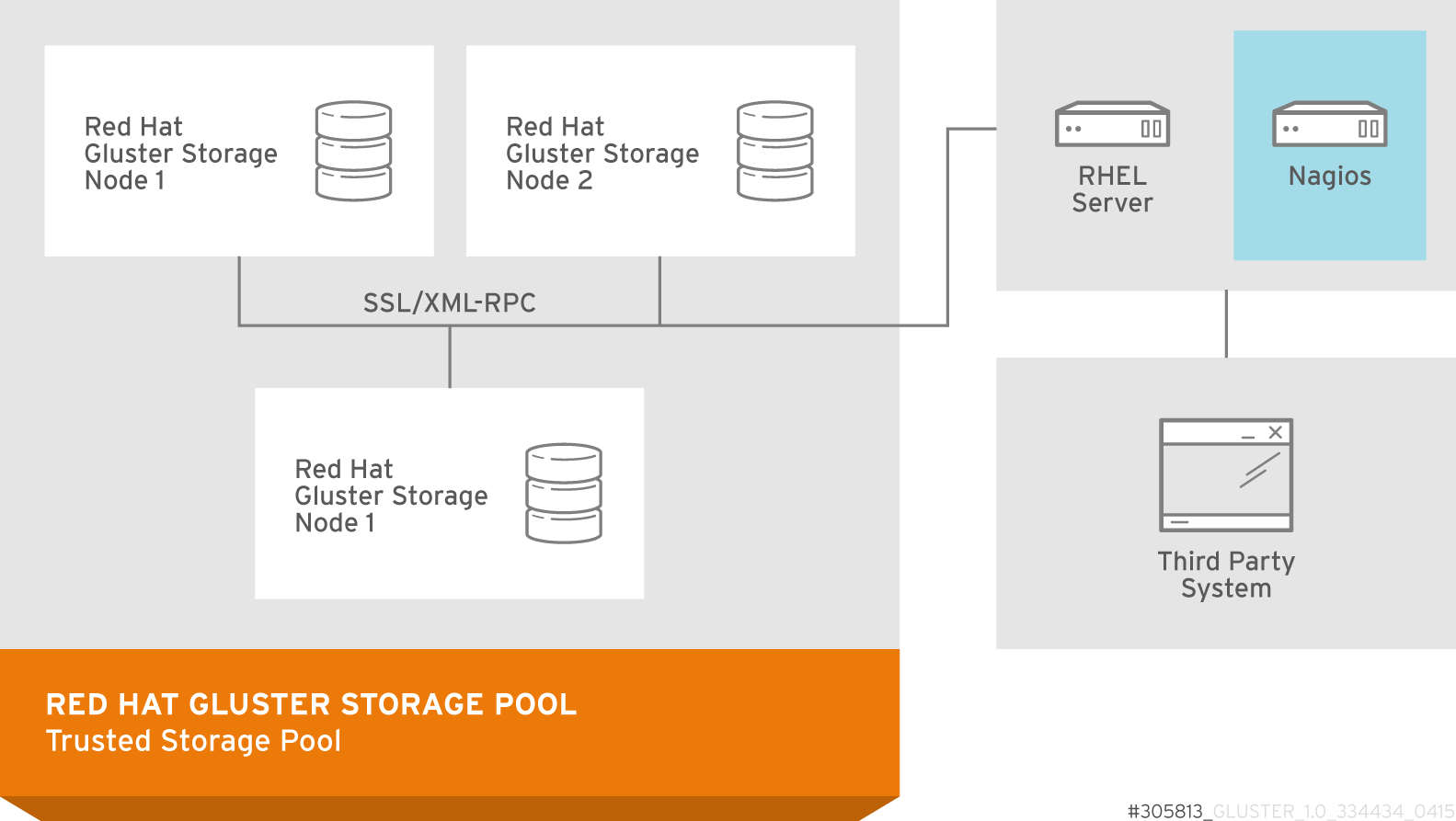
Figure 17.2. Nagios deployed on Red Hat Enterprise Linux node
17.1. Prerequisites
Note
- Registering using Subscription Manager and enabling Nagios repositories
- To install Nagios on Red Hat Gluster Storage node, subscribe to
rhs-nagios-3-for-rhel-6-server-rpmsrepository. - To install Nagios on Red Hat Enterprise Linux node, subscribe to
rhel-6-server-rpms,rhs-nagios-3-for-rhel-6-server-rpmsrepositories. - To install Nagios on Red Hat Gluster Storage node based on RHEL7, subscribe to
rh-gluster-3-nagios-for-rhel-7-server-rpmsrepository. - To install Nagios on Red Hat Enterprise Linux node, subscribe to
rhel-7-server-rpms,rh-gluster-3-nagios-for-rhel-7-server-rpmsrepositories.
- Registering using Red Hat Network (RHN) Classic and subscribing to Nagios channels
- To install Nagios on Red Hat Gluster Storage node, subscribe to
rhel-x86_64-server-6-rhs-nagios-3channel. - To install Nagios on Red Hat Gluster Storage node, subscribe to
rhel-x86_64-server-7-rh-gluster-3-nagioschannel. - To install Nagios on Red Hat Enterprise Linux node, subscribe to
rhel-x86_64-server-6,rhel-x86_64-server-6-rhs-nagios-3channels. - To install Nagios on Red Hat Enterprise Linux node, subscribe to
rhel-x86_64-server-7,rhel-x86_64-server-7-rh-gluster-3-nagioschannels.
Note
getsebool -a | grep nagios command:
nagios_run_sudo --> onnagios_run_pnp4nagios --> on
17.2. Installing Nagios
- nagios
- Core program, web interface and configuration files for Nagios server.
- python-cpopen
- Python package for creating sub-process in simple and safe manner.
- python-argparse
- Command line parser for python.
- libmcrypt
- Encryptions algorithm library.
- rrdtool
- Round Robin Database Tool to store and display time-series data.
- pynag
- Python modules and utilities for Nagios plugins and configuration.
- check-mk
- General purpose Nagios-plugin for retrieving data.
- mod_python
- An embedded Python interpreter for the Apache HTTP Server.
- nrpe
- Monitoring agent for Nagios.
- nsca
- Nagios service check acceptor.
- nagios-plugins
- Common monitoring plug-ins for nagios.
- gluster-nagios-common
- Common libraries, tools, configurations for Gluster node and Nagios server add-ons.
- nagios-server-addons
- Gluster node management add-ons for Nagios.
17.2.1. Installing Nagios Server
# yum install nagios-server-addons17.2.2. Configuring Red Hat Gluster Storage Nodes for Nagios
Note
# setsebool -P logging_syslogd_run_nagios_plugins on
# setsebool -P nagios_run_sudo on- In
/etc/nagios/nrpe.cfgfile, add the central Nagios server IP address as shown below:allowed_hosts=127.0.0.1, NagiosServer-HostName-or-IPaddress - Restart the
NRPEservice using the following command:# service nrpe restartNote
- The host name of the node is used while configuring Nagios server using auto-discovery. To view the host name, run
hostnamecommand. - Ensure that the host names are unique.
- Start the
glusterpmdservice using the following command:# service glusterpmd startTo startglusterpmdservice automatically when the system reboots, runchkconfig --add glusterpmdcommand.You can start theglusterpmdservice usingservice glusterpmd startcommand and stop the service usingservice glusterpmd stopcommand.Theglusterpmdservice is a Red Hat Gluster Storage process monitoring service running in every Red Hat Gluster Storage node to monitor glusterd, self heal, smb, quotad, ctdbd and brick services and to alert the user when the services go down. Theglusterpmdservice sends its managing services detailed status to the Nagios server whenever there is a state change on any of its managing services.This service uses/etc/nagios/nagios_server.conffile to get the Nagios server name and the local host name given in the Nagios server. Thenagios_server.confis configured by auto-discovery.
17.3. Monitoring Red Hat Gluster Storage Trusted Storage Pool
17.3.1. Configuring Nagios
Note
configure-gluster-nagios command, ensure that all the Red Hat Gluster Storage nodes are configured as mentioned in Section 17.2.2, “Configuring Red Hat Gluster Storage Nodes for Nagios”.
- Execute the
configure-gluster-nagioscommand manually on the Nagios server using the following command:# configure-gluster-nagios -c cluster-name -H HostName-or-IP-addressFor-c, provide a cluster name (a logical name for the cluster) and for-H, provide the host name or ip address of a node in the Red Hat Gluster Storage trusted storage pool. - Perform the steps given below when
configure-gluster-nagioscommand runs:- Confirm the configuration when prompted.
- Enter the current Nagios server host name or IP address to be configured all the nodes.
- Confirm restarting Nagios server when prompted.
# configure-gluster-nagios -c demo-cluster -H HostName-or-IP-address Cluster configurations changed Changes : Hostgroup demo-cluster - ADD Host demo-cluster - ADD Service - Volume Utilization - vol-1 -ADD Service - Volume Split-Brain - vol-1 -ADD Service - Volume Status - vol-1 -ADD Service - Volume Utilization - vol-2 -ADD Service - Volume Status - vol-2 -ADD Service - Cluster Utilization -ADD Service - Cluster - Quorum -ADD Service - Cluster Auto Config -ADD Host Host_Name - ADD Service - Brick Utilization - /bricks/vol-1-5 -ADD Service - Brick - /bricks/vol-1-5 -ADD Service - Brick Utilization - /bricks/vol-1-6 -ADD Service - Brick - /bricks/vol-1-6 -ADD Service - Brick Utilization - /bricks/vol-2-3 -ADD Service - Brick - /bricks/vol-2-3 -ADD Are you sure, you want to commit the changes? (Yes, No) [Yes]: Enter Nagios server address [Nagios_Server_Address]: Cluster configurations synced successfully from host ip-address Do you want to restart Nagios to start monitoring newly discovered entities? (Yes, No) [Yes]: Nagios re-started successfullyAll the hosts, volumes and bricks are added and displayed.
- Login to the Nagios server GUI using the following URL.
https://NagiosServer-HostName-or-IPaddress/nagiosNote
- The default Nagios user name and password is nagiosadmin / nagiosadmin.
- You can manually update/discover the services by executing the
configure-gluster-nagioscommand or by runningCluster Auto Configservice through Nagios Server GUI. - If the node with which auto-discovery was performed is down or removed from the cluster, run the
configure-gluster-nagioscommand with a different node address to continue discovering or monitoring the nodes and services. - If new nodes or services are added, removed, or if snapshot restore was performed on Red Hat Gluster Storage node, run
configure-gluster-nagioscommand.
17.3.2. Verifying the Configuration
- Verify the updated configurations using the following command:
# nagios -v /etc/nagios/nagios.cfgIf error occurs, verify the parameters set in/etc/nagios/nagios.cfgand update the configuration files. - Restart Nagios server using the following command:
# service nagios restart - Log into the Nagios server GUI using the following URL with the Nagios Administrator user name and password.
https://NagiosServer-HostName-or-IPaddress/nagiosNote
To change the default password, see Changing Nagios Password section in Red Hat Gluster Storage Administration Guide. - Click Services in the left pane of the Nagios server GUI and verify the list of hosts and services displayed.
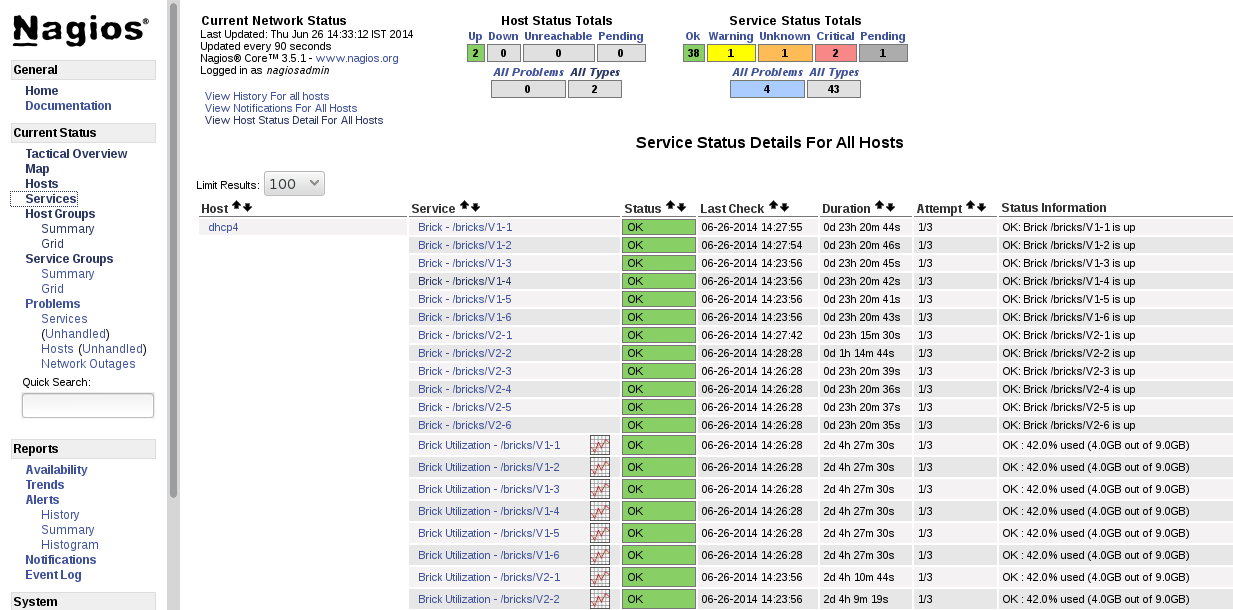
Figure 17.3. Nagios Services
17.3.3. Using Nagios Server GUI
https://NagiosServer-HostName-or-IPaddress/nagios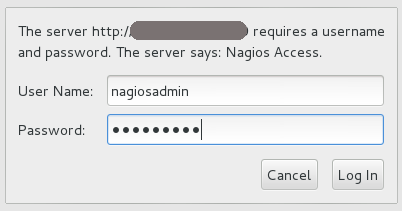
Figure 17.4. Nagios Login
To view the overview of the hosts and services being monitored, click Tactical Overview in the left pane. The overview of Network Outages, Hosts, Services, and Monitoring Features are displayed.
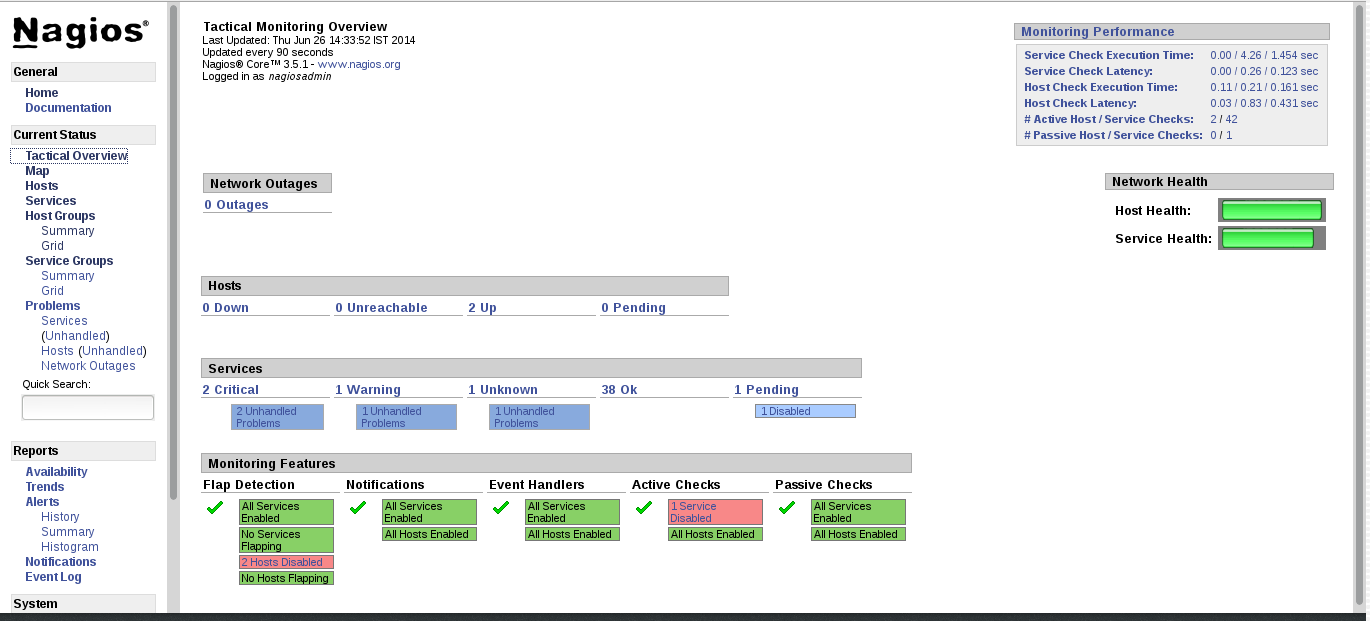
Figure 17.5. Tactical Overview
To view the status summary of all the hosts, click Summary under Host Groups in the left pane.
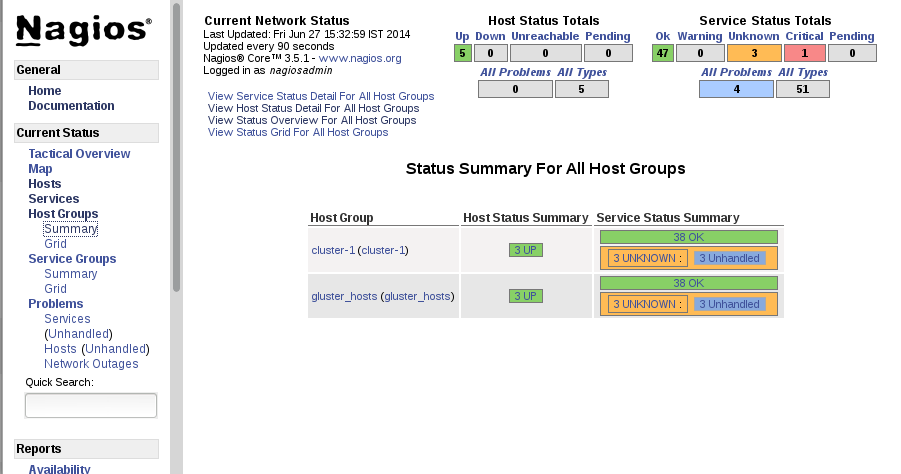
Figure 17.6. Host Groups Summary
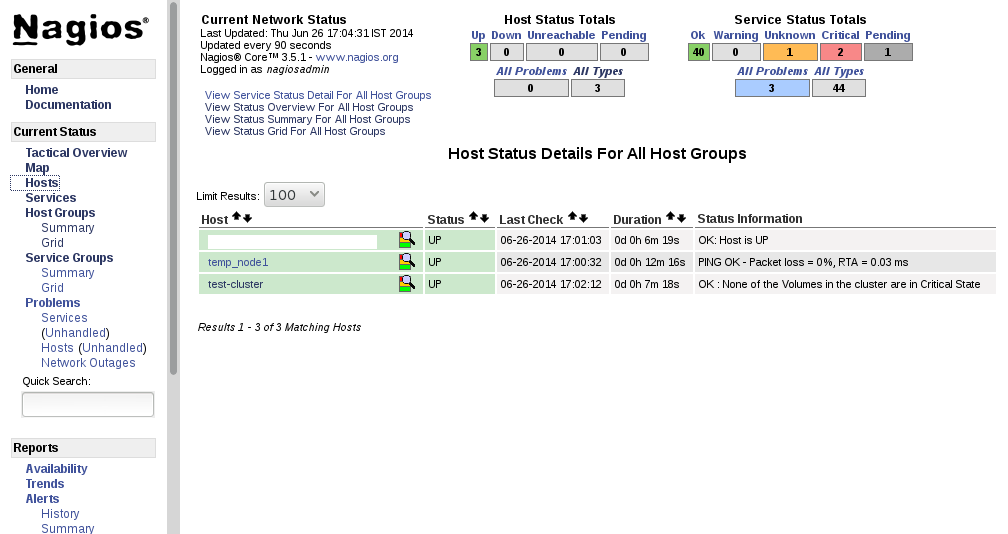
Figure 17.7. Host Status
Note
To view the list of all hosts and their service status click Services in the left pane.
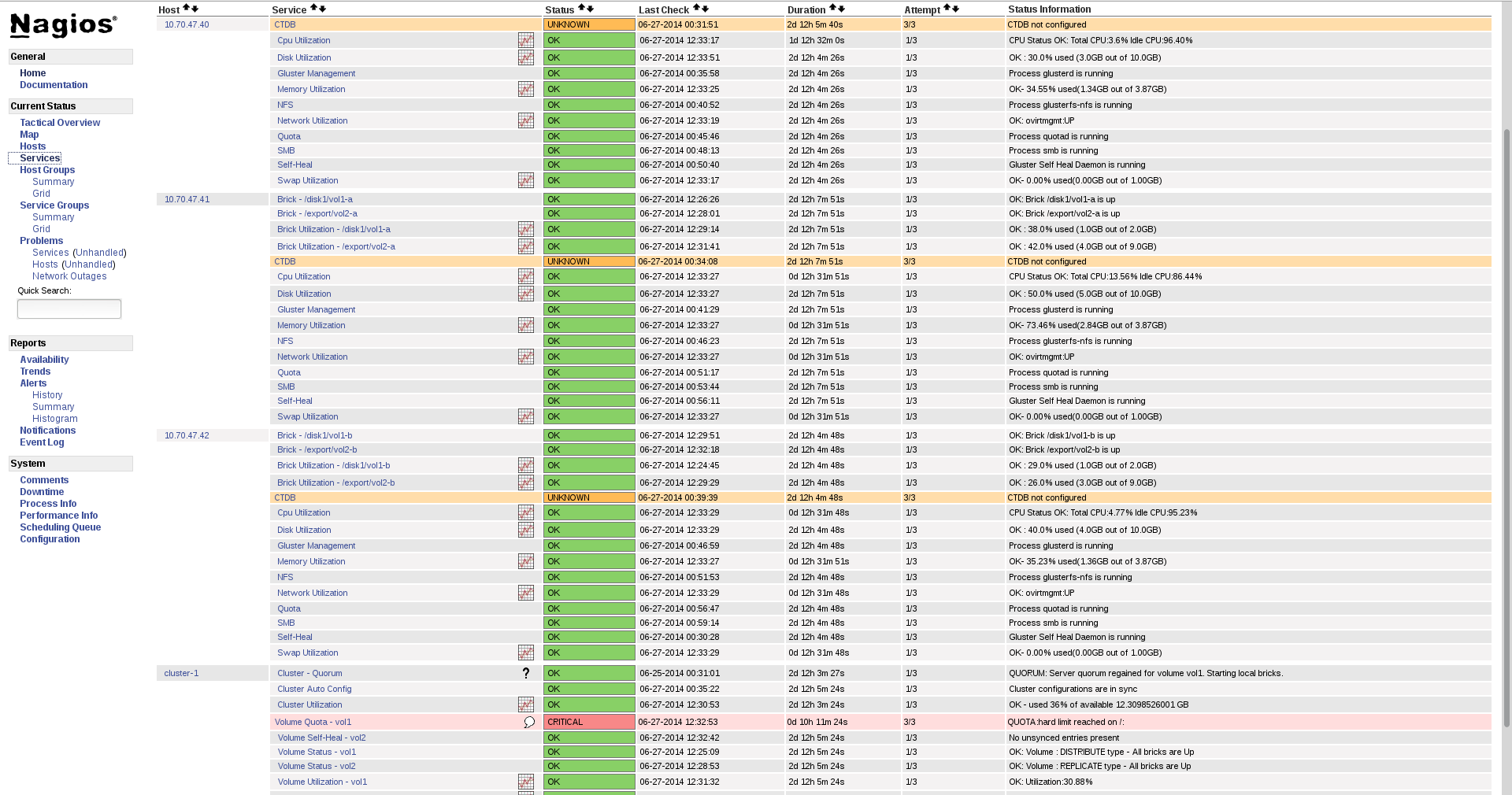
Figure 17.8. Service Status
Note
- Click
Hostsin the left pane. The list of hosts are displayed. - Click
 corresponding to the host name to view the host details.
- Select the service name to view the Service State Information. You can view the utilization of the following services:
- Memory
- Swap
- CPU
- Network
- Brick
- DiskThe Brick/Disk Utilization Performance data has four sets of information for every mount point which are brick/disk space detail, inode detail of a brick/disk, thin pool utilization and thin pool metadata utilization if brick/disk is made up of thin LV.The Performance data for services is displayed in the following format: value[UnitOfMeasurement];warningthreshold;criticalthreshold;min;max.For Example,Performance Data: /bricks/brick2=31.596%;80;90;0;0.990 /bricks/brick2.inode=0.003%;80;90;0;1048064 /bricks/brick2.thinpool=19.500%;80;90;0;1.500 /bricks/brick2.thinpool-metadata=4.100%;80;90;0;0.004As part of disk utilization service, the following mount points will be monitored:
/ , /boot, /home, /var and /usrif available.
- To view the utilization graph, click
 corresponding to the service name. The utilization graph is displayed.
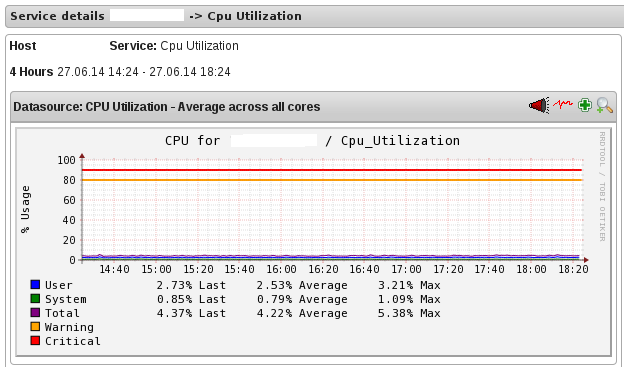
Figure 17.9. CPU Utilization
- To monitor status, click on the service name. You can monitor the status for the following resources:
- Disk
- Network
- To monitor process, click on the process name. You can monitor the following processes:
- Gluster NFS (Network File System)
- Self-Heal (Self-Heal)
- Gluster Management (glusterd)
- Quota (Quota daemon)
- CTDB
- SMB
Note
Monitoring Openstack Swift operations is not supported.
- Click
Hostsin the left pane. The list of hosts and clusters are displayed. - Click
corresponding to the cluster name to view the cluster details.
- To view utilization graph, click
corresponding to the service name. You can monitor the following utilizations:
- Cluster
- Volume
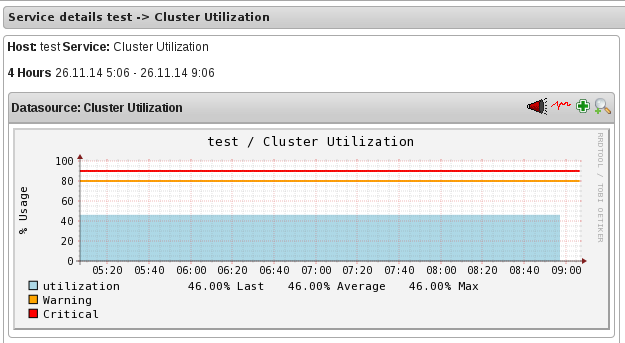
Figure 17.10. Cluster Utilization
- To monitor status, click on the service name. You can monitor the status for the following resources:
- Host
- Volume
- Brick
- To monitor cluster services, click on the service name. You can monitor the following:
- Volume Quota
- Volume Geo-replication
- Volume Split-Brain
- Cluster Quorum (A cluster quorum service would be present only when there are volumes in the cluster.)
If new nodes or services are added or removed, or if snapshot restore is performed on Red Hat Gluster Storage node, reschedule the Cluster Auto config service using Nagios Server GUI or execute the configure-gluster-nagios command. To synchronize the configurations using Nagios Server GUI, perform the steps given below:
- Login to the Nagios Server GUI using the following URL in your browser with nagiosadmin user name and password.
https://NagiosServer-HostName-or-IPaddress/nagios - Click Services in left pane of Nagios server GUI and click Cluster Auto Config.
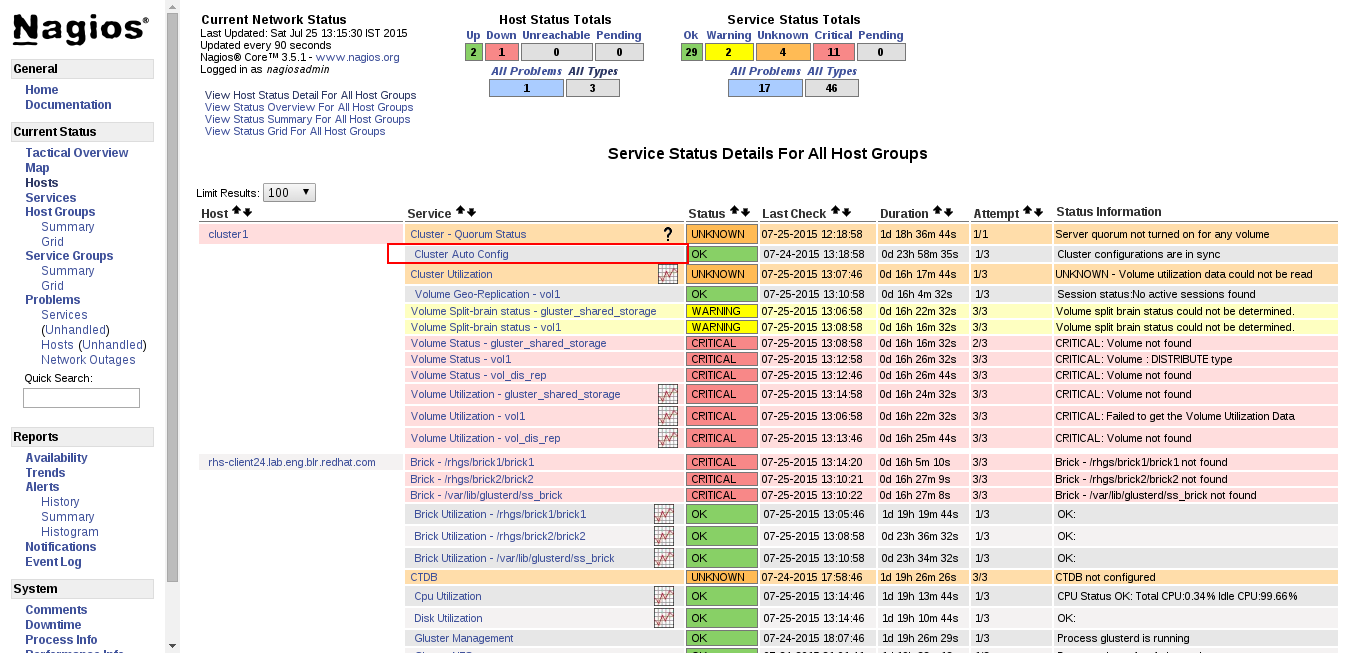
Figure 17.11. Nagios Services
- In Service Commands, click Re-schedule the next check of this service. The Command Options window is displayed.
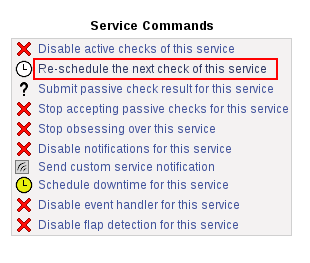
Figure 17.12. Service Commands
- In Command Options window, click .
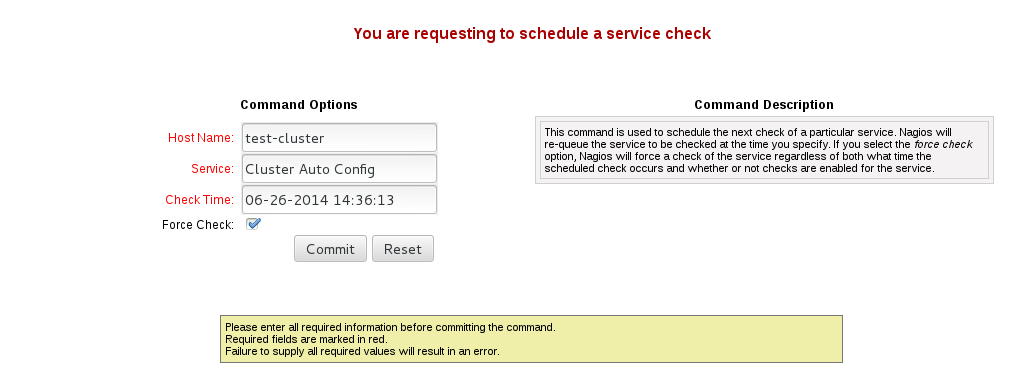
Figure 17.13. Command Options
You can enable or disable Host and Service notifications through Nagios GUI.
- To enable and disable Host Notifcations:
- Login to the Nagios Server GUI using the following URL in your browser with
nagiosadminuser name and password.https://NagiosServer-HostName-or-IPaddress/nagios - Click Hosts in left pane of Nagios server GUI and select the host.
- Click Enable notifications for this host or Disable notifications for this host in Host Commands section.
- Click Commit to enable or disable notification for the selected host.
- To enable and disable Service Notification:
- Login to the Nagios Server GUI.
- Click Services in left pane of Nagios server GUI and select the service to enable or disable.
- Click Enable notifications for this service or Disable notifications for this service from the Service Commands section.
- Click Commit to enable or disable the selected service notification.
- To enable and disable all Service Notifications for a host:
- Login to the Nagios Server GUI.
- Click Hosts in left pane of Nagios server GUI and select the host to enable or disable all services notifications.
- Click Enable notifications for all services on this host or Disable notifications for all services on this host from the Service Commands section.
- Click Commit to enable or disable all service notifications for the selected host.
- To enable or disable all Notifications:
- Login to the Nagios Server GUI.
- Click Process Info under Systems section from left pane of Nagios server GUI.
- Click Enable notifications or Disable notifications in Process Commands section.
- Click Commit.
You can enable a service to monitor or disable a service you have been monitoring using the Nagios GUI.
- To enable Service Monitoring:
- Login to the Nagios Server GUI using the following URL in your browser with
nagiosadminuser name and password.https://NagiosServer-HostName-or-IPaddress/nagios - Click Services in left pane of Nagios server GUI and select the service to enable monitoring.
- Click Enable active checks of this service from the Service Commands and click Commit.
- Click Start accepting passive checks for this service from the Service Commands and click Commit.Monitoring is enabled for the selected service.
- To disable Service Monitoring:
- Login to the Nagios Server GUI using the following URL in your browser with
nagiosadminuser name and password.https://NagiosServer-HostName-or-IPaddress/nagios - Click Services in left pane of Nagios server GUI and select the service to disable monitoring.
- Click Disable active checks of this service from the Service Commands and click Commit.
- Click Stop accepting passive checks for this service from the Service Commands and click Commit.Monitoring is disabled for the selected service.
Note
| Service Name | Status | Messsage | Description |
|---|---|---|---|
| SMB | OK | OK: No gluster volume uses smb | When no volumes are exported through smb. |
| OK | Process smb is running | When SMB service is running and when volumes are exported using SMB. | |
| CRITICAL | CRITICAL: Process smb is not running | When SMB service is down and one or more volumes are exported through SMB. | |
| CTDB | UNKNOWN | CTDB not configured | When CTDB service is not running, and smb or nfs service is running. |
| CRITICAL | Node status: BANNED/STOPPED | When CTDB service is running but Node status is BANNED/STOPPED. | |
| WARNING | Node status: UNHEALTHY/DISABLED/PARTIALLY_ONLINE | When CTDB service is running but Node status is UNHEALTHY/DISABLED/PARTIALLY_ONLINE. | |
| OK | Node status: OK | When CTDB service is running and healthy. | |
| Gluster Management | OK | Process glusterd is running | When glusterd is running as unique. |
| WARNING | PROCS WARNING: 3 processes | When there are more then one glusterd is running. | |
| CRITICAL | CRITICAL: Process glusterd is not running | When there is no glusterd process running. | |
| UNKNOWN | NRPE: Unable to read output | When unable to communicate or read output | |
| Gluster NFS | OK | OK: No gluster volume uses nfs | When no volumes are configured to be exported through NFS. |
| OK | Process glusterfs-nfs is running | When glusterfs-nfs process is running. | |
| CRITICAL | CRITICAL: Process glusterfs-nfs is not running | When glusterfs-nfs process is down and there are volumes which requires NFS export. | |
| Auto-Config | OK | Cluster configurations are in sync | When auto-config has not detected any change in Gluster configuration. This shows that Nagios configuration is already in synchronization with the Gluster configuration and auto-config service has not made any change in Nagios configuration. |
| OK | Cluster configurations synchronized successfully from host host-address | When auto-config has detected change in the Gluster configuration and has successfully updated the Nagios configuration to reflect the change Gluster configuration. | |
| CRITICAL | Can't remove all hosts except sync host in 'auto' mode. Run auto discovery manually. | When the host used for auto-config itself is removed from the Gluster peer list. Auto-config will detect this as all host except the synchronized host is removed from the cluster. This will not change the Nagios configuration and the user need to manually run the auto-config. | |
| QUOTA | OK | OK: Quota not enabled | When quota is not enabled in any volumes. |
| OK | Process quotad is running | When glusterfs-quota service is running. | |
| CRITICAL | CRITICAL: Process quotad is not running | When glusterfs-quota service is down and quota is enabled for one or more volumes. | |
| CPU Utilization | OK | CPU Status OK: Total CPU:4.6% Idle CPU:95.40% | When CPU usage is less than 80%. |
| WARNING | CPU Status WARNING: Total CPU:82.40% Idle CPU:17.60% | When CPU usage is more than 80%. | |
| CRITICAL | CPU Status CRITICAL: Total CPU:97.40% Idle CPU:2.6% | When CPU usage is more than 90%. | |
| Memory Utilization | OK | OK- 65.49% used(1.28GB out of 1.96GB) | When used memory is below warning threshold. (Default warning threshold is 80%) |
| WARNING | WARNING- 85% used(1.78GB out of 2.10GB) | When used memory is below critical threshold (Default critical threshold is 90%) and greater than or equal to warning threshold (Default warning threshold is 80%). | |
| CRITICAL | CRITICAL- 92% used(1.93GB out of 2.10GB) | When used memory is greater than or equal to critical threshold (Default critical threshold is 90% ) | |
| Brick Utilization | OK | OK | When used space of any of the four parameters, space detail, inode detail, thin pool, and thin pool-metadata utilizations, are below threshold of 80%. |
| WARNING | WARNING:mount point /brick/brk1 Space used (0.857 / 1.000) GB | If any of the four parameters, space detail, inode detail, thin pool utilization, and thinpool-metadata utilization, crosses warning threshold of 80% (Default is 80%). | |
| CRITICAL | CRITICAL : mount point /brick/brk1 (inode used 9980/1000) | If any of the four parameters, space detail, inode detail, thin pool utilization, and thinpool-metadata utilizations, crosses critical threshold 90% (Default is 90%). | |
| Disk Utilization | OK | OK | When used space of any of the four parameters, space detail, inode detail, thin pool utilization, and thinpool-metadata utilizations, are below threshold of 80%. |
| WARNING | WARNING:mount point /boot Space used (0.857 / 1.000) GB | When used space of any of the four parameters, space detail, inode detail, thin pool utilization, and thinpool-metadata utilizations, are above warning threshold of 80%. | |
| CRITICAL | CRITICAL : mount point /home (inode used 9980/1000) | If any of the four parameters, space detail, inode detail, thin pool utilization, and thinpool-metadata utilizations, crosses critical threshold 90% (Default is 90%). | |
| Network Utilization | OK | OK: tun0:UP,wlp3s0:UP,virbr0:UP | When all the interfaces are UP. |
| WARNING | WARNING: tun0:UP,wlp3s0:UP,virbr0:DOWN | When any of the interfaces is down. | |
| UNKNOWN | UNKNOWN | When network utilization/status is unknown. | |
| Swap Utilization | OK | OK- 0.00% used(0.00GB out of 1.00GB) | When used memory is below warning threshold (Default warning threshold is 80%). |
| WARNING | WARNING- 83% used(1.24GB out of 1.50GB) | When used memory is below critical threshold (Default critical threshold is 90%) and greater than or equal to warning threshold (Default warning threshold is 80%). | |
| CRITICAL | CRITICAL- 83% used(1.42GB out of 1.50GB) | When used memory is greater than or equal to critical threshold (Default critical threshold is 90%). | |
| Cluster Quorum | PENDING | When cluster.quorum-type is not set to server; or when there are no problems in the cluster identified. | |
| OK | Quorum regained for volume | When quorum is regained for volume. | |
| CRITICAL | Quorum lost for volume | When quorum is lost for volume. | |
| Volume Geo-replication | OK | "Session Status: slave_vol1-OK .....slave_voln-OK. | When all sessions are active. |
| OK | Session status :No active sessions found | When Geo-replication sessions are deleted. | |
| CRITICAL | Session Status: slave_vol1-FAULTY slave_vol2-OK | If one or more nodes are Faulty and there's no replica pair that's active. | |
| WARNING | Session Status: slave_vol1-NOT_STARTED slave_vol2-STOPPED slave_vol3- PARTIAL_FAULTY |
| |
| WARNING | Geo replication status could not be determined. | When there's an error in getting Geo replication status. This error occurs when volfile is locked as another transaction is in progress. | |
| UNKNOWN | Geo replication status could not be determined. | When glusterd is down. | |
| Volume Quota | OK | QUOTA: not enabled or configured | When quota is not set |
| OK | QUOTA:OK | When quota is set and usage is below quota limits. | |
| WARNING | QUOTA:Soft limit exceeded on path of directory | When quota exceeds soft limit. | |
| CRITICAL | QUOTA:hard limit reached on path of directory | When quota reaches hard limit. | |
| UNKNOWN | QUOTA: Quota status could not be determined as command execution failed | When there's an error in getting Quota status. This occurs when
| |
| Volume Status | OK | Volume : volume type - All bricks are Up | When all volumes are up. |
| WARNING | Volume :volume type Brick(s) - list of bricks is|are down, but replica pair(s) are up | When bricks in the volume are down but replica pairs are up. | |
| UNKNOWN | Command execution failed Failure message | When command execution fails. | |
| CRITICAL | Volume not found. | When volumes are not found. | |
| CRITICAL | Volume: volume-type is stopped. | When volumes are stopped. | |
| CRITICAL | Volume : volume type - All bricks are down. | When all bricks are down. | |
| CRITICAL | Volume : volume type Bricks - brick list are down, along with one or more replica pairs | When bricks are down along with one or more replica pairs. | |
|
Volume Self-Heal
(available in Red Hat Gluster Storage version 3.1.0 and earlier)
| OK | When volume is not a replicated volume, there is no self-heal to be done. | |
| OK | No unsynced entries present | When there are no unsynched entries in a replicated volume. | |
| WARNING | Unsynched entries present : There are unsynched entries present. | If self-heal process is turned on, these entries may be auto healed. If not, self-heal will need to be run manually. If unsynchronized entries persist over time, this could indicate a split brain scenario. | |
| WARNING | Self heal status could not be determined as the volume was deleted | When self-heal status can not be determined as the volume is deleted. | |
| UNKNOWN |
When there's an error in getting self heal status. This error occurs when:
| ||
| Cluster Utilization | OK | OK : 28.0% used (1.68GB out of 6.0GB) | When used % is below the warning threshold (Default warning threshold is 80%). |
| WARNING | WARNING: 82.0% used (4.92GB out of 6.0GB) | Used% is above the warning limit. (Default warning threshold is 80%) | |
| CRITICAL | CRITICAL : 92.0% used (5.52GB out of 6.0GB) | Used% is above the warning limit. (Default critical threshold is 90%) | |
| UNKNOWN | Volume utilization data could not be read | When volume services are present, but the volume utilization data is not available as it's either not populated yet or there is error in fetching volume utilization data. | |
| Volume Utilization | OK | OK: Utilization: 40 % | When used % is below the warning threshold (Default warning threshold is 80%). |
| WARNING | WARNING - used 84% of available 200 GB | When used % is above the warning threshold (Default warning threshold is 80%). | |
| CRITICAL | CRITICAL - used 96% of available 200 GB | When used % is above the critical threshold (Default critical threshold is 90%). | |
| UNKNOWN | UNKNOWN - Volume utilization data could not be read | When all the bricks in the volume are killed or if glusterd is stopped in all the nodes in a cluster. |
17.4. Monitoring Notifications
17.4.1. Configuring Nagios Server to Send Mail Notifications
- In the
/etc/nagios/gluster/gluster-contacts.cfgfile, add contacts to send mail in the format shown below:Modifycontact_name,alias, andemail.define contact { contact_name Contact1 alias ContactNameAlias email email-address service_notification_period 24x7 service_notification_options w,u,c,r,f,s service_notification_commands notify-service-by-email host_notification_period 24x7 host_notification_options d,u,r,f,s host_notification_commands notify-host-by-email } define contact { contact_name Contact2 alias ContactNameAlias2 email email-address service_notification_period 24x7 service_notification_options w,u,c,r,f,s service_notification_commands notify-service-by-email host_notification_period 24x7 host_notification_options d,u,r,f,s host_notification_commands notify-host-by-email }Theservice_notification_optionsdirective is used to define the service states for which notifications can be sent out to this contact. Valid options are a combination of one or more of the following:w: Notify on WARNING service statesu: Notify on UNKNOWN service statesc: Notify on CRITICAL service statesr: Notify on service RECOVERY (OK states)f: Notify when the service starts and stops FLAPPINGn (none): Do not notify the contact on any type of service notifications
Thehost_notification_optionsdirective is used to define the host states for which notifications can be sent out to this contact. Valid options are a combination of one or more of the following:d: Notify on DOWN host statesu: Notify on UNREACHABLE host statesr: Notify on host RECOVERY (UP states)f: Notify when the host starts and stops FLAPPINGs: Send notifications when host or service scheduled downtime starts and endsn (none): Do not notify the contact on any type of host notifications.
Note
By default, a contact and a contact group are defined for administrators incontacts.cfgand all the services and hosts will notify the administrators. Add suitable email id for administrator incontacts.cfgfile. - To add a group to which the mail need to be sent, add the details as given below:
define contactgroup{ contactgroup_name Group1 alias GroupAlias members Contact1,Contact2 } - In the
/etc/nagios/gluster/gluster-templates.cfgfile specify the contact name and contact group name for the services for which the notification need to be sent, as shown below:Addcontact_groupsname andcontactsname.define host{ name gluster-generic-host use linux-server notifications_enabled 1 notification_period 24x7 notification_interval 120 notification_options d,u,r,f,s register 0 contact_groups Group1 contacts Contact1,Contact2 } define service { name gluster-service use generic-service notifications_enabled 1 notification_period 24x7 notification_options w,u,c,r,f,s notification_interval 120 register 0 _gluster_entity Service contact_groups Group1 contacts Contact1,Contact2 }You can configure notification for individual services by editing the corresponding node configuration file. For example, to configure notification for brick service, edit the corresponding node configuration file as shown below:define service { use brick-service _VOL_NAME VolumeName __GENERATED_BY_AUTOCONFIG 1 notes Volume : VolumeName host_name RedHatStorageNodeName _BRICK_DIR brickpath service_description Brick Utilization - brickpath contact_groups Group1 contacts Contact1,Contact2 } - To receive detailed information on every update when Cluster Auto-Config is run, edit
/etc/nagios/objects/commands.cfgfile add$NOTIFICATIONCOMMENT$\nafter$SERVICEOUTPUT$\noption innotify-service-by-emailandnotify-host-by-emailcommand definition as shown below:# 'notify-service-by-email' command definition define command{ command_name notify-service-by-email command_line /usr/bin/printf "%b" "***** Nagios *****\n\nNotification Type: $NOTIFICATIONTYPE$\n\nService: $SERVICEDESC$\nHost: $HOSTALIAS$\nAddress: $HOSTADDRESS$\nState: $SERVICESTATE$\n\nDate/Time: $LONGDATETIME$\n\nAdditional Info:\n\n$SERVICEOUTPUT$\n $NOTIFICATIONCOMMENT$\n" | /bin/mail -s "** $NOTIFICATIONTYPE$ Service Alert: $HOSTALIAS$/$SERVICEDESC$ is $SERVICESTATE$ **" $CONTACTEMAIL$ } - Restart the Nagios server using the following command:
# service nagios restart
Note
- By default, the system ensures three occurences of the event before sending mail notifications.
- By default, Nagios Mail notification is sent using
/bin/mailcommand. To change this, modify the definition fornotify-host-by-emailcommand andnotify-service-by-emailcommand in/etc/nagios/objects/commands.cfgfile and configure the mail server accordingly.
17.4.2. Configuring Simple Network Management Protocol (SNMP) Notification
- Log in as root user.
- In the
/etc/nagios/gluster/snmpmanagers.conffile, specify the Host Name or IP address and community name of the SNMP managers to whom the SNMP traps need to be sent as shown below:HostName-or-IP-address publicIn the/etc/nagios/gluster/gluster-contacts.cfgfile specify the contacts name as +snmp as shown below:define contact { contact_name snmp alias Snmp Traps email admin@ovirt.com service_notification_period 24x7 service_notification_options w,u,c,r,f,s service_notification_commands gluster-notify-service-by-snmp host_notification_period 24x7 host_notification_options d,u,r,f,s host_notification_commands gluster-notify-host-by-snmp }You can download the required Management Information Base (MIB) files from the URLs given below: - Restart Nagios using the following command:
# service nagios restart
17.5. Nagios Advanced Configuration
17.5.1. Creating Nagios User
- Login as
rootuser. - Run the command given below with the new user name and type the password when prompted.
# htpasswd /etc/nagios/passwd newUserName - Add permissions for the new user in
/etc/nagios/cgi.cfgfile as shown below:authorized_for_system_information=nagiosadmin,newUserName authorized_for_configuration_information=nagiosadmin,newUserName authorized_for_system_commands=nagiosadmin,newUserName authorized_for_all_services=nagiosadmin,newUserName authorized_for_all_hosts=nagiosadmin,newUserName authorized_for_all_service_commands=nagiosadmin,newUserName authorized_for_all_host_commands=nagiosadmin,newUserNameNote
To setread onlypermission for users, addauthorized_for_read_only=usernamein the/etc/nagios/cgi.cfgfile. - Start
nagiosandhttpdservices using the following commands:# service httpd restart # service nagios restart - Verify Nagios access by using the following URL in your browser, and using the user name and password.
https://NagiosServer-HostName-or-IPaddress/nagios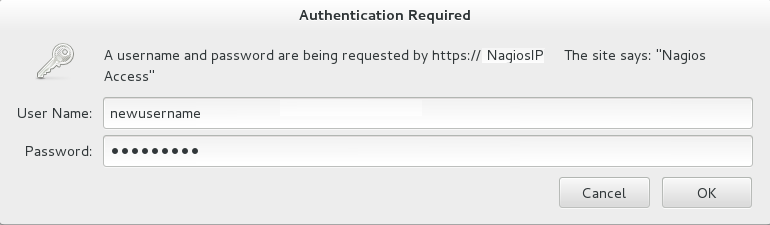
Figure 17.14. Nagios Login
17.5.2. Changing Nagios Password
nagiosadmin. This value is available in the /etc/nagios/cgi.cfg file.
- Login as
rootuser. - To change the default password for the Nagios Administrator user, run the following command with the new password:
# htpasswd -c /etc/nagios/passwd nagiosadmin - Start
nagiosandhttpdservices using the following commands:# service httpd restart # service nagios restart - Verify Nagios access by using the following URL in your browser, and using the user name and password that was set in Step 2:
https://NagiosServer-HostName-or-IPaddress/nagios
Figure 17.15. Nagios Login
17.5.3. Configuring SSL
- Create a 1024 bit RSA key using the following command:
openssl genrsa -out /etc/ssl/private/{cert-file-name.key} 1024 - Create an SSL certificate for the server using the following command:
openssl req -key nagios-ssl.key -new | openssl x509 -out nagios-ssl.crt -days 365 -signkey nagios-ssl.key -reqEnter the server's host name which is used to access the Nagios Server GUI as Common Name. - Edit the
/etc/httpd/conf.d/ssl.conffile and add path to SSL Certificate and key files correspondingly forSSLCertificateFileandSSLCertificateKeyFilefields as shown below:SSLCertificateFile /etc/pki/tls/certs/nagios-ssl.crt SSLCertificateKeyFile /etc/pki/tls/private/nagios-ssl.key - Edit the
/etc/httpd/conf/httpd.conffile and comment the port 80 listener as shown below:# Listen 80 - In
/etc/httpd/conf/httpd.conffile, ensure that the following line is not commented:<Directory "/var/www/html"> - Restart the
httpdservice on thenagiosserver using the following command:# service httpd restart
17.5.4. Integrating LDAP Authentication with Nagios
- In apache configuration file
/etc/httpd/conf/httpd.conf, ensure that LDAP is installed and LDAP apache module is enabled.The configurations are displayed as given below if the LDAP apache module is enabled.You can enable the LDAP apache module by deleting the # symbol.LoadModule ldap_module modules/mod_ldap.so LoadModule authnz_ldap_module modules/mod_authnz_ldap.so - Edit the
nagios.conffile in/etc/httpd/conf.d/nagios.confwith the corresponding values for the following:- AuthBasicProvider
- AuthLDAPURL
- AuthLDAPBindDN
- AuthLDAPBindPassword
- Edit the CGI authentication file
/etc/nagios/cgi.cfgas given below with the path where Nagios is installed.nagiosinstallationdir = /usr/local/nagios/ or /etc/nagios/ - Uncomment the lines shown below by deleting # and set permissions for specific users:
Note
Replacenagiosadminand user names with * to give any LDAP user full functionality of Nagios.authorized_for_system_information=user1,user2,user3 authorized_for_configuration_information=nagiosadmin,user1,user2,user3 authorized_for_system_commands=nagiosadmin,user1,user2,user3 authorized_for_all_services=nagiosadmin,user1,user2,user3 authorized_for_all_hosts=nagiosadmin,user1,user2,user3 authorized_for_all_service_commands=nagiosadmin,user1,user2,user3 authorized_for_all_host_commands=nagiosadmin,user1,user2,user3 - Restart
httpdservice andnagiosserver using the following commands:# service httpd restart # service nagios restart
17.6. Configuring Nagios Manually
Note
- In the
/etc/nagios/glusterdirectory, create a directory with the cluster name. All configurations for the cluster are added in this directory. - In the
/etc/nagios/gluster/cluster-namedirectory, create a file with nameclustername.cfgto specify thehostandhostgroupconfigurations. The service configurations for all the cluster and volume level services are added in this file.Note
Cluster is configured as host and host group in Nagios.In theclustername.cfgfile, add the following definitions:- Define a host group with cluster name as shown below:
define hostgroup{ hostgroup_name cluster-name alias cluster-name } - Define a host with cluster name as shown below:
define host{ host_name cluster-name alias cluster-name use gluster-cluster address cluster-name } - Define Cluster-Quorum service to monitor cluster quorum status as shown below:
define service { service_description Cluster - Quorum use gluster-passive-service host_name cluster-name } - Define the Cluster Utilization service to monitor cluster utilization as shown below:
define service { service_description Cluster Utilization use gluster-service-with-graph check_command check_cluster_vol_usage!warning-threshold!critcal-threshold; host_name cluster-name } - Add the following service definitions for each volume in the cluster:
- Volume Status service to monitor the status of the volume as shown below:
define service { service_description Volume Status - volume-name host_name cluster-name use gluster-service-without-graph _VOL_NAME volume-name notes Volume type : Volume-Type check_command check_vol_status!cluster-name!volume-name } - Volume Utilization service to monitor the volume utilization as shown below:
define service { service_description Volume Utilization - volume-name host_name cluster-name use gluster-service-with-graph _VOL_NAME volume-name notes Volume type : Volume-Type check_command check_vol_utilization!cluster-name!volume-name!warning-threshold!critcal-threshold } - Volume Split-brain service to monitor split brain status as shown below:
define service { service_description Volume Split-brain status - volume-name host_name cluster-name use gluster-service-without-graph _VOL_NAME volume-name check_command check_vol_heal_status!cluster1!vol1 } - Volume Quota service to monitor the volume quota status as shown below:
define service { service_description Volume Quota - volume-name host_name cluster-name use gluster-service-without-graph _VOL_NAME volume-name check_command check_vol_quota_status!cluster-name!volume-name notes Volume type : Volume-Type } - Volume Geo-Replication service to monitor Geo Replication status as shown below:
define service { service_description Volume Geo Replication - volume-name host_name cluster-name use gluster-service-without-graph _VOL_NAME volume-name check_command check_vol_georep_status!cluster-name!volume-name }
- In the
/etc/nagios/gluster/cluster-namedirectory, create a file with namehost-name.cfg. The host configuration for the node and service configuration for all the brick from the node are added in this file.Inhost-name.cfgfile, add following definitions:- Define Host for the node as shown below:
define host { use gluster-host hostgroups gluster_hosts,cluster-name alias host-name host_name host-name #Name given by user to identify the node in Nagios _HOST_UUID host-uuid #Host UUID returned by gluster peer status address host-address # This can be FQDN or IP address of the host } - Create the following services for each brick in the node:
- Add Brick Utilization service as shown below:
define service { service_description Brick Utilization - brick-path host_name host-name # Host name given in host definition use brick-service _VOL_NAME Volume-Name notes Volume : Volume-Name _BRICK_DIR brick-path } - Add Brick Status service as shown below:
define service { service_description Brick - brick-path host_name host-name # Host name given in host definition use gluster-brick-status-service _VOL_NAME Volume-Name notes Volume : Volume-Name _BRICK_DIR brick-path }
- Add host configurations and service configurations for all nodes in the cluster as shown in Step 3.
- In
/etc/nagiosdirectory of each Red Hat Gluster Storage node, editnagios_server.conffile by setting the configurations as shown below:# NAGIOS SERVER # The nagios server IP address or FQDN to which the NSCA command # needs to be sent [NAGIOS-SERVER] nagios_server=NagiosServerIPAddress # CLUSTER NAME # The host name of the logical cluster configured in Nagios under which # the gluster volume services reside [NAGIOS-DEFINTIONS] cluster_name=cluster_auto # LOCAL HOST NAME # Host name given in the nagios server [HOST-NAME] hostname_in_nagios=NameOfTheHostInNagios # LOCAL HOST CONFIGURATION # Process monitoring sleeping intevel [HOST-CONF] proc-mon-sleep-time=TimeInSecondsThenagios_server.conffile is used byglusterpmdservice to get server name, host name, and the process monitoring interval time. - Start the
glusterpmdservice using the following command:# service glusterpmd start
By default, the active Red Hat Gluster Storage services are monitored every 10 minutes. You can change the time interval for monitoring by editing the gluster-templates.cfg file.
- In
/etc/nagios/gluster/gluster-templates.cfgfile, edit the service withgluster-servicename. - Add
normal_check_intervaland set the time interval to 1 to check all Red Hat Gluster Storage services every 1 minute as shown below:define service { name gluster-service use generic-service notifications_enabled 1 notification_period 24x7 notification_options w,u,c,r,f,s notification_interval 120 register 0 contacts +ovirt,snmp _GLUSTER_ENTITY HOST_SERVICE normal_check_interval 1 } - To change this on individual service, add this property to the required service definition as shown below:
define service { name gluster-brick-status-service use gluster-service register 0 event_handler brick_status_event_handler check_command check_brick_status normal_check_interval 1 }Thecheck_intervalis controlled by the global directiveinterval_length. This defaults to 60 seconds. This can be changed in/etc/nagios/nagios.cfgas shown below:# INTERVAL LENGTH # This is the seconds per unit interval as used in the # host/contact/service configuration files. Setting this to 60 means # that each interval is one minute long (60 seconds). Other settings # have not been tested much, so your mileage is likely to vary... interval_length=TimeInSeconds
17.7. Troubleshooting Nagios
17.7.1. Troubleshooting NSCA and NRPE Configuration Issues
- Check Firewall and Port Settings on Nagios ServerIf port 5667 is not opened on the server host's firewall, a timeout error is displayed. Ensure that port 5667 is opened.
On Red Hat Gluster Storage based on Red Hat Enterprise Linux 6
- Log in as root and run the following command on the Red Hat Gluster Storage node to get the list of current iptables rules:
# iptables -L - The output is displayed as shown below:
ACCEPT tcp -- anywhere anywhere tcp dpt:5667
On Red Hat Gluster Storage based on Red Hat Enterprise Linux 7:
- Run the following command on the Red Hat Gluster Storage node as root to get a listing of the current firewall rules:
# firewall-cmd --list-all-zones - If the port is open,
5667/tcpis listed besideports:under one or more zones in your output.
- If the port is not open, add a firewall rule for the port:
On Red Hat Gluster Storage based on Red Hat Enterprise Linux 6
- If the port is not open, add an iptables rule by adding the following line in
/etc/sysconfig/iptablesfile:-A INPUT -m state --state NEW -m tcp -p tcp --dport 5667 -j ACCEPT - Restart the iptables service using the following command:
# service iptables restart - Restart the NSCA service using the following command:
# service nsca restart
On Red Hat Gluster Storage based on Red Hat Enterprise Linux 7:
- Run the following commands to open the port:
# firewall-cmd --zone=public --add-port=5667/tcp
# firewall-cmd --zone=public --add-port=5667/tcp --permanent
- Check the Configuration File on Red Hat Gluster Storage NodeMessages cannot be sent to the NSCA server, if Nagios server IP or FQDN, cluster name and hostname (as configured in Nagios server) are not configured correctly.Open the Nagios server configuration file /etc/nagios/nagios_server.conf and verify if the correct configurations are set as shown below:
# NAGIOS SERVER # The nagios server IP address or FQDN to which the NSCA command # needs to be sent [NAGIOS-SERVER] nagios_server=NagiosServerIPAddress # CLUSTER NAME # The host name of the logical cluster configured in Nagios under which # the gluster volume services reside [NAGIOS-DEFINTIONS] cluster_name=cluster_auto # LOCAL HOST NAME # Host name given in the nagios server [HOST-NAME] hostname_in_nagios=NagiosServerHostNameIf Host name is updated, restart the NSCA service using the following command:# service nsca restart
- CHECK_NRPE: Error - Could Not Complete SSL HandshakeThis error occurs if the IP address of the Nagios server is not defined in the
nrpe.cfgfile of the Red Hat Gluster Storage node. To fix this issue, follow the steps given below:- Add the Nagios server IP address in
/etc/nagios/nrpe.cfgfile in theallowed_hostsline as shown below:allowed_hosts=127.0.0.1, NagiosServerIPTheallowed_hostsis the list of IP addresses which can execute NRPE commands. - Save the
nrpe.cfgfile and restart NRPE service using the following command:# service nrpe restart
- CHECK_NRPE: Socket Timeout After n SecondsTo resolve this issue perform the steps given below:On Nagios Server:The default timeout value for the NRPE calls is 10 seconds and if the server does not respond within 10 seconds, Nagios Server GUI displays an error that the NRPE call has timed out in 10 seconds. To fix this issue, change the timeout value for NRPE calls by modifying the command definition configuration files.
- Changing the NRPE timeout for services which directly invoke check_nrpe.For the services which directly invoke check_nrpe (check_disk_and_inode, check_cpu_multicore, and check_memory), modify the command definition configuration file
/etc/nagios/gluster/gluster-commands.cfgby adding -t Time in Seconds as shown below:define command { command_name check_disk_and_inode command_line $USER1$/check_nrpe -H $HOSTADDRESS$ -c check_disk_and_inode -t TimeInSeconds } - Changing the NRPE timeout for the services in
nagios-server-addonspackage which invoke NRPE call through code.The services which invoke/usr/lib64/nagios/plugins/gluster/check_vol_server.py(check_vol_utilization, check_vol_status, check_vol_quota_status, check_vol_heal_status, and check_vol_georep_status) make NRPE call to the Red Hat Gluster Storage nodes for the details through code. To change the timeout for the NRPE calls, modify the command definition configuration file/etc/nagios/gluster/gluster-commands.cfgby adding -t No of seconds as shown below:define command { command_name check_vol_utilization command_line $USER1$/gluster/check_vol_server.py $ARG1$ $ARG2$ -w $ARG3$ -c $ARG4$ -o utilization -t TimeInSeconds }The auto configuration servicegluster_auto_discoverymakes NRPE calls for the configuration details from the Red Hat Gluster Storage nodes. To change the NRPE timeout value for the auto configuration service, modify the command definition configuration file/etc/nagios/gluster/gluster-commands.cfgby adding -t TimeInSeconds as shown below:define command{ command_name gluster_auto_discovery command_line sudo $USER1$/gluster/configure-gluster-nagios.py -H $ARG1$ -c $HOSTNAME$ -m auto -n $ARG2$ -t TimeInSeconds } - Restart Nagios service using the following command:
# service nagios restart
On Red Hat Gluster Storage node:- Add the Nagios server IP address as described in CHECK_NRPE: Error - Could Not Complete SSL Handshake section in Troubleshooting NRPE Configuration Issues section.
- Edit the
nrpe.cfgfile using the following command:# vi /etc/nagios/nrpe.cfg - Search for the
command_timeoutandconnection_timeoutsettings and change the value. Thecommand_timeoutvalue must be greater than or equal to the timeout value set in Nagios server.The timeout on checks can be set as connection_timeout=300 and the command_timeout=60 seconds. - Restart the NRPE service using the following command:
# service nrpe restart
- Check the NRPE Service StatusThis error occurs if the NRPE service is not running. To resolve this issue perform the steps given below:
- Log in as root to the Red Hat Gluster Storage node and run the following command to verify the status of NRPE service:
# service nrpe status - If NRPE is not running, start the service using the following command:
# service nrpe start
- Check Firewall and Port SettingsThis error is associated with firewalls and ports. The timeout error is displayed if the NRPE traffic is not traversing a firewall, or if port 5666 is not open on the Red Hat Gluster Storage node.Ensure that port 5666 is open on the Red Hat Gluster Storage node.
- Run
check_nrpecommand from the Nagios server to verify if the port is open and if NRPE is running on the Red Hat Gluster Storage Node . - Log into the Nagios server as root and run the following command:
# /usr/lib64/nagios/plugins/check_nrpe -H RedHatStorageNodeIP - The output is displayed as given below:
NRPE v2.14
If not, ensure the that port 5666 is opened on the Red Hat Gluster Storage node.On Red Hat Gluster Storage based on Red Hat Enterprise Linux 6:
- Run the following command on the Red Hat Gluster Storage node as root to get a listing of the current iptables rules:
# iptables -L - If the port is open, the following appears in your output.
ACCEPT tcp -- anywhere anywhere tcp dpt:5666
On Red Hat Gluster Storage based on Red Hat Enterprise Linux 7:
- Run the following command on the Red Hat Gluster Storage node as root to get a listing of the current firewall rules:
# firewall-cmd --list-all-zones - If the port is open,
5666/tcpis listed besideports:under one or more zones in your output.
- If the port is not open, add an iptables rule for the port.
On Red Hat Gluster Storage based on Red Hat Enterprise Linux 6:
- To add iptables rule, edit the
iptablesfile as shown below:# vi /etc/sysconfig/iptables - Add the following line in the file:
-A INPUT -m state --state NEW -m tcp -p tcp --dport 5666 -j ACCEPT - Restart the iptables service using the following command:
# service iptables restart - Save the file and restart the NRPE service:
# service nrpe restart
On Red Hat Gluster Storage based on Red Hat Enterprise Linux 7:
- Run the following commands to open the port:
# firewall-cmd --zone=public --add-port=5666/tcp # firewall-cmd --zone=public --add-port=5666/tcp --permanent
- Checking Port 5666 From the Nagios Server with TelnetUse telnet to verify the Red Hat Gluster Storage node's ports. To verify the ports of the Red Hat Gluster Storage node, perform the steps given below:
- Log in as root on Nagios server.
- Test the connection on port 5666 from the Nagios server to the Red Hat Gluster Storage node using the following command:
# telnet RedHatStorageNodeIP 5666 - The output displayed is similar to:
telnet 10.70.36.49 5666 Trying 10.70.36.49... Connected to 10.70.36.49. Escape character is '^]'.
- Connection Refused By HostThis error is due to port/firewall issues or incorrectly configured allowed_hosts directives. See the sections CHECK_NRPE: Error - Could Not Complete SSL Handshake and CHECK_NRPE: Socket Timeout After n Seconds for troubleshooting steps.
Chapter 18. Monitoring Red Hat Gluster Storage Gluster Workload
volume top and volume profile commands to view vital performance information and identify bottlenecks on each brick of a volume.
Note
profile and top information will be reset.
18.1. Running the Volume Profile Command
volume profile command provides an interface to get the per-brick or NFS server I/O information for each File Operation (FOP) of a volume. This information helps in identifying the bottlenecks in the storage system.
volume profile command.
18.1.1. Start Profiling
# gluster volume profile VOLNAME start
# gluster volume profile test-volume start
Profiling started on test-volumeImportant
profile command can affect system performance while the profile information is being collected. Red Hat recommends that profiling should only be used for debugging.
volume info command:
diagnostics.count-fop-hits: on
diagnostics.latency-measurement: on18.1.2. Displaying the I/O Information
# gluster volume profile VOLNAME info
# gluster volume profile test-volume info
Brick: Test:/export/2
Cumulative Stats:
Block 1b+ 32b+ 64b+
Size:
Read: 0 0 0
Write: 908 28 8
Block 128b+ 256b+ 512b+
Size:
Read: 0 6 4
Write: 5 23 16
Block 1024b+ 2048b+ 4096b+
Size:
Read: 0 52 17
Write: 15 120 846
Block 8192b+ 16384b+ 32768b+
Size:
Read: 52 8 34
Write: 234 134 286
Block 65536b+ 131072b+
Size:
Read: 118 622
Write: 1341 594
%-latency Avg- Min- Max- calls Fop
latency Latency Latency
___________________________________________________________
4.82 1132.28 21.00 800970.00 4575 WRITE
5.70 156.47 9.00 665085.00 39163 READDIRP
11.35 315.02 9.00 1433947.00 38698 LOOKUP
11.88 1729.34 21.00 2569638.00 7382 FXATTROP
47.35 104235.02 2485.00 7789367.00 488 FSYNC
------------------
------------------
Duration : 335
BytesRead : 94505058
BytesWritten : 195571980# gluster volume profile VOLNAME info nfs
# gluster volume profile test-volume info nfs
NFS Server : localhost
----------------------
Cumulative Stats:
Block Size: 32768b+ 65536b+
No. of Reads: 0 0
No. of Writes: 1000 1000
%-latency Avg-latency Min-Latency Max-Latency No. of calls Fop
--------- ----------- ----------- ----------- ------------ ----
0.01 410.33 us 194.00 us 641.00 us 3 STATFS
0.60 465.44 us 346.00 us 867.00 us 147 FSTAT
1.63 187.21 us 67.00 us 6081.00 us 1000 SETATTR
1.94 221.40 us 58.00 us 55399.00 us 1002 ACCESS
2.55 301.39 us 52.00 us 75922.00 us 968 STAT
2.85 326.18 us 88.00 us 66184.00 us 1000 TRUNCATE
4.47 511.89 us 60.00 us 101282.00 us 1000 FLUSH
5.02 3907.40 us 1723.00 us 19508.00 us 147 READDIRP
25.42 2876.37 us 101.00 us 843209.00 us 1012 LOOKUP
55.52 3179.16 us 124.00 us 121158.00 us 2000 WRITE
Duration: 7074 seconds
Data Read: 0 bytes
Data Written: 102400000 bytes
Interval 1 Stats:
Block Size: 32768b+ 65536b+
No. of Reads: 0 0
No. of Writes: 1000 1000
%-latency Avg-latency Min-Latency Max-Latency No. of calls Fop
--------- ----------- ----------- ----------- ------------ ----
0.01 410.33 us 194.00 us 641.00 us 3 STATFS
0.60 465.44 us 346.00 us 867.00 us 147 FSTAT
1.63 187.21 us 67.00 us 6081.00 us 1000 SETATTR
1.94 221.40 us 58.00 us 55399.00 us 1002 ACCESS
2.55 301.39 us 52.00 us 75922.00 us 968 STAT
2.85 326.18 us 88.00 us 66184.00 us 1000 TRUNCATE
4.47 511.89 us 60.00 us 101282.00 us 1000 FLUSH
5.02 3907.40 us 1723.00 us 19508.00 us 147 READDIRP
25.41 2878.07 us 101.00 us 843209.00 us 1011 LOOKUP
55.53 3179.16 us 124.00 us 121158.00 us 2000 WRITE
Duration: 330 seconds
Data Read: 0 bytes
Data Written: 102400000 bytes18.1.3. Stop Profiling
# gluster volume profile VOLNAME stop
# gluster volume profile test-volume stop
Profiling stopped on test-volume18.2. Running the Volume Top Command
volume top command allows you to view the glusterFS bricks’ performance metrics, including read, write, file open calls, file read calls, file write calls, directory open calls, and directory real calls. The volume top command displays up to 100 results.
volume top command.
18.2.1. Viewing Open File Descriptor Count and Maximum File Descriptor Count
volume top command. The volume top command also displays the maximum open file descriptor count of files that are currently open, and the maximum number of files opened at any given point of time since the servers are up and running. If the brick name is not specified, then the open file descriptor metrics of all the bricks belonging to the volume displays.
# gluster volume top VOLNAME open [nfs | brick BRICK-NAME] [list-cnt cnt]
# gluster volume top test-volume open brick server:/export list-cnt 10
Brick: server:/export/dir1
Current open fd's: 34 Max open fd's: 209
==========Open file stats========
open file name
call count
2 /clients/client0/~dmtmp/PARADOX/
COURSES.DB
11 /clients/client0/~dmtmp/PARADOX/
ENROLL.DB
11 /clients/client0/~dmtmp/PARADOX/
STUDENTS.DB
10 /clients/client0/~dmtmp/PWRPNT/
TIPS.PPT
10 /clients/client0/~dmtmp/PWRPNT/
PCBENCHM.PPT
9 /clients/client7/~dmtmp/PARADOX/
STUDENTS.DB
9 /clients/client1/~dmtmp/PARADOX/
STUDENTS.DB
9 /clients/client2/~dmtmp/PARADOX/
STUDENTS.DB
9 /clients/client0/~dmtmp/PARADOX/
STUDENTS.DB
9 /clients/client8/~dmtmp/PARADOX/
STUDENTS.DB18.2.2. Viewing Highest File Read Calls
volume top command. If the brick name is not specified, a list of 100 files are displayed by default.
# gluster volume top VOLNAME read [nfs | brick BRICK-NAME] [list-cnt cnt]
# gluster volume top test-volume read brick server:/export list-cnt 10
Brick: server:/export/dir1
==========Read file stats========
read filename
call count
116 /clients/client0/~dmtmp/SEED/LARGE.FIL
64 /clients/client0/~dmtmp/SEED/MEDIUM.FIL
54 /clients/client2/~dmtmp/SEED/LARGE.FIL
54 /clients/client6/~dmtmp/SEED/LARGE.FIL
54 /clients/client5/~dmtmp/SEED/LARGE.FIL
54 /clients/client0/~dmtmp/SEED/LARGE.FIL
54 /clients/client3/~dmtmp/SEED/LARGE.FIL
54 /clients/client4/~dmtmp/SEED/LARGE.FIL
54 /clients/client9/~dmtmp/SEED/LARGE.FIL
54 /clients/client8/~dmtmp/SEED/LARGE.FIL18.2.3. Viewing Highest File Write Calls
volume top command. If the brick name is not specified, a list of 100 files displays by default.
# gluster volume top VOLNAME write [nfs | brick BRICK-NAME] [list-cnt cnt]
# gluster volume top test-volume write brick server:/export/ list-cnt 10
Brick: server:/export/dir1
==========Write file stats========
write call count filename
83 /clients/client0/~dmtmp/SEED/LARGE.FIL
59 /clients/client7/~dmtmp/SEED/LARGE.FIL
59 /clients/client1/~dmtmp/SEED/LARGE.FIL
59 /clients/client2/~dmtmp/SEED/LARGE.FIL
59 /clients/client0/~dmtmp/SEED/LARGE.FIL
59 /clients/client8/~dmtmp/SEED/LARGE.FIL
59 /clients/client5/~dmtmp/SEED/LARGE.FIL
59 /clients/client4/~dmtmp/SEED/LARGE.FIL
59 /clients/client6/~dmtmp/SEED/LARGE.FIL
59 /clients/client3/~dmtmp/SEED/LARGE.FIL18.2.4. Viewing Highest Open Calls on a Directory
volume top command. If the brick name is not specified, the metrics of all bricks belonging to that volume displays.
# gluster volume top VOLNAME opendir [brick BRICK-NAME] [list-cnt cnt]
# gluster volume top test-volume opendir brick server:/export/ list-cnt 10
Brick: server:/export/dir1
==========Directory open stats========
Opendir count directory name
1001 /clients/client0/~dmtmp
454 /clients/client8/~dmtmp
454 /clients/client2/~dmtmp
454 /clients/client6/~dmtmp
454 /clients/client5/~dmtmp
454 /clients/client9/~dmtmp
443 /clients/client0/~dmtmp/PARADOX
408 /clients/client1/~dmtmp
408 /clients/client7/~dmtmp
402 /clients/client4/~dmtmp18.2.5. Viewing Highest Read Calls on a Directory
volume top command. If the brick name is not specified, the metrics of all bricks belonging to that volume displays.
# gluster volume top VOLNAME readdir [nfs | brick BRICK-NAME] [list-cnt cnt]
# gluster volume top test-volume readdir brick server:/export/ list-cnt 10
Brick: server:/export/dir1
==========Directory readdirp stats========
readdirp count directory name
1996 /clients/client0/~dmtmp
1083 /clients/client0/~dmtmp/PARADOX
904 /clients/client8/~dmtmp
904 /clients/client2/~dmtmp
904 /clients/client6/~dmtmp
904 /clients/client5/~dmtmp
904 /clients/client9/~dmtmp
812 /clients/client1/~dmtmp
812 /clients/client7/~dmtmp
800 /clients/client4/~dmtmp18.2.6. Viewing Read Performance
volume top command. If the brick name is not specified, the metrics of all the bricks belonging to that volume is displayed. The output is the read throughput.
# gluster volume top VOLNAME read-perf [bs blk-size count count] [nfs | brick BRICK-NAME] [list-cnt cnt]
server:/export/ of test-volume, specifying a 256 block size, and list the top 10 results:
# gluster volume top test-volume read-perf bs 256 count 1 brick server:/export/ list-cnt 10
Brick: server:/export/dir1 256 bytes (256 B) copied, Throughput: 4.1 MB/s
==========Read throughput file stats========
read filename Time
through
put(MBp
s)
2912.00 /clients/client0/~dmtmp/PWRPNT/ -2012-05-09
TRIDOTS.POT 15:38:36.896486
2570.00 /clients/client0/~dmtmp/PWRPNT/ -2012-05-09
PCBENCHM.PPT 15:38:39.815310
2383.00 /clients/client2/~dmtmp/SEED/ -2012-05-09
MEDIUM.FIL 15:52:53.631499
2340.00 /clients/client0/~dmtmp/SEED/ -2012-05-09
MEDIUM.FIL 15:38:36.926198
2299.00 /clients/client0/~dmtmp/SEED/ -2012-05-09
LARGE.FIL 15:38:36.930445
2259.00 /clients/client0/~dmtmp/PARADOX/ -2012-05-09
COURSES.X04 15:38:40.549919
2221.00 /clients/client9/~dmtmp/PARADOX/ -2012-05-09
STUDENTS.VAL 15:52:53.298766
2221.00 /clients/client8/~dmtmp/PARADOX/ -2012-05-09
COURSES.DB 15:39:11.776780
2184.00 /clients/client3/~dmtmp/SEED/ -2012-05-09
MEDIUM.FIL 15:39:10.251764
2184.00 /clients/client5/~dmtmp/WORD/ -2012-05-09
BASEMACH.DOC 15:39:09.336572
18.2.7. Viewing Write Performance
volume top command. If brick name is not specified, then the metrics of all the bricks belonging to that volume will be displayed. The output will be the write throughput.
# gluster volume top VOLNAME write-perf [bs blk-size count count] [nfs | brick BRICK-NAME] [list-cnt cnt]
server:/export/ of test-volume, specifying a 256 block size, and list the top 10 results:
# gluster volume top test-volume write-perf bs 256 count 1 brick server:/export/ list-cnt 10
Brick: server:/export/dir1 256 bytes (256 B) copied, Throughput: 2.8 MB/s
==========Write throughput file stats========
write filename Time
throughput
(MBps)
1170.00 /clients/client0/~dmtmp/SEED/ -2012-05-09
SMALL.FIL 15:39:09.171494
1008.00 /clients/client6/~dmtmp/SEED/ -2012-05-09
LARGE.FIL 15:39:09.73189
949.00 /clients/client0/~dmtmp/SEED/ -2012-05-09
MEDIUM.FIL 15:38:36.927426
936.00 /clients/client0/~dmtmp/SEED/ -2012-05-09
LARGE.FIL 15:38:36.933177
897.00 /clients/client5/~dmtmp/SEED/ -2012-05-09
MEDIUM.FIL 15:39:09.33628
897.00 /clients/client6/~dmtmp/SEED/ -2012-05-09
MEDIUM.FIL 15:39:09.27713
885.00 /clients/client0/~dmtmp/SEED/ -2012-05-09
SMALL.FIL 15:38:36.924271
528.00 /clients/client5/~dmtmp/SEED/ -2012-05-09
LARGE.FIL 15:39:09.81893
516.00 /clients/client6/~dmtmp/ACCESS/ -2012-05-09
FASTENER.MDB 15:39:01.797317
18.3. gstatus Command
18.3.1. gstatus Command
gstatus provides an overview of the health of a Red Hat Gluster Storage trusted storage pool for distributed, replicated, distributed-replicated, dispersed, and distributed-dispersed volumes.
gstatus command provides an easy-to-use, high-level view of the health of a trusted storage pool with a single command. By executing the glusterFS commands, it gathers information about the statuses of the Red Hat Gluster Storage nodes, volumes, and bricks. The checks are performed across the trusted storage pool and the status is displayed. This data can be analyzed to add further checks and incorporate deployment best-practices and free-space triggers.
18.3.1.1. Prerequisites
- Python 2.6 or above
18.3.2. Executing the gstatus command
gstatus command can be invoked in different ways. The table below shows the optional switches that can be used with gstatus.
# gstatus -h
Usage: gstatus [options]| Option | Description |
|---|---|
| --version | Displays the program's version number and exits. |
| -h, --help | Displays the help message and exits. |
| -s, --state | Displays the high level health of the Red Hat Gluster Storage trusted storage pool. |
| -v, --volume | Displays volume information of all the volumes, by default. Specify a volume name to display the volume information of a specific volume. |
| -b, --backlog | Probes the self heal state. |
| -a, --all | Displays the detailed status of volume health. (This output is aggregation of -s and -v). |
| -l, --layout | Displays the brick layout when used in combination with -v, or -a . |
| -o OUTPUT_MODE, --output-mode=OUTPUT_MODE | Produces outputs in various formats such as - json, keyvalue, or console(default). |
| -D, --debug | Enables the debug mode. |
| -w, --without-progress | Disables progress updates during data gathering. |
| -u UNITS, --units=UNITS | Displays capacity units in decimal or binary format (GB vs GiB). |
| -t TIMEOUT, --timeout=TIMEOUT | Specify the command timeout value in seconds. |
| Command | Description |
|---|---|
gstatus -s | An overview of the trusted storage pool. |
gstatus -a | View detailed status of the volume health. |
gstatus -vl VOLNAME | View the volume details, including the brick layout. |
gstatus -o <keyvalue> | View the summary output for Nagios and Logstash. |
gstatus provides a header section, which provides a high level view of the state of the Red Hat Gluster Storage trusted storage pool. The Status field within the header offers two states; Healthy and Unhealthy. When problems are detected, the status field changes to Unhealthy(n), where n denotes the total number of issues that have been detected.
gstatus command output for both healthy and unhealthy Red Hat Gluster Storage environments.
Example 18.1. Example 1: Trusted Storage Pool is in a healthy state; all nodes, volumes and bricks are online
# gstatus -a
Product: RHGS Server v3.1.1 Capacity: 36.00 GiB(raw bricks)
Status: HEALTHY 7.00 GiB(raw used)
Glusterfs: 3.7.1 18.00 GiB(usable from volumes)
OverCommit: No Snapshots: 0
Nodes : 4/ 4 Volumes: 1 Up
Self Heal: 4/ 4 0 Up(Degraded)
Bricks : 4/ 4 0 Up(Partial)
Connections : 5 / 20 0 Down
Volume Information
splunk UP - 4/4 bricks up - Distributed-Replicate
Capacity: (18% used) 3.00 GiB/18.00 GiB (used/total)
Snapshots: 0
Self Heal: 4/ 4
Tasks Active: None
Protocols: glusterfs:on NFS:on SMB:off
Gluster Connectivty: 5 hosts, 20 tcp connections
Status Messages
- Cluster is HEALTHY, all_bricks checks successful
Example 18.2. Example 2: A node is down within the trusted pool
# gstatus -al
Product: RHGS Server v3.1.1 Capacity: 27.00 GiB(raw bricks)
Status: UNHEALTHY(4) 5.00 GiB(raw used)
Glusterfs: 3.7.1 18.00 GiB(usable from volumes)
OverCommit: No Snapshots: 0
Nodes : 3/ 4 Volumes: 0 Up
Self Heal: 3/ 4 1 Up(Degraded)
Bricks : 3/ 4 0 Up(Partial)
Connections : 5/ 20 0 Down
Volume Information
splunk UP(DEGRADED) - 3/4 bricks up - Distributed-Replicate
Capacity: (18% used) 3.00 GiB/18.00 GiB (used/total)
Snapshots: 0
Self Heal: 3/ 4
Tasks Active: None
Protocols: glusterfs:on NFS:on SMB:off
Gluster Connectivty: 5 hosts, 20 tcp connections
splunk---------- +
|
Distribute (dht)
|
+-- Repl Set 0 (afr)
| |
| +--splunk-rhs1:/rhs/brick1/splunk(UP) 2.00 GiB/9.00 GiB
| |
| +--splunk-rhs2:/rhs/brick1/splunk(UP) 2.00 GiB/9.00 GiB
|
+-- Repl Set 1 (afr)
|
+--splunk-rhs3:/rhs/brick1/splunk(DOWN) 0.00 KiB/0.00 KiB
|
+--splunk-rhs4:/rhs/brick1/splunk(UP) 2.00 GiB/9.00 GiB
Status Messages
- Cluster is UNHEALTHY
- One of the nodes in the cluster is down
- Brick splunk-rhs3:/rhs/brick1/splunk in volume 'splunk' is down/unavailable
- INFO -> Not all bricks are online, so capacity provided is NOT accurate-l option is used. The brick layout mode shows the brick and node relationships. This provides a simple means of checking the replication relationships for bricks across nodes is as intended.
| Field | Description |
|---|---|
| Volume State | Up – The volume is started and available, and all the bricks are up . |
Up (Degraded) - This state is specific to replicated volumes, where at least one brick is down within a replica set. Data is still 100% available due to the alternate replicas, but the resilience of the volume to further failures within the same replica set flags this volume as degraded. | |
Up (Partial) - Effectively, this means that all though some bricks in the volume are online, there are others that are down to a point where areas of the file system will be missing. For a distributed volume, this state is seen if any brick is down, whereas for a replicated volume a complete replica set needs to be down before the volume state transitions to PARTIAL. | |
| Down - Bricks are down, or the volume is yet to be started. | |
| Capacity Information | This information is derived from the brick information taken from the volume status detail command. The accuracy of this number hence depends on the nodes and bricks all being online - elements missing from the configuration are not considered in the calculation. |
| Over-commit Status | The physical file system used by a brick could be re-used by multiple volumes, this field indicates whether a brick is used by multiple volumes. But this exposes the system to capacity conflicts across different volumes when the quota feature is not in use. Reusing a brick for multiple volumes is not recommended. |
| Connections | Displays a count of connections made to the trusted pool and each of the volumes. |
| Nodes / Self Heal / Bricks X/Y | This indicates that X components of Y total/expected components within the trusted pool are online. In Example 2, note that 3/4 is displayed against all of these fields, indicating 3 nodes are available out of 4 nodes. A node, brick, and the self-heal daemon are also unavailable. |
| Tasks Active | Active background tasks such as rebalance, remove-brick are displayed here against individual volumes. |
| Protocols | Displays which protocols have been enabled for the volume. |
| Snapshots | Displays a count of the number of snapshots taken for the volume. The snapshot count for each volume is rolled up to the trusted storage pool to provide a high level view of the number of snapshots in the environment. |
| Status Messages | After the information is gathered, any errors detected are reported in the Status Messages section. These descriptions provide a view of the problem and the potential impact of the condition. |
18.4. Listing Volumes
# gluster volume list
# gluster volume list
test-volume
volume1
volume2
volume318.5. Displaying Volume Information
# gluster volume info VOLNAME
# gluster volume info test-volume
Volume Name: test-volume
Type: Distribute
Status: Created
Number of Bricks: 4
Bricks:
Brick1: server1:/exp1
Brick2: server2:/exp2
Brick3: server3:/exp3
Brick4: server4:/exp418.6. Performing Statedump on a Volume
- mem - Dumps the memory usage and memory pool details of the bricks.
- iobuf - Dumps iobuf details of the bricks.
- priv - Dumps private information of loaded translators.
- callpool - Dumps the pending calls of the volume.
- fd - Dumps the open file descriptor tables of the volume.
- inode - Dumps the inode tables of the volume.
- history - Dumps the event history of the volume
# gluster volume statedump VOLNAME [nfs] [all|mem|iobuf|callpool|priv|fd|inode|history]
# gluster volume statedump test-volume
Volume statedump successful /var/run/gluster/ directory or in the directory set using server.statedump-path volume option. The naming convention of the dump file is brick-path.brick-pid.dump.
# gluster volume set VOLNAME server.statedump-path path
# gluster volume set test-volume server.statedump-path /usr/local/var/log/glusterfs/dumps/
Set volume successful# gluster volume info VOLNAME
kill -USR1 process_ID
kill -USR1 4120# kill -SIGUSR1 PID_of_the_glusterd_process
/var/run/gluster/ directory with the name in the format:
glusterdump-<PID_of_the_glusterd_process>.dump.<timestamp>
18.7. Displaying Volume Status
- detail - Displays additional information about the bricks.
- clients - Displays the list of clients connected to the volume.
- mem - Displays the memory usage and memory pool details of the bricks.
- inode - Displays the inode tables of the volume.
- fd - Displays the open file descriptor tables of the volume.
- callpool - Displays the pending calls of the volume.
# gluster volume status [all|VOLNAME [nfs | shd | BRICKNAME]] [detail |clients | mem | inode | fd |callpool]
# gluster volume status test-volume
Status of volume: test-volume
Gluster process Port Online Pid
------------------------------------------------------------
Brick arch:/export/rep1 24010 Y 18474
Brick arch:/export/rep2 24011 Y 18479
NFS Server on localhost 38467 Y 18486
Self-heal Daemon on localhost N/A Y 18491# gluster volume status all
# gluster volume status all
Status of volume: test
Gluster process Port Online Pid
-----------------------------------------------------------
Brick 192.168.56.1:/export/test 24009 Y 29197
NFS Server on localhost 38467 Y 18486
Status of volume: test-volume
Gluster process Port Online Pid
------------------------------------------------------------
Brick arch:/export/rep1 24010 Y 18474
Brick arch:/export/rep2 24011 Y 18479
NFS Server on localhost 38467 Y 18486
Self-heal Daemon on localhost N/A Y 18491# gluster volume status VOLNAME detail
# gluster volume status test-volume detail
Status of volume: test-vol
------------------------------------------------------------------------------
Brick : Brick arch:/exp
Port : 24012
Online : Y
Pid : 18649
File System : ext4
Device : /dev/sda1
Mount Options : rw,relatime,user_xattr,acl,commit=600,barrier=1,data=ordered
Inode Size : 256
Disk Space Free : 22.1GB
Total Disk Space : 46.5GB
Inode Count : 3055616
Free Inodes : 2577164# gluster volume status VOLNAME clients
# gluster volume status test-volume clients
Brick : arch:/export/1
Clients connected : 2
Hostname Bytes Read BytesWritten
-------- --------- ------------
127.0.0.1:1013 776 676
127.0.0.1:1012 50440 51200# gluster volume status VOLNAME mem
# gluster volume status test-volume mem
Memory status for volume : test-volume
----------------------------------------------
Brick : arch:/export/1
Mallinfo
--------
Arena : 434176
Ordblks : 2
Smblks : 0
Hblks : 12
Hblkhd : 40861696
Usmblks : 0
Fsmblks : 0
Uordblks : 332416
Fordblks : 101760
Keepcost : 100400
Mempool Stats
-------------
Name HotCount ColdCount PaddedSizeof AllocCount MaxAlloc
---- -------- --------- ------------ ---------- --------
test-volume-server:fd_t 0 16384 92 57 5
test-volume-server:dentry_t 59 965 84 59 59
test-volume-server:inode_t 60 964 148 60 60
test-volume-server:rpcsvc_request_t 0 525 6372 351 2
glusterfs:struct saved_frame 0 4096 124 2 2
glusterfs:struct rpc_req 0 4096 2236 2 2
glusterfs:rpcsvc_request_t 1 524 6372 2 1
glusterfs:call_stub_t 0 1024 1220 288 1
glusterfs:call_stack_t 0 8192 2084 290 2
glusterfs:call_frame_t 0 16384 172 1728 6# gluster volume status VOLNAME inode
# gluster volume status test-volume inode
inode tables for volume test-volume
----------------------------------------------
Brick : arch:/export/1
Active inodes:
GFID Lookups Ref IA type
---- ------- --- -------
6f3fe173-e07a-4209-abb6-484091d75499 1 9 2
370d35d7-657e-44dc-bac4-d6dd800ec3d3 1 1 2
LRU inodes:
GFID Lookups Ref IA type
---- ------- --- -------
80f98abe-cdcf-4c1d-b917-ae564cf55763 1 0 1
3a58973d-d549-4ea6-9977-9aa218f233de 1 0 1
2ce0197d-87a9-451b-9094-9baa38121155 1 0 2# gluster volume status VOLNAME fd
# gluster volume status test-volume fd
FD tables for volume test-volume
----------------------------------------------
Brick : arch:/export/1
Connection 1:
RefCount = 0 MaxFDs = 128 FirstFree = 4
FD Entry PID RefCount Flags
-------- --- -------- -----
0 26311 1 2
1 26310 3 2
2 26310 1 2
3 26311 3 2
Connection 2:
RefCount = 0 MaxFDs = 128 FirstFree = 0
No open fds
Connection 3:
RefCount = 0 MaxFDs = 128 FirstFree = 0
No open fds# gluster volume status VOLNAME callpool
# gluster volume status test-volume callpool
Pending calls for volume test-volume
----------------------------------------------
Brick : arch:/export/1
Pending calls: 2
Call Stack1
UID : 0
GID : 0
PID : 26338
Unique : 192138
Frames : 7
Frame 1
Ref Count = 1
Translator = test-volume-server
Completed = No
Frame 2
Ref Count = 0
Translator = test-volume-posix
Completed = No
Parent = test-volume-access-control
Wind From = default_fsync
Wind To = FIRST_CHILD(this)->fops->fsync
Frame 3
Ref Count = 1
Translator = test-volume-access-control
Completed = No
Parent = repl-locks
Wind From = default_fsync
Wind To = FIRST_CHILD(this)->fops->fsync
Frame 4
Ref Count = 1
Translator = test-volume-locks
Completed = No
Parent = test-volume-io-threads
Wind From = iot_fsync_wrapper
Wind To = FIRST_CHILD (this)->fops->fsync
Frame 5
Ref Count = 1
Translator = test-volume-io-threads
Completed = No
Parent = test-volume-marker
Wind From = default_fsync
Wind To = FIRST_CHILD(this)->fops->fsync
Frame 6
Ref Count = 1
Translator = test-volume-marker
Completed = No
Parent = /export/1
Wind From = io_stats_fsync
Wind To = FIRST_CHILD(this)->fops->fsync
Frame 7
Ref Count = 1
Translator = /export/1
Completed = No
Parent = test-volume-server
Wind From = server_fsync_resume
Wind To = bound_xl->fops->fsync18.8. Troubleshooting issues in the Red Hat Gluster Storage Trusted Storage Pool
18.8.1. Troubleshooting a network issue in the Red Hat Gluster Storage Trusted Storage Pool
ping from one Red Hat Gluster Storage node to another.
ping command times out and displays the following error:
# ping -s 1600 '-Mdo'
local error: Message too long, mtu=1500Chapter 19. Detecting Data Corruption with BitRot
gluster volume bitrot command scans all the bricks in a volume for BitRot issues in a process known as scrubbing. The process calculates the checksum for each file or object, and compares that checksum against the actual data of the file. When BitRot is detected in a file, that file is marked as corrupted, and the detected errors are logged in the following files:
- /var/log/glusterfs/bitd.log
- /var/log/glusterfs/scrub.log
19.1. Enabling and Disabling the BitRot daemon
gluster volume bitrot VOLNAME enable- Enable the BitRot daemon for the specified volume.
gluster volume bitrot VOLNAME disable- Disable the BitRot daemon for the specified volume.
19.2. Modifying BitRot Detection Behavior
gluster volume bitrot VOLNAME scrub pause- Pauses the scrubbing process on the specified volume. Note that this does not stop the BitRot daemon; it stops the process that cycles through the volume checking files.
gluster volume bitrot VOLNAME scrub resume- Resumes the scrubbing process on the specified volume. Note that this does not start the BitRot daemon; it restarts the process that cycles through the volume checking files.
gluster volume bitrot VOLNAME scrub status- This command prints a summary of scrub status on the specified volume, including various configuration details and the location of the bitrot and scrubber error logs for this volume. It also prints details each node scanned for errors, along with identifiers for any corrupted objects located.
gluster volume bitrot VOLNAME scrub-throttle rate- Because the BitRot daemon scrubs the entire file system, scrubbing can have a severe performance impact. This command changes the rate at which files and objects are verified. Valid rates are
lazy,normal, andaggressive. By default, the scrubber process is started inlazymode. gluster volume bitrot VOLNAME scrub-frequency frequency- This command changes how often the scrub operation runs when the BitRot daemon is enabled. Valid options are
daily,weekly,biweekly, andmonthly.By default, the scrubber process is set to runbiweekly.
19.3. Restore a bad file
Important
-oaux-gfid-mount mount option, and enable GFID-to-path translation on each volume by running the following command.
# gluster volume set VOLNAME build-pgfid onfind command.
Procedure 19.1. Restoring a bad file from a replicate volume
Note the identifiers of bad files
Check the output of thescrub statuscommand to determine the identifiers of corrupted files.# gluster volume bitrot VOLNAME scrub status Volume name: VOLNAME ... Node name: NODENAME ... Error count: 3 Corrupted objects: 5f61ade8-49fb-4c37-af84-c95041ff4bf5 e8561c6b-f881-499b-808b-7fa2bce190f7 eff2433f-eae9-48ba-bdef-839603c9434cDetermine the path of each corrupted object
For files created after GFID-to-path translation was enabled, use thegetfattrcommand to determine the path of the corrupted files.# getfattr -n glusterfs.ancestry.path -e text /mnt/VOLNAME/.gfid/GFID ... glusterfs.ancestry.path="/path/to/corrupted_file"For files created before GFID-to-path translation was enabled, use thefindcommand to determine the path of the corrupted file and the index file that match the identifying GFID.# find /rhgs/brick*/.glusterfs -name GFID /rhgs/brick1/.glusterfs/path/to/GFID# find /rhgs -samefile /rhgs/brick1/.glusterfs/path/to/GFID /rhgs/brick1/.glusterfs/path/to/GFID /rhgs/brick1/path/to/corrupted_fileDelete the corrupted files
Delete the corrupted files from the path output by thegetfattrorfindcommand.Delete the GFID file
Delete the GFID file from the/rhgs/brickN/.glusterfsdirectory.Heal the file
If you have client self-heal enabled, the file is healed the next time that you access it.If you do not have client self-heal enabled, you must manually heal the volume with the following command.# gluster volume heal VOLNAMEThe next time that the bitrot scrubber runs, this GFID is no longer listed (unless it has become corrupted again).
Chapter 20. Managing Red Hat Gluster Storage Logs
log-file-name.epoch-time-stamp.The components for which the log messages are generated with message-ids are glusterFS Management Service, Distributed Hash Table (DHT), and Automatic File Replication (AFR).
20.1. Log Rotation
20.2. Red Hat Gluster Storage Component Logs and Location
/var/log directory.
| Component/Service Name | Location of the Log File | Remarks |
|---|---|---|
| glusterd | /var/log/glusterfs/etc-glusterfs-glusterd.vol.log | One glusterd log file per server. This log file also contains the snapshot and user logs. |
| gluster commands | /var/log/glusterfs/cmd_history.log | Gluster commands executed on a node in a Red Hat Gluster Storage Trusted Storage Pool is logged in this file. |
| bricks | /var/log/glusterfs/bricks/<path extraction of brick path>.log | One log file per brick on the server |
| rebalance | /var/log/glusterfs/ VOLNAME- rebalance.log | One log file per volume on the server |
| self heal deamon | /var/log/glusterfs/ glustershd.log | One log file per server |
| quota |
| One log file per server (and per volume from quota-mount. |
| Gluster NFS | /var/log/glusterfs/ nfs.log | One log file per server |
| SAMBA Gluster | /var/log/samba/glusterfs-VOLNAME-<ClientIP>.log | If the client mounts this on a glusterFS server node, the actual log file or the mount point may not be found. In such a case, the mount outputs of all the glusterFS type mount operations need to be considered. |
| NFS - Ganesha | /var/log/ganesha.log, /var/log/ganesha-gfapi.log | One log file per server |
| FUSE Mount | /var/log/ glusterfs/<mountpoint path extraction>.log | |
| Geo-replication | /var/log/glusterfs/geo-replication/<master> /var/log/glusterfs/geo-replication-slaves | |
gluster volume heal VOLNAME info command | /var/log/glusterfs/glfsheal-VOLNAME.log | One log file per server on which the command is executed. |
| gluster-swift | /var/log/messages | |
| SwiftKrbAuth | /var/log/httpd/error_log | |
| Command Line Interface logs | /var/log/glusterfs/cli.log | This file captures log entries for every command that is executed on the Command Line Interface(CLI). |
20.3. Configuring the Log Format
gluster volume set VOLNAME diagnostics.brick-log-format <value>Example 20.1. Generate log files with with-msg-id:
# gluster volume set testvol diagnostics.brick-log-format with-msg-id
Example 20.2. Generate log files with no-msg-id:
# gluster volume set testvol diagnostics.brick-log-format no-msg-id
gluster volume set VOLNAME diagnostics.client-log-format <value>Example 20.3. Generate log files with with-msg-id:
# gluster volume set testvol diagnostics.client-log-format with-msg-id
Example 20.4. Generate log files with no-msg-id:
# gluster volume set testvol diagnostics.client-log-format no-msg-id
glusterd:
# glusterd --log-format=<value>Example 20.5. Generate log files with with-msg-id:
# glusterd --log-format=with-msg-id
Example 20.6. Generate log files with no-msg-id:
# glusterd --log-format=no-msg-id
20.4. Configuring the Log Level
INFO, only CRITICAL, ERROR, WARNING, and INFO messages are logged.
- CRITICAL
- ERROR
- WARNING
- INFO
- DEBUG
- TRACE
Important
# gluster volume set VOLNAME diagnostics.brick-log-level <value>Example 20.7. Set the log level to warning on a brick
# gluster volume set testvol diagnostics.brick-log-level WARNING
# gluster volume set VOLNAME diagnostics.brick-sys-log-level <value>Example 20.8. Set the syslog level to warning on a brick
# gluster volume set testvol diagnostics.brick-sys-log-level WARNING
# gluster volume set VOLNAME diagnostics.client-log-level <value>Example 20.9. Set the log level to error on a client
# gluster volume set testvol diagnostics.client-log-level ERROR
# gluster volume set VOLNAME diagnostics.client-sys-log-level <value>Example 20.10. Set the syslog level to error on a client
# gluster volume set testvol diagnostics.client-sys-log-level ERRORglusterd persistently
/etc/sysconfig/glusterd file, and set the value of the LOG_LEVEL parameter to the log level that you want glusterd to use.
## Set custom log file and log level (below are defaults)
#LOG_FILE='/var/log/glusterfs/glusterd.log'
LOG_LEVEL='VALUE'service or systemctl command.
Example 20.11. Set the log level to WARNING on glusterd
/etc/sysconfig/glusterd file, locate the LOG_LEVEL parameter and set its value to WARNING.
## Set custom log file and log level (below are defaults)
#LOG_FILE='/var/log/glusterfs/glusterd.log'
LOG_LEVEL='WARNING'# systemctl restart glusterd.service# service glusterd restartgluster --log-level=ERROR VOLNAME COMMANDExample 20.12. Run volume status with a log level of ERROR
# gluster --log-level=ERROR volume status
20.5. Suppressing Repetitive Log Messages
log-flush-timeout period and by defining a log-buf-size buffer size options with the gluster volume set command.
# gluster volume set VOLNAME diagnostics.brick-log-flush-timeout <value>
Example 20.13. Set a timeout period on the bricks
# gluster volume set testvol diagnostics.brick-log-flush-timeout 200
volume set: success
# gluster volume set VOLNAME diagnostics.client-log-flush-timeout <value>
Example 20.14. Set a timeout period on the clients
# gluster volume set testvol diagnostics.client-log-flush-timeout 180
volume set: success
glusterd:
# glusterd --log-flush-timeout=<value>Example 20.15. Set a timeout period on the glusterd
# glusterd --log-flush-timeout=60
The maximum number of unique log messages that can be suppressed until the timeout or buffer overflow, whichever occurs first on the bricks.
# gluster volume set VOLNAME diagnostics.brick-log-buf-size <value>
Example 20.16. Set a buffer size on the bricks
# gluster volume set testvol diagnostics.brick-log-buf-size 10
volume set: success
# gluster volume set VOLNAME diagnostics.client-log-buf-size <value>
Example 20.17. Set a buffer size on the clients
# gluster volume set testvol diagnostics.client-log-buf-size 15
volume set: success
glusterd:
# glusterd --log-buf-size=<value>Example 20.18. Set a log buffer size on the glusterd
# glusterd --log-buf-size=10
Note
20.6. Geo-replication Logs
Master-log-file- log file for the process that monitors the master volume.Slave-log-file- log file for process that initiates changes on a slave.Master-gluster-log-file- log file for the maintenance mount point that the geo-replication module uses to monitor the master volume.Slave-gluster-log-file- If the slave is a Red Hat Gluster Storage Volume, this log file is the slave's counterpart ofMaster-gluster-log-file.
20.6.1. Viewing the Geo-replication Master Log Files
# gluster volume geo-replication MASTER_VOL SLAVE_HOST::SLAVE_VOL config log-file# gluster volume geo-replication Volume1 example.com::slave-vol config log-file20.6.2. Viewing the Geo-replication Slave Log Files
glusterd must be running on slave machine.
- On the master, run the following command to display the session-owner details:
# gluster volume geo-replication MASTER_VOL SLAVE_HOST::SLAVE_VOL config session-ownerFor example:# gluster volume geo-replication Volume1 example.com::slave-vol config session-owner 5f6e5200-756f-11e0-a1f0-0800200c9a66 - On the slave, run the following command with the session-owner value from the previous step:
# gluster volume geo-replication SLAVE_VOL config log-file /var/log/gluster/SESSION_OWNER:remote-mirror.logFor example:# gluster volume geo-replication slave-vol config log-file /var/log/gluster/5f6e5200-756f-11e0-a1f0-0800200c9a66:remote-mirror.log
Chapter 21. Managing Red Hat Gluster Storage Volume Life-Cycle Extensions
- Creating a volume
- Starting a volume
- Adding a brick
- Removing a brick
- Tuning volume options
- Stopping a volume
- Deleting a volume
Note
21.1. Location of Scripts
- /var/lib/glusterd/hooks/1/create/
- /var/lib/glusterd/hooks/1/delete/
- /var/lib/glusterd/hooks/1/start/
- /var/lib/glusterd/hooks/1/stop/
- /var/lib/glusterd/hooks/1/set/
- /var/lib/glusterd/hooks/1/add-brick/
- /var/lib/glusterd/hooks/1/remove-brick/
--volname=VOLNAME to specify the volume. Command-specific additional arguments are provided for the following volume operations:
- Start volume
--first=yes, if the volume is the first to be started--first=no, for otherwise
- Stop volume
--last=yes, if the volume is to be stopped last.--last=no, for otherwise
- Set volume
-o key=valueFor every key, value is specified in volume set command.
21.2. Prepackaged Scripts
/var/lib/glusterd/hooks/1/start/post and /var/lib/glusterd/hooks/1/stop/pre. By default, the scripts are enabled.
# gluster volume start VOLNAME
S30samba-start.sh script performs the following:
- Adds Samba share configuration details of the volume to the
smb.conffile - Mounts the volume through FUSE and adds an entry in
/etc/fstabfor the same. - Restarts Samba to run with updated configuration
# gluster volume stop VOLNAME
S30samba-stop.sh script performs the following:
- Removes the Samba share details of the volume from the
smb.conffile - Unmounts the FUSE mount point and removes the corresponding entry in
/etc/fstab - Restarts Samba to run with updated configuration
Chapter 22. Red Hat Gluster Storage Utilities
22.1. Glusterfind Configuration Options
- Glusterfind Create
- Glusterfind Pre
- Glusterfind Post
- Glusterfind List
- Glusterfind Delete
Note
To create a session for a particular instance in the volume, execute the following command:
glusterfind create [-h] [--debug] [--force] <SessionName> <volname> [--reset-session-time]create command is executed.
# glusterfind create sess_vol1 vol1
Session sess_vol1 created with volume vol1
To retrieve the list of modified files and directories and store it in the outfile, execute the following command:
glusterfind pre [-h] [-N | --only-namespace-changes] [--debug] [--full] [--output-prefix OUTPUT_PREFIX] [--disable-partial] <SessionName> <volname> <outfile>
pre command is executed.
# glusterfind pre sess_vol1 vol1 /tmp/outfile.txt
Generated output file /tmp/outfile.txt
Note
NEW file1
NEW dir1%2F%2Ffile2
MODIFY dir3%2Fdir4%2Ftest3
RENAME test1 dir1%2F%2Ftest1new
DELETE test2The following command is run to update the session time:
glusterfind post [-h] [--debug] <SessionName> <volname>
post command is executed.
# glusterfind post sess_vol1 vol1
Session sess_vol1 with volume vol1 updatedTo list all the active sessions and the corresponding volumes present in the cluster, execute the following command:
glusterfind list [-h] [--session SESSION] [--volume VOLUME] [--debug]
# glusterfind list
SESSION VOLUME SESSION TIME
--------------------------------------------------
sess_vol1 vol1 2015-06-22 22:22:53
To clear out all the session information associated with that particular session, execute the following command:
glusterfind delete [-h] [--debug] <SessionName> <volname>delete command is executed.
# glusterfind delete sess_vol1 vol1
Session sess_vol1 with volume vol1 deleted22.1.1. Adding or Replacing a Brick from an Existing Glusterfind Session
glusterfind create command with force for the existing session to work. For example:
# glusterfind create existing-session volname --forcePart III. Red Hat Gluster Storage Administration on Public Cloud
Chapter 23. Accessing Red Hat Gluster Storage using Amazon Web Services
Important
Note
23.1. Launching Red Hat Gluster Storage Instances
| EBS Volume Type | Minimum Number of Volumes per Instance | Maximum Number of Volumes per Instance | EBS Volume Capacity Range | Brick Range |
|---|---|---|---|---|
| Magnetic | 1 | 24 | 1 GiB - 1 TiB | 1 GiB - 24 TiB |
| General purpose SSD | 1 | 24 | 1 GiB - 16 TiB | 1GiB - 384 TiB |
| PIOPS SSD | 1 | 24 | 4 GiB - 16 TiB | 128 GiB - 384 TiB |
- There is a limit on the total provisioned IOPS per volume and the limit is 40,000. Hence, while adding 24 PIOPS SSD disks, you must ensure that the total IOPS of all disks does not exceed 40,000.
- Creation of Red Hat Gluster Storage volume snapshot is supported on magnetic, general purpose SSD and PIOPS EBS volumes. You can also browse the snapshot content using USS. See Chapter 16, Managing Snapshots for information on managing Red Hat Gluster Storage volume snapshots.
- Tiering feature of Red Hat Gluster Storage is supported in the Amazon Web Service environment. You can attach bricks created out of PIOPS or general purpose SSD volumes as hot tier to an existing or new Red Hat Gluster Storage volume created out of magnetic EBS volumes. See Chapter 12, Managing Tiering for information on creation of tiered volumes.
- Navigate to the Amazon Web Services home page at http://aws.amazon.com. The Amazon Web Services home page appears.
- Login to Amazon Web Services. The Amazon Web Services main screen is displayed.
- Click the Amazon EC2 tab. The Amazon EC2 Console Dashboard is displayed.
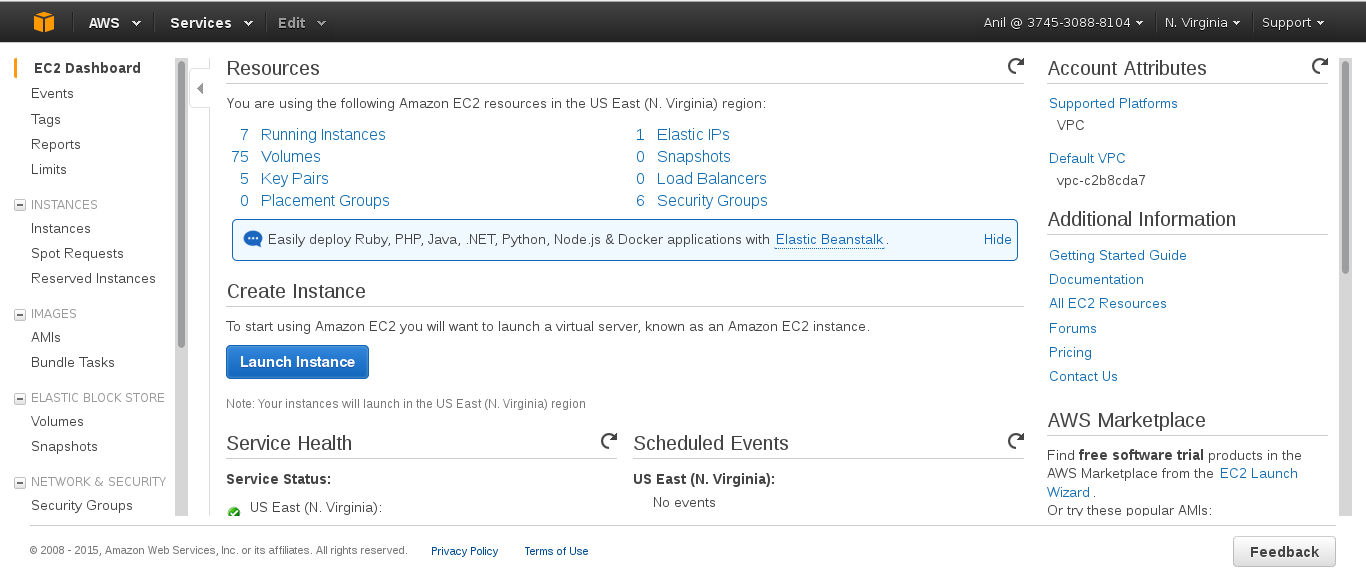
- Click Launch Instance.The Step 1: Choose an AMI screen is displayed.

- Click My AMIs and select shared with me checkbox. Click Select for the corresponding AMI and click Next: Choose an Instance Type. The Step 2: Choose an Instance Type screen is displayed.
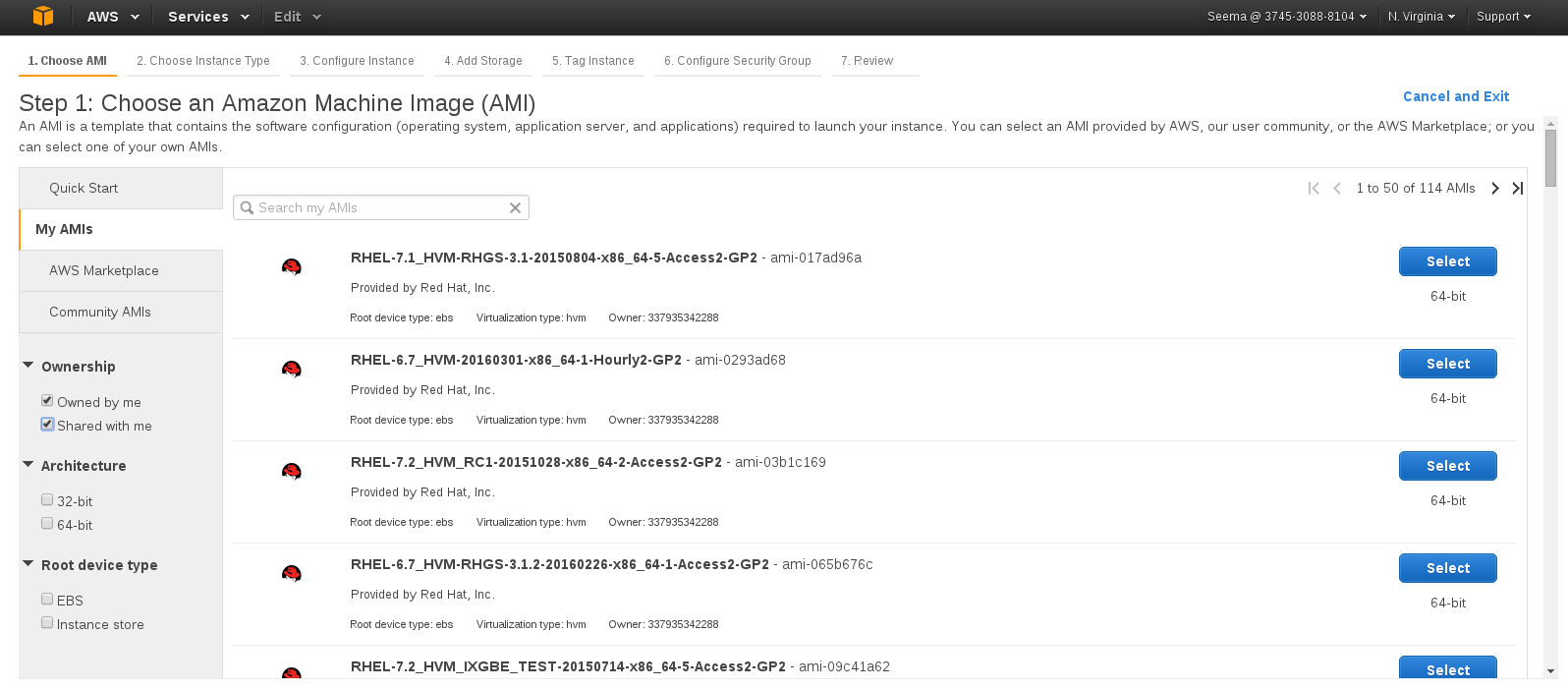
- Select Large as the instance type, and click Next: Configure Instance Details . The Step 3: Configure Instance Details screen displays.

- Specify the configuration for your instance or continue with the default settings, and click Next: Add Storage The Step 4: Add Storage screen displays.

- In the Add Storage screen, specify the storage details and click Next: Tag Instance. The Step 5: Tag Instance screen is displayed.

- Enter a name for the instance in the Value field for Name, and click Next: Configure Security Group. You can use this name later to verify that the instance is operating correctly. The Step 6: Configure Security Group screen is displayed.

- Select an existing security group or create a new security group and click Review and Launch.You must ensure to open the following TCP port numbers in the selected security group:
- 22
- 6000, 6001, 6002, 443, and 8080 ports if Red Hat Gluster Storage for OpenStack Swift is enabled
- Choose an existing key pair or create a new key pair, and click Launch Instance.


23.2. Verifying that Red Hat Gluster Storage Instance is Running
- On the Amazon Web Services home page, click the Amazon EC2 tab. The Amazon EC2 Console Dashboard is displayed.
- Click the Instances link from the Instances section on the left. The screen displays your current instances.
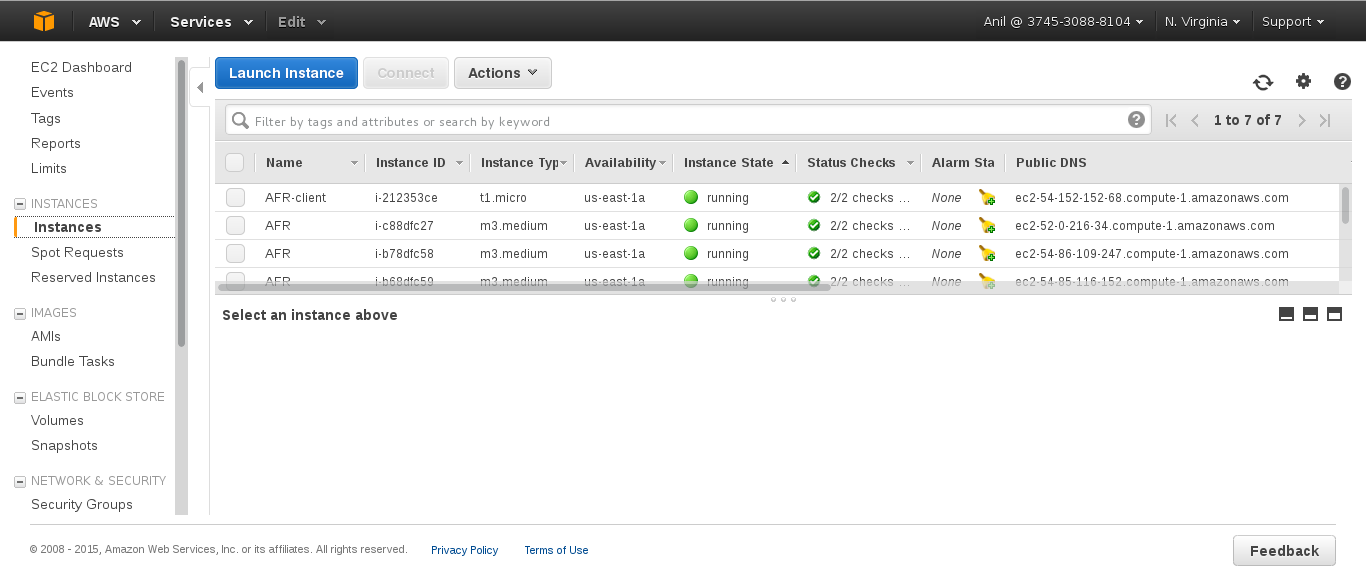
- Check the Status column and verify that the instance is running. A yellow circle indicates a status of pending while a green circle indicates that the instance is running.Click the instance and verify the details displayed in the Description tab.
- Note the domain name in the Public DNS field. You can use this domain to perform a remote login to the instance.
- Using SSH and the domain from the previous step, login to the Red Hat Amazon Machine Image instance. You must use the key pair that was selected or created when launching the instance.Example:Enter the following in command line:
# ssh -i rhs-aws.pem ec2-user@ec2-23-20-52-123.compute-1.amazonaws.com # sudo su - At the command line, enter the following command:
# service glusterd statusVerify that the command indicates that theglusterddaemon is running on the instance.Note
Samba and NFS-Ganesha channels are disabled by default. To use standalone Samba and NFS-Ganesha, perform the following steps to enable the repos and install the relevant packages.- For enabling the Red Hat Gluster Storage Samba repo, run the following command:
yum-config-manager --enable rhui-REGION-rh-gluster-3-samba-for-rhel-6-server-rpms - For enabling the Red Hat Gluster Storage NFS-Ganesha repo, run the following command:
yum-config-manager --enable rhui-REGION-rh-gluster-3-nfs-for-rhel-6-server-rpms
Important
yum update to update the Amazon EC2 Red Hat Gluster Storage AMI, follow the steps listed in https://access.redhat.com/solutions/1556793 Knowledgebase article.
23.3. Provisioning Storage
Important
23.3.1. Provisioning Storage for Two-way Replication Volumes
- Login to Amazon Web Services at http://aws.amazon.com and select the tab.
- In the select the option to add the Amazon Elastic Block Storage Volumes
- Create a thinly provisioned logical volume using the following steps:
- Create a physical volume (PV) by using the
pvcreatecommand.For example:pvcreate --dataalignment 1280K /dev/sdbNote
- Here,
/dev/sdbis a storage device. This command has to be executed on all the disks if there are multiple volumes. For example:# pvcreate --dataalignment 1280K /dev/sdc /dev/sdd /dev/sde ... - The device name and the alignment value will vary based on the device you are using.
Use the correctdataalignmentoption based on your device. For more information, see Section 13.2, “Brick Configuration” - Create a Volume Group (VG) from the PV using the
vgcreatecommand:For example:vgcreate --physicalextentsize 128K rhs_vg /dev/sdbNote
Here,/dev/sdbis a storage device. This command has to be executed on all the disks if there are multiple volumes. For example:vgcreate --physicalextentsize 128K rhs_vg /dev/sdc /dev/sdd /dev/sde ... - Create a thin-pool using the following commands:
- Create an LV to serve as the metadata device using the following command:
lvcreate -L metadev_sz --name metadata_device_name VOLGROUPFor example:lvcreate -L 16776960K --name rhs_pool_meta rhs_vg - Create an LV to serve as the data device using the following command:
lvcreate -L datadev_sz --name thin_pool VOLGROUPFor example:lvcreate -L 536870400K --name rhs_pool rhs_vg - Create a thin pool from the data LV and the metadata LV using the following command:
lvconvert --chunksize STRIPE_WIDTH --thinpool VOLGROUP/thin_pool --poolmetadata VOLGROUP/metadata_device_nameFor example:lvconvert --chunksize 1280K --thinpool rhs_vg/rhs_pool --poolmetadata rhs_vg/rhs_pool_metaNote
By default, the newly provisioned chunks in a thin pool are zeroed to prevent data leaking between different block devices. In the case of Red Hat Gluster Storage, where data is accessed via a file system, this option can be turned off for better performance.lvchange --zero n VOLGROUP/thin_poolFor example:lvchange --zero n rhs_vg/rhs_pool
- Create a thinly provisioned volume from the previously created pool using the
lvcreatecommand:For example:lvcreate -V 1G -T rhs_vg/rhs_pool -n rhs_lvIt is recommended that only one LV should be created in a thin pool.
- Format the logical volume using the following command:
# mkfs.xfs -i size=512 DEVICEFor example, to format/dev/glustervg/glusterlv:# mkfs.xfs -i size=512 /dev/glustervg/glusterlv - Mount the device using the following commands:
# mkdir -p /export/glusterlv # mount /dev/glustervg/glusterlv /export/glusterlv - Using the following command, add the device to
/etc/fstabso that it mounts automatically when the system reboots:# echo "/dev/glustervg/glusterlv /export/glusterlv xfs defaults 0 2" >> /etc/fstab
23.3.2. Provisioning Storage for Three-way Replication Volumes
- Login to Amazon Web Services at http://aws.amazon.com and select the tab.
- Create three AWS instances in three different availability zones. All the bricks of a replica pair must be from different availability zones. For each replica set, select the instances for the bricks from three different availability zones. A replica pair must not have a brick along with its replica from the same availability zone.
- Add single EBS volume to each AWS instances
- Create a thinly provisioned logical volume using the following steps:
- Create a physical volume (PV) by using the
pvcreatecommand.For example:pvcreate --dataalignment 1280K /dev/sdbNote
- Here,
/dev/sdbis a storage device. This command has to be executed on all the disks if there are multiple volumes. For example:pvcreate --dataalignment 1280K /dev/sdc /dev/sdd /dev/sde ... - The device name and the alignment value will vary based on the device you are using.
Use the correctdataalignmentoption based on your device. For more information, see Section 13.2, “Brick Configuration” - Create a Volume Group (VG) from the PV using the
vgcreatecommand:For example:vgcreate --physicalextentsize 128K rhs_vg /dev/sdbNote
Here,/dev/sdbis a storage device. This command has to be executed on all the disks if there are multiple volumes. For example:vgcreate --physicalextentsize 128K rhs_vg /dev/sdc /dev/sdd /dev/sde ... - Create a thin-pool using the following commands:
- Create an LV to serve as the metadata device using the following command:
lvcreate -L metadev_sz --name metadata_device_name VOLGROUPFor example:lvcreate -L 16776960K --name rhs_pool_meta rhs_vg - Create an LV to serve as the data device using the following command:
lvcreate -L datadev_sz --name thin_pool VOLGROUPFor example:lvcreate -L 536870400K --name rhs_pool rhs_vg - Create a thin pool from the data LV and the metadata LV using the following command:
lvconvert --chunksize STRIPE_WIDTH --thinpool VOLGROUP/thin_pool --poolmetadata VOLGROUP/metadata_device_nameFor example:lvconvert --chunksize 1280K --thinpool rhs_vg/rhs_pool --poolmetadata rhs_vg/rhs_pool_metaNote
By default, the newly provisioned chunks in a thin pool are zeroed to prevent data leaking between different block devices. In the case of Red Hat Gluster Storage, where data is accessed via a file system, this option can be turned off for better performance.lvchange --zero n VOLGROUP/thin_poolFor example:lvchange --zero n rhs_vg/rhs_pool
- Create a thinly provisioned volume from the previously created pool using the
lvcreatecommand:For example:lvcreate -V 1G -T rhs_vg/rhs_pool -n rhs_lvIt is recommended that only one LV should be created in a thin pool.
- Format the logical volume using the following command:
# mkfs.xfs -i size=512 DEVICEFor example, to format/dev/glustervg/glusterlv:# mkfs.xfs -i size=512 /dev/glustervg/glusterlv - Mount the device using the following commands:
# mkdir -p /export/glusterlv # mount /dev/glustervg/glusterlv /export/glusterlv - Using the following command, add the device to
/etc/fstabso that it mounts automatically when the system reboots:# echo "/dev/glustervg/glusterlv /export/glusterlv xfs defaults 0 2" >> /etc/fstab
client-side quorum to avoid split-brain scenarios, unavailability of two zones would make the access read-only.
23.4. Stopping and Restarting Red Hat Gluster Storage Instance
Chapter 24. Accessing Red Hat Gluster Storage using Microsoft Azure
cloud service or can be located in a separate Azure cloud service connected by a common virtual network (vnet). The Red Hat Gluster Instances exploit Azure’s availability sets, helping to maintain data availability during planned or unplanned outages within the Azure service.
Part IV. Data Access with Other Interfaces
Chapter 25. Managing Object Store
25.1. Architecture Overview
- OpenStack Object Storage environment.For detailed information on Object Storage, see OpenStack Object Storage Administration Guide available at: http://docs.openstack.org/admin-guide-cloud/content/ch_admin-openstack-object-storage.html.
- Red Hat Gluster Storage environment.Red Hat Gluster Storage environment consists of bricks that are used to build volumes. For more information on bricks and volumes, see Section 6.4, “Formatting and Mounting Bricks”.
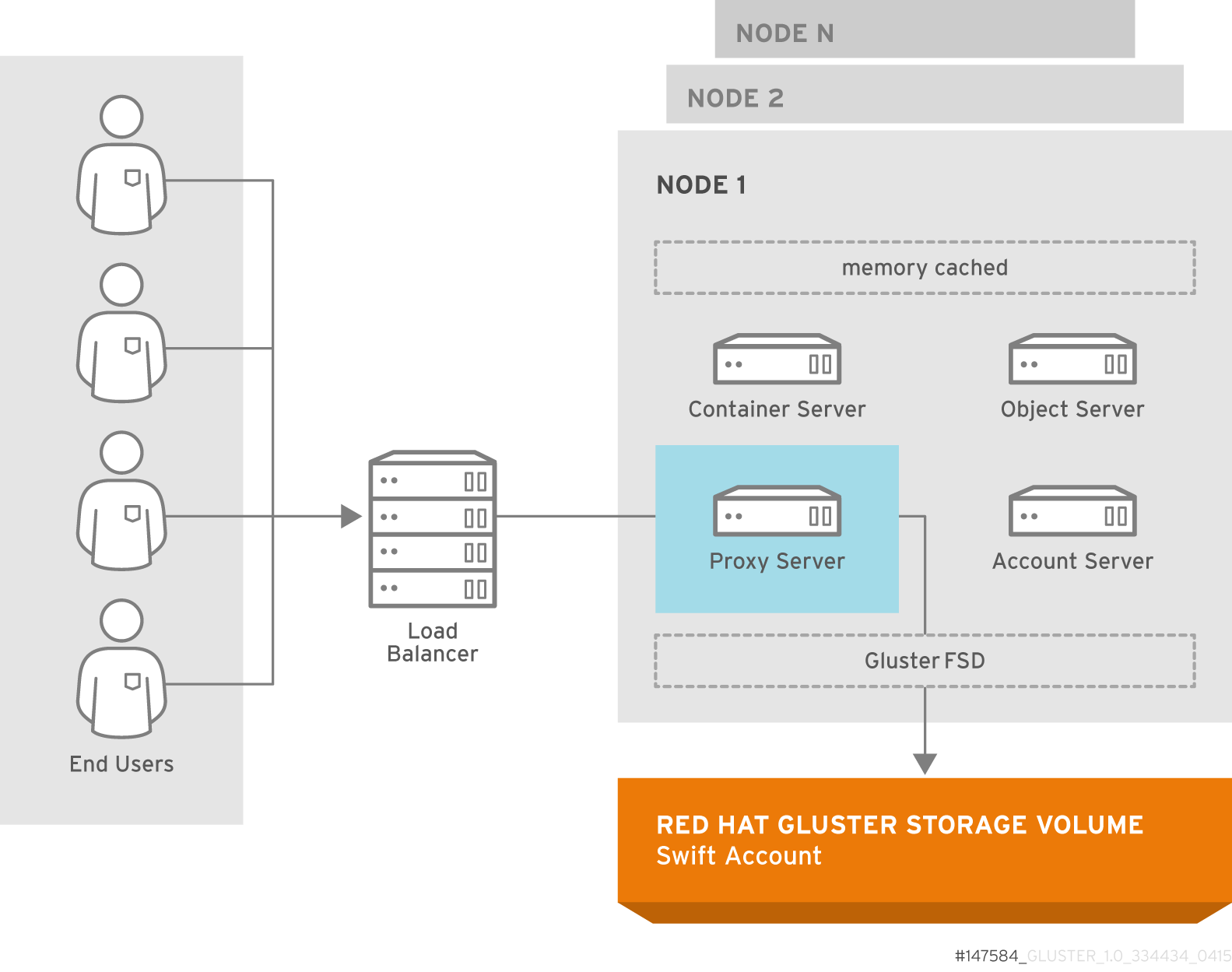
Figure 25.1. Object Store Architecture
Important
# firewall-cmd --get-active-zones# firewall-cmd --zone=zone_name --add-port=6010/tcp --add-port=6011/tcp --add-port=6012/tcp --add-port=8080/tcp
# firewall-cmd --zone=zone_name --add-port=6010/tcp --add-port=6011/tcp --add-port=6012/tcp --add-port=8080/tcp --permanentonly if your swift proxy server is configured with SSL. To add the port number, run the following commands:
# firewall-cmd --zone=zone_name --add-port=443/tcp
# firewall-cmd --zone=zone_name --add-port=443/tcp --permanent25.2. Components of Object Store
- Authenticate Object Store against an external OpenStack Keystone server.Each Red Hat Gluster Storage volume is mapped to a single account. Each account can have multiple users with different privileges based on the group and role they are assigned to. After authenticating using accountname:username and password, user is issued a token which will be used for all subsequent REST requests.Integration with Keystone
When you integrate Red Hat Gluster Storage Object Store with Keystone authentication, you must ensure that the Swift account name and Red Hat Gluster Storage volume name are the same. It is common that Red Hat Gluster Storage volumes are created before exposing them through the Red Hat Gluster Storage Object Store.
When working with Keystone, account names are defined by Keystone as thetenant id. You must create the Red Hat Gluster Storage volume using the Keystonetenant idas the name of the volume. This means, you must create the Keystone tenant before creating a Red Hat Gluster Storage Volume.Important
Red Hat Gluster Storage does not contain any Keystone server components. It only acts as a Keystone client. After you create a volume for Keystone, ensure to export this volume for accessing it using the object storage interface. For more information on exporting volume, see Section 25.6.8, “Exporting the Red Hat Gluster Storage Volumes”.Integration with GSwauthGSwauth is a Web Server Gateway Interface (WGSI) middleware that uses a Red Hat Gluster Storage Volume itself as its backing store to maintain its metadata. The benefit in this authentication service is to have the metadata available to all proxy servers and saving the data to a Red Hat Gluster Storage volume.
To protect the metadata, the Red Hat Gluster Storage volume should only be able to be mounted by the systems running the proxy servers. For more information on mounting volumes, see Chapter 7, Accessing Data - Setting Up Clients.Integration with TempAuthYou can also use the
TempAuthauthentication service to test Red Hat Gluster Storage Object Store in the data center.
25.3. Advantages of using Object Store
- Default object size limit of 1 TiB
- Unified view of data across NAS and Object Storage technologies
- High availability
- Scalability
- Replication
- Elastic Volume Management
25.4. Limitations
- Object NameObject Store imposes the following constraints on the object name to maintain the compatibility with network file access:
- Object names must not be prefixed or suffixed by a '/' character. For example,
a/b/ - Object names must not have contiguous multiple '/' characters. For example,
a//b
- Account Management
- Object Store does not allow account management even though OpenStack Swift allows the management of accounts. This limitation is because Object Store treats
accountsequivalent to the Red Hat Gluster Storage volumes. - Object Store does not support account names (i.e. Red Hat Gluster Storage volume names) having an underscore.
- In Object Store, every account must map to a Red Hat Gluster Storage volume.
- Subdirectory ListingHeaders
X-Content-Type: application/directoryandX-Content-Length: 0can be used to create subdirectory objects under a container, but GET request on a subdirectory would not list all the objects under it.
25.5. Prerequisites
- Ensure that the openstack-swift-* and swiftonfile packages have matching version numbers.
# rpm -qa | grep swift openstack-swift-container-1.13.1-6.el7ost.noarch openstack-swift-object-1.13.1-6.el7ost.noarch swiftonfile-1.13.1-6.el7rhgs.noarch openstack-swift-proxy-1.13.1-6.el7ost.noarch openstack-swift-doc-1.13.1-6.el7ost.noarch openstack-swift-1.13.1-6.el7ost.noarch openstack-swift-account-1.13.1-6.el7ost.noarch - Ensure that SELinux is in permissive mode.
# sestatus SELinux status: enabled SELinuxfs mount: /sys/fs/selinux SELinux root directory: /etc/selinux Loaded policy name: targeted Current mode: permissive Mode from config file: permissive Policy MLS status: enabled Policy deny_unknown status: allowed Max kernel policy version: 28If theCurrent modeandMode from config filefields are not set topermissive, run the following commands to set SELinux into permissive mode persistently, and reboot to ensure that the configuration takes effect.# setenforce 1 # reboot - Ensure that the gluster-swift services are owned by and run as the
rootuser, not theswiftuser as in a typical OpenStack installation.# cd /usr/lib/systemd/system # sed -i s/User=swift/User=root/ openstack-swift-proxy.service openstack-swift-account.service openstack-swift-container.service openstack-swift-object.service openstack-swift-object-expirer.service - Start the
memcachedservice:# service memcached start - Ensure that the ports for the Object, Container, Account, and Proxy servers are open. Note that the ports used for these servers are configurable. The ports listed in Table 25.1, “Ports required for Red Hat Gluster Storage Object Store” are the default values.
Expand Table 25.1. Ports required for Red Hat Gluster Storage Object Store Server Port Object Server 6010 Container Server 6011 Account Server 6012 Proxy Server (HTTPS) 443 Proxy Server (HTTP) 8080 - Create and mount a Red Hat Gluster Storage volume for use as a Swift Account. For information on creating Red Hat Gluster Storage volumes, see Chapter 6, Red Hat Gluster Storage Volumes . For information on mounting Red Hat Gluster Storage volumes, see Chapter 7, Accessing Data - Setting Up Clients .
25.6. Configuring the Object Store
Warning
/etc/swift directory would contain both *.conf extension and *.conf-gluster files. You must delete the *.conf files and create new configuration files based on *.conf-gluster template. Otherwise, inappropriate python packages will be loaded and the component may not work as expected.
.rpmnew extension. You must ensure to delete .conf files and folders (account-server, container-server, and object-server) for better understanding of the loaded configuration.
25.6.1. Configuring a Proxy Server
etc/swift/proxy-server.conf by referencing the template file available at /etc/swift/proxy-server.conf-gluster.
25.6.1.1. Configuring a Proxy Server for HTTPS
- Create self-signed cert for SSL using the following commands:
# cd /etc/swift # openssl req -new -x509 -nodes -out cert.crt -keyout cert.key - Add the following lines to
/etc/swift/proxy-server.confunder [DEFAULT]bind_port = 443 cert_file = /etc/swift/cert.crt key_file = /etc/swift/cert.key
Important
memcache_servers configuration option in the proxy-server.conf and list all memcached servers.
proxy-server.conf file.
[filter:cache]
use = egg:swift#memcache
memcache_servers = 192.168.1.20:11211,192.168.1.21:11211,192.168.1.22:1121125.6.2. Configuring the Authentication Service
Keystone, GSwauth, and TempAuth authentication services.
25.6.2.1. Integrating with the Keystone Authentication Service
- To configure Keystone, add
authtokenandkeystoneauthto/etc/swift/proxy-server.confpipeline as shown below:[pipeline:main] pipeline = catch_errors healthcheck proxy-logging cache authtoken keystoneauth proxy-logging proxy-server - Add the following sections to
/etc/swift/proxy-server.conffile by referencing the example below as a guideline. You must substitute the values according to your setup:[filter:authtoken] paste.filter_factory = keystoneclient.middleware.auth_token:filter_factory signing_dir = /etc/swift auth_host = keystone.server.com auth_port = 35357 auth_protocol = http auth_uri = http://keystone.server.com:5000 # if its defined admin_tenant_name = services admin_user = swift admin_password = adminpassword delay_auth_decision = 1 [filter:keystoneauth] use = egg:swift#keystoneauth operator_roles = admin, SwiftOperator is_admin = true cache = swift.cache
Verify that the Red Hat Gluster Storage Object Store has been configured successfully by running the following command:
$ swift -V 2 -A http://keystone.server.com:5000/v2.0 -U tenant_name:user -K password stat25.6.2.2. Integrating with the GSwauth Authentication Service
Perform the following steps to integrate GSwauth:
- Create and start a Red Hat Gluster Storage volume to store metadata.
# gluster volume create NEW-VOLNAME NEW-BRICK # gluster volume start NEW-VOLNAMEFor example:# gluster volume create gsmetadata server1:/exp1 # gluster volume start gsmetadata - Run
gluster-swift-gen-builderstool with all the volumes to be accessed using the Swift client includinggsmetadatavolume:# gluster-swift-gen-builders gsmetadata other volumes - Edit the
/etc/swift/proxy-server.confpipeline as shown below:[pipeline:main] pipeline = catch_errors cache gswauth proxy-server - Add the following section to
/etc/swift/proxy-server.conffile by referencing the example below as a guideline. You must substitute the values according to your setup.[filter:gswauth] use = egg:gluster_swift#gswauth set log_name = gswauth super_admin_key = gswauthkey metadata_volume = gsmetadata auth_type = sha1 auth_type_salt = swauthsaltImportant
You must ensure to secure theproxy-server.conffile and thesuper_admin_keyoption to prevent unprivileged access. - Restart the proxy server by running the following command:
# swift-init proxy restart
You can set the following advanced options for GSwauth WSGI filter:
- default-swift-cluster: The default storage-URL for the newly created accounts. When you attempt to authenticate for the first time, the access token and the storage-URL where data for the given account is stored will be returned.
- token_life: The set default token life. The default value is 86400 (24 hours).
- max_token_life: The maximum token life. You can set a token lifetime when requesting a new token with header
x-auth-token-lifetime. If the passed in value is greater than themax_token_life, then themax_token_lifevalue will be used.
GSwauth provides CLI tools to facilitate managing accounts and users. All tools have some options in common:
- -A, --admin-url: The URL to the auth. The default URL is
http://127.0.0.1:8080/auth/. - -U, --admin-user: The user with administrator rights to perform action. The default user role is
.super_admin. - -K, --admin-key: The key for the user with administrator rights to perform the action. There is no default value.
Prepare the Red Hat Gluster Storage volume for gswauth to save its metadata by running the following command:
# gswauth-prep [option]# gswauth-prep -A http://10.20.30.40:8080/auth/ -K gswauthkey25.6.2.2.1. Managing Account Services in GSwauth
Create an account for GSwauth. This account is mapped to a Red Hat Gluster Storage volume.
# gswauth-add-account [option] <account_name># gswauth-add-account -K gswauthkey <account_name>You must ensure that all users pertaining to this account must be deleted before deleting the account. To delete an account:
# gswauth-delete-account [option] <account_name># gswauth-delete-account -K gswauthkey test
Sets a service URL for an account. User with reseller admin role only can set the service URL. This command can be used to change the default storage URL for a given account. All accounts will have the same storage-URL as default value, which is set using default-swift-cluster option.
# gswauth-set-account-service [options] <account> <service> <name> <value># gswauth-set-account-service -K gswauthkey test storage local http://newhost:8080/v1/AUTH_test25.6.2.2.2. Managing User Services in GSwauth
The following user roles are supported in GSwauth:
- A regular user has no rights. Users must be given both read and write privileges using Swift ACLs.
- The
adminuser is a super-user at the account level. This user can create and delete users for that account. These members will have both write and read privileges to all stored objects in that account. - The
reseller adminuser is a super-user at the cluster level. This user can create and delete accounts and users and has read and write privileges to all accounts under that cluster. - GSwauth maintains its own swift account to store all of its metadata on accounts and users. The
.super_adminrole provides access to GSwauth own swift account and has all privileges to act on any other account or user.
The following table provides user access right information.
| Role/Group | get list of accounts | get Acccount Details | Create Account | Delete Account | Get User Details | Create admin user | Create reseller_admin user | Create regular user | Delete admin user |
|---|---|---|---|---|---|---|---|---|---|
| .super_admin (username) | X | X | X | X | X | X | X | X | X |
| .reseller_admin (group) | X | X | X | X | X | X | X | X | |
| .admin (group) | X | X | X | X | X | ||||
| regular user (type) |
You can create an user for an account that does not exist. The account will be created before creating the user.
-r flag to create a reseller admin user and -a flag to create an admin user. To change the password or role of the user, you can run the same command with the new option.
# gswauth-add-user [option] <account_name> <user> <password># gswauth-add-user -K gswauthkey -a test ana anapwdDelete a user by running the following command:
gswauth-delete-user [option] <account_name> <user>gwauth-delete-user -K gswauthkey test anaThere are two methods to access data using the Swift client. The first and simple method is by providing the user name and password everytime. The swift client will acquire the token from gswauth.
$ swift -A http://127.0.0.1:8080/auth/v1.0 -U test:ana -K anapwd upload container1 README.mdcurl -v -H 'X-Storage-User: test:ana' -H 'X-Storage-Pass: anapwd' -k http://localhost:8080/auth/v1.0
...
< X-Auth-Token: AUTH_tk7e68ef4698f14c7f95af07ab7b298610
< X-Storage-Url: http://127.0.0.1:8080/v1/AUTH_test
...$ swift --os-auth-token=AUTH_tk7e68ef4698f14c7f95af07ab7b298610 --os-storage-url=http://127.0.0.1:8080/v1/AUTH_test upload container1 README.md
README.md
bash-4.2$
bash-4.2$ swift --os-auth-token=AUTH_tk7e68ef4698f14c7f95af07ab7b298610 --os-storage-url=http://127.0.0.1:8080/v1/AUTH_test list container1
README.mdImportant
Reseller admins must always use the second method to acquire a token to get access to other accounts other than his own. The first method of using the username and password will give them access only to their own accounts.
25.6.2.2.3. Managing Accounts and Users Information
You can obtain the accounts and users information including stored password.
# gswauth-list [options] [account] [user]# gswauth-list -K gswauthkey test ana
+----------+
| Groups |
+----------+
| test:ana |
| test |
| .admin |
+----------+- If [account] and [user] are omitted, all the accounts will be listed.
- If [account] is included but not [user], a list of users within that account will be listed.
- If [account] and [user] are included, a list of groups that the user belongs to will be listed.
- If the [user] is .groups, the active groups for that account will be listed.
-p option provides the output in plain text format, -j provides the output in JSON format.
You can change the password of the user, account administrator, and reseller_admin roles.
- Change the password of a regular user by running the following command:
# gswauth-add-user -U account1:user1 -K old_passwd account1 user1 new_passwd - Change the password of an
account administratorby running the following command:# gswauth-add-user -U account1:admin -K old_passwd -a account1 admin new_passwd - Change the password of the
reseller_adminby running the following command:# gswauth-add-user -U account1:radmin -K old_passwd -r account1 radmin new_passwd
Users with .super_admin role can delete the expired tokens.
# gswauth-cleanup-tokens [options]# gswauth-cleanup-tokens -K gswauthkey --purge test- -t, --token-life: The expected life of tokens. The token objects modified before the give number of seconds will be checked for expiration (default: 86400).
- --purge: Purges all the tokens for a given account whether the tokens have expired or not.
- --purge-all: Purges all the tokens for all the accounts and users whether the tokens have expired or not.
25.6.2.3. Integrating with the TempAuth Authentication Service
Warning
cleartext in a single proxy-server.conf file. In your /etc/swift/proxy-server.conf file, enable TempAuth in pipeline and add user information in TempAuth section by referencing the below example.
[pipeline:main]
pipeline = catch_errors healthcheck proxy-logging cache tempauth proxy-logging proxy-server
[filter:tempauth]
use = egg:swift#tempauth
user_admin_admin = admin.admin.reseller_admin
user_test_tester = testing .admin
user_test_tester2 = testing2user_accountname_username = password [.admin]accountname is the Red Hat Gluster Storage volume used to store objects.
25.6.3. Configuring Object Servers
etc/swift/object.server.conf by referencing the template file available at /etc/swift/object-server.conf-gluster.
25.6.4. Configuring Container Servers
etc/swift/container-server.conf by referencing the template file available at /etc/swift/container-server.conf-gluster.
25.6.5. Configuring Account Servers
etc/swift/account-server.conf by referencing the template file available at /etc/swift/account-server.conf-gluster.
25.6.6. Configuring Swift Object and Container Constraints
/etc/swift/swift.conf by referencing the template file available at /etc/swift/swift.conf-gluster.
25.6.7. Configuring Object Expiration
Note
object-expirer daemon. This is an expected behavior.
25.6.7.1. Setting Up Object Expiration
gsexpiring for managing object expiration. Hence, you must create a Red Hat Gluster Storage volume and name it as gsexpiring.
/etc/swift/object.expirer.conf by referencing the template file available at /etc/swift/object-expirer.conf-gluster.
25.6.7.2. Using Object Expiration
The X-Delete-At header requires a UNIX epoch timestamp, in integer form. For example, 1418884120 represents Thu, 18 Dec 2014 06:27:31 GMT. By setting the header to a specific epoch time, you indicate when you want the object to expire, not be served, and be deleted completely from the Red Hat Gluster Storage volume. The current time in Epoch notation can be found by running this command:
$ date +%s- Set the object expiry time during an object PUT with X-Delete-At header using cURL:
curl -v -X PUT -H 'X-Delete-At: 1392013619' http://127.0.0.1:8080/v1/AUTH_test/container1/object1 -T ./localfileSet the object expiry time during an object PUT with X-Delete-At header using swift client:swift --os-auth-token=AUTH_tk99a39aecc3dd4f80b2b1e801d00df846 --os-storage-url=http://127.0.0.1:8080/v1/AUTH_test upload container1 ./localfile --header 'X-Delete-At: 1392013619'
The X-Delete-After header takes an integer number of seconds that represents the amount of time from now when you want the object to be deleted.
- Set the object expiry time with an object PUT with X-Delete-After header using cURL:
curl -v -X PUT -H 'X-Delete-After: 3600' http://127.0.0.1:8080/v1/AUTH_test/container1/object1 -T ./localfileSet the object expiry time with an object PUT with X-Delete-At header using swift client:swift --os-auth-token=AUTH_tk99a39aecc3dd4f80b2b1e801d00df846 --os-storage-url=http://127.0.0.1:8080/v1/AUTH_test upload container1 ./localfile --header 'X-Delete-After: 3600'
25.6.7.3. Running Object Expirer Service
interval option in /etc/swift/object-expirer.conf file. For every pass it makes, it queries the gsexpiring account for tracker objects. Based on the timestamp and path present in the name of tracker objects, object-expirer deletes the actual object and the corresponding tracker object.
# swift-init object-expirer start# swift-object-expirer -o -v /etc/swift/object-expirer.conf25.6.8. Exporting the Red Hat Gluster Storage Volumes
Swift on File component.
# cd /etc/swift
# gluster-swift-gen-builders VOLUME [VOLUME...]# cd /etc/swift
# gluster-swift-gen-builders testvol1 testvol2 testvol3/mnt/gluster-object). The default value can be changed to a different path by changing the devices configurable option across all account, container, and object configuration files. The path must contain Red Hat Gluster Storage volumes mounted under directories having the same names as volume names. For example, if devices option is set to /home, it is expected that the volume named testvol1 be mounted at /home/testvol1.
gluster-swift-gen-builders tool even if it was previously added. The gluster-swift-gen-builders tool creates new ring files every time it runs successfully.
gluster-swift-gen-builders only with the volumes which are required to be accessed using the Swift interface.
testvol2 volume, run the following command:
# gluster-swift-gen-builders testvol1 testvol325.6.9. Starting and Stopping Server
- To start the server, run the following command:
# swift-init main start - To stop the server, run the following command:
# swift-init main stop - To restart the server, run the following command:
# swift-init main restart
25.7. Starting the Services Automatically
# chkconfig memcached on
# chkconfig openstack-swift-proxy on
# chkconfig openstack-swift-account on
# chkconfig openstack-swift-container on
# chkconfig openstack-swift-object on
# chkconfig openstack-swift-object-expirer on# systemctl enable openstack-swift-proxy.service
# systemctl enable openstack-swift-account.service
# systemctl enable openstack-swift-container.service
# systemctl enable openstack-swift-object.service
# systemctl enable openstack-swift-object-expirer.service
# systemctl enable openstack-swift-object-expirer.servicesystemctl command may require additional configuration. Refer to https://access.redhat.com/solutions/2043773 for details if you encounter problems.
Important
25.8. Working with the Object Store
25.8.1. Creating Containers and Objects
25.8.2. Creating Subdirectory under Containers
Content-Type: application/directory and Content-Length: 0. However, the current behavior of Object Store returns 200 OK on a GET request on subdirectory but this does not list all the objects under that subdirectory.
25.8.3. Working with Swift ACLs
Chapter 26. Administering the Hortonworks Data Platform on Red Hat Gluster Storage
Warning
Important
- Dispersed Volumes and Distributed Dispersed Volume
- Red Hat Enterprise Linux 7
The following are the advantages of Hadoop Compatible Storage with Red Hat Gluster Storage:
- Provides file-based access to Red Hat Gluster Storage volumes by Hadoop while simultaneously supporting POSIX features for the volumes such as NFS Mounts, Fuse Mounts, Snapshotting and Geo-Replication.
- Eliminates the need for a centralized metadata server (HDFS Primary and Redundant Namenodes) by replacing HDFS with Red Hat Gluster Storage.
- Provides compatibility with MapReduce and Hadoop Ecosystem applications with no code rewrite required.
- Provides a fault tolerant file system.
- Allows co-location of compute and data and the ability to run Hadoop jobs across multiple namespaces using multiple Red Hat Gluster Storage volumes.
26.1. Deployment Scenarios
| Component Overview | Component Description |
|---|---|
| Ambari | Management Console for the Hortonworks Data Platform |
| Red Hat Gluster Storage Console | (Optional) Management Console for Red Hat Gluster Storage |
| YARN Resource Manager | Scheduler for the YARN Cluster |
| YARN Node Manager | Worker for the YARN Cluster on a specific server |
| Job History Server | This logs the history of submitted YARN Jobs |
| glusterd | This is the Red Hat Gluster Storage process on a given server |
26.1.1. Red Hat Gluster Storage Trusted Storage Pool with Two Additional Servers
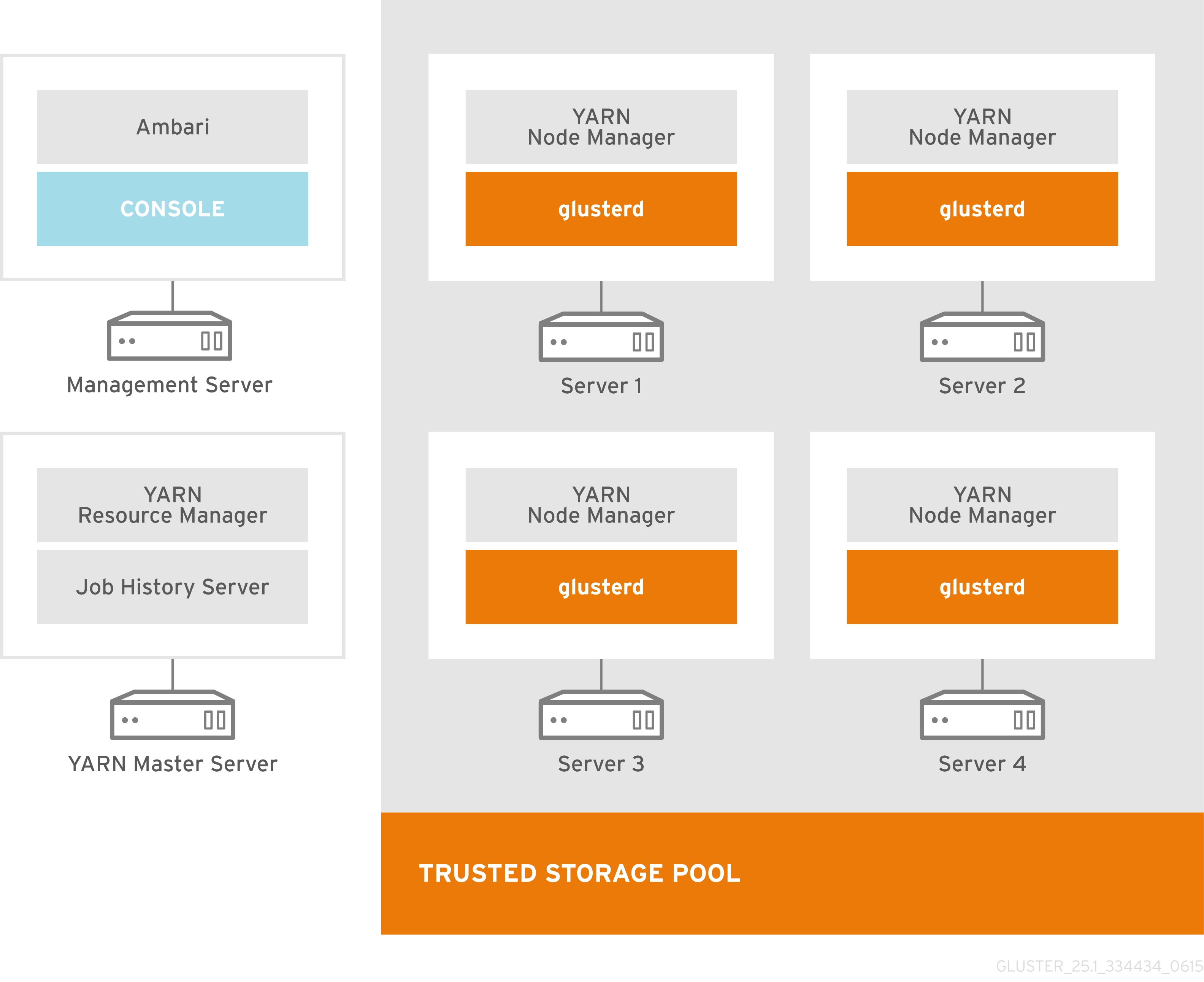
Figure 26.1. Recommended Deployment Topology for Large Clusters
26.1.2. Red Hat Gluster Storage Trusted Storage Pool with One Additional Server

Figure 26.2. Recommended Deployment Topology for Smaller Clusters
26.1.3. Red Hat Gluster Storage Trusted Storage Pool only
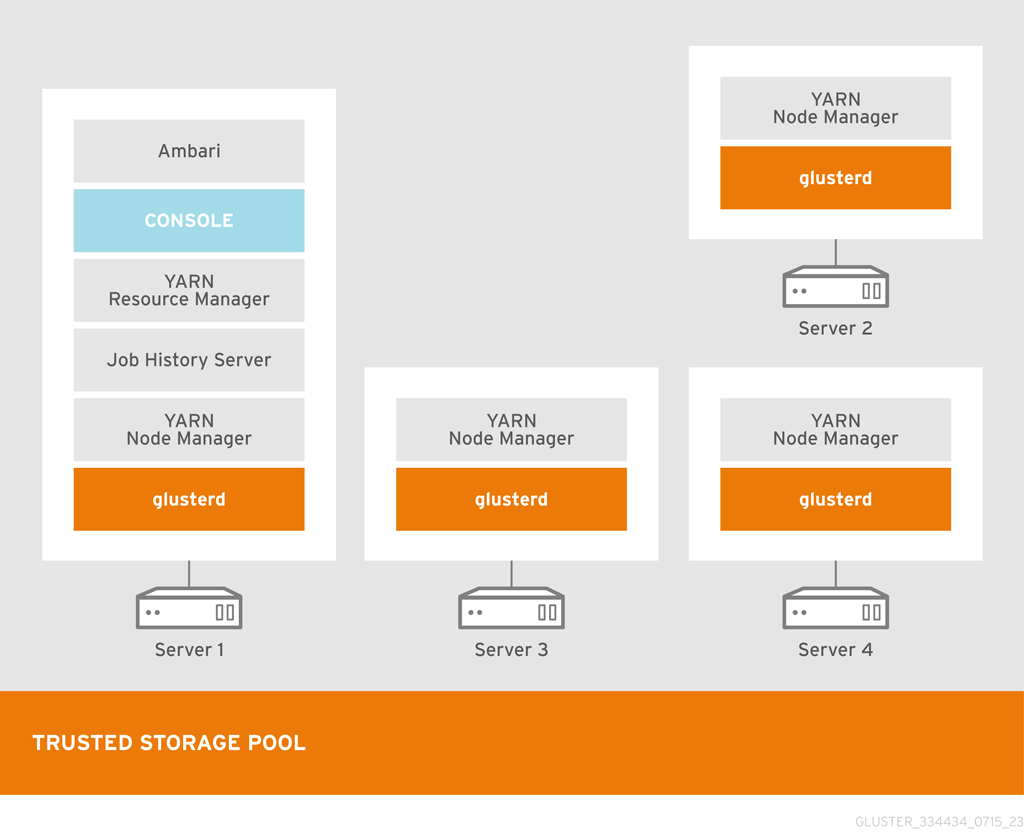
Figure 26.3. Evaluation deployment topology using the minimum amount of servers
26.1.4. Deploying Hadoop on an existing Red Hat Gluster Storage Trusted Storage Pool
26.1.5. Deploying Hadoop on a New Red Hat Gluster Storage Trusted Storage Pool
setup_cluster.sh script can build the storage pool for you. The rest of the installation instructions will articulate how to create and enable volumes for use with Hadoop.
26.2. Administration of HDP Services with Ambari on Red Hat Gluster Storage
26.3. Managing Users of the System
26.4. Running Hadoop Jobs Across Multiple Red Hat Gluster Storage Volumes
When you specify paths in a Hadoop Job, the full URI of the path is required. For example, if you have a volume named VolumeOne and that must pass in a file called myinput.txt in a directory named input, then you would specify it as glusterfs://VolumeOne/input/myinput.txt, the same formatting goes for the output. The example below shows data read from a path on VolumeOne and written to a path on VolumeTwo.
# bin/hadoop jar /opt/HadoopJobs.jar ProcessLogs glusterfs://VolumeOne/input/myinput.txt glusterfs://VolumeTwo/output/
Note
glusterfs://HadoopVol/input/myinput.txt and /input/myinput.txt are processed the same when providing input to a Hadoop Job or using the Hadoop CLI.
26.5. Scaling Up and Scaling Down
26.5.1. Scaling Up
- Ensure that the new servers meet all the prerequisites and have the appropriate channels and components installed. For information on prerequisites, see section Prerequisites in the chapter Deploying the Hortonworks Data Platform on Red Hat Gluster Storage of Red Hat Gluster Storage 3.1 Installation Guide. For information on adding servers to the trusted storage pool, see Chapter 5, Trusted Storage Pools
- In the Ambari Console, click in the navigation panel. You must wait until all the services are completely stopped.
- Open the terminal window of the server designated to be the Ambari Management Server and navigate to the
/usr/share/rhs-hadoop-install/directory. - Run the following command by replacing the examples with the necessary values. This command below assumes the LVM partitions on the server are
/dev/vg1/lv1and you wish them to be mounted as/mnt/brick1:# ./setup_cluster.sh --yarn-master <the-existing-yarn-master-node> [--hadoop-mgmt-node <the-existing-mgmt-node>] new-node1.hdp:/mnt/brick1:/dev/vg1/lv1 new-node2.hdp - Open the terminal of any Red Hat Gluster Storage server in the trusted storage pool and run the following command. This command assumes that you want to add the servers to a volume called
HadoopVol:# gluster volume add-brick HadoopVol replica 2 new-node1:/mnt/brick1/HadoopVol new-node2:/mnt/brick1/HadoopVolFor more information on expanding volumes, see Section 10.3, “Expanding Volumes”. - Open the terminal of any Red Hat Gluster Storage Server in the cluster and rebalance the volume using the following command:
# gluster volume rebalance HadoopVol startRebalancing the volume will distribute the data on the volume among the servers. To view the status of the rebalancing operation, run# gluster volume rebalance HadoopVol statuscommand. The rebalance status will be shown ascompletedwhen the rebalance is complete. For more information on rebalancing a volume, see Section 10.7, “Rebalancing Volumes”. - Open the terminal of both of the new storage nodes and navigate to the
/usr/share/rhs-hadoop-install/directory and run the command given below:# ./setup_container_executor.sh - Access the Ambari Management Interface via the browser (http://ambari-server-hostname:8080) and add the new nodes by selecting the HOSTS tab and selecting add new host. Select the services you wish to install on the new host and deploy the service to the hosts.
- Follow the instructions in Configuring the Linux Container Executor section in the Red Hat Gluster Storage 3.1 Installation Guide.
26.5.2. Scaling Down
- In the Ambari Console, click in the navigation panel. You must wait until all the services are completely stopped.
- Open the terminal of any Red Hat Gluster Storage server in the trusted storage pool and run the following command. This procedure assumes that you want to remove 2 servers, that is
old-node1andold-node2from a volume calledHadoopVol:# gluster volume remove-brick HadoopVol [replica count] old-node1:/mnt/brick2/HadoopVol old-node2:/mnt/brick2/HadoopVol startTo view the status of the remove brick operation, run# gluster volume remove-brick HadoopVol old-node1:/mnt/brick2/HadoopVol old-node2:/mnt/brick2/HadoopVol statuscommand. - When the data migration shown in the status command is
Complete, run the following command to commit the brick removal:# gluster volume remove-brick HadoopVol old-node1:/mnt/brick2/HadoopVol old-node2:/mnt/brick2/HadoopVol commitAfter the bricks removal, you can check the volume information using# gluster volume info HadoopVolcommand. For detailed information on removing volumes, see Section 10.4, “Shrinking Volumes” - Open the terminal of any Red Hat Gluster Storage server in the trusted storage pool and run the following command to detach the removed server:
# gluster peer detach old-node1 # gluster peer detach old-node2 - Open the terminal of any Red Hat Gluster Storage Server in the cluster and rebalance the volume using the following command:
# gluster volume rebalance HadoopVol startRebalancing the volume will distribute the data on the volume among the servers. To view the status of the rebalancing operation, run# gluster volume rebalance HadoopVol statuscommand. The rebalance status will be shown ascompletedwhen the rebalance is complete. For more information on rebalancing a volume, see Section 10.7, “Rebalancing Volumes”. - Remove the nodes from Ambari by accessing the Ambari Management Interface via the browser (http://ambari-server-hostname:8080) and selecting the HOSTS tab. Click on the host(node) that you would like to delete and select Host Actions on the right hand side. Select Delete Host from the drop down.
26.6. Creating a Snapshot of Hadoop enabled Red Hat Gluster Storage Volumes
You have an existing Red Hat Gluster Storage volume and you created a snapshot of that volume but you are not yet using the volume with Hadoop. You then add more data to the volume and decide later that you want to rollback the volume's contents. You rollback the contents by restoring the snapshot. The volume can then be enabled later to support Hadoop workloads the same way that a newly created volume does.
You are running Hadoop workloads on the volume prior to the snapshot being created. You then create a snapshot of the volume and later restore from the snapshot. Hadoop continues to work on the volume once it is restored.
In this scenario, instead of restoring the full volume, only a subset of the files are restored that may have been lost or corrupted. This means that certain files that existed when the volume was originally snapped have subsequently been deleted. You want to restore just those files back from the Snapshot and add them to the current volume state. This means that the files will be copied from the snapshot into the volume. Once the copy has occurred, Hadoop workloads will run on the volume as normal.
26.7. Creating Quotas on Hadoop enabled Red Hat Gluster Storage Volume
Part V. Appendices
Chapter 27. Troubleshooting
27.1. Identifying locked file and clear locks
statedump command to list the locks held on files. The statedump output also provides information on each lock with its range, basename, and PID of the application holding the lock, and so on. You can analyze the output to find the locks whose owner/application is no longer running or interested in that lock. After ensuring that no application is using the file, you can clear the lock using the following clear-locks command:
# gluster volume clear-locks VOLNAME path kind {blocked | granted | all}{inode range | entry basename | posix range}
statedump, see Section 18.6, “Performing Statedump on a Volume”
- Perform
statedumpon the volume to view the files that are locked using the following command:# gluster volume statedump VOLNAMEFor example, to displaystatedumpof test-volume:# gluster volume statedump test-volume Volume statedump successfulThestatedumpfiles are created on the brick servers in the/tmpdirectory or in the directory set using theserver.statedump-pathvolume option. The naming convention of the dump file isbrick-path.brick-pid.dump. - Clear the entry lock using the following command:
# gluster volume clear-locks VOLNAME path kind granted entry basenameThe following are the sample contents of thestatedumpfile indicating entry lock (entrylk). Ensure that those are stale locks and no resources own them.[xlator.features.locks.vol-locks.inode] path=/ mandatory=0 entrylk-count=1 lock-dump.domain.domain=vol-replicate-0 xlator.feature.locks.lock-dump.domain.entrylk.entrylk[0](ACTIVE)=type=ENTRYLK_WRLCK on basename=file1, pid = 714782904, owner=ffffff2a3c7f0000, transport=0x20e0670, , granted at Mon Feb 27 16:01:01 2012 conn.2.bound_xl./gfs/brick1.hashsize=14057 conn.2.bound_xl./gfs/brick1.name=/gfs/brick1/inode conn.2.bound_xl./gfs/brick1.lru_limit=16384 conn.2.bound_xl./gfs/brick1.active_size=2 conn.2.bound_xl./gfs/brick1.lru_size=0 conn.2.bound_xl./gfs/brick1.purge_size=0For example, to clear the entry lock onfile1of test-volume:# gluster volume clear-locks test-volume / kind granted entry file1 Volume clear-locks successful test-volume-locks: entry blocked locks=0 granted locks=1 - Clear the inode lock using the following command:
# gluster volume clear-locks VOLNAME path kind granted inode rangeThe following are the sample contents of thestatedumpfile indicating there is an inode lock (inodelk). Ensure that those are stale locks and no resources own them.[conn.2.bound_xl./gfs/brick1.active.1] gfid=538a3d4a-01b0-4d03-9dc9-843cd8704d07 nlookup=1 ref=2 ia_type=1 [xlator.features.locks.vol-locks.inode] path=/file1 mandatory=0 inodelk-count=1 lock-dump.domain.domain=vol-replicate-0 inodelk.inodelk[0](ACTIVE)=type=WRITE, whence=0, start=0, len=0, pid = 714787072, owner=00ffff2a3c7f0000, transport=0x20e0670, , granted at Mon Feb 27 16:01:01 2012For example, to clear the inode lock onfile1of test-volume:# gluster volume clear-locks test-volume /file1 kind granted inode 0,0-0 Volume clear-locks successful test-volume-locks: inode blocked locks=0 granted locks=1 - Clear the granted POSIX lock using the following command:
# gluster volume clear-locks VOLNAME path kind granted posix rangeThe following are the sample contents of thestatedumpfile indicating there is a granted POSIX lock. Ensure that those are stale locks and no resources own them.xlator.features.locks.vol1-locks.inode] path=/file1 mandatory=0 posixlk-count=15 posixlk.posixlk[0](ACTIVE)=type=WRITE, whence=0, start=8, len=1, pid = 23848, owner=d824f04c60c3c73c, transport=0x120b370, , blocked at Mon Feb 27 16:01:01 2012 , granted at Mon Feb 27 16:01:01 2012 posixlk.posixlk[1](ACTIVE)=type=WRITE, whence=0, start=7, len=1, pid = 1, owner=30404152462d436c-69656e7431, transport=0x11eb4f0, , granted at Mon Feb 27 16:01:01 2012 posixlk.posixlk[2](BLOCKED)=type=WRITE, whence=0, start=8, len=1, pid = 1, owner=30404152462d436c-69656e7431, transport=0x11eb4f0, , blocked at Mon Feb 27 16:01:01 2012 posixlk.posixlk[3](ACTIVE)=type=WRITE, whence=0, start=6, len=1, pid = 12776, owner=a36bb0aea0258969, transport=0x120a4e0, , granted at Mon Feb 27 16:01:01 2012 ...For example, to clear the granted POSIX lock onfile1of test-volume:# gluster volume clear-locks test-volume /file1 kind granted posix 0,8-1 Volume clear-locks successful test-volume-locks: posix blocked locks=0 granted locks=1 test-volume-locks: posix blocked locks=0 granted locks=1 test-volume-locks: posix blocked locks=0 granted locks=1 - Clear the blocked POSIX lock using the following command:
# gluster volume clear-locks VOLNAME path kind blocked posix rangeThe following are the sample contents of thestatedumpfile indicating there is a blocked POSIX lock. Ensure that those are stale locks and no resources own them.[xlator.features.locks.vol1-locks.inode] path=/file1 mandatory=0 posixlk-count=30 posixlk.posixlk[0](ACTIVE)=type=WRITE, whence=0, start=0, len=1, pid = 23848, owner=d824f04c60c3c73c, transport=0x120b370, , blocked at Mon Feb 27 16:01:01 2012 , granted at Mon Feb 27 16:01:01 posixlk.posixlk[1](BLOCKED)=type=WRITE, whence=0, start=0, len=1, pid = 1, owner=30404146522d436c-69656e7432, transport=0x1206980, , blocked at Mon Feb 27 16:01:01 2012 posixlk.posixlk[2](BLOCKED)=type=WRITE, whence=0, start=0, len=1, pid = 1, owner=30404146522d436c-69656e7432, transport=0x1206980, , blocked at Mon Feb 27 16:01:01 2012 posixlk.posixlk[3](BLOCKED)=type=WRITE, whence=0, start=0, len=1, pid = 1, owner=30404146522d436c-69656e7432, transport=0x1206980, , blocked at Mon Feb 27 16:01:01 2012 posixlk.posixlk[4](BLOCKED)=type=WRITE, whence=0, start=0, len=1, pid = 1, owner=30404146522d436c-69656e7432, transport=0x1206980, , blocked at Mon Feb 27 16:01:01 2012 ...For example, to clear the blocked POSIX lock onfile1of test-volume:# gluster volume clear-locks test-volume /file1 kind blocked posix 0,0-1 Volume clear-locks successful test-volume-locks: posix blocked locks=28 granted locks=0 test-volume-locks: posix blocked locks=1 granted locks=0 No locks cleared. - Clear all POSIX locks using the following command:
# gluster volume clear-locks VOLNAME path kind all posix rangeThe following are the sample contents of thestatedumpfile indicating that there are POSIX locks. Ensure that those are stale locks and no resources own them.[xlator.features.locks.vol1-locks.inode] path=/file1 mandatory=0 posixlk-count=11 posixlk.posixlk[0](ACTIVE)=type=WRITE, whence=0, start=8, len=1, pid = 12776, owner=a36bb0aea0258969, transport=0x120a4e0, , blocked at Mon Feb 27 16:01:01 2012 , granted at Mon Feb 27 16:01:01 2012 posixlk.posixlk[1](ACTIVE)=type=WRITE, whence=0, start=0, len=1, pid = 12776, owner=a36bb0aea0258969, transport=0x120a4e0, , granted at Mon Feb 27 16:01:01 2012 posixlk.posixlk[2](ACTIVE)=type=WRITE, whence=0, start=7, len=1, pid = 23848, owner=d824f04c60c3c73c, transport=0x120b370, , granted at Mon Feb 27 16:01:01 2012 posixlk.posixlk[3](ACTIVE)=type=WRITE, whence=0, start=6, len=1, pid = 1, owner=30404152462d436c-69656e7431, transport=0x11eb4f0, , granted at Mon Feb 27 16:01:01 2012 posixlk.posixlk[4](BLOCKED)=type=WRITE, whence=0, start=8, len=1, pid = 23848, owner=d824f04c60c3c73c, transport=0x120b370, , blocked at Mon Feb 27 16:01:01 2012 ...For example, to clear all POSIX locks onfile1of test-volume:# gluster volume clear-locks test-volume /file1 kind all posix 0,0-1 Volume clear-locks successful test-volume-locks: posix blocked locks=1 granted locks=0 No locks cleared. test-volume-locks: posix blocked locks=4 granted locks=1
statedump on test-volume again to verify that all the above locks are cleared.
27.2. Retrieving File Path from the Gluster Volume
getfattr utility. The getfattr utility enables you to locate a file residing on a gluster volume brick. You can retrieve the path of a file even if the filename is unknown.
27.2.1. Retrieving Known File Name
# getfattr -n trusted.glusterfs.pathinfo -e text <path_to_fuse_mount/filename># getfattr -n trusted.glusterfs.pathinfo -e text /mnt/fuse_mnt/File1
getfattr: Removing leading '/' from absolute path names
# file: mnt/fuse_mnt/File1
trusted.glusterfs.pathinfo="(<DISTRIBUTE:testvol-dht> (<REPLICATE:testvol-replicate-0>
<POSIX(/home/ravi/bricks/brick1):tuxpad:/home/ravi/bricks/brick1/File1>
<POSIX(/home/ravi/bricks/brick2):tuxpad:/home/ravi/bricks/brick2/File1>))"27.2.2. Retrieving Unknown File Name
Note
# getfattr -d -m. -e hex /path/to/file/on/the/brick27.2.3. Retrieving File Path using gfid String
- Fuse mount the volume with the aux-gfid option enabled.
# mount -t glusterfs -o aux-gfid-mount hostname:volume-name <path_to_fuse_mnt>Where,path_to_fuse_mount: The fuse mount where the gluster volume is mounted.For example:# mount -t glusterfs -o aux-gfid-mount 127.0.0.2:testvol /mnt/aux_mount - After mounting the volume, execute the following command
# getfattr -n trusted.glusterfs.pathinfo -e text<path-to-fuse-mnt>/.gfid/<GFID string>Where,path_to_fuse_mount: The fuse mount where the gluster volume is mounted.GFID string: The GFID string.For example:# getfattr -n trusted.glusterfs.pathinfo -e text /mnt/aux_mount/.gfid/80b0b164-2ea4-478b-a4cd-a9f76c1e6efd getfattr: Removing leading '/' from absolute path names # file: mnt/aux_mount/.gfid/80b0b164-2ea4-478b-a4cd-a9f76c1e6efd trusted.glusterfs.pathinfo="(<DISTRIBUTE:testvol-dht> (<REPLICATE:testvol-replicate-0> <POSIX(/home/ravi/bricks/brick2):tuxpad:/home/ravi/bricks/brick2/File1> <POSIX(/home/ravi/bricks/brick1):tuxpad:/home/ravi/bricks/brick1/File1>))The command output displays the brick pathinfo under the <POSIX> tag. In this example output, two paths are displayed as the file is replicated twice and resides on a two-way replicated volume.
Chapter 28. Recommended Configurations - Dispersed Volume
The following table lists the brick layout details of multiple server/disk configurations for dispersed and distributed dispersed volumes.
| Redundancy Level | Supported Configurations | Bricks per Server per Subvolume | Node Loss | Max brick failure count within a subvolume | Compatible Server Node count | Increment Size (no. of nodes) | Min number of sub-volumes | Total Spindles | Tolerated HDD Failure Percentage |
|---|---|---|---|---|---|---|---|---|---|
| 12 HDD Chassis | |||||||||
| 2 | 4 + 2 | 2 | 1 | 2 | 3 | 3 | 6 | 36 | 33.33% |
| 1 | 2 | 2 | 6 | 6 | 12 | 72 | 33.33% | ||
| 4 | 8 + 4 | 4 | 1 | 4 | 3 | 3 | 3 | 36 | 33.33% |
| 2 | 2 | 4 | 6 | 6 | 6 | 72 | 33.33% | ||
| 1 | 4 | 4 | 12 | 12 | 12 | 144 | 33.33% | ||
| 3 | 8 + 3 | 1-2 | 1 | 3 | 6 | 6 | 6 | 72 | 25.00% |
| 24 HDD Chassis | |||||||||
| 2 | 4 + 2 | 2 | 1 | 2 | 3 | 3 | 12 | 72 | 33.33% |
| 1 | 2 | 2 | 6 | 6 | 24 | 144 | 33.33% | ||
| 4 | 8 + 4 | 4 | 1 | 4 | 3 | 3 | 6 | 72 | 33.33% |
| 2 | 2 | 4 | 6 | 6 | 12 | 144 | 33.33% | ||
| 1 | 4 | 4 | 12 | 12 | 24 | 288 | 33.33% | ||
| 36 HDD Chassis | |||||||||
| 2 | 4 + 2 | 2 | 1 | 2 | 3 | 3 | 18 | 108 | 33.33% |
| 1 | 2 | 2 | 6 | 6 | 36 | 216 | 33.33% | ||
| 4 | 8 + 4 | 4 | 1 | 4 | 3 | 3 | 9 | 108 | 33.33% |
| 2 | 2 | 4 | 6 | 6 | 18 | 216 | 33.33% | ||
| 1 | 4 | 4 | 12 | 12 | 36 | 432 | 33.33% | ||
| 3 | 8 + 3 | 1-2 | 1 | 3 | 6 | 6 | 19 | 216 | 26.39% |
| 60 HDD Chassis | |||||||||
| 2 | 4 + 2 | 2 | 1 | 2 | 3 | 3 | 30 | 180 | 33.33% |
| 1 | 2 | 2 | 6 | 6 | 60 | 360 | 33.33% | ||
| 4 | 8 + 4 | 4 | 1 | 4 | 3 | 3 | 15 | 180 | 33.33% |
| 2 | 2 | 4 | 6 | 6 | 30 | 360 | 33.33% | ||
| 1 | 4 | 4 | 12 | 12 | 60 | 720 | 33.33% | ||
| 3 | 8 + 3 | 1-2 | 1 | 3 | 6 | 6 | 32 | 360 | 26.67% |
This example describes the configuration of three servers with each server attached with 12 HDD chassis to create a dispersed volume. In this example, each HDD is assumed as a single brick.
# gluster volume create test_vol disperse-data 4 redundancy 2 transport tcp server1:/exp/brick1 server1:/exp/brick2 server2:/exp/brick3 server2:/exp/brick4 server3:/exp/brick5 server3:/exp/brick6gluster volume info command to view the volume information.
# gluster volume info test-volume
Volume Name: test-volume
Type: Disperse
Status: Started
Number of Bricks: 1 x (4 + 2) = 6
Transport-type: tcp
Bricks:
Brick1: server1:/exp/brick1
Brick2: server1:/exp/brick2
Brick3: server2:/exp/brick3
Brick4: server2:/exp/brick4
Brick5: server3:/exp/brick5
Brick6: server3:/exp/brick6# gluster volume add-brick test_vol server1:/exp/brick7 server1:/exp/brick8 server2:/exp/brick9 server2:/exp4/brick10 server3:/exp5/brick11 server3:/exp6/brick12gluster volume info command to view distributed dispersed volume information.
# gluster volume info test-volume
Volume Name: test-volume
Type: Distributed-Disperse
Status: Started
Number of Bricks: 2 x (4 + 2) = 12
Transport-type: tcp
Bricks:
Brick1: server1:/exp/brick1
Brick2: server1:/exp/brick2
Brick3: server2:/exp/brick3
Brick4: server2:/exp/brick4
Brick5: server3:/exp/brick5
Brick6: server3:/exp/brick6
Brick7: server1:/exp/brick7
Brick8: server1:/exp/brick8
Brick9: server2:/exp/brick9
Brick10: server2:/exp/brick10
Brick11: server3:/exp/brick11
Brick12: server3:/exp/brick12The following diagram illustrates a dispersed 8+4 configuration on three servers as explained in the row 3 of Table 28.1, “Brick Configurations for Dispersed and Distributed Dispersed Volumes” The command to create the disperse volume for this configuration:.
# gluster volume create test_vol disperse-data 8 redundancy 4 transport tcp server1:/exp/brick1 server1:/exp/brick2 server1:/exp/brick3 server1:/exp/brick4 server2:/exp/brick1 server2:/exp/brick2 server2:/exp/brick3 server2:/exp/brick4 server3:/exp/brick1 server3:/exp/brick2 server3:/exp/brick3 server3:/exp/brick4 server1:/exp/brick5 server1:/exp/brick6 server1:/exp/brick7 server1:/exp/brick8 server2:/exp/brick5 server2:/exp/brick6 server2:/exp/brick7 server2:/exp/brick8 server3:/exp/brick5 server3:/exp/brick6 server3:/exp/brick7 server3:/exp/brick8 server1:/exp/brick9 server1:/exp/brick10 server1:/exp/brick11 server1:/exp/brick12 server2:/exp/brick9 server2:/exp/brick10 server2:/exp/brick11 server2:/exp/brick12 server3:/exp/brick9 server3:/exp/brick10 server3:/exp/brick11 server3:/exp/brick12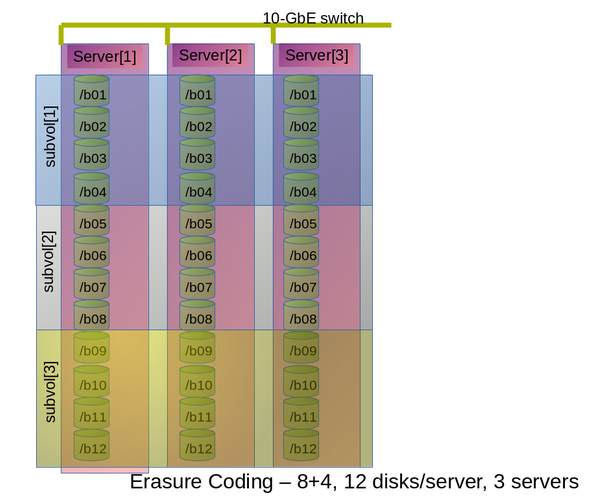
Figure 28.1. Example Configuration of 8+4 Dispersed Volume Configuration
m bricks (refer to section Section 6.8, “Creating Dispersed Volumes” for information on n = k+m equation) from a dispersed subvolume on each server. If you add more than m bricks from a dispersed subvolume on server S, and if the server S goes down, data will be unavailable.
S (a single column in the above diagram) goes down, there is no data loss, but if there is any additional hardware failure, either another node going down or a storage device failure, there would be immediate data loss.
The following diagram illustrates dispersed 4+2 configuration on six servers and each server with 12-disk-per-server configuration as explained in the row 2 of Table 28.1, “Brick Configurations for Dispersed and Distributed Dispersed Volumes”. The command to create the disperse volume for this configuration:
# gluster volume create test_vol disperse-data 4 redundancy 2 transport tcp server1:/exp/brick1 server2:/exp/brick1 server3:/exp/brick1 server4:/exp/brick1 server5:/exp/brick1 server6:/exp/brick1server1:/exp/brick2 server2:/exp/brick2 server3:/exp/brick2 server4:/exp/brick2 server5:/exp/brick2 server6:/exp/brick2 server1:/exp/brick3 server2:/exp/brick3 server3:/exp/brick3 server4:/exp/brick3 server5:/exp/brick3 server6:/exp/brick3 server1:/exp/brick4 server2:/exp/brick4 server3:/exp/brick4 server4:/exp/brick4 server5:/exp/brick4 server6:/exp/brick4 server1:/exp/brick5 server2:/exp/brick5 server3:/exp/brick5 server4:/exp/brick5 server5:/exp/brick5 server6:/exp/brick5 server1:/exp/brick6 server2:/exp/brick6 server3:/exp/brick6 server4:/exp/brick6 server5:/exp/brick6 server6:/exp/brick6 server1:/exp/brick7 server2:/exp/brick7 server3:/exp/brick7 server4:/exp/brick7 server5:/exp/brick7 server6:/exp/brick7 server1:/exp/brick8 server2:/exp/brick8 server3:/exp/brick8 server4:/exp/brick8 server5:/exp/brick8 server6:/exp/brick8 server1:/exp/brick9 server2:/exp/brick9 server3:/exp/brick9 server4:/exp/brick9 server5:/exp/brick9 server6:/exp/brick9 server1:/exp/brick10 server2:/exp/brick10 server3:/exp/brick10 server4:/exp/brick10 server5:/exp/brick10 server6:/exp/brick10 server1:/exp/brick11 server2:/exp/brick11 server3:/exp/brick11 server4:/exp/brick11 server5:/exp/brick11 server6:/exp/brick11 server1:/exp/brick12 server2:/exp/brick12 server3:/exp/brick12 server4:/exp/brick12 server5:/exp/brick12 server6:/exp/brick12
Figure 28.2. Example Configuration of 4+2 Dispersed Volume Configuration
The following chart illustrates the redundancy comparison of all supported dispersed volume configurations.
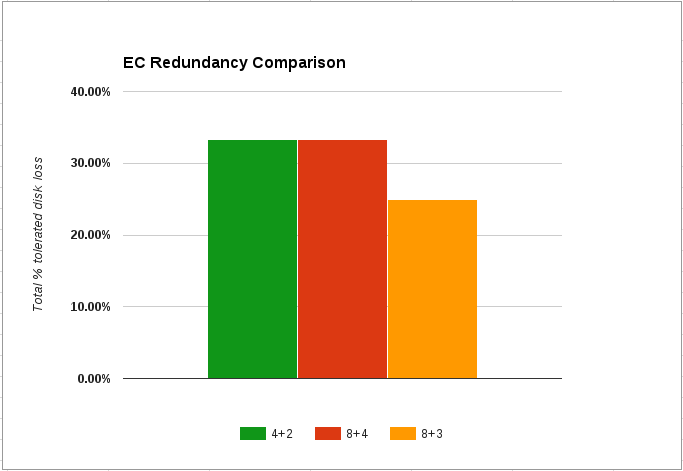
Figure 28.3. Illustration of the redundancy comparison
Chapter 29. Nagios Configuration Files
- In
/etc/nagios/gluster/directory, a new directoryCluster-Nameis created with the name provided asCluster-Namewhile executingconfigure-gluster-nagioscommand for auto-discovery. All configurations created by auto-discovery for the cluster are added in this folder. - In
/etc/nagios/gluster/Cluster-Namedirectory, a configuration file,Cluster-Name.cfgis generated. This file has the host and hostgroup configurations for the cluster. This also contains service configuration for all the cluster/volume level services.The following Nagios object definitions are generated inCluster-Name.cfgfile:- A hostgroup configuration with
hostgroup_nameas cluster name. - A host configuration with
host_nameas cluster name. - The following service configurations are generated for cluster monitoring:
- A Cluster - Quorum service to monitor the cluster quorum.
- A Cluster Utilization service to monitor overall utilization of volumes in the cluster. This is created only if there is any volume present in the cluster.
- A Cluster Auto Config service to periodically synchronize the configurations in Nagios with Red Hat Gluster Storage trusted storage pool.
- The following service configurations are generated for each volume in the trusted storage pool:
- A Volume Status- Volume-Name service to monitor the status of the volume.
- A Volume Utilization - Volume-Name service to monitor the utilization statistics of the volume.
- A Volume Quota - Volume-Name service to monitor the Quota status of the volume, if Quota is enabled for the volume.
- A Volume Self-Heal - Volume-Name service to monitor the Self-Heal status of the volume, if the volume is of type replicate or distributed-replicate.
- A Volume Geo-Replication - Volume-Name service to monitor the Geo Replication status of the volume, if Geo-replication is configured for the volume.
- In
/etc/nagios/gluster/Cluster-Namedirectory, a configuration file with nameHost-Name.cfgis generated for each node in the cluster. This file has the host configuration for the node and service configuration for bricks from the particular node. The following Nagios object definitions are generated inHost-name.cfg.- A host configuration which has Cluster-Name in the
hostgroupsfield. - The following services are created for each brick in the node:
- A Brick Utilization - brick-path service to monitor the utilization of the brick.
- A Brick - brick-path service to monitor the brick status.
| File Name | Description |
|---|---|
/etc/nagios/nagios.cfg
|
Main Nagios configuration file.
|
/etc/nagios/cgi.cfg
|
CGI configuration file.
|
/etc/httpd/conf.d/nagios.conf
|
Nagios configuration for httpd.
|
/etc/nagios/passwd
|
Password file for Nagios users.
|
/etc/nagios/nrpe.cfg
|
NRPE configuration file.
|
/etc/nagios/gluster/gluster-contacts.cfg
|
Email notification configuration file.
|
/etc/nagios/gluster/gluster-host-services.cfg
|
Services configuration file that's applied to every Red Hat Gluster Storage node.
|
/etc/nagios/gluster/gluster-host-groups.cfg
|
Host group templates for a Red Hat Gluster Storage trusted storage pool.
|
/etc/nagios/gluster/gluster-commands.cfg
|
Command definitions file for Red Hat Gluster Storage Monitoring related commands.
|
/etc/nagios/gluster/gluster-templates.cfg
|
Template definitions for Red Hat Gluster Storage hosts and services.
|
/etc/nagios/gluster/snmpmanagers.conf
|
SNMP notification configuration file with the IP address and community name of SNMP managers where traps need to be sent.
|
Chapter 30. Manually Recovering File Split-brain
- Run the following command to obtain the path of the file that is in split-brain:
# gluster volume heal VOLNAME info split-brainFrom the command output, identify the files for which file operations performed from the client keep failing with Input/Output error. - Close the applications that opened split-brain file from the mount point. If you are using a virtual machine, you must power off the machine.
- Obtain and verify the AFR changelog extended attributes of the file using the
getfattrcommand. Then identify the type of split-brain to determine which of the bricks contains the 'good copy' of the file.getfattr -d -m . -e hex <file-path-on-brick>For example,# getfattr -d -e hex -m. brick-a/file.txt \#file: brick-a/file.txt security.selinux=0x726f6f743a6f626a6563745f723a66696c655f743a733000 trusted.afr.vol-client-2=0x000000000000000000000000 trusted.afr.vol-client-3=0x000000000200000000000000 trusted.gfid=0x307a5c9efddd4e7c96e94fd4bcdcbd1bThe extended attributes withtrusted.afr.VOLNAMEvolname-client-<subvolume-index>are used by AFR to maintain changelog of the file. The values of thetrusted.afr.VOLNAMEvolname-client-<subvolume-index>are calculated by the glusterFS client (FUSE or NFS-server) processes. When the glusterFS client modifies a file or directory, the client contacts each brick and updates the changelog extended attribute according to the response of the brick.subvolume-indexis thebrick number - 1ofgluster volume info VOLNAMEoutput.For example,# gluster volume info vol Volume Name: vol Type: Distributed-Replicate Volume ID: 4f2d7849-fbd6-40a2-b346-d13420978a01 Status: Created Number of Bricks: 4 x 2 = 8 Transport-type: tcp Bricks: brick-a: server1:/gfs/brick-a brick-b: server1:/gfs/brick-b brick-c: server1:/gfs/brick-c brick-d: server1:/gfs/brick-d brick-e: server1:/gfs/brick-e brick-f: server1:/gfs/brick-f brick-g: server1:/gfs/brick-g brick-h: server1:/gfs/brick-hIn the example above:Brick | Replica set | Brick subvolume index ---------------------------------------------------------------------------- -/gfs/brick-a | 0 | 0 -/gfs/brick-b | 0 | 1 -/gfs/brick-c | 1 | 2 -/gfs/brick-d | 1 | 3 -/gfs/brick-e | 2 | 4 -/gfs/brick-f | 2 | 5 -/gfs/brick-g | 3 | 6 -/gfs/brick-h | 3 | 7 ```Each file in a brick maintains the changelog of itself and that of the files present in all the other bricks in it's replica set as seen by that brick.In the example volume given above, all files in brick-a will have 2 entries, one for itself and the other for the file present in it's replica pair. The following is the changelog for brick-b,- trusted.afr.vol-client-0=0x000000000000000000000000 - is the changelog for itself (brick-a)
- trusted.afr.vol-client-1=0x000000000000000000000000 - changelog for brick-b as seen by brick-a
Likewise, all files in brick-b will have the following:- trusted.afr.vol-client-0=0x000000000000000000000000 - changelog for brick-a as seen by brick-b
- trusted.afr.vol-client-1=0x000000000000000000000000 - changelog for itself (brick-b)
Note
From the release of Red Hat Gluster Storage 3.1, the files willnothave an entry for itself, but only the changelog entry for the other bricks in the replica. For example,brick-awill only havetrusted.afr.vol-client-1set andbrick-bwill only havetrusted.afr.vol-client-0set. Interpreting the changelog remains same as explained below.The same can be extended for other replica pairs.Interpreting changelog (approximate pending operation count) valueEach extended attribute has a value which is 24 hexa decimal digits. First 8 digits represent changelog of data. Second 8 digits represent changelog of metadata. Last 8 digits represent Changelog of directory entries.
Pictorially representing the same is as follows:0x 000003d7 00000001 00000000110 | | | | | \_ changelog of directory entries | \_ changelog of metadata \ _ changelog of dataFor directories, metadata and entry changelogs are valid. For regular files, data and metadata changelogs are valid. For special files like device files and so on, metadata changelog is valid. When a file split-brain happens it could be either be data split-brain or meta-data split-brain or both.The following is an example of both data, metadata split-brain on the same file:# getfattr -d -m . -e hex /gfs/brick-?/a getfattr: Removing leading '/' from absolute path names \#file: gfs/brick-a/a trusted.afr.vol-client-0=0x000000000000000000000000 trusted.afr.vol-client-1=0x000003d70000000100000000 trusted.gfid=0x80acdbd886524f6fbefa21fc356fed57 \#file: gfs/brick-b/a trusted.afr.vol-client-0=0x000003b00000000100000000 trusted.afr.vol-client-1=0x000000000000000000000000 trusted.gfid=0x80acdbd886524f6fbefa21fc356fed57Scrutinize the changelogsThe changelog extended attributes on file/gfs/brick-a/aare as follows:- The first 8 digits of
trusted.afr.vol-client-0 are all zeros (0x00000000................),The first 8 digits oftrusted.afr.vol-client-1are not all zeros (0x000003d7................).So the changelog on/gfs/brick-a/aimplies that some data operations succeeded on itself but failed on/gfs/brick-b/a. - The second 8 digits of
trusted.afr.vol-client-0 are all zeros (0x........00000000........), and the second 8 digits oftrusted.afr.vol-client-1are not all zeros (0x........00000001........).So the changelog on/gfs/brick-a/aimplies that some metadata operations succeeded on itself but failed on/gfs/brick-b/a.
The changelog extended attributes on file/gfs/brick-b/aare as follows:- The first 8 digits of
trusted.afr.vol-client-0are not all zeros (0x000003b0................).The first 8 digits oftrusted.afr.vol-client-1are all zeros (0x00000000................).So the changelog on/gfs/brick-b/aimplies that some data operations succeeded on itself but failed on/gfs/brick-a/a. - The second 8 digits of
trusted.afr.vol-client-0are not all zeros (0x........00000001........)The second 8 digits oftrusted.afr.vol-client-1are all zeros (0x........00000000........).So the changelog on/gfs/brick-b/aimplies that some metadata operations succeeded on itself but failed on/gfs/brick-a/a.
Here, both the copies have data, metadata changes that are not on the other file. Hence, it is both data and metadata split-brain.Deciding on the correct copyYou must inspect
statandgetfattroutput of the files to decide which metadata to retain and contents of the file to decide which data to retain. To continue with the example above, here, we are retaining the data of/gfs/brick-a/aand metadata of/gfs/brick-b/a.Resetting the relevant changelogs to resolve the split-brainResolving data split-brainYou must change the changelog extended attributes on the files as if some data operations succeeded on
/gfs/brick-a/abut failed on /gfs/brick-b/a. But/gfs/brick-b/ashouldnothave any changelog showing data operations succeeded on/gfs/brick-b/abut failed on/gfs/brick-a/a. You must reset the data part of the changelog ontrusted.afr.vol-client-0of/gfs/brick-b/a.Resolving metadata split-brainYou must change the changelog extended attributes on the files as if some metadata operations succeeded on/gfs/brick-b/abut failed on/gfs/brick-a/a. But/gfs/brick-a/ashouldnothave any changelog which says some metadata operations succeeded on/gfs/brick-a/abut failed on/gfs/brick-b/a. You must reset metadata part of the changelog ontrusted.afr.vol-client-1of/gfs/brick-a/aRun the following commands to reset the extended attributes.- On
/gfs/brick-b/a, fortrusted.afr.vol-client-0 0x000003b00000000100000000to0x000000000000000100000000, execute the following command:# setfattr -n trusted.afr.vol-client-0 -v 0x000000000000000100000000 /gfs/brick-b/a - On
/gfs/brick-a/a, fortrusted.afr.vol-client-1 0x0000000000000000ffffffffto0x000003d70000000000000000, execute the following command:# setfattr -n trusted.afr.vol-client-1 -v 0x000003d70000000000000000 /gfs/brick-a/a
After you reset the extended attributes, the changelogs would look similar to the following:# getfattr -d -m . -e hex /gfs/brick-?/a getfattr: Removing leading '/' from absolute path names \#file: gfs/brick-a/a trusted.afr.vol-client-0=0x000000000000000000000000 trusted.afr.vol-client-1=0x000003d70000000000000000 trusted.gfid=0x80acdbd886524f6fbefa21fc356fed57 \#file: gfs/brick-b/a trusted.afr.vol-client-0=0x000000000000000100000000 trusted.afr.vol-client-1=0x000000000000000000000000 trusted.gfid=0x80acdbd886524f6fbefa21fc356fed57Resolving Directory entry split-brainAFR has the ability to conservatively merge different entries in the directories when there is a split-brain on directory. If on one brick directory
storagehas entries1,2and has entries3,4on the other brick then AFR will merge all of the entries in the directory to have1, 2, 3, 4entries in the same directory. But this may result in deleted files to re-appear in case the split-brain happens because of deletion of files on the directory. Split-brain resolution needs human intervention when there is at least one entry which has same file name but differentgfidin that directory.For example:Onbrick-athe directory has 2 entriesfile1withgfid_xandfile2. Onbrick-bdirectory has 2 entriesfile1withgfid_yandfile3. Here the gfid's offile1on the bricks are different. These kinds of directory split-brain needs human intervention to resolve the issue. You must remove eitherfile1onbrick-aor thefile1onbrick-bto resolve the split-brain.In addition, the correspondinggfid-linkfile must be removed. Thegfid-linkfiles are present in the .glusterfsdirectory in the top-level directory of the brick. If the gfid of the file is0x307a5c9efddd4e7c96e94fd4bcdcbd1b(the trusted.gfid extended attribute received from thegetfattrcommand earlier), the gfid-link file can be found at/gfs/brick-a/.glusterfs/30/7a/307a5c9efddd4e7c96e94fd4bcdcbd1b.Warning
Before deleting thegfid-link, you must ensure that there are no hard links to the file present on that brick. If hard-links exist, you must delete them. - Trigger self-heal by running the following command:
# ls -l <file-path-on-gluster-mount>or# gluster volume heal VOLNAME
Appendix A. Revision History
| Revision History | ||||
|---|---|---|---|---|
| Revision 3.1-52 | Tue May 10 2016 | |||
| ||||
| Revision 3.1-50 | Mon May 09 2016 | |||
| ||||
| Revision 3.1-48 | Thu Mar 31 2016 | |||
| ||||
| Revision 3.1-45 | Wed Mar 16 2016 | |||
| ||||
| Revision 3.1-41 | Fri Feb 26 2016 | |||
| ||||
| Revision 3.1-40 | Thu Jan 14 2016 | |||
| ||||
| Revision 3.1-39 | Tue Dec 22 2015 | |||
| ||||
| Revision 3.1-38 | Tue Dec 22 2015 | |||
| ||||
| Revision 3.1-37 | Tue Dec 15 2015 | |||
| ||||
| Revision 3.1-36 | Tue Dec 01 2015 | |||
| ||||
| Revision 3.1-34 | Wed Nov 18 2015 | |||
| ||||
| Revision 3.1-30 | Fri Nov 06 2015 | |||
| ||||
| Revision 3.1-28 | Mon Nov 02 2015 | |||
| ||||
| Revision 3.1-27 | Fri Oct 30 2015 | |||
| ||||
| Revision 3.1-24 | Thu Oct 01 2015 | |||
| ||||
| Revision 3.1-23 | Wed Sep 02 2015 | |||
| ||||
| Revision 3.1-22 | Mon Aug 31 2015 | |||
| ||||
| Revision 3.1-20 | Wed Aug 05 2015 | |||
| ||||
| Revision 3.1-15 | Tue Aug 04 2015 | |||
| ||||
| Revision 3.1-14 | Fri July 31 2015 | |||
| ||||
| Revision 3.1-12 | Wed July 29 2015 | |||
| ||||
| Revision 3.1-11 | Wed July 29 2015 | |||
| ||||

'%20d='M201.5%20305.5c-13.8%200-24.9-11.1-24.9-24.6%200-13.8%2011.1-24.9%2024.9-24.9%2013.6%200%2024.6%2011.1%2024.6%2024.9%200%2013.6-11.1%2024.6-24.6%2024.6zM504%20256c0%20137-111%20248-248%20248S8%20393%208%20256%20119%208%20256%208s248%20111%20248%20248zm-132.3-41.2c-9.4%200-17.7%203.9-23.8%2010-22.4-15.5-52.6-25.5-86.1-26.6l17.4-78.3%2055.4%2012.5c0%2013.6%2011.1%2024.6%2024.6%2024.6%2013.8%200%2024.9-11.3%2024.9-24.9s-11.1-24.9-24.9-24.9c-9.7%200-18%205.8-22.1%2013.8l-61.2-13.6c-3-.8-6.1%201.4-6.9%204.4l-19.1%2086.4c-33.2%201.4-63.1%2011.3-85.5%2026.8-6.1-6.4-14.7-10.2-24.1-10.2-34.9%200-46.3%2046.9-14.4%2062.8-1.1%205-1.7%2010.2-1.7%2015.5%200%2052.6%2059.2%2095.2%20132%2095.2%2073.1%200%20132.3-42.6%20132.3-95.2%200-5.3-.6-10.8-1.9-15.8%2031.3-16%2019.8-62.5-14.9-62.5zM302.8%20331c-18.2%2018.2-76.1%2017.9-93.6%200-2.2-2.2-6.1-2.2-8.3%200-2.5%202.5-2.5%206.4%200%208.6%2022.8%2022.8%2087.3%2022.8%20110.2%200%202.5-2.2%202.5-6.1%200-8.6-2.2-2.2-6.1-2.2-8.3%200zm7.7-75c-13.6%200-24.6%2011.1-24.6%2024.9%200%2013.6%2011.1%2024.6%2024.6%2024.6%2013.8%200%2024.9-11.1%2024.9-24.6%200-13.8-11-24.9-24.9-24.9z'/%3e%3c/svg%3e)