 Red Hat Summit
Virtual Database Builder Guide
Learn how to use the new CLI-based VDB Builder tool.
Abstract
Preface
Chapter 1. Goals of This Guide
This is a technology preview only. Technology Preview features are not supported, may not be functionally complete, and are not intended for production use. These features are included to provide customers with early access to upcoming product innovations, enabling them to test functionality and provide feedback during the development process.
The VDB Builder provides a command line interface which allows the user to create and edit virtual databases (VDBs) and other artifacts from the command line. This guide aims to teach you the tool quickly by showing you some examples that will help you perform key tasks with it.
Chapter 2. Create a VDB Interactively
This sample shows how to use the VDB Builder command line interface to create a new dynamic VDB interactively. Use this sample as a starting point to create your own, more complex VDBs.
You can use tab completion to see the available commands options, or use help commandName to see command details.
Figure 2.1. Code sample
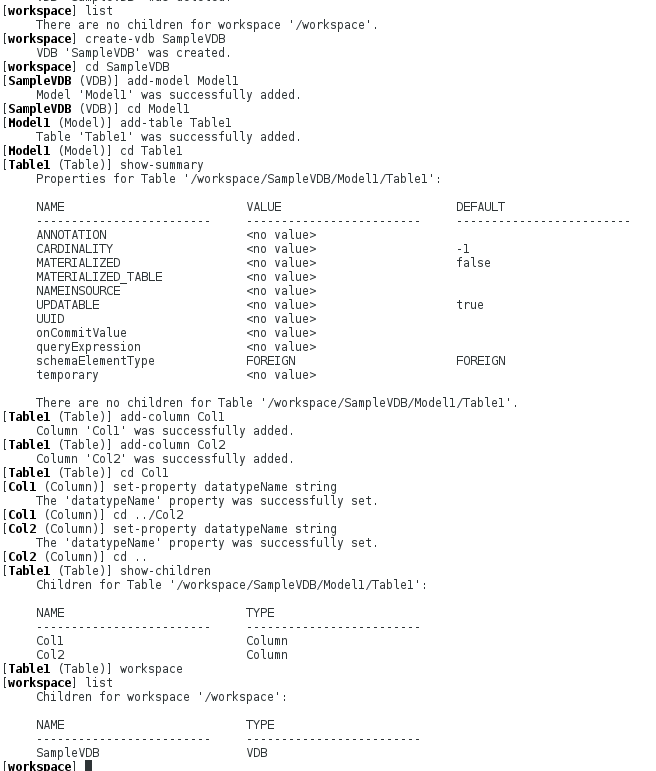
Explanation of the Commands Used in this Example
- list
- shows all children at the CLI context. (The workspace in this example initially contains no children.)
- create-vdb SampleVDB
- create a VDB named SampleVDB.
- cd SampleVDB
- change directory to go into the SampleVDB.
- add-model Model1
- add a model named Model1 to the VDB.
- cd Model1
- navigate into the Model1 CLI context.
- add-table Table1
- add a table named Table1 within Model1.
- cd Table1
- navigate into the Table1 CLI context.
- show-summary
- shows a summary of the current cli context, (in this case it is Table1). Show summary will show the object properties, as well as its children.
- add-column Col1
- add column named Col1 within Table1.
- add-column Col2
- add column named Col2 within Table1.
- cd Col1
- navigates into column Col1.
- set-property datatypeName string
- this sets the Col1 datatype to string.
- cd ../Col2
- navigates up a level, then down into the Col2 column.
- set-property datatypeName string
- sets Col2 datatype to string.
- cd ..
- navigates up one level.
- show-children
- show the children of the current context Table1. Notice the child columns that were created.
- workspace
- navigates to the workspace root context.
- list
- list the workspace children. (It now contains the SampleVDB.)
Chapter 3. Import and Edit a VDB Interactively
This sample shows you how to import the SampleVDB and how to then edit it to set a property (in this case the VDB version).
Figure 3.1. Code sample

Explanation of the Commands Used in this Example
- list
- shows all children at the CLI workspace context. (The workspace in this example initially contains no children.)
- upload-vdb SampleVDB ./SampleVDB-vdb.xml
- upload the SampleVDB-vdb.xml file found in the vdbbuilder directory.
- list
- list the workspace children again (it now contains the SampleVDB).
- cd SampleVDB
- change into the SampleVDB directory.
- show-properties
- shows the VDB’s properties.
- set-property version 2
- sets the version to '2'.
- show-properties
- shows the VDB properties again. Note that the version is now '2'.
- workspace
- navigate to the workspace root context.
- list
- list the workspace children.
Chapter 4. Import and Export VDBs and DDL
This example teaches you how to import and export a dynamic VDB. The session shows the importation of PartsVDB-vdb.xml, how to change the VDB version, and how to export of the VDB into a different dynamic VDB file.
Figure 4.1. Code sample
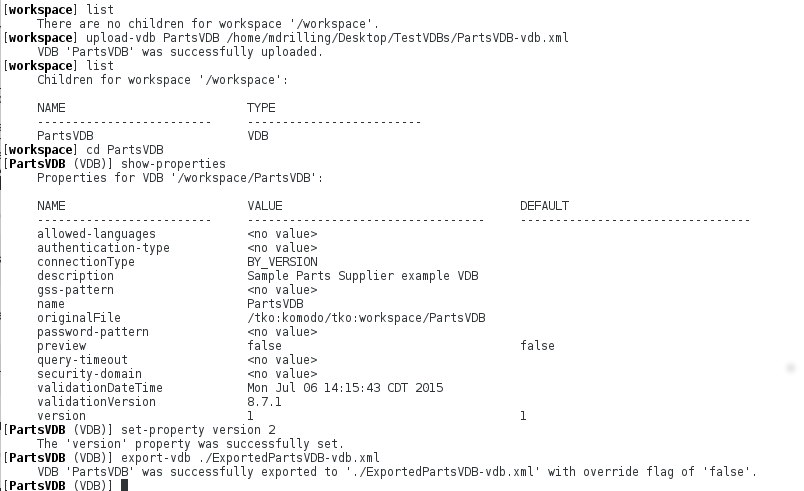
This is how you upload a VDB as "vdbName" from "vdbFile" into the workspace:
upload-vdb <vdbName> <vdbFile>This is how you export the current context "PartsVDB" to a specified file called "vdbFile":
export-vdb <vdbFile>This example shows you how to import and export DDL. It depicts the creation of a VDB called MyVDB, the importation of Teiid-MySQLAccounts.ddl which is undertaken in order to create the content for Model1, and then the export of the model’s contents into a different DDL file:
Figure 4.2. Code sample

This is how you create a model of "modelType" called "modelName", using the ddl in "ddlFile":
upload-model <modelName> <modelType> <ddlFile>This is how you export the "Model1" DDL to the specified file "ddlFile":
export-ddl <ddlFile>Chapter 5. Record Session Commands in a File
In this section you will learn how to use the VDB Builder CLI to record your session commands for later playback. You can use the command file to fully script the construction of your VDBs.
The recorded output is saved to a file specified in the VDB Builder’s global properties configuration file (RECORDING_FILE). In the example below, the output is written to ./mySession.txt:
Figure 5.1. Code sample
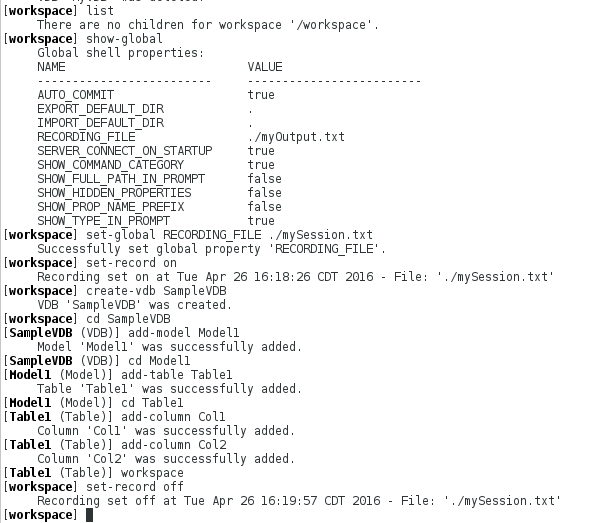
Explanation of the Commands Used in this Example
- list
- shows all children at the CLI workspace context. (The workspace in this example initially contains no VDBs.)
- show-global
- shows the VDB Builder global constants. One of the constants specifies the recording output file (RECORDING_FILE).
- set-global RECORDING_FILE ./mySession.txt
- this changes the name of the file where our session commands will be saved.
- set-record on
- starts recording all subsequent commands.
- create-vdb SampleVDB
- creates the VDB called SampleVDB.
- cd SampleVDB
- navigates into the SampleVDB directory.
- add-model Model1
- adds a model called Model1.
- cd Model1
- navigates into Model1.
- add-table Table1
- adds a table called Table1
- cd Table1
- navigates into Table1.
- add-column Col1
- adds a column called Col1.
- add-column Col2
- adds a column called Col2.
- workspace
- navigates to the workspace context.
- set-record off
- tells the system to stop recording commands.
This is what the recording looks like:
Figure 5.2. Code sample

Chapter 6. Execute a Command File
You can execute previously-saved session commands. In this example, you are going to execute the same recording that you produced above:
To play back the recording you have two options. The first of these is interactive mode. To run in interactive mode, manually remove the exit command at the end of the script, then follow these instructions:
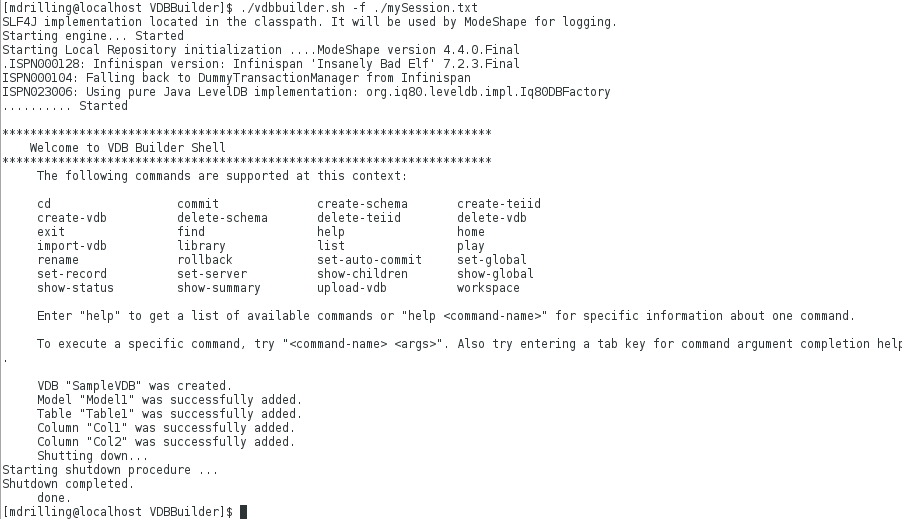
Figure 6.1. Code sample
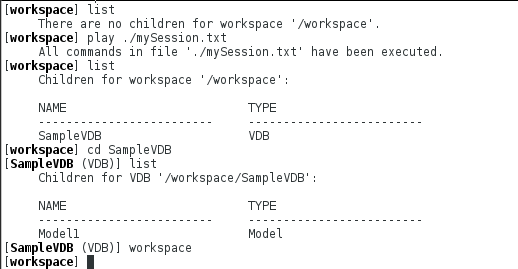
The other option is to execute the file using the VDB Builder launch command with the -f switch. (Add an exit command at the end of the script file):
Figure 6.2. Code sample
Chapter 7. Connect to a Local Red Hat JBoss Data Virtualization Server
With this example, you will learn how to connect to a Red Hat JBoss Data Virtualization server. A default server is defined within the VDBBuilder CLI. You can specify the server connection properties, then connect to and interact with the server. The sample session below shows how to connect to the server and view the deployed data sources.
Note that once you are connected to a server, many more server commands will become available to you. You can discover the available server commands in VDBBuilder by typing 'help' after connecting to the server.
VDBBuilder will attempt to connect to the server on startup if the global property SERVER_CONNECT_ON_STARTUP is set to true.
Figure 7.1. Code sample
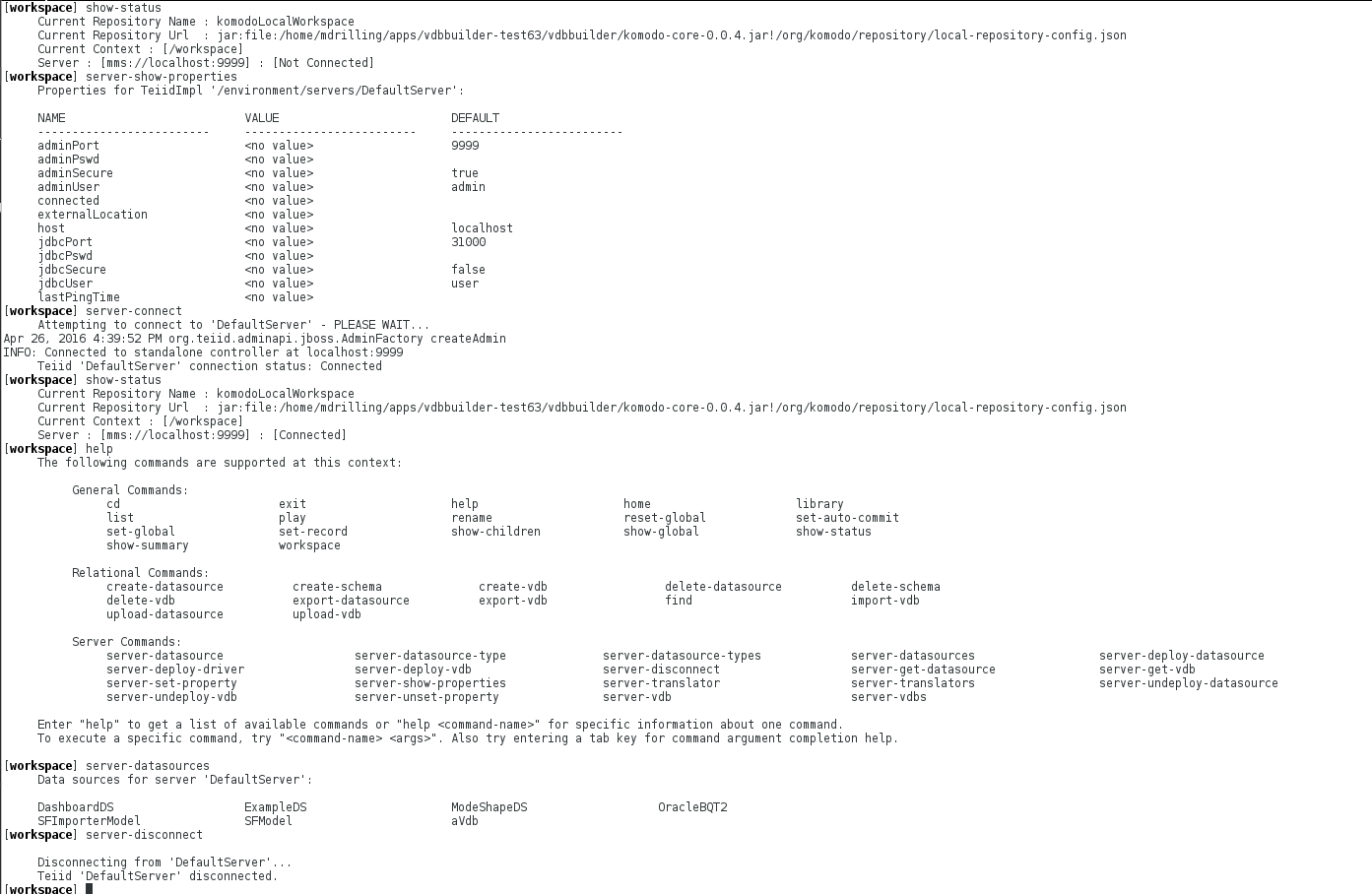
Explanation of the Commands Used in this Example:
- show-status
- display the workspace status. (Note the current server status is Not Connected.)
- server-show-properties
- shows the default server properties. You can use 'server-set-property' to change the properties.
- server-connect
- connects to the default server.
- show-status
- display the status again. This time, note the server status is [Connected]
- help
- shows the available commands. (Note the server commands that are now available.)
- server-datasources
- display the datasources currently deployed on the connected server.
- server-disconnect
- disconnects from the default server.
Chapter 8. Interact with VDBs on Your Local Red Hat JBoss Data Virtualization Server
In this section, you will learn a few different ways in which you can interact with VDBs on your local server. You can either deploy a VDB from your VDB Builder workspace to the connected server or you can obtain a VDB from the connected server and store it in your VDB Builder workspace.
This opens up a number of possibilites for VDB interactions. For example, you can deploy a new VDB created in VDB Builder to a running server. Alternatively, you could fetch a VDB from the connected server, then edit it and re-deploy it.
Deployment of dynamic VDBs from VDB Builder is somewhat limited at this time. VDB validation in VDB Builder has not yet been implemented, so you are allowed to deploy invalid VDBs. Such an attempt will fail. Also, a dynamic VDB will most likely reference other datasources. If the datasources are not present on the server, the deployment will fail. All of these issues will be addressed in the near future.
Here is how you can view the server and workspace VDBs, and deploy a workspace VDB to a running server:
Figure 8.1. Code sample
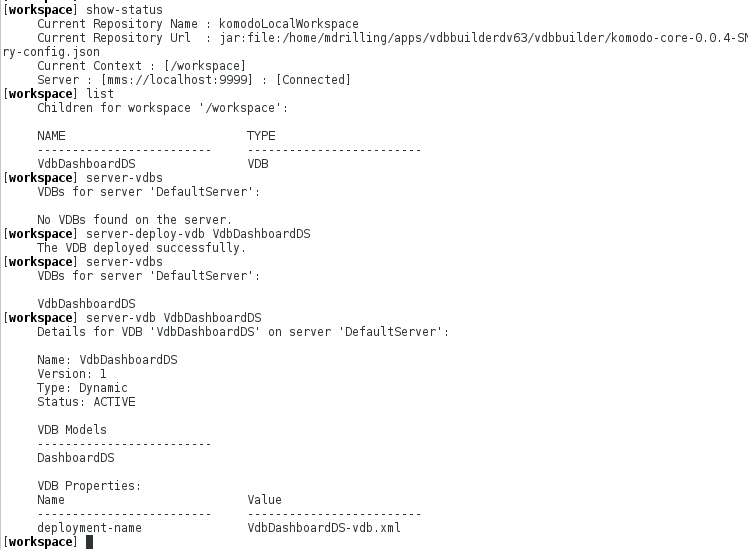
Explanation of the Commands Used in this Example:
- show-status
- display the shell status. Note the server status is Connected.
- list
- show all children in workspace. Note that we have one VDB VdbDashboardDS in our workspace.
- server-vdbs
- show all VDBs on the connected server. Note that VdbDashboardDS does not exist on the server.
- server-deploy-vdb VdbDashboardDS
- deploy VdbDashboardDS from VDB Builder to the connected server.
- server-vdbs
- again, show all VDBs on the connected server. (Note that VdbDashboardDS has been deployed.) server-vdb VdbDashboardDS: shows more detailsl for the VdbDashboardDS on the connect server.
You can also fetch a VDB from a running server and save it to the VDB Builder workspace.
Figure 8.2. Code sample
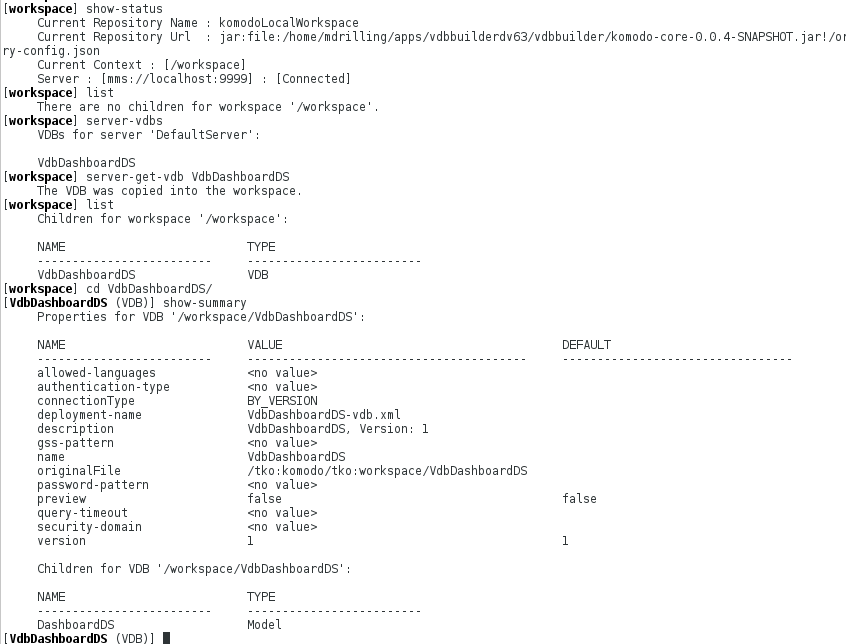
Explanation of the Commands Used in this Example:
- show-status
- display the shell status. Note the server status is Connected.
- list
- show all children in workspace. Note that we do not have any VDBs.
- server-vdbs
- show all the VDBs on the connected server. Note that VdbDashboardDS exists on the server.
- server-get-vdb VdbDashboardDS
- obains VdbDashboardDS from the connected server and copies it to VDB Builder workspace.
- list
- show all children in workspace. (Note that VdbDashboardDS is now in the VDB Builder workspace.)
- cd VdbDashboardDS
- navigate into the VdbDashboardDS directory.
- show-summary
- shows a summary (properties and children) for the current context of VdbDashboardDS.

'%20d='M201.5%20305.5c-13.8%200-24.9-11.1-24.9-24.6%200-13.8%2011.1-24.9%2024.9-24.9%2013.6%200%2024.6%2011.1%2024.6%2024.9%200%2013.6-11.1%2024.6-24.6%2024.6zM504%20256c0%20137-111%20248-248%20248S8%20393%208%20256%20119%208%20256%208s248%20111%20248%20248zm-132.3-41.2c-9.4%200-17.7%203.9-23.8%2010-22.4-15.5-52.6-25.5-86.1-26.6l17.4-78.3%2055.4%2012.5c0%2013.6%2011.1%2024.6%2024.6%2024.6%2013.8%200%2024.9-11.3%2024.9-24.9s-11.1-24.9-24.9-24.9c-9.7%200-18%205.8-22.1%2013.8l-61.2-13.6c-3-.8-6.1%201.4-6.9%204.4l-19.1%2086.4c-33.2%201.4-63.1%2011.3-85.5%2026.8-6.1-6.4-14.7-10.2-24.1-10.2-34.9%200-46.3%2046.9-14.4%2062.8-1.1%205-1.7%2010.2-1.7%2015.5%200%2052.6%2059.2%2095.2%20132%2095.2%2073.1%200%20132.3-42.6%20132.3-95.2%200-5.3-.6-10.8-1.9-15.8%2031.3-16%2019.8-62.5-14.9-62.5zM302.8%20331c-18.2%2018.2-76.1%2017.9-93.6%200-2.2-2.2-6.1-2.2-8.3%200-2.5%202.5-2.5%206.4%200%208.6%2022.8%2022.8%2087.3%2022.8%20110.2%200%202.5-2.2%202.5-6.1%200-8.6-2.2-2.2-6.1-2.2-8.3%200zm7.7-75c-13.6%200-24.6%2011.1-24.6%2024.9%200%2013.6%2011.1%2024.6%2024.6%2024.6%2013.8%200%2024.9-11.1%2024.9-24.6%200-13.8-11-24.9-24.9-24.9z'/%3e%3c/svg%3e)