 Red Hat Summit
Assessing and monitoring security policy compliance of RHEL systems
Understanding the security compliance status of your Red Hat Enterprise Linux Infrastructure
Abstract
Chapter 1. Red Hat Lightspeed compliance service overview
The Red Hat Lightspeed compliance service enables IT security and compliance administrators to assess, monitor, and report on the security-policy compliance of RHEL systems. Learn how to understand reporting, manage issues, and get the maximum value from the service.
The compliance service provides a simple but powerful user interface, enabling the creation, configuration, and management of SCAP security policies. With its filtering and context-adding features, IT security administrators can easily identify and manage security compliance issues in the RHEL infrastructure.
You can also create Ansible Playbooks to resolve security compliance issues and share reports with stakeholders to communicate compliance status.
1.1. Requirements and prerequisites
Your Red Hat Enterprise Linux (RHEL) subscription includes the Red Hat Lightspeed compliance service, which you can use with all versions of RHEL currently supported by Red Hat. You do not need additional Red Hat subscriptions to use Red Hat Lightspeed and the compliance service.
1.2. Supported configurations
Red Hat supports specific versions of the SCAP Security Guide (SSG) for each minor version of Red Hat Enterprise Linux (RHEL). The rules and policies in an SSG version are accurate for only one RHEL minor version. To receive accurate compliance reporting, the system must have the supported SSG version installed.
Red Hat Enterprise Linux minor versions ship and upgrade with the supported SSG version included. However, you might decide to use an earlier version temporarily.
If a policy includes systems that use unsupported SSG versions, an unsupported warning with the number of affected systems is displayed next to the policy in Security > Compliance > Reports.
Additional resources
For more information about which versions of the SCAP Security Guide are supported in RHEL, refer to Red Hat Lightspeed Compliance - Supported configurations (Red Hat Knowledgebase).
1.2.1. Frequently asked questions about the compliance service
Package names are in the format scap-security-guide-0.1.43-13.el7. In this example, the SSG version is 0.1.43, the release is 13, and the architecture is el7.
When more than one SSG version is supported for a RHEL minor version, the compliance service will use the latest available version. This is the case for RHEL 7.9 and RHEL 8.1.
As RHEL minor versions get older, fewer SCAP profiles are supported. To view which SCAP profiles are supported, refer to Red Hat Lightspeed Compliance - Supported configurations (Red Hat Knowledgebase).
Although you can still see results for a system with an unsupported version of SSG installed, the results might be considered inaccurate for compliance reporting purposes. The following factors apply with unsupported versions:
- These results are a “best-guess” effort because using any SSG version other than what is supported by Red Hat can lead to inaccurate results.
- Results for systems using an unsupported version of SSG are not included in the overall compliance assessment for the policy.
- Remediation plans are not available for rules on systems that have an unsupported version of SSG installed.
1.3. Best practices
To optimize the user experience and to receive the most accurate results in the compliance service, follow the recommended guidelines.
1.3.1. Make the RHEL operating system minor version visible
If the compliance service cannot access your RHEL operating system minor version, then the supported SCAP Security Guide version cannot be validated, and your reporting might not be accurate. With the insights-client, users can redact data like the Red Hat Enterprise Linux operating system minor version from the data payload that is uploaded to Red Hat Lightspeed. But, this redaction prohibits accurate compliance service reporting.
1.3.2. Create security policies in the compliance service
Creating your organization’s security policies in the compliance service enables you to do the following actions:
- Associate many systems with the policy
- Use the supported SCAP Security Guide for your RHEL minor version
- Edit which rules are included based on your organization’s requirements
Additional resources
1.4. Manage user permissions for Red Hat Lightspeed services
Manage user permissions to control access to Red Hat Lightspeed applications. Use the User Access feature to apply role-based access control (RBAC). Red Hat provides predefined groups and a set of predefined roles to make it easier for Organization Administrators to assign, restrict, and remove user permissions to Red Hat Lightspeed.
1.4.1. User Access overview
Understand how the role-based access control (RBAC) User Access feature of the Red Hat Hybrid Cloud Console manages user permissions through roles instead of individual user assignments. User Access simplifies permission management by assigning specific permissions to roles, which can then be assigned to user groups.
You can also create custom groups and roles to provide more fine-tuned control over specific features of Red Hat Lightspeed to suit the needs of your organization.
If you are an Organization Administrator, you can use the User Access feature under Identity & Access Management in the Hybrid Cloud Console to:
- Control user permissions and organize roles.
- Create groups that include roles and their corresponding permissions.
- Assign users to these groups, allowing them to inherit the permissions associated with their group’s roles.
1.4.2. Predefined groups in User Access
Understand the two predefined groups available in User Access: Default access and Default admin access. Create custom groups to align permissions with specific personas, job functions, or teams in your organization.
- The Default access group
- By default, the Default access group is assigned many granular predefined roles, such as Remediations viewer and Inventory Hosts viewer, so that group members have basic visibility. Because all users in your organization are members of the Default access group, they inherit all permissions assigned to that group. The Default access group is automatically updated by Red Hat.
If your Organization Administrator modifies the Default access group, for example, by removing roles to restrict access to specific applications or to use the consolidated roles, the group is automatically renamed to Custom default access. Once converted, this group is no longer automatically updated by Red Hat.
- The Default admin access group
- The Default admin access group contains only users who have Organization Administrator permissions. This group is automatically maintained, and users and roles in this group cannot be changed.
The Default admin access group includes many (but not all) predefined roles that provide update and delete permissions. The roles in this group usually include administrator in their names.
1.4.3. Predefined roles assigned to groups
Understand how predefined roles in Red Hat Hybrid Cloud Console bundle permissions across multiple Red Hat Lightspeed applications to align with common user personas. Use predefined roles to reduce administrative effort, or create custom roles for more fine-tuned control over specific features.
The predefined roles are a starting point to help you to control and manage user permissions. You can then use these roles to create custom roles that are tailored to your specific use cases and organization. For example, you can use the predefined granular roles to create custom roles that provide more fine-tuned control over specific features of Red Hat Lightspeed.
By default, Red Hat provides a set of consolidated roles and a set of granular roles in the Red Hat Hybrid Cloud Console User Access UI. The consolidated roles significantly reduce the administrative effort required to manage user permissions, while the granular roles provide more fine-tuned control over specific features of Red Hat Lightspeed.
You can use the predefined consolidated and granular roles in User Access simultaneously, but using consolidated roles can significantly reduce the administrative effort.
- Select from the predefined consolidated roles library
The Red Hat Hybrid Cloud Console provides three predefined, consolidated User Access roles to help you manage user permissions to Red Hat Lightspeed applications and services that run on registered Red Hat Enterprise Linux systems. These roles help simplify how the Organization Administrator creates groups and permissions for various levels of access to the Red Hat Lightspeed services. If you want to reduce the administrative effort required to manage user permissions and your use case aligns with the permissions included in these roles, select from the consolidated roles library.
The consolidated roles are as follows:
RHEL viewer: The RHEL viewer role provides users visibility without the ability to make changes. It allows read-only access to Red Hat Lightspeed. You can view system configurations, compliance reports, inventory data, patch information, vulnerabilities, and overall resource states and activities. The only action permitted with this role is to generate activation keys.
RHEL operator: The RHEL operator role allows active management of your Red Hat Lightspeed environment. With this role, you can edit system configurations, inventory details, policies, and notification/integration settings. The RHEL operator role allows many of the RHEL administrator role functions, but it is restricted from editing compliance policies, content source templates, policies, or tasks. In addition, the RHEL operator role cannot execute remediation plans.
RHEL administrator: The RHEL administrator role provides comprehensive administrative privileges across your RHEL systems and Red Hat Lightspeed. With this role, you can manage system configurations, inventory, compliance policies, notifications, patch management, remediations, malware detection, and advisor recommendations. The role can also view and modify all vulnerability settings.
ImportantTo use the consolidated roles effectively, you might need to remove the granular RHEL roles from the Default access group to prevent permission conflicts. This action automatically changes the name of the predefined Default access group to Custom default access group, after which, it is no longer automatically updated by Red Hat.
See Predefined User Access roles for a list of the roles included in the Default admin access group and a reference table that lists most of the predefined groups and roles that are available in the Red Hat Hybrid Cloud Console and the permissions included in each role.
- Granular roles
- The granular roles are specific roles for individual services that allow for fine-tuned control over specific features of Red Hat Lightspeed, for example, Inventory Hosts administrator or Compliance viewer. If you want to have more control over specific features of Red Hat Lightspeed and your use case does not align with the permissions included in the consolidated roles, use the granular predefined roles.
Across the Red Hat Lightspeed product documentation, the Prerequisites section for each procedure lists which predefined roles provide the permissions needed to use the features in that procedure. For example, if a procedure requires permissions to view and manage remediations, the Prerequisites section for that procedure lists the Remediations administrator or other valid role as a recommended predefined role to use for that procedure.
1.4.4. Check your permissions
Verify your current permissions and the roles or groups assigned to you in the Red Hat Hybrid Cloud Console. Check your permissions to troubleshoot access issues or understand your level of access to Red Hat Lightspeed applications.
Only users with the Organization Administrator role can view the permissions of other users in the User Access settings and manage user permissions to Red Hat Lightspeed services. For more information, see the Configure user permissions section.
Prerequisites
- You are logged in to the Red Hat Hybrid Cloud Console.
Procedure
- In the Hybrid Cloud Console, click the Settings icon (⚙), then navigate to My User Access.
- Optional: If you require additional permissions, use the Red Hat Hybrid Cloud Console Virtual Assistant to ask "Contact my Organization Administrator". The assistant sends an email to the Organization Administrator on your behalf.
Results
All of the applications that you have permissions to access are listed on this page and are grouped by product, for example, RHEL, OpenShift Container Platform, and Ansible Automation Platform.
You can also filter your permissions by application, for example, by advisor, cost management, inventory, and remediations.
1.4.5. Configure user permissions
If you are an Organization Administrator, you can view and manage user permissions for all users in your organization. Control access to Red Hat Lightspeed and other Red Hat Hybrid Cloud Console services through the User Access interface.
If you are not an Organization Administrator, you will be unable to complete this task. However, you can check your own permissions for different applications by navigating to My User Access. Contact your Organization Administrator to request more permissions.
Prerequisites
- You have logged in to the Red Hat Hybrid Cloud Console as an Organization Administrator, or you have the required administrator User Access role permissions.
Procedure
- In the Hybrid Cloud Console, click the Settings icon (⚙), then navigate to Identity & Access Management > User Access.
Results
From here, you can create and manage:
1.4.6. User Access roles for permissions to compliance-service features
Understand the predefined roles that control access to the compliance service of Red Hat Lightspeed. Use these role definitions to assign appropriate permissions to users based on their responsibilities.
The following table shows the standard and enhanced access permissions provided by the predefined roles in User Access for the compliance service:
| User Access role | Grants permissions to … | Included in the Default access group |
|---|---|---|
| Compliance administrator |
| |
| Compliance viewer |
| X |
| RHEL administrator |
| |
| RHEL operator |
Note The RHEL operator role is restricted from editing compliance policies, content source templates, policies, or tasks. Also, the RHEL operator role cannot execute remediation plans. | |
| RHEL viewer |
Note Cannot perform actions other than generating activation keys. |
Chapter 2. Getting started with the compliance service
Learn how to configure your RHEL systems to report compliance data to the Red Hat Lightspeed application. You can install the Security Content Automation Protocol (SCAP) Security Guide (SSG) to perform the compliance scan.
Prerequisites
- The insights-client is deployed on the system.
- You must have root privileges on the system.
Procedure
Check the version of RHEL on the system:
[user@rhlightspeed]$ cat /etc/redhat-releaseReview the Red Hat Lightspeed Compliance - Supported configurations article and make note of the supported SSG version for the RHEL minor version on the system.
NoteSome minor versions of RHEL support more than one version of SSG. The Red Hat Lightspeed compliance service will always show results for the latest supported version.
Check if the supported version of the SSG package is installed on the system:
For example, for RHEL 8.4, run:
[root@rhlightspeed# dnf info scap-security-guide-0.1.57-3.el8_4If it is not installed, install the supported version of SSG on the system.
For example, for RHEL 8.4, run:
[root@rhlightspeed]# dnf install scap-security-guide-0.1.57-3.el8_4Assign systems to policies by using the Red Hat Lightspeed compliance service UI, or by using insights-client commands in the CLI:
Use the compliance service UI to navigate to Security > Compliance > SCAP policies and use one of the following methods to add systems:
You can also add systems by using the following
insights-clientcommands in the CLI:-
Run
insights-client --compliance-policiesto list available policies and their associated IDs insights-client --compliance-assign <ID>For more information about using insights-client commands to add systems, see the following resources:
- Managing SCAP security policies in the Red Hat Lightspeed compliance service in Assessing and monitoring security policy compliance of RHEL systems.
- Options for the insights-client in Registering RHEL systems and configuring client tools with Red Hat Lightspeed.
-
Run
After you add each system to its corresponding security policy, return to the system and run the compliance scan:
[root@rhlightspeed]# insights-client --complianceNoteThe scan can take one to five minutes to complete.
- Navigate to Security > Compliance > Reports to view the results.
-
Optional: Schedule the compliance jobs to run with
cron.
2.1. Set up recurring scans for Red Hat Lightspeed services
To get the most accurate recommendations from Red Hat Lightspeed services, such as compliance and malware detection, you might need to manually scan and upload data collection reports to the services on a regular schedule.
Before you create a cron job, make sure that the commands work properly when you run them manually.
Prerequisites
- The Compliance and Malware Detection services are configured and running on your system.
Procedure
At the system prompt, issue the
crontab -ecommand to edit thecrontabfile. This command opens your default text editor.$ crontab -eAdd a
crontabentry for the service that you want to run. For example:10 20 * * * /bin/insights-client --compliance 10 21 * * * /bin/insights-client --collector malware-detection- Save the file and exit the text editor.
Results
In the preceding example, the first command uploads a compliance report to Red Hat Lightspeed every day at 20:10 local time. The second command uploads a malware detection report to Red Hat Lightspeed every day at 21:10 local time.
Chapter 3. Manage SCAP security policies with the Red Hat Lightspeed compliance service
You can create and manage your SCAP security policies in the compliance service UI. Define new policies, select the rules and systems that you want to associate with them, and edit existing policies when your requirements change.
Unlike most other Red Hat Lightspeed services, the compliance service does not run automatically on a default schedule. To upload OpenSCAP data to the Red Hat Lightspeed service, run insights-client --compliance either on-demand or on a scheduled job that you set.
3.1. Create new SCAP policies
You must add each Red Hat Lightspeed registered system to one or more security policies before you can run a scan or see the results of a scan in the compliance service UI. To create a new policy and include specific systems and rules, complete the following steps.
If your RHEL servers span across multiple major releases of RHEL, you must create a separate policy for each major release. For example, all of your RHEL 7 servers should be on one Standard System Security Profile for RHEL policy. All of your RHEL 8 servers must be on another policy.
Procedure
- Navigate to Security > Compliance > SCAP Policies.
- Click Create new policy.
- On the Create SCAP policy page of the wizard, select the RHEL major version of the systems that you want to include in the policy.
- Select one of the policy types, then click Next.
- On the Details page, accept the name and description or enter your own.
- Optional: Add a Business objective to give context, for example, “CISO mandate.”
- Define a compliance threshold based on your requirements and click Next.
- Select the Systems to include in this policy and click Next. Your selection of a RHEL major version in the first step automatically determines which systems can be added to the policy.
- Select which Rules to include with each policy. Because each minor version of RHEL supports the use of a specific SCAP Security Guide (SSG) version, the rule set for each RHEL minor version is slightly different. If there is more than one, we use the latest.
- Optional: Use the filtering and search capabilities to refine the list of rules. For example, to show only the highest severity rules, click the primary filter dropdown and select Severity. In the secondary filter, select High and Medium.
The rules shown by default are designated for the policy type and version of SSG. By default, the Selected only toggle is selected. Repeat the preceding process as needed for each RHEL minor version tab.
Next steps
- After you select rules for each Red Hat Enterprise Linux minor version SSG, click Next.
- On the Review page, verify that the information shown is correct, then click Finish.
- Give the app a minute to create the policy, then click the Return to application button to view your new policy.
On the system, run the compliance scan so that your results display in the compliance service UI.
3.2. Edit compliance policies in the Red Hat Lightspeed UI
After creating a compliance policy, you can later edit the policy. You can change the policy details or which rules and systems are included.
Ensure the prerequisites are met before you begin any of the following procedures.
Prerequisites
You are logged in to the Red Hat Hybrid Cloud Console as a user who is a member of a User Access group with at least one of the following roles:
- Compliance administrator
- RHEL administrator
The required roles include enhanced permissions that are not granted by default to all Red Hat Lightspeed users.
3.2.1. Editing policy details
Procedure
- Navigate to the Security > Compliance > SCAP policies page.
- Locate the policy that you want to edit.
- Click the policy name. The Policy details view opens.
You can edit the following fields:
- Compliance threshold
- Business objective
- Policy description
- After you edit a field, click the blue checkmark to the right of the field to save.
3.2.2. Edit included rules
Procedure
- Navigate to the Security > Compliance > SCAP policies page.
- Locate the policy that you want to edit.
-
On the right side of the policy row, click the More actions icon,
 , then click Edit policy.
- In the Edit popup, click the Rules tab.
Select a RHEL minor version.
ImportantBecause a different SCAP Security Guide (SSG) version exists for each minor version of RHEL, you must edit the rules for each minor version of RHEL separately.
- Search for the rule name or its identifier to locate the rules that you want to remove.
- Select the box next to any rule that you want to add. Deselect the rules that you want to remove.
- Repeat the preceding steps for each RHEL minor version tab.
- Click Save.
Verification
- Navigate to the Security > Compliance > SCAP policies page and select the policy that you edited.
- Verify that the rules are consistent with the edits that you made.
3.2.3. Edit included systems
Procedure
- Navigate to the Security > Compliance > SCAP policies page.
- Locate the policy that you want to edit.
-
On the right side of the policy row, click the More actions icon,
, and click Edit policy.
In the Edit popup, click Systems.
A list of all available systems is displayed.
Systems that are already included in the policy are selected.
- Search for the systems that you want to remove.
- Select the box next to any system that you want to add. Deselect the systems that you want to remove.
Verification
- Navigate to the Security > Compliance > SCAP policies page and select the policy that you edited.
- Verify that the included systems are consistent with the edits that you made.
3.3. Edit the policy details by using the Compliance API
You can use the Compliance API to change policy details or to include or exclude rules and systems. You can use the REST API entry point at https://console.redhat.com/api/compliance/v2.
The Compliance API supports the GET, POST, PATCH, and DELETE HTTP methods. Use the PATCH method to update policy details. The API offers the following services for Compliance policies:
- GET /policies
- POST /policies
- DELETE /policies/{policy_id}
- GET /policies/{policy_id}
- PATCH /policies/{policy_id}
- GET /policies/{policy_id}/systems
- DELETE /policies/{policy_id}/systems/{system_id}
- PATCH /policies/{policy_id}/systems{system_id}
- GET /policies/{policy_id}/tailorings
- GET /policies/{policy_id}/tailorings/{tailoring_id}
- PATCH /policies/{policy_id}/tailorings/{tailoring_id}
- GET /policies/{policy_id}/tailorings/{tailoring_id}/rules
- DELETE /policies/{policy_id}/tailorings/{tailoring_id}/rules/{rule_id}
- PATCH /policies/{policy_id}/tailorings/{tailoring_id}/rules/{rule_id}
- GET /policies/{policy_id}/tailorings/{tailoring_id}/tailoring_file.json
Successful requests return the following responses:
- 200 — Success
- 202 — Successfully deleted (for the DELETE method)
- 202 — Successfully updated (for the PATCH method)
The API works asynchronously. You can submit the GET /policies/{policy_id} request to the Compliance API and receive a list of the policy details for the specified policy ID. You can then view the list of policy details and use the PATCH /policies/{policy_id} request to update the details.
For more information about the operations and schemas available for the Compliance service, refer to https://developers.redhat.com/api-catalog/api/compliance_v2Compliance API v2 documentation in the API Catalog.
Additional resources
3.3.1. Editing Compliance policy details
There are multiple ways to make API calls to the Red Hat Lightspeed APIs. For more information, refer to Making API calls.
The example procedure in this section uses the API Catalog at developers.redhat.com to edit policy details.
Before you edit Compliance policy details, you can use the GET /policies API call to query the API for the complete list of policy IDs and details.
Prerequisites
- You have the programming language that you want to use installed on your system.
- You have an access token that you obtained from your service account or from an offline access token.
- You have a service account that is configured with necessary permissions. To create and configure a service account, see Creating and managing a service account.
-
You have the
policy_idfor the policy that you want to edit.
Procedure
- Open the API catalog in a web browser. The API catalog lists available APIs for Red Hat Lightspeed and other services.
- Select Compliance from the catalog and click v2. The Cloud Services for RHEL Compliance API v2 page opens. The page lists the base URL of the Compliance API and any requirements for authentication.
- Under the Policies list, click the drop-down arrow next to Update a Policy. The description for the operation includes parameters that you can use to refine your API call, as well as expected responses from the server. In addition, the panel on the right side of the page generates an example API call for the PATCH operation in multiple programming languages.
- In the panel, click the drop-down and select the language you prefer from the list of options. The panel displays sample code for the PATCH operation, formatted in the syntax that you choose.
Copy the sample code and paste it into a code file where you want to invoke the PATCH command. For example, in Python:
import requests url = "https://console.redhat.com/policies/%7Bpolicy_id%7D" headers = {"Content-Type": "application/vnd.api+json"} response = requests.patch(url, headers=headers) print(response.json())-
Replace
%7Bpolicy_id%7Dwith yourpolicy_id Paste the update that you want to make in
application/vnd.api+json. The update takes the formobject: value. For example, pastecompliance_threshold: 50to change the compliance threshold to 50.NoteTo see the fields that you can update for the policy, click the
policy_updatelink under Request Body Schema next to the sample code. The link shows the available fields:business_objective,compliance_threshold, anddescriptionand their expected values.Select Enter to run your code.
If the server returns a response of 202, your API call was successful. If the code returns a response other than 202, refer to the error message included with the response code to determine how the API call failed and how to remedy the reason for the failure.
3.4. View SCAP policies
After you register your system to Red Hat Lightspeed, you can view all available compliance policies for that system by using the insights-client --compliance-policies command.
Prerequisites
- The insights-client is installed on the system.
- You are logged in to a system where you have root privileges.
Procedure
In the command line, enter:
[root@rhlightspeed]# insights-client --compliance-policies
Result
A list of compliance policies that are supported for the system is displayed. The output includes the ID and Title for the policies and whether the policies are Assigned, indicated by either TRUE or FALSE.
3.5. Assign systems to SCAP policies
You can assign (add) systems to SCAP policies by using the insights-client --compliance-assign command. This command enables you to create custom automation for your systems and for the SCAP policies that are available to those systems.
Prerequisites
- The insights-client is installed on the system.
- You are logged in to a system where you have root privileges.
-
You ran the
insights-client --compliance-policiescommand.
Procedure
In the command line, enter
[root@rhlightspeed]# insights-client --compliance-assign <ID>
Use a policy ID from the insights-client --compliance-policies command output.
Verification steps
- Navigate to Security > Compliance > SCAP policies.
- Click the name of the policy that you assigned the system to.
- Click the Systems tab. The system is listed for the policy.
-
Optional: Run the
insights-client --compliance-policiescommand to confirm that the Assigned value is set toTruefor the policy.
3.6. Unassign systems from SCAP policies
To unassign (remove) systems or to automate steps in your SCAP policies, use the insights-client.
Prerequisites
- The insights-client is installed on the system.
- You are logged in to a system where you have root privileges.
-
You ran the
insights-client --compliance-policiescommand.
Procedure
On the command line, enter
[root@rhlightspeed]# insights-client --compliance-unassign <ID>
Use a policy ID from the insights-client --compliance-policies command output.
Verification
- Navigate to Security > Compliance > SCAP policies.
- Click the name of the policy that you assigned the system to.
- Click the Systems tab. The system is no longer listed.
-
Optional: Run the
insights-client --compliance-policiescommand to confirm that the Assigned value is set toFalsefor the policy.
3.7. View policy rules
Red Hat Lightspeed Compliance displays rules in categorized groups so that similar rules display together. You can see rules grouped by category or classification for the compliance checks that will take place for a policy.
The nested group structure, called the tree view, is the default view. The tree view provides additional contextual information, like categories of rules and multiple rules for a policy, when applicable. You can also see rules that have editable values. For more information about editable rule values, see “Editing values for policy rules”.
You can view rules in the tree view or the classic view. In the classic view, rules appear in a linear list. Switch from the tree view to the classic view by toggling between the two buttons under View policy rules.
To see rules listed in tree view format, click the tree view icon (
 ).
).
To see rules listed in the classic view format, click the classic view icon (
 ).
).
- When you use the filter feature to search for a specific rule, the view automatically switches to the classic view.
- After you expand a rule to show additional information, it will stay in the expanded view, even if you switch to a different view.
You can switch views when you are:
- Editing compliance policies
- Creating new SCAP policies
- Generating Compliance Service Reports (see "Exporting reports" topics)
Chapter 4. Analyzing and triaging your compliance reports
The compliance service displays data for each policy and system that is registered to the service, producing a large amount of data. Learn how to refine the bulk of compliance service data in Reports, SCAP policies, and Systems to focus on the most important systems and policies.
The compliance service enables users to set filters on lists of systems, rules, and policies. Like other Red Hat Lightspeed services, the compliance service also enables filtering by system-group tags. However, because compliance-registered systems use a different reporting mechanism, the tag filters must be set directly in lists of systems in the compliance UI views, not in the global Filter by status drop-down.
To see accurate data for your systems, always run insights-client --compliance on each system before you view the results in the UI.
4.1. Compliance reports
To focus on a specific set of reports, you can use primary and secondary filters.
From Security > Compliance > Reports, use the following filters to focus on a narrow set of reports:
- Policy name. Search for a policy by name
- Policy type. Select from the policy types that are configured for your infrastructure in the compliance service
- Operating system. Select one or more RHEL OS major versions
- Systems meeting compliance. Show policies that have a certain percentage (range) of compliant systems.
4.2. SCAP policies
You can filter by names in Security > Compliance > SCAP policies to locate a specific policy.
From Security > Compliance > SCAP policies, click on the policy name to see the policy card which includes the following information:
- Details. View details such as compliance threshold, business objective, OS, and SSG version.
- Rules. View and filter the rules included in the specific SSG version of the policy by Name, Severity and Remediation available. Then sort the results by Rule name, Severity or Ansible Playbook support.
- Systems. Search by system name to locate a specific system that is associated with the policy. Click the system name to see more information and any issues.
4.3. Systems
The default functionality on Security > Compliance > Systems is to search by system name.
You can search for system names by using the following filters:
- Tags. Search by system group or tag name.
- Name. Search by system name.
- Policy. Search by policy name and see the systems included in that policy.
- Operating system. Search by RHEL OS major versions to see only RHEL 7 or RHEL 8 systems.
4.4. Search options in the compliance service
The search function in the compliance service works in the context of the page you are viewing.
You can use the following search functions:
- SCAP Policies. Search for a specific policy by name.
- Systems. Search by system name, policy, or Red Hat Enterprise Linux operating system major version.
- Rules list (single system). Search by the rule name or identifier.
Chapter 5. System tags and groups
Red Hat Lightspeed enables administrators to filter groups of systems in inventory and in individual services using group tags. Groups are identified by the method of system data ingestion to Red Hat Lightspeed. Red Hat Lightspeed enables filtering groups of systems by those running SAP workloads, by Satellite host group, by Microsoft SQL Server workload, and by custom tags that are defined by system administrators with root access to configure the insights-client on the system.
As of Spring 2022, the inventory, advisor, compliance, vulnerability, and patch services enable filtering by groups and tags. Other services will follow.
Unlike the other services that enable tagging, the compliance service sets tags within lists of systems in the compliance service UI. For more information, see the following section Group and tag filters in the compliance service.
Use the global, Filter results box to filter by SAP workloads, Satellite host groups, MS SQL Server workloads, or by custom tags added to the insights-client configuration file.
Prerequisites
The following prerequisites and conditions must be met to use the tagging features in Red Hat Lightspeed:
- The insights-client is installed and registered on each system.
-
You must have root permissions, or their equivalent, to create custom tags or change the
/etc/insights-client/tags.yamlfile.
5.1. Group and tag filters in the compliance service
The compliance service enables users to apply tag and group filters to systems that report compliance data. However, they are not set by using the Filter by status drop-down.
Unlike most of the other services in the Red Hat Lightspeed application, the compliance service only shows data for systems under the following conditions:
- The system is associated with a compliance service security policy.
-
The system is reporting compliance data to Red Hat Lightspeed using the
insights-client --compliancecommand.
Because of those conditions, compliance-service users have to set tag and group filters using the primary and secondary filters located above lists of systems in the compliance service UI.
5.2. SAP workloads
As Linux becomes the mandatory operating system for SAP ERP workloads in 2025, Red Hat Enterprise Linux and Red Hat Lightspeed are working to make Red Hat Lightspeed the management tool of choice for SAP administrators.
As part of this ongoing effort, Red Hat Lightspeed automatically tags systems running SAP workloads and by SAP ID (SID), without any customization needed by administrators. Users can easily filter those workloads throughout the Red Hat Lightspeed application by using the global Filter by tags drop-down menu.
5.3. Satellite host groups
Satellite host groups are configured in Satellite and recognized automatically by Red Hat Lightspeed.
5.4. Microsoft SQL Server workloads
Using the global Filter by tags feature, Red Hat Lightspeed users can select groups of systems running Microsoft SQL Server workloads.
In May of 2019, the Red Hat Lightspeed team introduced a new set of Red Hat Lightspeed recommendations for Microsoft SQL Server running on Red Hat Enterprise Linux (RHEL). These rules alert administrators to operating system level configurations that do not conform to the documented recommendations from Microsoft and Red Hat.
A limitation of these rules was that they primarily analyzed the operating system and not the database itself. The latest release of Red Hat Lightspeed and RHEL 8.5, introduces Microsoft SQL Assessment API. The SQL Assessment API provides a mechanism to evaluate the database configuration of MS SQL Server for best practices. The API is delivered with a rule set containing best practice rules suggested by the Microsoft SQL Server Team. While this rule set is enhanced with the release of new versions, the API is built with the intent to give a highly customizable and extensible solution, which enables users to tune the default rules and create their own.
The SQL Assessment API is supported by PowerShell for Linux (available from Microsoft), and Microsoft has developed a PowerShell script that can be used to call the API and store its results as a JSON formatted file. With RHEL 8.5, the insights-client now uploads this JSON file and presents the results in an easy-to-understand format in the Red Hat Lightspeed UI.
For more information about SQL Server assessment in Red Hat Lightspeed, see SQL Server database best practices now available through Red Hat Lightspeed.
5.4.1. Setting up SQL Server assessments
To configure the Microsoft SQL Assessment API to provide information to Red Hat Lightspeed, the database administrator needs to take the following steps.
Procedure
In the database you wish to assess, create a login for SQL Server assessments using SQL Authentication. The following Transact-SQL creates a login. Replace <*PASSWORD*> with a strong password:
USE [master]
GO
CREATE LOGIN [assessmentLogin] with PASSWORD= N'<*PASSWORD*>’
ALTER SERVER ROLE [sysadmin] ADD MEMBER [assessmentLogin]
GO
Store the credentials for login on the system as follows, again replacing <*PASSWORD*> with the password you used in step 1.
# echo "assessmentLogin" > /var/opt/mssql/secrets/assessment
# echo "<*PASSWORD*>" >> /var/opt/mssql/secrets/assessment
Secure the credentials used by the assessment tool by ensuring that only the mssql user can access the credentials.
# chmod 0600 /var/opt/mssql/secrets/assessment
# chown mssql:mssql /var/opt/mssql/secrets/assessment
Download PowerShell from the microsoft-tools repository. This is the same repository you configured when you installed the
mssql-toolsandmssqlodbc17packages as part of SQL Server installation.# yum -y install powershellInstall the SQLServer module for PowerShell. This module includes the assessment API.
# su mssql -c "/usr/bin/pwsh -Command Install-Module SqlServer"Download the runassessment script from the Microsoft examples GitHub repository. Ensure it is owned and executable by mssql.
# /bin/curl -LJ0 -o /opt/mssql/bin/runassessment.ps1 https://raw.githubusercontent.com/microsoft/sql-server-samples/master/samples/manage/sql-assessment-api/RHEL/runassessment.ps1
# chown mssql:mssql /opt/mssql/bin/runassessment.ps1
# chmod 0700 /opt/mssql/bin/runassessment.ps1
Create the directory that will store the log file used by Red Hat Lightspeed. Again, make sure it is owned and executable by mssql.
# mkdir /var/opt/mssql/log/assessments/
# chown mssql:mssql /var/opt/mssql/log/assessments/
# chmod 0700 /var/opt/mssql/log/assessments/
You can now create your first assessment, but be sure to do so as the user mssql so that subsequent assessments can be run automatically via cron or systemd more securely as the mssql user.
# su mssql -c "pwsh -File /opt/mssql/bin/runassessment.ps1"Red Hat Lightspeed will automatically include the assessment next time it runs, or you can start the insights-client by running this command:
# insights-client
5.4.1.1. Setting up the SQL Assessment on a timer
Because SQL Server Assessments can take 10 minutes or more to complete, it may or may not make sense for you to run the assessment process automatically every day. If you would like to run them automatically, the Red Hat SQL Server community has created systemd service and timer files to use with the assessment tool.
Procedure
Download the following files from Red Hat public SQL Server Community of Practice GitHub site.
-
mssql-runassessment.service -
mssql-runassessment.timer
-
Install both files in the directory
/etc/systemd/system/:# cp mssql-runassessment.service /etc/systemd/system/ # cp mssql-runassessment.timer /etc/systemd/system/ # chmod 644 /etc/systemd/system/Enable the timer with:
# systemctl enable --now mssql-runassessment.timer
5.5. Custom system tagging
By applying custom grouping and tagging to your systems, you can add contextual markers to individual systems, filter by those tags in the Red Hat Lightspeed application, and more easily focus on related systems. This functionality can be especially valuable when deploying Red Hat Lightspeed at scale, with many hundreds or thousands of systems under management.
In addition to the ability to add custom tags to several Red Hat Lightspeed services, you can add predefined tags. The advisor service can use those tags to create targeted recommendations for your systems that might require more attention, such as those systems that require a higher level of security.
To create custom and predefined tags, you must have root permissions, or their equivalent, to add to, or change the /etc/insights-client/tags.yaml file.
5.5.1. Tag structure
Tags use a namespace/key=value paired structure.
-
Namespace. The namespace is the name of the ingestion point, insights-client, and cannot be changed. The
tags.yamlfile is abstracted from the namespace, which is injected by the insights-client before upload. - Key. The key can be a user-chosen key or a predefined key from the system. You can use a mix of capitalization, letters, numbers, symbols and whitespace.
- Value. Define your own descriptive string value. You can use a mix of capitalization, letters, numbers, symbols and whitespace.
The advisor service includes Red Hat-supported predefined tags.
5.5.2. Creating a tags.yaml file and adding a custom group
Create and add tags to /etc/insights-client/tags.yaml simply by using insights-client --group=<name-you-choose>, which performs the following actions:
-
Creates the
etc/insights-client/tags.yamlfile -
Adds the
group=key and<name-you-choose>value totags.yaml - Uploads a fresh archive from the system to the Red Hat Lightspeed application so the new tag is immediately visible along with your latest results
After creating the initial group tag, add additional tags as needed by editing the /etc/insights-client/tags.yaml file.
The following procedure shows how to create the /etc/insights-client/tags.yaml file and the initial group, then verify the tag exists in the Red Hat Lightspeed inventory.
Procedure to create new group
Run the following command as root, adding your custom group name after
--group=:[root@server ~]# insights-client --group=<name-you-choose>
Example of tags.yaml format
The following example of a tags.yaml file shows an example of file format and additional tags added for the new group:
# tags
---
group: eastern-sap
name: Jane Example
contact: jexample@corporate.com
Zone: eastern time zone
Location:
- gray_rack
- basement
Application: SAP
Procedure to verify your custom group was created
- Navigate to Red Hat Lightspeed > RHEL > Inventory > Systems and log in if necessary.
- Click the Filter results dropdown menu.
- Scroll through the list or use the search function to locate the tag.
- Click the tag to filter by it.
- Verify that your system is among the results on the advisor systems list.
Procedure to verify that the system is tagged
- Navigate to Red Hat Lightspeed > RHEL > Inventory > Systems and log in if necessary.
- Activate the Name filter and begin typing the system name until you see your system, then select it.
- Verify that, next to the system name, the tag symbol is darkened and shows a number representing the correct number of tags applied.
5.5.3. Editing tags.yaml to add or change tags
After creating the group filter, edit the contents of /etc/insights-client/tags.yaml as needed to add or modify tags.
Procedure
Using the command line, open the tag configuration file for editing.
[root@server ~]# vi /etc/insights-client/tags.yamlEdit content or add additional values as needed. The following example shows how you can organize
tags.yamlwhen adding multiple tags to a system.# tags --- group: eastern-sap location: Boston description: - RHEL8 - SAP key 4: valueNoteAdd as many key=value pairs as you need. Use a mix of capitalization, letters, numbers, symbols, and whitespace.
- Save your changes and close the editor.
Optionally, generate an upload to Red Hat Lightspeed.
# insights-client
5.5.4. Using predefined system tags to get more accurate Red Hat Lightspeed advisor service recommendations and enhanced security
Red Hat Lightspeed advisor service recommendations treat every system equally. However, some systems might require more security than others, or require different networking performance levels. In addition to the ability to add custom tags, Red Hat Lightspeed provides predefined tags that the advisor service can use to create targeted recommendations for your systems that might require more attention.
To opt in and get the extended security hardening and enhanced detection and remediation capabilities offered by predefined tags, you need to configure the tags. After configuration, the advisor service provides recommendations based on tailored severity levels, and preferred network performance that apply to your systems.
To configure the tags, use the /etc/insights-client/tags.yaml file to tag systems with predefined tags in a similar way that you might use it to tag systems in the inventory service. The predefined tags are configured using the same key=value structure used to create custom tags. Details about the Red Hat-predefined tags are in the following table.
| Key | Value | Note |
|---|---|---|
| security |
|
With the |
|
|
| The preferred network performance (either latency or throughput according to your business requirement) would affect the severity of an advisor service recommendation to a system. |
The predefined tag keys names are reserved. If you already use the key security, with a value that differs from one of the predefined values, you will not see a change in your recommendations. You will only see a change in recommendations if your existing key=value is the same as one of the predefined keys. For example, if you have a key=value of security: high, your recommendations will not change because of the Red Hat-predefined tags. If you currently have a key=value pair of security: strict, you will see a change in the recommendations for your systems.
5.5.5. Configuring predefined tags
You can use the Red Hat Lightspeed advisor service’s predefined tags to adjust the behavior of recommendations for your systems to gain extended security hardening and enhanced detection and remediation capabilities. You can configure the predefined tags by following this procedure.
Prerequisites
- You have root-level access to your system
- You have insights-client installed
- You have systems registered within the insights-client
-
You have created the
tags.yamlfile. For information about creating thetags.yamlfile, see Creating a tags.yaml file and adding a custom group.
Procedure
Using the command line, and your preferred editor, open
/etc/insights-client/tags.yaml. (The following example uses Vim.)[root@server ~]# vi /etc/insights-client/tags.yamlEdit the
/etc/insights-client/tags.yamlfile to add the predefinedkey=valuepair for the tags. This example shows how to addsecurity: strictandnetwork_performance: latencytags.# cat /etc/insights-client/tags.yaml group: redhat location: Brisbane/Australia description: - RHEL8 - SAP security: strict network_performance: latency- Save your changes.
- Close the editor.
Optional: Run the
insights-clientcommand to generate an upload to Red Hat Lightspeed, or wait until the next scheduled Red Hat Lightspeed upload.[root@server ~]# insights-client
Confirming that predefined tags are in your production area
After generating an upload to Red Hat Lightspeed (or waiting for the next scheduled Red Hat Lightspeed upload), you can find out whether the tags are in the production environment by accessing Red Hat Lightspeed > RHEL > Inventory > Systems. Find your system and look for the newly created tags. You see a table that shows:
- Name
- Value
- Tag Source (for example, insights-client).
Example of recommendations after applying a predefined tag
The following image of the advisor service shows a system with the network_performance: latency tag configured.
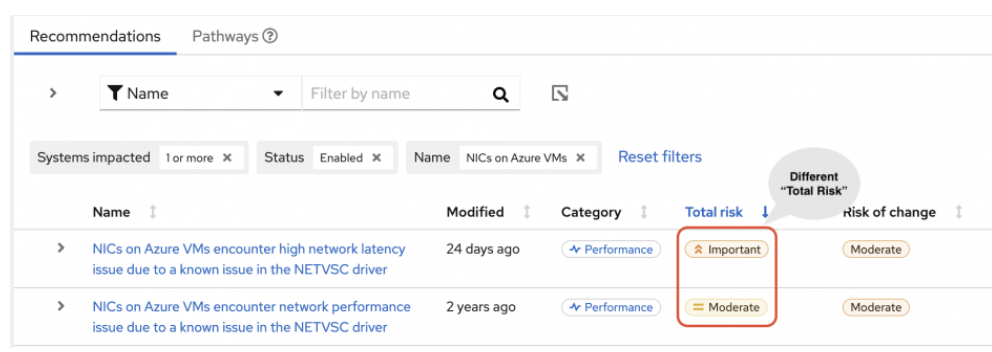
The system shows a recommendation with a higher Total Risk level of Important. The system without the network_performance: latency tag has a Total Risk of Moderate. You can make decisions about prioritizing the system with higher Total Risk.
Chapter 6. Reference materials
To learn more about the compliance service, see the following resources:
Providing feedback on Red Hat documentation
Provide feedback on Red Hat documentation to report issues or request enhancements. Submit detailed feedback through the Red Hat Customer Portal to help improve documentation quality.
Prerequisites
- You are logged in to the Red Hat Customer Portal.
Procedure
- Click the following link: Create Issue
- Describe the issue or enhancement in the Summary text box.
- Provide details about the issue or requested enhancement in the Description text box.
- Type your name in the Reporter text box.
- Click the Create button.
Results
This action creates a documentation ticket and routes it to the appropriate documentation team. Thank you for taking the time to give feedback.

'%20d='M201.5%20305.5c-13.8%200-24.9-11.1-24.9-24.6%200-13.8%2011.1-24.9%2024.9-24.9%2013.6%200%2024.6%2011.1%2024.6%2024.9%200%2013.6-11.1%2024.6-24.6%2024.6zM504%20256c0%20137-111%20248-248%20248S8%20393%208%20256%20119%208%20256%208s248%20111%20248%20248zm-132.3-41.2c-9.4%200-17.7%203.9-23.8%2010-22.4-15.5-52.6-25.5-86.1-26.6l17.4-78.3%2055.4%2012.5c0%2013.6%2011.1%2024.6%2024.6%2024.6%2013.8%200%2024.9-11.3%2024.9-24.9s-11.1-24.9-24.9-24.9c-9.7%200-18%205.8-22.1%2013.8l-61.2-13.6c-3-.8-6.1%201.4-6.9%204.4l-19.1%2086.4c-33.2%201.4-63.1%2011.3-85.5%2026.8-6.1-6.4-14.7-10.2-24.1-10.2-34.9%200-46.3%2046.9-14.4%2062.8-1.1%205-1.7%2010.2-1.7%2015.5%200%2052.6%2059.2%2095.2%20132%2095.2%2073.1%200%20132.3-42.6%20132.3-95.2%200-5.3-.6-10.8-1.9-15.8%2031.3-16%2019.8-62.5-14.9-62.5zM302.8%20331c-18.2%2018.2-76.1%2017.9-93.6%200-2.2-2.2-6.1-2.2-8.3%200-2.5%202.5-2.5%206.4%200%208.6%2022.8%2022.8%2087.3%2022.8%20110.2%200%202.5-2.2%202.5-6.1%200-8.6-2.2-2.2-6.1-2.2-8.3%200zm7.7-75c-13.6%200-24.6%2011.1-24.6%2024.9%200%2013.6%2011.1%2024.6%2024.6%2024.6%2013.8%200%2024.9-11.1%2024.9-24.6%200-13.8-11-24.9-24.9-24.9z'/%3e%3c/svg%3e)