 Red Hat Summit
OpenShift Container Storage is now OpenShift Data Foundation starting with version 4.9.
Operations Guide
Configuring and Managing Red Hat Openshift Container Storage.
Abstract
Making open source more inclusive
Red Hat is committed to replacing problematic language in our code, documentation, and web properties. We are beginning with these four terms: master, slave, blacklist, and whitelist. Because of the enormity of this endeavor, these changes will be implemented gradually over several upcoming releases. For more details, see our CTO Chris Wright’s message.
Part I. Manage
Chapter 1. Managing Clusters
Heketi allows administrators to add and remove storage capacity by managing either a single or multiple Red Hat Gluster Storage clusters.
Heketi provides a RESTful management interface which can be used to manage the lifecycle of Red Hat Gluster Storage volumes. With Heketi, cloud services like OpenStack Manila, Kubernetes, and OpenShift can dynamically provision Red Hat Gluster Storage volumes with any of the supported durability types. Heketi will automatically determine the location for bricks across the cluster, making sure to place bricks and its replicas across different failure domains. Heketi also supports any number of Red Hat Gluster Storage clusters, allowing cloud services to provide network file storage without being limited to a single Red Hat Gluster Storage cluster.
With Heketi, the administrator no longer manages or configures bricks, disks, or trusted storage pools. Heketi service will manage all hardware for the administrator, enabling it to allocate storage on demand. Any disks registered with Heketi must be provided in raw format, which will then be managed by it using LVM on the disks provided.
The replica 3 and the arbiter volumes are supported volume types that can be created using Heketi.
Heketi volume creation
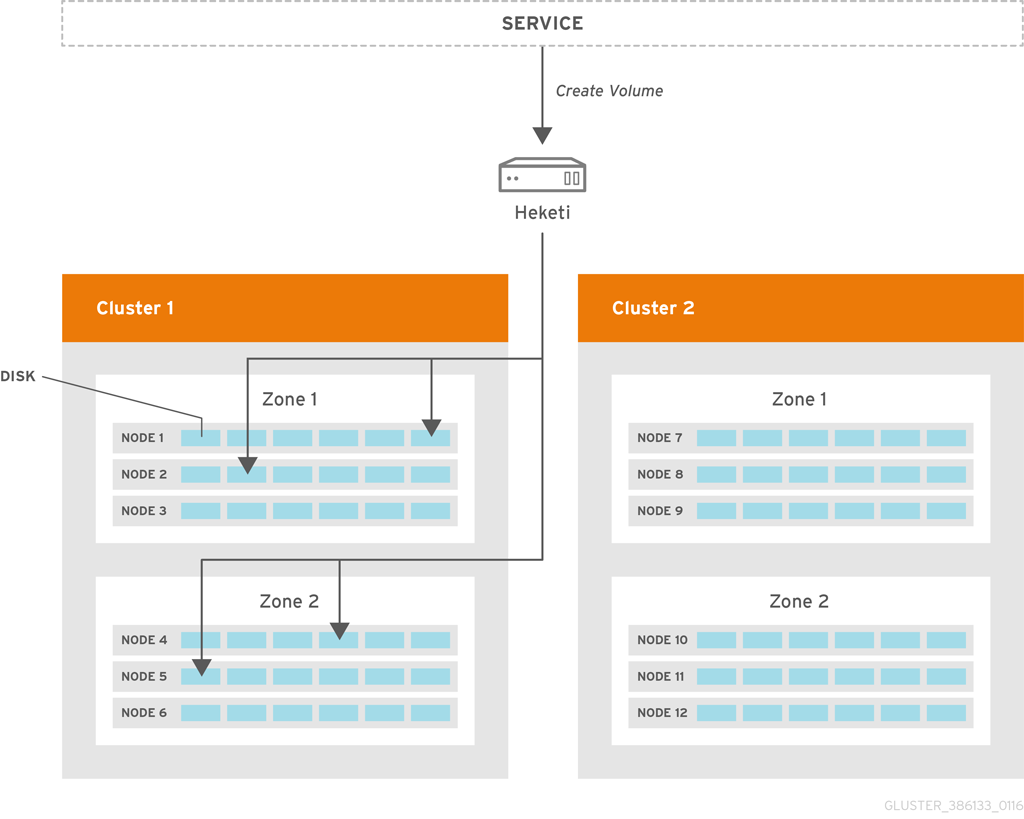
A create volume request to Heketi leads it to select bricks spread across 2 zones and 4 nodes. After the volume is created in Red hat Gluster Storage, Heketi provides the volume information to the service that initially made the request.
1.1. Increasing Storage Capacity
You can increase the storage capacity using any of the following ways:
- Adding devices
- Adding new nodes
- Adding an entirely new cluster.
1.1.1. Adding New Devices
You can add more devices to existing nodes to increase storage capacity. When adding more devices, you must ensure to add devices as a set. For example, when expanding a distributed replicated volume with a replica count of replica 2, then one device should be added to at least two nodes. If using replica 3, then at least one device should be added to at least three nodes.
You can add a device by using CLI as follows:
Register the specified device. The following example command shows how to add a device` /dev/sde` to node d6f2c22f2757bf67b1486d868dcb7794:
heketi-cli device add --name=/dev/sde --node=d6f2c22f2757bf67b1486d868dcb7794
OUTPUT:
Device added successfully
# heketi-cli device add --name=/dev/sde --node=d6f2c22f2757bf67b1486d868dcb7794
OUTPUT:
Device added successfully1.1.2. Adding New Nodes
Another way to add storage to Heketi, is to add new nodes to the cluster. Like adding devices, you can add a new node to an existing cluster by using CLI. After you add a new node to the cluster, you must register new devices to that node.
For adding a node to be successful, ensure the ports are opened for glusterd communication. For more information about the ports, see https://access.redhat.com/documentation/en-us/red_hat_gluster_storage/3.5/html/installation_guide/port_information
Scaleup the OCP cluster to add the new node. For more information see, https://access.redhat.com/documentation/en-us/openshift_container_platform/3.11/html-single/configuring_clusters/#adding-cluster-hosts_adding-hosts-to-cluster
Note- If the new node is already part of OCP cluster then skip this step and proceed with Step 2.
- The OCP cluster can be scaled up to add new nodes as either compute nodes or infra nodes. For example, for infra it is node3.example.com openshift_node_group_name='node-config-infra' and for compute node it is node3.example.com openshift_node_group_name='node-config-compute'.
Configure the firewall rules:
NoteFor adding a node to be successful, ensure the ports are opened for glusterd communication. For more information about the ports, see https://access.redhat.com/documentation/en-us/red_hat_gluster_storage/3.5/html/installation_guide/port_information
Add the following rules to the
/etc/sysconfig/iptablesfile of the newly added glusterfs node:Copy to Clipboard Copied! Toggle word wrap Toggle overflow Reload/restart the iptables:
systemctl restart iptables
# systemctl restart iptablesCopy to Clipboard Copied! Toggle word wrap Toggle overflow
Execute the following steps to add labels to the node where the RHGS Container will be deployed:
Verify that Red Hat Openshift Container Storage is deployed and working as expected in the existing project by executing the following command:
oc get ds
# oc get dsCopy to Clipboard Copied! Toggle word wrap Toggle overflow For example:
oc get ds
NAME                DESIRED   CURRENT   READY     UP-TO-DATE   AVAILABLE   NODE SELECTOR            AGE
glusterfs-storage   3         3         3         3            3           glusterfs=storage-host   1d
# oc get ds
NAME                DESIRED   CURRENT   READY     UP-TO-DATE   AVAILABLE   NODE SELECTOR            AGE
glusterfs-storage   3         3         3         3            3           glusterfs=storage-host   1d
Copy to Clipboard Copied! Toggle word wrap Toggle overflow Add the label for each node which is newly added, where the Red Hat Gluster Storage pods are to be added for the new cluster:
oc label node <NODE_NAME> glusterfs=<node_label>
# oc label node <NODE_NAME> glusterfs=<node_label>Copy to Clipboard Copied! Toggle word wrap Toggle overflow where,
- NODE_NAME: is the name of the newly created node.
-
node_label: The name that is used in the existing daemonset. This is the value you get in the previous step when you execute
oc get ds.
For example:
oc label node 192.168.90.3 glusterfs=storage-host
node "192.168.90.3" labeled
# oc label node 192.168.90.3 glusterfs=storage-host
node "192.168.90.3" labeled
Copy to Clipboard Copied! Toggle word wrap Toggle overflow Verify if the Red Hat Gluster Storage pods are running on the newly added node by executing the following command:
Observe additional Gluster Storage pods spawned on these new nodes
oc get pods
# oc get podsCopy to Clipboard Copied! Toggle word wrap Toggle overflow For example:
Copy to Clipboard Copied! Toggle word wrap Toggle overflow You should see additional Gluster Storage pods, in this example 4 gluster pods instead of just 3 as before. It will take 1-2 minutes for them to become healthy. (i.e. glusterfs-v759z 0/1 not healthy yet).
Verify if the Red Hat Gluster Storage pods are running
oc get pods -o wide -l glusterfs=storage-pod
# oc get pods -o wide -l glusterfs=storage-podCopy to Clipboard Copied! Toggle word wrap Toggle overflow
Add a new node to the cluster by using Heketi CLI. Following shows an example of how to add new node in
zone 1to `597fceb5d6c876b899e48f599b988f54 ` cluster using the CLI:Copy to Clipboard Copied! Toggle word wrap Toggle overflow - Add devices to the cluster by using Heketi CLI. For more information on adding devices, refer Section 1.1.1, “Adding New Devices”.
- Manually update the endpoints as they are not updated automatically when a node is added to a gluster trusted storage pool using heketi. For more information on how to update the endpoints, see Section 1.1.2.1, “Updating the endpoints after adding a new node”.
1.1.2.1. Updating the endpoints after adding a new node
Procedure
List the endpoints across all the namespaces that have the old IP address configured:
oc get ep --all-namespaces | grep <OLD_IP>
# oc get ep --all-namespaces | grep <OLD_IP>Copy to Clipboard Copied! Toggle word wrap Toggle overflow <OLD_IP>-
Specify the old IP address, for example,
10.0.0.57.
Example 1.1. Example output
Copy to Clipboard Copied! Toggle word wrap Toggle overflow Optional: Confirm that the IP address (for example,
10.0.0.64) of the new node is added:oc get ep <heketi-db-endpoint_name>
# oc get ep <heketi-db-endpoint_name>Copy to Clipboard Copied! Toggle word wrap Toggle overflow Example 1.2. Example
oc get ep heketi-db-storage-endpoints
# oc get ep heketi-db-storage-endpointsCopy to Clipboard Copied! Toggle word wrap Toggle overflow Example 1.3. Example output
NAME                          ENDPOINTS                                       AGE
heketi-db-storage-endpoints   10.0.0.181:1,10.0.0.57:1,10.0.0.43:1            217d
NAME                          ENDPOINTS                                       AGE
heketi-db-storage-endpoints   10.0.0.181:1,10.0.0.57:1,10.0.0.43:1            217d
Copy to Clipboard Copied! Toggle word wrap Toggle overflow Select any gluster volume, navigate into the concerned heketi pod, and execute the following command:
heketi-cli volume endpoint patch <volume_id>
# heketi-cli volume endpoint patch <volume_id>Copy to Clipboard Copied! Toggle word wrap Toggle overflow <volume_id>Specify the ID of a gluster file based volume, for example,
253778390e76e7ab803231504dc266d4.Example 1.4. Example
heketi-cli volume endpoint patch 253778390e76e7ab803231504dc266d4
# heketi-cli volume endpoint patch 253778390e76e7ab803231504dc266d4Copy to Clipboard Copied! Toggle word wrap Toggle overflow Example 1.5. Example output
{"subsets": [{"addresses":[{"ip":"10.0.0.181"}],"ports":[{"port":1}]},{"addresses":[{"ip":"10.0.0.57"}],"ports":[{"port":1}]},{"addresses":[{"ip":"10.0.0.43"}],"ports":[{"port":1}]},{"addresses":[{"ip":"10.0.0.64"}],"ports":[{"port":1}]}]}{"subsets": [{"addresses":[{"ip":"10.0.0.181"}],"ports":[{"port":1}]},{"addresses":[{"ip":"10.0.0.57"}],"ports":[{"port":1}]},{"addresses":[{"ip":"10.0.0.43"}],"ports":[{"port":1}]},{"addresses":[{"ip":"10.0.0.64"}],"ports":[{"port":1}]}]}Copy to Clipboard Copied! Toggle word wrap Toggle overflow
In this example, a new node with IP address
10.0.0.64is added. By default, heketi shows the new IP address on each gluster volume.Execute the following command from the
oc bastionto add the IP address of the new node to theheketi-db-endpoint:oc patch ep <heketi-db-endpoint_name> -p <patch_json>
# oc patch ep <heketi-db-endpoint_name> -p <patch_json>Copy to Clipboard Copied! Toggle word wrap Toggle overflow <heketi-db-endpoint_name>-
Specify the name of the heketi-db endpoint, for example,
heketi-db-storage-endpoints. <patch_json>-
Is the JSON patch that the
heketi-clicommand generates.
Example 1.6. Example
oc patch ep heketi-db-storage-endpoints -p '{"subsets": [{"addresses":[{"ip":"10.0.0.181"}],"ports":[{"port":1}]},{"addresses":[{"ip":"10.0.0.57"}],"ports":[{"port":1}]},{"addresses":[{"ip":"10.0.0.43"}],"ports":[{"port":1}]},{"addresses":[{"ip":"10.0.0.64"}],"ports":[{"port":1}]}]}'# oc patch ep heketi-db-storage-endpoints -p '{"subsets": [{"addresses":[{"ip":"10.0.0.181"}],"ports":[{"port":1}]},{"addresses":[{"ip":"10.0.0.57"}],"ports":[{"port":1}]},{"addresses":[{"ip":"10.0.0.43"}],"ports":[{"port":1}]},{"addresses":[{"ip":"10.0.0.64"}],"ports":[{"port":1}]}]}'Copy to Clipboard Copied! Toggle word wrap Toggle overflow Replace the old IP address with the IP address of the new node on the gluster endpoints:
oc get ep --all-namespaces | grep glusterfs-dynamic | tr -s ' ' | while read LINE; do NS=$(echo $LINE|cut -d' ' -f1); EP=$(echo $LINE|cut -d' ' -f2); echo $NS $EP; oc -n $NS get ep $EP -o yaml | sed 's/<old_ip_address>/<new_ip_address>/g' | oc -n $NS replace -f - ; done
# oc get ep --all-namespaces | grep glusterfs-dynamic | tr -s ' ' | while read LINE; do NS=$(echo $LINE|cut -d' ' -f1); EP=$(echo $LINE|cut -d' ' -f2); echo $NS $EP; oc -n $NS get ep $EP -o yaml | sed 's/<old_ip_address>/<new_ip_address>/g' | oc -n $NS replace -f - ; doneCopy to Clipboard Copied! Toggle word wrap Toggle overflow <old_ip_address>- Specify the old IP address.
<new_ip_address>-
Specify the IP address of the new node, for example,
10.0.0.64.
This command edits all the heketi endpoints (usually starting with the name
glusterfs-dynamic), and replaces the old IP address with the new IP address.- Replace the old IP address with the IP address of the new node on the gluster-block based volumes. For more information, see the Red Hat Knowledgebase solution Gluster block PVs are not updated with new IPs after gluster node replacement.
Optional: If the node is still present, you must evacuate and delete the node from OpenShift Container Storage.
Remove and delete the devices. For more information on how to remove and delete devices from an old node, see Section 1.2.3, “Deleting Device”.
Important-
You can use the
--force-forgetoption along with theheketi-cli device delete <device_ID>command to delete failed devices. However, it is recommended to use this option only when the device delete command fails. -
You must ensure that the device is removed or the system is clean outside of heketi using the system commands and only then use the
--force-forgetoption.
-
You can use the
Optional: If the disks or devices are still present, you must delete one device at a time, and wait for the self-heal operation to complete before deleting the next device.
NoteThe heal operation might take a long time to complete since it replaces all the bricks from the old node to the replacement node.
- Delete the node. For more information on how to delete a node from heketi configuration, see Section 1.2.4, “Deleting Node”.
-
If the endpoints were already updated when you replaced the old IP address with the IP address of the new node on the heketi endpoints, then you do not need to execute the
heketi-cli volume endpoint patchoroc patch epcommand. Refer to the previous steps 2 and 3. - Optional: If you have Persistent Volumes (PVs), block volume based gluster block, follow the steps 11 to 16 of Section 3.2.2, “Replacing a node on Block Storage”, as you need to update the new IP address on the PV definition and iSCSI target layer.
- Remove the storage labels from the old node. For more information on how to delete and uninstall the old node from OpenShift Container Platform, see Uninstalling nodes.
1.1.3. Adding a New Cluster to an Existing Red Hat Openshift Container Storage Installation
Storage capacity can be increased by adding new clusters of Red Hat Gluster Storage. The nodes of the new clusters must be prepared as either OCP nodes (converged mode) or RHGS nodes (independent mode). To add a new cluster to an existing Red Hat Openshift Container Storage installation, execute the following commands:
Verify that Red Hat Openshift Container Storage is deployed and working as expected in the existing project by executing the following command. :
oc get ds
# oc get dsCopy to Clipboard Copied! Toggle word wrap Toggle overflow For example:
oc get ds
NAME                DESIRED   CURRENT   READY     UP-TO-DATE   AVAILABLE   NODE SELECTOR            AGE
glusterfs-storage   3         3         3         3            3           glusterfs=storage-host   1d
# oc get ds
NAME                DESIRED   CURRENT   READY     UP-TO-DATE   AVAILABLE   NODE SELECTOR            AGE
glusterfs-storage   3         3         3         3            3           glusterfs=storage-host   1d
Copy to Clipboard Copied! Toggle word wrap Toggle overflow NoteAdd new hosts by performing step 1 and step 2 in Section 1.1.2, “Adding New Nodes” section. Repeat the steps for all the nodes you want to add.
Verify if the Red Hat Gluster Storage pods are running by executing the following command:
oc get pods
# oc get podsCopy to Clipboard Copied! Toggle word wrap Toggle overflow Add the label for each node which is newly added , where the Red Hat Gluster Storage pods are to be added for the new cluster to start by executing the following command:
oc label node <NODE_NAME> glusterfs=<node_label>
# oc label node <NODE_NAME> glusterfs=<node_label>Copy to Clipboard Copied! Toggle word wrap Toggle overflow where,
- NODE_NAME: is the name of the newly created node
- node_label: The name that is used in the existing daemonset.
For example:
oc label node 192.168.90.3 glusterfs=storage-host
node "192.168.90.3" labeled
# oc label node 192.168.90.3 glusterfs=storage-host
node "192.168.90.3" labeled
Copy to Clipboard Copied! Toggle word wrap Toggle overflow Observe additional Gluster Storage pods spawned on these new nodes
oc get pods
# oc get podsCopy to Clipboard Copied! Toggle word wrap Toggle overflow For example:
Copy to Clipboard Copied! Toggle word wrap Toggle overflow You should see additional Gluster Storage pods, in this example 6 gluster pods instead of just 3 as before. It will take 1-2 minutes for them to become healthy. (i.e. glusterfs-v759z, glusterfs-rgs3k, and glusterfs-gtq9f 0/1 not healthy yet).
Verify if the Red Hat Gluster Storage pods are running by executing the following command:
oc get ds
# oc get dsCopy to Clipboard Copied! Toggle word wrap Toggle overflow For example:
oc get ds
NAME                DESIRED   CURRENT   READY     UP-TO-DATE   AVAILABLE   NODE SELECTOR            AGE
glusterfs-storage   6         6         6         6            6           glusterfs=storage-host   2h
# oc get ds
NAME                DESIRED   CURRENT   READY     UP-TO-DATE   AVAILABLE   NODE SELECTOR            AGE
glusterfs-storage   6         6         6         6            6           glusterfs=storage-host   2h
Copy to Clipboard Copied! Toggle word wrap Toggle overflow Create a new cluster in Heketi by using the following command:
heketi-cli cluster create
# heketi-cli cluster createCopy to Clipboard Copied! Toggle word wrap Toggle overflow - Add nodes and devices to the newly created cluster as described in sections Adding New Devices and Adding New Nodes.
1.2. Reducing Storage Capacity
Heketi also supports the reduction of storage capacity. You can reduce storage by deleting devices, nodes, and clusters. These requests can only be performed by using the Heketi CLI or the API. For information on using command line API, see Heketi API https://github.com/heketi/heketi/wiki/API.
The IDs can be retrieved by executing the heketi-cli topology info command.
heketi-cli topology info
# heketi-cli topology infoCopy to Clipboard Copied! Toggle word wrap Toggle overflow -
The
heketidbstoragevolume cannot be deleted as it contains the heketi database.
1.2.1. Deleting Volumes
You can delete the volume using the following Heketi CLI command:
heketi-cli volume delete <volume_id>
# heketi-cli volume delete <volume_id>For example:
heketi-cli volume delete 12b2590191f571be9e896c7a483953c3
Volume 12b2590191f571be9e896c7a483953c3 deleted
# heketi-cli volume delete 12b2590191f571be9e896c7a483953c3
Volume 12b2590191f571be9e896c7a483953c3 deleted1.2.2. Deleting Bricks
You can delete a brick from a volume using the following Heketi CLI command:
heketi-cli brick evict <brick_id>
# heketi-cli brick evict <brick_id>For example:
heketi-cli brick evict 000e649d15e7d2a7615de3c2878ee270
  Brick 000e649d15e7d2a7615de3c2878ee270 evicted
# heketi-cli brick evict 000e649d15e7d2a7615de3c2878ee270
Brick 000e649d15e7d2a7615de3c2878ee270 evictedThe brick ID can be determined from the Heketi topology. A brick belongs to one single volume so only the brick ID is required. Heketi will automatically determine the volume that the brick is associated to and will replace it with a new brick.
1.2.3. Deleting Device
Deleting the device deletes devices from heketi’s topology. Devices that have bricks cannot be deleted. You must ensure they are free of bricks by disabling and removing devices.
1.2.3.1. Disabling and Enabling a Device
Disabling devices stops further allocation of bricks onto the device. You can disable devices using the following Heketi CLI command:
heketi-cli device disable <device_id>
# heketi-cli device disable <device_id>For example:
heketi-cli device disable f53b13b9de1b5125691ee77db8bb47f4
Device f53b13b9de1b5125691ee77db8bb47f4 is now offline
# heketi-cli device disable f53b13b9de1b5125691ee77db8bb47f4
Device f53b13b9de1b5125691ee77db8bb47f4 is now offlineIf you want to re-enable the device, execute the following command. Enabling the device allows allocation of bricks onto the device.
heketi-cli device enable <device_id>
# heketi-cli device enable <device_id>For example:
heketi-cli device enable f53b13b9de1b5125691ee77db8bb47f4
Device f53b13b9de1b5125691ee77db8bb47f4 is now online
# heketi-cli device enable f53b13b9de1b5125691ee77db8bb47f4
Device f53b13b9de1b5125691ee77db8bb47f4 is now online1.2.3.2. Removing and Deleting the Device
Removing devices moves existing bricks from the device to other devices. This helps in ensuring the device is free of bricks. A device can be removed only after disabling it.
Remove device using the following command:
heketi-cli device remove <device_id>
# heketi-cli device remove <device_id>Copy to Clipboard Copied! Toggle word wrap Toggle overflow For example:
heketi-cli device remove e9ef1d9043ed3898227143add599e1f9
Device e9ef1d9043ed3898227143add599e1f9 is now removed
# heketi-cli device remove e9ef1d9043ed3898227143add599e1f9
Device e9ef1d9043ed3898227143add599e1f9 is now removed
Copy to Clipboard Copied! Toggle word wrap Toggle overflow Delete the device using the following command:
heketi-cli device delete <device_id>
# heketi-cli device delete <device_id>Copy to Clipboard Copied! Toggle word wrap Toggle overflow For example:
heketi-cli device delete 56912a57287d07fad0651ba0003cf9aa
Device 56912a57287d07fad0651ba0003cf9aa deleted
# heketi-cli device delete 56912a57287d07fad0651ba0003cf9aa
Device 56912a57287d07fad0651ba0003cf9aa deleted
Copy to Clipboard Copied! Toggle word wrap Toggle overflow The only way to reuse a deleted device is by adding the device to heketi’s topology again.
1.2.4. Deleting Node
Nodes that have devices added to it cannot be deleted. To delete the node, the devices that are associated with the node have to be deleted. Disabling and removing the node ensures all the underlying devices are removed too. Once the node is removed, all the devices in it can be deleted and finally the node can be deleted.
1.2.4.1. Disabling and Enabling a Node
Disabling node stops further allocation of bricks to all the devices associated to the node. You can disable nodes using the following Heketi CLI command:
heketi-cli node disable <node_id>
# heketi-cli node disable <node_id>For example:
heketi-cli node disable 5f0af88b968ed1f01bf959fe4fe804dc
Node 5f0af88b968ed1f01bf959fe4fe804dc is now offline
# heketi-cli node disable 5f0af88b968ed1f01bf959fe4fe804dc
Node 5f0af88b968ed1f01bf959fe4fe804dc is now offlineIf you want to re-enable the node, execute the following command.
heketi-cli node enable <node_id>
# heketi-cli node enable <node_id>For example:
heketi-cli node enable 5f0af88b968ed1f01bf959fe4fe804dc
Node 5f0af88b968ed1f01bf959fe4fe804dc is now online
# heketi-cli node enable 5f0af88b968ed1f01bf959fe4fe804dc
Node 5f0af88b968ed1f01bf959fe4fe804dc is now online1.2.4.2. Removing and Deleting the Node
Removing nodes moves existing bricks from all the devices in the node to other devices in the cluster. This helps in ensuring all the device in the node is free of bricks. A device can be removed only after disabling it.
To remove the node execute the following command:
heketi-cli node remove <node_id>
# heketi-cli node remove <node_id>Copy to Clipboard Copied! Toggle word wrap Toggle overflow For example:
heketi-cli node remove 5f0af88b968ed1f01bf959fe4fe804dc
Node 5f0af88b968ed1f01bf959fe4fe804dc is now removed
# heketi-cli node remove 5f0af88b968ed1f01bf959fe4fe804dc
Node 5f0af88b968ed1f01bf959fe4fe804dc is now removed
Copy to Clipboard Copied! Toggle word wrap Toggle overflow Delete the devices associated with the node by executing the following command as the nodes that have devices associated with it cannot be deleted:
heketi-cli device delete <device_id>
# heketi-cli device delete <device_id>Copy to Clipboard Copied! Toggle word wrap Toggle overflow For example:
heketi-cli device delete 56912a57287d07fad0651ba0003cf9aa
Device 56912a57287d07fad0651ba0003cf9aa deleted
# heketi-cli device delete 56912a57287d07fad0651ba0003cf9aa
Device 56912a57287d07fad0651ba0003cf9aa deleted
Copy to Clipboard Copied! Toggle word wrap Toggle overflow Execute the command for every device on the node.
Delete the node using the following command:
heketi-cli node delete <node_id>
# heketi-cli node delete <node_id>Copy to Clipboard Copied! Toggle word wrap Toggle overflow For example:
heketi-cli node delete 5f0af88b968ed1f01bf959fe4fe804dc
Node 5f0af88b968ed1f01bf959fe4fe804dc deleted
# heketi-cli node delete 5f0af88b968ed1f01bf959fe4fe804dc
Node 5f0af88b968ed1f01bf959fe4fe804dc deleted
Copy to Clipboard Copied! Toggle word wrap Toggle overflow Deleting the node deletes the node from the heketi topology. The only way to reuse a deleted node is by adding the node to heketi’s topology again
Note-
When a node is deleted from a gluster trusted storage pool using heketi, existing endpoints are not updated automatically.
To update the endpoints execute the following commands:
heketi-cli volume endpoint patch <volume-id>
# heketi-cli volume endpoint patch <volume-id>Copy to Clipboard Copied! Toggle word wrap Toggle overflow oc patch ep <heketi-db-endpoint-name> -p <changes>
# oc patch ep <heketi-db-endpoint-name> -p <changes>Copy to Clipboard Copied! Toggle word wrap Toggle overflow - Optional-When a node is deleted from a gluster trusted storage pool using heketi , the pods running on the deleted node are still present. To remove the pods execute the following commands:
oc label nodes <node name> glusterfs-
# oc label nodes <node name> glusterfs-Copy to Clipboard Copied! Toggle word wrap Toggle overflow For example:
oc label node 192.168.90.3 glusterfs-
  node "192.168.90.3" labeled
# oc label node 192.168.90.3 glusterfs-
  node "192.168.90.3" labeled
Copy to Clipboard Copied! Toggle word wrap Toggle overflow The glusterfs=storage-host label is removed from the node which ensures the deleted glusterfs pods are stopped and deleted from the removed node. For more information on required steps before maintenance, see link: https://access.redhat.com/documentation/en-us/red_hat_openshift_container_storage/3.11/html-single/operations_guide/index#necessary_steps_to_be_followed_before_maintenance
-
When a node is deleted from a gluster trusted storage pool using heketi, existing endpoints are not updated automatically.
1.2.5. Deleting Clusters
You can delete the cluster using the following Heketi CLI command:
Before a cluster is deleted, ensure that all the nodes inside the cluster are deleted.
heketi-cli cluster delete <cluster_id>
# heketi-cli cluster delete <cluster_id>For example:
heketi-cli cluster delete 0e949d91c608d13fd3fc4e96f798a5b1
Cluster 0e949d91c608d13fd3fc4e96f798a5b1 deleted
# heketi-cli cluster delete 0e949d91c608d13fd3fc4e96f798a5b1
Cluster 0e949d91c608d13fd3fc4e96f798a5b1 deleted1.3. Replacing Cluster Resources
Heketi supports the replacement of devices and nodes. The procedure to replace devices and nodes is given in the following sections.
1.3.1. Replacing Devices
Heketi does not allow one-to-one replacement of a device with another. However, in case of a failed device, follow the example below for the sequence of operations that are required to replace a failed device.
Locate the device that has failed using the following command:
heketi-cli topology info
# heketi-cli topology infoCopy to Clipboard Copied! Toggle word wrap Toggle overflow Copy to Clipboard Copied! Toggle word wrap Toggle overflow The example below illustrates the sequence of operations that are required to replace a failed device. The example uses device ID
a811261864ee190941b17c72809a5001which belongs to node with id8faade64a9c8669de204b66bc083b10das.Add a new device preferably to the same node as the device being replaced.
heketi-cli device add --name /dev/vdd --node 8faade64a9c8669de204b66bc083b10d
Device added successfully
# heketi-cli device add --name /dev/vdd --node 8faade64a9c8669de204b66bc083b10d
Device added successfully
Copy to Clipboard Copied! Toggle word wrap Toggle overflow Disable the failed device.
heketi-cli device disable a811261864ee190941b17c72809a5001
Device a811261864ee190941b17c72809a5001 is now offline
# heketi-cli device disable a811261864ee190941b17c72809a5001
Device a811261864ee190941b17c72809a5001 is now offline
Copy to Clipboard Copied! Toggle word wrap Toggle overflow Remove the failed device.
heketi-cli device remove a811261864ee190941b17c72809a5001
Device a811261864ee190941b17c72809a5001 is now removed
# heketi-cli device remove a811261864ee190941b17c72809a5001
Device a811261864ee190941b17c72809a5001 is now removed
Copy to Clipboard Copied! Toggle word wrap Toggle overflow At this stage, the bricks are migrated from the failed device. Heketi chooses a suitable device based on the brick allocation algorithm. As a result, there is a possibility that all the bricks might not be migrated to the newly added device.
Delete the failed device.
Delete the device using the following heketi-cli delete command:
heketi-cli device delete a811261864ee190941b17c72809a5001
Device a811261864ee190941b17c72809a5001 deleted
# heketi-cli device delete a811261864ee190941b17c72809a5001
Device a811261864ee190941b17c72809a5001 deleted
Copy to Clipboard Copied! Toggle word wrap Toggle overflow Note-
You can use the
--force-forgetoption along with theHeketi-cli device delete <device-ID>command to delete failed devices. However, it is recommended to use this option only when the device delete command fails. -
You must ensure that the device is removed or the system is clean outside of heketi using the system commands and only then use the
--force-forgetoption.
-
You can use the
performance.read-aheadoption must be disabled in order to allow the heal to complete.gluster volume set <VOLUME> performance.read-ahead off
# gluster volume set <VOLUME> performance.read-ahead offCopy to Clipboard Copied! Toggle word wrap Toggle overflow NoteSet
performance.read-aheadoption as OFF until the task of healing the volume is accomplished, once healing is complete set it back to the default state that is ON state.- Extra shd’s must be started if more than 100,000 entries require healing. For more information on how to start additional self-heal daemon, see https://access.redhat.com/solutions/3794011
Before repeating the above sequence of steps on another device, you must wait for the self-heal operation to complete. You can verify that the self-heal operation completed when the Number of entries value returns a 0 value.
oc rsh <any_gluster_pod_name>
for each in $(gluster volume list) ; do gluster vol heal $each info | grep "Number of entries:" ; done
Number of entries: 0
Number of entries: 0
Number of entries: 0
# oc rsh <any_gluster_pod_name>
for each in $(gluster volume list) ; do gluster vol heal $each info | grep "Number of entries:" ; done
Number of entries: 0
Number of entries: 0
Number of entries: 0
Copy to Clipboard Copied! Toggle word wrap Toggle overflow
1.3.2. Replacing Nodes
Heketi does not allow one-to-one replacement of a node with another. However, in case of a failed node, follow the example below for the sequence of operations that are required to replace a failed node and its respective devices.
Locate the node that has failed using the following command:
Copy to Clipboard Copied! Toggle word wrap Toggle overflow The example below illustrates the sequence of operations that are required to replace a failed node. The example uses node ID 8faade64a9c8669de204b66bc083b10d.
Scale up the OCP cluster to add the replacement node. For more detail how to add a node, refer to the steps in section Section 1.1.2, “Adding New Nodes”.
NoteIf the replacement node is already part of OCP cluster then skip this step and proceed with step 2.
Add a new node, preferably with the same number of devices and size as the node being replaced. Refer to the steps in section, Section 1.1.2, “Adding New Nodes”.
heketi-cli node add --zone=1 --cluster=597fceb5d6c876b899e48f599b988f54 --management-host-name=node4.example.com --storage-host-name=192.168.10.104

heketi-cli device add --name /dev/vdd --node 8faade64a9c8669de204b66bc083b10d

Node and device added successfully
# heketi-cli node add --zone=1 --cluster=597fceb5d6c876b899e48f599b988f54 --management-host-name=node4.example.com --storage-host-name=192.168.10.104

# heketi-cli device add --name /dev/vdd --node 8faade64a9c8669de204b66bc083b10d

Node and device added successfully
Copy to Clipboard Copied! Toggle word wrap Toggle overflow Disable the failed node.
heketi-cli node disable 8faade64a9c8669de204b66bc083b10d
Node 8faade64a9c8669de204b66bc083b10d is now offline
# heketi-cli node disable 8faade64a9c8669de204b66bc083b10d
Node 8faade64a9c8669de204b66bc083b10d is now offline
Copy to Clipboard Copied! Toggle word wrap Toggle overflow Remove the failed node.
heketi-cli node remove 8faade64a9c8669de204b66bc083b10d
Node 8faade64a9c8669de204b66bc083b10d is now removed
# heketi-cli node remove 8faade64a9c8669de204b66bc083b10d
Node 8faade64a9c8669de204b66bc083b10d is now removed
Copy to Clipboard Copied! Toggle word wrap Toggle overflow At this stage, the bricks are migrated from the failed node. Heketi chooses a suitable device based on the brick allocation algorithm.
Delete the devices associated with the node by executing the following command as the nodes that have devices associated with it cannot be deleted:
heketi-cli device delete <device_id>
# heketi-cli device delete <device_id>Copy to Clipboard Copied! Toggle word wrap Toggle overflow For example:
heketi-cli device delete 56912a57287d07fad0651ba0003cf9aa
Device 56912a57287d07fad0651ba0003cf9aa deleted
# heketi-cli device delete 56912a57287d07fad0651ba0003cf9aa
Device 56912a57287d07fad0651ba0003cf9aa deleted
Copy to Clipboard Copied! Toggle word wrap Toggle overflow Execute the command for every device on the node.
Delete the failed node.
heketi-cli node delete 8faade64a9c8669de204b66bc083b10d
Node 8faade64a9c8669de204b66bc083b10d deleted
# heketi-cli node delete 8faade64a9c8669de204b66bc083b10d
Node 8faade64a9c8669de204b66bc083b10d deleted
Copy to Clipboard Copied! Toggle word wrap Toggle overflow NoteIf you want to replace a block from a node, refer to Section 3.2.2, “Replacing a node on Block Storage”
Chapter 2. Operations on a Red Hat Gluster Storage Pod in an OpenShift Environment
This chapter lists out the various operations that can be performed on a Red Hat Gluster Storage pod (gluster pod):
To list the pods, execute the following command :
oc get pods -n <storage_project_name>
# oc get pods -n <storage_project_name>Copy to Clipboard Copied! Toggle word wrap Toggle overflow For example:
Copy to Clipboard Copied! Toggle word wrap Toggle overflow Following are the gluster pods from the above example:
glusterfs-dc-node1.example.com
glusterfs-dc-node2.example.com
glusterfs-dc-node3.example.com
glusterfs-dc-node1.example.com
glusterfs-dc-node2.example.com
glusterfs-dc-node3.example.com
Copy to Clipboard Copied! Toggle word wrap Toggle overflow NoteThe topology.json file will provide the details of the nodes in a given Trusted Storage Pool (TSP) . In the above example all the 3 Red Hat Gluster Storage nodes are from the same TSP.
To enter the gluster pod shell, execute the following command:
oc rsh <gluster_pod_name> -n <storage_project_name>
# oc rsh <gluster_pod_name> -n <storage_project_name>Copy to Clipboard Copied! Toggle word wrap Toggle overflow For example:
oc rsh glusterfs-dc-node1.example.com -n storage-project

sh-4.2#
# oc rsh glusterfs-dc-node1.example.com -n storage-project

sh-4.2#
Copy to Clipboard Copied! Toggle word wrap Toggle overflow To get the peer status, execute the following command:
gluster peer status
# gluster peer statusCopy to Clipboard Copied! Toggle word wrap Toggle overflow For example:
Copy to Clipboard Copied! Toggle word wrap Toggle overflow To list the gluster volumes on the Trusted Storage Pool, execute the following command:
gluster volume info
# gluster volume infoCopy to Clipboard Copied! Toggle word wrap Toggle overflow For example:
Copy to Clipboard Copied! Toggle word wrap Toggle overflow To get the volume status, execute the following command:
gluster volume status <volname>
# gluster volume status <volname>Copy to Clipboard Copied! Toggle word wrap Toggle overflow For example:
Copy to Clipboard Copied! Toggle word wrap Toggle overflow To use the snapshot feature, load the snapshot module using the following command on one of the nodes:
modprobe dm_snapshot
# modprobe dm_snapshotCopy to Clipboard Copied! Toggle word wrap Toggle overflow ImportantRestrictions for using Snapshot
- After a snapshot is created, it must be accessed through the user-serviceable snapshots feature only. This can be used to copy the old versions of files into the required location.
- Reverting the volume to a snapshot state is not supported and should never be done as it might damage the consistency of the data.
- On a volume with snapshots, volume changing operations, such as volume expansion, must not be performed.
- Taking consistent snapshots of gluster-block based PVs is not possible.
To take the snapshot of the gluster volume, execute the following command:
gluster snapshot create <snapname> <volname>
# gluster snapshot create <snapname> <volname>Copy to Clipboard Copied! Toggle word wrap Toggle overflow For example:
gluster snapshot create snap1 vol_9e86c0493f6b1be648c9deee1dc226a6

snapshot create: success: Snap snap1_GMT-2016.07.29-13.05.46 created successfully
# gluster snapshot create snap1 vol_9e86c0493f6b1be648c9deee1dc226a6

snapshot create: success: Snap snap1_GMT-2016.07.29-13.05.46 created successfully
Copy to Clipboard Copied! Toggle word wrap Toggle overflow To list the snapshots, execute the following command:
gluster snapshot list
# gluster snapshot listCopy to Clipboard Copied! Toggle word wrap Toggle overflow For example:
Copy to Clipboard Copied! Toggle word wrap Toggle overflow To delete a snapshot, execute the following command:
gluster snap delete <snapname>
# gluster snap delete <snapname>Copy to Clipboard Copied! Toggle word wrap Toggle overflow For example:
gluster snap delete snap1_GMT-2016.07.29-13.05.46

Deleting snap will erase all the information about the snap. Do you still want to continue? (y/n) y
snapshot delete: snap1_GMT-2016.07.29-13.05.46: snap removed successfully
# gluster snap delete snap1_GMT-2016.07.29-13.05.46

Deleting snap will erase all the information about the snap. Do you still want to continue? (y/n) y
snapshot delete: snap1_GMT-2016.07.29-13.05.46: snap removed successfully
Copy to Clipboard Copied! Toggle word wrap Toggle overflow For more information about managing snapshots, see https://access.redhat.com/documentation/en-us/red_hat_gluster_storage/3.5/html-single/administration_guide/index#chap-Managing_Snapshots.
You can set up Red Hat Openshift Container Storage volumes for geo-replication to a non-Red Hat Openshift Container Storage remote site. Geo-replication uses a master–slave model. Here, the Red Hat Openshift Container Storage volume acts as the master volume. To set up geo-replication, you must run the geo-replication commands on gluster pods. To enter the gluster pod shell, execute the following command:
oc rsh <gluster_pod_name> -n <storage_project_name>
# oc rsh <gluster_pod_name> -n <storage_project_name>Copy to Clipboard Copied! Toggle word wrap Toggle overflow For more information about setting up geo-replication, see https://access.redhat.com/documentation/en-us/red_hat_gluster_storage/3.5/html/administration_guide/chap-managing_geo-replication.
Brick multiplexing is a feature that allows including multiple bricks into one process. This reduces resource consumption, allowing you to run more bricks than earlier with the same memory consumption.
Brick multiplexing is enabled by default from Container-Native Storage 3.6. If you want to turn it off, execute the following command:
gluster volume set all cluster.brick-multiplex off
# gluster volume set all cluster.brick-multiplex offCopy to Clipboard Copied! Toggle word wrap Toggle overflow The
auto_unmountoption in glusterfs libfuse, when enabled, ensures that the file system is unmounted at FUSE server termination by running a separate monitor process that performs the unmount.The GlusterFS plugin in Openshift enables the
auto_unmountoption for gluster mounts.
2.1. Maintenance on nodes
2.1.1. Necessary steps to be followed before maintenance
Remove the label glusterfs or equivalent one which is the selector for the
glusterfs daemonset. Wait for the pod to terminate.Run the following command to get the
node selector.oc get ds
# oc get dsCopy to Clipboard Copied! Toggle word wrap Toggle overflow For example:
oc get ds
NAME              DESIRED   CURRENT   READY     UP-TO-DATE   AVAILABLE
glusterfs-storage   3         3         3         3            3
                   NODE SELECTOR             AGE
                   glusterfs=storage-host    12d
# oc get ds NAME DESIRED CURRENT READY UP-TO-DATE AVAILABLE glusterfs-storage 3 3 3 3 3 NODE SELECTOR AGE glusterfs=storage-host 12dCopy to Clipboard Copied! Toggle word wrap Toggle overflow Remove the glusterfs label using the following command.
oc label node <storge_node1> glusterfs-
# oc label node <storge_node1> glusterfs-Copy to Clipboard Copied! Toggle word wrap Toggle overflow For example:
oc label node <storge_node1> glusterfs-
node/<storage_node1> labeled
# oc label node <storge_node1> glusterfs-
node/<storage_node1> labeled
Copy to Clipboard Copied! Toggle word wrap Toggle overflow Wait for glusterfs pod to be terminated. Verify using the below command.
oc get pods -l glusterfs
# oc get pods -l glusterfsCopy to Clipboard Copied! Toggle word wrap Toggle overflow For example:
Copy to Clipboard Copied! Toggle word wrap Toggle overflow
Make the node unschedulable using the below command.
oc adm manage-node --schedulable=false <storage_node1>
# oc adm manage-node --schedulable=false <storage_node1>Copy to Clipboard Copied! Toggle word wrap Toggle overflow For example:
oc adm manage-node --schedulable=false <storage_node1>
NAME            STATUS                     ROLES    AGE  VERSION
storage_node1   Ready,SchedulingDisabled   compute  12d  v1.11.0+d4cacc0
# oc adm manage-node --schedulable=false <storage_node1>
NAME            STATUS                     ROLES    AGE  VERSION
storage_node1   Ready,SchedulingDisabled   compute  12d  v1.11.0+d4cacc0
Copy to Clipboard Copied! Toggle word wrap Toggle overflow Drain the node using the below command.
oc adm drain --ignore-daemonsets <storage_node1>
# oc adm drain --ignore-daemonsets <storage_node1>Copy to Clipboard Copied! Toggle word wrap Toggle overflow NotePerform the maintenance and reboot if required
2.1.2. Necessary steps to be followed after maintenance
Make the node schedulable using the below command.
oc adm manage-node --schedulable=true <storage_node1>
# oc adm manage-node --schedulable=true <storage_node1>Copy to Clipboard Copied! Toggle word wrap Toggle overflow For example:
oc adm manage-node --schedulable=true <storage_node1>
NAME       STATUS    ROLES     AGE       VERSION
node1      Ready     compute   12d       v1.11.0+d4cacc0
# oc adm manage-node --schedulable=true <storage_node1>
NAME       STATUS    ROLES     AGE       VERSION
node1      Ready     compute   12d       v1.11.0+d4cacc0
Copy to Clipboard Copied! Toggle word wrap Toggle overflow Add the label glusterfs or equivalent which is the selector for the
glusterfs daemonset. Wait for the pod to be ready.Run the following command to get the
node selector.oc get ds
# oc get dsCopy to Clipboard Copied! Toggle word wrap Toggle overflow For example:
oc get ds
NAME               DESIRED   CURRENT   READY     UP-TO-DATE   AVAILABLE
glusterfs-storage   3         3         3         3            3
                  NODE SELECTOR            AGE
                  glusterfs=storage-host   12d
# oc get ds NAME DESIRED CURRENT READY UP-TO-DATE AVAILABLE glusterfs-storage 3 3 3 3 3 NODE SELECTOR AGE glusterfs=storage-host 12dCopy to Clipboard Copied! Toggle word wrap Toggle overflow Label the glusterfs node using the above node selector and the below command.
oc label node <storage_node1> glusterfs=storage-host
# oc label node <storage_node1> glusterfs=storage-hostCopy to Clipboard Copied! Toggle word wrap Toggle overflow For example:
oc label node <storage_node1> glusterfs=storage-host
node/<storage_node1> labeled
# oc label node <storage_node1> glusterfs=storage-host
node/<storage_node1> labeled
Copy to Clipboard Copied! Toggle word wrap Toggle overflow Wait for the pod to come up to Ready State.
oc get pods
# oc get podsCopy to Clipboard Copied! Toggle word wrap Toggle overflow For example:
Copy to Clipboard Copied! Toggle word wrap Toggle overflow Wait for the pod to be in 1/1 Ready State.
For example:
Copy to Clipboard Copied! Toggle word wrap Toggle overflow
Wait for heal to complete, use oc rsh to obtain shell of glusterfs pod and monitor heal using the below command, and wait for Number of entries to be zero(0).
for each_volume in gluster volume list; do gluster volume heal $each_volume info ; done
# for each_volume in gluster volume list; do gluster volume heal $each_volume info ; doneCopy to Clipboard Copied! Toggle word wrap Toggle overflow For example:
Copy to Clipboard Copied! Toggle word wrap Toggle overflow
Part II. Operations
Chapter 3. Creating Persistent Volumes
OpenShift Container Platform clusters can be provisioned with persistent storage using GlusterFS.
Persistent volumes (PVs) and persistent volume claims (PVCs) can share volumes across a single project. While the GlusterFS-specific information contained in a PV definition could also be defined directly in a pod definition, doing so does not create the volume as a distinct cluster resource, making the volume more susceptible to conflicts.
Binding PVs by Labels and Selectors
Labels are an OpenShift Container Platform feature that support user-defined tags (key-value pairs) as part of an object’s specification. Their primary purpose is to enable the arbitrary grouping of objects by defining identical labels among them. These labels can then be targeted by selectors to match all objects with specified label values. It is this functionality we will take advantage of to enable our PVC to bind to our PV.
You can use labels to identify common attributes or characteristics shared among volumes. For example, you can define the gluster volume to have a custom attribute (key) named storage-tier _with a value of _gold _assigned. A claim will be able to select a PV with _storage-tier=gold to match this PV.
More details for provisioning volumes in file-based storage is provided in ]. Similarly, further details for provisioning volumes in block-based storage is provided in xref:Block_Storage[.
3.1. File Storage
File storage, also called file-level or file-based storage, stores data in a hierarchical structure. The data is saved in files and folders, and presented to both the system storing it and the system retrieving it in the same format. You can provision volumes either statically or dynamically for file-based storage.
3.1.1. Static Provisioning of Volumes
To enable persistent volume support in OpenShift and Kubernetes, few endpoints and a service must be created.
The following steps are not required if OpenShift Container Storage was deployed using the (default) Ansible installer
The sample glusterfs endpoint file (sample-gluster-endpoints.yaml) and the sample glusterfs service file (sample-gluster-service.yaml) are available at* /usr/share/heketi/templates/ *directory.
The sample endpoints and services file will not be available for ansible deployments since /usr/share/heketi/templates/ directory will not be created for such deployments.
Ensure to copy the sample glusterfs endpoint file / glusterfs service file to a location of your choice and then edit the copied file. For example:
cp /usr/share/heketi/templates/sample-gluster-endpoints.yaml /<_path_>/gluster-endpoints.yaml
# cp /usr/share/heketi/templates/sample-gluster-endpoints.yaml /<_path_>/gluster-endpoints.yamlTo specify the endpoints you want to create, update the copied sample-gluster-endpoints.yaml file with the endpoints to be created based on the environment. Each Red Hat Gluster Storage trusted storage pool requires its own endpoint with the IP of the nodes in the trusted storage pool.
Copy to Clipboard Copied! Toggle word wrap Toggle overflow - name
- The name of the endpoint.
- ip
- The ip address of the Red Hat Gluster Storage nodes.
Execute the following command to create the endpoints:
oc create -f <name_of_endpoint_file>
# oc create -f <name_of_endpoint_file>Copy to Clipboard Copied! Toggle word wrap Toggle overflow For example:
oc create -f sample-gluster-endpoints.yaml
endpoints "glusterfs-cluster" created
# oc create -f sample-gluster-endpoints.yaml
endpoints "glusterfs-cluster" created
Copy to Clipboard Copied! Toggle word wrap Toggle overflow To verify that the endpoints are created, execute the following command:
oc get endpoints
# oc get endpointsCopy to Clipboard Copied! Toggle word wrap Toggle overflow For example:
Copy to Clipboard Copied! Toggle word wrap Toggle overflow Execute the following command to create a gluster service:
oc create -f <name_of_service_file>
# oc create -f <name_of_service_file>Copy to Clipboard Copied! Toggle word wrap Toggle overflow For example:
Copy to Clipboard Copied! Toggle word wrap Toggle overflow oc create -f sample-gluster-service.yaml service "glusterfs-cluster" created
# oc create -f sample-gluster-service.yaml
service "glusterfs-cluster" created
Copy to Clipboard Copied! Toggle word wrap Toggle overflow To verify that the service is created, execute the following command:
oc get service
# oc get serviceCopy to Clipboard Copied! Toggle word wrap Toggle overflow For example:
Copy to Clipboard Copied! Toggle word wrap Toggle overflow NoteThe endpoints and the services must be created for each project that requires a persistent storage.
Create a 100G persistent volume with Replica 3 from GlusterFS and output a persistent volume specification describing this volume to the file pv001.json:
heketi-cli volume create --size=100 --persistent-volume-file=pv001.json
$ heketi-cli volume create --size=100 --persistent-volume-file=pv001.jsonCopy to Clipboard Copied! Toggle word wrap Toggle overflow Copy to Clipboard Copied! Toggle word wrap Toggle overflow ImportantYou must manually add the Labels information to the .json file.
Following is the example YAML file for reference:
Copy to Clipboard Copied! Toggle word wrap Toggle overflow - name
- The name of the volume.
- storage
- The amount of storage allocated to this volume
- glusterfs
- The volume type being used, in this case the glusterfs plug-in
- endpoints
- The endpoints name that defines the trusted storage pool created
- path
- The Red Hat Gluster Storage volume that will be accessed from the Trusted Storage Pool.
- accessModes
- accessModes are used as labels to match a PV and a PVC. They currently do not define any form of access control.
- labels
- Use labels to identify common attributes or characteristics shared among volumes. In this case, we have defined the gluster volume to have a custom attribute (key) named storage-tier with a value of gold assigned. A claim will be able to select a PV with storage-tier=gold to match this PV.
Note-
heketi-cli also accepts the endpoint name on the command line (--persistent-volume-endpoint=”TYPE ENDPOINT HERE”). This can then be piped to
oc create -f -to create the persistent volume immediately. -
If there are multiple Red Hat Gluster Storage trusted storage pools in your environment, you can check on which trusted storage pool the volume is created using the
heketi-cli volume listcommand. This command lists the cluster name. You can then update the endpoint information in the pv001.json file accordingly. - When creating a Heketi volume with only two nodes with the replica count set to the default value of three (replica 3), an error "No space" is displayed by Heketi as there is no space to create a replica set of three disks on three different nodes.
- If all the heketi-cli write operations (ex: volume create, cluster create..etc) fails and the read operations ( ex: topology info, volume info ..etc) are successful, then the possibility is that the gluster volume is operating in read-only mode.
Edit the pv001.json file and enter the name of the endpoint in the endpoint’s section:
Copy to Clipboard Copied! Toggle word wrap Toggle overflow Create a persistent volume by executing the following command:
oc create -f pv001.json
# oc create -f pv001.jsonCopy to Clipboard Copied! Toggle word wrap Toggle overflow For example:
oc create -f pv001.json
persistentvolume "glusterfs-4fc22ff9" created
# oc create -f pv001.json
persistentvolume "glusterfs-4fc22ff9" created
Copy to Clipboard Copied! Toggle word wrap Toggle overflow To verify that the persistent volume is created, execute the following command:
oc get pv
# oc get pvCopy to Clipboard Copied! Toggle word wrap Toggle overflow For example:
oc get pv

NAME                 CAPACITY   ACCESSMODES   STATUS      CLAIM     REASON    AGE
glusterfs-4fc22ff9   100Gi      RWX           Available                       4s
# oc get pv

NAME                 CAPACITY   ACCESSMODES   STATUS      CLAIM     REASON    AGE
glusterfs-4fc22ff9   100Gi      RWX           Available                       4s
Copy to Clipboard Copied! Toggle word wrap Toggle overflow Create a persistent volume claim file. For example:
Copy to Clipboard Copied! Toggle word wrap Toggle overflow Bind the persistent volume to the persistent volume claim by executing the following command:
oc create -f pvc.yaml
# oc create -f pvc.yamlCopy to Clipboard Copied! Toggle word wrap Toggle overflow For example:
oc create -f pvc.yaml
persistentvolumeclaim"glusterfs-claim" created
# oc create -f pvc.yaml
persistentvolumeclaim"glusterfs-claim" created
Copy to Clipboard Copied! Toggle word wrap Toggle overflow To verify that the persistent volume and the persistent volume claim is bound, execute the following commands:
oc get pv
oc get pvc
# oc get pv
# oc get pvc
Copy to Clipboard Copied! Toggle word wrap Toggle overflow For example:
oc get pv

NAME                 CAPACITY   ACCESSMODES   STATUS    CLAIM                  REASON    AGE
glusterfs-4fc22ff9   100Gi      RWX           Bound     storage-project/glusterfs-claim             1m
# oc get pv

NAME                 CAPACITY   ACCESSMODES   STATUS    CLAIM                  REASON    AGE
glusterfs-4fc22ff9   100Gi      RWX           Bound     storage-project/glusterfs-claim             1m
Copy to Clipboard Copied! Toggle word wrap Toggle overflow oc get pvc NAME STATUS VOLUME CAPACITY ACCESSMODES AGE glusterfs-claim Bound glusterfs-4fc22ff9 100Gi RWX 11s
# oc get pvc

NAME              STATUS    VOLUME               CAPACITY   ACCESSMODES   AGE
glusterfs-claim   Bound     glusterfs-4fc22ff9   100Gi      RWX           11s
Copy to Clipboard Copied! Toggle word wrap Toggle overflow The claim can now be used in the application. For example:
Copy to Clipboard Copied! Toggle word wrap Toggle overflow oc create -f app.yaml pod "busybox" created
# oc create -f app.yaml
pod "busybox" created
Copy to Clipboard Copied! Toggle word wrap Toggle overflow For more information about using the glusterfs claim in the application see, https://access.redhat.com/documentation/en-us/openshift_container_platform/3.11/html-single/configuring_clusters/#install-config-storage-examples-gluster-example.
To verify that the pod is created, execute the following command:
oc get pods -n <storage_project_name>
# oc get pods -n <storage_project_name>Copy to Clipboard Copied! Toggle word wrap Toggle overflow For example:
Copy to Clipboard Copied! Toggle word wrap Toggle overflow To verify that the persistent volume is mounted inside the container, execute the following command:
oc rsh busybox
# oc rsh busyboxCopy to Clipboard Copied! Toggle word wrap Toggle overflow Copy to Clipboard Copied! Toggle word wrap Toggle overflow
If you encounter a permission denied error on the mount point, then refer to section Gluster Volume Security at: https://access.redhat.com/documentation/en-us/openshift_container_platform/3.11/html-single/configuring_clusters/#install-config-storage-examples-gluster-example.
3.1.2. Dynamic Provisioning of Volumes
Dynamic provisioning enables you to provision a Red Hat Gluster Storage volume to a running application container without pre-creating the volume. The volume will be created dynamically as the claim request comes in, and a volume of exactly the same size will be provisioned to the application containers.
The steps outlined below are not necessary when OpenShift Container Storage was deployed using the (default) Ansible installer and the default storage class (glusterfs-storage) created during the installation will be used.
3.1.2.1. Configuring Dynamic Provisioning of Volumes
To configure dynamic provisioning of volumes, the administrator must define StorageClass objects that describe named "classes" of storage offered in a cluster. After creating a Storage Class, a secret for heketi authentication must be created before proceeding with the creation of persistent volume claim.
3.1.2.1.1. Creating Secret for Heketi Authentication
To create a secret for Heketi authentication, execute the following commands:
If the admin-key value (secret to access heketi to get the volume details) was not set during the deployment of Red Hat Openshift Container Storage, then the following steps can be omitted.
Create an encoded value for the password by executing the following command:
echo -n "<key>" | base64
# echo -n "<key>" | base64Copy to Clipboard Copied! Toggle word wrap Toggle overflow where “key” is the value for “admin-key” that was created while deploying Red Hat Openshift Container Storage
For example:
echo -n "mypassword" | base64
bXlwYXNzd29yZA==
# echo -n "mypassword" | base64
bXlwYXNzd29yZA==
Copy to Clipboard Copied! Toggle word wrap Toggle overflow Create a secret file. A sample secret file is provided below:
Copy to Clipboard Copied! Toggle word wrap Toggle overflow Register the secret on Openshift by executing the following command:
oc create -f glusterfs-secret.yaml
secret "heketi-secret" created
# oc create -f glusterfs-secret.yaml
secret "heketi-secret" created
Copy to Clipboard Copied! Toggle word wrap Toggle overflow
3.1.2.1.2. Registering a Storage Class
When configuring a StorageClass object for persistent volume provisioning, the administrator must describe the type of provisioner to use and the parameters that will be used by the provisioner when it provisions a PersistentVolume belonging to the class.
To create a storage class execute the following command:
Copy to Clipboard Copied! Toggle word wrap Toggle overflow where,
- resturl
- Gluster REST service/Heketi service url which provision gluster volumes on demand. The general format must be IPaddress:Port and this is a mandatory parameter for GlusterFS dynamic provisioner. If Heketi service is exposed as a routable service in openshift/kubernetes setup, this can have a format similar to http://heketi-storage-project.cloudapps.mystorage.com where the fqdn is a resolvable heketi service url.
- restuser
- Gluster REST service/Heketi user who has access to create volumes in the trusted storage pool
- volumetype
It specifies the volume type that is being used.
NoteDistributed-Three-way replication is the only supported volume type.This includes both standard three-way replication volumes and arbiter 2+1.
- clusterid
It is the ID of the cluster which will be used by Heketi when provisioning the volume. It can also be a list of comma-separated cluster IDs. This is an optional parameter.
NoteTo get the cluster ID, execute the following command:
heketi-cli cluster list
# heketi-cli cluster listCopy to Clipboard Copied! Toggle word wrap Toggle overflow - secretNamespace + secretName
Identification of Secret instance that contains the user password that is used when communicating with the Gluster REST service. These parameters are optional. Empty password will be used when both secretNamespace and secretName are omitted.
NoteWhen the persistent volumes are dynamically provisioned, the Gluster plugin automatically creates an endpoint and a headless service in the name gluster-dynamic-<claimname>. This dynamic endpoint and service will be deleted automatically when the persistent volume claim is deleted.
- volumeoptions
This is an optional parameter. It allows you to create glusterfs volumes with encryption enabled by setting the parameter to "client.ssl on, server.ssl on". For more information on enabling encryption, see Chapter 8, Enabling Encryption.
NoteDo not add this parameter in the storageclass if encryption is not enabled.
- volumenameprefix
This is an optional parameter. It depicts the name of the volume created by heketi. For more information see Section 3.1.2.1.5, “(Optional) Providing a Custom Volume Name Prefix for Persistent Volumes”
NoteThe value for this parameter cannot contain
_in the storageclass.- allowVolumeExpansion
-
To increase the PV claim value, ensure to set the allowVolumeExpansion parameter in the storageclass file to
true. For more information, see Section 3.1.2.1.7, “Expanding Persistent Volume Claim”.
To register the storage class to Openshift, execute the following command:
oc create -f glusterfs-storageclass.yaml
storageclass "gluster-container" created
# oc create -f glusterfs-storageclass.yaml
storageclass "gluster-container" created
Copy to Clipboard Copied! Toggle word wrap Toggle overflow To get the details of the storage class, execute the following command:
Copy to Clipboard Copied! Toggle word wrap Toggle overflow
3.1.2.1.3. Creating a Persistent Volume Claim
To create a persistent volume claim execute the following commands:
Create a Persistent Volume Claim file. A sample persistent volume claim is provided below:
Copy to Clipboard Copied! Toggle word wrap Toggle overflow - persistentVolumeReclaimPolicy
This is an optional parameter. When this parameter is set to "Retain" the underlying persistent volume is retained even after the corresponding persistent volume claim is deleted.
NoteWhen PVC is deleted, the underlying heketi and gluster volumes are not deleted if "persistentVolumeReclaimPolicy:" is set to "Retain". To delete the volume, you must use heketi cli and then delete the PV.
Register the claim by executing the following command:
oc create -f glusterfs-pvc-claim1.yaml
persistentvolumeclaim "claim1" created
# oc create -f glusterfs-pvc-claim1.yaml
persistentvolumeclaim "claim1" created
Copy to Clipboard Copied! Toggle word wrap Toggle overflow To get the details of the claim, execute the following command:
oc describe pvc <_claim_name_>
# oc describe pvc <_claim_name_>Copy to Clipboard Copied! Toggle word wrap Toggle overflow For example:
Copy to Clipboard Copied! Toggle word wrap Toggle overflow
3.1.2.1.4. Verifying Claim Creation
To verify if the claim is created, execute the following commands:
To get the details of the persistent volume claim and persistent volume, execute the following command:
Copy to Clipboard Copied! Toggle word wrap Toggle overflow To validate if the endpoint and the services are created as part of claim creation, execute the following command:
Copy to Clipboard Copied! Toggle word wrap Toggle overflow
3.1.2.1.5. (Optional) Providing a Custom Volume Name Prefix for Persistent Volumes
You can provide a custom volume name prefix to the persistent volume that is created. By providing a custom volume name prefix, users can now easily search/filter the volumes based on:
- Any string that was provided as the field value of "volnameprefix" in the storageclass file.
- Persistent volume claim name.
- Project / Namespace name.
To set the name, ensure that you have added the parameter volumenameprefix to the storage class file. For more information, see Section 3.1.2.1.2, “Registering a Storage Class”
The value for this parameter cannot contain _ in the storageclass.
To verify if the custom volume name prefix is set, execute the following command:
oc describe pv <pv_name>
# oc describe pv <pv_name>For example:
The value for Path will have the custom volume name prefix attached to the namespace and the claim name, which is "test-vol" in this case.
3.1.2.1.6. Using the Claim in a Pod
Execute the following steps to use the claim in a pod.
To use the claim in the application, for example
Copy to Clipboard Copied! Toggle word wrap Toggle overflow oc create -f app.yaml pod "busybox" created
# oc create -f app.yaml
pod "busybox" created
Copy to Clipboard Copied! Toggle word wrap Toggle overflow For more information about using the glusterfs claim in the application see, https://access.redhat.com/documentation/en-us/openshift_container_platform/3.11/html-single/configuring_clusters/#install-config-storage-examples-gluster-example.
To verify that the pod is created, execute the following command:
Copy to Clipboard Copied! Toggle word wrap Toggle overflow To verify that the persistent volume is mounted inside the container, execute the following command:
oc rsh busybox
# oc rsh busyboxCopy to Clipboard Copied! Toggle word wrap Toggle overflow Copy to Clipboard Copied! Toggle word wrap Toggle overflow
3.1.2.1.7. Expanding Persistent Volume Claim
To increase the PV claim value, ensure to set the allowVolumeExpansion parameter in the storageclass file to true. For more information refer, Section 3.1.2.1.2, “Registering a Storage Class”
You can also resize a PV via the OpenShift Container Platform 3.11 Web Console.
To expand the persistent volume claim value, execute the following commands:
To check the existing persistent volume size, execute the following command on the app pod:
oc rsh busybox
# oc rsh busyboxCopy to Clipboard Copied! Toggle word wrap Toggle overflow df -h
# df -hCopy to Clipboard Copied! Toggle word wrap Toggle overflow For example:
Copy to Clipboard Copied! Toggle word wrap Toggle overflow In this example the persistent volume size is 2Gi.
To edit the persistent volume claim value, execute the following command and edit the following storage parameter:
resources:
    requests:
      storage: <storage_value>
resources: requests: storage: <storage_value>Copy to Clipboard Copied! Toggle word wrap Toggle overflow oc edit pvc <claim_name>
# oc edit pvc <claim_name>Copy to Clipboard Copied! Toggle word wrap Toggle overflow For example, to expand the storage value to 20Gi:
Copy to Clipboard Copied! Toggle word wrap Toggle overflow To verify, execute the following command on the app pod:
oc rsh busybox
# oc rsh busyboxCopy to Clipboard Copied! Toggle word wrap Toggle overflow / # df -h
/ # df -hCopy to Clipboard Copied! Toggle word wrap Toggle overflow For example:
Copy to Clipboard Copied! Toggle word wrap Toggle overflow It is observed that the size is changed from 2Gi (earlier) to 20Gi.
3.1.2.1.8. Deleting a Persistent Volume Claim
If the "persistentVolumeReclaimPolicy" parameter was set to "Retain" when registering the storageclass, the underlying PV and the corresponding volume remains even when a PVC is deleted.
To delete a claim, execute the following command:
oc delete pvc <claim-name>
# oc delete pvc <claim-name>Copy to Clipboard Copied! Toggle word wrap Toggle overflow For example:
oc delete pvc claim1
persistentvolumeclaim "claim1" deleted
# oc delete pvc claim1
persistentvolumeclaim "claim1" deleted
Copy to Clipboard Copied! Toggle word wrap Toggle overflow To verify if the claim is deleted, execute the following command:
oc get pvc <claim-name>
# oc get pvc <claim-name>Copy to Clipboard Copied! Toggle word wrap Toggle overflow For example:
oc get pvc claim1
No resources found.
# oc get pvc claim1
No resources found.
Copy to Clipboard Copied! Toggle word wrap Toggle overflow When the user deletes a persistent volume claim that is bound to a persistent volume created by dynamic provisioning, apart from deleting the persistent volume claim, Kubernetes will also delete the persistent volume, endpoints, service, and the actual volume. Execute the following commands if this has to be verified:
To verify if the persistent volume is deleted, execute the following command:
oc get pv <pv-name>
# oc get pv <pv-name>Copy to Clipboard Copied! Toggle word wrap Toggle overflow For example:
oc get pv pvc-962aa6d1-bddb-11e6-be23-5254009fc65b
No resources found.
# oc get pv pvc-962aa6d1-bddb-11e6-be23-5254009fc65b
No resources found.
Copy to Clipboard Copied! Toggle word wrap Toggle overflow To verify if the endpoints are deleted, execute the following command:
oc get endpoints <endpointname>
# oc get endpoints <endpointname>Copy to Clipboard Copied! Toggle word wrap Toggle overflow For example:
oc get endpoints gluster-dynamic-claim1
No resources found.
# oc get endpoints gluster-dynamic-claim1
No resources found.
Copy to Clipboard Copied! Toggle word wrap Toggle overflow To verify if the service is deleted, execute the following command:
oc get service <servicename>
# oc get service <servicename>Copy to Clipboard Copied! Toggle word wrap Toggle overflow For example:
oc get service gluster-dynamic-claim1 No resources found.
# oc get service gluster-dynamic-claim1 No resources found.Copy to Clipboard Copied! Toggle word wrap Toggle overflow
3.1.3. Volume Security
Volumes come with a UID/GID of 0 (root). For an application pod to write to the volume, it should also have a UID/GID of 0 (root). With the volume security feature the administrator can now create a volume with a unique GID and the application pod can write to the volume using this unique GID
Volume security for statically provisioned volumes
To create a statically provisioned volume with a GID, execute the following command:
heketi-cli volume create --size=100 --persistent-volume-file=pv001.json --gid=590
$ heketi-cli volume create --size=100 --persistent-volume-file=pv001.json --gid=590In the above command, a 100G persistent volume with a GID of 590 is created and the output of the persistent volume specification describing this volume is added to the pv001.json file.
For more information about accessing the volume using this GID, see https://access.redhat.com/documentation/en-us/openshift_container_platform/3.11/html/configuring_clusters/persistent-storage-examples#install-config-storage-examples-gluster-example.
Volume security for dynamically provisioned volumes
Two new parameters, gidMin and gidMax, are introduced with the dynamic provisioner. These values allow the administrator to configure the GID range for the volume in the storage class. To set up the GID values and provide volume security for dynamically provisioned volumes, execute the following commands:
Create a storage class file with the GID values. For example:
Copy to Clipboard Copied! Toggle word wrap Toggle overflow NoteIf the
gidMinandgidMaxvalues are not provided, then the dynamic provisioned volumes will have the GID between 2000 and 2147483647.- Create a persistent volume claim. For more information see, Section 3.1.2.1.3, “Creating a Persistent Volume Claim”
- Use the claim in the pod. Ensure that this pod is non-privileged. For more information see, Section 3.1.2.1.6, “Using the Claim in a Pod”
To verify if the GID is within the range specified, execute the following command:
oc rsh busybox
# oc rsh busyboxCopy to Clipboard Copied! Toggle word wrap Toggle overflow id
$ idCopy to Clipboard Copied! Toggle word wrap Toggle overflow For example:
id uid=1000060000 gid=0(root) groups=0(root),2001
$ id uid=1000060000 gid=0(root) groups=0(root),2001Copy to Clipboard Copied! Toggle word wrap Toggle overflow where, 2001 in the above output is the allocated GID for the persistent volume, which is within the range specified in the storage class. You can write to this volume with the allocated GID.
NoteWhen the persistent volume claim is deleted, the GID of the persistent volume is released from the pool.
3.1.4. Device tiering in heketi
Heketi supports a simple tag matching approach to use certain devices when placing a volume. The user is required to specify a key-value pair on a specific set of devices and create a new volume with a volume option key user.heketi.device-tag-match key and a simple matching rule.
Procedure
Apply the required tags on the heketi devices.
heketi-cli device settags <device-name> <key>:<value>
# heketi-cli device settags <device-name> <key>:<value>Copy to Clipboard Copied! Toggle word wrap Toggle overflow Example :
heketi-cli device settags 1fe1b83e5660efb53cc56433cedf7771 disktype:hdd
# heketi-cli device settags 1fe1b83e5660efb53cc56433cedf7771 disktype:hddCopy to Clipboard Copied! Toggle word wrap Toggle overflow Remove the applied tag from the device.
heketi-cli device rmtags <device-name> <key>
# heketi-cli device rmtags <device-name> <key>Copy to Clipboard Copied! Toggle word wrap Toggle overflow Example :
heketi-cli device rmtags 1fe1b83e5660efb53cc56433cedf7771 disktype
# heketi-cli device rmtags 1fe1b83e5660efb53cc56433cedf7771 disktypeCopy to Clipboard Copied! Toggle word wrap Toggle overflow Verify the added tag on the device.
heketi-cli device info <device-name>
# heketi-cli device info <device-name>Copy to Clipboard Copied! Toggle word wrap Toggle overflow Example :
heketi-cli device info 1fe1b83e5660efb53cc56433cedf7771
# heketi-cli device info 1fe1b83e5660efb53cc56433cedf7771Copy to Clipboard Copied! Toggle word wrap Toggle overflow Example output :
Copy to Clipboard Copied! Toggle word wrap Toggle overflow Use tagged devices to create the volume.
heketi-cli volume create --size=<size in GiB> --gluster-volume-options'user.heketi.device-tag-match <key>=<value>’
# heketi-cli volume create --size=<size in GiB> --gluster-volume-options'user.heketi.device-tag-match <key>=<value>’Copy to Clipboard Copied! Toggle word wrap Toggle overflow Important-
When creating volumes, you must pass a new volume option
user.heketi.device-tag-matchwhere the value of the option is a tag key followed by either "=" or "!=" and followed by a tag value. - All matches are exact and case sensitive and only one device-tag-match can be specified.
Example :
heketi-cli volume create --size=5 --gluster-volume-options 'user.heketi.device-tag-match disktype=hdd’
# heketi-cli volume create --size=5 --gluster-volume-options 'user.heketi.device-tag-match disktype=hdd’Copy to Clipboard Copied! Toggle word wrap Toggle overflow NoteOnce a volume is created the volume options list is fixed. The tag-match rules persist with the volume metadata for volume expansion and brick replacement purposes.
-
When creating volumes, you must pass a new volume option
Create a storage class.
Create a storage class that only creates volumes on hard disks.
cat hdd-storageclass.yaml
# cat hdd-storageclass.yamlCopy to Clipboard Copied! Toggle word wrap Toggle overflow Copy to Clipboard Copied! Toggle word wrap Toggle overflow Create a storage class that only creates volumes using faster solid state storage.
ImportantYou must use a negative tag matching rule that excludes hard disk devices.
cat sdd-storageclass.yaml
# cat sdd-storageclass.yamlCopy to Clipboard Copied! Toggle word wrap Toggle overflow Copy to Clipboard Copied! Toggle word wrap Toggle overflow
3.2. Block Storage
Block storage allows the creation of high performance individual storage units. Unlike the traditional file storage capability that glusterfs supports, each storage volume/block device can be treated as an independent disk drive, so that each storage volume/block device can support an individual file system.
gluster-block is a distributed management framework for block devices. It aims to make Gluster-backed block storage creation and maintenance as simple as possible. gluster-block can provision block devices and export them as iSCSI LUN’s across multiple nodes, and uses iSCSI protocol for data transfer as SCSI block/commands.
- Block volume expansion is now supported in OpenShift Container Storage 3.11. Refer to Section 3.2.3, “Block volume expansion”.
- Static provisioning of volumes is not supported for Block storage. Dynamic provisioning of volumes is the only method supported.
The recommended Red Hat Enterprise Linux (RHEL) version for block storage is RHEL-7.5.4. Please ensure that your kernel version matches with 3.10.0-862.14.4.el7.x86_64. To verify execute:
uname -r
# uname -rCopy to Clipboard Copied! Toggle word wrap Toggle overflow Reboot the node for the latest kernel update to take effect.
3.2.1. Dynamic Provisioning of Volumes for Block Storage
Dynamic provisioning enables you to provision a Red Hat Gluster Storage volume to a running application container without pre-creating the volume. The volume will be created dynamically as the claim request comes in, and a volume of exactly the same size will be provisioned to the application containers.
The steps outlined below are not necessary when OpenShift Container Storage was deployed using the (default) Ansible installer and the default storage class (glusterfs-storage-block) created during the installation will be used.
3.2.1.1. Configuring Dynamic Provisioning of Volumes
To configure dynamic provisioning of volumes, the administrator must define StorageClass objects that describe named "classes" of storage offered in a cluster. After creating a Storage Class, a secret for heketi authentication must be created before proceeding with the creation of persistent volume claim.
3.2.1.1.1. Configuring Multipathing on all Initiators
To ensure the iSCSI initiator can communicate with the iSCSI targets and achieve HA using multipathing, execute the following steps on all the OpenShift nodes (iSCSI initiator) where the app pods are hosted:
To install initiator related packages on all the nodes where initiator has to be configured, execute the following command:
yum install iscsi-initiator-utils device-mapper-multipath
# yum install iscsi-initiator-utils device-mapper-multipathCopy to Clipboard Copied! Toggle word wrap Toggle overflow To enable multipath, execute the following command:
mpathconf --enable
# mpathconf --enableCopy to Clipboard Copied! Toggle word wrap Toggle overflow Create and add the following content to the multipath.conf file:
NoteIn case of upgrades, make sure that the changes to multipath.conf and reloading of multipathd are done only after all the server nodes are upgraded.
Copy to Clipboard Copied! Toggle word wrap Toggle overflow Execute the following commands to start multipath daemon and [re]load the multipath configuration:
systemctl start multipathd
# systemctl start multipathdCopy to Clipboard Copied! Toggle word wrap Toggle overflow systemctl reload multipathd
# systemctl reload multipathdCopy to Clipboard Copied! Toggle word wrap Toggle overflow
3.2.1.1.2. Creating Secret for Heketi Authentication
To create a secret for Heketi authentication, execute the following commands:
If the admin-key value (secret to access heketi to get the volume details) was not set during the deployment of Red Hat Openshift Container Storage, then the following steps can be omitted.
Create an encoded value for the password by executing the following command:
echo -n "<key>" | base64
# echo -n "<key>" | base64Copy to Clipboard Copied! Toggle word wrap Toggle overflow where
keyis the value foradmin-keythat was created while deploying CNSFor example:
echo -n "mypassword" | base64 bXlwYXNzd29yZA==
# echo -n "mypassword" | base64 bXlwYXNzd29yZA==Copy to Clipboard Copied! Toggle word wrap Toggle overflow Create a secret file. A sample secret file is provided below:
Copy to Clipboard Copied! Toggle word wrap Toggle overflow Register the secret on Openshift by executing the following command:
oc create -f glusterfs-secret.yaml secret "heketi-secret" created
# oc create -f glusterfs-secret.yaml secret "heketi-secret" createdCopy to Clipboard Copied! Toggle word wrap Toggle overflow
3.2.1.1.3. Registering a Storage Class
When configuring a StorageClass object for persistent volume provisioning, the administrator must describe the type of provisioner to use and the parameters that will be used by the provisioner when it provisions a PersistentVolume belonging to the class.
Create a storage class. A sample storage class file is presented below:
Copy to Clipboard Copied! Toggle word wrap Toggle overflow where,
- provisioner
The provisioner name should match the provisioner name with which the
glusterblock provisionerpod was deployed. To get theprovisioner nameuse the following command:oc describe pod <glusterblock_provisioner_pod_name> |grep PROVISIONER_NAME
# oc describe pod <glusterblock_provisioner_pod_name> |grep PROVISIONER_NAMECopy to Clipboard Copied! Toggle word wrap Toggle overflow For example:
oc describe pod glusterblock-registry-provisioner-dc-1-5j8l9 |grep PROVISIONER_NAME PROVISIONER_NAME: gluster.org/glusterblock-infra-storage# oc describe pod glusterblock-registry-provisioner-dc-1-5j8l9 |grep PROVISIONER_NAME PROVISIONER_NAME: gluster.org/glusterblock-infra-storageCopy to Clipboard Copied! Toggle word wrap Toggle overflow - resturl
- Gluster REST service/Heketi service url which provision gluster volumes on demand. The general format must be IPaddress:Port and this is a mandatory parameter for GlusterFS dynamic provisioner. If Heketi service is exposed as a routable service in openshift/kubernetes setup, this can have a format similar to http://heketi-storage-project.cloudapps.mystorage.com where the fqdn is a resolvable heketi service url.
- restuser
- Gluster REST service/Heketi user who has access to create volumes in the trusted storage pool
- restsecretnamespace + restsecretname
-
Identification of Secret instance that contains user password to use when talking to Gluster REST service. These parameters are optional. Empty password will be used when both
restsecretnamespaceandrestsecretnameare omitted. - hacount
-
It is the count of the number of paths to the block target server.
hacountprovides high availability via multipathing capability of iSCSI. If there is a path failure, the I/Os will not be interrupted and will be served via another available paths. - clusterids
It is the ID of the cluster which will be used by Heketi when provisioning the volume. It can also be a list of comma-separated cluster IDs. This is an optional parameter.
NoteTo get the cluster ID, execute the following command:
heketi-cli cluster list
# heketi-cli cluster listCopy to Clipboard Copied! Toggle word wrap Toggle overflow - chapauthenabled
- If you want to provision block volume with CHAP authentication enabled, this value has to be set to true. This is an optional parameter.
- volumenameprefix
This is an optional parameter. It depicts the name of the volume created by heketi. For more information see, Section 3.2.1.1.6, “(Optional) Providing a Custom Volume Name Prefix for Persistent Volumes”
NoteThe value for this parameter cannot contain
_in the storageclass.
To register the storage class to Openshift, execute the following command:
oc create -f glusterfs-block-storageclass.yaml storageclass "gluster-block" created
# oc create -f glusterfs-block-storageclass.yaml storageclass "gluster-block" createdCopy to Clipboard Copied! Toggle word wrap Toggle overflow To get the details of the storage class, execute the following command:
Copy to Clipboard Copied! Toggle word wrap Toggle overflow
3.2.1.1.4. Creating a Persistent Volume Claim
To create a persistent volume claim execute the following commands:
Create a Persistent Volume Claim file. A sample persistent volume claim is provided below:
Copy to Clipboard Copied! Toggle word wrap Toggle overflow - persistentVolumeReclaimPolicy
This is an optional parameter. When this parameter is set to "Retain" the underlying persistent volume is retained even after the corresponding persistent volume claim is deleted.
NoteWhen PVC is deleted, the underlying heketi and gluster volumes are not deleted if "persistentVolumeReclaimPolicy:" is set to "Retain". To delete the volume, you must use heketi cli and then delete the PV.
Register the claim by executing the following command:
oc create -f glusterfs-block-pvc-claim.yaml persistentvolumeclaim "claim1" created
# oc create -f glusterfs-block-pvc-claim.yaml persistentvolumeclaim "claim1" createdCopy to Clipboard Copied! Toggle word wrap Toggle overflow To get the details of the claim, execute the following command:
oc describe pvc <_claim_name_>
# oc describe pvc <_claim_name_>Copy to Clipboard Copied! Toggle word wrap Toggle overflow For example:
Copy to Clipboard Copied! Toggle word wrap Toggle overflow
3.2.1.1.5. Verifying Claim Creation
To verify if the claim is created, execute the following commands:
To get the details of the persistent volume claim and persistent volume, execute the following command:
Copy to Clipboard Copied! Toggle word wrap Toggle overflow
To identify block volumes and block hosting volumes refer https://access.redhat.com/solutions/3897581
3.2.1.1.6. (Optional) Providing a Custom Volume Name Prefix for Persistent Volumes
You can provide a custom volume name prefix to the persistent volume that is created. By providing a custom volume name prefix, users can now easily search/filter the volumes based on:
- Any string that was provided as the field value of "volnameprefix" in the storageclass file.
- Persistent volume claim name.
- Project / Namespace name.
To set the name, ensure that you have added the parameter volumenameprefix to the storage class file. For more information, refer Section 3.2.1.1.3, “Registering a Storage Class”
The value for this parameter cannot contain _ in the storageclass.
To verify if the custom volume name prefix is set, execute the following command:
oc describe pv <pv_name>
# oc describe pv <pv_name>For example:
The value for glusterBlockShare will have the custom volume name prefix attached to the namespace and the claim name, which is "test-vol" in this case.
3.2.1.1.7. Using the Claim in a Pod
Execute the following steps to use the claim in a pod.
To use the claim in the application, for example
Copy to Clipboard Copied! Toggle word wrap Toggle overflow oc create -f app.yaml pod "busybox" created
# oc create -f app.yaml pod "busybox" createdCopy to Clipboard Copied! Toggle word wrap Toggle overflow For more information about using the glusterfs claim in the application see, https://access.redhat.com/documentation/en-us/openshift_container_platform/3.11/html-single/configuring_clusters/#install-config-storage-examples-gluster-example.
To verify that the pod is created, execute the following command:
Copy to Clipboard Copied! Toggle word wrap Toggle overflow To verify that the persistent volume is mounted inside the container, execute the following command:
oc rsh busybox
# oc rsh busyboxCopy to Clipboard Copied! Toggle word wrap Toggle overflow Copy to Clipboard Copied! Toggle word wrap Toggle overflow
3.2.1.1.8. Deleting a Persistent Volume Claim
If the "persistentVolumeReclaimPolicy" parameter was set to "Retain" when registering the storageclass, the underlying PV and the corresponding volume remains even when a PVC is deleted.
To delete a claim, execute the following command:
oc delete pvc <claim-name>
# oc delete pvc <claim-name>Copy to Clipboard Copied! Toggle word wrap Toggle overflow For example:
oc delete pvc claim1 persistentvolumeclaim "claim1" deleted
# oc delete pvc claim1 persistentvolumeclaim "claim1" deletedCopy to Clipboard Copied! Toggle word wrap Toggle overflow To verify if the claim is deleted, execute the following command:
oc get pvc <claim-name>
# oc get pvc <claim-name>Copy to Clipboard Copied! Toggle word wrap Toggle overflow For example:
oc get pvc claim1 No resources found.
# oc get pvc claim1 No resources found.Copy to Clipboard Copied! Toggle word wrap Toggle overflow When the user deletes a persistent volume claim that is bound to a persistent volume created by dynamic provisioning, apart from deleting the persistent volume claim, Kubernetes will also delete the persistent volume, endpoints, service, and the actual volume. Execute the following commands if this has to be verified:
To verify if the persistent volume is deleted, execute the following command:
oc get pv <pv-name>
# oc get pv <pv-name>Copy to Clipboard Copied! Toggle word wrap Toggle overflow For example:
oc get pv pvc-962aa6d1-bddb-11e6-be23-5254009fc65b No resources found.
# oc get pv pvc-962aa6d1-bddb-11e6-be23-5254009fc65b No resources found.Copy to Clipboard Copied! Toggle word wrap Toggle overflow
Next step: If you are installing Red Hat Openshift Container Storage 3.11, and you want to use block storage as the backend storage for logging and metrics, proceed to Chapter 7, Gluster Block Storage as Backend for Logging and Metrics.
3.2.2. Replacing a node on Block Storage
If you want to replace a block from a node that is out of resources or is faulty, it can be replaced with a new node.
Execute the following commands:
Execute the following command to fetch the zone and cluster info from heketi
heketi-cli topology info --user=<user> --secret=<user key>
# heketi-cli topology info --user=<user> --secret=<user key>Copy to Clipboard Copied! Toggle word wrap Toggle overflow - --user
- heketi user
- --secret
- Secret key for a specified user
- After obtaining the cluster id and zone id, refer to Adding New Nodes to add a new node.
Execute the following command to add the device
heketi-cli device add --name=<device name> --node=<node id> --user=<user> --secret=<user key>
# heketi-cli device add --name=<device name> --node=<node id> --user=<user> --secret=<user key>Copy to Clipboard Copied! Toggle word wrap Toggle overflow - --name
- Name of device to add
- --node
- Newly added node id
For example:
heketi-cli device add --name=/dev/vdc --node=2639c473a2805f6e19d45997bb18cb9c --user=admin --secret=adminkey Device added successfully
# heketi-cli device add --name=/dev/vdc --node=2639c473a2805f6e19d45997bb18cb9c --user=admin --secret=adminkey Device added successfullyCopy to Clipboard Copied! Toggle word wrap Toggle overflow After the new node and its associated devices are added to heketi, the faulty or unwanted node can be removed from heketi
To remove any node from heketi, follow this workflow:
- node disable (Disallow usage of a node by placing it offline)
- node replace (Removes a node and all its associated devices from Heketi)
- device delete (Deletes a device from Heketi node)
- node delete (Deletes a node from Heketi management)
Execute the following command to fetch the node list from heketi
#heketi-cli node list --user=<user> --secret=<user key>
#heketi-cli node list --user=<user> --secret=<user key>Copy to Clipboard Copied! Toggle word wrap Toggle overflow For example:
heketi-cli node list --user=admin --secret=adminkey Id:05746c562d6738cb5d7de149be1dac04 Cluster:607204cb27346a221f39887a97cf3f90 Id:ab37fc5aabbd714eb8b09c9a868163df Cluster:607204cb27346a221f39887a97cf3f90 Id:c513da1f9bda528a9fd6da7cb546a1ee Cluster:607204cb27346a221f39887a97cf3f90 Id:e6ab1fe377a420b8b67321d9e60c1ad1 Cluster:607204cb27346a221f39887a97cf3f90
# heketi-cli node list --user=admin --secret=adminkey Id:05746c562d6738cb5d7de149be1dac04 Cluster:607204cb27346a221f39887a97cf3f90 Id:ab37fc5aabbd714eb8b09c9a868163df Cluster:607204cb27346a221f39887a97cf3f90 Id:c513da1f9bda528a9fd6da7cb546a1ee Cluster:607204cb27346a221f39887a97cf3f90 Id:e6ab1fe377a420b8b67321d9e60c1ad1 Cluster:607204cb27346a221f39887a97cf3f90Copy to Clipboard Copied! Toggle word wrap Toggle overflow Execute the following command to fetch the node info of the node, that has to be deleted from heketi:
heketi-cli node info <nodeid> --user=<user> --secret=<user key>
# heketi-cli node info <nodeid> --user=<user> --secret=<user key>Copy to Clipboard Copied! Toggle word wrap Toggle overflow For example:
Copy to Clipboard Copied! Toggle word wrap Toggle overflow Execute the following command to disable the node from heketi. This makes the node go offline:
heketi-cli node disable <node-id> --user=<user> --secret=<user key>
# heketi-cli node disable <node-id> --user=<user> --secret=<user key>Copy to Clipboard Copied! Toggle word wrap Toggle overflow For example:
heketi-cli node disable ab37fc5aabbd714eb8b09c9a868163df --user=admin --secret=adminkey Node ab37fc5aabbd714eb8b09c9a868163df is now offline
# heketi-cli node disable ab37fc5aabbd714eb8b09c9a868163df --user=admin --secret=adminkey Node ab37fc5aabbd714eb8b09c9a868163df is now offlineCopy to Clipboard Copied! Toggle word wrap Toggle overflow Execute the following command to remove a node and all its associated devices from Heketi:
#heketi-cli node remove <node-id> --user=<user> --secret=<user key>
#heketi-cli node remove <node-id> --user=<user> --secret=<user key>Copy to Clipboard Copied! Toggle word wrap Toggle overflow For example:
heketi-cli node remove ab37fc5aabbd714eb8b09c9a868163df --user=admin --secret=adminkey Node ab37fc5aabbd714eb8b09c9a868163df is now removed
# heketi-cli node remove ab37fc5aabbd714eb8b09c9a868163df --user=admin --secret=adminkey Node ab37fc5aabbd714eb8b09c9a868163df is now removedCopy to Clipboard Copied! Toggle word wrap Toggle overflow Execute the following command to delete the devices from heketi node:
heketi-cli device delete <device-id> --user=<user> --secret=<user key>
# heketi-cli device delete <device-id> --user=<user> --secret=<user key>Copy to Clipboard Copied! Toggle word wrap Toggle overflow For example:
heketi-cli device delete 0fca78c3a94faabfbe5a5a9eef01b99c --user=admin --secret=adminkey Device 0fca78c3a94faabfbe5a5a9eef01b99c deleted
# heketi-cli device delete 0fca78c3a94faabfbe5a5a9eef01b99c --user=admin --secret=adminkey Device 0fca78c3a94faabfbe5a5a9eef01b99c deletedCopy to Clipboard Copied! Toggle word wrap Toggle overflow Execute the following command to delete a node from Heketi management:
#heketi-cli node delete <nodeid> --user=<user> --secret=<user key>
#heketi-cli node delete <nodeid> --user=<user> --secret=<user key>Copy to Clipboard Copied! Toggle word wrap Toggle overflow For example:
heketi-cli node delete ab37fc5aabbd714eb8b09c9a868163df --user=admin --secret=adminkey Node ab37fc5aabbd714eb8b09c9a868163df deleted
# heketi-cli node delete ab37fc5aabbd714eb8b09c9a868163df --user=admin --secret=adminkey Node ab37fc5aabbd714eb8b09c9a868163df deletedCopy to Clipboard Copied! Toggle word wrap Toggle overflow Execute the following commands on any one of the gluster pods to replace the faulty node with the new node:
Execute the following command to get a list of block volumes hosted under block-hosting-volume:
gluster-block list <block-hosting-volume> --json-pretty
# gluster-block list <block-hosting-volume> --json-prettyCopy to Clipboard Copied! Toggle word wrap Toggle overflow Execute the following command to get the list of servers that are hosting the block volume, also save the GBID and PASSWORD values for later use:
gluster-block info <block-hosting-volume>/<block-volume> --json-pretty
# gluster-block info <block-hosting-volume>/<block-volume> --json-prettyCopy to Clipboard Copied! Toggle word wrap Toggle overflow Execute the following command to replace the faulty node with the new node:
gluster-block replace <volname/blockname> <old-node> <new-node> [force]
# gluster-block replace <volname/blockname> <old-node> <new-node> [force]Copy to Clipboard Copied! Toggle word wrap Toggle overflow For example:
Copy to Clipboard Copied! Toggle word wrap Toggle overflow
NoteThe next steps are to be executed only if the block that is to be replaced is still in use.
Skip this step if the block volume is not currently mounted. If the block volume is in use by the application, we need to reload the mapper device on the initiator side.
Identify the initiator node and targetname:
To find initiator node:
oc get pods -o wide | grep <podname>
# oc get pods -o wide | grep <podname>Copy to Clipboard Copied! Toggle word wrap Toggle overflow where podname is the name of the pod on which the blockvolume is mounted.
For example
oc get pods -o wide | grep cirros1 cirros1-1-x6b5n 1/1 Running 0 1h 10.130.0.5 dhcp46-31.lab.eng.blr.redhat.com <none>
# oc get pods -o wide | grep cirros1 cirros1-1-x6b5n 1/1 Running 0 1h 10.130.0.5 dhcp46-31.lab.eng.blr.redhat.com <none>Copy to Clipboard Copied! Toggle word wrap Toggle overflow To find the targetname:
oc describe pv <pv_name> | grep IQN
# oc describe pv <pv_name> | grep IQNCopy to Clipboard Copied! Toggle word wrap Toggle overflow For example:
oc describe pv pvc-c50c69db-5f76-11ea-b27b-005056b253d1 | grep IQN IQN: iqn.2016-12.org.gluster-block:87ffbcf3-e21e-4fa5-bd21-7db2598e8d3f
# oc describe pv pvc-c50c69db-5f76-11ea-b27b-005056b253d1 | grep IQN IQN: iqn.2016-12.org.gluster-block:87ffbcf3-e21e-4fa5-bd21-7db2598e8d3fCopy to Clipboard Copied! Toggle word wrap Toggle overflow Execute the following command on the initiator node to find the mapper device:
mount | grep <targetname>
# mount | grep <targetname>Copy to Clipboard Copied! Toggle word wrap Toggle overflow Reload the mapper device:
multipath -r mpathX
# multipath -r mpathXCopy to Clipboard Copied! Toggle word wrap Toggle overflow For example:
mount | grep iqn.2016-12.org.gluster-block:d6d18f43-8a74-4b2c-a5b7-df1fa3f5bc9a/dev/mapper/mpatha on /var/lib/origin/openshift.local.volumes/plugins/kubernetes.io/iscsi/iface-default/192.168.124.63:3260-iqn.2016-12.org.gluster-block:d6d18f43-8a74-4b2c-a5b7-df1fa3f5bc9a-lun-0 type xfs (rw,relatime,seclabel,attr2,inode64,noquota) multipath -r mpatha
# mount | grep iqn.2016-12.org.gluster-block:d6d18f43-8a74-4b2c-a5b7-df1fa3f5bc9a/dev/mapper/mpatha on /var/lib/origin/openshift.local.volumes/plugins/kubernetes.io/iscsi/iface-default/192.168.124.63:3260-iqn.2016-12.org.gluster-block:d6d18f43-8a74-4b2c-a5b7-df1fa3f5bc9a-lun-0 type xfs (rw,relatime,seclabel,attr2,inode64,noquota) # multipath -r mpathaCopy to Clipboard Copied! Toggle word wrap Toggle overflow
Log out of the old portal by executing the following command on the initiator:
iscsiadm -m node -T <targetname> -p <old node> -u
# iscsiadm -m node -T <targetname> -p <old node> -uCopy to Clipboard Copied! Toggle word wrap Toggle overflow For example:
iscsiadm -m node -T iqn.2016-12.org.gluster-block:d6d18f43-8a74-4b2c-a5b7-df1fa3f5bc9a -p 192.168.124.63 -u Logging out of session [sid: 8, target: iqn.2016-12.org.gluster-block:d6d18f43-8a74-4b2c-a5b7-df1fa3f5bc9a, portal: 192.168.124.63,3260] Logout of [sid: 8, target: iqn.2016-12.org.gluster-block:d6d18f43-8a74-4b2c-a5b7-df1fa3f5bc9a, portal: 192.168.124.63,3260] successful.
# iscsiadm -m node -T iqn.2016-12.org.gluster-block:d6d18f43-8a74-4b2c-a5b7-df1fa3f5bc9a -p 192.168.124.63 -u Logging out of session [sid: 8, target: iqn.2016-12.org.gluster-block:d6d18f43-8a74-4b2c-a5b7-df1fa3f5bc9a, portal: 192.168.124.63,3260] Logout of [sid: 8, target: iqn.2016-12.org.gluster-block:d6d18f43-8a74-4b2c-a5b7-df1fa3f5bc9a, portal: 192.168.124.63,3260] successful.Copy to Clipboard Copied! Toggle word wrap Toggle overflow To re-discover the new node execute the following command:
iscsiadm -m discovery -t st -p <new node>
# iscsiadm -m discovery -t st -p <new node>Copy to Clipboard Copied! Toggle word wrap Toggle overflow For example:
iscsiadm -m discovery -t st -p 192.168.124.73 192.168.124.79:3260,1 iqn.2016-12.org.gluster-block:d6d18f43-8a74-4b2c-a5b7-df1fa3f5bc9a 192.168.124.73:3260,2 iqn.2016-12.org.gluster-block:d6d18f43-8a74-4b2c-a5b7-df1fa3f5bc9a
# iscsiadm -m discovery -t st -p 192.168.124.73 192.168.124.79:3260,1 iqn.2016-12.org.gluster-block:d6d18f43-8a74-4b2c-a5b7-df1fa3f5bc9a 192.168.124.73:3260,2 iqn.2016-12.org.gluster-block:d6d18f43-8a74-4b2c-a5b7-df1fa3f5bc9aCopy to Clipboard Copied! Toggle word wrap Toggle overflow Log in to the new portal by executing the following:
Update the authentication credentials (use GBID and PASSWORD from step 11ii)
iscsiadm -m node -T <targetname> -o update -n node.session.auth.authmethod -v CHAP -n node.session.auth.username -v <GBID> -n node.session.auth.password -v <PASSWORD> -p <new node ip>
# iscsiadm -m node -T <targetname> -o update -n node.session.auth.authmethod -v CHAP -n node.session.auth.username -v <GBID> -n node.session.auth.password -v <PASSWORD> -p <new node ip>Copy to Clipboard Copied! Toggle word wrap Toggle overflow Log in to the new portal
iscsiadm -m node -T <targetname> -p <new node ip> -l
# iscsiadm -m node -T <targetname> -p <new node ip> -lCopy to Clipboard Copied! Toggle word wrap Toggle overflow For example:
iscsiadm -m node -T iqn.2016-12.org.gluster-block:d6d18f43-8a74-4b2c-a5b7-df1fa3f5bc9a -o update -n node.session.auth.authmethod -v CHAP -n node.session.auth.username -v d6d18f43-8a74-4b2c-a5b7-df1fa3f5bc9a -n node.session.auth.password -v a6a9081f-3d0d-4e8b-b9b0-d2be703b455d -p 192.168.124.73 iscsiadm -m node -T iqn.2016-12.org.gluster-block:d6d18f43-8a74-4b2c-a5b7-df1fa3f5bc9a -p 192.168.124.73 -l
# iscsiadm -m node -T iqn.2016-12.org.gluster-block:d6d18f43-8a74-4b2c-a5b7-df1fa3f5bc9a -o update -n node.session.auth.authmethod -v CHAP -n node.session.auth.username -v d6d18f43-8a74-4b2c-a5b7-df1fa3f5bc9a -n node.session.auth.password -v a6a9081f-3d0d-4e8b-b9b0-d2be703b455d -p 192.168.124.73 # iscsiadm -m node -T iqn.2016-12.org.gluster-block:d6d18f43-8a74-4b2c-a5b7-df1fa3f5bc9a -p 192.168.124.73 -lCopy to Clipboard Copied! Toggle word wrap Toggle overflow
To verify if the enabled hosting volume is replaced and running successfully, execute the following command on the initiator:
ll /dev/disk/by-path/ip-* | grep <targetname> | grep <“new node ip”>
# ll /dev/disk/by-path/ip-* | grep <targetname> | grep <“new node ip”>Copy to Clipboard Copied! Toggle word wrap Toggle overflow Ensure that you update a gluster block Persistent Volume (PV) with the new IP address.
The PVs are immutable by definition, so you cannot edit the PV, which means that you cannot change the old IP address on the PV. A document was created with the procedure to workaroud this issue (recreate a new PV and delete the old PV definition using the same data/underlying storage device), see the Red Hat Knowledgebase solution Gluster block PVs are not updated with new IPs after gluster node replacement.
3.2.3. Block volume expansion
You can expand the block persistent volume claim to increase the amount of storage on the application pods. There are two ways to do this; offline resizing and online resizing.
3.2.3.1. Offline resizing
Ensure that block hosting volume has sufficient size,before expanding the block PVC.
To get the Heketi block volume ID of the PVC, execute the following command on the primary OCP node:
oc get pv $(oc get pvc <PVC-NAME> --no-headers -o=custom-columns=:.spec.volumeName) -o=custom-columns=:.metadata.annotations."gluster\.org/volume-id"
# oc get pv $(oc get pvc <PVC-NAME> --no-headers -o=custom-columns=:.spec.volumeName) -o=custom-columns=:.metadata.annotations."gluster\.org/volume-id"Copy to Clipboard Copied! Toggle word wrap Toggle overflow To get the block volume ID ,execute the following command:
heketi-cli blockvolume info <block-volume-id>
# heketi-cli blockvolume info <block-volume-id>Copy to Clipboard Copied! Toggle word wrap Toggle overflow To get the block hosting volume information, execute the following command:
heketi-cli volume info <block-hosting-volume-id>
# heketi-cli volume info <block-hosting-volume-id>Copy to Clipboard Copied! Toggle word wrap Toggle overflow NoteEnsure that you have sufficient free size.
- Bring down the application pod.
To expand the block volume through heketi-cli, execute the following command:
heketi-cli blockvolume expand <block-volume-id> --new-size=<net-new-size>
# heketi-cli blockvolume expand <block-volume-id> --new-size=<net-new-size>Copy to Clipboard Copied! Toggle word wrap Toggle overflow For example:
Copy to Clipboard Copied! Toggle word wrap Toggle overflow NoteEnsure that the Size and UsableSize match in the expand output. Steps 4 to 8 can be executed when Size and UsableSize match.
Replace
PVC-NAMEwith your PVC and create a job to refresh the block volume size.Copy to Clipboard Copied! Toggle word wrap Toggle overflow To verify the new size in logs of the pod, execute the following command:
oc logs refresh-block-size-xxxxx
# oc logs refresh-block-size-xxxxxCopy to Clipboard Copied! Toggle word wrap Toggle overflow NoteEnsure that
df -Thoutput postxfs_growfsreflects the new size:For example:
oc logs refresh-block-size-jcbzh df -Th /mnt Filesystem Type Size Used Avail Use% Mounted on /dev/mapper/mpatha xfs 5.0G 33M 5.0G 1% /mnt
# oc logs refresh-block-size-jcbzh # df -Th /mnt Filesystem Type Size Used Avail Use% Mounted on /dev/mapper/mpatha xfs 5.0G 33M 5.0G 1% /mntCopy to Clipboard Copied! Toggle word wrap Toggle overflow df -Th /mnt Filesystem Type Size Used Avail Use% Mounted on /dev/mapper/mpatha xfs 7.0G 34M 6.0G 1% /mnt
# df -Th /mnt Filesystem Type Size Used Avail Use% Mounted on /dev/mapper/mpatha xfs 7.0G 34M 6.0G 1% /mntCopy to Clipboard Copied! Toggle word wrap Toggle overflow To check the success of the job, execute the following command:
oc get jobs NAME DESIRED SUCCESSFUL AGE refresh-block-size 1 1 36m
# oc get jobs NAME DESIRED SUCCESSFUL AGE refresh-block-size 1 1 36mCopy to Clipboard Copied! Toggle word wrap Toggle overflow To delete the job once it is successful, execute the following command:
oc delete job refresh-block-size job.batch "refresh-block-size" deleted
# oc delete job refresh-block-size job.batch "refresh-block-size" deletedCopy to Clipboard Copied! Toggle word wrap Toggle overflow - You can use the new size after bringing up your application pod.
3.2.3.2. Online resizing
Ensure that block hosting volume has sufficient size,before expanding the block PVC.
To get the Heketi block volume ID of the PVC, execute the following command on the primary OCP node:
oc get pv $(oc get pvc <PVC-NAME> --no-headers -o=custom-columns=:.spec.volumeName) -o=custom-columns=:.metadata.annotations."gluster\.org/volume-id"
# oc get pv $(oc get pvc <PVC-NAME> --no-headers -o=custom-columns=:.spec.volumeName) -o=custom-columns=:.metadata.annotations."gluster\.org/volume-id"Copy to Clipboard Copied! Toggle word wrap Toggle overflow To get the block volume ID ,execute the following command:
heketi-cli blockvolume info <block-volume-id>
# heketi-cli blockvolume info <block-volume-id>Copy to Clipboard Copied! Toggle word wrap Toggle overflow To get the block hosting volume information, execute the following command:
heketi-cli volume info <block-hosting-volume-id>
# heketi-cli volume info <block-hosting-volume-id>Copy to Clipboard Copied! Toggle word wrap Toggle overflow NoteEnsure that you have sufficient free size.
To expand the block volume through heketi-cli, execute the following command:
heketi-cli blockvolume expand <BLOCK-VOLUME-ID> --new-size=<net-new-size>
# heketi-cli blockvolume expand <BLOCK-VOLUME-ID> --new-size=<net-new-size>Copy to Clipboard Copied! Toggle word wrap Toggle overflow For example:
Copy to Clipboard Copied! Toggle word wrap Toggle overflow NoteEnsure that the Size and UsableSize match in the expand output. Steps 3 to 9 can be executed when Size and UsableSize match.
To get the iSCSI target IQN name mapped to PV, execute the following command and make a note of it for further reference:
oc get pv <PV-NAME> -o=custom-columns=:.spec.iscsi.iqn
# oc get pv <PV-NAME> -o=custom-columns=:.spec.iscsi.iqnCopy to Clipboard Copied! Toggle word wrap Toggle overflow For example:
oc get pv pvc-fc3e9160-aaf9-11ea-a29f-005056b781de -o=custom-columns=:.spec.iscsi.iqn iqn.2016-12.org.gluster-block:8ce8eb4c-4951-4777-9b42-244b7ea525cd
# oc get pv pvc-fc3e9160-aaf9-11ea-a29f-005056b781de -o=custom-columns=:.spec.iscsi.iqn iqn.2016-12.org.gluster-block:8ce8eb4c-4951-4777-9b42-244b7ea525cdCopy to Clipboard Copied! Toggle word wrap Toggle overflow Login to the host node of the application pod.
To get the node name of the application pod, execute the following command:
oc get pods <POD-NAME> -o=custom-columns=:.spec.nodeName
# oc get pods <POD-NAME> -o=custom-columns=:.spec.nodeNameCopy to Clipboard Copied! Toggle word wrap Toggle overflow For example:
oc get pods cirros2-1-8x6w5 -o=custom-columns=:.spec.nodeName dhcp53-203.lab.eng.blr.redhat.com
# oc get pods cirros2-1-8x6w5 -o=custom-columns=:.spec.nodeName dhcp53-203.lab.eng.blr.redhat.comCopy to Clipboard Copied! Toggle word wrap Toggle overflow To login to the host node of the application pod,execute the following command:
ssh <NODE-NAME>
# ssh <NODE-NAME>Copy to Clipboard Copied! Toggle word wrap Toggle overflow For example:
ssh dhcp53-203.lab.eng.blr.redhat.com
# ssh dhcp53-203.lab.eng.blr.redhat.comCopy to Clipboard Copied! Toggle word wrap Toggle overflow
Copy the multipath mapper device name (for example mpatha) ,current sizes of individual paths (for example sdd, sde and sdf) and mapper device for further reference.
lsblk | grep -B1 <pv-name>
# lsblk | grep -B1 <pv-name>Copy to Clipboard Copied! Toggle word wrap Toggle overflow For example:
Copy to Clipboard Copied! Toggle word wrap Toggle overflow You can use IQN name from step 3 to rescan the devices on the host node of the application pod (which is an iSCSI initiator), to execute the following command:
iscsiadm -m node -R -T <iqn-name>
# iscsiadm -m node -R -T <iqn-name>Copy to Clipboard Copied! Toggle word wrap Toggle overflow For example:
iscsiadm -m node -R -T iqn.2016-12.org.gluster-block:a951f673-1a17-47b8-ac02-197baa32b9b1 Rescanning session [sid: 1, target:iqn.2016-12.org.gluster-block:a951f673-1a17-47b8-ac02-197baa32b9b1, portal: 192.168.124.80,3260] Rescanning session [sid: 2, target:iqn.2016-12.org.gluster-block:a951f673-1a17-47b8-ac02-197baa32b9b1, portal: 192.168.124.73,3260] Rescanning session [sid: 3, target:iqn.2016-12.org.gluster-block:a951f673-1a17-47b8-ac02-197baa32b9b1, portal: 192.168.124.63,3260]
# iscsiadm -m node -R -T iqn.2016-12.org.gluster-block:a951f673-1a17-47b8-ac02-197baa32b9b1 Rescanning session [sid: 1, target:iqn.2016-12.org.gluster-block:a951f673-1a17-47b8-ac02-197baa32b9b1, portal: 192.168.124.80,3260] Rescanning session [sid: 2, target:iqn.2016-12.org.gluster-block:a951f673-1a17-47b8-ac02-197baa32b9b1, portal: 192.168.124.73,3260] Rescanning session [sid: 3, target:iqn.2016-12.org.gluster-block:a951f673-1a17-47b8-ac02-197baa32b9b1, portal: 192.168.124.63,3260]Copy to Clipboard Copied! Toggle word wrap Toggle overflow NoteYou should now see the new size reflecting at the individual paths (sdd, sde & sdf):
lsblk | grep -B1 <pv-name>
# lsblk | grep -B1 <pv-name>Copy to Clipboard Copied! Toggle word wrap Toggle overflow For example:
Copy to Clipboard Copied! Toggle word wrap Toggle overflow To refresh multipath device size, execute the following commands.
-
Get the multipath mapper device name from step 6, from the
lsblkoutput. To refresh the multipath mapper device, execute the following command:
multipathd -k'resize map <multipath-mapper-name>'
# multipathd -k'resize map <multipath-mapper-name>'Copy to Clipboard Copied! Toggle word wrap Toggle overflow For example:
multipathd -k'resize map mpatha' Ok
# multipathd -k'resize map mpatha' OkCopy to Clipboard Copied! Toggle word wrap Toggle overflow NoteYou should now see the new size reflecting with the mapper device mpatha. Copy the mount point path from the following command output for further reference:
lsblk | grep -B1 <PV-NAME>
# lsblk | grep -B1 <PV-NAME>Copy to Clipboard Copied! Toggle word wrap Toggle overflow For example:
Copy to Clipboard Copied! Toggle word wrap Toggle overflow df -Th | grep <pv-name>
# df -Th | grep <pv-name>Copy to Clipboard Copied! Toggle word wrap Toggle overflow For example:
df -Th | grep pvc-fc3e9160-aaf9-11ea-a29f-005056b781de /dev/mapper/mpatha xfs 6.0G 44M 6.0G 1% /var/lib/origin/openshift.local.volumes/pods/44b76db5-afa2-11ea-a29f-005056b781de/volumes/kubernetes.io~iscsi/pvc-fc3e9160-aaf9-11ea-a29f-005056b781de
# df -Th | grep pvc-fc3e9160-aaf9-11ea-a29f-005056b781de /dev/mapper/mpatha xfs 6.0G 44M 6.0G 1% /var/lib/origin/openshift.local.volumes/pods/44b76db5-afa2-11ea-a29f-005056b781de/volumes/kubernetes.io~iscsi/pvc-fc3e9160-aaf9-11ea-a29f-005056b781deCopy to Clipboard Copied! Toggle word wrap Toggle overflow
-
Get the multipath mapper device name from step 6, from the
To grow the file system layout, execute the following commands:
xfs_growfs <mount-point>
# xfs_growfs <mount-point>Copy to Clipboard Copied! Toggle word wrap Toggle overflow For example:
Copy to Clipboard Copied! Toggle word wrap Toggle overflow df -Th | grep <pv-name>
# df -Th | grep <pv-name>Copy to Clipboard Copied! Toggle word wrap Toggle overflow For example:
df -Th | grep pvc-fc3e9160-aaf9-11ea-a29f-005056b781de /dev/mapper/mpatha xfs 7.0G 44M 7.0G 1% /var/lib/origin/openshift.local.volumes/pods/44b76db5-afa2-11ea-a29f-005056b781de/volumes/kubernetes.io~iscsi/pvc-fc3e9160-aaf9-11ea-a29f-005056b781de
# df -Th | grep pvc-fc3e9160-aaf9-11ea-a29f-005056b781de /dev/mapper/mpatha xfs 7.0G 44M 7.0G 1% /var/lib/origin/openshift.local.volumes/pods/44b76db5-afa2-11ea-a29f-005056b781de/volumes/kubernetes.io~iscsi/pvc-fc3e9160-aaf9-11ea-a29f-005056b781deCopy to Clipboard Copied! Toggle word wrap Toggle overflow - You can now use the new size without restarting the application pod.
Chapter 4. Shutting Down gluster-block Client Nodes
Follow this procedure to shutdown gluster-block client nodes:
- Evacuate the pods. For more information, refer https://access.redhat.com/documentation/en-us/openshift_container_platform/3.11/html-single/cluster_administration/#evacuating-pods-on-nodes
- Ensure that no gluster block mounts exist in the system.
- Reboot the nodes. For more information, refer https://access.redhat.com/documentation/en-us/openshift_container_platform/3.11/html-single/cluster_administration/#rebooting-nodes
Chapter 5. S3 Compatible Object Store in a Red Hat Openshift Container Storage Environment
Support for S3 compatible Object Store in Container-Native Storage is under technology preview. Technology Preview features are not fully supported under Red Hat service-level agreements (SLAs), may not be functionally complete, and are not intended for production use.
Tech Preview features provide early access to upcoming product innovations, enabling customers to test functionality and provide feedback during the development process.
As Red Hat considers making future iterations of Technology Preview features generally available, we will provide commercially reasonable efforts to resolve any reported issues that customers experience when using these features.
Object Store provides a system for data storage that enables users to access the same data, both as an object and as a file, thus simplifying management and controlling storage costs. The S3 API is the de facto standard for HTTP based access to object storage services.
S3 compatible Object store is only available with Red Hat Openshift Container Storage 3.11.4 and older releases.
5.1. Setting up S3 Compatible Object Store for Red Hat Openshift Container Storage
Ensure that cns-deploy package has been installed before setting up S3 Compatible Object Store. For more information on how to install cns-deploy package, see https://access.redhat.com/documentation/en-us/red_hat_openshift_container_storage/3.11/html-single/deployment_guide/#part-Appendix
Execute the following steps from the /usr/share/heketi/templates/ directory to set up S3 compatible object store for Red Hat Openshift Container Storage:
(Optional): If you want to create a secret for heketi, then execute the following command:
oc create secret generic heketi-${NAMESPACE}-admin-secret --from-literal=key=${ADMIN_KEY} --type=kubernetes.io/glusterfs# oc create secret generic heketi-${NAMESPACE}-admin-secret --from-literal=key=${ADMIN_KEY} --type=kubernetes.io/glusterfsCopy to Clipboard Copied! Toggle word wrap Toggle overflow For example:
oc create secret generic heketi-storage-project-admin-secret --from-literal=key=abcd --type=kubernetes.io/glusterfs
# oc create secret generic heketi-storage-project-admin-secret --from-literal=key=abcd --type=kubernetes.io/glusterfsCopy to Clipboard Copied! Toggle word wrap Toggle overflow Execute the following command to label the secret:
oc label --overwrite secret heketi-${NAMESPACE}-admin-secret glusterfs=s3-heketi-${NAMESPACE}-admin-secret gluster-s3=heketi-${NAMESPACE}-admin-secret# oc label --overwrite secret heketi-${NAMESPACE}-admin-secret glusterfs=s3-heketi-${NAMESPACE}-admin-secret gluster-s3=heketi-${NAMESPACE}-admin-secretCopy to Clipboard Copied! Toggle word wrap Toggle overflow For example:
oc label --overwrite secret heketi-storage-project-admin-secret glusterfs=s3-heketi-storage-project-admin-secret gluster-s3=heketi-storage-project-admin-secret
# oc label --overwrite secret heketi-storage-project-admin-secret glusterfs=s3-heketi-storage-project-admin-secret gluster-s3=heketi-storage-project-admin-secretCopy to Clipboard Copied! Toggle word wrap Toggle overflow
Create a GlusterFS StorageClass file. Use the
HEKETI_URLandNAMESPACEfrom the current setup and set aSTORAGE_CLASSname.sed -e 's/${HEKETI_URL}/<HEKETI_URL>/g' -e 's/${STORAGE_CLASS}/<STORAGE_CLASSNAME>/g' -e 's/${NAMESPACE}/<NAMESPACE_NAME>/g' /usr/share/heketi/templates/gluster-s3-storageclass.yaml | oc create -f -# sed -e 's/${HEKETI_URL}/<HEKETI_URL>/g' -e 's/${STORAGE_CLASS}/<STORAGE_CLASSNAME>/g' -e 's/${NAMESPACE}/<NAMESPACE_NAME>/g' /usr/share/heketi/templates/gluster-s3-storageclass.yaml | oc create -f -Copy to Clipboard Copied! Toggle word wrap Toggle overflow For example:
sed -e 's/${HEKETI_URL}/heketi-storage-project.cloudapps.mystorage.com/g' -e 's/${STORAGE_CLASS}/gluster-s3-store/g' -e 's/${NAMESPACE}/storage-project/g' /usr/share/heketi/templates/gluster-s3-storageclass.yaml | oc create -f -storageclass "gluster-s3-store" created# sed -e 's/${HEKETI_URL}/heketi-storage-project.cloudapps.mystorage.com/g' -e 's/${STORAGE_CLASS}/gluster-s3-store/g' -e 's/${NAMESPACE}/storage-project/g' /usr/share/heketi/templates/gluster-s3-storageclass.yaml | oc create -f -storageclass "gluster-s3-store" createdCopy to Clipboard Copied! Toggle word wrap Toggle overflow NoteYou can run the following command to obtain the HEKETI_URL:
oc get routes --all-namespaces | grep heketi
# oc get routes --all-namespaces | grep heketiCopy to Clipboard Copied! Toggle word wrap Toggle overflow A sample output of the command is as follows:
glusterfs heketi-storage heketi-storage-glusterfs.router.default.svc.cluster.local heketi-storage <all> None
glusterfs heketi-storage heketi-storage-glusterfs.router.default.svc.cluster.local heketi-storage <all> NoneCopy to Clipboard Copied! Toggle word wrap Toggle overflow If there are multiple lines in the output then you can choose the most relevant one.
You can run the following command to obtain the NAMESPACE:
oc get project
oc get projectCopy to Clipboard Copied! Toggle word wrap Toggle overflow A sample output of the command is as follows:
oc project Using project "glusterfs" on server "master.example.com:8443"
# oc project Using project "glusterfs" on server "master.example.com:8443"Copy to Clipboard Copied! Toggle word wrap Toggle overflow where, glusterfs is the NAMESPACE.
Create the Persistent Volume Claims using the storage class.
sed -e 's/${VOLUME_CAPACITY}/<NEW SIZE in Gi>/g' -e 's/${STORAGE_CLASS}/<STORAGE_CLASSNAME>/g' /usr/share/heketi/templates/gluster-s3-pvcs.yaml | oc create -f -# sed -e 's/${VOLUME_CAPACITY}/<NEW SIZE in Gi>/g' -e 's/${STORAGE_CLASS}/<STORAGE_CLASSNAME>/g' /usr/share/heketi/templates/gluster-s3-pvcs.yaml | oc create -f -Copy to Clipboard Copied! Toggle word wrap Toggle overflow For example:
sed -e 's/${VOLUME_CAPACITY}/2Gi/g' -e 's/${STORAGE_CLASS}/gluster-s3-store/g' /usr/share/heketi/templates/gluster-s3-pvcs.yaml | oc create -f - persistentvolumeclaim "gluster-s3-claim" created persistentvolumeclaim "gluster-s3-meta-claim" created# sed -e 's/${VOLUME_CAPACITY}/2Gi/g' -e 's/${STORAGE_CLASS}/gluster-s3-store/g' /usr/share/heketi/templates/gluster-s3-pvcs.yaml | oc create -f - persistentvolumeclaim "gluster-s3-claim" created persistentvolumeclaim "gluster-s3-meta-claim" createdCopy to Clipboard Copied! Toggle word wrap Toggle overflow Use the
STORAGE_CLASScreated from the previous step. Modify theVOLUME_CAPACITYas per the environment requirements. Wait till the PVC is bound. Verify the same using the following command:oc get pvc NAME STATUS VOLUME CAPACITY ACCESSMODES AGE gluster-s3-claim Bound pvc-0b7f75ef-9920-11e7-9309-00151e000016 2Gi RWX 2m gluster-s3-meta-claim Bound pvc-0b87a698-9920-11e7-9309-00151e000016 1Gi RWX 2m
# oc get pvc NAME STATUS VOLUME CAPACITY ACCESSMODES AGE gluster-s3-claim Bound pvc-0b7f75ef-9920-11e7-9309-00151e000016 2Gi RWX 2m gluster-s3-meta-claim Bound pvc-0b87a698-9920-11e7-9309-00151e000016 1Gi RWX 2mCopy to Clipboard Copied! Toggle word wrap Toggle overflow Start the glusters3 object storage service using the template. Set the
S3_ACCOUNTname,S3_USERname, andS3_PASSWORD.PVCandMETA_PVCare obtained from the previous step.Copy to Clipboard Copied! Toggle word wrap Toggle overflow Execute the following command to verify if the S3 pod is up:
oc get pods -o wide NAME READY STATUS RESTARTS AGE IP NODE gluster-s3-azkys 1/1 Running 0 4m 10.130.0.29 node3 ..
# oc get pods -o wide NAME READY STATUS RESTARTS AGE IP NODE gluster-s3-azkys 1/1 Running 0 4m 10.130.0.29 node3 ..Copy to Clipboard Copied! Toggle word wrap Toggle overflow
5.2. Object Operations
This section lists some of the object operation that can be performed:
Get the URL of the route which provides S3 OS
s3_storage_url=$(oc get routes | grep "gluster.*s3" | awk '{print $2}')# s3_storage_url=$(oc get routes | grep "gluster.*s3" | awk '{print $2}')Copy to Clipboard Copied! Toggle word wrap Toggle overflow NoteEnsure to download the s3curl tool from https://aws.amazon.com/code/128. This tool will be used for verifying the object operations.
s3curl.pl requires Digest::HMAC_SHA1 and Digest::MD5. Install the perl-Digest-HMAC package to get this. You can install the perl-Digest-HMAC package by running this command:
yum install perl-Digest-HMAC
# yum install perl-Digest-HMACCopy to Clipboard Copied! Toggle word wrap Toggle overflow Update the s3curl.pl perl script with glusters3object url which was retrieved:
For example:
my @endpoints = ( 'glusters3object-storage-project.cloudapps.mystorage.com');
my @endpoints = ( 'glusters3object-storage-project.cloudapps.mystorage.com');Copy to Clipboard Copied! Toggle word wrap Toggle overflow
To perform
PUToperation of the bucket:s3curl.pl --debug --id "testvolume:adminuser" --key "itsmine" --put /dev/null -- -k -v http://$s3_storage_url/bucket1
s3curl.pl --debug --id "testvolume:adminuser" --key "itsmine" --put /dev/null -- -k -v http://$s3_storage_url/bucket1Copy to Clipboard Copied! Toggle word wrap Toggle overflow To perform
PUToperation of the object inside the bucket:s3curl.pl --debug --id "testvolume:adminuser" --key "itsmine" --put my_object.jpg -- -k -v -s http://$s3_storage_url/bucket1/my_object.jpg
s3curl.pl --debug --id "testvolume:adminuser" --key "itsmine" --put my_object.jpg -- -k -v -s http://$s3_storage_url/bucket1/my_object.jpgCopy to Clipboard Copied! Toggle word wrap Toggle overflow To verify listing of objects in the bucket:
s3curl.pl --debug --id "testvolume:adminuser" --key "itsmine" -- -k -v -s http://$s3_storage_url/bucket1/
s3curl.pl --debug --id "testvolume:adminuser" --key "itsmine" -- -k -v -s http://$s3_storage_url/bucket1/Copy to Clipboard Copied! Toggle word wrap Toggle overflow
Chapter 6. Cluster Administrator Setup
Authentication
Set up the authentication using AllowAll Authentication method.
AllowAll Authentication
Set up an authentication model which allows all passwords. Edit /etc/origin/master/master-config.yaml on the OpenShift master and change the value of DenyAllPasswordIdentityProvider to AllowAllPasswordIdentityProvider. Then restart the OpenShift master.
Now that the authentication model has been setup, login as a user, for example admin/admin:
oc login openshift master e.g. https://1.1.1.1:8443 --username=admin --password=admin
# oc login openshift master e.g. https://1.1.1.1:8443 --username=admin --password=adminCopy to Clipboard Copied! Toggle word wrap Toggle overflow Grant the admin user account the cluster-admin role.
Copy to Clipboard Copied! Toggle word wrap Toggle overflow
For more information on authentication methods, see https://access.redhat.com/documentation/en-us/openshift_container_platform/3.11/html-single/configuring_clusters/#identity-providers-configuring.
Chapter 7. Gluster Block Storage as Backend for Logging and Metrics
Following section guides to configure Gluster Block Storage as the backend storage for logging and metrics
Block volume expansion is now supported in OpenShift Container Storage 3.11. Refer to Section 3.2.3, “Block volume expansion”.
7.1. Prerequisites
Before setting gluster block storage as the backend for logging or metrics, check if the following prerequisites are met:
In the storageclass file, check if the default storage class is set to the storage class of gluster block. For example:
oc get storageclass NAME TYPE gluster-block gluster.org/glusterblock
# oc get storageclass NAME TYPE gluster-block gluster.org/glusterblockCopy to Clipboard Copied! Toggle word wrap Toggle overflow If the default is not set to
gluster-block(or any other name that you have provided) then execute the following command. For example:oc patch storageclass gluster-block -p '{"metadata": {"annotations":{"storageclass.kubernetes.io/is-default-class":"true"}}}'# oc patch storageclass gluster-block -p '{"metadata": {"annotations":{"storageclass.kubernetes.io/is-default-class":"true"}}}'Copy to Clipboard Copied! Toggle word wrap Toggle overflow Execute the following command to verify:
oc get storageclass NAME TYPE gluster-block (default) gluster.org/glusterblock
oc get storageclass NAME TYPE gluster-block (default) gluster.org/glusterblockCopy to Clipboard Copied! Toggle word wrap Toggle overflow
7.2. Enabling Gluster Block Storage as Backend for Logging
Follow the tasks mentioned below to enable Gluster Block Storage as backend for logging:
- To enable logging in Openshift Container platform, see https://access.redhat.com/documentation/en-us/openshift_container_platform/3.11/html-single/configuring_clusters/#install-config-aggregate-logging
The
openshift_logging_es_pvc_dynamicansible variable has to be set to true.[OSEv3:vars] openshift_logging_es_pvc_dynamic=true
[OSEv3:vars] openshift_logging_es_pvc_dynamic=trueCopy to Clipboard Copied! Toggle word wrap Toggle overflow For example, a sample set of variables for openshift_logging_ are listed below.
Copy to Clipboard Copied! Toggle word wrap Toggle overflow - Run the Ansible playbook. For more information, see .https://access.redhat.com/documentation/en-us/openshift_container_platform/3.11/html-single/configuring_clusters/#install-config-aggregate-logging
To verify, execute the following command:
oc get pods -n openshift-logging
# oc get pods -n openshift-loggingCopy to Clipboard Copied! Toggle word wrap Toggle overflow
For more information regarding logging storage considerations, see https://access.redhat.com/documentation/en-us/openshift_container_platform/3.11/html-single/configuring_clusters/#install-config-aggregate-logging-sizing-guidelines-storage.
7.3. Enabling Gluster Block Storage as Backend for Metrics
Follow the tasks mentioned below to enable Gluster Block Storage as backend for metrics
By default, since Container Native Storage performs three-way replication, data will be available to the restarted node from anywhere in the cluster. As a result, it is recommended that Cassandra-level replication is turned off to avoid capacity overhead
- To enable metrics in Openshift Container platform, see https://access.redhat.com/documentation/en-us/openshift_container_platform/3.11/html-single/configuring_clusters/#install-config-cluster-metrics
The
openshift_metrics_cassandra_storage_typeansible variable should be set todynamic:[OSEv3:vars]openshift_metrics_cassandra_storage_type=dynamic
[OSEv3:vars]openshift_metrics_cassandra_storage_type=dynamicCopy to Clipboard Copied! Toggle word wrap Toggle overflow For example, a sample set of variables for openshift_metrics_ are listed below.
Copy to Clipboard Copied! Toggle word wrap Toggle overflow - Run the Ansible playbook. For more information, see https://access.redhat.com/documentation/en-us/openshift_container_platform/3.11/html-single/configuring_clusters/#install-config-cluster-metrics.
To verify, execute the following command:
oc get pods --namespace openshift-infra
# oc get pods --namespace openshift-infraCopy to Clipboard Copied! Toggle word wrap Toggle overflow It should list the following pods running:
heapster-cassandra heapster-metrics hawkular-&*9
heapster-cassandra heapster-metrics hawkular-&*9Copy to Clipboard Copied! Toggle word wrap Toggle overflow
For more information regarding metrics storage considerations, see https://access.redhat.com/documentation/en-us/openshift_container_platform/3.11/html-single/configuring_clusters/#metrics-data-storage.
7.4. Verifying if Gluster Block is Setup as Backend
Execute the following commands to verify if gluster block is setup as the backend for logging and metrics:
To get an overview of the infrastructure, execute the following command:
oc get pods -n logging -o jsonpath='{range .items[].status.containerStatuses[]}{"Name: "}{.name}{"\n "}{"Image: "}{.image}{"\n"}{" State: "}{.state}{"\n"}{end}'# oc get pods -n logging -o jsonpath='{range .items[].status.containerStatuses[]}{"Name: "}{.name}{"\n "}{"Image: "}{.image}{"\n"}{" State: "}{.state}{"\n"}{end}'Copy to Clipboard Copied! Toggle word wrap Toggle overflow To get the details of all the persistent volume claims, execute the following command:
oc get pvc
# oc get pvcCopy to Clipboard Copied! Toggle word wrap Toggle overflow To get the details of the pvc, execute the following command:
oc describe pvc <claim_name>
# oc describe pvc <claim_name>Copy to Clipboard Copied! Toggle word wrap Toggle overflow Verify the volume is mountable and that permissions allow read/write. Also, PVC claim name should match the dynamically provisioned gluster block storage class.
For more information, see https://access.redhat.com/documentation/en-us/openshift_container_platform/3.11/html-single/configuring_clusters/#install-config-aggregate-logging-sizing.
Part III. Security
Chapter 8. Enabling Encryption
Red Hat Gluster Storage supports network encryption using TLS/SSL. Red Hat Gluster Storage uses TLS/SSL for authentication and authorization, in place of the home grown authentication framework used for normal connections. Red Hat Gluster Storage supports the following encryption types:
- I/O encryption - encryption of the I/O connections between the Red Hat Gluster Storage clients and servers.
- Management encryption - encryption of the management (glusterd) connections within a trusted storage pool.
8.1. Prerequisites
To enable encryption it is necessary to have 3 certificates per node (glusterfs.key, gluserfs.pem and glusterfs.ca). For more information about the steps to be performed as prerequisites, see https://access.redhat.com/documentation/en-us/red_hat_gluster_storage/3.5/html-single/administration_guide/index#chap-Network_Encryption-Preparing_Certificates.
Ensure to enable encryption while registering the storageclass file using the volumeoptions parameter. For more information on registering a storageclass file for File storage, see https://access.redhat.com/documentation/en-us/red_hat_openshift_container_storage/3.11/html-single/operations_guide/index#chap-Documentation-Red_Hat_Gluster_Storage_Container_Native_with_OpenShift_Platform-OpenShift_Creating_Persistent_Volumes-Dynamic_Prov.
- Ensure to perform the steps on all the OpenShift nodes except master.
- All the Red Hat Gluster Storage volumes are mounted on the OpenShift nodes and then bind mounted to the application pods. Hence, it is not required to perform any encryption related operations specifically on the application pods.
8.2. Enabling Encryption for a New Red Hat Openshift Container Storage Setup
You can configure network encryption for a new Red Hat Openshift Container Storage setup for both I/O encryption and management encryption.
8.2.1. Enabling Management Encryption
Though Red Hat Gluster Storage can be configured only for I/O encryption without using management encryption, it is recommended to have management encryption. If you want to enable SSL only on the I/O path, skip this section and proceed with Section 8.2.2, “Enabling I/O encryption for a Volume”.
On the server
Perform the following on all the server, ie, the OpenShift nodes on which Red Hat Gluster Storage pods are running.
Create the /var/lib/glusterd/secure-access file.
touch /var/lib/glusterd/secure-access
# touch /var/lib/glusterd/secure-accessCopy to Clipboard Copied! Toggle word wrap Toggle overflow
On the clients
Perform the following on the clients, that is, on all the remaining OpenShift nodes on which Red Hat Gluster Storage is not running.
Create the /var/lib/glusterd/secure-access file.
touch /var/lib/glusterd/secure-access
# touch /var/lib/glusterd/secure-accessCopy to Clipboard Copied! Toggle word wrap Toggle overflow
All the Red Hat Gluster Storage volumes are mounted on the OpenShift nodes and then bind mounted to the application pods. Hence, it is not required to perform any encryption related operations specifically on the application pods.
After running the commands on the server and clients, deploy Red Hat Openshift Container Storage. For more information, see https://access.redhat.com/documentation/en-us/red_hat_openshift_container_storage/3.11/html-single/deployment_guide/#chap-Documentation-Red_Hat_Gluster_Storage_Container_Native_with_OpenShift_Platform-Setting_the_environment-Deploy_CNS.
8.2.2. Enabling I/O encryption for a Volume
Enable the I/O encryption between the servers and clients:
The servers are the OpenShift nodes on which Red Hat Gluster Storage pods are running.
The clients are the remaining OpenShift nodes on which Red Hat Gluster Storage is not running.
- Ensure Red Hat Openshift Container Storage is deployed before proceeding with further steps. For more information see, https://access.redhat.com/documentation/en-us/red_hat_openshift_container_storage/3.11/html-single/deployment_guide/#chap-Documentation-Red_Hat_Gluster_Storage_Container_Native_with_OpenShift_Platform-Setting_the_environment-Deploy_CNS
You can either create a statically provisioned volume or a dynamically provisioned volume. For more information about static provisioning of volumes, see https://access.redhat.com/documentation/en-us/red_hat_openshift_container_storage/3.11/html-single/operations_guide/#chap-Documentation-Red_Hat_Gluster_Storage_Container_Native_with_OpenShift_Platform-OpenShift_Creating_Persistent_Volumes-Static_Prov. For more information about dynamic provisioning of volumes, see https://access.redhat.com/documentation/en-us/red_hat_openshift_container_storage/3.11/html-single/operations_guide/#chap-Documentation-Red_Hat_Gluster_Storage_Container_Native_with_OpenShift_Platform-OpenShift_Creating_Persistent_Volumes-Dynamic_Prov
NoteTo enable encryption during the creation of statically provisioned volume, execute the following command:
heketi-cli volume create --size=100 --gluster-volume-options="client.ssl on","server.ssl on"
# heketi-cli volume create --size=100 --gluster-volume-options="client.ssl on","server.ssl on"Copy to Clipboard Copied! Toggle word wrap Toggle overflow Stop the volume by executing the following command:
oc rsh <gluster_pod_name> gluster volume stop VOLNAME
# oc rsh <gluster_pod_name> gluster volume stop VOLNAMECopy to Clipboard Copied! Toggle word wrap Toggle overflow The gluster pod name is the name of one of the Red Hat Gluster Storage pods of the trusted storage pool to which the volume belongs.
NoteTo get the VOLNAME, execute the following command:
oc describe pv <pv_name>
# oc describe pv <pv_name>Copy to Clipboard Copied! Toggle word wrap Toggle overflow For example:
Copy to Clipboard Copied! Toggle word wrap Toggle overflow The VOLNAME is the value of "path" in the above output.
Set the list of common names of all the servers to access the volume. Ensure to include the common names of clients which will be allowed to access the volume.
oc rsh <gluster_pod_name> gluster volume set VOLNAME auth.ssl-allow 'server1,server2,server3,client1,client2,client3'
# oc rsh <gluster_pod_name> gluster volume set VOLNAME auth.ssl-allow 'server1,server2,server3,client1,client2,client3'Copy to Clipboard Copied! Toggle word wrap Toggle overflow NoteIf you set auth.ssl-allow option with * as value, any TLS authenticated clients can mount and access the volume from the application side. Hence, you set the option’s value to * or provide common names of clients as well as the nodes in the trusted storage pool.
Enable the client.ssl and server.ssl options on the volume.
oc rsh <gluster_pod_name> gluster volume set VOLNAME client.ssl on oc rsh <gluster_pod_name> gluster volume set VOLNAME server.ssl on
# oc rsh <gluster_pod_name> gluster volume set VOLNAME client.ssl on # oc rsh <gluster_pod_name> gluster volume set VOLNAME server.ssl onCopy to Clipboard Copied! Toggle word wrap Toggle overflow Start the volume.
oc rsh <gluster_pod_name> gluster volume start VOLNAME
# oc rsh <gluster_pod_name> gluster volume start VOLNAMECopy to Clipboard Copied! Toggle word wrap Toggle overflow
8.3. Enabling Encryption for an Existing Red Hat Openshift Container Storage Setup
You can configure network encryption for an existing Red Hat Openshift Container Storage Storage setup for both I/O encryption and management encryption.
8.3.1. Enabling I/O encryption for a Volume
Enable the I/O encryption between the servers and clients for a volume:
The servers are the OpenShift nodes on which Red Hat Gluster Storage pods are running.
The clients are the remaining OpenShift nodes on which Red Hat Gluster Storage is not running.
- Stop all the application pods that have the Red Hat Gluster Storage volumes.
Stop the volume.
oc rsh <gluster_pod_name> gluster volume stop VOLNAME
# oc rsh <gluster_pod_name> gluster volume stop VOLNAMECopy to Clipboard Copied! Toggle word wrap Toggle overflow The gluster pod name is the name of one of the Red Hat Gluster Storage pods of the trusted storage pool to which the volume belongs.
Set the list of common names for clients allowed to access the volume. Be sure to include the common names of all the servers.
oc rsh <gluster_pod_name> gluster volume set VOLNAME auth.ssl-allow 'server1,server2,server3,client1,client2,client3'
# oc rsh <gluster_pod_name> gluster volume set VOLNAME auth.ssl-allow 'server1,server2,server3,client1,client2,client3'Copy to Clipboard Copied! Toggle word wrap Toggle overflow NoteIf you set auth.ssl-allow option with * as value, any TLS authenticated clients can mount and access the volume from the application side. Hence, you set the option’s value to * or provide common names of clients as well as the nodes in the trusted storage pool.
Enable client.ssl and server.ssl on the volume by using the following command:
oc rsh <gluster_pod_name> gluster volume set VOLNAME client.ssl on oc rsh <gluster_pod_name> gluster volume set VOLNAME server.ssl on
# oc rsh <gluster_pod_name> gluster volume set VOLNAME client.ssl on # oc rsh <gluster_pod_name> gluster volume set VOLNAME server.ssl onCopy to Clipboard Copied! Toggle word wrap Toggle overflow Start the volume.
oc rsh <gluster_pod_name> gluster volume start VOLNAME
# oc rsh <gluster_pod_name> gluster volume start VOLNAMECopy to Clipboard Copied! Toggle word wrap Toggle overflow - Start the application pods to use the I/O encrypted Red Hat Gluster Storage volumes.
8.3.2. Enabling Management Encryption
Management encryption is recommended, even though, Red Hat Gluster Storage can be configured only for I/O encryption without using management encryption. On an existing installation, with running servers and clients, schedule a downtime of volumes, applications, clients, and other end-users to enable management encryption.
You cannot currently change between unencrypted and encrypted connections dynamically. Bricks and other local services on the servers and clients do not receive notifications from glusterd if they are running when the switch to management encryption is made.
- Stop all the application pods that have the Red Hat Gluster Storage volumes.
Stop all the volumes.
oc rsh <gluster_pod_name> gluster volume stop VOLNAME
# oc rsh <gluster_pod_name> gluster volume stop VOLNAMECopy to Clipboard Copied! Toggle word wrap Toggle overflow Stop the Red Hat Gluster Storage pods.
oc delete daemonset glusterfs-storage
# oc delete daemonset glusterfs-storageCopy to Clipboard Copied! Toggle word wrap Toggle overflow On deletion of daemon set the pods go down. To verify if the pods are down, execute the following command:
oc get pods
# oc get podsCopy to Clipboard Copied! Toggle word wrap Toggle overflow Create the /var/lib/glusterd/secure-access file on all OpenShift nodes.
touch /var/lib/glusterd/secure-access
# touch /var/lib/glusterd/secure-accessCopy to Clipboard Copied! Toggle word wrap Toggle overflow Create the Red Hat Gluster Storage daemonset by executing the following command:
NoteFor Ansible deployments, the image name and the version has to be specified in the template, before executing the command.
oc process glusterfs | oc create -f -
# oc process glusterfs | oc create -f -Copy to Clipboard Copied! Toggle word wrap Toggle overflow On creation of daemon set the pods are started. To verify if the pods are started, execute the following command:
oc get pods
# oc get podsCopy to Clipboard Copied! Toggle word wrap Toggle overflow Start all the volumes.
oc rsh <gluster_pod_name> gluster volume start VOLNAME
# oc rsh <gluster_pod_name> gluster volume start VOLNAMECopy to Clipboard Copied! Toggle word wrap Toggle overflow - Start the application pods to use the management encrypted Red Hat Gluster Storage.
8.4. Disabling Encryption
You can disable encryption for on Red Hat Openshift Container Storage setup in the following two scenarios:
- Disabling I/O Encryption for a Volume
- Disabling Management Encryption
8.4.1. Disabling I/O Encryption for all the Volumes
Execute the following commands to disable the I/O encryption between the servers and clients for a volume:
The servers are the OpenShift nodes on which Red Hat Gluster Storage pods are running.
The clients are the remaining OpenShift nodes on which Red Hat Gluster Storage is not running.
- Stop all the application pods that have the Red Hat Gluster Storage volumes.
Stop all the volumes.
oc rsh <gluster_pod_name> gluster volume stop VOLNAME
# oc rsh <gluster_pod_name> gluster volume stop VOLNAMECopy to Clipboard Copied! Toggle word wrap Toggle overflow Reset all the encryption options for a volume:
oc rsh <gluster_pod_name> gluster volume reset VOLNAME auth.ssl-allow oc rsh <gluster_pod_name> gluster volume reset VOLNAME client.ssl oc rsh <gluster_pod_name> gluster volume reset VOLNAME server.ssl
# oc rsh <gluster_pod_name> gluster volume reset VOLNAME auth.ssl-allow # oc rsh <gluster_pod_name> gluster volume reset VOLNAME client.ssl # oc rsh <gluster_pod_name> gluster volume reset VOLNAME server.sslCopy to Clipboard Copied! Toggle word wrap Toggle overflow Delete the files that were used for network encryption using the following command on all the OpenShift nodes:
rm /etc/ssl/glusterfs.pem /etc/ssl/glusterfs.key /etc/ssl/glusterfs.ca
# rm /etc/ssl/glusterfs.pem /etc/ssl/glusterfs.key /etc/ssl/glusterfs.caCopy to Clipboard Copied! Toggle word wrap Toggle overflow NoteDeleting these files in a setup where management encryption is enabled will result in glusterd failing on all gluster pods and hence should be avoided.
Stop the Red Hat Gluster Storage pods.
oc delete daemonset glusterfs
# oc delete daemonset glusterfsCopy to Clipboard Copied! Toggle word wrap Toggle overflow On deletion of daemon set the pods go down. To verify if the pods are down, execute the following command:
oc get pods
# oc get podsCopy to Clipboard Copied! Toggle word wrap Toggle overflow Create the Red Hat Gluster Storage daemonset by executing the following command:
NoteFor Ansible deployments, the image name and the version has to be specified in the template, before executing the command.
oc process glusterfs | oc create -f -
# oc process glusterfs | oc create -f -Copy to Clipboard Copied! Toggle word wrap Toggle overflow On creation of daemon set the pods are started. To verify if the pods are started, execute the following command:
oc get pods
# oc get podsCopy to Clipboard Copied! Toggle word wrap Toggle overflow Start the volume.
oc rsh <gluster_pod_name> gluster volume start VOLNAME
# oc rsh <gluster_pod_name> gluster volume start VOLNAMECopy to Clipboard Copied! Toggle word wrap Toggle overflow - Start the application pods to use the I/O encrypted Red Hat Gluster Storage volumes.
8.4.2. Disabling Management Encryption
You cannot currently change between unencrypted and encrypted connections dynamically. Bricks and other local services on the servers and clients do not receive notifications from glusterd if they are running when the switch to management encryption is made.
Execute the following commands to disable the management encryption
- Stop all the application pods that have the Red Hat Gluster Storage volumes.
Stop all the volumes.
oc rsh <gluster_pod_name> gluster volume stop VOLNAME
# oc rsh <gluster_pod_name> gluster volume stop VOLNAMECopy to Clipboard Copied! Toggle word wrap Toggle overflow Stop the Red Hat Gluster Storage pods.
oc delete daemonset glusterfs
# oc delete daemonset glusterfsCopy to Clipboard Copied! Toggle word wrap Toggle overflow On deletion of daemon set the pods go down. To verify if the pods are down, execute the following command:
oc get pods
# oc get podsCopy to Clipboard Copied! Toggle word wrap Toggle overflow Delete the /var/lib/glusterd/secure-access file on all OpenShift nodes to disable management encryption.
rm /var/lib/glusterd/secure-access
# rm /var/lib/glusterd/secure-accessCopy to Clipboard Copied! Toggle word wrap Toggle overflow Delete the files that were used for network encryption using the following command on all the OpenShift nodes:
rm /etc/ssl/glusterfs.pem /etc/ssl/glusterfs.key /etc/ssl/glusterfs.ca
# rm /etc/ssl/glusterfs.pem /etc/ssl/glusterfs.key /etc/ssl/glusterfs.caCopy to Clipboard Copied! Toggle word wrap Toggle overflow Create the Red Hat Gluster Storage daemonset by executing the following command:
NoteFor Ansible deployments, the image name and the version has to be specified in the template, before executing the command.
oc process glusterfs | oc create -f -
# oc process glusterfs | oc create -f -Copy to Clipboard Copied! Toggle word wrap Toggle overflow On creation of daemon set the pods are started. To verify if the pods are started, execute the following command:
oc get pods
# oc get podsCopy to Clipboard Copied! Toggle word wrap Toggle overflow Start all the volumes.
oc rsh <gluster_pod_name> gluster volume start VOLNAME
# oc rsh <gluster_pod_name> gluster volume start VOLNAMECopy to Clipboard Copied! Toggle word wrap Toggle overflow - Start the application pods to use the management encrypted Red Hat Gluster Storage.
Part IV. Migration
Chapter 9. Updating the Registry with Red Hat Openshift Container Storage as the Storage Back-end
OpenShift Container Platform provides an integrated registry with storage using an NFS-backed persistent volume that is automatically setup. Red Hat Openshift Container Storage allows you to replace this with a Gluster persistent volume for registry storage. This provides increased reliability, scalability and failover.
For additional information about OpenShift Container Platform and the docker-registry, see https://access.redhat.com/documentation/en-us/openshift_container_platform/3.11/html/configuring_clusters/setting-up-the-registry.
9.1. Validating the Openshift Container Platform Registry Deployment
To verify that the registry is properly deployed, execute the following commands:
On the master or client, execute the following command to login as the cluster admin user:
oc login
# oc loginCopy to Clipboard Copied! Toggle word wrap Toggle overflow For example:
Copy to Clipboard Copied! Toggle word wrap Toggle overflow If you are not automatically logged into project default, then switch to it by executing the following command:
oc project default
# oc project defaultCopy to Clipboard Copied! Toggle word wrap Toggle overflow To verify that the pod is created, execute the following command:
oc get pods
# oc get podsCopy to Clipboard Copied! Toggle word wrap Toggle overflow For example:
oc get pods NAME READY STATUS RESTARTS AGE docker-registry-2-mbu0u 1/1 Running 4 6d docker-registry-2-spw0o 1/1 Running 3 6d registry-console-1-rblwo 1/1 Running 3 6d
# oc get pods NAME READY STATUS RESTARTS AGE docker-registry-2-mbu0u 1/1 Running 4 6d docker-registry-2-spw0o 1/1 Running 3 6d registry-console-1-rblwo 1/1 Running 3 6dCopy to Clipboard Copied! Toggle word wrap Toggle overflow To verify that the endpoints are created, execute the following command:
oc get endpoints
# oc get endpointsCopy to Clipboard Copied! Toggle word wrap Toggle overflow For example:
Copy to Clipboard Copied! Toggle word wrap Toggle overflow To verify that the persistent volume is created, execute the following command:
oc get pv NAME CAPACITY ACCESSMODES RECLAIMPOLICY STATUS CLAIM REASON AGE registry-volume 5Gi RWX Retain Bound default/registry-claim 7d
# oc get pv NAME CAPACITY ACCESSMODES RECLAIMPOLICY STATUS CLAIM REASON AGE registry-volume 5Gi RWX Retain Bound default/registry-claim 7dCopy to Clipboard Copied! Toggle word wrap Toggle overflow To obtain the details of the persistent volume that was created for the NFS registry, execute the following command:
Copy to Clipboard Copied! Toggle word wrap Toggle overflow
9.2. Converting the Openshift Container Platform Registry with Red Hat Openshift Container Storage
This section provides the steps to create a Red Hat Gluster Storage volume and use it to provide storage for the integrated registry.
Setting up a Red Hat Gluster Storage Persistent Volume
Execute the following commands to create a Red Hat Gluster Storage volume to store the registry data and create a persistent volume.
The commands must be executed in the default project.
Login to the default project:
oc project default
# oc project defaultCopy to Clipboard Copied! Toggle word wrap Toggle overflow For example:
oc project default Now using project "default" on server "https://cns30.rh73:8443"
# oc project default Now using project "default" on server "https://cns30.rh73:8443"Copy to Clipboard Copied! Toggle word wrap Toggle overflow Execute the following command to create the gluster-registry-endpoints.yaml file:
oc get endpoints <heketi-db-storage-endpoint-name> -o yaml --namespace=<project-name> > gluster-registry-endpoints.yaml
oc get endpoints <heketi-db-storage-endpoint-name> -o yaml --namespace=<project-name> > gluster-registry-endpoints.yamlCopy to Clipboard Copied! Toggle word wrap Toggle overflow NoteYou must create an endpoint for each project from which you want to utilize the Red Hat Gluster Storage registry. Hence, you will have a service and an endpoint in both the default project and the new project (storage-project) created in earlier steps.
Edit the gluster-registry-endpoints.yaml file. Change the name to gluster-registry-endpoints and remove all the other metadata, leaving everything else the same.
Copy to Clipboard Copied! Toggle word wrap Toggle overflow Execute the following command to create the endpoint:
oc create -f gluster-registry-endpoints.yaml endpoints "gluster-registry-endpoints" created
# oc create -f gluster-registry-endpoints.yaml endpoints "gluster-registry-endpoints" createdCopy to Clipboard Copied! Toggle word wrap Toggle overflow To verify the creation of the endpoint, execute the following command:
Copy to Clipboard Copied! Toggle word wrap Toggle overflow Execute the following command to create the gluster-registry-service.yaml file:
oc get services <heketi-storage-endpoint-name> -o yaml --namespace=<project-name> > gluster-registry-service.yaml
oc get services <heketi-storage-endpoint-name> -o yaml --namespace=<project-name> > gluster-registry-service.yamlCopy to Clipboard Copied! Toggle word wrap Toggle overflow Edit the gluster-registry-service.yaml file. Change the name to gluster-registry-service and remove all the other metadata. Also, remove the specific cluster IP addresses:
Copy to Clipboard Copied! Toggle word wrap Toggle overflow Execute the following command to create the service:
oc create -f gluster-registry-service.yaml services "gluster-registry-service" created
# oc create -f gluster-registry-service.yaml services "gluster-registry-service" createdCopy to Clipboard Copied! Toggle word wrap Toggle overflow Execute the following command to verify if the service are running:
Copy to Clipboard Copied! Toggle word wrap Toggle overflow Execute the following command to obtain the fsGroup GID of the existing docker-registry pods:
export GID=$(oc get po --selector="docker-registry=default" -o go-template --template='{{printf "%.0f" ((index .items 0).spec.securityContext.fsGroup)}}')# export GID=$(oc get po --selector="docker-registry=default" -o go-template --template='{{printf "%.0f" ((index .items 0).spec.securityContext.fsGroup)}}')Copy to Clipboard Copied! Toggle word wrap Toggle overflow Execute the following command to create a volume
heketi-cli volume create --size=5 --name=gluster-registry-volume --gid=${GID}# heketi-cli volume create --size=5 --name=gluster-registry-volume --gid=${GID}Copy to Clipboard Copied! Toggle word wrap Toggle overflow Create the persistent volume file for the Red Hat Gluster Storage volume:
Copy to Clipboard Copied! Toggle word wrap Toggle overflow Execute the following command to create the persistent volume:
oc create -f gluster-registry-volume.yaml
# oc create -f gluster-registry-volume.yamlCopy to Clipboard Copied! Toggle word wrap Toggle overflow Execute the following command to verify and get the details of the created persistent volume:
oc get pv/gluster-registry-volume NAME CAPACITY ACCESSMODES RECLAIMPOLICY STATUS CLAIM REASON AGE gluster-registry-volume 5Gi RWX Retain Available 21m
# oc get pv/gluster-registry-volume NAME CAPACITY ACCESSMODES RECLAIMPOLICY STATUS CLAIM REASON AGE gluster-registry-volume 5Gi RWX Retain Available 21mCopy to Clipboard Copied! Toggle word wrap Toggle overflow Create a new persistent volume claim. Following is a sample Persistent Volume Claim that will be used to replace the existing registry-storage volume claim.
Copy to Clipboard Copied! Toggle word wrap Toggle overflow Create the persistent volume claim by executing the following command:
oc create -f gluster-registry-claim.yaml
# oc create -f gluster-registry-claim.yamlCopy to Clipboard Copied! Toggle word wrap Toggle overflow For example:
oc create -f gluster-registry-claim.yaml persistentvolumeclaim "gluster-registry-claim" created
# oc create -f gluster-registry-claim.yaml persistentvolumeclaim "gluster-registry-claim" createdCopy to Clipboard Copied! Toggle word wrap Toggle overflow Execute the following command to verify if the claim is bound:
oc get pvc/gluster-registry-claim
# oc get pvc/gluster-registry-claimCopy to Clipboard Copied! Toggle word wrap Toggle overflow For example:
oc get pvc/gluster-registry-claim NAME STATUS VOLUME CAPACITY ACCESSMODES AGE gluster-registry-claim Bound gluster-registry-volume 5Gi RWX 22s
# oc get pvc/gluster-registry-claim NAME STATUS VOLUME CAPACITY ACCESSMODES AGE gluster-registry-claim Bound gluster-registry-volume 5Gi RWX 22sCopy to Clipboard Copied! Toggle word wrap Toggle overflow Make the registry read-only by executing the following command:
oc set env -n default dc/docker-registry 'REGISTRY_STORAGE_MAINTENANCE_READONLY={"enabled":true}'# oc set env -n default dc/docker-registry 'REGISTRY_STORAGE_MAINTENANCE_READONLY={"enabled":true}'Copy to Clipboard Copied! Toggle word wrap Toggle overflow To confirm the value is set to readonly, execute the following command:
oc set env -n default dc/docker-registry --list
# oc set env -n default dc/docker-registry --listCopy to Clipboard Copied! Toggle word wrap Toggle overflow If you want to migrate the data from the old registry to the Red Hat Gluster Storage registry, then execute the following commands:
NoteThese steps are optional.
Add the Red Hat Gluster Storage registry to the old registry deployment configuration (dc) by executing the following command:
oc set volume dc/docker-registry --add --name=gluster-registry-storage -m /gluster-registry -t pvc --claim-name=gluster-registry-claim
# oc set volume dc/docker-registry --add --name=gluster-registry-storage -m /gluster-registry -t pvc --claim-name=gluster-registry-claimCopy to Clipboard Copied! Toggle word wrap Toggle overflow Save the Registry pod name by executing the following command:
export REGISTRY_POD=$(oc get po --selector="docker-registry=default" -o go-template --template='{{printf "%s" ((index .items 0).metadata.name)}}')# export REGISTRY_POD=$(oc get po --selector="docker-registry=default" -o go-template --template='{{printf "%s" ((index .items 0).metadata.name)}}')Copy to Clipboard Copied! Toggle word wrap Toggle overflow Copy the data from the old registry directory to the Red Hat Gluster Storage registry directory by executing the following command:
oc rsh -T $REGISTRY_POD cp -aTv /registry/ /gluster-registry/
# oc rsh -T $REGISTRY_POD cp -aTv /registry/ /gluster-registry/Copy to Clipboard Copied! Toggle word wrap Toggle overflow Remove the Red Hat Gluster Storage registry from the old dc registry by executing the following command:
oc volume dc/docker-registry --remove --name=gluster-registry-storage
# oc volume dc/docker-registry --remove --name=gluster-registry-storageCopy to Clipboard Copied! Toggle word wrap Toggle overflow
Replace the existing registry-storage volume with the new gluster-registry-claim PVC:
oc set volume dc/docker-registry --add --name=registry-storage -t pvc --claim-name=gluster-registry-claim --overwrite
# oc set volume dc/docker-registry --add --name=registry-storage -t pvc --claim-name=gluster-registry-claim --overwriteCopy to Clipboard Copied! Toggle word wrap Toggle overflow Make the registry read write by executing the following command:
oc set env dc/docker-registry REGISTRY_STORAGE_MAINTENANCE_READONLY-
# oc set env dc/docker-registry REGISTRY_STORAGE_MAINTENANCE_READONLY-Copy to Clipboard Copied! Toggle word wrap Toggle overflow To validate if the setting is set to read write, execute the following command:
oc set env -n default dc/docker-registry --list
# oc set env -n default dc/docker-registry --listCopy to Clipboard Copied! Toggle word wrap Toggle overflow
For more information about accessing the registry, see https://access.redhat.com/documentation/en-us/openshift_container_platform/3.11/html/configuring_clusters/setting-up-the-registry#install-config-registry-accessing.
Part V. Monitoring
Chapter 10. Enabling Volume Metrics in OpenShift 3.10 and 3.11
Prometheus is a stand-alone, open source systems monitoring and alerting toolkit and shipped with OpenShift. You can use Prometheus to visualize metrics and alerts for OpenShift Container Platform system resources as PVs and services like heketi.
Heketi provides a RESTful management interface which can be used to manage the life cycle of GlusterFS volumes,as well as a metrics endpoint which can be scraped by Prometheus.
The way Prometheus is integrated into OpenShift differs slightly between OCP 3.10 and 3.11.
For more information on how to setup Prometheus in OCP 3.10, see Prometheus on OpenShift Container Platform.
For more information on how to setup Prometheus in OCP 3.11, see Prometheus Cluster Monitoring.
10.1. Available Metrics for File Storage and Block Storage
The following list provides different metrics of the PVs that can be viewed on Prometheus:
- kubelet_volume_stats_available_bytes
- Number of available bytes in the volume.
- kubelet_volume_stats_capacity_bytes
- Capacity in bytes of the volume.
- kubelet_volume_stats_inodes
- Maximum number of inodes in the volume.
- kubelet_volume_stats_inodes_free
- Number of free inodes in the volume.
- kubelet_volume_stats_inodes_used
- Number of used inodes in the volume.
- kubelet_volume_stats_used_bytes
- Number of used bytes in the volume.
The Heketi service provides the following metrics:
- heketi_cluster_count
- Number of clusters.
- heketi_device_brick_count
- Number of bricks on device.
- heketi_device_count
- Number of devices on host.
- heketi_device_free_bytes
- Amount of free space available on the device.
- heketi_device_size_bytes
- Total size of the device.
- heketi_device_used_bytes
- Amount of space used on the device.
- heketi_nodes_count
- Number of nodes on the cluster.
- heketi_up
- Verifies if heketi is running.
- heketi_volumes_count
- Number of volumes on cluster.
- heketi_block_volumes_count
- Number of block volumes on cluster.
10.2. Enabling Heketi Metrics in OpenShift 3.10
To view Heketi metrics on Prometheus in OCP 3.10, execute the following commands:
Add annotations to the
heketi-storageservice (normally running in the app-storage namespace).oc project app-storage oc annotate svc heketi-storage prometheus.io/scheme=http oc annotate svc heketi-storage prometheus.io/scrape=true
# oc project app-storage # oc annotate svc heketi-storage prometheus.io/scheme=http # oc annotate svc heketi-storage prometheus.io/scrape=trueCopy to Clipboard Copied! Toggle word wrap Toggle overflow Copy to Clipboard Copied! Toggle word wrap Toggle overflow Add the
app-storagenamespace for the heketi service in the Prometheus configmap.Copy to Clipboard Copied! Toggle word wrap Toggle overflow Do the above for all other storage namespaces (for example: infra-storage).
-
Restart the
prometheus-0pod to query the Heketi metrics in Prometheus.
10.3. Enabling Heketi Metrics in OpenShift 3.11
In OCP 3.11, Prometheus uses servicemonitors, which are new resources introduced by the Prometheus Operator. The servicemonitors need to be created for every storage namespace and they describe the set of targets to be monitored.
To view Heketi metrics on Prometheus in OCP 3.11, execute the following commands:
Add annotations to the
heketi-storageservice.oc project app-storage oc annotate svc heketi-storage prometheus.io/scheme=http oc annotate svc heketi-storage prometheus.io/scrape=true
# oc project app-storage # oc annotate svc heketi-storage prometheus.io/scheme=http # oc annotate svc heketi-storage prometheus.io/scrape=trueCopy to Clipboard Copied! Toggle word wrap Toggle overflow Create a
heketi-appservicemonitor in the openshift-monitoring namespace using the below template:Copy to Clipboard Copied! Toggle word wrap Toggle overflow Where, the namespaceSelector and label need to match the values in the heketi-storage service:
Copy to Clipboard Copied! Toggle word wrap Toggle overflow With the correct selectors set, create the servicemonitor in the openshift-monitoring namespace with the correct selectors set.
oc create -f heketi-app-sm.yml -n openshift-monitoring servicemonitor.monitoring.coreos.com "heketi-app" created
# oc create -f heketi-app-sm.yml -n openshift-monitoring servicemonitor.monitoring.coreos.com "heketi-app" createdCopy to Clipboard Copied! Toggle word wrap Toggle overflow Copy to Clipboard Copied! Toggle word wrap Toggle overflow - In case you have multiple OCS clusters, one servicemonitor needs to be created per OCS cluster using the steps above.
Execute the following command to add cluster-reader rights to prometheus:
oc adm policy add-cluster-role-to-user cluster-reader \ system:serviceaccount:openshift-monitoring:prometheus-k8s -n \ openshift-monitoring cluster role "cluster-reader" added: "system:serviceaccount:openshift-monitoring:prometheus-k8s"
# oc adm policy add-cluster-role-to-user cluster-reader \ system:serviceaccount:openshift-monitoring:prometheus-k8s -n \ openshift-monitoring cluster role "cluster-reader" added: "system:serviceaccount:openshift-monitoring:prometheus-k8s"Copy to Clipboard Copied! Toggle word wrap Toggle overflow - After some minutes, Prometheus loads the new servicemonitors.
10.4. Viewing Metrics
To view any metrics:
- Add the metrics name in Prometheus, and click Execute.
In the Graph tab, the value for the metrics for the volume is displayed as a graph.
For example, in the following image, to check the available bytes,
kubelet_volume_stats_available_bytesmetric is added to the search bar on Prometheus. On clicking Execute, the available bytes value is depicted as a graph. You can hover the mouse on the line to get more details. (To view the image in detail, right-click and select View Image.)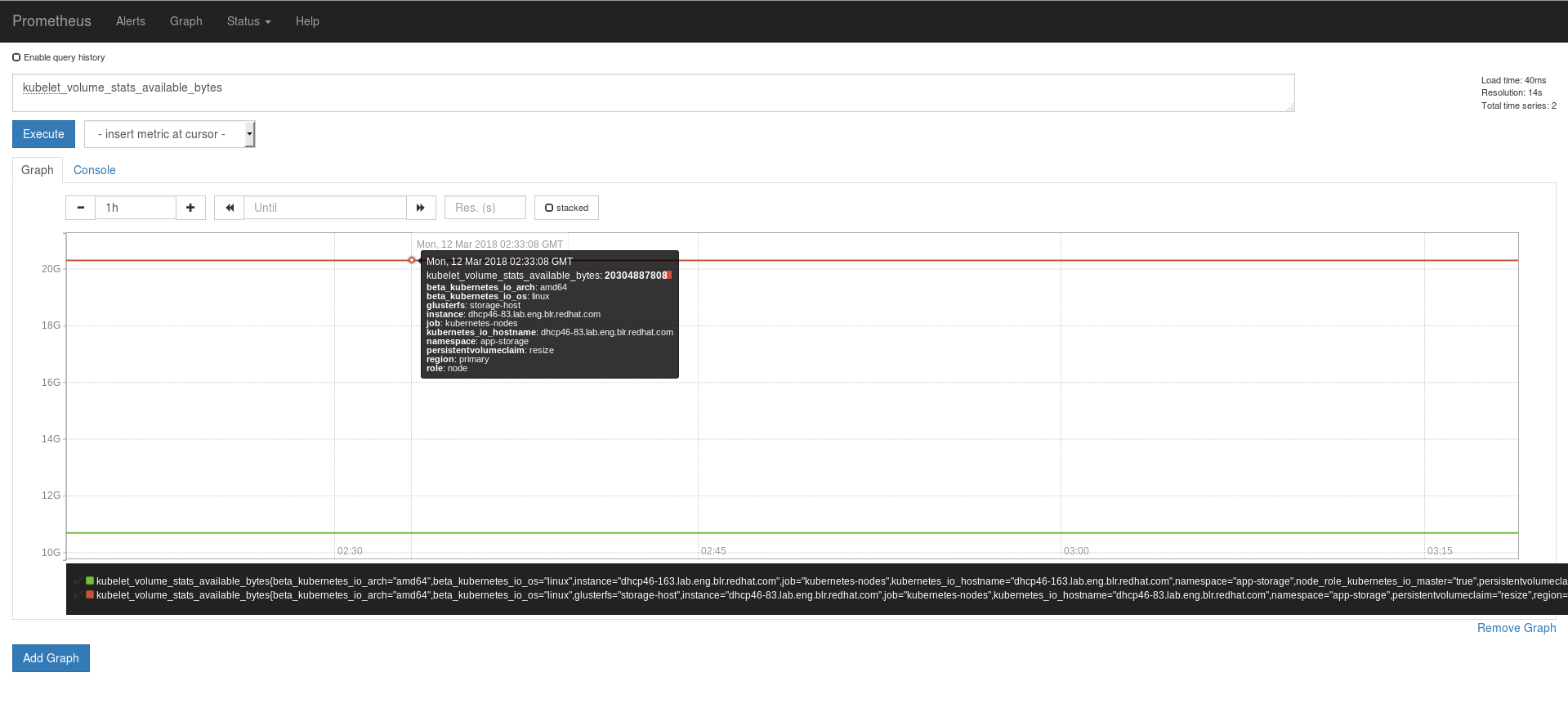
Part VI. Troubleshoot
Chapter 11. Troubleshooting
This chapter describes the most common troubleshooting scenarios related to Red Hat Openshift Container Storage.
- What to do if a Red Hat Openshift Container Storage node Fails
If a Red Hat Openshift Container Storage node fails, and you want to delete it, then, disable the node before deleting it. For more information, see Section 1.2.4, “Deleting Node”.
If a Red Hat Openshift Container Storage node fails and you want to replace it, see Section 1.3.2, “Replacing Nodes”.
- What to do if a Red Hat Openshift Container Storage device fails
If a Red Hat Openshift Container Storage device fails, and you want to delete it, then, disable the device before deleting it. For more information, see Section 1.2.3, “Deleting Device”.
If a Red Hat Openshift Container Storage device fails, and you want to replace it, see Section 1.3.1, “Replacing Devices”.
- What to do if Red Hat Openshift Container Storage volumes require more capacity
- You can increase the storage capacity by either adding devices, increasing the cluster size, or adding an entirely new cluster. For more information, see Section 1.1, “Increasing Storage Capacity”.
- How to upgrade Openshift when Red Hat Openshift Container Storage is installed
- To upgrade Openshift Container Platform, see https://access.redhat.com/documentation/en-us/openshift_container_platform/3.11/html/upgrading_clusters/install-config-upgrading-automated-upgrades#upgrading-to-ocp-3-10.
- Viewing Log Files
Viewing Red Hat Gluster Storage Container Logs
Debugging information related to Red Hat Gluster Storage containers is stored on the host where the containers are started. Specifically, the logs and configuration files can be found at the following locations on the openshift nodes where the Red Hat Gluster Storage server containers run:
- /etc/glusterfs
- /var/lib/glusterd
- /var/log/glusterfs
Viewing Heketi Logs
Debugging information related to Heketi is stored locally in the container or in the persisted volume that is provided to Heketi container.
You can obtain logs for Heketi by running the
docker logs <container-id>command on the openshift node where the container is being run.
- Heketi command returns with no error or empty error
Sometimes, running heketi-cli command returns with no error or empty error like _ Error_.It is mostly due to heketi server not properly configured. You must first ping to validate that the Heketi server is available and later verify with a _ curl_ command and _ /hello endpoint_.
curl http://deploy-heketi-storage-project.cloudapps.mystorage.com/hello
# curl http://deploy-heketi-storage-project.cloudapps.mystorage.com/helloCopy to Clipboard Copied! Toggle word wrap Toggle overflow - Heketi reports an error while loading the topology file
- Running heketi-cli reports : Error "Unable to open topology file" error while loading the topology file. This could be due to the use of old syntax of single hyphen (-) as a prefix for JSON option. You must use the new syntax of double hyphens and reload the topology file.
- cURL command to heketi server fails or does not respond
If the router or heketi is not configured properly, error messages from the heketi may not be clear. To troubleshoot, ping the heketi service using the endpoint and also using the IP address. If ping by the IP address succeeds and ping by the endpoint fails, it indicates a router configuration error.
After the router is setup properly, run a simple curl command like the following:
curl http://deploy-heketi-storage-project.cloudapps.mystorage.com/hello
# curl http://deploy-heketi-storage-project.cloudapps.mystorage.com/helloCopy to Clipboard Copied! Toggle word wrap Toggle overflow If heketi is configured correctly, a welcome message from heketi is displayed. If not, check the heketi configuration.
- Heketi fails to start when Red Hat Gluster Storage volume is used to store heketi.db file
Sometimes Heketi fails to start when Red Hat Gluster Storage volume is used to store heketi.db and reports the following error:
[heketi] INFO 2016/06/23 08:33:47 Loaded kubernetes executor [heketi] ERROR 2016/06/23 08:33:47 /src/github.com/heketi/heketi/apps/glusterfs/app.go:149: write /var/lib/heketi/heketi.db: read-only file system ERROR: Unable to start application
[heketi] INFO 2016/06/23 08:33:47 Loaded kubernetes executor [heketi] ERROR 2016/06/23 08:33:47 /src/github.com/heketi/heketi/apps/glusterfs/app.go:149: write /var/lib/heketi/heketi.db: read-only file system ERROR: Unable to start applicationCopy to Clipboard Copied! Toggle word wrap Toggle overflow The read-only file system error as shown above could be seen while using a Red Hat Gluster Storage volume as backend. This could be when the quorum is lost for the Red Hat Gluster Storage volume. In a replica-3 volume, this would be seen if 2 of the 3 bricks are down. You must ensure the quorum is met for heketi gluster volume and it is able to write to heketi.db file again.
Even if you see a different error, it is a recommended practice to check if the Red Hat Gluster Storage volume serving heketi.db file is available or not. Access deny to heketi.db file is the most common reason for it to not start.
Chapter 12. Client Configuration using Port Forwarding
If a router is not available, you may be able to set up port forwarding so that heketi-cli can communicate with the Heketi service. Execute the following commands for port forwarding:
Obtain the Heketi service pod name by running the following command:
oc get pods
# oc get podsCopy to Clipboard Copied! Toggle word wrap Toggle overflow To forward the port on your local system to the pod, execute the following command on another terminal of your local system:
oc port-forward <heketi pod name> 8080:8080
# oc port-forward <heketi pod name> 8080:8080Copy to Clipboard Copied! Toggle word wrap Toggle overflow On the original terminal execute the following command to test the communication with the server:
curl http://localhost:8080/hello
# curl http://localhost:8080/helloCopy to Clipboard Copied! Toggle word wrap Toggle overflow This will forward the local port 8080 to the pod port 8080.
Setup the Heketi server environment variable by running the following command:
export HEKETI_CLI_SERVER=http://localhost:8080
# export HEKETI_CLI_SERVER=http://localhost:8080Copy to Clipboard Copied! Toggle word wrap Toggle overflow Get information from Heketi by running the following command:
heketi-cli topology info
# heketi-cli topology infoCopy to Clipboard Copied! Toggle word wrap Toggle overflow

'%20d='M201.5%20305.5c-13.8%200-24.9-11.1-24.9-24.6%200-13.8%2011.1-24.9%2024.9-24.9%2013.6%200%2024.6%2011.1%2024.6%2024.9%200%2013.6-11.1%2024.6-24.6%2024.6zM504%20256c0%20137-111%20248-248%20248S8%20393%208%20256%20119%208%20256%208s248%20111%20248%20248zm-132.3-41.2c-9.4%200-17.7%203.9-23.8%2010-22.4-15.5-52.6-25.5-86.1-26.6l17.4-78.3%2055.4%2012.5c0%2013.6%2011.1%2024.6%2024.6%2024.6%2013.8%200%2024.9-11.3%2024.9-24.9s-11.1-24.9-24.9-24.9c-9.7%200-18%205.8-22.1%2013.8l-61.2-13.6c-3-.8-6.1%201.4-6.9%204.4l-19.1%2086.4c-33.2%201.4-63.1%2011.3-85.5%2026.8-6.1-6.4-14.7-10.2-24.1-10.2-34.9%200-46.3%2046.9-14.4%2062.8-1.1%205-1.7%2010.2-1.7%2015.5%200%2052.6%2059.2%2095.2%20132%2095.2%2073.1%200%20132.3-42.6%20132.3-95.2%200-5.3-.6-10.8-1.9-15.8%2031.3-16%2019.8-62.5-14.9-62.5zM302.8%20331c-18.2%2018.2-76.1%2017.9-93.6%200-2.2-2.2-6.1-2.2-8.3%200-2.5%202.5-2.5%206.4%200%208.6%2022.8%2022.8%2087.3%2022.8%20110.2%200%202.5-2.2%202.5-6.1%200-8.6-2.2-2.2-6.1-2.2-8.3%200zm7.7-75c-13.6%200-24.6%2011.1-24.6%2024.9%200%2013.6%2011.1%2024.6%2024.6%2024.6%2013.8%200%2024.9-11.1%2024.9-24.6%200-13.8-11-24.9-24.9-24.9z'/%3e%3c/svg%3e)