 Red Hat Summit
Bare Metal Provisioning
Install, Configure, and Use the Bare Metal Service (Ironic)
Abstract
Preface
This document provides instructions for installing and configuring the Bare Metal service (ironic) in the overcloud, and using the service to provision and manage physical machines for end users.
The Bare Metal service components are also used by the Red Hat OpenStack Platform director, as part of the undercloud, to provision and manage the bare metal nodes that make up the OpenStack environment (the overcloud). For information on how the director uses the Bare Metal service, see Director Installation and Usage.
Chapter 1. About the Bare Metal Service
The OpenStack Bare Metal service (ironic) provides the components required to provision and manage physical machines for end users. The Bare Metal service in the overcloud interacts with the following OpenStack services:
- OpenStack Compute (nova) provides scheduling, tenant quotas, IP assignment, and a user-facing API for virtual machine instance management, while the Bare Metal service provides the administrative API for hardware management.
- OpenStack Identity (keystone) provides request authentication and assists the Bare Metal service in locating other OpenStack services.
- OpenStack Image service (glance) manages images and image metadata.
- OpenStack Networking (neutron) provides DHCP and network configuration.
- OpenStack Object Storage (swift) is used by certain drivers to expose temporary URLs to images.
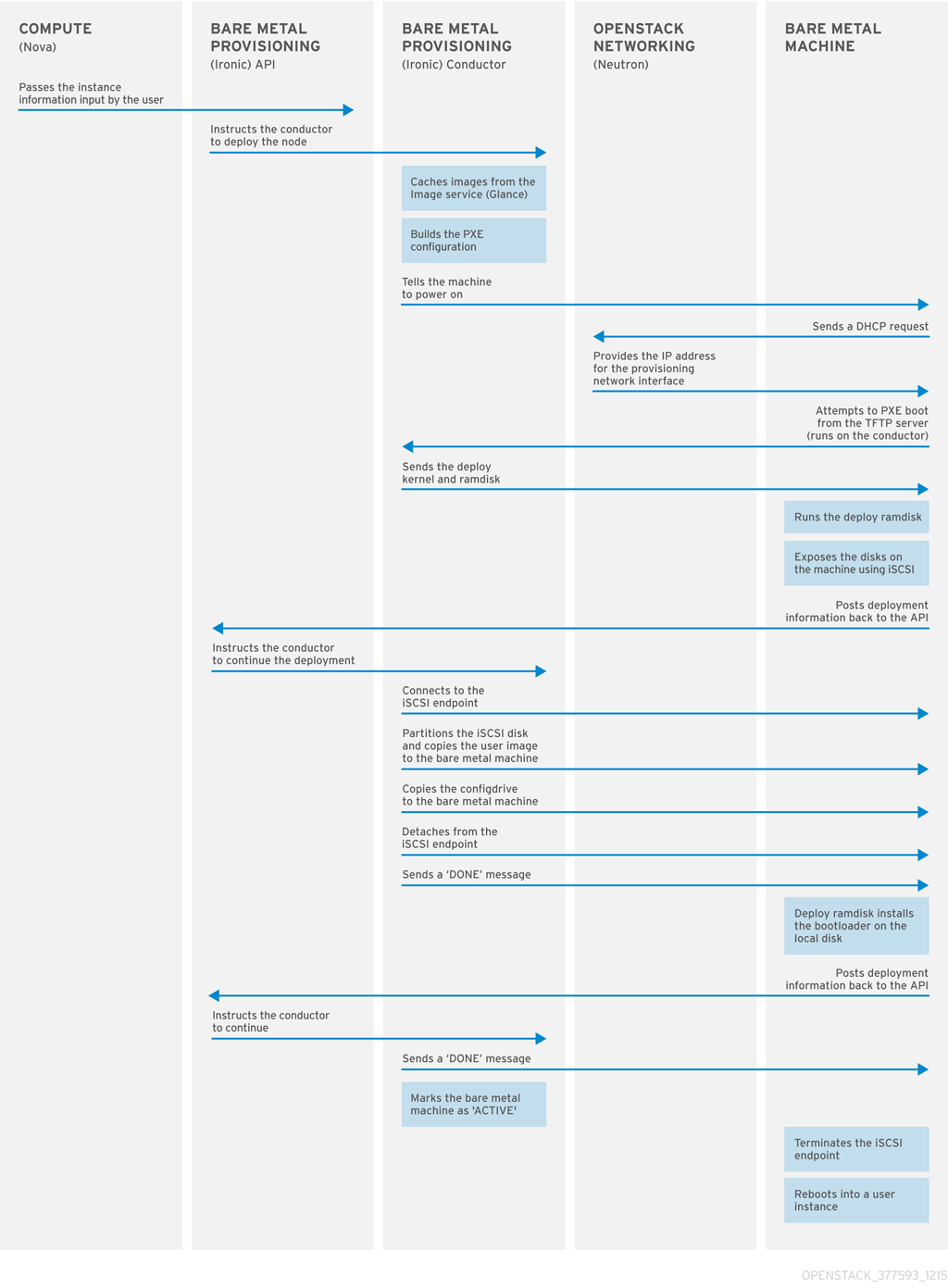
The Bare Metal service uses iPXE to provision physical machines. The following diagram outlines how the OpenStack services interact during the provisioning process when a user launches a new machine with the default drivers.
Chapter 2. Planning for Bare Metal Provisioning
This chapter outlines the requirements for setting up the Bare Metal service, including installation assumptions, hardware requirements, and networking requirements.
2.1. Installation Assumptions
This guide assumes you have installed the director on the undercloud node, and are ready to install the Bare Metal service along with the rest of the overcloud. For more information on installing the director, see Installing the Undercloud.
The Bare Metal service in the overcloud is designed for a trusted tenant environment, as the bare metal nodes can access the control plane network of your OpenStack installation.
2.2. Hardware Requirements
Overcloud Requirements
The hardware requirements for an overcloud with the Bare Metal service are the same as for the standard overcloud. For more information, see Overcloud Requirements in the Director Installation and Usage guide.
Bare Metal Machine Requirements
The hardware requirements for bare metal machines that will be provisioned vary depending on the operating system you are installing. For Red Hat Enterprise Linux 7, see the Red Hat Enterprise Linux 7 Installation Guide. For Red Hat Enterprise Linux 6, see the Red Hat Enterprise Linux 6 Installation Guide.
All bare metal machines to be provisioned require the following:
- A NIC to connect to the bare metal network.
- A power management interface (for example, IPMI) connected to a network reachable from the ironic-conductor service. If you are using the SSH driver for testing purposes, this is not required. By default, ironic-conductor runs on all of the controller nodes.
- PXE boot on the bare metal network. Disable PXE boot on all other NICs in the deployment.
2.3. Networking requirements
The bare metal network:
This is a private network that the Bare Metal service uses for:
- The provisioning and management of bare metal machines on the overcloud.
- Cleaning bare metal nodes before and between deployments.
- Tenant access to the bare metal nodes.
The bare metal network provides DHCP and PXE boot functions to discover bare metal systems. This network must use a native VLAN on a trunked interface so that the Bare Metal service can serve PXE boot and DHCP requests.
The bare metal network must reach the control plane network:
The bare metal network must be routed to the control plane network. If you define an isolated bare metal network, the bare metal nodes will not be able to PXE boot.
The Bare Metal service in the overcloud is designed for a trusted tenant environment, as the bare metal nodes have direct access to the control plane network of your OpenStack installation.
Network tagging:
- The control plane network (the director’s provisioning network) is always untagged.
- The bare metal network must be untagged for provisioning, and must also have access to the Ironic API.
- Other networks may be tagged.
Overcloud controllers:
The controller nodes with the Bare Metal service must have access to the bare metal network.
Bare metal nodes:
The NIC which the bare metal node is configured to PXE-boot from must have access to the bare metal network.
2.3.1. The Default Bare Metal Network
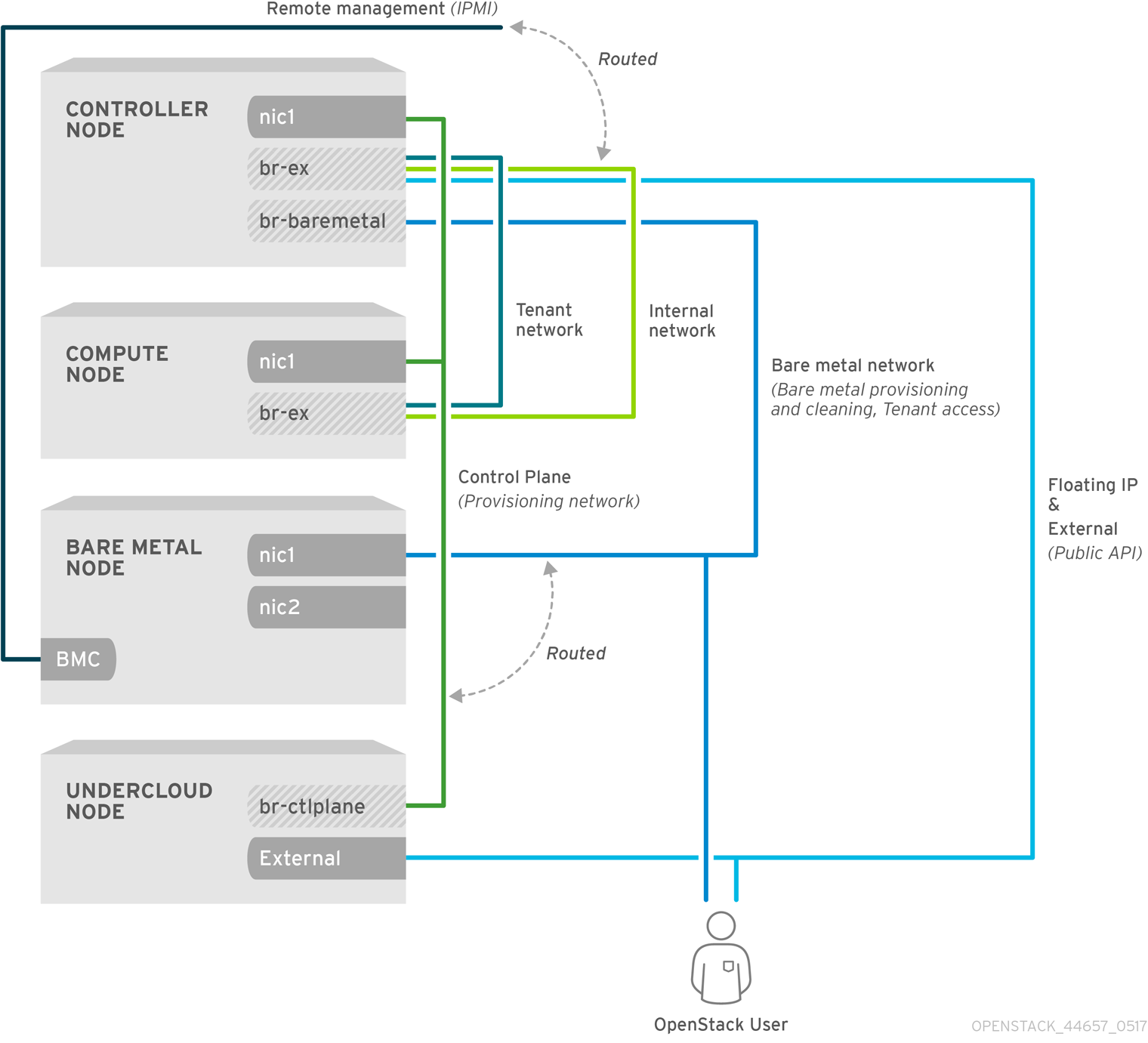
In this architecture, the bare metal network is separated from the control plane network. The bare metal network also acts as the tenant network.
- The bare metal network is created by the OpenStack operator. This network requires a route to the director’s provisioning network.
- Ironic users have access to the public OpenStack APIs, and to the bare metal network. Since the Bare metal network is routed to the director’s provisioning network, users also have indirect access to the control plane.
- Ironic uses the bare metal network for node cleaning.
Default bare metal network architecture diagram
Chapter 3. Deploying an Overcloud with the Bare Metal Service
For full details about overcloud deployment with the director, see Director Installation and Usage. This chapter only covers deployment steps specific to ironic.
3.1. Creating the Ironic Template
Use an environment file to deploy the overcloud with the Bare Metal service enabled. A template is located on the director node at /usr/share/openstack-tripleo-heat-templates/environments/services/ironic.yaml.
Filling in the template
Additional configuration can be specified either in the provided template or in an additional yaml file, for example ~/templates/ironic.yaml.
For a hybrid deployment with both bare metal and virtual instances, you must add
AggregateInstanceExtraSpecsFilterto the list ofNovaSchedulerDefaultFilters. If you have not setNovaSchedulerDefaultFiltersanywhere, you can do so in ironic.yaml. For an example, see Section 3.3, “Example Templates”.NoteIf you are using SR-IOV, NovaSchedulerDefaultFilters is already set in
tripleo-heat-templates/environments/neutron-sriov.yaml. AppendAggregateInstanceExtraSpecsFilterto this list.-
The type of cleaning that occurs before and between deployments is set by
IronicCleaningDiskErase. By default, this is set to ‘full’ bypuppet/services/ironic-conductor.yaml. Setting this to ‘metadata’ can substantially speed up the process, as it only cleans the partition table, however, since the deployment will be less secure in multi-tenant environment, you should only do this in a trusted tenant environment. -
You can add drivers with the
IronicEnabledDriversparameter. By default,pxe_ipmitool,pxe_dracandpxe_iloare enabled.
For a full list of configuration parameters, see the section Bare Metal in the Overcloud Parameters guide.
3.2. Network Configuration
Create a bridge called br-baremetal for ironic to use. You can specify this in an additional template:
~/templates/network-environment.yaml
parameter_defaults:
  NeutronBridgeMappings: datacentre:br-ex,baremetal:br-baremetal
  NeutronFlatNetworks: datacentre,baremetal
You can either configure this bridge in the provisioning network (control plane) of the controllers, so you can reuse this network as the bare metal network, or add a dedicated network. The configuration requirements are the same, however the bare metal network cannot be VLAN-tagged, as it is used for provisioning.
~/templates/nic-configs/controller.yaml
network_config:
    -
      type: ovs_bridge
          name: br-baremetal
          use_dhcp: false
          members:
            -
              type: interface
              name: eth1
3.3. Example Templates
The following is an example template file. This file may not meet the requirements of your environment. Before using this example, make sure it does not interfere with any existing configuration in your environment.
~/templates/ironic.yaml
parameter_defaults:

    NovaSchedulerDefaultFilters:
        - RetryFilter
        - AggregateInstanceExtraSpecsFilter
        - AvailabilityZoneFilter
        - RamFilter
        - DiskFilter
        - ComputeFilter
        - ComputeCapabilitiesFilter
        - ImagePropertiesFilter

    IronicCleaningDiskErase: metadata
In this example:
-
The
AggregateInstanceExtraSpecsFilterallows both virtual and bare metal instances, for a hybrid deployment. - Disk cleaning that is done before and between deployments only erases the partition table (metadata).
3.4. Deploying the Overcloud
To enable the Bare Metal service, include your ironic environment files with -e when deploying or redeploying the overcloud, along with the rest of your overcloud configuration.
For example:
$ openstack overcloud deploy \
  --templates \
  -e ~/templates/node-info.yaml \
  -e /usr/share/openstack-tripleo-heat-templates/environments/network-isolation.yaml \
  -e ~/templates/network-environment.yaml \
  -e /usr/share/openstack-tripleo-heat-templates/environments/services/ironic.yaml \
  -e ~/templates/ironic.yaml \
For more information about deploying the overcloud, see Creating the Overcloud with the CLI Tools and Including Environment Files in Overcloud Creation.
3.5. Testing the Bare Metal Service
You can use the OpenStack Integration Test Suite to validate your Red Hat OpenStack deployment. For more information, see the OpenStack Integration Test Suite Guide.
Additional Ways to Verify the Bare Metal Service:
Set up the shell to access Identity as the administrative user:
$ source ~/overcloudrcCheck that the
nova-computeservice is running on the controller nodes:$ openstack compute service list -c Binary -c Host -c StatusIf you have changed the default ironic drivers, make sure the required drivers are enabled:
$ openstack baremetal driver listEnsure that the ironic endpoints are listed:
$ openstack catalog list
Chapter 4. Configuring for the Bare Metal Service After Deployment
This section describes the steps necessary to configure your overcloud after deployment.
4.1. Configuring OpenStack Networking
Configure OpenStack Networking to communicate with the Bare Metal service for DHCP, PXE boot, and other requirements. The procedure below configures OpenStack Networking for a single, flat network use case for provisioning onto bare metal. The configuration uses the ML2 plug-in and the Open vSwitch agent. Only flat networks are supported.
This procedure creates a bridge using the bare metal network interface, and drops any remote connections.
All steps in the following procedure must be performed on the server hosting OpenStack Networking, while logged in as the root user.
Configuring OpenStack Networking to Communicate with the Bare Metal Service
Set up the shell to access Identity as the administrative user:
$ source ~/overcloudrcCreate the flat network over which to provision bare metal instances:
$ openstack network create \
  --provider-network-type flat \
  --provider-physical-network baremetal \
  --share NETWORK_NAME
Replace NETWORK_NAME with a name for this network. The name of the physical network over which the virtual network is implemented, (in this case
baremetal), was set earlier in~/templates/network-environment.yaml, with the parameterNeutronBridgeMappings.Create the subnet on the flat network:
$ openstack subnet create \
  --network NETWORK_NAME \
  --subnet-range NETWORK_CIDR \
  --ip-version 4 \
  --gateway GATEWAY_IP \
  --allocation-pool start=START_IP,end=END_IP \
  --dhcp SUBNET_NAME
Replace the following values:
- Replace SUBNET_NAME with a name for the subnet.
- Replace NETWORK_NAME with the name of the provisioning network you created in the previous step.
- Replace NETWORK_CIDR with the Classless Inter-Domain Routing (CIDR) representation of the block of IP addresses the subnet represents. The block of IP addresses specified by the range started by START_IP and ended by END_IP must fall within the block of IP addresses specified by NETWORK_CIDR.
- Replace GATEWAY_IP with the IP address or host name of the router interface that will act as the gateway for the new subnet. This address must be within the block of IP addresses specified by NETWORK_CIDR, but outside of the block of IP addresses specified by the range started by START_IP and ended by END_IP.
- Replace START_IP with the IP address that denotes the start of the range of IP addresses within the new subnet from which floating IP addresses will be allocated.
- Replace END_IP with the IP address that denotes the end of the range of IP addresses within the new subnet from which floating IP addresses will be allocated.
Attach the network and subnet to the router to ensure the metadata requests are served by the OpenStack Networking service.
$ openstack router create ROUTER_NAMEReplace
ROUTER_NAMEwith a name for the router.Add the Bare Metal subnet to this router:
$ openstack router add subnet ROUTER_NAME BAREMETAL_SUBNETReplace ROUTER_NAME with the name of your router and BAREMETAL_SUBNET with the ID or subnet name that you previously created. This allows the metadata requests from
cloud-initto be served and the node configured.Configure cleaning by providing the provider network UUID on the controller running the Bare Metal Service:
~/templates/ironic.yamlparameter_defaults: ControllerExtraConfig: ironic::conductor::cleaning_network_uuid: UUIDReplace
UUIDwith the UUID of the bare metal network created in the previous steps.You can find the UUID using
openstack network show:openstack network show NETWORK_NAME -f value -c idNoteThis configuration must be done after the initial overcloud deployment, because the UUID for the network isn’t available beforehand.
-
Apply the changes by redeploying the overcloud with the
openstack overcloud deploycommand as described in Section 3.4, “Deploying the Overcloud”.
4.2. Creating the Bare Metal Flavor
You need to create a flavor to use as a part of the deployment. The specifications (memory, CPU, and disk) of this flavor must be equal to or less than what your bare metal node provides.
Set up the shell to access Identity as the administrative user:
$ source ~/overcloudrcList existing flavors:
$ openstack flavor listCreate a new flavor for the Bare Metal service:
$ openstack flavor create \
  --id auto --ram RAM \
  --vcpus VCPU --disk DISK \
  --property baremetal=true \
  --public baremetal
Replace
RAMwith the amount of memory,VCPUwith the number of vCPUs andDISKwith the disk storage value. The propertybaremetalis used to distinguish bare metal from virtual instances.Verify that the new flavor is created with the respective values:
$ openstack flavor list
4.3. Creating the Bare Metal Images
The deployment requires two sets of images:
-
The deploy image is used by the Bare Metal service to boot the bare metal node and copy a user image onto the bare metal node. The deploy image consists of the
kernelimage and theramdiskimage. The user image is the image deployed onto the bare metal node. The user image also has a
kernelimage andramdiskimage, but additionally, the user image contains amainimage. The main image is either a root partition, or a whole-disk image.- A whole-disk image is an image that contains the partition table and boot loader. The Bare Metal service does not control the subsequent reboot of a node deployed with a whole-disk image as the node supports localboot.
- A root partition image only contains the root partition of the operating system. If using a root partition, after the deploy image is loaded into the Image service, you can set the deploy image as the node’s boot image in the node’s properties. A subsequent reboot of the node uses netboot to pull down the user image.
The examples in this section use a root partition image to provision bare metal nodes.
4.3.1. Preparing the Deploy Images
You do not have to create the deploy image as it was already used when the overcloud was deployed by the undercloud. The deploy image consists of two images - the kernel image and the ramdisk image as follows:
ironic-python-agent.kernel
ironic-python-agent.initramfs
These images are often in the home directory, unless you have deleted them, or unpacked them elsewhere. If they are not in the home directory, and you still have the rhosp-director-images-ipa package installed, these images will be in the /usr/share/rhosp-director-images/ironic-python-agent*.tar file.
Extract the images and upload them to the Image service:
$ openstack image create \
  --container-format aki \
  --disk-format aki \
  --public \
  --file ./ironic-python-agent.kernel bm-deploy-kernel
$ openstack image create \
  --container-format ari \
  --disk-format ari \
  --public \
  --file ./ironic-python-agent.initramfs bm-deploy-ramdisk
4.3.2. Preparing the User Image
The final image that you need is the user image that will be deployed on the bare metal node. User images also have a kernel and ramdisk, along with a main image.
- Download the Red Hat Enterprise Linux KVM guest image from the Customer Portal (requires login).
Define DIB_LOCAL_IMAGE as the downloaded image:
$ export DIB_LOCAL_IMAGE=rhel-server-7.4-beta-1-x86_64-kvm.qcow2Create the user images using the
diskimage-buildertool:$ disk-image-create rhel7 baremetal -o rhel-imageThis extracts the kernel as
rhel-image.vmlinuzand initial ramdisk asrhel-image.initrd.Upload the images to the Image service:
$ KERNEL_ID=$(openstack image create \
  --file rhel-image.vmlinuz --public \
  --container-format aki --disk-format aki \
  -f value -c id rhel-image.vmlinuz)
$ RAMDISK_ID=$(openstack image create \
  --file rhel-image.initrd --public \
  --container-format ari --disk-format ari \
  -f value -c id rhel-image.initrd)
$ openstack image create \
  --file rhel-image.qcow2   --public \
  --container-format bare \
  --disk-format qcow2 \
  --property kernel_id=$KERNEL_ID \
  --property ramdisk_id=$RAMDISK_ID \
  rhel-image
4.4. Adding Physical Machines as Bare Metal Nodes
There are two methods to enroll a bare metal node:
- Prepare an inventory file with the node details, import the file into the Bare Metal service, then make the nodes available.
- Register a physical machine as a bare metal node, then manually add its hardware details and create ports for each of its Ethernet MAC addresses. These steps can be performed on any node which has your overcloudrc file.
Both methods are detailed in this section.
After enrolling the physical machines, Compute is not immediately notified of new resources, because Compute’s resource tracker synchronizes periodically. Changes will be visible after the next periodic task is run. This value, scheduler_driver_task_period, can be updated in /etc/nova/nova.conf. The default period is 60 seconds.
4.4.1. Enrolling a Bare Metal Node With an Inventory File
Create a file
overcloud-nodes.yaml, including the node details. Multiple nodes can be enrolled with one file.nodes: - name: node0 driver: pxe_ipmitool driver_info: ipmi_address: <IPMI_IP> ipmi_username: <USER> ipmi_password: <PASSWORD> properties: cpus: <CPU_COUNT> cpu_arch: <CPU_ARCHITECTURE> memory_mb: <MEMORY> local_gb: <ROOT_DISK> root_device: serial: <SERIAL> ports: - address: <PXE_NIC_MAC>Replace the following values:
-
<IPMI_IP>with the IP address of the Bare Metal controller. -
<USER>with your username. -
<PASSWORD>with your password. -
<CPU_COUNT>with the number of CPUs. -
<CPU_ARCHITECTURE>with the type of architecture of the CPUs. -
<MEMORY>with the amount of memory in MiB. -
<ROOT_DISK>with the size of the root disk in GiB. <MAC_ADDRESS>with the MAC address of the NIC used to PXE boot.You only need to include
root_deviceif the machine has multiple disks. Replace<SERIAL>with the serial number of the disk you would like used for deployment.
-
Set up the shell to use Identity as the administrative user:
$ source ~/overcloudrcImport the inventory file into ironic:
$ openstack baremetal create overcloud-nodes.yamlThe nodes are now in the
enrollstate. Make them available by specifying the deploy kernel and deploy ramdisk on each node:$ openstack baremetal node set NODE_UUID \ --driver-info deploy_kernel=KERNEL_UUID \ --driver-info deploy_ramdisk=INITRAMFS_UUIDReplace the following values:
- Replace NODE_UUID with the unique identifier for the node. Alternatively, use the node’s logical name.
Replace KERNEL_UUID with the unique identifier for the kernel deploy image that was uploaded to the Image service. Find this value with:
$ openstack image show bm-deploy-kernel -f value -c idReplace INITRAMFS_UUID with the unique identifier for the ramdisk image that was uploaded to the Image service. Find this value with:
$ openstack image show bm-deploy-ramdisk -f value -c id
Check that the nodes were successfully enrolled:
$ openstack baremetal node listThere may be a delay between enrolling a node and its state being shown.
4.4.2. Enrolling a Bare Metal Node Manually
Set up the shell to use Identity as the administrative user:
$ source ~/overcloudrcAdd a new node:
$ openstack baremetal node create --driver pxe_impitool --name NAMETo create a node you must specify the driver name. This example uses
pxe_impitool. To use a different driver, you must enable it by setting theIronicEnabledDriversparameter. For more information on supported drivers, see Appendix A, Bare Metal Drivers.ImportantNote the unique identifier for the node.
Update the node driver information to allow the Bare Metal service to manage the node:
$ openstack baremetal node set NODE_UUID \ --driver_info PROPERTY=VALUE \ --driver_info PROPERTY=VALUEReplace the following values:
- Replace NODE_UUID with the unique identifier for the node. Alternatively, use the node’s logical name.
- Replace PROPERTY with a required property returned by the ironic driver-properties command.
- Replace VALUE with a valid value for that property.
Specify the deploy kernel and deploy ramdisk for the node driver:
$ openstack baremetal node set NODE_UUID \
  --driver-info deploy_kernel=KERNEL_UUID \
  --driver-info deploy_ramdisk=INITRAMFS_UUID
Replace the following values:
- Replace NODE_UUID with the unique identifier for the node. Alternatively, use the node’s logical name.
- Replace KERNEL_UUID with the unique identifier for the .kernel image that was uploaded to the Image service.
- Replace INITRAMFS_UUID with the unique identifier for the .initramfs image that was uploaded to the Image service.
Update the node’s properties to match the hardware specifications on the node:
$ openstack baremetal node set NODE_UUID \
  --property cpus=CPU \
  --property memory_mb=RAM_MB \
  --property local_gb=DISK_GB \
  --property cpu_arch=ARCH
Replace the following values:
- Replace NODE_UUID with the unique identifier for the node. Alternatively, use the node’s logical name.
- Replace CPU with the number of CPUs.
- Replace RAM_MB with the RAM (in MB).
- Replace DISK_GB with the disk size (in GB).
- Replace ARCH with the architecture type.
OPTIONAL: Configure the node to reboot after initial deployment from a local boot loader installed on the node’s disk, instead of using PXE from
ironic-conductor. The local boot capability must also be set on the flavor used to provision the node. To enable local boot, the image used to deploy the node must contain grub2. Configure local boot:$ openstack baremetal node set NODE_UUID \ --property capabilities="boot_option:local"Replace NODE_UUID with the unique identifier for the node. Alternatively, use the node’s logical name.
Inform the Bare Metal service of the node’s network card by creating a port with the MAC address of the NIC on the provisioning network:
$ openstack baremetal port create --node NODE_UUID MAC_ADDRESSReplace NODE_UUID with the unique identifier for the node. Replace MAC_ADDRESS with the MAC address of the NIC used to PXE boot.
If you have multiple disks, set the root device hints. This informs the deploy ramdisk which disk it should use for deployment.
$ openstack baremetal node set NODE_UUID \
  --property root_device={"PROPERTY": "VALUE"}
Replace with the following values:
- Replace NODE_UUID with the unique identifier for the node. Alternatively, use the node’s logical name.
Replace PROPERTY and VALUE with details about the disk you want used for deployment, for example
root_device='{"size": 128}'The following properties are supported:
-
model(String): Device identifier. -
vendor(String): Device vendor. -
serial(String): Disk serial number. -
hctl(String): Host:Channel:Target:Lun for SCSI. -
size(Integer): Size of the device in GB. -
wwn(String): Unique storage identifier. -
wwn_with_extension(String): Unique storage identifier with the vendor extension appended. -
wwn_vendor_extension(String): Unique vendor storage identifier. -
rotational(Boolean): True for a rotational device (HDD), otherwise false (SSD). name(String): The name of the device, for example: /dev/sdb1 Only use this for devices with persistent names.NoteIf you specify more than one property, the device must match all of those properties.
Validate the node’s setup:
$ openstack baremetal node validate NODE_UUID
+------------+--------+---------------------------------------------+
| Interface  | Result | Reason                                      |
+------------+--------+---------------------------------------------+
| boot       | False  | Cannot validate image information for node  |
|            |        | a02178db-1550-4244-a2b7-d7035c743a9b        |
|            |        | because one or more parameters are missing  |
|            |        | from its instance_info. Missing are:        |
|            |        | ['ramdisk', 'kernel', 'image_source']       |
| console    | None   | not supported                               |
| deploy     | False  | Cannot validate image information for node  |
|            |        | a02178db-1550-4244-a2b7-d7035c743a9b        |
|            |        | because one or more parameters are missing  |
|            |        | from its instance_info. Missing are:        |
|            |        | ['ramdisk', 'kernel', 'image_source']       |
| inspect    | None   | not supported                               |
| management | True   |                                             |
| network    | True   |                                             |
| power      | True   |                                             |
| raid       | True   |                                             |
| storage    | True   |                                             |
+------------+--------+---------------------------------------------+
Replace NODE_UUID with the unique identifier for the node. Alternatively, use the node’s logical name. The output of the command above should report either
TrueorNonefor each interface. Interfaces markedNoneare those that you have not configured, or those that are not supported for your driver.NoteInterfaces may fail validation due to missing 'ramdisk', 'kernel', and 'image_source' parameters. This result is fine, because the Compute service populates those missing parameters at the beginning of the deployment process.
4.5. Using Host Aggregates to Separate Physical and Virtual Machine Provisioning
OpenStack Compute uses host aggregates to partition availability zones, and group together nodes with specific shared properties. When an instance is provisioned, Compute’s scheduler compares properties on the flavor with the properties assigned to host aggregates, and ensures that the instance is provisioned in the correct aggregate and on the correct host: either on a physical machine or as a virtual machine.
The procedure below describes how to do the following:
-
Add the property
baremetalto your flavors, setting it to eithertrueorfalse. -
Create separate host aggregates for bare metal hosts and compute nodes with a matching
baremetalproperty. Nodes grouped into an aggregate inherit this property.
Creating a Host Aggregate
Set the
baremetalproperty totrueon the baremetal flavor.$ openstack flavor set baremetal --property baremetal=trueSet the
baremetalproperty tofalseon the flavors used for virtual instances.$ openstack flavor set FLAVOR_NAME --property baremetal=falseCreate a host aggregate called
baremetal-hosts:$ openstack aggregate create --property baremetal=true baremetal-hostsAdd each controller node to the
baremetal-hostsaggregate:$ openstack aggregate add host baremetal-hosts HOSTNAMENoteIf you have created a composable role with the
NovaIronicservice, add all the nodes with this service to thebaremetal-hostsaggregate. By default, only the controller nodes have theNovaIronicservice.Create a host aggregate called
virtual-hosts:$ openstack aggregate create --property baremetal=false virtual-hostsAdd each compute node to the
virtual-hostsaggregate:$ openstack aggregate add host virtual-hosts HOSTNAMEIf you did not add the following Compute filter scheduler when deploying the overcloud, add it now to the existing list under
scheduler_default_filtersin /etc/nova/nova.conf:AggregateInstanceExtraSpecsFilter
Chapter 5. Administering Bare Metal Nodes
This chapter describes how to provision a physical machine on an enrolled bare metal node. Instances can be launched either from the command line or from the OpenStack dashboard.
5.1. Launching an Instance Using the Command Line Interface
Use the openstack command line interface to deploy a bare metal instance.
Deploying an Instance on the Command Line
Set up the shell to access Identity as the administrative user:
$ source ~/overcloudrcDeploy the instance:
$ openstack server create \
  --nic net-id=NETWORK_UUID \
  --flavor baremetal \
  --image IMAGE_UUID \
  INSTANCE_NAME
Replace the following values:
- Replace NETWORK_UUID with the unique identifier for the network that was created for use with the Bare Metal service.
- Replace IMAGE_UUID with the unique identifier for the disk image that was uploaded to the Image service.
- Replace INSTANCE_NAME with a name for the bare metal instance.
Check the status of the instance:
$ openstack server list --name INSTANCE_NAME
5.2. Launch an Instance Using the Dashboard
Use the dashboard graphical user interface to deploy a bare metal instance.
Deploying an Instance in the Dashboard
- Log in to the dashboard at http[s]://DASHBOARD_IP/dashboard.
- Click Project > Compute > Instances
Click Launch Instance.
-
In the Details tab, specify the Instance Name and select
1for Count. -
In the Source tab, select an
Imagefrom Select Boot Source, then click the+(plus) symbol to select an operating system disk image. The chosen image will move to Allocated. -
In the Flavor tab, select
baremetal. -
In the Networks tab, use the
+(plus) and-(minus) buttons to move required networks from Available to Allocated. Ensure that the shared network created for the Bare Metal service is selected here.
-
In the Details tab, specify the Instance Name and select
- Click Launch Instance.
Chapter 6. Troubleshooting the Bare Metal Service
The following sections contain information and steps that may be useful for diagnosing issues in a setup with the Bare Metal service enabled.
6.1. PXE Boot Errors
Permission Denied Errors
If you are getting a permission denied error on the console of your Bare Metal service node, make sure you have applied the appropriate SELinux context to the /httpboot and /tftpboot directories as follows:
# semanage fcontext -a -t httpd_sys_content_t "/httpboot(/.*)?"
# restorecon -r -v /httpboot
# semanage fcontext -a -t tftpdir_t "/tftpboot(/.*)?"
# restorecon -r -v /tftpboot
Boot Process Freezes at /pxelinux.cfg/XX-XX-XX-XX-XX-XX
On the console of your node, if it looks like you are getting an IP address and then the process stops as shown below:
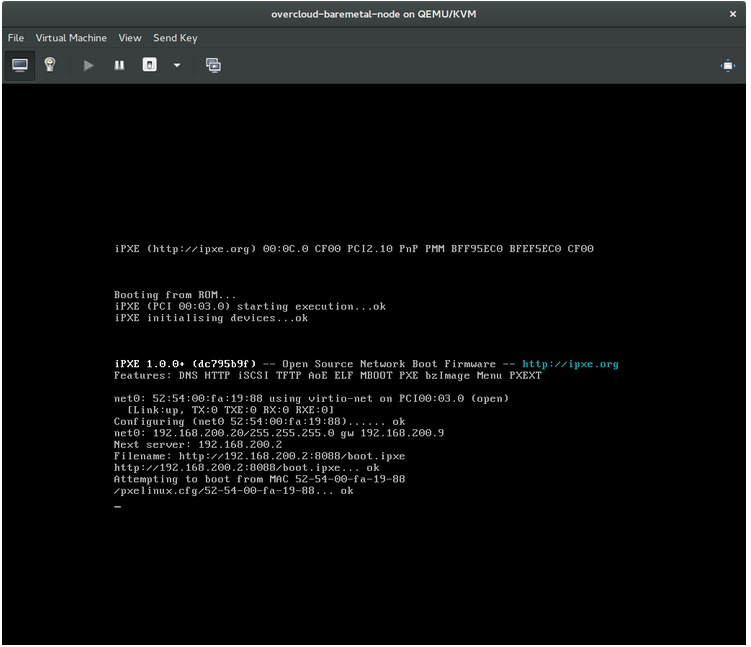
This indicates that you might be using the wrong PXE boot template in your ironic.conf file.
$ grep ^pxe_config_template ironic.conf
pxe_config_template=$pybasedir/drivers/modules/ipxe_config.template
The default template is pxe_config.template, so it is easy to miss the i to turn this into ipxe_config.template.
6.2. Login Errors After the Bare Metal Node Boots
When you try to log in at the login prompt on the console of the node with the root password that you set in the configurations steps, but are not able to, it indicates you are not booted in to the deployed image. You are probably stuck in the deploy-kernel/deploy-ramdisk image and the system has yet to get the correct image.
To fix this issue, verify the PXE Boot Configuration file in the /httpboot/pxelinux.cfg/MAC_ADDRESS on the Compute or Bare Metal service node and ensure that all the IP addresses listed in this file correspond to IP addresses on the Bare Metal network.
The only network the Bare Metal service node knows about is the Bare Metal network. If one of the endpoints is not on the network, the endpoint will not be able to reach the Bare Metal service node as a part of the boot process.
For example, the kernel line in your file is as follows:
kernel http://192.168.200.2:8088/5a6cdbe3-2c90-4a90-b3c6-85b449b30512/deploy_kernel selinux=0 disk=cciss/c0d0,sda,hda,vda iscsi_target_iqn=iqn.2008-10.org.openstack:5a6cdbe3-2c90-4a90-b3c6-85b449b30512 deployment_id=5a6cdbe3-2c90-4a90-b3c6-85b449b30512 deployment_key=VWDYDVVEFCQJNOSTO9R67HKUXUGP77CK ironic_api_url=http://192.168.200.2:6385 troubleshoot=0 text nofb nomodeset vga=normal boot_option=netboot ip=${ip}:${next-server}:${gateway}:${netmask} BOOTIF=${mac} ipa-api-url=http://192.168.200.2:6385 ipa-driver-name=pxe_ssh boot_mode=bios initrd=deploy_ramdisk coreos.configdrive=0 || goto deployValue in the above example kernel line | Corresponding information |
|---|---|
| http://192.168.200.2:8088 |
Parameter |
| 5a6cdbe3-2c90-4a90-b3c6-85b449b30512 |
UUID of the baremetal node in |
| deploy_kernel |
This is the deploy kernel image in the Image service that is copied down as |
| http://192.168.200.2:6385 |
Parameter |
| pxe_ssh | The IPMI Driver in use by the Bare Metal service for this node. |
| deploy_ramdisk |
This is the deploy ramdisk image in the Image service that is copied down as |
If a value does not correspond between the /httpboot/pxelinux.cfg/MAC_ADDRESS and the ironic.conf file:
-
Update the value in the
ironic.conffile - Restart the Bare Metal service
- Re-deploy the bare metal instance
6.3. The Bare Metal Service Is Not Getting the Right Hostname
If the Bare Metal service is not getting the right hostname, it means that cloud-init is failing. To fix this, connect the Bare Metal subnet to a router in the OpenStack Networking service. The requests to the meta-data agent should now be routed correctly.
6.4. Invalid OpenStack Identity Service Credentials When Executing Bare Metal Service Commands
If you are having trouble authenticating to the Identity service, check the identity_uri parameter in the ironic.conf file and make sure you remove the /v2.0 from the keystone AdminURL. For example, identity_uri should be set to http://IP:PORT.
6.5. Hardware Enrollment
Issues with enrolled hardware can be caused by incorrect node registration details. Ensure that property names and values have been entered correctly. Incorrect or mistyped property names will be successfully added to the node’s details, but will be ignored.
Update a node’s details. This example updates the amount of memory the node is registered to use to 2 GB:
$ openstack baremetal node set --property memory_mb=2048 NODE_UUID6.6. No Valid Host Errors
If the Compute scheduler cannot find a suitable Bare Metal node on which to boot an instance, a NoValidHost error can be seen in /var/log/nova/nova-conductor.log or immediately upon launch failure in the dashboard. This is usually caused by a mismatch between the resources Compute expects and the resources the Bare Metal node provides.
Check the hypervisor resources that are available:
$ openstack hypervisor stats showThe resources reported here should match the resources that the Bare Metal nodes provide.
Check that Compute recognizes the Bare Metal nodes as hypervisors:
$ openstack hypervisor listThe nodes, identified by UUID, should appear in the list.
Check the details for a Bare Metal node:
$ openstack baremetal node list
$ openstack baremetal node show NODE_UUID
Verify that the node’s details match those reported by Compute.
Check that the selected flavor does not exceed the available resources of the Bare Metal nodes:
$ openstack flavor show FLAVOR_NAMECheck the output of openstack baremetal node list to ensure that Bare Metal nodes are not in maintenance mode. Remove maintenance mode if necessary:
$ openstack baremetal node maintenance unset NODE_UUIDCheck the output of openstack baremetal node list to ensure that Bare Metal nodes are in an
availablestate. Move the node toavailableif necessary:$ openstack baremetal node provide NODE_UUID
Appendix A. Bare Metal Drivers
A bare metal node can be configured to use one of the drivers enabled in the Bare Metal service. Each driver is made up of a provisioning method and a power management type. Some drivers require additional configuration. Each driver described in this section uses PXE for provisioning; drivers are listed by their power management type.
You can add drivers with the IronicEnabledDrivers parameter in your ironic.yaml file. By default, pxe_ipmitool, pxe_drac and pxe_ilo are enabled.
For the full list of supported plug-ins and drivers, see Component, Plug-In, and Driver Support in Red Hat OpenStack Platform.
A.1. Intelligent Platform Management Interface (IPMI)
IPMI is an interface that provides out-of-band remote management features, including power management and server monitoring. To use this power management type, all Bare Metal service nodes require an IPMI that is connected to the shared Bare Metal network. Enable the pxe_ipmitool driver, and set the following information in the node’s driver_info:
-
ipmi_address- The IP address of the IPMI NIC. -
ipmi_username- The IPMI user name. -
ipmi_password- The IPMI password.
A.2. Dell Remote Access Controller (DRAC)
DRAC is an interface that provides out-of-band remote management features, including power management and server monitoring. To use this power management type, all Bare Metal service nodes require a DRAC that is connected to the shared Bare Metal network. Enable the pxe_drac driver, and set the following information in the node’s driver_info:
-
drac_address- The IP address of the DRAC NIC. -
drac_username- The DRAC user name. -
drac_password- The DRAC password.
A.3. Integrated Remote Management Controller (iRMC)
iRMC from Fujitsu is an interface that provides out-of-band remote management features including power management and server monitoring. To use this power management type on a Bare Metal service node, the node requires an iRMC interface that is connected to the shared Bare Metal network. Enable the pxe_irmc driver, and set the following information in the node’s driver_info:
-
irmc_address- The IP address of the iRMC interface NIC. -
irmc_username- The iRMC user name. -
irmc_password- The iRMC password.
To use IPMI to set the boot mode or SCCI to get sensor data, you must complete the following additional steps:
Enable the sensor method in ironic.conf:
$ openstack-config --set /etc/ironic/ironic.conf \
   irmc sensor_method METHOD
Replace METHOD with
sccioripmitool.If you enabled SCCI, install the python-scciclient package:
# yum install python-scciclientRestart the Bare Metal conductor service:
# systemctl restart openstack-ironic-conductor.service
To use the iRMC driver, iRMC S4 or higher is required.
A.4. Integrated Lights-Out (iLO)
iLO from Hewlett-Packard is an interface that provides out-of-band remote management features including power management and server monitoring. To use this power management type, all Bare Metal nodes require an iLO interface that is connected to the shared Bare Metal network. Enable the pxe_ilo driver, and set the following information in the node’s driver_info:
-
ilo_address- The IP address of the iLO interface NIC. -
ilo_username- The iLO user name. -
ilo_password- The iLO password.
You must also install the python-proliantutils package and restart the Bare Metal conductor service:
# yum install python-proliantutils
# systemctl restart openstack-ironic-conductor.service
A.5. SSH and Virsh
The Bare Metal service can access a host that is running libvirt and use virtual machines as nodes. Virsh controls the power management of the nodes.
The SSH driver is for testing and evaluation purposes only. It is not recommended for Red Hat OpenStack Platform enterprise environments.
To use this power management type, the Bare Metal service must have SSH access to an account with full access to the libvirt environment on the host where the virtual nodes will be set up. Enable the pxe_ssh driver, and set the following information in the node’s driver_info:
-
ssh_virt_type- Set this option tovirsh. -
ssh_address- The IP address of the virsh host. -
ssh_username- The SSH user name. -
ssh_key_contents- The contents of the SSH private key on the Bare Metal conductor node. The matching public key must be copied to the virsh host.

'%20d='M201.5%20305.5c-13.8%200-24.9-11.1-24.9-24.6%200-13.8%2011.1-24.9%2024.9-24.9%2013.6%200%2024.6%2011.1%2024.6%2024.9%200%2013.6-11.1%2024.6-24.6%2024.6zM504%20256c0%20137-111%20248-248%20248S8%20393%208%20256%20119%208%20256%208s248%20111%20248%20248zm-132.3-41.2c-9.4%200-17.7%203.9-23.8%2010-22.4-15.5-52.6-25.5-86.1-26.6l17.4-78.3%2055.4%2012.5c0%2013.6%2011.1%2024.6%2024.6%2024.6%2013.8%200%2024.9-11.3%2024.9-24.9s-11.1-24.9-24.9-24.9c-9.7%200-18%205.8-22.1%2013.8l-61.2-13.6c-3-.8-6.1%201.4-6.9%204.4l-19.1%2086.4c-33.2%201.4-63.1%2011.3-85.5%2026.8-6.1-6.4-14.7-10.2-24.1-10.2-34.9%200-46.3%2046.9-14.4%2062.8-1.1%205-1.7%2010.2-1.7%2015.5%200%2052.6%2059.2%2095.2%20132%2095.2%2073.1%200%20132.3-42.6%20132.3-95.2%200-5.3-.6-10.8-1.9-15.8%2031.3-16%2019.8-62.5-14.9-62.5zM302.8%20331c-18.2%2018.2-76.1%2017.9-93.6%200-2.2-2.2-6.1-2.2-8.3%200-2.5%202.5-2.5%206.4%200%208.6%2022.8%2022.8%2087.3%2022.8%20110.2%200%202.5-2.2%202.5-6.1%200-8.6-2.2-2.2-6.1-2.2-8.3%200zm7.7-75c-13.6%200-24.6%2011.1-24.6%2024.9%200%2013.6%2011.1%2024.6%2024.6%2024.6%2013.8%200%2024.9-11.1%2024.9-24.6%200-13.8-11-24.9-24.9-24.9z'/%3e%3c/svg%3e)