 Red Hat Summit
Partner Integration
Integrating and certifying third party software and hardware in a Red Hat OpenStack Platform environment
Abstract
Chapter 1. Reasons to integrate your third-party componenets
You can use Red Hat OpenStack Platform (RHOSP) to integrate solutions with RHOSP director. Use RHOSP director to install and manage the deployment lifecycle of a RHOSP environment. You can optimize resources, reduce deployment times, and reduce lifecycle management costs.
RHOSP director integration provides integration with existing enterprise management systems and processes. Red Hat products, such as CloudForms, are expected to have visibility into integrations with director and provide broader exposure for management of service deployment.
1.1. Partner integration prerequisites
You must meet several prerequisites before you can perform operations with director. The goal of partner integration is to create a shared understanding of the entire integration as a basis for Red Hat engineering, partner managers, and support resources to facilitate technology working together.
To include a third-party component with Red Hat OpenStack Platform director, you must certify the partner solution with Red Hat OpenStack Platform.
OpenStack Plug-in Certification Guides
OpenStack Application Certification Guides
OpenStack Bare Metal Certification Guides
Chapter 2. Director architecture
Red Hat OpenStack Platform director uses OpenStack APIs to configure, deploy, and manage Red Hat OpenStack Platform (RHOSP) environments. This means that integration with director requires you to integrate with these OpenStack APIs and supporting components. The benefits of these APIs are that they are well documented, undergo extensive integration testing upstream, are mature, and make understanding how director works easier for those that have a foundational knowledge of RHOSP. Director automatically inherits core OpenStack feature enhancements, security patches, and bug fixes.
Director is a toolset that you use to install and manage a complete RHOSP environment. It is based primarily on the OpenStack project TripleO, which is an abbreviation for "OpenStack-On-OpenStack". This project uses RHOSP components to install a fully operational RHOSP environment. This includes new OpenStack components that provision and control bare metal systems to use as OpenStack nodes. This provides a simple method for installing a complete RHOSP environment that is both lean and robust.
Director uses two main concepts: an undercloud and an overcloud. Director is a subset of OpenStack components that form a single-system OpenStack environment, also known as the undercloud. The undercloud acts as a management system that can create a production-level cloud for workloads to run. This production-level cloud is the overcloud. For more information about the overcloud and the undercloud, see the Director Installation and Usage guide.
Figure 2.1. Architecture of the undercloud and the overcloud
Director includes tools, utilities, and example templates that you can use to create an overcloud configuration. Director captures configuration data, parameters, and network topology information and uses this information in conjunction with components such as ironic, heat, and Puppet to orchestrate an overcloud installation.
2.1. Core components and overcloud
The following components are core to Red Hat OpenStack Platform director and contribute to overcloud creation:
- OpenStack Bare Metal Provisioning service (ironic)
- OpenStack Orchestration service (heat)
- Puppet
- TripleO and TripleO heat templates
- Composable services
- Containerized services and Kolla
- Ansible
2.1.1. OpenStack Bare Metal Provisioning service (ironic)
The Bare Metal Provisioning service provides dedicated bare metal hosts to end users through self-service provisioning. Director uses Bare Metal Provisioning to manage the life-cycle of the bare metal hardware in the overcloud. Bare Metal Provisioning uses its own API to define bare metal nodes.
To provision OpenStack environments with director, you must register your nodes with Bare Metal Provisioning by using a specific driver. The main supported driver is the Intelligent Platform Management Interface (IPMI) as most hardware contains some support for IPMI power management functions. However, Bare Metal Provisioning also contains vendor specific equivalents, such as HP iLO, Cisco UCS, or Dell DRAC.
Bare Metal Provisioning controls the power management of the nodes and gathers hardware information or facts using an introspection mechanism. Director uses the information from the introspection process to match nodes to various OpenStack environment roles, such as Controller nodes, Compute nodes, and Storage nodes. For example, a discovered node with 10 disks is usually provisioned as a Storage node.
Figure 2.2. Use the Bare Metal Provisioning service controls the power management of the nodes
If you want to have director support for your hardware, you must have driver coverage in the Bare Metal Provisioning service.
2.1.2. Heat
Heat is an application stack orchestration engine. You can use heat to define elements for an application before you deploy it to a cloud. Create a stack template that includes a number of infrastructure resources, for example, instances, networks, storage volumes, and elastic IPs, with a set of parameters for configuration. Use heat to create these resources based on a given dependency chain, monitor the resources for availability, and scale if necessary. You can use these templates to make application stacks portable and to achieve repeatable results.
Figure 2.3. Use the heat service to define elements for an application before you deploy it to a cloud
Director uses the native OpenStack heat APIs to provision and manage the resources associated with overcloud deployment. This includes precise details such as defining the number of nodes to provision per node role, the software components to configure for each node, and the order in which director configures these components and node types. Director also uses heat to troubleshoot a deployment and make changes post-deployment.
The following example is a snippet from a heat template that defines parameters of a Controller node:
Heat consumes templates included with the director to facilitate the creation of an overcloud, which includes calling ironic to power the nodes. You can use the standard heat tools to view the resources and statuses of an in-progress overcloud. For example, you can use the heat tools to display the overcloud as a nested application stack. Use the syntax of heat templates to declare and create production OpenStack clouds. Because every partner integration use case requires heat templates, you must have some prior understanding and proficiency for partner integration.
2.1.3. Puppet
Puppet is a configuration management and enforcement tool you can use to describe and maintain the end state of a machine. You define this end state in a Puppet manifest. Puppet supports two models:
- A standalone mode in which you run instructions in the form of manifests locally
- A server mode in which Puppet retrieves its manifests from a central server, called a Puppet Master
You can make changes in two ways:
- Upload new manifests to a node and execute them locally.
- Make modifications in the client/server model on the Puppet Master.
Director uses Puppet in the following areas:
-
On the undercloud host locally to install and configure packages according to the configuration in the
undercloud.conffile. -
By injecting the
openstack-puppet-modulespackage into the base overcloud image, the Puppet modules are ready for post-deployment configuration. By default, you create an image that contains all OpenStack services for each node. - Providing additional Puppet manifests and heat parameters to the nodes and applying the configuration after overcloud deployment. This includes the services to enable and start the configuration depending on the node type.
Providing Puppet hieradata to the nodes. The Puppet modules and manifests are free from site or node-specific parameters to keep the manifests consistent. The hieradata acts as a form of parameterized values that you can push to a Puppet module and reference in other areas. For example, to reference the MySQL password inside of a manifest, save this information as hieradata and reference it within the manifest.
To view the hieradata, enter the following command:
grep mysql_root_password hieradata.yaml # View the data in the hieradata file
openstack::controller::mysql_root_password: ‘redhat123'
[root@localhost ~]# grep mysql_root_password hieradata.yaml # View the data in the hieradata file
openstack::controller::mysql_root_password: ‘redhat123'
Copy to Clipboard Copied! Toggle word wrap Toggle overflow To reference the hieradata in the Puppet manifest, enter the following command:s
grep mysql_root_password example.pp # Now referenced in the Puppet manifest
mysql_root_password  => hiera(‘openstack::controller::mysql_root_password')
[root@localhost ~]# grep mysql_root_password example.pp # Now referenced in the Puppet manifest
mysql_root_password  => hiera(‘openstack::controller::mysql_root_password')
Copy to Clipboard Copied! Toggle word wrap Toggle overflow
Partner-integrated services that need package installation and service enablement can create Puppet modules to meet their requirements. For more information about obtaining current OpenStack Puppet modules and examples, see Section 4.2, “Obtaining OpenStack Puppet modules”.
2.1.4. TripleO and TripleO heat templates
Director is based on the upstream TripleO project. This project combines a set of OpenStack services with the following goals:
- Store overcloud images by using the Image service (glance)
- Orchestrate the overcloud by using the Orchestration service (heat)
- Provision bare metal machines by using the Bare Metal Provisioning (ironic) and Compute (nova) services
TripleO also includes a heat template collection that defines a Red Hat-supported overcloud environment. Director, using heat, reads this template collection and orchestrates the overcloud stack.
2.1.5. Composable services
Each aspect of Red Hat OpenStack Platform is broken into a composable service. This means that you can define different roles that use different combinations of services. For example, you can move the networking agents from the default Controller node to a standalone Networker node.
For more information about the composable service architecture, see Chapter 6, Composable services.
2.1.6. Containerized services and Kolla
Each of the main Red Hat OpenStack Platform (RHOSP) services run in containers. This provides a method to keep each service within its own isolated namespace separated from the host. This has the following effects:
- During deployment, RHOSP pulls and runs container images from the Red Hat Customer Portal.
-
The
podmancommand operates management functions, like starting and stopping services. - To upgrade containers, you must pull new container images and replace the existing containers with newer versions.
Red Hat OpenStack Platform uses a set of containers built and managed with the Kolla toolset.
2.1.7. Ansible
Red Hat OpenStack Platform uses Ansible to drive certain functions in relation to composable service upgrades. This includes functions such as starting and stopping services and performing database upgrades. These upgrade tasks are defined within composable service templates.
Chapter 3. Working with overcloud images
Red Hat OpenStack Platform (RHOSP) director provides images for the overcloud. The QCOW image in this collection contains a base set of software components that integrate to form various overcloud roles, such as Compute, Controller, and storage nodes. In some situations, you might aim to modify certain aspects of the overcloud image to suit your needs, such as installing additional components to nodes.
You can use the virt-customize tool to modify an existing overcloud image to augment an existing Controller node. For example, use the following procedures to install additional ml2 plugins, Cinder backends, or monitoring agents that do not ship with the initial image.
If you modify the overcloud image to include third-party software and report an issue, Red Hat might request that you reproduce the issue with an unmodified image in accordance with our general third-party support policy: https://access.redhat.com/articles/1067.
3.1. Obtaining the overcloud images
Director requires several disk images to provision overcloud nodes:
- An introspection kernel and ramdisk - For bare metal system introspection over PXE boot.
- A deployment kernel and ramdisk - For system provisioning and deployment.
- An overcloud kernel, ramdisk, and full image - A base overcloud system that director writes to the hard disk of the node.
Procedure
To obtain these images, install the
rhosp-director-imagesandrhosp-director-images-ipapackages:sudo yum install rhosp-director-images rhosp-director-images-ipa
$ sudo yum install rhosp-director-images rhosp-director-images-ipaCopy to Clipboard Copied! Toggle word wrap Toggle overflow Extract the archives to the
imagesdirectory on thestackuser home,/home/stack/images:cd ~/images for i in /usr/share/rhosp-director-images/overcloud-full-latest-13.0.tar /usr/share/rhosp-director-images/ironic-python-agent-latest-13.0.tar; do tar -xvf $i; done
$ cd ~/images
$ for i in /usr/share/rhosp-director-images/overcloud-full-latest-13.0.tar /usr/share/rhosp-director-images/ironic-python-agent-latest-13.0.tar; do tar -xvf $i; done
Copy to Clipboard Copied! Toggle word wrap Toggle overflow
3.2. Initrd: Modifying the initial ramdisks
Some situations might require that you modify the initial ramdisk. For example, you might require that a certain driver is available when you boot the nodes during the introspection or provisioning processes. In the context of the overcloud, this includes one of the following ramdisks:
-
The introspection ramdisk -
ironic-python-agent.initramfs -
The provisioning ramdisk -
overcloud-full.initrd
This procedure adds an additional RPM package to the ironic-python-agent.initramfs ramdisk as an example.
Procedure
Log in as the
rootuser and create a temporary directory for the ramdisk:mkdir ~/ipa-tmp cd ~/ipa-tmp
# mkdir ~/ipa-tmp
# cd ~/ipa-tmp
Copy to Clipboard Copied! Toggle word wrap Toggle overflow Use the
skipcpioandcpiocommands to extract the ramdisk to the temporary directory:/usr/lib/dracut/skipcpio ~/images/ironic-python-agent.initramfs | zcat | cpio -ivd | pax -r
# /usr/lib/dracut/skipcpio ~/images/ironic-python-agent.initramfs | zcat | cpio -ivd | pax -rCopy to Clipboard Copied! Toggle word wrap Toggle overflow Install an RPM package to the extracted contents:
rpm2cpio ~/RPMs/python-proliantutils-2.1.7-1.el7ost.noarch.rpm | pax -r
# rpm2cpio ~/RPMs/python-proliantutils-2.1.7-1.el7ost.noarch.rpm | pax -rCopy to Clipboard Copied! Toggle word wrap Toggle overflow Recreate the new ramdisk:
find . 2>/dev/null | cpio --quiet -c -o | gzip -8  > /home/stack/images/ironic-python-agent.initramfs
chown stack: /home/stack/images/ironic-python-agent.initramfs
# find . 2>/dev/null | cpio --quiet -c -o | gzip -8  > /home/stack/images/ironic-python-agent.initramfs
# chown stack: /home/stack/images/ironic-python-agent.initramfs
Copy to Clipboard Copied! Toggle word wrap Toggle overflow Verify that the new package now exists in the ramdisk:
lsinitrd /home/stack/images/ironic-python-agent.initramfs | grep proliant
# lsinitrd /home/stack/images/ironic-python-agent.initramfs | grep proliantCopy to Clipboard Copied! Toggle word wrap Toggle overflow
3.3. QCOW: Installing virt-customize to director
The libguestfs-tools package contains the virt-customize tool.
Procedure
Install the
libguestfs-toolsfrom therhel-8-for-x86_64-appstream-eus-rpmsrepository:sudo yum install libguestfs-tools
$ sudo yum install libguestfs-toolsCopy to Clipboard Copied! Toggle word wrap Toggle overflow
If you install the libguestfs-tools package on the undercloud, disable iscsid.socket to avoid port conflicts with the tripleo_iscsid service on the undercloud:
sudo systemctl disable --now iscsid.socket
$ sudo systemctl disable --now iscsid.socket3.4. QCOW: Inspecting the overcloud image
Before you can review the contents of the overcloud-full.qcow2 image, you must create a virtual machine that uses this image.
Procedure
To create a virtual machine instance that uses the
overcloud-full.qcow2image, use theguestmountcommand:mkdir ~/overcloud-full guestmount -a overcloud-full.qcow2 -i --ro ~/overcloud-full
$ mkdir ~/overcloud-full
$ guestmount -a overcloud-full.qcow2 -i --ro ~/overcloud-full
Copy to Clipboard Copied! Toggle word wrap Toggle overflow You can review the contents of the QCOW2 image in
~/overcloud-full.Alternatively, you can use virt-manager to create a virtual machine with the following boot options:
- Kernel path: /overcloud-full.vmlinuz
- initrd path: /overcloud-full.initrd
- Kernel arguments: root=/dev/sda
3.5. QCOW: Setting the root password
Set the root password to provide administrator-level access for your nodes through the console.
Procedure
Set the password for the root user on image:
virt-customize --selinux-relabel -a overcloud-full.qcow2 --root-password password:test
[  0.0] Examining the guest ...
[ 18.0] Setting a random seed
[ 18.0] Setting passwords
[ 19.0] Finishing off
$ virt-customize --selinux-relabel -a overcloud-full.qcow2 --root-password password:test
[  0.0] Examining the guest ...
[ 18.0] Setting a random seed
[ 18.0] Setting passwords
[ 19.0] Finishing off
Copy to Clipboard Copied! Toggle word wrap Toggle overflow
3.6. QCOW: Registering the image
Register your overcloud image to the Red Hat Content Delivery Network.
Procedure
Register your image temporarily to enable Red Hat repositories relevant to your customizations:
virt-customize --selinux-relabel -a overcloud-full.qcow2 --run-command 'subscription-manager register --username=[username] --password=[password]'
[  0.0] Examining the guest ...
[ 10.0] Setting a random seed
[ 10.0] Running: subscription-manager register --username=[username] --password=[password]
[ 24.0] Finishing off
$ virt-customize --selinux-relabel -a overcloud-full.qcow2 --run-command 'subscription-manager register --username=[username] --password=[password]'
[  0.0] Examining the guest ...
[ 10.0] Setting a random seed
[ 10.0] Running: subscription-manager register --username=[username] --password=[password]
[ 24.0] Finishing off
Copy to Clipboard Copied! Toggle word wrap Toggle overflow Replace the [username] and [password] with your Red Hat customer account details. This runs the following command on the image:
subscription-manager register --username=[username] --password=[password]
subscription-manager register --username=[username] --password=[password]Copy to Clipboard Copied! Toggle word wrap Toggle overflow
3.7. QCOW: Attaching a subscription and enabling Red Hat repositories
Procedure
Find a list of pool ID from your account subscriptions:
sudo subscription-manager list
$ sudo subscription-manager listCopy to Clipboard Copied! Toggle word wrap Toggle overflow Choose a subscription pool ID and attach it to the image:
virt-customize --selinux-relabel -a overcloud-full.qcow2 --run-command 'subscription-manager attach --pool [subscription-pool]'
[  0.0] Examining the guest ...
[ 12.0] Setting a random seed
[ 12.0] Running: subscription-manager attach --pool [subscription-pool]
[ 52.0] Finishing off
$ virt-customize --selinux-relabel -a overcloud-full.qcow2 --run-command 'subscription-manager attach --pool [subscription-pool]'
[  0.0] Examining the guest ...
[ 12.0] Setting a random seed
[ 12.0] Running: subscription-manager attach --pool [subscription-pool]
[ 52.0] Finishing off
Copy to Clipboard Copied! Toggle word wrap Toggle overflow Replace the [subscription-pool] with your chosen subscription pool ID:
subscription-manager attach --pool [subscription-pool]
subscription-manager attach --pool [subscription-pool]Copy to Clipboard Copied! Toggle word wrap Toggle overflow This adds the pool to the image so that you can enable the repositories.
Enable the Red Hat repositories:
subscription-manager repos --enable=[repo-id]
$ subscription-manager repos --enable=[repo-id]Copy to Clipboard Copied! Toggle word wrap Toggle overflow
3.8. QCOW: Copying a custom repository file
Adding third-party software to the image requires additional repositories. The following is an example repo file that contains configuration to use the OpenDaylight repository content.
Procedure
List the contents of the
opendaylight.repofile:Copy to Clipboard Copied! Toggle word wrap Toggle overflow Copy the repository file on to the image:
virt-customize --selinux-relabel -a overcloud-full.qcow2 --upload opendaylight.repo:/etc/yum.repos.d/
[  0.0] Examining the guest ...
[ 12.0] Setting a random seed
[ 12.0] Copying: opendaylight.repo to /etc/yum.repos.d/
[ 13.0] Finishing off
$ virt-customize --selinux-relabel -a overcloud-full.qcow2 --upload opendaylight.repo:/etc/yum.repos.d/
[  0.0] Examining the guest ...
[ 12.0] Setting a random seed
[ 12.0] Copying: opendaylight.repo to /etc/yum.repos.d/
[ 13.0] Finishing off
Copy to Clipboard Copied! Toggle word wrap Toggle overflow The --upload option copies the repository file to
/etc/yum.repos.d/on the overcloud image.
Important: Red Hat does not offer support for software from non-certified vendors. Check with your Red Hat support representative that the software you want to install is supported.
3.9. QCOW: Installing RPMs
Procedure
Use the
virt-customizecommand to install packages to the image:virt-customize --selinux-relabel -a overcloud-full.qcow2 --install opendaylight [ 0.0] Examining the guest ... [ 11.0] Setting a random seed [ 11.0] Installing packages: opendaylight [ 91.0] Finishing off
$ virt-customize --selinux-relabel -a overcloud-full.qcow2 --install opendaylight
[  0.0] Examining the guest ...
[ 11.0] Setting a random seed
[ 11.0] Installing packages: opendaylight
[ 91.0] Finishing off
Copy to Clipboard Copied! Toggle word wrap Toggle overflow Use the
--installoption to specify a package to install.
3.10. QCOW: Cleaning the subscription pool
Procedure
After you install the necessary packages to customize the image, remove the subscription pools and unregister the image:
virt-customize --selinux-relabel -a overcloud-full.qcow2 --run-command 'subscription-manager remove --all'
[  0.0] Examining the guest ...
[ 12.0] Setting a random seed
[ 12.0] Running: subscription-manager remove --all
[ 18.0] Finishing off
$ virt-customize --selinux-relabel -a overcloud-full.qcow2 --run-command 'subscription-manager remove --all'
[  0.0] Examining the guest ...
[ 12.0] Setting a random seed
[ 12.0] Running: subscription-manager remove --all
[ 18.0] Finishing off
Copy to Clipboard Copied! Toggle word wrap Toggle overflow
3.11. QCOW: Unregistering the image
Procedure
Unregister the image so that the overcloud deployment process can deploy the image to your nodes and register each of them individually:
virt-customize --selinux-relabel -a overcloud-full.qcow2 --run-command 'subscription-manager unregister'
[  0.0] Examining the guest ...
[ 11.0] Setting a random seed
[ 11.0] Running: subscription-manager unregister
[ 17.0] Finishing off
$ virt-customize --selinux-relabel -a overcloud-full.qcow2 --run-command 'subscription-manager unregister'
[  0.0] Examining the guest ...
[ 11.0] Setting a random seed
[ 11.0] Running: subscription-manager unregister
[ 17.0] Finishing off
Copy to Clipboard Copied! Toggle word wrap Toggle overflow
3.12. QCOW: Reset the machine ID
Procedure
Reset the machine ID for the image so that machines that use this image do not use duplicate machine IDs:
virt-sysprep --operation machine-id -a overcloud-full.qcow2
$ virt-sysprep --operation machine-id -a overcloud-full.qcow2Copy to Clipboard Copied! Toggle word wrap Toggle overflow
3.13. Uploading the images to director
After you modify the image, you need to upload it to director.
Procedure
Source the
stackrcfile so that you can access director from the command line:source stackrc
$ source stackrcCopy to Clipboard Copied! Toggle word wrap Toggle overflow Upload the default director images to use for deploying the overcloud:
openstack overcloud image upload --image-path /home/stack/images/
$ openstack overcloud image upload --image-path /home/stack/images/Copy to Clipboard Copied! Toggle word wrap Toggle overflow This uploads the following images into the director:
- bm-deploy-kernel
- bm-deploy-ramdisk
- overcloud-full
- overcloud-full-initrd
overcloud-full-vmlinuz
The script also installs the introspection images on the directors PXE server.
View a list of the images in the CLI:
Copy to Clipboard Copied! Toggle word wrap Toggle overflow This list does not show the introspection PXE images (agent.*). Director copies these files to
/httpboot.Copy to Clipboard Copied! Toggle word wrap Toggle overflow
Chapter 4. Configuring additions to the OpenStack Puppet modules
This chapter explores how to provide additions to the OpenStack Puppet modules. This includes some basic guidelines on developing Puppet modules.
4.1. Puppet syntax and module structure
The following section provides a few basics to help you understand Puppet syntax and the structure of a Puppet module.
4.1.1. Anatomy of a Puppet module
Before you contribute to the OpenStack modules, you must understand the components that create a Puppet module.
- Manifests
Manifests are files that contain code to define a set of resources and their attributes. A resource is any configurable part of a system. Examples of resources include packages, services, files, users, and groups, SELinux configuration, SSH key authentication, cron jobs, and more. A manifest defines each required resource by using a set of key-value pairs for their attributes.
  package { 'httpd':
    ensure => installed,
  }
package { 'httpd': ensure => installed, }Copy to Clipboard Copied! Toggle word wrap Toggle overflow For example, this declaration checks if the
httpdpackage is installed. If not, the manifest executesdnfand installs it. Manifests are located in the manifest directory of a module. Puppet modules also use a test directory for test manifests. These manifests are used to test certain classes that are in your official manifests.- Classes
- Classes unify multiple resources in a manifest. For example, if you install and configure a HTTP server, you might create a class with three resources: one to install the HTTP server packages, one to configure the HTTP server, and one to start or enable the server. You can also refer to classes from other modules, which applies their configuration. For example, if you want to configure an application that also required a webserver, you can refer to the previously mentioned class for the HTTP server.
- Static Files
Modules can contain static files that Puppet can copy to certain locations on your system. Define locations, and other attributes such as permissions, by using file resource declarations in manifests.
Static files are located in the files directory of a module.
- Templates
Sometimes configuration files require custom content. In this situation, users create a template instead of a static file. Like static files, templates are defined in manifests and copied to locations on a system. The difference is that templates allow Ruby expressions to define customized content and variable input. For example, if you want to configure httpd with a customizable port then the template for the configuration file includes:
Listen <%= @httpd_port %>
Listen <%= @httpd_port %>Copy to Clipboard Copied! Toggle word wrap Toggle overflow The
httpd_portvariable in this case is defined in the manifest that references this template.Templates are located in the templates directory of a module.
- Plugins
Use plugins for aspects that extend beyond the core functionality of Puppet. For example, you can use plugins to define custom facts, custom resources, or new functions. For example, a database administrator might need a resource type for PostgreSQL databases. This can help the database administrator populate PostgreSQL with a set of new databases after they install PostgreSQL. As a result, the database administrator must create only a Puppet manifest that ensures PostgreSQL installs and the databases are created afterwards.
Plugins are located in the lib directory of a module. This includes a set of subdirectories depending on the plugin type:
-
/lib/facter- Location for custom facts. -
/lib/puppet/type- Location for custom resource type definitions, which outline the key-value pairs for attributes. -
/lib/puppet/provider- Location for custom resource providers, which are used in conjunction with resource type definitions to control resources. -
/lib/puppet/parser/functions- Location for custom functions.
-
4.1.2. Installing a service
Some software requires package installations. This is one function that a Puppet module can perform. This requires a resource definition that defines configurations for a certain package.
For example, to install the httpd package through the mymodule module, add the following content to a Puppet manifest in the mymodule module:
class mymodule::httpd {
  package { 'httpd':
    ensure => installed,
  }
}
class mymodule::httpd {
  package { 'httpd':
    ensure => installed,
  }
}
This code defines a subclass of mymodule called httpd, then defines a package resource declaration for the httpd package. The ensure => installed attribute tells Puppet to check if the package is installed. If it is not installed, Puppet executes yum to install it.
4.1.3. Starting and enabling a service
After you install a package, you might want to start the service. Use another resource declaration called service. Edit the manifest with the following content:
Result:
-
The
ensure => runningattribute checks if the service is running. If not, Puppet enables it. -
The
enable => trueattribute sets the service to run when the system boots. -
The
require => Package["httpd"]attribute defines an ordering relationship between one resource declaration and another. In this case, it ensures that thehttpdservice starts after thehttpdpackage installs. This creates a dependency between the service and its respective package.
4.1.4. Configuring a service
The HTTP server provides some default configuration in /etc/httpd/conf/httpd.conf, which provides a web host on port 80. However, you can add extra configuration to provide an additional web host on a user-specified port.
Procedure
You must use a template file to store the HTTP configuration file because the user-defined port requires variable input. In the module templates directory, add a file called
myserver.conf.erbwith the following contents:Copy to Clipboard Copied! Toggle word wrap Toggle overflow This template follows the standard syntax for Apache web server configuration. The only difference is the inclusion of Ruby escape characters to inject variables from the module. For example,
httpd_port, which you use to specify the web server port.The inclusion of
fqdnis a variable that stores the fully qualified domain name of the system. This is known as a system fact. System facts are collected from each system before generating each Puppet catalog of a system. Puppet uses thefactercommand to gather these system facts and you can also runfacterto view a list of these facts.-
Save
myserver.conf.erb. Add the resource to the Puppet manifest of the module:
Copy to Clipboard Copied! Toggle word wrap Toggle overflow
Result:
-
You add a file resource declaration for the server configuration file,
(/etc/httpd/conf.d/myserver.conf. The content for this file is themyserver.conf.erbtemplate that you created. -
You check the
httpdpackage is installed before you add this file. -
You add a second file resource declaration that creates a directory,
/var/www/myserver, for your web server. -
You add a relationship between the configuration file and the
httpdservice using thenotify => Service["httpd"]attribute. This checks your configuration file for any changes. If the file has changed, Puppet restarts the service.
4.2. Obtaining OpenStack Puppet modules
The Red Hat OpenStack Platform uses the official OpenStack Puppet modules. To obtain OpenStack Puppet modules, see the openstack group on Github.
Procedure
- In your browser, go to https://github.com/openstack.
-
In the filters section, search for
Puppet. All Puppet modules use the prefixpuppet-. Clone the Puppet module that you want. For example, the official OpenStack Block Storage (cinder) module:
git clone https://github.com/openstack/puppet-cinder.git
$ git clone https://github.com/openstack/puppet-cinder.gitCopy to Clipboard Copied! Toggle word wrap Toggle overflow
4.3. Example configuration of a Puppet module
The OpenStack modules primarily aim to configure the core service. Most modules also contain additional manifests to configure additional services, sometimes known as backends, agents, or plugins. For example, the cinder module contains a directory called backends, which contains configuration options for different storage devices including NFS, iSCSI, Red Hat Ceph Storage, and others.
For example, the manifests/backends/nfs.pp file contains the following configuration:
Result:
-
The
definestatement creates a defined type calledcinder::backend::nfs. A defined type is similar to a class; the main difference is Puppet evaluates a defined type multiple times. For example, you might require multiple NFS back ends and as such the configuration requires multiple evaluations for each NFS share. -
The next few lines define the parameters in this configuration and their default values. The default values are overwritten if the user passes new values to the
cinder::backend::nfsdefined type. The
filefunction is a resource declaration that calls for the creation of a file. This file contains a list of the NFS shares and the name for this file is defined in the parameters$nfs_shares_config = '/etc/cinder/shares.conf. Note the additional attributes:-
The
contentattribute creates a list by using the$nfs_serversparameter. -
The
requireattribute ensures that thecinderpackage is installed. -
The
notifyattribute tells thecinder-volumeservice to reset.
-
The
The
cinder_configfunction is a resource declaration that uses a plugin from thelib/puppet/directory in the module. This plugin adds configuration to the/etc/cinder/cinder.conffile. Each line in this resource adds a configuration options to the relevant section in thecinder.conffile. For example, if the$nameparameter ismynfs, then the following attributes:"${name}/volume_backend_name": value => $volume_backend_name; "${name}/volume_driver": value => 'cinder.volume.drivers.nfs.NfsDriver'; "${name}/nfs_shares_config": value => $nfs_shares_config;"${name}/volume_backend_name": value => $volume_backend_name; "${name}/volume_driver": value => 'cinder.volume.drivers.nfs.NfsDriver'; "${name}/nfs_shares_config": value => $nfs_shares_config;Copy to Clipboard Copied! Toggle word wrap Toggle overflow Save the following snippet to the
cinder.conffile:[mynfs] volume_backend_name=mynfs volume_driver=cinder.volume.drivers.nfs.NfsDriver nfs_shares_config=/etc/cinder/shares.conf
[mynfs] volume_backend_name=mynfs volume_driver=cinder.volume.drivers.nfs.NfsDriver nfs_shares_config=/etc/cinder/shares.confCopy to Clipboard Copied! Toggle word wrap Toggle overflow -
The
create_resourcesfunction converts a hash into a set of resources. In this case, the manifest converts the$extra_optionshash to a set of additional configuration options for the backend. This provides a flexible method to add further configuration options that are not included in the core parameters of the manifest.
This shows the importance of including a manifest to configure the OpenStack driver of your hardware. The manifest provides a method for director to include configuration options that are relevant to your hardware. This acts as a main integration point for director to configure your overcloud to use your hardware.
4.4. Example of adding hiera data to a Puppet configuration
Puppet contains a tool called hiera, which acts as a key value system that provides node-specific configuration. These keys and their values are usually stored in files located in /etc/puppet/hieradata. The /etc/puppet/hiera.yaml file defines the order that Puppet reads the files in the hieradata directory.
During overcloud configuration, Puppet uses hiera data to overwrite the default values for certain Puppet classes. For example, the default NFS mount options for cinder::backend::nfs in puppet-cinder are undefined:
$nfs_mount_options = undef,
$nfs_mount_options = undef,
However, you can create your own manifest that calls the cinder::backend::nfs defined type and replace this option with hiera data:
  cinder::backend::nfs { $cinder_nfs_backend:
    nfs_mount_options   => hiera('cinder_nfs_mount_options'),
  }
  cinder::backend::nfs { $cinder_nfs_backend:
    nfs_mount_options   => hiera('cinder_nfs_mount_options'),
  }
This means the nfs_mount_options parameter takes uses hiera data value from the cinder_nfs_mount_options key:
cinder_nfs_mount_options: rsize=8192,wsize=8192
cinder_nfs_mount_options: rsize=8192,wsize=8192
Alternatively, you can use the hiera data to overwrite cinder::backend::nfs::nfs_mount_options parameter directly so that it applies to all evaluations of the NFS configuration:
cinder::backend::nfs::nfs_mount_options: rsize=8192,wsize=8192
cinder::backend::nfs::nfs_mount_options: rsize=8192,wsize=8192
The above hiera data overwrites this parameter on each evaluation of cinder::backend::nfs.
Chapter 5. Orchestration
Red Hat OpenStack Platform (RHOSP) director uses Heat Orchestration Templates (HOT) as a template format for its overcloud deployment plan. Templates in HOT format are usually expressed in YAML format. The purpose of a template is to define and create a stack, which is a collection of resources that heat creates, and the configuration of the resources. Resources are objects in RHOSP and can include compute resources, network configuration, security groups, scaling rules, and custom resources.
For RHOSP to use the heat template file as a custom template resource, the file extension must be either .yaml or .template.
This chapter provides some basics for understanding the HOT syntax so that you can create your own template files.
5.1. Learning heat template basics
5.1.1. Understanding heat templates
Heat templates have three main sections:
- Parameters
-
These are settings passed to heat to customize a stack. You can also use heat parameters to customize default values. These settings are defined in the
parameterssection of a template. - Resources
-
These are the specific objects to create and configure as part of a stack. Red Hat OpenStack Platform (RHOSP) contains a set of core resources that span across all components. These are defined in the
resourcessection of a template. - Output
-
These are values passed from heat after the creation of the stack. You can access these values either through the heat API or client tools. These are defined in the
outputsection of a template.
Here is an example of a basic heat template:
This template uses the resource type type: OS::Nova::Server to create an instance called my_instance with a particular flavor, image, and key. The stack can return the value of instance_name, which is called My Cirros Instance.
A heat template also requires the heat_template_version parameter, which defines the syntax version to use and the functions available. For more information, see the Official Heat Documentation.
5.1.2. Understanding environment files
An environment file is a special type of template that provides customization for your heat templates. This includes three key parts:
- Resource Registry
-
This section defines custom resource names that are linked to other heat templates. This provides a method to create custom resources that do not exist within the core resource collection. These are defined in the
resource_registrysection of an environment file. - Parameters
-
These are common settings that you apply to the parameters of the top-level template. For example, if you have a template that deploys nested stacks, such as resource registry mappings, the parameters apply only to the top-level template and not templates for the nested resources. Parameters are defined in the
parameterssection of an environment file. - Parameter Defaults
-
These parameters modify the default values for parameters in all templates. For example, if you have a heat template that deploys nested stacks, such as resource registry mappings,the parameter defaults apply to all templates. The parameter defaults are defined in the
parameter_defaultssection of an environment file.
Use parameter_defaults instead of parameters when you create custom environment files for your overcloud. This is so that the parameters apply to all stack templates for the overcloud.
Example of a basic environment file:
The environment file,my_env.yaml, might be included when creating a stack from a heat template, my_template.yaml. The my_env.yaml file creates a new resource type called OS::Nova::Server::MyServer. The myserver.yaml file is a heat template file that provides an implementation for this resource type that overrides any built-in ones. You can include the OS::Nova::Server::MyServer resource in your my_template.yaml file.
The MyIP applies a parameter only to the main heat template that deploys with this environment file. In this example, it only applies to the parameters in my_template.yaml.
The NetworkName applies to both the main heat template, my_template.yaml, and the templates that are associated with the resources that are included the main template, such as the OS::Nova::Server::MyServer resource and its myserver.yaml template in this example.
For RHOSP to use the heat template file as a custom template resource, the file extension must be either .yaml or .template.
5.2. Obtaining the default director templates
Director uses an advanced heat template collection to create an overcloud. This collection is available from the openstack group on Github in the openstack-tripleo-heat-templates repository.
Procedure
To obtain a clone of this template collection, enter the following command:
git clone https://github.com/openstack/tripleo-heat-templates.git
$ git clone https://github.com/openstack/tripleo-heat-templates.gitCopy to Clipboard Copied! Toggle word wrap Toggle overflow
The Red Hat-specific version of this template collection is available from the openstack-tripleo-heat-template package, which installs the collection to /usr/share/openstack-tripleo-heat-templates.
The main files and directories in this template collection are:
overcloud.j2.yaml- This is the main template file that creates the overcloud environment. This file uses Jinja2 syntax to iterate over certain sections in the template to create custom roles. The Jinja2 formatting is rendered into YAML during the overcloud deployment process.
overcloud-resource-registry-puppet.j2.yaml- This is the main environment file that creates the overcloud environment. It provides a set of configurations for Puppet modules that are stored on the overcloud image. After director writes the overcloud image to each node, heat starts the Puppet configuration for each node by using the resources registered in this environment file. This file uses Jinja2 syntax to iterate over certain sections in the template to create custom roles. The Jinja2 formatting is rendered into YAML during the overcloud deployment process.
roles_data.yaml- This is a file that defines the roles in an overcloud and maps services to each role.
network_data.yaml-
This is a file that defines the networks in an overcloud and their properties such as subnets, allocation pools, and VIP status. The default
network_datafile contains the default networks: External, Internal Api, Storage, Storage Management, Tenant, and Management. You can create a customnetwork_datafile and add it to youropenstack overcloud deploycommand with the-noption. plan-environment.yaml- This is a file that defines the metadata for your overcloud plan. This includes the plan name, main template to use, and environment files to apply to the overcloud.
capabilities-map.yaml-
This is a mapping of environment files for an overcloud plan. Use this file to describe and enable environment files on the director web UI. Custom environment files that are detected in the
environmentsdirectory in an overcloud plan but are not defined in thecapabilities-map.yamlare listed in the Other subtab of 2 Specify Deployment Configuration > Overall Settings on the web UI. environments-
Contains additional heat environment files that you can use with your overcloud creation. These environment files enable extra functions for your resulting Red Hat OpenStack Platform (RHOSP) environment. For example, the directory contains an environment file to enable Cinder NetApp backend storage (
cinder-netapp-config.yaml). Any environment files that are detected in this directory that are not defined in thecapabilities-map.yamlfile are listed in the Other subtab of 2 Specify Deployment Configuration > Overall Settings in the director’s web UI. network- This is a set of heat templates to help create isolated networks and ports.
puppet-
These are templates that are mostly driven by configuration with Puppet. The
overcloud-resource-registry-puppet.j2.yamlenvironment file uses the files in this directory to drive the application of the Puppet configuration on each node. puppet/services- This is a directory that contains heat templates for all services in the composable service architecture.
extraconfig- These are templates that enable extra functionality.
firstboot-
Provides example
first_bootscripts that director uses when it initially creates the nodes.
This provides a general overview of the templates the director uses for orchestrating the Overcloud creation. The next few sections show how to create your own custom templates and environment files that you can add to an Overcloud deployment.
5.3. First Boot: Customizing First Boot Configuration
The director provides a mechanism to perform configuration on all nodes upon the initial creation of the Overcloud. The director achieves this through cloud-init, which you can call using the OS::TripleO::NodeUserData resource type.
In this example, you will update the nameserver with a custom IP address on all nodes. You must first create a basic heat template (/home/stack/templates/nameserver.yaml) that runs a script to append each node’s resolv.conf with a specific nameserver. You can use the OS::TripleO::MultipartMime resource type to send the configuration script.
Next, create an environment file (/home/stack/templates/firstboot.yaml) that registers your heat template as the OS::TripleO::NodeUserData resource type.
resource_registry:
  OS::TripleO::NodeUserData: /home/stack/templates/nameserver.yaml
resource_registry:
OS::TripleO::NodeUserData: /home/stack/templates/nameserver.yamlTo add the first boot configuration, add the environment file to the stack along with your other environment files when first creating the Overcloud. For example:
openstack overcloud deploy --templates \
    ...
    -e /home/stack/templates/firstboot.yaml \
    ...
$ openstack overcloud deploy --templates \
    ...
    -e /home/stack/templates/firstboot.yaml \
    ...
The -e applies the environment file to the Overcloud stack.
This adds the configuration to all nodes when they are first created and boot for the first time. Subsequent inclusions of these templates, such as updating the Overcloud stack, does not run these scripts.
You can only register the OS::TripleO::NodeUserData to one heat template. Subsequent usage overrides the heat template to use.
This achieves the following:
-
OS::TripleO::NodeUserDatais a director-based Heat resource used in other templates in the collection and applies first boot configuration to all nodes. This resource passes data for use incloud-init. The defaultNodeUserDatarefers to a Heat template that produces a blank value (firstboot/userdata_default.yaml). In our case, ourfirstboot.yamlenvironment file replaces this default with a reference to our ownnameserver.yamlfile. -
nameserver_configdefines our Bash script to run on first boot. TheOS::Heat::SoftwareConfigresource defines it as a piece of configuration to apply. -
userdataconverts the configuration fromnameserver_configinto a multi-part MIME message using theOS::Heat::MultipartMimeresource. -
The
outputsprovides an output parameterOS::stack_idwhich takes the MIME message fromuserdataand provides it to the the Heat template/resource calling it.
As a result, each node runs the following Bash script on its first boot:
#!/bin/bash
echo "nameserver 192.168.1.1" >> /etc/resolve.conf
#!/bin/bash
echo "nameserver 192.168.1.1" >> /etc/resolve.confThis example shows how Heat template pass and modfy configuration from one resource to another. It also shows how to use environment files to register new Heat resources or modify existing ones.
5.4. Pre-Configuration: Customizing Specific Overcloud Roles
Previous versions of this document used the OS::TripleO::Tasks::*PreConfig resources to provide pre-configuration hooks on a per role basis. The director’s Heat template collection requires dedicated use of these hooks, which means you should not use them for custom use. Instead, use the OS::TripleO::*ExtraConfigPre hooks outlined below.
The Overcloud uses Puppet for the core configuration of OpenStack components. The director provides a set of hooks to provide custom configuration for specific node roles after the first boot completes and before the core configuration begins. These hooks include:
- OS::TripleO::ControllerExtraConfigPre
- Additional configuration applied to Controller nodes before the core Puppet configuration.
- OS::TripleO::ComputeExtraConfigPre
- Additional configuration applied to Compute nodes before the core Puppet configuration.
- OS::TripleO::CephStorageExtraConfigPre
- Additional configuration applied to Ceph Storage nodes before the core Puppet configuration.
- OS::TripleO::ObjectStorageExtraConfigPre
- Additional configuration applied to Object Storage nodes before the core Puppet configuration.
- OS::TripleO::BlockStorageExtraConfigPre
- Additional configuration applied to Block Storage nodes before the core Puppet configuration.
- OS::TripleO::[ROLE]ExtraConfigPre
-
Additional configuration applied to custom nodes before the core Puppet configuration. Replace
[ROLE]with the composable role name.
In this example, you first create a basic heat template (/home/stack/templates/nameserver.yaml) that runs a script to write to a node’s resolv.conf with a variable nameserver.
In this example, the resources section contains the following:
- CustomExtraConfigPre
-
This defines a software configuration. In this example, we define a Bash
scriptand Heat replaces_NAMESERVER_IP_with the value stored in thenameserver_ipparameter. - CustomExtraDeploymentPre
This executes a software configuration, which is the software configuration from the
CustomExtraConfigPreresource. Note the following:-
The
configparameter makes a reference to theCustomExtraConfigPreresource so Heat knows what configuration to apply. -
The
serverparameter retrieves a map of the Overcloud nodes. This parameter is provided by the parent template and is mandatory in templates for this hook. -
The
actionsparameter defines when to apply the configuration. In this case, we only apply the configuration when the Overcloud is created or updated. Possible actions includeCREATE,UPDATE,DELETE,SUSPEND, andRESUME. -
input_valuescontains a parameter calleddeploy_identifier, which stores theDeployIdentifierfrom the parent template. This parameter provides a timestamp to the resource for each deployment update. This ensures the resource reapplies on subsequent overcloud updates.
-
The
Next, create an environment file (/home/stack/templates/pre_config.yaml) that registers your heat template to the role-based resource type. For example, to apply only to Controller nodes, use the ControllerExtraConfigPre hook:
resource_registry:
  OS::TripleO::ControllerExtraConfigPre: /home/stack/templates/nameserver.yaml

parameter_defaults:
  nameserver_ip: 192.168.1.1
resource_registry:
  OS::TripleO::ControllerExtraConfigPre: /home/stack/templates/nameserver.yaml

parameter_defaults:
nameserver_ip: 192.168.1.1To apply the configuration, add the environment file to the stack along with your other environment files when creating or updating the Overcloud. For example:
openstack overcloud deploy --templates \
    ...
    -e /home/stack/templates/pre_config.yaml \
    ...
$ openstack overcloud deploy --templates \
    ...
    -e /home/stack/templates/pre_config.yaml \
...This applies the configuration to all Controller nodes before the core configuration begins on either the initial Overcloud creation or subsequent updates.
You can only register each resource to only one Heat template per hook. Subsequent usage overrides the Heat template to use.
This achieves the following:
-
OS::TripleO::ControllerExtraConfigPreis a director-based Heat resource used in the configuration templates in the Heat template collection. This resource passes configuration to each Controller node. The defaultControllerExtraConfigPrerefers to a Heat template that produces a blank value (puppet/extraconfig/pre_deploy/default.yaml). In our case, ourpre_config.yamlenvironment file replaces this default with a reference to our ownnameserver.yamlfile. -
The environment file also passes the
nameserver_ipas aparameter_defaultvalue for our environment. This is a parameter that stores the IP address of our nameserver. Thenameserver.yamlHeat template then accepts this parameter as defined in theparameterssection. -
The template defines
CustomExtraConfigPreas a configuration resource throughOS::Heat::SoftwareConfig. Note thegroup: scriptproperty. Thegroupdefines the software configuration tool to use, which are available through a set of hooks for Heat. In this case, thescripthook runs an executable script that you define in theSoftwareConfigresource as theconfigproperty. The script itself appends
/etc/resolve.confwith the nameserver IP address. Note thestr_replaceattribute, which allows you to replace variables in thetemplatesection with parameters in theparamssection. In this case, we set the NAMESERVER_IP to the nameserver IP address, which substitutes the same variable in the script. This results in the following script:#!/bin/sh echo "nameserver 192.168.1.1" >> /etc/resolve.conf
#!/bin/sh echo "nameserver 192.168.1.1" >> /etc/resolve.confCopy to Clipboard Copied! Toggle word wrap Toggle overflow
This example shows how to create a Heat template that defines a configuration and deploys it using the OS::Heat::SoftwareConfig and OS::Heat::SoftwareDeployments before the core configuration. It also shows how to define parameters in your environment file and pass them to templates in the configuration.
5.5. Pre-Configuration: Customizing All Overcloud Roles
The Overcloud uses Puppet for the core configuration of OpenStack components. The director provides a hook to configure all node types after the first boot completes and before the core configuration begins:
- OS::TripleO::NodeExtraConfig
- Additional configuration applied to all nodes roles before the core Puppet configuration.
In this example, you first create a basic heat template (/home/stack/templates/nameserver.yaml) that runs a script to append each node’s resolv.conf with a variable nameserver.
In this example, the resources section contains the following:
- CustomExtraConfigPre
-
This defines a software configuration. In this example, we define a Bash
scriptand Heat replaces_NAMESERVER_IP_with the value stored in thenameserver_ipparameter. - CustomExtraDeploymentPre
This executes a software configuration, which is the software configuration from the
CustomExtraConfigPreresource. Note the following:-
The
configparameter makes a reference to theCustomExtraConfigPreresource so Heat knows what configuration to apply. -
The
serverparameter retrieves a map of the Overcloud nodes. This parameter is provided by the parent template and is mandatory in templates for this hook. -
The
actionsparameter defines when to apply the configuration. In this case, we only apply the configuration when the Overcloud is created or updated. Possible actions includeCREATE,UPDATE,DELETE,SUSPEND, andRESUME. -
The
input_valuesparameter contains a sub-parameter calleddeploy_identifier, which stores theDeployIdentifierfrom the parent template. This parameter provides a timestamp to the resource for each deployment update. This ensures the resource reapplies on subsequent overcloud updates.
-
The
Next, create an environment file (/home/stack/templates/pre_config.yaml) that registers your heat template as the OS::TripleO::NodeExtraConfig resource type.
resource_registry: OS::TripleO::NodeExtraConfig: /home/stack/templates/nameserver.yaml parameter_defaults: nameserver_ip: 192.168.1.1
resource_registry:
OS::TripleO::NodeExtraConfig: /home/stack/templates/nameserver.yaml
parameter_defaults:
nameserver_ip: 192.168.1.1To apply the configuration, add the environment file to the stack along with your other environment files when creating or updating the Overcloud. For example:
openstack overcloud deploy --templates \
...
-e /home/stack/templates/pre_config.yaml \
...
$ openstack overcloud deploy --templates \
...
-e /home/stack/templates/pre_config.yaml \
...This applies the configuration to all nodes before the core configuration begins on either the initial Overcloud creation or subsequent updates.
You can only register the OS::TripleO::NodeExtraConfig to only one Heat template. Subsequent usage overrides the Heat template to use.
This achieves the following:
-
OS::TripleO::NodeExtraConfigis a director-based Heat resource used in the configuration templates in the Heat template collection. This resource passes configuration to each node. The defaultNodeExtraConfigrefers to a Heat template that produces a blank value (puppet/extraconfig/pre_deploy/default.yaml). In our case, ourpre_config.yamlenvironment file replaces this default with a reference to our ownnameserver.yamlfile. -
The environment file also passes the
nameserver_ipas aparameter_defaultvalue for our environment. This is a parameter that stores the IP address of our nameserver. Thenameserver.yamlHeat template then accepts this parameter as defined in theparameterssection. -
The template defines
CustomExtraConfigPreas a configuration resource throughOS::Heat::SoftwareConfig. Note thegroup: scriptproperty. Thegroupdefines the software configuration tool to use, which are available through a set of hooks for Heat. In this case, thescripthook runs an executable script that you define in theSoftwareConfigresource as theconfigproperty. The script itself appends
/etc/resolve.confwith the nameserver IP address. Note thestr_replaceattribute, which allows you to replace variables in thetemplatesection with parameters in theparamssection. In this case, we set the NAMESERVER_IP to the nameserver IP address, which substitutes the same variable in the script. This results in the following script:#!/bin/sh echo "nameserver 192.168.1.1" >> /etc/resolve.conf
#!/bin/sh
echo "nameserver 192.168.1.1" >> /etc/resolve.conf
Copy to Clipboard Copied! Toggle word wrap Toggle overflow
This example shows how to create a Heat template that defines a configuration and deploys it using the OS::Heat::SoftwareConfig and OS::Heat::SoftwareDeployments before the core configuration. It also shows how to define parameters in your environment file and pass them to templates in the configuration.
5.6. Post-Configuration: Customizing All Overcloud Roles
Previous versions of this document used the OS::TripleO::Tasks::*PostConfig resources to provide post-configuration hooks on a per role basis. The director’s Heat template collection requires dedicated use of these hooks, which means you should not use them for custom use. Instead, use the OS::TripleO::NodeExtraConfigPost hook outlined below.
A situation might occur where you have completed the creation of your Overcloud but want to add additional configuration to all roles, either on initial creation or on a subsequent update of the Overcloud. In this case, you use the following post-configuration hook:
- OS::TripleO::NodeExtraConfigPost
- Additional configuration applied to all nodes roles after the core Puppet configuration.
In this example, you first create a basic heat template (/home/stack/templates/nameserver.yaml) that runs a script to append each node’s resolv.conf with a variable nameserver.
In this example, the resources section contains the following:
- CustomExtraConfig
-
This defines a software configuration. In this example, we define a Bash
scriptand Heat replaces_NAMESERVER_IP_with the value stored in thenameserver_ipparameter. - CustomExtraDeployments
This executes a software configuration, which is the software configuration from the
CustomExtraConfigresource. Note the following:-
The
configparameter makes a reference to theCustomExtraConfigresource so Heat knows what configuration to apply. -
The
serversparameter retrieves a map of the Overcloud nodes. This parameter is provided by the parent template and is mandatory in templates for this hook. -
The
actionsparameter defines when to apply the configuration. In this case, we only apply the configuration when the Overcloud is created. Possible actions includeCREATE,UPDATE,DELETE,SUSPEND, andRESUME. -
input_valuescontains a parameter calleddeploy_identifier, which stores theDeployIdentifierfrom the parent template. This parameter provides a timestamp to the resource for each deployment update. This ensures the resource reapplies on subsequent overcloud updates.
-
The
Next, create an environment file (/home/stack/templates/post_config.yaml) that registers your heat template as the OS::TripleO::NodeExtraConfigPost: resource type.
resource_registry: OS::TripleO::NodeExtraConfigPost: /home/stack/templates/nameserver.yaml parameter_defaults: nameserver_ip: 192.168.1.1
resource_registry:
OS::TripleO::NodeExtraConfigPost: /home/stack/templates/nameserver.yaml
parameter_defaults:
nameserver_ip: 192.168.1.1To apply the configuration, add the environment file to the stack along with your other environment files when creating or updating the Overcloud. For example:
openstack overcloud deploy --templates \
...
-e /home/stack/templates/post_config.yaml \
...
$ openstack overcloud deploy --templates \
...
-e /home/stack/templates/post_config.yaml \
...This applies the configuration to all nodes after the core configuration completes on either initial Overcloud creation or subsequent updates.
You can only register the OS::TripleO::NodeExtraConfigPost to only one Heat template. Subsequent usage overrides the Heat template to use.
This achieves the following:
-
OS::TripleO::NodeExtraConfigPostis a director-based Heat resource used in the post-configuration templates in the collection. This resource passes configuration to each node type through the*-post.yamltemplates. The defaultNodeExtraConfigPostrefers to a Heat template that produces a blank value (extraconfig/post_deploy/default.yaml). In our case, ourpost_config.yamlenvironment file replaces this default with a reference to our ownnameserver.yamlfile. -
The environment file also passes the
nameserver_ipas aparameter_defaultvalue for our environment. This is a parameter that stores the IP address of our nameserver. Thenameserver.yamlHeat template then accepts this parameter as defined in theparameterssection. -
The template defines
CustomExtraConfigas a configuration resource throughOS::Heat::SoftwareConfig. Note thegroup: scriptproperty. Thegroupdefines the software configuration tool to use, which are available through a set of hooks for Heat. In this case, thescripthook runs an executable script that your define in theSoftwareConfigresource as theconfigproperty. The script itself appends
/etc/resolve.confwith the nameserver IP address. Note thestr_replaceattribute, which allows you to replace variables in thetemplatesection with parameters in theparamssection. In this case, we set the NAMESERVER_IP to the nameserver IP address, which substitutes the same variable in the script. This results in the following script:#!/bin/sh echo "nameserver 192.168.1.1" >> /etc/resolve.conf
#!/bin/sh echo "nameserver 192.168.1.1" >> /etc/resolve.confCopy to Clipboard Copied! Toggle word wrap Toggle overflow
This example shows how to create a Heat template that defines a configuration and deploys it using the OS::Heat::SoftwareConfig and OS::Heat::SoftwareDeployments. It also shows how to define parameters in your environment file and pass them to templates in the configuration.
5.7. Puppet: Applying Custom Configuration to an Overcloud
Previously, we discussed adding configuration for a new backend to OpenStack Puppet modules. This section show how the director executes the application of new configuration.
Heat templates provide a hook allowing you to apply Puppet configuration with a OS::Heat::SoftwareConfig resource. The process is similar to how we include and execute Bash scripts. However, instead of the group: script hook, we use the group: puppet hook.
For example, you might have a Puppet manifest (example-puppet-manifest.pp) that enables an NFS Cinder backend using the official Cinder Puppet Module:
cinder::backend::nfs { 'mynfsserver':
  nfs_servers          => ['192.168.1.200:/storage'],
}
cinder::backend::nfs { 'mynfsserver':
  nfs_servers          => ['192.168.1.200:/storage'],
}
This Puppet configuration creates a new resource using the cinder::backend::nfs defined type. To apply this resource through Heat, create a basic Heat template (puppet-config.yaml) that runs our Puppet manifest:
Next, create an environment file (puppet_config.yaml) that registers our Heat template as the OS::TripleO::NodeExtraConfigPost resource type.
resource_registry:
  OS::TripleO::NodeExtraConfigPost: puppet_config.yaml
resource_registry:
  OS::TripleO::NodeExtraConfigPost: puppet_config.yaml
This example is similar to using SoftwareConfig and SoftwareDeployments from the script hook example in the previous section. However, there are some differences in this example:
-
We set
group: puppetso that we execute thepuppethook. -
The
configattribute uses theget_fileattribute to refer to a Puppet manifest that contains our additional configuration. The
optionsattribute contains some options specific to Puppet configurations:-
The
enable_hieraoption enables the Puppet configuration to use Hiera data. -
The
enable_facteroption enables the Puppet configuration to use system facts from thefactercommand.
-
The
This example shows how to include a Puppet manifest as part of the software configuration for the Overcloud. This provides a way to apply certain configuration classes from existing Puppet modules on the Overcloud images, which helps you customize your Overcloud to use certain software and hardware.
5.8. Puppet: Customizing Hieradata for Roles
The Heat template collection contains a set of parameters to pass extra configuration to certain node types. These parameters save the configuration as hieradata for the node’s Puppet configuration. These parameters are:
- ControllerExtraConfig
- Configuration to add to all Controller nodes.
- ComputeExtraConfig
- Configuration to add to all Compute nodes.
- BlockStorageExtraConfig
- Configuration to add to all Block Storage nodes.
- ObjectStorageExtraConfig
- Configuration to add to all Object Storage nodes
- CephStorageExtraConfig
- Configuration to add to all Ceph Storage nodes
- [ROLE]ExtraConfig
-
Configuration to add to a composable role. Replace
[ROLE]with the composable role name. - ExtraConfig
- Configuration to add to all nodes.
To add extra configuration to the post-deployment configuration process, create an environment file that contains these parameters in the parameter_defaults section. For example, to increase the reserved memory for Compute hosts to 1024 MB and set the VNC keymap to Japanese:
parameter_defaults:
  ComputeExtraConfig:
    nova::compute::reserved_host_memory: 1024
    nova::compute::vnc_keymap: ja
parameter_defaults:
  ComputeExtraConfig:
    nova::compute::reserved_host_memory: 1024
    nova::compute::vnc_keymap: ja
Include this environment file when running openstack overcloud deploy.
You can only define each parameter once. Subsequent usage overrides previous values.
5.9. Adding Environment Files to an Overcloud Deployment
After developing a set of environment files relevant to your custom configuration, include these files in your Overcloud deployment. This means running the openstack overcloud deploy command with the -e option, followed by the environment file. You can specify the -e option as many times as necessary for your customization. For example:
openstack overcloud deploy --templates -e network-configuration.yaml -e storage-configuration.yaml -e first-boot.yaml
$ openstack overcloud deploy --templates -e network-configuration.yaml -e storage-configuration.yaml -e first-boot.yaml
Environment files are stacked in consecutive order. This means that each subsequent file stacks upon both the main Heat template collection and all previous environment files. This provides a way to override resource definitions. For example, if all environment files in an Overcloud deployment define the NodeExtraConfigPost resource, then Heat uses NodeExtraConfigPost defined in the last environment file. As a result, the order of the environment files is important. Make sure to order your environment files so they are processed and stacked correctly.
Any environment files added to the Overcloud using the -e option become part of your Overcloud’s stack definition. The director requires these environment files for any post-deployment or re-deployment functions. Failure to include these files can result in damage to your Overcloud.
Chapter 6. Composable services
Red Hat OpenStack Platform (RHOSP) includes the ability to define custom roles and compose service combinations on roles. For more information, see {defaultURL}/advanced_overcloud_customization/chap-roles[Composable Services and Custom Roles] in the Advanced Overcloud Customization guide. As part of the integration, you can define your own custom services and include them on chosen roles.
6.1. Examining composable service architecture
The core heat template collection contains two sets of composable service templates:
-
puppet/servicescontains the base templates for configuring composable services. -
docker/servicescontains the containerized templates for key OpenStack Platform services. These templates act as augmentations for some of the base templates and reference back to the base templates.
Each template contains a description that identifies its purpose. For example, the ntp.yaml service template contains the following description:
description: >
  NTP service deployment using puppet, this YAML file
  creates the interface between the HOT template
  and the puppet manifest that actually installs
  and configure NTP.
description: >
  NTP service deployment using puppet, this YAML file
  creates the interface between the HOT template
  and the puppet manifest that actually installs
  and configure NTP.
These service templates are registered as resources specific to a RHOSP deployment. This means you can call each resource using a unique heat resource namespace defined in the overcloud-resource-registry-puppet.j2.yaml file. All services use the OS::TripleO::Services namespace for their resource type.
Some resources use the base composable service templates directly:
resource_registry:
  ...
  OS::TripleO::Services::Ntp: puppet/services/time/ntp.yaml
  ...
resource_registry:
  ...
  OS::TripleO::Services::Ntp: puppet/services/time/ntp.yaml
  ...
However, core services require containers and as such use the containerized service templates. For example, the keystone containerized service uses the following:
resource_registry:
  ...
  OS::TripleO::Services::Keystone: docker/services/keystone.yaml
  ...
resource_registry:
  ...
  OS::TripleO::Services::Keystone: docker/services/keystone.yaml
  ...
These containerized templates usually reference back to the base templates in order to include Puppet configuration. For example, the docker/services/keystone.yaml template stores the output of the base template in the KeystoneBase parameter:
KeystoneBase:
  type: ../../puppet/services/keystone.yaml
KeystoneBase:
type: ../../puppet/services/keystone.yamlThe containerized template can then incorporate functions and data from the base template.
The overcloud.j2.yaml heat template includes a section of Jinja2-based code to define a service list for each custom role in the roles_data.yaml file:
For the default roles, this creates the following service list parameters: ControllerServices, ComputeServices, BlockStorageServices, ObjectStorageServices, and CephStorageServices.
You define the default services for each custom role in the roles_data.yaml file. For example, the default Controller role contains the following content:
These services are then defined as the default list for the ControllerServices parameter.
You can also use an environment file to override the default list for the service parameters. For example, you can define ControllerServices as a parameter_default in an environment file to override the services list from the roles_data.yaml file.
6.2. Creating a user-defined composable service
This example examines how to create a user-defined composable service and focuses on implementing a message of the day (motd) service. In this example, the overcloud image contains a custom motd Puppet module loaded either through a configuration hook or through modifying the overcloud images. For more information, see Chapter 3, Working with overcloud images.
When you create your own service, you must define the following items in the heat template of your service:
- parameters
The following are compulsory parameters that you must include in your service template:
-
ServiceNetMap- A map of services to networks. Use an empty hash ({}) as thedefaultvalue as this parameter is overriden with values from the parent Heat template. -
DefaultPasswords- A list of default passwords. Use an empty hash ({}) as thedefaultvalue as this parameter is overriden with values from the parent Heat template. -
EndpointMap- A list of OpenStack service endpoints to protocols. Use an empty hash ({}) as thedefaultvalue as this parameter is overriden with values from the parent Heat template.
Define any additional parameters that your service requires.
-
- outputs
- The following output parameters define the service configuration on the host. For more information, see Appendix A, Composable service parameters.
The following is an example heat template (service.yaml) for the motd service:
- 1
- The template includes a
MotdMessageparameter that defines the message of the day. The parameter includes a default message but you can override it by using the same parameter in a custom environment file. - 2
- The
outputssection defines some service hieradata inconfig_settings. Themotd::contenthieradata stores the content from theMotdMessageparameter. ThemotdPuppet class eventually reads this hieradata and passes the user-defined message to the/etc/motdfile. - 3
- The
outputssection includes a Puppet manifest snippet instep_config. The snippet checks if the configuration has reached step 2 and, if so, runs themotdPuppet class.
6.3. Including a user-defined composable services
You can configure the custom motd service only on the overcloud Controller nodes. This requires a custom environment file and custom roles data file included with your deployment. Replace example input in this procedure according to your requirements.
Procedure
Add the new service to an environment file,
env-motd.yaml, as a registered heat resource within theOS::TripleO::Servicesnamespace. In this example, the resource name for ourmotdservice isOS::TripleO::Services::Motd:Copy to Clipboard Copied! Toggle word wrap Toggle overflow This custom environment file also includes a new message that overrides the default for
MotdMessage.The deployment now includes the
motdservice. However, each role that requires this new service must have an updatedServicesDefaultlisting in a customroles_data.yamlfile.Create a copy of the default
roles_data.yamlfile:cp /usr/share/openstack-tripleo-heat-templates/roles_data.yaml ~/custom_roles_data.yaml
$ cp /usr/share/openstack-tripleo-heat-templates/roles_data.yaml ~/custom_roles_data.yamlCopy to Clipboard Copied! Toggle word wrap Toggle overflow To edit this file, scroll to the
Controllerrole and include the service in theServicesDefaultlisting:Copy to Clipboard Copied! Toggle word wrap Toggle overflow When you create an overcloud, include the resulting environment file and the
custom_roles_data.yamlfile with your other environment files and deployment options:openstack overcloud deploy --templates -e /home/stack/templates/env-motd.yaml -r ~/custom_roles_data.yaml [OTHER OPTIONS]
$ openstack overcloud deploy --templates -e /home/stack/templates/env-motd.yaml -r ~/custom_roles_data.yaml [OTHER OPTIONS]Copy to Clipboard Copied! Toggle word wrap Toggle overflow
This includes our custom motd service in our deployment and configures the service on Controller nodes only.
Chapter 7. Building certified container images
You can use the partner Build Service to build your application containers for certification. The Build Service builds containers from Git repositories that are Internet-accessible publicly or privately with an SSH key.
This section describes the steps to use the automated Build Service as part of the Red Hat OpenStack and NFV Zone to automatically build containerized partner platform plugins to Red Hat OpenStack Platform 13 base containers.
Prerequisites
- Register with Red Hat Connect for Technology Partners.
- Apply for Zone access to the Red Hat OpenStack & NFV zone.
- Create a Product. The information you provide will be used when the certification is published in our catalog.
- Create a git repository for your plugin, with your Dockerfile and any components that you will include in the container.
If you have any problems when you register with or access the Red Hat Connect site, contact the Red Hat Technology Partner Success Desk.
7.1. Adding a container project
One project represents one partner image. If you have multiple images, you must create multiple projects.
Procedure
- Log in to Red Hat Connect for Technology Partners and click Zones.
- Scroll down and select the Red Hat OpenStack & NFV zone. Click anywhere in the box.
- Click Certify to access the existing products and projects of your company.
- Click Add Project to create a new project.
Set the Project Name.
- Project name is not visible outside the system.
-
The project name should include
[product][version]-[extended-base-container-image]-[your-plugin] -
For OpenStack purposes the format is
rhospXX-baseimage-myplugin. -
Example:
rhosp13-openstack-cinder-volume-myplugin
Select the Product, Product Version, and Release Category based on your product or plugin, and its version.
- Create the product and its version prior to creating projects.
- Set the label release category to Tech Preview. Generally Available is not an option until you have completed API testing with Red Hat Certification. Refer to the plugin certification requirements when you have certified your container image.
- Select the Red Hat Product and Red Hat Product Version based on the base image you are modifying with your partner plugin. For this release, please select Red Hat OpenStack Platform and 13.
- Click Submit to create the new project.
Result:
Red Hat assesses and confirms the certification of your project.
Send an email to connect@redhat.com stating whether the plugin is in tree or out of tree in regards to the upstream code.
- In Tree means the plugin is included in the OpenStack upstream code base and the plugin image is built by Red Hat and distributed with Red Hat OpenStack Platform {osp_curr_ver}.
- Out of Tree means the plugin image is not included in the OpenStack upstream code base and not distributed within RHOSP {osp_curr_ver}.
7.2. Following the container certification checklist
Certified containers meet Red Hat standards for packaging, distribution, and maintenance. Containers that are certified by Red Hat have a high level of trust and supportability from container-capable platforms, including Red Hat OpenStack Platform (RHOSP). To maintain this, partners must keep their images up-to-date.
Procedure
- Click Certification Checklist.
- Complete all sections of the checklist. If you need more information about an item on the checklist, click the drop-down arrow on the left to view the item information and links to other resources.
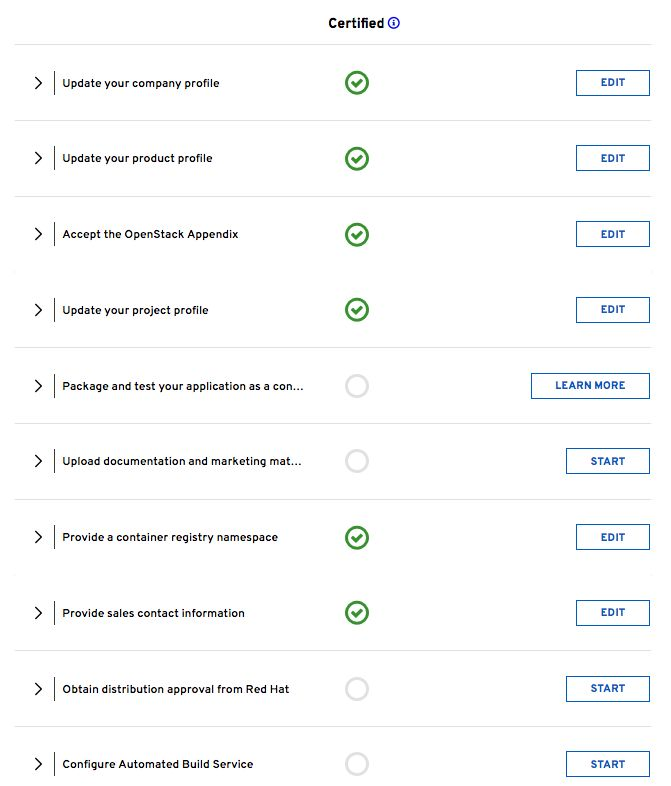
The checklist includes the following items:
- Update your company profile
- Ensures that your company profile is up to date.
- Update your product profile
- This page details to the product profile, including the product type, description, repository URL, version, and contact distribution list.
- Accept the OpenStack Appendix
- Site Agreement for the Container Terms.
- Update project profile
- Check that the image settings such as auto publish, registry namespace, release category, supported platforms are correct.
In the Supported Platforms section, you must select an option so that you can save other required fields on this page.
- Package and test your application as a container
- Follow the instructions on this page to configure the build service. The build service is dependent on the completion of the previous steps.
- Upload documentation and marketing materials
- This redirects you to the product page. Scroll to the bottom and click Add new Collateral to upload your product information.
You must provide a minimum of three materials. The first material must be a document type.
- Provide a container registry namespace
- This is the same as the project page profile page.
- Provide sales contact information
- This information is the same as the company profile.
- Obtain distribution approval from Red Hat
- Red Hat provides approval for this step.
- Configure Automated Build Service
- The configuration information to perform the build and scan of the container image.
The last item in the checklist is Configure Automated Build Service. Before you configure this service, you must ensure that your project contains a dockerfile that conforms to Red Hat certification standards.
7.3. Dockerfile requirements
As a part of the image build process, the build service scans your built image to ensure that it complies with Red Hat standards. Use the following guidelines as a basis for the dockerfile to include with your project:
- The base image must be a Red Hat image. Any images that use Ubuntu, Debian, and CentOS as a base do not pass the scanner.
You must configure the required labels:
-
name -
maintainer -
vendor -
version -
release -
summary
-
-
You must include a software license as a text file within the image. Add the software license to the
licensesdirectory at the root of your project. -
You must configure a user that is not the
rootuser.
The following dockerfile example demonstrates the required information for the scan:
7.4. Setting project details
You must set details for your project including the namespace and registry for your container image.
Procedure
- Click Project Settings.
Ensure that your project name is in the correct format. Optionally, set Auto-Publish to ON if you want to automatically publish containers that pass certification. Certified containers are published in the Red Hat Container Catalog.
To set the
Container Registry Namespace, follow the online instructions.
- The container registry namespace is the name of your company.
-
The final registry URL is
registry.connect.redhat.com/namespace/repository:tag. -
Example:
registry.connect.redhat.com/mycompany/rhosp16-openstack-cinder-volume-myplugin:1.0
To set the Outbound Repository Name and Outbound Repository Descriptions, follow the online instructions. The outbound repository name must be the same as the project name.

-
[product][version]-[extended_base_container_image]-[your_plugin] -
For OpenStack purposes the format is
rhospXX-baseimage-myplugin -
Final registry URL would be then
registry.connect.redhat.com/namespace/repository:tag -
Example:
registry.connect.redhat.com/mycompany/rhosp13-openstack-cinder-volume-myplugin:1.0
-
Add additional information about your project in the relevant fields:
- Repository Description
- Supporting Documentation for Primed
- Click Submit.
7.5. Building a container image with the build service
Build the container image for your partner plugin.
Procedure
- Click Build Service.
Click Configure Build Service to configure your build details.
- Ensure that the Red Hat Container Build is set to ON.
- Add your Git Source URL and optionally add your Source Code SSH Key if your git repository is protected. The URL can be HTML or SSH. SSH is required for protected git repositories.
-
Optional: Add Dockerfile Name or leave blank if your Dockerfile name is
Dockerfile. - Optional: Add the Context Directory if the docker build context root is not the root of the git repository. Otherwise, leave this field blank.
- Set the Branch in your git repository to base the container image on.
- Click Submit to finalize the Build Service settings.
- Click Start Build.
Add a Tag Name and click Submit. It can take up to six minutes for the build to complete.
- The tag name should be a version of your plugin
-
Final reference URL would be
registry.connect.redhat.com/namespace/repository:tag -
Example:
registry.connect.redhat.com/mycompany/rhosp13-openstack-cinder-volume-myplugin:1.0
- Click Refresh to check that your build is complete. Optional: Click the matching Build ID to view the build details and logs.
-
The build service both builds and scans the image. This normally takes 10-15 minutes to complete. When the scan completes, click the
Viewlink to expand the scan results.
7.6. Correcting failed scan results
The Scan Details page displays the result of the scan, including any failed items. If your image scan reports a FAILED status, use the following procedure to investigate how to correct the failure.
Procedure
- On the Container Information page, click the View link to expand the scan results.
Click the failed item. For example, in the following screenshot, the
has_licensescheck failed.
- Click the failed item to open the Policy Guide at the relevant section and view more information about how to correct the issue.
If you receive an Access Denied warning when you access the Policy Guide, email connect@redhat.com
7.7. Publishing a container image
After the container image passes the scan, you can publish the container image.
Procedure
- On the Container Information page, click the Publish link to publish the container image live.
- The Publish link changes to Unpublish. To unpublish a container, click the Unpublish link.
When you publish the link, check the certification documentation for more information about certifying your plugin. For more links to certification documentation, see Section 1.1, “Partner integration prerequisites”.
7.8. Deploying a Vendor Plugin
To use third-party hardware as a Block Storage back end, you must deploy a vendor plugin. The following example demonstrates how to deploy a vendor plugin to use Dell EMC hardware as a Block Storage back end.
Log in to the
registry.connect.redhat.comcatalog:docker login registry.connect.redhat.com
$ docker login registry.connect.redhat.comCopy to Clipboard Copied! Toggle word wrap Toggle overflow Download the plugin:
docker pull registry.connect.redhat.com/dellemc/openstack-cinder-volume-dellemc-rhosp13
$ docker pull registry.connect.redhat.com/dellemc/openstack-cinder-volume-dellemc-rhosp13Copy to Clipboard Copied! Toggle word wrap Toggle overflow Tag and push the image to the local undercloud registry using the undercloud IP address relevant to your OpenStack deployment:
docker tag registry.connect.redhat.com/dellemc/openstack-cinder-volume-dellemc-rhosp13 192.168.24.1:8787/dellemc/openstack-cinder-volume-dellemc-rhosp13

docker push 192.168.24.1:8787/dellemc/openstack-cinder-volume-dellemc-rhosp13
$ docker tag registry.connect.redhat.com/dellemc/openstack-cinder-volume-dellemc-rhosp13 192.168.24.1:8787/dellemc/openstack-cinder-volume-dellemc-rhosp13

$ docker push 192.168.24.1:8787/dellemc/openstack-cinder-volume-dellemc-rhosp13
Copy to Clipboard Copied! Toggle word wrap Toggle overflow Deploy the overcloud with an additional environment file that contains the following parameter:
parameter_defaults:
  DockerCinderVolumeImage: 192.168.24.1:8787/dellemc/openstack-cinder-volume-dellemc-rhosp13
parameter_defaults:
  DockerCinderVolumeImage: 192.168.24.1:8787/dellemc/openstack-cinder-volume-dellemc-rhosp13
Copy to Clipboard Copied! Toggle word wrap Toggle overflow
Chapter 8. Integration of OpenStack components and their relationship with director and the overcloud
Use the following concepts about specific integration points to begin integrating hardware and software with Red Hat OpenStack Platform (RHOSP).
8.1. Bare Metal Provisioning (ironic)
Use the OpenStack Bare Metal Provisioning (ironic) component within director to control the power state of the nodes. Director uses a set of back-end drivers to interface with specific bare metal power controllers. These drivers are the key to enabling hardware and vendor specific extensions and capabilities. The most common driver is the IPMI driver,pxe_ipmitool, which controls the power state for any server that supports the Intelligent Platform Management Interface (IPMI).
Integration with Bare Metal Provisioning starts with the upstream OpenStack community. Ironic drivers accepted upstream are automatically included in the core RHOSP product and director by default. However, they might not be supported according to certification requirements.
Hardware drivers must undergo continuous integration testing to ensure their continued functionality. For more information about third-party driver testing and suitability, see the OpenStack community page Ironic Testing.
Upstream Repositories:
Upstream Blueprints:
- Launchpad: http://launchpad.net/ironic
Puppet Module:
Bugzilla components:
- openstack-ironic
- python-ironicclient
- python-ironic-oscplugin
- openstack-ironic-discoverd
- openstack-puppet-modules
- openstack-tripleo-heat-templates
Integration Notes:
-
The upstream project contains drivers in the
ironic/driversdirectory. -
Director performs a bulk registration of nodes defined in a JSON file. The
os-cloud-configtool, https://github.com/openstack/os-cloud-config/, parses this file to determine the node registration details and perform the registration. This means theos-cloud-configtool, specifically thenodes.pyfile, requires support for your driver. Director is automatically configured to use Bare Metal Provisioning, which means the Puppet configuration requires little to no modification. However, if your driver is included with Bare Metal Provisioning, you must add your driver to the
/etc/ironic/ironic.conffile. Edit this file and search for theenabled_driversparameter:enabled_drivers=pxe_ipmitool,pxe_ssh,pxe_drac
enabled_drivers=pxe_ipmitool,pxe_ssh,pxe_dracCopy to Clipboard Copied! Toggle word wrap Toggle overflow This allows Bare Metal Provisioning to use the specified driver from the
driversdirectory.
8.2. Networking (neutron)
OpenStack Networking (neutron) provides the ability to create a network architecture within your cloud environment. The project provides several integration points for Software Defined Networking (SDN) vendors. These integration points usually fall into the categories of plugins or agents:
A plugin allows extension and customization of pre-existing neutron functions. Vendors can write plugins to ensure interoperability between neutron and certified software and hardware. Develop a driver for neutron Modular Layer 2 (ml2) plugin, which provides a modular back end for integrating your own drivers.
An agent provides a specific network function. The main neutron server and its plugins communicate with neutron agents. Existing examples include agents for DHCP, Layer 3 support, and bridging support.
For both plugins and agents, you can choose one of the following options:
- Include them for distribution as part of the Red Hat OpenStack Platform (RHOSP) solution
- Add them to the overcloud images after RHOSP distribution
Analyze the functionality of existing plugins and agents to determine how to integrate your own certified hardware and software. In particular, it is recommended to first develop a driver as a part of the ml2 plugin.
Upstream Repositories:
Upstream Blueprints:
- Launchpad: http://launchpad.net/neutron
Puppet Module:
Bugzilla components:
- openstack-neutron
- python-neutronclient
- openstack-puppet-modules
- openstack-tripleo-heat-templates
Integration Notes:
The upstream
neutronproject contains several integration points:-
The plugins are located in
neutron/plugins/ -
The ml2 plugin drivers are located in
neutron/plugins/ml2/drivers/ -
The agents are located in
neutron/agents/
-
The plugins are located in
-
Since the OpenStack Liberty release, many of the vendor-specific ml2 plugin have been moved into their own repositories beginning with
networking-. For example, the Cisco-specific plugins are located in https://github.com/openstack/networking-cisco The
puppet-neutronrepository also contains separate directories to configure these integration points:-
The plugin configuration is located in
manifests/plugins/ -
The ml2 plugin driver configuration is located in
manifests/plugins/ml2/ -
The agent configuration is located in
manifests/agents/
-
The plugin configuration is located in
-
The
puppet-neutronrepository contains numerous additional libraries for configuration functions. For example, theneutron_plugin_ml2library adds a function to add attributes to the ml2 plugin configuration file.
8.3. Block Storage (Cinder)
OpenStack Block Storage (cinder) provides an API that interacts with block storage devices, which Red Hat OpenStack Platform (RHOSP) uses to create volumes. For example, Block Storage provides virtual storage devices for instances. Block Storage provides a core set of drivers to support different storage hardware and protocols. For example, some of the core drivers include support for NFS, iSCSI, and Red Hat Ceph Storage. Vendors can include drivers to support additional certified hardware.
Vendors have the following two main options with the drivers and configuration they develop:
- Include them for distribution as part of the RHOSP solution
- Add them to the overcloud images after RHOSP distribution
Analyze the functionality of existing drivers to determine how to integrate your own certified hardware and software.
Upstream Repositories:
Upstream Blueprints:
- Launchpad: http://launchpad.net/cinder
Puppet Module:
Bugzilla components:
- openstack-cinder
- python-cinderclient
- openstack-puppet-modules
- openstack-tripleo-heat-templates
Integration Notes:
-
The upstream
cinderrepository contains the drivers incinder/volume/drivers/ The
puppet-cinderrepository contains two main directories for driver configuration:-
The
manifests/backenddirectory contains a set of defined types that configure the drivers. -
The
manifests/volumedirectory contains a set of classes to configure a default block storage device.
-
The
-
The
puppet-cinderrepository contains a library calledcinder_configto add attributes to the Cinder configuration files.
8.4. Image Storage (Glance)
OpenStack Image service (glance) provides an API that interacts with storage types to provide storage for images. Image service provides a core set of drivers to support different storage hardware and protocols. For example, the core drivers include support for file, OpenStack Object Storage (swift), OpenStack Block Storage (cinder), and Red Hat Ceph Storage. Vendors can include drivers to support additional certified hardware.
Upstream Repositories:
OpenStack:
GitHub:
Upstream Blueprints:
- Launchpad: http://launchpad.net/glance
Puppet Module:
Bugzilla components:
- openstack-glance
- python-glanceclient
- openstack-puppet-modules
- openstack-tripleo-heat-templates
Integration Notes:
- Adding a vendor-specific driver is not necessary because Image service can use Block Storage, which contains integration points, to manage image storage.
-
The upstream
glance_storerepository contains the drivers inglance_store/_drivers. -
The
puppet-glancerepository contains the driver configuration in themanifests/backenddirectory. -
The
puppet-glancerepository contains a library calledglance_api_configto add attributes to the Glance configuration files.
8.6. OpenShift-on-OpenStack
Red Hat OpenStack Platform (RHOSP) aims to support OpenShift-on-OpenStack deployments. For more information about the partner integration for these deployments, see the Red Hat OpenShift Partners page.
Appendix A. Composable service parameters
The following parameters are used for the outputs in all composable services:
The following parameters are used for the outputs specifically for containerized composable services:
A.1. All composable services
The following parameters apply to all composable services.
service_name
The name of your service. You can use this to apply configuration from other composable services via service_config_settings.
config_settings
Custom hieradata settings for your service.
service_config_settings
Custom hieradata settings for another service. For example, your service might require its endpoints registered in OpenStack Identity (keystone). This provides parameters from one service to another and provide a method of cross-service configuration, even if the services are on different roles.
global_config_settings
Custom hieradata settings distributed to all roles.
step_config
A Puppet snippet to configure the service. This snippet is added to a combined manifest created and run at each step of the service configuration process. These steps are:
- Step 1 - Load balancer configuration
- Step 2 - Core high availability and general services (Database, RabbitMQ, NTP)
- Step 3 - Early OpenStack Platform Service setup (Storage, Ring Building)
- Step 4 - General OpenStack Platform services
- Step 5 - Service activation (Pacemaker) and OpenStack Identity (keystone) role and user creation
In any referenced puppet manifest, you can use the step hieradata (using hiera('step')) to define specific actions at specific steps during the deployment process.
upgrade_tasks
Ansible snippet to help with upgrading the service. The snippet is added to a combined playbook. Each operation uses a tag to define a step, which includes:
-
common- Applies to all steps -
step0- Validation -
step1- Stop all OpenStack services. -
step2- Stop all Pacemaker-controlled services -
step3- Package update and new package installation -
step4- Start OpenStack service required for database upgrade -
step5- Upgrade database
upgrade_batch_tasks
Performs a similar function to upgrade_tasks but only executes batch set of Ansible tasks in order they are listed. The default is 1, but you can change this per role using the upgrade_batch_size parameter in a roles_data.yaml file.
A.2. Containerized composable services
The following parameters apply to all containerized composable services.
puppet_config
This section is a nested set of key value pairs that drive the creation of configuration files using puppet. Required parameters include:
- puppet_tags
-
Puppet resource tag names that are used to generate configuration files with Puppet. Only the named configuration resources are used to generate a file. Any service that specifies tags will have the default tags of file,concat,file_line,augeas,cron appended to the setting. Example:
keystone_config - config_volume
- The name of the volume (directory) where the configuration files are generated for this service. Use this as the location to bind mount into the running Kolla container for configuration.
- config_image
- The name of the docker image that will be used for generating configuration files. This is often the same container that the runtime service uses. Some services share a common set of configuration files which are generated in a common base container.
- step_config
- This setting controls the manifest that is used to create docker configuration files via Puppet. The Puppet tags below are used along with this manifest to generate a configuration directory for this container.
kolla_config
Creates a map of the the Kolla configuration in the container. The format begins with the absolute path of the configuration file and uses it for following sub-parameters:
- command
- The command to run when the container starts.
- config_files
-
The location of the service configuration files (
source) and the destination on the container (dest) before the service starts. Also includes options to either merge or replace these files on the container (merge), whether to preserve the file permissions and other properties (preserve_properties). - permissions
-
Set permissions for certain directories on the containers. Requires a
path, anowner, and a group. You can also apply the permissions recursively (recurse).
The following is an example of the kolla_config parameter for the keystone service:
docker_config
Data passed to the docker-cmd hook to configure a container at each step.
-
step_0- Containers configuration files generated per hiera settings. step_1- Load Balancer configuration- Baremetal configuration
- Container configuration
step_2- Core Services (Database/Rabbit/NTP/etc.)- Baremetal configuration
- Container configuration
step_3- Early OpenStack Service setup (Ringbuilder, etc.)- Baremetal configuration
- Container configuration
step_4- General OpenStack Services- Baremetal configuration
- Container configuration
- Keystone container post initialization (tenant, service, endpoint creation)
step_5- Service activation (Pacemaker)- Baremetal configuration
- Container configuration
The YAML uses a set of parameters to define the container container to run at each step and the docker settings associated with each container. For example:
This creates a keystone container and uses the respective parameters to define details, including the image to use, the networking type, and environment variables.
docker_puppet_tasks
Provides data to drive the docker-puppet.py tool directly. The task is executed only once within the cluster (not on each node) and is useful for several Puppet snippets required for initialization of things like keystone endpoints and database users. For example:
host_prep_tasks
This is an ansible snippet to execute on the node host to prepare it for containerized services. For example, you might need to create a specific directory to mount to the container during its creation.
fast_forward_upgrade_tasks
Ansible snippet to help with the fast forward upgrade process. This snippet is added to a combined playbook. Each operation uses tags to define step and release
The step usually follows these stages:
-
step=0- Check running services -
step=1- Stop the service -
step=2- Stop the cluster -
step=3- Update repositories -
step=4- Database backups -
step=5- Pre-package update commands -
step=6- Package updates -
step=7- Post-package update commands -
step=8- Database updates -
step=9- Verification
The tag corresponds to a release:
-
tag=ocata- OpenStack Platform 11 -
tag=pike- OpenStack Platform 12 -
tag=queens- OpenStack Platform 13

'%20d='M201.5%20305.5c-13.8%200-24.9-11.1-24.9-24.6%200-13.8%2011.1-24.9%2024.9-24.9%2013.6%200%2024.6%2011.1%2024.6%2024.9%200%2013.6-11.1%2024.6-24.6%2024.6zM504%20256c0%20137-111%20248-248%20248S8%20393%208%20256%20119%208%20256%208s248%20111%20248%20248zm-132.3-41.2c-9.4%200-17.7%203.9-23.8%2010-22.4-15.5-52.6-25.5-86.1-26.6l17.4-78.3%2055.4%2012.5c0%2013.6%2011.1%2024.6%2024.6%2024.6%2013.8%200%2024.9-11.3%2024.9-24.9s-11.1-24.9-24.9-24.9c-9.7%200-18%205.8-22.1%2013.8l-61.2-13.6c-3-.8-6.1%201.4-6.9%204.4l-19.1%2086.4c-33.2%201.4-63.1%2011.3-85.5%2026.8-6.1-6.4-14.7-10.2-24.1-10.2-34.9%200-46.3%2046.9-14.4%2062.8-1.1%205-1.7%2010.2-1.7%2015.5%200%2052.6%2059.2%2095.2%20132%2095.2%2073.1%200%20132.3-42.6%20132.3-95.2%200-5.3-.6-10.8-1.9-15.8%2031.3-16%2019.8-62.5-14.9-62.5zM302.8%20331c-18.2%2018.2-76.1%2017.9-93.6%200-2.2-2.2-6.1-2.2-8.3%200-2.5%202.5-2.5%206.4%200%208.6%2022.8%2022.8%2087.3%2022.8%20110.2%200%202.5-2.2%202.5-6.1%200-8.6-2.2-2.2-6.1-2.2-8.3%200zm7.7-75c-13.6%200-24.6%2011.1-24.6%2024.9%200%2013.6%2011.1%2024.6%2024.6%2024.6%2013.8%200%2024.9-11.1%2024.9-24.6%200-13.8-11-24.9-24.9-24.9z'/%3e%3c/svg%3e)