 Red Hat Summit
Este contenido no está disponible en el idioma seleccionado.
Self-Hosted Engine Guide
Installing and Maintaining the Red Hat Enterprise Virtualization Self-Hosted Engine
Abstract
Chapter 1. Introduction
|
System Type
|
Supported Versions
|
|---|---|
|
Red Hat Enterprise Linux Host
|
7.2
|
|
Red Hat Enterprise Virtualization Hypervisor Host
|
7.2
|
|
HostedEngine-VM (Manager)
|
6.7
|
Important
1.1. Installation Options
Self-Hosted Engine Hosts
- Red Hat Enterprise Virtualization Hypervisor is distributed as an ISO file and contains only the packages required for the machine to act as a virtualization host. See Chapter 2, Deploying Self-Hosted Engine on Red Hat Enterprise Virtualization Hypervisor
- Red Hat Enterprise Linux systems subscribed to the appropriate entitlements can be used as virtualization hosts. See Chapter 3, Deploying Self-Hosted Engine on a Red Hat Enterprise Linux Host.
Self-Hosted Engine Manager
- The RHEV-M Virtual Appliance automates the process of installing and configuring the Manager virtual machine, and does not require you to access the virtual machine during the setup.

- Manually installing and configuring the Manager virtual machine is also supported but requires you to access the virtual machine directly during the setup.

Chapter 2. Deploying Self-Hosted Engine on Red Hat Enterprise Virtualization Hypervisor
2.1. Installing Red Hat Enterprise Virtualization Hypervisor
- For more information on storage requirements, see Storage Requirements in the Installation Guide. To use the RHEV-M Virtual Appliance for the Manager virtual machine installation, the data partition (
/data) must be at least 60 GB. - See Installing the Red Hat Enterprise Virtualization Hypervisor in the Installation Guide for the installation procedure.
- After the Red Hat Enterprise Virtualization Hypervisor is installed, configure the Network screen before proceeding to the Hosted Engine screen. See Configuring the Red Hat Enterprise Virtualization Hypervisor in the Installation Guide.
2.2. Configuring Self-Hosted Engine on Red Hat Enterprise Virtualization Hypervisor
Prerequisites:
- You must have prepared a freshly installed Red Hat Enterprise Virtualization Hypervisor (RHEV-H).
- You must have the Manager virtual machine operating system installation media. The recommended method is to use the RHEV-M Virtual Appliance to automate the setup. To use the appliance, the data partition (
/data) must be at least 60 GB. The appliance must be accessible from the hypervisor via HTTP. Log in to the Customer Portal, and download the RHEV-M Virtual Appliance from https://access.redhat.com/downloads/content/150/ver=3.6/rhel---6/3.6/x86_64/product-software. - You must have prepared storage for your self-hosted engine environment. At least two storage domains are required:For more information on preparing storage for your deployment, see the Storage chapter of the Administration Guide.
- A shared storage domain dedicated to the Manager virtual machine. This domain is created during the self-hosted engine deployment, and must be at least 60 GB.
- A data storage domain for regular virtual machine data. This domain must be added to the self-hosted engine environment after completing the deployment.
- You must have a fully qualified domain name prepared for your Manager and Hypervisor host. Forward and reverse lookup records must both be set in the DNS.
Note
For evaluation purposes, you can use the/etc/hostsfile for name resolution. - You must have enabled SSH password authentication in the Security screen.
Procedure 2.1. Setting Up Self-Hosted Engine on RHEV-H
- Click .

- Specify the Red Hat Enterprise Virtualization Manager virtual machine installation method. To install using the RHEV-M Virtual Appliance, enter the URL to the appliance. For example:
http://file.domain.com/rhevm-appliance.ova. This is the recommended Manager installation method. Click , and click .Alternatively, select if PXE installation is the desired installation method. - Click to start the
hosted-enginedeployment script. Press Enter to confirm to continue.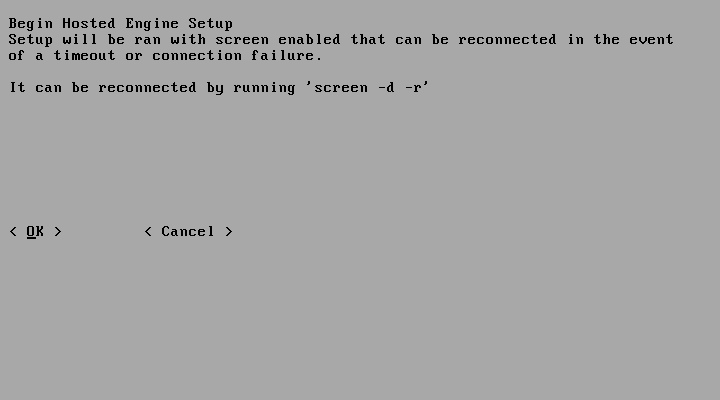
Configuring Storage
Select the type of storage to use.During customization use CTRL-D to abort. Please specify the storage you would like to use (glusterfs, iscsi, fc, nfs3, nfs4)[nfs3]:- For NFS storage types, specify the full address, using either the FQDN or IP address, and path name of the shared storage domain.
Please specify the full shared storage connection path to use (example: host:/path): storage.example.com:/hosted_engine/nfs - For iSCSI, specify the iSCSI portal IP address, port, user name and password, and select a target name from the auto-detected list. You can only select one iSCSI target during the deployment.
Please specify the iSCSI portal IP address: Please specify the iSCSI portal port [3260]: Please specify the iSCSI portal user: Please specify the iSCSI portal password: Please specify the target name (auto-detected values) [default]: - For Gluster storage, specify the full address, using either the FQDN or IP address, and path name of the shared storage domain.
Important
Only replica 3 Gluster storage is supported. Ensure the following configuration has been made:- In the
/etc/glusterfs/glusterd.volfile on all three Gluster servers, setrpc-auth-allow-insecuretoon.option rpc-auth-allow-insecure on - Configure the volume as follows:
gluster volume set volume cluster.quorum-type auto
gluster volume set volume network.ping-timeout 10
gluster volume set volume auth.allow \*
gluster volume set volume group virt
gluster volume set volume storage.owner-uid 36
gluster volume set volume storage.owner-gid 36
gluster volume set volume server.allow-insecure on
Please specify the full shared storage connection path to use (example: host:/path): storage.example.com:/hosted_engine/gluster_volume - For Fibre Channel, the host bus adapters must be configured and connected, and the
hosted-enginescript will auto-detect the LUNs available. The LUNs must not contain any existing data.The following luns have been found on the requested target: [1] 3514f0c5447600351 30GiB XtremIO XtremApp status: used, paths: 2 active [2] 3514f0c5447600352 30GiB XtremIO XtremApp status: used, paths: 2 active Please select the destination LUN (1, 2) [1]:
Choose the storage domain and storage data center names to be used in the environment.[ INFO ] Installing on first host Please provide storage domain name. [hosted_storage]: Local storage datacenter name is an internal name and currently will not be shown in engine's admin UI.Please enter local datacenter name [hosted_datacenter]:Configuring the Network
The script detects possible network interface controllers (NICs) to use as a management bridge for the environment. It then checks your firewall configuration and offers to modify it for console (SPICE or VNC) access.Note
Configuring a bonded and vlan-tagged network interface as the management bridge is currently not supported. To work around this issue, see https://access.redhat.com/solutions/1417783 for more information.Please indicate a nic to set rhevm bridge on: (eth1, eth0) [eth1]: iptables was detected on your computer, do you wish setup to configure it? (Yes, No)[Yes]: Yes Please indicate a pingable gateway IP address [X.X.X.X]:Configuring the Virtual Machine
The script creates a virtual machine to be configured as the Red Hat Enterprise Virtualization Manager.Note
If you want to manually install the Manager virtual machine, see Appendix A, Manually Installing the Manager Operating System to complete the self-hosted engine setup. Using the appliance eases the workflow, because user interaction with the Manager virtual machine is not required. Manual installation allows you to take full control of the installation.[ INFO ] Checking OVF archive content (could take a few minutes depending on archive size) [ INFO ] Checking OVF XML content (could take a few minutes depending on archive size) Would you like to use cloud-init to customize the appliance on the first boot (Yes, No)[Yes]? Would you like to generate on-fly a cloud-init no-cloud ISO image or do you have an existing one(Generate, Existing)[Generate]? Generate Please provide the FQDN you would like to use for the engine appliance. Note: This will be the FQDN of the engine VM you are now going to launch. It should not point to the base host or to any other existing machine. Engine VM FQDN: (leave it empty to skip): manager.example.com Automatically execute engine-setup on the engine appliance on first boot (Yes, No)[Yes]? Yes Automatically restart the engine VM as a monitored service after engine-setup (Yes, No)[Yes]? Yes Please provide the domain name you would like to use for the engine appliance. Engine VM domain: [example.com] Enter root password that will be used for the engine appliance (leave it empty to skip): p@ssw0rd Confirm appliance root password: p@ssw0rd How should the engine VM network be configured (DHCP, Static)[DHCP]? Static Please enter the IP address to be used for the engine VM: 192.168.x.x [ INFO ] The engine VM will be configured to use 192.168.x.x/24 Please provide a comma-separated list (max3) of IP addresses of domain name servers for the engine VM Engine VM DNS (leave it empty to skip): Add lines for the appliance itself and for this host to /etc/hosts on the engine VM? Note: ensuring that this host could resolve the engine VM hostname is still up to you (Yes, No)[No] Yes Please specify an alias for the Hosted Engine image [hosted_engine]: The following CPU types are supported by this host: - model_Penryn: Intel Penryn Family - model_Conroe: Intel Conroe Family Please specify the CPU type to be used by the VM [model_Penryn]: Please specify the number of virtual CPUs for the VM [Defaults to appliance OVF value: 4]: You may specify a MAC address for the VM or accept a randomly generated default [00:16:3e:77:b2:a4]: Please specify the console type you would like to use to connect to the VM (vnc, spice) [vnc]: vncConfiguring the Hosted Engine
Specify a name for the hypervisor to be identified in the Red Hat Enterprise Virtualization environment, and the password for theadmin@internaluser to access the Administration Portal. Provide the FQDN for the Manager virtual machine.Enter the name which will be used to identify this host inside the Administrator Portal [hosted_engine_1]: Enter 'admin@internal' user password that will be used for accessing the Administrator Portal: p@ssw0rd Confirm 'admin@internal' user password: p@ssw0rd Please provide the name of the SMTP server through which we will send notifications [localhost]: Please provide the TCP port number of the SMTP server [25]: Please provide the email address from which notifications will be sent [root@localhost]: Please provide a comma-separated list of email addresses which will get notifications [root@localhost]:Configuration Preview
Before proceeding, thehosted-enginescript displays the configuration values you have entered, and prompts for confirmation to proceed with these values.Creating the Manager Virtual Machine
The script creates the Manager virtual machine, starts theovirt-engineand high availability services, and connects the hypervisor host and shared storage domain to the Manager virtual machine.You can now connect to the VM with the following command: /usr/bin/remote-viewer vnc://localhost:5900 Use temporary password "3042QHpX" to connect to vnc console. Please note that in order to use remote-viewer you need to be able to run graphical applications. This means that if you are using ssh you have to supply the -Y flag (enables trusted X11 forwarding). Otherwise you can run the command from a terminal in your preferred desktop environment. If you cannot run graphical applications you can connect to the graphic console from another host or connect to the serial console using the following command: socat UNIX-CONNECT:/var/run/ovirt-vmconsole-console/fabbea5a-1989-411f-8ed7-7abe0917fc66.sock,user=ovirt-vmconsole STDIO,raw,echo=0,escape=1 If you need to reboot the VM you will need to start it manually using the command: hosted-engine --vm-start You can then set a temporary password using the command: hosted-engine --add-console-password [ INFO ] Running engine-setup on the appliance ... [ INFO ] Engine-setup successfully completed [ INFO ] Engine is still unreachable [ INFO ] Engine is still unreachable, waiting... [ INFO ] Engine replied: DB Up!Welcome to Health Status! [ INFO ] Connecting to the Engine Enter the name of the cluster to which you want to add the host (Default) [Default]: [ INFO ] Waiting for the host to become operational in the engine. This may take several minutes... [ INFO ] Still waiting for VDSM host to become operational... [ INFO ] The VDSM Host is now operational [ INFO ] Shutting down the engine VM [ INFO ] Enabling and starting HA services [ INFO ] Saving hosted-engine configuration on the shared storage domain Hosted Engine successfully set up [ INFO ] Stage: Clean up [ INFO ] Generating answer file '/var/lib/ovirt-hosted-engine-setup/answers/answers-2015xx.conf' [ INFO ] Generating answer file '/etc/ovirt-hosted-engine/answers.conf' [ INFO ] Stage: Pre-termination [ INFO ] Stage: Termination [screen is terminating] Hit <Return> to return to the TUI
hosted-engine deployment script completes successfully, the Red Hat Enterprise Virtualization Manager name and status are displayed in the screen. This may take a few minutes to appear. The Red Hat Enterprise Virtualization Manager is configured and running on your hypervisor host. The Manager has already configured the data center, cluster, hypervisor host, the Manager virtual machine, and a shared storage domain dedicated to the Manager virtual machine.
Important
ovirt-engine-extension-aaa-ldap-setup interactive setup script. For more information, see Configuring an External LDAP Provider in the Administration Guide.
ovirt-hosted-engine-setup script also saves the answers you gave during configuration to a file, to help with disaster recovery. If a destination is not specified using the --generate-answer=<file> argument, the answer file is generated at /etc/ovirt-hosted-engine/answers.conf.
Note
sshd service is running. Edit /etc/ssh/sshd_config and change the following two options to yes:
PasswordAuthenticationPermitRootLogin
sshd service for the changes to take effect.
2.3. Administering the Manager Virtual Machine
hosted-engine utility is provided to assist with administering the Manager virtual machine.
Chapter 3. Deploying Self-Hosted Engine on a Red Hat Enterprise Linux Host
3.1. Subscribing to the Required Entitlements
Procedure 3.1. Subscribing to Required Entitlements Using Subscription Manager
- Register your system with the Content Delivery Network, entering your Customer Portal Username and Password when prompted:
# subscription-manager register - Find the
Red Hat Enterprise Linux ServerandRed Hat Enterprise Virtualizationsubscription pools and note down the pool IDs.# subscription-manager list --available - Use the pool identifiers located in the previous step to attach the
Red Hat Enterprise Linux ServerandRed Hat Enterprise Virtualizationentitlements to the system:# subscription-manager attach --pool=poolid - Disable all existing repositories:
# subscription-manager repos --disable=* - Enable the required repositories for Red Hat Enterprise Linux 7:
# subscription-manager repos --enable=rhel-7-server-rpms # subscription-manager repos --enable=rhel-7-server-rhev-mgmt-agent-rpms - Ensure that all packages currently installed are up to date:
# yum updateNote
Reboot the machine if any kernel related packages have been updated.
3.2. Installing the Self-Hosted Engine Packages
Procedure 3.2. Installing the Self-Hosted Engine
- Install the self-hosted engine packages:
# yum install ovirt-hosted-engine-setup - Optionally install the RHEV-M Virtual Appliance package if you intend to use the appliance for the Manager virtual machine installation:
# yum install rhevm-applianceYou can also use a CD-ROM, disk, or PXE installation media for the Manager operating system installation. The physical CD-ROM drive is not supported.
3.3. Configuring a RHEL-Based Self-Hosted Engine
hosted-engine script is provided to assist with configuring the host hypervisor and Manager virtual machine. The script asks you a series of questions, and configures your environment based on your answers.
Prerequisites
- You must have a freshly installed Red Hat Enterprise Linux 7 system with the ovirt-hosted-engine-setup package installed.
- You must have prepared storage for your self-hosted engine environment. At least two storage domains are required:For more information on preparing storage for your deployment, see the Storage chapter of the Administration Guide.
- A shared storage domain dedicated to the Manager virtual machine. This domain is created during the self-hosted engine deployment, and must be at least 60 GB.
- A data storage domain for regular virtual machine data. This domain must be added to the self-hosted engine environment after completing the deployment.
- You must have a fully qualified domain name prepared for your Manager and the hypervisor host. Forward and reverse lookup records must both be set in the DNS.
- You must have prepared either CD-ROM, disk, or PXE installation media for the Manager operating system installation. The recommended method is to select the disk option and use the RHEV-M Virtual Appliance for the Manager installation. Obtain the RHEV-M Virtual Appliance by installing the rhevm-appliance package. To use the CD-ROM option, you must have an ISO file available. The physical CD-ROM drive is not supported.
- To use the RHEV-M Virtual Appliance for the Manager installation, ensure one directory is at least 60 GB. The
hosted-enginescript first checks if/var/tmphas enough space to extract the appliance files. If not, you can specificy a different directory.
Procedure 3.3. Configuring a RHEL-based Self-Hosted Engine
Initiating Hosted Engine Deployment
Run thehosted-enginescript. To escape the script at any time, use the CTRL+D keyboard combination to abort deployment. It is recommended to use thescreenwindow manager to run the script to avoid losing the session in case of network or terminal disruption. If not already installed, install the screen package, which is available in the standard Red Hat Enterprise Linux repository.# yum install screen# screen# hosted-engine --deployNote
In the event of session timeout or connection disruption, runscreen -d -rto recover thehosted-enginedeployment session.Configuring Storage
Select the type of storage to use.During customization use CTRL-D to abort. Please specify the storage you would like to use (glusterfs, iscsi, fc, nfs3, nfs4)[nfs3]:- For NFS storage types, specify the full address, using either the FQDN or IP address, and path name of the shared storage domain.
Please specify the full shared storage connection path to use (example: host:/path): storage.example.com:/hosted_engine/nfs - For iSCSI, specify the iSCSI portal IP address, port, user name and password, and select a target name from the auto-detected list. You can only select one iSCSI target during the deployment.
Please specify the iSCSI portal IP address: Please specify the iSCSI portal port [3260]: Please specify the iSCSI portal user: Please specify the iSCSI portal password: Please specify the target name (auto-detected values) [default]: - For Gluster storage, specify the full address, using either the FQDN or IP address, and path name of the shared storage domain.
Important
Only replica 3 Gluster storage is supported. Ensure the following configuration has been made:- In the
/etc/glusterfs/glusterd.volfile on all three Gluster servers, setrpc-auth-allow-insecuretoon.option rpc-auth-allow-insecure on - Configure the volume as follows:
gluster volume set volume cluster.quorum-type auto
gluster volume set volume network.ping-timeout 10
gluster volume set volume auth.allow \*
gluster volume set volume group virt
gluster volume set volume storage.owner-uid 36
gluster volume set volume storage.owner-gid 36
gluster volume set volume server.allow-insecure on
Please specify the full shared storage connection path to use (example: host:/path): storage.example.com:/hosted_engine/gluster_volume - For Fibre Channel, the host bus adapters must be configured and connected, and the
hosted-enginescript will auto-detect the LUNs available. The LUNs must not contain any existing data.The following luns have been found on the requested target: [1] 3514f0c5447600351 30GiB XtremIO XtremApp status: used, paths: 2 active [2] 3514f0c5447600352 30GiB XtremIO XtremApp status: used, paths: 2 active Please select the destination LUN (1, 2) [1]:
Choose the storage domain and storage data center names to be used in the environment.[ INFO ] Installing on first host Please provide storage domain name. [hosted_storage]: Local storage datacenter name is an internal name and currently will not be shown in engine's admin UI.Please enter local datacenter name [hosted_datacenter]:Configuring the Network
The script detects possible network interface controllers (NICs) to use as a management bridge for the environment. It then checks your firewall configuration and offers to modify it for console (SPICE or VNC) access.Note
Configuring a bonded and vlan-tagged network interface as the management bridge is currently not supported. To work around this issue, see https://access.redhat.com/solutions/1417783 for more information.Please indicate a nic to set rhevm bridge on: (eth1, eth0) [eth1]: iptables was detected on your computer, do you wish setup to configure it? (Yes, No)[Yes]: Yes Please indicate a pingable gateway IP address [X.X.X.X]:Configuring the Virtual Machine
Note
If you want to manually install the Manager virtual machine, see Appendix A, Manually Installing the Manager Operating System to complete the self-hosted engine setup. Using the appliance eases the workflow, because user interaction with the Manager virtual machine is not required. Manual installation allows you to take full control of the installation.Select for the boot device type, and the script will automatically detect the RHEV-M Appliances available. Specify the memory size.Please specify the device to boot the VM from (cdrom, disk, pxe) [disk]: [ INFO ] Detecting available oVirt engine appliances The following appliance have been found on your system: [1] - The oVirt Engine Appliance image (OVA) [2] - Directly select an OVA file Please select an appliance (1, 2) [1]: [ INFO ] Checking OVF archive content (could take a few minutes depending on archive size) Please specify the memory size of the appliance in MB (Defaults to OVF value: 16384):SpecifyYesif you want cloud-init to take care of the initial configuration of the Manager virtual machine. Specify for cloud-init to take care of tasks like setting the root password, configuring networking, configuring the host name, injecting an answers file forengine-setupto use, and runningengine-setupon boot. Optionally, select if you have an existing cloud-init script to take care of more sophisticated functions of cloud-init. Specify the FQDN for the Manager virtual machine. Specify a MAC address for the HostedEngine-VM, or accept a randomly generated one. The MAC address can be used to update your DHCP and DNS server prior to installing the operating system on the virtual machine.Note
For more information on cloud-init, see https://cloudinit.readthedocs.org/en/latest/.Would you like to use cloud-init to customize the appliance on the first boot (Yes, No)[Yes]? Yes Would you like to generate on-fly a cloud-init no-cloud ISO image or do you have an existing one(Generate, Existing)[Generate]? Generate Please provide the FQDN you would like to use for the engine appliance. Note: This will be the FQDN of the engine VM you are now going to launch. It should not point to the base host or to any other existing machine. Engine VM FQDN: (leave it empty to skip): manager.example.com Automatically execute engine-setup on the engine appliance on first boot (Yes, No)[Yes]? Yes Automatically restart the engine VM as a monitored service after engine-setup (Yes, No)[Yes]? Yes Please provide the domain name you would like to use for the engine appliance. Engine VM domain: [example.com] Enter root password that will be used for the engine appliance (leave it empty to skip): p@ssw0rd Confirm appliance root password: p@ssw0rd How should the engine VM network be configured (DHCP, Static)[DHCP]? Static Please enter the IP address to be used for the engine VM: 192.168.x.x Please provide a comma-separated list (max3) of IP addresses of domain name servers for the engine VM Engine VM DNS (leave it empty to skip): Add lines for the appliance itself and for this host to /etc/hosts on the engine VM? Note: ensuring that this host could resolve the engine VM hostname is still up to you (Yes, No)[No] Yes Please specify an alias for the Hosted Engine image [hosted_engine]: The following CPU types are supported by this host: - model_Penryn: Intel Penryn Family - model_Conroe: Intel Conroe Family Please specify the CPU type to be used by the VM [model_Penryn]: Please specify the number of virtual CPUs for the VM [Defaults to appliance OVF value: 4]: You may specify a MAC address for the VM or accept a randomly generated default [00:16:3e:77:b2:a4]: Please specify the console type you would like to use to connect to the VM (vnc, spice) [vnc]: vncConfiguring the Hosted Engine
Specify a name for hypervisor host to be identified in the Administration Portal, and the password for theadmin@internaluser to access the Administration Portal. Provide the name and TCP port number of the SMTP server, the email address used to send email notifications, and a comma-separated list of email addresses to receive these notifications.Enter the name which will be used to identify this host inside the Administrator Portal [hosted_engine_1]: Enter 'admin@internal' user password that will be used for accessing the Administrator Portal: p@ssw0rd Confirm 'admin@internal' user password: p@ssw0rd Please provide the name of the SMTP server through which we will send notifications [localhost]: Please provide the TCP port number of the SMTP server [25]: Please provide the email address from which notifications will be sent [root@localhost]: Please provide a comma-separated list of email addresses which will get notifications [root@localhost]:Configuration Preview
Before proceeding, thehosted-enginescript displays the configuration values you have entered, and prompts for confirmation to proceed with these values.Creating the Manager Virtual Machine
The script creates the Manager virtual machine, starts theovirt-engineand high availability services, and connects the hypervisor host and shared storage domain to the Manager virtual machine.You can now connect to the VM with the following command: /usr/bin/remote-viewer vnc://localhost:5900 Use temporary password "3042QHpX" to connect to vnc console. Please note that in order to use remote-viewer you need to be able to run graphical applications. This means that if you are using ssh you have to supply the -Y flag (enables trusted X11 forwarding). Otherwise you can run the command from a terminal in your preferred desktop environment. If you cannot run graphical applications you can connect to the graphic console from another host or connect to the serial console using the following command: socat UNIX-CONNECT:/var/run/ovirt-vmconsole-console/fabbea5a-1989-411f-8ed7-7abe0917fc66.sock,user=ovirt-vmconsole STDIO,raw,echo=0,escape=1 If you need to reboot the VM you will need to start it manually using the command: hosted-engine --vm-start You can then set a temporary password using the command: hosted-engine --add-console-password [ INFO ] Running engine-setup on the appliance ... [ INFO ] Engine-setup successfully completed [ INFO ] Engine is still unreachable [ INFO ] Engine is still unreachable, waiting... [ INFO ] Engine replied: DB Up!Welcome to Health Status! [ INFO ] Connecting to the Engine Enter the name of the cluster to which you want to add the host (Default) [Default]: [ INFO ] Waiting for the host to become operational in the engine. This may take several minutes... [ INFO ] Still waiting for VDSM host to become operational... [ INFO ] The VDSM Host is now operational [ INFO ] Shutting down the engine VM [ INFO ] Enabling and starting HA services [ INFO ] Saving hosted-engine configuration on the shared storage domain Hosted Engine successfully set up [ INFO ] Stage: Clean up [ INFO ] Generating answer file '/var/lib/ovirt-hosted-engine-setup/answers/answers-2015xx.conf' [ INFO ] Generating answer file '/etc/ovirt-hosted-engine/answers.conf' [ INFO ] Stage: Pre-termination [ INFO ] Stage: Termination
hosted-engine deployment script completes successfully, the Red Hat Enterprise Virtualization Manager is configured and running on your hypervisor host. The Manager has already configured the data center, cluster, hypervisor host, the Manager virtual machine, and a shared storage domain dedicated to the Manager virtual machine.
Important
ovirt-engine-extension-aaa-ldap-setup interactive setup script. For more information, see Configuring an External LDAP Provider in the Administration Guide.
ovirt-hosted-engine-setup script also saves the answers you gave during configuration to a file, to help with disaster recovery. If a destination is not specified using the --generate-answer=<file> argument, the answer file is generated at /etc/ovirt-hosted-engine/answers.conf.
Note
sshd service is running. Edit /etc/ssh/sshd_config and change the following two options to yes:
PasswordAuthenticationPermitRootLogin
sshd service for the changes to take effect.
3.4. Administering the Manager Virtual Machine
hosted-engine utility is provided to assist with administering the Manager virtual machine. It can be run on any self-hosted engine hosts in the environment. For all the options, run hosted-engine --help. For additional information on a specific command, run hosted-engine --command --help.
Chapter 4. Troubleshooting a Self-Hosted Engine Deployment
4.1. Troubleshooting the Manager Virtual Machine
Procedure 4.1. Troubleshooting the Manager Virtual Machine
- Check the status of the Manager virtual machine by running
hosted-engine --vm-status.Note
Any changes made to the Manager virtual machine will take about 20 seconds before they are reflected in the status command output.If the Manager virtual machine is up and running as normal, you will see the following output:--== Host 1 status ==-- Status up-to-date : True Hostname : hypervisor.example.com Host ID : 1 Engine status : {"health": "good", "vm": "up", "detail": "up"} Score : 3400 stopped : False Local maintenance : False crc32 : 99e57eba Host timestamp : 248542 - If the is bad or the is down, enable the global maintenance mode so that the hosts are no longer managed by the HA services.
- In the Administration Portal, right-click the engine virtual machine, and select Enable Global HA Maintenance.
- You can also set the maintenance mode from the command line:
# hosted-engine --set-maintenance --mode=global
- If the Manager virtual machine is down, start the Manager virtual machine. If the virtual machine is up, skip this step.
# hosted-engine ---vm-start - Set the console password:
# hosted-engine --add-console-password - Connect to the console. When prompted, enter the password set in the previous step. For more console options, see https://access.redhat.com/solutions/2221461.
# hosted-engine --console - Determine why the Manager virtual machine is down or in a bad health state. Check
/var/log/messagesand/var/log/ovirt-engine/engine.log. After fixing the issue, reboot the Manager virtual machine. - Log in to the Manager virtual machine as root and verfiy that the
ovirt-engineservice is up and running:# service ovirt-engine status - After ensuring the Manager virtual machine is up and running, close the console session and disable the maintenance mode to enable the HA services again:
# hosted-engine --set-maintenance --mode=none
Additional Troubleshooting Commands:
Important
hosted-engine --reinitialize-lockspace: This command is used when the sanlock lockspace is broken. Ensure that the global maintenance mode is enabled and that the Manager virtual machine is stopped before reinitializing the sanlock lockspaces.hosted-engine --clean-metadata: Remove the metadata for a host's agent from the global status database. This makes all other hosts forget about this host. Ensure that the target host is down and that the global maintenance mode is enabled.hosted-engine --check-liveliness: This command checks the liveliness page of the ovirt-engine service. You can also check by connecting tohttps://engine-fqdn/ovirt-engine/services/health/in a web browser.hosted-engine --connect-storage: This command instructs VDSM to prepare all storage connections needed for the host and and the Manager virtual machine. This is normally run in the back-end during the self-hosted engine deployment. Ensure that the global maintenance mode is enabled if you need to run this command to troubleshoot storage issues.
4.2. Cleaning Up a Failed Self-hosted Engine Deployment
Failed to connect to broker, the number of errors has exceeded the limit.Chapter 5. Migrating from Bare Metal to a RHEL-Based Self-Hosted Environment
5.1. Migrating to a Self-Hosted Environment
hosted-engine script to assist with the task. The script asks you a series of questions, and configures your environment based on your answers. The Manager from the standard Red Hat Enterprise Virtualization environment is referred to as the BareMetal-Manager in the following procedure.
- Run the
hosted-enginescript to configure the host to be used as a self-hosted engine host and to create a new Red Hat Enterprise Virtualization virtual machine. - Back up the the engine database and configuration files using the
engine-backuptool, copy the backup to the new Manager virtual machine, and restore the backup using the--mode=restoreparameter ofengine-backup. Runengine-setupto complete the Manager virtual machine configuration. - Follow the
hosted-enginescript to complete the setup.
Prerequisites
- Prepare a new hypervisor host with the ovirt-hosted-engine-setup package installed. See Chapter 3, Deploying Self-Hosted Engine on a Red Hat Enterprise Linux Host for more information on subscriptions and package installation. The host must be a supported version of the current Red Hat Enterprise Virtualization environment.
Note
If you intend to use an existing host, place the host in maintenance and remove it from the existing environment. See Removing a Host in the Administration Guide for more information. - Prepare storage for your self-hosted engine environment. The self-hosted engine requires a shared storage domain dedicated to the Manager virtual machine. This domain is created during deployment, and must be at least 60 GB. For more information on preparing storage for your deployment, see the Storage chapter of the Administration Guide.
- Prepare an installation media of the same version of the operating system used for the BareMetal-Manager.
- The fully qualified domain name of the new Manager must be the same fully qualified domain name as that of the BareMetal-Manager. Forward and reverse lookup records must both be set in DNS.
- You must have access and can make changes to the BareMetal-Manager.
Procedure 5.1. Migrating to a Self-Hosted Environment
Initiating a Self-Hosted Engine Deployment
Note
If your original installation was version 3.5 or earlier, and the current name of the management network is rhevm, you must modify the answer file prior to runninghosted-engine --deploy. For more information, see https://access.redhat.com/solutions/2292861.Run thehosted-enginescript. To escape the script at any time, use the CTRL+D keyboard combination to abort deployment. It is recommended to use thescreenwindow manager to run the script to avoid losing the session in case of network or terminal disruption. If not already installed, install the screen package, which is available in the standard Red Hat Enterprise Linux repository.# yum install screen# screen# hosted-engine --deployNote
In the event of session timeout or connection disruption, runscreen -d -rto recover thehosted-enginedeployment session.Configuring Storage
Select the type of storage to use.During customization use CTRL-D to abort. Please specify the storage you would like to use (glusterfs, iscsi, fc, nfs3, nfs4)[nfs3]:- For NFS storage types, specify the full address, using either the FQDN or IP address, and path name of the shared storage domain.
Please specify the full shared storage connection path to use (example: host:/path): storage.example.com:/hosted_engine/nfs - For iSCSI, specify the iSCSI portal IP address, port, user name and password, and select a target name from the auto-detected list. You can only select one iSCSI target during the deployment.
Please specify the iSCSI portal IP address: Please specify the iSCSI portal port [3260]: Please specify the iSCSI portal user: Please specify the iSCSI portal password: Please specify the target name (auto-detected values) [default]: - For Gluster storage, specify the full address, using either the FQDN or IP address, and path name of the shared storage domain.
Important
Only replica 3 Gluster storage is supported. Ensure the following configuration has been made:- In the
/etc/glusterfs/glusterd.volfile on all three Gluster servers, setrpc-auth-allow-insecuretoon.option rpc-auth-allow-insecure on - Configure the volume as follows:
gluster volume set volume cluster.quorum-type auto
gluster volume set volume network.ping-timeout 10
gluster volume set volume auth.allow \*
gluster volume set volume group virt
gluster volume set volume storage.owner-uid 36
gluster volume set volume storage.owner-gid 36
gluster volume set volume server.allow-insecure on
Please specify the full shared storage connection path to use (example: host:/path): storage.example.com:/hosted_engine/gluster_volume - For Fibre Channel, the host bus adapters must be configured and connected, and the
hosted-enginescript will auto-detect the LUNs available. The LUNs must not contain any existing data.The following luns have been found on the requested target: [1] 3514f0c5447600351 30GiB XtremIO XtremApp status: used, paths: 2 active [2] 3514f0c5447600352 30GiB XtremIO XtremApp status: used, paths: 2 active Please select the destination LUN (1, 2) [1]:
Choose the storage domain and storage data center names to be used in the environment.[ INFO ] Installing on first host Please provide storage domain name. [hosted_storage]: Local storage datacenter name is an internal name and currently will not be shown in engine's admin UI.Please enter local datacenter name [hosted_datacenter]:Configuring the Network
The script detects possible network interface controllers (NICs) to use as a management bridge for the environment. It then checks your firewall configuration and offers to modify it for console (SPICE or VNC) access HostedEngine-VM. Provide a pingable gateway IP address, to be used by theovirt-ha-agentto help determine a host's suitability for running HostedEngine-VM.Please indicate a nic to set rhevm bridge on: (eth1, eth0) [eth1]: iptables was detected on your computer, do you wish setup to configure it? (Yes, No)[Yes]: Please indicate a pingable gateway IP address [X.X.X.X]:Configuring the Virtual Machine
The script creates a virtual machine to be configured as the Red Hat Enterprise Virtualization Manager, referred to in this procedure as HostedEngine-VM. Specify the boot device and, if applicable, the path name of the installation media, the CPU type, the number of virtual CPUs, and the disk size. Specify a MAC address for the HostedEngine-VM, or accept a randomly generated one. The MAC address can be used to update your DHCP server prior to installing the operating system on the virtual machine. Specify memory size and console connection type for the creation of HostedEngine-VM.Please specify the device to boot the VM from (cdrom, disk, pxe) [cdrom]: The following CPU types are supported by this host: - model_Penryn: Intel Penryn Family - model_Conroe: Intel Conroe Family Please specify the CPU type to be used by the VM [model_Penryn]: Please specify the number of virtual CPUs for the VM [Defaults to minimum requirement: 2]: Please specify the disk size of the VM in GB [Defaults to minimum requirement: 25]: You may specify a MAC address for the VM or accept a randomly generated default [00:16:3e:77:b2:a4]: Please specify the memory size of the VM in MB [Defaults to minimum requirement: 4096]: Please specify the console type you want to use to connect to the VM (vnc, spice) [vnc]:Configuring the Self-Hosted Engine
Specify the name for Host-HE1 to be identified in the Red Hat Enterprise Virtualization environment, and the password for theadmin@internaluser to access the Administration Portal. Provide the FQDN for HostedEngine-VM; this procedure uses the FQDN manager.example.com. Finally, provide the name and TCP port number of the SMTP server, the email address used to send email notifications, and a comma-separated list of email addresses to receive these notifications.Important
The FQDN provided for the engine must be the same FQDN provided for the BareMetal-Manager.Enter the name which will be used to identify this host inside the Administrator Portal [hosted_engine_1]: Host-HE1 Enter 'admin@internal' user password that will be used for accessing the Administrator Portal: Confirm 'admin@internal' user password: Please provide the FQDN for the engine you want to use. This needs to match the FQDN that you will use for the engine installation within the VM: manager.example.com Please provide the name of the SMTP server through which we will send notifications [localhost]: Please provide the TCP port number of the SMTP server [25]: Please provide the email address from which notifications will be sent [root@localhost]: Please provide a comma-separated list of email addresses which will get notifications [root@localhost]:Configuration Preview
Before proceeding, thehosted-enginescript displays the configuration values you have entered, and prompts for confirmation to proceed with these values.Bridge interface : eth1 Engine FQDN : manager.example.com Bridge name : rhevm SSH daemon port : 22 Firewall manager : iptables Gateway address : X.X.X.X Host name for web application : Host-HE1 Host ID : 1 Image size GB : 25 Storage connection : storage.example.com:/hosted_engine/nfs Console type : vnc Memory size MB : 4096 MAC address : 00:16:3e:77:b2:a4 Boot type : pxe Number of CPUs : 2 CPU Type : model_Penryn Please confirm installation settings (Yes, No)[No]:Creating HostedEngine-VM
The script creates the virtual machine to be configured as HostedEngine-VM and provides connection details. You must install an operating system on HostedEngine-VM before thehosted-enginescript can proceed on Host-HE1.[ INFO ] Stage: Transaction setup ... [ INFO ] Creating VM You can now connect to the VM with the following command: /usr/bin/remote-viewer vnc://localhost:5900 Use temporary password "5379skAb" to connect to vnc console. Please note that in order to use remote-viewer you need to be able to run graphical applications. This means that if you are using ssh you have to supply the -Y flag (enables trusted X11 forwarding). Otherwise you can run the command from a terminal in your preferred desktop environment. If you cannot run graphical applications you can connect to the graphic console from another host or connect to the console using the following command: virsh -c qemu+tls://Test/system console HostedEngine If you need to reboot the VM you will need to start it manually using the command: hosted-engine --vm-start You can then set a temporary password using the command: hosted-engine --add-console-password The VM has been started. Install the OS and shut down or reboot it. To continue please make a selection: (1) Continue setup - VM installation is complete (2) Reboot the VM and restart installation (3) Abort setup (4) Destroy VM and abort setup (1, 2, 3, 4)[1]:Connect to the virtual machine using the VNC protocol with the following command. Replace FQDN wit the fully qualified domain name or the IP address of the self-hosted engine host./usr/bin/remote-viewer vnc://FQDN:5900Installing the Virtual Machine Operating System
Connect to HostedEngine-VM, the virtual machine created by the hosted-engine script, and install a Red Hat Enterprise Linux 6.7 operating system.Synchronizing the Host and the Virtual Machine
Return to Host-HE1 and continue thehosted-enginedeployment script by selecting option 1:(1) Continue setup - VM installation is completeInstalling the Manager
Connect to HostedEngine-VM, and subscribe to the appropriate Red Hat Enterprise Virtualization Manager repositories. See Subscribing to the Required Entitlements in the Installation Guide.Ensure that the most up-to-date versions of all installed packages are in use, and install the rhevm packages.# yum update# yum install rhevmDisabling BareMetal-Manager
Connect to BareMetal-Manager, the Manager of your established Red Hat Enterprise Virtualization environment, and stop the engine and prevent it from running.# service ovirt-engine stop # chkconfig ovirt-engine offNote
Though stopping BareMetal-Manager from running is not obligatory, it is recommended as it ensures no changes will be made to the environment after the backup has been created. Additionally, it prevents BareMetal-Manager and HostedEngine-VM from simultaneously managing existing resources.Updating DNS
Update your DNS so that the FQDN of the Red Hat Enterprise Virtualization environment correlates to the IP address of HostedEngine-VM and the FQDN previously provided when configuring thehosted-enginedeployment script on Host-HE1. In this procedure, FQDN was set as manager.example.com because in a migrated hosted-engine setup, the FQDN provided for the engine must be identical to that given in the engine setup of the original engine.Creating a Backup of BareMetal-Manager
- Ensure that the management network (ovirtmgmt)is configured as a VM network prior to performing the backup. For more information on configuring networks, see Explanation of Settings and Controls in the New Logical Network and Edit Logical Network Windows in the Administration Guide.
- Connect to BareMetal-Manager and run the
engine-backupcommand with the--mode=backup,--file=FILE, and--log=LogFILEparameters to specify the backup mode, the name of the backup file created and used for the backup, and the name of the log file to be created to store the backup log.# engine-backup --mode=backup --file=FILE --log=LogFILE
Copying the Backup File to HostedEngine-VM
On BareMetal-Manager, secure copy the backup file to HostedEngine-VM. In the following example, [manager.example.com] is the FQDN for HostedEngine-VM, and /backup/ is any designated folder or path. If the designated folder or path does not exist, you must connect to HostedEngine-VM and create it before secure copying the backup from BareMetal-Manager.# scp -p FILE LogFILE manager.example.com:/backup/Restoring the Backup File on HostedEngine-VM
Use theengine-backuptool to restore a complete backup. If you configured the BareMetal-Manager database(s) manually duringengine-setup, follow the instructions at Section 7.2.3, “Restoring the Self-Hosted Engine Manager Manually” to restore the backup environment manually.- If you are only restoring the Manager, run:
# engine-backup --mode=restore --file=file_name --log=log_file_name --provision-db --restore-permissions - If you are restoring the Manager, Reports, and Data Warehouse, run:
# engine-backup --mode=restore --file=file_name --log=log_file_name --provision-db --provision-dwh-db --provision-reports-db --restore-permissions
If successful, the following output displays:You should now run engine-setup. Done.Configuring HostedEngine-VM
Configure the restored Manager virtual machine. This process identifies the existing configuration settings and database content. Confirm the settings. Upon completion, the setup provides an SSH fingerprint and an internal Certificate Authority hash.# engine-setup[ INFO ] Stage: Initializing [ INFO ] Stage: Environment setup Configuration files: ['/etc/ovirt-engine-setup.conf.d/10-packaging.conf', '/etc/ovirt-engine-setup.conf.d/20-setup-ovirt-post.conf'] Log file: /var/log/ovirt-engine/setup/ovirt-engine-setup-20140304075238.log Version: otopi-1.1.2 (otopi-1.1.2-1.el6ev) [ INFO ] Stage: Environment packages setup [ INFO ] Yum Downloading: rhel-65-zstream/primary_db 2.8 M(70%) [ INFO ] Stage: Programs detection [ INFO ] Stage: Environment setup [ INFO ] Stage: Environment customization --== PACKAGES ==-- [ INFO ] Checking for product updates... [ INFO ] No product updates found --== NETWORK CONFIGURATION ==-- Setup can automatically configure the firewall on this system. Note: automatic configuration of the firewall may overwrite current settings. Do you want Setup to configure the firewall? (Yes, No) [Yes]: [ INFO ] iptables will be configured as firewall manager. --== DATABASE CONFIGURATION ==-- --== OVIRT ENGINE CONFIGURATION ==-- --== PKI CONFIGURATION ==-- --== APACHE CONFIGURATION ==-- --== SYSTEM CONFIGURATION ==-- --== END OF CONFIGURATION ==-- [ INFO ] Stage: Setup validation [ INFO ] Cleaning stale zombie tasks --== CONFIGURATION PREVIEW ==-- Default SAN wipe after delete : False Firewall manager : iptables Update Firewall : True Host FQDN : manager.example.com Engine database secured connection : False Engine database host : X.X.X.X Engine database user name : engine Engine database name : engine Engine database port : 5432 Engine database host name validation : False Engine installation : True PKI organization : example.com NFS mount point : /var/lib/exports/iso Configure VMConsole Proxy : True Engine Host FQDN : manager.example.com Configure WebSocket Proxy : True Please confirm installation settings (OK, Cancel) [OK]:Synchronizing the Host and the Manager
Return to Host-HE1 and continue thehosted-enginedeployment script by selecting option 1:(1) Continue setup - engine installation is complete[ INFO ] Engine replied: DB Up!Welcome to Health Status! [ INFO ] Waiting for the host to become operational in the engine. This may take several minutes... [ INFO ] Still waiting for VDSM host to become operational... [ INFO ] The VDSM Host is now operational Please shutdown the VM allowing the system to launch it as a monitored service. The system will wait until the VM is down.Shutting Down HostedEngine-VM
Shutdown HostedEngine-VM.# shutdown -h nowSetup Confirmation
Return to Host-HE1 to confirm it has detected that HostedEngine-VM is down.[ INFO ] Enabling and starting HA services Hosted Engine successfully set up [ INFO ] Stage: Clean up [ INFO ] Stage: Pre-termination [ INFO ] Stage: Termination
5.2. Migrating to a Self-Hosted Environment using the RHEV-M Virtual Appliance
hosted-engine script to assist with the task. The script asks you a series of questions, and configures your environment based on your answers. The Manager from the standard Red Hat Enterprise Virtualization environment is referred to as the BareMetal-Manager in the following procedure.
engine-setup in a standard installation, in the migration process engine-setup must be run manually so that you can restore the BareMetal-Manager backup file on the new Manager virtual machine beforehand.
- Run the
hosted-enginescript to configure the host to be used as a self-hosted engine host and to create a new Red Hat Enterprise Virtualization virtual machine. - Back up the the engine database and configuration files using the
engine-backuptool, copy the backup to the new Manager virtual machine, and restore the backup using the--mode=restoreparameter ofengine-backup. Runengine-setupto complete the Manager virtual machine configuration. - Follow the
hosted-enginescript to complete the setup.
Prerequisites
- Prepare a new hypervisor host with the ovirt-hosted-engine-setup package installed. See Chapter 3, Deploying Self-Hosted Engine on a Red Hat Enterprise Linux Host for more information on subscriptions and package installation. The host must be a supported version of the current Red Hat Enterprise Virtualization environment.
Note
If you intend to use an existing host, place the host in maintenance and remove it from the existing environment. See Removing a Host in the Administration Guide for more information. - Prepare storage for your self-hosted engine environment. The self-hosted engine requires a shared storage domain dedicated to the Manager virtual machine. This domain is created during deployment, and must be at least 60 GB. For more information on preparing storage for your deployment, see the Storage chapter of the Administration Guide.
- Obtain the RHEV-M Virtual Appliance by installing the rhevm-appliance package. The RHEV-M Virtual Appliance is always based on the latest supported Manager version. Ensure the Manager version in your current environment is updated to the latest supported Y-stream version as the Manager version needs to be the same for the migration.
- To use the RHEV-M Virtual Appliance for the Manager installation, ensure one directory is at least 60 GB. The
hosted-enginescript first checks if/var/tmphas enough space to extract the appliance files. If not, you can specificy a different directory. - The fully qualified domain name of the new Manager must be the same fully qualified domain name as that of the BareMetal-Manager. Forward and reverse lookup records must both be set in DNS.
- You must have access and can make changes to the BareMetal-Manager.
Procedure 5.2. Migrating to a Self-Hosted Environment using the RHEV-M Virtual Appliance
Initiating a Self-Hosted Engine Deployment
Run thehosted-enginescript. To escape the script at any time, use the CTRL+D keyboard combination to abort deployment. It is recommended to use thescreenwindow manager to run the script to avoid losing the session in case of network or terminal disruption. If not already installed, install the screen package, which is available in the standard Red Hat Enterprise Linux repository.# yum install screen# screen# hosted-engine --deployNote
In the event of session timeout or connection disruption, runscreen -d -rto recover thehosted-enginedeployment session.Configuring Storage
Select the type of storage to use.During customization use CTRL-D to abort. Please specify the storage you would like to use (glusterfs, iscsi, fc, nfs3, nfs4)[nfs3]:- For NFS storage types, specify the full address, using either the FQDN or IP address, and path name of the shared storage domain.
Please specify the full shared storage connection path to use (example: host:/path): storage.example.com:/hosted_engine/nfs - For iSCSI, specify the iSCSI portal IP address, port, user name and password, and select a target name from the auto-detected list. You can only select one iSCSI target during the deployment.
Please specify the iSCSI portal IP address: Please specify the iSCSI portal port [3260]: Please specify the iSCSI portal user: Please specify the iSCSI portal password: Please specify the target name (auto-detected values) [default]: - For Gluster storage, specify the full address, using either the FQDN or IP address, and path name of the shared storage domain.
Important
Only replica 3 Gluster storage is supported. Ensure the following configuration has been made:- In the
/etc/glusterfs/glusterd.volfile on all three Gluster servers, setrpc-auth-allow-insecuretoon.option rpc-auth-allow-insecure on - Configure the volume as follows:
gluster volume set volume cluster.quorum-type auto gluster volume set volume network.ping-timeout 10 gluster volume set volume auth.allow \* gluster volume set volume group virt gluster volume set volume storage.owner-uid 36 gluster volume set volume storage.owner-gid 36 gluster volume set volume server.allow-insecure on
Please specify the full shared storage connection path to use (example: host:/path): storage.example.com:/hosted_engine/gluster_volume - For Fibre Channel, the host bus adapters must be configured and connected, and the
hosted-enginescript will auto-detect the LUNs available. The LUNs must not contain any existing data.The following luns have been found on the requested target: [1] 3514f0c5447600351 30GiB XtremIO XtremApp status: used, paths: 2 active [2] 3514f0c5447600352 30GiB XtremIO XtremApp status: used, paths: 2 active Please select the destination LUN (1, 2) [1]:
Configuring the Network
The script detects possible network interface controllers (NICs) to use as a management bridge for the environment. It then checks your firewall configuration and offers to modify it for console (SPICE or VNC) access HostedEngine-VM. Provide a pingable gateway IP address, to be used by theovirt-ha-agentto help determine a host's suitability for running HostedEngine-VM.Please indicate a nic to set rhevm bridge on: (eth1, eth0) [eth1]: iptables was detected on your computer, do you wish setup to configure it? (Yes, No)[Yes]: Please indicate a pingable gateway IP address [X.X.X.X]:Configuring the Virtual Machine
The script creates a virtual machine to be configured as the Red Hat Enterprise Virtualization Manager, referred to in this procedure as HostedEngine-VM. Select for the boot device type, and the script will automatically detect the RHEV-M Appliances available. Select an appliance.Please specify the device to boot the VM from (choose disk for the oVirt engine appliance) (cdrom, disk, pxe) [disk]: [ INFO ] Detecting available oVirt engine appliances The following appliance have been found on your system: [1] - The RHEV-M Appliance image (OVA) [2] - Directly select an OVA file Please select an appliance (1, 2) [1]: [ INFO ] Verifying its sha1sum [ INFO ] Checking OVF archive content (could take a few minutes depending on archive size)SpecifyYesif you want cloud-init to take care of the initial configuration of the Manager virtual machine. Specify for cloud-init to take care of tasks like setting the root password, configuring networking, and configuring the host name. Optionally, select if you have an existing cloud-init script to take care of more sophisticated functions of cloud-init. Specify the FQDN for the Manager virtual machine. This must be the same FQDN provided for the BareMetal-Manager.Note
For more information on cloud-init, see https://cloudinit.readthedocs.org/en/latest/.Would you like to use cloud-init to customize the appliance on the first boot (Yes, No)[Yes]? Yes Would you like to generate on-fly a cloud-init no-cloud ISO image or do you have an existing one(Generate, Existing)[Generate]? Generate Please provide the FQDN you would like to use for the engine appliance. Note: This will be the FQDN of the engine VM you are now going to launch. It should not point to the base host or to any other existing machine. Engine VM FQDN: (leave it empty to skip): manager.example.comYou must answerNoto the following question so that you can restore the BareMetal-Manager backup file on HostedEngine-VM before runningengine-setup.Automatically execute engine-setup on the engine appliance on first boot (Yes, No)[Yes]? NoConfigure the Manager domain name, root password, networking, hardware, and console access details.Please provide the domain name you would like to use for the engine appliance. Engine VM domain: [example.com] Enter root password that will be used for the engine appliance (leave it empty to skip): p@ssw0rd Confirm appliance root password: p@ssw0rd How should the engine VM network be configured (DHCP, Static)[DHCP]? Static Please enter the IP address to be used for the engine VM: 192.168.x.x Please provide a comma-separated list (max3) of IP addresses of domain name servers for the engine VM Engine VM DNS (leave it empty to skip): Add lines for the appliance itself and for this host to /etc/hosts on the engine VM? Note: ensuring that this host could resolve the engine VM hostname is still up to you (Yes, No)[No] Yes The following CPU types are supported by this host: - model_SandyBridge: Intel SandyBridge Family - model_Westmere: Intel Westmere Family - model_Nehalem: Intel Nehalem Family - model_Penryn: Intel Penryn Family - model_Conroe: Intel Conroe Family Please specify the CPU type to be used by the VM [model_SandyBridge]: Please specify the number of virtual CPUs for the VM [Defaults to appliance OVF value: 2]: You may specify a unicast MAC address for the VM or accept a randomly generated default [00:16:3e:77:b2:a4]: Please specify the memory size of the VM in MB [Defaults to appliance OVF value: 4096]: Please specify the console type you would like to use to connect to the VM (vnc, spice) [vnc]: vncConfiguring the Self-Hosted Engine
Specify the name for Host-HE1 to be identified in the Red Hat Enterprise Virtualization environment, and the password for theadmin@internaluser to access the Administration Portal. Finally, provide the name and TCP port number of the SMTP server, the email address used to send email notifications, and a comma-separated list of email addresses to receive these notifications.Enter the name which will be used to identify this host inside the Administrator Portal [hosted_engine_1]: Host-HE1 Enter 'admin@internal' user password that will be used for accessing the Administrator Portal: Confirm 'admin@internal' user password: Please provide the name of the SMTP server through which we will send notifications [localhost]: Please provide the TCP port number of the SMTP server [25]: Please provide the email address from which notifications will be sent [root@localhost]: Please provide a comma-separated list of email addresses which will get notifications [root@localhost]:Configuration Preview
Before proceeding, thehosted-enginescript displays the configuration values you have entered, and prompts for confirmation to proceed with these values.Bridge interface : eth1 Engine FQDN : manager.example.com Bridge name : ovirtmgmt Host address : host.example.com SSH daemon port : 22 Firewall manager : iptables Gateway address : X.X.X.X Host name for web application : Host-HE1 Host ID : 1 Image size GB : 50 Storage connection : storage.example.com:/hosted_engine/nfs Console type : vnc Memory size MB : 4096 MAC address : 00:16:3e:77:b2:a4 Boot type : pxe Number of CPUs : 2 CPU Type : model_SandyBridge Please confirm installation settings (Yes, No)[Yes]:Creating HostedEngine-VM
The script creates the virtual machine to be configured as HostedEngine-VM and provides connection details. You must manually runengine-setupafter restoring the backup file on HostedEngine-VM before thehosted-enginescript can proceed on Host-HE1.[ INFO ] Stage: Transaction setup ... [ INFO ] Creating VM You can now connect to the VM with the following command: /bin/remote-viewer vnc://localhost:5900 Use temporary password "3463VnKn" to connect to vnc console. Please note that in order to use remote-viewer you need to be able to run graphical applications. This means that if you are using ssh you have to supply the -Y flag (enables trusted X11 forwarding). Otherwise you can run the command from a terminal in your preferred desktop environment. If you cannot run graphical applications you can connect to the graphic console from another host or connect to the serial console using the following command: socat UNIX-CONNECT:/var/run/ovirt-vmconsole-console/8f74b589-8c6f-4a32-9adf-6e615b69de07.sock,user=ovirt-vmconsole STDIO,raw,echo=0,escape=1 Please ensure that your Guest OS is properly configured to support serial console according to your distro documentation. Follow http://www.ovirt.org/Serial_Console_Setup#I_need_to_access_the_console_the_old_way for more info. If you need to reboot the VM you will need to start it manually using the command: hosted-engine --vm-start You can then set a temporary password using the command: hosted-engine --add-console-password Please install and setup the engine in the VM. You may also be interested in subscribing to "agent" RHN/Satellite channel and installing rhevm-guest-agent-common package in the VM. The VM has been rebooted. To continue please install oVirt-Engine in the VM (Follow http://www.ovirt.org/Quick_Start_Guide for more info). Make a selection from the options below: (1) Continue setup - oVirt-Engine installation is ready and ovirt-engine service is up (2) Abort setup (3) Power off and restart the VM (4) Destroy VM and abort setup (1, 2, 3, 4)[1]:Connect to the virtual machine using the VNC protocol with the following command. Replace FQDN with the fully qualified domain name or the IP address of the self-hosted engine host.# /bin/remote-viewer vnc://FQDN:5900Enabling SSH on HostedEngine-VM
SSH password authentication is not enabled by default on the RHEV-M Virtual Appliance. Connect to HostedEngine-VM via VNC and enable SSH password authentication so that you can access the virtual machine via SSH later to restore the BareMetal-Manager backup file and configure the new Manager. Verify that thesshdservice is running. Edit/etc/ssh/sshd_configand change the following two options toyes:[...] PermitRootLogin yes [...] PasswordAuthentication yesRestart thesshdservice for the changes to take effect.# service sshd restartDisabling BareMetal-Manager
Connect to BareMetal-Manager, the Manager of your established Red Hat Enterprise Virtualization environment, and stop the engine and prevent it from running.# service ovirt-engine stop # chkconfig ovirt-engine offNote
Though stopping BareMetal-Manager from running is not obligatory, it is recommended as it ensures no changes will be made to the environment after the backup has been created. Additionally, it prevents BareMetal-Manager and HostedEngine-VM from simultaneously managing existing resources.Updating DNS
Update your DNS so that the FQDN of the Red Hat Enterprise Virtualization environment correlates to the IP address of HostedEngine-VM and the FQDN previously provided when configuring thehosted-enginedeployment script on Host-HE1. In this procedure, FQDN was set as manager.example.com because in a migrated hosted-engine setup, the FQDN provided for the engine must be identical to that given in the engine setup of the original engine.Creating a Backup of BareMetal-Manager
Connect to BareMetal-Manager and run theengine-backupcommand with the--mode=backup,--file=FILE, and--log=LogFILEparameters to specify the backup mode, the name of the backup file created and used for the backup, and the name of the log file to be created to store the backup log.# engine-backup --mode=backup --file=FILE --log=LogFILECopying the Backup File to HostedEngine-VM
On BareMetal-Manager, secure copy the backup file to HostedEngine-VM. In the following example, manager.example.com is the FQDN for HostedEngine-VM, and /backup/ is any designated folder or path. If the designated folder or path does not exist, you must connect to HostedEngine-VM and create it before secure copying the backup from BareMetal-Manager.# scp -p FILE LogFILE manager.example.com:/backup/Restoring the Backup File on HostedEngine-VM
Use theengine-backuptool to restore a complete backup. If you configured the BareMetal-Manager database(s) manually duringengine-setup, follow the instructions at Section 7.2.3, “Restoring the Self-Hosted Engine Manager Manually” to restore the backup environment manually.- If you are only restoring the Manager, run:
# engine-backup --mode=restore --file=file_name --log=log_file_name --provision-db --restore-permissions - If you are restoring the Manager, Reports, and Data Warehouse, run:
# engine-backup --mode=restore --file=file_name --log=log_file_name --provision-db --provision-dwh-db --provision-reports-db --restore-permissions
If successful, the following output displays:You should now run engine-setup. Done.Configuring HostedEngine-VM
Configure the restored Manager virtual machine. This process identifies the existing configuration settings and database content. Confirm the settings. Upon completion, the setup provides an SSH fingerprint and an internal Certificate Authority hash.# engine-setup[ INFO ] Stage: Initializing [ INFO ] Stage: Environment setup Configuration files: ['/etc/ovirt-engine-setup.conf.d/10-packaging.conf', '/etc/ovirt-engine-setup.conf.d/20-setup-ovirt-post.conf'] Log file: /var/log/ovirt-engine/setup/ovirt-engine-setup-20140304075238.log Version: otopi-1.1.2 (otopi-1.1.2-1.el6ev) [ INFO ] Stage: Environment packages setup [ INFO ] Yum Downloading: rhel-65-zstream/primary_db 2.8 M(70%) [ INFO ] Stage: Programs detection [ INFO ] Stage: Environment setup [ INFO ] Stage: Environment customization --== PACKAGES ==-- [ INFO ] Checking for product updates... [ INFO ] No product updates found --== NETWORK CONFIGURATION ==-- Setup can automatically configure the firewall on this system. Note: automatic configuration of the firewall may overwrite current settings. Do you want Setup to configure the firewall? (Yes, No) [Yes]: [ INFO ] iptables will be configured as firewall manager. --== DATABASE CONFIGURATION ==-- --== OVIRT ENGINE CONFIGURATION ==-- --== PKI CONFIGURATION ==-- --== APACHE CONFIGURATION ==-- --== SYSTEM CONFIGURATION ==-- --== END OF CONFIGURATION ==-- [ INFO ] Stage: Setup validation [ INFO ] Cleaning stale zombie tasks --== CONFIGURATION PREVIEW ==-- Default SAN wipe after delete : False Firewall manager : iptables Update Firewall : True Host FQDN : manager.example.com Engine database secured connection : False Engine database host : X.X.X.X Engine database user name : engine Engine database name : engine Engine database port : 5432 Engine database host name validation : False Engine installation : True PKI organization : example.com NFS mount point : /var/lib/exports/iso Configure VMConsole Proxy : True Engine Host FQDN : manager.example.com Configure WebSocket Proxy : True Please confirm installation settings (OK, Cancel) [OK]:Synchronizing the Host and the Manager
Return to Host-HE1 and continue thehosted-enginedeployment script by selecting option 1:(1) Continue setup - oVirt-Engine installation is ready and ovirt-engine service is upThe script displays the internal Certificate Authority hash, and prompts you to select the cluster to which to add Host-HE1.[ INFO ] Engine replied: DB Up!Welcome to Health Status! [ INFO ] Acquiring internal CA cert from the engine [ INFO ] The following CA certificate is going to be used, please immediately interrupt if not correct: [ INFO ] Issuer: C=US, O=example.com, CN=manager.example.com.23240, Subject: C=US, O=example.com, CN=manager.example.com.23240, Fingerprint (SHA-1): XXXXXXXXXXXXXXXXXXXXXXXXXXXXXXXXXXXXXXXX [ INFO ] Connecting to the Engine Enter the name of the cluster to which you want to add the host (DB1, DB2, Default) [Default]: [ INFO ] Waiting for the host to become operational in the engine. This may take several minutes... [ INFO ] The VDSM Host is now operational [ INFO ] Saving hosted-engine configuration on the shared storage domain Please shutdown the VM allowing the system to launch it as a monitored service. The system will wait until the VM is down.Shutting Down HostedEngine-VM
Shut down HostedEngine-VM.# shutdown -h nowSetup Confirmation
Return to Host-HE1 to confirm it has detected that HostedEngine-VM is down.[ INFO ] Enabling and starting HA services [ INFO ] Stage: Clean up [ INFO ] Generating answer file '/var/lib/ovirt-hosted-engine-setup/answers/answers-20160509162843.conf' [ INFO ] Generating answer file '/etc/ovirt-hosted-engine/answers.conf' [ INFO ] Stage: Pre-termination [ INFO ] Stage: Termination [ INFO ] Hosted Engine successfully set up
Chapter 6. Maintenance and Upgrading Resources
6.1. Maintaining the Self-Hosted Engine
global- All high-availability agents in the cluster are disabled from monitoring the state of the engine virtual machine. The global maintenance mode must be applied for any setup or upgrade operations that require the engine to be stopped. Examples of this include upgrading to a later version of Red Hat Enterprise Virtualization, and installation of the rhevm-dwh and rhevm-reports packages necessary for the Reports Portal.local- The high-availability agent on the host issuing the command is disabled from monitoring the state of the engine virtual machine. The host is exempt from hosting the engine virtual machine while in local maintenance mode; if hosting the engine virtual machine when placed into this mode, the engine will be migrated to another host, provided there is a suitable contender. The local maintenance mode is recommended when applying system changes or updates to the host.none- Disables maintenance mode, ensuring that the high-availability agents are operating.
Procedure 6.1. Maintaining a RHEL-Based Self-Hosted Engine (Local Maintenance)
- Place a self-hosted engine host into the local maintenance mode:
- In the Administration Portal, place the host into maintenance, and the local maintenance mode is automatically triggered for that host.
- You can also set the maintenance mode from the command line:
# hosted-engine --set-maintenance --mode=local
- After you have completed any maintenance tasks, disable the maintenance mode:
# hosted-engine --set-maintenance --mode=none
Procedure 6.2. Maintaining a RHEL-Based Self-Hosted Engine (Global Maintenance)
- Place a self-hosted engine host into the global maintenance mode:
- In the Administration Portal, right-click the engine virtual machine, and select Enable Global HA Maintenance.
- You can also set the maintenance mode from the command line:
# hosted-engine --set-maintenance --mode=global
- After you have completed any maintenance tasks, disable the maintenance mode:
# hosted-engine --set-maintenance --mode=none
Procedure 6.3. Maintaining a RHEV-H-Based Self-Hosted Engine
- In the text user interface, select the Hosted Engine screen.
- Select < Set Hosted Engine maintenance >, and select a maintenance mode, either or .
- After you have completed any maintenance tasks, disable the maintenance mode. Select < Set Hosted Engine maintenance >, and select .
6.2. Upgrading a RHEL or RHEV-H 7 Self-Hosted Engine Environment
Note
Important
- Place the high-availability agents that manage the Manager virtual machine in the global maintenance mode.
- Update the Manager virtual machine.
- Place a self-hosted engine host into maintenance. The Manager virtual machine and other virtual machines will be migrated to another host in the cluster if necessary.
- Update the self-hosted engine host. Repeat for all hosts. It is recommended to update all hosts in the environment, including standard hosts.
- After all hosts in the cluster and the Manager virtual machine have been updated, change the cluster compatibility version to 3.6.
Procedure 6.4. Upgrading the Self-Hosted Engine Manager Virtual Machine
- Disable the high-availability agents on all the self-hosted engine hosts. To do this run the following command on any self-hosted engine host in the cluster.
# hosted-engine --set-maintenance --mode=globalAfter a few minutes, runhosted-engine --vm-statusto confirm that the environment is in maintenance mode. - Log in to the Manager virtual machine to upgrade the Red Hat Enterprise Virtualization Manager.
- Enable the Red Hat Enterprise Virtualization Manager 3.6 repository:
# subscription-manager repos --enable=rhel-6-server-rhevm-3.6-rpms - Update the rhevm setup packages:
# yum update rhevm\*setup\* - Run
engine-setupand follow the prompts to upgrade the Red Hat Enterprise Virtualization Manager:# engine-setup - Remove or disable the Red Hat Enterprise Virtualization Manager 3.5 repository to ensure the system does not use any Red Hat Enterprise Virtualization Manager 3.5 packages:
# subscription-manager repos --disable=rhel-6-server-rhevm-3.5-rpms - Update the base operating system:
# yum update
Procedure 6.5. Updating the RHEV-H Self-Hosted Engine Host
- Update the RHEV-H host. See Updating Red Hat Enterprise Virtualization Hypervisors in the Upgrade Guide for more information.
- On the host, restart VDSM:
# systemctl restart vdsmd - Restart
ovirt-ha-brokerandovirt-ha-agent:# systemctl restart ovirt-ha-broker# systemctl restart ovirt-ha-agent - Repeat step 1 to step 3 to update all self-hosted engine hosts. If you have any standard RHEV-H hosts you can update them using step 1.
- Disable global maintenance after all self-hosted engine hosts have been updated.
# hosted-engine --set-maintenance --mode=none
Procedure 6.6. Updating the RHEL-Based Self-Hosted Engine Host
- Access the Administration Portal. Select a self-hosted engine host and place it into maintenance mode by clicking . If the host is hosting the Manager virtual machine, the virtual machine will be migrated to another host. Any other virtual machines will be migrated according to your virtual machine migration policy. The high-availability agents are automatically placed into local maintenance.
- Update the self-hosted engine host:
# yum update - Restart VDSM:
# systemctl restart vdsmd - Restart
ovirt-ha-brokerandovirt-ha-agent:# systemctl restart ovirt-ha-broker# systemctl restart ovirt-ha-agent - Access the Administration Portal. Select the same host and click .
- Repeat step 1 to step 5 to update all self-hosted engine hosts. If you have standard Red Hat Enterprise Linux 7 hosts in your environment, ensure the required repository is enabled on the host as in step 2, and update the host. See Updating Red Hat Enterprise Linux Virtualization Hosts in the Upgrade Guide for more information.
- Disable global maintenance after all self-hosted engine hosts have been updated.
# hosted-engine --set-maintenance --mode=none
Procedure 6.7. Upgrading Additional Hosts
- Access the Administration Portal. Select the host and place it into maintenance mode by clicking . If the host is hosting the Manager virtual machine, the virtual machine will be migrated to another host. Any other virtual machines will be migrated according to your virtual machine migration policy. The high-availability agents are automatically placed into local maintenance.
- Ensure the required repository is enabled:
# subscription-manager repos --enable=rhel-7-server-rhev-mgmt-agent-rpms - Update the self-hosted engine host:
# yum update - Restart VDSM:
# service vdsmd restart - Restart
ovirt-ha-brokerandovirt-ha-agent:# service ovirt-ha-broker restart# service ovirt-ha-agent restart - Access the Administration Portal. Select the host and activate it by clicking .
- Repeat the steps for all self-hosted engine hosts you want to upgrade.
Important
Procedure 6.8. Updating the Cluster Compatibility Version
- Access the Administration Portal. Select the Default cluster and click to open the Edit Cluster window.
- Use the Compatibility Version drop-down menu to select 3.6. Click to save the change and close the window.
6.3. Upgrading a RHEL or RHEV-H 6 Self-Hosted Engine Environment
- Upgrade the Manager
- Upgrade the hosts
- Perform post-upgrade tasks
Important
engine-setup command will attempt to roll back the Manager installation to its previous state. For this reason, the repositories required by Red Hat Enterprise Virtualization 3.5 must not be removed until after the upgrade is complete. If the upgrade fails, detailed instructions display that explain how to restore your installation.
Procedure 6.9. Upgrading the Manager
- Enable global maintenance from one of the self-hosted engine hosts:
# hosted-engine --set-maintenance --mode=global - On the Manager virtual machine, subscribe to the required entitlements for receiving the Manager 3.6 packages:
# subscription-manager repos --enable=rhel-6-server-rhevm-3.6-rpms - Update the rhevm setup packages:
# yum update rhevm\*setup\* - Run the following command and follow the prompts to upgrade the Manager:
# engine-setup --otopi-environment=OVESETUP_DB/forceUpgradeWithHeEl6Hosts=bool:True - Remove or disable the Manager 3.5 repository to ensure the system does not use any Manager 3.5 packages:
# subscription-manager repos --disable=rhel-6-server-rhevm-3.5-rpms
host-direct-upgrade tool.
host-direct-upgrade Tool
The host-direct-upgrade tool provides a simple and fast way to upgrade a Red Hat Enterprise Virtualization 3.5 self-hosted engine environment, running on RHEV-H 6 or RHEL 6, to a Red Hat Enterprise Virtualization 3.6 self-hosted engine environment, running on Next Generation RHVH or RHEL 7. The tool has two main functions:
- Importing configurationThe tool imports the configuration files (
answers.conf,hosted-engine.conf,vm.conf,broker.conf) from the host on which the self-hosted engine was first deployed to the Manager virtual machine for later export to upgraded hosts. All files must be present on the host in order for the import to succeed. During this operation, theovirt-engineservice may be restarted to allow clusters with mixed hosts (different RHEL versions). - Exporting configuration and configuring hostsThe tool configures an upgraded host with the configuration files that were imported to the Manager virtual machine. This operation can only be performed after the configuration file import operation.
Procedure 6.10. Upgrading the Self-Hosted Engine Host
- In the Administration Portal, click the Hosts tab, select the host on which the self-hosted engine was originally deployed, click , and click . The host's virtual machines, including the Manager, will migrate to other hosts.
- Connect to the Manager virtual machine and run the
host-direct-upgradetool to import the configuration files:# /usr/share/ovirt-engine/bin/host-direct-upgrade.sh --import-configuration-files [-h 3.5-host-address]Note
If you do not specify the optional-h 3.5-host-addressparameter, you will be prompted to input the 3.5 host's IP address or FQDN later.Thehost-direct-upgradetool checks whether the self-hosted engine is configured to allow mixed RHEL versions in the same cluster. If not, theovirt-engineservice is restarted. - In the Administration Portal, click the Clusters tab and select the cluster.
- Click .
- In the Scheduling Policy tab, select InClusterUpgrade from the Policy drop-down list and click .
- Download Next Generation RHVH (for RHEV-M 3.6.11 Async) or RHEL 7.
- Install the newer operating system on the host, keeping the same IP address and host name. See Installing Red Hat Virtualization Host in the Installation Guide to install Next Generation RHVH or the Red Hat Enterprise Linux Installation Guide to install RHEL 7.
- Connect to the Manager virtual machine and run the
host-direct-upgradetool to export the configuration files:# /usr/share/ovirt-engine/bin/host-direct-upgrade.sh --export-and-configure [-h 3.6-host-address]Note
The 3.6-host-address is the IP address or FQDN of the host that you upgraded.This process may take 10 to 15 minutes. - Check the host's status:
# hosted-engine --vm-statusTheScoreshould be2800:!! Cluster is in GLOBAL MAINTENANCE mode !! --== Host 1 status ==-- conf_on_shared_storage : False Status up-to-date : True Hostname : rhvhhe20170926h1.localdomain Host ID : 1 Engine status : "reason": "vm not running on this host", "health": "bad", "vm": "down", "detail": "unknown" Score : 2800 stopped : False Local maintenance : False crc32 : ffe0a244 local_conf_timestamp : 0 Host timestamp : 1375 - In the Administration Portal, click the Hosts tab and select the 3.5 host (still in maintenance mode).
- Click and .
- Click and add the upgraded host. Its status should be
Up. - Migrate the Manager virtual machine manually to the upgraded host. See Manually Migrating Virtual Machines in the Virtual Machine Management Guide for details.
Procedure 6.11. Comparing the Manager's SPM ID to the Host IDs
- Connect to the Manager virtual machine and run the following command to output the SPM ID:
# sudo -u postgres psql engine -c "SELECT vds_spm_id, vds.vds_name FROM vds" - Connect to each host and run the following command to ouput the Host ID:
# grep "^host_id" /etc/ovirt-hosted-engine/hosted-engine.conf - If a host's Host ID does not match the Manager's SPM ID:
- In the Administration Portal, click the Hosts tab, select the host with the mismatched Host ID, click , and click .
- Connect to the host and correct the
host_idvalue in the/etc/ovirt-hosted-engine/hosted-engine.conffile. - Reboot the host.
- In the Administration Portal, click the Hosts tab and select the host.
- Click and .
Procedure 6.12. Upgrading the Remaining Hosts
- In the Administration Portal, click the Hosts tab, select another host, and click .The host's virtual machines will migrate to other machines, preferring hosts with newer operating systems, because of the
InClusterUpgradepolicy. If the virtual machines do not migrate automatically, migrate them manually. See Manually Migrating Virtual Machines in the Virtual Machine Management Guide for details. - When the host has no virtual machines, click .
- Install Next Generation RHVH or RHEL 7 on the host, keeping its IP address and host name.
- In the Administration Portal, click the Hosts tab and click to add the upgraded host.
Note
The upgraded host is added manually, before thehosted-enginesetup, in order to preserve its Host ID. - Connect to the host, disable NetworkManager, and enable the network script:
# systemctl stop NetworkManager; systemctl disable NetworkManager; systemctl start network; systemctl enable network - Install the
screenutility if necessary:# yum install screen - Run the
hosted-enginesetup in ascreensession:# hosted-engine --deploy [ INFO ] Stage: Initializing [ INFO ] Generating a temporary VNC password. [ INFO ] Stage: Environment setup Continuing will configure this host for serving as hypervisor and create a VM where you have to install the engine afterwards. Are you sure you want to continue? (Yes, No)[Yes]: Configuration files: [] Log file: /var/log/ovirt-hosted-engine-setup/ovirt-hosted-engine-setup.log Version: otopi-1.4.2 (otopi-1.4.2-1.el7ev) [ INFO ] Hardware supports virtualization [ INFO ] Stage: Environment packages setup [ INFO ] Stage: Programs detection [ INFO ] Stage: Environment setup [ INFO ] Stage: Environment customization --== STORAGE CONFIGURATION ==-- During customization use CTRL-D to abort. Please specify the storage you would like to use (glusterfs, iscsi, fc, nfs3, nfs4)[nfs3]: nfs4 Please specify the full shared storage connection path to use (example: host:/path): hostname:/path The specified storage location already contains a data domain. Is this an additional host setup (Yes, No)[Yes]? [ INFO ] Installing on additional host Please specify the Host ID [Must be integer, default: 2]: --== SYSTEM CONFIGURATION ==-- [WARNING] A configuration file must be supplied to deploy Hosted Engine on an additional host. [ INFO ] Answer file successfully loaded --== NETWORK CONFIGURATION ==-- [ INFO ] Bridge rhevm already created [ INFO ] Additional host deployment, firewall manager is 'iptables' The following CPU types are supported by this host: - model_SandyBridge: Intel SandyBridge Family - model_Westmere: Intel Westmere Family - model_Nehalem: Intel Nehalem Family - model_Penryn: Intel Penryn Family - model_Conroe: Intel Conroe Family --== HOSTED ENGINE CONFIGURATION ==-- Enter the name which will be used to identify this host inside the Administrator Portal [hosted_engine_2]: Enter 'admin@internal' user password that will be used for accessing the Administrator Portal: Confirm 'admin@internal' user password: [ INFO ] Stage: Setup validation Please provide the address of this host. Note: The engine VM and all the other hosts should be able to correctly resolve it. Host address: [rhvh.example.com]: The Host ID is already known. Is this a re-deployment on an additional host that was previously set up (Yes, No)[Yes]? --== CONFIGURATION PREVIEW ==-- Engine FQDN : enginevm.localdomain Bridge name : rhevm Host address : rhvh.example.com SSH daemon port : 22 Firewall manager : iptables Gateway address : 192.168.1.1 Host name for web application : hosted_engine_2 Storage Domain type : nfs4 Host ID : 2 Image size GB : 50 GlusterFS Share Name : hosted_engine_glusterfs GlusterFS Brick Provisioning : False Storage connection : hostname:/path Console type : vnc Memory size MB : 4096 MAC address : 00:16:3e:12:96:6b Boot type : disk Number of CPUs : 1 CPU Type : model_SandyBridge [ INFO ] Stage: Transaction setup [ INFO ] Stage: Misc configuration [ INFO ] Stage: Package installation [ INFO ] Stage: Misc configuration [ INFO ] Configuring libvirt [ INFO ] Configuring VDSM [ INFO ] Starting vdsmd [ INFO ] Waiting for VDSM hardware info [ INFO ] Configuring VM [ INFO ] Updating hosted-engine configuration [ INFO ] Stage: Transaction commit [ INFO ] Stage: Closing up [ INFO ] Acquiring internal CA cert from the engine [ INFO ] The following CA certificate is going to be used, please immediately interrupt if not correct: [ INFO ] Issuer: C=US, O=localdomain, CN=enginevm.localdomain.34970, Subject: C=US, O=localdomain, CN=enginevm.localdomain.34970, Fingerprint (SHA-1): 46A75DA2174D03B100D1811411C0C6627CB1D821 [ INFO ] Connecting to the Engine [ INFO ] Waiting for the host to become operational in the engine. This may take several minutes... [ INFO ] Still waiting for VDSM host to become operational... [ INFO ] The VDSM Host is now operational [ ERROR ] Cannot automatically set CPU level of cluster Default: inclusterupgrade is not a member of SchedulingPolicyType. Possible values for SchedulingPolicyType are: evenly_distributed, power_saving, none, vm_evenly_distributed [ INFO ] Enabling and starting HA services [ INFO ] Stage: Clean up [ INFO ] Generating answer file '/var/lib/ovirt-hosted-engine-setup/answers/answers-20170927190113.conf' [ INFO ] Generating answer file '/etc/ovirt-hosted-engine/answers.conf' [ INFO ] Stage: Pre-termination [ INFO ] Stage: Termination [ INFO ] Hosted Engine successfully set upNote
You can ignore the[ ERROR ] Cannot automatically set CPU level of cluster Defaultmessage.
Procedure 6.13. Post-Upgrade Tasks
- In the Administration Portal, click the Cluster tab and select the cluster.
- Select 3.6 from the Compatibility Version drop-down list.
- In the Scheduling Policy tab, select None from the Policy drop-down list and click .
- Reboot each virtual machine (except the Manager virtual machine), one by one.
- Connect to the Manager virtual machine and update its configuration:
# engine-config -s CheckMixedRhelVersions=true --cver=3.5 - In the Administration Portal, click the Events tab and confirm that the Manager virtual machine and its storage domain were imported successfully:
Sep 27, 2017 7:15:18 PM Hosted Engine VM was imported successfully Sep 27, 2017 7:15:18 PM Starting to import Vm HostedEngine to Data Center Default, Cluster Default Sep 27, 2017 7:15:16 PM VM HostedEngine was successfully removed. Sep 27, 2017 7:15:00 PM Hosted Engine storage domain imported successfully Sep 27, 2017 7:15:00 PM Storage Domain hosted_storage was attached to Data Center Default by SYSTEM Sep 27, 2017 7:15:00 PM Storage Domain hosted_storage (Data Center Default) was activated by SYSTEM Sep 27, 2017 7:14:57 PM The Hosted Engine Storage Domain isn't Active. - In the Virtual Machines tab, select the Manager virtual machine, and click .
- Connect to a self-hosted engine host and disable global maintenance mode:
# hosted-engine --set-maintenance --mode=noneWait for theovirt-ha-agentservice to restart the Manager virtual machine. - Check the status of each host:
# hosted-engine --vm-statusEach host should have a score of3400:--== Host 1 status ==-- conf_on_shared_storage : False Status up-to-date : True Hostname : rhvhhe20170926h1.localdomain Host ID : 1 Engine status : "health": "good", "vm": "up", "detail": "up" Score : 3400 stopped : False Local maintenance : False crc32 : 6a5a17a7 local_conf_timestamp : 7580 Host timestamp : 7579 --== Host 2 status ==-- conf_on_shared_storage : False Status up-to-date : True Hostname : rhvhhe20170926h2.localdomain Host ID : 2 Engine status : "reason": "vm not running on this host", "health": "bad", "vm": "down", "detail": "unknown" Score : 3400 stopped : False Local maintenance : False crc32 : 1c87c83d local_conf_timestamp : 4323 Host timestamp : 4323
6.4. Removing a Host from a Self-Hosted Engine Environment
Procedure 6.14. Removing a Host from a Self-Hosted Engine Environment
- In the Administration Portal, click the Hosts tab. Select the host and click Maintenance to set the host to the local maintenance mode. This action stops the
ovirt-ha-agentandovirt-ha-brokerservices. - Log in to the host and disable the HA services so the services are not started upon a reboot:
# systemctl disable ovirt-ha-agent # systemctl disable ovirt-ha-broker - Remove the self-hosted engine configuration file:
- RHEL-based hypervisor:
# rm /etc/ovirt-hosted-engine/hosted-engine.conf - RHEV-H:
# unpersist /etc/ovirt-hosted-engine/hosted-engine.conf # rm /etc/ovirt-hosted-engine/hosted-engine.conf
- In the Administration Portal, select the same host, and click Remove to open the Remove Host(s) confirmation window. Click .
Chapter 7. Backing up and Restoring a RHEL-Based Self-Hosted Environment
Note
Procedure 7.1. Workflow for Backing Up the Self-Hosted Engine Environment
- The engine virtual machine is running on
Host 2and the six regular virtual machines in the environment are balanced across the three hosts. Place
PlaceHost 1into maintenance mode. This will migrate the virtual machines onHost 1to the other hosts, freeing it of any virtual load and enabling it to be used as a failover host for the backup. Host 1is in maintenance mode. The two virtual machines it previously hosted have been migrated to Host 3. Use
Useengine-backupto create backups of the environment. After the backup has been taken,Host 1can be activated again to host virtual machines, including the engine virtual machine.
Procedure 7.2. Workflow for Restoring the Self-Hosted Engine Environment
Host 1has been used to deploy a new self-hosted engine and has restored the backup taken in the previous example procedure. Deploying the restored environment involves additional steps to that of a regular self-hosted engine deployment:- After Red Hat Enterprise Virtualization Manager has been installed on the engine virtual machine, but before
engine-setupis first run, restore the backup using theengine-backuptool. - After
engine-setuphas configured and restored the Manager, log in to the Administration Portal and removeHost 1, which will be present from the backup. If oldHost 1is not removed, and is still present in the Manager when finalizing deployment on newHost 1, the engine virtual machine will not be able to synchronize with newHost 1and the deployment will fail.
 After
AfterHost 1and the engine virtual machine have synchronized and the deployment has been finalized, the environment can be considered operational on a basic level. With only one hosted-engine host, the engine virtual machine is not highly available. However, if necessary, high-priority virtual machines can be started onHost 1.Any standard RHEL-based hosts - hosts that are present in the environment but are not self-hosted engine hosts - that are operational will become active, and the virtual machines that were active at the time of backup will now be running on these hosts and available in the Manager.Host 2andHost 3are not recoverable in their current state. These hosts need to be removed from the environment, and then added again to the environment using the hosted-engine deployment script. For more information on these actions, see Section 7.2.4, “Removing Non-Operational Hosts from a Restored Self-Hosted Engine Environment” and Section 7.3, “Installing Additional Hosts to a Restored Self-Hosted Engine Environment”.
Host 2andHost 3have been re-deployed into the restored environment. The environment is now as it was in the first image, before the backup was taken, with the exception that the engine virtual machine is hosted onHost 1.
7.1. Backing up the Self-Hosted Engine Manager Virtual Machine
engine-backup tool and can be performed without interrupting the ovirt-engine service. The engine-backup tool only allows you to back up the Red Hat Enterprise Virtualization Manager virtual machine, but not the host that contains the Manager virtual machine or other virtual machines hosted in the environment.
Procedure 7.3. Backing up the Original Red Hat Enterprise Virtualization Manager
Preparing the Failover Host
A failover host, one of the hosted-engine hosts in the environment, must be placed into maintenance mode so that it has no virtual load at the time of the backup. This host can then later be used to deploy the restored self-hosted engine environment. Any of the hosted-engine hosts can be used as the failover host for this backup scenario, however the restore process is more straightforward ifHost 1is used. The default name for theHost 1host ishosted_engine_1; this was set when the hosted-engine deployment script was initially run.- Log in to one of the hosted-engine hosts.
- Confirm that the
hosted_engine_1host isHost 1:# hosted-engine --vm-status - Log in to the Administration Portal.
- Click the Hosts tab.
- Select the
hosted_engine_1host in the results list, and click . - Click .
Depending on the virual load of the host, it may take some time for all the virtual machines to be migrated. Proceed to the next step after the host status has changed toMaintenance.Creating a Backup of the Manager
On the Manager virtual machine, back up the configuration settings and database content, replacing [EngineBackupFile] with the file name for the backup file, and [LogFILE] with the file name for the backup log.# engine-backup --mode=backup --file=[EngineBackupFile] --log=[LogFILE]Backing up the Files to an External Server
Back up the files to an external server. In the following example, [Storage.example.com] is the fully qualified domain name of a network storage server that will store the backup until it is needed, and /backup/ is any designated folder or path. The backup files must be accessible to restore the configuration settings and database content.# scp -p [EngineBackupFiles] [Storage.example.com:/backup/EngineBackupFiles]Activating the Failover Host
Bring thehosted_engine_1host out of maintenance mode.- Log in to the Administration Portal.
- Click the Hosts tab.
- Select
hosted_engine_1from the results list. - Click .
7.2. Restoring the Self-Hosted Engine Environment
engine-backup tool.
- Create a newly installed Red Hat Enterprise Linux host and run the hosted-engine deployment script.
- Restore the Red Hat Enterprise Virtualization Manager configuration settings and database content in the new Manager virtual machine.
- Remove hosted-engine hosts in a Non Operational state and re-install them into the restored self-hosted engine environment.
Prerequisites
- To restore a self-hosted engine environment, you must prepare a newly installed Red Hat Enterprise Linux system on a physical host.
- The operating system version of the new host and Manager must be the same as that of the original host and Manager.
- You must have Red Hat Subscription Manager entitlements for your new environment. For a list of the required repositories, see Subscribing to the Required Entitlements in the Installation Guide.
- The fully qualified domain name of the new Manager must be the same fully qualified domain name as that of the original Manager. Forward and reverse lookup records must both be set in DNS.
- You must prepare storage for the new self-hosted engine environment to use as the Manager virtual machine's shared storage domain. This domain must be at least 60 GB. For more information on preparing storage for your deployment, see the Storage chapter of the Administration Guide.
7.2.1. Creating a New Self-Hosted Engine Environment to be Used as the Restored Environment
Host 1, used in Section 7.1, “Backing up the Self-Hosted Engine Manager Virtual Machine” uses the default hostname of hosted_engine_1 which is also used in this procedure. Due to the nature of the restore process for the self-hosted engine, before the final synchronization of the restored engine can take place, this failover host will need to be removed, and this can only be achieved if the host had no virtual load when the backup was taken. You can also restore the backup on a separate hardware which was not used in the backed up environment and this is not a concern.
Important
Procedure 7.4. Creating a New Self-Hosted Environment to be Used as the Restored Environment
Updating DNS
Update your DNS so that the fully qualified domain name of the Red Hat Enterprise Virtualization environment correlates to the IP address of the new Manager. In this procedure, fully qualified domain name was set as Manager.example.com. The fully qualified domain name provided for the engine must be identical to that given in the engine setup of the original engine that was backed up.Initiating Hosted Engine Deployment
On the newly installed Red Hat Enterprise Linux host, run thehosted-enginedeployment script. To escape the script at any time, use the CTRL+D keyboard combination to abort deployment. If running thehosted-enginedeployment script over a network, it is recommended to use thescreenwindow manager to avoid losing the session in case of network or terminal disruption. Install the screen package first if not installed.# screen# hosted-engine --deployPreparing for Initialization
The script begins by requesting confirmation to use the host as a hypervisor for use in a self-hosted engine environment.Continuing will configure this host for serving as hypervisor and create a VM where you have to install oVirt Engine afterwards. Are you sure you want to continue? (Yes, No)[Yes]:Configuring Storage
Select the type of storage to use.During customization use CTRL-D to abort. Please specify the storage you would like to use (glusterfs, iscsi, fc, nfs3, nfs4)[nfs3]:- For NFS storage types, specify the full address, using either the FQDN or IP address, and path name of the shared storage domain.
Please specify the full shared storage connection path to use (example: host:/path): storage.example.com:/hosted_engine/nfs - For iSCSI, specify the iSCSI portal IP address, port, user name and password, and select a target name from the auto-detected list. You can only select one iSCSI target during the deployment.
Please specify the iSCSI portal IP address: Please specify the iSCSI portal port [3260]: Please specify the iSCSI portal user: Please specify the iSCSI portal password: Please specify the target name (auto-detected values) [default]: - For Gluster storage, specify the full address, using either the FQDN or IP address, and path name of the shared storage domain.
Important
Only replica 3 Gluster storage is supported. Ensure the following configuration has been made:- In the
/etc/glusterfs/glusterd.volfile on all three Gluster servers, setrpc-auth-allow-insecuretoon.option rpc-auth-allow-insecure on - Configure the volume as follows:
gluster volume set volume cluster.quorum-type auto gluster volume set volume network.ping-timeout 10 gluster volume set volume auth.allow \* gluster volume set volume group virt gluster volume set volume storage.owner-uid 36 gluster volume set volume storage.owner-gid 36 gluster volume set volume server.allow-insecure on
Please specify the full shared storage connection path to use (example: host:/path): storage.example.com:/hosted_engine/gluster_volume - For Fibre Channel, the host bus adapters must be configured and connected, and the
hosted-enginescript will auto-detect the LUNs available. The LUNs must not contain any existing data.The following luns have been found on the requested target: [1] 3514f0c5447600351 30GiB XtremIO XtremApp status: used, paths: 2 active [2] 3514f0c5447600352 30GiB XtremIO XtremApp status: used, paths: 2 active Please select the destination LUN (1, 2) [1]:
Choose the storage domain and storage data center names to be used in the environment.[ INFO ] Installing on first host Please provide storage domain name. [hosted_storage]: Local storage datacenter name is an internal name and currently will not be shown in engine's admin UI.Please enter local datacenter name [hosted_datacenter]:Configuring the Network
The script detects possible network interface controllers (NICs) to use as a management bridge for the environment. It then checks your firewall configuration and offers to modify it for console (SPICE or VNC) access the Manager virtual machine. Provide a pingable gateway IP address, to be used by theovirt-ha-agent, to help determine a host's suitability for running a Manager virtual machine.Please indicate a nic to set rhevm bridge on: (eth1, eth0) [eth1]: iptables was detected on your computer, do you wish setup to configure it? (Yes, No)[Yes]: Please indicate a pingable gateway IP address [X.X.X.X]:Configuring the New Manager Virtual Machine
The script creates a virtual machine to be configured as the new Manager virtual machine. Specify the boot device and, if applicable, the path name of the installation media, the image alias, the CPU type, the number of virtual CPUs, and the disk size. Specify a MAC address for the Manager virtual machine, or accept a randomly generated one. The MAC address can be used to update your DHCP server prior to installing the operating system on the Manager virtual machine. Specify memory size and console connection type for the creation of Manager virtual machine.Please specify the device to boot the VM from (cdrom, disk, pxe) [cdrom]: Please specify an alias for the Hosted Engine image [hosted_engine]: The following CPU types are supported by this host: - model_Penryn: Intel Penryn Family - model_Conroe: Intel Conroe Family Please specify the CPU type to be used by the VM [model_Penryn]: Please specify the number of virtual CPUs for the VM [Defaults to minimum requirement: 2]: Please specify the disk size of the VM in GB [Defaults to minimum requirement: 25]: You may specify a MAC address for the VM or accept a randomly generated default [00:16:3e:77:b2:a4]: Please specify the memory size of the VM in MB [Defaults to minimum requirement: 4096]: Please specify the console type you want to use to connect to the VM (vnc, spice) [vnc]:Identifying the Name of the Host
A unique name must be provided for the name of the host, to ensure that it does not conflict with other resources that will be present when the engine has been restored from the backup. The namehosted_engine_1can be used in this procedure because this host was placed into maintenance mode before the environment was backed up, enabling removal of this host between the restoring of the engine and the final synchronization of the host and the engine.Enter the name which will be used to identify this host inside the Administration Portal [hosted_engine_1]:Configuring the Hosted Engine
Specify a name for the self-hosted engine environment, and the password for theadmin@internaluser to access the Administration Portal. Provide the fully qualified domain name for the new Manager virtual machine. This procedure uses the fully qualified domain name Manager.example.com. Provide the name and TCP port number of the SMTP server, the email address used to send email notifications, and a comma-separated list of email addresses to receive these notifications.Important
The fully qualified domain name provided for the engine (Manager.example.com) must be the same fully qualified domain name provided when original Manager was initially set up.Enter 'admin@internal' user password that will be used for accessing the Administrator Portal: Confirm 'admin@internal' user password: Please provide the FQDN for the engine you would like to use. This needs to match the FQDN that you will use for the engine installation within the VM. Note: This will be the FQDN of the VM you are now going to create, it should not point to the base host or to any other existing machine. Engine FQDN: Manager.example.com Please provide the name of the SMTP server through which we will send notifications [localhost]: Please provide the TCP port number of the SMTP server [25]: Please provide the email address from which notifications will be sent [root@localhost]: Please provide a comma-separated list of email addresses which will get notifications [root@localhost]:Configuration Preview
Before proceeding, thehosted-enginedeployment script displays the configuration values you have entered, and prompts for confirmation to proceed with these values.Bridge interface : eth1 Engine FQDN : Manager.example.com Bridge name : rhevm SSH daemon port : 22 Firewall manager : iptables Gateway address : X.X.X.X Host name for web application : hosted_engine_1 Host ID : 1 Image alias : hosted_engine Image size GB : 25 Storage connection : storage.example.com:/hosted_engine/nfs Console type : vnc Memory size MB : 4096 MAC address : 00:16:3e:77:b2:a4 Boot type : pxe Number of CPUs : 2 CPU Type : model_Penryn Please confirm installation settings (Yes, No)[Yes]:Creating the New Manager Virtual Machine
The script creates the virtual machine to be configured as the Manager virtual machine and provides connection details. You must install an operating system on it before thehosted-enginedeployment script can proceed on Hosted Engine configuration.[ INFO ] Stage: Transaction setup [ INFO ] Stage: Misc configuration [ INFO ] Stage: Package installation [ INFO ] Stage: Misc configuration [ INFO ] Configuring libvirt [ INFO ] Configuring VDSM [ INFO ] Starting vdsmd [ INFO ] Waiting for VDSM hardware info [ INFO ] Waiting for VDSM hardware info [ INFO ] Configuring the management bridge [ INFO ] Creating Storage Domain [ INFO ] Creating Storage Pool [ INFO ] Connecting Storage Pool [ INFO ] Verifying sanlock lockspace initialization [ INFO ] Creating VM Image [ INFO ] Disconnecting Storage Pool [ INFO ] Start monitoring domain [ INFO ] Configuring VM [ INFO ] Updating hosted-engine configuration [ INFO ] Stage: Transaction commit [ INFO ] Stage: Closing up [ INFO ] Creating VM You can now connect to the VM with the following command: /usr/bin/remote-viewer vnc://localhost:5900 Use temporary password "3477XXAM" to connect to vnc console. Please note that in order to use remote-viewer you need to be able to run graphical applications. This means that if you are using ssh you have to supply the -Y flag (enables trusted X11 forwarding). Otherwise you can run the command from a terminal in your preferred desktop environment. If you cannot run graphical applications you can connect to the graphic console from another host or connect to the console using the following command: virsh -c qemu+tls://Test/system console HostedEngine If you need to reboot the VM you will need to start it manually using the command: hosted-engine --vm-start You can then set a temporary password using the command: hosted-engine --add-console-password The VM has been started. Install the OS and shut down or reboot it. To continue please make a selection: (1) Continue setup - VM installation is complete (2) Reboot the VM and restart installation (3) Abort setup (4) Destroy VM and abort setup (1, 2, 3, 4)[1]:Using the naming convention of this procedure, connect to the virtual machine using VNC with the following command:/usr/bin/remote-viewer vnc://hosted_engine_1.example.com:5900Installing the Virtual Machine Operating System
Connect to Manager virtual machine and install a Red Hat Enterprise Linux 6.7 operating system.Synchronizing the Host and the Manager
Return to the host and continue thehosted-enginedeployment script by selecting option 1:(1) Continue setup - VM installation is completeWaiting for VM to shut down... [ INFO ] Creating VM You can now connect to the VM with the following command: /usr/bin/remote-viewer vnc://localhost:5900 Use temporary password "3477XXAM" to connect to vnc console. Please note that in order to use remote-viewer you need to be able to run graphical applications. This means that if you are using ssh you have to supply the -Y flag (enables trusted X11 forwarding). Otherwise you can run the command from a terminal in your preferred desktop environment. If you cannot run graphical applications you can connect to the graphic console from another host or connect to the console using the following command: virsh -c qemu+tls://Test/system console HostedEngine If you need to reboot the VM you will need to start it manually using the command: hosted-engine --vm-start You can then set a temporary password using the command: hosted-engine --add-console-password Please install and setup the engine in the VM. You may also be interested in subscribing to "agent" RHN/Satellite channel and installing rhevm-guest-agent-common package in the VM. To continue make a selection from the options below: (1) Continue setup - engine installation is complete (2) Power off and restart the VM (3) Abort setup (4) Destroy VM and abort setup (1, 2, 3, 4)[1]:Installing the Manager
Connect to new Manager virtual machine, ensure the latest versions of all installed packages are in use, and install the rhevm packages.# yum update# yum install rhevmInstall Reports and the Data Warehouse
If you are also restoring Reports and the Data Warehouse, install the rhevm-reports-setup and rhevm-dwh-setup packages.# yum install rhevm-reports-setup rhevm-dwh-setup
7.2.2. Restoring the Self-Hosted Engine Manager
engine-backup tool to automate the restore of the configuration settings and database content for a backed-up self-hosted engine Manager virtual machine, Reports, and Data Warehouse. The procedure only applies to components that were configured automatically during the initial engine-setup. If you configured the database(s) manually during engine-setup, follow the instructions at Section 7.2.3, “Restoring the Self-Hosted Engine Manager Manually” to restore the back-up environment manually.
Procedure 7.5. Restoring the Self-Hosted Engine Manager
- Secure copy the backup files to the new Manager virtual machine. This example copies the files from a network storage server to which the files were copied in Section 7.1, “Backing up the Self-Hosted Engine Manager Virtual Machine”. In this example, Storage.example.com is the fully qualified domain name of the storage server, /backup/EngineBackupFiles is the designated file path for the backup files on the storage server, and /backup/ is the path to which the files will be copied on the new Manager.
# scp -p Storage.example.com:/backup/EngineBackupFiles /backup/ - Use the
engine-backuptool to restore a complete backup.- If you are only restoring the Manager, run:
# engine-backup --mode=restore --file=file_name --log=log_file_name --provision-db --restore-permissions - If you are restoring the Manager, Reports, and Data Warehouse, run:
# engine-backup --mode=restore --file=file_name --log=log_file_name --provision-db --provision-dwh-db --provision-reports-db --restore-permissions
If successful, the following output displays:You should now run engine-setup. Done. - Configure the restored Manager virtual machine. This process identifies the existing configuration settings and database content. Confirm the settings. Upon completion, the setup provides an SSH fingerprint and an internal Certificate Authority hash.
# engine-setup[ INFO ] Stage: Initializing [ INFO ] Stage: Environment setup Configuration files: ['/etc/ovirt-engine-setup.conf.d/10-packaging.conf', '/etc/ovirt-engine-setup.conf.d/20-setup-ovirt-post.conf'] Log file: /var/log/ovirt-engine/setup/ovirt-engine-setup-20140304075238.log Version: otopi-1.1.2 (otopi-1.1.2-1.el6ev) [ INFO ] Stage: Environment packages setup [ INFO ] Yum Downloading: rhel-65-zstream/primary_db 2.8 M(70%) [ INFO ] Stage: Programs detection [ INFO ] Stage: Environment setup [ INFO ] Stage: Environment customization --== PACKAGES ==-- [ INFO ] Checking for product updates... [ INFO ] No product updates found --== NETWORK CONFIGURATION ==-- Setup can automatically configure the firewall on this system. Note: automatic configuration of the firewall may overwrite current settings. Do you want Setup to configure the firewall? (Yes, No) [Yes]: [ INFO ] iptables will be configured as firewall manager. --== DATABASE CONFIGURATION ==-- --== OVIRT ENGINE CONFIGURATION ==-- Skipping storing options as database already prepared --== PKI CONFIGURATION ==-- PKI is already configured --== APACHE CONFIGURATION ==-- --== SYSTEM CONFIGURATION ==-- --== END OF CONFIGURATION ==-- [ INFO ] Stage: Setup validation [ INFO ] Cleaning stale zombie tasks --== CONFIGURATION PREVIEW ==-- Database name : engine Database secured connection : False Database host : X.X.X.X Database user name : engine Database host name validation : False Database port : 5432 NFS setup : True Firewall manager : iptables Update Firewall : True Configure WebSocket Proxy : True Host FQDN : Manager.example.com NFS mount point : /var/lib/exports/iso Set application as default page : True Configure Apache SSL : True Please confirm installation settings (OK, Cancel) [OK]: Removing the Host from the Restored Environment
If the deployment of the restored self-hosted engine is on new hardware that has a unique name not present in the backed-up engine, skip this step. This step is only applicable to deployments occurring on the failover host,hosted_engine_1. Because this host was present in the environment at time the backup was created, it maintains a presence in the restored engine and must first be removed from the environment before final synchronization can take place.- Log in to the Administration Portal.
- Click the Hosts tab. The failover host,
hosted_engine_1, will be in maintenance mode and without a virtual load, as this was how it was prepared for the backup. - Click .
- Click .
Note
If the host you are trying to remove becomes non-operational, see Section 7.2.4, “Removing Non-Operational Hosts from a Restored Self-Hosted Engine Environment” for instructions on how to force the removal of a host.Synchronizing the Host and the Manager
Return to the host and continue thehosted-enginedeployment script by selecting option 1:(1) Continue setup - engine installation is complete[ INFO ] Engine replied: DB Up!Welcome to Health Status! [ INFO ] Waiting for the host to become operational in the engine. This may take several minutes... [ INFO ] Still waiting for VDSM host to become operational...At this point,hosted_engine_1will become visible in the Administration Portal with Installing and Initializing states before entering a Non Operational state. The host will continue to wait for the VDSM host to become operational until it eventually times out. This happens because another host in the environment maintains the Storage Pool Manager (SPM) role andhosted_engine_1cannot interact with the storage domain because the SPM host is in a Non Responsive state. When this process times out, you are prompted to shut down the virtual machine to complete the deployment. When deployment is complete, the host can be manually placed into maintenance mode and activated through the Administration Portal.[ INFO ] Still waiting for VDSM host to become operational... [ ERROR ] Timed out while waiting for host to start. Please check the logs. [ ERROR ] Unable to add hosted_engine_2 to the manager Please shutdown the VM allowing the system to launch it as a monitored service. The system will wait until the VM is down.- Shut down the new Manager virtual machine.
# shutdown -h now - Return to the host to confirm it has detected that the Manager virtual machine is down.
[ INFO ] Enabling and starting HA services Hosted Engine successfully set up [ INFO ] Stage: Clean up [ INFO ] Stage: Pre-termination [ INFO ] Stage: Termination - Activate the host.
- Log in to the Administration Portal.
- Click the Hosts tab.
- Select
hosted_engine_1and click the Maintenance button. The host may take several minutes before it enters maintenance mode. - Click the button.
Once active,hosted_engine_1immediately contends for SPM, and the storage domain and data center become active. - Migrate virtual machines to the active host by manually fencing the Non Responsive hosts. In the Administration Portal, right-click the hosts and select Confirm 'Host has been Rebooted'.Any virtual machines that were running on that host at the time of the backup will now be removed from that host, and move from an Unknown state to a Down state. These virtual machines can now be run on
hosted_engine_1. The host that was fenced can now be forcefully removed using the REST API.
hosted_engine_1 is active and is able to run virtual machines in the restored environment. The remaining hosted-engine hosts in Non Operational state can now be removed and then re-installed into the environment.
Note
7.2.3. Restoring the Self-Hosted Engine Manager Manually
Procedure 7.6. Restoring the Self-Hosted Engine Manager
- Manually create an empty database to which the database content in the backup can be restored. The following steps must be performed on the machine where the database is to be hosted.
- If the database is to be hosted on a machine other than the Manager virtual machine, install the postgresql-server package. This step is not required if the database is to be hosted on the Manager virtual machine because this package is included with the rhevm package.
# yum install postgresql-server - Initialize the
postgresqldatabase, start thepostgresqlservice, and ensure this service starts on boot:# service postgresql initdb # service postgresql start # chkconfig postgresql on - Enter the postgresql command line:
# su postgres $ psql - Create the
engineuser:postgres=# create role engine with login encrypted password 'password';If you are also restoring the Reports and Data Warehouse, create theovirt_engine_reportsandovirt_engine_historyusers on the relevant host:postgres=# create role ovirt_engine_reports with login encrypted password 'password';postgres=# create role ovirt_engine_history with login encrypted password 'password'; - Create the new database:
postgres=# create database database_name owner engine template template0 encoding 'UTF8' lc_collate 'en_US.UTF-8' lc_ctype 'en_US.UTF-8';If you are also restoring the Reports and Data Warehouse, create the databases on the relevant host:postgres=# create database database_name owner ovirt_engine_reports template template0 encoding 'UTF8' lc_collate 'en_US.UTF-8' lc_ctype 'en_US.UTF-8';postgres=# create database database_name owner ovirt_engine_history template template0 encoding 'UTF8' lc_collate 'en_US.UTF-8' lc_ctype 'en_US.UTF-8'; - Exit the postgresql command line and log out of the postgres user:
postgres=# \q $ exit - Edit the
/var/lib/pgsql/data/pg_hba.conffile as follows:- For each local database, replace the existing directives in the section starting with
localat the bottom of the file with the following directives:host database_name user_name 0.0.0.0/0 md5 host database_name user_name ::0/0 md5 - For each remote database:
- Add the following line immediately underneath the line starting with
Localat the bottom of the file, replacing X.X.X.X with the IP address of the Manager:host database_name user_name X.X.X.X/32 md5 - Allow TCP/IP connections to the database. Edit the
/var/lib/pgsql/data/postgresql.conffile and add the following line:listen_addresses='*'This example configures thepostgresqlservice to listen for connections on all interfaces. You can specify an interface by giving its IP address. - Open the default port used for PostgreSQL database connections, and save the updated firewall rules:
# iptables -I INPUT 5 -p tcp -s Manager_IP_Address --dport 5432 -j ACCEPT # service iptables save
- Restart the
postgresqlservice:# service postgresql restart
- Secure copy the backup files to the new Manager virtual machine. This example copies the files from a network storage server to which the files were copied in Section 7.1, “Backing up the Self-Hosted Engine Manager Virtual Machine”. In this example, Storage.example.com is the fully qualified domain name of the storage server, /backup/EngineBackupFiles is the designated file path for the backup files on the storage server, and /backup/ is the path to which the files will be copied on the new Manager.
# scp -p Storage.example.com:/backup/EngineBackupFiles /backup/ - Restore a complete backup or a database-only backup with the
--change-db-credentialsparameter to pass the credentials of the new database. The database_location for a database local to the Manager islocalhost.Note
The following examples use a--*passwordoption for each database without specifying a password, which will prompt for a password for each database. Passwords can be supplied for these options in the command itself, however this is not recommended as the password will then be stored in the shell history. Alternatively,--*passfile=password_file options can be used for each database to securely pass the passwords to theengine-backuptool without the need for interactive prompts.- Restore a complete backup:
# engine-backup --mode=restore --file=file_name --log=log_file_name --change-db-credentials --db-host=database_location --db-name=database_name --db-user=engine --db-passwordIf Reports and Data Warehouse are also being restored as part of the complete backup, include the revised credentials for the two additional databases:engine-backup --mode=restore --file=file_name --log=log_file_name --change-db-credentials --db-host=database_location --db-name=database_name --db-user=engine --db-password --change-reports-db-credentials --reports-db-host=database_location --reports-db-name=database_name --reports-db-user=ovirt_engine_reports --reports-db-password --change-dwh-db-credentials --dwh-db-host=database_location --dwh-db-name=database_name --dwh-db-user=ovirt_engine_history --dwh-db-password - Restore a database-only backup restoring the configuration files and the database backup:
# engine-backup --mode=restore --scope=files --scope=db --file=file_name --log=file_name --change-db-credentials --db-host=database_location --db-name=database_name --db-user=engine --db-passwordThe example above restores a backup of the Manager database.# engine-backup --mode=restore --scope=files --scope=reportsdb --file=file_name --log=file_name --change-reports-db-credentials --reports-db-host=database_location --reports-db-name=database_name --reports-db-user=ovirt_engine_reports --reports-db-passwordThe example above restores a backup of the Reports database.# engine-backup --mode=restore --scope=files --scope=dwhdb --file=file_name --log=file_name --change-dwh-db-credentials --dwh-db-host=database_location --dwh-db-name=database_name --dwh-db-user=ovirt_engine_history --dwh-db-passwordThe example above restores a backup of the Data Warehouse database.
If successful, the following output displays:You should now run engine-setup. Done. - Configure the restored Manager virtual machine. This process identifies the existing configuration settings and database content. Confirm the settings. Upon completion, the setup provides an SSH fingerprint and an internal Certificate Authority hash.
# engine-setup[ INFO ] Stage: Initializing [ INFO ] Stage: Environment setup Configuration files: ['/etc/ovirt-engine-setup.conf.d/10-packaging.conf', '/etc/ovirt-engine-setup.conf.d/20-setup-ovirt-post.conf'] Log file: /var/log/ovirt-engine/setup/ovirt-engine-setup-20140304075238.log Version: otopi-1.1.2 (otopi-1.1.2-1.el6ev) [ INFO ] Stage: Environment packages setup [ INFO ] Yum Downloading: rhel-65-zstream/primary_db 2.8 M(70%) [ INFO ] Stage: Programs detection [ INFO ] Stage: Environment setup [ INFO ] Stage: Environment customization --== PACKAGES ==-- [ INFO ] Checking for product updates... [ INFO ] No product updates found --== NETWORK CONFIGURATION ==-- Setup can automatically configure the firewall on this system. Note: automatic configuration of the firewall may overwrite current settings. Do you want Setup to configure the firewall? (Yes, No) [Yes]: [ INFO ] iptables will be configured as firewall manager. --== DATABASE CONFIGURATION ==-- --== OVIRT ENGINE CONFIGURATION ==-- Skipping storing options as database already prepared --== PKI CONFIGURATION ==-- PKI is already configured --== APACHE CONFIGURATION ==-- --== SYSTEM CONFIGURATION ==-- --== END OF CONFIGURATION ==-- [ INFO ] Stage: Setup validation [ INFO ] Cleaning stale zombie tasks --== CONFIGURATION PREVIEW ==-- Database name : engine Database secured connection : False Database host : X.X.X.X Database user name : engine Database host name validation : False Database port : 5432 NFS setup : True Firewall manager : iptables Update Firewall : True Configure WebSocket Proxy : True Host FQDN : Manager.example.com NFS mount point : /var/lib/exports/iso Set application as default page : True Configure Apache SSL : True Please confirm installation settings (OK, Cancel) [OK]: Removing the Host from the Restored Environment
If the deployment of the restored self-hosted engine is on new hardware that has a unique name not present in the backed-up engine, skip this step. This step is only applicable to deployments occurring on the failover host,hosted_engine_1. Because this host was present in the environment at time the backup was created, it maintains a presence in the restored engine and must first be removed from the environment before final synchronization can take place.- Log in to the Administration Portal.
- Click the Hosts tab. The failover host,
hosted_engine_1, will be in maintenance mode and without a virtual load, as this was how it was prepared for the backup. - Click .
- Click .
Synchronizing the Host and the Manager
Return to the host and continue thehosted-enginedeployment script by selecting option 1:(1) Continue setup - engine installation is complete[ INFO ] Engine replied: DB Up!Welcome to Health Status! [ INFO ] Waiting for the host to become operational in the engine. This may take several minutes... [ INFO ] Still waiting for VDSM host to become operational...At this point,hosted_engine_1will become visible in the Administration Portal with Installing and Initializing states before entering a Non Operational state. The host will continue to wait for the VDSM host to become operational until it eventually times out. This happens because another host in the environment maintains the Storage Pool Manager (SPM) role andhosted_engine_1cannot interact with the storage domain because the SPM host is in a Non Responsive state. When this process times out, you are prompted to shut down the virtual machine to complete the deployment. When deployment is complete, the host can be manually placed into maintenance mode and activated through the Administration Portal.[ INFO ] Still waiting for VDSM host to become operational... [ ERROR ] Timed out while waiting for host to start. Please check the logs. [ ERROR ] Unable to add hosted_engine_2 to the manager Please shutdown the VM allowing the system to launch it as a monitored service. The system will wait until the VM is down.- Shut down the new Manager virtual machine.
# shutdown -h now - Return to the host to confirm it has detected that the Manager virtual machine is down.
[ INFO ] Enabling and starting HA services Hosted Engine successfully set up [ INFO ] Stage: Clean up [ INFO ] Stage: Pre-termination [ INFO ] Stage: Termination - Activate the host.
- Log in to the Administration Portal.
- Click the Hosts tab.
- Select
hosted_engine_1and click the Maintenance button. The host may take several minutes before it enters maintenance mode. - Click the button.
Once active,hosted_engine_1immediately contends for SPM, and the storage domain and data center become active. - Migrate virtual machines to the active host by manually fencing the Non Responsive hosts. In the Administration Portal, right-click the hosts and select Confirm 'Host has been Rebooted'.Any virtual machines that were running on that host at the time of the backup will now be removed from that host, and move from an Unknown state to a Down state. These virtual machines can now be run on
hosted_engine_1. The host that was fenced can now be forcefully removed using the REST API.
hosted_engine_1 is active and is able to run virtual machines in the restored environment. The remaining hosted-engine hosts in Non Operational state can now be removed and then re-installed into the environment.
Note
7.2.4. Removing Non-Operational Hosts from a Restored Self-Hosted Engine Environment
Fencing the Non-Operational Host
In the Administration Portal, right-click the hosts and select Confirm 'Host has been Rebooted'.Any virtual machines that were running on that host at the time of the backup will now be removed from that host, and move from an Unknown state to a Down state. The host that was fenced can now be forcefully removed using the REST API.Retrieving the Manager Certificate Authority
Connect to the Manager virtual machine and use the command line to perform the following requests with cURL.Use aGETrequest to retrieve the Manager Certificate Authority (CA) certificate for use in all future API requests. In the following example, the--outputoption is used to designate the file hosted-engine.ca as the output for the Manager CA certificate. The--insecureoption means that this initial request will be without a certificate.# curl --output hosted-engine.ca --insecure https://[Manager.example.com]/ca.crtRetrieving the GUID of the Host to be Removed
Use aGETrequest on the hosts collection to retrieve the Global Unique Identifier (GUID) for the host to be removed. The following example includes the Manager CA certificate file, and uses theadmin@internaluser for authentication, the password for which will be prompted once the command is executed.# curl --request GET --cacert hosted-engine.ca --user admin@internal https://[Manager.example.com]/api/hostsThis request returns the details of all of the hosts in the environment. The host GUID is a hexadecimal string associated with the host name. For more information on the Red Hat Enterprise Virtualization REST API, see the Red Hat Enterprise Virtualization REST API Guide.Removing the Fenced Host
Use aDELETErequest using the GUID of the fenced host to remove the host from the environment. In addition to the previously used options this example specifies headers to specify that the request is to be sent and returned using eXtensible Markup Language (XML), and the body in XML that sets theforceaction to betrue.curl --request DELETE --cacert hosted-engine.ca --user admin@internal --header "Content-Type: application/xml" --header "Accept: application/xml" --data "<action><force>true</force></action>" https://[Manager.example.com]/api/hosts/ecde42b0-de2f-48fe-aa23-1ebd5196b4a5ThisDELETErequest can be used to removed every fenced host in the self-hosted engine environment, as long as the appropriate GUID is specified.
7.3. Installing Additional Hosts to a Restored Self-Hosted Engine Environment
Prerequisites
- Prepare a physical host to be used as an additional self-hosted engine host. You can use a freshly installed Red Hat Enterprise Linux host or a self-hosted engine host from the backed up environment. If you are using a freshly installed host, subscribe the host to the required entitlements and install
ovirt-hosted-engine-setup. See Section 3.1, “Subscribing to the Required Entitlements”. If you are resuing a self-hosted engine host, remove the self-hosted engine configuration. See Section 6.4, “Removing a Host from a Self-Hosted Engine Environment”.
Procedure 7.7. Adding Additional Self-Hosted Engine Hosts
- Install the ovirt-hosted-engine-setup package.
# yum install ovirt-hosted-engine-setup - Configure the host with the deployment command.
# hosted-engine --deployIf running thehosted-enginedeployment script over a network, it is recommended to use thescreenwindow manager to avoid losing the session in case of network or terminal disruption. Install the screen package first if not installed.# screen# hosted-engine --deploy Preparing for Initialization
The script begins by requesting confirmation to use the host as a hypervisor for use in a self-hosted engine environment.Continuing will configure this host for serving as hypervisor and create a VM where you have to install oVirt Engine afterwards. Are you sure you want to continue? (Yes, No)[Yes]:Configuring Storage
Select the type of storage to use.During customization use CTRL-D to abort. Please specify the storage you would like to use (iscsi, nfs3, nfs4)[nfs3]:- For NFS storage types, specify the full address, using either the FQDN or IP address, and path name of the shared storage domain.
Please specify the full shared storage connection path to use (example: host:/path): storage.example.com:/hosted_engine/nfs - For iSCSI, specify the iSCSI portal IP address, port, user name and password, and select a target name from the auto-detected list:
Please specify the iSCSI portal IP address:
Please specify the iSCSI portal port [3260]:
Please specify the iSCSI portal user:
Please specify the iSCSI portal password:
Please specify the target name (auto-detected values) [default]:
Detecting the Self-Hosted Engine
Thehosted-enginescript detects that the shared storage is being used and asks if this is an additional host setup. You are then prompted for the host ID, which must be an integer not already assigned to a host in the environment.The specified storage location already contains a data domain. Is this an additional host setup (Yes, No)[Yes]? [ INFO ] Installing on additional host Please specify the Host ID [Must be integer, default: 2]:Configuring the System
Thehosted-enginescript uses the answer file generated by the original hosted-engine setup. To achieve this, the script requires the FQDN or IP address and the password of therootuser of that host so as to access and secure-copy the answer file to the additional host.[WARNING] A configuration file must be supplied to deploy Hosted Engine on an additional host. The answer file may be fetched from the first host using scp. If you do not want to download it automatically you can abort the setup answering no to the following question. Do you want to scp the answer file from the first host? (Yes, No)[Yes]: Please provide the FQDN or IP of the first host: Enter 'root' user password for host [hosted_engine_1.example.com]: [ INFO ] Answer file successfully downloadedConfiguring the Hosted Engine
Specify the name for the additional host to be identified in the Red Hat Enterprise Virtualization environment, and the password for theadmin@internaluser. The name must not already be in use by a host in the environment.Enter the name which will be used to identify this host inside the Administrator Portal [hosted_engine_2]: Enter 'admin@internal' user password that will be used for accessing the Administrator Portal: Confirm 'admin@internal' user password:Configuration Preview
Before proceeding, thehosted-enginescript displays the configuration values you have entered, and prompts for confirmation to proceed with these values.Bridge interface : eth1 Engine FQDN : HostedEngine-VM.example.com Bridge name : rhevm SSH daemon port : 22 Firewall manager : iptables Gateway address : X.X.X.X Host name for web application : hosted_engine_2 Host ID : 2 Image size GB : 25 Storage connection : storage.example.com:/hosted_engine/nfs Console type : vnc Memory size MB : 4096 MAC address : 00:16:3e:05:95:50 Boot type : disk Number of CPUs : 2 CPU Type : model_Penryn Please confirm installation settings (Yes, No)[Yes]:Confirming Engine Installation Complete
The additional host will contact the Manager andhosted_engine_1, after which the script will prompt for a selection. Continue by selection option 1.[ INFO ] Stage: Closing up To continue make a selection from the options below: (1) Continue setup - engine installation is complete (2) Power off and restart the VM (3) Abort setup (4) Destroy VM and abort setup (1, 2, 3, 4)[1][ INFO ] Engine replied: DB Up!Welcome to Health Status! [ INFO ] Waiting for the host to become operational in the engine. This may take several minutes...At this point, the host will become visible in the Administration Portal with Installing and Initializing states before entering a Non Operational state. The host will continue to wait for VDSM host to become operational until it eventually times out.[ INFO ] Still waiting for VDSM host to become operational... [ INFO ] Still waiting for VDSM host to become operational... [ ERROR ] Timed out while waiting for host to start. Please check the logs. [ ERROR ] Unable to add hosted_engine_1 to the manager [ INFO ] Enabling and starting HA services Hosted Engine successfully set up [ INFO ] Stage: Clean up [ INFO ] Generating answer file '/etc/ovirt-hosted-engine/answers.conf' [ INFO ] Stage: Pre-termination [ INFO ] Stage: Termination- Activate the host.
- Log in to the Administration Portal.
- Click the Hosts tab and select the host to activate.
- Click the button.
Chapter 8. Installing Additional Hosts to a Self-Hosted Environment
hosted-engine script on the new host, the shared storage domain is detected and the host can be used as a failover host to host the Manager virtual machine when required. You can also attach regular hosts, which are not configured using the hosted-engine script, to a self-hosted engine environment; however, they cannot be used to host the Manager virtual machine. It is highly recommended to have at least two hosted-engine configured hosts to ensure the Manager virtual machine is highly available.
Prerequisites
- For a RHEL-based self-hosted engine environment, you must have prepared a freshly installed Red Hat Enterprise Linux system on a physical host, and subscribed the host to the required entitlements. See Section 3.1, “Subscribing to the Required Entitlements” for more information on subscriptions.
- For a RHEV-H-based self-hosted engine environment, you must have prepared a freshly installed RHEV-H on a physical host. Ensure that at least one network card is configured and that SSH password authentication has been enabled from the Security screen.
Procedure 8.1. Adding an Additional Self-Hosted Engine Host
Starting the hosted-engine Script
- For a RHEL-based self-hosted engine host, install the ovirt-hosted-engine-setup package, and run the deployment command:
# yum install ovirt-hosted-engine-setup# hosted-engine --deploy - For a RHEV-H-based self-hosted engine host, in the text user interface, select the Hosted Engine screen, and select . Select , and select .
Configuring Storage
Select the type of storage to use.During customization use CTRL-D to abort. Please specify the storage you would like to use (iscsi, nfs3, nfs4)[nfs3]:- For NFS storage types, specify the full address, using either the FQDN or IP address, and path name of the shared storage domain.
Please specify the full shared storage connection path to use (example: host:/path): storage.example.com:/hosted_engine/nfs - For iSCSI, specify the iSCSI portal IP address, port, user name and password, and select a target name from the auto-detected list:
Please specify the iSCSI portal IP address:
Please specify the iSCSI portal port [3260]:
Please specify the iSCSI portal user:
Please specify the iSCSI portal password:
Please specify the target name (auto-detected values) [default]:
Detecting the Self-Hosted Engine
Thehosted-enginescript detects that the shared storage is being used and asks if this is an additional host setup. You are then prompted for the host ID, which must be an integer not already assigned to an additional host in the environment.The specified storage location already contains a data domain. Is this an additional host setup (Yes, No)[Yes]? [ INFO ] Installing on additional host Please specify the Host ID [Must be integer, default: 2]:Configuring the System
Thehosted-enginescript uses the answer file generated by the original hosted-engine setup. To achieve this, the script requires the FQDN or IP address and the password of therootuser of that host so as to access and secure-copy the answer file to the additional host.[WARNING] A configuration file must be supplied to deploy Hosted Engine on an additional host. The answer file may be fetched from the first host using scp. If you do not want to download it automatically you can abort the setup answering no to the following question. Do you want to scp the answer file from the first host? (Yes, No)[Yes]: Please provide the FQDN or IP of the first host: Enter 'root' user password for host Host-HE1.example.com: [ INFO ] Answer file successfully downloadedConfiguring the Hosted Engine
Specify the name for the additional host to be identified in the Red Hat Enterprise Virtualization environment, and the password for theadmin@internaluser.Enter the name which will be used to identify this host inside the Administrator Portal [hosted_engine_2]: Enter 'admin@internal' user password that will be used for accessing the Administrator Portal: Confirm 'admin@internal' user password:Configuration Preview
Before proceeding, thehosted-enginescript displays the configuration values you have entered, and prompts for confirmation to proceed with these values.Bridge interface : eth1 Engine FQDN : HostedEngine-VM.example.com Bridge name : rhevm SSH daemon port : 22 Firewall manager : iptables Gateway address : X.X.X.X Host name for web application : hosted_engine_2 Host ID : 2 Image size GB : 25 Storage connection : storage.example.com:/hosted_engine/nfs Console type : vnc Memory size MB : 4096 MAC address : 00:16:3e:05:95:50 Boot type : disk Number of CPUs : 2 CPU Type : model_Penryn Please confirm installation settings (Yes, No)[Yes]:
Chapter 9. Migrating Databases
9.1. Migrating the Self-Hosted Engine Database to a Remote Server Database
engine database of a self-hosted engine to a remote database server after the Red Hat Enterprise Virtualization Manager has been initially configured.
pg_dump and pg_restore commands to handle the database backup and restore. As such, it is necessary to edit the /etc/ovirt-engine/engine.conf.d/10-setup-database.conf file with the updated information. At a minimum, you must update the location of the new database server. If the database name, role name, or password are modified for the new database server, these values must also be updated in the 10-setup-database.conf file. This procedure uses the default engine database settings to minimize modification of this file.
Procedure 9.1. Preparing the Remote PostgreSQL Database for use with the Red Hat Enterprise Virtualization Manager
- Log in to the remote database server and install the PostgreSQL server package:
# yum install postgresql-server - Initialize the PostgreSQL database, start the
postgresqlservice, and ensure that this service starts on boot:# service postgresql initdb # service postgresql start # chkconfig postgresql on - Connect to the psql command line interface as the
postgresuser:# su - postgres $ psql - Create a user for the Manager to use when it writes to and reads from the database. The default user name on the Manager is
engine:postgres=# create role user_name with login encrypted password 'password';Note
The password for theengineuser is located in plain text in/etc/ovirt-engine/engine.conf.d/10-setup-database.conf. Any password can be used when creating the role on the new server, however if a different password is used then this file must be updated with the new password. - Create a database in which to store data about the Red Hat Enterprise Virtualization environment. The default database name on the Manager is
engine, and the default user name isengine:postgres=# create database database_name owner user_name template template0 encoding 'UTF8' lc_collate 'en_US.UTF-8' lc_ctype 'en_US.UTF-8'; - Ensure the database can be accessed remotely by enabling md5 client authentication. Edit the
/var/lib/pgsql/data/pg_hba.conffile, and add the following line immediately underneath the line starting withlocalat the bottom of the file, replacing X.X.X.X with the IP address of the Manager:host database_name user_name X.X.X.X/32 md5 - Allow TCP/IP connections to the database. Edit the
/var/lib/pgsql/data/postgresql.conffile and add the following line:listen_addresses='*'This example configures thepostgresqlservice to listen for connections on all interfaces. You can specify an interface by giving its IP address. - Open the default port used for PostgreSQL database connections, and save the updated firewall rules:
# iptables -I INPUT 5 -p tcp --dport 5432 -j ACCEPT # service iptables save - Restart the
postgresqlservice:# service postgresql restart
Procedure 9.2. Migrating the Database
- Log in to one of the hosted-engine hosts and place the environment into
globalmaintenance mode. This disables the High Availability agents and prevents the Manager virtual machine from being migrated occurring during the procedure:# hosted-engine --set-maintenance --mode=global - Log in to the Manager virtual machine and stop the
ovirt-engineservice so that it does not interfere with the engine backup:# service ovirt-engine stop - Create the
enginedatabase backup using the PostgreSQLpg_dumpcommand:# su - postgres -c 'pg_dump -F c engine -f /tmp/engine.dump' - Copy the backup file to the new database server. The target directory must allow write access for the
postgresuser:# scp /tmp/engine.dump root@new.database.server.com:/tmp/engine.dump - Log in to the new database server and restore the database using the PostgreSQL
pg_restorecommand:# su - postgres -c 'pg_restore -d engine /tmp/engine.dump' - Log in to the Manager virtual machine and update the
/etc/ovirt-engine/engine.conf.d/10-setup-database.confand replace thelocalhostvalue ofENGINE_DB_HOSTwith the IP address of the new database server. If the engine name, role name, or password differ on the new database server, update those values in this file. - Now that the database has been migrated, start the
ovirt-engineservice:# service ovirt-engine start - Log in to a hosted-engine host and turn off maintenance mode, enabling the High Availability agents:
# hosted-engine --set-maintenance --mode=none
9.2. Migrating Data Warehouse and Reports to Separate Machines
ovirt_engine_history database, or optionally migrate the ovirt_engine_history database to a new database machine before migrating the Data Warehouse service. If the ovirt_engine_history database is hosted on the Manager, migrating the database in addition to the Data Warehouse service further reduces the competition for resources on the Manager machine. You can migrate the database to the same machine onto which you will migrate the Data Warehouse service, or to a machine that is separate from both the Manager machine and the new Data Warehouse service machine.
9.3. Migrating the Data Warehouse Database to a Separate Machine
ovirt_engine_history database before you migrate the Data Warehouse service. This procedure uses pg_dump to create a database backup, and psql to restore the backup on the new database machine. The pg_dump command provides flexible options for backing up and restoring databases; for more information on options that may be suitable for your system, see the pg_dump manual page.
Important
engine-setup and entering the details of the new Data Warehouse database when prompted. If you do not do this, the Reports service is still connected to the old database, and does not receive any new data.
Procedure 9.3. Migrating the Data Warehouse Database to a Separate Machine
- On the existing database machine, dump the
ovirt_engine_historydatabase into a SQL script file:# pg_dump ovirt_engine_history > ovirt_engine_history.sql - Copy the script file from the existing database machine to the new database machine.
- Restore the
ovirt_engine_historydatabase on the new database machine:# psql -d ovirt_engine_history -f ovirt_engine_history.sqlThe command above assumes that the database on the new machine is also namedovirt_engine_history.
9.4. Migrating the Data Warehouse Service to a Separate Machine
ovirt_engine_history database) prior to migrating the Data Warehouse service, see Section 9.3, “Migrating the Data Warehouse Database to a Separate Machine”.
- Set up the new Data Warehouse machine.
- Stop the Data Warehouse service on the Manager machine.
- Configure the new Data Warehouse machine.
- Remove the Data Warehouse package from the Manager machine.
Ensure that you have completed the following prerequisites:
- You must have installed and configured the Manager and Data Warehouse on the same machine.
- To set up the new Data Warehouse machine, you must have the following:
- A virtual or physical machine with Red Hat Enterprise Linux 6.6 or later versions of Red Hat Enterprise Linux 6 installed.
- A subscription to the
Red Hat Enterprise Linux ServerandRed Hat Enterprise Virtualizationentitlement pools. - The password from the Manager's
/etc/ovirt-engine/engine.conf.d/10-setup-database.conffile. - Allowed access from the Data Warehouse machine to the Manager database machine's TCP port 5432.
- The
ovirt_engine_historydatabase credentials from the Manager's/etc/ovirt-engine-dwh/ovirt-engine-dwhd.conf.d/10-setup-database.conffile. If you migrated theovirt_engine_historydatabase using Section 9.3, “Migrating the Data Warehouse Database to a Separate Machine”, retrieve the credentials you defined during the database setup on that machine.
Procedure 9.4. Step 1: Setting up the New Data Warehouse Machine
- Register your system with the Content Delivery Network, entering your Customer Portal user name and password when prompted:
# subscription-manager register - Find the
Red Hat Enterprise Linux ServerandRed Hat Enterprise Virtualizationsubscription pools and note down the pool IDs.# subscription-manager list --available - Use the pool IDs located in the previous step to attach the entitlements to the system:
# subscription-manager attach --pool=pool_id - Disable all existing repositories:
# subscription-manager repos --disable=* - Enable the required channels:
# subscription-manager repos --enable=rhel-6-server-rpms # subscription-manager repos --enable=rhel-6-server-supplementary-rpms # subscription-manager repos --enable=rhel-6-server-rhevm-3.6-rpms # subscription-manager repos --enable=jb-eap-6-for-rhel-6-server-rpms - Ensure that all packages currently installed are up to date:
# yum update - Install the rhevm-dwh-setup package:
# yum install rhevm-dwh-setup
Procedure 9.5. Step 2: Stopping the Data Warehouse Service on the Manager Machine
- Stop the Data Warehouse service:
# service ovirt-engine-dwhd stop - If the
ovirt_engine_historydatabase, the Manager database, or both are hosted on the Manager machine and were configured by a previous version (Red Hat Enterprise Virtualization 3.4 or prior) that was then upgraded, you must allow the new Data Warehouse machine to access them. Edit the/var/lib/pgsql/data/postgresql.conffile and modify thelisten_addressesline so that it matches the following:listen_addresses = '*'If the line does not exist or has been commented out, add it manually.If one or both databases are hosted on a remote machine, you must manually grant access by editing thepostgres.conffile on each machine, and adding thelisten_addressesline, as above. If both databases are hosted on the Manager machine and were configured during a clean setup of Red Hat Enterprise Virtualization Manager 3.5, access is granted by default. - Restart the postgresql service:
# service postgresql restart
Procedure 9.6. Step 3: Configuring the New Data Warehouse Machine
- Run the
engine-setupcommand to begin configuration of Data Warehouse on the machine:# engine-setup - Press Enter to configure Data Warehouse:
Configure Data Warehouse on this host (Yes, No) [Yes]: - Press Enter to automatically configure the firewall, or type
Noand press Enter to maintain existing settings:Setup can automatically configure the firewall on this system. Note: automatic configuration of the firewall may overwrite current settings. Do you want Setup to configure the firewall? (Yes, No) [Yes]:If you choose to automatically configure the firewall, and no firewall managers are active, you are prompted to select your chosen firewall manager from a list of supported options. Type the name of the firewall manager and press Enter. This applies even in cases where only one option is listed. - Press Enter to accept the automatically detected hostname, or enter an alternative hostname and press Enter:
Host fully qualified DNS name of this server [autodetected host name]: - Answer the following question about the location of the
ovirt_engine_historydatabase:Where is the DWH database located? (Local, Remote) [Local]: RemoteType the alternative option as shown above and then press Enter. - Enter the fully qualified domain name and password for your
ovirt_engine_historydatabase host. Press Enter to accept the default values in each other field:DWH database host []: dwh-db-fqdn DWH database port [5432]: DWH database secured connection (Yes, No) [No]: DWH database name [ovirt_engine_history]: DWH database user [ovirt_engine_history]: DWH database password: password - Enter the fully qualified domain name and password for the Manager database machine. Press Enter to accept the default values in each other field:
Engine database host []: engine-db-fqdn Engine database port [5432]: Engine database secured connection (Yes, No) [No]: Engine database name [engine]: Engine database user [engine]: Engine database password: password - Press Enter to create a backup of the existing Data Warehouse database:
Would you like to backup the existing database before upgrading it? (Yes, No) [Yes]:The time and space required for the database backup depends on the size of the database. It may take several hours to complete. If you choose not to back up the database here, andengine-setupfails for any reason, you will not be able to restore the database or any of the data within it. The location of the backup file appears at the end of the setup script. - Confirm that you want to permanently disconnect the existing Data Warehouse service from the Manager:
Do you want to permanently disconnect this DWH from the engine? (Yes, No) [No]: - Confirm your installation settings:
Please confirm installation settings (OK, Cancel) [OK]:
Procedure 9.7. Step 4: Removing the Data Warehouse Package from the Manager Machine
- Remove the Data Warehouse package:
# yum remove rhevm-dwhThis step prevents the Data Warehouse service from attempting to automatically restart after an hour. - Remove the Data Warehouse files:
# rm -rf /etc/ovirt-engine-dwh /var/lib/ovirt-engine-dwh
9.5. Migrating the Reports Service to a Separate Machine
ovirt_engine_reports database) cannot be migrated; you must create a new ovirt_engine_reports database when you configure Reports on the new machine. Saved ad hoc reports can be migrated from the Manager machine to the new Reports machine. Migrate the Reports service only after the Manager and Data Warehouse have been configured.
- Configure the new Reports machine.
- Migrate any saved reports to the new Reports machine.
- Remove the Reports service from the Manager machine.
Ensure that you have completed the following prerequisites:
- You must have installed and configured the Manager and Reports on the same machine.
- You must have installed and configured Data Warehouse, either on the Manager machine or on a separate machine.
- To set up the new Reports machine, you must have the following:
- A virtual or physical machine with Red Hat Enterprise Linux 6.6 or later versions of Red Hat Enterprise Linux 6 installed
- A subscription to the
Red Hat Enterprise Linux ServerandRed Hat Enterprise Virtualizationentitlement pools - The password from the Data Warehouse machine's
/etc/ovirt-engine-dwh/ovirt-engine-dwhd.conf.d/10-setup-database.conffile - Allowed access from the Reports machine to the Manager database machine's TCP port 5432
Procedure 9.8. Step 1: Configuring the New Reports Machine
- Register your system with the Content Delivery Network, entering your Customer Portal user name and password when prompted:
# subscription-manager register - Find the
Red Hat Enterprise Linux ServerandRed Hat Enterprise Virtualizationsubscription pools and note down the pool IDs.# subscription-manager list --available - Use the pool IDs located in the previous step to attach the entitlements to the system:
# subscription-manager attach --pool=pool_id - Disable all existing repositories:
# subscription-manager repos --disable=* - Enable the required channels:
# subscription-manager repos --enable=rhel-6-server-rpms # subscription-manager repos --enable=rhel-6-server-supplementary-rpms # subscription-manager repos --enable=rhel-6-server-rhevm-3.6-rpms # subscription-manager repos --enable=jb-eap-6-for-rhel-6-server-rpms - Ensure that all packages currently installed are up to date:
# yum update - Install the rhevm-reports-setup package:
# yum install rhevm-reports-setup - Run the
engine-setupcommand to begin configuration of Reports on the machine:# engine-setup - Press Enter to configure Reports:
Configure Reports on this host (Yes, No) [Yes]: - Press Enter to automatically configure the firewall, or type
Noand press Enter to maintain existing settings:Setup can automatically configure the firewall on this system. Note: automatic configuration of the firewall may overwrite current settings. Do you want Setup to configure the firewall? (Yes, No) [Yes]:If you choose to automatically configure the firewall, and no firewall managers are active, you are prompted to select your chosen firewall manager from a list of supported options. Type the name of the firewall manager and press Enter. This applies even in cases where only one option is listed. - Press Enter to accept the automatically detected hostname, or enter an alternative hostname and press Enter:
Host fully qualified DNS name of this server [autodetected host name]: - Enter the fully qualified domain name of the Manager machine, and then press Enter:
Host fully qualified DNS name of the engine server []: - Answer the following questions about the
ovirt_engine_reportsdatabase. Press Enter to allow setup to create and configure a local database:Where is the Reports database located? (Local, Remote) [Local]: Setup can configure the local postgresql server automatically for the Reports to run. This may conflict with existing applications. Would you like Setup to automatically configure postgresql and create Reports database, or prefer to perform that manually? (Automatic, Manual) [Automatic]: - Enter the fully qualified domain name and password for your
ovirt_engine_historydatabase host. Press Enter to accept the default values in each other field:DWH database host []: dwh-db-fqdn DWH database port [5432]: DWH database secured connection (Yes, No) [No]: DWH database name [ovirt_engine_history]: DWH database user [ovirt_engine_history]: DWH database password: password - Press Enter to allow setup to sign the Reports certificate and Apache certificate on the Manager via SSH:
Setup will need to do some actions on the remote engine server. Either automatically, using ssh as root to access it, or you will be prompted to manually perform each such action. Please choose one of the following: 1 - Access remote engine server using ssh as root 2 - Perform each action manually, use files to copy content around (1, 2) [1]: - Press Enter to accept the default SSH port, or enter an alternative port number and then press Enter:
ssh port on remote engine server [22]: - Enter the root password for the Manager machine:
root password on remote engine server manager-fqdn.com: - Press Enter to allow automatic configuration of SSL on Apache:
Setup can configure apache to use SSL using a certificate issued from the internal CA. Do you wish Setup to configure that, or prefer to perform that manually? (Automatic, Manual) [Automatic]: - Set a password for the Reports administrative users (
adminandsuperuser). Note that the reports system maintains its own set of credentials that are separate to those used for the Manager:Reports power users password:You are prompted to enter the password a second time to confirm it. - Confirm your installation settings:
Please confirm installation settings (OK, Cancel) [OK]:
Procedure 9.9. Step 2: Migrating Saved Reports to the New Reports Machine
- On the Manager machine, run the
ovirt-engine-reports-toolcommand:# ovirt-engine-reports-tool - Enter the number that corresponds to the export option, and press Enter:
(2) Export Jasperreports saved reports to a zip file (1, 2, 3) []: 2 - Enter the absolute path for the zip file to export saved reports to, and press Enter:
Filename to export saved reports to: /tmp/saved-reports.zip - Copy the zip file to the new Reports machine:
# scp /tmp/saved-reports.zip reports-machine-fqdn:/tmp/ - On the new Reports machine, run the
ovirt-engine-reports-toolcommand:# ovirt-engine-reports-tool - Enter the number that corresponds to the import option, and press Enter:
(3) Import a saved reports zip file to Jasperreports (1, 2, 3) []: 3 - Enter the absolute path of the zip file from which to import, and press Enter:
Filename to import saved reports from: /tmp/saved-reports.zip
Procedure 9.10. Step 3: Removing the Reports Service from the Manager Machine
- Stop the Reports service:
# service ovirt-engine-reportsd stop - Remove the Reports package:
# yum remove rhevm-reports - Remove the Reports files:
# rm -rf /etc/ovirt-engine-reports /var/lib/ovirt-engine-reports - Remove the Reports database and user. The default name for both is
ovirt_engine_reports:# su - postgres $ psql postgres=# drop database ovirt_engine_reports; postgres=# drop user ovirt_engine_reports;
Note
engine-setup. This means that the Administration Portal includes dashboards from and direct links to only the most recent Reports installation.
Chapter 10. Data Warehouse and Reports
10.1. Overview of Configuring Data Warehouse and Reports
ovirt_engine_history database, to which the Manager is configured to log information for reporting purposes. Red Hat Enterprise Virtualization Manager Reports functionality is also available as an optional component. Reports provides a customized implementation of JasperServer and JasperReports, an open source reporting tool capable of being embedded in Java-based applications. It produces reports that can be built and accessed via a web user interface, and then rendered to screen, printed, or exported to a variety of formats including PDF, Excel, CSV, Word, RTF, Flash, ODT and ODS. The Data Warehouse and Reports components are optional, and must be installed and configured in addition to the Manager setup.
ovirt_engine_history database will use, use the RHEV Manager History Database Size Calculator tool. The estimate is based on the number of entities and the length of time you have chosen to retain the history records.
10.2. Data Warehouse and Reports Configuration Notes
The following behavior is expected in engine-setup:
engine-setup, and answer No to configuring Data Warehouse and Reports:
Configure Data Warehouse on this host (Yes, No) [Yes]: No
Configure Reports on this host (Yes, No) [Yes]: Noengine-setup again; setup no longer presents the option to configure those services.
To force engine-setup to present both options again, run engine-setup --reconfigure-optional-components.
Note
--offline option .
10.3. Data Warehouse and Reports Installation Options
- Install and configure both Data Warehouse and Reports on the machine on which the Manager is installed.
This configuration hosts the Data Warehouse and Reports services on your Manager machine. This requires only a single registered machine, and is the simplest to configure; however, it also requires that the services share CPU and memory, and increases the demand on the host machine. Users who require access to the Data Warehouse service or the Reports service will require access to the Manager machine itself.
- Install and configure both Data Warehouse and Reports on one separate machine.
This configuration hosts Data Warehouse and Reports on a single, separate machine. This requires two registered machines; however, it reduces the load on the Manager machine, and avoids potential CPU and memory-sharing conflicts on that machine. Administrators can also allow user access to the Data Warehouse-Reports machine, without the need to grant access to the Manager machine. Note that the Data Warehouse and Reports services will still compete for resources on their single host.
- Install and configure Data Warehouse on a separate machine, then install and configure Reports on a separate machine.
This configuration separates each service onto its own dedicated host. This requires three registered machines; however, it reduces the load on each individual machine, and allows each service to avoid potential conflicts caused by sharing CPU and memory with other processes. Administrators can also allow user access to one particular machine, without the need to grant access to either of the two other machines.
- Install and configure Data Warehouse on the Manager machine, then install and configure Reports on a separate machine.
This configuration hosts Data Warehouse on the Manager machine, and Reports on a separate host. This requires two registered machines; however, it reduces the load on the Manager machine, and avoids some memory-sharing conflicts. Administrators can allow user access to the Reports machine, without the need to grant access to the Manager machine.
- Install and configure Data Warehouse on a separate machine, then install and configure Reports on the Manager machine.
This configuration hosts Data Warehouse on a separate machine, and Reports on the Manager machine. This requires two registered machines; however, it reduces the load on the Manager machine, and avoids some memory-sharing conflicts. Administrators can allow user access to the Data Warehouse machine, without the need to grant access to the Manager machine.
Note
/usr/share/jasperreports-server-pro/docs/
10.3.1. Installing and Configuring Data Warehouse and Reports on the Red Hat Enterprise Virtualization Manager
Install and configure Data Warehouse and Red Hat Enterprise Virtualization Manager Reports on the same machine as the Red Hat Enterprise Virtualization Manager.
Ensure that you have completed the following prerequisites:
- You must have installed and configured the Manager on this machine.
- If you choose to use a remote Data Warehouse database or Reports database, you must set up each database before installing the Data Warehouse and Reports services. You must have the following information about each database host:
- The fully qualified domain name of the host
- The port through which the database can be reached (5432 by default)
- The database name
- The database user
- The database password
- If you are using the self-hosted engine, you must move it to maintenance mode:
# hosted-engine --set-maintenance --mode=global
Procedure 10.1. Installing and Configuring Data Warehouse and Reports on the Red Hat Enterprise Virtualization Manager
- Install the rhevm-dwh package and the rhevm-reports package on the system where the Red Hat Enterprise Virtualization Manager is installed:
# yum install rhevm-dwh rhevm-reports - Run the
engine-setupcommand to begin configuration of Data Warehouse and Reports on the machine:# engine-setup - Follow the prompts to configure Data Warehouse and Reports:
Configure Data Warehouse on this host (Yes, No) [Yes]: Configure Reports on this host (Yes, No) [Yes]: - Press Enter to automatically configure the firewall, or type
Noand press Enter to maintain existing settings:Setup can automatically configure the firewall on this system. Note: automatic configuration of the firewall may overwrite current settings. Do you want Setup to configure the firewall? (Yes, No) [Yes]:If you choose to automatically configure the firewall, and no firewall managers are active, you are prompted to select your chosen firewall manager from a list of supported options. Type the name of the firewall manager and press Enter. This applies even in cases where only one option is listed. - Answer the following questions about the Data Warehouse database and the Reports database:
Where is the DWH database located? (Local, Remote) [Local]: Setup can configure the local postgresql server automatically for the DWH to run. This may conflict with existing applications. Would you like Setup to automatically configure postgresql and create DWH database, or prefer to perform that manually? (Automatic, Manual) [Automatic]: Where is the Reports database located? (Local, Remote) [Local]: Setup can configure the local postgresql server automatically for the Reports to run. This may conflict with existing applications. Would you like Setup to automatically configure postgresql and create Reports database, or prefer to perform that manually? (Automatic, Manual) [Automatic]:Press Enter to choose the highlighted defaults, or type your alternative preference and then press Enter. If you selectRemote, you are prompted to provide details about each remote database host. - Set a password for the Reports administrative users (
adminandsuperuser). Note that the reports system maintains its own set of credentials that are separate to those used for the Manager:Reports power users password:You are prompted to enter the password a second time to confirm it. - For the configuration to take effect, the
ovirt-engineservice must be restarted. Theengine-setupcommand prompts you:During execution engine service will be stopped (OK, Cancel) [OK]:Press Enter to proceed. Theovirt-engineservice restarts automatically later in the command. - Confirm your installation settings:
Please confirm installation settings (OK, Cancel) [OK]:
Access the Reports Portal at http://demo.redhat.com/ovirt-engine-reports, replacing demo.redhat.com with the fully qualified domain name of the Manager. If during the Manager installation you selected a non-default HTTP port then append :port to the URL, replacing :port with the port that you chose.
admin and the password you set during reports installation. Note that the first time you log in to Red Hat Enterprise Virtualization Manager Reports, a number of web pages are generated and, as a result, your initial attempt to log in may take some time to complete.
10.3.2. Installing and Configuring Data Warehouse and Reports on the Same Separate Machine
Install and configure Data Warehouse and Red Hat Enterprise Virtualization Manager Reports together on a separate host from that on which the Red Hat Enterprise Virtualization Manager is installed. Hosting the Data Warehouse service and the Reports service on a separate machine helps to reduce the load on the Manager machine. Note that hosting Data Warehouse and Reports on the same machine means that these processes will share CPU and memory.
Ensure that you have completed the following prerequisites:
- You must have installed and configured the Manager on a separate machine.
- To set up the Data Warehouse and Reports machine, you must have the following:
- A virtual or physical machine with Red Hat Enterprise Linux 6.6 or later versions of Red Hat Enterprise Linux 6 installed.
- A subscription to the
Red Hat Enterprise Linux ServerandRed Hat Enterprise Virtualizationsubscription pools. - The password from the Manager's
/etc/ovirt-engine/engine.conf.d/10-setup-database.conffile. - Allowed access from the Data Warehouse-Reports machine to the Manager database machine's TCP port 5432.
- If you choose to use a remote Data Warehouse database or Reports database, you must set up each database before installing the Data Warehouse and Reports services. You must have the following information about each database host:
- The fully qualified domain name of the host
- The port through which the database can be reached (5432 by default)
- The database name
- The database user
- The database password
Procedure 10.2. Installing and Configuring Data Warehouse and Reports on the Same Separate Machine
- Register your system with the Content Delivery Network, entering your Customer Portal user name and password when prompted:
# subscription-manager register - Find the
Red Hat Enterprise Linux ServerandRed Hat Enterprise Virtualizationsubscription pools and note down the pool IDs.# subscription-manager list --available - Use the pool IDs located in the previous step to attach the entitlements to the system:
# subscription-manager attach --pool=pool_id - Disable all existing repositories:
# subscription-manager repos --disable=* - Enable the required repositories:
# subscription-manager repos --enable=rhel-6-server-rpms # subscription-manager repos --enable=rhel-6-server-supplementary-rpms # subscription-manager repos --enable=rhel-6-server-rhevm-3.6-rpms # subscription-manager repos --enable=jb-eap-6-for-rhel-6-server-rpms - Ensure that all packages currently installed are up to date:
# yum update - Install the rhevm-dwh-setup and rhevm-reports-setup packages:
# yum install rhevm-dwh-setup rhevm-reports-setup - Run the
engine-setupcommand to begin configuration of Data Warehouse and Reports on the machine:# engine-setup - Follow the prompts to configure Data Warehouse and Reports:
Configure Data Warehouse on this host (Yes, No) [Yes]: Configure Reports on this host (Yes, No) [Yes]: - Press Enter to automatically configure the firewall, or type
Noand press Enter to maintain existing settings:Setup can automatically configure the firewall on this system. Note: automatic configuration of the firewall may overwrite current settings. Do you want Setup to configure the firewall? (Yes, No) [Yes]:If you choose to automatically configure the firewall, and no firewall managers are active, you are prompted to select your chosen firewall manager from a list of supported options. Type the name of the firewall manager and press Enter. This applies even in cases where only one option is listed. - Press Enter to accept the automatically detected hostname, or enter an alternative hostname and press Enter:
Host fully qualified DNS name of this server [autodetected hostname]: - Enter the fully qualified domain name of the Manager machine, and then press Enter:
Host fully qualified DNS name of the engine server []: - Answer the following questions about the Data Warehouse database and the Reports database:
Where is the DWH database located? (Local, Remote) [Local]: Setup can configure the local postgresql server automatically for the DWH to run. This may conflict with existing applications. Would you like Setup to automatically configure postgresql and create DWH database, or prefer to perform that manually? (Automatic, Manual) [Automatic]: Where is the Reports database located? (Local, Remote) [Local]: Setup can configure the local postgresql server automatically for the Reports to run. This may conflict with existing applications. Would you like Setup to automatically configure postgresql and create Reports database, or prefer to perform that manually? (Automatic, Manual) [Automatic]:Press Enter to choose the highlighted defaults, or type your alternative preference and then press Enter. If you selectRemote, you are prompted to provide details about each remote database host. - Enter the fully qualified domain name and password for the Manager database machine. Press Enter to accept the default values in each other field:
Engine database host []: engine-db-fqdn Engine database port [5432]: Engine database secured connection (Yes, No) [No]: Engine database name [engine]: Engine database user [engine]: Engine database password: password - Press Enter to allow setup to sign the Reports certificate and Apache certificate on the Manager via SSH:
Setup will need to do some actions on the remote engine server. Either automatically, using ssh as root to access it, or you will be prompted to manually perform each such action. Please choose one of the following: 1 - Access remote engine server using ssh as root 2 - Perform each action manually, use files to copy content around (1, 2) [1]: - Press Enter to accept the default SSH port, or enter an alternative port number and then press Enter:
ssh port on remote engine server [22]: - Enter the root password for the Manager machine:
root password on remote engine server manager-fqdn.com: - Press Enter to allow automatic configuration of SSL on Apache:
Setup can configure apache to use SSL using a certificate issued from the internal CA. Do you wish Setup to configure that, or prefer to perform that manually? (Automatic, Manual) [Automatic]: - Set a password for the Reports administrative users (
adminandsuperuser). Note that the reports system maintains its own set of credentials that are separate to those used for the Manager:Reports power users password:You are prompted to enter the password a second time to confirm it. - Confirm your installation settings:
Please confirm installation settings (OK, Cancel) [OK]:
Access the Reports Portal at http://demo.redhat.com/ovirt-engine-reports, replacing demo.redhat.com with the fully qualified domain name of the Manager. If during the Manager installation you selected a non-default HTTP port then append :port to the URL, replacing :port with the port that you chose.
admin and the password you set during reports installation. Note that the first time you log in to Red Hat Enterprise Virtualization Manager Reports, a number of web pages are generated and, as a result, your initial attempt to log in may take some time to complete.
10.3.3. Installing and Configuring Data Warehouse and Reports on Separate Machines
Install and configure Data Warehouse on a separate host from that on which the Red Hat Enterprise Virtualization Manager is installed, then install and configure Red Hat Enterprise Virtualization Manager Reports on a third machine. Hosting the Data Warehouse and Reports services on separate machines helps to reduce the load on the Manager machine. Separating Data Warehouse and Reports onto individual machines further reduces the demand each service places on its host machine, and avoids any conflicts caused by sharing CPU and memory with other processes.
- Install and configure Data Warehouse on a separate machine.
- Install and configure Reports on a separate machine.
Ensure that you have completed the following prerequisites:
- You must have installed and configured the Manager on a separate machine.
- To set up the Data Warehouse machine, you must have the following:
- A virtual or physical machine with Red Hat Enterprise Linux 6.6 or later versions of Red Hat Enterprise Linux 6 installed.
- A subscription to the
Red Hat Enterprise Linux ServerandRed Hat Enterprise Virtualizationsubscription pools. - The password from the Manager's
/etc/ovirt-engine/engine.conf.d/10-setup-database.conffile. - Allowed access from the Data Warehouse machine to the Manager database machine's TCP port 5432.
- To set up the Reports machine, you must have the following:
- A virtual or physical machine with Red Hat Enterprise Linux 6.6 or later versions of Red Hat Enterprise Linux 6 installed.
- A subscription to the
Red Hat Enterprise Linux ServerandRed Hat Enterprise Virtualizationsubscription pools. - The password from the Data Warehouse machine's
/etc/ovirt-engine-dwh/ovirt-engine-dwhd.conf.d/10-setup-database.conffile. - Allowed access from the Reports machine to the Manager database machine's TCP port 5432.
- If you choose to use a remote Data Warehouse database or Reports database, you must set up each database before installing the Data Warehouse and Reports services. You must have the following information about each database host:
- The fully qualified domain name of the host
- The port through which the database can be reached (5432 by default)
- The database name
- The database user
- The database password
Procedure 10.3. Step 1: Installing and Configuring Data Warehouse on a Separate Machine
- Register your system with the Content Delivery Network, entering your Customer Portal user name and password when prompted:
# subscription-manager register - Find the
Red Hat Enterprise Linux ServerandRed Hat Enterprise Virtualizationsubscription pools and note down the pool IDs.# subscription-manager list --available - Use the pool IDs located in the previous step to attach the entitlements to the system:
# subscription-manager attach --pool=pool_id - Disable all existing repositories:
# subscription-manager repos --disable=* - Enable the required repositories:
# subscription-manager repos --enable=rhel-6-server-rpms # subscription-manager repos --enable=rhel-6-server-supplementary-rpms # subscription-manager repos --enable=rhel-6-server-rhevm-3.6-rpms # subscription-manager repos --enable=jb-eap-6-for-rhel-6-server-rpms - Ensure that all packages currently installed are up to date:
# yum update - Install the rhevm-dwh-setup package:
# yum install rhevm-dwh-setup - Run the
engine-setupcommand to begin configuration of Data Warehouse on the machine:# engine-setup - Press Enter to configure Data Warehouse:
Configure Data Warehouse on this host (Yes, No) [Yes]: - Press Enter to automatically configure the firewall, or type
Noand press Enter to maintain existing settings:Setup can automatically configure the firewall on this system. Note: automatic configuration of the firewall may overwrite current settings. Do you want Setup to configure the firewall? (Yes, No) [Yes]:If you choose to automatically configure the firewall, and no firewall managers are active, you are prompted to select your chosen firewall manager from a list of supported options. Type the name of the firewall manager and press Enter. This applies even in cases where only one option is listed. - Press Enter to accept the automatically detected hostname, or enter an alternative hostname and press Enter:
Host fully qualified DNS name of this server [autodetected host name]: - Answer the following questions about the Data Warehouse database:
Where is the DWH database located? (Local, Remote) [Local]: Setup can configure the local postgresql server automatically for the DWH to run. This may conflict with existing applications. Would you like Setup to automatically configure postgresql and create DWH database, or prefer to perform that manually? (Automatic, Manual) [Automatic]:Press Enter to choose the highlighted defaults, or type your alternative preference and then press Enter. If you selectRemote, you are prompted to provide details about the remote database host. - Enter the fully qualified domain name and password for the Manager database machine. Press Enter to accept the default values in each other field:
Engine database host []: engine-db-fqdn Engine database port [5432]: Engine database secured connection (Yes, No) [No]: Engine database name [engine]: Engine database user [engine]: Engine database password: password - Confirm your installation settings:
Please confirm installation settings (OK, Cancel) [OK]:
Procedure 10.4. Step 2: Installing and Configuring Reports on a Separate Machine
- Register your system with the Content Delivery Network, entering your Customer Portal user name and password when prompted:
# subscription-manager register - Find subscription pools containing the repositories required to install Reports:
# subscription-manager list --available | grep -A8 "Red Hat Enterprise Linux Server" # subscription-manager list --available | grep -A8 "Red Hat Enterprise Virtualization" - Use the pool identifiers located in the previous step to attach the
Red Hat Enterprise Linux ServerandRed Hat Enterprise Virtualizationentitlements to the system:# subscription-manager attach --pool=pool_id - Disable all existing repositories:
# subscription-manager repos --disable=* - Enable the required repositories:
# subscription-manager repos --enable=rhel-6-server-rpms # subscription-manager repos --enable=rhel-6-server-supplementary-rpms # subscription-manager repos --enable=rhel-6-server-rhevm-3.6-rpms # subscription-manager repos --enable=jb-eap-6-for-rhel-6-server-rpms - Ensure that all packages currently installed are up to date:
# yum update - Install the rhevm-reports-setup package:
# yum install rhevm-reports-setup - Run the
engine-setupcommand to begin configuration of Reports on the machine:# engine-setup - Press Enter to configure Reports:
Configure Reports on this host (Yes, No) [Yes]: - Press Enter to automatically configure the firewall, or type
Noand press Enter to maintain existing settings:Setup can automatically configure the firewall on this system. Note: automatic configuration of the firewall may overwrite current settings. Do you want Setup to configure the firewall? (Yes, No) [Yes]:If you choose to automatically configure the firewall, and no firewall managers are active, you are prompted to select your chosen firewall manager from a list of supported options. Type the name of the firewall manager and press Enter. This applies even in cases where only one option is listed. - Press Enter to accept the automatically detected hostname, or enter an alternative hostname and press Enter:
Host fully qualified DNS name of this server [autodetected host name]: - Enter the fully qualified domain name of the Manager machine, and then press Enter:
Host fully qualified DNS name of the engine server []: - Answer the following questions about the Reports database:
Where is the Reports database located? (Local, Remote) [Local]: Setup can configure the local postgresql server automatically for the Reports to run. This may conflict with existing applications. Would you like Setup to automatically configure postgresql and create Reports database, or prefer to perform that manually? (Automatic, Manual) [Automatic]:Press Enter to choose the highlighted defaults, or type your alternative preference and then press Enter. If you selectRemote, you are prompted to provide details about the remote database host. - Enter the fully qualified domain name and password for your Data Warehouse database host. Press Enter to accept the default values in each other field:
DWH database host []: dwh-db-fqdn DWH database port [5432]: DWH database secured connection (Yes, No) [No]: DWH database name [ovirt_engine_history]: DWH database user [ovirt_engine_history]: DWH database password: password - Press Enter to allow setup to sign the Reports certificate and Apache certificate on the Manager via SSH:
Setup will need to do some actions on the remote engine server. Either automatically, using ssh as root to access it, or you will be prompted to manually perform each such action. Please choose one of the following: 1 - Access remote engine server using ssh as root 2 - Perform each action manually, use files to copy content around (1, 2) [1]: - Press Enter to accept the default SSH port, or enter an alternative port number and then press Enter:
ssh port on remote engine server [22]: - Enter the root password for the Manager machine:
root password on remote engine server manager-fqdn.com: - Press Enter to allow automatic configuration of SSL on Apache:
Setup can configure apache to use SSL using a certificate issued from the internal CA. Do you wish Setup to configure that, or prefer to perform that manually? (Automatic, Manual) [Automatic]: - Set a password for the Reports administrative users (
adminandsuperuser). Note that the reports system maintains its own set of credentials that are separate to those used for the Manager:Reports power users password:You are prompted to enter the password a second time to confirm it. - Confirm your installation settings:
Please confirm installation settings (OK, Cancel) [OK]:
Access the Reports Portal at http://demo.redhat.com/ovirt-engine-reports, replacing demo.redhat.com with the fully qualified domain name of the Manager. If during the Manager installation you selected a non-default HTTP port then append :port to the URL, replacing :port with the port that you chose.
admin and the password you set during reports installation. Note that the first time you log in to Red Hat Enterprise Virtualization Manager Reports, a number of web pages are generated and, as a result, your initial attempt to log in may take some time to complete.
10.3.4. Installing and Configuring Data Warehouse on the Red Hat Enterprise Virtualization Manager and Reports on a Separate Machine
Install and configure Data Warehouse on the same system as the Red Hat Enterprise Virtualization Manager, then install and configure Red Hat Enterprise Virtualization Manager Reports on a separate machine. Hosting the Reports service on a separate machine helps to reduce the load on the Manager machine.
- Install and configure Data Warehouse on the Manager machine.
- Install and configure Reports on a separate machine.
Ensure that you have completed the following prerequisites:
- You must have installed and configured the Manager on one machine. This is the machine on which you are installing Data Warehouse.
- To set up the Reports machine, you must have the following:
- A virtual or physical machine with Red Hat Enterprise Linux 6.6 or later versions of Red Hat Enterprise Linux 6 installed.
- A subscription to the
Red Hat Enterprise Linux ServerandRed Hat Enterprise Virtualizationentitlement pools. - The password from the Data Warehouse machine's
/etc/ovirt-engine-dwh/ovirt-engine-dwhd.conf.d/10-setup-database.conffile. - Allowed access from the Reports machine to the Manager database machine's TCP port 5432.
- If you choose to use a remote Data Warehouse database or Reports database, you must set up each database before installing the Data Warehouse and Reports services. You must have the following information about each database host:
- The fully qualified domain name of the host
- The port through which the database can be reached (5432 by default)
- The database name
- The database user
- The database password
- If you are using the self-hosted engine, you must move it to maintenance mode:
# hosted-engine --set-maintenance --mode=global
Procedure 10.5. Step 1: Installing and Configuring Data Warehouse on the Manager Machine
- Install the rhevm-dwh package:
# yum install rhevm-dwh - Run the
engine-setupcommand to begin configuration of Data Warehouse on the machine:# engine-setup - Press Enter to configure Data Warehouse:
Configure Data Warehouse on this host (Yes, No) [Yes]: - Press Enter to automatically configure the firewall, or type
Noand press Enter to maintain existing settings:Setup can automatically configure the firewall on this system. Note: automatic configuration of the firewall may overwrite current settings. Do you want Setup to configure the firewall? (Yes, No) [Yes]:If you choose to automatically configure the firewall, and no firewall managers are active, you are prompted to select your chosen firewall manager from a list of supported options. Type the name of the firewall manager and press Enter. This applies even in cases where only one option is listed. - Answer the following questions about the Data Warehouse database:
Where is the DWH database located? (Local, Remote) [Local]: Setup can configure the local postgresql server automatically for the DWH to run. This may conflict with existing applications. Would you like Setup to automatically configure postgresql and create DWH database, or prefer to perform that manually? (Automatic, Manual) [Automatic]:Press Enter to choose the highlighted defaults, or type your alternative preference and then press Enter. If you selectRemote, you are prompted to provide details about the remote database host. - For the configuration to take effect, the
ovirt-engineservice must be restarted. Theengine-setupcommand prompts you:During execution engine service will be stopped (OK, Cancel) [OK]:Press Enter to proceed. Theovirt-engineservice restarts automatically later in the command. - Confirm your installation settings:
Please confirm installation settings (OK, Cancel) [OK]:
Procedure 10.6. Step 2: Installing and Configuring Reports on a Separate Machine
- Register your system with the Content Delivery Network, entering your Customer Portal user name and password when prompted:
# subscription-manager register - Find the
Red Hat Enterprise Linux ServerandRed Hat Enterprise Virtualizationsubscription pools and note down the pool IDs.# subscription-manager list --available - Use the pool IDs located in the previous step to attach the entitlements to the system:
# subscription-manager attach --pool=pool_id - Disable all existing repositories:
# subscription-manager repos --disable=* - Enable the required channels:
# subscription-manager repos --enable=rhel-6-server-rpms # subscription-manager repos --enable=rhel-6-server-supplementary-rpms # subscription-manager repos --enable=rhel-6-server-rhevm-3.6-rpms # subscription-manager repos --enable=jb-eap-6-for-rhel-6-server-rpms - Ensure that all packages currently installed are up to date:
# yum update - Install the rhevm-reports-setup package:
# yum install rhevm-reports-setup - Run the
engine-setupcommand to begin configuration of Reports on the machine:# engine-setup - Press Enter to configure Reports:
Configure Reports on this host (Yes, No) [Yes]: - Press Enter to automatically configure the firewall, or type
Noand press Enter to maintain existing settings:Setup can automatically configure the firewall on this system. Note: automatic configuration of the firewall may overwrite current settings. Do you want Setup to configure the firewall? (Yes, No) [Yes]:If you choose to automatically configure the firewall, and no firewall managers are active, you are prompted to select your chosen firewall manager from a list of supported options. Type the name of the firewall manager and press Enter. This applies even in cases where only one option is listed. - Press Enter to accept the automatically detected hostname, or enter an alternative hostname and press Enter:
Host fully qualified DNS name of this server [autodetected host name]: - Enter the fully qualified domain name of the Manager machine, and then press Enter:
Host fully qualified DNS name of the engine server []: - Answer the following questions about the Reports database:
Where is the Reports database located? (Local, Remote) [Local]: Setup can configure the local postgresql server automatically for the Reports to run. This may conflict with existing applications. Would you like Setup to automatically configure postgresql and create Reports database, or prefer to perform that manually? (Automatic, Manual) [Automatic]:Press Enter to choose the highlighted defaults, or type your alternative preference and then press Enter. If you selectRemote, you are prompted to provide details about the remote database host. - Enter the fully qualified domain name and password for your Data Warehouse database host. Press Enter to accept the default values in each other field:
DWH database host []: dwh-db-fqdn DWH database port [5432]: DWH database secured connection (Yes, No) [No]: DWH database name [ovirt_engine_history]: DWH database user [ovirt_engine_history]: DWH database password: password - Press Enter to allow setup to sign the Reports certificate and Apache certificate on the Manager via SSH:
Setup will need to do some actions on the remote engine server. Either automatically, using ssh as root to access it, or you will be prompted to manually perform each such action. Please choose one of the following: 1 - Access remote engine server using ssh as root 2 - Perform each action manually, use files to copy content around (1, 2) [1]: - Press Enter to accept the default SSH port, or enter an alternative port number and then press Enter:
ssh port on remote engine server [22]: - Enter the root password for the Manager machine:
root password on remote engine server manager-fqdn.com: - Press Enter to allow automatic configuration of SSL on Apache:
Setup can configure apache to use SSL using a certificate issued from the internal CA. Do you wish Setup to configure that, or prefer to perform that manually? (Automatic, Manual) [Automatic]: - Set a password for the Reports administrative users (
adminandsuperuser). Note that the reports system maintains its own set of credentials that are separate to those used for the Manager:Reports power users password:You are prompted to enter the password a second time to confirm it. - Confirm your installation settings:
Please confirm installation settings (OK, Cancel) [OK]:
Access the Reports Portal at http://demo.redhat.com/ovirt-engine-reports, replacing demo.redhat.com with the fully qualified domain name of the Manager. If during the Manager installation you selected a non-default HTTP port then append :port to the URL, replacing :port with the port that you chose.
admin and the password you set during reports installation. Note that the first time you log in to Red Hat Enterprise Virtualization Manager Reports, a number of web pages are generated and, as a result, your initial attempt to log in may take some time to complete.
10.3.5. Installing and Configuring Data Warehouse on a Separate Machine and Reports on the Red Hat Enterprise Virtualization Manager
Install and configure Data Warehouse on a separate host from that on which the Red Hat Enterprise Virtualization Manager is installed, then install and configure Red Hat Enterprise Virtualization Manager Reports on the Manager machine. Hosting the Data Warehouse service on a separate machine helps to reduce the load on the Manager machine. Note that hosting the Manager and Reports on the same machine means that these processes will share CPU and memory.
- Install and configure Data Warehouse on a separate machine.
- Install and configure Reports on the Manager machine.
Ensure that you have completed the following prerequisites:
- You must have installed and configured the Manager on a separate machine.
- To set up the Data Warehouse machine, you must have the following:
- A virtual or physical machine with Red Hat Enterprise Linux 6.6 or later versions of Red Hat Enterprise Linux 6 installed.
- A subscription to the
Red Hat Enterprise Linux ServerandRed Hat Enterprise Virtualizationentitlement pools. - The password from the Manager's
/etc/ovirt-engine/engine.conf.d/10-setup-database.conffile. - Allowed access from the Data Warehouse machine to the Manager database machine's TCP port 5432.
- To set up the Reports machine, you must have the following:
- The password from the Data Warehouse machine's
/etc/ovirt-engine-dwh/ovirt-engine-dwhd.conf.d/10-setup-database.conffile.
- If you choose to use a remote Data Warehouse database or Reports database, you must set up each database before installing the Data Warehouse and Reports services. You must have the following information about each database host:
- The fully qualified domain name of the host
- The port through which the database can be reached (5432 by default)
- The database name
- The database user
- The database password
- If you are using the self-hosted engine, you must move it to maintenance mode:
# hosted-engine --set-maintenance --mode=global
Procedure 10.7. Step 1: Installing and Configuring Data Warehouse on a Separate Machine
- Register your system with the Content Delivery Network, entering your Customer Portal user name and password when prompted:
# subscription-manager register - Find the
Red Hat Enterprise Linux ServerandRed Hat Enterprise Virtualizationsubscription pools and note down the pool IDs.# subscription-manager list --available - Use the pool IDs located in the previous step to attach the entitlements to the system:
# subscription-manager attach --pool=pool_id - Disable all existing repositories:
# subscription-manager repos --disable=* - Enable the required channels:
# subscription-manager repos --enable=rhel-6-server-rpms # subscription-manager repos --enable=rhel-6-server-supplementary-rpms # subscription-manager repos --enable=rhel-6-server-rhevm-3.6-rpms # subscription-manager repos --enable=jb-eap-6-for-rhel-6-server-rpms - Ensure that all packages currently installed are up to date:
# yum update - Install the rhevm-dwh-setup package:
# yum install rhevm-dwh-setup - Run the
engine-setupcommand to begin configuration of Data Warehouse on the machine:# engine-setup - Press Enter to configure Data Warehouse:
Configure Data Warehouse on this host (Yes, No) [Yes]: - Press Enter to automatically configure the firewall, or type
Noand press Enter to maintain existing settings:Setup can automatically configure the firewall on this system. Note: automatic configuration of the firewall may overwrite current settings. Do you want Setup to configure the firewall? (Yes, No) [Yes]:If you choose to automatically configure the firewall, and no firewall managers are active, you are prompted to select your chosen firewall manager from a list of supported options. Type the name of the firewall manager and press Enter. This applies even in cases where only one option is listed. - Press Enter to accept the automatically detected hostname, or enter an alternative hostname and press Enter:
Host fully qualified DNS name of this server [autodetected host name]: - Answer the following questions about the Data Warehouse database:
Where is the DWH database located? (Local, Remote) [Local]: Setup can configure the local postgresql server automatically for the DWH to run. This may conflict with existing applications. Would you like Setup to automatically configure postgresql and create DWH database, or prefer to perform that manually? (Automatic, Manual) [Automatic]:Press Enter to choose the highlighted defaults, or type your alternative preference and then press Enter. If you selectRemote, you are prompted to provide details about the remote database host. - Enter the fully qualified domain name and password for the Manager database machine. Press Enter to accept the default values in each other field:
Engine database host []: engine-db-fqdn Engine database port [5432]: Engine database secured connection (Yes, No) [No]: Engine database name [engine]: Engine database user [engine]: Engine database password: password - Confirm your installation settings:
Please confirm installation settings (OK, Cancel) [OK]:
Procedure 10.8. Step 2: Installing and Configuring Reports on the Manager Machine
- Install the rhevm-reports package:
# yum install rhevm-reports - Run the
engine-setupcommand to begin configuration of Reports on the machine:# engine-setup - Press Enter to configure Reports:
Configure Reports on this host (Yes, No) [Yes]: - Press Enter to automatically configure the firewall, or type
Noand press Enter to maintain existing settings:Setup can automatically configure the firewall on this system. Note: automatic configuration of the firewall may overwrite current settings. Do you want Setup to configure the firewall? (Yes, No) [Yes]:If you choose to automatically configure the firewall, and no firewall managers are active, you are prompted to select your chosen firewall manager from a list of supported options. Type the name of the firewall manager and press Enter. This applies even in cases where only one option is listed. - Answer the following questions about the Reports database:
Where is the Reports database located? (Local, Remote) [Local]: Setup can configure the local postgresql server automatically for the Reports to run. This may conflict with existing applications. Would you like Setup to automatically configure postgresql and create Reports database, or prefer to perform that manually? (Automatic, Manual) [Automatic]:Press Enter to choose the highlighted defaults, or type your alternative preference and then press Enter. If you selectRemote, you are prompted to provide details about the remote database host. - Enter the fully qualified domain name and password for your Data Warehouse database host. Press Enter to accept the default values in each other field:
DWH database host []: dwh-db-fqdn DWH database port [5432]: DWH database secured connection (Yes, No) [No]: DWH database name [ovirt_engine_history]: DWH database user [ovirt_engine_history]: DWH database password: password - Set a password for the Reports administrative users (
adminandsuperuser). Note that the reports system maintains its own set of credentials that are separate to those used for the Manager:Reports power users password:You are prompted to enter the password a second time to confirm it. - For the configuration to take effect, the
ovirt-engineservice must be restarted. Theengine-setupcommand prompts you:During execution engine service will be stopped (OK, Cancel) [OK]:Press Enter to proceed. Theovirt-engineservice restarts automatically later in the command. - Confirm your installation settings:
Please confirm installation settings (OK, Cancel) [OK]:
Access the Reports Portal at http://demo.redhat.com/ovirt-engine-reports, replacing demo.redhat.com with the fully qualified domain name of the Manager. If during the Manager installation you selected a non-default HTTP port then append :port to the URL, replacing :port with the port that you chose.
admin and the password you set during reports installation. Note that the first time you log in to Red Hat Enterprise Virtualization Manager Reports, a number of web pages are generated and, as a result, your initial attempt to log in may take some time to complete.
Appendix A. Manually Installing the Manager Operating System
Procedure A.1. Manually Installing the Manager Operating System
Configuring the Virtual Machine
Thehosted-enginescript creates a virtual machine to be configured as the Red Hat Enterprise Virtualization Manager. The virtual machine is referred to in this procedure as HostedEngine-VM. Specify the boot device and, if applicable, the path name of the installation media, the CPU type, the number of virtual CPUs, and the disk size. Specify a MAC address for HostedEngine-VM, or accept a randomly generated one. The MAC address can be used to update your DHCP server prior to installing the operating system on the virtual machine. Specify memory size and console connection type for the creation of HostedEngine-VM.Please specify the device to boot the VM from (cdrom, disk, pxe) [cdrom]: The following CPU types are supported by this host: - model_Penryn: Intel Penryn Family - model_Conroe: Intel Conroe Family Please specify the CPU type to be used by the VM [model_Penryn]: Please specify the number of virtual CPUs for the VM [Defaults to minimum requirement: 2]: Please specify the disk size of the VM in GB [Defaults to minimum requirement: 25]: You may specify a MAC address for the VM or accept a randomly generated default [00:16:3e:77:b2:a4]: Please specify the memory size of the VM in MB [Defaults to minimum requirement: 4096]: Please specify the console type you want to use to connect to the VM (vnc, spice) [vnc]:Configuring the Hosted Engine
Specify the name for the self-hosted engine host to be identified in the Red Hat Enterprise Virtualization environment, and the password for theadmin@internaluser to access the Administration Portal. Provide the FQDN for HostedEngine-VM; this procedure uses the FQDN manager.example.com. Finally, provide the name and TCP port number of the SMTP server, the email address used to send email notifications, and a comma-separated list of email addresses to receive these notifications.Enter the name which will be used to identify this host inside the Administrator Portal [hosted_engine_1]: Host-HE1 Enter 'admin@internal' user password that will be used for accessing the Administrator Portal: Confirm 'admin@internal' user password: Please provide the FQDN for the engine you want to use. This needs to match the FQDN that you will use for the engine installation within the VM: manager.example.com Please provide the name of the SMTP server through which we will send notifications [localhost]: Please provide the TCP port number of the SMTP server [25]: Please provide the email address from which notifications will be sent [root@localhost]: Please provide a comma-separated list of email addresses which will get notifications [root@localhost]:Configuration Preview
Before proceeding, thehosted-enginescript displays the configuration values you have entered, and prompts for confirmation to proceed with these values.Bridge interface : eth1 Engine FQDN : manager.example.com Bridge name : rhevm SSH daemon port : 22 Firewall manager : iptables Gateway address : X.X.X.X Host name for web application : Host-HE1 Host ID : 1 Image size GB : 25 Storage connection : storage.example.com:/hosted_engine/nfs Console type : vnc Memory size MB : 4096 MAC address : 00:16:3e:77:b2:a4 Boot type : pxe Number of CPUs : 2 CPU Type : model_Penryn Please confirm installation settings (Yes, No)[Yes]:Creating HostedEngine-VM
The script creates the virtual machine to be configured as HostedEngine-VM and provides connection details. You must install an operating system on HostedEngine-VM before thehosted-enginescript can proceed on Host-HE1.[ INFO ] Stage: Transaction setup ... [ INFO ] Creating VM You can now connect to the VM with the following command: /usr/bin/remote-viewer vnc://localhost:5900 Use temporary password "5379skAb" to connect to vnc console. Please note that in order to use remote-viewer you need to be able to run graphical applications. This means that if you are using ssh you have to supply the -Y flag (enables trusted X11 forwarding). Otherwise you can run the command from a terminal in your preferred desktop environment. If you cannot run graphical applications you can connect to the graphic console from another host or connect to the console using the following command: virsh -c qemu+tls://Test/system console HostedEngine If you need to reboot the VM you will need to start it manually using the command: hosted-engine --vm-start You can then set a temporary password using the command: hosted-engine --add-console-password The VM has been started. Install the OS and shut down or reboot it. To continue please make a selection: (1) Continue setup - VM installation is complete (2) Reboot the VM and restart installation (3) Abort setup (4) Destroy VM and abort setup (1, 2, 3, 4)[1]:Connect to the virtual machine using the VNC protocol with the following command. Replace FQDN with the fully qualified domain name or the IP address of Host-HE1./usr/bin/remote-viewer vnc://FQDN:5900Installing the Virtual Machine Operating System
Connect to HostedEngine-VM, the virtual machine created by thehosted-enginescript, and install a Red Hat Enterprise Linux 6.7 operating system.Synchronizing the Host and the Virtual Machine
Return to Host-HE1 and continue thehosted-enginedeployment script by selecting option 1:(1) Continue setup - VM installation is completeInstalling the Manager
Connect to HostedEngine-VM, and subscribe to the appropriate Red Hat Enterprise Virtualization Manager repositories. See Subscribing to the Required Entitlements in the Installation Guide.Ensure that the most up-to-date versions of all installed packages are in use, and install the rhevm packages.# yum update# yum install rhevmConfiguring HostedEngine-VM
Configure the engine on HostedEngine-VM. This identifies the existing files and database.# engine-setup[ INFO ] Stage: Initializing [ INFO ] Stage: Environment setup Configuration files: ['/etc/ovirt-engine-setup.conf.d/10-packaging.conf', '/etc/ovirt-engine-setup.conf.d/20-setup-ovirt-post.conf'] Log file: /var/log/ovirt-engine/setup/ovirt-engine-setup-20140304075238.log Version: otopi-1.1.2 (otopi-1.1.2-1.el6ev) [ INFO ] Stage: Environment packages setup [ INFO ] Yum Downloading: rhel-65-zstream/primary_db 2.8 M(70%) [ INFO ] Stage: Programs detection [ INFO ] Stage: Environment setup [ INFO ] Stage: Environment customization --== PACKAGES ==-- [ INFO ] Checking for product updates... [ INFO ] No product updates found --== NETWORK CONFIGURATION ==-- Setup can automatically configure the firewall on this system. Note: automatic configuration of the firewall may overwrite current settings. Do you want Setup to configure the firewall? (Yes, No) [Yes]: [ INFO ] iptables will be configured as firewall manager. --== DATABASE CONFIGURATION ==-- --== OVIRT ENGINE CONFIGURATION ==-- Skipping storing options as database already prepared --== PKI CONFIGURATION ==-- PKI is already configured --== APACHE CONFIGURATION ==-- --== SYSTEM CONFIGURATION ==-- --== END OF CONFIGURATION ==-- [ INFO ] Stage: Setup validation [ INFO ] Cleaning stale zombie tasks --== CONFIGURATION PREVIEW ==-- Database name : engine Database secured connection : False Database host : X.X.X.X Database user name : engine Database host name validation : False Database port : 5432 NFS setup : True Firewall manager : iptables Update Firewall : True Configure WebSocket Proxy : True Host FQDN : manager.example.com NFS mount point : /var/lib/exports/iso Set application as default page : True Configure Apache SSL : True Please confirm installation settings (OK, Cancel) [OK]:Confirm the settings. Upon completion, the setup provides an SSH fingerprint and an internal Certificate Authority hash.Synchronizing the Host and the Manager
Return to Host-HE1 and continue thehosted-enginedeployment script by selecting option 1:(1) Continue setup - engine installation is complete[ INFO ] Engine replied: DB Up!Welcome to Health Status! [ INFO ] Waiting for the host to become operational in the engine. This may take several minutes... [ INFO ] Still waiting for VDSM host to become operational... [ INFO ] The VDSM Host is now operational Please shutdown the VM allowing the system to launch it as a monitored service. The system will wait until the VM is down.Shutting Down HostedEngine-VM
Shut down HostedEngine-VM.# shutdown -h nowSetup Confirmation
Return to Host-HE1 to confirm it has detected that HostedEngine-VM is down.[ INFO ] Enabling and starting HA services Hosted Engine successfully set up [ INFO ] Stage: Clean up [ INFO ] Stage: Pre-termination [ INFO ] Stage: Termination
Appendix B. Revision History
| Revision History | |||||||
|---|---|---|---|---|---|---|---|
| Revision 3.6-23 | Wed 24 Jan 2018 | ||||||
| |||||||
| Revision 3.6-22 | Thu 3 Aug 2017 | ||||||
| |||||||
| Revision 3.6-21 | Wed 1 Mar 2017 | ||||||
| |||||||
| Revision 3.6-20 | Fri 2 Dec 2016 | ||||||
| |||||||
| Revision 3.6-19 | Mon 12 Sep 2016 | ||||||
| |||||||
| Revision 3.6-18 | Wed 24 Aug 2016 | ||||||
| |||||||
| Revision 3.6-17 | Wed 27 July 2016 | ||||||
| |||||||
| Revision 3.6-16 | Mon 4 July 2016 | ||||||
| |||||||
| Revision 3.6-15 | Wed 29 June 2016 | ||||||
| |||||||
| Revision 3.6-14 | Wed 25 May 2016 | ||||||
| |||||||
| Revision 3.6-13 | Mon 18 Apr 2016 | ||||||
| |||||||
| Revision 3.6-12 | Wed 23 Mar 2016 | ||||||
| |||||||
| Revision 3.6-11 | Fri 11 Mar 2016 | ||||||
| |||||||
| Revision 3.6-10 | Wed 09 Mar 2016 | ||||||
| |||||||
| Revision 3.6-9 | Tue 01 Mar 2016 | ||||||
| |||||||
| Revision 3.6-8 | Mon 22 Feb 2016 | ||||||
| |||||||
| Revision 3.6-7 | Fri 19 Feb 2016 | ||||||
| |||||||
| Revision 3.6-6 | Wed 27 Jan 2016 | ||||||
| |||||||
| Revision 3.6-5 | Wed 23 Dec 2015 | ||||||
| |||||||
| Revision 3.6-4 | Tue 08 Dec 2015 | ||||||
| |||||||
| Revision 3.6-3 | Wed 18 Nov 2015 | ||||||
| |||||||
| Revision 3.6-2 | Wed 18 Nov 2015 | ||||||
| |||||||
| Revision 3.6-1 | Mon 31 Aug 2015 | ||||||
| |||||||

'%20d='M201.5%20305.5c-13.8%200-24.9-11.1-24.9-24.6%200-13.8%2011.1-24.9%2024.9-24.9%2013.6%200%2024.6%2011.1%2024.6%2024.9%200%2013.6-11.1%2024.6-24.6%2024.6zM504%20256c0%20137-111%20248-248%20248S8%20393%208%20256%20119%208%20256%208s248%20111%20248%20248zm-132.3-41.2c-9.4%200-17.7%203.9-23.8%2010-22.4-15.5-52.6-25.5-86.1-26.6l17.4-78.3%2055.4%2012.5c0%2013.6%2011.1%2024.6%2024.6%2024.6%2013.8%200%2024.9-11.3%2024.9-24.9s-11.1-24.9-24.9-24.9c-9.7%200-18%205.8-22.1%2013.8l-61.2-13.6c-3-.8-6.1%201.4-6.9%204.4l-19.1%2086.4c-33.2%201.4-63.1%2011.3-85.5%2026.8-6.1-6.4-14.7-10.2-24.1-10.2-34.9%200-46.3%2046.9-14.4%2062.8-1.1%205-1.7%2010.2-1.7%2015.5%200%2052.6%2059.2%2095.2%20132%2095.2%2073.1%200%20132.3-42.6%20132.3-95.2%200-5.3-.6-10.8-1.9-15.8%2031.3-16%2019.8-62.5-14.9-62.5zM302.8%20331c-18.2%2018.2-76.1%2017.9-93.6%200-2.2-2.2-6.1-2.2-8.3%200-2.5%202.5-2.5%206.4%200%208.6%2022.8%2022.8%2087.3%2022.8%20110.2%200%202.5-2.2%202.5-6.1%200-8.6-2.2-2.2-6.1-2.2-8.3%200zm7.7-75c-13.6%200-24.6%2011.1-24.6%2024.9%200%2013.6%2011.1%2024.6%2024.6%2024.6%2013.8%200%2024.9-11.1%2024.9-24.6%200-13.8-11-24.9-24.9-24.9z'/%3e%3c/svg%3e)