 Red Hat Summit
Ce contenu n'est pas disponible dans la langue sélectionnée.
Administration Guide
Administration of Red Hat Ceph Storage
Abstract
Chapter 1. Ceph administration
A Red Hat Ceph Storage cluster is the foundation for all Ceph deployments. After deploying a Red Hat Ceph Storage cluster, there are administrative operations for keeping a Red Hat Ceph Storage cluster healthy and performing optimally.
The Red Hat Ceph Storage Administration Guide helps storage administrators to perform such tasks as:
- How do I check the health of my Red Hat Ceph Storage cluster?
- How do I start and stop the Red Hat Ceph Storage cluster services?
- How do I add or remove an OSD from a running Red Hat Ceph Storage cluster?
- How do I manage user authentication and access controls to the objects stored in a Red Hat Ceph Storage cluster?
- I want to understand how to use overrides with a Red Hat Ceph Storage cluster.
- I want to monitor the performance of the Red Hat Ceph Storage cluster.
A basic Ceph storage cluster consist of two types of daemons:
- A Ceph Object Storage Device (OSD) stores data as objects within placement groups assigned to the OSD
- A Ceph Monitor maintains a master copy of the cluster map
A production system will have three or more Ceph Monitors for high availability and typically a minimum of 50 OSDs for acceptable load balancing, data re-balancing and data recovery.
Additional Resources
Chapter 2. Understanding process management for Ceph
As a storage administrator, you can manipulate the various Ceph daemons by type or instance, on bare-metal or in containers. Manipulating these daemons allows you to start, stop and restart all of the Ceph services as needed.
2.1. Prerequisites
- Installation of the Red Hat Ceph Storage software.
2.2. Ceph process management
In Red Hat Ceph Storage, all process management is done through the Systemd service. Each time you want to start, restart, and stop the Ceph daemons, you must specify the daemon type or the daemon instance.
Additional Resources
- For more information about using Systemd, see the chapter Managing services with systemd in the Red Hat Enterprise Linux System Administrator’s Guide.
2.3. Starting, stopping, and restarting all Ceph daemons
Start, stop, and restart all Ceph daemons as an admin from the node.
Prerequisites
- A running Red Hat Ceph Storage cluster.
-
Having
rootaccess to the node.
Procedure
Starting all Ceph daemons:
systemctl start ceph.target
[root@admin ~]# systemctl start ceph.targetCopy to Clipboard Copied! Toggle word wrap Toggle overflow Stopping all Ceph daemons:
systemctl stop ceph.target
[root@admin ~]# systemctl stop ceph.targetCopy to Clipboard Copied! Toggle word wrap Toggle overflow Restarting all Ceph daemons:
systemctl restart ceph.target
[root@admin ~]# systemctl restart ceph.targetCopy to Clipboard Copied! Toggle word wrap Toggle overflow
2.4. Starting, stopping, and restarting the Ceph daemons by type
To start, stop, or restart all Ceph daemons of a particular type, follow these procedures on the node running the Ceph daemons.
Prerequisites
- A running Red Hat Ceph Storage cluster.
-
Having
rootaccess to the node.
Procedure
On Ceph Monitor nodes:
Starting:
systemctl start ceph-mon.target
[root@mon ~]# systemctl start ceph-mon.targetCopy to Clipboard Copied! Toggle word wrap Toggle overflow Stopping:
systemctl stop ceph-mon.target
[root@mon ~]# systemctl stop ceph-mon.targetCopy to Clipboard Copied! Toggle word wrap Toggle overflow Restarting:
systemctl restart ceph-mon.target
[root@mon ~]# systemctl restart ceph-mon.targetCopy to Clipboard Copied! Toggle word wrap Toggle overflow On Ceph Manager nodes:
Starting:
systemctl start ceph-mgr.target
[root@mgr ~]# systemctl start ceph-mgr.targetCopy to Clipboard Copied! Toggle word wrap Toggle overflow Stopping:
systemctl stop ceph-mgr.target
[root@mgr ~]# systemctl stop ceph-mgr.targetCopy to Clipboard Copied! Toggle word wrap Toggle overflow Restarting:
systemctl restart ceph-mgr.target
[root@mgr ~]# systemctl restart ceph-mgr.targetCopy to Clipboard Copied! Toggle word wrap Toggle overflow On Ceph OSD nodes:
Starting:
systemctl start ceph-osd.target
[root@osd ~]# systemctl start ceph-osd.targetCopy to Clipboard Copied! Toggle word wrap Toggle overflow Stopping:
systemctl stop ceph-osd.target
[root@osd ~]# systemctl stop ceph-osd.targetCopy to Clipboard Copied! Toggle word wrap Toggle overflow Restarting:
systemctl restart ceph-osd.target
[root@osd ~]# systemctl restart ceph-osd.targetCopy to Clipboard Copied! Toggle word wrap Toggle overflow On Ceph Object Gateway nodes:
Starting:
systemctl start ceph-radosgw.target
[root@rgw ~]# systemctl start ceph-radosgw.targetCopy to Clipboard Copied! Toggle word wrap Toggle overflow Stopping:
systemctl stop ceph-radosgw.target
[root@rgw ~]# systemctl stop ceph-radosgw.targetCopy to Clipboard Copied! Toggle word wrap Toggle overflow Restarting:
systemctl restart ceph-radosgw.target
[root@rgw ~]# systemctl restart ceph-radosgw.targetCopy to Clipboard Copied! Toggle word wrap Toggle overflow
2.5. Starting, stopping, and restarting the Ceph daemons by instance
To start, stop, or restart a Ceph daemon by instance, follow these procedures on the node running the Ceph daemons.
Prerequisites
- A running Red Hat Ceph Storage cluster.
-
Having
rootaccess to the node.
Procedure
On a Ceph Monitor node:
Starting:
systemctl start ceph-mon@MONITOR_HOST_NAME
[root@mon ~]# systemctl start ceph-mon@MONITOR_HOST_NAMECopy to Clipboard Copied! Toggle word wrap Toggle overflow Stopping:
systemctl stop ceph-mon@MONITOR_HOST_NAME
[root@mon ~]# systemctl stop ceph-mon@MONITOR_HOST_NAMECopy to Clipboard Copied! Toggle word wrap Toggle overflow Restarting:
systemctl restart ceph-mon@MONITOR_HOST_NAME
[root@mon ~]# systemctl restart ceph-mon@MONITOR_HOST_NAMECopy to Clipboard Copied! Toggle word wrap Toggle overflow Replace
-
MONITOR_HOST_NAMEwith the name of the Ceph Monitor node.
-
On a Ceph Manager node:
Starting:
systemctl start ceph-mgr@MANAGER_HOST_NAME
[root@mgr ~]# systemctl start ceph-mgr@MANAGER_HOST_NAMECopy to Clipboard Copied! Toggle word wrap Toggle overflow Stopping:
systemctl stop ceph-mgr@MANAGER_HOST_NAME
[root@mgr ~]# systemctl stop ceph-mgr@MANAGER_HOST_NAMECopy to Clipboard Copied! Toggle word wrap Toggle overflow Restarting:
systemctl restart ceph-mgr@MANAGER_HOST_NAME
[root@mgr ~]# systemctl restart ceph-mgr@MANAGER_HOST_NAMECopy to Clipboard Copied! Toggle word wrap Toggle overflow Replace
-
MANAGER_HOST_NAMEwith the name of the Ceph Manager node.
-
On a Ceph OSD node:
Starting:
systemctl start ceph-osd@OSD_NUMBER
[root@osd ~]# systemctl start ceph-osd@OSD_NUMBERCopy to Clipboard Copied! Toggle word wrap Toggle overflow Stopping:
systemctl stop ceph-osd@OSD_NUMBER
[root@osd ~]# systemctl stop ceph-osd@OSD_NUMBERCopy to Clipboard Copied! Toggle word wrap Toggle overflow Restarting:
systemctl restart ceph-osd@OSD_NUMBER
[root@osd ~]# systemctl restart ceph-osd@OSD_NUMBERCopy to Clipboard Copied! Toggle word wrap Toggle overflow Replace
OSD_NUMBERwith theIDnumber of the Ceph OSD.For example, when looking at the
ceph osd treecommand output,osd.0has anIDof0.
On a Ceph Object Gateway node:
Starting:
systemctl start ceph-radosgw@rgw.OBJ_GATEWAY_HOST_NAME
[root@rgw ~]# systemctl start ceph-radosgw@rgw.OBJ_GATEWAY_HOST_NAMECopy to Clipboard Copied! Toggle word wrap Toggle overflow Stopping:
systemctl stop ceph-radosgw@rgw.OBJ_GATEWAY_HOST_NAME
[root@rgw ~]# systemctl stop ceph-radosgw@rgw.OBJ_GATEWAY_HOST_NAMECopy to Clipboard Copied! Toggle word wrap Toggle overflow Restarting:
systemctl restart ceph-radosgw@rgw.OBJ_GATEWAY_HOST_NAME
[root@rgw ~]# systemctl restart ceph-radosgw@rgw.OBJ_GATEWAY_HOST_NAMECopy to Clipboard Copied! Toggle word wrap Toggle overflow Replace
-
OBJ_GATEWAY_HOST_NAMEwith the name of the Ceph Object Gateway node.
-
2.6. Starting, stopping, and restarting Ceph daemons that run in containers
Use the systemctl command start, stop, or restart Ceph daemons that run in containers.
Prerequisites
- Installation of the Red Hat Ceph Storage software.
- Root-level access to the node.
Procedure
To start, stop, or restart a Ceph daemon running in a container, run a
systemctlcommand asrootcomposed in the following format:systemctl ACTION ceph-DAEMON@ID
systemctl ACTION ceph-DAEMON@IDCopy to Clipboard Copied! Toggle word wrap Toggle overflow - Replace
-
ACTION is the action to perform;
start,stop, orrestart. -
DAEMON is the daemon;
osd,mon,mds, orrgw. ID is either:
-
The short host name where the
ceph-mon,ceph-mds, orceph-rgwdaemons are running. -
The ID of the
ceph-osddaemon if it was deployed.
-
The short host name where the
For example, to restart a
ceph-osddaemon with the IDosd01:systemctl restart ceph-osd@osd01
[root@osd ~]# systemctl restart ceph-osd@osd01Copy to Clipboard Copied! Toggle word wrap Toggle overflow To start a
ceph-mondemon that runs on theceph-monitor01host:systemctl start ceph-mon@ceph-monitor01
[root@mon ~]# systemctl start ceph-mon@ceph-monitor01Copy to Clipboard Copied! Toggle word wrap Toggle overflow To stop a
ceph-rgwdaemon that runs on theceph-rgw01host:systemctl stop ceph-radosgw@ceph-rgw01
[root@rgw ~]# systemctl stop ceph-radosgw@ceph-rgw01Copy to Clipboard Copied! Toggle word wrap Toggle overflow -
ACTION is the action to perform;
Verify that the action was completed successfully.
systemctl status ceph-DAEMON@ID
systemctl status ceph-DAEMON@IDCopy to Clipboard Copied! Toggle word wrap Toggle overflow For example:
systemctl status ceph-mon@ceph-monitor01
[root@mon ~]# systemctl status ceph-mon@ceph-monitor01Copy to Clipboard Copied! Toggle word wrap Toggle overflow
Additional Resources
- See the Understanding process management for Ceph chapter in the Red Hat Ceph Storage Administration Guide for more information.
2.7. Viewing the logs of Ceph daemons that run in containers
Use the journald daemon from the container host to view the logs of a Ceph daemon from a container.
Prerequisites
- Installation of the Red Hat Ceph Storage software.
- Root-level access to the node.
Procedure
To view the entire Ceph log, run a
journalctlcommand asrootcomposed in the following format:journalctl -u ceph-DAEMON@ID
journalctl -u ceph-DAEMON@IDCopy to Clipboard Copied! Toggle word wrap Toggle overflow - Replace
-
DAEMON is the Ceph daemon;
osd,mon, orrgw. ID is either:
-
The short host name where the
ceph-mon,ceph-mds, orceph-rgwdaemons are running. -
The ID of the
ceph-osddaemon if it was deployed.
-
The short host name where the
For example, to view the entire log for the
ceph-osddaemon with the IDosd01:journalctl -u ceph-osd@osd01
[root@osd ~]# journalctl -u ceph-osd@osd01Copy to Clipboard Copied! Toggle word wrap Toggle overflow -
DAEMON is the Ceph daemon;
To show only the recent journal entries, use the
-foption.journalctl -fu ceph-DAEMON@ID
journalctl -fu ceph-DAEMON@IDCopy to Clipboard Copied! Toggle word wrap Toggle overflow For example, to view only recent journal entries for the
ceph-mondaemon that runs on theceph-monitor01host:journalctl -fu ceph-mon@ceph-monitor01
[root@mon ~]# journalctl -fu ceph-mon@ceph-monitor01Copy to Clipboard Copied! Toggle word wrap Toggle overflow
You can also use the sosreport utility to view the journald logs. For more details about SOS reports, see the What is an sosreport and how to create one in Red Hat Enterprise Linux? solution on the Red Hat Customer Portal.
Additional Resources
-
The
journalctl(1)manual page.
2.8. Enabling logging to a file for containerized Ceph daemons
By default, containerized Ceph daemons do not log to files. You can use centralized configuration management to enable containerized Ceph daemons to log to files.
Prerequisites
- Installation of the Red Hat Ceph Storage software.
- Root-level access to the node where the containerized daemon runs.
Procedure
Navigate to the
var/log/cephdirectory:Example
cd /var/log/ceph
[root@host01 ~]# cd /var/log/cephCopy to Clipboard Copied! Toggle word wrap Toggle overflow Note any existing log files.
Syntax
ls -l /var/log/ceph/
ls -l /var/log/ceph/Copy to Clipboard Copied! Toggle word wrap Toggle overflow Example
ls -l /var/log/ceph/
total 396
-rw-r--r--. 1 ceph ceph 107230 Feb  5 14:42 ceph-osd.0.log
-rw-r--r--. 1 ceph ceph 107230 Feb  5 14:42 ceph-osd.3.log
-rw-r--r--. 1 root root 181641 Feb  5 14:42 ceph-volume.log
[root@host01 ceph]# ls -l /var/log/ceph/
total 396
-rw-r--r--. 1 ceph ceph 107230 Feb  5 14:42 ceph-osd.0.log
-rw-r--r--. 1 ceph ceph 107230 Feb  5 14:42 ceph-osd.3.log
-rw-r--r--. 1 root root 181641 Feb  5 14:42 ceph-volume.log
Copy to Clipboard Copied! Toggle word wrap Toggle overflow In the example, logging to files for OSD.0 and OSD.3 are already enabled.
Fetch the container name of the daemon for which you want to enable logging:
Red Hat Enterprise Linux 7
docker ps -a
[root@host01 ceph]# docker ps -aCopy to Clipboard Copied! Toggle word wrap Toggle overflow Red Hat Enterprise Linux 8
podman ps -a
[root@host01 ceph]# podman ps -aCopy to Clipboard Copied! Toggle word wrap Toggle overflow Use centralized configuration management to enable logging to a file for a Ceph daemon.
Red Hat Enterprise Linux 7
docker exec CONTAINER_NAME ceph config set DAEMON_NAME log_to_file true
docker exec CONTAINER_NAME ceph config set DAEMON_NAME log_to_file trueCopy to Clipboard Copied! Toggle word wrap Toggle overflow Red Hat Enterprise Linux 8
podman exec CONTAINER_NAME ceph config set DAEMON_NAME log_to_file true
podman exec CONTAINER_NAME ceph config set DAEMON_NAME log_to_file trueCopy to Clipboard Copied! Toggle word wrap Toggle overflow The DAEMON_NAME is derived from the CONTAINER_NAME. Remove
ceph-and replace the hyphen between the daemon and daemon ID with a period.Red Hat Enterprise Linux 7
docker exec ceph-mon-host01 ceph config set mon.host01 log_to_file true
[root@host01 ceph]# docker exec ceph-mon-host01 ceph config set mon.host01 log_to_file trueCopy to Clipboard Copied! Toggle word wrap Toggle overflow Red Hat Enterprise Linux 8
podman exec ceph-mon-host01 ceph config set mon.host01 log_to_file true
[root@host01 ceph]# podman exec ceph-mon-host01 ceph config set mon.host01 log_to_file trueCopy to Clipboard Copied! Toggle word wrap Toggle overflow Optional: To enable logging to a file for the cluster log, use the
mon_cluster_log_to_fileoption:Red Hat Enterprise Linux 7
docker exec CONTAINER_NAME ceph config set DAEMON_NAME mon_cluster_log_to_file true
docker exec CONTAINER_NAME ceph config set DAEMON_NAME mon_cluster_log_to_file trueCopy to Clipboard Copied! Toggle word wrap Toggle overflow Red Hat Enterprise Linux 8
podman exec CONTAINER_NAME ceph config set DAEMON_NAME mon_cluster_log_to_file true
podman exec CONTAINER_NAME ceph config set DAEMON_NAME mon_cluster_log_to_file trueCopy to Clipboard Copied! Toggle word wrap Toggle overflow Red Hat Enterprise Linux 7
docker exec ceph-mon-host01 ceph config set mon.host01 mon_cluster_log_to_file true
[root@host01 ceph]# docker exec ceph-mon-host01 ceph config set mon.host01 mon_cluster_log_to_file trueCopy to Clipboard Copied! Toggle word wrap Toggle overflow Red Hat Enterprise Linux 8
podman exec ceph-mon-host01 ceph config set mon.host01 mon_cluster_log_to_file true
[root@host01 ceph]# podman exec ceph-mon-host01 ceph config set mon.host01 mon_cluster_log_to_file trueCopy to Clipboard Copied! Toggle word wrap Toggle overflow Validate the updated configuration:
Red Hat Enterprise Linux 7
docker exec CONTAINER_NAME ceph config show-with-defaults DAEMON_NAME | grep log_to_file
docker exec CONTAINER_NAME ceph config show-with-defaults DAEMON_NAME | grep log_to_fileCopy to Clipboard Copied! Toggle word wrap Toggle overflow Red Hat Enterprise Linux 8
podman exec CONTAINER_NAME ceph config show-with-defaults DAEMON_NAME | grep log_to_file
podman exec CONTAINER_NAME ceph config show-with-defaults DAEMON_NAME | grep log_to_fileCopy to Clipboard Copied! Toggle word wrap Toggle overflow Example
podman exec ceph-mon-host01 ceph config show-with-defaults mon.host01 | grep log_to_file
log_to_file                                                true                                                                                                                                                                                                                                      mon      default[false]
mon_cluster_log_to_file                                    true                                                                                                                                                                                                                                      mon      default[false]
[root@host01 ceph]# podman exec ceph-mon-host01 ceph config show-with-defaults mon.host01 | grep log_to_file
log_to_file                                                true                                                                                                                                                                                                                                      mon      default[false]
mon_cluster_log_to_file                                    true                                                                                                                                                                                                                                      mon      default[false]
Copy to Clipboard Copied! Toggle word wrap Toggle overflow Optional: Restart the Ceph daemon:
Syntax
systemctl restart ceph-DAEMON@DAEMON_ID
systemctl restart ceph-DAEMON@DAEMON_IDCopy to Clipboard Copied! Toggle word wrap Toggle overflow Example
systemctl restart ceph-mon@host01
[root@host01 ceph]# systemctl restart ceph-mon@host01Copy to Clipboard Copied! Toggle word wrap Toggle overflow Validate that the new log files exist:
Syntax
ls -l /var/log/ceph/
ls -l /var/log/ceph/Copy to Clipboard Copied! Toggle word wrap Toggle overflow Example
Copy to Clipboard Copied! Toggle word wrap Toggle overflow Two new files were created,
ceph-mon.host01.logfor a Monitor daemon andceph.logfor the cluster log.
2.9. Gathering log files of Ceph daemons
To gather log files of Ceph daemons, run the gather-ceph-logs.yml Ansible playbook. Currently, Red Hat Ceph Storage supports gathering logs for non-containerized deployments only.
Prerequisites
- A running Red Hat Ceph Storage cluster deployed.
- Admin-level access to the Ansible node.
Procedure
Navigate to the
/usr/share/ceph-ansibledirectory:cd /usr/share/ceph-ansible
[ansible@admin ~]# cd /usr/share/ceph-ansibleCopy to Clipboard Copied! Toggle word wrap Toggle overflow Run the playbook:
ansible-playbook infrastructure-playbooks/gather-ceph-logs.yml -i hosts
[ansible@admin ~]# ansible-playbook infrastructure-playbooks/gather-ceph-logs.yml -i hostsCopy to Clipboard Copied! Toggle word wrap Toggle overflow - Wait for the logs to be collected on the Ansible administration node.
Additional Resources
- See the Viewing log files of Ceph daemons that run in containers section in the Red Hat Ceph Storage Administration Guide for more details.
2.10. Powering down and rebooting Red Hat Ceph Storage cluster
Follow the below procedure for powering down and rebooting the Ceph cluster.
Prerequisites
- A running Red Hat Ceph Storage cluster.
-
Having
rootaccess.
Procedure
Powering down the Red Hat Ceph Storage cluster
- Stop the clients from using the RBD images and RADOS Gateway on this cluster and any other clients.
-
The cluster must be in healthy state (
Health_OKand all PGsactive+clean) before proceeding. Runceph statuson a node with the client keyrings, for example, the Ceph Monitor or OpenStack controller nodes, to ensure the cluster is healthy. If you use the Ceph File System (
CephFS), theCephFScluster must be brought down. Taking aCephFScluster down is done by reducing the number of ranks to1, setting thecluster_downflag, and then failing the last rank.Example:
ceph fs set FS_NAME max_mds 1
ceph mds deactivate FS_NAME:1 # rank 2 of 2
ceph status # wait for rank 1 to finish stopping
ceph fs set FS_NAME cluster_down true
ceph mds fail FS_NAME:0
[root@osd ~]# ceph fs set FS_NAME max_mds 1
[root@osd ~]# ceph mds deactivate FS_NAME:1 # rank 2 of 2
[root@osd ~]# ceph status # wait for rank 1 to finish stopping
[root@osd ~]# ceph fs set FS_NAME cluster_down true
[root@osd ~]# ceph mds fail FS_NAME:0
Copy to Clipboard Copied! Toggle word wrap Toggle overflow Setting the
cluster_downflag prevents standbys from taking over the failed rank.Set the
noout,norecover,norebalance,nobackfill,nodownandpauseflags. Run the following on a node with the client keyrings. For example, the Ceph Monitor or OpenStack controller node:Copy to Clipboard Copied! Toggle word wrap Toggle overflow Shut down the OSD nodes one by one:
systemctl stop ceph-osd.target
[root@osd ~]# systemctl stop ceph-osd.targetCopy to Clipboard Copied! Toggle word wrap Toggle overflow Shut down the monitor nodes one by one:
systemctl stop ceph-mon.target
[root@mon ~]# systemctl stop ceph-mon.targetCopy to Clipboard Copied! Toggle word wrap Toggle overflow
Rebooting the Red Hat Ceph Storage cluster
- Power on the administration node.
Power on the monitor nodes:
systemctl start ceph-mon.target
[root@mon ~]# systemctl start ceph-mon.targetCopy to Clipboard Copied! Toggle word wrap Toggle overflow Power on the OSD nodes:
systemctl start ceph-osd.target
[root@osd ~]# systemctl start ceph-osd.targetCopy to Clipboard Copied! Toggle word wrap Toggle overflow - Wait for all the nodes to come up. Verify all the services are up and the connectivity is fine between the nodes.
Unset the
noout,norecover,norebalance,nobackfill,nodownandpauseflags. Run the following on a node with the client keyrings. For example, the Ceph Monitor or OpenStack controller node:Copy to Clipboard Copied! Toggle word wrap Toggle overflow If you use the Ceph File System (
CephFS), theCephFScluster must be brought back up by setting thecluster_downflag tofalse:ceph fs set FS_NAME cluster_down false
[root@admin~]# ceph fs set FS_NAME cluster_down falseCopy to Clipboard Copied! Toggle word wrap Toggle overflow -
Verify the cluster is in healthy state (
Health_OKand all PGsactive+clean). Runceph statuson a node with the client keyrings. For example, the Ceph Monitor or OpenStack controller nodes, to ensure the cluster is healthy.
2.11. Additional Resources
- For more information on installing Ceph see the Red Hat Ceph Storage Installation Guide
Chapter 3. Monitoring a Ceph storage cluster
As a storage administrator, you can monitor the overall health of the Red Hat Ceph Storage cluster, along with monitoring the health of the individual components of Ceph.
Once you have a running Red Hat Ceph Storage cluster, you might begin monitoring the storage cluster to ensure that the Ceph Monitor and Ceph OSD daemons are running, at a high-level. Ceph storage cluster clients connect to a Ceph Monitor and receive the latest version of the storage cluster map before they can read and write data to the Ceph pools within the storage cluster. So the monitor cluster must have agreement on the state of the cluster before Ceph clients can read and write data.
Ceph OSDs must peer the placement groups on the primary OSD with the copies of the placement groups on secondary OSDs. If faults arise, peering will reflect something other than the active + clean state.
3.1. Prerequisites
- A running Red Hat Ceph Storage cluster.
3.2. High-level monitoring of a Ceph storage cluster
As a storage administrator, you can monitor the health of the Ceph daemons to ensure that they are up and running. High level monitoring also involves checking the storage cluster capacity to ensure that the storage cluster does not exceed its full ratio. The Red Hat Ceph Storage Dashboard is the most common way to conduct high-level monitoring. However, you can also use the command-line interface, the Ceph admin socket or the Ceph API to monitor the storage cluster.
3.2.1. Prerequisites
- A running Red Hat Ceph Storage cluster.
3.2.2. Using the Ceph command interface interactively
You can interactively interface with the Ceph storage cluster by using the ceph command-line utility.
Prerequisites
- A running Red Hat Ceph Storage cluster.
- Root-level access to the node.
Procedure
To run the
cephutility in interactive mode.Bare-metal deployments:
Example
ceph
ceph> health
ceph> status
ceph> quorum_status
ceph> mon_status
[root@mon ~]# ceph
ceph> health
ceph> status
ceph> quorum_status
ceph> mon_status
Copy to Clipboard Copied! Toggle word wrap Toggle overflow Container deployments:
Red Hat Enterprise Linux 7
docker exec -it ceph-mon-MONITOR_NAME /bin/bash
docker exec -it ceph-mon-MONITOR_NAME /bin/bashCopy to Clipboard Copied! Toggle word wrap Toggle overflow Red Hat Enterprise Linux 8
podman exec -it ceph-mon-MONITOR_NAME /bin/bash
podman exec -it ceph-mon-MONITOR_NAME /bin/bashCopy to Clipboard Copied! Toggle word wrap Toggle overflow - Replace
MONITOR_NAME with the name of the Ceph Monitor container, found by running the
docker psorpodman pscommand respectively.Example
podman exec -it ceph-mon-mon01 /bin/bash
[root@container-host ~]# podman exec -it ceph-mon-mon01 /bin/bashCopy to Clipboard Copied! Toggle word wrap Toggle overflow This example opens an interactive terminal session on
mon01, where you can start the Ceph interactive shell.
3.2.3. Checking the storage cluster health
After you start the Ceph storage cluster, and before you start reading or writing data, check the storage cluster’s health first.
Prerequisites
- A running Red Hat Ceph Storage cluster.
- Root-level access to the node.
Procedure
You can check on the health of the Ceph storage cluster with the following:
ceph health
[root@mon ~]# ceph healthCopy to Clipboard Copied! Toggle word wrap Toggle overflow If you specified non-default locations for the configuration or keyring, you can specify their locations:
ceph -c /path/to/conf -k /path/to/keyring health
[root@mon ~]# ceph -c /path/to/conf -k /path/to/keyring healthCopy to Clipboard Copied! Toggle word wrap Toggle overflow
Upon starting the Ceph cluster, you will likely encounter a health warning such as HEALTH_WARN XXX num placement groups stale. Wait a few moments and check it again. When the storage cluster is ready, ceph health should return a message such as HEALTH_OK. At that point, it is okay to begin using the cluster.
3.2.4. Watching storage cluster events
You can watch events that are happening with the Ceph storage cluster using the command-line interface.
Prerequisites
- A running Red Hat Ceph Storage cluster.
- Root-level access to the node.
Procedure
To watch the cluster’s ongoing events on the command line, open a new terminal, and then enter:
ceph -w
[root@mon ~]# ceph -wCopy to Clipboard Copied! Toggle word wrap Toggle overflow Ceph will print each event. For example, a tiny Ceph cluster consisting of one monitor and two OSDs may print the following:
Copy to Clipboard Copied! Toggle word wrap Toggle overflow The output provides:
- Cluster ID
- Cluster health status
- The monitor map epoch and the status of the monitor quorum
- The OSD map epoch and the status of OSDs
- The placement group map version
- The number of placement groups and pools
- The notional amount of data stored and the number of objects stored
- The total amount of data stored
3.2.5. How Ceph calculates data usage
The used value reflects the actual amount of raw storage used. The xxx GB / xxx GB value means the amount available, the lesser of the two numbers, of the overall storage capacity of the cluster. The notional number reflects the size of the stored data before it is replicated, cloned or snapshotted. Therefore, the amount of data actually stored typically exceeds the notional amount stored, because Ceph creates replicas of the data and may also use storage capacity for cloning and snapshotting.
3.2.6. Understanding the storage clusters usage stats
To check a cluster’s data usage and data distribution among pools, use the df option. It is similar to the Linux df command. You can run either the ceph df command or ceph df detail command.
Example
The ceph df detail command gives more details about other pool statistics such as quota objects, quota bytes, used compression, and under compression.
Example
The RAW STORAGE section of the output provides an overview of the amount of storage the storage cluster uses for data.
- CLASS: The type of devices used.
SIZE: The overall storage capacity managed by the storage cluster.
In the above example, if the
SIZEis 90 GiB, it is the total size without the replication factor, which is three by default. The total available capacity with the replication factor is 90 GiB/3 = 30 GiB. Based on the full ratio, which is 0.85% by default, the maximum available space is 30 GiB * 0.85 = 25.5 GiBAVAIL: The amount of free space available in the storage cluster.
In the above example, if the
SIZEis 90 GiB and theUSEDspace is 6 GiB, then theAVAILspace is 84 GiB. The total available space with the replication factor, which is three by default, is 84 GiB/3 = 28 GiBUSED: The amount of used space in the storage cluster consumed by user data, internal overhead, or reserved capacity.
In the above example, 100 MiB is the total space available after considering the replication factor. The actual available size is 33 MiB.
-
RAW USED: The sum of USED space and the space allocated the
dbandwalBlueStore partitions. -
% RAW USED: The percentage of of RAW USED. Use this number in conjunction with the
full ratioandnear full ratioto ensure that you are not reaching the storage cluster’s capacity.
The POOLS section of the output provides a list of pools and the notional usage of each pool. The output from this section DOES NOT reflect replicas, clones or snapshots. For example, if you store an object with 1 MB of data, the notional usage will be 1 MB, but the actual usage may be 3 MB or more depending on the number of replicas for example, size = 3, clones and snapshots.
- POOL: The name of the pool.
- ID: The pool ID.
- STORED: The actual amount of data stored by the user in the pool.
- OBJECTS: The notional number of objects stored per pool.
-
USED: The notional amount of data stored in kilobytes, unless the number appends M for megabytes or G for gigabytes. It is
STOREDsize * replication factor. - %USED: The notional percentage of storage used per pool.
MAX AVAIL: An estimate of the notional amount of data that can be written to this pool. It is the amount of data that can be used before the first OSD becomes full. It considers the projected distribution of data across disks from the CRUSH map and uses the first OSD to fill up as the target.
In the above example,
MAX AVAILis 153.85 without considering the replication factor, which is three by default.See the KnowledgeBase article ceph df MAX AVAIL is incorrect for simple replicated pool to calculate the value of
MAX AVAIL.- QUOTA OBJECTS: The number of quota objects.
- QUOTA BYTES: The number of bytes in the quota objects.
- USED COMPR: The amount of space allocated for compressed data including his includes compressed data, allocation, replication and erasure coding overhead.
- UNDER COMPR: The amount of data passed through compression and beneficial enough to be stored in a compressed form.
The numbers in the POOLS section are notional. They are not inclusive of the number of replicas, snapshots or clones. As a result, the sum of the USED and %USED amounts will not add up to the RAW USED and %RAW USED amounts in the GLOBAL section of the output.
The MAX AVAIL value is a complicated function of the replication or erasure code used, the CRUSH rule that maps storage to devices, the utilization of those devices, and the configured mon_osd_full_ratio.
3.2.7. Understanding the OSD usage stats
Use the ceph osd df command to view OSD utilization stats.
- ID: The name of the OSD.
- CLASS: The type of devices the OSD uses.
- WEIGHT: The weight of the OSD in the CRUSH map.
- REWEIGHT: The default reweight value.
- SIZE: The overall storage capacity of the OSD.
- USE: The OSD capacity.
- DATA: The amount of OSD capacity that is used by user data.
-
OMAP: An estimate value of the
bluefsstorage that is being used to store object map (omap) data (key value pairs stored inrocksdb). -
META: The
bluefsspace allocated, or the value set in thebluestore_bluefs_minparameter, whichever is larger, for internal metadata which is calculated as the total space allocated inbluefsminus the estimatedomapdata size. - AVAIL: The amount of free space available on the OSD.
- %USE: The notional percentage of storage used by the OSD
- VAR: The variation above or below average utilization.
- PGS: The number of placement groups in the OSD.
- MIN/MAX VAR: The minimum and maximum variation across all OSDs.
Additional Resources
- See How Ceph calculates data usage for details.
- See Understanding the OSD usage stats for details.
- See CRUSH Weights in Red Hat Ceph Storage Storage Strategies Guide for details.
3.2.8. Checking the Red Hat Ceph Storage cluster status
You can check the status of the Red Hat Ceph Storage cluster from the command-line interface. The status sub command or the -s argument will display the current status of the storage cluster.
Prerequisites
- A running Red Hat Ceph Storage cluster.
- Root-level access to the node.
Procedure
To check a storage cluster’s status, execute the following:
ceph status
[root@mon ~]# ceph statusCopy to Clipboard Copied! Toggle word wrap Toggle overflow Or:
ceph -s
[root@mon ~]# ceph -sCopy to Clipboard Copied! Toggle word wrap Toggle overflow In interactive mode, type
statusand press Enter:ceph> status
[root@mon ~]# ceph> statusCopy to Clipboard Copied! Toggle word wrap Toggle overflow For example, a tiny Ceph cluster consisting of one monitor, and two OSDs can print the following:
Copy to Clipboard Copied! Toggle word wrap Toggle overflow
3.2.9. Checking the Ceph Monitor status
If the storage cluster has multiple Ceph Monitors, which is a requirement for a production Red Hat Ceph Storage cluster, then check the Ceph Monitor quorum status after starting the storage cluster, and before doing any reading or writing of data.
A quorum must be present when multiple monitors are running.
Check Ceph Monitor status periodically to ensure that they are running. If there is a problem with the Ceph Monitor, that prevents an agreement on the state of the storage cluster, the fault may prevent Ceph clients from reading and writing data.
Prerequisites
- A running Red Hat Ceph Storage cluster.
- Root-level access to the node.
Procedure
To display the monitor map, execute the following:
ceph mon stat
[root@mon ~]# ceph mon statCopy to Clipboard Copied! Toggle word wrap Toggle overflow or
ceph mon dump
[root@mon ~]# ceph mon dumpCopy to Clipboard Copied! Toggle word wrap Toggle overflow To check the quorum status for the storage cluster, execute the following:
ceph quorum_status -f json-pretty
[root@mon ~]# ceph quorum_status -f json-prettyCopy to Clipboard Copied! Toggle word wrap Toggle overflow Ceph will return the quorum status. A Red Hat Ceph Storage cluster consisting of three monitors may return the following:
Example
Copy to Clipboard Copied! Toggle word wrap Toggle overflow
3.2.10. Using the Ceph administration socket
Use the administration socket to interact with a given daemon directly by using a UNIX socket file. For example, the socket enables you to:
- List the Ceph configuration at runtime
-
Set configuration values at runtime directly without relying on Monitors. This is useful when Monitors are
down. - Dump historic operations
- Dump the operation priority queue state
- Dump operations without rebooting
- Dump performance counters
In addition, using the socket is helpful when troubleshooting problems related to Monitors or OSDs.
The administration socket is only available while a daemon is running. When you shut down the daemon properly, the administration socket is removed. However, if the daemon terminates unexpectedly, the administration socket might persist.
Regardless, if the daemon is not running, a following error is returned when attempting to use the administration socket:
Error 111: Connection Refused
Error 111: Connection RefusedPrerequisites
- A running Red Hat Ceph Storage cluster.
- Root-level access to the node.
Procedure
To use the socket:
Syntax
ceph daemon TYPE.ID COMMAND
[root@mon ~]# ceph daemon TYPE.ID COMMANDCopy to Clipboard Copied! Toggle word wrap Toggle overflow Replace:
-
TYPEwith the type of the Ceph daemon (mon,osd,mds). -
IDwith the daemon ID COMMANDwith the command to run. Usehelpto list the available commands for a given daemon.Example
To view a Monitor status of a Ceph Monitor named
mon.0:ceph daemon mon.0 mon_status
[root@mon ~]# ceph daemon mon.0 mon_statusCopy to Clipboard Copied! Toggle word wrap Toggle overflow
-
Alternatively, specify the Ceph daemon by using its socket file:
ceph daemon /var/run/ceph/SOCKET_FILE COMMAND
ceph daemon /var/run/ceph/SOCKET_FILE COMMANDCopy to Clipboard Copied! Toggle word wrap Toggle overflow To view the status of an Ceph OSD named
osd.2:ceph daemon /var/run/ceph/ceph-osd.2.asok status
[root@mon ~]# ceph daemon /var/run/ceph/ceph-osd.2.asok statusCopy to Clipboard Copied! Toggle word wrap Toggle overflow To list all socket files for the Ceph processes:
ls /var/run/ceph
[root@mon ~]# ls /var/run/cephCopy to Clipboard Copied! Toggle word wrap Toggle overflow
Additional Resources
- See the Red Hat Ceph Storage Troubleshooting Guide for more information.
3.2.11. Understanding the Ceph OSD status
An OSD’s status is either in the cluster, in, or out of the cluster, out. It is either up and running, up, or it is down and not running, or down. If an OSD is up, it may be either in the storage cluster, where data can be read and written, or it is out of the storage cluster. If it was in the cluster and recently moved out of the cluster, Ceph will migrate placement groups to other OSDs. If an OSD is out of the cluster, CRUSH will not assign placement groups to the OSD. If an OSD is down, it should also be out.
If an OSD is down and in, there is a problem and the cluster will not be in a healthy state.

If you execute a command such as ceph health, ceph -s or ceph -w, you may notice that the cluster does not always echo back HEALTH OK. Don’t panic. With respect to OSDs, you should expect that the cluster will NOT echo HEALTH OK in a few expected circumstances:
- You haven’t started the cluster yet, it won’t respond.
- You have just started or restarted the cluster and it’s not ready yet, because the placement groups are getting created and the OSDs are in the process of peering.
- You just added or removed an OSD.
- You just have modified the cluster map.
An important aspect of monitoring OSDs is to ensure that when the cluster is up and running that all OSDs that are in the cluster are up and running, too.
To see if all OSDs are running, execute:
ceph osd stat
[root@mon ~]# ceph osd stator
ceph osd dump
[root@mon ~]# ceph osd dump
The result should tell you the map epoch, eNNNN, the total number of OSDs, x, how many, y, are up, and how many, z, are in:
eNNNN: x osds: y up, z in
eNNNN: x osds: y up, z in
If the number of OSDs that are in the cluster is more than the number of OSDs that are up. Execute the following command to identify the ceph-osd daemons that aren’t running:
ceph osd tree
[root@mon ~]# ceph osd treeExample
The ability to search through a well-designed CRUSH hierarchy may help you troubleshoot the storage cluster by identifying the physical locations faster.
If an OSD is down, connect to the node and start it. You can use Red Hat Storage Console to restart the OSD node, or you can use the command line.
Example
systemctl start ceph-osd@OSD_ID
[root@mon ~]# systemctl start ceph-osd@OSD_ID3.2.12. Additional Resources
3.3. Low-level monitoring of a Ceph storage cluster
As a storage administrator, you can monitor the health of a Red Hat Ceph Storage cluster from a low-level perspective. Low-level monitoring typically involves ensuring that Ceph OSDs are peering properly. When peering faults occur, placement groups operate in a degraded state. This degraded state can be the result of many different things, such as hardware failure, a hung or crashed Ceph daemon, network latency, or a complete site outage.
3.3.1. Prerequisites
- A running Red Hat Ceph Storage cluster.
3.3.2. Monitoring Placement Group Sets
When CRUSH assigns placement groups to OSDs, it looks at the number of replicas for the pool and assigns the placement group to OSDs such that each replica of the placement group gets assigned to a different OSD. For example, if the pool requires three replicas of a placement group, CRUSH may assign them to osd.1, osd.2 and osd.3 respectively. CRUSH actually seeks a pseudo-random placement that will take into account failure domains you set in the CRUSH map, so you will rarely see placement groups assigned to nearest neighbor OSDs in a large cluster. We refer to the set of OSDs that should contain the replicas of a particular placement group as the Acting Set. In some cases, an OSD in the Acting Set is down or otherwise not able to service requests for objects in the placement group. When these situations arise, don’t panic. Common examples include:
- You added or removed an OSD. Then, CRUSH reassigned the placement group to other OSDs—thereby changing the composition of the Acting Set and spawning the migration of data with a "backfill" process.
-
An OSD was
down, was restarted and is nowrecovering. -
An OSD in the Acting Set is
downor unable to service requests, and another OSD has temporarily assumed its duties.
Ceph processes a client request using the Up Set, which is the set of OSDs that will actually handle the requests. In most cases, the Up Set and the Acting Set are virtually identical. When they are not, it may indicate that Ceph is migrating data, an OSD is recovering, or that there is a problem, that is, Ceph usually echoes a HEALTH WARN state with a "stuck stale" message in such scenarios.
Prerequisites
- A running Red Hat Ceph Storage cluster.
- Root-level access to the node.
Procedure
To retrieve a list of placement groups:
ceph pg dump
[root@mon ~]# ceph pg dumpCopy to Clipboard Copied! Toggle word wrap Toggle overflow To view which OSDs are in the Acting Set or in the Up Set for a given placement group:
ceph pg map PG_NUM
[root@mon ~]# ceph pg map PG_NUMCopy to Clipboard Copied! Toggle word wrap Toggle overflow The result should tell you the osdmap epoch,
eNNN, the placement group number,PG_NUM, the OSDs in the Up Setup[], and the OSDs in the acting set,acting[]:ceph osdmap eNNN pg PG_NUM-> up [0,1,2] acting [0,1,2]
[root@mon ~]# ceph osdmap eNNN pg PG_NUM-> up [0,1,2] acting [0,1,2]Copy to Clipboard Copied! Toggle word wrap Toggle overflow NoteIf the Up Set and Acting Set do not match, this may be an indicator that the cluster rebalancing itself or of a potential problem with the cluster.
3.3.3. Ceph OSD peering
Before you can write data to a placement group, it must be in an active state, and it should be in a clean state. For Ceph to determine the current state of a placement group, the primary OSD of the placement group that is, the first OSD in the acting set, peers with the secondary and tertiary OSDs to establish agreement on the current state of the placement group. Assuming a pool with 3 replicas of the PG.

3.3.4. Placement Group States
If you execute a command such as ceph health, ceph -s or ceph -w, you may notice that the cluster does not always echo back HEALTH OK. After you check to see if the OSDs are running, you should also check placement group states. You should expect that the cluster will NOT echo HEALTH OK in a number of placement group peering-related circumstances:
- You have just created a pool and placement groups haven’t peered yet.
- The placement groups are recovering.
- You have just added an OSD to or removed an OSD from the cluster.
- You have just modified the CRUSH map and the placement groups are migrating.
- There is inconsistent data in different replicas of a placement group.
- Ceph is scrubbing a placement group’s replicas.
- Ceph doesn’t have enough storage capacity to complete backfilling operations.
If one of the foregoing circumstances causes Ceph to echo HEALTH WARN, don’t panic. In many cases, the cluster will recover on its own. In some cases, you may need to take action. An important aspect of monitoring placement groups is to ensure that when the cluster is up and running that all placement groups are active, and preferably in the clean state.
To see the status of all placement groups, execute:
ceph pg stat
[root@mon ~]# ceph pg stat
The result should tell you the placement group map version, vNNNNNN, the total number of placement groups, x, and how many placement groups, y, are in a particular state such as active+clean:
vNNNNNN: x pgs: y active+clean; z bytes data, aa MB used, bb GB / cc GB avail
vNNNNNN: x pgs: y active+clean; z bytes data, aa MB used, bb GB / cc GB availIt is common for Ceph to report multiple states for placement groups.
Snapshot Trimming PG States
When snapshots exist, two additional PG states will be reported.
-
snaptrim: The PGs are currently being trimmed -
snaptrim_wait: The PGs are waiting to be trimmed
Example Output:
244 active+clean+snaptrim_wait
 32 active+clean+snaptrim
244 active+clean+snaptrim_wait
 32 active+clean+snaptrim
In addition to the placement group states, Ceph will also echo back the amount of data used, aa, the amount of storage capacity remaining, bb, and the total storage capacity for the placement group. These numbers can be important in a few cases:
-
You are reaching the
near full ratioorfull ratio. - Your data isn’t getting distributed across the cluster due to an error in the CRUSH configuration.
Placement Group IDs
Placement group IDs consist of the pool number, and not the pool name, followed by a period (.) and the placement group ID—a hexadecimal number. You can view pool numbers and their names from the output of ceph osd lspools. The default pool names data, metadata and rbd correspond to pool numbers 0, 1 and 2 respectively. A fully qualified placement group ID has the following form:
POOL_NUM.PG_ID
POOL_NUM.PG_IDExample output:
0.1f
0.1fTo retrieve a list of placement groups:
ceph pg dump
[root@mon ~]# ceph pg dumpCopy to Clipboard Copied! Toggle word wrap Toggle overflow To format the output in JSON format and save it to a file:
ceph pg dump -o FILE_NAME --format=json
[root@mon ~]# ceph pg dump -o FILE_NAME --format=jsonCopy to Clipboard Copied! Toggle word wrap Toggle overflow To query a particular placement group:
ceph pg POOL_NUM.PG_ID query
[root@mon ~]# ceph pg POOL_NUM.PG_ID queryCopy to Clipboard Copied! Toggle word wrap Toggle overflow Example output in JSON format:
Copy to Clipboard Copied! Toggle word wrap Toggle overflow
Additional Resources
- See the chapter Object Storage Daemon (OSD) configuration options in the Red Hat Ceph Storage 4 Configuration Guide for more details on the snapshot trimming settings.
3.3.5. Placement Group creating state
When you create a pool, it will create the number of placement groups you specified. Ceph will echo creating when it is creating one or more placement groups. Once they are created, the OSDs that are part of a placement group’s Acting Set will peer. Once peering is complete, the placement group status should be active+clean, which means a Ceph client can begin writing to the placement group.

3.3.6. Placement group peering state
When Ceph is Peering a placement group, Ceph is bringing the OSDs that store the replicas of the placement group into agreement about the state of the objects and metadata in the placement group. When Ceph completes peering, this means that the OSDs that store the placement group agree about the current state of the placement group. However, completion of the peering process does NOT mean that each replica has the latest contents.
Authoritative History
Ceph will NOT acknowledge a write operation to a client, until all OSDs of the acting set persist the write operation. This practice ensures that at least one member of the acting set will have a record of every acknowledged write operation since the last successful peering operation.
With an accurate record of each acknowledged write operation, Ceph can construct and disseminate a new authoritative history of the placement group. A complete, and fully ordered set of operations that, if performed, would bring an OSD’s copy of a placement group up to date.
3.3.7. Placement group active state
Once Ceph completes the peering process, a placement group may become active. The active state means that the data in the placement group is generally available in the primary placement group and the replicas for read and write operations.
3.3.8. Placement Group clean state
When a placement group is in the clean state, the primary OSD and the replica OSDs have successfully peered and there are no stray replicas for the placement group. Ceph replicated all objects in the placement group the correct number of times.
3.3.9. Placement Group degraded state
When a client writes an object to the primary OSD, the primary OSD is responsible for writing the replicas to the replica OSDs. After the primary OSD writes the object to storage, the placement group will remain in a degraded state until the primary OSD has received an acknowledgement from the replica OSDs that Ceph created the replica objects successfully.
The reason a placement group can be active+degraded is that an OSD may be active even though it doesn’t hold all of the objects yet. If an OSD goes down, Ceph marks each placement group assigned to the OSD as degraded. The OSDs must peer again when the OSD comes back online. However, a client can still write a new object to a degraded placement group if it is active.
If an OSD is down and the degraded condition persists, Ceph may mark the down OSD as out of the cluster and remap the data from the down OSD to another OSD. The time between being marked down and being marked out is controlled by mon_osd_down_out_interval, which is set to 600 seconds by default.
A placement group can also be degraded, because Ceph cannot find one or more objects that Ceph thinks should be in the placement group. While you cannot read or write to unfound objects, you can still access all of the other objects in the degraded placement group.
Let’s say there are 9 OSDs in a three way replica pool. If OSD number 9 goes down, the PGs assigned to OSD 9 go in a degraded state. If OSD 9 doesn’t recover, it goes out of the cluster and the cluster rebalances. In that scenario, the PGs are degraded and then recover to an active state.
3.3.10. Placement Group recovering state
Ceph was designed for fault-tolerance at a scale where hardware and software problems are ongoing. When an OSD goes down, its contents may fall behind the current state of other replicas in the placement groups. When the OSD is back up, the contents of the placement groups must be updated to reflect the current state. During that time period, the OSD may reflect a recovering state.
Recovery isn’t always trivial, because a hardware failure might cause a cascading failure of multiple OSDs. For example, a network switch for a rack or cabinet may fail, which can cause the OSDs of a number of host machines to fall behind the current state of the cluster. Each one of the OSDs must recover once the fault is resolved.
Ceph provides a number of settings to balance the resource contention between new service requests and the need to recover data objects and restore the placement groups to the current state. The osd recovery delay start setting allows an OSD to restart, re-peer and even process some replay requests before starting the recovery process. The osd recovery threads setting limits the number of threads for the recovery process, by default one thread. The osd recovery thread timeout sets a thread timeout, because multiple OSDs may fail, restart and re-peer at staggered rates. The osd recovery max active setting limits the number of recovery requests an OSD will entertain simultaneously to prevent the OSD from failing to serve . The osd recovery max chunk setting limits the size of the recovered data chunks to prevent network congestion.
3.3.11. Back fill state
When a new OSD joins the cluster, CRUSH will reassign placement groups from OSDs in the cluster to the newly added OSD. Forcing the new OSD to accept the reassigned placement groups immediately can put excessive load on the new OSD. Backfilling the OSD with the placement groups allows this process to begin in the background. Once backfilling is complete, the new OSD will begin serving requests when it is ready.
During the backfill operations, you may see one of several states: * backfill_wait indicates that a backfill operation is pending, but isn’t underway yet * backfill indicates that a backfill operation is underway * backfill_too_full indicates that a backfill operation was requested, but couldn’t be completed due to insufficient storage capacity.
When a placement group cannot be backfilled, it may be considered incomplete.
Ceph provides a number of settings to manage the load spike associated with reassigning placement groups to an OSD, especially a new OSD. By default, osd_max_backfills sets the maximum number of concurrent backfills to or from an OSD to 10. The osd backfill full ratio enables an OSD to refuse a backfill request if the OSD is approaching its full ratio, by default 85%. If an OSD refuses a backfill request, the osd backfill retry interval enables an OSD to retry the request, by default after 10 seconds. OSDs can also set osd backfill scan min and osd backfill scan max to manage scan intervals, by default 64 and 512.
For some workloads, it is beneficial to avoid regular recovery entirely and use backfill instead. Since backfilling occurs in the background, this allows I/O to proceed on the objects in the OSD. To force backfill rather than recovery, set osd_min_pg_log_entries to 1, and set osd_max_pg_log_entries to 2. Contact your Red Hat Support account team for details on when this situation is appropriate for your workload.
3.3.12. Changing the priority of recovery or backfill operations
You might encounter a situation where some placement groups (PGs) require recovery and/or backfill, and some of those placement groups contain more important data than do others. Use the pg force-recovery or pg force-backfill command to ensure that the PGs with the higher-priority data undergo recovery or backfill first.
Prerequisites
- A running Red Hat Ceph Storage cluster.
- Root-level access to the node.
Procedure
Issue the
pg force-recoveryorpg force-backfillcommand and specify the order of priority for the PGs with the higher-priority data:Syntax
ceph pg force-recovery PG1 [PG2] [PG3 ...]
ceph pg force-backfill PG1 [PG2] [PG3 ...]
ceph pg force-recovery PG1 [PG2] [PG3 ...]
ceph pg force-backfill PG1 [PG2] [PG3 ...]
Copy to Clipboard Copied! Toggle word wrap Toggle overflow Example
ceph pg force-recovery group1 group2
ceph pg force-backfill group1 group2
[root@node]# ceph pg force-recovery group1 group2
[root@node]# ceph pg force-backfill group1 group2
Copy to Clipboard Copied! Toggle word wrap Toggle overflow This command causes Red Hat Ceph Storage to perform recovery or backfill on specified placement groups (PGs) first, before processing other placement groups. Issuing the command does not interrupt backfill or recovery operations that are currently executing. After the currently running operations have finished, recovery or backfill takes place as soon as possible for the specified PGs.
3.3.13. Changing or canceling a recovery or backfill operation on specified placement groups
If you cancel a high-priority force-recovery or force-backfill operation on certain placement groups (PGs) in a storage cluster, operations for those PGs revert to the default recovery or backfill settings.
Prerequisites
- A running Red Hat Ceph Storage cluster.
- Root-level access to the node.
Procedure
To change or cancel a recovery or backfill operation on specified placement groups:
Syntax
ceph pg cancel-force-recovery PG1 [PG2] [PG3 ...]
ceph pg cancel-force-backfill PG1 [PG2] [PG3 ...]
ceph pg cancel-force-recovery PG1 [PG2] [PG3 ...]
ceph pg cancel-force-backfill PG1 [PG2] [PG3 ...]
Copy to Clipboard Copied! Toggle word wrap Toggle overflow Example
ceph pg cancel-force-recovery group1 group2
ceph pg cancel-force-backfill group1 group2
[root@node]# ceph pg cancel-force-recovery group1 group2
[root@node]# ceph pg cancel-force-backfill group1 group2
Copy to Clipboard Copied! Toggle word wrap Toggle overflow This cancels the
forceflag and processes the PGs in the default order.After recovery or backfill operations for the specified PGs have completed, processing order reverts to the default.
Additional Resources
- For more information about the order of priority of recovery and backfill operations in RADOS, see Priority of placement group recovery and backfill in RADOS.
3.3.14. Forcing high-priority recovery or backfill operations for pools
If all of the placement groups in a pool require high-priority recovery or backfill, use the force-recovery or force-backfill options to initiate the operation.
Prerequisites
- A running Red Hat Ceph Storage cluster.
- Root-level access to the node.
Procedure
To force the high-priority recovery or backfill on all placement groups in a specified pool:
Syntax
ceph osd pool force-recovery POOL_NAME
ceph osd pool force-backfill POOL_NAME
ceph osd pool force-recovery POOL_NAME
ceph osd pool force-backfill POOL_NAME
Copy to Clipboard Copied! Toggle word wrap Toggle overflow Example
ceph osd pool force-recovery pool1
ceph osd pool force-backfill pool1
[root@node]# ceph osd pool force-recovery pool1
[root@node]# ceph osd pool force-backfill pool1
Copy to Clipboard Copied! Toggle word wrap Toggle overflow NoteUse the
force-recoveryandforce-backfillcommands with caution. Changing the priority of these operations might break the ordering of Ceph’s internal priority computations.
3.3.15. Canceling high-priority recovery or backfill operations for pools
If you cancel a high-priority force-recovery or force-backfill operation on all placement groups in a pool, operations for the PGs in that pool revert to the default recovery or backfill settings.
Prerequisites
- A running Red Hat Ceph Storage cluster.
- Root-level access to the node.
Procedure
To cancel a high-priority recovery or backfill operation on all placement groups in a specified pool:
Syntax
ceph osd pool cancel-force-recovery POOL_NAME
ceph osd pool cancel-force-backfill POOL_NAME
ceph osd pool cancel-force-recovery POOL_NAME
ceph osd pool cancel-force-backfill POOL_NAME
Copy to Clipboard Copied! Toggle word wrap Toggle overflow Example
ceph osd pool cancel-force-recovery pool1
ceph osd pool cancel-force-backfill pool1
[root@node]# ceph osd pool cancel-force-recovery pool1
[root@node]# ceph osd pool cancel-force-backfill pool1
Copy to Clipboard Copied! Toggle word wrap Toggle overflow
3.3.16. Rearranging the priority of recovery or backfill operations for pools
If you have multiple pools that currently use the same underlying OSDs and some of the pools contain high-priority data, you can rearrange the order in which the operations execute. Use the recovery_priority option to assign a higher priority value to the pools with the higher-priority data. Those pools will execute before pools with lower priority values, or pools that are set to default priority.
Prerequisites
- A running Red Hat Ceph Storage cluster.
- Root-level access to the node.
Procedure
To rearrange the recovery/backfill priority for the pools:
Syntax
ceph osd pool set POOL_NAME recovery_priority VALUE
ceph osd pool set POOL_NAME recovery_priority VALUECopy to Clipboard Copied! Toggle word wrap Toggle overflow Example
ceph osd pool set pool1 recovery_priority 10
ceph osd pool set pool1 recovery_priority 10Copy to Clipboard Copied! Toggle word wrap Toggle overflow VALUE sets the order of priority. For example, if you have 10 pools, the pool with a priority value of 10 gets processed first, followed by the pool with priority 9, and so on. If only some pools have high priority, you can set priority values for just those pools. The pools without set priority values are processed in the default order.
3.3.17. Priority of placement group recovery in RADOS
This section describes the relative priority values for the recovery and backfilling of placement groups (PGs) in RADOS. Higher values are processed first. Inactive PGs receive higher priority values than active or degraded PGs.
| Operation | Value | Description |
|---|---|---|
| OSD_RECOVERY_PRIORITY_MIN | 0 | Minimum recovery value |
| OSD_BACKFILL_PRIORITY_BASE | 100 | Base backfill priority for MBackfillReserve |
| OSD_BACKFILL_DEGRADED_PRIORITY_BASE | 140 | Base backfill priority for MBackfillReserve (degraded PG) |
| OSD_RECOVERY_PRIORITY_BASE | 180 | Base recovery priority for MBackfillReserve |
| OSD_BACKFILL_INACTIVE_PRIORITY_BASE | 220 | Base backfill priority for MBackfillReserve (inactive PG) |
| OSD_RECOVERY_INACTIVE_PRIORITY_BASE | 220 | Base recovery priority for MRecoveryReserve (inactive PG) |
| OSD_RECOVERY_PRIORITY_MAX | 253 | Max manually/automatically set recovery priority for MBackfillReserve |
| OSD_BACKFILL_PRIORITY_FORCED | 254 | Backfill priority for MBackfillReserve, when forced manually |
| OSD_RECOVERY_PRIORITY_FORCED | 255 | Recovery priority for MRecoveryReserve, when forced manually |
| OSD_DELETE_PRIORITY_NORMAL | 179 | Priority for PG deletion when the OSD is not fullish |
| OSD_DELETE_PRIORITY_FULLISH | 219 | Priority for PG deletion when the OSD is approaching full |
| OSD_DELETE_PRIORITY_FULL | 255 | Priority for deletion when the OSD is full |
3.3.18. Placement Group remapped state
When the Acting Set that services a placement group changes, the data migrates from the old acting set to the new acting set. It may take some time for a new primary OSD to service requests. So it may ask the old primary to continue to service requests until the placement group migration is complete. Once data migration completes, the mapping uses the primary OSD of the new acting set.
3.3.19. Placement Group stale state
While Ceph uses heartbeats to ensure that hosts and daemons are running, the ceph-osd daemons may also get into a stuck state where they aren’t reporting statistics in a timely manner. For example, a temporary network fault. By default, OSD daemons report their placement group, up thru, boot and failure statistics every half second, that is, 0.5, which is more frequent than the heartbeat thresholds. If the Primary OSD of a placement group’s acting set fails to report to the monitor or if other OSDs have reported the primary OSD down, the monitors will mark the placement group stale.
When you start the storage cluster, it is common to see the stale state until the peering process completes. After the storage cluster has been running for awhile, seeing placement groups in the stale state indicates that the primary OSD for those placement groups is down or not reporting placement group statistics to the monitor.
3.3.20. Placement Group misplaced state
There are some temporary backfilling scenarios where a PG gets mapped temporarily to an OSD. When that temporary situation should no longer be the case, the PGs might still reside in the temporary location and not in the proper location. In which case, they are said to be misplaced. That’s because the correct number of extra copies actually exist, but one or more copies is in the wrong place.
For example, there are 3 OSDs: 0,1,2 and all PGs map to some permutation of those three. If you add another OSD (OSD 3), some PGs will now map to OSD 3 instead of one of the others. However, until OSD 3 is backfilled, the PG will have a temporary mapping allowing it to continue to serve I/O from the old mapping. During that time, the PG is misplaced, because it has a temporary mapping, but not degraded, since there are 3 copies.
Example
pg 1.5: up=acting: [0,1,2]
ADD_OSD_3
pg 1.5: up: [0,3,1] acting: [0,1,2]
pg 1.5: up=acting: [0,1,2]
ADD_OSD_3
pg 1.5: up: [0,3,1] acting: [0,1,2]
[0,1,2] is a temporary mapping, so the up set is not equal to the acting set and the PG is misplaced but not degraded since [0,1,2] is still three copies.
Example
pg 1.5: up=acting: [0,3,1]
pg 1.5: up=acting: [0,3,1]OSD 3 is now backfilled and the temporary mapping is removed, not degraded and not misplaced.
3.3.21. Placement Group incomplete state
A PG goes into a incomplete state when there is incomplete content and peering fails, that is, when there are no complete OSDs which are current enough to perform recovery.
Lets say OSD 1, 2, and 3 are the acting OSD set and it switches to OSD 1, 4, and 3, then osd.1 will request a temporary acting set of OSD 1, 2, and 3 while backfilling 4. During this time, if OSD 1, 2, and 3 all go down, osd.4 will be the only one left which might not have fully backfilled all the data. At this time, the PG will go incomplete indicating that there are no complete OSDs which are current enough to perform recovery.
Alternately, if osd.4 is not involved and the acting set is simply OSD 1, 2, and 3 when OSD 1, 2, and 3 go down, the PG would likely go stale indicating that the mons have not heard anything on that PG since the acting set changed. The reason being there are no OSDs left to notify the new OSDs.
3.3.22. Identifying stuck Placement Groups
As previously noted, a placement group isn’t necessarily problematic just because its state isn’t active+clean. Generally, Ceph’s ability to self repair may not be working when placement groups get stuck. The stuck states include:
- Unclean: Placement groups contain objects that are not replicated the desired number of times. They should be recovering.
-
Inactive: Placement groups cannot process reads or writes because they are waiting for an OSD with the most up-to-date data to come back
up. -
Stale: Placement groups are in an unknown state, because the OSDs that host them have not reported to the monitor cluster in a while, and can be configured with the
mon osd report timeoutsetting.
Prerequisites
- A running Red Hat Ceph Storage cluster.
- Root-level access to the node.
Procedure
To identify stuck placement groups, execute the following:
ceph pg dump_stuck {inactive|unclean|stale|undersized|degraded [inactive|unclean|stale|undersized|degraded...]} {<int>}ceph pg dump_stuck {inactive|unclean|stale|undersized|degraded [inactive|unclean|stale|undersized|degraded...]} {<int>}Copy to Clipboard Copied! Toggle word wrap Toggle overflow
3.3.23. Finding an object’s location
The Ceph client retrieves the latest cluster map and the CRUSH algorithm calculates how to map the object to a placement group, and then calculates how to assign the placement group to an OSD dynamically.
Prerequisites
- A running Red Hat Ceph Storage cluster.
- Root-level access to the node.
Procedure
To find the object location, all you need is the object name and the pool name:
ceph osd map POOL_NAME OBJECT_NAME
ceph osd map POOL_NAME OBJECT_NAMECopy to Clipboard Copied! Toggle word wrap Toggle overflow
Chapter 4. Override Ceph behavior
As a storage administrator, you need to understand how to use overrides for the Red Hat Ceph Storage cluster to change Ceph options during runtime.
4.1. Prerequisites
- A running Red Hat Ceph Storage cluster.
4.2. Setting and unsetting Ceph override options
You can set and unset Ceph options to override Ceph’s default behavior.
Prerequisites
- A running Red Hat Ceph Storage cluster.
- Root-level access to the node.
Procedure
To override Ceph’s default behavior, use the
ceph osd setcommand and the behavior you wish to override:ceph osd set FLAG
ceph osd set FLAGCopy to Clipboard Copied! Toggle word wrap Toggle overflow Once you set the behavior,
ceph healthwill reflect the override(s) that you have set for the cluster.To cease overriding Ceph’s default behavior, use the
ceph osd unsetcommand and the override you wish to cease.ceph osd unset FLAG
ceph osd unset FLAGCopy to Clipboard Copied! Toggle word wrap Toggle overflow
| Flag | Description |
|---|---|
|
|
Prevents OSDs from being treated as |
|
|
Prevents OSDs from being treated as |
|
|
Prevents OSDs from being treated as |
|
|
Prevents OSDs from being treated as |
|
|
Makes a cluster appear to have reached its |
|
|
Ceph will stop processing read and write operations, but will not affect OSD |
|
| Ceph will prevent new backfill operations. |
|
| Ceph will prevent new rebalancing operations. |
|
| Ceph will prevent new recovery operations. |
|
| Ceph will prevent new scrubbing operations. |
|
| Ceph will prevent new deep scrubbing operations. |
|
| Ceph will disable the process that is looking for cold/dirty objects to flush and evict. |
4.3. Ceph override use cases
-
noin: Commonly used withnooutto address flapping OSDs. -
noout: If themon osd report timeoutis exceeded and an OSD has not reported to the monitor, the OSD will get markedout. If this happens erroneously, you can setnooutto prevent the OSD(s) from getting markedoutwhile you troubleshoot the issue. -
noup: Commonly used withnodownto address flapping OSDs. -
nodown: Networking issues may interrupt Ceph 'heartbeat' processes, and an OSD may beupbut still get marked down. You can setnodownto prevent OSDs from getting marked down while troubleshooting the issue. full: If a cluster is reaching itsfull_ratio, you can pre-emptively set the cluster tofulland expand capacity.NoteSetting the cluster to
fullwill prevent write operations.-
pause: If you need to troubleshoot a running Ceph cluster without clients reading and writing data, you can set the cluster topauseto prevent client operations. -
nobackfill: If you need to take an OSD or nodedowntemporarily, for example, upgrading daemons, you can setnobackfillso that Ceph will not backfill while the OSDs isdown. -
norecover: If you need to replace an OSD disk and don’t want the PGs to recover to another OSD while you are hotswapping disks, you can setnorecoverto prevent the other OSDs from copying a new set of PGs to other OSDs. -
noscrubandnodeep-scrubb: If you want to prevent scrubbing for example, to reduce overhead during high loads, recovery, backfilling, and rebalancing you can setnoscruband/ornodeep-scrubto prevent the cluster from scrubbing OSDs. -
notieragent: If you want to stop the tier agent process from finding cold objects to flush to the backing storage tier, you may setnotieragent.
Chapter 5. Ceph user management
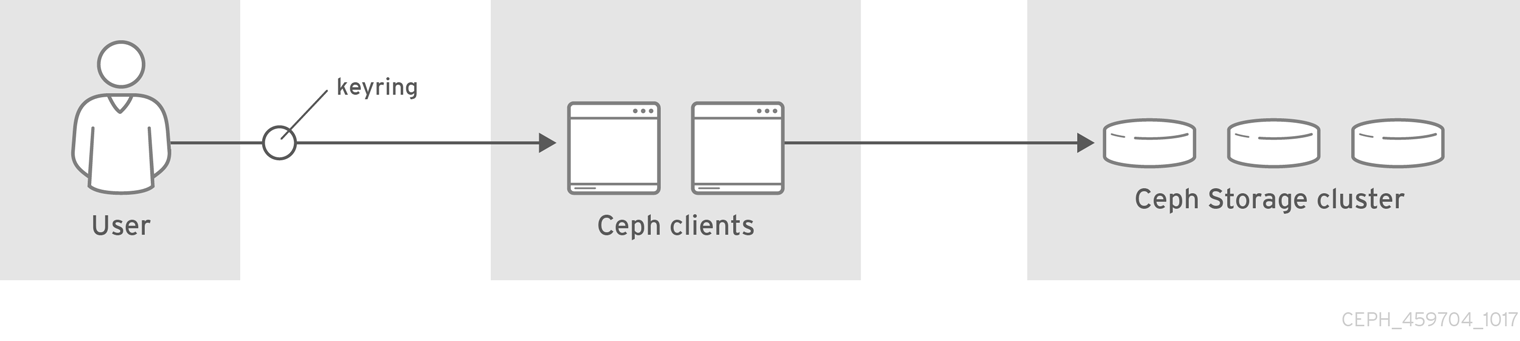
As a storage administrator, you can manage the Ceph user base by providing authentication, keyring management and access control to objects in the Red Hat Ceph Storage cluster.
5.1. Prerequisites
- A running Red Hat Ceph Storage cluster.
- Access to a Ceph Monitor or Ceph client node.
5.2. Ceph user management background
When Ceph runs with authentication and authorization enabled, you must specify a user name and a keyring containing the secret key of the specified user. If you do not specify a user name, Ceph will use the client.admin administrative user as the default user name. If you do not specify a keyring, Ceph will look for a keyring by using the keyring setting in the Ceph configuration. For example, if you execute the ceph health command without specifying a user or keyring:
ceph health
# ceph healthCeph interprets the command like this:
ceph -n client.admin --keyring=/etc/ceph/ceph.client.admin.keyring health
# ceph -n client.admin --keyring=/etc/ceph/ceph.client.admin.keyring health
Alternatively, you may use the CEPH_ARGS environment variable to avoid re-entry of the user name and secret.
Irrespective of the type of Ceph client, for example, block device, object store, file system, native API, or the Ceph command line, Ceph stores all data as objects within pools. Ceph users must have access to pools in order to read and write data. Additionally, administrative Ceph users must have permissions to execute Ceph’s administrative commands.
The following concepts can help you understand Ceph user management.
Storage Cluster Users
A user of the Red Hat Ceph Storage cluster is either an individual or as an application. Creating users allows you to control who can access the storage cluster, its pools, and the data within those pools.
Ceph has the notion of a type of user. For the purposes of user management, the type will always be client. Ceph identifies users in period (.) delimited form consisting of the user type and the user ID. For example, TYPE.ID, client.admin, or client.user1. The reason for user typing is that Ceph Monitors, and OSDs also use the Cephx protocol, but they are not clients. Distinguishing the user type helps to distinguish between client users and other users—streamlining access control, user monitoring and traceability.
Sometimes Ceph’s user type may seem confusing, because the Ceph command line allows you to specify a user with or without the type, depending upon the command line usage. If you specify --user or --id, you can omit the type. So client.user1 can be entered simply as user1. If you specify --name or -n, you must specify the type and name, such as client.user1. Red Hat recommends using the type and name as a best practice wherever possible.
A Red Hat Ceph Storage cluster user is not the same as a Ceph Object Gateway user. The object gateway uses a Red Hat Ceph Storage cluster user to communicate between the gateway daemon and the storage cluster, but the gateway has its own user management functionality for its end users.
Syntax
DAEMON_TYPE 'allow CAPABILITY' [DAEMON_TYPE 'allow CAPABILITY']
DAEMON_TYPE 'allow CAPABILITY' [DAEMON_TYPE 'allow CAPABILITY']Monitor Caps: Monitor capabilities include
r,w,x,allow profile CAP, andprofile rbd.Example
mon 'allow rwx`
mon 'allow profile osd'
mon 'allow rwx`
mon 'allow profile osd'
Copy to Clipboard Copied! Toggle word wrap Toggle overflow OSD Caps: OSD capabilities include
r,w,x,class-read,class-write,profile osd,profile rbd, andprofile rbd-read-only. Additionally, OSD capabilities also allow for pool and namespace settings. :osd 'allow CAPABILITY' [pool=POOL_NAME] [namespace=NAMESPACE_NAME]
osd 'allow CAPABILITY' [pool=POOL_NAME] [namespace=NAMESPACE_NAME]Copy to Clipboard Copied! Toggle word wrap Toggle overflow
The Ceph Object Gateway daemon (radosgw) is a client of the Ceph storage cluster, so it isn’t represented as a Ceph storage cluster daemon type.
The following entries describe each capability.
|
| Precedes access settings for a daemon. |
|
| Gives the user read access. Required with monitors to retrieve the CRUSH map. |
|
| Gives the user write access to objects. |
|
|
Gives the user the capability to call class methods (that is, both read and write) and to conduct |
|
|
Gives the user the capability to call class read methods. Subset of |
|
|
Gives the user the capability to call class write methods. Subset of |
|
| Gives the user read, write and execute permissions for a particular daemon or pool, and the ability to execute admin commands. |
|
| Gives a user permissions to connect as an OSD to other OSDs or monitors. Conferred on OSDs to enable OSDs to handle replication heartbeat traffic and status reporting. |
|
| Gives a user permissions to bootstrap an OSD, so that they have permissions to add keys when bootstrapping an OSD. |
|
| Gives a user read-write access to the Ceph Block Devices. |
|
| Gives a user read-only access to the Ceph Block Devices. |
Pool
A pool defines a storage strategy for Ceph clients, and acts as a logical partition for that strategy.
In Ceph deployments, it is common to create a pool to support different types of use cases. For example, cloud volumes or images, object storage, hot storage, cold storage, and so on. When deploying Ceph as a back end for OpenStack, a typical deployment would have pools for volumes, images, backups and virtual machines, and users such as client.glance, client.cinder, and so on.
Namespace
Objects within a pool can be associated to a namespace—a logical group of objects within the pool. A user’s access to a pool can be associated with a namespace such that reads and writes by the user take place only within the namespace. Objects written to a namespace within the pool can only be accessed by users who have access to the namespace.
Currently, namespaces are only useful for applications written on top of librados. Ceph clients such as block device and object storage do not currently support this feature.
The rationale for namespaces is that pools can be a computationally expensive method of segregating data by use case, because each pool creates a set of placement groups that get mapped to OSDs. If multiple pools use the same CRUSH hierarchy and ruleset, OSD performance may degrade as load increases.
For example, a pool should have approximately 100 placement groups per OSD. So an exemplary cluster with 1000 OSDs would have 100,000 placement groups for one pool. Each pool mapped to the same CRUSH hierarchy and ruleset would create another 100,000 placement groups in the exemplary cluster. By contrast, writing an object to a namespace simply associates the namespace to the object name with out the computational overhead of a separate pool. Rather than creating a separate pool for a user or set of users, you may use a namespace.
Only available using librados at this time.
Additional Resources
- See the Red Hat Ceph Storage Configuration Guide for details on configuring the use of authentication.
5.3. Managing Ceph users
As a storage administrator, you can manage Ceph users by creating, modifying, deleting, and importing users. A Ceph client user can be either individuals or applications, which use Ceph clients to interact with the Red Hat Ceph Storage cluster daemons.
5.3.1. Prerequisites
- A running Red Hat Ceph Storage cluster.
- Access to a Ceph Monitor or Ceph client node.
5.3.2. Listing Ceph users
You can list the users in the storage cluster using the command-line interface.
Prerequisites
- A running Red Hat Ceph Storage cluster.
- Root-level access to the node.
Procedure
To list the users in the storage cluster, execute the following:
ceph auth list
[root@mon ~]# ceph auth listCopy to Clipboard Copied! Toggle word wrap Toggle overflow Ceph will list out all users in the storage cluster. For example, in a two-node exemplary storage cluster,
ceph auth listwill output something that looks like this:Example
Copy to Clipboard Copied! Toggle word wrap Toggle overflow
The TYPE.ID notation for users applies such that osd.0 is a user of type osd and its ID is 0, client.admin is a user of type client and its ID is admin, that is, the default client.admin user. Note also that each entry has a key: VALUE entry, and one or more caps: entries.
You may use the -o FILE_NAME option with ceph auth list to save the output to a file.
5.3.3. Display Ceph user information
You can display a Ceph’s user information using the command-line interface.
Prerequisites
- A running Red Hat Ceph Storage cluster.
- Root-level access to the node.
Procedure
To retrieve a specific user, key and capabilities, execute the following:
ceph auth export TYPE.ID
ceph auth export TYPE.IDCopy to Clipboard Copied! Toggle word wrap Toggle overflow Example
ceph auth get client.admin
[root@mon ~]# ceph auth get client.adminCopy to Clipboard Copied! Toggle word wrap Toggle overflow You can also use the
-o FILE_NAMEoption withceph auth getto save the output to a file. Developers can also execute the following:ceph auth export TYPE.ID
ceph auth export TYPE.IDCopy to Clipboard Copied! Toggle word wrap Toggle overflow Example
ceph auth export client.admin
[root@mon ~]# ceph auth export client.adminCopy to Clipboard Copied! Toggle word wrap Toggle overflow
The auth export command is identical to auth get, but also prints out the internal auid, which isn’t relevant to end users.
5.3.4. Add a new Ceph user
Adding a user creates a username, that is, TYPE.ID, a secret key and any capabilities included in the command you use to create the user.
A user’s key enables the user to authenticate with the Ceph storage cluster. The user’s capabilities authorize the user to read, write, or execute on Ceph monitors (mon), Ceph OSDs (osd) or Ceph Metadata Servers (mds).
There are a few ways to add a user:
-
ceph auth add: This command is the canonical way to add a user. It will create the user, generate a key and add any specified capabilities. -
ceph auth get-or-create: This command is often the most convenient way to create a user, because it returns a keyfile format with the user name (in brackets) and the key. If the user already exists, this command simply returns the user name and key in the keyfile format. You may use the-o FILE_NAMEoption to save the output to a file. -
ceph auth get-or-create-key: This command is a convenient way to create a user and return the user’s key only. This is useful for clients that need the key only, for example,libvirt. If the user already exists, this command simply returns the key. You may use the-o FILE_NAMEoption to save the output to a file.
When creating client users, you may create a user with no capabilities. A user with no capabilities is useless beyond mere authentication, because the client cannot retrieve the cluster map from the monitor. However, you can create a user with no capabilities if you wish to defer adding capabilities later using the ceph auth caps command.
A typical user has at least read capabilities on the Ceph monitor and read and write capability on Ceph OSDs. Additionally, a user’s OSD permissions are often restricted to accessing a particular pool. :
ceph auth add client.john mon 'allow r' osd 'allow rw pool=liverpool'
ceph auth get-or-create client.paul mon 'allow r' osd 'allow rw pool=liverpool'
ceph auth get-or-create client.george mon 'allow r' osd 'allow rw pool=liverpool' -o george.keyring
ceph auth get-or-create-key client.ringo mon 'allow r' osd 'allow rw pool=liverpool' -o ringo.key
[root@mon ~]# ceph auth add client.john mon 'allow r' osd 'allow rw pool=liverpool'
[root@mon ~]# ceph auth get-or-create client.paul mon 'allow r' osd 'allow rw pool=liverpool'
[root@mon ~]# ceph auth get-or-create client.george mon 'allow r' osd 'allow rw pool=liverpool' -o george.keyring
[root@mon ~]# ceph auth get-or-create-key client.ringo mon 'allow r' osd 'allow rw pool=liverpool' -o ringo.keyIf you provide a user with capabilities to OSDs, but you DO NOT restrict access to particular pools, the user will have access to ALL pools in the cluster!
5.3.5. Modifying a Ceph User
The ceph auth caps command allows you to specify a user and change the user’s capabilities. Setting new capabilities will overwrite current capabilities. Therefore, view the current capabilities first and include them when you add new capabilities.
Prerequisites
- A running Red Hat Ceph Storage cluster.
- Root-level access to the node.
Procedure
View current capabilities:
ceph auth get USERTYPE.USERID
ceph auth get USERTYPE.USERIDCopy to Clipboard Copied! Toggle word wrap Toggle overflow Example
Copy to Clipboard Copied! Toggle word wrap Toggle overflow To add capabilities, use the form:
ceph auth caps USERTYPE.USERID DAEMON 'allow [r|w|x|*|...] [pool=POOL_NAME] [namespace=NAMESPACE_NAME]'
ceph auth caps USERTYPE.USERID DAEMON 'allow [r|w|x|*|...] [pool=POOL_NAME] [namespace=NAMESPACE_NAME]'Copy to Clipboard Copied! Toggle word wrap Toggle overflow Example
ceph auth caps client.john mon 'allow r' osd 'allow rwx pool=liverpool'
[root@mon ~]# ceph auth caps client.john mon 'allow r' osd 'allow rwx pool=liverpool'Copy to Clipboard Copied! Toggle word wrap Toggle overflow In the example, execute capabilities on the OSDs have been added.
Verify the added capabilities:
ceph auth get _USERTYPE_._USERID_
ceph auth get _USERTYPE_._USERID_Copy to Clipboard Copied! Toggle word wrap Toggle overflow Example
Copy to Clipboard Copied! Toggle word wrap Toggle overflow In the example, execute capabilities on the OSDs can be seen.
To remove a capability, set all the current capabilities except the ones you want to remove.
ceph auth caps USERTYPE.USERID DAEMON 'allow [r|w|x|*|...] [pool=POOL_NAME] [namespace=NAMESPACE_NAME]'
ceph auth caps USERTYPE.USERID DAEMON 'allow [r|w|x|*|...] [pool=POOL_NAME] [namespace=NAMESPACE_NAME]'Copy to Clipboard Copied! Toggle word wrap Toggle overflow Example
ceph auth caps client.john mon 'allow r' osd 'allow rw pool=liverpool'
[root@mon ~]# ceph auth caps client.john mon 'allow r' osd 'allow rw pool=liverpool'Copy to Clipboard Copied! Toggle word wrap Toggle overflow In the example, execute capabilities on the OSDs were not included and thus will be removed.
Verify the removed capabilities:
ceph auth get _USERTYPE_._USERID_
ceph auth get _USERTYPE_._USERID_Copy to Clipboard Copied! Toggle word wrap Toggle overflow Example
Copy to Clipboard Copied! Toggle word wrap Toggle overflow In the example, execute capabilities on the OSDs are no longer listed.
Additional Resources
- See Authorization capabilities for additional details on capabilities.
5.3.6. Deleting a Ceph user
You can delete a user from the Ceph storage cluster using the command-line interface.
Prerequisites
- A running Red Hat Ceph Storage cluster.
- Root-level access to the node.
Procedure
To delete a user, use
ceph auth del:ceph auth del TYPE.ID
[root@mon ~]# ceph auth del TYPE.IDCopy to Clipboard Copied! Toggle word wrap Toggle overflow Where
TYPEis one ofclient,osd,mon, ormds, andIDis the user name or ID of the daemon.
5.3.7. Print a Ceph user key
You can display a Ceph user’s key information using the command-line interface.
Prerequisites
- A running Red Hat Ceph Storage cluster.
- Root-level access to the node.
Procedure
To print a user’s authentication key to standard output, execute the following:
ceph auth print-key TYPE.ID
ceph auth print-key TYPE.IDCopy to Clipboard Copied! Toggle word wrap Toggle overflow Where
TYPEis one ofclient,osd,mon, ormds, andIDis the user name or ID of the daemon.Printing a user’s key is useful when you need to populate client software with a user’s key, for example,
libvirt.mount -t ceph HOSTNAME:/MOUNT_POINT -o name=client.user,secret=ceph auth print-key client.user
mount -t ceph HOSTNAME:/MOUNT_POINT -o name=client.user,secret=ceph auth print-key client.userCopy to Clipboard Copied! Toggle word wrap Toggle overflow
5.3.8. Import Ceph user
You can import a Ceph user using the command-line interface.
Prerequisites
- A running Red Hat Ceph Storage cluster.
- Root-level access to the node.
Procedure
To import one or more users, use
ceph auth importand specify a keyring:ceph auth import -i /PATH/TO/KEYRING
ceph auth import -i /PATH/TO/KEYRINGCopy to Clipboard Copied! Toggle word wrap Toggle overflow Example
ceph auth import -i /etc/ceph/ceph.keyring
[root@mon ~]# ceph auth import -i /etc/ceph/ceph.keyringCopy to Clipboard Copied! Toggle word wrap Toggle overflow
The Ceph storage cluster will add new users, their keys and their capabilities and will update existing users, their keys and their capabilities.
5.4. Managing Ceph keyrings
As a storage administrator, managing Ceph user keys is important for accessing the Red Hat Ceph Storage cluster. You can create keyrings, add users to keyrings, and modifying users with keyrings.
5.4.1. Prerequisites
- A running Red Hat Ceph Storage cluster.
- Access to a Ceph Monitor or Ceph client node.
5.4.2. Creating a keyring
You need to provide user keys to the Ceph clients so that the Ceph client can retrieve the key for the specified user and authenticate with the Ceph Storage Cluster. Ceph Clients access keyrings to lookup a user name and retrieve the user’s key.
The ceph-authtool utility allows you to create a keyring.
Prerequisites
- A running Red Hat Ceph Storage cluster.
- Root-level access to the node.
Procedure
To create an empty keyring, use
--create-keyringor-C.Example
ceph-authtool --create-keyring /path/to/keyring
[root@mon ~]# ceph-authtool --create-keyring /path/to/keyringCopy to Clipboard Copied! Toggle word wrap Toggle overflow When creating a keyring with multiple users, we recommend using the cluster name. For example,
CLUSTER_NAME.keyring`for the keyring file name and saving it in the/etc/ceph/directory so that thekeyringconfiguration default setting will pick up the filename without requiring you to specify it in the local copy of the Ceph configuration file.Create
ceph.keyringby executing the following:ceph-authtool -C /etc/ceph/ceph.keyring
[root@mon ~]# ceph-authtool -C /etc/ceph/ceph.keyringCopy to Clipboard Copied! Toggle word wrap Toggle overflow
When creating a keyring with a single user, we recommend using the cluster name, the user type and the user name and saving it in the /etc/ceph/ directory. For example, ceph.client.admin.keyring for the client.admin user.
To create a keyring in /etc/ceph/, you must do so as root. This means the file will have rw permissions for the root user only, which is appropriate when the keyring contains administrator keys. However, if you intend to use the keyring for a particular user or group of users, ensure that you execute chown or chmod to establish appropriate keyring ownership and access.
5.4.3. Adding a user to the keyring
When you add a user to the Ceph storage cluster, you can use the get procedure to retrieve a user, key and capabilities, then save the user to a keyring file. When you only want to use one user per keyring, the Display Ceph user information procedure with the -o option will save the output in the keyring file format.
Prerequisites
- A running Red Hat Ceph Storage cluster.
- Root-level access to the node.
Procedure
To create a keyring for the
client.adminuser, execute the following:ceph auth get client.admin -o /etc/ceph/ceph.client.admin.keyring
[root@mon ~]# ceph auth get client.admin -o /etc/ceph/ceph.client.admin.keyringCopy to Clipboard Copied! Toggle word wrap Toggle overflow Notice that we use the recommended file format for an individual user.
When you want to import users to a keyring, you can use
ceph-authtoolto specify the destination keyring and the source keyring.ceph-authtool /etc/ceph/ceph.keyring --import-keyring /etc/ceph/ceph.client.admin.keyring
[root@mon ~]# ceph-authtool /etc/ceph/ceph.keyring --import-keyring /etc/ceph/ceph.client.admin.keyringCopy to Clipboard Copied! Toggle word wrap Toggle overflow
5.4.4. Creating a Ceph user with a keyring
Ceph provides the ability to create a user directly in the Red Hat Ceph Storage cluster. However, you can also create a user, keys and capabilities directly on a Ceph client keyring.
Prerequisites
- A running Red Hat Ceph Storage cluster.
- Root-level access to the node.
Procedure
Import a user into the keyring:
Example
ceph-authtool -n client.ringo --cap osd 'allow rwx' --cap mon 'allow rwx' /etc/ceph/ceph.keyring
[root@mon ~]# ceph-authtool -n client.ringo --cap osd 'allow rwx' --cap mon 'allow rwx' /etc/ceph/ceph.keyringCopy to Clipboard Copied! Toggle word wrap Toggle overflow Create a keyring and add a new user to the keyring simultaneously:
Example:
ceph-authtool -C /etc/ceph/ceph.keyring -n client.ringo --cap osd 'allow rwx' --cap mon 'allow rwx' --gen-key
[root@mon ~]# ceph-authtool -C /etc/ceph/ceph.keyring -n client.ringo --cap osd 'allow rwx' --cap mon 'allow rwx' --gen-keyCopy to Clipboard Copied! Toggle word wrap Toggle overflow In the foregoing scenarios, the new user
client.ringois only in the keyring.To add the new user to the Ceph storage cluster:
ceph auth add client.ringo -i /etc/ceph/ceph.keyring
[root@mon ~]# ceph auth add client.ringo -i /etc/ceph/ceph.keyringCopy to Clipboard Copied! Toggle word wrap Toggle overflow
Additional Resources
- See Ceph user management background for additional details on capabilities.
5.4.5. Modifying a Ceph user with a keyring
You can modify a Ceph user and their keyring using the command-line interface.
Prerequisites
- A running Red Hat Ceph Storage cluster.
- Root-level access to the node.
Procedure
- To modify the capabilities of a user record in a keyring, specify the keyring, and the user followed by the capabilities, for example:
ceph-authtool /etc/ceph/ceph.keyring -n client.ringo --cap osd 'allow rwx' --cap mon 'allow rwx'
[root@mon ~]# ceph-authtool /etc/ceph/ceph.keyring -n client.ringo --cap osd 'allow rwx' --cap mon 'allow rwx'- To update the user to the Red Hat Ceph Storage cluster, you must update the user in the keyring to the user entry in the Red Hat Ceph Storage cluster:
ceph auth import -i /etc/ceph/ceph.keyring
[root@mon ~]# ceph auth import -i /etc/ceph/ceph.keyring
You may also modify user capabilities directly in the storage cluster, store the results to a keyring file; then, import the keyring into the main ceph.keyring file.
Additional Resources
- See Import user for details on updating a Red Hat Ceph Storage cluster user from a keyring.
5.4.6. Command Line usage for Ceph users
Ceph supports the following usage for user name and secret:
--id | --user
- Description
-
Ceph identifies users with a type and an ID. For example,
TYPE.IDorclient.admin,client.user1. Theid,nameand-noptions enable you to specify the ID portion of the user name. For example,admin,user1, orfoo. You can specify the user with the--idand omit the type. For example, to specify userclient.fooenter the following:
ceph --id foo --keyring /path/to/keyring health
ceph --user foo --keyring /path/to/keyring health
[root@mon ~]# ceph --id foo --keyring /path/to/keyring health
[root@mon ~]# ceph --user foo --keyring /path/to/keyring health
--name | -n
- Description
-
Ceph identifies users with a type and an ID. For example,
TYPE.IDorclient.admin,client.user1. The--nameand-noptions enables you to specify the fully qualified user name. You must specify the user type (typicallyclient) with the user ID. For example:
ceph --name client.foo --keyring /path/to/keyring health
ceph -n client.foo --keyring /path/to/keyring health
[root@mon ~]# ceph --name client.foo --keyring /path/to/keyring health
[root@mon ~]# ceph -n client.foo --keyring /path/to/keyring health
--keyring
- Description
-
The path to the keyring containing one or more user name and secret. The
--secretoption provides the same functionality, but it does not work with Ceph RADOS Gateway, which uses--secretfor another purpose. You may retrieve a keyring withceph auth get-or-createand store it locally. This is a preferred approach, because you can switch user names without switching the keyring path. For example:
rbd map foo --pool rbd myimage --id client.foo --keyring /path/to/keyring
[root@mon ~]# rbd map foo --pool rbd myimage --id client.foo --keyring /path/to/keyring5.4.7. Ceph user management limitations
The cephx protocol authenticates Ceph clients and servers to each other. It is not intended to handle authentication of human users or application programs run on their behalf. If that effect is required to handle the access control needs, you must have another mechanism, which is likely to be specific to the front end used to access the Ceph object store. This other mechanism has the role of ensuring that only acceptable users and programs are able to run on the machine that Ceph will permit to access its object store.
The keys used to authenticate Ceph clients and servers are typically stored in a plain text file with appropriate permissions in a trusted host.
Storing keys in plaintext files has security shortcomings, but they are difficult to avoid, given the basic authentication methods Ceph uses in the background. Those setting up Ceph systems should be aware of these shortcomings.
In particular, arbitrary user machines, especially portable machines, should not be configured to interact directly with Ceph, since that mode of use would require the storage of a plaintext authentication key on an insecure machine. Anyone who stole that machine or obtained surreptitious access to it could obtain the key that will allow them to authenticate their own machines to Ceph.
Rather than permitting potentially insecure machines to access a Ceph object store directly, users should be required to sign in to a trusted machine in the environment using a method that provides sufficient security for the purposes. That trusted machine will store the plaintext Ceph keys for the human users. A future version of Ceph may address these particular authentication issues more fully.
At the moment, none of the Ceph authentication protocols provide secrecy for messages in transit. Thus, an eavesdropper on the wire can hear and understand all data sent between clients and servers in Ceph, even if he cannot create or alter them. Those storing sensitive data in Ceph should consider encrypting their data before providing it to the Ceph system.
For example, Ceph Object Gateway provides S3 API Server-side Encryption, which encrypts unencrypted data received from a Ceph Object Gateway client before storing it in the Ceph Storage cluster and similarly decrypts data retrieved from the Ceph Storage cluster before sending it back to the client. To ensure encryption in transit between the client and the Ceph Object Gateway, the Ceph Object Gateway should be configured to use SSL.
Chapter 6. The ceph-volume utility
As a storage administrator, you can prepare, create, and activate Ceph OSDs using the ceph-volume utility. The ceph-volume utility is a single purpose command-line tool to deploy logical volumes as OSDs. It uses a plugin-type framework to deploying OSDs with different device technologies. The ceph-volume utility follows a similar workflow of the ceph-disk utility for deploying OSDs, with a predictable, and robust way of preparing, activating, and starting OSDs. Currently, the ceph-volume utility only supports the lvm plugin, with the plan to support others technologies in the future.
The ceph-disk command is deprecated.
6.1. Prerequisites
- A running Red Hat Ceph Storage cluster.
6.2. Ceph volume lvm plugin
By making use of LVM tags, the lvm sub-command is able to store and re-discover by querying devices associated with OSDs so they can be activated. This includes support for lvm-based technologies like dm-cache as well.
When using ceph-volume, the use of dm-cache is transparent, and treats dm-cache like a logical volume. The performance gains and losses when using dm-cache will depend on the specific workload. Generally, random and sequential reads will see an increase in performance at smaller block sizes. While random and sequential writes will see a decrease in performance at larger block sizes.
To use the LVM plugin, add lvm as a subcommand to the ceph-volume command:
ceph-volume lvm
[root@osd ~]# ceph-volume lvm
There are three subcommands to the lvm subcommand, as follows:
Using the create subcommand combines the prepare and activate subcommands into one subcommand.
Additional Resources
-
See the
createsubcommand section for more details.
6.3. Why does ceph-volume replace ceph-disk?
Previous versions of Red Hat Ceph Storage used the ceph-disk utility to prepare, activate, and create OSDs. Starting with Red Hat Ceph Storage 4, ceph-disk is replaced by the ceph-volume utility that aims to be a single purpose command-line tool to deploy logical volumes as OSDs, while maintaining a similar API to ceph-disk when preparing, activating, and creating OSDs.
How does ceph-volume work?
The ceph-volume is a modular tool that currently supports two ways of provisioning hardware devices, legacy ceph-disk devices and LVM (Logical Volume Manager) devices. The ceph-volume lvm command uses the LVM tags to store information about devices specific to Ceph and its relationship with OSDs. It uses these tags to later re-discover and query devices associated with OSDS so that it can activate them. It supports technologies based on LVM and dm-cache as well.
The ceph-volume utility uses dm-cache transparently and treats it as a logical volume. You might consider the performance gains and losses when using dm-cache, depending on the specific workload you are handling. Generally, the performance of random and sequential read operations increases at smaller block sizes; while the performance of random and sequential write operations decreases at larger block sizes. Using ceph-volume does not introduce any significant performance penalties.
The ceph-disk utility is deprecated.
The ceph-volume simple command can handle legacy ceph-disk devices, if these devices are still in use.
How does ceph-disk work?
The ceph-disk utility was required to support many different types of init systems, such as upstart or sysvinit, while being able to discover devices. For this reason, ceph-disk concentrates only on GUID Partition Table (GPT) partitions. Specifically on GPT GUIDs that label devices in a unique way to answer questions like:
-
Is this device a
journal? - Is this device an encrypted data partition?
- Was the device left partially prepared?
To solve these questions, ceph-disk uses UDEV rules to match the GUIDs.
What are disadvantages of using ceph-disk?
Using the UDEV rules to call ceph-disk can lead to a back-and-forth between the ceph-disk systemd unit and the ceph-disk executable. The process is very unreliable and time consuming and can cause OSDs to not come up at all during the boot process of a node. Moreover, it is hard to debug, or even replicate these problems given the asynchronous behavior of UDEV.
Because ceph-disk works with GPT partitions exclusively, it cannot support other technologies, such as Logical Volume Manager (LVM) volumes, or similar device mapper devices.
To ensure the GPT partitions work correctly with the device discovery workflow, ceph-disk requires a large number of special flags to be used. In addition, these partitions require devices to be exclusively owned by Ceph.
6.4. Preparing Ceph OSDs using ceph-volume
The prepare subcommand prepares an OSD back-end object store and consumes logical volumes (LV) for both the OSD data and journal. It does not modify the logical volumes, except for adding some extra metadata tags using LVM. These tags make volumes easier to discover, and they also identify the volumes as part of the Ceph Storage Cluster and the roles of those volumes in the storage cluster.
The BlueStore OSD backend supports the following configurations:
-
A block device, a
block.waldevice, and ablock.dbdevice -
A block device and a
block.waldevice -
A block device and a
block.dbdevice - A single block device
The prepare subcommand accepts a whole device or partition, or a logical volume for block.
Prerequisites
- Root-level access to the OSD nodes.
- Optionally, create logical volumes. If you provide a path to a physical device, the subcommand turns the device into a logical volume. This approach is simpler, but you cannot configure or change the way the logical volume is created.
Procedure
Prepare the LVM volumes:
Syntax
ceph-volume lvm prepare --bluestore --data VOLUME_GROUP/LOGICAL_VOLUME
ceph-volume lvm prepare --bluestore --data VOLUME_GROUP/LOGICAL_VOLUMECopy to Clipboard Copied! Toggle word wrap Toggle overflow Example
ceph-volume lvm prepare --bluestore --data example_vg/data_lv
[root@osd ~]# ceph-volume lvm prepare --bluestore --data example_vg/data_lvCopy to Clipboard Copied! Toggle word wrap Toggle overflow Optionally, if you want to use a separate device for RocksDB, specify the
--block.dband--block.waloptions:Syntax
ceph-volume lvm prepare --bluestore --block.db --block.wal --data VOLUME_GROUP/LOGICAL_VOLUME
ceph-volume lvm prepare --bluestore --block.db --block.wal --data VOLUME_GROUP/LOGICAL_VOLUMECopy to Clipboard Copied! Toggle word wrap Toggle overflow Example
ceph-volume lvm prepare --bluestore --block.db --block.wal --data example_vg/data_lv
[root@osd ~]# ceph-volume lvm prepare --bluestore --block.db --block.wal --data example_vg/data_lvCopy to Clipboard Copied! Toggle word wrap Toggle overflow Optionally, to encrypt data, use the
--dmcryptflag:Syntax
ceph-volume lvm prepare --bluestore --dmcrypt --data VOLUME_GROUP/LOGICAL_VOLUME
ceph-volume lvm prepare --bluestore --dmcrypt --data VOLUME_GROUP/LOGICAL_VOLUMECopy to Clipboard Copied! Toggle word wrap Toggle overflow Example
ceph-volume lvm prepare --bluestore --dmcrypt --data example_vg/data_lv
[root@osd ~]# ceph-volume lvm prepare --bluestore --dmcrypt --data example_vg/data_lvCopy to Clipboard Copied! Toggle word wrap Toggle overflow
Additional Resources
- See the Activating Ceph OSDs using `ceph-volume` section in the Red Hat Ceph Storage Administration Guide for more details.
- See the Creating Ceph OSDs using `ceph-volume` section in the Red Hat Ceph Storage Administration Guide for more details.
6.5. Activating Ceph OSDs using ceph-volume
The activation process enables a systemd unit at boot time, which allows the correct OSD identifier and its UUID to be enabled and mounted.
Prerequisites
- A running Red Hat Ceph Storage cluster.
- Root-level access to the Ceph OSD node.
-
Ceph OSDs prepared by the
ceph-volumeutility.
Procedure
Get the OSD ID and UUID from an OSD node:
ceph-volume lvm list
[root@osd ~]# ceph-volume lvm listCopy to Clipboard Copied! Toggle word wrap Toggle overflow Activate the OSD:
Syntax
ceph-volume lvm activate --bluestore OSD_ID OSD_UUID
ceph-volume lvm activate --bluestore OSD_ID OSD_UUIDCopy to Clipboard Copied! Toggle word wrap Toggle overflow Example
ceph-volume lvm activate --bluestore 0 0263644D-0BF1-4D6D-BC34-28BD98AE3BC8
[root@osd ~]# ceph-volume lvm activate --bluestore 0 0263644D-0BF1-4D6D-BC34-28BD98AE3BC8Copy to Clipboard Copied! Toggle word wrap Toggle overflow To activate all OSDs that are prepared for activation, use the
--alloption:Example
ceph-volume lvm activate --all
[root@osd ~]# ceph-volume lvm activate --allCopy to Clipboard Copied! Toggle word wrap Toggle overflow
Additional Resources
- See the Preparing Ceph OSDs using `ceph-volume` section in the Red Hat Ceph Storage Administration Guide for more details.
- See the Creating Ceph OSDs using `ceph-volume` section in the Red Hat Ceph Storage Administration Guide for more details.
6.6. Creating Ceph OSDs using ceph-volume
The create subcommand calls the prepare subcommand, and then calls the activate subcommand.
Prerequisites
- A running Red Hat Ceph Storage cluster.
- Root-level access to the Ceph OSD nodes.
If you prefer to have more control over the creation process, you can use the prepare and activate subcommands separately to create the OSD, instead of using create. You can use the two subcommands to gradually introduce new OSDs into a storage cluster, while avoiding having to rebalance large amounts of data. Both approaches work the same way, except that using the create subcommand causes the OSD to become up and in immediately after completion.
Procedure
To create a new OSD:
Syntax
ceph-volume lvm create --bluestore --data VOLUME_GROUP/LOGICAL_VOLUME
ceph-volume lvm create --bluestore --data VOLUME_GROUP/LOGICAL_VOLUMECopy to Clipboard Copied! Toggle word wrap Toggle overflow Example
ceph-volume lvm create --bluestore --data example_vg/data_lv
[root@osd ~]# ceph-volume lvm create --bluestore --data example_vg/data_lvCopy to Clipboard Copied! Toggle word wrap Toggle overflow
Additional Resources
- See the Preparing Ceph OSDs using `ceph-volume` section in the Red Hat Ceph Storage Administration Guide for more details.
- See the Activating Ceph OSDs using `ceph-volume` section in the Red Hat Ceph Storage Administration Guide for more details.
6.7. Using batch mode with ceph-volume
The batch subcommand automates the creation of multiple OSDs when single devices are provided.
The ceph-volume command decides the best method to use to create the OSDs, based on drive type. Ceph OSD optimization depends on the available devices:
-
If all devices are traditional hard drives,
batchcreates one OSD per device. -
If all devices are solid state drives,
batchcreates two OSDs per device. -
If there is a mix of traditional hard drives and solid state drives,
batchuses the traditional hard drives for data, and creates the largest possible journal (block.db) on the solid state drive.
The batch subcommand does not support the creation of a separate logical volume for the write-ahead-log (block.wal) device.
Prerequisites
- A running Red Hat Ceph Storage cluster.
- Root-level access to the Ceph OSD nodes.
Procedure
To create OSDs on several drives:
Syntax
ceph-volume lvm batch --bluestore PATH_TO_DEVICE [PATH_TO_DEVICE]
ceph-volume lvm batch --bluestore PATH_TO_DEVICE [PATH_TO_DEVICE]Copy to Clipboard Copied! Toggle word wrap Toggle overflow Example
ceph-volume lvm batch --bluestore /dev/sda /dev/sdb /dev/nvme0n1
[root@osd ~]# ceph-volume lvm batch --bluestore /dev/sda /dev/sdb /dev/nvme0n1Copy to Clipboard Copied! Toggle word wrap Toggle overflow
Additional Resources
- See the Creating Ceph OSDs using `ceph-volume` section in the Red Hat Ceph Storage Administration Guide for more details.
Chapter 7. Ceph performance benchmark
As a storage administrator, you can benchmark performance of the Red Hat Ceph Storage cluster. The purpose of this section is to give Ceph administrators a basic understanding of Ceph’s native benchmarking tools. These tools will provide some insight into how the Ceph storage cluster is performing. This is not the definitive guide to Ceph performance benchmarking, nor is it a guide on how to tune Ceph accordingly.
7.1. Prerequisites
- A running Red Hat Ceph Storage cluster.
7.2. Performance baseline
The OSD, including the journal, disks and the network throughput should each have a performance baseline to compare against. You can identify potential tuning opportunities by comparing the baseline performance data with the data from Ceph’s native tools. Red Hat Enterprise Linux has many built-in tools, along with a plethora of open source community tools, available to help accomplish these tasks.
Additional Resources
- For more details about some of the available tools, see this Knowledgebase article.
7.3. Benchmarking Ceph performance
Ceph includes the rados bench command to do performance benchmarking on a RADOS storage cluster. The command will execute a write test and two types of read tests. The --no-cleanup option is important to use when testing both read and write performance. By default the rados bench command will delete the objects it has written to the storage pool. Leaving behind these objects allows the two read tests to measure sequential and random read performance.
Before running these performance tests, drop all the file system caches by running the following:
echo 3 | sudo tee /proc/sys/vm/drop_caches && sudo sync
[root@mon~ ]# echo 3 | sudo tee /proc/sys/vm/drop_caches && sudo syncPrerequisites
- A running Red Hat Ceph Storage cluster.
- Root-level access to the node.
Procedure
Create a new storage pool:
ceph osd pool create testbench 100 100
[root@osd~ ]# ceph osd pool create testbench 100 100Copy to Clipboard Copied! Toggle word wrap Toggle overflow Execute a write test for 10 seconds to the newly created storage pool:
rados bench -p testbench 10 write --no-cleanup
[root@osd~ ]# rados bench -p testbench 10 write --no-cleanupCopy to Clipboard Copied! Toggle word wrap Toggle overflow Example Output
Copy to Clipboard Copied! Toggle word wrap Toggle overflow Execute a sequential read test for 10 seconds to the storage pool:
# rados bench -p testbench 10 seq
[root@osd~ ]## rados bench -p testbench 10 seqCopy to Clipboard Copied! Toggle word wrap Toggle overflow Example Output
Copy to Clipboard Copied! Toggle word wrap Toggle overflow Execute a random read test for 10 seconds to the storage pool:
rados bench -p testbench 10 rand
[root@osd ~]# rados bench -p testbench 10 randCopy to Clipboard Copied! Toggle word wrap Toggle overflow Example Output
Copy to Clipboard Copied! Toggle word wrap Toggle overflow To increase the number of concurrent reads and writes, use the
-toption, which the default is 16 threads. Also, the-bparameter can adjust the size of the object being written. The default object size is 4 MB. A safe maximum object size is 16 MB. Red Hat recommends running multiple copies of these benchmark tests to different pools. Doing this shows the changes in performance from multiple clients.Add the
--run-name <label>option to control the names of the objects that get written during the benchmark test. Multiplerados benchcommands may be ran simultaneously by changing the--run-namelabel for each running command instance. This prevents potential I/O errors that can occur when multiple clients are trying to access the same object and allows for different clients to access different objects. The--run-nameoption is also useful when trying to simulate a real world workload. For example:rados bench -p testbench 10 write -t 4 --run-name client1
[root@osd ~]# rados bench -p testbench 10 write -t 4 --run-name client1Copy to Clipboard Copied! Toggle word wrap Toggle overflow Example Output
Copy to Clipboard Copied! Toggle word wrap Toggle overflow Remove the data created by the
rados benchcommand:rados -p testbench cleanup
[root@osd ~]# rados -p testbench cleanupCopy to Clipboard Copied! Toggle word wrap Toggle overflow
7.4. Benchmarking Ceph block performance
Ceph includes the rbd bench-write command to test sequential writes to the block device measuring throughput and latency. The default byte size is 4096, the default number of I/O threads is 16, and the default total number of bytes to write is 1 GB. These defaults can be modified by the --io-size, --io-threads and --io-total options respectively.
Prerequisites
- A running Red Hat Ceph Storage cluster.
- Root-level access to the node.
Procedure
Load the
rbdkernel module, if not already loaded:modprobe rbd
[root@mon ~]# modprobe rbdCopy to Clipboard Copied! Toggle word wrap Toggle overflow Create a 1 GB
rbdimage file in thetestbenchpool:rbd create image01 --size 1024 --pool testbench
[root@mon ~]# rbd create image01 --size 1024 --pool testbenchCopy to Clipboard Copied! Toggle word wrap Toggle overflow Map the image file to a device file:
rbd map image01 --pool testbench --name client.admin
[root@mon ~]# rbd map image01 --pool testbench --name client.adminCopy to Clipboard Copied! Toggle word wrap Toggle overflow Create an
ext4file system on the block device:mkfs.ext4 /dev/rbd/testbench/image01
[root@mon ~]# mkfs.ext4 /dev/rbd/testbench/image01Copy to Clipboard Copied! Toggle word wrap Toggle overflow Create a new directory:
mkdir /mnt/ceph-block-device
[root@mon ~]# mkdir /mnt/ceph-block-deviceCopy to Clipboard Copied! Toggle word wrap Toggle overflow Mount the block device under
/mnt/ceph-block-device/:mount /dev/rbd/testbench/image01 /mnt/ceph-block-device
[root@mon ~]# mount /dev/rbd/testbench/image01 /mnt/ceph-block-deviceCopy to Clipboard Copied! Toggle word wrap Toggle overflow Execute the write performance test against the block device
rbd bench --io-type write image01 --pool=testbench
[root@mon ~]# rbd bench --io-type write image01 --pool=testbenchCopy to Clipboard Copied! Toggle word wrap Toggle overflow Example
Copy to Clipboard Copied! Toggle word wrap Toggle overflow
Additional Resources
-
See the Block Device Commands section in the Red Hat Ceph Storage Block Device Guide for more information on the
rbdcommand.
Chapter 8. Ceph performance counters
As a storage administrator, you can gather performance metrics of the Red Hat Ceph Storage cluster. The Ceph performance counters are a collection of internal infrastructure metrics. The collection, aggregation, and graphing of this metric data can be done by an assortment of tools and can be useful for performance analytics.
8.1. Prerequisites
- A running Red Hat Ceph Storage cluster.
8.2. Access to Ceph performance counters
The performance counters are available through a socket interface for the Ceph Monitors and the OSDs. The socket file for each respective daemon is located under /var/run/ceph, by default. The performance counters are grouped together into collection names. These collections names represent a subsystem or an instance of a subsystem.
Here is the full list of the Monitor and the OSD collection name categories with a brief description for each :
Monitor Collection Name Categories
- Cluster Metrics - Displays information about the storage cluster: Monitors, OSDs, Pools, and PGs
-
Level Database Metrics - Displays information about the back-end
KeyValueStoredatabase - Monitor Metrics - Displays general monitor information
- Paxos Metrics - Displays information on cluster quorum management
- Throttle Metrics - Displays the statistics on how the monitor is throttling
OSD Collection Name Categories
- Write Back Throttle Metrics - Displays the statistics on how the write back throttle is tracking unflushed IO
-
Level Database Metrics - Displays information about the back-end
KeyValueStoredatabase - Objecter Metrics - Displays information on various object-based operations
- Read and Write Operations Metrics - Displays information on various read and write operations
- Recovery State Metrics - Displays - Displays latencies on various recovery states
- OSD Throttle Metrics - Display the statistics on how the OSD is throttling
RADOS Gateway Collection Name Categories
- Object Gateway Client Metrics - Displays statistics on GET and PUT requests
- Objecter Metrics - Displays information on various object-based operations
- Object Gateway Throttle Metrics - Display the statistics on how the OSD is throttling
8.3. Display the Ceph performance counters
The ceph daemon .. perf schema command outputs the available metrics. Each metric has an associated bit field value type.
Prerequisites
- A running Red Hat Ceph Storage cluster.
- Root-level access to the node.
Procedure
To view the metric’s schema:
ceph daemon DAEMON_NAME perf schema
ceph daemon DAEMON_NAME perf schemaCopy to Clipboard Copied! Toggle word wrap Toggle overflow NoteYou must run the
ceph daemoncommand from the node running the daemon.Executing
ceph daemon .. perf schemacommand from the Monitor node:ceph daemon mon.`hostname -s` perf schema
[root@mon ~]# ceph daemon mon.`hostname -s` perf schemaCopy to Clipboard Copied! Toggle word wrap Toggle overflow Example
Copy to Clipboard Copied! Toggle word wrap Toggle overflow Executing the
ceph daemon .. perf schemacommand from the OSD node:ceph daemon osd.0 perf schema
[root@mon ~]# ceph daemon osd.0 perf schemaCopy to Clipboard Copied! Toggle word wrap Toggle overflow Example
Copy to Clipboard Copied! Toggle word wrap Toggle overflow
| Bit | Meaning |
|---|---|
| 1 | Floating point value |
| 2 | Unsigned 64-bit integer value |
| 4 | Average (Sum + Count) |
| 8 | Counter |
Each value will have bit 1 or 2 set to indicate the type, either a floating point or an integer value. When bit 4 is set, there will be two values to read, a sum and a count. When bit 8 is set, the average for the previous interval would be the sum delta, since the previous read, divided by the count delta. Alternatively, dividing the values outright would provide the lifetime average value. Typically these are used to measure latencies, the number of requests and a sum of request latencies. Some bit values are combined, for example 5, 6 and 10. A bit value of 5 is a combination of bit 1 and bit 4. This means the average will be a floating point value. A bit value of 6 is a combination of bit 2 and bit 4. This means the average value will be an integer. A bit value of 10 is a combination of bit 2 and bit 8. This means the counter value will be an integer value.
Additional Resources
- See Average count and sum for more details.
8.4. Dump the Ceph performance counters
The ceph daemon .. perf dump command outputs the current values and groups the metrics under the collection name for each subsystem.
Prerequisites
- A running Red Hat Ceph Storage cluster.
- Root-level access to the node.
Procedure
To view the current metric data:
ceph daemon DAEMON_NAME perf dump
# ceph daemon DAEMON_NAME perf dumpCopy to Clipboard Copied! Toggle word wrap Toggle overflow NoteYou must run the
ceph daemoncommand from the node running the daemon.Executing
ceph daemon .. perf dumpcommand from the Monitor node:ceph daemon mon.`hostname -s` perf dump
# ceph daemon mon.`hostname -s` perf dumpCopy to Clipboard Copied! Toggle word wrap Toggle overflow Example
Copy to Clipboard Copied! Toggle word wrap Toggle overflow Executing the
ceph daemon .. perf dumpcommand from the OSD node:ceph daemon osd.0 perf dump
# ceph daemon osd.0 perf dumpCopy to Clipboard Copied! Toggle word wrap Toggle overflow Example
Copy to Clipboard Copied! Toggle word wrap Toggle overflow
Additional Resources
- To view a short description of each Monitor metric available, please see the Ceph monitor metrics table.
8.5. Average count and sum
All latency numbers have a bit field value of 5. This field contains floating point values for the average count and sum. The avgcount is the number of operations within this range and the sum is the total latency in seconds. When dividing the sum by the avgcount this will provide you with an idea of the latency per operation.
Additional Resources
- To view a short description of each OSD metric available, please see the Ceph OSD table.
8.6. Ceph Monitor metrics
| Collection Name | Metric Name | Bit Field Value | Short Description |
|---|---|---|---|
|
|
| 2 | Number of monitors |
|
| 2 | Number of monitors in quorum | |
|
| 2 | Total number of OSD | |
|
| 2 | Number of OSDs that are up | |
|
| 2 | Number of OSDs that are in cluster | |
|
| 2 | Current epoch of OSD map | |
|
| 2 | Total capacity of cluster in bytes | |
|
| 2 | Number of used bytes on cluster | |
|
| 2 | Number of available bytes on cluster | |
|
| 2 | Number of pools | |
|
| 2 | Total number of placement groups | |
|
| 2 | Number of placement groups in active+clean state | |
|
| 2 | Number of placement groups in active state | |
|
| 2 | Number of placement groups in peering state | |
|
| 2 | Total number of objects on cluster | |
|
| 2 | Number of degraded (missing replicas) objects | |
|
| 2 | Number of misplaced (wrong location in the cluster) objects | |
|
| 2 | Number of unfound objects | |
|
| 2 | Total number of bytes of all objects | |
|
| 2 | Number of MDSs that are up | |
|
| 2 | Number of MDS that are in cluster | |
|
| 2 | Number of failed MDS | |
|
| 2 | Current epoch of MDS map |
| Collection Name | Metric Name | Bit Field Value | Short Description |
|---|---|---|---|
|
|
| 10 | Gets |
|
| 10 | Transactions | |
|
| 10 | Compactions | |
|
| 10 | Compactions by range | |
|
| 10 | Mergings of ranges in compaction queue | |
|
| 2 | Length of compaction queue |
| Collection Name | Metric Name | Bit Field Value | Short Description |
|---|---|---|---|
|
|
| 2 | Current number of opened monitor sessions |
|
| 10 | Number of created monitor sessions | |
|
| 10 | Number of remove_session calls in monitor | |
|
| 10 | Number of trimed monitor sessions | |
|
| 10 | Number of elections monitor took part in | |
|
| 10 | Number of elections started by monitor | |
|
| 10 | Number of elections won by monitor | |
|
| 10 | Number of elections lost by monitor |
| Collection Name | Metric Name | Bit Field Value | Short Description |
|---|---|---|---|
|
|
| 10 | Starts in leader role |
|
| 10 | Starts in peon role | |
|
| 10 | Restarts | |
|
| 10 | Refreshes | |
|
| 5 | Refresh latency | |
|
| 10 | Started and handled begins | |
|
| 6 | Keys in transaction on begin | |
|
| 6 | Data in transaction on begin | |
|
| 5 | Latency of begin operation | |
|
| 10 | Commits | |
|
| 6 | Keys in transaction on commit | |
|
| 6 | Data in transaction on commit | |
|
| 5 | Commit latency | |
|
| 10 | Peon collects | |
|
| 6 | Keys in transaction on peon collect | |
|
| 6 | Data in transaction on peon collect | |
|
| 5 | Peon collect latency | |
|
| 10 | Uncommitted values in started and handled collects | |
|
| 10 | Collect timeouts | |
|
| 10 | Accept timeouts | |
|
| 10 | Lease acknowledgement timeouts | |
|
| 10 | Lease timeouts | |
|
| 10 | Store a shared state on disk | |
|
| 6 | Keys in transaction in stored state | |
|
| 6 | Data in transaction in stored state | |
|
| 5 | Storing state latency | |
|
| 10 | Sharings of state | |
|
| 6 | Keys in shared state | |
|
| 6 | Data in shared state | |
|
| 10 | New proposal number queries | |
|
| 5 | New proposal number getting latency |
| Collection Name | Metric Name | Bit Field Value | Short Description |
|---|---|---|---|
|
|
| 10 | Currently available throttle |
|
| 10 | Max value for throttle | |
|
| 10 | Gets | |
|
| 10 | Got data | |
|
| 10 | Get blocked during get_or_fail | |
|
| 10 | Successful get during get_or_fail | |
|
| 10 | Takes | |
|
| 10 | Taken data | |
|
| 10 | Puts | |
|
| 10 | Put data | |
|
| 5 | Waiting latency |
8.7. Ceph OSD metrics
| Collection Name | Metric Name | Bit Field Value | Short Description |
|---|---|---|---|
|
|
| 2 | Dirty data |
|
| 2 | Written data | |
|
| 2 | Dirty operations | |
|
| 2 | Written operations | |
|
| 2 | Entries waiting for write | |
|
| 2 | Written entries |
| Collection Name | Metric Name | Bit Field Value | Short Description |
|---|---|---|---|
|
|
| 10 | Gets |
|
| 10 | Transactions | |
|
| 10 | Compactions | |
|
| 10 | Compactions by range | |
|
| 10 | Mergings of ranges in compaction queue | |
|
| 2 | Length of compaction queue |
| Collection Name | Metric Name | Bit Field Value | Short Description |
|---|---|---|---|
|
|
| 2 | Active operations |
|
| 2 | Laggy operations | |
|
| 10 | Sent operations | |
|
| 10 | Sent data | |
|
| 10 | Resent operations | |
|
| 10 | Commit callbacks | |
|
| 10 | Operation commits | |
|
| 10 | Operation | |
|
| 10 | Read operations | |
|
| 10 | Write operations | |
|
| 10 | Read-modify-write operations | |
|
| 10 | PG operation | |
|
| 10 | Stat operations | |
|
| 10 | Create object operations | |
|
| 10 | Read operations | |
|
| 10 | Write operations | |
|
| 10 | Write full object operations | |
|
| 10 | Append operation | |
|
| 10 | Set object to zero operations | |
|
| 10 | Truncate object operations | |
|
| 10 | Delete object operations | |
|
| 10 | Map extent operations | |
|
| 10 | Sparse read operations | |
|
| 10 | Clone range operations | |
|
| 10 | Get xattr operations | |
|
| 10 | Set xattr operations | |
|
| 10 | Xattr comparison operations | |
|
| 10 | Remove xattr operations | |
|
| 10 | Reset xattr operations | |
|
| 10 | TMAP update operations | |
|
| 10 | TMAP put operations | |
|
| 10 | TMAP get operations | |
|
| 10 | Call (execute) operations | |
|
| 10 | Watch by object operations | |
|
| 10 | Notify about object operations | |
|
| 10 | Extended attribute comparison in multi operations | |
|
| 10 | Other operations | |
|
| 2 | Active lingering operations | |
|
| 10 | Sent lingering operations | |
|
| 10 | Resent lingering operations | |
|
| 10 | Sent pings to lingering operations | |
|
| 2 | Active pool operations | |
|
| 10 | Sent pool operations | |
|
| 10 | Resent pool operations | |
|
| 2 | Active get pool stat operations | |
|
| 10 | Pool stat operations sent | |
|
| 10 | Resent pool stats | |
|
| 2 | Statfs operations | |
|
| 10 | Sent FS stats | |
|
| 10 | Resent FS stats | |
|
| 2 | Active commands | |
|
| 10 | Sent commands | |
|
| 10 | Resent commands | |
|
| 2 | OSD map epoch | |
|
| 10 | Full OSD maps received | |
|
| 10 | Incremental OSD maps received | |
|
| 2 | Open sessions | |
|
| 10 | Sessions opened | |
|
| 10 | Sessions closed | |
|
| 2 | Laggy OSD sessions |
| Collection Name | Metric Name | Bit Field Value | Short Description |
|---|---|---|---|
|
|
| 2 | Replication operations currently being processed (primary) |
|
| 10 | Client operations total write size | |
|
| 10 | Client operations total read size | |
|
| 5 | Latency of client operations (including queue time) | |
|
| 5 | Latency of client operations (excluding queue time) | |
|
| 10 | Client read operations | |
|
| 10 | Client data read | |
|
| 5 | Latency of read operation (including queue time) | |
|
| 5 | Latency of read operation (excluding queue time) | |
|
| 10 | Client write operations | |
|
| 10 | Client data written | |
|
| 5 | Client write operation readable/applied latency | |
|
| 5 | Latency of write operation (including queue time) | |
|
| 5 | Latency of write operation (excluding queue time) | |
|
| 10 | Client read-modify-write operations | |
|
| 10 | Client read-modify-write operations write in | |
|
| 10 | Client read-modify-write operations read out | |
|
| 5 | Client read-modify-write operation readable/applied latency | |
|
| 5 | Latency of read-modify-write operation (including queue time) | |
|
| 5 | Latency of read-modify-write operation (excluding queue time) | |
|
| 10 | Suboperations | |
|
| 10 | Suboperations total size | |
|
| 5 | Suboperations latency | |
|
| 10 | Replicated writes | |
|
| 10 | Replicated written data size | |
|
| 5 | Replicated writes latency | |
|
| 10 | Suboperations pull requests | |
|
| 5 | Suboperations pull latency | |
|
| 10 | Suboperations push messages | |
|
| 10 | Suboperations pushed size | |
|
| 5 | Suboperations push latency | |
|
| 10 | Pull requests sent | |
|
| 10 | Push messages sent | |
|
| 10 | Pushed size | |
|
| 10 | Inbound push messages | |
|
| 10 | Inbound pushed size | |
|
| 10 | Started recovery operations | |
|
| 2 | CPU load | |
|
| 2 | Total allocated buffer size | |
|
| 2 | Placement groups | |
|
| 2 | Placement groups for which this osd is primary | |
|
| 2 | Placement groups for which this osd is replica | |
|
| 2 | Placement groups ready to be deleted from this osd | |
|
| 2 | Heartbeat (ping) peers we send to | |
|
| 2 | Heartbeat (ping) peers we recv from | |
|
| 10 | OSD map messages | |
|
| 10 | OSD map epochs | |
|
| 10 | OSD map duplicates | |
|
| 2 | OSD size | |
|
| 2 | Used space | |
|
| 2 | Available space | |
|
| 10 | Rados 'copy-from' operations | |
|
| 10 | Tier promotions | |
|
| 10 | Tier flushes | |
|
| 10 | Failed tier flushes | |
|
| 10 | Tier flush attempts | |
|
| 10 | Failed tier flush attempts | |
|
| 10 | Tier evictions | |
|
| 10 | Tier whiteouts | |
|
| 10 | Dirty tier flag set | |
|
| 10 | Dirty tier flag cleaned | |
|
| 10 | Tier delays (agent waiting) | |
|
| 10 | Tier proxy reads | |
|
| 10 | Tiering agent wake up | |
|
| 10 | Objects skipped by agent | |
|
| 10 | Tiering agent flushes | |
|
| 10 | Tiering agent evictions | |
|
| 10 | Object context cache hits | |
|
| 10 | Object context cache lookups |
| Collection Name | Metric Name | Bit Field Value | Short Description |
|---|---|---|---|
|
|
| 5 | Initial recovery state latency |
|
| 5 | Started recovery state latency | |
|
| 5 | Reset recovery state latency | |
|
| 5 | Start recovery state latency | |
|
| 5 | Primary recovery state latency | |
|
| 5 | Peering recovery state latency | |
|
| 5 | Backfilling recovery state latency | |
|
| 5 | Wait remote backfill reserved recovery state latency | |
|
| 5 | Wait local backfill reserved recovery state latency | |
|
| 5 | Notbackfilling recovery state latency | |
|
| 5 | Repnotrecovering recovery state latency | |
|
| 5 | Rep wait recovery reserved recovery state latency | |
|
| 5 | Rep wait backfill reserved recovery state latency | |
|
| 5 | RepRecovering recovery state latency | |
|
| 5 | Activating recovery state latency | |
|
| 5 | Wait local recovery reserved recovery state latency | |
|
| 5 | Wait remote recovery reserved recovery state latency | |
|
| 5 | Recovering recovery state latency | |
|
| 5 | Recovered recovery state latency | |
|
| 5 | Clean recovery state latency | |
|
| 5 | Active recovery state latency | |
|
| 5 | Replicaactive recovery state latency | |
|
| 5 | Stray recovery state latency | |
|
| 5 | Getinfo recovery state latency | |
|
| 5 | Getlog recovery state latency | |
|
| 5 | Waitactingchange recovery state latency | |
|
| 5 | Incomplete recovery state latency | |
|
| 5 | Getmissing recovery state latency | |
|
| 5 | Waitupthru recovery state latency |
| Collection Name | Metric Name | Bit Field Value | Short Description |
|---|---|---|---|
|
|
| 10 | Currently available throttle |
|
| 10 | Max value for throttle | |
|
| 10 | Gets | |
|
| 10 | Got data | |
|
| 10 | Get blocked during get_or_fail | |
|
| 10 | Successful get during get_or_fail | |
|
| 10 | Takes | |
|
| 10 | Taken data | |
|
| 10 | Puts | |
|
| 10 | Put data | |
|
| 5 | Waiting latency |
8.8. Ceph Object Gateway metrics
| Collection Name | Metric Name | Bit Field Value | Short Description |
|---|---|---|---|
|
|
| 10 | Requests |
|
| 10 | Aborted requests | |
|
| 10 | Gets | |
|
| 10 | Size of gets | |
|
| 5 | Get latency | |
|
| 10 | Puts | |
|
| 10 | Size of puts | |
|
| 5 | Put latency | |
|
| 2 | Queue length | |
|
| 2 | Active requests queue | |
|
| 10 | Cache hits | |
|
| 10 | Cache miss | |
|
| 10 | Keystone token cache hits | |
|
| 10 | Keystone token cache miss | |
|
| 10 | Count of objects retired since the last restart of the Ceph Object Gateway |
| Collection Name | Metric Name | Bit Field Value | Short Description |
|---|---|---|---|
|
|
| 2 | Active operations |
|
| 2 | Laggy operations | |
|
| 10 | Sent operations | |
|
| 10 | Sent data | |
|
| 10 | Resent operations | |
|
| 10 | Commit callbacks | |
|
| 10 | Operation commits | |
|
| 10 | Operation | |
|
| 10 | Read operations | |
|
| 10 | Write operations | |
|
| 10 | Read-modify-write operations | |
|
| 10 | PG operation | |
|
| 10 | Stat operations | |
|
| 10 | Create object operations | |
|
| 10 | Read operations | |
|
| 10 | Write operations | |
|
| 10 | Write full object operations | |
|
| 10 | Append operation | |
|
| 10 | Set object to zero operations | |
|
| 10 | Truncate object operations | |
|
| 10 | Delete object operations | |
|
| 10 | Map extent operations | |
|
| 10 | Sparse read operations | |
|
| 10 | Clone range operations | |
|
| 10 | Get xattr operations | |
|
| 10 | Set xattr operations | |
|
| 10 | Xattr comparison operations | |
|
| 10 | Remove xattr operations | |
|
| 10 | Reset xattr operations | |
|
| 10 | TMAP update operations | |
|
| 10 | TMAP put operations | |
|
| 10 | TMAP get operations | |
|
| 10 | Call (execute) operations | |
|
| 10 | Watch by object operations | |
|
| 10 | Notify about object operations | |
|
| 10 | Extended attribute comparison in multi operations | |
|
| 10 | Other operations | |
|
| 2 | Active lingering operations | |
|
| 10 | Sent lingering operations | |
|
| 10 | Resent lingering operations | |
|
| 10 | Sent pings to lingering operations | |
|
| 2 | Active pool operations | |
|
| 10 | Sent pool operations | |
|
| 10 | Resent pool operations | |
|
| 2 | Active get pool stat operations | |
|
| 10 | Pool stat operations sent | |
|
| 10 | Resent pool stats | |
|
| 2 | Statfs operations | |
|
| 10 | Sent FS stats | |
|
| 10 | Resent FS stats | |
|
| 2 | Active commands | |
|
| 10 | Sent commands | |
|
| 10 | Resent commands | |
|
| 2 | OSD map epoch | |
|
| 10 | Full OSD maps received | |
|
| 10 | Incremental OSD maps received | |
|
| 2 | Open sessions | |
|
| 10 | Sessions opened | |
|
| 10 | Sessions closed | |
|
| 2 | Laggy OSD sessions |
| Collection Name | Metric Name | Bit Field Value | Short Description |
|---|---|---|---|
|
|
| 10 | Currently available throttle |
|
| 10 | Max value for throttle | |
|
| 10 | Gets | |
|
| 10 | Got data | |
|
| 10 | Get blocked during get_or_fail | |
|
| 10 | Successful get during get_or_fail | |
|
| 10 | Takes | |
|
| 10 | Taken data | |
|
| 10 | Puts | |
|
| 10 | Put data | |
|
| 5 | Waiting latency |
Additional Resources
Chapter 9. BlueStore
Starting with Red Hat Ceph Storage 4, BlueStore is the default object store for the OSD daemons. The earlier object store, FileStore, requires a file system on top of raw block devices. Objects are then written to the file system. BlueStore does not require an initial file system, because BlueStore puts objects directly on the block device.
BlueStore provides a high-performance backend for OSD daemons in a production environment. By default, BlueStore is configured to be self-tuning. If you determine that your environment performs better with BlueStore tuned manually, please contact Red Hat support and share the details of your configuration to help us improve the auto-tuning capability. Red Hat looks forward to your feedback and appreciates your recommendations.
9.1. Ceph BlueStore
The following are some of the main features of using BlueStore:
- Direct management of storage devices
- BlueStore consumes raw block devices or partitions. This avoids any intervening layers of abstraction, such as local file systems like XFS, that might limit performance or add complexity.
- Metadata management with RocksDB
- BlueStore uses the RocksDB’ key-value database to manage internal metadata, such as the mapping from object names to block locations on a disk.
- Full data and metadata checksumming
- By default all data and metadata written to BlueStore is protected by one or more checksums. No data or metadata are read from disk or returned to the user without verification.
- Efficient copy-on-write
- The Ceph Block Device and Ceph File System snapshots rely on a copy-on-write clone mechanism that is implemented efficiently in BlueStore. This results in efficient I/O both for regular snapshots and for erasure coded pools which rely on cloning to implement efficient two-phase commits.
- No large double-writes
- BlueStore first writes any new data to unallocated space on a block device, and then commits a RocksDB transaction that updates the object metadata to reference the new region of the disk. Only when the write operation is below a configurable size threshold, it falls back to a write-ahead journaling scheme, similar to how FileStore operates.
- Multi-device support
BlueStore can use multiple block devices for storing different data. For example: Hard Disk Drive (HDD) for the data, Solid-state Drive (SSD) for metadata, Non-volatile Memory (NVM) or Non-volatile random-access memory (NVRAM) or persistent memory for the RocksDB write-ahead log (WAL). See Ceph BlueStore devices for details.
NoteThe
ceph-diskutility does not yet provision multiple devices. To use multiple devices, OSDs must be set up manually.- Efficient block device usage
- Because BlueStore does not use any file system, it minimizes the need to clear the storage device cache.
9.2. Ceph BlueStore devices
This section explains what block devices the BlueStore back end uses.
BlueStore manages either one, two, or three storage devices.
- Primary
- WAL
- DB
In the simplest case, BlueStore consumes a single (primary) storage device. The storage device is partitioned into two parts that contain:
- OSD metadata: A small partition formatted with XFS that contains basic metadata for the OSD. This data directory includes information about the OSD, such as its identifier, which cluster it belongs to, and its private keyring.
- Data: A large partition occupying the rest of the device that is managed directly by BlueStore and that contains all of the OSD data. This primary device is identified by a block symbolic link in the data directory.
You can also use two additional devices:
-
A WAL (write-ahead-log) device: A device that stores BlueStore internal journal or write-ahead log. It is identified by the
block.walsymbolic link in the data directory. Consider using a WAL device only if the device is faster than the primary device. For example, when the WAL device uses an SSD disk and the primary devices uses an HDD disk. - A DB device: A device that stores BlueStore internal metadata. The embedded RocksDB database puts as much metadata as it can on the DB device instead of on the primary device to improve performance. If the DB device is full, it starts adding metadata to the primary device. Consider using a DB device only if the device is faster than the primary device.
If you have only a less than a gigabyte storage available on fast devices. Red Hat recommends using it as a WAL device. If you have more fast devices available, consider using it as a DB device. The BlueStore journal is always placed on the fastest device, so using a DB device provides the same benefit that the WAL device while also allows for storing additional metadata.
9.3. Ceph BlueStore caching
The BlueStore cache is a collection of buffers that, depending on configuration, can be populated with data as the OSD daemon does reading from or writing to the disk. By default in Red Hat Ceph Storage, BlueStore will cache on reads, but not writes. This is because the bluestore_default_buffered_write option is set to false to avoid potential overhead associated with cache eviction.
If the bluestore_default_buffered_write option is set to true, data is written to the buffer first, and then committed to disk. Afterwards, a write acknowledgement is sent to the client, allowing subsequent reads faster access to the data already in cache, until that data is evicted.
Read-heavy workloads will not see an immediate benefit from BlueStore caching. As more reading is done, the cache will grow over time and subsequent reads will see an improvement in performance. How fast the cache populates depends on the BlueStore block and database disk type, and the client’s workload requirements.
Please contact Red Hat support before enabling the bluestore_default_buffered_write option.
9.4. Sizing considerations for Ceph BlueStore
When mixing traditional and solid state drives using BlueStore OSDs, it is important to size the RocksDB logical volume (block.db) appropriately. Red Hat recommends that the RocksDB logical volume be no less than 4% of the block size with object, file and mixed workloads. Red Hat supports 1% of the BlueStore block size with RocksDB and OpenStack block workloads. For example, if the block size is 1 TB for an object workload, then at a minimum, create a 40 GB RocksDB logical volume.
When not mixing drive types, there is no requirement to have a separate RocksDB logical volume. BlueStore will automatically manage the sizing of RocksDB.
BlueStore’s cache memory is used for the key-value pair metadata for RocksDB, BlueStore metadata and object data.
The BlueStore cache memory values are in addition to the memory footprint already being consumed by the OSD.
9.5. Adding Ceph BlueStore OSDs
This section describes how to install a new Ceph OSD node with the BlueStore back end object store.
Prerequisites
- A running Red Hat Ceph Storage cluster.
- Root-level access to the node.
Procedure
Add a new OSD node to the
[osds]section in Ansible inventory file, by default located at/etc/ansible/hosts.[osds] node1 node2 node3 HOST_NAME
[osds] node1 node2 node3 HOST_NAMECopy to Clipboard Copied! Toggle word wrap Toggle overflow Replace:
-
HOST_NAMEwith the name of the OSD node
Example
[osds]
node1
node2
node3
node4
[osds]
node1
node2
node3
node4
Copy to Clipboard Copied! Toggle word wrap Toggle overflow -
Navigate to the
/usr/share/ceph-ansible/directory.cd /usr/share/ceph-ansible
[user@admin ~]$ cd /usr/share/ceph-ansibleCopy to Clipboard Copied! Toggle word wrap Toggle overflow Create the
host_varsdirectory.[root@admin ceph-ansible] mkdir host_vars
[root@admin ceph-ansible] mkdir host_varsCopy to Clipboard Copied! Toggle word wrap Toggle overflow Create the configuration file for the newly added OSD in
host_vars.[root@admin ceph-ansible] touch host_vars/HOST_NAME.yml
[root@admin ceph-ansible] touch host_vars/HOST_NAME.ymlCopy to Clipboard Copied! Toggle word wrap Toggle overflow Replace:
-
HOST_NAMEwith the host name of the newly added OSD
Example
[root@admin ceph-ansible] touch host_vars/node4.yml
[root@admin ceph-ansible] touch host_vars/node4.ymlCopy to Clipboard Copied! Toggle word wrap Toggle overflow -
Add the following setting to the newly created file:
osd_objectstore: bluestore
osd_objectstore: bluestoreCopy to Clipboard Copied! Toggle word wrap Toggle overflow NoteTo use BlueStore for all OSDs, add
osd_objectstore:bluestoreto thegroup_vars/all.ymlfile.Configure the BlueStore OSDs, in
host_vars/HOST_NAME.yml:Syntax
lvm_volumes:
  - data: DATALV
    data_vg: DATAVG
lvm_volumes: - data: DATALV data_vg: DATAVGCopy to Clipboard Copied! Toggle word wrap Toggle overflow Replace:
-
DATALVwith the data logical volume name -
DATAVGwith the data logical volume group name
Example
lvm_volumes:
  - data: data-lv1
    data_vg: vg1
lvm_volumes: - data: data-lv1 data_vg: vg1Copy to Clipboard Copied! Toggle word wrap Toggle overflow -
Optional. If you want to store the
block.walandblock.dbon dedicated logical volumes, edit thehost_vars/HOST_NAME.ymlfile as follows:Copy to Clipboard Copied! Toggle word wrap Toggle overflow Replace:
- DATALV with the logical volume where the data should be contained
- WALLV with the logical volume where the write-ahead-log should be contained
- VG with the volume group the WAL and/or DB device LVs are on
- DBLV with the logical volume the BlueStore internal metadata should be contained
Example
Copy to Clipboard Copied! Toggle word wrap Toggle overflow NoteWhen using
lvm_volumes:withosd_objectstore: bluestorethelvm_volumesYAML dictionary must contain at leastdata. When definingwalordb, it must have both the LV name and VG name (dbandwalare not required). This allows for four combinations: just data, data and wal, data and wal and db, or data and db. Data can be a raw device, lv or partition. Thewalanddbcan be a lv or partition. When specifying a raw device or partitionceph-volumewill put logical volumes on top of them.NoteCurrently,
ceph-ansibledoes not create the volume groups or the logical volumes. This must be done before running the Anisble playbook.Optional: You can override the
block.dbdefault size in thegroup_vars/all.ymlfile:Syntax
ceph_conf_overrides:
  osd:
    bluestore_block_db_size: VALUE
ceph_conf_overrides: osd: bluestore_block_db_size: VALUECopy to Clipboard Copied! Toggle word wrap Toggle overflow Example
ceph_conf_overrides:
  osd:
    bluestore_block_db_size: 24336000000
ceph_conf_overrides: osd: bluestore_block_db_size: 24336000000Copy to Clipboard Copied! Toggle word wrap Toggle overflow NoteThe value of
bluestore_block_db_sizeshould be greater than 2 GB.Open and edit the
group_vars/all.ymlfile, and uncomment theosd_memory_targetoption. Adjust the value on how much memory you want the OSD to consume.NoteThe default value for the
osd_memory_targetoption is4000000000, which is 4 GB. This option pins the BlueStore cache in memory.ImportantThe
osd_memory_targetoption only applies to BlueStore-backed OSDs.Run the following Ansible playbook:
ansible-playbook site.yml
[user@admin ceph-ansible]$ ansible-playbook site.ymlCopy to Clipboard Copied! Toggle word wrap Toggle overflow From a Ceph Monitor node, verify that the new OSD has been successfully added:
ceph osd tree
[root@mon ~]# ceph osd treeCopy to Clipboard Copied! Toggle word wrap Toggle overflow
9.6. Tuning Ceph BlueStore for small writes
In BlueStore, the raw partition is allocated and managed in chunks of bluestore_min_alloc_size. By default, bluestore_min_alloc_size is 64 KB for HDDs, and 4 KB for SSDs. The unwritten area in each chunk is filled with zeroes when it is written to the raw partition. This can lead to wasted unused space when not properly sized for your workload, for example when writing small objects.
It is best practice to set bluestore_min_alloc_size to match the smallest write so this can write amplification penalty can be avoided.
For example, if your client writes 4 KB objects frequently, use ceph-ansible to configure the following setting on OSD nodes:
bluestore_min_alloc_size = 4096
The settings bluestore_min_alloc_size_ssd and bluestore_min_alloc_size_hdd are specific to SSDs and HDDs, respectively, but setting them is not necessary because setting bluestore_min_alloc_size overrides them.
Prerequisites
- A running Red Hat Ceph Storage cluster.
- New servers that can be freshly provisioned as OSD nodes, or:
- OSD nodes that can be redeployed.
- The admin keyring for the Ceph Monitor node, if you are redeploying an existing Ceph OSD node.
Procedure
Optional: If redeploying an existing OSD node, use the
shrink-osd.ymlAnsible playbook to remove the OSD from the cluster.ansible-playbook -v infrastructure-playbooks/shrink-osd.yml -e osd_to_kill=OSD_ID
ansible-playbook -v infrastructure-playbooks/shrink-osd.yml -e osd_to_kill=OSD_IDCopy to Clipboard Copied! Toggle word wrap Toggle overflow Example
ansible-playbook -v infrastructure-playbooks/shrink-osd.yml -e osd_to_kill=1
[admin@admin ceph-ansible]$ ansible-playbook -v infrastructure-playbooks/shrink-osd.yml -e osd_to_kill=1Copy to Clipboard Copied! Toggle word wrap Toggle overflow - If redeploying an existing OSD node, wipe the OSD drives and reinstall the OS.
- Prepare the node for OSD provisioning using Ansible. Examples of preparation tasks include enabling Red Hat Ceph Storage repositories, adding an Ansible user, and enabling password-less SSH login.
Add the
bluestore_min_alloc_sizeto theceph_conf_overridessection of thegroup_vars/all.ymlAnsible playbook:ceph_conf_overrides: osd: bluestore_min_alloc_size: 4096ceph_conf_overrides: osd: bluestore_min_alloc_size: 4096Copy to Clipboard Copied! Toggle word wrap Toggle overflow If deploying a new node, add it to the Ansible inventory file, normally
/etc/ansible/hosts:[osds] OSD_NODE_NAME
[osds] OSD_NODE_NAMECopy to Clipboard Copied! Toggle word wrap Toggle overflow Example
[osds]
osd1 devices="[ '/dev/sdb' ]"
[osds]
osd1 devices="[ '/dev/sdb' ]"
Copy to Clipboard Copied! Toggle word wrap Toggle overflow - If redeploying an existing OSD, copy the admin keyring file in the Ceph Monitor node to the node where you want to deploy the OSD.
Provision the OSD node using Ansible:
ansible-playbook -v site.yml -l OSD_NODE_NAME
ansible-playbook -v site.yml -l OSD_NODE_NAMECopy to Clipboard Copied! Toggle word wrap Toggle overflow Example
ansible-playbook -v site.yml -l osd1
[admin@admin ceph-ansible]$ ansible-playbook -v site.yml -l osd1Copy to Clipboard Copied! Toggle word wrap Toggle overflow After the playbook finishes, verify the setting using the
ceph daemoncommand:ceph daemon OSD.ID config get bluestore_min_alloc_size
ceph daemon OSD.ID config get bluestore_min_alloc_sizeCopy to Clipboard Copied! Toggle word wrap Toggle overflow Example
ceph daemon osd.1 config get bluestore_min_alloc_size
{
    "bluestore_min_alloc_size": "4096"
}
[root@osd1 ~]# ceph daemon osd.1 config get bluestore_min_alloc_size { "bluestore_min_alloc_size": "4096" }Copy to Clipboard Copied! Toggle word wrap Toggle overflow You can see
bluestore_min_alloc_sizeis set to 4096 bytes, which is equivalent to 4 KiB.
Additional Resources
- See the `Red Hat Ceph Storage Installation Guide for more information.
9.7. The BlueStore fragmentation tool
As a storage administrator, you will want to periodically check the fragmentation level of your BlueStore OSDs. You can check fragmentation levels with one simple command for offline or online OSDs.
9.7.1. Prerequisites
- A running Red Hat Ceph Storage 3.3 or higher storage cluster.
- BlueStore OSDs.
9.7.2. What is the BlueStore fragmentation tool?
For BlueStore OSDs, the free space gets fragmented over time on the underlying storage device. Some fragmentation is normal, but when there is excessive fragmentation this causes poor performance.
The BlueStore fragmentation tool generates a score on the fragmentation level of the BlueStore OSD. This fragmentation score is given as a range, 0 through 1. A score of 0 means no fragmentation, and a score of 1 means severe fragmentation.
| Score | Fragmentation Amount |
|---|---|
| 0.0 - 0.4 | None to tiny fragmentation. |
| 0.4 - 0.7 | Small and acceptable fragmentation. |
| 0.7 - 0.9 | Considerable, but safe fragmentation. |
| 0.9 - 1.0 | Severe fragmentation and that causes performance issues. |
If you have severe fragmentation, and need some help in resolving the issue, contact Red Hat Support.
9.7.3. Checking for fragmentation
Checking the fragmentation level of BlueStore OSDs can be done either online or offline.
Prerequisites
- A running Red Hat Ceph Storage 3.3 or higher storage cluster.
- BlueStore OSDs.
Online BlueStore fragmentation score
Inspect a running BlueStore OSD process:
Simple report:
Syntax
ceph daemon OSD_ID bluestore allocator score block
ceph daemon OSD_ID bluestore allocator score blockCopy to Clipboard Copied! Toggle word wrap Toggle overflow Example
ceph daemon osd.123 bluestore allocator score block
[root@osd ~]# ceph daemon osd.123 bluestore allocator score blockCopy to Clipboard Copied! Toggle word wrap Toggle overflow A more detailed report:
Syntax
ceph daemon OSD_ID bluestore allocator dump block
ceph daemon OSD_ID bluestore allocator dump blockCopy to Clipboard Copied! Toggle word wrap Toggle overflow Example
ceph daemon osd.123 bluestore allocator dump block
[root@osd ~]# ceph daemon osd.123 bluestore allocator dump blockCopy to Clipboard Copied! Toggle word wrap Toggle overflow
Offline BlueStore fragmentation score
Inspect a non-running BlueStore OSD process:
Simple report:
Syntax
ceph-bluestore-tool --path PATH_TO_OSD_DATA_DIRECTORY --allocator block free-score
ceph-bluestore-tool --path PATH_TO_OSD_DATA_DIRECTORY --allocator block free-scoreCopy to Clipboard Copied! Toggle word wrap Toggle overflow Example
ceph-bluestore-tool --path /var/lib/ceph/osd/ceph-123 --allocator block free-score
[root@osd ~]# ceph-bluestore-tool --path /var/lib/ceph/osd/ceph-123 --allocator block free-scoreCopy to Clipboard Copied! Toggle word wrap Toggle overflow A more detailed report:
Syntax
ceph-bluestore-tool --path PATH_TO_OSD_DATA_DIRECTORY --allocator block free-dump
ceph-bluestore-tool --path PATH_TO_OSD_DATA_DIRECTORY --allocator block free-dumpCopy to Clipboard Copied! Toggle word wrap Toggle overflow Example
ceph-bluestore-tool --path /var/lib/ceph/osd/ceph-123 --allocator block free-dump
[root@osd ~]# ceph-bluestore-tool --path /var/lib/ceph/osd/ceph-123 --allocator block free-dumpCopy to Clipboard Copied! Toggle word wrap Toggle overflow
Additional Resources
- See the Red Hat Ceph Storage 4.1 BlueStore Fragmentation Tool for details on the fragmentation score.
9.8. How to Migrate the Object Store from FileStore to BlueStore
As a storage administrator, you can migrate from the traditional object store, FileStore, to the new object store, BlueStore.
9.8.1. Prerequisites
- A healthy and running Red Hat Ceph Storage cluster.
9.8.2. Migrating from FileStore to BlueStore
BlueStore improves performance and robustness, compared to the traditional FileStore. A single Red Hat Ceph Storage cluster can contain a mix of both FileStore and BlueStore devices.
Converting an individual OSD cannot be done in place, or in isolation. The conversion process will rely either on the storage cluster’s normal replication and healing process or tools and strategies that copy OSD content from an old (FileStore) device to a new (BlueStore) device. There are two approach to migrate from FileStore to BlueStore.
First Approach
The first approach is to mark out each device in turn, wait for the data to replicate across the storage cluster, reprovision the OSD, and mark it back "in" again. Here are the advantages and disadvantage to this approach:
- Advantages
- Simple.
- Can be done on a device-by-device basis.
- No spare devices or nodes are required.
- Disadvantages
Copying data over the network happens twice.
NoteOne copy to some other OSD in the storage cluster, allowing you to maintain the desired number of replicas, and then another copy back to the reprovisioned BlueStore OSD.
Second Approach
The second approach is doing a whole node replacement. You need to have an empty node that has no data.
There are two ways to do this: * Starting with a new, empty node that is not part of the storage cluster. * By offloading data from an existing node in the storage cluster.
- Advantages
- Data is copied over the network only once.
- Converts an entire node’s OSDs at once.
- Can parallelize to converting multiple nodes at a time.
- No spare devices are required on each node.
- Disadvantages
- A spare node is required.
- An entire node’s worth of OSDs will be migrating data at a time. This is like likely to impact overall cluster performance.
- All migrated data still makes one full hop over the network.
9.8.3. Migrating from FileStore to BlueStore using Ansible
Migrating from FileStore to BlueStore using Ansible will shrinks and redeploys all OSDs on the node. The Ansible playbook does a capacity check before starting the migration. The ceph-volume utility then redeploys the OSDs.
Prerequisites
- A healthy and running Red Hat Ceph Storage 4 cluster.
-
The
ansibleuser account for use with the Ansible application.
Procedure
-
Log in as the
ansibleuser on the Ansible administration node. Edit the
group_vars/osd.ymlfile, add and set the following options:nb_retry_wait_osd_up: 50 delay_wait_osd_up: 30
nb_retry_wait_osd_up: 50 delay_wait_osd_up: 30Copy to Clipboard Copied! Toggle word wrap Toggle overflow Run the following Ansible playbook:
Syntax
ansible-playbook infrastructure-playbooks/filestore-to-bluestore.yml --limit OSD_NODE_TO_MIGRATE
ansible-playbook infrastructure-playbooks/filestore-to-bluestore.yml --limit OSD_NODE_TO_MIGRATECopy to Clipboard Copied! Toggle word wrap Toggle overflow Example
ansible-playbook infrastructure-playbooks/filestore-to-bluestore.yml --limit osd1
[ansible@admin ~]$ ansible-playbook infrastructure-playbooks/filestore-to-bluestore.yml --limit osd1Copy to Clipboard Copied! Toggle word wrap Toggle overflow WarningIf you explicitly set
osd_crush_update_on_start = Falsein your Ceph configuration file, the conversion fails. It creates a new OSD with a different ID and misplaces it in the CRUSH rule. Additionally, it does not clear the old OSD data directory.- Wait for the migration to complete before starting on the next OSD node in the storage cluster.
9.8.4. Migrating from FileStore to BlueStore using the mark out and replace approach
The simplest approach to migrate from FileStore to BlueStore is to mark out each device in turn, wait for the data to replicate across the storage cluster, reprovision the OSD, and mark it back "in" again.
Prerequisites
- A running Red Hat Ceph Storage cluster.
-
rootaccess to the node.
Procedure
Replace the variable OSD_ID below with the ODS identification number.
Find a FileStore OSD to replace.
Get the OSD identification number:
ceph osd tree
[root@ceph-client ~]# ceph osd treeCopy to Clipboard Copied! Toggle word wrap Toggle overflow Identify whether an OSD is using FileStore or BlueStore:
Syntax
ceph osd metadata OSD_ID | grep osd_objectstore
ceph osd metadata OSD_ID | grep osd_objectstoreCopy to Clipboard Copied! Toggle word wrap Toggle overflow Example
ceph osd metadata 0 | grep osd_objectstore
    "osd_objectstore": "filestore",
[root@ceph-client ~]# ceph osd metadata 0 | grep osd_objectstore "osd_objectstore": "filestore",Copy to Clipboard Copied! Toggle word wrap Toggle overflow To view the current count of FileStore devices versus BlueStore devices:
ceph osd count-metadata osd_objectstore
[root@ceph-client ~]# ceph osd count-metadata osd_objectstoreCopy to Clipboard Copied! Toggle word wrap Toggle overflow
Mark the FileStore OSD out:
ceph osd out OSD_ID
ceph osd out OSD_IDCopy to Clipboard Copied! Toggle word wrap Toggle overflow Wait for the data to migrate off the OSD:
while ! ceph osd safe-to-destroy OSD_ID ; do sleep 60 ; done
while ! ceph osd safe-to-destroy OSD_ID ; do sleep 60 ; doneCopy to Clipboard Copied! Toggle word wrap Toggle overflow Stop the OSD:
systemctl stop ceph-osd@OSD_ID
systemctl stop ceph-osd@OSD_IDCopy to Clipboard Copied! Toggle word wrap Toggle overflow Capture which device this OSD is using:
mount | grep /var/lib/ceph/osd/ceph-OSD_ID
mount | grep /var/lib/ceph/osd/ceph-OSD_IDCopy to Clipboard Copied! Toggle word wrap Toggle overflow Unmount the OSD:
umount /var/lib/ceph/osd/ceph-OSD_ID
umount /var/lib/ceph/osd/ceph-OSD_IDCopy to Clipboard Copied! Toggle word wrap Toggle overflow Destroy the OSD data, using the value from step 5 as
DEVICE:ceph-volume lvm zap DEVICE
ceph-volume lvm zap DEVICECopy to Clipboard Copied! Toggle word wrap Toggle overflow ImportantBe EXTREMELY CAREFUL as this will destroy the contents of the device. Be certain the data on the device is not needed, that is the storage cluster is healthy, before proceeding.``
NoteIf the OSD is encrypted, then the unmount the
osd-lockboxand remove the encryption before zapping the OSD usingdmsetup remove.NoteIf the OSD contains logical volumes, then use the
--destroyoption on theceph-volume lvm zapcommand.Make the storage cluster aware that the OSD has been destroyed:
ceph osd destroy OSD_ID --yes-i-really-mean-it
[root@ceph-client ~]# ceph osd destroy OSD_ID --yes-i-really-mean-itCopy to Clipboard Copied! Toggle word wrap Toggle overflow Reprovision the OSD as a BlueStore OSD, using
DEVICEfrom step 5, and the sameOSD_ID:ceph-volume lvm create --bluestore --data DEVICE --osd-id OSD_ID
[root@ceph-client ~]# ceph-volume lvm create --bluestore --data DEVICE --osd-id OSD_IDCopy to Clipboard Copied! Toggle word wrap Toggle overflow Repeat this procedure.
NoteThe refilling of the new BlueStore OSD can happen concurrently with the draining of the next FileStore OSD, as long as you ensure the storage cluster is
HEALTH_OKbefore destroying any OSDs. Failure to do so will reduce the redundancy of your data and increase the risk of, or the potentially of data loss.
9.8.5. Migrating from FileStore to BlueStore using the whole node replacement approach
Migrating from FileStore to BlueStore can be done on a node-by-node basis by transferring each stored copy of the data only once. This migration can be done with a spare node in the storage cluster, or having the sufficient free space to evacuate an entire node from the storage cluster in order to use it as a spare. Ideally, the node must have roughly the same capacity as the other nodes you will be migrating.
Prerequisites
- A running Red Hat Ceph Storage cluster.
-
rootaccess to the node. - An empty node that has no data.
Procedure
-
Replace the variable
NEWNODEbelow with the new node name. -
Replace the variable
EXISTING_NODE_TO_CONVERTbelow with the node name already existing in the storage cluster. Replace the variable
OSD_IDbelow with the OSD identification number.Using a new node that is not in the storage cluster. For using an existing node already in the storage cluster, skip to step 3.
Add the node to the CRUSH hierarchy:
ceph osd crush add-bucket NEWNODE node
[root@mon ~]# ceph osd crush add-bucket NEWNODE nodeCopy to Clipboard Copied! Toggle word wrap Toggle overflow ImportantDo not attach it to the root.
Install the Ceph software packages:
yum install ceph-osd
[root@mon ~]# yum install ceph-osdCopy to Clipboard Copied! Toggle word wrap Toggle overflow NoteCopy the Ceph configuration file, by default
/etc/ceph/ceph.conf, and keyrings to the new node.
- Skip to step 5.
If you are using an existing node already in the storage cluster, use the following command:
ceph osd crush unlink EXISTING_NODE_TO_CONVERT default
[root@mon ~]# ceph osd crush unlink EXISTING_NODE_TO_CONVERT defaultCopy to Clipboard Copied! Toggle word wrap Toggle overflow NoteWhere
defaultis the immediate ancestor in the CRUSH map.- Skip to step 8.
Provision new BlueStore OSDs for all devices:
ceph-volume lvm create --bluestore --data /dev/DEVICE
[root@mon ~]# ceph-volume lvm create --bluestore --data /dev/DEVICECopy to Clipboard Copied! Toggle word wrap Toggle overflow Verify that OSDs joined the cluster:
ceph osd tree
[root@mon ~]# ceph osd treeCopy to Clipboard Copied! Toggle word wrap Toggle overflow You should see the new node name with all of the OSDs underneath the node name, but the node must not be nested underneath any other node in hierarchy.
Example
Copy to Clipboard Copied! Toggle word wrap Toggle overflow Swap the new node into the old node’s position in the cluster:
ceph osd crush swap-bucket NEWNODE EXISTING_NODE_TO_CONVERT
[root@mon ~]# ceph osd crush swap-bucket NEWNODE EXISTING_NODE_TO_CONVERTCopy to Clipboard Copied! Toggle word wrap Toggle overflow At this point, all data on the
EXISTING_NODE_TO_CONVERTwill start migrating to OSDs on theNEWNODE.NoteIf there is a difference in the total capacity of the old and new nodes you might also see some data migrate to or from other nodes in the storage cluster, but as long as the nodes are similarly sized this will be a relatively small amount of data.
Wait for data migration to complete:
while ! ceph osd safe-to-destroy $(ceph osd ls-tree EXISTING_NODE_TO_CONVERT); do sleep 60 ; done
while ! ceph osd safe-to-destroy $(ceph osd ls-tree EXISTING_NODE_TO_CONVERT); do sleep 60 ; doneCopy to Clipboard Copied! Toggle word wrap Toggle overflow Log into the
EXISTING_NODE_TO_CONVERT, stop and unmount all old OSDs on the now-emptyEXISTING_NODE_TO_CONVERT:systemctl stop ceph-osd@OSD_ID umount /var/lib/ceph/osd/ceph-OSD_ID
[root@mon ~]# systemctl stop ceph-osd@OSD_ID
[root@mon ~]# umount /var/lib/ceph/osd/ceph-OSD_ID
Copy to Clipboard Copied! Toggle word wrap Toggle overflow Destroy and purge the old OSDs:
for osd in ceph osd ls-tree EXISTING_NODE_TO_CONVERT; do ceph osd purge $osd --yes-i-really-mean-it ; done
for osd in ceph osd ls-tree EXISTING_NODE_TO_CONVERT; do ceph osd purge $osd --yes-i-really-mean-it ; doneCopy to Clipboard Copied! Toggle word wrap Toggle overflow Wipe the old OSD devices. This requires you do identify which devices are to be wiped manually. Do the following command for each device:
ceph-volume lvm zap DEVICE
[root@mon ~]# ceph-volume lvm zap DEVICECopy to Clipboard Copied! Toggle word wrap Toggle overflow ImportantBe EXTREMELY CAREFUL as this will destroy the contents of the device. Be certain the data on the device is not needed, that is the storage cluster is healthy, before proceeding.
NoteIf the OSD is encrypted, then the unmount the
osd-lockboxand remove the encryption before zapping the OSD usingdmsetup remove.NoteIf the OSD contains logical volumes, then use the
--destroyoption on theceph-volume lvm zapcommand.- Use the now-empty old node as the new node, and repeat the process.

'%20d='M201.5%20305.5c-13.8%200-24.9-11.1-24.9-24.6%200-13.8%2011.1-24.9%2024.9-24.9%2013.6%200%2024.6%2011.1%2024.6%2024.9%200%2013.6-11.1%2024.6-24.6%2024.6zM504%20256c0%20137-111%20248-248%20248S8%20393%208%20256%20119%208%20256%208s248%20111%20248%20248zm-132.3-41.2c-9.4%200-17.7%203.9-23.8%2010-22.4-15.5-52.6-25.5-86.1-26.6l17.4-78.3%2055.4%2012.5c0%2013.6%2011.1%2024.6%2024.6%2024.6%2013.8%200%2024.9-11.3%2024.9-24.9s-11.1-24.9-24.9-24.9c-9.7%200-18%205.8-22.1%2013.8l-61.2-13.6c-3-.8-6.1%201.4-6.9%204.4l-19.1%2086.4c-33.2%201.4-63.1%2011.3-85.5%2026.8-6.1-6.4-14.7-10.2-24.1-10.2-34.9%200-46.3%2046.9-14.4%2062.8-1.1%205-1.7%2010.2-1.7%2015.5%200%2052.6%2059.2%2095.2%20132%2095.2%2073.1%200%20132.3-42.6%20132.3-95.2%200-5.3-.6-10.8-1.9-15.8%2031.3-16%2019.8-62.5-14.9-62.5zM302.8%20331c-18.2%2018.2-76.1%2017.9-93.6%200-2.2-2.2-6.1-2.2-8.3%200-2.5%202.5-2.5%206.4%200%208.6%2022.8%2022.8%2087.3%2022.8%20110.2%200%202.5-2.2%202.5-6.1%200-8.6-2.2-2.2-6.1-2.2-8.3%200zm7.7-75c-13.6%200-24.6%2011.1-24.6%2024.9%200%2013.6%2011.1%2024.6%2024.6%2024.6%2013.8%200%2024.9-11.1%2024.9-24.6%200-13.8-11-24.9-24.9-24.9z'/%3e%3c/svg%3e)