 Red Hat Summit
Ce contenu n'est pas disponible dans la langue sélectionnée.
Deploying a Distributed Compute Node (DCN) architecture
Edge and storage configuration for Red Hat OpenStack Platform
Abstract
Providing feedback on Red Hat documentation
We appreciate your feedback. Tell us how we can improve the documentation.
To provide documentation feedback for Red Hat OpenStack Platform (RHOSP), create a Jira issue in the OSPRH Jira project.
Procedure
- Log in to the Red Hat Atlassian Jira.
- Click the following link to open a Create Issue page: Create issue
- Complete the Summary and Description fields. In the Description field, include the documentation URL, chapter or section number, and a detailed description of the issue.
- Click Create.
- Review the details of the bug you created.
Chapter 1. Understanding DCN
Distributed compute node (DCN) architecture is for edge use cases allowing remote compute and storage nodes to be deployed remotely while sharing a common centralised control plane. DCN architecture allows you to position workloads strategically closer to your operational needs for higher performance.
The central location can consist of any role, however at a minimum, requires three controllers. Compute nodes can exist at the edge, as well as at the central location.
DCN architecture is a hub and spoke routed network deployment. DCN is comparable to a spine and leaf deployment for routed provisioning and control plane networking with Red Hat OpenStack Platform director.
- The hub is the central site with core routers and a datacenter gateway (DC-GW).
- The spoke is the remote edge, or leaf.
Edge locations do not have controllers, making them architecturally different from traditional deployments of Red Hat OpenStack Platform:
- Control plane services run remotely, at the central location.
- Pacemaker is not installed.
- The Block Storage service (cinder) runs in active/active mode.
- Etcd is deployed as a distributed lock manager (DLM).
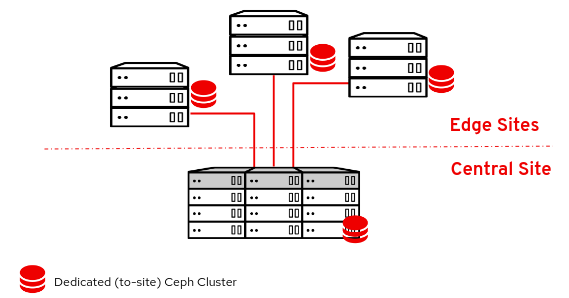
1.1. Required software for distributed compute node architecture
The following table shows the software and minimum versions required to deploy Red Hat OpenStack Platform in a distributed compute node (DCN) architecture:
| Platform | Version | Optional |
|---|---|---|
| Red Hat Enterprise Linux | 9.2 | No |
| Red Hat OpenStack Platform | 17.1 | No |
| Red Hat Ceph Storage | 5 | Yes |
1.2. Multistack design
When you deploy Red Hat OpenStack Platform (RHOSP) with a DCN design, you use Red Hat director’s capabilities for multiple stack deployment and management to deploy each site as a distinct stack.
Managing a DCN architecture as a single stack is unsupported, unless the deployment is an upgrade from Red Hat OpenStack Platform 13. There are no supported methods to split an existing stack, however you can add stacks to a pre-existing deployment. For more information, see Section A.3, “Migrating to a multistack deployment”.
The central location is a traditional stack deployment of RHOSP, however you are not required to deploy Compute nodes or Red Hat Ceph storage with the central stack.
With DCN, you deploy each location as a distinct availability zone (AZ).
1.3. DCN storage
You can deploy each edge site, either without storage, or with Ceph on hyperconverged nodes. The storage you deploy is dedicated to the site you deploy it on.
DCN architecture uses Glance multistore. For edge sites deployed without storage, additional tooling is available so that you can cache and store images in the Compute service (nova) cache. Caching glance images in nova provides the faster boot times for instances by avoiding the process of downloading images across a WAN link. For more information, see Chapter 11, Precaching glance images into nova.
1.4. DCN edge
With Distributed Compute Node architecture, you deploy the control nodes at the central site, and use these controllers to manage geographically dispersed edge sites. When you deploy an edge site, you deploy only compute nodes, which makes edge sites architecturally different from traditional deployments of Red Hat OpenStack Platform. When you launch an instance at an edge site, the required image is copied to the local Image service (glance) store automatically. You can copy images from the central Image store to edge sites by using glance multistore to save time during instance launch. For more information, see Image service with multiple stores.
At edge sites:
- Control plane services run remotely at the central location.
- Pacemaker does not run at DCN sites.
- The Block Storage service (cinder) runs in active/active mode.
- Etcd is deployed as a distributed lock manager (DLM).
Chapter 2. Planning a Distributed Compute Node (DCN) deployment
When you plan your DCN architecture, check that the technologies that you need are available and supported.
2.1. Considerations for storage on DCN architecture
The following features are not currently supported for DCN architectures:
- Copying a volume snapshot between edge sites. You can work around this by creating an image from the volume and using glance to copy the image. After the image is copied, you can create a volume from it.
- Ceph Rados Gateway (RGW) at the edge.
- CephFS at the edge.
- Instance high availability (HA) at the edge sites.
- RBD mirroring between sites.
-
Instance migration, live or cold, either between edge sites, or from the central location to edge sites. You can still migrate instances within a site boundary. To move an image between sites, you must snapshot the image, and use
glance image-import. For more information see Confirming image snapshots can be created and copied between sites.
Additionally, you must consider the following:
- You must upload images to the central location before copying them to edge sites; a copy of each image must exist in the Image service (glance) at the central location.
- You must use the RBD storage driver for the Image, Compute and Block Storage services.
- For each site, assign a unique availability zone, and use the same value for the NovaComputeAvailabilityZone and CinderStorageAvailabilityZone parameters.
- You can migrate an offline volume from an edge site to the central location, or vice versa. You cannot migrate volumes directly between edge sites.
2.2. Considerations for networking on DCN architecture
The following features are not currently supported for DCN architectures:
- DHCP on DPDK nodes
- Conntrack for TC Flower Hardware Offload
Conntrack for TC Flower Hardware Offload is available on DCN as a Technology Preview, and therefore using these solutions together is not fully supported by Red Hat. This feature should only be used with DCN for testing, and should not be deployed in a production environment. For more information about Technology Preview features, see Scope of Coverage Details.
The following ML2/OVS technologies are fully supported:
- OVS-DPDK without DHCP on the DPDK nodes
- SR-IOV
- TC flower hardware offload, without conntrack
- Neutron availability zones (AZs) with networker nodes at the edge, with one AZ per site
- Routed provider networks
The following ML2/OVN networking technologies are fully supported:
- OVS-DPDK without DHCP on the DPDK nodes
- SR-IOV (without DHCP)
- TC flower hardware offload, without conntrack
- Routed provider networks
OVN GW (networker node) with Neutron AZs supported
ImportantEnsure that all router gateway ports reside on the OpenStack Controller nodes by setting
OVNCMSOptions: 'enable-chassis-as-gw'and by providing one or more AZ values for theOVNAvailabilityZoneparameter. Performing these actions prevent the routers from scheduling all chassis as potential hosts for the router gateway ports. For more information, see Configuring Network service availability zones with ML2/OVN in Configuring Red Hat OpenStack Platform networking.
Additionally, you must consider the following:
- Network latency: Balance the latency as measured in round-trip time (RTT), with the expected number of concurrent API operations to maintain acceptable performance. Maximum TCP/IP throughput is inversely proportional to RTT. You can mitigate some issues with high-latency connections with high bandwidth by tuning kernel TCP parameters.Contact Red Hat support if a cross-site communication exceeds 100 ms.
- Network drop outs: If the edge site temporarily loses connection to the central site, then no OpenStack control plane API or CLI operations can be executed at the impacted edge site for the duration of the outage. For example, Compute nodes at the edge site are consequently unable to create a snapshot of an instance, issue an auth token, or delete an image. General OpenStack control plane API and CLI operations remain functional during this outage, and can continue to serve any other edge sites that have a working connection. Image type: You must use raw images when deploying a DCN architecture with Ceph storage.
Image sizing:
- Overcloud node images - overcloud node images are downloaded from the central undercloud node. These images are potentially large files that will be transferred across all necessary networks from the central site to the edge site during provisioning.
Instance images: If there is no block storage at the edge, then the Image service images traverse the WAN during first use. The images are copied or cached locally to the target edge nodes for all subsequent use. There is no size limit for glance images. Transfer times vary with available bandwidth and network latency.
If there is block storage at the edge, then the image is copied over the WAN asynchronously for faster boot times at the edge.
- Provider networks: This is the recommended networking approach for DCN deployments. If you use provider networks at remote sites, then you must consider that the Networking service (neutron) does not place any limits or checks on where you can attach available networks. For example, if you use a provider network only in edge site A, you must ensure that you do not try to attach to the provider network in edge site B. This is because there are no validation checks on the provider network when binding it to a Compute node.
- Site-specific networks: A limitation in DCN networking arises if you use networks that are specific to a certain site: When you deploy centralized neutron controllers with Compute nodes, there are no triggers in neutron to identify a certain Compute node as a remote node. Consequently, the Compute nodes receive a list of other Compute nodes and automatically form tunnels between each other; the tunnels are formed from edge to edge through the central site. If you use VXLAN or Geneve, every Compute node at every site forms a tunnel with every other Compute node and Controller node, whether or not they are local or remote. This is not an issue if you are using the same neutron networks everywhere. When you use VLANs, neutron expects that all Compute nodes have the same bridge mappings, and that all VLANs are available at every site.
- Additional sites: If you need to expand from a central site to additional remote sites, you can use the openstack CLI on Red Hat OpenStack Platform director to add new network segments and subnets.
- If edge servers are not pre-provisioned, you must configure DHCP relay for introspection and provisioning on routed segments.
- Routing must be configured either on the cloud or within the networking infrastructure that connects each edge site to the hub. You should implement a networking design that allocates an L3 subnet for each Red Hat OpenStack Platform cluster network (external, internal API, and so on), unique to each site.
Chapter 3. Configuring routed spine-leaf in the undercloud
This section describes a use case about how to configure the undercloud to accommodate routed spine-leaf with composable networks.
3.1. Configuring the spine leaf provisioning networks
To configure the provisioning networks for your spine leaf infrastructure, edit the undercloud.conf file and set the relevant parameters included in the following procedure.
Procedure
-
Log in to the undercloud as the
stackuser. If you do not already have an
undercloud.conffile, copy the sample template file:[stack@director ~]$ cp /usr/share/python-tripleoclient/undercloud.conf.sample ~/undercloud.conf-
Edit the
undercloud.conffile. Set the following values in the
[DEFAULT]section:Set
local_ipto the undercloud IP onleaf0:local_ip = 192.168.10.1/24Set
undercloud_public_hostto the externally facing IP address of the undercloud:undercloud_public_host = 10.1.1.1Set
undercloud_admin_hostto the administration IP address of the undercloud. This IP address is usually on leaf0:undercloud_admin_host = 192.168.10.2Set
local_interfaceto the interface to bridge for the local network:local_interface = eth1Set
enable_routed_networkstotrue:enable_routed_networks = trueDefine your list of subnets using the
subnetsparameter. Define one subnet for each L2 segment in the routed spine and leaf:subnets = leaf0,leaf1,leaf2Specify the subnet associated with the physical L2 segment local to the undercloud using the
local_subnetparameter:local_subnet = leaf0Set the value of
undercloud_nameservers.undercloud_nameservers = 10.11.5.19,10.11.5.20TipYou can find the current IP addresses of the DNS servers that are used for the undercloud nameserver by looking in /etc/resolv.conf.
Create a new section for each subnet that you define in the
subnetsparameter:[leaf0] cidr = 192.168.10.0/24 dhcp_start = 192.168.10.10 dhcp_end = 192.168.10.90 inspection_iprange = 192.168.10.100,192.168.10.190 gateway = 192.168.10.1 masquerade = False [leaf1] cidr = 192.168.11.0/24 dhcp_start = 192.168.11.10 dhcp_end = 192.168.11.90 inspection_iprange = 192.168.11.100,192.168.11.190 gateway = 192.168.11.1 masquerade = False [leaf2] cidr = 192.168.12.0/24 dhcp_start = 192.168.12.10 dhcp_end = 192.168.12.90 inspection_iprange = 192.168.12.100,192.168.12.190 gateway = 192.168.12.1 masquerade = False-
Save the
undercloud.conffile. Run the undercloud installation command:
[stack@director ~]$ openstack undercloud install
This configuration creates three subnets on the provisioning network or control plane. The overcloud uses each network to provision systems within each respective leaf.
To ensure proper relay of DHCP requests to the undercloud, you might need to configure a DHCP relay.
3.2. Configuring a DHCP relay
You run the DHCP relay service on a switch, router, or server that is connected to the remote network segment you want to forward the requests from.
Do not run the DHCP relay service on the undercloud.
The undercloud uses two DHCP servers on the provisioning network:
- An introspection DHCP server.
- A provisioning DHCP server.
You must configure the DHCP relay to forward DHCP requests to both DHCP servers on the undercloud.
You can use UDP broadcast with devices that support it to relay DHCP requests to the L2 network segment where the undercloud provisioning network is connected. Alternatively, you can use UDP unicast, which relays DHCP requests to specific IP addresses.
Configuration of DHCP relay on specific device types is beyond the scope of this document. As a reference, this document provides a DHCP relay configuration example using the implementation in ISC DHCP software. For more information, see manual page dhcrelay(8).
DHCP option 79 is required for some relays, particularly relays that serve DHCPv6 addresses, and relays that do not pass on the originating MAC address. For more information, see RFC6939.
- Broadcast DHCP relay
- This method relays DHCP requests using UDP broadcast traffic onto the L2 network segment where the DHCP server or servers reside. All devices on the network segment receive the broadcast traffic. When using UDP broadcast, both DHCP servers on the undercloud receive the relayed DHCP request. Depending on the implementation, you can configure this by specifying either the interface or IP network address:
- Interface
- Specify an interface that is connected to the L2 network segment where the DHCP requests are relayed.
- IP network address
- Specify the network address of the IP network where the DHCP requests are relayed.
- Unicast DHCP relay
-
This method relays DHCP requests using UDP unicast traffic to specific DHCP servers. When you use UDP unicast, you must configure the device that provides the DHCP relay to relay DHCP requests to both the IP address that is assigned to the interface used for introspection on the undercloud and the IP address of the network namespace that the OpenStack Networking (neutron) service creates to host the DHCP service for the
ctlplanenetwork.
The interface used for introspection is the one defined as inspection_interface in the undercloud.conf file. If you have not set this parameter, the default interface for the undercloud is br-ctlplane.
It is common to use the br-ctlplane interface for introspection. The IP address that you define as the local_ip in the undercloud.conf file is on the br-ctlplane interface.
The IP address allocated to the Neutron DHCP namespace is the first address available in the IP range that you configure for the local_subnet in the undercloud.conf file. The first address in the IP range is the one that you define as dhcp_start in the configuration. For example, 192.168.10.10 is the IP address if you use the following configuration:
[DEFAULT]
local_subnet = leaf0
subnets = leaf0,leaf1,leaf2

[leaf0]
cidr = 192.168.10.0/24
dhcp_start = 192.168.10.10
dhcp_end = 192.168.10.90
inspection_iprange = 192.168.10.100,192.168.10.190
gateway = 192.168.10.1
masquerade = FalseThe IP address for the DHCP namespace is automatically allocated. In most cases, this address is the first address in the IP range. To verify that this is the case, run the following commands on the undercloud:
$ openstack port list --device-owner network:dhcp -c "Fixed IP Addresses"
+----------------------------------------------------------------------------+
| Fixed IP Addresses                                                         |
+----------------------------------------------------------------------------+
| ip_address='192.168.10.10', subnet_id='7526fbe3-f52a-4b39-a828-ec59f4ed12b2' |
+----------------------------------------------------------------------------+
$ openstack subnet show 7526fbe3-f52a-4b39-a828-ec59f4ed12b2 -c name
+-------+--------+
| Field | Value  |
+-------+--------+
| name  | leaf0  |
+-------+--------+- Example
dhcrelayconfiguration In the following examples, the
dhcrelaycommand in thedhcppackage uses the following configuration:-
Interfaces to relay incoming DHCP request:
eth1,eth2, andeth3. -
Interface the undercloud DHCP servers on the network segment are connected to:
eth0. -
The DHCP server used for introspection is listening on IP address:
192.168.10.1. -
The DHCP server used for provisioning is listening on IP address
192.168.10.10.
-
Interfaces to relay incoming DHCP request:
This results in the following dhcrelay command:
dhcrelayversion 4.2.x:$ sudo dhcrelay -d --no-pid 192.168.10.10 192.168.10.1 \ -i eth0 -i eth1 -i eth2 -i eth3dhcrelayversion 4.3.x and later:$ sudo dhcrelay -d --no-pid 192.168.10.10 192.168.10.1 \ -iu eth0 -id eth1 -id eth2 -id eth3- Example Cisco IOS routing switch configuration
- This example uses the following Cisco IOS configuration to perform the following tasks:
- Configure a VLAN to use for the provisioning network.
- Add the IP address of the leaf.
-
Forward UDP and BOOTP requests to the introspection DHCP server that listens on IP address:
192.168.10.1. -
Forward UDP and BOOTP requests to the provisioning DHCP server that listens on IP address
192.168.10.10.
interface vlan 2
ip address 192.168.24.254 255.255.255.0
ip helper-address 192.168.10.1
ip helper-address 192.168.10.10
!
Now that you have configured the provisioning network, you can configure the remaining overcloud leaf networks.
3.3. Designating a role for leaf nodes
Each role in each leaf network requires a flavor and role assignment so that you can tag nodes into their respective leaf. Complete the following steps to create and assign each flavor to a role.
Procedure
Source the
stackrcfile:[stack@director ~]$ source ~/stackrcRetrieve a list of your nodes to identify their UUIDs:
(undercloud)$ openstack baremetal node listAssign each bare metal node that you want to designate for a role with a custom resource class that identifies its leaf network and role.
openstack baremetal node set \ --resource-class baremetal.<ROLE> <node>- Replace <ROLE> with a name that identifies the role.
Replace <node> with the ID of the bare metal node.
For example, enter the following command to tag a node with UUID 58c3d07e-24f2-48a7-bbb6-6843f0e8ee13 to the Compute role on Leaf2:
(undercloud)$ openstack baremetal node set \
 --resource-class baremetal.COMPUTE-LEAF2 58c3d07e-24f2-48a7-bbb6-6843f0e8ee13
-
Add each role to your
overcloud-baremetal-deploy.yamlif it is not already defined. Define the resource class that you want to assign to the nodes for the role:
- name: <role> count: 1 defaults: resource_class: baremetal.<ROLE>- Replace <role> with the name of the role.
- Replace <ROLE> with a name that identifies the role.
In a baremetal-deploy.yaml file, define the resource class that you want to assign to the nodes for the role. Specify the role, profile, quantity, and associated networks that you are deploying:
- name: <role> count: 1 hostname_format: <role>-%index% ansible_playbooks: - playbook: bm-deploy-playbook.yaml defaults: resource_class: baremetal.<ROLE> profile: control networks: - network: external subnet: external_subnet - network: internal_api subnet: internal_api_subnet01 - network: storage subnet: storage_subnet01 - network: storage_mgmt subnet: storage_mgmt_subnet01 - network: tenant subnet: tenant_subnet01 network_config: template: templates/multiple_nics/multiple_nics_dvr.j2 default_route_network: - external- Replace <role> with the name of the role.
Replace <ROLE> with a name that identifies the role.
NoteYou must create a
baremetal-deploy.yamlenvironment file for every stack you are deploying, in/home/stack/<stack>.
3.4. Mapping bare metal node ports to control plane network segments
To enable deployment on a L3 routed network, you must configure the physical_network field on the bare metal ports. Each bare metal port is associated with a bare metal node in the OpenStack Bare Metal (ironic) service. The physical network names are the names that you include in the subnets option in the undercloud configuration.
The physical network name of the subnet specified as local_subnet in the undercloud.conf file is always named ctlplane.
Procedure
Source the
stackrcfile:$ source ~/stackrcCheck the bare metal nodes:
$ openstack baremetal node listEnsure that the bare metal nodes are either in
enrollormanageablestate. If the bare metal node is not in one of these states, the command that sets thephysical_networkproperty on the baremetal port fails. To set all nodes tomanageablestate, run the following command:$ for node in $(openstack baremetal node list -f value -c Name); do openstack baremetal node manage $node --wait; doneCheck which baremetal ports are associated with which baremetal node:
$ openstack baremetal port list --node <node-uuid>Set the
physical-networkparameter for the ports. In the example below, three subnets are defined in the configuration:leaf0,leaf1, andleaf2. The local_subnet isleaf0. Because the physical network for thelocal_subnetis alwaysctlplane, the baremetal port connected toleaf0uses ctlplane. The remaining ports use the other leaf names:$ openstack baremetal port set --physical-network ctlplane <port-uuid> $ openstack baremetal port set --physical-network leaf1 <port-uuid> $ openstack baremetal port set --physical-network leaf2 <port-uuid>Introspect the nodes before you deploy the overcloud. Include the
--all-manageableand--provideoptions to set the nodes as available for deployment:$ openstack overcloud node introspect --all-manageable --provide
3.5. Adding a new leaf to a spine-leaf provisioning network
When increasing network capacity which can include adding new physical sites, you might need to add a new leaf and a corresponding subnet to your Red Hat OpenStack Platform spine-leaf provisioning network. When provisioning a leaf on the overcloud, the corresponding undercloud leaf is used.
Prerequisites
- Your RHOSP deployment uses a spine-leaf network topology.
Procedure
- Log in to the undercloud host as the stack user.
Source the
stackrcundercloud credentials file:$ source ~/stackrcIn the
/home/stack/undercloud.conffile, do the following:Locate the
subnetsparameter, and add a new subnet for the leaf that you are adding.A subnet represents an L2 segment in the routed spine and leaf:
- Example
In this example, a new subnet (
leaf3) is added for the new leaf (leaf3):subnets = leaf0,leaf1,leaf2,leaf3
Create a section for the subnet that you added.
- Example
In this example, the section
[leaf3]is added for the new subnet (leaf3):[leaf0] cidr = 192.168.10.0/24 dhcp_start = 192.168.10.10 dhcp_end = 192.168.10.90 inspection_iprange = 192.168.10.100,192.168.10.190 gateway = 192.168.10.1 masquerade = False [leaf1] cidr = 192.168.11.0/24 dhcp_start = 192.168.11.10 dhcp_end = 192.168.11.90 inspection_iprange = 192.168.11.100,192.168.11.190 gateway = 192.168.11.1 masquerade = False [leaf2] cidr = 192.168.12.0/24 dhcp_start = 192.168.12.10 dhcp_end = 192.168.12.90 inspection_iprange = 192.168.12.100,192.168.12.190 gateway = 192.168.12.1 masquerade = False [leaf3] cidr = 192.168.13.0/24 dhcp_start = 192.168.13.10 dhcp_end = 192.168.13.90 inspection_iprange = 192.168.13.100,192.168.13.190 gateway = 192.168.13.1 masquerade = False
-
Save the
undercloud.conffile. Reinstall your undercloud:
$ openstack undercloud install
Chapter 4. Preparing overcloud templates for DCN deployment
4.1. Prerequisites for using separate heat stacks
Your environment must meet the following prerequisites before you create a deployment using separate heat stacks.
- An installed instance of Red Hat OpenStack Platform director 17.1.
- For Ceph Storage users: access to Red Hat Ceph Storage 5.
- For the central location: three nodes that are capable of serving as central Controller nodes. All three Controller nodes must be in the same heat stack. You cannot split Controller nodes, or any of the control plane services, across separate heat stacks.
- Ceph storage is a requirement at the central location if you plan to deploy Ceph storage at the edge.
- For each additional DCN site: three HCI compute nodes.
- All nodes must be pre-provisioned or able to PXE boot from the central deployment network. You can use a DHCP relay to enable this connectivity for DCNs.
- All nodes have been introspected by ironic.
-
Red Hat recommends leaving the <role>HostnameFormat parameter as the default value: %stackname%-<role>-%index%. If you do not include the %stackname% prefix, your overcloud uses the same hostnames for distributed compute nodes in different stacks. Ensure that your distributed compute nodes use the %stackname% prefix to distinguish nodes from different edge sites. For example, if you deploy two edge sites named
dcn0anddcn1, the stack name prefix helps you to distinguish between dcn0-distributedcompute-0 and dcn1-distributedcompute-0 when you run theopenstack server listcommand on the undercloud. -
Source the
centralrcauthentication file to schedule workloads at edge sites as well as at the central location. You do not require authentication files that are automatically generated for edge sites.
4.2. Limitations of the example separate heat stacks deployment
This document provides an example deployment that uses separate heat stacks on Red Hat OpenStack Platform. This example environment has the following limitations:
- Spine/Leaf networking - The example in this guide does not demonstrate routing requirements, which are required in distributed compute node (DCN) deployments.
- Ironic DHCP Relay - This guide does not include how to configure Ironic with a DHCP relay.
4.3. Designing your separate heat stacks deployment
To segment your deployment within separate heat stacks, you must first deploy a single overcloud with the control plane. You can then create separate stacks for the distributed compute node (DCN) sites. The following example shows separate stacks for different node types:
-
Controller nodes: A separate heat stack named
central, for example, deploys the controllers. When you create new heat stacks for the DCN sites, you must create them with data from thecentralstack. The Controller nodes must be available for any instance management tasks. -
DCN sites: You can have separate, uniquely named heat stacks, such as
dcn0,dcn1, and so on. Use a DHCP relay to extend the provisioning network to the remote site.
You must create a separate availability zone (AZ) for each stack.
4.4. Managing separate heat stacks
The procedures in this guide show how to organize the environment files for three heat stacks: central, dcn0, and dcn1. Red Hat recommends that you store the templates for each heat stack in a separate directory to keep the information about each deployment isolated.
To deploy more DCN sites, create additional dcn directories by number.
Procedure
Define the
centralheat stack:$ mkdir central $ touch central/overrides.yamlExtract data from the
centralheat stack into a common directory for all DCN sites:$ mkdir dcn-common $ touch dcn-common/overrides.yamlDefine the
dcn0site.$ mkdir dcn0 $ touch dcn0/overrides.yamlNoteThe touch is used to provide an example of file organization. Each file must contain the appropriate content for successful deployments.
4.5. Retrieving the container images
Use the following procedure, and its example file contents, to retrieve the container images you need for deployments with separate heat stacks. You must ensure the container images for optional or edge-specific services are included by running the openstack container image prepare command with edge site’s environment files.
For more information, see Preparing container images in the Installing and managing Red Hat OpenStack Platform with director guide.
Procedure
Add your Registry Service Account credentials to
containers.yaml.parameter_defaults: ContainerImagePrepare: - push_destination: true set: ceph_namespace: registry.redhat.io/rhceph ceph_image: rhceph-6-rhel9 ceph_tag: latest name_prefix: openstack- namespace: registry.redhat.io/rhosp17-rhel9 tag: latest ContainerImageRegistryCredentials: # https://access.redhat.com/RegistryAuthentication registry.redhat.io: registry-service-account-username: registry-service-account-passwordGenerate the environment file as
images-env.yaml:sudo openstack tripleo container image prepare \ -e containers.yaml \ --output-env-file images-env.yamlThe resulting
images-env.yamlfile is included as part of the overcloud deployment procedure for the stack for which it is generated.
4.6. Creating fast datapath roles for the edge
To use fast datapath services at the edge, you must create a custom role that defines both fast datapath and edge services. When you create the roles file for deployment, you can include the newly created role that defines services needed for both distributed compute node architecture and fast datapath services such as DPDK or SR-IOV.
For example, create a custom role for distributedCompute with DPDK:
Prerequisites
A successful undercloud installation. For more information, see Installing the undercloud.
You can use this same method to create fast datapath roles for SR-IOV, or a combination of SR-IOV and DPDK for the edge to meet your requirements.
Procedure
-
Log in to the undercloud host as the
stackuser. Copy the default
rolesdirectory:cp -r /usr/share/openstack-tripleo-heat-templates/roles ~/.Create a new file named
DistributedComputeDpdk.yamlfrom theDistributedCompute.yamlfile:cp roles/DistributedCompute.yaml roles/DistributedComputeDpdk.yamlAdd DPDK services to the new
DistributedComputeDpdk.yamlfile. You can identify the parameters that you need to add by identifying the parameters in theComputeOvsDpdk.yamlfile that are not present in theDistributedComputeDpdk.yamlfile.diff -u roles/DistributedComputeDpdk.yaml roles/ComputeOvsDpdk.yamlIn the output, the parameters that are preceded by
+are present in the ComputeOvsDpdk.yaml file but are not present in the DistributedComputeDpdk.yaml file. Include these parameters in the newDistributedComputeDpdk.yamlfile.Use the
DistributedComputeDpdk.yamlto create aDistributedComputeDpdkroles file :openstack overcloud roles generate --roles-path ~/roles/ -o ~/roles/roles-custom.yaml DistributedComputeDpdk
4.7. Configuring jumbo frames
Use the network definition file to modify the maximum transmission unit (MTU) of your storage interfaces to 9000.
Jumbo frames are frames with an MTU of 9,000. Jumbo frames are not mandatory for the Storage and Storage Management networks but the increase in MTU size improves storage performance. If you want to use jumbo frames, you must configure all network switch ports in the data path to support jumbo frames.
Network configuration changes such as MTU settings must be completed during the initial deployment. They cannot be applied to an existing deployment.
Procedure
-
Log in to the undercloud node as the
stackuser. - Locate the network definition file.
Modify the network definition file to extend the template to include the
StorageMgmtIpSubnetandStorageMgmtNetworkVlanIDattributes of the Storage Management network. Set themtuattribute of the interfaces to9000.The following is an example of implementing these interface settings:
- type: interface name: em2 use_dhcp: false mtu: 9000 - type: vlan device: em2 mtu: 9000 use_dhcp: false vlan_id: {get_param: StorageMgmtNetworkVlanID} addresses: - ip_netmask: {get_param: StorageMgmtIpSubnet} - type: vlan device: em2 mtu: 9000 use_dhcp: false vlan_id: {get_param: StorageNetworkVlanID} addresses: - ip_netmask: {get_param: StorageIpSubnet}NoteFor a complete example of a network definition file, see Example network definition file.
Save the changes to the network definition file.
NoteAll network switch ports between servers using the interface with the new MTU setting must be updated to support jumbo frames. If these switch changes are not made, problems will develop at the application layer that can cause the Red Hat Ceph Storage cluster to not reach quorum. If these settings are made and these problems are still observed, verify all hosts using the network configured for jumbo frames can communicate at the configured MTU setting. Use a command like the following example to perform this task:
ping -M do -s 8972 172.16.1.11
If you are planning to deploy edge sites without block storage, see the following:
If you plan to deploy edge sites with Red Hat Ceph Storage, see the following:
Chapter 5. Installing the central location
When you deploy Red Hat OpenStack platform with a distributed compute node (DCN) architecture, you must decide your storage strategy in advance. If you deploy Red Hat OpenStack Platform without Red Hat Ceph Storage at the central location, you cannot deploy any of your edge sites with Red Hat Ceph storage. Additionally, you do not have the option of adding Red Hat Ceph Storage to the central location later by redeploying.
When you deploy the central location for distributed compute node (DCN) architecture, you can deploy the cluster:
- With or without Compute nodes
- With or without Red Hat Ceph Storage
5.1. Deploying the central controllers without edge storage
You can deploy a distributed compute node cluster without Block storage at edge sites if you use the Object Storage service (swift) as a back end for the Image service (glance) at the central location. A site deployed without block storage cannot be updated later to have block storage due to the differing role and networking profiles for each architecture.
Important: The following procedure uses lvm as the backend for Cinder which is not supported for production. You must deploy a certified block storage solution as a backend for Cinder.
Deploy the central controller cluster in a similar way to a typical overcloud deployment. This cluster does not require any Compute nodes, so you can set the Compute count to 0 to override the default of 1. The central controller has particular storage and Oslo configuration requirements. Use the following procedure to address these requirements.
Prerequisites
-
You must create
network_data.yamlandvip_data.yamlfiles specific to your environment. You can find sample files in/usr/share/openstack-tripleo-heat-templates/network-data-samples. -
You must create an
overcloud-baremetal-deploy.yamlfile specific to your environment. For more information see Provisioning bare metal nodes for the overcloud.
The following procedure outlines the steps for the initial deployment of the central location.
The following steps detail the deployment commands and environment files associated with an example DCN deployment without glance multistore. These steps do not include unrelated, but necessary, aspects of configuration, such as networking.
Procedure
- Log in to the undercloud as the stack user.
Source the stackrc file:
[stack@director ~]$ source /home/stack/stackrcGenerate an environment file:
sudo openstack tripleo container image prepare \
-e containers.yaml \
--output-env-file /home/stack/central/central-images-env.yaml
In the home directory, create directories for each stack that you plan to deploy. Move the
network_data.yaml,vip_data.yaml, andovercloud-baremetal-deploy.yamltemplates for the central location to/home/stack/central/.mkdir /home/stack/central mkdir /home/stack/dcn0 mkdir /home/stack/dcn1 mv network_data.yaml /home/stack/central mv vip_data.yaml /home/stack/central mv overcloud-baremetal-deploy.yaml /home/stack/centralProvision networks for the overcloud. This command takes a definition file for overcloud networks as input. You must use the output file in your command to deploy the overcloud:
(undercloud)$ openstack overcloud network provision \
--output /home/stack/central/overcloud-networks-deployed.yaml \
/home/stack/central/network_data.yaml
Provision virtual IPs for the overcloud. This command takes a definition file for virtual IPs as input. You must use the output file in your command to deploy the overcloud:
(undercloud)$ openstack overcloud network vip provision \
--stack central \
--output /home/stack/central/overcloud-vip-deployed.yaml \
/home/stack/central/vip_data.yaml
Provision bare metal instances. This command takes a definition file for bare metal nodes as input. You must use the output file in your command to deploy the overcloud:
(undercloud)$ openstack overcloud node provision \
--stack central \
--network-config \
-o /home/stack/central/deployed_metal.yaml \
/home/stack/central/overcloud-baremetal-deploy.yaml
Create a file called
central/overrides.yamlwith settings similar to the following:parameter_defaults: NtpServer: - 0.pool.ntp.org - 1.pool.ntp.org GlanceBackend: swift-
ControllerCount: 3specifies that three nodes will be deployed. These will use swift for glance, lvm for cinder, and host the control-plane services for edge compute nodes. -
ComputeCount: 0is an optional parameter to prevent Compute nodes from being deployed with the central Controller nodes. GlanceBackend: swiftuses Object Storage (swift) as the Image Service (glance) back end.The resulting configuration interacts with the distributed compute nodes (DCNs) in the following ways:
The Image service on the DCN creates a cached copy of the image it receives from the central Object Storage back end. The Image service uses HTTP to copy the image from Object Storage to the local disk cache.
NoteThe central Controller node must be able to connect to the distributed compute node (DCN) site. The central Controller node can use a routed layer 3 connection.
-
Configure the naming conventions for your site in the
site-name.yamlenvironment file. The Nova availability zone, Cinder storage availability zone must match:cat > /home/stack/central/site-name.yaml << EOF parameter_defaults: NovaComputeAvailabilityZone: central ControllerExtraConfig: nova::availability_zone::default_schedule_zone: central NovaCrossAZAttach: false EOFDeploy the central Controller node. For example, you can use a
deploy.shfile with the following contents:openstack overcloud deploy \ --stack central \ --templates /usr/share/openstack-tripleo-heat-templates/ \ -n /home/stack/central/network_data.yaml \ -e /usr/share/openstack-tripleo-heat-templates/environments/network-environment.yaml \ -e /usr/share/openstack-tripleo-heat-templates/environments/nova-az-config.yaml \ -e /home/stack/central/overcloud-networks-deployed.yaml \ -e /home/stack/central/overcloud-vip-deployed.yaml \ -e /home/stack/central/deployed_metal.yamlNoteYou must include heat templates for the configuration of networking in your
openstack overcloud deploycommand. Designing for edge architecture requires spine and leaf networking. See Configure spine-leaf networking for more details.
5.2. Deploying the central site with storage
To deploy the Image service with multiple stores and Ceph Storage as the back end, complete the following steps:
Prerequisites
-
You must create
network_data.yamlandvip_data.yamlfiles specific to your environment. You can find sample files in/usr/share/openstack-tripleo-heat-templates/network-data-samples. -
You must create an
overcloud-baremetal-deploy.yamlfile specific to your environment. For more information see Provisioning bare metal nodes for the overcloud. - You have hardware for a Ceph cluster at the central location and in each availability zone, or in each geographic location where storage services are required.
- You have hardware for three Image Service (glance) servers at a central location and in each availability zone, or in each geographic location where storage services are required. At edge locations, the Image service is deployed to the DistributedComputeHCI nodes.
Deploy the Red Hat OpenStack Platform central location so that the Image service (glance) can be used with multiple stores.
Procedure
- Log in to the undercloud as the stack user.
Source the stackrc file:
[stack@director ~]$ source /home/stack/stackrcGenerate an environment file /home/stack/central/central-images-env.yaml
sudo openstack tripleo container image prepare \
-e containers.yaml \
--output-env-file /home/stack/central/central-images-env.yaml
Generate roles for the central location using roles appropriate for your environment:
openstack overcloud roles generate Compute Controller CephStorage \
-o /home/stack/central/central_roles.yaml
In the home directory, create directories for each stack that you plan to deploy. Move the
network_data.yaml,vip_data.yaml, andovercloud-baremetal-deploy.yamltemplates for the central location to/home/stack/central/.mkdir /home/stack/central mkdir /home/stack/dcn0 mkdir /home/stack/dcn1 mv network_data.yaml /home/stack/central mv vip_data.yaml /home/stack/central mv overcloud-baremetal-deploy.yaml /home/stack/centralProvision networks for the overcloud. This command takes a definition file for overcloud networks as input. You must use the output file in your command to deploy the overcloud:
openstack overcloud network provision \
--output /home/stack/central/overcloud-networks-deployed.yaml \
/home/stack/central/network_data.yaml
Provision virtual IPs for the overcloud. This command takes a definition file for virtual IPs as input. You must use the output file in your command to deploy the overcloud:
openstack overcloud network vip provision \
--stack central \
--output /home/stack/central/overcloud-vip-deployed.yaml \
/home/stack/central/vip_data.yaml
Provision bare metal instances. This command takes a definition file for bare metal nodes as input. You must use the output file in your command to deploy the overcloud:
openstack overcloud node provision \
--stack central \
--network-config \
-o /home/stack/central/deployed_metal.yaml \
/home/stack/central/overcloud-baremetal-deploy.yaml
If you are deploying the central location with hyperconverged storage, you must create an
initial-ceph.confconfiguration file using the following parameters. For more information see Configuring the Red Hat Ceph Storage cluster for HCI:[osd] osd_memory_target_autotune = true osd_numa_auto_affinity = true [mgr] mgr/cephadm/autotune_memory_target_ratio = 0.2Use the
deployed_metal.yamlfile as input to theopenstack overcloud ceph deploycommand. Theopenstack overcloud ceph deploy commandoutputs a yaml file that describes the deployed Ceph cluster:openstack overcloud ceph deploy \ --stack central \ /home/stack/central/deployed_metal.yaml \ --config /home/stack/central/initial-ceph.conf \ --output /home/stack/central/deployed_ceph.yaml \ --container-image-prepare /home/stack/containers.yaml \ --network-data /home/stack/network-data.yaml \ --cluster central \ --roles-data /home/stack/central/central_roles.yaml- Include initial-ceph.com only when deploying hyperconverged infrastructure.
Verify a functional Ceph deployment before continuing. Use
sshto connect to a server running theceph-monservice. In an HCI deployment, this is a controller node. Run the following command:cephadm shell --config /etc/ceph/central.conf \ --keyring /etc/ceph/central.client.admin.keyringNoteYou must use the
--configand--keyringparameters.Configure the naming conventions for your site in the
site-name.yamlenvironment file. The Nova availability zone and the Cinder storage availability zone must match:parameter_defaults: NovaComputeAvailabilityZone: central ControllerExtraConfig: nova::availability_zone::default_schedule_zone: central NovaCrossAZAttach: false CinderStorageAvailabilityZone: central GlanceBackendID: centralConfigure a glance.yaml template with contents similar to the following:
parameter_defaults:
    GlanceEnabledImportMethods: web-download,copy-image
    GlanceBackend: rbd
    GlanceStoreDescription: 'central rbd glance store'
    GlanceBackendID: central
    CephClusterName: central
Deploy the stack for the central location:
openstack overcloud deploy \
--stack central \
--templates /usr/share/openstack-tripleo-heat-templates/ \
-r /home/stack/central/central_roles.yaml \
-n ~/network-data.yaml \
-e /usr/share/openstack-tripleo-heat-templates/environments/network-environment.yaml \
-e /usr/share/openstack-tripleo-heat-templates/environments/cephadm/cephadm.yaml \
-e /usr/share/openstack-tripleo-heat-templates/environments/nova-az-config.yaml \
-e /home/stack/central/overcloud-networks-deployed.yaml \
-e /home/stack/central/overcloud-vip-deployed.yaml \
-e /home/stack/central/deployed_metal.yaml \
-e /home/stack/central/deployed_ceph.yaml \
-e ~/central/glance.yaml
After you have deployed the overcloud for the central location, data that is needed as input for additional stack deployments for edge sites is exported and placed in the
/home/stack/overcloud-deploydirectory. Ensure that thecentral-export.yamlfile is present:stat /home/stack/overcloud-deploy/central/central-export.yamlExport Ceph specific data:
openstack overcloud export ceph \
--stack central \
--output-file /home/stack/dcn-common/central_ceph_external.yaml
5.3. Integrating external Ceph
You can deploy the central location of a distributed compute node (DCN) architecture and integrate a pre-deployed Red Hat Ceph Storage solution. When you deploy Red Hat Ceph Storage without director, director does not have information about the Red Hat Ceph storage in your environment. You cannot run the openstack overcloud export ceph command, and must create the central_ceph_external.yaml manually.
Prerequisites
-
You must create
network_data.yamlandvip_data.yamlfiles specific to your environment. You can find sample files in/usr/share/openstack-tripleo-heat-templates/network-data-samples. -
You must create an
overcloud-baremetal-deploy.yamlfile specific to your environment. For more information see Provisioning bare metal nodes for the overcloud. - Hardware for a Ceph cluster at the central location and in each availability zone, or in each geographic location where storage services are required.
The following is an example deployment of two or more stacks:
-
One stack at the central location called
central. -
One stack at an edge site called
dcn0. -
Additional stacks deployed similarly to
dcn0, such asdcn1,dcn2, and so on.

Procedure
You can install the central location so that it is integrated with a pre-existing Red Hat Ceph Storage solution by following the process documented in Integrating with an existing Red Hat Ceph Storage cluster. There are no special requirements for integrating Red Hat Ceph Storage with the central site of a DCN deployment, however you must still complete DCN specific steps before deploying the overcloud:
- Log in to the undercloud as the stack user.
Source the stackrc file:
[stack@director ~]$ source ~/stackrcGenerate an environment file ~/central/central-images-env.yaml
sudo openstack tripleo container image prepare \
-e containers.yaml \
--output-env-file ~/central/central-images-env.yaml
In the home directory, create directories for each stack that you plan to deploy. Use this to separate templates designed for their respective sites. Move the
network_data.yaml,vip_data.yaml, andovercloud-baremetal-deploy.yamltemplates for the central location to/home/stack/central/.mkdir /home/stack/central mkdir /home/stack/dcn0 mkdir /home/stack/dcn1 mv network_data.yaml /home/stack/central mv vip_data.yaml /home/stack/central mv overcloud-baremetal-deploy.yaml /home/stack/centralProvision networks for the overcloud. This command takes a definition file for overcloud networks as input. You must use the output file in your command to deploy the overcloud:
openstack overcloud network provision \
--output /home/stack/central/overcloud-networks-deployed.yaml \
/home/stack/central/network_data.yaml
Provision virtual IPs for the overcloud. This command takes a definition file for virtual IPs as input. You must use the output file in your command to deploy the overcloud:
openstack overcloud network vip provision \
--stack central \
--output /home/stack/central/overcloud-vip-deployed.yaml \
/home/stack/central/vip_data.yaml
Provision bare metal instances. This command takes a definition file for bare metal nodes as input. You must use the output file in your command to deploy the overcloud:
openstack overcloud node provision \
--stack central \
--network-config \
-o /home/stack/central/deployed_metal.yaml \
/home/stack/central/overcloud-baremetal-deploy.yaml
Configure the naming conventions for your site in the
site-name.yamlenvironment file. The Compute (nova) availability zone and the Block Storage (cinder) availability zone must match:cat > /home/stack/central/site-name.yaml << EOF parameter_defaults: NovaComputeAvailabilityZone: central ControllerExtraConfig: nova::availability_zone::default_schedule_zone: central NovaCrossAZAttach: false CinderStorageAvailabilityZone: central GlanceBackendID: central EOFConfigure an
external-ceph.yamltemplate with contents similar to the following:parameter_defaults: CinderEnableIscsiBackend: false CinderEnableRbdBackend: true CinderEnableNfsBackend: false NovaEnableRbdBackend: true GlanceBackend: rbd GlanceBackendID: central GlanceEnabledImportMethods: web-download,copy-image GlanceStoreDescription: 'central rbd glance store' CinderRbdPoolName: "openstack-cinder" NovaRbdPoolName: "openstack-nova" GlanceRbdPoolName: "openstack-images" CinderBackupRbdPoolName: "automation-backups" GnocchiRbdPoolName: "automation-metrics" CephClusterFSID: 38dd387e-837a-437c-891c-7fc69e17a3c CephClusterName: central CephExternalMonHost: 10.9.0.1,10.9.0.2,10.9.0.3 CephClientKey: "AQAKtECeLemfiBBdQp7cjNYQRGW9y8GnhhFZg==" CephClientUserName: "openstackDeploy the central location:
openstack overcloud deploy \
--stack central \
--templates /usr/share/openstack-tripleo-heat-templates/ \
-n /home/stack/central/network-data.yaml \
...
-e /usr/share/openstack-tripleo-heat-templates/environments/network-environment.yaml \
-e /usr/share/openstack-tripleo-heat-templates/environments/external-ceph.yaml \
-e /usr/share/openstack-tripleo-heat-templates/environments/nova-az-config.yaml \
-e /home/stack/central/overcloud-networks-deployed.yaml \
-e /home/stack/central/overcloud-vip-deployed.yaml \
-e /home/stack/central/deployed_metal.yaml \
-e /home/stack/central/external-ceph.yaml \
-e /home/stack/central/overcloud-networks-deployed.yaml \
-e /home/stack/central/central_roles.yaml
After you have deployed the overcloud for the central location, data that is needed as input for additional stack deployments for edge sites is exported and placed in the
/home/stack/overcloud-deploydirectory. Ensure that this control-plane-export.yaml file is present:stat ~/overcloud-deploy/control-plane/control-plane-export.yamlCreate an environment file called
central_ceph_external.yamlwith details about the Red Hat Ceph Storage deployment. This file can be passed to additional stack deployments for edge sites.parameter_defaults: CephExternalMultiConfig: - cluster: "central" fsid: "3161a3b4-e5ff-42a0-9f53-860403b29a33" external_cluster_mon_ips: "172.16.11.84, 172.16.11.87, 172.16.11.92" keys: - name: "client.openstack" caps: mgr: "allow *" mon: "profile rbd" osd: "profile rbd pool=vms, profile rbd pool=volumes, profile rbd pool=images" key: "AQD29WteAAAAABAAphgOjFD7nyjdYe8Lz0mQ5Q==" mode: "0600" dashboard_enabled: false ceph_conf_overrides: client: keyring: /etc/ceph/central.client.openstack.keyringThe
fsidparameter is the file system ID of your Ceph Storage cluster: This value is specified in the cluster configuration file in the[global]section:[global] fsid = 4b5c8c0a-ff60-454b-a1b4-9747aa737d19 ...The
keyparameter is the ceph client key for the openstack account:[root@ceph ~]# ceph auth list ... [client.openstack] key = AQC+vYNXgDAgAhAAc8UoYt+OTz5uhV7ItLdwUw== caps mgr = "allow *" caps mon = "profile rbd" caps osd = "profile rbd pool=volumes, profile rbd pool=vms, profile rbd pool=images, profile rbd pool=backups, profile rbd pool=metrics" ...For more information about the parameters shown in the sample
central_ceph_external.yamlfile, see Creating a custom environment file.
Additional resources
Chapter 6. Deploy the edge without storage
You can deploy a distributed compute node (DCN) cluster without block storage at edge sites if you use the Object Storage service (swift) as a back end for the Image service (glance) at the central location. If you deploy a site without block storage, you cannot update it later to have block storage.
Use the compute role when deploying the edge site without storage.
The following procedure uses lvm as the back end for the Block Storage service (cinder), which is not supported for production. You must deploy a certified block storage solution as a back end for the Block Storage service.
6.1. Architecture of a DCN edge site without storage
To deploy this architecture, use the Compute role.

- Without block storage at the edge
- The Object Storage (swift) service at the control plane is used as an Image (glance) service backend.
Multi-backend image service is not available.
- Images are cached locally at edge sites in Nova. For more information see Chapter 11, Precaching glance images into nova.
- The instances are stored locally on the Compute nodes.
Volume services such as Block Storage (cinder) are not available at edge sites.
ImportantIf you do not deploy the central location with Red Hat Ceph storage, you will not have the option of deploying an edge site with storage at a later time.
For more information about deploying without block storage at the edge, see Section 6.2, “Deploying edge nodes without storage”.
6.2. Deploying edge nodes without storage
When you deploy Compute nodes at an edge site, you use the central location as the control plane. You can add a new DCN stack to your deployment and reuse the configuration files from the central location to create new environment files.
Prerequisites
-
You must create the
network_data.yamlfile specific to your environment. You can find sample files in/usr/share/openstack-tripleo-heat-templates/network-data-samples. -
You must create an
overcloud-baremetal-deploy.yamlfile specific to your environment. For more information see Provisioning bare metal nodes for the overcloud. - You must upload images to the central location before copying them to edge sites; a copy of each image must exist in the Image service (glance) at the central location.
- You must use the RBD storage driver for the Image, Compute, and Block Storage services.
Procedure
- Log in to the undercloud as the stack user.
Source the stackrc file:
[stack@director ~]$ source ~/stackrcGenerate an environment file ~/dcn0/dcn0-images-env.yaml[d]:
sudo[e] openstack tripleo container image prepare \
-e containers.yaml \
--output-env-file ~/dcn0/dcn0-images-env.yaml
Generate a roles file for the edge location. Generate roles for the edge location using roles appropriate for your environment:
(undercloud)$ openstack overcloud roles \
 generate Compute \
 -o /home/stack/dcn0/dcn0_roles.yaml
If you are using ML2/OVS for networking overlay, you must edit the Compute role include the
NeutronDhcpAgentandNeutronMetadataAgentservices:Create a role file for the Compute role:
openstack overcloud roles \
generate Compute \
-o /home/stack/dcn0/dcn0_roles.yaml
Edit the /home/stack/dcn0/dcn0_roles.yaml file to include the
NeutronDhcpAgentandNeutronMetadataAgentservices:... - OS::TripleO::Services::MySQLClient - OS::TripleO::Services::NeutronBgpVpnBagpipe + - OS::TripleO::Services::NeutronDhcpAgent + - OS::TripleO::Services::NeutronMetadataAgent - OS::TripleO::Services::NeutronLinuxbridgeAgent - OS::TripleO::Services::NeutronVppAgent - OS::TripleO::Services::NovaAZConfig - OS::TripleO::Services::NovaCompute ...For more information, see Preparing for a routed provider network.
Provision networks for the overcloud. This command takes a definition file for overcloud networks as input. You must use the output file in your command to deploy the overcloud:
(undercloud)$ openstack overcloud network provision \ --output /home/stack/dcn0/overcloud-networks-deployed.yaml \ /home/stack/dcn0/network_data.yamlImportantIf your
network_data.yamltemplate includes additional networks which were not included when you provisioned networks for the central location, then you must re-run the network provisioning command on the central location:(undercloud)$ openstack overcloud network provision \ --output /home/stack/central/overcloud-networks-deployed.yaml \ /home/stack/central/network_data.yamlProvision bare metal instances. This command takes a definition file for bare metal nodes as input. You must use the output file in your command to deploy the overcloud:
(undercloud)$ openstack overcloud node provision \
--stack dcn0 \
--network-config \
-o /home/stack/dcn0/deployed_metal.yaml \
~/overcloud-baremetal-deploy.yaml
Configure the naming conventions for your site in the site-name.yaml environment file.
parameter_defaults:
    NovaComputeAvailabilityZone: dcn0
    ControllerExtraConfig:
        nova::availability_zone::default_schedule_zone: dcn0
    NovaCrossAZAttach: false
Deploy the stack for the dcn0 edge site:
openstack overcloud deploy \
--stack dcn0 \
--templates /usr/share/openstack-tripleo-heat-templates/ \
-r /home/stack/dcn0/dcn0_roles.yaml \
-n /home/stack/network_data.yaml \
-e /usr/share/openstack-tripleo-heat-templates/environments/network-environment.yaml \
-e /usr/share/openstack-tripleo-heat-templates/environments/nova-az-config.yaml \
-e /home/stack/overcloud-deploy/central/central-export.yaml \
-e /home/stack/dcn0/overcloud-networks-deployed.yaml \
-e /home/stack/dcn0/overcloud-vip-deployed.yaml \
-e /home/stack/dcn0/deployed_metal.yaml
6.3. Excluding specific image types at the edge
By default, Compute nodes advertise all image formats that they support. If your Compute nodes do not use Ceph storage, you can exclude RAW images from the image format advertisement. The RAW image format consumes more network bandwidth and local storage than QCOW2 images and is inefficient when used at edge sites without Ceph storage. Use the NovaImageTypeExcludeList parameter to exclude specific image formats:
Do not use this parameter at edge sites with Ceph, because Ceph requires RAW images.
Compute nodes that do not advertise RAW images cannot host instances created from RAW images. This can affect snapshot-redeploy and shelving.
Prerequisites
- Red Hat OpenStack Platform director is installed
- The central location is installed
- Compute nodes are available for a DCN deployment
Procedure
-
Log in to the undercloud host as the
stackuser. Source the
stackrccredentials file:$ source ~/stackrcInclude the
NovaImageTypeExcludeListparameter in one of your custom environment files:parameter_defaults: NovaImageTypeExcludeList: - rawInclude the environment file that contains the
NovaImageTypeExcludeListparameter in the overcloud deployment command, along with any other environment files relevant to your deployment:openstack overcloud deploy --templates \ -n network_data.yaml \ -r roles_data.yaml \ -e <environment_files> \ -e <new_environment_file>
Chapter 7. Deploying storage at the edge
You can leverage Red Hat OpenStack Platform director to extend distributed compute node deployments to include distributed image management and persistent storage at the edge with the benefits of using Red Hat OpenStack Platform and Ceph Storage.

7.1. Roles for edge deployments with storage
The following roles are available for edge deployments with storage. Select the appropriate roles for your environment based on your chosen configuration.
7.1.1. Storage without hyperconverged nodes
When you deploy edge with storage, and are not deploying hyperconverged nodes, use one of the following four roles.
- DistributedCompute
-
The
DistributedComputerole is used for the first three compute nodes in storage deployments. TheDistributedComputerole includes theGlanceApiEdgeservice, which ensures that Image services are consumed at the local edge site rather than at the central hub location. For any additional nodes use theDistributedComputeScaleOutrole. - DistributedComputeScaleOut
-
The
DistributedComputeScaleOutrole includes theHAproxyEdgeservice, which enables instances created on the DistributedComputeScaleOut role to proxy requests for Image services to nodes that provide that service at the edge site. After you deploy three nodes with a role ofDistributedCompute, you can use the DistributedComputeScaleOut role to scale compute resources. There is no minimum number of hosts required to deploy with theDistrubutedComputeScaleOutrole. - CephAll
-
The
CephAllrole includes the Ceph OSD, Ceph mon, and Ceph Mgr services. You can deploy up to three nodes using the CephAll role. For any additional storage capacity use the CephStorage role. - CephStorage
-
The
CephStoragerole includes the Ceph OSD service. If three CephAll nodes do not provide enough storage capacity, then add as many CephStorage nodes as needed.
7.1.2. Storage with hyperconverged nodes
When you are deploying edge with storage, and you plan to have hyperconverged nodes that combine compute and storage, use one of the following two roles.
- DistributedComputeHCI
-
The
DistributedComputeHCIrole enables a hyperconverged deployment at the edge by including Ceph Management and OSD services. You must use exactly three nodes when using the DistributedComputeHCI role. - DistributedComputeHCIScaleOut
-
The
DistributedComputeHCIScaleOutrole includes theCeph OSDservice, which allows storage capacity to be scaled with compute when more nodes are added to the edge. This role also includes theHAproxyEdgeservice to redirect image download requests to theGlanceAPIEdgenodes at the edge site. This role enables a hyperconverged deployment at the edge. You must use exactly three nodes when using theDistributedComputeHCIrole.
7.2. Architecture of a DCN edge site with storage
To deploy DCN with storage you must also deploy Red Hat Ceph Storage at the central location. You must use the dcn-storage.yaml and cephadm.yaml environment files. For edge sites that include non-hyperconverged Red Hat Ceph Storage nodes, use the DistributedCompute, DistributedComputeScaleOut, CephAll, and CephStorage roles.

- With block storage at the edge
- Red Hat Ceph Block Devices (RBD) is used as an Image (glance) service backend.
- Multi-backend Image service (glance) is available so that images may be copied between the central and DCN sites.
- The Block Storage (cinder) service is available at all sites and is accessed by using the Red Hat Ceph Block Devices (RBD) driver.
- The Block Storage (cinder) service runs on the Compute nodes, and Red Hat Ceph Storage runs separately on dedicated storage nodes.
Nova ephemeral storage is backed by Ceph (RBD).
For more information, see Section 5.2, “Deploying the central site with storage”.
7.3. Architecture of a DCN edge site with hyperconverged storage
To deploy this configuration you must also deploy Red Hat Ceph Storage at the central location. You need to configure the dcn-storage.yaml and cephadm.yaml environment files. Use the DistributedComputeHCI, and DistributedComputeHCIScaleOut roles. You can also use the DistributedComputeScaleOut role to add Compute nodes that do not participate in providing Red Hat Ceph Storage services.

- With hyperconverged storage at the edge
- Red Hat Ceph Block Devices (RBD) is used as an Image (glance) service backend.
- Multi-backend Image service (glance) is available so that images may be copied between the central and DCN sites.
- The Block Storage (cinder) service is available at all sites and is accessed by using the Red Hat Ceph Block Devices (RBD) driver.
Both the Block Storage service and Red Hat Ceph Storage run on the Compute nodes.
For more information, see Section 7.4, “Deploying edge sites with hyperconverged storage”.
When you deploy Red Hat OpenStack Platform in a distributed compute architecture, you have the option of deploying multiple storage topologies, with a unique configuration at each site. You must deploy the central location with Red Hat Ceph storage to deploy any of the edge sites with storage.

7.4. Deploying edge sites with hyperconverged storage
After you deploy the central site, build out the edge sites and ensure that each edge location connects primarily to its own storage back end, as well as to the storage back end at the central location. A spine and leaf networking configuration should be included with this configuration, with the addition of the storage and storage_mgmt networks that ceph needs. For more information, see Spine Leaf Networking. You must have connectivity between the storage network at the central location and the storage network at each edge site so that you can move Image service (glance) images between sites.
Ensure that the central location can communicate with the mons and OSDs at each of the edge sites. However, you should terminate the storage management network at site location boundaries because the storage management network is used for OSD rebalancing.
Prerequisites
-
You must create the
network_data.yamlfile specific to your environment. You can find sample files in/usr/share/openstack-tripleo-heat-templates/network-data-samples. -
You must create an
overcloud-baremetal-deploy.yamlfile specific to your environment. For more information see Provisioning bare metal nodes for the overcloud. - You have hardware for three Image Service (glance) servers at a central location and in each availability zone, or in each geographic location where storage services are required. At edge locations, the Image service is deployed to the DistributedComputeHCI nodes.
Procedure
- Log in to the undercloud as the stack user.
Source the stackrc file:
[stack@director ~]$ source ~/stackrcGenerate an environment file ~/dcn0/dcn0-images-env.yaml:
sudo openstack tripleo container image prepare \
-e containers.yaml \
--output-env-file /home/stack/dcn0/dcn0-images-env.yaml
Generate the appropriate roles for the dcn0 edge location:
openstack overcloud roles generate DistributedComputeHCI DistributedComputeHCIScaleOut \
-o ~/dcn0/dcn0_roles.yaml
Provision networks for the overcloud. This command takes a definition file for overcloud networks as input. You must use the output file in your command to deploy the overcloud:
(undercloud)$ openstack overcloud network provision \ --output /home/stack/dcn0/overcloud-networks-deployed.yaml \ /home/stack/network_data.yamlImportantIf your
network_data.yamltemplate includes additional networks which were not included when you provisioned networks for the central location, then you must re-run the network provisioning command on the central location:(undercloud)$ openstack overcloud network provision \ --output /home/stack/central/overcloud-networks-deployed.yaml \ /home/stack/central/network_data.yamlProvision bare metal instances. This command takes a definition file for bare metal nodes as input. You must use the output file in your command to deploy the overcloud:
(undercloud)$ openstack overcloud node provision \
--stack dcn0 \
--network-config \
-o /home/stack/dcn0/deployed_metal.yaml \
/home/stack/overcloud-baremetal-deploy.yaml
If you are deploying the edge site with hyperconverged storage, you must create an
initial-ceph.confconfiguration file with the following parameters. For more information, see Configuring the Red Hat Ceph Storage cluster for HCI:[osd] osd_memory_target_autotune = true osd_numa_auto_affinity = true [mgr] mgr/cephadm/autotune_memory_target_ratio = 0.2Use the
deployed_metal.yamlfile as input to theopenstack overcloud ceph deploycommand. Theopenstack overcloud ceph deploy commandoutputs a yaml file that describes the deployed Ceph cluster:openstack overcloud ceph deploy \ /home/stack/dcn0/deployed_metal.yaml \ --stack dcn0 \ --config ~/dcn0/initial-ceph.conf \ --output ~/dcn0/deployed_ceph.yaml \ --container-image-prepare ~/containers.yaml \ --network-data ~/network-data.yaml \ --cluster dcn0 \ --roles-data dcn_roles.yaml- Include initial-ceph.conf only when deploying hyperconverged infrastructure.
Configure the naming conventions for your site in the site-name.yaml environment file. The Nova availability zone and the Cinder storage availability zone must match:
parameter_defaults:
    NovaComputeAvailabilityZone: dcn0
    ControllerExtraConfig:
        nova::availability_zone::default_schedule_zone: dcn0
    NovaCrossAZAttach: false
    CinderStorageAvailabilityZone: dcn0
    CinderVolumeCluster: dcn0
    GlanceBackendID: dcn0
Configure a glance.yaml template with contents similar to the following:
parameter_defaults:
    GlanceEnabledImportMethods: web-download,copy-image
    GlanceBackend: rbd
    GlanceStoreDescription: 'dcn0 rbd glance store'
    GlanceBackendID: dcn0
    GlanceMultistoreConfig:
      central:
        GlanceBackend: rbd
        GlanceStoreDescription: 'central rbd glance store'
        CephClusterName: central
Deploy the stack for the dcn0 location:[d]
openstack overcloud deploy \
--stack dcn0 \
--templates /usr/share/openstack-tripleo-heat-templates/ \
-r ~/dcn0/dcn0_roles.yaml \
-n ~/dcn0/network-data.yaml \
-e /usr/share/openstack-tripleo-heat-templates/environments/network-environment.yaml \
-e /usr/share/openstack-tripleo-heat-templates/environments/dcn-storage.yaml \
-e /usr/share/openstack-tripleo-heat-templates/environments/cephadm/cephadm-rbd-only.yaml \
-e /usr/share/openstack-tripleo-heat-templates/environments/nova-az-config.yaml \
-e /home/stack/overcloud-deploy/central/central-export.yaml \
-e /home/stack/dcn0/deployed_ceph.yaml \
-e /home/stack/dcn-common/central_ceph_external.yaml \
-e /home/stack/dcn0/overcloud-vip-deployed.yaml \
-e /home/stack/dcn0/deployed_metal.yaml \
-e /home/stack/dcn0/overcloud-networks-deployed.yaml \
-e ~/control-plane/glance.yaml
7.5. Using a pre-installed Red Hat Ceph Storage cluster at the edge
You can configure Red Hat OpenStack Platform to use a pre-existing Ceph cluster. This is called an external Ceph deployment.
Prerequisites
- You must have a preinstalled Ceph cluster that is local to your DCN site so that latency requirements are not exceeded.
Procedure
Create the following pools in your Ceph cluster. If you are deploying at the central location, include the
backupsandmetricspools:[root@ceph ~]# ceph osd pool create volumes <_PGnum_> [root@ceph ~]# ceph osd pool create images <_PGnum_> [root@ceph ~]# ceph osd pool create vms <_PGnum_> [root@ceph ~]# ceph osd pool create backups <_PGnum_> [root@ceph ~]# ceph osd pool create metrics <_PGnum_>Replace <_PGnum_> with the number of placement groups. You can use the Ceph Placement Groups (PGs) per Pool Calculator to determine a suitable value.
Create the OpenStack client user in Ceph to provide the Red Hat OpenStack Platform environment access to the appropriate pools:
ceph auth add client.openstack mon 'allow r' osd 'allow class-read object_prefix rbd_children, allow rwx pool=volumes, allow rwx pool=vms, allow rwx pool=images'Save the provided Ceph client key that is returned. Use this key as the value for the
CephClientKeyparameter when you configure the undercloud.NoteIf you run this command at the central location and plan to use Cinder backup or telemetry services, add allow rwx pool=backups, allow pool=metrics to the command.
Save the file system ID of your Ceph Storage cluster. The value of the
fsidparameter in the[global]section of your Ceph configuration file is the file system ID:[global] fsid = 4b5c8c0a-ff60-454b-a1b4-9747aa737d19 ...Use this value as the value for the
CephClusterFSIDparameter when you configure the undercloud.On the undercloud, create an environment file to configure your nodes to connect to the unmanaged Ceph cluster. Use a recognizable naming convention, such as ceph-external-<SITE>.yaml where SITE is the location for your deployment, such as ceph-external-central.yaml, ceph-external-dcn1.yaml, and so on.
parameter_defaults: # The cluster FSID CephClusterFSID: '4b5c8c0a-ff60-454b-a1b4-9747aa737d19' # The CephX user auth key CephClientKey: 'AQDLOh1VgEp6FRAAFzT7Zw+Y9V6JJExQAsRnRQ==' # The list of IPs or hostnames of the Ceph monitors CephExternalMonHost: '172.16.1.7, 172.16.1.8, 172.16.1.9' # The desired name of the generated key and conf files CephClusterName: dcn1- Use the previously saved values for the CephClusterFSID and CephClientKey parameters.
- Use a comma delimited list of ip addresses from the Ceph monitors as the value for the CephExternalMonHost parameter.
-
You must select a unique value for the
CephClusterNameparameter amongst edge sites. Reusing a name will result in the configuration file being overwritten.
If you deployed Red Hat Ceph storage using Red Hat OpenStack Platform director at the central location, then you can export the ceph configuration to an environment file
central_ceph_external.yaml. This environment file connects DCN sites to the central hub Ceph cluster, so the information is specific to the Ceph cluster deployed in the previous steps:sudo -E openstack overcloud export ceph \ --stack central \ --output-file /home/stack/dcn-common/central_ceph_external.yamlIf the central location has Red Hat Ceph Storage deployed externally, then you cannot use the
openstack overcloud export cephcommand to generate thecentral_ceph_external.yamlfile. You must create the central_ceph_external.yaml file manually instead:parameter_defaults: CephExternalMultiConfig: - cluster: "central" fsid: "3161a3b4-e5ff-42a0-9f53-860403b29a33" external_cluster_mon_ips: "172.16.11.84, 172.16.11.87, 172.16.11.92" keys: - name: "client.openstack" caps: mgr: "allow *" mon: "profile rbd" osd: "profile rbd pool=vms, profile rbd pool=volumes, profile rbd pool=images" key: "AQD29WteAAAAABAAphgOjFD7nyjdYe8Lz0mQ5Q==" mode: "0600" dashboard_enabled: false ceph_conf_overrides: client: keyring: /etc/ceph/central.client.openstack.keyringCreate an environment file with similar details about each site with an unmanaged Red Hat Ceph Storage cluster for the central location. The
openstack overcloud export cephcommand does not work for sites with unmanaged Red Hat Ceph Storage clusters. When you update the central location, this file will allow the central location the storage clusters at your edge sites as secondary locationsparameter_defaults: CephExternalMultiConfig: cluster: dcn1 … cluster: dcn2 …Use the external-ceph.yaml, ceph-external-<SITE>.yaml, and the central_ceph_external.yaml environment files when deploying the overcloud:
openstack overcloud deploy \ --stack dcn1 \ --templates /usr/share/openstack-tripleo-heat-templates/ \ -r ~/dcn1/roles_data.yaml \ -e /usr/share/openstack-tripleo-heat-templates/environments/external-ceph.yaml \ -e /usr/share/openstack-tripleo-heat-templates/environments/dcn-storage.yaml \ -e /usr/share/openstack-tripleo-heat-templates/environments/nova-az-config.yaml \ -e /home/stack/dnc1/ceph-external-dcn1.yaml \ .... -e /home/stack/overcloud-deploy/central/central-export.yaml \ -e /home/stack/dcn-common/central_ceph_external.yaml \ -e /home/stack/dcn1/dcn_ceph_keys.yaml \ -e /home/stack/dcn1/role-counts.yaml \ -e /home/stack/dcn1/ceph.yaml \ -e /home/stack/dcn1/site-name.yaml \ -e /home/stack/dcn1/tuning.yaml \ -e /home/stack/dcn1/glance.yaml- Redeploy the central location after all edge locations have been deployed.
7.6. Updating the central location
After you configure and deploy all of the edge sites using the sample procedure, update the configuration at the central location so that the central Image service can push images to the edge sites.
This procedure restarts the Image service (glance) and interrupts any long running Image service process. For example, if an image is being copied from the central Image service server to a DCN Image service server, that image copy is interrupted and you must restart it. For more information, see Clearing residual data after interrupted Image service processes.
Procedure
Create a
~/central/glance_update.yamlfile similar to the following. This example includes a configuration for two edge sites, dcn0 and dcn1:parameter_defaults: GlanceEnabledImportMethods: web-download,copy-image GlanceBackend: rbd GlanceStoreDescription: 'central rbd glance store' CephClusterName: central GlanceBackendID: central GlanceMultistoreConfig: dcn0: GlanceBackend: rbd GlanceStoreDescription: 'dcn0 rbd glance store' CephClientUserName: 'openstack' CephClusterName: dcn0 GlanceBackendID: dcn0 dcn1: GlanceBackend: rbd GlanceStoreDescription: 'dcn1 rbd glance store' CephClientUserName: 'openstack' CephClusterName: dcn1 GlanceBackendID: dcn1Create the
dcn_ceph.yamlfile. In the following example, this file configures the glance service at the central site as a client of the Ceph clusters of the edge sites,dcn0anddcn1.openstack overcloud export ceph \ --stack dcn0,dcn1 \ --output-file ~/central/dcn_ceph.yamlRedeploy the central site using the original templates and include the newly created
dcn_ceph.yamlandglance_update.yamlfiles.NoteInclude
deployed_metal.yamlfrom other edge sites in yourovercloud deploycommand, if their leaf networks were not initially provided while creating the central stack.openstack overcloud deploy \ --stack central \ --templates /usr/share/openstack-tripleo-heat-templates/ \ -r ~/central/central_roles.yaml \ -n ~/network-data.yaml \ -e /usr/share/openstack-tripleo-heat-templates/environments/network-environment.yaml \ -e /usr/share/openstack-tripleo-heat-templates/environments/dcn-storage.yaml \ -e /usr/share/openstack-tripleo-heat-templates/environments/cephadm/cephadm.yaml \ -e /usr/share/openstack-tripleo-heat-templates/environments/nova-az-config.yaml \ -e /home/stack/central/overcloud-networks-deployed.yaml \ -e /home/stack/central/overcloud-vip-deployed.yaml \ -e /home/stack/central/deployed_metal.yaml \ -e /home/stack/central/deployed_ceph.yaml \ -e /home/stack/central/dcn_ceph.yaml \ -e /home/stack/central/glance_update.yamlOn a controller at the central location, restart the
cinder-volumeservice. If you deployed the central location with thecinder-backupservice, then restart thecinder-backupservice too:ssh tripleo-admin@controller-0 sudo pcs resource restart openstack-cinder-volume ssh tripleo-admin@controller-0 sudo pcs resource restart openstack-cinder-backup
7.6.1. Clearing residual data after interrupted Image service processes
When you restart the central location, any long-running Image service (glance) processes are interrupted. Before you can restart these processes, you must first clean up residual data on the Controller node that you rebooted, and in the Ceph and Image service databases.
Procedure
Check and clear residual data in the Controller node that was rebooted. Compare the files in the
glance-api.conffile for staging store with the corresponding images in the Image service database, for example<image_ID>.raw.- If these corresponding images show importing status, you must recreate the image.
- If the images show active status, you must delete the data from staging and restart the copy import.
-
Check and clear residual data in Ceph stores. The images that you cleaned from the staging area must have matching records in their
storesproperty in the Ceph stores that contain the image. The image name in Ceph is the image id in the Image service database. Clear the Image service database. Clear any images that are in importing status from the import jobs there were interrupted:
$ glance image-delete <image_id>
7.7. Deploying Red Hat Ceph Storage Dashboard on DCN
To deploy the Red Hat Ceph Storage Dashboard to the central location, see Adding the Red Hat Ceph Storage Dashboard to an overcloud deployment. These steps should be completed prior to deploying the central location.
To deploy Red Hat Ceph Storage Dashboard to edge locations, complete the same steps that you completed for central, however you must complete the following following:
- You must deploy your own solution for load balancing in order to create a high availability virtual IP. Edge sites do not deploy haproxy, nor pacemaker. When you deploy Red Hat Ceph Storage Dashboard to edge locations, the deployment is exposed on the storage network. The dashboard is installed on each of the three DistributedComputeHCI nodes with distinct IP addresses without a load balancing solution.
You can create an additional network to host virtual IP where the Ceph dashboard can be exposed. You must not be reusing network resources for multiple stacks. For more information on reusing network resources, see Reusing network resources in multiple stacks.
To create this additional network resource, use the provided network_data_dashboard.yaml heat template. The name of the created network is StorageDashboard.
Procedure
-
Log in to Red Hat OpenStack Platform Director as
stack. Generate the
DistributedComputeHCIDashboardrole and any other roles appropriate for your environment:openstack overcloud roles generate DistributedComputeHCIDashboard -o ~/dnc0/roles.yamlInclude the
roles.yamland thenetwork_data_dashboard.yamlin the overcloud deploy command:$ openstack overcloud deploy --templates \ -r ~/<dcn>/<dcn_site_roles>.yaml \ -n /usr/share/openstack-tripleo-heat-templates/network_data_dashboard.yaml \ -e <overcloud_environment_files> \ ... -e /usr/share/openstack-tripleo-heat-templates/environments/cephadm/cephadm-rbd-only.yaml \ -e /usr/share/openstack-tripleo-heat-templates/environments/cephadm/ceph-dashboard.yaml \NoteThe deployment provides the three ip addresses where the dashboard is enabled on the storage network.
Verification
To confirm the dashboard is operational at the central location and that the data it displays from the Ceph cluster is correct, see Accessing Ceph Dashboard.
You can confirm that the dashboard is operating at an edge location through similar steps, however, there are exceptions as there is no load balancer at edge locations.
Retrieve dashboard admin login credentials specific to the selected stack:
grep grafana_admin /home/stack/config-download/<stack>/cephadm/cephadm-extra-vars-heat.ymlWithin the inventory specific to the selected stack,
/home/stack/config-download/<stack>/cephadm/inventory.yml, locate the DistributedComputeHCI role hosts list and save all three of thestorage_ipvalues. In the example below the first two dashboard IPs are 172.16.11.84 and 172.16.11.87:DistributedComputeHCI: hosts: dcn1-distributed-compute-hci-0: ansible_host: 192.168.24.16 ... storage_hostname: dcn1-distributed-compute-hci-0.storage.localdomain storage_ip: 172.16.11.84 ... dcn1-distributed-compute-hci-1: ansible_host: 192.168.24.22 ... storage_hostname: dcn1-distributed-compute-hci-1.storage.localdomain storage_ip: 172.16.11.87- You can check that the Ceph Dashboard is active at one of these IP addresses if they are accessible to you. These IP addresses are on the storage network and are not routed. If these IP addresses are not available, you must configure a load balancer for the three IP addresses that you get from the inventory to obtain a virtual IP address for verification.
Chapter 8. Load balancing network traffic at the edge
You can create load balancers at your edge sites to increase traffic throughput and reduce latency by using the Red Hat OpenStack Platform (RHOSP) Load-balancing service (octavia).
The topics included in this section are:
8.1. Creating network resources for Load-balancing service availability zones
Before you can create Red Hat OpenStack Platform (RHOSP) Load-balancing service (octavia) availability zones (AZs), you must be a RHOSP administrator and run the Ansible playbook, octavia-dcn-deployment.yaml.
By running octavia-dcn-deployment.yaml you create networking resources like networks, subnets, and routers, that are required for the Load-balancing service AZs. You supply the playbook with a configuration input file, octavia-dcn-parameters.yaml, in which you have specified the AZ names and the management networks that each AZ uses.
After you have run the playbook and created the necessary networking resources, you must create the actual RHOSP Load-balancing service AZs, before project (tenant) users can create load balancers in the AZs that are appropriate for their distributed compute node (DCN) locales.
This procedure demonstrates creating the required network resources for 3 Load-balancing service AZs named: az-central, az-dcn1, and az-dcn2. These Load-balancing service AZ names match the names of the Compute service AZs, and are also the names of the 3 DCNs that are used in this deployment.
Prerequisites
- You must have one Compute service (nova) AZ for every Load-balancing service AZ that you want to create.
- You must also have one Networking service (neutron) AZ for every Load-balancing service AZ that you want to create. These Networking service AZs must match the names of the Compute service AZs.
- Your Load-balancing service provider driver must be amphora. The OVN provider driver does not support AZs.
-
You must be a RHOSP user with the
adminrole.
Procedure
Source your credentials file.
- Example
$ source ~/centralrc
Create a file,
octavia-dcn-parameters.yaml, and using the syntax shown below, add the Load-balancing service AZs and their management networks for which you want the Ansible playbook to create the required networking resources.The value,
octavia_controller_AZ_name, is the name of the AZ in which all of the Load-balancer services run:octavia_controller_availability_zone: <octavia_controller_AZ_name> octavia_availability_zones: <octavia_controller_AZ_name>: $ no cidr needed, it uses the already existing subnet <octavia_AZ_n>: lb_mgmt_subnet_cidr: <CIDR_address_n> <octavia_AZ_n2>: lb_mgmt_subnet_cidr: <CIDR_address_n2>ImportantThe names of the Load-balancing service AZs that you specify must match the names of the pre-existing Compute service AZs. You can obtain the names of the Compute service AZs by running
openstack availability zone list --compute.The Ansible playbook creates a network, subnet, and router for each AZ, and names them using the AZ names that you specify in
octavia-dcn-parameters.yamlfollowing this convention:lb-mgmt-<AZ_name>-net,lb-mgmt-<AZ_name>-subnet, andlb-mgmt-<AZ_name>-router, respectively. The exception is for the network resources foroctavia_controller_AZ_name: the playbook uses the existing load-balancing management network and subnet,lb-mgmt-netandlb-mgmt-subnet, respectively, and creates an associated router that it names,lb-mgmt-router.In this example, 3 AZs are specified:
az-central,az-dcn1, andaz-dcn2. Theaz-centralAZ uses the existing load-balancing management network,lb-mgmt-net. The other two AZs use172.47.0.0/16and172.48.0.0/16, respectively:- Example
octavia_controller_availability_zone: az-central
octavia_availability_zones:
  az-central: # no cidr needed; it uses the existing subnet
  az-dcn1:
    lb_mgmt_subnet_cidr: 172.47.0.0/16
  az-dcn2:
    lb_mgmt_subnet_cidr: 172.48.0.0/16
Run the Ansible playbook,
octavia-dcn-deployment.yaml, and include the AZ definitions that you created inoctavia-dcn-parameters.yaml:- Example
$ ansible-playbook -i overcloud-deploy/central/config-download/\
central/tripleo-ansible-inventory.yaml \
/usr/share/ansible/tripleo-playbooks/octavia-dcn-deployment.yaml \
-e @octavia-dcn-parameters.yaml -e stack=central -v
Verification
Confirm that the required
lb-mgmt-*subnets are present.$ openstack subnet list -c Name -c Subnet- Sample output
+-------------------------+------------------+
| Name                    | Subnet           |
+-------------------------+------------------+
| lb-mgmt-az-dcn2-subnet  | 172.48.0.0/16    |
| segment5                | 10.0.20.0/24     |
| segment3                | 10.101.30.0/24   |
| segment2                | 10.101.20.0/24   |
| lb-mgmt-az-dcn1-subnet  | 172.47.0.0/16    |
| heat_tempestconf_subnet | 192.168.199.0/24 |
| segment4                | 10.0.10.0/24     |
| lb-mgmt-subnet          | 172.24.0.0/16    |
| segment1                | 10.101.10.0/24   |
| lb-mgmt-backbone-subnet | 172.49.0.0/16    |
| segment6                | 10.0.30.0/24     |
+-------------------------+------------------+
Confirm that the required virtual routers are present.
$ openstack router list -c Name -c Status- Sample output
+------------------------+--------+
| Name                   | Status |
+------------------------+--------+
| lb-mgmt-az-dcn2-router | ACTIVE |
| lb-mgmt-az-dcn1-router | ACTIVE |
| lb-mgmt-router         | ACTIVE |
+------------------------+--------+
Additional resources
8.2. Creating availability zones for the Load-balancing service
With the Red Hat OpenStack Platform (RHOSP) Load-balancing service (octavia), RHOSP administrators can create availability zones (AZs) that enable project users to create load balancers in a distributed compute node (DCN) environment to increase traffic throughput and reduce latency.
There are two steps required to create a Load-balancing service AZ: RHOSP administrators must first create an AZ profile, and then use the profile to create a Load-balancing service AZ that is visible to users.
An AZ profile must have the following:
- The name of the Compute service (nova) AZ.
The management network to use.
There are multiple management networks, one unique network for each AZ. The central AZ uses the existing load-balancing management network,
lb-mgmt-net, and the additional AZs use their respective network,lb-mgmt-<AZ_name>-net, for example,lb-mgmt-az-dcn1-net,lb-mgmt-az-dcn2-net, and so on.
Prerequisites
You must have a DCN environment in which the required networking resources have been created by running the
octavia-dcn-deployment.yamlAnsible playbook.For more information, see Creating network resources for Load-balancing service availability zones.
- Your Load-balancing service provider driver must be amphora. The OVN provider driver does not support AZs.
-
You must be a RHOSP user with the
adminrole.
Procedure
Source your credentials file.
- Example
$ source ~/centralrc
Gather the names of the Compute service AZs that you will use to name your Load-balancing service AZs.
ImportantThe names of the Load-balancing service AZ that you create must match the names of your Compute service AZs.
$ openstack availability zone list --compute- Sample output
+------------+-------------+
| Zone Name  | Zone Status |
+------------+-------------+
| az-central | available   |
| az-dcn1    | available   |
| az-dcn2    | available   |
| internal   | available   |
+------------+-------------+
Gather the IDs for the management networks that you will use to create your Load-balancing service AZs:
$ openstack network list -c Name -c ID- Sample output
+--------------------------------------+--------------------------+
| ID                                   | Name                     |
+--------------------------------------+--------------------------+
| 10458d6b-e7c9-436f-92d9-711677c9d9fd | lb-mgmt-az-dcn2-net      |
| 662a94f5-51eb-4a4c-86c4-52dcbf471ef9 | lb-mgmt-net              |
| 6b97ef58-2a25-4ea5-931f-b7c07cd09474 | lb-mgmt-backbone-net     |
| 99f4215b-fad8-432d-8444-1f894154dc30 | heat_tempestconf_network |
| a2884aaf-846c-4936-9982-3083f6a71d9b | lb-mgmt-az-dcn1-net      |
| d7f7de6c-0e84-49e2-9042-697fa85d2532 | public                   |
| e887a9f9-15f7-4854-a797-033cedbfe5f3 | public2                  |
+--------------------------------------+--------------------------+
Create an AZ profile. Repeat this step to create an AZ profile for each Load-balancing service AZ that you want to create:
$ openstack loadbalancer availabilityzoneprofile create \ --name <AZ_profile_name> --provider amphora --availability-zone-data '{"compute_zone": "<compute_AZ_name>","management_network": "<lb_mgmt_AZ_net_UUID>"}'- Example - create profile for
az-central In this example, an AZ profile (
az_profile_central) is created that uses the management network (lb-mgmt-net) on a Compute node that runs in the Compute AZ (az-central):$ openstack loadbalancer availabilityzoneprofile create \ --name az_profile_central --provider amphora --availability-zone-data \ '{"compute_zone": "az-central","management_network": \ "662a94f5-51eb-4a4c-86c4-52dcbf471ef9"}'
- Example - create profile for
Repeat step 4 to create an AZ profile for each Load-balancing service AZ that you want to create.
- Example - create profile for
az-dcn1 In this example, an AZ profile (
az-profile-dcn1) is created that uses the management network (lb-mgmt-az-dcn1-net) on a Compute node that runs in the Compute AZ (az-dcn1):$ openstack loadbalancer availabilityzoneprofile create \ --name az-profile-dcn1 --provider amphora --availability-zone-data \ '{"compute-zone": "az-dcn1","management-network": \ "a2884aaf-846c-4936-9982-3083f6a71d9b"}'- Example - create profile for
az-dcn2 In this example, an AZ profile (
az-profile-dcn2) is created that uses the management network (lb-mgmt-az-dcn2-net) on a Compute node that runs in the Compute AZ (az-dcn2):$ openstack loadbalancer availabilityzoneprofile create \ --name az-profile-dcn2 --provider amphora --availability-zone-data \ '{"compute-zone": "az-dcn2","management-network": \ "10458d6b-e7c9-436f-92d9-711677c9d9fd"}'
- Example - create profile for
Using the AZ profile, create a Load-balancing service AZ. Repeat this step for any additional AZs, using the appropriate profile for each AZ.
- Example - create AZ: az-central
In this example, a Load-balancing service AZ (
az-central) is created by using the AZ profile (az-profile-central):$ openstack loadbalancer availabilityzone create --name az-central \ --availabilityzoneprofile az-profile-central \ --description "AZ for Headquarters" --enable- Example - create AZ: az-dcn1
In this example, a Load-balancing service AZ (
az-dcn1) is created by using the AZ profile (az-profile-az-dcn1):$ openstack loadbalancer availabilityzone create --name az-dcn1 \ --availabilityzoneprofile az-profile-az-dcn1 \ --description "AZ for South Region" --enable- Example - create AZ: az-dcn2
In this example, a Load-balancing service AZ (
az-dcn2) is created by using the AZ profile (az-profile-az-dcn2):$ openstack loadbalancer availabilityzone create --name az-dcn2 \ --availabilityzoneprofile az-profile-az-dcn2 \ --description "AZ for North Region" --enable
Verification
Confirm that the AZ (
az-central) was created. Repeat this step for any additional AZs, using the appropriate name for each AZ.- Example - verify az-central
$ openstack loadbalancer availabilityzone show az-central- Sample output
+------------------------------+--------------------------------------+ | Field | Value | +------------------------------+--------------------------------------+ | name | az-central | | availability_zone_profile_id | 5ed25d22-52a5-48ad-85ec-255910791623 | | enabled | True | | description | AZ for Headquarters | +------------------------------+--------------------------------------+- Example - verify az-dcn1
$ openstack loadbalancer availabilityzone show az-dcn1- Sample output
+------------------------------+--------------------------------------+ | Field | Value | +------------------------------+--------------------------------------+ | name | az-dcn1 | | availability_zone_profile_id | e0995a82-8e67-4cea-b32c-256cd61f9cf3 | | enabled | True | | description | AZ for South Region | +------------------------------+--------------------------------------+- Example - verify az-dcn2
$ openstack loadbalancer availabilityzone show az-dcn2- Sample output
+------------------------------+--------------------------------------+
| Field                        | Value                                |
+------------------------------+--------------------------------------+
| name                         | az-dcn2                              |
| availability_zone_profile_id | 306a4725-7dac-4046-8f16-f2e668ee5a8d |
| enabled                      | True                                 |
| description                  | AZ for North Region                  |
+------------------------------+--------------------------------------+
8.3. Creating load balancers in availability zones
With the Red Hat OpenStack Platform (RHOSP) Load-balancing service (octavia), you can create load balancers in availability zones (AZs) in a distributed compute node (DCN) environment to increase traffic throughput and reduce latency.
Prerequisites
- You must have a Load-balancing service AZ provided by your RHOSP administrator.
- The virtual IP (VIP) network associated with the load balancer must be available in the AZ in which your load balancer is a member.
Procedure
Source your credentials file.
- Example
$ source ~/centralrc
To create a load balancer for a DCN environment, use the
loadbalancer createcommand with the--availability-zoneoption and specify the appropriate AZ.- Example
For example, to create a non-terminated HTTPS load balancer (
lb1) on a public subnet (public_subnet) on availability zone (az-central), you would enter the following command:$ openstack loadbalancer create --name lb1 --vip-subnet-id \ public_subnet --availability-zone az-central --wait
Continue to create your load balancer by adding a listener, pool, health monitor, and load balancer members.
For more information, see the Configuring load balancing as a service guide.
Verification
Confirm that the load balancer (lb1) is a member of the availability zone (
az-central).- Example
$ openstack loadbalancer show lb1Sample output
+---------------------+--------------------------------------+
| Field               | Value                                |
+---------------------+--------------------------------------+
| admin_state_up      | True                                 |
| availability_zone   | az-central                           |
| created_at          | 2023-07-12T16:35:05                  |
| description         |                                      |
| flavor_id           | None                                 |
| id                  | 85c7e567-a0a7-4fcb-af89-a0bbc9abe3aa |
| listeners           |                                      |
| name                | lb1                                  |
| operating_status    | ONLINE                               |
| pools               |                                      |
| project_id          | d303d3bda9b34d73926dc46f4d0cb4bc     |
| provider            | amphora                              |
| provisioning_status | ACTIVE                               |
| updated_at          | 2023-07-12T16:36:45                  |
| vip_address         | 10.101.10.229                        |
| vip_network_id      | d7f7de6c-0e84-49e2-9042-697fa85d2532 |
| vip_port_id         | 7f916764-d171-4317-9c86-a1750a54b16e |
| vip_qos_policy_id   | None                                 |
| vip_subnet_id       | a421cbcf-c5db-4323-b7ab-1df20ee6acab |
| tags                |                                      |
+---------------------+--------------------------------------+
Chapter 9. Replacing DistributedComputeHCI nodes
During hardware maintenance you may need to scale down, scale up, or replace a DistributedComputeHCI node at an edge site. To replace a DistributedComputeHCI node, remove services from the node you are replacing, scale the number of nodes down, and then follow the procedures for scaling those nodes back up.
9.1. Removing Red Hat Ceph Storage services
Before removing an HCI (hyperconverged) node from a cluster, you must remove Red Hat Ceph Storage services. To remove the Red Hat Ceph services, you must disable and remove ceph-osd service from the cluster services on the node you are removing, then stop and disable the mon, mgr, and osd services.
Procedure
On the undercloud, use SSH to connect to the DistributedComputeHCI node that you want to remove:
$ ssh tripleo-admin@<dcn-computehci-node>Start a cephadm shell. Use the configuration file and keyring file for the site that the host being removed is in:
$ sudo cephadm shell --config /etc/ceph/dcn2.conf \
--keyring /etc/ceph/dcn2.client.admin.keyring
Record the OSDs (object storage devices) associated with the DistributedComputeHCI node you are removing for use reference in a later step:
[ceph: root@dcn2-computehci2-1 ~]# ceph osd tree -c /etc/ceph/dcn2.conf
…
-3       0.24399     host dcn2-computehci2-1
 1   hdd 0.04880         osd.1                           up  1.00000 1.00000
 7   hdd 0.04880         osd.7                           up  1.00000 1.00000
11   hdd 0.04880         osd.11                          up  1.00000 1.00000
15   hdd 0.04880         osd.15                          up  1.00000 1.00000
18   hdd 0.04880         osd.18                          up  1.00000 1.00000
…
Use SSH to connect to another node in the same cluster and remove the monitor from the cluster:
$ sudo cephadm shell --config /etc/ceph/dcn2.conf \ --keyring /etc/ceph/dcn2.client.admin.keyring [ceph: root@dcn-computehci2-0]# ceph mon remove dcn2-computehci2-1 -c /etc/ceph/dcn2.conf removing mon.dcn2-computehci2-1 at [v2:172.23.3.153:3300/0,v1:172.23.3.153:6789/0], there will be 2 monitors- Use SSH to log in again to the node that you are removing from the cluster.
Stop and disable the
mgrservice:[tripleo-admin@dcn2-computehci2-1 ~]$ sudo systemctl --type=service | grep ceph ceph-crash@dcn2-computehci2-1.service loaded active running Ceph crash dump collector ceph-mgr@dcn2-computehci2-1.service loaded active running Ceph Manager [tripleo-admin@dcn2-computehci2-1 ~]$ sudo systemctl stop ceph-mgr@dcn2-computehci2-1 [tripleo-admin@dcn2-computehci2-1 ~]$ sudo systemctl --type=service | grep ceph ceph-crash@dcn2-computehci2-1.service loaded active running Ceph crash dump collector [tripleo-admin@dcn2-computehci2-1 ~]$ sudo systemctl disable ceph-mgr@dcn2-computehci2-1 Removed /etc/systemd/system/multi-user.target.wants/ceph-mgr@dcn2-computehci2-1.service.Start the cephadm shell:
$ sudo cephadm shell --config /etc/ceph/dcn2.conf \
--keyring /etc/ceph/dcn2.client.admin.keyring
Verify that the
mgrservice for the node is removed from the cluster:[ceph: root@dcn2-computehci2-1 ~]# ceph -s cluster: id: b9b53581-d590-41ac-8463-2f50aa985001 health: HEALTH_WARN 3 pools have too many placement groups mons are allowing insecure global_id reclaim services: mon: 2 daemons, quorum dcn2-computehci2-2,dcn2-computehci2-0 (age 2h) mgr: dcn2-computehci2-2(active, since 20h), standbys: dcn2-computehci2-0 osd: 15 osds: 15 up (since 3h), 15 in (since 3h) data: pools: 3 pools, 384 pgs objects: 32 objects, 88 MiB usage: 16 GiB used, 734 GiB / 750 GiB avail pgs: 384 active+cleanNoteThe node that the mgr service is removed from is no longer listed when the mgr service is successfully removed.
Export the Red Hat Ceph Storage specification:
[ceph: root@dcn2-computehci2-1 ~]# ceph orch ls --export > spec.ymlEdit the specifications in the
spec.yamlfile:- Remove all instances of the host <dcn-computehci-node> from spec.yml
Remove all instances of the <dcn-computehci-node> entry from the following:
- service_type: osd
- service_type: mon
- service_type: host
Reapply the Red Hat Ceph Storage specification:
[ceph: root@dcn2-computehci2-1 /]# ceph orch apply -i spec.ymlRemove the OSDs that you identified using
ceph osd tree:[ceph: root@dcn2-computehci2-1 /]# ceph orch osd rm --zap 1 7 11 15 18 Scheduled OSD(s) for removalVerify the status of the OSDs being removed. Do not continue until the following command returns no output:
[ceph: root@dcn2-computehci2-1 /]# ceph orch osd rm status
OSD_ID  HOST                    STATE     PG_COUNT  REPLACE  FORCE  DRAIN_STARTED_AT
1       dcn2-computehci2-1      draining  27        False    False  2021-04-23 21:35:51.215361
7       dcn2-computehci2-1      draining  8         False    False  2021-04-23 21:35:49.111500
11      dcn2-computehci2-1      draining  14        False    False  2021-04-23 21:35:50.243762
Verify that no daemons remain on the host you are removing:
[ceph: root@dcn2-computehci2-1 /]# ceph orch ps dcn2-computehci2-1If daemons are still present, you can remove them with the following command:
[ceph: root@dcn2-computehci2-1 /]# ceph orch host drain dcn2-computehci2-1Remove the <dcn-computehci-node> host from the Red Hat Ceph Storage cluster:
[ceph: root@dcn2-computehci2-1 /]# ceph orch host rm dcn2-computehci2-1
Removed host ‘dcn2-computehci2-1’
9.2. Removing the Image service (glance) services
Remove image services from a node when you remove it from service.
Procedure
To disable the Image service services, disable them using
systemctlon the node you are removing:[root@dcn2-computehci2-1 ~]# systemctl stop tripleo_glance_api.service [root@dcn2-computehci2-1 ~]# systemctl stop tripleo_glance_api_tls_proxy.service [root@dcn2-computehci2-1 ~]# systemctl disable tripleo_glance_api.service Removed /etc/systemd/system/multi-user.target.wants/tripleo_glance_api.service. [root@dcn2-computehci2-1 ~]# systemctl disable tripleo_glance_api_tls_proxy.service Removed /etc/systemd/system/multi-user.target.wants/tripleo_glance_api_tls_proxy.service.
9.3. Removing the Block Storage (cinder) services
You must remove the cinder-volume and etcd services from the DistributedComputeHCI node when you remove it from service.
Procedure
Identify and disable the
cinder-volumeservice on the node you are removing:(central) [stack@site-undercloud-0 ~]$ openstack volume service list --service cinder-volume | cinder-volume | dcn2-computehci2-1@tripleo_ceph | az-dcn2 | enabled | up | 2022-03-23T17:41:43.000000 | (central) [stack@site-undercloud-0 ~]$ openstack volume service set --disable dcn2-computehci2-1@tripleo_ceph cinder-volumeLog on to a different DistributedComputeHCI node in the stack:
$ ssh tripleo-admin@dcn2-computehci2-0Remove the
cinder-volumeservice associated with the node that you are removing:[root@dcn2-computehci2-0 ~]# podman exec -it cinder_volume cinder-manage service remove cinder-volume dcn2-computehci2-1@tripleo_ceph Service cinder-volume on host dcn2-computehci2-1@tripleo_ceph removed.Stop and disable the
tripleo_cinder_volumeservice on the node that you are removing:[root@dcn2-computehci2-1 ~]# systemctl stop tripleo_cinder_volume.service [root@dcn2-computehci2-1 ~]# systemctl disable tripleo_cinder_volume.service Removed /etc/systemd/system/multi-user.target.wants/tripleo_cinder_volume.service
9.4. Delete the DistributedComputeHCI node
Set the provisioned parameter to a value of false and remove the node from the stack. Disable the nova-compute service and delete the relevant network agent.
Procedure
Copy the
baremetal-deployment.yamlfile:cp /home/stack/dcn2/overcloud-baremetal-deploy.yaml \ /home/stack/dcn2/baremetal-deployment-scaledown.yamlEdit the
baremetal-deployement-scaledown.yamlfile. Identify the host you want to remove and set theprovisionedparameter to have a value offalse:instances: ... - hostname: dcn2-computehci2-1 provisioned: falseRemove the node from the stack:
openstack overcloud node delete --stack dcn2 --baremetal-deployment /home/stack/dcn2/baremetal_deployment_scaledown.yamlOptional: If you are going to reuse the node, use ironic to clean the disk. This is required if the node will host Ceph OSDs:
openstack baremetal node manage $UUID
openstack baremetal node clean $UUID --clean-steps '[{"interface":"deploy", "step": "erase_devices_metadata"}]'
openstack baremetal provide $UUID
Redeploy the central site. Include all templates that you used for the initial configuration:
openstack overcloud deploy \
--stack central \
--templates /usr/share/openstack-tripleo-heat-templates/ \
-r ~/control-plane/central_roles.yaml \
-n ~/network-data.yaml \
-e /usr/share/openstack-tripleo-heat-templates/environments/network-environment.yaml \
-e /usr/share/openstack-tripleo-heat-templates/environments/dcn-storage.yaml \
-e /usr/share/openstack-tripleo-heat-templates/environments/cephadm/cephadm.yaml \
-e /usr/share/openstack-tripleo-heat-templates/environments/nova-az-config.yaml \
-e /home/stack/central/overcloud-networks-deployed.yaml \
-e /home/stack/central/overcloud-vip-deployed.yaml \
-e /home/stack/central/deployed_metal.yaml \
-e /home/stack/central/deployed_ceph.yaml \
-e /home/stack/central/dcn_ceph.yaml \
-e /home/stack/central/glance_update.yaml
9.5. Replacing a removed DistributedComputeHCI node
To add new HCI nodes to your DCN deployment, you must redeploy the edge stack with the additional node, perform a ceph export of that stack, and then perform a stack update for the central location. A stack update of the central location adds configurations specific to edge-sites.
Prerequisites
- The node counts are correct in the nodes_data.yaml file of the stack that you want to replace the node in or add a new node to.
Procedure
You must set the
EtcdIntialClusterStateparameter toexistingin one of the templates called by your deploy script:parameter_defaults: EtcdInitialClusterState: existingRedeploy using the deployment script specific to the stack:
(undercloud) [stack@site-undercloud-0 ~]$ ./overcloud_deploy_dcn2.sh
…
Overcloud Deployed without error
Export the Red Hat Ceph Storage data from the stack:
(undercloud) [stack@site-undercloud-0 ~]$ sudo -E openstack overcloud export ceph --stack dcn1,dcn2 --config-download-dir /var/lib/mistral --output-file ~/central/dcn2_scale_up_ceph_external.yaml- Replace dcn_ceph_external.yaml with the newly generated dcn2_scale_up_ceph_external.yaml in the deploy script for the central location.
Perform a stack update at central:
(undercloud) [stack@site-undercloud-0 ~]$ ./overcloud_deploy.sh
...
Overcloud Deployed without error
9.6. Verify the functionality of a replaced DistributedComputeHCI node
Verify that the replaced HCI compute node is functional.
Procedure
Ensure the value of the
statusfield isenabled, and that the value of theStatefield isup:(central) [stack@site-undercloud-0 ~]$ openstack compute service list -c Binary -c Host -c Zone -c Status -c State +----------------+-----------------------------------------+------------+---------+-------+ | Binary | Host | Zone | Status | State | +----------------+-----------------------------------------+------------+---------+-------+ ... | nova-compute | dcn1-compute1-0.redhat.local | az-dcn1 | enabled | up | | nova-compute | dcn1-compute1-1.redhat.local | az-dcn1 | enabled | up | | nova-compute | dcn2-computehciscaleout2-0.redhat.local | az-dcn2 | enabled | up | | nova-compute | dcn2-computehci2-0.redhat.local | az-dcn2 | enabled | up | | nova-compute | dcn2-computescaleout2-0.redhat.local | az-dcn2 | enabled | up | | nova-compute | dcn2-computehci2-2.redhat.local | az-dcn2 | enabled | up | ...Ensure that all network agents are in the
upstate:(central) [stack@site-undercloud-0 ~]$ openstack network agent list -c "Agent Type" -c Host -c Alive -c State +--------------------+-----------------------------------------+-------+-------+ | Agent Type | Host | Alive | State | +--------------------+-----------------------------------------+-------+-------+ | DHCP agent | dcn3-compute3-1.redhat.local | :-) | UP | | Open vSwitch agent | central-computehci0-1.redhat.local | :-) | UP | | DHCP agent | dcn3-compute3-0.redhat.local | :-) | UP | | DHCP agent | central-controller0-2.redhat.local | :-) | UP | | Open vSwitch agent | dcn3-compute3-1.redhat.local | :-) | UP | | Open vSwitch agent | dcn1-compute1-1.redhat.local | :-) | UP | | Open vSwitch agent | central-computehci0-0.redhat.local | :-) | UP | | DHCP agent | central-controller0-1.redhat.local | :-) | UP | | L3 agent | central-controller0-2.redhat.local | :-) | UP | | Metadata agent | central-controller0-1.redhat.local | :-) | UP | | Open vSwitch agent | dcn2-computescaleout2-0.redhat.local | :-) | UP | | Open vSwitch agent | dcn2-computehci2-5.redhat.local | :-) | UP | | Open vSwitch agent | central-computehci0-2.redhat.local | :-) | UP | | DHCP agent | central-controller0-0.redhat.local | :-) | UP | | Open vSwitch agent | central-controller0-1.redhat.local | :-) | UP | | Open vSwitch agent | dcn2-computehci2-0.redhat.local | :-) | UP | | Open vSwitch agent | dcn1-compute1-0.redhat.local | :-) | UP | ...Verify the status of the Ceph Cluster:
Use SSH to connect to the new DistributedComputeHCI node and check the status of the Ceph cluster:
[root@dcn2-computehci2-5 ~]# podman exec -it ceph-mon-dcn2-computehci2-5 \
ceph -s -c /etc/ceph/dcn2.conf
Verify that both the ceph mon and ceph mgr services exist for the new node:
services:
    mon: 3 daemons, quorum dcn2-computehci2-2,dcn2-computehci2-0,dcn2-computehci2-5 (age 3d)
    mgr: dcn2-computehci2-2(active, since 3d), standbys: dcn2-computehci2-0, dcn2-computehci2-5
    osd: 20 osds: 20 up (since 3d), 20 in (since 3d)
Verify the status of the ceph osds with ‘ceph osd tree’. Ensure all osds for our new node are in STATUS up:
[root@dcn2-computehci2-5 ~]# podman exec -it ceph-mon-dcn2-computehci2-5 ceph osd tree -c /etc/ceph/dcn2.conf
ID CLASS WEIGHT  TYPE NAME                           STATUS REWEIGHT PRI-AFF
-1       0.97595 root default
-5       0.24399     host dcn2-computehci2-0
 0   hdd 0.04880         osd.0                           up  1.00000 1.00000
 4   hdd 0.04880         osd.4                           up  1.00000 1.00000
 8   hdd 0.04880         osd.8                           up  1.00000 1.00000
13   hdd 0.04880         osd.13                          up  1.00000 1.00000
17   hdd 0.04880         osd.17                          up  1.00000 1.00000
-9       0.24399     host dcn2-computehci2-2
 3   hdd 0.04880         osd.3                           up  1.00000 1.00000
 5   hdd 0.04880         osd.5                           up  1.00000 1.00000
10   hdd 0.04880         osd.10                          up  1.00000 1.00000
14   hdd 0.04880         osd.14                          up  1.00000 1.00000
19   hdd 0.04880         osd.19                          up  1.00000 1.00000
-3       0.24399     host dcn2-computehci2-5
 1   hdd 0.04880         osd.1                           up  1.00000 1.00000
 7   hdd 0.04880         osd.7                           up  1.00000 1.00000
11   hdd 0.04880         osd.11                          up  1.00000 1.00000
15   hdd 0.04880         osd.15                          up  1.00000 1.00000
18   hdd 0.04880         osd.18                          up  1.00000 1.00000
-7       0.24399     host dcn2-computehciscaleout2-0
 2   hdd 0.04880         osd.2                           up  1.00000 1.00000
 6   hdd 0.04880         osd.6                           up  1.00000 1.00000
 9   hdd 0.04880         osd.9                           up  1.00000 1.00000
12   hdd 0.04880         osd.12                          up  1.00000 1.00000
16   hdd 0.04880         osd.16                          up  1.00000 1.00000
Verify the
cinder-volumeservice for the new DistributedComputeHCI node is in Status ‘enabled’ and in State ‘up’:(central) [stack@site-undercloud-0 ~]$ openstack volume service list --service cinder-volume -c Binary -c Host -c Zone -c Status -c State +---------------+---------------------------------+------------+---------+-------+ | Binary | Host | Zone | Status | State | +---------------+---------------------------------+------------+---------+-------+ | cinder-volume | hostgroup@tripleo_ceph | az-central | enabled | up | | cinder-volume | dcn1-compute1-1@tripleo_ceph | az-dcn1 | enabled | up | | cinder-volume | dcn1-compute1-0@tripleo_ceph | az-dcn1 | enabled | up | | cinder-volume | dcn2-computehci2-0@tripleo_ceph | az-dcn2 | enabled | up | | cinder-volume | dcn2-computehci2-2@tripleo_ceph | az-dcn2 | enabled | up | | cinder-volume | dcn2-computehci2-5@tripleo_ceph | az-dcn2 | enabled | up | +---------------+---------------------------------+------------+---------+-------+NoteIf the State of the
cinder-volumeservice isdown, then the service has not been started on the node.Use ssh to connect to the new DistributedComputeHCI node and check the status of the Glance services with ‘systemctl’:
[root@dcn2-computehci2-5 ~]# systemctl --type service | grep glance
  tripleo_glance_api.service                        loaded active     running       glance_api container
  tripleo_glance_api_healthcheck.service            loaded activating start   start glance_api healthcheck
  tripleo_glance_api_tls_proxy.service              loaded active     running       glance_api_tls_proxy container
9.7. Troubleshooting DistributedComputeHCI state down
If the replacement node was deployed without the EtcdInitialClusterState parameter value set to existing, then the cinder-volume service of the replaced node shows down when you run openstack volume service list.
Procedure
Log onto the replacement node and check logs for the etcd service. Check that the logs show the
etcdservice is reporting a cluster ID mismatch in the/var/log/containers/stdouts/etcd.loglog file:2022-04-06T18:00:11.834104130+00:00 stderr F 2022-04-06 18:00:11.834045 E | rafthttp: request cluster ID mismatch (got 654f4cf0e2cfb9fd want 918b459b36fe2c0c)-
Set the
EtcdInitialClusterStateparameter to the value ofexistingin your deployment templates and rerun the deployment script. Use SSH to connect to the replacement node and run the following commands as root:
[root@dcn2-computehci2-4 ~]# systemctl stop tripleo_etcd
[root@dcn2-computehci2-4 ~]# rm -rf /var/lib/etcd/*
[root@dcn2-computehci2-4 ~]# systemctl start tripleo_etcd
Recheck the
/var/log/containers/stdouts/etcd.loglog file to verify that the node successfully joined the cluster:2022-04-06T18:24:22.130059875+00:00 stderr F 2022-04-06 18:24:22.129395 I | etcdserver/membership: added member 96f61470cd1839e5 [https://dcn2-computehci2-4.internalapi.redhat.local:2380] to cluster 654f4cf0e2cfb9fd-
Check the state of the cinder-volume service, and confirm it reads
upon the replacement node when you runopenstack volume service list.
Chapter 10. Deploying with Key Manager
If you have deployed edge sites previous to the release of Red Hat OpenStack Platform 16.1.2, you will need to regenerate roles.yaml to implement this feature: To implement the feature, regenerate the roles.yaml file used for the DCN site’s deployment.
$ openstack overcloud roles generate DistributedComputeHCI DistributedComputeHCIScaleOut -o ~/dcn0/roles_data.yaml10.1. Deploying edge sites with Key Manager
If you want to include access to the Key Manager (barbican) service at edge sites, you must configure barbican at the central location. For information on installing and configuring barbican, see Deploying Barbican.
You can configure access to barbican from DCN sites by including the
/usr/share/openstack-tripleo-heat-templates/environments/services/barbican-edge.yaml.openstack overcloud deploy \ --stack dcn0 \ --templates /usr/share/openstack-tripleo-heat-templates/ \ -r ~/dcn0/roles_data.yaml \ .... -e /usr/share/openstack-tripleo-heat-templates/environments/services/barbican-edge.yaml
Chapter 11. Precaching glance images into nova
When you configure OpenStack Compute to use local ephemeral storage, glance images are cached to quicken the deployment of instances. If an image that is necessary for an instance is not already cached, it is downloaded to the local disk of the Compute node when you create the instance.
The process of downloading a glance image takes a variable amount of time, depending on the image size and network characteristics such as bandwidth and latency.
If you attempt to start an instance, and the image is not available on the on the Ceph cluster that is local, launching an instance will fail with the following message:
Build of instance 3c04e982-c1d1-4364-b6bd-f876e399325b aborted: Image 20c5ff9d-5f54-4b74-830f-88e78b9999ed is unacceptable: No image locations are accessibleYou see the following in the Compute service log:
'Image %s is not on my ceph and [workarounds]/ never_download_image_if_on_rbd=True; refusing to fetch and upload.',
The instance fails to start due to a parameter in the nova.conf configuration file called never_download_image_if_on_rbd, which is set to true by default for DCN deployments. You can control this value using the heat parameter NovaDisableImageDownloadToRbd which you can find in the dcn-storage.yaml file.
If you set the value of NovaDisableImageDownloadToRbd to false prior to deploying the overcloud, the following occurs:
-
The Compute service (nova) will automatically stream images available at the
centrallocation if they are not available locally. - You will not be using a COW copy from glance images.
- The Compute (nova) storage will potentially contain multiple copies of the same image, depending on the number of instances using it.
-
You may saturate both the WAN link to the
centrallocation as well as the nova storage pool.
Red Hat recommends leaving this value set to true, and ensuring required images are available locally prior to launching an instance. For more information on making images available to the edge, see Copying an image to a new site.
For images that are local, you can speed up the creation of VMs by using the tripleo_nova_image_cache.yml ansible playbook to pre-cache commonly used images or images that are likely to be deployed in the near future.
11.1. Running the tripleo_nova_image_cache.yml ansible playbook
Prerequisites
- Authentication credentials to the correct API in the shell environment.
Before the command provided in each step, you must ensure that the correct authentication file is sourced.
Procedure
Create an ansible inventory directory for your overcloud stacks:
$ mkdir inventories

$ find ~/overcloud-deploy/*/config-download \
  -name tripleo-ansible-inventory.yaml |\
  while read f; do cp $f inventories/$(basename $(dirname $f)).yaml; done
Create a list of image IDs that you want to pre-cache:
Retrieve a comprehensive list of available images:
$ source centralrc

$ openstack image list
+--------------------------------------+---------+--------+
| ID                                   | Name    | Status |
+--------------------------------------+---------+--------+
| 07bc2424-753b-4f65-9da5-5a99d8383fe6 | image_0 | active |
| d5187afa-c821-4f22-aa4b-4e76382bef86 | image_1 | active |
+--------------------------------------+---------+--------+
Create an ansible playbook argument file called
nova_cache_args.yml, and add the IDs of the images that you want to pre-cache:--- tripleo_nova_image_cache_images: - id: 07bc2424-753b-4f65-9da5-5a99d8383fe6 - id: d5187afa-c821-4f22-aa4b-4e76382bef86
Run the
tripleo_nova_image_cache.ymlansible playbook:$ source centralrc $ ansible-playbook -i inventories \ --extra-vars "@nova_cache_args.yml" \ /usr/share/ansible/tripleo-playbooks/tripleo_nova_image_cache.yml
11.2. Performance considerations
You can specify the number of images that you want to download concurrently with the ansible forks parameter, which defaults to a value of 5. You can reduce the time to distribute this image by increasing the value of the forks parameter, however you must balance this with the increase in network and glance-api load.
Use the --forks parameter to adjust concurrency as shown:
ansible-playbook -i inventory.yaml \
--forks 10 \
--extra-vars "@nova_cache_args.yml" \
/usr/share/ansible/tripleo-playbooks/tripleo_nova_image_cache.yml
11.3. Optimizing the image distribution to DCN sites
You can reduce WAN traffic by using a proxy for glance image distribution. When you configure a proxy:
- Glance images are downloaded to a single Compute node that acts as the proxy.
- The proxy redistributes the glance image to other Compute nodes in the inventory.
You can place the following parameters in the nova_cache_args.yml ansible argument file to configure a proxy node.
Set the tripleo_nova_image_cache_use_proxy parameter to true to enable the image cache proxy.
The image proxy uses secure copy scp to distribute images to other nodes in the inventory. SCP is inefficient over networks with high latency, such as a WAN between DCN sites. Red Hat recommends that you limit the playbook target to a single DCN location, which correlates to a single stack.
Use the tripleo_nova_image_cache_proxy_hostname parameter to select the image cache proxy. The default proxy is the first compute node in the ansible inventory file. Use the tripleo_nova_image_cache_plan parameter to limit the playbook inventory to a single site:
tripleo_nova_image_cache_use_proxy: true
tripleo_nova_image_cache_proxy_hostname: dcn0-novacompute-1
tripleo_nova_image_cache_plan: dcn0
11.4. Configuring the nova-cache cleanup
A background process runs periodically to remove images from the nova cache when both of the following conditions are true:
- The image is not in use by an instance.
-
The age of the image is greater than the value for the nova parameter
remove_unused_original_minimum_age_seconds.
The default value for the remove_unused_original_minimum_age_seconds parameter is 86400. The value is expressed in seconds and is equal to 24 hours. You can control this value with the NovaImageCachTTL tripleo-heat-templates parameter during the initial deployment, or during a stack update of your cloud:
parameter_defaults:
  NovaImageCacheTTL: 604800 # Default to 7 days for all compute roles
  Compute2Parameters:
    NovaImageCacheTTL: 1209600 # Override to 14 days for the Compute2 compute role
When you instruct the playbook to pre-cache an image that already exists on a Compute node, ansible does not report a change, but the age of the image is reset to 0. Run the ansible play more frequently than the value of the NovaImageCacheTTL parameter to maintain a cache of images.
Chapter 12. TLS-e for DCN
You can enable TLS (transport layer security) on clouds designed for distributed compute node infrastructure. You have the option of either enabling TLS for public access only, or enabling TLS on every network with TLS-e, which allows for encryption on all internal and external dataflows.
You cannot enable public access on edge stacks as edge sites do not have public endpoints. For more information on TLS for public access, see Enabling SSL/TLS on Overcloud Public Endpoints.
12.1. Deploying distributed compute node architecture with TLS-e
When you configure TLS-e on Red Hat OpenStack Platform (RHOSP) distributed compute node architecture with Red Hat Identity Manager (IdM), take the following actions based on the version of Red Hat Enterprise Linux deployed for Red Hat Identity Manager.
Due to differences in design between the central and edge locations, do not include the following files in edge stacks:
- tls-everywhere-endpoints-dns.yaml
- This file is ignored at edge sites, the endpoints that it sets are overridden by the endpoints exported from the central stack.
- haproxy-public-tls-certmonger.yaml
- This file causes a failed deployment as there are no public endpoints at the edge.
Procedure
- If you are running Red Hat Enterprise Linux (RHEL) 8.2, you must upgrade RHEL to version 8.4, and then follow the directions for RHEL 8.4
If you are running RHEL 8.4, modify the
ipa-ext.confandipa-options-ext.conffiles:Add trusted subnets to the access control list (ACL) in the
ipa-ext.conffile:acl "trusted_network" { localnets; localhost; 192.168.24.0/24; 192.168.25.0/24; };Allow recursion and query cache in the
/etc/named/ipa-options-ext.conffile:allow-recursion { trusted_network; }; allow-query-cache { trusted_network; };Restart the `named-pkcs11 service:
systemctl restart named-pkcs11
If you are running a version of RHEL 7, you must add an access control instruction for your domain manually.
Run the following commands on Red Hat Identity Manager to configure the ACI.
ADMIN_PASSWORD=<redhat_01>
DOMAIN_LEVEL_1=<local>
DOMAIN_LEVEL_2=<redhat>

cat << EOF | ldapmodify -x -D "cn=Directory Manager" -w ${ADMIN_PASSWORD}
dn: cn=dns,dc=${DOMAIN_LEVEL_2},dc=${DOMAIN_LEVEL_1}
changetype: modify
add: aci
aci: (targetattr = "aaaarecord || arecord || cnamerecord || idnsname || objectclass || ptrrecord")(targetfilter = "(&(objectclass=idnsrecord)(|(aaaarecord=)(arecord=)(cnamerecord=)(ptrrecord=)(idnsZoneActive=TRUE)))")(version 3.0; acl "Allow hosts to read DNS A/AAA/CNAME/PTR records"; allow (read,search,compare) userdn = "ldap:///fqdn=*,cn=computers,cn=accounts,dc=${DOMAIN_LEVEL_2},dc=${DOMAIN_LEVEL_1}";)
EOF
-
Replace
<redhat_01>with the administrative password that you want to set. -
Replace
<local>with the top-level domain. -
Replace
<redhat>with the second-level domain.
Additional resources
Chapter 13. Creating a Ceph key for external access
The content for this feature is available in this release as a Documentation Preview, and therefore is not fully verified by Red Hat. Use it only for testing, and do not use in a production environment.
External access to Ceph storage is access to Ceph from any site that is not local. Ceph storage at the cental location is external for edge (DCN) sites, just as Ceph storage at the edge is external for the central location.
When you deploy the central or DCN sites with Ceph storage, you have the option of using the default openstack keyring for both local and external access. Altenatively, you can create a separate key for access by non-local sites.
If you decide to use additional Ceph keys for access to your external sites, each key must have the same name. The key name is external in the examples that follow.
If you use a separate key for access by non-local sites, you have the additional security benefit of being able to revoke and re-issue the external key in response to a security event without interrupting local access. However, using a separate key for external access will result in the loss of access to some features, such as cross availability zone backups and offline volume migration. You must balance the needs of your security posture against the desired feature set.
By default, the keys for the central and all DCN sites will be shared.
13.1. Creating a Ceph key for external access
Complete the following steps to create an external key for non-local access.
Procedure
Create a Ceph key for external access. This key is sensitive. You can generate the key using the following:
python3 -c 'import os,struct,time,base64; key = os.urandom(16) ; \
header = struct.pack("<hiih", 1, int(time.time()), 0, len(key)) ; \
print(base64.b64encode(header + key).decode())'
In the directory of the stack you are deploying, create a
ceph_keys.yamlenvironment file with contents like the following, using the output from the previous command for the key:parameter_defaults: CephExtraKeys: - name: "client.external" caps: mgr: "allow *" mon: "profile rbd" osd: "profile rbd pool=vms, profile rbd pool=volumes, profile rbd pool=images" key: "AQD29WteAAAAABAAphgOjFD7nyjdYe8Lz0mQ5Q==" mode: "0600"Include the
ceph_keys.yamlenvironment file in the deployment of the site. For example, to deploy the central site with with theceph_keys.yamlenvironment file, run a command like the following:overcloud deploy \ --stack central \ --templates /usr/share/openstack-tripleo-heat-templates/ \ …. -e ~/central/ceph_keys.yaml
13.2. Using external Ceph keys
You can only use keys that have already been deployed. For information on deploying a site with an external key, see Creating a Ceph key for external access. This should be done for both central and edge sites.
Procedure
When you deploy an edge site that will use an
externalkey provided by central, complete the following:Create
dcn_ceph_external.yamlenvironment file for the edge site. You must include thecephx-key-client-nameoption to specify the deployed key to include.sudo -E openstack overcloud export ceph \ --stack central \ --cephx-key-client-name external \ --output-file ~/dcn-common/dcn_ceph_external.yaml-
Include the
dcn_ceph_external.yamlfile so that the edge site can access the Ceph cluster at the central site. Include theceph_keys.yamlfile to deploy an external key for the Ceph cluster at the edge site.
When you update the central location after deploying your edge sites, ensure the central location to use the dcn
externalkeys:Ensure that the
CephClientUserNameparameter matches the key being exported. If you are using the nameexternalas shown in these examples, createglance_update.yamlto be similar to the following:parameter_defaults: GlanceEnabledImportMethods: web-download,copy-image GlanceBackend: rbd GlanceStoreDescription: 'central rbd glance store' CephClusterName: central GlanceBackendID: central GlanceMultistoreConfig: dcn0: GlanceBackend: rbd GlanceStoreDescription: 'dcn0 rbd glance store' CephClientUserName: 'external' CephClusterName: dcn0 GlanceBackendID: dcn0 dcn1: GlanceBackend: rbd GlanceStoreDescription: 'dcn1 rbd glance store' CephClientUserName: 'external' CephClusterName: dcn1 GlanceBackendID: dcn1Use the
openstack overcloud export cephcommand to include theexternalkeys for DCN edge access from the central location. To do this you must provide a a comma-delimited list of stacks for the--stackargument, and include thecephx-key-client-nameoption:sudo -E openstack overcloud export ceph \ --stack dcn0,dcn1,dcn2 \ --cephx-key-client-name external \ --output-file ~/central/dcn_ceph_external.yamlRedeploy the central site using the original templates and include the newly created
dcn_ceph_external.yamlandglance_update.yamlfiles.openstack overcloud deploy \ --stack central \ --templates /usr/share/openstack-tripleo-heat-templates/ \ -r ~/central/central_roles.yaml \ ... -e /usr/share/openstack-tripleo-heat-templates/environments/cephadm/cephadm.yaml \ -e /usr/share/openstack-tripleo-heat-templates/environments/nova-az-config.yaml \ -e ~/central/central-images-env.yaml \ -e ~/central/role-counts.yaml \ -e ~/central/site-name.yaml -e ~/central/ceph.yaml \ -e ~/central/ceph_keys.yaml \ -e ~/central/glance.yaml \ -e ~/central/dcn_ceph_external.yaml
Appendix A. Deployment migration options
This section includes topics related validation of DCN storage, as well as migrating or changing architectures.
A.1. Validating edge storage
Ensure that the deployment of central and edge sites are working by testing glance multi-store and instance creation.
You can import images into glance that are available on the local filesystem or available on a web server.
Always store an image copy in the central site, even if there are no instances using the image at the central location.
Check the stores that are available through the Image service by using the glance stores-info command. In the following example, three stores are available: central, dcn1, and dcn2. These correspond to glance stores at the central location and edge sites, respectively:
  $ glance stores-info
  +----------+----------------------------------------------------------------------------------+
  | Property | Value                                                                            |
  +----------+----------------------------------------------------------------------------------+
  | stores   | [{"default": "true", "id": "central", "description": "central rbd glance         |
  |          | store"}, {"id": "dcn0", "description": "dcn0 rbd glance store"},                 |
  |          | {"id": "dcn1", "description": "dcn1 rbd glance store"}]                          |
  +----------+----------------------------------------------------------------------------------+
A.1.1. Importing from a local file
You must upload the image to the central location’s store first, then copy the image to remote sites.
Ensure that your image file is in RAW format. If the image is not in raw format, you must convert the image before importing it into the Image service:
file cirros-0.5.1-x86_64-disk.img
cirros-0.5.1-x86_64-disk.img: QEMU QCOW2 Image (v3), 117440512 bytes

qemu-img convert -f qcow2 -O raw cirros-0.5.1-x86_64-disk.img cirros-0.5.1-x86_64-disk.raw
Import the image into the default back end at the central site:glance image-create \ --disk-format raw --container-format bare \ --name cirros --file cirros-0.5.1-x86_64-disk.raw \ --store central
A.1.2. Importing an image from a web server
If the image is hosted on a web server, you can use the GlanceImageImportPlugins parameter to upload the image to multiple stores.
This procedure assumes that the default image conversion plugin is enabled in glance. This feature automatically converts QCOW2 file formats into RAW images, which are optimal for Ceph RBD. You can confirm that a glance image is in RAW format by running the glance image-show ID | grep disk_format.
Procedure
Use the
image-create-via-importparameter of theglancecommand to import an image from a web server. Use the--storesparameter. Alternatively you can replace--storeswith--all-stores Trueto upload the image to all of the stores.# glance image-create-via-import \ --disk-format qcow2 \ --container-format bare \ --name cirros \ --uri http://download.cirros-cloud.net/0.4.0/cirros-0.4.0-x86_64-disk.img \ --import-method web-download \ --stores central,dcn1In this example, the qcow2 cirros image is downloaded from the official Cirros site, converted to RAW by glance, and imported into the central site and edge site 1 as specified by the
--storesparameter.
A.1.3. Copying an image to a new site
You can copy existing images from the central location to edge sites, which gives you access to previously created images at newly established locations.
Use the UUID of the glance image for the copy operation:
ID=$(openstack image show cirros -c id -f value) glance image-import $ID --stores dcn0,dcn1 --import-method copy-imageNoteIn this example, the
--storesoption specifies that thecirrosimage will be copied from the central site to edge sites dcn1 and dcn2. Alternatively, you can use the--all-stores Trueoption, which uploads the image to all the stores that don’t currently have the image.Confirm a copy of the image is in each store. Note that the
storeskey, which is the last item in the properties map, is set tocentral,dcn0,dcn1.:$ openstack image show $ID | grep properties | properties | direct_url=rbd://d25504ce-459f-432d-b6fa-79854d786f2b/images/8083c7e7-32d8-4f7a-b1da-0ed7884f1076/snap, locations=[{u'url: u'rbd://d25504ce-459f-432d-b6fa-79854d786f2b/images/8083c7e7-32d8-4f7a-b1da-0ed7884f1076/snap', u'metadata': {u'store': u'central'}}, {u'url': u'rbd://0c10d6b5-a455-4c4d-bd53-8f2b9357c3c7/images/8083c7e7-32d8-4f7a-b1da-0ed7884f1076/snap', u'metadata': {u'store': u'dcn0'}}, {u'url': u'rbd://8649d6c3-dcb3-4aae-8c19-8c2fe5a853ac/images/8083c7e7-32d8-4f7a-b1da-0ed7884f1076/snap', u'metadata': {u'store': u'dcn1'}}], os_glance_failed_import=', os_glance_importing_to_stores=', os_hash_algo='sha512, os_hash_value=b795f047a1b10ba0b7c95b43b2a481a59289dc4cf2e49845e60b194a911819d3ada03767bbba4143b44c93fd7f66c96c5a621e28dff51d1196dae64974ce240e, os_hidden=False, stores=central,dcn0,dcn1 |
Always store an image copy in the central site even if there is no VM using it on that site.
A.1.4. Confirming that an instance at an edge site can boot with image based volumes
You can use an image at the edge site to create a persistent root volume.
Procedure
Identify the ID of the image to create as a volume, and pass that ID to the
openstack volume createcommand:IMG_ID=$(openstack image show cirros -c id -f value) openstack volume create --size 8 --availability-zone dcn0 pet-volume-dcn0 --image $IMG_IDIdentify the volume ID of the newly created volume and pass it to the
openstack server createcommand:VOL_ID=$(openstack volume show -f value -c id pet-volume-dcn0) openstack server create --flavor tiny --key-name dcn0-key --network dcn0-network --security-group basic --availability-zone dcn0 --volume $VOL_ID pet-server-dcn0You can verify that the volume is based on the image by running the rbd command within a ceph-mon container at the dcn0 edge site to list the volumes pool.
$ sudo podman exec ceph-mon-$HOSTNAME rbd --cluster dcn0 -p volumes ls -l
NAME                                      SIZE  PARENT                                           FMT PROT LOCK
volume-28c6fc32-047b-4306-ad2d-de2be02716b7 8 GiB images/8083c7e7-32d8-4f7a-b1da-0ed7884f1076@snap   2      excl
$
Confirm that you can create a cinder snapshot of the root volume of the instance. Ensure that the server is stopped to quiesce data to create a clean snapshot. Use the --force option, because the volume status remains
in-usewhen the instance is off.openstack server stop pet-server-dcn0 openstack volume snapshot create pet-volume-dcn0-snap --volume $VOL_ID --force openstack server start pet-server-dcn0List the contents of the volumes pool on the dcn0 Ceph cluster to show the newly created snapshot.
$ sudo podman exec ceph-mon-$HOSTNAME rbd --cluster dcn0 -p volumes ls -l
NAME                                                                                      SIZE  PARENT                                           FMT PROT LOCK
volume-28c6fc32-047b-4306-ad2d-de2be02716b7                                               8 GiB images/8083c7e7-32d8-4f7a-b1da-0ed7884f1076@snap   2      excl
volume-28c6fc32-047b-4306-ad2d-de2be02716b7@snapshot-a1ca8602-6819-45b4-a228-b4cd3e5adf60 8 GiB images/8083c7e7-32d8-4f7a-b1da-0ed7884f1076@snap   2 yes
A.1.5. Confirming image snapshots can be created and copied between sites
Creat a snapshot and verify that you can use glance image-import to copy it to the central location.
Procedure
Verify that you can create a new image at the dcn0 site. Ensure that the server is stopped to quiesce data to create a clean snapshot:
NOVA_ID=$(openstack server show pet-server-dcn0 -f value -c id)
openstack server stop $NOVA_ID
openstack server image create --name cirros-snapshot $NOVA_ID
openstack server start $NOVA_ID
Copy the image from the
dcn0edge site back to the hub location, which is the default back end for glance:IMAGE_ID=$(openstack image show cirros-snapshot -f value -c id) glance image-import $IMAGE_ID --stores central --import-method copy-image
For more information on glance multistore operations, see Image service with multiple stores.
A.2. Migrating to a spine and leaf deployment
It is possible to migrate an existing cloud with a pre-existing network configuration to one with a spine leaf architecture. For this, the following conditions are needed:
-
All bare metal ports must have their
physical-networkproperty value set toctlplane. -
The parameter
enable_routed_networksis added and set totruein undercloud.conf, followed by a re-run of the undercloud installation command,openstack undercloud install.
Once the undercloud is re-deployed, the overcloud is considered a spine leaf, with a single leaf leaf0. You can add additional provisioning leaves to the deployment through the following steps.
- Add the desired subnets to undercloud.conf as shown in Configuring routed spine-leaf in the undercloud.
-
Re-run the undercloud installation command,
openstack undercloud install. Add the desired additional networks and roles to the overcloud templates,
network_data.yamlandroles_data.yamlrespectively.NoteIf you are using the
{{network.name}}InterfaceRoutesparameter in the network configuration file, then you’ll need to ensure that theNetworkDeploymentActionsparameter includes the value UPDATE.NetworkDeploymentActions: ['CREATE','UPDATE'])- Finally, re-run the overcloud installation script that includes all relevant heat templates for your cloud deployment.
A.3. Migrating to a multistack deployment
You can migrate from a single stack deployment to a multistack deployment by treating the existing deployment as the central site, and adding additional edge sites.
You cannot split the existing stack. You can scale down the existing stack to remove compute nodes if needed. These compute nodes can then be added to edge sites.
This action creates workload interruptions if all compute nodes are removed.
A.4. Backing up and restoring across edge sites
You can back up and restore Block Storage service (cinder) volumes across distributed compute node (DCN) architectures in edge site and availability zones. The cinder-backup service runs in the central availability zone (AZ), and backups are stored in the central AZ. The Block Storage service does not store backups at DCN sites.
Prerequisites
- Deploy the optional Block Storage backup service. For more information, see Block Storage backup service deployment in Backing up Block Storage volumes.
- Block Storage (cinder) REST API microversion 3.51 or later.
-
All sites must use a common
openstackcephx client name. For more information, see Creating a Ceph key for external access in Deploying a Distributed Compute Node (DCN) architecture.
Procedure
Create a backup of a volume in the first DCN site:
$ cinder --os-volume-api-version 3.51 backup-create --name <volume_backup> --availability-zone <az_central> <edge_volume>-
Replace
<volume_backup>with a name for the volume backup. -
Replace
<az_central>with the name of the central availability zone that hosts thecinder-backupservice. Replace
<edge_volume>with the name of the volume that you want to back up.NoteIf you experience issues with Ceph keyrings, you might need to restart the
cinder-backupcontainer so that the keyrings copy from the host to the container successfully.
-
Replace
Restore the backup to a new volume in the second DCN site:
$ cinder --os-volume-api-version 3.51 create --availability-zone <az_2> --name <new_volume> --backup-id <volume_backup> <volume_size>-
Replace
<az_2>with the name of the availability zone where you want to restore the backup. -
Replace
<new_volume>with a name for the new volume. -
Replace
<volume_backup>with the name of the volume backup that you created in the previous step. -
Replace
<volume_size>with a value in GB equal to or greater than the size of the original volume.
-
Replace
A.5. Overcloud adoption and preparation in a DCN environment
You must perform the following tasks for overcloud adoption:
- Each site is fully upgraded separately, one by one, starting with the central location.
- Adopt the network and host provisioning configuration exports into the overcloud, for central location stack.
- Define new containers and additional compatibility configuration.
After adoption, you must run the upgrade preparation script, which performs the following tasks:
- Updates the overcloud plan to OpenStack Platform 17.1
- Prepares the nodes for the upgrade
For information about the duration and impact of this upgrade procedure, see Upgrade duration and impact.
Prerequisites
All nodes are in the
ACTIVEstate:$ openstack baremetal node listIf any nodes are in the
MAINTENANCEstate, set them toACTIVE:$ openstack baremetal node maintenance unset <node_uuid>-
Replace
<node_uuid>with the UUID of the node.
Procedure
-
Log in to the undercloud host as the
stackuser. Source the
stackrcundercloud credentials file:$ source ~/stackrcVerify that the following files that were exported during the undercloud upgrade contain the expected configuration for the overcloud upgrade. You can find the following files in the
~/overcloud-deploydirectory:-
tripleo-<stack>-passwords.yaml -
tripleo-<stack>-network-data.yaml -
tripleo-<stack>-virtual-ips.yaml tripleo-<stack>-baremetal-deployment.yamlNoteIf the
tripleo-<stack>-passwords.yamlfile does not exist, review the resolution in the Red Hat Knowledgebase article Create a missing overcloud password file.ImportantIf you have a multi-cell environment, review Overcloud adoption for multi-cell environments for an example of copying the files to each cell stack.
-
On the main stack, copy the
passwords.yamlfile to the~/overcloud-deploy/$(<stack>)directory. Repeat this step on each stack in your environment:$ cp ~/overcloud-deploy/<stack>/tripleo-<stack>-passwords.yaml ~/overcloud-deploy/<stack>/<stack>-passwords.yaml-
Replace
<stack>with the name of your stack.
-
Replace
If you are performing the preparation and adoption at the central location, copy the
network-data.yamlfile to the stack user’s home directory and deploy the networks. Do this only for the central location:$ cp /home/stack/overcloud-deploy/central/tripleo-central-network-data.yaml ~/ $ openstack overcloud network provision --debug \ --output /home/stack/templates/generated-networks-deployed.yaml tripleo-central-network-data.yamlFor more information, see Provisioning and deploying your overcloud in Installing and managing Red Hat OpenStack Platform with director.
If you are performing the preparation and adoption at the central location, copy the
virtual-ips.yamlfile to the stack user’s home directory and provision the network VIPs. Do this only for the central location:$ cp /home/stack/overcloud-deploy/central/tripleo-central-virtual-ips.yaml ~/ $ openstack overcloud network vip provision --debug \ --stack <stack> --output \ /home/stack/templates/generated-vip-deployed.yaml tripleo-central-virtual-ips.yamlOn the main stack, copy the
baremetal-deployment.yamlfile to the stack user’s home directory and provision the overcloud nodes. Repeat this step on each stack in your environment:$ cp ~/overcloud-deploy/<stack>/tripleo-<stack>-baremetal-deployment.yaml ~/ $ openstack overcloud node provision --debug --stack <stack> \ --output /home/stack/templates/baremetal-central-deployment.yaml \ tripleo-<stack>-baremetal-deployment.yamlNoteThis is the final step of the overcloud adoption. If your overcloud adoption takes longer than 10 minutes to complete, contact Red Hat Support.
Complete the following steps to prepare the containers:
Back up the
containers-prepare-parameter.yamlfile that you used for the undercloud upgrade:$ cp containers-prepare-parameter.yaml \ containers-prepare-parameter.yaml.origDefine the following environment variables before you run the script to update the
containers-prepare-parameter.yamlfile:-
NAMESPACE: The namespace for the UBI9 images. For example,NAMESPACE='"namespace":"example.redhat.com:5002",' -
EL8_NAMESPACE: The namespace for the UBI8 images. -
NEUTRON_DRIVER: The driver to use and determine which OpenStack Networking (neutron) container to use. Set to the type of containers you used to deploy the original stack. For example, set toNEUTRON_DRIVER='"neutron_driver":"ovn",'to use OVN-based containers. EL8_TAGS: The tags of the UBI8 images, for example,EL8_TAGS='"tag":"17.1",'.-
Replace
"17.1",with the tag that you use in your content view.
-
Replace
EL9_TAGS: The tags of the UBI9 images, for example,EL9_TAGS='"tag":"17.1",'.Replace
"17.1",with the tag that you use in your content view.For more information about the
tagparameter, see Container image preparation parameters in Customizing your Red Hat OpenStack Platform deployment.
CONTROL_PLANE_ROLES: The list of control plane roles using the--roleoption, for example,--role ControllerOpenstack, --role Database, --role Messaging, --role Networker, --role CephStorage. To view the list of control plane roles in your environment, run the following command:$ export STACK=<stack> \ $ sudo awk '/tripleo_role_name/ {print "--role " $2}' \ /var/lib/mistral/${STACK}/tripleo-ansible-inventory.yaml \ | grep -vi compute-
Replace
<stack>with the name of your stack.
-
Replace
COMPUTE_ROLES: The list of Compute roles using the--roleoption, for example,--Compute-1. To view the list of Compute roles in your environment, run the following command:$ sudo awk '/tripleo_role_name/ {print "--role " $2}' \ /var/lib/mistral/${STACK}/tripleo-ansible-inventory.yaml \ | grep -i computeCEPH_OVERRIDE: If you deployed Red Hat Ceph Storage, specify the Red Hat Ceph Storage 5 container images. For example:CEPH_OVERRIDE='"ceph_image":"rhceph-5-rhel8","ceph_tag":"<latest>",'Replace
<latest>with the latestceph_tagversion, for example,5-499.The following is an example of the
containers-prepare-parameter.yamlfile configuration:NAMESPACE='"namespace":"registry.redhat.io/rhosp-rhel9",' EL8_NAMESPACE='"namespace":"registry.redhat.io/rhosp-rhel8",' NEUTRON_DRIVER='"neutron_driver":"ovn",' EL8_TAGS='"tag":"17.1",' EL9_TAGS='"tag":"17.1",' CONTROL_PLANE_ROLES="--role Controller" COMPUTE_ROLES="--role Compute" CEPH_TAGS='"ceph_tag":"5",'
-
Run the following script to to update the
containers-prepare-parameter.yamlfile:WarningIf you deployed Red Hat Ceph Storage, ensure that the
CEPH_OVERRIDEenvironment variable is set to the correct values before executing the following command. Failure to do so results in issues when upgrading Red Hat Ceph Storage.$ python3 /usr/share/openstack-tripleo-heat-templates/tools/multi-rhel-container-image-prepare.py \ ${COMPUTE_ROLES} \ ${CONTROL_PLANE_ROLES} \ --enable-multi-rhel \ --excludes collectd \ --excludes nova-libvirt \ --minor-override "{${EL8_TAGS}${EL8_NAMESPACE}${CEPH_OVERRIDE}${NEUTRON_DRIVER}\"no_tag\":\"not_used\"}" \ --major-override "{${EL9_TAGS}${NAMESPACE}${CEPH_OVERRIDE}${NEUTRON_DRIVER}\"no_tag\":\"not_used\"}" \ --output-env-file \ /home/stack/containers-prepare-parameter.yamlThe
multi-rhel-container-image-prepare.pyscript supports the following parameters:--output-env-file-
Writes the environment file that contains the default
ContainerImagePreparevalue. --local-push-destination- Triggers an upload to a local registry.
--enable-registry-login-
Enables the flag that allows the system to attempt to log in to a remote registry prior to pulling the containers. Use this flag when
--local-push-destinationis not used and the target systems have network connectivity to remote registries. Do not use this flag for an overcloud that might not have network connectivity to a remote registry. --enable-multi-rhel- Enables multi-rhel.
--excludes- Lists the services to exclude.
--major-override- Lists the override parameters for a major release.
--minor-override- Lists the override parameters for a minor release.
--role- The list of roles.
--role-file-
The
role_data.yamlfile.
-
If you deployed Red Hat Ceph Storage, open the
containers-prepare-parameter.yamlfile to confirm that the Red Hat Ceph Storage 5 container images are specified and that there are no references to Red Hat Ceph Storage 6 container images.
If you have a director-deployed Red Hat Ceph Storage deployment, create a file called
ceph_params.yamland include the following content:parameter_defaults: CephSpecFqdn: true CephConfigPath: "/etc/ceph" CephAnsibleRepo: "rhceph-5-tools-for-rhel-8-x86_64-rpms" DeployedCeph: trueImportantDo not remove the
ceph_params.yamlfile after the RHOSP upgrade is complete. This file must be present in director-deployed Red Hat Ceph Storage environments. Additionally, any time you runopenstack overcloud deploy, you must include theceph_params.yamlfile, for example,-e ceph_params.yaml.NoteIf your Red Hat Ceph Storage deployment includes short names, you must set the
CephSpecFqdnparameter tofalse. If set totrue, the inventory generates with both the short names and domain names, causing the Red Hat Ceph Storage upgrade to fail.Create an environment file called
upgrades-environment.yamlin your templates directory and include the following content:parameter_defaults: ExtraConfig: nova::workarounds::disable_compute_service_check_for_ffu: true DnsServers: ["<dns_servers>"] DockerInsecureRegistryAddress: <undercloud_FQDN> UpgradeInitCommand: | sudo subscription-manager repos --disable=* if $( grep -q 9.2 /etc/os-release ) then sudo subscription-manager repos --enable=rhel-9-for-x86_64-baseos-e4s-rpms --enable=rhel-9-for-x86_64-appstream-e4s-rpms --enable=rhel-9-for-x86_64-highavailability-e4s-rpms --enable=openstack-17.1-for-rhel-9-x86_64-rpms --enable=fast-datapath-for-rhel-9-x86_64-rpms sudo podman ps | grep -q ceph && subscription-manager repos --enable=rhceph-5-tools-for-rhel-9-x86_64-rpms sudo subscription-manager release --set=9.2 else sudo subscription-manager repos --enable=rhel-8-for-x86_64-baseos-aus-rpms --enable=rhel-8-for-x86_64-appstream-aus-rpms --enable=rhel-8-for-x86_64-highavailability-aus-rpms --enable=openstack-17.1-for-rhel-8-x86_64-rpms --enable=fast-datapath-for-rhel-8-x86_64-rpms sudo podman ps | grep -q ceph && subscription-manager repos --enable=rhceph-5-tools-for-rhel-8-x86_64-rpms sudo subscription-manager release --set=8.4 fi if $(sudo podman ps | grep -q ceph ) then sudo dnf -y install cephadm fi-
Replace
<dns_servers>with a comma-separated list of your DNS server IP addresses, for example,["10.0.0.36", "10.0.0.37"]. Replace
<undercloud_FQDN>with the fully qualified domain name (FQDN) of the undercloud host, for example,"undercloud-0.ctlplane.redhat.local:8787".For more information about the upgrade parameters that you can configure in the environment file, see Upgrade parameters.
-
Replace
If you are performing the preparation and adoption at an edge location, set the
AuthCloudNameparameter to the name of the central location:parameter_defaults: AuthCloudName: centralIf multiple Image service (glance) stores are deployed, set the Image service API policy for copy-image to allow all rules:
parameter_defaults:
    GlanceApiPolicies: {glance-copy_image: {key 'copy-image', value: ""}}
On the undercloud, create a file called
overcloud_upgrade_prepare.shin your templates directory.- You must create this file for each stack in your environment. This file includes the original content of your overcloud deploy file and the environment files that are relevant to your environment.
If you are creating the
overcloud_upgrade_prepare.shfor a DCN edge location, you must include the following templates:An environment template that contains exported central site parameters. You can find this file in
/home/stack/overcloud-deploy/central/central-export.yaml.Important-
If you copied the
central-export.yamlfile to a different directory, for example/home/stack/templates, when you run the upgrade preparation script, thecentral-export.yamlfile is generated in the/home/stack/overcloud-deploydirectory. To ensure that the updates in thecentral-export.yamlfile are passed to additional sites, you must copy the generatedcentral-export.yamlfile to the directory that you are using for it. After you run
overcloud upgrade prepareon the central stack, thecentral-export.yamlfile is not exported correctly. To fix the file, you must force the necessary data to be generated into the central stackovercloud-deploydirectory, and export the central stack:$ source ~/stackrc $ openstack overcloud upgrade run --yes --limit allovercloud,undercloud --stack $ openstack overcloud export --stack overcloud -f
-
If you copied the
-
generated-networks-deployed.yaml, the resulting file from running theopenstack overcloud network provisioncommand at the central location. generated-vip-deployed.yaml, the resulting file from running theopenstack overcloud network vip provisioncommand at the central location.For example:
#!/bin/bash openstack overcloud upgrade prepare --yes \ --timeout 460 \ --templates /usr/share/openstack-tripleo-heat-templates \ --ntp-server 192.168.24.1 \ --stack <stack> \ -r /home/stack/roles_data.yaml \ -e /home/stack/templates/internal.yaml \ -e /usr/share/openstack-tripleo-heat-templates/environments/services/neutron-ovs.yaml \ -e /home/stack/templates/network/network-environment.yaml \ -e /home/stack/templates/inject-trust-anchor.yaml \ -e /home/stack/templates/hostnames.yml \ -e /usr/share/openstack-tripleo-heat-templates/environments/ceph-ansible/ceph-ansible.yaml \ -e /home/stack/templates/nodes_data.yaml \ -e /home/stack/templates/debug.yaml \ -e /home/stack/templates/firstboot.yaml \ -e /home/stack/templates/upgrades-environment.yaml \ -e /home/stack/overcloud-params.yaml \ -e /home/stack/overcloud-deploy/<stack>/overcloud-network-environment.yaml \ -e /home/stack/overcloud-adopt/<stack>-passwords.yaml \ -e /home/stack/templates/<stack>-baremetal-deployment.yaml \ -e /home/stack/templates/generated-networks-deployed.yaml \ -e /home/stack/templates/generated-vip-deployed.yaml \ -e /usr/share/openstack-tripleo-heat-templates/environments/nova-hw-machine-type-upgrade.yaml \ -e /home/stack/skip_rhel_release.yaml \ -e ~/containers-prepare-parameter.yamlNoteIf you have a multi-cell environment, review Overcloud adoption for multi-cell environments for an example of creating the
overcloud_upgrade_prepare.shfile for each cell stack.-
In the original
network-environment.yamlfile (/home/stack/templates/network/network-environment.yaml), remove all the resource_registry resources that point toOS::TripleO::*::Net::SoftwareConfig. -
In the
overcloud_upgrade_prepare.shfile, include the following options relevant to your environment:
-
In the original
-
The environment file (
upgrades-environment.yaml) with the upgrade-specific parameters (-e). -
The environment file (
containers-prepare-parameter.yaml) with your new container image locations (-e). In most cases, this is the same environment file that the undercloud uses. -
The environment file (
skip_rhel_release.yaml) with the release parameters (-e). -
Any custom configuration environment files (
-e) relevant to your deployment. -
If applicable, your custom roles (
roles_data) file by using--roles-file. -
For Ceph deployments, the environment file (
ceph_params.yaml) with the Ceph parameters (-e). -
The files that were generated during overcloud adoption (
networks-deployed.yaml,vip-deployed.yaml,baremetal-deployment.yaml) (-e). -
If applicable, the environment file (
ipa-environment.yaml) with your IPA service (-e). If you are using composable networks, the (
network_data) file by using--network-file.NoteDo not include the
network-isolation.yamlfile in your overcloud deploy file or theovercloud_upgrade_prepare.shfile. Network isolation is defined in thenetwork_data.yamlfile.If you use a custom stack name, pass the name with the
--stackoption.NoteYou must include the
nova-hw-machine-type-upgrade.yamlfile in your templates until all of your RHEL 8 Compute nodes are upgraded to RHEL 9 in the environment. If this file is excluded, an error appears in thenova_compute.login the/var/log/containers/novadirectory. After you upgrade all of your RHEL 8 Compute nodes to RHEL 9, you can remove this file from your configuration and update the stack.In the director-deployed Red Hat Ceph Storage use case, if you enabled the Shared File Systems service (manila) with CephFS through NFS on the deployment that you are upgrading, you must specify an additional environment file at the end of the
overcloud_upgrade_prepare.shscript file. You must add the environment file at the end of the script because it overrides another environment file that is specified earlier in the script:-e /usr/share/openstack-tripleo-heat-templates/environments/ceph-ansible/manila-cephfsganesha-config.yamlIn the external Red Hat Ceph Storage use case, if you enabled the Shared File Systems service (manila) with CephFS through NFS on the deployment that you are upgrading, you must check that the associated environment file in the
overcloud_upgrade_prepare.shscript points to the tripleo-basedceph-nfsrole. If present, remove the following environment file:-e /usr/share/openstack-tripleo-heat-templates/environments/ceph-ansible/manila-cephfsganesha-config.yamlAnd add the following environment file:
-e /usr/share/openstack-tripleo-heat-templates/environments/manila-cephfsganesha-config.yaml
Run the upgrade preparation script for each stack in your environment:
$ source stackrc $ chmod 755 /home/stack/overcloud_upgrade_prepare.sh $ sh /home/stack/overcloud_upgrade_prepare.shNoteIf you have a multi-cell environment, you must run the script for each
overcloud_upgrade_prepare.shfile that you created for each cell stack. For an example, see Overcloud adoption for multi-cell environments.- Wait until the upgrade preparation completes.
Download the container images:
$ openstack overcloud external-upgrade run --stack <stack> --tags container_image_prepare

'%20d='M201.5%20305.5c-13.8%200-24.9-11.1-24.9-24.6%200-13.8%2011.1-24.9%2024.9-24.9%2013.6%200%2024.6%2011.1%2024.6%2024.9%200%2013.6-11.1%2024.6-24.6%2024.6zM504%20256c0%20137-111%20248-248%20248S8%20393%208%20256%20119%208%20256%208s248%20111%20248%20248zm-132.3-41.2c-9.4%200-17.7%203.9-23.8%2010-22.4-15.5-52.6-25.5-86.1-26.6l17.4-78.3%2055.4%2012.5c0%2013.6%2011.1%2024.6%2024.6%2024.6%2013.8%200%2024.9-11.3%2024.9-24.9s-11.1-24.9-24.9-24.9c-9.7%200-18%205.8-22.1%2013.8l-61.2-13.6c-3-.8-6.1%201.4-6.9%204.4l-19.1%2086.4c-33.2%201.4-63.1%2011.3-85.5%2026.8-6.1-6.4-14.7-10.2-24.1-10.2-34.9%200-46.3%2046.9-14.4%2062.8-1.1%205-1.7%2010.2-1.7%2015.5%200%2052.6%2059.2%2095.2%20132%2095.2%2073.1%200%20132.3-42.6%20132.3-95.2%200-5.3-.6-10.8-1.9-15.8%2031.3-16%2019.8-62.5-14.9-62.5zM302.8%20331c-18.2%2018.2-76.1%2017.9-93.6%200-2.2-2.2-6.1-2.2-8.3%200-2.5%202.5-2.5%206.4%200%208.6%2022.8%2022.8%2087.3%2022.8%20110.2%200%202.5-2.2%202.5-6.1%200-8.6-2.2-2.2-6.1-2.2-8.3%200zm7.7-75c-13.6%200-24.6%2011.1-24.6%2024.9%200%2013.6%2011.1%2024.6%2024.6%2024.6%2013.8%200%2024.9-11.1%2024.9-24.6%200-13.8-11-24.9-24.9-24.9z'/%3e%3c/svg%3e)