 Red Hat Summit
Red Hat AMQ 6
As of February 2025, Red Hat is no longer supporting Red Hat AMQ 6. If you are using AMQ 6, please upgrade: Migrating to AMQ 7.Questo contenuto non è disponibile nella lingua selezionata.
Fabric Guide
Red Hat JBoss A-MQ
A system for provisioning containers deployed across a network
Version 6.3
Copyright © 2011-2017 Red Hat, Inc. and/or its affiliates.
23 Oct 2020
Abstract
Fabric enables you to install, start up, and provision remote containers across a network with support for centralized, highly available container configuration, based on Apache Zookeeper.
Chapter 1. An Overview of Fuse Fabric
Copia collegamentoCollegamento copiato negli appunti!
Abstract
Fuse Fabric is a lightweight runtime environment that focuses on centralizing provisioning and configuration spanning from small environments, limited to a few JVMs or systems, to larger production environments which utilize an open hybrid cloud consisting of containers on both cloud services and physical hosts. The Fuse Fabric technology layer supports the scalable deployment of JBoss Fuse containers across a network, and it enables a variety of advanced features, such as remote installation and provisioning of containers, phased rollout of new versions of libraries and applications, load-balancing, and failover of deployed endpoints.
1.1. Concepts
Copia collegamentoCollegamento copiato negli appunti!
Fabric
Copia collegamentoCollegamento copiato negli appunti!
A fabric is a collection of containers that share a fabric registry, where the fabric registry is a replicated database that stores all information related to provisioning and managing the containers. A fabric is intended to manage a distributed network of containers, where the containers are deployed across multiple hosts.
A sample fabric
Copia collegamentoCollegamento copiato negli appunti!
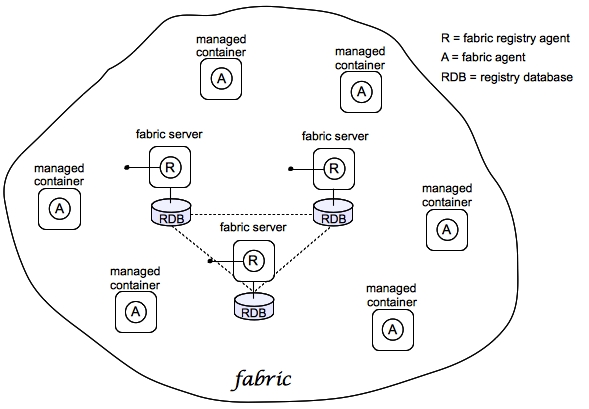
Figure 1.1, “Containers in a Fabric” shows an example of a distributed collection of containers that belong to a single fabric.
Figure 1.1. Containers in a Fabric
Registry
Copia collegamentoCollegamento copiato negli appunti!
JBoss Fuse Fabric uses Apache ZooKeeper (a highly reliable, distributed coordination service) as its registry to store the cluster configuration and the node registration data.
ZooKeeper is designed to provide data consistency and high availability across data centers. ZooKeeper protects against network splits using a quorum of ZooKeeper servers: for example, you might run five ZooKeeper servers and so long as you have quorum (that is, at least three out of the five servers available) you are reliable and are not affected by a network split.
Conceptually, the Fabric registry consists of two main parts:
- Configuration Registry—the logical configuration of your fabric, which typically contains no physical machine information. It contains details of the applications to be deployed and their dependencies.
- Runtime Registry—contains details of how many machines are actually running, their physical location, and what services they are implementing.
Fabric Ensemble
Copia collegamentoCollegamento copiato negli appunti!
A Fabric Ensemble is a collection of Fabric Servers that collectively maintain the state of the fabric registry. The Fabric Ensemble implements a replicated database and uses a quorum-based voting system to ensure that data in the fabric registry remains consistent across all of the fabric's containers. To guard against network splits in a quorum-based system, it is a requirement that the number of Fabric Servers in a Fabric Ensemble is always an odd number.
The number of Fabric Servers in a fabric is typically 1, 3, or 5. A fabric with just one Fabric Server is suitable for experimentation only. A live production system should have at least 3 or 5 Fabric Servers, installed on separate hosts, to provide fault tolerance.
Fabric Server
Copia collegamentoCollegamento copiato negli appunti!
A Fabric Server has a special status in the fabric, because it is responsible for maintaining a replica of the fabric registry. In each Fabric Server, a registry service is installed (labeled R in Figure 1.1, “Containers in a Fabric”). The registry service (based on Apache ZooKeeper) maintains a replica of the registry database and provides a ZooKeeper server, which ordinary agents can connect to in order to retrieve registry data.
Fabric Container (managed container)
Copia collegamentoCollegamento copiato negli appunti!
A Fabric container (or managed container) is aware of the locations of all of the Fabric Servers, and it can retrieve registry data from any Fabric Server in the Fabric Ensemble. A Fabric agent (labeled A in Figure 1.1, “Containers in a Fabric”) is installed in each Fabric container. The Fabric Agent actively monitors the fabric registry, and whenever a relevant modification is made to the registry, it immediately updates its container to keep the container consistent with the registry settings.
Fabric Agent
Copia collegamentoCollegamento copiato negli appunti!
Fabric defines a provisioning agent or Fabric agent, which relies on profiles. The Fabric agent runs on each managed container and its role is to provision the container according to the profiles assigned to it. The Fabric agent retrieves the configuration, bundles and features (as defined in the profile overlay), calculates what needs to be installed (or uninstalled) and, finally, performs the required actions.
The Fabric agent does not just provision applications; it is also capable of provisioning Fabric and the OSGi framework.
The Fabric agent retrieves any required Maven artifacts from the Maven repositories specified by its profile, which are accessed through the Maven proxies managed by the fabric.
Git
Copia collegamentoCollegamento copiato negli appunti!
JBoss Fuse Fabric has git as the distributed version control mechanism for all configurations allowing for a full audit history; in addition, all changes are versioned and replicated onto each machine. By leveraging a well known technology users can easily perform diffs, merges, and continuous integration.
Profile
Copia collegamentoCollegamento copiato negli appunti!
A Fabric profile is an abstract unit of deployment, capable of holding all of the data required for deploying an application into a Fabric Container. Profiles are used exclusively in the context of fabrics.
A profile consists of a collection of OSGi bundles and Karaf features to be provisioned, and a list of configurations for the OSGi Configuration Administration service. Multiple profiles can be associated with a given container, allowing the container to serve multiple purposes.
In theory, if you have a fabric in which each managed container runs exactly the same set of features, with exactly the same configuration, you need only one profile. However, in most real-world use cases, you need to provision different features across the nodes, or at least have different configurations.
For example, you might want to run different kinds of applications on different nodes: message brokers, web applications, ESBs, transformation engines, or proxies. Each kind of application can be defined by a profile that you manage as a single logical entity, irrespective of how many instances are deployed. Alternatively, you might want to run the same features everywhere, but with location specific configurations. You might deploy message brokers in different locations, or cache services in different data centres or geographical regions.
Profiles can also use inheritance, so that parts of a configuration can be shared across multiple profiles (which is conceptually similar to the use of trees in an LDAP repository). The aggregate of configuration settings is computed using an overlay mechanism, which allows a profile to override values from its parents. This approach provides power and flexibility, while avoiding the unnecessary repetition of configuration values.
Profiles are stored in the master node's git repository, which means that they are automatically and immediately propagated to all nodes in the fabric.
Important
The presence of a Fabric agent in a container completely changes the deployment model, requiring you to use profiles exclusively as the unit of deployment. Although it is still possible to deploy an individual bundle or feature (using
osgi:install or features:install, respectively), these modifications are impermanent. As soon as you restart the container or refresh its contents, the Fabric agent replaces the container's existing contents with whatever is specified by the deployed profiles.
1.2. Containers
Copia collegamentoCollegamento copiato negli appunti!
Fuse Fabric is designed to have a number of containers, each of which may be running on a different platform. For instance, all of the following are supported:
- Java processes running directly on hardware.
- A PaaS (Platform as a Service) such as OpenShift for either a public or private cloud.
- OpenStack as an IaaS (Infrastructure as a Service).
- Amazon Web Services, Rackspace or some other IaaS to manage services.
- Docker containers for each service.
- An open hybrid cloud composing all of the above entries.
1.3. Provisioning and Configuration
Copia collegamentoCollegamento copiato negli appunti!
Overview
Copia collegamentoCollegamento copiato negli appunti!
Each node in the cluster has a logical name and on startup the provisioning agent registers an ephemeral node in ZooKeeper. It then looks in the configuration using its logical name for its profile of what configuration to use and what services to provision. If there is no configuration or the logical name it uses the default profile.
Each node watches the relevant parts of the ZooKeeper tree for changes; so that as soon as any profile is updated the dependent nodes refresh and re-apply any provisioning or configuration changes.
Changing the configuration
Copia collegamentoCollegamento copiato negli appunti!
You can use the Fabric command line shell to modify a profile's configuration at run time, which means you can dynamically control configuration and provisioning.
Profiles make it possible to control a group of nodes (or all nodes) in a single operation. For example, you could set global configuration properties that affect all nodes, or properties that affect only a group of nodes (for example, affecting only message brokers, or affecting only web servers).
How discovery works
Copia collegamentoCollegamento copiato negli appunti!
Each container registers details of its machine, host name and connection URLs (for example, its JMX URL) with the ZooKeeper runtime registry. Consequently, it is relatively easy to discover a node's location and its connection details by introspecting the fabric. For example, to perform operations on a remote fabric container from within the fuse console, all that you need to know is the container's name.
In addition, Fabric supports a number of discovery mechanisms for discovering application endpoints and services in the fabric—see Appendix E, Technology-specific Discovery Mechanisms for details.
Part I. Basic Fabric Deployment
Copia collegamentoCollegamento copiato negli appunti!
Abstract
Get started with Fuse Fabric and learn how to perform basic administration tasks.
Chapter 2. Getting Started with Fuse Fabric
Copia collegamentoCollegamento copiato negli appunti!
Abstract
This tutorial provides basic information and explains how to set up the simplest Fabric system, by creating some containers that run on your local machine and then deploying an example profile to a child container.
Additional information on setting up a Fabric is covered in more detail in both Chapter 3, Creating a New Fabric and Section 4.1, “Child Containers”.
2.1. Create a Fabric
Copia collegamentoCollegamento copiato negli appunti!
Overview
Copia collegamentoCollegamento copiato negli appunti!
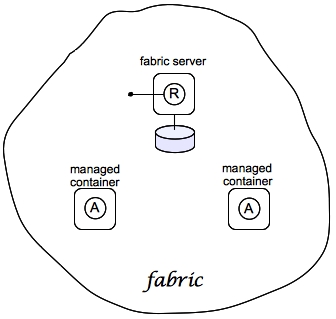
Figure 2.1 shows an overview of a sample fabric that you will create. The Fabric Ensemble consists of just one Fabric Server (making this fabric suitable only for experimental use) and two managed child containers.
Figure 2.1. A Sample Fabric with Child Containers
Steps to create the fabric
Copia collegamentoCollegamento copiato negli appunti!
To create the simple fabric shown in Figure 2.1, “A Sample Fabric with Child Containers”, follow these steps:
- To create the first fabric container, which acts as the seed for the new fabric, enter this console command:
JBossFuse:karaf@root> fabric:create --clean --new-user AdminUser --new-user-password AdminPass --new-user-role Administrator --zookeeper-password ZooPass --zookeeper-data-dir zkdata --resolver manualip --manual-ip 127.0.0.1 --wait-for-provisioning
JBossFuse:karaf@root> fabric:create --clean --new-user AdminUser --new-user-password AdminPass --new-user-role Administrator --zookeeper-password ZooPass --zookeeper-data-dir zkdata --resolver manualip --manual-ip 127.0.0.1 --wait-for-provisioningCopy to Clipboard Copied! Toggle word wrap Toggle overflow The current container, namedrootby default, becomes a Fabric Server with a registry service installed. Initially, this is the only container in the fabric. The--new-user,--new-user-password, and--new-user-roleoptions specify the credentials for a newAdministratoruser. The Zookeeper password is used to protect sensitive data in the Fabric registry service (all of the nodes under/fabric). The--manual-ipoption specifies the loopback address,127.0.0.1, as the Fabric Server's IP address.NoteA Fabric Server requires a static IP address. For simple trials and tests, you can use the loopback address,127.0.0.1, to work around this requirement. But if you are deploying a fabric in production or if you want to create a distributed ensemble, you must assign a static IP address to the each of the Fabric Server hosts.NoteMost of the time, you are not prompted to enter the Zookeeper password when accessing the registry service, because it is cached in the current session. When you join a container to a fabric, however, you must provide the fabric's Zookeeper password. - Create a child container. Assuming that your root container is named
root, enter this console command:JBossFuse:karaf@root> fabric:container-create-child root child Creating new instance on SSH port 8102 and RMI ports 1100/44445 at: /tmp/jboss-fuse-6.3.0.redhat-254/instance/child The following containers have been created successfully: Container: child.JBossFuse:karaf@root> fabric:container-create-child root child Creating new instance on SSH port 8102 and RMI ports 1100/44445 at: /tmp/jboss-fuse-6.3.0.redhat-254/instance/child The following containers have been created successfully: Container: child.Copy to Clipboard Copied! Toggle word wrap Toggle overflow - Invoke the following command to monitor the status of the child container, as it is being provisioned:
JBossFuse:karaf@root> shell:watch container-list
JBossFuse:karaf@root> shell:watch container-listCopy to Clipboard Copied! Toggle word wrap Toggle overflow After the deployment of thechildhas completed, you should see a listing something like this:Copy to Clipboard Copied! Toggle word wrap Toggle overflow Press theReturnkey to get back to the JBoss Fuse console prompt.
2.2. Deploy a Profile
Copia collegamentoCollegamento copiato negli appunti!
Deploy a profile to the child container
Copia collegamentoCollegamento copiato negli appunti!
Having created the child container, as described in Section 2.1, “Create a Fabric”, you can now deploy a profile to it.
Note
Do not deploy profiles that have the same PID defined with different values. If you do, the fabric uses the values of the last one deployed.
To deploy a profile to the container, follow these steps:
- Open a terminal and
cdto the$FUSE_HOME/quickstarts/beginner/camel-logdirectory. - Build the camel-log quickstart by entering this command:
mvn clean install
$ mvn clean installCopy to Clipboard Copied! Toggle word wrap Toggle overflow - Upload the camel-log quickstart profile to the fabric container by entering this command:
mvn fabric8:deploy
$ mvn fabric8:deployCopy to Clipboard Copied! Toggle word wrap Toggle overflow NoteIf this is the first time you've run this command, it prompts you to enter theusernameandpasswordto use to log into the fabric container. - Deploy the
quickstarts-beginner-camel.logprofile into thechildcontainer by entering this console command:JBossFuse:karaf@root> fabric:container-change-profile child quickstarts-beginner-camel.log
JBossFuse:karaf@root> fabric:container-change-profile child quickstarts-beginner-camel.logCopy to Clipboard Copied! Toggle word wrap Toggle overflow - Verify that the camel-log quickstart profile,
quickstarts-beginner-camel.log, was uploaded successfully by entering thefabric:statusconsole command:Copy to Clipboard Copied! Toggle word wrap Toggle overflow - Verify that the
quickstarts-beginner-camel.logprofile deployed successfully to thechildcontainer, issuing thefabric:container-listcommand:JBossFuse:karaf@root> fabric:container-list
JBossFuse:karaf@root> fabric:container-listCopy to Clipboard Copied! Toggle word wrap Toggle overflow until thechildcontainer's status changes tosuccess:[id] [version] [type] [connected] [profiles] [provision status] root* 1.0 karaf yes fabric success fabric-ensemble-0000-1 jboss-fuse-full child 1.0 karaf yes quickstarts-beginner-camel.log success[id] [version] [type] [connected] [profiles] [provision status] root* 1.0 karaf yes fabric success fabric-ensemble-0000-1 jboss-fuse-full child 1.0 karaf yes quickstarts-beginner-camel.log successCopy to Clipboard Copied! Toggle word wrap Toggle overflow
View the sample output
Copia collegamentoCollegamento copiato negli appunti!
When it is running, the
quickstarts-beginner-camel.log profile writes a message to the container's log every five seconds. To verify that the profile is running properly, you can look for these messages in the child container's log, as follows:
- Connect to the
childcontainer, by entering the following console command:JBossFuse:karaf@root> container-connect child
JBossFuse:karaf@root> container-connect childCopy to Clipboard Copied! Toggle word wrap Toggle overflow - After logging on to the
childcontainer, view thechildcontainer's log using thelog:tailcommand, as follows:JBossFuse:karaf@root> log:tail
JBossFuse:karaf@root> log:tailCopy to Clipboard Copied! Toggle word wrap Toggle overflow You should see some output like the following:Copy to Clipboard Copied! Toggle word wrap Toggle overflow - Type Ctrl-C to exit the log view and return to the child container's console prompt.
- Type Ctrl-D to exit the child container's console, which returns you to the root container's console.
2.3. Update a Profile
Copia collegamentoCollegamento copiato negli appunti!
Atomic container upgrades
Copia collegamentoCollegamento copiato negli appunti!
Normally, when you edit a profile that is already deployed in a container, the modification takes effect immediately. This is because the Fabric Agent in the affected container (or containers) actively monitors the fabric registry in real time.
In practice, however, immediate propagation of profile modifications is often undesirable. In a production system, you typically want to roll out changes incrementally: for example, initially trying out the change on just one container to check for problems, before you make changes globally to all containers. Moreover, sometimes several edits must be made together to reconfigure an application in a consistent way.
Profile versioning
Copia collegamentoCollegamento copiato negli appunti!
For quality assurance and consistency, it is typically best to modify profiles atomically, where several modifications are applied simultaneously. To support atomic updates, fabric implements profile versioning. Initially, the container points at version 1.0 of a profile. When you create a new profile version (for example, version 1.1), the changes are invisible to the container until you upgrade it. After you are finished editing the new profile, you can apply all of the modifications simultaneously by upgrading the container to use the new version 1.1 of the profile.
Upgrade to a new profile
Copia collegamentoCollegamento copiato negli appunti!
For example, to modify the
default profile, when it is deployed and running in a container, follow the recommended procedure:
- Create a new version, 1.1, to hold the pending changes by entering this console command:
JBossFuse:karaf@root> fabric:version-create
Created version: 1.1 as copy of: 1.0
JBossFuse:karaf@root> fabric:version-create
Created version: 1.1 as copy of: 1.0
Copy to Clipboard Copied! Toggle word wrap Toggle overflow The new version is initialised with a copy of all of the profiles from version 1.0. - Use the
fabric:profile-editcommand to change the help text for thedefaultprofile. Enter the followingprofile-editcommand to edit theSummary.mdresource:JBossFuse:karaf@root> fabric:profile-edit --resource Summary.md default 1.1
JBossFuse:karaf@root> fabric:profile-edit --resource Summary.md default 1.1Copy to Clipboard Copied! Toggle word wrap Toggle overflow This opens the built-in text editor for editing profile resources (see Appendix A, Editing Profiles with the Built-In Text Editor).Remember to specify version1.1to thefabric:profile-editcommand, so that the modifications are applied to version 1.1 of thedefaultprofile.When you are finished editing, type Ctrl-S to save your changes and then type Ctrl-X to quit the text editor and get back to the console prompt. - Upgrade the
childcontainer to version1.1by entering this console command:JBossFuse:karaf@root> fabric:container-upgrade 1.1 child
JBossFuse:karaf@root> fabric:container-upgrade 1.1 childCopy to Clipboard Copied! Toggle word wrap Toggle overflow
Roll back to an old profile
Copia collegamentoCollegamento copiato negli appunti!
You can easily roll back to the old version of the
default profile, using the fabric:container-rollback command like this:
JBossFuse:karaf@root> fabric:container-rollback 1.0 child
JBossFuse:karaf@root> fabric:container-rollback 1.0 child2.4. Shutting Down the Containers
Copia collegamentoCollegamento copiato negli appunti!
Shutting down the containers
Copia collegamentoCollegamento copiato negli appunti!
Because the child containers run in their own JVMs, they do not automatically stop when you shut down the root container. To shut down a container and its children, first stop the child containers by using the
fabric:container-stop command. For example, to shut down the current fabric completely, enter these console commands:
JBossFuse:karaf@root> fabric:container-stop child
JBossFuse:karaf@root> shutdown -f
JBossFuse:karaf@root> fabric:container-stop child
JBossFuse:karaf@root> shutdown -f
After you restart the root container, you must explicitly restart its child containers by invoking the
fabric:container-start console command.
For instructions for shutting down a fabric that has more than one ensemble, see Chapter 5, Shutting Down a Fabric.
Chapter 3. Creating a New Fabric
Copia collegamentoCollegamento copiato negli appunti!
Abstract
When there are no existing fabrics to join, or you want to start a new fabric, you can create a new one from a standalone container.
Static IP address required for Fabric Server
Copia collegamentoCollegamento copiato negli appunti!
The IP address and hostname associated with the Fabric Servers in the Fabric ensemble are of critical importance to the fabric. Because these IP addresses and hostnames are used for configuration and service discovery (through the Zookeeper registry), they must not change during the lifetime of the fabric.
You can take either of the following approaches to specifying the IP address:
- For simple examples and tests (with a single Fabric Server) you can work around the static IP requirement by using the loopback address,
127.0.0.1. - For distributed tests (multiple Fabric Servers) and production deployments, you must assign a static IP address to each of the Fabric Server hosts.
Important
Beware of volatile IP addresses resulting from VPN connections, WiFi connections, and even LAN connections. If a Fabric Server binds to one of these volatile IP addresses, it will cease to function after the IP address has gone away. It is recommended that you always use the
--resolver manualip --manual-ip StaticIPAddress options to specify the static IP address explicitly, when creating a new Fabric Server.
Make Quickstart Examples Available
Copia collegamentoCollegamento copiato negli appunti!
The default behavior is that profiles for quickstart examples are not available in a new fabric. To create a fabric in which you can run the quickstart examples, edit the
$FUSE_HOME/fabric/io.fabric8.import.profiles.properties file by uncommenting the line that starts with the following:
# importProfileURLs =
If you create a fabric without doing this and you want to run the quickstart examples, follow these steps to make them available:
- Check that the fabric is running.
- In the
$FUSE_HOME/quickstartsdirectory, change to the directory in which the quickstart example you want to run is located, for example:cd beginner - In that directory, execute the following command:
mvn fabric8:deployYou would need to run this command in each directory that contains a quickstart example that you want to run.
Procedure
Copia collegamentoCollegamento copiato negli appunti!
To create a new fabric:
- (Optional) Customise the name of the root container by editing the
InstallDir/etc/system.propertiesfile and specifying a different name for this property:karaf.name=root
karaf.name=rootCopy to Clipboard Copied! Toggle word wrap Toggle overflow NoteFor the first container in your fabric, this step is optional. But at some later stage, if you want to join a root container to the fabric, you might need to customise the container's name to prevent it from clashing with any existing root containers in the fabric. - Any existing users in the
InstallDir/etc/users.propertiesfile are automatically used to initialize the fabric's user data, when you create the fabric. You can populate theusers.propertiesfile, by adding one or more lines of the following form:Username=Password[,RoleA][,RoleB]...
Username=Password[,RoleA][,RoleB]...Copy to Clipboard Copied! Toggle word wrap Toggle overflow But there must not be any users in this file that have administrator privileges (Administrator,SuperUser, oradminroles). If theInstallDir/etc/users.propertiesalready contains users with administrator privileges, you should delete those users before creating the fabric.ImportantIf you leave some administrator credentials in theusers.propertiesfile, this represents a security risk because the file could potentially be accessed by other containers in the fabric.NoteThe initialization of user data fromusers.propertieshappens only once, at the time the fabric is created. After the fabric has been created, any changes you make tousers.propertieswill have no effect on the fabric's user data. - If you use a VPN (virtual private network) on your local machine, it is advisable to log off VPN before you create the fabric and to stay logged off while you are using the local container.NoteA local Fabric Server is permanently associated with a fixed IP address or hostname. If VPN is enabled when you create the fabric, the underlying Java runtime is liable to detect and use the VPN hostname instead of your permanent local hostname. This can also be an issue with multi-homed machines.
- Start up your local container.In JBoss A-MQ, start the local container as follows:
cd InstallDir/bin
./amq
cd InstallDir/bin
./amq
Copy to Clipboard Copied! Toggle word wrap Toggle overflow - Create a new fabric by entering the following command:
JBossFuse:karaf@root> fabric:create --new-user AdminUser --new-user-password AdminPass --new-user-role Administrator --zookeeper-password ZooPass --resolver manualip --manual-ip StaticIPAddress --wait-for-provisioning
JBossFuse:karaf@root> fabric:create --new-user AdminUser --new-user-password AdminPass --new-user-role Administrator --zookeeper-password ZooPass --resolver manualip --manual-ip StaticIPAddress --wait-for-provisioningCopy to Clipboard Copied! Toggle word wrap Toggle overflow The current container, namedrootby default, becomes a Fabric Server with a registry service installed. Initially, this is the only container in the fabric. The--new-user,--new-user-password, and--new-user-roleoptions specify the credentials for a newAdministratoruser. The Zookeeper password is used to protect sensitive data in the Fabric registry service (all of the nodes under/fabric). The--manual-ipoption specifies the Fabric Server's static IP addressStaticIPAddress(see the section called “Static IP address required for Fabric Server”).For more details on fabric:create see section "fabric:create" in "Console Reference".For more details about resolver policies, see section "fabric:container-resolver-list" in "Console Reference" and section "fabric:container-resolver-set" in "Console Reference".
Fabric creation process
Copia collegamentoCollegamento copiato negli appunti!
Several things happen when a fabric is created from a standalone container:
- The container installs the requisite OSGi bundles to become a Fabric Server.
- The Fabric Server starts a registry service, which listens on TCP port 2181 (which makes fabric configuration data available to all of the containers in the fabric).NoteYou can customize the value of the registry service port by specifying the
--zookeeper-server-portoption. - The Fabric Server installs a new JAAS realm (based on the ZooKeeper login module), which overrides the default JAAS realm and stores its user data in the ZooKeeper registry.
- The new Fabric Ensemble consists of a single Fabric Server (the current container).
- A default set of profiles is imported from
InstallDir/fabric/import(can optionally be overridden). - After the standalone container is converted into a Fabric Server, the previously installed OSGi bundles and Karaf features are completely cleared away and replaced by the default Fabric Server configuration. For example, some of the shell command sets that were available in the standalone container are no longer available in the Fabric Server.
Expanding a Fabric
Copia collegamentoCollegamento copiato negli appunti!
You can expand a fabric by creating new managed containers. Fabric supports the container provider plug-in mechanism, which makes it possible to define how to create new containers in different contexts. Currently, Fabric makes container providers available for the following kinds of container:
- Child container, created on the local machine as a child process in its own JVM.Instructions on creating a child container are found in Child Containers.
- SSH container, created on any remote machine for which you have
sshaccess.Instructions on creating a SSH container are found in SSH Containers.
Fabric provides container creation commands that make it easy to create new containers. Using these commands, Fabric can automatically install JBoss Fuse on a remote host (uploading whatever dependencies are needed), start up the remote container process, and join the container to the existing fabric, so that it becomes a fully-fledged managed container in the fabric.
Chapter 4. Fabric Containers
Copia collegamentoCollegamento copiato negli appunti!
4.1. Child Containers
Copia collegamentoCollegamento copiato negli appunti!
Abstract
Child containers are the easiest kind of container to create. They are created on the same host as an existing container and are piggybacked on the same JBoss Fuse installation.
Overview
Copia collegamentoCollegamento copiato negli appunti!
If you want to run multiple JBoss Fuse containers on a single physical host, typically the best approach is to create child containers. A child container is a relatively lightweight way to create a new container, because it re-uses most of the files in a JBoss Fuse installation. It is also convenient for administration, because the children are defined to have a parent container, so that the containers form an orderly hierarchy.
One container or many?
Copia collegamentoCollegamento copiato negli appunti!
In principle, a single OSGi container can host multiple applications (even applications with different dependencies). So, why might you need to define extra child containers on the same host? One reason for using child containers is simply to provide a degree of isolation between applications or between components of an application. A child container runs in its own JVM process, so it is well insulated from other containers running on the same host. Using child containers also gives your application a coarse-grained structure that can be useful for managing the system (for example, each child container can be independently stopped and started).
Creating a child container
Copia collegamentoCollegamento copiato negli appunti!
To create a new child container, invoke the
fabric:container-create-child command, specifying the parent container name and the name of the new child container. For example, to create the new child container, onlychild, with root as its parent, enter the following command:
fabric:container-create-child root onlychild
fabric:container-create-child root onlychild
If you want to create multiple child containers, an easy way to do this is to add an extra parameter, which specifies the number of new children. For example, to create three new child containers, enter a command like the following:
fabric:container-create-child root child 3
fabric:container-create-child root child 3
The preceding command would create the following new child containers:
child1
child2
child3
child1
child2
child3Stopping and starting a child container
Copia collegamentoCollegamento copiato negli appunti!
Because each child container runs as a separate process, its lifecycle is independent of the parent container. That is, when you shut down a parent container, it does not automatically shut down the children. To shut down a child container, you must explicitly invoke the
fabric:container-stop command. For example, to shut down the child1 container:
fabric:container-stop child1
fabric:container-stop child1
To restart a stopped child container, invoke the
fabric:container-start command, as follows:
fabric:container-start child1
fabric:container-start child1Note
You can also stop a child container using the standard UNIX process management utilities,
ps and kill.
Deleting a child container
Copia collegamentoCollegamento copiato negli appunti!
To delete a child container (that is, permanently removing all trace of the container from the fabric, including Fabric registry entries, and data stored in the local filesystem), invoke the
fabric:container-delete command, as follows:
fabric:container-delete child1
fabric:container-delete child1Note
Using a wildcard, you can delete all child containers; for example,
fabric:container-delete child*.
4.2. SSH Containers
Copia collegamentoCollegamento copiato negli appunti!
Abstract
Fabric allows you to install containers in a local network using SSH. Fabric installs the container from scratch and configures the container to join the Fabric cluster automatically.
Overview
Copia collegamentoCollegamento copiato negli appunti!
An SSH container is just a Fabric container that is running on a remote host on your local network, where that host is accessible through the SSH protocol. This section describes some basic administration tasks for these SSH containers.
Prerequisites
Copia collegamentoCollegamento copiato negli appunti!
The requirements for creating an SSH container on a remote host are:
- Linux or UNIX operating system,
- SSHD running on the target host and:
- A valid account credentials, or
- Configured public key authentication
- Java is installed (for supported versions, see Red Hat JBoss A-MQ Supported Configurations).
- Curl installed.
- GNU tar installed.
- Telnet installed.
Creating an SSH container
Copia collegamentoCollegamento copiato negli appunti!
Fabric provides the
fabric:container-create-ssh console command, for creating SSH containers.
Given the host,
myhost (accessible from the local network) with the SSH user account, myuser, and the password, mypassword, your could create an SSH container on myhost, using the following console command:
fabric:container-create-ssh --host myhost --user myuser --password mypassword myremotecontainername
fabric:container-create-ssh --host myhost --user myuser --password mypassword myremotecontainername
If the
myuser user on myhost has configured public key authentication for SSH, you can skip the password option:
fabric:container-create-ssh --host myhost --user myuser myremotecontainername
fabric:container-create-ssh --host myhost --user myuser myremotecontainername
Where the preceding command uses the key located in
~/.ssh/id_rsa for authentication. If you need to use a different key, you can specify the key location explicitly with the --private-key option:
fabric:container-create-ssh --host myhost --user myuser --private-key ~/.ssh/fabric_pk myremotecontainername
fabric:container-create-ssh --host myhost --user myuser --private-key ~/.ssh/fabric_pk myremotecontainername
The last command also supports the
--pass-phrase option, in case your key requires a pass phrase.
Update SSH Credentials for Remote SSH Containers
Copia collegamentoCollegamento copiato negli appunti!
You may need to change the credentials held in ZooKeeper for a remote SSH container. To do so, use the following command:
fabric:container-update-ssh-credentials [options] container
fabric:container-update-ssh-credentials [options] container
container is the name of the container for which you want to change the credentials.
The arguments are:
--user the username of the user performing the action
--password the password of the user performing the action
Creating a Fabric server using SSH
Copia collegamentoCollegamento copiato negli appunti!
Sometimes you do not have an existing fabric and you want to create one on a remote host. The starting point for any fabric is a Fabric server instance, which can act as a seed for the rest of the fabric. So, to enable you to create a new fabric on a remote host, the
fabric:container-create-ssh supports the --ensemble-server option, which can be invoked to create a container which is a Fabric server. For example, the following container-create-ssh command creates a new fabric consisting of one Fabric server on the myhost host:
fabric:container-create-ssh --host myhost --user myuser --ensemble-server myremotecontainername
fabric:container-create-ssh --host myhost --user myuser --ensemble-server myremotecontainernameNote
The
--ensemble-server option has been deprecated as of version 6.3. The recommended way to create a fabric on a remote host is to manually install JBoss Fuse on the remote host, then create the fabric there as you normally wouuld.
References
Copia collegamentoCollegamento copiato negli appunti!
Note
The commands for creating and updating SSH containers are available for containers created as part of an existing fabric and are provisioned with the
fabric profile.
For more details about the SSH container console commands, see the "Console Reference".
4.3. Fabric Containers on Windows
Copia collegamentoCollegamento copiato negli appunti!
Abstract
Fabric supports the deployment of containers on Windows platforms. In this case, however, it is necessary to install the container manually on the target host.
Overview
Copia collegamentoCollegamento copiato negli appunti!
Because Windows does not support the Secure Shell (SSH) protocol, it is not possible to install the container software remotely on to a Windows machine. The installation must be performed manually. But the remote deployment of applications (by assigning profiles to the container) is fully supported.
Creating a Fabric container on Windows
Copia collegamentoCollegamento copiato negli appunti!
Perform the following steps to create a Fabric container on Windows (assuming the container is to join an existing fabric):
- Following the instructions in the JBoss Fuse Installation Guide, manually install the JBoss Fuse product on the Windows target host.
- Open a new command prompt and enter the following commands to start the container on the target host:
cd InstallDir\bin
fuse.bat
cd InstallDir\bin
fuse.bat
Copy to Clipboard Copied! Toggle word wrap Toggle overflow - If the Fabric servers from the Fabric ensemble are not already running, start them now.
- Join the container to the existing fabric, by entering the following console command:
JBossFuse:karaf@root> fabric:join --zookeeper-password ZooPass ZooHost:ZooPort Name
JBossFuse:karaf@root> fabric:join --zookeeper-password ZooPass ZooHost:ZooPort NameCopy to Clipboard Copied! Toggle word wrap Toggle overflow WhereZooPassis the ZooKeeper password for the Fabric ensemble (specified when you create the fabric withfabric:create);ZooHostis the hostname (or IP address) where the Fabric server is running andZooPortis the ZooKeeper port (defaults to2181). If necessary, you can discover the ZooKeeper host and port by logging into the Fabric server and entering the following console command:config:proplist --pid io.fabric8.zookeeper
config:proplist --pid io.fabric8.zookeeperCopy to Clipboard Copied! Toggle word wrap Toggle overflow TheNameargument (which is optional) specifies a new name for the container after it joins the fabric. It is good practice to provide this argument, because all freshly installed containers have the namerootby default. If you do not specify a new container name when you join the fabric, there are bound to be conflicts.NoteThe container where you run thefabric:joincommand must be a standalone container. It is an error to invokefabric:joinin a container that is already part of a fabric.
After joining the fabric, the container becomes a managed Fabric container and has the
fabric profile deployed on it.
Creating a Fabric server on Windows
Copia collegamentoCollegamento copiato negli appunti!
If you don't have an existing fabric, you can create a new fabric on the Windows host. The starting point for any fabric is a Fabric server instance, which can act as a seed for the rest of the fabric. Perform the following steps to create a Fabric server on Windows:
- Following the instructions in the JBoss Fuse Installation Guide, manually install the JBoss Fuse product on the Windows target host.
- To start the container on the target host, open a new command prompt and enter the following commands:
cd InstallDir\bin
fuse.bat
cd InstallDir\bin
fuse.bat
Copy to Clipboard Copied! Toggle word wrap Toggle overflow - To create a new fabric (thereby turning the current host into a Fabric server), enter the following console command:
JBossFuse:karaf@root> fabric:create --new-user AdminUser --new-user-password AdminPass
  --new-user-role Administrator --zookeeper-password ZooPass
  --resolver manualip --manual-ip StaticIPAddress --wait-for-provisioning
JBossFuse:karaf@root> fabric:create --new-user AdminUser --new-user-password AdminPass
  --new-user-role Administrator --zookeeper-password ZooPass
  --resolver manualip --manual-ip StaticIPAddress --wait-for-provisioning
Copy to Clipboard Copied! Toggle word wrap Toggle overflow The current container, namedrootby default, becomes a Fabric Server with a registry service installed. Initially, this is the only container in the fabric. The--new-user,--new-user-password, and--new-user-roleoptions specify the credentials for a newAdministratoruser. The Zookeeper password is used to protect sensitive data in the Fabric registry service (all of the nodes under/fabric). The--manual-ipoption specifies the Fabric Server's static IP addressStaticIPAddress(see the section called “Static IP address required for Fabric Server”).
Managing remote containers on Windows
Copia collegamentoCollegamento copiato negli appunti!
Because a Fabric container on Windows is added to the fabric by joining (that is, using
fabric:join), there are certain restrictions on which commands you can use to manage it. In particular, the following commands are not supported:
fabric:container-stop
fabric:container-start
fabric:container-delete
fabric:container-stop
fabric:container-start
fabric:container-delete
To stop and start a Fabric container running on Windows, you must log on to the Windows host and use the regular Windows system commands to manage the container process (in particular, you could potentially install the container as a Windows service and use the Windows service commands to manage the container lifecycle).
4.4. Disconnect Container from Fabric
Copia collegamentoCollegamento copiato negli appunti!
Abstract
For containers that joined a Fabric using fabric:join, the only way to disconnect from the fabric is by using the fabric:leave command.
Note
This command is only available from R13 and later.
Overview
Copia collegamentoCollegamento copiato negli appunti!
If you created a container using the fabric:container-create-child command, use the fabric:delete command as all of the details are stored within Zookeeper. However, for containers that joined a Fabric using fabric:join, the only way to disconnect from the fabric is by using the fabric:leave command.
Use the command
Copia collegamentoCollegamento copiato negli appunti!
If you specify the container using the fabric:leave command, the specified container leaves the fabric. Otherwise, fabric:leave disconnects the current container from the fabric.
fabric:leave containerName
fabric:leave containerNameContainer containerName will be disconnected from Fabric. This operation is not reversible. Do you want to proceed? (yes/no): yes Container containerName will leave Fabric and restart - cleanup will be done asynchronously.
Container containerName will be disconnected from Fabric. This operation is not reversible.
Do you want to proceed? (yes/no): yes
Container containerName will leave Fabric and restart - cleanup will be done asynchronously.Note
Once you see the above validation, you can create or join a container with the name (containerName) in the Fabric environment.
Validation
Copia collegamentoCollegamento copiato negli appunti!
There are several reasons you may be unable to disconnect the container from the fabric. The table below helps guide you if you encounter these scenarios.
| Console Validation | Action |
|---|---|
fabric:leave Container is part of the ensemble. It can't be disconnected from fabric. | In this case, you will not be able to disconnect the container. |
fabric:leave xyz Container xyz does not exist. | Check your spelling of the container to be sure you put in the right container name. |
fabric:leave child Container was created using Fabric. Please use fabric:container-delete command instead. | As the container did not join the fabric using the join command, use the suggested method to disconnect the container. |
fabric:leave joined Container joined has dependent containers ([child]). Can't disconnect it. Please remove its child containers first. | Remove the child containers before attempting to disconnect the desired container. |
Chapter 5. Shutting Down a Fabric
Copia collegamentoCollegamento copiato negli appunti!
Overview
Copia collegamentoCollegamento copiato negli appunti!
This chapter describes how to shut down part or all of a fabric.
Shutting down a managed container
Copia collegamentoCollegamento copiato negli appunti!
You can shut down a managed container from the console at any time. Invoke the
fabric:container-stop command and specify the name of the managed container, for example:
fabric:container-stop -f ManagedContainerName
fabric:container-stop -f ManagedContainerNameNote
The
-f flag is required when shutting down a container that belongs to the ensemble.
The
fabric:container-stop command looks up the container name in the registry and retrieves the data it needs to shut down that container. This approach works no matter where the container is deployed: whether locally or on a remote host.
Shutting down a Fabric Server
Copia collegamentoCollegamento copiato negli appunti!
Occasionally, you might want to shut down a Fabric Server for maintenance reasons. It is possible to do this without disabling the fabric, as long as more than half of the Fabric Servers in the ensemble remain up and running. For example, suppose you have an ensemble that consists of three servers,
registry1, registry2, and registry3. You can shut down only one of these Fabric Servers at a time by using the fabric:container-stop command, for example:
fabric:container-stop -f registry3
fabric:container-stop -f registry3
After performing the necessary maintenance, you can restart the Fabric Server as follows:
fabric:container-start registry3
fabric:container-start registry3Shutting down an entire fabric
Copia collegamentoCollegamento copiato negli appunti!
In a production environment, it is rarely necessary to shut down an entire fabric. A fabric provides redundancy by enabling you to shut down part of the fabric and restart that part without having to shut down the whole fabric. You can even apply patches to a fabric without shutting down containers.
Red Hat recommends that you minimize the number of times you shut down a complete fabric. This is because shutting down and restarting an entire fabric requires execution of the
fabric:ensemble-remove and fabric:ensemble-add commands. Each time you execute one of these commands, it creates a new ensemble. This new ensemble URL is propagated to all containers in the fabric and all containers need to reconnect to the new ensemble. There is a risk for TCP port numbers to be reallocated, which means that your network configuration might become out-of-date because services might start up on different ports.
However, if you must shut down an entire fabric, follow the steps below. These steps show examples that reflect this configuration:
- Three Fabric Servers (ensemble servers):
registry1,registry2,registry3. - Four managed containers:
managed1,managed2,managed3,managed4.
To shut down a complete fabric:
- Use the
clientconsole utility to log on to one of the Fabric Servers in the ensemble. For example, to log on to theregistry1server, enter a command in the following format:./client -u AdminUser -p AdminPass -h Registry1Host
./client -u AdminUser -p AdminPass -h Registry1HostCopy to Clipboard Copied! Toggle word wrap Toggle overflow ReplaceAdminUserandAdminPasswith the credentials of a user with administration privileges. ReplaceRegistry1Hostwith name of the host whereregistry1is running. It is assumed that theregistry1server is listening for console connections on the default TCP port (that is,8101) - Ensure that all managed containers in the fabric are running. Execution of
fabric:container-listshould displaytruein thealivecolumn for each container. This is required for execution of thefabric:ensemble-removecommand, which is the next step. - Remove all but one of the Fabric Servers from the ensemble. For example, if you logged on to
registry1, enter:fabric:ensemble-remove registry2 registry3
fabric:ensemble-remove registry2 registry3Copy to Clipboard Copied! Toggle word wrap Toggle overflow - Shut down all managed containers in the fabric, except the container on the Fabric Server you are logged into. In the following example, the first command shuts down
managed1,managed2,managed3andmanaged4:fabric:container-stop -f managed* fabric:container-stop -f registry2 fabric:container-stop -f registry3
fabric:container-stop -f managed* fabric:container-stop -f registry2 fabric:container-stop -f registry3Copy to Clipboard Copied! Toggle word wrap Toggle overflow - Shut down the last container that is still running. This is the container that is on the Fabric Server you are logged in to. For example:
shutdown -f
shutdown -fCopy to Clipboard Copied! Toggle word wrap Toggle overflow
After you complete the work that required the fabric to be shut down, you restart the fabric by recreating it. For example:
- Use the
clientconsole utility to log in to theregistry1container host. - Start all containers in the fabric.
- Add the other Fabric Servers, for example:
fabric:ensemble-add registry2 registry3
fabric:ensemble-add registry2 registry3Copy to Clipboard Copied! Toggle word wrap Toggle overflow
Note on shutting down a complete fabric
Copia collegamentoCollegamento copiato negli appunti!
If you are logged on to a container that is connected to a fabric, you might be tempted to shut down the entire fabric by stopping the containers on the Fabric Servers. For example:
fabric:container-stop -f registry1
fabric:container-stop -f registry2
fabric:container-stop -f registry3
fabric:container-stop -f registry1
fabric:container-stop -f registry2
fabric:container-stop -f registry3
This does not work because a fabric requires a quorum (a simple majority) of Fabric Servers to be running in order to stop a container that is in the fabric. In this example, the third invocation of
fabric:container-stop fails and throws an error because only one Fabric Server is still running. At least two Fabric Servers must be running to stop a container. With only one Fabric Server running, the registry shuts down and refuses service requests because a quorum of Fabric Servers is no longer available. The fabric:container-stop command needs the registry to be running so it can retrieve details about the container it is trying to shut down.
The correct way to shut down a complete fabric is to follow the steps in the previous section. That is, remove all Fabric Servers except one and then stop all containers.
Chapter 6. Fabric Profiles
Copia collegamentoCollegamento copiato negli appunti!
Abstract
A profile is the basic unit of deployment in a fabric. This chapter describes how to create, edit, and deploy profiles into containers. You can also create different versions of a profile, which makes it possible to support rolling upgrades across the containers in your fabric.
6.1. Introduction to Profiles
Copia collegamentoCollegamento copiato negli appunti!
Overview
Copia collegamentoCollegamento copiato negli appunti!
A profile is a description of how to provision a logical group of containers. Each profile can have none, one, or more parents, which allows you to have profile hierarchies. A container can be assigned one or more profiles. Profiles are also versioned, which enables you to maintain different versions of each profile, and then upgrade or roll back containers, by changing the version of the profiles they use.
What is in a profile?
Copia collegamentoCollegamento copiato negli appunti!
A profile can contain one or more of the following resources:
- OSGi bundle URLs
- Web ARchive (WAR) URLs
- Fuse Application Bundle (FAB) URLs
- OSGi Configuration Admin PIDs
- Apache Karaf feature repository URLs
- Apache Karaf features
- Maven artifact repository URLs
- Blueprint XML files or Spring XML files (for example, for defining broker configurations or Camel routes)
- Any kind of resource that might be needed by an application (for example, Java properties file, JSON file, XML file, YML file)
- System properties that affect the Apache Karaf container (analogous to editing
etc/config.properties) - System properties that affect installed bundles (analogous to editing
etc/system.properties)
Profile hierarchies
Copia collegamentoCollegamento copiato negli appunti!
Frequently, multiple profiles share a lot of configuration details: such as common frameworks, libraries, and so on. Defining these details separately for each profile would create a considerable maintenance headache. To avoid duplication across profiles, therefore, Fabric uses a hierarchical model for profiles. You can define a generic profile (base profile) containing the common configuration details, and then define child profiles that inherit these generic configuration details.
Some basic profiles
Copia collegamentoCollegamento copiato negli appunti!
Fabric provides a rich set of predefined profiles, which can be used as the basic building blocks for defining your own profiles. Some of the more interesting predefined profiles are:
- [default]
- The
defaultprofile defines all of the basic requirements for a Fabric container. For example it specifies thefabric-agentfeature, the Fabric registry URL, and the list of Maven repositories from which artifacts can be downloaded. - [karaf]
- Inherits from the
defaultprofile and defines the Karaf feature repositories, which makes the Apache Karaf features accessible. - [feature-camel]
- Inherits from
karaf, defines the Camel feature repositories, and installs some core Camel features: such ascamel-coreandcamel-blueprint. If you are deploying a Camel application, it is recommended that you inherit from this profile. - [feature-cxf]
- Inherits from
karaf, defines the CXF feature repositories, and installs some core CXF features. If you are deploying a CXF application, it is recommended that you inherit from this profile. - [mq-base]
- Inherits from the
karafprofile and installs themq-fabricfeature - [mq-default]
- Inherits from the
mq-baseprofile and provides the configuration for an A-MQ broker. Use this profile, if you want to deploy a minimal installation of an ActiveMQ broker. - [jboss-fuse-full]
- Includes all of the features and bundles required for the JBoss Fuse full container.
6.2. Working with Profiles
Copia collegamentoCollegamento copiato negli appunti!
Changing the profiles in a container
Copia collegamentoCollegamento copiato negli appunti!
To change the profiles assigned to a Fabric container, invoke the
fabric:container-change-profile command as follows:
fabric:container-change-profile mycontainer myprofile
fabric:container-change-profile mycontainer myprofile
Where the preceding command deploys the
myprofile profile to the mycontainer container. All profiles previously assigned to the container are removed. You can also deploy multiple profiles to the container, with the following command:
fabric:container-change-profile mycontainer myprofile myotherprofile
fabric:container-change-profile mycontainer myprofile myotherprofileAdding a profile to a container
Copia collegamentoCollegamento copiato negli appunti!
The
fabric:container-add-profile command gives you a simple way to add profiles to a container, without having to list all of the profiles that were already assigned. For example, to add the example-camel profile to the mycontainer container:
fabric:container-add-profile mycontainer example-camel
fabric:container-add-profile mycontainer example-camelListing available profiles
Copia collegamentoCollegamento copiato negli appunti!
To see the list of available profiles, invoke the
fabric:profile-list console command:
fabric:profile-list
fabric:profile-list
The command displays all available profiles, showing their parents and the number of containers each profile is deployed into.
Inspecting profiles
Copia collegamentoCollegamento copiato negli appunti!
To see exactly what a profile defines, enter the
fabric:profile-display command. For example, to display what is defined in the feature-camel profile, enter the following command:
fabric:profile-display feature-camel
fabric:profile-display feature-camel
Which outputs something like the following to the console window:
The preceding output does not take into account the definitions inherited from any parent profiles, however. To see the effective definitions for the
feature-camel profile, taking into account all of its ancestors, you must specify the --overlay switch, as follows:
fabric:profile-display --overlay feature-camel
fabric:profile-display --overlay feature-camel
Resource files stored in the profile are listed under the heading Other resources. If you want to display the contents of these resource files as well, add the
--display-resources switch (or -r for short) to the profile-display command, as follows:
fabric:profile-display -r feature-camel
fabric:profile-display -r feature-camelCreating a new profile
Copia collegamentoCollegamento copiato negli appunti!
To create a new profile for an application, invoke the
fabric:profile-create command, as follows:
fabric:profile-create myprofile
fabric:profile-create myprofile
To specify one ore more parents for the profile when it is being created, add the
--parents option to the command:
fabric:profile-create --parents feature-camel myprofile
fabric:profile-create --parents feature-camel myprofile
After the profile is created, you can start to modify the profile, providing details of what should be deployed in the profile.
Adding or removing features
Copia collegamentoCollegamento copiato negli appunti!
To edit one of the existing profiles, you can use the
fabric:profile-edit command. For example, to add the camel-jclouds feature to the feature-camel profile.
fabric:profile-edit --feature camel-jclouds feature-camel
fabric:profile-edit --feature camel-jclouds feature-camel
Now invoke the
fabric:profile-display command to see what the camel profile looks like now. You should see that the camel-jclouds feature appears in the list of features for the feature-camel profile.
Features :
        	camel-jclouds
        	camel-blueprint/2.9.0.fuse-7-061
        	camel-core/2.9.0.fuse-7-061
        	fabric-camel/99-master-SNAPSHOT
Features :
        	camel-jclouds
        	camel-blueprint/2.9.0.fuse-7-061
        	camel-core/2.9.0.fuse-7-061
        	fabric-camel/99-master-SNAPSHOT
If you want to remove a feature from the profile, use the
--delete option. For example, if you need to remove the camel-jclouds feature, you could use the following command:
fabric:profile-edit --delete --feature camel-jclouds feature-camel
fabric:profile-edit --delete --feature camel-jclouds feature-camelEditing PID properties
Copia collegamentoCollegamento copiato negli appunti!
An OSGi Config Admin Persistent ID (PID) consists essentially of a list of key-value pairs. You can edit PID properties using either of the following approaches:
- Edit the PID using the built-in text editor—the Karaf console has a built-in text editor which you can use to edit profile resources such as PID properties. To start editing a PID using the text editor, enter the following console command:
fabric:profile-edit --pid PID ProfileName
fabric:profile-edit --pid PID ProfileNameCopy to Clipboard Copied! Toggle word wrap Toggle overflow For more details about the built-in text editor, see Appendix A, Editing Profiles with the Built-In Text Editor. - Edit the PID inline, using console commands—alternatively, you can edit PIDs directly from the console, using the appropriate form of the
fabric:profile-editcommand. This approach is particularly useful for scripting. For example, to set a specific key-value pair,Key=Value, in a PID, enter the following console command:fabric:profile-edit --pid PID/Key=Value ProfileName
fabric:profile-edit --pid PID/Key=Value ProfileNameCopy to Clipboard Copied! Toggle word wrap Toggle overflow
Editing a PID inline
Copia collegamentoCollegamento copiato negli appunti!
To edit a PID inline, use the following variants of the
fabric:profile-edit command:
- Assign a value to a PID property, as follows:
fabric:profile-edit --pid PID/Key=Value ProfileName
fabric:profile-edit --pid PID/Key=Value ProfileNameCopy to Clipboard Copied! Toggle word wrap Toggle overflow - Append a value to a delimited list (that is, where the property value is a comma-separated list), as follows:
fabric:profile-edit --append --pid PID/Key=ListItem ProfileName
fabric:profile-edit --append --pid PID/Key=ListItem ProfileNameCopy to Clipboard Copied! Toggle word wrap Toggle overflow - Remove a value from a delimited list, as follows:
fabric:profile-edit --remove --pid PID/Key=ListItem ProfileName
fabric:profile-edit --remove --pid PID/Key=ListItem ProfileNameCopy to Clipboard Copied! Toggle word wrap Toggle overflow - Delete a specific property key, as follows:
fabric:profile-edit --delete --pid PID/Key ProfileName
fabric:profile-edit --delete --pid PID/Key ProfileNameCopy to Clipboard Copied! Toggle word wrap Toggle overflow - Delete a complete PID, as follows:
fabric:profile-edit --delete --pid PID ProfileName
fabric:profile-edit --delete --pid PID ProfileNameCopy to Clipboard Copied! Toggle word wrap Toggle overflow
Example of editing a PID inline
Copia collegamentoCollegamento copiato negli appunti!
In the following example, we modify the
io.fabric8.agent PID, changing the Maven repository list setting. The default profile contains a section like this:
The agent properties section is represented by the
io.fabric8.agent PID. So, by modifying the io.fabric8.agent PID, we effectively change the agent properties. You can modify the list of Maven repositories in the agent properties PID as follows:
fabric:profile-edit --pid io.fabric8.agent/org.ops4j.pax.url.mvn.repositories=http://repositorymanager.mylocalnetwork.net default
fabric:profile-edit --pid io.fabric8.agent/org.ops4j.pax.url.mvn.repositories=http://repositorymanager.mylocalnetwork.net default
Now when you invoke
fabric:profile-display on the default profile, you should see agent properties similar to the following:
Agent Properties :
        org.ops4j.pax.url.mvn.repositories = http://repositorymanager.mylocalnetwork.net
Agent Properties :
org.ops4j.pax.url.mvn.repositories = http://repositorymanager.mylocalnetwork.netSetting encrypted PID property values
Copia collegamentoCollegamento copiato negli appunti!
In some cases, you might prefer to store PID property values in encrypted format instead of plain text. For example, passwords and other sensitive data should usually be stored in encrypted form. To store a property value in encrypted form, perform the following steps:
- Use the
fabric:encrypt-messagecommand to encrypt the property value, as follows:fabric:encrypt-message PropValue
fabric:encrypt-message PropValueCopy to Clipboard Copied! Toggle word wrap Toggle overflow This command returns the encrypted property value,EncryptedValue.NoteThe default encryption algorithm used by Fabric isPBEWithMD5AndDES. - You can now set the property to the encrypted value,
EncryptedValue, using the following syntax:my.sensitive.property = ${crypt:EncryptedValue}my.sensitive.property = ${crypt:EncryptedValue}Copy to Clipboard Copied! Toggle word wrap Toggle overflow For example, using thefabric:profile-editcommand, you can set an encrypted value as follows:fabric:profile-edit --pid com.example.my.pid/my.sensitive.property=${crypt:EncryptedValue} Profilefabric:profile-edit --pid com.example.my.pid/my.sensitive.property=${crypt:EncryptedValue} ProfileCopy to Clipboard Copied! Toggle word wrap Toggle overflow
Important
These encrypted values are protected by the master password, which is accessible to anyone who can log on to a Fabric container. To keep these encrypted values safe, you must restrict access to the containers in the fabric.
When using encrypted property values in Blueprint, the
property-placeholder element must depend on the Fabric service as shown in the following example:
<reference id="fabricService" interface="io.fabric8.api.FabricService" availability="mandatory"/>
<cm:property-placeholder id="properties" persistent-id="encrypted.properties" depends-on="fabricService"/>
<reference id="fabricService" interface="io.fabric8.api.FabricService" availability="mandatory"/>
<cm:property-placeholder id="properties" persistent-id="encrypted.properties" depends-on="fabricService"/>Alternative method for encrypting PID property values
Copia collegamentoCollegamento copiato negli appunti!
The underlying encryption mechanism for PID properties is based on the Jasypt encryption toolkit. Consequently, it is also possible to encrypt PID properties directly, using the Jasypt toolkit, as follows:
- Use the Jasypt
encryptcommand-line tool to encrypt the property value, as follows:./encrypt.sh input="Property value to be encrypted" password=ZooPass verbose=false
./encrypt.sh input="Property value to be encrypted" password=ZooPass verbose=falseCopy to Clipboard Copied! Toggle word wrap Toggle overflow This command returns the encrypted property value,EncryptedValue.NoteThe default encryption algorithm used by Fabric isPBEWithMD5AndDES. You must ensure that theencrypt.shutility is using the same algorithm as Fabric.
Customizing the PID property encryption mechanism
Copia collegamentoCollegamento copiato negli appunti!
You can customize the PID property encryption mechanism, as follows:
- Customize the master password for encryption—using the following console command:
fabric:crypt-password-set MasterPassword
fabric:crypt-password-set MasterPasswordCopy to Clipboard Copied! Toggle word wrap Toggle overflow You can retrieve the current master password by entering thefabric:crypt-password-getcommand. The default value is the ensemble password (as returned byfabric:ensemble-password). - Customize the encryption algorithm—using the following console command:
fabric:crypt-algorithm-set Algorithm
fabric:crypt-algorithm-set AlgorithmCopy to Clipboard Copied! Toggle word wrap Toggle overflow Where the encryption algorithm must be one of the algorithms supported by the underlying Jasypt encryption toolkit. You can retrieve the current encryption algorithm by entering thefabric:crypt-algorithm-getcommand. The default isPBEWithMD5AndDES.
Profile editor
Copia collegamentoCollegamento copiato negli appunti!
If you want to make extensive edits to a profile, it is not very convenient to make changes one setting at a time. There is a more convenient approach for making extensive profile edits, and that is to use the console's built-in profile editor, which is a simple screen-based text editor.
For example, to open the agent properties resource for editing, simply invoke the
fabric:profile-edit command without any options, as follows:
fabric:profile-edit Profile [Version]
fabric:profile-edit Profile [Version]
A simple text editor opens, enabling to edit the configuration settings in the agent properties.
For full details of how to edit profiles using the built-in text editor, see Appendix A, Editing Profiles with the Built-In Text Editor.
Editing resources with the profile editor
Copia collegamentoCollegamento copiato negli appunti!
A practical way to edit a general profile resource (such as an XML configuration resource) is to use the built-in text editor. For example, to start editing the
broker.xml file in the mq-amq profile, enter the following console command:
fabric:profile-edit --resource broker.xml mq-amq
fabric:profile-edit --resource broker.xml mq-amq6.3. Configuring the insight-activemq Profile
Copia collegamentoCollegamento copiato negli appunti!
Perform the following steps to configure the insight-activemq profile:
- Verify that insight-activemq in the list of profiles:
JBossFuse:karaf@root> profile-list | grep activemq
insight-activemq                          1               insight-core
JBossFuse:karaf@root>
JBossFuse:karaf@root> profile-list | grep activemq
insight-activemq                          1               insight-core
JBossFuse:karaf@root>
Copy to Clipboard Copied! Toggle word wrap Toggle overflow - Assign profiles to your container. For example,
container-add-profile root insight-elasticsearch.datastore insight-elasticsearch.node insight-console insight-metrics.elasticsearch insight-logs.elasticsearch insight-activemq
wait-for-provisioning -v
container-add-profile root insight-elasticsearch.datastore insight-elasticsearch.node insight-console insight-metrics.elasticsearch insight-logs.elasticsearch insight-activemq
wait-for-provisioning -v
Copy to Clipboard Copied! Toggle word wrap Toggle overflow - Run the following commands to create a new broker profile and enable insight-activemq:
Copy to Clipboard Copied! Toggle word wrap Toggle overflow - Now, you can enable the plug-in per destination.
profile-edit --pid io.fabric8.insight.activemq/auditor.enabled=true mq-broker-default.broker_profile01
profile-edit --pid io.fabric8.insight.activemq/auditor.dest.queue://QUEUE_NAME=true mq-broker-default.broker_profile01
profile-edit --pid io.fabric8.insight.activemq/auditor.enabled=true mq-broker-default.broker_profile01
profile-edit --pid io.fabric8.insight.activemq/auditor.dest.queue://QUEUE_NAME=true mq-broker-default.broker_profile01
Copy to Clipboard Copied! Toggle word wrap Toggle overflow - Finally, assingn the profile to your container. For example,
container-add-profile root mq-broker-default.broker_profile01
container-add-profile root mq-broker-default.broker_profile01Copy to Clipboard Copied! Toggle word wrap Toggle overflow - To generate entries, you can produce messages like following:
JBossFuse:karaf@root> activemq:producer --brokerUrl tcp://localhost:61617 --user admin --password admin --destination queue://QUEUE_NAME --messageCount 5
JBossFuse:karaf@root> activemq:consumer --brokerUrl tcp://localhost:61617 --user admin --password admin --destination queue://QUEUE_NAME --messageCount 5
JBossFuse:karaf@root> activemq:producer --brokerUrl tcp://localhost:61617 --user admin --password admin --destination queue://QUEUE_NAME --messageCount 5
JBossFuse:karaf@root> activemq:consumer --brokerUrl tcp://localhost:61617 --user admin --password admin --destination queue://QUEUE_NAME --messageCount 5
Copy to Clipboard Copied! Toggle word wrap Toggle overflow
6.4. Profile Versions
Copia collegamentoCollegamento copiato negli appunti!
Overview
Copia collegamentoCollegamento copiato negli appunti!
Every profile has at least one version. When assigning a profile to a container, you actually assign both the profile and the version. The
fabric-agent, will choose the defined version and retrieve all the information provided by the specific version of the profile.
Any change to a profile takes immediate effect. This means that any container using a profile that was just modified will pick up the change immediately. It is recommended that you create a new version of a profile whenever you need to make changes. You can then upgrade containers to use the new version. This enables you to perform atomic updates, test updates on specific containers, and possibly roll back to the previous version, if you encounter any problems.
Important
Karaf does not handle leading and trailing zeros in version numbers. Numbers such as 1.10, 01.1, 1.1 will all be interpreted as 1.1. When specifying version numbers, any numbers with leading or trailing zeros must be enclosed in double quotes. For example, "1.10". This will force the number to be interpreted as presented.
Creating a new version
Copia collegamentoCollegamento copiato negli appunti!
You can create a new version using the
fabric:version-create command (analogous to creating a new branch in the underlying Git repository). The default version is 1.0. To create version 1.1, enter the following command:
fabric:version-create 1.1
fabric:version-create 1.1Note
To note what is changing in the new version, include the --description argument and enclose the text within double quotes; for example,
fabric:version-create --description "expanding all camel routes" 1.1.
After the 1.1 version is created, a new instance of every profile is created for the new version (copied from the previous latest version, which was 1.0). Now you can display or modify the 1.1 version of each profile. For example, enter the following command to display the details of the
feature-camel profile:
fabric:profile-display --version 1.1 feature-camel
fabric:profile-display --version 1.1 feature-camel
Initially, the output is identical to the 1.0 version of the profile, because we have not yet modified the new version of the profile. But how do you modify a specific version of a profile? All you need to do is to invoke the
fabric:profile-edit command, specifying the version right after the profile argument. For example, to add the camel-jclouds feature to version 1.1 of the feature-camel profile, enter the following command:
fabric:profile-edit --feature camel-jclouds feature-camel 1.1
fabric:profile-edit --feature camel-jclouds feature-camel 1.1Important
The changes made to version 1.1 of the profile do not (yet) affect any of your existing containers. The changes do not take effect until you upgrade your containers to use the 1.1 version.
Rolling upgrades and rollbacks
Copia collegamentoCollegamento copiato negli appunti!
Fabric provides commands for upgrading (incrementing the effective version) and rolling back (decrementing the effective version) the profiles assigned to a container. For example, to upgrade the
mycontainer container to the 1.1 version, invoke the fabric:container-upgrade command as follows:
fabric:container-upgrade 1.1 mycontainer
fabric:container-upgrade 1.1 mycontainer
The preceding command makes
mycontainer to use version 1.1 of all the profiles currently assigned to it.
If for any reason you want to roll back to the previous version, you can invoke the
fabric:container-rollback command, as follows:
fabric:container-rollback 1.0 mycontainer
fabric:container-rollback 1.0 mycontainer
It is strongly recommended that you test any profile changes on a single container, before applying the changes to the whole cluster. Applying an upgrade to all containers can be achieved by specifying the
--all option, as follows:
fabric:container-upgrade --all 1.1 mycontainer
fabric:container-upgrade --all 1.1 mycontainer6.5. Environment Specific Values in Fabric Profiles.
Copia collegamentoCollegamento copiato negli appunti!
If you run a number of Fuse systems you may want to define environment-specific configurations. To do this you can create a profile containing properties as key-value pairs, and assign it to a container. When it is assigned to a container, every profile in that container can refer to the information stored in it.
For example, use the following commands to set up a proxy server and define environment-specific values for it.
- Create a profile called
local_valuesJBossFuse:karaf@root> profile-create local_values
JBossFuse:karaf@root> profile-create local_valuesCopy to Clipboard Copied! Toggle word wrap Toggle overflow - Edit the new profile to include the hostname information.
JBossFuse:karaf@root> fabric:profile-edit --pid io.fabric8.examplesystem/url=www.example.com local_values
JBossFuse:karaf@root> fabric:profile-edit --pid io.fabric8.examplesystem/url=www.example.com local_valuesCopy to Clipboard Copied! Toggle word wrap Toggle overflow The contents of theio.fabric8.examplesystem PIDin thelocal_valuesprofile will be:url=www.example.com
url=www.example.comCopy to Clipboard Copied! Toggle word wrap Toggle overflow - Add the new profile to the
proxy-servercontainer.JBossFuse:karaf@root> container-add-profile proxy-server local_values
JBossFuse:karaf@root> container-add-profile proxy-server local_valuesCopy to Clipboard Copied! Toggle word wrap Toggle overflow - Create another new profile.
JBossFuse:karaf@root> profile-create local_values_test
JBossFuse:karaf@root> profile-create local_values_testCopy to Clipboard Copied! Toggle word wrap Toggle overflow - Set the values in
profile:io.fabric8.examplesystemtolocal_values_test.JBossFuse:karaf@root> fabric:profile-edit --pid 'csp.test/testUrl=${profile:io.fabric8.examplesystem/url}' local_values_test Setting value:${profile:io.fabric8.examplesystem/url} key:testUrl on pid:csp.test and profile:local_values_test version:1.0JBossFuse:karaf@root> fabric:profile-edit --pid 'csp.test/testUrl=${profile:io.fabric8.examplesystem/url}' local_values_test Setting value:${profile:io.fabric8.examplesystem/url} key:testUrl on pid:csp.test and profile:local_values_test version:1.0Copy to Clipboard Copied! Toggle word wrap Toggle overflow The content ofpid:csp.testwill be:testUrl=${profile:io.fabric8.examplesystem/url}testUrl=${profile:io.fabric8.examplesystem/url}Copy to Clipboard Copied! Toggle word wrap Toggle overflow - Add the
local_valuesprofile to theabccontainer.JBossFuse:karaf@root> container-add-profile abc local_values
JBossFuse:karaf@root> container-add-profile abc local_valuesCopy to Clipboard Copied! Toggle word wrap Toggle overflow - Add the
local_values_testprofile to theabccontainer.JBossFuse:karaf@root> container-add-profile abc local_values_test
JBossFuse:karaf@root> container-add-profile abc local_values_testCopy to Clipboard Copied! Toggle word wrap Toggle overflow - Sign on to the
abccontainer.JBossFuse:karaf@root> fabric:container-connect abc
JBossFuse:karaf@root> fabric:container-connect abcCopy to Clipboard Copied! Toggle word wrap Toggle overflow - Issue the
config:proplistcommand to show resolved environment settings.JBossFuse:admin@abc> config:proplist --pid csp.test fabric.zookeeper.pid = csp.test service.pid = csp.test testUrl = www.example.com
JBossFuse:admin@abc> config:proplist --pid csp.test fabric.zookeeper.pid = csp.test service.pid = csp.test testUrl = www.example.comCopy to Clipboard Copied! Toggle word wrap Toggle overflow
Chapter 7. Fabric8 Maven Plug-In
Copia collegamentoCollegamento copiato negli appunti!
Abstract
This maven plug-in makes it easy to create or update a fabric profile from your Maven project.
7.1. Preparing to Use the Plug-In
Copia collegamentoCollegamento copiato negli appunti!
Edit your Maven settings
Copia collegamentoCollegamento copiato negli appunti!
First you will need to edit your
~/.m2/settings.xml file to add the fabric server's user and password so that the maven plugin can log in to the fabric. For example, you could add the following server element to your settings.xml file:
Where
Username and Password are the credentials of a Fabric user with administrative privileges (for example, the credentials you would use to log on to the Management Console).
Customising the repository ID
Copia collegamentoCollegamento copiato negli appunti!
The default Fabric Maven repository ID is
fabric8.upload.repo. You can specify additional server elements in your settings.xml file for each of the fabrics you need to work with. To select the relevant credentials, you can set the serverId property in the Fabric8 Maven plug-in configuration section (see Section 7.4, “Configuration Properties”) or set the fabric8.serverId Maven property.
7.2. Using the Plug-In to Deploy a Maven Project
Copia collegamentoCollegamento copiato negli appunti!
Prerequisites
Copia collegamentoCollegamento copiato negli appunti!
You must ensure the following prerequisites are satisfied before attempting to run the Fabric8 Maven plug-in:
- Your Maven
~/.m2/settings.xmlfile is configured as described in Section 7.1, “Preparing to Use the Plug-In”. - A JBoss Fuse container instance is running on your local machine (alternatively, if the container instance is running on a remote host, you must configure the plug-in's
jolokiaUrlproperty appropriately).
Running the plug-in on any Maven project
Copia collegamentoCollegamento copiato negli appunti!
To use the Fabric8 plug-in to deploy any maven project into a fabric profile, enter the following Maven command:
mvn io.fabric8:fabric8-maven-plugin:1.2.0.redhat-630187:deploy
mvn io.fabric8:fabric8-maven-plugin:1.2.0.redhat-630187:deployAdding the plug-in to a Maven POM
Copia collegamentoCollegamento copiato negli appunti!
If you add the Fabric8 plug-in to your
pom.xml file as follows:
Where the
plugin/configuration/version element specifies the Fabric8 version of the target system (which is not necessarily the same as the version of the Fabric8 Maven plug-in).
You can now use the following more concise Maven goal:
mvn fabric8:deploy
mvn fabric8:deployWhat does the plug-in do?
Copia collegamentoCollegamento copiato negli appunti!
When you deploy your project to a Fabric profile with this plug-in, the plug-in does the following:
- Uploads any artifacts into the fabric's maven repository,
- Lazily creates the Fabric profile or version you specify,
- Adds/updates the maven project artifact into the profile configuration,
- Adds any additional parent profile, bundles or features to the profile.
Example
Copia collegamentoCollegamento copiato negli appunti!
You can try out the plug-in with one of the JBoss Fuse
quickstart examples, as follows:
cd InstallDir/quickstarts/cxf/rest
mvn io.fabric8:fabric8-maven-plugin:1.2.0.redhat-630187:deploy
cd InstallDir/quickstarts/cxf/rest
mvn io.fabric8:fabric8-maven-plugin:1.2.0.redhat-630187:deploy
You should see a new profile created on the quickstart profile page, which should have a bundle and some features (click the Bundle tab and then the Feature tab).
7.3. Configuring the Plug-In
Copia collegamentoCollegamento copiato negli appunti!
Specifying profile information
Copia collegamentoCollegamento copiato negli appunti!
You can explicitly configure the name of the profile to create, by adding a
configuration element to the plug-in configuration in your pom.xml file, as follows:
Multi-module Maven projects
Copia collegamentoCollegamento copiato negli appunti!
For multi-module Maven projects, a more flexible way to configure the plug-in is to use Maven properties. For example if you have a multi-module maven project such as this:
You could define the plug-in once in the root
pom.xml file, as follows:
While in the
foo/pom.xml file you need only define the fabric8.profile property, as follows:
All of the projects within the
foo folder, such as foo/a and foo/b, will deploy to the same profile (in this case the profile, my-foo). You can use the same approach to put all of the projects under the bar folder into a different profile too.
At any point in your tree of maven projects you can define a maven
fabric8.profile property to specify exactly where it gets deployed; along with any other property on the plug-in (see the Property Reference below).
Specifying features, additional bundles, repositories and parent profiles
Copia collegamentoCollegamento copiato negli appunti!
You can specify additional configuration in the maven plug-in, as follows:
Note that the
features element allows you to specify a space-separated list of features to include in the profile.
This example specifies space-separated lists for the parent profile IDs, features, repositories and bundles so that it is easy to reuse Maven properties for these values (for example, to add some extra features to a child maven project while inheriting from the parent project).
Configuring with Maven properties
Copia collegamentoCollegamento copiato negli appunti!
You can also use maven property values (or command line arguments) to specify the configuration values by prefixing the property name with
fabric8.. For example, to deploy a maven project to the cheese profile name, enter the command:
mvn fabric8:deploy -Dfabric8.profile=cheese
mvn fabric8:deploy -Dfabric8.profile=cheese
By default, the project artifacts are uploaded to the Maven repository inside the fabric. If you want to disable this beahvior and just update the profile configuration (for example, if you are already pointing your fabric's Maven repository to your local Maven repository), you can set
fabric8.upload=false—for example:
mvn fabric8:deploy -Dfabric8.upload=false
mvn fabric8:deploy -Dfabric8.upload=falseSpecifying profile resources
Copia collegamentoCollegamento copiato negli appunti!
If you create the directory,
src/main/fabric8, in your Maven project and add any resource files or a ReadMe.md file to your project, they will automatically be uploaded into the profile as well. For example, if you run the following commands from your Maven project directory:
mkdir -p src/main/fabric8
echo "## Hello World" >> src/main/fabric8/ReadMe.md
mvn fabric8:deploy
mkdir -p src/main/fabric8
echo "## Hello World" >> src/main/fabric8/ReadMe.md
mvn fabric8:deploy
The newly deployed profile will include a
ReadMe.md wiki page.
7.4. Configuration Properties
Copia collegamentoCollegamento copiato negli appunti!
Specifying properties
Copia collegamentoCollegamento copiato negli appunti!
Properties can be specified either as elements inside the
configuration element of the plug-in in your project's pom.xml file. For example, the profile property can be set as follows:
Or you can specify the properties on the command line or as Maven build properties (where the property names must be prefixed with
fabric8.. For example, to set the profile name, you could add the following property to your pom.xml file:
Or you can specify properties on the command line:
mvn fabric8:deploy -Dfabric8.profile=my-foo
mvn fabric8:deploy -Dfabric8.profile=my-fooProperty reference
Copia collegamentoCollegamento copiato negli appunti!
The Fabric8 Maven plug-in supports the following properties (which can be set either as elements inside the
configuration element in the pom.xml file or as Maven properties, when prefixed by fabric8.):
| Parameter | Description |
|---|---|
abstractProfile
|
Specifies whether the profile is abstract. Default is false.
|
artifactBundleType
|
Type to use for the project artifact bundle reference. |
artifactBundleClassifier
|
Classifier to use for the project artifact bundle reference. |
baseVersion
|
If the version does not exist, the baseVersion provides the initial values for the newly created version. This is like creating a branch from the baseVersion for a new version branch in git.
|
bundles
|
Space-separated list of additional bundle URLs (of the form mvn:groupId/artifactId/version) to add to the newly created profile. Note you do not have to include the current Maven project artifact; this configuration is intended as a way to list dependent required bundles.
|
featureRepos
|
Space-separated list of feature repository URLs to add to the profile. The URL has the general form mvn:groupId/artifactId/version/xml/features.
|
features
|
Space-separated list of features to add to the profile. For example, the following setting would include both the camel feature and the cxf feature: <features>camel cxf</features>
|
generateSummaryFile
|
Whether or not to generate a Summary.md file from the pom.xml file's description element text value. Default is true.
|
ignoreProject
|
Whether or not we should ignore this maven project in goals like fabric8:deploy or fabric8:zip. Default is false.
|
includeArtifact
|
Whether or not we should add the Maven deployment unit to the Fabric profile. Default is true.
|
includeReadMe
|
Whether or not to upload the Maven project's ReadMe file, if no specific ReadMe file exists in the your profile configuration directory (as set by profileConfigDir). Default is true.
|
jolokiaUrl
|
The Jolokia URL of the JBoss Fuse Management Console. Defaults to http://localhost:8181/jolokia.
|
locked
|
Specifies whether or not the profile should be locked. |
minInstanceCount
|
The minimum number of instances of this profile which we require to run. Default is 1.
|
parentProfiles
|
Space-separated list of parent profile IDs to be added to the newly created profile. Defaults to karaf.
|
profile
|
The name of the Fabric profile to deploy your project to. Defaults to the groupId-artifactId of your Maven project.
|
profileConfigDir
|
The folder in your Maven project containing resource files to be deployed into the profile, along with the artifact configuration. Defaults to src/main/fabric8. You should create the directory and add any configuration files or documentation you wish to add to your profile.
|
profileVersion
|
The profile version in which to update the profile. If not specified, it defaults to the current version of the fabric. |
replaceReadmeLinksPrefix
|
If provided, then any links in the ReadMe.md files will be replaced to include the given prefix.
|
scope
|
The Maven scope to filter by, when resolving the dependency tree. Possible values are: compile, provided, runtime, test, system, import.
|
serverId
|
The server ID used to lookup in ~/.m2/settings/xml for the server element to find the username and password to log in to the fabric. Defaults to fabric8.upload.repo.
|
upload
|
Whether or not the deploy goal should upload the local builds to the fabric's Maven repository. You can disable this step if you have configured your fabric's Maven repository to reuse your local Maven repository. Defaults to true.
|
useResolver
|
Whether or not the OSGi resolver is used for bundles or Karaf based containers to deduce the additional bundles or features that need to be added to your projects dependencies to be able to satisfy the OSGi package imports. Defaults to true.
|
webContextPath
|
The context path to use for Web applications, for projects using war packaging.
|
Chapter 8. ActiveMQ Brokers and Clusters
Copia collegamentoCollegamento copiato negli appunti!
Abstract
Fabric provides predefined profiles for deploying a single (unclustered) broker and, in addition, you can use the powerful
fabric:mq-create command to create and deploy clusters of brokers.
8.1. Creating a Single Broker Instance
Copia collegamentoCollegamento copiato negli appunti!
MQ profiles
Copia collegamentoCollegamento copiato negli appunti!
The following profiles are important for creating broker instances:
mq-base- An abstract profile, which defines some important properties and resources for the broker, but should never be used directly to instantiate a broker.
mq-default- A basic single broker, which inherits most of its properties from the
mq-baseprofile.
To examine the properties defined in these profiles, you can invoke the
fabric:profile-display command, as follows:
JBossFuse:karaf@root> fabric:profile-display mq-default
...
JBossFuse:karaf@root> fabric:profile-display mq-base
...
JBossFuse:karaf@root> fabric:profile-display mq-default
...
JBossFuse:karaf@root> fabric:profile-display mq-base
...Creating a new broker instance
Copia collegamentoCollegamento copiato negli appunti!
A Fuse MQ broker is a Karaf container instance running a message broker profile. The profile defines the broker dependencies (through features) and the configuration for the broker. The simplest approach to creating a new broker is to use the provided
mq-default profile.
For example, to create a new
mq-default broker instance called broker1, enter the following console command:
JBossFuse:karaf@root> fabric:container-create-child --profile mq-default root broker1
Creating new instance on SSH port 8102 and RMI ports 1100/44445 at:
   /Users/jdoe/Downloads/jboss-fuse-6.3.0-254/instances/broker1
The following containers have been created successfully:
    Container: broker1.
JBossFuse:karaf@root> fabric:container-create-child --profile mq-default root broker1
Creating new instance on SSH port 8102 and RMI ports 1100/44445 at:
   /Users/jdoe/Downloads/jboss-fuse-6.3.0-254/instances/broker1
The following containers have been created successfully:
    Container: broker1.
This command creates a new container called
broker1 with a broker of the same name running on it.
fabric:mq-create command
Copia collegamentoCollegamento copiato negli appunti!
The
fabric:mq-create command provides a shortcut to creating a broker, but with more flexibility, because it also creates a new profile. To create a new broker instance called brokerx using fabric:mq-create, enter the following console command:
JBossFuse:karaf@root> fabric:mq-create --create-container broker --replicas 1 brokerx
MQ profile mq-broker-default.brokerx ready
JBossFuse:karaf@root> fabric:mq-create --create-container broker --replicas 1 brokerx
MQ profile mq-broker-default.brokerx ready
Just like the basic
fabric:container-create-child command, fabric:mq-create creates a container called broker1 and runs a broker instance on it. There are some differences, however:
- The new
broker1container is implicitly created as a child of the current container, - The new broker has its own profile,
mq-broker-default.brokerx, which is based on themq-baseprofile template, - It is possible to edit the
mq-broker-default.brokerxprofile, to customize the configuration of this new broker. - The
--replicasoption lets you specify the number of master/slave broker replicas (for more details, see Section 8.3.2, “Master-Slave Cluster”). In this example, we specify one replica (the default is two).
Note
The new profile gets the name
mq-broker-Group.BrokerName by default. If you want the profile to have the same name as the broker (which was the default in AMQ version 6.0), you can specify the profile name explicitly using the --profile option.
Important
The new broker is created with SSL enabled by default. The initial certificates and passwords created by default are not secure, however, and must be replaced by custom certificates and passwords. See the section called “Customizing the SSL keystore.jks and truststore.jks file” for details of how to do this.
Starting a broker on an existing container
Copia collegamentoCollegamento copiato negli appunti!
The
fabric:mq-create command can be used to deploy brokers on existing containers. Consider the following example, which creates a new Fuse MQ broker in two steps:
The preceding example firstly creates a default child container, and then creates and deploys the new
mq-broker-default.brokerx profile to the container, by invoking fabric:mq-create with the --assign-container option. Of course, instead of deploying to a local child container (as in this example), we could assign the broker to an SSH container.
Broker groups
Copia collegamentoCollegamento copiato negli appunti!
Brokers created using the
fabric:mq-create command are always registered with a specific broker group. If you do not specify the group name explicitly at the time you create the broker, the broker gets registered with the default group by default.
If you like, you can specify the group name explicitly using the
--group option of the fabric:mq-create command. For example, to create a new broker that registers with the west-coast group, enter the following console command:
JBossFuse:karaf@root> fabric:mq-create --create-container broker --replicas 1 --group west-coast brokery
MQ profile mq-broker-west-coast.brokery ready
JBossFuse:karaf@root> fabric:mq-create --create-container broker --replicas 1 --group west-coast brokery
MQ profile mq-broker-west-coast.brokery ready
If the
west-coast group does not exist prior to running this command, it is automatically created by Fabric. Broker groups are important for defining clusters of brokers, providing the underlying mechanism for creating load-balancing clusters and master-slave clusters. For details, see Section 8.3, “Topologies”.
8.2. Connecting to a Broker
Copia collegamentoCollegamento copiato negli appunti!
Overview
Copia collegamentoCollegamento copiato negli appunti!
This section describes how to connect a client to a broker. In order to connect to a JBoss MQ broker, you need to know its group name. Every MQ broker is associated with a group when it is created: if none is specified explicitly, it automatically gets associated with the
default group.
Client URL
Copia collegamentoCollegamento copiato negli appunti!
To connect to an MQ broker, the client must specify a discovery URL, in the following format:
discovery:(fabric:GroupName)
discovery:(fabric:GroupName)
For example, to connect to a broker associated with the
default group, the client would use the following URL:
discovery:(fabric:default)
discovery:(fabric:default)
The connection factory then looks for available brokers in the group and connects the client to one of them.
8.3. Topologies
Copia collegamentoCollegamento copiato negli appunti!
8.3.1. Load-Balancing Cluster
Copia collegamentoCollegamento copiato negli appunti!
Overview
Copia collegamentoCollegamento copiato negli appunti!
Fabric exploits the concept of broker groups to implement cluster functionality. To set up a load-balancing cluster, all of the brokers in the cluster should register with the same group name, but using unique broker names.
For example, Figure 8.1, “Load-Balancing Cluster” shows a load-balancing cluster with the group name,
loadbal, and with three brokers registered in the group: brokerx, brokery, and brokerz. This topology is most useful in a scenario where producer is generating a heavy load but does not care if all the messages are delivered to the consumer. In this scenario non persistent messages are used. This topology does not have shared storage. For scenarios where better guarantees regarding delivery of messages is required it is best to combine networks and master slave as defined in subsequent sections.
Figure 8.1. Load-Balancing Cluster
Create brokers in a load-balancing cluster
Copia collegamentoCollegamento copiato negli appunti!
The basic rules for creating a load-balancing cluster of brokers are as follows:
- Choose a group name for the load-balancing cluster.
- Each broker in the cluster registers with the chosen group.
- Each broker must be identified by a unique broker name.
- Normally, each broker is deployed in a separate container.
For example, consider the cluster shown in Figure 8.1, “Load-Balancing Cluster”. The group name is
loadbal and the cluster consists of three broker instances with broker names: brokerx, brokery, and brokerz.
To create this cluster, perform the following steps:
- First of all create some containers:
Copy to Clipboard Copied! Toggle word wrap Toggle overflow - Wait until the containers are successfully provisioned. You can conveniently monitor them using the
watchcommand, as follows:JBossFuse:karaf@root> watch container-list
JBossFuse:karaf@root> watch container-listCopy to Clipboard Copied! Toggle word wrap Toggle overflow - You can then assign broker profiles to each of the containers, using the
fabric:mq-createcommand, as follows:Copy to Clipboard Copied! Toggle word wrap Toggle overflow - You can use the
fabric:profile-listcommand to see the new profiles created for these brokers:Copy to Clipboard Copied! Toggle word wrap Toggle overflow - You can use the
fabric:cluster-listcommand to view the cluster configuration for this load balancing cluster:Copy to Clipboard Copied! Toggle word wrap Toggle overflow
Configure clients of a load-balancing cluster
Copia collegamentoCollegamento copiato negli appunti!
To connect a client to a load-balancing cluster, use a URL of the form,
discovery:(fabric:GroupName), which automatically load balances the client across the available brokers in the cluster. For example, to connect a client to the loadbal cluster, you would use a URL like the following:
discovery:(fabric:loadbal)
discovery:(fabric:loadbal)
For convenience, the
mq-create command automatically generates a profile named mq-client-GroupName, which provides an ActiveMQConnectionFactory instance in the registry. If you deploy this profile together with a Camel route that uses JMS endpoints, the Camel route will automatically find and use the ActiveMQConnectionFactory instance to connect to the broker cluster.
8.3.2. Master-Slave Cluster
Copia collegamentoCollegamento copiato negli appunti!
Overview
Copia collegamentoCollegamento copiato negli appunti!
In the master-slave pattern, multiple peer brokers provide the same service and all compete to be the master. Only one master can exist at a given time, while the rest remain on standby as slaves. If the master stops, the remaining brokers (slaves) compete to become the new master. If the broker containers are deployed across different machines or data centres, the result is a highly available broker.
For example, Figure 8.2, “Master-Slave Cluster” shows a master-slave cluster with the group name,
masterslave, and three brokers that compete with each other to register as the broker, hq-broker. A broker becomes the master by acquiring a lock (where the lock implementation is provided by the underlying ZooKeeper registry). The other two brokers that fail to acquire the lock remain as slaves (but they continue trying to acquire the lock, at regular time intervals).
Figure 8.2. Master-Slave Cluster
Create brokers in a master-slave cluster
Copia collegamentoCollegamento copiato negli appunti!
The basic rules for creating a master-slave cluster of brokers are as follows:
- Choose a group name for the master-slave cluster.
- Each broker in the cluster registers with the chosen group.
- Each broker must be identified by the same virtual broker name.
- Normally, each broker is deployed in a separate container.
For example, consider the cluster shown in Figure 8.2, “Master-Slave Cluster”. The group name is
masterslave and the cluster consists of three broker instances, each with the same broker name: hq-broker. You can create this cluster by entering a single fabric:mq-create command, as follows:
JBossFuse:karaf@root> mq-create --create-container broker --replicas 3 --group masterslave hq-broker
JBossFuse:karaf@root> mq-create --create-container broker --replicas 3 --group masterslave hq-broker
Alternatively, if you have already created three containers,
broker1, broker2 and broker3 (possibly running on separate machines), you can deploy a cluster of three brokers to the containers by entering the following command:
JBossFuse:karaf@root> mq-create --assign-container broker1,broker2,broker3 --group masterslave hq-broker
JBossFuse:karaf@root> mq-create --assign-container broker1,broker2,broker3 --group masterslave hq-broker
The first broker that starts becomes the master, while the others are slaves. When you stop the master, one of the slaves will take over and clients will reconnect. If brokers are persistent, you need to ensure that they all use the same store—for details of how to configure this, see the section called “Configuring persistent data”.
Configure clients of a master-slave cluster
Copia collegamentoCollegamento copiato negli appunti!
To connect a client to a master-slave cluster, use a URL of the form,
discovery:(fabric:GroupName), which automatically connects the client to the current master server. For example, to connect a client to the masterslave cluster, you would use a URL like the following:
discovery:(fabric:masterslave)
discovery:(fabric:masterslave)
You can use the automatically generated client profile,
mq-client-masterslave, to create sample clients (by referencing the corresponding ActiveMQConnectionFactory instance in the registry).
Locking mechanism
Copia collegamentoCollegamento copiato negli appunti!
One benefit of this kind of master-slave architecture is that it does not depend on shared storage for locking, so it can be used even with non-persistent brokers. The broker group uses ZooKeeper to manage a shared distributed lock that controls ownership of the master status.
Re-using containers for multiple clusters
Copia collegamentoCollegamento copiato negli appunti!
Fabric supports re-using the same containers for multiple master-slave clusters, which is a convenient way to economize on hardware resources. For example, given the three containers,
broker1, broker2, and broker3, already running the hq-broker cluster, it is possible to reuse the same containers for another highly available broker cluster, web-broker. You can assign the web-broker profile to the existing containers with the following command:
mq-create --assign-container broker1,broker2,broker3 web-broker
mq-create --assign-container broker1,broker2,broker3 web-broker
This command assigns the new
web-broker profile to the same containers already running hq-broker. Fabric automatically prevents two masters from running on the same container, so the master for hq-broker will run on a different container from the master for web-broker. This arrangement makes optimal use of the available resources.
Configuring persistent data
Copia collegamentoCollegamento copiato negli appunti!
When you run a master-slave configuration with persistent brokers, it is important to specify where your store is located, because you need to be able to access it from multiple hosts. To support this scenario, the
fabric:mq-create command enables you to specify the location of the data directory, as follows:
mq-create --assign-container broker1 --data /var/activemq/hq-broker hq-broker
mq-create --assign-container broker1 --data /var/activemq/hq-broker hq-broker
The preceding command creates the
hq-broker virtual broker, which uses the /var/activemq/hq-broker directory for the data (and store) location. You can then mount some shared storage to this path and share the storage amongst the brokers in the master-slave cluster.
8.3.3. Broker Networks
Copia collegamentoCollegamento copiato negli appunti!
Overview
Copia collegamentoCollegamento copiato negli appunti!
It is possible to combine broker clusters with broker networks, giving you a hybrid broker network that combines the benefits of broker clusters (for example, high availability) with the benefits of broker networks (managing the flow of messages between different geographical sites).
Broker networks
Copia collegamentoCollegamento copiato negli appunti!
A broker network in AMQ is a form of federation where brokers are linked together using network connectors. This can be used as a way of forwarding messages between different geographical locations. Messages can be forwarded either statically (where specified categories of messages are always forwarded to a specific broker), or dynamically (where messages are forwarded only in response to a client that connects to a broker and subscribes to particular queues or topics).
For more details, see "Using Networks of Brokers" from the AMQ library.
Creating network connectors
Copia collegamentoCollegamento copiato negli appunti!
In the context of Fabric, network connectors can be created by passing the
--network option to the fabric:mq-create command.
Example broker network
Copia collegamentoCollegamento copiato negli appunti!
Consider the scenario shown in Figure 8.3, “Broker Network with Master-Slave Clusters”.
Figure 8.3. Broker Network with Master-Slave Clusters
The figure shows two master-slave clusters:
- The first cluster has the group name,
us-west, and provides high-availability with a master-slave cluster of two brokers,us-west1andus-west2. - The second cluster has the group name,
us-east, and provides high-availability with a master-slave cluster of two brokers,us-east1andus-east2.
Network connectors link the master brokers between each of the geographical locations (there are, in fact, two network connectors in this topology: from west to east and from east to west).
To create the pair of master-slave brokers for the
us-east group (consisting of the two containers us-east1 and us-east2), you would log on to a root container running in the US East location and enter a command like the following:
mq-create --group us-east --network us-west --networks-username User --networks-password Pass --create-container us-east us-east
mq-create --group us-east --network us-west --networks-username User --networks-password Pass --create-container us-east us-east
Where the
--network option specifies the name of the broker group you want to connect to, and the User and Pass are the credentials required to log on to the us-west broker cluster. By default, the fabric:mq-create command creates a master/slave pair of brokers.
And to create the pair of master-slave brokers for the
us-west group (consisting of the two containers us-west1 and us-west2), you would log on to a root container running in the US West location and enter a command like the following:
mq-create --group us-west --network us-east --networks-username User --networks-password Pass --create-container us-west us-west
mq-create --group us-west --network us-east --networks-username User --networks-password Pass --create-container us-west us-west
Where
User and Pass are the credentials required to log on to the us-east broker cluster.
Note
In a real scenario, you would probably first create the containers on separate machines and then assign brokers to the containers, using the
--assign-container option in place of --create-container.
Connecting to the example broker network
Copia collegamentoCollegamento copiato negli appunti!
At the US East location, any clients that need to connect to the broker network should use the following client URL:
discovery:(fabric:us-east)
discovery:(fabric:us-east)
And at the US West location, any clients that need to connect to the broker network should use the following client URL:
discovery:(fabric:us-west)
discovery:(fabric:us-west)
Any messages that need to be propagated between locations, from US East to US West (or from US West to US East), are transmitted over the broker network through one of the network connectors.
8.4. Alternative Master-Slave Cluster
Copia collegamentoCollegamento copiato negli appunti!
Why use an alternative master-slave cluster?
Copia collegamentoCollegamento copiato negli appunti!
The standard master-slave cluster in Fabric uses Apache Zookeeper to manage the locking mechanism: in order to be promoted to master, a broker connects to a Fabric server and attempts to acquire the lock on a particular entry in the Zookeeper registry. If the master broker loses connectivity to the Fabric ensemble, it automatically becomes dormant (and ceases to accept incoming messages). A potentially undesirable side effect of this behaviour is that when you perform maintenance on the Fabric ensemble (for example, by shutting down one of the Fabric servers), you will find that the broker cluster shuts down as well.
In some deployment scenarios, therefore, you might get better up times and more reliable broker performance by disabling the Zookeeper locking mechanism (which Fabric employs by default) and using an alternative locking mechanism instead.
Alternative locking mechanism
Copia collegamentoCollegamento copiato negli appunti!
The Apache ActiveMQ persistence layer supports alternative locking mechanisms which can be used to enable a master-slave broker cluster. In order to use an alternative locking mechanism, you need to make at least the following basic configuration changes:
- Disable the default Zookeeper locking mechanism (which can be done by setting
standalone=truein the broker'sio.fabric8.mq.fabric.server-BrokerNamePID). - Enable the shared file system master/slave locking mechanism in the KahaDB persistence layer (see section "Shared File System Master/Slave" in "Fault Tolerant Messaging").
Note
In fact, the KahaDB locking mechanism is usually enabled by default. This does not cause any problems with Fabric, because it operates at a completely different level from the Zookeeper locking mechanism. The Zookeeper coordination and locking works at the broker level to coordinate the broker start. The KahaDB lock coordinates the persistence adapter start.
standalone property
Copia collegamentoCollegamento copiato negli appunti!
The
standalone property belongs to the io.fabric8.mq.fabric.server-BrokerName PID and is normally used for a non-Fabric broker deployment (for example, it is set to true in the etc/io.fabric8.mq.fabric.server-broker.cfg file). By setting this property to true, you instruct the broker to stop using the discovery and coordination services provided by Fabric (but it is still possible to deploy the broker in a Fabric container). One consequence of this is that the broker stops using the Zookeeper locking mechanism. But this setting has other side effects as well.
Side effects of setting standalone=true
Copia collegamentoCollegamento copiato negli appunti!
Setting the property,
standalone=true, on a broker deployed in Fabric has the following effects:
- Fabric no longer coordinates the locks for the brokers (hence, the broker's persistence adapter needs to be configured as shared file system master/slave instead).
- The broker no longer uses the
ZookeeperLoginModulefor authentication and falls back to using thePropertiesLoginModuleinstead. This requires users to be stored in theetc/users.propertiesfile or added to thePropertiesLoginModuleJAAS Realm in the container where the broker is running for the brokers to continue to accept connections - Fabric discovery of brokers no longer works (which affects client configuration).
Configuring brokers in the cluster
Copia collegamentoCollegamento copiato negli appunti!
Brokers in the cluster must be configured as follows:
- Set the property,
standalone=true, in each broker'sio.fabric8.mq.fabric.server-BrokerNamePID. For example, given a broker with the broker name,brokerx, which is configured by the profile,mq-broker-default.brokerx, you could set thestandaloneproperty totrueusing the following console command:profile-edit --pid io.fabric8.mq.fabric.server-brokerx/standalone=true mq-broker-default.brokerx
profile-edit --pid io.fabric8.mq.fabric.server-brokerx/standalone=true mq-broker-default.brokerxCopy to Clipboard Copied! Toggle word wrap Toggle overflow - To customize the broker's configuration settings further, you need to create a unique copy of the broker configuration file in the broker's own profile (instead of inheriting the broker configuration file from the base profile,
mq-base). If you have not already done so, follow the instructions in the section called “Customizing the broker configuration file” to create a custom broker configuration file for each of the broker's in the cluster. - Configure each broker's KahaDB persistence adapter to use the shared file system locking mechanism. For this you must customize each broker configuration file, adding or modifying (as appropriate) the following XML snippet:
Copy to Clipboard Copied! Toggle word wrap Toggle overflow You can edit this profile resource either though the Fuse Management Console, through the Git configuration approach (see Section 8.5, “Broker Configuration”), or using thefabric:profile-editcommand.
Note
For more details about configuring brokers, see Section 8.5, “Broker Configuration”.
Configuring authentication data
Copia collegamentoCollegamento copiato negli appunti!
When you set
standalone=true on a broker, it can no longer use the default ZookeeperLoginModule authentication mechanism and falls back on the PropertiesLoginModule. This implies that you must populate authentication data in the etc/users.properties file on each of the hosts where a broker is running. Each line of this file takes an entry in the following format:
Username=Password,Role1,Role2,...
Username=Password,Role1,Role2,...
Where each entry consists of
Username and Password credentials and a list of one or more roles, Role1, Role2,....
Important
Using such a decentralized approach to authentication in a distributed system such as Fabric is potentially problematic. For example, if you move a broker from one host to another, the authentication data would not automatically become available on the new host. You should, therefore, carefully consider the impact this might have on your administrative procedures.
Configuring a client
Copia collegamentoCollegamento copiato negli appunti!
Clients of the alternative master-slave cluster cannot use Fabric discovery to connect to the cluster. This makes the client configuration slightly less flexible, because you cannot abstract away the broker locations. In this scenario, it is necessary to list the host locations explicitly in the client connection URL.
For example, to connect to a shared file system master-slave cluster that consists of three brokers, you could use a connection URL like the following:
failover:(tcp://broker1:61616,tcp://broker2:61616,tcp://broker3:61616)
failover:(tcp://broker1:61616,tcp://broker2:61616,tcp://broker3:61616)8.5. Broker Configuration
Copia collegamentoCollegamento copiato negli appunti!
Overview
Copia collegamentoCollegamento copiato negli appunti!
The examples presented so far have demonstrated how to create brokers with default configuration settings. In practice, you will usually need to customize the broker configurations and this can be done by editing the properties of the corresponding Fabric profiles.
Setting OSGi Config Admin properties
Copia collegamentoCollegamento copiato negli appunti!
Many of the broker configuration settings can be altered by editing OSGi Config Admin properties (which are organized into collections identified by a persistent ID or PID). For example, consider the
broker1 profile created by entering the following fabric:mq-create command:
fabric:mq-create --create-container broker --replicas 1 --network us-west brokerx
fabric:mq-create --create-container broker --replicas 1 --network us-west brokerx
The preceding command creates the new profile,
mq-broker-default.brokerx, and assigns this profile to the newly created broker1 container.
Note
The new profile gets the name
mq-broker-Group.BrokerName by default. If you want the profile to have the same name as the broker (which was the default in AMQ version 6.0), you can specify the profile name explicitly using the --profile option.
You can inspect the details of the
mq-broker-default.brokerx profile using the fabric:profile-display command, as follows:
Associated with the
io.fabric8.mq.fabric.server-brokerx PID are a variety of property settings, such as network and group. You can now modify the existing properties or add more properties to this PID to customize the broker configuration.
Modifying basic configuration properties
Copia collegamentoCollegamento copiato negli appunti!
You can modify the basic configuration properties associated with the
io.fabric8.mq.fabric.server-brokerx PID by invoking the fabric:profile-edit command, with the appropriate syntax for modifying PID properties.
For example, to change the value of the
network property to us-east, enter the following console command:
profile-edit --pid io.fabric8.mq.fabric.server-brokerx/network=us-east mq-broker-default.brokerx
profile-edit --pid io.fabric8.mq.fabric.server-brokerx/network=us-east mq-broker-default.brokerxCustomizing the SSL keystore.jks and truststore.jks file
Copia collegamentoCollegamento copiato negli appunti!
When using a broker with SSL security, it is necessary to replace the default keystore files with your own custom versions. The following JKS resources are stored in the
mq-broker-default.brokerx profile when SSL is enabled (which is the default case):
keystore.jks- A Java keystore file containing this broker's own X.509 certificate. The broker uses this certificate to identify itself to other brokers in the network. The password for this file is stored in the
io.fabric8.mq.fabric.server-brokerx/keystore.passwordproperty. truststore.jks- A Java truststore file containing one or more Certificate Authority (CA) certificates or other certificates, which are used to verify the certificates presented by other brokers during the SSL handshake. The password for this file is stored in the
io.fabric8.mq.fabric.server-brokerx/truststore.passwordproperty.
For replacing entire resource files in a profile, the easiest approach to take is to make a git clone of the profile data from the Fabric ensemble server (which also acts as a git server) and then use git to update the profile data. For more details about how to use git in Fabric, see Chapter 16, Configuring with Git.
For example, to customize the SSL settings for the
mq-broker-default.brokerx profile, perform the following steps:
- If you have not done so already, clone the git repository that stores all of the profile data in your Fabric. Enter a command like the following:
git clone -b 1.0 http://Username:Password@localhost:8181/git/fabric
cd fabric
git clone -b 1.0 http://Username:Password@localhost:8181/git/fabric
cd fabric
Copy to Clipboard Copied! Toggle word wrap Toggle overflow WhereUsernameandPasswordare the credentials of a Fabric user withAdministratorrole and we assume that you are currently working with profiles in version1.0(which corresponds to the git branch named1.0).NoteIn this example, it is assumed that the fabric is set up to use the git cluster architecture (which is the default) and also that the Fabric server running onlocalhostis currently the master instance of the git cluster. - The
keystore.jksfile and thetruststore.jksfile can be found at the following locations in the git repository:fabric/profiles/mq/broker/default.brokerx.profile/keystore.jks fabric/profiles/mq/broker/default.brokerx.profile/truststore.jks
fabric/profiles/mq/broker/default.brokerx.profile/keystore.jks fabric/profiles/mq/broker/default.brokerx.profile/truststore.jksCopy to Clipboard Copied! Toggle word wrap Toggle overflow Copy your custom versions of thekeystore.jksfile andtruststore.jksfile to these locations, over-writing the default versions of these files. - You also need to modify the corresponding passwords for the keystore and truststore. To modify the passwords, edit the following file in a text editor:
fabric/profiles/mq/broker/default.brokerx.profile/io.fabric8.mq.fabric.server-brokerx.properties
fabric/profiles/mq/broker/default.brokerx.profile/io.fabric8.mq.fabric.server-brokerx.propertiesCopy to Clipboard Copied! Toggle word wrap Toggle overflow Modify thekeystore.passwordandtruststore.passwordsettings in this file, to specify the correct password values for your custom JKS files. - When you are finished modifying the profile configuration, commit and push the changes back to the Fabric server using git, as follows:
git commit -a -m "Put a description of your changes here!"
git push
git commit -a -m "Put a description of your changes here!"
git push
Copy to Clipboard Copied! Toggle word wrap Toggle overflow - For these SSL configuration changes to take effect, a restart of the affected broker (or brokers) is required. For example, assuming that the modified profile is deployed on the
brokercontainer, you would restart thebrokercontainer as follows:fabric:container-stop broker fabric:container-start broker
fabric:container-stop broker fabric:container-start brokerCopy to Clipboard Copied! Toggle word wrap Toggle overflow
Customizing the broker configuration file
Copia collegamentoCollegamento copiato negli appunti!
Another important aspect of broker configuration is the ActiveMQ broker configuration file, which is specified as a Spring XML file. There are two alternative versions of the broker configuration file:
ssl-broker.xml, for an SSL-enabled broker; and broker.xml, for a non-SSL-enabled broker.
If you want to customize the broker configuration, it is recommended that you create a copy of the broker configuration file in your broker's own profile (instead of inheriting the broker configuration from the
mq-base parent profile). The easiest way to make this kind of change is to use a git repository of profile data that has been cloned from a Fabric ensemble server.
For example, to customize the broker configuration for the
mq-broker-default.brokerx profile, perform the following steps:
- It is assumed that you have already cloned the git repository of profile data from the Fabric ensemble server (see the section called “Customizing the SSL keystore.jks and truststore.jks file”). Make sure that you have checked out the branch corresponding to the profile version that you want to edit (which is assumed to be
1.0here). It is also a good idea to do a git pull to ensure that your local git repository is up-to-date. In your git repository, enter the following git commands:git checkout 1.0 git pull
git checkout 1.0 git pullCopy to Clipboard Copied! Toggle word wrap Toggle overflow - The default broker configuration files are stored at the following location in the git repository:
fabric/profiles/mq/base.profile/ssl-broker.xml fabric/profiles/mq/base.profile/broker.xml
fabric/profiles/mq/base.profile/ssl-broker.xml fabric/profiles/mq/base.profile/broker.xmlCopy to Clipboard Copied! Toggle word wrap Toggle overflow Depending on whether your broker is configured with SSL or not, you should copy either thessl-broker.xmlfile or thebroker.xmlfile into your broker's profile. For example, assuming that your broker uses themq-broker-default.brokerxprofile and is configured to use SSL, you would copy the broker configuration as follows:cp fabric/profiles/mq/base.profile/ssl-broker.xml fabric/profiles/mq/broker/default.brokerx.profile/
cp fabric/profiles/mq/base.profile/ssl-broker.xml fabric/profiles/mq/broker/default.brokerx.profile/Copy to Clipboard Copied! Toggle word wrap Toggle overflow - You can now edit the copy of the broker configuration file, customizing the broker's Spring XML configuration as required.
- When you are finished modifying the broker configuration, commit and push the changes back to the Fabric server using git, as follows:
git commit -a -m "Put a description of your changes here!" git push
git commit -a -m "Put a description of your changes here!" git pushCopy to Clipboard Copied! Toggle word wrap Toggle overflow - For the configuration changes to take effect, a restart of the affected broker (or brokers) is required. For example, assuming that the modified profile is deployed on the
brokercontainer, you would restart thebrokercontainer as follows:fabric:container-stop broker fabric:container-start broker
fabric:container-stop broker
fabric:container-start broker
Copy to Clipboard Copied! Toggle word wrap Toggle overflow
Additional broker configuration templates in mq-base
Copia collegamentoCollegamento copiato negli appunti!
If you like, you can add extra broker configurations to the
mq-base profile, which can then be used as templates for creating new brokers with the fabric:mq-create command. Additional template configurations must be added to the following location in the git repository:
fabric/profiles/mq/base.profile/
fabric/profiles/mq/base.profile/
You can then reference one of the templates by supplying the
--config option to the fabric:mq-create command.
For example, given that a new broker configuration,
mybrokertemplate.xml, has just been installed:
fabric/profiles/mq/base.profile/mybrokertemplate.xml
fabric/profiles/mq/base.profile/mybrokertemplate.xml
You could use this custom
mybrokertemplate.xml configuration template by invoking the fabric:mq-create command with the --config option, as follows:
fabric:mq-create --config mybrokertemplate.xml brokerx
fabric:mq-create --config mybrokertemplate.xml brokerx
The
--config option assumes that the configuration file is stored in the current version of the mq-base profile, so you need to specify only the file name (that is, the full ZooKeeper path is not required).
Setting network connector properties
Copia collegamentoCollegamento copiato negli appunti!
You can specify additional configuration for network connectors, where the property names have the form
network.NetworkPropName. For example, to add the setting, network.bridgeTempDestinations=false, to the PID for brokerx (which has the profile name, mq-broker-default.brokerx), enter the following console command:
profile-edit --pid io.fabric8.mq.fabric.server-brokerx/network.bridgeTempDestinations=false mq-broker-default.brokerx
profile-edit --pid io.fabric8.mq.fabric.server-brokerx/network.bridgeTempDestinations=false mq-broker-default.brokerx
The deployed broker dynamically detects the change to this property and updates the network connector on the fly.
Network connector properties by reflection
Copia collegamentoCollegamento copiato negli appunti!
Fabric uses reflection to set network connector properties. That is, any PID property of the form
network.OptionName can be used to set the corresponding OptionName property on the org.apache.activemq.network.NetworkBridgeConfiguration class. In particular, this implies you can set any of the following network.OptionName properties:
| Property | Default | Description |
|---|---|---|
name | bridge | Name of the network - for more than one network connector between the same two brokers, use different names |
userName | None | Username for logging on to the remote broker port, if authentication is enabled. |
password | None | Password for logging on to the remote broker port, if authentication is enabled. |
dynamicOnly | false | If true, only activate a networked durable subscription when a corresponding durable subscription reactivates, by default they are activated on start-up. |
dispatchAsync | true | Determines how the network bridge sends messages to the local broker. If true, the network bridge sends messages asynchronously. |
decreaseNetworkConsumerPriority | false | If true, starting at priority -5, decrease the priority for dispatching to a network Queue consumer the further away it is (in network hops) from the producer. If false, all network consumers use same default priority (that is, 0) as local consumers. |
consumerPriorityBase | -5 | Sets the starting priority for consumers. This base value will be decremented by the length of the broker path when decreaseNetworkConsumerPriority is set. |
networkTTL | 1 | The number of brokers in the network that messages and subscriptions can pass through (sets both messageTTL and consumerTTL) |
messageTTL | 1 | The number of brokers in the network that messages can pass through. |
consumerTTL | 1 | The number of brokers in the network that subscriptions can pass through (keep to 1 in a mesh). |
conduitSubscriptions | true | Multiple consumers subscribing to the same destination are treated as one consumer by the network. |
duplex | false | If true, a network connection is used both to produce and to consume messages. This is useful for hub and spoke scenarios, when the hub is behind a firewall, and so on. |
prefetchSize | 1000 | Sets the prefetch size on the network connector's consumer. It must be greater than 0, because network consumers do not poll for messages |
suppressDuplicateQueueSubscriptions | false | If true, duplicate subscriptions in the network that arise from network intermediaries are suppressed. For example, consider brokers A, B, and C, networked using multicast discovery. A consumer on A gives rise to a networked consumer on B and C. In addition, C networks to B (based on the network consumer from A) and B networks to C. When true, the network bridges between C and B (being duplicates of their existing network subscriptions to A) will be suppressed. Reducing the routing choices in this way provides determinism when producers or consumers migrate across the network as the potential for dead routes (stuck messages) are eliminated. The networkTTL value needs to match or exceed the broker count to require this intervention. |
suppressDuplicateTopicSubscriptions | true | If true, duplicate network topic subscriptions (in a cyclic network) are suppressed. |
bridgeTempDestinations | true |
Whether to broadcast advisory messages for temporary destinations created in the network of brokers. Temporary destinations are typically created for request-reply messages. Broadcasting the information about temp destinations is turned on by default, so that consumers of a request-reply message can be connected to another broker in the network and still send back the reply on the temporary destination specified in the
JMSReplyTo header. In an application scenario where most or all of the messages use the request-reply pattern, this generates additional traffic on the broker network, because every message typically sets a unique JMSReplyTo address (which causes a new temp destination to be created and broadcasted with an advisory message in the network of brokers).
If you disable this feature, this network traffic can be reduced, but in this case the producers and consumers of a request-reply message need to be connected to the same broker. Remote consumers (that is, connected through another broker in your network) will not be able to send the reply message, but instead will raise a
temp destination does not exist exception.
|
alwaysSyncSend | false | If true, non-persistent messages are sent to the remote broker using request/reply semantics instead of oneway message semantics. This setting affects both persistent and non-persistent messages the same way. |
staticBridge | false | If true, the broker does not respond dynamically to new consumers. It uses only staticallyIncludedDestinations to create demand subscriptions. |
useCompression | false | Compresses the message body when sending it over the network. |
advisoryForFailedForward | false | If true, send an advisory message when the broker fails to forward the message to the temporary destination across the bridge. |
useBrokerNamesAsIdSeed | true | Add the broker name as a prefix to connections and consumers created by the network bridge. It helps with visibility. |
gcDestinationViews | true | If true, remove any MBeans for destinations that have not been used for a while. |
gcSweepTime | 60000 | The period of inactivity in milliseconds, after which we remove MBeans. |
checkDuplicateMessagesOnDuplex | false | If true, check for duplicates on the duplex connection. |
Part II. Fabric in Production
Copia collegamentoCollegamento copiato negli appunti!
Abstract
Deepen your understanding and understand the principles of running Fabric in a production environment.
Chapter 9. Fabric Ensemble and Registry
Copia collegamentoCollegamento copiato negli appunti!
Abstract
The Fabric ensemble and registry is a critical part of the Fabric infrastructure. In a production environment, it is particularly important to understand the correct approach to creating and maintaining a Fabric ensemble.
9.1. Fabric Registry
Copia collegamentoCollegamento copiato negli appunti!
Overview
Copia collegamentoCollegamento copiato negli appunti!
Fuse Fabric uses Apache ZooKeeper (a highly reliable distributed coordination service) as its registry for storing cluster configuration and node registration.
ZooKeeper is designed with consistency and high availability in mind, while protecting against network splits, using the concept of a server quorum. For example, you might run five ZooKeeper servers and, so long as you have a quorum (three or more servers available), the ZooKeeper cluster is reliable and not in a network split.
Registry structure
Copia collegamentoCollegamento copiato negli appunti!
The structure of the registry is a tree-like structure, similar to a filesystem. Each node of the tree (a znode) can hold data and can have children.
For example, the following shows an outline of the registry structure:
Parts of the registry
Copia collegamentoCollegamento copiato negli appunti!
Conceptually, the Fabric registry consists of two main parts:
- Configuration Registry—the logical configuration of your fabric, which typically contains no physical machine information. It contains details of the applications to be deployed and their dependencies.
- Runtime Registry—contains details of how many machines are actually running, their physical location, and what services they are implementing.
Making the registry highly available
Copia collegamentoCollegamento copiato negli appunti!
With a single container hosting the registry, high availability is not supported. In order to have a highly available Fabric registry, you need to replicate the registry on multiple containers (on different physical hosts). The common term used to describe a group of servers that replicate the Fabric registry is an ensemble.
9.2. Administering a Fabric Ensemble
Copia collegamentoCollegamento copiato negli appunti!
Recommendations for an ensemble in production
Copia collegamentoCollegamento copiato negli appunti!
To assure high availability of the Fabric registry in a production environment, it is recommended that you observe the following guidelines for a Fabric ensemble:
- Deploy a minimum of five Fabric servers in production (if one server is taken down for maintenance, one other server can fail, and the Fabric registry will still be available).
- Fabric servers should be deployed on separate host machines.
- Each Fabric server should only have a Fabric registry agent deployed inside it. No other profiles should be deployed in it.
- The size of the ensemble should be fixed at the outset, and not changed later (if you subsequently add or remove containers from the ensemble, the ZooKeeper IP ports would be re-assigned).
Expanding the ensemble
Copia collegamentoCollegamento copiato negli appunti!
Once you have an initial ensemble, consisting of one Fabric server, you can expand the ensemble by invoking the
fabric:ensemble-add command. To expand the ensemble, perform the following steps:
- Create some new managed containers in the current fabric, which you can then add to the ensemble. Use the default profile for these new containers. For a production environment, it is recommended that you create at least four new managed containers (must be an even number), each running on their own host.
- While logged on to a container in the fabric, use the
fabric:ensemble-addcommand to add the managed containers to the ensemble. For example, given the four managed containers,container1,container2,container3, andcontainer4, you would enter the following command:> fabric:ensemble-add container1 container2 container3 container4
> fabric:ensemble-add container1 container2 container3 container4Copy to Clipboard Copied! Toggle word wrap Toggle overflow NoteYou must specify an even number of containers to thefabric:ensemble-addcommand. - To check that the ensemble has been successfully created, invoke the
fabric:container-listcommand.
Important
Do not attempt to expand (or shrink) a Fabric ensemble in a production environment. When you add containers to (or remove containers from) an ensemble, the ZooKeeper IP ports are all re-assigned, which typically causes the containers in the fabric to lose connectivity with the ensemble.
Changing an ensemble password
Copia collegamentoCollegamento copiato negli appunti!
Each ensemble has a password. When you create an ensemble you can specify the
--zookeeper-password option to define the ensemble password. If you do not then Zookeeper creates an ensemble password for you. You might want to change the ensemble password when a test ensemble becomes a production ensemble. To display the current ensemble password, execute the following command:
> fabric:ensemble-password
> fabric:ensemble-password
To change the ensemble password, execute the
fabric:ensemble-password command and specify the new password. For example, to change the password to tiger, enter the following command:
> fabric:ensemble-password tiger
> fabric:ensemble-password tiger
Zookeeper responds with a message to wait while it updates the password on each node. A node must be running for it to be updated with the new password. Zookeeper also instructs you to enter the following command when the prompt reappears. This command saves the updated password:
> fabric:ensemble-password --commit
> fabric:ensemble-password --commitTaking a Fabric server down for maintenance
Copia collegamentoCollegamento copiato negli appunti!
If you need to perform any maintenance on the host where a Fabric server is running, you can do this while maintaining availability of the Fabric registry, so long as a quorum (more than half) of the Fabric servers are still running. To stop a Fabric server, simply invoke the
fabric:container-stop command, specifying the name of the Fabric server.
In general, it is recommended to have at least five Fabric servers in the ensemble. Three is not an adequate number. For example, with three servers in the ensemble consider what happens when you take a Fabric server down for maintenance. The two remaining Fabric servers form a quorum, but there is now no tolerance for failure. If one of the remaining Fabric servers fails, the whole fabric fails. In order to maintain high availability during maintenance, it is therefore essential to have at least five Fabric servers in the ensemble.
9.3. Create fabric environment with multiple ensemble servers
Copia collegamentoCollegamento copiato negli appunti!
Set up Host A
Copia collegamentoCollegamento copiato negli appunti!
To setup the fabric environment with multiple ensemble servers, follow these steps:
- Log on to the first ensemble server, HostA(0.0.0.1).
- Extract the jboss-fuse-karaf-6.3.0.redhat-262.zip and modify the file
etc/users.properties. - Change the environment settings in the file
bin/setenv.export EXTRA_JAVA_OPTS="-Djava.rmi.server.hostname=0.0.0.1 -Daether.updateCheckManager.sessionState=bypass"
export EXTRA_JAVA_OPTS="-Djava.rmi.server.hostname=0.0.0.1 -Daether.updateCheckManager.sessionState=bypass"Copy to Clipboard Copied! Toggle word wrap Toggle overflow - Change the environment settings in the file
etc/system.properties.karaf.name = fabricserver1
karaf.name = fabricserver1Copy to Clipboard Copied! Toggle word wrap Toggle overflow - Start fuse
./fuse. - Create a fabric.
JBossFuse:karaf@root> fabric:create --clean --new-user AdminUser --new-user-password AdminPass --new-user-role Administrator --zookeeper-password ZooPass --zookeeper-data-dir zkdata --resolver manualip --manual-ip 127.0.0.1 --wait-for-provisioning
JBossFuse:karaf@root> fabric:create --clean --new-user AdminUser --new-user-password AdminPass --new-user-role Administrator --zookeeper-password ZooPass --zookeeper-data-dir zkdata --resolver manualip --manual-ip 127.0.0.1 --wait-for-provisioningCopy to Clipboard Copied! Toggle word wrap Toggle overflow - Verify the zookeeper url.
JBossFuse:karaf@root> config:proplist --pid io.fabric8.zookeeper fabric.zookeeper.pid = io.fabric8.zookeeper service.pid = io.fabric8.zookeeper zookeeper.password = ZKENC=YWRtaW4=zookeeper.url = sample.demo:218
JBossFuse:karaf@root> config:proplist --pid io.fabric8.zookeeper fabric.zookeeper.pid = io.fabric8.zookeeper service.pid = io.fabric8.zookeeper zookeeper.password = ZKENC=YWRtaW4=zookeeper.url = sample.demo:218Copy to Clipboard Copied! Toggle word wrap Toggle overflow
Set up Host B
Copia collegamentoCollegamento copiato negli appunti!
Start the other ensemble server, Host 2.
- Log on to HostB(0.0.0.2).
- Extract
jboss-fuse-karaf-6.3.0.redhat-262.zipand modify the fileetc/users.properties. - Modify the environment variables in the file
jbin/setenv.export EXTRA_JAVA_OPTS="-Djava.rmi.server.hostname=0.0.0.2 -Daether.updateCheckManager.sessionState=bypass"
export EXTRA_JAVA_OPTS="-Djava.rmi.server.hostname=0.0.0.2 -Daether.updateCheckManager.sessionState=bypass"Copy to Clipboard Copied! Toggle word wrap Toggle overflow - Start fuse
./fuse. - Join fabric.
fabric:join --zookeeper-password admin --resolver manualip --manual-ip 0.0.0.2 sample.demo:2181 fabricserver2
fabric:join --zookeeper-password admin --resolver manualip --manual-ip 0.0.0.2 sample.demo:2181 fabricserver2Copy to Clipboard Copied! Toggle word wrap Toggle overflow
Set up Host C
Copia collegamentoCollegamento copiato negli appunti!
Start the other ensemble server, Host 3.
- Log on to HostC(0.0.0.3).
- Extract
jboss-fuse-karaf-6.3.0.redhat-262.zipand modify the fileetc/users.properties. - Modify the environment variables in the file
jbin/setenv.export EXTRA_JAVA_OPTS="-Djava.rmi.server.hostname=0.0.0.3 -Daether.updateCheckManager.sessionState=bypass"
export EXTRA_JAVA_OPTS="-Djava.rmi.server.hostname=0.0.0.3 -Daether.updateCheckManager.sessionState=bypass"Copy to Clipboard Copied! Toggle word wrap Toggle overflow - Start fuse
./fuse. - Join fabric.
fabric:join --zookeeper-password admin --resolver manualip --manual-ip 0.0.0.3 sample.demo:2181 fabricserver2
fabric:join --zookeeper-password admin --resolver manualip --manual-ip 0.0.0.3 sample.demo:2181 fabricserver2Copy to Clipboard Copied! Toggle word wrap Toggle overflow
Run the Fabric ensemble.
Copia collegamentoCollegamento copiato negli appunti!
To run the ensemble, use the following command:
- Log on to HostA, and add ensemble,
fabric:ensemble-add fabricserver2 fabricserver3.
9.4. Purging the ZooKeeper Snapshot and Transaction Logs
Copia collegamentoCollegamento copiato negli appunti!
Overview
Copia collegamentoCollegamento copiato negli appunti!
The ZooKeeper Data Directory contains snapshot and transactional log files which are persistent copy of the znodes stored by an ensemble. Any changes to znodes are appended to transaction log and when the log file size increases, a snapshot of the current state of znodes is written to the filesystem. ZooKeeper tracks a fuzzy state of its own data tree within the snapshot files. This data tree is constantly evolving.
To clean up and purge the snapshot and transaction logs from ZooKeeper, you can invoke the ZooKeeper autopurge functionality using the
--zookeeper-purge-interval and --zookeeper-snap-retain-count parameters on the fabric:create command.
fabric:create Parameters for Zookeeper autopurge
Copia collegamentoCollegamento copiato negli appunti!
| Parameter | Description |
|---|---|
| --zookeeper-purge-interval | Set the interval in hours between triggers of the autopurge task. Must be set to a positive integer (1 and above). The default is 0. |
| --zookeeper-snap-retain-count | Define the number of recent Snapshots and corresponding transaction logs in the dataDir and dataLogDir to retain on autopurge. The minimum number is 3. |
9.5. ZooKeeper Retry and Retry Interval
Copia collegamentoCollegamento copiato negli appunti!
Overview
Copia collegamentoCollegamento copiato negli appunti!
This section covers two Zookeeper client concepts,
Retry and Retry interval and their properties. When an ensemble server is running, all containers that are part of fabric environment need to connect to this ensemble. The configadmin PID configuration for this process is io.fabric8.zookeeper and it is configured by the default fabric profile.
Note
The
etc/io.fabric8.zookeeper.cfg file must be removed.
Properties for configuring the retry interval
Copia collegamentoCollegamento copiato negli appunti!
The
zookeeper.url and zookeeper.password properties are configured by default. The other properties that can be configured in io.fabric8.zookeeper PID are:
| Property Name | Description | Default Value |
|---|---|---|
zookeeper.retry.max | Number of trials to establish the connection. | 3 |
zookeeper.retry.interval | Number of milliseconds to sleep between the connection attempts. | 500 |
zookeeper.connection.time.out or zookeeper.connection.timeout | Timeout while establishing the connection. | 15000 |
zookeeper.session.timeout | Once connection is established and the server session is created on server side. Client sends the session timeout and server checks the timeout. | 60000 |
To edit the properties, modify the default profile as:
profile-edit --pid io.fabric8.zookeeper/<propertyName>=<propertyValue> default [version]
profile-edit --pid io.fabric8.zookeeper/<propertyName>=<propertyValue> default [version]
Chapter 10. Fabric Agents
Copia collegamentoCollegamento copiato negli appunti!
Abstract
The Fabric agent, which is responsible for provisioning on each container instance, is a key component of the Fabric infrastructure. When it comes to troubleshooting the behavior of a Fabric container, it is valuable to have an understanding of what the Fabric agent does and how it works.
10.1. Introduction
Copia collegamentoCollegamento copiato negli appunti!
Fabric agent
Copia collegamentoCollegamento copiato negli appunti!
The Fabric agent is the part of Fabric that is responsible for applying profiles to containers. The agent can run in any container and its role is to retrieve profile information from the registry and apply them to the container.
To be specific, the Fabric agent performs the following actions:
- Retrieves the profiles and versions assigned to the container on which it is running.
- Reconfigures the container.
- Calculates what needs to be installed, removed or updated on the container.
- Performs the requisite install, remove, and update actions.
Agent modules
Copia collegamentoCollegamento copiato negli appunti!
In reality, the Fabric agent is composed of the following two modules:
- [fabric-configadmin]
- The Fabric configuration admin bridge. Translates the registry information into configuration information.
- [fabric-agent]
- The deployment agent. Reads the translated configuration and provisions the container accordingly.
Often, the term, agent, refers just to the deployment agent ([fabric-agent] module), but here we discuss both of the agent modules and describe the role of each in some detail.
10.2. The Configuration Admin Bridge
Copia collegamentoCollegamento copiato negli appunti!
Overview
Copia collegamentoCollegamento copiato negli appunti!
The configuration admin bridge is responsible for bridging between the ZooKeeper registry and the OSGi Configuration Admin service. After the bridge connects to the ZooKeeper registry, it discovers what version is assigned to the container, retrieves the appropriate versions of the profiles assigned to the container, translates the profiles into configuration data, and applies the profile data to the container.
Information in a profile
Copia collegamentoCollegamento copiato negli appunti!
Profiles can contain two distinct kinds of information:
- Configuration information—which includes:
- System configuration
- OSGi configuration
- Provisioning information—which includes lists of:
- Bundles
- Karaf features
Actions performed
Copia collegamentoCollegamento copiato negli appunti!
The configuration admin bridge reads all of the relevant profiles and creates an OSGi configuration to represent them. The provisioning and system information are then stored under the
io.fabric8.agent PID (in the context of the OSGi Configuration Admin service, a PID is a named collection of property settings).
If an assigned profile belongs to a hierarchy (profile inheritance) or if multiple profiles are assigned to the container, the configuration admin bridge takes this into account, resolving any overlapping configuration settings to produce an overlay view of the profiles. There is only one
io.fabric8.agent PID, even when there are multiple assigned profiles.
The output from the configuration admin bridge is just a set of key-value pairs stored under the
io.fabric8.agent PID.
Configuration updates
Copia collegamentoCollegamento copiato negli appunti!
The configuration admin bridge watches the Fabric registry for changes, so that any updates to the container's assigned profiles are tracked and immediately applied to the local container's OSGi configuration.
10.3. The Deployment Agent
Copia collegamentoCollegamento copiato negli appunti!
Actions performed
Copia collegamentoCollegamento copiato negli appunti!
The deployment agent listens for local configuration changes on the
io.fabric8.agent PID. Any change in that configuration will trigger the deployment agent.
When the deployment agent is triggered, it performs the following actions:
- The deployment agent reads the whole
io.fabric8.agentPID and calculates what bundles are to be installed in the container. - If the profiles assigned to the container specify any Karaf features, the deployment agent translates them into a list of bundles, so that the agent obtains a complete list of bundles to install.
- The deployment agent compares the list of bundles to install with the list of bundles currently installed, in order to identify:
- Bundles to uninstall,
- Bundles to install,
- Bundles to update.
- The deployment agent then performs the bundle uninstalling, installing, and updating in the container.
Downloading artifacts
Copia collegamentoCollegamento copiato negli appunti!
The deployment agent is capable of downloading artifacts from two different types of maven repository:
- Registered Fabric Maven proxies
- Configured Maven repositories (any Maven repository configured in the profile overlay).
Priority is always given to the Fabric Maven proxies. If more than one Maven proxy is registered in the fabric, the proxies are used in order, from the oldest to the newest.
If the target artifact is not found in the Maven proxies, the configured Maven repositories are used instead. The list of repositories is determined by the
org.ops4j.pax.url.mvn.repositories property of the io.fabric8.agent PID.
To change the list of repositories for a specific profile, you can simply change the
org.ops4j.pax.url.mvn.repositories property using the fabric:profile-edit command:
fabric:profile-edit --pid io.fabric8.agent/org.ops4j.pax.url.mvn.repositories=http://repositorymanager.mylocalnetwork.net default
fabric:profile-edit --pid io.fabric8.agent/org.ops4j.pax.url.mvn.repositories=http://repositorymanager.mylocalnetwork.net default
It is recommended that you specify this configuration in one profile only, and have the rest of profiles inherit from it. The
default profile, which is the ancestor of all of the standard profiles, is the ideal place for this.
Container restarts
Copia collegamentoCollegamento copiato negli appunti!
In most cases, when a container is provisioned by the provisioning agent, the container is kept alive and no restart is needed. A restart becomes necessary, however, whenever the following changes are made:
- Changes to the OSGi framework;
- Changes to the OSGi framework configuration.
The normal case is where the container stays alive during provisioning, because it is rarely necessary to make changes to the underlying OSGi framework. If a container does need to restart, the restart is performed automatically by the deployment agent and, after the restart, the container reconnects to the cluster without any manual intervention.
Monitoring the provisioning status
Copia collegamentoCollegamento copiato negli appunti!
Throughout the whole process of deploying and provisioning, the deployment agent stores the provisioning status in the runtime registry, so that it is available to the whole cluster. The user can check the provisioning status at any time using the
fabric:container-list command.
To monitor the provisioning status in real time, you can pass the
fabric:container-list command as an argument to the shell:watch command, as follows:
shell:watch fabric:container-list
shell:watch fabric:container-listResolution and startup ordering
Copia collegamentoCollegamento copiato negli appunti!
To figure out what bundles need to be installed and what bundles need to be removed, the Fabric agent uses the OSGi Bundle Repository (OBR) resolver. The OBR resolver makes sure that all requirements are met (usually package requirements, but potentially also service requirements). To discover a bundle's requirements, the OBR reads the following bundle headers:
Import-Package- For each package listed here, the OBR resolver searches for a bundle that declares the package in a corresponding
Export-Packageheader. Import-Service- For each service listed here, the OBR resolver searches for a bundle that declares the service in a corresponding
Export-Serviceheader.
If you are using Blueprint configuration files, it is especially important to be aware of the need to add an
Export-Service header to bundles that implement services. Blueprint configuration files with mandatory references to services will automatically be packaged with the Import-Service bundle header (assuming that you use the maven-bundle-plugin). If the bundle that exports the service does not explicitly specify an Export-Service header, resolution will fail. To fix this error, either the exporter bundle must add an Export-Service declaration, or the importer bundle must remove the Import-Service directive.
If resolution is successful, the Fabric agent will start the bundles. Even though you should try to avoid having requirements in the startup order of your bundles, the Fabric agent will attempt to start the bundles based on their expressed requirements and capabilities. This will not solve all issues, especially in cases where asynchronous service registration is involved. The best way to deal with this kind of issues is to use OSGi services.
Chapter 11. Allocating Ports
Copia collegamentoCollegamento copiato negli appunti!
Abstract
In a fabric environment, Fuse uses TCP/IP ports for communication between containers. If you need to implement a firewall, you must consider these ports and how to handle communication between Fuse containers. You can use the port service to take care of allocating ports for your services, where the port service allocates ports in such a way as to avoid port clashes.
11.1. Ports used in a Fabric Environment
Copia collegamentoCollegamento copiato negli appunti!
In a Fabric environment, Fuse uses a number of TCP/IP ports for inter-container communication, as listed in the following table.
You can change these ports in configuration files or fabric profiles.
The minimum set of ports needed for a working fabric is the HTTP port (8181) and Zookeeper server port (2181). However, with only these ports open you cannot configure ensemble operation, which relies on a full set of Zookeeper ports, nor can you use any kind of JMX administration.
TCP-IP Ports used in a Fabric environment
Copia collegamentoCollegamento copiato negli appunti!
| Port | Default Value | Purpose |
|---|---|---|
| Standard SSH | 22 |
To provision containers by using container-create-ssh
|
| Karaf SSH | 8101 | For attaching remote administration clients |
| Zookeeper server | 2181 | For reading the configuration repository |
| ZooKeeper peer | 2888 | For synchronizing the configuration repository |
| ZooKeeper election | 3888 | For coordinating ZooKeeper ensemble roles |
| RMI server | 1099 | For JMX administration operations over RMI |
| RMI registry | 44444 | For JMX administration operations over RMI |
| Standard HTTP | 8181 | Used by the web-based administration console; the default for web services endpoints |
| Standard HTTPS | 8443 | Encrypted; used by the web-based administration console; the default for web services endpoints |
Elasticsearch ports
Copia collegamentoCollegamento copiato negli appunti!
If you enable the Elasticsearch feature on the Fabric node, the Fabric environment uses two ports that are set by properties that belong to the
io.fabric8.elasticsearch-insight PID. These PID properties are set to corresponding Fabric environment variable values:
http.port = FABRIC8_ES_HTTP_PORT
http.port = FABRIC8_ES_HTTP_PORTTransport.tcp.port = FABRIC8_ES_TCP_PORT
Transport.tcp.port = FABRIC8_ES_TCP_PORT
To change the ports that Elasticsearch uses, you can customize these port settings for your Fabric profile. For example, if your profile name is
myprofile, you can run the following command to change the HTTP port that Elasticsearch uses from the default value to port 1234:
fabric:profile-edit --pid io.fabric8.elasticsearch-insight/http.port=1234 myprofile
fabric:profile-edit --pid io.fabric8.elasticsearch-insight/http.port=1234 myprofile
For more information on Fabric profiles, see Section 6.2, “Working with Profiles”.
Managing ports when using a firewall
Copia collegamentoCollegamento copiato negli appunti!
While Red Hat does not recommend placing firewall restrictions between container hosts in a fabric, sometimes it is unavoidable. To ensure that the fabric works correctly when you configure a firewall, address the following concerns:
- Fuse expects to have access to public Maven repositories using HTTP, in order to satisfy dependencies when applications are deployed. While there may be a need to block incoming connections to Fuse services, blocking outbound connections could be highly problematic, because Fuse will not be able to connect to the repositories it needs. If there is no alternative to blocking outbound connections, then you must either configure an HTTP proxy with Internet access or you must replicate all the artifacts required from the public repositories in a local shared file system.
- You might notice sockets in the LISTENING state other that are not listed in the "TCP-IP Ports used in a Fabric environment table. These sockets are used by services exposed by the JVM for debugging and diagnostic purposes. They typically have machine-generated port numbers. in production set-ups, you do not need to expose these ports in the firewall.
- If you're using a clustered JMS broker setup, then you should make provision for the routing of traffic between brokers, as well as between the brokers and their clients.
- The ZooKeeper ports can change at runtime,for example, when a ZooKeeper ensemble is resized. If you are implementing a firewall, you should make provision for this port change. For example, rather than opening port 2181 for ZooKeeper, you should open a range of ports starting with 2181, if the ensemble is likely to be re-sized before settling on a final configuration.
11.2. The Port Service
Copia collegamentoCollegamento copiato negli appunti!
What is the port service?
Copia collegamentoCollegamento copiato negli appunti!
The port service is designed to address the problem of clashing IP port values, which frequently arises in a production environment. The following kinds of problem commonly arise:
- Ports clashing with third-party services—a server machine in a production environment often has multiple services deployed on it, with a wide range of IP ports in use. In this environment, there is a relatively large risk that a Fabric container could clash with existing IP ports.
- Ports clashing with other Fabric containers—when multiple Fabric containers are deployed on the same host, it is necessary to configure their standard services with different IP ports. Setting the IP ports manually would be a considerable nuisance (and error prone).
- Ports clashing within a container—a port clash can also occur within a single container, if multiple services are competing for the same ports (for example, multiple routes binding to the same ports). Because Fabric containers are highly dynamic, we need to be able to prevent port clashes in this case, and ports must be allocated and de-allocated as services come and go.
The port service addresses this problem by taking over the process of allocating ports. A service that uses the port service can specify a range of ports that it is willing to use, and the port service takes care of allocating a port that does not clash with any of the existing services.
Benefits of the port service
Copia collegamentoCollegamento copiato negli appunti!
The port service offers the following benefits at run time:
- Avoiding port clashes for standard container services
- Avoiding port clashes for custom services
Avoiding port clashes for standard container services
Copia collegamentoCollegamento copiato negli appunti!
When you start up multiple containers on the same host, the port service ensures that the containers automatically choose different IP ports for their standard services, thus avoiding port clashes between containers. You get this benefit for free: the standard container services are already configured to use the port service.
Avoiding port clashes for custom services
Copia collegamentoCollegamento copiato negli appunti!
You can also use the port service for your own applications, enabling your custom services to avoid port clashes. This requires you to configure your custom services, as appropriate, to use the port service.
Using the port service in your own applications
Copia collegamentoCollegamento copiato negli appunti!
To use the port service in your own application, proceed as follows:
- Use the OSGi Config Admin service to define a key, whose value is a port range. Use the following syntax to define a key:
KeyID = ${port:MinValue,MaxValue}KeyID = ${port:MinValue,MaxValue}Copy to Clipboard Copied! Toggle word wrap Toggle overflow The preceding syntax defines the key,KeyID, whereMinValuespecifies the minimum value of the IP port, andMaxValuespecifies the maximum value of the IP port. You can create this key using the standard Karaf commands for editing persistent IDs (PIDs) and their keys (using thefabric:profile-editcommand with the--pidoption in a Fabric container).For example, if you are logged into a Fabric container, you can see that thedefaultprofile defines the key,org.osgi.service.http.port, which specifies the container's Jetty port, as follows:Copy to Clipboard Copied! Toggle word wrap Toggle overflow - In your application's XML configuration (either Spring XML or Blueprint XML), replace the literal port value in the service's address by a property placeholder—for example,
${org.osgi.service.http.port}—which substitutes the value of the key defined in step 1.For a complete example of how to configure the property placeholder, see Section 11.3, “Using the Port Service”.
How the port service allocates a port
Copia collegamentoCollegamento copiato negli appunti!
Given a service with a port range (for example,
${port:9090,9190}) running on a specific target host, when you start up the service for the first time, the port service allocates a port as follows:
- Determines which ports in the range are already in use on the target host (whether local or remote), by actually trying to bind to the ports.
- Checks the registered ports in the ZooKeeper registry for all of the containers deployed on the target host (even if the containers are currently not running).
- Allocates the first free port, within the specified range, that does not clash with any of the ports discovered in steps 1 and 2.
How allocated ports are stored
Copia collegamentoCollegamento copiato negli appunti!
Allocated ports are stored permanently in the ZooKeeper registry, under the following registry node:
/fabric/registry/ports/
/fabric/registry/ports/
Each key value,
KeyID, is filed under its corresponding persistent ID, PID, and container name, ContainerName, as follows:
/fabric/registry/ports/containers/ContainerName/PID/KeyID
/fabric/registry/ports/containers/ContainerName/PID/KeyID
For example, given the child container,
Child1, the key for the child container's Jetty port would be stored in the following ZooKeeper node:
/fabric/registry/ports/containers/Child1/org.ops4j.pax.web/org.osgi.service.http.port
/fabric/registry/ports/containers/Child1/org.ops4j.pax.web/org.osgi.service.http.portKeys used by the standard container services
Copia collegamentoCollegamento copiato negli appunti!
Some of keys used by standard container services are as follows:
/fabric/registry/ports/containers/ContainerName/org.apache.karaf.shell/sshPort
/fabric/registry/ports/containers/ContainerName/org.ops4j.pax.web/org.osgi.service.http.port
/fabric/registry/ports/containers/ContainerName/org.apache.karaf.management/rmiServerPort
/fabric/registry/ports/containers/ContainerName/org.apache.karaf.management/rmiRegistryPort
/fabric/registry/ports/containers/ContainerName/org.apache.karaf.shell/sshPort
/fabric/registry/ports/containers/ContainerName/org.ops4j.pax.web/org.osgi.service.http.port
/fabric/registry/ports/containers/ContainerName/org.apache.karaf.management/rmiServerPort
/fabric/registry/ports/containers/ContainerName/org.apache.karaf.management/rmiRegistryPortBehavior upon stopping and restarting a container
Copia collegamentoCollegamento copiato negli appunti!
When you stop a container, the ports used by that container are stored in the ZooKeeper registry and continue to be reserved for that container by the port service. Subsequently, when you restart the container, Fabric reads the port values stored in ZooKeeper and restarts the container's services using the stored values. This behavior has the following consequences:
- The ports used by the container's services remain constant (after the initial allocation has occurred). You can advertise the ports to clients and be confident that the ports will remain valid over the long term.
- If, while the container is stopped, another service binds to one of the container's ports, there is a port clash when the container restarts, and the affected service fails to start (but at least we can guarantee that Fabric will not cause such a clash, because Fabric deliberately avoids re-using allocated container ports).
Deallocating ports
Copia collegamentoCollegamento copiato negli appunti!
When you destroy a container (by invoking the
fabric:container-delete command), Fabric deallocates all of the ports assigned to that container, so that they become available for use again by services in other containers. In other words, when the ContainerName container is deleted, all of the key entries under /fabric/registry/ports/containers/ContainerName are deleted from the ZooKeeper registry.
11.3. Using the Port Service
Copia collegamentoCollegamento copiato negli appunti!
Overview
Copia collegamentoCollegamento copiato negli appunti!
This section explains how to use the port service in you own applications, taking the
example-camel-cxf profile as an example. There are two basic steps to configuring the port service in your application:
- At development time—using the property placeholder service, replace a service's fixed port number by a key.
- At deployment time—using the OSGi Config Admin service, specify the key value as a port range. For example, you can specify the key value as a PID property setting in a Fabric profile.
It is possible to configure the property placeholder in Blueprint XML, or in Java (using the relevant OSGi API).
Note
The property placeholder syntax in Spring XML is deprecated (it belongs to the deprecated Spring-DM component).
Demonstration code
Copia collegamentoCollegamento copiato negli appunti!
This example is based on the
example-camel-cxf profile. The source code for the example is taken from the fabric-camel-cxf example on Github, which is available from the following URL:
https://github.com/fabric8io/fabric8/tree/1.x/fabric/fabric-examples/fabric-camel-cxf
https://github.com/fabric8io/fabric8/tree/1.x/fabric/fabric-examples/fabric-camel-cxfProperty placeholder in XML configuration
Copia collegamentoCollegamento copiato negli appunti!
The following Spring XML configuration shows the definition of an endpoint for the greeter Web service (taken from the file,
src/main/resources/OSGI-INF/blueprint/cxf.xml, in the fabric-camel-cxf demonstration):
The CXF endpoint (which binds to a Camel route) is defined by the
cxf:cxfEndpoint element. In the address attribute, the port number is specified by substituting the greeterPort key, ${greeterPort}. The property placeholder mechanism is configured by the cm:property-placeholder element, which specifies that the greeterPort property belongs to the io.fabric8.examples.camel.cxf PID. The property placeholder mechanism is integrated with the OSGi Config Admin service, which allows you to override the port number at deployment time.
Specifying a port range using OSGi Config Admin
Copia collegamentoCollegamento copiato negli appunti!
At deployment time, you can override the default port number of the greeter Web service. In this particular example, where the deployment is described by the
example-camel-cxf profile, the port number is integrated with the port service and specified as a port range.
Because the port range is defined at deployment time, it is not specified in the example source code, but is instead specified in the
example-camel-cxf Fabric profile. You can see the configured port range by entering the following console command:
JBossFuse:karaf@root> fabric:profile-display example-camel-cxf
JBossFuse:karaf@root> fabric:profile-display example-camel-cxf
In the output of this command, you should see the following configuration setting for the
io.fabric8.examples.camel.cxf persistent ID:
The preceding output shows that the
greeterPort key is set to ${port:9090,9190}.
Modifying the port range
Copia collegamentoCollegamento copiato negli appunti!
If you want to modify the port range configured in the
example-camel-cxf profile, you can do so using the fabric:profile-edit console command. For example, to change the value of greeterPort to the range, ${port:7070,7170}, you would enter the following console command:
JBossFuse:karaf@root> fabric:profile-edit
  --pid io.fabric8.examples.camel.cxf/greeterPort=\$\{port:7070,7170\}
  example-camel-cxf
JBossFuse:karaf@root> fabric:profile-edit
  --pid io.fabric8.examples.camel.cxf/greeterPort=\$\{port:7070,7170\}
  example-camel-cxf
Where the
$ sign and the curly braces, { }, must be escaped by the backslash character, \, as shown. Alternatively, if you prefer to edit the port range using the built-in text editor, you can enter the following console command instead:
JBossFuse:karaf@root> fabric:profile-edit --pid io.fabric8.examples.camel.cxf example-camel-cxf
JBossFuse:karaf@root> fabric:profile-edit --pid io.fabric8.examples.camel.cxf example-camel-cxfChapter 12. Gateway
Copia collegamentoCollegamento copiato negli appunti!
Abstract
The Fabric Gateway provides a TCP and HTTP gateway for discovery, load balancing and failover of services running in a fabric. The Fabric Gateway enables you to use standard HTTP URLs to access Web applications or Web services running in a fabric. In AMQ, messaging clients can discover and connect to brokers over any supported messaging protocol (OpenWire, STOMP, MQTT, AMQP or WebSockets), letting the gateway handle the connection management to the real services running inside the fabric.
12.1. Gateway Architecture
Copia collegamentoCollegamento copiato negli appunti!
How the gateway works
Copia collegamentoCollegamento copiato negli appunti!
The gateway monitors and detects any changes in the ZooKeeper registry for all Web applications, Web services, servlets and message brokers. For all of the registered services, the gateway applies mapping rules to figure out how to expose those services through TCP or HTTP.
The ZooKeeper registry is automatically populated by Fabric when you deploy Web archives (WARs) or CXF based Web services.
Fabric 8 MQ Gateway
Copia collegamentoCollegamento copiato negli appunti!
The MQ gateway binds to a single IP port and can accept connections from OpenWire, MQTT, STOMP, AMQP or HTTP clients. When it receives an HTTP connection, it will pass that connection to the HTTP Gateway. For the other protocols, it uses the host the client was trying to connect to to look up a broker fabric group by the same name.
12.2. Running the Gateway
Copia collegamentoCollegamento copiato negli appunti!
Deploy a gateway profile
Copia collegamentoCollegamento copiato negli appunti!
To run the gateway, simply deploy one (or more) of the predefined profiles to a Fabric container. The following gateway profiles are provided:
gateway-mq- Profile for a messaging gateway (for accessing Apache ActiveMQ brokers in the fabric).
gateway-http- Profile for a HTTP gateway (for Web applications or Web services).
Deployment Strategies
Copia collegamentoCollegamento copiato negli appunti!
There are two main deployment strategies for a gateway:
- Run the gateway on each machine that needs to discover services and communicate with it through
localhost. In this case, you do not need to hard code any host names in your messaging or Web clients and the connection to the gateway on localhost is nice and fast. - Run the gateway on one or more known hosts using DNS or VIP load balancing (mapping host names to machines). In this case, you can use a fixed host name for all your services.
12.3. Configuring the Gateway
Copia collegamentoCollegamento copiato negli appunti!
Configuring with the Management Console
Copia collegamentoCollegamento copiato negli appunti!
To configure the gateway using the Management Console UI, navigate to the Profiles page then click on the Configuration tab, then select either the Fabric8 HTTP Gateway or the Fabric8 MQ Gateway to configure its settings.
Deploying the CXF REST quickstart
Copia collegamentoCollegamento copiato negli appunti!
To try out the examples described in this section, you must first build and deploy the CXF REST quickstart example, which is provided in the
InstallDir/quickstarts/cxf/rest directory of your AMQ installation.
Build and deploy the CXF REST quickstart as follows:
- Start your local AMQ console (which should be a Fabric server):
cd InstallDir/bin
./fuse
cd InstallDir/bin
./fuse
Copy to Clipboard Copied! Toggle word wrap Toggle overflow - Build the quickstart project and install it in your local Maven repository, by entering the following commands:
cd InstallDir/quickstarts/cxf/rest
mvn clean install
cd InstallDir/quickstarts/cxf/rest
mvn clean install
Copy to Clipboard Copied! Toggle word wrap Toggle overflow - Install the
quickstarts-cxf-restprofile into your fabric, by entering the following command:mvn fabric8:deploy
mvn fabric8:deployCopy to Clipboard Copied! Toggle word wrap Toggle overflow NoteBy default, thefabric8-maven-pluginconnects to the local Fabric server running on the same host. You might also need to set up credentials in your~/.m2/settings.xmlfile in order to connect to the local Fabric server. For details, see Section 7.1, “Preparing to Use the Plug-In”. - Use the Fuse Management Console (http://localhost:8181/hawtio) to deploy the
quickstarts-cxf-restprofile to one of the containers in your fabric.
HTTP mapping rules
Copia collegamentoCollegamento copiato negli appunti!
When using the HTTP gateway, it is a common requirement to map different versions of Web applications or Web services to different URI paths on the gateway. You can perform very flexible mappings using URI templates.
The default behavior is to expose all Web applications and Web services at the context path they are running in the target server. For example, if you deploy the
quickstarts-cxf-rest profile, that uses a URI like /cxf/crm/customerservice/customers/123 on whatever host and port it is deployed on. Hence, by default, it is visible on the gateway at http://localhost:9000/cxf/crm/customerservice/customers/123. For this example, the URI template is:
{contextPath}/
{contextPath}/
Which means take the context path (in the above case,
/cxf/crm) and append /, giving /cxf/crm/. Any request within that path is then passed to an instance of the CXF crm service.
Selecting part of the ZooKeeper registry
Copia collegamentoCollegamento copiato negli appunti!
The mapping rules for the MQ gateway and the HTTP gateway are tied to particular regions of the ZooKeeper registry. If you specify a ZooKeeper path for a mapping rule, any services registered under that path become associated with that rule.
For example, in the case of messaging, you could associate a messaging gateway with all message brokers worldwide. Alternatively, you could provide continent-specific, country-specific or region-specific gateways, just by specifying different ZooKeeper paths for each gateway configuration. For regional messaging clusters, use different ZooKeeper folders for geographically distinct broker clusters.
With HTTP then REST APIs, SOAP Web Services, servlets and web applications all live in different parts of the ZooKeeper registry. From the Management Console UI, you can browse the contents of the registry in the Runtime | Registry section of the console (in the Fabric view).
Here are the common ZooKeeper paths:
| ZooKeeper Path | Description |
|---|---|
/fabric/registry/clusters/apis/rest
|
REST based web services |
/fabric/registry/clusters/apis/ws
|
SOAP based web services |
/fabric/registry/clusters/servlets
|
Servlets (registered usually individually via the OSGI APIs) |
/fabric/registry/clusters/webapps
|
Web Applications (i.e. WARs) |
Segregating URI paths
Copia collegamentoCollegamento copiato negli appunti!
You might want to segregate servlets, Web services, or Web applications into different URI spaces.
For example, if you want all Web services to be available under
/api/ and Web applications to be available under /app/, update the URI templates as follows:
For the Web services mapping rule:
ZooKeeperPath: /fabric/registry/clusters/apis
URI template: /api{contextPath}/
ZooKeeperPath: /fabric/registry/clusters/apis
URI template: /api{contextPath}/
For the Web applications mapping rule:
ZooKeeperPath: /fabric/registry/clusters/webapps
URI template: /app{contextPath}/
ZooKeeperPath: /fabric/registry/clusters/webapps
URI template: /app{contextPath}/
If you want to split RESTful APIs and SOAP web services into different URI paths, replace the preceding mapping rule with the following rules:
ZooKeeperPath: /fabric/registry/clusters/apis/rest
URI template: /rest{contextPath}/

ZooKeeperPath: /fabric/registry/clusters/apis/ws
URI template: /ws{contextPath}/
ZooKeeperPath: /fabric/registry/clusters/apis/rest
URI template: /rest{contextPath}/

ZooKeeperPath: /fabric/registry/clusters/apis/ws
URI template: /ws{contextPath}/Configuring HTTP Gateway Timeouts
Copia collegamentoCollegamento copiato negli appunti!
The Fabric Http gateway enables you to configure HTTP timeouts for the call, to the proxy service. However, the configuration stands for the complete gateway instance and the PIDs:
Copy to Clipboard
Copied!
Toggle word wrap
Toggle overflow
io.fabric8.gateway.http/connectionTimeout- this set the timeout for connecting to the service, default is 60 seconds.
 io.fabric8.gateway.http/requestTimeout- this set the idle timeout waiting for the response, the default is -1 which means no timeout.
io.fabric8.gateway.http/connectionTimeout- this set the timeout for connecting to the service, default is 60 seconds.
 io.fabric8.gateway.http/requestTimeout- this set the idle timeout waiting for the response, the default is -1 which means no timeout.
Note
In both the cases, if the time out occurs, the calling client throws an HTTP 504 response.
12.4. Map Client Connections to Broker Instances
Copia collegamentoCollegamento copiato negli appunti!
Map Client Connections to Broker Instances
Copia collegamentoCollegamento copiato negli appunti!
The MQ Gateway includes a configuration PID,
io.fabric8.gateway.detecting. It sets the following properties:
The
defaultVirtualHost setting is used to specify the broker group name to be used by default for all clients. For example, if you have a Fabric broker group called us-east, with one or more broker instances running under this group (created using mq-create -group us-east). You can configure defaultVirtualHost to be us-east using the setting defaultVirtualHost=us-east.
How to Connect to a Specific Broker on the MQ Gateway
Copia collegamentoCollegamento copiato negli appunti!
You can map to a broker group other than the default specified in
defaultVirtualHost.
For example, if you had a broker group called
us-west, set up in the same way as us-east above, you can map directly to it by configuring the MQ Gateway in the following way:
- Set up the Fabric broker group
us-westusingmq-create -group us-west - Add the Fabric broker group name
us-westas a virtual hostname for the machine that runs your MQ Gateway. This will require proper DNS configuration so that this virtual hostname can be resolved by any client. - When your broker clients contact the MQ Gateway, use the hostname
us-westin the broker url. For example,tcp://us-west:61616
tcp://us-west:61616Copy to Clipboard Copied! Toggle word wrap Toggle overflow
The Gateway will map the request it receives via the virtual hostname
us-west to one of your broker instances in the broker group us-west.
An alternative approach to that shown above is to define multiple instances of MQ Gateway. Configure each instance to a different default broker group in
defaultVirtualHost and have broker clients explicitly connect to the instance of MQ Gateway that will bridge clients to the specific broker group.
For OpenWire only, you can use the following parameter to specify which broker group you want to be connected to:
?wireFormat.host=groupname
?wireFormat.host=groupname
If this command parameter is not specified, then the request is directed to the value in
defaultVirtualHost.
MQ Gateway Client Connections for For Openwire and STOMP
Copia collegamentoCollegamento copiato negli appunti!
An MQ Gateway can have its services exposed over multiple host names. When it receives a connection request, it uses the host the client was trying to connect to to look up a broker fabric group by the same name. The client is then connected to one of the brokers in the group that supports the protocol the client is connecting with. If the host the client is trying to connect to cannot be determined or does not match any of the fabric broker groups, then the client will be connected to a broker group that matches the
defaultVirtualHost configuration.
AMQP and MQTT connections do not pass the hostname information so they always connect to the broker group that matches the
defaultVirtualHost configuration.
Using MQ Gateway with SSL/HTTPS
Copia collegamentoCollegamento copiato negli appunti!
The HTTP gateway does not directly support SSL/HTTPS, but the MQ Gateway does. If MQ Gateway is deployed alongside the HTTP Gateway, it will re-direct the decrypted http traffic to the HTTP Gateway.
Configuration changes need to be made to accommodate SSL/HTTPS. Edit
io.fabric8.gateway.detecting to change the following properties:
You can also optionally configure the following properties:
Change the Listening Port on MQ Gateway
Copia collegamentoCollegamento copiato negli appunti!
To change the listening port on MQ Gateway, edit io.fabric8.gateway.detecting using the following command:
profile-edit --pid io.fabric8.gateway.detecting/port=61619 gateway-mq  or
   gateway_mq profile -> configurations -> Detecting Gateway -> Bind Port on
profile-edit --pid io.fabric8.gateway.detecting/port=61619 gateway-mq  or
   gateway_mq profile -> configurations -> Detecting Gateway -> Bind Port on
12.5. Versioning
Copia collegamentoCollegamento copiato negli appunti!
Explicit URIs
Copia collegamentoCollegamento copiato negli appunti!
You might want to expose all available versions of each Web service and Web application at a different URI. For example, consider the case where you change your URI template to the following:
/version/{version}{contextPath}/
/version/{version}{contextPath}/
If you have
1.0 and 1.1 versions of a profile that packages Web services or Web applications, you can now access the different versions using version-specific URIs. For example, if you are running version 1.0 and version 1.1 implementations of the quickstarts-cxf-rest profile, you can access either one through the following URIs:
- Version 1.0 through http://localhost:9000/version/1.0/cxf/crm/customerservice/customers/123
- Version 1.1 through http://localhost:9000/version/1.1/cxf/crm/customerservice/customers/123
Both versions are available to the gateway, provided you include the version information in the URI.
Rolling upgrades
Copia collegamentoCollegamento copiato negli appunti!
Another approach to dealing with versions of Web services and Web applications is to expose only a single version at a time of each Web service or Web application in a single gateway. This is the default configuration.
For example, if you deploy a
1.0 version of the gateway-http profile and run a few services, you will see all 1.0 versions of them. If you run some 1.1 versions of these services, the gateway will not see them. If you now do a rolling upgrade of your gateway to version 1.1, it will switch to showing only the 1.1 versions of the services.
Alternatively, you can specify the exact profile version to use, on the mapping configuration screen.
Another approach you can use with Web applications is to specify the maven coordinates and maven version of a web application in the ZooKeeper path.
12.6. URI Template Expressions
Copia collegamentoCollegamento copiato negli appunti!
Variables
Copia collegamentoCollegamento copiato negli appunti!
The following table shows the variables you can use in a URI template expression:
| Expression | Description |
|---|---|
{bundleName}
|
The name of the bundle that registers the Web service, servlet or application. This variable is currently not supported for Web services, but works for Web applications and servlets in an OSGi container. |
{bundleVersion}
|
The version of the bundle that registers the Web service, servlet or application. This variable is currently not supported for Web services, but works for Web applications and servlets in an OSGi container. |
{container}
|
The container ID of the container where the Web service or Web application is deployed. |
{contextPath}
|
The context path (the part of the URL after the host and port) of the Web service or Web application implementation. |
{servicePath}
|
The relative path within ZooKeeper that a service is registered. This is usually is made up of, for web services as the service name and version. For web applications its often the maven coordinates |
{version}
|
The profile version of the Web service or Web application. |
Chapter 13. Securing Fabric Containers
Copia collegamentoCollegamento copiato negli appunti!
Abstract
By default, fabric containers uses text-based username/password authentication. Setting up a more robust access control system involves creating and deploying a new JAAS realm to the containers in the fabric.
Default authentication system
Copia collegamentoCollegamento copiato negli appunti!
By default, Fabric uses a simple text-based authentication system (implemented by the JAAS login module,
io.fabric8.jaas.ZookeeperLoginModule). This system allows you to define user accounts and assign passwords and roles to the users. Out of the box, the user credentials are stored in the Fabric registry, unencrypted.
Managing users
Copia collegamentoCollegamento copiato negli appunti!
You can manage users in the default authentication system using the
jaas:* family of console commands. First of all you need to attach the jaas:* commands to the ZookeeperLoginModule login module, as follows:
Which attaches the
jaas:* commands to the ZookeeperLoginModule login module. You can then add users and roles, using the jaas:useradd and jaas:roleadd commands. Finally, when you are finished editing the user data, you must commit the changes by entering the jaas:update command, as follows:
JBossFuse:karaf@root> jaas:update
JBossFuse:karaf@root> jaas:update
Alternatively, you can abort the pending changes by entering
jaas:cancel.
Obfuscating stored passwords
Copia collegamentoCollegamento copiato negli appunti!
By default, the JAAS
ZookeeperLoginModule stores passwords in plain text. You can provide additional protection to passwords by storing them in an obfuscated format. This can be done by adding the appropriate configuration properties to the io.fabric8.jaas PID and ensuring that they are applied to all of the containers in the fabric.
For more details, see section "Encrypting Stored Passwords" in "Security Guide".
Note
Although message digest algorithms are not easy to crack, they are not invulnerable to attack (for example, see the Wikipedia article on cryptographic hash functions). Always use file permissions to protect files containing passwords, in addition to using password encryption.
Enabling LDAP authentication
Copia collegamentoCollegamento copiato negli appunti!
Fabric supports LDAP authentication (implemented by the Apache Karaf
LDAPLoginModule), which you can enable by adding the requisite configuration to the default profile.
For details of how to enable LDAP authentication in a fabric, see chapter "LDAP Authentication Tutorial" in "Security Guide".
Chapter 14. Fabric Maven Proxies
Copia collegamentoCollegamento copiato negli appunti!
Abstract
Container hosts often have limited or no access to the Internet, which can make it difficult for Fabric containers to download and install Maven artifacts. This problem can be mitigated using a Maven proxy, which serves as a central cache of Maven artifacts for the Fabric containers. Managed containers try to download from the Maven proxy, before trying to download from the Internet. This chapter explains how the Maven proxy works and how to customize the configuration of the Maven proxy to suit your network environment.
14.1. Introduction to Fabric Maven Proxies
Copia collegamentoCollegamento copiato negli appunti!
Overview
Copia collegamentoCollegamento copiato negli appunti!
A container can be a Maven proxy if it is running the
fabric profile. The fabric profile, as well as any profile that inherits from the fabric profile, contains the fabric-maven-bundle, which enables a container to be a Maven proxy. Containers that can be Maven proxies include:
- Fabric servers
- Containers that are joined to a cluster with
fabric:joinand that keep the assignedfabricprofile - Containers that are provisioned with a profile that inherits from the
fabricprofile
Each container that has the
fabric profile registers itself in Zookeeper as a Maven proxy. When a container is being provisioned, its fabric-agent bundle obtains the list of Maven proxies from Zookeeper and prepends their URIs to the container's io.fabric8.agent/org.ops4j.pax.url.mvn.repositories list. When the container needs a Maven artifact, it uses the entire list of Maven proxies. Consequently, you should not use too many containers that run the fabric profile and are therefore Maven proxies. For example, if there are 100 containers and one of them cannot resolve a particular artifact, it is probable that none of the other containers can resolve it either but they could all be consulted.
If an environment includes a host that cannot access a Maven proxy, downloading Maven artifacts to that host and using Maven artifacts on that host might not work correctly.
Maven proxy
Copia collegamentoCollegamento copiato negli appunti!
A Maven proxy is a HTTP Web server that behaves very like a standard Maven repository, such as Maven Central.
The purpose of the Maven proxy is to serve Maven artifacts on the local network. It has its own local cache of Maven artifacts, which it can serve up quickly. But if necessary, the Maven proxy can also download artifacts from remote repositories (in a proxy role). This architecture offers a number of advantages:
- The Maven proxy builds up a large cache over time, which can be served up quickly to other containers in the Fabric.
- It is not necessary for every container to download Maven artifacts from remote repositories—the Maven proxy performs this service for the other containers.
- In a network with limited Internet access, you can arrange to deploy the Maven proxy on a host with Internet access, while the other containers in the fabric are deployed on hosts without Internet access.
Managed container
Copia collegamentoCollegamento copiato negli appunti!
A managed container is a regular Fabric container (not part of the Fabric ensemble), whose contents are managed by a Fabric8 agent.
Fabric8 agent
Copia collegamentoCollegamento copiato negli appunti!
The Fabric8 agent is responsible for ensuring that the bundles deployed in the container are consistent with what is specified in this container's Fabric profiles. Whenever necessary, the Fabric8 agent will contact the Maven proxy to download new Maven artifacts for deploying inside the container.
Resolving a Maven artifact
Copia collegamentoCollegamento copiato negli appunti!
The Fabric8 agent attempts to locate a Maven artifact by searching the following locations, in order:
- Default repositories, which are local repositories for the Fabric agent.
- Maven proxy.
- Remote Maven repositories.
For a more detailed outline of this process, see Section 14.2, “How a Managed Container Resolves Artifacts”.
Maven proxy endpoint discovery
Copia collegamentoCollegamento copiato negli appunti!
Before the Fabric8 agent can connect to the Maven proxy, it needs to discover the list of available Maven proxy URLs. The discovery mechanism is based on the Apache Zookeeper registry: by querying Zookeeper, the Fabric8 agent can discover the list of available Maven proxy URLs (that is, the Fabric8 agent fetches all the children of the
/fabric/registry/maven/proxy/download path in Zookeeper).
No replication
Copia collegamentoCollegamento copiato negli appunti!
Within the Maven proxy cluster, there is no automatic replication of artifacts between different Maven proxies in the cluster. You will notice the effects of this, when one of the Maven proxies becomes unavailable, so that clients are obliged to contact the next Maven proxy in the list:
- Any client that does not have the complete list of Maven proxy URLs would need to be reconfigured manually to use one of the remaining available Maven proxies.
- If you have been automatically uploading artifacts to the Maven proxy as part of your build process (see Section 14.7, “Automated Deployment”), you will need to reconfigure the upload URL.
- It is likely that the next Maven proxy has a much smaller cache of Maven artifacts than the original one. This could result in noticeable delays, because many previously cached artifacts have to be downloaded again.
Managing the Maven artifact data
Copia collegamentoCollegamento copiato negli appunti!
Although Fabric does not support replication of the local Maven caches, there are some strategies you can adopt to compensate for this. The Maven proxy caches its artifacts in its local Maven repository (normally in
${karaf.home}/data/repository). You could simply do a manual copy of the contents of the local Maven repository from one Maven proxy host to another. Or for a more sophisticated approach, you could try storing the local Maven repository on a networked file system.
14.2. How a Managed Container Resolves Artifacts
Copia collegamentoCollegamento copiato negli appunti!
Overview
Copia collegamentoCollegamento copiato negli appunti!
Maven proxies play a critically important role in the way managed containers resolve Maven artifacts. When a managed container fails to locate a needed artifact locally (that is, from one of the repositories on the local file system, as specified in the
io.fabric8.agent PID's org.ops4j.pax.url.mvn.defaultRepositories property or org.ops4j.pax.url.mvn.localRepository property), it tries to download the needed artifact from one of the remote repositories, starting with the Maven proxies. In other words, downloading from a Maven proxy is the primary mechanism for managed containers to obtain new artifacts.
The process for resolving artifacts in a managed container is controlled by the Fabric8 agent, which detects when new artifacts need to be deployed (for example, as a result of editing a Fabric profile) and then calls into the Eclipse Aether layer to resolve the artifacts.
Fabric profiles drive bundle provisioning
Copia collegamentoCollegamento copiato negli appunti!
In the context of Fabric, it is the Fabric profiles that drive provisioning of OSGi bundles and other resource. Provisioning is triggered whenever you edit and save properties from a current bundle—for example by adding a
bundle.BundleName entry to the profile's agent properties. Provisioning can also be triggered when you edit other resources (not directly associated with OSGi Config Admin) in a profile—for example, by referencing a resource through a checksum property resolver (see Section D.6, “Checksum property resolver”).
In some cases, you might not want provisioning to be triggered right away. A more controlled way to roll out profile updates is to take advantage of profile versioning—see Section 6.4, “Profile Versions” for details.
Fabric8 agent
Copia collegamentoCollegamento copiato negli appunti!
After provisioning has been triggered in a managed container, the Fabric8 agent automatically scans the changed profiles to check for any OSGi bundles or Karaf features that were added to (or deleted from) the profile. If there are any new bundles referenced using the
mvn URL scheme, the Fabric8 agent is responsible for locating these new bundles through Maven. In the context of Fabric, the Fabric8 agent effectively plays the same role that the Pax URL Aether component plays in a standalone (non-Fabric) container.
In order to locate a Maven artifact, the Fabric8 agent parses the
mvn URL, reads the relevant Maven configuration properties, and calls directly into the Eclipse Aether layer to resolve the referenced artifact.
Eclipse Aether layer
Copia collegamentoCollegamento copiato negli appunti!
The Eclipse Aether layer is fundamental to Maven artifact resolution in Apache Karaf. Ultimately, resolution of Maven artifacts for the Karaf container is always performed by the Aether layer. Note that the Aether layer itself is stateless: the parameters required to perform resolution of a Maven artifact are passed to the Aether layer with every invocation.
Provisioning a managed container
Copia collegamentoCollegamento copiato negli appunti!
Figure 14.1, “Provisioning a Managed Container” shows an outline of the process for resolving a Maven URL at run time in a managed container.
Figure 14.1. Provisioning a Managed Container
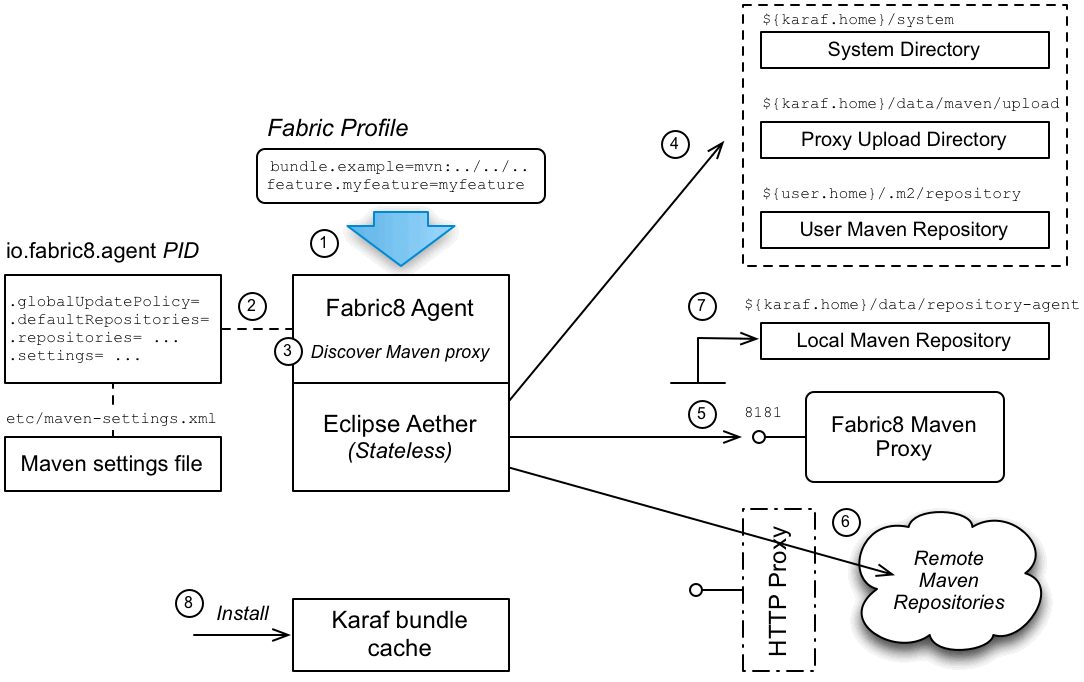
Provisioning steps
Copia collegamentoCollegamento copiato negli appunti!
The steps followed to locate the required Maven artifacts are:
- Provisioning of a profile is triggered when the properties of a current profile are updated. In particular, whenever new bundles or features are added to a profile, the Fabric8 agent is responsible for resolving the new Maven artifacts (referenced through the
mvnURL protocol). - The Fabric8 agent reads its Maven configuration from the
io.fabric8.agentPID in thedefaultprofile (and possibly also from themaven-settings.xmlfile, if so configured). - The Fabric8 agent contacts Zookeeper to discover the URLs of the Fabric8 Maven proxy instances—see Section 14.1, “Introduction to Fabric Maven Proxies”. The Fabric8 agent then inserts the list of Maven proxy URLs at the head of the list of remote Maven repositories.The Fabric8 agent parses the requested
mvnURL and combines this information with the specified configuration—including the list of Maven proxy URLs—in order to invoke the Eclipse Aether library. - When the Aether library is invoked, the first step is to look up the Maven default repositories to try and find the Maven artifact. The following default repositories are configured by default:
InstallDir/system- The AMQ system directory, which contains all of the Maven artifacts bundled with the AMQ distribution.
InstallDir/data/maven/upload- If this container is an ensemble container (running a Maven proxy), this directory would contain any artifacts explicitly uploaded to the Maven proxy. In a managed container, this directory is normally empty.
UserHome/.m2/repository- The user's own local Maven repository in the user's home directory,
UserHome.
If the Maven artifact is found in a default repository, skip straight to step 8. - The Aether library now begins the process of consulting the remote repositories (as specified by the
io.fabric8.agent/org.ops4j.pax.url.mvn.repositoriesPID property and augmented by the list of Maven proxy URLs). This process works in tandem with the local Maven repository (as specified by theio.fabric8.agent/org.ops4j.pax.url.mvn.localRepositoryPID property), which acts as a cache for the remote repositories.The Aether library searches the repositories in the following order:- Local Maven repository—by default,
InstallDir/data/repository-agent, - Maven proxies—iterating over the list of Maven proxy URLs added to the
org.ops4j.pax.url.mvn.repositoriesargument.
NoteIf you are using a HTTP proxy, you should configure the Fabric8 agent to bypass the HTTP proxy when it accesses the Maven proxy hosts. To bypass the HTTP proxy in this case, configure the Maven proxy hosts to be HTTP non-proxy hosts—see the section called “Configuring an HTTP proxy”. - The Aether library continues the process of consulting the remote repositories, by accessing the remote repositories configured in the
io.fabric8.agent/org.ops4j.pax.url.mvn.repositoriesPID property.NoteIf your local network requires you to use a HTTP proxy to access the Internet, it is possible to configure Fabric8 to use a HTTP proxy. For example, see the section called “Configuring an HTTP proxy” for details. - If the Maven artifact is found in the Maven proxy or in a remote repository, Aether automatically installs the artifact into the local Maven repository,
InstallDir/data/repository-agent, so that another remote lookup will not be required. - Finally, assuming that the Maven artifact has been successfully resolved, Karaf installs the artifact in the Karaf bundle cache,
InstallDir/data/cache, and loads the artifact (usually, an OSGi bundle) into the container runtime. At this point, the artifact is effectively installed in the container.
io.fabric8.agent configuration
Copia collegamentoCollegamento copiato negli appunti!
The resolution of Maven artifacts in a managed container is configured by setting properties from the
io.fabric8.agent PID (also known as agent properties). The Maven properties are normally set in the default profile, which ensures that the same settings are used throughout the entire fabric (recommended).
For example, you can see how the Maven properties are set in the
default profile using the fabric:profile-display command, as follows:
The properties prefixed by
org.ops4j.pax.url.mvn.* are the Maven properties used by the Fabric8 agent.
Important
The
org.ops4j.pax.url.mvn.* properties are not related to the Pax URL Aether component. There is some potential for confusion here, because the Fabric8 agent uses the same property names as Pax URL Aether. These properties are read by the Fabric8 agent, however, not by Pax URL Aether (and are associated with the io.fabric8.agent PID, not the org.ops4j.pax.url.mvn PID).
14.3. How a Maven Proxy Resolves Artifacts
Copia collegamentoCollegamento copiato negli appunti!
Overview
Copia collegamentoCollegamento copiato negli appunti!
A Maven proxy is essentially a Web server that is configured to behave like a standard Maven repository server. Remember that the purpose of the Maven proxy is to serve artifacts to remote HTTP clients, not to install artifacts locally. So, although Maven proxy configuration properties have similar names to the managed container case, they ultimately serve quite a different purpose.
Fabric8 Maven proxy server
Copia collegamentoCollegamento copiato negli appunti!
The Fabric8 Maven proxy server is a HTTP server, implemented as a servlet inside the container's default Jetty container. Hence, the Maven proxy server shares the same port number, 8181, as many of the other Karaf container services. On a given host,
Host, the Maven proxy can be accessed through the following URL:
http://Host:8181/maven/download
http://Host:8181/maven/download
The Fabric8 Maven proxy server is configured by setting properties from the
io.fabric8.maven PID and these properties are normally set in the default profile (recommended).
Note
Some other properties are configurable through the
io.fabric8.maven.proxy PID, but these properties do not play an important role in artifact resolution.
Serving artifacts through the Maven proxy
Copia collegamentoCollegamento copiato negli appunti!
Figure 14.2, “Maven Proxy Serving an Artifact” shows how a Maven proxy processes a HTTP download request, by locating the requested Maven artifact and then returning it to the client.
Figure 14.2. Maven Proxy Serving an Artifact
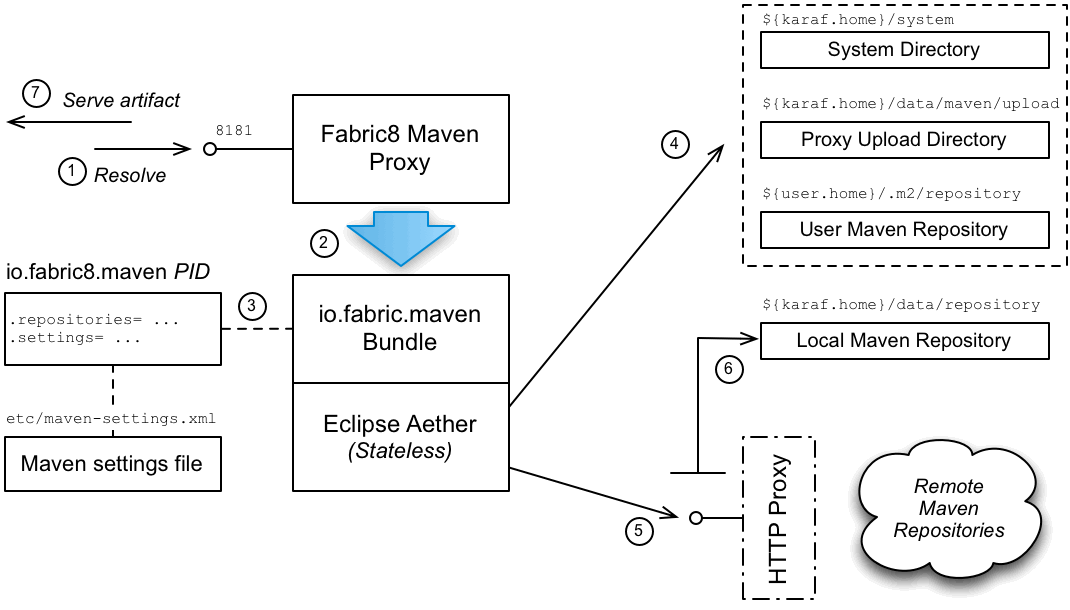
Steps to serve artifacts
Copia collegamentoCollegamento copiato negli appunti!
The steps to serve the required Maven artifacts are, as follows:
- Resolution of a Maven artifact is triggered when a managed container sends a request to the Maven proxy server.
- The Maven proxy server parses the incoming HTTP request and then makes a call to the
io.fabric8.mavenlayer, asking it to resolve the requested Maven artifact. - The
io.fabric8.mavenlayer reads its Maven configuration from theio.fabric8.mavenPID in thedefaultprofile (and possibly also from themaven-settings.xmlfile, if so configured). - When the Aether library is invoked, the first step is to look up the Maven default repositories to try and find the Maven artifact. The following default repositories are configured by default:
InstallDir/system- The AMQ system directory, which contains all of the Maven artifacts that are bundled with the AMQ distribution.
InstallDir/data/maven/upload- The Maven proxy's upload directory, which is used to store artifacts that have been directly uploaded to the Maven proxy—see Section 14.7, “Automated Deployment”.
UserHome/.m2/repository- The user's own local Maven repository in the user's home directory,
UserHome.
If the Maven artifact is found locally, skip straight to step 7. - The Aether library now begins the process of consulting the remote repositories (as specified by the
io.fabric8.maven/io.fabric8.maven.repositoriesPID property which references theio.fabric8.agent/org.ops4j.pax.url.mvn.repositoriesPID property). This process works in tandem with the local Maven repository (as specified by theio.fabric8.maven/io.fabric8.maven.localRepositoryPID property), which acts as a cache for the remote repositories.NoteIf your local network requires you to use a HTTP proxy to access the Internet, it is possible to configure Fabric8 to use a HTTP proxy. For example, see the section called “Configuring an HTTP proxy” for details. - If the Maven artifact is found in a remote repository, Aether automatically installs the artifact into the local Maven repository,
InstallDir/data/repository, so that another remote lookup will not be required. - The Maven proxy server returns the successfully located Maven artifact to the client (or an error message, if the artifact could not be found).
14.4. Configuring Maven Proxies Directly
Copia collegamentoCollegamento copiato negli appunti!
Overview
Copia collegamentoCollegamento copiato negli appunti!
The default approach to configuring the Maven proxy settings is to edit the properties from the
io.fabric8.agent PID and the io.fabric8.maven PID. Because these properties are set in a profile, they are immediately available to all containers in a fabric.
Note
In order to use the direct configuration approach, you must at least set the
org.ops4j.pax.url.mvn.repositories property in the io.fabric8.agent PID. If this property is not set, the Fabric8 agent falls back to reading configuration from the Maven settings file, InstallDir/etc/maven-settings.xml file.
Note
If you also need to configure a HTTP proxy, it is recommended that you take the approach of configuring through the Maven settings file. See Section 14.5, “Configuring Maven Proxies and HTTP Proxies through settings.xml”.
Tools for editing configuration
Copia collegamentoCollegamento copiato negli appunti!
The examples in the following sections show how to modify Maven proxy configuration using Karaf console commands (for example, by invoking
fabric:profile-edit). It is worth recalling, however, that there are several different tools you can use to modify the settings in a fabric:
- Karaf console—use the
fabric:*family of commands (for example,fabric:profile-edit). - Fuse Management Console (Hawtio)—you can edit profile settings through the Profile tab or the Wiki tab in the Fabric perspective of the Hawtio console, http://localhost:8181/hawtio/login.
- Git configuration—you can edit profile settings by cloning the Git profile repository. See Chapter 16, Configuring with Git for details.
Rolling out configuration changes
Copia collegamentoCollegamento copiato negli appunti!
The examples in the following sections show the form of command for editing the current version of the profile, which causes the changes to take effect immediately in the current fabric. If you prefer to have a more controlled rollout of configuration changes, however, you should use profile versioning to roll out the changes (see Section 6.4, “Profile Versions”).
For example, instead of adding a remote repository to the current version of the
default profile, as follows:
profile-edit --pid io.fabric8.agent/org.ops4j.pax.url.mvn.repositories='http://foo/bar@id=myfoo' --append default
profile-edit --pid io.fabric8.agent/org.ops4j.pax.url.mvn.repositories='http://foo/bar@id=myfoo' --append default
You could implement a phased rollout using versions, as follows (assuming the current version is
1.0):
version-create 1.1
profile-edit --pid io.fabric8.agent/org.ops4j.pax.url.mvn.repositories='http://foo/bar@id=myfoo' --append default 1.1
version-create 1.1
profile-edit --pid io.fabric8.agent/org.ops4j.pax.url.mvn.repositories='http://foo/bar@id=myfoo' --append default 1.1
You can now upgrade a specific container to version
1.1, using the following command:
container-upgrade 1.1 mycontainer
container-upgrade 1.1 mycontainerAdding a remote Maven repository
Copia collegamentoCollegamento copiato negli appunti!
To add another remote Maven repository to the list of remote repositories used by the Maven proxy, add the relevant repository URL to the comma-separated list of repository URLs in the
org.ops4j.pax.url.mvn.repositories property of the io.fabric8.agent PID in the default profile (not forgetting to specify the mandatory @id suffix in the repository URL).
For example, to add the
http://foo/bar Maven repository to the list of remote repositories, enter the following console command:
profile-edit --pid io.fabric8.agent/org.ops4j.pax.url.mvn.repositories='http://foo/bar@id=myfoo' --append default
profile-edit --pid io.fabric8.agent/org.ops4j.pax.url.mvn.repositories='http://foo/bar@id=myfoo' --append default
Note the following points about this configuration approach:
- The preceding setting simultaneously updates the
io.fabric8.maven/io.fabric8.maven.repositoriesproperty (which, by default, references theio.fabric8.agent/org.ops4j.pax.url.mvn.repositoriesproperty), which configures the Maven proxy. - By editing this property in the
defaultprofile (which is normally the base profile of every profile), you ensure that this setting is propagated to all containers and to all Maven proxies in the Fabric. - The preceding command immediately changes the configuration of all containers at the current version. If you prefer to implement a phased rollout of the new configuration, use profile versions, as described in Section 6.4, “Profile Versions”.
Note
The
@id option specifies the name of the repository and is required. You can choose an arbitrary value for this ID.
14.5. Configuring Maven Proxies and HTTP Proxies through settings.xml
Copia collegamentoCollegamento copiato negli appunti!
Overview
Copia collegamentoCollegamento copiato negli appunti!
You can optionally configure the Maven proxy using a standard Maven
settings.xml file. For example, this approach is particularly convenient in a development environment, because it makes it possible to store your build time settings and your run time settings in one place.
The Maven
settings.xml approach is not used by default. You must explicitly enable it.
Adding a remote Maven repository
Copia collegamentoCollegamento copiato negli appunti!
A default
settings.xml file is provided for you in InstallDir/etc/maven-settings.xml. To add a new remote Maven repository to the InstallDir/etc/maven-settings.xml file, open the maven-settings.xml file in a text editor and add a new repository XML element. For example, to create an entry for the Red Hat GA public Maven repository, add a repository element as shown:
Important
Do not forget to activate your profile, by adding an
activeProfile element that references the profile ID (in this example, the profile ID is default).
Enabling the settings.xml configuration approach
Copia collegamentoCollegamento copiato negli appunti!
To configure Fabric to read its Maven configuration from a Maven
settings.xml file, perform the following steps:
- Configure the Maven repositories you need in the
InstallDir/etc/maven-settings.xmlfile (see the section called “Adding a remote Maven repository”). - Copy the Maven repositories from the
io.fabric8.agent/org.ops4j.pax.url.mvn.settingsproperty into themaven-settings.xmlfile (normally, you need to preserve access to these repositories). To see the list of repositories from theio.fabric8.agent/org.ops4j.pax.url.mvn.settingsproperty in thedefaultprofile, enter the following Fabric8 command:JBossFuse:karaf@root> profile-display default
JBossFuse:karaf@root> profile-display defaultCopy to Clipboard Copied! Toggle word wrap Toggle overflow Follow the instructions in the section called “Adding a remote Maven repository” to add these repositories set inio.fabric8.agent/org.ops4j.pax.url.mvn.settingsto themaven-settings.xmlfile (if they are not already present). - (Optional) If you want to combine the list of repositories appearing in the
maven-settings.xmlfile with the list of repositories from theio.fabric8.maven/io.fabric8.maven.repositoriesproperty, prepend a+sign to the list of repositories inio.fabric8.maven.repositories. For example:io.fabric8.maven.repositories=+http://repo1.maven.org/maven2@id=maven.central.repo,https://maven.repository.redhat.com/ga@id=redhat.ga.repo,https://maven.repository.redhat.com/earlyaccess/all@id=redhat.ea.repo,https://repository.jboss.org/nexus/content/groupsea@id=fuseearlyaccess
io.fabric8.maven.repositories=+http://repo1.maven.org/maven2@id=maven.central.repo,https://maven.repository.redhat.com/ga@id=redhat.ga.repo,https://maven.repository.redhat.com/earlyaccess/all@id=redhat.ea.repo,https://repository.jboss.org/nexus/content/groupsea@id=fuseearlyaccessCopy to Clipboard Copied! Toggle word wrap Toggle overflow - Delete the
org.ops4j.pax.url.mvn.repositoriesproperty setting from theio.fabric8.agentPID in thedefaultprofile, using the following console command:profile-edit --delete --pid io.fabric8.agent/org.ops4j.pax.url.mvn.repositories default
profile-edit --delete --pid io.fabric8.agent/org.ops4j.pax.url.mvn.repositories defaultCopy to Clipboard Copied! Toggle word wrap Toggle overflow When the repositories setting is absent, Fabric implicitly switches to themaven-settings.xmlconfiguration approach.NoteBy default, this step simultaneously clears both the repository list used by the Fabric8 agent and the repository list used by the Maven proxy server (because the Maven proxy's repository list normally references the Fabric8 agent's repository list).
Changing the default location of Maven settings.xml
Copia collegamentoCollegamento copiato negli appunti!
Fabric is pre-configured to use the
InstallDir/etc/maven-settings.xml file. That is, the following settings are configured by default:
io.fabric8.maven/io.fabric8.maven.settings = ${karaf.etc}/maven-settings.xml
io.fabric8.agent/org.ops4j.pax.url.mvn.settings = ${karaf.etc}/maven-settings.xml
io.fabric8.maven/io.fabric8.maven.settings = ${karaf.etc}/maven-settings.xml
io.fabric8.agent/org.ops4j.pax.url.mvn.settings = ${karaf.etc}/maven-settings.xml
If you need to customize the location of your Maven
settings.xml file, edit the value of these properties in the default profile.
Configuring an HTTP proxy
Copia collegamentoCollegamento copiato negli appunti!
To configure an HTTP proxy (which will be used when connecting to remote Maven repositories), open the
etc/maven-settings.xml file in a text editor and add a new proxy XML element as a child of the proxies XML element. The definition of the proxy follows the standard Maven syntax. For example, to create a proxy for the HTTP (insecure) protocol with host, 127.0.0.1, and port, 3128, add a proxy element as follows:
You must remember to add the ensemble hosts (where the Maven proxy servers are running) to the list of HTTP non-proxy hosts in the
nonProxyHosts element. This ensures that the Fabric8 agents do not attempt to connect to the Maven proxies through the HTTP proxy, but make a direct connection instead. In the preceding example, the ensemble host names are ensemble1, ensemble2, and ensemble3.
By default, HTTPS connections use the same proxy settings as the HTTP protocol. If you need separate configuration for HTTPS, you can optionally add another
proxy element configured with the https protocol.
Reference
Copia collegamentoCollegamento copiato negli appunti!
For a detailed description of the syntax of the Maven
settings.xml file, see the Maven Settings Reference. But please note that not all of the features documented there are necessarily supported by Fabric.
14.6. Securely Accessing Maven Repositories
Copia collegamentoCollegamento copiato negli appunti!
Overview
Copia collegamentoCollegamento copiato negli appunti!
In a Fabric environment, you can implement basic authentication for secure access to Maven repositories. To do this, you add some configuration settings to the
default container profile.
Obtain encrypted Maven passwords
Copia collegamentoCollegamento copiato negli appunti!
The
default profile has the maven-settings.xml template file and the maven-settings-secure.xml template file. You need to update these files to specify encrypted Maven passwords. Before you can do that, you must obtain an encryption of the master Maven password and and an encryption of the ordinary Maven password as follows:
- Invoke the
fabric:maven-passwordcommand to view Maven security settings:JBossFuse:karaf@root> fabric:maven-password Maven security configuration in Fabric environment defined in io.fabric8.maven and io.fabric8.agent PID. Security settings file: /data/servers/jboss-fuse-6.3.0.redhat-311/etc/maven-settings-security.xml Encrypted Maven master password: {PMFs1x/vuOMHhjzIZpzst/d5Kpna+WqNu3P15ZcIP8g=}JBossFuse:karaf@root> fabric:maven-password Maven security configuration in Fabric environment defined in io.fabric8.maven and io.fabric8.agent PID. Security settings file: /data/servers/jboss-fuse-6.3.0.redhat-311/etc/maven-settings-security.xml Encrypted Maven master password: {PMFs1x/vuOMHhjzIZpzst/d5Kpna+WqNu3P15ZcIP8g=}Copy to Clipboard Copied! Toggle word wrap Toggle overflow - Decrypt the master Maven password that is in the security settings:
JBossFuse:karaf@root> fabric:maven-password -d
Maven security configuration in Fabric environment defined in io.fabric8.maven and io.fabric8.agent PID.
Security settings file: /data/servers/jboss-fuse-6.3.0.redhat-311/etc/maven-settings-security.xml
Decrypted Maven master password: fabric:changeit
JBossFuse:karaf@root> fabric:maven-password -d
Maven security configuration in Fabric environment defined in io.fabric8.maven and io.fabric8.agent PID.
Security settings file: /data/servers/jboss-fuse-6.3.0.redhat-311/etc/maven-settings-security.xml
Decrypted Maven master password: fabric:changeit
Copy to Clipboard Copied! Toggle word wrap Toggle overflow - Obtain an encryption for the master Maven password by entering it twice at the prompts:
JBossFuse:karaf@root> fabric:maven-password --encrypt-master-password
Master Maven password:
Verify master Maven password:
Encrypted master Maven password to use in security-settings.xml: {94gq/tbm0IYHZl4M6BstgfnY/iErAy+GKlfXiptLL/Q=}
JBossFuse:karaf@root> fabric:maven-password --encrypt-master-password Master Maven password: Verify master Maven password: Encrypted master Maven password to use in security-settings.xml: {94gq/tbm0IYHZl4M6BstgfnY/iErAy+GKlfXiptLL/Q=}Copy to Clipboard Copied! Toggle word wrap Toggle overflow - Obtain an encryption for the regular Maven password:
JBossFuse:karaf@root> fabric:maven-password --encrypt-password
Looking up master Maven password in /data/servers/jboss-fuse-6.3.0.redhat-311/etc/maven-settings-security.xml... Done!
Maven password:
Verify Maven password:
Encrypted Maven password to use in settings.xml for server and proxy authentication: {WCUxIVlatO4HZG2xrqtVBziJIeDTTuVK1oCNEA2eKEQ=}
JBossFuse:karaf@root> fabric:maven-password --encrypt-password Looking up master Maven password in /data/servers/jboss-fuse-6.3.0.redhat-311/etc/maven-settings-security.xml... Done! Maven password: Verify Maven password: Encrypted Maven password to use in settings.xml for server and proxy authentication: {WCUxIVlatO4HZG2xrqtVBziJIeDTTuVK1oCNEA2eKEQ=}Copy to Clipboard Copied! Toggle word wrap Toggle overflow
Procedure
Copia collegamentoCollegamento copiato negli appunti!
To securely access Maven repositories in a Fabric environment:
- Obtain an encrypted master Maven password and an encrypted regular Maven password, as described in the previous section.
- In the
defaultprofile, configureio.fabric8.agent.properties/org.ops4j.pax.url.mvn.repositoriesas follows:org.ops4j.pax.url.mvn.repositories= http://localhost:8081/repository/maven-releases@id=nexus
org.ops4j.pax.url.mvn.repositories= http://localhost:8081/repository/maven-releases@id=nexusCopy to Clipboard Copied! Toggle word wrap Toggle overflow - In the
defaultprofile, edit themaven-settings.xmlfile to specify the encrypted regular Maven password. For example:Copy to Clipboard Copied! Toggle word wrap Toggle overflow - In the
defaultprofile, edit themaven-settings-security.xmlfile to specify the encrypted master Maven password. For example:<settingsSecurity> <master>{94gq/tbm0IYHZl4M6BstgfnY/iErAy+GKlfXiptLL/Q=}</master> </settingsSecurity><settingsSecurity> <master>{94gq/tbm0IYHZl4M6BstgfnY/iErAy+GKlfXiptLL/Q=}</master> </settingsSecurity>Copy to Clipboard Copied! Toggle word wrap Toggle overflow - Refresh the
defaultprofile so thatfabric-agentuses the updated configuration:profile-refresh default
profile-refresh defaultCopy to Clipboard Copied! Toggle word wrap Toggle overflow - Restart the
fabric-mavenbundle so that the updates are available to the Maven URI handler and to thefabric-maven-proxybundle:bundle:stop io.fabric8.fabric-maven bundle:start io.fabric8.fabric-maven
bundle:stop io.fabric8.fabric-maven bundle:start io.fabric8.fabric-mavenCopy to Clipboard Copied! Toggle word wrap Toggle overflow
14.7. Automated Deployment
Copia collegamentoCollegamento copiato negli appunti!
Overview
Copia collegamentoCollegamento copiato negli appunti!
The Maven proxy supports not just downloading artifacts, but also uploading artifacts. Hence, if you want to make an artifact available to all of the containers in the fabric, a simple way of doing this is to upload the artifact to the Maven proxy. For ultimate convenience in a development environment, you can automate the deployment step by installing the Fabric8 Maven plug-in in your project POM file.
Discover the upload URL of the current master
Copia collegamentoCollegamento copiato negli appunti!
To discover the upload URL of the current Maven proxy master instance, invoke the
fabric:cluster-list command, as follows:
In this example, the upload URL of the current master is
http://127.0.0.1:8181/maven/upload.
Manually deploy a Maven project
Copia collegamentoCollegamento copiato negli appunti!
You can build a Maven project and upload the resulting artifact directly to the Maven proxy server, by invoking
mvn deploy with the altDeploymentRepository command-line option. The value of altDeploymentRepository is specified in the following format:
ID::Layout::RepositoryURL
ID::Layout::RepositoryURL
Where the format segments can be explained as follows:
ID- Can be used to pick up the relevant credentials from the
settings.xmlfile (from the matchingsettings/servers/server/id element). Otherwise, the credentials must be specified in the repository URL. If necessary, you can simply specify a dummy value for the ID. Layout- Can be either
default(for Maven3 or Maven2) orlegacy(for Maven1, which is not compatible with AMQ). RepositoryURL- The Maven proxy upload URL. For example,
http://User:Password@localhost:8181/maven/upload/.
For example, to deploy a Maven project to a Maven proxy server running on the localhost (
127.0.0.1), authenticating with the admin/admin credentials, enter a command like the following:
mvn deploy -DaltDeploymentRepository=releaseRepository::default::http://admin:admin@127.0.0.1:8181/maven/upload/
mvn deploy -DaltDeploymentRepository=releaseRepository::default::http://admin:admin@127.0.0.1:8181/maven/upload/Automatically deploy a Maven project
Copia collegamentoCollegamento copiato negli appunti!
When working in a build environment, the most convenient way to interact with the Maven proxy server is to configure the Fabric8 Maven plug-in. The Fabric8 Maven plug-in can automatically deploy your project to the local Maven proxy and, in addition, has the capability to create or update a Fabric profile for your application. For more details, see Chapter 7, Fabric8 Maven Plug-In.
14.8. Fabric Maven Configuration Reference
Copia collegamentoCollegamento copiato negli appunti!
Overview
Copia collegamentoCollegamento copiato negli appunti!
This section provides a configuration reference for the Maven proxy configuration settings, which includes properties from the
io.fabric8.agent PID, the io.fabric8.maven PID, and the io.fabric8.maven.proxy PID.
Repository URL syntax
Copia collegamentoCollegamento copiato negli appunti!
You can specify a repository location using a URL with a
file:, http:, or https: scheme, optionally appending one or more of the following suffixes:
@snapshots- Allow snapshot versions to be read from the repository.
@noreleases- Do not allow release versions to be read from the repository.
@id=RepoName- (Required) Specifies the repository name. This setting is required by the Aether handler.
@multi- Marks the path as a parent directory of multiple repository directories. At run time the parent directory is scanned for subdirectories and each subdirectory is used as a remote repository.
@update=UpdatePolicy- Specifies the Maven
updatePolicy, overriding the value oforg.ops4j.pax.url.mvn.globalUpdatePolicy. @releasesUpdate=UpdatePolicy- Specifies the Maven
updatePolicyspecifically for release artifacts (overriding the value of@update). @snapshotsUpdate=UpdatePolicy- Specifies the Maven
updatePolicyspecifically for snapshot artifacts (overriding the value of@update). @checksum=ChecksumPolicy- Specifies the Maven
checksumPolicy, which specifies how to react if a downloaded Maven artifact has a missing or incorrect checksum. The policy value can be:ignore,fail, orwarn. @releasesChecksum=ChecksumPolicy- Specifies the Maven
checksumPolicyspecifically for release artifacts (overriding the value of@checksum). @snapshotsChecksum=ChecksumPolicy- Specifies the Maven
checksumPolicyspecifically for snapshot artifacts (overriding the value of@checksum).
For example:
https://repo.example.org/maven/repository@id=example.repo
https://repo.example.org/maven/repository@id=example.repoio.fabric8.agent PID
Copia collegamentoCollegamento copiato negli appunti!
The
io.fabric8.agent PID configures the Fabric8 agent. The io.fabric8.agent PID supports the following properties relating specifically to Maven configuration:
org.ops4j.pax.url.mvn.connection.bufferSize- Configure buffer size for HTTP connections (output and input buffers), defaults to 8192 bytes.
org.ops4j.pax.url.mvn.connection.retryCount- Number of connection retries after failure is detected in HTTP client. Default is
3. org.ops4j.pax.url.mvn.defaultRepositories- Specifies a list of default (local) Maven repositories that are checked before looking up the remote repositories. Specified as a comma-separated list of
file:repository URLs, where each repository URL has the syntax defined in the section called “Repository URL syntax”. org.ops4j.pax.url.mvn.globalChecksumPolicy- Specifies the Maven
checksumPolicy. Thedefaultprofile sets this property towarn. org.ops4j.pax.url.mvn.globalUpdatePolicy- Specifies the Maven
updatePolicy, which determines how often Aether attempts to update local Maven artifacts from remote repositories. Can take the following values:always—always resolve the latest SNAPSHOT from remote Maven repositories.never—never check for newer remote SNAPSHOTS.daily—check on the first run of the day (local time).interval:Mins—check everyMinsminutes.
Thedefaultprofile sets this property todaily. If not set, default isdaily. org.ops4j.pax.url.mvn.localRepository- Specifies the local Maven repository, which is used to cache artifacts downloaded from remote repositories (as specified in
org.ops4j.pax.url.mvn.repositories).Thedefaultprofile sets this property to${karaf.data}/repository-agent. org.ops4j.pax.url.mvn.repositories- Specifies a list of remote Maven repositories that can be searched for Maven artifacts. This property can be used in any of the following ways:
- Use this property and disable
settings.xmlNormally, theorg.ops4j.pax.url.mvn.repositoriesproperty is set as a comma-separated list of repository URLs, where the \ character can be used for line continuation. In this case, any Mavensettings.xmlfile is ignored (that is, theorg.ops4j.pax.url.mvn.settingsproperty setting is ignored). For example, this property is set as follows in thedefaultprofile:org.ops4j.pax.url.mvn.repositories = http://repo1.maven.org/maven2@id=maven.central.repo, https://maven.repository.redhat.com/ga@id=redhat.ga.repo, https://maven.repository.redhat.com/earlyaccess/all@id=redhat.ea.repo, https://repository.jboss.org/nexus/content/groups/ea@id=fuseearlyaccessorg.ops4j.pax.url.mvn.repositories = http://repo1.maven.org/maven2@id=maven.central.repo, https://maven.repository.redhat.com/ga@id=redhat.ga.repo, https://maven.repository.redhat.com/earlyaccess/all@id=redhat.ea.repo, https://repository.jboss.org/nexus/content/groups/ea@id=fuseearlyaccessCopy to Clipboard Copied! Toggle word wrap Toggle overflow - Use
settings.xmland disable this propertyIf you want to use a Mavensettings.xmlfile to configure the list of remote repositories instead of this property, you must remove theorg.ops4j.pax.url.mvn.repositoriesproperty settings from the profile. For example, assuming that this property is set in the default profile, you can delete it with the following command:profile-edit --delete --pid io.fabric8.agent/org.ops4j.pax.url.mvn.repositories default
profile-edit --delete --pid io.fabric8.agent/org.ops4j.pax.url.mvn.repositories defaultCopy to Clipboard Copied! Toggle word wrap Toggle overflow
org.ops4j.pax.url.mvn.settings- Specifies a path on the file system to override the default location of the Maven
settings.xmlfile. The Fabric8 agent resolves the location of the Mavensettings.xmlfile in the following order:- The location specified by
org.ops4j.pax.url.mvn.settings. ${user.home}/.m2/settings.xml${maven.home}/conf/settings.xmlM2_HOME/conf/settings.xml
NoteAllsettings.xmlfiles are ignored, if theorg.ops4j.pax.url.mvn.repositoriesproperty is set. org.ops4j.pax.url.mvn.socket.connectionTimeout- Timeout in milliseconds when establishing a HTTP connection during artifact resolution.
org.ops4j.pax.url.mvn.socket.keepAliveSO_KEEPALIVEoption for sockets. Defaults tofalse.org.ops4j.pax.url.mvn.socket.lingerSO_LINGERoption for sockets. Defaults to-1.org.ops4j.pax.url.mvn.socket.readTimeout- Timeout in milliseconds when reading data after connecting to a remote repository.
org.ops4j.pax.url.mvn.socket.reuseAddressSO_REUSEADDRoption for sockets. Defaults tofalse.org.ops4j.pax.url.mvn.socket.tcpNoDelayTCP_NODELAYoption for sockets. Defaults totrue.org.ops4j.pax.url.mvn.timeout- Default value for connection and read timeouts, when
socket.readTimeoutandsocket.connectionTimeoutare not specified.
io.fabric8.maven PID
Copia collegamentoCollegamento copiato negli appunti!
The
io.fabric8.maven PID configures the io.fabric8.maven bundle (which is used by the Maven proxy server) and supports the following properties:
io.fabric8.maven.connection.bufferSize- Configure buffer size for HTTP connections (output and input buffers), defaults to 8192 bytes.
io.fabric8.maven.connection.retryCount- Number of connection retries after failure is detected in HTTP client. Default is
3. io.fabric8.maven.defaultRepositories- Specifies a list of default (local) Maven repositories that are checked before looking up the remote repositories. Specified as a comma-separated list of
file:repository URLs, where each repository URL has the syntax defined in the section called “Repository URL syntax”.Thedefaultprofile sets this property to reference theorg.ops4j.pax.url.mvn.defaultRepositoriesproperty from theio.fabric8.agentPID. io.fabric8.maven.globalChecksumPolicy- Specifies the Maven
checksumPolicy. Thedefaultprofile sets this property towarn. io.fabric8.maven.globalUpdatePolicy- Specifies the Maven
updatePolicy, which determines how often Aether attempts to update local Maven artifacts from remote repositories.Thedefaultprofile sets this property todaily. If not set, default isdaily. io.fabric8.maven.localRepository- Specifies the local Maven repository, which is used to cache artifacts downloaded from remote repositories (as specified in
io.fabric8.maven.repositories).Thedefaultprofile sets this property to${karaf.data}/repository. io.fabric8.maven.proxies- (Obsolete) This option does not work any more. In older Fabric8 releases it was used to configure a HTTP proxy port.
io.fabric8.maven.repositories- Specifies a list of remote Maven repositories that can be searched for Maven artifacts. This setting normally references the contents of the
io.fabric8.agent/org.ops4j.pax.url.mvn.repositoriesproperty.If you decide to use a Mavensettings.xmlfile to configure the Fabric8 agent (see Section 14.5, “Configuring Maven Proxies and HTTP Proxies through settings.xml”), you can combine the remote repositories specified in this setting and the remote repositories configured in asettings.xmlfile using a special syntax for the list of repository URLs. In this case, you prefix a single+character to the comma-separated list of repository URLs, where the repository URLs are listed on a single line (the\line continuation character is not supported in this syntax). For example:io.fabric8.maven.repositories=+http://repo1.maven.org/maven2@id=maven.central.repo,https://maven.repository.redhat.com/ga@id=redhat.ga.repo,https://maven.repository.redhat.com/earlyaccess/all@id=redhat.ea.repo,https://repository.jboss.org/nexus/content/groupsea@id=fuseearlyaccess
io.fabric8.maven.repositories=+http://repo1.maven.org/maven2@id=maven.central.repo,https://maven.repository.redhat.com/ga@id=redhat.ga.repo,https://maven.repository.redhat.com/earlyaccess/all@id=redhat.ea.repo,https://repository.jboss.org/nexus/content/groupsea@id=fuseearlyaccessCopy to Clipboard Copied! Toggle word wrap Toggle overflow io.fabric8.maven.settings- Specifies a path on the file system to override the default location of the Maven
settings.xmlfile.Thedefaultprofile sets this property to${karaf.etc}/maven-settings.xml. io.fabric8.maven.useFallbackRepositories- This option is deprecated and should always be set to
false.Thedefaultprofile sets this property tofalse. io.fabric8.maven.socket.connectionTimeout- Timeout in milliseconds when establishing a HTTP connection during artifact resolution.
io.fabric8.maven.socket.keepAliveSO_KEEPALIVEoption for sockets. Defaults tofalse.io.fabric8.maven.socket.lingerSO_LINGERoption for sockets. Defaults to-1.io.fabric8.maven.socket.readTimeout- Timeout in milliseconds when reading data after connecting to a remote repository.
io.fabric8.maven.socket.reuseAddressSO_REUSEADDRoption for sockets. Defaults tofalse.io.fabric8.maven.socket.tcpNoDelayTCP_NODELAYoption for sockets. Defaults totrue.io.fabric8.maven.timeout- Default value for connection and read timeouts, when
socket.readTimeoutandsocket.connectionTimeoutare not specified.
io.fabric8.maven.proxy PID
Copia collegamentoCollegamento copiato negli appunti!
The
io.fabric8.maven.proxy PID configures the Fabric8 Maven proxy server and supports the following properties:
appendSystemRepos- The
fabricprofile sets this property tofalse. role- Specifies a comma-separated list of security roles that are allowed to access the Maven proxy server. For details of role-based access control, see section "Role-Based Access Control" in "Security Guide".The
defaultprofile sets this property to the following list:admin,manager,viewer,Monitor,Operator,Maintainer,Deployer,Auditor,Administrator,SuperUser
admin,manager,viewer,Monitor,Operator,Maintainer,Deployer,Auditor,Administrator,SuperUserCopy to Clipboard Copied! Toggle word wrap Toggle overflow updatePolicy- Specifies the Maven
updatePolicy.Thefabricprofile sets this property toalways. uploadRepository- Specifies the location of the directory used to store artifacts uploaded to the Maven proxy server.The
fabricprofile sets this property to${runtime.data}/maven/upload.
Chapter 15. Offline Repositories
Copia collegamentoCollegamento copiato negli appunti!
Abstract
Its quite common a common requirement to need offline repositories: either as a local cache of remote Maven repositories, or in cases where production machines do not have access to the Internet.
15.1. Offline Repository for a Profile
Copia collegamentoCollegamento copiato negli appunti!
Download into a specified directory
Copia collegamentoCollegamento copiato negli appunti!
To download all the bundles and features of a given profile,
ProfileName, enter the following console command:
fabric:profile-download-artifacts --profile ProfileName /tmp/myrepo
fabric:profile-download-artifacts --profile ProfileName /tmp/myrepo
This command downloads all the bundles and features for the default version of the given profile into the
/tmp/myrepo directory.
Download into the system folder
Copia collegamentoCollegamento copiato negli appunti!
If you omit the path, the
fabric:profile-download command installs the files to the system folder inside the current Fuse container (thereby populating the local maven repository for the container). For example:
fabric:profile-download-artifacts --profile ProfileName
fabric:profile-download-artifacts --profile ProfileName15.2. Offline Repository for a Version
Copia collegamentoCollegamento copiato negli appunti!
Download the current version
Copia collegamentoCollegamento copiato negli appunti!
To download all the bundles and features for all the profiles in the default version, enter the following console command:
fabric:profile-download-artifacts /tmp/myrepo
fabric:profile-download-artifacts /tmp/myrepoDownload a specific version
Copia collegamentoCollegamento copiato negli appunti!
You can specify the version to download using the
--version option, as follows:
fabric:profile-download-artifacts --version 1.0 /tmp/myrepo
fabric:profile-download-artifacts --version 1.0 /tmp/myrepo
If you omit the path the
fabric:profile-download command installs the files into thesystem folder inside the current Fuse container (thereby populating the local maven repository for the container).
15.3. Offline Repository for a Maven Project
Copia collegamentoCollegamento copiato negli appunti!
Download repository for Maven project
Copia collegamentoCollegamento copiato negli appunti!
If you have a Maven project and you need to create an offline repository for building this project and its runtime dependencies, you can use the maven dependency plugin.
For example, from the top-level directory of a Maven project (such that the current directory has a
pom.xml file), you should be able to run the following Maven command:
mvn org.apache.maven.plugins:maven-dependency-plugin:2.8:go-offline -Dmaven.repo.local=/tmp/cheese
mvn org.apache.maven.plugins:maven-dependency-plugin:2.8:go-offline -Dmaven.repo.local=/tmp/cheese
Which downloads all the Maven dependencies and plug-ins required to build the project to the
/tmp/cheese directory.
Chapter 16. Configuring with Git
Copia collegamentoCollegamento copiato negli appunti!
Abstract
Fabric implicitly uses Git to store much of its configuration data (in particular, for storing versioned profile data). Normally, this aspect of Fabric is completely transparent, and there is no need to be concerned with the Git functionality inside Fabric. But if you want to, you have the option of tapping directly into the Git layer inside Fabric, in order to manage Fabric configurations.
16.1. How Git Works inside Fabric
Copia collegamentoCollegamento copiato negli appunti!
Cluster architecture
Copia collegamentoCollegamento copiato negli appunti!
When Fabric is configured as a Git cluster, the Git configuration layer works as follows:
- Each Fabric server has its own clone of the Git configuration.
- One Fabric server is elected to be the master instance, and serves as the master remote repository for the other Fabric servers.
- All configuration changes made in the other Fabric servers (the slave instances) are pushed to the master instance.
- When changes occur in the master, the slaves automatically pull the new configuration from the master.
- If the master instance is stopped, another container is elected to be the master (failover).
- An administrator can access the Git configuration layer by cloning a local Git repository from the master instance. By pushing updates from this local repository, the administrator can change the configuration of the fabric.
External Git repository architecture
Copia collegamentoCollegamento copiato negli appunti!
When Fabric is configured with an external Git repository, the Git configuration layer works as follows:
- The external Git repository is created in an external Git server (for example, using a service such as GitLab or Gerrit).
- When the Fabric is created, it automatically populates the external Git repository with the default configuration (which is initialized by reading the
InstallDir/fabric/importdirectory). - Each Fabric server maintains a synchronized state with the external Git repository.
- All configuration changes made in the Fabric servers are pushed to the external Git repository.
- When changes occur in the external Git repository, the Fabric servers automatically pull the new configuration from the external Git repository.
- An administrator can access the Git configuration layer by cloning a local Git repository from the external Git repository. By pushing updates from this local repository to the external Git repository, the administrator can change the configuration of the fabric.
What is stored in the Git repositories?
Copia collegamentoCollegamento copiato negli appunti!
The Git repositories in Fabric are used to store Fabric profile configuration data. A Fabric profile consists of the resources, configuration data, and meta-data required to deploy an application into a Fabric container.
Git branches
Copia collegamentoCollegamento copiato negli appunti!
The branches of the Git repository correspond directly to profile versions in Fabric. For example, if you enter the following console command:
JBossFuse:karaf@root> fabric:version-create
Created version: 1.1 as copy of: 1.0
JBossFuse:karaf@root> fabric:version-create
Created version: 1.1 as copy of: 1.0
You will discover that the underlying Git repository now has a new branch called
1.1. In fact, most of the Fabric version commands are approximately equivalent to a corresponding git command, as shown in the following table:
| Fabric Version Command | Analogous Git Command |
|---|---|
fabric:version-create NewBranch
|
git branch NewBranch
|
fabric:version-list
|
git branch
|
fabric:version-set-default Branch
|
git checkout Branch
|
fabric:version-delete Branch
|
git branch -d Branch
|
Configuring through the console commands
Copia collegamentoCollegamento copiato negli appunti!
When you make any changes to profiles using the console commands, these changes are implicitly committed to the underlying Git repository. Hence, some of the console commands are equivalent to Git operations. For example, if you create a new profile by invoking
fabric:profile-create, new files are added to the Git repository, and the changes are committed. Similarly, when you edit a profile using the fabric:profile-edit command, these changes are added and committed to the underlying Git repository.
Prerequisites
Copia collegamentoCollegamento copiato negli appunti!
Fabric itself does not require any
git binaries to be installed on your system, because it is implemented using the JGit library. You will need to install Git binaries on your local system, however, if you want to configure Fabric directly through Git, using a clone of the Git repository.
Configuring directly through Git
Copia collegamentoCollegamento copiato negli appunti!
There are two alternative ways of setting up a fabric to use Git configuration, as follows:
16.2. Using a Git Cluster
Copia collegamentoCollegamento copiato negli appunti!
Overview
Copia collegamentoCollegamento copiato negli appunti!
Figure 16.1, “Git Cluster Architecture” shows an overview of the Fabric architecture when the fabric is configured to use a Git cluster.
Figure 16.1. Git Cluster Architecture
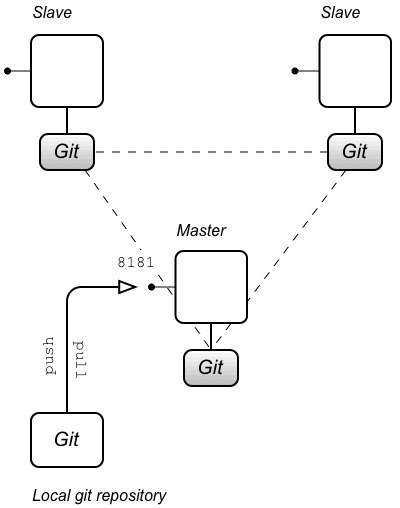
Clone the Git repository
Copia collegamentoCollegamento copiato negli appunti!
When a fabric is configured with a Git cluster, the current master behaves as a Git server. This means that you can clone the Git repository directly from the Fabric server that is the master.
Clone the Git repository using a command like the following:
git clone -b 1.0 http://Hostname:Port/git/fabric
$ git clone -b 1.0 http://Hostname:Port/git/fabric
Where
Hostname and Port are the hostname and IP port of the master Fabric server. Note the following points:
- The port number,
Port, is usually8181, by default. But if you deploy multiple Fabric containers on the same host, their HTTP ports are automatically incremented, 8182, 8183, (or whichever is the next available port number at the time the container is created). - The
-boption is used to check out the1.0Git branch, which corresponds to version 1.0 of the Fabric profile data. There is also amasterbranch, but it is normally not used by the Fabric servers. - You can also see a sample clone command in the Fuse Management Console, if you navigate to the Container: page for the relevant container, click on the URLs tag, and go to the Git: field. Note, however, that if you try to clone from a slave instance, you will get an error (the Fuse Management Console currently does not indicate whether the container is a slave or a master).
Important
Do not attempt to clone your repository directly from the
InstallDir/data/git/local/fabric directory (which holds the container's local Git repository). This approach does not work. When you push and pull to the container's HTTP port, it automatically triggers synchronization events within the Git cluster. These necessary synchronizations would be bypassed, if you cloned from a directory.
Authentication
Copia collegamentoCollegamento copiato negli appunti!
The Git server exposed by the Fabric is deployed into the container's Jetty container and shares the same security configuration as other default HTTP services. In particular, the HTTP port is configured to request credentials through the HTTP BASIC authentication protocol, and these credentials are then authenticated in the container using the standard JAAS authentication infrastructure. In practice, this means you can use any of the JAAS credentials configured in the fabric to log on to the Git server.
You can use one of the following alternatives to specify the credentials for Git:
- Let Git prompt you for credentials—this is the default, if you use a Git URL of the form,
http://Hostname:Port/git/fabric. - Embed credentials in the Git URL—you can embed the credentials directly in the Git URL, using the following syntax:
http://User:Pass@Hostname:Port/git/fabric
http://User:Pass@Hostname:Port/git/fabricCopy to Clipboard Copied! Toggle word wrap Toggle overflow
Basic tasks with Git
Copia collegamentoCollegamento copiato negli appunti!
You can now use standard Git commands to perform basic configuration tasks in Fabric:
- Push to the Fabric Git server—you can use your local Git repository to edit profile configurations and push the changes up to the fabric. For example, to edit the Camel route in the
quickstarts-beginner-camel.log.wikiprofile:- Make sure that you are working in the correct branch (initially, this should be branch
1.0):cd LocalGitRepo git checkout 1.0
$ cd LocalGitRepo $ git checkout 1.0Copy to Clipboard Copied! Toggle word wrap Toggle overflow - Edit the following Blueprint XML file in your local Git repository, to alter the Camel route:
LocalGitRepo/fabric/profiles/quickstarts/beginner/camel.log.wiki.profile/camel-log.xml
LocalGitRepo/fabric/profiles/quickstarts/beginner/camel.log.wiki.profile/camel-log.xmlCopy to Clipboard Copied! Toggle word wrap Toggle overflow - Add and commit the changes locally, using Git commands:
git add -u git commit -m "Changed the route in camel.log.wiki"
$ git add -u $ git commit -m "Changed the route in camel.log.wiki"Copy to Clipboard Copied! Toggle word wrap Toggle overflow - Push the changes to the fabric:
git push
$ git pushCopy to Clipboard Copied! Toggle word wrap Toggle overflow This updates the configuration in all of the Fabric servers in the Git cluster. If any of the containers in your fabric have deployed thequickstarts-beginner-camel.log.wikiprofile, they will immediately be updated with the changes.
- Pull from the Fabric Git server—if you change the profile configuration using commands in the Karaf console, you can synchronize those changes with your local Git repository by doing a
git pull. For example, to edit the Camel route in thequickstarts-beginner-camel.log.wikiprofile from the Karaf console:- In the Karaf console, you can edit the Camel route from the
quickstarts-beginner-camel.log.wikiprofile by entering the following console command:fabric:profile-edit --resource camel-log.xml quickstarts-beginner-camel.log.wiki
fabric:profile-edit --resource camel-log.xml quickstarts-beginner-camel.log.wikiCopy to Clipboard Copied! Toggle word wrap Toggle overflow - You can now synchronize your local Git repository to these changes. Open a command prompt, and enter the following commands:
cd LocalGitRepo
git checkout 1.0
$ cd LocalGitRepo
$ git checkout 1.0
Copy to Clipboard Copied! Toggle word wrap Toggle overflow - Pull the changes from the fabric:
git pull
$ git pullCopy to Clipboard Copied! Toggle word wrap Toggle overflow
What happens after a failover?
Copia collegamentoCollegamento copiato negli appunti!
So far, we have been assuming that the master instance remains unchanged, so that the master instance is synonymous with the
origin upstream repository. But what happens if there is a failover? For example, if the Fabric server that is the master instance is stopped and restarted. If your ensemble consists of only one Fabric server, this makes no difference, because there is no other server to fail over to. But if there are three (or five) servers in your ensemble, one of the other Fabric servers will automatically be elected as the new master.
The consequence for your local Git repository is that the origin repository is no longer the master instance. Hence, if you try to do a
git push or a git pull after failover, you will get the following error:
git pull
fatal: repository 'http://Hostname:8181/git/fabric/' not found
$ git pull
fatal: repository 'http://Hostname:8181/git/fabric/' not foundAdding multiple upstream repositories
Copia collegamentoCollegamento copiato negli appunti!
Currently, there is no mechanism in Git for failing over automatically to an alternative Git server. But what you can do in Git is to add multiple upstream repositories. It then becomes possible to push to and pull from alternative Git repositories, as long as you name them explicitly in the command line.
For example, consider the case where there are two additional Fabric servers in a Git cluster (making three in total). You can add the two additional servers as upstream repositories, using the following Git commands:
git remote add ensemble2 Ensemble2GitURL
git remote add ensemble3 Ensemble3GitURL
$ git remote add ensemble2 Ensemble2GitURL
$ git remote add ensemble3 Ensemble3GitURL
You can then push to either of these repositories explicitly, using a command of the form:
git push UpstreamName BranchName
$ git push UpstreamName BranchName
For example, to push to branch
1.0 of the ensemble2 Git server:
git push ensemble2 1.0
$ git push ensemble2 1.0
Only one of the repositories,
origin, ensemble2, ensemble3, is accessible at one time, however (whichever is the master).
Git cluster tutorial
Copia collegamentoCollegamento copiato negli appunti!
The following tutorial explains how to create a fabric, which demonstrates a master-slave cluster of Git repositories:
- (Optional) Prepare the container for a cold start. Delete the following directories:
InstallDir/data InstallDir/instances
InstallDir/data InstallDir/instancesCopy to Clipboard Copied! Toggle word wrap Toggle overflow ImportantPerforming a cold start completely wipes the current state of the root container, including all of the deployed bundles, and features, and most of the stored data. Do not perform this operation on a production system. - Start up the container, by entering the following command:
./bin/amq
./bin/amqCopy to Clipboard Copied! Toggle word wrap Toggle overflow - Create a new fabric. At the container prompt, enter the following console command:
fabric:create --new-user admin --new-user-password AdminPass --new-user-role Administrator \ --zookeeper-password ZooPass --global-resolver manualip \ --resolver manualip --manual-ip 127.0.0.1 --wait-for-provisioning
fabric:create --new-user admin --new-user-password AdminPass --new-user-role Administrator \ --zookeeper-password ZooPass --global-resolver manualip \ --resolver manualip --manual-ip 127.0.0.1 --wait-for-provisioningCopy to Clipboard Copied! Toggle word wrap Toggle overflow You need to substitute your own values forAdminPassandZooPass. This sample command uses the--manual-ipoption to assign the loopback address,127.0.0.1, to the root container. If your host has a static IP address and hostname assigned to it, however, it would be better to use the assigned hostname here instead.You need to wait a minute or two for this command to complete. - Create two new child containers in the fabric, by entering the following console command:
fabric:container-create-child --profile fabric root ensemble 2
fabric:container-create-child --profile fabric root ensemble 2Copy to Clipboard Copied! Toggle word wrap Toggle overflow This command returns quickly, with the following message:The following containers have been created successfully: Container: ensemble. Container: ensemble2.
The following containers have been created successfully: Container: ensemble. Container: ensemble2.Copy to Clipboard Copied! Toggle word wrap Toggle overflow But it takes a couple of more minutes for the new child containers to be completely provisioned. Check the status of the child containers, by entering the following command:fabric:container-list
fabric:container-listCopy to Clipboard Copied! Toggle word wrap Toggle overflow Wait until the child containers have a[provision status]ofsuccessbefore proceeding. - Add the two child containers to the Fabric ensemble, so that the Fabric ensemble consists of three containers in all:
root,ensemble, andensemble2. Enter the following console command:fabric:ensemble-add ensemble ensemble2
fabric:ensemble-add ensemble ensemble2Copy to Clipboard Copied! Toggle word wrap Toggle overflow Wait until the ensemble containers have been successfully provisioned before proceeding. - Clone the Git repository. The three containers in the Fabric ensemble now constitute a Git cluster. Initially, the
rootcontainer is the master instance of the cluster, so you should attempt to clone the Git repository from the HTTP port exposed by therootcontainer.Open a new command prompt and, at a convenient location in the file system, enter the following command:git clone -b 1.0 http://127.0.0.1:8181/git/fabric
git clone -b 1.0 http://127.0.0.1:8181/git/fabricCopy to Clipboard Copied! Toggle word wrap Toggle overflow This command clones the Fabric Git repository and checks out the1.0branch. You should now be able to see the profile configuration files under thefabric/profilessubdirectory.If therootcontainer is not the current master, you can expect to see an error message like the following when you attempt to clone:Cloning into 'fabric'... fatal: repository 'http://127.0.0.1:8181/git/fabric/' not found
Cloning into 'fabric'... fatal: repository 'http://127.0.0.1:8181/git/fabric/' not foundCopy to Clipboard Copied! Toggle word wrap Toggle overflow - In the next few steps, we explore the failover behaviour of the Git cluster. First of all, we stop the
rootcontainer (the current Git master), in order to force a failover. In the root container console, enter theshutdowncommand, as follows:JBossFuse:karaf@root> shutdown Confirm: shutdown instance root (yes/no): yes
JBossFuse:karaf@root> shutdown Confirm: shutdown instance root (yes/no): yesCopy to Clipboard Copied! Toggle word wrap Toggle overflow - Now restart the root container, by entering the following command:
./bin/amq
./bin/amqCopy to Clipboard Copied! Toggle word wrap Toggle overflow - Return to the command prompt where you cloned the Git repository and try to do a
git pull, as follows:cd fabric git pull
cd fabric git pullCopy to Clipboard Copied! Toggle word wrap Toggle overflow You will get an error like the following:git pull fatal: repository 'http://127.0.0.1:8181/git/fabric/' not found
$ git pull fatal: repository 'http://127.0.0.1:8181/git/fabric/' not foundCopy to Clipboard Copied! Toggle word wrap Toggle overflow Because the root container (listening on IP port 8181) is no longer the master.NoteIn this example, because all of the ensemble containers are running on the same host, the ensemble containers are distinguished by having different IP port numbers (8181, 8182, and 8183). If you created the other ensemble containers on separate hosts, however, they would all have the same port number (8181), but different host names. - One of the other Fabric servers (
ensembleorensemble2) is now the master. To gain access to the master, try adding both of the alternative Git URLs as upstream repositories. From a directory in the cloned Git repository, enter the following commands:git remote add ensemble http://127.0.0.1:8182/git/fabric git remote add ensemble2 http://127.0.0.1:8183/git/fabric
$ git remote add ensemble http://127.0.0.1:8182/git/fabric $ git remote add ensemble2 http://127.0.0.1:8183/git/fabricCopy to Clipboard Copied! Toggle word wrap Toggle overflow - You can now try pulling from one of the other Fabric servers. You can either pull from the
ensemblecontainer (pulling branch1.0), as follows:git pull ensemble 1.0
$ git pull ensemble 1.0Copy to Clipboard Copied! Toggle word wrap Toggle overflow Or from theensemble2container (pulling branch1.0), as follows:git pull ensemble2 1.0
$ git pull ensemble2 1.0Copy to Clipboard Copied! Toggle word wrap Toggle overflow Only one of these alternatives can succeed (pulling from the master). Pulling from the slave instance returns an error. - After you have identified the current master, you can proceed to push and pull using the long form of the
gitcommands (for example,git pull RemoteName BranchName).
16.3. Using an External Git Repository
Copia collegamentoCollegamento copiato negli appunti!
Overview
Copia collegamentoCollegamento copiato negli appunti!
Figure 16.2, “External Git Repository Architecture” shows an overview of the Fabric architecture when the fabric is configured to use an external Git repository.
Figure 16.2. External Git Repository Architecture
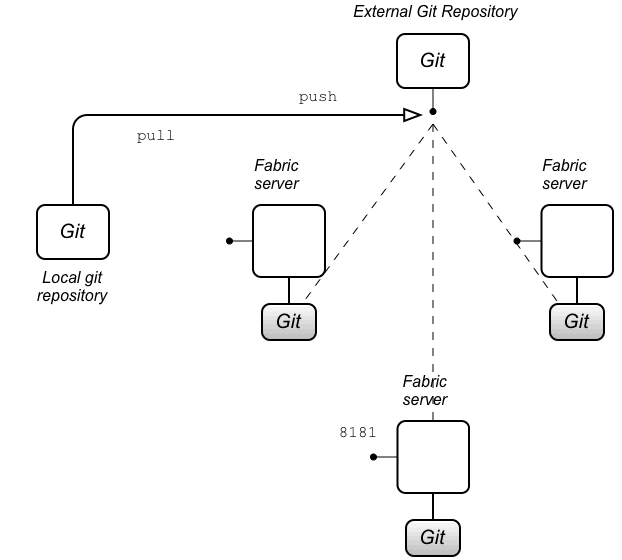
External git repository architecture
Copia collegamentoCollegamento copiato negli appunti!
When you configure a fabric with an external Git repository (which must be done at fabric creation time), the external Git repository becomes the primary Git repository for all of the containers in the Fabric. All of the Fabric servers in the ensemble maintain their own copy of the Git repository (under their respective
data/ directories), but this local copy is kept up-to-date by regularly polling the external Git repository for updates. If a change is detected in the external Git repository, every Fabric server will do a git pull to update it's local copy of the Git repository.
It is also possible for an administrator to clone a local copy of the external Git repository. Using standard
git commands, the administrator can now edit the configuration files in the local copy and push the changes to the external Git repository. As soon as those changes are received by the external Git repository, the Fabric servers will detect that an update has occurred and pull the latest configuration.
Preparing an external Git repository
Copia collegamentoCollegamento copiato negli appunti!
When setting up this type of Fabric architecture, the first step is to prepare an external Git repository. When setting up this repository, you should pay attention to the following points:
- The Git repository must be initialized. For example, if you were creating a new Git repository on your local file system, you would initialize it using the command
git init. If you are using a Git server to host your repository (for example, Gerrit, GitLab, or GitHub), the Git repository is usually initialized automatically, after you create it. - You must ensure that all of your Fabric servers are able to access the external Git repository. For example, if your Git server uses a HTTP based protocol to access the repository, you are generally required to have username/password credentials for the HTTP BASIC authentication protocol.
Authentication
Copia collegamentoCollegamento copiato negli appunti!
In this architecture, authentication is handled by the external Git repository (and the Git server that hosts it). The most common cases are:
- HTTP URL—in this case, the Git server is likely to use HTTP with TLS (HTTPS), to verify the server identity, and HTTP BASIC authentication, to verify the client identity. When creating the fabric (with the
fabric:createcommand), you need to specify the following additional options in this case:--external-git-url ExternalGitHttpUrl--external-git-user ExternalGitUser--external-git-password ExternalGitPass
- File URL—in this case, no authentication is required. You can specify the Git URL either in the form
/path/to/repo(recommended) orfile:///path/to/repo(slower). If the Fabric servers are deployed on separate hosts, you must make sure that they all have access to the specified directory (for example, through a Network File Server). When creating the fabric (with thefabric:createcommand), you need to specify the following additional options in this case:--external-git-url ExternalGitFileUrl
Creating a fabric with an external Git repository
Copia collegamentoCollegamento copiato negli appunti!
Typically, to create a fabric with an external Git repository, you would enter a console command like the following:
fabric:create --new-user admin --new-user-password AdminPass --new-user-role Administrator \ --zookeeper-password ZooPass --global-resolver manualip \ --resolver manualip --manual-ip StaticIPAddress --wait-for-provisioning \ --external-git-url ExternalGitHttpUrl \ --external-git-user ExternalGitUser --external-git-password ExternalGitPass
fabric:create --new-user admin --new-user-password AdminPass --new-user-role Administrator \
--zookeeper-password ZooPass --global-resolver manualip \
--resolver manualip --manual-ip StaticIPAddress --wait-for-provisioning \
--external-git-url ExternalGitHttpUrl \
--external-git-user ExternalGitUser --external-git-password ExternalGitPass
Note the following points:
- A new user is created with username,
admin, password,AdminPass, and role,Administrator. You can use these JAAS credentials to log on to any of the containers in the fabric. - The Zookeeper password is set to
ZooPass(the only time you are prompted to enter the Zookeeper password is when joining a container to the fabric). - The resolver policy for the root container is set to
manualip(using the--resolveroption) and the global resolver policy (which becomes the default resolver policy for containers created in this fabric) is also set tomanualip. This enables you to specify the root container's IP address,StaticIPAddress, explicitly. It is essential that you assign a static IP address to the Fabric server host (for demonstrations and tests on a single machine, you can use the loopback address,127.0.0.1). - The Git URL,
ExternalGitHttpUrl, is specified through the--external-git-urloption. - Assuming that you use a HTTP Git URL with BASIC authentication enabled, you will also need to specify credentials, using the
--external-git-userand--external-git-passwordoptions.
What happens if the external Git repository fails?
Copia collegamentoCollegamento copiato negli appunti!
Because the external Git repository is the primary Git repository, which is used to synchronize configuration data with the other Fabric servers, it is technically a single point of failure. The effect of a failure of the external Git repository is not as serious as you might think, however. It does not lead to a failure of the Fabric servers. In case of an external Git repository failure (or a loss of connectivity) the Fabric servers continue to operate with the configuration data they have already cached in their local copies of the Git repository. As soon as the external Git repository comes back on line, they will re-synchronize their configuration data.
Synchronizing Git Repository
Copia collegamentoCollegamento copiato negli appunti!
Each container maintains local copy of Git repository (a clone in git terminology) that is synchronized with single remote Git repository (git remote) (either entirely external, or one managed by one of Fabric containers itself - one is chosen from list of available Git repositories running in master-slaves configuration). All containers synchronize their local copies with central in two ways:
- by doing periodical git pull operation (in case of external git repository)
- after triggering event sent via Zookeeper registry - typically after invocation of
fabric:profile-editcommand or after an update to a profile via hawtio application
In ideal state, all containers maintain local copies that are identical to remote (reference) version. But in some scenarios, the synchronization state may not be correct, for example, networking operation failure. Red Hat Fuse introduces two new diagnostic commands that help in such situations:
- fabric:git-summary
- fabric:git-synchronize
fabric:git-summary
Copia collegamentoCollegamento copiato negli appunti!
fabric:git-summary command retrieves status of git repository and its branches or versions. The command asks all (or selected) containers to send an information about the state of each version tracked in their local Git repository.The syntax is as follows:
fabric:git-summary [options] [container]
fabric:git-summary [options] [container]
where,
container refers to the container names.
The Options for
fabric:git-summary command are as follows:
| Option | Description |
|---|---|
|
-a, --all
|
Send command to all containers
|
|
-t, --timeout
|
Timeout used when waiting for response(s). (defaults to 5000)
|
|
--help
|
Display the help message for the command
|
fabric:git-summary examples
Copia collegamentoCollegamento copiato negli appunti!
Following example shows output of
fabric:git-summary --all
Firstly, this command prints information about current master Git repository (root in this case). It also prints the configured git master URL for each container. For git master summary, it prints
Git master URL: <current container>. For each container it prints Git master URL: http://example.com:8181/git/fabric/. This allows you to verify that all containers are configured correctly with git master server.
Next it shows that the command is sent (technically - via Zookeeper registry) to 3 containers asynchronously. There is at most one summary for master Git repository (zero if master Git repository can't be found) showing table with all found versions and recent Git commits (SHA1, timestamp and message to make identification of change easier). Finally, there is a list of all containers' local Git repository status (including local repository of container which is at the same time Git master).
In ideal situation, all containers should show the same state of all versions. Following example shows output of
fabric:git-summary command if there is one container with desynchronized local repository:
Summary for child1 container shows different commit for version 1.0. Here, we can use
fabric:git-synchronize command which is explained in the next section.
fabric:git-synchronize
Copia collegamentoCollegamento copiato negli appunti!
fabric:git-synchronize command schedules synchronization of local git repositories for selected or all containers. This is needed when output of fabric:git-summary command shows that something is not right with git repositories. Using this command we can order selected or all containers to fetch current state of git branches (fabric versions) from central git repository and synchronize local git repositories. The syntax is as follows:
fabric:git-synchronize [options] [container]
fabric:git-synchronize [options] [container]
where,
container refers to the container names.
The Options for
fabric:git-synchronize command are as follows:
| Option | Description |
|---|---|
|
-r, --random-delay
|
Delay synchronization attempt by random number of seconds. By default each container will delay synchronization by 0-15 seconds to protect against too many pull operations (defaults to 15).
|
|
-a, --all
|
Send command to all containers
|
|
-t, --timeout
|
Timeout used when waiting for response(s) (defaults to 5000)
|
|
-p, --allow-push
|
Whether containers are allowed to push local Git repository state to central Git repository. This option is used when local git repository of container has newer changes than in central git repository. By default, these changes will be removed and local git repository will be synchronized to what is currently available in central repository (this is normal situation, because git repository should be altered only using commands like fabric:profile-edit). If some local repository was changed manually, this option may be used to synchronize from local to central git repository
|
|
--help
|
Display the help message for the command
|
Example of fabric:git-synchronize
Copia collegamentoCollegamento copiato negli appunti!
Following example shows output of
fabric:git-synchronize:
JBossFuse:karaf@root> fabric:git-synchronize child1 The list of container names: [child1] Scheduled git-synchronize command to 1 containers
JBossFuse:karaf@root> fabric:git-synchronize child1
The list of container names: [child1]
Scheduled git-synchronize command to 1 containers
Since it's assumed that execution of git repository synchronization may take some time, this command doesn't produce more output.
io.fabric8.datastore PID Configuration
Copia collegamentoCollegamento copiato negli appunti!
In order to configure git repository functionality in fabric environment,
io.fabric8.datastore PID configuration from default profile may be used. It uses following options:
gitRemotePollInterval: This options is used to configure polling interval in case of external git repository (in milliseconds).gitRemoteUrl,gitRemoteUserandgitRemotePassword: These options are used to configure external (not managed by fabric) git repository to store profile data.gitTimeout: This option is used during remote git operations (fetch, pull, push). The timeout is in seconds.gitAllowRemoteUpdate: This option is analogous tofabric:git-synchronize --allow-push. By default, in all versions of fabric, local changes were tried to be pushed to central git repository if it was possible (local changes were newer than central ones and git merge operation was successful). By default this option is true, but it can be changed as well. For normal operations this should be true.gitRandomFetchDelay: This option is analogous tofabric:git-synchronize --random-delay. Value of 0 means containers will fetch remote changes immediately afterfabric:profile-edit. When there are tens and hundreds of containers, setting this option may prevent DoS-like behavior observed on central git repository server (which by default is one of Fuse fabric containers).
External Git repository tutorial
Copia collegamentoCollegamento copiato negli appunti!
The following tutorial explains how to create a fabric, which synchronizes its configuration with an external Git repository:
- Create a new (empty) Git repository, which you can use as the external Git repository. Typically, you would create the Git repository in a hosting service, such as GitLab, Gerrit, or GitHub. Make a note of the new repository's HTTP URL,
ExternalGitHttpUrl, and make sure that it is possible to access the external Git repository from the hosts where you will be deploying your Fabric servers. - (Optional) Prepare the container for a cold start. Delete the following directories:
InstallDir/data InstallDir/instances
InstallDir/data InstallDir/instancesCopy to Clipboard Copied! Toggle word wrap Toggle overflow ImportantPerforming a cold start completely wipes the current state of the root container, including all of the deployed bundles, and features, and most of the stored data. Do not perform this operation on a production system. - Start up the container, by entering the following command:
./bin/amq
./bin/amqCopy to Clipboard Copied! Toggle word wrap Toggle overflow - Create a new fabric. At the container prompt, enter the following console command:
fabric:create --new-user admin --new-user-password AdminPass --new-user-role Administrator \ --zookeeper-password ZooPass --global-resolver manualip \ --resolver manualip --manual-ip 127.0.0.1 --wait-for-provisioning \ --external-git-url ExternalGitHttpUrl \ --external-git-user ExternalGitUser --external-git-password ExternalGitPass
fabric:create --new-user admin --new-user-password AdminPass --new-user-role Administrator \ --zookeeper-password ZooPass --global-resolver manualip \ --resolver manualip --manual-ip 127.0.0.1 --wait-for-provisioning \ --external-git-url ExternalGitHttpUrl \ --external-git-user ExternalGitUser --external-git-password ExternalGitPassCopy to Clipboard Copied! Toggle word wrap Toggle overflow You need to substitute your own values forAdminPassandZooPass. TheExternalGitHttpUrlis the HTTP URL of the external Git repository you created earlier and theExternalGitUservalue and theExternalGitPassvalue are the username/password credentials required to access the external Git repository (using HTTP BASIC authentication).This sample command uses the--manual-ipoption to assign the loopback address,127.0.0.1, to the root container. If your host has a static IP address and hostname assigned to it, however, it would be better to use the assigned hostname here instead.You need to wait a minute or two for this command to complete. - After your fabric has been created, navigate to the contents of the external Git repository in your browser (assuming that your Git server supports this functionality). The external repository should now be populated with the default configuration of your fabric, with two branches available:
masterand1.0. The1.0branch is the branch that is initially used by your fabric. - Create a local clone of the external Git repository, which you can then use to push or pull profile configurations. Open a new command prompt and, in a convenient location on the file system, enter the following command:
git clone -b 1.0 ExternalGitHttpUrl
git clone -b 1.0 ExternalGitHttpUrlCopy to Clipboard Copied! Toggle word wrap Toggle overflow Thisgitcommand will prompt you to enter the username and password credentials for the external Git repository.This command clones the Fabric Git repository and checks out the1.0branch. You should now be able to see the profile configuration files under thefabric/profilessubdirectory. - You can now use regular
gitcommands to configure your Fabric profiles. Simply edit the files in your local Git repository, add the changes, commit, and then push the changes to the external Git repository (working in the1.0branch). Shortly after the changes are pushed to the external Git repository, the containers in your Fabric ensemble (the Fabric servers) will poll the repository, pull the changes, and redeploy any changed profiles..
Choose the git cluster member to be the git master
Copia collegamentoCollegamento copiato negli appunti!
When you create a fabric cluster, a list of containers run the fabric-git-server bundle, which is part of the fabric-git-server feature. However, only the first node has services and url data in the cluster member registration as child3 in the example below:
- Change the container to be the git master by using the fabric:git-master command:NoteThis command is only available from R13 and later.
fabric:git-master root Changing Git master to new cluster member: root
fabric:git-master root Changing Git master to new cluster member: rootCopy to Clipboard Copied! Toggle word wrap Toggle overflow - Check the logs to confirm that the container you specified is the new git master.
Copy to Clipboard Copied! Toggle word wrap Toggle overflow
16.4. Using an HTTP Proxy with a Git Cluster
Copia collegamentoCollegamento copiato negli appunti!
Using fabric's built-in Git cluster, all nodes communicate directly with each other over HTTP. If you need to secure this communication, you can configure an HTTP proxy by configuring the GitProxyService.
- Start up JBoss Fuse, and create a fabric. For details, see the section called “Steps to create the fabric”.
- At the
JBossFuse:karaf@root>command line, type:profile-edit --pid io.fabric8.git.proxy/proxyHost=serverName default profile-edit --pid io.fabric8.git.proxy/proxyPort=portNumber default
profile-edit --pid io.fabric8.git.proxy/proxyHost=serverName default profile-edit --pid io.fabric8.git.proxy/proxyPort=portNumber defaultCopy to Clipboard Copied! Toggle word wrap Toggle overflow These commands specify the hostname and port to use, and thedefaultprofile is updated with the new configuration.For example:profile-edit --pid io.fabric8.git.proxy/proxyHost=10.8.50.60 default profile-edit --pid io.fabric8.git.proxy/proxyPort=3128 default
profile-edit --pid io.fabric8.git.proxy/proxyHost=10.8.50.60 default profile-edit --pid io.fabric8.git.proxy/proxyPort=3128 defaultCopy to Clipboard Copied! Toggle word wrap Toggle overflow All changes made to the fabric configuration will now be redirected to the Git HTTP proxy on host10.8.50.60's port3128.
Chapter 17. Patching
Copia collegamentoCollegamento copiato negli appunti!
17.1. Patching a Fabric Container with a Rollup Patch
Copia collegamentoCollegamento copiato negli appunti!
Abstract
Follow the procedures described in this section to patch a Fabric container with a rollup patch.
Overview
Copia collegamentoCollegamento copiato negli appunti!
A rollup patch updates bundle JARs, other Maven artifacts, libraries, and static files in a Fabric. The following aspects of the fabric are affected:
- Distribution of patched artifacts
- Profiles
- Configuration of the underlying container
Root container
Copia collegamentoCollegamento copiato negli appunti!
Throughout this section, we refer to a root container, which is just a container chosen from the Fabric ensemble. Throughout the patching procedure, you invoke the
patch:* commands from the console of the root container. If you are planning to distribute patch artifacts through the Maven proxy, it is convenient to choose the root container to be the ensemble container that is currently the master of the Maven proxy cluster (see Chapter 14, Fabric Maven Proxies). This would ensure that patch artifacts can immediately be downloaded by other containers in the cluster.
Distribution of patch artifacts
Copia collegamentoCollegamento copiato negli appunti!
When patching an entire fabric of containers, you need to consider how the patch artifacts are distributed to the containers in the fabric. You can adopt one of the following approaches:
- Through the Maven proxy (default approach)—when you add a rollup patch to your root container (using the
patch:addcommand), the patch artifacts are installed into the root container'ssystem/directory, whose directory structure is laid out like a Maven repository. The root container can then serve up these patch artifacts to remote containers by behaving as a Maven proxy, enabling remote containers to download the required Maven artifacts (this process is managed by the Fabric agent running on each Fabric container). Alternatively, if you have installed the rollup patch to a container that is not hosting the Maven proxy, you can ensure that the patch artifacts are uploaded to the Maven proxy by invoking thepatch:fabric-installcommand with the--uploadoption.There is a limitation to the Maven proxy approach, however, if the Fabric ensemble consists of multiple containers. In this case, it can happen that the Maven proxy fails over to a different ensemble container (not the original root container). This can result in the patch artifacts suddenly becoming unavailable to other containers in the fabric. If this occurs during the patching procedure, it will cause problems.NoteContainers that are added to an ensemble do not automatically deploy the Maven proxy. To enable the Maven proxy, make sure that thefabricprofile is deployed in the container.For more details, see Chapter 14, Fabric Maven Proxies. - Through a local repository (recommended approach)—to overcome the limitations of the Maven proxy approach, we recommend that you make the patch artifacts available directly to all of the containers in the Fabric by setting up a local repository on the file system. Assuming that you have a networked file system, all containers will be able to access the patch artifacts directly.For example, you might set up a local repository of patch artifacts, as follows:
- Given a rollup patch file, extract the contents of the
system/directory from the rollup patch file into therepositories/subdirectory of a local Maven repository (which could be~/.m2/repositoriesor any other location). - Configure the Fabric agent and the Maven proxy to pick up artifacts from the local repository by editing the current version of the
defaultprofile, as follows:profile-edit --append --pid io.fabric8.agent/org.ops4j.pax.url.mvn.defaultRepositories="file:///PathToRepository" default
profile-edit --append --pid io.fabric8.agent/org.ops4j.pax.url.mvn.defaultRepositories="file:///PathToRepository" defaultCopy to Clipboard Copied! Toggle word wrap Toggle overflow ReplacePathToRepositoryby the actual location of the local repository on your file system.NoteMake sure that you make the edits to thedefaultprofile for all relevant profile versions. If some of your containers are using a non-default profile version, repeat theprofile-editcommands while specifying the profile version explicitly as the last parameter.
Profiles
Copia collegamentoCollegamento copiato negli appunti!
The rollup patching process updates all of the standard profiles, so that they reference the patched dependencies. Any custom profiles that you created yourself remain unaffected by these updates. However, in cases where you have already made some changes directly to the standard profiles (such as
default, fabric, karaf, and so on), the patching mechanism attempts to merge your changes with the changes introduced by the patch.
Important
In the case where you have modified standard profiles, it is recommended that you verify your custom changes are preserved after patching. This is particularly important with respect to any changes made to the location of Maven repositories (which are usually configured in the
default profile).
Configuration of the underlying container
Copia collegamentoCollegamento copiato negli appunti!
If required, the rollup patching mechanism is capable of patching the underlying container (that is, files located under
etc/, lib/, and so on). When a Fabric container is upgraded to a patched version (for example, using the fabric:container-upgrade command), the container's Fabric agent checks whether the underlying container must be patched. If yes, the Fabric agent triggers the patching mechanism to update the underlying container. Moreover, if certain critical files are updated (for example, lib/karaf.jar), the container status changes to requires full restart after the container is upgraded. This status indicates that a full manual restart is required (an automatic restart is not possible in this case).
io.fabric.version in the default profile
Copia collegamentoCollegamento copiato negli appunti!
The
io.fabric.version resource in the default profile plays a key role in the patching mechanism. This resource defines the version and build of AMQ and of all of its main components. When upgrading (or rolling back) a Fabric container to a new version, the Fabric agent checks the version and build of AMQ as defined in the io.fabric.version resource. If the AMQ version changes between the original profile version and the upgraded profile version, the Fabric agent knows that an upgrade of the underlying container is required when upgrading to this profile version.
Patching the patch mechanism
Copia collegamentoCollegamento copiato negli appunti!
(Recommended, if applicable) If there is no patch management package corresponding to the rollup patch you are about to install, then you can skip this procedure and install the rollup patch directly.
From time to time, important changes and improvements are made to the patch mechanism. In order to pick up these improvements, we recommend that you patch the patch mechanism to a higher level before upgrading AMQ with a rollup patch. If you were to upgrade straight to the latest rollup patch version of AMQ, the improved patch mechanism would become available after you completed the upgrade. But at that stage, it would be too late to benefit from the improvements in the patch mechanism.
To circumvent this bootstrap problem, the improved patch mechanism is made available as a separate download, so that you can patch the patch mechanism itself, before you upgrade to the new patch level. To patch the patch mechanism, proceed as follows:
- Download the appropriate patch management package. From the AMQ 6.3.0 Software Downloads page, select a package named Red Hat AMQ 6.3.0 Rollup N on Karaf Update Installer, where N is the number of the particular rollup patch you are about to install.ImportantThe rollup number, N, of the downloaded patch management package must match the rollup number of the rollup patch you are about to install. For some rollup patches, there is no corresponding patch management package, in which case you can skip directly to the instructions for installing the rollup patch.
- Extract the contents of the patch management package,
patch-management-for-amq-630-TargetVersion.zip, on top of the root container (that is, on top of the Fabric container that will be used to perform the remainder of the patching tasks). Use an archive utility to extract the contents on top of the root container installation, merging the contents of the archivesystem/andpatches/directories with the containersystem/andpatches/subdirectories.NoteIt does not matter whether the root container is running when you extract these files. - Start the root container, if it is not already running.
- Create a new version, using the
fabric:version-createcommand (where we assume that the current profile version is1.0):JBossFuse:karaf@root> fabric:version-create --parent 1.0 1.0.1 Created version: 1.0.1 as copy of: 1.0
JBossFuse:karaf@root> fabric:version-create --parent 1.0 1.0.1 Created version: 1.0.1 as copy of: 1.0Copy to Clipboard Copied! Toggle word wrap Toggle overflow ImportantVersion names are important! The tooling sorts version names based on the numeric version string, according to major.minor numbering, to determine the version on which to base a new one. You can safely add a text description to a version name as long as you append it to the end of the generated default name like this:1.3 [.description]. If you abandon the default naming convention and use a textual name instead (for example, Patch051312), the next version you create will be based, not on the last version (Patch051312), but on the highest-numbered version determined by dot syntax. - Update the
patchproperty in theio.fabric8.versionPID in the version1.0.1of thedefaultprofile, by entering the following Karaf console command:profile-edit --pid io.fabric8.version/patch=1.2.0.redhat-630xxx default 1.0.1
profile-edit --pid io.fabric8.version/patch=1.2.0.redhat-630xxx default 1.0.1Copy to Clipboard Copied! Toggle word wrap Toggle overflow Where you must replace1.2.0.redhat-630xxxwith the actual build version of the patch commands you are installing (for example, the build versionxxxcan be taken from the last three digits of theTargetVersionin the downloaded patch management package file name). - Upgrade the root container to use the new patching mechanism, as follows:
container-upgrade 1.0.1 root
container-upgrade 1.0.1 rootCopy to Clipboard Copied! Toggle word wrap Toggle overflow - Likewise, for all other containers in your fabric that need to be patched (SSH, child, and so on), provision them with the new patching mechanism by upgrading them to profile version
1.0.1. For example:container-upgrade 1.0.1 container1 container2 container3
container-upgrade 1.0.1 container1 container2 container3Copy to Clipboard Copied! Toggle word wrap Toggle overflow -
After completing the container-upgrade, if
patchcommands are unavailable or if the console issues a prompt that a container restart is necessary, then restart the upgraded containers to complete the upgrade process.
Applying a rollup patch
Copia collegamentoCollegamento copiato negli appunti!
To apply a rollup patch to a Fabric container:
- Before applying the rollup patch to your fabric, you must patch the patch mechanism, as described in the section called “Patching the patch mechanism”.
- For every top-level container (that is, any container that is not a child container), perform these steps, one container at a time:
- In the corresponding Karaf installation, remove the
lib/endorsed/org.apache.karaf.exception-2.4.0.redhat-630xxx.jarfile (where the build number,xxx, depends on the build being patched). - Restart the container.
- Add the patch to the root container's environment using the patch:add command. For example, to add the
patch.zippatch file:JBossFuse:karaf@root> patch:add file://patch.zip [name] [installed] [description] PatchID false Description
JBossFuse:karaf@root> patch:add file://patch.zip [name] [installed] [description] PatchID false DescriptionCopy to Clipboard Copied! Toggle word wrap Toggle overflow ImportantIf you have decided to use a local repository to distribute the patch artifacts (recommended), set up the local repository now—see the section called “Distribution of patch artifacts”. - Create a new version, using the
fabric:version-createcommand:JBossFuse:karaf@root> fabric:version-create 1.1 Created version: 1.1 as copy of: 1.0.1
JBossFuse:karaf@root> fabric:version-create 1.1 Created version: 1.1 as copy of: 1.0.1Copy to Clipboard Copied! Toggle word wrap Toggle overflow ImportantVersion names are important! The tooling sorts version names based on the numeric version string, according to major.minor numbering, to determine the version on which to base a new one. You can safely add a text description to a version name as long as you append it to the end of the generated default name like this:1.3[.description]. If you abandon the default naming convention and use a textual name instead (for example, Patch051312), the next version you create will be based, not on the last version (Patch051312), but on the highest-numbered version determined by dot syntax. - Apply the patch to the new version, using the
patch:fabric-installcommand. Note that in order to run this command you must provide the credentials,UsernameandPassword, of a user withAdministratorprivileges. For example, to apply thePatchIDpatch to version1.1:patch:fabric-install --username Username --password Password --upload --version 1.1 PatchID
patch:fabric-install --username Username --password Password --upload --version 1.1 PatchIDCopy to Clipboard Copied! Toggle word wrap Toggle overflow NoteWhen you invoke thepatch:fabric-installcommand with the--uploadoption, Fabric looks up the ZooKeeper registry to discover the URL of the currently active Maven proxy, and uploads all of the patch artifacts to this URL. Using this approach it is possible to make the patch artifacts available through the Maven proxy, even if the container you are currently logged into is not hosting the Maven proxy. - Delete the old bundle overrides created by the old hot fix patch by modifying the parent profiles of the profile default and removing the old hot fix patch profile as being a parent of the default profile. For example,
JBossFuse:karaf@root> fabric:profile-display --version 1.X default Attributes: parents: acls patch-jboss-fuse-6.2.1.redhat-186-12-r7hf10 JBossFuse:karaf@root> fabric:profile-change-parents --version 1.X default acls
JBossFuse:karaf@root> fabric:profile-display --version 1.X default Attributes: parents: acls patch-jboss-fuse-6.2.1.redhat-186-12-r7hf10 JBossFuse:karaf@root> fabric:profile-change-parents --version 1.X default aclsCopy to Clipboard Copied! Toggle word wrap Toggle overflow NoteThe parentpatch-jboss-fuse-6.2.1.redhat-186-12-r7hf10is only visible if a hot fix patch was installed previously. The name of the parent patch is different based on the hot fix patch.The above commands shows that default profile has two parents:- acls - standard and must be present.
- patch-jboss-fuse-6.2.1.redhat-186-12-r7hf10 - a profile that represents hotfix patch.
- Synchronize the patch information across the fabric, to ensure that the profile changes in version
1.1are propagated to all containers in the fabric (particularly remote SSH containers). Enter the following console command:patch:fabric-synchronize
patch:fabric-synchronizeCopy to Clipboard Copied! Toggle word wrap Toggle overflow - Upgrade each existing container in the fabric using the
fabric:container-upgradecommand (but leaving the root container, where you installed the patch, until last). For example, to upgrade a container namedremote, enter the following command:JBossFuse:karaf@root> fabric:container-upgrade 1.1 remote Upgraded container remote from version 1.0.1 to 1.1
JBossFuse:karaf@root> fabric:container-upgrade 1.1 remote Upgraded container remote from version 1.0.1 to 1.1Copy to Clipboard Copied! Toggle word wrap Toggle overflow At this point, not only does the Fabric agent download and install the patched bundles into the specified container, but the agent also applies the patch to the underlying container (updating any static files in the container, if necessary). If necessary, the agent will then restart the target container automatically or set the container status torequires full restart(if an automatic restart is not possible), so that any changes made to the static files are applied to the running container.ImportantIt is recommended that you upgrade only one or two containers to the patched profile version, to ensure that the patch does not introduce any new issues. - If the current status of the upgraded container is
requires full restart, you must now use one of the standard mechanisms to stop and restart the container manually. In some cases, it will be possible to do this using Fabric commands from the console of the root container.For example, you could stop theremotecontainer as follows:fabric:container-stop remote
fabric:container-stop remoteCopy to Clipboard Copied! Toggle word wrap Toggle overflow And restart theremotecontainer as follows:fabric:container-start remote
fabric:container-start remoteCopy to Clipboard Copied! Toggle word wrap Toggle overflow - Upgrade the root container last (that is, the container that you originally installed the patch on):
fabric:container-upgrade 1.1 root
fabric:container-upgrade 1.1 rootCopy to Clipboard Copied! Toggle word wrap Toggle overflow - (Windows only) If the root container status has changed to
requires full restartand it is running on a Windows operating system, you must first shut down all of the root container's child containers (if any) before manually restarting the root container.For example, if the root container has three child containers,child1,child2, andchild3, you would first shut them down, as follows:fabric:container-stop child1 child2 child3
fabric:container-stop child1 child2 child3Copy to Clipboard Copied! Toggle word wrap Toggle overflow You can then shut down the root container with theshutdowncommand:shutdown
shutdownCopy to Clipboard Copied! Toggle word wrap Toggle overflow
Rolling back a rollup patch
Copia collegamentoCollegamento copiato negli appunti!
To roll back a rollup patch on a Fabric container, use the
fabric:container-rollback command. For example, assuming that 1.0 is an unpatched profile version, you can roll the remote container back to the unpatched version 1.0 as follows:
fabric:container-rollback 1.0 remote
fabric:container-rollback 1.0 remote
At this point, not only does the Fabric agent roll back the installed profiles to an earlier version, but the agent also rolls back the patch on the underlying container (restoring any static files to the state they were in before the patch was applied, if necessary). If necessary, the agent will then restart the target container automatically or set the container status to
requires full restart (if an automatic restart is not possible), so that any changes made to the static files are applied to the running container.
17.2. Patching a Fabric Container with an Incremental Patch
Copia collegamentoCollegamento copiato negli appunti!
Abstract
Follow the procedures described in this section to patch a Fabric container with an incremental patch.
Overview
Copia collegamentoCollegamento copiato negli appunti!
An incremental patch makes updates only to the bundle JARs in a Fabric. The following aspects of the fabric are affected:
- Distribution of patched artifacts through Maven proxy
- Profiles
Distribution of patched artifacts through Maven proxy
Copia collegamentoCollegamento copiato negli appunti!
When you install the incremental patch on your local container, the patch artifacts are installed into the local
system/ directory, whose directory structure is laid out like a Maven repository. The local container distributes these patch artifacts to remote containers by behaving as a Maven proxy, enabling remote containers to upload bundle JARs as needed (this process is managed by the Fabric agent running on each Fabric container). For more details, see Chapter 14, Fabric Maven Proxies.
Profiles
Copia collegamentoCollegamento copiato negli appunti!
The incremental patching process defines bundle overrides, so that profiles switch to use the patched dependencies (bundle JARs). This mechanism works as follows:
- The patch mechanism creates a new profile,
patch-PatchProfileID, which defines bundle overrides for all of the patched bundles. - The new patch profile,
patch-PatchProfileID, is inserted as the parent of thedefaultprofile (at the base of the entire profile tree). - All of the profiles that inherit from default now use the bundle versions defined by the overrides in
patch-PatchProfileID. The contents of the existing profiles themselves are not modified in any way.
Is it necessary to patch the underlying container?
Copia collegamentoCollegamento copiato negli appunti!
Usually, when patching a fabric with an incremental patch, it is not necessary to patch the underlying container as well. Fabric has its own mechanisms for distributing patch artifacts (for example, using a git repository for the profile data, and Apache Maven for the OSGi bundles), which are independent of the underlying container installation.
In exceptional cases, however, it might be necessary to patch the underlying container (for example, if there was an issue with the
fabric:create command). Always read the patch README file to find out whether there are any special steps required to install a particular patch. In these cases, however, it is more likely that the patch would be distributed in the form of a rollup patch, which has the capability to patch the underlying container automatically—see Section 17.1, “Patching a Fabric Container with a Rollup Patch”.
Applying an incremental patch
Copia collegamentoCollegamento copiato negli appunti!
To apply an incremental patch to a Fabric container:
- Before you proceed to install the incremental patch, make sure to read the text of the
READMEfile that comes with the patch, as there might be additional manual steps required to install a particular incremental patch. - Create a new version, using the
fabric:version-createcommand:JBossFuse:karaf@root> fabric:version-create 1.1 Created version: 1.1 as copy of: 1.0
JBossFuse:karaf@root> fabric:version-create 1.1 Created version: 1.1 as copy of: 1.0Copy to Clipboard Copied! Toggle word wrap Toggle overflow ImportantVersion names are important! The tooling sorts version names based on the numeric version string, according to major.minor numbering, to determine the version on which to base a new one. You can safely add a text description to a version name as long as you append it to the end of the generated default name like this:1.3 <.description >.If you abandon the default naming convention and use a textual name instead (for example, Patch051312), the next version you create will be based, not on the last version (Patch051312), but on the highest-numbered version determined by dot syntax. - Apply the patch to the new version, using the
fabric:patch-applycommand. For example, to apply theactivemq.zippatch file to version1.1:JBossFuse:karaf@root> fabric:patch-apply --version 1.1 file:///patches/activemq.zip
JBossFuse:karaf@root> fabric:patch-apply --version 1.1 file:///patches/activemq.zipCopy to Clipboard Copied! Toggle word wrap Toggle overflow - Upgrade a container using the
fabric:container-upgradecommand, specifying which container you want to upgrade. For example, to upgrade thechild1container, enter the following command:JBossFuse:karaf@root> fabric:container-upgrade 1.1 child1 Upgraded container child1 from version 1.0 to 1.1
JBossFuse:karaf@root> fabric:container-upgrade 1.1 child1 Upgraded container child1 from version 1.0 to 1.1Copy to Clipboard Copied! Toggle word wrap Toggle overflow ImportantIt is recommended that you upgrade only one or two containers to the patched profile version, to ensure that the patch does not introduce any new issues. Upgrade therootcontainer (the one that you applied the patch to, using thefabric:patch-applycommand) last. - You can check that the new patch profile has been created using the
fabric:profile-listcommand, as follows:BossFuse:karaf@root> fabric:profile-list --version 1.1 | grep patch default 0 patch-activemq-patch patch-activemq-patch
BossFuse:karaf@root> fabric:profile-list --version 1.1 | grep patch default 0 patch-activemq-patch patch-activemq-patchCopy to Clipboard Copied! Toggle word wrap Toggle overflow Where we presume that the patch was applied to profile version 1.1.NoteIf you want to avoid specifying the profile version (with--version) every time you invoke a profile command, you can change the default profile version using thefabric:version-set-default Versioncommand.You can also check whether specific JARs are included in the patch, for example:JBossFuse:karaf@root> list | grep -i activemq [ 131] [Active ] [Created ] [ ] [ 50] activemq-osgi (5.9.0.redhat-61037X) [ 139] [Active ] [Created ] [ ] [ 50] activemq-karaf (5.9.0.redhat-61037X) [ 207] [Active ] [ ] [ ] [ 60] activemq-camel (5.9.0.redhat-61037X)
JBossFuse:karaf@root> list | grep -i activemq [ 131] [Active ] [Created ] [ ] [ 50] activemq-osgi (5.9.0.redhat-61037X) [ 139] [Active ] [Created ] [ ] [ 50] activemq-karaf (5.9.0.redhat-61037X) [ 207] [Active ] [ ] [ ] [ 60] activemq-camel (5.9.0.redhat-61037X)Copy to Clipboard Copied! Toggle word wrap Toggle overflow
Rolling back an incremental patch
Copia collegamentoCollegamento copiato negli appunti!
To roll back an incremental patch on a Fabric container, use the
fabric:container-rollback command. For example, assuming that 1.0 is an unpatched profile version, you can roll the child1 container back to the unpatched version 1.0 as follows:
fabric:container-rollback 1.0 child1
fabric:container-rollback 1.0 child1Chapter 18. Enabling SSL for JMX Connectors
Copia collegamentoCollegamento copiato negli appunti!
Abstract
Under Fabric, to enable SSL for JMX connectors:
The procedure described here assumes that you can use the same filenames and the same file locations on all hosts in the fabric cluster. If your configuration does not allow this, you can use environment variables to customize the configuration on individual hosts. The recommendation is to work through the steps described here and then see Fabric Profiles for information about flexibly configuriing particular hosts.
Obtain or create certificates
Copia collegamentoCollegamento copiato negli appunti!
Obtain or create a certificate for each server host to be used in the fabric cluster.
The process of enabling SSL for JMX connectors is easier if the certificates are signed by a certificate authority (CA). Steps for creating a certificate authority are outside the scope of this documentation. An example of the process for creating a root and intermediate certificate authority and signing server certificates is in the JBoss Fuse Security Guide appendix.
Import certificates with chain
Copia collegamentoCollegamento copiato negli appunti!
Import the certificates with chain into a Java keystore (JKS). This is a generic procedure documented elsewhere. While this step overlaps with the process for creating certificates, the details are here because you must customize some of the final steps for creating the certificates for this example.
If you have PEM-encoded (Privacy Enhanced Mail) certificates then you must include the chain with the root CA, intermediate CA and server certificate in the chain. To do this, follow these steps:
- Concatenate the PEM-encoded certificates into a single chain, for example:
cat intermediate/certs/serverx.example.com.cert.pem intermediate/certs/ca-chain.cert.pem > intermediate/certs/serverx.example.com.cert.export.pem
$ cat intermediate/certs/serverx.example.com.cert.pem intermediate/certs/ca-chain.cert.pem > intermediate/certs/serverx.example.com.cert.export.pemCopy to Clipboard Copied! Toggle word wrap Toggle overflow - Convert the chain file into a PKCS12 keystore, for example:
openssl pkcs12 -export -inkey intermediate/private/serverx.example.com.key.pem -in intermediate/certs/serverx.example.com.cert.export.pem -out serverx.chain.pkcs12
$ openssl pkcs12 -export -inkey intermediate/private/serverx.example.com.key.pem -in intermediate/certs/serverx.example.com.cert.export.pem -out serverx.chain.pkcs12Copy to Clipboard Copied! Toggle word wrap Toggle overflow - Import the keystore and CA certificates into a Java keystore, for example:
keytool -importkeystore -trustcacerts -srckeystore serverx.chain.pkcs12 -srcstoretype PKCS12 -destkeystore server-chain.jks keytool -import -file intermediate/certs/intermediate.cert.pem -alias intermediate -trustcacerts -keystore server-chain.jks -storepass changepass keytool -import -file certs/ca.cert.pem -alias root -trustcacerts -keystore server-chain.jks -storepass changepass
$ keytool -importkeystore -trustcacerts -srckeystore serverx.chain.pkcs12 -srcstoretype PKCS12 -destkeystore server-chain.jks $ keytool -import -file intermediate/certs/intermediate.cert.pem -alias intermediate -trustcacerts -keystore server-chain.jks -storepass changepass $ keytool -import -file certs/ca.cert.pem -alias root -trustcacerts -keystore server-chain.jks -storepass changepassCopy to Clipboard Copied! Toggle word wrap Toggle overflow - Ensure that the alias for the server key/certificate is the same for each keystore. This avoids needing a separate configuration for each host, for example:
keytool -changealias -alias "1" -destalias "server" -keypass changepass -keystore server-chain.jks -storepass changepass
keytool -changealias -alias "1" -destalias "server" -keypass changepass -keystore server-chain.jks -storepass changepassCopy to Clipboard Copied! Toggle word wrap Toggle overflow In the previous example,1is the default alias of the server key originally imported into the keystore.
The result of these steps includes:
- A keystore for each host in the cluster.
- Each keystore has the same final filename. After you create and move them, you can rename all of them as something like
server-chain.jks. - Each keystore contains the server key/certificate for the host on which it is deployed.
- Each keystore uses the same alias for the server certificate, for example,
serverorjboss. This makes the configuration portable across hosts. - The CA certificates are also in the keystore and are marked as trusted so the keystore can also function as a trust store.
You might be able to configure keystores with other types of certificates, such as self-signed certificates or a single certificate with multiple server names. Doing this is outside the scope of this documentation.
Select standard location for keystore
Copia collegamentoCollegamento copiato negli appunti!
Select a standardized location for the keystore file and related artifacts. For example, on each server,
/opt/fuse/keystore could contain the keystore file for that server.
Create blueprint configuration for loading keystore
Copia collegamentoCollegamento copiato negli appunti!
Create a blueprint configuration for loading the keystore.
You use the blueprint configuration later when you assign it to a profile. On each server, the blueprint configuration file should have the same name and contents. For example, the
Copy to Clipboard
Copied!
Toggle word wrap
Toggle overflow
/opt/fuse/keystore directory might contain the jmx.keystore.xml file with this content:
Set keystore environment variables on Fuse containers
Copia collegamentoCollegamento copiato negli appunti!
Set environment variables on each Fuse container to specify that the keystore file is the trust store for the container. For example, you can use the
Copy to Clipboard
Copied!
Toggle word wrap
Toggle overflow
EXTRA_JAVA_OPTS parameter in $KARAF_HOME/bin/setenv:
export EXTRA_JAVA_OPTS="-Djavax.net.ssl.trustStore=/opt/fuse/keystore/server-chain.jks -Djavax.net.ssl.trustStorePassword=changepass"
export EXTRA_JAVA_OPTS="-Djavax.net.ssl.trustStore=/opt/fuse/keystore/server-chain.jks -Djavax.net.ssl.trustStorePassword=changepass"
This ensures that the JMX client trusts the certificates passed by other hosts because of the trusted CAs.
Start Fuse and create Fabric cluster
Copia collegamentoCollegamento copiato negli appunti!
Start your Fuse instance and create a Fabric cluster, for example:
Copy to Clipboard
Copied!
Toggle word wrap
Toggle overflow
> fabric:create --wait-for-provisioning --zookeeper-password admin --global-resolver manualip --resolver manualip --manual-ip node11.redhat.com --bind-address node11.redhat.com > container-create-ssh --resolver manualip --manual-ip node12.redhat.com --bind-address node12.redhat.com --zookeeper-password admin --user rlee --private-key /home/rlee/.ssh/id_rsa --host node12.redhat.com --profile fabric --profile jboss-fuse-full --jvm-opts '-Djavax.net.ssl.trustStore=/opt/fuse/keystore/server-chain.jks -Djavax.net.ssl.trustStorePassword=changepass' --path /opt/fuse/containers node12 > container-create-ssh --resolver manualip --manual-ip node13.redhat.com --bind-address node13.redhat.com --zookeeper-password admin --user rlee --private-key /home/rlee/.ssh/id_rsa --host node13.redhat.com --profile fabric --profile jboss-fuse-full --jvm-opts '-Djavax.net.ssl.trustStore=/opt/fuse/keystore/server-chain.jks -Djavax.net.ssl.trustStorePassword=changepass' --path /opt/fuse/containers node13 > fabric:ensemble-add node12 node13
> fabric:create --wait-for-provisioning --zookeeper-password admin --global-resolver manualip --resolver manualip --manual-ip node11.redhat.com --bind-address node11.redhat.com
> container-create-ssh --resolver manualip --manual-ip node12.redhat.com --bind-address node12.redhat.com --zookeeper-password admin --user rlee --private-key /home/rlee/.ssh/id_rsa --host node12.redhat.com --profile fabric --profile jboss-fuse-full --jvm-opts '-Djavax.net.ssl.trustStore=/opt/fuse/keystore/server-chain.jks -Djavax.net.ssl.trustStorePassword=changepass' --path /opt/fuse/containers node12
> container-create-ssh --resolver manualip --manual-ip node13.redhat.com --bind-address node13.redhat.com --zookeeper-password admin --user rlee --private-key /home/rlee/.ssh/id_rsa --host node13.redhat.com --profile fabric --profile jboss-fuse-full --jvm-opts '-Djavax.net.ssl.trustStore=/opt/fuse/keystore/server-chain.jks -Djavax.net.ssl.trustStorePassword=changepass' --path /opt/fuse/containers node13
> fabric:ensemble-add node12 node13
If you already have a working ensemble then you must add the JVM parameters in the
Copy to Clipboard
Copied!
Toggle word wrap
Toggle overflow
setenv or setenv.bat scripts for each ensemble container and then restart each container one by one. For example, the setenv script in the bin directory of the node13 container should be something like this:
export JAVA_OPTS="-Djavax.net.ssl.trustStore=/opt/fuse/keystore/server-chain.jks -Djavax.net.ssl.trustStorePassword=changepass -XX:+UnlockDiagnosticVMOptions -XX:+UnsyncloadClass"
export JAVA_OPTS="-Djavax.net.ssl.trustStore=/opt/fuse/keystore/server-chain.jks -Djavax.net.ssl.trustStorePassword=changepass -XX:+UnlockDiagnosticVMOptions -XX:+UnsyncloadClass"
If you have existing child containers then you need to update their JVM properties to include the trust store and the trust store password. You can do this by using the Hawtio console or by editing the
Copy to Clipboard
Copied!
Toggle word wrap
Toggle overflow
instance.properties file in the parent container instances directory, for example:
item.1.name = apps11 item.1.root = false item.1.loc = /opt/fuse/jboss-fuse-6.3.0.redhat-187/instances/apps11 item.1.pid = 13219 item.1.opts = -server -Dcom.sun.management.jmxremote -Dorg.jboss.gravia.repository.storage.dir=data/repository -Dzookeeper.url=\"node11.redhat.com:2182,node12.redhat.com:2182,node13.redhat.com:2182\" -Dzookeeper.password.encode=\"true\" -Dzookeeper.password=\"admin\" -Xmx768m -XX:MaxPermSize=256m -Djavax.net.ssl.trustStore=/opt/fuse/keystore/server-chain.jks -Djavax.net.ssl.trustStorePassword=changepass -XX:+UnlockDiagnosticVMOptions -XX:+UnsyncloadClass -Dbind.address=node11.redhat.com -Dlocal.resolver=manualip -Dmanualip=node11.redhat.com -Dio.fabric8.datastore.gitRemotePollInterval=60000 -Dio.fabric8.datastore.importDir=fabric -Dio.fabric8.datastore.felix.fileinstall.filename=file:/opt/fuse/jboss-fuse-6.3.0.redhat-187/etc/io.fabric8.datastore.cfg -Dio.fabric8.datastore.service.pid=io.fabric8.datastore -Dio.fabric8.datastore.component.name=io.fabric8.datastore
item.1.name = apps11
item.1.root = false
item.1.loc = /opt/fuse/jboss-fuse-6.3.0.redhat-187/instances/apps11
item.1.pid = 13219
item.1.opts = -server -Dcom.sun.management.jmxremote -Dorg.jboss.gravia.repository.storage.dir=data/repository -Dzookeeper.url=\"node11.redhat.com:2182,node12.redhat.com:2182,node13.redhat.com:2182\" -Dzookeeper.password.encode=\"true\" -Dzookeeper.password=\"admin\" -Xmx768m -XX:MaxPermSize=256m -Djavax.net.ssl.trustStore=/opt/fuse/keystore/server-chain.jks -Djavax.net.ssl.trustStorePassword=changepass -XX:+UnlockDiagnosticVMOptions -XX:+UnsyncloadClass -Dbind.address=node11.redhat.com -Dlocal.resolver=manualip -Dmanualip=node11.redhat.com -Dio.fabric8.datastore.gitRemotePollInterval=60000 -Dio.fabric8.datastore.importDir=fabric -Dio.fabric8.datastore.felix.fileinstall.filename=file:/opt/fuse/jboss-fuse-6.3.0.redhat-187/etc/io.fabric8.datastore.cfg -Dio.fabric8.datastore.service.pid=io.fabric8.datastore -Dio.fabric8.datastore.component.name=io.fabric8.datastoreConfigure the cluster for JMX
Copia collegamentoCollegamento copiato negli appunti!
The previous steps put the required infrastructure in place. This includes certificates and blueprint configurations in common locations and updated JVM arguments to scripts. To configure the cluster for JMX over SSL/TLS:
- Create a new version for the changes. This lets you roll back or roll forward as needed. For example:
> fabric:version-create 1.1
> fabric:version-create 1.1Copy to Clipboard Copied! Toggle word wrap Toggle overflow - Modify the profile. You might want to use the default profile for configuration because it is the parent of all other profiles. It is also possible to add a special profile for SSL configuration and add the following properties to that. Using a special SSL profile means that you must assign the profile to each container in the cluster. The following example edits the default profile:
Copy to Clipboard Copied! Toggle word wrap Toggle overflow
To ensure availability of the certificate when the JMX connector is initialized, the profile specifies
start-level for the keystore blueprint configuration. To ensure correct operation on child containers, the fabric.config.merge property is enabled. To make the profile portable, the profile uses the generic key alias of server.
Upgrade Fuse containers
Copia collegamentoCollegamento copiato negli appunti!
To apply the SSL JMX configuration, upgrade each container in turn. The recommendation is to wait between container upgrades to avoid breaking Zookeeper quorum. For example:
Copy to Clipboard
Copied!
Toggle word wrap
Toggle overflow
> container-upgrade 1.1 node11 > container-upgrade 1.1 node12 > container-upgrade 1.1 node13
> container-upgrade 1.1 node11
> container-upgrade 1.1 node12
> container-upgrade 1.1 node13Test the configuration
Copia collegamentoCollegamento copiato negli appunti!
Test the configuration by starting jconsole with a trust store that contains the CA certificates used to sign the server keys or with a trust store that contains all self-signed server keys, for example:
Copy to Clipboard
Copied!
Toggle word wrap
Toggle overflow
jconsole -J-Djavax.net.ssl.trustStore=client1-chain.jks -J-Djavax.net.ssl.trustStoreType=JKS -J-Djavax.net.ssl.trustStorePassword=changepass
jconsole -J-Djavax.net.ssl.trustStore=client1-chain.jks -J-Djavax.net.ssl.trustStoreType=JKS -J-Djavax.net.ssl.trustStorePassword=changepass
You should be able to negotiate an SSL connection by specifying the JMX address for the container and supplying the username and password of an administrator (admin/admin). You should not receive a warning that prompts you to indicate whether you want to try an unencrypted connection. For example:
Copy to Clipboard
Copied!
Toggle word wrap
Toggle overflow
service:jmx:rmi://node11.redhat.com:44444/jndi/rmi://node11.redhat.com:1099/karaf-node11
service:jmx:rmi://node11.redhat.com:44444/jndi/rmi://node11.redhat.com:1099/karaf-node11
To add new containers to the cluster, specify the version. Once provisioned, the new containers should be enabled for JMX over SSL. For example, the following command creates an SSH container:
Copy to Clipboard
Copied!
Toggle word wrap
Toggle overflow
container-create-ssh --resolver manualip --manual-ip node1.redhat.com --bind-address node1.redhat.com --zookeeper-password admin --user rlee --private-key /home/rlee/.ssh/id_rsa --host node1.redhat.com --profile fabric --profile jboss-fuse-full --jvm-opts '-Djavax.net.ssl.trustStore=/opt/fuse/keystore/server-chain.jks -Djavax.net.ssl.trustStorePassword=changepass' --path /opt/fuse/containers --version 1.1 node1
container-create-ssh --resolver manualip --manual-ip node1.redhat.com --bind-address node1.redhat.com --zookeeper-password admin --user rlee --private-key /home/rlee/.ssh/id_rsa --host node1.redhat.com --profile fabric --profile jboss-fuse-full --jvm-opts '-Djavax.net.ssl.trustStore=/opt/fuse/keystore/server-chain.jks -Djavax.net.ssl.trustStorePassword=changepass' --path /opt/fuse/containers --version 1.1 node1
The following command creates a child container:
Copy to Clipboard
Copied!
Toggle word wrap
Toggle overflow
container-create-child --resolver manualip --manual-ip node11.redhat.com --version 1.1 --bind-address node11.redhat.com --zookeeper-password admin --jmx-user rlee --jmx-password admin --jvm-opts '-Djavax.net.ssl.trustStore=/opt/fuse/keystore/server-chain.jks -Djavax.net.ssl.trustStorePassword=changepass' node11 apps11
container-create-child --resolver manualip --manual-ip node11.redhat.com --version 1.1 --bind-address node11.redhat.com --zookeeper-password admin --jmx-user rlee --jmx-password admin --jvm-opts '-Djavax.net.ssl.trustStore=/opt/fuse/keystore/server-chain.jks -Djavax.net.ssl.trustStorePassword=changepass' node11 apps11
The recommendation is to specify the resolver and the bind address and use fully-qualified names. While doing this might not be required, experience shows that it lets you avoid issues with JMX and, in particular, Zookeeper.
Appendix A. Editing Profiles with the Built-In Text Editor
Copia collegamentoCollegamento copiato negli appunti!
Abstract
When you have a lot of changes and additions to make to a profile's configuration, it is usually more convenient to do this interactively, using the built-in text editor for profiles. The editor can be accessed by entering the
profile-edit command with no arguments except for the profile's name (and optionally, version); or adding the --pid option for editing OSGi PID properties; or adding the --resource option for editing general resources.
A.1. Editing Agent Properties
Copia collegamentoCollegamento copiato negli appunti!
Overview
Copia collegamentoCollegamento copiato negli appunti!
This section explains how to use the built-in text editor to modify a profile's agent properties, which are mainly used to define what bundles and features are deployed by the profile.
Open the agent properties resource
Copia collegamentoCollegamento copiato negli appunti!
To start editing a profile's agent properties using the built-in text editor, enter the following console command:
JBossFuse:karaf@root> profile-edit Profile [Version]
JBossFuse:karaf@root> profile-edit Profile [Version]
Where
Profile is the name of the profile to edit and you can optionally specify the profile version, Version, as well. The text editor opens in the console window, showing the current profile name and version in the top-left corner of the Window. The bottom row of the editor screen summarizes the available editing commands and you can use the arrow keys to move about the screen.
Specifying feature repository locations
Copia collegamentoCollegamento copiato negli appunti!
To specify the location of a feature repository, add a line in the following format:
repository.ID=URL
repository.ID=URL
Where
ID is an arbitrary unique identifier and URL gives the location of a single feature repository (only one repository URL can be specified on a line).
Specifying deployed features
Copia collegamentoCollegamento copiato negli appunti!
To specify a feature to deploy (which must be available from one of the specified feature repositories), add a line in the following format:
feature.ID=FeatureName
feature.ID=FeatureName
Where
ID is an arbitrary unique identifier and FeatureName is the name of a feature.
Specifying deployed bundles
Copia collegamentoCollegamento copiato negli appunti!
To specify a bundle to deploy, add a line in the following format:
bundle.ID=URL
bundle.ID=URL
Where
ID is an arbitrary unique identifier and URL specifies the bundle's location.
Note
A bundle entry can be used in combination with a
blueprint: (or spring:) URL handler to deploy a Blueprint XML resource (or a Spring XML resource) as an OSGi bundle.
Specifying bundle overrides
Copia collegamentoCollegamento copiato negli appunti!
To specify a bundle override, add a line in the following format:
override.ID=URL
override.ID=URL
Where
ID is an arbitrary unique identifier and URL specifies the bundle's location.
Note
A bundle override is used to override a bundle installed by a feature, replacing it with a different version of the bundle. For example, this functionality is used by the patching system to install a patched bundle in a container.
Specifying etc/config.properties properties
Copia collegamentoCollegamento copiato negli appunti!
To specify Java system properties that affect the Apache Karaf container (analogous to editing
etc/config.properties in a standalone container), add a line in the following format:
config.Property=Value
config.Property=ValueSpecifying etc/system.properties properties
Copia collegamentoCollegamento copiato negli appunti!
To specify Java system properties that affect the bundles deployed in the container (analogous to editing
etc/system.properties in a standalone container), add a line in the following format:
system.Property=Value
system.Property=Value
If the system property,
Property, is already set at the JVM level (for example, through the --jvm-opts option to the fabric:container-create command), the preceding fabric:profile-edit command will not override the JVM level setting. To override a JVM level setting, set the system property as follows:
system.karaf.override.Property=Value
system.karaf.override.Property=ValueSpecifying libraries to add to Java runtime lib/
Copia collegamentoCollegamento copiato negli appunti!
To specify a Java library to deploy (equivalent to adding a library to the
lib/ directory of the underlying Java runtime), add a line in the following format:
lib.ID=URL
lib.ID=URL
Where
ID is an arbitrary unique identifier and URL specifies the library's location.
Specifying libraries to add to Java runtime lib/ext/
Copia collegamentoCollegamento copiato negli appunti!
To specify a Java extension library to deploy (equivalent to adding a library to the
lib/ext/ directory of the underlying Java runtime), add a line in the following format:
ext.ID=URL
ext.ID=URL
Where
ID is an arbitrary unique identifier and URL specifies the extension library's location.
Specifying libraries to add to Java runtime lib/endorsed/
Copia collegamentoCollegamento copiato negli appunti!
To specify a Java endorsed library to deploy (equivalent to adding a library to the
lib/endorsed/ directory of the underlying Java runtime), add a line in the following format:
endorsed.ID=URL
endorsed.ID=URL
Where
ID is an arbitrary unique identifier and URL specifies the endorsed library's location.
Example
Copia collegamentoCollegamento copiato negli appunti!
To open the
mq-client profile's agent properties for editing, enter the following console command:
JBossFuse:karaf@root> profile-edit mq-client
JBossFuse:karaf@root> profile-edit mq-client
The text editor starts up, and you should see the following screen in the console window:
Type
^X to quit the text editor and get back to the console prompt.
A.2. Editing OSGi Config Admin Properties
Copia collegamentoCollegamento copiato negli appunti!
Overview
Copia collegamentoCollegamento copiato negli appunti!
This section explains how to use the built-in text editor to edit the property settings associated with a specific persistent ID.
Persistent ID
Copia collegamentoCollegamento copiato negli appunti!
In the context of the OSGi Config Admin service, a persistent ID (PID) refers to and identifies a set of related properties. In particular, when defining PID property settings in a profile, the properties associated with the
PID persistent ID are defined in the PID.properties resource.
Open the Config Admin properties resource
Copia collegamentoCollegamento copiato negli appunti!
To start editing the properties associated with the
PID persistent ID, enter the following console command:
JBossFuse:karaf@root> profile-edit --pid PID Profile [Version]
JBossFuse:karaf@root> profile-edit --pid PID Profile [Version]Note
It is also possible to edit PID properties by specifying
--resource PID.properties in the profile-edit command, instead of using the --pid PID option.
Specifying OSGi config admin properties
Copia collegamentoCollegamento copiato negli appunti!
The text editor opens, showing the contents of the specified profile's
PID.properties resource (which is actually stored in the ZooKeeper registry). To edit the properties, add, modify, or delete lines of the following form:
Property=Value
Property=ValueExample
Copia collegamentoCollegamento copiato negli appunti!
To edit the properties for the
io.fabric8.hadoop PID in the hadoop-base profile, enter the following console command:
JBossFuse:karaf@root> profile-edit --resource io.fabric8.hadoop.properties hadoop-base 1.0
JBossFuse:karaf@root> profile-edit --resource io.fabric8.hadoop.properties hadoop-base 1.0
The text editor starts up, and you should see the following screen in the console window:
You might notice that colon characters are escaped in this example (as in
\:). Strictly speaking, it is only necessary to escape a colon if it appears as part of a property name (left hand side of the equals sign), but the profile-edit command automatically escapes all colons when it writes to a resource. When manually editing resources using the text editor, however, you do not need to escape colons in URLs appearing on the right hand side of the equals sign.
Type
^X to quit the text editor and get back to the console prompt.
A.3. Editing Other Resources
Copia collegamentoCollegamento copiato negli appunti!
Overview
Copia collegamentoCollegamento copiato negli appunti!
In addition to agent properties and PID properties, the built-in text editor makes it possible for you edit any resource associated with a profile. This is particularly useful, if you need to store additional configuration files in a profile. The extra configuration files can be stored as profile resources (which are stored in a Fabric server's built-in Git repository) and then can be accessed by your applications at run time.
Creating and editing an arbitrary resource
Copia collegamentoCollegamento copiato negli appunti!
You can create and edit arbitrary profile resources using the following command syntax:
JBossFuse:karaf@root> profile-edit --resource Resource Profile [Version]
JBossFuse:karaf@root> profile-edit --resource Resource Profile [Version]
Where
Resource is the name of the profile resource you want to edit. If Resource does not already exist, it will be created.
broker.xml example
Copia collegamentoCollegamento copiato negli appunti!
For example, the
mq-base profile has the broker.xml resource, which stores the contents of an Apache ActiveMQ broker configuration file. To edit the broker.xml resource, enter the following console command:
JBossFuse:karaf@root> profile-edit --resource broker.xml mq-base 1.0
JBossFuse:karaf@root> profile-edit --resource broker.xml mq-base 1.0
The text editor starts up, and you should see the following screen in the console window:
Any changes you make to this file will take effect whenever the broker restarts.
Type
^X to quit the text editor and get back to the console prompt.
Referencing a profile resource
Copia collegamentoCollegamento copiato negli appunti!
In order to use an arbitrary profile resource, you must be able to reference it. You can use the profile URL to access resources stored under the current profile or parent profile. It has the following format:
For example, the default profile provides the jetty.xml resource and this resource is accessed by setting the
Copy to Clipboard
Copied!
Toggle word wrap
Toggle overflow
profile:ResourceName A key characteristic of the profile URL is that the location of a resource can change dynamically at run time, as follows:
- The profile URL handler first tries to find the named resource,
ResourceName, in the current version of the current profile (where the current version is a property of the container in which the profile is running). - If the specified resource is not found under the current profile, the profile URL tries to find the resource in the current version of the parent profile.
org.ops4j.pax.web.config.url=${profile:jetty.xml}
org.ops4j.pax.web.config.url=${profile:jetty.xml}
A.4. Profile Attributes
Copia collegamentoCollegamento copiato negli appunti!
Overview
Copia collegamentoCollegamento copiato negli appunti!
In addition to the resources described in the other sections, a profile also has certain attributes that affect its behavior. You cannot edit profile attributes directly using the text editor.
For completeness, this section describes what the profile attributes are and what console commands you can use to modify them.
parents attribute
Copia collegamentoCollegamento copiato negli appunti!
The
parents attribute is a list of one or more parent profiles. This attribute can be set using the profile-change-parents console command. For example, to assign the parent profiles camel and cxf to the my-camel-cxf-profile profile, you would enter the following console command:
JBossFuse:karaf@root> profile-change-parents --version 1.0 my-camel-cxf-profile camel cxf
JBossFuse:karaf@root> profile-change-parents --version 1.0 my-camel-cxf-profile camel cxfabstract attribute
Copia collegamentoCollegamento copiato negli appunti!
When a profile's
abstract attribute is set to true, the profile cannot be directly deployed to a container. This is useful for profiles that are only intended to be the parents of other profiles—for example, mq-base. You can set the abstract attribute from the Management Console.
locked attribute
Copia collegamentoCollegamento copiato negli appunti!
A locked profile cannot be changed or edited until it is unlocked. You can lock or unlock a profile from the Management Console.
hidden attribute
Copia collegamentoCollegamento copiato negli appunti!
The
hidden attribute is a flag that is typically set on profiles that Fabric creates automatically (for example, to customize the setup of a registry server). By default, hidden profiles are not shown when you run the profile-list command, but you can see them when you add the --hidden flag, as follows:
Appendix B. Adding JVM packages the system bundle, by default, does not export
Copia collegamentoCollegamento copiato negli appunti!
Sometimes you might need to add additional JVM packages to a fabric container that are not, by default, configured for export by the system bundle. In a fabric environment, you do not modify the container's
jre.properties file directly to achieve this. Instead, you modify the jre.properties indirectly through the container's io.fabric8.agent.properties file.
As the
org.osgi.framework.system.packages.extra property in the io.fabric8.agent.properties file is used to augment the list of packages exported from the system bundle, you modify it to add any additional JVM packages that the container requires.
Procedure
Copia collegamentoCollegamento copiato negli appunti!
This procedure creates a new profile to add, for example, the packages,
com.sun.jndi.ldap and com.sun.org.apache.xerces.internal.parsers, to a single fabric container.
Note
If you want to add the same additional packages to all containers in a fabric, follow these steps, but use the
default profile, instead of creating a new profile.
- Log into the Hawtio Console, and click the Wiki tab.
- On the Wiki page, select the Create option.
- In the Create dialog, select the Fabric8 profile option, and enter a name for the new profile.
- Click .
- From the profile you just created, select the
io.fabric8.agent.propertiesfile. - Click , and add the following line to the file:
config.org.osgi.framework.system.packages.extra = \ com.sun.jndi.ldap, \ com.sun.org.apache.xerces.internal.parsers
config.org.osgi.framework.system.packages.extra = \ com.sun.jndi.ldap, \ com.sun.org.apache.xerces.internal.parsersCopy to Clipboard Copied! Toggle word wrap Toggle overflow ImportantIf theorg.osgi.framework.system.packages.extraproperty already exists, copy in its existing content and then append the additional packages to it. - Click .
- Add the profile to the container.
Appendix C. Fabric URL Handlers
Copia collegamentoCollegamento copiato negli appunti!
Abstract
The Fabric runtime provides a variety of URL handlers, which can be used in application code deployed in a Fabric-enabled container. These URLs are intended to be used in profile configuration files to locate configuration resources.
C.1. Profile URL handler
Copia collegamentoCollegamento copiato negli appunti!
The profile URL is used to access resources stored under the current profile (or parent profile). It has the following format:
profile:ResourceName
profile:ResourceName
A key characteristic of the profile URL is that the location of a resource can change dynamically at run time, as follows:
- The profile URL handler first tries to find the named resource,
ResourceName, in the current version of the current profile (where the current version is a property of the container in which the profile is running). - If the specified resource is not found in the current profile, the profile URL tries to find the resource in the current version of the parent profile.
This behavior implies that whenever you change the version assigned to a container (for example, by invoking the
fabric:container-upgrade or fabric:container-rollback console commands), the referenced resources are also, automatically, upgraded or rolled back.
Profile URL handler service reference for bundles
You need to define a profile URL handler service reference for a bundle to avoid the race condition. If the service reference is not defined the bundle attempts to use the profile protocol before it is actually available for usage. An example to define the service reference in the
Copy to Clipboard
Copied!
Toggle word wrap
Toggle overflow
blueprint.xml file is as follows:
<reference id="resolverRef" interface="org.osgi.service.url.URLStreamHandlerService" filter="(url.handler.protocol=profile)" availability="mandatory"/> .
<reference id="resolverRef" interface="org.osgi.service.url.URLStreamHandlerService" filter="(url.handler.protocol=profile)" availability="mandatory"/> .
C.2. Zk URL handler
Copia collegamentoCollegamento copiato negli appunti!
You can reference the contents of a ZooKeeper node using the zk URL. The URL can be specified either as an absolute node:
zk:/PathToNode
zk:/PathToNode
Or you can reference configuration properties from a specific container using the following syntax:
zk:ContainerName/Property
zk:ContainerName/Property
The preceding syntax is effectively a short cut to the following URL reference:
zk:/fabric/registry/containers/config/ContainerName/Property
zk:/fabric/registry/containers/config/ContainerName/PropertyC.3. Blueprint URL handler
Copia collegamentoCollegamento copiato negli appunti!
The Blueprint URL handler enables you to deploy a Blueprint XML resource directly as an OSGi bundle, without needing to create any of the usual OSGi bundle packaging in advance. The
blueprint: scheme can be prefixed to any of the usual location URL handlers (for example, file:, http:, profile:, zk:).
To use the Blueprint URL handler, create a
bundle entry in the agent properties (equivalent to the io.fabric8.agent PID) in the following format:
bundle.ID=blueprint:LocationScheme:LocationOfBlueprintXML
bundle.ID=blueprint:LocationScheme:LocationOfBlueprintXML
For example, to activate the
camel.xml resource (Blueprint file) from the current profile, you would add the following bundle entry:
bundle.camel-fabric=blueprint:profile:camel.xml
bundle.camel-fabric=blueprint:profile:camel.xmlNote
The Blueprint URL handler has an important side effect. If the referenced Blueprint resource is changed at run time, the Blueprint URL handler detects this change and automatically reloads the resource. This means, for example, that if you edit a deployed Camel route in a Blueprint resource, the route automatically gets updated in real time.
C.4. Spring URL handler
Copia collegamentoCollegamento copiato negli appunti!
The Spring URL handler enables you to deploy a Spring XML resource directly as an OSGi bundle, without needing to create any of the usual OSGi bundle packaging in advance. The
spring: scheme can be prefixed to any of the usual location URL handlers (for example, file:, http:, profile:, zk:).
To use the Spring URL handler, create a
bundle entry in the agent properties (equivalent to the io.fabric8.agent PID) in the following format:
bundle.ID=spring:LocationScheme:LocationOfBlueprintXML
bundle.ID=spring:LocationScheme:LocationOfBlueprintXML
For example, to load the Spring resource,
camel-spring.xml, from the current profile, you could add the following entry to the profile's agent properties:
bundle.spring-resource=spring:profile:camel-spring.xml
bundle.spring-resource=spring:profile:camel-spring.xmlNote
If the referenced Spring resource is changed at run time, the Spring URL handler detects this change and automatically reloads the resource.
C.5. MVEL
Copia collegamentoCollegamento copiato negli appunti!
The mvel:URL handler allows you to render templates based on the effective profile or runtime properties. You can access the profile object by using the
profile variable and runtime properties by using the runtime variable.
For example, the
mvel:profile:jetty.xml file refers to the template file called jetty.xml either in the current profile or in a parent profile directory. For more information about the mvel language, see the MVEL Language Guide
For the Profile URL handler, you can start up blueprints or spring XML files as a bundle by using the URL with the blueprint or spring URL handlers.
bundle.foo = blueprint:mvel:profile:foo.xml bundle.bar = spring:mvel:profile:bar.xml
Appendix D. Profile Property Resolvers
Copia collegamentoCollegamento copiato negli appunti!
Abstract
When defining properties for a profile, you can use a variable substitution mechanism, which has the general syntax
${ResourceReference}. This variable substitution mechanism can be used in any profile resource, including the agent properties, PID properties, and other resources—for example, the mq-base profile's broker.xml resource references the ${broker.name} and ${data} variables.
D.1. Substituting system properties
Copia collegamentoCollegamento copiato negli appunti!
Syntax
Copia collegamentoCollegamento copiato negli appunti!
System properties can be substituted in a profile resource, using the following syntax:
${PropName}
${PropName}
Where
PropName can be the name of any Java system property. In particular, Java system properties can be defined in the following locations:
- The
etc/system.propertiesfile, relative to the container's home directory. - System property settings in the profile's agent properties.
Some of the more useful system properties defined in the
etc/system.properties file are, as follows:
| System Property | Description |
|---|---|
${karaf.home} | The directory where Apache Karaf is installed. |
${karaf.data} | Location of the current container's data directory, which is usually ${karaf.home}/data for a main container or ${karaf.home}/instances/InstanceName/data for a child container. |
${karaf.name} | The name of the current container. |
D.2. Substituting environment variables
Copia collegamentoCollegamento copiato negli appunti!
Syntax
Copia collegamentoCollegamento copiato negli appunti!
You can substitute the value of a system environment variable using the environment property resolver, which has the following syntax:
${env:VarName}
${env:VarName}D.3. Substituting container attributes
Copia collegamentoCollegamento copiato negli appunti!
Syntax
Copia collegamentoCollegamento copiato negli appunti!
You can substitute the value of a container attribute using the container attribute property resolver, which has the following syntax:
${container:Attribute}
${container:Attribute}
You can substitute any of the following container attributes:
| Attribute | Description |
|---|---|
${container:resolver} | The effective resolver policy for the current container. Possible values are: localip, localhostname, publicip, publichostname, manualip. |
${container:ip} | The effective IP address used by the current container, which has been selected by applying the resolver policy. This is the form of host address that is advertised to other containers and applications. |
${container:localip} | The numerical IP address of the current container, which is suitable for accessing the container on a LAN. |
${container:localhostname} | The host name of the current container, which is suitable for accessing the container on a LAN. |
${container:publicip} | The numerical IP address of the current container, which is suitable for accessing the container from a WAN (on the Internet). |
${container:publichostname} | The host name of the current container, which is suitable for accessing the container from a WAN (on the Internet). |
${container:manualip} | An IP address that is specified manually, by setting the value of the relevant node in the ZooKeeper registry. |
${container:bindaddress} | |
${container:sshurl} | The URL of the SSH service, which can be used to log on to the container console. |
${container:jmxurl} | The URL of the JMX service, which can be used to monitor the container. |
${container:jolokiaurl} | The URL of the Jolokia service, which is used by the Fuse Management Console to access the container. |
${container:httpurl} | The base URL of the container's default Jetty HTTP server. |
${container:domains} | List of JMX domains registered by the container. |
${container:processid} | Returns the process ID of the container process (on Linux-like and UNIX-like operating systems). |
${container:openshift} | A boolean flag that returns true, if the container is running on OpenShift; otherwise, false. |
${container:blueprintstatus} | The aggregate status of all the deployed Blueprint contexts. If all of the deployed contexts are ok, the status is ok; if one or more deployed contexts have failed, the status is failed. |
${container:springstatus} | The aggregate status of all the deployed Spring contexts. If all of the deployed contexts are ok, the status is ok; if one or more deployed contexts have failed, the status is failed. |
${container:provisionstatus} | Returns the container provision status. |
${container:provisionexception} | If the container provisioning has failed, this variable returns the provisioning exception. |
${container:provisionlist} | The list of provisioned artefacts in the container. |
${container:geolocation} | The geographic location of the container (which is obtained by making a Web request to a public service that gives the GPS coordinates of the container host). |
D.4. Substituting PID properties
Copia collegamentoCollegamento copiato negli appunti!
Syntax
Copia collegamentoCollegamento copiato negli appunti!
The profile property resolver is used to access PID properties from the current profile (or parent profile). It has the following format:
${profile:PID/Property}
${profile:PID/Property}Note
This should not be confused with the syntax of a profile URL, which is used to access general resource files (not PID properties) and which is not resolved immediately (in contrast to the profile property resolver, which substitutes the corresponding property value as soon as the configuration file is read).
Example using a profile property resolver
Copia collegamentoCollegamento copiato negli appunti!
For example, the
fabric profile's io.fabric8.maven.properties PID resource includes the following property setting:
remoteRepositories=${profile:io.fabric8.agent/org.ops4j.pax.url.mvn.repositories}
remoteRepositories=${profile:io.fabric8.agent/org.ops4j.pax.url.mvn.repositories}
So that the
remoteRepositories property is set to the value of the org.ops4j.pax.url.mvn.repositories agent property (io.fabric8.agent is the PID for the agent properties).
D.5. Substituting ZooKeeper node contents
Copia collegamentoCollegamento copiato negli appunti!
Syntax
Copia collegamentoCollegamento copiato negli appunti!
You can substitute the contents of a ZooKeeper node using the zk property resolver. The property resolver can be specified either as an absolute node:
${zk:/PathToNode}
${zk:/PathToNode}
Or you can reference configuration properties from a specific container using the following syntax:
${zk:ContainerName/Property}
${zk:ContainerName/Property}
The preceding syntax is effectively a short cut to the following property resolver:
${zk:/fabric/registry/containers/config/ContainerName/Property}
${zk:/fabric/registry/containers/config/ContainerName/Property}Recursive variable substitution
Copia collegamentoCollegamento copiato negli appunti!
It is also possible to use a variable within a variable (recursive substitution). For example, the
dosgi profile's io.fabric8.dosgi.properties resource defines the following property:
exportedAddress=${zk:${karaf.name}/ip}
exportedAddress=${zk:${karaf.name}/ip}How to reference the current version of a resource
Copia collegamentoCollegamento copiato negli appunti!
A potential problem arises with ZooKeeper property resolver if you need to reference a ZooKeeper node that has a version number embedded in it. For example, suppose you want to reference the
my-profile profile's my-resource resource, which can be done using the following ZooKeeper URL:
${zk:/fabric/configs/versions/1.0/profiles/my-profile/my-resource}
${zk:/fabric/configs/versions/1.0/profiles/my-profile/my-resource}
Notice that the profile version number,
1.0, is embedded in this path. But if you decide to upgrade this profile to version 1.1, this means you must manually edit all occurrences of this ZooKeeper URL, changing the version number to 1.1 in order to reference the upgraded resource. To avoid this extra work, and to ensure that the resolver always references the current version of the resource, you can use the following trick which exploits recursive variable substitution:
${zk:/fabric/configs/versions/${zk:/fabric/configs/containers/${karaf.name}}/profiles/my-profile/my-resource}
${zk:/fabric/configs/versions/${zk:/fabric/configs/containers/${karaf.name}}/profiles/my-profile/my-resource}
This works because the
/fabric/configs/containers/${karaf.name} ZooKeeper node contains the current profile version deployed in the container.
D.6. Checksum property resolver
Copia collegamentoCollegamento copiato negli appunti!
Syntax
Copia collegamentoCollegamento copiato negli appunti!
The checksum property resolver can be used, if you want a resource to reload automatically at run time, whenever it is updated. The
checksum: scheme can be prefixed to any of the usual location URL handlers (for example, file:, http:, profile:, zk:).
For example, the
default profile defines the following checksum property in the org.ops4j.pax.web PID:
org.ops4j.pax.web.config.checksum=${checksum:profile\:jetty.xml}
org.ops4j.pax.web.config.checksum=${checksum:profile\:jetty.xml}D.7. Port property resolver
Copia collegamentoCollegamento copiato negli appunti!
Syntax
Copia collegamentoCollegamento copiato negli appunti!
The port property resolver is used to access the port service, which can automatically allocate an IP port within a specified range. It has the following syntax:
${port:Min,Max}
${port:Min,Max}
Where
Min and Max specify the minimum and maximum values of the allocated IP port.
Appendix E. Technology-specific Discovery Mechanisms
Copia collegamentoCollegamento copiato negli appunti!
Abstract
In addition to the core provisioning, configuration, and management features described above, Fabric also provides a number of technology specific extensions.
E.1. ActiveMQ endpoint discovery
Copia collegamentoCollegamento copiato negli appunti!
If you were to deploy ActiveMQ brokers into a collection of standalone containers, you would have to provide an explicit list of broker locations to any messaging clients. In the case of a cloud deployment, where servers are frequently shut down and restarted in different locations, this type of configuration is very difficult to maintain.
Deploying the ActiveMQ brokers on a fabric, however, is much easier to manage, because you can exploit the Fabric discovery mechanism, which enables location transparency. When they start up, the brokers register themselves with the Fabric registry. Clients can then consult the Fabric registry to discover brokers. Moreover, because the discovery mechanism automatically detects when brokers fail and when new brokers start, there is also support for real-time discovery and load balancing.
For example, in the context of a Fabric deployment, it is typically sufficient to configure clients with a discovery URL like the following:
discovery:(fabric:us-east)
discovery:(fabric:us-east)
Where
us-east represents a cluster of brokers deployed in the us-east cloud.
E.2. Camel endpoint discovery
Copia collegamentoCollegamento copiato negli appunti!
When deploying Camel endpoints in a cloud, it is often useful to enable location transparency for some Camel endpoints. In a dynamic cloud environment, where server machines are frequently shut down and restarted in a different location, you might want to have the capability to reconnect routes across different hosts. This kind of location transparency and reconnection functionality is supported by two special URI prefixes, which integrate Camel endpoints with the Fabric discovery mechanism:
fabric:- The
fabric:prefix provides location transparency and load-balancing functionality for Camel endpoints. A consumer endpoint (acting like a server port), defines its endpoint URI using the following syntax:fabric:ClusterID:EndpointURI
fabric:ClusterID:EndpointURICopy to Clipboard Copied! Toggle word wrap Toggle overflow So that the Camel endpoint URI,EndpointURI, is stored in the Fabric registry under the cluster ID, ClusterID. Producer endpoints (acting like clients) can then access the Camel endpoint by specifying just the ClusterID, as follows:fabric:ClusterID
fabric:ClusterIDCopy to Clipboard Copied! Toggle word wrap Toggle overflow Fabric then resolves the cluster ID to the registered endpoint URI. If multiple endpoint URIs are registered under the same cluster ID, Fabric randomly selects one of the available URIs, thus providing load-balancing functionality. master:- The
master:prefix provides failover functionality for Camel endpoints. Two or more consumer endpoints (server ports) must register their URIs with the Fabric registry, using the following syntax:master:ClusterID:EndpointURI
master:ClusterID:EndpointURICopy to Clipboard Copied! Toggle word wrap Toggle overflow Producer endpoints (acting like clients) can then access the failover cluster by defining a URI with the following syntax:master:ClusterID
master:ClusterIDCopy to Clipboard Copied! Toggle word wrap Toggle overflow Initially, Fabric chooses one of the consumer endpoints to be the master instance and always resolves the client URIs to this master location. If the master fails, however, Fabric will fail over to one of the other registered endpoint URIs and start resolving to that endpoint instead.
E.3. CXF endpoint discovery
Copia collegamentoCollegamento copiato negli appunti!
For connections between Web service clients and Web services within the cloud, you have the option of supporting location transparency and load balancing through the Fabric discovery mechanism. This mechanism is not supported for connections coming into the cloud, however, so that you cannot advertise a Web service externally using this discovery mechanism.
To enable Fabric discovery on the server side, you must install the requisite Fabric load balancer feature into the CXF bus object. When this feature is installed, all Web services created in this bus will automatically be registered in the Fabric registry.
On the client side, you must install the fabric load balancer feature directly in the client proxy instance. The Web service client will then look up the server's location in the Fabric registry, ignoring the address configured in the client endpoint (you can use a dummy value for the URL).
E.4. OSGi service discovery
Copia collegamentoCollegamento copiato negli appunti!
The OSGi registry typically stores references to local services. However, it is also relatively easy to configure Fabric to store remote OSGi services in the Fabric registry, so that you can realize invisible remoting of OSGi services, with support for dynamic discovery, load balancing and fail over. Fabric follows the OSGi Remote Services specification: any service exported to the OSGi registry with the
service.exported.interfaces property (having a value of * or an explicit list of interfaces to export) is automatically exported to the Fabric registry and becomes accessible to other remote containers in the same fabric.
For example, to expose an OSGi service in the fabric using Blueprint XML, define the OSGi service as follows:
To import an OSGi service from the fabric, simply reference the OSGi service in the usual way (for example, using Blueprint XML or through the OSGi Java API).
Legal Notice
Copia collegamentoCollegamento copiato negli appunti!
Trademark Disclaimer
The text of and illustrations in this document are licensed by Red Hat under a Creative Commons Attribution–Share Alike 3.0 Unported license ("CC-BY-SA"). An explanation of CC-BY-SA is available at http://creativecommons.org/licenses/by-sa/3.0/. In accordance with CC-BY-SA, if you distribute this document or an adaptation of it, you must provide the URL for the original version.
Red Hat, as the licensor of this document, waives the right to enforce, and agrees not to assert, Section 4d of CC-BY-SA to the fullest extent permitted by applicable law.
Red Hat, Red Hat Enterprise Linux, the Shadowman logo, JBoss, MetaMatrix, Fedora, the Infinity Logo, and RHCE are trademarks of Red Hat, Inc., registered in the United States and other countries.
Apache, ServiceMix, Camel, CXF, and ActiveMQ are trademarks of Apache Software Foundation. Any other names contained herein may be trademarks of their respective owners.

'%20d='M201.5%20305.5c-13.8%200-24.9-11.1-24.9-24.6%200-13.8%2011.1-24.9%2024.9-24.9%2013.6%200%2024.6%2011.1%2024.6%2024.9%200%2013.6-11.1%2024.6-24.6%2024.6zM504%20256c0%20137-111%20248-248%20248S8%20393%208%20256%20119%208%20256%208s248%20111%20248%20248zm-132.3-41.2c-9.4%200-17.7%203.9-23.8%2010-22.4-15.5-52.6-25.5-86.1-26.6l17.4-78.3%2055.4%2012.5c0%2013.6%2011.1%2024.6%2024.6%2024.6%2013.8%200%2024.9-11.3%2024.9-24.9s-11.1-24.9-24.9-24.9c-9.7%200-18%205.8-22.1%2013.8l-61.2-13.6c-3-.8-6.1%201.4-6.9%204.4l-19.1%2086.4c-33.2%201.4-63.1%2011.3-85.5%2026.8-6.1-6.4-14.7-10.2-24.1-10.2-34.9%200-46.3%2046.9-14.4%2062.8-1.1%205-1.7%2010.2-1.7%2015.5%200%2052.6%2059.2%2095.2%20132%2095.2%2073.1%200%20132.3-42.6%20132.3-95.2%200-5.3-.6-10.8-1.9-15.8%2031.3-16%2019.8-62.5-14.9-62.5zM302.8%20331c-18.2%2018.2-76.1%2017.9-93.6%200-2.2-2.2-6.1-2.2-8.3%200-2.5%202.5-2.5%206.4%200%208.6%2022.8%2022.8%2087.3%2022.8%20110.2%200%202.5-2.2%202.5-6.1%200-8.6-2.2-2.2-6.1-2.2-8.3%200zm7.7-75c-13.6%200-24.6%2011.1-24.6%2024.9%200%2013.6%2011.1%2024.6%2024.6%2024.6%2013.8%200%2024.9-11.1%2024.9-24.6%200-13.8-11-24.9-24.9-24.9z'/%3e%3c/svg%3e)