 Red Hat Summit
このコンテンツは選択した言語では利用できません。
Installation Guide
Installing Red Hat Development Suite
Abstract
Preface
This article is only valid for Red Hat Development Suite 1.1. See https://access.redhat.com/articles/2255391 for instructions about Red Hat Development Suite 1.0 [Technology Preview].
Red Hat Development Suite provides an easy way for users to start working with Red Hat Container Development Kit and Red Hat JBoss Developer Studio. Red Hat Development Suite currently only works on 64-bit Windows.
Chapter 1. Types of Red Hat Development Suite Installers
Red Hat Development Suite 1.1 offers two types of installers:
- The bundled installer is fully supported and is available since Red Hat Development Suite 1.0. This installer is a large file (approximately 1.5 GB and includes all components to be installed for Red Hat Development Suite except Vagrant and VirtualBox).
- The new online installer is a Technology Preview feature in Red Hat Development Suite 1.1 and is a 40 MB file. This installer downloads the required components during the installation process.
Chapter 2. Red Hat Development Suite Support Information
You must have the Red Hat Enterprise Linux Developer Suite subscription to download and run Red Hat Development Suite on Windows. This subscription is available by signing up for the Red Hat Developer Program here: http://developers.redhat.com/. It is important to note that this subscription is unsupported and only intended for development purposes, may not address known security vulnerabilities, and must not be used in production environments.
Red Hat Development Suite 1.1 includes products such as Red Hat JBoss Developer Studio 10.1 and Red Hat Container Development Kit 2.2, as well as some dependencies for each of these products. One or more of the products that Red Hat Development Suite installs may have a separate Red Hat subscription. Development support for any of the installed products requires an active Red Hat subscription for that product.
Chapter 3. Red Hat Development Suite Component Details
Red Hat Development Suite installs the following components:
- OpenJDK 1.8.0.101
- Red Hat JBoss Developer Studio 10.1.0
- Cygwin 2.6.0
- Red Hat Container Development Kit 2.2
- Vagrant 1.8.1
- VirtualBox 5.0.26
Red Hat Development Suite uses the PATH environment variable to detect existing installations of the following components:
- Java
- Cygwin
- VirtualBox
- Vagrant
From this list, components that are not detected are installed. If Red Hat Development Suite detects any of the listed components, it compares the installed version against the required version and acts based on the results:
- If the installed version matches the supported version, Red Hat Development Suite marks the component as available and correct.
- If the installed version does not match the supported versions for the component, an error displays. The user must exit Red Hat Development Suite and manually uninstall the component and then restart Red Hat Development Suite.
Chapter 4. System Requirements
The minimum system requirements for Red Hat Development Suite are:
- 8 GB RAM
- 20 GB disk space
- CPU Intel i3 2GHz Processor
The recommended system requirements for Red Hat Development Suite are:
- 16 GB RAM
- 47 GB disk space
- CPU Intel i5 2GHz or better
Chapter 5. Installing Red Hat Development Suite
Prerequisites:
- (Optional) Install Docker individually to use Docker for Windows. Red Hat Development Suite includes the Docker tooling, but to use the full version of Docker for Windows (Docker Machine or Boot2Docker), you must install Docker and test it before installing any Eclipse Docker tools. This is only applicable to using Docker out of JBoss Developer Studio, such as Docker for Windows or Docker for Mac.
- Install Microsoft Visual C++ 2010 SP1 Redistributable Package (x86). Ensure that this package is downloaded and installed (https://www.microsoft.com/en-us/download/details.aspx?id=8328) before running the installer.
- Ensure that Virtualization is enabled in your machine’s BIOS settings. If Red Hat Development Suite is run on a new Windows system, ensure that Virtualization is enabled in the BIOS settings for your machine. This is required to run VirtualBox and Vagrant. For further information, consult your system’s documentation for instructions to change BIOS settings.
- Ensure that you are logged in using an Administrator account. Red Hat Development Suite adds drivers and changes environment variables and therefore requires Administrator permissions. Do not run Red Hat Development Suite using a non-Administrator account with the Run as Administrator option because this not provide the required permissions.
To install Red Hat Development Suite:
- Log in to the Red Hat Developers Portal (http://developers.redhat.com/) and download Red Hat Development Suite from the product download page at http://developers.redhat.com/products/devsuite/download/. If required, create a new Red Hat Developer Account using the Register link at http://developers.redhat.com/. After signing up for a Red Hat Developers account, you must wait approximately fifteen minutes to allow the new account information to propagate to the Red Hat Subscription Management system.
- In your Windows 7, 8, or 10 installation, run the downloaded file.
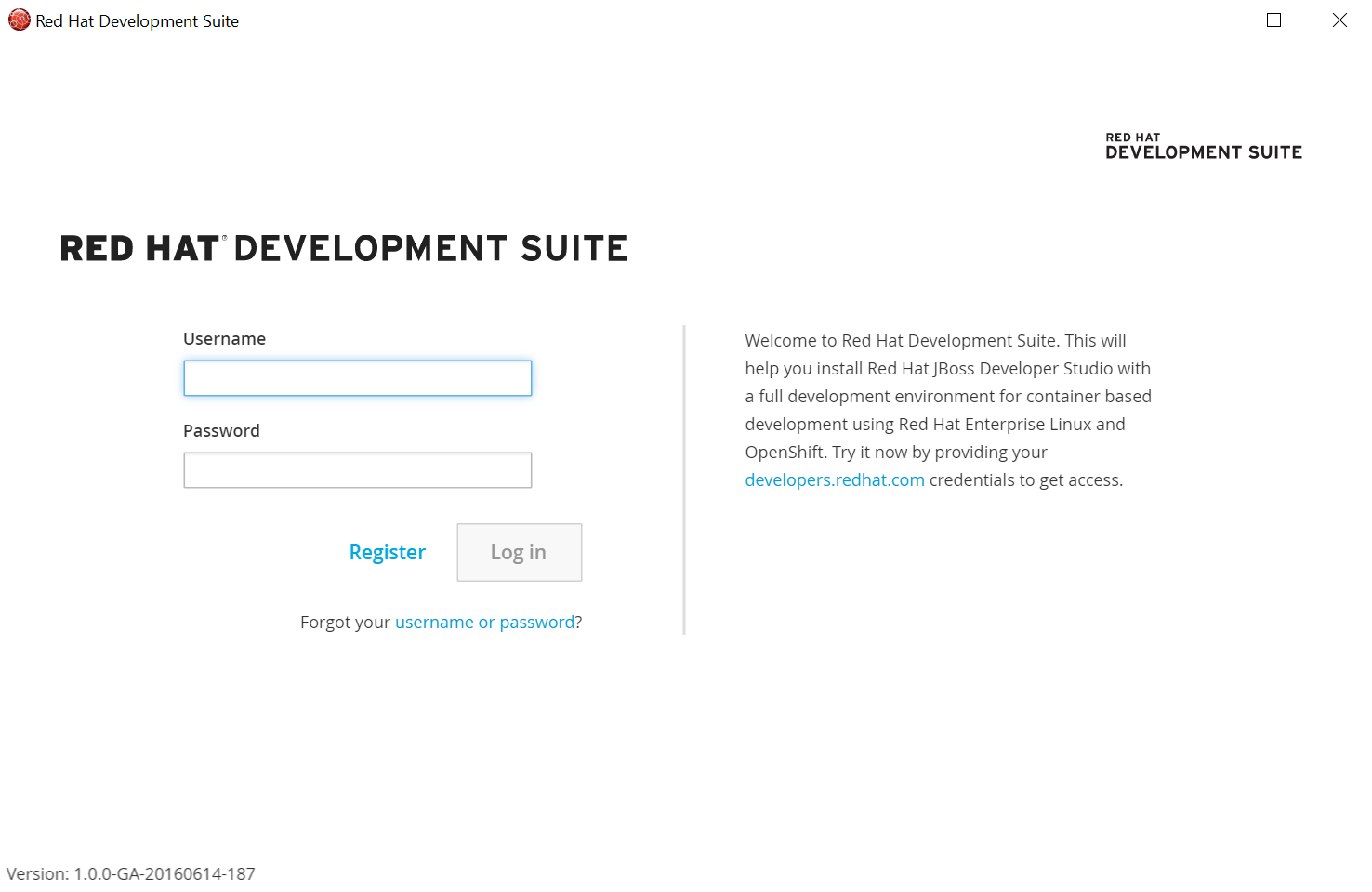
A Red Hat Developer account is required to install Red Hat Development Suite. Enter your existing Red Hat Developer login credentials to log in.
Figure 5.1. Enter Your Login Credentials
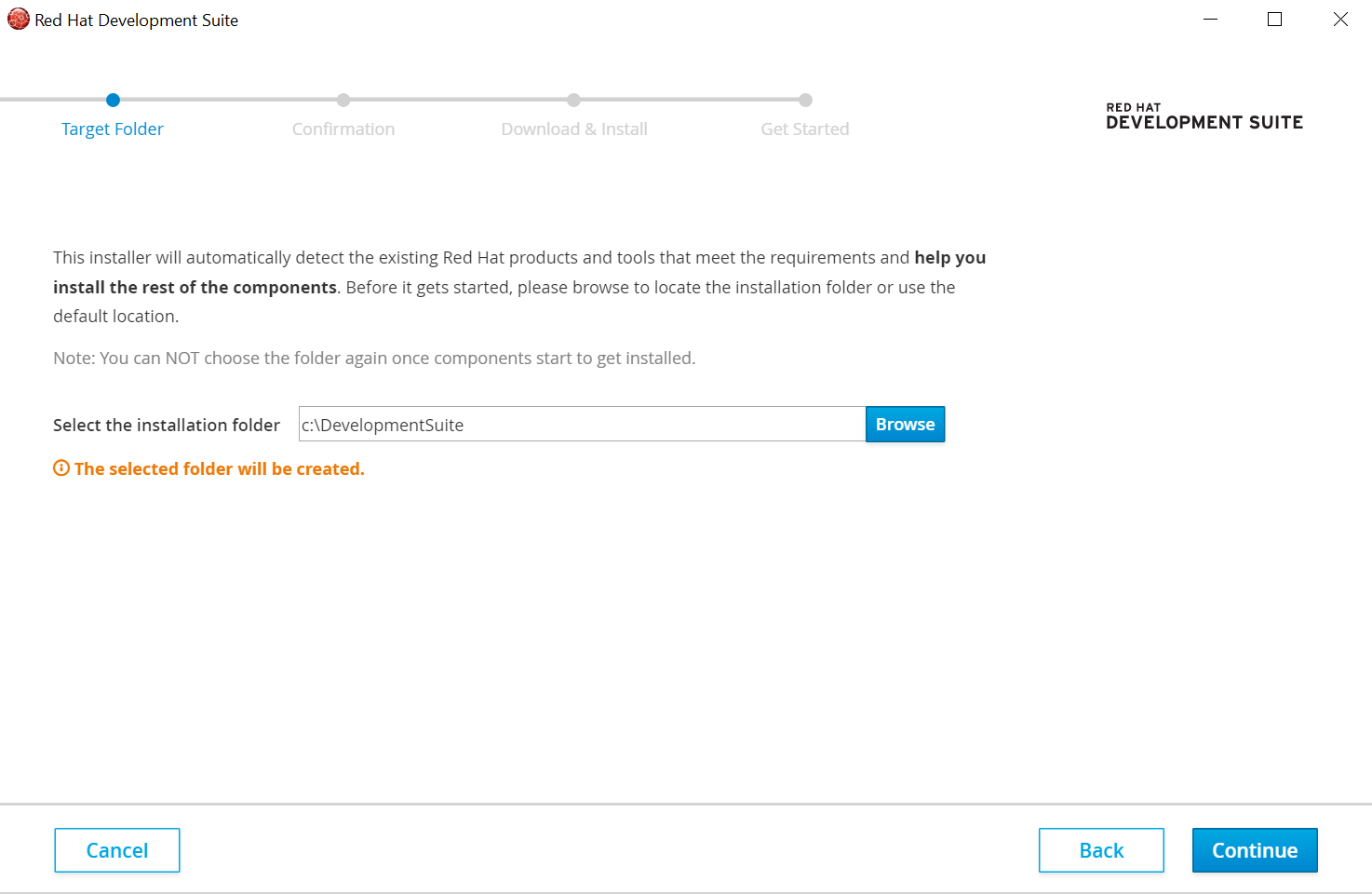
At the Target Folder screen, add a path to the target directory for the Red Hat Development Suite installation. The default path is c:\DevelopmentSuite.
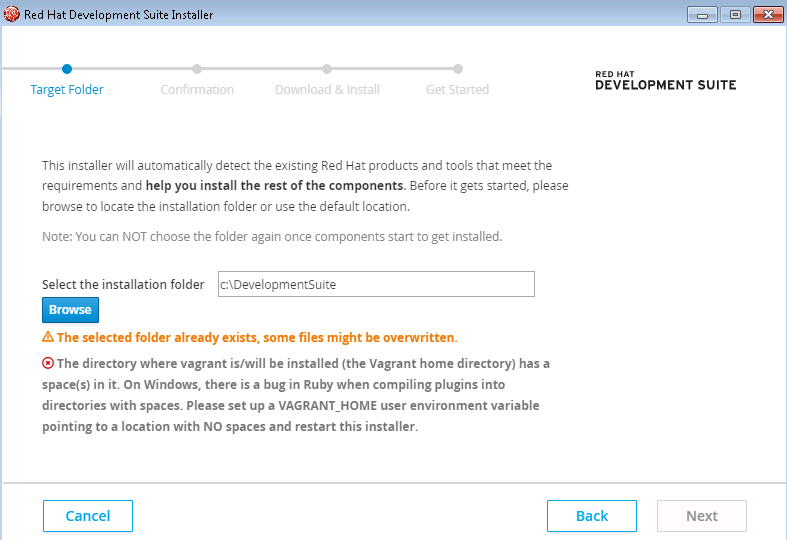
Figure 5.2. Set the Target Directory
If your Windows user has a space in the username (for instance: Example User), the installer will not let you proceed and show an error.
In this case:
-
In the Control Panel, type
Environment variablesin the search box and click on the Environment Variable option in the search results. - In the User variables for $YourUsername section, select New…
-
Create a new variable with the name
VAGRANT_HOMEand set the value to a valid path. - Click OK to exit the Environment Variables options and restart the installer.
-
In the Control Panel, type
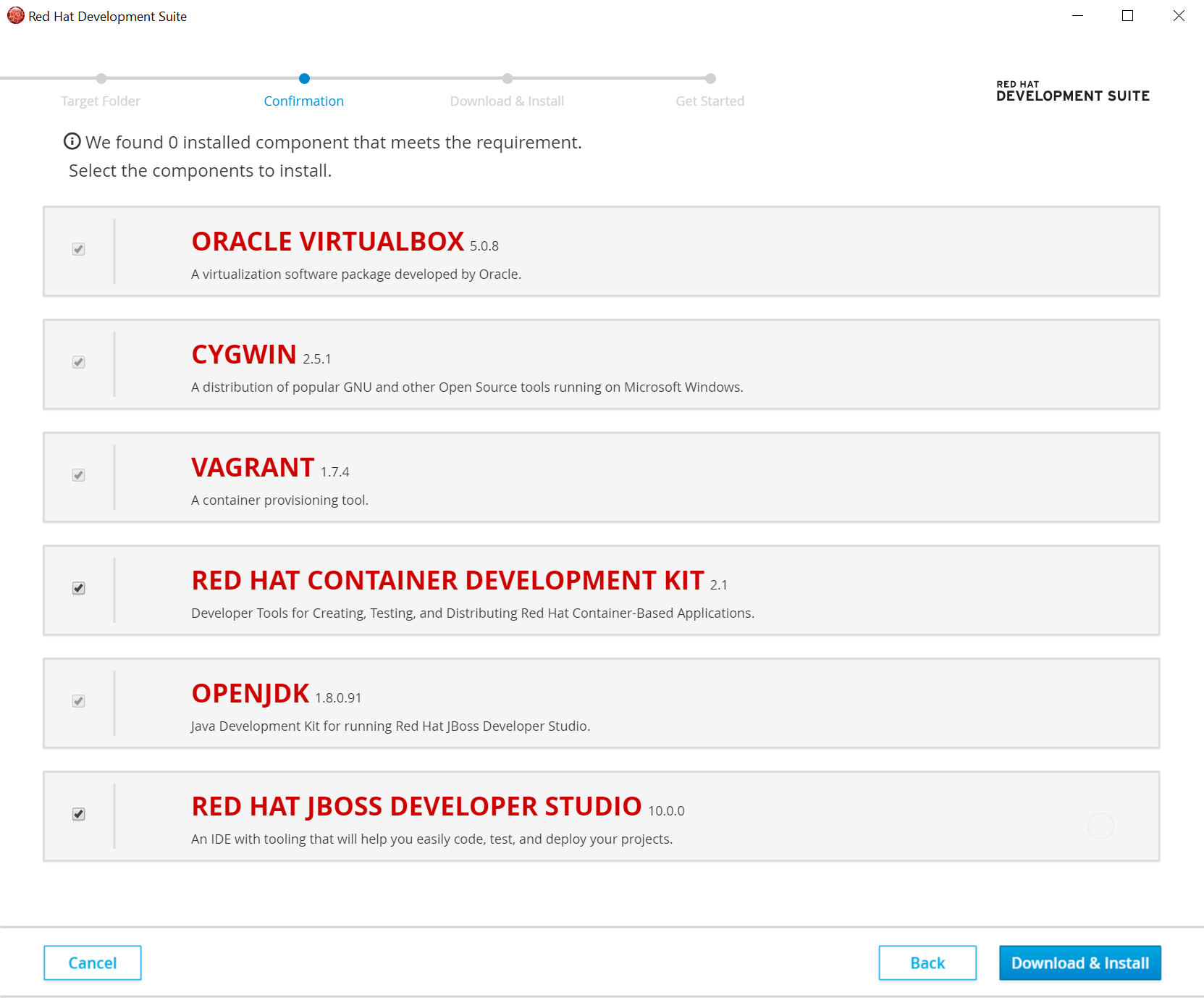
The Confirmation screen lists the components that Red Hat Development Suite downloads and installs. Red Hat Development Suite detects components based on the PATH environment variable. If none of the components are installed, no changes are required, but if an older version that supported is detected, exit Red Hat Development Suite, uninstall the component, and then start Red Hat Development Suite.
To Install Red Hat Development Suite:
- All required components are already selected by default.
- Click Download & Install to continue.
To only install Red Hat Container Development Kit:
- Deselect the Red Hat JBoss Developer Studio and OpenJDK. You must deselect JBoss Developer Studio before its dependency (OpenJDK) is available to select.
- Click Download & Install to continue.
To only install JBoss Developer Studio:
- Deselect the Red Hat Container Development Kit, Vagrant, Cygwin, and Oracle Virtualbox options. You must deselect the Container Development Kit option before its dependencies are available to select.
- Click Download & Install to continue.
To only install any of the dependencies (Oracle Virtualbox, Cygwin, Vagrant, OpenJDK):
- Deselect the Red Hat Container Development Kit and JBoss Developer Studio options.
- Select and deselect any of the other components as desired.
Click Download & Install to continue.
Figure 5.3. Download and Install the Components
- Red Hat Development Suite then downloads the listed software and installs it locally. This process involves large file downloads and can take some time to complete.
When complete, Red Hat Development Suite indicates that the download and install were successful and provides a link to the Red Hat Container Development Kit Getting Started page. Depending on what you want to do next, you can either:
- Click the Open Red Hat JBoss Developer Studio button to start using the Red Hat Container Development Kit Server Adapter.
- Visit http://developers.redhat.com/products/cdk/get-started/ to learn about using Red Hat Container Development Kit.
To run Red Hat Development Suite, click the Open Red Hat JBoss Developer Studio button:
- Set up a workspace folder, as prompted.
- Click the Servers tab to view the configured Red Hat Container Development Kit server adapter.
- Right-click the server and select Start to initiate the Red Hat Container Development Kit} server.
- When prompted, enter your Red Hat Customer Portal credentials and click OK. The Console tab displays the details of the Red Hat Container Development Kit server.
- When prompted, read the details of the new SSL certificate for OpenShift and click Yes to accept it.
- Click the OpenShift Explorer tab to view the new OpenShift server and sample project.
Chapter 6. Next Steps
After installing Red Hat Development Suite, see the Automatic Installation and Configuration section in Developing Using Containers and the Cloud.
Chapter 7. Upgrading Red Hat Development Suite
There is no current path to upgrade from Red Hat Development Suite 1.0 to 1.1. To use version 1.1, uninstall Red Hat Development Suite 1.0 and then install Red Hat Development Suite 1.1.
Note the following considerations when uninstalling to upgrade to the newer version of Red Hat Development Suite:
- Cygwin does not need to be uninstalled. Red Hat Development Suite 1.1 automatically detects this component.
- If a Vagrant version older than 1.8.1 is installed, manually uninstall this component before you upgrade.
- For VirtualBox only version 5.0.26 or newer within the 5.0.x stream is supported. For example, the installation does not work with version 5.1. If a VirtualBox version older than 5.0.26 or version 5.1.x is installed, manually uninstall this component before you upgrade.
- Both the online and bundled Red Hat Development Suite installers require a manual uninstall and then a fresh installation with the new version of the installer.
Chapter 8. Troubleshooting
To troubleshoot a general installation failure, see the contents of the installer.log file. The installer log file is automatically created in the installation target directory. Depending on when the installation failed, the directory can contain additional log files for Vagrant and VirtualBox.
8.1. Cygwin Detection Issue
When detecting components, Red Hat Development Suite assumes that the cygwin/bin folder is added to the PATH environment variable. The Cygwin detection process determines whether Cygwin and its dependencies, OpenSSH and rsync, are installed because Red Hat Container Development Kit requires OpenSSH for ssh-fs and Red Hat JBoss Developer Studio’s oc rsync uses rsync.
If Red Hat Development Suite detects Cygwin, OpenSSH, and rsync, the Cygwin component is marked as detected and skipped during installation. Manually select Cygwin to override this and reinstall all three components, if required. If any of the three components are not found, Cygwin and the two dependencies are installed.
8.2. Terms and Conditions Error
Error: “Terms and Conditions for CDK have not been signed” This error appears on the Log In page when installing Red Hat Development Suite. The workaround for this issue is to log into http://developers.redhat.com and download Red Hat Container Development Kit. This triggers all the required Terms and Conditions approvals (if any are needed).
If you do not have a Red Hat account, create a new account at http://developers.redhat.com/. After signing up for a Red Hat Developers account, you must wait approximately fifteen minutes to allow the new account information to propagate to the Red Hat Subscription Management system.
8.3. BrowserSim Does Not Work After Installing Red Hat Development Suite
Red Hat JBoss Developer Studio installs OpenJDK 8. BrowserSim requires JavaFX which is not yet available in OpenJDK. As a result, when Red Hat JBoss Developer Studio is used, BrowserSim does not work. As a workaround for this issue, Red Hat recommends installing and using Oracle Java for BrowserSim instead. For further information, see http://tools.jboss.org/documentation/faq/browsersim.html#general-browsersim
8.4. OpenShift Console Inaccessible on Microsoft Edge Browser
The OpenShift Console web address does not work on Microsoft’s Edge Browser. This is a known issue, and the only workaround is to use a different browser to access the console.
8.5. Red Hat Development Suite Installer behind a Proxy Server
Red Hat Development Suite Installer can work behind a proxy server by defining environment variables in the following ways:
- For none authentication proxy server, set HTTPS_PROXY to http(s)://proxyhost:port
- For authentication proxy server, set HTTPS_PROXY to http(s)://username:password@proxyhost:port
If your username or password has the character @ in it, replace @ with %40. For example, http(s)://usern@me:p@ssword@192.168.0.47:3128 will change to http(s)://usern%40me:p%40ssword@192.168.0.47:3128.
8.6. Reporting an Issue
If you encounter issues other than the ones listed in this section, log an issue at https://issues.jboss.org/projects/JBDS/summary under the Installer component in the Red Hat JBoss Developer Studio (devstudio) project.
Chapter 9. Uninstalling Red Hat Development Suite
Red Hat Development Suite 1.1 includes a new Powershell-based uninstaller in the product’s installation directory (${target-folder}/uninstaller/uninstall.ps1).
Installing Red Hat Development Suite creates an Uninstall Developer Studio option in Windows. This uninstaller only removes JBoss Developer Studio, and not any additional components installed for Red Hat Development Suite. Use the following instructions to completely remove all Red Hat Development Suite components from your machine.
The uninstall script removes everyhing installed into the installation target directory. As a result, previously installed components detected during the installation are not affected.
The uninstaller runs corresponding MSI uninstallers for Vagrant, VirtualBox, and OpenJDK. It also cleans up the PATH variables and removes the ${target-folder} folder.
To uninstall Red Hat Development Suite, run the script in one of two ways:
- use the command prompt (cmd) to run the file.
use the Powershell with the following command:
powershell -ExecutionPolicy bypass -File ${target-folder}\uninstaller\uninstall.ps1powershell -ExecutionPolicy bypass -File ${target-folder}\uninstaller\uninstall.ps1Copy to Clipboard Copied! Toggle word wrap Toggle overflow
Note: Do not run the uninstall script from within ${target-folder} or run the ps1 file from the context menu. This results in locking the ${target-folder}\uninstaller folder and the powershell script is not removed after the uninstall process completes.

'%20d='M201.5%20305.5c-13.8%200-24.9-11.1-24.9-24.6%200-13.8%2011.1-24.9%2024.9-24.9%2013.6%200%2024.6%2011.1%2024.6%2024.9%200%2013.6-11.1%2024.6-24.6%2024.6zM504%20256c0%20137-111%20248-248%20248S8%20393%208%20256%20119%208%20256%208s248%20111%20248%20248zm-132.3-41.2c-9.4%200-17.7%203.9-23.8%2010-22.4-15.5-52.6-25.5-86.1-26.6l17.4-78.3%2055.4%2012.5c0%2013.6%2011.1%2024.6%2024.6%2024.6%2013.8%200%2024.9-11.3%2024.9-24.9s-11.1-24.9-24.9-24.9c-9.7%200-18%205.8-22.1%2013.8l-61.2-13.6c-3-.8-6.1%201.4-6.9%204.4l-19.1%2086.4c-33.2%201.4-63.1%2011.3-85.5%2026.8-6.1-6.4-14.7-10.2-24.1-10.2-34.9%200-46.3%2046.9-14.4%2062.8-1.1%205-1.7%2010.2-1.7%2015.5%200%2052.6%2059.2%2095.2%20132%2095.2%2073.1%200%20132.3-42.6%20132.3-95.2%200-5.3-.6-10.8-1.9-15.8%2031.3-16%2019.8-62.5-14.9-62.5zM302.8%20331c-18.2%2018.2-76.1%2017.9-93.6%200-2.2-2.2-6.1-2.2-8.3%200-2.5%202.5-2.5%206.4%200%208.6%2022.8%2022.8%2087.3%2022.8%20110.2%200%202.5-2.2%202.5-6.1%200-8.6-2.2-2.2-6.1-2.2-8.3%200zm7.7-75c-13.6%200-24.6%2011.1-24.6%2024.9%200%2013.6%2011.1%2024.6%2024.6%2024.6%2013.8%200%2024.9-11.1%2024.9-24.6%200-13.8-11-24.9-24.9-24.9z'/%3e%3c/svg%3e)