このコンテンツは選択した言語では利用できません。
13.4. Using KVM para-virtualized drivers for new devices
This procedure covers creating new devices using the KVM para-virtualized drivers with
virt-manager.
Alternatively, the
virsh attach-disk or virsh attach-interface commands can be used to attach devices using the para-virtualized drivers.
Important
Ensure the drivers have been installed on the Windows guest before proceeding to install new devices. If the drivers are unavailable the device will not be recognized and will not work.
- Open the guest by double clicking on the name of the guest in
virt-manager. - Open the Hardware tab.
- Press the Add Hardware button.
- In the Adding Virtual Hardware tab select Storage or Network for the type of device.
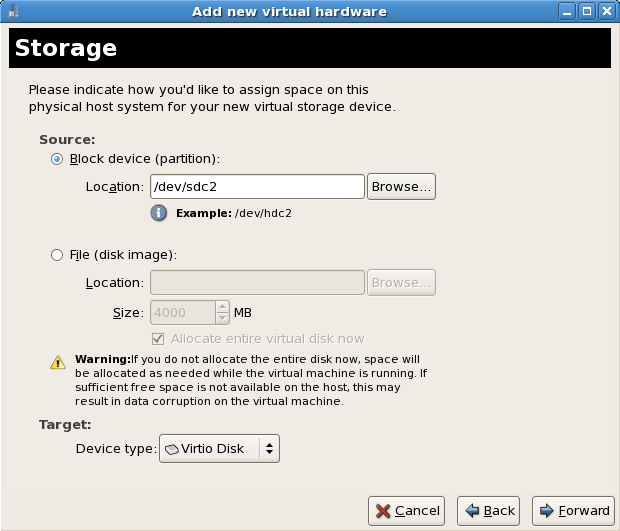
- New disk devicesSelect the storage device or file-based image. Select Virtio Disk as the Device type and press Forward.
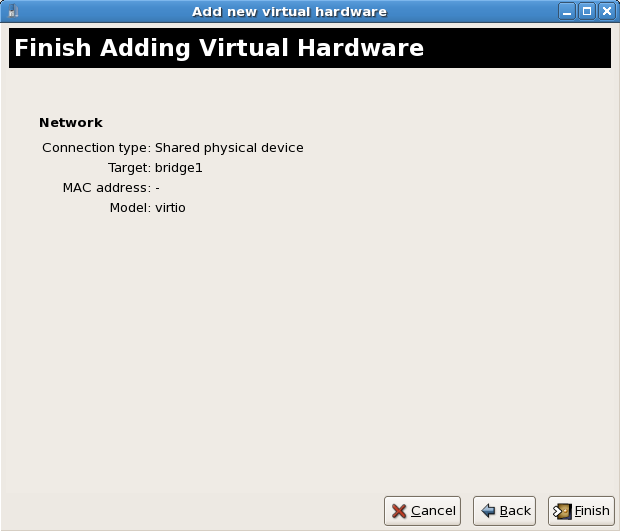
- New network devicesSelect Virtual network or Shared physical device. Select virtio as the Device type and press Forward.

- Press Finish to save the device.
- Reboot the guest. The device may not be recognized until the Windows guest restarts.

