 Red Hat Summit
이 콘텐츠는 선택한 언어로 제공되지 않습니다.
Use Red Hat Quay
Preface
Red Hat Quay container image registries let you store container images in a central location. As a regular user of a Red Hat Quay registry, you can create repositories to organize your images and selectively add read (pull) and write (push) access to the repositories you control. A user with administrative privileges can perform a broader set of tasks, such as the ability to add users and control default settings.
This guide assumes you have a Red Hat Quay deployed and are ready to start setting it up and using it.
Chapter 1. Users and organizations
Before creating repositories to contain your container images in Red Hat Quay, you should consider how these repositories will be structured. With Red Hat Quay, each repository requires a connection with either an Organization or a User. This affiliation defines ownership and access control for the repositories.
1.1. Tenancy model
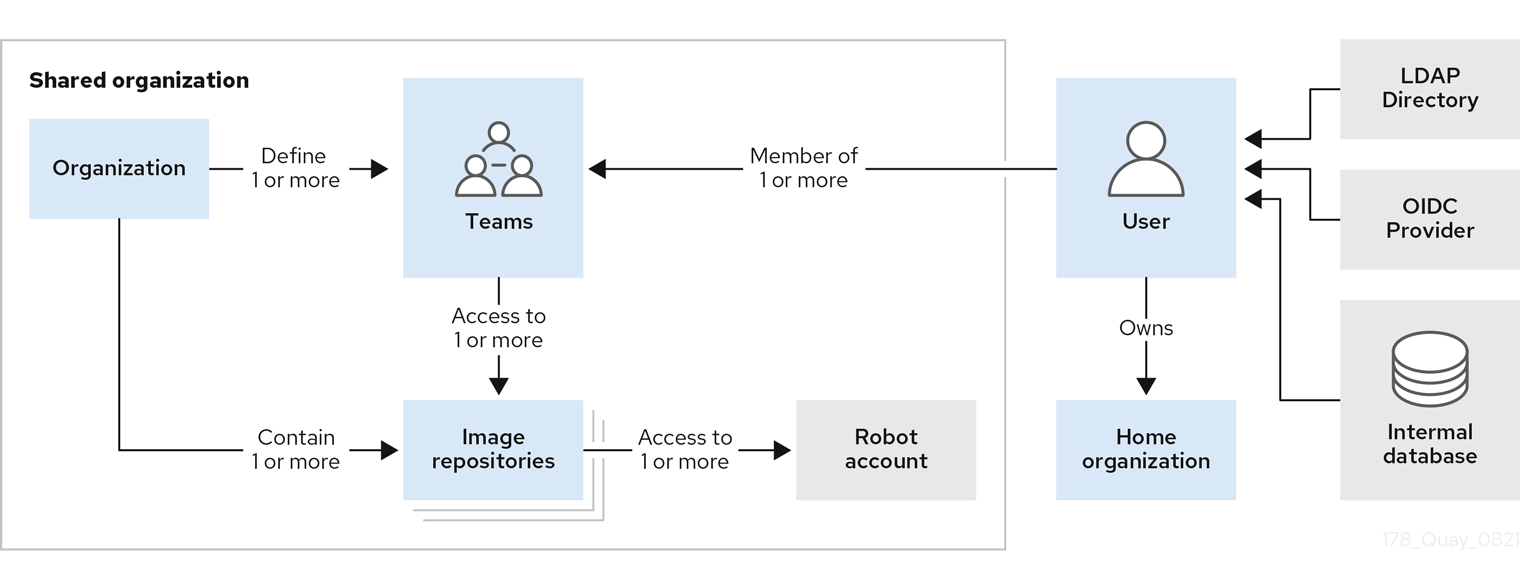
- Organizations provide a way of sharing repositories under a common namespace that does not belong to a single user. Instead, these repositories belong to several users in a shared setting, such as a company.
- Teams provide a way for an Organization to delegate permissions. Permissions can be set at the global level (for example, across all repositories), or on specific repositories. They can also be set for specific sets, or groups, of users.
-
Users can log in to a registry through the web UI or a by using a client, such as Podman or Docker, using their respective login commands, for example,
$ podman login. Each user automatically gets a user namespace, for example,<quay-server.example.com>/<user>/<username>, orquay.io/<username>. - Superusers have enhanced access and privileges through the Super User Admin Panel in the user interface. Superuser API calls are also available, which are not visible or accessible to normal users.
- Robot accounts provide automated access to repositories for non-human users like pipeline tools. Robot accounts are similar to OpenShift Container Platform Service Accounts. Permissions can be granted to a robot account in a repository by adding that account like you would another user or team.
1.2. Creating user accounts
A user account for Red Hat Quay represents an individual with authenticated access to the platform’s features and functionalities. Through this account, you gain the capability to create and manage repositories, upload and retrieve container images, and control access permissions for these resources. This account is pivotal for organizing and overseeing your container image management within Red Hat Quay.
Use the following procedure to create a new user for your Red Hat Quay repository.
Prerequisites
-
You have configured a superuser in your
config.yamlfile. For more information, see Configuring a Red Hat Quay superuser.
Procedure
- Log in to your Red Hat Quay repository as the superuser.
- In the navigation pane, select your account name, and then click Super User Admin Panel.
- Click the Users icon in the column.
- Click the Create User button.
- Enter the new user’s Username and Email address, and then click the Create User button.
You are redirected to the Users page, where there is now another Red Hat Quay user.
NoteYou might need to refresh the Users page to show the additional user.
On the Users page, click the Options cogwheel associated with the new user. A drop-down menu appears, as shown in the following figure:
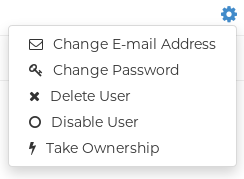
- Click Change Password.
Add the new password, and then click Change User Password.
The new user can now use that username and password to log in using the web UI or through their preferred container client, like Docker or Podman.
1.3. Deleting a Red Hat Quay user from the command line
When accessing the Users tab in the Superuser Admin panel of the Red Hat Quay UI, you might encounter a situation where no users are listed. Instead, a message appears, indicating that Red Hat Quay is configured to use external authentication, and users can only be created in that system.
This error occurs for one of two reasons:
- The web UI times out when loading users. When this happens, users are not accessible to perform any operations on.
- On LDAP authentication. When a userID is changed but the associated email is not. Currently, Red Hat Quay does not allow the creation of a new user with an old email address.
Use the following procedure to delete a user from Red Hat Quay when facing this issue.
Procedure
Enter the following
curlcommand to delete a user from the command line:curl -X DELETE -H "Authorization: Bearer <insert token here>" https://<quay_hostname>/api/v1/superuser/users/<name_of_user>
$ curl -X DELETE -H "Authorization: Bearer <insert token here>" https://<quay_hostname>/api/v1/superuser/users/<name_of_user>Copy to Clipboard Copied! Toggle word wrap Toggle overflow NoteAfter deleting the user, any repositories that this user had in his private account become unavailable.
1.4. Creating organization accounts
Any user can create their own organization to share repositories of container images. To create a new organization:
- While logged in as any user, select the plus sign (+) from the upper right corner of the home page and choose New Organization.
- Type the name of the organization. The name must be alphanumeric, all lower case, and between 2 and 255 characters long
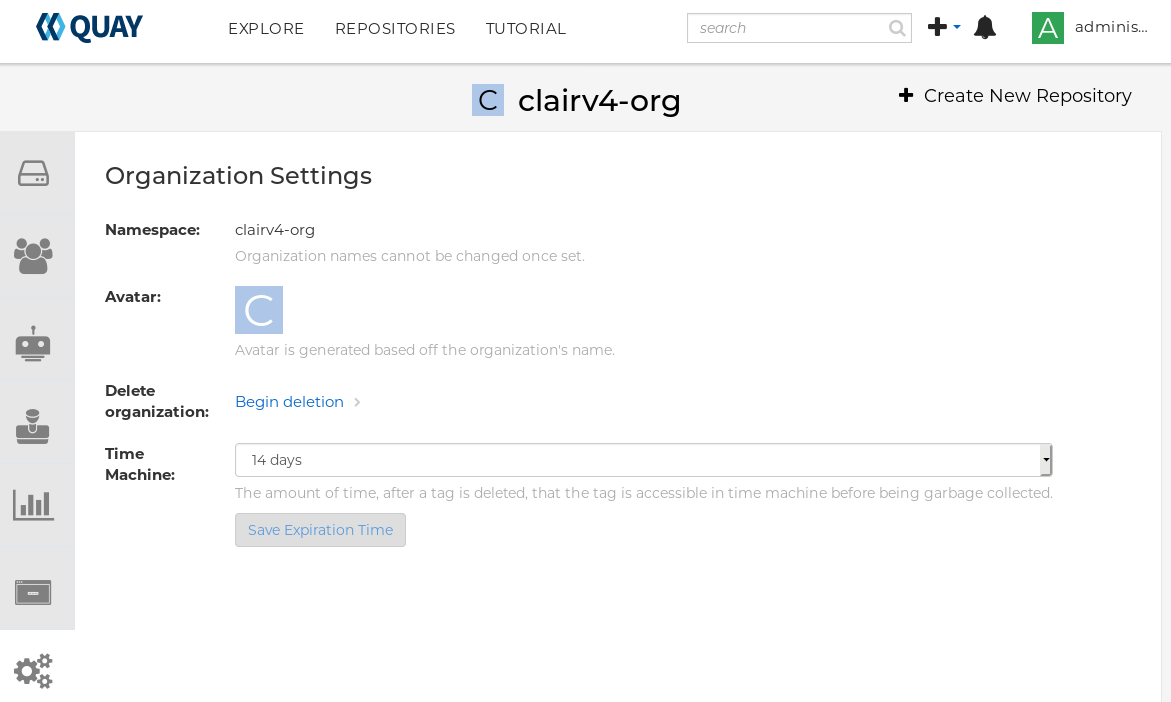
Select Create Organization. The new organization appears, ready for you to begin adding repositories, teams, robot accounts and other features from icons on the left column. The following figure shows an example of the new organization’s page with the settings tab selected.
Chapter 2. Creating a repository
A repository provides a central location for storing a related set of container images. These images can be used to build applications along with their dependencies in a standardized format.
Repositories are organized by namespaces. Each namespace can have multiple repositories. For example, you might have a namespace for your personal projects, one for your company, or one for a specific team within your organization.
Red Hat Quay provides users with access controls for their repositories. Users can make a repository public, meaning that anyone can pull, or download, the images from it, or users can make it private, restricting access to authorized users or teams.
There are two ways to create a repository in Red Hat Quay: by pushing an image with the relevant docker or podman command, or by using the Red Hat Quay UI.
2.1. Creating an image repository by using the UI
Use the following procedure to create a repository using the Red Hat Quay UI.
Procedure
- Log in to your user account through the web UI.
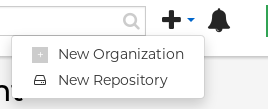
On the Red Hat Quay landing page, click Create New Repository. Alternatively, you can click the + icon → New Repository. For example:
On the Create New Repository page:
Append a Repository Name to your username or to the Organization that you wish to use.
ImportantDo not use the following words in your repository name: *
build*trigger*tagWhen these words are used for repository names, users are unable access the repository, and are unable to permanently delete the repository. Attempting to delete these repositories returns the following error:
Failed to delete repository <repository_name>, HTTP404 - Not Found.- Optional. Click Click to set repository description to add a description of the repository.
- Click Public or Private depending on your needs.
- Optional. Select the desired repository initialization.
- Click Create Private Repository to create a new, empty repository.
2.2. Creating an image repository by using the CLI
With the proper credentials, you can push an image to a repository using either Docker or Podman that does not yet exist in your Red Hat Quay instance. Pushing an image refers to the process of uploading a container image from your local system or development environment to a container registry like Quay.io. After pushing an image to Quay.io, a repository is created.
Use the following procedure to create an image repository by pushing an image.
Prerequisites
-
You have download and installed the
podmanCLI. - You have logged into Quay.io.
- You have pulled an image, for example, busybox.
Procedure
Pull a sample page from an example registry. For example:
sudo podman pull busybox
$ sudo podman pull busyboxCopy to Clipboard Copied! Toggle word wrap Toggle overflow Example output
Copy to Clipboard Copied! Toggle word wrap Toggle overflow Tag the image on your local system with the new repository and image name. For example:
sudo podman tag docker.io/library/busybox quay-server.example.com/quayadmin/busybox:test
$ sudo podman tag docker.io/library/busybox quay-server.example.com/quayadmin/busybox:testCopy to Clipboard Copied! Toggle word wrap Toggle overflow Push the image to the registry. Following this step, you can use your browser to see the tagged image in your repository.
sudo podman push --tls-verify=false quay-server.example.com/quayadmin/busybox:test
$ sudo podman push --tls-verify=false quay-server.example.com/quayadmin/busybox:testCopy to Clipboard Copied! Toggle word wrap Toggle overflow Example output
Getting image source signatures
Copying blob 6b245f040973 done
Copying config 22667f5368 done
Writing manifest to image destination
Storing signatures
Getting image source signatures
Copying blob 6b245f040973 done
Copying config 22667f5368 done
Writing manifest to image destination
Storing signatures
Copy to Clipboard Copied! Toggle word wrap Toggle overflow
Chapter 3. Managing access to repositories
As a Red Hat Quay user, you can create your own repositories and make them accessible to other users that are part of your instance. Alternatively, you can create a specific Organization to allow access to repositories based on defined teams.
In both User and Organization repositories, you can allow access to those repositories by creating credentials associated with Robot Accounts. Robot Accounts make it easy for a variety of container clients, such as Docker or Podman, to access your repositories without requiring that the client have a Red Hat Quay user account.
3.1. Allowing access to user repositories
When you create a repository in a user namespace, you can add access to that repository to user accounts or through Robot Accounts.
3.1.1. Allowing user access to a user repository
Use the following procedure to allow access to a repository associated with a user account.
Procedure
- Log into Red Hat Quay with your user account.
- Select a repository under your user namespace that will be shared across multiple users.
- Select Settings in the navigation pane.
Type the name of the user to which you want to grant access to your repository. As you type, the name should appear. For example:
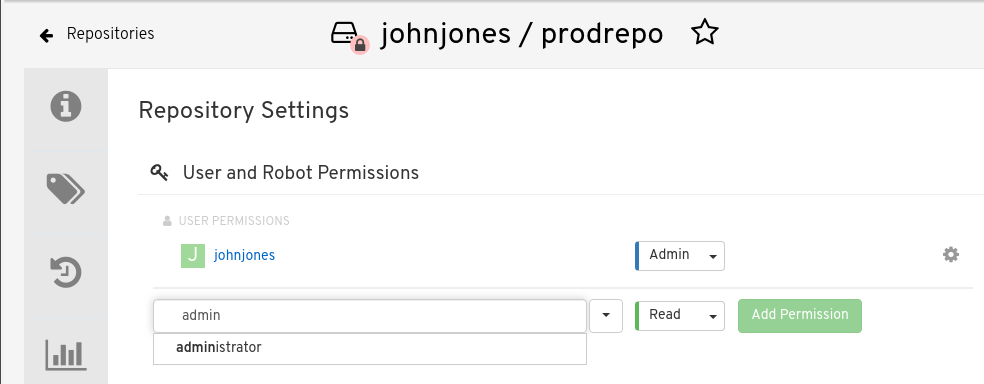
In the permissions box, select one of the following:
- Read. Allows the user to view and pull from the repository.
- Write. Allows the user to view the repository, pull images from the repository, or push images to the repository.
- Admin. Provides the user with all administrative settings to the repository, as well as all Read and Write permissions.
- Select the Add Permission button. The user now has the assigned permission.
- Optional. You can remove or change user permissions to the repository by selecting the Options icon, and then selecting Delete Permission.
3.1.2. Allowing robot access to a user repository
Robot Accounts are used to set up automated access to the repositories in your Red Hat Quay registry. They are similar to OpenShift Container Platform service accounts.
Setting up a Robot Account results in the following:
- Credentials are generated that are associated with the Robot Account.
- Repositories and images that the Robot Account can push and pull images from are identified.
- Generated credentials can be copied and pasted to use with different container clients, such as Docker, Podman, Kubernetes, Mesos, and so on, to access each defined repository.
Each Robot Account is limited to a single user namespace or Organization. For example, the Robot Account could provide access to all repositories for the user jsmith. However, it cannot provide access to repositories that are not in the user’s list of repositories.
Use the following procedure to set up a Robot Account that can allow access to your repositories.
Procedure
- On the Repositories landing page, click the name of a user.
- Click Robot Accounts on the navigation pane.
- Click Create Robot Account.
- Provide a name for your Robot Account.
- Optional. Provide a description for your Robot Account.
-
Click Create Robot Account. The name of your Robot Account becomes a combination of your username plus the name of the robot, for example,
jsmith+robot - Select the repositories that you want the Robot Account to be associated with.
Set the permissions of the Robot Account to one of the following:
- None. The Robot Account has no permission to the repository.
- Read. The Robot Account can view and pull from the repository.
- Write. The Robot Account can read (pull) from and write (push) to the repository.
- Admin. Full access to pull from, and push to, the repository, plus the ability to do administrative tasks associated with the repository.
- Click the Add permissions button to apply the settings.
- On the Robot Accounts page, select the Robot Account to see credential information for that robot.
Under the Robot Account option, copy the generated token for the robot by clicking Copy to Clipboard. To generate a new token, you can click Regenerate Token.
NoteRegenerating a token makes any previous tokens for this robot invalid.

Obtain the resulting credentials in the following ways:
- Kubernetes Secret: Select this to download credentials in the form of a Kubernetes pull secret yaml file.
-
rkt Configuration: Select this to download credentials for the rkt container runtime in the form of a
.jsonfile. -
Docker Login: Select this to copy a full
docker logincommand line that includes the credentials. -
Docker Configuration: Select this to download a file to use as a Docker
config.jsonfile, to permanently store the credentials on your client system. - Mesos Credentials: Select this to download a tarball that provides the credentials that can be identified in the URI field of a Mesos configuration file.
3.2. Organization repositories
After you have created an Organization, you can associate a set of repositories directly to that Organization. An Organization’s repository differs from a basic repository in that the Organization is intended to set up shared repositories through groups of users. In Red Hat Quay, groups of users can be either Teams, or sets of users with the same permissions, or individual users.
Other useful information about Organizations includes the following:
- You cannot have an Organization embedded within another Organization. To subdivide an Organization, you use teams.
Organizations cannot contain users directly. You must first add a team, and then add one or more users to each team.
NoteIndividual users can be added to specific repositories inside of an organization. Consequently, those users are not members of any team on the Repository Settings page. The Collaborators View on the Teams and Memberships page shows users who have direct access to specific repositories within the organization without needing to be part of that organization specifically.
- Teams can be set up in Organizations as just members who use the repositories and associated images, or as administrators with special privileges for managing the Organization.
3.2.1. Creating an Organization
Use the following procedure to create an Organization.
Procedure
- On the Repositories landing page, click Create New Organization.
- Under Organization Name, enter a name that is at least 2 characters long, and less than 225 characters long.
- Under Organization Email, enter an email that is different from your account’s email.
- Click Create Organization to finalize creation.
3.2.1.1. Creating another Organization by using the API
You can create another Organization by using the API. To do this, you must have created the first Organization by using the UI. You must also have generated an OAuth Access Token.
Use the following procedure to create another Organization by using the Red Hat Quay API endpoint.
Prerequisites
- You have already created at least one Organization by using the UI.
- You have generated an OAuth Access Token. For more information, see "Creating an OAuth Access Token".
Procedure
Create a file named
data.jsonby entering the following command:touch data.json
$ touch data.jsonCopy to Clipboard Copied! Toggle word wrap Toggle overflow Add the following content to the file, which will be the name of the new Organization:
{"name":"testorg1"}{"name":"testorg1"}Copy to Clipboard Copied! Toggle word wrap Toggle overflow Enter the following command to create the new Organization using the API endpoint, passing in your OAuth Access Token and Red Hat Quay registry endpoint:
curl -X POST -k -d @data.json -H "Authorization: Bearer <access_token>" -H "Content-Type: application/json" http://<quay-server.example.com>/api/v1/organization/
$ curl -X POST -k -d @data.json -H "Authorization: Bearer <access_token>" -H "Content-Type: application/json" http://<quay-server.example.com>/api/v1/organization/Copy to Clipboard Copied! Toggle word wrap Toggle overflow Example output
"Created"
"Created"Copy to Clipboard Copied! Toggle word wrap Toggle overflow
3.2.2. Adding a team to an organization
When you create a team for your Organization you can select the team name, choose which repositories to make available to the team, and decide the level of access to the team.
Use the following procedure to create a team for your Organization.
Prerequisites
- You have created an organization.
Procedure
- On the Repositories landing page, select an Organization to add teams to.
- In the navigation pane, select Teams and Membership. By default, an owners team exists with Admin privileges for the user who created the Organization.
- Click Create New Team.
- Enter a name for your new team. Note that the team must start with a lowercase letter. It can also only use lowercase letters and numbers. Capital letters or special characters are not allowed.
- Click Create team.
- Click the name of your team to be redirected to the Team page. Here, you can add a description of the team, and add team members, like registered users, robots, or email addresses. For more information, see "Adding users to a team".
- Click the No repositories text to bring up a list of available repositories. Select the box of each repository you will provide the team access to.
Select the appropriate permissions that you want the team to have:
- None. Team members have no permission to the repository.
- Read. Team members can view and pull from the repository.
- Write. Team members can read (pull) from and write (push) to the repository.
- Admin. Full access to pull from, and push to, the repository, plus the ability to do administrative tasks associated with the repository.
- Click Add permissions to save the repository permissions for the team.
3.2.3. Setting a Team role
After you have added a team, you can set the role of that team within the Organization.
Prerequisites
- You have created a team.
Procedure
- On the Repository landing page, click the name of your Organization.
- In the navigation pane, click Teams and Membership.
Select the TEAM ROLE drop-down menu, as shown in the following figure:

For the selected team, choose one of the following roles:
- Member. Inherits all permissions set for the team.
- Creator. All member permissions, plus the ability to create new repositories.
- Admin. Full administrative access to the organization, including the ability to create teams, add members, and set permissions.
3.2.4. Adding users to a Team
With administrative privileges to an Organization, you can add users and robot accounts to a team. When you add a user, Red Hat Quay sends an email to that user. The user remains pending until they accept the invitation.
Use the following procedure to add users or robot accounts to a team.
Procedure
- On the Repository landing page, click the name of your Organization.
- In the navigation pane, click Teams and Membership.
- Select the team you want to add users or robot accounts to.
In the Team Members box, enter information for one of the following:
- A username from an account on the registry.
- The email address for a user account on the registry.
The name of a robot account. The name must be in the form of <organization_name>+<robot_name>.
NoteRobot Accounts are immediately added to the team. For user accounts, an invitation to join is mailed to the user. Until the user accepts that invitation, the user remains in the INVITED TO JOIN state. After the user accepts the email invitation to join the team, they move from the INVITED TO JOIN list to the MEMBERS list for the Organization.
3.3. Disabling robot accounts
Red Hat Quay administrators can manage robot accounts by disallowing users to create new robot accounts.
Robot accounts are mandatory for repository mirroring. Setting the ROBOTS_DISALLOW configuration field to true breaks mirroring configurations. Users mirroring repositories should not set ROBOTS_DISALLOW to true in their config.yaml file. This is a known issue and will be fixed in a future release of Red Hat Quay.
Use the following procedure to disable robot account creation.
Prerequisites
- You have created multiple robot accounts.
Procedure
Update your
config.yamlfield to add theROBOTS_DISALLOWvariable, for example:ROBOTS_DISALLOW: true
ROBOTS_DISALLOW: trueCopy to Clipboard Copied! Toggle word wrap Toggle overflow - Restart your Red Hat Quay deployment.
Verification: Creating a new robot account
- Navigate to your Red Hat Quay repository.
- Click the name of a repository.
- In the navigation pane, click Robot Accounts.
- Click Create Robot Account.
-
Enter a name for the robot account, for example,
<organization-name/username>+<robot-name>. -
Click Create robot account to confirm creation. The following message appears:
Cannot create robot account. Robot accounts have been disabled. Please contact your administrator.
Verification: Logging into a robot account
On the command-line interface (CLI), attempt to log in as one of the robot accounts by entering the following command:
podman login -u="<organization-name/username>+<robot-name>" -p="KETJ6VN0WT8YLLNXUJJ4454ZI6TZJ98NV41OE02PC2IQXVXRFQ1EJ36V12345678" <quay-server.example.com>
$ podman login -u="<organization-name/username>+<robot-name>" -p="KETJ6VN0WT8YLLNXUJJ4454ZI6TZJ98NV41OE02PC2IQXVXRFQ1EJ36V12345678" <quay-server.example.com>Copy to Clipboard Copied! Toggle word wrap Toggle overflow The following error message is returned:
Error: logging into "<quay-server.example.com>": invalid username/password
Error: logging into "<quay-server.example.com>": invalid username/passwordCopy to Clipboard Copied! Toggle word wrap Toggle overflow You can pass in the
log-level=debugflag to confirm that robot accounts have been deactivated:podman login -u="<organization-name/username>+<robot-name>" -p="KETJ6VN0WT8YLLNXUJJ4454ZI6TZJ98NV41OE02PC2IQXVXRFQ1EJ36V12345678" --log-level=debug <quay-server.example.com>
$ podman login -u="<organization-name/username>+<robot-name>" -p="KETJ6VN0WT8YLLNXUJJ4454ZI6TZJ98NV41OE02PC2IQXVXRFQ1EJ36V12345678" --log-level=debug <quay-server.example.com>Copy to Clipboard Copied! Toggle word wrap Toggle overflow ... DEBU[0000] error logging into "quay-server.example.com": unable to retrieve auth token: invalid username/password: unauthorized: Robot accounts have been disabled. Please contact your administrator.
... DEBU[0000] error logging into "quay-server.example.com": unable to retrieve auth token: invalid username/password: unauthorized: Robot accounts have been disabled. Please contact your administrator.Copy to Clipboard Copied! Toggle word wrap Toggle overflow
Chapter 4. Working with tags
An image tag refers to a label or identifier assigned to a specific version or variant of a container image. Container images are typically composed of multiple layers that represent different parts of the image. Image tags are used to differentiate between different versions of an image or to provide additional information about the image.
Image tags have the following benefits:
- Versioning and Releases: Image tags allow you to denote different versions or releases of an application or software. For example, you might have an image tagged as v1.0 to represent the initial release and v1.1 for an updated version. This helps in maintaining a clear record of image versions.
- Rollbacks and Testing: If you encounter issues with a new image version, you can easily revert to a previous version by specifying its tag. This is particularly helpful during debugging and testing phases.
- Development Environments: Image tags are beneficial when working with different environments. You might use a dev tag for a development version, qa for quality assurance testing, and prod for production, each with their respective features and configurations.
- Continuous Integration/Continuous Deployment (CI/CD): CI/CD pipelines often utilize image tags to automate the deployment process. New code changes can trigger the creation of a new image with a specific tag, enabling seamless updates.
- Feature Branches: When multiple developers are working on different features or bug fixes, they can create distinct image tags for their changes. This helps in isolating and testing individual features.
- Customization: You can use image tags to customize images with different configurations, dependencies, or optimizations, while keeping track of each variant.
- Security and Patching: When security vulnerabilities are discovered, you can create patched versions of images with updated tags, ensuring that your systems are using the latest secure versions.
- Dockerfile Changes: If you modify the Dockerfile or build process, you can use image tags to differentiate between images built from the previous and updated Dockerfiles.
Overall, image tags provide a structured way to manage and organize container images, enabling efficient development, deployment, and maintenance workflows.
4.1. Viewing and modifying tags
To view image tags on Red Hat Quay, navigate to a repository and click on the Tags tab. For example:
View and modify tags from your repository

4.1.1. Adding a new image tag to an image
You can add a new tag to an image in Red Hat Quay.
Procedure
- Click the Settings, or gear, icon next to the tag and clicking Add New Tag.
Enter a name for the tag, then, click Create Tag.
The new tag is now listed on the Repository Tags page.
4.1.2. Moving an image tag
You can move a tag to a different image if desired.
Procedure
- Click the Settings, or gear, icon next to the tag and clicking Add New Tag and enter an existing tag name. Red Hat Quay confirms that you want the tag moved instead of added.
4.1.3. Deleting an image tag
Deleting an image tag effectively removes that specific version of the image from the registry.
To delete an image tag, use the following procedure.
Procedure
- Navigate to the Tags page of a repository.
Click Delete Tag. This deletes the tag and any images unique to it.
NoteDeleting an image tag can be reverted based on the amount of time allotted assigned to the time machine feature. For more information, see "Reverting tag changes".
4.1.3.1. Viewing tag history
Red Hat Quay offers a comprehensive history of images and their respective image tags.
Procedure
- Navigate to the Tag History page of a repository to view the image tag history.
4.1.3.2. Reverting tag changes
Red Hat Quay offers a comprehensive time machine feature that allows older images tags to remain in the repository for set periods of time so that they can revert changes made to tags. This feature allows users to revert tag changes, like tag deletions.
Procedure
- Navigate to the Tag History page of a repository.
- Find the point in the timeline at which image tags were changed or removed. Next, click the option under Revert to restore a tag to its image, or click the option under Permanently Delete to permanently delete the image tag.
4.1.4. Fetching an image by tag or digest
Red Hat Quay offers multiple ways of pulling images using Docker and Podman clients.
Procedure
- Navigate to the Tags page of a repository.
- Under Manifest, click the Fetch Tag icon.
When the popup box appears, users are presented with the following options:
- Podman Pull (by tag)
- Docker Pull (by tag)
- Podman Pull (by digest)
Docker Pull (by digest)
Selecting any one of the four options returns a command for the respective client that allows users to pull the image.
Click Copy Command to copy the command, which can be used on the command-line interface (CLI). For example:
podman pull quay-server.example.com/quayadmin/busybox:test2
$ podman pull quay-server.example.com/quayadmin/busybox:test2Copy to Clipboard Copied! Toggle word wrap Toggle overflow
4.2. Tag Expiration
Images can be set to expire from a Red Hat Quay repository at a chosen date and time using the tag expiration feature. This feature includes the following characteristics:
- When an image tag expires, it is deleted from the repository. If it is the last tag for a specific image, the image is also set to be deleted.
- Expiration is set on a per-tag basis. It is not set for a repository as a whole.
- After a tag is expired or deleted, it is not immediately removed from the registry. This is contingent upon the allotted time designed in the time machine feature, which defines when the tag is permanently deleted, or garbage collected. By default, this value is set at 14 days, however the administrator can adjust this time to one of multiple options. Up until the point that garbage collection occurs, tags changes can be reverted.
The Red Hat Quay superuser has no special privilege related to deleting expired images from user repositories. There is no central mechanism for the superuser to gather information and act on user repositories. It is up to the owners of each repository to manage expiration and the deletion of their images.
Tag expiration can be set up in one of two ways:
-
By setting the
quay.expires-after=LABEL in the Dockerfile when the image is created. This sets a time to expire from when the image is built. By selecting an expiration date on the Red Hat Quay UI. For example:

4.2.1. Setting tag expiration from a Dockerfile
Adding a label, for example, quay.expires-after=20h by using the docker label command causes a tag to automatically expire after the time indicated. The following values for hours, days, or weeks are accepted:
-
1h -
2d -
3w
Expiration begins from the time that the image is pushed to the registry.
4.2.2. Setting tag expiration from the repository
Tag expiration can be set on the Red Hat Quay UI.
Procedure
- Navigate to a repository and click Tags in the navigation pane.
- Click the Settings, or gear icon, for an image tag and select Change Expiration.
- Select the date and time when prompted, and select Change Expiration. The tag is set to be deleted from the repository when the expiration time is reached.
4.3. Viewing Clair security scans
Clair security scanner is not enabled for Red Hat Quay by default. To enable Clair, see Clair on Red Hat Quay.
Procedure
- Navigate to a repository and click Tags in the navigation pane. This page shows the results of the security scan.
- To reveal more information about multi-architecture images, click See Child Manifests to see the list of manifests in extended view.
- Click a relevant link under See Child Manifests, for example, 1 Unknown to be redirected to the Security Scanner page.
- The Security Scanner page provides information for the tag, such as which CVEs the image is susceptible to, and what remediation options you might have available.
Image scanning only lists vulnerabilities found by Clair security scanner. What users do about the vulnerabilities are uncovered is up to said user. Red Hat Quay superusers do not act on found vulnerabilities.
Chapter 5. Viewing and exporting logs
Activity logs are gathered for all repositories and namespace in Red Hat Quay.
Viewing usage logs of Red Hat Quay. can provide valuable insights and benefits for both operational and security purposes. Usage logs might reveal the following information:
- Resource Planning: Usage logs can provide data on the number of image pulls, pushes, and overall traffic to your registry.
- User Activity: Logs can help you track user activity, showing which users are accessing and interacting with images in the registry. This can be useful for auditing, understanding user behavior, and managing access controls.
- Usage Patterns: By studying usage patterns, you can gain insights into which images are popular, which versions are frequently used, and which images are rarely accessed. This information can help prioritize image maintenance and cleanup efforts.
- Security Auditing: Usage logs enable you to track who is accessing images and when. This is crucial for security auditing, compliance, and investigating any unauthorized or suspicious activity.
- Image Lifecycle Management: Logs can reveal which images are being pulled, pushed, and deleted. This information is essential for managing image lifecycles, including deprecating old images and ensuring that only authorized images are used.
- Compliance and Regulatory Requirements: Many industries have compliance requirements that mandate tracking and auditing of access to sensitive resources. Usage logs can help you demonstrate compliance with such regulations.
- Identifying Abnormal Behavior: Unusual or abnormal patterns in usage logs can indicate potential security breaches or malicious activity. Monitoring these logs can help you detect and respond to security incidents more effectively.
- Trend Analysis: Over time, usage logs can provide trends and insights into how your registry is being used. This can help you make informed decisions about resource allocation, access controls, and image management strategies.
There are multiple ways of accessing log files:
- Viewing logs through the web UI.
- Exporting logs so that they can be saved externally.
- Accessing log entries using the API.
To access logs, you must have administrative privileges for the selected repository or namespace.
A maximum of 100 log results are available at a time via the API. To gather more results that that, you must use the log exporter feature described in this chapter.
5.1. Viewing logs using the UI
Use the following procedure to view log entries for a repository or namespace using the web UI.
Procedure
- Navigate to a repository or namespace for which you are an administrator of.
In the navigation pane, select Usage Logs.
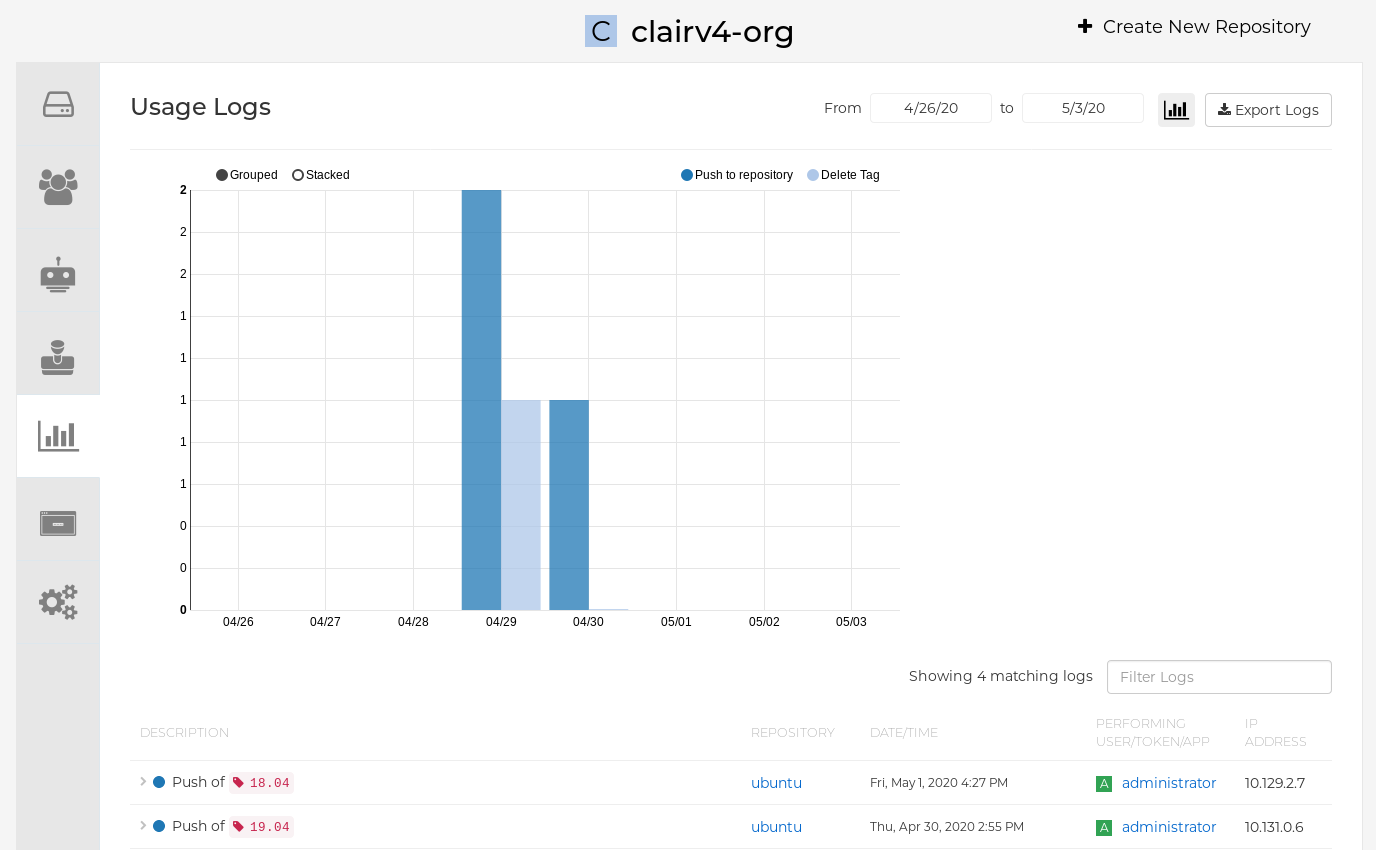
Optional. On the usage logs page:
- Set the date range for viewing log entries by adding dates to the From and to boxes. By default, the UI shows you the most recent week of log entries.
-
Type a string into the Filter Logs box to display log entries that of the specified keyword. For example, you can type
deleteto filter the logs to show deleted tags. - Under Description, toggle the arrow of a log entry to see more, or less, text associated with a specific log entry.
5.2. Exporting repository logs
You can obtain a larger number of log files and save them outside of the Red Hat Quay database by using the Export Logs feature. This feature has the following benefits and constraints:
- You can choose a range of dates for the logs you want to gather from a repository.
- You can request that the logs be sent to you by an email attachment or directed to a callback URL.
- To export logs, you must be an administrator of the repository or namespace.
- 30 days worth of logs are retained for all users.
- Export logs only gathers log data that was previously produced. It does not stream logging data.
- Your Red Hat Quay instance must be configured for external storage for this feature. Local storage does not work for exporting logs.
- When logs are gathered and made available to you, you should immediately copy that data if you want to save it. By default, the data expires after one hour.
Use the following procedure to export logs.
Procedure
- Select a repository for which you have administrator privileges.
- In the navigation pane, select Usage Logs.
- Optional. If you want to specify specific dates, enter the range in the From and to boxes.
Click the Export Logs button. An Export Usage Logs pop-up appears, as shown
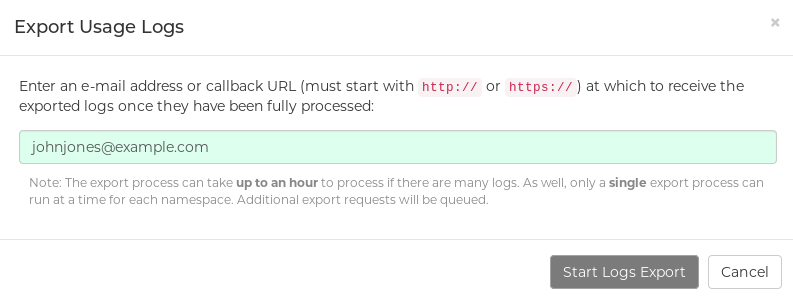
- Enter an email address or callback URL to receive the exported log. For the callback URL, you can use a URL to a specified domain, for example, <webhook.site>.
- Select Start Logs Export to start the process for gather the selected log entries. Depending on the amount of logging data being gathered, this can take anywhere from a few minutes to several hours to complete.
When the log export is completed, the one of following two events happens:
- An email is received, alerting you to the available of your requested exported log entries.
- A successful status of your log export request from the webhook URL is returned. Additionally, a link to the exported data is made available for you to delete to download the logs.
The URL points to a location in your Red Hat Quay external storage and is set to expire within one hour. Make sure that you copy the exported logs before the expiration time if you intend to keep your logs.
Chapter 6. Automatically building Dockerfiles with Build workers
Red Hat Quay supports building Dockerfiles using a set of worker nodes on OpenShift Container Platform or Kubernetes. Build triggers, such as GitHub webhooks, can be configured to automatically build new versions of your repositories when new code is committed.
This document shows you how to enable Builds with your Red Hat Quay installation, and set up one more more OpenShift Container Platform or Kubernetes clusters to accept Builds from Red Hat Quay.
6.1. Setting up Red Hat Quay Builders with OpenShift Container Platform
You must pre-configure Red Hat Quay Builders prior to using it with OpenShift Container Platform.
6.1.1. Configuring the OpenShift Container Platform TLS component
The tls component allows you to control TLS configuration.
Red Hat Quay does not support Builders when the TLS component is managed by the Red Hat Quay Operator.
If you set tls to unmanaged, you supply your own ssl.cert and ssl.key files. In this instance, if you want your cluster to support Builders, you must add both the Quay route and the Builder route name to the SAN list in the certificate; alternatively you can use a wildcard.
To add the builder route, use the following format:
[quayregistry-cr-name]-quay-builder-[ocp-namespace].[ocp-domain-name]
[quayregistry-cr-name]-quay-builder-[ocp-namespace].[ocp-domain-name]6.1.2. Preparing OpenShift Container Platform for Red Hat Quay Builders
Prepare Red Hat Quay Builders for OpenShift Container Platform by using the following procedure.
Prerequisites
- You have configured the OpenShift Container Platform TLS component.
Procedure
Enter the following command to create a project where Builds will be run, for example,
builder:oc new-project builder
$ oc new-project builderCopy to Clipboard Copied! Toggle word wrap Toggle overflow Create a new
ServiceAccountin the thebuildernamespace by entering the following command:oc create sa -n builder quay-builder
$ oc create sa -n builder quay-builderCopy to Clipboard Copied! Toggle word wrap Toggle overflow Enter the following command to grant a user the
editrole within thebuildernamespace:oc policy add-role-to-user -n builder edit system:serviceaccount:builder:quay-builder
$ oc policy add-role-to-user -n builder edit system:serviceaccount:builder:quay-builderCopy to Clipboard Copied! Toggle word wrap Toggle overflow Enter the following command to retrieve a token associated with the
quay-builderservice account in thebuildernamespace. This token is used to authenticate and interact with the OpenShift Container Platform cluster’s API server.oc sa get-token -n builder quay-builder
$ oc sa get-token -n builder quay-builderCopy to Clipboard Copied! Toggle word wrap Toggle overflow - Identify the URL for the OpenShift Container Platform cluster’s API server. This can be found in the OpenShift Container Platform Web Console.
Identify a worker node label to be used when schedule Build
jobs. Because Build pods need to run on bare metal worker nodes, typically these are identified with specific labels.Check with your cluster administrator to determine exactly which node label should be used.
Optional. If the cluster is using a self-signed certificate, you must get the Kube API Server’s certificate authority (CA) to add to Red Hat Quay’s extra certificates.
Enter the following command to obtain the name of the secret containing the CA:
oc get sa openshift-apiserver-sa --namespace=openshift-apiserver -o json | jq '.secrets[] | select(.name | contains("openshift-apiserver-sa-token"))'.name$ oc get sa openshift-apiserver-sa --namespace=openshift-apiserver -o json | jq '.secrets[] | select(.name | contains("openshift-apiserver-sa-token"))'.nameCopy to Clipboard Copied! Toggle word wrap Toggle overflow -
Obtain the
ca.crtkey value from the secret in the OpenShift Container Platform Web Console. The value begins with "-----BEGIN CERTIFICATE-----"`. -
Import the CA to Red Hat Quay. Ensure that the name of this file matches
K8S_API_TLS_CA.
Create the following
SecurityContextConstraintsresource for theServiceAccount:Copy to Clipboard Copied! Toggle word wrap Toggle overflow
6.1.3. Configuring Red Hat Quay Builders
Use the following procedure to enable Red Hat Quay Builders.
Procedure
Ensure that your Red Hat Quay
config.yamlfile has Builds enabled, for example:FEATURE_BUILD_SUPPORT: True
FEATURE_BUILD_SUPPORT: TrueCopy to Clipboard Copied! Toggle word wrap Toggle overflow Add the following information to your Red Hat Quay
config.yamlfile, replacing each value with information that is relevant to your specific installation:Copy to Clipboard Copied! Toggle word wrap Toggle overflow For more information about each configuration field, see
6.2. OpenShift Container Platform Routes limitations
The following limitations apply when you are using the Red Hat Quay Operator on OpenShift Container Platform with a managed route component:
- Currently, OpenShift Container Platform Routes are only able to serve traffic to a single port. Additional steps are required to set up Red Hat Quay Builds.
-
Ensure that your
kubectlorocCLI tool is configured to work with the cluster where the Red Hat Quay Operator is installed and that yourQuayRegistryexists; theQuayRegistrydoes not have to be on the same bare metal cluster where Builders run. - Ensure that HTTP/2 ingress is enabled on the OpenShift cluster by following these steps.
The Red Hat Quay Operator creates a
Routeresource that directs gRPC traffic to the Build manager server running inside of the existingQuaypod, or pods. If you want to use a custom hostname, or a subdomain like<builder-registry.example.com>, ensure that you create a CNAME record with your DNS provider that points to thestatus.ingress[0].hostof the createRouteresource. For example:kubectl get -n <namespace> route <quayregistry-name>-quay-builder -o jsonpath={.status.ingress[0].host}$ kubectl get -n <namespace> route <quayregistry-name>-quay-builder -o jsonpath={.status.ingress[0].host}Copy to Clipboard Copied! Toggle word wrap Toggle overflow Using the OpenShift Container Platform UI or CLI, update the
Secretreferenced byspec.configBundleSecretof theQuayRegistrywith the Build cluster CA certificate. Name the keyextra_ca_cert_build_cluster.cert. Update theconfig.yamlfile entry with the correct values referenced in the Builder configuration that you created when you configured Red Hat Quay Builders, and add theBUILDMAN_HOSTNAMECONFIGURATION FIELD:Copy to Clipboard Copied! Toggle word wrap Toggle overflow - 1
- The externally accessible server hostname which the build jobs use to communicate back to the Build manager. Default is the same as
SERVER_HOSTNAME. For OpenShiftRoute, it is eitherstatus.ingress[0].hostor the CNAME entry if using a custom hostname.BUILDMAN_HOSTNAMEmust include the port number, for example,somehost:443for an OpenShift Container Platform Route, as the gRPC client used to communicate with the build manager does not infer any port if omitted.
6.3. Troubleshooting Builds
The Builder instances started by the Build manager are ephemeral. This means that they will either get shut down by Red Hat Quay on timeouts or failure, or garbage collected by the control plane (EC2/K8s). In order to obtain the Build logs, you must do so while the Builds are running.
6.3.1. DEBUG config flag
The DEBUG flag can be set to true in order to prevent the Builder instances from getting cleaned up after completion or failure. For example:
When set to true, the debug feature prevents the Build nodes from shutting down after the quay-builder service is done or fails. It also prevents the Build manager from cleaning up the instances by terminating EC2 instances or deleting Kubernetes jobs. This allows debugging Builder node issues.
Debugging should not be set in a production cycle. The lifetime service still exists; for example, the instance still shuts down after approximately two hours. When this happens, EC2 instances are terminated, and Kubernetes jobs are completed.
Enabling debug also affects the ALLOWED_WORKER_COUNT, because the unterminated instances and jobs still count toward the total number of running workers. As a result, the existing Builder workers must be manually deleted if ALLOWED_WORKER_COUNT is reached to be able to schedule new Builds.
Setting DEBUG will also affect ALLOWED_WORKER_COUNT, as the unterminated instances/jobs will still count towards the total number of running workers. This means the existing builder workers will need to manually be deleted if ALLOWED_WORKER_COUNT is reached to be able to schedule new Builds.
6.3.2. Troubleshooting OpenShift Container Platform and Kubernetes Builds
Use the following procedure to troubleshooting OpenShift Container Platform Kubernetes Builds.
Procedure
Create a port forwarding tunnel between your local machine and a pod running with either an OpenShift Container Platform cluster or a Kubernetes cluster by entering the following command:
oc port-forward <builder_pod> 9999:2222
$ oc port-forward <builder_pod> 9999:2222Copy to Clipboard Copied! Toggle word wrap Toggle overflow Establish an SSH connection to the remote host using a specified SSH key and port, for example:
ssh -i /path/to/ssh/key/set/in/ssh_authorized_keys -p 9999 core@localhost
$ ssh -i /path/to/ssh/key/set/in/ssh_authorized_keys -p 9999 core@localhostCopy to Clipboard Copied! Toggle word wrap Toggle overflow Obtain the
quay-builderservice logs by entering the following commands:systemctl status quay-builder
$ systemctl status quay-builderCopy to Clipboard Copied! Toggle word wrap Toggle overflow journalctl -f -u quay-builder
$ journalctl -f -u quay-builderCopy to Clipboard Copied! Toggle word wrap Toggle overflow
6.4. Setting up Github builds
If your organization plans to have Builds be conducted by pushes to Github, or Github Enterprise, continue with Creating an OAuth application in GitHub.
Chapter 7. Building container images
Building container images involves creating a blueprint for a containerized application. Blueprints rely on base images from other public repositories that define how the application should be installed and configured.
Red Hat Quay supports the ability to build Docker and Podman container images. This functionality is valuable for developers and organizations who rely on container and container orchestration.
7.1. Build contexts
When building an image with Docker or Podman, a directory is specified to become the build context. This is true for both manual Builds and Build triggers, because the Build that is created by Red Hat Quay is not different than running docker build or podman build on your local machine.
Red Hat Quay Build contexts are always specified in the subdirectory from the Build setup, and fallback to the root of the Build source if a directory is not specified.
When a build is triggered, Red Hat Quay Build workers clone the Git repository to the worker machine, and then enter the Build context before conducting a Build.
For Builds based on .tar archives, Build workers extract the archive and enter the Build context. For example:
Extracted Build archive
Imagine that the Extracted Build archive is the directory structure got a Github repository called example. If no subdirectory is specified in the Build trigger setup, or when manually starting the Build, the Build operates in the example directory.
If a subdirectory is specified in the Build trigger setup, for example, subdir, only the Dockerfile within it is visible to the Build. This means that you cannot use the ADD command in the Dockerfile to add file, because it is outside of the Build context.
Unlike Docker Hub, the Dockerfile is part of the Build context on Red Hat Quay. As a result, it must not appear in the .dockerignore file.
7.2. Tag naming for Build triggers
Custom tags are available for use in Red Hat Quay.
One option is to include any string of characters assigned as a tag for each built image. Alternatively, you can use the following tag templates on the Configure Tagging section of the build trigger to tag images with information from each commit:

- ${commit}: Full SHA of the issued commit
- ${parsed_ref.branch}: Branch information (if available)
- ${parsed_ref.tag}: Tag information (if available)
- ${parsed_ref.remote}: The remote name
- ${commit_info.date}: Date when the commit was issued
- ${commit_info.author.username}: Username of the author of the commit
- ${commit_info.short_sha}: First 7 characters of the commit SHA
- ${committer.properties.username}: Username of the committer
This list is not complete, but does contain the most useful options for tagging purposes. You can find the complete tag template schema on this page.
For more information, see Set up custom tag templates in build triggers for Red Hat Quay and Quay.io
7.3. Skipping a source control-triggered build
To specify that a commit should be ignored by the Red Hat Quay build system, add the text [skip build] or [build skip] anywhere in your commit message.
7.4. Viewing and managing builds
Repository Builds can be viewed and managed on the Red Hat Quay UI.
Procedure
- Navigate to a Red Hat Quay repository using the UI.
- In the navigation pane, select Builds.
7.5. Creating a new Build
Red Hat Quay can create new Builds so long as FEATURE_BUILD_SUPPORT is set to to true in their config.yaml file.
Prerequisites
- You have navigated to the Builds page of your repository.
-
FEATURE_BUILD_SUPPORTis set to totruein yourconfig.yamlfile.
Procedure
- On the Builds page, click Start New Build.
- When prompted, click Upload Dockerfile to upload a Dockerfile or an archive that contains a Dockerfile at the root directory.
Click Start Build.
Note- Currently, users cannot specify the Docker build context when manually starting a build.
- Currently, BitBucket is unsupported on the Red Hat Quay v2 UI.
- You are redirected to the Build, which can be viewed in real-time. Wait for the Dockerfile Build to be completed and pushed.
- Optional. you can click Download Logs to download the logs, or Copy Logs to copy the logs.
Click the back button to return to the Repository Builds page, where you can view the Build History.

7.6. Build triggers
Build triggers invoke builds whenever the triggered condition is met, for example, a source control push, creating a webhook call, and so on.
7.6.1. Creating a Build trigger
Use the following procedure to create a Build trigger using a custom Git repository.
The following procedure assumes that you have not included Github credentials in your config.yaml file.
Prerequisites
- You have navigated to the Builds page of your repository.
Procedure
- On the Builds page, click Create Build Trigger.
- Select the desired platform, for example, Github, BitBucket, Gitlab, or use a custom Git repository. For this example, we are using a custom Git repository from Github.
-
Enter a custom Git repository name, for example,
git@github.com:<username>/<repo>.git. Then, click Next. When prompted, configure the tagging options by selecting one of, or both of, the following options:
- Tag manifest with the branch or tag name. When selecting this option, the built manifest the name of the branch or tag for the git commit are tagged.
Add
latesttag if on default branch. When selecting this option, the built manifest with latest if the build occurred on the default branch for the repository are tagged.Optionally, you can add a custom tagging template. There are multiple tag templates that you can enter here, including using short SHA IDs, timestamps, author names, committer, and branch names from the commit as tags. For more information, see "Tag naming for Build triggers".
After you have configured tagging, click Next.
- When prompted, select the location of the Dockerfile to be built when the trigger is invoked. If the Dockerfile is located at the root of the git repository and named Dockerfile, enter /Dockerfile as the Dockerfile path. Then, click Next.
-
When prompted, select the context for the Docker build. If the Dockerfile is located at the root of the Git repository, enter
/as the build context directory. Then, click Next. - Optional. Choose an optional robot account. This allows you to pull a private base image during the build process. If you know that a private base image is not used, you can skip this step.
- Click Next. Check for any verification warnings. If necessary, fix the issues before clicking Finish.
You are alerted that the trigger has been successfully activated. Note that using this trigger requires the following actions:
- You must give the following public key read access to the git repository.
You must set your repository to
POSTto the following URL to trigger a build.Save the SSH Public Key, then click Return to <organization_name>/<repository_name>. You are redirected to the Builds page of your repository.
On the Builds page, you now have a Build trigger. For example:

7.6.2. Manually triggering a Build
Builds can be triggered manually by using the following procedure.
Procedure
- On the Builds page, Start new build.
- When prompted, select Invoke Build Trigger.
Click Run Trigger Now to manually start the process.
After the build starts, you can see the Build ID on the Repository Builds page.
7.7. Setting up a custom Git trigger
A custom Git trigger is a generic way for any Git server to act as a Build trigger. It relies solely on SSH keys and webhook endpoints. Everything else is left for the user to implement.
7.7.1. Creating a trigger
Creating a custom Git trigger is similar to the creation of any other trigger, with the exception of the following:
- Red Hat Quay cannot automatically detect the proper Robot Account to use with the trigger. This must be done manually during the creation process.
- There are extra steps after the creation of the trigger that must be done. These steps are detailed in the following sections.
7.7.2. Custom trigger creation setup
When creating a custom Git trigger, two additional steps are required:
- You must provide read access to the SSH public key that is generated when creating the trigger.
- You must setup a webhook that POSTs to the Red Hat Quay endpoint to trigger the build.
The key and the URL are available by selecting View Credentials from the Settings, or gear icon.
View and modify tags from your repository
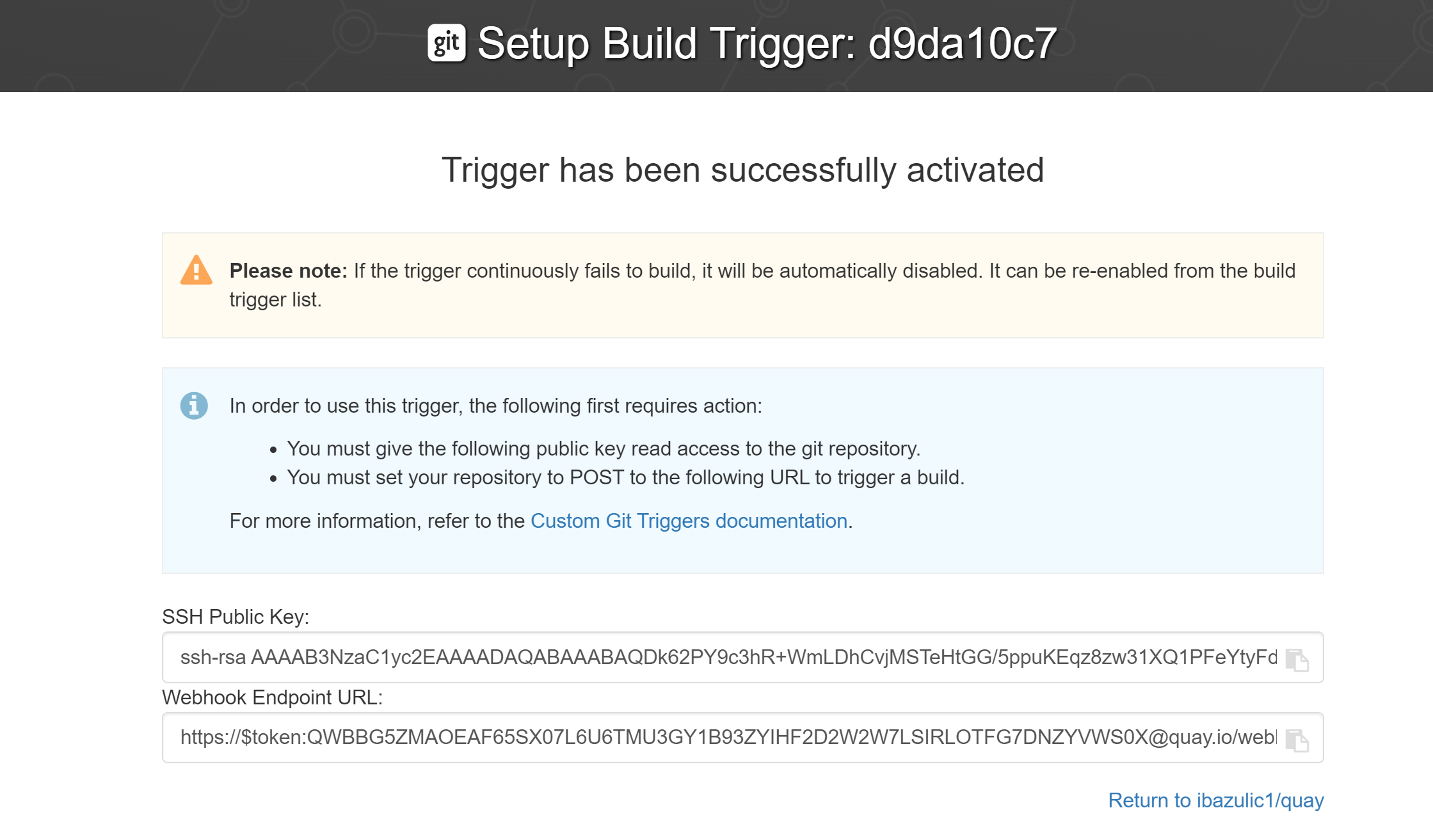
7.7.2.1. SSH public key access
Depending on the Git server configuration, there are multiple ways to install the SSH public key that Red Hat Quay generates for a custom Git trigger.
For example, Git documentation describes a small server setup in which adding the key to $HOME/.ssh/authorize_keys would provide access for Builders to clone the repository. For any git repository management software that is not officially supported, there is usually a location to input the key often labeled as Deploy Keys.
7.7.2.2. Webhook
To automatically trigger a build, one must POST a .json payload to the webhook URL using the following format.
This can be accomplished in various ways depending on the server setup, but for most cases can be done with a post-receive Git Hook.
This request requires a Content-Type header containing application/json in order to be valid.
Example webhook
Chapter 8. Creating an OAuth application in GitHub
You can authorize your Red Hat Quay registry to access a GitHub account and its repositories by registering it as a GitHub OAuth application.
8.1. Create new GitHub application
Use the following procedure to create an OAuth application in Github.
Procedure
- Log into Github Enterprise.
- In the navigation pane, select your username → Your organizations.
- In the navigation pane, select Applications.
Click Register New Application. The
Register a new OAuth applicationconfiguration screen is displayed, for example: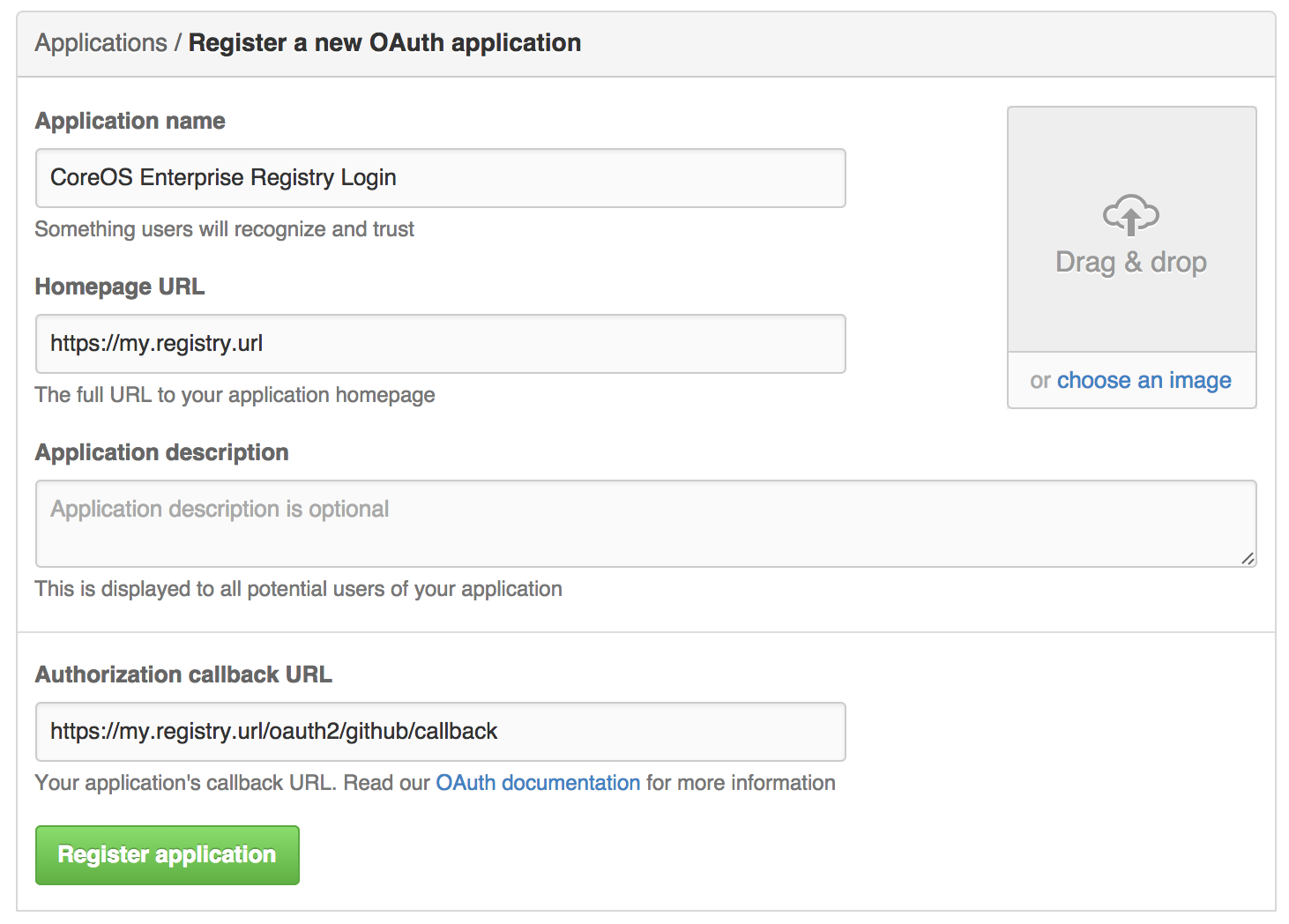
- Enter a name for the application in the Application name textbox.
In the Homepage URL textbox, enter your Red Hat Quay URL.
NoteIf you are using public GitHub, the Homepage URL entered must be accessible by your users. It can still be an internal URL.
- In the Authorization callback URL, enter https://<RED_HAT_QUAY_URL>/oauth2/github/callback.
- Click Register application to save your settings.
- When the new application’s summary is shown, record the Client ID and the Client Secret shown for the new application.
Chapter 9. Repository Notifications
Red Hat Quay supports adding notifications to a repository for various events that occur in the repository’s lifecycle.
9.1. Creating notifications
Use the following procedure to add notifications.
Prerequisites
- You have created a repository.
- You have administrative privileges for the repository.
Procedure
Navigate to a repository on Red Hat Quay.
- In the navigation pane, click Settings.
- In the Events and Notifications category, click Create Notification to add a new notification for a repository event. You are redirected to a Create repository notification page.
On the Create repository notification page, select the drop-down menu to reveal a list of events. You can select a notification for the following types of events:
- Push to Repository
- Dockerfile Build Queued
- Dockerfile Build Started
- Dockerfile Build Successfully Completed
- Docker Build Cancelled
- Package Vulnerability Found
After you have selected the event type, select the notification method. The following methods are supported:
- Quay Notification
- Webhook POST
- Flowdock Team Notification
- HipChat Room Notification
Slack Room Notification
Depending on the method that you choose, you must include additional information. For example, if you select E-mail, you are required to include an e-mail address and an optional notification title.
- After selecting an event and notification method, click Create Notification.
9.2. Repository events description
The following sections detail repository events.
9.2.1. Repository Push
A successful push of one or more images was made to the repository:
9.2.2. Dockerfile Build Queued
The following example is a response from a Dockerfile Build that has been queued into the Build system.
Responses can differ based on the use of optional attributes.
9.2.3. Dockerfile Build started
The following example is a response from a Dockerfile Build that has been queued into the Build system.
Responses can differ based on the use of optional attributes.
9.2.4. Dockerfile Build successfully completed
The following example is a response from a Dockerfile Build that has been successfully completed by the Build system.
This event occurs simultaneously with a Repository Push event for the built image or images.
9.2.5. Dockerfile Build failed
The following example is a response from a Dockerfile Build that has failed.
9.2.6. Dockerfile Build cancelled
The following example is a response from a Dockerfile Build that has been cancelled.
9.2.7. Vulnerability detected
The following example is a response from a Dockerfile Build has detected a vulnerability in the repository.
9.3. Notification actions
9.3.1. Notifications added
Notifications are added to the Events and Notifications section of the Repository Settings page. They are also added to the Notifications window, which can be found by clicking the bell icon in the navigation pane of Red Hat Quay.
Red Hat Quay notifications can be setup to be sent to a User, Team, or the organization as a whole.
9.3.2. E-mail notifications
E-mails are sent to specified addresses that describe the specified event. E-mail addresses must be verified on a per-repository basis.
9.3.3. Webhook POST notifications
An HTTP POST call is made to the specified URL with the event’s data. For more information about event data, see "Repository events description".
When the URL is HTTPS, the call has an SSL client certificate set from Red Hat Quay. Verification of this certificate proves that the call originated from Red Hat Quay. Responses with the status code in the 2xx range are considered successful. Responses with any other status code are considered failures and result in a retry of the webhook notification.
9.3.4. Flowdock notifications
Posts a message to Flowdock.
9.3.5. Hipchat notifications
Posts a message to HipChat.
9.3.6. Slack notifications
Posts a message to Slack.
Chapter 10. Open Container Initiative support
Container registries were originally designed to support container images in the Docker image format. To promote the use of additional runtimes apart from Docker, the Open Container Initiative (OCI) was created to provide a standardization surrounding container runtimes and image formats. Most container registries support the OCI standardization as it is based on the Docker image manifest V2, Schema 2 format.
In addition to container images, a variety of artifacts have emerged that support not just individual applications, but also the Kubernetes platform as a whole. These range from Open Policy Agent (OPA) policies for security and governance to Helm charts and Operators that aid in application deployment.
Red Hat Quay is a private container registry that not only stores container images, but also supports an entire ecosystem of tooling to aid in the management of containers. Red Hat Quay strives to be as compatible as possible with the OCI 1.0 Image and Distribution specifications, and supports common media types like Helm charts (as long as they pushed with a version of Helm that supports OCI) and a variety of arbitrary media types within the manifest or layer components of container images. Support for such novel media types differs from previous iterations of Red Hat Quay, when the registry was more strict about accepted media types. Because Red Hat Quay now works with a wider array of media types, including those that were previously outside the scope of its support, it is now more versatile accommodating not only standard container image formats but also emerging or unconventional types.
In addition to its expanded support for novel media types, Red Hat Quay ensures compatibility with Docker images, including V2_2 and V2_1 formats. This compatibility with Docker V2_2 and V2_1 images demonstrates Red Hat Quay’s' commitment to providing a seamless experience for Docker users. Moreover, Red Hat Quay continues to extend its support for Docker V1 pulls, catering to users who might still rely on this earlier version of Docker images.
Support for OCI artifacts are enabled by default. Prior to this, OCI media types were enabled under the under the FEATURE_GENERAL_OCI_SUPPORT configuration field.
Because all OCI media types are now enabled by default, use of FEATURE_GENERAL_OCI_SUPPORT, ALLOWED_OCI_ARTIFACT_TYPES, and IGNORE_UNKNOWN_MEDIATYPES is no longer required.
Additionally, the FEATURE_HELM_OCI_SUPPORT configuration field has been deprecated. This configuration field is no longer supported and will be removed in a future version of Red Hat Quay.
10.1. Helm and OCI prerequisites
Helm simplifies how applications are packaged and deployed. Helm uses a packaging format called Charts which contain the Kubernetes resources representing an application. Red Hat Quay supports Helm charts so long as they are a version supported by OCI.
Use the following procedures to pre-configure your system to use Helm and other OCI media types.
10.1.1. Installing Helm
Use the following procedure to install the Helm client.
Procedure
- Download the latest version of Helm from the Helm releases page.
Enter the following command to unpack the Helm binary:
tar -zxvf helm-v3.8.2-linux-amd64.tar.gz
$ tar -zxvf helm-v3.8.2-linux-amd64.tar.gzCopy to Clipboard Copied! Toggle word wrap Toggle overflow Move the Helm binary to the desired location:
mv linux-amd64/helm /usr/local/bin/helm
$ mv linux-amd64/helm /usr/local/bin/helmCopy to Clipboard Copied! Toggle word wrap Toggle overflow
For more information about installing Helm, see the Installing Helm documentation.
10.1.2. Upgrading to Helm 3.8
Support for OCI registry charts requires that Helm has been upgraded to at least 3.8. If you have already downloaded Helm and need to upgrade to Helm 3.8, see the Helm Upgrade documentation.
10.1.3. Enabling your system to trust SSL/TLS certificates used by Red Hat Quay
Communication between the Helm client and Red Hat Quay is facilitated over HTTPS. As of Helm 3.5, support is only available for registries communicating over HTTPS with trusted certificates. In addition, the operating system must trust the certificates exposed by the registry. You must ensure that your operating system has been configured to trust the certificates used by Red Hat Quay. Use the following procedure to enable your system to trust the custom certificates.
Procedure
Enter the following command to copy the
rootCA.pemfile to the/etc/pki/ca-trust/source/anchors/folder:sudo cp rootCA.pem /etc/pki/ca-trust/source/anchors/
$ sudo cp rootCA.pem /etc/pki/ca-trust/source/anchors/Copy to Clipboard Copied! Toggle word wrap Toggle overflow Enter the following command to update the CA trust store:
sudo update-ca-trust extract
$ sudo update-ca-trust extractCopy to Clipboard Copied! Toggle word wrap Toggle overflow
10.2. Using Helm charts
Use the following example to download and push an etherpad chart from the Red Hat Community of Practice (CoP) repository.
Prerequisites
- You have logged into Red Hat Quay.
Procedure
Add a chart repository by entering the following command:
helm repo add redhat-cop https://redhat-cop.github.io/helm-charts
$ helm repo add redhat-cop https://redhat-cop.github.io/helm-chartsCopy to Clipboard Copied! Toggle word wrap Toggle overflow Enter the following command to update the information of available charts locally from the chart repository:
helm repo update
$ helm repo updateCopy to Clipboard Copied! Toggle word wrap Toggle overflow Enter the following command to pull a chart from a repository:
helm pull redhat-cop/etherpad --version=0.0.4 --untar
$ helm pull redhat-cop/etherpad --version=0.0.4 --untarCopy to Clipboard Copied! Toggle word wrap Toggle overflow Enter the following command to package the chart into a chart archive:
helm package ./etherpad
$ helm package ./etherpadCopy to Clipboard Copied! Toggle word wrap Toggle overflow Example output
Successfully packaged chart and saved it to: /home/user/linux-amd64/etherpad-0.0.4.tgz
Successfully packaged chart and saved it to: /home/user/linux-amd64/etherpad-0.0.4.tgzCopy to Clipboard Copied! Toggle word wrap Toggle overflow Log in to Red Hat Quay using
helm registry login:helm registry login quay370.apps.quayperf370.perfscale.devcluster.openshift.com
$ helm registry login quay370.apps.quayperf370.perfscale.devcluster.openshift.comCopy to Clipboard Copied! Toggle word wrap Toggle overflow Push the chart to your repository using the
helm pushcommand:helm push etherpad-0.0.4.tgz oci://quay370.apps.quayperf370.perfscale.devcluster.openshift.com
$ helm push etherpad-0.0.4.tgz oci://quay370.apps.quayperf370.perfscale.devcluster.openshift.comCopy to Clipboard Copied! Toggle word wrap Toggle overflow Example output:
Pushed: quay370.apps.quayperf370.perfscale.devcluster.openshift.com/etherpad:0.0.4
Digest: sha256:a6667ff2a0e2bd7aa4813db9ac854b5124ff1c458d170b70c2d2375325f2451b
Pushed: quay370.apps.quayperf370.perfscale.devcluster.openshift.com/etherpad:0.0.4
Digest: sha256:a6667ff2a0e2bd7aa4813db9ac854b5124ff1c458d170b70c2d2375325f2451b
Copy to Clipboard Copied! Toggle word wrap Toggle overflow Ensure that the push worked by deleting the local copy, and then pulling the chart from the repository:
rm -rf etherpad-0.0.4.tgz
$ rm -rf etherpad-0.0.4.tgzCopy to Clipboard Copied! Toggle word wrap Toggle overflow helm pull oci://quay370.apps.quayperf370.perfscale.devcluster.openshift.com/etherpad --version 0.0.4
$ helm pull oci://quay370.apps.quayperf370.perfscale.devcluster.openshift.com/etherpad --version 0.0.4Copy to Clipboard Copied! Toggle word wrap Toggle overflow Example output:
Pulled: quay370.apps.quayperf370.perfscale.devcluster.openshift.com/etherpad:0.0.4
Digest: sha256:4f627399685880daf30cf77b6026dc129034d68c7676c7e07020b70cf7130902
Pulled: quay370.apps.quayperf370.perfscale.devcluster.openshift.com/etherpad:0.0.4
Digest: sha256:4f627399685880daf30cf77b6026dc129034d68c7676c7e07020b70cf7130902
Copy to Clipboard Copied! Toggle word wrap Toggle overflow
10.3. Cosign OCI support
Cosign is a tool that can be used to sign and verify container images. It uses the ECDSA-P256 signature algorithm and Red Hat’s Simple Signing payload format to create public keys that are stored in PKIX files. Private keys are stored as encrypted PEM files.
Cosign currently supports the following:
- Hardware and KMS Signing
- Bring-your-own PKI
- OIDC PKI
- Built-in binary transparency and timestamping service
Use the following procedure to directly install Cosign.
Prerequisites
- You have installed Go version 1.16 or later.
-
You have set
FEATURE_GENERAL_OCI_SUPPORTtotruein yourconfig.yamlfile.
Procedure
Enter the following
gocommand to directly install Cosign:go install github.com/sigstore/cosign/cmd/cosign@v1.0.0
$ go install github.com/sigstore/cosign/cmd/cosign@v1.0.0Copy to Clipboard Copied! Toggle word wrap Toggle overflow Example output
go: downloading github.com/sigstore/cosign v1.0.0
go: downloading github.com/peterbourgon/ff/v3 v3.1.0
go: downloading github.com/sigstore/cosign v1.0.0
go: downloading github.com/peterbourgon/ff/v3 v3.1.0
Copy to Clipboard Copied! Toggle word wrap Toggle overflow Generate a key-value pair for Cosign by entering the following command:
cosign generate-key-pair
$ cosign generate-key-pairCopy to Clipboard Copied! Toggle word wrap Toggle overflow Example output
Enter password for private key:
Enter again:
Private key written to cosign.key
Public key written to cosign.pub
Enter password for private key:
Enter again:
Private key written to cosign.key
Public key written to cosign.pub
Copy to Clipboard Copied! Toggle word wrap Toggle overflow Sign the key-value pair by entering the following command:
cosign sign -key cosign.key quay-server.example.com/user1/busybox:test
$ cosign sign -key cosign.key quay-server.example.com/user1/busybox:testCopy to Clipboard Copied! Toggle word wrap Toggle overflow Example output
Enter password for private key:
Pushing signature to: quay-server.example.com/user1/busybox:sha256-ff13b8f6f289b92ec2913fa57c5dd0a874c3a7f8f149aabee50e3d01546473e3.sig
Enter password for private key:
Pushing signature to: quay-server.example.com/user1/busybox:sha256-ff13b8f6f289b92ec2913fa57c5dd0a874c3a7f8f149aabee50e3d01546473e3.sig
Copy to Clipboard Copied! Toggle word wrap Toggle overflow If you experience the
error: signing quay-server.example.com/user1/busybox:test: getting remote image: GET https://quay-server.example.com/v2/user1/busybox/manifests/test: UNAUTHORIZED: access to the requested resource is not authorized; map[]error, which occurs because Cosign relies on~./docker/config.jsonfor authorization, you might need to execute the following command:podman login --authfile ~/.docker/config.json quay-server.example.com
$ podman login --authfile ~/.docker/config.json quay-server.example.comCopy to Clipboard Copied! Toggle word wrap Toggle overflow Example output
Username:
Password:
Login Succeeded!
Username:
Password:
Login Succeeded!
Copy to Clipboard Copied! Toggle word wrap Toggle overflow Enter the following command to see the updated authorization configuration:
Copy to Clipboard Copied! Toggle word wrap Toggle overflow
10.4. Installing and using Cosign
Use the following procedure to directly install Cosign.
Prerequisites
- You have installed Go version 1.16 or later.
-
You have set
FEATURE_GENERAL_OCI_SUPPORTtotruein yourconfig.yamlfile.
Procedure
Enter the following
gocommand to directly install Cosign:go install github.com/sigstore/cosign/cmd/cosign@v1.0.0
$ go install github.com/sigstore/cosign/cmd/cosign@v1.0.0Copy to Clipboard Copied! Toggle word wrap Toggle overflow Example output
go: downloading github.com/sigstore/cosign v1.0.0
go: downloading github.com/peterbourgon/ff/v3 v3.1.0
go: downloading github.com/sigstore/cosign v1.0.0
go: downloading github.com/peterbourgon/ff/v3 v3.1.0
Copy to Clipboard Copied! Toggle word wrap Toggle overflow Generate a key-value pair for Cosign by entering the following command:
cosign generate-key-pair
$ cosign generate-key-pairCopy to Clipboard Copied! Toggle word wrap Toggle overflow Example output
Enter password for private key:
Enter again:
Private key written to cosign.key
Public key written to cosign.pub
Enter password for private key:
Enter again:
Private key written to cosign.key
Public key written to cosign.pub
Copy to Clipboard Copied! Toggle word wrap Toggle overflow Sign the key-value pair by entering the following command:
cosign sign -key cosign.key quay-server.example.com/user1/busybox:test
$ cosign sign -key cosign.key quay-server.example.com/user1/busybox:testCopy to Clipboard Copied! Toggle word wrap Toggle overflow Example output
Enter password for private key:
Pushing signature to: quay-server.example.com/user1/busybox:sha256-ff13b8f6f289b92ec2913fa57c5dd0a874c3a7f8f149aabee50e3d01546473e3.sig
Enter password for private key:
Pushing signature to: quay-server.example.com/user1/busybox:sha256-ff13b8f6f289b92ec2913fa57c5dd0a874c3a7f8f149aabee50e3d01546473e3.sig
Copy to Clipboard Copied! Toggle word wrap Toggle overflow If you experience the
error: signing quay-server.example.com/user1/busybox:test: getting remote image: GET https://quay-server.example.com/v2/user1/busybox/manifests/test: UNAUTHORIZED: access to the requested resource is not authorized; map[]error, which occurs because Cosign relies on~./docker/config.jsonfor authorization, you might need to execute the following command:podman login --authfile ~/.docker/config.json quay-server.example.com
$ podman login --authfile ~/.docker/config.json quay-server.example.comCopy to Clipboard Copied! Toggle word wrap Toggle overflow Example output
Username:
Password:
Login Succeeded!
Username:
Password:
Login Succeeded!
Copy to Clipboard Copied! Toggle word wrap Toggle overflow Enter the following command to see the updated authorization configuration:
Copy to Clipboard Copied! Toggle word wrap Toggle overflow
10.5. Using other artifact types
By default, other artifact types are enabled for use by Red Hat Quay.
Use the following procedure to add additional OCI media types.
Prerequisites
-
You have set
FEATURE_GENERAL_OCI_SUPPORTtotruein yourconfig.yamlfile.
Procedure
In your
config.yamlfile, add theALLOWED_OCI_ARTIFACT_TYPESconfiguration field. For example:Copy to Clipboard Copied! Toggle word wrap Toggle overflow Add support for your desired artifact type, for example, Singularity Image Format (SIF), by adding the following to your
config.yamlfile:Copy to Clipboard Copied! Toggle word wrap Toggle overflow ImportantWhen adding artifact types that are not configured by default, Red Hat Quay administrators will also need to manually add support for Cosign and Helm if desired.
Now, users can tag SIF images for their Red Hat Quay registry.
10.6. Disabling OCI artifacts in Red Hat Quay
Use the following procedure to disable support for OCI artifacts.
Procedure
Disable OCI artifact support by setting
FEATURE_GENERAL_OCI_SUPPORTtofalsein yourconfig.yamlfile. For example:FEATURE_GENERAL_OCI_SUPPORT = false
FEATURE_GENERAL_OCI_SUPPORT = falseCopy to Clipboard Copied! Toggle word wrap Toggle overflow
Chapter 11. Red Hat Quay quota management and enforcement overview
With Red Hat Quay, users have the ability to report storage consumption and to contain registry growth by establishing configured storage quota limits. On-premise Red Hat Quay users are now equipped with the following capabilities to manage the capacity limits of their environment:
- Quota reporting: With this feature, a superuser can track the storage consumption of all their organizations. Additionally, users can track the storage consumption of their assigned organization.
- Quota management: With this feature, a superuser can define soft and hard checks for Red Hat Quay users. Soft checks tell users if the storage consumption of an organization reaches their configured threshold. Hard checks prevent users from pushing to the registry when storage consumption reaches the configured limit.
Together, these features allow service owners of a Red Hat Quay registry to define service level agreements and support a healthy resource budget.
11.1. Quota management architecture
With the quota management feature enabled, individual blob sizes are summed at the repository and namespace level. For example, if two tags in the same repository reference the same blob, the size of that blob is only counted once towards the repository total. Additionally, manifest list totals are counted toward the repository total.
Because manifest list totals are counted toward the repository total, the total quota consumed when upgrading from a previous version of Red Hat Quay might be reportedly differently in Red Hat Quay 3.9. In some cases, the new total might go over a repository’s previously-set limit. Red Hat Quay administrators might have to adjust the allotted quota of a repository to account for these changes.
The quota management feature works by calculating the size of existing repositories and namespace with a backfill worker, and then adding or subtracting from the total for every image that is pushed or garbage collected afterwords. Additionally, the subtraction from the total happens when the manifest is garbage collected.
Because subtraction occurs from the total when the manifest is garbage collected, there is a delay in the size calculation until it is able to be garbage collected. For more information about garbage collection, see Red Hat Quay garbage collection.
The following database tables hold the quota repository size, quota namespace size, and quota registry size, in bytes, of a Red Hat Quay repository within an organization:
-
QuotaRepositorySize -
QuotaNameSpaceSize -
QuotaRegistrySize
The organization size is calculated by the backfill worker to ensure that it is not duplicated. When an image push is initialized, the user’s organization storage is validated to check if it is beyond the configured quota limits. If an image push exceeds defined quota limitations, a soft or hard check occurs:
- For a soft check, users are notified.
- For a hard check, the push is stopped.
If storage consumption is within configured quota limits, the push is allowed to proceed.
Image manifest deletion follows a similar flow, whereby the links between associated image tags and the manifest are deleted. Additionally, after the image manifest is deleted, the repository size is recalculated and updated in the QuotaRepositorySize, QuotaNameSpaceSize, and QuotaRegistrySize tables.
11.2. Quota management limitations
Quota management helps organizations to maintain resource consumption. One limitation of quota management is that calculating resource consumption on push results in the calculation becoming part of the push’s critical path. Without this, usage data might drift.
The maximum storage quota size is dependent on the selected database:
| Variable | Description |
|---|---|
| Postgres | 8388608 TB |
| MySQL | 8388608 TB |
| SQL Server | 16777216 TB |
11.3. Quota management configuration fields
| Field | Type | Description |
|---|---|---|
| FEATURE_QUOTA_MANAGEMENT | Boolean | Enables configuration, caching, and validation for quota management feature. **Default:** `False` |
| DEFAULT_SYSTEM_REJECT_QUOTA_BYTES | String | Enables system default quota reject byte allowance for all organizations. By default, no limit is set. |
| QUOTA_BACKFILL | Boolean | Enables the quota backfill worker to calculate the size of pre-existing blobs.
Default: |
| QUOTA_TOTAL_DELAY_SECONDS | String | The time delay for starting the quota backfill. Rolling deployments can cause incorrect totals. This field must be set to a time longer than it takes for the rolling deployment to complete.
Default: |
| PERMANENTLY_DELETE_TAGS | Boolean | Enables functionality related to the removal of tags from the time machine window.
Default: |
| RESET_CHILD_MANIFEST_EXPIRATION | Boolean |
Resets the expirations of temporary tags targeting the child manifests. With this feature set to
Default: |
11.3.1. Example quota management configuration
The following YAML is the suggested configuration when enabling quota management.
Quota management YAML configuration
FEATURE_QUOTA_MANAGEMENT: true
FEATURE_GARBAGE_COLLECTION: true
PERMANENTLY_DELETE_TAGS: true
QUOTA_TOTAL_DELAY_SECONDS: 1800
RESET_CHILD_MANIFEST_EXPIRATION: true
FEATURE_QUOTA_MANAGEMENT: true
FEATURE_GARBAGE_COLLECTION: true
PERMANENTLY_DELETE_TAGS: true
QUOTA_TOTAL_DELAY_SECONDS: 1800
RESET_CHILD_MANIFEST_EXPIRATION: true11.4. Establishing quota with the Red Hat Quay API
When an organization is first created, it does not have a quota applied. Use the /api/v1/organization/{organization}/quota endpoint:
Sample command
curl -k -X GET -H "Authorization: Bearer <token>" -H 'Content-Type: application/json' https://example-registry-quay-quay-enterprise.apps.docs.gcp.quaydev.org/api/v1/organization/testorg/quota | jq
$ curl -k -X GET -H "Authorization: Bearer <token>" -H 'Content-Type: application/json' https://example-registry-quay-quay-enterprise.apps.docs.gcp.quaydev.org/api/v1/organization/testorg/quota | jqSample output
[]
[]11.4.1. Setting the quota
To set a quota for an organization, POST data to the /api/v1/organization/{orgname}/quota endpoint: .Sample command
curl -k -X POST -H "Authorization: Bearer <token>" -H 'Content-Type: application/json' -d '{"limit_bytes": 10485760}' https://example-registry-quay-quay-enterprise.apps.docs.quayteam.org/api/v1/organization/testorg/quota | jq
$ curl -k -X POST -H "Authorization: Bearer <token>" -H 'Content-Type: application/json' -d '{"limit_bytes": 10485760}' https://example-registry-quay-quay-enterprise.apps.docs.quayteam.org/api/v1/organization/testorg/quota | jqSample output
"Created"
"Created"11.4.2. Viewing the quota
To see the applied quota, GET data from the /api/v1/organization/{orgname}/quota endpoint:
Sample command
curl -k -X GET -H "Authorization: Bearer <token>" -H 'Content-Type: application/json' https://example-registry-quay-quay-enterprise.apps.docs.gcp.quaydev.org/api/v1/organization/testorg/quota | jq
$ curl -k -X GET -H "Authorization: Bearer <token>" -H 'Content-Type: application/json' https://example-registry-quay-quay-enterprise.apps.docs.gcp.quaydev.org/api/v1/organization/testorg/quota | jqSample output
11.4.3. Modifying the quota
To change the existing quota, in this instance from 10 MB to 100 MB, PUT data to the /api/v1/organization/{orgname}/quota/{quota_id} endpoint:
Sample command
curl -k -X PUT -H "Authorization: Bearer <token>" -H 'Content-Type: application/json' -d '{"limit_bytes": 104857600}' https://example-registry-quay-quay-enterprise.apps.docs.gcp.quaydev.org/api/v1/organization/testorg/quota/1 | jq
$ curl -k -X PUT -H "Authorization: Bearer <token>" -H 'Content-Type: application/json' -d '{"limit_bytes": 104857600}' https://example-registry-quay-quay-enterprise.apps.docs.gcp.quaydev.org/api/v1/organization/testorg/quota/1 | jqSample output
11.4.4. Pushing images
To see the storage consumed, push various images to the organization.
11.4.4.1. Pushing ubuntu:18.04
Push ubuntu:18.04 to the organization from the command line:
Sample commands
podman pull ubuntu:18.04
podman tag docker.io/library/ubuntu:18.04 example-registry-quay-quay-enterprise.apps.docs.gcp.quaydev.org/testorg/ubuntu:18.04
podman push --tls-verify=false example-registry-quay-quay-enterprise.apps.docs.gcp.quaydev.org/testorg/ubuntu:18.04
$ podman pull ubuntu:18.04

$ podman tag docker.io/library/ubuntu:18.04 example-registry-quay-quay-enterprise.apps.docs.gcp.quaydev.org/testorg/ubuntu:18.04

$ podman push --tls-verify=false example-registry-quay-quay-enterprise.apps.docs.gcp.quaydev.org/testorg/ubuntu:18.0411.4.4.2. Using the API to view quota usage
To view the storage consumed, GET data from the /api/v1/repository endpoint:
Sample command
curl -k -X GET -H "Authorization: Bearer <token>" -H 'Content-Type: application/json' 'https://example-registry-quay-quay-enterprise.apps.docs.gcp.quaydev.org/api/v1/repository?last_modified=true&namespace=testorg&popularity=true&public=true' | jq
$ curl -k -X GET -H "Authorization: Bearer <token>" -H 'Content-Type: application/json' 'https://example-registry-quay-quay-enterprise.apps.docs.gcp.quaydev.org/api/v1/repository?last_modified=true&namespace=testorg&popularity=true&public=true' | jqSample output
11.4.4.3. Pushing another image
Pull, tag, and push a second image, for example,
nginx:Sample commands
podman pull nginx
podman tag docker.io/library/nginx example-registry-quay-quay-enterprise.apps.docs.gcp.quaydev.org/testorg/nginx
podman push --tls-verify=false example-registry-quay-quay-enterprise.apps.docs.gcp.quaydev.org/testorg/nginx
$ podman pull nginx

$ podman tag docker.io/library/nginx example-registry-quay-quay-enterprise.apps.docs.gcp.quaydev.org/testorg/nginx

$ podman push --tls-verify=false example-registry-quay-quay-enterprise.apps.docs.gcp.quaydev.org/testorg/nginx
Copy to Clipboard Copied! Toggle word wrap Toggle overflow To view the quota report for the repositories in the organization, use the /api/v1/repository endpoint:
Sample command
curl -k -X GET -H "Authorization: Bearer <token>" -H 'Content-Type: application/json' 'https://example-registry-quay-quay-enterprise.apps.docs.gcp.quaydev.org/api/v1/repository?last_modified=true&namespace=testorg&popularity=true&public=true'
$ curl -k -X GET -H "Authorization: Bearer <token>" -H 'Content-Type: application/json' 'https://example-registry-quay-quay-enterprise.apps.docs.gcp.quaydev.org/api/v1/repository?last_modified=true&namespace=testorg&popularity=true&public=true'Copy to Clipboard Copied! Toggle word wrap Toggle overflow Sample output
Copy to Clipboard Copied! Toggle word wrap Toggle overflow To view the quota information in the organization details, use the /api/v1/organization/{orgname} endpoint:
Sample command
curl -k -X GET -H "Authorization: Bearer <token>" -H 'Content-Type: application/json' 'https://example-registry-quay-quay-enterprise.apps.docs.gcp.quaydev.org/api/v1/organization/testorg' | jq
$ curl -k -X GET -H "Authorization: Bearer <token>" -H 'Content-Type: application/json' 'https://example-registry-quay-quay-enterprise.apps.docs.gcp.quaydev.org/api/v1/organization/testorg' | jqCopy to Clipboard Copied! Toggle word wrap Toggle overflow Sample output
Copy to Clipboard Copied! Toggle word wrap Toggle overflow
11.4.5. Rejecting pushes using quota limits
If an image push exceeds defined quota limitations, a soft or hard check occurs:
- For a soft check, or warning, users are notified.
- For a hard check, or reject, the push is terminated.
11.4.5.1. Setting reject and warning limits
To set reject and warning limits, POST data to the /api/v1/organization/{orgname}/quota/{quota_id}/limit endpoint:
Sample reject limit command
curl -k -X POST -H "Authorization: Bearer <token>" -H 'Content-Type: application/json' -d '{"type":"Reject","threshold_percent":80}' https://example-registry-quay-quay-enterprise.apps.docs.gcp.quaydev.org/api/v1/organization/testorg/quota/1/limit
$ curl -k -X POST -H "Authorization: Bearer <token>" -H 'Content-Type: application/json' -d '{"type":"Reject","threshold_percent":80}' https://example-registry-quay-quay-enterprise.apps.docs.gcp.quaydev.org/api/v1/organization/testorg/quota/1/limitSample warning limit command
curl -k -X POST -H "Authorization: Bearer <token>" -H 'Content-Type: application/json' -d '{"type":"Warning","threshold_percent":50}' https://example-registry-quay-quay-enterprise.apps.docs.gcp.quaydev.org/api/v1/organization/testorg/quota/1/limit
$ curl -k -X POST -H "Authorization: Bearer <token>" -H 'Content-Type: application/json' -d '{"type":"Warning","threshold_percent":50}' https://example-registry-quay-quay-enterprise.apps.docs.gcp.quaydev.org/api/v1/organization/testorg/quota/1/limit11.4.5.2. Viewing reject and warning limits
To view the reject and warning limits, use the /api/v1/organization/{orgname}/quota endpoint:
View quota limits
curl -k -X GET -H "Authorization: Bearer <token>" -H 'Content-Type: application/json' https://example-registry-quay-quay-enterprise.apps.docs.gcp.quaydev.org/api/v1/organization/testorg/quota | jq
$ curl -k -X GET -H "Authorization: Bearer <token>" -H 'Content-Type: application/json' https://example-registry-quay-quay-enterprise.apps.docs.gcp.quaydev.org/api/v1/organization/testorg/quota | jqSample output for quota limits
11.4.5.3. Pushing an image when the reject limit is exceeded
In this example, the reject limit (80%) has been set to below the current repository size (~83%), so the next push should automatically be rejected.
Push a sample image to the organization from the command line:
Sample image push
podman pull ubuntu:20.04
podman tag docker.io/library/ubuntu:20.04 example-registry-quay-quay-enterprise.apps.docs.gcp.quaydev.org/testorg/ubuntu:20.04
podman push --tls-verify=false example-registry-quay-quay-enterprise.apps.docs.gcp.quaydev.org/testorg/ubuntu:20.04
$ podman pull ubuntu:20.04

$ podman tag docker.io/library/ubuntu:20.04 example-registry-quay-quay-enterprise.apps.docs.gcp.quaydev.org/testorg/ubuntu:20.04

$ podman push --tls-verify=false example-registry-quay-quay-enterprise.apps.docs.gcp.quaydev.org/testorg/ubuntu:20.04Sample output when quota exceeded
11.4.5.4. Notifications for limits exceeded
When limits are exceeded, a notification appears:
Quota notifications
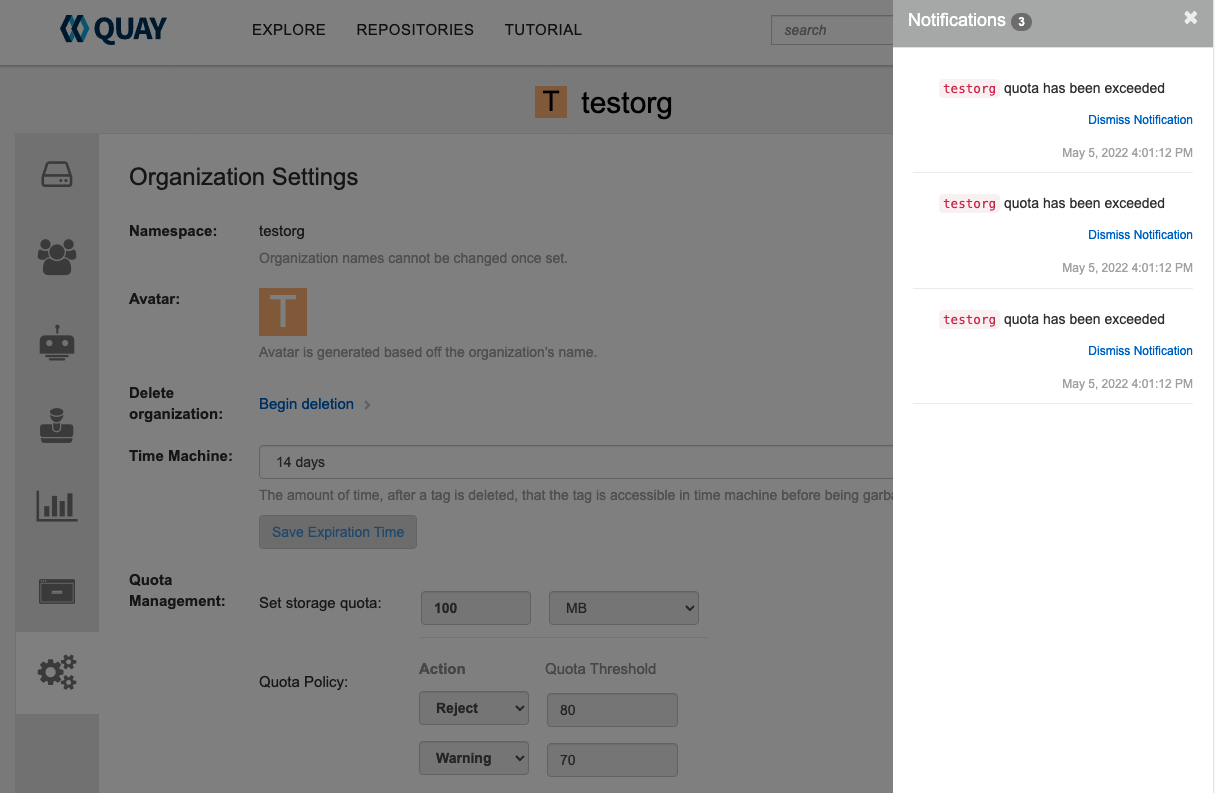
Chapter 12. Red Hat Quay as a proxy cache for upstream registries
With the growing popularity of container development, customers increasingly rely on container images from upstream registries like Docker or Google Cloud Platform to get services up and running. Today, registries have rate limitations and throttling on the number of times users can pull from these registries.
With this feature, Red Hat Quay will act as a proxy cache to circumvent pull-rate limitations from upstream registries. Adding a cache feature also accelerates pull performance, because images are pulled from the cache rather than upstream dependencies. Cached images are only updated when the upstream image digest differs from the cached image, reducing rate limitations and potential throttling.
With Red Hat Quay cache proxy, the following features are available:
- Specific organizations can be defined as a cache for upstream registries.
Configuration of a Quay organization that acts as a cache for a specific upstream registry. This repository can be defined by using the Quay UI, and offers the following configurations:
- Upstream registry credentials for private repositories or increased rate limiting.
- Expiration timer to avoid surpassing cache organization size.
- Global on/off configurable via the configuration application.
-
Caching of entire upstream registries or just a single namespace, for example, all of
docker.ioor justdocker.io/library. - Logging of all cache pulls.
- Cached images scannability by Clair.
12.1. Proxy cache architecture
The following image shows the expected design flow and architecture of the proxy cache feature.
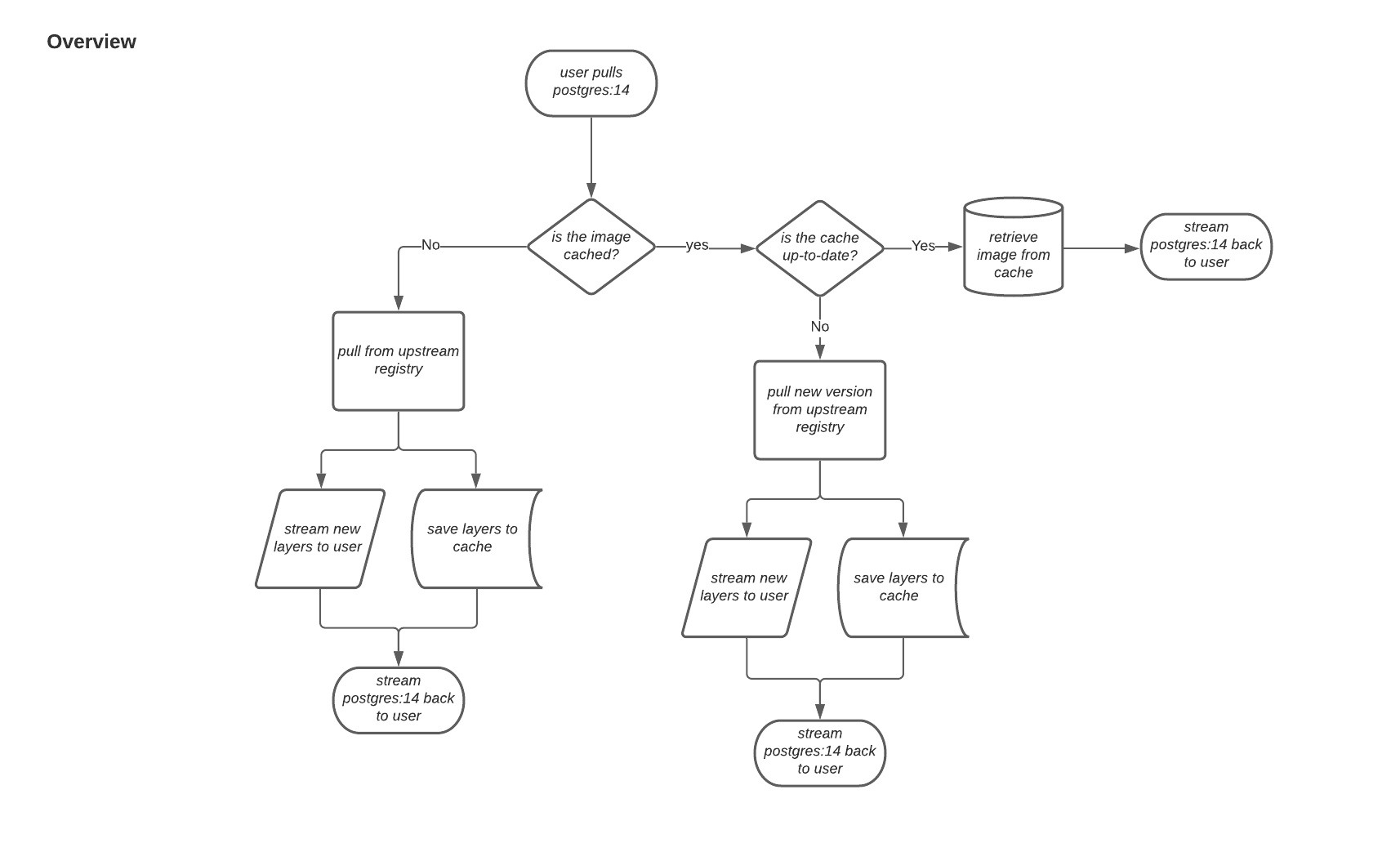
When a user pulls an image, for example, postgres:14, from an upstream repository on Red Hat Quay, the repository checks to see if an image is present. If the image does not exist, a fresh pull is initiated. After being pulled, the image layers are saved to cache and server to the user in parallel. The following image depicts an architectural overview of this scenario:
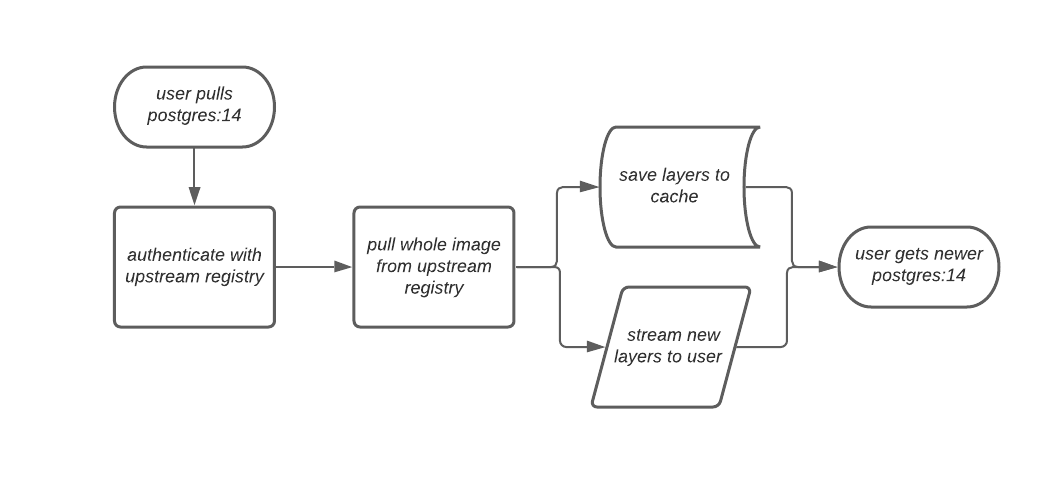
If the image in the cache exists, users can rely on Quay’s cache to stay up-to-date with the upstream source so that newer images from the cache are automatically pulled. This happens when tags of the original image have been overwritten in the upstream registry. The following image depicts an architectural overview of what happens when the upstream image and cached version of the image are different:
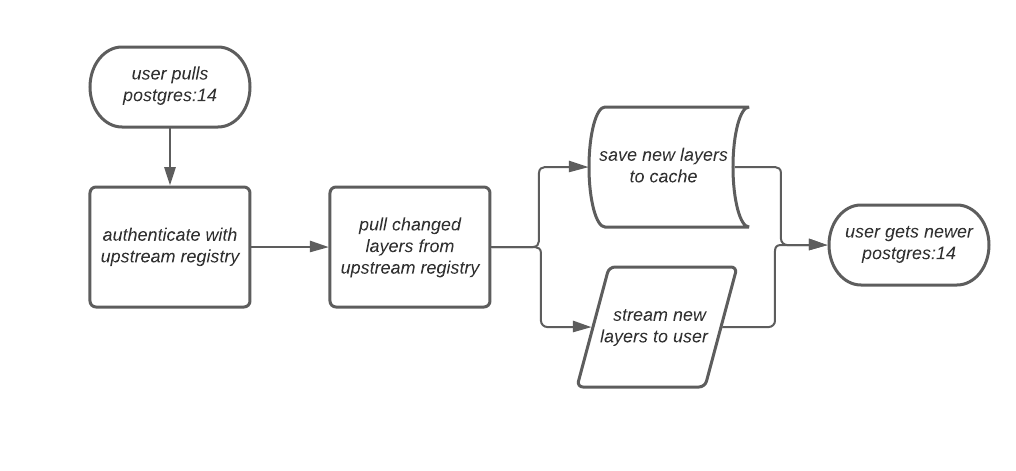
If the upstream image and cached version are the same, no layers are pulled and the cached image is delivered to the user.
In some cases, users initiate pulls when the upstream registry is down. If this happens with the configured staleness period, the image stored in cache is delivered. If the pull happens after the configured staleness period, the error is propagated to the user. The following image depicts an architectural overview when a pull happens after the configured staleness period:
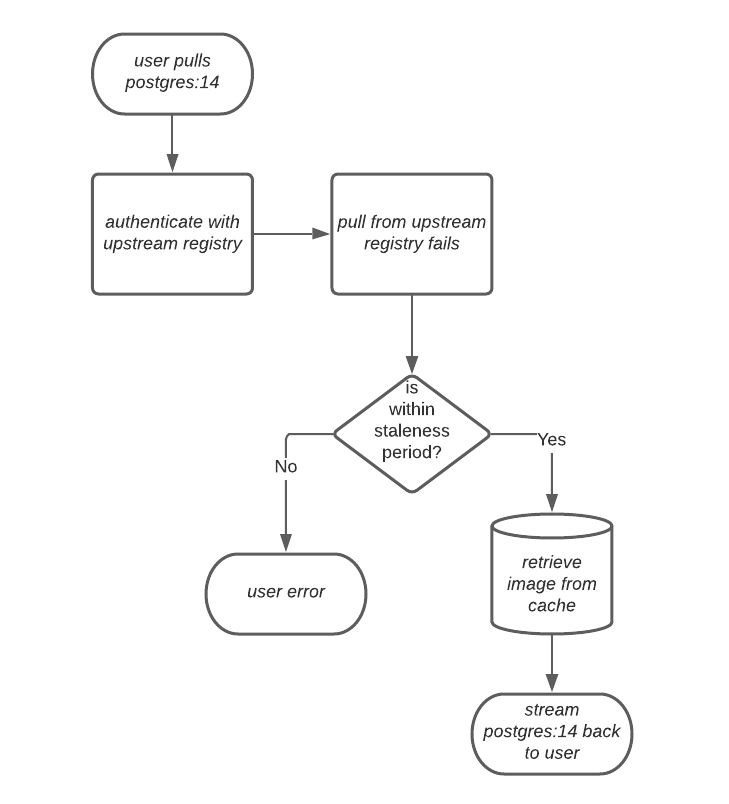
Quay administrators can leverage the configurable size limit of an organization to limit cache size so that backend storage consumption remains predictable. This is achieved by discarding images from the cache according to the frequency in which an image is used. The following image depicts an architectural overview of this scenario:
12.2. Proxy cache limitations
Proxy caching with Red Hat Quay has the following limitations:
- Your proxy cache must have a size limit of greater than, or equal to, the image you want to cache. For example, if your proxy cache organization has a maximum size of 500 MB, and the image a user wants to pull is 700 MB, the image will be cached and will overflow beyond the configured limit.
- Cached images must have the same properties that images on a Quay repository must have.
12.3. Using Red Hat Quay to proxy a remote registry
The following procedure describes how you can use Red Hat Quay to proxy a remote registry. This procedure is set up to proxy quay.io, which allows users to use podman to pull any public image from any namespace on quay.io.
Prerequisites
-
FEATURE_PROXY_CACHEin your config.yaml is set totrue. - Assigned the Member team role. For more information about team roles, see Users and organizations in Red Hat Quay.
Procedure
-
In your Quay organization on the UI, for example,
cache-quayio, click Organization Settings on the left hand pane. Optional: Click Add Storage Quota to configure quota management for your organization. For more information about quota management, see Quota Management.
NoteIn some cases, pulling images with Podman might return the following error when quota limit is reached during a pull:
unable to pull image: Error parsing image configuration: Error fetching blob: invalid status code from registry 403 (Forbidden). Error403is inaccurate, and occurs because Podman hides the correct API error:Quota has been exceeded on namespace. This known issue will be fixed in a future Podman update.In Remote Registry enter the name of the remote registry to be cached, for example,
quay.io, and click Save.NoteBy adding a namespace to the Remote Registry, for example,
quay.io/<namespace>, users in your organization will only be able to proxy from that namespace.Optional: Add a Remote Registry Username and Remote Registry Password.
NoteIf you do not set a Remote Registry Username and Remote Registry Password, you cannot add one without removing the proxy cache and creating a new registry.
Optional: Set a time in the Expiration field.
Note- The default tag Expiration field for cached images in a proxy organization is set to 86400 seconds. In the proxy organization, the tag expiration is refreshed to the value set in the UI’s Expiration field every time the tag is pulled. This feature is different than Quay’s default individual tag expiration feature. In a proxy organization, it is possible to override the individual tag feature. When this happens, the individual tag’s expiration is reset according to the Expiration field of the proxy organization.
- Expired images will disappear after the allotted time, but are still stored in Quay. The time in which an image is completely deleted, or collected, depends on the Time Machine setting of your organization. The default time for garbage collection is 14 days unless otherwise specified.
- Click Save.
On the CLI, pull a public image from the registry, for example, quay.io, acting as a proxy cache:
podman pull <registry_url>/<organization_name>/<quayio_namespace>/<image_name>
$ podman pull <registry_url>/<organization_name>/<quayio_namespace>/<image_name>Copy to Clipboard Copied! Toggle word wrap Toggle overflow ImportantIf your organization is set up to pull from a single namespace in the remote registry, the remote registry namespace must be omitted from the URL. For example,
podman pull <registry_url>/<organization_name>/<image_name>.
12.3.1. Leveraging storage quota limits in proxy organizations
With Red Hat Quay 3.8, the proxy cache feature has been enhanced with an auto-pruning feature for tagged images. The auto-pruning of image tags is only available when a proxied namespace has quota limitations configured. Currently, if an image size is greater than quota for an organization, the image is skipped from being uploaded until an administrator creates the necessary space. Now, when an image is pushed that exceeds the allotted space, the auto-pruning enhancement marks the least recently used tags for deletion. As a result, the new image tag is stored, while the least used image tag is marked for deletion.
- As part of the auto-pruning feature, the tags that are marked for deletion are eventually garbage collected by the garbage collector (gc) worker process. As a result, the quota size restriction is not fully enforced during this period.
- Currently, the namespace quota size computation does not take into account the size for manifest child. This is a known issue and will be fixed in a future version of Red Hat Quay.
12.3.1.1. Testing the storage quota limits feature in proxy organizations
Use the following procedure to test the auto-pruning feature of an organization with proxy cache and storage quota limitations enabled.
Prerequisites
- Your organization is configured to serve as a proxy organization. The following example proxies from quay.io.
-
FEATURE_PROXY_CACHEis set totruein yourconfig.yamlfile. -
FEATURE_QUOTA_MANAGEMENTis set totruein yourconfig.yamlfile. -
Your organization is configured with a quota limit, for example,
150 MB.
Procedure
Pull an image to your repository from your proxy organization, for example:
podman pull quay-server.example.com/proxytest/projectquay/quay:3.7.9
$ podman pull quay-server.example.com/proxytest/projectquay/quay:3.7.9Copy to Clipboard Copied! Toggle word wrap Toggle overflow Depending on the space left in your repository, you might need to pull additional images from your proxy organization, for example:
podman pull quay-server.example.com/proxytest/projectquay/quay:3.6.2
$ podman pull quay-server.example.com/proxytest/projectquay/quay:3.6.2Copy to Clipboard Copied! Toggle word wrap Toggle overflow In the Red Hat Quay registry UI, click the name of your repository.
-
Click Tags in the navigation pane and ensure that
quay:3.7.9andquay:3.6.2are tagged.
-
Click Tags in the navigation pane and ensure that
Pull the last image that will result in your repository exceeding the allotted quota, for example:
podman pull quay-server.example.com/proxytest/projectquay/quay:3.5.1
$ podman pull quay-server.example.com/proxytest/projectquay/quay:3.5.1Copy to Clipboard Copied! Toggle word wrap Toggle overflow -
Refresh the Tags page of your Red Hat Quay registry. The first image that you pushed, for example,
quay:3.7.9should have been auto-pruned. The Tags page should now showquay:3.6.2andquay:3.5.1.
Chapter 13. Red Hat Quay build enhancements
Red Hat Quay builds can be run on virtualized platforms. Backwards compatibility to run previous build configurations are also available.
13.1. Red Hat Quay enhanced build architecture
The following image shows the expected design flow and architecture of the enhanced build features:
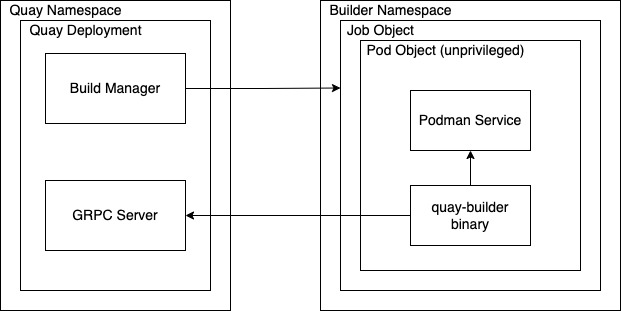
With this enhancement, the build manager first creates the Job Object. Then, the Job Object then creates a pod using the quay-builder-image. The quay-builder-image will contain the quay-builder binary and the Podman service. The created pod runs as unprivileged. The quay-builder binary then builds the image while communicating status and retrieving build information from the Build Manager.
13.2. Red Hat Quay build limitations
Running builds in Red Hat Quay in an unprivileged context might cause some commands that were working under the previous build strategy to fail. Attempts to change the build strategy could potentially cause performance issues and reliability with the build.
Running builds directly in a container does not have the same isolation as using virtual machines. Changing the build environment might also caused builds that were previously working to fail.
13.3. Creating a Red Hat Quay builders environment with OpenShift Container Platform
The procedures in this section explain how to create a Red Hat Quay virtual builders environment with OpenShift Container Platform.
13.3.1. OpenShift Container Platform TLS component
The tls component allows you to control TLS configuration.
Red Hat Quay 3.11 does not support builders when the TLS component is managed by the Operator.
If you set tls to unmanaged, you supply your own ssl.cert and ssl.key files. In this instance, if you want your cluster to support builders, you must add both the Quay route and the builder route name to the SAN list in the cert, or use a wildcard.
To add the builder route, use the following format:
[quayregistry-cr-name]-quay-builder-[ocp-namespace].[ocp-domain-name]:443
[quayregistry-cr-name]-quay-builder-[ocp-namespace].[ocp-domain-name]:44313.3.2. Using OpenShift Container Platform for Red Hat Quay builders
Builders require SSL/TLS certificates. For more information about SSL/TLS certificates, see Adding TLS certificates to the Red Hat Quay container.
If you are using Amazon Web Service (AWS) S3 storage, you must modify your storage bucket in the AWS console, prior to running builders. See "Modifying your AWS S3 storage bucket" in the following section for the required parameters.
13.3.2.1. Preparing OpenShift Container Platform for virtual builders
Use the following procedure to prepare OpenShift Container Platform for Red Hat Quay virtual builders.
- This procedure assumes you already have a cluster provisioned and a Quay Operator running.
- This procedure is for setting up a virtual namespace on OpenShift Container Platform.
Procedure
- Log in to your Red Hat Quay cluster using a cluster administrator account.
Create a new project where your virtual builders will be run, for example,
virtual-builders, by running the following command:oc new-project virtual-builders
$ oc new-project virtual-buildersCopy to Clipboard Copied! Toggle word wrap Toggle overflow Create a
ServiceAccountin the project that will be used to run builds by entering the following command:oc create sa -n virtual-builders quay-builder
$ oc create sa -n virtual-builders quay-builderCopy to Clipboard Copied! Toggle word wrap Toggle overflow Provide the created service account with editing permissions so that it can run the build:
oc adm policy -n virtual-builders add-role-to-user edit system:serviceaccount:virtual-builders:quay-builder
$ oc adm policy -n virtual-builders add-role-to-user edit system:serviceaccount:virtual-builders:quay-builderCopy to Clipboard Copied! Toggle word wrap Toggle overflow Grant the Quay builder
anyuid sccpermissions by entering the following command:oc adm policy -n virtual-builders add-scc-to-user anyuid -z quay-builder
$ oc adm policy -n virtual-builders add-scc-to-user anyuid -z quay-builderCopy to Clipboard Copied! Toggle word wrap Toggle overflow NoteThis action requires cluster admin privileges. This is required because builders must run as the Podman user for unprivileged or rootless builds to work.
Obtain the token for the Quay builder service account.
If using OpenShift Container Platform 4.10 or an earlier version, enter the following command:
oc sa get-token -n virtual-builders quay-builder
oc sa get-token -n virtual-builders quay-builderCopy to Clipboard Copied! Toggle word wrap Toggle overflow If using OpenShift Container Platform 4.11 or later, enter the following command:
oc create token quay-builder -n virtual-builders
$ oc create token quay-builder -n virtual-buildersCopy to Clipboard Copied! Toggle word wrap Toggle overflow NoteWhen the token expires you will need to request a new token. Optionally, you can also add a custom expiration. For example, specify
--duration 20160mto retain the token for two weeks.Example output
eyJhbGciOiJSUzI1NiIsImtpZCI6IldfQUJkaDVmb3ltTHZ0dGZMYjhIWnYxZTQzN2dJVEJxcDJscldSdEUtYWsifQ...
eyJhbGciOiJSUzI1NiIsImtpZCI6IldfQUJkaDVmb3ltTHZ0dGZMYjhIWnYxZTQzN2dJVEJxcDJscldSdEUtYWsifQ...Copy to Clipboard Copied! Toggle word wrap Toggle overflow
Determine the builder route by entering the following command:
oc get route -n quay-enterprise
$ oc get route -n quay-enterpriseCopy to Clipboard Copied! Toggle word wrap Toggle overflow Example output
NAME                                  HOST/PORT                                                                    PATH   SERVICES                              PORT   TERMINATION     WILDCARD
...
example-registry-quay-builder         example-registry-quay-builder-quay-enterprise.apps.docs.quayteam.org                example-registry-quay-app             grpc   edge/Redirect   None
...
NAME                                  HOST/PORT                                                                    PATH   SERVICES                              PORT   TERMINATION     WILDCARD
...
example-registry-quay-builder         example-registry-quay-builder-quay-enterprise.apps.docs.quayteam.org                example-registry-quay-app             grpc   edge/Redirect   None
...
Copy to Clipboard Copied! Toggle word wrap Toggle overflow Generate a self-signed SSL/TlS certificate with the .crt extension by entering the following command:
oc extract cm/kube-root-ca.crt -n openshift-apiserver
$ oc extract cm/kube-root-ca.crt -n openshift-apiserverCopy to Clipboard Copied! Toggle word wrap Toggle overflow Example output
ca.crt
ca.crtCopy to Clipboard Copied! Toggle word wrap Toggle overflow Rename the
ca.crtfile toextra_ca_cert_build_cluster.crtby entering the following command:mv ca.crt extra_ca_cert_build_cluster.crt
$ mv ca.crt extra_ca_cert_build_cluster.crtCopy to Clipboard Copied! Toggle word wrap Toggle overflow Locate the secret for you configuration bundle in the Console, and select Actions → Edit Secret and add the appropriate builder configuration:
Copy to Clipboard Copied! Toggle word wrap Toggle overflow - 1
- The build route is obtained by running
oc get route -nwith the name of your OpenShift Operator’s namespace. A port must be provided at the end of the route, and it should use the following format:[quayregistry-cr-name]-quay-builder-[ocp-namespace].[ocp-domain-name]:443. - 2
- If the
JOB_REGISTRATION_TIMEOUTparameter is set too low, you might receive the following error:failed to register job to build manager: rpc error: code = Unauthenticated desc = Invalid build token: Signature has expired. It is suggested that this parameter be set to at least 240. - 3
- If your Redis host has a password or SSL/TLS certificates, you must update accordingly.
- 4
- Set to match the name of your virtual builders namespace, for example,
virtual-builders. - 5
- For early access, the
BUILDER_CONTAINER_IMAGEis currentlyquay.io/projectquay/quay-builder:3.7.0-rc.2. Note that this might change during the early access window. If this happens, customers are alerted. - 6
- The
K8S_API_SERVERis obtained by runningoc cluster-info. - 7
- You must manually create and add your custom CA cert, for example,
K8S_API_TLS_CA: /conf/stack/extra_ca_certs/build_cluster.crt. - 8
- Defaults to
5120Miif left unspecified. - 9
- For virtual builds, you must ensure that there are enough resources in your cluster. Defaults to
1000mif left unspecified. - 10
- Defaults to
3968Miif left unspecified. - 11
- Defaults to
500mif left unspecified. - 12
- Obtained when running
oc create sa.
Sample configuration
Copy to Clipboard Copied! Toggle word wrap Toggle overflow
13.3.2.2. Manually adding SSL/TLS certificates
Due to a known issue with the configuration tool, you must manually add your custom SSL/TLS certificates to properly run builders. Use the following procedure to manually add custom SSL/TLS certificates.
For more information creating SSL/TLS certificates, see Adding TLS certificates to the Red Hat Quay container.
13.3.2.2.1. Creating and signing certificates
Use the following procedure to create and sign an SSL/TLS certificate.
Procedure
Create a certificate authority and sign a certificate. For more information, see Create a Certificate Authority and sign a certificate.
openssl.cnf
Copy to Clipboard Copied! Toggle word wrap Toggle overflow Sample commands
openssl genrsa -out rootCA.key 2048
openssl req -x509 -new -nodes -key rootCA.key -sha256 -days 1024 -out rootCA.pem
openssl genrsa -out ssl.key 2048
openssl req -new -key ssl.key -out ssl.csr
openssl x509 -req -in ssl.csr -CA rootCA.pem -CAkey rootCA.key -CAcreateserial -out ssl.cert -days 356 -extensions v3_req -extfile openssl.cnf
$ openssl genrsa -out rootCA.key 2048
$ openssl req -x509 -new -nodes -key rootCA.key -sha256 -days 1024 -out rootCA.pem
$ openssl genrsa -out ssl.key 2048
$ openssl req -new -key ssl.key -out ssl.csr
$ openssl x509 -req -in ssl.csr -CA rootCA.pem -CAkey rootCA.key -CAcreateserial -out ssl.cert -days 356 -extensions v3_req -extfile openssl.cnf
Copy to Clipboard Copied! Toggle word wrap Toggle overflow
13.3.2.2.2. Setting TLS to unmanaged
Use the following procedure to set king:tls to unmanaged.
Procedure
In your Red Hat Quay Registry YAML, set
kind: tlstomanaged: false:- kind: tls managed: false- kind: tls managed: falseCopy to Clipboard Copied! Toggle word wrap Toggle overflow On the Events page, the change is blocked until you set up the appropriate
config.yamlfile. For example:Copy to Clipboard Copied! Toggle word wrap Toggle overflow
13.3.2.2.3. Creating temporary secrets
Use the following procedure to create temporary secrets for the CA certificate.
Procedure
Create a secret in your default namespace for the CA certificate:
oc create secret generic -n quay-enterprise temp-crt --from-file extra_ca_cert_build_cluster.crt
$ oc create secret generic -n quay-enterprise temp-crt --from-file extra_ca_cert_build_cluster.crtCopy to Clipboard Copied! Toggle word wrap Toggle overflow Create a secret in your default namespace for the
ssl.keyandssl.certfiles:oc create secret generic -n quay-enterprise quay-config-ssl --from-file ssl.cert --from-file ssl.key
$ oc create secret generic -n quay-enterprise quay-config-ssl --from-file ssl.cert --from-file ssl.keyCopy to Clipboard Copied! Toggle word wrap Toggle overflow
13.3.2.2.4. Copying secret data to the configuration YAML
Use the following procedure to copy secret data to your config.yaml file.
Procedure
- Locate the new secrets in the console UI at Workloads → Secrets.
For each secret, locate the YAML view:
Copy to Clipboard Copied! Toggle word wrap Toggle overflow Copy to Clipboard Copied! Toggle word wrap Toggle overflow Locate the secret for your Red Hat Quay registry configuration bundle in the UI, or through the command line by running a command like the following:
oc get quayregistries.quay.redhat.com -o jsonpath="{.items[0].spec.configBundleSecret}{'\n'}" -n quay-enterprise$ oc get quayregistries.quay.redhat.com -o jsonpath="{.items[0].spec.configBundleSecret}{'\n'}" -n quay-enterpriseCopy to Clipboard Copied! Toggle word wrap Toggle overflow In the OpenShift Container Platform console, select the YAML tab for your configuration bundle secret, and add the data from the two secrets you created:
Copy to Clipboard Copied! Toggle word wrap Toggle overflow - Click Save.
Enter the following command to see if your pods are restarting:
oc get pods -n quay-enterprise
$ oc get pods -n quay-enterpriseCopy to Clipboard Copied! Toggle word wrap Toggle overflow Example output
Copy to Clipboard Copied! Toggle word wrap Toggle overflow After your Red Hat Quay registry has reconfigured, enter the following command to check if the Red Hat Quay app pods are running:
oc get pods -n quay-enterprise
$ oc get pods -n quay-enterpriseCopy to Clipboard Copied! Toggle word wrap Toggle overflow Example output
Copy to Clipboard Copied! Toggle word wrap Toggle overflow In your browser, access the registry endpoint and validate that the certificate has been updated appropriately. For example:
Common Name (CN)	example-registry-quay-quay-enterprise.apps.docs.quayteam.org
Organisation (O)	DOCS
Organisational Unit (OU)	QUAY
Common Name (CN)	example-registry-quay-quay-enterprise.apps.docs.quayteam.org
Organisation (O)	DOCS
Organisational Unit (OU)	QUAY
Copy to Clipboard Copied! Toggle word wrap Toggle overflow
13.3.2.3. Using the UI to create a build trigger
Use the following procedure to use the UI to create a build trigger.
Procedure
- Log in to your Red Hat Quay repository.
-
Click Create New Repository and create a new registry, for example,
testrepo. On the Repositories page, click the Builds tab on the navigation pane. Alternatively, use the corresponding URL directly:
https://example-registry-quay-quay-enterprise.apps.docs.quayteam.org/repository/quayadmin/testrepo?tab=builds
https://example-registry-quay-quay-enterprise.apps.docs.quayteam.org/repository/quayadmin/testrepo?tab=buildsCopy to Clipboard Copied! Toggle word wrap Toggle overflow ImportantIn some cases, the builder might have issues resolving hostnames. This issue might be related to the
dnsPolicybeing set todefaulton the job object. Currently, there is no workaround for this issue. It will be resolved in a future version of Red Hat Quay.- Click Create Build Trigger → Custom Git Repository Push.
Enter the HTTPS or SSH style URL used to clone your Git repository, then click Continue. For example:
https://github.com/gabriel-rh/actions_test.git
https://github.com/gabriel-rh/actions_test.gitCopy to Clipboard Copied! Toggle word wrap Toggle overflow - Check Tag manifest with the branch or tag name and then click Continue.
-
Enter the location of the Dockerfile to build when the trigger is invoked, for example,
/Dockerfileand click Continue. -
Enter the location of the context for the Docker build, for example,
/, and click Continue. - If warranted, create a Robot Account. Otherwise, click Continue.
- Click Continue to verify the parameters.
- On the Builds page, click Options icon of your Trigger Name, and then click Run Trigger Now.
- Enter a commit SHA from the Git repository and click Start Build.
You can check the status of your build by clicking the commit in the Build History page, or by running
oc get pods -n virtual-builders. For example:oc get pods -n virtual-builders
$ oc get pods -n virtual-buildersCopy to Clipboard Copied! Toggle word wrap Toggle overflow Example output
NAME                                               READY   STATUS    RESTARTS   AGE
f192fe4a-c802-4275-bcce-d2031e635126-9l2b5-25lg2   1/1     Running   0          7s
NAME                                               READY   STATUS    RESTARTS   AGE
f192fe4a-c802-4275-bcce-d2031e635126-9l2b5-25lg2   1/1     Running   0          7s
Copy to Clipboard Copied! Toggle word wrap Toggle overflow oc get pods -n virtual-builders
$ oc get pods -n virtual-buildersCopy to Clipboard Copied! Toggle word wrap Toggle overflow Example output
NAME                                               READY   STATUS        RESTARTS   AGE
f192fe4a-c802-4275-bcce-d2031e635126-9l2b5-25lg2   1/1     Terminating   0          9s
NAME                                               READY   STATUS        RESTARTS   AGE
f192fe4a-c802-4275-bcce-d2031e635126-9l2b5-25lg2   1/1     Terminating   0          9s
Copy to Clipboard Copied! Toggle word wrap Toggle overflow oc get pods -n virtual-builders
$ oc get pods -n virtual-buildersCopy to Clipboard Copied! Toggle word wrap Toggle overflow Example output
No resources found in virtual-builders namespace.
No resources found in virtual-builders namespace.Copy to Clipboard Copied! Toggle word wrap Toggle overflow When the build is finished, you can check the status of the tag under Tags on the navigation pane.
NoteWith early access, full build logs and timestamps of builds are currently unavailable.
13.3.2.4. Modifying your AWS S3 storage bucket
If you are using AWS S3 storage, you must change your storage bucket in the AWS console, prior to running builders.
Procedure
- Log in to your AWS console at s3.console.aws.com.
-
In the search bar, search for
S3and then click S3. -
Click the name of your bucket, for example,
myawsbucket. - Click the Permissions tab.
Under Cross-origin resource sharing (CORS), include the following parameters:
Copy to Clipboard Copied! Toggle word wrap Toggle overflow
13.3.2.5. Modifying your Google Cloud Platform object bucket
Currently, modifying your Google Cloud Platform object bucket is not supported on IBM Power and IBM Z.
Use the following procedure to configure cross-origin resource sharing (CORS) for virtual builders.
Without CORS configuration, uploading a build Dockerfile fails.
Procedure
Use the following reference to create a JSON file for your specific CORS needs. For example:
cat gcp_cors.json
$ cat gcp_cors.jsonCopy to Clipboard Copied! Toggle word wrap Toggle overflow Example output
Copy to Clipboard Copied! Toggle word wrap Toggle overflow Enter the following command to update your GCP storage bucket:
gcloud storage buckets update gs://<bucket_name> --cors-file=./gcp_cors.json
$ gcloud storage buckets update gs://<bucket_name> --cors-file=./gcp_cors.jsonCopy to Clipboard Copied! Toggle word wrap Toggle overflow Example output
Updating
  Completed 1
Updating
  Completed 1
Copy to Clipboard Copied! Toggle word wrap Toggle overflow You can display the updated CORS configuration of your GCP bucket by running the following command:
gcloud storage buckets describe gs://<bucket_name> --format="default(cors)"
$ gcloud storage buckets describe gs://<bucket_name> --format="default(cors)"Copy to Clipboard Copied! Toggle word wrap Toggle overflow Example output
Copy to Clipboard Copied! Toggle word wrap Toggle overflow
Chapter 14. Using the Red Hat Quay API
Red Hat Quay provides a full OAuth 2, RESTful API that:
- Is available from endpoints of each Red Hat Quay instance from the URL https://<yourquayhost>/api/v1
- Lets you connect to endpoints, via a browser, to get, delete, post, and put Red Hat Quay settings by enabling the Swagger UI
- Can be accessed by applications that make API calls and use OAuth tokens
- Sends and receives data as JSON
The following text describes how to access the Red Hat Quay API and use it to view and modify setting in your Red Hat Quay cluster. The next section lists and describes API endpoints.
14.1. Accessing the Quay API from Quay.io
If you don’t have your own Red Hat Quay cluster running yet, you can explore the Red Hat Quay API available from Quay.io from your web browser:
https://docs.quay.io/api/swagger/
https://docs.quay.io/api/swagger/The API Explorer that appears shows Quay.io API endpoints. You will not see superuser API endpoints or endpoints for Red Hat Quay features that are not enabled on Quay.io (such as Repository Mirroring).
From API Explorer, you can get, and sometimes change, information on:
- Billing, subscriptions, and plans
- Repository builds and build triggers
- Error messages and global messages
- Repository images, manifests, permissions, notifications, vulnerabilities, and image signing
- Usage logs
- Organizations, members and OAuth applications
- User and robot accounts
- and more…
Select to open an endpoint to view the Model Schema for each part of the endpoint. Open an endpoint, enter any required parameters (such as a repository name or image), then select the Try it out! button to query or change settings associated with a Quay.io endpoint.
14.2. Creating an OAuth access token
OAuth access tokens are credentials that allow you to access protected resources in a secure manner. With Red Hat Quay, you must create an OAuth access token before you can access the API endpoints of your organization.
Use the following procedure to create an OAuth access token.
Prerequisites
- You have logged in to Red Hat Quay as an administrator.
Procedure
- On the main page, select an Organization.
- In the navigation pane, select Applications.
- Click Create New Application and provide a new application name, then press Enter.
- On the OAuth Applications page, select the name of your application.
Optional. Enter the following information:
- Application Name
- Homepage URL
- Description
- Avatar E-mail
- Redirect/Callback URL prefix
- In the navigation pane, select Generate Token.
Check the boxes for the following options:
- Administer Organization
- Administer Repositories
- Create Repositories
- View all visible repositories
- Read/Write to any accessible repositories
- Super User Access
- Administer User
- Read User Information
- Click Generate Access Token. You are redirected to a new page.
- Review the permissions that you are allowing, then click Authorize Application. Confirm your decision by clicking Authorize Application.
You are redirected to the Access Token page. Copy and save the access token.
ImportantThis is the only opportunity to copy and save the access token. It cannot be reobtained after leaving this page.
14.3. Accessing your Quay API from a web browser
By enabling Swagger, you can access the API for your own Red Hat Quay instance through a web browser. This URL exposes the Red Hat Quay API explorer via the Swagger UI and this URL:
https://<yourquayhost>/api/v1/discovery.
https://<yourquayhost>/api/v1/discovery.That way of accessing the API does not include superuser endpoints that are available on Red Hat Quay installations. Here is an example of accessing a Red Hat Quay API interface running on the local system by running the swagger-ui container image:
export SERVER_HOSTNAME=<yourhostname>
sudo podman run -p 8888:8080 -e API_URL=https://$SERVER_HOSTNAME:8443/api/v1/discovery docker.io/swaggerapi/swagger-ui
# export SERVER_HOSTNAME=<yourhostname>
# sudo podman run -p 8888:8080 -e API_URL=https://$SERVER_HOSTNAME:8443/api/v1/discovery docker.io/swaggerapi/swagger-uiWith the swagger-ui container running, open your web browser to localhost port 8888 to view API endpoints via the swagger-ui container.
To avoid errors in the log such as "API calls must be invoked with an X-Requested-With header if called from a browser," add the following line to the config.yaml on all nodes in the cluster and restart Red Hat Quay:
BROWSER_API_CALLS_XHR_ONLY: false
BROWSER_API_CALLS_XHR_ONLY: false14.4. Accessing the Red Hat Quay API from the command line
You can use the curl command to GET, PUT, POST, or DELETE settings via the API for your Red Hat Quay cluster. Replace <token> with the OAuth access token you created earlier to get or change settings in the following examples.
14.4.1. Get superuser information
curl -X GET -H "Authorization: Bearer <token_here>" \
    "https://<yourquayhost>/api/v1/superuser/users/"
$ curl -X GET -H "Authorization: Bearer <token_here>" \
"https://<yourquayhost>/api/v1/superuser/users/"For example:
14.4.2. Creating a superuser using the API
Configure a superuser name, as described in the Deploy Quay book:
- Use the configuration editor UI or
-
Edit the
config.yamlfile directly, with the option of using the configuration API to validate (and download) the updated configuration bundle
Create the user account for the superuser name:
Obtain an authorization token as detailed above, and use
curlto create the user:curl -H "Content-Type: application/json" -H "Authorization: Bearer Fava2kV9C92p1eXnMawBZx9vTqVnksvwNm0ckFKZ" -X POST --data '{$ curl -H "Content-Type: application/json" -H "Authorization: Bearer Fava2kV9C92p1eXnMawBZx9vTqVnksvwNm0ckFKZ" -X POST --data '{ "username": "quaysuper", "email": "quaysuper@example.com" }' http://quay-server:8080/api/v1/superuser/users/ | jqCopy to Clipboard Copied! Toggle word wrap Toggle overflow The returned content includes a generated password for the new user account:
Copy to Clipboard Copied! Toggle word wrap Toggle overflow
Now, when you request the list of users , it will show quaysuper as a superuser:
14.4.3. List usage logs
An intrnal API, /api/v1/superuser/logs, is available to list the usage logs for the current system. The results are paginated, so in the following example, more than 20 repos were created to show how to use multiple invocations to access the entire result set.
14.4.3.1. Example for pagination
First invocation
curl -X GET -k -H "Authorization: Bearer qz9NZ2Np1f55CSZ3RVOvxjeUdkzYuCp0pKggABCD" https://example-registry-quay-quay-enterprise.apps.example.com/api/v1/superuser/logs | jq
$ curl -X GET -k -H "Authorization: Bearer qz9NZ2Np1f55CSZ3RVOvxjeUdkzYuCp0pKggABCD" https://example-registry-quay-quay-enterprise.apps.example.com/api/v1/superuser/logs | jqInitial output
Second invocation using next_page
curl -X GET -k -H "Authorization: Bearer qz9NZ2Np1f55CSZ3RVOvxjeUdkzYuCp0pKggABCD" https://example-registry-quay-quay-enterprise.apps.example.com/api/v1/superuser/logs?next_page=gAAAAABhtzGDsH38x7pjWhD8MJq1_2FAgqUw2X9S2LoCLNPH65QJqB4XAU2qAxYb6QqtlcWj9eI6DUiMN_q3e3I0agCvB2VPQ8rY75WeaiUzM3rQlMc4i6ElR78t8oUxVfNp1RMPIRQYYZyXP9h6E8LZZhqTMs0S-SedaQJ3kVFtkxZqJwHVjgt23Ts2DonVoYwtKgI3bCC5 | jq
$ curl -X GET -k -H "Authorization: Bearer qz9NZ2Np1f55CSZ3RVOvxjeUdkzYuCp0pKggABCD" https://example-registry-quay-quay-enterprise.apps.example.com/api/v1/superuser/logs?next_page=gAAAAABhtzGDsH38x7pjWhD8MJq1_2FAgqUw2X9S2LoCLNPH65QJqB4XAU2qAxYb6QqtlcWj9eI6DUiMN_q3e3I0agCvB2VPQ8rY75WeaiUzM3rQlMc4i6ElR78t8oUxVfNp1RMPIRQYYZyXP9h6E8LZZhqTMs0S-SedaQJ3kVFtkxZqJwHVjgt23Ts2DonVoYwtKgI3bCC5 | jqOutput from second invocation
14.4.4. Directory synchronization
To enable directory synchronization for the team newteam in organization testadminorg, where the corresponding group name in LDAP is ldapgroup:
curl -X POST -H "Authorization: Bearer 9rJYBR3v3pXcj5XqIA2XX6Thkwk4gld4TCYLLWDF" \
       -H "Content-type: application/json" \
       -d '{"group_dn": "cn=ldapgroup,ou=Users"}' \
       http://quay1-server:8080/api/v1/organization/testadminorg/team/newteam/syncing
$ curl -X POST -H "Authorization: Bearer 9rJYBR3v3pXcj5XqIA2XX6Thkwk4gld4TCYLLWDF" \
       -H "Content-type: application/json" \
       -d '{"group_dn": "cn=ldapgroup,ou=Users"}' \
http://quay1-server:8080/api/v1/organization/testadminorg/team/newteam/syncingTo disable synchronization for the same team:
curl -X DELETE -H "Authorization: Bearer 9rJYBR3v3pXcj5XqIA2XX6Thkwk4gld4TCYLLWDF" \
       http://quay1-server:8080/api/v1/organization/testadminorg/team/newteam/syncing
$ curl -X DELETE -H "Authorization: Bearer 9rJYBR3v3pXcj5XqIA2XX6Thkwk4gld4TCYLLWDF" \
http://quay1-server:8080/api/v1/organization/testadminorg/team/newteam/syncing14.4.5. Create a repository build via API
In order to build a repository from the specified input and tag the build with custom tags, users can use requestRepoBuild endpoint. It takes the following data:
The archive_url parameter should point to a tar or zip archive that includes the Dockerfile and other required files for the build. The file_id parameter was apart of our older build system. It cannot be used anymore. If Dockerfile is in a sub-directory it needs to be specified as well.
The archive should be publicly accessible. OAuth app should have "Administer Organization" scope because only organization admins have access to the robots' account tokens. Otherwise, someone could get robot permissions by simply granting a build access to a robot (without having access themselves), and use it to grab the image contents. In case of errors, check the json block returned and ensure the archive location, pull robot, and other parameters are being passed correctly. Click "Download logs" on the top-right of the individual build’s page to check the logs for more verbose messaging.
14.4.6. Create an org robot
curl -X PUT https://quay.io/api/v1/organization/{orgname}/robots/{robot shortname} \
   -H 'Authorization: Bearer <token>''
$ curl -X PUT https://quay.io/api/v1/organization/{orgname}/robots/{robot shortname} \
-H 'Authorization: Bearer <token>''14.4.7. Trigger a build
curl -X POST https://quay.io/api/v1/repository/YOURORGNAME/YOURREPONAME/build/ \
   -H 'Authorization: Bearer <token>'
$ curl -X POST https://quay.io/api/v1/repository/YOURORGNAME/YOURREPONAME/build/ \
-H 'Authorization: Bearer <token>'Python with requests
import requests
r = requests.post('https://quay.io/api/v1/repository/example/example/image', headers={'content-type': 'application/json', 'Authorization': 'Bearer <redacted>'}, data={[<request-body-contents>})
print(r.text)
import requests
r = requests.post('https://quay.io/api/v1/repository/example/example/image', headers={'content-type': 'application/json', 'Authorization': 'Bearer <redacted>'}, data={[<request-body-contents>})
print(r.text)14.4.8. Create a private repository
curl -X POST https://quay.io/api/v1/repository \
    -H 'Authorization: Bearer {token}' \
    -H 'Content-Type: application/json' \
    -d '{"namespace":"yournamespace", "repository":"yourreponame",
$ curl -X POST https://quay.io/api/v1/repository \
    -H 'Authorization: Bearer {token}' \
    -H 'Content-Type: application/json' \
    -d '{"namespace":"yournamespace", "repository":"yourreponame",
"description":"descriptionofyourrepo", "visibility": "private"}' | jq14.4.9. Create a mirrored repository
Minimal configuration
curl -X POST
  -H "Authorization: Bearer ${bearer_token}"
  -H "Content-Type: application/json"
  --data '{"external_reference": "quay.io/minio/mc", "external_registry_username": "", "sync_interval": 600, "sync_start_date": "2021-08-06T11:11:39Z", "root_rule": {"rule_kind": "tag_glob_csv", "rule_value": [ "latest" ]}, "robot_username": "orga+robot"}' https://${quay_registry}/api/v1/repository/${orga}/${repo}/mirror | jq
curl -X POST
  -H "Authorization: Bearer ${bearer_token}"
  -H "Content-Type: application/json"
--data '{"external_reference": "quay.io/minio/mc", "external_registry_username": "", "sync_interval": 600, "sync_start_date": "2021-08-06T11:11:39Z", "root_rule": {"rule_kind": "tag_glob_csv", "rule_value": [ "latest" ]}, "robot_username": "orga+robot"}' https://${quay_registry}/api/v1/repository/${orga}/${repo}/mirror | jqExtended configuration
curl -X POST
$ curl -X POST
  -H "Authorization: Bearer ${bearer_token}"
  -H "Content-Type: application/json"
  --data '{"is_enabled": true, "external_reference": "quay.io/minio/mc", "external_registry_username": "username", "external_registry_password": "password", "external_registry_config": {"unsigned_images":true, "verify_tls": false, "proxy": {"http_proxy": "http://proxy.tld", "https_proxy": "https://proxy.tld", "no_proxy": "domain"}}, "sync_interval": 600, "sync_start_date": "2021-08-06T11:11:39Z", "root_rule": {"rule_kind": "tag_glob_csv", "rule_value": [ "*" ]}, "robot_username": "orga+robot"}' https://${quay_registry}/api/v1/repository/${orga}/${repo}/mirror | jq
'%20d='M201.5%20305.5c-13.8%200-24.9-11.1-24.9-24.6%200-13.8%2011.1-24.9%2024.9-24.9%2013.6%200%2024.6%2011.1%2024.6%2024.9%200%2013.6-11.1%2024.6-24.6%2024.6zM504%20256c0%20137-111%20248-248%20248S8%20393%208%20256%20119%208%20256%208s248%20111%20248%20248zm-132.3-41.2c-9.4%200-17.7%203.9-23.8%2010-22.4-15.5-52.6-25.5-86.1-26.6l17.4-78.3%2055.4%2012.5c0%2013.6%2011.1%2024.6%2024.6%2024.6%2013.8%200%2024.9-11.3%2024.9-24.9s-11.1-24.9-24.9-24.9c-9.7%200-18%205.8-22.1%2013.8l-61.2-13.6c-3-.8-6.1%201.4-6.9%204.4l-19.1%2086.4c-33.2%201.4-63.1%2011.3-85.5%2026.8-6.1-6.4-14.7-10.2-24.1-10.2-34.9%200-46.3%2046.9-14.4%2062.8-1.1%205-1.7%2010.2-1.7%2015.5%200%2052.6%2059.2%2095.2%20132%2095.2%2073.1%200%20132.3-42.6%20132.3-95.2%200-5.3-.6-10.8-1.9-15.8%2031.3-16%2019.8-62.5-14.9-62.5zM302.8%20331c-18.2%2018.2-76.1%2017.9-93.6%200-2.2-2.2-6.1-2.2-8.3%200-2.5%202.5-2.5%206.4%200%208.6%2022.8%2022.8%2087.3%2022.8%20110.2%200%202.5-2.2%202.5-6.1%200-8.6-2.2-2.2-6.1-2.2-8.3%200zm7.7-75c-13.6%200-24.6%2011.1-24.6%2024.9%200%2013.6%2011.1%2024.6%2024.6%2024.6%2013.8%200%2024.9-11.1%2024.9-24.6%200-13.8-11-24.9-24.9-24.9z'/%3e%3c/svg%3e)