 红帽全球峰会
此内容没有您所选择的语言版本。
Google Cloud Backup Guide
Configuring OpenStack Block Storage Backups to Use Google Cloud Storage
Abstract
The Red Hat OpenStack Platform director is a toolset to install and manage a complete Red Hat OpenStack environment. It is based primarily on the OpenStack project TripleO (OpenStack-on-OpenStack). The primary objective of the director is to orchestrate a functional, Enterprise-grade OpenStack deployment with minimal manual configuration. Director addresses many of the issues inherent in configuring individual OpenStack components manually.
The OpenStack environment that you deploy with the director is called the overcloud. The overcloud contains all of the components that provide services to end users, including Block Storage. This document provides guidance on how to deploy custom back ends to the Block Storage service on the overcloud.
Red Hat OpenStack Platform supports several third-party services, devices, and applications for functions ranging from block storage back ends to data processing. You can configure the Block Storage service to use Google Cloud as a backup storage service. This Google Cloud integration is available in this release as a technology preview feature.
Technology Preview features are not fully supported by Red Hat. The deployment scenario described in this document should only be used for testing, and should not be deployed in a production environment.
For more information about Technology Preview features, see Scope of Coverage Details.
This document presents a test scenario where the Block Storage service on an overcloud deployment is configured to back up volumes to Google Cloud storage. This test scenario requires the following prerequisites:
- The overcloud has already been deployed through director. For more information about director deployment, see the Director Installation and Usage guide.
-
You have the username and password of an account with elevated privileges. You can use the same account that you create to deploy the overcloud. If you follow the steps in the Director Installation and Usage guide, you create a user named
stackfor this purpose. - The Block Storage service is installed on the Controller nodes, or, on every Controller node in an HA deployment.
- You have a Google account with access to Google Cloud Platform. The Block Storage service uses this account to access and use Google Cloud to store backups.
1.1. Understanding the configuration process
Configuring the Block Storage service to use Google Cloud as a backup service involves the following steps:
- Creating and downloading the service account credentials of your Google account. For more information, see (Chapter 2, Creating and downloading the GCS credentials file).
- Creating an environment file to define the Block Storage settings that you require. For more information, see (Chapter 3, Create the Block Storage environment file). This environment file also uses the service account credentials that you created in the previous step.
- Re-deploying the overcloud using the new environment file. For more information, see (Chapter 4, Re-deploying the overcloud).
The Block Storage service needs your Google credentials in order to access and use Google Cloud for backups. You can provide these credentials to Block Storage by creating a service account key:
- Log in to the Google developer console (http://console.developers.google.com) using your Google account.
Click the
Credentialstab, clickCreate credentials, and selectService account keyfrom theCreate credentialsdrop-down list.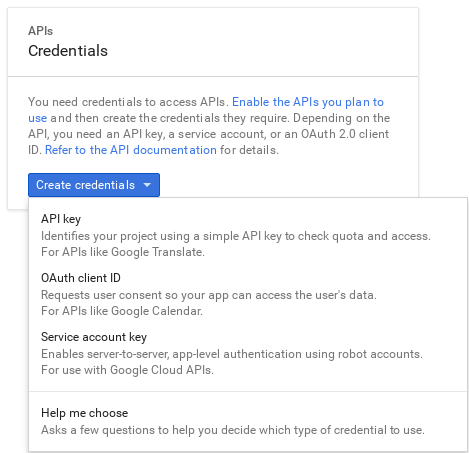
On the
Create service account keypage, select the service account that you want the Block Storage service to use from theService accountdrop-down list: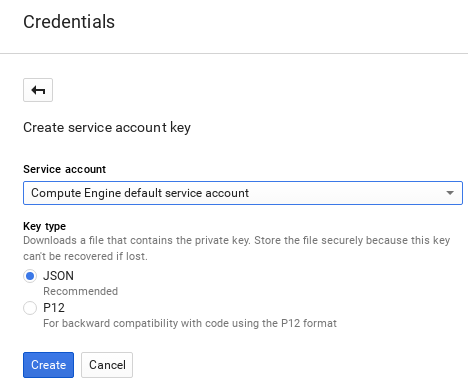
On the
Create service account keypage, select theJSONradio button from theKey typesection and clickCreate.The browser downloads the key to the default download location:
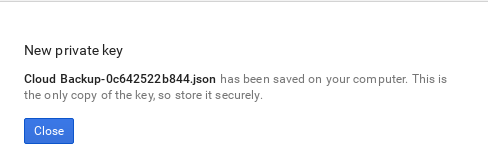
Open the file and note the value of the
project_idparameter:{ "type": "service_account", "project_id": "cloud-backup-1370", ...{ "type": "service_account", "project_id": "cloud-backup-1370", ...Copy to Clipboard Copied! Toggle word wrap Toggle overflow You use the /etc/cinder/Cloud-Backup.json key in Chapter 3, Create the Block Storage environment file in particular, the value of
project_id, and the absolute path to the file.Copy the key file to /etc/cinder/ on any Controller node and change the user, group, and permissions of the key file to match that of /etc/cinder/cinder.conf. This ensures that the Block Storage service can use the key file:
cp Cloud-Backup.json /etc/cinder/
chown cinder:cinder /etc/cinder/Cloud-Backup.json
chmod 0600 /etc/cinder/Cloud-Backup.json
# cp Cloud-Backup.json /etc/cinder/
# chown cinder:cinder /etc/cinder/Cloud-Backup.json
# chmod 0600 /etc/cinder/Cloud-Backup.json
Copy to Clipboard Copied! Toggle word wrap Toggle overflow Copy the key file to
/etc/cinder/Cloud-Backup.json_on each Controller node. Usersync -ato preserve the permissions and ownership settings:rsync -a /etc/cinder/Cloud-Backup.json root@CONTROLLERHOST:/etc/cinder/
# rsync -a /etc/cinder/Cloud-Backup.json root@CONTROLLERHOST:/etc/cinder/Copy to Clipboard Copied! Toggle word wrap Toggle overflow Replace CONTROLLERHOST with the hostname of a target Controller.
Chapter 3. Create the Block Storage environment file
The environment file contains the settings that you want to apply to the Block Storage service. In this case, configure the Block Storage service to store volume backups to Google Cloud. For more information about environment files, see the Director Installation and Usage guide.
Define each setting in the environment file in the following format:
Entry format
SECT/PARAM: #
    value: CONFIG #
SECT/PARAM: #
value: CONFIG # - 1
- All Block Storage settings are configured in the /etc/cinder/cinder.conf file of the node that hosts the Block Storage service. This file is divided into different sections, making it easier to manage different settings. PARAM is the setting you want to apply, and SECT is the section to which it belongs.
- 2
- CONFIG is the value you want to set to PARAM.
In this document, all parameters are declared in the DEFAULT section. The following table describes each setting required to configure Google Cloud Storage (GCS) as your backup service:
- Google Cloud backup settings
| PARAM | Default | CONFIG Description |
| backup_driver | cinder.backup.drivers.swift |
The backup driver that the Block Storage server uses. For Google Cloud Storage, use |
| backup_gcs_credential_file | The absolute path to the service account key file you created earlier in Chapter 2, Creating and downloading the GCS credentials file. | |
| backup_gcs_bucket | The GCS bucket, or object storage repository that you want to use, which may or may not exist. If you specify a non-existent bucket, the Google Cloud Storage backup driver creates one using the name you specify here. For more information, see Buckets and Bucket name requirements. | |
| backup_gcs_bucket_location | US |
The location of the GCS bucket. This value is only used if you specify a non-existent bucket in For more information, see Bucket Locations. |
| backup_gcs_project_id |
The project ID of the service account you are using, as noted in the | |
| backup_gcs_object_size | 52428800 | The size (in bytes) of GCS backup objects. |
| backup_gcs_block_size | 32768 |
The size (in bytes) that changes are tracked for incremental backups. This value must be a multiple of the |
| backup_gcs_user_agent | gcscinder | The HTTP user-agent string for the GCS API. |
| backup_gcs_reader_chunk_size | 2097152 | GCS objects are downloaded in chunks of this size (in bytes). |
| backup_gcs_writer_chunk_size | 2097152 |
GCS objects are uploaded in chunks of this size (in bytes). To upload files as a single chunk instead, use the value |
| backup_gcs_num_retries | 3 | Number of retries to attempt. |
| backup_gcs_storage_class | NEARLINE |
Storage class of the GCS bucket. This value is used if you specify a non-existent bucket in |
| backup_gcs_retry_error_codes | 429 | List of GCS error codes. |
| backup_gcs_enable_progress_timer | True |
Boolean to enable or disable the timer for sending periodic progress notifications to the Telemetry service ( |
When creating new buckets, Google Cloud Storage charges according to the storage class that you choose (backup_gcs_storage_class). The default NEARLINE class is appropriate for backup services.
You cannot edit the location or class of a bucket after it is created. For more information, see Managing a bucket’s storage class or location.
The following sample shows the typical contents of an environment file to configure GCS as a backup service:
/home/stack/templates/gcs-backup.yaml
- 1
ControllerExtraConfigdefines custom settings that you want to apply to all Controller nodes. Include thecinder::config::cinder_configto apply the settings to the Block Storage (cinder) service.
After you create the environment file, re-deploy the overcloud with the new configuration. For more information, see Chapter 4, Re-deploying the overcloud.
Chapter 4. Re-deploying the overcloud
After you have created the environment file file in /home/stack/templates/, log in as the stack user. Then, run the openstack overcloud deploy command to deploy the new configuration:
openstack overcloud deploy --templates -e /home/stack/templates/gcs-backup.yaml
$ openstack overcloud deploy --templates -e /home/stack/templates/gcs-backup.yamlIf you passed any extra environment files when you created the overcloud, pass them again here using the -e option to avoid making undesired changes to the overcloud.
For more information, see Deployment command options in the Advanced Overcloud Customization Guide.

'%20d='M201.5%20305.5c-13.8%200-24.9-11.1-24.9-24.6%200-13.8%2011.1-24.9%2024.9-24.9%2013.6%200%2024.6%2011.1%2024.6%2024.9%200%2013.6-11.1%2024.6-24.6%2024.6zM504%20256c0%20137-111%20248-248%20248S8%20393%208%20256%20119%208%20256%208s248%20111%20248%20248zm-132.3-41.2c-9.4%200-17.7%203.9-23.8%2010-22.4-15.5-52.6-25.5-86.1-26.6l17.4-78.3%2055.4%2012.5c0%2013.6%2011.1%2024.6%2024.6%2024.6%2013.8%200%2024.9-11.3%2024.9-24.9s-11.1-24.9-24.9-24.9c-9.7%200-18%205.8-22.1%2013.8l-61.2-13.6c-3-.8-6.1%201.4-6.9%204.4l-19.1%2086.4c-33.2%201.4-63.1%2011.3-85.5%2026.8-6.1-6.4-14.7-10.2-24.1-10.2-34.9%200-46.3%2046.9-14.4%2062.8-1.1%205-1.7%2010.2-1.7%2015.5%200%2052.6%2059.2%2095.2%20132%2095.2%2073.1%200%20132.3-42.6%20132.3-95.2%200-5.3-.6-10.8-1.9-15.8%2031.3-16%2019.8-62.5-14.9-62.5zM302.8%20331c-18.2%2018.2-76.1%2017.9-93.6%200-2.2-2.2-6.1-2.2-8.3%200-2.5%202.5-2.5%206.4%200%208.6%2022.8%2022.8%2087.3%2022.8%20110.2%200%202.5-2.2%202.5-6.1%200-8.6-2.2-2.2-6.1-2.2-8.3%200zm7.7-75c-13.6%200-24.6%2011.1-24.6%2024.9%200%2013.6%2011.1%2024.6%2024.6%2024.6%2013.8%200%2024.9-11.1%2024.9-24.6%200-13.8-11-24.9-24.9-24.9z'/%3e%3c/svg%3e)