 Red Hat Summit
Dieser Inhalt ist in der von Ihnen ausgewählten Sprache nicht verfügbar.
4.2.3. Configure Maven for Red Hat JBoss Developer Studio
4.2.3.1. Configure Maven for Use with Red Hat JBoss Developer Studio
Link kopierenLink in die Zwischenablage kopiert!
The artifacts and dependencies needed to build and deploy applications to Red Hat JBoss Enterprise Application Platform are hosted on a public repository. You must direct Maven to use this repository when you build your applications. This topic covers the steps to configure Maven if you plan to build and deploy application using Red Hat JBoss Developer Studio.
If you plan to use Maven command line to build and deploy applications, you can skip this topic. Instead, follow the instructions here: Section 4.2.4.2, “Configure the Maven Settings for Use with Command Line”.
Maven is distributed with Red Hat JBoss Developer Studio, so it is not necessary to install it separately. However, you must configure Maven for use by the Java EE Web Project wizard for deployments to JBoss EAP. The procedure below demonstrates how to configure Maven for use with JBoss EAP by editing the Maven configuration file from within Red Hat JBoss Developer Studio.
Procedure 4.3. Configure Maven in Red Hat JBoss Developer Studio
- Click →, expand JBoss Tools and select JBoss Maven Integration.
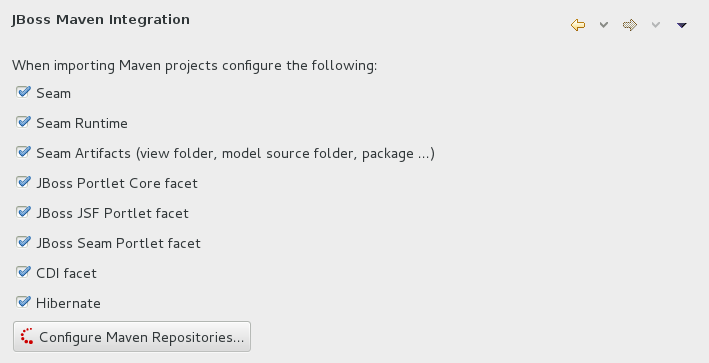
Figure 4.7. JBoss Maven Integration Pane in the Preferences Window
- Click .
- Click to configure the JBoss GA Tech Preview Maven repository. Complete the
Add Maven Repositorydialog as follows:- Set the Profile ID, Repository ID, and Repository Name values to
jboss-ga-repository. - Set the Repository URL value to
http://maven.repository.redhat.com/techpreview/all. - Click the checkbox to enable the Maven repository.
- Click
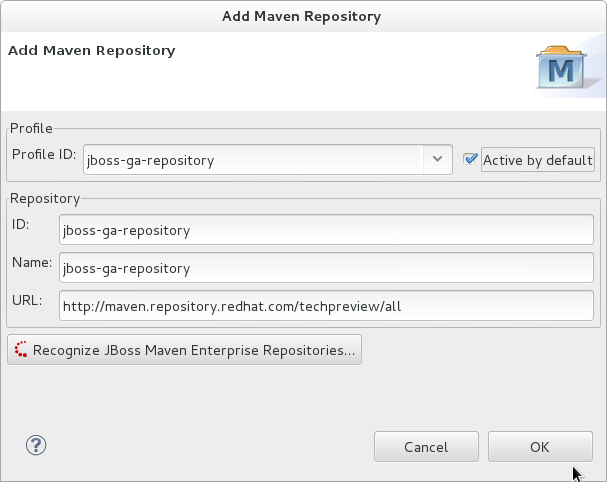
Figure 4.8. Add Maven Repository - JBoss Tech Preview
- Click to configure the JBoss Early Access Maven repository. Complete the
Add Maven Repositorydialog as follows:- Set the Profile ID, Repository ID, and Repository Name values to
jboss-earlyaccess-repository. - Set the Repository URL value to
http://maven.repository.redhat.com/earlyaccess/all/. - Click the checkbox to enable the Maven repository.
- Click
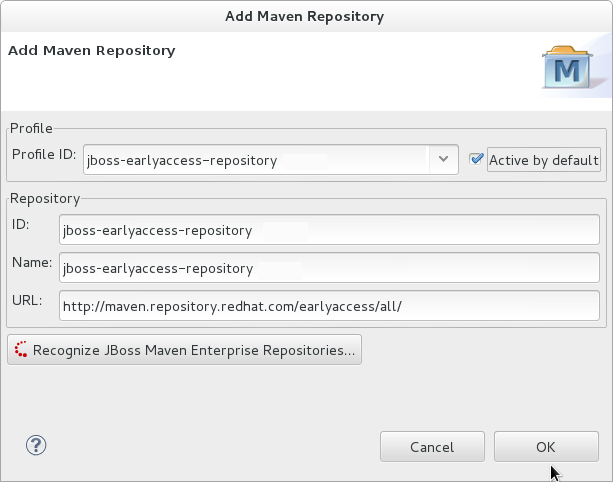
Figure 4.9. Add Maven Repository - JBoss Early Access
- Review the repositories and click .
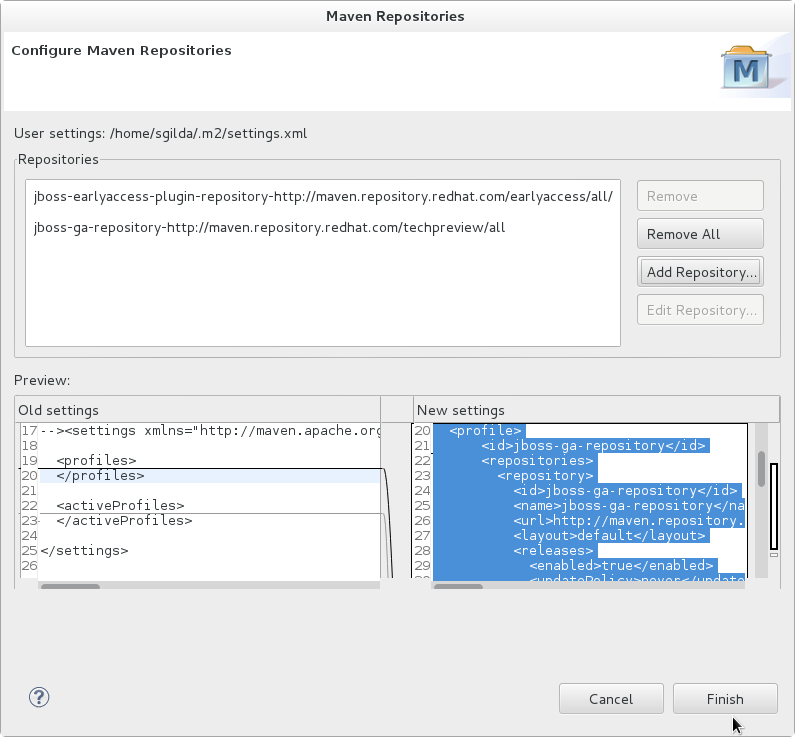
Figure 4.10. Review Maven Repositories
- You are prompted with the message "Are you sure you want to update the file 'MAVEN_HOME/settings.xml'?". Click to update the settings. Click to close the dialog.The JBoss EAP Maven repository is now configured for use with Red Hat JBoss Developer Studio.

'%20d='M201.5%20305.5c-13.8%200-24.9-11.1-24.9-24.6%200-13.8%2011.1-24.9%2024.9-24.9%2013.6%200%2024.6%2011.1%2024.6%2024.9%200%2013.6-11.1%2024.6-24.6%2024.6zM504%20256c0%20137-111%20248-248%20248S8%20393%208%20256%20119%208%20256%208s248%20111%20248%20248zm-132.3-41.2c-9.4%200-17.7%203.9-23.8%2010-22.4-15.5-52.6-25.5-86.1-26.6l17.4-78.3%2055.4%2012.5c0%2013.6%2011.1%2024.6%2024.6%2024.6%2013.8%200%2024.9-11.3%2024.9-24.9s-11.1-24.9-24.9-24.9c-9.7%200-18%205.8-22.1%2013.8l-61.2-13.6c-3-.8-6.1%201.4-6.9%204.4l-19.1%2086.4c-33.2%201.4-63.1%2011.3-85.5%2026.8-6.1-6.4-14.7-10.2-24.1-10.2-34.9%200-46.3%2046.9-14.4%2062.8-1.1%205-1.7%2010.2-1.7%2015.5%200%2052.6%2059.2%2095.2%20132%2095.2%2073.1%200%20132.3-42.6%20132.3-95.2%200-5.3-.6-10.8-1.9-15.8%2031.3-16%2019.8-62.5-14.9-62.5zM302.8%20331c-18.2%2018.2-76.1%2017.9-93.6%200-2.2-2.2-6.1-2.2-8.3%200-2.5%202.5-2.5%206.4%200%208.6%2022.8%2022.8%2087.3%2022.8%20110.2%200%202.5-2.2%202.5-6.1%200-8.6-2.2-2.2-6.1-2.2-8.3%200zm7.7-75c-13.6%200-24.6%2011.1-24.6%2024.9%200%2013.6%2011.1%2024.6%2024.6%2024.6%2013.8%200%2024.9-11.1%2024.9-24.6%200-13.8-11-24.9-24.9-24.9z'/%3e%3c/svg%3e)