 Red Hat Summit
Dieser Inhalt ist in der von Ihnen ausgewählten Sprache nicht verfügbar.
Chapter 9. Tuning Database Link Performance
Database link performance can be improved through changes to the Directory Server's connection and thread management.
9.1. Managing Connections to the Remote Server
Link kopierenLink in die Zwischenablage kopiert!
Each database link maintains a pool of connections to a remote server. This section describes how to optimize them.
9.1.1. Managing Connections to the Remote Server Using the Command Line
Link kopierenLink in die Zwischenablage kopiert!
This section describes how you update the settings for a specific database, as well as the default settings.
9.1.1.1. Updating the Database Link Connection Management Settings for a Specific Database
Link kopierenLink in die Zwischenablage kopiert!
To update the database link connection management settings for a specific database:
- Use the following command to update a setting for a database link:
# dsconf -D "cn=Directory Manager" ldap://server.example.com chaining link-set parameter=value link_nameFor a list of parameters you can set, enter:# dsconf -D "cn=Directory Manager" ldap://server.example.com chaining link-set --help - Restart the Directory Server instance:
# dsctl instance_name restart
9.1.1.2. Updating the Default Database Link Connection Management Settings
Link kopierenLink in die Zwischenablage kopiert!
To update the default database link connection management settings, use the following command:
# dsconf -D "cn=Directory Manager" ldap://server.example.com chaining config-set-def parameter=value
For a list of parameters you can set, enter:
# dsconf -D "cn=Directory Manager" ldap://server.example.com chaining config-set-def --help9.1.2. Managing Connections to the Remote Server Using the Web Console
Link kopierenLink in die Zwischenablage kopiert!
This section describes how you update the settings for a specific database, as well as the default settings.
9.1.2.1. Updating the Database Link Connection Management Settings for a Specific Database
Link kopierenLink in die Zwischenablage kopiert!
To update the database link connection management settings for a specific database:
- Open the Directory Server user interface in the web console. For details, see Logging Into Directory Server Using the Web Console section in the Red Hat Directory Server Administration Guide.
- Select the instance.
- On the tab, select the database link configuration you want to update.
- Click Show Advanced Settings.
- Update the fields in the advanced settings area:
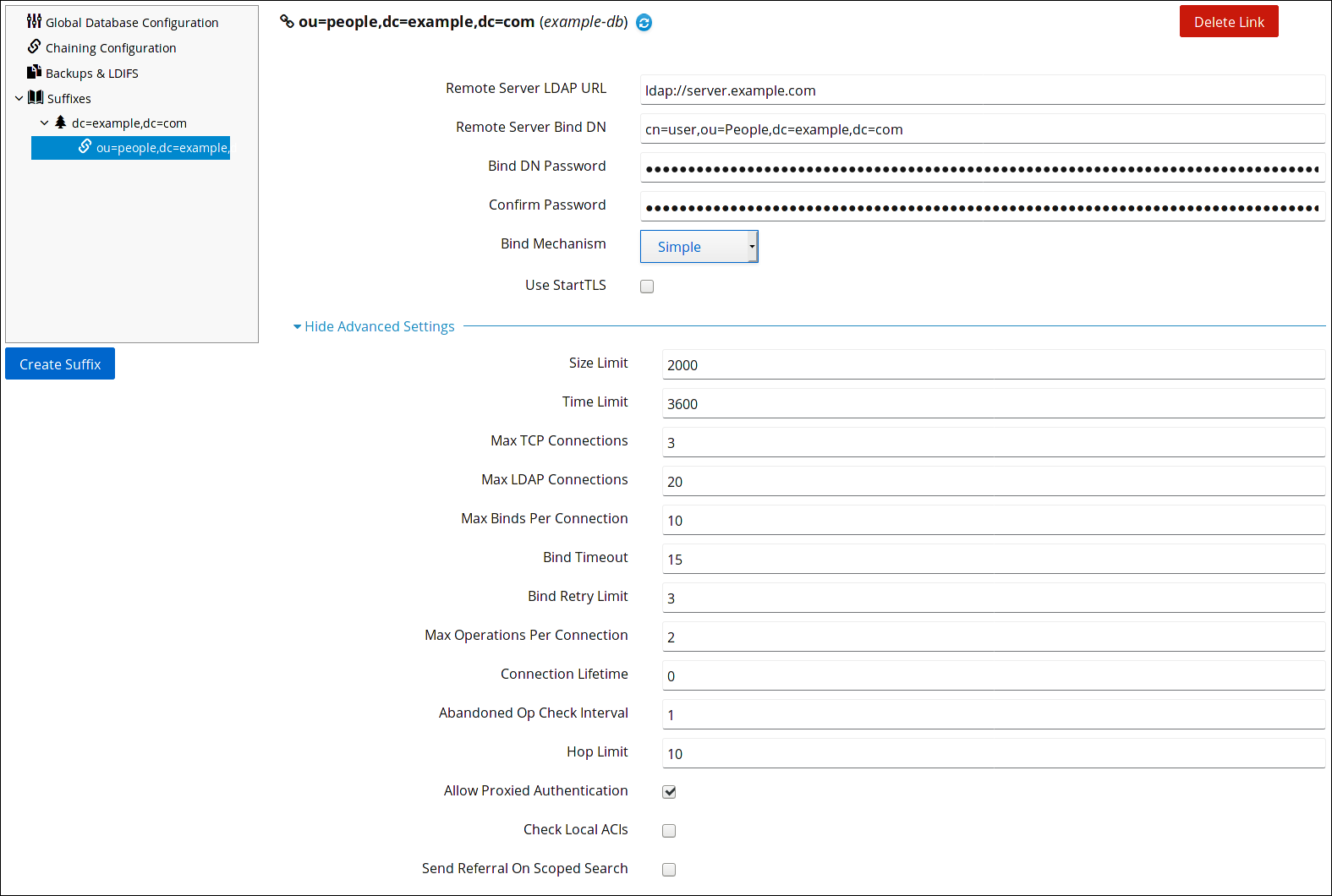 To display a tooltip and the corresponding attribute name in the
cn=configentry for a parameter, hover the mouse cursor over the setting. For further details, see the parameter's description in the Red Hat Directory Server Configuration, Command, and File Reference.. - Click .
- Click the button, and select Restart Instance.
9.1.2.2. Updating the Default Database Link Connection Management Settings
Link kopierenLink in die Zwischenablage kopiert!
To update the default database link connection management settings:
- Open the Directory Server user interface in the web console. For details, see Logging Into Directory Server Using the Web Console section in the Red Hat Directory Server Administration Guide.
- Select the instance.
- On the tab, select Chaining Configuration.
- Update the fields in the Default Database Link Creation Settings area:
 To display a tooltip and the corresponding attribute name in the
cn=configentry for a parameter, hover the mouse cursor over the setting. For further details, see the parameter's description in the Red Hat Directory Server Configuration, Command, and File Reference.. - Click .
- Click the button, and select Restart Instance.

'%20d='M201.5%20305.5c-13.8%200-24.9-11.1-24.9-24.6%200-13.8%2011.1-24.9%2024.9-24.9%2013.6%200%2024.6%2011.1%2024.6%2024.9%200%2013.6-11.1%2024.6-24.6%2024.6zM504%20256c0%20137-111%20248-248%20248S8%20393%208%20256%20119%208%20256%208s248%20111%20248%20248zm-132.3-41.2c-9.4%200-17.7%203.9-23.8%2010-22.4-15.5-52.6-25.5-86.1-26.6l17.4-78.3%2055.4%2012.5c0%2013.6%2011.1%2024.6%2024.6%2024.6%2013.8%200%2024.9-11.3%2024.9-24.9s-11.1-24.9-24.9-24.9c-9.7%200-18%205.8-22.1%2013.8l-61.2-13.6c-3-.8-6.1%201.4-6.9%204.4l-19.1%2086.4c-33.2%201.4-63.1%2011.3-85.5%2026.8-6.1-6.4-14.7-10.2-24.1-10.2-34.9%200-46.3%2046.9-14.4%2062.8-1.1%205-1.7%2010.2-1.7%2015.5%200%2052.6%2059.2%2095.2%20132%2095.2%2073.1%200%20132.3-42.6%20132.3-95.2%200-5.3-.6-10.8-1.9-15.8%2031.3-16%2019.8-62.5-14.9-62.5zM302.8%20331c-18.2%2018.2-76.1%2017.9-93.6%200-2.2-2.2-6.1-2.2-8.3%200-2.5%202.5-2.5%206.4%200%208.6%2022.8%2022.8%2087.3%2022.8%20110.2%200%202.5-2.2%202.5-6.1%200-8.6-2.2-2.2-6.1-2.2-8.3%200zm7.7-75c-13.6%200-24.6%2011.1-24.6%2024.9%200%2013.6%2011.1%2024.6%2024.6%2024.6%2013.8%200%2024.9-11.1%2024.9-24.6%200-13.8-11-24.9-24.9-24.9z'/%3e%3c/svg%3e)