 Red Hat Summit
Dieser Inhalt ist in der von Ihnen ausgewählten Sprache nicht verfügbar.
Tuning the performance of Red Hat Directory Server
Improving the server and database performance
Abstract
Providing feedback on Red Hat Directory Server
We appreciate your input on our documentation and products. Please let us know how we could make it better. To do so:
For submitting feedback on the Red Hat Directory Server (RHDS) documentation through Jira (account required):
- Go to the Red Hat Issue Tracker for the RHDS project.
- Enter a descriptive title in the Summary field.
- Enter your suggestion for improvement in the Description field. Include links to the relevant parts of the documentation.
Click Create at the bottom of the dialogue.
Alternatively, you can use the Share Feedback option on the product documentation page.
For submitting feedback on the RHDS product through Jira (account required):
- Go to the Red Hat Issue Tracker for the RHDS project.
- Enter a descriptive title in the Summary field.
- Select the component in the Component field.
Fill in the Description field including:
- The version number of the selected component.
- Steps to reproduce the problem or your suggestion for improvement.
- Click Create at the bottom of the dialogue.
Chapter 1. Monitoring the database activity
Administrators should monitor the database activity to ensure that tuning settings, such as caches, are properly configured.
1.1. Monitoring the database activity using the command line
To display the monitoring activity using the command line, display the dynamically-updated read-only attributes stored in the cn=monitor,cn=database_name,cn=ldbm database,cn=plugins,cn=config.
Procedure
To display the current activity of a database, enter:
# dsconf -D "cn=Directory Manager" ldap://server.example.com monitor backend userRootThis command displays the activity of the
userRootdatabase.
1.2. Monitoring the database activity using the web console
In the web console, Directory Server displays the values of the dynamically-updated read-only monitoring attributes from the cn=monitor,cn=database_name,cn=ldbm database,cn=plugins,cn=config in the Monitoring tab.
Procedure
- Navigate to → → .
-
Display the cache values on the
Entry CacheandDN Cachetabs.
1.3. Database monitoring attributes
| Attribute | Description |
|---|---|
|
|
Indicates whether the database is in read-only mode ( |
|
| The total number of successful entry cache lookups. The value is the total number of times the server could retrieve an entry from the entry cache without reloading it from the database. |
|
| The total number of entry cache lookups since you started the instance. The value is the total number, since the instance has been started, Directory Server tried to retrieve entry from the entry cache. |
|
| The number of entry cache tries to successful entry cache lookups. This number is based on the total lookups and hits since you last started the instance. The closer the entry cache hit ratio is to 100%, the better. Whenever an operation attempts to find an entry that is not present in the entry cache, the server needs to access the database to obtain the entry. Thus, as this ratio drops towards zero, the number of disk accesses increases, and directory search performance decreases. To improve this ratio, increase the size of the entry cache of the database.
To improve this ratio, increase the size of the entry cache by increasing the value of the |
|
| The total size, in bytes, of directory entries currently present in the entry cache.
To increase the size of the entries which can be present in the cache, increase the value of the |
|
| The maximum size, in bytes, of directory entries that Directory Server can maintain in the entry cache.
To increase the size of the entries which can be present in the cache, increase the value of the |
|
| The current number of entries stored in the entry cache of a given backend. |
|
| The maximum number of entries stored in the entry cache of a database.
To tune this value, increase the value of the |
|
| The number of times the server could process a request by obtaining a normalized distinguished name (DN) from the DN cache rather than normalizing it again. |
|
| The total number of DN cache accesses since you started the instance. |
|
| The ratio of cache tries to successful DN cache hits. The closer this value is to 100%, the better. |
|
| The total size, in bytes, of DN currently present in the DN cache.
To increase the size of the entries which can be present in the DN cache, increase the value of the |
|
| The maximum size, in bytes, of DNs that Directory Server can maintain in the DN cache.
To increase the size of the entries which can be present in the cache, increase the value of the |
|
| The number of DNs currently present in the DN cache. |
|
| The maximum number of DNs allowed in the DN cache. |
Chapter 2. Improving the performance of views
The performance of view-based hierarchies depends on the construction of the hierarchy itself and the number of entries in the directory tree (DIT).
In general, there may be a marginal change in performance (within a few percentage points of equivalent searches on a standard DIT) if you use virtual DIT views. If you do not invoke a view in a search, then there is no performance impact. Test the virtual DIT views against expected search patterns and loads before deployment.
Red Hat recommends indexing the attributes used in view filters if you intend to use the views as general-purpose navigation tools in the organization.
Further, you can configure a virtual list view (VLV) index to be used in evaluation of sub-filters in views.
There is no need to tune any other part of the directory specifically for views.
2.1. Creating indexes to improve the performance of views using the command line
Views are derived from search results based on a given filter. Part of the filter are the attributes given explicitly in the nsViewFilter; the rest of the filter is based on the entry hierarchy, looking for the entryid and parentid operational attributes of the actual entries included in the view.
(|(parentid=search_base_id)(entryid=search_base_id))
If any of the searched attributes - entryid, parentid, or the attributes in the nsViewFilter - are not indexed, then the search becomes partially unindexed and Directory Server searches the entire directory tree for matching entries.
To improve views performance, create the indexes as follows:
-
Create equality index (
eq) forentryid. Theparentidattribute is indexed in the system index by default. -
If a filter in
nsViewFiltertests presence (attribute=*), then create presence index (pres) for the attribute being tested. You should use this index type only with attributes that appear in a minority of directory entries. -
If a filter in
nsViewFiltertests equality (attribute=value), create equality index (eq) for the attribute being tested. -
If a filter in
nsViewFiltertests a substring (attribute=value*), create substring index (sub) for the attribute being tested. -
If a filter in
nsViewFiltertests approximation (attribute~=value), create approximate index (approximate) for the attribute being tested.
For example, when you use the following view filter:
nsViewFilter: (&(objectClass=inetOrgPerson)(roomNumber=*66))
you should index objectClass with the equality index, which is done by default, and roomNumber with the substring index.
Prerequisites
- You are aware of the attributes that you use in a view filter.
Procedure
Optional: List the back ends to determine the database to index:
# dsconf instance_name backend suffix list
dc=example,dc=com (userroot)
Note the selected database name (in parentheses).
Create index configuration with the
dsconfigutility for the selected back-end database.Specify the attribute name, index type, and, optionally, matching rules to set collation order (OID), especially in case of an internationalized instance.
# dsconf instance_name backend index add --attr roomNumber --index-type sub userrootRepeat this step for each attribute used in the view filter.
Reindex the database to apply the new indexes:
# dsconf instance_name backend index reindex userroot
Verification
Perform a search that is based on the standard directory tree with the same filter that you use in the view:
# ldapsearch -D "cn=Directory Manager" -W -H ldap://server.example.com -x -b dc=example,dc=com (&(objectClass=inetOrgPerson)(roomNumber=*66))
# ldapsearch -D "cn=Directory Manager" -W -H ldap://server.example.com -x -b dc=example,dc=com "(&(objectClass=inetOrgPerson)(roomNumber=*66))"
View the access log in
/var/log/dirsrv/slapd-instance_name/access.The
RESULTof your search should not containnote=UorPartially Unindexed Filterin the details.
2.2. Creating indexes to improve the performance of views using the web console
Views are derived from search results based on a given filter. Part of the filter are the attributes given explicitly in the nsViewFilter; the rest of the filter is based on the entry hierarchy, looking for the entryid and parentid operational attributes of the actual entries included in the view.
(|(parentid=search_base_id)(entryid=search_base_id))
If any of the searched attributes - entryid, parentid, or the attributes in the nsViewFilter - are not indexed, then the search becomes partially unindexed and Directory Server searches the entire directory tree for matching entries.
To improve views performance, create the indexes as follows:
-
Create equality index (
eq) forentryid. Theparentidattribute is indexed in the system index by default. -
If a filter in
nsViewFiltertests presence (attribute=*), then create presence index (pres) for the attribute being tested. You should use this index type only with attributes that appear in a minority of directory entries. -
If a filter in
nsViewFiltertests equality (attribute=value), create equality index (eq) for the attribute being tested. -
If a filter in
nsViewFiltertests a substring (attribute=value*), create substring index (sub) for the attribute being tested. -
If a filter in
nsViewFiltertests approximation (attribute~=value), create approximate index (approximate) for the attribute being tested.
For example, when you use the following view filter:
nsViewFilter: (&(objectClass=inetOrgPerson)(roomNumber=*66))
you should index objectClass with the equality index, which is done by default, and roomNumber with the substring index.
Prerequisites
- You are logged in to the instance in the web console.
- You are aware of the attributes that you use in a view filter.
Procedure
- Under Database, select a suffix from the configuration tree for which you want to create an index.
- Navigate to Indexes and Database Indexes.
- Click the button.
- Type the name of the attribute and select the attribute.
- Select the Index Types that should be created for this attribute.
- Optionally, add Matching Rules to specify collation order (OID), especially in case of an internationalized instance.
- Select Index attribute after creation to rebuild the index afterwards.
- Click .
- Repeat the steps for each attribute to be indexed.
Verification
- Filter Indexes by typing the name of the added attribute.
- The newly indexed attribute should appear in the results.
Chapter 3. Setting an index scan limit to improve the performance when loading long lists of IDs
In large directories, the search results list can be huge. For example, a directory with one million entries with inetorgperson attributes would return all these entries in a search with a filter, such as (objectclass=inetorgperson).
Loading a long ID list from the database significantly reduces search performance. An ID list scan limit sets a limit on the number of IDs Directory Server reads before a key is considered to match the entire primary index. This means that Directory Server treats the search as an unindexed search with a different set of resource limits.
For large indexes, it is actually more efficient to treat any search which matches the index as an unindexed search. The search operation only has to look in one place, the entire directory, to process results rather than searching through an index that is nearly the size of a directory, plus the directory itself.
You can set an index scan limit globally or for specific databases.
3.1. Setting a global index scan limit using the command line
By default, the ID list scan limit in Directory Server is 4000. In most scenarios, this value provides good performance for a common range of database sizes and access patterns, and you do not need to change the default value. If the database index is slightly larger than 4000 entries, but still significantly smaller than the overall directory, raising the ID list scan limit improves searches.
On the other hand, lowering the limit can significantly speed up searches that would otherwise hit the 4000 entry limit, but where it is not necessary to scan every entry.
Procedure
Update the ID list scan limit:
# dsconf -D "cn=Directory Manager" ldap://server.example.com backend config set --idlistscanlimit=8000This command sets the limit to
8000entries.Restart the instance:
# dsctl instance_name restart
3.2. Setting a global index scan limit using the web console
By default, the ID list scan limit in Directory Server is 4000. In most scenarios, this value provides good performance for a common range of database sizes and access patterns, and you do not need to change the default value. If the database index is slightly larger than 4000 entries, but still significantly smaller than the overall directory, raising the ID list scan limit improves searches.
On the other hand, lowering the limit can significantly speed up searches that would otherwise hit the 4000 entry limit, but where it is not necessary to scan every entry.
Procedure
- Navigate to → .
-
Update the
ID List Scan Limitfield. - Click .
-
Click in the top right corner, and select
Restart Instance.
3.3. Setting an index scan limit to a database using the command line
In some cases, it is useful to define a limit for certain indexes, or to not use an ID list at all. You can configure individual settings for ID list scan limits for different types of search filters.
For example, in a large database with 10 million entries that contain the object class inetOrgPerson, the (&(objectClass=inetOrgPerson)(uid=user)) filter creates first an ID list containing all 10 million IDs matching objectClass=inetOrgPerson. When the database applies the second part of the filter, it searches the result list for objects matching uid=user. In this case, it is useful to define a limit for certain indexes, or to not use an ID list at all.
This procedure demonstrates how to configure Directory Server to note create an ID list for objectClass=inetOrgPerson conditions in AND clauses.
Procedure
Set the
nsIndexIDListScanLimitparameter:# ldapmodify -D "cn=Directory Manager" -W -H ldap://server.example.com -x dn: cn=objectclass,cn=index,cn=userRoot,cn=ldbm database,cn=plugins,cn=config changetype: modify replace: nsIndexIDListScanLimit nsIndexIDListScanLimit: limit=0 type=eq flags=AND values=inetOrgPersonWith these settings, Directory Server does not create any ID list for
objectClass=inetOrgPersonconditions inANDclauses. In all other situations, Directory Server applies the global ID list scan limit value.The
nsIndexIDListScanLimitparameter uses the following syntax:nsIndexIDListScanLimit: limit=NNN [type=eq[,sub,...]] [flags=AND[,XXX,...]] [values=val[,val,...]]limit: Sets the maximum size of the ID list. Valid values are:-
-1: Unlimited -
0: Do not use the index -
1to the maximum of the 32-bit integer (2147483647): Maximum number of IDs
-
type: Optional: Sets flags that alter the scan limit’s behavior. Valid values are:-
AND: Apply the scan limit only to searches in which the attribute appears in anANDclause. -
OR: Apply the scan limit only to searches in which the attribute appears in anORclause.
-
values: Optional: A comma-separated list of values which must match the search filter in order for the limit to be applied. Since the matches are done one at a time, the values will match if any of the values matches.Use the values only with one type at a time. The values must correspond to the index type and to the syntax of the attribute to which the index is applied. For example, if you specified the integer-based attribute
uidNumberand it is indexed for theeqtype, you cannot usetype=eq values=abc.If the value contains spaces, commas, NULL, or other values which require escaping, use the LDAP filter escape syntax: A backslash (\) followed by the 2 hex digit code of the character. In the following example, the commas in the DN value are escaped with
\2C:nsIndexIDListScanLimit: limit=0 type=eq values=uid=user\2Cou=People\2Cdc=example\2Cdc=com
Chapter 4. Tuning the number of BDB locks
When a Directory Server instance uses Berkeley Database (BDB), lock mechanism controls how many copies of Directory Server processes can run at the same time. For example, during an import job, Directory Server sets a lock in the /run/lock/dirsrv/slapd-instance_name/imports/ directory to prevent the ns-slapd Directory Server process, another import, or export operations from running.
If the server runs out of available locks, Directory Server logs the following error in the /var/log/dirsrv/slapd-instance_name/errors file:
libdb: Lock table is out of available locksHowever, the Directory Server default settings try to prevent the server from running out of locks to avoid data corruption. For details, see Avoiding data corruption by monitoring free database locks
4.1. Avoiding data corruption by monitoring free BDB database locks
Running out of Berkeley Database (BDB) locks can lead to data corruption. To avoid this, Directory Server, by default, monitors the remaining number of free locks every 500 milliseconds and, if the number of active database locks is equal or higher than the 90%, Directory Server stops all searches.
The following procedure changes the interval to 600 milliseconds and the threshold to 85 percent.
If you set a too high interval, the server can run out of locks before the next monitoring check happens. Setting a too short interval can slow down the server.
Prerequisites
- The Directory Server instance uses BDB.
Procedure
Set the interval and threshold:
# dsconf instance_name backend config set --locks-monitoring-enabled on --locks-monitoring-pause 600 --locks-monitoring-threshold 85Restart the instance:
# dsctl instance_name restart
Verification
Display the locks monitoring settings:
# dsconf -D "cn=Directory Manager" ldap://supplier.example.com backend config get | grep "nsslapd-db-locks-monitoring"
nsslapd-db-locks-monitoring-enabled: on
nsslapd-db-locks-monitoring-threshold: 85
nsslapd-db-locks-monitoring-pause: 600
4.2. Manually monitoring the number of BDB locks
Directory Server tracks the current number of Berkeley Database (BDB) locks in the nsslapd-db-current-locks and nsslapd-db-max-locks attributes in cn=database,cn=monitor,cn=ldbm database,cn=plugins,cn=config.
Prerequisites
- The Directory Server instance uses BDB.
Procedure
To display the number of locks, enter:
# ldapsearch -D "cn=Directory Manager" -W -H ldap://server.example.com -x -s sub -b "cn=database,cn=monitor,cn=ldbm database,cn=plugins,cn=config" nsslapd-db-current-locks nsslapd-db-max-locks
...
nsslapd-db-current-locks: 37
nsslapd-db-max-locks: 39
4.3. Setting the number of BDB locks using the command line
Use the dsconf backend config set command to update the number of Berkeley Database (BDB) locks that Directory Server can use.
Prerequisites
- The Directory Server instance uses BDB.
Procedure
Set the number of locks:
# dsconf instance_name backend config set --locks=20000The command sets the number of locks to
20000.Restart the instance:
# dsctl instance_name restart
Verification
Display the value of the
nsslapd-db-locksparameter:# dsconf instance_name backend config get | grep "nsslapd-db-locks:" nsslapd-db-locks: 20000
4.4. Setting the number of BDB locks using the web console
You can set the number of Berkeley Database (BDB) locks that Directory Server uses in the global database configuration in the web console.
Prerequisites
- You are logged in to the instance in the web console.
- The Directory Server instance uses BDB.
The following procedure sets the number of locks to 2000.
Procedure
- Navigate to → → .
-
Update the Database Locks field to
2000. - Click .
- Click → .
Verification
- Verify that the new value is present in → → .
Chapter 5. Setting the number of Directory Server threads
The number of threads Directory Server uses to handle simultaneous connections affects the performance of the server. For example, if all threads are busy handling time-consuming tasks, such as add operations, new incoming connections are queued until a free thread can process the request.
If the server provides a low number of CPU threads, configuring a higher number of threads can increase the performance. However, on a server with many CPU threads, setting a too high value does not further increase the performance.
By default, Directory Server uses an auto-tuning setting that calculates the number of threads. This number is based on the hardware resources of the server when the instance starts.
Avoid setting the number of threads manually. Use the auto-tuning setting instead.
With enabled automatic thread tuning, Directory Server uses the following optimized number of threads:
| CPU threads number | Directory Server threads number |
|---|---|
| 1-16 | 16 |
| 17-512 | The Directory Server thread number matches the CPU thread number in the system. For example, if your system has 24 CPU threads, Directory Server uses 24 threads. The maximum number of Directory Server threads is 512. |
| 512 and more | 512. Directory Server applies the recommended maximum number of threads. |
5.1. Enabling automatic thread tuning using the command line
By default, Directory Server automatically sets the number of threads based on the available hardware. However, in certain cases, you can manually enable this auto-tuning feature by using the command line.
Procedure
To enable the auto-tuning feature, set the
nsslapd-threadnumberattribute value to-1by the command:# dsconf -D "cn=Directory Manager" ldap://server.example.com config replace nsslapd-threadnumber="-1" Successfully replaced "nsslapd-threadnumber"
Verification
Verify the number of treads that Directory Server now uses by the command:
# dsconf -D "cn=Directory Manager" ldap://server.example.com config get nsslapd-threadnumber nsslapd-threadnumber: 16NoteThe command retrieves the number of threads that Directory Server calculated based on the correct hardware resources.
5.2. Enabling automatic thread tuning using the web console
By default, Directory Server automatically sets the number of threads based on the available hardware. However, in certain cases, you can manually enable this auto-tuning feature by using the web console.
Prerequisites
- You are logged in to the instance in the web console. For more details, see Logging in to the Directory Server by using the web console.
Procedure
- Navigate to → .
-
In the Number Of Worker Threads field, set the number of threads to
-1. - Click .
5.3. Manually setting the number of threads using the command line
In certain situations, it is necessary to manually set a fixed number of Directory Server threads. For example, if you do not use the auto-tuning setting and change the number of CPU cores in a virtual machine, adjusting the number of Directory Server threads can improve the performance.
You can also use this procedure to re-enable the auto-tuning setting if you set a specific number of threads earlier.
Procedure
Set the number of threads Directory Server should use:
# dsconf -D "cn=Directory Manager" ldap://server.example.com config replace nsslapd-threadnumber="64"

Successfully replaced "nsslapd-threadnumber"
Set the
nsslapd-threadnumberparameter to-1to enable the auto-tuning setting.
5.4. Manually setting the number of threads using the web console
In certain situations, it is necessary to manually set a fix number of Directory Server threads. For example, if you do not use the auto-tuning setting and change the number of CPU cores in a virtual machine, adjusting the number of Directory Server threads can improve the performance.
Note that you can use the web console to re-enable the auto-tuning setting if you set a specific number of threads earlier.
Prerequisites
- You are logged in to the instance in the web console.
Procedure
- Navigate to → .
- In the Number Of Worker Threads field, set the number of threads.
- Click .
Chapter 6. Tuning resource limits
Directory Server provides several settings to tune the amount of resources an instance uses. You can change them using the command line or the web console.
6.1. Updating resource limit settings using the command line
This section provides a general procedure how to change resource limit settings. Adjust the settings according to your environment.
Procedure
Update the performance settings:
# dsconf -D "cn=Directory Manager" ldap://server.example.com config replace parameter_name=valueYou can set the following parameters:
-
nsslapd-threadnumber: Sets the number of worker threads. -
nsslapd-maxdescriptors: Sets the maximum number of file descriptors. -
nsslapd-timelimit: Sets the search time limit. -
nsslapd-sizelimit: Sets the search size limit. -
nsslapd-pagedsizelimit: Sets the paged search size limit. -
nsslapd-idletimeout: Sets the idle connection timeout. -
nsslapd-ioblocktimeout: Sets the input/output (I/O) block timeout. -
nsslapd-ndn-cache-enabled: Enables or disables the normalized DN cache. -
nsslapd-ndn-cache-max-size: Sets the normalized DN cache size, if nsslapd-ndn-cache-enabled is enabled. -
nsslapd-outbound-ldap-io-timeout: Sets the outbound I/O timeout. -
nsslapd-maxbersize: Sets the maximum Basic Encoding Rules (BER) size. -
nsslapd-maxsasliosize: Sets the maximum Simple Authentication and Security Layer (SASL) I/O size. -
nsslapd-listen-backlog-size: Sets the maximum number of sockets available to receive incoming connections. -
nsslapd-max-filter-nest-level: Sets the maximum nested filter level. -
nsslapd-ignore-virtual-attrs: Enables or disables virtual attribute lookups. -
nsslapd-connection-nocanon: Enables or disables reverse DNS lookups. nsslapd-enable-turbo-mode: Enables or disables the turbo mode feature.For further details, see the descriptions of the parameters in the Configuration and schema reference
-
Restart the instance:
# dsctl instance_name restart
6.2. Updating resource limit settings using the web console
This section provides a general procedure how to change resource limit settings. Adjust the settings according to your environment.
Prerequisites
- You are logged in to the instance in the web console.
Procedure
- Navigate to → .
Update the settings. Optionally, click
Show Advanced Settingsto display all settings.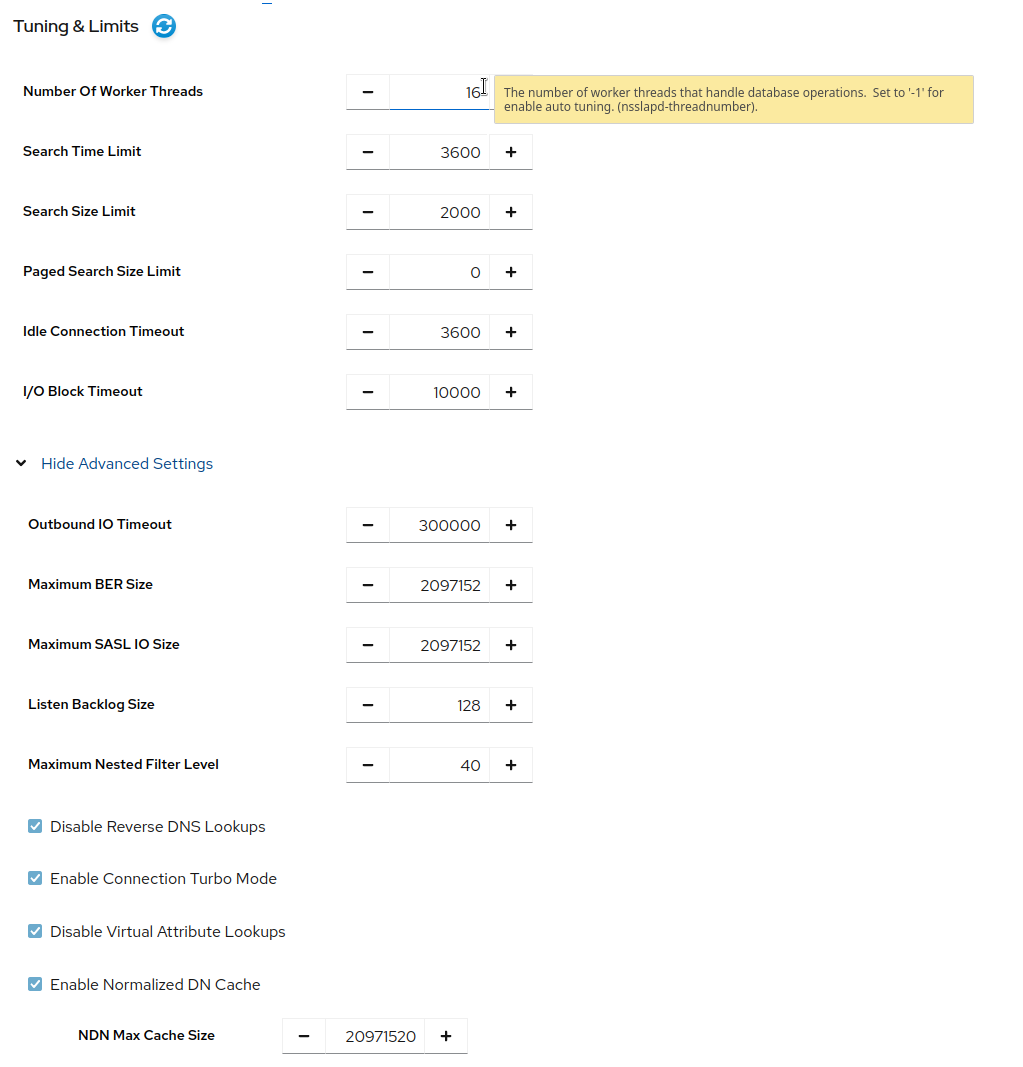
- Click .
- Click → .
6.3. Disabling the Transparent Huge Pages feature
Transparent Huge Pages (THP) is the memory management feature in Linux that speeds up Translation Lookaside Buffer (TLB) checks on machines with large amounts of memory by using larger memory pages. The THP feature is enabled by default on RHEL systems and supports 2 MB memory pages.
The THP feature, however, works best when enabled on large, contiguous allocation patterns and can degrade performance on small, sparse allocation patterns that are typical to the Red Hat Directory Server. The resident memory size of the process might eventually exceed the limit and impact performance or get terminated by the out of memory (OOM) killer.
To avoid performance and memory consumption problems, disable THP on RHEL systems with Red Hat Directory Server installed.
Procedure
Check the current status of THP:
# cat /sys/kernel/mm/transparent_hugepage/enabledIf the transparent huge pages feature is active, disable it either at boot time or run time:
Disable the transparent huge pages at boot time by appending the following to the kernel command line in the
grub.conffile:transparent_hugepage=neverDisable transparent huge pages at run time by running the following commands:
# echo never > /sys/kernel/mm/transparent_hugepage/enabled
# echo never > /sys/kernel/mm/transparent_hugepage/defrag
Chapter 7. Logging statistics per search operation
During some search operations, especially with filters such as (cn=user*), the time the server spends for receiving the tasks and then sending the result back (etime) can be very long.
Expanding the access log with information related to indexes used during search operation helps to diagnose why etime value is resource expensive.
Use the nsslapd-statlog-level attribute to enable collecting statistics, such as a number of index lookups (database read operations) and overall duration of index lookups for each search operation, with minimal impact on the server.
Prerequisites
- You enabled access logging.
Procedure
Enable search operation metrics:
# dsconf -D "cn=Directory Manager" instance_name config replace nsslapd-statlog-level=1Restart the instance:
# dsctl instance_name restart
Verification
Perform a search operation:
# ldapsearch -D "cn=Directory Manager" -H ldap://server.example.com -b "dc=example,dc=com" -s sub -x "cn=user*"View the access log file and find the search statistics records:
# cat /var/log/dirsrv/slapd-instance_name/access
...
[16/Nov/2022:11:34:11.834135997 +0100] conn=1 op=73 SRCH base="dc=example,dc=com" scope=2 filter="(cn=user)"* attrs=ALL
[16/Nov/2022:11:34:11.835750508 +0100] conn=1 op=73 STAT read index: attribute=objectclass key(eq)=referral --> count 0
[16/Nov/2022:11:34:11.836648697 +0100] conn=1 op=73 STAT read index: attribute=cn key(sub)=er_ --> count 25
[16/Nov/2022:11:34:11.837538489 +0100] conn=1 op=73 STAT read index: attribute=cn key(sub)=ser --> count 25
[16/Nov/2022:11:34:11.838814948 +0100] conn=1 op=73 STAT read index: attribute=cn key(sub)=use --> count 25
[16/Nov/2022:11:34:11.841241531 +0100] conn=1 op=73 STAT read index: attribute=cn key(sub)=^us --> count 25
[16/Nov/2022:11:34:11.842230318 +0100] conn=1 op=73 STAT read index: duration 0.000010276
[16/Nov/2022:11:34:11.843185322 +0100] conn=1 op=73 RESULT err=0 tag=101 nentries=24 wtime=0.000078414 optime=0.001614101 etime=0.001690742
...
Chapter 8. Monitoring the local disk to shut down Directory Server on low disk space
When the disk space available on a system becomes too small, the Directory Server process terminates. As a consequence, there is a risk of corrupting the database or losing data. To prevent this problem, you can configure Directory Server to monitor the free disk space on the file systems that contain the configuration, transaction log, and database directories. If the free space reaches the configured threshold, Directory Server shuts down the instance.
8.1. Behavior of Directory Server depending on the amount of free disk space
How Directory Server behaves when when you configure monitoring depends on the amount of remaining free space:
If the free disk space reaches the defined threshold, Directory Server:
- Disables verbose logging
- Disables access access logging
- Deletes archived log files
NoteDirectory Server always continues writing error logs, even if the threshold is reached.
- If the free disk space is lower than the half of the configured threshold, Directory Server shuts down within a defined grace period.
- If the available disk space is ever lower than 4 KB, Directory Server shuts down immediately.
If disk space is freed up, then Directory Server aborts the shutdown process and re-enables all of the previously disabled log settings.
8.2. Configuring local disk monitoring using the command line
Directory Server can monitor the free disk space on the file systems that contain the configuration, transaction log, and database directories. Depending on the remaining free space, Directory Server disables certain logging features or shuts down.
Procedure
Enable the disk monitoring feature, set a threshold value and a grace period:
# dsconf -D "cn=Directory Manager" ldap://server.example.com config replace nsslapd-disk-monitoring=on nsslapd-disk-monitoring-threshold=3221225472 nsslapd-disk-monitoring-grace-period=60This command sets the threshold of free disk space to 3 GB (3,221,225,472 bytes) and the grace period to 60 seconds.
Optional: Configure Directory Server not to disable access logging or delete archived logs:
# dsconf -D "cn=Directory Manager" ldap://server.example.com config replace nsslapd-disk-monitoring-logging-critical=onRestart the instance:
# dsctl instance_name restart
8.3. Configuring local disk monitoring using the web console
Directory Server can monitor the free disk space on the file systems that contain the configuration, transaction log, and database directories. Depending on the remaining free space, Directory Server disables certain logging features or shuts down.
Prerequisites
- You are logged in to the instance in the web console.
Procedure
- Navigate to → → .
Select
Enable Disk Space Monitoring. Set the threshold in bytes and the grace period in minutes:
This example sets the monitoring threshold to 3 GB (3,221,225,472 bytes) and the time before Directory Server shuts down the instance after reaching the threshold to 60 minutes.
-
Optional: Select
Preserve Logs Even If Disk Space Gets Low - Click .
-
Click in the top right corner, and select
Restart Instance.
Chapter 9. Tuning transaction logging
Every Directory Server instance contains a transaction log which logs updates of databases it manages. Whenever a directory database operation, such as a modify operation, is performed, the server creates a single database transaction for all of the database operations invoked as a result of that LDAP operation. This includes both updating the entry record in the database file containing the entries and updating all attribute indexes. If all of the operations succeed, the server commits the transaction, writes the operations to the transaction log, and verifies that the entire transaction is written to disk. If any of these operations fail, the server rolls back the transaction, and all of the operations are discarded. This all-or-nothing approach guarantees that an update operation is atomic. Either the entire operation succeeds permanently and irrevocably, or it fails.
Periodically, Directory Server flushes the contents of the transaction logs to the actual database index files and checks if the transaction logs require trimming.
If the server experiences a failure, such as a power outage, and shuts down abnormally, the information about recent directory changes is still saved by the transaction log. When the server restarts, the server automatically detects the error condition and uses the database transaction log to recover the database.
Although database transaction logging, flush the database, trimming, and database recovery are automatic processes that require no intervention, it can be advisable to tune some of the database transaction logging attributes to optimize the performance.
9.1. Changing the database checkpoint interval using the command line
At regular intervals, Directory Server writes the transactions logged logged in the transaction log to the database files and logs a checkpoint entry in the database transaction log. By indicating which changes have already been written to the database, checkpoint entries indicate where to begin recovery from the transaction log, thus speeding up the recovery process.
By default, Directory Server sends a checkpoint entry to the database transaction log every 60 seconds. Increasing the checkpoint interval can increase the performance of directory write operations. However, it can also increase the amount of time required to recover directory databases after a disorderly shutdown and require more disk space due to large database transaction log files.
Procedure
Change the checkpoint interval, for example, to 120 seconds:
# dsconf -D "cn=Directory Manager" ldap://server.example.com backend config set --checkpoint-interval=120
9.2. Changing the database checkpoint interval using the web console
At regular intervals, Directory Server writes the transactions logged logged in the transaction log to the database files and logs a checkpoint entry in the database transaction log. By indicating which changes have already been written to the database, checkpoint entries indicate where to begin recovery from the transaction log, thus speeding up the recovery process.
By default, Directory Server sends a checkpoint entry to the database transaction log every 60 seconds. Increasing the checkpoint interval can increase the performance of directory write operations. However, it can also increase the amount of time required to recover directory databases after a disorderly shutdown and require more disk space due to large database transaction log files.
Prerequisites
- You are logged in to the instance in the web console.
Procedure
- Navigate to → .
-
Click
Show Advanced Settings. -
Update the value in the
Database Checkpoint Intervalfield. - Click .
9.3. Disabling durable transactions
Durable transaction logging means that each LDAP update operation, comprised of a sequence of database operations in a transaction, is physically written to disk. Even though each LDAP operation can be comprised of multiple database updates, each LDAP operation is treated as a single database transaction. Each LDAP operation is both atomic and durable.
Turning off durable transactions can improve the write performance of Directory Server at the risk of data loss.
When you disable durable transaction logging, Directory Server writes every directory database operation to the database transaction log file but it may not be physically written to disk immediately. If a directory change was written to the logical database transaction log file but not physically written to disk at the time of a system crash, the change cannot be recovered. When durable transactions are disabled, the recovered database is consistent but does not reflect the results of any LDAP write operations that completed just before the system crash.
Note that you cannot change the nsslapd-db-durable-transaction parameter if Directory Server is running.
Procedure
Stop the instance:
# dsctl instance_name stopEdit the
/etc/dirsrv/slapd-instance_name/dse.ldiffile, and set thensslapd-db-durable-transactionparameter in thecn=config,cn=ldbm database,cn=plugins,cn=configentry tooff:dn: cn=config,cn=ldbm database,cn=plugins,cn=config ... nsslapd-db-durable-transaction: off ...Start the instance:
# dsctl instance_name start
Chapter 10. Managing cache settings
Directory Server uses the following caches:
- The entry cache, which contains individual directory entries.
- The distinguished name (DN) cache is used to associate DNs and relative distinguished names (RDN) with entries.
-
The database cache, which contains the database index files
*.dbfiles.
For the highest performance improvements, all cache sizes must be able to store all of their records. If you do not use the recommended auto-sizing feature and have not enough RAM available, assign free memory to the caches in the previously shown order.
10.1. How the cache-autosize and cache-autosize-split parameters influence the database and entry cache sizes
By default, Directory Server uses an auto-sizing feature to optimize the size of both the database and entry cache on the hardware resources of the server when the instance starts.
Red Hat recommends to use the auto-sizing feature and not to set cache sizes manually.
The following parameters in the cn=config,cn=ldbm database,cn=plugins,cn=config entry control the auto-sizing:
nsslapd-cache-autosizeThese settings control if auto-sizing is enabled for the database and entry cache. Auto-sizing is enabled:
-
For both the database and entry cache, if the
nsslapd-cache-autosizeparameter is set to a value greater than0. -
For the database cache, if the
nsslapd-cache-autosizeandnsslapd-dbcachesizeparameters are set to0. -
For the entry cache, if the
nsslapd-cache-autosizeandnsslapd-cachememsizeparameters are set to0.
-
For both the database and entry cache, if the
nsslapd-cache-autosize-split- The value sets the percentage of RAM that Directory Server uses for the database cache. The server uses the remaining percentage for the entry cache.
- Using more than 1.5 GB RAM for the database cache does not improve the performance. Therefore, Directory Server limits the database cache to 1.5 GB.
By default, Directory Server uses the following defaults values:
-
nsslapd-cache-autosize: 25 -
nsslapd-cache-autosize-split: 25 -
nsslapd-dbcachesize: 1,536 MB
Using these settings, 25% of the system’s free RAM is used (nsslapd-cache-autosize). From this memory, the server uses 25% for the database cache (nsslapd-cache-autosize-split) and the remaining 75% for the entry cache.
Depending on the free RAM, this results in the following cache sizes:
| GB of free RAM | Database cache size | Entry cache size |
|---|---|---|
| 1 GB | 64 MB | 192 MB |
| 2 GB | 128 MB | 384 MB |
| 4 GB | 256 MB | 768 MB |
| 8 GB | 512 MB | 1,536 MB |
| 16 GB | 1,024 MB | 3,072 MB |
| 32 GB | 1,536 MB | 6,656 MB |
| 64 GB | 1,536 MB | 14,848 MB |
| 128 GB | 1,536 MB | 31,232 MB |
10.2. Required cache sizes
The dsconf monitor dbmon command enables you to monitor cache statistics at runtime. To display the statistics, enter:
# dsconf -D "cn=Directory Manager" ldap://server.example.com monitor dbmon
DB Monitor Report: 2022-02-24 10:25:16
--------------------------------------------------------
Database Cache:
 - Cache Hit Ratio:     50%
 - Free Space:          397.31 KB
 - Free Percentage:     2.2%
 - RO Page Drops:       0
 - Pages In:            2934772
 - Pages Out:           219075

Normalized DN Cache:
 - Cache Hit Ratio:     60%
 - Free Space:          19.98 MB
 - Free Percentage:     99.9%
 - DN Count:            100000
 - Evictions:           9282348

Backends:
  - dc=example,dc=com (userroot):
    - Entry Cache Hit Ratio:        66%
    - Entry Cache Count:            50000
    - Entry Cache Free Space:       2.0 KB
    - Entry Cache Free Percentage:  0.8%
    - Entry Cache Average Size:     8.9 KB
    - DN Cache Hit Ratio:           21%
    - DN Cache Count:               100000
    - DN Cache Free Space:          4.29 MB
    - DN Cache Free Percentage:     69.8%
    - DN Cache Average Size:        130.0 B
Optionally, pass the -b back_end or -x option to the command to display the statistics for a specific back end or the index.
If your caches are sufficiently sized, the number in DN Cache Count matches the values in the Cache Count backend entries. Additionally, if all of the entries and DNs fit within their respective caches, the Entry Cache Count count value matches the DN Cache Count value.
The output of the example shows:
Only 2.2% free database cache is left:
Database Cache:
 ...
 - Free Space:          397.31 KB
 - Free Percentage:     2.2%
However, to operate efficiently, at least 15% free database cache is required. To determine the optimal size of the database cache, calculate the sizes of all
*.dbfiles in the/var/lib/dirsrv/slapd-instance_name/db/directory including subdirectories and the changelog database, and add 12% for overhead.To set the database cache, see Setting the database cache size using the command line.
The DN cache of the
userrootdatabase is well-chosen:Backends: - dc=example,dc=com (userroot): ... - DN Cache Count: 100000 - DN Cache Free Space: 4.29 MB - DN Cache Free Percentage: 69.8% - DN Cache Average Size: 130.0 BThe DN cache of the database contains 100000 records, 69,8% of the cache is free, and each DN in memory requires 130 bytes on average.
To set the DN cache, see Setting the DN cache size using the command line.
The statistics on the entry cache of the
userrootdatabase indicates that the entry cache value should be increased for better performance:Backends: - dc=example,dc=com (userroot): ... - Entry Cache Count: 50000 - Entry Cache Free Space: 2.0 KB - Entry Cache Free Percentage: 0.8% - Entry Cache Average Size: 8.9 KBThe entry cache contains in this database 50000 records and only 2 Kilobytes of free space are left. To enable Directory Server to cache all 100000 DNs, the cache must be increased to minimum of 890 MB (100000 DNs * 8,9 KB average entry size). However, Red Hat recommends to round the minimum required size to the next highest GB and double the result. In this example, the entry cache should be set to 2 Gigabytes.
To set the entry cache, see Setting the entry cache size using the command line.
10.3. Setting the database cache size using the command line
The database cache contains the Berkeley database index files for the database, meaning all of the *.db and other files used for attribute indexing by the database. This value is passed to the Berkeley DB API function set_cachesize(). This cache size has less of an impact on Directory Server performance than the entry cache size, but if there is available RAM after the entry cache size is set, increase the amount of memory allocated to the database cache.
Procedure
Disable automatic cache tuning
# dsconf -D "cn=Directory Manager" ldap://server.example.com backend config set --cache-autosize=0Manually set the database cache size:
# dsconf -D "cn=Directory Manager" ldap://server.example.com backend config set --dbcachesize=268435456Specify the database cache size in bytes. In this example, the command sets the database cache to 256 MB.
Restart the instance:
# dsctl instance_name restart
10.4. Setting the database cache size using the web console
The database cache contains the Berkeley database index files for the database, meaning all of the *.db and other files used for attribute indexing by the database. This value is passed to the Berkeley DB API function set_cachesize(). This cache size has less of an impact on Directory Server performance than the entry cache size, but if there is available RAM after the entry cache size is set, increase the amount of memory allocated to the database cache.
Prerequisites
- You are logged in to the instance in the web console.
Procedure
- Navigate to → .
-
Deselect
Automatic Cache Tuning. - Click .
-
Enter the database cache size in bytes, such as
268435456for 256 MB, into theDatabase Cache Sizefield. - Click .
-
Click in the top right corner, and select
Restart Instance.
10.5. Setting the DN cache size using the command line
Directory Server uses the entryrdn index to associate distinguished names (DN) and relative distinguished names (RDN) with entries. It enables the server to efficiently rename subtrees, move entries, and perform moddn operations. The server uses the DN cache to cache the in-memory representation of the entryrdn index to avoid expensive file I/O and transformation operations.
If you do not use the auto-tuning feature, for best performance, especially with but not limited to renaming entries and moving operations, set the DN cache to a size that enables Directory Server to cache all DNs in the database.
If a DN is not stored in the cache, Directory Server reads the DN from the entryrdn.db index database file and converts the DNs from the on-disk format to the in-memory format. DNs that are stored in the cache enable the server to skip the disk I/O and conversion steps.
Procedure
Display the suffixes and their corresponding back end:
# dsconf instance_name backend suffix list
dc=example,dc=com (userRoot)
This command displays the name of the back end database next to each suffix. You require the suffix’s database name in the next step.
Set the DN cache size:
# dsconf instance_name backend suffix set --dncache-memsize=20971520 userRootThis command sets the DN cache for the
userRootdatabase to 20 megabytes.Restart the instance:
# dsctl instance_name restart
10.6. Setting the DN cache size using the web console
Directory Server uses the entryrdn index to associate distinguished names (DN) and relative distinguished names (RDN) with entries. It enables the server to efficiently rename subtrees, move entries, and perform moddn operations. The server uses the DN cache to cache the in-memory representation of the entryrdn index to avoid expensive file I/O and transformation operations.
If you do not use the auto-tuning feature, for best performance, especially with but not limited to renaming entries and moving operations, set the DN cache to a size that enables Directory Server to cache all DNs in the database.
If a DN is not stored in the cache, Directory Server reads the DN from the entryrdn.db index database file and converts the DNs from the on-disk format to the in-memory format. DNs that are stored in the cache enable the server to skip the disk I/O and conversion steps.
Prerequisites
- You are logged in to the instance in the web console.
Procedure
- Navigate to → → .
-
Enter the DN cache size in bytes to the
DN Cache Sizefield. - Click .
-
Click in the top right corner, and select
Restart Instance.
10.7. Setting the entry cache size using the command line
Directory Server uses the entry cache to store directory entries that are used during search and read operations. Setting the entry cache to a size that enables Directory Server to store all records has the highest performance impact on search operations.
If entry caching is not configured, Directory Server reads the entry from the id2entry.db database file and converts the distinguished names (DN) from the on-disk format to the in-memory format. Entries that are stored in the cache enable the server to skip the disk I/O and conversion steps.
Procedure
Disable automatic cache tuning:
# dsconf -D "cn=Directory Manager" ldap://server.example.com backend config set --cache-autosize=0Display the suffixes and their corresponding back end:
# dsconf -D "cn=Directory Manager" ldap://server.example.com backend suffix list
dc=example,dc=com (userroot)
This command displays the name of the back end database next to each suffix. You require the suffix’s database name in the next step.
Set the entry cache size in bytes for the database:
# dsconf -D "cn=Directory Manager" ldap://server.example.com backend suffix set --cache-memsize=2147483648 userRootThis command sets the entry cache for the
userRootdatabase to 2 gigabytes.Restart the instance:
# dsctl instance_name restart
10.8. Setting the entry cache size using the web console
Directory Server uses the entry cache to store directory entries that are used during search and read operations. Setting the entry cache to a size that enables Directory Server to store all records has the highest performance impact on search operations.
If entry caching is not configured, Directory Server reads the entry from the id2entry.db database file and converts the distinguished names (DN) from the on-disk format to the in-memory format. Entries that are stored in the cache enable the server to skip the disk I/O and conversion steps.
Prerequisites
- You are logged in to the instance in the web console.
Procedure
- Navigate to → → → .
-
Disable the
Automatic Cache Tuningsetting. - Click .
-
Click in the top right corner, and select
Restart Instance. - Navigate to → → → .
- Set the size of the database cache in the `Entry Cache Size field.
- Click .
-
Click in the top right corner, and select
Restart Instance.
Chapter 11. Improving import performance
Very large attribute sizes or a large number of entries can negatively impact server performance during import operations. This section describes how to tune Directory Server settings to improve the import performance.
11.1. Tuning directory server for large database imports and imports with large attribute values
Use the import cache autosizing feature for operations like:
- importing a very large database
- importing a database with large attributes, such as binary attributes that store certificate chains or images
Offline imports are faster than online ones. Consider using offline imports where possible.
You can configure the import cache autosizing feature with the nsslapd-import-cache-autosize attribute. By default, Directory Server enables the import cache autosizing for the ldif2db operation only, automatically allocating 50% of the free physical memory for the import cache.
For further details, see the description of the nsslapd-import-cache-autosize attribute in the Configuration, Command, and File Reference document.
Chapter 12. Tuning server connection management
The nsslapd-numlisteners attribute specifies the number of listener threads the Directory Server can use to monitor established connections. You can improve the response times when the server experiences a large number of client connection by increasing the attribute value.
12.1. Managing the number of connection listener threads by using the command line
You can manage the number of connection listener threads by using the command line. The default value is 1.
Procedure
List the number of connection listener threads:
# dsconf -D "cn=Directory Manager" ldap://server.example.com config get nsslapd-numlistenersModify the number of connection listener threads:
# dsconf -D "cn=Directory Manager" ldap://server.example.com config replace nsslapd-numlisteners=4Restart the instance:
# dsctl instance_name restart

'%20d='M201.5%20305.5c-13.8%200-24.9-11.1-24.9-24.6%200-13.8%2011.1-24.9%2024.9-24.9%2013.6%200%2024.6%2011.1%2024.6%2024.9%200%2013.6-11.1%2024.6-24.6%2024.6zM504%20256c0%20137-111%20248-248%20248S8%20393%208%20256%20119%208%20256%208s248%20111%20248%20248zm-132.3-41.2c-9.4%200-17.7%203.9-23.8%2010-22.4-15.5-52.6-25.5-86.1-26.6l17.4-78.3%2055.4%2012.5c0%2013.6%2011.1%2024.6%2024.6%2024.6%2013.8%200%2024.9-11.3%2024.9-24.9s-11.1-24.9-24.9-24.9c-9.7%200-18%205.8-22.1%2013.8l-61.2-13.6c-3-.8-6.1%201.4-6.9%204.4l-19.1%2086.4c-33.2%201.4-63.1%2011.3-85.5%2026.8-6.1-6.4-14.7-10.2-24.1-10.2-34.9%200-46.3%2046.9-14.4%2062.8-1.1%205-1.7%2010.2-1.7%2015.5%200%2052.6%2059.2%2095.2%20132%2095.2%2073.1%200%20132.3-42.6%20132.3-95.2%200-5.3-.6-10.8-1.9-15.8%2031.3-16%2019.8-62.5-14.9-62.5zM302.8%20331c-18.2%2018.2-76.1%2017.9-93.6%200-2.2-2.2-6.1-2.2-8.3%200-2.5%202.5-2.5%206.4%200%208.6%2022.8%2022.8%2087.3%2022.8%20110.2%200%202.5-2.2%202.5-6.1%200-8.6-2.2-2.2-6.1-2.2-8.3%200zm7.7-75c-13.6%200-24.6%2011.1-24.6%2024.9%200%2013.6%2011.1%2024.6%2024.6%2024.6%2013.8%200%2024.9-11.1%2024.9-24.6%200-13.8-11-24.9-24.9-24.9z'/%3e%3c/svg%3e)