 Red Hat Summit
Dieser Inhalt ist in der von Ihnen ausgewählten Sprache nicht verfügbar.
Chapter 3. Configuring the Fuse Console
You can configure the Fuse Console as described in the following sections:
3.1. Changing the Fuse Console branding
You can change the branding name and image for the Fuse Console on:
OpenShift
On OpenShift, after you add the Red Hat Fuse Console application to an OpenShift project, follow these steps to update the branding.
- In the OpenShift web console, open the project that contains the Fuse Console application.
-
Select Resources
Config Maps. In the list of Config Maps, select the Fuse Console config map.
The
hawtconfig.jsonfile opens in the editor view. For example:
In the
aboutsection, you can edit the text that appears in the Fuse Console About modal window, which is accessible from the Help menu.In the
brandingsection, you can edit the image that appears in the vertical navigation bar of the Fuse Console and the title of the Fuse Console browser tab.-
Select Actions
Edit, and then edit the configuration. - Save your changes.
- Redeploy the Fuse Console application.
- Open the URL for the new Fuse Console deployment to view the branding changes.
Karaf
On Karaf, edit the following files:
The
hawtconfig.jsonfile in the Fuse Console’s war file (karaf-install-dir/system/io/hawt/hawtio-war/version/hawtio-war-version.war):Copy to Clipboard Copied! Toggle word wrap Toggle overflow -
The war file’s style sheet (
.css) file to modify other aspects of the Fuse Console UI.
If you have already run the Fuse Console in a web browser, the branding is stored in the browser’s local storage. To use new branding settings, you must clear the browser’s local storage.
3.2. Ensuring that data displays correctly in the Fuse Console
If the display of the queues and connections in the Fuse Console is missing queues, missing connections, or displaying inconsistent icons, adjust the Jolokia collection size parameter that specifies the maximum number of elements in an array that Jolokia marshals in a response.
In the upper right corner of the Fuse Console, click the user icon and then click Preferences.
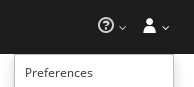
- Increase the value of the Maximum collection size option (the default is 50,000).
- Click Close.

'%20d='M201.5%20305.5c-13.8%200-24.9-11.1-24.9-24.6%200-13.8%2011.1-24.9%2024.9-24.9%2013.6%200%2024.6%2011.1%2024.6%2024.9%200%2013.6-11.1%2024.6-24.6%2024.6zM504%20256c0%20137-111%20248-248%20248S8%20393%208%20256%20119%208%20256%208s248%20111%20248%20248zm-132.3-41.2c-9.4%200-17.7%203.9-23.8%2010-22.4-15.5-52.6-25.5-86.1-26.6l17.4-78.3%2055.4%2012.5c0%2013.6%2011.1%2024.6%2024.6%2024.6%2013.8%200%2024.9-11.3%2024.9-24.9s-11.1-24.9-24.9-24.9c-9.7%200-18%205.8-22.1%2013.8l-61.2-13.6c-3-.8-6.1%201.4-6.9%204.4l-19.1%2086.4c-33.2%201.4-63.1%2011.3-85.5%2026.8-6.1-6.4-14.7-10.2-24.1-10.2-34.9%200-46.3%2046.9-14.4%2062.8-1.1%205-1.7%2010.2-1.7%2015.5%200%2052.6%2059.2%2095.2%20132%2095.2%2073.1%200%20132.3-42.6%20132.3-95.2%200-5.3-.6-10.8-1.9-15.8%2031.3-16%2019.8-62.5-14.9-62.5zM302.8%20331c-18.2%2018.2-76.1%2017.9-93.6%200-2.2-2.2-6.1-2.2-8.3%200-2.5%202.5-2.5%206.4%200%208.6%2022.8%2022.8%2087.3%2022.8%20110.2%200%202.5-2.2%202.5-6.1%200-8.6-2.2-2.2-6.1-2.2-8.3%200zm7.7-75c-13.6%200-24.6%2011.1-24.6%2024.9%200%2013.6%2011.1%2024.6%2024.6%2024.6%2013.8%200%2024.9-11.1%2024.9-24.6%200-13.8-11-24.9-24.9-24.9z'/%3e%3c/svg%3e)