 Red Hat Summit
Dieser Inhalt ist in der von Ihnen ausgewählten Sprache nicht verfügbar.
2.6. Installing from Red Hat Satellite Server
Ensure that the firewall settings are configured so that the required ports are open. For a list of port numbers, see Section 1.4, “Port Information”.
2.6.1. Using Red Hat Satellite Server 6.x
Link kopierenLink in die Zwischenablage kopiert!
Note
For detailed steps for Satellite, see Red Hat Satellite documentation.
- Create a new manifest file and upload the manifest in the Satellite 6 server.
- Search for the required Red Hat Gluster Storage repositories and enable them.
- Synchronize all repositories enabled for Red Hat Gluster Storage.
- Create a new content view and add all the required products.
- Publish the content view and create an activation key.
- Register the required clients
# rpm -Uvh satellite-server-host-address/pub/katello-ca-consumer-latest.noarch.rpm # subscription-manager register --org=”Organization_Name” --activationkey=”Activation_Key” - Identify available entitlement pools
# subscription-manager list --available - Attach entitlement pools to the system
# subscription-manager attach --pool=Pool_ID - Subscribe to required channels
- Enable the RHEL and Gluster channelFor Red Hat Enterprise Linux 8
# subscription-manager repos --enable=rhel-8-for-x86_64-baseos-rpms --enable=rhel-8-for-x86_64-appstream-rpms
# subscription-manager repos --enable=rh-gluster-3-for-rhel-8-x86_64-rpms
For Red Hat Enterprise Linux 7# subscription-manager repos --enable=rhel-7-server-rpms --enable=rh-gluster-3-for-rhel-7-server-rpms - If you require Samba, enable its repositoryFor Red Hat Enterprise Linux 8
# subscription-manager repos --enable=rh-gluster-3-samba-for-rhel-8-x86_64-rpmsFor Red Hat Enterprise Linux 7# subscription-manager repos --enable=rh-gluster-3-samba-for-rhel-7-server-rpms - If you require NFS-Ganesha, enable its repositoryFor Red Hat Enterprise Linux 8
# subscription-manager repos --enable=rh-gluster-3-nfs-for-rhel-8-x86_64-rpmsFor Red Hat Enterprise Linux 7# subscription-manager repos --enable=rh-gluster-3-nfs-for-rhel-7-server-rpms - If you require HA, enable its repositoryFor Red Hat Enterprise Linux 8
# subscription-manager repos --enable=rhel-8-for-x86_64-highavailability-rpmsFor Red Hat Enterprise Linux 7# subscription-manager repos --enable=rhel-ha-for-rhel-7-server-rpms - If you require gdeploy, enable the Ansible repositoryFor Red Hat Enterprise Linux 8
# subscription-manager repos --enable=ansible-2-for-rhel-8-x86_64-rpmsFor Red Hat Enterprise Linux 7# subscription-manager repos --enable=rhel-7-server-ansible-2-rpms
- Install Red Hat Gluster Storage
# yum install redhat-storage-server
2.6.2. Using Red Hat Satellite Server 5.x
Link kopierenLink in die Zwischenablage kopiert!
Creating the Activation Key
For more information on how to create an activation key, see Activation Keys in the Reference Guide.
- In the Details tab of the Activation Keys screen, select
Red Hat Enterprise Linux Server (v.6 for 64-bit x86_64)from the Base Channels drop-down list.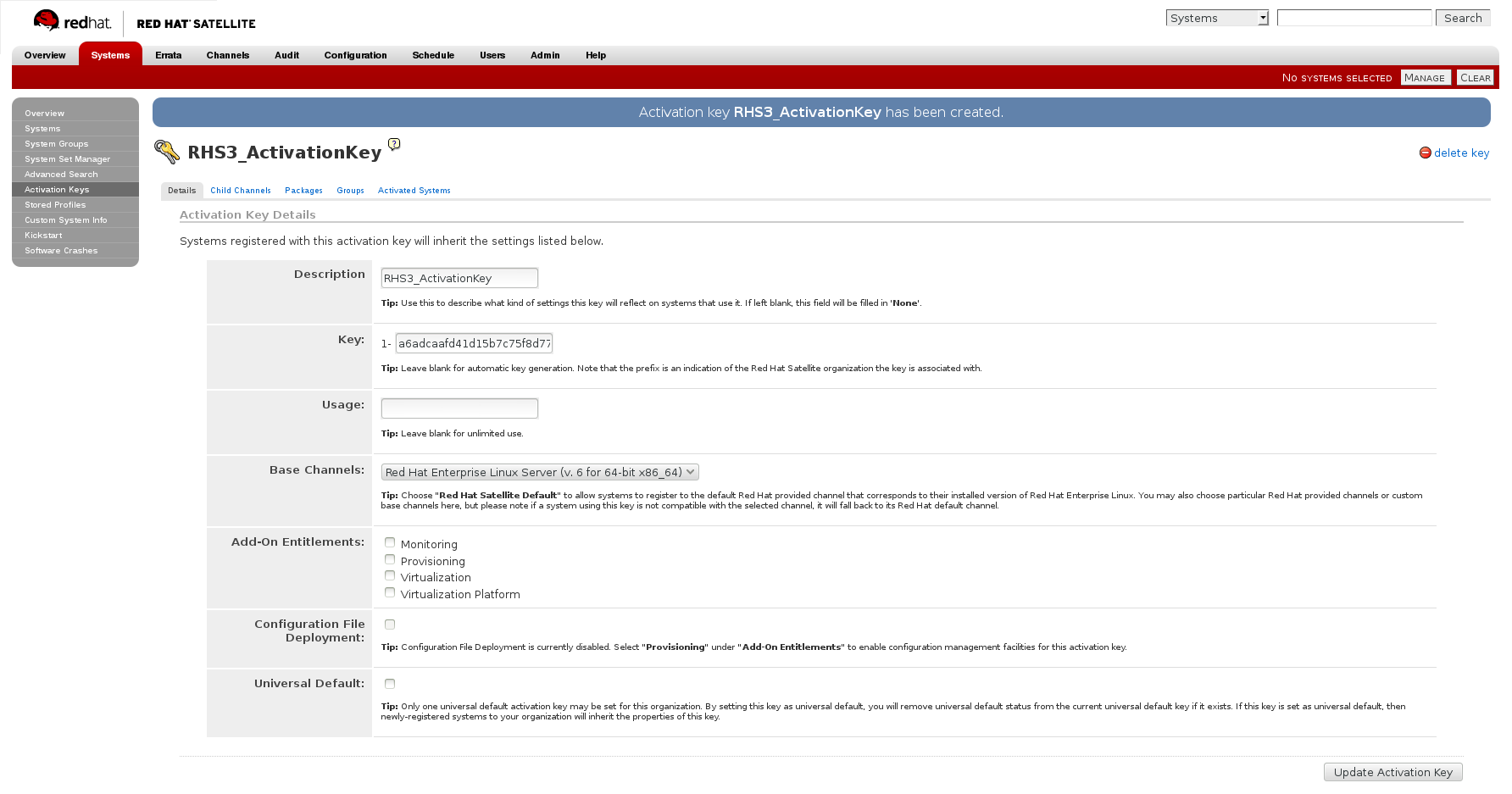
Figure 2.3. Base Channels
- In the Child Channels tab of the Activation Keys screen, select the following child channels:
RHEL Server Scalable File System (v. 6 for x86_64)
Red Hat Gluster Storage Server 3 (RHEL 6 for x86_64)
If you require the Samba package, then select the following child channel:Red Hat Gluster 3 Samba (RHEL 6 for x86_64)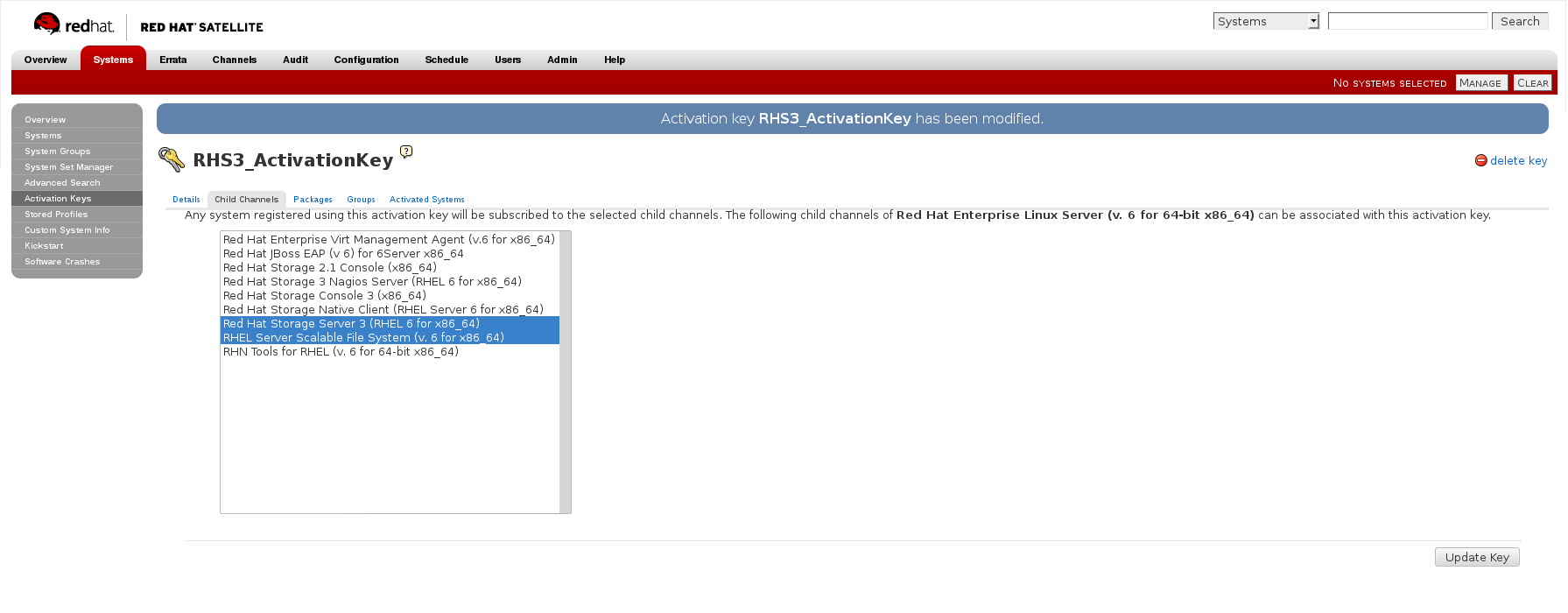
Figure 2.4. Child Channels
- In the Packages tab of the Activation Keys screen, enter the following package name:
redhat-storage-server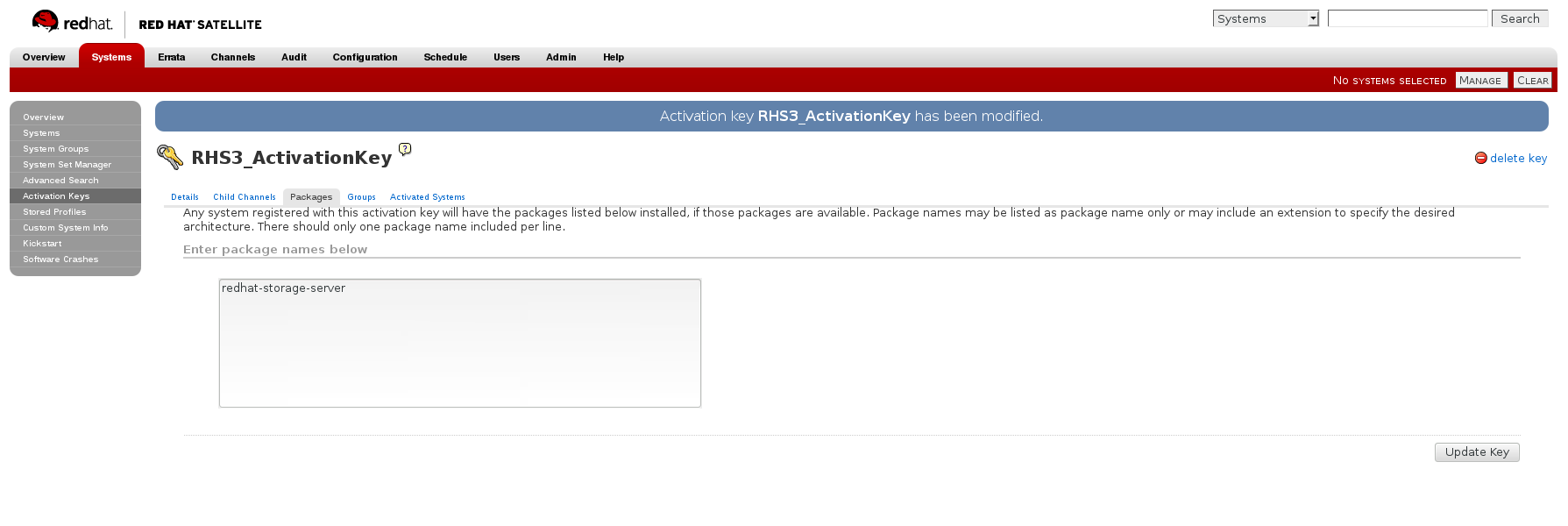
Figure 2.5. Package
- If you require the Samba package, then enter the following package name:
samba
Creating the Kickstart Profile
For more information on creating a kickstart profile, see Kickstart in the Reference Guide.
- When creating a kickstart profile, the following
Base ChannelandTreemust be selected.Base Channel: Red Hat Enterprise Linux Server (v.6 for 64-bit x86_64)Tree: ks-rhel-x86_64-server-6-6.5 - Do not associate any child channels with the kickstart profile.
- Associate the previously created activation key with the kickstart profile.
Important
- By default, the kickstart profile chooses
md5as the hash algorithm for user passwords.You must change this algorithm tosha512by providing the following settings in theauthfield of theKickstart Details,Advanced Optionspage of the kickstart profile:--enableshadow --passalgo=sha512 - After creating the kickstart profile, you must change the root password in the Kickstart Details, Advanced Options page of the kickstart profile and add a root password based on the prepared sha512 hash algorithm.
Installing Red Hat Gluster Storage Server using the Kickstart Profile
For more information on installing Red Hat Gluster Storage Server using a kickstart profile, see Kickstart in the Reference Guide.

'%20d='M201.5%20305.5c-13.8%200-24.9-11.1-24.9-24.6%200-13.8%2011.1-24.9%2024.9-24.9%2013.6%200%2024.6%2011.1%2024.6%2024.9%200%2013.6-11.1%2024.6-24.6%2024.6zM504%20256c0%20137-111%20248-248%20248S8%20393%208%20256%20119%208%20256%208s248%20111%20248%20248zm-132.3-41.2c-9.4%200-17.7%203.9-23.8%2010-22.4-15.5-52.6-25.5-86.1-26.6l17.4-78.3%2055.4%2012.5c0%2013.6%2011.1%2024.6%2024.6%2024.6%2013.8%200%2024.9-11.3%2024.9-24.9s-11.1-24.9-24.9-24.9c-9.7%200-18%205.8-22.1%2013.8l-61.2-13.6c-3-.8-6.1%201.4-6.9%204.4l-19.1%2086.4c-33.2%201.4-63.1%2011.3-85.5%2026.8-6.1-6.4-14.7-10.2-24.1-10.2-34.9%200-46.3%2046.9-14.4%2062.8-1.1%205-1.7%2010.2-1.7%2015.5%200%2052.6%2059.2%2095.2%20132%2095.2%2073.1%200%20132.3-42.6%20132.3-95.2%200-5.3-.6-10.8-1.9-15.8%2031.3-16%2019.8-62.5-14.9-62.5zM302.8%20331c-18.2%2018.2-76.1%2017.9-93.6%200-2.2-2.2-6.1-2.2-8.3%200-2.5%202.5-2.5%206.4%200%208.6%2022.8%2022.8%2087.3%2022.8%20110.2%200%202.5-2.2%202.5-6.1%200-8.6-2.2-2.2-6.1-2.2-8.3%200zm7.7-75c-13.6%200-24.6%2011.1-24.6%2024.9%200%2013.6%2011.1%2024.6%2024.6%2024.6%2013.8%200%2024.9-11.1%2024.9-24.6%200-13.8-11-24.9-24.9-24.9z'/%3e%3c/svg%3e)