 Red Hat Summit
Dieser Inhalt ist in der von Ihnen ausgewählten Sprache nicht verfügbar.
Chapter 7. Managing logical volumes using Cockpit
7.1. Activating a logical volume using Cockpit
Follow these instructions to activate a logical volume using Cockpit.
- Log in to Cockpit.
-
Click the hostname
Storage. - Click the volume group. The Volume Group Overview page opens.
- Click the logical volume.
- Click Activate.
7.2. Creating a thinly provisioned logical volume using Cockpit
- Log in to Cockpit.
-
Click the hostname
Storage. - Click the volume group. The Volume Group Overview page opens.
Click Create Thin Volume beside the thin pool that should host the volume.
Figure 7.1. A thin pool

The Create Thin Volume window opens.
- Specify a Name for the new volume.
- Specify a Size for the new volume.
- Click Create.
The new volume appears in the list of logical volumes.
7.3. Creating a thickly provisioned logical volume using Cockpit
Follow these instructions to create a logical thin pool using Cockpit.
- Log in to Cockpit.
-
Click the hostname
Storage. - Click the volume group. The Volume Group Overview page opens.
Click + Create new Logical Volume. The Create Logical Volume window opens.
Figure 7.2. The Create Logical Volume window
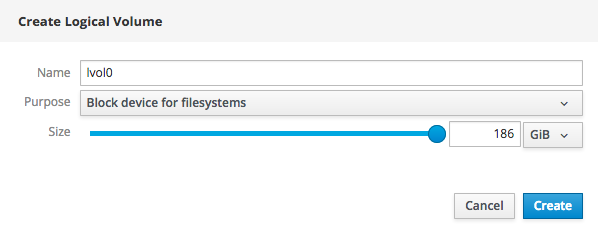
- Specify a Name for your logical volume.
-
Set Purpose to
Block device for file systems. - Specify a Size for your logical volume.
- Click Create.
Your new logical volume appears in the list of logical volumes in this volume group.
7.4. Deactivating a logical volume using Cockpit
Follow these instructions to deactivate a logical volume using Cockpit.
- Log in to Cockpit.
-
Click the hostname
Storage. - Click the volume group. The Volume Group Overview page opens.
- Click the logical volume.
Click Deactivate.
Figure 7.3. The logical volume summary

7.5. Deleting a logical volume using Cockpit
Follow these instructions to delete a thinly- or thickly-provisioned logical volume.
- Log in to Cockpit.
-
Click the hostname
Storage. - Click the volume group. The Volume Group Overview page opens.
- Click the logical volume.
- Click Delete in the logical volume summary.
- Click Delete to confirm deletion.
7.6. Growing a logical volume using Cockpit
Follow these instructions to increase the size of a logical volume using Cockpit.
- Log in to Cockpit.
-
Click the hostname
Storage. - Click the volume group. The Volume Group Overview page opens.
- Click the logical volume.
On the Volume subtab, click Grow.
Figure 7.4. Logical Volume section expanded
The Grow Logical Volume window opens.
Figure 7.5. The Grow Logical Volume window
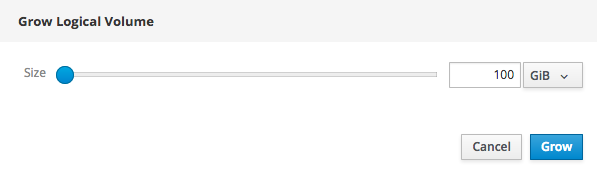
- Specify the new Size of the logical volume.
- Click Grow.

'%20d='M201.5%20305.5c-13.8%200-24.9-11.1-24.9-24.6%200-13.8%2011.1-24.9%2024.9-24.9%2013.6%200%2024.6%2011.1%2024.6%2024.9%200%2013.6-11.1%2024.6-24.6%2024.6zM504%20256c0%20137-111%20248-248%20248S8%20393%208%20256%20119%208%20256%208s248%20111%20248%20248zm-132.3-41.2c-9.4%200-17.7%203.9-23.8%2010-22.4-15.5-52.6-25.5-86.1-26.6l17.4-78.3%2055.4%2012.5c0%2013.6%2011.1%2024.6%2024.6%2024.6%2013.8%200%2024.9-11.3%2024.9-24.9s-11.1-24.9-24.9-24.9c-9.7%200-18%205.8-22.1%2013.8l-61.2-13.6c-3-.8-6.1%201.4-6.9%204.4l-19.1%2086.4c-33.2%201.4-63.1%2011.3-85.5%2026.8-6.1-6.4-14.7-10.2-24.1-10.2-34.9%200-46.3%2046.9-14.4%2062.8-1.1%205-1.7%2010.2-1.7%2015.5%200%2052.6%2059.2%2095.2%20132%2095.2%2073.1%200%20132.3-42.6%20132.3-95.2%200-5.3-.6-10.8-1.9-15.8%2031.3-16%2019.8-62.5-14.9-62.5zM302.8%20331c-18.2%2018.2-76.1%2017.9-93.6%200-2.2-2.2-6.1-2.2-8.3%200-2.5%202.5-2.5%206.4%200%208.6%2022.8%2022.8%2087.3%2022.8%20110.2%200%202.5-2.2%202.5-6.1%200-8.6-2.2-2.2-6.1-2.2-8.3%200zm7.7-75c-13.6%200-24.6%2011.1-24.6%2024.9%200%2013.6%2011.1%2024.6%2024.6%2024.6%2013.8%200%2024.9-11.1%2024.9-24.6%200-13.8-11-24.9-24.9-24.9z'/%3e%3c/svg%3e)