 Red Hat Summit
Dieser Inhalt ist in der von Ihnen ausgewählten Sprache nicht verfügbar.
Chapter 26. Data objects
Data objects are the building blocks for the rule assets that you create. Data objects are custom data types implemented as Java objects in specified packages of your project. For example, you might create a Person object with data fields Name, Address, and DateOfBirth to specify personal details for loan application rules. These custom data types determine what data your assets and your decision services are based on.
26.1. Creating the ITOrderService data object
The ITOrderService data object specifies the data type that will be used to define the IT Orders variables.
Prerequisites
- The IT_Orders_New project is created.
Procedure
-
Click Add Asset
Data Object. In the Create new Data Object wizard, enter the following values:
-
Data Object:
ITOrderService -
Package:
com.myspace.it_orders_new
-
Data Object:
- Click Ok.
-
Click
 next to the Package drop-down menu to specify a new package for the data object.
-
Input
org.jbpm.demo.it_orders.servicesand click Add. - Click Save, and then click Yes, Move to confirm your changes.
26.2. Creating the Survey data object
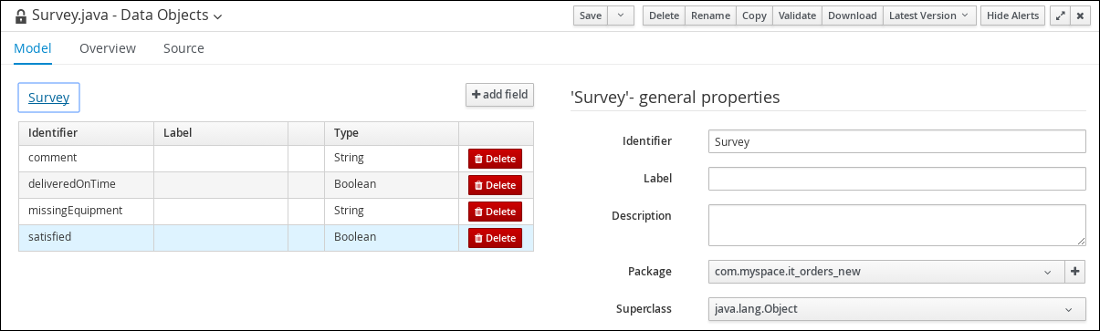
The Survey data object contains data fields, such as deliveredOnTime and missingEquipment. You will use the data and values when you design your case.
Prerequisites
- The IT_Orders_New project is created.
Procedure
-
In Business Central, go to Menu
Design Projects and click IT_Orders_New. -
Click Add Asset
Data Object. In the Create new Data Object wizard, enter the following values:
-
Data Object:
Survey -
Package:
com.myspace.it_orders_new
-
Data Object:
- Click Ok.
Add the Survey data object constraints.
- Click add field.
Enter the following values:
-
Id:
comment - Label: Leave empty
-
Type:
String
-
Id:
Click Create and continue, and then enter the following values:
-
Id:
deliveredOnTime - Label: Leave empty
-
Type:
Boolean
-
Id:
Click Create and continue, and then enter the following values:
-
Id:
missingEquipment - Label: Leave empty
-
Type:
String
-
Id:
Click Create and continue, and then enter the following values:
-
Id:
satisfied - Label: Leave empty
-
Type:
Boolean
-
Id:
- Click Create.
Click Save to confirm your changes.
Figure 26.1. Survey data object details

'%20d='M201.5%20305.5c-13.8%200-24.9-11.1-24.9-24.6%200-13.8%2011.1-24.9%2024.9-24.9%2013.6%200%2024.6%2011.1%2024.6%2024.9%200%2013.6-11.1%2024.6-24.6%2024.6zM504%20256c0%20137-111%20248-248%20248S8%20393%208%20256%20119%208%20256%208s248%20111%20248%20248zm-132.3-41.2c-9.4%200-17.7%203.9-23.8%2010-22.4-15.5-52.6-25.5-86.1-26.6l17.4-78.3%2055.4%2012.5c0%2013.6%2011.1%2024.6%2024.6%2024.6%2013.8%200%2024.9-11.3%2024.9-24.9s-11.1-24.9-24.9-24.9c-9.7%200-18%205.8-22.1%2013.8l-61.2-13.6c-3-.8-6.1%201.4-6.9%204.4l-19.1%2086.4c-33.2%201.4-63.1%2011.3-85.5%2026.8-6.1-6.4-14.7-10.2-24.1-10.2-34.9%200-46.3%2046.9-14.4%2062.8-1.1%205-1.7%2010.2-1.7%2015.5%200%2052.6%2059.2%2095.2%20132%2095.2%2073.1%200%20132.3-42.6%20132.3-95.2%200-5.3-.6-10.8-1.9-15.8%2031.3-16%2019.8-62.5-14.9-62.5zM302.8%20331c-18.2%2018.2-76.1%2017.9-93.6%200-2.2-2.2-6.1-2.2-8.3%200-2.5%202.5-2.5%206.4%200%208.6%2022.8%2022.8%2087.3%2022.8%20110.2%200%202.5-2.2%202.5-6.1%200-8.6-2.2-2.2-6.1-2.2-8.3%200zm7.7-75c-13.6%200-24.6%2011.1-24.6%2024.9%200%2013.6%2011.1%2024.6%2024.6%2024.6%2013.8%200%2024.9-11.1%2024.9-24.6%200-13.8-11-24.9-24.9-24.9z'/%3e%3c/svg%3e)