 Red Hat Summit
4.4.7. Changing skin in runtime
You can change skins during runtime by defining the following EL-expression in your
web.xml.
<context-param>
	<param-name>org.richfaces.SKIN</param-name>
	<param-value>#{skinBean.skin}</param-value>
</context-param>
The
skinBean code looks like this:
public class SkinBean {

	private String skin;

	public String getSkin() {
		return skin;
	}
	public void setSkin(String skin) {
		this.skin = skin;
	}
}
You must also set the
skin property's initial value in the configuration file. To set classic:
<managed-bean>
	<managed-bean-name>skinBean</managed-bean-name>
	<managed-bean-class>SkinBean</managed-bean-class>
	<managed-bean-scope>session</managed-bean-scope>
	<managed-property>
		<property-name>skin</property-name>
		<value>classic</value>
  	</managed-property>
</managed-bean>
You can also change the properties of the default skin. To do so, edit the properties of the default skin. The following shows you example page code:
<h:form>
     <div style="display: block; float: left">
          <h:selectOneRadio value="#{skinBean.skin}" border="0" layout="pageDirection" title="Changing skin" style="font-size: 8; font-family: comic" onchange="submit()">
               	<f:selectItem itemLabel="plain" itemValue="plain" />
		<f:selectItem itemLabel="emeraldTown" itemValue="emeraldTown" />
		<f:selectItem itemLabel="blueSky" itemValue="blueSky" />
		<f:selectItem itemLabel="wine" itemValue="wine" />
		<f:selectItem itemLabel="japanCherry" itemValue="japanCherry" />
		<f:selectItem itemLabel="ruby" itemValue="ruby" />
		<f:selectItem itemLabel="classic" itemValue="classic" />
		<f:selectItem itemLabel="laguna" itemValue="laguna" />
		<f:selectItem itemLabel="deepMarine" itemValue="deepMarine" />
		<f:selectItem itemLabel="blueSky Modified" itemValue="blueSkyModify" />
          </h:selectOneRadio>
     </div>
     <div style="display: block; float: left">
          <rich:panelBar height="100" width="200">
               <rich:panelBarItem label="Item 1" style="font-family: monospace; font-size: 12;">
	     Changing skin in runtime
	</rich:panelBarItem>

	<rich:panelBarItem label="Item 2" style="font-family: monospace; font-size: 12;">
	     This is a result of the modification "blueSky" skin
	</rich:panelBarItem>
          </rich:panelBar>
     </div>
</h:form>
The above code will generate the following list of options:
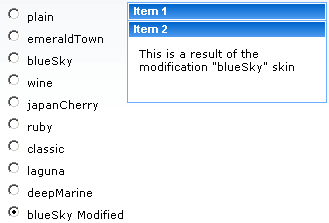
Figure 4.5. Changing skin in runtime

'%20d='M201.5%20305.5c-13.8%200-24.9-11.1-24.9-24.6%200-13.8%2011.1-24.9%2024.9-24.9%2013.6%200%2024.6%2011.1%2024.6%2024.9%200%2013.6-11.1%2024.6-24.6%2024.6zM504%20256c0%20137-111%20248-248%20248S8%20393%208%20256%20119%208%20256%208s248%20111%20248%20248zm-132.3-41.2c-9.4%200-17.7%203.9-23.8%2010-22.4-15.5-52.6-25.5-86.1-26.6l17.4-78.3%2055.4%2012.5c0%2013.6%2011.1%2024.6%2024.6%2024.6%2013.8%200%2024.9-11.3%2024.9-24.9s-11.1-24.9-24.9-24.9c-9.7%200-18%205.8-22.1%2013.8l-61.2-13.6c-3-.8-6.1%201.4-6.9%204.4l-19.1%2086.4c-33.2%201.4-63.1%2011.3-85.5%2026.8-6.1-6.4-14.7-10.2-24.1-10.2-34.9%200-46.3%2046.9-14.4%2062.8-1.1%205-1.7%2010.2-1.7%2015.5%200%2052.6%2059.2%2095.2%20132%2095.2%2073.1%200%20132.3-42.6%20132.3-95.2%200-5.3-.6-10.8-1.9-15.8%2031.3-16%2019.8-62.5-14.9-62.5zM302.8%20331c-18.2%2018.2-76.1%2017.9-93.6%200-2.2-2.2-6.1-2.2-8.3%200-2.5%202.5-2.5%206.4%200%208.6%2022.8%2022.8%2087.3%2022.8%20110.2%200%202.5-2.2%202.5-6.1%200-8.6-2.2-2.2-6.1-2.2-8.3%200zm7.7-75c-13.6%200-24.6%2011.1-24.6%2024.9%200%2013.6%2011.1%2024.6%2024.6%2024.6%2013.8%200%2024.9-11.1%2024.9-24.6%200-13.8-11-24.9-24.9-24.9z'/%3e%3c/svg%3e)