 Red Hat Summit
Chapter 8. Configuring an OVS-DPDK deployment
This section deploys OVS-DPDK within the Red Hat OpenStack Platform environment. The overcloud usually consists of nodes in predefined roles such as Controller nodes, Compute nodes, and different storage node types. Each of these default roles contains a set of services defined in the core heat templates on the director node.
You must install and configure the undercloud before you can deploy the overcloud. See the Director Installation and Usage Guide for details.
You must determine the best values for the OVS-DPDK parameters found in the network-environment.yaml file to optimize your OpenStack network for OVS-DPDK.
Do not manually edit or change isolated_cores or other values in etc/tuned/cpu-partitioning-variables.conf that the director heat templates modify.
8.1. Deriving DPDK parameters with workflows
This feature is available in this release as a Technology Preview, and therefore is not fully supported by Red Hat. It should only be used for testing, and should not be deployed in a production environment. For more information about Technology Preview features, see Scope of Coverage Details.
See Section 7.2, “Workflows and derived parameters” for an overview of the Mistral workflow for DPDK.
Prerequisites
You must have bare metal introspection, including hardware inspection extras (inspection_extras) enabled to provide the data retrieved by this workflow. Hardware inspection extras are enabled by default. For more information about hardware of the nodes, see: Inspecting the hardware of nodes.
Define the Workflows and Input Parameters for DPDK
The following list outlines the input parameters you can provide to the OVS-DPDK workflows:
- num_phy_cores_per_numa_node_for_pmd
- This input parameter specifies the required minimum number of cores for the NUMA node associated with the DPDK NIC. One physical core is assigned for the other NUMA nodes not associated with DPDK NIC. Ensure that this parameter is set to 1.
- huge_page_allocation_percentage
-
This input parameter specifies the required percentage of total memory, excluding
NovaReservedHostMemory, that can be configured as huge pages. TheKernelArgsparameter is derived using the calculated huge pages based on thehuge_page_allocation_percentagespecified. Ensure that this parameter is set to 50.
The workflows calculate appropriate DPDK parameter values from these input parameters and the bare-metal introspection details.
To define the workflows and input parameters for DPDK:
Copy the
usr/share/openstack-tripleo-heat-templates/plan-samples/plan-environment-derived-params.yamlfile to a local directory and set the input parameters to suit your environment.Copy to Clipboard Copied! Toggle word wrap Toggle overflow Run the
openstack overcloud deploycommand and include the following information:-
The
update-plan-onlyoption - The role file and all environment files specific to your environment
The
plan-environment-derived-parms.yamlfile with the--plan-environment-fileoptional argumentopenstack overcloud deploy --templates --update-plan-only \ -r /home/stack/roles_data.yaml \ -e /home/stack/<environment-file> \ ... _#repeat as necessary_ ...
$ openstack overcloud deploy --templates --update-plan-only \
-r /home/stack/roles_data.yaml \
-e /home/stack/<environment-file> \
... _#repeat as necessary_ ...
**-p /home/stack/plan-environment-derived-params.yaml**
Copy to Clipboard Copied! Toggle word wrap Toggle overflow
-
The
The output of this command shows the derived results, which are also merged into the plan-environment.yaml file.
The OvsDpdkMemoryChannels parameter cannot be derived from introspection details. In most cases, this value should be 4.
Deploy the overcloud with the derived parameters
To deploy the overcloud with these derived parameters:
Copy the derived parameters from the deploy command output to the
network-environment.yamlfile.Copy to Clipboard Copied! Toggle word wrap Toggle overflow NoteThese parameters apply to the specific role, ComputeOvsDpdk. You can apply these parameters globally, but role-specific parameters overwrite any global parameters.
- Deploy the overcloud using the role file and all environment files specific to your environment.
 openstack overcloud deploy --templates \
 -r /home/stack/roles_data.yaml \
 -e /home/stack/<environment-file> \
... #repeat as necessary ...
 openstack overcloud deploy --templates \
 -r /home/stack/roles_data.yaml \
 -e /home/stack/<environment-file> \
... #repeat as necessary ...In a cluster with Compute, ComputeOvsDpdk, and ComputeSriov, the workflow applies the formula only for the ComputeOvsDpdk role, not Compute or ComputeSriovs.
8.2. OVS-DPDK topology
With Red Hat OpenStack Platform, you can create custom deployment roles, using the composable roles feature to add or remove services from each role. For more information on Composable Roles, see Composable Services and Custom Roles in Advanced Overcloud Customization.
This image shows a example OVS-DPDK topology with two bonded ports for the control plane and data plane:
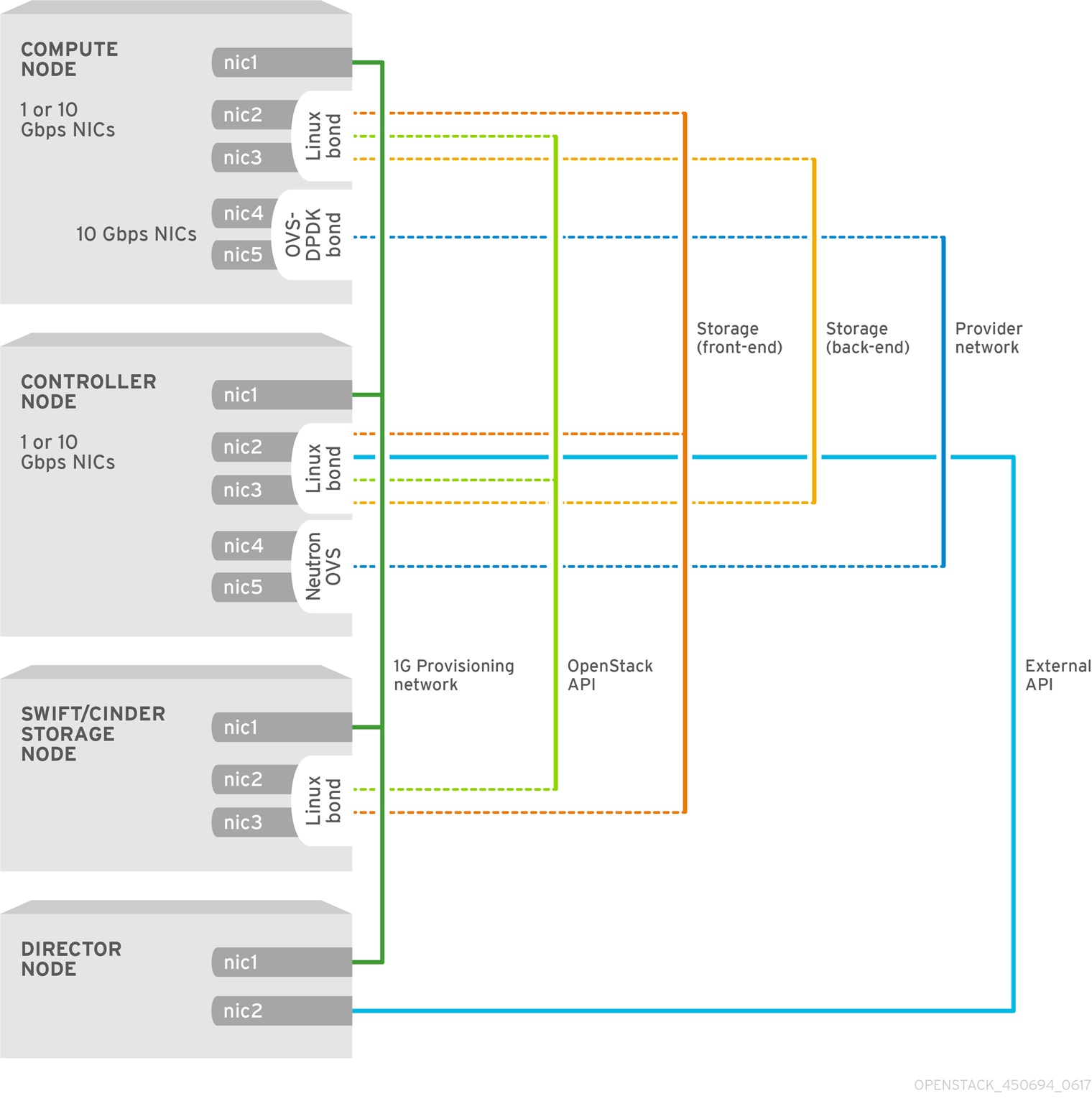
To configure OVS-DPDK, perform the following tasks:
-
If you use composable roles, copy and modify the
roles_data.yamlfile to add the custom role for OVS-DPDK. -
Update the appropriate
network-environment.yamlfile to include parameters for kernel arguments, and DPDK arguments. -
Update the
compute.yamlfile to include the bridge for DPDK interface parameters. -
Update the
controller.yamlfile to include the same bridge details for DPDK interface parameters. -
Run the
overcloud_deploy.shscript to deploy the overcloud with the DPDK parameters.
This guide provides examples for CPU assignments, memory allocation, and NIC configurations that can vary from your topology and use case. For more information on hardware and configuration options, see: Network Functions Virtualization Product Guide and Chapter 2, Hardware requirements .
Prerequisites
- OVS 2.10
- DPDK 17
- A supported NIC. To view the list of supported NICs for NFV, see Section 2.1, “Tested NICs”.
The Red Hat OpenStack Platform operates in OVS client mode for OVS-DPDK deployments.
8.3. Setting the MTU value for OVS-DPDK interfaces
Red Hat OpenStack Platform supports jumbo frames for OVS-DPDK. To set the maximum transmission unit (MTU) value for jumbo frames you must:
-
Set the global MTU value for networking in the
network-environment.yamlfile. -
Set the physical DPDK port MTU value in the
compute.yamlfile. This value is also used by the vhost user interface. - Set the MTU value within any guest instances on the Compute node to ensure that you have a comparable MTU value from end to end in your configuration.
VXLAN packets include an extra 50 bytes in the header. Calculate your MTU requirements based on these additional header bytes. For example, an MTU value of 9000 means the VXLAN tunnel MTU value is 8950 to account for these extra bytes.
You do not need any special configuration for the physical NIC because the NIC is controlled by the DPDK PMD, and has the same MTU value set by the compute.yaml file. You cannot set an MTU value larger than the maximum value supported by the physical NIC.
To set the MTU value for OVS-DPDK interfaces:
Set the
NeutronGlobalPhysnetMtuparameter in thenetwork-environment.yamlfile.parameter_defaults: # MTU global configuration NeutronGlobalPhysnetMtu: 9000
parameter_defaults: # MTU global configuration NeutronGlobalPhysnetMtu: 9000Copy to Clipboard Copied! Toggle word wrap Toggle overflow NoteEnsure that the OvsDpdkSocketMemory value in the
network-environment.yamlfile is large enough to support jumbo frames. For details, see Section 7.4.2, “Memory parameters” .Set the MTU value on the bridge to the Compute node in the
controller.yamlfile.Copy to Clipboard Copied! Toggle word wrap Toggle overflow Set the MTU values for an OVS-DPDK bond in the
compute.yamlfile:Copy to Clipboard Copied! Toggle word wrap Toggle overflow
8.4. Configuring a firewall for security groups
Dataplane interfaces require high performance in a stateful firewall. To protect these interfaces, consider deploying a telco-grade firewall as a virtual network function (VNF).
To configure control plane interfaces, set the NeutronOVSFirewallDriver parameter to openvswitch. To use the flow-based OVS firewall driver, modify the network-environment.yaml file under parameter_defaults.
Example:
parameter_defaults:
  NeutronOVSFirewallDriver: openvswitch
parameter_defaults:
  NeutronOVSFirewallDriver: openvswitch
Use the openstack port set command to disable the OVS firewall driver for dataplane interfaces.
Example:
openstack port set --no-security-group --disable-port-security ${PORT}
openstack port set --no-security-group --disable-port-security ${PORT}8.5. Setting multiqueue for OVS-DPDK interfaces
Multiqueue is experimental, and only supported with manual queue pinning.
Procedure
To set the same number of queues for interfaces in OVS-DPDK on the Compute node, modify the
compute.yamlfile:Copy to Clipboard Copied! Toggle word wrap Toggle overflow
8.6. Known limitations
Observe the following limitations when configuring OVS-DPDK with Red Hat OpenStack Platform for NFV:
- Use Linux bonds for non-DPDK traffic, and control plane networks, such as Internal, Management, Storage, Storage Management, and Tenant. Ensure that both the PCI devices used in the bond are on the same NUMA node for optimum performance. Neutron Linux bridge configuration is not supported by Red Hat.
- You require huge pages for every instance running on the hosts with OVS-DPDK. If huge pages are not present in the guest, the interface appears but does not function.
- With OVS-DPDK, there is a performance degradation of services that use tap devices, such as Distributed Virtual Routing (DVR). The resulting performance is not suitable for a production environment.
-
When using OVS-DPDK, all bridges on the same Compute node must be of type
ovs_user_bridge. The director may accept the configuration, but Red Hat OpenStack Platform does not support mixingovs_bridgeandovs_user_bridgeon the same node.
8.7. Creating a flavor and deploying an instance for OVS-DPDK
After you configure OVS-DPDK for your Red Hat OpenStack Platform deployment with NFV, you can create a flavor, and deploy an instance using the following steps:
Create an aggregate group, and add relevant hosts for OVS-DPDK. Define metadata, for example
dpdk=true, that matches defined flavor metadata.openstack aggregate create dpdk_group
 # openstack aggregate create dpdk_group
 # openstack aggregate add host dpdk_group [compute-host]
 # openstack aggregate set --property dpdk=true dpdk_group
Copy to Clipboard Copied! Toggle word wrap Toggle overflow NotePinned CPU instances can be located on the same Compute node as unpinned instances. For more information, see Configuring CPU pinning on the Compute node in the Configuring the Compute Service for Instance Creation guide.
Create a flavor.
openstack flavor create <flavor> --ram <MB> --disk <GB> --vcpus <#>
# openstack flavor create <flavor> --ram <MB> --disk <GB> --vcpus <#>Copy to Clipboard Copied! Toggle word wrap Toggle overflow Set flavor properties. Note that the defined metadata,
dpdk=true, matches the defined metadata in the DPDK aggregate.openstack flavor set <flavor> --property dpdk=true --property hw:cpu_policy=dedicated --property hw:mem_page_size=1GB --property hw:emulator_threads_policy=isolate
# openstack flavor set <flavor> --property dpdk=true --property hw:cpu_policy=dedicated --property hw:mem_page_size=1GB --property hw:emulator_threads_policy=isolateCopy to Clipboard Copied! Toggle word wrap Toggle overflow For details about the emulator threads policy for performance improvements, see Configuring emulator threads.
Create the network.
openstack network create net1 --provider-physical-network tenant --provider-network-type vlan --provider-segment <VLAN-ID>
openstack subnet create subnet1 --network net1 --subnet-range 192.0.2.0/24 --dhcp
# openstack network create net1 --provider-physical-network tenant --provider-network-type vlan --provider-segment <VLAN-ID>
# openstack subnet create subnet1 --network net1 --subnet-range 192.0.2.0/24 --dhcp
Copy to Clipboard Copied! Toggle word wrap Toggle overflow Optional: If you use multiqueue with OVS-DPDK, set the
hw_vif_multiqueue_enabledproperty on the image that you want to use to create a instance:openstack image set --property hw_vif_multiqueue_enabled=true <image>
# openstack image set --property hw_vif_multiqueue_enabled=true <image>Copy to Clipboard Copied! Toggle word wrap Toggle overflow Deploy an instance.
openstack server create --flavor <flavor> --image <glance image> --nic net-id=<network ID> <server_name>
# openstack server create --flavor <flavor> --image <glance image> --nic net-id=<network ID> <server_name>Copy to Clipboard Copied! Toggle word wrap Toggle overflow
8.8. Troubleshooting the OVS-DPDK configuration
This section describes the steps to troubleshoot the OVS-DPDK configuration.
Review the bridge configuration, and confirm that the bridge has
datapath_type=netdev.Copy to Clipboard Copied! Toggle word wrap Toggle overflow Optionally, you can view logs for errors, such as if the container fails to start.
less /var/log/containers/neutron/openvswitch-agent.log
# less /var/log/containers/neutron/openvswitch-agent.logCopy to Clipboard Copied! Toggle word wrap Toggle overflow Confirm that the Poll Mode Driver CPU mask of the
ovs-dpdkis pinned to the CPUs. In case of hyper threading, use sibling CPUs.For example, to check the sibling of
CPU4, run the following command:cat /sys/devices/system/cpu/cpu4/topology/thread_siblings_list 4,20
# cat /sys/devices/system/cpu/cpu4/topology/thread_siblings_list
4,20
Copy to Clipboard Copied! Toggle word wrap Toggle overflow The sibling of
CPU4isCPU20, therefore proceed with the following command:ovs-vsctl set Open_vSwitch . other_config:pmd-cpu-mask=0x100010
# ovs-vsctl set Open_vSwitch . other_config:pmd-cpu-mask=0x100010Copy to Clipboard Copied! Toggle word wrap Toggle overflow Display the status:
Copy to Clipboard Copied! Toggle word wrap Toggle overflow

'%20d='M201.5%20305.5c-13.8%200-24.9-11.1-24.9-24.6%200-13.8%2011.1-24.9%2024.9-24.9%2013.6%200%2024.6%2011.1%2024.6%2024.9%200%2013.6-11.1%2024.6-24.6%2024.6zM504%20256c0%20137-111%20248-248%20248S8%20393%208%20256%20119%208%20256%208s248%20111%20248%20248zm-132.3-41.2c-9.4%200-17.7%203.9-23.8%2010-22.4-15.5-52.6-25.5-86.1-26.6l17.4-78.3%2055.4%2012.5c0%2013.6%2011.1%2024.6%2024.6%2024.6%2013.8%200%2024.9-11.3%2024.9-24.9s-11.1-24.9-24.9-24.9c-9.7%200-18%205.8-22.1%2013.8l-61.2-13.6c-3-.8-6.1%201.4-6.9%204.4l-19.1%2086.4c-33.2%201.4-63.1%2011.3-85.5%2026.8-6.1-6.4-14.7-10.2-24.1-10.2-34.9%200-46.3%2046.9-14.4%2062.8-1.1%205-1.7%2010.2-1.7%2015.5%200%2052.6%2059.2%2095.2%20132%2095.2%2073.1%200%20132.3-42.6%20132.3-95.2%200-5.3-.6-10.8-1.9-15.8%2031.3-16%2019.8-62.5-14.9-62.5zM302.8%20331c-18.2%2018.2-76.1%2017.9-93.6%200-2.2-2.2-6.1-2.2-8.3%200-2.5%202.5-2.5%206.4%200%208.6%2022.8%2022.8%2087.3%2022.8%20110.2%200%202.5-2.2%202.5-6.1%200-8.6-2.2-2.2-6.1-2.2-8.3%200zm7.7-75c-13.6%200-24.6%2011.1-24.6%2024.9%200%2013.6%2011.1%2024.6%2024.6%2024.6%2013.8%200%2024.9-11.1%2024.9-24.6%200-13.8-11-24.9-24.9-24.9z'/%3e%3c/svg%3e)