 Red Hat Summit
Upgrading Guide
Abstract
Chapter 1. Upgrading Red Hat build of Keycloak
This guide describes how to upgrade Red Hat build of Keycloak from version 26.2.x to version 26.4. Use the following procedures in this order:
- Review the release-specific changes from the previous version of Red Hat build of Keycloak.
- Upgrade the Red Hat build of Keycloak server.
- Upgrade the Red Hat build of Keycloak adapters.
- Upgrade the Red Hat build of Keycloak Admin Client.
If you want to upgrade from an earlier version of Red Hat build of Keycloak, such as version 22.x, 24.x, or 26.2, review all the changes in each upgrading guide published between your version and 26.4. See these upgrading guides:
Then, you can perform the upgrade procedures described in this guide.
For Red Hat Single Sign-On 7.6 customers, use the Migration Guide instead of this guide.
Chapter 2. Release-specific changes
2.1. Breaking changes at version 26.4.11
Breaking changes are identified as those that might require changes for existing users to their configurations or applications. In minor or patch releases, Red Hat build of Keycloak will only introduce breaking changes to fix bugs.
2.1.1. Stricter access control for managing permission tickets
In order to improve security, the access control for managing permission tickets has been made stricter where only users (or service accounts) granted with the uma-protection role can manage permission tickets for a given resource server. The only exception is the resource server itself, which can manage its permission tickets without the uma-protection role.
2.1.2. Stricter access control for listing realm and client roles
In order to improve security, the access control for listing realm and client roles has been made stricter, and granting only the query-* role to an administrator is no longer sufficient to list roles.
Instead, the administrator must have explicit permissions to view or manage the realm or client for which they want to list roles, or by having the view-realm or manage-realm role for realm roles, or view-clients or manage-clients role for client roles.
2.1.3. Stricter access control for fetching user profile configuration and metadata
In order to improve security, the access control for fetching user profile configuration and metadata from a realm has been made stricter, and it is no longer possible to fetch this information if the administrator is granted with any administrative role.
Instead, the administrator must have explicit permissions to view or manage users, or by having the view-realm, or manage-realm, or view-users, or manage-users, or query-users roles.
2.2. Breaking changes at version 26.4.10
2.2.1. The SAML broker and adapter now check the SubjectConfirmationData element for the bearer type
Now Red Hat build of Keycloak, when acting as a SAML Service Provider (SP) in identity brokering or in the adapter, validates the SubjectConfirmationData for the type urn:oasis:names:tc:SAML:2.0:cm:bearer defined in the standard. The elements NotBefore, NotOnOrAfter and Recipient, when present in the assertion, are checked to be in the valid time range and to be the correct destination URI respectively. Previously, similar values were checked for other parts of the SAML response (for example the Conditions element or the destination attribute).
To prepare for the upgrade, verify that the Identity Provider or adapter configurations allow for a sufficient clock skew for the time attributes.
If you see any issue after the upgrade related to this element, please configure the external IdP to set the correct values for the subject confirmation element.
2.3. Breaking changes at version 26.4.4
2.3.1. Accepting only normalized paths in requests
In the previous release, Red Hat build of Keycloak accepted HTTP requests with paths containing double dots (..) or double slashes (//). Processing these requests resulted in a normalized path where double slashes are collapsed according to RFC3986. This approach led to URL filtering that is hard to configure. For example, in reverse proxies, the normalization is now disabled, and Red Hat build of Keycloak responds with an HTTP 400 response code.
To analyze rejected requests in the server log, enable debug logging for org.keycloak.quarkus.runtime.services.RejectNonNormalizedPathFilter.
To revert to the previous behavior and to accept non-normalized URLs, set http-accept-non-normalized-paths to true. With this configuration, enable and review the HTTP access log to identify problematic requests.
2.4. Breaking changes at version 26.4.2
2.4.1. acr_values request parameter is not forwarded automatically to identity providers
The acr_values request parameter is no longer automatically forwarded to OpenID Connect identity providers during authentication. This change enhances security by preventing unintended disclosure of authentication context information to external IDPs.
If you are relying on the acr_values parameter to be propagated to an identity provider, you must now explicitly set acr_values request parameter to the Forwarded query parameters setting in the identity provider configuration.
2.4.2. Re-created indexes on the CLIENT_ATTRIBUTES and GROUP_ATTRIBUTE tables
In some previous versions of Red Hat build of Keycloak, the EnterpriseDB (EDB) was considered unsupported. This has now changed and EDB Advanced is supported starting with this release. If the EDB JDBC driver was used for connecting to EDB in previous versions, some invalid schema changes were applied to the database. To mitigate this, some indexes are automatically re-created during the schema migration to this version. This affects you if you are using a PostreSQL database (including EDB), regardless if you used EDB with previous releases.
This affects indexes on the CLIENT_ATTRIBUTES and GROUP_ATTRIBUTE tables. If those tables contain more than 300,000 entries, Red Hat build of Keycloak will skip the index creation by default during the automatic schema migration and instead log the SQL statement on the console during migration to be applied manually after Red Hat build of Keycloak’s startup. See the Upgrading Guide for details on how to configure a different limit.
2.4.3. Configuration changes for additional datasources
In previous releases, the only possible way to configure additional datasources was using raw Quarkus properties that are generally considered unsupported. At the same time, adding additional datasources was supported which led to unclear situation.
To provide a supported and user-friendly way to configure additional datasources, we introduced new dedicated server options for that. Configuring additional datasources using the original approach via the Quarkus properties is considered unsupported starting with this release.
Check the following examples on how to migrate your configuration:
- Use new Red Hat build of Keycloak options (preferred)
The supported way to configure additional datasources is by using the new configuration options.
You can migrate from this configuration in
conf/quarkus.properties:quarkus.datasource.user-store.db-kind=postgresql quarkus.datasource.user-store.username=my-username quarkus.datasource.user-store.jdbc.url=jdbc:postgresql://my-remote-postgres:5432/user-store quarkus.datasource.user-store.jdbc.transactions=xato this configuration in
conf/keycloak.conf:db-kind-user-store=postgres db-username-user-store=my-username db-url-full-user-store=jdbc:postgresql://my-remote-postgres:5432/user-store # transactions XA is enabled by default for datasourcesFor more information about the datasource options, see Configure multiple datasources.
- Remove quoting in
quarkus.properties(unsupported) If you are not able to migrate to the Red Hat build of Keycloak datasource options right now, remove the additional datasource name quoting to avoid a clash of the datasource options mapping to prevent any issue.
It means that you should migrate your configuration in
conf/quarkus.properties:quarkus.datasource."user-store".db-kind=postgresql quarkus.datasource."user-store".username=my-usernameto a version without the quotation:
quarkus.datasource.user-store.db-kind=postgresql
quarkus.datasource.user-store.username=my-username
2.4.4. Reading information about temporarily locked users
In previous releases there was an inconsistency in the REST endpoint result of getting a user (GET /admin/realms/{realm}/users/{user-id}) and searching for a user (GET /admin/realms/{realm}/users). When BruteForce is enabled and a user was temporarily locked out, the former endpoint would return enabled=false while the latter would return enabled=true. If the user was updated and enabled was false due to temporary lockout then the user would be disabled permanently. Both endpoints now return enabled=true when a user is temporarily locked out. To check whether a user is temporarily locked out the BruteForceUserResource endpoint should be utilised (GET /admin/realms/{realm}/attack-detection/brute-force/users/{userId}).
2.4.5. User searches through the User API are now respecting the user profile settings
When querying users through the User API, the user representation and their attributes are now taking into account the user profile settings defined for the realm.
It might happen that attributes in user representations are no longer available depending on the user profile configuration where too much information was returned in the past.
2.4.6. Corrected encoding when sending OpenID Connect client secrets when acting as a broker
In a scenario where Red Hat build of Keycloak acts as a broker and connects by OpenID Connect to another identity provider, it now sends the client credentials by basic authentication in the correct encoding as specified in RFC6749. You are not affected if you configured Red Hat build of Keycloak to send the credentials in the request body.
This prevents problems with client IDs or passwords that contain, for example, a colon or a percentage sign.
To revert to the old behavior, change the client authentication to the deprecated option Client secret sent as HTTP Basic authentication without URL encoding (client_secret_basic_unencoded).
2.5. Notable changes at version 26.4.11
Notable changes may include internal behavior changes that prevent common misconfigurations, bugs that are fixed, or changes to simplify running Red Hat build of Keycloak. It also lists significant changes to internal APIs.
2.5.1. Maximum length of the parameters in the OIDC token endpoint
When the OIDC token endpoint request (or OAuth2 token endpoint request) is sent, a new limit exists for the maximum length of every OIDC/OAuth2 parameter. The maximum length of each parameter is 4,000 characters, which is aligned with the same limit, which already exists for the parameters sent to OIDC/OAuth authentication request.
If you want to increase or lower those numbers, start the server with the option req-params-default-max-size for the default maximum length of the OIDC/OAuth2 parameters, or you can use something such as req-params-max-size for one specific parameter. For more details, see the login-protocol provider configuration in the All Provider Configuration Guide.
2.6. Notable changes at version 26.4.10
2.6.1. Maximum inflating size for the SAML redirect binding
Since this release, the Red Hat build of Keycloak SAML implementation limits the data that can be inflated through the REDIRECT binding. The default maximum size is 128KB, the decompression stops when that value is exceeded and returns an error. The option spi-login-protocol—saml—max-inflating-size can be used to increase the default limit.
Increasing limit to 512KB
bin/kc.[sh|bat] --spi-login-protocol--saml--max-inflating-size=524288
The same restriction is applied for the SAML Galleon feature pack. Although, in this case, you need to add a system property to the EAP server to change the default maximum size: -Dorg.keycloak.adapters.saml.maxInflatingSize=524288.
2.7. Notable changes at version 26.4.9
2.7.1. Usage of virtual threads for embedded caches
Previously virtual threads were used when at least two CPU cores were available. Starting with this version, virtual threads are only used when at least four CPU cores are available. This change should prevent deadlocks due to pinned virtual threads.
2.7.2. Permissions of the database user for PostgreSQL
If you are running on PostgreSQL as a database for Red Hat build of Keycloak, ensure that the database user has SELECT permissions to the following tables to ensure an efficient upgrade: pg_class, pg_namespace.
This is used during upgrades of Red Hat build of Keycloak to determine an estimated number of rows in a table. If Red Hat build of Keycloak does not have permissions to access these tables, it will log a warning and proceed with the less efficient SELECT COUNT(*) ... operation during the upgrade to determine the number of rows in tables affected by schema changes.
2.7.3. Accepting URL paths without a semicolon
Previously Red Hat build of Keycloak accepted HTTP requests with paths containing a semicolon (;). When processing them, it handled them as of RFC 3986 as a separator for matrix parameters, which basically ignored those parts. As this has led to a hard-to-configure URL filtering, for example, in reverse proxies, this is now disabled, and Red Hat build of Keycloak responds with an HTTP 400 response code.
To analyze rejected requests in the server log, enable debug logging for org.keycloak.quarkus.runtime.services.RejectNonNormalizedPathFilter.
To revert to the previous behavior and to accept matrix parameters set the option http-accept-non-normalized-paths to true. With this configuration, enable and review the HTTP access log to identify problematic requests.
2.8. Notable changes at version 26.4.8
2.8.1. New database indexes on the BROKER_LINK table
The BROKER_LINK table now contains two additional indexes IDX_BROKER_LINK_USER_ID and IDX_BROKER_LINK_IDENTITY_PROVIDER to improve performance.
If the table contains more than 300,000 entries, Red Hat build of Keycloak will skip the index creation by default during the automatic schema migration and instead log the SQL statement on the console during migration to be applied manually after Red Hat build of Keycloak’s startup. For details on configuring a different limit, see Migrating the database.
2.9. Notable changes at version 26.4.6
2.9.1. LDAP referrals filtered to allow only LDAP referrals
LDAP referrals now by default are only allowed to include LDAP URLs. This change enhances security and aligns with best practices for LDAP configurations.
This change also prevents other JDNI references from being used in case you have written custom extensions. To restore the original behavior, set the option spi-storage—ldap—secure-referral to false. Combined with this action, we recommend disabling LDAP referrals in all LDAP providers.
2.10. Notable changes at version 26.4.4
2.10.1. Administrators with the realm-admin role can now assign admin roles
In previous versions, realm administrators granted with the realm-admin role were unable to grant admin roles for delegated realm administrators. This ability was only possible by granting the admin role to a master realm user, which made that user a server admin.
In this release, realm administrators with the realm-admin role can assign admin roles to users in their realm, allowing them to delegate administrative tasks without requiring server admin privileges.
If you are using FGAP to delegate administration to users in a realm other than the master realm, make sure the users granted with the realm-admin role are expected to have this role to avoid privilege escalation.
For more details on different types of realm administrators, see Delegating realm administration using permissions.
2.10.2. New database indexes on OFFLINE_CLIENT_SESSION table
This change adds new indexes on the OFFLINE_CLIENT_SESSION table to improve performance when retrieving or deleting client sessions.
If those tables contain more than 300,000 entries, Red Hat build of Keycloak skips the index creation during the automatic schema migration. Instead, the migration displays the required SQL statement to be applied manually after startup of Red Hat build of Keycloak. For details on configuring a different limit, see Migrating the database.
2.11. Notable changes at version 26.4.2
2.11.1. Upgrade procedure changed for the distribution
If you are upgrading Red Hat build of Keycloak by downloading the distribution, the upgrade procedure has been changed. Previously it recommended copying over the contents from the conf/ folder from the old to the new installation. The new procedure recommends to re-apply any changes to cache-ispn.xml or a custom cache configuration based on the file included in the new version.
This prevents accidentally downgrading functionality, for example, by using an old cache-ispn.xml file from a previous version.
2.11.2. Supported databases versions
The supported version of each database is now shown in Configuring the database. However, it is not a supported configuration if the underlying database specific Hibernate dialect allows the use of a version that differs from those shown.
| Database | Minimum support | Dialect minimum |
|---|---|---|
| MariaDB | 10.4 (LTS) → 10.6 (LTS) | 10.4 (LTS) → 10.6 (LTS) |
| PostgreSQL | Remained 13.x | 12.x → 13.x |
| Amazon Aurora PostgreSQL | Remained 15.x | 12.x → 13.x |
| Microsoft SQLServer | Remained 2019 | 2012 → 2014 |
2.11.3. Usage of the exact request parameter when searching users by attributes
If you are querying users by attributes through the User API where you want to fetch users that match a specific attribute key (regardless the value), consider setting the exact request parameter to false when invoking the /admin/realms/{realm}/users using the GET method.
For instance, searching for all users with the attribute myattribute set should be done as follows:
GET /admin/realms/{realm}/users?exact=false&q=myattribute:
The Red Hat build of Keycloak Admin Client is also updated with a new method to search users by attribute using the exact request parameter.
2.11.4. User sessions created with "Remember Me" are no longer valid if "Remember Me" is disabled for the realm
When the "Remember Me" option is disabled in the realm settings, all user sessions previously created with the "Remember Me" flag are now considered invalid. Users will be required to log in again, and any associated refresh tokens will no longer be usable. User sessions created without selecting "Remember Me" are not affected.
2.11.5. Automatic database connection properties for the PostgreSQL driver
When running PostgreSQL reader and writer instances, Red Hat build of Keycloak needs to always connect to the writer instance to do its work.
Starting with this release, and when using the original PostgreSQL driver, Red Hat build of Keycloak sets the targetServerType property of the PostgreSQL JDBC driver to primary to ensure that it always connects to a writable primary instance and never connects to a secondary reader instance in failover or switchover scenarios.
You can override this behavior by setting your own value for targetServerType in the DB URL or additional properties.
2.11.6. New database index on the EVENT_ENTITY table
The EVENT_ENTITY table now has an index IDX_EVENT_ENTITY_USER_ID_TYPE on the columns USER_ID, TYPE and EVENT_TIME, which allows a faster search in the Admin Console for events of a specific user and event type.
If the table contains more than 300,000 entries, Red Hat build of Keycloak skips the index creation during the automatic schema migration. However, the SQL statement appears on the console during migration so you can apply it manually after Red Hat build of Keycloak startup. For details on configuring a different limit, see Migrating the database.
2.11.7. Bouncy Castle libraries updated to 2.1.x
If you are running Red Hat build of Keycloak in FIPS 140-2 mode, update your Bouncy Castle libraries to the versions listed in the release documentation.
With the upgrade to Bouncy Castle 2.1.x, EdDSA is now supported in FIPS 140-2 mode.
2.11.8. Creating remote caches automatically on the first startup
When using remote caches, Red Hat build of Keycloak now automatically creates the necessary caches during startup if they do not already exist on the Data Grid server.
For a multi-cluster setup, it is still recommended to create the caches using Cache CRs in advance to verify the correct initialization of the caches and to avoid start-up errors while the caches are present in only one of the sites.
2.11.9. Problematic cache configurations ignored
Previous versions of Red Hat build of Keycloak warned about problematic configurations, for example, if a wrong number of owners was configured or a cache size was set when it should not have been set when enabling volatile user sessions. The documentation also stated to update the cache-ispn.xml configuration file for volatile user sessions.
The current version will always use safe settings for the number of owners and maximum cache size for the affected user and client session caches, and will log only an INFO message. With this behavior, you no longer need to update the cache-ispn.xml configuration file. If you previously used a custom cache-ispn.xml in order to use volatile user sessions, we recommend reverting those changes and use the standard configuration file.
2.11.10. Cache configuration removed from cache-ispn.xml
The conf/cache-ispn.xml file no longer contains the default cache configurations. You can still overwrite the cache configurations used by Red Hat build of Keycloak in this file, however Red Hat build of Keycloak logs a warning if the --cache-config-mutate=true option is not set. You can still add custom caches without setting this option.
When upgrading an existing deployment, remove all default cache configurations from your existing conf/cache-ispn.xml and use the --cache-... options to make changes for example to the cache sizes.
2.11.11. MySQL and MariaDB wait_timeout validation
In order to prevent connections being closed unexpectedly by the database server, it is necessary to ensure that the Red Hat build of Keycloak connection pool is correctly configured with respect to the server’s wait_timeout setting.
Starting with this release, Red Hat build of Keycloak defines a default db-pool-max-lifetime of 7 hours and 50 minutes for MySQL and MariaDB databases as the default wait_timeout is 8 hours.
If the server defines a wait_timeout which is greater than the default, or provided, db-pool-max-lifetime value, then a warning will be logged on Red Hat build of Keycloak startup.
2.11.12. RFC8414 compliant lookup of metadata
Red Hat build of Keycloak now exposes an RFC8414-compliant endpoint at the root URL level /.well-known/ to allow clients to discover OAuth 2.0 Authorization Server Metadata and other well-known providers by the issuer URL.
As an example, OAuth 2.0 Authorization Server Metadata information was exposed by this URL:
https://keycloak.example.com/realms/{realm}/.well-known/oauth-authorization-serverIt is now available also by this URL:
https://keycloak.example.com/.well-known/oauth-authorization-server/realms/{realm}
To benefit from this, expose the path /.well-known/ in your reverse proxy configuration.
If a http-relative-path is configured, configure a reverse proxy to map the /.well-known/ path to the path with the prefix on the server.
2.11.13. Operator default affinity configuration changed
The default scheduling strategy has been updated so that a topology spread constraint is created for both zones and nodes in order to increase availability in the presence of failures. Previously, the default strategy preferred that all nodes were deployed to the same availability zone. For more details, see the High Availability Guide.
2.11.14. JGroups system properties replaced with CLI options
Previously, configuring JGroups network addresses and ports required that you use the jgroups.bind.* and jgroups.external_* system properties. This release introduces the following CLI options to allow these addresses and ports to be configured directly by Red Hat build of Keycloak:
-
cache-embedded-network-bind-address -
cache-embedded-network-bind-port -
cache-embedded-network-external-address -
cache-embedded-network-external-port.
Configuring ports using the old properties has not changed, but using the CLI options is recommended because the previous method could be deprecated.
2.11.15. Internal representation of client sessions changed
The cache key of the authenticated client sessions has changed for embedded Infinispan, while the public APIs have not changed. Due to this, you should not run 26.4.1 concurrently in a cluster with previous versions.
2.11.16. External IDP tokens automatically refreshed
When using the /realms/{realm-name}/broker/{provider_alias}/token endpoint for an OAuth 2.0 IDP that provides refresh tokens and JSON responses or for OIDC IDPs, the tokens will be automatically refreshed each time they are retrieved via the endpoint if the access token has expired and the IDP provided a refresh token.
When using GitHub as an IDP, you can now enable JSON responses to leverage the token refresh for this endpoint.
2.11.17. Persistent User Session Batching Disabled
The batching of persistent user session updates has been turned off by default because it negatively impacts performance with some database vendors, which offsets the benefits with other database vendors. You can enable batching by using the CLI option --spi-user-sessions—infinispan—use-batches=true, but users are encouraged to load test their environment to verify performance improvements.
2.11.18. Required field in User Session note mapper
The name of the session note is now shown as a required field in the Admin Console.
2.11.19. Required field in OIDC attribute mapper
The name of the token claim is now shown as a required field in the Admin Console.
2.11.20. Volatile user sessions affecting offline session memory requirements
Starting with this release, Red Hat build of Keycloak caches by default only 10,000 entries for offline user and client sessions in memory when volatile user sessions are enabled. This change greatly reduces memory usage.
To change the size of the offline session caches, use the cache-embedded-offline-sessions-max-count and cache-embedded-offline-client-sessions-max-count options.
2.11.21. Translation resource bundle file names
The naming of resource bundles in classloader and folder based themes is now aligned with Java ResourceBunndle#getBundle file names. For all included community languages, such as de or pt-BR, a file is still named messages_de.properties or messages_pt_BR.properties. If you added custom language code, check if your file names are still the same.
The "Chinese (traditional)" and "Chinese (simplified)" languages are named for historical reasons zh-TW and zh-CN in the community themes of Red Hat build of Keycloak. As a start to migrate to the new language codes, zh-Hant and zh-Hans, the classloader and folder based themes pick up for the old language codes zh-TW and zh-CN and also the messages_zh_Hant.properties and messages_zh_Hant.properties files. Entries in messages_zh_Hant.properties take precedence over entries in messages_zh_TW.properties, and entries in messages_zh_Hans.properties take precedence over entries in messages_zh_CN.properties.
2.11.22. Update Email Feature is now supported
Update Email is now a supported feature so it is now enabled during the server startup. The feature is enabled for a realm if the Update Email required action is enabled in the realm. The feature slightly changes behavior from previous versions when updating the profile during the authentication flow (such as when running the UPDATE_PROFILE required action). If a user has an email set when updating the profile during the authentication flow, the email attribute is not available.
2.11.23. Encryption algorithms for SAML updated
When a SAML client was enabled to Encrypt Assertions, the assertion included in the SAML response was encrypted following the XML Encryption Syntax and Processing specification. The algorithms used for encryption were fixed and outdated. Starting with this release, default encryption options are up to date and better suited in terms of security. In addition, if a specific client needs a different algorithm, you can configure the encryption details. You define new attributes in the client to specify the exact algorithms used for encryption. In the Admin Console, when Encrypt Assertions is enabled in the Keys tab, these attributes appear in the client Settings tab, Signature and Encryption section.
To maintain backwards compatibility, the Red Hat build of Keycloak upgrade modifies the existing SAML clients to set the encryption attributes to work as before. As a result, existing clients receive the same encrypted assertion using the same previous algorithms. If the client supports the new default configuration, removing the attributes is recommended.
For more information about client configuration, see Creating a SAML client.
2.11.24. Validate email action
When validating an email address as a required action or an application initiated action, a user can resend the verification email by default only every 30 seconds, while in earlier versions no limitation existed for re-sending the email.
Administrators can configure the interval per realm in the Verify Email required action in the Authentication section of the realm.
2.11.25. Tracing extended for embedded Infinispan caches
When tracing is enabled, calls to other nodes of a Red Hat build of Keycloak cluster now create spans in the traces.
To disable this kind of tracing, set the option tracing-infinispan-enabled to false.
2.11.26. LDAP Connection default timeout
If no value is specified either on the LDAP configuration as the connectionTimeout or by the com.sun.jndi.ldap.connect.timeout system property, the default timeout is 5 seconds. This timeout ensures that requests will see errors rather than indefinite waits in obtaining an LDAP connection from the pool or when making a connection to the LDAP server.
2.11.27. Login theme optimized for OTP and recovery code entry
The input fields in the login theme for OTP and recovery codes and have been optimized:
-
The input mode is now
numeric, which will ease the input on mobile devices. -
The auto-complete is set to
one-time-codeto avoid interference with password managers.
2.11.28. Maximum length of the parameters in the OIDC authentication request
When the OIDC authentication request (or OAuth2 authorization request) is sent, a new limit exists for the maximum length of every standard OIDC/OAuth2 parameter. The maximum length of each standard parameter is 4,000 characters, which is a very large number that may be lowered in a future release. For now, it remains large for backwards compatibility. The only exception is the login_hint parameter, which has maximum length of 255 characters. This value is aligned with the maximum length for the username and email attributes configured in the default user profile configuration.
If you want to increase or lower those numbers, start the server with the option req-params-default-max-size for the default maximum length of the standard OIDC/OAuth2 parameters or you can use something such as req-params-max-size for one specific parameter. For more details, see the login-protocol provider configuration under All provider configuration.
2.11.29. UTF-8 management in the email sender
Starting with this release, Red Hat build of Keycloak adds a new option allowutf8 for the realm SMTP configuration (Allow UTF-8 field inside the Email tab in the Realm settings section of the Admin Console). For more information about email configuration, see Configuring email for a realm.
Enabling the option encodes email addresses in UTF-8 when sending them, but it depends on the SMTP server to also support UTF-8 by the SMTPUTF8 extension. If Allow UTF-8 is disabled, Red Hat build of Keycloak will encode the domain part of the email address (second part after @) using punycode if non-ASCII characters are used, and will reject email addresses that use non-ASCII characters in the local part. The built-in User Profile email validator also checks that the local part of the address contains only ASCII characters when this option is disabled, avoiding the registration of emails that cannot be used by the SMTP configuration.
If you have an SMTP server configured for your realm, perform the following migration after the upgrade:
- If your SMTP server supports SMTPUTF8, enable the Allow UTF-8 option.
If your SMTP server does not support SMTPUTF8:
- Keep the Allow UTF-8 option disabled.
- Verify that no email addresses of users have non-ASCII characters in the local part of the email address. If you detect emails with non-ASCII characters in the local part, you can use the Verify Profile action to force the user to modify the email after the upgrade.
2.11.30. Aligning the count of users with the actual number of users returned from searches
When searching for users in the Admin Console or by the User API, the count of users returned from the /admin/realms/{realm}/users/count endpoint is now aligned with the actual number of users returned when executing searches by /admin/realms/{realm}/users.
If you are relying on the users count endpoint, make sure to review your clients so that they expect the users count to be aligned with the actual number of users returned from searches.
2.11.31. Different credentials of a user need to have different names
When adding an OTP, WebAuthn or any other 2FA credentials, the name the user assigns to this credential needs to be unique for the given user. This allows the user to distinguish between those credentials, and either update or delete them later. If a user tries to create a credential with an already existing name, there is an error message and the user is asked to change the name of the new credential.
2.11.32. Restrict admin role mappings to server administrators
To enhance security, only users with the admin role in the master realm (server admins) can assign admin roles. This ensures that critical permissions cannot be delegated by realm-level administrators.
Until now, the OpenID Connect broker did not support the standard email_verified claim available from the ID Tokens issued by OpenID Connect Providers.
In this release, the broker was updated to respect the value from this claim to set the email verification status for the federated (local) user account. Whenever users are federated for the first time or re-authenticating, if the Trust email setting is enabled and Sync Mode is set to FORCE, the user account will be updated to (un)mark the email as verified. If the provider does not send the claim, it defaults to the original behavior and sets the email as verified.
In the future, we might evaluate changing this specific configuration to avoid automatic updates on the email verification status on federated user accounts depending on the use cases and the demand from the community.
2.11.34. Verify existing account by Email is only executed for the email and username sent by the identity provider
The execution Verify Existing Account By Email is one of the alternatives that the First Login Flow has to allow a brokering account to be linked to an existing Red Hat build of Keycloak user. This step is executed when the user logs in into Red Hat build of Keycloak through the broker for the first time, and the identity provider account is already present in Red Hat build of Keycloak. The execution sends an email to the current Red Hat build of Keycloak address in order to confirm the user controls that account.
Since this release, the Verify Existing Account By Email execution is only attempted in the First Login Flow if the linking attributes (email and username) sent by the external identity provider are not modified by the user during the review process. This new behavior avoids sending verification emails to an existing Red Hat build of Keycloak account that can inadvertently accept the linking.
In case the provider needs to modify the information sent by the identity provider (because emails or usernames are different in the broker), only the other alternative Verify Existing Account By Re-authentication is available to link the new account to the existing Red Hat build of Keycloak user.
If the data received from the identity provider is mandatory and cannot be modified, then the Review Profile step in the First Login Flow can be disabled to avoid any user intervention.
For more information, see First login flow.
2.11.35. Signing out from other devices now disabled by default
Previously, when a user updated their credentials, like changing their password or adding another factor like an OTP or Passkey, they had a checkbox Sign out from other devices which was checked by default. Since this release, Red Hat build of Keycloak displays the checkbox Sign out from other devices not checked by default. This checkbox should now be intentionally enabled by the user to logout all the other related sessions associated to the same user.
2.11.36. Signing out from other devices logs out offline sessions
Related to the previous point, in previous versions, the Sign out from other devices checkbox logged out only regular sessions. Starting with this release, it logs out also offline sessions as this is what users would expect to happen given the current screen design.
To revert to the old behavior, enable the deprecated feature logout-all-sessions:v1. This deprecated feature will be removed in a future version.
2.11.37. Welcome Page changes
The Welcome Page creates regular Admin users instead of temporary ones.
2.11.38. Fine-grained admin permissions: new reset-password scope for Users
The fine-grained admin permissions (FGAP) feature now includes a new scope: reset-password. This scope allows for specific permissions to be granted to administrators to reset a user’s password without granting them broader manage scope.
By default, a user with the existing, broader manage scope for the USERS resource type will implicitly have permission to reset a user’s password. The system checks for the explicit reset-password scope first. If that permission is not found, it falls back to checking if the administrator has the manage scope. This ensures that existing administrators with the manage scope continue to have the ability to reset passwords without any changes to their permissions.
This implicit fallback mechanism ensures a smooth upgrade process for deployments already using fine-grained permissions. The fallback will be deprecated and removed in a future releases, so it is recommended to review and update administrator permissions to use the new reset-password scope where appropriate.
For more details, see fine-grained admin permissions.
2.11.39. Errors when searching users from LDAP will not fail the request anymore and local users will be returned
Until now, failures when searching for users from an LDAP user federation provider caused the whole request to fail and no users were returned. In this release, if an error occurs during the search, local users will still be returned and the error will be logged at the ERROR level, so that administrators can investigate the root cause of the problem and fix any issue with their LDAP configuration or connectivity with the LDAP server.
This change improves the resilience of the system when there are temporary issues with the LDAP server, ensuring that local users can still be accessed even if the LDAP search fails. If a local user is linked to a failing LDAP provider, the user will be marked as disabled and read-only until the LDAP server is available again.
2.11.40. The serverinfo endpoint only returns the system info for administrators in the administrator realm
Starting with this version, the serverinfo endpoint, which is used by the admin console to obtain some general information of the Red Hat build of Keycloak installation, will only return the system information for administrators in the administration (master) realm. This change was done for security reasons.
If, for whatever reason, an administrator in a common realm needs to access the systemInfo, cpuInfo or memoryInfo fields of the serverinfo response, you need to create and assign a new view-system role to that admin user:
- In the affected realm, select the management client realm-management, and, in the Roles tab, create a new role called view-system.
- In Users select the administrator account, and, in the Role mapping tab, assign the just created view-system client role to the admin user.
The previous workaround is marked as deprecated and it can be removed in a future version of Red Hat build of Keycloak.
2.11.41. Refactoring to SimpleHttp
The SimpleHttp util in the server-spi-private module was refactored and moved to the org.keycloak.http.simple package.
2.11.42. Updates to the user-profile-commons.ftl theme template
The user-profile-commons.ftl changed to improve support for localization. As a result, and if you are extending this template, pages might start displaying a locale field. To avoid that, update the theme template with the changes aforementioned.
2.11.43. Subgroup counts are no longer cached
When returning subgroups of a group, the count of subgroups of each subgroup of a group is no longer cached. With the introduction of Fine-Grained Admin Permissions, the result set is filtered at the database level based on any permissions defined to a realm so that the count will change accordingly to these permissions.
Instead of caching the count, a query will be executed every time to obtain the expected number of groups an administrator can access.
Most of the time, this change will not impact clients querying the API to fetch the subgroups of a group. However, if not the case, a new parameter subGroupsCount was introduced to the following endpoints:
-
/realms/{realm}/groups/{id}/children -
/realms/{realm}/groups
With this parameter, clients can decide whether the count should be returned to each individual group returned. To not break existing deployments, this parameter defaults to true so that the count is returned if the parameter is not set.
2.11.44. Default browser flow changes 2FA to include WebAuthn and Recovery Codes
Previously the default browser flow had a Browser - Conditional OTP conditional sub-flow that enabled One-Time Password (OTP) as a 2nd Factor Authentication (2FA). Starting with this version, the sub-flow is renamed to Browser - Conditional 2FA, the OTP Form is Alternative, and includes two more 2FA methods: WebAuthn Authenticator and Recovery Authentication Code Form. Both new executions are Disabled by default, but they can be set to Alternative to include them into the flow.
Upgraded realms will not be changed. The updated flow will only be available for new realms. Take this change into consideration if you have automated the realm creation.
2.11.45. Syslog counting framing now enabled based on protocol
Syslog messages sent over tcp (or ssl-tcp) protocol now use counting framing by default, prefixing messages with their size as required by some Syslog servers.
To change this behavior, use the --log-syslog-counting-framing option with one of the following values: protocol-dependent (default), true, or false.
2.11.46. OpenTelemetry span attributes location changed
In previous releases, certain OpenTelemetry span attributes such as kc.realmName and kc.clientId appeared on parent HTTP request spans. Span attributes are now set only on child spans where the information is actually known. Monitoring tools that relied on filtering parent HTTP spans by these attributes will need to query the appropriate child spans instead.
2.11.47. Removed and deprecated features
At version 26.4.1, certain features have been removed and other features have been marked as deprecated for removal at a later release. For details on these changes, see the Release Notes.
Chapter 3. Upgrading the Red Hat build of Keycloak server
You upgrade the server before you upgrade the adapters.
3.1. Preparing for an upgrade
Perform the following steps before you upgrade the server.
Procedure
- Shut down Red Hat build of Keycloak.
- Back up the old installation, such as configuration, themes, and so on.
-
If XA transactions are enabled, handle any open transactions and delete the
data/transaction-logs/transaction directory. - Back up the database using the instructions in the documentation for your relational database.
The database schema will no longer be compatible with the old server after the upgrade. Because Red Hat build of Keycloak does not support rolling back the database changes, if you need to roll back to the previous version, first restore the old installation, and then restore the database from the backup copy.
If the persistent-user-sessions feature is disabled in your current setup and the server is upgraded, all user sessions will be lost except for offline user sessions. Users with these sessions will have to log in again. Note that the persistent-user-sessions feature is disabled by default in Red Hat build of Keycloak server releases prior to 26.0.0.
Information about failed logins for brute force detection and currently ongoing authentication flows is only stored in the internal caches that are cleared when Red Hat build of Keycloak is shut down. Users currently authenticating, changing their passwords, or resetting their passwords will need to restart the authentication flow once Red Hat build of Keycloak is up and running again.
3.2. Downloading the Red Hat build of Keycloak server
Once you have prepared for the upgrade, you can download the server.
Procedure
Download and extract rhbk-26.4.11.zip from the Red Hat build of Keycloak website.
After extracting this file, you should have a directory that is named
rhbk-26.4.11.- Move this directory to the desired location.
-
Copy
providers/andthemes/from the previous installation to the new installation. -
Copy all files except
cache-ispn.xmlfromconf/from the previous installation to the new installation. If you modified
cache-ispn.xmlor created a custom cache configuration file:-
Re-apply your changes based on the
cache-ispn.xmlfile shipped with the new installation, and place them in the new installation. - Review the latest Red Hat build of Keycloak configuration options for cache sizes and transport stacks if they can be used instead of your modifications as they provide better documentation, additional validations and functionality, and a simpler upgrade experience.
-
Re-apply your changes based on the
3.3. Migrating the database
Red Hat build of Keycloak can automatically migrate the database schema, or you can choose to do it manually. By default the database is automatically migrated when you start the new installation for the first time.
Before you migrate the database, shut down all Red Hat build of Keycloak nodes running the old version of Red Hat build of Keycloak.
Migration is not supported with the default H2 based dev-file database type.
3.3.1. Automatic relational database migration
To perform an automatic migration, start the server connected to the desired database. If the database schema has changed for the new server version, the migration starts automatically unless the database has too many records.
For example, creating an index on tables with millions of records can be time-consuming and cause a major service disruption. Therefore, a threshold of 300000 records exists for automatic migration. If the number of records exceeds this threshold, the index is not created. Instead, you find a warning in the server logs with the SQL commands that you can apply manually.
To change the threshold, set the index-creation-threshold property, value for the connections-liquibase provider:
kc.[sh|bat] start --spi-connections-liquibase--quarkus--index-creation-threshold=300000You can disable this feature by setting it to zero or a negative number:
kc.[sh|bat] start --spi-connections-liquibase--quarkus--index-creation-threshold=03.3.2. Manual relational database migration
To enable manual upgrading of the database schema, set the migration-strategy property value to "manual" for the default connections-jpa provider:
kc.[sh|bat] start --spi-connections-jpa--quarkus--migration-strategy=manual
When you start the server with this configuration, the server checks if the database needs to be migrated. If migration is needed, the required changes are written to the bin/keycloak-database-update.sql SQL file. You can review and manually run these commands against the database.
To change the path and name of the exported SQL file, set the migration-export property for the default connections-jpa provider:
kc.[sh|bat] start --spi-connections-jpa--quarkus--migration-export=<path>/<file.sql>For further details on how to apply this file to the database, see the documentation for your relational database. After the changes have been written to the file, the server exits.
3.4. Migrating themes
If you created custom themes, those themes must be migrated to the new server. Also, any changes to the built-in themes might need to be reflected in your custom themes, depending on which aspects you customized.
Procedure
-
Copy your custom themes from the old server
themesdirectory to the new serverthemesdirectory. Use the following sections to migrate templates, messages, and styles.
- If you customized any of the updated templates listed in Migration Changes, compare the template from the base theme to check for any changes you need to apply.
- If you customized messages, you might need to change the key or value or to add additional messages.
- If you customized any styles and you are extending the Red Hat build of Keycloak themes, review the changes to the styles. If you are extending the base theme, you can skip this step.
3.4.1. Migrating templates
If you customized any template, compare it to the new version of that template. This comparison shows you what changes you need to apply to your customized template. You can use a diff tool to compare the templates. The following screenshot compares the info.ftl template from the Login theme and an example custom theme:
Updated version of a Login theme template versus a custom Login theme template
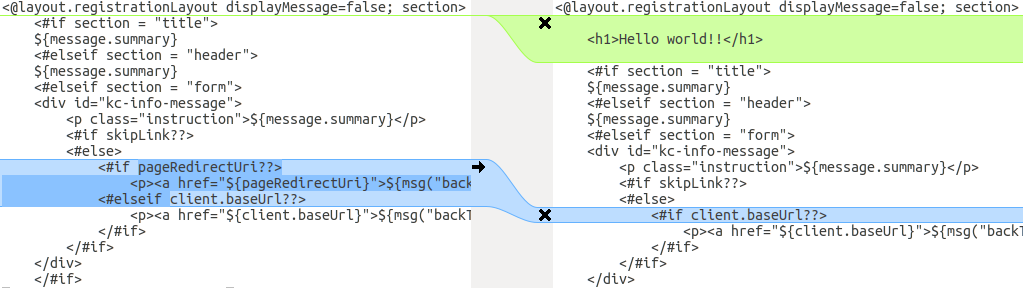
This comparison shows that the first change (Hello world!!) is a customization, while the second change (if pageRedirectUri) is a change to the base theme. By copying the second change to your custom template, you have successfully updated your customized template.
In an alternative approach, the following screenshot compares the info.ftl template from the old installation with the updated info.ftl template from the new installation:
Login theme template from the old installation versus the updated Login theme template
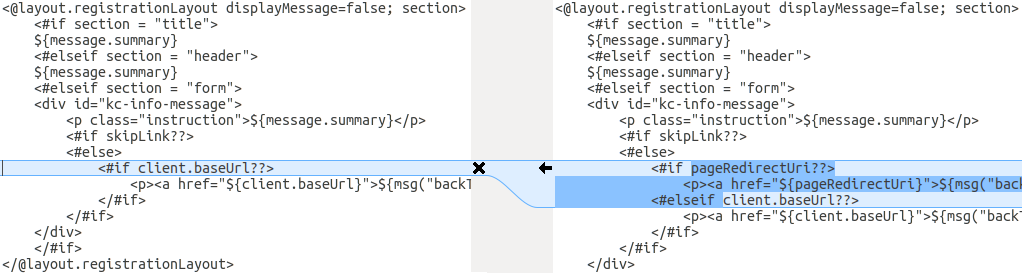
This comparison shows what has been changed in the base template. You can then manually make the same changes to your modified template. Since this approach is more complex, use this approach only if the first approach is not feasible.
3.4.2. Migrating messages
If you added support for another language, you need to apply all the changes listed above. If you have not added support for another language, you might not need to change anything. You need to make changes only if you have changed an affected message in your theme.
Procedure
- For added values, review the value of the message in the base theme to determine if you need to customize that message.
- For renamed keys, rename the key in your custom theme.
- For changed values, check the value in the base theme to determine if you need to make changes to your custom theme.
3.4.3. Migrating styles
You might need to update your custom styles to reflect changes made to the styles from the built-in themes. Consider using a diff tool to compare the changes to stylesheets between the old server installation and the new server installation.
For example:
$ diff RHSSO_HOME_OLD/themes/keycloak/login/resources/css/login.css \
RHSSO_HOME_NEW/themes/keycloak/login/resources/css/login.css
Review the changes and determine if they affect your custom styling.
Chapter 4. Upgrading Red Hat build of Keycloak adapters
After upgrading the Red Hat build of Keycloak server, you upgrade the adapters. Versions of adapters and Red Hat build of Keycloak are now decoupled, meaning that they are released on different schedules. Therefore, use these rules to determine which adapters you upgrade:
- Earlier versions of an adapter might work with later versions of the Red Hat build of Keycloak server.
- Earlier versions of the Red Hat build of Keycloak server might not work with later versions of an adapter.
Each adapter upgrade section provides details on supported adapter versions.
4.1. Upgrading the JBoss EAP SAML adapter
As of Red Hat build of Keycloak 26.0, the JBoss EAP SAML adapter is no longer released with Red Hat build of Keycloak. If you deployed an application with version 6.x or 7.x of that adapter, it is not supported by Red Hat build of Keycloak. Those versions of the adapter are only supported to be used in combination with Red Hat Single Sign-On 7.6.
The fully supported adapter for SAML is the Keycloak SAML Adapter feature pack or RPM for JBoss EAP 8.0.
To upgrade a JBoss EAP SAML adapter that has been copied to your web application, perform the following procedure.
Procedure
-
Remove the previous adapter modules by deleting the
EAP_HOME/modules/system/add-ons/keycloak/directory. - Install the new version of the adapter. For full details, see Installing JBoss EAP by using the RPM installation method.
4.2. Upgrading the JBoss EAP OpenID connect adapter
As of Red Hat build of Keycloak 26.0, the JBoss EAP OpenID connect (OIDC) adapter is no longer released with Red Hat build of Keycloak. This adapter has reached end of life and it is only supported to be used in combination with Red Hat Single Sign-On 7.6. The supported adapter for OIDC is supplied by JBoss EAP 8.0.
To upgrade a JBoss EAP OIDC adapter that has been copied to your web application, perform the following procedure.
Procedure
-
Remove the previous adapter modules by deleting the
EAP_HOME/modules/system/add-ons/keycloak/directory. - Install the OIDC client supplied by JBoss EAP 8.0. For details, see Securing Applications with OIDC.
4.3. Upgrading the JavaScript adapter
For this release of Red Hat build of Keycloak, the supported version of this adapter is 26.2.1. To upgrade a JavaScript adapter that has been copied to your web application, perform the following procedure.
Procedure
- Remove the previous version of the JavaScript adapter.
Use these NPM commands to install the 26.2.1 version of the adapter:
npm config set @redhat:registry https://npm.registry.redhat.com
install: npm install @redhat/keycloak-js@latest
4.4. Upgrading the Node.js adapter
For this release of Red Hat build of Keycloak, the supported version of this adapter is 26.1.1. To upgrade a Node.js adapter that has been copied to your web application, perform the following procedure.
Procedure
- Remove the previous version of the Node.js adapter.
Use these NPM commands to install the 26.1.1 version of the Node.js adapter:
npm config set @redhat:registry https://npm.registry.redhat.com npm install @redhat/keycloak-connect@latest-
Change the dependency for keycloak-connect in the
package.jsonof your application.

'%20d='M201.5%20305.5c-13.8%200-24.9-11.1-24.9-24.6%200-13.8%2011.1-24.9%2024.9-24.9%2013.6%200%2024.6%2011.1%2024.6%2024.9%200%2013.6-11.1%2024.6-24.6%2024.6zM504%20256c0%20137-111%20248-248%20248S8%20393%208%20256%20119%208%20256%208s248%20111%20248%20248zm-132.3-41.2c-9.4%200-17.7%203.9-23.8%2010-22.4-15.5-52.6-25.5-86.1-26.6l17.4-78.3%2055.4%2012.5c0%2013.6%2011.1%2024.6%2024.6%2024.6%2013.8%200%2024.9-11.3%2024.9-24.9s-11.1-24.9-24.9-24.9c-9.7%200-18%205.8-22.1%2013.8l-61.2-13.6c-3-.8-6.1%201.4-6.9%204.4l-19.1%2086.4c-33.2%201.4-63.1%2011.3-85.5%2026.8-6.1-6.4-14.7-10.2-24.1-10.2-34.9%200-46.3%2046.9-14.4%2062.8-1.1%205-1.7%2010.2-1.7%2015.5%200%2052.6%2059.2%2095.2%20132%2095.2%2073.1%200%20132.3-42.6%20132.3-95.2%200-5.3-.6-10.8-1.9-15.8%2031.3-16%2019.8-62.5-14.9-62.5zM302.8%20331c-18.2%2018.2-76.1%2017.9-93.6%200-2.2-2.2-6.1-2.2-8.3%200-2.5%202.5-2.5%206.4%200%208.6%2022.8%2022.8%2087.3%2022.8%20110.2%200%202.5-2.2%202.5-6.1%200-8.6-2.2-2.2-6.1-2.2-8.3%200zm7.7-75c-13.6%200-24.6%2011.1-24.6%2024.9%200%2013.6%2011.1%2024.6%2024.6%2024.6%2013.8%200%2024.9-11.1%2024.9-24.6%200-13.8-11-24.9-24.9-24.9z'/%3e%3c/svg%3e)