 Red Hat Summit
Chapter 4. Extensions in Red Hat Developer Hub
These features are for Technology Preview only. Technology Preview features are not supported with Red Hat production service level agreements (SLAs), might not be functionally complete, and Red Hat does not recommend using them for production. These features provide early access to upcoming product features, enabling customers to test functionality and provide feedback during the development process.
For more information on Red Hat Technology Preview features, see Technology Preview Features Scope.
Red Hat Developer Hub (RHDH) includes the Extensions feature which is preinstalled and enabled by default. Extensions provides users with a centralized interface to browse and manage available plugins
You can use Extensions to discover plugins that extend RHDH functionality, streamline development workflows, and improve the developer experience.
4.1. Viewing available plugins
You can view plugins available for your Red Hat Developer Hub application on the Extensions page.
Procedure
- Open your Developer Hub application and click Administration > Extensions.
Go to the Catalog tab to view a list of available plugins and related information.

4.2. Viewing installed plugins
Using the Dynamic Plugins Info front-end plugin, you can view plugins that are currently installed in your Red Hat Developer Hub application. This plugin is enabled by default.
Procedure
- Open your Developer Hub application and click Administration > Extensions.
- Go to the Installed tab to view a list of installed plugins and related information.
4.3. Search and filter the plugins
4.3.1. Search by plugin name
You can use the search bar in the header to filter the Extensions plugin cards by name. For example, if you type “A” into the search bar, Extensions shows only the plugins that contain the letter “A” in the Name field.
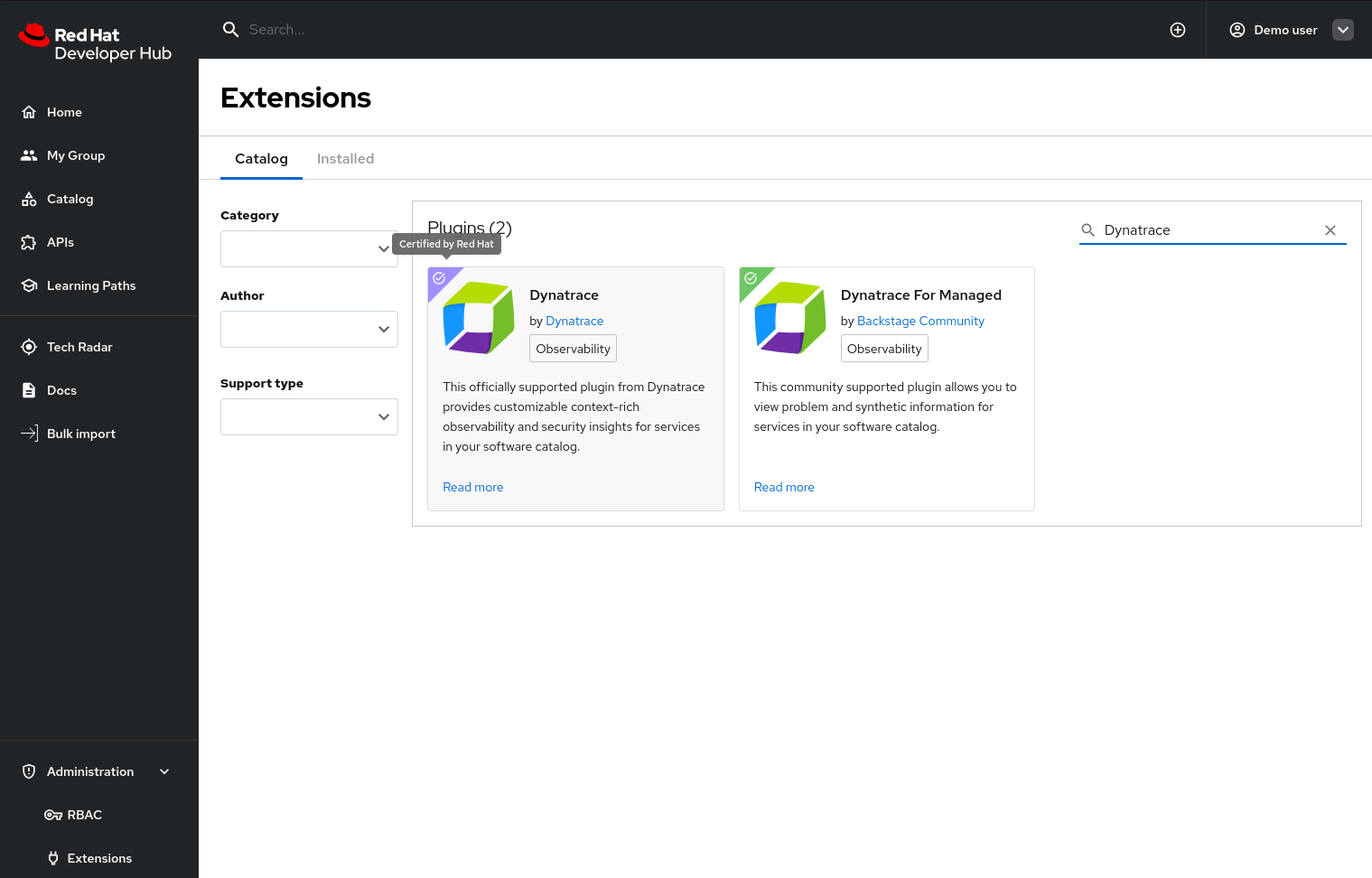
Optionally, you can use the search bar in conjunction with a filter to filter only plugins of the selected filter by name. For example, you can apply the Category filter and then type a character into the search bar to view only Openshift plugins that contain the typed character in the name.
The following filters are available:
- Category
- Author
- Support type
4.4. Installing a plugin by using Extensions
You can install a plugin and configure it by updating the dynamic-plugins.yaml file by using Extensions.
4.4.1. Prerequisites
- You have the necessary permissions to modify plugin configurations and access the application environment.
- You have identified and set the required environment variables referenced by the plugin’s default configuration. These environment variables must be defined in the Helm Chart or Operator configuration.
Procedure
- Open your Developer Hub application and click Administration > Extensions.
Use the search bar on the Extensions page to find the plugin you wish to install, then click on the card. For example, search for Tekton and click Read more on the Pipelines With Tekton card.

In the plugin drawer, you can review information about the plugin and how to configure it in RHDH. To install the plugin, click Install.

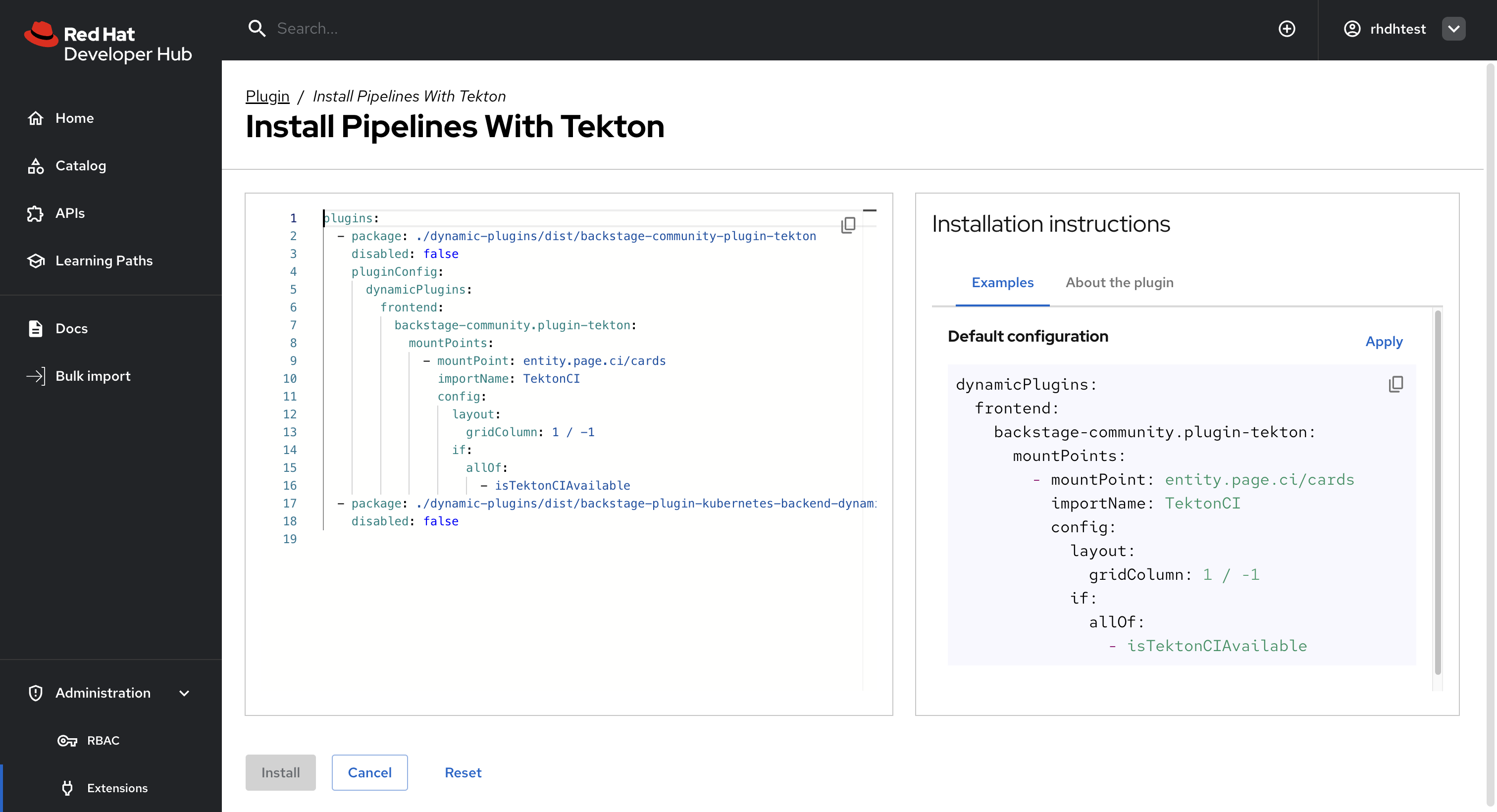
On the Install Plugin page, a YAML editor and installation instructions are displayed.

- Click the About the plugin tab to view installation and configuration details for the plugin.
- Click the Examples tab to display the default plugin configuration.
- Click Apply to copy the default plugin configuration to the YAML editor.
In the YAML editor, click the copy icon to copy the plugin configuration.
 Note
NoteIn RHDH 1.6, the Install button is disabled, so you must copy the plugin configuration to the
dynamic-plugins.yamlfile.In the
dynamic-plugins.yamlfile, add the plugin configuration that you copied in the previous step to thepluginsdefinitions.NoteIf you have installed RHDH by using the Helm Chart, to enable the plugin, you may need to roll out your RHDH project manually.
Verification
- Click on Administration > Extensions.
- Go to the Installed tab to view a list of installed plugins.
- Search for the plugin that you installed to confirm that it is available and enabled.
4.5. Removing Extensions
The Extensions feature plugins are preinstalled in Red Hat Developer Hub (RHDH) and enabled by default. If you want to remove Extensions from your RHDH instance, you can disable the relevant plugins.
Procedure
To disable the the Extensions feature plugins, edit your
dynamic-plugins.yamlwith the following content.dynamic-plugins.yamlfragmentplugins: - package: ./dynamic-plugins/dist/red-hat-developer-hub-backstage-plugin-marketplace disabled: true - package: ./dynamic-plugins/dist/red-hat-developer-hub-backstage-plugin-catalog-backend-module-marketplace-dynamic disabled: true - package: ./dynamic-plugins/dist/red-hat-developer-hub-backstage-plugin-marketplace-backend-dynamic disabled: true
If you disable the Extensions feature plugins, the Catalog and Installed tabs will also be removed. You can still view installed plugins by clicking on Administration > Extensions.

'%20d='M201.5%20305.5c-13.8%200-24.9-11.1-24.9-24.6%200-13.8%2011.1-24.9%2024.9-24.9%2013.6%200%2024.6%2011.1%2024.6%2024.9%200%2013.6-11.1%2024.6-24.6%2024.6zM504%20256c0%20137-111%20248-248%20248S8%20393%208%20256%20119%208%20256%208s248%20111%20248%20248zm-132.3-41.2c-9.4%200-17.7%203.9-23.8%2010-22.4-15.5-52.6-25.5-86.1-26.6l17.4-78.3%2055.4%2012.5c0%2013.6%2011.1%2024.6%2024.6%2024.6%2013.8%200%2024.9-11.3%2024.9-24.9s-11.1-24.9-24.9-24.9c-9.7%200-18%205.8-22.1%2013.8l-61.2-13.6c-3-.8-6.1%201.4-6.9%204.4l-19.1%2086.4c-33.2%201.4-63.1%2011.3-85.5%2026.8-6.1-6.4-14.7-10.2-24.1-10.2-34.9%200-46.3%2046.9-14.4%2062.8-1.1%205-1.7%2010.2-1.7%2015.5%200%2052.6%2059.2%2095.2%20132%2095.2%2073.1%200%20132.3-42.6%20132.3-95.2%200-5.3-.6-10.8-1.9-15.8%2031.3-16%2019.8-62.5-14.9-62.5zM302.8%20331c-18.2%2018.2-76.1%2017.9-93.6%200-2.2-2.2-6.1-2.2-8.3%200-2.5%202.5-2.5%206.4%200%208.6%2022.8%2022.8%2087.3%2022.8%20110.2%200%202.5-2.2%202.5-6.1%200-8.6-2.2-2.2-6.1-2.2-8.3%200zm7.7-75c-13.6%200-24.6%2011.1-24.6%2024.9%200%2013.6%2011.1%2024.6%2024.6%2024.6%2013.8%200%2024.9-11.1%2024.9-24.6%200-13.8-11-24.9-24.9-24.9z'/%3e%3c/svg%3e)