 Red Hat Summit
Chapter 6. Configuring a network bridge
A network bridge is a link-layer device that forwards traffic between networks by using a MAC address table. For example, you can use a software bridge to connect virtual machines to the same network as the host.
A bridge requires a network device in each network the bridge should connect. When you configure a bridge, the bridge is called controller and the devices it uses ports.
You can create bridges on different types of devices, such as:
- Physical and virtual Ethernet devices
- Network bonds
- Network teams
- Virtual Local Area Network (VLAN) devices
Due to the IEEE 802.11 standard which specifies the use of 3-address frames in Wi-Fi for the efficient use of airtime, you cannot configure a bridge over Wi-Fi networks operating in Ad-Hoc or Infrastructure modes.
6.1. Configuring a network bridge by using nmcli
To configure a network bridge on the command line, use the nmcli utility.
Prerequisites
- Two or more physical or virtual network devices are installed on the server.
- To use Ethernet devices as ports of the bridge, the physical or virtual Ethernet devices must be installed on the server.
To use team, bond, or Virtual Local Area Network (VLAN) devices as ports of the bridge, you can either create these devices while you create the bridge or you can create them in advance as described in:
Procedure
Create a bridge interface:
# nmcli connection add type bridge con-name bridge0 ifname bridge0This command creates a bridge named
bridge0.Display the network interfaces, and note the names of the interfaces you want to add to the bridge:
# nmcli device status
DEVICE  TYPE      STATE         CONNECTION
enp7s0  ethernet  disconnected  --
enp8s0  ethernet  disconnected  --
bond0   bond      connected     bond0
bond1   bond      connected     bond1
...
In this example:
-
enp7s0andenp8s0are not configured. To use these devices as ports, add connection profiles in the next step. -
bond0andbond1have existing connection profiles. To use these devices as ports, modify their profiles in the next step.
-
Assign the interfaces to the bridge.
If the interfaces you want to assign to the bridge are not configured, create new connection profiles for them:
# nmcli connection add type ethernet slave-type bridge con-name bridge0-port1 ifname enp7s0 master bridge0
# nmcli connection add type ethernet slave-type bridge con-name bridge0-port2 ifname enp8s0 master bridge0
These commands create profiles for
enp7s0andenp8s0, and add them to thebridge0connection.If you want to assign an existing connection profile to the bridge:
Set the
masterparameter of these connections tobridge0:# nmcli connection modify bond0 master bridge0 # nmcli connection modify bond1 master bridge0These commands assign the existing connection profiles named
bond0andbond1to thebridge0connection.Reactivate the connections:
# nmcli connection up bond0
# nmcli connection up bond1
Configure the IPv4 settings:
To set a static IPv4 address, network mask, default gateway, and DNS server to the
bridge0connection, enter:# nmcli connection modify bridge0 ipv4.addresses '192.0.2.1/24' ipv4.gateway '192.0.2.254' ipv4.dns '192.0.2.253' ipv4.dns-search 'example.com' ipv4.method manual- To use DHCP, no action is required.
- If you plan to use this bridge device as a port of other devices, no action is required.
Configure the IPv6 settings:
To set a static IPv6 address, network mask, default gateway, and DNS server to the
bridge0connection, enter:# nmcli connection modify bridge0 ipv6.addresses '2001:db8:1::1/64' ipv6.gateway '2001:db8:1::fffe' ipv6.dns '2001:db8:1::fffd' ipv6.dns-search 'example.com' ipv6.method manual- To use stateless address autoconfiguration (SLAAC), no action is required.
- If you plan to use this bridge device as a port of other devices, no action is required.
Optional: Configure further properties of the bridge. For example, to set the Spanning Tree Protocol (STP) priority of
bridge0to16384, enter:# nmcli connection modify bridge0 bridge.priority '16384'By default, STP is enabled.
Activate the connection:
# nmcli connection up bridge0Verify that the ports are connected, and the
CONNECTIONcolumn displays the port’s connection name:# nmcli device DEVICE TYPE STATE CONNECTION ... enp7s0 ethernet connected bridge0-port1 enp8s0 ethernet connected bridge0-port2When you activate any port of the connection, NetworkManager also activates the bridge, but not the other ports of it. You can configure that Red Hat Enterprise Linux enables all ports automatically when the bridge is enabled:
Enable the
connection.autoconnect-slavesparameter of the bridge connection:# nmcli connection modify bridge0 connection.autoconnect-slaves 1Reactivate the bridge:
# nmcli connection up bridge0
Verification
Use the
iputility to display the link status of Ethernet devices that are ports of a specific bridge:# ip link show master bridge0 3: enp7s0: <BROADCAST,MULTICAST,UP,LOWER_UP> mtu 1500 qdisc fq_codel master bridge0 state UP mode DEFAULT group default qlen 1000 link/ether 52:54:00:62:61:0e brd ff:ff:ff:ff:ff:ff 4: enp8s0: <BROADCAST,MULTICAST,UP,LOWER_UP> mtu 1500 qdisc fq_codel master bridge0 state UP mode DEFAULT group default qlen 1000 link/ether 52:54:00:9e:f1:ce brd ff:ff:ff:ff:ff:ffUse the
bridgeutility to display the status of Ethernet devices that are ports of any bridge device:# bridge link show 3: enp7s0: <BROADCAST,MULTICAST,UP,LOWER_UP> mtu 1500 master bridge0 state forwarding priority 32 cost 100 4: enp8s0: <BROADCAST,MULTICAST,UP,LOWER_UP> mtu 1500 master bridge0 state listening priority 32 cost 100 5: enp9s0: <BROADCAST,MULTICAST,UP,LOWER_UP> mtu 1500 master bridge1 state forwarding priority 32 cost 100 6: enp11s0: <BROADCAST,MULTICAST,UP,LOWER_UP> mtu 1500 master bridge1 state blocking priority 32 cost 100 ...To display the status for a specific Ethernet device, use the
bridge link show dev <ethernet_device_name>command.
6.2. Configuring a network bridge by using the RHEL web console
Use the RHEL web console to configure a network bridge if you prefer to manage network settings using a web browser-based interface.
Prerequisites
- Two or more physical or virtual network devices are installed on the server.
- To use Ethernet devices as ports of the bridge, the physical or virtual Ethernet devices must be installed on the server.
To use team, bond, or Virtual Local Area Network (VLAN) devices as ports of the bridge, you can either create these devices while you create the bridge or you can create them in advance as described in:
- You have installed the RHEL 8 web console.
- You have enabled the cockpit service.
Your user account is allowed to log in to the web console.
For instructions, see Installing and enabling the web console.
Procedure
Log in to the RHEL 8 web console.
For details, see Logging in to the web console.
- Select the Networking tab in the navigation on the left side of the screen.
- Click in the Interfaces section.
- Enter the name of the bridge device you want to create.
- Select the interfaces that should be ports of the bridge.
- Optional: Enable the Spanning tree protocol (STP) feature to avoid bridge loops and broadcast radiation.
- Click .
By default, the bridge uses a dynamic IP address. If you want to set a static IP address:
- Click the name of the bridge in the Interfaces section.
- Click Edit next to the protocol you want to configure.
- Select Manual next to Addresses, and enter the IP address, prefix, and default gateway.
- In the DNS section, click the button, and enter the IP address of the DNS server. Repeat this step to set multiple DNS servers.
- In the DNS search domains section, click the button, and enter the search domain.
- If the interface requires static routes, configure them in the Routes section.
- Click
Verification
- Select the Networking tab in the navigation on the left side of the screen, and check if there is incoming and outgoing traffic on the interface.
6.3. Configuring a network bridge by using nmtui
The nmtui application provides a text-based user interface for NetworkManager. You can use nmtui to configure a network bridge on a host without a graphical interface.
In nmtui:
- Navigate by using the cursor keys.
- Press a button by selecting it and hitting Enter.
- Select and clear checkboxes by using Space.
- To return to the previous screen, use ESC.
Prerequisites
- Two or more physical or virtual network devices are installed on the server.
- To use Ethernet devices as ports of the bridge, the physical or virtual Ethernet devices must be installed on the server.
Procedure
If you do not know the network device names on which you want configure a network bridge, display the available devices:
# nmcli device status
DEVICE     TYPE      STATE                   CONNECTION
enp7s0     ethernet  unavailable             --
enp8s0     ethernet  unavailable             --
...
Start
nmtui:# nmtui-
Select
Edit a connection, and press Enter. -
Press
Add. -
Select
Bridgefrom the list of network types, and press Enter. Optional: Enter a name for the NetworkManager profile to be created.
On hosts with multiple profiles, a meaningful name makes it easier to identify the purpose of a profile.
-
Enter the bridge device name to be created into the
Devicefield. Add ports to the bridge to be created:
-
Press
Addnext to theSlaveslist. -
Select the type of the interface you want to add as a port to the bridge, for example,
Ethernet. - Optional: Enter a name for the NetworkManager profile to be created for this bridge port.
-
Enter the port’s device name into the
Devicefield. -
Press
OKto return to the window with the bridge settings. - Repeat these steps to add more ports to the bridge.
-
Press
Depending on your environment, configure the IP address settings in the
IPv4 configurationandIPv6 configurationareas accordingly. For this, press the button next to these areas, and select:-
Disabled, if the bridge does not require an IP address. -
Automatic, if a DHCP server or stateless address autoconfiguration (SLAAC) dynamically assigns an IP address to the bridge. Manual, if the network requires static IP address settings. In this case, you must fill further fields:-
Press
Shownext to the protocol you want to configure to display additional fields. Press
Addnext toAddresses, and enter the IP address and the subnet mask in Classless Inter-Domain Routing (CIDR) format.If you do not specify a subnet mask, NetworkManager sets a
/32subnet mask for IPv4 addresses and/64for IPv6 addresses.- Enter the address of the default gateway.
-
Press
Addnext toDNS servers, and enter the DNS server address. -
Press
Addnext toSearch domains, and enter the DNS search domain.
-
Press
-
-
Press
OKto create and automatically activate the new connection. -
Press
Backto return to the main menu. -
Select
Quit, and press Enter to close thenmtuiapplication.
Verification
Use the
iputility to display the link status of Ethernet devices that are ports of a specific bridge:# ip link show master bridge0 3: enp7s0: <BROADCAST,MULTICAST,UP,LOWER_UP> mtu 1500 qdisc fq_codel master bridge0 state UP mode DEFAULT group default qlen 1000 link/ether 52:54:00:62:61:0e brd ff:ff:ff:ff:ff:ff 4: enp8s0: <BROADCAST,MULTICAST,UP,LOWER_UP> mtu 1500 qdisc fq_codel master bridge0 state UP mode DEFAULT group default qlen 1000 link/ether 52:54:00:9e:f1:ce brd ff:ff:ff:ff:ff:ffUse the
bridgeutility to display the status of Ethernet devices that are ports of any bridge device:# bridge link show 3: enp7s0: <BROADCAST,MULTICAST,UP,LOWER_UP> mtu 1500 master bridge0 state forwarding priority 32 cost 100 4: enp8s0: <BROADCAST,MULTICAST,UP,LOWER_UP> mtu 1500 master bridge0 state listening priority 32 cost 100 ...To display the status for a specific Ethernet device, use the
bridge link show dev <ethernet_device_name>command.
6.4. Configuring a network bridge by using nm-connection-editor
If you use Red Hat Enterprise Linux with a graphical interface, you can configure network bridges using the nm-connection-editor application.
Note that nm-connection-editor can add only new ports to a bridge. To use an existing connection profile as a port, create the bridge using the nmcli utility as described in Configuring a network bridge by using nmcli.
Prerequisites
- Two or more physical or virtual network devices are installed on the server.
- To use Ethernet devices as ports of the bridge, the physical or virtual Ethernet devices must be installed on the server.
- To use team, bond, or Virtual Local Area Network (VLAN) devices as ports of the bridge, ensure that these devices are not already configured.
Procedure
Open a terminal, and enter
nm-connection-editor:$ nm-connection-editor- Click the button to add a new connection.
- Select the Bridge connection type, and click .
On the Bridge tab:
- Optional: Set the name of the bridge interface in the Interface name field.
Click the button to create a new connection profile for a network interface and add the profile as a port to the bridge.
- Select the connection type of the interface. For example, select Ethernet for a wired connection.
- Optional: Set a connection name for the port device.
- If you create a connection profile for an Ethernet device, open the Ethernet tab, and select in the Device field the network interface you want to add as a port to the bridge. If you selected a different device type, configure it accordingly.
- Click .
- Repeat the previous step for each interface you want to add to the bridge.
- Optional: Configure further bridge settings, such as Spanning Tree Protocol (STP) options.
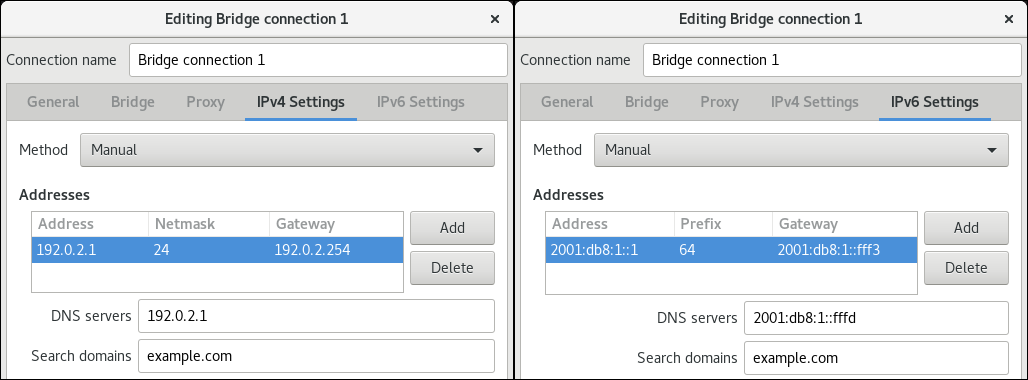
Configure the IP address settings on both the IPv4 Settings and IPv6 Settings tabs:
- If you plan to use this bridge device as a port of other devices, set the Method field to Disabled.
- To use DHCP, leave the Method field at its default, Automatic (DHCP).
To use static IP settings, set the Method field to Manual and fill the fields accordingly:
- Click .
-
Close
nm-connection-editor.
Verification
Use the
iputility to display the link status of Ethernet devices that are ports of a specific bridge.# ip link show master bridge0 3: enp7s0: <BROADCAST,MULTICAST,UP,LOWER_UP> mtu 1500 qdisc fq_codel master bridge0 state UP mode DEFAULT group default qlen 1000 link/ether 52:54:00:62:61:0e brd ff:ff:ff:ff:ff:ff 4: enp8s0: <BROADCAST,MULTICAST,UP,LOWER_UP> mtu 1500 qdisc fq_codel master bridge0 state UP mode DEFAULT group default qlen 1000 link/ether 52:54:00:9e:f1:ce brd ff:ff:ff:ff:ff:ffUse the
bridgeutility to display the status of Ethernet devices that are ports in any bridge device:# bridge link show 3: enp7s0: <BROADCAST,MULTICAST,UP,LOWER_UP> mtu 1500 master bridge0 state forwarding priority 32 cost 100 4: enp8s0: <BROADCAST,MULTICAST,UP,LOWER_UP> mtu 1500 master bridge0 state listening priority 32 cost 100 5: enp9s0: <BROADCAST,MULTICAST,UP,LOWER_UP> mtu 1500 master bridge1 state forwarding priority 32 cost 100 6: enp11s0: <BROADCAST,MULTICAST,UP,LOWER_UP> mtu 1500 master bridge1 state blocking priority 32 cost 100 ...To display the status for a specific Ethernet device, use the
bridge link show dev ethernet_device_namecommand.
6.5. Configuring a network bridge by using nmstatectl
You can use the declarative Nmstate API to configure a network bridge. Nmstate ensures that the result matches the configuration file or rolls back the changes.
Depending on your environment, adjust the YAML file accordingly. For example, to use different devices than Ethernet adapters in the bridge, adapt the base-iface attribute and type attributes of the ports you use in the bridge.
Prerequisites
- Two or more physical or virtual network devices are installed on the server.
- To use Ethernet devices as ports in the bridge, the physical or virtual Ethernet devices must be installed on the server.
-
To use team, bond, or Virtual Local Area Network (VLAN) devices as ports in the bridge, set the interface name in the
portlist, and define the corresponding interfaces. -
The
nmstatepackage is installed.
Procedure
Create a YAML file, for example
~/create-bridge.yml, with the following content:--- interfaces: - name: bridge0 type: linux-bridge state: up ipv4: enabled: true address: - ip: 192.0.2.1 prefix-length: 24 dhcp: false ipv6: enabled: true address: - ip: 2001:db8:1::1 prefix-length: 64 autoconf: false dhcp: false bridge: options: stp: enabled: true port: - name: enp1s0 - name: enp7s0 - name: enp1s0 type: ethernet state: up - name: enp7s0 type: ethernet state: up routes: config: - destination: 0.0.0.0/0 next-hop-address: 192.0.2.254 next-hop-interface: bridge0 - destination: ::/0 next-hop-address: 2001:db8:1::fffe next-hop-interface: bridge0 dns-resolver: config: search: - example.com server: - 192.0.2.200 - 2001:db8:1::ffbbThese settings define a network bridge with the following settings:
-
Network interfaces in the bridge:
enp1s0andenp7s0 - Spanning Tree Protocol (STP): Enabled
-
Static IPv4 address:
192.0.2.1with the/24subnet mask -
Static IPv6 address:
2001:db8:1::1with the/64subnet mask -
IPv4 default gateway:
192.0.2.254 -
IPv6 default gateway:
2001:db8:1::fffe -
IPv4 DNS server:
192.0.2.200 -
IPv6 DNS server:
2001:db8:1::ffbb -
DNS search domain:
example.com
-
Network interfaces in the bridge:
Apply the settings to the system:
# nmstatectl apply ~/create-bridge.yml
Verification
Display the status of the devices and connections:
# nmcli device status
DEVICE      TYPE      STATE      CONNECTION
bridge0     bridge    connected  bridge0
Display all settings of the connection profile:
# nmcli connection show bridge0
connection.id:              bridge0_
connection.uuid:            e2cc9206-75a2-4622-89cf-1252926060a9
connection.stable-id:       --
connection.type:            bridge
connection.interface-name:  bridge0
...
Display the connection settings in YAML format:
# nmstatectl show bridge0
6.6. Configuring a network bridge by using the network RHEL system role
You can use the network RHEL system role to configure a bridge and, if a connection profile for the bridge’s parent device does not exist, the role can create it as well.
You can connect multiple networks on layer 2 of the Open Systems Interconnection (OSI) model by creating a network bridge. To configure a bridge, create a connection profile in NetworkManager. By using Ansible and the network RHEL system role, you can automate this process and remotely configure connection profiles on the hosts defined in a playbook.
If you want to assign IP addresses, gateways, and DNS settings to a bridge, configure them on the bridge and not on its ports.
Prerequisites
- You have prepared the control node and the managed nodes.
-
The account you use to connect to the managed nodes has
sudopermissions for these nodes. - Two or more physical or virtual network devices are installed on the server.
Procedure
Create a playbook file, for example,
~/playbook.yml, with the following content:--- - name: Configure the network hosts: managed-node-01.example.com tasks: - name: Bridge connection profile with two Ethernet ports ansible.builtin.include_role: name: redhat.rhel_system_roles.network vars: network_connections: # Bridge profile - name: bridge0 type: bridge interface_name: bridge0 ip: dhcp4: yes auto6: yes state: up # Port profile for the 1st Ethernet device - name: bridge0-port1 interface_name: enp7s0 type: ethernet controller: bridge0 port_type: bridge state: up # Port profile for the 2nd Ethernet device - name: bridge0-port2 interface_name: enp8s0 type: ethernet controller: bridge0 port_type: bridge state: upThe settings specified in the example playbook include the following:
type: <profile_type>- Sets the type of the profile to create. The example playbook creates three connection profiles: One for the bridge and two for the Ethernet devices.
dhcp4: yes- Enables automatic IPv4 address assignment from DHCP, PPP, or similar services.
auto6: yes-
Enables IPv6 auto-configuration. By default, NetworkManager uses Router Advertisements. If the router announces the
managedflag, NetworkManager requests an IPv6 address and prefix from a DHCPv6 server.
For details about all variables used in the playbook, see the
/usr/share/ansible/roles/rhel-system-roles.network/README.mdfile on the control node.Validate the playbook syntax:
$ ansible-playbook --syntax-check ~/playbook.ymlNote that this command only validates the syntax and does not protect against a wrong but valid configuration.
Run the playbook:
$ ansible-playbook ~/playbook.yml
Verification
Display the link status of Ethernet devices that are ports of a specific bridge:
# ansible managed-node-01.example.com -m command -a 'ip link show master bridge0'
managed-node-01.example.com | CHANGED | rc=0 >>
3: enp7s0: <BROADCAST,MULTICAST,UP,LOWER_UP> mtu 1500 qdisc fq_codel master bridge0 state UP mode DEFAULT group default qlen 1000
    link/ether 52:54:00:62:61:0e brd ff:ff:ff:ff:ff:ff
4: enp8s0: <BROADCAST,MULTICAST,UP,LOWER_UP> mtu 1500 qdisc fq_codel master bridge0 state UP mode DEFAULT group default qlen 1000
    link/ether 52:54:00:9e:f1:ce brd ff:ff:ff:ff:ff:ff
Display the status of Ethernet devices that are ports of any bridge device:
# ansible managed-node-01.example.com -m command -a 'bridge link show'
managed-node-01.example.com | CHANGED | rc=0 >>
3: enp7s0: <BROADCAST,MULTICAST,UP,LOWER_UP> mtu 1500 master bridge0 state forwarding priority 32 cost 100
4: enp8s0: <BROADCAST,MULTICAST,UP,LOWER_UP> mtu 1500 master bridge0 state listening priority 32 cost 100

'%20d='M201.5%20305.5c-13.8%200-24.9-11.1-24.9-24.6%200-13.8%2011.1-24.9%2024.9-24.9%2013.6%200%2024.6%2011.1%2024.6%2024.9%200%2013.6-11.1%2024.6-24.6%2024.6zM504%20256c0%20137-111%20248-248%20248S8%20393%208%20256%20119%208%20256%208s248%20111%20248%20248zm-132.3-41.2c-9.4%200-17.7%203.9-23.8%2010-22.4-15.5-52.6-25.5-86.1-26.6l17.4-78.3%2055.4%2012.5c0%2013.6%2011.1%2024.6%2024.6%2024.6%2013.8%200%2024.9-11.3%2024.9-24.9s-11.1-24.9-24.9-24.9c-9.7%200-18%205.8-22.1%2013.8l-61.2-13.6c-3-.8-6.1%201.4-6.9%204.4l-19.1%2086.4c-33.2%201.4-63.1%2011.3-85.5%2026.8-6.1-6.4-14.7-10.2-24.1-10.2-34.9%200-46.3%2046.9-14.4%2062.8-1.1%205-1.7%2010.2-1.7%2015.5%200%2052.6%2059.2%2095.2%20132%2095.2%2073.1%200%20132.3-42.6%20132.3-95.2%200-5.3-.6-10.8-1.9-15.8%2031.3-16%2019.8-62.5-14.9-62.5zM302.8%20331c-18.2%2018.2-76.1%2017.9-93.6%200-2.2-2.2-6.1-2.2-8.3%200-2.5%202.5-2.5%206.4%200%208.6%2022.8%2022.8%2087.3%2022.8%20110.2%200%202.5-2.2%202.5-6.1%200-8.6-2.2-2.2-6.1-2.2-8.3%200zm7.7-75c-13.6%200-24.6%2011.1-24.6%2024.9%200%2013.6%2011.1%2024.6%2024.6%2024.6%2013.8%200%2024.9-11.1%2024.9-24.6%200-13.8-11-24.9-24.9-24.9z'/%3e%3c/svg%3e)