 Red Hat Summit
Fuse 6 is no longer supported
As of February 2025, Red Hat Fuse 6 is no longer supported. If you are using Fuse 6, please upgrade to Red Hat build of Apache Camel.BPEL Development Guide
Red Hat JBoss Fuse
BPEL
Version 6.3
Copyright © 2011-2020 Red Hat, Inc. and/or its affiliates.
26 Oct 2020
Abstract
Use this guide to help you develop integrated applications with SwitchYard.
Chapter 1. Introduction
Copy linkLink copied to clipboard!
1.1. Understanding BPEL
Copy linkLink copied to clipboard!
Business Process Execution Language (BPEL) is an XML-based language that enables task-sharing in a distributed computing environment. It uses easy-to-understand commands that perform complex functions. All the processes in BPEL, export and import information by using web service interfaces only.
The BPEL Engine is optimized for the JBoss Application Server container. It is based on Apache Orchestration Director Engine (ODE) and manages process definitions and instances.
Important
BPEL (based on the Riftsaw project) is no longer being actively developed and will be removed from a future release of JBoss Fuse. If you are currently using BPEL, it is recommended that you consider migrating to the Red Hat JBoss BPM Suite (which is supported through the JBoss Fuse Integration Package).
1.2. About Business Process Orchestration
Copy linkLink copied to clipboard!
Business process orchestration refers to the act of specifying actions within business processes via web services.
BPEL is mainly used to model web service interactions on a distributed system. It allows for complex orchestrations of multiple service applications through a single controller service.
1.3. About Apache ODE
Copy linkLink copied to clipboard!
Apache ODE ("Orchestration Director Engine") is a software component that is designed to execute BPEL business processes. It sends and receives messages to and from web services, manipulates data and performs error handling in the method prescribed in your process definition. To learn more about Apache ODE, visit the project website at http://ode.apache.org
1.4. Features of BPEL Engine
Copy linkLink copied to clipboard!
The BPEL Engine is based on Apache ODE and supports the following features:
- Provides BPEL component within the SwitchYard.
- Enterprise quality GWT based BPM console to manage process definitions and instances.
- Compiled approach to BPEL that provides detailed analysis and validation when deployed.
- Short-lived and long-running process executions.
- Process persistence and recovery.
- Process versioning.
- Runs in JBoss Cluster.
Chapter 2. BPEL and SwitchYard
Copy linkLink copied to clipboard!
2.1. Introduction
Copy linkLink copied to clipboard!
The BPEL Component is a pluggable container in SwitchYard that allows you to expose a WS-BPEL business process as a service through an interface defined using WSDL.
Important
BPEL (based on the Riftsaw project) is no longer being actively developed and will be removed from a future release of JBoss Fuse. If you are currently using BPEL, it is recommended that you consider migrating to the Red Hat JBoss BPM Suite (which is supported through the JBoss Fuse Integration Package).
2.2. Structure of a SwitchYard BPEL Application
Copy linkLink copied to clipboard!
For SwitchYard BPEL applications, the artifacts within the
src/main/resources folder are structured differently. The switchyard.xml configuration file is located in the META-INF folder. However, the BPEL deployment descriptor (deploy.xml), and the BPEL process definition are located in the root folder. You can locate the WSDL interface definitions, and any accompanying XSD schemas in the sub-folders. You must ensure that the BPEL process and SwitchYard BPEL component configuration define the correct relative path for the artifacts.
Here is an example that shows the structure of the say_hello SwitchYard BPEL quickstart:
Copy to Clipboard
Copied!
Toggle word wrap
Toggle overflow
2.3. Providing a Service with the BPEL Component
Copy linkLink copied to clipboard!
Procedure 2.1.
- Define your process using WS-BPEL within JBoss Developer Studio (with JBoss Integration and SOA Development tooling installed).
- Define a WSDL interface for the BPEL service.
- Define a Deployment Descriptor using the ODE Deployment Descriptor editor bundled with JBoss Tools.
- Add the component containing the implementation and service interface to the SwitchYard configuration.
2.4. Example of BPEL Component Configuration
Copy linkLink copied to clipboard!
Here is an example of the component section of the SwitchYard configuration:
Copy to Clipboard
Copied!
Toggle word wrap
Toggle overflow
The BPEL component contains a single
implementation.bpel element that identifies the fully qualified name of the BPEL process. This component may also contain one or more service elements defining the WSDL port types through which the BPEL process can be accessed.
In the packaged Switchyard application, ensure that the BPEL process associated with this fully qualified name must be present within the root folder of the distribution, along with the deployment descriptor (
deploy.xml). Here is an example of the deployment descriptor for the BPEL process referenced above:
2.5. Consuming a Service from a BPEL Process
Copy linkLink copied to clipboard!
To enable a BPEL process to invoke other services, you need to define the WSDL interface representing the service to be consumed, using an invoke element within the deployment descriptor. For example, in the
Copy to Clipboard
Copied!
Toggle word wrap
Toggle overflow
deploy.xml file:
Here, the
usePeer2Peer property informs the BPEL engine not to use internal communications for sending messages between BPEL processes that may be executing within the same engine, and instead pass messages through the SwitchYard infrastructure.
For each consumed service, you can then create a reference element within the SwitchYard configuration to locate the WSDL file and identify the port type associated with the required WSDL service or port, as shown in the
Copy to Clipboard
Copied!
Toggle word wrap
Toggle overflow
switchyard.xml file below:
2.6. Property Injection into a BPEL Process
Copy linkLink copied to clipboard!
You can inject properties into your BPEL process definition by using the
Copy to Clipboard
Copied!
Toggle word wrap
Toggle overflow
SwitchYardPropertyFunction.resolveProperty() XPath custom function. The bpel:copy section copies Greeting property value into the ReplySayHelloVar variable in example shown below:
Chapter 3. Administering Your System with BPEL Console
Copy linkLink copied to clipboard!
3.1. About the BPEL Console
Copy linkLink copied to clipboard!
The BPEL Console is a web based interface to manage, administer and debug processes deployed on a BPEL Server. It enables you to run, test and manage BPEL processes.
It allows you to view:
- any process definitions you have deployed to the BPEL engine
- the process instances executing in the BPEL engine
- a process execution history
- the query pertaining to the execution history
Important
BPEL (based on the Riftsaw project) is no longer being actively developed and will be removed from a future release of JBoss Fuse. If you are currently using BPEL, it is recommended that you consider migrating to the Red Hat JBoss BPM Suite (which is supported through the JBoss Fuse Integration Package).
3.2. Process Definition
Copy linkLink copied to clipboard!
A BPEL Process Definition is an XML file that acts as a template for a process. When deployed as a part of the SwitchYard application, you can access the BPEL process through various bindings supported by SwitchYard. For instance, as a web service via the SOAP binding or via a JMS queue.
3.3. Deploying Process Definition
Copy linkLink copied to clipboard!
The BPEL process definitions are deployed as a part of the packaged SwitchYard application. When deploying the SwitchYard application, ensure that it contains one or more BPEL process.
All the BPEL processes are displayed under the list of deployed process definitions in the console.
3.4. Manually Undeploy a Process
Copy linkLink copied to clipboard!
Procedure 3.1. task
Execute the following to safely undeploy a process:
- Launch a web browser and navigate to http://localhost:8080/bpel-console.
- Enter your user name and password.
- Click on the Runtime tab.
- Select the Deployments option. You will now be able to see the version information and current status (active or retired) of each process definition.
- Check if there is any active process consisting of any unfinished instances, retire the process.
- Undeploy the process only when there is no active process instance.
Warning
Undeploy the BPEL process only when the containing SwitchYard application is undeployed.
3.5. Active Process Instance
Copy linkLink copied to clipboard!
An active process instance is one execution of a process definition.
When you select a process definition, BPEL console displays the list of active process instances for that particular process version and definition.
3.6. View the Process Version
Copy linkLink copied to clipboard!
Procedure 3.2. task
To view the process version, execute the following:
- Launch a web browser and navigate to http://localhost:8080/bpel-console.
- Enter your user name and password.
- Click on the tab to see which BPEL processes are currently deployed. The process version information for each of these processes is also visible.
- Only one version of a process can be active at a time. When you open a process definition, the active version is automatically selected.
Note
BPEL console enables you to select a different version of a process.
3.7. About Business Process Analytics Format
Copy linkLink copied to clipboard!
The Business Process Analytics Format (BPAF) is designed to provide you with information about the efficiency and effectiveness of your organizational processes. It is an XML-based interchange format for all the process audit events.
3.8. View the BPAF Data
Copy linkLink copied to clipboard!
Procedure 3.3. task
You can view the Business Process Analytics Format (BPAF) data with the BPEL console. Execute the following:
- Launch a web browser and navigate to http://localhost:8080/bpel-console.
- Enter your user name and password.
- Click on the Managed Instances tab to see which BPEL processes are currently deployed. The process version information for each of these processes is also visible.
- Select a process definition to open it.
- Use the Execution History to produce a chart. Here you can specify a particular period of time to review and choose whether or not to include failed and terminated instances in the chart.
3.10. Configuring Logging Functionality
Copy linkLink copied to clipboard!
Procedure 3.4. task
Execute the following to activate the BPEL Web Console's Logging Functionality:
- Open the
deploy.xmlfile in a text editor.Notedeploy.xmlfile exists with every BPEL deployment unit. - Configure the
deploy.xmlfile as follows:Copy to Clipboard Copied! Toggle word wrap Toggle overflow NoteAdd theprocess-eventselement to generate all the events. For more information, navigate to the Apache ODE events http://ode.apache.org/ode-execution-events link. - Save the file and exit.
3.11. View the Instance Data
Copy linkLink copied to clipboard!
Procedure 3.5. task
Execute the following to view instance data with the BPEL Console:
- Launch a web browser and navigate to http://localhost:8080/bpel-console.
- Enter your user name and password.
- Under the Managed Instances tab, select the Open Button list to view the deployed process definitions. When you select any one of the process, it displays the list of process definitions and version of that particular process.
- Select a process instance to open it. You can see its details in the Execution Details panel.
- Click the Instance Data button. It displays all the details about the process.
- Click the Execution Path button. It opens the related instance execution graph.NoteThe instance execution graph is a visual representation of a running instance of a process. It tells the user about the process instance's performance over time.
- The View tab shows the instance execution graph, while the Source tab below it shows all of the "activity" events.
3.12. View a History Instance Query
Copy linkLink copied to clipboard!
Procedure 3.6. Task
- Log into the BPEL Web Console.
- Choose a process definition and a process status from the list box.You can also optionally choose to input the correlation key, the start time and the end time as search criteria.
- Go to the History Instances List and double-click on a row. A window will pop up showing you all of the execution events that happened when that process ran.
3.13. Active Process Definition
Copy linkLink copied to clipboard!
When you deploy the first version of a BPEL process definition, it automatically becomes the active definition. If this definition is subsequently changed and redeployed, then that version is "retired", and a new version becomes active automatically.
3.14. Retired Process Definition
Copy linkLink copied to clipboard!
If the active process definition is changed and redeployed, the old version is "retired". The new version automatically becomes active. The only difference between an active version and a retired one is that a retired one can no longer create new process instances. However, if there are active process instances associated with the retired process version, then these will continue to run.
3.15. Manually Retire an Active Process Definition
Copy linkLink copied to clipboard!
Procedure 3.7. Task
- Launch a web browser and go to http://localhost:8080/bpel-console.
- Input your user name and password.
- Click on the Runtime tab.
- Select the Deployments option.You will now be able to see the version information and current status (active or retired) of each process definition.
- Select the particular version of the process definition you want to retire and then press the button.NoteIf you undeploy a process, its end-points will only deactivate if no previous versions of that process have ever existed.
3.16. Enable Execution Events
Copy linkLink copied to clipboard!
The BPEL Engine generates events to let you track all the activities happening within the engine and produces detailed information about all the process executions. These events exists in the database and can be examined.
Procedure 3.8. task
When you run a process, Apache ODE generates a set of events. To achieve the satisfactory performance, you can deactivate few events that are not in use. All the events may cause a non-negligeable overhead.
To enable these events, execute the following:
- Open the
deploy.xmlfile in a text editor. - Add
<process-events generate="all"/>parameter in thedeploy.xmlfile.
Result
Events are successfully enabled.
Chapter 4. Configuring the BPEL Engine to Run in a Clustered Environment
Copy linkLink copied to clipboard!
4.1. About BPEL Engine in a Clustered Environment
Copy linkLink copied to clipboard!
To enable the BPEL Engine to run in a clustered environment, you need to configure all the nodes within a cluster. Ensure that all the nodes have access to the shared information concerning the persistent state of process instances.
Note
For setting up a cluster, you need to employ a load balancer to distribute the incoming SOAP requests appropriately across all of the nodes in the server.
4.2. Install the BPEL Engine in a Clustered Environment
Copy linkLink copied to clipboard!
Information Needed.
4.3. Deploying a BPEL Process in a Clustered Environment
Copy linkLink copied to clipboard!
In Fuse 6, the BPEL process is deployed as a part of a SwitchYard application. Therefore, the support for clustering is provided by SwitchYard.
Note
The
switchyard.xml configuration file is located under the META-INF directory.
4.4. BPEL Process Service Invocation
Copy linkLink copied to clipboard!
When you invoke the BPEL service deployed in a clustered environment, make sure to specify the load balancer URL instead of SOAP address in the WSDL file. The load balancer then decides about the server, to invoke in the cluster.
Chapter 5. BPEL and REST
Copy linkLink copied to clipboard!
5.1. BPEL Console RESTful Services
Copy linkLink copied to clipboard!
5.1.1. BPEL Console RESTful Services
Copy linkLink copied to clipboard!
This is a list of Restful services that are used by the BPEL Console.
|
Method
|
Path
|
Description
|
Consumes
|
Produces
|
|---|---|---|---|---|
|
Server Info (General REST server information)
|
GET
|
/gwt-console-server/rs/server/status
|
*/*
|
application/json
|
|
-
|
GET
|
/gwt-console-server/rs/server/resources/{project}
|
*/*
|
text/html
|
|
Process Management(Process related data.)
|
GET
|
/gwt-console-server/rs/process/definitions
|
*/*
|
application/json
|
|
-
|
GET
|
/gwt-console-server/rs/process/definition/{id}/instances
|
*/*
|
application/json
|
|
-
|
GET
|
/gwt-console-server/rs/process/instance/{id}/dataset
|
*/*
|
text/xml
|
|
-
|
POST
|
/gwt-console-server/rs/process/instance/{id}/end/{result}
|
*/*
|
application/json
|
|
-
|
GET
|
/gwt-console-server/rs/process/definition/{id}/image
|
*/*
|
image/*
|
|
-
|
GET
|
/gwt-console-server/rs/process/definition/{id}/image/{instance}
|
*/*
|
image/*
|
|
Process Engine(Process runtime state)
|
GET
|
/gwt-console-server/rs/engine/deployments
|
*/*
|
application/json
|
|
Process History(Process History Service)
|
GET
|
/gwt-console-server/rs//history/definition/{id}/instances
|
*/*
|
applications/json
|
|
-
|
GET
|
/gwt-console-server/rs//history/definitions
|
*/*
|
application/json
|
|
-
|
GET
|
/gwt-console-server/rs//history/definition/{id}/instances
|
*/*
|
application/json
|
|
-
|
GET
|
/gwt-console-server/rs//history/instance/{id}/activities
|
*/*
|
application/json
|
|
-
|
GET
|
/gwt-console-server/rs//history/instance/{id}/events
|
*/*
|
application/json
|
|
-
|
GET
|
/gwt-console-server/rs//history/definition/{id}/instances/completed
|
*/*
|
application/json
|
|
-
|
GET
|
/gwt-console-server/rs//history/definition/{id}/instances/failed
|
*/*
|
application/json
|
|
-
|
GET
|
/gwt-console-server/rs//history/definition/{id}/instances/terminated
|
*/*
|
application/json
|
|
-
|
GET
|
/gwt-console-server/rs//history/definition/{id}/instances/chart/completed
|
*/*
|
application/json
|
|
-
|
GET
|
/gwt-console-server/rs//history/definition/{id}/instances/chart/failed
|
*/*
|
application/json
|
Chapter 6. BPEL Database
Copy linkLink copied to clipboard!
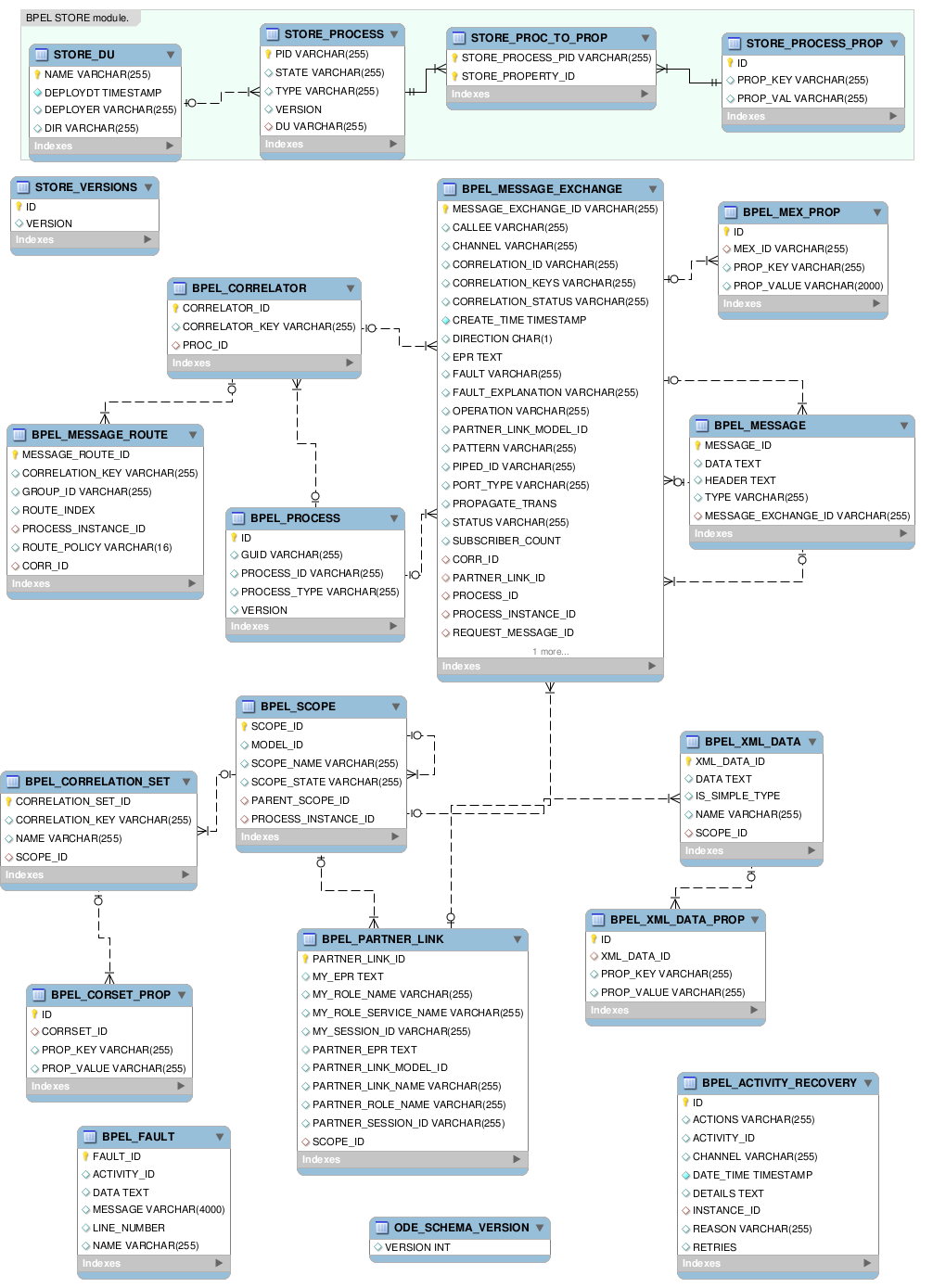
6.1. BPEL Database Schema Diagram
Copy linkLink copied to clipboard!
Following is the BPEL database schema entity relationship diagram.
Figure 6.1. BPEL Database Schema Entity Relationship Diagram
Legal Notice
Copy linkLink copied to clipboard!
Trademark Disclaimer
The text of and illustrations in this document are licensed by Red Hat under a Creative Commons Attribution–Share Alike 3.0 Unported license ("CC-BY-SA"). An explanation of CC-BY-SA is available at http://creativecommons.org/licenses/by-sa/3.0/. In accordance with CC-BY-SA, if you distribute this document or an adaptation of it, you must provide the URL for the original version.
Red Hat, as the licensor of this document, waives the right to enforce, and agrees not to assert, Section 4d of CC-BY-SA to the fullest extent permitted by applicable law.
Red Hat, Red Hat Enterprise Linux, the Shadowman logo, JBoss, MetaMatrix, Fedora, the Infinity Logo, and RHCE are trademarks of Red Hat, Inc., registered in the United States and other countries.
Apache, ServiceMix, Camel, CXF, and ActiveMQ are trademarks of Apache Software Foundation. Any other names contained herein may be trademarks of their respective owners.

'%20d='M201.5%20305.5c-13.8%200-24.9-11.1-24.9-24.6%200-13.8%2011.1-24.9%2024.9-24.9%2013.6%200%2024.6%2011.1%2024.6%2024.9%200%2013.6-11.1%2024.6-24.6%2024.6zM504%20256c0%20137-111%20248-248%20248S8%20393%208%20256%20119%208%20256%208s248%20111%20248%20248zm-132.3-41.2c-9.4%200-17.7%203.9-23.8%2010-22.4-15.5-52.6-25.5-86.1-26.6l17.4-78.3%2055.4%2012.5c0%2013.6%2011.1%2024.6%2024.6%2024.6%2013.8%200%2024.9-11.3%2024.9-24.9s-11.1-24.9-24.9-24.9c-9.7%200-18%205.8-22.1%2013.8l-61.2-13.6c-3-.8-6.1%201.4-6.9%204.4l-19.1%2086.4c-33.2%201.4-63.1%2011.3-85.5%2026.8-6.1-6.4-14.7-10.2-24.1-10.2-34.9%200-46.3%2046.9-14.4%2062.8-1.1%205-1.7%2010.2-1.7%2015.5%200%2052.6%2059.2%2095.2%20132%2095.2%2073.1%200%20132.3-42.6%20132.3-95.2%200-5.3-.6-10.8-1.9-15.8%2031.3-16%2019.8-62.5-14.9-62.5zM302.8%20331c-18.2%2018.2-76.1%2017.9-93.6%200-2.2-2.2-6.1-2.2-8.3%200-2.5%202.5-2.5%206.4%200%208.6%2022.8%2022.8%2087.3%2022.8%20110.2%200%202.5-2.2%202.5-6.1%200-8.6-2.2-2.2-6.1-2.2-8.3%200zm7.7-75c-13.6%200-24.6%2011.1-24.6%2024.9%200%2013.6%2011.1%2024.6%2024.6%2024.6%2013.8%200%2024.9-11.1%2024.9-24.6%200-13.8-11-24.9-24.9-24.9z'/%3e%3c/svg%3e)