 Red Hat Summit
Chapter 2. Managing virtual machines using the Web Console
2.1. Creating a virtual machine from a template using the Web Console
- Log in to the Web Console.
-
Click the hostname, then click oVirt Machines
Template. - Click the New VM button beside the template that you want to use.
Specify a Name for your VM and click Create.
Your new virtual machine is created on one of the hosts in your hyperconverged cluster.
2.2. Updating a virtual machine using the Web Console
You cannot currently update virtual machines using the Web Console.
See Upgrading Red Hat Hyperconverged Infrastructure for Virtualization for information about updating the Hosted Engine virtual machine using the Administration Portal.
See Updating Virtual Machine Guest Agents and Drivers in the Red Hat Virtualization 4.4 documentation for instructions on updating virtualization related software on a virtual machine using the Administration Portal.
2.3. Starting a virtual machine using the Web Console
- Log in to the Web Console.
-
Click the hostname, then click oVirt Machines
Cluster. - Click Run beside the virtual machine you want to start.
2.4. Pausing a virtual machine using the Web Console
- Log in to the Web Console.
-
Click the hostname, then click oVirt Machines
Host. - Click the virtual machine to pause.
- Click Suspend.
2.5. Resuming a virtual machine using the Web Console
- Log in to the Web Console.
-
Click the hostname, then click oVirt Machines
Host. - Click the virtual machine to resume.
- Click Resume.
2.6. Deleting a virtual machine using the Web Console
- Log in to the Web Console.
-
Click the hostname, then click oVirt Machines
Host. - Click the virtual machine to delete.
- Click Shut Down to shut down the virtual machine before deletion.
- Click Delete.
- Confirm deletion.
2.7. Shutting down a virtual machine using the Web Console
- Log in to the Web Console on the host that is running the virtual machine.
-
Click the hostname, then click oVirt Machines
Host. - Click on the virtual machine you want to shut down.
Click Shut Down. This shuts the virtual machine down gracefully.
If your virtual machine is not responding, click the dropdown arrow beside Shut Down and click Force Shut Down instead.
2.8. Migrating a virtual machine to a different hyperconverged host using the Web Console
- Log in to the Web Console.
-
Click the hostname, then click oVirt Machines
Host. - Click the virtual machine to migrate.
Click the oVirt section.
The oVirt section of the virtual machine summary
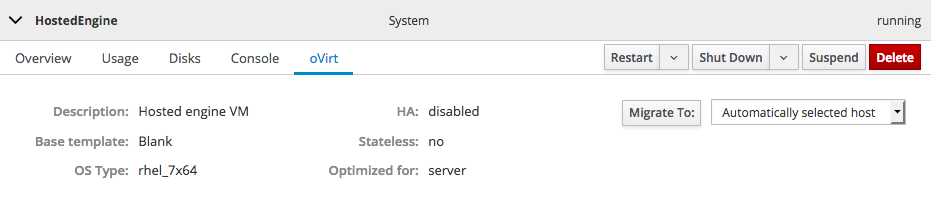
- Specify a host in the dropdown menu, or use the default value of Automatically selected host.
- Click Migrate to and wait for the virtual machine to migrate.
- Click the Cluster subtab and verify that the virtual machine is now running on a different host.
2.9. Accessing the console of a virtual machine using the Web Console
- Log in to the Web Console.
-
Click the hostname, then click oVirt Machines
Host. - Click the Console subtab.
Select a Console Type.
For the Hosted Engine virtual machine
The default console type for the Hosted Engine virtual machine is
Graphics Console (VNC). The console loads after several seconds.Graphics Console (VNC)
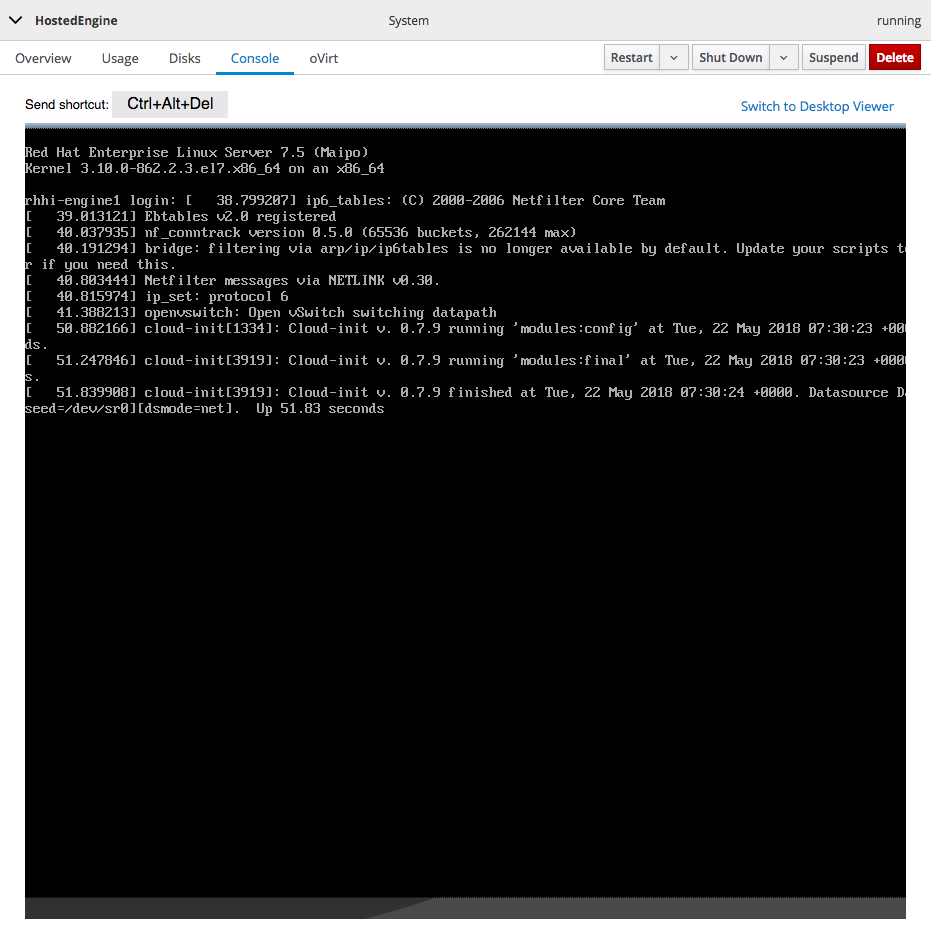
Click anywhere in the console and log in to the Hosted Engine virtual machine to perform any administrative operations.
For any other virtual machine:
Graphics Console in Desktop Viewer
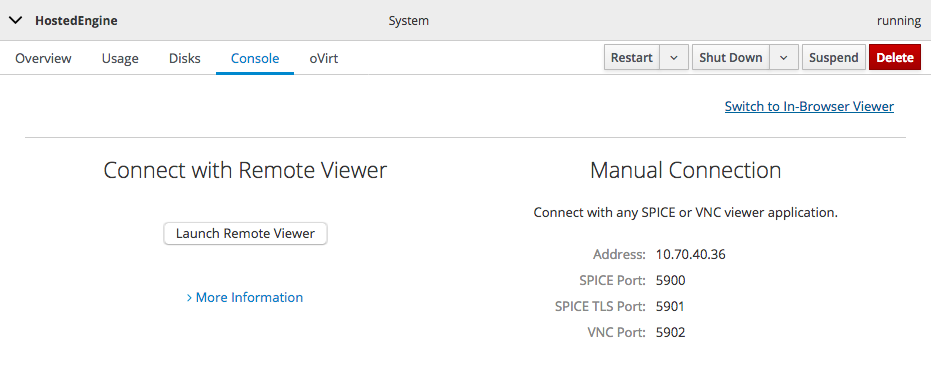
On Red Hat Enterprise Linux based systems, click Launch Remote Viewer to launch the Remote Viewer application.
Otherwise, use the information under Manual Connection to connect to the console with your preferred client.

'%20d='M201.5%20305.5c-13.8%200-24.9-11.1-24.9-24.6%200-13.8%2011.1-24.9%2024.9-24.9%2013.6%200%2024.6%2011.1%2024.6%2024.9%200%2013.6-11.1%2024.6-24.6%2024.6zM504%20256c0%20137-111%20248-248%20248S8%20393%208%20256%20119%208%20256%208s248%20111%20248%20248zm-132.3-41.2c-9.4%200-17.7%203.9-23.8%2010-22.4-15.5-52.6-25.5-86.1-26.6l17.4-78.3%2055.4%2012.5c0%2013.6%2011.1%2024.6%2024.6%2024.6%2013.8%200%2024.9-11.3%2024.9-24.9s-11.1-24.9-24.9-24.9c-9.7%200-18%205.8-22.1%2013.8l-61.2-13.6c-3-.8-6.1%201.4-6.9%204.4l-19.1%2086.4c-33.2%201.4-63.1%2011.3-85.5%2026.8-6.1-6.4-14.7-10.2-24.1-10.2-34.9%200-46.3%2046.9-14.4%2062.8-1.1%205-1.7%2010.2-1.7%2015.5%200%2052.6%2059.2%2095.2%20132%2095.2%2073.1%200%20132.3-42.6%20132.3-95.2%200-5.3-.6-10.8-1.9-15.8%2031.3-16%2019.8-62.5-14.9-62.5zM302.8%20331c-18.2%2018.2-76.1%2017.9-93.6%200-2.2-2.2-6.1-2.2-8.3%200-2.5%202.5-2.5%206.4%200%208.6%2022.8%2022.8%2087.3%2022.8%20110.2%200%202.5-2.2%202.5-6.1%200-8.6-2.2-2.2-6.1-2.2-8.3%200zm7.7-75c-13.6%200-24.6%2011.1-24.6%2024.9%200%2013.6%2011.1%2024.6%2024.6%2024.6%2013.8%200%2024.9-11.1%2024.9-24.6%200-13.8-11-24.9-24.9-24.9z'/%3e%3c/svg%3e)