 Red Hat Summit
6.2. Cloning a repository
Important
Note that only user with the
ADMIN role can clone a repository.
Procedure 6.2. Cloning a repository
- Open the Administration perspective.
- On the Repositories menu, select .
- The Clone Repository pop-up window is displayed.
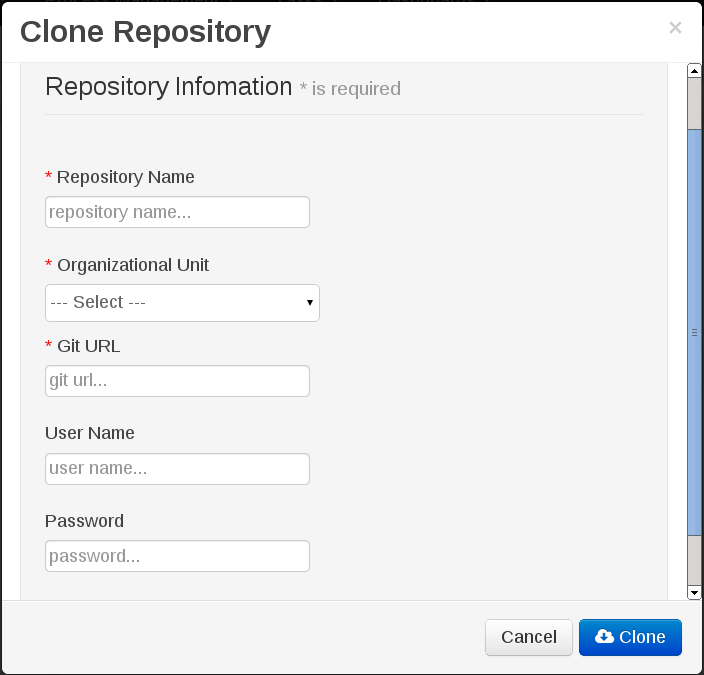
Figure 6.2. Clone Repository Pop-up
- In the Clone Repository dialog window, enter the repository details:
- Enter the Repository Name to be used as the repository identifier in the Asset repository and select the Organizational Unit it should be added to.
- Enter the URL of the GIT repository:
- For a Local Repository:
file:///path-to-repository/reponame - For a Remote or preexisting Repository:
git://hostname/reponame
Note
The file protocol is only supported for 'READ' operations. 'WRITE' operations are not supported. - If applicable, enter the User Name and Password to be used for authentication when cloning the repository.
- Click Clone.
- A confirmation prompt with an OK button is displayed which notifies the user that the repository is created successfully. Click OK.The repository will be indexed. Some workbench features may be unavailable until indexing has completed.
The cloned repository can be checked either in the File Explorer or Project Explorer views.

'%20d='M201.5%20305.5c-13.8%200-24.9-11.1-24.9-24.6%200-13.8%2011.1-24.9%2024.9-24.9%2013.6%200%2024.6%2011.1%2024.6%2024.9%200%2013.6-11.1%2024.6-24.6%2024.6zM504%20256c0%20137-111%20248-248%20248S8%20393%208%20256%20119%208%20256%208s248%20111%20248%20248zm-132.3-41.2c-9.4%200-17.7%203.9-23.8%2010-22.4-15.5-52.6-25.5-86.1-26.6l17.4-78.3%2055.4%2012.5c0%2013.6%2011.1%2024.6%2024.6%2024.6%2013.8%200%2024.9-11.3%2024.9-24.9s-11.1-24.9-24.9-24.9c-9.7%200-18%205.8-22.1%2013.8l-61.2-13.6c-3-.8-6.1%201.4-6.9%204.4l-19.1%2086.4c-33.2%201.4-63.1%2011.3-85.5%2026.8-6.1-6.4-14.7-10.2-24.1-10.2-34.9%200-46.3%2046.9-14.4%2062.8-1.1%205-1.7%2010.2-1.7%2015.5%200%2052.6%2059.2%2095.2%20132%2095.2%2073.1%200%20132.3-42.6%20132.3-95.2%200-5.3-.6-10.8-1.9-15.8%2031.3-16%2019.8-62.5-14.9-62.5zM302.8%20331c-18.2%2018.2-76.1%2017.9-93.6%200-2.2-2.2-6.1-2.2-8.3%200-2.5%202.5-2.5%206.4%200%208.6%2022.8%2022.8%2087.3%2022.8%20110.2%200%202.5-2.2%202.5-6.1%200-8.6-2.2-2.2-6.1-2.2-8.3%200zm7.7-75c-13.6%200-24.6%2011.1-24.6%2024.9%200%2013.6%2011.1%2024.6%2024.6%2024.6%2013.8%200%2024.9-11.1%2024.9-24.6%200-13.8-11-24.9-24.9-24.9z'/%3e%3c/svg%3e)