 Red Hat Summit
Chapter 2. Get Started
2.1. Install Windup
- Download the latest Windup ZIP distribution.
- Extract the ZIP file in to a directory of your choice.
2.2. Execute Windup
2.2.1. Overview
These instructions use the replaceable variable WINDUP_HOME to refer to the fully qualified path to your Windup installation. For more information, see About the WINDUP_HOME Variable.
2.2.2. Run Windup
- Open a terminal and navigate to the WINDUP_HOME directory.
Run Windup against the application using the appropriate command.
See Windup Command Line Arguments below for a detailed description of the available command line arguments.
The basic command to run Windup uses the following syntax.
Copy to Clipboard Copied! Toggle word wrap Toggle overflow To evaluate an application archive, use the following syntax:
bin/windup --input INPUT_ARCHIVE_OR_DIRECTORY --output OUTPUT_REPORT_DIRECTORY
  --source SOURCE_TECHNOLOGY --target TARGET_TECHNOLOGY --packages PACKAGE_1 PACKAGE_2 PACKAGE_N
bin/windup --input INPUT_ARCHIVE_OR_DIRECTORY --output OUTPUT_REPORT_DIRECTORY
  --source SOURCE_TECHNOLOGY --target TARGET_TECHNOLOGY --packages PACKAGE_1 PACKAGE_2 PACKAGE_N
Copy to Clipboard Copied! Toggle word wrap Toggle overflow To run Windup against application source code, add the
--sourceModeargument:bin/windup --sourceMode --input INPUT_ARCHIVE_OR_DIRECTORY --output OUTPUT_REPORT_DIRECTORY --source SOURCE_TECHNOLOGY --target TARGET_TECHNOLOGY --packages PACKAGE_1 PACKAGE_2 PACKAGE_N
bin/windup --sourceMode --input INPUT_ARCHIVE_OR_DIRECTORY --output OUTPUT_REPORT_DIRECTORY --source SOURCE_TECHNOLOGY --target TARGET_TECHNOLOGY --packages PACKAGE_1 PACKAGE_2 PACKAGE_NCopy to Clipboard Copied! Toggle word wrap Toggle overflow To override the default Fernflower decompiler, pass the
-Dwindup.decompilerargument on the command line. For example, to use the Procyon compiler, use the following syntax:bin/windup -Dwindup.decompiler=procyon --input INPUT_ARCHIVE_OR_DIRECTORY --output OUTPUT_REPORT_DIRECTORY --source SOURCE_TECHNOLOGY --target TARGET_TECHNOLOGY --packages PACKAGE_1 PACKAGE_2 PACKAGE_N
bin/windup -Dwindup.decompiler=procyon --input INPUT_ARCHIVE_OR_DIRECTORY --output OUTPUT_REPORT_DIRECTORY --source SOURCE_TECHNOLOGY --target TARGET_TECHNOLOGY --packages PACKAGE_1 PACKAGE_2 PACKAGE_NCopy to Clipboard Copied! Toggle word wrap Toggle overflow
See Windup Command Examples below for concrete examples of commands that use source code directories and archives located in the Windup GitHub repository.
You should see the following result upon completion of the command:
Windup report created: PATH_TO_REPORTS/index.html
              Access it at this URL: file:///PATH_TO_REPORTS/index.html
Windup report created: PATH_TO_REPORTS/index.html Access it at this URL: file:///PATH_TO_REPORTS/index.htmlCopy to Clipboard Copied! Toggle word wrap Toggle overflow WarningDepending on the size of the application and the hardware Windup is running on, this command can take a very long time. For tips on how to improve performance, see Optimize Windup Performance.
Open the
OUTPUT_REPORT_DIRECTORY/index.htmlfile in a browser to access the report. The following subdirectories in theOUTPUT_REPORT_DIRECTORYcontain the supporting information for the report:Copy to Clipboard Copied! Toggle word wrap Toggle overflow - For details on how to evaluate the report data, see Review the Report.
2.2.3. Windup Help
To see the complete list of available arguments for the windup command, open a terminal, navigate to the WINDUP_HOME directory, and execute the following command:
bin/windup --help
bin/windup --help2.2.4. Windup Command Line Arguments
The following is a detailed description of the available Windup command line arguments.
To run the Windup command without prompting, for example when executing from a script, use --batchMode to take the default values for unspecified parameters and --overwrite to force delete the output directory. Also be sure to specify the required --input and --target arguments.
See the description for each argument for more details.
- --input INPUT_ARCHIVE_OR_DIRECTORY […]
Each input argument is a fully qualified path to a file or directory containing one or more applications to be migrated. Multiple paths are separated by a space. This argument is required and can appear multiple times in the command.
When used in combination with the following arguments, the file input type is evaluated as follows.
Expand Table 2.1. Input File Argument Description Table Input File Type — explodedApp argument — sourceMode argument Neither argument specified DIRECTORY
Directory evaluated as a single application
Directory evaluated as a single application
Each directory entry is evaluated as a single application
FILE
Argument is ignored and the file is evaluated as a single application.
The file is evaluated as a compressed project.
The file is evaluated as a single application.
- --output OUTPUT_REPORT_DIRECTORY
This is the fully qualified path to the directory that will contain the the report information produced by Windup.
- If omitted, the report will be generated in an INPUT_ARCHIVE_OR_DIRECTORY.report directory.
If the output directory exists, you will be prompted with the following (with a default of N).
Overwrite all contents of "/home/username/OUTPUT_REPORT_DIRECTORY" (anything already in the directory will be deleted)? [y,N]
Overwrite all contents of "/home/username/OUTPUT_REPORT_DIRECTORY" (anything already in the directory will be deleted)? [y,N]Copy to Clipboard Copied! Toggle word wrap Toggle overflow However, if you specify the
--overwriteargument, Windup will proceed to delete and recreate the directory. See the description of this argument for more information.
- --overwrite
Specify this argument only if you are certain you want to force Windup to delete the existing OUTPUT_REPORT_DIRECTORY directory. If you do not specify this argument and the
--outputdirectory exists, you are prompted to choose whether to overwrite the contents.WarningBe careful not to specify a report output directory that contains important information!
- --sourceMode
- If used, indicates the application to be evaluated contains source files rather than compiled binaries. See the the Input File Argument Description Table above for details.
- --explodedApp
- If used, indicates the directory contains source files for a single application or directory entries for multiple applications. See the the Input File Argument Description Table above for details.
- --source SOURCE_1 SOURCE_2
A space delimited list of one or more source technologies, servers, platforms, or frameworks to migrate from. This determines which rulesets are used during migration. Example: --source eap
TipFor the list of the available
--sourceservers or frameworks, use the--listSourceTechnologiesargument on thewindupcommand line as in the following example.bin/windup --listSourceTechnologies
bin/windup --listSourceTechnologiesCopy to Clipboard Copied! Toggle word wrap Toggle overflow - --target TARGET_1 TARGET_2
A space delimited list of one or more target technologies, servers, platforms, or frameworks to migrate to. If you do not specify this option, you are prompted to select a target. The default target technology is
eap.TipFor the list of the available
--targetservers or frameworks, use the--listTargetTechnologiesargument on thewindupcommand line as in the following example.bin/windup --listTargetTechnologies
bin/windup --listTargetTechnologiesCopy to Clipboard Copied! Toggle word wrap Toggle overflow - --packages PACKAGE_1 PACKAGE_2 PACKAGE_N
A space delimited list of the packages to be evaluated by Windup. It is highly recommended to use this argument.
-
In most cases, you are interested only in evaluating custom application class packages and not standard Java EE or 3rd party packages. The
PACKAGE_Nargument is a package prefix; all subpackages will be scanned. For example, to scan the packagescom.mycustomappandcom.myotherapp, use--packages com.mycustomapp com.myotherappargument on the command line. While you can provide package names for standard Java EE 3rd party software like
org.apache, it is usually best not to include them as they should not impact the migration effort.WarningIf you omit the
--packagesargument, every package in the application is scanned, which can impact performance. It is best to provide this argument with one or more packages.
-
In most cases, you are interested only in evaluating custom application class packages and not standard Java EE or 3rd party packages. The
- --excludePackages PACKAGE_1 PACKAGE_2 PACKAGE_N
This is a space-delimited list of the packages to be excluded by Windup. For example, entering "com.mycompany.commonutilities" would exclude all classes whose package name begins with "com.mycompany.commonutilities".
This parameter is very important when dealing with large applications as it can greatly reduce execution time.
- --includeTags TAG_1 TAG_2
In Windup, each rule is associated with a set of tags. Tags are just simple strings that succinctly describe the function of the rule. Common tags include "ejb", "log4j", and "hibernate". To see the full list of tags, use the "--listTags" argument.
When one or more tags are specified here, then only rules with these tags will be processed. If this option is not specified, then all tags are processed.
- --excludeTags TAG_1 TAG_2
Do not process rules that contain the specified tags. This option can be used if it is found that a particular set of rules is highlighting too much unnecessary information in the report. If this option is not specified, all tags are processed.
TipFor the list of the available tags, use the
--listTagsargument on thewindupcommand line as in the following example.bin/windup --listTags
bin/windup --listTagsCopy to Clipboard Copied! Toggle word wrap Toggle overflow - --userRulesDirectory CUSTOM_RULES_DIRECTORY
-
By default, Windup looks for rules in the
${user.home}/.windup/rules/directory. This option allows you to provide the fully qualified path to a user directory containing additional custom XML rules that should be loaded and executed by Windup. The ruleset files must use one of the following extensions:*.windup.groovyor*.windup.xml. - --userIgnorePath CUSTOM_IGNORE_DIRECTORY
-
Windup looks for file names matching the pattern
*windup-ignore.txtto identify files that should be ignored. By default, it looks for these files in the~/.windup/ignore/andWINDUP_HOME/ignore/directories, but this option allows you to create files with this pattern name in a different directory. - --exportCSV
-
Export the report data to a CSV formatted file on your local file system. Windup creates the file in the directory specified by the
--outputargument. The CSV file can be imported into your favorite spreadsheet program for data manipulation and analysis. For details, see Export the Report for Use by Spreadsheet Programs. - --additionalClassPath JAR_OR_DIRECTORY_1 JAR_OR_DIRECTORY_2
Use this option to add additional JAR files or directories to the classpath so they are available for decompilation or other analysis. For example:
--additionalClassPath MyClasses.jar com/mycompany/
--additionalClassPath MyClasses.jar com/mycompany/Copy to Clipboard Copied! Toggle word wrap Toggle overflow - --offline
- If specified, do all processing offline and do not fetch updates or other data from the Internet.
- --updateRulesets
Update the core rulesets distributed with Windup. It first checks for the existence of newer release, and if found, replaces the current rulesets directory with the new one.
TipTo update the rulesets without analyzing an application, pass only this argument on the
windupcommand line as in the following example.bin/windup --updateRulesets
bin/windup --updateRulesetsCopy to Clipboard Copied! Toggle word wrap Toggle overflow - --batchMode
- Specifies that Windup should be run in a non-interactive mode without prompting for confirmation. This mode takes the default values for any parameters not passed in via the command line.
- --enableClassNotFoundAnalysis
- Enables analysis of Java files that are not available on the Classpath. This should be left off if some classes will be unavailable at analysis time.
- --enableTattletale
- Enables Tattletale-embedded processing and Windup will generate a Tattletale report for each application.
- --enableCompatibleFilesReport
- Enables generation of 'Compatible Files' report. Due to processing all files without found issues, this report may take a long time for large applications.
2.2.5. Windup Command Examples
The following examples report against applications located in the Windup source test-files directory.
2.2.5.1. Source Code Example
The following command runs against the seam-booking-5.2 application source code. It evaluates all org.jboss.seam packages and creates a directory named 'seam-booking-report' in the /home/username/windup-reports/ directory to contain the reporting output.
bin/windup --sourceMode --input /home/username/windup-source/test-files/seam-booking-5.2/ --output /home/username/windup-reports/seam-booking-report --target eap --packages org.jboss.seam
bin/windup --sourceMode --input /home/username/windup-source/test-files/seam-booking-5.2/ --output /home/username/windup-reports/seam-booking-report --target eap --packages org.jboss.seam2.2.5.2. Archive Example
The following command runs against the jee-example-app-1.0.0.ear EAR archive. It evaluates all com.acme and org.apache packages and creates a directory named 'jee-example-app-1.0.0.ear-report' in the /home/username/windup-reports/ directory to contain the reporting output.
bin/windup --input /home/username/windup-source/test-files/jee-example-app-1.0.0.ear/ --output /home/username/windup-reports/jee-example-app-1.0.0.ear-report --target eap --packages com.acme org.apache
bin/windup --input /home/username/windup-source/test-files/jee-example-app-1.0.0.ear/ --output /home/username/windup-reports/jee-example-app-1.0.0.ear-report --target eap --packages com.acme org.apache2.2.5.3. Windup Quickstart Examples
For more concrete examples, see the Windup quickstarts located on GitHub here: https://github.com/windup/windup-quickstarts. If you prefer, you can download the latest release ZIP or TAR distribution of the quickstarts.
The quickstarts provide examples of Java-based and XML-based rules you can run and test using Windup. The README instructions provide a step-by-step guide to run the quickstart example. You can also look through the code examples and use them as a starting point for creating your own rules.
2.3. Review the Report
2.3.1. About the Report
When you execute Windup, the report is generated in the OUTPUT_REPORT_DIRECTORY you specify for the --output argument in the command line. This output directory contains the following files and subdirectories:
The report examples shown are a result of analyzing com.acme and org.apache packages in the test-files/jee-example-app-1.0.0.ear application, which is located in the Windup core source repository. The report was generated using the using the following command.
WINDUP_HOME/bin/windup --input /home/username/windup-source/test-files/jee-example-app-1.0.0.ear/ --output /home/username/windup-reports/jee-example-app-1.0.0.ear-report --target eap --packages com.acme org.apache
WINDUP_HOME/bin/windup --input /home/username/windup-source/test-files/jee-example-app-1.0.0.ear/ --output /home/username/windup-reports/jee-example-app-1.0.0.ear-report --target eap --packages com.acme org.apacheThe incidents and estimated Story Points change as new rules are added to Windup. The values here may not match what you see when you test this application.
2.3.2. Access the Reports
Use your favorite browser to open the index.html file located in the output report directory. You should see something like the following:
Windup Report: Application List

This page lists the applications that were processed along with the technologies that were encountered. It also provides links to the following additional reports.
| Report | How to Access the Report |
|---|---|
|
Click on the link under the | |
|
Click on the | |
|
Click on the | |
|
Click on the |
Click on the jee-example-app-1.0.0.ear link under the Name column to view the application report.
2.3.2.1. Application Report
Report Index
The first section of the application report page summarizes the entire application migration effort. It summarizes the mandadory, optional, and potential issues that were found. It also breaks the findings down by type and by whether the suggested updates are informational, trivial, complex, need redesign, or require architectural changes. It also summarizes the issues by package.
This is followed by a list of reports that contain additional details about the migration of this application.
| Report Name | Description |
|---|---|
| Migration Issues | The Migration Issues report provides a concise summary of all issues that require attention. |
| Application Details | This provides a detailed overview of all resources found within the application that may need attention during the migration. |
| Potential Issues | The Potential Issues report is a numerical summary of potential issues. While they may potentially require attention, there is currently no detailed migration guidance available for these items. If you see issues here that require effort, please send them to us for further assistance. |
| Unparsable |
This report shows all files that Windup could not parse in the expected format. For instance, a file with a |
| Remote Services | This report displays all remote services references that were found within the application. |
| EJBs | The EJB report contains a list of EJBs found within the application. |
| Server Resources | This report displays all server resources (for example, JNDI resources) in the input application. |
| About | This describes the current version of Windup and provides helpful links for further assistance. |
Windup Report - Report Index

Click on the Application Details link under Additional Reports to see the the Application Details Report.
Application Details Report
The report lists the estimated story points, the Java incidents by package, and a count of the occurrences of the technologies found in the application. Next is a display of application messages generated during the migration process. Finally, there is a breakdown of this information for each archive analyzed during the process.
Windup Report - Application Details Report

Expand the jee-example-app-1.0.0.ear/jee-example-services.jar to review the estimated story points, Java incidents by package, and a count of the occurrences of the technologies found in this archive. This summary begins with a total of the story points assigned to its migration, followed by a table detailing the changes required for each file in the archive. The report contains the following columns.
| Column Name | Description |
|---|---|
| Name | The name of the file being analyzed. |
| Technology | The type of file being analyzed, for example: Java Source, Decompiled Java File, Manifest, Properties, EJB XML, Spring XML, Web XML, Hibernate Cfg, Hibernate Mapping |
| Issues | Warnings about areas of code that need review or changes. |
| Estimated Story Points | Level of effort required to migrate the file. Story Points are covered in more detail in the Windup Rules Development Guide. |
The following is an example of the archive analysis summary section of a Windup Report. The following is an the analysis of the WINDUP_SOURCE/test-files/jee-example-app-1.0.0.ear/jee-example-services.jar.
Windup Report: Archive Detail

File Analysis Pages
The analysis of the jee-example-services.jar lists the files in the JAR and the warnings and story points assigned to each one. Notice the com.acme.anvil.listener.AnvilWebLifecycleListener file, at the time of this test, has 22 warnings and is assigned 16 story points. Click on the file link to see the detail.
- The Information section provides a summary of the story points and notes that the file was decompiled by Windup.
- This is followed by the file source code listing. Warnings appear in the file at the point where migration is required.
In this example, warnings appear at various import statements, declarations, and method calls. Each warning describes the issue and the action that should be taken.
Windup Report: Source Report - Part 1

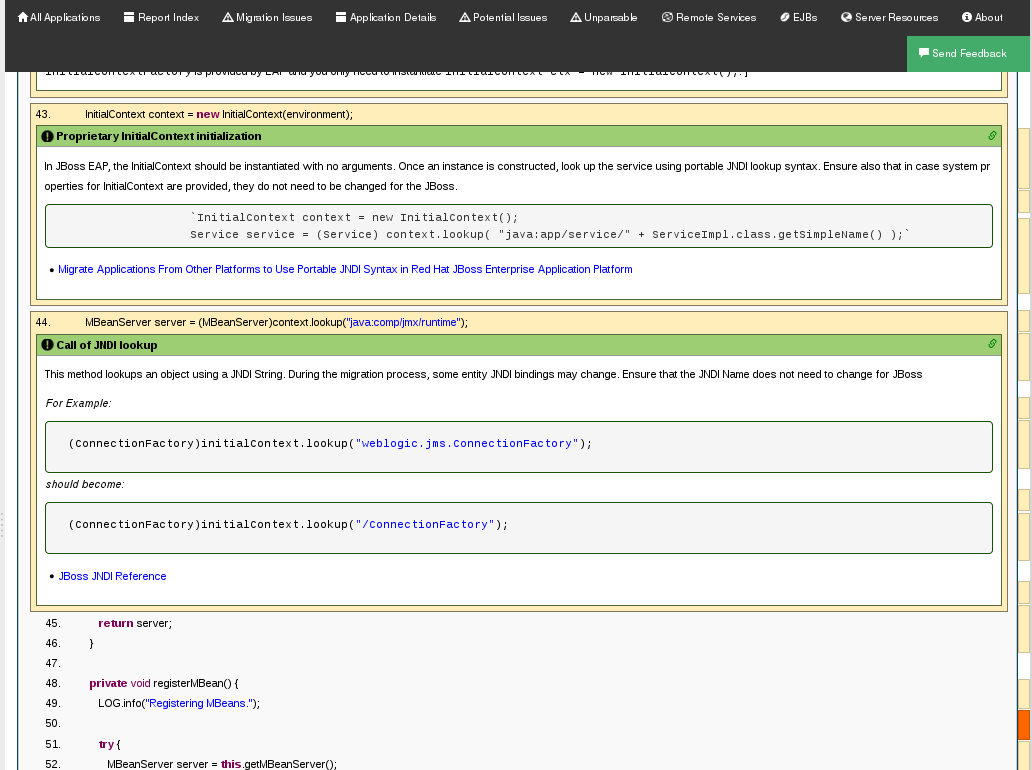
Later in the source code, warnings appear for the creation of the InitialContext and for JNDI lookup names.
Windup Report: Source Report - Part 2
2.3.2.2. Rule Provider Execution Report
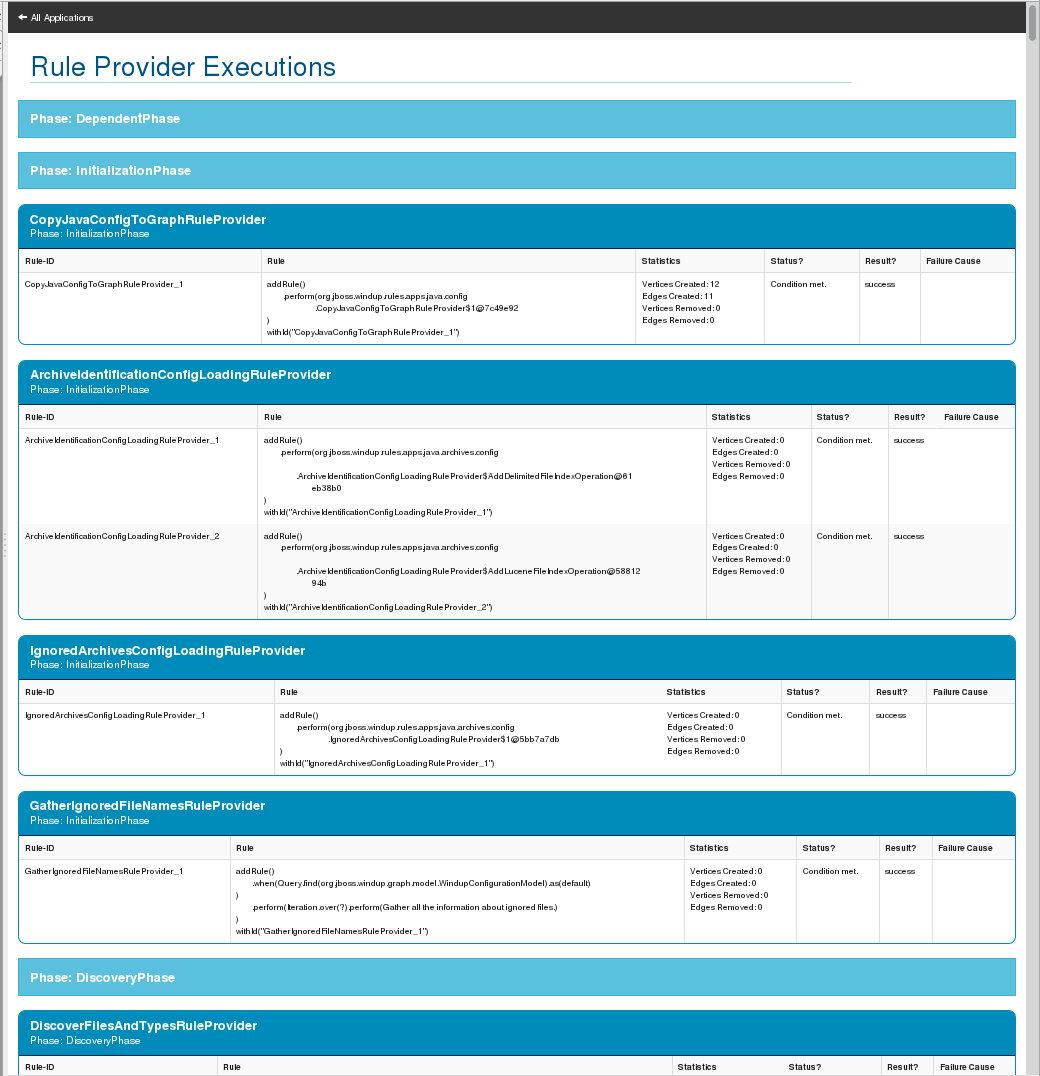
As stated above,access this report by clicking on the All Rules link at the bottom of the index page. This report provides the list of rule providers that executed when running the Windup migration command against the application. The report contains the following columns.
| Column Name | Description |
|---|---|
| Rule-ID | The Rule ID |
| Rule | The Java code for the rule |
| Statistics | Statistics behind the graph |
| Status? | Whether the rule executed or not |
| Result? | Whether the execution was successful or not |
| Failure Cause | The reason for an execution failure |
Windup Report: Rule Provider Report
2.3.2.3. Windup FreeMarker Functions and Directives Report
Access this report by clicking on the Windup FreeMarker Methods link on the initial index page. This report lists all the registered functions and directives that were used to build the report. It is useful if you plan to build your own custom report or for debugging purposes.
Windup Report: FreeMarker Functions and Directives

2.3.2.4. Send Feedback Form
Access the feedback form by clicking on the Send Feedback link on the initial index page. The form allows you to rate the product, talk about what you like and what needs to be improved. You can also attach a file.
Send Feedback Form

2.4. Export the Report for Use by Spreadsheet Programs
Windup provides the ability to export the report data, including the Classifications and Hints, to a flat file on your local file system. The export function currently supports the CSV file format, which presents the report data as fields delimited by a comma (,) separator.
Windup follows the Common Format and MIME Type for Comma-Separated Values (CSV) Files standard for escaping special characters contained within each field in the file. The exported file has the following characteristics.
-
The file is named with the
.csvfile extension. The first row is a header listing the names of the fields.
"Rule Id","Problem type","Title","Description","Links","Application","File Name","File Path","Line","Story points"
"Rule Id","Problem type","Title","Description","Links","Application","File Name","File Path","Line","Story points"Copy to Clipboard Copied! Toggle word wrap Toggle overflow Each field is enclosed in double quotes (").
"FindUnboundJavaReferencesRuleProvider","hint","Unresolved Class Binding","","","JEE Example EJB Services (org.windup.example:jee-example-services:1.0.0)","ProductCatalogLocalHome.java","/home/username/windup-reports/jee-example-app-1.0.0.ear-report/archives/jee-example-services.jar/com/acme/anvil/service/ProductCatalogLocalHome.java","9","5"
"FindUnboundJavaReferencesRuleProvider","hint","Unresolved Class Binding","","","JEE Example EJB Services (org.windup.example:jee-example-services:1.0.0)","ProductCatalogLocalHome.java","/home/username/windup-reports/jee-example-app-1.0.0.ear-report/archives/jee-example-services.jar/com/acme/anvil/service/ProductCatalogLocalHome.java","9","5"Copy to Clipboard Copied! Toggle word wrap Toggle overflow Any double quote (") appearing within a field is preceded with another double quote.
"MyWindupRule","hint",""Replace the ""foo"" class","Replace the ""foo"" class instances with ""bar""",,"MyApp","MyApp.java","home/username/MyApp","200","8"
"MyWindupRule","hint",""Replace the ""foo"" class","Replace the ""foo"" class instances with ""bar""",,"MyApp","MyApp.java","home/username/MyApp","200","8"Copy to Clipboard Copied! Toggle word wrap Toggle overflow
The CSV formatted file can be imported and manipulated by spreadsheet software such as Microsoft Excel and OpenOffice or LibreOffice Calc. Spreadsheet software provides the ability to sort, analyze, evaluate, and manage the result data from a Windup report.
2.4.1. Enable the Export Functionality
To enable export of the report into CSV file, run Windup with --exportCSV argument. The CSV file will be created in the directory specified by the --output argument.
2.4.2. Import the CSV File into a Spreadsheet
- Start the spreadsheet software (LibreOffice Calc, OpenOffice Calc, Microsoft Excel, etc.).
-
Choose
FileOpen. - Navigate to the CSV exported file and select it.
- The data is now ready to analyze in the spreadsheet software.
For more information or to resolve any issues, check the help for your spreadsheet software.
2.4.3. Overview of the CSV data structure
The CSV formatted output file contains the following data fields:
- Rule Id
- The ID of the rule that generated the given item.
- Problem type
- "Hint" or "Classification"
- Title
- The title of the Classification or Hint. This field summarizes the issue for the given item.
- Description
- The detailed description of the issue for the given item.
- Links
- URLs that provide additional information about the issue. A link consists of two attributes: the link and a description of the link.
- Application
- The name of the application for which this item was generated.
- File Name
- The name of the file for the given item.
- File Path
- The file path of the file for the given item.
- Line
- The line number of the file for the given item.
- Story points
- The number of story points, which represent the level of effort, assigned to the given item.

'%20d='M201.5%20305.5c-13.8%200-24.9-11.1-24.9-24.6%200-13.8%2011.1-24.9%2024.9-24.9%2013.6%200%2024.6%2011.1%2024.6%2024.9%200%2013.6-11.1%2024.6-24.6%2024.6zM504%20256c0%20137-111%20248-248%20248S8%20393%208%20256%20119%208%20256%208s248%20111%20248%20248zm-132.3-41.2c-9.4%200-17.7%203.9-23.8%2010-22.4-15.5-52.6-25.5-86.1-26.6l17.4-78.3%2055.4%2012.5c0%2013.6%2011.1%2024.6%2024.6%2024.6%2013.8%200%2024.9-11.3%2024.9-24.9s-11.1-24.9-24.9-24.9c-9.7%200-18%205.8-22.1%2013.8l-61.2-13.6c-3-.8-6.1%201.4-6.9%204.4l-19.1%2086.4c-33.2%201.4-63.1%2011.3-85.5%2026.8-6.1-6.4-14.7-10.2-24.1-10.2-34.9%200-46.3%2046.9-14.4%2062.8-1.1%205-1.7%2010.2-1.7%2015.5%200%2052.6%2059.2%2095.2%20132%2095.2%2073.1%200%20132.3-42.6%20132.3-95.2%200-5.3-.6-10.8-1.9-15.8%2031.3-16%2019.8-62.5-14.9-62.5zM302.8%20331c-18.2%2018.2-76.1%2017.9-93.6%200-2.2-2.2-6.1-2.2-8.3%200-2.5%202.5-2.5%206.4%200%208.6%2022.8%2022.8%2087.3%2022.8%20110.2%200%202.5-2.2%202.5-6.1%200-8.6-2.2-2.2-6.1-2.2-8.3%200zm7.7-75c-13.6%200-24.6%2011.1-24.6%2024.9%200%2013.6%2011.1%2024.6%2024.6%2024.6%2013.8%200%2024.9-11.1%2024.9-24.6%200-13.8-11-24.9-24.9-24.9z'/%3e%3c/svg%3e)