 Red Hat Summit
Deploy Red Hat Quay on OpenShift with the Quay Operator
Deploy Red Hat Quay on OpenShift with Quay Operator
Abstract
Preface
Red Hat Quay is an enterprise-quality container registry. Use Red Hat Quay to build and store container images, then make them available to deploy across your enterprise.
The Red Hat Quay Operator provides a simple method to deploy and manage Red Hat Quay on an OpenShift cluster.
As of Red Hat Quay 3.4.0, the Operator has been completely re-written to provide an improved out of the box experience as well as support for more Day 2 operations. As a result the new Operator is simpler to use and is more opinionated. The key differences from earlier versions of the Operator are:
-
The
QuayEcosystemcustom resource has been replaced with theQuayRegistrycustom resource - The default installation options produces a fully supported Quay environment with all managed dependencies (database, caches, object storage, etc) supported for production use (some components may not be highly available)
- A new robust validation library for Quay’s configuration which is shared by the Quay application and config tool for consistency
-
Object storage can now be managed by the Operator using the
ObjectBucketClaimKubernetes API (Red Hat OpenShift Data Foundation can be used to provide a supported implementation of this API on OpenShift) - Customization of the container images used by deployed pods for testing and development scenarios
Chapter 1. Introduction to the Red Hat Quay Operator
This document outlines the steps for configuring, deploying, managing and upgrading Red Hat Quay on OpenShift using the Red Hat Quay Operator.
It shows you how to:
- Install the Red Hat Quay Operator
- Configure object storage, either managed or unmanaged
- Configure other unmanaged components, if required, including database, Redis, routes, TLS, etc.
- Deploy the Red Hat Quay registry on OpenShift using the Operator
- Use advanced features supported by the Operator
- Upgrade the registry by upgrading the Operator
1.1. QuayRegistry API
The Quay Operator provides the QuayRegistry custom resource API to declaratively manage Quay container registries on the cluster. Use either the OpenShift UI or a command-line tool to interact with this API.
-
Creating a
QuayRegistrywill result in the Operator deploying and configuring all necessary resources needed to run Quay on the cluster. -
Editing a
QuayRegistrywill result in the Operator reconciling the changes and creating/updating/deleting objects to match the desired configuration. -
Deleting a
QuayRegistrywill result in garbage collection of all previously created resources and theQuaycontainer registry will no longer be available.
The QuayRegistry API is fairly simple, and the fields are outlined in the following sections.
1.2. Quay Operator components
Quay is a powerful container registry platform and as a result, has a significant number of dependencies. These include a database, object storage, Redis, and others. The Quay Operator manages an opinionated deployment of Quay and its dependencies on Kubernetes. These dependencies are treated as components and are configured through the QuayRegistry API.
In the QuayRegistry custom resource, the spec.components field configures components. Each component contains two fields: kind - the name of the component, and managed - boolean whether the component lifecycle is handled by the Operator. By default (omitting this field), all components are managed and will be autofilled upon reconciliation for visibility:
spec:
  components:
    - managed: true
      kind: clair
    - managed: true
      kind: postgres
    - managed: true
      kind: objectstorage
    - managed: true
      kind: redis
    - managed: true
      kind: horizontalpodautoscaler
    - managed: true
      kind: route
    - managed: true
      kind: mirror
    - managed: true
      kind: monitoring
    - managed: true
      kind: tls
1.3. Using managed components
Unless your QuayRegistry custom resource specifies otherwise, the Operator will use defaults for the following managed components:
- postgres: For storing the registry metadata, uses a version of Postgres 10 from the Software Collections
- redis: Handles Quay builder coordination and some internal logging
-
objectstorage: For storing image layer blobs, utilizes the
ObjectBucketClaimKubernetes API which is provided by Noobaa/RHOCS - clair: Provides image vulnerability scanning
- horizontalpodautoscaler: Adjusts the number of Quay pods depending on memory/cpu consumption
- mirror: Configures repository mirror workers (to support optional repository mirroring)
- route: Provides an external entrypoint to the Quay registry from outside OpenShift
- monitoring: Features include a Grafana dashboard, access to individual metrics, and alerting to notify for frequently restarting Quay pods
- tls: Configures whether Red Hat Quay or OpenShift handles TLS
The Operator will handle any required configuration and installation work needed for Red Hat Quay to use the managed components. If the opinionated deployment performed by the Quay Operator is unsuitable for your environment, you can provide the Operator with unmanaged resources (overrides) as described in the following sections.
1.4. Using unmanaged components for dependencies
If you have existing components such as Postgres, Redis or object storage that you would like to use with Quay, you first configure them within the Quay configuration bundle (config.yaml) and then reference the bundle in your QuayRegistry (as a Kubernetes Secret) while indicating which components are unmanaged.
The Quay config editor can also be used to create or modify an existing config bundle and simplifies the process of updating the Kubernetes Secret, especially for multiple changes. When Quay’s configuration is changed via the config editor and sent to the Operator, the Quay deployment will be updated to reflect the new configuration.
1.5. Config bundle secret
The spec.configBundleSecret field is a reference to the metadata.name of a Secret in the same namespace as the QuayRegistry. This Secret must contain a config.yaml key/value pair. This config.yaml file is a Quay config YAML file. This field is optional, and will be auto-filled by the Operator if not provided. If provided, it serves as the base set of config fields which are later merged with other fields from any managed components to form a final output Secret, which is then mounted into the Quay application pods.
1.6. Prerequisites for Red Hat Quay on OpenShift
Before you begin the deployment of Red Hat Quay Operator on OpenShift, you should consider the following.
1.6.1. OpenShift cluster
You need a privileged account to an OpenShift 4.5 or later cluster on which to deploy the Red Hat Quay Operator. That account must have the ability to create namespaces at the cluster scope.
1.6.2. Resource Requirements
Each Red Hat Quay application pod has the following resource requirements:
- 8Gi of memory
- 2000 millicores of CPU.
The Red Hat Quay Operator will create at least one application pod per Red Hat Quay deployment it manages. Ensure your OpenShift cluster has sufficient compute resources for these requirements.
1.6.3. Object Storage
By default, the Red Hat Quay Operator uses the ObjectBucketClaim Kubernetes API to provision object storage. Consuming this API decouples the Operator from any vendor-specific implementation. Red Hat OpenShift Data Foundation provides this API via its NooBaa component, which will be used in this example.
Red Hat Quay can be manually configured to use any of the following supported cloud storage options:
- Amazon S3 (see S3 IAM Bucket Policy for details on configuring an S3 bucket policy for Red Hat Quay)
- Azure Blob Storage
- Google Cloud Storage
- Ceph Object Gateway (RADOS)
- OpenStack Swift
- CloudFront + S3
Chapter 2. Installing the Quay Operator from OperatorHub
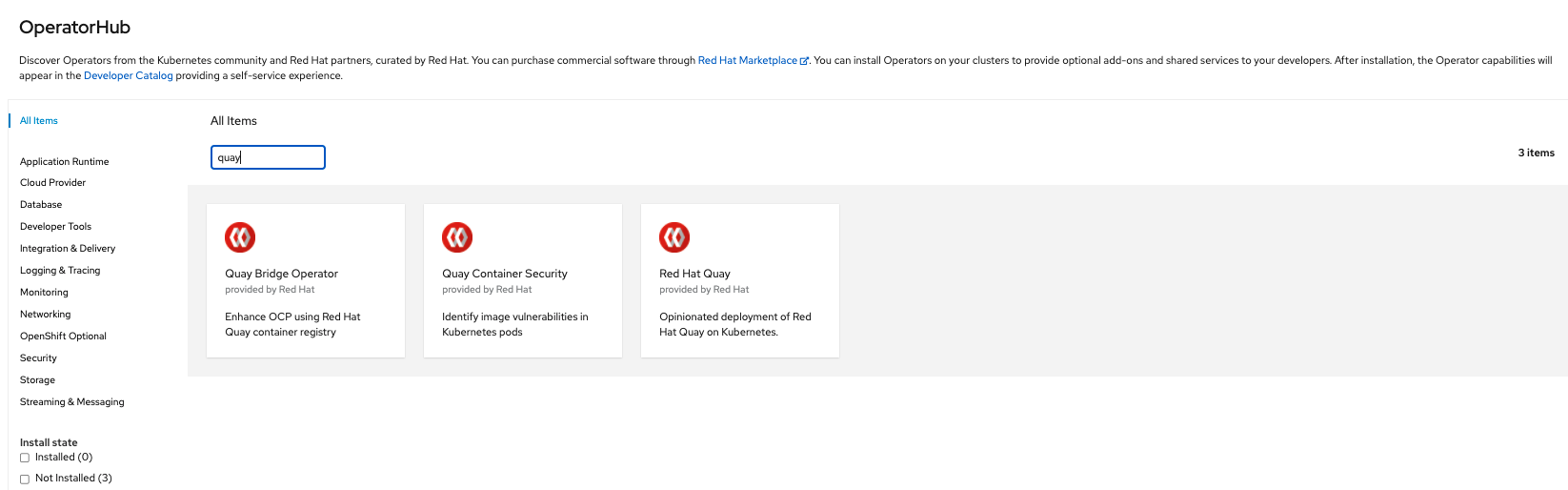
Using the OpenShift console, Select Operators → OperatorHub, then select the Red Hat Quay Operator. If there is more than one, be sure to use the Red Hat certified Operator and not the community version.
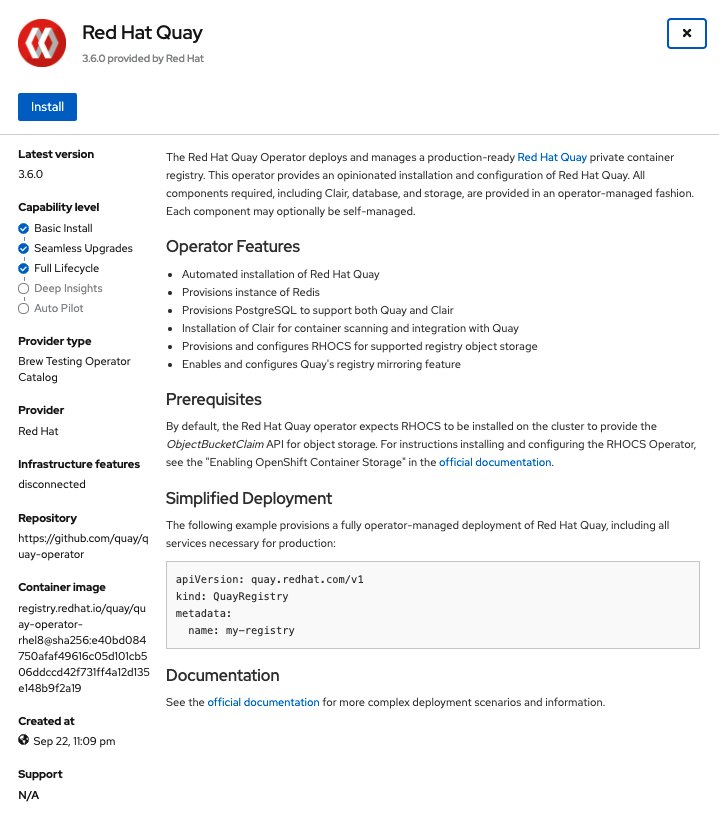
The Installation page outlines the features and prerequisites:
Select Install. The Operator Installation page appears.
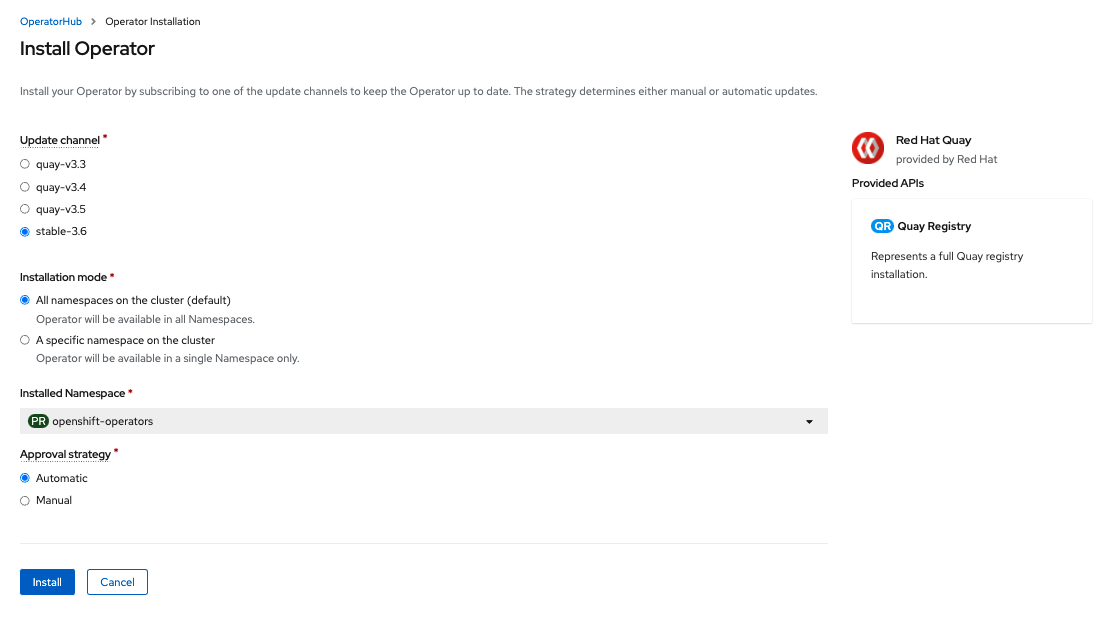
The following choices are available for customizing the installation:
-
Update Channel: Choose the update channel, for example,
stable-3.6for the latest release. -
Installation Mode: Choose
All namespaces on the clusterif you want the Operator to be available cluster-wide. ChooseA specific namespace on the clusterif you want it deployed only within a single namespace. It is recommended that you install the Operator cluster-wide. If you choose a single namespace, the monitoring component will not be available by default. - Approval Strategy: Choose to approve either automatic or manual updates. Automatic update strategy is recommended.
-
Update Channel: Choose the update channel, for example,
- Select Install.
- After a short time, you will see the Operator installed successfully in the Installed Operators page.
Chapter 3. Configuring Quay before deployment
The Operator can manage all the Red Hat Quay components when deploying on OpenShift, and this is the default configuration. Alternatively, you can manage one or more components externally yourself, where you want more control over the set up, and then allow the Operator to manage the remaining components.
The standard pattern for configuring unmanaged components is:
-
Create a
config.yamlconfiguration file with the appropriate settings Create a Secret using the configuration file
$ oc create secret generic --from-file config.yaml=./config.yaml config-bundle-secretCreate a QuayRegistry YAML file
quayregistry.yaml, identifying the unmanaged components and also referencing the created Secret, for example:quayregistry.yaml
apiVersion: quay.redhat.com/v1
kind: QuayRegistry
metadata:
  name: example-registry
  namespace: quay-enterprise
spec:
  configBundleSecret: config-bundle-secret
  components:
    - kind: objectstorage
      managed: false
Deploy the registry using the YAML file:
oc create -f quayregistry.yaml
3.1. Pre-configuring Quay for automation
Quay has a number of configuration options that support automation. These options can be set before deployment, to minimize the need to interact with the user interface.
3.1.1. Allowing the API to create the first user
Set the config option FEATURE_USER_INITIALIZE to true, so that you can use the API /api/v1/user/initialize to create the first user. This API endpoint does not require authentication, unlike all other registry API calls which require an OAuth token which is generated by an OAuth application in an existing organization.
Once you have deployed Quay, you can use the API to create a user, for example, quayadmin, provided no other users have already been created. For more information, see the section on Creating the first user using the API
3.1.2. Enabling general API access
Set the config option BROWSER_API_CALLS_XHR_ONLY to false, to allow general access to the Quay registry API.
3.1.3. Adding a super user
While you cannot create a user until after deployment, it is convenient to ensure that first user is an administrator with full permissions. It is easier to configure this in advance, using the SUPER_USER configuration object.
3.1.4. Restricting user creation
Once you have configured a super user, you can restrict the ability to create new users to the super user group. Set the FEATURE_USER_CREATION to false to restrict user creation.
3.1.5. Suggested configuration for automation
Create a config.yaml configuration file that includes the appropriate settings:
config.yaml
...
FEATURE_USER_INITIALIZE: true
BROWSER_API_CALLS_XHR_ONLY: false
SUPER_USERS:
- quayadmin
FEATURE_USER_CREATION: false
...
3.1.6. Deploying the Operator using the initial configuration
Create a Secret using the configuration file
$ oc create secret generic --from-file config.yaml=./config.yaml init-config-bundle-secretCreate a QuayRegistry YAML file
quayregistry.yaml, identifying the unmanaged components and also referencing the created Secret, for example:quayregistry.yaml
apiVersion: quay.redhat.com/v1
kind: QuayRegistry
metadata:
  name: example-registry
  namespace: quay-enterprise
spec:
  configBundleSecret: init-config-bundle-secret
Deploy the registry:
$ oc create -f quayregistry.yaml-
Create the first user,
quayadmin, using the API
3.2. Configuring object storage
You need to configure object storage before installing Red Hat Quay, irrespective of whether you are allowing the Operator to manage the storage or managing it yourself.
If you want the Operator to be responsible for managing storage, see the section on Managed storage for information on installing and configuring the NooBaa / RHOCS Operator.
If you are using a separate storage solution, set objectstorage as unmanaged when configuring the Operator. See the following section. Unmanaged storage, for details of configuring existing storage.
3.2.1. Unmanaged storage
Some configuration examples for unmanaged storage are provided in this section for convenience. See the Red Hat Quay configuration guide for full details for setting up object storage.
3.2.1.1. AWS S3 storage
DISTRIBUTED_STORAGE_CONFIG:
  s3Storage:
    - S3Storage
    - host: s3.us-east-2.amazonaws.com
      s3_access_key: ABCDEFGHIJKLMN
      s3_secret_key: OL3ABCDEFGHIJKLMN
      s3_bucket: quay_bucket
      storage_path: /datastorage/registry
DISTRIBUTED_STORAGE_DEFAULT_LOCATIONS: []
DISTRIBUTED_STORAGE_PREFERENCE:
    - s3Storage
3.2.1.2. Google cloud storage
DISTRIBUTED_STORAGE_CONFIG:
    googleCloudStorage:
        - GoogleCloudStorage
        - access_key: GOOGQIMFB3ABCDEFGHIJKLMN
          bucket_name: quay-bucket
          secret_key: FhDAYe2HeuAKfvZCAGyOioNaaRABCDEFGHIJKLMN
          storage_path: /datastorage/registry
DISTRIBUTED_STORAGE_DEFAULT_LOCATIONS: []
DISTRIBUTED_STORAGE_PREFERENCE:
    - googleCloudStorage
3.2.1.3. Azure storage
DISTRIBUTED_STORAGE_CONFIG:
  azureStorage:
    - AzureStorage
    - azure_account_name: azure_account_name_here
      azure_account_key: azure_account_key_here
      azure_container: azure_container_here
      sas_token: some/path/
      storage_path: /datastorage/registry
DISTRIBUTED_STORAGE_DEFAULT_LOCATIONS: []
DISTRIBUTED_STORAGE_PREFERENCE:
    - azureStorage
3.2.1.4. NooBaa unmanaged storage
- Create a NooBaa Object Bucket Claim in the console at Storage → Object Bucket Claims.
- Retrieve the Object Bucket Claim Data details including the Access Key, Bucket Name, Endpoint (hostname) and Secret Key.
Create a
config.yamlconfiguration file, using the information for the Object Bucket Claim:DISTRIBUTED_STORAGE_CONFIG: default: - RHOCSStorage - access_key: WmrXtSGk8B3nABCDEFGH bucket_name: my-noobaa-bucket-claim-8b844191-dc6c-444e-9ea4-87ece0abcdef hostname: s3.openshift-storage.svc.cluster.local is_secure: true port: "443" secret_key: X9P5SDGJtmSuHFCMSLMbdNCMfUABCDEFGH+C5QD storage_path: /datastorage/registry DISTRIBUTED_STORAGE_DEFAULT_LOCATIONS: [] DISTRIBUTED_STORAGE_PREFERENCE: - default
3.2.2. Managed storage
If you want the Operator to manage object storage for Quay, your cluster needs to be capable of providing object storage via the ObjectBucketClaim API. Using the Red Hat OpenShift Data Foundation (ODF) Operator, there are two supported options available:
A standalone instance of the Multi-Cloud Object Gateway backed by a local Kubernetes
PersistentVolumestorage- Not highly available
- Included in the Quay subscription
- Does not require a separate subscription for ODF
A production deployment of ODF with scale-out Object Service and Ceph
- Highly available
- Requires a separate subscription for ODF
To use the standalone instance option, continue reading below. For production deployment of ODF, please refer to the official documentation.
Object storage disk space is allocated automatically by the Operator with 50 GiB. This number represents a usable amount of storage for most small to medium Red Hat Quay installations but may not be sufficient for your use cases. Resizing the RHOCS volume is currently not handled by the Operator. See the section below on resizing managed storage for more details.
3.2.2.1. About The Standalone Object Gateway
As part of a Red Hat Quay subscription, users are entitled to use the Multi-Cloud Object Gateway (MCG) component of the Red Hat OpenShift Data Foundation Operator (formerly known as OpenShift Container Storage Operator). This gateway component allows you to provide an S3-compatible object storage interface to Quay backed by Kubernetes PersistentVolume-based block storage. The usage is limited to a Quay deployment managed by the Operator and to the exact specifications of the MCG instance as documented below.
Since Red Hat Quay does not support local filesystem storage, users can leverage the gateway in combination with Kubernetes PersistentVolume storage instead, to provide a supported deployment. A PersistentVolume is directly mounted on the gateway instance as a backing store for object storage and any block-based StorageClass is supported.
By the nature of PersistentVolume, this is not a scale-out, highly available solution and does not replace a scale-out storage system like Red Hat OpenShift Data Foundation (ODF). Only a single instance of the gateway is running. If the pod running the gateway becomes unavailable due to rescheduling, updates or unplanned downtime, this will cause temporary degradation of the connected Quay instances.
3.2.2.1.1. Create A Standalone Object Gateway
To install the ODF (formerly known as OpenShift Container Storage) Operator and configure a single instance Multi-Cloud Gateway service, follow these steps:
- Open the OpenShift console and select Operators → OperatorHub, then select the OpenShift Data Foundation Operator.
- Select Install. Accept all default options and select Install again.
Within a minute, the Operator will install and create a namespace
openshift-storage. You can confirm it has completed when theStatuscolumn is markedSucceeded.When the installation of the ODF Operator is complete, you are prompted to create a storage system. Do not follow this instruction. Instead, create NooBaa object storage as outlined the following steps.Create NooBaa object storage. Save the following YAML to a file called
noobaa.yaml.apiVersion: noobaa.io/v1alpha1 kind: NooBaa metadata: name: noobaa namespace: openshift-storage spec: dbResources: requests: cpu: '0.1' memory: 1Gi dbType: postgres coreResources: requests: cpu: '0.1' memory: 1GiThis will create a single instance deployment of the Multi-cloud Object Gateway.
Apply the configuration with the following command:
$ oc create -n openshift-storage -f noobaa.yaml
noobaa.noobaa.io/noobaa created
After a couple of minutes, you should see that the MCG instance has finished provisioning (
PHASEcolumn will be set toReady):$ oc get -n openshift-storage noobaas noobaa -w NAME MGMT-ENDPOINTS S3-ENDPOINTS IMAGE PHASE AGE noobaa [https://10.0.32.3:30318] [https://10.0.32.3:31958] registry.redhat.io/ocs4/mcg-core-rhel8@sha256:56624aa7dd4ca178c1887343c7445a9425a841600b1309f6deace37ce6b8678d Ready 3d18hNext, configure a backing store for the gateway. Save the following YAML to a file called
noobaa-pv-backing-store.yaml.noobaa-pv-backing-store.yaml
apiVersion: noobaa.io/v1alpha1
kind: BackingStore
metadata:
  finalizers:
  - noobaa.io/finalizer
  labels:
    app: noobaa
  name: noobaa-pv-backing-store
  namespace: openshift-storage
spec:
  pvPool:
    numVolumes: 1
    resources:
      requests:
        storage: 50Gi
1 storageClass: STORAGE-CLASS-NAME2 type: pv-poolApply the configuration with the following command:
$ oc create -f noobaa-pv-backing-store.yaml
backingstore.noobaa.io/noobaa-pv-backing-store created
This creates the backing store configuration for the gateway. All images in Quay will be stored as objects through the gateway in a
PersistentVolumecreated by the above configuration.Finally, run the following command to make the
PersistentVolumebacking store the default for allObjectBucketClaimsissued by the Operator.$ oc patch bucketclass noobaa-default-bucket-class --patch '{"spec":{"placementPolicy":{"tiers":[{"backingStores":["noobaa-pv-backing-store"]}]}}}' --type merge -n openshift-storage
This concludes the setup of the Multi-Cloud Object Gateway instance for Red Hat Quay. Note that this configuration cannot be run in parallel on a cluster with Red Hat OpenShift Data Foundation installed.
3.3. Configuring the database
3.3.1. Using an existing Postgres database
Create a configuration file
config.yamlwith the necessary database fields:config.yaml:
DB_URI: postgresql://test-quay-database:postgres@test-quay-database:5432/test-quay-databaseCreate a Secret using the configuration file:
$ kubectl create secret generic --from-file config.yaml=./config.yaml config-bundle-secretCreate a QuayRegistry YAML file
quayregistry.yamlwhich marks thepostgrescomponent as unmanaged and references the created Secret:quayregistry.yaml
apiVersion: quay.redhat.com/v1 kind: QuayRegistry metadata: name: example-registry namespace: quay-enterprise spec: configBundleSecret: config-bundle-secret components: - kind: postgres managed: false- Deploy the registry as detailed in the following sections.
3.3.2. Database configuration
You configure the connection to the database using the required DB_URI field and optional connection arguments in the DB_CONNECTION_ARGS structure. Some key-value pairs defined under DB_CONNECTION_ARGS are generic while others are database-specific. In particular, SSL configuration depends on the database you are deploying, and examples for PostgreSQL and MySQL are given below.
3.3.2.1. Database URI
| Field | Type | Description |
|---|---|---|
|
DB_URI | String | The URI for accessing the database, including any credentials |
Example:
postgresql://quayuser:quaypass@quay-server.example.com:5432/quay3.3.2.2. Database connection arguments
| Field | Type | Description |
|---|---|---|
| DB_CONNECTION_ARGS | Object | Optional connection arguments for the database, such as timeouts and SSL |
| .autorollback | Boolean |
Whether to use thread-local connections |
| .threadlocals | Boolean |
Whether to use auto-rollback connections |
3.3.2.2.1. PostgreSQL SSL connection arguments
A sample PostgreSQL SSL configuration is given below:
DB_CONNECTION_ARGS:
  sslmode: verify-ca
  sslrootcert: /path/to/cacert
The sslmode option determines whether or with what priority a secure SSL TCP/IP connection will be negotiated with the server. There are six modes:
- disable: only try a non-SSL connection
- allow: first try a non-SSL connection; if that fails, try an SSL connection
- prefer: (default) first try an SSL connection; if that fails, try a non-SSL connection
- require: only try an SSL connection. If a root CA file is present, verify the certificate in the same way as if verify-ca was specified
- verify-ca: only try an SSL connection, and verify that the server certificate is issued by a trusted certificate authority (CA)
- verify-full: only try an SSL connection, verify that the server certificate is issued by a trusted CA and that the requested server host name matches that in the certificate
More information on the valid arguments for PostgreSQL is available at https://www.postgresql.org/docs/current/libpq-connect.html.
3.3.2.2.2. MySQL SSL connection arguments
A sample MySQL SSL configuration follows:
DB_CONNECTION_ARGS:
  ssl:
    ca: /path/to/cacert
Information on the valid connection arguments for MySQL is available at https://dev.mysql.com/doc/refman/8.0/en/connecting-using-uri-or-key-value-pairs.html.
3.3.3. Using the managed PostgreSQL
Recommendations:
- Database backups should be performed regularly using either the supplied tools on the Postgres image or your own backup infrastructure. The Operator does not currently ensure the Postgres database is backed up.
-
Restoring the Postgres database from a backup must be done using Postgres tools and procedures. Be aware that your Quay
Podsshould not be running while the database restore is in progress. - Database disk space is allocated automatically by the Operator with 50 GiB. This number represents a usable amount of storage for most small to medium Red Hat Quay installations but may not be sufficient for your use cases. Resizing the database volume is currently not handled by the Operator.
3.4. Configuring TLS and routes
Support for OpenShift Container Platform Edge-Termination Routes has been added by way of a new managed component, tls. This separates the route component from TLS and allows users to configure both separately. EXTERNAL_TLS_TERMINATION: true is the opinionated setting. Managed tls means that the default cluster wildcard cert is used. Unmanaged tls means that the user provided cert/key pair will be injected into the Route.
ssl.cert and ssl.key are now moved to a separate, persistent Secret, which ensures that the cert/key pair is not re-generated upon every reconcile. These are now formatted as edge routes and mounted to the same directory in the Quay container.
Multiple permutations are possible when configuring TLS and Routes, but the following rules apply:
-
If TLS is
managed, then route must also bemanaged -
If TLS is
unmanagedthen you must supply certs, either with the config tool or directly in the config bundle
The following table outlines the valid options:
| Option | Route | TLS | Certs provided | Result |
|---|---|---|---|---|
| My own load balancer handles TLS | Managed | Managed | No | Edge Route with default wildcard cert |
| Red Hat Quay handles TLS | Managed | Unmanaged | Yes | Passthrough route with certs mounted inside the pod |
| Red Hat Quay handles TLS | Unmanaged | Unmanaged | Yes | Certificates are set inside the quay pod but route must be created manually |
Red Hat Quay 3.6 does not support builders when TLS is managed by the Operator.
3.4.1. Creating the config bundle secret with TLS cert, key pair:
To add your own TLS cert and key, include them in the config bundle secret as follows:
$ oc create secret generic --from-file config.yaml=./config.yaml --from-file ssl.cert=./ssl.cert --from-file ssl.key=./ssl.key config-bundle-secret3.5. Configuring other components
3.5.1. Using external Redis
If you wish to use an external Redis database, set the component as unmanaged in the QuayRegistry instance:
Create a configuration file
config.yamlwith the necessary redis fields:BUILDLOGS_REDIS: host: quay-server.example.com password: strongpassword port: 6379 USER_EVENTS_REDIS: host: quay-server.example.com password: strongpassword port: 6379Create a Secret using the configuration file
$ oc create secret generic --from-file config.yaml=./config.yaml config-bundle-secretCreate a QuayRegistry YAML file
quayregistry.yamlwhich marks redis component as unmanaged and references the created Secret:apiVersion: quay.redhat.com/v1 kind: QuayRegistry metadata: name: example-registry namespace: quay-enterprise spec: configBundleSecret: config-bundle-secret components: - kind: redis managed: false- Deploy the registry
3.5.1.1. Redis configuration fields
3.5.1.1.1. Build logs
| Field | Type | Description |
|---|---|---|
|
BUILDLOGS_REDIS | Object | Redis connection details for build logs caching |
|
.host | String |
The hostname at which Redis is accessible |
|
.port | Number |
The port at which Redis is accessible |
| .password | String |
The port at which Redis is accessible |
3.5.1.1.2. User events
| Field | Type | Description |
|---|---|---|
|
USER_EVENTS_REDIS | Object | Redis connection details for user event handling |
|
.host | String |
The hostname at which Redis is accessible |
|
.port | Number |
The port at which Redis is accessible |
| .password | String |
The port at which Redis is accessible |
3.5.1.1.3. Example redis configuration
BUILDLOGS_REDIS:
    host: quay-server.example.com
    password: strongpassword
    port: 6379

USER_EVENTS_REDIS:
    host: quay-server.example.com
    password: strongpassword
port: 63793.5.2. Disabling the Horizontal Pod Autoscaler
HorizontalPodAutoscalers have been added to the Clair, Quay, and Mirror pods, so that they now automatically scale during load spikes.
As HPA is configured by default to be managed, the number of pods for Quay, Clair and repository mirroring is set to two. This facilitates the avoidance of downtime when updating / reconfiguring Quay via the Operator or during rescheduling events.
If you wish to disable autoscaling or create your own HorizontalPodAutoscaler, simply specify the component as unmanaged in the QuayRegistry instance:
apiVersion: quay.redhat.com/v1
kind: QuayRegistry
metadata:
  name: example-registry
  namespace: quay-enterprise
spec:
  components:
    - kind: horizontalpodautoscaler
      managed: false
3.5.3. Disabling Route Component
To prevent the Operator from creating a Route:
Mark the component as unmanaged in the
QuayRegistry:apiVersion: quay.redhat.com/v1 kind: QuayRegistry metadata: name: example-registry namespace: quay-enterprise spec: components: - kind: route managed: falseSpecify that you want Quay to handle TLS in the configuration, by editing the
config.yamlfile:config.yaml
...
EXTERNAL_TLS_TERMINATION: false
...
SERVER_HOSTNAME: example-registry-quay-quay-enterprise.apps.user1.example.com
...
PREFERRED_URL_SCHEME: https
...
If you do not configure the unmanaged Route correctly, you will see an error similar to the following:
{
  {
    "kind":"QuayRegistry",
    "namespace":"quay-enterprise",
    "name":"example-registry",
    "uid":"d5879ba5-cc92-406c-ba62-8b19cf56d4aa",
    "apiVersion":"quay.redhat.com/v1",
    "resourceVersion":"2418527"
  },
  "reason":"ConfigInvalid",
  "message":"required component `route` marked as unmanaged, but `configBundleSecret` is missing necessary fields"
}
Disabling the default Route means you are now responsible for creating a Route, Service, or Ingress in order to access the Quay instance and that whatever DNS you use must match the SERVER_HOSTNAME in the Quay config.
3.5.4. Unmanaged monitoring
If you install the Quay Operator in a single namespace, the monitoring component is automatically set to 'unmanaged'. To enable monitoring in this scenario, see the section Section 8.2, “Enabling monitoring when Operator is installed in a single namespace”.
To disable monitoring explicitly:
apiVersion: quay.redhat.com/v1
kind: QuayRegistry
metadata:
  name: example-registry
  namespace: quay-enterprise
spec:
  components:
    - kind: monitoring
      managed: false
3.5.5. Unmanaged mirroring
To disable mirroring explicitly:
apiVersion: quay.redhat.com/v1
kind: QuayRegistry
metadata:
  name: example-registry
  namespace: quay-enterprise
spec:
  components:
    - kind: mirroring
      managed: false
Chapter 4. Deploying Quay using the Quay Operator
The Operator can be deployed from the command line or from the OpenShift console, but the fundamental steps are the same.
4.1. Deploying Red Hat Quay from the command line
-
Create a namespace, for example,
quay-enterprise. - Create a secret for the config bundle, if you want to pre-configure any aspects of the deployment
Create a
QuayRegistrycustom resource in a file calledquayregistry.yamlFor a minimal deployment, using all the defaults:
quayregistry.yaml:
apiVersion: quay.redhat.com/v1
kind: QuayRegistry
metadata:
  name: example-registry
  namespace: quay-enterprise
If you want to have some components unmanaged, add this information in the
specfield. For example, a minimal deployment might look like:quayregistry.yaml:
apiVersion: quay.redhat.com/v1
kind: QuayRegistry
metadata:
  name: example-registry
  namespace: quay-enterprise
spec:
  components:
    - kind: clair
      managed: false
    - kind: horizontalpodautoscaler
      managed: false
    - kind: mirror
      managed: false
    - kind: monitoring
      managed: false
If you have created a config bundle, for example,
init-config-bundle-secret, reference it in thequayregistry.yamlfile:quayregistry.yaml:
apiVersion: quay.redhat.com/v1
kind: QuayRegistry
metadata:
  name: example-registry
  namespace: quay-enterprise
spec:
  configBundleSecret: init-config-bundle-secret
Create the
QuayRegistryin specified namespace:$ oc create -f quayregistry.yaml- See the section Monitoring and debugging the deployment process for information on how to track the progress of the deployment.
Wait until the
status.registryEndpointis populated.$ oc get quayregistry -n quay-enterprise example-registry -o jsonpath="{.status.registryEndpoint}" -w
4.1.1. Viewing created components using the command line
Use the oc get pods command to view the deployed components:
$ oc get pods -n quay-enterprise

NAME                                                   READY   STATUS      RESTARTS   AGE
example-registry-clair-app-5ffc9f77d6-jwr9s            1/1     Running     0          3m42s
example-registry-clair-app-5ffc9f77d6-wgp7d            1/1     Running     0          3m41s
example-registry-clair-postgres-54956d6d9c-rgs8l       1/1     Running     0          3m5s
example-registry-quay-app-79c6b86c7b-8qnr2             1/1     Running     4          3m42s
example-registry-quay-app-79c6b86c7b-xk85f             1/1     Running     4          3m41s
example-registry-quay-app-upgrade-5kl5r                0/1     Completed   4          3m50s
example-registry-quay-config-editor-597b47c995-svqrl   1/1     Running     0          3m42s
example-registry-quay-database-b466fc4d7-tfrnx         1/1     Running     2          3m42s
example-registry-quay-mirror-6d9bd78756-6lj6p          1/1     Running     0          2m58s
example-registry-quay-mirror-6d9bd78756-bv6gq          1/1     Running     0          2m58s
example-registry-quay-postgres-init-dzbmx              0/1     Completed   0          3m43s
example-registry-quay-redis-8bd67b647-skgqx            1/1     Running     0          3m42s
4.1.2. Horizontal Pod Autoscaling (HPA)
A default deployment shows the following running pods:
-
Two pods for the Quay application itself (
example-registry-quay-app-*`) -
One Redis pod for Quay logging (
example-registry-quay-redis-*) -
One database pod for PostgreSQL used by Quay for metadata storage (
example-registry-quay-database-*) -
One pod for the Quay config editor (
example-registry-quay-config-editor-*) -
Two Quay mirroring pods (
example-registry-quay-mirror-*) -
Two pods for the Clair application (
example-registry-clair-app-*) -
One PostgreSQL pod for Clair (
example-registry-clair-postgres-*)
As HPA is configured by default to be managed, the number of pods for Quay, Clair and repository mirroring is set to two. This facilitates the avoidance of downtime when updating / reconfiguring Quay via the Operator or during rescheduling events.
$ oc get hpa -n quay-enterprise
NAME                           REFERENCE                                 TARGETS           MINPODS   MAXPODS   REPLICAS   AGE
example-registry-clair-app     Deployment/example-registry-clair-app     16%/90%, 0%/90%   2         10        2          13d
example-registry-quay-app      Deployment/example-registry-quay-app      31%/90%, 1%/90%   2         20        2          13d
example-registry-quay-mirror   Deployment/example-registry-quay-mirror   27%/90%, 0%/90%   2         20        2          13d
4.1.3. Using the API to create the first user
When using the API to create the first user, the following conditions must be met:
-
The config option
FEATURE_USER_INITIALIZEmust be set totrue - No users can already exist in the database
For more information on pre-configuring the deployment, see the section Pre-configuring Quay for automation
4.1.3.1. Invoking the API
Using the status.registryEndpoint URL, invoke the /api/v1/user/initialize API, passing in the username, password and email address. You can also request an OAuth token by specifying "access_token": true.
$ curl -X POST -k https://example-registry-quay-quay-enterprise.apps.docs.quayteam.org/api/v1/user/initialize --header 'Content-Type: application/json' --data '{ "username": "quayadmin", "password":"quaypass123", "email": "quayadmin@example.com", "access_token": true}'{"access_token":"6B4QTRSTSD1HMIG915VPX7BMEZBVB9GPNY2FC2ED", "email":"quayadmin@example.com","encrypted_password":"1nZMLH57RIE5UGdL/yYpDOHLqiNCgimb6W9kfF8MjZ1xrfDpRyRs9NUnUuNuAitW","username":"quayadmin"}If successful, the method returns an object with the username, email and encrypted password. If a user already exists in the database, an error is returned:
$ curl -X POST -k https://example-registry-quay-quay-enterprise.apps.docs.quayteam.org/api/v1/user/initialize --header 'Content-Type: application/json' --data '{ "username": "quayuser2", "password":"quaypass123", "email": "quayuser2@example.com"}'{"message":"Cannot initialize user in a non-empty database"}The password must be at least 8 characters and contain no whitespace:
$ curl -X POST -k https://example-registry-quay-quay-enterprise.apps.docs.quayteam.org/api/v1/user/initialize --header 'Content-Type: application/json' --data '{ "username": "quayadmin", "password":"pass123", "email": "quayadmin@example.com"}'{"message":"Failed to initialize user: Invalid password, password must be at least 8 characters and contain no whitespace."}4.1.3.2. Using the OAuth token
You can now invoke the rest of the Quay API specifying the returned OAuth code. For example, to get a list of the current users:
$ curl -X GET -k -H "Authorization: Bearer 6B4QTRSTSD1HMIG915VPX7BMEZBVB9GPNY2FC2ED" https://example-registry-quay-quay-enterprise.apps.docs.quayteam.org/api/v1/superuser/users/{
"users": [
{
"kind": "user",
"name": "quayadmin",
"username": "quayadmin",
"email": "quayadmin@example.com",
"verified": true,
"avatar": {
"name": "quayadmin",
"hash": "3e82e9cbf62d25dec0ed1b4c66ca7c5d47ab9f1f271958298dea856fb26adc4c",
"color": "#e7ba52",
"kind": "user"
},
"super_user": true,
"enabled": true
}
]
}
In this instance, the details for the quayadmin user are returned as it is the only user that has been created so far.
4.1.3.2.1. Create organization
To create an organization, use a POST call to api/v1/organization/ endpoint:
$ curl -X POST -k --header 'Content-Type: application/json' -H "Authorization: Bearer 6B4QTRSTSD1HMIG915VPX7BMEZBVB9GPNY2FC2ED" https://example-registry-quay-quay-enterprise.apps.docs.quayteam.org/api/v1/organization/ --data '{"name": "testorg", "email": "testorg@example.com"}'"Created"4.1.3.2.2. Get organization details
To retrieve the details of the organization you created:
$ curl -X GET -k --header 'Content-Type: application/json' -H "Authorization: Bearer 6B4QTRSTSD1HMIG915VPX7BMEZBVB9GPNY2FC2ED" https://min-registry-quay-quay-enterprise.apps.docs.quayteam.org/api/v1/organization/testorg{
"name": "testorg",
"email": "testorg@example.com",
"avatar": {
"name": "testorg",
"hash": "5f113632ad532fc78215c9258a4fb60606d1fa386c91b141116a1317bf9c53c8",
"color": "#a55194",
"kind": "user"
},
"is_admin": true,
"is_member": true,
"teams": {
"owners": {
"name": "owners",
"description": "",
"role": "admin",
"avatar": {
"name": "owners",
"hash": "6f0e3a8c0eb46e8834b43b03374ece43a030621d92a7437beb48f871e90f8d90",
"color": "#c7c7c7",
"kind": "team"
},
"can_view": true,
"repo_count": 0,
"member_count": 1,
"is_synced": false
}
},
"ordered_teams": [
"owners"
],
"invoice_email": false,
"invoice_email_address": null,
"tag_expiration_s": 1209600,
"is_free_account": true
}4.1.4. Monitoring and debugging the deployment process
Red Hat Quay 3.6 provides new functionality to troubleshoot problems during the deployment phase. The status in the QuayRegistry object can help you monitor the health of the components during the deployment an help you debug any problems that may arise:
$ oc get quayregistry -n quay-enterprise -o yamlImmediately after deployment, the QuayRegistry object will show the basic configuration:
apiVersion: v1
items:
- apiVersion: quay.redhat.com/v1
  kind: QuayRegistry
  metadata:
    creationTimestamp: "2021-09-14T10:51:22Z"
    generation: 3
    name: example-registry
    namespace: quay-enterprise
    resourceVersion: "50147"
    selfLink: /apis/quay.redhat.com/v1/namespaces/quay-enterprise/quayregistries/example-registry
    uid: e3fc82ba-e716-4646-bb0f-63c26d05e00e
  spec:
    components:
    - kind: postgres
      managed: true
    - kind: clair
      managed: true
    - kind: redis
      managed: true
    - kind: horizontalpodautoscaler
      managed: true
    - kind: objectstorage
      managed: true
    - kind: route
      managed: true
    - kind: mirror
      managed: true
    - kind: monitoring
      managed: true
    - kind: tls
      managed: true
    configBundleSecret: example-registry-config-bundle-kt55s
kind: List
metadata:
  resourceVersion: ""
  selfLink: ""
Use the oc get pods command to view the current state of the deployed components:
$ oc get pods -n quay-enterprise

NAME                                                   READY   STATUS              RESTARTS   AGE
example-registry-clair-app-86554c6b49-ds7bl            0/1     ContainerCreating   0          2s
example-registry-clair-app-86554c6b49-hxp5s            0/1     Running             1          17s
example-registry-clair-postgres-68d8857899-lbc5n       0/1     ContainerCreating   0          17s
example-registry-quay-app-upgrade-h2v7h                0/1     ContainerCreating   0          9s
example-registry-quay-config-editor-5f646cbcb7-lbnc2   0/1     ContainerCreating   0          17s
example-registry-quay-database-66f495c9bc-wqsjf        0/1     ContainerCreating   0          17s
example-registry-quay-mirror-854c88457b-d845g          0/1     Init:0/1            0          2s
example-registry-quay-mirror-854c88457b-fghxv          0/1     Init:0/1            0          17s
example-registry-quay-postgres-init-bktdt              0/1     Terminating         0          17s
example-registry-quay-redis-f9b9d44bf-4htpz            0/1     ContainerCreating   0          17s
While the deployment is in progress, the QuayRegistry object will show the current status. In this instance, database migrations are taking place, and other components are waiting until this completes.
  status:
    conditions:
    - lastTransitionTime: "2021-09-14T10:52:04Z"
      lastUpdateTime: "2021-09-14T10:52:04Z"
      message: all objects created/updated successfully
      reason: ComponentsCreationSuccess
      status: "False"
      type: RolloutBlocked
    - lastTransitionTime: "2021-09-14T10:52:05Z"
      lastUpdateTime: "2021-09-14T10:52:05Z"
      message: running database migrations
      reason: MigrationsInProgress
      status: "False"
      type: Available
    configEditorCredentialsSecret: example-registry-quay-config-editor-credentials-btbkcg8dc9
    configEditorEndpoint: https://example-registry-quay-config-editor-quay-enterprise.apps.docs.quayteam.org
    lastUpdated: 2021-09-14 10:52:05.371425635 +0000 UTC
    unhealthyComponents:
      clair:
      - lastTransitionTime: "2021-09-14T10:51:32Z"
        lastUpdateTime: "2021-09-14T10:51:32Z"
        message: 'Deployment example-registry-clair-postgres: Deployment does not have minimum availability.'
        reason: MinimumReplicasUnavailable
        status: "False"
        type: Available
      - lastTransitionTime: "2021-09-14T10:51:32Z"
        lastUpdateTime: "2021-09-14T10:51:32Z"
        message: 'Deployment example-registry-clair-app: Deployment does not have minimum availability.'
        reason: MinimumReplicasUnavailable
        status: "False"
        type: Available
      mirror:
      - lastTransitionTime: "2021-09-14T10:51:32Z"
        lastUpdateTime: "2021-09-14T10:51:32Z"
        message: 'Deployment example-registry-quay-mirror: Deployment does not have minimum availability.'
        reason: MinimumReplicasUnavailable
        status: "False"
        type: Available
When the deployment process finishes successfully, the status in the QuayRegistry object shows no unhealthy components:
  status:
    conditions:
    - lastTransitionTime: "2021-09-14T10:52:36Z"
      lastUpdateTime: "2021-09-14T10:52:36Z"
      message: all registry component healthchecks passing
      reason: HealthChecksPassing
      status: "True"
      type: Available
    - lastTransitionTime: "2021-09-14T10:52:46Z"
      lastUpdateTime: "2021-09-14T10:52:46Z"
      message: all objects created/updated successfully
      reason: ComponentsCreationSuccess
      status: "False"
      type: RolloutBlocked
    configEditorCredentialsSecret: example-registry-quay-config-editor-credentials-hg7gg7h57m
    configEditorEndpoint: https://example-registry-quay-config-editor-quay-enterprise.apps.docs.quayteam.org
    currentVersion: 3.6.0
    lastUpdated: 2021-09-14 10:52:46.104181633 +0000 UTC
    registryEndpoint: https://example-registry-quay-quay-enterprise.apps.docs.quayteam.org
    unhealthyComponents: {}
4.2. Deploying Red Hat Quay from the OpenShift console
-
Create a namespace, for example,
quay-enterprise. - Select Operators → Installed Operators, then select the Quay Operator to navigate to the Operator detail view.
- Click 'Create Instance' on the 'Quay Registry' tile under 'Provided APIs'.
-
Optionally change the 'Name' of the
QuayRegistry. This will affect the hostname of the registry. All other fields have been populated with defaults. -
Click 'Create' to submit the
QuayRegistryto be deployed by the Quay Operator. -
You should be redirected to the
QuayRegistrylist view. Click on theQuayRegistryyou just created to see the details view. - Once the 'Registry Endpoint' has a value, click it to access your new Quay registry via the UI. You can now select 'Create Account' to create a user and sign in.
4.2.1. Using the Quay UI to create the first user
This procedure assumes that the FEATURE_USER_CREATION config option has not been set to false. If it is false, then the Create Account functionality on the UI will be disabled, and you will have to use the API to create the first user.
- In the OpenShift console, navigate to Operators → Installed Operators, with the appropriate namespace / project.
Click on the newly installed QuayRegistry, to view the details:
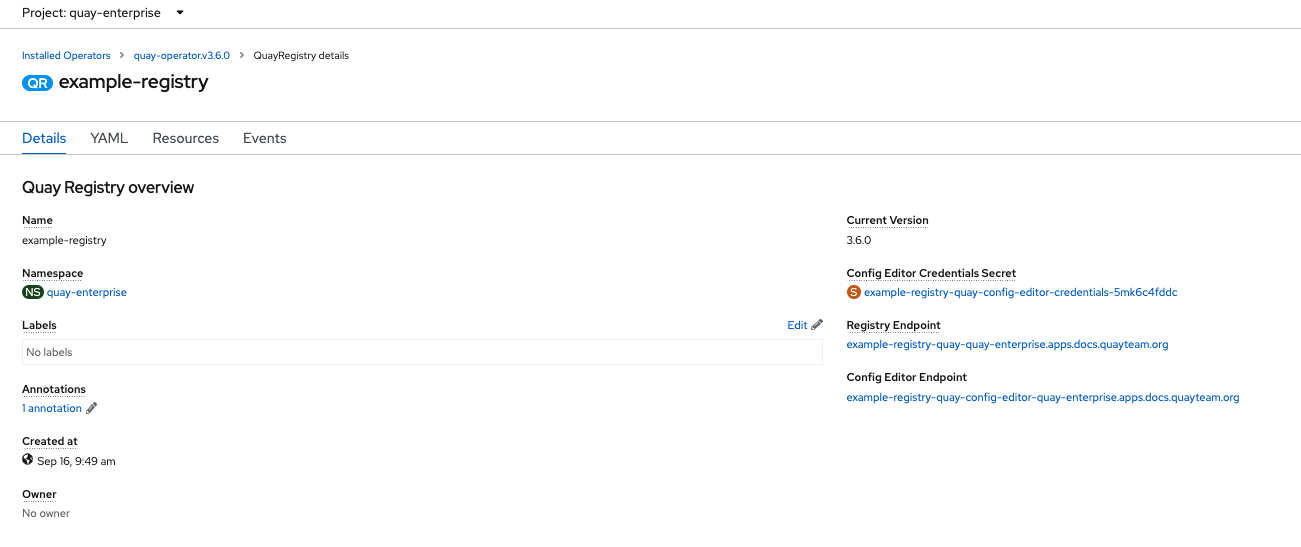
-
Once the
Registry Endpointhas a value, navigate to this URL in your browser Select 'Create Account' in the Quay registry UI to create a user
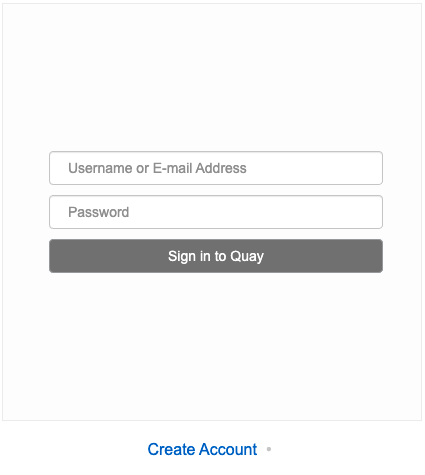
Enter details for username, password, email and click
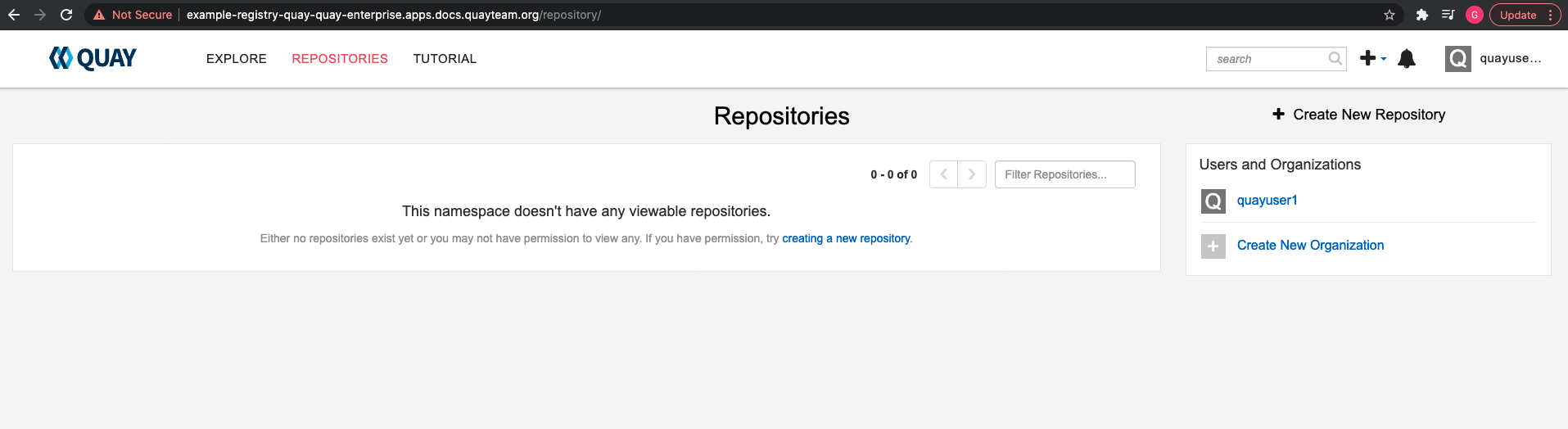
Create Account
You are automatically logged in to the Quay registry
Chapter 5. Configuring Quay on OpenShift using the command line and API
Once deployed, you can configure the Quay application by editing the Quay configuration bundle secret spec.configBundleSecret and you can also change the managed status of components in the spec.components object of the QuayRegistry resource
The Operator does not watch the spec.configBundleSecret resource for changes, so it is recommended that configuration changes be made to a new Secret resource and that the spec.configBundleSecret field is updated to reflect the change. In the event there are issues with the new configuration, it is simple to revert the value of spec.configBundleSecret to the older Secret.
The procedure for changing the configuration involves:
- Determining the current endpoints and secrets
- Downloading the existing configuration bundle, if Red Hat Quay has already been deployed on OpenShift
-
Creating or updating the
config.yamlconfiguration file - Assembling any SSL certs required for Quay, or custom SSL certs needed for services
- Creating a new config bundle secret, using the config file and any certs
- Creating or updating the registry, referencing the new config bundle secret and specifying any over-rides for managing components
- Monitoring the deployment to ensure successful completion and that the configuration changes have taken effect
Alternatively, you can use the config editor UI to configure the Quay application, as described in the section Chapter 6, Using the config tool to reconfigure Quay on OpenShift.
5.1. Determining QuayRegistry endpoints and secrets
You can examine the QuayRegistry resource, using oc describe quayregistry or oc get quayregistry -o yaml, to determine the current endpoints and secrets:
$ oc get quayregistry example-registry -n quay-enterprise -o yaml

apiVersion: quay.redhat.com/v1
kind: QuayRegistry
metadata:
  ...
  name: example-registry
  namespace: quay-enterprise
  ...
spec:
  components:
  ...
  configBundleSecret: example-registry-quay-config-bundle-fjpnm
status:
  configEditorCredentialsSecret: example-registry-quay-config-editor-credentials-kk55dc7299
  configEditorEndpoint: https://example-registry-quay-config-editor-quay-enterprise.apps.docs.quayteam.org
  currentVersion: 3.6.0
  lastUpdated: 2021-09-21 11:18:13.285192787 +0000 UTC
  registryEndpoint: https://example-registry-quay-quay-enterprise.apps.docs.quayteam.org
  unhealthyComponents: {}
The relevant fields are:
-
registryEndpoint: The URL for your registry, for browser access to the registry UI, and for the registry API endpoint -
configBundleSecret: The config bundle secret, containing theconfig.yamlfile and any SSL certs -
configEditorEndpoint: The URL for the config editor tool, for browser access to the config tool, and for the configuration API -
configEditorCredentialsSecret: The secret containing the username (typicallyquayconfig) and the password for the config editor tool
To determine the username and password for the config editor tool:
Retrieve the secret:
$ oc get secret -n quay-enterprise example-registry-quay-config-editor-credentials-kk55dc7299 -o yaml

apiVersion: v1
data:
  password: SkZwQkVKTUN0a1BUZmp4dA==
  username: cXVheWNvbmZpZw==
kind: Secret
Decode the username:
$ echo 'cXVheWNvbmZpZw==' | base64 --decode

quayconfig
Decode the password:
$ echo 'SkZwQkVKTUN0a1BUZmp4dA==' | base64 --decode

JFpBEJMCtkPTfjxt
5.2. Downloading the existing configuration
There are a number of methods for accessing the current configuration:
Using the config editor endpoint, specifying the username and password for the config editor:
$ curl -k -u quayconfig:JFpBEJMCtkPTfjxt https://example-registry-quay-config-editor-quay-enterprise.apps.docs.quayteam.org/api/v1/config{ "config.yaml": { "ALLOW_PULLS_WITHOUT_STRICT_LOGGING": false, "AUTHENTICATION_TYPE": "Database", ... "USER_RECOVERY_TOKEN_LIFETIME": "30m" }, "certs": { "extra_ca_certs/service-ca.crt": "LS0tLS1CRUdJTiBDRVJUSUZJQ0FURS0tLS0tCk1JSURVVENDQWptZ0F3SUJBZ0lJRE9kWFhuUXFjMUF3RFFZSktvWklodmNOQVFFTEJRQXdOakUwTURJR0ExVUUKQXd3cmIzQmxibk5vYVdaMExYTmxjblpwWTJVdGMyVnlkbWx1WnkxemFXZHVaWEpBTVRZek1UYzNPREV3TXpBZQpGdzB5TVRBNU1UWXdOelF4TkRKYUZ..." } }Using the config bundle secret
Get the secret data:
$ oc get secret -n quay-enterprise example-registry-quay-config-bundle-jkfhs -o jsonpath='{.data}'{ "config.yaml": "QUxMT1dfUFVMTFNfV0lUSE9VVF9TVFJJQ1RfTE9HR0lORzogZmFsc2UKQVVUSEVOVElDQVRJT05fVFlQRTogRGF0YWJhc2UKQVZBVEFSX0tJTkQ6IGxvY2FsCkRBVEFCQVNFX1NFQ1JFVF9LRVk6IHhlOEc1VDBNbkllaGxNQzNkTjd3MWR5WWxwVmo0a0R2enlxZ3l6Ulp5ZjFpODBmWWU3VDUxU1FPZ3hXelpocFlqYlVxNzRKaDllVVVEVWpyCkRFR ... OgotIDJ3ClRFQU1fUkVTWU5DX1NUQUxFX1RJTUU6IDYwbQpURVNUSU5HOiBmYWxzZQpVU0VSX1JFQ09WRVJZX1RPS0VOX0xJRkVUSU1FOiAzMG0K", "extra_ca_cert_service-ca.crt": "LS0tLS1CRUdJTiBDRVJUSUZJQ0FURS0tLS0tCk1JSURVVENDQWptZ0F3SUJBZ0lJRE9kWFhuUXFjMUF3RFFZSktvWklodmNOQVFFTEJRQXdOakUwTURJR0ExVUUKQXd3cmIzQmxibk5vYVdaMExYTmxjblpwWTJVdGMyVnlkbWx1WnkxemFXZHVaWEpBTVRZek1UYzNPREV3TXpBZQpGdzB5TVRBNU1UWXdOelF4TkRKYUZ3MHl ... XSW1jaApkQXZTWGpFUnZOZEZzN3pHK1VzTmZwN0ZIQkJVWkY4L2RZNWJCR2MwWTVaY0J6bFNjQT09Ci0tLS0tRU5EIENFUlRJRklDQVRFLS0tLS0K" }Decode the data:
$ echo 'QUxMT1dfUFVMTFN...U1FOiAzMG0K' | base64 --decodeALLOW_PULLS_WITHOUT_STRICT_LOGGING: false AUTHENTICATION_TYPE: Database ... TAG_EXPIRATION_OPTIONS: - 2w TEAM_RESYNC_STALE_TIME: 60m TESTING: false USER_RECOVERY_TOKEN_LIFETIME: 30m
5.3. Using the config bundle to configure custom SSL certs
You can configure custom SSL certs either before initial deployment or after Red Hat Quay is deployed on OpenShift, by creating a new config bundle secret. If you are adding the cert(s) to an existing deployment, you must include the complete existing config.yaml in the new config bundle secret, even if you are not making any configuration changes.
Create the secret using embedded data or using files:
Embed the configuration details directly in the Secret resource YAML file, for example:
custom-ssl-config-bundle.yaml
apiVersion: v1
kind: Secret
metadata:
  name: custom-ssl-config-bundle-secret
  namespace: quay-enterprise
data:
  config.yaml: |
    ALLOW_PULLS_WITHOUT_STRICT_LOGGING: false
    AUTHENTICATION_TYPE: Database
    ...
  extra_ca_cert_my-custom-ssl.crt: |
    -----BEGIN CERTIFICATE-----
    MIIDsDCCApigAwIBAgIUCqlzkHjF5i5TXLFy+sepFrZr/UswDQYJKoZIhvcNAQEL
    BQAwbzELMAkGA1UEBhMCSUUxDzANBgNVBAgMBkdBTFdBWTEPMA0GA1UEBwwGR0FM
    ....
    -----END CERTIFICATE-----
Next, create the secret from the YAML file:
$ oc create -f custom-ssl-config-bundle.yamlAlternatively, you can create files containing the desired information, and then create the secret from those files:
$ oc create secret generic custom-ssl-config-bundle-secret \
  --from-file=config.yaml \
  --from-file=extra_ca_cert_my-custom-ssl.crt=my-custom-ssl.crt
Create or update the QuayRegistry YAML file
quayregistry.yaml, referencing the created Secret, for example:quayregistry.yaml
apiVersion: quay.redhat.com/v1
kind: QuayRegistry
metadata:
  name: example-registry
  namespace: quay-enterprise
spec:
  configBundleSecret: custom-ssl-config-bundle-secret
Deploy or update the registry using the YAML file:
oc apply -f quayregistry.yaml
5.4. Volume size overrides
As of Red Hat Quay v3.6.2, you can specify the desired size of storage resources provisioned for managed components. The default size for Clair and Quay PostgreSQL databases is 50Gi. You can now choose a large enough capacity upfront, either for performance reasons or in the case where your storage backend does not have resize capability.
In the following example, the volume size for the Clair and the Quay PostgreSQL databases has been set to 70Gi:
apiVersion: quay.redhat.com/v1
kind: QuayRegistry
metadata:
  name: quay-example
  namespace: quay-enterprise
spec:
  configBundleSecret: config-bundle-secret
  components:
    - kind: objectstorage
      managed: false
    - kind: route
      managed: true
    - kind: tls
      managed: false
    - kind: clair
      managed: true
      overrides:
        volumeSize: 70Gi
    - kind: postgres
      managed: true
      overrides:
        volumeSize: 70Gi
Chapter 6. Using the config tool to reconfigure Quay on OpenShift
6.1. Accessing the config editor
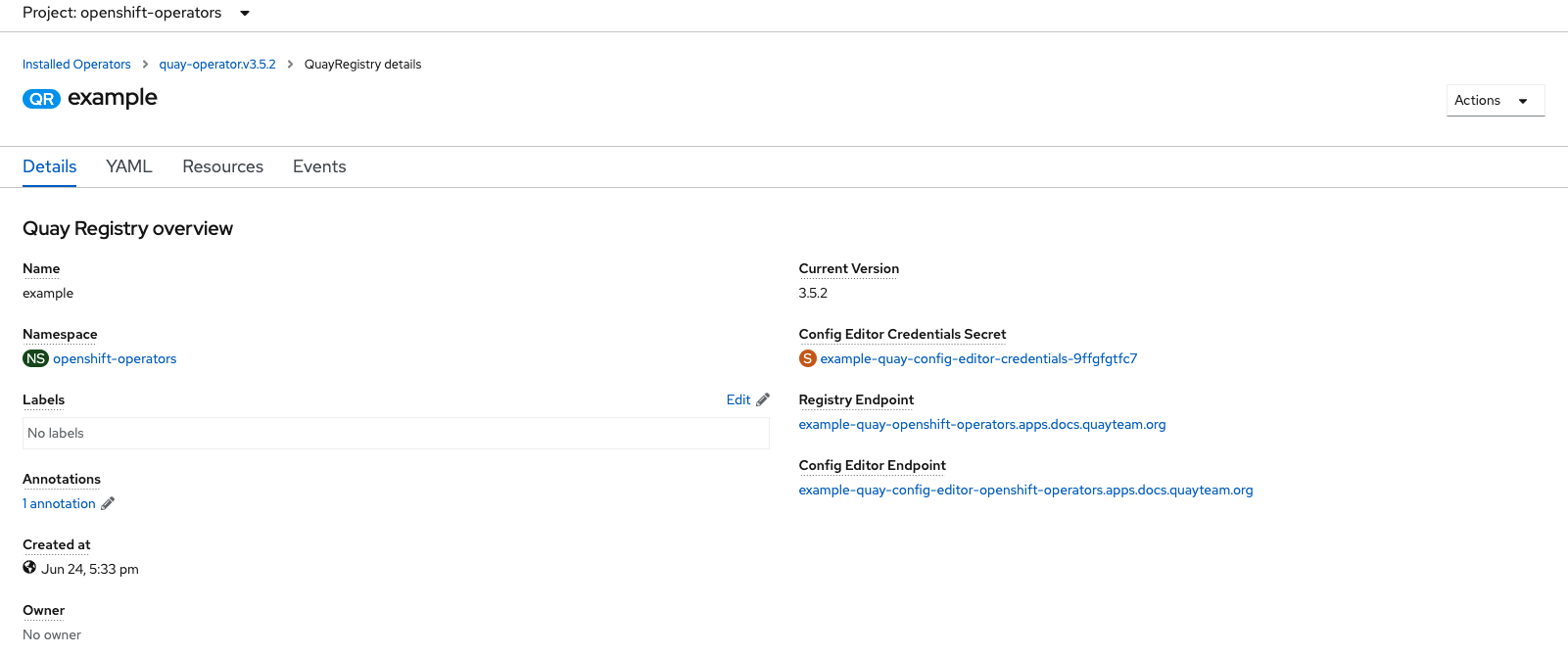
In the Details section of the QuayRegistry screen, the endpoint for the config editor is available, along with a link to the secret containing the credentials for logging into the config editor:
6.1.1. Retrieving the config editor credentials
Click on the link for the config editor secret:
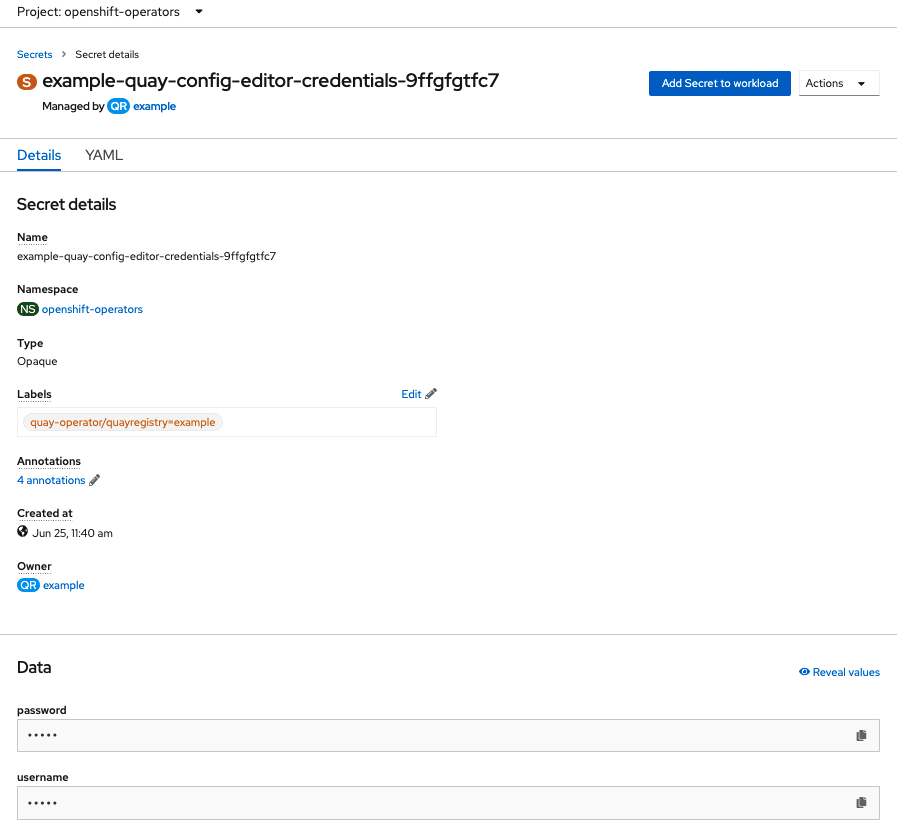
In the Data section of the Secret details screen, click
Reveal valuesto see the credentials for logging in to the config editor: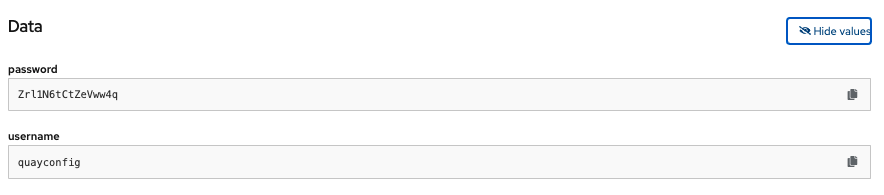
6.1.2. Logging in to the config editor
Browse to the config editor endpoint and then enter the username, typically quayconfig, and the corresponding password to access the config tool:

6.1.3. Changing configuration
In this example of updating the configuration, a superuser is added via the config editor tool:
Add an expiration period, for example
4w, for the time machine functionality:
-
Select
Validate Configuration Changesto ensure that the changes are valid Apply the changes by pressing the
Reconfigure Quaybutton: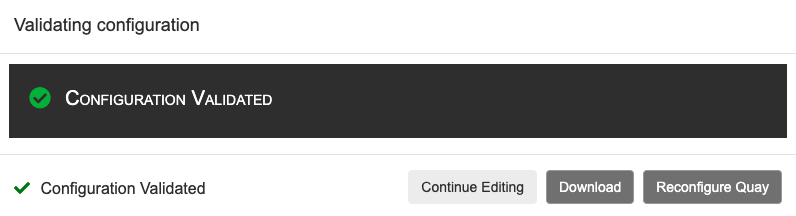
The config tool notifies you that the change has been submitted to Quay:
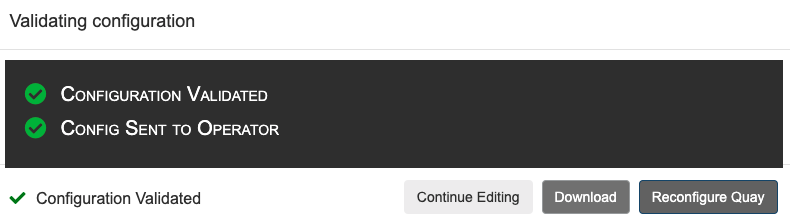
Reconfiguring Red Hat Quay using the config tool UI can lead to the registry being unavailable for a short time, while the updated configuration is applied.
6.2. Monitoring reconfiguration in the UI
6.2.1. QuayRegistry resource
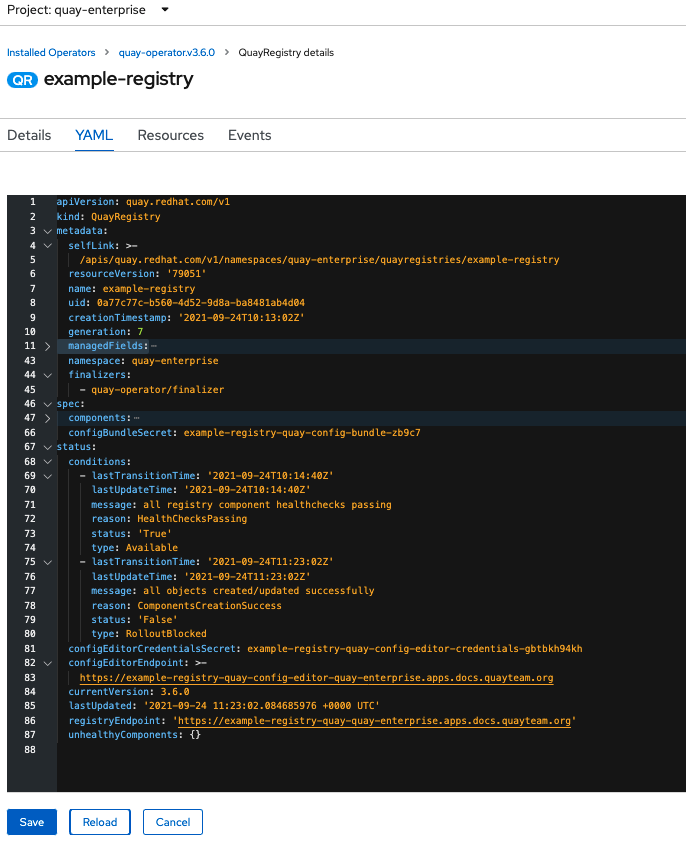
After reconfiguring the Operator, you can track the progress of the redeployment in the YAML tab for the specific instance of QuayRegistry, in this case, example-registry:
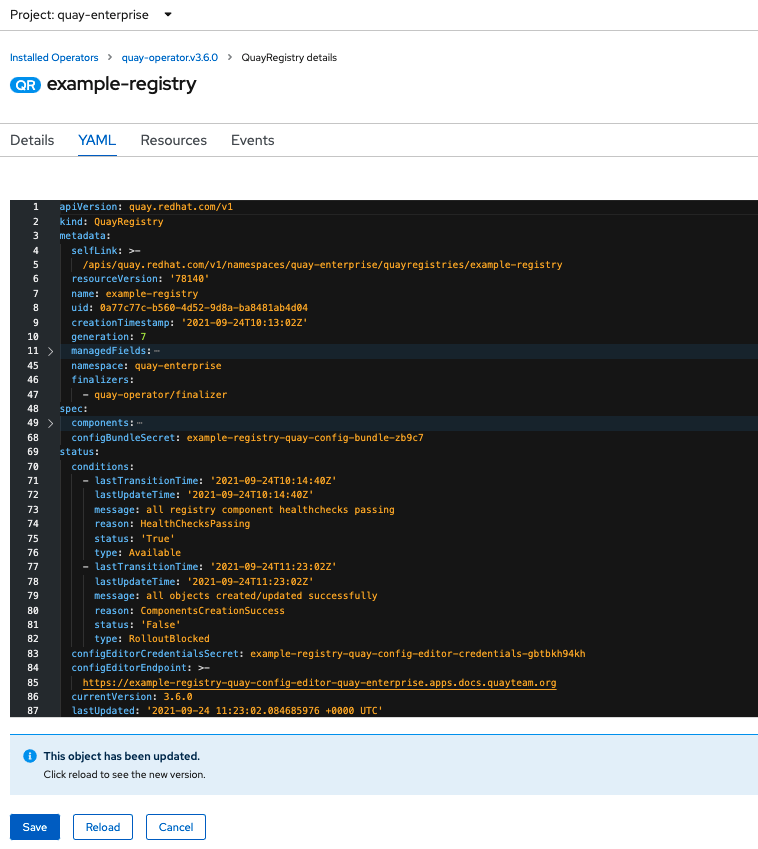
Each time the status changes, you will be prompted to reload the data to see the updated version. Eventually, the Operator will reconcile the changes, and there will be no unhealthy components reported.
6.2.2. Events
The Events tab for the QuayRegistry shows some events related to the redeployment:

Streaming events, for all resources in the namespace that are affected by the reconfiguration, are available in the OpenShift console under Home → Events:
6.3. Accessing updated information after reconfiguration
6.3.1. Accessing the updated config tool credentials in the UI
Since a new pod has been created for the config tool, a new secret will have been created, and you will need to use the updated password when you next attempt to login:

6.3.2. Accessing the updated config.yaml in the UI
Use the config bundle to access the updated config.yaml file.
- On the QuayRegistry details screen, click on the Config Bundle Secret
-
In the Data section of the Secret details screen, click Reveal values to see the
config.yamlfile Check that the change has been applied. In this case,
4wshould be in the list ofTAG_EXPIRATION_OPTIONS:... SERVER_HOSTNAME: example-quay-openshift-operators.apps.docs.quayteam.org SETUP_COMPLETE: true SUPER_USERS: - quayadmin TAG_EXPIRATION_OPTIONS: - 2w - 4w ...
6.4. Custom SSL certificates UI
The config tool can be used to load custom certificates to facilitate access to resources such as external databases. Select the custom certs to be uploaded, ensuring that they are in PEM format, with an extension .crt.
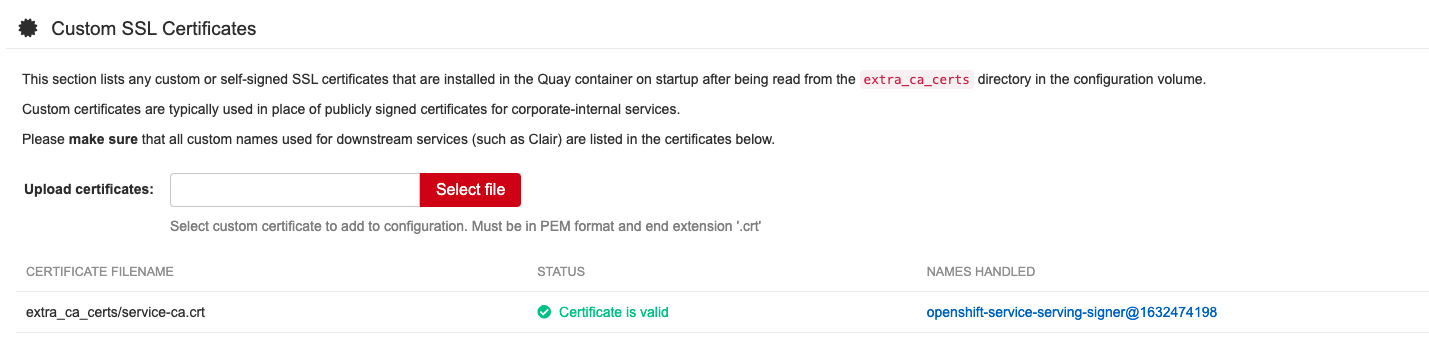
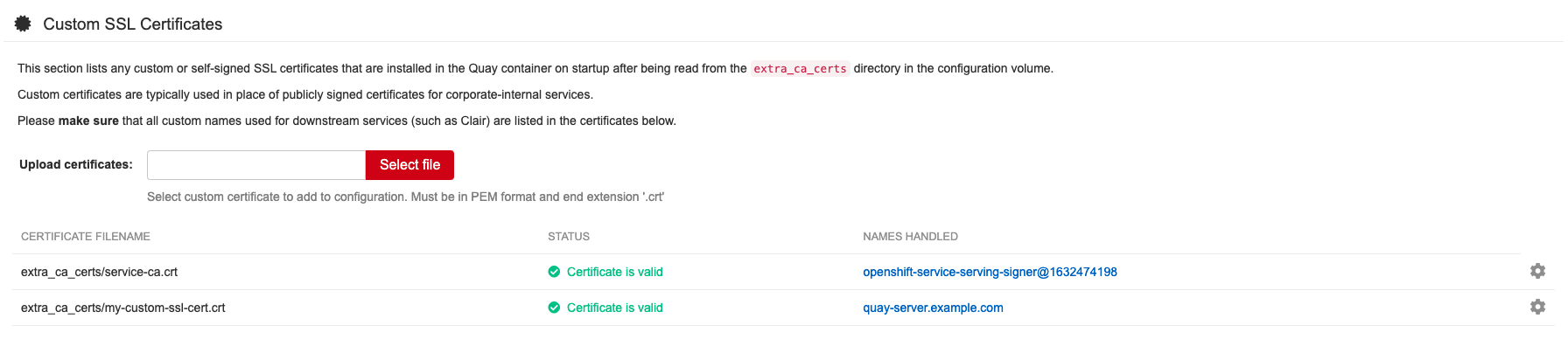
The config tool also displays a list of any uploaded certificates. Once you upload your custom SSL cert, it will appear in the list:
6.5. External Access to the Registry
When running on OpenShift, the Routes API is available and will automatically be used as a managed component. After creating the QuayRegistry, the external access point can be found in the status block of the QuayRegistry:
status:
  registryEndpoint: some-quay.my-namespace.apps.mycluster.com
Chapter 7. Quay Operator features
7.1. Console monitoring and alerting
Red Hat Quay 3.6 provides support for monitoring Quay instances that were deployed using the Operator, from inside the OpenShift console. The new monitoring features include a Grafana dashboard, access to individual metrics, and alerting to notify for frequently restarting Quay pods.
To enable the monitoring features, the Operator must be installed in "all namespaces" mode.
7.1.1. Dashboard
In the OpenShift console, navigate to Monitoring → Dashboards and search for the dashboard of your desired Quay registry instance:
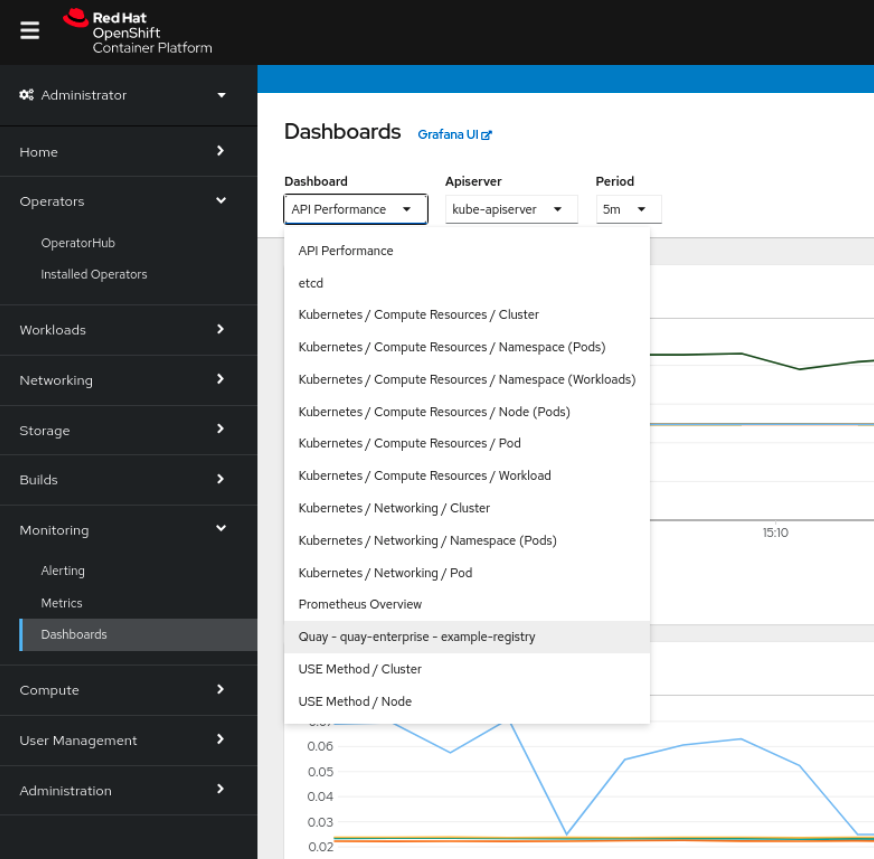
The dashboard shows various statistics including:
- The number of Organizations, Repositories, Users and Robot accounts
- CPU Usage and Max Memory Usage
- Rates of Image Pulls and Pushes, and Authentication requests
- API request rate
- Latencies

7.1.2. Metrics
You can see the underlying metrics behind the Quay dashboard, by accessing Monitoring → Metrics in the UI. In the Expression field, enter the text quay_ to see the list of metrics available:
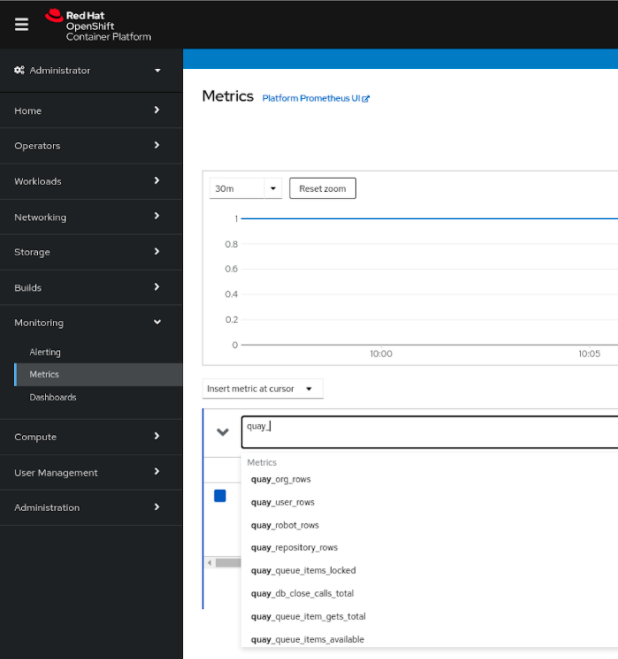
Select a sample metric, for example, quay_org_rows:
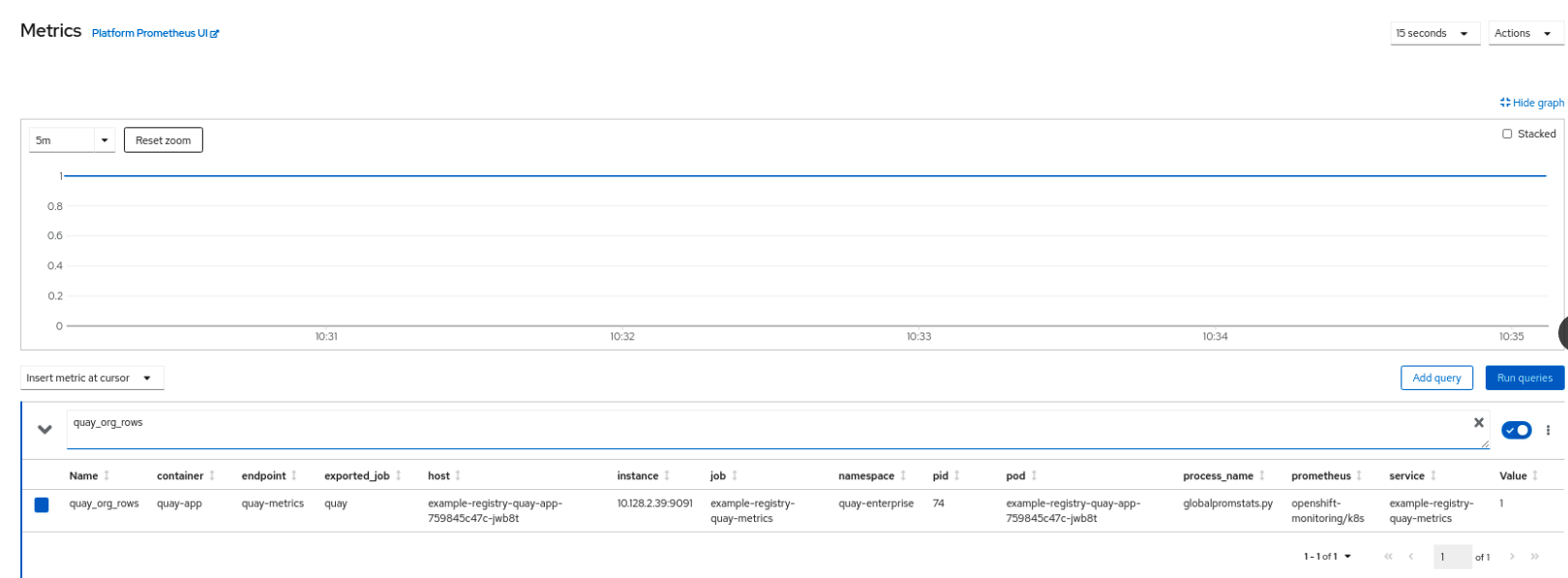
This metric shows the number of organizations in the registry, and it is directly surfaced in the dashboard as well.
7.1.3. Alerting
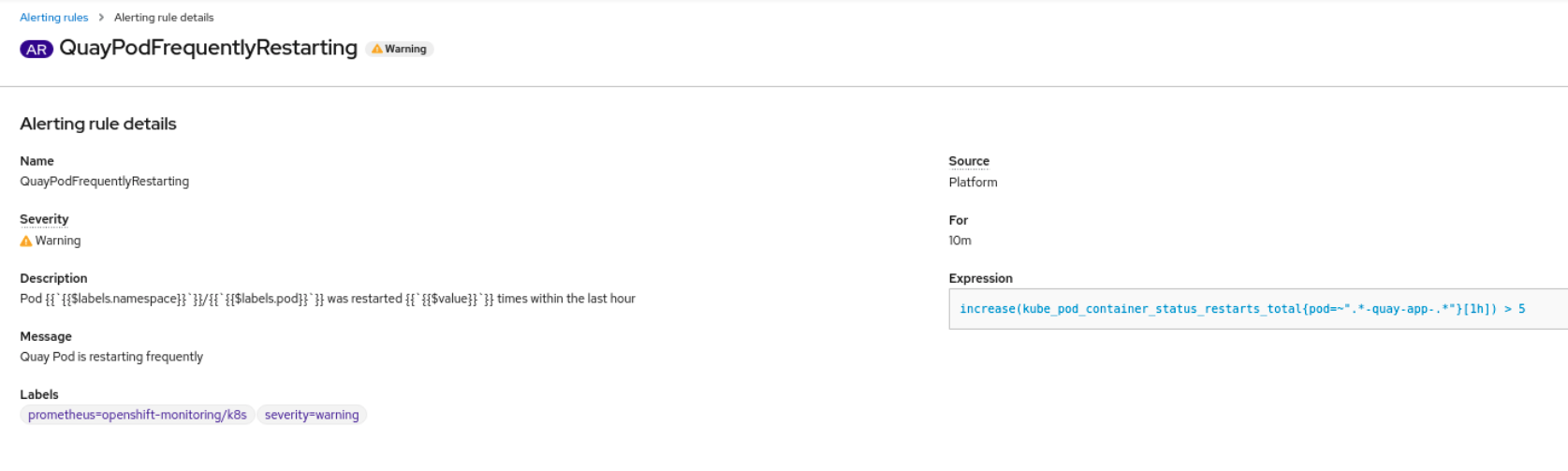
An alert is raised if the Quay pods restart too often. The alert can be configured by accessing the Alerting rules tab from Monitoring → Alerting in the consol UI and searching for the Quay-specific alert:

Select the QuayPodFrequentlyRestarting rule detail to configure the alert:
7.2. Manually updating the vulnerability databases for Clair in an air-gapped OpenShift cluster
Clair utilizes packages called updaters that encapsulate the logic of fetching and parsing different vulnerability databases. Clair supports running updaters in a different environment and importing the results. This is aimed at supporting installations that disallow the Clair cluster from talking to the Internet directly.
To manually update the vulnerability databases for Clair in an air-gapped OpenShift cluster, use the following steps:
-
Obtain the
clairctlprogram - Retrieve the Clair config
-
Use
clairctlto export the updaters bundle from a Clair instance that has access to the internet - Update the Clair config in the air-gapped OpenShift cluster to allow access to the Clair database
- Transfer the updaters bundle from the system with internet access, to make it available inside the air-gapped environment
-
Use
clairctlto import the updaters bundle into the Clair instance for the air-gapped OpenShift cluster
7.2.1. Obtaining clairctl
To obtain the clairctl program from a Clair deployment in an OpenShift cluster, use the oc cp command, for example:
$ oc -n quay-enterprise cp example-registry-clair-app-64dd48f866-6ptgw:/usr/bin/clairctl ./clairctl
$ chmod u+x ./clairctl
For a standalone Clair deployment, use the podman cp command, for example:
$ sudo podman cp clairv4:/usr/bin/clairctl ./clairctl
$ chmod u+x ./clairctl
7.2.2. Retrieving the Clair config
7.2.2.1. Clair on OpenShift config
To retrieve the configuration file for a Clair instance deployed using the OpenShift Operator, retrieve and decode the config secret using the appropriate namespace, and save it to file, for example:
$ kubectl get secret -n quay-enterprise example-registry-clair-config-secret -o "jsonpath={$.data['config\.yaml']}" | base64 -d > clair-config.yamlAn excerpt from a Clair configuration file is shown below:
clair-config.yaml
http_listen_addr: :8080
introspection_addr: ""
log_level: info
indexer:
    connstring: host=example-registry-clair-postgres port=5432 dbname=postgres user=postgres password=postgres sslmode=disable
    scanlock_retry: 10
    layer_scan_concurrency: 5
    migrations: true
    scanner:
        package: {}
        dist: {}
        repo: {}
    airgap: false
matcher:
    connstring: host=example-registry-clair-postgres port=5432 dbname=postgres user=postgres password=postgres sslmode=disable
    max_conn_pool: 100
    indexer_addr: ""
    migrations: true
    period: null
    disable_updaters: false
notifier:
    connstring: host=example-registry-clair-postgres port=5432 dbname=postgres user=postgres password=postgres sslmode=disable
    migrations: true
    indexer_addr: ""
    matcher_addr: ""
    poll_interval: 5m
    delivery_interval: 1m
    ...
7.2.2.2. Standalone Clair config
For standalone Clair deployments, the config file is the one specified in CLAIR_CONF environment variable in the podman run command, for example:
sudo podman run -d --rm --name clairv4 \
  -p 8081:8081 -p 8089:8089 \
  -e CLAIR_CONF=/clair/config.yaml -e CLAIR_MODE=combo \
  -v /etc/clairv4/config:/clair:Z \
  registry.redhat.io/quay/clair-rhel8:v3.6.8
7.2.3. Exporting the updaters bundle
From a Clair instance that has access to the internet, use clairctl with the appropriate configuration file to export the updaters bundle:
$ ./clairctl --config ./config.yaml export-updaters updates.gz7.2.4. Configuring access to the Clair database in the air-gapped OpenShift cluster
Use
kubectlto determine the Clair database service:$ kubectl get svc -n quay-enterprise NAME TYPE CLUSTER-IP EXTERNAL-IP PORT(S) AGE example-registry-clair-app ClusterIP 172.30.224.93 <none> 80/TCP,8089/TCP 4d21h example-registry-clair-postgres ClusterIP 172.30.246.88 <none> 5432/TCP 4d21h ...Forward the Clair database port so that it is accessible from the local machine, for example:
$ kubectl port-forward -n quay-enterprise service/example-registry-clair-postgres 5432:5432Update the Clair configuration file, replacing the value of the
hostin the multipleconnstringfields withlocalhost, for example:clair-config.yaml
    ...
    connstring: host=localhost port=5432 dbname=postgres user=postgres password=postgres sslmode=disable
    ...
As an alternative to using kubectl port-forward, you can use kubefwd instead. With this method, there is no need to modify the connstring field in the Clair configuration file to use localhost.
7.2.5. Importing the updaters bundle into the air-gapped environment
After transferring the updaters bundle to the air-gapped environment, use clairctl to import the bundle into the Clair database deployed by the OpenShift Operator:
$ ./clairctl --config ./clair-config.yaml import-updaters updates.gz7.3. FIPS readiness and compliance
FIPS (the Federal Information Processing Standard developed by the National Institute of Standards and Technology, NIST) is regarded as the gold standard for securing and encrypting sensitive data, particularly in heavily regulated areas such as banking, healthcare and the public sector. Red Hat Enterprise Linux and Red Hat OpenShift Container Platform support this standard by providing a FIPS mode in which the system would only allow usage of certain, FIPS-validated cryptographic modules, like openssl. This ensures FIPS compliance.
Red Hat Quay supports running on RHEL and OCP in FIPS mode in production since version 3.5. Furthermore, Red Hat Quay itself also commits to exclusively using cryptography libraries that are validated or are in the process of being validated by NIST. Red Hat Quay 3.5 has pending FIPS 140-2 validation based on the RHEL 8.3 cryptography libraries. As soon as that validation is finalized, Red Hat Quay will be officially FIPS compliant.
Chapter 8. Advanced Concepts
8.1. Deploying Quay on infrastructure nodes
By default, Quay-related pods are placed on arbitrary worker nodes when using the Operator to deploy the registry. The OpenShift Container Platform documentation shows how to use machine sets to configure nodes to only host infrastructure components (see https://docs.openshift.com/container-platform/4.7/machine_management/creating-infrastructure-machinesets.html).
If you are not using OCP MachineSet resources to deploy infra nodes, this section shows you how to manually label and taint nodes for infrastructure purposes.
Once you have configured your infrastructure nodes, either manually or using machine sets, you can then control the placement of Quay pods on these nodes using node selectors and tolerations.
8.1.1. Label and taint nodes for infrastructure use
In the cluster used in this example, there are three master nodes and six worker nodes:
$ oc get nodes
NAME                                               STATUS   ROLES    AGE     VERSION
user1-jcnp6-master-0.c.quay-devel.internal         Ready    master   3h30m   v1.20.0+ba45583
user1-jcnp6-master-1.c.quay-devel.internal         Ready    master   3h30m   v1.20.0+ba45583
user1-jcnp6-master-2.c.quay-devel.internal         Ready    master   3h30m   v1.20.0+ba45583
user1-jcnp6-worker-b-65plj.c.quay-devel.internal   Ready    worker   3h21m   v1.20.0+ba45583
user1-jcnp6-worker-b-jr7hc.c.quay-devel.internal   Ready    worker   3h21m   v1.20.0+ba45583
user1-jcnp6-worker-c-jrq4v.c.quay-devel.internal   Ready    worker   3h21m   v1.20.0+ba45583
user1-jcnp6-worker-c-pwxfp.c.quay-devel.internal   Ready    worker   3h21m   v1.20.0+ba45583
user1-jcnp6-worker-d-h5tv2.c.quay-devel.internal   Ready    worker   3h22m   v1.20.0+ba45583
user1-jcnp6-worker-d-m9gg4.c.quay-devel.internal   Ready    worker   3h21m   v1.20.0+ba45583
Label the final three worker nodes for infrastructure use:
$ oc label node --overwrite user1-jcnp6-worker-c-pwxfp.c.quay-devel.internal node-role.kubernetes.io/infra=
$ oc label node --overwrite user1-jcnp6-worker-d-h5tv2.c.quay-devel.internal node-role.kubernetes.io/infra=
$ oc label node --overwrite user1-jcnp6-worker-d-m9gg4.c.quay-devel.internal node-role.kubernetes.io/infra=
Now, when you list the nodes in the cluster, the last 3 worker nodes will have an added role of infra:
$ oc get nodes
NAME                                               STATUS   ROLES          AGE     VERSION
user1-jcnp6-master-0.c.quay-devel.internal         Ready    master         4h14m   v1.20.0+ba45583
user1-jcnp6-master-1.c.quay-devel.internal         Ready    master         4h15m   v1.20.0+ba45583
user1-jcnp6-master-2.c.quay-devel.internal         Ready    master         4h14m   v1.20.0+ba45583
user1-jcnp6-worker-b-65plj.c.quay-devel.internal   Ready    worker         4h6m    v1.20.0+ba45583
user1-jcnp6-worker-b-jr7hc.c.quay-devel.internal   Ready    worker         4h5m    v1.20.0+ba45583
user1-jcnp6-worker-c-jrq4v.c.quay-devel.internal   Ready    worker         4h5m    v1.20.0+ba45583
user1-jcnp6-worker-c-pwxfp.c.quay-devel.internal   Ready    infra,worker   4h6m    v1.20.0+ba45583
user1-jcnp6-worker-d-h5tv2.c.quay-devel.internal   Ready    infra,worker   4h6m    v1.20.0+ba45583
user1-jcnp6-worker-d-m9gg4.c.quay-devel.internal   Ready    infra,worker   4h6m    v1.20.0+ba45583
With an infra node being assigned as a worker, there is a chance that user workloads could get inadvertently assigned to an infra node. To avoid this, you can apply a taint to the infra node and then add tolerations for the pods you want to control.
$ oc adm taint nodes user1-jcnp6-worker-c-pwxfp.c.quay-devel.internal node-role.kubernetes.io/infra:NoSchedule
$ oc adm taint nodes user1-jcnp6-worker-d-h5tv2.c.quay-devel.internal node-role.kubernetes.io/infra:NoSchedule
$ oc adm taint nodes user1-jcnp6-worker-d-m9gg4.c.quay-devel.internal node-role.kubernetes.io/infra:NoSchedule
8.1.2. Create a Project with node selector and toleration
If you have already deployed Quay using the Quay Operator, remove the installed operator and any specific namespace(s) you created for the deployment.
Create a Project resource, specifying a node selector and toleration as shown in the following example:
quay-registry.yaml
kind: Project
apiVersion: project.openshift.io/v1
metadata:
  name: quay-registry
  annotations:
    openshift.io/node-selector: 'node-role.kubernetes.io/infra='
    scheduler.alpha.kubernetes.io/defaultTolerations: >-
      [{"operator": "Exists", "effect": "NoSchedule", "key":
      "node-role.kubernetes.io/infra"}
      ]
Use the oc apply command to create the project:
$ oc apply -f quay-registry.yaml
project.project.openshift.io/quay-registry created
Any subsequent resources created in the quay-registry namespace should now be scheduled on the dedicated infrastructure nodes.
8.1.3. Install the Quay Operator in the namespace
When installing the Quay Operator, specify the appropriate project namespace explicitly, in this case quay-registry. This will result in the operator pod itself landing on one of the three infrastructure nodes:
$ oc get pods -n quay-registry -o wide
NAME                                    READY   STATUS    RESTARTS   AGE   IP            NODE
quay-operator.v3.4.1-6f6597d8d8-bd4dp   1/1     Running   0          30s   10.131.0.16   user1-jcnp6-worker-d-h5tv2.c.quay-devel.internal
8.1.4. Create the registry
Create the registry as explained earlier, and then wait for the deployment to be ready. When you list the Quay pods, you should now see that they have only been scheduled on the three nodes that you have labelled for infrastructure purposes:
$ oc get pods -n quay-registry -o wide
NAME                                                   READY   STATUS      RESTARTS   AGE     IP            NODE
example-registry-clair-app-789d6d984d-gpbwd            1/1     Running     1          5m57s   10.130.2.80   user1-jcnp6-worker-d-m9gg4.c.quay-devel.internal
example-registry-clair-postgres-7c8697f5-zkzht         1/1     Running     0          4m53s   10.129.2.19   user1-jcnp6-worker-c-pwxfp.c.quay-devel.internal
example-registry-quay-app-56dd755b6d-glbf7             1/1     Running     1          5m57s   10.129.2.17   user1-jcnp6-worker-c-pwxfp.c.quay-devel.internal
example-registry-quay-config-editor-7bf9bccc7b-dpc6d   1/1     Running     0          5m57s   10.131.0.23   user1-jcnp6-worker-d-h5tv2.c.quay-devel.internal
example-registry-quay-database-8dc7cfd69-dr2cc         1/1     Running     0          5m43s   10.129.2.18   user1-jcnp6-worker-c-pwxfp.c.quay-devel.internal
example-registry-quay-mirror-78df886bcc-v75p9          1/1     Running     0          5m16s   10.131.0.24   user1-jcnp6-worker-d-h5tv2.c.quay-devel.internal
example-registry-quay-postgres-init-8s8g9              0/1     Completed   0          5m54s   10.130.2.79   user1-jcnp6-worker-d-m9gg4.c.quay-devel.internal
example-registry-quay-redis-5688ddcdb6-ndp4t           1/1     Running     0          5m56s   10.130.2.78   user1-jcnp6-worker-d-m9gg4.c.quay-devel.internal
quay-operator.v3.4.1-6f6597d8d8-bd4dp                  1/1     Running     0          22m     10.131.0.16   user1-jcnp6-worker-d-h5tv2.c.quay-devel.internal
8.2. Enabling monitoring when Operator is installed in a single namespace
When Red Hat Quay Operator is installed in a single namespace, the monitoring component is unmanaged. To configure monitoring, you need to enable it for user-defined namespaces in OpenShift Container Platform. For more information, see the OCP documentation for Configuring the monitoring stack and Enabling monitoring for user-defined projects.
The following steps show you how to configure monitoring for Quay, based on the OCP documentation.
8.2.1. Creating a cluster monitoring config map
Check whether the
cluster-monitoring-configConfigMap object exists:$ oc -n openshift-monitoring get configmap cluster-monitoring-config Error from server (NotFound): configmaps "cluster-monitoring-config" not foundIf the ConfigMap object does not exist:
Create the following YAML manifest. In this example, the file is called
cluster-monitoring-config.yaml:$ cat cluster-monitoring-config.yaml apiVersion: v1 kind: ConfigMap metadata: name: cluster-monitoring-config namespace: openshift-monitoring data: config.yaml: |Create the ConfigMap object:
$ oc apply -f cluster-monitoring-config.yaml configmap/cluster-monitoring-config created$ oc -n openshift-monitoring get configmap cluster-monitoring-config NAME DATA AGE cluster-monitoring-config 1 12s
8.2.2. Creating a user-defined workload monitoring config map
Check whether the
user-workload-monitoring-configConfigMap object exists:$ oc -n openshift-user-workload-monitoring get configmap user-workload-monitoring-config Error from server (NotFound): configmaps "user-workload-monitoring-config" not foundIf the ConfigMap object does not exist:
Create the following YAML manifest. In this example, the file is called
user-workload-monitoring-config.yaml:$ cat user-workload-monitoring-config.yaml apiVersion: v1 kind: ConfigMap metadata: name: user-workload-monitoring-config namespace: openshift-user-workload-monitoring data: config.yaml: |Create the ConfigMap object:
$ oc apply -f user-workload-monitoring-config.yaml

configmap/user-workload-monitoring-config created
8.2.3. Enable monitoring for user-defined projects
Check whether monitoring for user-defined projects is running:
$ oc get pods -n openshift-user-workload-monitoring

No resources found in openshift-user-workload-monitoring namespace.
Edit the
cluster-monitoring-configConfigMap:$ oc -n openshift-monitoring edit configmap cluster-monitoring-configSet
enableUserWorkload: trueto enable monitoring for user-defined projects on the cluster:apiVersion: v1 data: config.yaml: | enableUserWorkload: true kind: ConfigMap metadata: annotations:Save the file to apply the changes and then check that the appropriate pods are running:
$ oc get pods -n openshift-user-workload-monitoring

NAME                                   READY   STATUS    RESTARTS   AGE
prometheus-operator-6f96b4b8f8-gq6rl   2/2     Running   0          15s
prometheus-user-workload-0             5/5     Running   1          12s
prometheus-user-workload-1             5/5     Running   1          12s
thanos-ruler-user-workload-0           3/3     Running   0          8s
thanos-ruler-user-workload-1           3/3     Running   0          8s
8.2.4. Create a Service object to expose Quay metrics
Create a YAML file for the Service object:
$ cat quay-service.yaml

apiVersion: v1
kind: Service
metadata:
  annotations:
  labels:
    quay-component: monitoring
    quay-operator/quayregistry: example-registry
  name: example-registry-quay-metrics
  namespace: quay-enterprise
spec:
  ports:
  - name: quay-metrics
    port: 9091
    protocol: TCP
    targetPort: 9091
  selector:
    quay-component: quay-app
    quay-operator/quayregistry: example-registry
  type: ClusterIP
Create the Service object:
$  oc apply -f quay-service.yaml

service/example-registry-quay-metrics created
8.2.5. Create a ServiceMonitor object
Configure OpenShift Monitoring to scrape the metrics by creating a ServiceMonitor resource.
Create a YAML file for the ServiceMonitor resource:
$ cat quay-service-monitor.yaml

apiVersion: monitoring.coreos.com/v1
kind: ServiceMonitor
metadata:
  labels:
    quay-operator/quayregistry: example-registry
  name: example-registry-quay-metrics-monitor
  namespace: quay-enterprise
spec:
  endpoints:
  - port: quay-metrics
  namespaceSelector:
    any: true
  selector:
    matchLabels:
      quay-component: monitoring
Create the ServiceMonitor:
$  oc apply -f quay-service-monitor.yaml

servicemonitor.monitoring.coreos.com/example-registry-quay-metrics-monitor created
8.2.6. View the metrics in OpenShift
You can access the metrics in the OpenShift console under Monitoring → Metrics. In the Expression field, enter the text quay_ to see the list of metrics available:

For example, if you have added users to your registry, select the quay-users_rows metric:
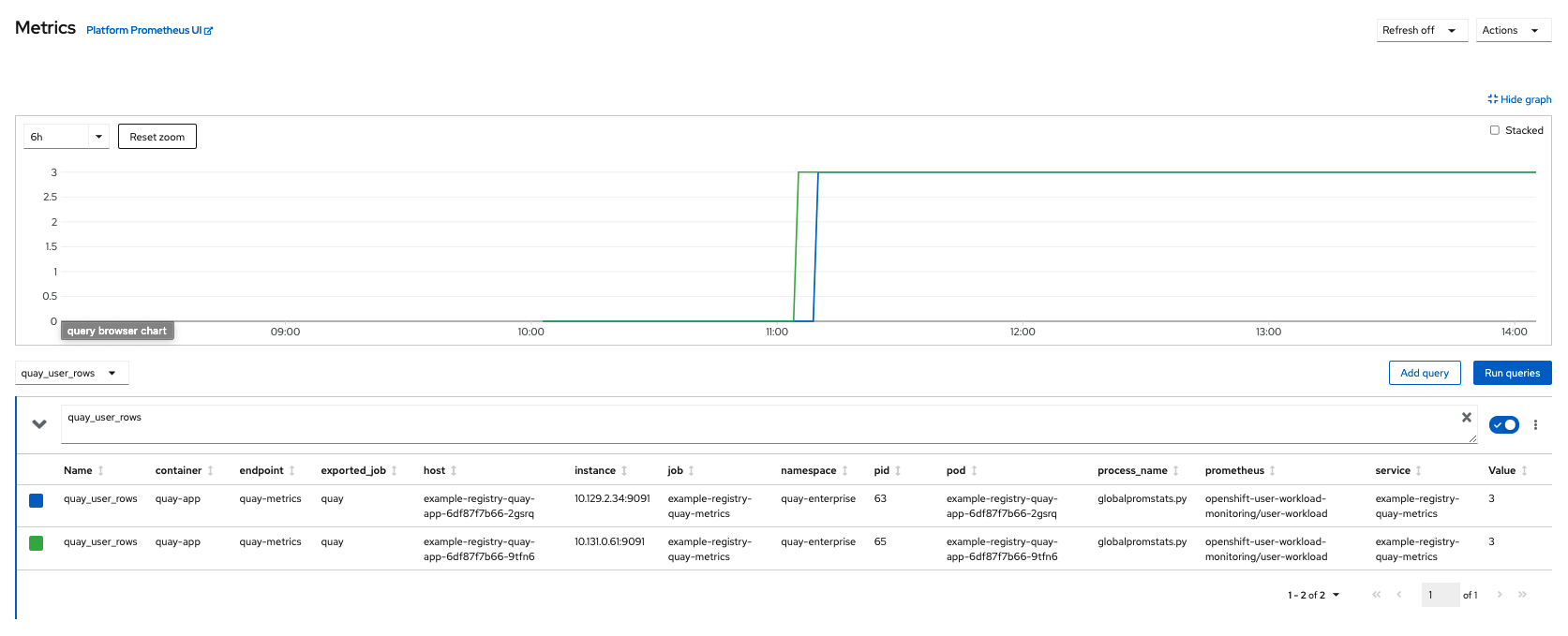
8.3. Resizing Managed Storage
The Quay Operator creates default object storage using the defaults provided by RHOCS when creating a NooBaa object (50 Gib). There are two ways to extend this storage; you can resize an existing PVC or add more PVCs to a new storage pool.
8.3.1. Resize Noobaa PVC
-
Log into the OpenShift console and select
Storage→Persistent Volume Claims. -
Select the
PersistentVolumeClaimnamed likenoobaa-default-backing-store-noobaa-pvc-*. -
From the Action menu, select
Expand PVC. -
Enter the new size of the Persistent Volume Claim and select
Expand.
After a few minutes (depending on the size of the PVC), the expanded size should reflect in the PVC’s Capacity field.
Expanding CSI volumes is a Technology Preview feature only. For more information, see https://access.redhat.com/documentation/en-us/openshift_container_platform/4.6/html/storage/expanding-persistent-volumes.
8.3.2. Add Another Storage Pool
-
Log into the OpenShift console and select
Networking→Routes. Make sure theopenshift-storageproject is selected. -
Click on the
Locationfield for thenoobaa-mgmtRoute. - Log into the Noobaa Management Console.
-
On the main dashboard, under
Storage Resources, selectAdd Storage Resources. -
Select
Deploy Kubernetes Pool -
Enter a new pool name. Click
Next. -
Choose the number of Pods to manage the pool and set the size per node. Click
Next. -
Click
Deploy.
After a few minutes, the additional storage pool will be added to the Noobaa resources and available for use by Red Hat Quay.
8.4. Customizing Default Operator Images
Using this mechanism is not supported for production Quay environments and is strongly encouraged only for development/testing purposes. There is no guarantee your deployment will work correctly when using non-default images with the Quay Operator.
In certain circumstances, it may be useful to override the default images used by the Operator. This can be done by setting one or more environment variables in the Quay Operator ClusterServiceVersion.
8.4.1. Environment Variables
The following environment variables are used in the Operator to override component images:
| Environment Variable | Component |
|
|
|
|
|
|
|
|
|
|
|
|
Override images must be referenced by manifest (@sha256:), not by tag (:latest).
8.4.2. Applying Overrides to a Running Operator
When the Quay Operator is installed in a cluster via the Operator Lifecycle Manager (OLM), the managed component container images can be easily overridden by modifying the ClusterServiceVersion object, which is OLM’s representation of a running Operator in the cluster. Find the Quay Operator’s ClusterServiceVersion either by using a Kubernetes UI or kubectl/oc:
$ oc get clusterserviceversions -n <your-namespace>
Using the UI, oc edit, or any other method, modify the Quay ClusterServiceVersion to include the environment variables outlined above to point to the override images:
JSONPath: spec.install.spec.deployments[0].spec.template.spec.containers[0].env
- name: RELATED_IMAGE_COMPONENT_QUAY
  value: quay.io/projectquay/quay@sha256:c35f5af964431673f4ff5c9e90bdf45f19e38b8742b5903d41c10cc7f6339a6d
- name: RELATED_IMAGE_COMPONENT_CLAIR
  value: quay.io/projectquay/clair@sha256:70c99feceb4c0973540d22e740659cd8d616775d3ad1c1698ddf71d0221f3ce6
- name: RELATED_IMAGE_COMPONENT_POSTGRES
  value: centos/postgresql-10-centos7@sha256:de1560cb35e5ec643e7b3a772ebaac8e3a7a2a8e8271d9e91ff023539b4dfb33
- name: RELATED_IMAGE_COMPONENT_REDIS
  value: centos/redis-32-centos7@sha256:06dbb609484330ec6be6090109f1fa16e936afcf975d1cbc5fff3e6c7cae7542
Note that this is done at the Operator level, so every QuayRegistry will be deployed using these same overrides.
8.5. AWS S3 CloudFront
If you use AWS S3 CloudFront for backend registry storage, specify the private key as shown in the following example:
$ oc create secret generic --from-file config.yaml=./config_awss3cloudfront.yaml --from-file default-cloudfront-signing-key.pem=./default-cloudfront-signing-key.pem test-config-bundleChapter 9. Backing up and restoring Red Hat Quay on an OpenShift Container Platform deployment
Use the content within this section to back up and restore Red Hat Quay on an OpenShift Container Platform deployment.
9.1. Backing up Red Hat Quay
This procedure is exclusively for OpenShift Container Platform and NooBaa deployments.
Prerequisites
- A Red Hat Quay deployment on OpenShift Container Platform.
Procedure
Backup the
QuayRegistrycustom resource by exporting it:$ oc get quayregistry <quay-registry-name> -n <quay-namespace> -o yaml > quay-registry.yamlEdit the resulting
quayregistry.yamland remove the status section and the following metadata fields:metadata.creationTimestamp metadata.finalizers metadata.generation metadata.resourceVersion metadata.uidBackup the managed keys secret:
NoteIf you are running a version older than Red Hat Quay 3.7.0, this step can be skipped. Some secrets are automatically generated while deploying Quay for the first time. These are stored in a secret called
<quay-registry-name>-quay-registry-managed-secret-keysin the QuayRegistry namespace.$ oc get secret -n <quay-namespace> <quay-registry-name>-quay-registry-managed-secret-keys -o yaml > managed-secret-keys.yamlEdit the the resulting
managed-secret-keys.yamlfile and remove all owner references. Yourmanaged-secret-keys.yamlfile should look similar to the following:apiVersion: v1 kind: Secret type: Opaque metadata: name: <quayname>-quay-registry-managed-secret-keys namespace: <quay-namespace> data: CONFIG_EDITOR_PW: <redacted> DATABASE_SECRET_KEY: <redacted> DB_ROOT_PW: <redacted> DB_URI: <redacted> SECRET_KEY: <redacted> SECURITY_SCANNER_V4_PSK: <redacted>All information under the
dataproperty should remain the same.Backup the current Quay configuration:
$ oc get secret -n <quay-namespace> $(oc get quayregistry <quay-registry-name> -n <quay-namespace> -o jsonpath='{.spec.configBundleSecret}') -o yaml > config-bundle.yamlBackup the
/conf/stack/config.yamlfile mounted inside of the Quay pods:$ oc exec -it quay-pod-name -- cat /conf/stack/config.yaml > quay-config.yamlScale down the Quay the Quay Operator:
$ oc scale --replicas=0 deployment $(oc get deployment -n <quay-operator-namespace> |awk '/^quay-operator/ {print $1}') -n <quay-operator-namespace>Scale down the Quay namespace:
$ oc scale --replicas=0 deployment $(oc get deployment -n <quay-namespace> -l quay-component=quay -o jsonpath='{.items[0].metadata.name}') -n <quay-namespace>Wait for the
registry-quay-apppods to disappear. You can check their status by running the following command:$ oc get pods -n <quay-namespace>Example output:
registry-quay-config-editor-77847fc4f5-nsbbv   1/1     Running            0          9m1s
registry-quay-database-66969cd859-n2ssm        1/1     Running            0          6d1h
registry-quay-mirror-758fc68ff7-5wxlp          1/1     Running            0          8m29s
registry-quay-mirror-758fc68ff7-lbl82          1/1     Running            0          8m29s
registry-quay-redis-7cc5f6c977-956g8           1/1     Running            0          5d21h
Identify the Quay PostgreSQL pod name:
$ oc get pod -l quay-component=postgres -n <quay-namespace> -o jsonpath='{.items[0].metadata.name}'Exampe output:
quayregistry-quay-database-59f54bb7-58xs7Obtain the Quay database name:
$ oc -n <quay-namespace> rsh $(oc get pod -l app=quay -o NAME -n <quay-namespace> |head -n 1) cat /conf/stack/config.yaml|awk -F"/" '/^DB_URI/ {print $4}'
quayregistry-quay-database
Download a backup database:
$ oc exec quayregistry-quay-database-59f54bb7-58xs7 -- /usr/bin/pg_dump -C quayregistry-quay-database > backup.sqlDecode and export the
AWS_ACCESS_KEY_ID:$ export AWS_ACCESS_KEY_ID=$(oc get secret -l app=noobaa -n <quay-namespace> -o jsonpath='{.items[0].data.AWS_ACCESS_KEY_ID}' |base64 -d)Decode and export the
AWS_SECRET_ACCESS_KEY_ID:$ export AWS_SECRET_ACCESS_KEY=$(oc get secret -l app=noobaa -n <quay-namespace> -o jsonpath='{.items[0].data.AWS_SECRET_ACCESS_KEY}' |base64 -d)Create a new directory and copy all blobs to it:
$ mkdir blobs$ aws s3 sync --no-verify-ssl --endpoint https://$(oc get route s3 -n openshift-storage -o jsonpath='{.spec.host}') s3://$(oc get cm -l app=noobaa -n <quay-namespace> -o jsonpath='{.items[0].data.BUCKET_NAME}') ./blobs
Scale up the Quay the Quay Operator:
$ oc scale --replicas=1 deployment $(oc get deployment -n <quay-operator-namespace> |awk '/^quay-operator/ {print $1}') -n <quay-operator-namespace>Scale up the Quay namespace:
$ oc scale --replicas=1 deployment $(oc get deployment -n <quay-namespace> -l quay-component=quay -o jsonpath='{.items[0].metadata.name}') -n <quay-namespace>Check the status of the Operator:
$ oc get quayregistry <quay-registry-name> -n <quay-namespace> -o yamlExample output:
apiVersion: quay.redhat.com/v1
kind: QuayRegistry
metadata:
  ...
  name: example-registry
  namespace: <quay-namespace>
  ...
spec:
  components:
  - kind: quay
    managed: true
  ...
  - kind: clairpostgres
    managed: true
  configBundleSecret: init-config-bundle-secret
status:
  configEditorCredentialsSecret: example-registry-quay-config-editor-credentials-fg2gdgtm24
  configEditorEndpoint: https://example-registry-quay-config-editor-quay-enterprise.apps.docs.gcp.quaydev.org
  currentVersion: 3.7.0
  lastUpdated: 2022-05-11 13:28:38.199476938 +0000 UTC
  registryEndpoint: https://example-registry-quay-quay-enterprise.apps.docs.gcp.quaydev.org
     0          5d21h
9.2. Restoring Red Hat Quay
This procedure is used to restore Red Hat Quay when the Red Hat Quay Operator manages the database. It should be performed after a backup of your Quay registry has been performed.
Prerequisites
- Red Hat Quay is deployed on OpenShift Container Platform using the Quay Operator.
- Your Red Hat Quay database has been backed up.
Procedure
Restore the backed up Quay configuration and the randomly generated keys:
$ oc create -f ./config-bundle.yaml$ oc create -f ./managed-secret-keys.yamlNoteIf you receive the error
Error from server (AlreadyExists): error when creating "./config-bundle.yaml": secrets "config-bundle-secret" already exists, you must delete your exist resource with$ oc delete Secret config-bundle-secret -n <quay-namespace>and recreate it with$ oc create -f ./config-bundle.yaml.Restore the QuayRegistry custom resource:
$ oc create -f ./quay-registry.yamlScale down the Quay the Quay Operator:
$ oc scale --replicas=0 deployment $(oc get deployment -n <quay-operator-namespace> |awk '/^quay-operator/ {print $1}') -n <quay-operator-namespace>Scale down the Quay namespace:
$ oc scale --replicas=0 deployment $(oc get deployment -n <quay-namespace> -l quay-component=quay -o jsonpath='{.items[0].metadata.name}') -n <quay-namespace>Identify your Quay database pod:
$ oc get pod -l quay-component=postgres -n <quay-namespace> -o jsonpath='{.items[0].metadata.name}'Example output:
quayregistry-quay-database-59f54bb7-58xs7Upload the backup by copying it from the local environment and into the pod:
$ oc cp ./backup.sql -n <quay-namespace> registry-quay-database-66969cd859-n2ssm:/tmp/backup.sqlOpen a remote terminal to the database:
$ oc rsh -n <quay-namespace> registry-quay-database-66969cd859-n2ssmEnter psql:
bash-4.4$ psqlYou can list the database by running the following command:
postgres=# \lExample output:
                                                  List of databases
           Name            |           Owner            | Encoding |  Collate   |   Ctype    |   Access privileges
----------------------------+----------------------------+----------+------------+------------+-----------------------
postgres                   | postgres                   | UTF8     | en_US.utf8 | en_US.utf8 |
quayregistry-quay-database | quayregistry-quay-database | UTF8     | en_US.utf8 | en_US.utf8 |
Drop the database:
postgres=# DROP DATABASE "quayregistry-quay-database";Example output:
DROP DATABASEExit the postgres CLI to re-enter bash-4.4:
\qRedirect your PostgreSQL database to your backup database:
sh-4.4$ psql < /tmp/backup.sqlExit bash:
sh-4.4$ exitExport the
AWS_ACCESS_KEY_ID:$ export AWS_ACCESS_KEY_ID=$(oc get secret -l app=noobaa -n <quay-namespace> -o jsonpath='{.items[0].data.AWS_ACCESS_KEY_ID}' |base64 -d)Export the
AWS_SECRET_ACCESS_KEY:$ export AWS_SECRET_ACCESS_KEY=$(oc get secret -l app=noobaa -n <quay-namespace> -o jsonpath='{.items[0].data.AWS_SECRET_ACCESS_KEY}' |base64 -d)Upload all blobs to the bucket by running the following command:
$ aws s3 sync --no-verify-ssl --endpoint https://$(oc get route s3 -n openshift-storage -o jsonpath='{.spec.host}') ./blobs s3://$(oc get cm -l app=noobaa -n <quay-namespace> -o jsonpath='{.items[0].data.BUCKET_NAME}')Scale up the Quay the Quay Operator:
$ oc scale --replicas=1 deployment $(oc get deployment -n <quay-operator-namespace> |awk '/^quay-operator/ {print $1}') -n <quay-operator-namespace>Scale up the Quay namespace:
$ oc scale --replicas=1 deployment $(oc get deployment -n <quay-namespace> -l quay-component=quay -o jsonpath='{.items[0].metadata.name}') -n <quay-namespace>Check the status of the Operator and ensure it has come back online:
$ oc get quayregistry -n <quay-namespace> <registry-name> -o yamlExample output:
apiVersion: quay.redhat.com/v1
kind: QuayRegistry
metadata:
  ...
  name: example-registry
  namespace: quay-enterprise
  ...
spec:
  components:
  - kind: quay
    managed: true
  ...
  - kind: clairpostgres
    managed: true
  configBundleSecret: init-config-bundle-secret
status:
  configEditorCredentialsSecret: example-registry-quay-config-editor-credentials-fg2gdgtm24
  configEditorEndpoint: https://example-registry-quay-config-editor-quay-enterprise.apps.docs.gcp.quaydev.org
  currentVersion: 3.7.0
  lastUpdated: 2022-05-11 13:28:38.199476938 +0000 UTC
  registryEndpoint: https://example-registry-quay-quay-enterprise.apps.docs.gcp.quaydev.org
     0          5d21h
Chapter 10. Upgrading the Quay Operator Overview
The Quay Operator follows a synchronized versioning scheme, which means that each version of the Operator is tied to the version of Quay and the components that it manages. There is no field on the QuayRegistry custom resource which sets the version of Quay to deploy; the Operator only knows how to deploy a single version of all components. This scheme was chosen to ensure that all components work well together and to reduce the complexity of the Operator needing to know how to manage the lifecycles of many different versions of Quay on Kubernetes.
10.1. Operator Lifecycle Manager
The Quay Operator should be installed and upgraded using the Operator Lifecycle Manager (OLM). When creating a Subscription with the default approvalStrategy: Automatic, OLM will automatically upgrade the Quay Operator whenever a new version becomes available.
When the Quay Operator is installed via Operator Lifecycle Manager, it may be configured to support automatic or manual upgrades. This option is shown on the Operator Hub page for the Quay Operator during installation. It can also be found in the Quay Operator Subscription object via the approvalStrategy field. Choosing Automatic means that your Quay Operator will automatically be upgraded whenever a new Operator version is released. If this is not desirable, then the Manual approval strategy should be selected.
10.2. Upgrading the Quay Operator
The standard approach for upgrading installed Operators on OpenShift is documented at Upgrading installed Operators.
In general, Red Hat Quay only supports upgrading from one minor version to the next, for example, 3.4 → 3.5. However, for 3.6, multiple upgrade paths are supported:
- 3.3.z → 3.6
- 3.4.z → 3.6
- 3.5.z → 3.6
For users on standalone deployments of Quay wanting to upgrade to 3.6, see the Standalone upgrade guide.
10.2.1. Upgrading Quay
To update Quay from one minor version to the next, for example, 3.4 → 3.5, you need to change the update channel for the Quay Operator.
For z stream upgrades, for example, 3.4.2 → 3.4.3, updates are released in the major-minor channel that the user initially selected during install. The procedure to perform a z stream upgrade depends on the approvalStrategy as outlined above. If the approval strategy is set to Automatic, the Quay Operator will upgrade automatically to the newest z stream. This results in automatic, rolling Quay updates to newer z streams with little to no downtime. Otherwise, the update must be manually approved before installation can begin.
10.2.2. Notes on upgrading directly from 3.3.z or 3.4.z to 3.6
10.2.2.1. Upgrading with edge routing enabled
- Previously, when running a 3.3.z version of Red Hat Quay with edge routing enabled, users were unable to upgrade to 3.4.z versions of Red Hat Quay. This has been resolved with the release of Red Hat Quay 3.6.
When upgrading from 3.3.z to 3.6, if
tls.terminationis set tononein your Red Hat Quay 3.3.z deployment, it will change to HTTPS with TLS edge termination and use the default cluster wildcard certificate. For example:apiVersion: redhatcop.redhat.io/v1alpha1 kind: QuayEcosystem metadata: name: quay33 spec: quay: imagePullSecretName: redhat-pull-secret enableRepoMirroring: true image: quay.io/quay/quay:v3.3.4-2 ... externalAccess: hostname: quayv33.apps.devcluster.openshift.com tls: termination: none database: ...
10.2.2.2. Upgrading with custom TLS certificate/key pairs without Subject Alternative Names
There is an issue for customers using their own TLS certificate/key pairs without Subject Alternative Names (SANs) when upgrading from Red Hat Quay 3.3.4 to Red Hat Quay 3.6 directly. During the upgrade to Red Hat Quay 3.6, the deployment is blocked, with the error message from the Quay Operator pod logs indicating that the Quay TLS certificate must have SANs.
If possible, you should regenerate your TLS certificates with the correct hostname in the SANs. A possible workaround involves defining an environment variable in the quay-app, quay-upgrade and quay-config-editor pods after upgrade to enable CommonName matching:
GODEBUG=x509ignoreCN=0
The GODEBUG=x509ignoreCN=0 flag enables the legacy behavior of treating the CommonName field on X.509 certificates as a host name when no SANs are present. However, this workaround is not recommended, as it will not persist across a redeployment.
10.2.2.3. Configuring Clair v4 when upgrading from 3.3.z or 3.4.z to 3.6 using the Quay Operator
To set up Clair v4 on a new Red Hat Quay deployment on OpenShift, it is highly recommended to use the Quay Operator. By default, the Quay Operator will install or upgrade a Clair deployment along with your Red Hat Quay deployment and configure Clair security scanning automatically.
For instructions on setting up Clair v4 on OpenShift, see Setting Up Clair on a Red Hat Quay OpenShift deployment.
10.2.3. Changing the update channel for an Operator
The subscription of an installed Operator specifies an update channel, which is used to track and receive updates for the Operator. To upgrade the Quay Operator to start tracking and receiving updates from a newer channel, change the update channel in the Subscription tab for the installed Quay Operator. For subscriptions with an Automatic approval strategy, the upgrade begins automatically and can be monitored on the page that lists the Installed Operators.
10.2.4. Manually approving a pending Operator upgrade
If an installed Operator has the approval strategy in its subscription set to Manual, when new updates are released in its current update channel, the update must be manually approved before installation can begin. If the Quay Operator has a pending upgrade, this status will be displayed in the list of Installed Operators. In the Subscription tab for the Quay Operator, you can preview the install plan and review the resources that are listed as available for upgrade. If satisfied, click Approve and return to the page that lists Installed Operators to monitor the progress of the upgrade.
The following image shows the Subscription tab in the UI, including the update Channel, the Approval strategy, the Upgrade status and the InstallPlan:

The list of Installed Operators provides a high-level summary of the current Quay installation:

10.3. Upgrading a QuayRegistry
When the Quay Operator starts, it immediately looks for any QuayRegistries it can find in the namespace(s) it is configured to watch. When it finds one, the following logic is used:
-
If
status.currentVersionis unset, reconcile as normal. -
If
status.currentVersionequals the Operator version, reconcile as normal. -
If
status.currentVersiondoes not equal the Operator version, check if it can be upgraded. If it can, perform upgrade tasks and set thestatus.currentVersionto the Operator’s version once complete. If it cannot be upgraded, return an error and leave theQuayRegistryand its deployed Kubernetes objects alone.
10.4. Enabling features in Quay 3.6
10.4.1. Console monitoring and alerting
The support for monitoring Quay 3.6 in the OpenShift console requires that the Operator is installed in all namespaces. If you previously installed the Operator in a specific namespace, delete the Operator itself and reinstall it for all namespaces once the upgrade has taken place.
10.4.2. OCI and Helm support
Support for Helm and some OCI artifacts is now enabled by default in Red Hat Quay 3.6. If you want to explicitly enable the feature, for example, if you are upgrading from a version where it is not enabled by default, you need to reconfigure your Quay deployment to enable the use of OCI artifacts using the following properties:
FEATURE_GENERAL_OCI_SUPPORT: true10.5. Upgrading a QuayEcosystem
Upgrades are supported from previous versions of the Operator which used the QuayEcosystem API for a limited set of configurations. To ensure that migrations do not happen unexpectedly, a special label needs to be applied to the QuayEcosystem for it to be migrated. A new QuayRegistry will be created for the Operator to manage, but the old QuayEcosystem will remain until manually deleted to ensure that you can roll back and still access Quay in case anything goes wrong. To migrate an existing QuayEcosystem to a new QuayRegistry, follow these steps:
Add
"quay-operator/migrate": "true"to themetadata.labelsof theQuayEcosystem.$ oc edit quayecosystem <quayecosystemname>metadata: labels: quay-operator/migrate: "true"-
Wait for a
QuayRegistryto be created with the samemetadata.nameas yourQuayEcosystem. TheQuayEcosystemwill be marked with the label"quay-operator/migration-complete": "true". -
Once the
status.registryEndpointof the newQuayRegistryis set, access Quay and confirm all data and settings were migrated successfully. -
When you are confident everything worked correctly, you may delete the
QuayEcosystemand Kubernetes garbage collection will clean up all old resources.
10.5.1. Reverting QuayEcosystem Upgrade
If something goes wrong during the automatic upgrade from QuayEcosystem to QuayRegistry, follow these steps to revert back to using the QuayEcosystem:
Delete the
QuayRegistryusing either the UI orkubectl:$ kubectl delete -n <namespace> quayregistry <quayecosystem-name>-
If external access was provided using a
Route, change theRouteto point back to the originalServiceusing the UI orkubectl.
If your QuayEcosystem was managing the Postgres database, the upgrade process will migrate your data to a new Postgres database managed by the upgraded Operator. Your old database will not be changed or removed but Quay will no longer use it once the migration is complete. If there are issues during the data migration, the upgrade process will exit and it is recommended that you continue with your database as an unmanaged component.
10.5.2. Supported QuayEcosystem Configurations for Upgrades
The Quay Operator will report errors in its logs and in status.conditions if migrating a QuayEcosystem component fails or is unsupported. All unmanaged components should migrate successfully because no Kubernetes resources need to be adopted and all the necessary values are already provided in Quay’s config.yaml.
Database
Ephemeral database not supported (volumeSize field must be set).
Redis
Nothing special needed.
External Access
Only passthrough Route access is supported for automatic migration. Manual migration required for other methods.
-
LoadBalancerwithout custom hostname: After theQuayEcosystemis marked with label"quay-operator/migration-complete": "true", delete themetadata.ownerReferencesfield from existingServicebefore deleting theQuayEcosystemto prevent Kubernetes from garbage collecting theServiceand removing the load balancer. A newServicewill be created withmetadata.nameformat<QuayEcosystem-name>-quay-app. Edit thespec.selectorof the existingServiceto match thespec.selectorof the newServiceso traffic to the old load balancer endpoint will now be directed to the new pods. You are now responsible for the oldService; the Quay Operator will not manage it. -
LoadBalancer/NodePort/Ingresswith custom hostname: A newServiceof typeLoadBalancerwill be created withmetadata.nameformat<QuayEcosystem-name>-quay-app. Change your DNS settings to point to thestatus.loadBalancerendpoint provided by the newService.
Clair
Nothing special needed.
Object Storage
QuayEcosystem did not have a managed object storage component, so object storage will always be marked as unmanaged. Local storage is not supported.
Repository Mirroring
Nothing special needed.
Additional resources
- For more details on the Red Hat Quay Operator, see the upstream quay-operator project.

'%20d='M201.5%20305.5c-13.8%200-24.9-11.1-24.9-24.6%200-13.8%2011.1-24.9%2024.9-24.9%2013.6%200%2024.6%2011.1%2024.6%2024.9%200%2013.6-11.1%2024.6-24.6%2024.6zM504%20256c0%20137-111%20248-248%20248S8%20393%208%20256%20119%208%20256%208s248%20111%20248%20248zm-132.3-41.2c-9.4%200-17.7%203.9-23.8%2010-22.4-15.5-52.6-25.5-86.1-26.6l17.4-78.3%2055.4%2012.5c0%2013.6%2011.1%2024.6%2024.6%2024.6%2013.8%200%2024.9-11.3%2024.9-24.9s-11.1-24.9-24.9-24.9c-9.7%200-18%205.8-22.1%2013.8l-61.2-13.6c-3-.8-6.1%201.4-6.9%204.4l-19.1%2086.4c-33.2%201.4-63.1%2011.3-85.5%2026.8-6.1-6.4-14.7-10.2-24.1-10.2-34.9%200-46.3%2046.9-14.4%2062.8-1.1%205-1.7%2010.2-1.7%2015.5%200%2052.6%2059.2%2095.2%20132%2095.2%2073.1%200%20132.3-42.6%20132.3-95.2%200-5.3-.6-10.8-1.9-15.8%2031.3-16%2019.8-62.5-14.9-62.5zM302.8%20331c-18.2%2018.2-76.1%2017.9-93.6%200-2.2-2.2-6.1-2.2-8.3%200-2.5%202.5-2.5%206.4%200%208.6%2022.8%2022.8%2087.3%2022.8%20110.2%200%202.5-2.2%202.5-6.1%200-8.6-2.2-2.2-6.1-2.2-8.3%200zm7.7-75c-13.6%200-24.6%2011.1-24.6%2024.9%200%2013.6%2011.1%2024.6%2024.6%2024.6%2013.8%200%2024.9-11.1%2024.9-24.6%200-13.8-11-24.9-24.9-24.9z'/%3e%3c/svg%3e)