 Red Hat Summit
Chapter 3. Writing Rules
3.1. The Asset Editor
Copiar enlaceEnlace copiado en el portapapeles!
3.1.1. The Asset Editor
Copiar enlaceEnlace copiado en el portapapeles!
The asset editor provides access to information about assets and gives users the ability to edit assets.
The attributes tab contains metadata, version history, description, and a discussion area.
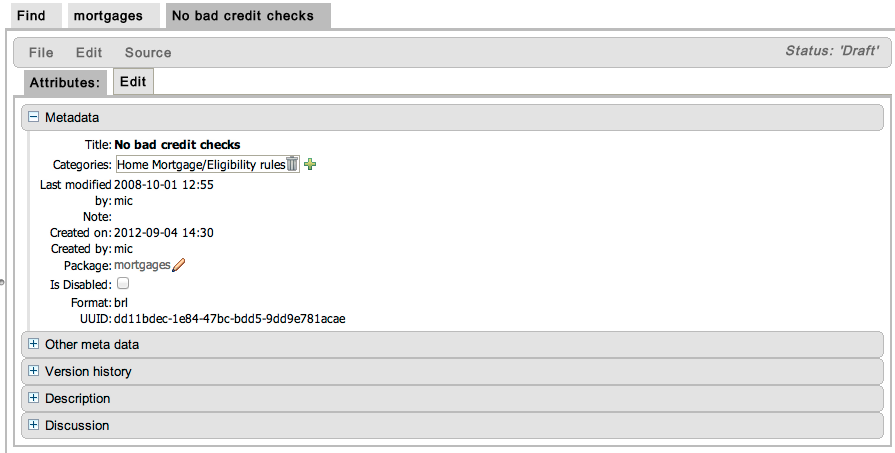
Figure 3.1. The Asset Editor View - Attributes
The edit tab is where assets can be edited. The available options in the edit tab will depend on the type of asset being edited.

Figure 3.2. The Asset Editor View - Edit
3.1.2. Business Rules with the Guided Editor
Copiar enlaceEnlace copiado en el portapapeles!
Business rules are edited in the guided editor. Rules edited in the guided editor use the Business Rules Language (BRL) format. The guided editor prompts users for input based on the object model of the rule being edited.
A package must exist for assets to be added to before rules can be created. Package access must be configured before users can use the BRL guided editor.
Example 3.1. The Guided Editor

3.1.3. The Anatomy of a Rule
Copiar enlaceEnlace copiado en el portapapeles!
A rule consists of multiple parts:
- WhenThe When part of the rule is the condition that must be met. For instance, a bank providing credit in the form of a loan may specify that customers must be over twenty-one years of age. This would be represented by using when to determine if the customer is over twenty-one years of age.
- ThenThe Then part of the rule is the action to be performed when the conditional part of the rule has been met. For instance, when the customer is under twenty-one years of age, then decline the loan because the applicant is under age.
- OptionalOptional attributes such as salience can be defined on rules.
With the guided editor, it is possible to add more conditions to the When (or conditional) part of the rule and more actions to the Then (or action) part of the rule. For instance, if an applicant under the age of 21 had a guarantor for a loan application, the bank may decide to approve the loan application.
3.1.4. Salience
Copiar enlaceEnlace copiado en el portapapeles!
Each rule has a salience value which is an integer value that defaults to zero. The salience value represents the priority of the rule with higher salience values representing higher priority. Salience values can be positive or negative.
3.1.5. Adding Conditions or Actions to Rules
Copiar enlaceEnlace copiado en el portapapeles!
Procedure 3.1. Adding Conditions or Actions to Rules
- Click the plus icon in the When section of the guided editor to add a condition, or click the plus icon in the Then section of the guided editor to add an action.
- Select the condition or action from the menu and click Ok. If the package the rule belongs to has been configured to include DSL (Domain Specific Language) sentences, DSL sentences can be chosen from the menu.
- If the condition or action requires input, i.e., a date, true or false, am integer, or other input type, enter the required value.
3.1.6. Adding a Field to a Fact Type
Copiar enlaceEnlace copiado en el portapapeles!
With the guided editor, it is possible to add more conditions to the 'when' (or conditional) part of the rule and more actions to the 'then' (or action) part of the rule. For instance, if a loan applicant under the age of 21 had a guarantor for a loan application, the bank may decide to approve the loan application.
To add the guarantor to the condition, it is first necessary to add the guarantor field to the application fact type for the mortgage model.
Procedure 3.2. Adding a Field to a Fact Type
Select the Model
From the navigation panel, select Knowledge Bases. Expand the package that contains the model and select model.Open the model from the list by clicking open.Add the Field
Expand the fact type by clicking the plus sign next to it and select Add Field.Enter the Field Details
Add the details to the pop up dialogue. In this case, enter the name guarantor in the Field name field and select True or False from the Type drop down menu.Save the changes made to the model by selecting File and Save changes.
With the guarantor field now added to the applicant fact type, it is possible to modify the rule to include a guarantor.
3.1.7. Technical Rules (DRL)
Copiar enlaceEnlace copiado en el portapapeles!
Technical (DRL) rules are stored as text and can be managed in the JBoss Enterprise BRMS user interface. A DRL file can contain one or more rules. If the file contains only a single rule, then the package, imports and rule statements are not required. The condition and the action of the rule can be marked with "when" and "then" respectively.
JBoss Developer Studio provides tools for creating, editing, and debugging DRL files, and it should be used for these purposes. However, DRL rules can be managed within the JBoss Enterprise BRMS user interface.

Figure 3.3. Technical Rule (DRL)

'%20d='M201.5%20305.5c-13.8%200-24.9-11.1-24.9-24.6%200-13.8%2011.1-24.9%2024.9-24.9%2013.6%200%2024.6%2011.1%2024.6%2024.9%200%2013.6-11.1%2024.6-24.6%2024.6zM504%20256c0%20137-111%20248-248%20248S8%20393%208%20256%20119%208%20256%208s248%20111%20248%20248zm-132.3-41.2c-9.4%200-17.7%203.9-23.8%2010-22.4-15.5-52.6-25.5-86.1-26.6l17.4-78.3%2055.4%2012.5c0%2013.6%2011.1%2024.6%2024.6%2024.6%2013.8%200%2024.9-11.3%2024.9-24.9s-11.1-24.9-24.9-24.9c-9.7%200-18%205.8-22.1%2013.8l-61.2-13.6c-3-.8-6.1%201.4-6.9%204.4l-19.1%2086.4c-33.2%201.4-63.1%2011.3-85.5%2026.8-6.1-6.4-14.7-10.2-24.1-10.2-34.9%200-46.3%2046.9-14.4%2062.8-1.1%205-1.7%2010.2-1.7%2015.5%200%2052.6%2059.2%2095.2%20132%2095.2%2073.1%200%20132.3-42.6%20132.3-95.2%200-5.3-.6-10.8-1.9-15.8%2031.3-16%2019.8-62.5-14.9-62.5zM302.8%20331c-18.2%2018.2-76.1%2017.9-93.6%200-2.2-2.2-6.1-2.2-8.3%200-2.5%202.5-2.5%206.4%200%208.6%2022.8%2022.8%2087.3%2022.8%20110.2%200%202.5-2.2%202.5-6.1%200-8.6-2.2-2.2-6.1-2.2-8.3%200zm7.7-75c-13.6%200-24.6%2011.1-24.6%2024.9%200%2013.6%2011.1%2024.6%2024.6%2024.6%2013.8%200%2024.9-11.1%2024.9-24.6%200-13.8-11-24.9-24.9-24.9z'/%3e%3c/svg%3e)