 Red Hat Summit
Este contenido no está disponible en el idioma seleccionado.
Monitoring
Configuring and using the monitoring stack in OpenShift Container Platform
Abstract
Chapter 1. Monitoring overview
1.1. About OpenShift Container Platform monitoring
OpenShift Container Platform includes a preconfigured, preinstalled, and self-updating monitoring stack that provides monitoring for core platform components. You also have the option to enable monitoring for user-defined projects.
A cluster administrator can configure the monitoring stack with the supported configurations. OpenShift Container Platform delivers monitoring best practices out of the box.
A set of alerts are included by default that immediately notify administrators about issues with a cluster. Default dashboards in the OpenShift Container Platform web console include visual representations of cluster metrics to help you to quickly understand the state of your cluster. With the OpenShift Container Platform web console, you can view and manage metrics, alerts, and review monitoring dashboards.
In the Observe section of OpenShift Container Platform web console, you can access and manage monitoring features such as metrics, alerts, monitoring dashboards, and metrics targets.
After installing OpenShift Container Platform, cluster administrators can optionally enable monitoring for user-defined projects. By using this feature, cluster administrators, developers, and other users can specify how services and pods are monitored in their own projects. As a cluster administrator, you can find answers to common problems such as user metrics unavailability and high consumption of disk space by Prometheus in Troubleshooting monitoring issues.
1.2. Understanding the monitoring stack
The OpenShift Container Platform monitoring stack is based on the Prometheus open source project and its wider ecosystem. The monitoring stack includes the following:
-
Default platform monitoring components. A set of platform monitoring components are installed in the
openshift-monitoringproject by default during an OpenShift Container Platform installation. This provides monitoring for core OpenShift Container Platform components including Kubernetes services. The default monitoring stack also enables remote health monitoring for clusters. These components are illustrated in the Installed by default section in the following diagram. -
Components for monitoring user-defined projects. After optionally enabling monitoring for user-defined projects, additional monitoring components are installed in the
openshift-user-workload-monitoringproject. This provides monitoring for user-defined projects. These components are illustrated in the User section in the following diagram.
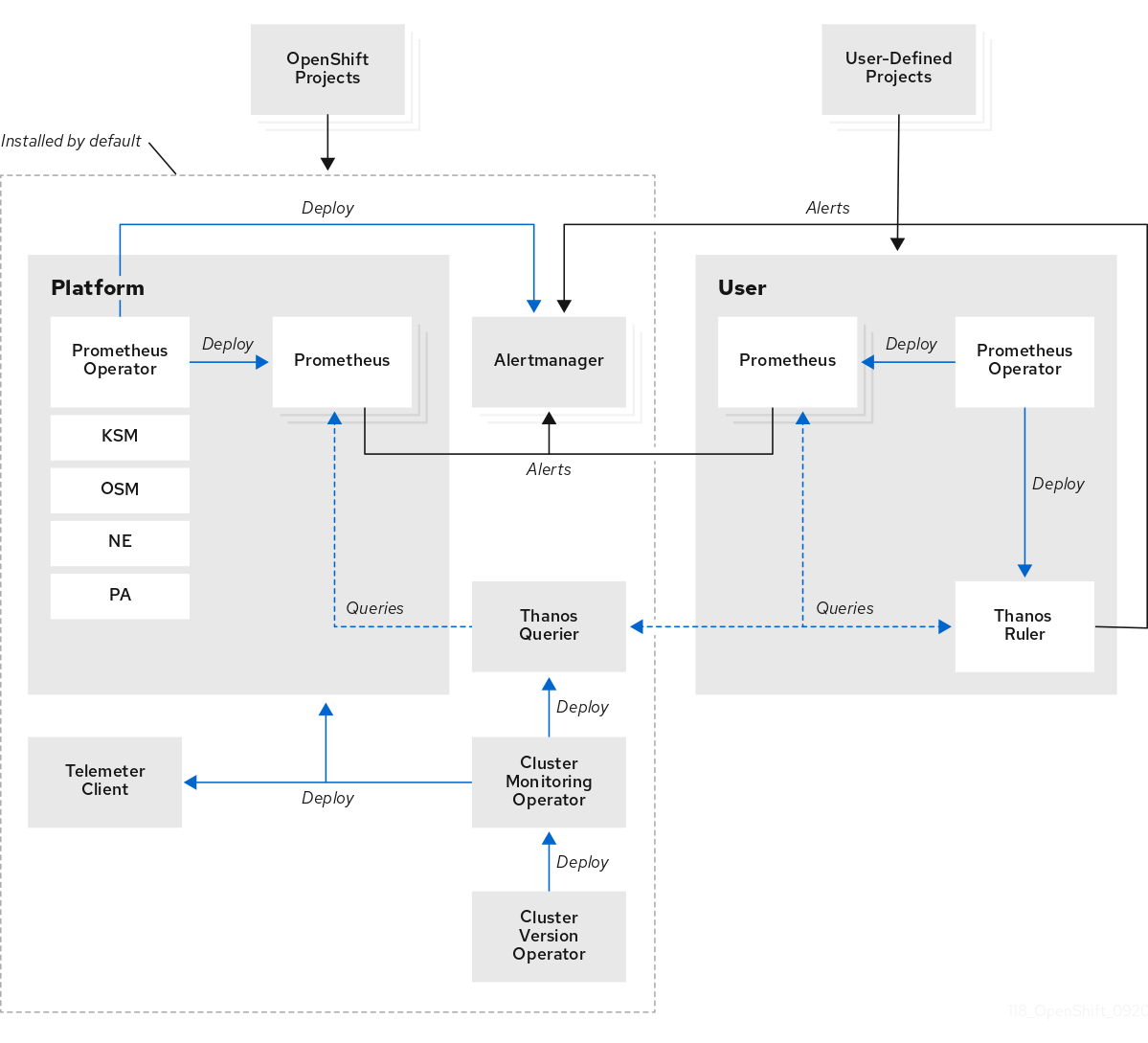
1.2.1. Default monitoring components
By default, the OpenShift Container Platform 4.11 monitoring stack includes these components:
| Component | Description |
|---|---|
| Cluster Monitoring Operator | The Cluster Monitoring Operator (CMO) is a central component of the monitoring stack. It deploys, manages, and automatically updates Prometheus and Alertmanager instances, Thanos Querier, Telemeter Client, and metrics targets. The CMO is deployed by the Cluster Version Operator (CVO). |
| Prometheus Operator |
The Prometheus Operator (PO) in the |
| Prometheus | Prometheus is the monitoring system on which the OpenShift Container Platform monitoring stack is based. Prometheus is a time-series database and a rule evaluation engine for metrics. Prometheus sends alerts to Alertmanager for processing. |
| Prometheus Adapter |
The Prometheus Adapter (PA in the preceding diagram) translates Kubernetes node and pod queries for use in Prometheus. The resource metrics that are translated include CPU and memory utilization metrics. The Prometheus Adapter exposes the cluster resource metrics API for horizontal pod autoscaling. The Prometheus Adapter is also used by the |
| Alertmanager | The Alertmanager service handles alerts received from Prometheus. Alertmanager is also responsible for sending the alerts to external notification systems. |
|
|
The |
|
|
The |
|
|
The |
| Thanos Querier | Thanos Querier aggregates and optionally deduplicates core OpenShift Container Platform metrics and metrics for user-defined projects under a single, multi-tenant interface. |
| Telemeter Client | Telemeter Client sends a subsection of the data from platform Prometheus instances to Red Hat to facilitate Remote Health Monitoring for clusters. |
All of the components in the monitoring stack are monitored by the stack and are automatically updated when OpenShift Container Platform is updated.
All components of the monitoring stack use the TLS security profile settings that are centrally configured by a cluster administrator. If you configure a monitoring stack component that uses TLS security settings, the component uses the TLS security profile settings that already exist in the tlsSecurityProfile field in the global OpenShift Container Platform apiservers.config.openshift.io/cluster resource.
1.2.2. Default monitoring targets
In addition to the components of the stack itself, the default monitoring stack monitors:
- CoreDNS
- Elasticsearch (if Logging is installed)
- etcd
- Fluentd (if Logging is installed)
- HAProxy
- Image registry
- Kubelets
- Kubernetes API server
- Kubernetes controller manager
- Kubernetes scheduler
- OpenShift API server
- OpenShift Controller Manager
- Operator Lifecycle Manager (OLM)
Each OpenShift Container Platform component is responsible for its monitoring configuration. For problems with the monitoring of an OpenShift Container Platform component, open a Jira issue against that component, not against the general monitoring component.
Other OpenShift Container Platform framework components might be exposing metrics as well. For details, see their respective documentation.
1.2.3. Components for monitoring user-defined projects
OpenShift Container Platform 4.11 includes an optional enhancement to the monitoring stack that enables you to monitor services and pods in user-defined projects. This feature includes the following components:
| Component | Description |
|---|---|
| Prometheus Operator |
The Prometheus Operator (PO) in the |
| Prometheus | Prometheus is the monitoring system through which monitoring is provided for user-defined projects. Prometheus sends alerts to Alertmanager for processing. |
| Thanos Ruler | The Thanos Ruler is a rule evaluation engine for Prometheus that is deployed as a separate process. In OpenShift Container Platform 4.11, Thanos Ruler provides rule and alerting evaluation for the monitoring of user-defined projects. |
| Alertmanager | The Alertmanager service handles alerts received from Prometheus and Thanos Ruler. Alertmanager is also responsible for sending user-defined alerts to external notification systems. Deploying this service is optional. |
The components in the preceding table are deployed after monitoring is enabled for user-defined projects.
All of the components in the monitoring stack are monitored by the stack and are automatically updated when OpenShift Container Platform is updated.
1.2.4. Monitoring targets for user-defined projects
When monitoring is enabled for user-defined projects, you can monitor:
- Metrics provided through service endpoints in user-defined projects.
- Pods running in user-defined projects.
1.3. Glossary of common terms for OpenShift Container Platform monitoring
This glossary defines common terms that are used in OpenShift Container Platform architecture.
- Alertmanager
- Alertmanager handles alerts received from Prometheus. Alertmanager is also responsible for sending the alerts to external notification systems.
- Alerting rules
- Alerting rules contain a set of conditions that outline a particular state within a cluster. Alerts are triggered when those conditions are true. An alerting rule can be assigned a severity that defines how the alerts are routed.
- Cluster Monitoring Operator
- The Cluster Monitoring Operator (CMO) is a central component of the monitoring stack. It deploys and manages Prometheus instances such as, the Thanos Querier, the Telemeter Client, and metrics targets to ensure that they are up to date. The CMO is deployed by the Cluster Version Operator (CVO).
- Cluster Version Operator
- The Cluster Version Operator (CVO) manages the lifecycle of cluster Operators, many of which are installed in OpenShift Container Platform by default.
- config map
-
A config map provides a way to inject configuration data into pods. You can reference the data stored in a config map in a volume of type
ConfigMap. Applications running in a pod can use this data. - Container
- A container is a lightweight and executable image that includes software and all its dependencies. Containers virtualize the operating system. As a result, you can run containers anywhere from a data center to a public or private cloud as well as a developer’s laptop.
- custom resource (CR)
- A CR is an extension of the Kubernetes API. You can create custom resources.
- etcd
- etcd is the key-value store for OpenShift Container Platform, which stores the state of all resource objects.
- Fluentd
- Fluentd gathers logs from nodes and feeds them to Elasticsearch.
- Kubelets
- Runs on nodes and reads the container manifests. Ensures that the defined containers have started and are running.
- Kubernetes API server
- Kubernetes API server validates and configures data for the API objects.
- Kubernetes controller manager
- Kubernetes controller manager governs the state of the cluster.
- Kubernetes scheduler
- Kubernetes scheduler allocates pods to nodes.
- labels
- Labels are key-value pairs that you can use to organize and select subsets of objects such as a pod.
- node
- A worker machine in the OpenShift Container Platform cluster. A node is either a virtual machine (VM) or a physical machine.
- Operator
- The preferred method of packaging, deploying, and managing a Kubernetes application in an OpenShift Container Platform cluster. An Operator takes human operational knowledge and encodes it into software that is packaged and shared with customers.
- Operator Lifecycle Manager (OLM)
- OLM helps you install, update, and manage the lifecycle of Kubernetes native applications. OLM is an open source toolkit designed to manage Operators in an effective, automated, and scalable way.
- Persistent storage
- Stores the data even after the device is shut down. Kubernetes uses persistent volumes to store the application data.
- Persistent volume claim (PVC)
- You can use a PVC to mount a PersistentVolume into a Pod. You can access the storage without knowing the details of the cloud environment.
- pod
- The pod is the smallest logical unit in Kubernetes. A pod is comprised of one or more containers to run in a worker node.
- Prometheus
- Prometheus is the monitoring system on which the OpenShift Container Platform monitoring stack is based. Prometheus is a time-series database and a rule evaluation engine for metrics. Prometheus sends alerts to Alertmanager for processing.
- Prometheus adapter
- The Prometheus Adapter translates Kubernetes node and pod queries for use in Prometheus. The resource metrics that are translated include CPU and memory utilization. The Prometheus Adapter exposes the cluster resource metrics API for horizontal pod autoscaling.
- Prometheus Operator
-
The Prometheus Operator (PO) in the
openshift-monitoringproject creates, configures, and manages platform Prometheus and Alertmanager instances. It also automatically generates monitoring target configurations based on Kubernetes label queries. - Silences
- A silence can be applied to an alert to prevent notifications from being sent when the conditions for an alert are true. You can mute an alert after the initial notification, while you work on resolving the underlying issue.
- storage
- OpenShift Container Platform supports many types of storage, both for on-premise and cloud providers. You can manage container storage for persistent and non-persistent data in an OpenShift Container Platform cluster.
- Thanos Ruler
- The Thanos Ruler is a rule evaluation engine for Prometheus that is deployed as a separate process. In OpenShift Container Platform, Thanos Ruler provides rule and alerting evaluation for the monitoring of user-defined projects.
- web console
- A user interface (UI) to manage OpenShift Container Platform.
1.5. Next steps
Chapter 2. Configuring the monitoring stack
The OpenShift Container Platform 4 installation program provides only a low number of configuration options before installation. Configuring most OpenShift Container Platform framework components, including the cluster monitoring stack, happens postinstallation.
This section explains what configuration is supported, shows how to configure the monitoring stack, and demonstrates several common configuration scenarios.
2.1. Prerequisites
- The monitoring stack imposes additional resource requirements. Consult the computing resources recommendations in Scaling the Cluster Monitoring Operator and verify that you have sufficient resources.
2.2. Maintenance and support for monitoring
The supported way of configuring OpenShift Container Platform Monitoring is by configuring it using the options described in this document. Do not use other configurations, as they are unsupported. Configuration paradigms might change across Prometheus releases, and such cases can only be handled gracefully if all configuration possibilities are controlled. If you use configurations other than those described in this section, your changes will disappear because the cluster-monitoring-operator reconciles any differences. The Operator resets everything to the defined state by default and by design.
2.2.1. Support considerations for monitoring
The following modifications are explicitly not supported:
-
Creating additional
ServiceMonitor,PodMonitor, andPrometheusRuleobjects in theopenshift-*andkube-*projects. Modifying any resources or objects deployed in the
openshift-monitoringoropenshift-user-workload-monitoringprojects. The resources created by the OpenShift Container Platform monitoring stack are not meant to be used by any other resources, as there are no guarantees about their backward compatibility.NoteThe Alertmanager configuration is deployed as a secret resource in the
openshift-monitoringnamespace. If you have enabled a separate Alertmanager instance for user-defined alert routing, an Alertmanager configuration is also deployed as a secret resource in theopenshift-user-workload-monitoringnamespace. To configure additional routes for any instance of Alertmanager, you need to decode, modify, and then encode that secret. This procedure is a supported exception to the preceding statement.- Modifying resources of the stack. The OpenShift Container Platform monitoring stack ensures its resources are always in the state it expects them to be. If they are modified, the stack will reset them.
-
Deploying user-defined workloads to
openshift-*, andkube-*projects. These projects are reserved for Red Hat provided components and they should not be used for user-defined workloads. - Installing custom Prometheus instances on OpenShift Container Platform. A custom instance is a Prometheus custom resource (CR) managed by the Prometheus Operator.
-
Enabling symptom based monitoring by using the
Probecustom resource definition (CRD) in Prometheus Operator.
Backward compatibility for metrics, recording rules, or alerting rules is not guaranteed.
2.2.2. Support policy for monitoring Operators
Monitoring Operators ensure that OpenShift Container Platform monitoring resources function as designed and tested. If Cluster Version Operator (CVO) control of an Operator is overridden, the Operator does not respond to configuration changes, reconcile the intended state of cluster objects, or receive updates.
While overriding CVO control for an Operator can be helpful during debugging, this is unsupported and the cluster administrator assumes full control of the individual component configurations and upgrades.
Overriding the Cluster Version Operator
The spec.overrides parameter can be added to the configuration for the CVO to allow administrators to provide a list of overrides to the behavior of the CVO for a component. Setting the spec.overrides[].unmanaged parameter to true for a component blocks cluster upgrades and alerts the administrator after a CVO override has been set:
Disabling ownership via cluster version overrides prevents upgrades. Please remove overrides before continuing.Setting a CVO override puts the entire cluster in an unsupported state and prevents the monitoring stack from being reconciled to its intended state. This impacts the reliability features built into Operators and prevents updates from being received. Reported issues must be reproduced after removing any overrides for support to proceed.
2.3. Preparing to configure the monitoring stack
You can configure the monitoring stack by creating and updating monitoring config maps.
2.3.1. Creating a cluster monitoring config map
To configure core OpenShift Container Platform monitoring components, you must create the cluster-monitoring-config ConfigMap object in the openshift-monitoring project.
When you save your changes to the cluster-monitoring-config ConfigMap object, some or all of the pods in the openshift-monitoring project might be redeployed. It can sometimes take a while for these components to redeploy.
Prerequisites
-
You have access to the cluster as a user with the
cluster-admincluster role. -
You have installed the OpenShift CLI (
oc).
Procedure
Check whether the
cluster-monitoring-configConfigMapobject exists:$ oc -n openshift-monitoring get configmap cluster-monitoring-configIf the
ConfigMapobject does not exist:Create the following YAML manifest. In this example the file is called
cluster-monitoring-config.yaml:apiVersion: v1 kind: ConfigMap metadata: name: cluster-monitoring-config namespace: openshift-monitoring data: config.yaml: |Apply the configuration to create the
ConfigMapobject:$ oc apply -f cluster-monitoring-config.yaml
2.3.2. Creating a user-defined workload monitoring config map
To configure the components that monitor user-defined projects, you must create the user-workload-monitoring-config ConfigMap object in the openshift-user-workload-monitoring project.
When you save your changes to the user-workload-monitoring-config ConfigMap object, some or all of the pods in the openshift-user-workload-monitoring project might be redeployed. It can sometimes take a while for these components to redeploy. You can create and configure the config map before you first enable monitoring for user-defined projects, to prevent having to redeploy the pods often.
Prerequisites
-
You have access to the cluster as a user with the
cluster-admincluster role. -
You have installed the OpenShift CLI (
oc).
Procedure
Check whether the
user-workload-monitoring-configConfigMapobject exists:$ oc -n openshift-user-workload-monitoring get configmap user-workload-monitoring-configIf the
user-workload-monitoring-configConfigMapobject does not exist:Create the following YAML manifest. In this example the file is called
user-workload-monitoring-config.yaml:apiVersion: v1 kind: ConfigMap metadata: name: user-workload-monitoring-config namespace: openshift-user-workload-monitoring data: config.yaml: |Apply the configuration to create the
ConfigMapobject:$ oc apply -f user-workload-monitoring-config.yamlNoteConfigurations applied to the
user-workload-monitoring-configConfigMapobject are not activated unless a cluster administrator has enabled monitoring for user-defined projects.
2.4. Configuring the monitoring stack
In OpenShift Container Platform 4.11, you can configure the monitoring stack using the cluster-monitoring-config or user-workload-monitoring-config ConfigMap objects. Config maps configure the Cluster Monitoring Operator (CMO), which in turn configures the components of the stack.
Prerequisites
If you are configuring core OpenShift Container Platform monitoring components:
-
You have access to the cluster as a user with the
cluster-admincluster role. -
You have created the
cluster-monitoring-configConfigMapobject.
-
You have access to the cluster as a user with the
If you are configuring components that monitor user-defined projects:
-
You have access to the cluster as a user with the
cluster-admincluster role, or as a user with theuser-workload-monitoring-config-editrole in theopenshift-user-workload-monitoringproject. -
You have created the
user-workload-monitoring-configConfigMapobject.
-
You have access to the cluster as a user with the
-
You have installed the OpenShift CLI (
oc).
Procedure
Edit the
ConfigMapobject.To configure core OpenShift Container Platform monitoring components:
Edit the
cluster-monitoring-configConfigMapobject in theopenshift-monitoringproject:$ oc -n openshift-monitoring edit configmap cluster-monitoring-configAdd your configuration under
data/config.yamlas a key-value pair<component_name>: <component_configuration>:apiVersion: v1 kind: ConfigMap metadata: name: cluster-monitoring-config namespace: openshift-monitoring data: config.yaml: | <component>: <configuration_for_the_component>Substitute
<component>and<configuration_for_the_component>accordingly.The following example
ConfigMapobject configures a persistent volume claim (PVC) for Prometheus. This relates to the Prometheus instance that monitors core OpenShift Container Platform components only:apiVersion: v1 kind: ConfigMap metadata: name: cluster-monitoring-config namespace: openshift-monitoring data: config.yaml: | prometheusK8s:1 volumeClaimTemplate: spec: storageClassName: fast volumeMode: Filesystem resources: requests: storage: 40Gi- 1
- Defines the Prometheus component and the subsequent lines define its configuration.
To configure components that monitor user-defined projects:
Edit the
user-workload-monitoring-configConfigMapobject in theopenshift-user-workload-monitoringproject:$ oc -n openshift-user-workload-monitoring edit configmap user-workload-monitoring-configAdd your configuration under
data/config.yamlas a key-value pair<component_name>: <component_configuration>:apiVersion: v1 kind: ConfigMap metadata: name: user-workload-monitoring-config namespace: openshift-user-workload-monitoring data: config.yaml: | <component>: <configuration_for_the_component>Substitute
<component>and<configuration_for_the_component>accordingly.The following example
ConfigMapobject configures a data retention period and minimum container resource requests for Prometheus. This relates to the Prometheus instance that monitors user-defined projects only:apiVersion: v1 kind: ConfigMap metadata: name: user-workload-monitoring-config namespace: openshift-user-workload-monitoring data: config.yaml: | prometheus:1 retention: 24h2 resources: requests: cpu: 200m3 memory: 2Gi4 - 1
- Defines the Prometheus component and the subsequent lines define its configuration.
- 2
- Configures a twenty-four hour data retention period for the Prometheus instance that monitors user-defined projects.
- 3
- Defines a minimum resource request of 200 millicores for the Prometheus container.
- 4
- Defines a minimum pod resource request of 2 GiB of memory for the Prometheus container.
NoteThe Prometheus config map component is called
prometheusK8sin thecluster-monitoring-configConfigMapobject andprometheusin theuser-workload-monitoring-configConfigMapobject.
Save the file to apply the changes to the
ConfigMapobject. The pods affected by the new configuration are restarted automatically.NoteConfigurations applied to the
user-workload-monitoring-configConfigMapobject are not activated unless a cluster administrator has enabled monitoring for user-defined projects.WarningWhen changes are saved to a monitoring config map, the pods and other resources in the related project might be redeployed. The running monitoring processes in that project might also be restarted.
2.5. Configurable monitoring components
This table shows the monitoring components you can configure and the keys used to specify the components in the cluster-monitoring-config and user-workload-monitoring-config ConfigMap objects:
| Component | cluster-monitoring-config config map key | user-workload-monitoring-config config map key |
|---|---|---|
| Prometheus Operator |
|
|
| Prometheus |
|
|
| Alertmanager |
|
|
| kube-state-metrics |
| |
| openshift-state-metrics |
| |
| Telemeter Client |
| |
| Prometheus Adapter |
| |
| Thanos Querier |
| |
| Thanos Ruler |
|
The Prometheus key is called prometheusK8s in the cluster-monitoring-config ConfigMap object and prometheus in the user-workload-monitoring-config ConfigMap object.
2.6. Using node selectors to move monitoring components
By using the nodeSelector constraint with labeled nodes, you can move any of the monitoring stack components to specific nodes. By doing so, you can control the placement and distribution of the monitoring components across a cluster.
By controlling placement and distribution of monitoring components, you can optimize system resource use, improve performance, and segregate workloads based on specific requirements or policies.
2.6.1. How node selectors work with other constraints
If you move monitoring components by using node selector constraints, be aware that other constraints to control pod scheduling might exist for a cluster:
- Topology spread constraints might be in place to control pod placement.
- Hard anti-affinity rules are in place for Prometheus, Thanos Querier, Alertmanager, and other monitoring components to ensure that multiple pods for these components are always spread across different nodes and are therefore always highly available.
When scheduling pods onto nodes, the pod scheduler tries to satisfy all existing constraints when determining pod placement. That is, all constraints compound when the pod scheduler determines which pods will be placed on which nodes.
Therefore, if you configure a node selector constraint but existing constraints cannot all be satisfied, the pod scheduler cannot match all constraints and will not schedule a pod for placement onto a node.
To maintain resilience and high availability for monitoring components, ensure that enough nodes are available and match all constraints when you configure a node selector constraint to move a component.
2.6.2. Moving monitoring components to different nodes
To specify the nodes in your cluster on which monitoring stack components will run, configure the nodeSelector constraint in the component’s ConfigMap object to match labels assigned to the nodes.
You cannot add a node selector constraint directly to an existing scheduled pod.
Prerequisites
If you are configuring core OpenShift Container Platform monitoring components:
-
You have access to the cluster as a user with the
cluster-admincluster role. -
You have created the
cluster-monitoring-configConfigMapobject.
-
You have access to the cluster as a user with the
If you are configuring components that monitor user-defined projects:
-
You have access to the cluster as a user with the
cluster-admincluster role or as a user with theuser-workload-monitoring-config-editrole in theopenshift-user-workload-monitoringproject. -
You have created the
user-workload-monitoring-configConfigMapobject.
-
You have access to the cluster as a user with the
-
You have installed the OpenShift CLI (
oc).
Procedure
If you have not done so yet, add a label to the nodes on which you want to run the monitoring components:
$ oc label nodes <node-name> <node-label>Edit the
ConfigMapobject:To move a component that monitors core OpenShift Container Platform projects:
Edit the
cluster-monitoring-configConfigMapobject in theopenshift-monitoringproject:$ oc -n openshift-monitoring edit configmap cluster-monitoring-configSpecify the node labels for the
nodeSelectorconstraint for the component underdata/config.yaml:apiVersion: v1 kind: ConfigMap metadata: name: cluster-monitoring-config namespace: openshift-monitoring data: config.yaml: | <component>:1 nodeSelector: <node-label-1>2 <node-label-2>3 <...>- 1
- Substitute
<component>with the appropriate monitoring stack component name. - 2
- Substitute
<node-label-1>with the label you added to the node. - 3
- Optional: Specify additional labels. If you specify additional labels, the pods for the component are only scheduled on the nodes that contain all of the specified labels.
NoteIf monitoring components remain in a
Pendingstate after configuring thenodeSelectorconstraint, check the pod events for errors relating to taints and tolerations.
To move a component that monitors user-defined projects:
Edit the
user-workload-monitoring-configConfigMapobject in theopenshift-user-workload-monitoringproject:$ oc -n openshift-user-workload-monitoring edit configmap user-workload-monitoring-configSpecify the node labels for the
nodeSelectorconstraint for the component underdata/config.yaml:apiVersion: v1 kind: ConfigMap metadata: name: user-workload-monitoring-config namespace: openshift-user-workload-monitoring data: config.yaml: | <component>:1 nodeSelector: <node-label-1>2 <node-label-2>3 <...>- 1
- Substitute
<component>with the appropriate monitoring stack component name. - 2
- Substitute
<node-label-1>with the label you added to the node. - 3
- Optional: Specify additional labels. If you specify additional labels, the pods for the component are only scheduled on the nodes that contain all of the specified labels.
NoteIf monitoring components remain in a
Pendingstate after configuring thenodeSelectorconstraint, check the pod events for errors relating to taints and tolerations.
Save the file to apply the changes. The components specified in the new configuration are moved to the new nodes automatically.
NoteConfigurations applied to the
user-workload-monitoring-configConfigMapobject are not activated unless a cluster administrator has enabled monitoring for user-defined projects.WarningWhen you save changes to a monitoring config map, the pods and other resources in the project might be redeployed. The running monitoring processes in that project might also restart.
2.7. Assigning tolerations to monitoring components
You can assign tolerations to any of the monitoring stack components to enable moving them to tainted nodes.
Prerequisites
If you are configuring core OpenShift Container Platform monitoring components:
-
You have access to the cluster as a user with the
cluster-admincluster role. -
You have created the
cluster-monitoring-configConfigMapobject.
-
You have access to the cluster as a user with the
If you are configuring components that monitor user-defined projects:
-
You have access to the cluster as a user with the
cluster-admincluster role, or as a user with theuser-workload-monitoring-config-editrole in theopenshift-user-workload-monitoringproject. -
You have created the
user-workload-monitoring-configConfigMapobject.
-
You have access to the cluster as a user with the
-
You have installed the OpenShift CLI (
oc).
Procedure
Edit the
ConfigMapobject:To assign tolerations to a component that monitors core OpenShift Container Platform projects:
Edit the
cluster-monitoring-configConfigMapobject in theopenshift-monitoringproject:$ oc -n openshift-monitoring edit configmap cluster-monitoring-configSpecify
tolerationsfor the component:apiVersion: v1 kind: ConfigMap metadata: name: cluster-monitoring-config namespace: openshift-monitoring data: config.yaml: | <component>: tolerations: <toleration_specification>Substitute
<component>and<toleration_specification>accordingly.For example,
oc adm taint nodes node1 key1=value1:NoScheduleadds a taint tonode1with the keykey1and the valuevalue1. This prevents monitoring components from deploying pods onnode1unless a toleration is configured for that taint. The following example configures thealertmanagerMaincomponent to tolerate the example taint:apiVersion: v1 kind: ConfigMap metadata: name: cluster-monitoring-config namespace: openshift-monitoring data: config.yaml: | alertmanagerMain: tolerations: - key: "key1" operator: "Equal" value: "value1" effect: "NoSchedule"
To assign tolerations to a component that monitors user-defined projects:
Edit the
user-workload-monitoring-configConfigMapobject in theopenshift-user-workload-monitoringproject:$ oc -n openshift-user-workload-monitoring edit configmap user-workload-monitoring-configSpecify
tolerationsfor the component:apiVersion: v1 kind: ConfigMap metadata: name: user-workload-monitoring-config namespace: openshift-user-workload-monitoring data: config.yaml: | <component>: tolerations: <toleration_specification>Substitute
<component>and<toleration_specification>accordingly.For example,
oc adm taint nodes node1 key1=value1:NoScheduleadds a taint tonode1with the keykey1and the valuevalue1. This prevents monitoring components from deploying pods onnode1unless a toleration is configured for that taint. The following example configures thethanosRulercomponent to tolerate the example taint:apiVersion: v1 kind: ConfigMap metadata: name: user-workload-monitoring-config namespace: openshift-user-workload-monitoring data: config.yaml: | thanosRuler: tolerations: - key: "key1" operator: "Equal" value: "value1" effect: "NoSchedule"
Save the file to apply the changes. The new component placement configuration is applied automatically.
NoteConfigurations applied to the
user-workload-monitoring-configConfigMapobject are not activated unless a cluster administrator has enabled monitoring for user-defined projects.WarningWhen changes are saved to a monitoring config map, the pods and other resources in the related project might be redeployed. The running monitoring processes in that project might also be restarted.
2.8. Setting the body size limit for metrics scraping
By default, no limit exists for the uncompressed body size for data returned from scraped metrics targets. You can set a body size limit to help avoid situations in which Prometheus consumes excessive amounts of memory when scraped targets return a response that contains a large amount of data. In addition, by setting a body size limit, you can reduce the impact that a malicious target might have on Prometheus and on the cluster as a whole.
After you set a value for enforcedBodySizeLimit, the alert PrometheusScrapeBodySizeLimitHit fires when at least one Prometheus scrape target replies with a response body larger than the configured value.
If metrics data scraped from a target has an uncompressed body size exceeding the configured size limit, the scrape fails. Prometheus then considers this target to be down and sets its up metric value to 0, which can trigger the TargetDown alert.
Prerequisites
-
You have access to the cluster as a user with the
cluster-admincluster role. -
You have installed the OpenShift CLI (
oc).
Procedure
Edit the
cluster-monitoring-configConfigMapobject in theopenshift-monitoringnamespace:$ oc -n openshift-monitoring edit configmap cluster-monitoring-configAdd a value for
enforcedBodySizeLimittodata/config.yaml/prometheusK8sto limit the body size that can be accepted per target scrape:apiVersion: v1 kind: ConfigMap metadata: name: cluster-monitoring-config namespace: openshift-monitoring data: config.yaml: |- prometheusK8s: enforcedBodySizeLimit: 40MB1 - 1
- Specify the maximum body size for scraped metrics targets. This
enforcedBodySizeLimitexample limits the uncompressed size per target scrape to 40 megabytes. Valid numeric values use the Prometheus data size format: B (bytes), KB (kilobytes), MB (megabytes), GB (gigabytes), TB (terabytes), PB (petabytes), and EB (exabytes). The default value is0, which specifies no limit. You can also set the value toautomaticto calculate the limit automatically based on cluster capacity.
Save the file to apply the changes automatically.
WarningWhen you save changes to a
cluster-monitoring-configconfig map, the pods and other resources in theopenshift-monitoringproject might be redeployed. The running monitoring processes in that project might also restart.
2.9. Configuring a dedicated service monitor
You can configure OpenShift Container Platform core platform monitoring to use dedicated service monitors to collect metrics for the resource metrics pipeline.
When enabled, a dedicated service monitor exposes two additional metrics from the kubelet endpoint and sets the value of the honorTimestamps field to true.
By enabling a dedicated service monitor, you can improve the consistency of Prometheus Adapter-based CPU usage measurements used by, for example, the oc adm top pod command or the Horizontal Pod Autoscaler.
2.9.1. Enabling a dedicated service monitor
You can configure core platform monitoring to use a dedicated service monitor by configuring the dedicatedServiceMonitors key in the cluster-monitoring-config ConfigMap object in the openshift-monitoring namespace.
Prerequisites
-
You have installed the OpenShift CLI (
oc). -
You have access to the cluster as a user with the
cluster-admincluster role. -
You have created the
cluster-monitoring-configConfigMapobject.
Procedure
Edit the
cluster-monitoring-configConfigMapobject in theopenshift-monitoringnamespace:$ oc -n openshift-monitoring edit configmap cluster-monitoring-configAdd an
enabled: truekey-value pair as shown in the following sample:apiVersion: v1 kind: ConfigMap metadata: name: cluster-monitoring-config namespace: openshift-monitoring data: config.yaml: | k8sPrometheusAdapter: dedicatedServiceMonitors: enabled: true1 - 1
- Set the value of the
enabledfield totrueto deploy a dedicated service monitor that exposes the kubelet/metrics/resourceendpoint.
Save the file to apply the changes automatically.
WarningWhen you save changes to a
cluster-monitoring-configconfig map, the pods and other resources in theopenshift-monitoringproject might be redeployed. The running monitoring processes in that project might also restart.
2.10. Configuring persistent storage
Running cluster monitoring with persistent storage means that your metrics are stored to a persistent volume (PV) and can survive a pod being restarted or recreated. This is ideal if you require your metrics or alerting data to be guarded from data loss. For production environments, it is highly recommended to configure persistent storage. Because of the high IO demands, it is advantageous to use local storage.
2.10.1. Persistent storage prerequisites
- Dedicate sufficient local persistent storage to ensure that the disk does not become full. How much storage you need depends on the number of pods.
- Verify that you have a persistent volume (PV) ready to be claimed by the persistent volume claim (PVC), one PV for each replica. Because Prometheus and Alertmanager both have two replicas, you need four PVs to support the entire monitoring stack. The PVs are available from the Local Storage Operator, but not if you have enabled dynamically provisioned storage.
Use
Filesystemas the storage type value for thevolumeModeparameter when you configure the persistent volume.NoteIf you use a local volume for persistent storage, do not use a raw block volume, which is described with
volumeMode: Blockin theLocalVolumeobject. Prometheus cannot use raw block volumes.ImportantPrometheus does not support file systems that are not POSIX compliant. For example, some NFS file system implementations are not POSIX compliant. If you want to use an NFS file system for storage, verify with the vendor that their NFS implementation is fully POSIX compliant.
2.10.2. Configuring a local persistent volume claim
For monitoring components to use a persistent volume (PV), you must configure a persistent volume claim (PVC).
Prerequisites
If you are configuring core OpenShift Container Platform monitoring components:
-
You have access to the cluster as a user with the
cluster-admincluster role. -
You have created the
cluster-monitoring-configConfigMapobject.
-
You have access to the cluster as a user with the
If you are configuring components that monitor user-defined projects:
-
You have access to the cluster as a user with the
cluster-admincluster role, or as a user with theuser-workload-monitoring-config-editrole in theopenshift-user-workload-monitoringproject. -
You have created the
user-workload-monitoring-configConfigMapobject.
-
You have access to the cluster as a user with the
-
You have installed the OpenShift CLI (
oc).
Procedure
Edit the
ConfigMapobject:To configure a PVC for a component that monitors core OpenShift Container Platform projects:
Edit the
cluster-monitoring-configConfigMapobject in theopenshift-monitoringproject:$ oc -n openshift-monitoring edit configmap cluster-monitoring-configAdd your PVC configuration for the component under
data/config.yaml:apiVersion: v1 kind: ConfigMap metadata: name: cluster-monitoring-config namespace: openshift-monitoring data: config.yaml: | <component>: volumeClaimTemplate: spec: storageClassName: <storage_class> resources: requests: storage: <amount_of_storage>See the Kubernetes documentation on PersistentVolumeClaims for information on how to specify
volumeClaimTemplate.The following example configures a PVC that claims local persistent storage for the Prometheus instance that monitors core OpenShift Container Platform components:
apiVersion: v1 kind: ConfigMap metadata: name: cluster-monitoring-config namespace: openshift-monitoring data: config.yaml: | prometheusK8s: volumeClaimTemplate: spec: storageClassName: local-storage resources: requests: storage: 40GiIn the above example, the storage class created by the Local Storage Operator is called
local-storage.The following example configures a PVC that claims local persistent storage for Alertmanager:
apiVersion: v1 kind: ConfigMap metadata: name: cluster-monitoring-config namespace: openshift-monitoring data: config.yaml: | alertmanagerMain: volumeClaimTemplate: spec: storageClassName: local-storage resources: requests: storage: 10Gi
To configure a PVC for a component that monitors user-defined projects:
Edit the
user-workload-monitoring-configConfigMapobject in theopenshift-user-workload-monitoringproject:$ oc -n openshift-user-workload-monitoring edit configmap user-workload-monitoring-configAdd your PVC configuration for the component under
data/config.yaml:apiVersion: v1 kind: ConfigMap metadata: name: user-workload-monitoring-config namespace: openshift-user-workload-monitoring data: config.yaml: | <component>: volumeClaimTemplate: spec: storageClassName: <storage_class> resources: requests: storage: <amount_of_storage>See the Kubernetes documentation on PersistentVolumeClaims for information on how to specify
volumeClaimTemplate.The following example configures a PVC that claims local persistent storage for the Prometheus instance that monitors user-defined projects:
apiVersion: v1 kind: ConfigMap metadata: name: user-workload-monitoring-config namespace: openshift-user-workload-monitoring data: config.yaml: | prometheus: volumeClaimTemplate: spec: storageClassName: local-storage resources: requests: storage: 40GiIn the above example, the storage class created by the Local Storage Operator is called
local-storage.The following example configures a PVC that claims local persistent storage for Thanos Ruler:
apiVersion: v1 kind: ConfigMap metadata: name: user-workload-monitoring-config namespace: openshift-user-workload-monitoring data: config.yaml: | thanosRuler: volumeClaimTemplate: spec: storageClassName: local-storage resources: requests: storage: 10GiNoteStorage requirements for the
thanosRulercomponent depend on the number of rules that are evaluated and how many samples each rule generates.
Save the file to apply the changes. The pods affected by the new configuration are restarted automatically and the new storage configuration is applied.
NoteConfigurations applied to the
user-workload-monitoring-configConfigMapobject are not activated unless a cluster administrator has enabled monitoring for user-defined projects.WarningWhen changes are saved to a monitoring config map, the pods and other resources in the related project might be redeployed. The running monitoring processes in that project might also be restarted.
2.10.3. Resizing a persistent storage volume
OpenShift Container Platform does not support resizing an existing persistent storage volume used by StatefulSet resources, even if the underlying StorageClass resource used supports persistent volume sizing. Therefore, even if you update the storage field for an existing persistent volume claim (PVC) with a larger size, this setting will not be propagated to the associated persistent volume (PV).
However, resizing a PV is still possible by using a manual process. If you want to resize a PV for a monitoring component such as Prometheus, Thanos Ruler, or Alertmanager, you can update the appropriate config map in which the component is configured. Then, patch the PVC, and delete and orphan the pods. Orphaning the pods recreates the StatefulSet resource immediately and automatically updates the size of the volumes mounted in the pods with the new PVC settings. No service disruption occurs during this process.
Prerequisites
-
You have installed the OpenShift CLI (
oc). If you are configuring core OpenShift Container Platform monitoring components:
-
You have access to the cluster as a user with the
cluster-admincluster role. -
You have created the
cluster-monitoring-configConfigMapobject. - You have configured at least one PVC for core OpenShift Container Platform monitoring components.
-
You have access to the cluster as a user with the
If you are configuring components that monitor user-defined projects:
-
You have access to the cluster as a user with the
cluster-admincluster role, or as a user with theuser-workload-monitoring-config-editrole in theopenshift-user-workload-monitoringproject. -
You have created the
user-workload-monitoring-configConfigMapobject. - You have configured at least one PVC for components that monitor user-defined projects.
-
You have access to the cluster as a user with the
Procedure
Edit the
ConfigMapobject:To resize a PVC for a component that monitors core OpenShift Container Platform projects:
Edit the
cluster-monitoring-configConfigMapobject in theopenshift-monitoringproject:$ oc -n openshift-monitoring edit configmap cluster-monitoring-configAdd a new storage size for the PVC configuration for the component under
data/config.yaml:apiVersion: v1 kind: ConfigMap metadata: name: cluster-monitoring-config namespace: openshift-monitoring data: config.yaml: | <component>:1 volumeClaimTemplate: spec: storageClassName: <storage_class>2 resources: requests: storage: <amount_of_storage>3 The following example configures a PVC that sets the local persistent storage to 100 gigabytes for the Prometheus instance that monitors core OpenShift Container Platform components:
apiVersion: v1 kind: ConfigMap metadata: name: cluster-monitoring-config namespace: openshift-monitoring data: config.yaml: | prometheusK8s: volumeClaimTemplate: spec: storageClassName: local-storage resources: requests: storage: 100GiThe following example configures a PVC that sets the local persistent storage for Alertmanager to 40 gigabytes:
apiVersion: v1 kind: ConfigMap metadata: name: cluster-monitoring-config namespace: openshift-monitoring data: config.yaml: | alertmanagerMain: volumeClaimTemplate: spec: storageClassName: local-storage resources: requests: storage: 40Gi
To resize a PVC for a component that monitors user-defined projects:
NoteYou can resize the volumes for the Thanos Ruler and Prometheus instances that monitor user-defined projects.
Edit the
user-workload-monitoring-configConfigMapobject in theopenshift-user-workload-monitoringproject:$ oc -n openshift-user-workload-monitoring edit configmap user-workload-monitoring-configUpdate the PVC configuration for the monitoring component under
data/config.yaml:apiVersion: v1 kind: ConfigMap metadata: name: user-workload-monitoring-config namespace: openshift-user-workload-monitoring data: config.yaml: | <component>:1 volumeClaimTemplate: spec: storageClassName: <storage_class>2 resources: requests: storage: <amount_of_storage>3 The following example configures the PVC size to 100 gigabytes for the Prometheus instance that monitors user-defined projects:
apiVersion: v1 kind: ConfigMap metadata: name: user-workload-monitoring-config namespace: openshift-user-workload-monitoring data: config.yaml: | prometheus: volumeClaimTemplate: spec: storageClassName: local-storage resources: requests: storage: 100GiThe following example sets the PVC size to 20 gigabytes for Thanos Ruler:
apiVersion: v1 kind: ConfigMap metadata: name: user-workload-monitoring-config namespace: openshift-user-workload-monitoring data: config.yaml: | thanosRuler: volumeClaimTemplate: spec: storageClassName: local-storage resources: requests: storage: 20GiNoteStorage requirements for the
thanosRulercomponent depend on the number of rules that are evaluated and how many samples each rule generates.
Save the file to apply the changes. The pods affected by the new configuration restart automatically.
WarningWhen you save changes to a monitoring config map, the pods and other resources in the related project might be redeployed. The monitoring processes running in that project might also be restarted.
Manually patch every PVC with the updated storage request. The following example resizes the storage size for the Prometheus component in the
openshift-monitoringnamespace to 100Gi:$ for p in $(oc -n openshift-monitoring get pvc -l app.kubernetes.io/name=prometheus -o jsonpath='{range .items[*]}{.metadata.name} {end}'); do \ oc -n openshift-monitoring patch pvc/${p} --patch '{"spec": {"resources": {"requests": {"storage":"100Gi"}}}}'; \ doneDelete the underlying StatefulSet with the
--cascade=orphanparameter:$ oc delete statefulset -l app.kubernetes.io/name=prometheus --cascade=orphan
2.10.4. Modifying the retention time and size for Prometheus metrics data
By default, Prometheus automatically retains metrics data for 15 days. You can modify the retention time to change how soon data is deleted by specifying a time value in the retention field. You can also configure the maximum amount of disk space the retained metrics data uses by specifying a size value in the retentionSize field. If the data reaches this size limit, Prometheus deletes the oldest data first until the disk space used is again below the limit.
Note the following behaviors of these data retention settings:
-
The size-based retention policy applies to all data block directories in the
/prometheusdirectory, including persistent blocks, write-ahead log (WAL) data, and m-mapped chunks. -
Data in the
/waland/head_chunksdirectories counts toward the retention size limit, but Prometheus never purges data from these directories based on size- or time-based retention policies. Thus, if you set a retention size limit lower than the maximum size set for the/waland/head_chunksdirectories, you have configured the system not to retain any data blocks in the/prometheusdata directories. - The size-based retention policy is applied only when Prometheus cuts a new data block, which occurs every two hours after the WAL contains at least three hours of data.
-
If you do not explicitly define values for either
retentionorretentionSize, retention time defaults to 15 days, and retention size is not set. -
If you define values for both
retentionandretentionSize, both values apply. If any data blocks exceed the defined retention time or the defined size limit, Prometheus purges these data blocks. -
If you define a value for
retentionSizeand do not defineretention, only theretentionSizevalue applies. -
If you do not define a value for
retentionSizeand only define a value forretention, only theretentionvalue applies.
Prerequisites
If you are configuring core OpenShift Container Platform monitoring components:
-
You have access to the cluster as a user with the
cluster-admincluster role. -
You have created the
cluster-monitoring-configConfigMapobject.
-
You have access to the cluster as a user with the
If you are configuring components that monitor user-defined projects:
- A cluster administrator has enabled monitoring for user-defined projects.
-
You have access to the cluster as a user with the
cluster-admincluster role, or as a user with theuser-workload-monitoring-config-editrole in theopenshift-user-workload-monitoringproject. -
You have created the
user-workload-monitoring-configConfigMapobject.
-
You have installed the OpenShift CLI (
oc).
Saving changes to a monitoring config map might restart monitoring processes and redeploy the pods and other resources in the related project. The running monitoring processes in that project might also restart.
Procedure
Edit the
ConfigMapobject:To modify the retention time and size for the Prometheus instance that monitors core OpenShift Container Platform projects:
Edit the
cluster-monitoring-configConfigMapobject in theopenshift-monitoringproject:$ oc -n openshift-monitoring edit configmap cluster-monitoring-configAdd the retention time and size configuration under
data/config.yaml:apiVersion: v1 kind: ConfigMap metadata: name: cluster-monitoring-config namespace: openshift-monitoring data: config.yaml: | prometheusK8s: retention: <time_specification>1 retentionSize: <size_specification>2 - 1
- The retention time: a number directly followed by
ms(milliseconds),s(seconds),m(minutes),h(hours),d(days),w(weeks), ory(years). You can also combine time values for specific times, such as1h30m15s. - 2
- The retention size: a number directly followed by
B(bytes),KB(kilobytes),MB(megabytes),GB(gigabytes),TB(terabytes),PB(petabytes), andEB(exabytes).
The following example sets the retention time to 24 hours and the retention size to 10 gigabytes for the Prometheus instance that monitors core OpenShift Container Platform components:
apiVersion: v1 kind: ConfigMap metadata: name: cluster-monitoring-config namespace: openshift-monitoring data: config.yaml: | prometheusK8s: retention: 24h retentionSize: 10GB
To modify the retention time and size for the Prometheus instance that monitors user-defined projects:
Edit the
user-workload-monitoring-configConfigMapobject in theopenshift-user-workload-monitoringproject:$ oc -n openshift-user-workload-monitoring edit configmap user-workload-monitoring-configAdd the retention time and size configuration under
data/config.yaml:apiVersion: v1 kind: ConfigMap metadata: name: user-workload-monitoring-config namespace: openshift-user-workload-monitoring data: config.yaml: | prometheus: retention: <time_specification>1 retentionSize: <size_specification>2 - 1
- The retention time: a number directly followed by
ms(milliseconds),s(seconds),m(minutes),h(hours),d(days),w(weeks), ory(years). You can also combine time values for specific times, such as1h30m15s. - 2
- The retention size: a number directly followed by
B(bytes),KB(kilobytes),MB(megabytes),GB(gigabytes),TB(terabytes),PB(petabytes), orEB(exabytes).
The following example sets the retention time to 24 hours and the retention size to 10 gigabytes for the Prometheus instance that monitors user-defined projects:
apiVersion: v1 kind: ConfigMap metadata: name: user-workload-monitoring-config namespace: openshift-user-workload-monitoring data: config.yaml: | prometheus: retention: 24h retentionSize: 10GB
- Save the file to apply the changes. The pods affected by the new configuration restart automatically.
2.10.5. Modifying the retention time for Thanos Ruler metrics data
By default, for user-defined projects, Thanos Ruler automatically retains metrics data for 24 hours. You can modify the retention time to change how long this data is retained by specifying a time value in the user-workload-monitoring-config config map in the openshift-user-workload-monitoring namespace.
Prerequisites
-
You have installed the OpenShift CLI (
oc). - A cluster administrator has enabled monitoring for user-defined projects.
-
You have access to the cluster as a user with the
cluster-admincluster role or as a user with theuser-workload-monitoring-config-editrole in theopenshift-user-workload-monitoringproject. -
You have created the
user-workload-monitoring-configConfigMapobject.
Saving changes to a monitoring config map might restart monitoring processes and redeploy the pods and other resources in the related project. The running monitoring processes in that project might also restart.
Procedure
Edit the
user-workload-monitoring-configConfigMapobject in theopenshift-user-workload-monitoringproject:$ oc -n openshift-user-workload-monitoring edit configmap user-workload-monitoring-configAdd the retention time configuration under
data/config.yaml:apiVersion: v1 kind: ConfigMap metadata: name: user-workload-monitoring-config namespace: openshift-user-workload-monitoring data: config.yaml: | thanosRuler: retention: <time_specification>1 - 1
- Specify the retention time in the following format: a number directly followed by
ms(milliseconds),s(seconds),m(minutes),h(hours),d(days),w(weeks), ory(years). You can also combine time values for specific times, such as1h30m15s. The default is24h.
The following example sets the retention time to 10 days for Thanos Ruler data:
apiVersion: v1 kind: ConfigMap metadata: name: user-workload-monitoring-config namespace: openshift-user-workload-monitoring data: config.yaml: | thanosRuler: retention: 10d- Save the file to apply the changes. The pods affected by the new configuration automatically restart.
2.11. Configuring remote write storage
You can configure remote write storage to enable Prometheus to send ingested metrics to remote systems for long-term storage. Doing so has no impact on how or for how long Prometheus stores metrics.
Prerequisites
If you are configuring core OpenShift Container Platform monitoring components:
-
You have access to the cluster as a user with the
cluster-admincluster role. -
You have created the
cluster-monitoring-configConfigMapobject.
-
You have access to the cluster as a user with the
If you are configuring components that monitor user-defined projects:
-
You have access to the cluster as a user with the
cluster-admincluster role or as a user with theuser-workload-monitoring-config-editrole in theopenshift-user-workload-monitoringproject. -
You have created the
user-workload-monitoring-configConfigMapobject.
-
You have access to the cluster as a user with the
-
You have installed the OpenShift CLI (
oc). - You have set up a remote write compatible endpoint (such as Thanos) and know the endpoint URL. See the Prometheus remote endpoints and storage documentation for information about endpoints that are compatible with the remote write feature.
You have set up authentication credentials in a
Secretobject for the remote write endpoint. You must create the secret in the same namespace as the Prometheus object for which you configure remote write: theopenshift-monitoringnamespace for default platform monitoring or theopenshift-user-workload-monitoringnamespace for user workload monitoring.ImportantTo reduce security risks, use HTTPS and authentication to send metrics to an endpoint.
Procedure
Follow these steps to configure remote write for default platform monitoring in the cluster-monitoring-config config map in the openshift-monitoring namespace.
If you configure remote write for the Prometheus instance that monitors user-defined projects, make similar edits to the user-workload-monitoring-config config map in the openshift-user-workload-monitoring namespace. Note that the Prometheus config map component is called prometheus in the user-workload-monitoring-config ConfigMap object and not prometheusK8s, as it is in the cluster-monitoring-config ConfigMap object.
Edit the
cluster-monitoring-configConfigMapobject in theopenshift-monitoringproject:$ oc -n openshift-monitoring edit configmap cluster-monitoring-config-
Add a
remoteWrite:section underdata/config.yaml/prometheusK8s. Add an endpoint URL and authentication credentials in this section:
apiVersion: v1 kind: ConfigMap metadata: name: cluster-monitoring-config namespace: openshift-monitoring data: config.yaml: | prometheusK8s: remoteWrite: - url: "https://remote-write-endpoint.example.com"1 <endpoint_authentication_credentials>2 - 1
- The URL of the remote write endpoint.
- 2
- The authentication method and credentials for the endpoint. Currently supported authentication methods are AWS Signature Version 4, authentication using HTTP in an
Authorizationrequest header, Basic authentication, OAuth 2.0, and TLS client. See Supported remote write authentication settings for sample configurations of supported authentication methods.
Add write relabel configuration values after the authentication credentials:
apiVersion: v1 kind: ConfigMap metadata: name: cluster-monitoring-config namespace: openshift-monitoring data: config.yaml: | prometheusK8s: remoteWrite: - url: "https://remote-write-endpoint.example.com" <endpoint_authentication_credentials> <write_relabel_configs>1 - 1
- The write relabel configuration settings.
For
<write_relabel_configs>substitute a list of write relabel configurations for metrics that you want to send to the remote endpoint.The following sample shows how to forward a single metric called
my_metric:apiVersion: v1 kind: ConfigMap metadata: name: cluster-monitoring-config namespace: openshift-monitoring data: config.yaml: | prometheusK8s: remoteWrite: - url: "https://remote-write-endpoint.example.com" writeRelabelConfigs: - sourceLabels: [__name__] regex: 'my_metric' action: keepSee the Prometheus relabel_config documentation for information about write relabel configuration options.
Save the file to apply the changes to the
ConfigMapobject. The pods affected by the new configuration restart automatically.NoteConfigurations applied to the
user-workload-monitoring-configConfigMapobject are not activated unless a cluster administrator has enabled monitoring for user-defined projects.WarningSaving changes to a monitoring
ConfigMapobject might redeploy the pods and other resources in the related project. Saving changes might also restart the running monitoring processes in that project.
2.11.1. Supported remote write authentication settings
You can use different methods to authenticate with a remote write endpoint. Currently supported authentication methods are AWS Signature Version 4, Basic authentication, authentication using HTTP in an Authorization request header, OAuth 2.0, and TLS client. The following table provides details about supported authentication methods for use with remote write.
| Authentication method | Config map field | Description |
|---|---|---|
| AWS Signature Version 4 |
| This method uses AWS Signature Version 4 authentication to sign requests. You cannot use this method simultaneously with authorization, OAuth 2.0, or Basic authentication. |
| Basic authentication |
| Basic authentication sets the authorization header on every remote write request with the configured username and password. |
| authorization |
|
Authorization sets the |
| OAuth 2.0 |
|
An OAuth 2.0 configuration uses the client credentials grant type. Prometheus fetches an access token from |
| TLS client |
| A TLS client configuration specifies the CA certificate, the client certificate, and the client key file information used to authenticate with the remote write endpoint server using TLS. The sample configuration assumes that you have already created a CA certificate file, a client certificate file, and a client key file. |
2.11.1.1. Config map location for authentication settings
The following shows the location of the authentication configuration in the ConfigMap object for default platform monitoring.
apiVersion: v1
kind: ConfigMap
metadata:
name: cluster-monitoring-config
namespace: openshift-monitoring
data:
config.yaml: |
prometheusK8s:
remoteWrite:
- url: "https://remote-write-endpoint.example.com"
<endpoint_authentication_details> - 1
- The URL of the remote write endpoint.
- 2
- The required configuration details for the authentication method for the endpoint. Currently supported authentication methods are Amazon Web Services (AWS) Signature Version 4, authentication using HTTP in an
Authorizationrequest header, Basic authentication, OAuth 2.0, and TLS client.
If you configure remote write for the Prometheus instance that monitors user-defined projects, edit the user-workload-monitoring-config config map in the openshift-user-workload-monitoring namespace. Note that the Prometheus config map component is called prometheus in the user-workload-monitoring-config ConfigMap object and not prometheusK8s, as it is in the cluster-monitoring-config ConfigMap object.
2.11.1.2. Example remote write authentication settings
The following samples show different authentication settings you can use to connect to a remote write endpoint. Each sample also shows how to configure a corresponding Secret object that contains authentication credentials and other relevant settings. Each sample configures authentication for use with default platform monitoring in the openshift-monitoring namespace.
Sample YAML for AWS Signature Version 4 authentication
The following shows the settings for a sigv4 secret named sigv4-credentials in the openshift-monitoring namespace.
apiVersion: v1
kind: Secret
metadata:
name: sigv4-credentials
namespace: openshift-monitoring
stringData:
accessKey: <AWS_access_key>
secretKey: <AWS_secret_key>
type: Opaque
The following shows sample AWS Signature Version 4 remote write authentication settings that use a Secret object named sigv4-credentials in the openshift-monitoring namespace:
apiVersion: v1
kind: ConfigMap
metadata:
name: cluster-monitoring-config
namespace: openshift-monitoring
data:
config.yaml: |
prometheusK8s:
remoteWrite:
- url: "https://authorization.example.com/api/write"
sigv4:
region: <AWS_region>
accessKey:
name: sigv4-credentials
key: accessKey
secretKey:
name: sigv4-credentials
key: secretKey
profile: <AWS_profile_name>
roleArn: <AWS_role_arn> - 1
- The AWS region.
- 2 4
- The name of the
Secretobject containing the AWS API access credentials. - 3
- The key that contains the AWS API access key in the specified
Secretobject. - 5
- The key that contains the AWS API secret key in the specified
Secretobject. - 6
- The name of the AWS profile that is being used to authenticate.
- 7
- The unique identifier for the Amazon Resource Name (ARN) assigned to your role.
Sample YAML for Basic authentication
The following shows sample Basic authentication settings for a Secret object named rw-basic-auth in the openshift-monitoring namespace:
apiVersion: v1
kind: Secret
metadata:
name: rw-basic-auth
namespace: openshift-monitoring
stringData:
user: <basic_username>
password: <basic_password>
type: Opaque
The following sample shows a basicAuth remote write configuration that uses a Secret object named rw-basic-auth in the openshift-monitoring namespace. It assumes that you have already set up authentication credentials for the endpoint.
apiVersion: v1
kind: ConfigMap
metadata:
name: cluster-monitoring-config
namespace: openshift-monitoring
data:
config.yaml: |
prometheusK8s:
remoteWrite:
- url: "https://basicauth.example.com/api/write"
basicAuth:
username:
name: rw-basic-auth
key: user
password:
name: rw-basic-auth
key: password Sample YAML for authentication with a bearer token using a Secret Object
The following shows bearer token settings for a Secret object named rw-bearer-auth in the openshift-monitoring namespace:
apiVersion: v1
kind: Secret
metadata:
name: rw-bearer-auth
namespace: openshift-monitoring
stringData:
token: <authentication_token>
type: Opaque- 1
- The authentication token.
The following shows sample bearer token config map settings that use a Secret object named rw-bearer-auth in the openshift-monitoring namespace:
apiVersion: v1
kind: ConfigMap
metadata:
name: cluster-monitoring-config
namespace: openshift-monitoring
data:
config.yaml: |
enableUserWorkload: true
prometheusK8s:
remoteWrite:
- url: "https://authorization.example.com/api/write"
authorization:
type: Bearer
credentials:
name: rw-bearer-auth
key: token Sample YAML for OAuth 2.0 authentication
The following shows sample OAuth 2.0 settings for a Secret object named oauth2-credentials in the openshift-monitoring namespace:
apiVersion: v1
kind: Secret
metadata:
name: oauth2-credentials
namespace: openshift-monitoring
stringData:
id: <oauth2_id>
secret: <oauth2_secret>
token: <oauth2_authentication_token>
type: Opaque
The following shows an oauth2 remote write authentication sample configuration that uses a Secret object named oauth2-credentials in the openshift-monitoring namespace:
apiVersion: v1
kind: ConfigMap
metadata:
name: cluster-monitoring-config
namespace: openshift-monitoring
data:
config.yaml: |
prometheusK8s:
remoteWrite:
- url: "https://test.example.com/api/write"
oauth2:
clientId:
secret:
name: oauth2-credentials
key: id
clientSecret:
name: oauth2-credentials
key: secret
tokenUrl: https://example.com/oauth2/token
scopes:
- <scope_1>
- <scope_2>
endpointParams:
param1: <parameter_1>
param2: <parameter_2>- 1 3
- The name of the corresponding
Secretobject. Note thatClientIdcan alternatively refer to aConfigMapobject, althoughclientSecretmust refer to aSecretobject. - 2 4
- The key that contains the OAuth 2.0 credentials in the specified
Secretobject. - 5
- The URL used to fetch a token with the specified
clientIdandclientSecret. - 6
- The OAuth 2.0 scopes for the authorization request. These scopes limit what data the tokens can access.
- 7
- The OAuth 2.0 authorization request parameters required for the authorization server.
Sample YAML for TLS client authentication
The following shows sample TLS client settings for a tls Secret object named mtls-bundle in the openshift-monitoring namespace.
apiVersion: v1
kind: Secret
metadata:
name: mtls-bundle
namespace: openshift-monitoring
data:
ca.crt: <ca_cert>
client.crt: <client_cert>
client.key: <client_key>
type: tls
The following sample shows a tlsConfig remote write authentication configuration that uses a TLS Secret object named mtls-bundle.
apiVersion: v1
kind: ConfigMap
metadata:
name: cluster-monitoring-config
namespace: openshift-monitoring
data:
config.yaml: |
prometheusK8s:
remoteWrite:
- url: "https://remote-write-endpoint.example.com"
tlsConfig:
ca:
secret:
name: mtls-bundle
key: ca.crt
cert:
secret:
name: mtls-bundle
key: client.crt
keySecret:
name: mtls-bundle
key: client.key - 1 3 5
- The name of the corresponding
Secretobject that contains the TLS authentication credentials. Note thatcaandcertcan alternatively refer to aConfigMapobject, thoughkeySecretmust refer to aSecretobject. - 2
- The key in the specified
Secretobject that contains the CA certificate for the endpoint. - 4
- The key in the specified
Secretobject that contains the client certificate for the endpoint. - 6
- The key in the specified
Secretobject that contains the client key secret.
2.12. Adding cluster ID labels to metrics
If you manage multiple OpenShift Container Platform clusters and use the remote write feature to send metrics data from these clusters to an external storage location, you can add cluster ID labels to identify the metrics data coming from different clusters. You can then query these labels to identify the source cluster for a metric and distinguish that data from similar metrics data sent by other clusters.
This way, if you manage many clusters for multiple customers and send metrics data to a single centralized storage system, you can use cluster ID labels to query metrics for a particular cluster or customer.
Creating and using cluster ID labels involves three general steps:
- Configuring the write relabel settings for remote write storage.
- Adding cluster ID labels to the metrics.
- Querying these labels to identify the source cluster or customer for a metric.
2.12.1. Creating cluster ID labels for metrics
You can create cluster ID labels for metrics for default platform monitoring and for user workload monitoring.
For default platform monitoring, you add cluster ID labels for metrics in the write_relabel settings for remote write storage in the cluster-monitoring-config config map in the openshift-monitoring namespace.
For user workload monitoring, you edit the settings in the user-workload-monitoring-config config map in the openshift-user-workload-monitoring namespace.
When Prometheus scrapes user workload targets that expose a namespace label, the system stores this label as exported_namespace. This behavior ensures that the final namespace label value is equal to the namespace of the target pod. You cannot override this default configuration by setting the value of the honorLabels field to true for PodMonitor or ServiceMonitor objects.
Prerequisites
-
You have installed the OpenShift CLI (
oc). - You have configured remote write storage.
If you are configuring default platform monitoring components:
-
You have access to the cluster as a user with the
cluster-admincluster role. -
You have created the
cluster-monitoring-configConfigMapobject.
-
You have access to the cluster as a user with the
If you are configuring components that monitor user-defined projects:
-
You have access to the cluster as a user with the
cluster-admincluster role or as a user with theuser-workload-monitoring-config-editrole in theopenshift-user-workload-monitoringproject. -
You have created the
user-workload-monitoring-configConfigMapobject.
-
You have access to the cluster as a user with the
Procedure
Edit the
cluster-monitoring-configConfigMapobject in theopenshift-monitoringproject:$ oc -n openshift-monitoring edit configmap cluster-monitoring-configNoteIf you configure cluster ID labels for metrics for the Prometheus instance that monitors user-defined projects, edit the
user-workload-monitoring-configconfig map in theopenshift-user-workload-monitoringnamespace. Note that the Prometheus component is calledprometheusin this config map and notprometheusK8s, which is the name used in thecluster-monitoring-configconfig map.In the
writeRelabelConfigs:section underdata/config.yaml/prometheusK8s/remoteWrite, add cluster ID relabel configuration values:apiVersion: v1 kind: ConfigMap metadata: name: cluster-monitoring-config namespace: openshift-monitoring data: config.yaml: | prometheusK8s: remoteWrite: - url: "https://remote-write-endpoint.example.com" <endpoint_authentication_credentials> writeRelabelConfigs:1 - <relabel_config>2 The following sample shows how to forward a metric with the cluster ID label
cluster_idin default platform monitoring:apiVersion: v1 kind: ConfigMap metadata: name: cluster-monitoring-config namespace: openshift-monitoring data: config.yaml: | prometheusK8s: remoteWrite: - url: "https://remote-write-endpoint.example.com" writeRelabelConfigs: - sourceLabels: - __tmp_openshift_cluster_id__1 targetLabel: cluster_id2 action: replace3 - 1
- The system initially applies a temporary cluster ID source label named
__tmp_openshift_cluster_id__. This temporary label gets replaced by the cluster ID label name that you specify. - 2
- Specify the name of the cluster ID label for metrics sent to remote write storage. If you use a label name that already exists for a metric, that value is overwritten with the name of this cluster ID label. For the label name, do not use
__tmp_openshift_cluster_id__. The final relabeling step removes labels that use this name. - 3
- The
replacewrite relabel action replaces the temporary label with the target label for outgoing metrics. This action is the default and is applied if no action is specified.
Save the file to apply the changes to the
ConfigMapobject. The pods affected by the updated configuration automatically restart.WarningSaving changes to a monitoring
ConfigMapobject might redeploy the pods and other resources in the related project. Saving changes might also restart the running monitoring processes in that project.
2.13. Controlling the impact of unbound metrics attributes in user-defined projects
Developers can create labels to define attributes for metrics in the form of key-value pairs. The number of potential key-value pairs corresponds to the number of possible values for an attribute. An attribute that has an unlimited number of potential values is called an unbound attribute. For example, a customer_id attribute is unbound because it has an infinite number of possible values.
Every assigned key-value pair has a unique time series. Using many unbound attributes in labels can create exponentially more time series, which can impact Prometheus performance and available disk space.
Cluster administrators can use the following measures to control the impact of unbound metrics attributes in user-defined projects:
- Limit the number of samples that can be accepted per target scrape in user-defined projects
- Limit the number of scraped labels, the length of label names, and the length of label values.
- Create alerts that fire when a scrape sample threshold is reached or when the target cannot be scraped
To prevent issues caused by adding many unbound attributes, limit the number of scrape samples, label names, and unbound attributes you define for metrics. Also reduce the number of potential key-value pair combinations by using attributes that are bound to a limited set of possible values.
2.13.1. Setting scrape sample and label limits for user-defined projects
You can limit the number of samples that can be accepted per target scrape in user-defined projects. You can also limit the number of scraped labels, the length of label names, and the length of label values.
If you set sample or label limits, no further sample data is ingested for that target scrape after the limit is reached.
Prerequisites
-
You have access to the cluster as a user with the
cluster-admincluster role, or as a user with theuser-workload-monitoring-config-editrole in theopenshift-user-workload-monitoringproject. - You have enabled monitoring for user-defined projects.
-
You have installed the OpenShift CLI (
oc).
Procedure
Edit the
user-workload-monitoring-configConfigMapobject in theopenshift-user-workload-monitoringproject:$ oc -n openshift-user-workload-monitoring edit configmap user-workload-monitoring-configAdd the
enforcedSampleLimitconfiguration todata/config.yamlto limit the number of samples that can be accepted per target scrape in user-defined projects:apiVersion: v1 kind: ConfigMap metadata: name: user-workload-monitoring-config namespace: openshift-user-workload-monitoring data: config.yaml: | prometheus: enforcedSampleLimit: 500001 - 1
- A value is required if this parameter is specified. This
enforcedSampleLimitexample limits the number of samples that can be accepted per target scrape in user-defined projects to 50,000.
Add the
enforcedLabelLimit,enforcedLabelNameLengthLimit, andenforcedLabelValueLengthLimitconfigurations todata/config.yamlto limit the number of scraped labels, the length of label names, and the length of label values in user-defined projects:apiVersion: v1 kind: ConfigMap metadata: name: user-workload-monitoring-config namespace: openshift-user-workload-monitoring data: config.yaml: | prometheus: enforcedLabelLimit: 5001 enforcedLabelNameLengthLimit: 502 enforcedLabelValueLengthLimit: 6003 - 1
- Specifies the maximum number of labels per scrape. The default value is
0, which specifies no limit. - 2
- Specifies the maximum length in characters of a label name. The default value is
0, which specifies no limit. - 3
- Specifies the maximum length in characters of a label value. The default value is
0, which specifies no limit.
Save the file to apply the changes. The limits are applied automatically.
NoteConfigurations applied to the
user-workload-monitoring-configConfigMapobject are not activated unless a cluster administrator has enabled monitoring for user-defined projects.WarningWhen changes are saved to the
user-workload-monitoring-configConfigMapobject, the pods and other resources in theopenshift-user-workload-monitoringproject might be redeployed. The running monitoring processes in that project might also be restarted.
2.13.2. Creating scrape sample alerts
You can create alerts that notify you when:
-
The target cannot be scraped or is not available for the specified
forduration -
A scrape sample threshold is reached or is exceeded for the specified
forduration
Prerequisites
-
You have access to the cluster as a user with the
cluster-admincluster role, or as a user with theuser-workload-monitoring-config-editrole in theopenshift-user-workload-monitoringproject. - You have enabled monitoring for user-defined projects.
-
You have created the
user-workload-monitoring-configConfigMapobject. -
You have limited the number of samples that can be accepted per target scrape in user-defined projects, by using
enforcedSampleLimit. -
You have installed the OpenShift CLI (
oc).
Procedure
Create a YAML file with alerts that inform you when the targets are down and when the enforced sample limit is approaching. The file in this example is called
monitoring-stack-alerts.yaml:apiVersion: monitoring.coreos.com/v1 kind: PrometheusRule metadata: labels: prometheus: k8s role: alert-rules name: monitoring-stack-alerts1 namespace: ns12 spec: groups: - name: general.rules rules: - alert: TargetDown3 annotations: message: '{{ printf "%.4g" $value }}% of the {{ $labels.job }}/{{ $labels.service }} targets in {{ $labels.namespace }} namespace are down.'4 expr: 100 * (count(up == 0) BY (job, namespace, service) / count(up) BY (job, namespace, service)) > 10 for: 10m5 labels: severity: warning6 - alert: ApproachingEnforcedSamplesLimit7 annotations: message: '{{ $labels.container }} container of the {{ $labels.pod }} pod in the {{ $labels.namespace }} namespace consumes {{ $value | humanizePercentage }} of the samples limit budget.'8 expr: scrape_samples_scraped/50000 > 0.89 for: 10m10 labels: severity: warning11 - 1
- Defines the name of the alerting rule.
- 2
- Specifies the user-defined project where the alerting rule will be deployed.
- 3
- The
TargetDownalert will fire if the target cannot be scraped or is not available for theforduration. - 4
- The message that will be output when the
TargetDownalert fires. - 5
- The conditions for the
TargetDownalert must be true for this duration before the alert is fired. - 6
- Defines the severity for the
TargetDownalert. - 7
- The
ApproachingEnforcedSamplesLimitalert will fire when the defined scrape sample threshold is reached or exceeded for the specifiedforduration. - 8
- The message that will be output when the
ApproachingEnforcedSamplesLimitalert fires. - 9
- The threshold for the
ApproachingEnforcedSamplesLimitalert. In this example the alert will fire when the number of samples per target scrape has exceeded 80% of the enforced sample limit of50000. Theforduration must also have passed before the alert will fire. The<number>in the expressionscrape_samples_scraped/<number> > <threshold>must match theenforcedSampleLimitvalue defined in theuser-workload-monitoring-configConfigMapobject. - 10
- The conditions for the
ApproachingEnforcedSamplesLimitalert must be true for this duration before the alert is fired. - 11
- Defines the severity for the
ApproachingEnforcedSamplesLimitalert.
Apply the configuration to the user-defined project:
$ oc apply -f monitoring-stack-alerts.yaml
Chapter 3. Configuring external alertmanager instances
The OpenShift Container Platform monitoring stack includes a local Alertmanager instance that routes alerts from Prometheus. You can add external Alertmanager instances by configuring the cluster-monitoring-config config map in either the openshift-monitoring project or the user-workload-monitoring-config project.
If you add the same external Alertmanager configuration for multiple clusters and disable the local instance for each cluster, you can then manage alert routing for multiple clusters by using a single external Alertmanager instance.
Prerequisites
-
You have installed the OpenShift CLI (
oc). If you are configuring core OpenShift Container Platform monitoring components in the
openshift-monitoringproject:-
You have access to the cluster as a user with the
cluster-admincluster role. -
You have created the
cluster-monitoring-configconfig map.
-
You have access to the cluster as a user with the
If you are configuring components that monitor user-defined projects:
-
You have access to the cluster as a user with the
cluster-admincluster role, or as a user with theuser-workload-monitoring-config-editrole in theopenshift-user-workload-monitoringproject. -
You have created the
user-workload-monitoring-configconfig map.
-
You have access to the cluster as a user with the
Procedure
Edit the
ConfigMapobject.To configure additional Alertmanagers for routing alerts from core OpenShift Container Platform projects:
Edit the
cluster-monitoring-configconfig map in theopenshift-monitoringproject:$ oc -n openshift-monitoring edit configmap cluster-monitoring-config-
Add an
additionalAlertmanagerConfigs:section underdata/config.yaml/prometheusK8s. Add the configuration details for additional Alertmanagers in this section:
apiVersion: v1 kind: ConfigMap metadata: name: cluster-monitoring-config namespace: openshift-monitoring data: config.yaml: | prometheusK8s: additionalAlertmanagerConfigs: - <alertmanager_specification>For
<alertmanager_specification>, substitute authentication and other configuration details for additional Alertmanager instances. Currently supported authentication methods are bearer token (bearerToken) and client TLS (tlsConfig). The following sample config map configures an additional Alertmanager using a bearer token with client TLS authentication:apiVersion: v1 kind: ConfigMap metadata: name: cluster-monitoring-config namespace: openshift-monitoring data: config.yaml: | prometheusK8s: additionalAlertmanagerConfigs: - scheme: https pathPrefix: / timeout: "30s" apiVersion: v1 bearerToken: name: alertmanager-bearer-token key: token tlsConfig: key: name: alertmanager-tls key: tls.key cert: name: alertmanager-tls key: tls.crt ca: name: alertmanager-tls key: tls.ca staticConfigs: - external-alertmanager1-remote.com - external-alertmanager1-remote2.com
To configure additional Alertmanager instances for routing alerts from user-defined projects:
Edit the
user-workload-monitoring-configconfig map in theopenshift-user-workload-monitoringproject:$ oc -n openshift-user-workload-monitoring edit configmap user-workload-monitoring-config-
Add a
<component>/additionalAlertmanagerConfigs:section underdata/config.yaml/. Add the configuration details for additional Alertmanagers in this section:
apiVersion: v1 kind: ConfigMap metadata: name: user-workload-monitoring-config namespace: openshift-user-workload-monitoring data: config.yaml: | <component>: additionalAlertmanagerConfigs: - <alertmanager_specification>For
<component>, substitute one of two supported external Alertmanager components:prometheusorthanosRuler.For
<alertmanager_specification>, substitute authentication and other configuration details for additional Alertmanager instances. Currently supported authentication methods are bearer token (bearerToken) and client TLS (tlsConfig). The following sample config map configures an additional Alertmanager using Thanos Ruler with a bearer token and client TLS authentication:apiVersion: v1 kind: ConfigMap metadata: name: user-workload-monitoring-config namespace: openshift-user-workload-monitoring data: config.yaml: | thanosRuler: additionalAlertmanagerConfigs: - scheme: https pathPrefix: / timeout: "30s" apiVersion: v1 bearerToken: name: alertmanager-bearer-token key: token tlsConfig: key: name: alertmanager-tls key: tls.key cert: name: alertmanager-tls key: tls.crt ca: name: alertmanager-tls key: tls.ca staticConfigs: - external-alertmanager1-remote.com - external-alertmanager1-remote2.comNoteConfigurations applied to the
user-workload-monitoring-configConfigMapobject are not activated unless a cluster administrator has enabled monitoring for user-defined projects.
-
Save the file to apply the changes to the
ConfigMapobject. The new component placement configuration is applied automatically.
3.1. Attaching additional labels to your time series and alerts
Using the external labels feature of Prometheus, you can attach custom labels to all time series and alerts leaving Prometheus.
Prerequisites
If you are configuring core OpenShift Container Platform monitoring components:
-
You have access to the cluster as a user with the
cluster-admincluster role. -
You have created the
cluster-monitoring-configConfigMapobject.
-
You have access to the cluster as a user with the
If you are configuring components that monitor user-defined projects:
-
You have access to the cluster as a user with the
cluster-admincluster role, or as a user with theuser-workload-monitoring-config-editrole in theopenshift-user-workload-monitoringproject. -
You have created the
user-workload-monitoring-configConfigMapobject.
-
You have access to the cluster as a user with the
-
You have installed the OpenShift CLI (
oc).
Procedure
Edit the
ConfigMapobject:To attach custom labels to all time series and alerts leaving the Prometheus instance that monitors core OpenShift Container Platform projects:
Edit the
cluster-monitoring-configConfigMapobject in theopenshift-monitoringproject:$ oc -n openshift-monitoring edit configmap cluster-monitoring-configDefine a map of labels you want to add for every metric under
data/config.yaml:apiVersion: v1 kind: ConfigMap metadata: name: cluster-monitoring-config namespace: openshift-monitoring data: config.yaml: | prometheusK8s: externalLabels: <key>: <value>1 - 1
- Substitute
<key>: <value>with a map of key-value pairs where<key>is a unique name for the new label and<value>is its value.
WarningDo not use
prometheusorprometheus_replicaas key names, because they are reserved and will be overwritten.For example, to add metadata about the region and environment to all time series and alerts, use:
apiVersion: v1
kind: ConfigMap
metadata:
  name: cluster-monitoring-config
  namespace: openshift-monitoring
data:
  config.yaml: |
    prometheusK8s:
      externalLabels:
        region: eu
        environment: prod
To attach custom labels to all time series and alerts leaving the Prometheus instance that monitors user-defined projects:
Edit the
user-workload-monitoring-configConfigMapobject in theopenshift-user-workload-monitoringproject:$ oc -n openshift-user-workload-monitoring edit configmap user-workload-monitoring-configDefine a map of labels you want to add for every metric under
data/config.yaml:apiVersion: v1 kind: ConfigMap metadata: name: user-workload-monitoring-config namespace: openshift-user-workload-monitoring data: config.yaml: | prometheus: externalLabels: <key>: <value>1 - 1
- Substitute
<key>: <value>with a map of key-value pairs where<key>is a unique name for the new label and<value>is its value.
WarningDo not use
prometheusorprometheus_replicaas key names, because they are reserved and will be overwritten.NoteIn the
openshift-user-workload-monitoringproject, Prometheus handles metrics and Thanos Ruler handles alerting and recording rules. SettingexternalLabelsforprometheusin theuser-workload-monitoring-configConfigMapobject will only configure external labels for metrics and not for any rules.For example, to add metadata about the region and environment to all time series and alerts related to user-defined projects, use:
apiVersion: v1
kind: ConfigMap
metadata:
  name: user-workload-monitoring-config
  namespace: openshift-user-workload-monitoring
data:
  config.yaml: |
    prometheus:
      externalLabels:
        region: eu
        environment: prod
Save the file to apply the changes. The new configuration is applied automatically.
NoteConfigurations applied to the
user-workload-monitoring-configConfigMapobject are not activated unless a cluster administrator has enabled monitoring for user-defined projects.WarningWhen changes are saved to a monitoring config map, the pods and other resources in the related project might be redeployed. The running monitoring processes in that project might also be restarted.
3.2. Setting log levels for monitoring components
You can configure the log level for Alertmanager, Prometheus Operator, Prometheus, Thanos Querier, and Thanos Ruler.
The following log levels can be applied to the relevant component in the cluster-monitoring-config and user-workload-monitoring-config ConfigMap objects:
-
debug. Log debug, informational, warning, and error messages. -
info. Log informational, warning, and error messages. -
warn. Log warning and error messages only. -
error. Log error messages only.
The default log level is info.
Prerequisites
If you are setting a log level for Alertmanager, Prometheus Operator, Prometheus, or Thanos Querier in the
openshift-monitoringproject:-
You have access to the cluster as a user with the
cluster-admincluster role. -
You have created the
cluster-monitoring-configConfigMapobject.
-
You have access to the cluster as a user with the
If you are setting a log level for Prometheus Operator, Prometheus, or Thanos Ruler in the
openshift-user-workload-monitoringproject:-
You have access to the cluster as a user with the
cluster-admincluster role, or as a user with theuser-workload-monitoring-config-editrole in theopenshift-user-workload-monitoringproject. -
You have created the
user-workload-monitoring-configConfigMapobject.
-
You have access to the cluster as a user with the
-
You have installed the OpenShift CLI (
oc).
Procedure
Edit the
ConfigMapobject:To set a log level for a component in the
openshift-monitoringproject:Edit the
cluster-monitoring-configConfigMapobject in theopenshift-monitoringproject:$ oc -n openshift-monitoring edit configmap cluster-monitoring-configAdd
logLevel: <log_level>for a component underdata/config.yaml:apiVersion: v1 kind: ConfigMap metadata: name: cluster-monitoring-config namespace: openshift-monitoring data: config.yaml: | <component>:1 logLevel: <log_level>2 - 1
- The monitoring stack component for which you are setting a log level. For default platform monitoring, available component values are
prometheusK8s,alertmanagerMain,prometheusOperator, andthanosQuerier. - 2
- The log level to set for the component. The available values are
error,warn,info, anddebug. The default value isinfo.
To set a log level for a component in the
openshift-user-workload-monitoringproject:Edit the
user-workload-monitoring-configConfigMapobject in theopenshift-user-workload-monitoringproject:$ oc -n openshift-user-workload-monitoring edit configmap user-workload-monitoring-configAdd
logLevel: <log_level>for a component underdata/config.yaml:apiVersion: v1 kind: ConfigMap metadata: name: user-workload-monitoring-config namespace: openshift-user-workload-monitoring data: config.yaml: | <component>:1 logLevel: <log_level>2 - 1
- The monitoring stack component for which you are setting a log level. For user workload monitoring, available component values are
prometheus,prometheusOperator, andthanosRuler. - 2
- The log level to set for the component. The available values are
error,warn,info, anddebug. The default value isinfo.
Save the file to apply the changes. The pods for the component restarts automatically when you apply the log-level change.
NoteConfigurations applied to the
user-workload-monitoring-configConfigMapobject are not activated unless a cluster administrator has enabled monitoring for user-defined projects.WarningWhen changes are saved to a monitoring config map, the pods and other resources in the related project might be redeployed. The running monitoring processes in that project might also be restarted.
Confirm that the log-level has been applied by reviewing the deployment or pod configuration in the related project. The following example checks the log level in the
prometheus-operatordeployment in theopenshift-user-workload-monitoringproject:$ oc -n openshift-user-workload-monitoring get deploy prometheus-operator -o yaml | grep "log-level"Example output
- --log-level=debugCheck that the pods for the component are running. The following example lists the status of pods in the
openshift-user-workload-monitoringproject:$ oc -n openshift-user-workload-monitoring get podsNoteIf an unrecognized
loglevelvalue is included in theConfigMapobject, the pods for the component might not restart successfully.
3.3. Enabling the query log file for Prometheus
You can configure Prometheus to write all queries that have been run by the engine to a log file. You can do so for default platform monitoring and for user-defined workload monitoring.
Because log rotation is not supported, only enable this feature temporarily when you need to troubleshoot an issue. After you finish troubleshooting, disable query logging by reverting the changes you made to the ConfigMap object to enable the feature.
Prerequisites
-
You have installed the OpenShift CLI (
oc). If you are enabling the query log file feature for Prometheus in the
openshift-monitoringproject:-
You have access to the cluster as a user with the
cluster-admincluster role. -
You have created the
cluster-monitoring-configConfigMapobject.
-
You have access to the cluster as a user with the
If you are enabling the query log file feature for Prometheus in the
openshift-user-workload-monitoringproject:-
You have access to the cluster as a user with the
cluster-admincluster role, or as a user with theuser-workload-monitoring-config-editrole in theopenshift-user-workload-monitoringproject. -
You have created the
user-workload-monitoring-configConfigMapobject.
-
You have access to the cluster as a user with the
Procedure
To set the query log file for Prometheus in the
openshift-monitoringproject:Edit the
cluster-monitoring-configConfigMapobject in theopenshift-monitoringproject:$ oc -n openshift-monitoring edit configmap cluster-monitoring-configAdd
queryLogFile: <path>forprometheusK8sunderdata/config.yaml:apiVersion: v1 kind: ConfigMap metadata: name: cluster-monitoring-config namespace: openshift-monitoring data: config.yaml: | prometheusK8s: queryLogFile: <path>1 - 1
- The full path to the file in which queries will be logged.
Save the file to apply the changes.
WarningWhen you save changes to a monitoring config map, pods and other resources in the related project might be redeployed. The running monitoring processes in that project might also be restarted.
Verify that the pods for the component are running. The following sample command lists the status of pods in the
openshift-monitoringproject:$ oc -n openshift-monitoring get podsRead the query log:
$ oc -n openshift-monitoring exec prometheus-k8s-0 -- cat <path>ImportantRevert the setting in the config map after you have examined the logged query information.
To set the query log file for Prometheus in the
openshift-user-workload-monitoringproject:Edit the
user-workload-monitoring-configConfigMapobject in theopenshift-user-workload-monitoringproject:$ oc -n openshift-user-workload-monitoring edit configmap user-workload-monitoring-configAdd
queryLogFile: <path>forprometheusunderdata/config.yaml:apiVersion: v1 kind: ConfigMap metadata: name: user-workload-monitoring-config namespace: openshift-user-workload-monitoring data: config.yaml: | prometheus: queryLogFile: <path>1 - 1
- The full path to the file in which queries will be logged.
Save the file to apply the changes.
NoteConfigurations applied to the
user-workload-monitoring-configConfigMapobject are not activated unless a cluster administrator has enabled monitoring for user-defined projects.WarningWhen you save changes to a monitoring config map, pods and other resources in the related project might be redeployed. The running monitoring processes in that project might also be restarted.
Verify that the pods for the component are running. The following example command lists the status of pods in the
openshift-user-workload-monitoringproject:$ oc -n openshift-user-workload-monitoring get podsRead the query log:
$ oc -n openshift-user-workload-monitoring exec prometheus-user-workload-0 -- cat <path>ImportantRevert the setting in the config map after you have examined the logged query information.
3.4. Enabling query logging for Thanos Querier
For default platform monitoring in the openshift-monitoring project, you can enable the Cluster Monitoring Operator to log all queries run by Thanos Querier.
Because log rotation is not supported, only enable this feature temporarily when you need to troubleshoot an issue. After you finish troubleshooting, disable query logging by reverting the changes you made to the ConfigMap object to enable the feature.
Prerequisites
-
You have installed the OpenShift CLI (
oc). -
You have access to the cluster as a user with the
cluster-admincluster role. -
You have created the
cluster-monitoring-configConfigMapobject.
Procedure
You can enable query logging for Thanos Querier in the openshift-monitoring project:
Edit the
cluster-monitoring-configConfigMapobject in theopenshift-monitoringproject:$ oc -n openshift-monitoring edit configmap cluster-monitoring-configAdd a
thanosQueriersection underdata/config.yamland add values as shown in the following example:apiVersion: v1 kind: ConfigMap metadata: name: cluster-monitoring-config namespace: openshift-monitoring data: config.yaml: | thanosQuerier: enableRequestLogging: <value>1 logLevel: <value>2 Save the file to apply the changes.
WarningWhen you save changes to a monitoring config map, pods and other resources in the related project might be redeployed. The running monitoring processes in that project might also be restarted.
Verification
Verify that the Thanos Querier pods are running. The following sample command lists the status of pods in the
openshift-monitoringproject:$ oc -n openshift-monitoring get podsRun a test query using the following sample commands as a model:
$ token=`oc create token prometheus-k8s -n openshift-monitoring`
$ oc -n openshift-monitoring exec -c prometheus prometheus-k8s-0 -- curl -k -H "Authorization: Bearer $token" 'https://thanos-querier.openshift-monitoring.svc:9091/api/v1/query?query=cluster_version'
Run the following command to read the query log:
$ oc -n openshift-monitoring logs <thanos_querier_pod_name> -c thanos-queryNoteBecause the
thanos-querierpods are highly available (HA) pods, you might be able to see logs in only one pod.-
After you examine the logged query information, disable query logging by changing the
enableRequestLoggingvalue tofalsein the config map.
Chapter 4. Setting audit log levels for the Prometheus Adapter
In default platform monitoring, you can configure the audit log level for the Prometheus Adapter.
Prerequisites
-
You have installed the OpenShift CLI (
oc). -
You have access to the cluster as a user with the
cluster-admincluster role. -
You have created the
cluster-monitoring-configConfigMapobject.
Procedure
You can set an audit log level for the Prometheus Adapter in the default openshift-monitoring project:
Edit the
cluster-monitoring-configConfigMapobject in theopenshift-monitoringproject:$ oc -n openshift-monitoring edit configmap cluster-monitoring-configAdd
profile:in thek8sPrometheusAdapter/auditsection underdata/config.yaml:apiVersion: v1 kind: ConfigMap metadata: name: cluster-monitoring-config namespace: openshift-monitoring data: config.yaml: | k8sPrometheusAdapter: audit: profile: <audit_log_level>1 - 1
- The audit log level to apply to the Prometheus Adapter.
Set the audit log level by using one of the following values for the
profile:parameter:-
None: Do not log events. -
Metadata: Log only the metadata for the request, such as user, timestamp, and so forth. Do not log the request text and the response text.Metadatais the default audit log level. -
Request: Log only the metadata and the request text but not the response text. This option does not apply for non-resource requests. -
RequestResponse: Log event metadata, request text, and response text. This option does not apply for non-resource requests.
-
Save the file to apply the changes. The pods for the Prometheus Adapter restart automatically when you apply the change.
WarningWhen changes are saved to a monitoring config map, the pods and other resources in the related project might be redeployed. The running monitoring processes in that project might also be restarted.
Verification
-
In the config map, under
k8sPrometheusAdapter/audit/profile, set the log level toRequestand save the file. Confirm that the pods for the Prometheus Adapter are running. The following example lists the status of pods in the
openshift-monitoringproject:$ oc -n openshift-monitoring get podsConfirm that the audit log level and audit log file path are correctly configured:
$ oc -n openshift-monitoring get deploy prometheus-adapter -o yamlExample output
...
  - --audit-policy-file=/etc/audit/request-profile.yaml
  - --audit-log-path=/var/log/adapter/audit.log
Confirm that the correct log level has been applied in the
prometheus-adapterdeployment in theopenshift-monitoringproject:$ oc -n openshift-monitoring exec deploy/prometheus-adapter -c prometheus-adapter -- cat /etc/audit/request-profile.yamlExample output
"apiVersion": "audit.k8s.io/v1" "kind": "Policy" "metadata": "name": "Request" "omitStages": - "RequestReceived" "rules": - "level": "Request"NoteIf you enter an unrecognized
profilevalue for the Prometheus Adapter in theConfigMapobject, no changes are made to the Prometheus Adapter, and an error is logged by the Cluster Monitoring Operator.Review the audit log for the Prometheus Adapter:
$ oc -n openshift-monitoring exec -c <prometheus_adapter_pod_name> -- cat /var/log/adapter/audit.log
4.1. Disabling the local Alertmanager
A local Alertmanager that routes alerts from Prometheus instances is enabled by default in the openshift-monitoring project of the OpenShift Container Platform monitoring stack.
If you do not need the local Alertmanager, you can disable it by configuring the cluster-monitoring-config config map in the openshift-monitoring project.
Prerequisites
-
You have access to the cluster as a user with the
cluster-admincluster role. -
You have created the
cluster-monitoring-configconfig map. -
You have installed the OpenShift CLI (
oc).
Procedure
Edit the
cluster-monitoring-configconfig map in theopenshift-monitoringproject:$ oc -n openshift-monitoring edit configmap cluster-monitoring-configAdd
enabled: falsefor thealertmanagerMaincomponent underdata/config.yaml:apiVersion: v1 kind: ConfigMap metadata: name: cluster-monitoring-config namespace: openshift-monitoring data: config.yaml: | alertmanagerMain: enabled: false- Save the file to apply the changes. The Alertmanager instance is disabled automatically when you apply the change.
4.2. Next steps
- Enabling monitoring for user-defined projects
- Learn about remote health reporting and, if necessary, opt out of it.
Chapter 5. Enabling monitoring for user-defined projects
In OpenShift Container Platform 4.11, you can enable monitoring for user-defined projects in addition to the default platform monitoring. You can monitor your own projects in OpenShift Container Platform without the need for an additional monitoring solution. Using this feature centralizes monitoring for core platform components and user-defined projects.
Versions of Prometheus Operator installed using Operator Lifecycle Manager (OLM) are not compatible with user-defined monitoring. Therefore, custom Prometheus instances installed as a Prometheus custom resource (CR) managed by the OLM Prometheus Operator are not supported in OpenShift Container Platform.
5.1. Enabling monitoring for user-defined projects
Cluster administrators can enable monitoring for user-defined projects by setting the enableUserWorkload: true field in the cluster monitoring ConfigMap object.
In OpenShift Container Platform 4.11 you must remove any custom Prometheus instances before enabling monitoring for user-defined projects.
You must have access to the cluster as a user with the cluster-admin cluster role to enable monitoring for user-defined projects in OpenShift Container Platform. Cluster administrators can then optionally grant users permission to configure the components that are responsible for monitoring user-defined projects.
Prerequisites
-
You have access to the cluster as a user with the
cluster-admincluster role. -
You have installed the OpenShift CLI (
oc). -
You have created the
cluster-monitoring-configConfigMapobject. You have optionally created and configured the
user-workload-monitoring-configConfigMapobject in theopenshift-user-workload-monitoringproject. You can add configuration options to thisConfigMapobject for the components that monitor user-defined projects.NoteEvery time you save configuration changes to the
user-workload-monitoring-configConfigMapobject, the pods in theopenshift-user-workload-monitoringproject are redeployed. It can sometimes take a while for these components to redeploy. You can create and configure theConfigMapobject before you first enable monitoring for user-defined projects, to prevent having to redeploy the pods often.
Procedure
Edit the
cluster-monitoring-configConfigMapobject:$ oc -n openshift-monitoring edit configmap cluster-monitoring-configAdd
enableUserWorkload: trueunderdata/config.yaml:apiVersion: v1 kind: ConfigMap metadata: name: cluster-monitoring-config namespace: openshift-monitoring data: config.yaml: | enableUserWorkload: true1 - 1
- When set to
true, theenableUserWorkloadparameter enables monitoring for user-defined projects in a cluster.
Save the file to apply the changes. Monitoring for user-defined projects is then enabled automatically.
WarningWhen changes are saved to the
cluster-monitoring-configConfigMapobject, the pods and other resources in theopenshift-monitoringproject might be redeployed. The running monitoring processes in that project might also be restarted.Check that the
prometheus-operator,prometheus-user-workloadandthanos-ruler-user-workloadpods are running in theopenshift-user-workload-monitoringproject. It might take a short while for the pods to start:$ oc -n openshift-user-workload-monitoring get podExample output
NAME                                   READY   STATUS        RESTARTS   AGE
prometheus-operator-6f7b748d5b-t7nbg   2/2     Running       0          3h
prometheus-user-workload-0             4/4     Running       1          3h
prometheus-user-workload-1             4/4     Running       1          3h
thanos-ruler-user-workload-0           3/3     Running       0          3h
thanos-ruler-user-workload-1           3/3     Running       0          3h
5.2. Granting users permission to monitor user-defined projects
Cluster administrators can monitor all core OpenShift Container Platform and user-defined projects.
Cluster administrators can grant developers and other users permission to monitor their own projects. Privileges are granted by assigning one of the following monitoring roles:
-
The monitoring-rules-view cluster role provides read access to
PrometheusRulecustom resources for a project. -
The monitoring-rules-edit cluster role grants a user permission to create, modify, and deleting
PrometheusRulecustom resources for a project. -
The monitoring-edit cluster role grants the same privileges as the
monitoring-rules-editcluster role. Additionally, it enables a user to create new scrape targets for services or pods. With this role, you can also create, modify, and deleteServiceMonitorandPodMonitorresources.
You can also grant users permission to configure the components that are responsible for monitoring user-defined projects:
-
The user-workload-monitoring-config-edit role in the
openshift-user-workload-monitoringproject enables you to edit theuser-workload-monitoring-configConfigMapobject. With this role, you can edit theConfigMapobject to configure Prometheus, Prometheus Operator, and Thanos Ruler for user-defined workload monitoring.
You can also grant users permission to configure alert routing for user-defined projects:
-
The alert-routing-edit cluster role grants a user permission to create, update, and delete
AlertmanagerConfigcustom resources for a project.
This section provides details on how to assign these roles by using the OpenShift Container Platform web console or the CLI.
5.2.1. Granting user permissions by using the web console
You can grant users permissions to monitor their own projects, by using the OpenShift Container Platform web console.
Prerequisites
-
You have access to the cluster as a user with the
cluster-admincluster role. - The user account that you are assigning the role to already exists.
Procedure
- In the Administrator perspective within the OpenShift Container Platform web console, navigate to User Management → Role Bindings → Create Binding.
- In the Binding Type section, select the "Namespace Role Binding" type.
- In the Name field, enter a name for the role binding.
In the Namespace field, select the user-defined project where you want to grant the access.
ImportantThe monitoring role will be bound to the project that you apply in the Namespace field. The permissions that you grant to a user by using this procedure will apply only to the selected project.
-
Select
monitoring-rules-view,monitoring-rules-edit, ormonitoring-editin the Role Name list. - In the Subject section, select User.
- In the Subject Name field, enter the name of the user.
- Select Create to apply the role binding.
5.2.2. Granting user permissions by using the CLI
You can grant users permissions to monitor their own projects, by using the OpenShift CLI (oc).
Prerequisites
-
You have access to the cluster as a user with the
cluster-admincluster role. - The user account that you are assigning the role to already exists.
-
You have installed the OpenShift CLI (
oc).
Procedure
Assign a monitoring role to a user for a project:
$ oc policy add-role-to-user <role> <user> -n <namespace>1 - 1
- Substitute
<role>withmonitoring-rules-view,monitoring-rules-edit, ormonitoring-edit.
ImportantWhichever role you choose, you must bind it against a specific project as a cluster administrator.
As an example, substitute
<role>withmonitoring-edit,<user>withjohnsmith, and<namespace>withns1. This assigns the userjohnsmithpermission to set up metrics collection and to create alerting rules in thens1namespace.
5.3. Granting users permission to configure monitoring for user-defined projects
You can grant users permission to configure monitoring for user-defined projects.
Prerequisites
-
You have access to the cluster as a user with the
cluster-admincluster role. - The user account that you are assigning the role to already exists.
-
You have installed the OpenShift CLI (
oc).
Procedure
Assign the
user-workload-monitoring-config-editrole to a user in theopenshift-user-workload-monitoringproject:$ oc -n openshift-user-workload-monitoring adm policy add-role-to-user \ user-workload-monitoring-config-edit <user> \ --role-namespace openshift-user-workload-monitoring
5.4. Accessing metrics from outside the cluster for custom applications
Learn how to query Prometheus statistics from the command line when monitoring your own services. You can access monitoring data from outside the cluster with the thanos-querier route.
Prerequisites
- You deployed your own service, following the Enabling monitoring for user-defined projects procedure.
Procedure
Extract a token to connect to Prometheus:
$ SECRET=`oc get secret -n openshift-user-workload-monitoring | grep prometheus-user-workload-token | head -n 1 | awk '{print $1 }'`$ TOKEN=`echo $(oc get secret $SECRET -n openshift-user-workload-monitoring -o json | jq -r '.data.token') | base64 -d`Extract your route host:
$ THANOS_QUERIER_HOST=`oc get route thanos-querier -n openshift-monitoring -o json | jq -r '.spec.host'`Query the metrics of your own services in the command line. For example:
$ NAMESPACE=ns1$ curl -X GET -kG "https://$THANOS_QUERIER_HOST/api/v1/query?" --data-urlencode "query=up{namespace='$NAMESPACE'}" -H "Authorization: Bearer $TOKEN"The output will show you the duration that your application pods have been up.
Example output
{"status":"success","data":{"resultType":"vector","result":[{"metric":{"__name__":"up","endpoint":"web","instance":"10.129.0.46:8080","job":"prometheus-example-app","namespace":"ns1","pod":"prometheus-example-app-68d47c4fb6-jztp2","service":"prometheus-example-app"},"value":[1591881154.748,"1"]}]}}
5.5. Excluding a user-defined project from monitoring
Individual user-defined projects can be excluded from user workload monitoring. To do so, simply add the openshift.io/user-monitoring label to the project’s namespace with a value of false.
Procedure
Add the label to the project namespace:
$ oc label namespace my-project 'openshift.io/user-monitoring=false'To re-enable monitoring, remove the label from the namespace:
$ oc label namespace my-project 'openshift.io/user-monitoring-'NoteIf there were any active monitoring targets for the project, it may take a few minutes for Prometheus to stop scraping them after adding the label.
5.6. Disabling monitoring for user-defined projects
After enabling monitoring for user-defined projects, you can disable it again by setting enableUserWorkload: false in the cluster monitoring ConfigMap object.
Alternatively, you can remove enableUserWorkload: true to disable monitoring for user-defined projects.
Procedure
Edit the
cluster-monitoring-configConfigMapobject:$ oc -n openshift-monitoring edit configmap cluster-monitoring-configSet
enableUserWorkload:tofalseunderdata/config.yaml:apiVersion: v1 kind: ConfigMap metadata: name: cluster-monitoring-config namespace: openshift-monitoring data: config.yaml: | enableUserWorkload: false
- Save the file to apply the changes. Monitoring for user-defined projects is then disabled automatically.
Check that the
prometheus-operator,prometheus-user-workloadandthanos-ruler-user-workloadpods are terminated in theopenshift-user-workload-monitoringproject. This might take a short while:$ oc -n openshift-user-workload-monitoring get podExample output
No resources found in openshift-user-workload-monitoring project.
The user-workload-monitoring-config ConfigMap object in the openshift-user-workload-monitoring project is not automatically deleted when monitoring for user-defined projects is disabled. This is to preserve any custom configurations that you may have created in the ConfigMap object.
5.7. Next steps
Chapter 6. Enabling alert routing for user-defined projects
In OpenShift Container Platform 4.11, a cluster administrator can enable alert routing for user-defined projects. This process consists of two general steps:
- Enable alert routing for user-defined projects to use the default platform Alertmanager instance or, optionally, a separate Alertmanager instance only for user-defined projects.
- Grant users permission to configure alert routing for user-defined projects.
After you complete these steps, developers and other users can configure custom alerts and alert routing for their user-defined projects.
6.1. Understanding alert routing for user-defined projects
As a cluster administrator, you can enable alert routing for user-defined projects. With this feature, you can allow users with the alert-routing-edit role to configure alert notification routing and receivers for user-defined projects. These notifications are routed by the default Alertmanager instance or, if enabled, an optional Alertmanager instance dedicated to user-defined monitoring.
Users can then create and configure user-defined alert routing by creating or editing the AlertmanagerConfig objects for their user-defined projects without the help of an administrator.
After a user has defined alert routing for a user-defined project, user-defined alert notifications are routed as follows:
-
To the
alertmanager-mainpods in theopenshift-monitoringnamespace if using the default platform Alertmanager instance. -
To the
alertmanager-user-workloadpods in theopenshift-user-workload-monitoringnamespace if you have enabled a separate instance of Alertmanager for user-defined projects.
The following are limitations of alert routing for user-defined projects:
-
For user-defined alerting rules, user-defined routing is scoped to the namespace in which the resource is defined. For example, a routing configuration in namespace
ns1only applies toPrometheusRulesresources in the same namespace. -
When a namespace is excluded from user-defined monitoring,
AlertmanagerConfigresources in the namespace cease to be part of the Alertmanager configuration.
6.2. Enabling the platform Alertmanager instance for user-defined alert routing
You can allow users to create user-defined alert routing configurations that use the main platform instance of Alertmanager.
Prerequisites
-
You have access to the cluster as a user with the
cluster-admincluster role. -
You have installed the OpenShift CLI (
oc).
Procedure
Edit the
cluster-monitoring-configConfigMapobject:$ oc -n openshift-monitoring edit configmap cluster-monitoring-configAdd
enableUserAlertmanagerConfig: truein thealertmanagerMainsection underdata/config.yaml:apiVersion: v1 kind: ConfigMap metadata: name: cluster-monitoring-config namespace: openshift-monitoring data: config.yaml: | alertmanagerMain: enableUserAlertmanagerConfig: true1 - 1
- Set the
enableUserAlertmanagerConfigvalue totrueto allow users to create user-defined alert routing configurations that use the main platform instance of Alertmanager.
- Save the file to apply the changes.
6.3. Enabling a separate Alertmanager instance for user-defined alert routing
In some clusters, you might want to deploy a dedicated Alertmanager instance for user-defined projects, which can help reduce the load on the default platform Alertmanager instance and can better separate user-defined alerts from default platform alerts. In these cases, you can optionally enable a separate instance of Alertmanager to send alerts for user-defined projects only.
Prerequisites
-
You have access to the cluster as a user with the
cluster-admincluster role. -
You have enabled monitoring for user-defined projects in the
cluster-monitoring-configconfig map for theopenshift-monitoringnamespace. -
You have installed the OpenShift CLI (
oc).
Procedure
Edit the
user-workload-monitoring-configConfigMapobject:$ oc -n openshift-user-workload-monitoring edit configmap user-workload-monitoring-configAdd
enabled: trueandenableAlertmanagerConfig: truein thealertmanagersection underdata/config.yaml:apiVersion: v1 kind: ConfigMap metadata: name: user-workload-monitoring-config namespace: openshift-user-workload-monitoring data: config.yaml: | alertmanager: enabled: true1 enableAlertmanagerConfig: true2 - 1
- Set the
enabledvalue totrueto enable a dedicated instance of the Alertmanager for user-defined projects in a cluster. Set the value tofalseor omit the key entirely to disable the Alertmanager for user-defined projects. If you set this value tofalseor if the key is omitted, user-defined alerts are routed to the default platform Alertmanager instance. - 2
- Set the
enableAlertmanagerConfigvalue totrueto enable users to define their own alert routing configurations withAlertmanagerConfigobjects.
- Save the file to apply the changes. The dedicated instance of Alertmanager for user-defined projects starts automatically.
Verification
Verify that the
user-workloadAlertmanager instance has started:# oc -n openshift-user-workload-monitoring get alertmanagerExample output
NAME            VERSION   REPLICAS   AGE
user-workload   0.24.0    2          100s
6.4. Granting users permission to configure alert routing for user-defined projects
You can grant users permission to configure alert routing for user-defined projects.
Prerequisites
-
You have access to the cluster as a user with the
cluster-admincluster role. - The user account that you are assigning the role to already exists.
-
You have installed the OpenShift CLI (
oc). - You have enabled monitoring for user-defined projects.
Procedure
Assign the
alert-routing-editcluster role to a user in the user-defined project:$ oc -n <namespace> adm policy add-role-to-user alert-routing-edit <user>1 - 1
- For
<namespace>, substitute the namespace for the user-defined project, such asns1. For<user>, substitute the username for the account to which you want to assign the role.
6.5. Next steps
Chapter 7. Managing metrics
You can collect metrics to monitor how cluster components and your own workloads are performing.
7.1. Understanding metrics
In OpenShift Container Platform 4.11, cluster components are monitored by scraping metrics exposed through service endpoints. You can also configure metrics collection for user-defined projects.
You can define the metrics that you want to provide for your own workloads by using Prometheus client libraries at the application level.
In OpenShift Container Platform, metrics are exposed through an HTTP service endpoint under the /metrics canonical name. You can list all available metrics for a service by running a curl query against http://<endpoint>/metrics. For instance, you can expose a route to the prometheus-example-app example service and then run the following to view all of its available metrics:
$ curl http://<example_app_endpoint>/metricsExample output
# HELP http_requests_total Count of all HTTP requests
# TYPE http_requests_total counter
http_requests_total{code="200",method="get"} 4
http_requests_total{code="404",method="get"} 2
# HELP version Version information about this binary
# TYPE version gauge
version{version="v0.1.0"} 17.2. Setting up metrics collection for user-defined projects
You can create a ServiceMonitor resource to scrape metrics from a service endpoint in a user-defined project. This assumes that your application uses a Prometheus client library to expose metrics to the /metrics canonical name.
This section describes how to deploy a sample service in a user-defined project and then create a ServiceMonitor resource that defines how that service should be monitored.
7.2.1. Deploying a sample service
To test monitoring of a service in a user-defined project, you can deploy a sample service.
Procedure
-
Create a YAML file for the service configuration. In this example, it is called
prometheus-example-app.yaml. Add the following deployment and service configuration details to the file:
apiVersion: v1
kind: Namespace
metadata:
  name: ns1
---
apiVersion: apps/v1
kind: Deployment
metadata:
  labels:
    app: prometheus-example-app
  name: prometheus-example-app
  namespace: ns1
spec:
  replicas: 1
  selector:
    matchLabels:
      app: prometheus-example-app
  template:
    metadata:
      labels:
        app: prometheus-example-app
    spec:
      containers:
      - image: ghcr.io/rhobs/prometheus-example-app:0.4.2
        imagePullPolicy: IfNotPresent
        name: prometheus-example-app
---
apiVersion: v1
kind: Service
metadata:
  labels:
    app: prometheus-example-app
  name: prometheus-example-app
  namespace: ns1
spec:
  ports:
  - port: 8080
    protocol: TCP
    targetPort: 8080
    name: web
  selector:
    app: prometheus-example-app
  type: ClusterIP
This configuration deploys a service named
prometheus-example-appin the user-definedns1project. This service exposes the customversionmetric.Apply the configuration to the cluster:
$ oc apply -f prometheus-example-app.yamlIt takes some time to deploy the service.
You can check that the pod is running:
$ oc -n ns1 get podExample output
NAME                                      READY     STATUS    RESTARTS   AGE
prometheus-example-app-7857545cb7-sbgwq   1/1       Running   0          81m
7.2.2. Specifying how a service is monitored
To use the metrics exposed by your service, you must configure OpenShift Container Platform monitoring to scrape metrics from the /metrics endpoint. You can do this using a ServiceMonitor custom resource definition (CRD) that specifies how a service should be monitored, or a PodMonitor CRD that specifies how a pod should be monitored. The former requires a Service object, while the latter does not, allowing Prometheus to directly scrape metrics from the metrics endpoint exposed by a pod.
This procedure shows you how to create a ServiceMonitor resource for a service in a user-defined project.
Prerequisites
-
You have access to the cluster as a user with the
cluster-admincluster role or themonitoring-editcluster role. - You have enabled monitoring for user-defined projects.
For this example, you have deployed the
prometheus-example-appsample service in thens1project.NoteThe
prometheus-example-appsample service does not support TLS authentication.
Procedure
-
Create a YAML file for the
ServiceMonitorresource configuration. In this example, the file is calledexample-app-service-monitor.yaml. Add the following
ServiceMonitorresource configuration details:apiVersion: monitoring.coreos.com/v1 kind: ServiceMonitor metadata: labels: k8s-app: prometheus-example-monitor name: prometheus-example-monitor namespace: ns1 spec: endpoints: - interval: 30s port: web scheme: http selector: matchLabels: app: prometheus-example-appThis defines a
ServiceMonitorresource that scrapes the metrics exposed by theprometheus-example-appsample service, which includes theversionmetric.NoteA
ServiceMonitorresource in a user-defined namespace can only discover services in the same namespace. That is, thenamespaceSelectorfield of theServiceMonitorresource is always ignored.Apply the configuration to the cluster:
$ oc apply -f example-app-service-monitor.yamlIt takes some time to deploy the
ServiceMonitorresource.You can check that the
ServiceMonitorresource is running:$ oc -n ns1 get servicemonitorExample output
NAME                         AGE
prometheus-example-monitor   81m
7.3. Next steps
Chapter 8. Querying metrics
You can query metrics to view data about how cluster components and your own workloads are performing.
8.1. About querying metrics
The OpenShift Container Platform monitoring dashboard enables you to run Prometheus Query Language (PromQL) queries to examine metrics visualized on a plot. This functionality provides information about the state of a cluster and any user-defined workloads that you are monitoring.
As a cluster administrator, you can query metrics for all core OpenShift Container Platform and user-defined projects.
As a developer, you must specify a project name when querying metrics. You must have the required privileges to view metrics for the selected project.
8.1.1. Querying metrics for all projects as a cluster administrator
As a cluster administrator or as a user with view permissions for all projects, you can access metrics for all default OpenShift Container Platform and user-defined projects in the Metrics UI.
Prerequisites
-
You have access to the cluster as a user with the
cluster-admincluster role or with view permissions for all projects. -
You have installed the OpenShift CLI (
oc).
Procedure
- Select the Administrator perspective in the OpenShift Container Platform web console.
- Select Observe → Metrics.
- Select Insert Metric at Cursor to view a list of predefined queries.
To create a custom query, add your Prometheus Query Language (PromQL) query to the Expression field.
NoteAs you type a PromQL expression, autocomplete suggestions appear in a drop-down list. These suggestions include functions, metrics, labels, and time tokens. You can use the keyboard arrows to select one of these suggested items and then press Enter to add the item to your expression. You can also move your mouse pointer over a suggested item to view a brief description of that item.
- To add multiple queries, select Add Query.
-
To duplicate an existing query, select
 next to the query, then choose Duplicate query.
-
To delete a query, select
next to the query, then choose Delete query.
-
To disable a query from being run, select
next to the query and choose Disable query.
To run queries that you created, select Run Queries. The metrics from the queries are visualized on the plot. If a query is invalid, the UI shows an error message.
NoteQueries that operate on large amounts of data might time out or overload the browser when drawing time series graphs. To avoid this, select Hide graph and calibrate your query using only the metrics table. Then, after finding a feasible query, enable the plot to draw the graphs.
- Optional: The page URL now contains the queries you ran. To use this set of queries again in the future, save this URL.
8.1.2. Querying metrics for user-defined projects as a developer
You can access metrics for a user-defined project as a developer or as a user with view permissions for the project.
In the Developer perspective, the Metrics UI includes some predefined CPU, memory, bandwidth, and network packet queries for the selected project. You can also run custom Prometheus Query Language (PromQL) queries for CPU, memory, bandwidth, network packet and application metrics for the project.
Developers can only use the Developer perspective and not the Administrator perspective. As a developer, you can only query metrics for one project at a time in the Observe -→ Metrics page in the web console for your user-defined project.
Prerequisites
- You have access to the cluster as a developer or as a user with view permissions for the project that you are viewing metrics for.
- You have enabled monitoring for user-defined projects.
- You have deployed a service in a user-defined project.
-
You have created a
ServiceMonitorcustom resource definition (CRD) for the service to define how the service is monitored.
Procedure
- Select the Developer perspective in the OpenShift Container Platform web console.
- Select Observe → Metrics.
- Select the project that you want to view metrics for in the Project: list.
- Select a query from the Select query list, or create a custom PromQL query based on the selected query by selecting Show PromQL.
Optional: Select Custom query from the Select query list to enter a new query. As you type, autocomplete suggestions appear in a drop-down list. These suggestions include functions and metrics. Click a suggested item to select it.
NoteIn the Developer perspective, you can only run one query at a time.
8.1.3. Exploring the visualized metrics
After running the queries, the metrics are displayed on an interactive plot. The X-axis in the plot represents time and the Y-axis represents metrics values. Each metric is shown as a colored line on the graph. You can manipulate the plot interactively and explore the metrics.
Procedure
In the Administrator perspective:
Initially, all metrics from all enabled queries are shown on the plot. You can select which metrics are shown.
NoteBy default, the query table shows an expanded view that lists every metric and its current value. You can select ˅ to minimize the expanded view for a query.
-
To hide all metrics from a query, click
for the query and click Hide all series.
- To hide a specific metric, go to the query table and click the colored square near the metric name.
-
To hide all metrics from a query, click
To zoom into the plot and change the time range, do one of the following:
- Visually select the time range by clicking and dragging on the plot horizontally.
- Use the menu in the left upper corner to select the time range.
- To reset the time range, select Reset Zoom.
- To display outputs for all queries at a specific point in time, hold the mouse cursor on the plot at that point. The query outputs will appear in a pop-up box.
- To hide the plot, select Hide Graph.
In the Developer perspective:
To zoom into the plot and change the time range, do one of the following:
- Visually select the time range by clicking and dragging on the plot horizontally.
- Use the menu in the left upper corner to select the time range.
- To reset the time range, select Reset Zoom.
- To display outputs for all queries at a specific point in time, hold the mouse cursor on the plot at that point. The query outputs will appear in a pop-up box.
8.2. Next steps
Chapter 9. Managing metrics targets
OpenShift Container Platform Monitoring collects metrics from targeted cluster components by scraping data from exposed service endpoints.
In the Administrator perspective in the OpenShift Container Platform web console, you can use the Metrics Targets page to view, search, and filter the endpoints that are currently targeted for scraping, which helps you to identify and troubleshoot problems. For example, you can view the current status of targeted endpoints to see when OpenShift Container Platform Monitoring is not able to scrape metrics from a targeted component.
The Metrics Targets page shows targets for default OpenShift Container Platform projects and for user-defined projects.
9.1. Accessing the Metrics Targets page in the Administrator perspective
You can view the Metrics Targets page in the Administrator perspective in the OpenShift Container Platform web console.
Prerequisites
- You have access to the cluster as an administrator for the project for which you want to view metrics targets.
Procedure
- In the Administrator perspective, select Observe → Targets. The Metrics Targets page opens with a list of all service endpoint targets that are being scraped for metrics.
9.2. Searching and filtering metrics targets
The list of metrics targets can be long. You can filter and search these targets based on various criteria.
In the Administrator perspective, the Metrics Targets page provides details about targets for default OpenShift Container Platform and user-defined projects. This page lists the following information for each target:
- the service endpoint URL being scraped
- the ServiceMonitor component being monitored
- the up or down status of the target
- the namespace
- the last scrape time
- the duration of the last scrape
You can filter the list of targets by status and source. The following filtering options are available:
Status filters:
- Up. The target is currently up and being actively scraped for metrics.
- Down. The target is currently down and not being scraped for metrics.
Source filters:
- Platform. Platform-level targets relate only to default OpenShift Container Platform projects. These projects provide core OpenShift Container Platform functionality.
- User. User targets relate to user-defined projects. These projects are user-created and can be customized.
You can also use the search box to find a target by target name or label. Select Text or Label from the search box menu to limit your search.
9.3. Getting detailed information about a target
On the Target details page, you can view detailed information about a metric target.
Prerequisites
- You have access to the cluster as an administrator for the project for which you want to view metrics targets.
Procedure
To view detailed information about a target in the Administrator perspective:
- Open the OpenShift Container Platform web console and navigate to Observe → Targets.
- Optional: Filter the targets by status and source by selecting filters in the Filter list.
- Optional: Search for a target by name or label by using the Text or Label field next to the search box.
- Optional: Sort the targets by clicking one or more of the Endpoint, Status, Namespace, Last Scrape, and Scrape Duration column headers.
Click the URL in the Endpoint column for a target to navigate to its Target details page. This page provides information about the target, including:
- The endpoint URL being scraped for metrics
- The current Up or Down status of the target
- A link to the namespace
- A link to the ServiceMonitor details
- Labels attached to the target
- The most recent time that the target was scraped for metrics
9.4. Next steps
Chapter 10. Managing alerts
In OpenShift Container Platform 4.11, the Alerting UI enables you to manage alerts, silences, and alerting rules.
- Alerting rules. Alerting rules contain a set of conditions that outline a particular state within a cluster. Alerts are triggered when those conditions are true. An alerting rule can be assigned a severity that defines how the alerts are routed.
- Alerts. An alert is fired when the conditions defined in an alerting rule are true. Alerts provide a notification that a set of circumstances are apparent within an OpenShift Container Platform cluster.
- Silences. A silence can be applied to an alert to prevent notifications from being sent when the conditions for an alert are true. You can mute an alert after the initial notification, while you work on resolving the underlying issue.
The alerts, silences, and alerting rules that are available in the Alerting UI relate to the projects that you have access to. For example, if you are logged in with cluster-admin privileges, you can access all alerts, silences, and alerting rules.
If you are a non-administrator user, you can create and silence alerts if you are assigned the following user roles:
-
The
cluster-monitoring-viewcluster role, which allows you to access Alertmanager -
The
monitoring-alertmanager-editrole, which permits you to create and silence alerts in the Administrator perspective in the web console -
The
monitoring-rules-editcluster role, which permits you to create and silence alerts in the Developer perspective in the web console
10.1. Accessing the Alerting UI in the Administrator and Developer perspectives
The Alerting UI is accessible through the Administrator perspective and the Developer perspective in the OpenShift Container Platform web console.
- In the Administrator perspective, select Observe → Alerting. The three main pages in the Alerting UI in this perspective are the Alerts, Silences, and Alerting Rules pages.
- In the Developer perspective, select Observe → <project_name> → Alerts. In this perspective, alerts, silences, and alerting rules are all managed from the Alerts page. The results shown in the Alerts page are specific to the selected project.
In the Developer perspective, you can select from core OpenShift Container Platform and user-defined projects that you have access to in the Project: list. However, alerts, silences, and alerting rules relating to core OpenShift Container Platform projects are not displayed if you do not have cluster-admin privileges.
10.2. Searching and filtering alerts, silences, and alerting rules
You can filter the alerts, silences, and alerting rules that are displayed in the Alerting UI. This section provides a description of each of the available filtering options.
Understanding alert filters
In the Administrator perspective, the Alerts page in the Alerting UI provides details about alerts relating to default OpenShift Container Platform and user-defined projects. The page includes a summary of severity, state, and source for each alert. The time at which an alert went into its current state is also shown.
You can filter by alert state, severity, and source. By default, only Platform alerts that are Firing are displayed. The following describes each alert filtering option:
Alert State filters:
-
Firing. The alert is firing because the alert condition is true and the optional
forduration has passed. The alert will continue to fire as long as the condition remains true. - Pending. The alert is active but is waiting for the duration that is specified in the alerting rule before it fires.
- Silenced. The alert is now silenced for a defined time period. Silences temporarily mute alerts based on a set of label selectors that you define. Notifications will not be sent for alerts that match all the listed values or regular expressions.
-
Firing. The alert is firing because the alert condition is true and the optional
Severity filters:
- Critical. The condition that triggered the alert could have a critical impact. The alert requires immediate attention when fired and is typically paged to an individual or to a critical response team.
- Warning. The alert provides a warning notification about something that might require attention to prevent a problem from occurring. Warnings are typically routed to a ticketing system for non-immediate review.
- Info. The alert is provided for informational purposes only.
- None. The alert has no defined severity.
- You can also create custom severity definitions for alerts relating to user-defined projects.
Source filters:
- Platform. Platform-level alerts relate only to default OpenShift Container Platform projects. These projects provide core OpenShift Container Platform functionality.
- User. User alerts relate to user-defined projects. These alerts are user-created and are customizable. User-defined workload monitoring can be enabled postinstallation to provide observability into your own workloads.
Understanding silence filters
In the Administrator perspective, the Silences page in the Alerting UI provides details about silences applied to alerts in default OpenShift Container Platform and user-defined projects. The page includes a summary of the state of each silence and the time at which a silence ends.
You can filter by silence state. By default, only Active and Pending silences are displayed. The following describes each silence state filter option:
Silence State filters:
- Active. The silence is active and the alert will be muted until the silence is expired.
- Pending. The silence has been scheduled and it is not yet active.
- Expired. The silence has expired and notifications will be sent if the conditions for an alert are true.
Understanding alerting rule filters
In the Administrator perspective, the Alerting Rules page in the Alerting UI provides details about alerting rules relating to default OpenShift Container Platform and user-defined projects. The page includes a summary of the state, severity, and source for each alerting rule.
You can filter alerting rules by alert state, severity, and source. By default, only Platform alerting rules are displayed. The following describes each alerting rule filtering option:
Alert State filters:
-
Firing. The alert is firing because the alert condition is true and the optional
forduration has passed. The alert will continue to fire as long as the condition remains true. - Pending. The alert is active but is waiting for the duration that is specified in the alerting rule before it fires.
- Silenced. The alert is now silenced for a defined time period. Silences temporarily mute alerts based on a set of label selectors that you define. Notifications will not be sent for alerts that match all the listed values or regular expressions.
- Not Firing. The alert is not firing.
-
Firing. The alert is firing because the alert condition is true and the optional
Severity filters:
- Critical. The conditions defined in the alerting rule could have a critical impact. When true, these conditions require immediate attention. Alerts relating to the rule are typically paged to an individual or to a critical response team.
- Warning. The conditions defined in the alerting rule might require attention to prevent a problem from occurring. Alerts relating to the rule are typically routed to a ticketing system for non-immediate review.
- Info. The alerting rule provides informational alerts only.
- None. The alerting rule has no defined severity.
- You can also create custom severity definitions for alerting rules relating to user-defined projects.
Source filters:
- Platform. Platform-level alerting rules relate only to default OpenShift Container Platform projects. These projects provide core OpenShift Container Platform functionality.
- User. User-defined workload alerting rules relate to user-defined projects. These alerting rules are user-created and are customizable. User-defined workload monitoring can be enabled postinstallation to provide observability into your own workloads.
Searching and filtering alerts, silences, and alerting rules in the Developer perspective
In the Developer perspective, the Alerts page in the Alerting UI provides a combined view of alerts and silences relating to the selected project. A link to the governing alerting rule is provided for each displayed alert.
In this view, you can filter by alert state and severity. By default, all alerts in the selected project are displayed if you have permission to access the project. These filters are the same as those described for the Administrator perspective.
10.3. Getting information about alerts, silences, and alerting rules
The Alerting UI provides detailed information about alerts and their governing alerting rules and silences.
Prerequisites
- You have access to the cluster as a developer or as a user with view permissions for the project that you are viewing metrics for.
Procedure
To obtain information about alerts in the Administrator perspective:
- Open the OpenShift Container Platform web console and navigate to the Observe → Alerting → Alerts page.
- Optional: Search for alerts by name using the Name field in the search list.
- Optional: Filter alerts by state, severity, and source by selecting filters in the Filter list.
- Optional: Sort the alerts by clicking one or more of the Name, Severity, State, and Source column headers.
Select the name of an alert to navigate to its Alert Details page. The page includes a graph that illustrates alert time series data. It also provides information about the alert, including:
- A description of the alert
- Messages associated with the alerts
- Labels attached to the alert
- A link to its governing alerting rule
- Silences for the alert, if any exist
To obtain information about silences in the Administrator perspective:
- Navigate to the Observe → Alerting → Silences page.
- Optional: Filter the silences by name using the Search by name field.
- Optional: Filter silences by state by selecting filters in the Filter list. By default, Active and Pending filters are applied.
- Optional: Sort the silences by clicking one or more of the Name, Firing Alerts, and State column headers.
Select the name of a silence to navigate to its Silence Details page. The page includes the following details:
- Alert specification
- Start time
- End time
- Silence state
- Number and list of firing alerts
To obtain information about alerting rules in the Administrator perspective:
- Navigate to the Observe → Alerting → Alerting Rules page.
- Optional: Filter alerting rules by state, severity, and source by selecting filters in the Filter list.
- Optional: Sort the alerting rules by clicking one or more of the Name, Severity, Alert State, and Source column headers.
Select the name of an alerting rule to navigate to its Alerting Rule Details page. The page provides the following details about the alerting rule:
- Alerting rule name, severity, and description
- The expression that defines the condition for firing the alert
- The time for which the condition should be true for an alert to fire
- A graph for each alert governed by the alerting rule, showing the value with which the alert is firing
- A table of all alerts governed by the alerting rule
To obtain information about alerts, silences, and alerting rules in the Developer perspective:
- Navigate to the Observe → <project_name> → Alerts page.
View details for an alert, silence, or an alerting rule:
- Alert Details can be viewed by selecting > to the left of an alert name and then selecting the alert in the list.
Silence Details can be viewed by selecting a silence in the Silenced By section of the Alert Details page. The Silence Details page includes the following information:
- Alert specification
- Start time
- End time
- Silence state
- Number and list of firing alerts
-
Alerting Rule Details can be viewed by selecting View Alerting Rule in the
menu on the right of an alert in the Alerts page.
Only alerts, silences, and alerting rules relating to the selected project are displayed in the Developer perspective.
10.4. Managing silences
You can create a silence to stop receiving notifications about an alert when it is firing. It might be useful to silence an alert after being first notified, while you resolve the underlying issue.
When creating a silence, you must specify whether it becomes active immediately or at a later time. You must also set a duration period after which the silence expires.
You can view, edit, and expire existing silences.
10.4.1. Silencing alerts
You can either silence a specific alert or silence alerts that match a specification that you define.
Prerequisites
-
You are a cluster administrator and have access to the cluster as a user with the
cluster-admincluster role. You are a non-administator user and have access to the cluster as a user with the following user roles:
-
The
cluster-monitoring-viewcluster role, which allows you to access Alertmanager. -
The
monitoring-alertmanager-editrole, which permits you to create and silence alerts in the Administrator perspective in the web console. -
The
monitoring-rules-editcluster role, which permits you to create and silence alerts in the Developer perspective in the web console.
-
The
Procedure
To silence a specific alert:
In the Administrator perspective:
- Navigate to the Observe → Alerting → Alerts page of the OpenShift Container Platform web console.
-
For the alert that you want to silence, select the
in the right-hand column and select Silence Alert. The Silence Alert form will appear with a pre-populated specification for the chosen alert.
- Optional: Modify the silence.
- You must add a comment before creating the silence.
- To create the silence, select Silence.
In the Developer perspective:
- Navigate to the Observe → <project_name> → Alerts page in the OpenShift Container Platform web console.
- Expand the details for an alert by selecting > to the left of the alert name. Select the name of the alert in the expanded view to open the Alert Details page for the alert.
- Select Silence Alert. The Silence Alert form will appear with a prepopulated specification for the chosen alert.
- Optional: Modify the silence.
- You must add a comment before creating the silence.
- To create the silence, select Silence.
To silence a set of alerts by creating an alert specification in the Administrator perspective:
- Navigate to the Observe → Alerting → Silences page in the OpenShift Container Platform web console.
- Select Create Silence.
- Set the schedule, duration, and label details for an alert in the Create Silence form. You must also add a comment for the silence.
- To create silences for alerts that match the label sectors that you entered in the previous step, select Silence.
10.4.2. Editing silences
You can edit a silence, which will expire the existing silence and create a new one with the changed configuration.
Procedure
To edit a silence in the Administrator perspective:
- Navigate to the Observe → Alerting → Silences page.
For the silence you want to modify, select the
in the last column and choose Edit silence.
Alternatively, you can select Actions → Edit Silence in the Silence Details page for a silence.
- In the Edit Silence page, enter your changes and select Silence. This will expire the existing silence and create one with the chosen configuration.
To edit a silence in the Developer perspective:
- Navigate to the Observe → <project_name> → Alerts page.
- Expand the details for an alert by selecting > to the left of the alert name. Select the name of the alert in the expanded view to open the Alert Details page for the alert.
- Select the name of a silence in the Silenced By section in that page to navigate to the Silence Details page for the silence.
- Select the name of a silence to navigate to its Silence Details page.
- Select Actions → Edit Silence in the Silence Details page for a silence.
- In the Edit Silence page, enter your changes and select Silence. This will expire the existing silence and create one with the chosen configuration.
10.4.3. Expiring silences
You can expire a silence. Expiring a silence deactivates it forever.
You cannot delete expired, silenced alerts. Expired silences older than 120 hours are garbage collected.
Procedure
To expire a silence in the Administrator perspective:
- Navigate to the Observe → Alerting → Silences page.
For the silence you want to modify, select the
in the last column and choose Expire silence.
Alternatively, you can select Actions → Expire Silence in the Silence Details page for a silence.
To expire a silence in the Developer perspective:
- Navigate to the Observe → <project_name> → Alerts page.
- Expand the details for an alert by selecting > to the left of the alert name. Select the name of the alert in the expanded view to open the Alert Details page for the alert.
- Select the name of a silence in the Silenced By section in that page to navigate to the Silence Details page for the silence.
- Select the name of a silence to navigate to its Silence Details page.
- Select Actions → Expire Silence in the Silence Details page for a silence.
10.5. Managing alerting rules for user-defined projects
OpenShift Container Platform monitoring ships with a set of default alerting rules. As a cluster administrator, you can view the default alerting rules.
In OpenShift Container Platform 4.11, you can create, view, edit, and remove alerting rules in user-defined projects.
Alerting rule considerations
- The default alerting rules are used specifically for the OpenShift Container Platform cluster.
- Some alerting rules intentionally have identical names. They send alerts about the same event with different thresholds, different severity, or both.
- Inhibition rules prevent notifications for lower severity alerts that are firing when a higher severity alert is also firing.
10.5.1. Optimizing alerting for user-defined projects
You can optimize alerting for your own projects by considering the following recommendations when creating alerting rules:
- Minimize the number of alerting rules that you create for your project. Create alerting rules that notify you of conditions that impact you. It is more difficult to notice relevant alerts if you generate many alerts for conditions that do not impact you.
- Create alerting rules for symptoms instead of causes. Create alerting rules that notify you of conditions regardless of the underlying cause. The cause can then be investigated. You will need many more alerting rules if each relates only to a specific cause. Some causes are then likely to be missed.
- Plan before you write your alerting rules. Determine what symptoms are important to you and what actions you want to take if they occur. Then build an alerting rule for each symptom.
- Provide clear alert messaging. State the symptom and recommended actions in the alert message.
- Include severity levels in your alerting rules. The severity of an alert depends on how you need to react if the reported symptom occurs. For example, a critical alert should be triggered if a symptom requires immediate attention by an individual or a critical response team.
10.5.2. About creating alerting rules for user-defined projects
If you create alerting rules for a user-defined project, consider the following key behaviors and important limitations when you define the new rules:
A user-defined alerting rule can include metrics exposed by its own project in addition to the default metrics from core platform monitoring. You cannot include metrics from another user-defined project.
For example, an alerting rule for the
ns1user-defined project can use metrics exposed by thens1project in addition to core platform metrics, such as CPU and memory metrics. However, the rule cannot include metrics from a differentns2user-defined project.To reduce latency and to minimize the load on core platform monitoring components, you can add the
openshift.io/prometheus-rule-evaluation-scope: leaf-prometheuslabel to a rule. This label forces only the Prometheus instance deployed in theopenshift-user-workload-monitoringproject to evaluate the alerting rule and prevents the Thanos Ruler instance from doing so.ImportantIf an alerting rule has this label, your alerting rule can use only those metrics exposed by your user-defined project. Alerting rules you create based on default platform metrics might not trigger alerts.
10.5.3. Creating alerting rules for user-defined projects
You can create alerting rules for user-defined projects. Those alerting rules will trigger alerts based on the values of the chosen metrics.
Prerequisites
- You have enabled monitoring for user-defined projects.
-
You are logged in as a user that has the
monitoring-rules-editcluster role for the project where you want to create an alerting rule. -
You have installed the OpenShift CLI (
oc).
Procedure
-
Create a YAML file for alerting rules. In this example, it is called
example-app-alerting-rule.yaml. Add an alerting rule configuration to the YAML file. For example:
NoteWhen you create an alerting rule, a project label is enforced on it if a rule with the same name exists in another project.
apiVersion: monitoring.coreos.com/v1
kind: PrometheusRule
metadata:
  name: example-alert
  namespace: ns1
spec:
  groups:
  - name: example
    rules:
    - alert: VersionAlert
      expr: version{job="prometheus-example-app"} == 0
This configuration creates an alerting rule named
example-alert. The alerting rule fires an alert when theversionmetric exposed by the sample service becomes0.Apply the configuration file to the cluster:
$ oc apply -f example-app-alerting-rule.yaml
- See Monitoring overview for details about OpenShift Container Platform 4.11 monitoring architecture.
10.5.4. Accessing alerting rules for user-defined projects
To list alerting rules for a user-defined project, you must have been assigned the monitoring-rules-view cluster role for the project.
Prerequisites
- You have enabled monitoring for user-defined projects.
-
You are logged in as a user that has the
monitoring-rules-viewcluster role for your project. -
You have installed the OpenShift CLI (
oc).
Procedure
You can list alerting rules in
<project>:$ oc -n <project> get prometheusruleTo list the configuration of an alerting rule, run the following:
$ oc -n <project> get prometheusrule <rule> -o yaml
10.5.5. Listing alerting rules for all projects in a single view
As a cluster administrator, you can list alerting rules for core OpenShift Container Platform and user-defined projects together in a single view.
Prerequisites
-
You have access to the cluster as a user with the
cluster-adminrole. -
You have installed the OpenShift CLI (
oc).
Procedure
- In the Administrator perspective, navigate to Observe → Alerting → Alerting Rules.
Select the Platform and User sources in the Filter drop-down menu.
NoteThe Platform source is selected by default.
10.5.6. Removing alerting rules for user-defined projects
You can remove alerting rules for user-defined projects.
Prerequisites
- You have enabled monitoring for user-defined projects.
-
You are logged in as a user that has the
monitoring-rules-editcluster role for the project where you want to create an alerting rule. -
You have installed the OpenShift CLI (
oc).
Procedure
To remove rule
<foo>in<namespace>, run the following:$ oc -n <namespace> delete prometheusrule <foo>
10.6. Managing alerting rules for core platform monitoring
Creating and modifying alerting rules for core platform monitoring is a Technology Preview feature only. Technology Preview features are not supported with Red Hat production service level agreements (SLAs) and might not be functionally complete. Red Hat does not recommend using them in production. These features provide early access to upcoming product features, enabling customers to test functionality and provide feedback during the development process.
For more information about the support scope of Red Hat Technology Preview features, see Technology Preview Features Support Scope.
OpenShift Container Platform 4.11 monitoring ships with a large set of default alerting rules for platform metrics. As a cluster administrator, you can customize this set of rules in two ways:
-
Modify the settings for existing platform alerting rules by adjusting thresholds or by adding and modifying labels. For example, you can change the
severitylabel for an alert fromwarningtocriticalto help you route and triage issues flagged by an alert. -
Define and add new custom alerting rules by constructing a query expression based on core platform metrics in the
openshift-monitoringnamespace.
Core platform alerting rule considerations
- New alerting rules must be based on the default OpenShift Container Platform monitoring metrics.
- You can only add and modify alerting rules. You cannot create new recording rules or modify existing recording rules.
-
If you modify existing platform alerting rules by using an
AlertRelabelConfigobject, your modifications are not reflected in the Prometheus alerts API. Therefore, any dropped alerts still appear in the OpenShift Container Platform web console even though they are no longer forwarded to Alertmanager. Additionally, any modifications to alerts, such as a changedseveritylabel, do not appear in the web console.
10.6.1. Modifying core platform alerting rules
As a cluster administrator, you can modify core platform alerts before Alertmanager routes them to a receiver. For example, you can change the severity label of an alert, add a custom label, or exclude an alert from being sent to Alertmanager.
Prerequisites
-
You have access to the cluster as a user with the
cluster-admincluster role. -
You have installed the OpenShift CLI (
oc). - You have enabled Technology Preview features, and all nodes in the cluster are ready.
Procedure
-
Create a new YAML configuration file named
example-modified-alerting-rule.yamlin theopenshift-monitoringnamespace. Add an
AlertRelabelConfigresource to the YAML file. The following example modifies theseveritysetting tocriticalfor the default platformwatchdogalerting rule:apiVersion: monitoring.openshift.io/v1alpha1 kind: AlertRelabelConfig metadata: name: watchdog namespace: openshift-monitoring spec: configs: - sourceLabels: [alertname,severity]1 regex: "Watchdog;none"2 targetLabel: severity3 replacement: critical4 action: Replace5 - 1
- The source labels for the values you want to modify.
- 2
- The regular expression against which the value of
sourceLabelsis matched. - 3
- The target label of the value you want to modify.
- 4
- The new value to replace the target label.
- 5
- The relabel action that replaces the old value based on regex matching. The default action is
Replace. Other possible values areKeep,Drop,HashMod,LabelMap,LabelDrop, andLabelKeep.
Apply the configuration file to the cluster:
$ oc apply -f example-modified-alerting-rule.yaml
10.6.2. Creating new alerting rules
As a cluster administrator, you can create new alerting rules based on platform metrics. These alerting rules trigger alerts based on the values of chosen metrics.
If you create a customized AlertingRule resource based on an existing platform alerting rule, silence the original alert to avoid receiving conflicting alerts.
Prerequisites
-
You have access to the cluster as a user that has the
cluster-admincluster role. -
You have installed the OpenShift CLI (
oc). - You have enabled Technology Preview features, and all nodes in the cluster are ready.
Procedure
-
Create a new YAML configuration file named
example-alerting-rule.yamlin theopenshift-monitoringnamespace. Add an
AlertingRuleresource to the YAML file. The following example creates a new alerting rule namedexample, similar to the defaultwatchdogalert:apiVersion: monitoring.openshift.io/v1alpha1 kind: AlertingRule metadata: name: example namespace: openshift-monitoring spec: groups: - name: example-rules rules: - alert: ExampleAlert1 expr: vector(1)2 Apply the configuration file to the cluster:
$ oc apply -f example-alerting-rule.yaml
10.7. Sending notifications to external systems
In OpenShift Container Platform 4.11, firing alerts can be viewed in the Alerting UI. Alerts are not configured by default to be sent to any notification systems. You can configure OpenShift Container Platform to send alerts to the following receiver types:
- PagerDuty
- Webhook
- Slack
Routing alerts to receivers enables you to send timely notifications to the appropriate teams when failures occur. For example, critical alerts require immediate attention and are typically paged to an individual or a critical response team. Alerts that provide non-critical warning notifications might instead be routed to a ticketing system for non-immediate review.
Checking that alerting is operational by using the watchdog alert
OpenShift Container Platform monitoring includes a watchdog alert that fires continuously. Alertmanager repeatedly sends watchdog alert notifications to configured notification providers. The provider is usually configured to notify an administrator when it stops receiving the watchdog alert. This mechanism helps you quickly identify any communication issues between Alertmanager and the notification provider.
10.7.1. Configuring alert receivers
You can configure alert receivers to ensure that you learn about important issues with your cluster.
Prerequisites
-
You have access to the cluster as a user with the
cluster-admincluster role.
Procedure
In the Administrator perspective, navigate to Administration → Cluster Settings → Configuration → Alertmanager.
NoteAlternatively, you can navigate to the same page through the notification drawer. Select the bell icon at the top right of the OpenShift Container Platform web console and choose Configure in the AlertmanagerReceiverNotConfigured alert.
- Select Create Receiver in the Receivers section of the page.
- In the Create Receiver form, add a Receiver Name and choose a Receiver Type from the list.
Edit the receiver configuration:
For PagerDuty receivers:
- Choose an integration type and add a PagerDuty integration key.
- Add the URL of your PagerDuty installation.
- Select Show advanced configuration if you want to edit the client and incident details or the severity specification.
For webhook receivers:
- Add the endpoint to send HTTP POST requests to.
- Select Show advanced configuration if you want to edit the default option to send resolved alerts to the receiver.
For email receivers:
- Add the email address to send notifications to.
- Add SMTP configuration details, including the address to send notifications from, the smarthost and port number used for sending emails, the hostname of the SMTP server, and authentication details.
- Choose whether TLS is required.
- Select Show advanced configuration if you want to edit the default option not to send resolved alerts to the receiver or edit the body of email notifications configuration.
For Slack receivers:
- Add the URL of the Slack webhook.
- Add the Slack channel or user name to send notifications to.
- Select Show advanced configuration if you want to edit the default option not to send resolved alerts to the receiver or edit the icon and username configuration. You can also choose whether to find and link channel names and usernames.
By default, firing alerts with labels that match all of the selectors will be sent to the receiver. If you want label values for firing alerts to be matched exactly before they are sent to the receiver:
- Add routing label names and values in the Routing Labels section of the form.
- Select Regular Expression if want to use a regular expression.
- Select Add Label to add further routing labels.
- Select Create to create the receiver.
10.7.2. Creating alert routing for user-defined projects
If you are a non-administrator user who has been given the alert-routing-edit cluster role, you can create or edit alert routing for user-defined projects.
Prerequisites
- A cluster administrator has enabled monitoring for user-defined projects.
- A cluster administrator has enabled alert routing for user-defined projects.
-
You are logged in as a user that has the
alert-routing-editcluster role for the project for which you want to create alert routing. -
You have installed the OpenShift CLI (
oc).
Procedure
-
Create a YAML file for alert routing. The example in this procedure uses a file called
example-app-alert-routing.yaml. Add an
AlertmanagerConfigYAML definition to the file. For example:apiVersion: monitoring.coreos.com/v1beta1 kind: AlertmanagerConfig metadata: name: example-routing namespace: ns1 spec: route: receiver: default groupBy: [job] receivers: - name: default webhookConfigs: - url: https://example.org/postNoteFor user-defined alerting rules, user-defined routing is scoped to the namespace in which the resource is defined. For example, a routing configuration defined in the
AlertmanagerConfigobject for namespacens1only applies toPrometheusRulesresources in the same namespace.- Save the file.
Apply the resource to the cluster:
$ oc apply -f example-app-alert-routing.yamlThe configuration is automatically applied to the Alertmanager pods.
10.8. Applying a custom Alertmanager configuration
You can overwrite the default Alertmanager configuration by editing the alertmanager-main secret in the openshift-monitoring namespace for the platform instance of Alertmanager.
Prerequisites
-
You have access to the cluster as a user with the
cluster-admincluster role.
Procedure
To change the Alertmanager configuration from the CLI:
Print the currently active Alertmanager configuration into file
alertmanager.yaml:$ oc -n openshift-monitoring get secret alertmanager-main --template='{{ index .data "alertmanager.yaml" }}' | base64 --decode > alertmanager.yamlEdit the configuration in
alertmanager.yaml:global: resolve_timeout: 5m route: group_wait: 30s1 group_interval: 5m2 repeat_interval: 12h3 receiver: default routes: - matchers: - "alertname=Watchdog" repeat_interval: 2m receiver: watchdog - matchers: - "service=<your_service>"4 routes: - matchers: - <your_matching_rules>5 receiver: <receiver>6 receivers: - name: default - name: watchdog - name: <receiver> # <receiver_configuration>- 1
- The
group_waitvalue specifies how long Alertmanager waits before sending an initial notification for a group of alerts. This value controls how long Alertmanager waits while collecting initial alerts for the same group before sending a notification. - 2
- The
group_intervalvalue specifies how much time must elapse before Alertmanager sends a notification about new alerts added to a group of alerts for which an initial notification was already sent. - 3
- The
repeat_intervalvalue specifies the minimum amount of time that must pass before an alert notification is repeated. If you want a notification to repeat at each group interval, set therepeat_intervalvalue to less than thegroup_intervalvalue. However, the repeated notification can still be delayed, for example, when certain Alertmanager pods are restarted or rescheduled. - 4
- The
servicevalue specifies the service that fires the alerts. - 5
- The
<your_matching_rules>value specifies the target alerts. - 6
- The
receivervalue specifies the receiver to use for the alert.
NoteUse the
matcherskey name to indicate the matchers that an alert has to fulfill to match the node. Do not use thematchormatch_rekey names, which are both deprecated and planned for removal in a future release.In addition, if you define inhibition rules, use the
target_matcherskey name to indicate the target matchers and thesource_matcherskey name to indicate the source matchers. Do not use thetarget_match,target_match_re,source_match, orsource_match_rekey names, which are deprecated and planned for removal in a future release.The following Alertmanager configuration example configures PagerDuty as an alert receiver:
global: resolve_timeout: 5m route: group_wait: 30s group_interval: 5m repeat_interval: 12h receiver: default routes: - matchers: - "alertname=Watchdog" repeat_interval: 2m receiver: watchdog - matchers: - "service=example-app" routes: - matchers: - "severity=critical" receiver: team-frontend-page* receivers: - name: default - name: watchdog - name: team-frontend-page pagerduty_configs: - service_key: "_your-key_"With this configuration, alerts of
criticalseverity that are fired by theexample-appservice are sent using theteam-frontend-pagereceiver. Typically these types of alerts would be paged to an individual or a critical response team.Apply the new configuration in the file:
$ oc -n openshift-monitoring create secret generic alertmanager-main --from-file=alertmanager.yaml --dry-run=client -o=yaml | oc -n openshift-monitoring replace secret --filename=-
To change the Alertmanager configuration from the OpenShift Container Platform web console:
- Navigate to the Administration → Cluster Settings → Configuration → Alertmanager → YAML page of the web console.
- Modify the YAML configuration file.
- Select Save.
10.9. Applying a custom configuration to Alertmanager for user-defined alert routing
If you have enabled a separate instance of Alertmanager dedicated to user-defined alert routing, you can overwrite the configuration for this instance of Alertmanager by editing the alertmanager-user-workload secret in the openshift-user-workload-monitoring namespace.
Prerequisites
-
You have access to the cluster as a user with the
cluster-admincluster role.
Procedure
Print the currently active Alertmanager configuration into the file
alertmanager.yaml:$ oc -n openshift-user-workload-monitoring get secret alertmanager-user-workload --template='{{ index .data "alertmanager.yaml" }}' | base64 --decode > alertmanager.yamlEdit the configuration in
alertmanager.yaml:route: receiver: Default group_by: - name: Default routes: - matchers: - "service = prometheus-example-monitor"1 receiver: <receiver>2 receivers: - name: Default - name: <receiver> # <receiver_configuration>Apply the new configuration in the file:
$ oc -n openshift-user-workload-monitoring create secret generic alertmanager-user-workload --from-file=alertmanager.yaml --dry-run=client -o=yaml | oc -n openshift-user-workload-monitoring replace secret --filename=-
10.10. Next steps
Chapter 11. Reviewing monitoring dashboards
OpenShift Container Platform 4.11 provides a comprehensive set of monitoring dashboards that help you understand the state of cluster components and user-defined workloads.
Use the Administrator perspective to access dashboards for the core OpenShift Container Platform components, including the following items:
- API performance
- etcd
- Kubernetes compute resources
- Kubernetes network resources
- Prometheus
- USE method dashboards relating to cluster and node performance
Figure 11.1. Example dashboard in the Administrator perspective
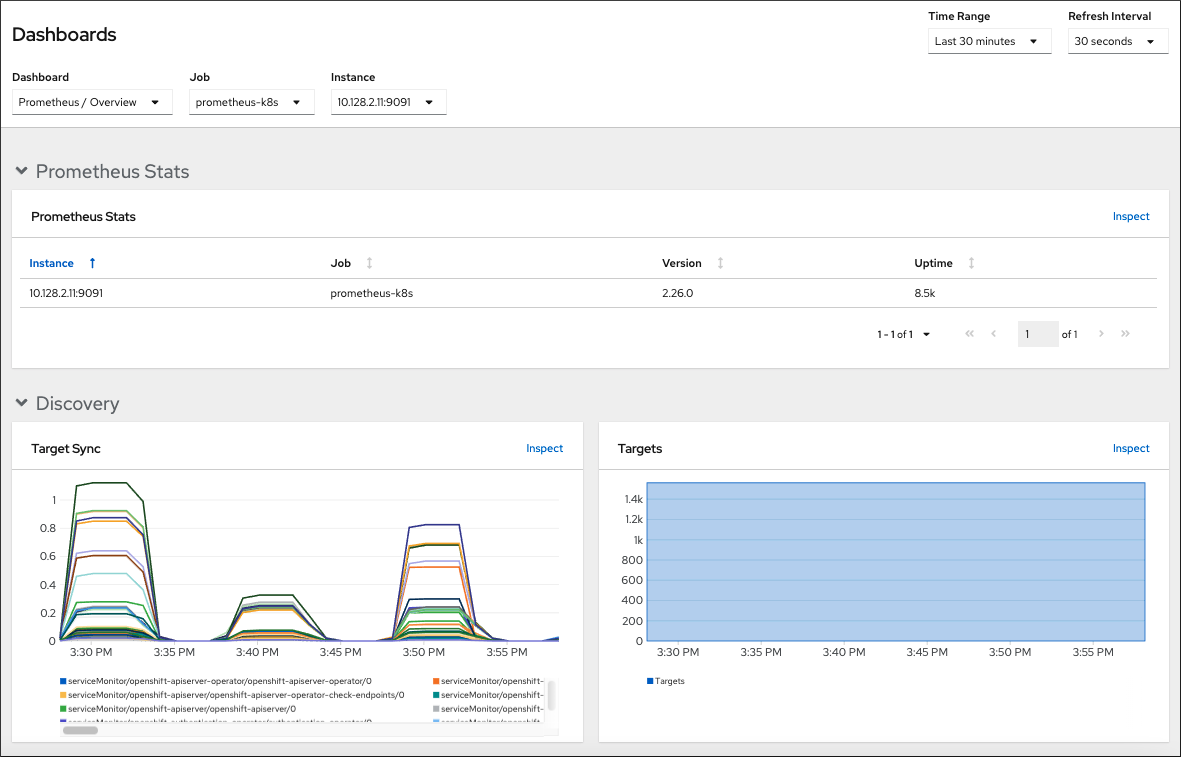
Use the Developer perspective to access Kubernetes compute resources dashboards that provide the following application metrics for a selected project:
- CPU usage
- Memory usage
- Bandwidth information
- Packet rate information
Figure 11.2. Example dashboard in the Developer perspective
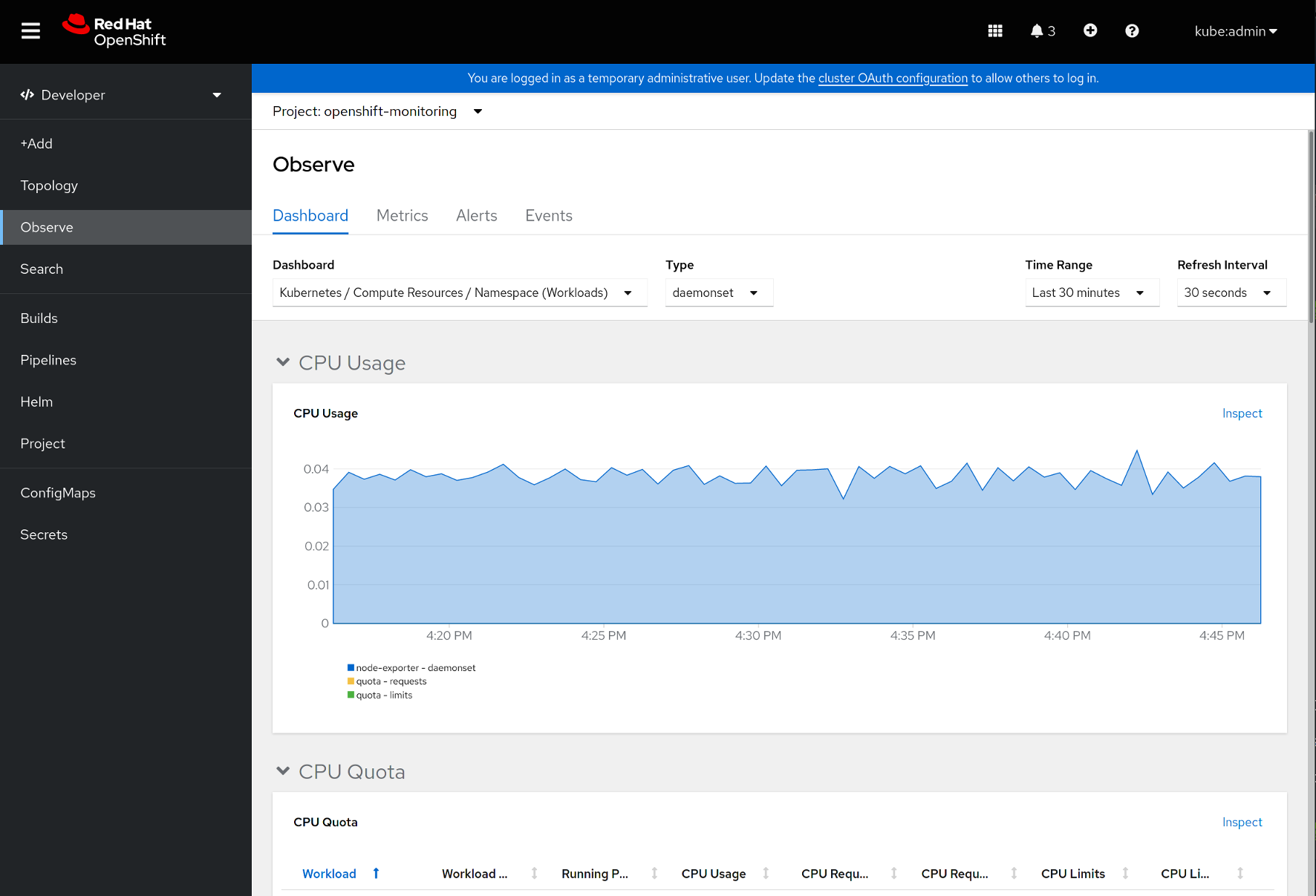
In the Developer perspective, you can view dashboards for only one project at a time.
11.1. Reviewing monitoring dashboards as a cluster administrator
In the Administrator perspective, you can view dashboards relating to core OpenShift Container Platform cluster components.
Prerequisites
-
You have access to the cluster as a user with the
cluster-admincluster role.
Procedure
- In the Administrator perspective in the OpenShift Container Platform web console, navigate to Observe → Dashboards.
- Choose a dashboard in the Dashboard list. Some dashboards, such as etcd and Prometheus dashboards, produce additional sub-menus when selected.
Optional: Select a time range for the graphs in the Time Range list.
- Select a pre-defined time period.
Set a custom time range by selecting Custom time range in the Time Range list.
- Input or select the From and To dates and times.
- Click Save to save the custom time range.
- Optional: Select a Refresh Interval.
- Hover over each of the graphs within a dashboard to display detailed information about specific items.
11.2. Reviewing monitoring dashboards as a developer
Use the Developer perspective to view Kubernetes compute resources dashboards of a selected project.
Prerequisites
- You have access to the cluster as a developer or as a user.
- You have view permissions for the project that you are viewing the dashboard for.
Procedure
- In the Developer perspective in the OpenShift Container Platform web console, navigate to Observe → Dashboard.
- Select a project from the Project: drop-down list.
Select a dashboard from the Dashboard drop-down list to see the filtered metrics.
NoteAll dashboards produce additional sub-menus when selected, except Kubernetes / Compute Resources / Namespace (Pods).
Optional: Select a time range for the graphs in the Time Range list.
- Select a pre-defined time period.
Set a custom time range by selecting Custom time range in the Time Range list.
- Input or select the From and To dates and times.
- Click Save to save the custom time range.
- Optional: Select a Refresh Interval.
- Hover over each of the graphs within a dashboard to display detailed information about specific items.
11.3. Next steps
Chapter 12. The NVIDIA GPU administration dashboard
12.1. Introduction
The OpenShift Console NVIDIA GPU plugin is a dedicated administration dashboard for NVIDIA GPU usage visualization in the OpenShift Container Platform (OCP) Console. The visualizations in the administration dashboard provide guidance on how to best optimize GPU resources in clusters, such as when a GPU is under- or over-utilized.
The OpenShift Console NVIDIA GPU plugin works as a remote bundle for the OCP console. To run the plugin the OCP console must be running.
12.2. Installing the NVIDIA GPU administration dashboard
Install the NVIDIA GPU plugin by using Helm on the OpenShift Container Platform (OCP) Console to add GPU capabilities.
The OpenShift Console NVIDIA GPU plugin works as a remote bundle for the OCP console. To run the OpenShift Console NVIDIA GPU plugin an instance of the OCP console must be running.
Prerequisites
- Red Hat OpenShift 4.11+
- NVIDIA GPU operator
- Helm
Procedure
Use the following procedure to install the OpenShift Console NVIDIA GPU plugin.
Add the Helm repository:
$ helm repo add rh-ecosystem-edge https://rh-ecosystem-edge.github.io/console-plugin-nvidia-gpu$ helm repo updateInstall the Helm chart in the default NVIDIA GPU operator namespace:
$ helm install -n nvidia-gpu-operator console-plugin-nvidia-gpu rh-ecosystem-edge/console-plugin-nvidia-gpuExample output
NAME: console-plugin-nvidia-gpu
LAST DEPLOYED: Tue Aug 23 15:37:35 2022
NAMESPACE: nvidia-gpu-operator
STATUS: deployed
REVISION: 1
NOTES:
View the Console Plugin NVIDIA GPU deployed resources by running the following command:

$ oc -n {{ .Release.Namespace }} get all -l app.kubernetes.io/name=console-plugin-nvidia-gpu

Enable the plugin by running the following command:

# Check if a plugins field is specified
$ oc get consoles.operator.openshift.io cluster --output=jsonpath="{.spec.plugins}"

# if not, then run the following command to enable the plugin
$ oc patch consoles.operator.openshift.io cluster --patch '{ "spec": { "plugins": ["console-plugin-nvidia-gpu"] } }' --type=merge

# if yes, then run the following command to enable the plugin
$ oc patch consoles.operator.openshift.io cluster --patch '[{"op": "add", "path": "/spec/plugins/-", "value": "console-plugin-nvidia-gpu" }]' --type=json

# add the required DCGM Exporter metrics ConfigMap to the existing NVIDIA operator ClusterPolicy CR:
oc patch clusterpolicies.nvidia.com gpu-cluster-policy --patch '{ "spec": { "dcgmExporter": { "config": { "name": "console-plugin-nvidia-gpu" } } } }' --type=merge
The dashboard relies mostly on Prometheus metrics exposed by the NVIDIA DCGM Exporter, but the default exposed metrics are not enough for the dashboard to render the required gauges. Therefore, the DGCM exporter is configured to expose a custom set of metrics, as shown here.
apiVersion: v1
data:
  dcgm-metrics.csv: |
    DCGM_FI_PROF_GR_ENGINE_ACTIVE, gauge, gpu utilization.
    DCGM_FI_DEV_MEM_COPY_UTIL, gauge, mem utilization.
    DCGM_FI_DEV_ENC_UTIL, gauge, enc utilization.
    DCGM_FI_DEV_DEC_UTIL, gauge, dec utilization.
    DCGM_FI_DEV_POWER_USAGE, gauge, power usage.
    DCGM_FI_DEV_POWER_MGMT_LIMIT_MAX, gauge, power mgmt limit.
    DCGM_FI_DEV_GPU_TEMP, gauge, gpu temp.
    DCGM_FI_DEV_SM_CLOCK, gauge, sm clock.
    DCGM_FI_DEV_MAX_SM_CLOCK, gauge, max sm clock.
    DCGM_FI_DEV_MEM_CLOCK, gauge, mem clock.
    DCGM_FI_DEV_MAX_MEM_CLOCK, gauge, max mem clock.
kind: ConfigMap
metadata:
  annotations:
    meta.helm.sh/release-name: console-plugin-nvidia-gpu
    meta.helm.sh/release-namespace: nvidia-gpu-operator
  creationTimestamp: "2022-10-26T19:46:41Z"
  labels:
    app.kubernetes.io/component: console-plugin-nvidia-gpu
    app.kubernetes.io/instance: console-plugin-nvidia-gpu
    app.kubernetes.io/managed-by: Helm
    app.kubernetes.io/name: console-plugin-nvidia-gpu
    app.kubernetes.io/part-of: console-plugin-nvidia-gpu
    app.kubernetes.io/version: latest
    helm.sh/chart: console-plugin-nvidia-gpu-0.2.3
  name: console-plugin-nvidia-gpu
  namespace: nvidia-gpu-operator
  resourceVersion: "19096623"
  uid: 96cdf700-dd27-437b-897d-5cbb1c255068
Install the ConfigMap and edit the NVIDIA Operator ClusterPolicy CR to add that ConfigMap in the DCGM exporter configuration. The installation of the ConfigMap is done by the new version of the Console Plugin NVIDIA GPU Helm Chart, but the ClusterPolicy CR editing is done by the user.
View the deployed resources:
$ oc -n nvidia-gpu-operator get all -l app.kubernetes.io/name=console-plugin-nvidia-gpuExample output
NAME                                             READY   STATUS    RESTARTS   AGE
pod/console-plugin-nvidia-gpu-7dc9cfb5df-ztksx   1/1     Running   0          2m6s

NAME                                TYPE        CLUSTER-IP       EXTERNAL-IP   PORT(S)    AGE
service/console-plugin-nvidia-gpu   ClusterIP   172.30.240.138   <none>        9443/TCP   2m6s

NAME                                        READY   UP-TO-DATE   AVAILABLE   AGE
deployment.apps/console-plugin-nvidia-gpu   1/1     1            1           2m6s

NAME                                                   DESIRED   CURRENT   READY   AGE
replicaset.apps/console-plugin-nvidia-gpu-7dc9cfb5df   1         1         1       2m6s
12.3. Using the NVIDIA GPU administration dashboard
After deploying the OpenShift Console NVIDIA GPU plugin, log in to the OpenShift Container Platform web console using your login credentials to access the Administrator perspective.
To view the changes, you need to refresh the console to see the GPUs tab under Compute.
12.3.1. Viewing the cluster GPU overview
You can view the status of your cluster GPUs in the Overview page by selecting Overview in the Home section.
The Overview page provides information about the cluster GPUs, including:
- Details about the GPU providers
- Status of the GPUs
- Cluster utilization of the GPUs
12.3.2. Viewing the GPUs dashboard
You can view the NVIDIA GPU administration dashboard by selecting GPUs in the Compute section of the OpenShift Console.
Charts on the GPUs dashboard include:
-
GPU utilization: Shows the ratio of time the graphics engine is active and is based on the
DCGM_FI_PROF_GR_ENGINE_ACTIVEmetric. -
Memory utilization: Shows the memory being used by the GPU and is based on the
DCGM_FI_DEV_MEM_COPY_UTILmetric. -
Encoder utilization: Shows the video encoder rate of utilization and is based on the
DCGM_FI_DEV_ENC_UTILmetric. -
Decoder utilization: Encoder utilization: Shows the video decoder rate of utilization and is based on the
DCGM_FI_DEV_DEC_UTILmetric. -
Power consumption: Shows the average power usage of the GPU in Watts and is based on the
DCGM_FI_DEV_POWER_USAGEmetric. -
GPU temperature: Shows the current GPU temperature and is based on the
DCGM_FI_DEV_GPU_TEMPmetric. The maximum is set to110, which is an empirical number, as the actual number is not exposed via a metric. -
GPU clock speed: Shows the average clock speed utilized by the GPU and is based on the
DCGM_FI_DEV_SM_CLOCKmetric. -
Memory clock speed: Shows the average clock speed utilized by memory and is based on the
DCGM_FI_DEV_MEM_CLOCKmetric.
12.3.3. Viewing the GPU Metrics
You can view the metrics for the GPUs by selecting the metric at the bottom of each GPU to view the Metrics page.
On the Metrics page, you can:
- Specify a refresh rate for the metrics
- Add, run, disable, and delete queries
- Insert Metrics
- Reset the zoom view
Chapter 13. Accessing third-party monitoring APIs
In OpenShift Container Platform 4.11, you can access web service APIs for some third-party monitoring components from the command line interface (CLI).
13.1. Accessing third-party monitoring web service APIs
You can directly access third-party web service APIs from the command line for the following monitoring stack components: Prometheus, Alertmanager, Thanos Ruler, and Thanos Querier.
The following example commands show how to query the service API receivers for Alertmanager. This example requires that the associated user account be bound against the monitoring-alertmanager-edit role in the openshift-monitoring namespace and that the account has the privilege to view the route. This access only supports using a Bearer Token for authentication.
$ oc login -u <username> -p <password>$ host=$(oc -n openshift-monitoring get route alertmanager-main -ojsonpath={.spec.host})$ token=$(oc whoami -t)$ curl -H "Authorization: Bearer $token" -k "https://$host/api/v2/receivers"
To access Thanos Ruler and Thanos Querier service APIs, the requesting account must have get permission on the namespaces resource, which can be done by granting the cluster-monitoring-view cluster role to the account.
13.2. Querying metrics by using the federation endpoint for Prometheus
You can use the federation endpoint to scrape platform and user-defined metrics from a network location outside the cluster. To do so, access the Prometheus /federate endpoint for the cluster via an OpenShift Container Platform route.
A delay in retrieving metrics data occurs when you use federation. This delay can affect the accuracy and timeliness of the scraped metrics.
Using the federation endpoint can also degrade the performance and scalability of your cluster, especially if you use the federation endpoint to retrieve large amounts of metrics data. To avoid these issues, follow these recommendations:
- Do not try to retrieve all metrics data via the federation endpoint. Query it only when you want to retrieve a limited, aggregated data set. For example, retrieving fewer than 1,000 samples for each request helps minimize the risk of performance degradation.
- Avoid querying the federation endpoint frequently. Limit queries to a maximum of one every 30 seconds.
If you need to forward large amounts of data outside the cluster, use remote write instead. For more information, see the Configuring remote write storage section.
Prerequisites
-
You have installed the OpenShift CLI (
oc). - You have obtained the host URL for the OpenShift Container Platform route.
You have access to the cluster as a user with the
cluster-monitoring-viewcluster role or have obtained a bearer token withgetpermission on thenamespacesresource.NoteYou can only use bearer token authentication to access the federation endpoint.
Procedure
Retrieve the bearer token:
$ token=`oc whoami -t`Query metrics from the
/federateroute. The following example queriesupmetrics:$ curl -G -s -k -H "Authorization: Bearer $token" \ 'https:/<federation_host>/federate' \1 --data-urlencode 'match[]=up'- 1
- For <federation_host>, substitute the host URL for the federation route.
Example output
# TYPE up untyped
up{apiserver="kube-apiserver",endpoint="https",instance="10.0.143.148:6443",job="apiserver",namespace="default",service="kubernetes",prometheus="openshift-monitoring/k8s",prometheus_replica="prometheus-k8s-0"} 1 1657035322214
up{apiserver="kube-apiserver",endpoint="https",instance="10.0.148.166:6443",job="apiserver",namespace="default",service="kubernetes",prometheus="openshift-monitoring/k8s",prometheus_replica="prometheus-k8s-0"} 1 1657035338597
up{apiserver="kube-apiserver",endpoint="https",instance="10.0.173.16:6443",job="apiserver",namespace="default",service="kubernetes",prometheus="openshift-monitoring/k8s",prometheus_replica="prometheus-k8s-0"} 1 1657035343834
...
Chapter 14. Troubleshooting monitoring issues
14.2. Determining why Prometheus is consuming a lot of disk space
Developers can create labels to define attributes for metrics in the form of key-value pairs. The number of potential key-value pairs corresponds to the number of possible values for an attribute. An attribute that has an unlimited number of potential values is called an unbound attribute. For example, a customer_id attribute is unbound because it has an infinite number of possible values.
Every assigned key-value pair has a unique time series. The use of many unbound attributes in labels can result in an exponential increase in the number of time series created. This can impact Prometheus performance and can consume a lot of disk space.
You can use the following measures when Prometheus consumes a lot of disk:
- Check the number of scrape samples that are being collected.
- Check the time series database (TSDB) status using the Prometheus HTTP API for more information about which labels are creating the most time series. Doing so requires cluster administrator privileges.
Reduce the number of unique time series that are created by reducing the number of unbound attributes that are assigned to user-defined metrics.
NoteUsing attributes that are bound to a limited set of possible values reduces the number of potential key-value pair combinations.
- Enforce limits on the number of samples that can be scraped across user-defined projects. This requires cluster administrator privileges.
Prerequisites
-
You have access to the cluster as a user with the
cluster-admincluster role. -
You have installed the OpenShift CLI (
oc).
Procedure
- In the Administrator perspective, navigate to Observe → Metrics.
Run the following Prometheus Query Language (PromQL) query in the Expression field. This returns the ten metrics that have the highest number of scrape samples:
topk(10,count by (job)({__name__=~".+"}))Investigate the number of unbound label values assigned to metrics with higher than expected scrape sample counts.
- If the metrics relate to a user-defined project, review the metrics key-value pairs assigned to your workload. These are implemented through Prometheus client libraries at the application level. Try to limit the number of unbound attributes referenced in your labels.
- If the metrics relate to a core OpenShift Container Platform project, create a Red Hat support case on the Red Hat Customer Portal.
Review the TSDB status using the Prometheus HTTP API by running the following commands as a cluster administrator:
$ oc login -u <username> -p <password>$ host=$(oc -n openshift-monitoring get route prometheus-k8s -ojsonpath={.spec.host})$ token=$(oc whoami -t)$ curl -H "Authorization: Bearer $token" -k "https://$host/api/v1/status/tsdb"Example output
"status": "success",
Chapter 15. Config map reference for the Cluster Monitoring Operator
15.1. Cluster Monitoring Operator configuration reference
Parts of OpenShift Container Platform cluster monitoring are configurable. The API is accessible by setting parameters defined in various config maps.
-
To configure monitoring components, edit the
ConfigMapobject namedcluster-monitoring-configin theopenshift-monitoringnamespace. These configurations are defined by ClusterMonitoringConfiguration. -
To configure monitoring components that monitor user-defined projects, edit the
ConfigMapobject nameduser-workload-monitoring-configin theopenshift-user-workload-monitoringnamespace. These configurations are defined by UserWorkloadConfiguration.
The configuration file is always defined under the config.yaml key in the config map data.
- Not all configuration parameters are exposed.
- Configuring cluster monitoring is optional.
- If a configuration does not exist or is empty, default values are used.
-
If the configuration is invalid YAML data, the Cluster Monitoring Operator stops reconciling the resources and reports
Degraded=Truein the status conditions of the Operator.
15.2. AdditionalAlertmanagerConfig
15.2.1. Description
The AdditionalAlertmanagerConfig resource defines settings for how a component communicates with additional Alertmanager instances.
15.2.2. Required
-
apiVersion
Appears in: PrometheusK8sConfig, PrometheusRestrictedConfig, ThanosRulerConfig
| Property | Type | Description |
|---|---|---|
| apiVersion | string |
Defines the API version of Alertmanager. Possible values are |
| bearerToken | *v1.SecretKeySelector | Defines the secret key reference containing the bearer token to use when authenticating to Alertmanager. |
| pathPrefix | string | Defines the path prefix to add in front of the push endpoint path. |
| scheme | string |
Defines the URL scheme to use when communicating with Alertmanager instances. Possible values are |
| staticConfigs | []string |
A list of statically configured Alertmanager endpoints in the form of |
| timeout | *string | Defines the timeout value used when sending alerts. |
| tlsConfig | Defines the TLS settings to use for Alertmanager connections. |
15.3. AlertmanagerMainConfig
15.3.1. Description
The AlertmanagerMainConfig resource defines settings for the Alertmanager component in the openshift-monitoring namespace.
Appears in: ClusterMonitoringConfiguration
| Property | Type | Description |
|---|---|---|
| enabled | *bool |
A Boolean flag that enables or disables the main Alertmanager instance in the |
| enableUserAlertmanagerConfig | bool |
A Boolean flag that enables or disables user-defined namespaces to be selected for |
| logLevel | string |
Defines the log level setting for Alertmanager. The possible values are: |
| nodeSelector | map[string]string | Defines the nodes on which the Pods are scheduled. |
| resources | *v1.ResourceRequirements | Defines resource requests and limits for the Alertmanager container. |
| tolerations | []v1.Toleration | Defines tolerations for the pods. |
| volumeClaimTemplate | *monv1.EmbeddedPersistentVolumeClaim | Defines persistent storage for Alertmanager. Use this setting to configure the persistent volume claim, including storage class, volume size, and name. |
15.4. AlertmanagerUserWorkloadConfig
15.4.1. Description
The AlertmanagerUserWorkloadConfig resource defines the settings for the Alertmanager instance used for user-defined projects.
Appears in: UserWorkloadConfiguration
| Property | Type | Description |
|---|---|---|
| enabled | bool |
A Boolean flag that enables or disables a dedicated instance of Alertmanager for user-defined alerts in the |
| enableAlertmanagerConfig | bool |
A Boolean flag to enable or disable user-defined namespaces to be selected for |
| logLevel | string |
Defines the log level setting for Alertmanager for user workload monitoring. The possible values are |
| resources | *v1.ResourceRequirements | Defines resource requests and limits for the Alertmanager container. |
| nodeSelector | map[string]string | Defines the nodes on which the pods are scheduled. |
| tolerations | []v1.Toleration | Defines tolerations for the pods. |
| volumeClaimTemplate | *monv1.EmbeddedPersistentVolumeClaim | Defines persistent storage for Alertmanager. Use this setting to configure the persistent volume claim, including storage class, volume size and name. |
15.5. ClusterMonitoringConfiguration
15.5.1. Description
The ClusterMonitoringConfiguration resource defines settings that customize the default platform monitoring stack through the cluster-monitoring-config config map in the openshift-monitoring namespace.
| Property | Type | Description |
|---|---|---|
| alertmanagerMain |
| |
| enableUserWorkload | *bool |
|
| k8sPrometheusAdapter |
| |
| kubeStateMetrics |
| |
| prometheusK8s |
| |
| prometheusOperator |
| |
| openshiftStateMetrics |
| |
| telemeterClient |
| |
| thanosQuerier |
|
15.6. DedicatedServiceMonitors
15.6.1. Description
You can use the DedicatedServiceMonitors resource to configure dedicated Service Monitors for the Prometheus Adapter
Appears in: K8sPrometheusAdapter
| Property | Type | Description |
|---|---|---|
| enabled | bool |
When |
15.7. K8sPrometheusAdapter
15.7.1. Description
The K8sPrometheusAdapter resource defines settings for the Prometheus Adapter component.
Appears in: ClusterMonitoringConfiguration
| Property | Type | Description |
|---|---|---|
| audit | *Audit |
Defines the audit configuration used by the Prometheus Adapter instance. Possible profile values are: |
| nodeSelector | map[string]string | Defines the nodes on which the pods are scheduled. |
| tolerations | []v1.Toleration | Defines tolerations for the pods. |
| dedicatedServiceMonitors | Defines dedicated service monitors. |
15.8. KubeStateMetricsConfig
15.8.1. Description
The KubeStateMetricsConfig resource defines settings for the kube-state-metrics agent.
Appears in: ClusterMonitoringConfiguration
| Property | Type | Description |
|---|---|---|
| nodeSelector | map[string]string | Defines the nodes on which the pods are scheduled. |
| tolerations | []v1.Toleration | Defines tolerations for the pods. |
15.9. OpenShiftStateMetricsConfig
15.9.1. Description
The OpenShiftStateMetricsConfig resource defines settings for the openshift-state-metrics agent.
Appears in: ClusterMonitoringConfiguration
| Property | Type | Description |
|---|---|---|
| nodeSelector | map[string]string | Defines the nodes on which the pods are scheduled. |
| tolerations | []v1.Toleration | Defines tolerations for the pods. |
15.10. PrometheusK8sConfig
15.10.1. Description
The PrometheusK8sConfig resource defines settings for the Prometheus component.
Appears in: ClusterMonitoringConfiguration
| Property | Type | Description |
|---|---|---|
| additionalAlertmanagerConfigs | Configures additional Alertmanager instances that receive alerts from the Prometheus component. By default, no additional Alertmanager instances are configured. | |
| enforcedBodySizeLimit | string |
Enforces a body size limit for Prometheus scraped metrics. If a scraped target’s body response is larger than the limit, the scrape will fail. The following values are valid: an empty value to specify no limit, a numeric value in Prometheus size format (such as |
| externalLabels | map[string]string | Defines labels to be added to any time series or alerts when communicating with external systems such as federation, remote storage, and Alertmanager. By default, no labels are added. |
| logLevel | string |
Defines the log level setting for Prometheus. The possible values are: |
| nodeSelector | map[string]string | Defines the nodes on which the pods are scheduled. |
| queryLogFile | string |
Specifies the file to which PromQL queries are logged. This setting can be either a filename, in which case the queries are saved to an |
| remoteWrite | Defines the remote write configuration, including URL, authentication, and relabeling settings. | |
| resources | *v1.ResourceRequirements | Defines resource requests and limits for the Prometheus container. |
| retention | string |
Defines the duration for which Prometheus retains data. This definition must be specified using the following regular expression pattern: |
| retentionSize | string |
Defines the maximum amount of disk space used by data blocks plus the write-ahead log (WAL). Supported values are |
| tolerations | []v1.Toleration | Defines tolerations for the pods. |
| volumeClaimTemplate | *monv1.EmbeddedPersistentVolumeClaim | Defines persistent storage for Prometheus. Use this setting to configure the persistent volume claim, including storage class, volume size and name. |
15.11. PrometheusOperatorConfig
15.11.1. Description
The PrometheusOperatorConfig resource defines settings for the Prometheus Operator component.
Appears in: ClusterMonitoringConfiguration, UserWorkloadConfiguration
| Property | Type | Description |
|---|---|---|
| logLevel | string |
Defines the log level settings for Prometheus Operator. The possible values are |
| nodeSelector | map[string]string | Defines the nodes on which the pods are scheduled. |
| tolerations | []v1.Toleration | Defines tolerations for the pods. |
15.12. PrometheusRestrictedConfig
15.12.1. Description
The PrometheusRestrictedConfig resource defines the settings for the Prometheus component that monitors user-defined projects.
Appears in: UserWorkloadConfiguration
| Property | Type | Description |
|---|---|---|
| additionalAlertmanagerConfigs | Configures additional Alertmanager instances that receive alerts from the Prometheus component. By default, no additional Alertmanager instances are configured. | |
| enforcedLabelLimit | *uint64 |
Specifies a per-scrape limit on the number of labels accepted for a sample. If the number of labels exceeds this limit after metric relabeling, the entire scrape is treated as failed. The default value is |
| enforcedLabelNameLengthLimit | *uint64 |
Specifies a per-scrape limit on the length of a label name for a sample. If the length of a label name exceeds this limit after metric relabeling, the entire scrape is treated as failed. The default value is |
| enforcedLabelValueLengthLimit | *uint64 |
Specifies a per-scrape limit on the length of a label value for a sample. If the length of a label value exceeds this limit after metric relabeling, the entire scrape is treated as failed. The default value is |
| enforcedSampleLimit | *uint64 |
Specifies a global limit on the number of scraped samples that will be accepted. This setting overrides the |
| enforcedTargetLimit | *uint64 |
Specifies a global limit on the number of scraped targets. This setting overrides the |
| externalLabels | map[string]string | Defines labels to be added to any time series or alerts when communicating with external systems such as federation, remote storage, and Alertmanager. By default, no labels are added. |
| logLevel | string |
Defines the log level setting for Prometheus. The possible values are |
| nodeSelector | map[string]string | Defines the nodes on which the pods are scheduled. |
| queryLogFile | string |
Specifies the file to which PromQL queries are logged. This setting can be either a filename, in which case the queries are saved to an |
| remoteWrite | Defines the remote write configuration, including URL, authentication, and relabeling settings. | |
| resources | *v1.ResourceRequirements | Defines resource requests and limits for the Prometheus container. |
| retention | string |
Defines the duration for which Prometheus retains data. This definition must be specified using the following regular expression pattern: |
| retentionSize | string |
Defines the maximum amount of disk space used by data blocks plus the write-ahead log (WAL). Supported values are |
| tolerations | []v1.Toleration | Defines tolerations for the pods. |
| volumeClaimTemplate | *monv1.EmbeddedPersistentVolumeClaim | Defines persistent storage for Prometheus. Use this setting to configure the storage class and size of a volume. |
15.13. RemoteWriteSpec
15.13.1. Description
The RemoteWriteSpec resource defines the settings for remote write storage.
15.13.2. Required
-
url
Appears in: PrometheusK8sConfig, PrometheusRestrictedConfig
| Property | Type | Description |
|---|---|---|
| authorization | *monv1.SafeAuthorization | Defines the authorization settings for remote write storage. |
| basicAuth | *monv1.BasicAuth | Defines basic authentication settings for the remote write endpoint URL. |
| bearerTokenFile | string | Defines the file that contains the bearer token for the remote write endpoint. However, because you cannot mount secrets in a pod, in practice you can only reference the token of the service account. |
| headers | map[string]string | Specifies the custom HTTP headers to be sent along with each remote write request. Headers set by Prometheus cannot be overwritten. |
| metadataConfig | *monv1.MetadataConfig | Defines settings for sending series metadata to remote write storage. |
| name | string | Defines the name of the remote write queue. This name is used in metrics and logging to differentiate queues. If specified, this name must be unique. |
| oauth2 | *monv1.OAuth2 | Defines OAuth2 authentication settings for the remote write endpoint. |
| proxyUrl | string | Defines an optional proxy URL. |
| queueConfig | *monv1.QueueConfig | Allows tuning configuration for remote write queue parameters. |
| remoteTimeout | string | Defines the timeout value for requests to the remote write endpoint. |
| sigv4 | *monv1.Sigv4 | Defines AWS Signature Version 4 authentication settings. |
| tlsConfig | *monv1.SafeTLSConfig | Defines TLS authentication settings for the remote write endpoint. |
| url | string | Defines the URL of the remote write endpoint to which samples will be sent. |
| writeRelabelConfigs | []monv1.RelabelConfig | Defines the list of remote write relabel configurations. |
15.14. TelemeterClientConfig
15.14.1. Description
The TelemeterClientConfig resource defines settings for the telemeter-client component.
15.14.2. Required
-
nodeSelector -
tolerations
Appears in: ClusterMonitoringConfiguration
| Property | Type | Description |
|---|---|---|
| nodeSelector | map[string]string | Defines the nodes on which the pods are scheduled. |
| tolerations | []v1.Toleration | Defines tolerations for the pods. |
15.15. ThanosQuerierConfig
15.15.1. Description
The ThanosQuerierConfig resource defines settings for the Thanos Querier component.
Appears in: ClusterMonitoringConfiguration
| Property | Type | Description |
|---|---|---|
| enableRequestLogging | bool |
A Boolean flag that enables or disables request logging. The default value is |
| logLevel | string |
Defines the log level setting for Thanos Querier. The possible values are |
| nodeSelector | map[string]string | Defines the nodes on which the pods are scheduled. |
| resources | *v1.ResourceRequirements | Defines resource requests and limits for the Thanos Querier container. |
| tolerations | []v1.Toleration | Defines tolerations for the pods. |
15.16. ThanosRulerConfig
15.16.1. Description
The ThanosRulerConfig resource defines configuration for the Thanos Ruler instance for user-defined projects.
Appears in: UserWorkloadConfiguration
| Property | Type | Description |
|---|---|---|
| additionalAlertmanagerConfigs |
Configures how the Thanos Ruler component communicates with additional Alertmanager instances. The default value is | |
| logLevel | string |
Defines the log level setting for Thanos Ruler. The possible values are |
| nodeSelector | map[string]string | Defines the nodes on which the Pods are scheduled. |
| resources | *v1.ResourceRequirements | Defines resource requests and limits for the Thanos Ruler container. |
| retention | string |
Defines the duration for which Prometheus retains data. This definition must be specified using the following regular expression pattern: |
| tolerations | []v1.Toleration | Defines tolerations for the pods. |
| volumeClaimTemplate | *monv1.EmbeddedPersistentVolumeClaim | Defines persistent storage for Thanos Ruler. Use this setting to configure the storage class and size of a volume. |
15.17. TLSConfig
15.17.1. Description
The TLSConfig resource configures the settings for TLS connections.
15.17.2. Required
-
insecureSkipVerify
Appears in: AdditionalAlertmanagerConfig
| Property | Type | Description |
|---|---|---|
| ca | *v1.SecretKeySelector | Defines the secret key reference containing the Certificate Authority (CA) to use for the remote host. |
| cert | *v1.SecretKeySelector | Defines the secret key reference containing the public certificate to use for the remote host. |
| key | *v1.SecretKeySelector | Defines the secret key reference containing the private key to use for the remote host. |
| serverName | string | Used to verify the hostname on the returned certificate. |
| insecureSkipVerify | bool |
When set to |
15.18. UserWorkloadConfiguration
15.18.1. Description
The UserWorkloadConfiguration resource defines the settings responsible for user-defined projects in the user-workload-monitoring-config config map in the openshift-user-workload-monitoring namespace. You can only enable UserWorkloadConfiguration after you have set enableUserWorkload to true in the cluster-monitoring-config config map under the openshift-monitoring namespace.
| Property | Type | Description |
|---|---|---|
| alertmanager | Defines the settings for the Alertmanager component in user workload monitoring. | |
| prometheus | Defines the settings for the Prometheus component in user workload monitoring. | |
| prometheusOperator | Defines the settings for the Prometheus Operator component in user workload monitoring. | |
| thanosRuler | Defines the settings for the Thanos Ruler component in user workload monitoring. |
Chapter 16. Cluster Observability Operator
16.1. Cluster Observability Operator release notes
The Cluster Observability Operator is a Technology Preview feature only. Technology Preview features are not supported with Red Hat production service level agreements (SLAs) and might not be functionally complete. Red Hat does not recommend using them in production. These features provide early access to upcoming product features, enabling customers to test functionality and provide feedback during the development process.
For more information about the support scope of Red Hat Technology Preview features, see Technology Preview Features Support Scope.
The Cluster Observability Operator (COO) is an optional OpenShift Container Platform Operator that enables administrators to create standalone monitoring stacks that are independently configurable for use by different services and users.
The COO complements the built-in monitoring capabilities of OpenShift Container Platform. You can deploy it in parallel with the default platform and user workload monitoring stacks managed by the Cluster Monitoring Operator (CMO).
These release notes track the development of the Cluster Observability Operator in OpenShift Container Platform.
16.1.1. Cluster Observability Operator 0.1.1
This release updates the Cluster Observability Operator to support installing the Operator in restricted networks or disconnected environments.
16.1.2. Cluster Observability Operator 0.1
This release makes a Technology Preview version of the Cluster Observability Operator available on OperatorHub.
16.2. Cluster Observability Operator overview
The Cluster Observability Operator is a Technology Preview feature only. Technology Preview features are not supported with Red Hat production service level agreements (SLAs) and might not be functionally complete. Red Hat does not recommend using them in production. These features provide early access to upcoming product features, enabling customers to test functionality and provide feedback during the development process.
For more information about the support scope of Red Hat Technology Preview features, see Technology Preview Features Support Scope.
The Cluster Observability Operator (COO) is an optional component of the OpenShift Container Platform. You can deploy it to create standalone monitoring stacks that are independently configurable for use by different services and users.
The COO deploys the following monitoring components:
- Prometheus
- Thanos Querier (optional)
- Alertmanager (optional)
The COO components function independently of the default in-cluster monitoring stack, which is deployed and managed by the Cluster Monitoring Operator (CMO). Monitoring stacks deployed by the two Operators do not conflict. You can use a COO monitoring stack in addition to the default platform monitoring components deployed by the CMO.
16.2.1. Understanding the Cluster Observability Operator
A default monitoring stack created by the Cluster Observability Operator (COO) includes a highly available Prometheus instance capable of sending metrics to an external endpoint by using remote write.
Each COO stack also includes an optional Thanos Querier component, which you can use to query a highly available Prometheus instance from a central location, and an optional Alertmanager component, which you can use to set up alert configurations for different services.
16.2.1.1. Advantages of using the Cluster Observability Operator
The MonitoringStack CRD used by the COO offers an opinionated default monitoring configuration for COO-deployed monitoring components, but you can customize it to suit more complex requirements.
Deploying a COO-managed monitoring stack can help meet monitoring needs that are difficult or impossible to address by using the core platform monitoring stack deployed by the Cluster Monitoring Operator (CMO). A monitoring stack deployed using COO has the following advantages over core platform and user workload monitoring:
- Extendability
- Users can add more metrics to a COO-deployed monitoring stack, which is not possible with core platform monitoring without losing support. In addition, COO-managed stacks can receive certain cluster-specific metrics from core platform monitoring by using federation.
- Multi-tenancy support
- The COO can create a monitoring stack per user namespace. You can also deploy multiple stacks per namespace or a single stack for multiple namespaces. For example, cluster administrators, SRE teams, and development teams can all deploy their own monitoring stacks on a single cluster, rather than having to use a single shared stack of monitoring components. Users on different teams can then independently configure features such as separate alerts, alert routing, and alert receivers for their applications and services.
- Scalability
- You can create COO-managed monitoring stacks as needed. Multiple monitoring stacks can run on a single cluster, which can facilitate the monitoring of very large clusters by using manual sharding. This ability addresses cases where the number of metrics exceeds the monitoring capabilities of a single Prometheus instance.
- Flexibility
- Deploying the COO with Operator Lifecycle Manager (OLM) decouples COO releases from OpenShift Container Platform release cycles. This method of deployment enables faster release iterations and the ability to respond rapidly to changing requirements and issues. Additionally, by deploying a COO-managed monitoring stack, users can manage alerting rules independently of OpenShift Container Platform release cycles.
- Highly customizable
- The COO can delegate ownership of single configurable fields in custom resources to users by using Server-Side Apply (SSA), which enhances customization.
16.3. Installing the Cluster Observability Operator
The Cluster Observability Operator is a Technology Preview feature only. Technology Preview features are not supported with Red Hat production service level agreements (SLAs) and might not be functionally complete. Red Hat does not recommend using them in production. These features provide early access to upcoming product features, enabling customers to test functionality and provide feedback during the development process.
For more information about the support scope of Red Hat Technology Preview features, see Technology Preview Features Support Scope.
As a cluster administrator, you can install the Cluster Observability Operator (COO) from OperatorHub by using the OpenShift Container Platform web console or CLI. OperatorHub is a user interface that works in conjunction with Operator Lifecycle Manager (OLM), which installs and manages Operators on a cluster.
To install the COO using OperatorHub, follow the procedure described in Adding Operators to a cluster.
16.3.1. Uninstalling the Cluster Observability Operator using the web console
If you have installed the Cluster Observability Operator (COO) by using OperatorHub, you can uninstall it in the OpenShift Container Platform web console.
Prerequisites
-
You have access to the cluster as a user with the
cluster-admincluster role. - You have logged in to the OpenShift Container Platform web console.
Procedure
- Go to Operators → Installed Operators.
- Locate the Cluster Observability Operator entry in the list.
-
Click
for this entry and select Uninstall Operator.
16.4. Configuring the Cluster Observability Operator to monitor a service
The Cluster Observability Operator is a Technology Preview feature only. Technology Preview features are not supported with Red Hat production service level agreements (SLAs) and might not be functionally complete. Red Hat does not recommend using them in production. These features provide early access to upcoming product features, enabling customers to test functionality and provide feedback during the development process.
For more information about the support scope of Red Hat Technology Preview features, see Technology Preview Features Support Scope.
You can monitor metrics for a service by configuring monitoring stacks managed by the Cluster Observability Operator (COO).
To test monitoring a service, follow these steps:
- Deploy a sample service that defines a service endpoint.
-
Create a
ServiceMonitorobject that specifies how the service is to be monitored by the COO. -
Create a
MonitoringStackobject to discover theServiceMonitorobject.
16.4.1. Deploying a sample service for Cluster Observability Operator
This configuration deploys a sample service named prometheus-coo-example-app in the user-defined ns1-coo project. The service exposes the custom version metric.
Prerequisites
-
You have access to the cluster as a user with the
cluster-admincluster role or as a user with administrative permissions for the namespace.
Procedure
Create a YAML file named
prometheus-coo-example-app.yamlthat contains the following configuration details for a namespace, deployment, and service:apiVersion: v1 kind: Namespace metadata: name: ns1-coo --- apiVersion: apps/v1 kind: Deployment metadata: labels: app: prometheus-coo-example-app name: prometheus-coo-example-app namespace: ns1-coo spec: replicas: 1 selector: matchLabels: app: prometheus-coo-example-app template: metadata: labels: app: prometheus-coo-example-app spec: containers: - image: ghcr.io/rhobs/prometheus-example-app:0.4.2 imagePullPolicy: IfNotPresent name: prometheus-coo-example-app --- apiVersion: v1 kind: Service metadata: labels: app: prometheus-coo-example-app name: prometheus-coo-example-app namespace: ns1-coo spec: ports: - port: 8080 protocol: TCP targetPort: 8080 name: web selector: app: prometheus-coo-example-app type: ClusterIP- Save the file.
Apply the configuration to the cluster by running the following command:
$ oc apply -f prometheus-coo-example-app.yamlVerify that the pod is running by running the following command and observing the output:
$ oc -n -ns1-coo get podExample output
NAME                                      READY     STATUS    RESTARTS   AGE
prometheus-coo-example-app-0927545cb7-anskj   1/1       Running   0          81m
16.4.2. Specifying how a service is monitored by Cluster Observability Operator
To use the metrics exposed by the sample service you created in the "Deploying a sample service for Cluster Observability Operator" section, you must configure monitoring components to scrape metrics from the /metrics endpoint.
You can create this configuration by using a ServiceMonitor object that specifies how the service is to be monitored, or a PodMonitor object that specifies how a pod is to be monitored. The ServiceMonitor object requires a Service object. The PodMonitor object does not, which enables the MonitoringStack object to scrape metrics directly from the metrics endpoint exposed by a pod.
This procedure shows how to create a ServiceMonitor object for a sample service named prometheus-coo-example-app in the ns1-coo namespace.
Prerequisites
-
You have access to the cluster as a user with the
cluster-admincluster role or as a user with administrative permissions for the namespace. - You have installed the Cluster Observability Operator.
You have deployed the
prometheus-coo-example-appsample service in thens1-coonamespace.NoteThe
prometheus-coo-example-appsample service does not support TLS authentication.
Procedure
Create a YAML file named
example-coo-app-service-monitor.yamlthat contains the followingServiceMonitorobject configuration details:apiVersion: monitoring.rhobs/v1alpha1 kind: ServiceMonitor metadata: labels: k8s-app: prometheus-coo-example-monitor name: prometheus-coo-example-monitor namespace: ns1-coo spec: endpoints: - interval: 30s port: web scheme: http selector: matchLabels: app: prometheus-coo-example-appThis configuration defines a
ServiceMonitorobject that theMonitoringStackobject will reference to scrape the metrics data exposed by theprometheus-coo-example-appsample service.Apply the configuration to the cluster by running the following command:
$ oc apply -f example-app-service-monitor.yamlVerify that the
ServiceMonitorresource is created by running the following command and observing the output:$ oc -n ns1-coo get servicemonitorExample output
NAME                         AGE
prometheus-coo-example-monitor   81m
16.4.3. Creating a MonitoringStack object for the Cluster Observability Operator
To scrape the metrics data exposed by the target prometheus-coo-example-app service, create a MonitoringStack object that references the ServiceMonitor object you created in the "Specifying how a service is monitored for Cluster Observability Operator" section. This MonitoringStack object can then discover the service and scrape the exposed metrics data from it.
Prerequisites
-
You have access to the cluster as a user with the
cluster-admincluster role or as a user with administrative permissions for the namespace. - You have installed the Cluster Observability Operator.
-
You have deployed the
prometheus-coo-example-appsample service in thens1-coonamespace. -
You have created a
ServiceMonitorobject namedprometheus-coo-example-monitorin thens1-coonamespace.
Procedure
-
Create a YAML file for the
MonitoringStackobject configuration. For this example, name the fileexample-coo-monitoring-stack.yaml. Add the following
MonitoringStackobject configuration details:Example
MonitoringStackobjectapiVersion: monitoring.rhobs/v1alpha1 kind: MonitoringStack metadata: name: example-coo-monitoring-stack namespace: ns1-coo spec: logLevel: debug retention: 1d resourceSelector: matchLabels: k8s-app: prometheus-coo-example-monitorApply the
MonitoringStackobject by running the following command:$ oc apply -f example-coo-monitoring-stack.yamlVerify that the
MonitoringStackobject is available by running the following command and inspecting the output:$ oc -n ns1-coo get monitoringstackExample output
NAME                         AGE
example-coo-monitoring-stack   81m
Legal Notice
Copyright © Red Hat
OpenShift documentation is licensed under the Apache License 2.0 (https://www.apache.org/licenses/LICENSE-2.0).
Modified versions must remove all Red Hat trademarks.
Portions adapted from https://github.com/kubernetes-incubator/service-catalog/ with modifications by Red Hat.
Red Hat, Red Hat Enterprise Linux, the Red Hat logo, the Shadowman logo, JBoss, OpenShift, Fedora, the Infinity logo, and RHCE are trademarks of Red Hat, Inc., registered in the United States and other countries.
Linux® is the registered trademark of Linus Torvalds in the United States and other countries.
Java® is a registered trademark of Oracle and/or its affiliates.
XFS® is a trademark of Silicon Graphics International Corp. or its subsidiaries in the United States and/or other countries.
MySQL® is a registered trademark of MySQL AB in the United States, the European Union and other countries.
Node.js® is an official trademark of the OpenJS Foundation.
The OpenStack® Word Mark and OpenStack logo are either registered trademarks/service marks or trademarks/service marks of the OpenStack Foundation, in the United States and other countries and are used with the OpenStack Foundation’s permission. We are not affiliated with, endorsed or sponsored by the OpenStack Foundation, or the OpenStack community.
All other trademarks are the property of their respective owners.

'%20d='M201.5%20305.5c-13.8%200-24.9-11.1-24.9-24.6%200-13.8%2011.1-24.9%2024.9-24.9%2013.6%200%2024.6%2011.1%2024.6%2024.9%200%2013.6-11.1%2024.6-24.6%2024.6zM504%20256c0%20137-111%20248-248%20248S8%20393%208%20256%20119%208%20256%208s248%20111%20248%20248zm-132.3-41.2c-9.4%200-17.7%203.9-23.8%2010-22.4-15.5-52.6-25.5-86.1-26.6l17.4-78.3%2055.4%2012.5c0%2013.6%2011.1%2024.6%2024.6%2024.6%2013.8%200%2024.9-11.3%2024.9-24.9s-11.1-24.9-24.9-24.9c-9.7%200-18%205.8-22.1%2013.8l-61.2-13.6c-3-.8-6.1%201.4-6.9%204.4l-19.1%2086.4c-33.2%201.4-63.1%2011.3-85.5%2026.8-6.1-6.4-14.7-10.2-24.1-10.2-34.9%200-46.3%2046.9-14.4%2062.8-1.1%205-1.7%2010.2-1.7%2015.5%200%2052.6%2059.2%2095.2%20132%2095.2%2073.1%200%20132.3-42.6%20132.3-95.2%200-5.3-.6-10.8-1.9-15.8%2031.3-16%2019.8-62.5-14.9-62.5zM302.8%20331c-18.2%2018.2-76.1%2017.9-93.6%200-2.2-2.2-6.1-2.2-8.3%200-2.5%202.5-2.5%206.4%200%208.6%2022.8%2022.8%2087.3%2022.8%20110.2%200%202.5-2.2%202.5-6.1%200-8.6-2.2-2.2-6.1-2.2-8.3%200zm7.7-75c-13.6%200-24.6%2011.1-24.6%2024.9%200%2013.6%2011.1%2024.6%2024.6%2024.6%2013.8%200%2024.9-11.1%2024.9-24.6%200-13.8-11-24.9-24.9-24.9z'/%3e%3c/svg%3e)