 Red Hat Summit
Este contenido no está disponible en el idioma seleccionado.
6.4. Creating Guests with PXE
PXE guest installation requires a PXE server running on the same subnet as the guest virtual machines you wish to install. The method of accomplishing this depends on how the virtual machines are connected to the network. Contact Support if you require assistance setting up a PXE server.
virt-install PXE installations require both the --network=bridge:installation parameter, where installation is the name of your bridge, and the --pxe parameter.
reboot-timeout to allow the guest to retry booting if no bootable device is found, like so:
# qemu-kvm -boot reboot-timeout=1000Example 6.2. Fully-virtualized PXE installation with virt-install
# virt-install --hvm --connect qemu:///system \
--network=bridge:installation --pxe --graphics spice \
--name rhel6-machine --ram=756 --vcpus=4 \
--os-type=linux --os-variant=rhel6 \
--disk path=/var/lib/libvirt/images/rhel6-machine.img,size=10--hvm) guest can only be installed in a text-only environment if the --location and --extra-args "console=console_type" are provided instead of the --graphics spice parameter.
Procedure 6.2. PXE installation with virt-manager
Select PXE
Select PXE as the installation method and follow the rest of the steps to configure the OS type, memory, CPU and storage settings.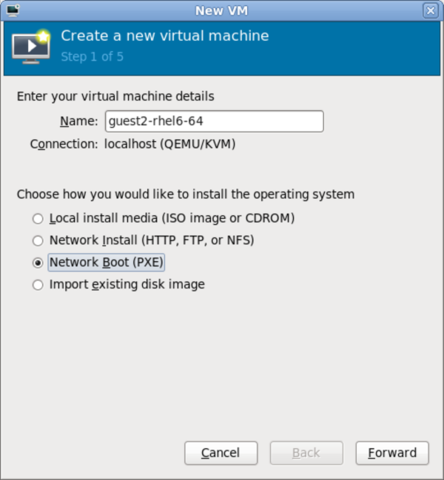
Figure 6.8. Selecting the installation method

Figure 6.9. Selecting the installation type

Figure 6.10. Specifying virtualized hardware details

Figure 6.11. Specifying storage details
Start the installation
The installation is ready to start.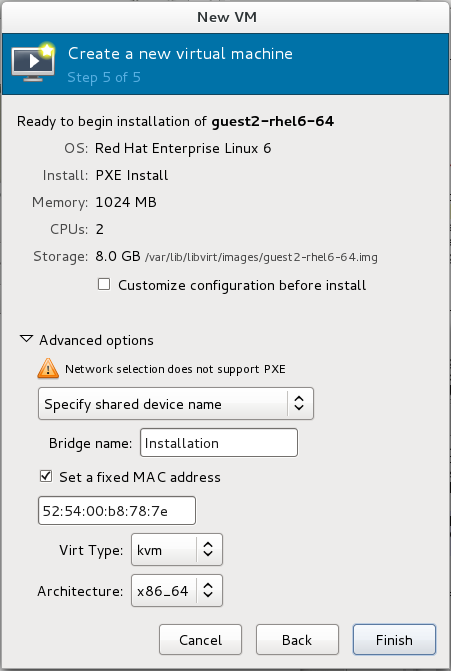
Figure 6.12. Finalizing virtual machine details

'%20d='M201.5%20305.5c-13.8%200-24.9-11.1-24.9-24.6%200-13.8%2011.1-24.9%2024.9-24.9%2013.6%200%2024.6%2011.1%2024.6%2024.9%200%2013.6-11.1%2024.6-24.6%2024.6zM504%20256c0%20137-111%20248-248%20248S8%20393%208%20256%20119%208%20256%208s248%20111%20248%20248zm-132.3-41.2c-9.4%200-17.7%203.9-23.8%2010-22.4-15.5-52.6-25.5-86.1-26.6l17.4-78.3%2055.4%2012.5c0%2013.6%2011.1%2024.6%2024.6%2024.6%2013.8%200%2024.9-11.3%2024.9-24.9s-11.1-24.9-24.9-24.9c-9.7%200-18%205.8-22.1%2013.8l-61.2-13.6c-3-.8-6.1%201.4-6.9%204.4l-19.1%2086.4c-33.2%201.4-63.1%2011.3-85.5%2026.8-6.1-6.4-14.7-10.2-24.1-10.2-34.9%200-46.3%2046.9-14.4%2062.8-1.1%205-1.7%2010.2-1.7%2015.5%200%2052.6%2059.2%2095.2%20132%2095.2%2073.1%200%20132.3-42.6%20132.3-95.2%200-5.3-.6-10.8-1.9-15.8%2031.3-16%2019.8-62.5-14.9-62.5zM302.8%20331c-18.2%2018.2-76.1%2017.9-93.6%200-2.2-2.2-6.1-2.2-8.3%200-2.5%202.5-2.5%206.4%200%208.6%2022.8%2022.8%2087.3%2022.8%20110.2%200%202.5-2.2%202.5-6.1%200-8.6-2.2-2.2-6.1-2.2-8.3%200zm7.7-75c-13.6%200-24.6%2011.1-24.6%2024.9%200%2013.6%2011.1%2024.6%2024.6%2024.6%2013.8%200%2024.9-11.1%2024.9-24.6%200-13.8-11-24.9-24.9-24.9z'/%3e%3c/svg%3e)