 Red Hat Summit
Este contenido no está disponible en el idioma seleccionado.
Chapter 20. Setting access control on the Directory Manager account
Having an unconstrained administrative user makes sense from a maintenance perspective. The Directory Manager requires a high level of access in order to perform maintenance tasks and to respond to incidents.
However, because of the power of the Directory Manager user, a certain level of access control can be advisable to prevent damages from attacks being performed as the administrative user.
20.1. About access controls on the Directory Manager account
Directory Server applies regular access control instructions only to the directory tree. The privileges of the Directory Manager account are hard-coded, and you cannot use this account in bind rules. To limit access to the Directory Manager account, use the RootDN Access Control plug-in.
This plug-in’s features are different from standard access control instructions (ACI). For example, certain information, such as the target (the Directory Manager entry) and the allowed permissions (all of them) is implied. The purpose of the RootDN Access Control plug-in is to provide a level of security by limiting who can log in as Directory Manager based on their location or time, not to restrict what this user can do.
For this reason, the settings of the plug-in only support:
- Time-based access controls, to allow or deny access on certain days and specific time ranges
- IP address rules, to allow or deny access from defined IP addresses, subnets, and domains
- Host access rules, to allow or deny access from specific hosts, domains, and subdomains
There is only one access control rule you can set for the Directory Manager. It is in the plug-in entry, and it applies to the entire directory.
Same as in regular ACIs, deny rules have a higher priority than allow rules.
Ensure that the Directory Manager account has an appropriate level of access. This administrative user might need to perform maintenance operations in off-hours or to respond to failures. In this case, setting a too restrictive time or day rule can prevent the Directory Manager user from adequately manage the directory.
20.2. Configuring the RootDN access control plug-in using the command line
By default, the RootDN Access Control plug-in is disabled. To limit permissions of the Directory Manager account, enable and configure the plug-in.
Procedure
Enable the
RootDN Access Controlplug-in:# dsconf -D "cn=Directory Manager" ldap://server.example.com plugin root-dn enableSet the bind rules. For example, to allow the Directory Manager account to only log in between 6am and 9pm from the host with IP address
192.0.2.1, enter:# dsconf -D "cn=Directory Manager" ldap://server.example.com plugin root-dn set --open-time=0600 --close-time=2100 --allow-ip="192.0.2.1"For the full list of parameters you can set and their descriptions, enter:
# dsconf -D "cn=Directory Manager" ldap://server.example.com plugin root-dn set --helpRestart the instance:
# dsctl instance_name restart
Verification
Perform a query as
cn=Directory Managerfrom a host that is not allowed or outside of the allowed time range:[user@192.0.2.2]$ ldapsearch -D "cn=Directory Manager" -W -H ldap://server.example.com -x -b "dc=example,dc=com" Enter LDAP Password: ldap_bind: Server is unwilling to perform (53) additional info: RootDN access control violationIf Directory Server denies access, the plug-in works as expected.
20.3. Configuring the RootDN access control plug-in using the web console
By default, the RootDN Access Control plug-in is disabled. To limit permissions of the Directory Manager account, enable and configure the plug-in.
Prerequisites
- You are logged in to the instance in the web console.
Procedure
-
Navigate to
. - Enable the plug-in.
Fill the fields according to your requirements.
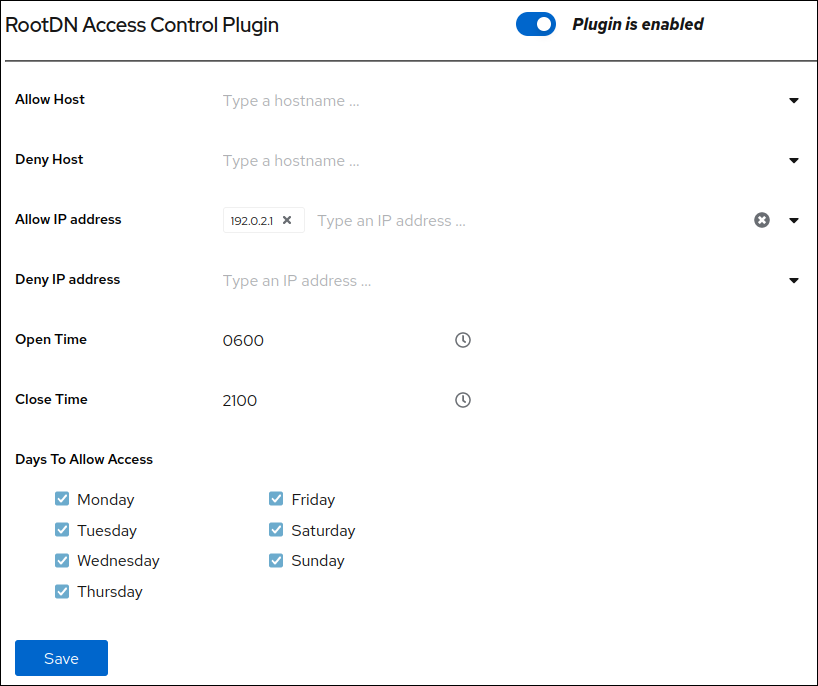
- Click .
-
Click in the top right corner, and select
Restart Instance.
Verification
Perform a query as
cn=Directory Managerfrom a host that is not allowed or outside of the allowed time range:[user@192.0.2.2]$ ldapsearch -D "cn=Directory Manager" -W -H ldap://server.example.com -x -b "dc=example,dc=com" Enter LDAP Password: ldap_bind: Server is unwilling to perform (53) additional info: RootDN access control violationIf Directory Server denies access, the plug-in works as expected.

'%20d='M201.5%20305.5c-13.8%200-24.9-11.1-24.9-24.6%200-13.8%2011.1-24.9%2024.9-24.9%2013.6%200%2024.6%2011.1%2024.6%2024.9%200%2013.6-11.1%2024.6-24.6%2024.6zM504%20256c0%20137-111%20248-248%20248S8%20393%208%20256%20119%208%20256%208s248%20111%20248%20248zm-132.3-41.2c-9.4%200-17.7%203.9-23.8%2010-22.4-15.5-52.6-25.5-86.1-26.6l17.4-78.3%2055.4%2012.5c0%2013.6%2011.1%2024.6%2024.6%2024.6%2013.8%200%2024.9-11.3%2024.9-24.9s-11.1-24.9-24.9-24.9c-9.7%200-18%205.8-22.1%2013.8l-61.2-13.6c-3-.8-6.1%201.4-6.9%204.4l-19.1%2086.4c-33.2%201.4-63.1%2011.3-85.5%2026.8-6.1-6.4-14.7-10.2-24.1-10.2-34.9%200-46.3%2046.9-14.4%2062.8-1.1%205-1.7%2010.2-1.7%2015.5%200%2052.6%2059.2%2095.2%20132%2095.2%2073.1%200%20132.3-42.6%20132.3-95.2%200-5.3-.6-10.8-1.9-15.8%2031.3-16%2019.8-62.5-14.9-62.5zM302.8%20331c-18.2%2018.2-76.1%2017.9-93.6%200-2.2-2.2-6.1-2.2-8.3%200-2.5%202.5-2.5%206.4%200%208.6%2022.8%2022.8%2087.3%2022.8%20110.2%200%202.5-2.2%202.5-6.1%200-8.6-2.2-2.2-6.1-2.2-8.3%200zm7.7-75c-13.6%200-24.6%2011.1-24.6%2024.9%200%2013.6%2011.1%2024.6%2024.6%2024.6%2013.8%200%2024.9-11.1%2024.9-24.6%200-13.8-11-24.9-24.9-24.9z'/%3e%3c/svg%3e)