 Red Hat Summit
Este contenido no está disponible en el idioma seleccionado.
3.2. Configuring IP Networking with nmtui
As a system administrator, you can configure a network interface using the NetworkManager's tool, nmtui. See Section 2.5, “NetworkManager Tools”.
This procedure describes how to configure networking using the text user interface tool, nmtui.
Prerequisites
- The nmtui tool is used in a terminal window. It is contained in the NetworkManager-tui package, but it is not installed along with NetworkManager by default. To install NetworkManager-tui:
~]# yum install NetworkManager-tui - To verify that NetworkManager is running, see Section 2.3, “Checking the Status of NetworkManager”.
Procedure
- Start the nmtui tool:The text user interface appears.
~]$ nmtui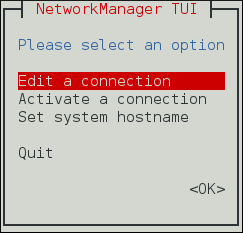
Figure 3.1. The NetworkManager Text User Interface starting menu
- To navigate, use the arrow keys or press Tab to step forwards and press Shift+Tab to step back through the options. Press Enter to select an option. The Space bar toggles the status of a check box.
To apply changes after a modified connection which is already active requires a reactivation of the connection. In this case, follow the procedure below:
Procedure
- Select the
Activate a connectionmenu entry.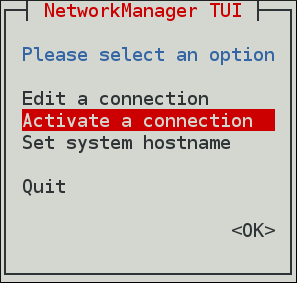
Figure 3.2. Activate a Connection
- Select the modified connection. On the right, click the
Deactivatebutton.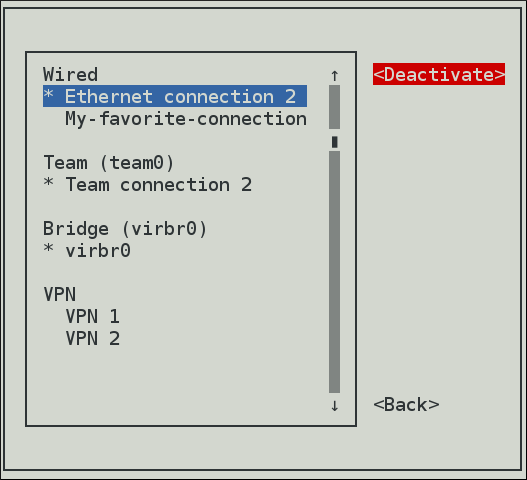
Figure 3.3. Deactivate the Modified Connection
- Choose the connection again and click the
Activatebutton.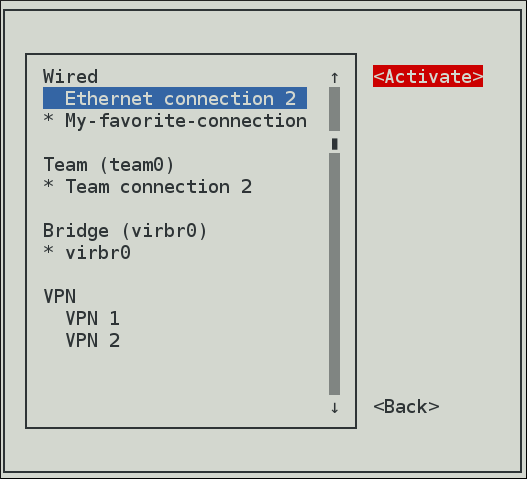
Figure 3.4. Reactivate the Modified Connection
The following commands are also available:
- If no connection name is supplied, the selection menu appears. If the connection name is supplied and correctly identified, the relevant Edit connection screen appears.
nmtui edit connection-name - If no connection name is supplied, the selection menu appears. If the connection name is supplied and correctly identified, the relevant connection is activated. Any invalid command prints a usage message.
nmtui connect connection-name
Note that nmtui does not support all types of connections. In particular, you cannot edit VPNs, wireless network connections using WPA Enterprise, or Ethernet connections using
802.1X.

'%20d='M201.5%20305.5c-13.8%200-24.9-11.1-24.9-24.6%200-13.8%2011.1-24.9%2024.9-24.9%2013.6%200%2024.6%2011.1%2024.6%2024.9%200%2013.6-11.1%2024.6-24.6%2024.6zM504%20256c0%20137-111%20248-248%20248S8%20393%208%20256%20119%208%20256%208s248%20111%20248%20248zm-132.3-41.2c-9.4%200-17.7%203.9-23.8%2010-22.4-15.5-52.6-25.5-86.1-26.6l17.4-78.3%2055.4%2012.5c0%2013.6%2011.1%2024.6%2024.6%2024.6%2013.8%200%2024.9-11.3%2024.9-24.9s-11.1-24.9-24.9-24.9c-9.7%200-18%205.8-22.1%2013.8l-61.2-13.6c-3-.8-6.1%201.4-6.9%204.4l-19.1%2086.4c-33.2%201.4-63.1%2011.3-85.5%2026.8-6.1-6.4-14.7-10.2-24.1-10.2-34.9%200-46.3%2046.9-14.4%2062.8-1.1%205-1.7%2010.2-1.7%2015.5%200%2052.6%2059.2%2095.2%20132%2095.2%2073.1%200%20132.3-42.6%20132.3-95.2%200-5.3-.6-10.8-1.9-15.8%2031.3-16%2019.8-62.5-14.9-62.5zM302.8%20331c-18.2%2018.2-76.1%2017.9-93.6%200-2.2-2.2-6.1-2.2-8.3%200-2.5%202.5-2.5%206.4%200%208.6%2022.8%2022.8%2087.3%2022.8%20110.2%200%202.5-2.2%202.5-6.1%200-8.6-2.2-2.2-6.1-2.2-8.3%200zm7.7-75c-13.6%200-24.6%2011.1-24.6%2024.9%200%2013.6%2011.1%2024.6%2024.6%2024.6%2013.8%200%2024.9-11.1%2024.9-24.6%200-13.8-11-24.9-24.9-24.9z'/%3e%3c/svg%3e)